
VT 5825 - Cordless phone VTECH - Free user manual and instructions
Find the device manual for free VT 5825 VTECH in PDF.


| Product type | Cordless telephone |
| Brand | VTECH |
| Model | VT 5825 |
| Number of handsets | 2 (supports up to 2 handsets) |
| Handset dimensions | 182 x 55.3 x 40 mm (with antenna) |
| Base dimensions | 115.8 x 112.2 x 62.6 mm |
| Charger dimensions | 76.5 x 79.4 x 45.2 mm |
| Handset weight | 146 g (without battery) |
| Base weight | 210 g |
| Charger weight | 225 g |
| Handset power supply | 3 rechargeable AAA NiMH batteries 3.6V 750mAh |
| Base power supply | AC adapter 9V 600mA |
| Charger power supply | AC adapter 9V 150mA |
| Frequencies | Base transmits 5744-5825 MHz, handset transmits 2401-2482 MHz |
| Number of channels | 95 channels |
| Phonebook | 50 entries, up to 32 digits and 16 characters per entry |
| Call log (caller ID) | 50 entries |
| Main functions | Intercom, call transfer, 3-way conference, speakerphone, visual message waiting, hold, redial last 5 numbers, pause, * key for temporary tone dialing |
| Battery life | Initial charge 10-12 h, then 8 h maintenance |
| Maintenance and cleaning | Clean with a soft cloth slightly damp (water or mild soap). Do not use liquid or aerosol cleaners. |
| Safety | Unplug before cleaning, do not use near water, do not open, use only batteries provided, follow instructions in manual. |
| Replacement batteries | Reference VTech 80-5381-00-00 (equivalent AAA NiMH batteries) |
| Customer service (United States) | 1-800-595-9511 |
| Customer service (Canada) | 1-800-267-7377 |
Frequently Asked Questions - VT 5825 VTECH
User questions about VT 5825 VTECH
0 question about this device. Answer the ones you know or ask your own.
Ask a new question about this device
Download the instructions for your Cordless phone in PDF format for free! Find your manual VT 5825 - VTECH and take your electronic device back in hand. On this page are published all the documents necessary for the use of your device. VT 5825 by VTECH.
USER MANUAL VT 5825 VTECH
Important Safety Instructions
When using your telephone equipment, basic safety precautions should always be followed to reduce the risk of fire, electric shock and injury, including the following:
- Read and understand all instructions.
- Follow all warnings and instructions marked on the product.
- Unplug this product from the wall outlet before cleaning. Do not use liquid cleaners or aerosol cleaners. Use a damp cloth for cleaning.
- Do not use this product near water (for example, near a bath tub, kitchen sink, or swimming pool).
- Do not place this product on an unstable cart, stand, or table. The product may fall, causing serious damage to the product.
- Slots and openings in the cabinet and the back or bottom are provided for ventilation. To protect it from overheating, these openings must not be blocked by placing the product on the bed, sofa, rug, or other similar surface. This product should never be placed near or over a radiator or heat register. This product should not be placed in a built-in installation where proper ventilation is not provided.
- This product should be operated only from the type of power source indicated on the marking label. If you are not sure of the type of power supply to your home, consult your dealer or local power company.
- Do not allow anything to rest on the power cord. Do not locate this product where the cord will be abused by persons walking on it.
- Never push objects of any kind into this product through cabinet slots as they may touch dangerous voltage points or short out parts that could result in a risk of fire or electric shock. Never spill liquid of any kind on the product.
- To reduce the risk of electric shock, do not disassemble this product, but take it to an authorized service facility. Opening or removing cabinet parts other than specified access doors may expose you to dangerous voltages or other risks. Incorrect reassembling can cause electric shock when the appliance is subsequently used.
- Do not overload wall outlets and extension cords as this can result in the risk of fire or electric shock.
- Unplug this product from the wall outlet and contact VTECH under the following conditions:
A. When the power supply cord or plug is damaged or frayed.
B. If liquid has been spilled into the product.
C. If the product has been exposed to rain or water.
D. If the product does not operate normally by following the operating instructions. Adjust only those controls that are covered by the operating instructions, because improper adjustment of other controls may result in damage and will often require extensive work to restore the product to normal operation.
E. If the product has been dropped and the cabinet has been damaged.
F. If the product exhibits a distinct change in performance.
- Avoid using a telephone (other than a cordless type) during an electrical storm. There may be a remote risk of electric shock from lightning.
Important Safety Instructions
- Do not use this or any cordless telephone to report a gas leak in the vicinity of the leak.
VTECH COMMUNICATIONS INC.
CUSTOMER SERVICE: 1-800-595-9511. In Canada, call VTech Telecommunications Canada Ltd. at 1-800-267-7377.
BEFORE USING YOUR ip 5825 SYSTEM, CAREFULLY PEEL OFF THE PROTECTIVE FILM COVERING THE DISPLAYS.
Introduction
The ip 5825 is an advanced cordless telephone set, capable of supporting 2 Handsets.
This manual is designed to familiarize you with this cordless telephone. We strongly recommend you read the manual before using your phone.
Parts Check List
- Base Unit
- Handsets
- Handset Charger
- Base AC Power Adapter
-
Telephone Line Cord
-
Belt Clips
- Base Wall Mounting Bracket
- Charger Wall Mounting Bracket
- User's Manual
- Battery Cells
To purchase replacement battery cells, call VTech Communications, Inc. at 1-800-595-9511. In Canada, call VTech Telecommunications Canada Ltd. at 1-800-267-7377.
Note: Use only VTech batteries (part number 80-5381-00-00) or equivalent AAA NiMH rechargeable batteries.
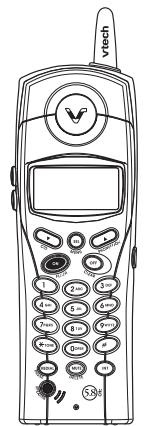
Handset x 2
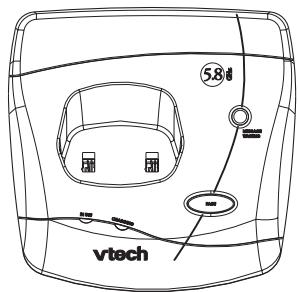
Base Unit
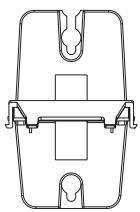
Base Wall Mounting Bracket
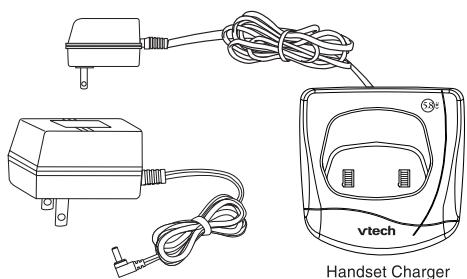
Base AC Power Adapter
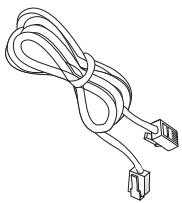
Telephone Line Cord

Belt Clip x 2
User's Manual
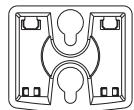
Charger Wall Mounting Bracket
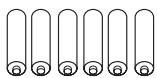
Battery Cell x 6

The Handset Layout
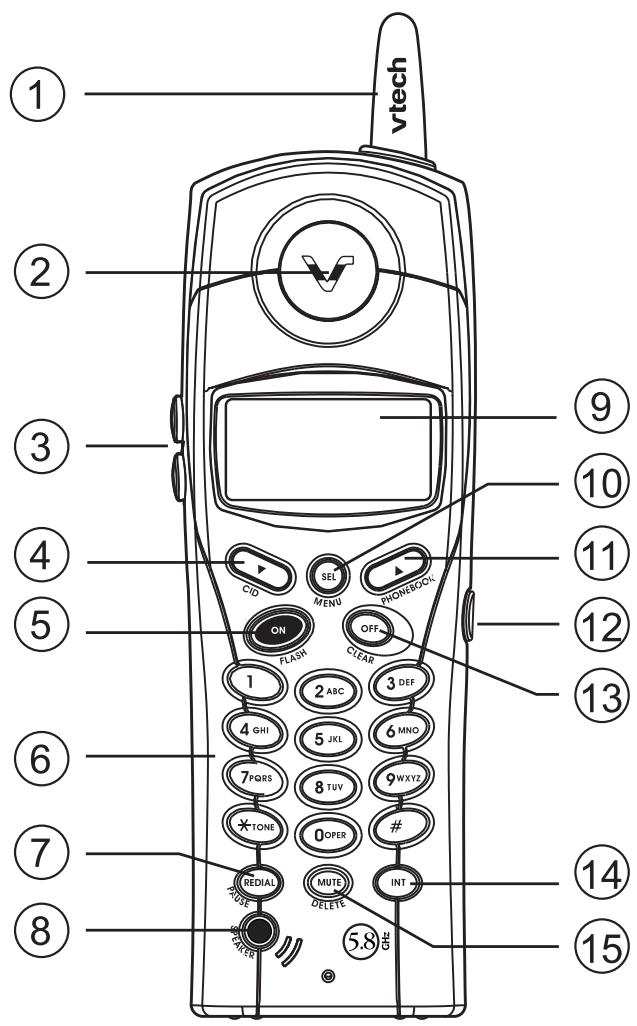
- Antenna
- Earpiece
- Volume Control
- CID (Scroll Down)
- On (Flash)
- Dialog Keys (0-9, *, #)
-
Redial (Pause)
-
Speakerphone
- LCD Display
- Select (Menu)
- Phonebook(Scroll Up)
- Headset jack (2.5mm)
- Off (Clear)
- Intercom
- Mute (Delete)
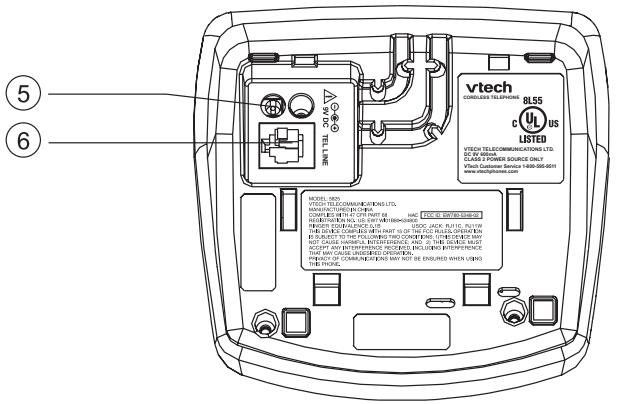
The Base Unit Layout
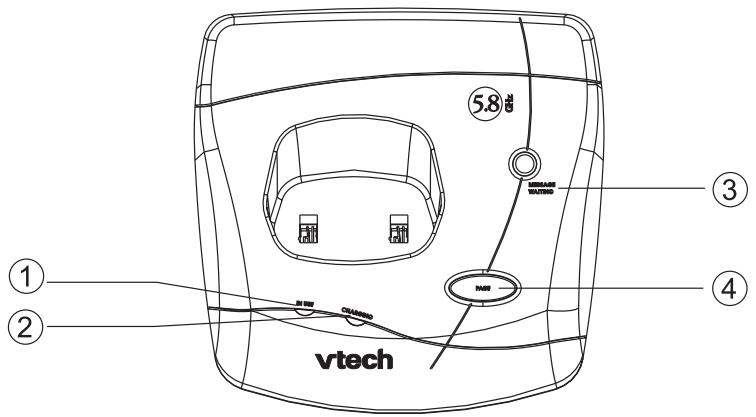
- In Use LED
- Charging LED
- Message Waiting LED
- Page key
- DC Connector Jack
- Telephone Jack
Setup
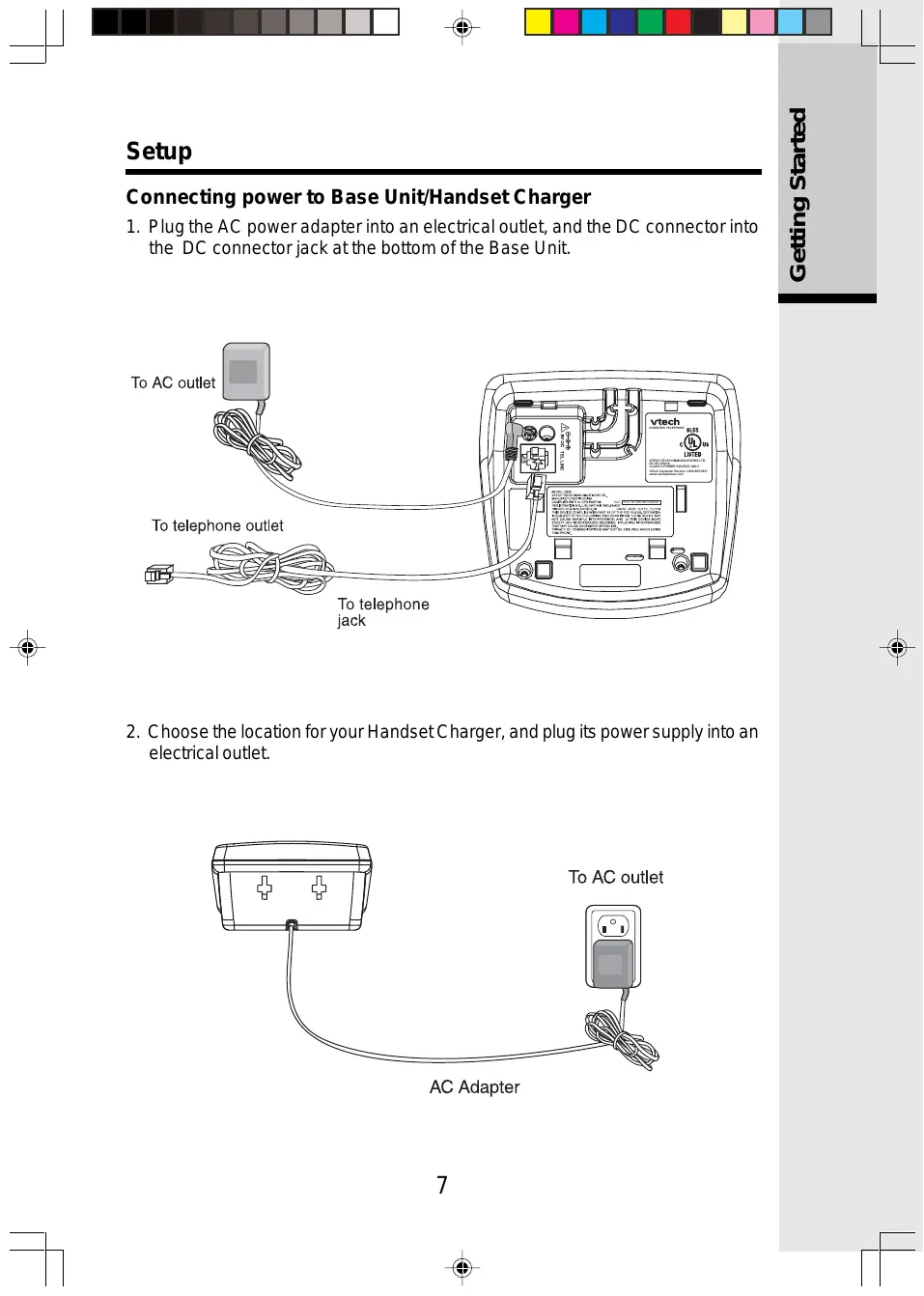
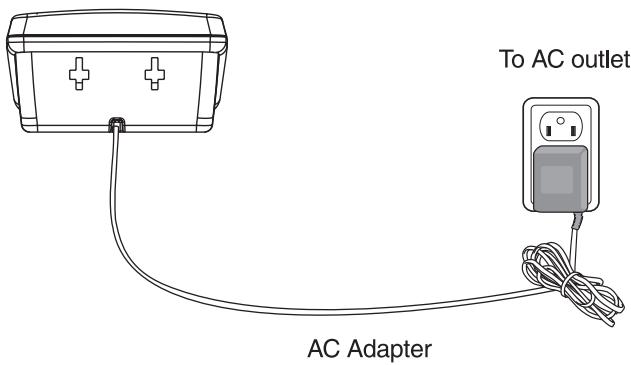
Connecting power to Base Unit/Handset Charger
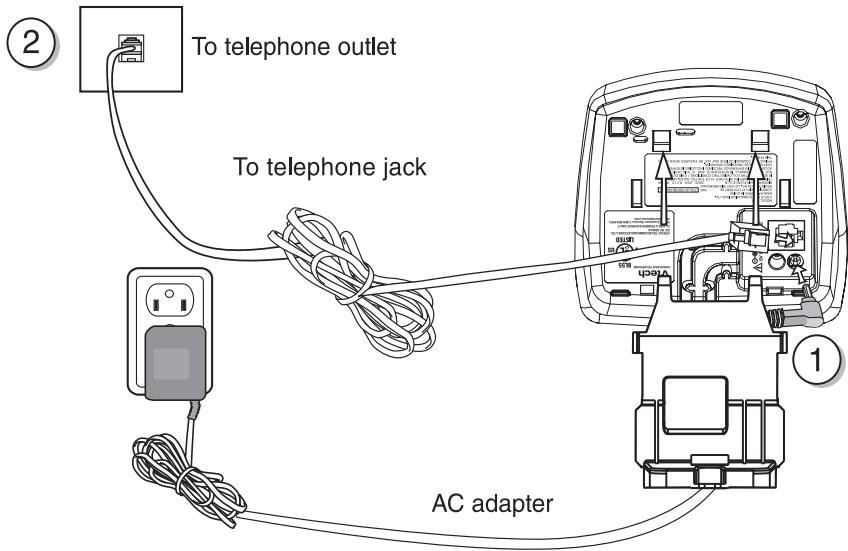
- Plug the AC power adapter into an electrical outlet, and the DC connector into the DC connector jack at the bottom of the Base Unit.
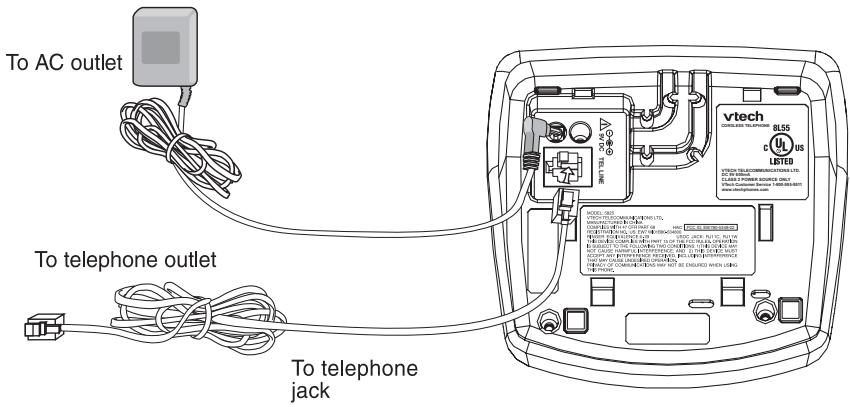
- Choose the location for your Handset Charger, and plug its power supply into an electrical outlet.
Setup
Installation of Battery Cells in Handset
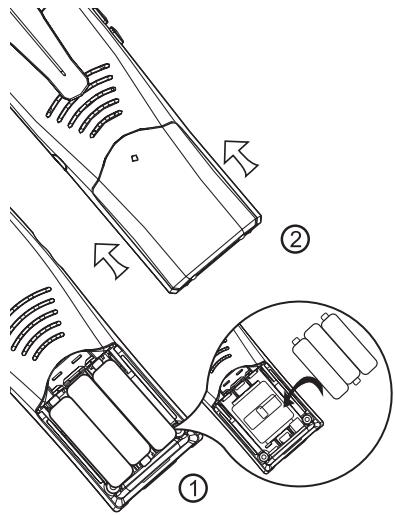
Follow the steps below:
- Place the new battery cells in the Handset with the positive and negative poles aligned in the battery compartment.
- Replace the battery cover by sliding it upwards.
- If the new battery cells are not already charged, place the Handset in its Charger or Base Unit, and allow it to charge for 10-12 hours. After initial charge, a maintenance charge of 8 hours should be sufficient.
WARNING: Alkaline batteries must NOT be used in your ip 5825 cordless telephone. Use only the batteries that came with your phone, or contact our Customer Support Center (contact information on page 2) to order additional batteries.
Charging of the Handset Battery Cells
The Handset of your cordless telephone is powered by rechargeable battery cells. It charges automatically whenever the Handset is in its charger or Base Unit.
You should charge the battery pack for 10-12 hours when you first receive your phone. You will know the battery pack needs charging when:
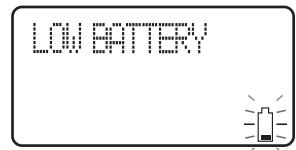
- The low battery message is displayed:
- The Handset seems completely dead, the LCD is completely clear and does not activate when you press the keys.
NOTE: When in LOW BATTERY mode, the keypad sounds, backlighting and speakerphone features will not work. When your battery has been charged, your features will return to their normal function.
IMPORTANT:
- Do not dispose of battery cell in a fire, the cell may explode.
- Do not open or mutilate the battery cell. Toxic substances may be released, causing harm to eyes or skin.
- Exercise care in handling battery cell in order to prevent an accidental short of the charge contacts, potentially causing the battery pack to overheat.
Setup
- Do not dispose of this battery cell into household garbage. Please refer to the information concerning proper battery recycling.
- Do not charge the battery cell with other electrical devices.
Check Battery Indicator
If you receive a check battery warning, it indicates one of the following:
- There are no battery cells in your Handset. You'll need to install battery cells into your Handset (see Installation and Charge of Battery Cells in Handset section on the previous page.)
- You have accidentally installed alkaline batteries into the Handset. (Alkaline batteries must NEVER be used in this phone. See the warning on the previous page for additional information about batteries for this telephone.)
- The rechargeable batteries in your Handset need to be replaced by new batteries.
- The batteries have been installed incorrectly. Please reinstall (see Installation of Battery Cells in Handset) and/or the diagram in the battery compartment on the Handset.
Connecting to Phone Line
Plug one end of the telephone line cord into the jack on the back of the Base Unit. Then plug the other end of this cord into the wall jack.
Checking for Dial Tone
After the battery is charged, press ON on the Handset. The LCD displays PHONE and shows a call timer, and you will hear a dial tone. If not, see In Case of Difficulty.
Tone/Pulse selection
Your phone is preset for tone dialing. See Handset Settings for details.

CAUTION: Use only the VTech power supply provided with your telephone.
IMPORTANT:
FOR MAXIMUM PERFORMANCE OF YOUR CORDLESS TELEPHONE SYSTEM:
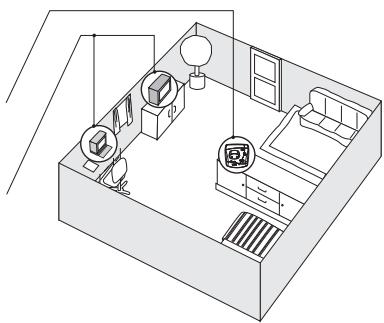
- Choose a central location for your Base Unit.
- Install your Base Unit and Extension Handsets away from electronic equipment, such as personal computers, television sets and microwave ovens.
- In locations where there are multiple cordless telephones, separate the Base Units as far away as possible.
- Install your telephone equipment away from heat sources and sunlight.
- Avoid excessive moisture, dust or extreme cold.
WARNING ECK BATTERY!
Wall Mounting
The Wall Mount brackets are designed for use on standard wall mount plates only. Wall mounting is optional.
- Plug the AC adapters into an electrical outlet, and the DC connector to the bottom of the Base Unit.
- Connect the telephone line cord to the jack at the bottom of the Base Unit, and the other end to the wall jack.
- Line up the tabs on the wall mount adapters with the holes at the bottom of the Base Unit/back of the Handset Charger. Snap the wall mount bracket firmly in place.
- Mount the Base Unit/Handset Charger on the wall. Position the Base Unit/Handset Charger so the mounting studs will fit into the holes on the wall mount bracket. Slide Base Unit/Handset Charger down on the mounting studs until it locks into place.
Handset and Base Indicators
Handset Icons
| Icon | Description |
| MUTE | • Turns on when the microphone is muted. |
| NEW | • Turns on when there are new call log enteries. |
| • Turns on when the ringer is muted. | |
| • Low battery indicator and charging indicator. |
Handset LEDs
| LED | Description |
| SPEAKER | • LED is on when in handsfree mode. |
Base LEDs
| LED | Description |
| IN USE | • On when the phone is off hook. • Flashes when an extension phone is off hook. |
| CHARGING | • On when the Handset is charging in the cradle. |
| MESSAGE WAITING | • Flashes when the visual message waiting signal has been detected. Service must be subscribed through your local telephone company. |
Handset Operation
Making Calls
- Press ON (or, SPEAKER to use the Handset Speakerphone feature). Dial the phone number. -OR-
- Dial the phone number first; then press ON (or SPEAKER).
- Press OFF to end your call.
Answering Calls
- Press any key except OFF, INT, MUTE, REDIAL/ PAUSE and the softkeys.
Press OFF to end your call.
How to Adjust the Handset Volume (also applies to the Handset Speakerphone and Headset)
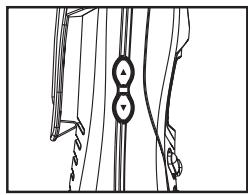
- The volume control is on the left edge of the Handset. During a call, press or key to adjust the listening volume to a comfortable level. When you reach the maximum or minimum setting, a double-beep will sound.
NOTE: The procedure is the same for the Handset earpiece, Speakerphone and Headset.
Flash Function
- You can use your ip 5825 with services such as Call Waiting. When you receive a call-waiting signal, simply press the ON/FLASH key to switch to the new call. Press ON/FLASH again to switch back to the original call.
NOTE: Use ON/FLASH to access other phone company subscriber services, as described by your provider.
Redial Funtion
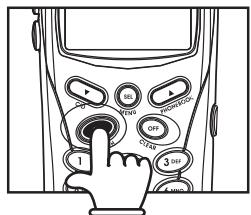
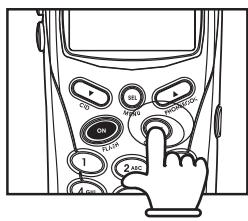
- Press REDIAL/PAUSE to display the last telephone number dialed from the Handset (up to 32 digits). Use or to scroll through the 5 previously dialed numbers. When the beginning or the end of the radial list is reached, a double-beep will sound.
- When the desired number is reached, press ON or SPEAKER to dial.
- Pressing OFF will exit the radial review list.
NOTE: When the radial memory is empty, and REDIAL is pressed, a double-beep will sound.
- When the desired entry displays, press DELETE to delete it. A confirmation tone will sound.
REDIPL 555-1212
Handset Operation
Mute Function
- During an active call, pressing the MUTEDelete key will disable the microphone. MICROPHONE MUTED will display briefly. The screen will display:
- Press MUTEDelete again to return to normal 2-way conversation. MICROPHONE ON will display briefly.
Intercom Call
- From the idle (OFF) mode, press INT. The Handset will display:
- The other Handset will ring and the screen will display:
- Press INT or SPEAKER to answer the intercom call. The screens will display:
- Press INT or OFF on either Handset to end the call.
NOTE: If the other Handset is out of range, or on an external call, when the first hand-set attempts to intercom it, the display of the first handset will show:
Call Forward and Call Transfer
An external call can be forwarded or transferred from one Handset to the other Handset. The difference between forward and transfer depends on if the sending Handset needs to talk with the receiving Handset, before the external call is actually sent to the other Handset.
PHONE 09:09:15 MICROPHONE MUTED
MUTE
CALLING OTHER HANDSET
OTHER HANDSET IS CALLING
INTERCOM
INTERCOM ENDED
UNFLETOCALLTRYBACKIN
Handset Operation
Call Forward
- A Handset (HS1), on an external call can forward it to the other Handset (HS2), by pressing and holding the INT key. The display of HS1 will initially show:
HS2 can press ON to answer the call.
NOTE: If HS2 does not respond in about 30 seconds, the external call will be returned to HS1 and the display will show:
If the returned call is not answered within 30 seconds, the external call will end automatically.
CALL FORWARD
CALL BECK
Call Transfer
- A Handset (HS1) on an external call can forward it to the other Handset (HS2) by pressing the INT key.
NOTE: The external call is put on hold automatically.
HS2 will ring, showing an intercom call.
HS2 can answer the intercom call by pressing ON.
HS1 and HS2 can discuss the external call. - Press OFF on HS1 to transfer the external call to the other Handset.
- HS2 is now on the external call. CALL TRANSFERRED will display on HS1 briefly.
NOTE: If there is no answer on HS2, then HS1 can be reconnected to the held call by pressing ON to reconnect to the external call.
Conference Call
It is possible to establish a conference between two Handsets and the external line.
If a Handset already has a connection to the external line, and the other Handset goes off-hook, a conference is immediately established. Both Handsets will show:
Base Operation
From the Base Unit, you can use the PAGE key to locate the Handsets.
- When the Handset is in idle, press PAGEThe Handsets will display:
- To end the page at the Base, press PAGE again.
- To Mute the page Tone at the Handset, press OFF.
CCHF. 08:00:25
BASE IS PAGING

Phonebook Operation
Your ip 5825 can store up to 50 numbers with names in memory. Each memory location can hold up to 32 digits for the number and 16 characters for the name.
NOTE: The Handsets share a common phonebook, which is stored in the Base. This means that entries inserted by one Handset are available for both Handsets, and if one deletes a phonebook entry, it will disappear from both Handsets.
When one Handset is accessing the phonebook, the other Handset cannot access it at the same time. If this is attempted, NOT AVAILABLE AT THIS TIME will display on the second Handset.
Storing a New Entry
Press SEL.
- With Phonebook selected, press SEL again.
Press to select STORE. Press SEL.
- You will be prompted to ENTER NUMBER. Use the dialing keys to enter the number you wish to store in the phonebook. Press the MUTE. DEL key to backspace and make corrections. Press SEL.
- You will then be prompted to ENTER NAME. Use the dialing keys to spell the name. Press SEL.
- You will hear a confirmation tone, and the new phonebook entry will display briefly.
NOTES:
- If the phonebook is full, the Handset will display PHONEBOOK IS FULL.
- You can also press REDIAL.PAUSE then or to scroll to the previously dialed number from the radial list you want to store in the phonebook. Press SEL.
While entering numbers, press and hold REDIAL.PAUSE to add pauses if necessary. - If there is a duplicate number in the phonebook, the display will show:
XSTORE REVIEW
ENTER NUMBER 123-345
ENTER NAME
PHONE BOOK IS FULL
NUMBER ALREADY IN PHONE BOOK
Phonebook Operation
Each press of a particular key causes characters to be displayed in the following order:
| Key | Characters by number of key presses | ||||||||
| 1 | 2 | 3 | 4 | 5 | 6 | 7 | 8 | 9 | |
| 1 | space | 1 | |||||||
| 2 | A | B | C | 2 | a | b | c | ||
| 3 | D | E | F | 3 | d | e | f | ||
| 4 | G | H | I | 4 | g | h | i | ||
| 5 | J | K | L | 5 | j | k | l | ||
| 6 | M | N | O | 6 | m | n | o | ||
| 7 | P | Q | R | S | 7 | p | q | r | s |
| 8 | T | U | V | 8 | t | u | v | ||
| 9 | W | X | Y | Z | 9 | w | x | y | z |
| 0 | 0 | ||||||||
| ? | ! | / | ( | ) | |||||
| # | # | ' | , | - | . | & | |||
Reviewing/Dialing from the Phonebook
- Press SEL. With Phonebook in the first line, press SEL again. With the REVIEW in the first line, press SEL again.
-OR
With the Handset idle, press and the Handset jumps directly into the phonebook review mode. The first phonebook entry will be displayed.
- Scroll through the phonebook entries using or keys or enter first character of the name to be searched (using the digit keys) and continue navigating using the or as scroll keys, until you reach the entry to be dialed.
NOTE: When reviewing the phonebook, the second line of the display will show the phone number, up to 16 digits. For numbers longer than 16 digits, only the first 13 digits will be shown. Press × or # to scroll the phone number to see the additional digits.
- Press ON or SPEAKERPHONE, to dial the number.
NOTE: If there are no entries in the phonebook,
Kevin James 432-5434
John Smith 555-1212
Phone 08:09:10 John Smith
John Smith 555-1212

Phonebook Operation
when it is accessed, PHONEBOOK IS EMPTY will display.
Editing a Phonebook Entry
- Follow the two steps in Reviewing/Dialing from the phonebook (on page 16) to reach the entry to be edited.
Press SEL. - Press MUTE.DEL to backspace then enter the correct number. Press and hold REDIAL.PAUSE to add pauses if necessary. You can also press REDIAL.PAUSE, then ▲ or ▼ to scroll to the previously dialed number from radial list which you want to store in the phonebook. Press SEL.
- Press SEL to confirm the number and enter name edit mode.
- Press MUTE.DEL to backspace and use the digit keys to enter the correct name.
- Press SEL to confirm the change. A confirmation tone will sound.
Delete a Phonebook Entry
- Follow the two steps in Reviewing/Dialing from the Phone Book (on page 16) to reach the entry to be deleted.
- Press MUTE.DEL to delete the entry. A confirmation tone will sound.
- The Handset will then move to the next entry, if any.
EDIT NUMBER 123-4567
EDIT NAME John
John 123-4567
John Smith 565-1212
Kevin Janes 432-5434
Calls Log (Caller ID - Call Waiting)
Caller ID - Call Waiting ID
Your ip 5825 is capable of displaying the name and/or number of the party calling before you answer the phone (Caller ID). It is also capable of displaying Caller ID information in conjunction with a Call Waiting alert signal (Call Waiting Caller ID). With Call Waiting Caller ID, the Caller ID data is displayed so you can decide whether to answer the incoming call, or continue with your current conversation. Your ip 5825 can hold up to 50 CID entries.
NOTES ABOUT CALLER ID &CALL WAITING CALLER ID
These are subscription services, provided by most regional telephone service providers. You must subscribe to these services to get the benefits of these features. If you do not subscribe to Caller ID services, you can still use your ip 5825 and the other features it offers.
Due to regional incompatibilities, Caller ID information may not be available for every call you receive. In addition, the calling party may intentionally block their name and/or phone number from being sent.
- As new Caller ID/Call Waiting ID records are received, your Handset displays will alert you to the new Caller ID records, for example:
After you review all new Caller ID records, the NEW call indication will be turned off and the screen will show: - If the call log is full, the oldest entry is deleted to make room for the new call. If the call log is empty when you try to enter to Call Log review, a message of the following message is displayed:
Reviewing Caller ID
You can review the caller ID record via the menu, as described below or by pressing the key in idle (quick access key) whereby the Handset jumps directly to the Caller ID review.
- In idle mode, press SEL to enter the menu.
- Press key to scroll to CALL LOG option.
UTECH5 NEW CALLS
VTECH
CALL LOG IS EMPTY
CALL LOG RINGER VOLUME

Calls Log (Caller ID - Call Waiting)
- Press SEL again. Use or to scroll through the Call Log entries.
- When the beginning or the end of the Call Log is reached, a happy tone will sound.
NOTE: !' symbol in the right hand side of the first line indicates the call is not yet reviewed.
Storing a Caller ID
- Follow the steps in Reviewing Caller ID to scroll to the record to be stored.
- Press SEL. If the Caller ID does not contain a name, you will be prompted to EDIT NAME. Use the digit keys to spell the name. If you make a mistake, press the DELETE key to backspace. When finished, press SEL.
- You will hear a happy tone then the screen will display:
- If the Caller ID isn't able to detect a name, ENTER NAME will be prompted. If unable to detect the number, ENTER NUMBER will be prompted. You will then need to add the name or the number.
- If the phone number already exists in the phonebook, the entry will not be stored, and the screen will show:
- If the phonebook is full, the screen will show:
If both name and number are missing, for example as in a private listing, the request will be rejected with the message:
Dialing from Caller ID
- Follow the steps in Reviewing Caller ID to scroll to the entry to be dialed.
Press ON or SPEAKER key to dial the number.
John Smith 123-4567
NEW 2:2311:59
EDIT
AODED TO PHONE BOOK
NUMBER FILE REPORT IN PHONE BOOK
PHONE BOOK IS FULL
UNPELE TO SPAJE IN PHONE BOOK
John Smith 123-4567
NEW 2-2311:59
Calls Log (Caller ID - Call Waiting)
Deleting Caller ID
- Follow the steps in Reviewing Caller ID to scroll to the record to be deleted.
- Press DELETE key to delete the desired record. A confirm tone will sound and the previous Caller ID record will be displayed on the screen.
- To delete all the Caller ID records, press and hold the DELETE key. The screen will ask you DELETE ALL CALLS? Press SEL for confirmation. Or, press OFF to return to the CID record previously displayed.
John Smith 123-4567
NEW 2-2311#59
DELETEALL CALLS?

Handset Settings
Ringer Volume
From the idle (OFF) mode, press SEL then ▲ or key to RINGER VOLUME.
- Press SEL again. The current ringer volume will be shown:
- Press and keys or enter digit 0-6 to the desired ringer volume. The current ring tone is played and the volume bar is increased/decreased each time the setting is adjusted. At the lowest setting, display will show:
- The Handset will not ring when a call comes in if Ringer Volume is setted to the lowest setting.
Press SEL to confirm the setting.
Ringer Tone
From the idle (OFF) mode, press SEL then ▲ or key to RINGER TONE.
- Press SEL. You will then be prompted to choose INTERCOM CALL or OUTSIDE CALL. Press or keys to select the desired option.
- Press SEL again. You can then use or keys or enter digit 0-9 to sample the ring tones. The screen, will show:
Press SEL to confirm your setting.
Key Tone (preset to ON)
From the idle (OFF) mode, press SEL then or key to KEY TONE.
- Press SEL again. The current setting will be shown. Press or keys to scroll to ON or OFF. When set to ON, the Handset will emit a beep whenever a key is pressed.
- When the desired option is shown, press SEL to confirm your selection.
RINGER VOLUME RINGER TONE
RINGER VOLUME
RINGER VOLUME
DRINGER TONE KEY TONE
INTERCOMCALLOUTSIDECALL
INTERCOM TONE 1
KEY TONE HANDSET NAME
KEY TONE OFF
Handset Settings
Handset Name (preset as 'VTECH')
- It is possible to give each Handset its own unique name. The name is shown in the first line when the Handset is idle. The name can be a maximum of 16 characters in length.
From the idle (OFF) mode, press SEL then ▲ or▼ key to HANDSET NAME. - Press SEL again. The display will show the current setting, for example:
- Press DEL to backspace then 'spell' the desired name.
NOTE: The characters are entered in the same way as for the phone book, see the table in page 15.
Press SEL to confirm the setting.
Language (preset to English)
From the idle (OFF) mode, press SEL then or key to LANGUAGE.
Press SEL to select this option. Press or keys to scroll from English to French or Spanish.
Press SEL to confirm the setting.
Message Waiting
Your telephone can detect a Visual Message Waiting signal, generated by many telephone service providers. If you subscribe to Voice Mail service from your local telephone company (fee required), and a Visual Message Waiting signal is provided, the Handset will displayMESSAGE WAITING, alerting you to new messages.
Once you have reviewed all new messages, the Message Waiting alert will automatically be turned off.
HANCOSET NAME UTECH_
HANODSET NHPIE Kitchen
ALANGUAGE CLEAR MSG WAIT
LANSLAGE FRENCH

Handset Settings
Clear Message Waiting
If, after reviewing all new voice mail messages, the Message Waiting alert still remains on the screen and theMESSAGE WAITING LED on Base is still flashing, you can manually remove the indication from the screen and turn the LED off.
From the idle (OFF) mode, press SEL then ▲or key to CLEAR MSG WAIT.
- Press SEL then the display will ask you TURN INDICATOR OFF? Press SEL again to confirm. To exit, press OFF.
CLEAR MSG WAIT
DIAL TYPE
TURN INDICATOR OFF?
Dial Type (preset to Tone)
From the idle (OFF) mode, press SEL then ▲ or key to DIAL TYPE.
Press SEL then use or key to scroll from TONE to PULSE.
- Press SEL to confirm your setting.
NOTE: When the phone is set for PULSE dial mode, it is possible to switch to temporary TONE mode during an ongoing call by pressing *. Once pressed, TONE will be used for rest of the call. After you hang up, the phone will return to pulse dialing for the next call.
DIPAL TYPE PHONE BOOK
DIAL TYPE PULSE
Headset Operation
Headset Operation
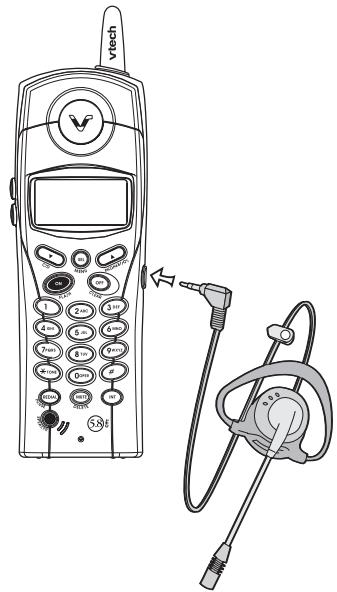
Your ip 5825 Handset is equipped with a 2.5mm Headset Jack for use with an optional accessory Headset for hands-free operation. If you choose to use the Headset option, you must obtain an optional accessory Headset, which is compatible with the ip 5825.
To purchase a Headset, call VTech Customer Service at 1-800-595-9511.
Once you have a compatible 2.5mm Headset, locate the Headset Jack on the ip 5825 Handset. Connect the plug on the Headset cord to the jack (under a small rubber flag) on the cordless Handset. The plug should fit securely. Do not force the connection.
NOTE:
- Whenever a compatible Headset is connected to the cordless Handset, the microphone on the Handset will be muted. This is done to limit the effect of background noise.
- When a compatible Headset is connected to the cordless Handset, your Speakerphone feature will be disabled. To use your Speakerphone feature, simply disconnect the Headset from the Handset.
Belt Clip
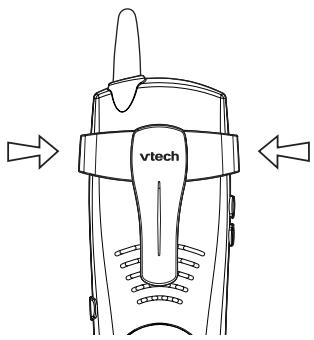
The ip 5825 is also equipped with a detachable belt clip. Align the pins on the inside edge of the clip with the notches on the sides of the Handset. The belt clip should snap securely into place. Do not force the connection.

In Case Of Difficulty
In Case Of Difficulty
If you have difficulties in operating your phone, the suggestions below should solve the problem. If you still have difficulties after trying these suggestions, call VTECH Communications at 1-800-595-9511. In Canada, call VTECH Telecommunications Canada Ltd. at 1-800-267-7377.
The Phone Doesn't Work At All
- Make sure the Power Cord is plugged in.
- Make sure the telephone line cord is plugged firmly into the Base Unit and the telephone wall jack.
- Make sure the batteries are properly charged. If you get a 'LOW BATTERY' message or indication, the battery cells needs charging.
No Dial Tone
- First check all the suggestions above.
- If you still don't hear a dial tone, disconnect the Base Unit from the telephone jack and connect a different phone. If there is no dial tone on that phone either, the problem is in your wiring or local service. Contact your local telephone company.
You Get Noise, Static, Or A Weak Signal Even When You're Near The Base Unit
- Household appliances plugged into the same circuit as the Base Unit can sometimes cause interference. Try to move the appliance or the Base Unit to another outlet.
You Get Noise, Static, Or A Weak Signal When You're Away From The Base Unit
- You may be out of range. Either move closer to the Base, or relocate the Base Unit.
- The layout of your home may be limiting the range. Try to move the Base Unit to another position.
The Handset Does Not Ring When You Receive A Call
- Make sure you have the ringers activated. Refer to the section(s) on Ringer Volume in this User's Manual.
- Make sure the telephone line cord is plugged firmly into the Base Unit and the telephone jack. Make sure the power cord is plugged in.
- You may be too far from the Base Unit.
- You may have too many extension phones on your telephone line to allow all of them to ring. Try to unplug some of the other phones.
You Hear Other Calls While Using Your Phone
- Disconnect your Base Unit from the telephone jack, and plug in a corded telephone. If you still hear other calls, the problem is probably in your wiring or local service. Call your local telephone company.
In Case Of Difficulty
You Hear Noise In The Handset, And None Of The Keys Or Buttons Work
- Make sure the power cord is plugged in.
Common Cure For Electronic Equipment
If the unit does not seem to be responding normally, then try to put the Handset in the cradle. If it does not seem to respond, do the following (in the order listed):
- Disconnect the power to the Base.
- Disconnect the Handset battery.
- Wait a few minutes.
- Connect power to the Base.
- Re-install the battery pack (s)
- Watch for Handset to display: "VTECH" or your own handset name.
SEARCHING...

Maintenance
Taking Care Of Your Telephone
Your cordless telephone contains sophisticated electronic parts, so it must be treated with care.
Avoid rough treatment
Place the Handset down gently. Save the original packing materials to protect your telephone if you ever need to ship it.
Avoid water
Your telephone can be damaged if it gets wet. Do not use the Handset outdoors in the rain, or handle it with wet hands. Do not install your Base Unit near a sink, bathtub or shower.
Electrical storms
Electrical storms can sometimes cause power surges harmful to electronic equipment. For your own safety, use caution when using electric appliances during storms.
Cleaning your telephone
Your telephone has a durable plastic casing that should retain its luster for many years. Clean it only with a soft cloth slightly dampened with water or a mild soap. Do not use excess water or cleaning solvents of any kind.
Remember that electrical appliances can cause serious injury if used when you are wet or standing in water. If your Base Unit should fall into water, DO NOT RETRIEVE IT UNTIL YOU UNPLUG THE POWER CORD AND TELEPHONE LINE CORDS FROM THE WALL. Then pull the unit out by the unplugged cords.
Warranty Statement
What does this limited warranty cover?
- The manufacturer of this VTech product, VTech Communications, warrants to the holder of a valid proof of purchase ("Consumer" or "you") that the product and all accessories provided by VTech in the sales package ("Product") are free from material defects in material and workmanship, pursuant to the following terms and conditions, when installed and used normally and in accordance with operation instructions, This limited warranty extends only to the Consumer for Products purchased and used in the United States of America.
What will VTech Communications do if the Product is not free from material defects in materials and workmanship during the limited warranty period ("Materially Defective Product")?
- During the limited warranty period, VTech's authorized service representative will repair or replace at VTech's option, without charge, a materially Defective Product. If we repair this product, we may use new or refurbished replacement parts. If we choose to replace this product, we may replace it with a new or refurbished product of the same or similar design. VTech will return repaired or replacement products to you in working condition. VTech will retain defective parts, modules, or equipment. Repair or replacement of Product, at VTech's option, is your exclusive remedy. You should expect the repair or replacement to take approximately 30 days.
How long is the limited warranty period?
- The limited warranty period for the product extends for ONE(1) YEAR from the date of purchase if we repair or replace a materially Defective Product under the terms of this limited warranty. This limited warranty also applies to repaired or replacement Products for a period of either (a) 90 days from the date the repaired or replacement Product is shipped to you or (b) the time remaining on the original one-year warranty; whichever is longer.
What is not covered by this limited warranty?
This limited warranty does not cover
- Product that has been subjected to misuse, accident, shipping or other physical damage, improper installation, abnormal operation or handling, negligent, inundation, fire, water or other liquid intrusion; or
- Product that has been damaged due to repair, alteration or modification by anyone other than an authorized service representative of VTech; or
- Product to the extent that the problem experienced is caused by signal conditions, network reliability or cable or antenna systems; or
- Product to the extent that the problem is caused by use with non-VTech electrical accessories; or
- Product whose warranty/quality stickers, Product serial numbers plates or electronic serial numbers have been removed, altered or rendered illegible; or

Warranty Statement
- Product purchased, used, serviced, or shipped for repair from outside the United States, or used for commercial or institutional purposes (including but not limited to Products used for rental purposes); or
- Product returned without valid proof of purchase (see 2 below); or
- Charges for installation or set up, adjustment of customer controls, and installation or repair of systems outside the unit.
How do you get warranty service?
- To obtain warranty service in the United States of America, call 1-800-595-9511 for instructions regarding where to return the Product. Before calling for service, please check the user's manual. A check of the Product controls and features may save you a service call.
- Except as provided by applicable law, you assume the risk of loss or damage during transit and transportation and are responsible for delivery or handling charges incurred in the transport of Product(s) to the service location. VTech will return repaired or replaced product under this limited warranty to you, transportation, delivery or handling charges prepaid. VTech assumes no risk for damage or loss of the Product in transit.
- If the Product failure is not covered by this limited warranty, or proof of purchase does not meet the terms of this limited warranty, VTech will notify you and will request that you authorize the cost of repair and return shipping costs for the repair of Products that are not covered by this limited warranty.
What must you return with the Product to get warranty service?
- Return the entire original package and contents including the Product to the VTech service location along with a description of the malfunction or difficulty;
- Include "valid proof of purchase" (sales receipt) identifying the Product purchased (Product model) and the date of purchase or receipt; and
- Provide your name, complete and correct mailing address, and telephone number.
Other Limitations
- This warranty is the complete and exclusive agreement between you and VTech. It supersedes all other written or oral communications related to this Product. VTech provides no other warranties for this product. The warranty exclusively describes all of VTech's responsibilities regarding the product.
There are no other express warranties. No one is authorized to make modifications to this limited warranty and you should not rely on any such modification.
State Law Rights: This warranty gives you specific legal rights, and you may also have other rights, which vary from state to state.
Limitations: Implied warranties, including those of fitness for a particular purpose and merchantability (an unwritten warranty that the product is fit for ordinary use)
Warranty Statement
are limited to one year from date of purchase. Some states do not allow limitations on how long an implied warranty lasts, so the above limitation may not apply to you.
- In no event shall VTech be liable for any indirect, special, incidental, consequential, or similar damages (including, but not limited to lost profits or revenue, inability to use the product, or other associated equipment, the cost of substitute equipment, and claims by third parties) resulting from the use of this product, some states do not allow the exclusion or limitation of incidental or consequential damages, so the above limitation or exclusion may not apply to you.

FCC, ACTA, and IC Regulations
FCC, ACTA and IC Regulations
This equipment complies with Parts 15 of the Federal Communications Commission (FCC) rules for the United States. It also complies with regulations RSS210 and CS-03 of Industry and Science Canada. Operation is subject to the following two conditions: (1) this device may not cause interference, and (2) this device must accept any interference, including interference that may cause undesired operation of the device.
A label is located on the underside of the Base Unit containing either the FCC registration number and Ringer Equivalence Number (REN) or the IC registration number and Load Number. You must, upon request, provide this information to your local telephone company.
This equipment is compatible with inductively coupled hearing aids.
Should you experience trouble with this telephone equipment, please contact:
VTech Communications Inc
CUSTOMER SERVICE at 1-800-595-9511. In Canada, call VTech Telecommunications Canada Ltd. at 1-800-267-7377.
For repair/warranty information. The telephone company may ask you to disconnect this equipment from the line network until the problem has been corrected.
FCC Part 15
Warning: Changes or modifications to this unit not expressly approved by the party responsible for compliance could void the user's authority to operate the equipment.
The equipment has been tested and found to comply with part 15 of the FCC rules. These limits are designed to provide reasonable protection against harmful interference in a residential installation. This equipment generates, uses and can radiate radio frequency energy and, if not installed and used in accordance with the instructions, may cause harmful interference to radio communications.
However, there is no guarantee that interference will not occur in a particular installation. If this equipment does cause harmful interference to radio or television reception, which can be determined by turning the equipment off and on, the user is encouraged to try and correct the interference by one or more of the following measures:
- Reorient or relocate the receiving antenna.
- Increase the separation between the equipment and receiver.
- Connect the equipment into an outlet or on a circuit different from that to which the receiver is connected.
- Consult the dealer or an experienced radio/TV technician for help.
To ensure safety of users, the FCC has established criteria for the amount of radio frequency energy that can be safely absorbed by a user or bystander according to
FCC, ACTA, and IC Regulations
the intended usage of the product. This product has been tested and found to comply with the FCC criteria. The handset has such a low power that it does not require testing. It may be safely held against the ear of the user. The base unit shall be installed & used such that parts of the user's body other than the hands should be maintained at a comfortable distance of approximately 20 cm or more.
FCC Part 68 and ACTA
If this equipment was approved for connection to the telephone network prior to July 23, 2001, it complies with Part 68 of the Federal Communications Commission (FCC) rules. If the equipment was approved after that date, it complies with the Part 68 rules and with Technical Requirements for Connection of Equipment to the Telephone Network adopted by the Administrative Council for Terminal Attachments (ACTA). We are required to provide you with the following information.
1. Product identifier and REN information
The label on the back or bottom of this equipment contains, among other things, an identifier indicating product approval and the Ringer Equivalence Number (REN). This information must be provided to your local telephone company upon request. For equipment approved prior to July 23, 2001, the product identifier is preceded by the phrase "FCC Reg No." and the REN is listed separately. For equipment approved after that date, the product identifier is preceded by "US" and a colon (:), and the REN is encoded in the product identifier without a decimal point as the sixth and seventh characters following the colon. For example, the product identifier US:AAAEQ03T123XYZ would indicate an REN of 0.3. The REN is used to determine how many devices you may connect to your telephone line and still have them ring when you are called. In most, but not all areas, the sum of all RENs should be five (5.0) or less. You may want to contact your local telephone company for more information.
2. Connection and use with the nationwide telephone network
The plug and jack used to connect this equipment to the premises wiring and the telephone network must comply with the applicable Part 68 rules and technical requirements adopted by ACTA. A compliant telephone cord and modular plug is provided with this product. It is designed to be connected to a compatible modular jack that is also compliant. An RJ11 jack should normally be used for connecting to a single line and an RJ14 jack for two lines. See Installation Instructions in the user's manual. This equipment may not be used with Coin Telephone Lines or with Party Lines. If you have specially wired alarm dialing equipment connected to your telephone line, ensure the connection of this equipment does not disable your alarm equipment. If you have questions about what will disable alarm equipment, consult your telephone company or a qualified installer.
3. Repair instructions
If this equipment is malfunctioning, it must be unplugged from the modular jack until

FCC, ACTA, and IC Regulations
the problem has been corrected. Repairs to this telephone equipment can only be made by the manufacturer or its authorized agents. For repair procedures, follow the instructions outlined under the Limited Warranty.
4. Rights of the telephone company
If this equipment is causing harm to the telephone network, the telephone company may temporarily discontinue your telephone service. The telephone company is required to notify you before interrupting service. If advance notice is not practical, you will be notified as soon as possible. You will be given the opportunity to correct the problem and the telephone company is required to inform you of your right to file a complaint with the FCC. Your telephone company may make changes in its facilities, equipment, operation, or procedures that could affect the proper functioning of this product. The telephone company is required to notify you if such changes are planned.
5. Hearing aid compatibility
If this product is equipped with a corded or cordless Handset, it is hearing aid compatible.
6. Programming/testing of emergency numbers
If this product has memory dialing locations, you may choose to store police, fire department and emergency medical service telephone numbers in these locations. If you do, please keep three things in mind:
a. We recommend that you also write the telephone number on the directory card, so that you can still dial the emergency number manually if the memory dialing feature doesn't work.
b. This feature is provided only as a convenience, and the manufacturer assumes no responsibility for customer reliance upon the memory feature.
c. Testing the emergency telephone numbers you have stored is not recommended. However, if you do make a call to an emergency number:
- You must remain on the line and briefly explain the reason for the call before hanging up.
- Programming/testing of emergency numbers should be performed during offpeak hours, such as in the early morning or late evening, when the emergency services tend to be less busy.
IC (Industry Canada)
This telephone is registered for use in Canada.
The term "IC:" before the radio certification number only signifies that Industry Canada technical specifications were met.
Notice:
This equipment meets the applicable Industry Canada Terminal Equipment Technical
FCC, ACTA, and IC Regulations
Specifications. This is confirmed by the registration number. The abbreviation, IC, before the registration number signifies that registration was performed based on a Declaration of Conformity indicating that Industry Canada technical specifications were met. It does not imply that Industry Canada approved the equipment.
Notice:
The Ringer Equivalence Number (REN) for this terminal equipment is 0.1. The REN assigned to each terminal equipment provides an indication of the maximum number of terminals allowed to be connected to a telephone interface. The termination on an interface may consist of any combination of devices subject only to the requirement that the sum of the Ringer Equivalence Numbers of all the devices does not exceed five.
Before installing this equipment, users should ensure that it is permissible to be connected to the facilities of the local telecommunications company. The equipment must also be installed using an acceptable method of connection. The customer should be aware that compliance with the above conditions may not prevent degradation of services in some situations.
Repairs to certified equipment should be made by an authorized Canadian maintenance facility designated by the supplier. Any repairs or alterations made by the user to this equipment, or equipment malfunctions, may give the telecommunications company cause to request the user to disconnect the equipment.
Users should ensure for their own protection that the electrical ground connections of the power utility, telephone lines and internal metallic water pipe system, if present, are connected together. This precaution may be particularly important in rural areas.
Caution:
Users should not attempt to make such connections themselves, but should contact the appropriate electrical inspection authority, or electrician, as appropriate.
Your Cordless Phone is designed to operate at the maximum power allowed by the FCC and IC. This means your Handset and Base Unit can communicate only over a certain distance - which will depend on the location of the Base Unit and Handset, weather, and the construction and layout of your home or office.

Technical Specifications
FREQUENCY CONTROL
Crystal controlled
PLL synthesizer
TRANSMIT FREQUENCY
Base: 5744.736 - 5825.952 MHz
Handset: 2401.056 - 2482.272 MHz
RECEIVE FREQUENCY
Base: 2401.056 - 2482.272 MHz
Handset: 5744.736 - 5825.952 MHz
CHANNELS
95 Channels
NOMINAL EFFECTIVE RANGE
Maximum power allowed by FCC and IC. Actual operating range may vary according to environmental conditions at the time of use.
SIZE
Handset: 182mm x 55.3mm x 40mm (including antenna)
Base: 115.8mm x 112.2mm x 62.6mm
Charger: 76.5mm x 79.4mm x 45.2mm
WEIGHT
Handset: 146 grams
(excluding Batteries)
Base: 210 grams
Charger: 225 grams
POWER REQUIREMENTS
Handset: 3.6V 750mAh NiMH
(3 AAA cells)
Base: 9 V @ 600mA
Charger: 9 V @ 150mA
MEMORY
Speed Dial: 50 Memory locations; up to 32 digits per location
CID: 50 Memory locations
SPECIFICATIONS ARE TYPICAL
AND MAY CHANGE WITHOUT
NOTICE.
vtech
VTECH TELECOMMUNICATIONS LTD.
Vtech A member of THE VTECH GROUP OF COMPANIES.
Distributed in the U.S.A. by VTech Communications, Inc. Beaverton, Oregon, 97008
Distributed in Canada by VTech Telecommunications Canada Ltd. 7671 Alderbridge Way, Richmond, B.C. V6X 1Z9.
PrintedinChina
91-5467-40-00
ISSUE0
Table Of Contents
IMPORTANT SAFETY INSTRUCTIONS. 1
INTRODUCTION. 3
Parts Check List. 4
The Handset Layout. 5
The Base Unit Layout. 6
GETTING STARTED. 7
SETUP. 7
Connecting power to Base Unit/ Handset Charger. 7
Installation of Battery Cells in Handset. 8
Charging of the Handset Battery Cells. 8
Check Battery Indicator. 9
Connecting to Phone Line. 9
Checking for Dial Tone. 9
Tone/Pulse selection. 9
Wall Mounting. 10
BASIC OPERATION 11
Handset and Base Indicators. 11
Handset Icons. 11
Handset LEDs. 11
Base LEDs. 11
Handset Operation. 12
Making Calls. 12
Answering Calls. 12
Flash Function. 12
Redial Funition. 12
Mute Function. 13
Intercom Call. 13
Call Forward. 14
Call Transfer. 14
Conference Call. 14
Base Operation. 14
Phonebook Operation. 15
Storing a New Entry. 16
Reviewing/Dialing from the Phonebook 16
Editing a Phonebook entry. 17
Delete a phonebook entry. 17
Calls Log (Caller ID - Call Waiting) 18
Caller ID - Call Waiting ID. 18
Reviewing Caller ID. 18
Storing a Caller ID. 19
Dialing from Caller ID. 19
Deleting Caller ID. 20
Handset Settings. 21
Ringer Volume. 21
Ringer Tone 21
Table Of Contents
Key Tone (preset to ON). 21
Handset Name (preset as 'VTECH'). 22
Language (preset to English). 22
Message Waiting. 22
Clear Message waiting. 23
Dial Type (preset to Tone) 23
In Case Of Difficulty. 25
Maintenance. 27
Warranty Statement. 28
FCC, ACTA, and IC Regulations. 31
Technical Specifications 35
- Important Safety Instructions
- Introduction
- Parts Check List
- The Handset Layout
- The Base Unit Layout
- Setup
- Connecting power to Base Unit/Handset Charger
- Installation of Battery Cells in Handset
- Charging of the Handset Battery Cells
- IMPORTANT:
- Check Battery Indicator
- Connecting to Phone Line
- Checking for Dial Tone
- Tone/Pulse selection
- Wall Mounting
- Handset and Base Indicators
- Handset Icons
- Handset LEDs
- Base LEDs
- Handset Operation
- Making Calls
- Answering Calls
- Flash Function
- Redial Funtion
- Mute Function
- Intercom Call
- Call Forward and Call Transfer
- Call Forward
- Call Transfer
- Conference Call
- Base Operation
- Phonebook Operation
- Storing a New Entry
- NOTES:
- Reviewing/Dialing from the Phonebook
- Editing a Phonebook Entry
- Delete a Phonebook Entry
- Calls Log (Caller ID - Call Waiting)
- Caller ID - Call Waiting ID
- NOTES ABOUT CALLER ID &CALL WAITING CALLER ID
- Reviewing Caller ID
- Storing a Caller ID
- Dialing from Caller ID
- Deleting Caller ID
- Handset Settings
- Ringer Volume
- Ringer Tone
- Key Tone (preset to ON)
- Handset Name (preset as 'VTECH')
- Language (preset to English)
- Message Waiting
- Clear Message Waiting
- Dial Type (preset to Tone)
- Headset Operation
- NOTE:
- Belt Clip
- In Case Of Difficulty
- The Phone Doesn't Work At All
- No Dial Tone
- You Get Noise, Static, Or A Weak Signal Even When You're Near The Base Unit
- You Get Noise, Static, Or A Weak Signal When You're Away From The Base Unit
- The Handset Does Not Ring When You Receive A Call
- You Hear Other Calls While Using Your Phone
- Common Cure For Electronic Equipment
- Maintenance
- Taking Care Of Your Telephone
- Avoid rough treatment
- Avoid water
- Electrical storms
- Cleaning your telephone
- Warranty Statement
- What does this limited warranty cover?
- What will VTech Communications do if the Product is not free from material defects in materials and workmanship during the limited warranty period ("Materially Defective Product")?
- How long is the limited warranty period?
- What is not covered by this limited warranty?
- How do you get warranty service?
- What must you return with the Product to get warranty service?
- Other Limitations
- FCC, ACTA, and IC Regulations
- FCC, ACTA and IC Regulations
- VTech Communications Inc
- FCC Part 15
- FCC Part 68 and ACTA
- Product identifier and REN information
- Connection and use with the nationwide telephone network
- Repair instructions
- Rights of the telephone company
- Hearing aid compatibility
- Programming/testing of emergency numbers
- IC (Industry Canada)
- Notice:
- Caution:
- Technical Specifications
- FREQUENCY CONTROL
- TRANSMIT FREQUENCY
- RECEIVE FREQUENCY
- CHANNELS
- NOMINAL EFFECTIVE RANGE
- SIZE
- WEIGHT
- POWER REQUIREMENTS
- MEMORY
- vtech
- Table Of Contents
- IMPORTANT SAFETY INSTRUCTIONS. 1
- GETTING STARTED. 7
- BASIC OPERATION 11
Brand : VTECH
Model : VT 5825
Category : Cordless phone