
DS-2000D - DVD/CD player DAEWOO - Free user manual and instructions
Find the device manual for free DS-2000D DAEWOO in PDF.


| Product type | DVD/CD Player |
| Brand | DAEWOO |
| Model | DS-2000D |
| Dimensions (W × H × D) | 435 × 90 × 280 mm |
| Weight | Approximately 4 kg |
| Power supply | 230 V ~ 50 Hz, < 20 W |
| Playable formats | DVD Video, CD Audio |
| DVD region code | 2 (Europe) or ALL |
| Video outputs | Composite, S-Video, SCART (RGB/YC) |
| Audio outputs | Stereo analog (2 x RCA), Digital coaxial and optical |
| Decoded audio formats | Dolby Digital, DTS, PCM |
| Playback functions | Normal play, pause, slow, fast, repeat, programmed, random, zoom (x2 / x4) |
| Special functions | Time search, 9-picture digest, multi-angle, subtitles, parental lock |
| Video system | PAL / NTSC / AUTO |
| Horizontal resolution | > 500 lines |
| Audio signal-to-noise ratio | ≥ 85 dB |
| Audio frequency response | 20 Hz – 20 kHz |
| Laser safety | Class 1 – laser radiation when open |
| Included accessories | Audio cable (4 conductors), video cable (2 conductors), remote control, AAA batteries (×2), user manual |
| Maintenance | Clean with a soft cloth and mild detergent; use a cleaning disc for the lens |
| Repairability | Do not open the casing – entrust any repair to a qualified technician |
Frequently Asked Questions - DS-2000D DAEWOO
User questions about DS-2000D DAEWOO
0 question about this device. Answer the ones you know or ask your own.
Ask a new question about this device
Download the instructions for your DVD/CD player in PDF format for free! Find your manual DS-2000D - DAEWOO and take your electronic device back in hand. On this page are published all the documents necessary for the use of your device. DS-2000D by DAEWOO.
USER MANUAL DS-2000D DAEWOO
This player can be used only where the power supply is 230V 50Hz . It cannot be used elsewhere.
CAUTION:
DVD/CD PLAYER IS A CLASS 1 LASER PRODUCT.
HOWEVER THIS DVD/CD PLAYER USES A
VISIBLE LASER BEAM WHICH COULD CAUSE
HAZARDOUS RADIATION EXPOSURE IF
DIRECTED. BE SURE TO OPERATE THE DVD/CD
PLAYER CORRECTLY AS INSTRUCTED.
WHEN THIS DVD/CD PLAYER IS PLUGGED TO THE WALL OUTLET, DO NOT PLACE YOUR EYES CLOSE TO THE OPENING OF THE DISC TRAY AND OTHER OPENINGS TO LOOK INTO THE INSIDE OF THIS PLAYER.
USE OF CONTROLS OR ADJUSTMENTS OR PERFORMANCE OF PROCEDURES OTHER THAN THOSE SPECIFIED HEREIN MAY RESULT IN HAZARDOUS RADIATION EXPOSURE.
DO NOT OPEN COVERS AND DO NOT REPAIR YOURSELF, REFER SERVICING TO QUALIFIED PERSONNEL.
WARNING:
TO REDUCE THE RISK OF FIRE OR ELECTRIC SHOCK, DO NOT EXPOSE THIS PLAYER TO RAIN OR MOISTURE.
TO REDUCE THE RISK OF FIRE OR ELECTRIC SHOCK, AND ANNOYING INTERFERENCE, USE THE RECOMMENDED ACCESSORIES ONLY.
CLASS1 LASER PRODUCT
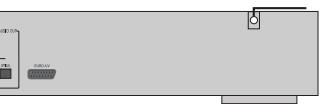
(Back of player)
CAUTION - LASER RADIATION WHEN OPEN. DO NOT STARE INTO BEAM.
ATTENTION -RAYONNEMENT LASER EN CAS D'OUVERTURE. NE PAS REGARDER DANS LE FAISCEAU.
Dolby Digital system developed by Dolby Laboratories and DTS developed by DTS Inc., features high quality surround sound, can be played in DVD or CD disc at home, to reproduce high quality sound effects.
HIGHDEFINITION
The unit adopts MPEG2 coding format and brings the horizontal resolution over 500 lines.
UNIQUE FUNCTIONS
Multi-angle and multi-language bring unique trick functions. Parent lock makes it easy to control the content of discs.
SCREEN
Ordinary screen and wide screen (16:9) are available.
COMPATIBILITY
The unit can play DVDs, and is compatible with CDs.
ZOOM
It can enlarge pictures twice or four times their size.
9-PICTURE DIGEST
It can look through the content of discs and select to play.
MULTI-FUNCTIONS
Fast forward, fast reverse, slow play, frame play, repeat play and program play.
TIME SEARCH
It can search a specific part on a disc, especially good for watching fictional movies.
RESUME PLAY
It can memorize the position where the disc is stopped and resume playback.
□ CONTENT DISPLAY
It adopts (a coloured) fluorescent display and Spanish/English OSD, making the disc content clearer.
VIDEO OUTPUT
Standard video, S-video signal output mode and easy system change.
AUDIO OUTPUT
Analog audio output and coaxial digital audio output, can be connected with the appropriate amplifier to enjoy high quality sound effects.
ABOUT MANUAL
PRINCIPLES FOR WRITING
- This manual mainly introduces how to use buttons on the remote control.
- You may operate the unit if the buttons on the unit have the same or similar names as or to those on the remote control.
- The marks shown in the chart on the right are used in the manual.
| MARK | INDICATION |
| DVD | functions of DVD |
| CD | functions of CD |
PLAYABLE DISCS
| TYPE | MARK | CONTENT | SIZE | PLAYING TIME |
| DVD | VIDEO | audio+video (motion pictures) | 12cm | about 2hrs (single-side disc) |
| about 8hrs (double-side disc) | ||||
| 8cm | about 80mins (single-side disc) | |||
| about 160mins(double-side disc) | ||||
| CD | COMPACT DISC DIGITAL AUDIO | audio | 12cm | about 74mins |
| 8cm | about 20mins |
REGION MANAGEMENT INFORMATION
This unit is designed and manufactured to respond to the Region Management information that is recorded on a DVD disc. The region number of this player is "2". If the region number described on the DVD discs does not correspond to the Region number of this player, the player will not play this disc. This player will play DVD discs made for "ALL" regions. Therefore, this player will play DVD discs marked with labels containing the region number "2" or "ALL".

(Region 2)

(Region ALL)
TERMS FOR DISCS
TITLE
The images or music of a DVD are divided into some units, among which title is the biggest one.
When playing a DVD, the movie is the title.
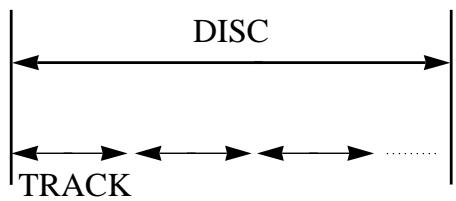
When playing a CD, the combined tracks make up the title.
CHAPTER
It is smaller than title among the units of a DVD. A title is made up of several chapters, and each chapter has a number for search. But some discs may not have numbered chapters.
TRACK
In a CD, each track has a number to enable search functions.
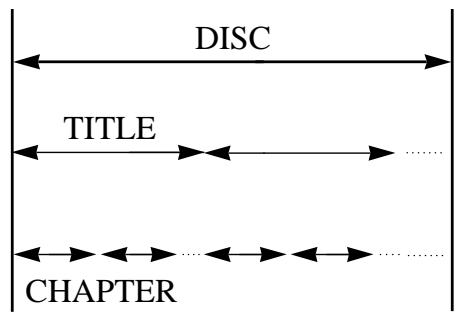
STRUCTURE OF DVD
STRUCTURE OF CD
This product incorporates copyright protection technology that is protected by method claims of certain U.S. patents and other intellectual property rights owned by Macrovision Corporation and other rights owners. Use of this copyright protection technology must be authorized by Macrovision Corporation, and is intended for home and other limited viewing uses only unless otherwise authorized by Macrovision Corporation. Reverse engineering or disassembly is prohibited.
BEFORE OPERATION
SECURITY
- Before operation, check if the voltage of the unit is in line with the local voltage.
- Hold the plug to disconnect it from the mains outlet. Do not pull the power cord.
- When the plug of the unit is connected to the mains outlet, the unit will be still connected to AC even if the power is turned off.
- Disconnect the plug as soon as liquid or objects enter the unit. The unit can not be used until being checked by experts.
- Do not open the cabinet as laser rays employed by the unit may damage eyes. Any servicing should be done by qualified service personnel.
PLACEMENT
- Put the unit where ventilation is good enough to prevent overheating.
- Never put the unit in direct sunlight or near heat sources.
- Put the unit horizontally, never put any heavy object on the unit.
- To protect the pickup, do not put the unit where there is dust. If there is dust on the pickup, use a cleaning disc to clean it. Paying particular attention to the operating instructions of the cleaning disc.
CONDENSATION
Moisture will appear on the pickup lens in the following cases:
- The unit is suddenly moved from a cold place to a warm place.
- The unit is put in a room with a heater, or in cold air from an air-conditioner.
- Using the unit in a humid place. In these cases, the unit can not work. Unload the disc and leave the unit on for about one hour to evaporate the moisture.
CLEANING
- Use a soft cloth with a little neutral detergent to wipe the cabinet, panel and controls. Never use abrasive paper, polishing powder, solvent like alcohol or gasoline.
PRECAUTIONS FOR DISC
HANDLING DISC
- To keep the disc clean, do not touch the playsides of the disc.
- Do not attach paper or tape to the disc.
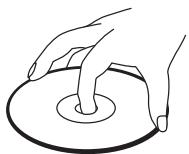

- Keep the disc away from direct sunlight or heat sources.
- Store the disc in a disc case after playback.
CLEANING DISC
- Before playback, wipe the disc outwards from the centre with clean cloth.
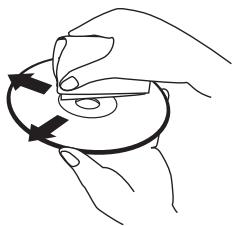
- Do not use any type of solvent such as thinner, benzine, commercially available cleaners or antistatic spray.
PREPARATIONS BEFORE OPERATION
This part introduces the work to be done before operating the unit.
CHECK ACCESSORIES
Check if you have all the accessories after the carton is opened.
- Audio cord 1 (4-terminal)
Video cord 1 (2-terminal)
Remote control 1 - AAA batteries 2
Owner's manual 1
USE REMOTE CONTROL
- Open the battery compartment.
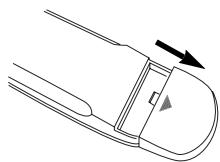
- Insert two AAA batteries, make sure to match" ^+ "and " - of the batteries to the marks in the battery compartment.
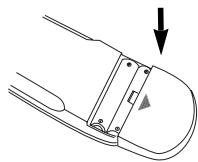
- Close the battery compartment.
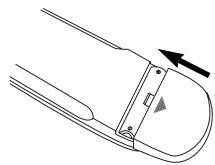
- Point the remote control at the remote sensor. It will operate up to a range of 7 metres and an angle of 30^ either side of the remote sensor on the front of the player.
Notes:
- Batteries can generally last for about 6 months. Change the batteries if the remote control does not work, or the operating range reduces.
- If the remote control is not used for a long time, remove the batteries to prevent battery leakage.
PREPARATIONS BEFORE OPERATION (Continued)
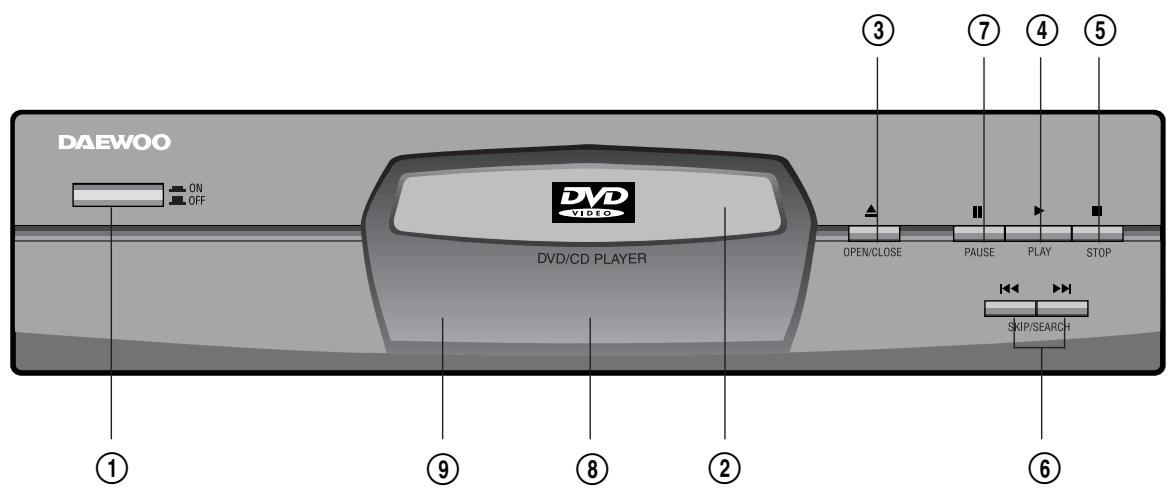
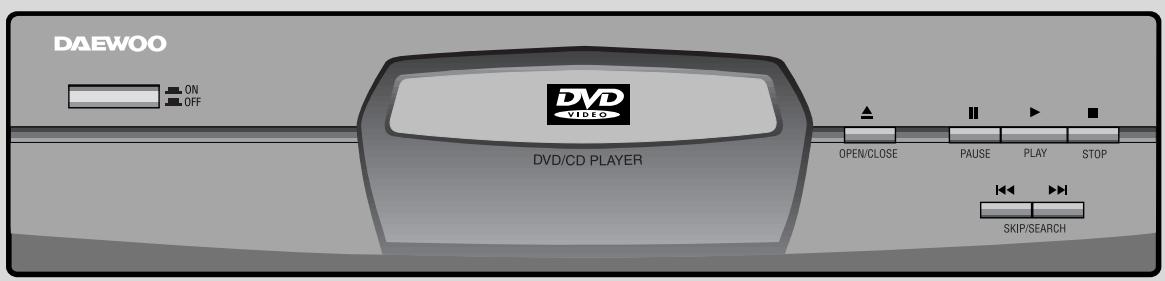
FRONT PANEL
① POWER
② DISC TRAY
③ OPEN/CLOSE
④ PLAY
⑤ STOP
⑥ SKIP/SEARCH
⑦ PAUSE
⑧ DISPLAY
⑨ REMOTE SENSOR
PREPARATIONS BEFORE OPERATION (Continued)
DISPLAY
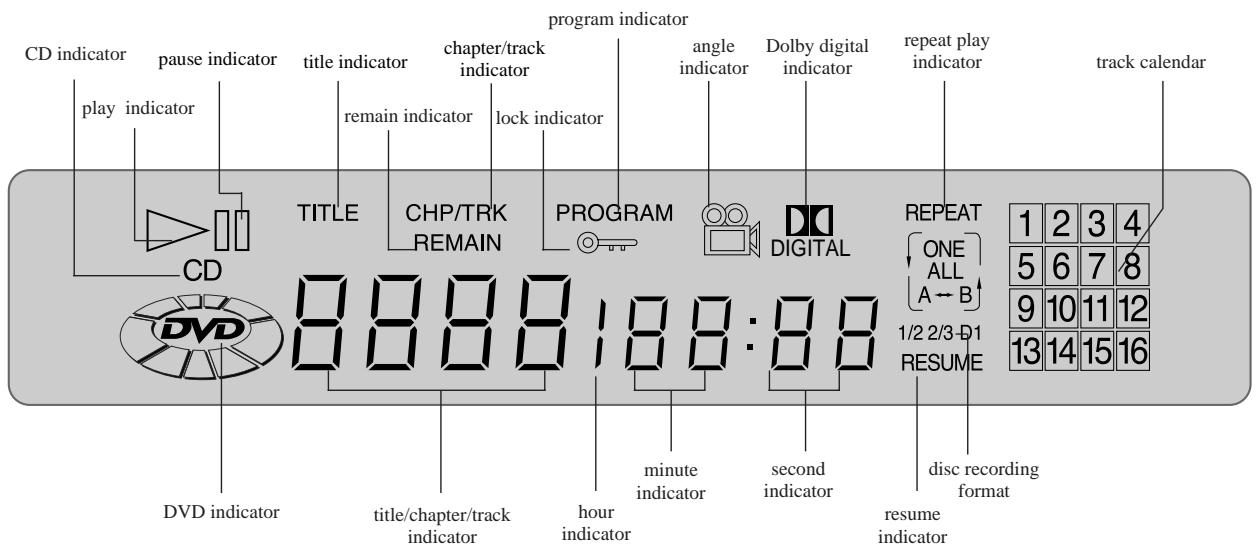
Press DIMMER, the brightness of the display is reduced by half; press it once more, the display becomes dark. Press the button again, the display resumes brightness.
REAR PANEL
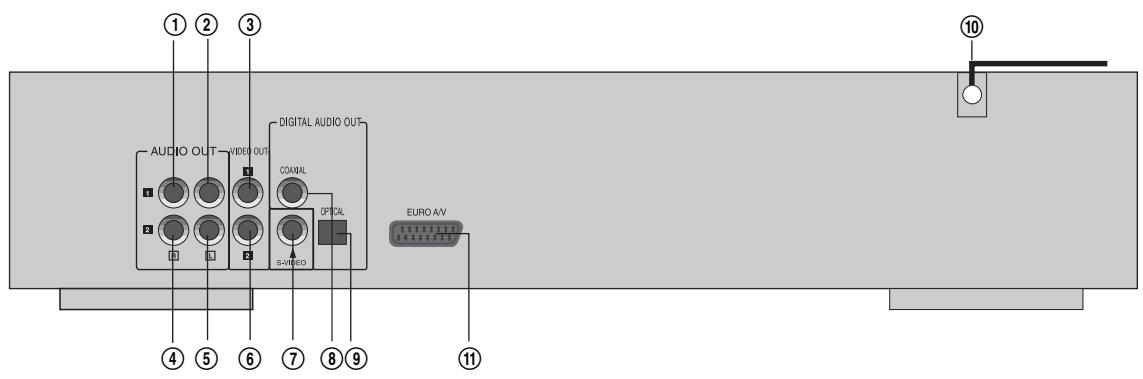
① AUDIO OUT1 R
② AUDIO OUT1 L
③VIDEO OUT1
④ AUDIO OUT2 R
⑤ AUDIO OUT2 L
NAMES AND LAYOUT OF REMOTE CONTROLS
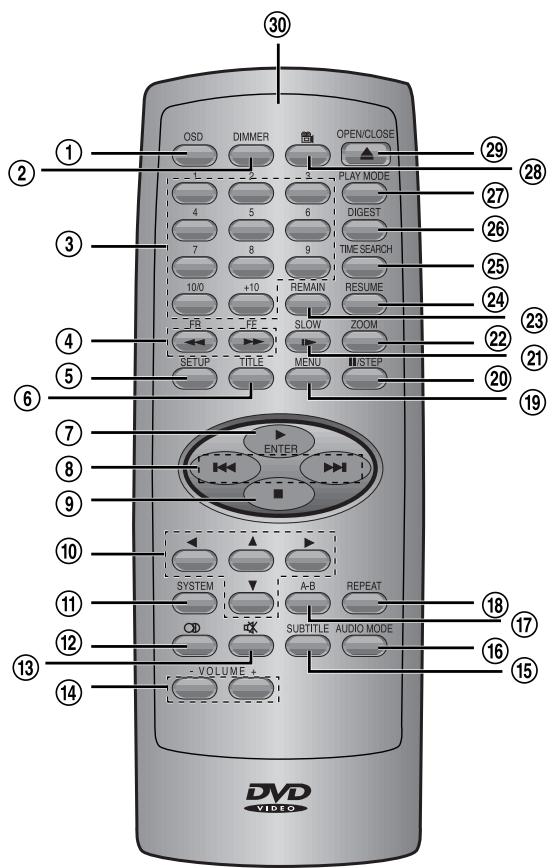
① OSD
② DIMMER
③ NUMBER BUTTONS
④ FF/FR
⑤ SETUP
⑥ TITLE
⑦ PLAY/ENTER
PREV/NEXT (SKIP/SEARCH)
STOP
DIRECTIONS
⑪ SYSTEM
12 LANGUAGE
13 MUTE
VOLUME (- + )
15 SUBTITLE
16 AUDIO MODE
⑰ A-B REPEAT
18 REPEAT
19 MENU
20 PAUSE/STEP
② SLOW PLAY
② ZOOM
23 REMAIN
24 RESUME
25 TIME SEARCH
② DIGEST
② PLAY MODE
(28) ANGLE
29 OPEN/CLOSE
③ REMOTE TRANSMITTER
CONNECTIONS
Turn off all equipment before operation.
The unit has many kinds of output modes like A/V output, S-VIDEO output and digital signal output (OPTICAL, COAXIAL). You may select as you need.
CONNECTED TO A TV
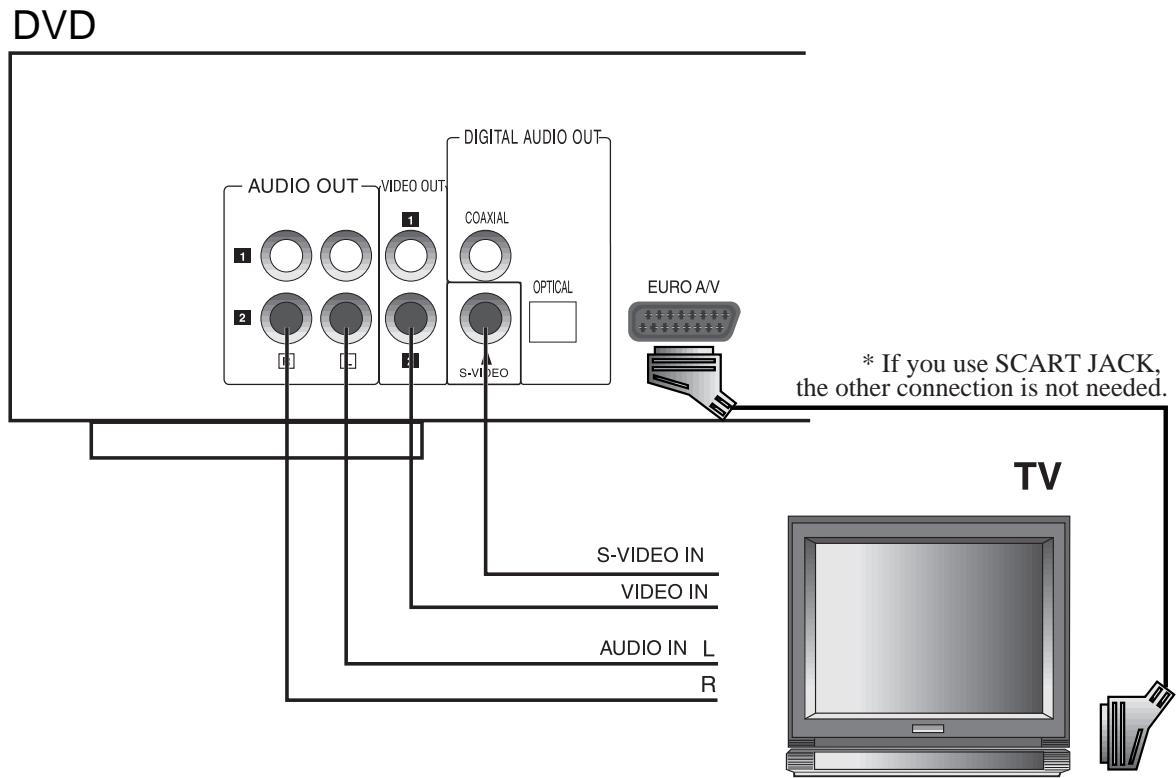
- If the TV has S-VIDEO input, please connect the unit and the TV with S-video cord (not supplied). You do not have to utilise S-VIDEO but it will give clearer images.
NB: Ensure general setup part of the menu, has Scart format set to YC signal.
-
Set the unit. You have to set the unit according to the TV connected to IT.
-
If the system of the TV is PAL, press SYSTEM and select PAL.
- If the system of the TV is NTSC, press SYSTEM and select NTSC.
- If the system of the TV is AUTO (multi-system), press SYSTEM and select AUTO.
- Connect the unit to a wide-screen TV.
Set the "TV DISPLAY" to "16:9 WIDE" in the function setting column.
- Connect the unit to an ordinary TV.
Set the "TV DISPLAY" to "4:3/PS" (Pan scan) or "4:3/LB" (Letter box) in the function setting column.
CONNECTIONS (Continued)
CONNECT TO AN ORDINARY AMPLIFIER
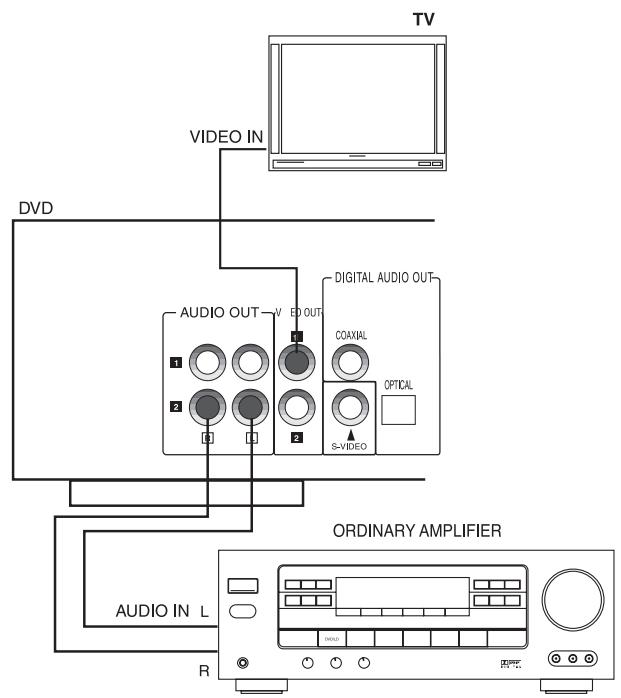
- There is no sound output from the port when a DTS disc is played.
Refer to page 29 for the setting.
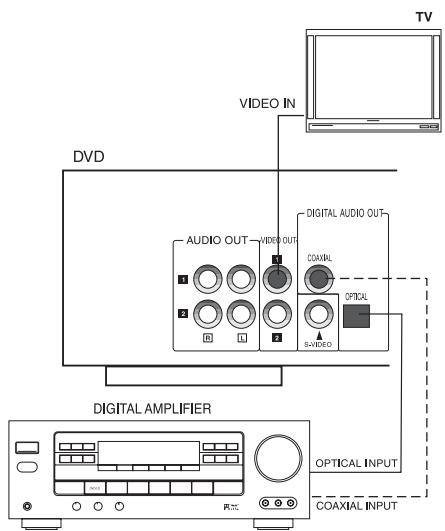
CONNECT TO AN AMPLIFIER WITH DIGITAL SIGNAL INPUT
Manufactured under license from Dolby Laboratories. "Dolby" and the double-D symbol are trademarks of Dolby Laboratories. Confidential Unpublished works. ©1992-1997 Dolby Laboratories, Inc. All rights reserved.
"DTS" and "DTS Digital Out" are trademarks of Digital Theatre Systems, Inc.
- Optical or coaxial can be selected at your option while connecting
- If you have a DTS decoder of processor, you can enjoy DVD disc or CD sound decoded by 5.1 channel DTS. ie : 5 surround speakers + 1 woofer
Refer to page 29 for the setting.
BASIC OPERATIONS
PLAY DISCS
TV/AUDIO SELECTION
Press ON on the TV and audio system.
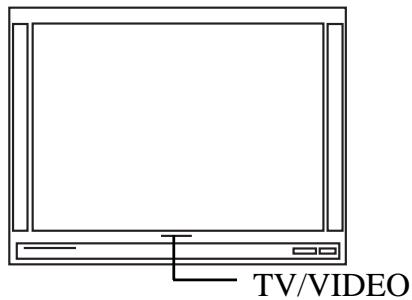
- Press "TV/VIDEO" on the TV, selectVIDEO mode (TV).
-
Select S-VIDEO mode if using an 'S' Video connection.
-
Select the right audio input on the amplifier.
Each amplifier is different from another, please refer to the manual of the amplifier.
(e.g., connect the audio output of the DVD player to the DVD audio input of an amplifier.)
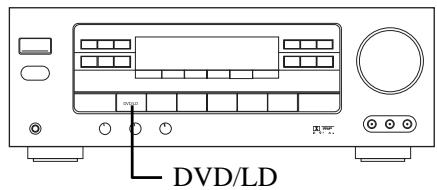
Notes: This step can be cancelled if you do not connect it to the amplifier.
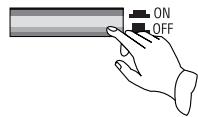
- Press ON to turn on the unit.
- Press to open the disc tray and load a disc with the label side.
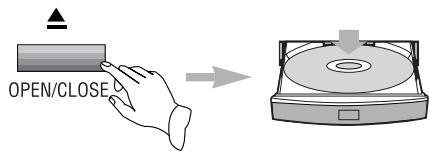
- Press again to close the disc tray. The unit begins to read the disc.
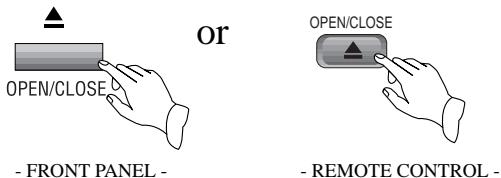
- Press to play the disc.
AFTER STEP4 IS FINISHED:
- PLAY DVD
The TV screen shows the DVD menu and title menu.
- PLAY CD
Press , the unit plays the disc according to the track numbers.
- Stop playback.
Press ■.
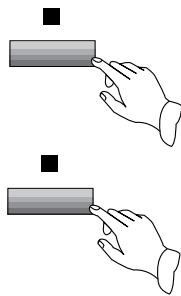
-
You have to press this button twice to stop the playback of a DVD.
-
Unload the disc and turn off the unit. Press and
BASIC OPERATIONS (Continued)
SYSTEM SETTING
According to the system of the TV to be connected, set the system of the unit to make it match the TV.
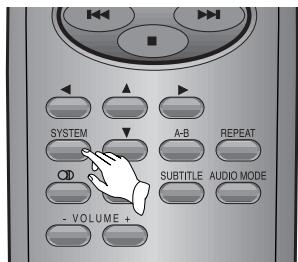
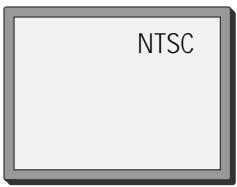
- If the system of the TV is NTSC : Press , select NTSC. The screen shows:
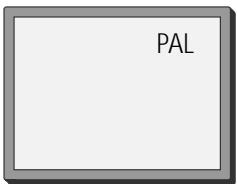
- If the system of the TV is PAL :Press , select PAL. The screen shows:
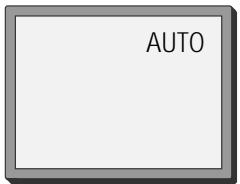
- If the TV is multi-system : Press , select AUTO. The screen shows:
PAUSE
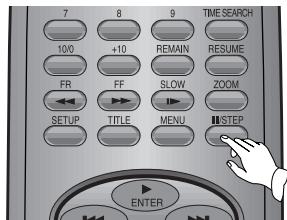
Press II/STEP.
- WHEN PLAYING DVD PICTURES
Press / STEP to make the playback pause. Pressing / STEP again moves the picture forward frame by frame.
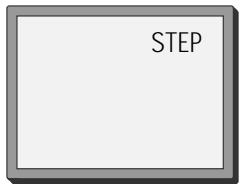
Press II /STEP to make the playback pause.
Press to resume playback.
OSD
Press OSD, when the unit is operated, the TV screen shows the operation functions and information about the disc.
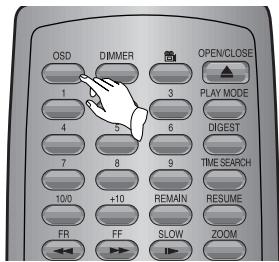
- Remove the OSD, press OSD twice.
BASIC OPERATIONS (Continued)
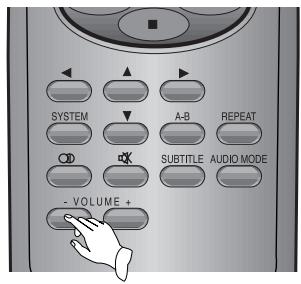
VOLUME CONTROL
- Press VOLUME on the TV or amplifier to adjust the volume.
- Press VOLUME on the remote control.
- Press + to raise the volume.
- Press - to lower the volume.
DVD MENU PLAY
Some DVDs have title menus and chapter menus.
- Press MENU or TITLE, the screen shows the menu. Use direction buttons to select the desired item, then press ENTER.
- Press TITLE once to return to the title menu; press it again to return to the current playback. Press MENU once to return to the root menu; press it again to return to the current playback.
Notes:
- When appears on the TV screen whilst pressing TITLE. The disc does not have the title list in the menu.
- When appears on the TV screen whilst pressing [MENU]. The disc does not have the menu.
BASIC OPERATIONS (Continued)
SELECT WITH NUMBER BUTTONS (IN CASE OF CD)
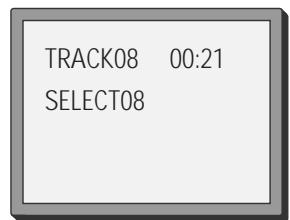
Load a disc. Press number buttons to select tracks after the unit finishes reading the disc.
- If the track number is less than 10, just press buttons 1-10.
Example: press 8 to select track 8.
The screen shows:
- If the track number is over 10, press +10 once and a button among 1-10.
Example: if you select track 12, press +10 once and button 2.
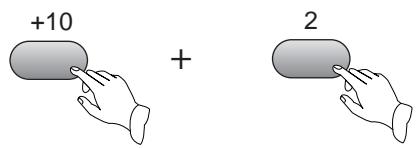
The screen shows:
TRACK12 00:00
SELECT12
PLAY DISCS IN VARIOUS WAYS
SELECT LANGUAGE
WHEN PLAYING DVD
Press , the screen shows as below.
AUDIO 1/2:AC-3 2CH ENG
Press OD again.
AUDIO2/2-AC-325.1CHENG
Different discs differ in languages.
MUTE
When playing a disc, this function can remove the sound.
- REMOVE SOUND
Press MUTE, the screen shows "MUTE".
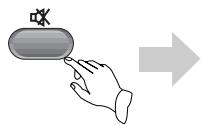
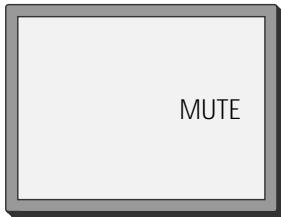
- RESUME SOUND
Press MUTE again.
PLAY DISCS IN VARIOUS WAYS (Continued)
FAST PLAY
When playing a disc, you may play it in Cue or Review mode to find what you want.
WHEN PLAYING DVD
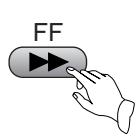
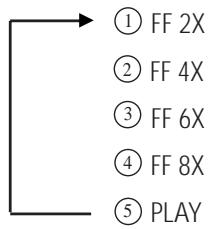
- Press to play forward fast. (Cue) Each time you press the button, the screen shows in order:
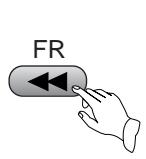
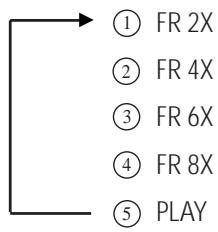
- Press to reverse the disc fast. (Review) Each time you press the button, the screen shows in order:
- Press ENTER to switch back to normal play.
WHEN PLAYING CD
- Press to play forward fast.
- Press to reverse the disc.
- Release (or ) to play normally.
SLOW PLAY
Enjoy slow motions by the following steps.
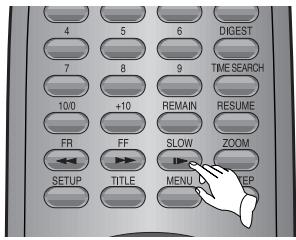
WHEN PLAYING DVD
- Press to play slowly.
The screen shows in order:
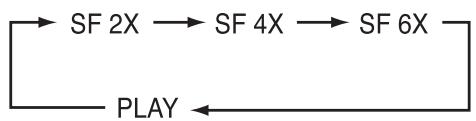
- Press ENTER to play normally.
PLAY DISCS IN VARIOUS WAYS (Continued)
REPEAT PLAY
This function can be used to repeatedly play a title, chapter, track, disc or some parts on a disc.
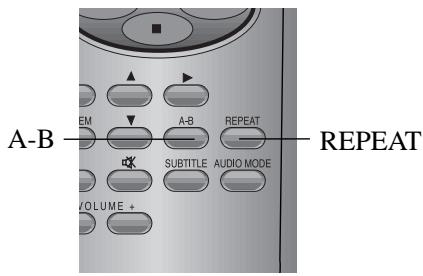
PLAYING A DISC REPEATEDLY
DVD
You may repeat a title or chapter.
- Repeat a chapter.
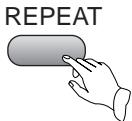
Press REPEAT, the screen shows: "CHAPTER REPEAT".
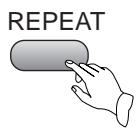
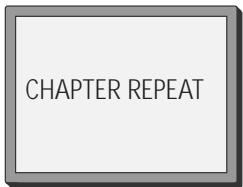
- Repeat a title
Press REPEAT, the screen shows: "TITLE REPEAT"
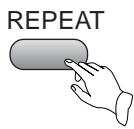
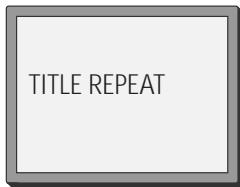
- Remove "REPEAT" function.
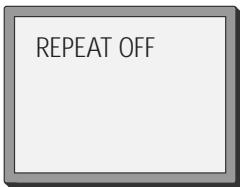
Press [REPEAT], to remove the display on the screen.

CD
You may repeat a track.
- Repeat one track
Press REPEAT, the screen shows:
"REPEAT ONE".
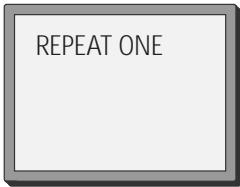
- Repeat a CD
Press REPEAT, the screen shows: "REPEAT ALL".
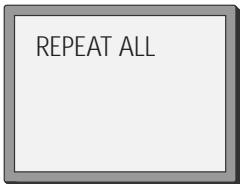
- Remove "REPEAT" function Press REPEAT, to remove the display on the screen

PLAY DISCS IN VARIOUS WAYS (Continued)
REPEAT SOME PARTS
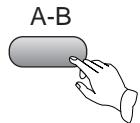
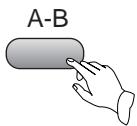
You may press A-B to enjoy some parts repeatedly when playing a disc.
PLAY DVD
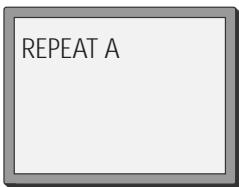
- Set a starting point A.
The screen shows:
- Set an end point B.
The screen shows:
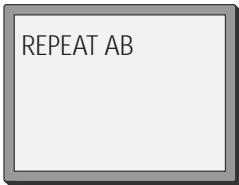
Afterwards, the unit plays from A to B.
- Remove A-B repeat
The screen shows:
PLAY CD
- Press A-B at the beginning of the required part until the screen shows"REPEAT A", set starting point A.
- Press A-B at the end of the required part until the screen shows "REPEAT AB", set end point B. The CD will now play from A to B.
- Press A-B again, repeat play is removed.
SELECT SUBTITLES
When playing a multi-subtitle DVD, you may select one subtitle to show it on the screen.
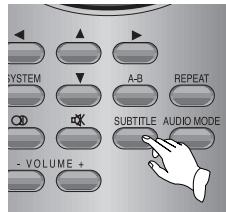
WHEN PLAYING DVD
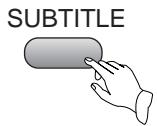
- Press SUBTITLE to select one.
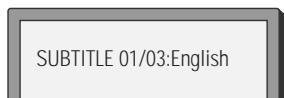
The screen shows:
- Remove the subtitle.
Press SUBTITLE until the screen shows "SUBTITLE OFF".
Notes:
- For some discs, subtitles can not be removed.
- Different discs differ in the languages of subtitles.
- If the subtitles of discs can not be selected, press SUBTITLE , the screen shows "NO SUBTITLE".
PLAY DISCS IN VARIOUS WAYS (Continued)
SELECT ANGLES
Some discs have images with different screen angles, you may select among them. For example, when you watch a running train, you may select to watch it from the front, the left window or the right window without stopping it.
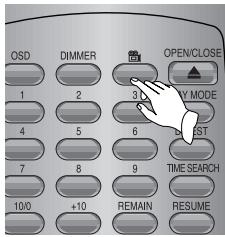
Example:
A DVD has four screen angles at your option.
- Press to select ANGLE1.
SCREEN
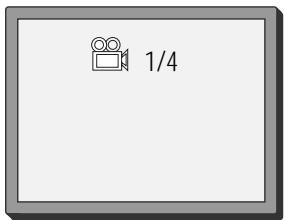
- Press to select other angles, the screen shows respectively:
2/4 (select ANGLE2)
3/4 (select ANGLE3)
4/4 (select ANGLE4)
- Resume normal playback. Press until there is no display on the screen.
PLAY DISCS IN VARIOUS WAYS (Continued)
TIME SEARCH AND REMAINING TIME
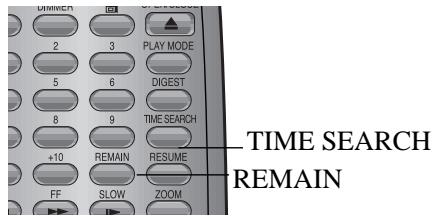
TIME SEARCH
You may directly enter a time, title or chapter number to search fast on a disc, the unit plays from the point entered.
PLAY DVD
- Search a title or a chapter.
Example: Search chapter 2 in title 2.
- Press TIME SEARCH, the screen shows:
TITLE 03/03 CHAPTER 01/04
- Press the left or right button and move the cursor to illuminate the title number. The screen shows:
- Press button 2 to select title 2, the screen shows:
TITLE 02/03 CHAPTER 01 /04
- Repeat the steps above, select chapter 2 in title 2.
TITLE 02/03 CHAPTER 02/04
-
Time search
-
Press TIME SEARCH until the screen shows:
TITLE 03/02 TIME

- Press number buttons to enter hour, minute and second.
Example: Enter 0,1,0,2,3,8
After setting, the disc is played from 01:02:38.
PLAY CD
You can only enter a time to search the content from that time.
Example: Play from 00:01:38 of track 6.
- Press button 6 to select track 6. The screen shows:
TRACK 06 00:00
- Press TIME SEARCH, the screen shows:
TRACK 06
GOTO
- Press button 0,1,3,8 to enter the time. The screen shows:
TRACK 06
GO TO 01:38
-
The unit plays from 01:38 of track 6 after setting.
-
Press 10/0 to enter 0.
PLAY DISCS IN VARIOUS WAYS (Continued)
REMAINING TIME
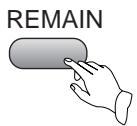
This function can be used to know the remaining time of a title, chapter or track.
DVD
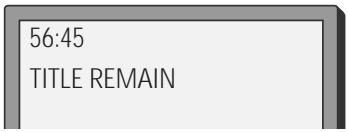
- Press REMAIN, the screen shows the remaining time of the title.
- Press REMAIN, the screen shows the playing time of the chapter.
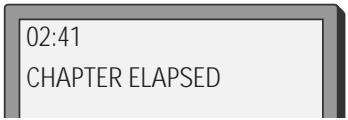
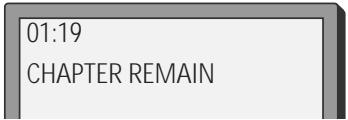
- Press REMAIN, the screen shows the remaining time of the chapter.
- Press REMAIN, the screen shows:
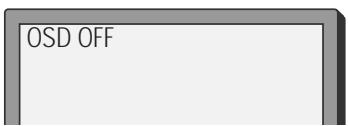
CD
Example: Check the remaining time when playing track 2.
- Press REMAIN, the screen shows the remaining time of the track.
TRACK02 04:23
SINGLE REMAIN
- Press REMAIN again, the screen shows the remaining time of the disc.
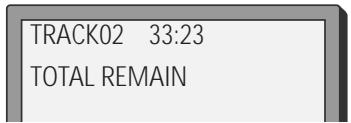
- Press REMAIN once more, the screen shows the playing time into track 2.
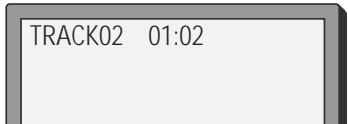
- Press REMAIN once more, the screen shows:
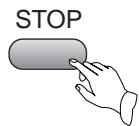
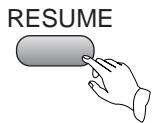
RESUME PLAY
The unit can memorize the last point where it stops and resume playback from there.
- Press STOP to stop playing.
- Press RESUME to resume playback.
Notes:
- This function does not work for any programmed playback.
- This function is removed when the disc is unloaded or the unit is off.
PLAY DISCS IN VARIOUS WAYS (Continued)
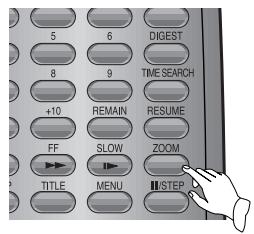
ZOOM PLAY
This function can be used to enjoy a motion or motionless picture.
DVD
- Press ZOOM when playing a DVD, the screen shows:
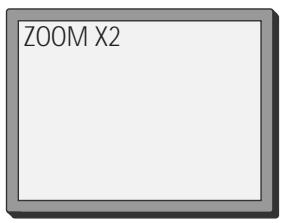
The picture is enlarged twice as big.
- Press ZOOM again. the screen shows:
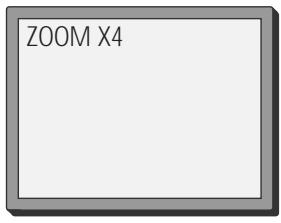
The picture is enlarged four times as big.
- Press , , to move the enlarged picture.
- To resume the picture, press ZOOM once more, then screen shows "ZOOM OFF".
PROGRAM PLAY
You may program the tracks on a disc and play them in the programmed order.
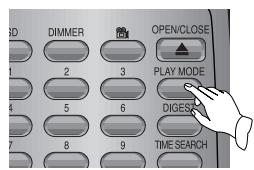
- WHEN PLAYING DVD
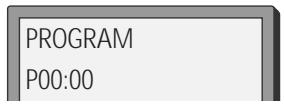
- After the unit stops, press PLAY MODE to select. PLAY MODE
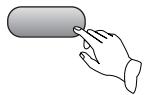
The screen shows:
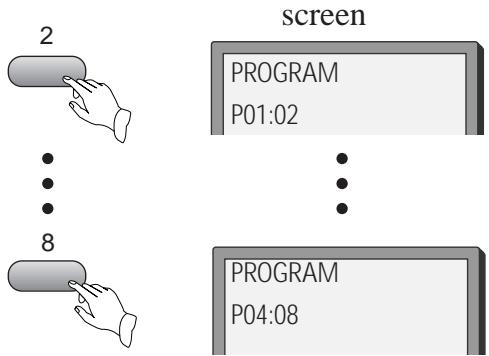
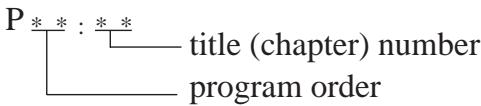
- Press number buttons in order, according to the titles ( or chapters) to be programmed. Example: Press 2, 4, 6, 8.
Notes:
-
Press to start playing.
-
Press to remove program play.
PLAY DISCS IN VARIOUS WAYS (Continued)
WHEN PLAYING CD
- After the unit stops, press PLAY MODE to select.
The screen shows:
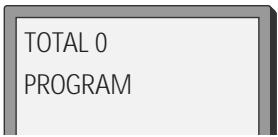
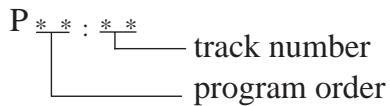
- Press number buttons in order, according to the track to be programmed. Example: Press 2, 4, 6, 8.
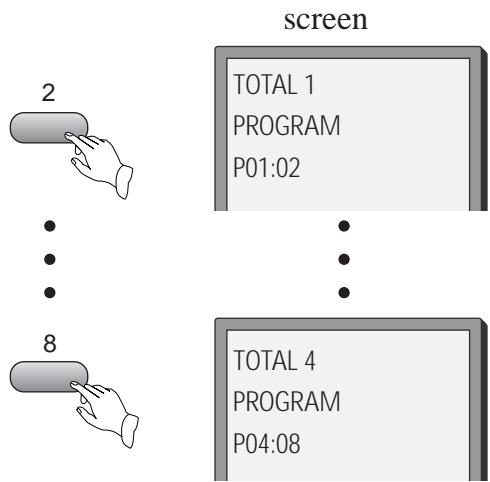
Notes:
- Press to start playing.
- Press twice to remove program play.
SHUFFLE PLAY
The unit can play by random orders. The order is different each time.
- Press to stop playing.
You need to press once more.
- Press PLAY MODE twice to select a random order.
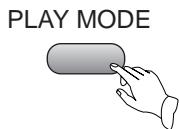
The screen shows:
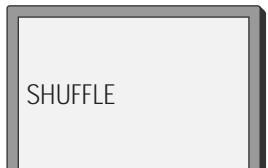
The screen shows"SHUFFLE".
- Press ENTER to start shuffle play. The unit selects a track to play.
-
Remove shuffle play.
-
Press ■ .
- Then press PLAY MODE until the screen shows "CONTINUE".
PLAY DISCS IN VARIOUS WAYS (Continued)
DIGEST PLAY
This function can be used to look through the content of the track or a disc.
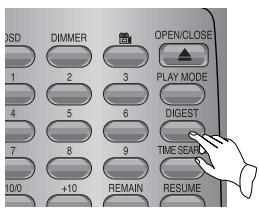
- PLAYING DVD
- Press DIGEST after the unit stops.
The screen shows:
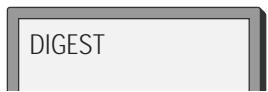
The unit begins to look through the titles (or chapters), and shows the starting picture of each title (or chapter) on the screen.
| 1 | 2 | 3 |
| 8 | 9 | 4 |
| 7 | 6 | 5 |
- Press , to look at the previous or next picture.
PREVIOUS PAGE
NEXT PAGE
- To remove digest, press twice.
- PLAYING CD
- Press DIGEST after the unit stops.
The screen shows:
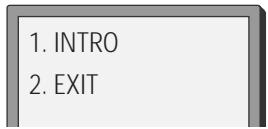
- Press number buttons to select a digest mode.
Press button 1 for intro mode.
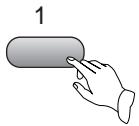
The unit plays the first 15 seconds of each track one after another.
Press , to play the first 15 seconds at the previous or next track.
Press button 2 to exit from digest play.
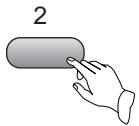
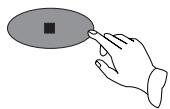
- Remove digest play.
Press , digest play is removed and the unit stops.
Notes : A CD only has “INTRO” function.
FUNCTION SETTING
DVD MENU SETTING
According to the recorded information and external equipment, set the following functions for DVD to obtain the best playing status.
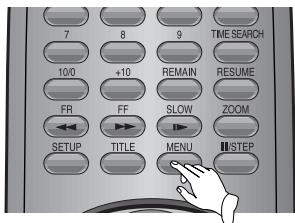
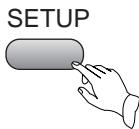
- Press SETUP to set the main menu.
The screen shows:
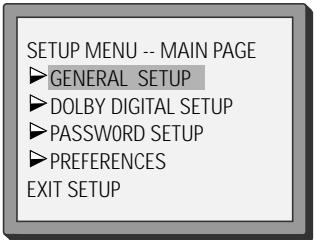
- Press direction buttons ( ,) and press to confirm.
Example: Select"DOLBY DIGITAL SETUP"
- Press direction button to select. The screen shows:
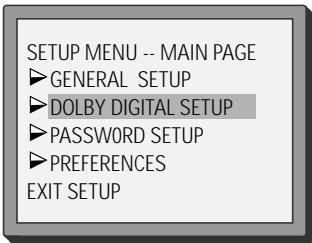
- Press to confirm and enter "DOLBY DIGITAL SETUP".
The screen shows:
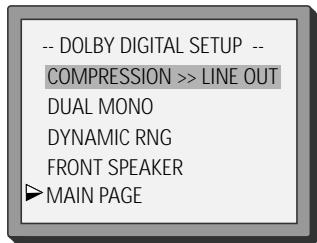
After entering the menu, the unit automatically selects a column.
- Press the direction button to select "DUAL MONO".
The screen shows:
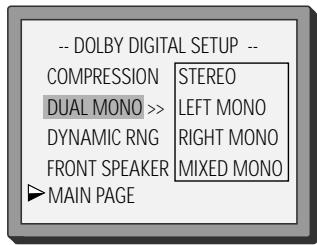
Press direction button , to select "LEFT MONO"
The screen shows:
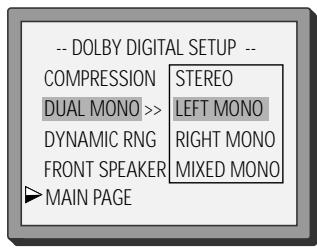
- Press ENTER to confirm.
Set "DUAL MONO" in "DOLBY DIGITAL SETUP" to "LEFT MONO".
FUNCTION SETTING (Continued)
3.Exit from menus.
Using direction buttons go to "▶MAIN PAGE" menu,
then press
The screen shows.
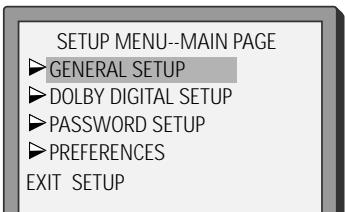
- To select "GENERAL SETUP" menu, press , then press ENTER.
GENERAL SETUP
The setting structure is as follows:
| TV DISPLAY | >> 4:3 / PS 4:3 / LB 16:9 WIDE |
| SCART FORMAT | >> RGB OUTPUT YC SIGNAL COMPOSITE |
| TV TYPE | >> PAL AUTO NTSC |
| ANGLE MARK | >> ON OFF |
| OSD LANGUAGE | >> ENGLISH SPANISH |
| SPDIF OUTPUT | >> SPDIF OFF SPDIF/RAW SPDIF/PCM |
| CAPTIONS | >> ON OFF |
| SCREEN Saver | >> ON OFF |
| MAIN PAGE |
TV DISPLAY
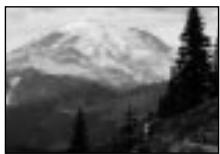
1.4:3/PS
This is selected when the unit is connected with a normal TV.
Wide-screen images are shown on the screen, but with some parts cut automatically.
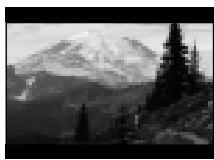
2. 4:3/LB (LETTER BOX)
This is selected when the unit is connected with a normal TV. Wide-screen images are shown on the screen, with black belt on the top and bottom.
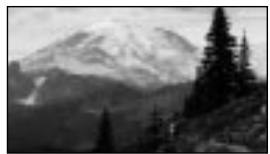
3. 16:9 WIDE
This is selected when the unit is connected with a wide-screen TV.
SCART FORMAT
Achieving the clearer and higher definition picture than the normal composite output can be done by selecting RGB. If you want to see the picture in RGB, choose RGB and connect to the TV set using SCART connector. To make correct connection, refer to connections page for connection to a TV. (If you want to see the picture in S-Video, choose YC Signal and connect to the TV set using S-Video cord.)
TV TYPE
You may select according to the colour system of the TV to be connected.
- Select "PAL"for a PAL TV.
- Select"AUTO"for a multi-system TV.
- Select"NTSC"for a NTSC TV.
ANGLE MARK
This only works when there is an angle mark on the disc.
- Select"ON", the screen shows the mark when playing a DVD.
- Select "OFF", the mark is not shown.
FUNCTION SETTING (Continued)
OSD LANGUAGE
- ENGLISH
The OSD is in English.
SPANISH
The OSD is in Spanish.
SPDIF OUTPUT
- SPDIF/OFF: No signal is output from the coaxial or optical port.
- SPDIF/RAW: Select this when the DVD player is connected with a power amplifier through optical or coaxial port, refer to page 12. When a Dolby Digital DVD, DTS DVD or MPEG DVD is played, the coaxial or optical port will output in the corresponding digital(Source code) format. The power amplifier to be connected must have Dolby Digital, DTS and MPEG decoding.
- SPDIF/PCM: Select this when the DVD player is connected with a 2-channel digital mode or stereo amplifier (refer to page 12 for the connection). When a Dolby Digital or MPEG DVD is played, the optical or coaxial port will output in PCM 2-channel format.
CAPTIONS
ON
The hidden subtitle is shown.
OFF
The hidden subtitle is turned off.
SCREENSAVER
Start the screen saver, the screen saver image appears when the unit stops or the image is frozen for a few minutes. This saver can keep the screen from being damaged.
- ON: Start the screen saver.
- OFF: Remove the screen saver.
DOLBY DIGITAL SETUP
The setting structure is :
--DOLBY DIGITAL SETUP PAGE --
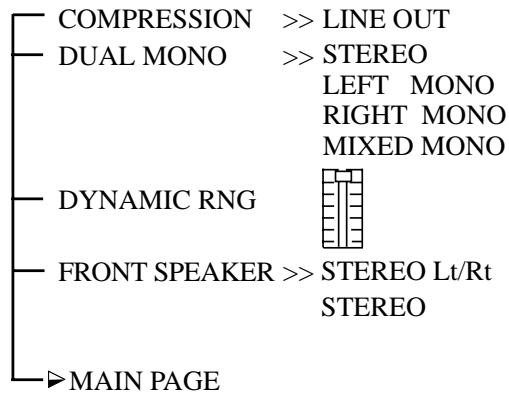
COMPRESSION
LINE OUT: Compress input signals linearly.
DUAL MONO
There is the output mode of the L and R signals of the set audio output. If it is set to "MIXED MONO", the function only works when the DVD being played is 5.1-channel.
DYNAMIC RNG (RANGE)
When the compression mode is set to "LINE OUT", this is selected to adjust linear compression rate to obtain the different compression results of the signals.
■ FRONT SPEAKER
STEREOLt/Rt
Select this when you play a disc with Dolby Pro Logic stereo, the disc signals can be decoded by the unit and reproduce realistic theatre effects in your room.
- STEREO
Select this, the audio output is ordinary stereo signals.
FUNCTION SETTING (Continued)
password setup
The setting structure is :
--PASSWORD SETUP --
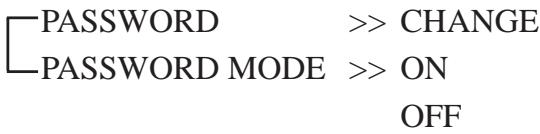
■ PASSWORD MODE
- ON: The password works, "PREFERENCES" is dim and can not be selected.
- OFF: The password does not work, "PREFERENCES" can be selected.
■ PASSWORD CHANGE
Select this to adapt the code, the screen shows:
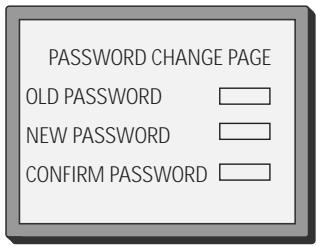
Enter a password according to the screen.
Notes:
The password is 99999 when the unit is turned on initially or you forget the password.
PREFERENCES
The setting structure is :
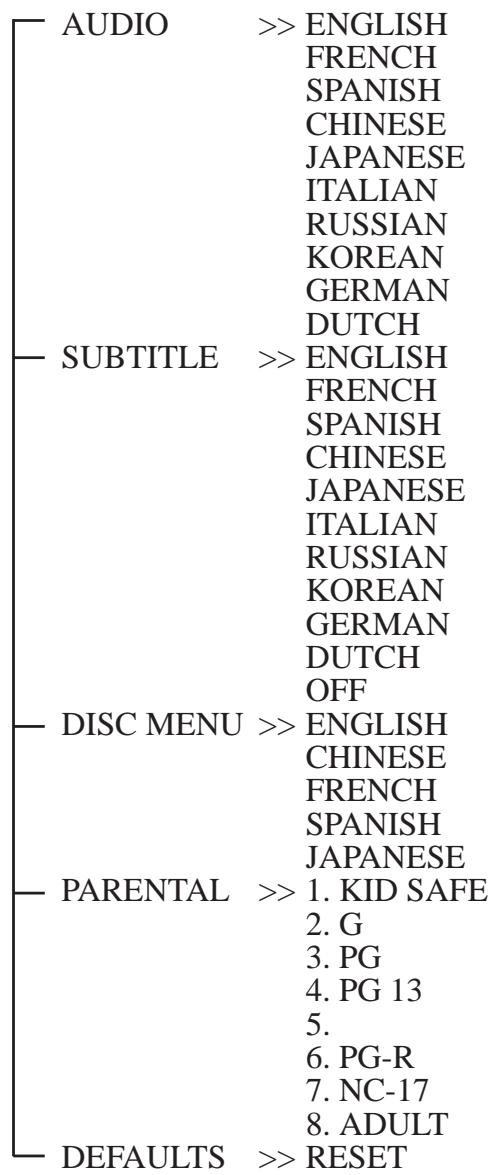
Notes:
To enter into the preference setting mode, press the STOP key twice.
FUNCTION SETTING (Continued)
SELECT LANGUAGE
If a language mentioned above is recorded on the disc, you can select audio, subtitle or disc menu languages. If not, the language recorded on the disc is shown.
PARENTAL
The content of a disc with lock function is evaluated by grades.
You may select an age control grade as you need.
Example: Select"KID SAFE", the scenes of violence inadvisable are not played to children.
For adults, the screen suggests you enter the code after pressing ENTER, you can watch if the code is right.
Notes: The code is set by yourself
DEFAULTS >> RESET
Each function setting returns to the initial status in the factory if you select this.
TROUBLESHOOTING
If you experience the following problems while using the unit, this troubleshooting guide can help you.
No sound
- Check if the unit is properly connected.
- Make sure you operate the TV or amplifier correctly.
- Make sure you have selected DVD player position on the amplifier.
No image
- Check if the unit is properly connected.
- Make sure you operate the TV correctly.
- Make sure you set the colour system correctly.
Bad sound quality
- Make sure the audio output mode is set correctly.
Make sure the audio connection between the unit and amplifier is right.
Image rolls and no colour
- The colour system set by this unit does not match with that of TV. Press SYSTEM on the remote control to select the correct one.
Disc can not be played
- There is no disc in the unit.
- Insert the disc on the disc tray properly with the label side up.
Clean the disc. - Moisture has condensed in the unit. Remove the disc and leave the unit on for about one hour.
Remote control does not work
- Remove barriers between the remote control and the unit.
- Point the remote control at the remote control sensor of the unit.
- Replace the batteries with new ones.
- Reference page 7.
TECHNICAL SPECIFICATIONS
| Laser | wavelength 650nm | |
| Video system | NTSC /PAL/AUTO | |
| Frequency response | 20Hz ~ 20KHz | |
| Signal/noise ratio | ≥ 85dB | |
| Audio distortion + noise | ≤ - 80dB (1KHz) | |
| Channel separation | ≥ 90dB ( 1KHz) | |
| Dynamic range | ≤ 85dB ( 1KHz) | |
| Output | Audio out (analog audio) | output level : 2V Load impedance : 10KΩ |
| Audio out (digital audio) | output level : 0.5Vp-p Load impedance : 75Ω | |
| Video out | output level : 1Vp-p Load impedance : 75Ω, imbalance, negative polarity | |
| S-video out | output level : brightness (Y) 1Vp - p chromaticity (C) 0.286Vp-p Load impedance : 75Ω | |
| Power supply | 230V~, 50Hz | |
| Power consumption | <20W | |
| Dimensions | 435 × 90 × 280 mm | |
| Weight | Around 4Kgs | |
OWNER'S MANUAL
DS-2000D
IMPORTANT
YOUR 1ST YEAR
MANUFACTURER'S
GUARANTEE
Please keep this with your purchase receipt, which will be required if service is needed on this product during the guarantee period.
KEEP THIS SECTION FOR FUTURE REFERENCE
MODEL No.
1111111111111111111
SERIAL No.
| | | | | | | | | | | | | | | | | | |
DATE OF PURCHASE
11111
/TEAR
OFF HERE AND RETURN
TODAY
REGISTRATION OF GUARANTEE
To register your product for its 12 month guarantee, please complete and return
this section, within 30 days of purchase.
MR SURNAME INITIALS MRS 1 1 1 1 1 1 1 1 1 1 1 1 1 1 1 1 1 1 1 1 1 1 1 1 1 1 1 1 1 1 1 1 1 1 1 1 1 1 1 1 1 1 1 1 1 1 1 1 1 1 0
MS NUMBER/HOUSE NAME/STREET TOWN 1 1 1 1 1 1 1 1 1 1 1 1 1 1 1 1 1 1 1 1 1 1 1 1 1 1 1 1 1 1 1 1 1 1 1 1 1 1
PRODUCT DETAILS
PRODUCT DESCRIPTION (e.g. Colour Television, Video Recorder etc.) DATE OF PURCHASE MODEL NO. SERIAL NO. NAME OF RETAILER PURCHASE PRICE
Have you purchased an extended guarantee from your retailer? If yes, for what period? 1 year 2 years 3 years 4 years
The details above will be used by Daewoo and the Domestic & General group of companies for guarantee administration, breakdown insurance and marketing purposes. No information supplied by you will be disclosed to any third party, except sometimes in relation to repairing your equipment.
If you do not wish to receive marketing information, please tick this box
DAEWOO
DAE REG/295
DAEWOO GUARANTEE CONDITIONS
This product is guaranteed for 12 months from the date of original purchase. Any defect that arises due to faulty materials or workmanship will be
The guarantee does not cover accidental damage, misuse, cabinet parts, knobs or consumable items such as bulbs etc.
The product must be correctly installed and operated in accordance with the
purposes and within the boundaries of the United Kingdom.
The guarantee will be rendered invalid if the product is resold or has been damaged by inexpert repair.
DAEWOO disclaims any liability for incidental or consequential damages.
rights.
In the event of a breakdown please refer to your instruction manual and check all plugs, fuses and electricity supply.
Before requesting service please check the trouble shooting guide in the instruction book as visits where there is no fault found with the product could incur a charge even though the product is under guarantee.
Warwickshire CV12 8JP
DAEWOO GUARANTEE DEPARTMENT
Leicester House
17, Leicester Street
Bedworth
HERE
AFFIX STAMP