
E4X45 - Desktop computer MEDION - Free user manual and instructions
Find the device manual for free E4X45 MEDION in PDF.


| Brand | MEDION |
| Model | E4X45 |
| Product type | Portable GPS navigation system |
| Package contents | Navigation system, car charger cable, mounting brackets, USB cable, CD/DVD (navigation software, maps, ActiveSync), user manual, warranty card |
| Options and accessories | Power adapter, memory card, external FM antenna, external TMC receiver, earphones, protective case |
| Power supply | Built-in rechargeable battery; car adapter (DC 12V/24V); optional power adapter (AC 100-240V~, 50/60 Hz); USB charging |
| Display | Touch screen - size not specified, use with stylus or finger |
| Main functions | GPS navigation, Bluetooth (model E4445), MP3 player, image viewer (JPEG), travel guide, alarm clock, Sudoku game, voice commands, TMC, password protection |
| Connectivity | Bluetooth (model E4445), Mini-USB port (PC sync, charging), headphone jack, memory card slot, external FM antenna (models E4245/E4445), external TMC receiver (model E4145) |
| Navigation | Built-in GPS receiver; digitized maps; voice guidance; TMC traffic info (optional) |
| Dimensions (estimated) | Approximately 12 × 8 × 2 cm (typical for a PNA) |
| Weight (estimated) | Approximately 200 g |
| Security | Password lock, help hint, SuperPIN and UUID for unlocking |
| Safety instructions | Do not open the casing; avoid moisture, dust, excessive heat; use only supplied adapters; perform regular backups |
| Maintenance and cleaning | Clean the screen with a soft lint-free cloth slightly damp; do not use solvents or acidic products |
| Operating conditions | Temperature: 5°C to +35°C; humidity: 10% to 90% (non-condensing) |
| Repairability | Repairs exclusively by authorized after-sales service; contains no user-serviceable parts |
| Warranty | Detailed conditions on pages 76-87; duration varies by country; includes repair or replacement subject to conditions |
Frequently Asked Questions - E4X45 MEDION
User questions about E4X45 MEDION
0 question about this device. Answer the ones you know or ask your own.
Ask a new question about this device
Download the instructions for your Desktop computer in PDF format for free! Find your manual E4X45 - MEDION and take your electronic device back in hand. On this page are published all the documents necessary for the use of your device. E4X45 by MEDION.
USER MANUAL E4X45 MEDION
GPS (Global Positioning System) 69
TMC (Traffic Message Channel) 70
PayTMC (optioneel) 70
Copyright © 2009, 24/08/09
1. Remove Installation Only
8. DC AutoSuspend /Wakeup
TMC (Traffic Message Channel)
Gegevensbeveiling. 1
Geheugenkaarten 72
GPS 69
H
Handelsmerk. vi
Hotline 61
1
In de levering begrepen 8
Security .i, 18, 19, 21, 22
Service.. 61
Hotline. 61
Spraakcommando's 34
Stand van de antennene. 26
SuperPIN i, 20, 21, 22
UUID............i, 20, 21, 22
V
Gegevensbeveiliging. 1
TMC (Traffic Message Channel) 69
Copyright © 2009, version 25/08/2009
1. Remove Installation Only
8. DC AutoSuspend /Wakeup
TMC (Traffic Message Channel)
Security. 18, 19, 21, 22
Service .ii
SuperPIN. 20, 21, 22
UUID............i, 20, 21, 22
Notes on these Operating Instructions
The operating instructions and installation guidelines have been organized so that subject-related information can be easily found using the contents list.
Note
You will find comprehensive Operating Instructions for navigation on relevant CDs/DVDs and at the online help of the device.
The section "Frequently Asked Questions" contains answers to questions that are frequently addressed to our customer service department.
Document Your Navigation Unit
It is important to record the details of your Navigation Unit and the purchase thereof. In the event you require warranty support you may be asked for this information. The serial number can be found on the back of the device:
Serial Number
Password
Information note
SuperPIN
UUID
Date of Purchase
Place of Purchase
Please record the serial number into any appropriate guarantee documents.
You will enter your own password and information note using the Security Function.
The SuperPIN and the UUID will be provided following the activation of the Security Function. See Page 17.
Quality
The components used have been selected to provide a product that has a high level of functionality and is user friendly, safe and reliable. A well-balanced hardware and software design allows us to offer you a technologically advanced navigation system, which is both practical and enjoyable to use.
Service
Our customer care is there to provide support and assistance whenever you have questions or are experiencing problems.
This manual contains a section specific to Customer Service starting on page 41.
Copyright © 2009, version 24/08/2009. All rights reserved. Microsoft, MS-DOS, and Windows are registered trademarks of Microsoft Corporation in the U.S. and other countries. Pentium is a registered trademark of Intel Corporation. The names of actual companies and products mentioned herein may be the trademarks of their respective owners. Information in this document is subject to change without notice.
Contents
Safety and Maintenance 1
Safety Instructions 1
Data Security. 1
Operating Environment 2
Repair 2
Ambient temperature 2
Electromagnetic Compatibility 3
Connection 4
Power supply through Car Adapter 4
Power Supply through AC adapter (optional) 4
Cabling 4
Information about the Regulatory Compliance according to R&TTE 5
Battery Operation 5
Cleaning and Maintenance. 5
Care of the Display 6
Recycling and Disposal 6
Transport 7
Supplied Items 8
Views 9
Front Components 9
Back Components 10
Top Components 10
Bottom Components. 11
Left Side 11
Initial Set up 12
I. Charging the Battery 12
II. Power Supply 13
Car adapter 13
Alternative possibility of charging the battery. 13
AC Adapter (optional) 14
III. Switching on the Device 15
IV. Installing the Navigation Software 16
General Operating Instructions 17
Switching on/off the device 17
Security 18
Storing the password and the information note 18
Making settings 19
SuperPIN and UUID 20
Making subsequent settings 21
Password Request 22
Resetting the Navigation System 23
Reset 23
Switching the Device off Completely / Hard Reset 23
Navigation 24
Safety Instructions for Navigation 24
General Instructions 24
Notes for Use in a Vehicle 25
Aerial Orientation 26
I. Mounting the Car Holder 26
II. Attaching the Navigation System 27
III. Connecting the Car Adapter 28
IV. Starting the Navigation Software 29
Warning function for traffic monitoring points 30
Speech commands (optional) 33
Handsfree Facility by means of Bluetooth (optional) 37
Starting the Bluetooth Application 37
Overview of the Main Screen 38
Pairing the Navigation Device and the Mobile Phone 39
Accepting incoming calls 40
Making Calls 40
During a Call 41
MP3 Player (optional) 42
Main Screen Overview 42
Select a Title and Move it into the List of Favourites. 43
List of Favourites 44
List of the established bookmarks 44
Picture Viewer (optional) 45
Operating the Picture Viewer 45
Main Screen 45
Full Image View. 46
Travelguide (optional) 48
AlarmClock (Wake up function) (optional) 50
Overview of the main screen 50
Description of the Interfaces 51
Setting the System Time. 52
Selecting an Alarm Signal 53
Setting the Volume 54
Snoopze Function 55
Ending the Alarm Clock Application 55
Sudu (optional) 56
Main Screen 56
Description of the switch fields 57
Overview of the game area 58
Description of the switch fields. 58
FAQ 59
Customer Service 60
Faults and Possible Causes 60
Additional Support 60
Appendix 61
Special CleanUp Function 61
Synchronisation with the PC 64
I. Installing Microsoft ActiveSync 64
II. Connecting with the PC 65
Mass Storage Mode 65
ActiveSync mode 66
Alternative possibility of charging the battery. 66
III. Working with Microsoft ActiveSync 67
GPS (Global Positioning System) 68
TMC (Traffic Message Channel) 69
Pay TMC (optional) 69
Installing the External TMC Receiver / Connecting an additional TMC Dipole
Aerial (optional) 70
Working with Memory Cards. 71
Inserting Memory Cards. 71
Removing Memory Cards. 71
Accessing Memory Cards 71
Data Exchange via Card Reader 71
Additional Card Material 72
Transfer of card material to a memory card 72
Alternate method of installing Navigation Software (using a Memory Card) 73
Transferring Installation Files and Map Material to the Internal Memory 73
Specifications 74
Model Overview 75
Conditions of Warranty for the United Kingdom 76
Index 82
Safety and Maintenance
Safety Instructions
Please read this section carefully and follow all the instructions provided. This will help ensure reliable operation and prolong the life for your appliance.
Keep the packaging and the user instructions for future reference or inquiries at a later date. If you pass the article on to another person, you should pass on these instructions.
- Never allow children to play with electrical equipment unsupervised.
- Keep the packing materials, such as plastic bags away from children as there is a danger of suffocation.
- Never open up the housing of the appliance or the power adapter. These contain no user-serviceable parts. If the housing is opened there is a danger of electric shock.
- Do not place any objects on the appliance and do not exert any pressure on the display. Otherwise there is a danger that the screen will break.
- To avoid damage, do not touch the screen with sharp objects. We recommend using only the stylus provided or finger when using the touch-screen functionality of the product.
- There is a risk of injury if the display breaks. If this should occur, use protective gloves to pack the broken parts and contact customer support to arrange for disposal. Then wash your hands with soap, since there is a possibility that chemicals may have escaped.
Remove the power adapter from the outlet, switch the appliance off immediately, or do not switch it on, and contact Customer Service.
- If the housing of the appliance or the power pack becomes damaged or liquid may have leaked into it the components must be checked by Customer Service in order to avoid damage!
Data Security
- Every time your data is updated or modified backup copies should be made on an external storage medium. The supplier assumes NO liability for data loss or damage to data storage units, and no claims can be accepted for damages resulting from the loss of data or for consequential damages.
Operating Environment
Failure to follow these instructions may lead to your appliance being damaged. In cases where products are damaged as a result of misuse of neglect the associated guarantee will be considered void.
- Keep your navigation System and all connected devices away from moisture and avoid exposure to dust, heat and direct sunlight, especially in the car.
- Make sure you prevent your appliance from getting wet, e.g. from rain and hail, at all times. Please note that moisture can even build up inside a protective pouch as a result of condensation.
- Avoid heavy vibrations and shaking.
- Please note the device should be installed vertically, this will ensure that the device remains secured within its holder.
Repair
- Please contact our Service Center if you encounter technical problems with your appliance.
- In the event repair becomes necessary, please use only our authorized Service Partners. You will find the address on the back of your guarantee card.
Ambient temperature
- The appliance will operate effectively at an ambient temperature of between +32°F and +95°F ( 0°C and 35°C ) and at a relative humidity of between 10% and 90% (non-condensing).
- In the powered down state the appliance can be stored at between -4°F and +140°F (-20°C and +60°C).
- Store the appliance in a safe location, away from high temperatures (e.g. when parking or from direct sunlight).
Electromagnetic Compatibility
- When connecting additional or other components the "Electromagnetic Compatibility Directive" (EMC) must be adhered to. Please note that only screened cable (maximum 10ft) should be used with this appliance.
- For optimal performance, maintain a distance of at least 10 ft. from sources of high-frequency and magnetic interference (televisions, loudspeaker systems, mobile telephones etc. This will help to avoid malfunctions and loss of data.
- Electronic devices emit electromagnetic waves during operation.
These emissions are harmless, but can interfere with other devices operated in close proximity.
While our devices are tested and optimized for electromagnetic compliance in our laboratories, interference during operation may still occur in the device itself and with other devices in its proximity.
Should such interference occur, try to eliminate it by adjusting the positions of and the distances between the devices.
Before driving, please ensure that the electronic systems of the car are working properly.
Connection
When connecting your appliance it is important to observe the following instructions:
Power supply through Car Adapter
- The car adapter should only be connected to the lighter socket of a car (car battery = DC 12V---, truck battery = DC 24V ---). If you are in any doubt about the power source in your car, please contact your car manufacturer.
Power Supply through AC adapter (optional)
- The outlet must be in the vicinity of the appliance and must be easily accessible.
- To disconnect your appliance from the power source, remove the mains adapter from the power socket.
- Only use the mains adapter on sockets at AC 100–240 V~ AC, 50/60 Hz. If you are unsure about the power supply to the place of use, ask the relevant energy supplier.
Use only the power adapter provided with your appliance. - Do not cover the power supply unit, in order to avoid damage through unacceptable warming.
- Stop using the power supply unit if the housing or the feed line to the device is damaged. Replace it with a power supply unit of the same type.
- For additional safety, we recommend the use of a surge protector in order to protect your appliance from damage from spikes or lighting strikes on the power network.
Cabling
- Arrange cables so that they do not cause unnecessary obstruction or risk entanglement or snaring. E.g. ensure that the cables cannot be trod on, or tripped over.
- Do not put any objects on the cable, because it could be damaged if you do so.
- Do not use any force and pay attention to the correct orientation of the plug when connecting the cables and plugs.
- Do not permit any great forces to be exerted on the plug connections, from the side, for example. This will lead to damage in and to your device if you do so.
- Avoid short circuiting and broken cable by not crushing or bending it sharply.
Information about the Regulatory Compliance according to R&TTE
The following radio equipment has been supplied with this device (optional):
- Bluetooth (only for model E4445)
The company declares that this device is in compliance with the essential requirements and other relevant provisions of Directive 1999/5/EC. Complete declarations of conformity are available under www.medion.com/conformity.
C €0984 !
Battery Operation
Your appliance is powered by an integrated battery. In order to prolong the life and efficiency of your battery and ensure safe operation, follow the instructions below:
- Batteries cannot withstand excessive heat. Take care to avoid overheating of appliance and the integrated battery. Failure to comply with this instruction may lead to damage to or, even explosion of the battery.
- Only use the car adapter to charge the battery from the navigation kit.
- The batteries are special category waste. When disposing of the appliance ensure that this is done correctly. Contact Customer Service for more details.
Cleaning and Maintenance
Warning
There are no user-serviceable or parts which require cleaning inside the housing of the appliance.
You can prolong the life of the appliance by taking the following simple steps:
Always remove the power plug and all connecting cables before cleaning.
- Clean the appliance only with a damp, lint-free cloth.
- Do not use solvents, caustic or gaseous cleaners.
Care of the Display
- Avoid scratching the display surface as this may be easily damaged. We recommended using a display protection film (mylar) to prevent scratching to the screen. Please contact your nearest dealer for this accessory.
The foil on the display at delivery is purely for protection during transportation!
- Ensure that no traces of water remain on the screen. Water can cause irreversible discoloration.
- Use only a soft, lint-free cloth to clean the screen.
- Do not expose the screen to strong sunlight or ultraviolet radiation.
Recycling and Disposal
The device and its packaging are recyclable.

Device
At the end of its life, the appliance must not be disposed of in household rubbish. Consult your local waste disposal company to enquire about environmentally-friendly options for disposal.
Packaging

To avoid damage during transport, the appliance is supplied in protective packaging. The majority of packaging is manufactured from materials which can be disposed of in an environmentally friendly manner and be recycled professionally.
Transport
When transporting the appliance please follow the instructions below:
- In the event of large fluctuations in temperature or humidity, condensation or moisture may form inside the appliance. This can cause an electrical short-circuit.
- After transporting the appliance wait until the unit has acclimatised and adjusted to surrounding conditions (e.g. room temperature and humidity) prior to use.
- In order to protect the appliance from dirt, knocks and scratching, please use an appropriate protective case.
- Before travelling ensure that you are aware of the power and communications provisions at your destination. Before travelling obtain any power or communications adapters that may be required for the operation of your device.
- When shipping your appliance we recommend using the original packaging. If the original packaging isn't available please contact customer service for advice.
- When passing through baggage control at airports, it is recommended that you pass the appliance and all magnetic storage media (external hard drives) through the X-ray system (the machine on which your bags are placed). Avoid the magnetic detector (the structure through which you yourself pass) or the magnetic wand (the hand device that the security staff use), since this may corrupt your data.
Supplied Items
Please check the condition of items supplied and check for missing items using the list below. If you find your package to be incomplete, please forward us all claims for missing items within 14 days from the date of purchase.
The package should include the following:
- Navigation system
Power cable for cigarette lighter
USB cable
Car holder - CDs/DVDs with navigation software, digital maps, ActiveSync®, data for rapidly resetting the contents of the memory card/internal memory
- Instruction manual and warranty card
Optional
AC adapter
Memory card
TMC dipole antenna
External TMC receiver
- Earphones
- Protective case
Views
Front Components
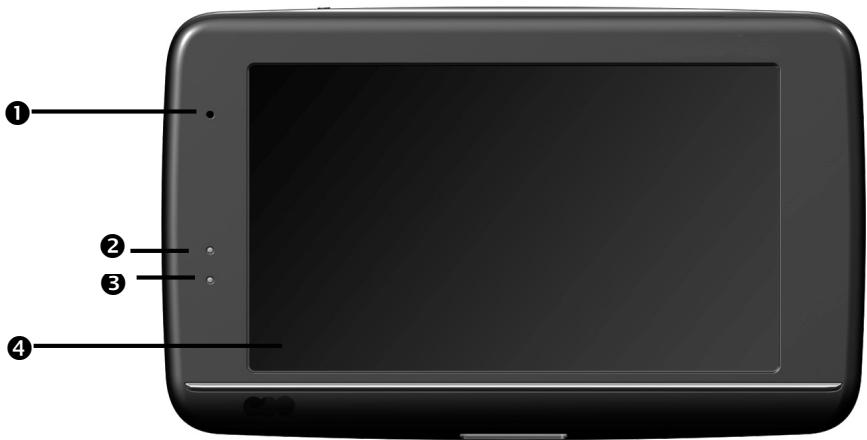
| Ref | Component | Description |
| 1 | Microphone | (only for models E4245 and E4445) |
| 2 | Battery charge indicator | The LED will flash orange during the charging process. It will shine constant green when the accumulator is fully charged. |
| 3 | Bluetooth indicator | This LED will blink at different speeds, according to the connection status, if Bluetooth has been activated (only for model P4445) |
| 4 | Touch Screen | Displays the output of your appliance. Tap on the screen with the stylus (found in the holder, see page 27) to select menu commands or enter data. |
Back Components
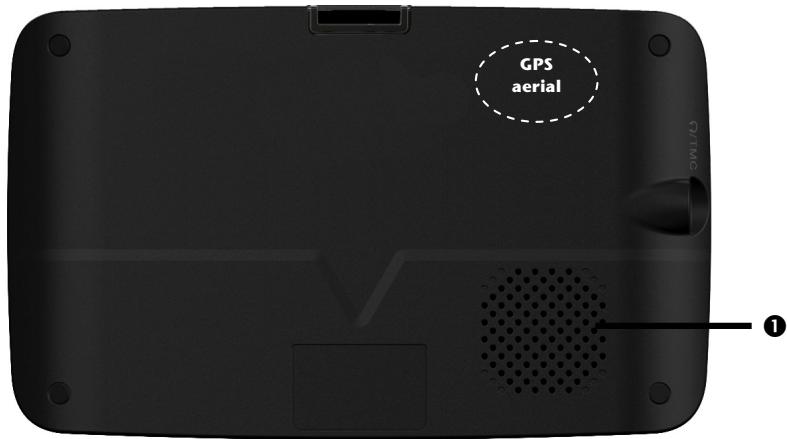
| Ref | Component | Description |
| 0 | Loudspeaker | Provides audible language statements and warnings. |
Top Components
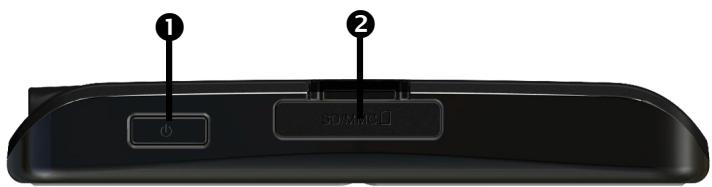
| Ref | Component | Description |
| 1 | On/Off button | Turn the device on or off by pressing and holding the On/Off button. You will switch to the stand-by mode or reactivate the device by quickly pressing the button. |
| 2 | Slot for memory card | Accepts an optional memory card for removable storage. |
Bottom Components
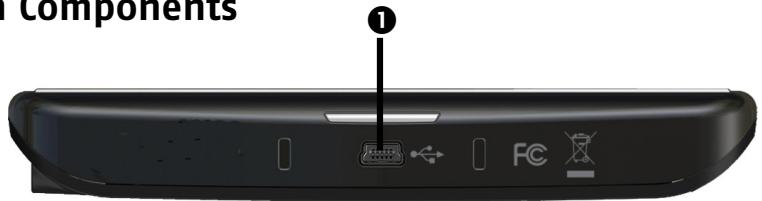
| Ref | Component | Description |
| 0 | Mini-USB-Connector | Connection for connecting to a PC by means of a USB cable (for data transfer) as well as connection to external power supply. You also have the possibility to connect an external TMC receiver here (only for model E4145) |
Left Side
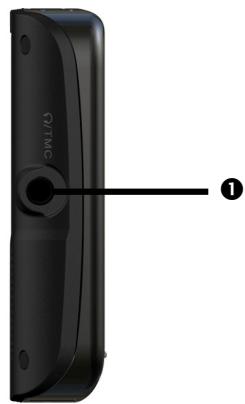
| Ref | Component | Description |
| 0 | Headphone connection | Connection for a pair of stereo headphones |
| Using this appliance at full or high volumes for extended periods of time may cause damage to the hearing of the listener. | ||
| You also have the possibility to connect a TMC di-pole antenna here (only for models E4245 and E4445). |
Initial Set up
The following is a step by step guide to assist in the initial Set-up of the navigation system. Start by removing the protective plastic sheet from the display.
I. Charging the Battery
The battery of your navigation system can be charged in the following ways:
Using the supplied car adapter,
using a suitable USB cable or
- by using a mains adapter (purchased as an optional extra).
Attention!
It may be necessary to initially charge the battery for a considerable period of time prior to commencing and running through the initial installation, this is dependent on the level of charge held at the time by the internal battery.
Please observe the following notes:
- The charging status display LED will flash orange until the navigation system is charged. If possible, do not interrupt the charging process until the battery is fully charged. This may take a few hours. The charging status LED will shine constant green if the battery has a high level of charge. Leave the device charging for 20 further minutes, to ensure the battery is charged-up fully.
- The navigation system can be used during the charging process, but the power supply must not be interrupted during initial set-up.
- Leave the external power supply connected to the navigation system for around 24 hours, so that the backup battery also charges-up fully.
- The external power supply can remain connected; this is recommended for continuous operation.
- Even after a power source has been connected to the device it may take several minutes until the device is once again ready to operate again, this occurs if the charging state of the battery is exceptionally low. The battery will continue to be charged if the power supply is connected and the device is switched off.
II. Power Supply
Car adapter
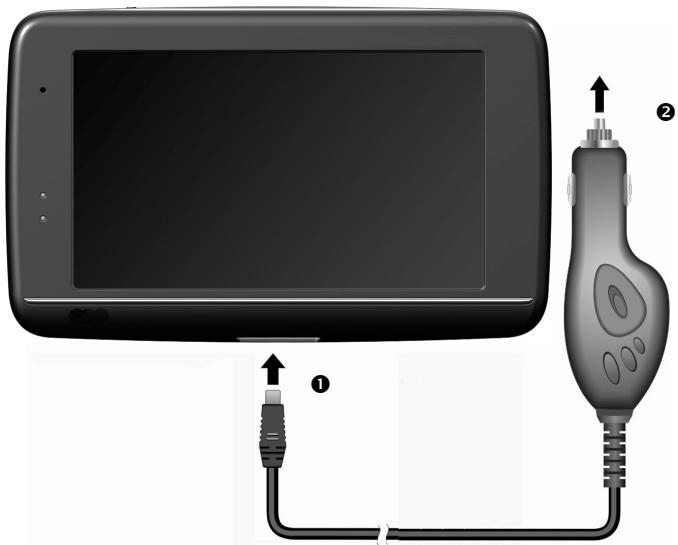
(similar picture)
- Plug the jack (0) of the connection cable into the corresponding receptor at the bottom of your navigation system.
- Insert the power adapter (②) into the cigar lighter socket ensuring, that it will not lose contact while driving. This could cause a malfunction.
Alternative possibility of charging the battery
The battery will charge as soon as you connect your navigation device to a switched-on PC or notebook by means of a USB cable.
No additional software or updates are required for your PC to perform this function. Do not interrupt the charging process if possible during the initial charge.
Note
The brightness will be adjusted downwards, if necessary, if a USB connection is being set up when the device is switched on.
It is recommended to set the device to the stand-by mode, in order to shorten the charging time by USB.
AC Adapter (optional)
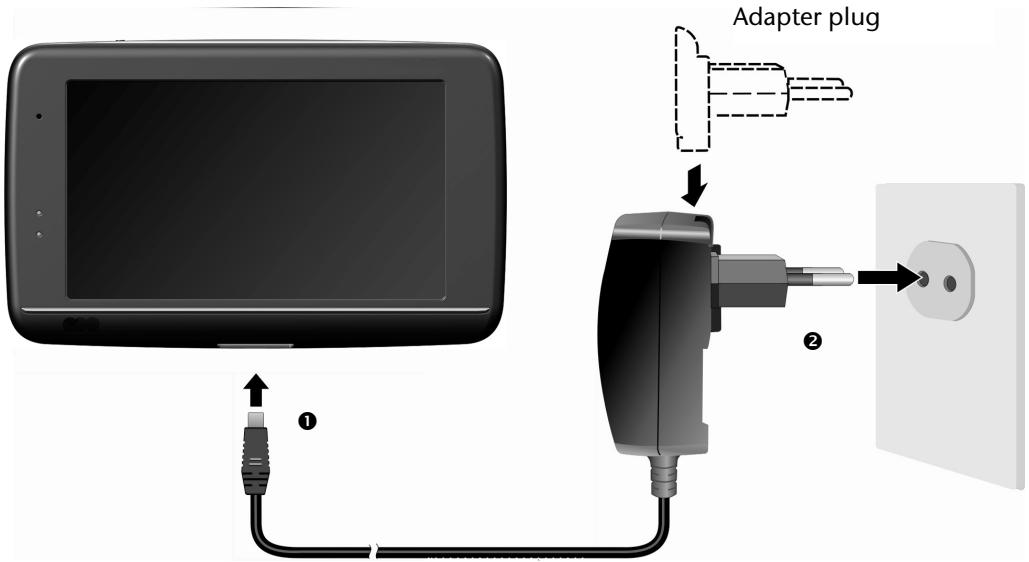
(similar picture)
- Push the adapter connector into the guide on the back of the AC adapter. Press the push button at the same time, so that the adapter plug can engage.
- Plug the cable of the mains adapter (0) into the mini-USB connection on of the navigation system.
- Push the AC adapter (2) into a power point that is easily accessible.
III. Switching on the Device
You will switch your navigation device on or off again completely by pressing the On/Off key for a long time (> 3 sec.).
The Navigation System will start the initial installation automatically. First of all, choose the requested language. The brand logo will appear and after some seconds your device shows the following screen:
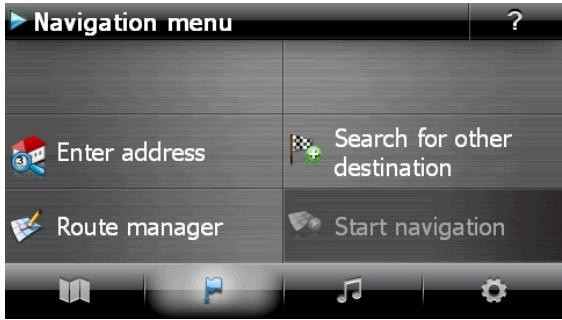
| Button | Description | Screen | |
| Menu Map overview | |||
| Navigation menu | Navigation menu Enter address Route manager Start navigation | ||
| Other applications | Other applications Instructions MP3 Player Sudoku Other applications | ||
| Settings | Settings 1/2 Route options Language settings Device settings More settings | ||
Note
You will not be able to select the Navigation Menu or Settings, if the navigation software has not found any map data in the device or on the memory card. Then, the 'Other applications' Menu will appear automatically.
Note
Brief pressure on the On/Off button will be enough to switch the device on or off, provided that your navigation system is connected to an external source of electricity or is running in battery operation (standby mode). The device will be reactivated by pressing the On/Off button once.
You can adjust the period of operation to suit your needs using the Settings button on the main screen of your device. Your device is delivered in a status in which it will not switch off independently.
Press and hold the On/Off key (> 3 sec.), to completely switch off the device.
No data will be lost as data is stored in the internal memory. The starting process will only take slightly longer.
Your navigation system will use a low amount of electricity and the batteries will be discharged, even when in standby mode.
IV. Installing the Navigation Software
The final installation of the navigation software will take place automatically from the internal memory, during the initial setting up, if your device has already been equipped with the basic data of the navigation software at the factory. Follow the instructions on the screen.
An optional memory card must always be inserted in the device while the navigation system is being used.
It will be necessary to carry out a Reset to restart the navigation system if the memory card has been removed (see page 23).
Please also read the chapter Navigation starting on page 24.
General Operating Instructions
Switching on/off the device
Your device will be in its normal operating state after the initial setting up. You can activate and deactivate your device with the On/Off button.
- To start your navigation system press briefly the On/Off button. The battery charge indicator will blink briefly and the application screen will appear.
Note
Your device is delivered in a status in which it will not switch off independently. You can adjust the period of operation to suit your needs using the Settings button on the main screen of your device.
Your navigation system will use a low amount of electricity and the batteries will be discharged, even when it is in the standby mode.
- To switch off your navigation system briefly press the Power button. The following screen will appear:
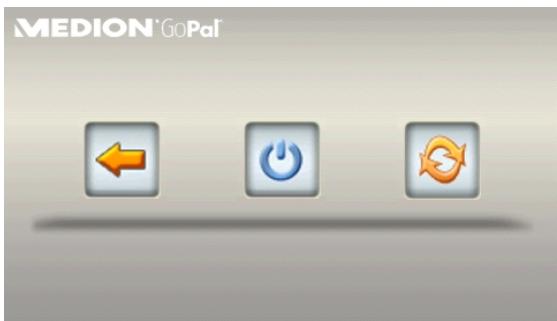
You have three possible choices:
Button Description

Cancel/Back
Return to previous view with this key, if you have accidentally called up this screen.

Standby Mode
The device will go into Standby Mode if this key is clicked.

Reset
You can carry out a reset by tapping this key.
The device will go into the Standby mode automatically after a few seconds if you do not want to select any of these three possibilities.
For further settings within the Standby mode also see the chapter on "Special CleanUp Function", page 61, point 8.
This display will also appear after the delay period of a few seconds has expired, if you have activated the DC AutoSuspend Comfort Function.
Security
You have the possibility of protecting your device against external access by means of this function. Some one-off settings will have to be made before you will be able to use this function. Proceed as follows to do this:
Storing the password and the information note
- First tap on Settings in the main screen and then on Device settings.
- Tap on Security, in order to start the respective function. The following display will appear:


, in order to enter a password.
- A keyboard will appear. Enter a password with it.
Note
The password must consist of at least 4 symbols. Use a combination of letters (A - Z) and numbers (0 - 9). Keep the password in a safe place.
- Confirm the password with the
symbol after you have entered it.
- Enter the password in the second field to reconfirm it and in order to avoid potential careless mistakes.
Note
The password will be displayed in the form of small stars ( )
- An additional text field will appear after you have entered the password. Enter an information note here that will serve as a support for remembering your password. You will be able to call up this information if you have forgotten or mislaid the password.
Making settings
The following selection window, through which you will make the settings for the Security Function, will appear after you have entered the password and the information note successfully.
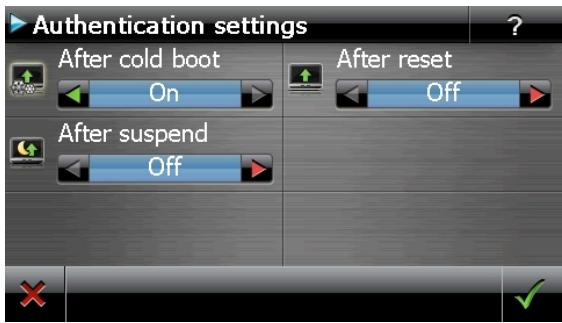
Button Description

Set here whether the device should request the password after a hard reset.

Set here whether the device should request the password after a restart.

Set here whether the device should request the password after the device has been switched on from the Standby mode.
Confirm you settings with

during the set-up. The following screen will appear:
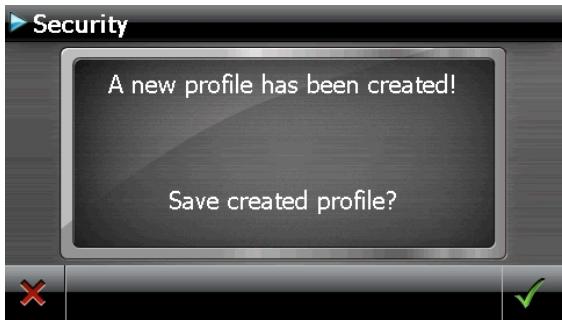
SuperPIN and UUID
The SuperPIN and the UUID (Universally Unique Identifier = definite device identification) will appear on the display after you have confirmed the settings.
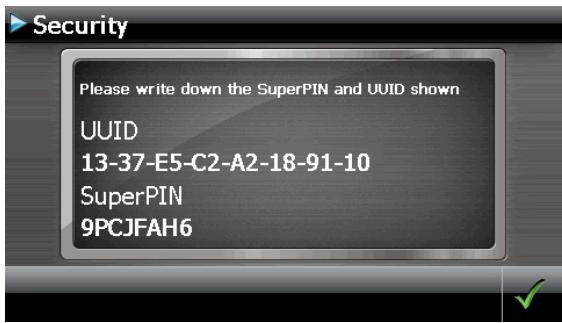
Note
Record this data in your Operating Instructions (see Page 1) and keep them in a safe place.
You will need this information if you have entered the password incorrectly 3 times. The navigation device can then only be released with this information.
Making subsequent settings
Start the Security Function if you have already entered a password and would like to make a subsequent setting or to change the password. The following display will appear:
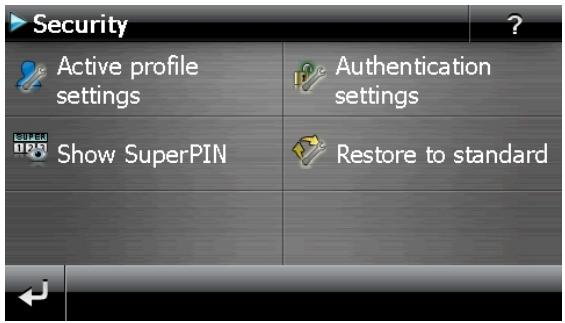
| Button | Description |
| Active profile settings | Change the password or the information text |
| Authentication settings | Authentication settings (see Page 19, Making settings) |
| Show SuperPIN | Display SuperPIN and UUID (see Page 20) |
| Restore to standard | Reverses the complete security function. All security settings and passwords will have been deleted after this function has been carried out. You will have to enter and confirm your password again to be able to carry out the security function. |
Password Request
A password request will appear at the restarting of the device, according to the setting, if you have established a password by means of the Security Function.
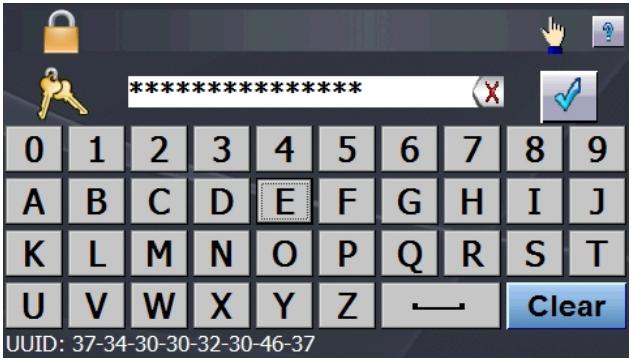
- Enter the password stored by you by means of the keyboard.
Note
The password will be displayed in the form of small stars ( )
- If you tap the question mark, the hint text you have established will be shown.
- Tap on to confirm the entry.
Note
You will have to enter the SuperPIN if you have entered the password incorrectly 3 times. Contact your Service Center, giving the UUID, if you have also misplaced it. The UUID will be faded out in the lower display.
Resetting the Navigation System
You can reset your navigation system if it is no longer reacting or working properly.
This option restarts the navigation system, without reinstallation being necessary. A reset is often used in order to reorganize the memory. In doing so all programs that are running are interrupted and the working memory is reinitialized.
You can carry out two different Reset procedures with your device.
Reset
The following screen will appear if you press the On/Off switch for a short time. The following display appears:
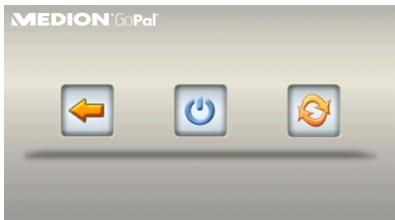
- If you want to carry out a Reset, tap on

You will find further information in the chapter "Switching on/off the device", page 17.
Switching the Device off Completely / Hard Reset
Attention!
A hard reset will delete all data in the temporary memory.
Your navigation system will normally be in the Standby Mode, if you have switched it off by pressing the on/off button briefly. In addition, the system can be switched off completely; the consumption of energy can be kept as low as possible through this. All the data in the temporary memory will be lost if the device is switched off completely (hard reset).
To switch your navigation system off completely:
- Press and hold the On/Off key (>3 sec.), to switch off the device.
- Press and hold the On/Off key (>3 sec.), to switch the device on again.
A reinstallation will not be necessary after a hard reset if your device has already been equipped with the basic data of the navigation software in the permanent memory at the factory.
Navigation
Safety Instructions for Navigation
The bundled product DVD contains a comprehensive instruction manual.
General Instructions
- Do not manipulate the navigation system while driving to protect yourself and others from accidents!
- In the event that you do not understand the voice instruction or if you are in any doubt about what to do at the next intersection, then the map or arrow display will provide you with a quick orientation. Only look at the display when you are in a safe driving situation!
Legal remark
The use of devices that warn for traffic monitoring systems (like „speed traps") is prohibited in some countries, like Germany, Ireland and Switzerland. Please obtain information about the legal situation and apply the waning function only where allowed. We cannot be held liable for damages caused by the use of the warning function.
Attention!
The road layout and driving rules take precedence over the instructions of the navigation system. Only follow the instructions when circumstances and driving rules permit it! The navigation system will guide you to your destination even when you have to deviate from your planned route.
- The direction statements of the navigation system given do not release the driver of the vehicle from his or her duty of care or personal responsibility.
- Plan routes before you leave. If you want to plan a new route whilst on the road pull over and stop driving.
- In order to receive the GPS signal correctly, keep away from metal objects as they may hinder reception. Attach the navigation system onto the inside of the wind-screen or near the windscreen with the suction cup. Try out different positions in your vehicle in order to find the best reception.
Notes for Use in a Vehicle
Take care that the holder does not present any risk to safety, even in the case of an accident, when installing it.
Take care that the cable does not impede any safety components.
- The display of your navigation system may show "light reflections". Please take care of not being "blinded" during operation.
- Do not mount the components within the operating range of any airbags.
- Check the secure adherence of the suction cup at regular intervals.
- The power plug will consume power, even if no device is connected. Remove it when not in use to avoid draining the car battery.
- Check all safety equipment in your car after installation.
Note
Do not leave your navigation software in the vehicle when you leave it.
You should also uninstall the holder for security reasons.
Aerial Orientation
The aerial must have unrestricted access to the sky to receive GPS satellite signals. Place the aerial as horizontally as possible for this reason. Try out aerial and installation possibilities in the vehicle if the reception is inadequate.
I. Mounting the Car Holder
Attention!
Only fix the holder for the navigation system to the windscreen, if it does not impede the view.
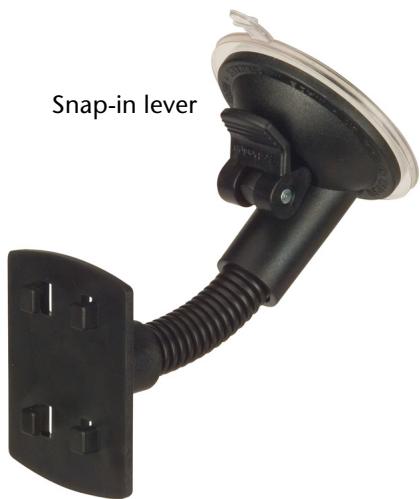
(similar picture)
Note
Your navigation device can also be equipped with a different but similar vehicle attachment as an alternative, according to the version.
Note
Clean the disk thoroughly with a glass cleaner. Warm the disk and the nipple slightly at temperatures below 59°F ( 15°C ).
Place the holder with the suction head directly onto the wind screen and press the lever on the suction head downwards. The sucker will attach itself to the background firmly.
II. Attaching the Navigation System
- Connect the car adapter and, if necessary, the TMC aerial to your navigation system and insert the memory card.
- Place the device below in the centre of the holder.
- Press it gently backwards (0) until it engages audibly (2).
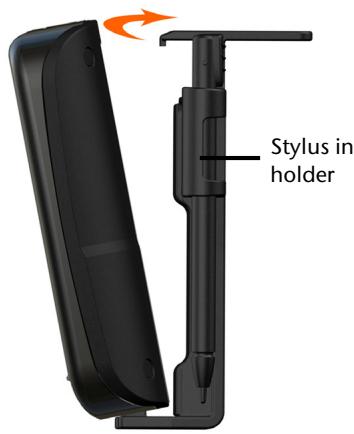
1
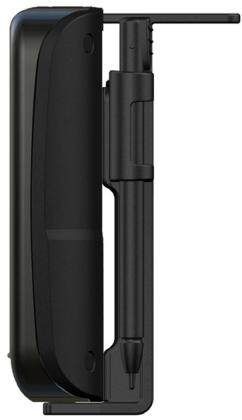
2
(similar picture)
- Place the holder on the fixing catches of the car holder.
- Now, push the unit downwards until it engages audibly.
- Now you will be able to place the complete unit on the cleaned windscreen.
III. Connecting the Car Adapter
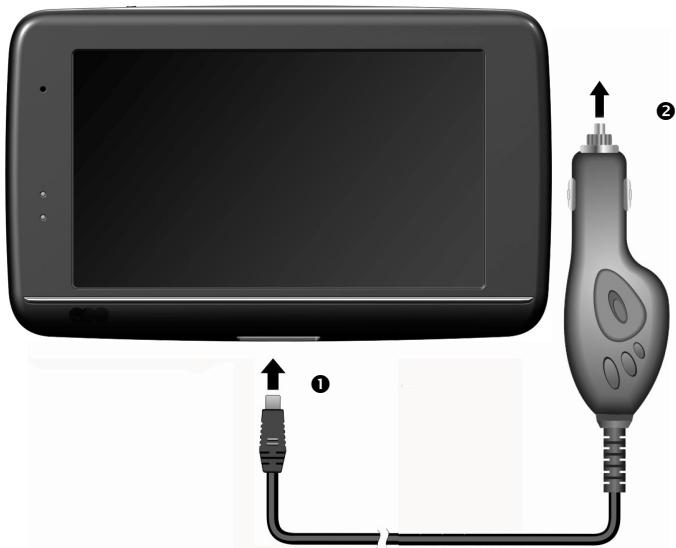
(similar picture)
- Plug the jack (0) of the connection cable into the corresponding receptor at the bottom of your navigation system (see Page 10).
- Insert the power adapter (2) into the cigarette lighter socket and ensure, that it will not lose contact while driving. This could cause a malfunction.
Note
Remove the power adapter from the cigarette lighter socket when ending a trip or when parking the car for a extended period of time. Otherwise the car battery could be drained. In this case use the power switch to turn off the navigation system.
IV. Starting the Navigation Software
Note
Your memory card will always have to be inserted into the device during the use of the navigation system, if the card contains (additional) mapping material.
It will be necessary to carry out a reset to restart the navigation system if the memory card has been removed while the system was being used (see page 23). According to the navigation system the reset is carried out automatically.
- Switch on your navigation system.
- The Navigation software will start automatically or after tapping on the navigation control button on the main screen, according to the version.
- Tap on Navigation on the screen for entering the destination. Enter the desti
nation address. Confirm your entry by tapping the

navigation. After a short time, if the satellite reception is adequate you will receive augmented language statements.
Further information regarding the navigation software can be found on the comprehensive manual on your CD/ DVD. This is a PDF-file you can read and print with any Acrobat Reader.
Note
The GPS-receiver will require some minutes for initialization when deployed for the first time. Even when GPS signal reception is indicated the navigation could be imprecise. In all future instances it will take about 30-60 seconds until a correct GPS-signal is available, sufficient "sight" of the satellite is a prerequisite.
Warning function for traffic monitoring points
The following display will appear if the warning function for traffic monitoring points (optional) has been installed:
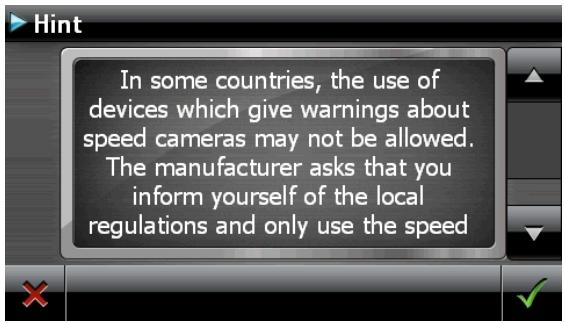
Confirm with, if you want to use navigation with the warning function for traffic monitoring points.
Tap on the Configure special functions interface in the Settings Menu, in order to configure the warning function.
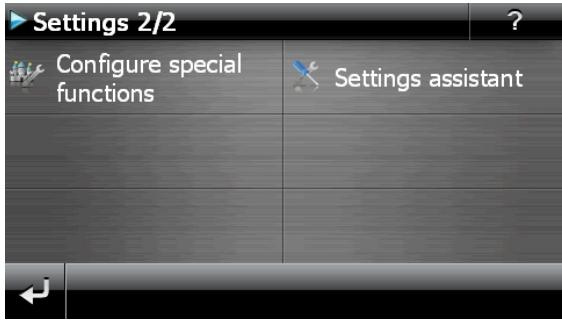
The following screen appears. Tap on POI-Warner:
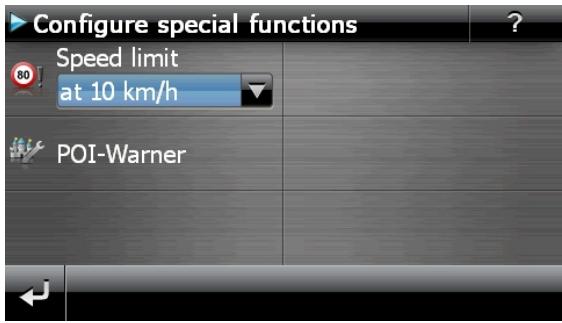
Tap on Speed cam (stationary) here, in order to make the settings for the 'radar fixes':
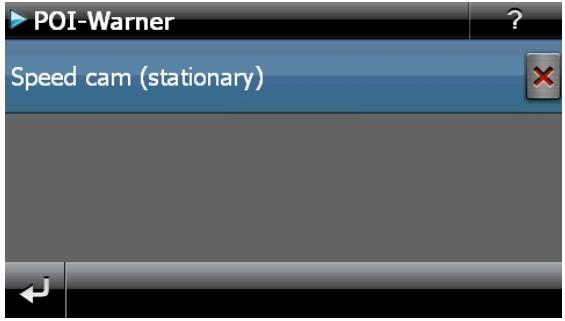
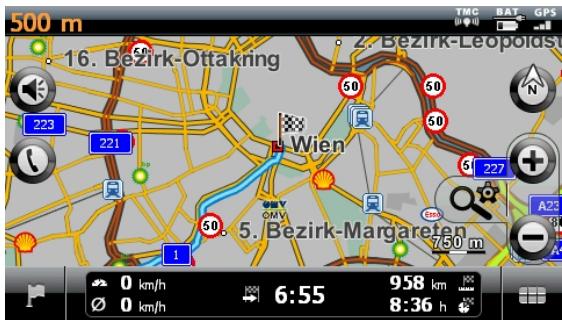
Here, you have the option of having the traffic monitoring points represented on a map or faded out. You can also set whether you would like to be informed by acoustic signals before reaching a traffic monitoring point.
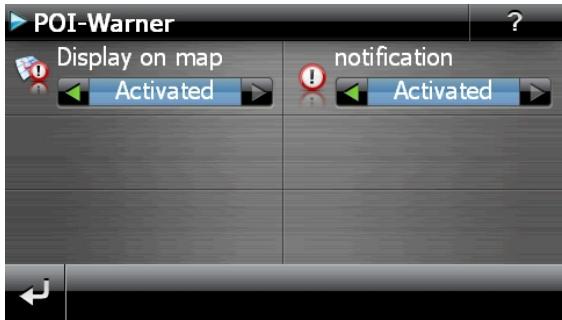
Acoustic information about a traffic monitoring point will be given by a warning sound approx. 15 seconds before it is reached. Then, another double warning sound will be given approx. 7 seconds before it is reached. Four warning sounds will give information that the speed is too high. In addition, the distance to a monitoring point will be indicated by a bar indicating closeness (left lower edge of the display).
Sample view if map presentation has been activated:
Note
Please pay attention to the fact that traffic monitoring points are not preset in all countries.
* Legal remark
The use of devices that warn about traffic monitoring systems (like "speed traps") is prohibited in some countries, i. e. Germany, Ireland and Switzerland. Please obtain information about the legal situation and apply the warning function only where allowed. We cannot be held liable for damages caused by the warning function.
Speech commands (optional)
The Speech Entry mode can be activated by means of the function during navigation. A short information sound will indicate that the navigation system is ready for the speech entry.
Explanation of the symbol:
- () optional words;
[Fillers
Alternatives; - <>Content displayed can be spoken
The following commands will be possible here according to the current view:
| Range of validity | Command |
| Always applicable | [go] (back | backwards) (cancel | abort) [dialog ] (enter | select | change) [the|a] [new] (city | town | location) ((enter | select) [a] [new] | new) destination ((enter | select) [a] [new] | new) (zip [code] | postal code) help (general | global) (Help|Commands) [show] map [view] volume settings | change volume decrease volume increase volume mute volume | shut up unmute volume Menu | Main menu | Navigation menu |
Main menu
You will be able to call up the most recent destination by speech in the Main Menu. To do this, you will speak the text appearing in the speech bubble above one of the highest three buttons. The 'Most recent place' button will appear in the case of more than one most recent destination. This can also be operated by speech and will open a list with the most recent places.
Enter [a] [new] address | [a] new destination | (enter | select | choose) [a] [new] destination | Destination entry (Other | More) destination entry options | (Search | enter) other destination | Other destination
Route manager
start navigation | yes [please] | go | calculate route stop route guidance
(other | additional) applications
In maps
display|show] (destination [area]
display|show] [map] overview | (display|show) (route
display|show] ([the] [current] position
display|show] [view|orientation] [in] (direction of travel | motion) | driving direction)
other destination | next destination | down| downwards | more
previous destination | up | upwards
display|show] (turn icons | arrows | arrow view | direc
tion changes)
display|show] (compass [view] | G P S view)
display|show] (dynamic | smart) (view | map)
display|show] next (view | map [view])
display|show] (normal|simple) (map [view] | view) |
display|show] only [the] map
display|show] (Arrow and map | Map and arrow | Map
with arrows | Map with arrow)
display|show] (3 D | three dimensional) [view | map | perspective]
display|show] (2 D | two dimensional) [view | map | perspective]
display|show] [2 D | two dimensional] (north | north-
ern) [view | map [view]]
| In maps | Auto zoom Centre [View | Map | Map view] | centre [[the] map] enlarge | zoom in reduce | zoom out quick menu |
| In lists It will be possible to address either the list entries themselves or the number allocated to them with speech, according to the speech bubble displayed. The buttons below the lists can also be addressed with speech if they are marked with a speech bubble. | next page | scroll down previous page | scroll up |
| Commands during the entering of a town You will be able to alternate between the two possibilities of making an entry with the ‘Enter place/post code’ command. The country commands do not play any role within Europe. | Change location | Enter location | Correct location | Change city | Enter city | Correct city | Change location | Change city | Other location | Other city | Correct location | Correct city | Enter location | Change postcode | Enter postcode | Correct postcode | Other postcode | Correct postcode | Postcode entry | Postcode entry | Change state | Enter state | Correct state | Change province | Enter province | Correct province | Change region | Enter region | Correct region | Other state | Other province | Other region | Other state | Other province | Other region | Correct state | Search in all states | Search in all provinces | Search in all regions | Search in the whole country | All states | All provinces | All regions | Whole country | Change country | Enter country | Correct country | Enter country |
| Commands during the entry of a street You will it be able to change the value previously entered with the ‘Change place/post code’ command. Use the ‘I don’t know’ or ‘Start destination guidance’ command as the entry. | Change location | Enter location | Correct location | Change city | Enter city | Correct city | Change location | Change city | Other location | Other city | Correct loca- tion | Correct city | Enter city | Enter location | Change postcode | Enter postcode | Correct postcode | Change postcode | Enter postcode | Correct postcode | Change postcode | Change postcode | Other postcode | Other postcode | Correct postcode | Postcode entry | Postcode entry points of interest | interesting sights | POI centre | city centre | downtown | town centre | to centre | to city centre | to town centre | central business district | I don’t know | I’ve no idea |
Commandos during the entry of a house number
Use the 'I don't know' and 'Start destination guidance' commands, and 'Street centre' as the entry.
Change street | Enter street | Correct street | Change street | Correct street | Other street | Enter street crossroads | junction | intersection
middle of the road | middle of street
I don't know | I've no idea
start navigation | begin navigation
Note
Speak the commands loudly and clearly in the direction of the navigation system. No incidental noises (radio, ventilation or loud conversation) should arise during the speech entry.
Handsfree Facility by means of Bluetooth (optional)
The Bluetooth technology serves to bridge short distances wirelessly. Bluetooth devices transmit data wirelessly, so that other devices that also support this technology can communicate with each other without cables.
Both devices will have to be adjusted to each other (pairing), before you will be able to use your navigation system as handsfree equipment with your Bluetooth mobile phone.
Note
Please read how you switch on the Bluetooth function in the Operating Instructions of your mobile phone.
Starting the Bluetooth Application
- Tap on Bluetooth Dialer.
Note
The function for active use will have to be reactivated first if Bluetooth has been deactivated manually.
- Now the main Bluetooth screen will appear on your navigation device.
Overview of the Main Screen
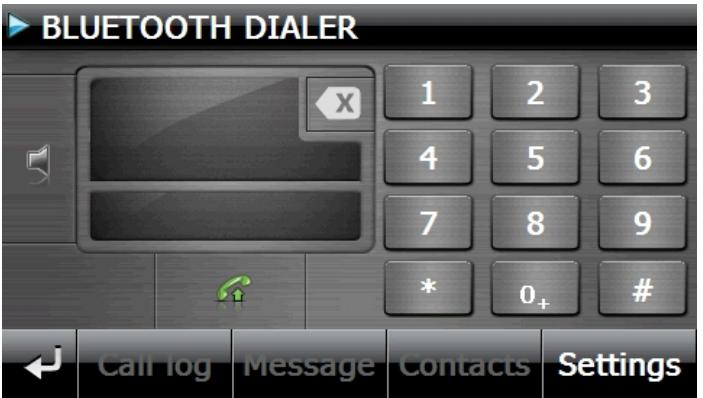
| Button | Name | Description |
| Call log | Course of call | Displays the course of calls put through and received. |
| Message | News | View the postfix of your mobile phone through this symbol. You will be able to receive, write and send messages. |
| Contacts | Telephone Book | Call the contacts stored in the mobile phone through this symbol. The support of this function depends on the respective mobile. |
| Back | Delete | Previous Page of the main display. |
| X | Calling | Select the number entered by means of the keyboard with this field. |
| Keypad | Volume | Set the volume of the microphone and the loud-speaker by means of this symbol. |
| Settings | Settings of the hands-free facility | New message – Options for displaying new messages |
| Pairing – Link the navigation device to the mobile | ||
| Settings for automatic synchronization between the navigation device and the mobile phone | ||
| Bluetooth – Activate or deactivate the Bluetooth function |
Pairing the Navigation Device and the Mobile Phone
- Activate the Bluetooth function on your mobile phone.
Note
Each mobile phone uses different paths to do this. Read the instructions of your mobile phone under all circumstances for this reason.
- Select the option (Pairing - link the navigation device to the mobile phone) under the settings of the open speech facility of your navigation device. The search for a Bluetooth-enabled device will start.
- Select the corresponding mobile phone from the list.
- Start the link by operating the Pair field.
- Your mobile phone will recognize the navigation device. You will be requested to enter a 4-digit PIN code. This is 1 2 3 4 for your navigation device.
- Your mobile phone will be recognized and the open speech facility through the navigation system will now be available to you.
Note
This procedure will have to be repeated as soon as you have switched off the navigation system or a spatial separation between your mobile phone and the navigation device arises.
Accepting incoming calls
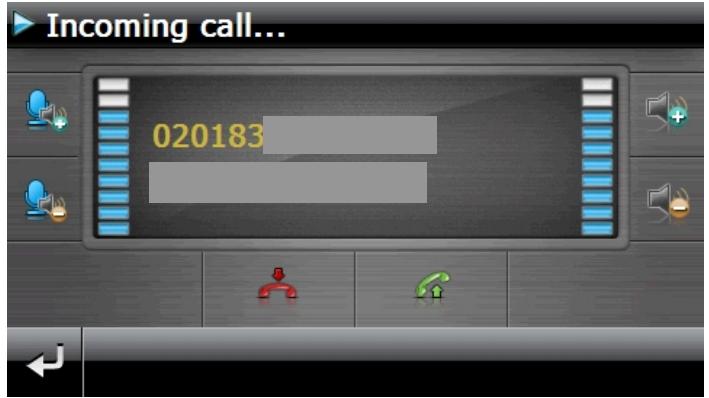
Button
Description

Accept calls
Reject/terminate calls
Making Calls
-
Tap on the keypad in the main Bluetooth screen and enter the number that you wish to call.
-
Start the call with

During a Call
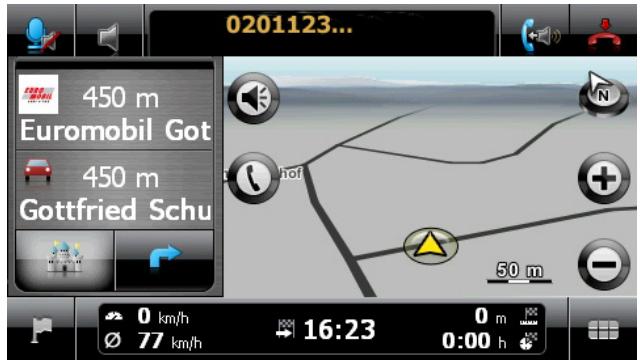
| Button | Description | |
| End call | ||
| Volume settings for microphone and loudspeaker | ||
| Return the conversation to your mobile | ||
MP3 Player (optional)
Depending on the software equipment your navigation system is equipped with a MP3 Player. Start the MP3 player from 'Other applications' Menu by tapping on the MP3 Player switch. All the MP3 files located on the memory card can be taken over into a List of Favourites and will be ready to be played.
Main Screen Overview
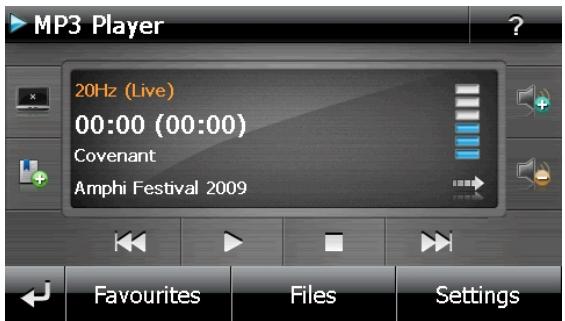
| Button | Description |
| × | Reduces the screen brightness to a minimum, to save electricity. |
| + | Determine/add bookmarks |
| or | Increase or decrease the volume. The display in the upper right corner of the screen will show the current level of the volume. |
| J | Break off action / Back to the previous Menu |
| or | Move to the previous or next file. It will be possible to skip backwards or forwards within the title playing while it is being played. |
| Play the playback. | |
| Stop the playback | |
| Favourites | Opens the List of Favourites |
| Files | Displays the files stored on the flash disk and/or the memory card. |
| Settings | You will make the settings of the MP3 player here. |
Select a Title and Move it into the List of Favourites
Tap on and select the title that you would like to move into the List of Favourites, in order to select a title.
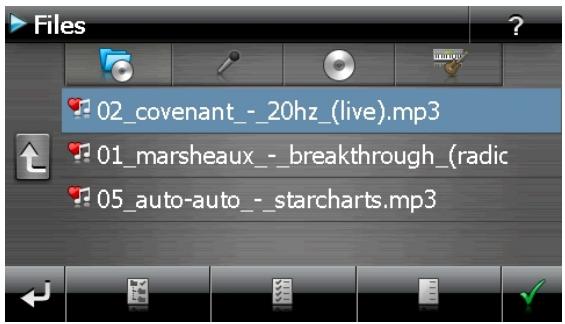
You will have three possibilities of marking the title here:
- Tap on in order to mark all the titles, including all subdirectories.
- Tap on in order to mark all titles currently in view.
- Tap on to delete all marks within a directory.
The selected titles will be indicated by a

Tap on , in order to confirm your selection. The titles marked will not be moved into the List of Favourites until then.
Tap the file required and select the requisite title, in order to select a title in the subdirectories.
The symbol will be shown if not all the titles in a directory have not been selected.
List of Favourites

You will reach the List of Favourites by tapping on the
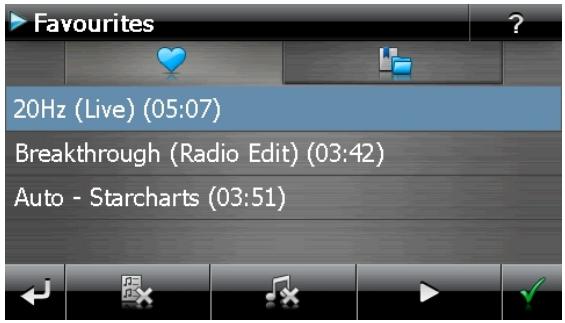
You will delete all titles with


You will delete individual titles with
Confirm with, in order to take over the new selection into the List of Favourites.
List of the established bookmarks
You will reach the list of the established bookmarks by tapping on the symbol :
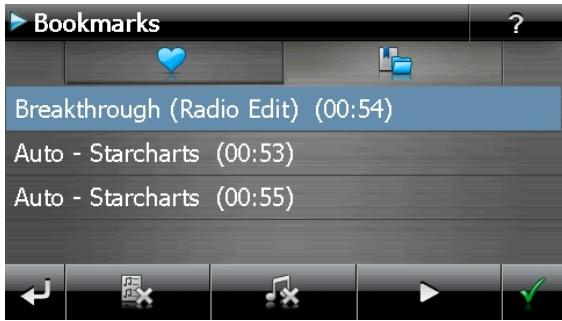
You will delete all bookmarks with the

symbol.

You will delete an individual bookmark with the
Operation with the symbol to take over a new selection into the list of bookmarks.
Picture Viewer (optional)
Depending on the software equipment your navigation system is equipped with a Picture Viewer.
You can view the jpg format images on your memory card on your navigation system, with the Picture Viewer. All the images on the memory card will be available immediately.
Operating the Picture Viewer
Start the Picture Viewer from 'Other applications' Menu by tapping on the Picture Viewer switch.
Main Screen
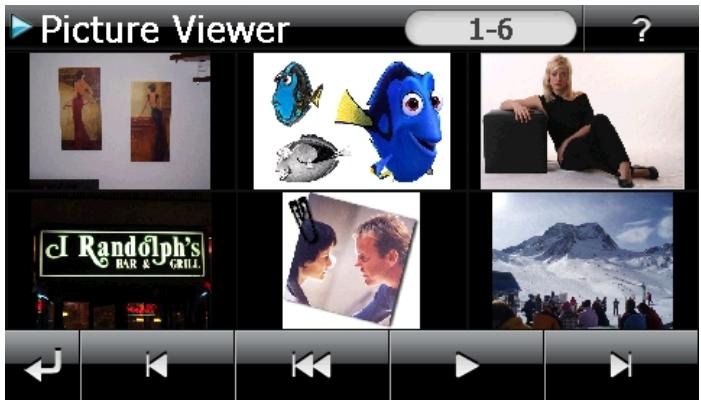
Fig.: Miniature view
Move the miniature view to the left or to the right with the arrow keys. Tap on a specific images to display it in the Full Image Mode.
Return to the start in miniature view by tapping on.
You can end the application by tapping on the symbol
Start the slide show by tapping the symbol.
Full Image View
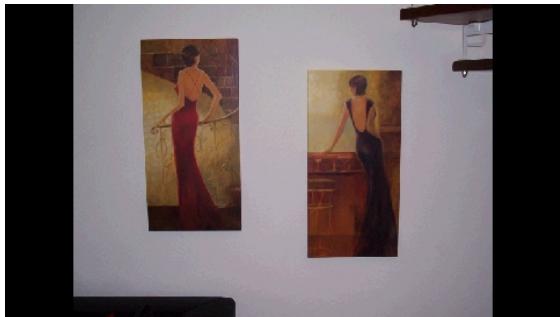
Fig.: Full image view without service strip
Tap in the lower area of the screen in the full image view, in order to activate the service strip:
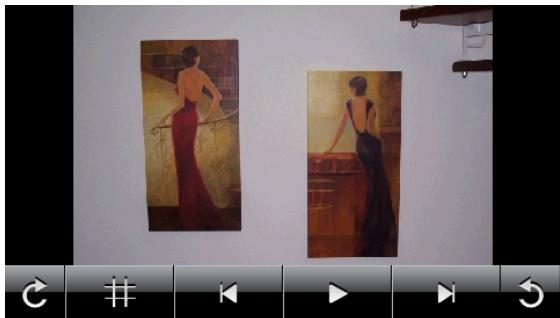
Fig.: Full image view with service strip
| Button | Description |
| ←J | Previous picture |
| C | Turn it clockwise by 90° in stages |
| # | Fade in grid |
| Δ | Start the slide show Pause the slide show |
| Turn it counter-clockwise by 90° in stages | |
| Next picture |
You can return to the miniature view by tapping in the centre of the image.
The image displayed will be subdivided into 6 fields by tapping on the symbol (fade in grid).
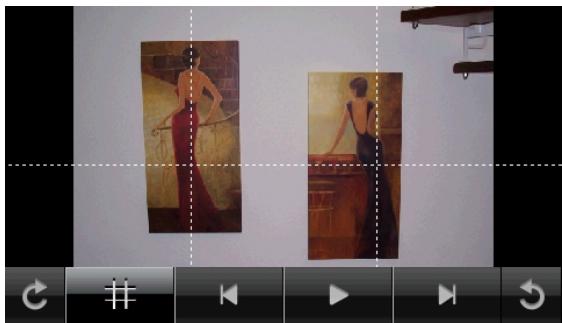
Fig.: Full image mode with grid
Tap on a square in the grid to zoom in on that area of the picture:
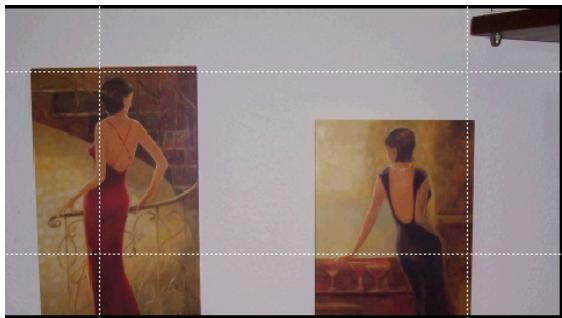
Fig.: Zoom-in Mode
Tap on the centre of the image to go back to viewing the full picture.
Travelguide (optional)
Depending on the software equipment your navigation system is equipped with a Travel Guide. The Travel Guide will supply general information about the different areas of individual towns and cities or regions in Europe, such as sights, restaurants, culture and travel information.
Start the Travel Guide from 'Other applications' Menu by tapping on the Travel Guide switch.
Select the country initially, then the town or city (or the region). Then, select the category.
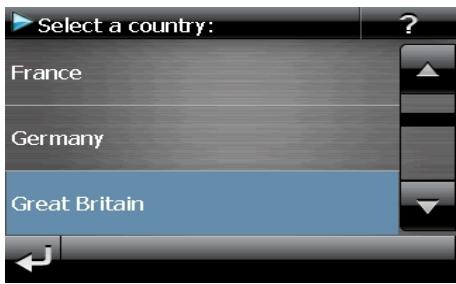
Abb.1
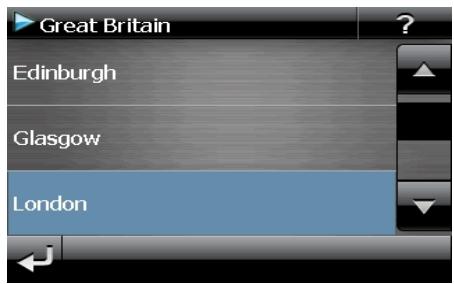
Abb. 2
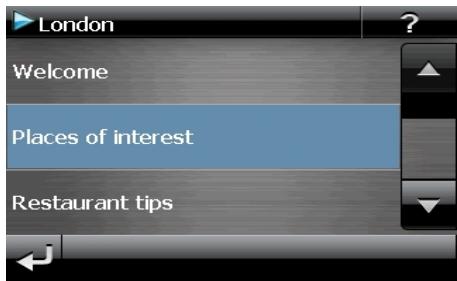
Abb. 3
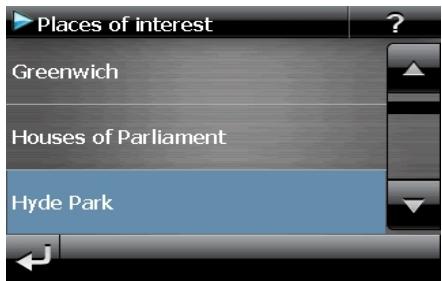
Abb. 4
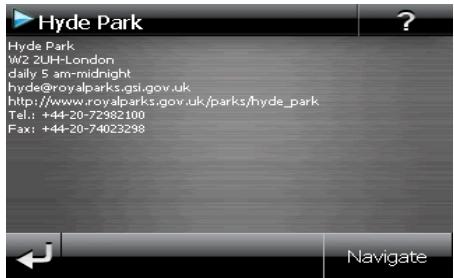
Abb. 5
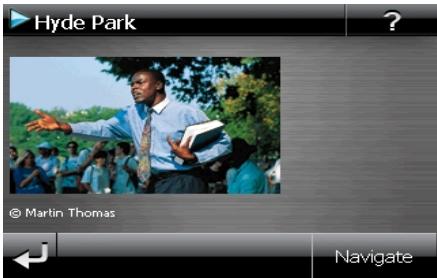
Abb. 4
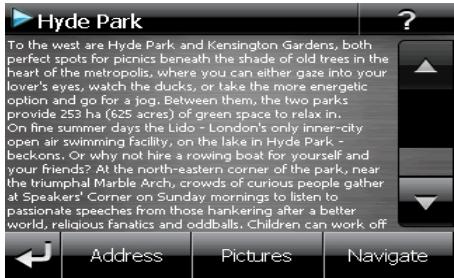
Abb. 7
Confirm with Navigate, if you want to navigate to the destination displayed. The address will then be available to the navigation software as the destination
The address will then be available to the navigation software as the destination.
| Button | Description |
| Previous image | |
| Address | Shows the address of the selected category |
| Pictures | Shows the available photos of the selected category |
| Navigate | Tap on this switch to navigate to the selected address directly. |
| Note You will be able to vary the potential selections within the Travel Guides according to the software capacity. |
AlarmClock (Waking function) (optional)
Depending on the software equipment your navigation system is equipped with an AlarmClock/ Waking function.
Start the Alarm Clock from 'Other applications' Menu by tapping on the Alarm Clock switch.
The waking function can work both as normal when the device is switched off (Standby Mode / Power Saving Mode) and as a reminder during the current navigation.
Overview of the main screen
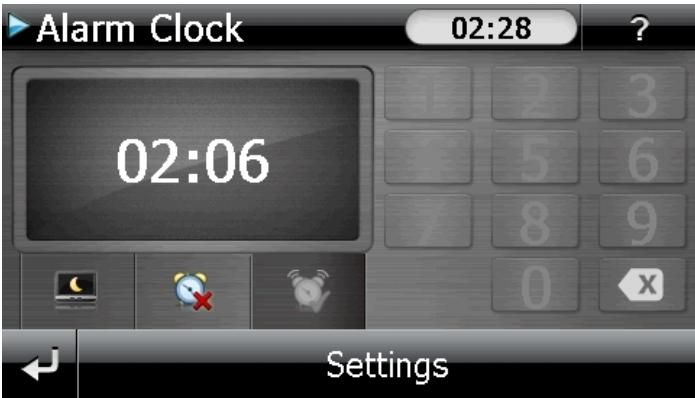
This view will appear if you have not yet set up a waking time. Enter an alarm time in the
24-hour format and confirm your entry with
Description of the Interfaces
| Button | Description |
| 20:32 | Current system time |
| Settings | Setting-up mode (Setting volumes, system time and alarm) |
| Night mode (Standby mode) | |
| Reset/deactivate the waking function | |
| Setting the alarm time | |
| Delete the entry | |
| Confirmation interface | |
| Reduce / increase the volume | |
| Back to the previous menu | |
| Close the application |
Setting the System Time
The display of the current time will be located in the upper right corner of the screen. You can adjust it as follows:
- Tap on Settings in the main screen. The following screen will appear:
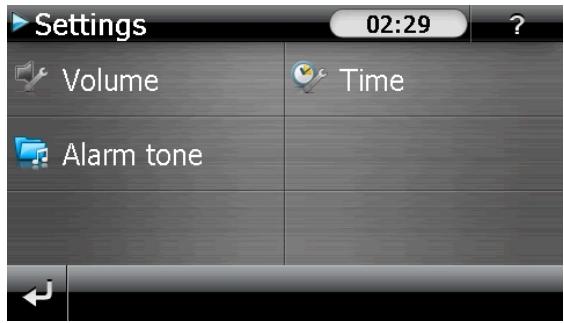
- Tap on to change the time setting:
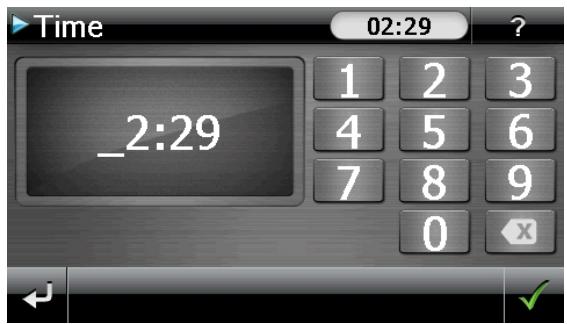
Note
The system time is updated by GPS reception. Pay attention to the time zone settings.
Selecting an Alarm Signal
- To select an alarm signal touch the symbol.
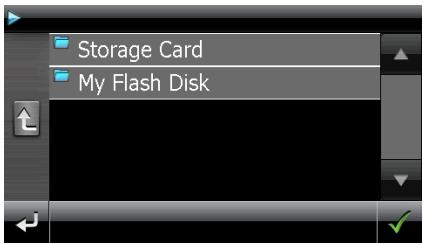
- Select the required directory and confirm it with
- Tap on the corresponding directory in the list in the memory card and confirm again with , if you would like to select an alarm tone from your memory card.
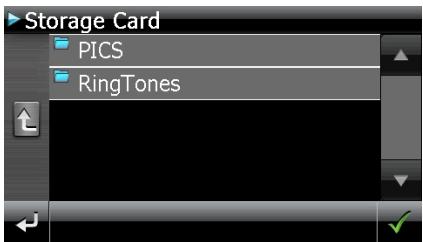
- Select the desired alarm sound and confirm the selection with
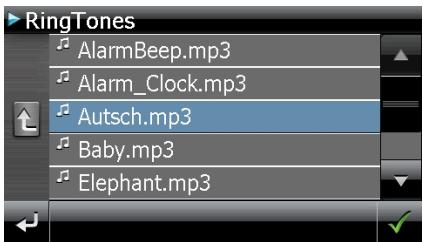
- The selected alarm signal is marked by a
- Close the application with
Setting the Volume
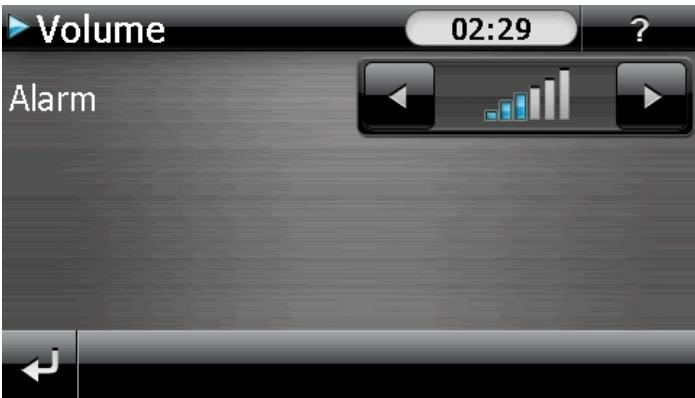
You can adjust the volume of the alarm signal by tapping on the interface.
Note
The volume configured here only relates to the alarm signal and will not change the volume of the language output of the navigation system or other functions of the system.
Snoopze Function
You will have the possibility of making the waking signal repeat at regular intervals by means of the Snooze function, once it has sounded at the alarm time set.
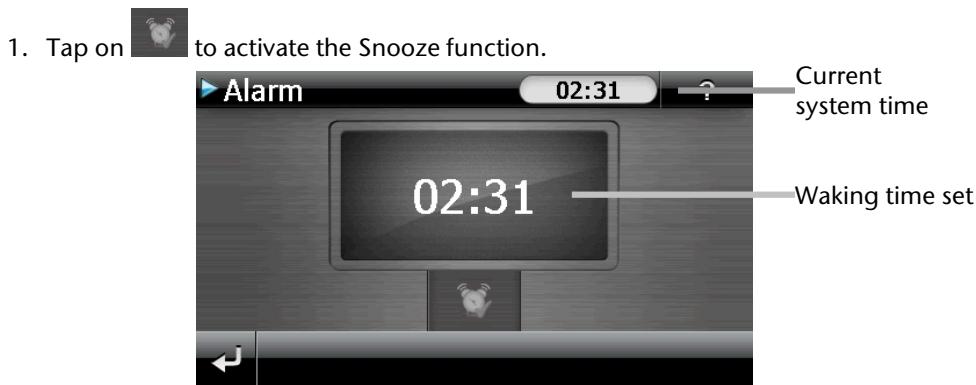
- End the Snooze function with the switch, to be awoken at the respective time entered on the following day. You will leave the alarm display and return to the
view before the alarm time if you click on
Ending the Alarm Clock Application

- Tap on to deactivate the alarm time set.
- You will find yourself in the Setting-up mode.
Sandbox (optional)
Depending on the software equipment your navigation system is equipped with the game Sudoku.
Start the game Sudoku from 'Other applications' Menu by tapping on the Sudoku switch.
Sudoku is a number puzzle. The puzzle area is square and subdivided into nine sections. Each section consists of 9 smaller squares.
When playing Sodomoku, the aim is to fill all the 81 number fields using the numbers 1-9. Each number must only appear once in each section at the same time. Each number must only appear once in each row and column.
Some number fields will already have been populated prior to the start of the game.
Main Screen
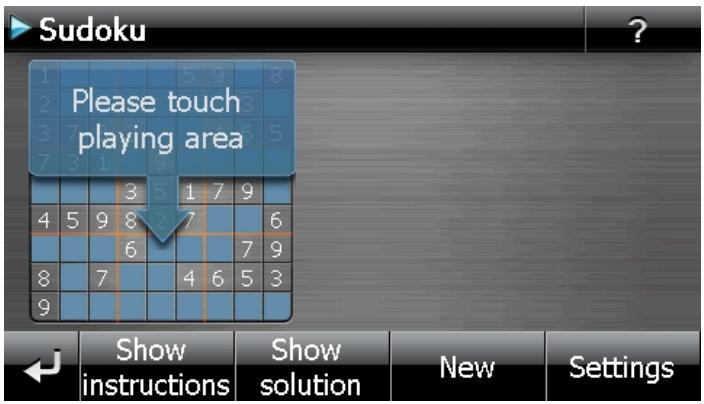
Description of the switch fields
| Button | Description |
| Please touch playing area | Start aiku game |
| 4 5 9 8 7 6 7 9 8 7 4 6 5 3 9 | You will receive information about solutions by tapping on this switch. Tap on the switch again to hide the information. |
| Show instructions | You will receive the solutions of the number fields by tapping on this switch. Tap on the switch again to hide the solutions. |
| New | A newiku game will open by tapping this switch. |
| Settings | Settings You will have the following possibilities in the Settings Menu: |
| The current game will be stored by tapping on this switch. | |
| You will load a started game onto the screen by tapping on this switch. | |
| Delete a stored game | |
| You can set the level of difficulty here. | |
| Back to the current game. |
Overview of the game area
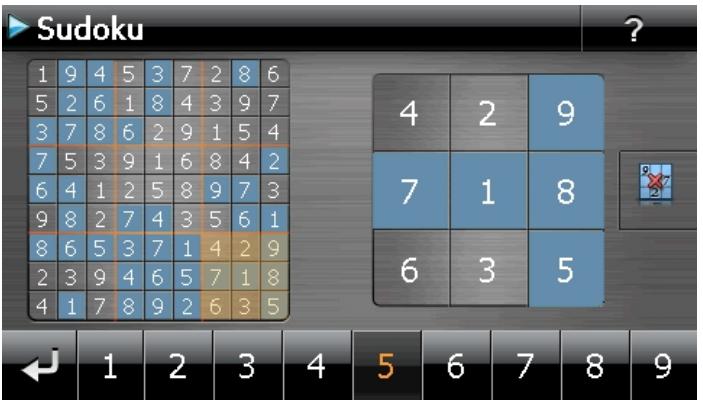
Description of the switch fields
| Button | Description |
| 1 2 3 4 5 6 7 8 9 | Strip of numbers to be entered Strip for the selection of the numbers to be entered in the number fields. The selected number will stand out and it will now be possible to enter it into a number field. |
| Entry mode First, tap on the number in the strip of numbers to be entered that should appear in particular number field and then on the corresponding number field. | |
| Deletion mode Tap on the number to be deleted. | |
| Leave the application by means of this field. | |
FAQ

Where can I find more information on the navigation system?

Detailed operating instructions for navigation can be found on the corresponding CDs/DVDs, which accompany your navigation system.
Also use the additional Help functions that are available with a single touch of a button (usually F1 on the PC), or by selecting the Help option, as additional assistance. These aids will be provided to you while you are using the computer or the device.

What do I need the accompanied CDs/DVDs for?

The CDs/DVDs contain:
- the ActiveSync* program for balancing data between the navigation system and the PC.
Additional programs (optional). - This User manual in digital form.
digital maps
PC-application for rapidly resetting the data material - Manual of the navigation software
Depending on the configuration one or more CDs/DVDs may be included in the package.

The navigation system is no longer responding. What should I do?

Carry out a reset (see page 23).

How can I adjust the lighting?

Under Settings.
Customer Service
Faults and Possible Causes
The navigation system no longer reacts or is behaving atypically.
- Carry out a reset (see page 23).
The navigation system is recognized only as a guest by ActiveSync.
See information on page 67.
The GPS receiver cannot be initialized or found.
If a GPS signal continues not to be reported on the screen, in spite of the correct installation of the system, this can be caused by the following factors:
- Sufficient satellite reception is not possible.
Solution:
Change the position of your navigation system and ensure that unrestricted "sight" of the aerial is not impaired.
No language statements can be heard.
- Check the volume setting.
Additional Support
If the suggestions in the above section have not solved your problem, please contact our customer service hotline. However, before you contact your customer service hotline, please have the following information available:
- How is your navigation unit configured?
What additional peripherals do you use?
What messages, if any, appear on your screen?
What software were you using when the error occurred? - What steps have you already undertaken to solve the problem?
- If you have been given a customer number previously, please give this number to the technician.
Appendix
Special Cleanup Function
The CleanUp function serves the targeted deletion of data, without using a PC.
Note
Please use this function very carefully, because it is possible for data to be deleted that can only be entered again manually afterwards.
The CleanUp function is activated when the 'o' is pressed in the Gopal lettering of the Main Menu, immediately after the start tone following a reset.
The CleanUp function offers 9 options:
CleanUp
- Remove Installation Only
- Remove MAP Only
- Remove Preload Only
- Remove All
- Factoryreset
- Format Flash
- GPS Factory Reset
- DC AutoSuspend/Wakeup
Exit
U GoPal
1. Remove Installation Only
Removes the software installed from the 'My Flash Disk'
memory [= part of the permanent memory in which the executable parts of the navigation software will be located following the initial alignment (\My Flash Disk\Navigation)].
2. Remove MAP Only
Removes the digital maps from the 'My Flash Disk' memory (\My Flash Disk\MapRegions).
3. Remove Preload Only
Removes the data needed for the installation of the navigation software from the permanent memory (\My Flash Disk\Install).
4. Remove All
Deletes the whole contents of the 'My Flash Disk' memory. It will not be necessary to recalibrate the screen after this function has been carried out.
5. Factoryreset
Sets the device back to the delivery status in the case of an intact main installation.
6. Format Flash
Formats the internal 'My Flash Disk' memory. This formatting can be necessary in the case of a prolonged removal of errors. It will be necessary to recalibrate the screen after the formatting function has been carried out. All data will be deleted from the internal 'My Flash Disk' memory irrevocably.
7. GPS Factory Reset
Performs a factory reset of the GPS receiver. When using the GPS function after having performed a factory reset, the GPS receiver must orientate itself again. This process may take a while.
8. DC AutoSuspend /Wakeup
You can select here when your navigation system should go into Standby mode automatically after the withdrawal of the external power supply. For example, this function is useful in the case of vehicles where the cigarette lighter also switches off when the ignition is switched off.
The AutoSuspend function will be activated several seconds after the discontinuation of the external power supply and the Standby display will appear for the time set (see Page 17).
The DC AutoSuspend function will be deactivated again if the power has been reconnected within the total period (in the case that the engine has been switched off for a short time, for example). Otherwise, the navigation system will go into the Standby mode after the expiry of the time set.
Set the required time by tapping on it and confirm your selection with OK.
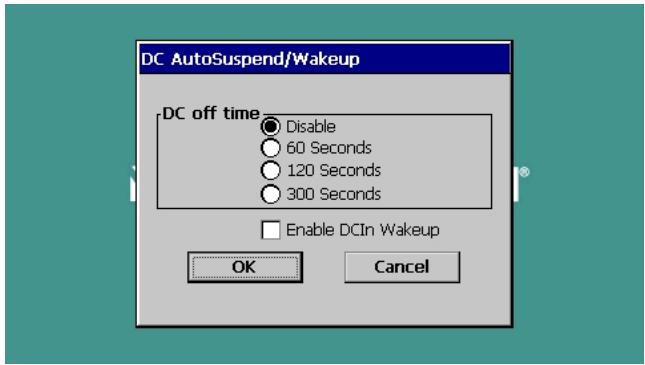
Note
This function is deactivated and can be set individually in the status at delivery and after a hard reset (see Page 23).
Exit
Leaving the CleanUp function and restarting the device (like reset).
Note
The deletion of the data must be confirmed before the action actually takes place. To do this, press on YES. There will be a corresponding report if the data to be deleted is no longer available.
Please read the "Transferring Installation Files and Map Material to
the Internal Memory" chapter on Page 73, in order to recreate the files
/installation files and map material) in the internal memory.
Synchronisation with the PC
I. Installing Microsoft ActiveSync
In order to transfer data between your PC and your navigation system you need the Microsoft ActiveSync program. The cost of the navigation system includes a license for this program which can be found on the CDs/DVDs.
Note
You will not need the ActiveSync® communications software, if you are a user of the Windows Vista/Windows®7 operating system. The system files necessary for the simple data transfer are already integrated into your operating system.
Please connect your device to your PC with the help of the USB synchronization cable. The necessary drivers will be installed automatically, after the new device has been found. Your new device will be listed under the 'Portable Devices' point in the Windows Explorer overview, following a successful installation.
Attention!
Important files can be overwritten or changed during the installation of software. You should create a hard disk backup, in order to be able to have access to the original files in the case of possible problems following the installation.
You must have administrator rights to install the software under Windows* 2000 or XP.
Important
You should not connect the navigation system to your computer yet.
- Insert the CD/DVD and wait until the program starts automatically.
Note
If it does not function, the Auto Run function is probably deactivated. The Setup program on the CD/DVD must be started, to start installation manually.
- Choose the language, tap then Install ActiveSync® and follow the instructions on the screen.
Note
When installing the GoPal Assistant, ActiveSync® will be installed automatically.
II. Connecting with the PC
- Press the On/Off button to start your navigation system.
- Connect the USB cable to your navigation system.
- Push the USB connector into a free USB port on your computer.
- The following screen will appear after the navigation system has been connected:
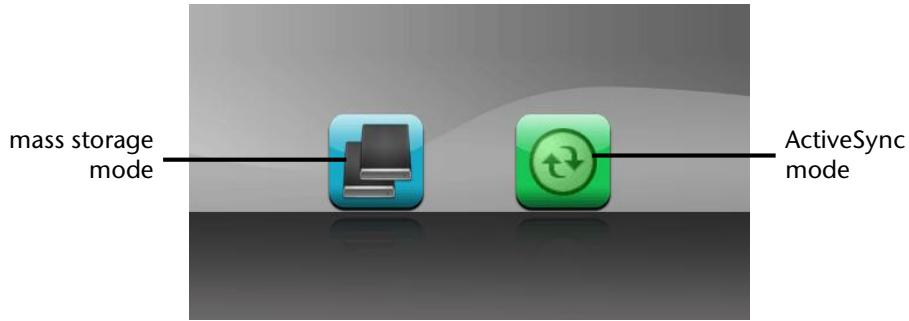
Note
The ActivSync® Mode will be loaded automatically after a few seconds if no mode has been selected.
- Select the required mode:
Mass Storage Mode
You will be able to use your navigation software as a removable disk (as a USB stick, for example) in the Mass Storage Mode. Two drives will be connected to do this: the internal memory of the navigation system itself and the (optional) memory card, provided that it has been inserted into the device.
Note
No additional entries can be made on the device at the same time, if you are in this Mode. Use the 'Remove hardware safely' function of your operating system to protect yourself against the loss of data. Then detach the cable from your navigation system.
The Hardware Installation Assistant will now recognize a new device and will install a suitable driver. This can take several minutes.
ActiveSync mode
Repeat the search for a connection if it has failed the first time, if you have selected the ActiveSync® Mode.
Follow the instructions on your screen. The program will now set up a co-operation between your PC and the navigation software.
Note
The navigation system must have been recognized during the setting up in the ActiveSync® Mode, in order to be able to work with the GoPal Assistant.
Alternative possibility of charging the battery
The battery will charge as soon as you connect your navigation device to a switched-on PC or notebook by means of a USB cable.
No type of software or driver installation will be necessary for this. Do not interrupt the charging process if possible during the initial charge.
Note
The brightness will be adjusted downwards, if necessary, if a USB connection is being set up when the device is switched on.
It is recommended to set the device to the stand-by mode, in order to shorten the charging time by USB.
III. Working with Microsoft ActiveSync
ActiveSync will be started automatically if you connect your navigation system to the PC. The program will check whether the device is one with which a partnership has been entered. If this is the case, the changes that have taken place on the PC and on the navigation system since the last synchronisation will be compared and adjusted to each other. You will be able to define exactly which data will have priority during the synchronisation in the settings of the ActiveSync Program. Call up the Help of the Program (with the F1 Button), in order to become familiar with the effects of the respective settings. A restricted Guest Access, with which you will be able to exchange data, for example, will become active automatically if the navigation system has not been recognised as a partner. If this is the case, although the process concerns the registered partner device, separate your navigation system from the PC and switch it off and on again. Now connect your navigation system to the PC, to restart the recognition process. Repeat the process and, restart your PC in addition, if your device continues to be recognised as a guest.
Note
Make sure that you always connect your navigation system to your PC with the same USB connection, otherwise your PC will allocate an additional ID and reinstall the device.
GPS (Global Positioning System)
GPS is a satellite-backed system for determining your position. With the help of 24 satellites revolving around the earth, it is possible to determine your position on earth with the accuracy of a few meters. The satellite signals are received by the antenna of the built-in GPS receiver, which must have a "line of sight" to at least 4 of these.
Note
When the line of sight is interrupted (eg in tunnels, between houses, in woods or also in vehicles with metal-coated windows) it is not possible to determine the position. The satellite reception however automatically picks up again as soon as the obstacle has been passed and the line of sight is re-established. Moving slowly (e.g. slow walking) also limits the accuracy of the navigation.
The GPS receiver consumes additional power. This is especially of concern when running on batteries. To conserve power do not turn on the GPS receiver unnecessarily. Also terminate the navigation software if it is not needed or satellite reception is not possible for a longer period. You can also switch the device off by means of the On/Off switch if you experience a short interruption in your journey, pressing the same switch again will reactivate a restart. The GPS receiver will also be reactivated at the same time, if the navigation software is still active. There may be a delay for the position to be updated again, this is dependant on the reception situation.
Note
Please note that your appliance is preset to not shut down automatically after a few minutes without activity. You can change this preset in the Settings mode. If the GPS receiver has not been active for some hours, it must orientate itself again. This process may take a while.
TMC (Traffic Message Channel)
The Traffic Message Channel (TMC) is a digital radio data service that functions in a similar way to RDS and is used to transmit disruptions to traffic to a suitable reception device.
The traffic information is continuously transmitted across FM.
The user is less dependent on the half-hourly broadcast traffic information, because the signal is continuously transmitted. Apart from this, important information, as in the case of an accident in the road ahead, can be passed on immediately.
The transmission is planned for the whole of Europe and is already offered by radio transmitters in many countries. The precision of the TMC messages can deviate greatly according to the country. At time of printing a TMC service is not available in Ireland.
The evaluation of TMC messages is not supported by every type of navigation software. Enquire whether your system supports TMC before the possible purchase of a TMC receiver.
Pay TMC (optional)
PayTMC is interpreted as TMC Services that offer TMC information free of charge, such as TMCpro in Germany, Trafficmaster in the UK or V-Trophic in France, for example. These providers are distinguished from normal 'free TMC' because of more up-to-date information about the traffic flow.
Sensors in motorway bridges and set into the carriageway, and a large number of vehicles equipped with 'floating car' data technology, supply a more precise and up-to-date picture of the traffic situation on German highways, inc. possible predictions, quickly.
The licence fees for the use of the PayTMC services will have already been settled with the purchase of your navigation system and these services will be available to you for as long as they are offered on the part of the provider.
Your navigation system will support both free TMC and PayTMC and will have been preset for the reception of both services in the status at delivery.
Installing the External TMC Receiver / Connecting an additional TMC Dipole Aerial (optional)
Installing the External TMC Receiver (only in case of model E4145)
- Connect the mini-USB plug to the mini-USB connection of your device.
- Connect the projecting antenna to the TMC receiver and attach that antenna with the aid of the suckers, at the edge of your windscreen, for example.
- Connect the TMC receiver to the car adapter cable after you have attached the TMC receiver to your navigation system.

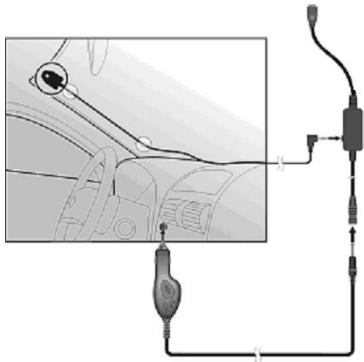
Connecting an additional TMC Dipole Aerial (optional) (only in case of models E4245 and E4445)
A TMC receiver and an active TMC dipole aerial are already integrated into your navigation system, to receive traffic information. However, if the TMC signal is too weak, you have the possibility to connect an addition TMC dipole antenna.
- Plug the jack plug of the TMC angled aerial into the earphone connection of your navigation system.
- Attach the aerial, on the edge or your windscreen, for example, with the help of the sucker.
- Place the aerial so that a distance of approx. 10cm from the metal frame of the screen is maintained.
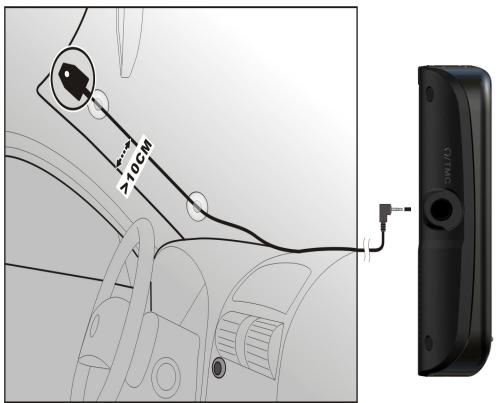
(similar pictures)
Your navigation system will now be able to receive traffic information through the TMC receiver and thus direct you away from disruptions to traffic.
Working with Memory Cards
Inserting Memory Cards
- Carefully take the optional memory card out of its packing (if included). Take care not to touch or dirty the contacts.
- Insert the memory card carefully into the card bay with contacts pointing forward. The card must lock easily.
Removing Memory Cards
Note
Only remove the memory card if the navigation software has been closed and the device has been switched off by means of the On/Off button beforehand. Otherwise you will risk a loss of data.
- To remove the card press lightly onto the upper edge until it ejects.
- Pull the card out without touching the contacts.
- Store the memory card in the packing or in another safe location.
Note
Memory cards are very fragile. Take care not to dirty the contacts and not to force the card.
Accessing Memory Cards
- The appliance only supports memory cards in the FAT16/32 file format. If you insert a card prepared with a different format (e.g. in cameras, MP3 players), your navigation system may not recognize it and will ask you to format it again.
Attention!
Formatting the memory card irretrievably wipes out all data.
Data Exchange via Card Reader
If you wish to copy large quantities of data (MP3 files, navigation maps) to the memory card, these can also be stored directly to the memory card.
Many computers already have memory card devices. Insert the card into your computer and copy the data directly to the card.
Because of the direct access you can achieve a much higher transfer rate compared to using ActiveSync.
Additional Card Material
Your navigation system is already equipped with digitalized map material in the internal memory and/or memory card at the factory. Depending on the configuration, additional maps may be included on your navigation CD/DVD. You will be able to transfer these cards to a memory card immediately. It is recommended that you use an external card reader (see also page 71). The GoPal Assistant supplied with the device enables a simple and individual compilation of the map material to be transferred.
Depending on the amount of map data on the navigation CD/DVD, memory cards with capacities of 256 MB, 512 MB, 1.024 MB or more may be required.
You can obtain additional memory cards in specialist stores.
Transfer of card material to a memory card
The transfer of additional card material to a memory card can take place through Explorer on your PC via the following steps:
- Insert the CD/DVD with the card material required.
- Start your workstation and select your CD/DVD Drive.
- Copy the file with the .psf ending out of the Directory of the region that you require to the MapRegions Directory on your memory card, from the CD/DVD.
You can transfer several files with map material to your memory card, depending on the capacity of the memory card.
If you have copied digitized maps of several countries or country groups onto your memory card, you will be required to select the desired map in the navigation application of your device.
Alternate method of installing Navigation Software (using a Memory Card)
The software for your navigation system can be installed directly from a memory card. The pre-installed software may have to be uninstalled beforehand (see special Clean Up function, Page 61).
You will be requested to install the navigation software during the initial adjustment. Please proceed as follows:
- Remove the memory card from the packaging carefully. Ensure the contacts are not touched or soiled.
- Push the memory card into the corresponding slot until it engages.
- Tap on OK, in order to install the application.
The main screen, through which you will now be able to carry out the navigation settings, will appear after all data has been copied to your navigation system.
Transferring Installation Files and Map Material to the Internal Memory
Note
The navigation system must be connected to a computer by means of ActiveSync® for the transfer of the data.
Your device has an internal, permanent memory, which is located in the \My Flash Disk directory.
You will be able to make this directory, and others, visible with ActiveSync*, by means of the Search option. Directories and files can be manipulated as in Windows Explorer.
The required directory must have been stored, in order to make the installation files and the map material for the device available.
Deposit the INSTALL directory for the installation files at (\My Flash Disk\INSTALL). Deposit the map material in the MapRegions directory (\My Flash Disk\MapRegions). Please pay attention to the modes of lettering given above when naming the directories.
Pay attention to the fact that sufficient drive capacity must be available, if you have stored additional data on your navigation device. Remove files not needed if sufficient drive capacity is not available.
Specifications
| Parameter | Information | |
| Power supply Power supply cable for a cigarette lighter | CA-051-00U-00 / CA-0511MH-2F (Mitac) | |
| Input | 12-24V DC, 800mA / fuse 2A (T2AL/250V) | |
| Output | 5V / 1A (max.) | |
| Power supply Mains adapter (optional) | Phihong PSAA10R-050 | |
| Input | 100-240V ~0.4A (max.) | |
| Output | +5V --- / 2A (max.) | |
| Battery | Li-Ion, 3.7 V | |
| Earphone connection | For stereo earphones (3.5 mm) | |
| Memory card type | SD | |
| Bluetooth (optional) | Class 2 | |
| USB interface | USB 2.0 | |
| Dimensions | approx. 130 mm x 80 mm x 19,5 mm | |
| Weight incl. battery | approx. 175 g (without packaging) | |
| Temperatures | Operating | +32°F - +95°F (+0°C - +35°C) |
| Storage | -4°F - +140°F (-20°C - +60°C) | |
| Humidity (without condensation) | 10 – 90 % | |
Model Overview
| Modell | Mikrofon | Bluetooth | TMC via external TMC receiver (via Mini USB) | TMC via integrated TMC receiver and dipole antenna |
| E4145 | ○ | ○ | ● | ○ |
| E4245 | ● | ○ | ○ | ● |
| E4445 | ● | ● | ○ | ● |
= Equipment available
O = Equipment not available
Conditions of Warranty for the United Kingdom
Restricted Warranty
I. General Conditions of Warranty
1. General
This warranty covers defects relating to workmanship and manufacture in MEDION products. The period during which this warranty is valid and during which claims against the warranty can be made to MEDION must be in accordance with the following terms in order to be considered eligible:
- Is effective from the date of purchase or receipt of the MEDION product from an authorised seller of MEDION products; and
- expires at the end of the warranty period specified on the warranty card provided with the product.
For the warranty to be valid, you must:
- provide suitable evidence of purchase, a copy of the original purchase receipt from an authorised seller of MEDION products is preferred; or
- register your product within 28 days of purchase either online at www.MEDION.co.uk or by completing and returning the pre-paid registration card included with the product.
Please keep the original purchase receipt and the warranty card in a safe place. MEDION and its authorised sellers reserve the right to refuse a repair under warranty or a warranty confirmation if a proof of purchase [or registration of purchase] cannot be established, or has not been, submitted.
When it is necessary to return your product for repair please ensure that your product is suitably packed for transportation.
Provided that your product is still within warranty (please check the duration of the warranty period as described above) and is eligible for repair or replacement under the terms of the warranty, to return your product, please telephone MEDION on the service hotline number. You will be sent a pre-paid transportation box suitable for returning your product to MEDION. PLEASE MAKE SURE THAT YOU HAVE A BACKUP COPY OF ALL DATA ON THE PRODUCT BEFORE RETURNING THE PRODUCT TO MEDION. MEDION shall bear the costs of postage and packaging for returning the product and the transportation risk. However, if following examination of the defective product in question, MEDION, in its reasonable opinion, considers that the defect has been caused by:
- your operating and/or using the product other than as instructed in the accompanying documentation;
- damage caused in transit as a result of your negligence in packaging of the product; and/or
- otherwise than in accordance with the terms of this warranty;
This warranty shall be void and you may be required by MEDION to reimburse MEDION for the reasonable costs of postage and packaging before MEDION will return the product to you. If so and you would still like MEDION to repair or replace the product, MEDION may do so but you will be charged MEDION's standard rates for repair and replacement for this service.
Before returning the product, please contact MEDION via the service hotline or via the internet (www.MEDION.co.uk). You will receive a reference number (RMA No.) on the warranty card. Please mark the outside of your package to ensure that this reference number is clearly visible. Please submit a letter containing as much detailed information as possible and, a full description of the defect or fault.
This should include:
- a description of the fault;
- when it occurred, how long it has been evident and how frequently it occurs;
- any errors message(s) displayed when using the product;
- a description of the circumstance(s) and conditions in which the fault occurs; and
- whether it is an intermittent or persistent fault;
This will greatly assist MEDION in identifying the defect, when submitted together with the defective product.
Unless otherwise instructed by a MEDION representative in all cases, the product must be returned complete with all parts which were included with the original product. Incomplete contents of the returned package may lead to a delay in the repair or replacement. MEDION does not accept any liability for any additionally submitted material(s) which were not supplied with the original MEDION product.
This warranty does not affect your statutory rights in any way and is subject to the applicable legal statutes of the country where the product was sold to you by an authorised MEDION seller.
2. Scope
Subject to any exclusions set out within this warranty, where there is a defect in your MEDION product covered by this warranty, MEDION will repair or replace the MEDION product. The decision whether to repair or replace the product will be made solely at the discretion of MEDION. MEDION may, in its own discretion, replace the product returned for repair under warranty with a replacement product that is either identical or, in the event that such product(s) are no longer available, a product of equal or superior specification and quality.
No warranty is given for batteries or rechargeable batteries or for consumable materials subject to wear and tear, i.e. for parts which have to be replaced periodically during the normal use of the product, such as video-projector lamp.
Non critical failures that fall within industry specified tolerances e.g. noise, LCD pixels are not covered by this warranty. Please consult the appropriate section in your user or instruction manual for this product for exact specifications and tolerances.
To the extent which is permitted under law, MEDION will accept no liability for burnt-in images on plasma or LCD products as a result of normal wear and tear during the operation of the product. Please refer to your user or instruction manual for this product for detailed operating instructions for your plasma or LCD product.
The warranty does not cover errors relating to the playback of data media in an incompatible format or created with unsuitable software.
If it is found during repair or assessment that the defect concerned is not covered under warranty, MEDION reserves the right to invoice you for all reasonable costs incurred by MEDION. These costs will be in relation to the return of the product, including reasonable administration costs, plus reasonable costs for materials used and labour provided when repairing or replacing the product. This is subject to MEDION providing you with an estimate for carrying out such work prior to costs being incurred and that you have accepted the estimate.
You are entitled to seek independent advice or consultation relating to your product or any of MEDION's findings. MEDION will not be liable for any costs incurred to you when doing so.
3. Exclusion from warranty
To the extent permitted by law, this warranty shall be void in the event that defects or loss caused by:
a. failure and damage resulting from the operation of the product in an environment other than that recommended in the accompanying user or instruction manual (e.g. in direct sunlight or in a damp room);
b. accidental damage;
c. use other than in accordance with the accompanying user or instruction manual;
d. modifications, conversions, expansions, maintenance and/or repairs made to the MEDION product by unauthorised repairers or use of unauthorised third party parts;
e. negligence;
f. virus attack or software errors; or
g. improper transportation or packaging during return of the product.
This warranty will also be considered void if labels or serial numbers of the product or of a component of the product are modified or made illegible.
To the extent permitted by law, MEDION shall; only be responsible for losses which are a reasonably foreseeable consequence of the relevant defect in the product; MEDION will not be responsible for any costs incurred in relation to software configuration; economic loss; loss of opportunity; loss of income; or loss of data or software arising out of its repair or replacement of a MEDION product under this warranty.
4. Service Hotline
Before returning the product to MEDION you must contact us using the service hotline or via the internet (www.MEDION.co.uk). You will receive further instructions for making your claim under warranty when you call.
The service hotline is available on 362 days in the year, including Sundays and bank holidays but excluding Christmas day, New Years Day and Easter day. The service hotline is subject to [national rate] telephone call charges. These charges are subject to change. The price of your call will be stated at the beginning of the call.
II. Special warranty conditions for MEDION PC, notebook, pocket PC (PDA) and navigation devices (PNA)
The following terms apply to MEDION PC, notebook, desktop, pocket PC and laptop products and optional items included with such products. If one of these items has a fault, you also have a warranty claim for its repair or replacement, from MEDION. The warranty covers the costs of materials and labour for repairing or replacing the defective MEDION product or the optional item in question.
Hardware connected to your product that was not produced or marketed by MEDION can invalidate the warranty if MEDION can reasonably demonstrate that damage to the MEDION product or of the optional item included with the delivery was caused by such hardware. You are entitled to seek independent advice or consultation relating to your product or any of MEDION's findings. MEDION will not be liable for any costs incurred to you when doing so.
This warranty is restricted in relation to any pre-installed operating system as well as to application programme software that is included with the MEDION product in question. This warranty is restricted as follows:
For pre-installed operating system as well as to application programme software included in the MEDION product, MEDION only guarantees the data media (e.g. the diskettes and CD-ROMs) upon which this software is delivered and warrants that such data media shall be free from material and processing defects for a period of 90 days from the date of purchase of the MEDION product from an authorised seller of MEDION. MEDION will replace defective data media free of charge.
Any claims in respect of defective pre-installed operating system as well as to application programme software are hereby expressly excluded and you should contact the relevant licensor or copyright owner of the defective software in question. MEDION does not guarantee that any software supplied with MEDION products will function without interruption, will be free from errors or that it will fulfil your requirements. MEDION does not guarantee the 100% accuracy of the maps provided with the Navigation device.
It may be necessary to delete all data in the product in order to repair the MEDION product. PLEASE MAKE SURE THAT YOU HAVE A BACKUP COPY OF ALL DATA ON THE PRODUCT BEFORE RETURNING THE PRODUCT TO MEDION. To the extent permitted by law, MEDION excludes all liability for loss of data and MEDION recommends in all cases that you back up all data on your MEDION product before returning the product to MEDION.
III. Special warranty conditions for repair on site or replacement on site
If a claim for repair or replacement on site is included within the terms of the warranty card provided with the product, the special warranty conditions for repair or replacement of your MEDION product on site apply.
The following provisions must be made by you for carrying out repairs or replacements on site:
- MEDION or its authorised personnel must have unrestricted, safe and immediate access to the products.
- Telecommunication facilities required by MEDION or its authorised personnel for proper execution of your order, for testing and diagnostic purposes and for remedying faults are provided by you at your own expense.
- You are responsible yourself for restoring the application software after the repair services have been carried out by MEDION or its authorised personnel.
- You must take all other necessary steps to enable MEDION or its authorised personnel to carry out your order properly.
- You are responsible yourself for connecting and configuring any existing external peripheral products after MEDION or its authorised personnel have carried out their repairs.
- The free cancellation period for repairs or replacements on site is 24 hours, thereafter our reasonable costs resulting from late or missing cancellation shall be invoiced at your expense.
Liability limitations
The contents of this manual are subject to unannounced changes caused by technical progress. Manufacturer and sales shall not be responsible for any damages which have been caused as a result of omissions or errors in the information provided in this manual.
Under no circumstances shall we be liable for any of the following:
- Claims made against you by third parties based on loss or damage.
- Loss or damage to your blanks, recordings or data.
- Economic follow-on damage (including lost profit or savings) or associated damage even in the case that we have been informed of the possibilities of this type of damage.
In some countries the exclusion or limitation of accompanying or follow-on damage is not legally accepted so that the above limitations do not come into force.
Index
A
AC Adapter 14
Accessing Memory cards 71
Additional card material. 72
Aerial orientation 26
Alarm Clock (Waking function) Ending the application. 55
Interfaces. 51
Main screen 50
Selecting an alarm signal 54
Setting the volume 54
Snoopze function. 55
Alternative installation of the navigation software from a memory card 73
Ambient temperature 2
Auto run. 64
Auto start. 64
B
Battery Operation 5
Bluetooth Accepting incoming calls. 40
Main screen 38
Making calls. 40
Pairing 39
Starting the application 37
C
Cabling. 4
Card reader. 71
Care of the Display 6
Cleaning. 5
CleanUp 18,61
Contents. iii
Copyright
Customer service 60
D
Data exchange. 71
Data Security 1
DC AutoSuspend. 62
E
Earphone connector. 11
Electromagnetic Compatibility 3
EMC. 3
F
FAQ. 59
G
GPS 68
H
Hard Reset. 23
Hotline 60
1
Initial set up Charging the battery. 12
Installing the navigation software .. 16
Power supply 13
Switching on the device. 15
L
Liability limitations 81
Loudspeaker 10
M
Memory cards. 71
Microsoft ActiveSync 64
Mini-USB-Connector 11
Mounting the car holder 26
MP3 Player
List of favourites 44
Select title 43
Bookmarks 44
Main screen 42
N
Navigation
Attaching the navigation system .... 27
Mounting the car holder 26
Safety instructions. 24
Starting the navigation software..... 29
Note.
0
On/Off switch. 10
Operating
Switching on/off the device 17
Operating Environment 2
P
Password.. i, 18
Pay TMC 69
Picture Viewer
Main screen 45
Operation 45
Q
Quality
R
R&TTE 5
Recycling and Disposal 6
Repair 2
Resetting the navigation system
Hard Reset 23
Soft Reset. 23
s
Safety and Maintenance 1
Safety instructions
Navigation 24
Connection. 4
Ambient temperature 2
Data security. 1
Operating environment. 2
Repair 2
Power supply. 4
Cabling. 4
Battery operation. 5
Maintenance. 5
Care of the display 6
Transport. 7
Security 18
Serial Number
Service .ii
Faults and possible causes. 60
Hotline 60
Specifications. 74
Speech commands 33
Standards
R&TTE. 5
Starting the navigation software 29
Sudoku
Description of the switch fields.....58
Main screen 56
SuperPIN. 20, 21
Supplied Items. 8
Synchronisation with the PC 64
T
TMC. 69
Touch Screen 9
Transfer of card material to a
memory card 72
Transferring Installation Files and
Map Material to the Internal
Memory 73
Transport 7
Travel Guide 48
U
UUID. i, 20, 21
V
Views
Back components. 10
Front components 9
W
Warning function for traffic
monitoring points 30
Warranty. 76
- REMOVE INSTALLATION ONLY
- DC AUTOSUSPEND /WAKEUP
- TMC (TRAFFIC MESSAGE CHANNEL)
- H
- 1
- V
- NOTES ON THESE OPERATING INSTRUCTIONS
- NOTE
- DOCUMENT YOUR NAVIGATION UNIT
- QUALITY
- SERVICE
- CONTENTS
- SAFETY AND MAINTENANCE 1
- VIEWS 9
- INITIAL SET UP 12
- GENERAL OPERATING INSTRUCTIONS 17
- SECURITY 18
- NAVIGATION 24
- WARNING FUNCTION FOR TRAFFIC MONITORING POINTS 30
- SPEECH COMMANDS (OPTIONAL) 33
- HANDSFREE FACILITY BY MEANS OF BLUETOOTH (OPTIONAL) 37
- MP3 PLAYER (OPTIONAL) 42
- PICTURE VIEWER (OPTIONAL) 45
- TRAVELGUIDE (OPTIONAL) 48
- ALARMCLOCK (WAKE UP FUNCTION) (OPTIONAL) 50
- SUDU (OPTIONAL) 56
- FAQ 59
- CUSTOMER SERVICE 60
- APPENDIX 61
- SAFETY AND MAINTENANCE
- SAFETY INSTRUCTIONS
- DATA SECURITY
- OPERATING ENVIRONMENT
- REPAIR
- AMBIENT TEMPERATURE
- ELECTROMAGNETIC COMPATIBILITY
- CONNECTION
- POWER SUPPLY THROUGH CAR ADAPTER
- POWER SUPPLY THROUGH AC ADAPTER (OPTIONAL)
- CABLING
- INFORMATION ABOUT THE REGULATORY COMPLIANCE ACCORDING TO R&TTE
- C €0984
- BATTERY OPERATION
- CLEANING AND MAINTENANCE
- WARNING
- CARE OF THE DISPLAY
- RECYCLING AND DISPOSAL
- TRANSPORT
- SUPPLIED ITEMS
- OPTIONAL
- VIEWS
- FRONT COMPONENTS
- BACK COMPONENTS
- TOP COMPONENTS
- BOTTOM COMPONENTS
- LEFT SIDE
- INITIAL SET UP
- CHARGING THE BATTERY
- ATTENTION
- POWER SUPPLY
- CAR ADAPTER
- ALTERNATIVE POSSIBILITY OF CHARGING THE BATTERY
- AC ADAPTER (OPTIONAL)
- SWITCHING ON THE DEVICE
- INSTALLING THE NAVIGATION SOFTWARE
- GENERAL OPERATING INSTRUCTIONS
- SWITCHING ON/OFF THE DEVICE
- BUTTON DESCRIPTION
- CANCEL/BACK
- STANDBY MODE
- RESET
- SECURITY
- STORING THE PASSWORD AND THE INFORMATION NOTE
- MAKING SETTINGS
- SUPERPIN AND UUID
- MAKING SUBSEQUENT SETTINGS
- PASSWORD REQUEST
- RESETTING THE NAVIGATION SYSTEM
- SWITCHING THE DEVICE OFF COMPLETELY / HARD RESET
- NAVIGATION
- SAFETY INSTRUCTIONS FOR NAVIGATION
- GENERAL INSTRUCTIONS
- LEGAL REMARK
- NOTES FOR USE IN A VEHICLE
- AERIAL ORIENTATION
- MOUNTING THE CAR HOLDER
- ATTACHING THE NAVIGATION SYSTEM
- CONNECTING THE CAR ADAPTER
- STARTING THE NAVIGATION SOFTWARE
- WARNING FUNCTION FOR TRAFFIC MONITORING POINTS
- SPEECH COMMANDS (OPTIONAL)
- MAIN MENU
- IN MAPS
- COMMANDOS DURING THE ENTRY OF A HOUSE NUMBER
- HANDSFREE FACILITY BY MEANS OF BLUETOOTH (OPTIONAL)
- STARTING THE BLUETOOTH APPLICATION
- OVERVIEW OF THE MAIN SCREEN
- PAIRING THE NAVIGATION DEVICE AND THE MOBILE PHONE
- ACCEPTING INCOMING CALLS
- BUTTON
- DESCRIPTION
- MAKING CALLS
- DURING A CALL
- MP3 PLAYER (OPTIONAL)
- MAIN SCREEN OVERVIEW
- SELECT A TITLE AND MOVE IT INTO THE LIST OF FAVOURITES
- LIST OF FAVOURITES
- LIST OF THE ESTABLISHED BOOKMARKS
- PICTURE VIEWER (OPTIONAL)
- OPERATING THE PICTURE VIEWER
- MAIN SCREEN
- FULL IMAGE VIEW
- TRAVELGUIDE (OPTIONAL)
- ALARMCLOCK (WAKING FUNCTION) (OPTIONAL)
- DESCRIPTION OF THE INTERFACES
- SETTING THE SYSTEM TIME
- SELECTING AN ALARM SIGNAL
- SETTING THE VOLUME
- SNOOPZE FUNCTION
- ENDING THE ALARM CLOCK APPLICATION
- SANDBOX (OPTIONAL)
- DESCRIPTION OF THE SWITCH FIELDS
- OVERVIEW OF THE GAME AREA
- FAQ
- CUSTOMER SERVICE
- FAULTS AND POSSIBLE CAUSES
- ADDITIONAL SUPPORT
- APPENDIX
- SPECIAL CLEANUP FUNCTION
- THE CLEANUP FUNCTION OFFERS 9 OPTIONS
- CLEANUP
- REMOVE MAP ONLY
- REMOVE PRELOAD ONLY
- REMOVE ALL
- FACTORYRESET
- FORMAT FLASH
- GPS FACTORY RESET
- EXIT
- SYNCHRONISATION WITH THE PC
- INSTALLING MICROSOFT ACTIVESYNC
- IMPORTANT
- CONNECTING WITH THE PC
- MASS STORAGE MODE
- ACTIVESYNC MODE
- WORKING WITH MICROSOFT ACTIVESYNC
- GPS (GLOBAL POSITIONING SYSTEM)
- PAY TMC (OPTIONAL)
- INSTALLING THE EXTERNAL TMC RECEIVER / CONNECTING AN ADDITIONAL TMC DIPOLE AERIAL (OPTIONAL)
- INSTALLING THE EXTERNAL TMC RECEIVER (ONLY IN CASE OF MODEL E4145)
- CONNECTING AN ADDITIONAL TMC DIPOLE AERIAL (OPTIONAL) (ONLY IN CASE OF MODELS E4245 AND E4445)
- WORKING WITH MEMORY CARDS
- INSERTING MEMORY CARDS
- REMOVING MEMORY CARDS
- ACCESSING MEMORY CARDS
- DATA EXCHANGE VIA CARD READER
- ADDITIONAL CARD MATERIAL
- TRANSFER OF CARD MATERIAL TO A MEMORY CARD
- ALTERNATE METHOD OF INSTALLING NAVIGATION SOFTWARE (USING A MEMORY CARD)
- TRANSFERRING INSTALLATION FILES AND MAP MATERIAL TO THE INTERNAL MEMORY
- SPECIFICATIONS
- MODEL OVERVIEW
- CONDITIONS OF WARRANTY FOR THE UNITED KINGDOM
- RESTRICTED WARRANTY
- GENERAL CONDITIONS OF WARRANTY
- GENERAL
- SCOPE
- EXCLUSION FROM WARRANTY
- SERVICE HOTLINE
- SPECIAL WARRANTY CONDITIONS FOR MEDION PC, NOTEBOOK, POCKET PC (PDA) AND NAVIGATION DEVICES (PNA)
- SPECIAL WARRANTY CONDITIONS FOR REPAIR ON SITE OR REPLACEMENT ON SITE
- LIABILITY LIMITATIONS
- INDEX
- A
- B
- C
- D
- E
- F
- G
- L
- M
- N
- 0
- P
- Q
- R
- S
- T
- U
- W
Brand : MEDION
Model : E4X45
Category : Desktop computer