
WIRELESS RADIO TRANSMITTER SYSTEM MD 81209 - Wireless audio transmission system MEDION - Free user manual and instructions
Find the device manual for free WIRELESS RADIO TRANSMITTER SYSTEM MD 81209 MEDION in PDF.


| Product type | Wireless audio transmission system |
| Brand | MEDION |
| Model | MD 81209 |
| Transmitter power supply | Mains adapter 12 V, 200 mA |
| Receiver power supply | Mains adapter 9 V, 400 mA |
| Transmission frequency | 2.4 GHz (4 channels: A/B/C/D) |
| Outdoor range | Up to 100 m |
| Indoor range | Up to 30 m |
| Remote control return frequency | 433 MHz |
| Transmitter connectors | 2 Mini-DIN AV inputs, 1 Mini-DIN AV output, 1 IR EXT input, 1 DC 12 V input |
| Receiver connectors | 1 Mini-DIN AV EXTEND output, 1 DC 9 V input |
| Box contents | Transmitter, receiver, 2 mains adapters, 2 SCART-mini DIN cables, 1 IR extension cable, 1 3.5 mm audio adapter, 2 SCART adapters |
| Main function | Wireless transmission of audio/video signals from a source to a TV or amplifier |
| Remote control | Ability to control the source via the receiver using the IR cable |
| Computer use | Possible to retransmit the display to a TV |
| Source selection | 2 switchable sources via SOURCE 1/2 switch |
| Maintenance | Clean with a soft, dry cloth; do not use abrasive products |
| Safety | Do not open or repair yourself; unplug if damaged; protect from humidity |
| Disposal | Do not dispose of with household waste; check with local authorities |
| Certification | Compliant with directive 1999/5/EC |
Frequently Asked Questions - WIRELESS RADIO TRANSMITTER SYSTEM MD 81209 MEDION
User questions about WIRELESS RADIO TRANSMITTER SYSTEM MD 81209 MEDION
0 question about this device. Answer the ones you know or ask your own.
Ask a new question about this device
Download the instructions for your Wireless audio transmission system in PDF format for free! Find your manual WIRELESS RADIO TRANSMITTER SYSTEM MD 81209 - MEDION and take your electronic device back in hand. On this page are published all the documents necessary for the use of your device. WIRELESS RADIO TRANSMITTER SYSTEM MD 81209 by MEDION.
USER MANUAL WIRELESS RADIO TRANSMITTER SYSTEM MD 81209 MEDION
KONFORMITÄTSINFORMATION
Safety instructions 4
About this appliance 6
Key 9
Contents of package. 10
Connecting the transmitter 12
Via SCART connection 12
No SCART connection 12
Infrared extender (for remote control) 14
Connecting the mains adapter 17
Selecting a channel 17
Setting up 17
Connecting the transmitter to a computer 18
Connecting the receiver 22
Connecting via a DIN AV cinch cable 22
Connecting via the SCART adapter 22
Interposing a device 23
Connecting the mains adapter 23
Selecting a channel 24
Selecting the source 24
Setting up 24
Setting channels 25
Cleaning/disposal. 26
Troubleshooting 27
Technical data 28
Ration of conformity 29
SAFETY INSTRUCTIONS

Please read these instructions carefully before using the system and note the warnings in the operating instructions. Always keep the operating instructions close to hand.
If you sell the appliance or give it away, please ensure that you also pass on these instructions.
Environmental requirements
- Protect the device from moisture and heat.
- Avoid placing the devices in poorly ventilated areas (such as between shelves or where curtains or furniture can block the vents).
- Do not allow foreign bodies or liquids to get into the device. Do not expose the devices to water.
- Naked flames such as lit candles must not be placed on the devices.
- The rubber feet on the devices may leave marks on furniture surfaces. Place the devices on a suitable underlay if necessary.
Power connection
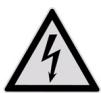
Never allow children to use electrical appliances unattended.
- Connect the mains adapters to easily accessible 230 ~V 50 ~Hz power sockets only.





- Use only the mains adapters supplied.
- Never try to connect the mains adapters to other connectors as this may damage the devices.
- If a mains adapter is damaged, it should not be used. Replace it with the same type of mains adapter.
Faults
GB
- Remove the mains adapter(s) from the power socket immediately if the mains adapter, the connection cable or the devices are damaged.
- Never try to open and/or repair the devices yourself.
- Contact our service centre or qualified personnel.
Health Issues
- The low transmitting power of the devices eliminates any danger to health according to the current state of research and technology.


5


ABOUT THIS APPLIANCE
Your radio transmission system transmits signals wirelessly from an audio/video source to another audio/video device.
Typically, the radio signals are sent from a source with an aerial (e.g. a SAT receiver) to another device without an aerial (e.g. a different TV in the building) so that the first device's aerial can be used for the second device.
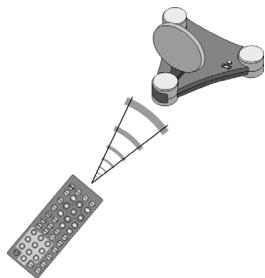
You can use the source remote control to control this device via the receiver. Your system will work over distances of up to 100m outdoors and 30m indoors.
It is also possible to connect the radio transmission system to a PC, for instance to transmit digital presentations onto a TV.
Possible signal transmitters and receivers
Typically, the system may be used to transfer the television reception from a satellite receiver, as the source, to another television in your house. Other audio/video sources can be a DVD recorder, a video recorder or a television, the "D-Box" (Premiere) or even a PC card. The device connected to the receiver may be, for example, a television or an amplifier.
Assigning the radio transmitter and receiver
The transmitter in the radio transmission system is connected to the audio/video source and the receiver is connected to a television or video recorder. The three-core AV cinch cable or the SCART adapter is used to connect the three types of signal – video, audio right and audio left – to the system.
GB
Controlling the audio/video source remotely
You can use the audio/video source remote control to control these devices from the point where the receiver is located. The (infrared) remote control signals are converted and transmitted as radio signals. The transmitter converts the radio signals back into an infrared signal. The two infrared transmitters in the infrared extender then send these signals on to the relevant devices.
Scart or Cinch
If the audio/video source has a SCART connection, use the SCART adapter for the transmitter. If the device connected to the receiver has a SCART connection use the SCART adapter for the receiver.
If the device connected to the receiver does not have a SCART connection use one of the three-core cinch cables. If the audio/video source has a 3.5mm audio output use the audio adapter supplied.


7


Range
Audio and video signals are transmitted in the 2.4GHz range. The range is approx. 100m in the open air and approx. 30m inside. The range may be less depending on environmental conditions.
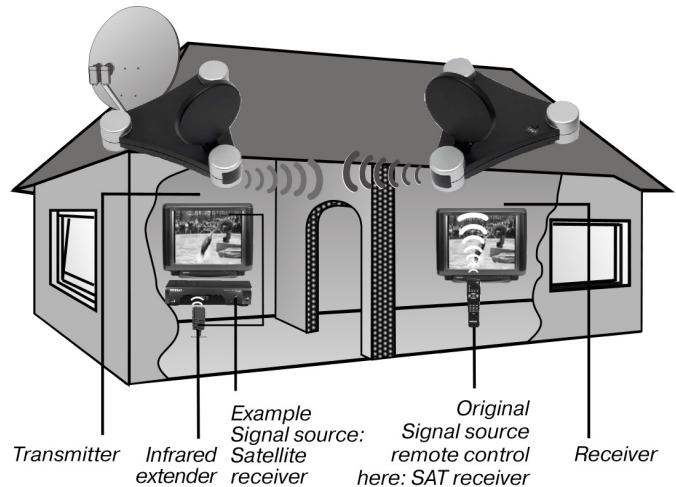
Example use
KEY
(Diagrams on fold-out page)
Transmitter
- Mini DIN input "AV IN 1"
- Input for infrared transmitter IR EXT.
- Mini DIN input "AV IN 2"
- Audio/video transmitter aerial
- DC input 12V = 200mA
- Operating LED
- Mini DIN output AV OUT
- ON/OFF switch
- Switch source 1/2 (hold down for approx. 10 secs.)
- Channel switch A/B/C/D
Receiver
- Mini DIN output AV EXTEND
- Switch source 1/2 (hold down for approx. 10 secs.)
- DC input 9V = 400mA
- ON/OFF switch
- Audio / video Receiver aerial
- Channel switch A/B/C/D
- Operating LED/infrared transmitter
GB
9
CONTENTS OF PACKAGE
When you have unpacked everything, check that the parts below have been included:
Transmitter:
Transmitter
- Mains adapter for the transmitter, 12V = 200mA
Accessories:
- 1 infrared extender with two external IR transmitters
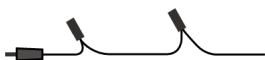
- 1x SCART adapter for the "Transmitter"

- 1x Mini DIN SCART cable for the A/V input

- 1x Mini DIN SCART cable for the A/V output

- 1x audio adapter 3.5mm stereo jack to cinch socket

- 1x Mini DIN AV cinch cable

10
Receiver:
- Receiver
- 1x mains adapter for the receiver, 9V --- 400mA
Accessories:
1x SCART adapter for the "Receiver"
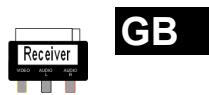
1x Mini DIN AV cinch cable

Packaging

The radio transmission system is packaged to protect it against transportation damage.
Packaging is raw material and can be re-used or added to the recycling system.
CONNECTING THE TRANSMITTER
The transmitter is connected to an audio/video source (Source 1). This can be a SAT receiver, a video recorder, a DVD player, a television or even a graphics card (see below).
Via SCART connection
If the audio / video source has a SCART connection, connect the Mini DIN SCART cable for the A/V input (supplied) to this device's SCART output, and the Mini DIN input (AV IN 1) to the transmitter.
No SCART connection
If the audio/video source has no SCART connection, connect the Mini DIN AV cinch cable (supplied) to this device's A/V cinch output, and the Mini DIN input (AV IN 1) to the transmitter.
- The yellow cinch plug is for a video connection, the red one is for audio right, and the white one is for audio left.
- If you want to transmit sound signals only, connect the audio plugs only.
- If you want to connect the transmitter to a 3.5mm audio jack on an audio/video source, use the audio adapter and connect it to the audio plugs on the Mini DIN SCART cinch cable.
- Then connect the Mini DIN plug on the other end of the Mini DIN AV cinch cable to the appropriate socket on the transmitter.

- To send the video signal on to a TV set positioned where the transmitter has been set up, connect the Mini DIN SCART cable for the A/V output (AV OUT) to the SCART input on the TV.
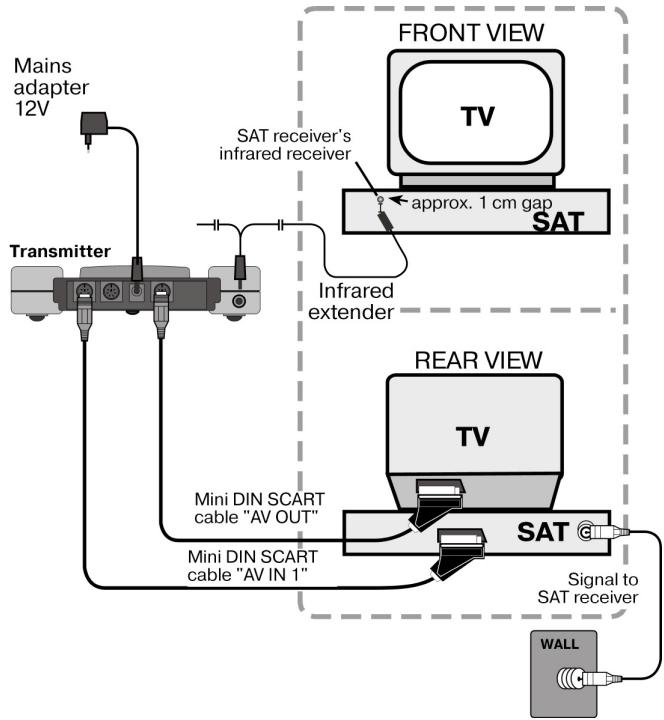
Example of transmitter setup
The following diagram shows a typical arrangement with a satellite receiver and a TV on the transmitter side:
GB
Infrared extender (for remote control)
You have to connect the infrared extender if you want to be able to use the remote control from where the receiver is positioned.
- Connect the plug on the infrared extender to the IR-EXT socket on the transmitter (see diagram on previous page).
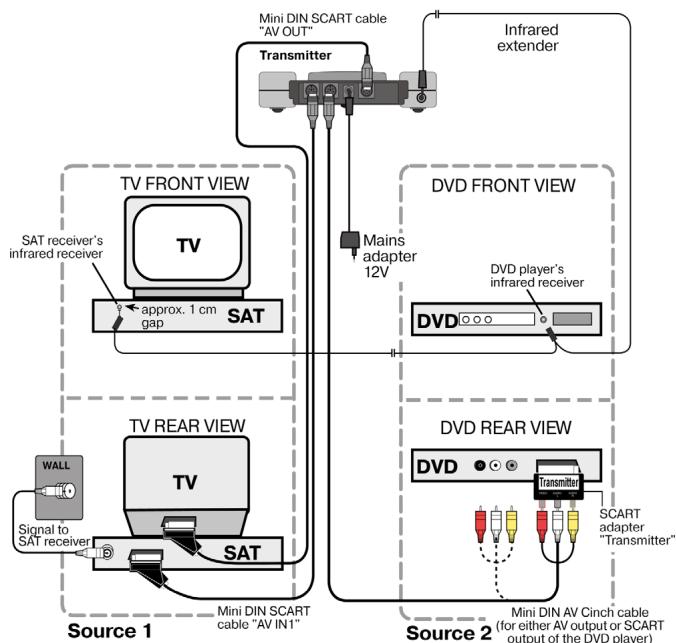
- Remove the paper backing from the sticky surface of one of the two IR transmitters and stick the IR transmitter onto the audio/video source so that it is aligned with the infrared receiver on this device. The top of the diode should be approx. 1 cm away from the infrared receiver (see diagram below).
Using more than one device
As the infrared extender has two IR transmitters, you can simultaneously operate more than one device remotely from the receiver. For example, you can use the video recorder as well as the DVD player in another room.
- Attach an IR transmitter as described above to each device that you want to use in another location.

Connecting more than one device
You can also connect a second device to the transmitter that

can send signals from this device to the receiver and control this device remotely from there.
- If you have connected the device to the transmitter's AVIN 1 input, the device is defined as Source 1, whereas it will be Source 2 if connected to the transmitter's AVIN 2 input.
- You can now use the SOURCE 1/2 switch on the transmitter to choose which signal is transmitted to the TV connected to the AV OUT output.
GB
Example of transmitter setup with two devices
The following diagram shows a typical arrangement with a satellite receiver, a TV and a DVD player on the transmitter side:

Connecting the mains adapter
- Connect the mains adapter for the transmitter to the 12V socket (DC 12V) on the transmitter.
- Remove the protective cover and insert the mains adapter into the socket (230V ~ 50Hz).
- Set the ON/OFF switch to the ON position. The red operating LED will light up.
- Open up the transmitter aerial and align it with the receiver.
GB
Selecting a channel
- Use the channel switch at the bottom of the device to select a channel (A/B/C/D) to which the signal is to be sent.
Setting up
- Place the transmitter on a sturdy surface.
- Align the flat side of the transmitter aerial with the receiver.
CONNECTING THE TRANSMITTER TO A COMPUTER
You can also connect the transmitter to a computer in order to transmit computer output to a television, for example.
It does not usually make sense to transmit computer output to a TV for running computer applications, since the TV's screen display is not usually good enough to display the higher resolution computer image.
If you want to show videos or presentations, however, displaying them via the TV is highly recommended.
The following requirements have to be fulfilled:
- Your computer has a video output that provides video images suitable for a TV.
- The operating system and the drivers for your graphics card support video output.
How to proceed
Output via video output is activated differently depending on your operating system and graphics card. As there are numerous combinations of these, we can only provide general instructions here. Please check the operating instructions for your computer or graphics card to see how you can divert the image to video output.
The following example requires a PC running the Windows® 98 operating system or above.




- Close all programs and switch off your computer.
- Refer to the operating instructions for your PC and follow the instructions for using video output.
- Connect the yellow plug on the AV cinch cable to the graphics card's video output. If your graphics card does not have a cinch output, use a suitable adapter (optional accessory).
- Connect the red and white plugs on the Mini DIN AV cinch cable to the appropriate audio output on your PC. PCs usually have 3.5mm stereo jacks, so you can use the adapter supplied.
- Connect the cable's Mini DIN plug to the transmitter's AV IN 1 input.
- Now switch on the transmitting station, the receiving station and your TV, and choose the appropriate video channel on your TV.
- Start your PC and wait until the operating system has fully loaded.
- Right-click once on the Desktop and choose "Properties" to show the "Display Properties":

- Now click on "Settings" to configure your PC's output.
Various graphics cards can differ enormously here.
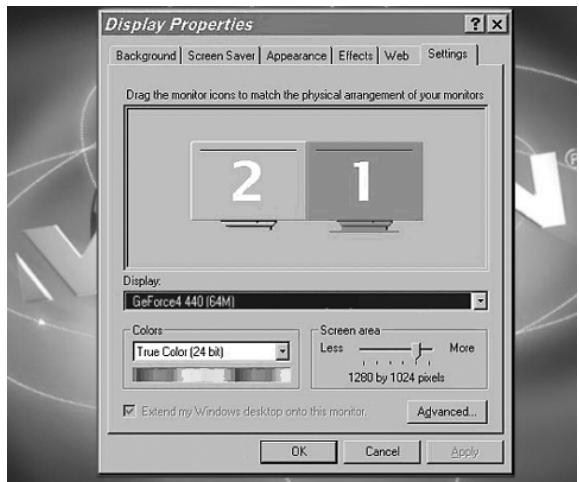
You should therefore check the relevant operating instructions to see how you should proceed. You can usually use the F1 key to call up online help, which provides you with detailed information.
If all the settings are correct, the image from the PC will now be displayed on the TV.

Trademarks
MS DOS® and Windows® are registered trademarks of Microsoft®.
Pentium® is a registered trademark of Intel®.
Limitation of liability for loss of data/consequential losses
Backup:
To avoid loss of data you should back up all data to external media (such as CD-R) each time you change your PC system. MEDION AG accepts no liability for loss of data.
Functionality:
The enormous differences between operating systems and graphics cards mean that we cannot guarantee the functionality described in this section ("Connecting the transmitter to a computer"). Please contact a specialist supplier or expert.
Consequential losses:
When you connect the radio transmission system to your computer, you must take note of the operating instructions for your computer, the software used and additional components.
We are not liable for damages or loss of data that were caused by incorrect or improper use.
CONNECTING THE RECEIVER
There are several ways to receive the transmitter's audio/video signals on a different device.
Connecting via a DIN AV cinch cable
- Connect the Mini DIN AV cinch cable to the receiver's AV EXTEND output and the corresponding sockets on the receiving device (e.g. the TV).
Connecting via the SCART adapter
- Connect the Mini DIN AV cinch cable to the receiver's AV EXTEND output and the SCART adapter for the receiver.
- Plug the SCART adapter labelled "Receiver" into the SCART input on the receiving device (e.g. the TV).
Example of receiver setup
The diagram below shows a typical setup for the receiver and a TV, either with the Mini DIN AV cinch cable or a SCART adapter.

GB
Interposing a device
Instead of connecting the receiver directly to the television, you can also interpose a different audio/video device. This could be a video recorder, for example, which you can then connect with the receiver as already described.
Connecting the mains adapter
- Connect the mains adapter for the receiver to the 9 volt connector on the receiver.
- Plug the mains adapter into an easily accessible socket (230V ~ 50Hz).
- Turn on the receiving device, such as the television, and set the receiver's ON/OFF switch to the ON position. The
red operating LED will light up.
Selecting a channel
Check that the receiver is set to the same channel (A/B/C/D) as the transmitter.
Selecting the source
If you have connected two devices to the transmitter, you can now use the SOURCE 1/2 switch to switch between the receiver of the first (Source 1) and the second (Source 2) device.
- To do this, keep the SOURCE 1/2 button at the top of the receiver pressed down for around 10 seconds, until the device switches over.
- You can also press down any button on the remote control belonging to a device that is connected to the transmitter for 10 seconds, and it will switch devices.
Setting up
- Place the receiver on a sturdy surface.
- Position the receiver so that the front with the LED operating indicator is facing you.
- If you are using the remote control from the audio/video source, point it towards the receiver.
- Open up the transmitter aerial and align it with the transmitter until you have the optimal image.
SETTING CHANNELS
Your radio transmission system has four channels – i.e., four different frequencies can be used.
The channel switch is on the bottom of both devices.
- Set the transmitter and receiver to the same channels.
- Test which channel (A, B, C or D) provides the best reception.
- You can also use the four channels to operate up to four radio transmission systems.


CLEANING/DISPOSAL
Cleaning
- Use a soft, dry cloth to clean the devices.
- Never use cleaning solutions that could damage the surface of the devices. Never spray cleaning fluids directly onto the devices.
Disposal

At the end of its life, the radio transmission system should not be disposed of in household rubbish. Seek the advice of your local authority on correct, environmentally-friendly disposal.




TROUBLESHOOTING
If errors occur, check first that the system was set up correctly. The following overview may help you:
No audio/video transmission
- Are all mains adapters plugged in?
- Are the transmitter and the receiver switched on?
- Are the channels for the transmitter and the receiver the same?
- Is the transmission source switched on?
- Walls and ceilings can reduce the signal range.
- Check the connections to the connected devices.
GB
Poor reception quality
- Realign the transmitter and receiver aerials.
- Change the position of the transmitter and the receiver slightly.
- Interference can be caused by several factors, such as radio waves from other devices.
- Choose a different channel.
The remote control does not react
- Point the remote control directly towards the receiver.
- The infrared transmitter's diodes should be approx. 1 ~cm away from the infrared receiver of the audio/video source.
- Have you aligned your infrared diodes correctly?
27
TECHNICAL DATA
Transmitter:
Mains adapter
Input: 230V 50Hz
Output: 12V - 200mA
4 channels
Frequency range: 2.4000 - 2.4835GHz
Connections: 1 Mini-DIN output
2 Mini-DIN inputs
Feedback channel for
remote control signal: 433MHz
Receiver:
Mains adapter
Input: 230V 50Hz
Output: 9V = 400mA
4 channels
Frequency range: 2.4000 - 2.4835GHz
Connections: 1 Mini-DIN-output
The mains adapters are GS certified
Subject to technical changes.



INFORMATION CONCERNING THE DECLARATION OF CONFORMITY
Hereby, Medion AG declares that MD 81209 is in compliance with the essential requirements and other relevant provisions of Directive 1999/5/EC.
GB
For further information concerning the Declaration of Conformity, please contact our Service Center.
C € 0682
Tested to be used in all EU-countries.




TABLE DES MATIÈRES
INFORMATIONS RELATIVES À LA CONFORMITÉ

m = 311
- KONFORMITÄTSINFORMATION
- SAFETY INSTRUCTIONS
- Environmental requirements
- Power connection
- Faults
- GB
- Health Issues
- 5
- ABOUT THIS APPLIANCE
- Possible signal transmitters and receivers
- Assigning the radio transmitter and receiver
- Controlling the audio/video source remotely
- Scart or Cinch
- Range
- KEY
- Transmitter
- Receiver
- 9
- CONTENTS OF PACKAGE
- Transmitter:
- Accessories:
- Receiver:
- Packaging
- CONNECTING THE TRANSMITTER
- Via SCART connection
- No SCART connection
- Example of transmitter setup
- Infrared extender (for remote control)
- Using more than one device
- Connecting more than one device
- Example of transmitter setup with two devices
- Connecting the mains adapter
- Selecting a channel
- Setting up
- CONNECTING THE TRANSMITTER TO A COMPUTER
- How to proceed
- Trademarks
- Limitation of liability for loss of data/consequential losses
- CONNECTING THE RECEIVER
- Connecting via a DIN AV cinch cable
- Connecting via the SCART adapter
- Example of receiver setup
- Interposing a device
- Selecting the source
- SETTING CHANNELS
- CLEANING/DISPOSAL
- Cleaning
- Disposal
- TROUBLESHOOTING
- No audio/video transmission
- Poor reception quality
- The remote control does not react
- 27
- TECHNICAL DATA
- INFORMATION CONCERNING THE DECLARATION OF CONFORMITY
- C € 0682
- TABLE DES MATIÈRES
- INFORMATIONS RELATIVES À LA CONFORMITÉ
Brand : MEDION
Model : WIRELESS RADIO TRANSMITTER SYSTEM MD 81209
Category : Wireless audio transmission system