LCD TV MD 30265 - Television MEDION - Free user manual and instructions
Find the device manual for free LCD TV MD 30265 MEDION in PDF.


User questions about LCD TV MD 30265 MEDION
0 question about this device. Answer the ones you know or ask your own.
Ask a new question about this device
Download the instructions for your Television in PDF format for free! Find your manual LCD TV MD 30265 - MEDION and take your electronic device back in hand. On this page are published all the documents necessary for the use of your device. LCD TV MD 30265 by MEDION.
USER MANUAL LCD TV MD 30265 MEDION
2007 All rights reserved.
Trademarks:
Manufactured under license by Dolby Laboratories.
'Dolby', 'Pro Logic' and the Double D symbol are trademarks of Dolby Laboratories.
The "HD ready" Logo is a trademark of EICTA.
HDMI, the HDMI Logo and High-Definition Multimedia Interface are
trade marks or registered trade marks of HDMI Licensing LLC.
Additional trademarks are the property of their respective owners.
We make no warranty of any kind with regard to this material, including, but
not limited to, the implied warranties of merchantability and fitness for a particular purpose.
We will not be liable for errors contained herein or for incidental or consequential damages in connection with the furnishing, performance, or use of this material.
We assume no responsibility for the use or reliability of its software on equipment that is not furnished by our company. This document contains proprietary information that is protected by copyright. All rights are reserved. No part of this document may be photocopied, reproduced, or translated to another language without the prior written consent of our company.
The information in this document is subject to change without notice.
Medion AG, Am Zehnhof 77, 45307 Essen, Germany
|BDA00105300|
1. SAFETY AND PRECAUTIONS 1
Operating Safety 1
Repair 2
Point of use 2
Environmental conditions 2
Connecting 3
Standards/Electro-Magnetic Compatibility 3
Precautions 3
Recycling and Disposal 4
Batteries and Proper Treatment 4
2. INTRODUCTION 5
Service 5
Performance Characteristics 6
3.CONTROL ELEMENTS AND SIDE CONNECTIONS 7
4. BACK OF THE DEVICE AND CONNECTIONS 8
5. REMOTE CONTROL 9
Summary of Control buttons 10
6. APSAS FIRST TIME INSTALLATION 11
7. GENERAL CONTROLS & ADJUSTMENT 13
Turning the display On and Off 13
Calling up Menus and operating the on-screen control 13
Continue switching channels 14
Switching between the TV and Sources of External Signals 14
Volume Control 14
Using Volume Control 14
Using Mute 14
Picture (Contrast, Colour, Brightness, etc.) 14
Additional picture settings 16
Sound (Balance, Equalizer, etc.) 17
8. TV MODE ADJUSTMENT 19
Adjusting TV settings 19
Program table 19
Delete a program 19
Moving and sorting channels 20
Changing the names of channels 20
Setting channels manually 21
Manual addition of channels 23
Add new channels automatically 23
9. TELETEXT 24
To operate Teletext 24
Teletext Page Selection 24
Select Teletext display functions 24
Useful features for Teletext 25
10. CONNECTING EXTERNAL DEVICES 26
Connection of an external device to the Scart socket 26
Connecting a video recorder to the aerial socket 26
Connecting a PC or a Source of Multimedia Video 26
Connecting a decoder 26
Connecting a camera recorder 26
Settings for external devices (Picture, Sound, Name, etc.) 27
AV Menu settings 27
11. VGA, HDMI AND YUV 29
Connection 29
Settings in the VGA PC, HDMI and YUV Modes 29
12.COMFORT FUNCTIONS 31
Picture in Picture (PIP) 31
Multi-Image (Station Overview) - Green button 31
Child lock 31
Sleep Timer 32
Swap Function 33
Establish swap channel (Preferred channel) 33
Reverting to the Factory Setting 33
Switching On Mode 34
Settings for all channels 34
Time display TIME 35
Switch picture format - ARC 35
Switch picture presets - APC 35
Freeze Frame function - Yellow button 35
Games 35
13.WALL INSTALLATION 36
Installation Instructions 36
14.TROUBLESHOOTING 37
15. OTHER QUESTIONS 38
Do you require additional Support? 38
Warranty 38
Duplication of the Instructions for Use / Technical Data 38
1. SAFETY AND PRECAUTIONS
Please read through this section carefully and follow the instructions to maximize the reliable operation and lifetime of your display. Always keep these instructions handy and close by your display. Keep the instructions and the packaging so that if you sell or give away your display you can supply them to the new owner.
OPERATING SAFETY

- Never open the housing of the display! When the housing is open there is a danger of injury from electric shock!
- Do not insert any objects through the slots and openings of the monitor. This may lead to an electrical short-circuit or even fire resulting in damage to your display.
-
Slots and openings in the display are for ventilation purpose. Do not cover these openings - the ventilation must not be impeded by covering the ventilation openings with objects such as newspapers, tablecloths or curtains, etc. (overheating and a danger of fire!).
-
The TV device must not be subjected to drips or sprayed water on any account.
- Do not allow children to play unattended with electrical equipment. Children may not always correctly recognize danger.
- This display is intended for personal use only. It not intended for commercial use in a heavy industry environment. Operation under extreme environmental conditions can lead to damage to your device.
- An injury hazard exists when the display breaks. Wear protective gloves to pack the broken parts and send them into your service center for proper disposal. Then wash your hands with soap, because it is possible for chemicals to escape.
- Never exert pressure on the display. This could break the monitor.
- Do not touch the display with your fingers or with sharp objects to avoid damage.
- The danger of possible hearing damage will exist because of volume at the headphones that is too high. Reduce the volume of the headphones before you put them on.
Attention! The device has sharp edges and corners that can cause injury, because of its construction!
- Ensure sufficient stability of the device.
- Do not allow the corners of the device to jut out beyond the edges of furniture.
- Never bring your eyes close to the corners of the device. Be especially careful if you are bending down over the device!
Turn the device off immediately, or do not switch it on in the first place, detach the mains plug and contact customer service, if ...
- ... the mains cable or the mains plug is worn or damaged. Have the defective cable replaced by original parts. Such a cable must not be replaced under any circumstances.
- ... the housing of the device has been damaged, or fluids have penetrated it. Have the device checked by customer service first. Otherwise, it may not be possible to operate the device safely. Danger to life arising from an electrical shock can occur!
REPAIR
- Leave all repairs of your display to authorized and qualified personnel only.
- Should a repair be necessary, please contact one of our authorized service partners only.
POINT OF USE
- In the first hours of operation, new devices may produce a typical, unavoidable but completely harmless noise, which will diminish increasingly in the course of time. We recommend you to ventilate the room regularly, in order to counteract the formation of smells. We have made sure during the development of this product that the applicable limits have been clearly not exceeded.
- Keep your display and all units connected to it away from moisture and avoid dust, heat and direct sunlight. Failure to observe these instructions can lead to malfunctions or damage to the display.
- Do not operate your device in the open air, because external influences, such as rain, snow, etc. could damage the device.
- Do not place any containers filled with liquid (vases or similar) on the TV. The container could tip over and the liquid could impair electrical safety.
- Do not place any open sources of fire (candles or similar objects) close to or on the device.
- Pay attention to sufficiently large distances in the wall unit. Maintain a minimum distance of 10cm around the device for sufficient ventilation.
- Place and operate all units on a stable, level and vibration-free surface in order to avoid the display from falling.
- Avoid dazzle, reflections, extreme light/dark contrast in order to save your eyes and ensure a pleasant, ergonomic work station.
- The optimum viewing distance is 5 times the screen diagonal.
ENVIRONMENTAL CONDITIONS
- The display can be operated most reliably at ambient temperatures between +41^ and +95^ ( 5^ to 35^ ) and at a relative humidity between 20% and 85% (without condensation).
- When switched off, the monitor can be stored most reliably between +14^ F and +140^ F (- 10^ C - +60^ C ), up to the maximum height of 39,000 ft (12,000 m) above sea level at a relative humidity between 10% and 85% (without condensation).
- After transporting your display please wait until it has assumed the ambient temperature before connecting and switching it on. Extremely high variations in the temperature or humidity may result in condensation forming on the inside of the display which could cause an electrical short-circuit.
- Unplug the cable during thunderstorm and make especially sure to remove the antenna cables.
CONNECTING
Observe the following instructions to connect your display properly:
POWER SUPPLY
- Operate your display only with grounded outlets with AC 220V-240V~50 Hz. If you are not sure about the power supply at your location, check with your power company.
- Use only power connection cable provided.
- For additional safety we recommend use of a surge protector to protect your display from damage resulting from voltage surges or lightning.
- To remove the display from the power supply, disconnect the plug from the AC outlet.
- The mains switch installed does not detach the TV from the mains supply completely.
- The power outlet must be in the vicinity of your display and within reach of the power cables. DO NOT stretch the power cables tightly to reach a power outlet.
- If you use an extension cable, ensure that it fulfils the VDE requirements. Please ask your electrician.
- You should arrange the display cables in a manner that no one can trip over or step on them.
- To avoid damage of cable do not place any objects or furniture on the cable.
STANDARDS/ELECTRO-MAGNETIC COMPATIBILITY
Your display fulfils the requirements for electro-magnetic compatibility and electrical safety specified in the following standards:
EN 55013, EN 55020, EN 60065, EN 61000-3-2, EN 61000-3-3
- Provide a space of at least three feet from high-frequency and magnetic sources of interference (television sets, loudspeakers, mobile telephones, etc.) in order to avoid malfunctions.
- The failure of individual or groups of luminous points can arise in rare cases, in spite of the most up-to-date manufacture, because of the highly complex technology.
PRECAUTIONS
| Caution! | There are no parts which can be serviced or cleaned inside of the monitor housing. |
You can increase the life of your display by taking the following precautions:
- Before cleaning always disconnect the power line and all connection cables.
- Do not use any solvents, caustic or gaseous cleaning agents.
- Clean the display with a soft, lent-free cloth.
- Ensure that no water droplets remain on the screen. Water can cause permanent discolouration.
- Do not expose the screen to bright sunlight or ultraviolet radiation.
- Please keep the packaging material safely and use it exclusively to transport the monitor.
RECYCLING AND DISPOSAL
This appliance and its packaging was produced mostly from materials which can be disposed of in an environmentally friendly manner and be professionally recycled.
After its use the TV will be taken back and recycled or use will be made of its useful material, if it is returned in a condition corresponding to its intended use. Parts not usable will be properly disposed of.
Should you have any questions concerning the disposal please contact your dealer or our service.
At the end of its life, the appliance must not be disposed of in household rubbish. Enquire about the options for environmentally-friendly disposal.
BATTERIES AND PROPER TREATMENT
Batteries may contain combustible materials. By misuse, this may cause battery leakage, heat, explosion or ignition, bringing about injury or damage to the device. Please observe strictly the following matters:
- KEEP CHILDREN AWAY from batteries.
If by any chance, the batteries are swallowed, consult a doctor immediately. - DO NOT CHARGE batteries (except rechargeable batteries).
- DO NOT FORCIBLY DISCHARGE batteries.
- DO NOT SHORT-CIRCUIT batteries.
- DO NOT HEAT or DISPOSE OFF IN FIRE.
- DO NOT DISASSEMBLE or DEFORM batteries.
Your hands and fingers may be injured, or the liquid of the battery may get into your eyes or adhere to your skin. If this happens, rinse with a large quantity of water immediately and consult a doctor.
- DO NOT expose batteries to strong impact by dropping or throwing the batteries.
- DO NOT reverse the positive (+) and negative (-) terminals to avoid short-circuit.
- DO NOT MIX used and new or different types of batteries together.
Your equipment may not operate properly.
In addition, the battery exhausted first may be excessively drained (over-discharged).
- REMOVE PROMPTLY the used batteries from the device.
- REPLACE ALL BATTERIES with new batteries of the same type at the same time.
- INSULATE THE TERMINAL parts of batteries with tape while disposal or storage
Batteries

Do not dispose of used batteries in the household rubbish! They must be deposited at a collection point for used batteries.
2. INTRODUCTION
Thank you for purchasing our Multi-display. We thank you for your confidence in our products and are pleased to greet you as a new customer. We focused on great features, ease of use and reliability in manufacturing your display.
SERVICE
Service and support will be available every time you use your new monitor. Contact us, we will be glad to help you. This manual contains a separate chapter on the subject of 14. Troubleshooting on page 37.
PERFORMANCE CHARACTERISTICS
Advantages in relation to CRT (cathode ray tube) displays:
Less space required
Lower weight
Power savings
Low radiation
Features
High resolution display
On Screen Display (OSD) - Graphic operating surface
499 channel slots, 3 AV settings, HDMI, YUV and VGA Modes
Multi-standard PAL, SECAM, NTSC
"HD ready" - HDTV compatible
The following connections are available:
- Tuner connection
SCART/AV1 (Video, S-Video, RGB, YCrCb, YPrPb)
SCART/AV2 (Video, S-Video, RGB, YCrCb, YPrPb) - Front AV.SV (Video/S-Video and Audio In)
- Headphones
- Analogue and digital multimedia input (VGA and HDMI connection)
Audio-in for VGA and HDMI
YUV (components) input
Audio In for YUV - Line Out
Easy to operate remote
Easy to operate Picture Menu system
Automatic APSAS installation system (Automatic Program Search And Sort)
TOP/FLOF Teletext function with 2,100 page memory and multi-page text
Completely digital picture improvements:
- Dynamic noise reduction
- Comb filter
- Perfect Clear
-
Image sharpness
-
CTI
Dual-tuner PIP: PIP from two different signal sources
Freeze frame and multi-image (station overview)
Full picture format independent of the signal source
Headphones socket for screened listening pleasure
Integrated 2-way loudspeaker system with 4 loudspeakers
Decoder function
Intelligent Swap Function
Sleep Timer
Child Lock
Plug and Play: automatic recognition of your operating system
Four games: Brixx, Anaconda, Scramble and Outer Space
3. CONTROL ELEMENTS AND SIDE CONNECTIONS
The buttons on the device control the basic functioning of the TV, including the On-Screen Menu. You will reach the advanced functions through the remote.
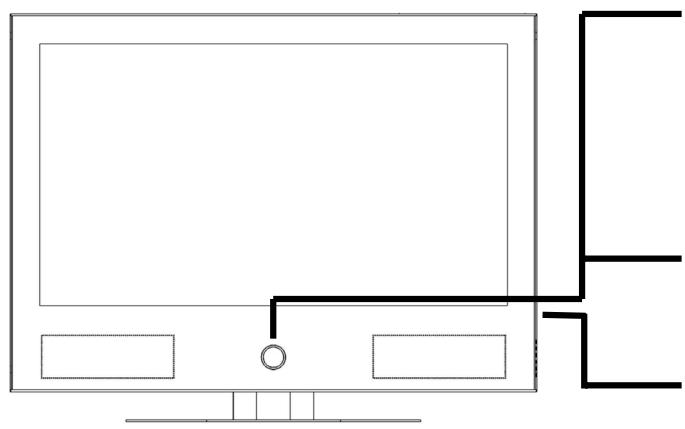
Operating display
A blue light indicates that the devices has been turned on but is in the readiness mode.
The light will shine yellow when the device has been switched on.
Sensor window
Point the remote to this region of the screen.
Control elements & side connections
The side connections and some of the control elements are located on the side of the device.
Detailed view of front and side:
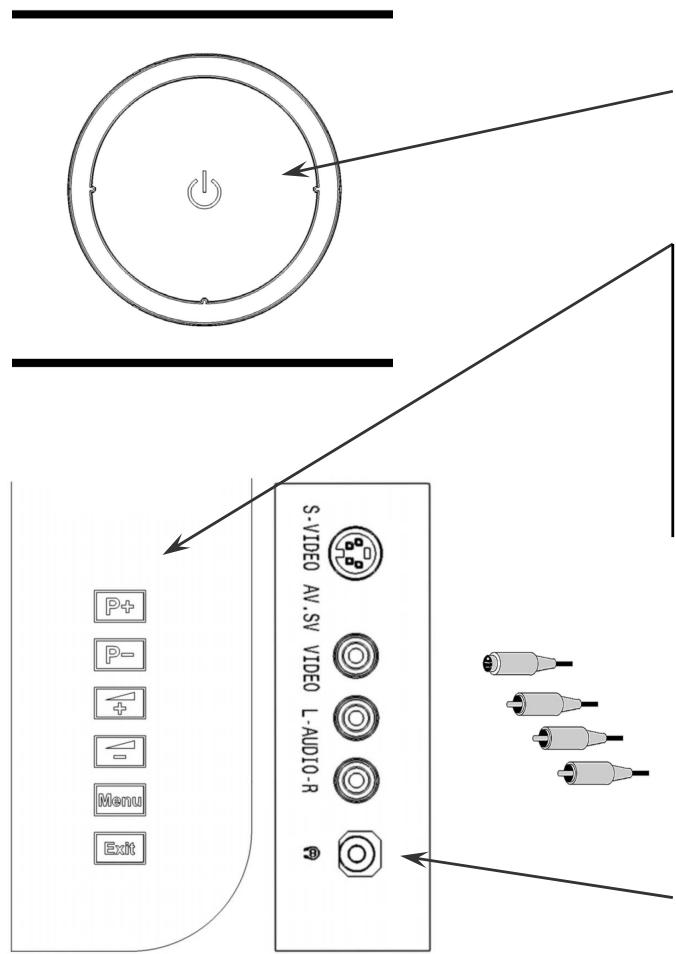
Power:
Switches the TV on or into Readiness Mode
P+/P- Program +/-
Setting buttons in the Screen Menu
+ / - Volume + / -
Setting buttons in the Screen Menu
MENU button
EXIT button
AV.SV input
Headphones output
Note: Please read chapter "10. Connecting External Devices" on page 26 for further information about operating external device.
4. BACK OF THE DEVICE AND CONNECTIONS
View from diagonally below
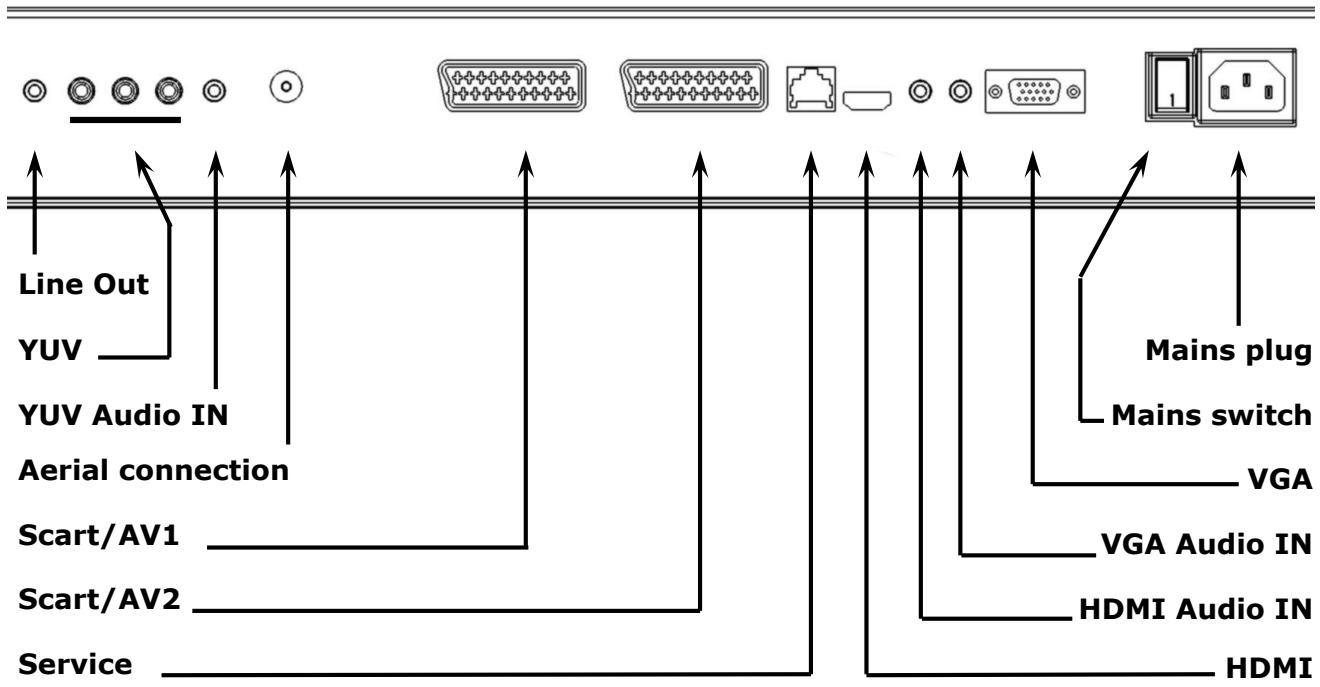
Information: The service socket is exclusively intended for our authorized service partners. Improper use can lead to damage to your TV device.
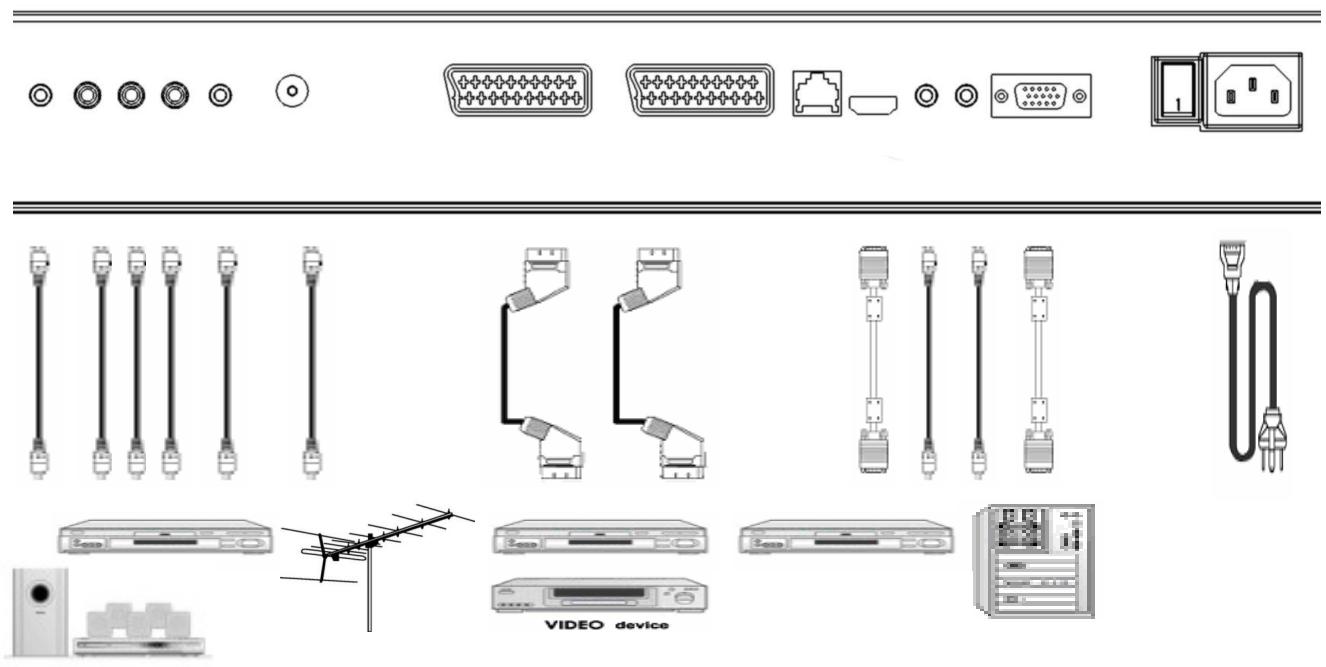
Note: Please read chapter „10. Connecting External Devices" on page 26 for further information about operating external devices.
5. REMOTE CONTROL
This is for a remote that is suitable for your TV; you will find the relevant button identification and arrangement on the following page:
- Open the battery compartment of the remote by removing the cover.
- Insert Micro / AAA type batteries into the battery compartment on the back of the remote. Pay attention to the polarity of the batteries (marked on the base of the battery compartment) at the same time.
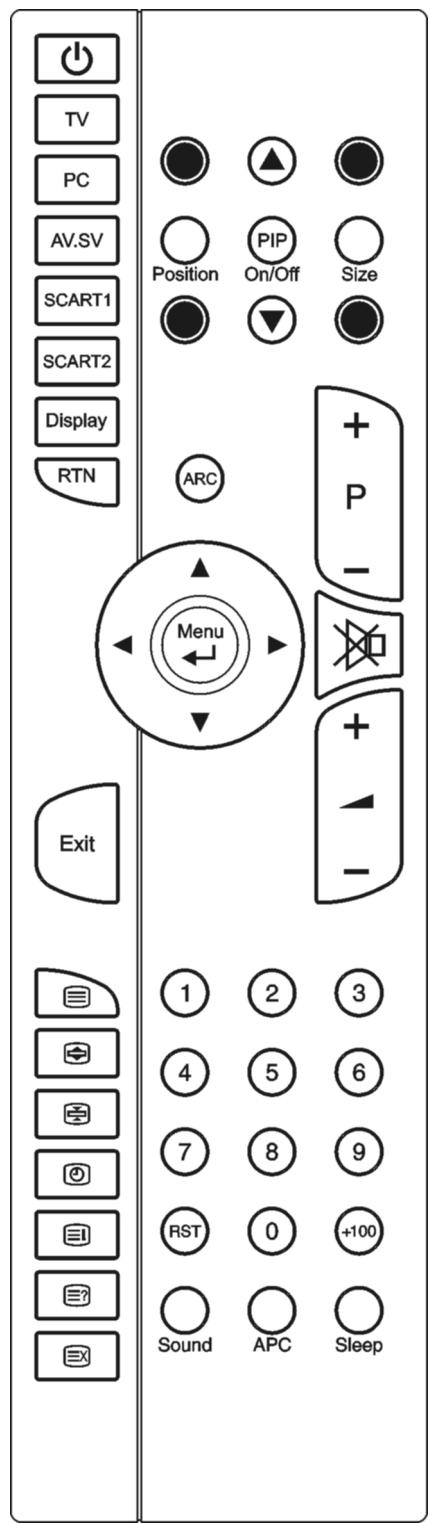
SUMMARY OF CONTROL BUTTONS
| Device on or switch to Readiness Mode | |
| POWER | Switches the device on or into Operating Mode alternately |
| Selecting the Signal Source | |
| 1 - 9, TV | Switch to the TV mode. |
| PC | Switches between VGA PC, YUV and HDMI |
| AV.SV | Switches to video mode or S-video mode |
| SCART 1 | Switches to SCART 1 |
| SCART 2 | Switches to SCART 2 |
| 0 | Switches between VGA PC, HDMI, YUV, AV.SV, SCART/AV 1 and SCART/AV 2 |
| Menu Setting | |
| MENU/ENTER | Display the main on-screen menu or enter the next menu. |
| ▲▼ P+/P- | Press to select the item you want to adjust in the OSD menu. |
| ▲ VOL -/+ , ▲ | Press to decrease or increase the value in the OSD control bar. |
| EXIT | One level back in the Menu. |
| Changing Channels | |
| ▲▼ P+/P- | Press P+ or P- to change programs in TV mode. |
| 0-9 | To select programs directly in TV mode. |
| RTN | Press to return to the previous program. |
| Sound Control | |
| ▲ VOL -/+ , ▲ | Press to turn up or turn down the volume. |
| MUTE | Press to switch the sound on or off. |
| SOUND | Press to change directly to the Sound Menu |
| Teletext Control | |
| TELETEXT | Press to show the Teletext Service. Press again to return to TV viewing. |
| INDEX | Press to show the list of Teletext contents. |
| STOP | Press to stop the automatic page change. |
| INTERRUPT | Press to switch to TV while waiting for the next page. |
| REVEAL | Press to display concealed information, such as solutions of riddles or a quiz. |
| EXPAND | Press to enlarge the top half or bottom half of the Teletext page. |
| ▲▼ P+/P- | Press P+ or P- to use Page Catching |
| PIP Control | |
| ON/OFF | Press to watch one of the video sources on Sub-display, whilst in OC mode. Press again to turn off the Sub-display. |
| PIP SOURCE, ▲▼ | Selects the source of the PIP Window. |
| POSITION | To shift the PIP Window. |
| SIZE | Sets the size of the PIP Window. |
| Other Functions | |
| RST, RESET | Reset the original factory setting, such as Contrast and Colour. |
| YELLOW BUTTON | Press to switch freeze frame function on and off |
| GREEN BUTTON | Press to switch multi-image (station overview) on and off |
| RED BUTTON | Press to call up the Picture Menu |
| BLUE BUTTON | Press to call up the Sound Menu |
| ARC | Changes the format. |
| APC | Adjusts the backlight in three levels. |
| DISPLAY | Displays the current signal source, program number and sound options. |
| SLEEP | Press to select a preset time interval for automatic power off. |
| TIME | Press to display the digital or the analog clock alternately and switch off |
Your TV device has the APSAS (Automatic Program Search And Sort) automatic installation system and a graphic OSD (On Screen Display) operating surface. Both systems will make the initial installation and the operation of your device in future easier for you.
- After removing the display packaging, ensure the product is installed in a safe and well ventilated position.
- Insert two AAA type batteries into battery compartment on the rear of the remote control.
- Connect the external 75 Ohm aerial cable and the electricity cable to the relevant connections and make sure that the mains switch on the back is switched on.
- The initial Installation Menu will appear when you switch on your TV for the first time by pressing the POWER button on the remote. Carry out the following settings and use the P + / P - , V O L + / - and MENU buttons to control the menus.
- The flags of all locations for which the TV is suitable will appear on your screen.
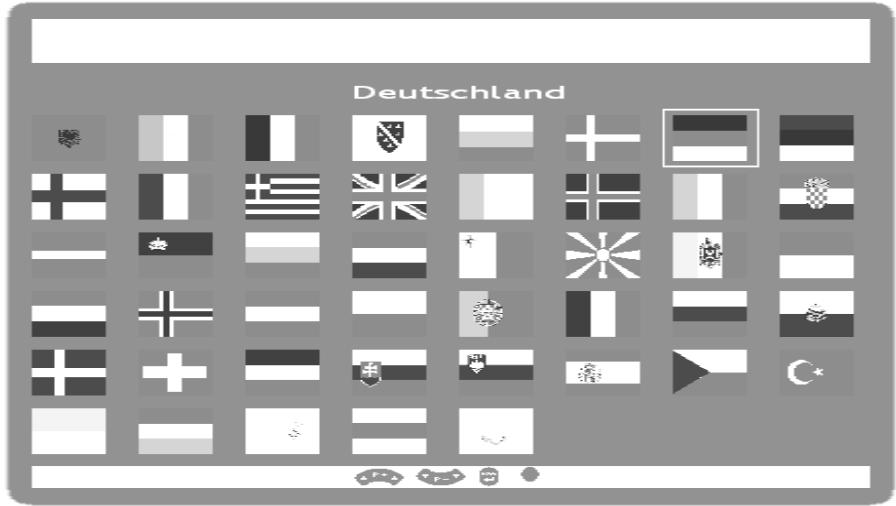
- Please select the flag of the location where you are with the P + / P - , VOL + / - setting buttons and confirm your selection with the MENU button. The Menu will appear after you have made your selection.
New installation
- Location select
Germany
- Language
German
- Start
Cancel/Continue
- The location will have been set in accordance with your flag selection. You can return to the flag selection at the Location Select Menu Point, if you want to correct the country setting again.
-
The language of the country suitable to the selected location will have been preset automatically. However, you can select any other Menu language at the Language Menu Point.
-
Please go to the Start Menu Point with the assistance of the P + / P- setting buttons, after you have selected your preferred language.
The automatic initial setting is started by selecting 'Further' by means of MENU and the P + / P- buttons. During this, the device will automatically search for all the television channels that can be received at your location, and sort them and store them according to your entries concerning the location and the language. The following Menu will appear at the same time:
Automatic Search
Frequency
Channel type
Last station
Found so far
Cancel
- This Menu simply has a display function to inform you about the progress of the initial installation. However, press the MENU button if you want to cancel the station search. No television channels will, however, be stored in this case. You will reach the start of the initial installation again if you switch the device off and on again.
- The program table will appear on the screen after the initial sound setting has finished. You can move, rename, delete and add channels, or carry out fine adjustments in the program table (you will find details about this in „Program table" from Page 19).
Program table
SCART1
TV.
SCART2
TV......
AV.SV
TV.
VGA PC
TV......
HDMI
TV......
YUV
TV.
TV 1
ARD
TV 2
ZDF
TV 3
……
-
Delete
-
Move
-
Edit
-
Press EXIT to reach the TV Mode directly, if you do not want to carry out any changes to the automatically stored and sorted channels.
TURNING THE DISPLAY ON AND OFF
The mains switch of the TV is located on the back of the device. The device moves to Readiness Mode if this switch is switched on.
The operating display will shine blue in the readiness mode. The device can be switched to the normal operating mode by means of the POWER button on the remote.
The operating display will shine yellow in the normal operating mode. The device can be switched back to readiness mode by means of the POWER button on the remote or on the device.
Please wait 15 seconds before operating the mains switch again if you switch the device off with the mains switch.
Note: The energy consumption of the TV reduced to the minimum necessary in Readiness Mode. No energy is consumed, but there is no complete detachment from the mains, if the mains switch of the TV is switched off!
CALLING UP MENUS AND OPERATING THE ON-SCREEN CONTROL
Your TV device has a graphic OSD (On Screen Display) operating surface, which will make the operation and management of your TV device easier for you.
- Press the MENU button when the device is switched on. The Main Menu will appear on the screen then.
Main Menu
- Picture
- Sound
- Program table
- Installation
- Child lock
- Sleeptimer
- Swap function
-
Games
-
You navigate through the Menus with the P + / P- buttons. Press the MENU button when the cursor is on the required Menu Point. This will activate that Menu Point.
- The Menu Points can be called up and activated directly by means of the Number buttons.
- A selection window will appear or the Setting / Entry Mode will be switched on when a sub-menu is activated, according to the Menu Point.
- You can leave the relevant Menus, sub-menus, selection window or the Setting / Entry Mode again by pressing EXIT.
- The buttons that each function in the respective Menu has are displayed in the last line of the Menu.
- Functions that cannot be selected in a particular additional status of the device are presented in grey type.
CONTINUE SWITCHING CHANNELS
You have three different possibilities to switch through the channels available:
- Through direct entry of the channel number:
You will call up the channel directly through the 0-9 buttons. You can enter the following digit within 2 seconds after entering the first digit, in order to call up multi-digit channel numbers. - You switch through the channels running by pressing the P + / P- buttons briefly.
- A list of channels, within which you are able to change the P + / P- buttons, is displayed by pressing these buttons for a longer time. This list of channels can also be displayed directly by pressing the DISPLAY button.
SWITCHING BETWEEN THE TV AND SOURCES OF EXTERNAL SIGNALS
Switch on connected devices (video recorder, DVD player, PC, SAT receiver, etc.) and press the relevant button on the remote:
Press the TV button to switch to TV mode.
Press the PC Button to switch alternately between the VGA PC, YUV and the HDMI mode.
Press the AV.SV button to switch to video mode.
Press the SCART 1 or SCART 2 Button, to select the SCART/AV1 or SCART/AV2 input.
The Scart sockets have automatic recognition whether the connected device has been switched on (provided that this is supported by the connected device). In most cases, switching over to the Scart inputs used takes place automatically through this and does not have to be selected manually.
VOLUME CONTROL
USING VOLUME CONTROL
Press VOL-/VOL+ button to turn up or turn down the sound volume.
USING MUTE
At any time, you can temporarily turn off the sound by pressing the MUTE button.
- Press the MUTE button and the sound cuts off.
- Press the MUTE again or VOL-/VOL+ button to turn the sound back to the previous level.
PICTURE (CONTRAST, COLOUR, BRIGHTNESS, ETC.)
Your TV device offers you the possibility of establishing individual values for the picture settings according to your preference, in the case of the TV and AV settings.
For example, lower brightness and contrast values are used for the PC Mode than for other types of operation. Apart from this, there is the possibility of selecting optimized factory presets for contrast and brightness (EVENING, DAYTIME).
Variation 1: Press the RED button to reach the Picture Menu directly.
Variation 2: Press the MENU button to call up the Main Menu, set the cursor on PICTURE by means of the P + / P- buttons and call up the appropriate Menu by means of the MENU button.
Picture
- Preset
- Contrast
- Colour
- Brightness
- Format
- Tint
- Settings VGA HDMI YUV
- Continue Picture
1. Preset:
Here, you can choose between the optimal factory presets or manual contrast and brightness setting. The selection is made with the VOL-/VOL+ buttons or through a menu by means of MENU. The preset can also be selected outside the Picture Menu by means of the APC button.
DAYTIME:
Here, the contrast of the picture is increased, to achieve an optimum presentation of the picture in daylight or in the case of night scenes.
EVENING:
The contrast of the picture is reduced here. An attractive picture arises through this, particularly in the evening, when there is little surrounding light.
MANUAL:
You can establish contrast and brightness yourself, to adjust the picture to your requirements.
- You can adjust the contrast, brightness and colour values with the VOL-/VOL+ buttons, depending on the preset. Contrast and brightness are only available if the PRESET Menu Point has been set at MANUAL.
3. Format:
The required picture format can be set with the VOL-/VOL+ buttons. This setting can also be carried out directly outside the Picture Menu with the ARC button.
AUTO: The device selects the picture setting suitable to the channel transmitted at the time independently and adjusts it continuously to the channel in this mode.
4:3: This setting sets the side ratios of the picture at 4:3 for traditional television programs. Black bars appear on both sides of the screen.
PANorama: Adjusts a 4:3 video source to the 16:9 ratio, where the corners of the picture are mainly stretched. This reduces distortion in the center of the picture.
CINEMA: Some DVD films or Cinemascope broadcasts do not fill the upper and lower edges of the screen. The Cinema function stretches the height, to fill the screen.
WIDE PICTURE 16:9: 16:9 broadcasts are reproduced without distortion. 4:3 video sources are stretched evenly to fill the screen. Distortion arises both in the centre and at the corners of the picture here.
4. Tint:
The colour impression can be changed for NTSC images (e.g. video cassettes from the USA) with the VOL-/VOL+ buttons.
- Settings VGA, Settings HDMI and Settings YUV:
This point can only be selected in the VGA PC, HDMI and YUV Mode in each case. See chapter "11. VGA, HDMI and YUV" on page 29 for a more detailed explanation.
ADDITIONAL PICTURE SETTINGS
Move the cursor to ADDITIONAL PICTURE SETTINGS with the P + / P- buttons and press the MENU button.
Continue Picture
- Noise reduction
- Sharpness
- Comb filter
- Colour registration
- Backlight
- White balance
- Perfect Clear
- Antiflicker
- Picture ratio 4:3
Further fine adjustments in relation to the impression made by the picture can be carried out in this Menu.
- Noise Reduction:
The picture quality can be improved, in the case of grainy pictures with this function. The AUTOMATIC/OFF/WEAK/MEDIUM/LOUD settings can be selected through a menu with the VOL-/VOL+ buttons or the MENU button.
The device will adjust the noise reduction automatically to the reception quality at the AUTOMATIC setting. The MEDIUM and LOUD settings should only be selected in the case of a heavily distorted picture, because jerky movements can arise if the picture content is moving fast. This setting can be set individually for each channel slot.
- Sharpness:
The picture sharpness can be adjusted to your personal requirements with the VOL - VOL + buttons. You reach the Settings Mode by pressing the MENU button. The menu is faded out, in order to be able to assess the picture, and the setting can be carried out through a setting bar. This setting can be set individually for each channel slot.
- Comb Filter:
Disruptive wave lines in check patterns in the picture content can be avoided by activating this function.
- Colour Registration:
This function serves to even out differences arising between the coloured parts of the picture and the picture contours.
The setting can take place in the Menu with the VOL-/VOL+ buttons. You also reach the Settings Mode, by pressing the MENU button. The menu is faded out and it is possible to carry out the setting through a setting bar. This setting can be established individually for each channel slot.
- Backlight (Only active in the case of LCD TV devices – not in the case of plasma TVs):
The brightness of the background lighting of the TV can be controlled with this function. You can choose between the WEAK/ MEDIUM/ NORMAL/ FULL settings through one menu with the VOL-/VOL+ buttons or the MENU button.
- White Balance:
You can adjust the whiteness impression to your requirements in three stages with the VOL-/VOL+ buttons.
- Perfect Clear:
You can activate a special digital Picture Improvement Mode with the VOL-/VOL+ buttons under this Point.
- Antiflicker (only active in the case of Plasma-TVs- not in the case of LCD-TV-devices): Disruptive, large-surface flickering can be reduced by activating this function. However, quick movements will become less sharp and jerky through this.
- Picture ratio 4:3:
You can set the colour of the stripes next to the picture in the 4:3 format with this function. You will be able to choose between the BLACK/DARK/LIGHT/WHITE settings with the VOL+/VOL- buttons or the MENU button by means of a list of choices.
SOUND (BALANCE, EQUALIZER, ETC.)
Different settings in relation to the sound reproduction of your TV can be made in this Menu.
Variation 1: Press the BLUE button to reach the Sound Menu directly.
Variation 2: Press the MENU button to call up the Main Menu, set the cursor on SOUND by means of the P + / P- buttons and call up the associated Menu by means of the MENU button.
Sound
- Volume
- Balance
- Equalizer
- Preset
- Headphone
- Surround
- Audio channel
- Automatic Volume
-
Loudness
-
Volume:
This Point corresponds to the volume setting, which can also be regulated directly outside the Menu with the VOL-/VOL+ buttons.
- Balance:
Differences in volume between the left and the right loudspeaker can be evened out here, managed around an optimum sound impression, if your viewing position in front of the TV is not central.
- Equalizer:
You can increase or reduce individual frequencies of the sound reproduction at this Point, as you can in the case of your stereo equipment. It is only possible to select this Menu Point if the PRESET Menu Point is set at MANUAL. Set the Selection Bar at EQUALIZER by means of the P + / P- buttons and press the MENU button.
Equalizer
- Preset
- Basic settings
- 120 Hz
- 200 Hz
- 500Hz
- 1200 Hz
- 3000 Hz
- 7500Hz
- 12000 Hz
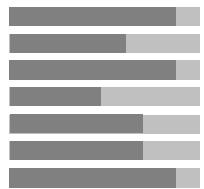
You can choose between POP/ CLASSIC/ LANGUAGE/ JAZZ/ FLAT Equalizer pre- settings under PRESET. The selection is made either through the VOL-/VOL+ buttons or through a Menu that can be reached through the MENU button. Each Equalizer preset corresponds to a particular predetermined setting in relation to increasing or lowering the individual frequencies to achieve particular sound effects.
The individual frequencies cannot be changed and are thus presented as grey, if one of the presets previously listed has been selected.
You will be able to set the sound reproduction of your TV for the frequencies given according to your personal perceptions, if the MANUAL setting under PRESET is selected. Move the Selection Bar to the relevant frequency with the P + / P- buttons and carry out the setting by means of the VOL-/VOL+ buttons.
You can return to the preset basic values by calling up the basic settings, if you are not satisfied with your changes. To do this, set the Selection Bar on BASIC SETTINGS with the P + / P- buttons and press the MENU button.
4. Preset:
Fast selection for the equalizer presets - see Equalizer
5. Headphones:
You can adjust the volume, bass and treble settings for headphones under this Point. Move the Selection Bar to HEADPHONES with the P + / P- buttons and call up the relevant Menu by pressing the MENU button. The values can be changed by means of the VOL-/VOL+ buttons.
Headphone
- Volume
- Bass
- Treble
6. Surround Sound:
The different NORMAL/WIDE/CINEMA surround sound settings can be selected through a Menu by means of the VOL-/VOL+ buttons or by pressing the MENU button.
Note: Cinema Surround is a technology certified by Dolby Laboratories, which creates a virtual surround sound experience with only two loudspeakers through the use of Dolby Pro Logic.
Cinema Surround reproduces all original multi-channel audio information and gives the listener the impression of being surrounded by additional loudspeakers
7. Audio Channel:
You can select the audio channel with this function. For example, it offers the possibility of choosing between two languages in the case of dual language broadcasts.
You can choose between the STEREO/ MONO/ DUAL SOUND A/ DUAL SOUND B/ MONO C settings either with the VOL-/VOL+ buttons or through a Menu, accessible by means of the MENU button, after you have set the Selection Bar at AUDIO CHANNEL with the P+/P- buttons.
The sound channels that can be selected are dependant on the broadcast that you are watching at the time. Settings that cannot be selected are represented in grey. The setting that you make in this Menu will be set back after a channel slot change.
If you want a long-term change to the audio channel on one station (e.g. you want to always receive the second language of one station), make this setting in the PROGRAM EDIT Menu - see chapter "Setting channels manually" on page 21. You will also find a more description in relation to the possible settings in this section.
8. Automatic Volume:
The volume of your TV will be regulated automatically after this function has been activated, so that loud sound passages (e.g. during advertising breaks) are no longer disruptive.
9. Loudness:
You can switch a volume-dependant sound adjustment on or off under this Point.
ADJUSTING TV SETTINGS
- Switch the TV device to the TV Mode with the 1 - 9 buttons on the remote.
- Press the Menu key and select TV on the screen menu.
| Main Menu | |
| 1. | Picture |
| 2. | Sound |
| 3. | Program table |
| 4. | Installation |
| 5. | Child lock |
| 6. | Sleeptimer |
| 7. | Swap function |
| 8. | Games |
- Select the PROGRAM TABLE Menu Point with the P + / P- buttons and press the MENU button.
PROGRAM TABLE
The program table indicates the names and numbers of the channels. You can change program names, edit, delete, add or move programs or carry out fine adjustments in this list.
| Program table | |||
| SCART1 | TV...... | ||
| SCART2 | TV...... | ||
| AV.SV | TV...... | ||
| VGA PC | TV...... | ||
| HDMI | TV...... | ||
| YUV | TV...... | ||
| TV 1 | ARD | TV...... | |
| TV 2 | ZDF | TV...... | |
| TV 3 | ...... | TV...... | |
| • Delete • Move • Edit | |||
Note: The SCART1, SCART2, AV.SV, VGA PC, HDMI and YUV channels cannot be deleted or shifted.
DELETE A PROGRAM
- Go to the program in the program table that you want to delete with the help of the P + / P -, V O L + / - buttons.
- Press the RED button to call up the delete function directly or call up an Edit Functions Menu with the MENU function and select DELETE.
- Now, you will reach the security query. Select DELETE with the assistance of the P+/P- buttons and carry the action out directly with the MENU button or by pressing the RED button again.
MOVING AND SORTING CHANNELS
- Go to the channel slot in the program table that you would like to move or sort with the assistance of the P + / P - ,VOL + / - buttons.
- Press the GREEN button to call up the sorting function directly or call up an Edit Functions Menu with the MENU function and select MOVE.
- The respective channel will now be marked in colour.
- Move the channel to the channel slot that you require with the assistance of the P+/P-, VOL+/- buttons.
- Store the changes that you have carried out by pressing the GREEN or the MENU button again.
CHANGING THE NAMES OF CHANNELS
- Go to the channel slot that you would like to edit with the help of the P + / P- , VOL+/- buttons.
- Either press the YELLOW button to call up the processing function directly or call up an Edit Functions Menu with the MENU function and select EDIT.
- The screen will now display the Program Edit, AV Edit, SETTINGS VGA, SETTINGS HDMI or SETTINGS YUV menu:
Program edit
- Frequency input
- Tuning
- Channel grid
- Channel type
- Channel number
- Change name
- TV-Standard
- Colour standard
- Audio channel
- Adjustment
- Decoder
AVedit
- Change name
- Colour standard
- Adjustment
Settings VGA HDMI YUV
- Mode
- Change name
- Input
- Horizontal position
··
- Go to the CHANGE NAME Menu Point with the assistance of the P + / P- buttons and press the MENU button.
- Now, you can select the letters required with the P + / P- buttons. You will reach the next position with the VOL-/VOL+ buttons (each channel name can be 8 symbols long). You will leave the name selection with the MENU or EXIT button.
- Press the EXIT button and confirm that you would like to store the changes that you have carried out with YES.
SETTING CHANNELS MANUALLY
- Go to the channel slot in the program table that you would like to edit with the assistance of the P + / P - ,VOL + / - buttons.
- Either press the YELLOW button to call up the processing function directly or call up an Edit Functions Menu with the MENU function and select EDIT.
- Now the screen will display the PROGRAM EDIT or AV EDIT Menu:
Program edit
- Frequency input
- Tuning
- Channel grid
- Channel type
- Channel number
- Change name
- TV-standard
- Colour standard
- Audio channel
- Adjustment
- Decoder
AVedit
- Change name
- Colour standard
-
Adjustment
-
Frequency entry:
Here, you can change the reception frequency or enter it directly. Position the Selection Bar at FREQUENCY ENTRY with the P + / P- buttons. Now, you will be able to change the reception frequency with the VOL-/VOL+ buttons.
At the same time, attention should be paid that that the display bar of the 2nd TUNING Menu Point is positioned in the center, because the station is set optimally then.
You can also enter the reception frequency directly with the number buttons by pressing the MENU button. You will leave direct sound entry again with the MENU button.
- Channel grid:
The channel grid can be changed with the MENU button (Menu) or the VOL-/VOL+ buttons. The channel grid represents the setting of the channels to the frequencies available and can vary according to the location (e.g. CCIR in Germany differs from the setting necessary in France).
- Channel type:
The channel type can be changed with the MENU button (Menu) or the VOL-/VOL+ buttons. It is possible to select between channels and special channels or special channels in individual states (e.g. C1 in France), depending on the setting of the channel grid.
- Channel number:
You can enter the channel number of the channel slot that you require directly here. You can increase or decrease the current sound channel number with the VOL-/VOL+ buttons. A cursor will appear and you will be able to enter the channel number directly with the number buttons when you press the MENU button.
- TV Standard:
The TV standard can be changed with the MENU button (menu) or the VOL-/VOL+ buttons. Settings related to the transmission norm (location-dependant) of a station can be made here.
9. Colour Standard:
The colour standard can be changed with the MENU button (menu) or the VOL ^- /VOL+ buttons. Changes to the colour norm of a station can be made here.
10. Audio channel:
The preferred audio channel can be selected with the MENU button (Menu) or the VOL-/VOL+ buttons. The device selects the optimum sound setting in accordance with the NICAM priority (a digital sound norm used by some stations) before stereo or mono, independently the AUTOMATIC position. Setting it to MONO can sometimes be advantageous in the case of audio problems on a stereo station. The second language on a dual language station can be selected with DUAL SOUND B. The MONO C setting is only relevant to NICAM stations that broadcast in several languages.
11. Adjustment:
The ADJUSTMENT Menu Point on this channel slot should be positioned at VCR, to avoid picture distortion (conversion to fast time constants), if you want to operate a video recorder through an HF channel slot (connection with aerial cable) or through an AV channel (connection with Scart cable). The setting can be made by means of the MENU button (Menu) or the VOL-/VOL+ buttons.
12. Decoder:
This setting is important for the operation of a decoder on the SCART/AV2 socket, in order to be able to receive encrypted stations. The setting can be made by means of the MENU button (Menu) or the VOL-/VOL+ buttons.
The OFF setting usually means normal television operation without a decoder. The decoded picture signal is presented automatically at all other settings. The difference between the decoder settings consists of whether the respective station decrypts the sound additionally or not. The following Table is intended to explain the connections.
| Decoder Setting | Station/Sound | Sta- tion/Picture | Sound Output Source | Picture Presen- tation of |
| Off | Decrypted | Decrypted | TV | TV |
| External/Internal Sound | Analog Encrypted Nicam Decrypted | Encrypted | Analog Decoder NICAM TV | Decoder |
| External Sound | Analog Encrypted Nicam Decrypted | Encrypted | Analog Decoder NICAM Decoder | Decoder |
| Internal Sound | Analog Decrypted Nicam Decrypted | Encrypted | Analog TV Nicam TV | Decoder |
Note: Read the instructions for use of your decoder or ask the provider of the encrypted channel for the correct setting.
13. Press the EXIT button and confirm that you want to store the changes carried out with YES.
Note: The settings described above are only necessary in exceptional cases (manual setting of a new station, connection of a decoder, etc.). The automatic APSAS station search carries out most of the settings independently.
MANUAL ADDITION OF CHANNELS
- Go to the first empty channel slot following the channel slots already stored in the program table with the P + / P - ,VOL + / - buttons. Press the MENU button and select the NEW TV signal source.
- Now enter the channel type and subsequently the channel number or the relevant frequency. Check the remaining settings for correctness in relation to the required station(see chapter „Setting channels manually"from page 21).
- Press the EXIT button and confirm that you want to store the changes carried out with YES.
ADD NEW CHANNELS AUTOMATICALLY
This function is very useful if the range of channels in your reception area (e.g. on the cable network) is increased. An automatic station search, which will store all channels newly added since the last station search, is started.
- Press the MENU button to reach the Main Menu.
- Select the INSTALLATION Point with the P + / P- buttons and press the MENU button again.
Installation
- Select Location
- Language
- New installation
- Search new programs
- AV Settings
- Switch on
- Setting of all programs
- Basic settings
- Start logo
-
Service
-
Select the SEARCH FOR NEW CHANNELS Menu Point with the P + / P- buttons, press the MENU button and select START. The AUTOMATIC STATION SEARCH Menu will now appear on the screen:
Automatic Search
Frequency
Channel type
Last station
Found so far
Cancel
- This Menu serves to display the progress of the station search so far. You can cancel the station search at any time with the MENU or the EXIT button. No new stations will be stored in this case.
- You will reach the program table when the station search has finished, as following the initial installation. New channels will have been added following the channels already available. Please refer to chapter „Program table" on Page 19, if you want to change the sorting or the names.
Teletext is a free service that is broadcast by the majority of television stations and offers current information in relation to news, the weather, television programs, share prices, subtitles and other subjects. Your TV offers many useful functions for operating Teletext and multi-page text, storing sub-pages or fast navigation.
TO OPERATE TELETEXT
- Select a TV station on which Teletext is being transmitted.
- Press the TELETEXT button once to appear the Teletext screen.
- Press the TELETEXT button again to switch off Teletext. The previous program reappears.
TELETEXT PAGE SELECTION
- Enter the required Teletext page as a three digit numbers.
- The selected page number is displayed at the top left corner of the screen. The Teletext page counter searches until the selected page number is located, so that the desired page is displayed on the screen.
- Fastext movement by the 4 coloured buttons.
Four subject-heading pages can be selected quickly by pressing the corresponding coloured button Red, Green, Yellow, or Blue on the remote control handset. The function of the respective Colour button is displayed at the lower edge of the picture (e. g. +/-, to turn on page forward/back or the title of the Teletext block to be reached).
- Fast navigation with Page Catching:
This function enables the fast selection of page numbers displayed on the current Teletext page. Navigate to the page number that interests you with the P + / P- buttons (a flashing cursor appears at the same time) and press the MENU button to call it up.
- Some Teletext pages also contain sub-pages that are displayed at the lower edge of the picture. You can turn between the sub-pages forward and back by pressing the POSITION/SIZE buttons.
SELECT TELETEXT DISPLAY FUNCTIONS
Your TV offers you several possibilities of presenting several Teletext pages or the television picture and Teletext clearly at the same time.
- Multi-page text:
This function presents several interconnected Teletext pages on one screen. Press the DISPLAY button. You will receive one large and two small display windows. The main page will be presented in the large picture; the associated, following sub-pages or those pages that can be selected quickly by pressing the YELLOW or BLUE buttons are presented in the small pictures. Press the DISPLAY button again to return to the normal, full Teletext picture.
2. Split Screen:
Press the PIP ON/OFF button (= divided screen), to display the current television picture as split screen, in addition to Teletext.
3. Television picture in Multi-Page Text:
The television picture in the upper field of the two small Teletext pictures will be presented in Multi-Page Mode by pressing the PIP ON/OFF button again.
4. Teletext as Picture in Picture:
The television picture is presented as a full picture and the current Teletext page is presented as a small picture in the picture inserted into the upper right screen area, by pressing the PIP ON/OFF button again.
USEFUL FEATURES FOR TELETEXT

INDEX
Press this button to select the index page that displays the list of Teletext contents.

STOP
The Teletext page you have selected may contain more information than what is on the screen; the rest of the information will be displayed after a period of time on a sub-page.
Press STOP button to stop the automatic page change. The STOP symbol will be displayed at the top left-hand corner on the screen and the automatic page change will be stopped.
Press STOP button again to continue.

INTERRUPT
In the Teletext mode, pressing INTERRUPT button will switch the screen to the TV mode while waiting for the next text page.
Select required page number in Teletext mode.
Press INTERRUPT button to switch to TV mode while waiting for the text page. The upper and lower row of the videotext page information is displayed for 6 seconds, before it disappears.
When the required text page is found, the page number is displayed in a black box in the upper left corner.
Press INTERRUPT button again to revert to Teletext mode.

REVEAL
Press this button once to display concealed information, such as solutions of riddles, puzzles, or a quiz.
Press this button again to conceal the revealed answers.

EXPAND
Select double height text.
Press this button to enlarge the top half of the page.
Press this button again to enlarge the bottom half of the page.
Press this button once more to return to the normal display.
CONNECTION OF AN EXTERNAL DEVICE TO THE SCART SOCKET
Please connect the SCART/AV1 or the SCART/AV2 socket of the TV to the device to be connected with a EURO AV cable (Scart cable), to connect a video recorder, a DVD player, a SAT receiver or similar to one of the two Scart sockets of your TV, for example.
Note: Please pay attention to the instruction for use of the device to be connected.
CONNECTING A VIDEO REORDER TO THE AERIAL SOCKET
Please connect the aerial input of the TV to the aerial output of your video recorder by means of an aerial cable, to connect a video recorder to the aerial socket of your TV. Please connect your domestic aerial to the aerial output of your video recorder.
You can choose any channel slot on the TV to represent the picture and sound signals of your video recorder. The selected channel slot must be coordinated with the station frequency of the aerial output of your video recorder to achieve this (usually between channels 30 and 40) – see chapter „Setting channels manually" on Page 21.
You should set the '10th ADJUSTMENT' Menu Point in the PROGRAM EDIT Menu to VCR after carrying out the tuning, to avoid picture distortion.
Note: Please pay attention to the instructions for use of your video recorder.
CONNECTING A PC OR A SOURCE OF MULTIMEDIA VIDEO
Your TV device can present both analog and digital multimedia input signals and offers you the possibility of connecting a source of video with DVI, HDMI or components/YUV output (a DVD player, for example).
To do this, connect the VGA, HDMI or YUV socket of the TV device to the video adapter of your PC or your source of video. Digital acoustic signals are usually contained in the HDMI signal and do not have to be connected as well.
Connect the line output of your PC or the source of video to the respective Audio In input (black jack socket next to the VGA, HDMI or YUV input on the back of the device), in order to transmit analog acoustic signals on the TV device. You may have to use an appropriate adapter or adapter cable for the connection.
Note: Please pay attention to the instructions for using your PC and the sound and video display adapter or your source of video and the technical data of your TV device, in order to select the necessary sound settings and the settings for the resolution and the vertical scanning frequency.
CONNECTING A DECODER
You need a decoder to be able to receive encrypted channels. Please connect it to the SCART/AV2 socket of your TV by means of a EURO AV cable (Scart cable).
Please refer to the chapter "Setting channels manually" on page 21 for advanced settings in relation to decoder operation.
Note: Please pay attention to the instructions for use of your decoder.
CONNECTING A CAMERA REORDER
Connect the device to the front AV.SV socket of your TV with a commercially available cable (cinch cable and/or S-video cable), in accordance with the coloured cable and socket identification, to connect a camera recorder.
Note: Please pay attention to the instructions for use of your camera recorder.
SETTINGS FOR EXTERNAL DEVICES (PICTURE, SOUND, NAME, ETC.)
Please refer to the Chapters „Picture (Contrast, Colour, Brightness, etc.)" on Page 14 and „Additional picture settings" on Page 16, to change the picture for AV settings. The functions described in these Chapters also apply to the AV positions.
You will find more precise descriptions in chapter „Sound (Balance, Equalizer, etc.)“ on page 17, if you want to adjust the sound. The points described there also apply to the AV settings. You will find more precise descriptions in Chapters „Changing the names of channels" and „Setting channels manually" on Pages 20 and 21, if you want to adjust the channel names or the channel settings.
AV MENU SETTINGS
Types of input signal, the source for the output signal, a volume offset to the basic volume for the Scart1, Scart2, and AV.SV settings and the type of acoustic signal for the HDMI Mode can be established in this menu.
- Press the MENU button to reach the Main Menu.
- Select the INSTALLATION Menu Point with the P + / P- buttons and press the MENU button again.
- Position the Selection Bar on AV SETTINGS Menu Point by means of the P + / P- buttons and press the MENU button again. This will take you to the following Menu:
AV Settings
- AV1 Signal type
- AV1 Video Out
- AV1 Volume Offset
- AV2 Signal type
- AV2 Video Out
- AV2 Volume Offset
- AV.SV Signal type
- AV.SV Volume Offset
- HDMI Audio Input
4. AV 1 Signal type:
You can choose between different settings for the signal type supplied by an external device attached to the SCART/AV 1 socket with the VOL-/VOL+ buttons or by pressing the MENU button (Menu). Please always bear in mind that your external device must also supply the respective signal type to achieve perfect pictures.
Note: Please pay attention to the instructions for use of the connected device.
VIDEO/RGB AUTO:
FBAS (e. g. Video recorder) and RGB signals (e. g. playing console) can be represented at this setting, if this function is supported, automatically recognized and presented by the device connected.
S-VIDEO:
Serves to connect S-VIDEO signals. In the case of this signal type, the picture and the colour signals are separate, in order to avoid disruptive wave lines in checked patterns.
RGB:
Serves to connect sources of RGB signal sources (e. g. playing console) that do not support automatic recognition.
YCrCb:
A YcrCb signal that is the output of a many DVD players can be represented at this setting. It will be recognized automatically whether the pictures are transmitted in the line interlaced or full picture (progressive) process.
YPrPb:
A YprPb signal that is the output of a many DVD players can be represented at this setting. It will be recognized automatically whether the pictures are transmitted in the line interlaced or full picture (progressive) process.
- AV1 Video Output:
You can choose between different settings for the output signal emitted at the SCART/AV 1 socket with the VOL-/VOL+ buttons or by pressing the MENU button (Menu).
Note: No signals can be emitted in the Readiness Mode!
AUTO:
The pictures and sounds presented by the device are output at the SCART/AV 1 socket (exception: The device is at the SCART 1 AV setting).
TV:
The signal received through the aerial is always output at the SCART/AV 1 socket (even if your TV is operated at one AV setting).
AV2 (Copy Mode):
The picture and sound signal coming from the SCART/AV 2 socket is emitted at the SCART/AV 1 socket, independently of the mode (TV, PC, etc.) in which the TV is operating. This function is very useful for transferring from one external device to another.
AV.SV (Copy Mode):
The same function as under the AV2 setting, with the difference that the picture and sound signals are emitted from the front AV.SV input, through the Cinch sockets to the SCART/AV 1 socket (e. g. to transfer from a video camera to a video recorder).
- AV1 Volume Offset:
You can establish a volume offset (shifting - quieter or louder) for the sound input signals at the SCART/AV 1 socket, in comparison to the basic volume of your device, with the VOL-/VOL+ buttons.
- AV2 Signal Type/ AV2 Video Output/ AV2 Volume Offset:
The settings and functions for the AV position described above also apply to the AV2 position.
- AV.SV Signal type:
You can choose whether the picture signal of your external device (e.g. camera) is processed by the video input (yellow) or by the S-video input (4-pole black socket) with the VOL-/VOL+ buttons or by pressing the MENU button (Menu). In both cases, the sound signal is processed by the red and white cinch socket.
- AV.SV Volume Offset:
You can establish a volume offset (shifting - quieter or louder) for the sound input signals at the cinch sockets at the front AV.SV input, in comparison to the basic volume of your device, with the VOL-/VOL+ buttons.
- Audio input (only active in the HDMI mode):
It is possible to choose between the DIGITAL/ANALOG settings with the VOL+/VOL- buttons or by pressing the MENU button.
DIGITAL: Your device will transmit the digital sound contained in the HDMI signal.
ANALOG: The acoustic signal from the analog HDMI Audio In socket will be transmitted.
- You leave the Menu with the EXIT button.
CONNECTION
Your TV device can present both analog and digital multimedia input signals and offers you the possibility of connecting a source of video with DVI, HDMI or components/YUV output (a DVD player, for example).
To do this, connect the VGA, HDMI or YUV socket of the TV device to the video adapter of your PC or your source of video. Digital acoustic signals are usually contained in the HDMI signal and do not have to be connected as well.
Connect the line output of your PC or the source of video to the respective Audio In input (black jack socket next to the VGA, HDMI or YUV input on the back of the device), in order to transmit analog acoustic signals on the TV device. You may have to use an appropriate adapter or adapter cable for the connection.
Note: Please pay attention to the instructions for using your PC and the sound and video display adapter or your source of video and the technical data of your TV device, in order to select the necessary sound settings and the settings for the resolution and the vertical scanning frequency.
SETTINGS IN THE VGA PC, HDMI AND YUV MODES
Press the PC button, possibly several times, in order to switch to the VGA PC, HDMI or YUV mode. All picture and sound settings will function exactly as in the TV mode.
Press the MENU button, in order to reach the Main Menu, select the PICTURE SETTINGS Menu point and press the MENU button again. Move the selection bars to SETTINGS VGA HDMI YUV with the P + / P- buttons and press the MENU button again. You will reach the respective menu for the SETTINGS VGA, SETTINGS HDMI OR SETTINGS YUV:
Settings VGA HDMI YUV
- Mode
- Change name
- Input
- Horizontal position
- Width
- Vertical position
- Phase
- Frequency
-
Audio input
-
Mode:
This point shows whether a signal is positioned at the selected input socket of the device. It will not be possible to reach the settings for the picture presentation (represented in grey) as long as NO SIGNAL is displayed. - Change name:
A name can be given to the selected mode. Press the MENU button, in order to reach the entry mode. You will now be able to choose the symbols with the P + / P- buttons and to change the position with the VOL+/VOL- buttons. You will leave the entry mode again by means of the MENU or the EXIT button. - Input:
It is possible to choose between the AUTO/PC/VIDEO settings with the VOL+/VOL- buttons or by means of a selection list, which can be reached by pressing the MENU button.
AUTO:
Your device will recognise the type of signal at the respective entry socket automatically.
PC:
your device will expect an input signal from the video adapter of your PC at the respective input socket in this setting. Please pay attention to the correct selection and setting of the output of your video adapter.
VIDEO:
Your TV device will be expecting an input signal from a source of video at the respective input socket in this setting. Please pay attention to the correct selection and setting of the output of your source of video.
Note: The TV device is equipped with an automatic and complex function of recognising the type and source of the signal. However, incorrect recognition can occur because of the different tolerances of the source of your signal. Use the manual settings for the input in this case.
- Horizontal position:
You can change the horizontal position of the picture from the respective input socket with the VOL+/VOL- buttons.
- Width:
You can change the width of the picture from the respective input socket with the VOL+/VOL- buttons.
- Vertical position:
You can change the vertical position of the picture from the respective input socket with the VOL+/VOL- buttons.
- Pixel phase:
You can optimise the presentation of text on the TV device (e.g. in the case of shaking letters) and compensate for possible faults in the picture (disturbance in the picture or wavy lines) with the VOL+/VOL- buttons.
- Frequency:
Possible faults in the picture (disturbance in the picture or wavy lines) can be compensated for with the VOL+/VOL- buttons. This setting should only be changed in the case of problems.
- Audio input (only active in the PC HDMI mode, not in the PC VGA mode):
It is possible to choose between the DIGITAL/ANALOG settings with the VOL+/VOL- buttons or through a list of choices, which can be reached by pressing the MENU button.
DIGITAL: Your TV device will reproduce the digital sound present in the HDMI signal.
ANALOG: The sound signal from the analogue Audio In socket will be reproduced.
Note: The digital HDMI signal usually consists of image and sound. However, it can definitely occur that your PC or your source of video does not transmit the sound information by means of an HDMI signal or DVI signals are reproduced through a so-called DVI-HDMI adapter. In this case, you will have to make the audio signal available through the analogue HDMI Audio In socket of your TV device and switch the audio input to the ANALOG setting.
- You leave the Menu with the EXIT button.
Note: The device is provided with standardized pre-settings for the above setting values.
Nevertheless, manual adjustment of the settings values may be necessary, to achieve undisrupted reproduction and complete reproduction, because of deviating signals of your video adapter or your video source!
PICTURE IN PICTURE (PIP)
You can use the PIP function to display two programs at the same time.
- Press the PIP ON/OFF button on the remote. Channel slot 1 will be displayed as a small picture when you call up the PIP function for the first time, after switching the TV on.
- You will now be able to have the required channel slot or AV setting (SCART 1, PC, AV, SV, etc.) displayed in the small picture with the PIP SOURCE -buttons. The PIP channel viewed most recently will be displayed if you switch off the PIP function and switch it on again later.
- The large and the small picture can be exchanged by pressing the PIP ON/OFF button for about 2 seconds, if the small picture has already been displayed.
- You can choose the corner of the large picture in which the small picture should be displayed with the PIP POSITION button.
- You can select 3 different sizes for the small picture with the PIP SIZE button.
Note: Not all signal combinations of large and small pictures are necessary. In these cases, the OSD channel display shows 'NoPIP'.
MULTI-IMAGE (STATION OVERVIEW) - GREEN BUTTON
You will be able to call up the Multi-Image Function by pressing the GREEN button in the TV mode. This function will displays an overview of 12 channels each time.
The channel selected - indicated by a frame - will be reproduced with running image and sound; the other channels will be regularly updated.
You will be able to move the frame and change to other channels with the aid of the P + / P - ,VOL + / - buttons. You will be able to switch to the previous or subsequent 12 channels by moving the frame beyond the screen edge.
Operate the MENU button, in order to represent the selected channel as a complete image.
CHILD LOCK
You can block all the functions of the device with the Child Lock. The entry of a PIN will be required automatically when the device is switched on again, if the Child Lock has been activated and the device has been switched off.
The picture and the sound will not be switched on and the operation of the device will not be permitted until a PIN number has been entered.
- Press the MENU button. The Main Menu will be displayed.
Main Menu
- Picture
- Sound
- Program table
- Installation
- Child lock
- Sleeptimer
- Swap function
-
Games
-
Move the Selection Bar to the CHILD LOCK Menu Point with the P + / P- buttons and press the MENU button to call up the sub-menu.
Child lock
- PIN
XXXX
- Child lock
On/Off
- Press the MENU button and then enter a single digit number = your PIN number. The CHILD LOCK Point cannot be selected as long as no PIN number has been entered; the Point cannot be selected and is represented as grey.
- The CHILD LOCK can be switched on under the relevant Menu Point after entering your PIN number. You will have to call up the CHILD LOCK Menu again and set the CHILD LOCK to OFF after entering your PIN number, in order to switch off the Child Lock again later.
SLEEP TIMER
The Sleep Timer switches the device into the Readiness Mode automatically according to the period of time selected by you.
Variation 1: Press the SLEEP button to reach the Sleep Timer Menu directly.
Variation 2: Press the MENU button to call up the Main Menu, position the Selection Bar on Sleep Timer by means of the P + / P- buttons and call up the relevant Menu by means of the MENU button.
Sleeptimer
- Sleeptimer
- Current counter in minutes:
You can set the switching off time in steps of 5 MIN./10 MIN./15 MIN./30 MIN./1 HOUR/2 HOURS/OFF by operating the SLEEP button or the VOL-/VOL+ buttons, or call up this Menu by pressing the MENU button. The OFF setting means that the Sleep Timer is switched off.
You can check how many minutes still remain until switching off at any time in the CURRENT COUNTER line by calling up the Sleep Timer Menu again.
SWAP FUNCTION
The Swap Function enables you to change between two channels positioned separately or to switch back to a preferred channel fast. For example, if you want to switch channels during an advertising break, you can switch back quickly at any time, by pressing the RTN button, to see whether the advertising break has already finished and your desired program is continuing. Each further operation of the RTN button will lead to a switch between the channel most recently viewed and your preferred channel.
ESTABLISH SWAP CHANNEL (PREFERRED CHANNEL)
Variation 1: Press the MENU button to call up the Main Menu. Position the Selection Bar on SWAP FUNCTION by means of the P + / P- buttons and press the MENU button again. You can choose between MANUAL/ 3 MIN/ 5 MIN/ 10 MIN settings with the VOL-/VOL+ buttons or through a Menu that can be reached by means of the MENU button.
The Swap Channel must be defined in accordance with Variation 2 in the case of the MANUAL setting. The channel viewed is automatically defined as the Swap Channel after the period has expired whenever a period of time is set.
SWAP CH will be faded in into the left upper corner. Now, you will be able to select any other channel slot and switch between the channel viewed and your Swap Channel by pressing the RTN button for a short time. The channel that is your preferred channel will be displayed for 4 seconds at each channel change.
Variation 2: Press on the channel slot to which you want to revert quickly as long as the RTN button appears, until SWAP CH OSD is faded in. You will now have established your preferred channel manually.
However, if a period of time has been set in the SWAP FUNCTION Menu, your preferred channel will change automatically with your television viewing.
REVERTING TO THE FACTORY SETTING
This function sets all settings of the TV, such as brightness, colour, contrast, sharpness and white balance, etc. back again to the status of delivery from the factory.
- Press the MENU button to reach the Main Menu.
- Select the INSTALLATION Point with the P + / P- buttons and press the MENU button again.
- Select the FACTORY SETTINGS Point with the P + / P- buttons and press the MENU button again. Now, select SET and confirm this selection with the MENU button.
Note: You can set most important picture and sound (brightness, colour, contrast, volume) settings back to the factory settings by pressing the RST, RESET button for a longer period.
SWITCHING ON MODE
You can establish your preferred Operating Mode of the TV after switching it on with this setting.
- Press the MENU button to reach the Main Menu.
- Select the INSTALLATION Menu Point with the P + / P- buttons and press the MENU button again.
- Move the selection bars to the SWITCH ON WITH Menu point with the P + / P- buttons.
You will now be able to choose between the VGA/CHANNEL 1/LAST CHANNEL
/AV/INSTALLATION types of operation by means of the VOL+/VOL- buttons or by pressing the MENU-button (selection list).
VGA: Switching on in the VGA PC Mode
CHANNEL 1: Switching on with channel position 1
LAST CHANNEL: Switching on with the last channel viewed
AV: Switching on with the last mode used for external devices
INSTALLATION: Switch on as at the status of the initial installation - see chapter „6. APSAS First Time Installation"on page 11.
SETTINGS FOR ALL CHANNELS
- Press the MENU button to reach the Main Menu.
- Select the INSTALLATION Menu Point with the P + / P- buttons and press the MENU button again.
- Select the SETTING ALL CHANNELS Menu Point with the P + / P- buttons and press the MENU button again.
Settings of all programs
- Sharpness setting
- Noise reduction setting
-
Decoder setting
-
Sharpness Setting:
This function sets the sharpness setting for all channels. You can choose between settings 0-3 through a Menu by pressing the MENU button. There is a more detailed description of this function in chapter „Additional picture settings" on page 16.
- Noise Reduction Setting:
This function sets the noise reduction setting for all channels. You can choose between the AUTOMATIC/ OFF/ WEAK/ MEDIUM/ LOUD settings through a Menu by pressing the MENU button.
You will find a more detailed description of the settings in chapter „Additional picture settings" on page 16.
- Decoder Setting:
This function sets the decoder function for all channels. You can choose between the OFF/ EXTERNAL/ INTERNAL SOUND/ EXTERNAL SOUND/ INTERNAL SOUND settings through a Menu by pressing the MENU button.
You will find a more detailed description of the settings in chapter „Setting channels manually" on page 21.
TIME DISPLAY TIME
In TV Mode, the time will be displayed by pressing this button.
Press the TIME button while your TV is transmitting a television channel with Teletext transmission. The current time will be displayed in the form of a digital clock in the right upper corner of the screen.
The display will switch to an analog clock if the TIME button is pressed again. The time display will disappear as soon as the TIME button is pressed a third time.
SWITCH PICTURE FORMAT - ARC
You can change the representation of the picture format of your TV quickly with the ARC button. You will find a more detailed description in relation to the possible picture formats in chapter „Picture (Contrast, Colour, Brightness, etc.)" on page 14.
SWITCH PICTURE PRESETS - APC
You can choose between the possible DAYTIME/EVENING/MANUAL presets quickly with the APC Button. You will find a more detailed description in relation to these presets in chapter „Picture (Contrast, Colour, Brightness, etc.)" on page 14.
FREEZE FRAME FUNCTION - YELLOW BUTTON
You can freeze the picture at any time by pressing the YELLOW button (apart from in the VGA, HDMI or YUV mode). Operate the YELLOW button again, in order to allow the picture to continue.
GAMES
Your TV is equipped with four games and an associated high score list.
Games
Highscores
Brixx
Anaconda
Scramble
Outer Space
Move to the game that you would like to play with the aid of the P + / P- buttons and press the MENU button to call up the game.
The control of the games functions with the P + / P - , VOL + / - buttons. Special functions (e.g. shooting) can be called up with the MENU button.
You will be requested to enter your score in the High Score List after ending the game, provided that you have achieved a new high score. Now, you will be able to select the letters required with the P + / P- buttons. You will reach the next position with the
VOL-/VOL+ buttons. You will leave the name entry with MENU or EXIT button.
You can end the games early by pressing the EXIT button.
Your TV device is ready for wall installation by means of a standard wall unit.
Pay attention to the following safety information and descriptions for this under all circumstances and contact our Service or consult a qualified electrician in the case of questions.

- Your TV device must only be installed on vertical walls.
- Test whether the carrying capacity of the wall is suitable for 4 times the weight of the TV device (see the technical data) before the installation.
- Make sure that the TV device is switched off and that the mains cable and all other connection cables are detached before the installation.
- At least two people are necessary to install the device.
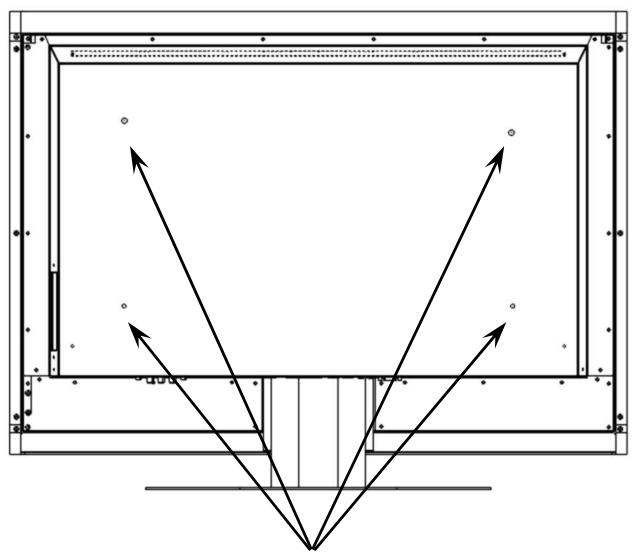
View of the back:
View from diagonally below:
Screwing-on points for the wall holder
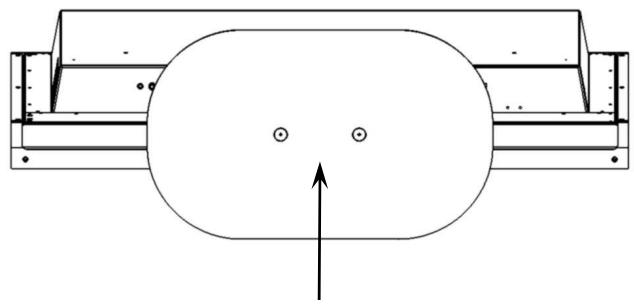
Attachment screws (Hexagon socket) for the base
INSTALLATION INSTRUCTIONS
- Place the TV device onto a stable and non-scratch pad with the screen facing downwards.
- Loosen the attachments screws for the base and remove them.
- Follow the Operating Instructions for the wall unit for the further steps of installing the wall unit on the device and on the wall.
Information: Please keep the uninstalled screws and the stand for a potential later disassembly.
14. TROUBLESHOOTING
Many times, problems have simple causes. We would like to give you some tips to solve some common problems. Should these tips not help, please call us!
There is no picture or sound.
- Make sure the AC adapter is properly inserted in the power outlet.
Make sure the input mode is set to correctly.
Make sure the main power switch of the main unit is on.
There is no picture. There is no picture from AV.
Make sure the Contrast/Brightness is properly adjusted.
Make sure all external devices are connected properly.
- Check that the correct AV setting has been selected.
There is no sound.
Make sure the volume is not set to minimum.
Make sure the sound is not set to mute.
Make sure that headphones are not connected.
There is no picture or sound, just noise.
The reception may be weak. Make sure the aerial is not disconnected.
Picture is not clear.
The reception may be weak.
Make sure the aerial is not disconnected.
The picture is too bright or too dark.
Check the settings of contrast / brightness / Backlight in the menu picture settings.
Remote control does not work.
- Check the batteries in the remote control are not flat.
Make sure the remote sensor window is not under strong lighting. - Switch the device on and on again with the main switch on the back of the device.
The picture is not sharp.
The reception may be weak.
Make sure the aerial is not disconnected.
- Check the settings of the picture sharpness and the noise reduction in the Picture Menu.
The picture jitters.
The reception may be weak.
Make sure the aerial is not disconnected.
The picture is doubled or tripled.
Make sure the aerial is facing the right direction.
There may be reflected electric waves from mountains or buildings.
The picture is spotted.
There may be interference from automobiles, trains, high voltage lines, neon light, etc.
There may be interference between the antenna cable and power cable. Try moving them further apart.
There are stripes on the screen or colours fade.
- Is the unit receiving interference from other devices? Transmission antennas of radio broadcasting station and transmission antennas of amateur radio and cellular phones may also cause interference.
- Place the unit as far apart as possible from device that may cause possible interference.
The Child lock cannot be deactivated.
Enter 1973 as the PIN number. The devices should be fully functioning again with this.
DO YOU REQUIRE ADDITIONAL SUPPORT?
If the suggestions in the above section have not solved your problem, please contact the hotline. We will try and help you over the telephone. However, before you contact your Technology Center, please keep the following information available:
- What additional peripheral devices are you using?
- What messages are appearing on the screen?
- During which operational step did the problem arise?
- How does your computer configuration look, if you have connected a PC to the device?
- What software were you using when the error occurred, if you have connected a PC to the device?
- What steps have you already taken to solve the problem?
- Give us your Customer Number, if you have already received one.
WARRANTY
We warrant to our customers that this product is free from defects in materials and workmanship as follows: for a determined period from the date of original purchase, defective parts or a defective product returned to a repair facility or an Authorized Service Facility ("ASF") for such product, as applicable, and proven to be defective upon inspection, will be exchanged for new or comparable rebuilt parts, or a refurbished product, as determined by the repair facility or the ASF.
any supplies or accessories, including but not limited to: software, blank media, user-installed drives, etc.
EXCLUSIONS: this limited warranty does not apply, and you will have no remedy hereunder with respect to (a) products that have been modified, opened, repaired or otherwise altered, except by an ASF, (b) products that have been damaged or destroyed after delivery to the customer, (c) any third party software, interfaces, parts, supplies, peripherals or other products or any defects resulting from use of the product in connection with such third party products, (d) defects resulting from improper or inadequate maintenance, calibration or site preparation, (e) defects resulting from any misuse, abuse, accident, neglect, negligence or any use other than in accordance with the handling or operating instructions provided, (f) defects resulting from exposure to unusual physical or electrical stress or from any operation other than in accordance with the published environmental specifications for the product. TO THE EXTENT ALLOWED UNDER APPLICABLE LAW, THE ABOVE WARRANTY ARE EXCLUSIVE AND NO OTHER WARRANTY OR CONDITION, WHETHER WRITTEN OR ORAL, IS EXPRESSED OR IMPLIED AND WE SPECIFICALLY DISCLAIM ANY IMPLIED WARRANTY, INCLUDING ANY IMPLIED WARRANTY OF MERCHANTABILITY OR FITNESS FOR A PARTICULAR PURPOSE AND NO IMPLIED WARRANTY APPLIES TO THE PRODUCT AFTER THE APPLICABLE PERIOD OF THE EXPRESS LIMITED WARRANTY STATED ABOVE. Some countries, states or provinces do not allow exclusions or limitations on the duration of an implied warranty, so the above limitation or exclusion might not apply to you. This limited warranty gives you specific legal rights and you might also have other rights that vary from country to country, state to state, or province to province.
Our limited warranty is valid in any country or locality where we have a support presence for this product and where we have marketed this product. The level of warranty service you receive may vary according to local standards. We will not alter form, fit or function of the product to make it operate in a country for which it was never intended to function.
TO THE EXTENT ALLOWED UNDER APPLICABLE LAW, THE REMEDIES IN THIS LIMITED WARRANTY STATEMENT ARE YOUR SOLE AND EXCLUSIVE REMEDIES. EXCEPT AS INDicated ABOVE, IN NO EVENT WILL OUR COMPANY OR ITS SUPPLIERS BE LIABLE FOR LOSS OF DATA OR FOR INDIRECT, SPECIAL, INCIDENTAL, CONSEQUENTIAL (INCLUDING LOST PROFIT OR DATA), OR OTHER DAMAGE, WHETHER BASED IN CONTRACT, TORT, OR OTHERWISE. IN NO EVENT SHALL RECOVERY OF ANY KIND AGAINST OUR COMPANY BE GREATER IN AMOUNT THAN THE PURCHASE PRICE OF THE PRODUCT SOLD BY US WHICH CAUSED THE ALGEGD DAMAGE. WITHOUT LIMITING THE FOREGOING, YOU ASSUME ALL RISK AND LIABILITY FOR LOSS, DAMAGE OR INJURY TO YOU AND YOUR PROPERTY AND TO OTHERS AND THEIR PROPERTY ARISING OUT OF USE OR MISUSE OF, OR INABILITY TO USE THE PRODUCT NOT CAUSED DIRECTLY BY THE NEGLIGENCE OF OUR COMPANY. Some countries, states or provinces do not allow the exclusion or limitation of incidental or consequential damages, so the above limitation or exclusion may not apply to you.
THE WARRANTY TERMS CONTAINED IN THIS STATEMENT, EXCEPT AS LAWFULLY PERMITTED, DO NOT EXCLUDE, RESTRICT OR MODIFY AND ARE IN ADDITION TO THE MANDATORY STATUTORY RIGHTS APPLICABLE TO THE SALE OF THIS PRODUCT TO YOU. Please note the following:
Be sure to keep your purchase receipt in a safe place. Our company, at its option, may require a copy of the receipt to validate the warranty period effective date (i.e. date of purchase). Warranty liability only applies to material or factory faults. It does not apply to damage due to breakage, for example, a crack in the housing. Our service includes unit exchange or send-in repair:
Unit Exchange
In locations where Unit Exchange is available, we will send you a replacement unit. You must return the defective unit to our company (using the shipping carton that the new one came in.)
Send-In Repairs
In locations where Send-In Repair Service is available, repair service can be obtained by shipping your unit to the Repair Center. The unit will be repaired and returned to you.
For either Unit Exchange or Send-In Repairs, you must have an authorized RMA number from our support before shipping your defective product.
Replacement products may be either new or equivalent in performance to new. Replacement or repaired products may contain remanufactured parts equivalent to new in performance or may have been subject to incidental use.
Out-of-Warranty Support
In addition to providing free technical support during the warranty period, We are also available to support your product after the warranty period has ended. This out-of-warranty support will be provided on a fee basis.
DUPLICATION OF THE INSTRUCTIONS FOR USE / TECHNICAL DATA
The documents contain legally protected information. All rights reserved. Duplication in a mechanical, electronic or any other form is forbidden without the written authorization of the manufacturer.
FLAT PANEL TV
CE
GEBRAUCHSANWEISUNG
Copyright © 2007
REGLAGES D'APPAREILS EXTERNES (IMAGE, SON, NOM, ETC.)
- Position horizontal:
CONDITIONS DE GARANTIE
RECYCLING EN AFVALVERWERKING
schakelt de TV in of in stand-by