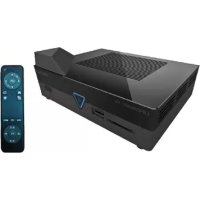
LIFE P85252 (MD 86883) - Television MEDION - Free user manual and instructions
Find the device manual for free LIFE P85252 (MD 86883) MEDION in PDF.



| Product type | Multimedia TV (Lifesmart TV) |
| Brand and model | Medion LIFE P85252 (MD 86883) |
| Dimensions (W x H x D) | Approx. 15.9 x 6.1 x 12 cm |
| Weight | Approx. 400 g |
| Power supply | AC adapter 12 V === 1.5 A (Ktec KSAS0241200150HE) |
| Standby power consumption | < 0.5 W (with USB charging function disabled) |
| Operating system | Android 4.0 |
| Connectivity | WiFi 802.11 b/g/n, LAN RJ45 10/100 Mbps, Bluetooth (gyroscopic remote control) |
| Video outputs | HDMI (type A), AV (3.5 mm jack) |
| Audio output | HDMI, optical SPDIF (Toslink), analog AV |
| USB ports | 2 USB 2.0 ports (front and rear, up to 2 TB) |
| Card reader | SD/SDHC (front) and microSD/SDHC (rear), up to 32 GB |
| Supported video formats | MPG, MPEG, AVI, WMV, MP4, MOV, DAT, VOB, MKV, TS, 3GP, FLV |
| Supported audio formats | MP3, WMA, WAV, AAC, OGG |
| Supported photo formats | JPG, BMP, PNG, GIF |
| File systems | FAT16, FAT32, NTFS |
| Remote control | Gyroscopic with rechargeable battery (mini-USB), range ~7 m |
| Main functions | Media player, Internet browser, YouTube, Medion portal, weather, Android apps, voice input |
| Maintenance and cleaning | Disconnect before cleaning; use a soft, dry cloth; no solvents |
| Safety | Do not open the housing; keep out of reach of children; use only the supplied adapter |
| Spare parts and repairability | AC adapter, remote control, HDMI and AV cables supplied; repair by Medion after-sales service only |
| General information | Operating temp. 5-35°C, humidity 5-65%; recycling according to local regulations |
Frequently Asked Questions - LIFE P85252 (MD 86883) MEDION
User questions about LIFE P85252 (MD 86883) MEDION
0 question about this device. Answer the ones you know or ask your own.
Ask a new question about this device
Download the instructions for your Television in PDF format for free! Find your manual LIFE P85252 (MD 86883) - MEDION and take your electronic device back in hand. On this page are published all the documents necessary for the use of your device. LIFE P85252 (MD 86883) by MEDION.
USER MANUAL LIFE P85252 (MD 86883) MEDION
3. Notes on conformity.... 10
3.1. R&TTE conformity statement 10
4. Lieferumfang 11
natural_image
Diagram of a network device connection showing a monitor, router, and server with cable routing (no text or labels)Development Co LTD, China
1. Notes on how to use these instructions .... 65
1.1. Proper use 66
2. Safety instructions
2.1. Keep electrical equipment out of reach of children .....67
2.2. General points 67
2.3. Use of rechargeable batteries ....68
2.4. Set-up location 69
2.5. Never attempt to repair the device! 70
2.6. Cleaning and care ....70
2.7. Data backup 70
2.8. Power supply 71
3. Notes on conformity 72
3.1. R&TTE conformity statement 72
4. Purchased parts package 73
5. General points
5.1. Playable formats 74
5.2. File systems 74
5.3. Indicator symbol 74
6. Product parts 75
6.1. Front 75
6.2. Rear....75
6.3. Remote control 76
7. Start of operation 78
7.1. Connection process (rear)....78
7.2. Connection process (front)......80
8. Using the gyro remote control 81
8.1. Switching the gyro remote control on and off....81
8.2. Connecting the gyro remote control manually ....81
8.3. Using the mouse function on the remote control .....81
8.4. Charging the gyro remote control....82
9. Operation 83
9.1. Switching on and off ....83
9.2. Using the product for the first time 84
9.3. Network set-up 84
9.4. Main menu 88
10. Operation 89
10.1. Volume setting....89
10.2. Navigating through the menus 89
10.3. Using the on-screen keyboard 89
11. Using the microphone 91
11.1. Voice search settings .....92
12. View favourites 93
12.1. Edit favourites 93
13. Weather display in main menu 94
13.1. Location entry for AccuWeather....94
13.2. Extended weather report 96
14. Internet browser 98
14.1. Browser controls 98
15. Media Player 100
15.1. My Media 101
15.2. Playback 102
15.3. Extended options 102
16. Media Library/portal 104
16.1. Portal functions 104
16.2. Online registration of Lifesmart TV 106
17. YouTube 109
18. Apps.... 110
18.1. Apps installed on the Lifesmart TV 110
18.2. Market 110
18.3. Installing apps from external data carriers 111
18.4. Delete.... 112
19. Setup main menu.... 113
19.1. System Setup.... 113
19.2. TV Mode Setup 115
19.3. Network Setup.... 116
19.4.Version 117
20. Troubleshooting 118
20.1. Troubleshooting.... 118
21. Do you need more help? 120
22. Cleaning 120
23. Disposal 121
24. Technical data 122
1. Notes on how to use these instructions

Please read these operating instructions through carefully before using the product for the first time and, most importantly, follow the safety instructions even if you are familiar with using electronic equipment!
This product should only be used as directed and specified in these instructions.
Please keep these instructions in a safe place for future reference and pass them on with the product to any new owner.
Warning symbols and keywords used in these instructions
 | DANGER!Warning of immediate risk of fatal injury.WARNING!Warning of possible risk of fatal injury and/or serious irreversible injuries. |
 | WARNING!Warning of risk of electric shock. |
 | CAUTION!Please follow the instructions to prevent injuries and property damage.ATTENTION!Please follow the instructions to avoid property damage. |
 | PLEASE NOTE!Please follow the instructions in the operating manual. |
 | PLEASE NOTE!Additional information on using the product. |
| • Bullet | point / information on operating steps |
| ▶ Instructions to be carried out | |
1.1. Proper use
This product is designed to play media via connected data carriers or over the network or internet. The product can be connected to a television and/or an audio system for the picture and sound output.
This product is designed for indoor use only in dry conditions.
The product is intended for private use only and not for industrial or commercial use.
Please note that we shall not be liable in cases of improper use:
- Do not modify the product without our consent and do not use any auxiliary equipment which we have not approved or supplied.
- Use only spare parts and accessories which we have supplied or approved.
- Heed all the information in these operating instructions, especially the safety information. Any other use is deemed improper and can cause personal injury or damage to the product.
- Do not use the product in extreme environmental conditions.
2. Safety instructions
2.1. Keep electrical equipment out of reach of children
This product is not intended for use by people (including children) with reduced physical, sensory or mental capacity or for those without experience and/or knowledge, unless they are supervised by a person responsible for their safety or they have been instructed in its use.
Never allow children to use electrical equipment without supervision.

DANGER!
Keep packaging material, e.g. plastic bags, out of reach of children. Failure to do so may lead to suffocation.
2.2. General points
- Never open the casing (risk of electric shock, short circuit and fire hazard).
- Never insert any objects through the slots and openings (risk of electric shock, short circuit and fire hazard).
- The slots and openings on the product are for ventilation purposes. Do not cover these openings (risk of overheating, fire hazard).
- The remote control has a class 1 infrared diode. Never use optical devices to look at the LED.
- Do not place containers containing liquid, e.g. vases, on or near the product or the mains adapter, and protect all the parts from water droplets and splashes. The container may tip over and the liquid may impair the electrical safety of the product.
- If the mains adapter, cable or product is damaged, disconnect the plug from the power supply immediately.
- If the product has been moved from a cold room to a warm
room, wait a while before connecting the mains adapter.
The ensuing condensation could damage the product. The product can be plugged in and operated safely as soon as it reaches room temperature.
2.3. Use of rechargeable batteries
Batteries may contain combustible materials. If not handled properly, rechargeable batteries may leak, heat up excessively, ignite or even explode, which could result in damage to the product and your health.

WARNING!
Risk of explosion if rechargeable batteries are replaced incorrectly.
Replace rechargeable batteries with the same or equivalent type only.
Please note the following safety advice:
- Rechargeable batteries can be fatal if swallowed. Therefore keep the remote control and batteries out of reach of small children. If a rechargeable battery is swallowed, it is essential to seek medical assistance immediately.
• Always observe the correct polarity. - Never discharge the batteries by excessive power output.
- Never short-circuit the batteries.
- Never expose the batteries to excessive heat, such as sunlight, fire, strong artificial light, etc.
- Do not dismantle or deform the batteries. You could injure your hands or fingers, or battery fluid could come into contact with your eyes or skin. If this happens, rinse the affected areas with plenty of clean water and consult a doctor immediately.
- Avoid heavy knocks and vibrations.
- If necessary, clean the contacts on the batteries and on the product before inserting the batteries.
-
Remove used batteries from the product immediately.
-
Recharge flat batteries immediately to prevent damage.
- Remove the batteries from the product if you do not intend to use it for a relatively long period of time.
- Cover the contacts of the batteries with adhesive tape if you want to store the batteries or dispose of them.
2.4. Set-up location
Set up and operate all the components on a stable, level and vibration-free surface to prevent the device from falling down.
Do not jolt or shake the device. Jerks and vibrations may damage the sensitive electronics.
Make sure that the product is not in the immediate vicinity of heat sources (e.g. heaters or strong artificial light).
Do not place naked flames (e.g. lit candles) on or near the product.
Make sure that the vents are never covered so as to ensure that there is always adequate ventilation.
Do not place any objects on the cables as they may get damaged.
- Position the product and mains adapter at a minimum distance of approx. 10 cm from the wall. Ensure adequate ventilation.
- Do not use the product outdoors as it could be damaged by rain, snow, etc.
- Keep the product at least one metre away from sources of high-frequency and magnetic interference (television set, loudspeakers, mobile telephones, etc.) in order to avoid malfunctions.
- Major changes in temperature or fluctuations in humidity can cause moisture to build up inside the product due to condensation and may ultimately cause an electrical short circuit. Therefore always wait until the product has reached room temperature before putting it into operation.
2.5. Never attempt to repair the device!
If the mains adapter, cable or product is damaged, disconnect the plug from the power supply immediately.
Do not use the product if the product or the cable is visibly damaged or if the product has been dropped.

WARNING!
Never try to open and/or repair the product yourself. There is a risk of electric shock!
If there is a fault, contact the MEDION Service Centre or another specialist repair shop in the interests of safety.
2.6. Cleaning and care
• Always disconnect the product from the mains supply before cleaning it.
- Only use a dry, soft cloth to clean the device. Do not use chemical solutions and cleaning products because these may damage the surface and/or the inscriptions on the product.
2.7. Data backup
- Caution! Back up your data on external storage media after each update. We do not accept any liability for claims for compensation arising from loss of data or any damages incurred as a result.
2.8. Power supply
Please note: Even in standby mode some parts of the product are live. To disconnect the power supply to the product or to isolate the product entirely from voltage sources, disconnect the product from the mains completely by unplugging the power adapter.
- Plug the mains adapter into AC 100-240 V\~ 50 Hz earthed sockets only. Contact the local electricity provider if you are not sure if the socket is earthed or not.
- Use only the mains adapter supplied (Ktec KSAS0241200150HE). Never try to plug the mains adapter into other sockets as this may cause damage.
- The product uses electricity in standby mode due to the remote control charging function.
- For extra safety, we recommend using an overvoltage protector to prevent the product from being damaged as a result of power surges or lightning strikes.
- Do not use the product during thunderstorms. There is a risk of damage from lightning. Disconnect the product from the mains completely during a thunderstorm by unplugging the adapter.
- To disconnect the power supply, unplug the mains adapter from the socket.
- The mains adapter must still be easily accessible when connected so that it can be unplugged quickly in an emergency or in case of danger.
- Do not cover the mains adapter in order to avoid the risk of overheating.
-
Never touch the mains adapter with wet hands! There is a risk of electric shock!
-
If you are using an extension cable, make sure that it complies with VDE requirements. If in doubt, contact your electrician.
- Position the cables so that they cannot be stepped on or tripped over.
- Do not place any objects on the cables as they may get damaged.
3. Notes on conformity
This product complete with On/Off function satisfies the basic requirements and relevant regulations of the Ecodesign Directive 2009/125/EC (Commission Regulation 1275/2008). Under the Ecodesign Directive, a standby function is only supported if the "USB charging function in standby mode" has been set to OFF in the system configuration (cf. "USB charging function in standby mode" on page 114).
3.1. R&TTE conformity statement
MEDION AG hereby declares that the product MD 86883 complies with the requirements of the European R&TTE directive 1999/5/EC (incl. the essential requirements of EMC directive 2004/108/EC and the low-voltage directive 2006/95/EC), the Eco-design directive 2009/125/EC and the RoHS directive 2011/65/EU.
Full declarations of conformity are available at www.medion.com/conformity.
4. Purchased parts package
Please check your purchase to ensure that all the items are included and contact us within 14 days of purchase if any parts are missing.
The following items are supplied with the product you have purchased:
• Lifesmart TV MD 86883
- Mains adapter (Ktec KSAS0241200150HE)
- Remote control including block battery
- USB charging cable for remote control
- HDMI cable
• Video/audio cinch cable
- Operating instructions
- Warranty card

DANGER!
Keep packaging material, e.g. plastic bags, out of reach of children. Failure to do so may lead to suffocation.
5. General points
5.1. Playable formats
This product has playback and write capability for a number of file formats. The table below shows the compatible file formats for different media types.
| Media type File formats | |
| Video MPG, MPEG | AVI, WMV, MP4, MOV, DAT, VOB, 3GP, FLV, MKV, TS, M2TS |
| Audio MP3, WMA | WAV, AAC, OGG |
| Photo JPG, BMP, P | NG, GIF |

NOTE
The playback of all formats cannot be guaranteed due to the large number of different codecs.
5.2. File systems
Your Lifesmart TV supports the file systems FAT16, FAT32 and NTFS.
5.3. Indicator symbol
The "symbol may appear on the television screen during operation to indicate that the function covered in the user manual is not available for this operating mode.
6. Product parts
6.1. Front
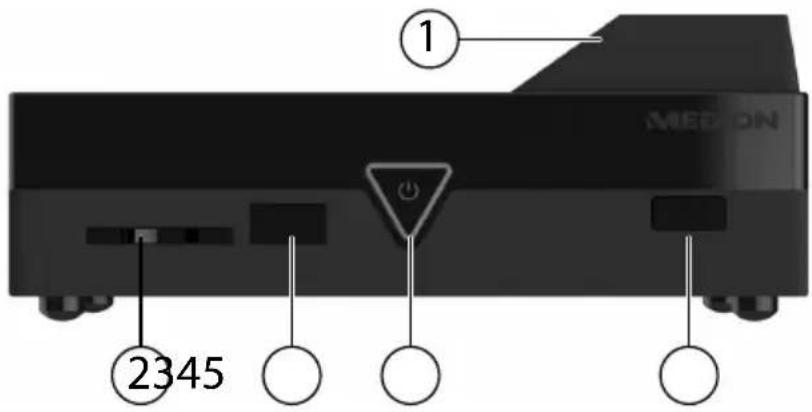
1) WLAN transmitter (under the cover)
2) SD/SDHC: SD/SDHC card slot
3) USB: USB socket
4) Standby/On (standby LED):
Press to switch product on/off.
Goes out when switched off; red in standby mode; blue when switched on
5) Remote control sensor
6.2. Rear
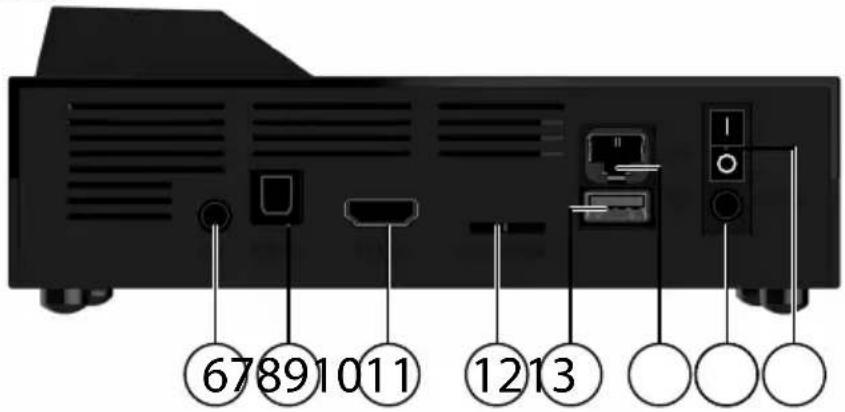
6) AV OUT: Analogue audio/video output
7) SPDIF: Digital optical audio output
8) HDMI: HDMI output
9) microSD: microSDHC card slot
10) USB: USB socket
11) RJ45: LAN socket
12) DC: Socket for mains adapter
13) On/Off switch
6.3. Remote control
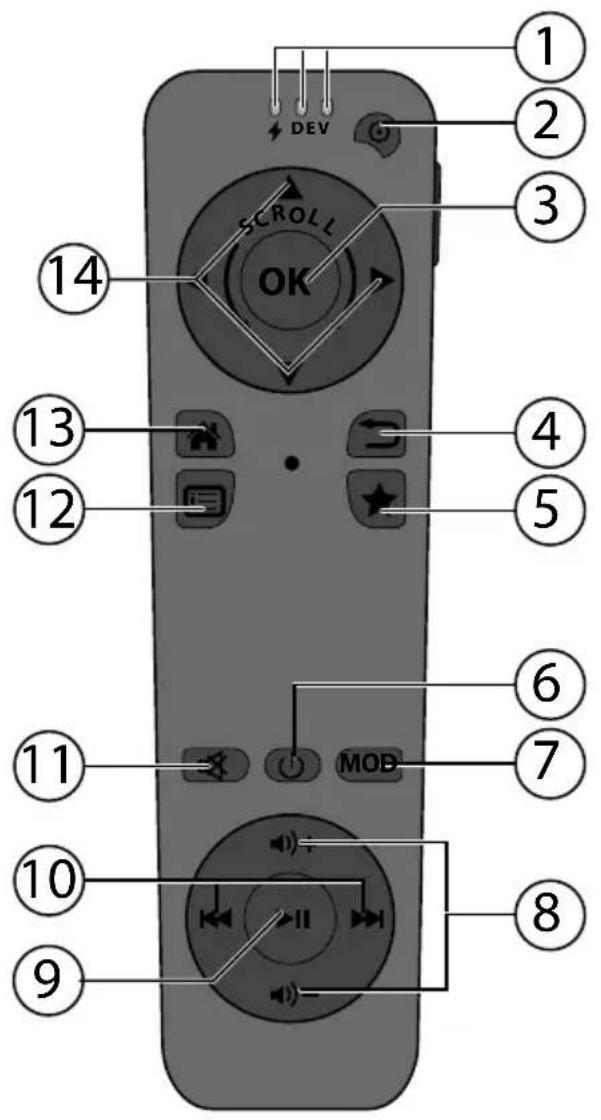
1) Status LEDs:
- - Flashes purple rapidly on connection to Lifesmart TV;
- Lights up blue when connected to Lifesmart TV and when Lifesmart TV is switched on;
- Flashes red while charging when not connected to
Lifesmart TV;
- Lights up red when battery is fully charged when not connected to Lifesmart TV.
Middle LED: Voice input active
Right LED: No function
2) POWER: Remote control on/off switch
3) OK: Confirm entries
4) ← RETURN: Return to last menu
5) ★ Favourites: Set bookmark
6) Standby/On: Switch on Lifesmart TV/ switch to standby mode
7) MOD: Not assigned/ button reserved for future functions
8) —/+: Increase/decrease volume
9) ▶ II PLAY/PAUSE: Start/pause playback in Media Player
10)
SKIP/SEARCH: Press to go to previous/next track; keep pressed to run search
backwards/forwards
11) ✗ MUTE: Switch sound on/off; keep pressed to connect/disconnect remote control
12) ☐ Menu button: View system settings; view program options/context menus
13) HOME: View main menu
14) Navigation buttons/controls
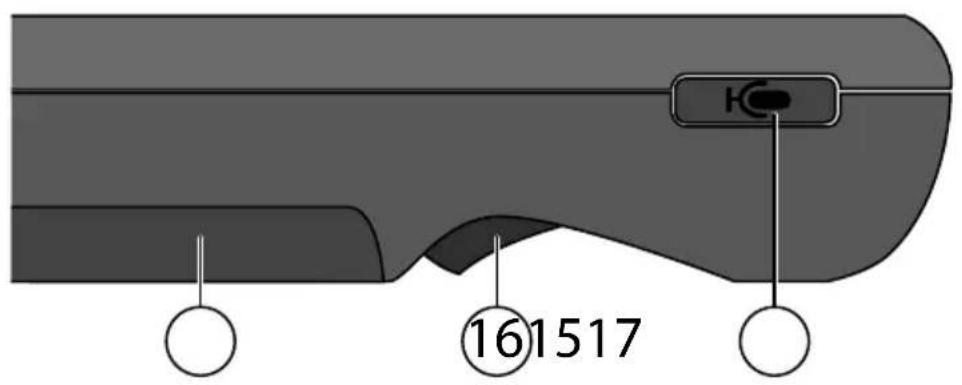
15) Battery compartment
16) Cursor control: Place finger on the control to activate mouse function; click to select buttons and entries
17) ☐ Microphone button: Start Google search by voice command
7. Start of operation
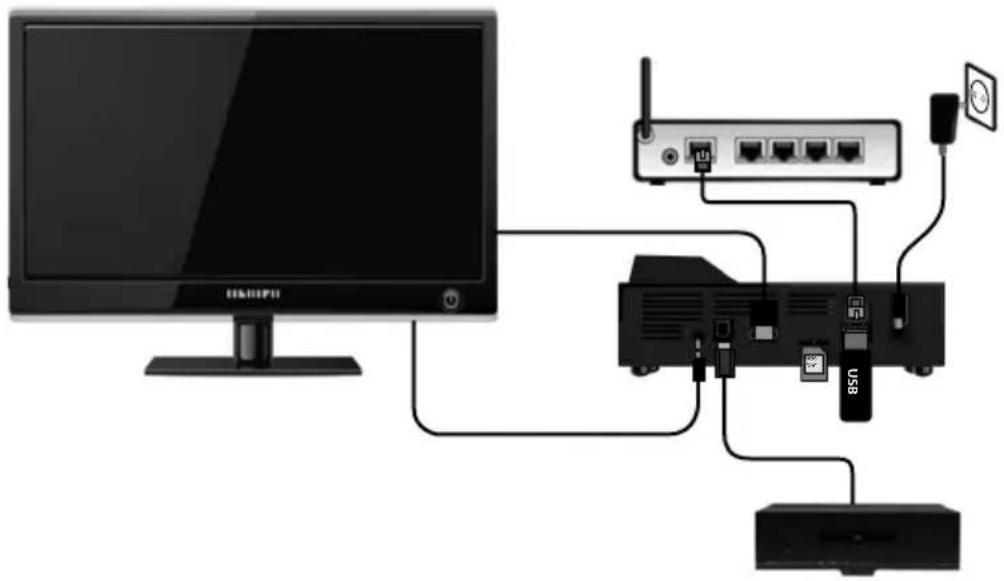
7.1. Connection process (rear)
natural_image
Diagram of a network device connection showing a monitor, router, switch, and power supply (no text or labels)Connecting the Lifesmart TV to a television/monitor with HDMI socket
The best way to connect your Lifesmart TV to a television or monitor is to use the HDMI cable supplied with the product. An HDMI connection is ideal because video and audio signals are transmitted and output on your television or monitor. The right image format is also automatically worked out and configured, provided that the format setting on the HDMI input on your television or monitor is set to "Auto".
Connect the HDMI cable to the HDMI socket on the Lifesmart TV and to the corresponding HDMI port on the television/monitor.

INFORMATION ABOUT THE HDMI CONNECTION
If your television does not have Dolby digital decoder or MPEG decoder, go to the Setup main menu and set the option [TV Mode Setup] sub-menu [HDMI Audio Mode] to [PCM Stereo] (see Page 115).
- Please note the following points when connecting an HDMI-compatible device:
–Switch the television and the Lifesmart TV off. Now switch on the television, wait approx. 30 seconds and then switch on the Lifesmart TV.
—The video input on the television must be set to the Lifesmart TV.
–The television must support HDMI resolutions.
Connecting the Lifesmart TV to a television with AV socket
Using the audio/video cable supplied, connect the AV OUT port on the Lifesmart TV to the audio/video inputs on the television. This output only supports PAL resolutions. If you want to enjoy the full benefit of HD, you will need to use the HDMI output.
Digital optical connection
In order to transmit the digital audio signals to a digital audio unit, connect the SPDIF port on the Lifesmart TV to the corresponding socket on your digital audio unit (e.g. an A/V amplifier) with an optical fibre cable (Toslink cable - not supplied with the product).
Network connection
Connect the RJ45 socket on the Lifesmart TV to a network interface (e.g. a router) using a network cable with the correct plug fitting. This will allow the Lifesmart TV to access enabled files in the network and to receive internet data subject to the configuration of the router.
Connecting USB data carriers
Connect a USB unit with removable disk function (e.g. digital camera, USB hard drives, USB sticks, etc.) to the USB port on the rear of the product.
7.2. Connection process (front)
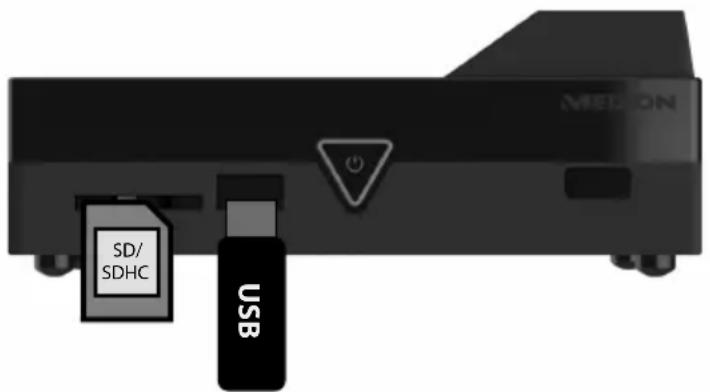
Connecting USB data carriers
Connect a USB unit with removable disk function (e.g. digital camera, USB hard drives, USB sticks, etc.) to the USB port on the front of the product.
Connection for SD/SDHC memory cards
Insert a memory card (SD/SDHC type) in the slot on the front of the product to view the files on the card.

PLEASE NOTE!
Your Lifesmart TV is compatible with SD, SDHC and MMC memory cards.
Connecting the mains adapter
Connect the power supply plug on the mains adapter supplied (KSAS0241200150HE) to the DC IN socket on the product.
▶ Once you have made all the connections, plug the mains adapter into a socket (AC 230 V \~ 50 Hz). Please refer to the technical data on Page 122 for the mains adapter specifications.
8. Using the gyro remote control
The position sensor in the gyro remote control supplied with the product can interpret your gestures and can therefore be used like a computer mouse on the user interface of the Lifesmart TV.
8.1. Switching the gyro remote control on and off
▶ Press the Ⓞ POWER button on the remote control and keep it pressed for about three seconds to switch on the remote control.
The sound of two short, low-pitched beeps will signal that it is switched on.
- The remote control will then establish the wireless connection to the Lifesmart TV.
- While the remote control is searching for a connection to the Lifesmart TV, the Power LED will be purple and will flash rapidly.
- Once the connection has been made, the Power LED will turn blue and will stop flashing.

PLEASE NOTE!
This will only work if the remote control is within the range of the Lifesmart TV (approx. seven metres) and the Lifesmart TV is switched on!
Switching off the remote control
To switch the remote control off, press the ⚙ POWER button again and keep it pressed for about three seconds.
The sound of one short, high-pitched beep will confirm that it is switched off.
8.2. Connecting the gyro remote control manually
If the link (connection) to the Lifesmart TV cannot be established, you can also start the connection process manually by pressing the ⚡MUTE button on the remote control (with the remote control switched on) and keeping it pressed until you feel a short vibration.
The gyro remote control will now link up to the Lifesmart TV again.
8.3. Using the mouse function on the remote control
In order to move the cursor on the screen, place your index finger on the cursor control on the underside of the remote control and move the remote control up and down and to the left and right.
▶ Press the cursor control in order to select a button on the screen. The movement will stop when you take your finger off the cursor control.
8.4. Charging the gyro remote control
The gyro remote control is supplied with a rechargeable battery already fitted. Before you use the remote control, charge it using the USB cable supplied.
▶ To do this, switch the remote control off.
Using the USB cable supplied, connect the Mini USB port on the remote control to the USB port on the Lifesmart TV.

PLEASE NOTE!
The charging function will also be available in standby mode if you go to the system settings and set the "USB charging function in standby mode" to ON (see Page 114).
Alternatively, you can also charge the gyro remote control on a PC or a USB mains adapter.
- The status LED lubsuit will turn red and flash during the charging process.
- When the battery is fully charged the status LED will stop flashing and stay permanently red.
Checking the battery status
▶ You can have the battery status displayed by the status LED ✦ by pressing the ⓄPOWER button on the remote control briefly. The POWER LED indicates the battery status through the number of red flashes:
| Status LED flashes four times | >80% battery power |
| Status LED flashes three times | >60% battery power |
| Status LED flashes twice | >40% battery power |
| Status LED flashes once | >20% battery power |
| Constant red flash Battery needs charging | |
9. Operation
9.1. Switching on and off
If you have connected the product to the power supply using the mains adapter, the ⏻ Standby/On button on the product will light up red.
▶ Press the ⏻ Standby/On button on the remote control or the ⏻ Standby/On button on the product to switch on the Lifesmart TV. The MEDION logo will appear on the start-up screen. The ⏻Standby/On button on the product will light up blue.
In order to switch the product to standby mode, press the ⏻ Standby/On button on the remote control or on the product. The ⏻ Standby/On button on the product will light up red in standby mode.
▶ Press the ⏻ Standby/On button on the remote control or the ⏻ Standby/On button on the product again to take it out of standby mode.

PLEASE NOTE!
You need to point the remote control at the Lifesmart TV if you want to switch the product on or off by the ⏻ Standby/On button. All the other functions are controlled wirelessly and the remote control need not be pointed at the Lifesmart TV.
9.2. Using the product for the first time
When using the product for the first time, start by selecting the menu language and enter the country in which you are located.
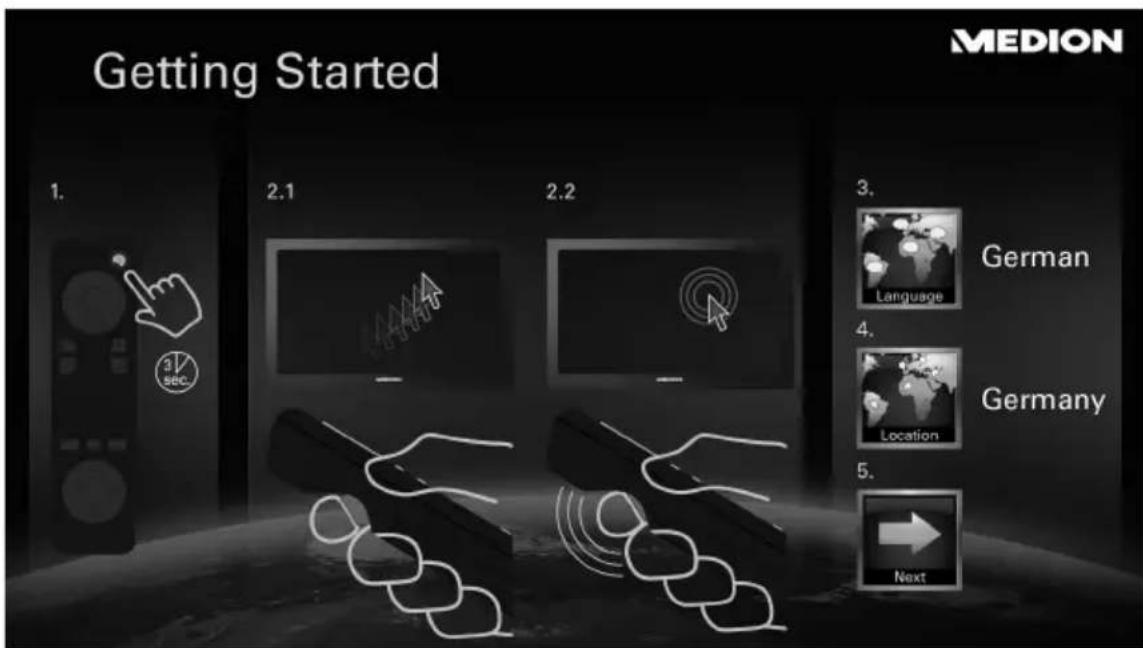
▶ Select NEXT ▶ to start the Lifesmart TV.
The main menu will appear.
9.3. Network set-up
After you have selected the language and country, the Network Setup menu will appear and the Lifesmart TV will display the networks available for a WLAN connection.
If there is already an internet connection via an existing LAN cable, the Lifesmart TV will automatically be connected to the network. In this case select "use LAN connection instead of wireless" and when the connection has been made click on "Continue".

PLEASE NOTE!
You can also access the Network Setup menu via the Settings menu ([Set up] -> [Network Setup]). If you want to set up a LAN connection, please refer to section ""LAN connection" on page 87".
WLAN connection
If no network connection has been detected via the LAN cable, your Lifesmart TV will automatically scan the available WLAN networks and display a list of the available networks.

PLEASE NOTE!
You can also search for available WLAN networks by selecting WLAN for the network type ([Network Type] -> [WLAN]).
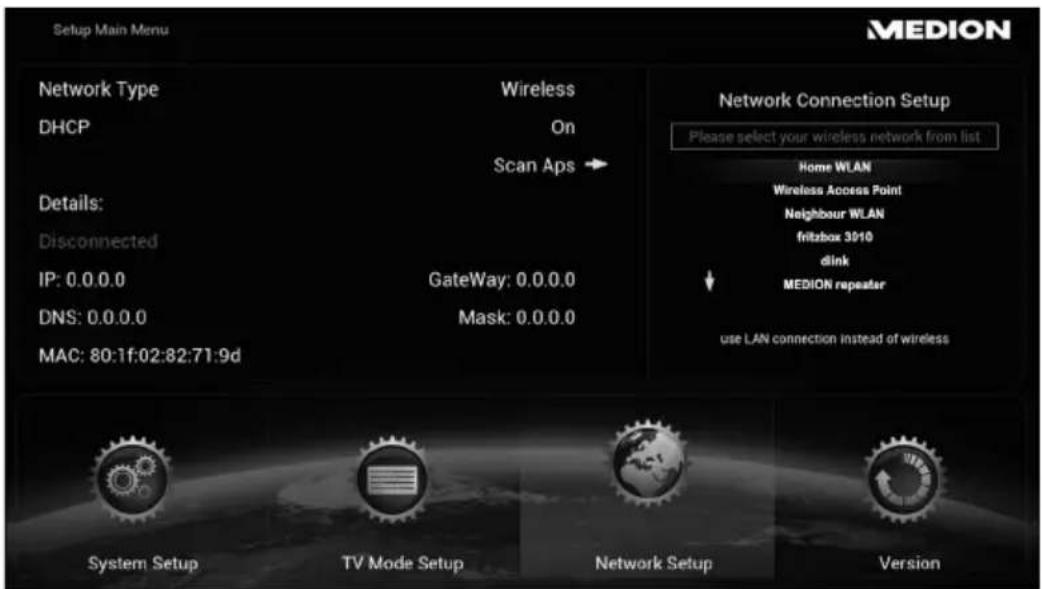
Now select your WLAN network.
▶ After you have selected your WLAN network you will be asked to enter the password for your network.
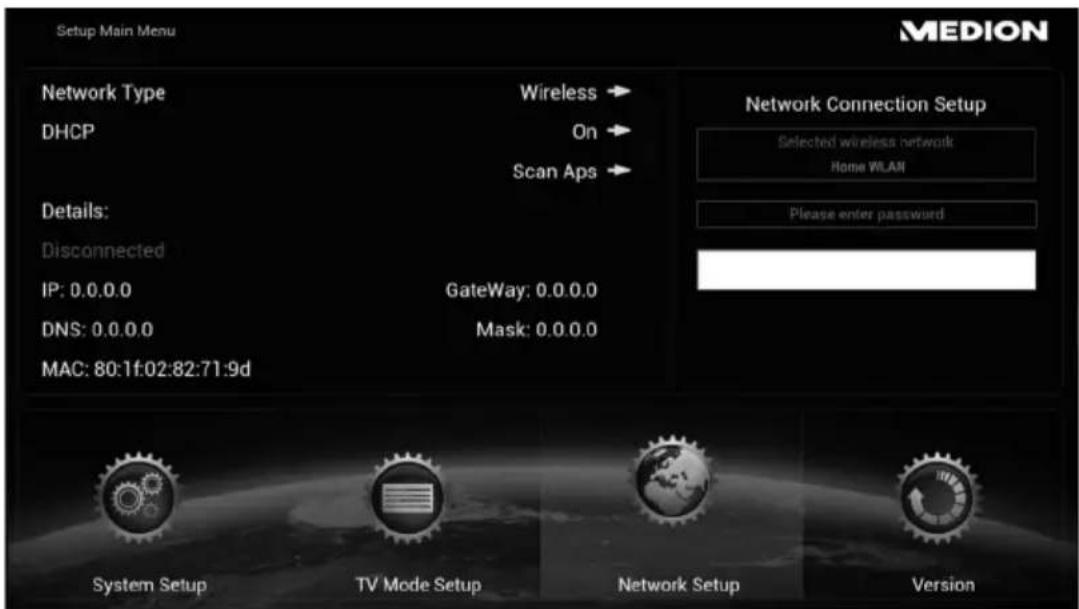
Click in the password box and enter the password using the on-screen keyboard (cf. also "10.3. Using the on-screen keyboard" on page 89).
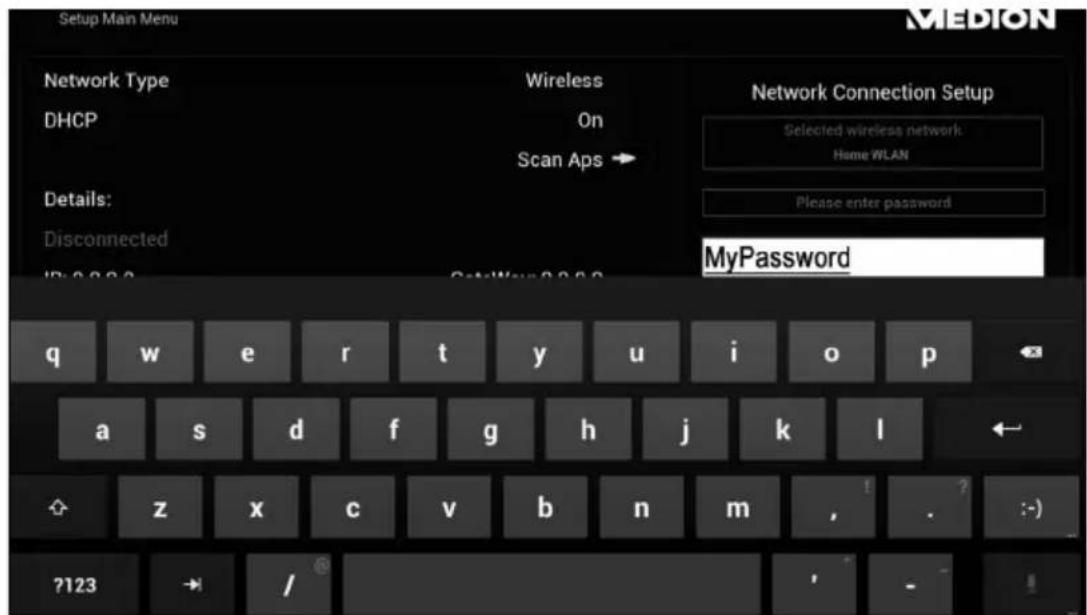
▶ Click on the ENTER symbol on the on-screen keyboard to confirm your entry.
The Lifesmart TV will then connect to the internet.
If the connection fails, you will be asked to check the password and to repeat the connection attempt.
Click on "Retry" to start another attempt at connection.
▶ Once connection with the internet is confirmed, click on "Continue" to get to the main menu.
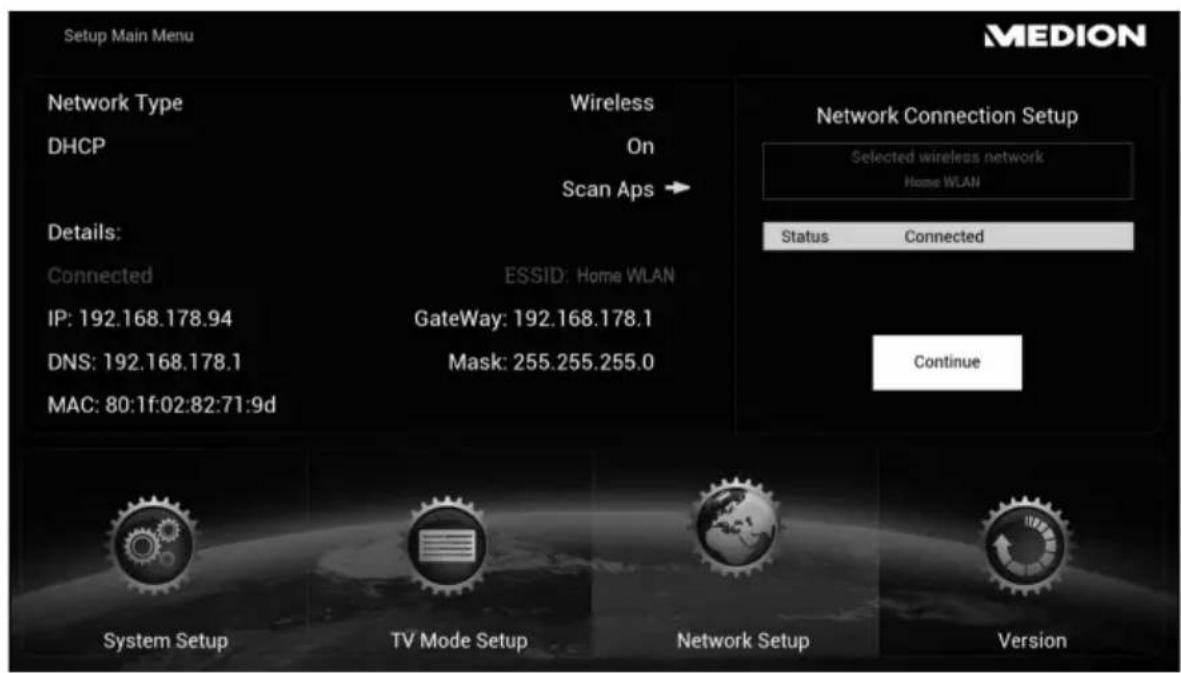
Optional: switch off DHCP server
If your Lifesmart TV cannot source IP addresses automatically from the router set the DHCP option to OFF.
▶ Enter a static IP address, a subnet mask, the DNS server and a gateway for the internet connection in the next dialogue box. The Lifesmart TV will then use this static IP address to log onto the network.
LANconnection
If you subsequently want to set up a LAN connection for the internet link, connect the LAN cable supplied with the product to your Lifesmart TV and an RJ45 network socket or to your router.
The Lifesmart TV will automatically be connected to the internet if an internet connection has been detected by the network link.
▶ Once connection with the internet is confirmed, click on "Continue" to get to the main menu.
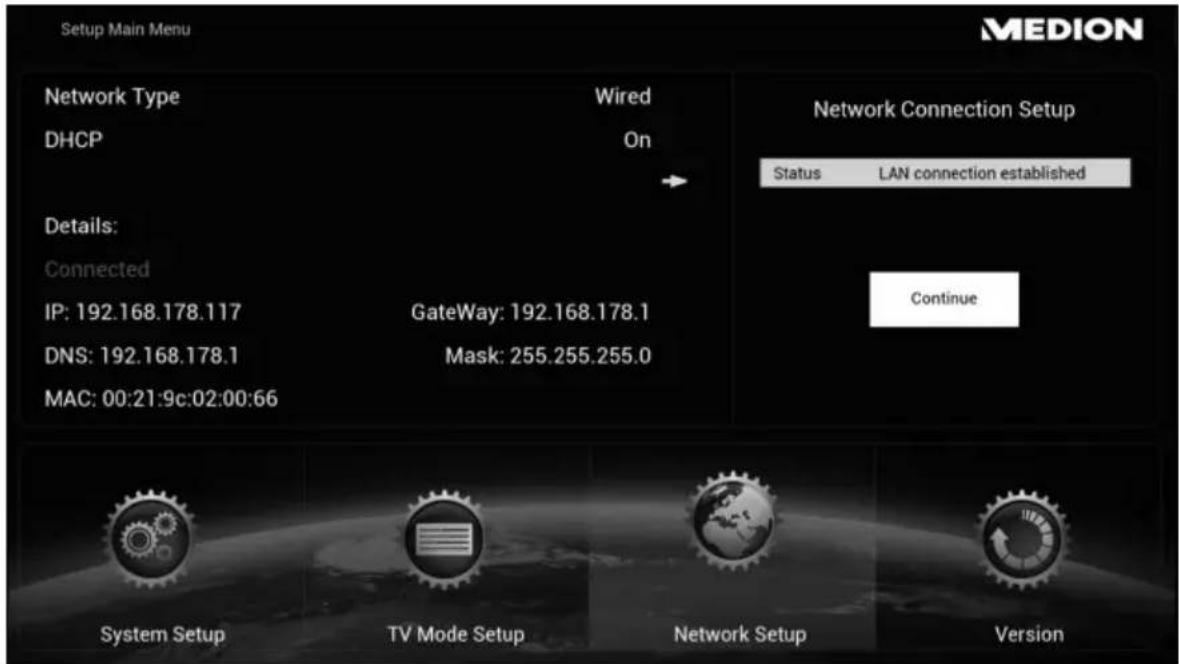
Optional: switch off DHCP server
If your Lifesmart TV cannot source IP addresses automatically from the router set the DHCP option to OFF.
Enter a static IP address, a subnet mask, the DNS server and a gateway for the internet connection in the next dialogue box. The Lifesmart TV will then use this static IP address to log onto the network.
9.4. Main menu
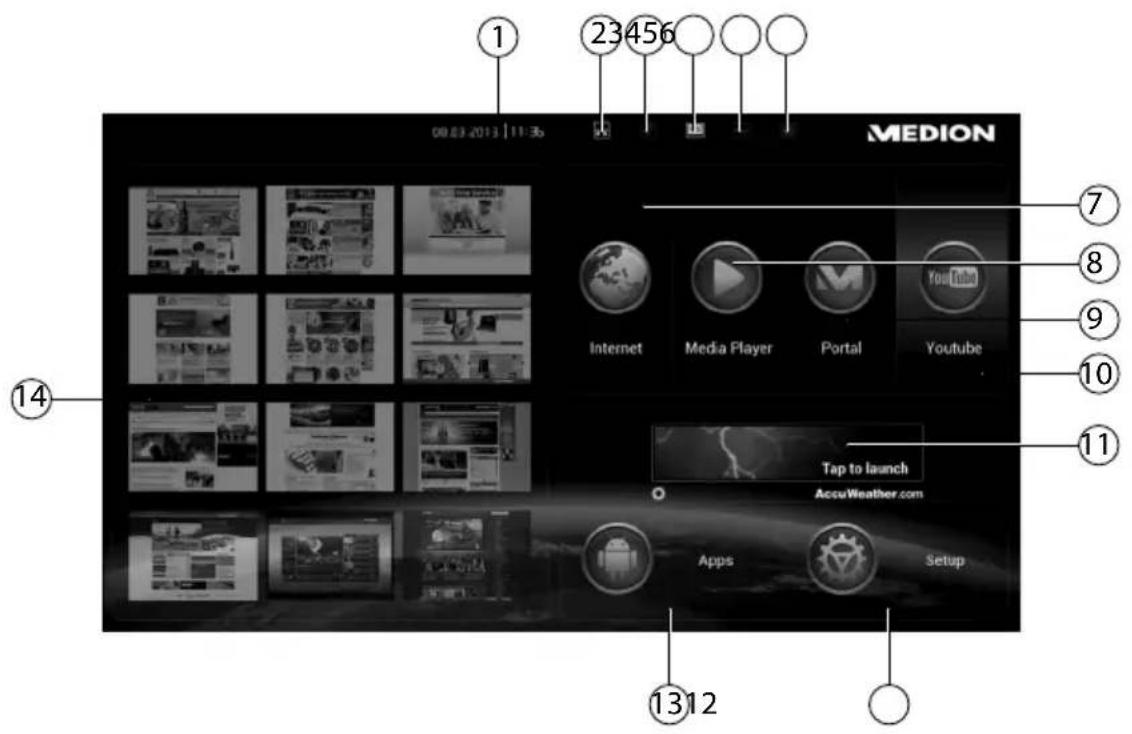
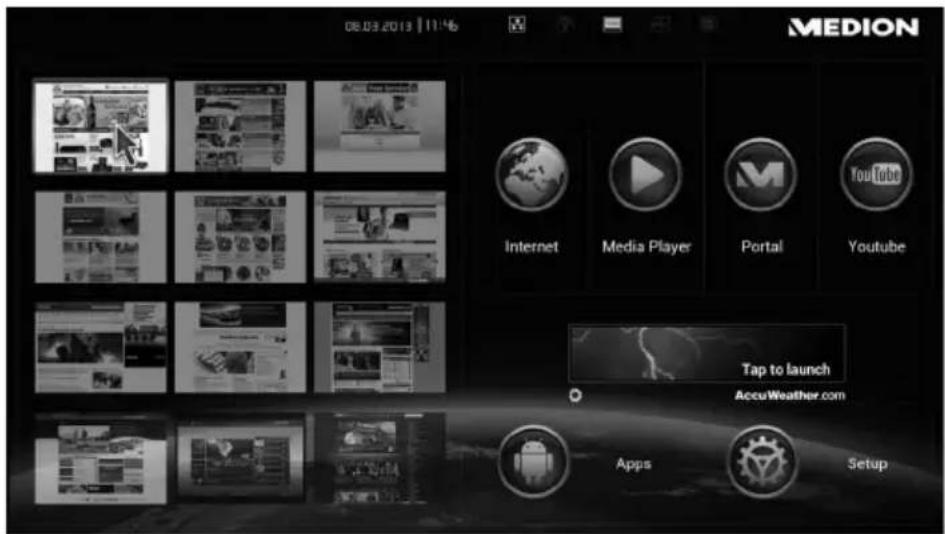
1) Time and date
2) LAN status (click on this symbol to view the network settings)
3) WLAN status (click on this symbol to view the network settings)
4) HDMI status (click on this symbol to view the TV mode settings)
5) USB display (appears in white if a storage device is connected)
6) SD/SDHC memory card display (appears in white if a storage device is connected)
7) Open internet browser
8) Open Media Player
9) Open MEDION Media Library
10) Open YouTube
11) Display local weather information
12) View settings
13) Open App Manager
14) Favourites preview
10. Operation
10.1. Volume setting
▶ Press the ⏻—/◀) + buttons on the remote control to decrease/increase the volume. The volume level is shown on the screen.
10.2. Navigating through the menus
In addition to the gesture control facility, you can navigate through the menus using the remote control buttons.
▶ Use the ◀ ▶ ▲ ▼ navigation buttons to select menu items and change settings in the menus.
▶ Press OK or the cursor control to confirm a menu entry.
▶ Move your finger in a circle around the mount with the navigation buttons to scroll up and down (e.g. on websites).
▶ Press ← RETURN to go back a level in the menu.
▶ Press ⚡ HOME to return to the main menu from any setting/application.
10.3. Using the on-screen keyboard
In some menus a keyboard appears on the screen for text input:
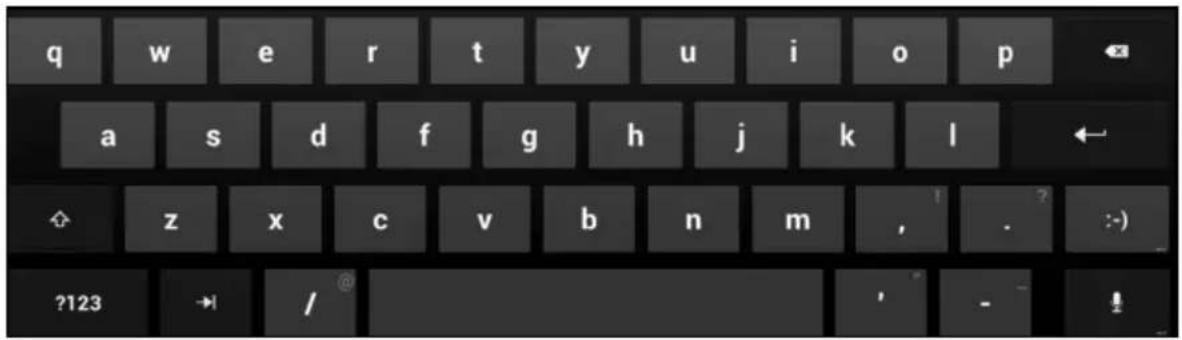
▶ Select characters and press OK or the cursor control to enter the text in the space.
Operation
▶ Press ?123 to change to the display with the numbers and special characters. Press ABC to return to the display with the letters.
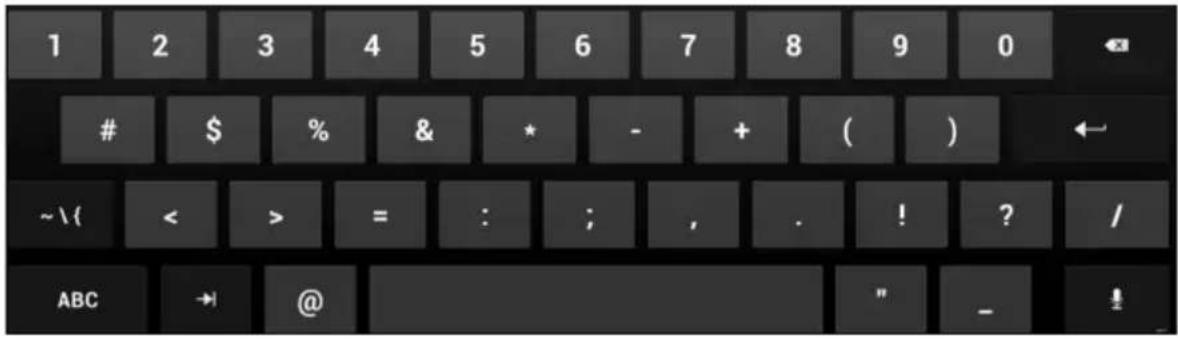
Press \~{ which will now appear to access more special characters. Press ABC to return to the display with the letters.
![~ ✓ π ÷ × § Δ £ £ ¢ € ^ ° ± { } ?123 \ © ® ™ % [ ] i ? ABC →](/content/2026/04/626147/images/315f75e6d4c4b514a34fd079db38d730b201f42eeec13fa59e9744db34a655c1.jpg)
▶ Press the key with the ENTER symbol or click outside the keyboard to close the on-screen keyboard and return to the menu.
11. Using the microphone
You can speak into the remote control microphone to start an internet search.
You can also dictate the search terms in most of the places in which the on-screen keyboard appears for text input.

PLEASE NOTE!
The voice search facility is not available with all applications.
▶ Click on a text box or click anywhere in an entry which has already been made in a text box.
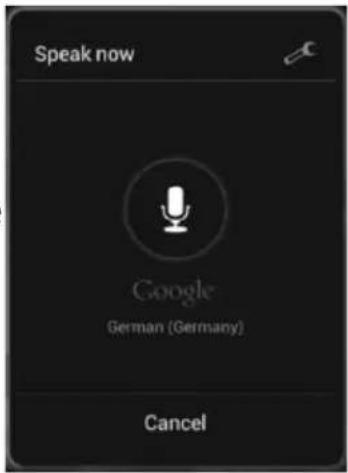
▶ Keep the microphone button pressed down. The voice input window will appear.
Speak into the microphone and then let go of the microphone button.
- If you do a voice search in the main menu, the internet browser will open and the Google results for your search will be displayed.
- If you use the voice search facility in another menu or another window, click on the menu/application window in order to use the terms.
If the command cannot be clearly interpreted, a window will appear with possible options:
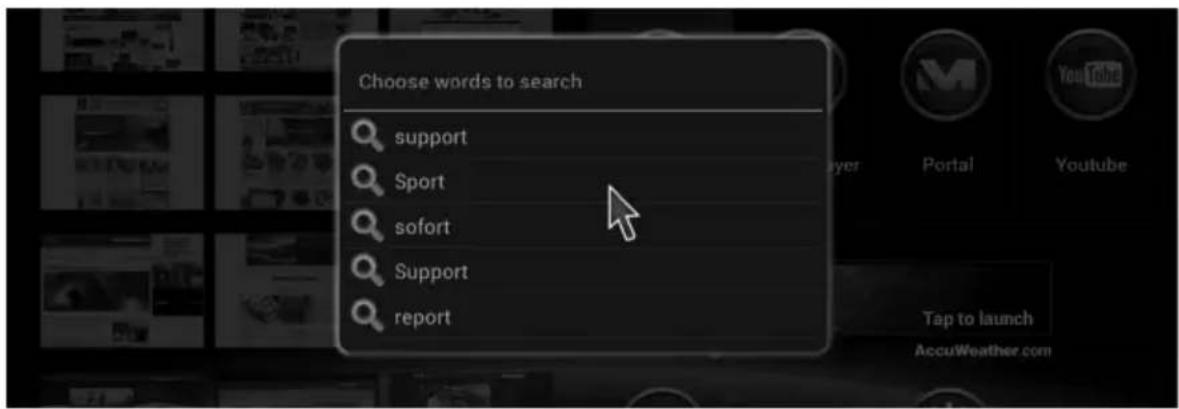
▶ Select the right word in order to proceed.
If none of the options are correct, press RETURN to try again.

PLEASE NOTE!
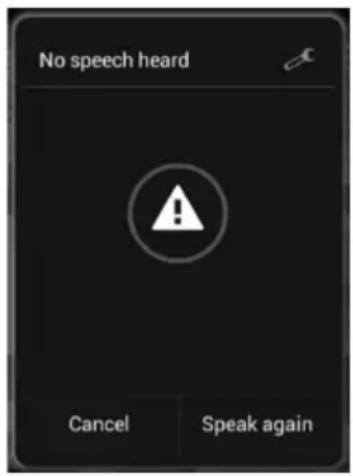
The voice search facility uses the Google voice rec-
ognition service. The Lifesmart TV needs an internet connection to be able to use this service. If the voice recognition server is unavailable or if the internet connection fails, a message will appear to inform you that the speech detection process was unsuccessful.
In this case, reconnect to the internet or re-start the Lifesmart TV by switching it off and then back on again.
11.1. Voice search settings
▶ Click on the tool symbol at the top right of the voice input window. You can configure the settings for the voice search in the next window:
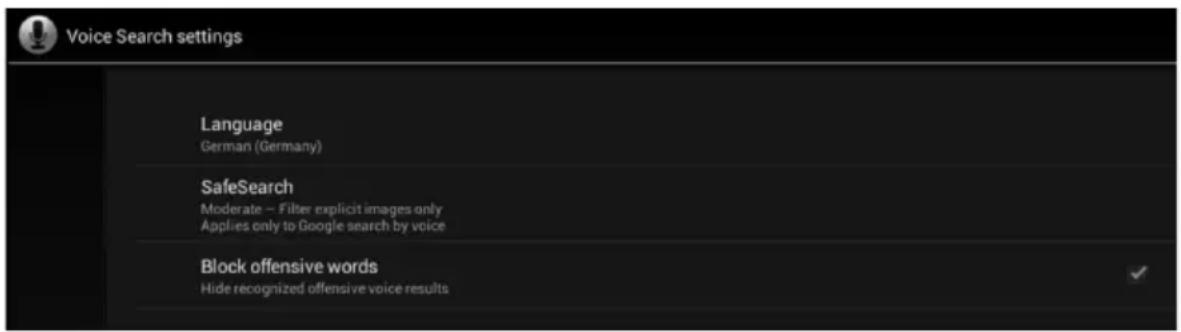
Language
Select the language in which terms should be provided by the voice recognition function.
Safe Search
Enable the SafeSearch filter to screen out offensive content from the Google search results.
Block offensive words
Tick the box on the right to block offensive terms for the speech recognition function.
12. View favourites
▶ Click on a website preview in the main menu to open it with the internet browser.
12.1. Edit favourites
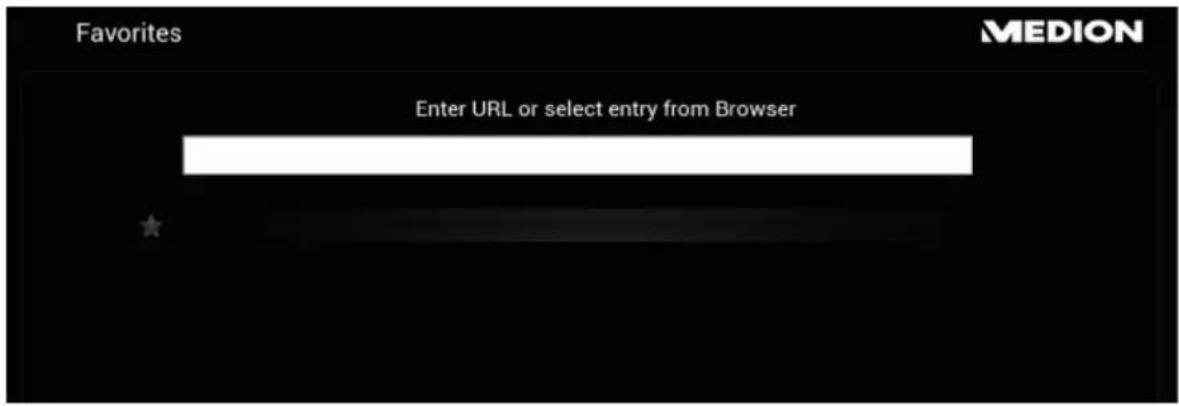
▶ You can edit the website preview in the favourites view by moving the cursor over a website preview and pressing the ★Favourites button.
In the next menu, enter either the address of the website which you want to appear in the preview or select a website from the list of websites last visited.
13. Weather display in main menu
If there is an internet connection, the local weather is displayed in the main menu by the AccuWeather forecasting service.
13.1. Location entry for AccuWeather
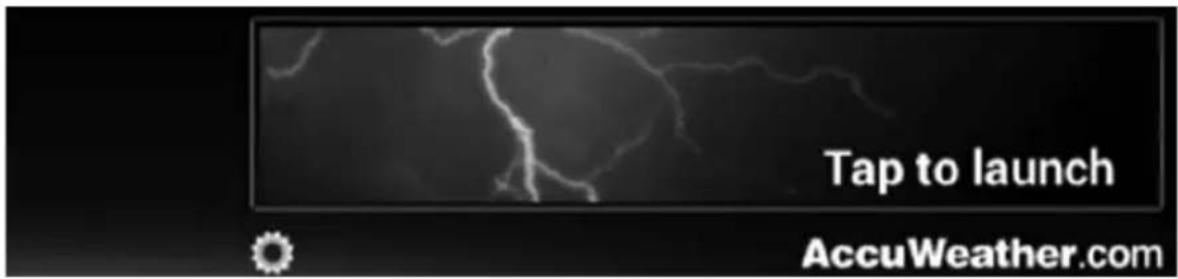
When the product is used for the first time you will need to enter the location for the weather report.
▶ Click on the wheel system to open the input window.
▶ Agree to the licence conditions.
The on-screen keyboard will appear.
Enter the town for the weather report in the top dialogue box or select the microphone symbol and enter the name of the town over the remote control microphone.
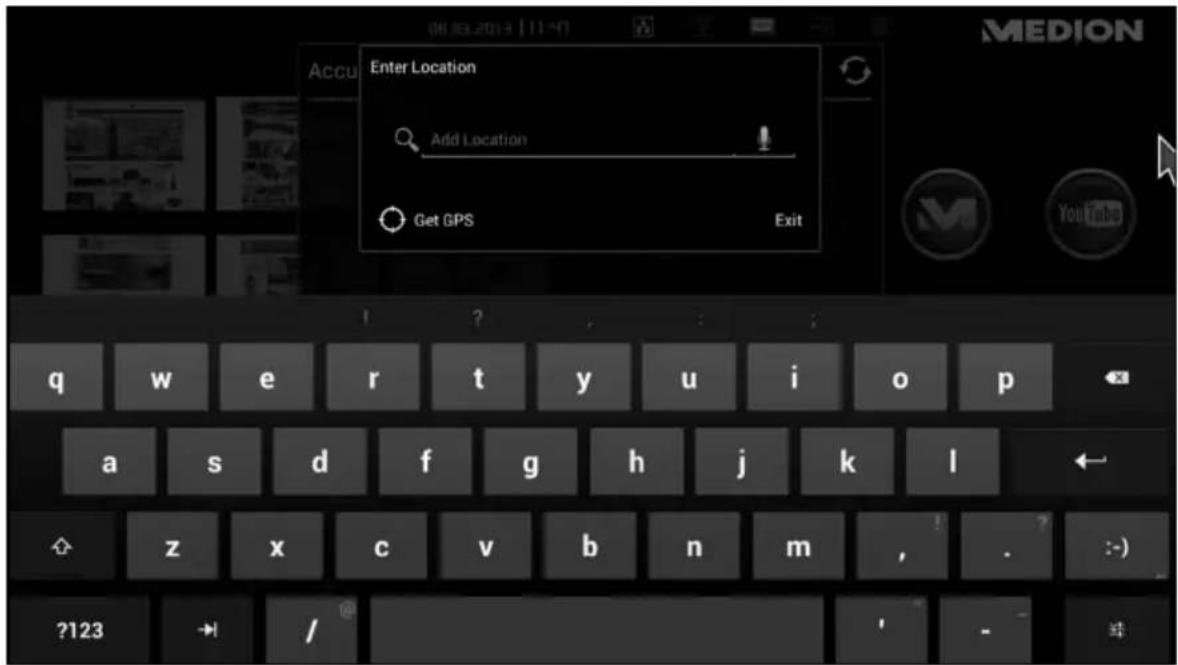
▶ Confirm the entry by pressing the ENTER key on the on-screen keyboard or by pressing in the dialogue box.
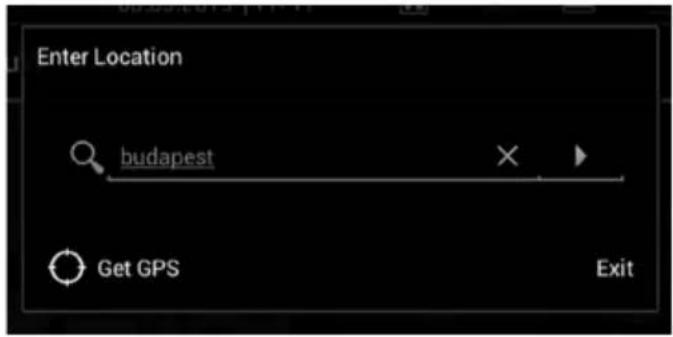

NOTE ON THE "GPS" ENTRY
The Lifesmart TV software runs on the Android operating system therefore GPS is the standard display tool for the location in this setting. This option is not available, however, because the Lifesmart TV does not have a GPS receiver.
A list may appear prompting you to specify your town more exactly.
▶ Select the correct town from the list.
The town will now be displayed at the top of the list of locations.
▶ Select "Add Location" to add further towns to the list of locations.
Tick the box next to the name of the locations for which you want the weather conditions to be displayed.
▶ Click on "Exit" to close the window.
13.2. Extended weather report
Click on the weather display in the main menu to access the extended weather report.
More detail is given here in addition to the temperature and weather conditions, such as humidity, air pressure and much more information about the location.
You can access further settings via the task bar at the top of the display:

1) Drop-down menu - click here to open the menu. The items which you select will appear in future when you view the extended weather report.
2) Update - click here to refresh the weather data.
3) The Lifesmart TV software runs on the Android operating system therefore GPS is the standard display tool for the location in this setting. This option is not available, however, because the Lifesmart TV does not have a GPS receiver.
4) Locations - the list of locations will appear on the left of the screen. You can add a new location or click on a location in the list to request that the weather data be shown in the main window.
5) Preferences - the AccuWeather settings will appear on the left of the screen. You can change the units and formats for temperature, speed, precipitation height (reading), time and date. You can also view the AccuWeather service contact details and licence conditions.
6) News - see the latest on the weather.
7) Videos - watch videos on the weather conditions around the world.
8) Lifestyle - view information about activities and circumstances which
depend on the weather.
9) Maps - play any animations which are available for your location on the precipitation radar or on other weather events. Click on to play the animation.
10) 15-day forecast - see the weather forecast for the next 15 days. Click on a date to see the detailed weather forecast for this date in the right-hand window.
11) Hourly - view the weather forecasts for every hour in the next 24 hours.
12) Current conditions - display the current local weather conditions.
14. Internet browser
Click on the Internet symbol to open the internet browser.
Simply use the browser as you would the browser on a computer.
- Hold the cursor control down on the remote control to scroll up and down pages.
- You can also move up and down a website with the scroll wheel.
- Double-click with the cursor control to zoom in and out in the browser.
14.1. Browser controls
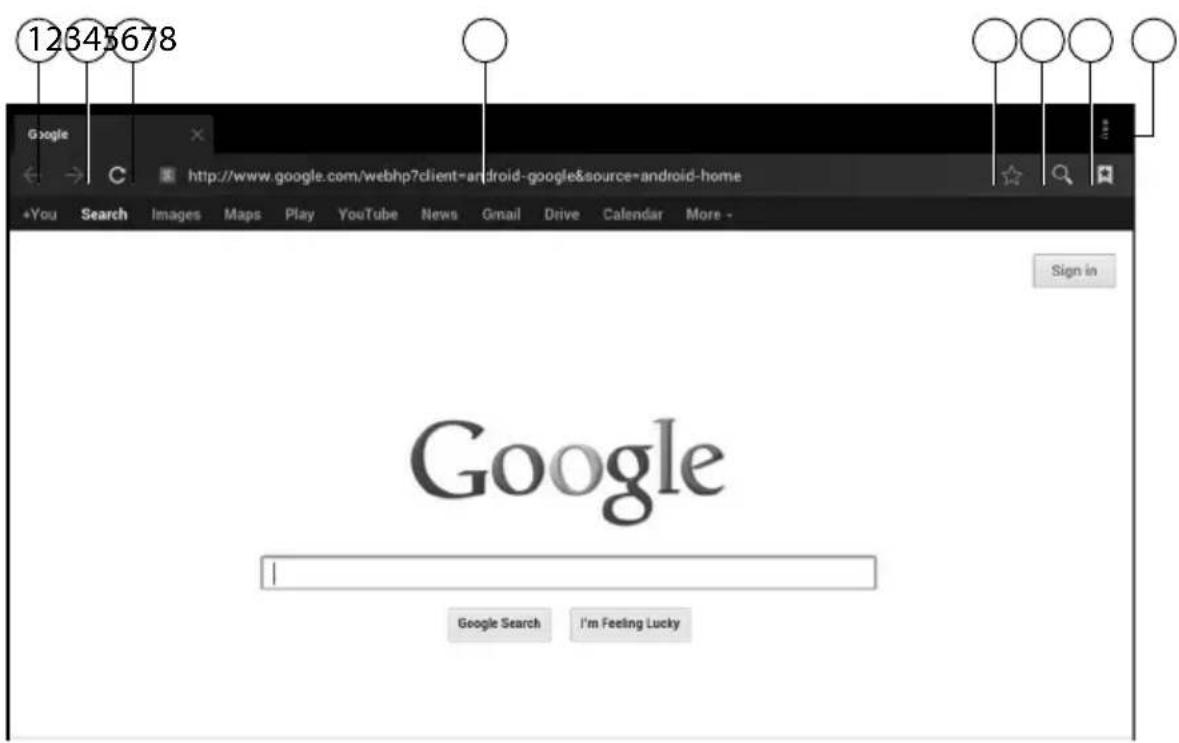
1) Go back a page
2) Go forwards a page
3) Refresh page
4) Web address
5) Add page to favourites
6) Search on page
7) View bookmarks, sites already visited and saved, and history
8) View browser options (see next section)
Browser options
▶ You can view the browser options by clicking on the symbol in the top right corner.
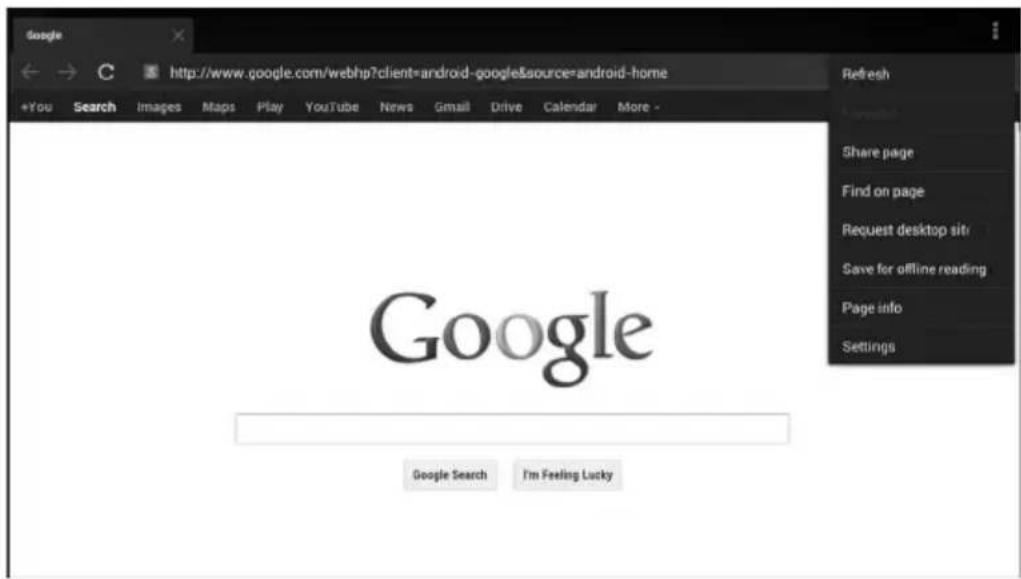
Refresh
Refresh the current website.
Forward
Go forwards a page.
Share Page
This function is not available on your Lifesmart TV.
Find on page
Search for certain terms on the current page.
Request Desktop site
Change to desktop version of website.
Save for offline reading
Click on this item to save the current website.
Page info
Show web address and website title.
Settings
Open the settings menu of the internet browser.
15. Media Player
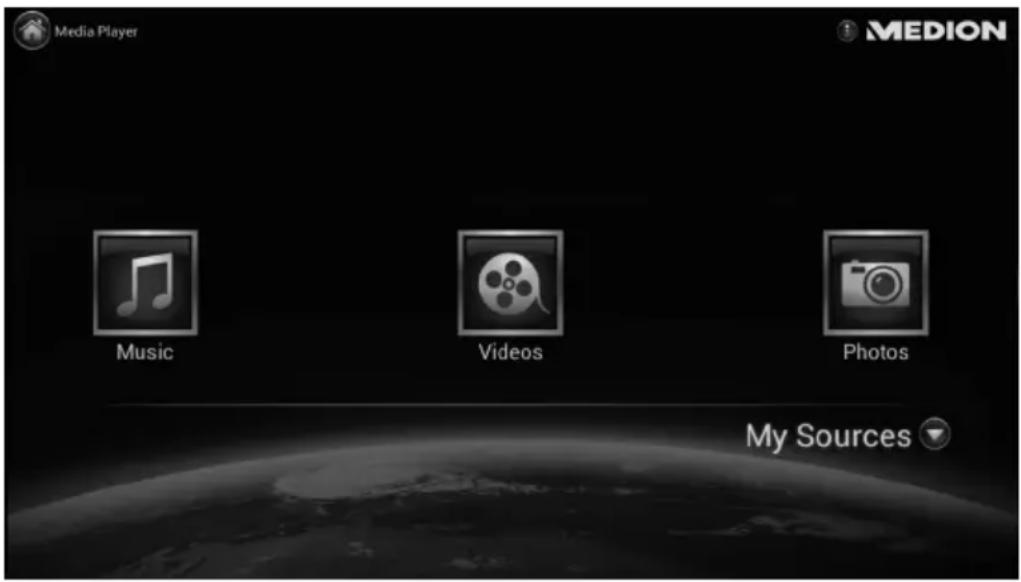
When you start the Media Player for the first time, you will be shown a quick guide to the Media Player. You can have this quick guide displayed every time you start or you can skip it by disabling the checkbox in the bottom left corner "Show on start-up".
You can close the quick guide at any time by clicking on the X in the top right corner.

PLEASE NOTE!
When you select a media source from the network, the data for this source will be imported immediately.
This process may take some time. The "Refresh Ⓞ" symbol indicates that loading is in progress.
Click on the Media Player symbol in the top left corner to return to the Start screen.
▶ Make your media selection (music, video or photos).
15.1. My Media
![MY SOURCES Check the box beside the sources you wish to include in "My Media" LOCAL Media Database NETWORK 2bay-nas AVM FRITZ/Mediaserver Contentserver CyberLink PowerDVD 10 (cry2) * Logitech Media Server [Contentserver] SR-TEST-NAS MEDION](/content/2026/04/626147/images/7b77ab0d35e024335da7fab581c4c7df46fda72cbf0860f8ae4202873ae6dc5a.jpg)
Click on "My Media" to specify which sources are to be used for the media file selection.
- All the USB data carriers or memory cards connected directly to the Lifesmart TV are shown under LOCAL. All the data carriers are called "USB" (in the order in which they were connected).
- The media sources available over the network are displayed under Network.
▶ Enable the checkbox to the left of a media source from the network for the media files from this source to be included in the display of available media content on the Lifesmart TV.
15.2. Playback
- There are various sort-by and display options depending on the media type, e.g. All (songs); Folders/Albums; Date; Playlists and Rating.
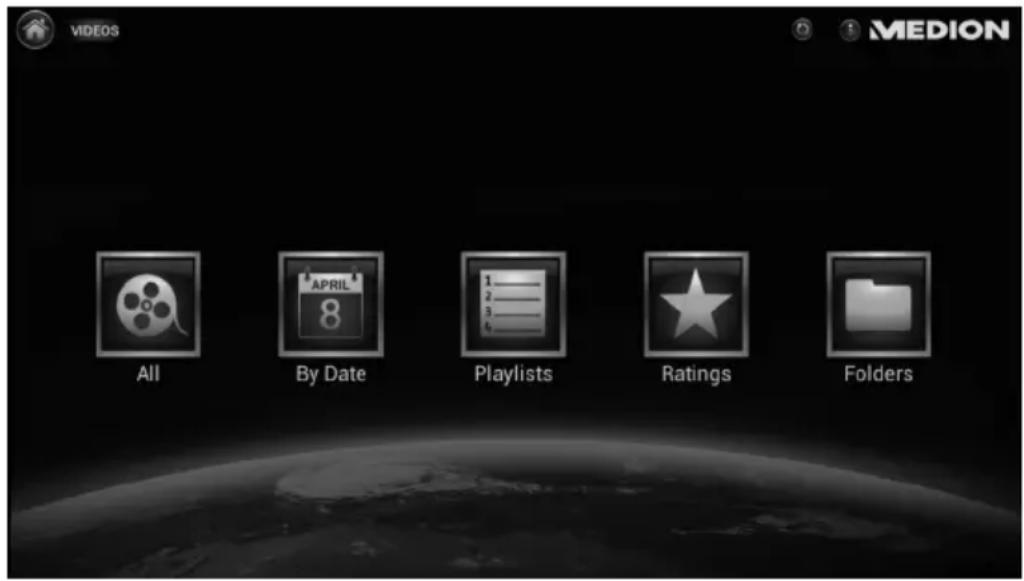
▶ Select the required option and start playback.
15.3. Extended options
▶ Click on the symbol in the top right corner of the screen to access the following Media Player options:
Create playlists
▶ Select the media type for which you want to create a playlist.
▶ Click on "New video playlist" to start a new playlist.
▶ Enter a name for the list in the next dialogue box and click on OK.
Now select the items you want to include in your playlist by ticking the box to the right of the relevant items.
▶ Click on "Save Playlist" at the top of the screen to save and close the playlist.
▶ Open playlist:
▶ Select the media type for which you want to open a playlist.
▶ Click on "Playlist" to open a playlist.
Delete playlist
As soon as playlists have been created, the delete playlist option appears.
▶ Select the playlist which you want to delete and then select "Done" at the top of the screen.
▶ Press "OK" to confirm the delete command.
Search
You can search for keywords in the current media display under Search.
▶ Enter the keyword for the search using the on-screen keyboard.
The Lifesmart TV will then search for available media content containing the keyword you have entered.
The hits appear under the input box.
▶ Select a file from the hits to start playback.

PLEASE NOTE!
You can also use the voice input facility to search for media.
Settings
You can enter the following settings for the Media Player here:
General Settings
You can configure the teach-in display settings here or start the teach-in program.
Services
You can change the name of the Lifesmart TV here for the DLNA media server and the DLNA media renderer.
Photos
You can change the display time here and the transitions between photos for the slide show.
Information
You can view the Media Player licence terms here.
Exit Mediaplayer
The Media Player will close and the main menu will be displayed.
16. Media Library/portal
This portal features selected media content which is provided by MEDION and via apps for your Lifesmart TV. It has the facility to show video clips and TV channels from the internet which have been categorised for you and are constantly updated. You can select your favourites for added convenience, making it easier to find what you are looking for using the search function. You can also open apps for social networks like Twitter and Facebook.
16.1. Portal functions
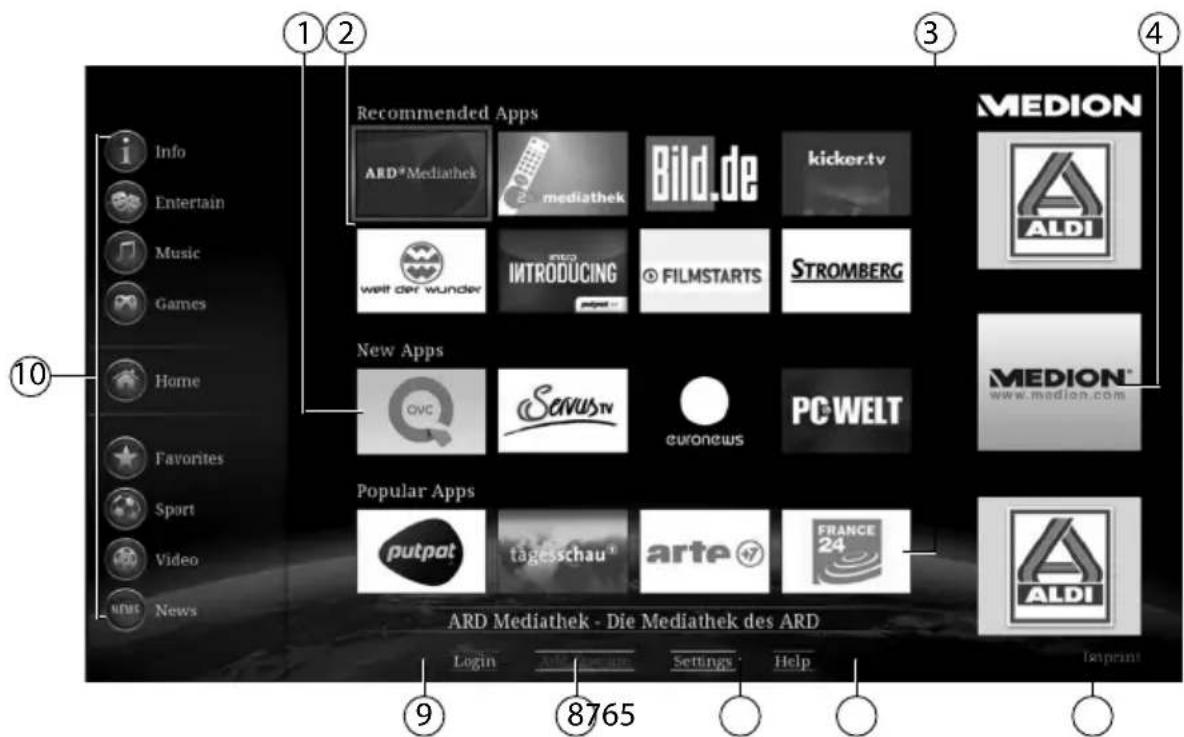
1) New apps - Display recently added media content.
2) Recommended apps - Display recommended media content.
3) Popular apps - Display media content used by most other Lifesmart TV owners.
4) This column features information and update news provided by MEDION.
5) Legal notice - Display legal information relating to the media portal.
6) Help - View help topics in relation to the use of the media portal.
7) Settings - Select the language in which you want the media content to be provided.
8) Add favourites - Use the navigation buttons to make your selection and then click on it to add it to your list of favourites.
9) Login - Click here to log into the media portal with your user name (cf. "16.2. Online registration of Lifesmart TV" on page 106).
10) Categories - Select the required media content by category. The active category always appears in the middle of the column. The Entertainment, Music, Sport, Video and News categories provide access to video clips and internet TV channels.
The Info category also contains apps for social networks like Twitter and Facebook.
Using the navigation buttons
In some apps you select the media content with the navigation buttons ◀ ▶ ▲ ▼. The help menu for any given app usually contains further information on how to use it.
Favourites
You can compile a selection of favourites.
▶ Use the navigation buttons ◀ ▶ ▲ ▼ to select the required item (blue marking) and then click on the pop-up box "Add Favorite".
The item is added to the list of favourites and is then displayed under the heading "Favorites".
Delete Favorite
In order to delete a favourite from the list, use the navigation buttons
◀ ▶ ▲ ▼ to select the relevant item in the list and then click on the pop-up box "Delete Favorite".

PLEASE NOTE!
You need to be logged onto the media portal as a user in order to be able to compile a list of favourites (cf. "16.2. Online registration of Lifesmart TV" on page 106).
16.2. Online registration of Lifesmart TV
You can register your Lifesmart TV online.
Go to
"http://medion.fxmconnect.com" and set up a user profile.
- You can then save internet addresses as bookmarks in your user account and connect your Facebook or Twitter account to your Lifesmart TV.
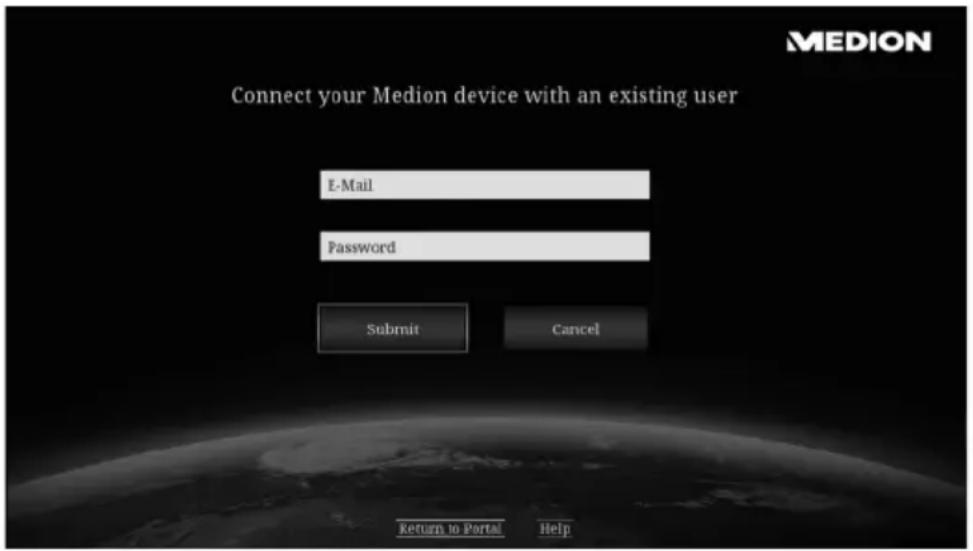
• After you have set up a user account at fxmconnect, you can log onto the Lifesmart TV by entering your user name and password:
▶ Click on "Login" at the bottom of the portal screen.
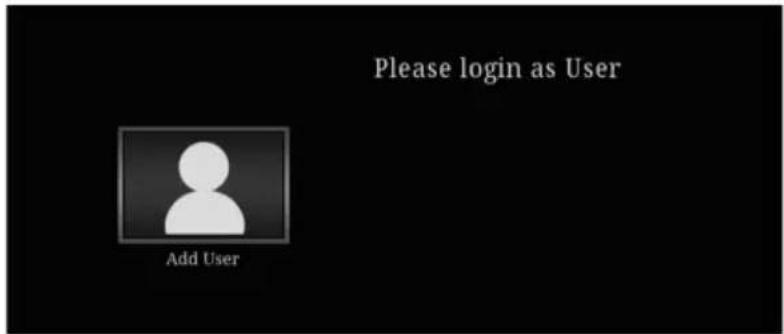
1) Click on "Add User".
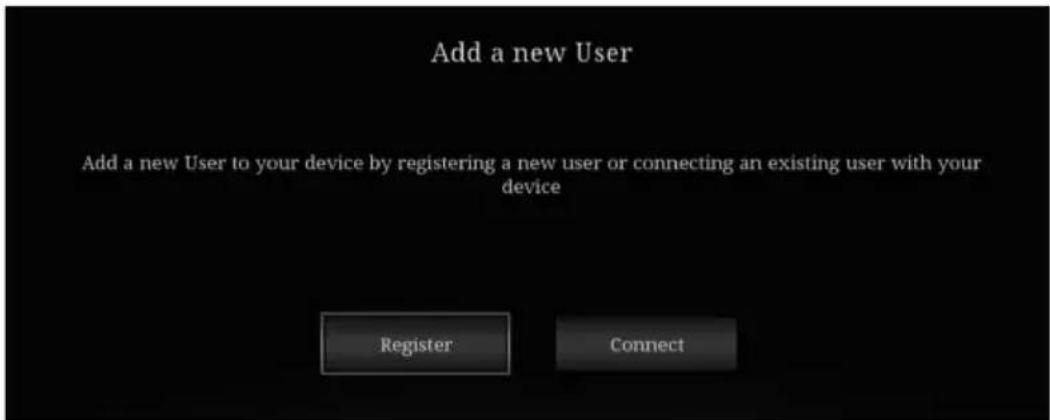
2) If you already have a user account with fxmconnect click on "Connect".
3) Then enter your access data and click on "Submit".
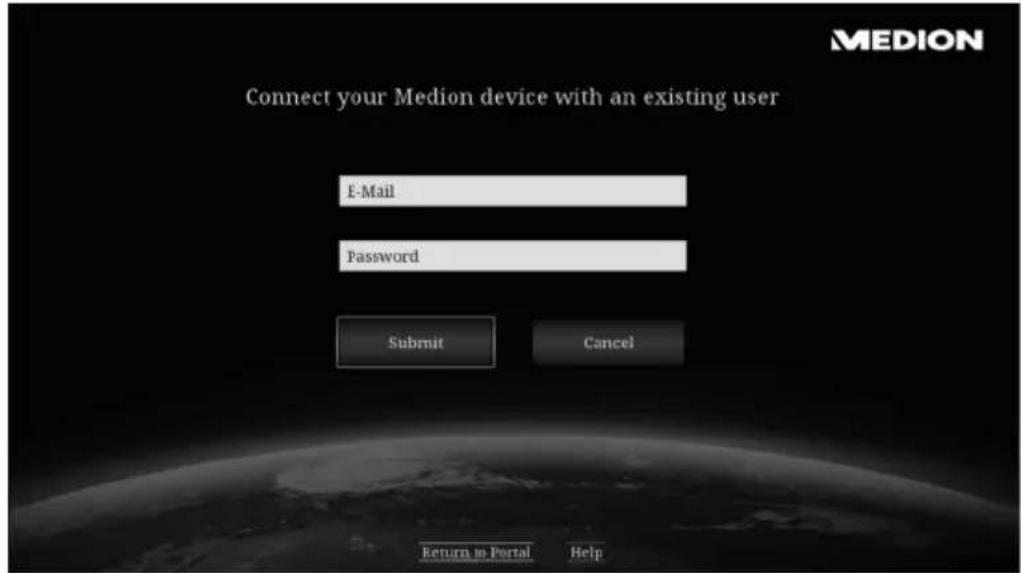
4) If you have not yet set up a user account with fxmconnect, select "Register" from the first box and then enter an email address, user name, password and TV PIN in the next box.
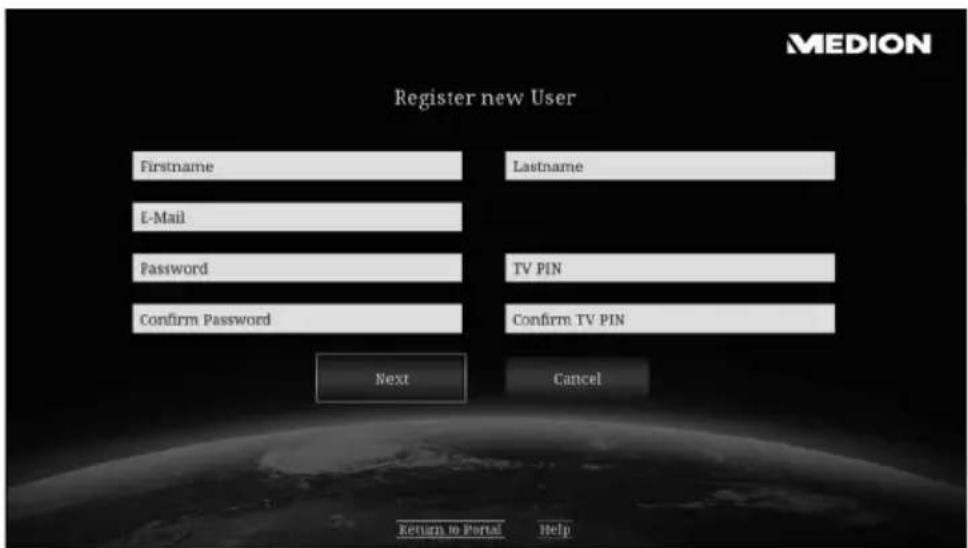
5) Then select "Continue".
6) Confirm that you agree to the licence terms.
![Register new User FOXIXUM General User Conditions for Internet Compatible Terminals Your internet connected device [referred to as "Device" below] uses an internet service function [referred to as "Portal" below]. This enables you to access services, content, software and products of third parties through the internet. In addition you receive access to open internet content. A. General User Conditions ✓ Tag the box to accept the terms of service OK Return to Portal Help MEDION](/content/2026/04/626147/images/9cef94ba68e6a82309bcd062f80275d5748df1860d7aee26527e6b544f61f89a.jpg)
7) You will receive an email with a confirmation link to the email address which you entered.
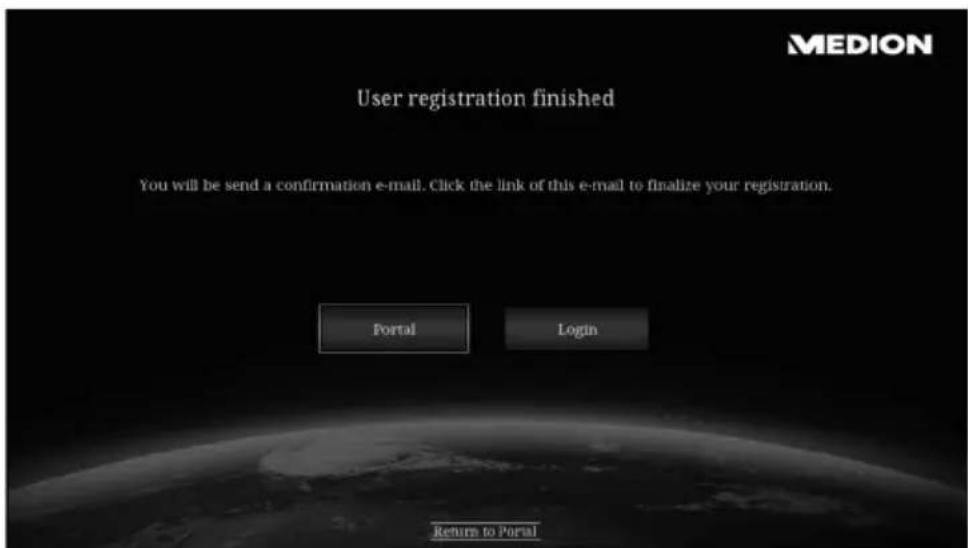
8) Confirm the link in your email account and then click on "Login" on your Lifesmart TV.
9) Then enter your access data and click on "Submit".
17. YouTube
The YouTube app allows you to view the YouTube site in a format specially adapted for your Lifesmart TV. You can search for videos and use the sort-by functions in the usual way.

PLEASE NOTE!
You can also use the voice search function to select YouTube content.
18. Apps
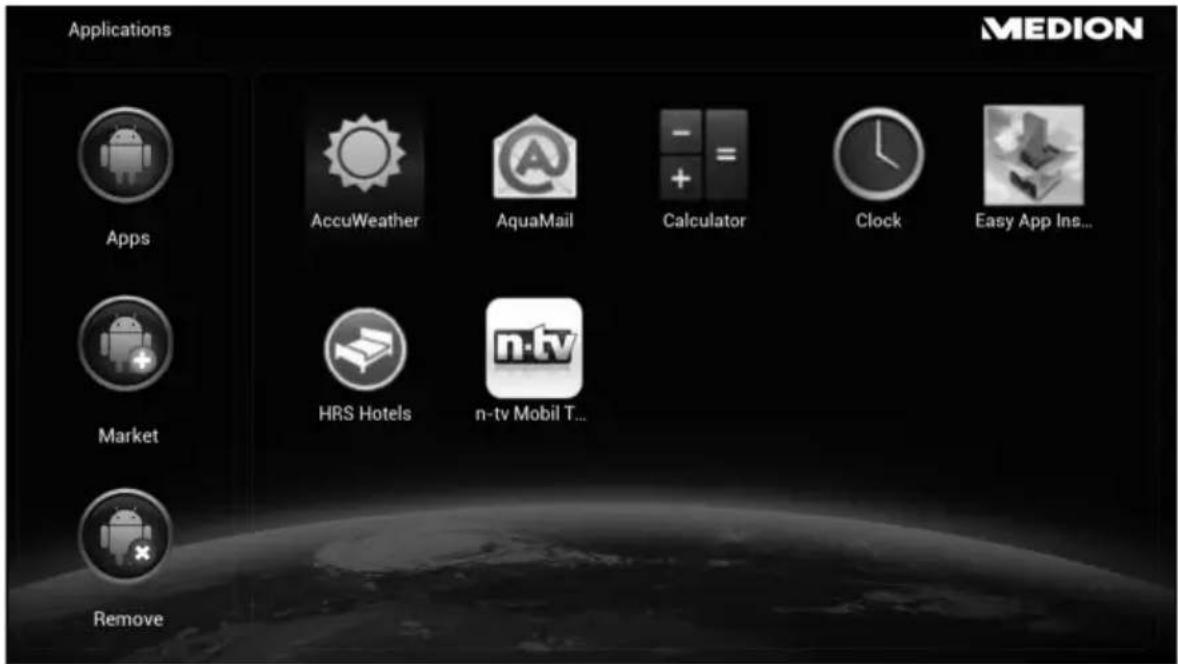
18.1. Apps installed on the Lifesmart TV
Select Apps to view the apps installed on the Lifesmart TV.
Simply select an app in order to open it and use it.
18.2. Market
You can find additional apps for your Lifesmart TV and install them here.

PLEASE NOTE!
This service is provided exclusively for your Lifesmart TV and is not part of Google Play!
18.3. Installing apps from external data carriers
In order to install apps on the Lifesmart TV which are in .apk file format on an external data carrier, connect the external data carrier to the Lifesmart TV.
▶ Open the Easy App Installer which is one of the apps already installed. The Easy App Installer will list all the .apk files which have been detected on data carriers.
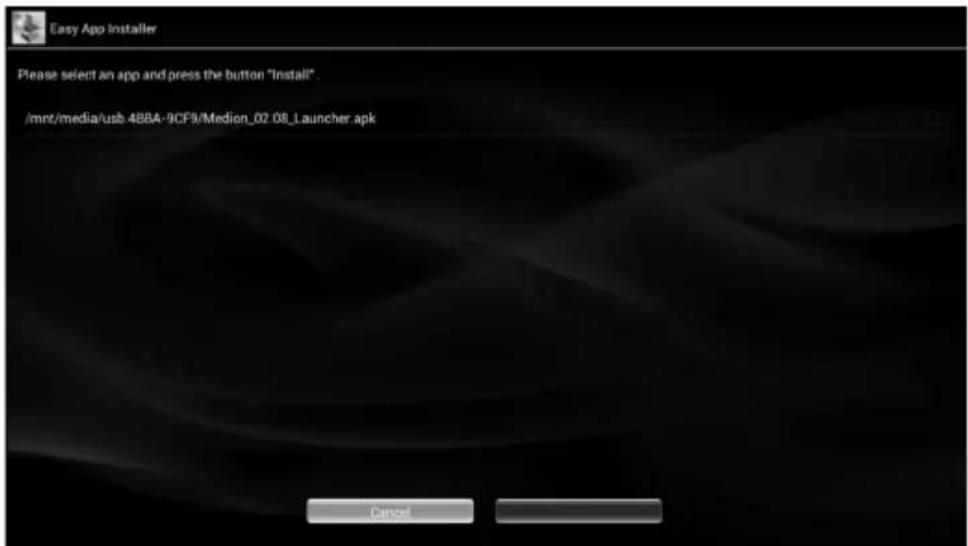
Select the .apk file of the application which you want to install (Skype in the example shown here).
Then click on "Install".
A list of the services will appear which the app which you want to install will access.
▶ Confirm the list by clicking on "Install".
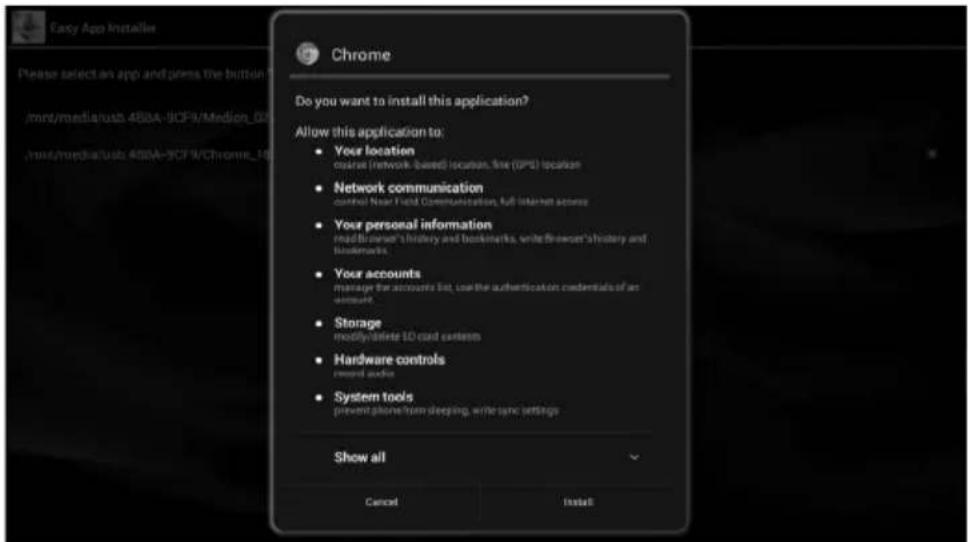
The app will be installed.
When the app has been installed the following box will appear:
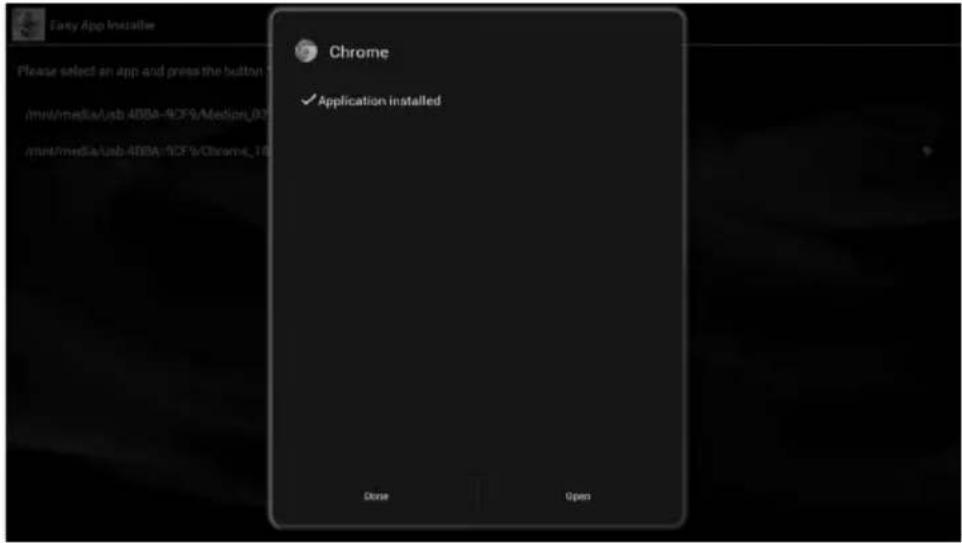
▶ Select "Done" to return to the app menu or select "Open" to open the app which has just been installed.

PLEASE NOTE!
Please note that there are so many different apps that it is not possible for every app to be installed on the Lifesmart TV! A message will appear to inform you if an app installation process was unsuccessful (e.g. "App not installed").
18.4. Delete
You can select apps which you want to delete from the system permanently by clicking on the icon of the relevant app.

PLEASE NOTE!
The app will be deleted as soon as you click on the icon and cannot be restored!
The following apps cannot be deleted from the system:
- AccuWeather - AquaMail
- Easy App Installer - HRS Hotels
- n-tv Mobil - Calculator
- Clock
19. Setup main menu
19.1. System Setup
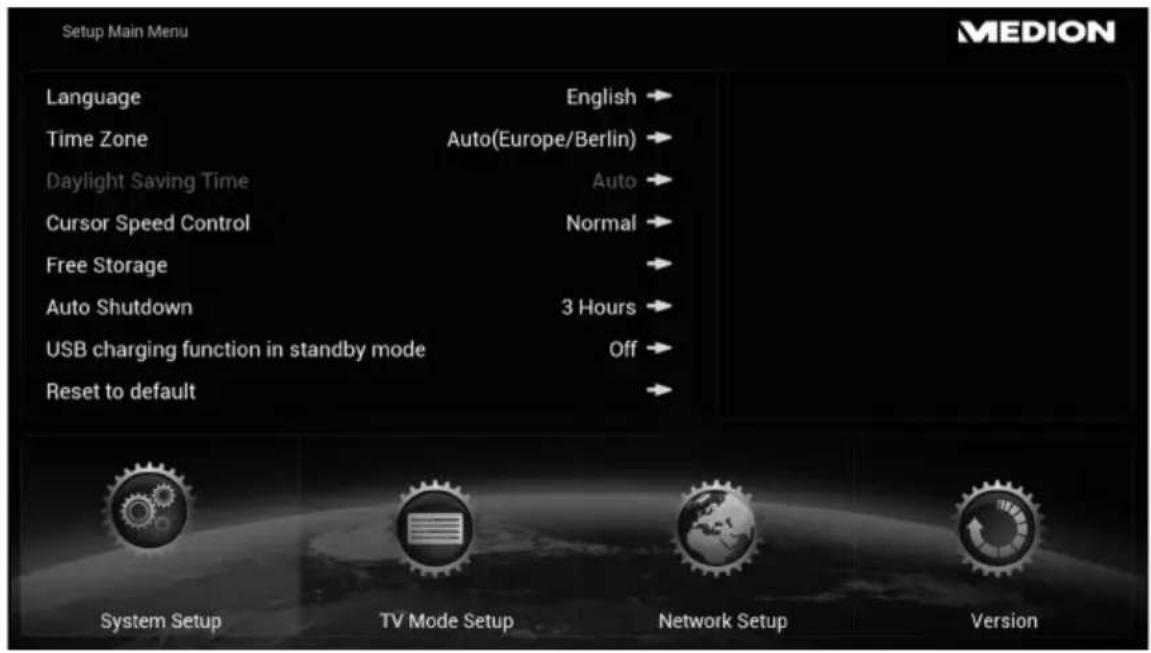
Language
Select the menu language here.
Time Zone
Select the time zone in which you are located. The option [Auto] allows you to change the time over the internet.
The time zone is displayed with the difference in hours from Coordinated Universal Time (UTC). The abbreviations for the time zones are given in brackets. For Central Europe select UTC +01 (CET, MEZ).
Daylight Saving Time
You can enable or disable the summer time setting here.

PLEASE NOTE!
If you access the time over the internet, the summer time setting is automatically displayed and the setting is disabled.
Cursor Speed Control
You can set the cursor speed on the mouse here.
Free Storage
You can find out the amount of free memory space here. The display includes the space in the internal memory and on any data storage media which are connected.
Auto Shutdown
Select the amount of time the product should remain on before automatic shutdown.
USB charging function in standby mode
▶ Set this function to ON if you want the remote control to charge via the USB connection even in standby mode.

PLEASE NOTE!
The product uses more power in standby mode with this setting enabled.
The product is supplied with this function disabled and set to OFF. On this setting the remote control does not charge when the product is in standby mode.
Reset to default
▶ Select this option to reset the product to the factory settings.
▶ Confirm by pressing OK in the prompt which then appears. The product will then return to the original settings as supplied.

CAUTION!
All the data in the memory and the user settings will be deleted during the reset process.
19.2. TV Mode Setup
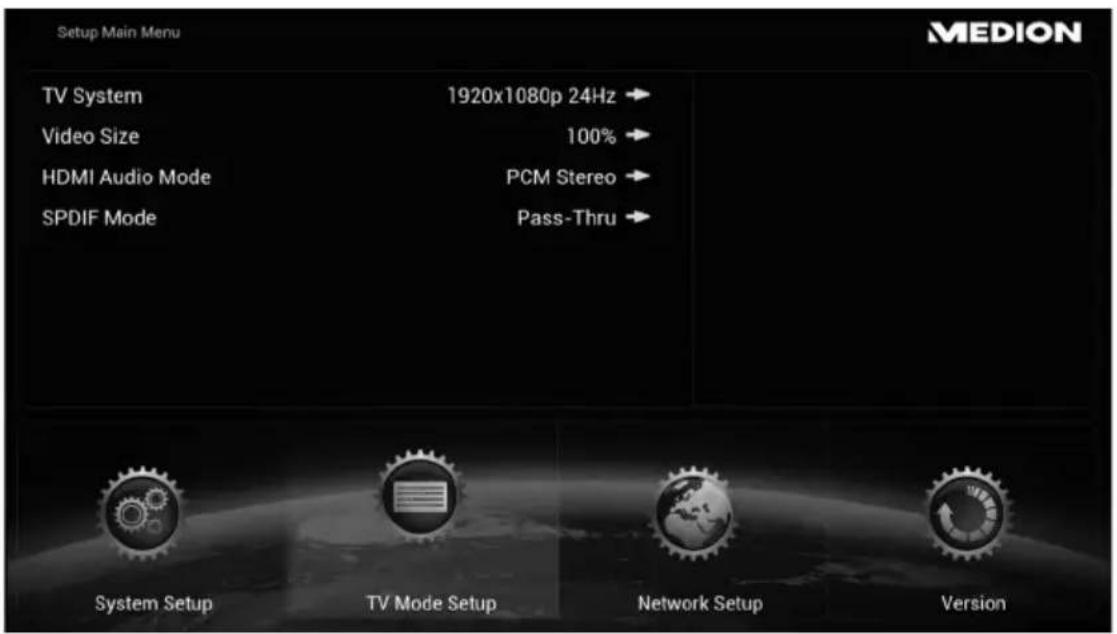
TV-System
Select the TV resolution here.
Video Size
You can adjust the picture size here to the size of your screen. If you do not want any visible edges, adjust the size accordingly, e.g. 90%.
HDMI Audio Mode
Set the signal for the audio output via the HDMI connection:
PCM-STEREO
This option produces stereo sound. Choose this setting if the sound is played through two speakers only.
PASS-Thru
Choose this setting if the product is connected to a Dolby or DTS-capable decoder.
SPDIF Mode
Set the signal for the audio output via the optical SPDIF connection:
PCM-STEREO
This option produces stereo sound. Choose this setting if the sound is played through two speakers only.
PASS-Thru
Choose this setting if the product is connected to a Dolby or DTS-capable decoder.
19.3. Network Setup
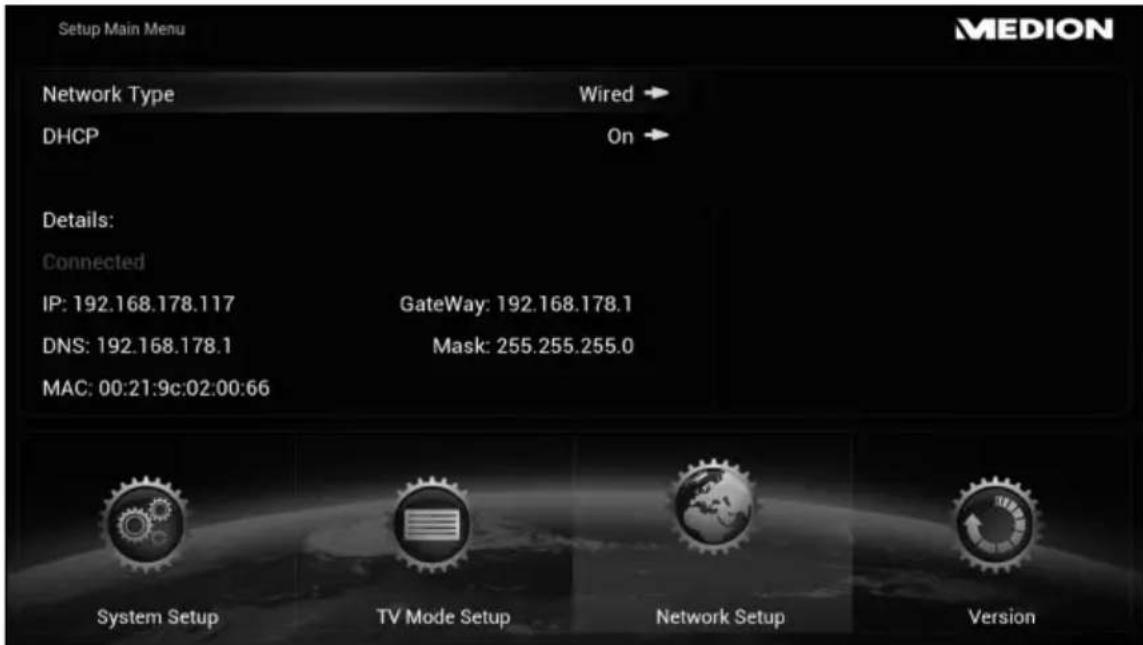
Network Type
Specify whether the product is to be connected to a LAN network or a WLAN network (cf. also "9.3. Network set-up" on page 84 on setting up a WLAN or LAN connection).
DHCP
If you want the Lifesmart TV to have an IP address from the network's DHCP server, set this function to ON.
If you set the function to OFF, it will not be allocated an IP address via the network. As soon as you connect the Lifesmart TV to a network, you will be asked to enter a fixed IP address for the Lifesmart TV.
Scan Aps
Select this item to see a list of the available wireless networks. See also "9.3. Network set-up" on page 84 for information on setting up a WLAN connection.
19.4. Version
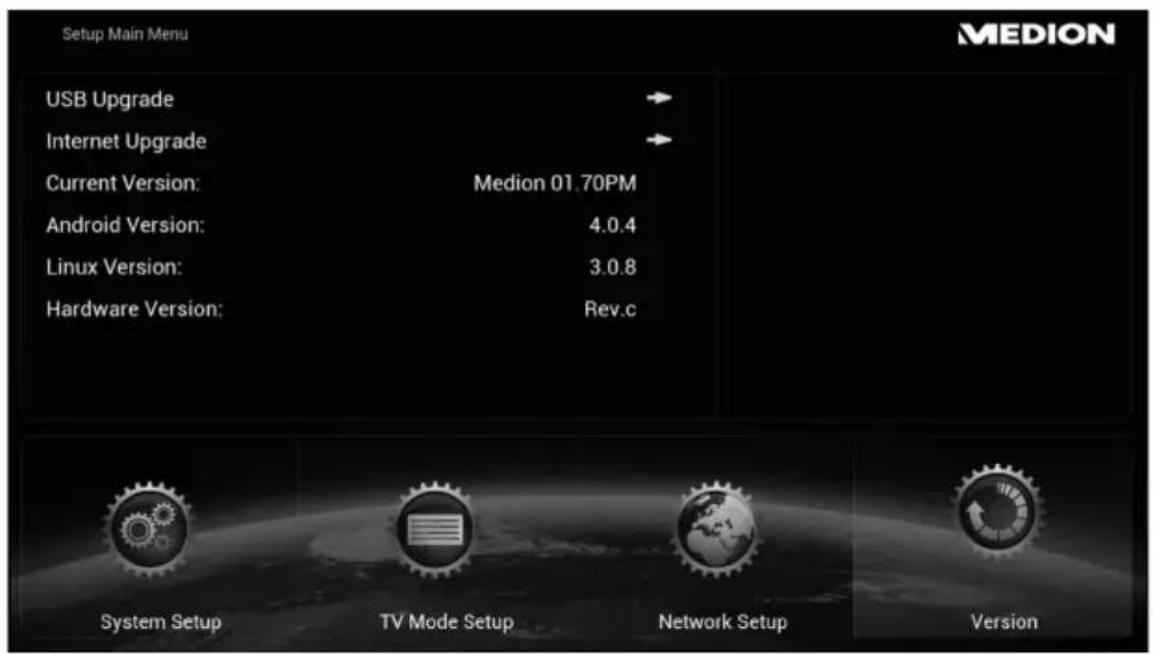
USB Upgrade
Select this item if you have been sent a firmware update on a USB data carrier.
Internet Upgrade
Select this item to search the internet for an available firmware update.
Current Version
The number of the firmware version currently installed is displayed here.
Android Version
The number of the Android operating system version installed is displayed here.
Linux Version
The number of the Linux operating system version installed is displayed here.
Hardware Version
The number of the hardware version is displayed here.
20. Troubleshooting
Malfunctions can sometimes occur for quite simple reasons but they may also be caused by defective components. We have included a brief troubleshooting guide below which may help to solve any problems. If these tips don't solve the problem then we'll be more than pleased to help you out. Just give us a call!
20.1. Troubleshooting
General advice
The product cannot be switched on.
- Plug the mains adapter into the power socket, ensuring that it is firmly connected.
- Check the mains switch on the rear.
- Plug the mains adapter into a different socket.
No picture.
- Select the correct video input mode on the display unit to display the Lifesmart TV picture.
- Connect video cable, ensuring that it is firmly connected.
- Restart the TV set and the Lifesmart TV after connecting the cable.
Distorted picture.
- The file being played was recorded in a different colour-encoding system from that of the display unit.
- Select a resolution compatible with the display unit.
- Connect the units with new cables.
No sound.
• The product is in mute mode.
- Connect audio cable, ensuring that it is firmly connected.
- An incorrect setting was selected for the input source in the menu TV Mode Setup [SPDIF Mode] for the amplifier or the amplifier connection.
The remote control is not working properly.
- The remote control is too far from the product.
- There is something blocking the path between the remote control and the product.
- The battery in the remote control is low.
- Reconnect the remote control (see Page 81).
The subtitle language cannot be changed or is not being displayed.
- The file being played does not contain any subtitles.
MP3/WMA/JPEG/DivX files cannot be played.
- The files were recorded in a format not supported by the product.

NOTE
The playback of all formats cannot be guaranteed due to the large number of different codecs.
HDMI
There is no picture on the HDMI playback unit which is connected.
- Disconnect HDMI cable and reconnect.
- Switch HDMI unit off and back on again.
- The video input on the television set or monitor must be set to the Lifesmart TV.
- The HDMI cable must have full HDMI compatibility. There may be no picture if you are using a cable which does not conform to the standard.
There is no sound on the HDMI playback unit which is connected.
- Some HDMI-compatible units have no audio output (consult the operating instructions for the unit which is connected).
- If your output equipment does not have a Dolby or DTS-capable decoder, go to the menu TV Mode Setup and set the option [HDMI Audio Mode] to [PCM Stereo] (see Page 115).
Reset facility
• The product is malfunctioning.
The product can be reset as follows:
- Open the menu "System Setup/Reset to default".
- Select this item and press OK to reject all the input settings and to restore the product to its original factory settings.
21. Do you need more help?
If the above suggestions did not solve your problem please contact us. The following information would help us:
• What external devices are connected?
• What messages appear on the screen?
- When operating the product, at which step did the problem occur?
• What steps have you already taken to try and rectify the problem?
- Please provide your customer number if you have one.
22. Cleaning
Follow the instructions below to increase the service life of the product:
- Always unplug the mains adapter and disconnect all the cables before cleaning the product.
- Do not use solvents, corrosive agents or aerosol-based detergents to clean the product.
- Clean the product using a soft, lint-free cloth.
Please keep the packaging and do not use anything other than this packaging to transport the product.

CAUTION!
None of the parts inside the product require cleaning or maintenance.
23. Disposal

Packaging
The product is packaged to protect it from damage in transit. Packaging materials are raw materials and can therefore be reused or recycled.

Product
Do not under any circumstances dispose of the product with the household rubbish at the end of its service life. Please consult your local authority for advice on correct and eco-friendly methods of disposal.
Battery
Used batteries do not belong in the household rubbish. Please return the batteries to a designated collection point or to a specialist dealer for disposal.
24. Technical data
Product
Standby power consumption: <0.5 W
(With USB charging function switched off)
Operating system: Android 4.0
Dimensions (W x H x D): Approx. 15.9 x 6.1 x 12 cm
Weight: Approx. 400 g
Operating temperature: 5°C - 35°C
Humidity during operation: 5% - 65%
Storage temperature: -10ircC - 60ircC
Connections
Card reader: For SD, SDHC
and microSD/SDHC memory cards
(up to 32 GB)
USB 2.0 connections:
On front/rear: (USB data carriers/drives up to 2 TB)
LAN connection: RJ45 socket
HDMI ® output: HDMI A socket
Digital optical audio output: S/PDIF socket for Toslink cable
AV output: 3.5 mm stereo jack socket
DC IN mains adapter input: 12 V --- 1.5 A
Supported file formats
Video: MPG, MPEG, AVI, WMV, MP4, MOV, DAT, VOB, MKV, TS, 3GP, FLV
Audio: MP3, WMA, WAV, AAC, OGG
Photo: JPG, BMP, PNG, GIF
Supported file systems: FAT16, FAT32, NTFS
Network: LAN (10/100 Mbit)
WLAN (IEEE 802.11 b/g/n)
WLAN encryption: WEP/WPA
Mains adapter
Power supply: Ktec KSAS0241200150HE
Input (primary):
100-240 V \~ 50/60 Hz, 0.6 A
Output (secondary):
12 = 1.5 A
Manufacturer: Kuantech Co., Ltd., China
Remote control
Battery:
Type:
AMP02
Capacity:
3.7 ---
Manufacturer:
Shenzhen
Development Co. LTD, China
V
Drawer
Subject to printing errors and to amendments to technical specifications and visuals.
C€0560

HIGH-DEFINITION MULTIMEDIA INTERFACE

DIGITAL


Digital Out
HDMI, the HDMI logo and High-Definition Multimedia Interface are registered trademarks of HDMI Licensing LLC.
Made under licence by Dolby Laboratories.
Dolby and the double-D symbol are registered trademarks of Dolby Laboratories.
Made under licence, US patent numbers: 5,451,942; 5,956,674; 5,974,380; 5,978,762; 6,487,535 and other patents granted and filed in the USA or internationally.
DTS and the logo are registered trademarks, DTS 2.0+ Digital Out and the DTS logos are trademarks of DTS, Inc.
The product contains software. © DTS, Inc. All rights reserved.
Copyright © 2013 All rights reserved.
This manual is protected by copyright. All rights reserved. Mechanical, electronic and any other form of reproduction is prohibited without the written permission of the manufacturer. MEDION® is the owner of the copyright.
Sommaire
3. Notes on conformity 134
3.1. R&TTE conformity statement 134
natural_image
Diagram of a network device connection showing a monitor, router, switch, and power supply unit (no text or symbols present)
Language
Block offensive words

Request Desktop site
Save for offline reading
17. YouTube
18.2. Market
Daylight Saving Time
USB charging function in standby mode
Network Type
USB Upgrade
Photo: JPG, BMP, PNG, GIF
The original English version of the GPL/LGPL licence document is included below for legal reasons. Translations into other languages are not necessarily authorised versions of the GPL approved by the FSF (Free Software Foundation).
An acquaintance with the GPL/LGPL licence is immaterial to the use of the product but its publication is mandatory in connection with the use of open-source software.
Anyone interested can download the source text of the relevant GPL/LGPL by following this link: http://www.medion.com. Please state the MD number or MSN number in the download centre. These numbers can be found on the product.
For more information on GPL/LGPL licences please visit www.gnu.org.
GNU General Public Licence
Version 2, June 1991
Copyright (C) 1989,
1991 Free Software Foundation, Inc.
51 Franklin Street, Fifth Floor, Boston,
MA 02110-1301, USA
Everyone is permitted to copy and distribute verbatim copies
of this license document, but changing it is not allowed.
Preamble
The licenses for most software are designed to take away your freedom to share and change it. By contrast, the GNU General Public License is intended to guarantee your freedom to share and change free software--to make sure the software is free for all its users. This General Public License applies to most of the Free Software Foundation's software and to any other program whose authors commit to using it. (Some other Free Software Foundation software is covered by the GNU Lesser General Public License instead.) You can apply it to your programs, too.
When we speak of free software, we are referring to freedom, not price. Our General Public Licenses are designed to make sure that you have the freedom to distribute copies of free software (and charge for this service if you wish), that you receive source code or can get it if you want it, that you can change the software or use pieces of it in new free programs; and that you know you can do these things.
To protect your rights, we need to make restrictions that forbid anyone to deny you these rights or to ask you to surrender the rights. These restrictions translate to certain responsibilities for you if you distribute copies of the software, or if you modify it.
For example, if you distribute copies of such a program, whether gratis or for a fee, you must give the recipients all the rights that you have. You must make sure that they, too, receive or can get the source code. And you must show them these terms so they know their rights.
We protect your rights with two steps: (1) copyright the software, and (2) offer you this license which gives you legal permission to copy, distribute and/or modify the software.
Also, for each author's protection and ours, we want to make certain that everyone understands that there is no warranty for this free software. If the software is modified by someone else and passed on, we want its recipients to know that what they have is not the original, so that any problems introduced by others will not reflect on the original authors' reputations.
Finally, any free program is threatened constantly by software patents. We wish to avoid the danger that redistributors of a free program will individually obtain patent licenses, in effect making the program proprietary. To prevent this, we have made it clear that any patent must be licensed for everyone's free use or not licensed at all.
The precise terms and conditions for copying, distribution and modification follow.
TERMS AND CONDITIONS FOR COPYING, DISTRIBUTION AND MODIFICATION
- This License applies to any program or other work which contains a notice placed by the copyright holder saying it may be distributed under the terms of this General Public License. The „Program“, below, refers to any such program or work, and a „work based on the Program“ means either the Program or any derivative work under copyright law: that is to say, a work containing the Program or a portion of it, either verbatim or with modifications and/or translated into another language. (Hereinafter, translation is included without limitation in the term „modification“.) Each licensee is addressed as „you“.
Activities other than copying, distribution and modification are not covered by this License; they are outside its scope. The act of running the Program is not restricted, and the output from the Program is covered only if its contents constitute a work based on the Program (independent of having been made by running the Program). Whether that is true depends on what the Program does.
- You may copy and distribute verbatim copies of the Program's source code as you receive it, in any medium, provided that you conspicuously and appropriately publish on each copy an appropriate copyright notice and disclaimer of warranty; keep intact all the notices that refer to this License and to the absence of any warranty; and give any other recipients of the Program a copy of this License along with the Program.
You may charge a fee for the physical act of transferring a copy, and you may at your option offer warranty protection in exchange for a fee.
- You may modify your copy or copies of the Program or any portion of it, thus forming a work based on the Program, and copy and distribute such modifications or work under the terms of Section 1 above, provided that you also meet all of these conditions:
a) You must cause the modified files to carry prominent notices stating that you changed the files and the date of any change.
b) You must cause any work that you distribute or publish, that in whole or in part contains or is derived from the Program or any part thereof, to be licensed as a whole at no charge to all third parties under the terms of this License.
c) If the modified program normally reads commands interactively when run, you must cause it, when started running for such interactive use in the most ordinary way, to print or display an announcement including an appropriate copyright notice and a notice that there is no warranty (or else, saying that you provide a warranty) and that users may redistribute the program under these conditions, and telling the user how to view a copy of this License. (Exception: if the Program itself is interactive but does not normally print such an announcement, your work based on the Program is not required to print an announcement.)
These requirements apply to the modified work as a whole. If identifiable sections of that work are not derived from the Program, and can be reasonably considered independent and separate works in themselves, then this License, and its terms, do not apply to those sections when you distribute them as separate works. But when you distribute the same sections as part of a whole which is a work based on the Program, the distribution of the whole must be on the terms of this License, whose permissions for other licensees extend to the entire whole, and thus to each and every part regardless of who wrote it.
Thus, it is not the intent of this section to claim rights or contest your rights to work written entirely by you; rather, the intent is to exercise the right to control the distribution of derivative or collective works based on the Program.
In addition, mere aggregation of another work not based on the Program with the Program (or with a work based on the Program) on a volume of a storage or distribution medium does not bring the other work under the scope of this License.
- You may copy and distribute the Program (or a work based on it, under Section 2) in object code or executable form under the terms of Sections 1 and 2 above provided that you also do one of the following:
a) Accompany it with the complete corresponding machine-readable source code, which must be distributed under the terms of Sections 1 and 2 above on a medium customarily used for software interchange; or,
b) Accompany it with a written offer, valid for at least three years, to give any third party, for a charge no more than your cost of physically performing source distribution, a complete machine-readable copy of the corresponding source code, to be distributed under the terms of Sections 1 and 2 above on a medium customarily used for software interchange; or,
c) Accompany it with the information you received as to the offer to distribute corresponding source code. (This alternative is allowed only for noncommercial distribution and only if you received the program in object code or executable form with such an offer, in accord with Subsection b above.)
The source code for a work means the preferred form of the work for making modifications to it. For an executable work, complete source code means all the source code for all modules it con-
tains, plus any associated interface definition files, plus the scripts used to control compilation and installation of the executable. However, as a special exception, the source code distributed need not include anything that is normally distributed (in either source or binary form) with the major components (compiler, kernel, and so on) of the operating system on which the executable runs, unless that component itself accompanies the executable.
If distribution of executable or object code is made by offering access to copy from a designated place, then offering equivalent access to copy the source code from the same place counts as distribution of the source code, even though third parties are not compelled to copy the source along with the object code.
- You may not copy, modify, sublicense, or distribute the Program except as expressly provided under this License. Any attempt otherwise to copy, modify, sublicense or distribute the Program is void, and will automatically terminate your rights under this License. However, parties who have received copies, or rights, from you under this License will not have their licenses terminated so long as such parties remain in full compliance.
- You are not required to accept this License, since you have not signed it. However, nothing else grants you permission to modify or distribute the Program or its derivative works. These actions are prohibited by law if you do not accept this License. Therefore, by modifying or distributing the Program (or any work based on the Program), you indicate your acceptance of this License to do so, and all its terms and conditions for copying, distributing or modifying the Program or works based on it.
- Each time you redistribute the Program (or any work based on the Program), the recipient automatically receives a license from the original licensor to copy, distribute or modify the Program subject to these terms and conditions. You may not impose any further restrictions on the recipients' exercise of the rights granted herein. You are not responsible for enforcing compliance by third parties to this License.
- If, as a consequence of a court judgment or allegation of patent infringement or for any other reason (not limited to patent issues), conditions are imposed on you (whether by court order, agreement or otherwise) that contradict the conditions of this License, they do not excuse you from the conditions of this License.
If you cannot distribute so as to satisfy simultaneously your obligations under this License and any other pertinent obligations, then as a consequence you may not distribute the Program at all. For example, if a patent license would not permit royalty-free redistribution of the Program by all those who receive copies directly or indirectly through you, then the only way you could satisfy both it and this License would be to refrain entirely from distribution of the Program.
If any portion of this section is held invalid or unenforceable under any particular circumstance, the balance of the section is intended to apply and the section as a whole is intended to apply in other circumstances.
It is not the purpose of this section to induce you to infringe any patents or other property right claims or to contest validity of any such claims; this section has the sole purpose of protecting the integrity of the free software distribution system, which is implemented by public license practices. Many people have made generous contributions to the wide range of software distributed through that system in reliance on consistent application of that system; it is up to the author/donor to decide if he or she is willing to distribute software through any other system and a licensee cannot impose that choice.
This section is intended to make thoroughly clear what is believed to be a consequence of the rest of this License.
-
If the distribution and/or use of the Program is restricted in certain countries either by patents or by copyrighted interfaces, the original copyright holder who places the Program under this License may add an explicit geographical distribution limitation excluding those countries, so that distribution is permitted only in or among countries not thus excluded. In such case, this License incorporates the limitation as if written in the body of this License.
-
The Free Software Foundation may publish revised and/or new versions of the General Public License from time to time. Such new versions will be similar in spirit to the present version, but may differ in detail to address new problems or concerns.
Each version is given a distinguishing version number. If the Program specifies a version number of this License which applies to it and „any later version“, you have the option of following the terms and conditions either of that version or of any later version published by the Free Software Foundation. If the Program does not specify a version number of this License, you may choose any version ever published by the Free Software Foundation.
- If you wish to incorporate parts of the Program into other free programs whose distribution conditions are different, write to the author to ask for permission. For software which is copyrighted by the Free Software Foundation, write to the Free Software Foundation; we sometimes make exceptions for this. Our decision will be guided by the two goals of preserving the free status of all derivatives of our free software and of promoting the sharing and reuse of software generally.
NO WARRANTY
-
BECAUSE THE PROGRAM IS LICENSED FREE OF CHARGE, THERE IS NO WARRANTY FOR THE PROGRAM, TO THE EXTENT PERMITTED BY APPLICABLE LAW. EXCEPT WHEN OTHERWISE STATED IN WRITING THE COPYRIGHT HOLDERS AND/OR OTHER PARTIES PROVIDE THE PROGRAM „AS IS“ WITHOUT WARRANTY OF ANY KIND, EITHER EXPRESSED OR IMPLIED, INCLUDING, BUT NOT LIMITED TO, THE IMPLIED WARRANTIES OF MERCHANTABILITY AND FITNESS FOR A PARTICULAR PURPOSE. THE ENTIRE RISK AS TO THE QUALITY AND PERFORMANCE OF THE PROGRAM IS WITH YOU. SHOULD THE PROGRAM PROVE DEFECTIVE, YOU ASSUME THE COST OF ALL NECESSARY SERVICING, REPAIR OR CORRECTION.
-
IN NO EVENT UNLESS REQUIRED BY APPLICABLE LAW OR AGREED TO IN WRITING WILL ANY COPYRIGHT HOLDER, OR ANY OTHER PARTY WHO MAY MODIFY AND/OR REDISTRIBUTE THE PROGRAM AS PERMITTED ABOVE, BE LIABLE TO YOU FOR DAMAGES, INCLUDING ANY GENERAL, SPECIAL, INCIDENTAL OR CONSEQUENTIAL DAMAGES ARISING OUT OF THE USE OR INABILITY TO USE THE PROGRAM (INCLUDING BUT NOT LIMITED TO LOSS OF DATA OR DATA BEING RENDERED INACCURATE OR LOSSES SUSTAINED BY YOU OR THIRD PARTIES OR A FAILURE OF THE PROGRAM TO OPERATE WITH ANY OTHER PROGRAMS), EVEN IF SUCH HOLDER OR OTHER PARTY HAS BEEN ADVISED OF THE POSSIBILITY OF SUCH DAMAGES.
END OF TERMS AND CONDITIONS
LGPL VERSION 2.1
GNU LESSER GENERAL PUBLIC LICENSE
Version 2.1, February 1999
Copyright (C) 1991, 1999 Free Software Foundation, Inc.
51 Franklin Street, Fifth Floor, Boston, MA 02110-1301 USA
Everyone is permitted to copy and distribute verbatim copies
of this license document, but changing it is not allowed.
[This is the first released version of the Lesser GPL. It also counts as the successor of the GNU Library Public License, version 2, hence the version number 2.1.]
Preamble
The licenses for most software are designed to take away your freedom to share and change it. By contrast, the GNU General Public Licenses are intended to guarantee your freedom to share and change free software--to make sure the software is free for all its users.
This license, the Lesser General Public License, applies to some specially designated software packages--typically libraries--of the Free Software Foundation and other authors who decide to use
it. You can use it too, but we suggest you first think carefully about whether this license or the ordinary General Public License is the better strategy to use in any particular case, based on the explanations below.
When we speak of free software, we are referring to freedom of use, not price. Our General Public Licenses are designed to make sure that you have the freedom to distribute copies of free software (and charge for this service if you wish); that you receive source code or can get it if you want it; that you can change the software and use pieces of it in new free programs; and that you are informed that you can do these things.
To protect your rights, we need to make restrictions that forbid distributors to deny you these rights or to ask you to surrender these rights. These restrictions translate to certain responsibilities for you if you distribute copies of the library or if you modify it.
For example, if you distribute copies of the library, whether gratis or for a fee, you must give the recipients all the rights that we gave you. You must make sure that they, too, receive or can get the source code. If you link other code with the library, you must provide complete object files to the recipients, so that they can relink them with the library after making changes to the library and recompiling it. And you must show them these terms so they know their rights.
We protect your rights with a two-step method: (1) we copyright the library, and (2) we offer you this license, which gives you legal permission to copy, distribute and/or modify the library.
To protect each distributor, we want to make it very clear that there is no warranty for the free library. Also, if the library is modified by someone else and passed on, the recipients should know that what they have is not the original version, so that the original author's reputation will not be affected by problems that might be introduced by others.
Finally, software patents pose a constant threat to the existence of any free program. We wish to make sure that a company cannot effectively restrict the users of a free program by obtaining a restrictive license from a patent holder. Therefore, we insist that any patent license obtained for a version of the library must be consistent with the full freedom of use specified in this license.
Most GNU software, including some libraries, is covered by the ordinary GNU General Public License. This license, the GNU Lesser General Public License, applies to certain designated libraries, and is quite different from the ordinary General Public License. We use this license for certain libraries in order to permit linking those libraries into non-free programs.
When a program is linked with a library, whether statically or using a shared library, the combination of the two is legally speaking a combined work, a derivative of the original library. The ordinary General Public License therefore permits such linking only if the entire combination fits its criteria of freedom. The Lesser General Public License permits more lax criteria for linking other code with the library.
We call this license the „Lesser“ General Public License because it does Less to protect the user's freedom than the ordinary General Public License. It also provides other free software developers. Less of an advantage over competing non-free programs. These disadvantages are the reason we use the ordinary General Public License for many libraries. However, the Lesser license provides advantages in certain special circumstances.
For example, on rare occasions, there may be a special need to encourage the widest possible use of a certain library, so that it becomes a de-facto standard. To achieve this, non-free programs must be allowed to use the library. A more frequent case is that a free library does the same job as widely used non-free libraries. In this case, there is little to gain by limiting the free library to free software only, so we use the Lesser General Public License.
In other cases, permission to use a particular library in non-free programs enables a greater number of people to use a large body of free software. For example, permission to use the GNU C Library in non-free programs enables many more people to use the whole GNU operating system, as well as its variant, the GNU/Linux operating system.
Although the Lesser General Public License is Less protective of the users' freedom, it does ensure that the user of a program that is linked with the Library has the freedom and the wherewithal
to run that program using a modified version of the Library.
The precise terms and conditions for copying, distribution and modification follow. Pay close attention to the difference between a „work based on the library“ and a „work that uses the library“. The former contains code derived from the library, whereas the latter must be combined with the library in order to run.
TERMS AND CONDITIONS FOR COPYING, DISTRIBUTION AND MODIFICATION
- This License Agreement applies to any software library or other program which contains a notice placed by the copyright holder or other authorized party saying it may be distributed under the terms of this Lesser General Public License (also called „this License“). Each licensee is addressed as „you“.
A „library“ means a collection of software functions and/or data prepared so as to be conveniently linked with application programs (which use some of those functions and data) to form executables.
The „Library“, below, refers to any such software library or work which has been distributed under these terms. A „work based on the Library“ means either the Library or any derivative work under copyright law: that is to say, a work containing the Library or a portion of it, either verbatim or with modifications and/or translated straightforwardly into another language. (Hereinafter, translation is included without limitation in the term „modification“.)
„Source code“ for a work means the preferred form of the work for making modifications to it. For a library, complete source code means all the source code for all modules it contains, plus any associated interface definition files, plus the scripts used to control compilation and installation of the library.
Activities other than copying, distribution and modification are not covered by this License; they are outside its scope. The act of running a program using the Library is not restricted, and output from such a program is covered only if its contents constitute a work based on the Library (independent of the use of the Library in a tool for writing it). Whether that is true depends on what the Library does and what the program that uses the Library does.
- You may copy and distribute verbatim copies of the Library's complete source code as you receive it, in any medium, provided that you conspicuously and appropriately publish on each copy an appropriate copyright notice and disclaimer of warranty; keep intact all the notices that refer to this License and to the absence of any warranty; and distribute a copy of this License along with the Library.
You may charge a fee for the physical act of transferring a copy, and you may at your option offer warranty protection in exchange for a fee.
- You may modify your copy or copies of the Library or any portion of it, thus forming a work based on the Library, and copy and distribute such modifications or work under the terms of Section 1 above, provided that you also meet all of these conditions:
a) The modified work must itself be a software library.
b) You must cause the files modified to carry prominent notices stating that you changed the files and the date of any change.
c) You must cause the whole of the work to be licensed at no charge to all third parties under the terms of this License.
d) If a facility in the modified Library refers to a function or a table of data to be supplied by an application program that uses the facility, other than as an argument passed when the facility is invoked, then you must make a good faith effort to ensure that, in the event an application does not supply such function or table, the facility still operates, and performs whatever part of its purpose remains meaningful.
(For example, a function in a library to compute square roots has a purpose that is entirely well-defined independent of the application. Therefore, Subsection 2d requires that any application-supplied function or table used by this function must be optional: if the application does not supply it, the square root function must still compute square roots.)
These requirements apply to the modified work as a whole. If identifiable sections of that work are not derived from the Library, and can be reasonably considered independent and separate works in themselves, then this License, and its terms, do not apply to those sections when you distribute them as separate works. But when you distribute the same sections as part of a whole which is a work based on the Library, the distribution of the whole must be on the terms of this License, whose permissions for other licensees extend to the entire whole, and thus to each and every part regardless of who wrote it.
Thus, it is not the intent of this section to claim rights or contest your rights to work written entirely by you; rather, the intent is to exercise the right to control the distribution of derivative or collective works based on the Library.
In addition, mere aggregation of another work not based on the Library with the Library (or with a work based on the Library) on a volume of a storage or distribution medium does not bring the other work under the scope of this License.
- You may opt to apply the terms of the ordinary GNU General Public License instead of this License to a given copy of the Library. To do this, you must alter all the notices that refer to this License, so that they refer to the ordinary GNU General Public License, version 2, instead of to this License. (If a newer version than version 2 of the ordinary GNU General Public License has appeared, then you can specify that version instead if you wish.) Do not make any other change in these notices.
Once this change is made in a given copy, it is irreversible for that copy, so the ordinary GNU General Public License applies to all subsequent copies and derivative works made from that copy. This option is useful when you wish to copy part of the code of the Library into a program that is not a library.
- You may copy and distribute the Library (or a portion or derivative of it, under Section 2) in object code or executable form under the terms of Sections 1 and 2 above provided that you accompany it with the complete corresponding machine-readable source code, which must be distributed under the terms of Sections 1 and 2 above on a medium customarily used for software interchange.
If distribution of object code is made by offering access to copy from a designated place, then offering equivalent access to copy the source code from the same place satisfies the requirement to distribute the source code, even though third parties are not compelled to copy the source along with the object code.
- A program that contains no derivative of any portion of the Library, but is designed to work with the Library by being compiled or linked with it, is called a „work that uses the Library“. Such a work, in isolation, is not a derivative work of the Library, and therefore falls outside the scope of this License.
However, linking a „work that uses the Library“ with the Library creates an executable that is a derivative of the Library (because it contains portions of the Library), rather than a „work that uses the library“. The executable is therefore covered by this License. Section 6 states terms for distribution of such executables.
When a „work that uses the Library“ uses material from a header file that is part of the Library, the object code for the work may be a derivative work of the Library even though the source code is not. Whether this is true is especially significant if the work can be linked without the Library, or if the work is itself a library. The threshold for this to be true is not precisely defined by law.
If such an object file uses only numerical parameters, data structure layouts and accessors, and small macros and small inline functions (ten lines or less in length), then the use of the object file is unrestricted, regardless of whether it is legally a derivative work. (Executables containing this object code plus portions of the Library will still fall under Section 6.)
Otherwise, if the work is a derivative of the Library, you may distribute the object code for the work under the terms of Section 6. Any executables containing that work also fall under Section
6, whether or not they are linked directly with the Library itself.
- As an exception to the Sections above, you may also combine or link a „work that uses the Library“ with the Library to produce a work containing portions of the Library, and distribute that work under terms of your choice, provided that the terms permit modification of the work for the customer's own use and reverse engineering for debugging such modifications.
You must give prominent notice with each copy of the work that the Library is used in it and that the Library and its use are covered by this License. You must supply a copy of this License. If the work during execution displays copyright notices, you must include the copyright notice for the Library among them, as well as a reference directing the user to the copy of this License. Also, you must do one of these things:
a) Accompany the work with the complete corresponding machine-readable source code for the Library including whatever changes were used in the work (which must be distributed under Sections 1 and 2 above); and, if the work is an executable linked with the Library, with the complete machine-readable „work that uses the Library“, as object code and/or source code, so that the user can modify the Library and then relink to produce a modified executable containing the modified Library. (It is understood that the user who changes the contents of definitions files in the Library will not necessarily be able to recompile the application to use the modified definitions.)
b) Use a suitable shared library mechanism for linking with the Library. A suitable mechanism is one that (1) uses at run time a copy of the library already present on the user's computer system, rather than copying library functions into the executable, and (2) will operate properly with a modified version of the library, if the user installs one, as long as the modified version is interface-compatible with the version that the work was made with.
c) Accompany the work with a written offer, valid for at least three years, to give the same user the materials specified in Subsection 6a, above, for a charge no more than the cost of performing this distribution.
d) If distribution of the work is made by offering access to copy from a designated place, offer equivalent access to copy the above specified materials from the same place.
e) Verify that the user has already received a copy of these materials or that you have already sent this user a copy.
For an executable, the required form of the „work that uses the Library“ must include any data and utility programs needed for reproducing the executable from it. However, as a special exception, the materials to be distributed need not include anything that is normally distributed (in either source or binary form) with the major components (compiler, kernel, and so on) of the operating system on which the executable runs, unless that component itself accompanies the executable.
It may happen that this requirement contradicts the license restrictions of other proprietary libraries that do not normally accompany the operating system. Such a contradiction means you cannot use both them and the Library together in an executable that you distribute.
- You may place library facilities that are a work based on the Library side-by-side in a single library together with other library facilities not covered by this License, and distribute such a combined library, provided that the separate distribution of the work based on the Library and of the other library facilities is otherwise permitted, and provided that you do these two things:
a) Accompany the combined library with a copy of the same work based on the Library, uncombined with any other library facilities. This must be distributed under the terms of the Sections above.
b) Give prominent notice with the combined library of the fact that part of it is a work based on the Library, and explaining where to find the accompanying uncombined form of the same work.
- You may not copy, modify, sublicense, link with, or distribute the Library except as expressly provided under this License. Any attempt otherwise to copy, modify, sublicense, link with, or dis-
tribute the Library is void, and will automatically terminate your rights under this License. However, parties who have received copies, or rights, from you under this License will not have their licenses terminated so long as such parties remain in full compliance.
-
You are not required to accept this License, since you have not signed it. However, nothing else grants you permission to modify or distribute the Library or its derivative works. These actions are prohibited by law if you do not accept this License. Therefore, by modifying or distributing the Library (or any work based on the Library), you indicate your acceptance of this License to do so, and all its terms and conditions for copying, distributing or modifying the Library or works based on it.
-
Each time you redistribute the Library (or any work based on the Library), the recipient automatically receives a license from the original licensor to copy, distribute, link with or modify the Library subject to these terms and conditions. You may not impose any further restrictions on the recipients' exercise of the rights granted herein. You are not responsible for enforcing compliance by third parties with this License.
-
If, as a consequence of a court judgment or allegation of patent infringement or for any other reason (not limited to patent issues), conditions are imposed on you (whether by court order, agreement or otherwise) that contradict the conditions of this License, they do not excuse you from the conditions of this License. If you cannot distribute so as to satisfy simultaneously your obligations under this License and any other pertinent obligations, then as a consequence you may not distribute the Library at all. For example, if a patent license would not permit royalty-free redistribution of the Library by all those who receive copies directly or indirectly through you, then the only way you could satisfy both it and this License would be to refrain entirely from distribution of the Library.
If any portion of this section is held invalid or unenforceable under any particular circumstance, the balance of the section is intended to apply, and the section as a whole is intended to apply in other circumstances.
It is not the purpose of this section to induce you to infringe any patents or other property right claims or to contest validity of any such claims; this section has the sole purpose of protecting the integrity of the free software distribution system which is implemented by public license practices. Many people have made generous contributions to the wide range of software distributed through that system in reliance on consistent application of that system; it is up to the author/donor to decide if he or she is willing to distribute software through any other system and a licensee cannot impose that choice.
This section is intended to make thoroughly clear what is believed to be a consequence of the rest of this License.
-
If the distribution and/or use of the Library is restricted in certain countries either by patents or by copyrighted interfaces, the original copyright holder who places the Library under this License may add an explicit geographical distribution limitation excluding those countries, so that distribution is permitted only in or among countries not thus excluded. In such case, this License incorporates the limitation as if written in the body of this License.
-
The Free Software Foundation may publish revised and/or new versions of the Lesser General Public License from time to time. Such new versions will be similar in spirit to the present version, but may differ in detail to address new problems or concerns.
Each version is given a distinguishing version number. If the Library specifies a version number of this License which applies to it and „any later version“, you have the option of following the terms and conditions either of that version or of any later version published by the Free Software Foundation. If the Library does not specify a license version number, you may choose any version ever published by the Free Software Foundation.
- If you wish to incorporate parts of the Library into other free programs whose distribution conditions are incompatible with these, write to the author to ask for permission. For software which is copyrighted by the Free Software Foundation, write to the Free Software Foundation;
we sometimes make exceptions for this. Our decision will be guided by the two goals of preserving the free status of all derivatives of our free software and of promoting the sharing and reuse of software generally.
NO WARRANTY
- BECAUSE THE LIBRARY IS LICENSED FREE OF CHARGE, THERE IS NO WARRANTY FOR THE LIBRARY, TO THE EXTENT PERMITTED BY APPLICABLE LAW. EXCEPT WHEN OTHERWISE STATED IN WRITING THE COPYRIGHT HOLDERS AND/OR OTHER PARTIES PROVIDE THE LIBRARY „AS IS“ WITHOUT WARRANTY OF ANY KIND, EITHER EXPRESSED OR IMPLIED, INCLUDING, BUT NOT LIMITED TO, THE IMPLIED WARRANTIES OF MERCHANTABILITY AND FITNESS FOR A PARTICULAR PURPOSE. THE ENTIRE RISK AS TO THE QUALITY AND PERFORMANCE OF THE LIBRARY IS WITH YOU. SHOULD THE LIBRARY PROVE DEFECTIVE, YOU ASSUME THE COST OF ALL NECESSARY SERVICING, REPAIR OR CORRECTION.
- IN NO EVENT UNLESS REQUIRED BY APPLICABLE LAW OR AGREED TO IN WRITING WILL ANY COPYRIGHT HOLDER, OR ANY OTHER PARTY WHO MAY MODIFY AND/OR REDISTRIBUTE THE LIBRARY AS PERMITTED ABOVE, BE LIABLE TO YOU FOR DAMAGES, INCLUDING ANY GENERAL, SPECIAL, INCIDENTAL OR CONSEQUENTIAL DAMAGES ARISING OUT OF THE USE OR INABILITY TO USE THE LIBRARY (INCLUDING BUT NOT LIMITED TO LOSS OF DATA OR DATA BEING RENDERED INACCURATE OR LOSSES SUSTAINED BY YOU OR THIRD PARTIES OR A FAILURE OF THE LIBRARY TO OPERATE WITH ANY OTHER SOFTWARE), EVEN IF SUCH HOLDER OR OTHER PARTY HAS BEEN ADVISED OF THE POSSIBILITY OF SUCH DAMAGES.
END OF TERMS AND CONDITIONS
MEDION®
DE
120 Faraday Park, Faraday Road, Dorcan
Swindon SN3 5JF, Wiltshire
United Kingdom
Hotline: 0871 37 61 020
(Costs 7p/min from a BT landline,
mobile costs may be higher)
Fax: 01793 71 57 16
To contact us by email please visit the „Service and Support“ section of our website at www.medion.co.uk.
www.medion.co.uk
FR
- Notes on conformity.... 10
- R&TTE conformity statement 10
- Lieferumfang 11
- Notes on how to use these instructions .... 65
- Safety instructions
- Notes on conformity 72
- R&TTE conformity statement 72
- Purchased parts package 73
- General points
- Product parts 75
- Start of operation 78
- Using the gyro remote control 81
- Operation 83
- Operation 89
- Using the microphone 91
- View favourites 93
- Weather display in main menu 94
- Internet browser 98
- Media Player 100
- Media Library/portal 104
- YouTube 109
- Apps.... 110
- Setup main menu.... 113
- Troubleshooting 118
- Do you need more help? 120
- Cleaning 120
- Disposal 121
- Technical data 122
- Notes on how to use these instructions
- Proper use
- Keep electrical equipment out of reach of children
- DANGER!
- General points
- Use of rechargeable batteries
- WARNING!
- Set-up location
- Never attempt to repair the device!
- Cleaning and care
- Data backup
- Power supply
- Notes on conformity
- R&TTE conformity statement
- Purchased parts package
- Playable formats
- NOTE
- File systems
- Indicator symbol
- Product parts
- Front
- Rear
- Remote control
- 1) Status LEDs:
- Start of operation
- Connection process (rear)
- Connecting the Lifesmart TV to a television/monitor with HDMI socket
- INFORMATION ABOUT THE HDMI CONNECTION
- Connecting the Lifesmart TV to a television with AV socket
- Digital optical connection
- Network connection
- Connecting USB data carriers
- Connection process (front)
- Connection for SD/SDHC memory cards
- PLEASE NOTE!
- Connecting the mains adapter
- Using the gyro remote control
- Switching the gyro remote control on and off
- Switching off the remote control
- Connecting the gyro remote control manually
- Using the mouse function on the remote control
- Charging the gyro remote control
- Checking the battery status
- Operation
- Switching on and off
- Using the product for the first time
- Network set-up
- WLAN connection
- Optional: switch off DHCP server
- LANconnection
- Main menu
- Operation
- Volume setting
- Navigating through the menus
- Using the on-screen keyboard
- Operation
- $ % & * - + ( ) ←
- Using the microphone
- Voice search settings
- Language
- Safe Search
- Block offensive words
- View favourites
- Edit favourites
- Weather display in main menu
- Location entry for AccuWeather
- NOTE ON THE "GPS" ENTRY
- Extended weather report
- Internet browser
- Browser controls
- Browser options
- Refresh
- Forward
- Share Page
- Find on page
- Request Desktop site
- Save for offline reading
- Page info
- Settings
- Media Player
- My Media
- Playback
- Extended options
- Create playlists
- Delete playlist
- Search
- General Settings
- Services
- Photos
- Information
- Exit Mediaplayer
- Media Library/portal
- Portal functions
- Using the navigation buttons
- Favourites
- Delete Favorite
- Online registration of Lifesmart TV
- YouTube
- Apps
- Apps installed on the Lifesmart TV
- Market
- Installing apps from external data carriers
- Delete
- Setup main menu
- System Setup
- Time Zone
- Daylight Saving Time
- Cursor Speed Control
- Free Storage
- Auto Shutdown
- USB charging function in standby mode
- Reset to default
- CAUTION!
- TV Mode Setup
- TV-System
- Video Size
- HDMI Audio Mode
- PCM-STEREO
- PASS-Thru
- SPDIF Mode
- Network Setup
- Network Type
- DHCP
- Scan Aps
- Version
- USB Upgrade
- Internet Upgrade
- Current Version
- Android Version
- Linux Version
- Hardware Version
- Troubleshooting
- Troubleshooting
- General advice
- The product cannot be switched on.
- No picture.
- Distorted picture.
- No sound.
- The remote control is not working properly.
- The subtitle language cannot be changed or is not being displayed.
- MP3/WMA/JPEG/DivX files cannot be played.
- HDMI
- There is no picture on the HDMI playback unit which is connected.
- There is no sound on the HDMI playback unit which is connected.
- Reset facility
- The product can be reset as follows:
- Do you need more help?
- Cleaning
- Disposal
- Packaging
- Product
- Battery
- Technical data
- Connections
- Supported file formats
- Mains adapter
- Remote control
- C€0560
- Sommaire
- Notes on conformity 134
- R&TTE conformity statement 134
- GNU General Public Licence
- Preamble
- NO WARRANTY
- MEDION®
Brand : MEDION
Model : LIFE P85252 (MD 86883)
Category : Television