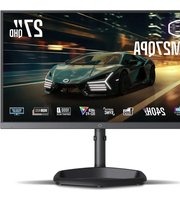
GM27QPA - Monitor COOLER MASTER - Free user manual and instructions
Find the device manual for free GM27QPA COOLER MASTER in PDF.


Pick your language and provide your email: we'll send you a specifically translated version.
| Product Type | Monitor |
| Brand | Cooler Master |
| Model | GM27QPA |
| Screen Size | 27 inches |
| Resolution | 2560 x 1440 (QHD) |
| Refresh Rate | 165 Hz |
| Response Time | 1 ms MPRT |
| Panel Type | IPS |
| Aspect Ratio | 16:9 |
| Brightness | 400 cd/m² (typical) |
| Contrast Ratio | 1000:1 (typical) |
| Color Gamut | DCI-P3 95% (typical) |
| Connectivity | 2x HDMI 2.0, 1x DisplayPort 1.4, 1x USB-C (DP Alt Mode), 2x USB-A 3.0, Headphone Jack |
| Power Consumption | 60 W (typical), <0.5 W (standby) |
| VESA Mount Compatible | 100 x 100 mm |
| Dimensions (with stand) | 613.5 x 393.0 x 258.8 mm |
| Weight (with stand) | Approx. 5.6 kg |
| Stand Adjustability | Tilt, Swivel, Height, Pivot |
| Key Features | AMD FreeSync Premium, HDR10, Low Blue Light, Flicker-Free |
| Cleaning Instructions | Use a soft, dry cloth. Do not use chemical cleaners. Unplug before cleaning. |
| Safety Precautions | Avoid exposure to moisture. Do not block vents. Use only provided power adapter. |
| Spare Parts / Repairability | Contact Cooler Master support for parts. Professional repair recommended. |
Frequently Asked Questions - GM27QPA COOLER MASTER
How do I adjust the monitor settings?
Use the joystick or buttons located on the back of the monitor to access the On-Screen Display (OSD). Navigate through brightness, contrast, input source, and other settings.
What is the optimal resolution and refresh rate?
Connect via DisplayPort or HDMI 2.0 and set your PC to 2560 x 1440 at 165 Hz for the best performance.
How do I enable FreeSync?
FreeSync is enabled by default. Ensure your graphics card supports AMD FreeSync and use a compatible DisplayPort cable. Enable it in the OSD under 'Gaming'.
What should I do if the screen flickers?
Check the cable connection. Try a different cable or port. Disable overclocking if applied. Also, ensure FreeSync is properly set up.
How do I clean the monitor screen?
Power off and unplug. Use a soft, lint-free cloth slightly dampened with water. Gently wipe the screen. Do not use alcohol or abrasive cleaners.
Can I mount this monitor on an arm?
Yes, the monitor supports VESA 100x100 mm mounting. Remove the stand and attach a compatible arm. Ensure the arm can support 5.6 kg.
My monitor has no power. What to check?
First, check the power cable and ensure it is securely plugged into the monitor and wall outlet. Try a different outlet. If still no power, contact Cooler Master support.
How to update the monitor firmware?
Firmware updates are rare. Visit the Cooler Master support website and search for GM27QPA. Download the update tool and follow the instructions.
Does this monitor support HDR?
Yes, it supports HDR10. Enable HDR in your PC's display settings and in the monitor OSD. Note that HDR performance is typical for this monitor class.
What cables are included in the box?
Typically, the package includes an HDMI cable, a DisplayPort cable, a USB cable, and a power adapter with cable. Check the manual for exact contents.
User questions about GM27QPA COOLER MASTER
0 question about this device. Answer the ones you know or ask your own.
Ask a new question about this device
No questions yet. Be the first to ask one.
Download the instructions for your Monitor in PDF format for free! Find your manual GM27QPA - COOLER MASTER and take your electronic device back in hand. On this page are published all the documents necessary for the use of your device. GM27QPA by COOLER MASTER.
USER MANUAL GM27QPA COOLER MASTER


Manual assistant
Powered by Anthropic
Waiting for your message
Product information
Brand : COOLER MASTER
Model : GM27QPA
Category : Monitor