AKOYA P53002 MD 30159 - Netbook MEDION - Free user manual and instructions
Find the device manual for free AKOYA P53002 MD 30159 MEDION in PDF.



User questions about AKOYA P53002 MD 30159 MEDION
0 question about this device. Answer the ones you know or ask your own.
Ask a new question about this device
Download the instructions for your Netbook in PDF format for free! Find your manual AKOYA P53002 MD 30159 - MEDION and take your electronic device back in hand. On this page are published all the documents necessary for the use of your device. AKOYA P53002 MD 30159 by MEDION.
USER MANUAL AKOYA P53002 MD 30159 MEDION
Quick installation guide for your new MEDION TFT monitor.
You will find a detailed description on the attached CD.
Read the detailed instructions on the digital media, which accompany the equipment.
Purpose of use
- This device is only suitable for use in dry, interior rooms.
- This device is only intended for private use. The device is not intended for operation in a heavily industrial company. Use of the device under extreme environmental condition can result in damage to it.
Operating Safety
- Do not allow children to play unattended with electrical equipment. Children may not always correctly recognize danger.
- Never open the housing of the TFT monitor! When the housing is open there is a danger of injury from electric shock!
- Do not insert any objects through the slots and openings of the monitor. This may lead to an electrical short-circuit or even fire resulting in damage to your TFT monitor.
- Slots and openings in the TFT monitor are for ventilation purpose. Do not cover these openings, as this may lead to overheating.
- Never exert pressure on the display. This could break the monitor.
- Warning! An injury hazard exists when the display breaks. Wear protective gloves to pack the broken parts and send them into your service center for proper disposal. Then wash your hands with soap, because it is possible for chemicals to escape.
- Do not touch the display with your fingers or with sharp objects to avoid damage.
- This monitor complies with the regulation ISO 13406-2 class II (Class of pixel failures).
Point of use
- In the first hours of operation, new devices may emit a typical, unavoidable but completely harmless smell, which will decline increasingly in the course of time.
We recommend you to ventilate the room regularly, in order to counteract the formation of the smell. During the development of this product, we have made sure that the applicable limits are clearly fallen below. - Keep your TFT monitor and all units connected to it away from moisture and avoid dust, heat and direct sunlight. Failure to observe these instructions can lead to malfunctions or damage to the TFT monitor.
- Do not operate your device in the open air, because external influences, such as rain, snow, etc. could damage the device.
- Do not place any containers filled with liquid (vases or similar containers) on the device. The container could tip over and liquid can impair electrical safety.
- Do not place any open sources of fire (candles or similar objects) on the device.
- Pay attention to sufficiently large clearances in the wall cupboard. Maintain a minimum clearance of 10cm around the device for sufficient ventilation.
- Place and operate all units on a stable, level and vibration-free surface in order to avoid the TFT monitor from falling.
- Avoid dazzle, reflections, extreme light/dark contrast in order to save your eyes and ensure a pleasant, ergonometric work station.
- Take regulator breaks when working with your TFT monitor in order to avoid tension and fatigue.
Intended Environment
- The TFT monitor can be operated at an ambient temperatures of between +41^ and +95^ ( 5^ to 35^ ) and at a relative humidity of < 80% (without condensation).
- When switched off, the monitor can be stored at between -4^ and +140^ (-20^ + 60^) , up to the maximum height of 39,000 ft (12,000 m) above sea level at a relative humidity of < 95% (without condensation).
- After transporting your TFT monitor please wait until it has assumed the ambient temperature before connecting and switching it on. Extremely high variations in the temperature or humidity may result in condensation forming on the inside of the TFT monitor which could cause an electrical short-circuit.
Precautions
You can increase the service life of your TFT monitor by taking the following precautions:
Caution!
There are no parts which can be serviced or cleaned inside of the monitor housing.
- Before cleaning always disconnect the power line and all connection cables.
- Do not use any solvents, caustic or gaseous cleaning agents.
- Clean the display with a soft, lent-free cloth.
- Ensure that no water droplets remain on the screen. Water can cause permanent discoloration.
- Do not expose the screen to bright sunlight or ultraviolet radiation.
- Please keep the packaging material safely and use it exclusively to transport the monitor.
Included Equipment
Please check your new TFT Display for completeness. Notify us within 14 days after purchase if it is not complete. With your TFT monitor you receive:
TFT screen
15-wired Sub-D cable
- CD with operating instructions and drivers
- Stand
- DVI-D cable
-
Guarantee card
-
Quick start guide
- Audio cable
Power cord
Start-Up
Mounting the Monitor Stand
Mount the monitor stand as shown in the diagram. Perform this step before connecting the monitor.
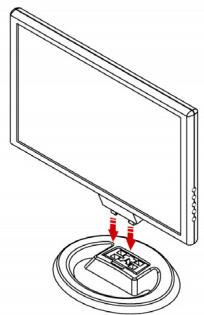
III.: Mounting the monitor stand
Prepare Your Computer
If you have previously used your computer with a CRT monitor, you will need to make sure that your computer's display settings are supported by your TFT monitor. The following pages describe how to verify and change your display settings.
Supported Monitor Settings
WXGA Resolution 1440 x 900 @ 60 Hz*
*recommended resolution (physical)
Caution!
If your display settings exceed the capabilities of your monitor, your monitor may show only a blank display.
Connecting the Monitor
- Operate your TFT monitor only with grounded outlets with AC 100-240V~/ 50-60 Hz. If you are not sure about the power supply at your location, check with your power company.
- Use only the power connection cable provided.
- For additional safety we recommend use of a surge protector to protect your TFT monitor from damage resulting from voltage surges or lightning.
- To remove the TFT monitor from the power supply, disconnect the plug from the AC outlet.
- The power outlet must be in the vicinity of your TFT monitor and within reach of the power cables. DO NOT stretch the power cables tightly to reach a power outlet.
- You should arrange the TFT monitor cables in a manner that no one can trip over or step on them.
- To avoid damage of cable do not place any objects or furniture on the cable.
- Your device has an On and Off switch. The TFT monitor can be switched on or off by means of it. No electricity is consumed if the switch is at OFF (0).
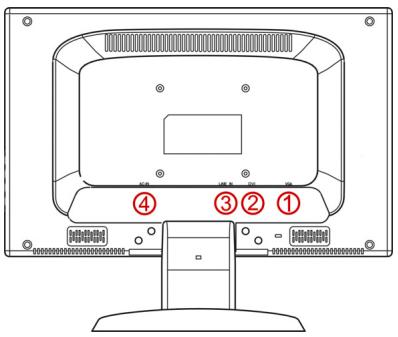
III.: Rear view of monitor
| 1 | VGA connector |
| 2 | DVI-D connector |
| 3 | Audio connector |
| 4 | Power supply |
- Ensure that the TFT monitor is not yet plugged in and neither the TFT monitor nor the computer is switched on.
- Prepare your computer for the TFT monitor if necessary with the correct settings for your TFT.
Connecting VGA / DVI-D Signal Cable
- Plug the signal cable into the matching VGA sockets on the computer and on the monitor. If your PC also has a DVI output, you can connect your monitor by means of the DVI-D connector.
Note
Always connect only a single data cable, in order to avoid problems with the allocation of signals, if your PC has several inputs (e.g. VGA and DVI).
Connect the Audio Cable (optional)
- Plug the audio cable into the matching ports on the computer and on the monitor. This should be "audio out", "line out" or "speaker" on your computer.
Connecting the Power Supply
- Now connect the mains socket of the monitor using the mains cable supplied with a properly configured mains outlet. The outlet should be near the monitor and ease to access. (same circuit).
- Your monitor features a power switch for turning your monitor on and off. If the switch is set to 0, then no power is consumed. Set the switch to 1 and next switch your monitor on using the on/off switch.
- Then switch on your computer.
Controls
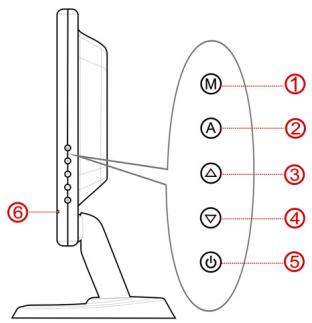
(III.: Controls)
| Function | Description | |
| 1 | Menu/Enter | When this key is pressed the OSD (ON screen display) starts on your TFT monitor Confirm you selection by pressing this key. |
| 2 | Auto | With this key you can automatically adjust the image. |
| 3 | ▲ | When OSD is active this key sets a parameter value and increases it. |
| Increase volume | Executing it directly raises the volume. | |
| 4 | ▼ | When OSD is active this key sets a parameter value and decreases it. |
| Decrease volume | Executing it directly lowers the volume. | |
| 5 | Power | With this switch you can switch the TFT monitor ON and OFF. |
| 6 | Operation indicator | Indicates the operating state. |
| Green = Normal mode, | ||
| Orange = Stand-by mode | ||
It can be difficult to check some of the settings listed below if your display is blank! In order to get an image on your screen so that you can check the settings, it may be necessary to start your computer in safe mode.
- Windows 98/ME.
When starting your computer, press F8 before the Windows logo screen appears. Select Safe Mode.
- Windows NT 4
When starting your computer, select the boot option with [VGA Mode] at the end.
- Windows 2000/XP
When starting your computer, press F8 before the Windows logo screen appears. Select Enable VGA mode.
It may be necessary to reinstall your video driver while in one of these modes in order to reset the resolution and refresh rate.
No display on screen:
Check:
- Refresh rate frequency. The current image refresh frequency must be suitable for the TFT monitor.
- Power saving mode. Press any desired key and move the mouse to deactivate the mode.
- Signal cable pins. If pins are bent, please contact your call center.
- Set the appropriate values for your TFT monitor.
Picture runs or is not stable:
- Signal cable pins. If pins are bent, please contact your call center.
- Video card. Check whether the settings are correct.
- Image refresh frequencies. Select permissible values for your graphic settings.
- Remove any interfering equipment (portable telephones, loudspeakers, etc.) from the vicinity of your TFT monitor.
- Avoid using monitor extension cables.
Colors not displayed cleanly:
- Check the signal cable pins. If pins are bent, please contact your service dealer.
- Readjust the color settings using the OSD.
- Avoid using monitor extension cables.
Recycling
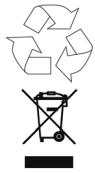
Packaging
All packaging and packaging materials that are no longer required can and should be recycled.
Device
At the end of its life, the appliance must not be disposed of in household rubbish. Enquire about the options for environmentally-friendly disposal.