
CU50 - Calculator LEXIBOOK - Free user manual and instructions
Find the device manual for free CU50 LEXIBOOK in PDF.


| Product type | USB optical mouse with built-in calculator |
| Brand | LEXIBOOK |
| Model | CU50 |
| System compatibility | Windows 98/98SE/ME/2000/XP |
| Interface | USB 1.1 |
| Mouse power | Computer USB port |
| Calculator power | 1 AG10 battery (included) |
| Auto power off | After about 8 minutes of inactivity |
| Calculator functions | Basic calculations, percentage, tax, memory, chain operations |
| PC mode | Use keys as keyboard in Word, Excel, WordPad |
| SEND key | Send displayed result to a Word or Excel document |
| Display | LCD |
| Mouse buttons | Left, right, scroll wheel with auto-scroll function |
| Care and cleaning | Soft dry cloth, avoid chemical liquids |
| Usage precautions | Do not disassemble, avoid shocks, humidity, high temperatures |
| Warranty | 2 years, excluding LCD screen breakage and battery |
| Recycling | Waste electrical device: deposit at a collection point |
| After-sales service | 0892 23 27 26 (0.34 EUR incl. tax/min) |
Frequently Asked Questions - CU50 LEXIBOOK
User questions about CU50 LEXIBOOK
0 question about this device. Answer the ones you know or ask your own.
Ask a new question about this device
Download the instructions for your Calculator in PDF format for free! Find your manual CU50 - LEXIBOOK and take your electronic device back in hand. On this page are published all the documents necessary for the use of your device. CU50 by LEXIBOOK.
USER MANUAL CU50 LEXIBOOK
Congratulations! You have just acquired the CU50 USB Mouse Calculator from Lexibook®.
This optical mouse with integrated calculator is easy to connect to the USB port of your PC. The calculator is also compatible with Microsoft Word® and Excel® and WordPad®. In order to get the most out of this item, read this instruction manual carefully and keep it in a safe place for future reference.
Getting Started
The Lexibook® USB Mouse Calculator has the following specifications:
- USB 1.1 version/free driver.
- PC compatible with built-in USB port / Windows® 98/98SE/ME/2000/XP.
- No external power supply needed.
USB connection:
- Turn on your computer.
- Plug the rectangular USB connector of the CU50 USB Mouse Calculator into your computer's USB port.
- Your PC will automatically recognize the new device. You are now ready to use the CU50 USB Mouse Calculator.
Static label:
Before using this product for the first time, remove the static label from the LCD screen.
Mouse
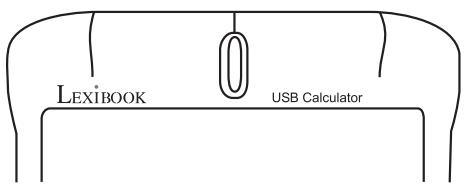
Basic functions:
Left click: to click, double-click, and select text.
Right click: to display shortcut menus or other program specific features, if available. Scroll wheel:
To move around in a scrollable document, similar to clicking the scroll arrows or using the PAGE UP and PAGE DOWN keys.
- Roll the wheel down to move down in a scrollable document and roll the wheel up to move up in a scrollable document.
Auto scroll: press the wheel button to automatically move around in a document, without rolling the wheel or clicking the scroll bar.
To stop auto scrolling, press the wheel button again or press a key on the keyboard.
Calculator
The Lexibook® USB Mouse Calculator is both a traditional calculator and a PC calculator. In PC mode, its keys are equivalent to the corresponding keys on the keyboard of your PC when you perform calculations in a Word® or WordPad® document or Excel® spreadsheet. The SEND key also allows you to send the results obtained in calculator mode to a text file or to a field in a spreadsheet.
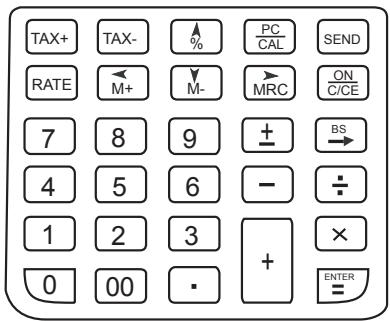
Keys available in calculator mode
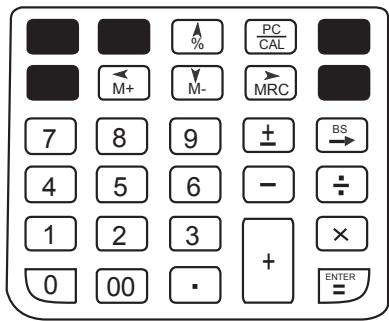
Keys available in PC mode
Key functions
| Keys | Function in calculator mode | Function in PC mode |
| TAX+ RATE | To perform tax calculations using a tax rate set by the user. | No function. |
| To perform operations with percentage values. | Equivalent to the up arrow key on a PC keyboard. | |
| To go from calculator mode to PC mode. | To go from PC mode to calculator mode. | |
| To send the results displayed on the calculator to an Excel® spreadsheet or Word® file. | No function. | |
| To perform memory operations. | Equivalent to the arrow keys on a PC keyboard. | |
| To clear all entries and the memory. To turn the unit on. | No function. | |
| To type in numbers. | To type in numbers. | |
| To change a positive number to negative, or vice versa. | To insert a negative sign before a number. | |
| To erase the last digit entered. | To delete the last character typed. Equivalent to the Backspace key on a PC keyboard. | |
| Operator keys. | To enter the operation signs. | |
| To quickly enter hundreds. | To quickly enter hundreds. | |
| To get the result to a calculation. | Equivalent to the ENTER key on a PC keyboard. |
Calculation examples
Note: before each new calculation, please press ON to clear all previous entries.
| Example | Operation | Display |
| (2+5-3) x 8÷4-7=1 | 2 + 5 - 3 X 8 ÷ 4 - 7 = | 1 |
| (23x7) + (12÷4) - (13x2) - (9÷2) = 133.5 | 23 X 7 M+ 12 ÷ 4 M+ 13 x 2 M-9 ÷ 2 M-MRC MRC | 133.5 |
| 3³ x 2÷5=0.01728 | 3 X == X 2 ÷ 5 == = = = = | 0.01728 |
| 85% of 360 | 360 x 85 % | 306 |
| Add 2% on 360 | 360 x 2 % + = | 367.2 |
| Minus 15% on 360 | 360 x 15 % - = | 306 |
| How to set the tax rate: tax rate 5% | 5 RATE TAX+ | 5 |
| How to recall the tax rate: 5% | RATE TAX- | 5 |
| Price: 100 tax: 5% | 100 TAX+ | 105 |
| Price 150 including 5% tax | 150 TAX- | 142.857142857 |
| (-8X85) - 233 Send the result to in a spreadsheet or Word® file. | 8 ± X 85 - 233 = SEND | -913 |
Power source:
1 AG10 battery.
To replace the battery, open the battery compartment at the back of the unit using a screwdriver.
Insert a new battery (+ side facing up) and close back the battery compartment. Tighten the screw.
Automatic switch off:
If no key is pressed, the calculator will switch itself off automatically after approximately 8 minutes.
Abnormal Conditions
If this calculator is exposed to a powerful external electric field or shock during use, an abnormal condition may occur in which all the keys, including ON/C/CE, do not function. In this case, reset the unit by removing the battery and inserting it again.
Handling precautions
Your calculator contains precision components, never attempt to take it apart.
- Take care not to drop your calculator or allow it to receive any other impacts.
- Do not leave your equipment in areas exposed to dampness, dirt, dust or high temperatures.
- Make sure your calculator does not come in contact with water or with any other liquid substance; this could produce a short circuit or a potential risk of fire.
- Avoid using chemical fluids or petrol to clean the equipment. Wipe it with a dry, soft cloth, or with a cloth moistened with a solution of water and a neutral detergent.
- Under no circumstances will the manufacturer and its suppliers be liable to you or any third party for any damages, expenses, lost of profits, lost of earnings, or any other damages arising from any malfunction, repair, or battery replacement. The user should anticipate copies of physical records and data in order to be protected against any possible loss.
- Never dispose of batteries, the liquid crystal panel, or other component in a fire.
- Should the calculator be exposed to a high electrostatic discharge, the content of the memory could suffer damage or the keys could stop working.
- Before assuming malfunction of the equipment, make sure you have read this instruction manual and check that the problem is not caused by the batteries running out or by calculation errors.
Warranty
This product is covered by our 2-year warranty.
To make use of the warranty or after-sales service, please contact your retailer and supply proof of purchase. Our warranty covers material or installation-related defects attributable to the manufacturer, with the exception of wear caused by failure to respect the instructions for use or any unauthorised work on the equipment (such as dismantling, exposure to heat or damp etc).
Note: It is recommended that all packaging be kept for future reference. Keep this instruction manual in a safe place as it contains important information.
In our constant concern for improvement, the colours and details of the product may differ slightly from those shown on the packaging.
Lexibook UK Ltd
Unit 10 Petersfield Industrial Estate
Bedford Road, Petersfield
Hampshire, GU32 3QA
United Kingdom
Freephone helpline: 0808 100 3015
www.lexibook.com
Microsoft®, Windows®, Word®, Excel® and
WordPad® are registered trademarks of Microsoft.
Corporation in the United States and other countries.
IBM® is a trademark of International Business
Machines Corporation.

Environmental Protection
Unwanted electrical appliances can be recycled and should not be discarded along with regular household waste! Please actively support the conservation of resources and help protect the environment by returning this appliance to a collection centre (if available).


Introduccion
LEXIBOOK Electronica Lda
Quinta dos Loios
Praceta Jose Domingos dos Santos, 6B-8A
2835-343 Lavradio-Barreiro
Portugal
Apoio Tecnico: 212 039 600
http://www.lexibook.com

Introduzione
IM reference code: CU50IM0186
Brand : LEXIBOOK
Model : CU50
Category : Calculator