
NS 35-50 - Gps D-JIX - Free user manual and instructions
Find the device manual for free NS 35-50 D-JIX in PDF.


| Product type | GPS receiver for portable navigation |
| Dimensions | 7 x 4 x 2 cm (estimated) |
| Weight | 80 g (estimated) |
| Power supply | Built-in rechargeable battery, battery life about 10 hours |
| Main functions | GPS navigation with voice guidance, address and point of interest (POI) search, favorites management, route simulation |
| Software compatibility | Ndrive for Pocket PC and Symbian devices |
| Satellite reception | Requires at least 3 satellites for positioning, 4 for altitude; initial acquisition time up to 20 minutes |
| Available languages | French, English, Italian and others (adjustable in the application) |
| Maintenance and cleaning | Clean with a soft, dry cloth; avoid moisture |
| Safety | Use outdoors for better reception; avoid obstacles (buildings, trees) |
| Spare parts and repairability | No spare parts available; contact support in case of failure |
| General information | Ndrive software provided on DVD; map updates via www.ndriveweb.com |
Frequently Asked Questions - NS 35-50 D-JIX
User questions about NS 35-50 D-JIX
0 question about this device. Answer the ones you know or ask your own.
Ask a new question about this device
Download the instructions for your Gps in PDF format for free! Find your manual NS 35-50 - D-JIX and take your electronic device back in hand. On this page are published all the documents necessary for the use of your device. NS 35-50 by D-JIX.
USER MANUAL NS 35-50 D-JIX
Welcome to NDrive and thank you for choosing one of our products. This quick start guide allows you to take the first steps navigating with the NDrive. With frequent navigation you may even find some functions that are not described in this manual. When you have any doubt you may also consult the "Tutorial", from the initial program menu.
Table of contents
I - Compatibility and minimum requirements 4
a) PC requirements
II-First Steps. 4
a) GPS
b) NDrive software installation
c) Ready to navigate
III - First Impressions 6
IV - The Ndrive in detail. 7
a) Map window
b) Find
c) Navigation
d) Favorites and home
e) Settings
f) Buying and actualizing maps
V-Tricks and tips. 14
I - Compatibility and minimum requirements
a) PC* minimum requirements
- Operating system Windows 98SE/Me/NT/2000/XP or superior;
DVD-ROM drive (4x or superior); - Card reader;
II - First Steps
a) GPS
- To retrieve a position you must have, at least, 3 satellites with good reception (they appear with a red bar in the GPS window). With 4 or more satellites you will have a more precise position and an altitude measure;
- The first time you turn on the GPS, or without using it for a few hours, the first reception will take longer (about 5 minutes to obtain signal in some cases);
- To speed up the signal reception you must be in a wide open place and with some visible sky above you. Walking will increase the time to retrieve the first position;
- Clouds, trees, buildings and fog will decrease considerable the quality and intensity of the GPS signal. The errors will be higher and the system will be slower.
b) NDrive software installation
Installation by Memory Card
This installation option is available both for Pocket PC and Symbian equipments compatible with the NDrive. To install through the memory card is easier, although it has an important requirement: you'll need a memory card reader. In this case, these are the steps to install. Insert the NDrive DVD in your DVD computer drive. Three options will be shown: "Install NDrive", "Install Maps" and "Help". Choose the first option and another menu will appear with three options: "Upgrade the NDrive through the ActiveSync", "Reinstall the NDrive through the ActiveSync" and "Install NDrive to Pocket PC/Symbian on your computer". The right option is the third one, since you are installing the software for the first time and will transfer data through a memory card reader.
Now click on "Open" and select where you want to save the folders that will be created (2577, NDrive, System). We advise that you choose desktop. When the folders are extracted, you only need to copy the three folders that were created and paste them inside the memory card.
c) Ready to navigate
You are now ready to navigate. The GPS should be recognized automatically and in a few minutes (5 minutes maximum), you'll get the satellites' signal (place yourself with the GPS out of doors, in a large place this first time, so that the satellites are easier to pick up). Use the tutorial to clear some additional doubt or continue to read this guide.
In case you have problems with the GPS recognition, please contact us through the e-mail info@ndriveweb.com.
III - First impressions
The NDrive has two extremely important Windows:
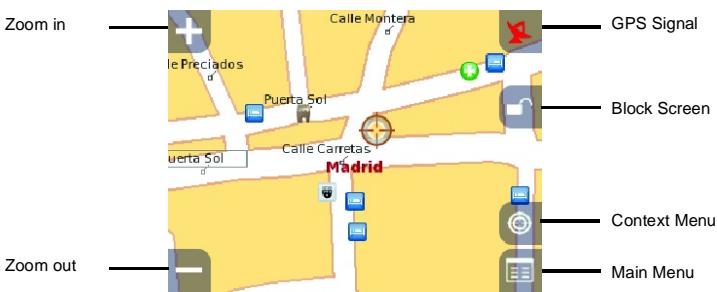
- The map window, on which you may carry out any function on the map.
- The main window of the application, on which are presented all the functions' groups that may be carried out in the NDrive.
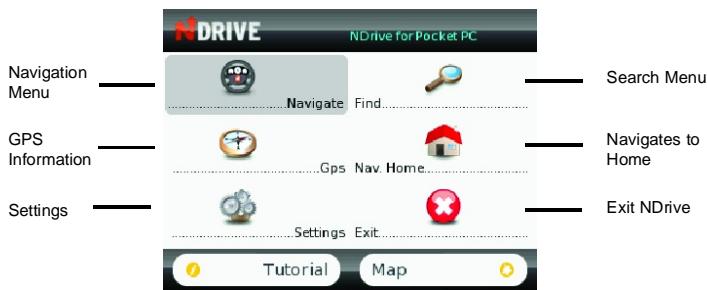
To go to the main window of the application from the map you just have to click on the icon in inferior right corner. To go back to the map just click on the "map" button that is at the inferior, right corner of the main window. If you click on the "tutorial" button, at the inferior left corner of the main window, you'll see a presentation with the basic functions of the NDrive.
IV - The Ndrive in detail
a) Map window
Whenever you start the NDrive, it is the map window that comes first.
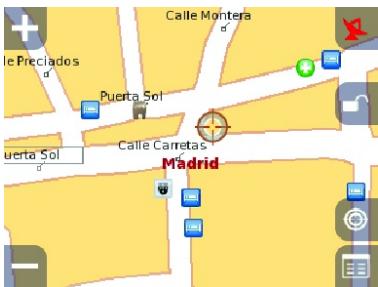
At the screen centre, you also have a series of buttons:

(superior left corner) Allows enlarging the map;

(inferior left corner) Allows reducing the map);

(superior right corner) Allows controlling the reception of the satellite signal, with four expressions:
-
Red Colour - No GPS receptor was found. Make sure you have the pairing of your Bluetooth GPS receptor correctly established or that the GPS receptor is on. If it is not detected after this, please contact us by e-mail: info@ndriveweb.com;
-
Blue Colour - The GPS receptor was detected but the signal is not enough to place the current position on the map. Place the GPS receptor out of doors, near the vehicle dashboard. Some vehicles own reflecting glasses that difficult the signal passage. Place the GPS receptor out of those glasses range. If this is the first time you're trying the connexion, it may take some time before you get the signal;
-
Yellow color - The position has already been placed in the map, but there are only three satellites, which does not allow getting the altitude;
- Green Colour - The position has already been placed in the map and there are more than three satellites sending the signal;
If you click here you may get all the information related to the current position and satellite signal: direction (compass), latitude, longitude, altitude, velocity, satellite signal and number of satellites found.

(inferior right corner) Allows to execute an action over the active/selected map point, some of those actions may be of navigation to that point, add to favourites or define the point as home.

(inferior right corner) Allows to go to the NDrive main window, where all the functions of the application are presented.

(Right) Block the screen.
b) Find
When you click "Find" from the main menu, all the search possibilities are presented, which are:
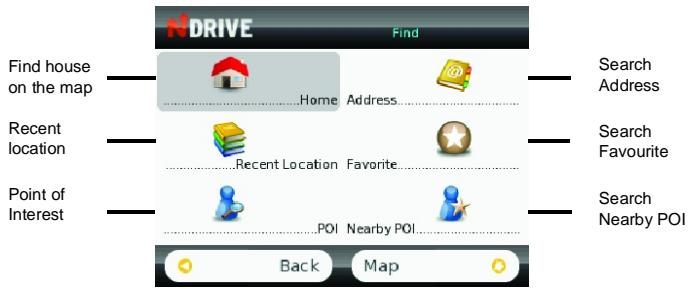
- Home - Shows the residence location on the map. To define the residence location see point f)
- Address - Allows an address search and its location on the map. The search is done in three consecutive steps: search of city, street and door number (if it exists at the selected address). The search is done through the virtual NDrive keyboard. This keyboard works as in the mobile phones: click twice on the ABC key to write a "B" or three times on the DEF key to write an "F". When you are doing the street search, avoid using terms such as "Street", "Avenue" or any other designation that is too common in an address. Use, instead, less common terms (such as: when searching the Yellow Road Street, do the search using only "Yellow").
- Recent location- Allows the quick search of the last 18 searched places (Addresses and POIs).
- Favourite - Shows the location, on the map, of points that were placed as favourites before. These may be divided in different categories, that can be set by the user (personal, work...). After selecting the category, choose the favourite that you wish to see on the map.
- POI - Allows the search of a Point of Interest (POI) and its location on the map. The search is done in three consecutive steps: city search, POI category search (Tourism, Sports, Culture, Health...) and POI. In Pocket PC the search is done trough the NDrive virtual Keyboard. This keyboard works as in the mobile phones: click twice on the ABC key to write a "B" or three times on the DEF key to write an "F". When you are doing the POI search, avoid using terms such as "Monument", "Pharmacy" or any other designation that is too common. Use, instead, less common terms (such as: when searching the Pedroso Monastery, do the search using only "Pedroso").
- Nearby POI - Allows seeing the POIs that are closer to the map current position. The current position of the map is indicated by the GPS signal, or, in lack of GPS signal, by the central point on which the current map is. First select the POIs category (Tourism, Sports, Culture, Health...) that you want to locate. Then the 18 places of this category that are nearby are shown. Click in one of those places to see it on the map.
c) Navigation
The navigation with the NDrive is always made according to a starting point. That starting point is given by the satellite signal. When there's no satellite signal, the starting point is given by the map's central point.
Note: If you don't have a GPS signal and want to demonstrate a route from A to B, do the search of a POI or an address (Starting Place). Return to the main menu and navigate now to the point you wish to be your destiny.
Likewise, with no GPS signal, navigation is replaced by a route demonstration.
- Navigation window
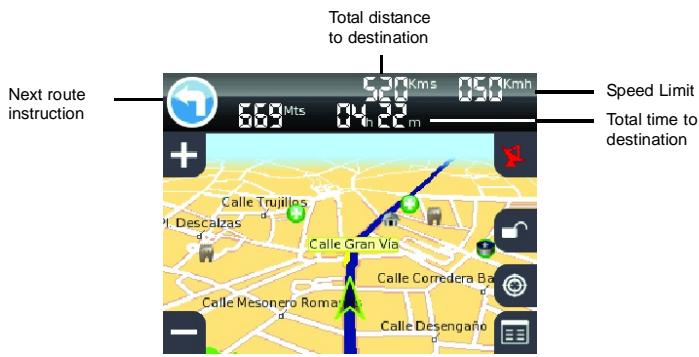
The navigation window has some similarities with the map window but adds a bar at the top with indications relating to navigation, namely, next route instruction, distance till the next route instruction, total time to destination and total distance to destination. The window has also the capacity to make "auto-zoom" (depending on the travel speed) and rotate (allowing the navigation to be done always upwards, independently of the compass). By clicking the context and home buttons, the menus presented are also different.
The context menu allows executing some settings that you may also define from the main menu settings menu. The sole exception is the auto-zoom button, which can not be found on any other menu. The auto-zoom button allows that the map, while navigating, adjusts to the most appropriate zoom to navigation if activated. If you make a zoom in or a zoom out of the map, it will turn to the zoom considered ideal for navigation in a few seconds.
The home menu of the navigation window allows, among other options, to stop the navigation, exit the NDrive or navigate to the nearest gas stations/ car-park.
- Stop navigation
d) Favorites and home
Favorites allow a quick navigation or search, from the menus "find" and "Navigate".
-Create favorites
It's quite simple to create a favorite. Do a search address or POI of the point you want to define as favorite. Go to the map window, click on the context button and click on "add to favorites". Choose the category on which you want to place the favorite and, then, put the favorite's name.
Note: If after you've chosen the category, you choose another while editing the favorite name, the favorite is created in the new category (even if there is no category with that name).
- Edit Favorites
To edit a favorite, go to the menu "Find", followed by the "Favorite" button. Choose the category where the favorite to edit is and click on the name of the favorite. Click on "Edit Favorite" to define the name or category.
-DeleteFavorite
To delete a favorite, go to the menu "Find", followed by the "favorite" button. Choose the category where the favorite to delete is and click on the name of the favorite. Click on "Remove Favorite".
Note: If you've created a new category to place the favorites and then deleted all the favorites from that category, the category is also deleted.
- Define Home
Defining the residence place allows you a quick navigation or search, from the menus "Find" and "Navigate". The Icon "Nav. Home" is also present in the main menu. In other words, it is possible to navigate to the residence place with a single click, from the main menu.
It is very simple to define the residence place. Make a search (address or POI) of the point you want to define as home. Go to the map window, click on the context button and click on "set as home".
- Remove and edit home
The residence place is considered a favorite. So, to remove or edit it, you just have to follow the same steps as to edit and remove favorites. This favourite is saved in the category "Personal" with the representative icon of the residence.
- Add category
To add a category you must add a favourite, Click on the add button and choose one of the four existing categories. By selecting one category, you will see a new screen, where the name of that same category will be. To add this new one, you just need to replace the name of the existing category by the new name.
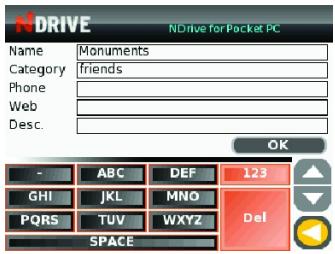
New favourite window
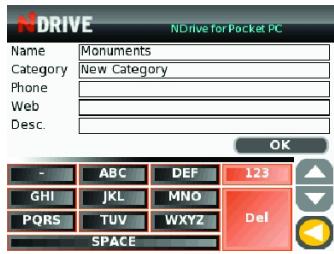
If you change category name, you will create a new category.
In this manner, you have created a new category, as you may see on the next image.
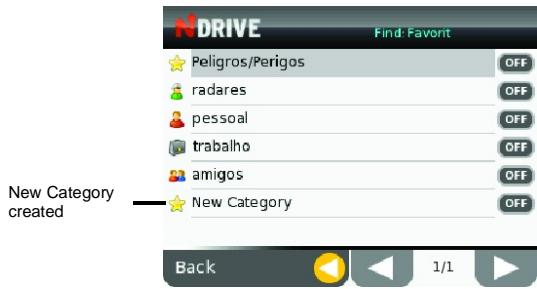
e) Settings
At the main menu, click on "Settings". There are eight buttons:
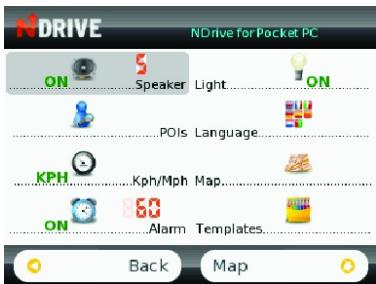
- Speaker - Defines the sound volume, on a scale of 0 to 5;
- Light - Allows defining if the backlight of the PDA is always active through the navigation or not;
- POIs - Defines the categories of the POIs that can be seen on the map, the map window, or the navigation window;
- Language - Allows the definition of the language on which the application is presented, from the buttons' name to the vocal instructions;
- Alarm - Defines the velocity from which a sound warning of velocity goes off, from 60 to 160km (every 10km) or function turned off;
- Templates - Allows defining the colours' palette of the map that best adapts to your navigation, since daily to nocturnal layouts;
- Kph/Mph - Defines the speed unit (kilometres per hour or miles per hour);
-Map - Allows to change the map in NDrive.
f) Buying and updating maps
You can install several maps in your memory card and switch between them. With a high capacity memory card you can install all Europe maps in a single memory card. You can buy new maps from www.ndriveweb.com. Several maps are available from the site.
You can update them from www.ndriveweb.com. If you choose to be notified at the registration process, you will know when a new/updated map or software is available.
V - Tricks and tips
Backup and upgrades
Do a backup of the NDrive to your computer or to a memory card. In this way, if a problem with the application reading occurs, delete the application and copy all the files that you had save to the root of the memory card. The NDrive becomes totally operational again. You may also explore the NDrive site (www.ndrviveweb.com) to know if there's a more recent version of the application. To compare with the version you have installed, verify the inferior corner during the initial message.
Note: Before deleting the former version of the NDrive, save the files "favourites" and "NDRI" at the directory "NDrive" and then place them back in the new version.
Next instruction
Click in any heading area of the navigation window when you are navigating to hear again the next instruction.
Improve your GPS reception
The GPS receiver must have, whenever it is possible, the best visual-field with the sky. In the car, it must be set on the dashboard, as ahead as possible, to avoid signal blockage (athermic glasses may also condition the signal reception). On the other hand, the buildings, the trees' leafage or the fog worsen the reception signal, which results that in some days and places the signal may be stronger than in other. If get bad signal, you must use an external antenna.
Quick Start Guide
Table des matieres
Installation " via " Carte Mémoire
- Table of contents
- I - Compatibility and minimum requirements
- a) PC* minimum requirements
- II - First Steps
- a) GPS
- b) NDrive software installation
- c) Ready to navigate
- III - First impressions
- IV - The Ndrive in detail
- a) Map window
- b) Find
- c) Navigation
- - Navigation window
- d) Favorites and home
- - Add category
- e) Settings
- f) Buying and updating maps
- V - Tricks and tips
- Backup and upgrades
- Next instruction
- Improve your GPS reception
- Quick Start Guide
- Table des matieres
- Installation " via " Carte Mémoire
Brand : D-JIX
Model : NS 35-50
Category : Gps