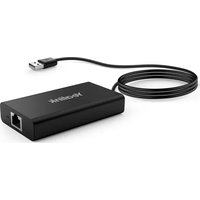
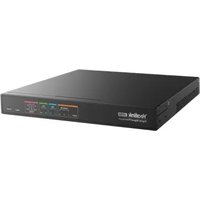
BYOD-Extender - Video Conferencing System Yealink - Free user manual and instructions
Find the device manual for free BYOD-Extender Yealink in PDF.


Pick your language and provide your email: we'll send you a specifically translated version.
| Product Type | Video Conferencing BYOD Extender |
| Brand | Yealink |
| Model | BYOD-Extender |
| Connectivity | USB-C (USB 3.0) |
| Video Output | HDMI 1.4 (up to 4K@30Hz) |
| Audio | Analog audio passthrough (3.5mm) |
| LED Indicators | Power, Connection, Activity |
| Dimensions (WxDxH) | 110 x 70 x 25 mm |
| Weight | 180 g |
| Power Supply | USB bus-powered (5V/500mA) |
| Cable Length | 1.0 m captive USB-C cable |
| Supported OS | Windows 7/10/11, macOS 10.12+, Linux |
| Supported Platforms | Zoom, Microsoft Teams, Google Meet, Cisco Webex |
| Plug-and-Play | Yes, no driver required |
| Maximum Resolution | 4K@30Hz |
| Audio Support | Stereo audio in/out via room system |
| Security | Physical connection only; no authentication |
| Maintenance | Wipe with soft cloth; avoid liquids |
| Repairability | Not user-serviceable; contact authorized service |
| Warranty | 2 years limited |
| Package Contents | BYOD-Extender, USB cable, quick start guide |
| Certifications | FCC, CE, RoHS |
Frequently Asked Questions - BYOD-Extender Yealink
How do I connect the BYOD-Extender to my laptop?
Simply plug the USB-C cable into your computer; it will be recognized automatically as a video and audio device for your conference room.
Is the BYOD-Extender compatible with Mac and Windows?
Yes, it works with Windows 7/10/11, macOS 10.12+, and Linux.
Which video conferencing platforms are supported?
It works with any platform that uses standard USB camera and audio devices, including Zoom, Teams, Google Meet, Cisco Webex, etc.
Do I need to install drivers?
No, the device is plug-and-play and uses standard UVC and UAC drivers.
What video resolution does it support?
It supports up to 4K at 30Hz via HDMI output to the room display.
How do I clean the device?
Use a soft, dry cloth. Avoid liquids and abrasive cleaners.
The device is not recognized by my computer. What should I do?
Ensure the USB cable is fully inserted. Try a different USB port. Restart your computer. If using a USB hub, connect directly.
Can I use the BYOD-Extender with a USB-A port?
It comes with a USB-C cable. You may need a USB-C to USB-A adapter, but USB 3.0 is recommended for best performance.
Does the device require external power?
No, it is powered via the USB connection.
How long is the warranty?
The device comes with a 2-year limited warranty.
User questions about BYOD-Extender Yealink
0 question about this device. Answer the ones you know or ask your own.
Ask a new question about this device
No questions yet. Be the first to ask one.
Download the instructions for your Video Conferencing System in PDF format for free! Find your manual BYOD-Extender - Yealink and take your electronic device back in hand. On this page are published all the documents necessary for the use of your device. BYOD-Extender by Yealink.
USER MANUAL BYOD-Extender Yealink

Manual assistant
Powered by Anthropic
Waiting for your message
Product information
Brand : Yealink
Model : BYOD-Extender
Category : Video Conferencing System