
ULTRASTAR 36LZX - Hard Drive HITACHI - Free user manual and instructions
Find the device manual for free ULTRASTAR 36LZX HITACHI in PDF.


User questions about ULTRASTAR 36LZX HITACHI
0 question about this device. Answer the ones you know or ask your own.
Ask a new question about this device
Download the instructions for your Hard Drive in PDF format for free! Find your manual ULTRASTAR 36LZX - HITACHI and take your electronic device back in hand. On this page are published all the documents necessary for the use of your device. ULTRASTAR 36LZX by HITACHI.
USER MANUAL ULTRASTAR 36LZX HITACHI
Installation and reference manual
IBM Ultrastar 36LP & 36LZX
3.5 inch Ultra 160 SCSI hard disk drive
Models: DPSS-336950 DDYS-T36950
DPSS-318350 DDYS-T18350
DPSS-309170 DDYS-T09170
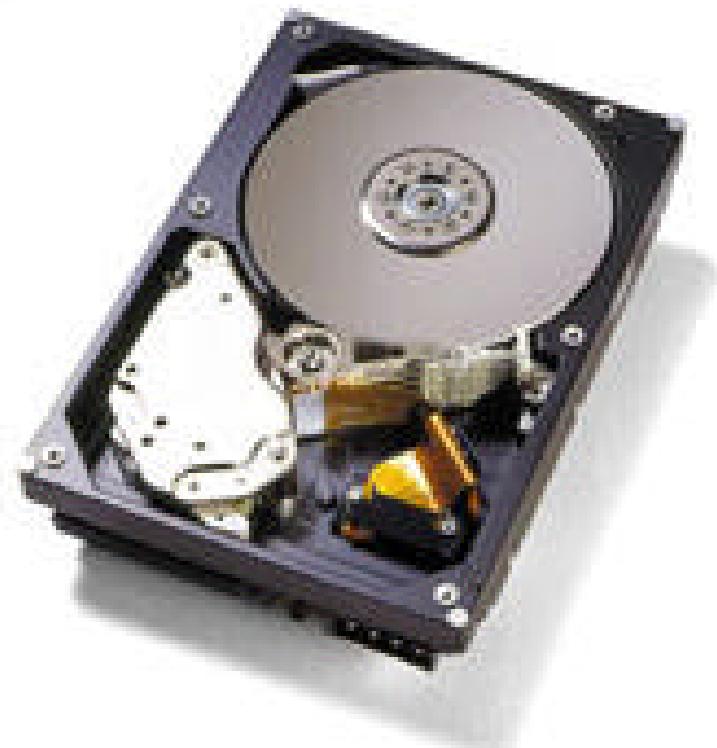
Technical support
A Troubleshooting section is provided in the Appendix of this manual to aid you in the installation of your IBM Ultrastar. If the answer to your installation question is not found in this manual, call one of the Technology Support Centers. Before calling, please gather as much of the following information as possible:
- IBM drive model number, part number, and serial number
- Operating system
BIOS manufacturer, version, and date
Any error codes and when they occurred - System type and manufacturer
- Chipset manufacturer
- Adapter card manufacturer
Other devices in systems - Bus/cable layout (location of device, which device is at the end, etc.)
- Applications used (if relevant)
Technology Support Centers:
North America
Web www.ibm.com/harddrive
Voice 888.426.5214 or 507.286.5825
Fax 507.253.DRIVE
E-mail drive@us.ibm.com
Singapore
Voice 1800.418.9595 or 65.6.418.9595
E-mail drive@sg.ibm.com
United Kingdom
Voice 44.1475.898.125
E-mail drive@uk.ibm.com
Germany
Voice 49.7032.153050
E-mail drive@de.ibm.com
Automated Fax Back Service (for related technical support documents)
U.S.A. 408.256.5418
Singapore 800.418.9696
England 0800.96.6948
Germany 0130.82.6089
France 0800.902229
Italy 167.875148
Installation and reference manual
IBM Ultrastar 36LP & 36LZX
3.5 Ultra 160 SCSI hard disk drive
International Business Machines Corporation provides this publication "AS IS" without warranty of any kind, either express or implied, including, but not limited to, the implied warranties of merchantability or fitness for a particular purpose. Some states do not allow disclaimers of express or implied warranties in certain transactions. Therefore, this statement may not apply to you.
This publication could include technical inaccuracies or typographical errors. Product data and specifications are subject to change without notice. Changes are periodically made to the information herein; these changes will be incorporated in new editions of the publication. IBM may make improvements or changes in the products or the program described in this publication at any time.
This publication may contain reference to or information about IBM products (machines and programs), programming, or services that are not available in your country. Such references or information must not be construed to mean that IBM intends to make available such IBM products, programming, or services in your country.
Product description data contained herein represents IBM's design objectives and is provided for comparison among IBM products; actual results may vary based on a variety of factors. Except as explicitly stated in the Warranty section of this Manual, the product data contained herein does not constitute a warranty. Questions regarding IBM warranty terms or the methodology used to derive data should be referred to an IBM representative.
Copyright International Business Machines Corporation 2000. All rights reserved. Note to US Government Users - Documentation related to restricted rights - Use, duplication, or disclosure is subject to restrictions set forth in GSA ADP Schedule Contract with IBM Corp.
IBM is a registered trademark of the International Business Machines Corporation. The following are also trademarks or registered trademarks of the International Business Machines Corporation in the United States, other countries, or both: Ultrastar and OS/2. Any other products or trademarks are the property of their respective owners.
Table of contents
Technical support
Introduction
Getting started
Handling precautions
Tools for installation Page 6
Begin the hardware install
Configure the jumper settings Page 7
Option jumper blocks
Assign a SCSI address
Enable optional features
The auxiliary connector on 68 pin models
Mount the drive
Attach the cables
Drives with 68 pin connectors . Page 12
Drives with 80 pin connectors . Page 12
Complete the hardware install
Verify host adapter settings
Partition the drive
Format the drive
Install the operating system Page 18
Appendix
A. How to create a bootable diskette
B. Controller information Page 19
C. Compatibility 20
DDYS models
DPSS models . 21
D. Troubleshooting Page 22
E. Glossary 25
Warranty
Introduction
This manual was prepared to aid you in the installation of your new IBM Ultrastar hard disk drive. This manual provides installation instructions for the following model numbers:
| Model | Capacity | Connector Type |
| DPSS-336950 | 36.9 GB | 68 pin |
| DPSS-336950 | 36.9 GB | 80 pin SCA |
| DPSS-318350 | 18.3 GB | 68 pin |
| DPSS-318350 | 18.3 GB | 80 pin SCA |
| DPSS-309170 | 9.1 GB | 68 pin |
| DPSS-309170 | 9.1 GB | 80 pin SCA |
| DDYS-T36950 | 36.7 GB | 68 pin |
| DDYS-T36950 | 36.7 GB | 80 pin SCA |
| DDYS-T18350 | 18.3 GB | 68 pin |
| DDYS-T18350 | 18.3 GB | 80 pin SCA |
| DDYS-T09170 | 9.1 GB | 68 pin |
| DDYS-T09170 | 9.1 GB | 80 pin SCA |
Your IBM Ultrastar drive has an advanced Low Voltage Differential (LVD) interface that supports transfer rates of up to 160 MB/sec. Your drive will function at the maximum speed supported by your system components.
To obtain the 160 MB/sec transfer rate, an LVD Ultra 160 controller must be used and single-ended drives cannot be placed on the same cable with LVD drives. If you have a SCSI controller that does not support this interface, the data transfer speeds of your system will be lower than 160 MB/sec due to the lower speed of the controller. Contact your controller manufacturer to determine if your current controller card will support the LVD Ultra 160 interface.
Note: If you currently have single-ended SCSI drives and a non-LVD controller, LVD drives may be attached to the existing cable. If you choose to replace your non-LVD controller with an LVD controller, LVD drives can be attached to the same bus with single-ended drives. However, some LVD controllers do not support single-ended SCSI drives. Contact your controller manufacturer for more information. Both these configurations will only allow for data transfer speeds at the single-ended rate.
Getting started
Handling precautions
CAUTION! Most hard disk drive damage is caused by poor handling, physical impact, or electrostatic discharge (ESD). Heeding the precautions listed below may eliminate the occurrence of such damage.
- To prevent damage from impact or vibration always set the drive down gently.
- Do not open the ESD bag containing the drive until required.
- Handle the drive carefully by the edges. Do not touch the exposed printed circuit board or any electronic components.
- Do not press on the top or bottom of the drive.
- Do not cover the drive's breather hole.
- Before handling the drive, discharge any static electricity from you and your clothing. With one hand touch an unpainted metal surface on your computer chassis, then touch the ESD bag with the other hand. Remain in contact with the chassis and the bag for at least two seconds.
Tools for installation
You may need the following items to install the IBM Ultrastar drive.
A small flat-blade screwdriver
- A Phillips head screw driver
A small needle-nose pliers or tweezers
- Your computer system manual
- Operating system startup diskette (see section A. of the Appendix)
- Drive rails (Drive rails for 5.25 inch bays may be purchased at your local computer store, from your system manufacturer, or by calling the IBM Technology Group Support Center.)
Begin the hardware install
- Back up the data on the drive currently in your system to prevent data loss during installation.
- Turn off your computer system.
- Remove cover as instructed by your computer system manual.
- Discharge static electricity per instructions given in the Handling Precautions section above.
Unplug your computer.
Note the mounting position of existing drives and cables. - If replacing a drive or cable, remove it. Store the drive in a safe place in case it should be needed again.
-
Remove the drive from the ESD bag.
-
Record the following information for future reference:
Drive model
Drive part number
Drive serial number
Date of purchase
Place of Purchase
Configure the jumper settings
Option jumper blocks
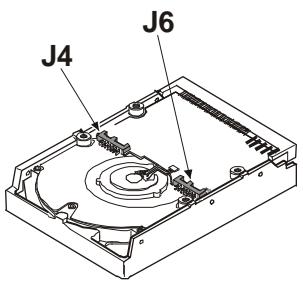
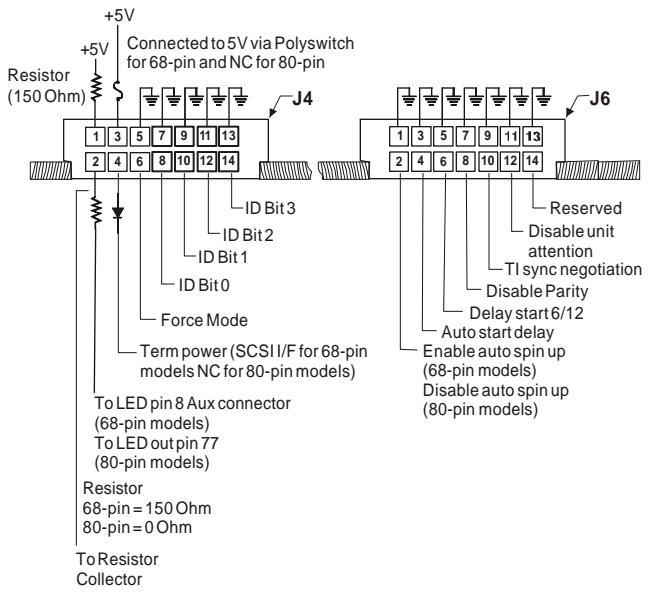
The drive has features that are usually enabled by the use of jumpers. A jumper is a small plastic-covered electrical conductor that connects a pair of pins on a jumper block, thereby enabling a particular function in the drive. Jumpers can be purchased at most computer stores. See the illustration below for the location of the two jumper blocks which are designated as J4 and J6. Jumper pins have a pitch of 2mm.
Assign a SCSI address
Assign a SCSI address to the drive by placing jumpers on the appropriate pins. Refer to the chart below for pin combinations. Address 7 is generally reserved for the controller card.
| SCSI Address | Jumper required on pins ... | SCSI Address | Jumper required on pins ... |
| 0 | none | 8 | 13 & 14 |
| 1 | 7 & 8 | 9 | 7 & 8, 13 & 14 |
| 2 | 9 & 10 | 10 | 9 & 10, 13 & 14 |
| 3 | 7 & 8, 9 & 10 | 11 | 7 & 8, 9 & 10, 13 & 14 |
| 4 | 11 & 12 | 12 | 11 & 12, 13 & 14 |
| 5 | 7 & 8, 11 & 12 | 13 | 7 & 8, 11 & 12, 13 & 14 |
| 6 | 9 & 10, 11 & 12 | 14 | 9 & 10, 11 & 12, 13 & 14 |
| 7 | 7 & 8, 9 & 10, 11 & 12 | 15 | 7 & 8, 9 & 10, 11 & 12, 13 & 14 |
Enable optional features
Termination Power (68 pin drives only)
Place a jumper on pins 3 and 4 of option block J4 if your host adapter or other device does not supply termination power.
Force Single-Ended Mode
Place a jumper on pins 5 and 6 of option block J4 to force the drive to operate in Single-Ended mode.
Enable Auto Spin Up (68 pin drives only)
Place a jumper on pins 1 and 2 of option block J6 to force the drive to spin up automatically after a power-on reset. If this position has no jumper, the drive will not spin up unless a START UNIT command is received.
Disable Auto Spin Up (80 pin drives only)
Place a jumper on pins 1 and 2 of option block J6 to prevent the drive from spinning up unless a START UNIT command is received. If there is no jumper on pins 1 and 2 of J6 the drive will spin up automatically after a power-on reset.
Auto Start Delay and Delay Start 6/12
The Auto Start Delay option (pins 3 and 4 on option block J6) and the Delay Start 6/12 option (pins 5 and 6 on option block J6) control when and how the drive spins up and comes ready in conjunction with Enable/Disable Auto Spin up (pins 1 and 2 on option block J6). If Auto Spin up and Auto Start Delay are jumpered, the spinning up of the drive is delayed by a period of time multiplied by the drive's SCSI address. If Auto Spin up is disabled, these jumpers will be ignored.
Note: In the table below 'on' means a jumper is installed and 'off' means that a jumper is not installed.
| Model | Auto Spin Up(Pins 1 & 2) | Auto Start Delay(Pins 3 & 4) | Delay Start 6/12(Pins 5 & 6) | Auto Start | DelayMultiplier |
| 68 pin | off | off | off | NO | - |
| 68 pin | on | off | off | YES | 0 |
| 68 pin | off | on | off | NO | - |
| 68 pin | on | on | off | YES | 6 |
| 68 pin | off | off | on | NO | - |
| 68 pin | on | off | on | YES | 0 |
| 68 pin | off | on | on | NO | - |
| 68 pin | on | on | on | YES | 12 |
| 80 pin | off | off | off | YES | 0 |
| 80 pin | on | off | off | NO | - |
| 80 pin | off | on | off | YES | 6 |
| 80 pin | on | on | off | NO | - |
| 80 pin | off | off | on | YES | 0 |
| 80 pin | on | off | on | NO | - |
| 80 pin | off | on | on | YES | 12 |
| 80 pin | on | on | on | NO | - |
Disable SCSI Parity Check
Place a jumper on pins 7 and 8 of option block J6 to disable SCSI Parity Checking.
Enable TI-SDTR
Place a jumper on pins 9 and 10 of option block J6 to enable Target Initiated Wide Data Transfer Request Negotiation and Target Initiated Synchronous Transfer Request Negotiation.
Disable Unit Attention
Place a jumper on pins 11 and 12 of option block J6 to prevent the drive from building Unit Attention Sense information for commands immediately following a Power On Reset (POR) or SCSI Bus Reset. Any pending Unit Attention conditions will also be cleared at POR or SCSI Reset times.
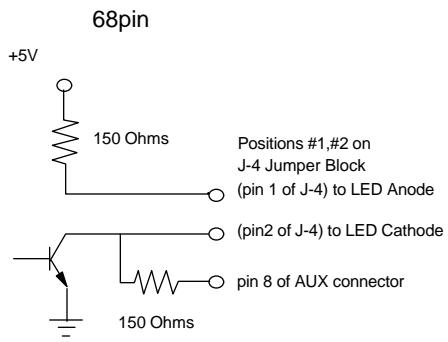
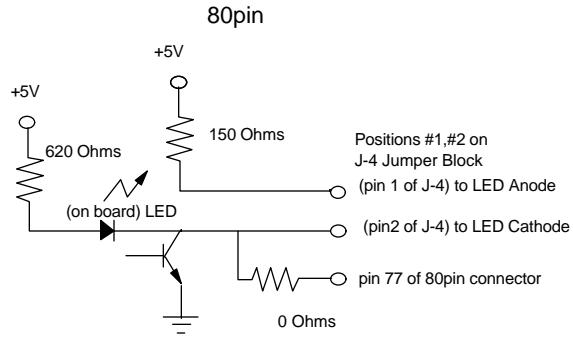
Driving an LED
To drive a Light Emitting Diode (LED) tie the LED Anode to pin 1 of option block J4. Tie the LED Cathode to pin 2 of option block J4. Using the following illustration make the connections as indicated. Tie pin 2 of J4 to pin 8 of the Auxiliary connector on the 68 pin model or to pin 77 of the 80 pin connector on the 80 pin model using the 150 Ohm resistor as indicated. This feature does not require the use of a jumper.
The auxiliary connector on 68 pin models
The 68 pin models contain an auxiliary connector. This connector conforms to SFF 8009 Rev 3.0 and is typically used with a unitized connector found on external drive enclosures. The connector has a source for +5V dc (pin 11) and a connection (pin 8) for an LED cathode.

Mount the drive
Note: Drive bays and other enclosures vary in size and orientation from system to system. They may be oriented vertically, horizontally, upside down, or sideways. The IBM Ultrastar can be mounted with any of its six surfaces facing down.
- Mount the drive as instructed by your computer system manual using four 6-32 UNC screws.
- The drive should be mounted securely enough to prevent excessive motion or vibration.
- Ensure that the drive has sufficient air flow.
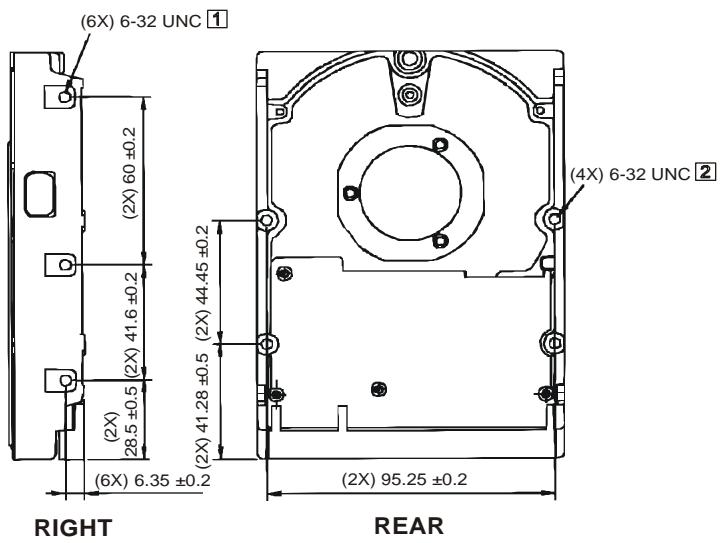
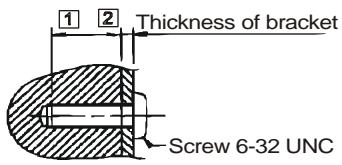
Recommended torque 0.6 - 1.0 Nm
1 Max allowable penetration of noted screw to be 4.5mm
2 Max allowable penetration of noted screw to be 4.0mm
Attach the cables
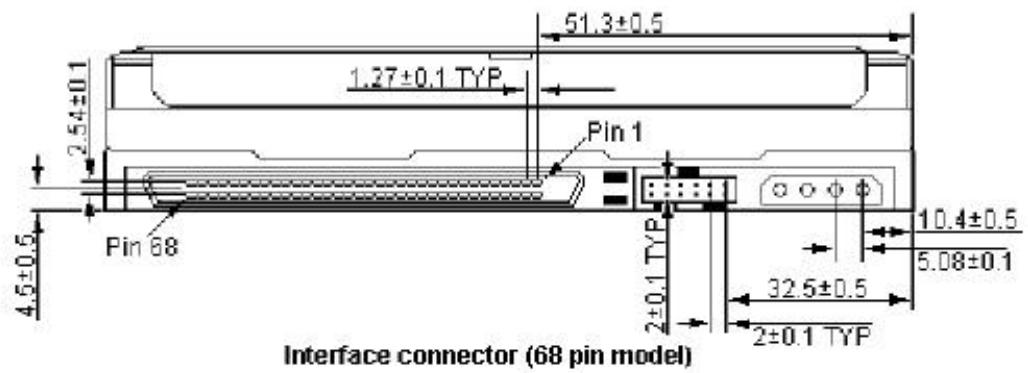
Drives with 68 pin connectors
Connect the SCSI cable and the power cable to the drive. The SCSI connector and power connector are keyed for proper insertion.
Drives with 80 pin connectors
80 pin drives are plugged into back planes of servers and require no cables. If you want to connect an 80 pin drive to a 68 pin SCSI cable, a converter is needed. Not all SCA converters support LVD mode.
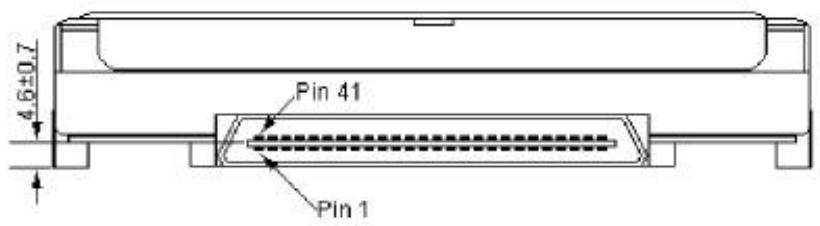
Interface connector (80 pin model)
Complete the hardware install
- Ensure that the SCSI bus is terminated at both ends. (LVD SCSI models do not have onboard active termination. You must supply an external LVD compatible terminator.)
- Verify proper cable connection to the SCSI controller.
- Connect all cables.
- Replace the computer system cover.
Plug the power cord into the wall.
Verify host adapter settings
Note: The example below uses the Adaptec 2940UW controller with DPSS-318350.
- Insert a bootable diskette into the diskette drive.
- Turn the computer on. You should see the drive model displayed when the system is booting.
- Verify the adapter settings.
- Press [CTRL] [A] to enter the Adaptec SCSI setup utility. The following screen is displayed.
Adaptec AHA-2940 Ultra/Ultra W BIOS v1.23
(c) 1996 Adaptec, Inc. All Rights Reserved.
Press <Ctrl> < A> for SCSISelect (TM) Utility!
SCSI ID:LUN NUMBER #: # 0:0 - IBM OEM DPSS-318350
- Drive C: (80h)
CPU/CLK
Math Coprocessor
Fixed Disk 0
Fixed Disk 1
Fixed Disk 2
: Pentium/133MHz
: Installed
: None
: None
: None
Base Memory
Extended Memory
Shadow RAM
Internal Cache
External Cache
640 KB
15360 KB
384 KB
16 KB, Enabled
256 KB. Enabled
Adaptec AHA-2940 Ultra/Ultra W SCSSelect (TM) Utility v1.23
AHA-2940 Ultra/Ultra W at Bus:Device 00:0Fh
Would you like to configure the host adapter, or run the SCSI disk utilities: Select the option and press
Options
Configure/View Host Adapter Settings
SCSI Disk Utilities
- Select Configure/View Host Adapter Settings. The following screen is displayed.
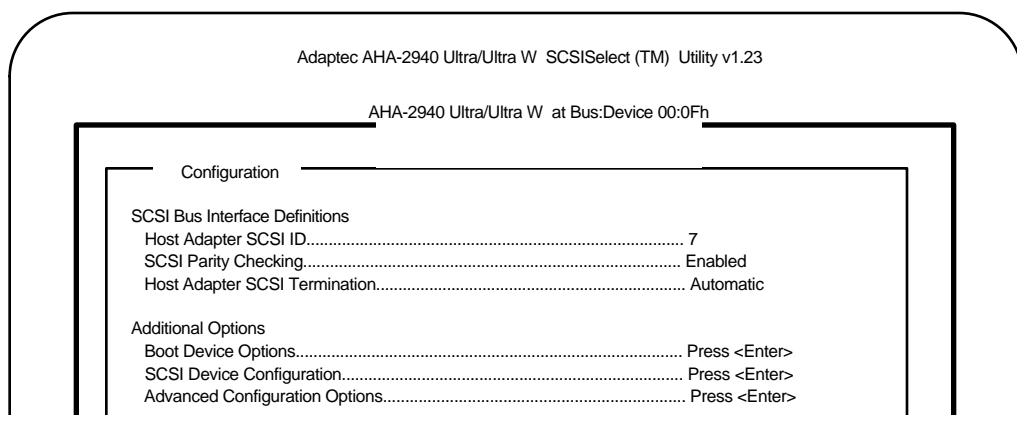
- Select Boot Device Options. The following screen is displayed.
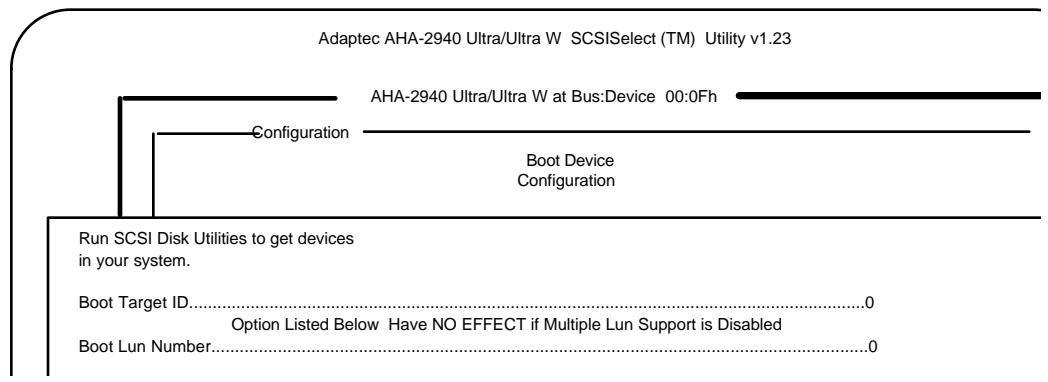
- Verify or set the Boot Target ID.
- Press ESC to return to the previous screen.
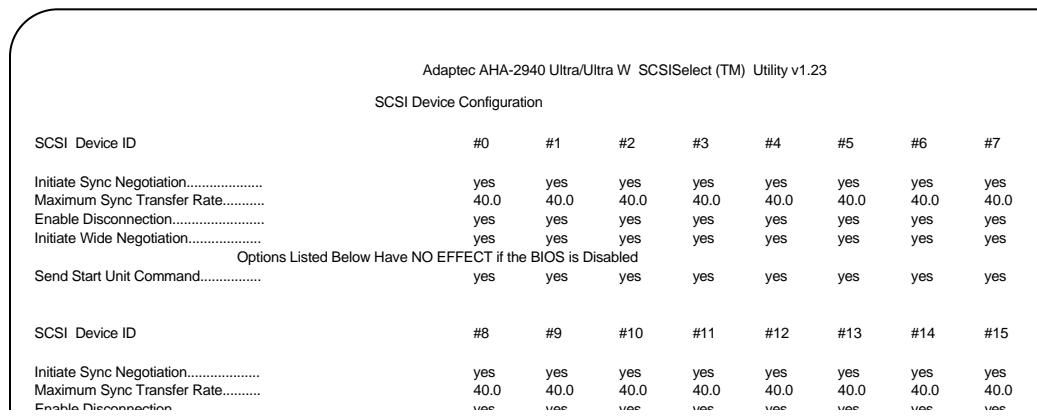
- Select SCSI Device Configuration. The following screen is displayed.
- Verify that the Maximum Sync Transfer Rate is the highest possible and that configuration settings are enabled (set to yes).
-
Press ESC to return to previous screen.
-
Select Advanced Configuration Options. The following screen is displayed.
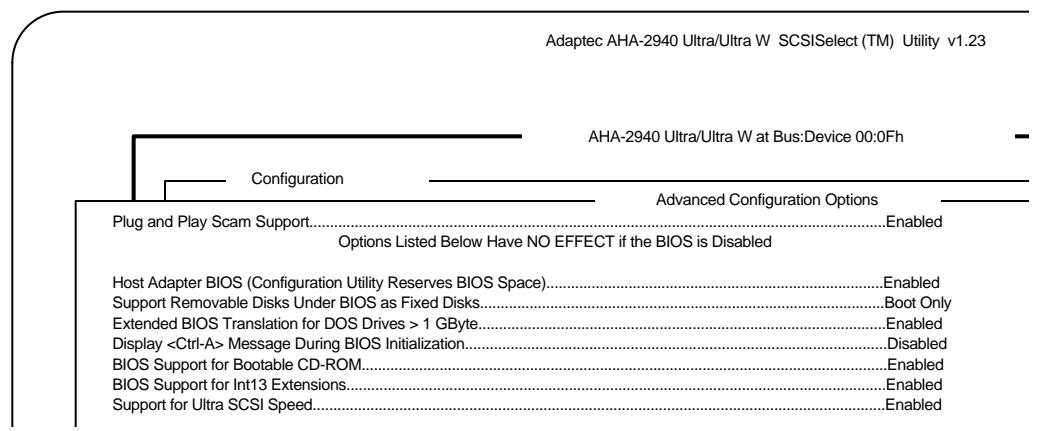
- Verify that Extended BIOS Translation for DOS Drives >1 Byte and BIOS Support for int13 Extensions is enabled.
- Press ESC to return to the previous screen.
- Exit from Adaptec settings and save any changes.
Partition the drive
Note: This example uses FDISK to partition your drive. You may use a similar partitioning program from your operating system to partition your drive.
- Boot to a bootable diskette and type 'FDISK' at the A:\ prompt. If Windows 95 OSR2 or Windows 98 is used, the following screen will be displayed.
Your computer has a disk larger than 512 MB. This version of Windows includes improved support for large disks, resulting in more efficient use of disk space on large drives, and allowing disks over 2 GB to be formatted as a single drive.
IMPORTANT: If you enable large disk support and create any new drives on this disk, you will not be able to access the new drive(s) using other operating systems, including some versions of Windows 95 and Windows NT, as well as earlier versions of Windows and MS-DOS. In addition, disk utilities that were not designed explicitly for the FAT32 file system will not be able to work with this disk. If you need to access this disk with other operating systems or older disk utilities, do not enable large drive support.
Do you wish to enable large disk support (Y/N)............? [N]
- Type 'Y' to select the FAT 32 file system. Type 'N' to select the FAT 16 file system. The following screen is displayed. (If you have more than one drive, a fifth option will appear which allows you to select the drive to be partitioned.)
Note: Select FAT 32 or FAT 16 if you are using Windows 95 OSR2 or Windows 98. FAT 32 partitions utilize disk space more efficiently and may be greater than 2 GB in size. If you are using DOS, Windows 3.1x, or an earlier version of Windows 95, select FAT 16.
PC DOS Version 7.0
Fixed Disk Setup Program
Copyright IBM Corporation 1983-1994
FDISK Options
Current fixed disk drive:
1
Choose one of the following:
- Create DOS partition or Logical DOS Drive
- Set active partition
- Delete partition or Logical DOS Drive
- Display partition information
- Change current fixed disk drive
Enter choice:[1]
Press ESC to exit FDISK
- Select option 1 to create a DOS partition. The following screen is displayed.
Create DOS Partition or Logical DOS Drive
Choose one of the following:
- Create Primary DOS Partition
- Create Extended DOS Partition
- Create Logical DOS Drive(s) in the Extended DOS partition.
Enter choice: [3]
Press ESC to return to FDISK Options
- Select option 1 to Create a Primary DOS Partition.
-
You will be asked if you want the full capacity of the drive and if you want to make the partition active.
-
If yes, exit from FDISK. Restart the system and proceed to the next step.
-
If no, enter the logical drive size in megabytes or percent of disk space. Return to the main menu.
-
Select option 2 to make the partition active.
- Press ESC to return to the FDISK options.
- Create an Extended DOS Partition by selecting option 1 from the main menu and option 2 from the second menu. Both menus are shown above.
Note: The Maximum Capacity may be smaller than the stated capacity of the drive. This is because the BIOS of some systems recognizes a Megabyte as 1,048,576 bytes (binary). Drive manufacturers recognize a Megabyte as 1,000,000 bytes (decimal). The capacities are the same in actual number of bytes.
- After creating the Extended DOS Partition, press ESC to return to the FDISK main menu.
- Select option 1 from the main menu,
- Select option 3 to create a Logical DOS Drive in an Extended Partition. The following screen is displayed.
Create Logical DOS Drive(s) in the Extended DOS Partition
No logical drives defined
Total Extended DOS Partition size is 1047 Mbytes (1 MByte = 1048576 bytes)
Maximum space available for logical drive is 1047Mbytes (100%)
Enter logical drive size in Mbytes or percent of disk space (%).[1047]
Press ESC to return to FDISK Options
- Press ESC to return to the main menu and press ESC again to exit FDISK.
- Restart the system for the partitions to be recognized.
Format the drive
The drive must be formatted before an operating system can be loaded. Format the Primary partition and any Extended partitions that have been made by following these steps:
- After booting from a bootable diskette, run FDISK, option 4 to verify the partition information from the previous step. Note the drive letters to ensure proper formatting.
- Press ESC to return to the main menu and press ESC again to exit FDISK.
- At the A:\ prompt type format x:/s (where x is the drive letter). The /s option makes your hard drive bootable by copying the system files to the hard drive. If you do not want this drive to be bootable, do not use the /s switch. The following warning is displayed:
WARNING: ALL DATA ON NON-REMOVABLE DISK DRIVE C: WILL BE LOST! Proceed with Format (Y/N)?
- Type 'Y' for yes. The time needed to format the drive depends upon the size of the drive.
- When the formatting is complete, format the next logical drive by typing format x: (where x is the logical drive letter).
- Repeat the above step for each logical drive to be formatted.
Install the operating system
After the drive has been formatted, install an operating system. Follow your operating system installation instructions.
Note: Some controllers, systems, or operating systems may recognize only ANSI SCSI-2 devices. The Ultrastar reports itself as a SCSI-3 device. Contact the IBM Technology Group Support Center for a fix if you encounter this issue.
Appendix
A. How to create a bootable diskette
If you have a bootable Windows operating system, follow the steps below to create a Windows 95 or 98 startup diskette:
- Insert a blank floppy disk into drive A.
- From Windows 95 or 98, double click My Computer.
- Double click Control Panel.
- Double click Add/Remove Programs.
- Select Startup Disk tab.
- Click Create Disk. Follow the prompts.
If you have a bootable DOS operating system, follow the steps below to create a DOS startup diskette:
- Insert a blank floppy disk into drive A.
- At the C:\ prompt, type FORMAT A:/S and press ENTER.
- Follow the instructions displayed.
B. Controller information
The examples in this guide use an Adaptec controller. If a chip set is embedded into your motherboard, plug the cable into the port on the motherboard instead of the controller.
If you are purchasing an add-on controller card, you will need to install the controller in one of the empty slots in your computer. Remove the screw holding the metal plate in place and insert the controller into the appropriate PCI, EISA or ISA slot on the motherboard, making sure the metal plate from the controller fits into the grooves on the computer frame. Replace the screw and connect the SCSI cables to the controller and then the hard drive. If you have any questions, refer to the installation manual enclosed with your controller.
C. Compatibility
The IBM SIT Lab tests Ultrastar drives for compatibility with a wide variety of systems, controller cards, and operating systems. Testing was done to demonstrate compatibility with the following hardware and software. Other combinations of hardware and software may function with this drive, but were not tested.
DDYS models
Systems
Acer AA12K
Acer Altos 12000
Acer Altos 21000
ALR Revolution 6x6
Apple 6400/180 - Native
Asus P2B-LS (board)
Compag Destpro 6000
Compaq Desktop 2000
Compaq Professional Workstation 6000
Compaq Proiant 1500
Dell Dimensions XPS M200s
Dell Precision 610
DellPowerEdge4100/200,6300,2300&1300
Dell PII Xeon (AIC-7890)
Fujistu Siemens Primergy 870
Gateway 2000 NS-8000
Gigabyte GA-6BXS (board)
HP Visualize
HP Kayak 'IBIS'
HP 9000/712 - Native
HP Cognac
IBM Mpro 6889 (AIC-7895)
IBMNetfinity3000,5500
IBM Cherokee 8651TMO Netfinity
IBM PC Server 320 & 704
IBM RS/6000 7024-E30
ICL/Fujitsu G760i (ExtremeRAID)
Intel Sitka Cabrillo
Micron NF 2100, 3101, 3400, 5200 & 6200
Network Engines Viper
SGI 02 - Native
SNI Primergy (460)
SUN SparcStation 20
SUN Ultra30 & Ultra60
Tyan Thunderbolt (board)
SCSI controllers
Adaptec AIC 7880, 7890(AB), 7895 & 7896
Adaptec 2940, 2940UW, 2940AU, 2940U2 & 2940U2W
Adaptec 2950U2B
Adaptec (Mac) 2940U2W, 2940U2/B, 3940UW
Advansys ASB3940U2W
ATTO ExpressPCI UL2S (F/W 135)
Buslogic BT956C, BT958,&BT950
Compaq Wide-Ultra SCSI-2 & 3
Compaq 003654-002 Rev F & K
Centos 4500-U2W
Diamond Fireport 40
DPT 2144UW -
DPT PM2144W
HP - A4999AultraSCSI
Initio INI-9100UW
Qlogic QLA1080
Qlogic QL1040B rev 2
SUN Sparc 20 - Native
SUN Ultra30&60 - Native
Symbios 53C895 PCI-4
Symbios SYM53C895
Tekram DC - 390U, 390F, 390U2B & 390F/U2W
SCSI Ultra160 controllers
Adaptec 29160
Adaptec 3960D & 39160
Adaptec (Mac) 39160
ATTO UL3D
(LSI) Symbios 53C1010
Qlogic 12160
SCSI RAID controllers
Adaptec AAA-131
Adaptec AAA-131U2
Adaptec ARO1130U2
Adaptec ARO-1130XA
AMIRAID
ASUS DA2100
IBM SeverRAID II
IBM SeverRAID III (+EXP15)
Mylex Accelerated 150 & 250
Mylex DAC960PJ
Mylex DAC960PG
Mylex XtremeRAID 1164
Mylex DAC 960PDU
Mylex DAC 960PTL
Mylex DAC 1164P (+EXP200)
SymbiosRAID
ServerRAID2 & 3
Operating Systems
AIX 4.3.2
HP Unix 10.10 & 10.20
IRIX 6.3 & IRIX64 6.5.4f
Linux - RedHat 6.1 & SuSE 6.1 (See Note)
Mac OS 8.0 8.5, 8.6 & 9
Novell Netware v5
MS DOS 6.20
OS/2 Warp4
SCO Unixware 7 & 7.1.1
SCO OpenServer Desktop 5.0.0 & 5.0.2
Solaris 2.6 & 7
Windows NT v4.0 (with Service Pak 5&6a)
Windows 95
Windows 95 (OSR2 OSR2.1)
Windows 98 & Windows 98 (SE)
Windows 2000 x86 Professional (Build 2195)
Windows 2000 x86 Prof Checked (Build 2195)
Windows 2000 x86 Server (Build 2195)
Windows 2000 x86 Adva. Server (Build 2195)
DPSS models
Systems
Acer AA12K
Acer Altos 12000
Acer Altos 21000
ALR Revolution 6x6
Apple 6400/180 - Native
Asus P2B-LS (board)
Compaq Destpro 6000
Compaq Desktop 2000
Compaq Professional Workstation 6000
Compaq Proiant 1500
Dell Dimensions XPS M200s
Dell Precision 610
DellPowerEdge4100/200,6300,2300&1300
Dell PII Xeon (AIC-7890)
Fujistu Siemens Primergy 870
Gateway 2000 NS-8000
Gigabyte GA-6BXS (board)
HP Visualize
HP Kayak 'IBIS'
HP 9000/712 - Native
HP Cognac
IBM Mpro 6889 (AIC-7895)
IBMNetfinity3000,5500
IBM Cherokee 8651TMO Netfinity
IBM PC Server 320 & 704
IBM RS/6000 7024-E30
ICL/Fujitsu G760i (ExtremeRAID)
Intel Sitka Cabrillo
Micron NF 2100, 3101, 3400, 5200 & 6200
Network Engines Viper
SGI 02 - Native
SNI Primergy (460)
SUN SparcStation 20
SUN Ultra30 & Ultra60
Tyan Thunderbolt (board)
SCSI controllers
Adaptec AIC 7880, 7890(AB), 7895 & 7896
Adaptec 2940, 2940UW, 2940AU, 2940U2 &
2940U2W
Adaptec 2950U2B
Adaptec (Mac) 2940U2W, 2940U2/B, 3940UW
Advansys ASB3940U2W
ATTO ExpressPCI UL2S (F/W 135)
Buslogic BT956C, BT958,&BT950
Compaq Wide-Ultra SCSI-2 & 3
Compaq 003654-002 Rev F & K
Centos 4500-U2W
Diamond Fireport 40
DPT 2144UW -
DPT PM2144W
HP - A4999AultraSCSI
Initio INI-9100UW - to test
Qlogic QLA1080
Qlogic QL1040B rev 2
SUN Sparc 20 - Native
SUN Ultra30&60 - Native
Symbios 53C895 PCI-4
Symbios SYM53C895
Tekram DC - 390U, 390F, 390U2B & 390F/U2W
SCSI Ultra160 controllers
Adaptec 29160
Adaptec 3960D & 39160
Adaptec (Mac) 39160
ATTO UL3D
(LSI) Symbios 53C1010
Qlogic 12160
SCSI RAID controllers
Adaptec AAA-131
Adaptec AAA-131U2
Adaptec ARO1130U2
Adaptec ARO-1130XA
AMIRAID
ASUS DA2100
IBM SeverRAID II
IBM SeverRAID III (+EXP15)
Mylex Accelerated 150 & 250
Mylex DAC960PJ
Mylex DAC960PG
Mylex XtremeRAID 1164
Mylex DAC 960PDU
Mylex DAC 960PTL
Mylex DAC 1164P (+EXP200)
SymbiosRAID
ServerRAID2 & 3
Operating Systems
AIX 4.3.2
HP Unix 10.10 & 10.20
IRIX 6.3 & IRIX64 6.5.4f
Linux - RedHat 6.1 & SuSE 6.1 (See Note)
Mac OS 8.0 8.5, 8.6 & 9
Novell Netware v5
MS DOS 6.22
OS/2 Warp4
SCO Unixware 7 & 7.1.1
SCO OpenServer Desktop 5.0.0 & 5.0.2
Solaris 2.6 & 7
Windows NT v4.0 (with Service Pak 5&6a)
Windows 95
Windows 95 (OSR2 OSR2.1)
Windows 98 & Windows 98 (SE)
Windows 2000 x86 Professional (Build 2195)
Windows 2000 x86 Prof Checked (Build 2195)
Windows 2000 x86 Server (Build 2195)
Windows 2000 x86 Adva. Server (Build 2195)
Note: Linux Kernel requires the aic7xxx (Adaptec) driver to be at level 5.1.22 or greater (all compatibility testing performed at 5.1.28). Some Linux Kernels may not contain drivers to support OEM SCSI cards. Check with your Linux supplier for SCSI card hardware compatibility.
D. Troubleshooting
Following is a useful checklist to assist in rectifying common SCSI problems:
SCSI ID (device address):
Each device must have a unique SCSI ID.
Recommended SCSI ID for the boot device is 0.
Interface type:
- If you have more than one SCSI device on the cable, make sure that all devices are of the same type.
- High Voltage Differential (HVD) SCSI devices are not compatible with single-ended (standard) or Low Voltage Differential (LVD) SCSI devices.
Termination:
- SCSI systems should have termination at both ends of the cable. Make sure that the controller terminates one end of the cable and that a drive supplies termination at the other end. If a drive doesn't have onboard termination, a terminator should be placed on the last connector of the cable.
- Make sure that there is no extra cable after the terminator at the end.
Any device attached that is not at the end of the cable must have internal termination disabled. - For adapters with multiple SCSI ports with differing performance, ALL ports must be correctly terminated.
- For adapters with a common port with both internal and external connections in use, DO NOT enable termination on the controller.
- Narrow (50 pin) devices SHOULD NOT be connected at the end of a wide (68 pin) SCSI cable. A terminator in a 50 pin SCSI device cannot provide the correct termination for the unused data lines.
- Using a 68-50 pin cable converter to connect a 68 pin drive to a 50 pin SCSI adapter could cause problems because the 68-50 pin cable converter leaves 18 of the 68 pins on the drive without termination.
Resolution:
Place the 68 pin drive at the end of the bus and set the jumpers for the drive for active termination, which provides termination to all 68 pins. If the drive does not provide termination, the converter should provide on board termination so that all unused lines are terminated.
- The termination for a drive should match the interface type of the drive. For example, single-ended drives should use single-ended terminators
Cables and connectors
- Ensure that the cables are seated tightly and that no pins are bent.
If possible, try replacing the cable and terminators and use the drive's internal termination. - Make sure that pin 1 of the cable is plugged into pin 1 of the SCSI connector. Pin 1 on the SCSI cable is normally identified by a red or red-striped wire. This is especially important if you are using cables or connectors (on the SCSI adapter) that are not keyed. The connectors on IBM drives have a slotted key to prevent you from plugging the cable in backwards but not all SCSI cables are made with a key.
Ensure that the drive is jumpered to enable auto start when power is applied.
Try resetting the SCSI adapter defaults:
- Enable "Reset IC Initialization"
- Disable "plug and play" SCAM support
- Enable "Unit Start" command
- Enable synchronous and wide negotiations if available
Ensure that the drive is jumpered to disable sync negotiations.
- Does the drive spin up and remain spinning?
- Does the SCSI adapter recognize the drive during boot up?
Check that the cable lengths are within the ANSI specification for the interface transfer rate used and the number of devices installed on the bus. For a definition of the specifications, see the SCSI Trade Association page at the following Internet address:
http://www.scsita.org/terms/scsiterms.html
If the drive is attached through a removable carrier, try removing the drive from the carrier and attaching the drive directly to the bus.
If you are using a narrow bus/cable (50 pin) with a wide (68 pin) device and a wide SCSI adapter, try disabling wide negotiation in the adapter settings.
- LVD devices are backward compatible with single-ended adapters as long as the system and the drives are configured correctly. When attaching LVD devices to single-ended, wide or narrow adapters, the following applies:
LVD drives have do not provide termination on the drive.
-
You must provide termination externally, either from another device or from a separate termination block.
Depending on how the adapter handles the "Diff Sense" line on the interface, you may need to set the jumper on the drive to Force Single Ended mode. -
On multi-channel SCSI adapters, do not use more than two channels off each adapter.
In RAID environments, it is important to disable SCAM.
- Disable at the adapter, if available.
- Disable at the drive. This is only necessary with the DORS-3xxxx, DCAS-3xxxx and DDR5-3xxxx family of SCSI drives. Newer drives have SCAM disabled as default or removed completely.
E. Glossary
ANSI (American National Standards Institute). ANSI is the lead organization for encouraging and developing technological standards. ANSI represents the United States in the IEC (International Electrotechnical Commission) and the ISO (International Standards Organization).
Backup Storing information from a hard drive to another storage area in order to prevent data loss.
BIOS (Basic Input/Output System) The BIOS is the first level of software contained in a computer. It provides basic, low level control for keyboards, video, hard disk drives, and floppy drives. It also provides the initial intelligence that allows the computer system to find an operating system to run.
Boot/Boot-up To prepare a computer for operation by loading an operating system.
Capacity The amount of information, expressed in bytes, that can be stored on a hard drive. Also known as storage capacity.
Compatibility The capability of a hardware or software component to conform with the interface requirements of a given data processing system without adversely affecting its functions.
- Disk drive The primary data storage device used by computers. Disk drives are used to record, store and retrieve digital information.
Electrostatic discharge The rapid change in electrical energy caused by static electricity. This can damage or destroy electronic equipment or hardware. Electrostatic discharge can be prevented by grounding oneself before handling any electronic equipment.
FAT16 & FAT32 (File Allocation Table) The file allocation table is a group of sectors in a hard drive that contains address chains for the different files on a hard disk drive. There are usually two FATs (kept in different locations) on a hard drive. FAT32 is available in the Windows® 95 & Windows® 98 operating systems. FAT32 receives its designation because it allows 32 bits of addressing as opposed to 16 bits in the FAT16 file system.
FDISK FDISK is a program run in DOS that allows a user to partition a hard disk drive. Partitioning your hard disk drive is essential for it to work properly.
Format To prepare a hard drive so that it can store data. In the DOS formatting process, the computer verifies the clusters within a partition.
Hard disk drive (HDD) A stand alone disk drive that reads and writes data onto rigid disks and can be attached to a port on the system unit. Synonymous with fixed disk drive and hard drive.
Interface A hardware or software protocol, contained in the electronics of the disk controller and drive, that manages the exchange of data between the hard disk drive and the computer. The most common interfaces for small computer systems are ATA (IDE) and SCSI.
Jumpers A small electrical conductor covered with plastic that connects a pair of pins on a jumper block, thereby enabling a particular function in the drive.
Jumper settings Different modes which are achieved by placing a jumper on a particular pair of pins on a device. These modes determine the behavior of the device. Settings are changeable by the user, but remain constant during operation. See Jumpers.
LVD (Low Voltage Differential) A highly compatible computer disk drive interface that is faster and more reliable than SCSI. Also known as Ultra2 SCSI.
Motherboard Holds the computer's main processors and circuitry, and also contains the memory, BIOS, interconnection circuitry and expansion slots.
Multimode A drive that can operate on an LVD bus or a Single-ended bus.
Operating system Software that controls the execution of programs and may provide functions such as resource allocation, scheduling, input/output control, and data management. Although operating systems are predominantly software, partial hardware implementations are possible.
Partition A portion of a hard drive dedicated to a particular operating system or application and accessed as a single logical volume.
SCSI (Small Computer System Interface) An intelligent parallel peripheral interface characterized by its use of high level communication between devices. Pronounced "scuzzy".
Termination The signals on a SCSI bus must be terminated at both ends of the bus. This is generally done by the controller automatically and requires an "external" terminator on the last connector of the bus.
三
© International Business Machines Corporation 2000
www.ibm.com/harddrive
IBM Technology Group Support Center
Telephone: 888.426.5214 or 507.286.5825
E-mail: drive@us.ibm.com
Singapore Technology Group Support Center
Telephone: 1800.418.9595 or 65.6.418.9595
E-mail: drive@sg.ibm.com
UK Technology Group Support Center
Telephone: 44.1475.898.125
E-mail: drive@uk.ibm.com
Germany Technology Group Support Center
Telephone: 49.7032.153050
E-mail: drive@de.ibm.com
IBM Storage Systems Division
5600 Cottle Road
San Jose, CA 95193
www.ibm.com/storage
Printed in the United States of America
09-2000
All Rights Reserved
IBM is the registered trademark and Deskstar is a trademark of International Business Machines Corporation.
Other company, product, and service names may be trademarks or service marks of others.
Produced by the IBM Technology Group Support Center.
This information is believed to be accurate, but is supplied without guarantee. Document subject to change without notice.
7 September, 2000