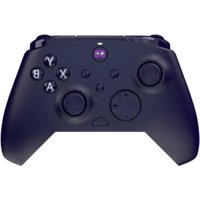
Replay Wireless - Game controller PDP - Free user manual and instructions
Find the device manual for free Replay Wireless PDP in PDF.


| Product Type | Wireless Game Controller |
| Brand | PDP |
| Model | Replay Wireless |
| Connectivity | Wireless (2.4 GHz RF or Bluetooth) |
| Compatible Platforms | Nintendo Switch, PC, Android, iOS |
| Battery Type | Rechargeable Lithium-ion |
| Battery Life | Up to 30 hours |
| Charging Interface | USB-C |
| Dimensions (L x W x H) | 6.2 x 4.1 x 2.3 inches |
| Weight | 8.8 oz (250 g) |
| Ergonomic Design | Yes, rubberized grips |
| Programmable Buttons | Yes, 2 rear paddles |
| Motion Controls | Yes (gyroscope) |
| Headset Jack | 3.5 mm |
| Wireless Range | Up to 30 feet (10 meters) |
| LED Indicators | Yes (connection status, player number) |
| Cable Included | USB-A to USB-C charging cable |
| Manual Included | Quick start guide |
| Warranty | 1 year limited |
Frequently Asked Questions - Replay Wireless PDP
User questions about Replay Wireless PDP
0 question about this device. Answer the ones you know or ask your own.
Ask a new question about this device
Download the instructions for your Game controller in PDF format for free! Find your manual Replay Wireless - PDP and take your electronic device back in hand. On this page are published all the documents necessary for the use of your device. Replay Wireless by PDP.
USER MANUAL Replay Wireless PDP
REPLAY Wireless Controller for Samsung Gaming Hub QSG
REPLAY Wireless Controller
For
Samsung Gaming Hub
Quick Start Guide
060-001
To learn more about Samsung Gaming Hub compatibility visit:
https://www.samsung.com/us/tvs/gaming-hub/2021-tvs/
IN THIS QUICK START GUIDE
- Items included with the REPLAY Wireless Controller
- Initial Set Up
- Charging the Controller
- Programming Back Buttons • TV Functions (power, mute, volume)
- Troubleshooting
ITEMS INCLUDED
• A: REPLAY Wireless Controller • B: 1.2m USB-C Charging Cable • C: QR Code insert
INITIAL SET UP
- Turn on a compatible Samsung TV, monitor, or projector, and navigate to the "Game" menu.
- Under "Accessories", select the controller icon using a Samsung remote control.
- On your REPLAY controller, press and release the "Home Button" to wake up the controller. The Status LED will blink WHITE to indicate the controller is in Pairing Mode.
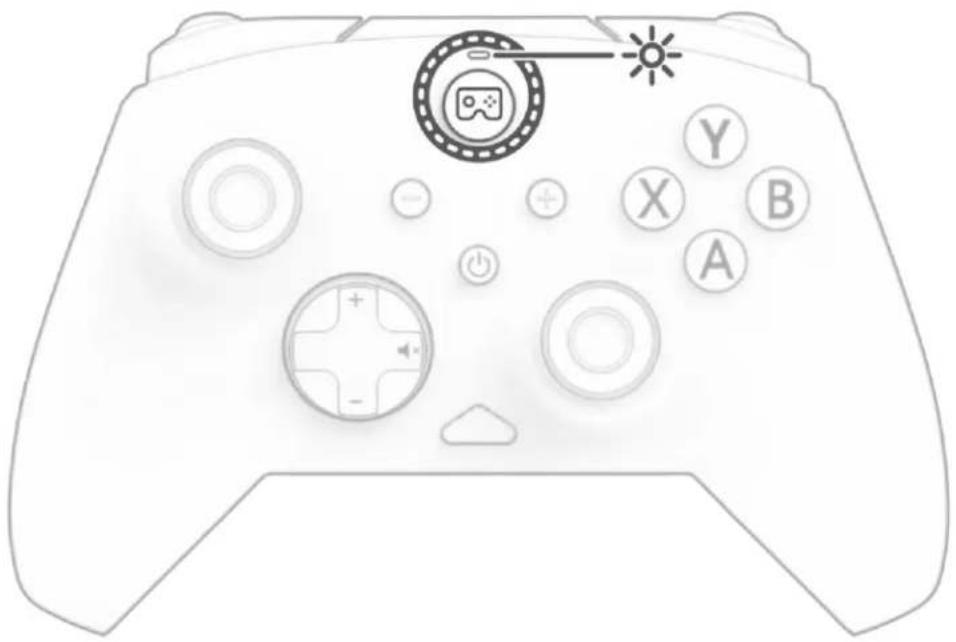
- Once the controller is in Pairing Mode, select "PDP Replay" then "Pair and Connect" on the Samsung device controller menu.
- Two Steps to Confirm Successful Pairing:
a. The Samsung device will confirm that the REPLAY Controller is now connected.
b. The Status LED on the REPLAY Controller will glow solid WHITE.
- To turn OFF your REPLAY Controller, press and hold the Power Button for 3 seconds.

- When the REPLAY controller battery is low, the Status LED will blink RED.
- Using the included USB-C charging cable, connect the controller to a powered USB port.
- The Status LED light will turn GREEN once the REPLAY controller is fully charged.
PROGRAMMING BACK PEDALS
- While holding down the Function Button, press the back button you wish to configure.
- The Status LED will blink PURPLE to indicate it is ready to map.


- Once blinking PURPLE, you can now select the button function on the controller that you wish to be assigned to the back button.
- The Status LED will blink PURPLE rapidly to indicate that the function was successfully assigned.
- Repeat steps 1-4 to program the second back button.
SETTING TV FUNCTIONS
- The REPLAY controller allows you control TV Power, Volume, and MUTE directly from your controller.
- Volume: a. While holding down the Function Button, press D-Pad "UP" for Volume UP, D-Pad "Down" for Volume Down.
- Mute: a. While holding down the Function Button, press D-Pad "RIGHT" to Mute.
- Power: a. To Power Off the paired Samsung device, press the Power Button in the center of the controller.

TROUBLESHOOTING
- If pairing is unsuccessful, or the controller is not behaving as expected, insert the end of a paperclip into the "RESET" hole on the back of the REPLAY controller and press the switch inside.
- Repeat the pairing process as desired.

Brand : PDP
Model : Replay Wireless
Category : Game controller