ROOMBA 500 - Robot vacuum IROBOT - Free user manual and instructions
Find the device manual for free ROOMBA 500 IROBOT in PDF.


User questions about ROOMBA 500 IROBOT
0 question about this device. Answer the ones you know or ask your own.
Ask a new question about this device
Download the instructions for your Robot vacuum in PDF format for free! Find your manual ROOMBA 500 - IROBOT and take your electronic device back in hand. On this page are published all the documents necessary for the use of your device. ROOMBA 500 by IROBOT.
USER MANUAL ROOMBA 500 IROBOT
Vacuum Cleaning Robot
Owner's Manual
iRobot
Dear iRobot Roomba Owner,
Thank you for purchasing an iRobot Roomba vacuum cleaning robot. You've joined the millions of people who clean with robots - the smarter way to get it done.
Please take a few moments to read this manual and get acquainted with your Roomba, to get the best performance from your robot. If you have any questions, visit our website at www.irobot.com for more information.
Register your robot to instantly activate your warranty and enjoy these exclusive benefits:
- Take advantage of iRobot's award-winning customer service Get support tailored to your specific robot, including answers to questions, maintenance tips, video demos, live chat and more.
- Get product updates and other valuable information Be among the first to find out about new robots, exclusive discounts and special promotions.
When you register, you can also tell us about your experience with your Roomba; iRobot listens to our customers and makes enhancements to our robots based on your valued feedback. We'd love to hear from you!
Register your robot right now at www.irobot.com/register.
On behalf of the entire team, thank you for choosing iRobot; we appreciate your business, feedback and loyalty.
Here's to robots that make a difference!
Yours for less chores and more life,

Colin Angle
Chairman, CEO and Co-Founder
iRobot Corporation
P.S. Don't miss out on your exclusive benefits! Register your Roomba online right now at www.irobot.com/register.
Important Tips
Before using Roomba the first time, you need to activate Roomba by removing the battery pull tab. Charge Roomba overnight before first time use.
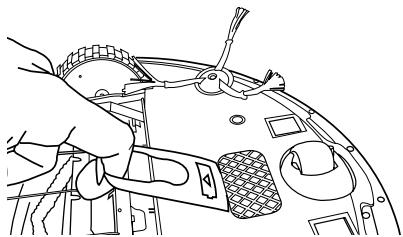
Remove battery pull tab
Turning Roomba on and off
- To turn Roomba ON, press CLEAN once. You will hear a beep and the CLEAN button will light.
- To start a cleaning cycle, press CLEAN again. Roomba will start a cleaning cycle.
- To pause Roomba, press CLEAN while Roomba is cleaning.
- To resume the cleaning cycle, press CLEAN again.
- To turn Roomba OFF, press and hold the CLEAN button until Roomba's lights turn OFF.
For Best Performance
- Remove and clean Roomba's brushes after every use.
- Empty Roomba's bin and clean its filter after every use.
- Use a Virtual Wall® (optional accessory) to keep Roomba cleaning where you want it.
- Use your Roomba frequently.
Battery Life
To extend Roomba's battery life and keep Roomba cleaning at peak performance:
- Always keep Roomba plugged in when not in use.
- Recharge Roomba as soon as possible. Waiting several days to recharge Roomba can damage the battery.
-
For storage off the power supply, remove the battery from Roomba and store in a cool, dry place.
-
Blue or black batteries should be stored after Roomba has been used.
- Yellow batteries should be stored after being fully charged.

Roomba contains electronic parts. DO NOT submerge Roomba or spray it with water. Clean with a dry cloth only.
Table of Contents
iRobot Roomba Anatomy. 6
Cleaning Pattern. 7
Cleaning Modes. 8
Cleaning System. 9
Cleaning Bins 10
Battery Storage and Charging 11 - 12
Optional Accessories 13
Virtual Wall 13
Virtual Wall® Lighthouses™ 14 - 15
Home Base 16
Wireless Command Center 17
Remote Control 18
Scheduling Roomba (selected models) 19 - 20
Regular Maintenance 21-23
Language Selection Mode 24
Troubleshooting 25-26
Replaceable Modules 27-31
Frequently Asked Questions 32
Important Safety Instructions 33
Document of Conformity 34
iRobot Customer Care 35
iRobot Roomba Anatomy
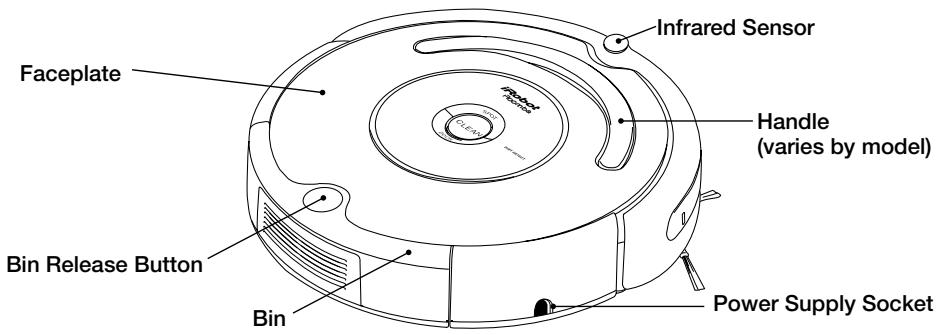
Buttons and Lights
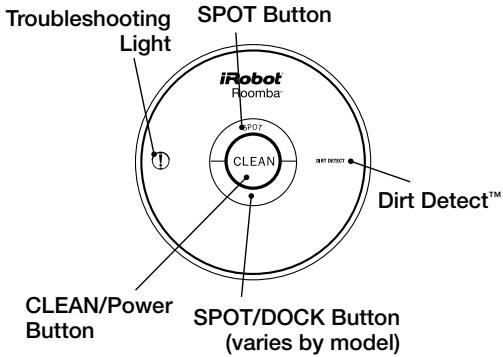
(Models 500 - 549)
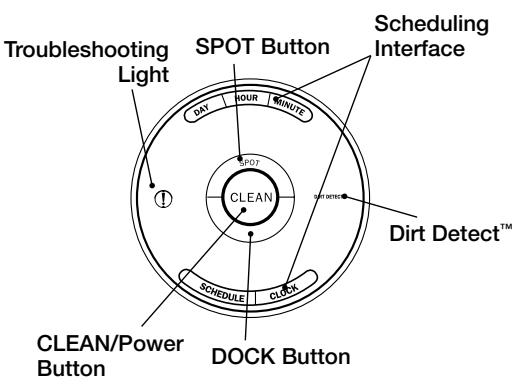
(Models 550 and above)
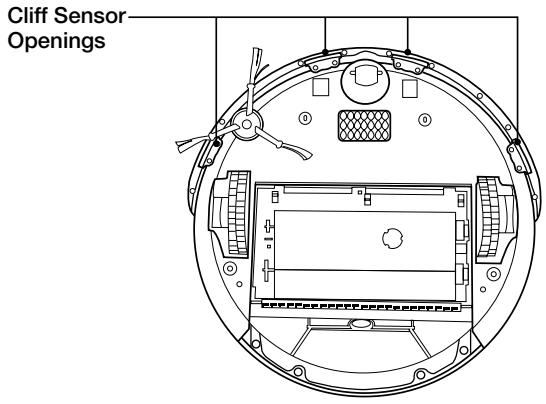
Bottom View
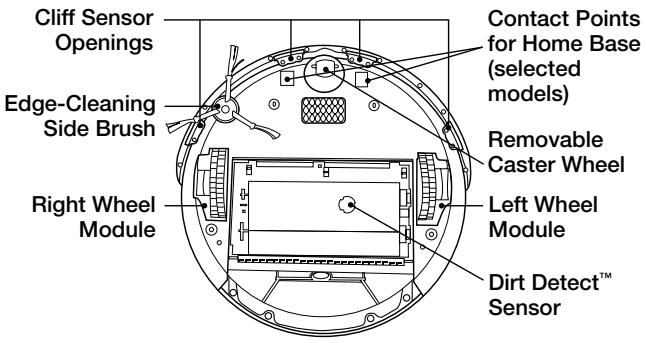
Cleaning Pattern
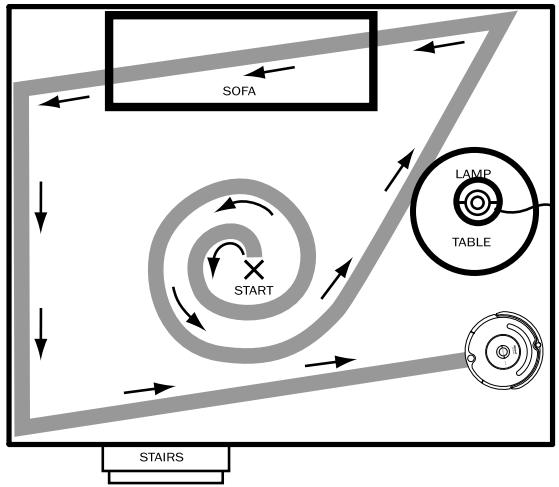
Roomba is a robot that cleans floors differently than the way most people clean their floors. Roomba uses its robot intelligence to efficiently clean the whole floor, under and around furniture and along walls.
Roomba calculates the optimal cleaning path as it cleans and determines when to use its various cleaning behaviors:
Spiraling: Roomba uses a spiral motion to clean a concentrated area.
Wall Following: Roomba uses this technique to clean the full perimeter of the room and navigate around furniture and obstacles.
Room Crossing: Roomba crisscrosses the room to ensure full cleaning coverage.
Dirt Detection: When Roomba senses dirt, the blue Dirt Detect™ light is lit and Roomba cleans more intensely in that area.
TIP: Roomba takes approximately 25 minutes to clean an average room and will pass over the same area of the floor multiple times to ensure total floor coverage.
TIP: For most efficient cleaning, clear your floor of clutter and use a Virtual Wall to confine Roomba to one room.
Cleaning Modes
Roomba will clean based on the cleaning mode you select. Roomba has three cleaning modes.
Clean Mode (all models)
Roomba automatically calculates the room size and adjusts its cleaning time appropriately.
Spot Mode (all models)
Roomba will spiral approximately three feet in diameter and then spiral back to where it started, intensely cleaning a localized area.
Scheduled Cleaning Mode (Models 550 and above)
When a future cleaning time is programmed, Roomba enters Scheduled Cleaning Mode. When scheduled to clean, Roomba will occasionally flash its next cleaning time to remind you of its schedule. At the specified time, Roomba leaves its Home Base, cleans, and then returns to the Home Base to recharge when it's done.
Cleaning System
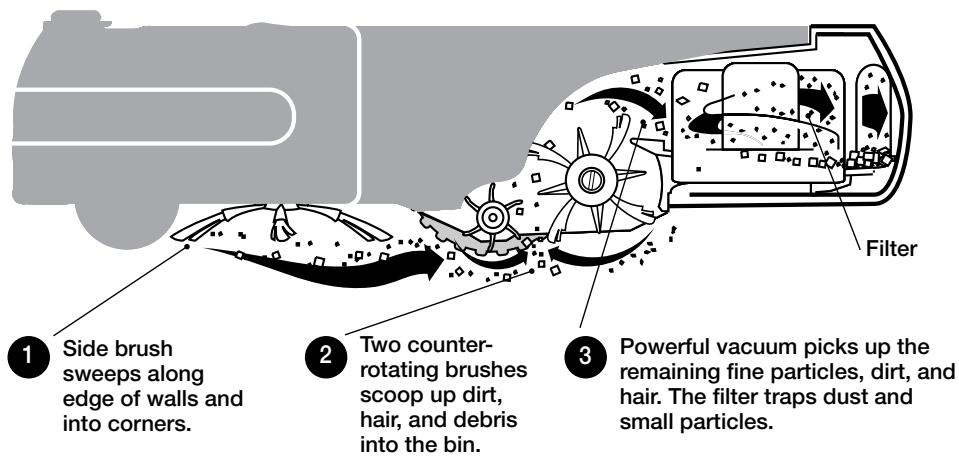
Roomba features a patented three-stage cleaning system.
Floor Surfaces
Roomba works on wood, carpet, tile, vinyl, and linoleum, and adjusts automatically to different floor types.
Roomba automatically senses stairs and other cliffs. Roomba might stall when confronting rounded edges and might slide over particularly slippery surfaces. Extremely dark-colored floors may contribute to Roomba's cliff sensors working less effectively.
Anti-Tangle system
Roomba won't get stuck on cords, carpet fringe or tassels. When Roomba senses it has picked up a cord or tassel, it will automatically stop its main brushes or side brush and try to escape. Roomba may make a clicking noise when anti-tangle is activated.
Cleaning Bins
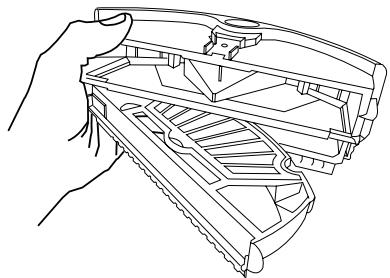
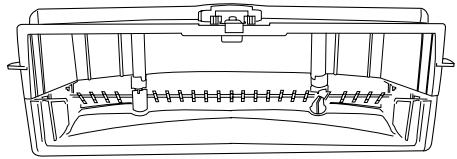
Roomba is compatible with two interchangeable cleaning bins.
Vacuum Cleaning Bin
The vacuum cleaning bin should be used for everyday cleaning. The dual action, counter-rotating brushes pick up debris, while the vacuum sucks up the dirt and dust.
High-Capacity Sweeper Bin (optional accessory for all models)
The high-capacity sweeper bin can hold more debris than the vacuum cleaning bin. Use this bin when cleaning larger-than-usual amounts of dirt and dust, or when cleaning bigger pieces of debris.
Vacuum Cleaning Bin
High-Capacity Sweeper Bin
Battery Storage and Charging
Roomba is powered by a rechargeable battery. Roomba's battery can last for hundreds of cleaning cycles if cared for properly.
Battery Life
To extend the battery life, iRobot recommends always storing Roomba plugged in. For more details on how to maintain Roomba's battery life, visit www.irobot.com/support.
TIP: Recharge Roomba as soon as possible. Waiting several days to recharge Roomba can damage the battery.
TIP: For storage off the power supply, remove the battery from Roomba and store in a cool, dry place.
Cleaning Time
You should fully charge Roomba's battery before each cleaning cycle. When fully charged, Roomba's battery will last for at least one full clean cycle.
16-Hour Refresh Charge
If Roomba has been left off the power supply or Home Base for an extended period, Roomba will initiate a special 16-hour charge cycle. This extensive charge refreshes Roomba's battery and extends the battery life. While charging, Roomba's "Clean" button will pulse quickly. Note: For best results, do not interrupt this Refresh Charge.
TIP: For best performance, charge Roomba's battery overnight before using Roomba for the first time.
Charging Roomba
Charge Roomba in one of two ways:
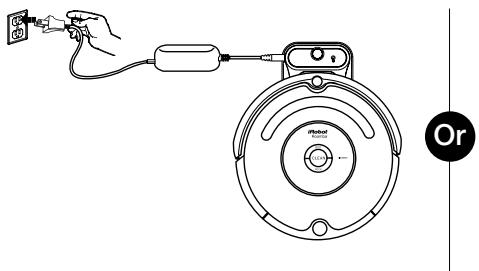
Using the Home Base
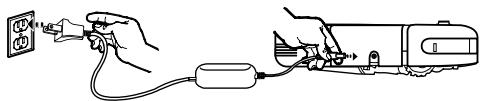
Using the Power Supply Only
TIP: When Roomba is on the Home Base, always make sure that the Home Base power light is on.
Charging Lights
Roomba uses the CLEAN button light to indicate that it is charging. Use this chart to determine the status of the battery.
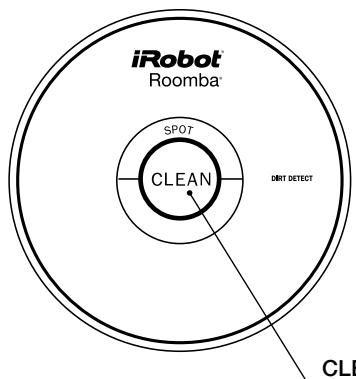
CLEAN/Power Button
| CLEAN button light | Battery status |
| Solid red | Battery empty |
| Amber pulse | Charging |
| Solid green | Fully charged |
| Quick amber pulse | 16-hour refresh charge |
Virtual Wall®
(optional accessory for all models)
Virtual Walls create an invisible barrier that Roomba will not cross. This invisible barrier
can be used to confine Roomba to a particular room or area, and prevent it from getting too close to electrical or computer cords, delicate objects on the floor, etc.
The Virtual Walls can be set to block an opening up to seven feet long. Note that the width of the Virtual Wall's beam also increases as its length increases, creating a cone-shaped area which Roomba cannot pass. The Virtual Wall also creates a halo of protection around itself, preventing Roomba from getting too close.
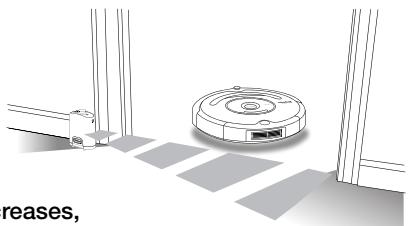
TIP: Point the arrows on top of the Virtual Wall towards the opening you would like to block.
TIP: For best performance, place the Virtual Wall on the outside of the doorway you wish to block.
Manual Virtual Wall
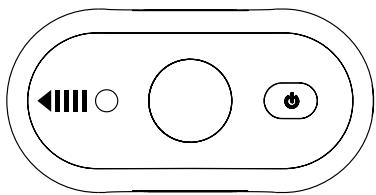
A Manual Virtual Wall must be turned on by hand at the beginning of the cleaning cycle to activate the barrier. A Manual Virtual Wall (and its power light) will shut off after 135 minutes. When battery levels are low, the Virtual Wall power light will blink slowly to indicate that it needs new batteries.
Auto Virtual Wall
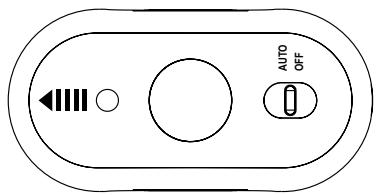
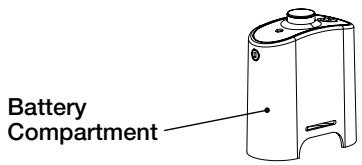
When an Auto Virtual Wall is set to "Auto" mode, the power light blinks repeatedly to indicate it is on. When battery levels are low, the Virtual Wall blinks repeatedly twice to indicate that it needs new batteries. To save battery power, switch the Auto Virtual Wall to "Off". When in "Auto" mode, the batteries should last approximately six months.
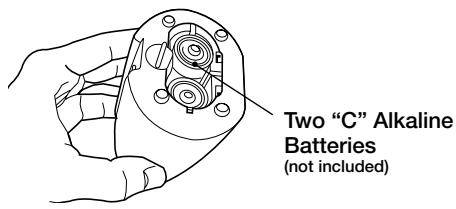
Battery Installation

Virtual Wall® Lighthouses™
(optional accessory for models 570 and above)
Virtual Wall Lighthouses turn on and off automatically as Roomba is turned on and off. When they are on, a light illuminates on the top of the Virtual Wall Lighthouse. A Virtual Wall Lighthouse can be used in two modes, either in Lighthouse mode or Virtual Wall mode, set by the Mode Selector.
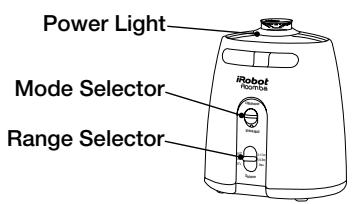
Lighthouse Mode
In Lighthouse mode, the Virtual Wall Lighthouse helps Roomba navigate around your home and allows Roomba to clean room-to-room. Roomba will clean the room it starts in, navigate to the next room, and then clean the second room. When Roomba has completed cleaning, it will use the Lighthouse to navigate back to the Home Base for recharging.
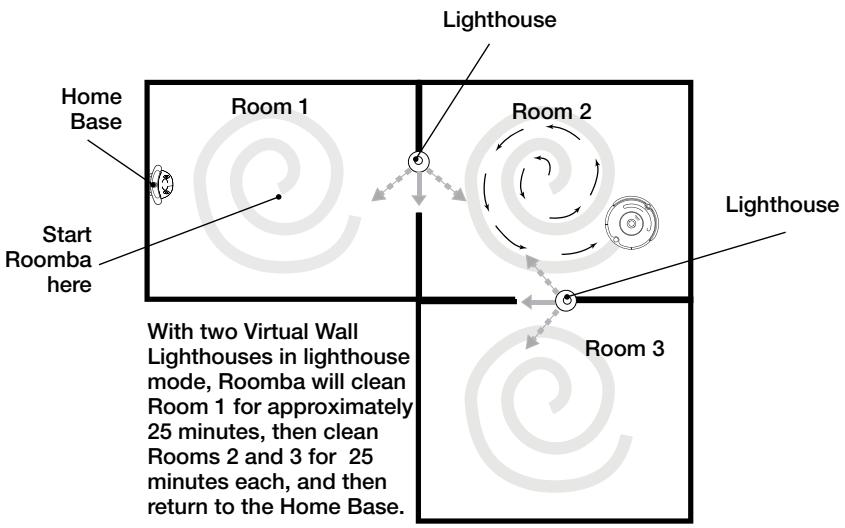
TIP: When in Lighthouse mode, do not manually move Roomba from room to room while it is cleaning.
Virtual Wall® Lighthouses™
(continued)
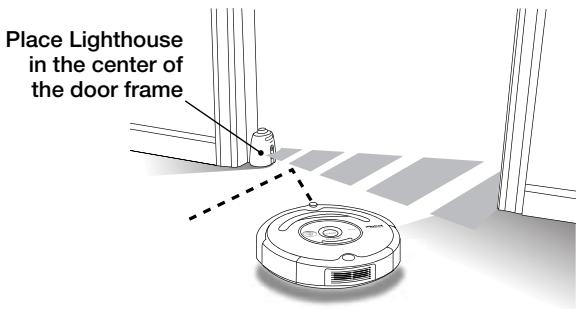
In Lighthouse mode, place the Virtual Wall Lighthouse in the doorway between two rooms with the iRobot logo facing forward.
Virtual Wall Mode
In Virtual Wall mode, the Lighthouse creates an invisible barrier that Roomba will not cross. It automatically turns off when Roomba turns off. In Virtual Wall mode, place the Virtual Wall Lighthouse in the center of the door frame. It blocks an opening up to seven feet or longer in three increments: 0-3 ft., 4-7 ft., 7+ ft. Use the range selector to adjust the length of the barrier. A longer range will drain the battery faster.
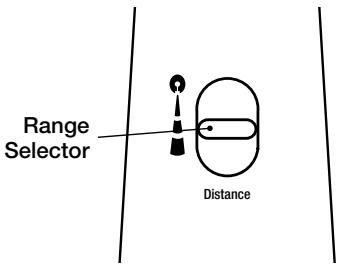
TIP: Avoid placing Virtual Wall Lighthouses too close to each other, the Home Base, or furniture that could block the beams. Doing so could prevent Roomba from recognizing the Lighthouses and navigating to the next room.
TIP: To conserve battery life, remove the batteries if you are not planning to use the Virtual Wall Lighthouse when cleaning. When battery levels are low, the Virtual Wall Lighthouse power light will flash repeatedly.
Home Base®
(optional accessory for models 520 and above)
Roomba returns to the Home Base at the end of a cleaning cycle or when its battery is running low. Roomba needs to find the infrared signal of the Home Base in order to return.
Always keep the Home Base plugged in. When the Home Base is plugged in, the power light will blink to indicate that the Home Base is connected to the power source. When Roomba connects to the Home Base, the power light will be solid to indicate that Roomba has successfully connected to the Home Base. When Roomba is charging, Roomba's "Clean" button will pulse amber as described in the "Battery Storage and Charging" section of this manual. The "Clean" button will be a solid green when Roomba is completely charged.
Home Base Location
You should position the Home Base on a hard level surface and in an area where Roomba has a clear path to return at the end of a cleaning cycle. Locate the Home Base against a wall or other immovable object to prevent it from sliding during docking. If Roomba is unable to dock on its first attempt, it will try again until it docks successfully.
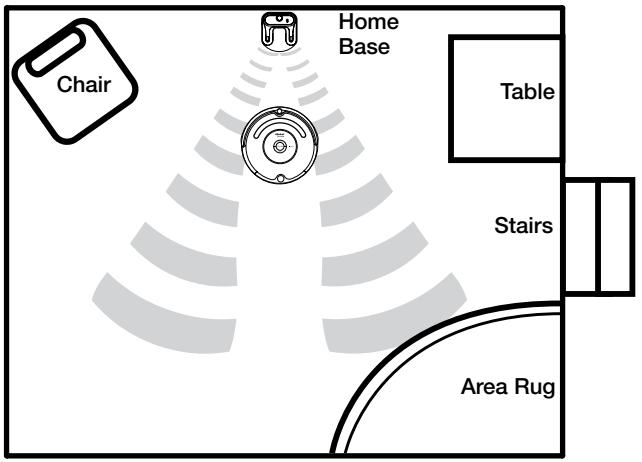
TIP: Do not place the Home Base within 4 feet of a stairwell.
Wireless Command Center
(optional accessory for models 570 and above)
The Wireless Command Center lets you conveniently control Roomba's functions. You can use it to turn Roomba on and off, schedule Roomba to clean, and steer Roomba around your room.

| SPOT | Roomba spirals approximately three feet in diameter and then spirals back to where it started, intensely cleaning a local area. | |
| CLEAN | Roomba automatically calculates the room size and adjusts its cleaning time appropriately. | |
| ... | Models 570-599 | Roomba attempts to dock on the Home Base, if present. |
| Models 600+ | Roomba enters Max mode and cleans as long as the battery allows. | |
Pairing Roomba with the Wireless Command Center
Wireless Command Centers are set up to control only one Roomba. To pair a Wireless Command Center with a Roomba, you need four "AA" batteries (not included).
1 Make sure Roomba's battery is fully charged.
2 Unplug the power supply or remove Roomba from its Home Base.
Install three "AA" batteries into the Command Center.
Hold down the left drive button while installing the fourth battery.
5 Continue holding the button for 3 seconds or until the days of the week lights flash in a sequence from right to left (Saturday to Sunday).
Install the battery door and place the Command Center on top of Roomba.
Press and hold the DAY and MINUTE buttons on the Command Center for 2 seconds. The lights on the Command Center will flash to indicate the pairing has completed, and Roomba will make a two-tone beep.
When the Command Center is powered on from now on, the lights will flash in sequence from left to right until Roomba is under control.
Remote Control
(optional accessory for models 500 and above)
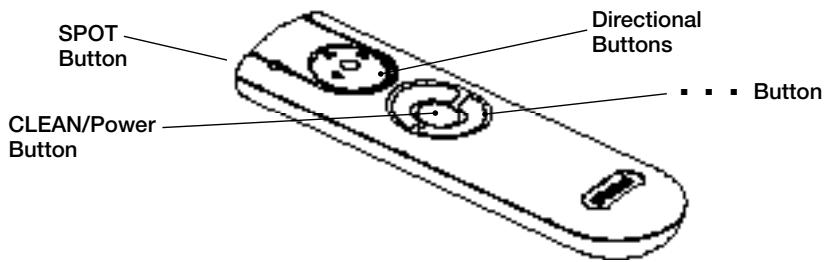
The Remote Control lets you conveniently control Roomba's functions. You can use it to turn Roomba on and off and steer it around your room without bending down. It also gives you remote access to these commands:
| SPOT | Roomba spirals approximately three feet in diameter and then spirals back to where it started, intensely cleaning a local area. | |
| CLEAN | Roomba automatically calculates the room size and adjusts its cleaning time appropriately. | |
| ... | Models 500-519 | Roomba enters Spot mode. |
| Models 520-599 | Roomba attempts to dock on the Home Base, if present. | |
| Models 600+ | Roomba enters Max mode and cleans as long as the battery allows. | |
Before using your remote for the first time, install 2 AA batteries (not included).
TIP: Check that there is a direct line of sight from the Remote Control to Roomba and that the remote is pointed at Roomba.

The Remote Control, Virtual Walls and Home Base operate using an invisible infrared beam. If they are all used in the same area, Roomba may see multiple infrared signals and will not operate. The Remote WILL NOT work when Roomba is near Virtual Walls.
Scheduling Roomba
(Models 550 and above)
Setting the Time
You must set the time before scheduling Roomba to clean.
Press and hold CLOCK.
2 While holding CLOCK, use the DAY, HOUR, and MINUTE buttons to set the correct time.
3 Release CLOCK. Roomba will beep to indicate that the time has been set.
Setting a Schedule
You can schedule Roomba to clean once per day, up to seven times per week. You must set the time before setting a schedule.
To set a schedule:
Press and hold SCHEDULE.
2 While holding SCHEDULE, use the DAY, HOUR, and MINUTE buttons to set the schedule.
3 Release SCHEDULE. Roomba will beep to indicate that the schedule has been set.
Viewing and Deleting Schedules
To view Roomba's scheduled cleaning times:
Press and hold SCHEDULE.
While holding SCHEDULE, press the DAY button to cycle through Roomba's scheduled cleaning times.
3 Release SCHEDULE.
To Delete a Schedule
Press and hold SCHEDULE.
While holding SCHEDULE, press the DAY button to cycle through Roomba's scheduled cleaning times.
3 When Roomba is displaying the scheduled cleaning time you'd like to delete, press and hold DAY to delete the scheduled cleaning time.
4 Release SCHEDULE.
To Change a Schedule
Press and hold SCHEDULE.
While holding SCHEDULE, press the DAY button to cycle through Roomba's scheduled cleaning times.
3 When Roomba is displaying the scheduled cleaning time you'd like to change, press the HOUR and MINUTE buttons to change the scheduled cleaning time.
4 Release SCHEDULE. Roomba will beep to confirm that the schedule has been changed.
TIP: Roomba's clock can be viewed in either the 12 hour (AM/PM) format or the 24 hour format. To toggle between the two views, press and hold the DAY and MINUTE buttons simultaneously for 3 seconds until Roomba beeps and the clock briefly illuminates, indicating the clock format has been switched. Roomba's clock will switch back to the default 12 hour (AM/PM) format when Roomba's battery is disconnected or significantly discharged.
Regular Maintenance
To keep Roomba running at peak performance, it is recommended that you perform the following maintenance regularly:
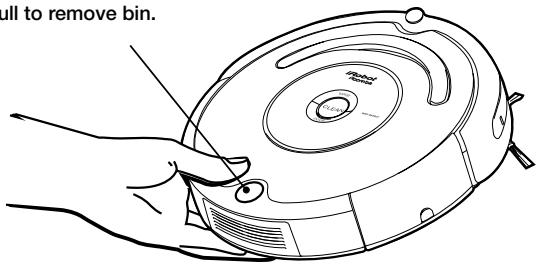
1 Remove and empty Roomba's bin after each use
Press button and pull to remove bin.
2 Clean Roomba's filter
A. Clean or replace filter.*
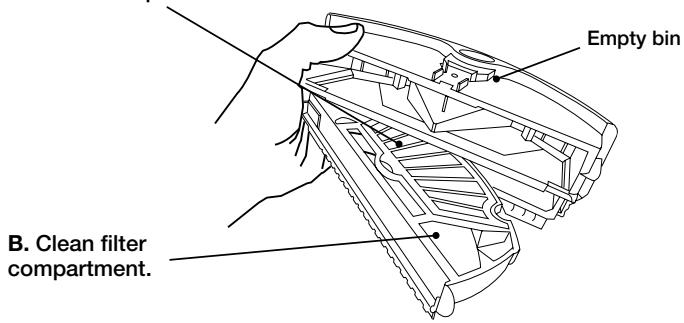
*Replace filter every 2 months
Visit www.irobot.com for information on keeping Roomba running at peak performance.
TIP: Bin emptying and brush cleaning should be done after every cleaning cycle. Regularly pull out and clean Roomba's front wheel.
TIP: If you notice Roomba picking up less debris from your floor, empty the bin and clean the brushes.
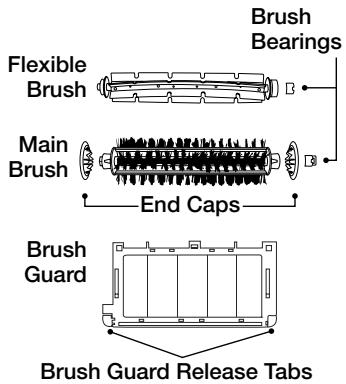
3 Clean Roomba's brushes
A. Remove brush guard by lifting both yellow tabs.
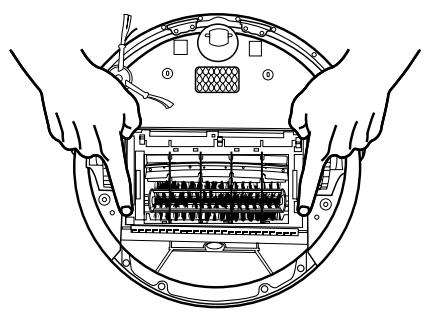
B. Remove and clean Roomba's brushes.
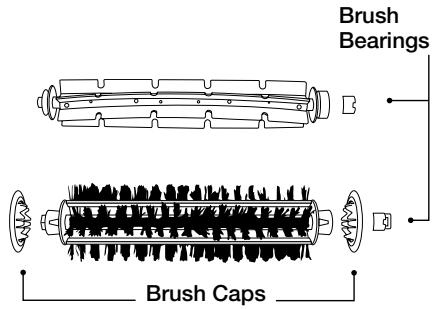
TIP: When maintaining Roomba, look for the yellow parts. These parts are designed to be removed and cleaned every time you empty Roomba's bin.
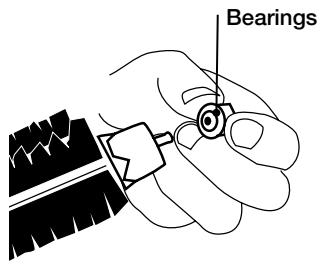
C. Remove and clean hair and dirt from Roomba's yellow brush bearings.
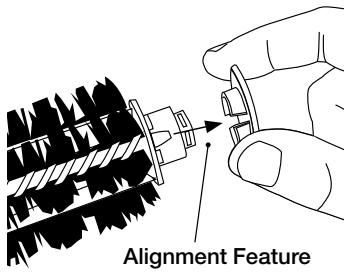
D. Remove and clean Roomba's brush caps.
E. Use the included cleaning tool to easily remove hair from Roomba's bristle brush by pulling it over the brush.
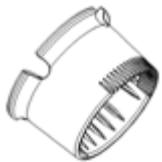
Excessive build up of hair can permanently damage Roomba. Remove brushes and inspect brush bearings regularly.
A Do not attempt to run Roomba without the bearings. If you misplace Roomba's brush bearings, contact iRobot Customer Care for replacement bearings.
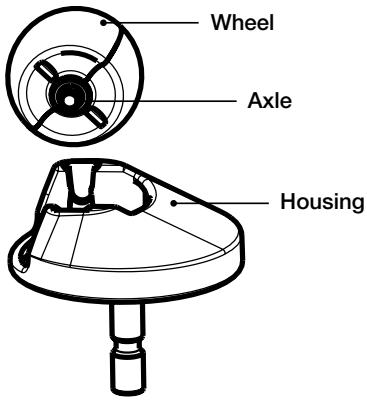
Clean Roomba's front wheel
Pull firmly on Roomba's front wheel to remove it from the robot.
2 Remove debris from inside the front wheel cavity.
3 Remove the front wheel from its housing and clear any hair wrapped around the axle. Push firmly on the wheel axle to remove it completely from the wheel.
Wipe the wheel clean.
5 Re-install the wheel into the housing, and the module into the robot.
A Front wheels clogged with hair and debris could result in floor damage.
Clean Roomba's cliff sensors
Wipe all four cliff sensors with a clean, dry cloth.
Language Selection Mode
Roomba 500 Series can provide troubleshooting messages in English, French, German, Spanish, Italian, Dutch, Danish, Swedish, Norwegian, Finnish, Polish, Russian, Portuguese, Japanese, Korean and Chinese.
Roomba's default language is English.
Setting the Language
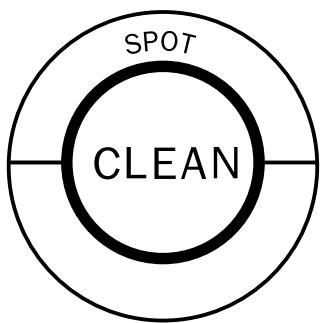
Turn OFF Roomba. (Press and hold CLEAN until Roomba's lights turn off.)
Press and hold CLEAN until Roomba beeps and says the currently selected language.
3 Release CLEAN. Roomba is now in Language Selection Mode.
Press CLEAN repeatedly until you hear the desired language.
Press and hold CLEAN to turn OFF Roomba and confirm the language choice.
Troubleshooting
Roomba will tell you something is wrong with a two-tone "uh-oh" sound followed by a narrated voice. The troubleshooting light will also blink. Refer to the chart below to resolve Roomba's problem. If the problem is not resolved, visit www.irobot.com/support.
Tip : To repeat Roomba's error message, press the "clean" button.
Runtime Errors
| Roomba blinks... | Roomba says.... | Likely cause | What to do |
| 1 blink (every 2 seconds) | Error 1. Move Roomba to a new location then press CLEAN to restart. | Roomba is stuck with a wheel hanging down. | Ensure Roomba's wheels are firmly on the floor. Start Roomba in a new location. |
| Error 2. Open Roomba's brush cage and clean brushes. | Roomba's main brushes cannot turn. | Remove and clean Roomba's brushes. See page 22. | |
| Error 5. Spin Roomba's side wheels to clean. | Roomba's side wheel is stuck. | Clean hair and debris from Roomba's side wheels. Push them in and out and confirm that they both turn freely. Start Roomba in a new location. | |
| Error 6. Move Roomba to a new location then press CLEAN to restart. | Roomba's cliff sensors are dirty or Roomba is stuck hanging over a cliff. | Wipe Roomba's cliff sensors with a dry cloth. See page 23. Start Roomba in a new location. | |
| Error 7. Spin Roomba's side wheels to clean. | Roomba's side wheel is stuck. | Clean Roomba's side wheels of hair and debris. Push them in and out and confirm that they both turn freely. Start Roomba in a new location. | |
| Error 9. Tap Roomba's bumper to clean. | Roomba's bumper is compressed or the bumper sensor is dirty. | Briskly tap Roomba's bumper 10-20 times to dislodge any debris that may be trapped under the bumper. | |
| Error 10. Spin Roomba's side wheels to clean. | Roomba's side wheel is stuck or its bumper is not registering obstacles. | If Roomba is circling in place, clean Roomba's side wheels of hair and debris. Push them in and out and confirm that they both turn. If not circling in place, Roomba may be in an extremely large room. Use a Virtual Wall to create a smaller cleaning area. | |
| Please charge Roomba. | Roomba's battery is discharged. | Plug Roomba into the power supply (or place Roomba on the Home Base) to charge. See page 12. |
Charging Errors (while charging)
| Roomba blinks... | Roomba displays... (models 550+) | Roomba says.... | Likely cause | What to do |
| 1 blink | - | Charging Error 1. | Roomba's battery is not connected. | Confirm that Roomba's battery pull-tab is removed. Remove the bottom cover of Roomba to remove and re-install Roomba's battery. See page 30. |
| 2 blinks | Err2 | Charging Error 2. | Roomba has a charging error. | Let Roomba cool down for at least one hour and try charging again. |
| 3 blinks | Err3 | Charging Error 3. | Roomba has a charging error. | Reset Roomba's software (refer to tip below) and try charging again. |
| 5 blinks | Err5 | Charging Error 5. | Roomba has a charging error. | Reset Roomba's software (refer to tip below) and try charging again. |
| 6 blinks | Err6 | Charging Error 6. | Roomba's battery is too warm. | Let Roomba cool down for at least one hour and try charging again. |
| 7 blinks | Err7 | Charging Error 7. | Roomba's battery is not cooling. | Let Roomba cool down for at least one hour and try charging again. |
TIP: To reset Roomba's software, simultaneously hold down the two buttons above and below CLEAN for 10 seconds. This will clear all scheduled cleaning times, reset the clock and may resolve some software issues.
Replaceable Modules
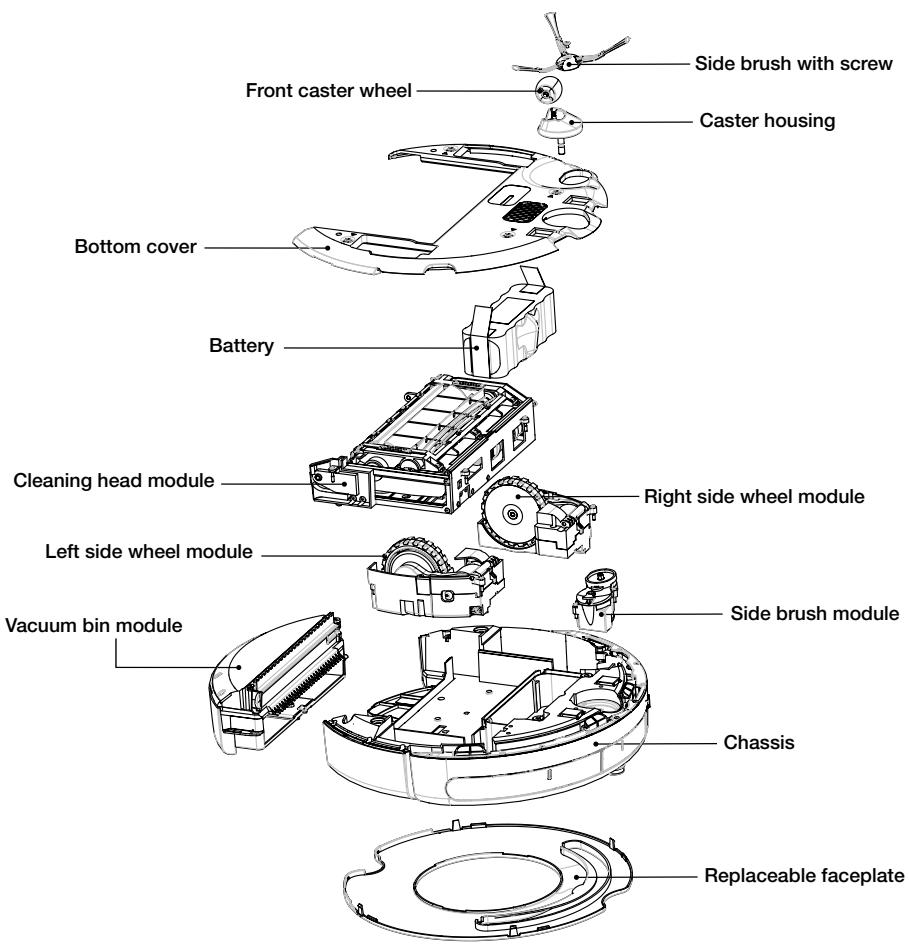
Roomba has a number of modules that can be replaced, including its drive wheels, side brush, main cleaning head, vacuum bin, caster wheel, and battery.
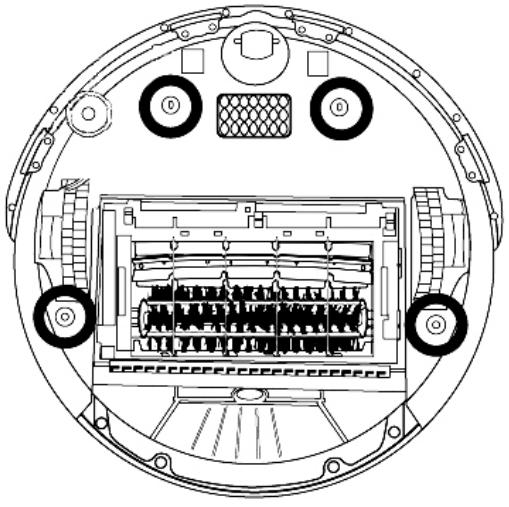
To access Roomba's replaceable modules, remove the bottom cover of Roomba by removing the four screws that hold down the bottom cover and the screw that holds the spinning side brush.
Faceplate Removal
/models 500 and above)
Follow these instructions to remove and install Roomba's faceplate.
1 Remove Roomba's bin.
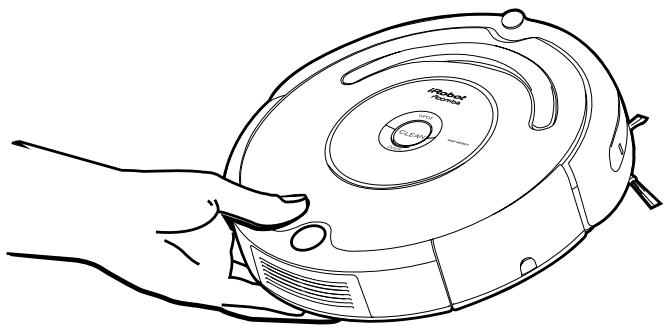
2 Remove Roomba's faceplate by pulling up from the bin. The faceplate is secured in several places.
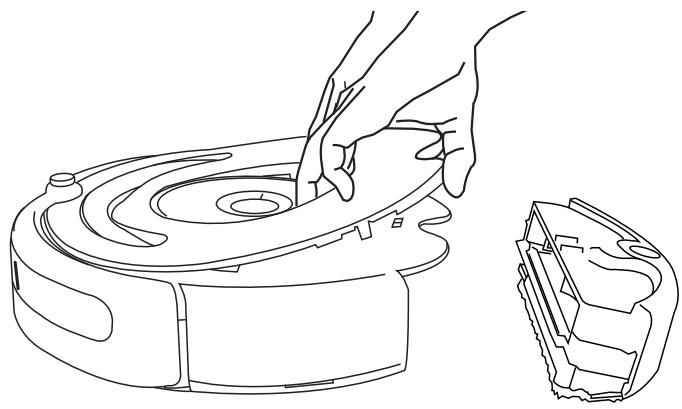
3 Install Roomba's faceplate by inserting the tabs into the appropriate slots, and then pushing down firmly on the inside and outside edges of the faceplate.
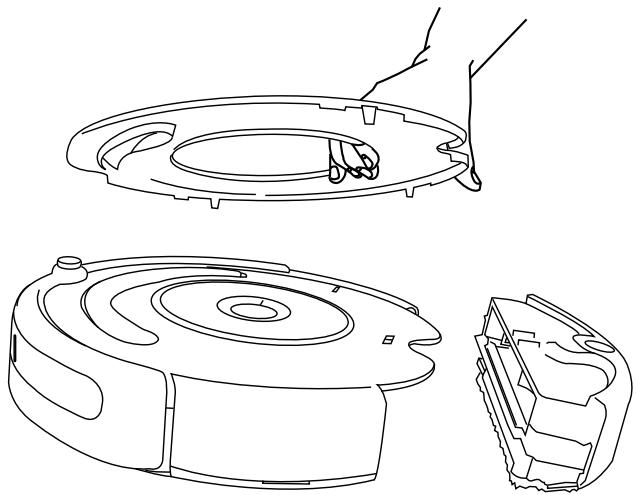
4 Reinsert Roomba's bin.
Battery Removal
/models 500 and above)
Follow these instructions to remove and reinstall Roomba's battery.
1 Remove Roomba's side brush screw.
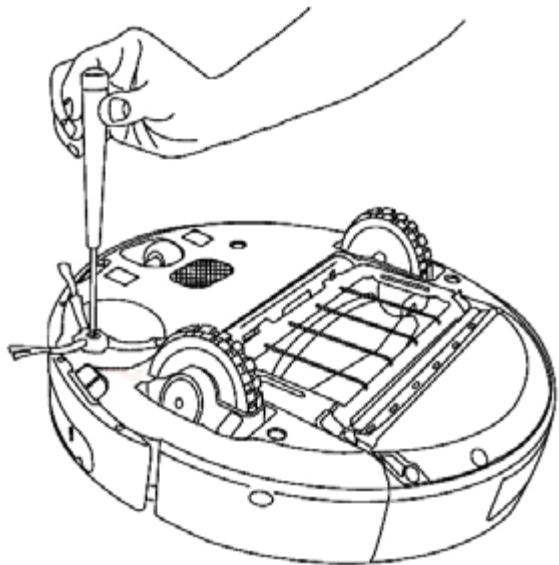
2 Remove Roomba's side brush.
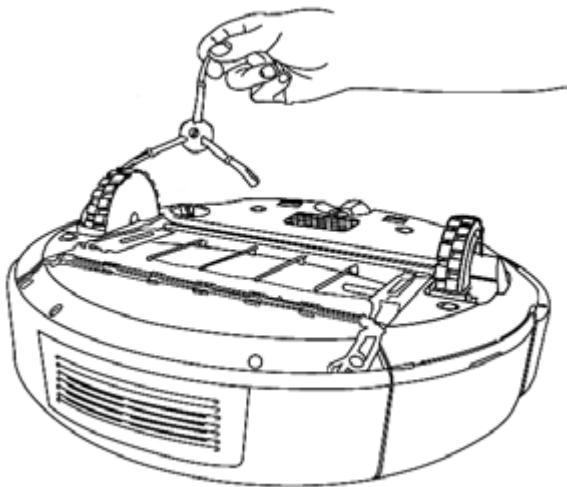
3 Unscrew the four screws shown below and remove Roomba's bottom cover.
4 Remove Roomba's battery.
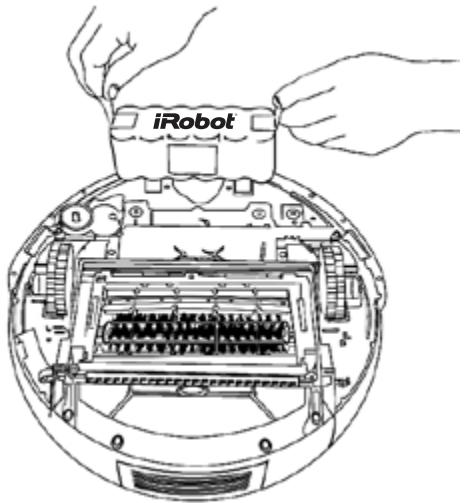
5 Reinstall Roomba's battery with the iRobot logo facing up.
6 Replace Roomba's bottom cover and the four screws.
7 Replace Roomba's side brush and the side brush screw.
Frequently Asked Questions
Why does Roomba's Side Brush occasionally spin backwards?
When caught on items such as carpet tassels or wires, the Side Brush may spin slowly or briefly spin backwards to free itself. This may also occur on thick or high-pile carpets. If this behavior should occur on hard floor surfaces or when no tassels or wires are present, the Side Brush should be cleaned. Using a small Philips head screwdriver, first remove the screw from the center of the Side Brush. Next remove the Side Brush and thoroughly clean any hair or debris that is wrapped around the shaft. Then reinstall the Side Brush and Side Brush screw.
Why does Roomba occasionally make a thumping sound?
When Roomba's brushes encounter items such as carpet tassels or wires, the brushes will briefly reverse direction to get free. This action causes a thumping sound that can be heard approximately once per second until the brushes are free from obstruction. If Roomba makes a thumping sound when no tassels or wires are present, the main brushes should be cleaned as described on page 22.
Why doesn't Roomba slow down as it approaches certain obstacles?
Roomba uses its Light Touch Bumper technology to identify walls and other obstacles, allowing it to slow down and gently touch the obstacle with its bumper before changing direction. Roomba may be less effective at sensing and slowing down for extremely dark or black surfaces, or for objects that are less than two inches wide.
TIP: For additional assistance, visit www.irobot.com/support.
Important Safety Instructions

CAUTION: DO NOT EXPOSE THE ELECTRONICS OF ROOMBA, ITS BATTERY, OR THE POWER SUPPLY. THERE ARE NO USER- SERVICEABLE PARTS INSIDE. REFER SERVICING TO QUALIFIED SERVICE PERSONNEL. PLEASE ENSURE VOLTAGE RATING FOR ENCLOSED POWER SUPPLY MATCHES STANDARD OUTLET VOLTAGE.
Always exercise caution when operating your Roomba. To reduce the risk of injury or damage, keep these safety precautions in mind when setting up, using and maintaining Roomba:
GENERAL SAFETY INSTRUCTIONS
- Read all safety and operating instructions before operating Roomba.
- Retain the safety and operating instructions for future reference.
- Heed all warnings on Roomba, battery, power supply and in owner's manual.
- Follow all operating and use instructions.
Refer all non-routine servicing to iRobot.
ROOMBA USE RESTRICTIONS
- Roomba is for indoor use only.
- Roomba is not a toy. Do not sit or stand on this device. Small children and pets should be supervised when Roomba is cleaning.
- Clean with a dry cloth only. Do not pour or spray water onto Roomba.
- Do not use this device to pick up anything that is burning or smoking.
- Do not use this device to pick up spills of bleach, paint, or other chemicals, or anything wet.
- Before using this device, pick up objects like clothing, loose papers, pull cords for blinds or curtains, power cords, and any fragile objects. If the device passes over a power cord and drags it, there is a chance an object could tumble off a table or shelf.
- If the room to be cleaned contains a balcony, a physical barrier should be used to prevent access to the balcony and ensure safe operation.
- Always remove the battery before long-term storage or transportation.
- This appliance is not intended for use by persons (including children) with reduced physical, sensory or mental capabilities, or lack of experience and knowledge, unless they have been given supervision or instruction concerning use of the appliance by a person responsible for their safety.
- Children should be supervised to ensure they do not play with the appliance.
ROOMBA BATTERY AND CHARGING
- Charge using a standard outlet only. Product may not be used with any type of power converter. Use of other power converters will immediately void the warranty.
- Use only the power supply supplied by the manufacturer to charge this device.
- Do not use a power supply with a damaged cord or plug.
- Charge indoors only.
- Roomba's power supply may be protected with a surge protector in the event of severe electrical storms.
- Never handle the power supply with wet hands.
- Always disconnect Roomba from the power supply before cleaning.
- Please ensure voltage rating for enclosed power supply matches standard outlet voltage.
Declaration of Conformity
Roomba Robotic Vacuum Cleaner and Accessories
Manufacturer: iRobot Corporation, 8 Crosby Drive, Bedford, MA 01730, USA declares that Roomba Robotic Vacuum Cleaner along with Battery Power Supply and the Home Base conform to the requirements of Low Voltage Directive 73/23/EEC as amended by 93/68/EEC and EMC Directive 89/336/EEC as amended by 92/31/EEC. Low Voltage tests and EMC tests have been conducted by TUV Rheinland of North America.
It is further declared that the Roomba Robotic Vacuum Cleaner and Accessories conform to the following harmonized European standards:
Year of CE Marking: 2004
EN 60335-1:2002 + A11:2004
Household and Similar Electrical Appliances - Safety Part 1 - General Requirements
EN 60335-2-2:2003
Household and Similar Electrical Appliances - Safety Part 2 - Particular Requirements for Vacuum Cleaners and Water-Suction Cleaning Appliances
EN 60335-2-29:2002
Household and Similar Electrical Appliances - Part 2-29 - Particular Requirements for Battery Chargers
EN 55014-1:2000 + A1:2001 + A2:2002
Electromagnetic compatibility - Requirements for household appliances, electric tools and similar apparatus -- Part 1: Emission
EN 55014-1:1997 + A2:2002
Electromagnetic compatibility - Requirements for household appliances, electric tools and similar apparatus -- Part 2: Immunity - Product family standard