
IC 205 - Multifunction Printer KONICA MINOLTA - Free user manual and instructions
Find the device manual for free IC 205 KONICA MINOLTA in PDF.


| Product Type | Multifunction Printer |
| Brand | KONICA MINOLTA |
| Model | IC 205 |
| Dimensions (W x D x H) | 420 x 395 x 500 mm approx. |
| Weight | 15 kg approx. |
| Power Supply | 220-240 V, 50/60 Hz |
| Main Functions | Print, copy, scan |
| Print Resolution | Up to 600 x 600 dpi |
| Print Speed | Up to 20 ppm (A4) |
| Standard Paper Capacity | 250 sheets |
| Supported Paper Sizes | A4, A5, B5, Letter, Legal |
| Connectivity | USB 2.0, Ethernet 10/100 |
| Display | Backlit LCD screen |
| Monthly Duty Cycle | Up to 10,000 pages |
| Maintenance and Cleaning | Clean the document feeder with a soft lint-free cloth |
| Safety | Turn off and unplug before any cleaning |
| Spare Parts and Repairability | Toners, drum, transfer belt available |
| General Information | Class A digital apparatus complies with Canadian ICES-003 |
Frequently Asked Questions - IC 205 KONICA MINOLTA
User questions about IC 205 KONICA MINOLTA
0 question about this device. Answer the ones you know or ask your own.
Ask a new question about this device
Download the instructions for your Multifunction Printer in PDF format for free! Find your manual IC 205 - KONICA MINOLTA and take your electronic device back in hand. On this page are published all the documents necessary for the use of your device. IC 205 by KONICA MINOLTA.
USER MANUAL IC 205 KONICA MINOLTA
Image Controller IC-205
User's Guide


Contents
Contents
1 Welcome
1.1 END USER LICENSE AGREEMENT 1-3
- SOFTWARE 1-3
- LICENSE AGREEMENT 1-3
3.License 1-3 - RESTRICTIONS 1-4
- LIMITED WARRANTY 1-4
- LIMITATION OF REMEDIES 1-4
- TERMINATION 1-4
- GOVERNING LAW 1-4
- GOVERNMENT END USERS 1-5
1.2 Trademark acknowledgements 1-6
1.3 User instructions 1-7
CE Marking (Declaration of conformity) 1-7
For U.S.A. users
FCC part 15-Radio frequency devices 1-7
For Canada users
Interference-causing equipment standard (ICES-003 issue 3) .........1-9
For users in countries subject to class B regulations 1-9
For users in countries not subject to class B regulations 1-9
2 Getting ready
2.1 System requirements 2-2
2.2 Features of Image Controller IC-205 2-4
Various printing functions 2-4
3 Connecting to a computer
3.1 Types of connections 3-2
Parallel port connection 3-2
USB port connection 3-2
Network connection 3-2
3.2 Parallel port connection 3-3
Connecting the machine to the parallel port of the computer 3-3
3.3 USB port connection 3-4
4 Installing the printer driver
4.1 Outline of Printer Driver Installation 4-3
Installation using Plug and Play 4-3
Installation using the Add Printer Wizard 4-3
4.2 Installing the TWAIN driver/printer driver using
"Plug and Play" 4-4
Installing the TWAIN driver/printer driver using
"Plug and Play" under Windows XP/Server 2003 4-4
Installing the TWAIN driver/printer driver using
"Plug and Play" under Windows 2000 4-6
Installing the TWAIN driver/printer driver using
"Plug and Play" under Windows Me/98 SE 4-7
Reinstalling the printer driver by using Plug and Play 4-8
4.3 Installing the printer driver using the "Add Printer Wizard" 4-9
Installing the printer driver using the "Add Printer Wizard"
under Windows XP/Server 2003 4-9
Installing the printer driver using the "Add Printer Wizard"
under Windows 2000/NT 4.0 4-11
Installing the printer driver using the "Add Printer Wizard"
under Windows Me/98 SE/98 4-13
Reinstalling the printer driver by using the Add Printer Wizard ... 4-14
5 Configuring printer driver settings
5.1 Displaying printer driver properties for configuring global
settings 5-2
Displaying settings under Windows XP/Server 2003 5-2
Displaying settings under Windows 2000/NT 4.0/Me/98 SE/98 .... 5- 4
5.2 Common operations 5-7
OK 5-7
Cancel 5-7
Apply 5-7
Help 5-7
Easy Set List 5-8
Save 5-8
Delete 5-8
Page Layout/Printer Figure 5-9
5.3 “Setup” tab 5-10
5.3.1 N-up 5-11
N-up List 5-11
Border Line 5-11
N-up Style 5-12
5.3.2 Watermark 5-13
Watermark List 5-13
First Page Only 5-13
Edit Watermark 5-13
How to edit a watermark 5-14
5.3.3 Paper Source 5-16
Paper Source List 5-16
Detail of Paper Source 5-17
5.3.4 Media type 5-18
Media Type List 5-18
5.3.5 Duplex 5-18
5.3.6 Security 5-19
Lock Job 5-19
Password 5-19
Using lock job 5-19
Specifying settings with the printer driver 5-19
Printing a locked job 5-20
5.4 "Paper" tab 5-21
5.4.1 Original Document Size 5-22
Original Document Size List 5-22
Edit Custom 5-22
5.4.2 Output Paper Size 5-24
Fit to Paper 5-24
Output Paper Size List 5-24
Scaling 5-25
5.4.3 Copies 5-25
5.4.4 Collate 5-25
5.4.5 Orientation 5-25
Rotate 5-25
5.5 “Quality” tab 5-26
5.5.1 Adjustment 5-26
Contrast 5-26
Brightness 5-26
5.5.2 Resolution 5-26
5.5.3 Toner Save 5-27
5.5.4 Rendering Mode 5-27
5.5.5 Font Setting 5-27
5.6 "Device Options" tab 5-28
5.6.1 Device Options 5-28
5.7 "About" tab 5-29
6 Control panel operations
6.1 Printer operations 6-2
General guide 6-3
[Printer] indicator 6-4
Starting the Print Operation 6-4
Canceling a print job 6-5
Using the bypass tray 6-7
Energy save mode 6-8
Outputting a report 6-8
7 Using PageScope Web Connection
7.1 When using PageScope Web Connection 7-2
7.2 What is PageScope Web Connection? 7-2
7.3 System requirements 7-4
7.4 Accessing PageScope Web Connection 7-5
How to access to PageScope Web Connection 7-5
7.5 Using PageScope Web Connection 7-6
7.6 About the screen layout 7-6
7.7 Logging in as an administrator 7-8
Logging in to administrator mode 7-8
7.8 Checking/Deleting print jobs 7-9
Checking a print job 7-9
Deleting a print job 7-10
7.9 Downloading files 7-11
How to download files 7-11
7.10 Checking/Changing printer settings 7-12
Checking the printer settings 7-12
Changing the printer settings 7-13
7.11 Printing a test page 7-14
How to print a test page 7-14
7.12 Displaying the PCL font list 7-15
7.13 Resetting the network interface card and image controller .... 7-16
How to reset the network interface card and image controller .... 7-16
7.14 Initializing the network interface card and image controller ....7-17
How to initialize the network interface card and image controller 7-17
8 Troubleshooting
8.1 Checking messages 8-2
How to check messages 8-2
8.2 Main messages 8-3
8.3 Errors and print data 8-4
"MACHINE TROUBLE" error 8-4
Temporary errors 8-4
9 Specifications
1
Welcome
1 Welcome
This manual provides information on setting up and using a machine as a PCL printer.
Read these instructions thoroughly before using the functions.
For instructions on using the machine itself and for general safety precautions, refer to the manual provided with the machine.
Store the user's guide and the enclosed CD-ROM in a safe location for future reference.

Note
No part of this manual may be copied or reproduced, either in part or in whole, without prior permission.
The contents of this manual are subject to change without notice.
No part of the manual may be reproduced or modified without prior permission.
Screen images used in this manual may differ from the actual screen display.
1.1 END USER LICENSE AGREEMENT
PLEASE READ CAREFULLY THE LICENSE AGREEMENT BELOW BEFORE INSTALLING THE SOFTWARE. INSTALLING THE SOFTWARE INDICATES YOUR ACCEPTANCE OF THE TERMS AND CONDITIONS BELOW. IF YOU DO NOT AGREE WITH THEM, YOU SHOULD PROMPTLY RETURN THE SOFTWARE UNUSED.
1. SOFTWARE
"Software" means the computer program contained in the package, together with all codes, techniques, software tools, format, design, concepts, methods and ideas associated with the computer program and all documentation related thereto.
2. LICENSE AGREEMENT
This is a license agreement for sale. KONICA MINOLTA BUSINESS TECHNOLLOGIES, INC. or its affiliate company (hereinafter collectively "KONICA MINOLTA") owns, or has been licensed from other owners ("KONICA MINOLTA's License"), copyrights in the Software. Except as in this Agreement, you are not granted any rights to patents, copyrights, trade names, trademarks (whether registered or unregistered), or any other rights, franchises or licenses in respect of the Software. Title to the Software and any copy made from it is retained by KONICA MINOLTA or KONICA MINOLTA's License.
3. LICENSE
KONICA MINOLTA, hereby grand to you, and you agree to accept a non-exclusive, non-transferable and limited license and you may:
(1) install and use the Software on a single computer.
(2) use the Software only for your own customary business or personal purpose.
(3) make a copy of the Software for backup or installation purpose only in support of the normal and intended use of the Software.
(4) transfer possession of copies of the Software to another party by transferring a copy of this Agreement and all other documentation along with at least one complete unaltered copy of the Software, provided that (i) you, at the same time, either transfer to such other party or destroy all your other copies of the Software, (ii) such transfer of possession terminates your license with KONICA MINOLTA, and (iii) such other party shall accept and be bound by these license terms with their initial use of the Software.
4. RESTRICTIONS
(1) You shall not without the written consent of KONICA MINOLTA:
(i) use, copy, modify, merge or transfer copies of the Software except as provided herein, (ii) reverse assemble or reverse compile the Software except as permitted by law; or (iii) sublicense, rent, lease or distribute the Software or any copy thereof.
(2) You shall not export or re-export the Software in any from under violation of export restrictions by the government of your country.
5. LIMITED WARRANTY
KONICA MINOLTA warrants the media on which the software is recorded to be free from defects in materials and workmanship under normal use. Warranty details and limitations for the Hardware containing the Software are described in the Statement of Limited Warranty which was supplied with the hardware. With the exception of the foregoing express warranties applicable to hardware and media only, the Software is not warranted and is provided "AS IS".
SUCH WARRANTYES ARE IN LIEU OF ALL OTHER WARRANTYES, EXPRESS OR IMPLIED, INCLUDING, BUT NOT LIMITED TO, THE IMPLIED WARRANTYES OF MERCHANTABILITY AND FITNESS FOR A PARTICULAR PURPOSE.
6. LIMITATION OF REMEDIES
IN NO EVENT WILL KONICA MINOLTA BE LIABLE FOR ANY LOST PROFITS, LOST DATA, OR ANY OTHER INCIDENTAL OR CONSEQUENTIAL DAMAGES THAT RESULT FROM USE OR INABILITY TO USE THE SOFTWARE, EVEN IF KONICA MINOLTA, KONICA MINOLTA LICENSOR OR ITS AUTHORISED REMARKETERS HAVE BEEN ADVISED OF THE POSSIBILITY OF SUCH DAMAGES OR FOR ANY CLAIM BY YOU BASED ON A THIRD PARTY CLAIM.
7. TERMINATION
You may terminate your license at any time by destroying the Software and all your copies of it or as otherwise described in these terms. KONICA MINOLTA may terminate your license if you fail to comply with these terms. Upon such termination, you agree to destroy all your copies of the Software.
8. GOVERNING LAW
This Agreement shall be governed by the laws of the country where the delivery is made to the original customer.
9. GOVERNMENT END USERS
If you are acquiring the Software on behalf of any unit or agency of the United States Government, the following provisions apply. Use, duplication or disclosure by the Government is subject to restrictions as set forth in the Rights in Technical Data and Computer Software clause at FAR 252.227-7013, subdivision (b)(3)(ii) or sub paragraph (c)(1)(ii), as appropriate. Further use, duplication or disclosure is subject to restrictions to restricted rights software as set forth in FAR 52.227-19(c)(2).
YOU ACKNOWLEDGE THAT YOU HAVE READ THIS AGREEMENT, UNDERSTAND IT, AND AGREE TO BE BOUND BY ITS TERMS AND CONDITIONS. NEITHER PARTY SHALL BE BOUND BY ANY STATEMENT OR REPRESENTATION NOT CONTAINED IN THIS AGREEMENT. NO CHANGE IN THIS AGREEMENT IS EFFECTIVE UNLESS WRITTEN AND SIGNED BY PROPERLY AUTHORISED REPRESENTATIVES OF EACH PARTY. BY INSTALLING THIS SOFTWARE, YOU AGREE TO ACCEPT THE TERMS OF THIS AGREEMENT.
1.2 Trademark acknowledgements
KONICA MINOLTA is a trademark of KONICA MINOLTA HOLDINGS, INC.
PageScope is a trademark of KONICA MINOLTA BUSINESS TECHNOLOGIES, INC.
Ethernet is a registered trademark of Xerox Corporation.
PCL is a registered trademark of Hewlett-Packard Company.
Microsoft, Windows, and Windows NT are registered trademarks of Microsoft Corporation.
Netscape Communications, the Netscape Communications logo, Netscape Navigator, Netscape Communicator, and Netscape are trademarks of Netscape Communications Corporation.
All other product names are trademarks or registered trademarks of their respective holders.
Copyright © 2005 KONICA MINOLTA BUSINESS TECHNOLOGIES, INC. All rights reserved.
1.3 User instructions
CE Marking (Declaration of conformity)
This product complies with the following EU directives:
89/336/EEC, 73/23/EEC and 93/68/EEC directives.
This declaration is valid for the region of the European Union.

CAUTION
Interference with radio communications.
This device must be used with shielded interface cables. The use of non-shielded cable is likely to result in interference with radio communications and is prohibited under EU directives.
For U.S.A. users
FCC part 15-Radio frequency devices
This equipment has been tested and found to comply with the limits for a class A digital device, pursuant to part 15 of the FCC rules. These limits are designed to provide reasonable protection against harmful interference when the equipment is operated in a commercial environment.

WARNING
Any changes made by the purchaser or user without first contacting the manufacturer will be subject to penalty under FCC regulations.
The design and production of this unit conform to FCC regulations, and any changes or modifications must be registered with the FCC and are subject to FCC control.

CAUTION
Interference to radio communications.
This equipment generates, uses and can radiate radio frequency energy and, if not installed and used in accordance with the instruction manual, may cause harmful interference to radio communications.
Operation of this equipment in a residential area is likely to cause harmful interference in which case the user will be required to correct the interference at his own expense.
This device must be used with shielded interface cables. The use of non-shielded cable is likely to result in interference with radio communications and is prohibited under FCC rules.
For Canada users
Interference-causing equipment standard (ICES-003 issue 3)
This class A digital apparatus complies with Canadian ICES-003.
For users in countries subject to class B regulations
CAUTION
Interference with radio communications.
This device must be used with shielded interface cables. The use of non-shielded cable is likely to result in interference with radio communications and is prohibited under CISPR 22 rules and local rules.
For users in countries not subject to class B regulations
WARNING
Interference with radio communications.
This is a class A product. In a domestic environment, this product may cause radio interference in which case the user may be required to take adequate measures.
This device must be used with shielded interface cables. The use of non-shielded cable is likely to result in interference with radio communications and is prohibited under CISPR 22 rules and local rules.
2
Getting ready
2 Getting ready
2.1 System requirements
The following operating environment is required in order to use the printer driver.
| System requirements | |||
| CPU | Intel Pentium 200MHz | ||
| Operating system | Windows Server 2003/Windows XP (SP2 or later)/Windows 2000 (SP4 or later)/Windows NT 4.0 (SP6a or later)/Windows Me/Windows 98 SE/Windows 98/Windows Terminal Server (Windows NT 4.0 Terminal Server Edition/Windows 2000 Server/Windows Server 2003) | ||
| Point & Print*1 | Domain | Server: Windows Server 2003 | Client: Windows XP, Windows 2000 Professional, Windows NT 4.0 Workstation, Windows 98 (SE), Windows Me |
| Server: Windows 2000 Server | Client: Windows 2000 Professional, Windows NT 4.0 Workstation, Windows 98 (SE), Windows Me | ||
| Server: Windows NT 4.0 Server | Client: Windows NT 4.0 Workstation, Windows 98 (SE), Windows Me | ||
| Workgroup | Server: Windows XP | Client: Windows XP, Windows 2000 Professional, Windows NT 4.0 Workstation, Windows 98 (SE), Windows Me | |
| Server: Windows 2000 Professional | Client: Windows 2000 Professional, Windows NT 4.0 Workstation, Windows 98 (SE), Windows Me | ||
| Server: Windows NT 4.0 Workstation | Client: Windows NT 4.0 Workstation, Windows 98 (SE), Windows Me | ||
| RAM | 128 MB (Windows XP/Server 2003), 64 MB (Windows 2000/NT 4.0/Me/98 SE/98) | ||
| I/O interface | Parallel | IEEE 1284 (compatible mode, ECP mode, Nibble mode) | |
| USB*2 | Revision 1.1 port | ||
| Network*3 | Ethernet 10Base-T/100Base-TX (TCP/IP, IPX/SPX) | ||
| CD-ROM drive | |||
1 Point and print is possible with printers shared by Windows servers and clients. Clients inherit the driver settings from the server, such as the device options, watermark, and Easy set setup, and are unable to modify the server settings if the user does not have administrator access of the server.
2 Supported by Windows Server 2003, Windows XP, Windows 2000, Windows Me, and Windows 98 SE.
*3 If the optional network interface card is installed, the network port can be used. For details, refer to the User's Guide for the Network Interface Card (NC-502).
2.2 Features of Image Controller IC-205
Various printing functions
The various printing functions are as follows:
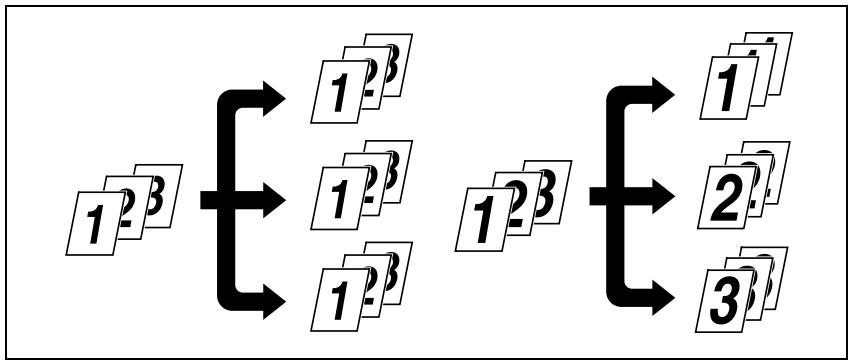
- Prints multiple copies at one time. In addition, the printed pages can be sorted into complete sets, which contain a copy of each page, or into groups where each contains all copies of the same page.
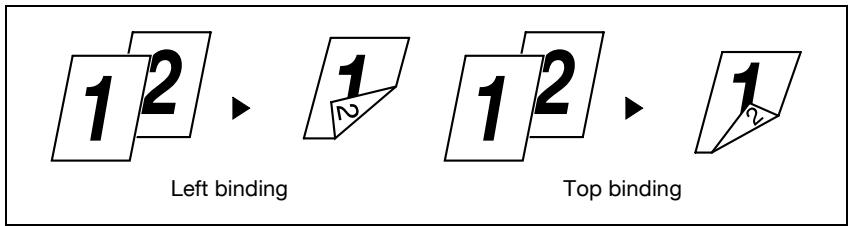
- Prints two pages (one on each side) on a single sheet of paper. This function is not supported by 162.
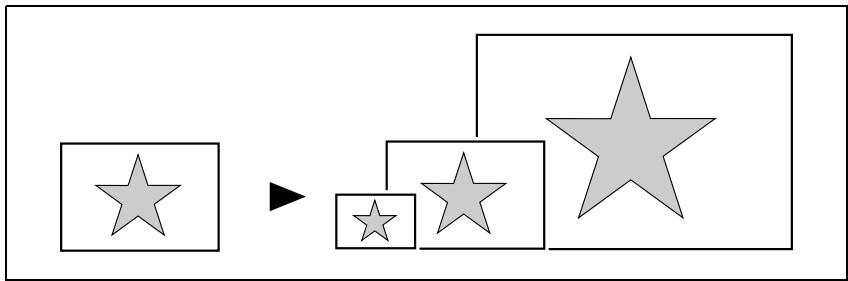
-Prints an enlarged or reduced image of the original.
- Prints two or four pages of the original on a single sheet of paper. A maximum of 16 pages can be printed on a single sheet of paper.
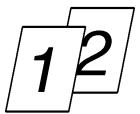
When two pages are printed on one page
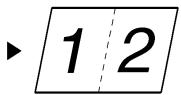


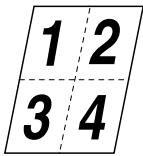
When four pages are printed on one page
-Prints text in the background.

- Prints only the cover on a different type of paper (such as colored paper).



3
Connecting to a computer
3 Connecting to a computer
3.1 Types of connections
You can use either of the following two methods to connect the machine to a computer.
Parallel port connection
Use this type of connection when you want to connect the machine directly to a computer's parallel port. Refer to "Parallel port connection" on page 3-3.
USB port connection
Use this type of connection when you want to connect the machine directly to a computer's USB port. Refer to "USB port connection" on page 3-4.
Network connection
In order to use the machine as a network printer, the Network Interface Card (NC-502) must be installed.
For details on connecting the machine to a network, refer to the User's Guide for the Network Interface Card (NC-502).
3.2 Parallel port connection
Use the parallel cable to connect the parallel port of the machine to the parallel port of the computer.

Reminder
Be sure to use a shielded parallel cable. Use of an unshielded cable may result in radio frequency interference.
The parallel port is compatible with IEEE1284 Type B standards.
Connecting the machine to the parallel port of the computer
1 Turn off both the machine and your computer.
2 Connect one end of the parallel cable to the parallel port (printer port) of the computer.
3 Connect the other end of the cable to the parallel port on the left side of the machine. Secure the interface cable connectors using the two clips.
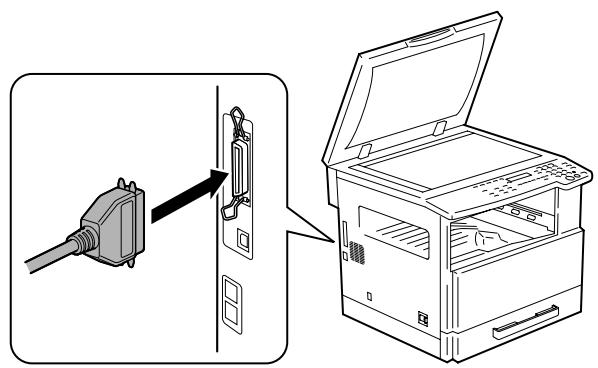
This completes connection of the machine to the computer.
3.3 USB port connection
Use the USB cable (type B) to connect the machine's USB port to the USB port on your computer.
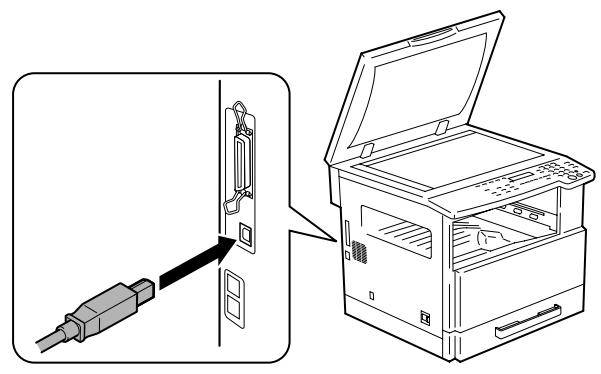
4
Installing the printer driver
4 Installing the printer driver
This section describes the procedure for installing the printer driver. The printer driver can be installed in two ways: by using "Plug and Play" or by using the "Add Printer Wizard".

Note
If the machine is to be connected to a USB port, install the printer driver by using Plug and Play.
If the machine is to be connected to a parallel port, install the printer driver by using the Add Printer Wizard.
| Connection Method | Compatible Operating Systems | Printer Driver Installa-tion | Follow this procedure: |
| USB port connection | Windows XP, Windows Server 2003, Windows 2000, Windows Me, and Windows 98 SE | Install using Plug and Play. | "Installing the TWAIN driver/printer driver using "Plug and Play" on page 4-4 |
| Parallel port connection | Windows XP, Windows Server 2003, Windows 2000, Windows NT 4.0, Windows Me, Windows 98 SE, and Windows 98 | Install using the Add Printer Wizard. | "Installing the printer driver using the "Add Printer Wizard"" on page 4-9 |
For network printing, use the "Add Printer Wizard" to install the printer driver. During installation, select "LPT1" as the printer port.
For details on specifying network connection settings, refer to the User's Guide for the Network Interface Card.

Note
In order to use IPP (network) printing, the IPP printing settings must be specified when the printer driver is installed. For details on specifying the IPP printing settings, refer to the manual provided with the network interface card.
If the image controller is used on Windows 98, Windows 98 SE or Windows Me, the Network Setup utility cannot be used.
4.1 Outline of Printer Driver Installation
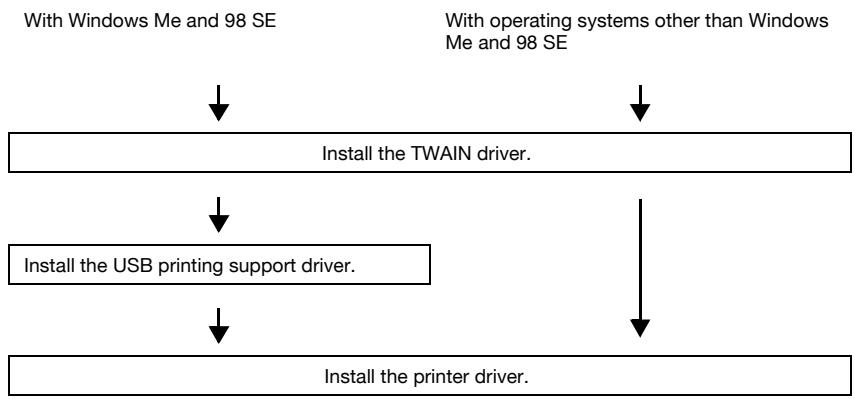
The printer driver is installed according to the following outline.
Installation using Plug and Play
When installing the printer driver by using Plug and Play, the installation procedure differs with operating systems other than Windows Me and Windows 98 SE.
Installation using the Add Printer Wizard
When installing the printer driver by using the Add Printer Wizard, the installation procedure is the same for all operating systems.

4.2 Installing the TWAIN driver/printer driver using "Plug and Play"
Installation using "Plug and Play" is not possible on Windows 98 and NT 4.0. Refer to the procedure for using the "Add Printer Wizard".

Note
If the printer driver is installed using Plug and Play, first the TWAIN driver is installed, and then installation of the printer driver begins. This manual describes the installation of the TWAIN driver followed by that of the printer driver.
Installing the TWAIN driver/printer driver using "Plug and Play" under Windows XP/Server 2003
1 With Windows running, insert the CD-ROM into your computer's CD-ROM drive.
2 Turn on the machine.
3 When the machine is ready, connect it to the computer with the USB cable.
The "Found New Hardware Wizard" dialog box appears. First, install the TWAIN driver.
When using Windows XP (SP2), select do not connect. in the "Found New Hardware Wizard" dialog box, and then click [Next].
4 Select Install from a list or specific location Advanced, and then click [Next].
5 Select Include this location in the search: under Search for the best driver in these locations., and then click [Browse].
6 Browse to "Driver\language)2k_XP" on the CD-ROM, and then click [OK].
Select the language you prefer. For example, if you prefer English, browse to:
Driver\English\2k_XP
7 Click [Next].
The "Completing the Found New Hardware Wizard" dialog box appears.
8 Click [Finish].
This completes the installation of the TWAIN driver. The "Found New Hardware Wizard" dialog box appears again. Next, install the printer driver.
9 Repeat steps 4 through 8 to install the printer driver.
Installing the TWAIN driver/printer driver using "Plug and Play" under Windows 2000
1 With Windows running, insert the CD-ROM into your computer's CD-ROM drive.
2 Turn on the machine.
3 When the machine is ready, connect it to the computer with the USB cable.
The "Found New Hardware Wizard" dialog box appears. First, install the TWAIN driver.
4 Click [Next].
5 Select Search for a suitable driver for my device (recommended) in the "Install Hardware Device Drivers" dialog box, and then click [Next].
The "Locate Driver Files" dialog box appears.
6 Select Specify a location, and click [Next].
7 Click [Browse...] on the next dialog box, browse to "Driver language)\2k_XP" on the CD-ROM, and then click [Open].
Select the language you prefer. For example, if you prefer English, browse to: Driver\English\2k_XP
8 Click [OK], and follow the instructions that appear on the screen until the "Completing the Found New Hardware Wizard" dialog box appears.
9 Click [Finish].
This completes the installation of the TWAIN driver. The "Found New Hardware Wizard" dialog box appears again. Next, install the printer driver.
10 Repeat steps 4 through 9 to install the printer driver.
Installing the TWAIN driver/printer driver using "Plug and Play" under Windows Me/98 SE
1 With Windows running, insert the CD-ROM into your computer's CD-ROM drive.
2 Turn on the machine.
3 When the machine is ready, connect it to the computer with the USB cable.
The "Add New Hardware Wizard" dialog box appears and installation of the TWAIN driver begins.
4 With Windows Me, select Specify the location of the driver (Advanced).
With Windows 98 SE, click [Next], and then select Search for the best driver for your device. (Recommended) in the dialog box that appears.
5 Click [Next].
6 Select Specify a location, and then click [Browse...].
7 Browse to "Driver\language)Win9x" on the CD-ROM, and then click [OK].
Select the language you prefer. For example, if you prefer English, browse to: Driver\English\Win9x
8 Click [Next], and then follow the instructions that appear on the screen until you can click [Finish].
9 Click [Finish].
This completes the installation of the TWAIN driver. The "Add New Hardware Wizard" dialog box appears again. Next, install the USB printing support driver.
10 Repeat steps 4 through 9 to install the USB printing support driver.
The "Add New Hardware Wizard" dialog box appears again. Next, install the printer driver.
11 Repeat steps 4 through 9 to install the printer driver.
Reinstalling the printer driver by using Plug and Play
When reinstalling the printer driver using Plug and Play, remove the CD-ROM and disconnect the machine from the computer before performing the reinstallation procedure described below.
1 Open the Printers folder.
- If Windows XP or Server 2003 is being used, click the [Start] button, and then click "Printers and Faxes".
- If Windows 2000, Me or 98 SE is being used, click the [Start] button, point to "Settings", and then click "Printers".
2 Delete the appropriate printer.
- If Windows XP, Server 2003 or 2000 is being used, continue with step 3.
- If Windows Me or 98 SE is being used, skip to step 4.
3 Click [Server Properties] from the [File] menu, display the "Drivers" tab, delete the appropriate printer, and then click [OK].
4 Restart the computer.
Use the USB cable to connect the machine to the computer.
6 Follow the on-screen instructions to reinstall the printer driver.
- When the dialog box for specifying the folder appears, insert the CD-ROM, and then continue the installation.
- If Windows 98 SE is being used, click [OK] when the "Insert Disk" dialog box appears, and then continue the installation.
- If Windows 2000 is being used, begin the installation.
4.3 Installing the printer driver using the "Add Printer Wizard"
Installing the printer driver using the "Add Printer Wizard" under Windows XP/Server 2003
1 With Windows running, insert the CD-ROM into the CD-ROM drive of your computer.
2 Click the Windows [Start] button, and then click [Printers and Faxes].
3 Select [Add a printer] from the [Printer Tasks] menu.
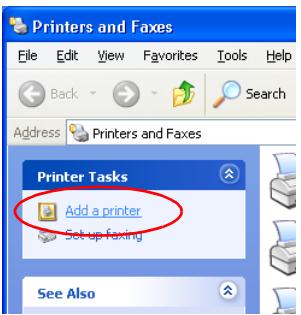
The "Add Printer Wizard" starts.
4 Click [Next].
5 Select Local printer attached to this computer, and then click [Next].
6 Select Use the following port, and then select "LPT1: (Recommended Printer Port)".
7 Click [Have Disk].
8 Click [Browse], select "Driver language)\2k_XP" on the CD-ROM, and then click [Open].
Select the language you prefer. For example, if you prefer English, browse to: Driver\English\2k_XP.
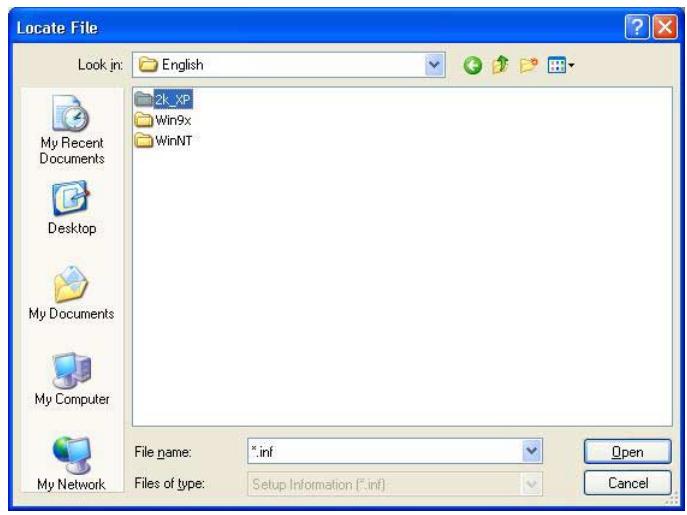
9 Click [Open] again, and then click [OK].
10 Select the printer to be installed, and then click [Next].
11 Continue selecting the appropriate settings according to your printer setup and clicking [Next] until [Finish] appears.
12 Click [Finish].
Installing the printer driver using the "Add Printer Wizard" under Windows 2000/NT 4.0
1 With Windows running, insert the CD-ROM into the CD-ROM drive of your computer.
2 Click the Windows [Start] button, point to [Settings], and then click [Printers].
The "Printers" window appears.
3 Double-click the "Add Printer" icon.
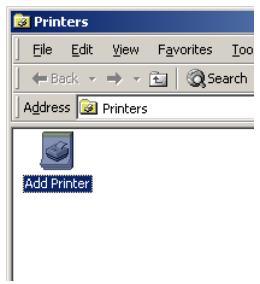
The "Add Printer Wizard" starts.
4 Select the connection method for the printer, and then click [Next].
- If Windows 2000 is being used, click [Next], and then select Local printer.
- If Windows NT 4.0 is being used, select My computer.
5 Select "LPT1" as the printer port, and then click [Next].
6 Click [Have Disk].
7 Click [Browse], select the folder on the CD-ROM, and then click [Open].
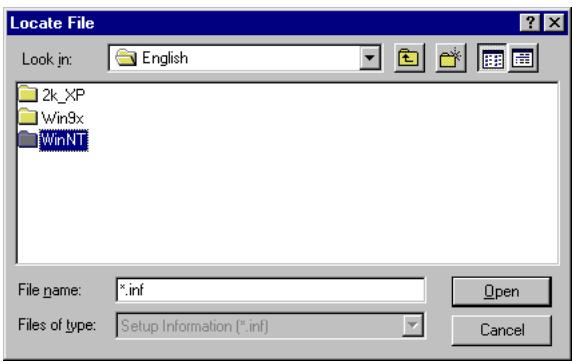
- If Windows 2000 is being used, select "Driver language)\2k_XP". Select the language you prefer. For example, if you prefer English, browse to: Driver\English\2k_XP.
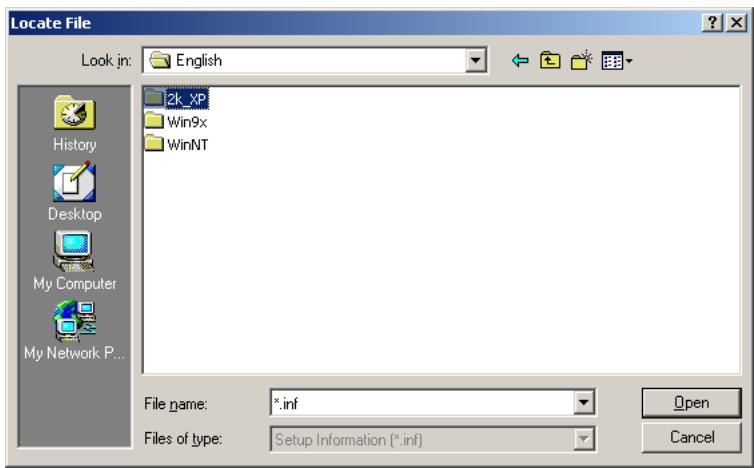
- If Windows NT 4.0 is being used, select "Driver\language\WinNT". Select the language you prefer. For example, if you prefer English, browse to: Driver\English\WinNT.
8 Click [Open] again, and then click [OK].
9 Select the printer to be installed, and then click [Next].
10 Continue selecting the appropriate settings according to your printer setup and clicking [Next] until [Finish] appears.
11 Click [Finish].
Installing the printer driver using the "Add Printer Wizard" under Windows Me/98 SE/98
1 With Windows running, insert the CD-ROM into the CD-ROM drive of your computer.
2 Click the Windows [Start] button, point to [Settings], and then click [Printers].
The "Printers" window appears.
3 Double-click the "Add Printer" icon.
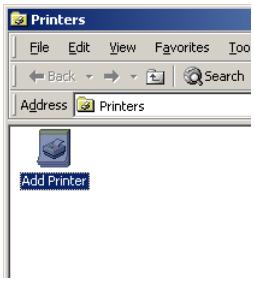
The "Add Printer Wizard" starts.
4 Click [Next].
5 Select Local printer, and then click [Next].
6 Click [Have Disk].
7 In Folder, select "Driver(\backslash)language)\backslash)Win9x" on the CD-ROM, and then click [OK]. Select the language you prefer. For example, if you prefer English, browse to: Driver\English\Win9x.
8 Click [OK].
![KONICA MINOLTA IC 205 - Click [OK]. - 1](/content/2025/01/139723/images/d6c0863362574df147ec6e1e78c1c8b225562ca61afb368ee9a741943940fae3.jpg)
Click [OK] again.
9 Select the printer to be installed, and then click [Next].
10 Select "LPT1" as the printer port, and then click [Next].
11 Click [Finish].
Reinstalling the printer driver by using the Add Printer Wizard
1 Open the Printers folder.
- If Windows XP or Server 2003 is being used, click the [Start] button, and then click "Printers and Faxes".
- If Windows 2000, NT 4.0, Me, 98 SE or 98 is being used, click the [Start] button, point to "Settings", and then click "Printers".
2 Delete the appropriate printer.
- If Windows XP, Server 2003 or 2000 is being used, continue with step 3.
- If Windows Me or 98 SE is being used, skip to step 4.
3 Click [Server Properties] from the [File] menu, display the "Drivers" tab, delete the appropriate printer, and then click [OK].
4 Restart the computer.
5 Reinstall the printer driver.
5
Configuring printer driver settings
5 Configuring printer driver settings
From the Windows printer window, select the printer, and then display the printer driver property dialog box. All settings specified in this dialog box are applied to the printer when it is used with all applications.
5.1 Displaying printer driver properties for configuring global settings
Displaying settings under Windows XP/Server 2003
1 Click the Windows [Start] button, and then click [Printers and Faxes].
2 In the "Printers and Faxes" window, select the "KONICA MINOLTA 162 PCL6", "KONICA MINOLTA 180 PCL6", or "KONICA MINOLTA 210 PCL6" icon.
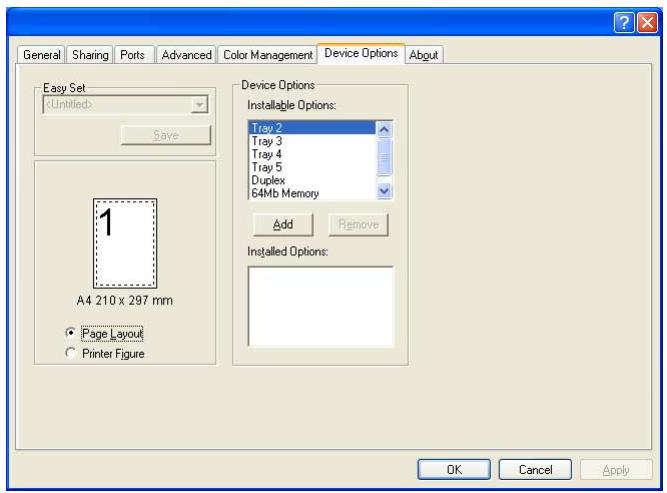
3 Click [Printing Preferences...] from the [File] menu. The following "Printer Driver Setup" dialog box appears.
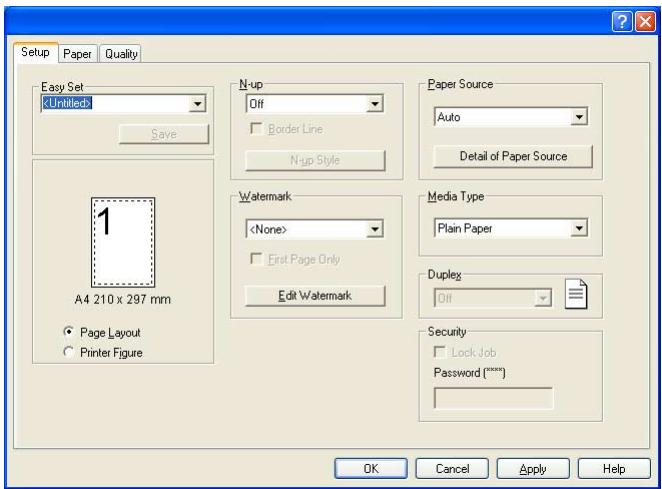
- To display the "Device Options" tab, click [Properties] from the [File] menu.
Displaying settings under Windows 2000/NT 4.0/Me/98 SE/98
1 Click the Windows [Start] button, point to [Settings], and then click [Printers].
2 Select the "KONICA MINOLTA 162 PCL6", "KONICA MINOLTA 180 PCL6", or "KONICA MINOLTA 210 PCL6" icon.
3 To display the printer driver settings:
- Windows 2000 - Select [Printing Preferences...] from the [File] menu.
- Windows NT 4.0 - Select [Document Defaults...] from the [File] menu.
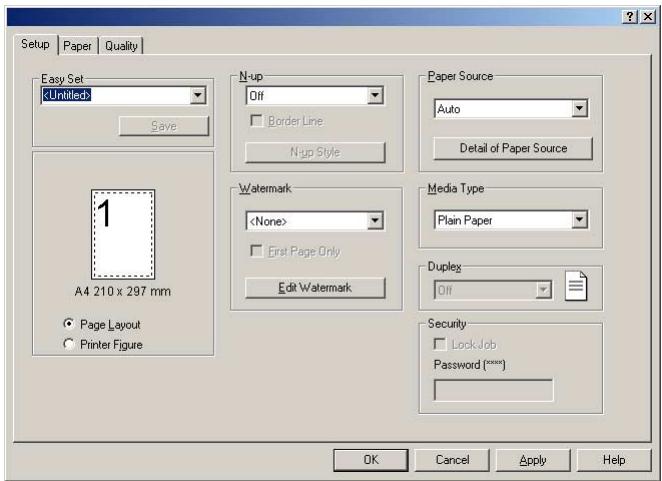
- Windows Me/98 SE/98 — Select [Properties] from the [File] menu. The following printer setup dialog box appears.
Windows 2000/NT 4.0
Windows Me/98 SE/98
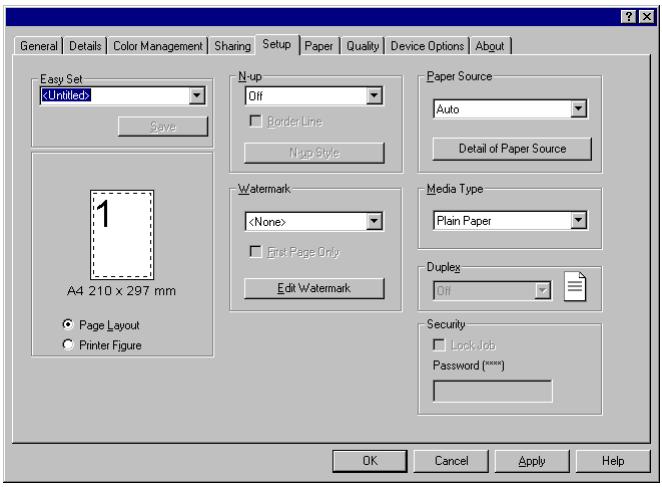
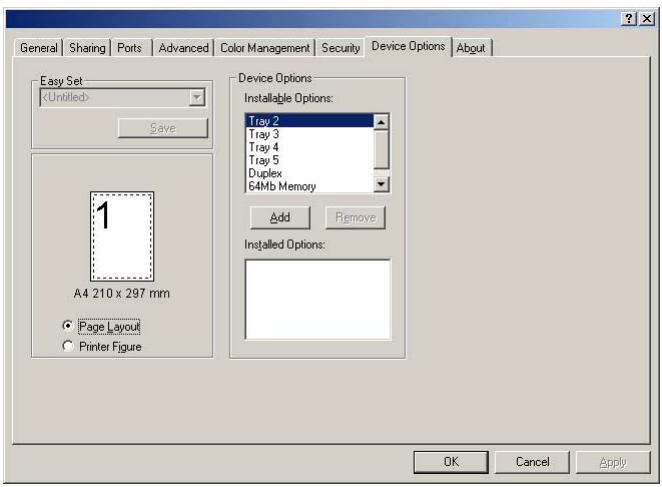
- To display the "Device Options" tab in Windows 2000 or Windows NT 4.0, click [Properties] from the [File] menu.

Note
Use the four tabs ("Setup", "Paper", "Quality", and "Device Options") to configure the printer driver settings.
The driver version for the printer can be checked on the "About" tab.
5.2 Common operations
This section describes buttons that are common to the dialog boxes and settings that are common to all four of the tabs ("Setup", "Paper", "Quality", and "Device Options"). The actual buttons displayed may vary depending on the operating system.
OK
Click this button to exit the dialog box and apply all settings you changed.
Cancel
Click this button to exit the dialog box without applying any changes.
Apply
Click this button to apply all settings you changed without exiting the dialog box.
Help
Click this button to view help information about the items in the currently displayed screen.
Easy Set List
Easy Set lets you save the setup of each tab for later recall, when you want to use it again. Afterward, you can recall the settings by selecting them from a list. Select "Factory Defaults" from the list to reset all settings on the tab to their default values.

Note
As many as 32 (31 + "Factory Default") Easy Set setups can be specified.
Save
When a setting is changed, "Untitled" appears. To save the current settings, type in a name for the setup, and then click the [Save] button.

Note
Setup names can be up to 20 characters long.
Delete
The [Save] button changes to [Delete] while an Easy Set setup is selected from the list. Clicking the [Delete] button deletes the currently highlighted setup.
Page Layout/Printer Figure
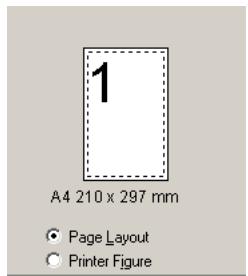
The Page Layout image shows what the printed document will look like using the current printer driver settings. The Page Layout image changes as you select different settings.
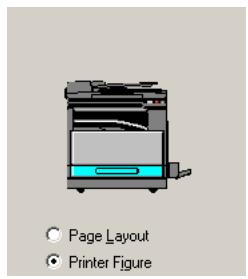
The Printer Figure image shows a graphic image of what trays, and other options are currently installed on the machine. All installed options are displayed, and the tray currently selected under Paper Source on the "Setup" tab appears in light blue.
5.3 “Setup” tab
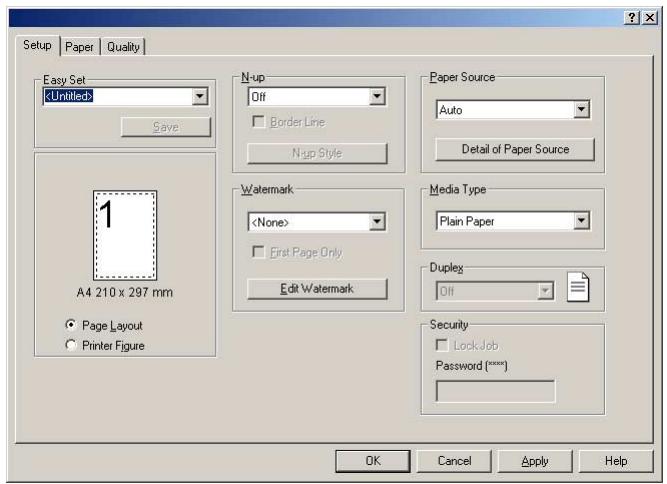
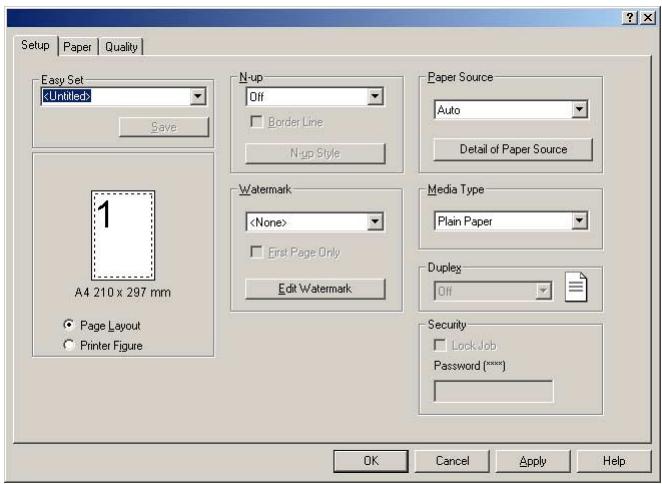
The "Setup" tab contains settings for N-up, Watermark, Paper Source, Media Type, Duplex, and Security.

Note
The "Duplex" function can be used only if the 180/210 is equipped with the optional automatic duplex unit.
The "Security" function can be used only if the optional expansion memory is installed.
5.3.1 N-up
The settings in this group box are for configuring how multiple pages of the document should be printed on a single sheet of paper.

Note
The settings in the N-up group box are not available when either of the following conditions exists.
The Fit to Paper check box on the "Paper" tab is selected.
The Scaling setting on the "Paper" tab is anything other than 100% .
N-up List
Click the down arrow button, and then select the number of document pages that should be printed on each sheet of paper.
Available settings: Off, 2 up, 4 up, 6 up, 9 up, 16 up
Selecting "2 up", for example, prints two document pages on each sheet of paper. Selecting "Off" prints one document page per sheet.
Border Line
Select this check box to print a border around each page when printing more than one document page on each sheet of paper.

Note
This option is not available when "Off" is selected in the N-up box.
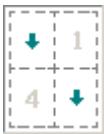
N-up Style
Clicking this button displays the dialog box shown below.
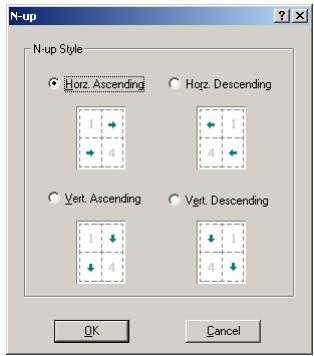
Click the style you want to use when printing multiple document pages on each sheet of paper.
Available settings:
Horz. Ascending
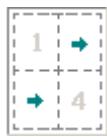
Horz. Descending
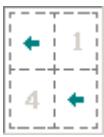
Vert. Ascending
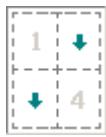
Vert. Descending

Note
This button is not available when "Off" is selected in the N-up box.
5.3.2 Watermark
Use the settings in this group box to select the watermark text (such as "CONFIDENTIAL", "DRAFT", etc.) and to control whether it is printed on all pages or only the first page.
Watermark List
Click the down arrow button, and then select the watermark text from the list that appears.
Available settings:
First Page Only
Select this check box when you want the watermark to be printed on the first page only. Clear the check box to print the watermark on all pages.

Note
The First Page Only check box is not available if "
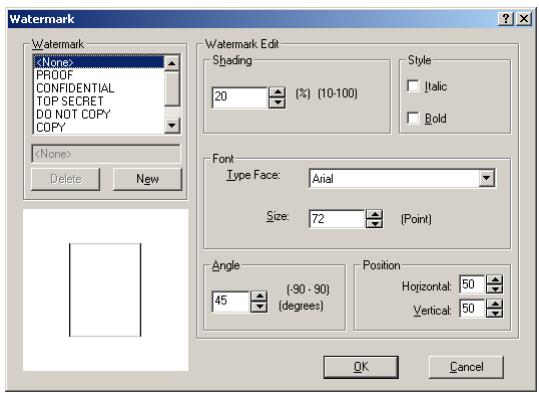
Edit Watermark
Clicking this button displays the "Watermark" dialog box.
How to edit a watermark
1 To edit a watermark, click the name of the watermark to be edited from the Watermark list.
2 Make any settings you want.
3 To create a new watermark, type the desired text in the box.
4 Click the [New] button.

Note
Watermark text can be up to 20 characters long.
You can have up to 31 different watermarks configured at one time. (including "
Delete
Click this button to delete the watermark that is selected in the list.
Shading
Specify a relative density for the watermark text between 10% and 100% .
Style
Use these check boxes to turn bold style and italic style on (check box selected) or off (check box cleared).
Italic: Italic text
Bold: Bold text
Font
Use the settings in this group box to specify the typeface and the point size of the watermark text.
Type Face:
You can specify any of the typefaces currently installed on your computer's operating system as the typeface of the watermark text.
Size:
Specify text size between 8 and 200 points.
Angle
Use this setting to specify the angle of the watermark text relative to the paper. The setting range is -90^ to +90^ .
A negative (-) value rotates the characters clockwise, 0 specifies the text should be parallel to the paper, and a positive (+) value rotates the characters counterclockwise.
Position
Use this setting to specify the position where the watermark text should be printed. You can specify a position by using horizontal and vertical values.
5.3.3 Paper Source
Use the settings in this group box to specify the source for the printing paper.
Paper Source List
Click the down arrow button, and then select the tray from which paper should be fed.
Available settings: Auto, Tray 1, Tray 2-Tray 5(option), Bypass

Note
If the optional paper feed unit is installed, "Tray 2-Trap 5" appears. For details, refer to "Device Options" tab on page 5-28. In addition, only plain paper can be loaded into tray 2-tray 5.
Tray 2 through tray 5 do not support the following paper sizes.
Paper sizes: Hagaki, Env. Com10, Env.C6, Env. C6 Envelope, Env. DL, Env. You-1, Env. You-4, Env. You-6
Selecting "Auto" tells the machine to use the tray that contains paper of the size specified under Output Paper Size on the "Paper" tab.
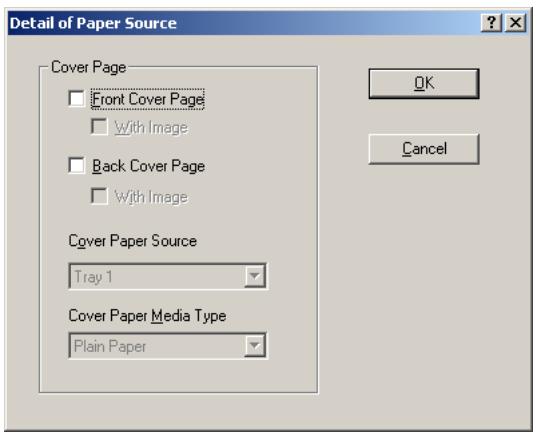
Detail of Paper Source
Click this button to display a dialog box for specifying settings for the cover page.
Cover Page
Use the settings in this group box to specify how to print a document with front and back cover pages.
| Setting | Description |
| Front Cover Page: | Select this check box to print the document with a front cover. |
| With Image: | Select this check box to print an image on the front cover. |
| Back Cover Page: | Select this check box to print the document with a back cover. |
| With Image: | Select this check box to print an image on the back cover. |
| Cover Paper Source: | Select the paper source for the front and back cover pages. |
| Available settings: | Tray 1, Tray 2-Tray 5 (option), Bypass |
| Cover Paper Media Type: | Select the paper media type for the front and back cover pages. |
| Available settings: | Plain Paper, Thick Paper, OHP, Envelope |

Note
If "Tray 2-Tray 5" (option) is selected in the Cover Paper Source list, the only Cover Paper Media Type setting available is "Plain Paper".
5.3.4 Media type
Use the settings in this group box to specify the paper media type for the printing paper.
Media Type List
Click the down arrow button, and then select the type of media to be used for printing.
Available settings: Plain Paper, Thick Paper, OHP, Envelope

Note
If "Auto" or "Tray 2-Trap 5" (option) is selected in the Paper Source list, the only Media Type setting available is "Plain Paper".
5.3.5 Duplex

Note
The "Duplex" option can be used only if the 180/210 is equipped with the optional automatic duplex unit.
Click the down arrow button, and then select the settings for duplex (two-sided) printing.
If "Off" is selected, the printer does not print on both sides of the paper.
When duplex printing is selected, select "Long Edge" or "Short Edge" for the binding position.

Note
The automatic duplex unit is required in order to use duplex printing. In addition, the "Duplex" option must be added to the list of installed options in the "Device Options" tab for the printer driver. When using duplex printing, select "Plain Paper" as the media type.
5.3.6 Security
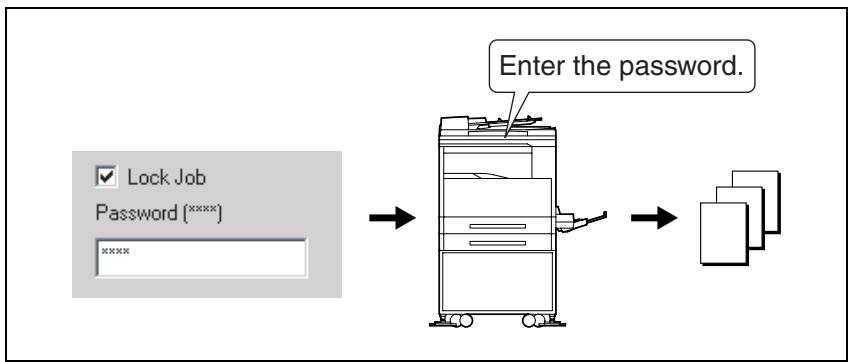
If the lock job function is used, printing cannot be performed unless the unlocking password is entered from the machine's operation panel.

Note
The lock job function can be used if the expanded memory unit is installed.
Lock Job
Select this check box to use the lock job function.
Password
Specify the password for unlocking jobs.
Type in a four-digit number (between 0000 and 9999).
Using lock job
Specifying settings with the printer driver
1 Select the Lock Job check box on the "Setup" tab.
2 In the Password box, type in the password (between 0000 and 9999).
3 Send the print job.
Printing a locked job
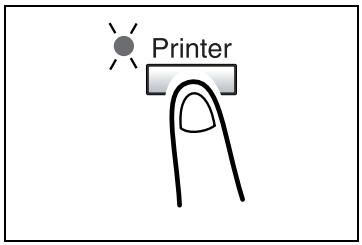
1 Press the [Printer] key to display the PC Print mode screen.
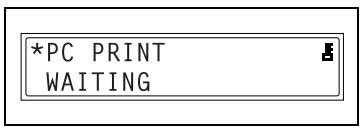
2 Check that E appears in the printer's display.
If there are locked jobs, f appears in the printer's display.
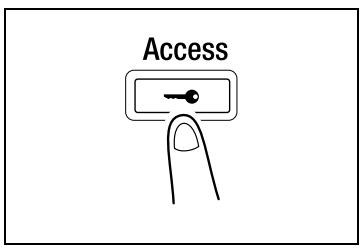
3 Press the [Access] key.
4 When LOCK NO. = - - - - appears, type in the password.
If the password specified for the printer driver consists of less than
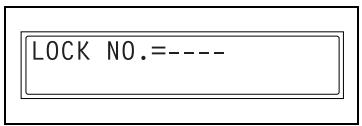
four digits, add "0" so that four digits are typed in. For example, if the specified password is "12", type in "0012".
5 If the password is correct, the job is printed.

Note
If there are multiple locked jobs with the same password, all of those locked jobs are printed.
5.4 "Paper" tab
Use this tab to configure settings related to your original and to the medium on which you are printing. You can also specify the number of copies to be printed and the orientation of the print image.

5.4.1 Original Document Size
Use the settings in this group box to specify the size of the original document.
Original Document Size List
The list that appears when you click the down arrow button shows all of the paper sizes that are supported by your machine. Specify the original document size by clicking it in the list.
Available settings:
A3, A4, A5, B4 (JIS), B5 (JIS), FLS, Letter, Half Letter, Legal, 11 × 17 in, 11 × 14 in, 16K , 8K , Hagaki, Env.Com10, Env.C6, Env.C6Envelope, Env.DL, Env.You-1, Env.You-4, Env.You-6
Edit Custom
To specify a custom document size, click the [Edit Custom] button, and then specify the desired document size. The specified custom document size appears in the Original Document Size list.
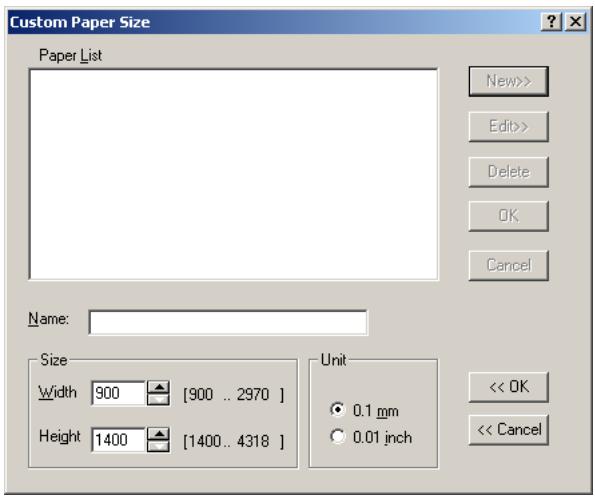
Paper List
This is a list of all currently specified custom paper sizes. Select the name for the paper size that you want to edit. You can specify up to 32 custom paper sizes.
New
Click this button to display settings for specifying a custom paper size.
Edit
Click this button to display a dialog box for editing the paper size settings of the custom paper size currently selected in the list.
Delete
Click this button to delete the custom paper size currently selected in the list.
Name
Type in the name for the custom paper size. The name can be up to 20 characters long.
Size
Specify the size for the custom paper size.
Width:
90.0 mm to 297.0 mm (metric units), or 3.54 inches to 11.69 inches (inch units)
Height:
140.0 mm to 431.8 mm (metric units), or 5.51 inches to 17.00 inches (inch units)
Unit
Select whether the measurement units are metric (0.1 mm) or inches (0.01 inch).
5.4.2 Output Paper Size
Use the settings in this group box to specify the size of paper you want to use for printing. You can also configure other settings that affect the size of the print image on the paper.

Note
Output Paper Size group box settings are not available whenever the N-up setting on the "Setup" tab is anything besides "Off".
Fit to Paper
Selecting this check box causes the printed image to be resized automatically so it matches the size selected in the Output Paper Size list.

Note
The Fit to Paper check box is not available if Scaling is set to any setting other than 100% .
Output Paper Size List
To specify a paper size that is different from the size specified under Original Document Size, click the down arrow button, and then select a paper size from the list that appears.
Available settings:
A3, A4, A5, B4 (JIS), B5 (JIS), FLS, Letter, Half Letter, Legal, 11 × 17 in, 11 × 14 in, 16K, 8K, Hagaki, Env.Com10, Env.C6, Env.C6Envelope, Env.DL, Env.You-1, Env.You-4, Env.You-6

Note
The Output Paper Size list is available when the Fit to Paper check box is selected.
Scaling
Specify the zoom ratio for enlarging or reducing the print image.
Type or select a value between 20% and 400% .

Note
The Scaling setting is not available while the Fit to Paper check box is selected.
5.4.3 Copies
Use this setting to specify the number of copies to be printed.
Type or select a value between 1 and 99.
5.4.4 Collate
Use this setting when printing multiple copies of the same document, to specify whether each copy of the document should be printed individually or if all copies of each page should be printed as a set.
Selecting On prints each copy of the document separately. If you have "5" specified for Copies, for example, this setting would print the document from the first page to the last page five times.
Selecting Off prints all copies of each page as a set. If you have "5" specified for Copies, for example, this setting would print five copies of page one, followed by five copies of page two, etc.

Note
The Collate setting may not be available with some applications.
Collating is not available when "1" is specified in the copies box.
If Collate is set to "On" in the printer driver, be sure to disable the application's collate function.
5.4.5 Orientation
Use this setting to specify whether your document should be printed in Portrait (vertical) or Landscape (horizontal) format.
Rotate
Select the Rotated check box to rotate the print image 180^ to the paper orientation.
5.5 “Quality” tab
Use this tab to control the quality of the printed output.
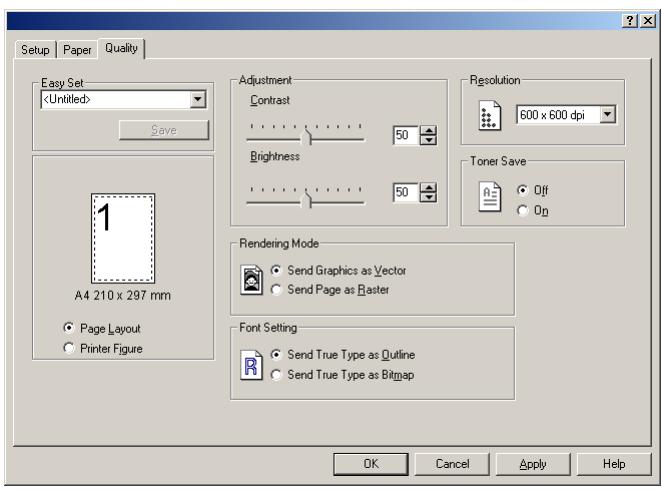
5.5.1 Adjustment
Contrast
Use this setting to adjust the contrast of the print image. Type or select a value between 0 and 100.
Brightness
Use this setting to adjust the brightness of the print image. Type or select a value between 0 and 100.
5.5.2 Resolution
Click the down arrow button, and then select either "600 × 600 dpi" or "1200 × 600 dpi" as the printing resolution.

Note
"1200 × 600 dpi" provides better quality, but it also takes longer to print at this setting than at "600 × 600 dpi".
5.5.3 Toner Save
Selecting On prints using less toner. Selecting Off prints using the usual amount of toner.
5.5.4 Rendering Mode
Use this setting to specify the image format. Selecting Send Graphics as Vector prints using vector graphics. Selecting Send Page as Raster prints using raster graphics.
If the data is not printed correctly, selecting Send Page as Raster may print correctly.
5.5.5 Font Setting
Use this setting to specify how the TrueType fonts are downloaded from the computer to the printer.
Send True Type as Outline:
Select this setting to download the TrueType fonts as outline data.
Send True Type as Bitmap:
Select this setting to download the TrueType fonts as bitmap data.

Note
If Rendering Mode is set to "Send Page as Raster", no setting can be selected for Font Setting.
5.6 "Device Options" tab
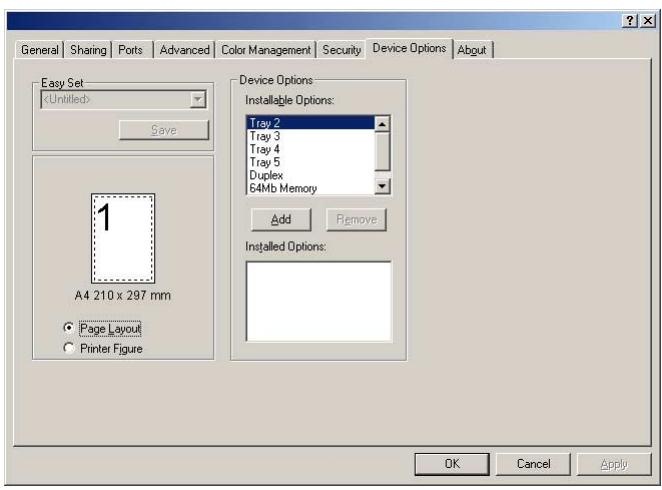
Use this tab to specify the options that are currently installed on the machine.
5.6.1 Device Options

Note
The option "Duplex" is only supported by 180/210.
Use this setting to specify the options installed in your machine.
To add an available option from the Installable Options list to the Installed Options list, select the option, and then click the [Add] button.
To remove an option from the Installed Options list, select the option, and then click the [Remove] button.
5.7 "About" tab
Use this tab to display version and copyright information about this printer driver.
6
Control panel operations
6 Control panel operations
This section covers printer operations you can perform on the control panel of the machine.
6.1 Printer operations
The machine's default mode is the copy mode. Normally, when printing is performed from a connected computer, printing begins automatically.
See "Starting the Print Operation" on page 6-4 for more information.
When printing with "Bypass" selected in the Paper Source list on the "Setup-up" tab, refer to "Using the bypass tray" on page 6-7.
General guide
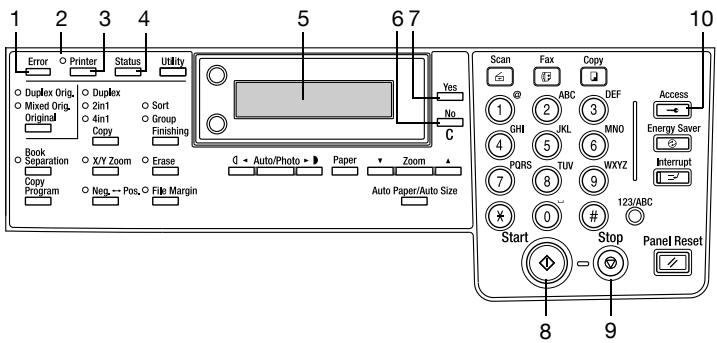
| No. | Name | Description |
| 1 | [Error] indicator | ·Lights up in orange if an error or malfunction occurs. |
| 2 | [Printer] indicator | ·Blinks while the machine is receiving print data. ·Lights while the machine is performing a print operation (even if data is being received simultaneously). ·Goes out when there is no print data. ·See “[Printer] indicator” on page 6-4. |
| 3 | [Printer] key | ·Press while the machine is receiving print data (indicated by the [PRINT] indicator blinking) to display the PC print mode screen. ·Press while the PC print mode screen is displayed to return to the previous screen. ·The PC print mode will not be entered if there is no print data in machine memory when the [Printer] key is pressed. Pressing the [Fax], [Scan], or [Copy] key, a copy function key, or a fax function key exits the PC print mode. |
| 4 | [Status] key | ·Press to print the configuration page and PCL font list. |
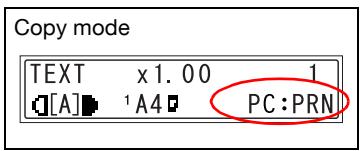
| 5 | Display | ·While print data is being received, “PC:PRN” appears in the display. ·If the [Printer] key is press while the machine is receiving print data (the [Printer] indicator is lit), the paper source and paper size for the print job are indicated in the display. |
| 6 | [No/C] key | ·Press to reply “NO” to the confirmation message that appears when a print job is canceled. |
| 7 | [Yes] key | ·Press to reply “YES” to the confirmation message that appears when a print job is canceled. |
| 8 | [Start] indicator | ·Lights up in orange when the machine is receiving print data. |
| 9 | [Stop] key | ·To cancel the current print job while print data is being re- ceived, press the [Printer] key, and then press this key when the PC print mode screen appears. See “Canceling a print job” on page 6-5. |
| 10 | [Access] key | ·Press when printing a locked job. ·Refer to “Security” on page 5-19. |

Note
The [Fax] key and the fax function keys are available only if the optional Fax Kit (FK-505) is installed.
The [Scan] key is available only when the optional Network Interface Card (NC-502) and the optional Scanner Unit (SU-502) are installed with the optional Fax Kit (FK-505).
[Printer] indicator
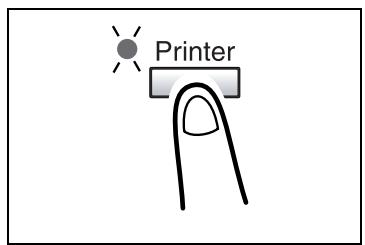
The [Printer] indicator shows the current status of PC printing.
![KONICA MINOLTA IC 205 - [Printer] indicator - 1](/content/2025/01/139723/images/004c45b3d4b096dafa75d697fd97f3d4ff380bc992dcb47171da6f379ab79506.jpg)
| [Printer] indicator | Description |
| Blinking | Machine is receiving print data, even while in another mode.A machine error has occurred. |
| On | When in another mode, indicates that machine memory contains print data.In the PC print mode, indicates that machine is printing print data. The indicator remains lit (without blinking) even if data is being received while printing is in progress. |
| Off | No print data in machine memory. |
Starting the Print Operation
Normally, when printing is performed from a connected computer, printing begins automatically.
- If the machine is in the copy mode when a print command is executed on a connected computer, printing begins automatically if no operation is performed in the copy mode for 30 seconds.
- If print data is received while a fax operation is being performed, printing begins. (only if the Fax Kit (FK-505) is installed)
Canceling a print job
You can cancel a print job from the control panel of the machine only while the machine is in the PC print mode.
1 Check that the [Printer] indicator is flashing or is lit, and then press the [Printer] key.
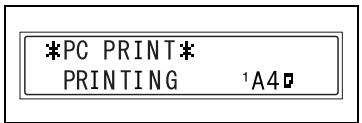
2 Make sure the machine's display shows PC PRINT PRINTING.
- The message that appears differs depending on the status of the machine.
3 Press the [Stop] key.
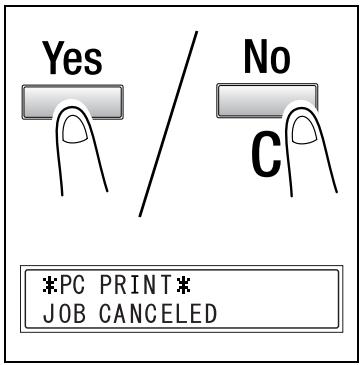
The PC JOB CANCEL? confirmation message appears.
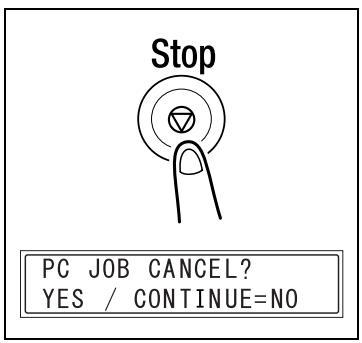
4 Press the [Yes] key to cancel the print job.
- Press the [No/C] key to resume printing.
- If no key is pressed within 5 seconds, printing will resume.
JOB CANCELED appears on the display and the print job is canceled.

Note
You can use steps 2 and 3 of the above procedure to cancel a print job while any of the following messages is indicated on the display: PAPER EMPTY, INCORRECT PAPER SIZE, NO SUITABLE PAPER, PAPER SIZE ERROR, LOAD PAPER, PAPER JAM, FRONT COVER OPEN, FUSER COVER OPEN, TONER EMPTY, MEDIA TYPE ERROR, REMOVE PAPER IN BYPASS TRAY, RECEIVING.
Using the bypass tray
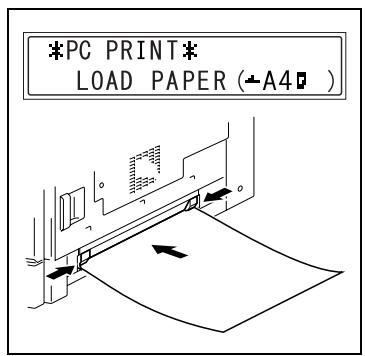
Use the procedure described below to print onto paper that is fed (one sheet at a time) from the bypass tray.
1 On your computer, display the "Setup" tab of the printer driver, and then specify "Bypass" for the Paper Source setting (page 5-16).
2 Execute the print operation from your computer.
3 When the message LOAD PAPER appears on the machine's display, load paper onto the bypass tray.
This causes the print operation to be performed using the paper from the bypass tray.
4 Repeat step 3 as many times as necessary until printing of the document is complete.

Note
Be sure to execute the print operation from the computer first, and then place the paper onto the bypass tray. If there is already paper on the bypass tray when you execute the print operation, remove it, and then place it again onto the bypass tray.
Load the paper into the manual bypass tray one sheet at a time.
If the multi bypass tray (optional) is installed, it can used in the same way as any other paper tray since the multi bypass tray can hold 100 sheets of paper.
The multi bypass tray can be loaded with a maximum of 10 envelopes, 20 OHP transparencies, 20 postcards, 20 label sheets, or 100 sheets of plain paper.
Energy save mode
If print data is received while the machine is in energy save mode, energy save mode is canceled.
When print data is received, the data is printed after the machine has finished warming up.
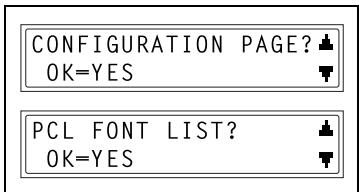
Outputting a report
When the image controller is installed, the following reports can be output-
Configuration Page
PCL Font List
1 Press [Status] key.
2 Using the and keys, select PRINT REPORT?.
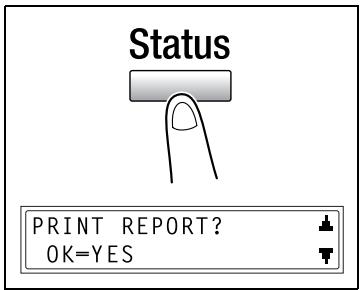
3 Press the [Yes] key.
A menu appears, showing the reports and lists that can be printed.
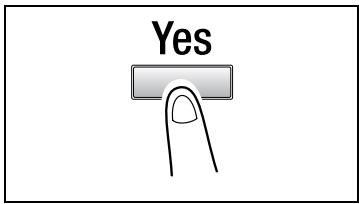
4 Using the and keys, select the report/list that you wish to print, and then press the [Yes] key.
- CONFIGURATION PAGE
- PCL FONT LIST
7
Using PageScope Web Connection
7 Using PageScope Web Connection
7.1 When using PageScope Web Connection
In order to use PageScope Web Connection, the optional Network Interface Card (NC-502) must be installed.
7.2 What is PageScope Web Connection?
PageScope Web Connection is a device control utility program provided by the HTTP server built into the network interface card. This utility can be used with a web browser as an interface for remotely controlling the machine and network interface card.
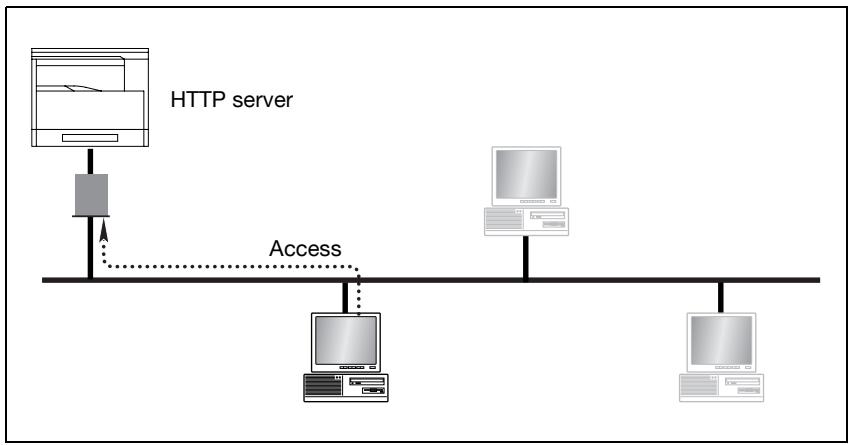
Here are some examples of the types of tasks that can be performed with PageScope Web Connection.
- Change settings
Change network settings
Change printer settings (Only for machines equipped with the optional image controller)
Remote status monitoring
Check the details of machine trays, information about consumables, or the total number of prints
Check the status of jobs that are being printed, or held in the print queue (Jobs can also be deleted if you have logged in to the administrator mode.)
- Maintenance
Reset the network interface card (NIC), or image controller Initialize the image controller
7.3 System requirements
PageScope Web Connection can be used in the following system environments.
| System requirements | |
| OS | Windows 98, Windows 98 SE, Windows Me, Windows NT 4.0, Windows 2000, Windows XP, or Windows Server 2003 |
| Browser | Microsoft Internet Explorer 4.0 or later Netscape Navigator 4 or later |

Note
In order to use PageScope Web Connection, the optional Network Interface Card (NC-502) must be installed.
7.4 Accessing PageScope Web Connection
PageScope Web Connection is accessed directly using a web browser.
How to access to PageScope Web Connection
1 Start up your web browser.
2 Enter the IP address of the machine into the URL box, and then press the [Enter] key.
http://
- (Example) If the machine IP address is 192.168.0.10, enter: http://192.168.0.10/
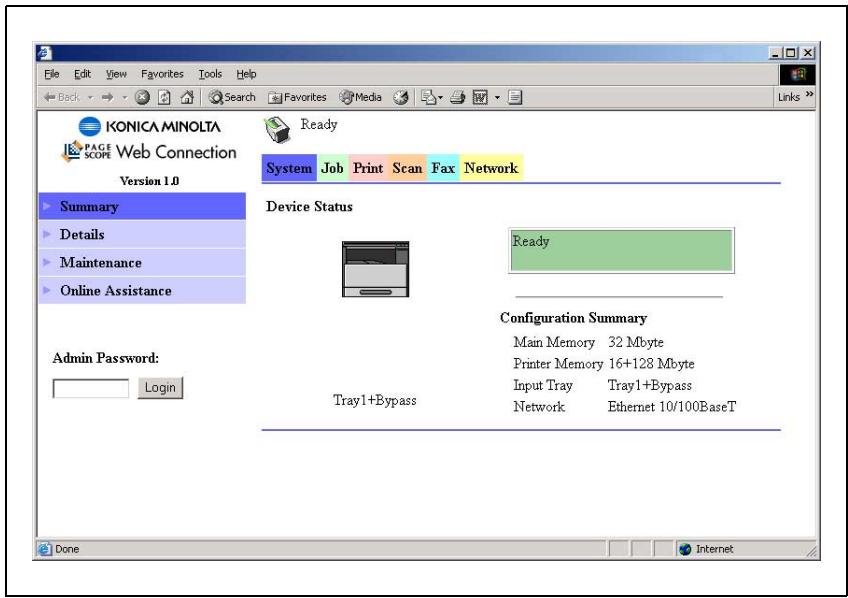
3 The PageScope Web Connection screen appears.

Note
In order to access PageScope Web Connection, an IP address must be assigned to the machine.
7.5 Using PageScope Web Connection
PageScope Web Connection is used in the same way as other internet web pages. Click on links in the page to jump to that page, and use the [Back] and [Next] buttons to navigate through pages that have already been loaded.
7.6 About the screen layout
The following screen appears when you access PageScope Web Connection.

Note
Screen images used in this manual may differ from the actual screen display. They are also subject to change without notice.
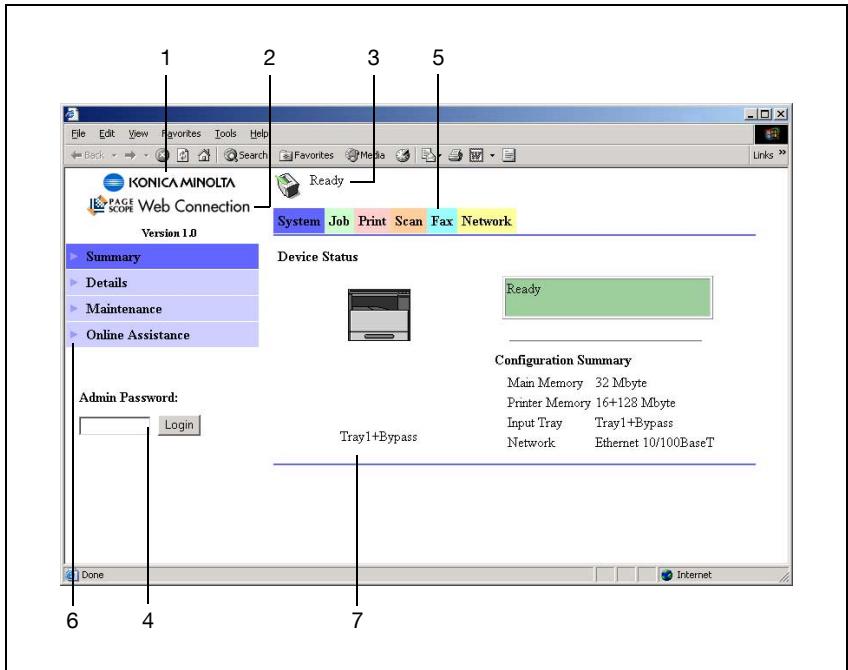
| No. | Name | Description |
| 1 | Logo | Click on this to jump to the manufacturer's web site. |
| 2 | Logo | Click to display the new screen containing the version information. If the PageScope Web Connection logo is clicked in the screen that appeared, the Web site for PageScope is displayed. |
| 3 | Status display | Displays the current status of the machine. |
| 4 | Administrator password | Enter the administrator password to log in to the administrator mode. |
| 5 | Tabs | These are used to select the various categories of settings. |
| 6 | Menu | This is used to select various setting items or display information. |
| 7 | Information/set-tings display | Displays the details for the item selected from the menu. |
7.7 Logging in as an administrator
Some of the settings available in PageScope Web Connection can only be changed by an administrator. These settings are only displayed when you log in to the administrator mode.
Logging in to administrator mode
1 Enter the administrator password in the "Admin Password:" box at the left of the screen.
2 Click the [Login] button to log in to the administrator mode.
3 To log out again, click the [Logout] button.

Note
The default password for administrator mode is "sysadm".
Be sure to change the administrator password before using administrator mode.
The machine cannot be used while you are logged into PageScope Web Connection with administrator mode.
In addition, if the machine is being operated, the administrator cannot log on.
After logging on with Administrator mode, you will automatically be logged off if no operation is performed for ten minutes.
7.8 Checking/Deleting print jobs
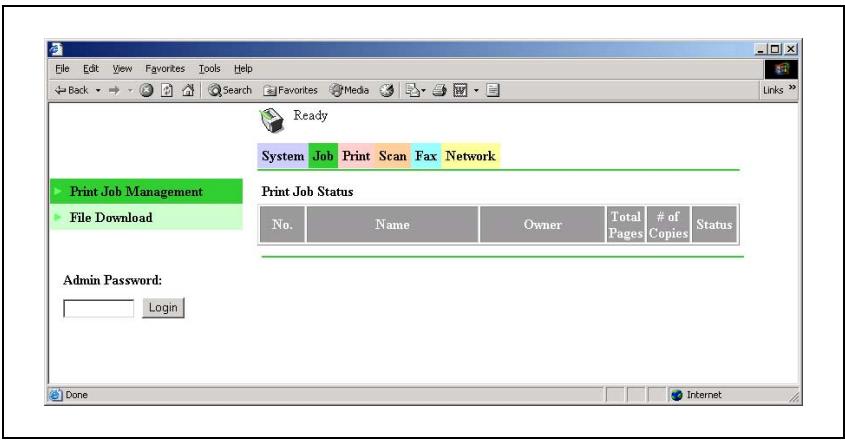
Checking a print job
Click [Print Job Management] in the menu on the "Job" tab to view details for the print jobs.

Note
A maximum of 50 print jobs can be displayed, and jobs that have been printed will automatically be deleted.
Deleting a print job
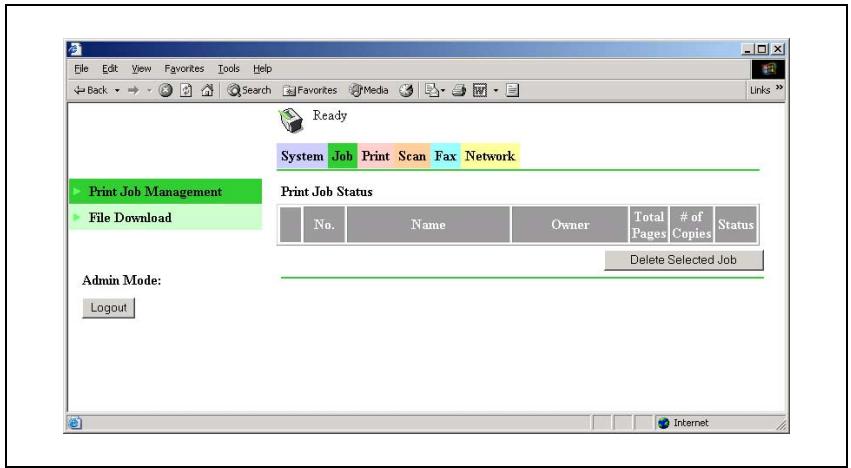
In order to delete a print job, you must be logged in to the administrator mode.
1 Log in to the administrator mode.
2 Click [Print Job Management] in the menu on the [Job] tab to display a sub-menu.
3 Select the print job that you wish to delete, and then click the [Delete Selected Job] button to delete the job.

Note
The lock job cannot be deleted.
7.9 Downloading files
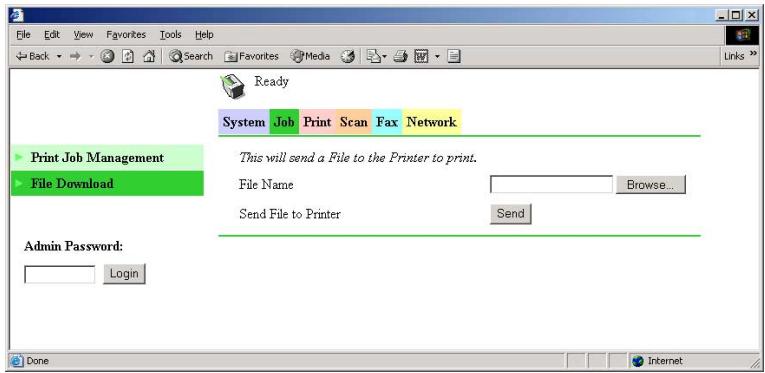
A specified file can be downloaded to the machine to be printed. Only the following types of files can be downloaded.
- PCL files
- Text files (English text only)

Note
If a file type other than a PCL or text file is downloaded, it will not be printed, or will be printed with corrupt or incorrect characters.
How to download files
1 Click [File Download] in the menu on the "Job" tab.
2 Click the [Browse] button, and then select the file.
3 Click the [Send] button beside "Send File to Printer". The file is downloaded to the machine, then printed.
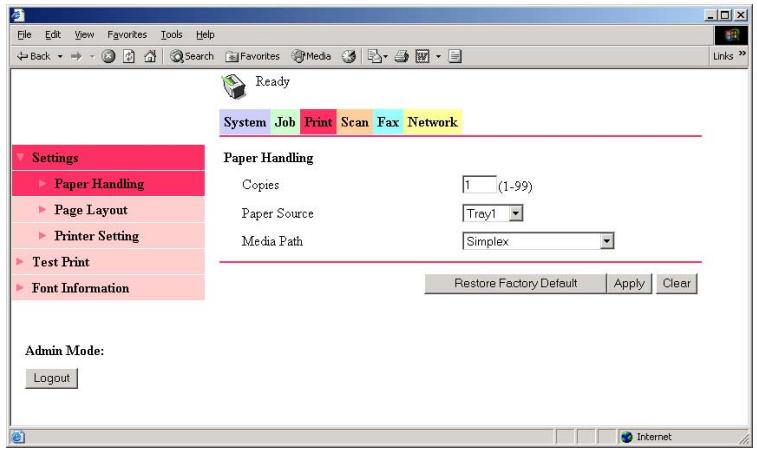
7.10 Checking/Changing printer settings
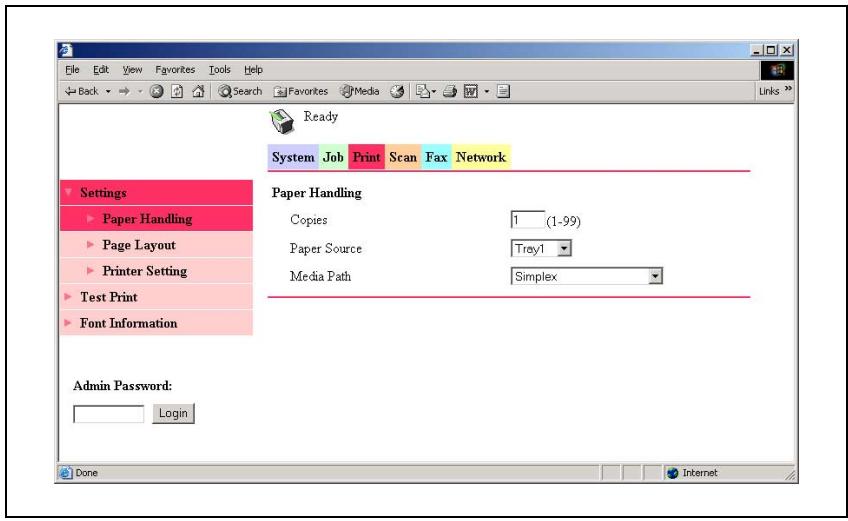
The default settings for the printer can be viewed and changed.
A print job sent with no settings specified is printed with these settings.
Checking the printer settings
Click [Settings] in the menu on the "Print" tab to display the following submenu.
Click each option in the sub-menu to check the various settings.
- Paper Handling
Page Layout - Printer Setting (PCL Settings)
| Sub-menu option | Parameter | Description |
| Paper Handling | Copies | Specifies the default number of copies. |
| Paper Source | Specifies the default paper source. | |
| Media Path | Specifies the default media path. | |
| Page Layout | Paper Size | Specifies the default paper size. |
| Printer Setting (PCL Settings) | Orientation | Specifies the default printing orientation. |
| Size | Specifies the default font size. | |
| Pitch | Specifies the default character pitch. | |
| Font No. | Specifies the default font number. | |
| Symbol Set | Specifies the default symbol set. | |
| Form Length | Specifies the default number of lines per page. |
Changing the printer settings
In order to change printer settings, you must be logged in to the administrator mode.
1 Log in to the administrator mode.
2 Click [Settings] in the menu on the "Print" tab to display a sub-menu.
3 Change the settings, and then click the [Apply] button.
- To erase the changed setting, click the [Clear] button.
- To return the setting to its default, click the [Restore Factory Default] button.
7.11 Printing a test page
The following test pages can be printed.
- Configuration page
- PCL font list
How to print a test page
1 Click [Test Print] in the menu on the "Print" tab.
2 Select the test page that you wish to print.
3 Click the [Print] button to print the selected test page.

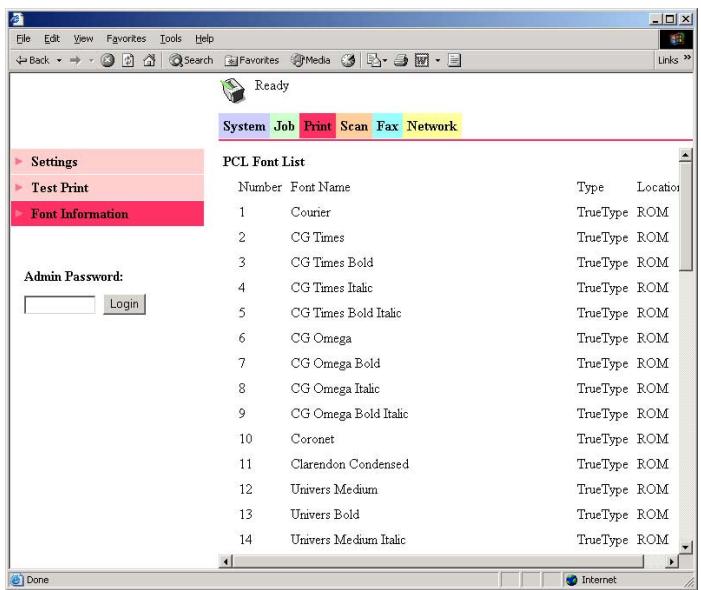
7.12 Displaying the PCL font list
The PCL font list can be checked.
Click [Font Information] in the menu on the "Print" tab to display the font list.
7.13 Resetting the network interface card and image controller
The network interface card and image controller can be restarted.
How to reset the network interface card and image controller
In order to reset the network interface card and image controller, you must be logged in to the administrator mode.
1 Log in to the administrator mode.
2 Click [Maintenance] in the menu on the "System" tab.
3 Click [NIC and Printer Controller Reset] in the sub-menu that appeared.
4 Click the [Reset] button.
5 In the confirmation dialog box that appeared, click the [Yes] button. To stop resetting, click the [No] button.

Note
Job being processed are not saved when the reset operation is performed.

7.14 Initializing the network interface card and image controller
The network interface card and image controller can be initialized.
How to initialize the network interface card and image controller
In order to initialize the network interface card or image controller, you must be logged in to the administrator mode.
1 Log in to the administrator mode.
2 Click [Maintenance] in the menu on the "System" tab.
3 Click [Initialize] in the sub-menu that appeared.
4 Click the [Restore] button beside either "Printer Controller" or "NIC".
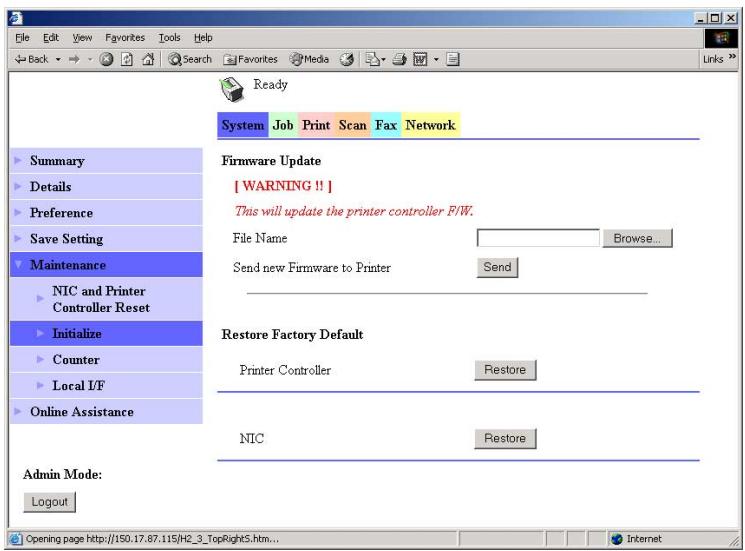
5 In the confirmation dialog box that appeared, click the [Yes] button. To stop initializing, click the [No] button.
8
Troubleshooting
8 Troubleshooting
This section describes the errors that can appear during PC printing and what you need to do to correct the situation.
If a problem occurs during PC printing, check the following.
8.1 Checking messages
The [Error] indicator lights up and "PRN Err" message appears in the lower-right corner of the display when a PC print error occurs while the machine is in another mode besides the PC print mode. If this happens, follow the procedure below.
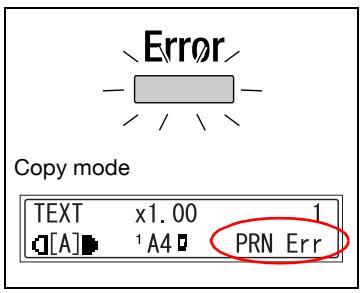
How to check messages
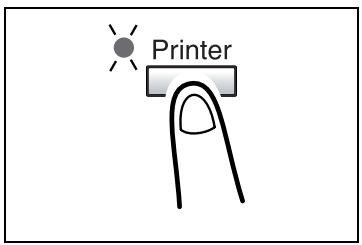
1 Press the [Printer] key to enter the PC print mode.
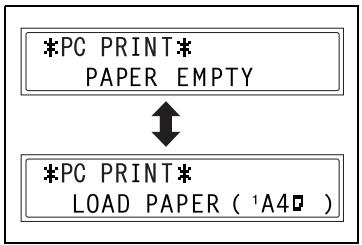
2 View the error message on the display.
8.2 Main messages
The table below describes the main error messages that may appear during the PC print mode operations.
| Error message | Cause | Action |
| PAPER SIZE ERROR | The paper size specified for a paper tray differs from the size of paper that is loaded. | Load paper of the correct size into the tray. |
| NO SUITABLE PAPER | “Auto” is selected for paper source with the printer driver properties, but none of the machine’s trays contain paper of the size specified for print-ing. | Tray 1: Change the paper size in the Utility mode, and load the correct paper into the tray. Tray 2-Tray 5 (option): Use a paper feed unit loaded with paper of the corresponding size. Multi Bypass Tray: Change the paper that is loaded. (NO SUITABLE PAPER) Press the [Start] key to begin printing with the paper source specified in Utility mode. (INCORRECT PAPER SIZE) Press the [Start] key to begin printing with the paper size loaded in the tray selected from the printer driver. (Tray 1 and Tray 2-Tray 5) |
| INCORRECT PAPER SIZE | The paper size specified by the printer driver is not loaded in the specified paper tray. | |
| PAPER EMPTY | There is no paper in the speci-ified tray or the specified tray is not loaded in the machine. | Load paper into the tray or load tray in the machine. |
| MEDIA TYPE ERROR | The media type specified by the printer driver is not loaded in the specified paper tray. | Load the correct paper into the tray, and change the media type in the Utility mode. Press the [Start] key to begin printing with the media type loaded in the tray selected from the printer driver. (Tray 1 and Tray 2-Tray 5) |
| MEMORY FULL | The memory is full of stored data. | Press any key, and then turn the machine off, then on again. |

Note
If the data is not printed correctly, selecting "Send Page as Raster" from the printer driver may print correctly. Refer to "Rendering Mode" on page 5-27.
8.3 Errors and print data
What happens to your print data when an error occurs depends on the error type.
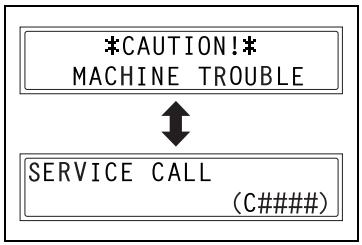
"MACHINE TROUBLE" error
This error indicates a serious operational problem. The machine is unable to receive any data while this error message is on the display.
Contact your service representative.
Temporary errors
The machine retains current print data in memory whenever any of the easily correctable errors listed below occurs. As soon as the condition causing the error is corrected, the machine automatically resumes printing.
PAPER JAM
INCORRECT PAPER SIZE
PAPER SIZE ERROR
- FRONT COVER OPEN
FUSER COVER OPEN
NO SUITABLE PAPER
PAPER EMPTY
- MEDIA TYPE ERROR
- TONER EMPTY
INCORRECT T/C TYPE

Note
You can cancel a print job stored in memory due to one of the above errors. See "Canceling a print job" on page 6-5 for more information.

Specifications
9 Specifications
| Specifications | |
| Print speed* | bizhub 210 • 21 pages/min. (A4 ,600 × 600 dpi) • 20 pages/min. (Letter ,600 × 600 dpi) • 13 pages/min. (A4 /Letter ,1200 × 600 dpi) bizhub 180 • 18 pages/min. (A4 /Letter ,600 × 600 dpi) • 13 pages/min. (A4 /Letter ,1200 × 600 dpi) bizhub 162 • 16 pages/min. (A4 /Letter ,600 × 600 dpi) • 13 pages/min. (A4 /Letter ,1200 × 600 dpi) |
| RAM | Standard memory • 32 MB (for image processing) • 16 MB (for the file system and input buffer) Optional expanded memory unit (standard DIMM for the file system) For details, contact your service representative. |
| Resolution | • 600 × 600 dpi • 1200 × 600 dpi (Resolution enhance and smoothing) |
| Interfaces | • IEEE 1284 parallel (Compatible, Nibble, ECP) • USB Revision 1.1 (except for Windows 98 and Windows NT 4.0) • Network (optional, when Network Interface Card NC-502 is installed) |
| Printer language | PCL6 |
| Resident fonts | 8 bitmap fonts, 45 scalable fonts |
| Supported operating systems | Windows Server 2003/Windows XP (SP2 or later)/Windows 2000 (SP4 or later)/Windows NT 4.0 (SP6a or later)/Windows Me/Windows 98 Second Edition/Windows 98/Windows Terminal Server (Windows NT 4.0 Terminal Server Edition/Windows 2000 Server/Windows Server 2003) |
Specifications
| Point & print | Domain | Server: Windows Server 2003 | Client: Windows XP, Windows 2000 Professional, Windows NT 4.0 Workstation, Windows 98 (SE), Windows Me |
| Server: Windows 2000 Server | Client: Windows 2000 Professional, Windows NT 4.0 Workstation, Windows 98 (SE), Windows Me | ||
| Server: Windows NT 4.0 Server | Client: Windows NT 4.0 Workstation, Windows 98 (SE), Windows Me | ||
| Workgroup | Server: Windows XP | Client: Windows XP, Windows 2000 Professional, Windows NT 4.0 Workstation, Windows 98 (SE), Windows Me | |
| Server: Windows 2000 Professional | Client: Windows 2000 Professional, Windows NT 4.0 Workstation, Windows 98 (SE), Windows Me | ||
| Server: Windows NT 4.0 Workstation | Client: Windows NT 4.0 Workstation, Windows 98 (SE), Windows Me |
*The print speed is measured under the following printing conditions.
- Single-sided printing
- Paper supplied from Tray 1

KONICA MINOLTA
http://konicaminolta.com
- Image Controller IC-205
- Contents
- Welcome
- END USER LICENSE AGREEMENT 1-3
- Trademark acknowledgements 1-6
- User instructions 1-7
- Getting ready
- System requirements 2-2
- Features of Image Controller IC-205 2-4
- Connecting to a computer
- Types of connections 3-2
- Parallel port connection 3-3
- USB port connection 3-4
- Installing the printer driver
- Outline of Printer Driver Installation 4-3
- Installing the TWAIN driver/printer driver using
- "Plug and Play" 4-4
- Installing the printer driver using the "Add Printer Wizard" 4-9
- Configuring printer driver settings
- Displaying printer driver properties for configuring global
- settings 5-2
- Common operations 5-7
- “Setup” tab 5-10
- N-up 5-11
- Control panel operations
- Using PageScope Web Connection
- Initializing the network interface card and image controller ....7-17
- Troubleshooting
- Checking messages 8-2
- Main messages 8-3
- Errors and print data 8-4
- Specifications
- 1
- Welcome
- Note
- END USER LICENSE AGREEMENT
- SOFTWARE
- LICENSE AGREEMENT
- LICENSE
- RESTRICTIONS
- LIMITED WARRANTY
- LIMITATION OF REMEDIES
- TERMINATION
- GOVERNING LAW
- GOVERNMENT END USERS
- Trademark acknowledgements
- User instructions
- CAUTION
- For U.S.A. users
- WARNING
- Interference to radio communications.
- For Canada users
- Interference-causing equipment standard (ICES-003 issue 3)
- For users in countries subject to class B regulations
- Interference with radio communications.
- For users in countries not subject to class B regulations
- 2
- Getting ready
- System requirements
- Features of Image Controller IC-205
- Various printing functions
- 3
- Connecting to a computer
- Types of connections
- Parallel port connection
- USB port connection
- Network connection
- Parallel port connection
- Reminder
- Connecting the machine to the parallel port of the computer
- USB port connection
- 4
- Installing the printer driver
- Outline of Printer Driver Installation
- Installation using Plug and Play
- Installation using the Add Printer Wizard
- Installing the TWAIN driver/printer driver using "Plug and Play"
- Installing the TWAIN driver/printer driver using "Plug and Play" under Windows XP/Server 2003
- Installing the TWAIN driver/printer driver using "Plug and Play" under Windows 2000
- Installing the TWAIN driver/printer driver using "Plug and Play" under Windows Me/98 SE
- Reinstalling the printer driver by using Plug and Play
- Installing the printer driver using the "Add Printer Wizard"
- Installing the printer driver using the "Add Printer Wizard" under Windows 2000/NT 4.0
- Installing the printer driver using the "Add Printer Wizard" under Windows Me/98 SE/98
- Click [OK].
- Reinstalling the printer driver by using the Add Printer Wizard
- 5
- Configuring printer driver settings
- Displaying printer driver properties for configuring global settings
- Displaying settings under Windows 2000/NT 4.0/Me/98 SE/98
- Windows Me/98 SE/98
- Common operations
- OK
- Cancel
- Apply
- Help
- Easy Set List
- Save
- Delete
- Page Layout/Printer Figure
- “Setup” tab
- N-up
- N-up List
- Border Line
- N-up Style
- Watermark
- Watermark List
- First Page Only
- Edit Watermark
- How to edit a watermark
- Shading
- Style
- Font
- Type Face:
- Size:
- Angle
- Position
- Paper Source
- Paper Source List
- Detail of Paper Source
- Cover Page
- Media type
- Media Type List
- Duplex
- Security
- Lock Job
- Password
- Using lock job
- Specifying settings with the printer driver
- Printing a locked job
- "Paper" tab
- Original Document Size
- Original Document Size List
- Edit Custom
- Paper List
- New
- Edit
- Name
- Size
- Unit
- Output Paper Size
- Fit to Paper
- Output Paper Size List
- Scaling
- Copies
- Collate
- Orientation
- Rotate
- “Quality” tab
- Adjustment
- Contrast
- Brightness
- Resolution
- Toner Save
- Rendering Mode
- Font Setting
- "Device Options" tab
- Device Options
- "About" tab
- 6
- Control panel operations
- Printer operations
- General guide
- [Printer] indicator
- Starting the Print Operation
- Canceling a print job
- Using the bypass tray
- Energy save mode
- Outputting a report
- 7
- Using PageScope Web Connection
- When using PageScope Web Connection
- What is PageScope Web Connection?
- - Change settings
- Remote status monitoring
- - Maintenance
- System requirements
- Accessing PageScope Web Connection
- How to access to PageScope Web Connection
- Using PageScope Web Connection
- About the screen layout
- Logging in as an administrator
- Logging in to administrator mode
- Checking/Deleting print jobs
- Checking a print job
- Deleting a print job
- Downloading files
- How to download files
- Checking/Changing printer settings
- Checking the printer settings
- Changing the printer settings
- Printing a test page
- How to print a test page
- Displaying the PCL font list
- Resetting the network interface card and image controller
- How to reset the network interface card and image controller
- Initializing the network interface card and image controller
- How to initialize the network interface card and image controller
- 8
- Troubleshooting
- Checking messages
- How to check messages
- Main messages
- Errors and print data
- "MACHINE TROUBLE" error
- Temporary errors
- Specifications
- KONICA MINOLTA
Brand : KONICA MINOLTA
Model : IC 205
Category : Multifunction Printer