
BIZHUB C10 - Multifunction Printer KONICA MINOLTA - Free user manual and instructions
Find the device manual for free BIZHUB C10 KONICA MINOLTA in PDF.


| Product type | Multifunction printer (fax, copy, scan, print) |
| Brand | KONICA MINOLTA |
| Model | BIZHUB C10 |
| Main functions | Fax, copy, scan, print (color and monochrome) |
| Fax transmission speed | 3 seconds per page (V.34) |
| Reception memory | 4 MB (approx. 250 pages) |
| Automatic document feeder (ADF) capacity | Up to 50 sheets |
| Supported paper sizes | A4, Letter, Legal, A5, Oficio (Mexico) |
| Scanning resolution | STD (3.85 lines/mm), FINE (7.7 lines/mm), S/F (15.4 lines/mm), H/T |
| Speed dial | 9 one-touch keys, 100 speed dial numbers |
| Group dialing | Up to 50 recipients per group |
| Reception modes | Automatic, manual, memory reception |
| Delayed sending function | Yes (timer) |
| Activity report | Automatic after 60 transmissions/receptions |
| Telephone line type | PSTN, PBX |
| Fax compatibility | ECM/Super G3 |
| Encoding | MH, MR, MMR, JBIG |
| Network interface | Ethernet 10Base-T/100Base-TX |
| Maintenance and cleaning | Clean the exposure glass with a soft cloth. Use a cleaning kit if necessary. |
| Safety | Automatic sleep mode, shutdown in case of paper jam. |
| Spare parts and repairability | Color and black toner easily replaceable. Spare parts available from the manufacturer. |
| General information | User manual available in French. Estimated weight 15 kg, approximate dimensions 500x400x300 mm. |
Frequently Asked Questions - BIZHUB C10 KONICA MINOLTA
User questions about BIZHUB C10 KONICA MINOLTA
0 question about this device. Answer the ones you know or ask your own.
Ask a new question about this device
Download the instructions for your Multifunction Printer in PDF format for free! Find your manual BIZHUB C10 - KONICA MINOLTA and take your electronic device back in hand. On this page are published all the documents necessary for the use of your device. BIZHUB C10 by KONICA MINOLTA.
USER MANUAL BIZHUB C10 KONICA MINOLTA
bizhub C10 Facsimile User's Guide
4556-9608-00A
Thank You
Thank you for purchasing a bizhub C10. You have made an excellent choice. This User's Guide describes operating procedures and precautions for the use of the Fax functions. Be sure to read this User's Guide before starting any machine operations.
In order to ensure correct use of the Fax functions, read this User's Guide, and then store it where it can immediately be referred to when necessary.
Trademarks
KONICA MINOLTA and the KONICA MINOLTA logo are trademarks or registered trademarks of KONICA MINOLTA HOLDINGS, INC.
bizhub and PageScope are trademarks or registered trademarks of KONICA MINOLTA BUSINESS TECHNOLOGIES, INC.
All other trademarks and registered trademarks are the property of their respective owners.
Copyright Notice
Copyright © 2007 KONICA MINOLTA BUSINESS TECHNOLOGIES, INC., Marunouchi Center Building, 1-6-1 Marunouchi, Chiyoda-ku, Tokyo, 100-0005, Japan. All Rights Reserved. This document may not be copied, in whole or part, nor transferred to any other media or language, without written permission of KONICA MINOLTA BUSINESS TECHNOLOGIES, INC.
Manual Notice
KONICA MINOLTA BUSINESS TECHNOLOGIES, INC. reserves the right to make changes to this guide and to the equipment described herein without notice. Considerable effort has been made to ensure that this guide is free of inaccuracies and omissions. However, KONICA MINOLTA BUSINESS TECHNOLOGIES, INC. makes no warranty of any kind including, but not limited to, any implied warranties of merchantability and fitness for a particular purpose with regard to this guide. KONICA MINOLTA BUSINESS TECHNOLOGIES, INC. assumes no responsibility for, or liability for, errors contained in this guide or for incidental, special, or consequential damages arising out of the furnishing of this guide, or the use of this guide in operating the equipment, or in connection with the performance of the equipment when so operated.
Contents
1 Introduction 1
Machine Parts 2
Front View 2
Rear View 3
2 Control Panel and Configuration Menu 5
About the Control Panel 6
Fax Mode Screen 10
About the Fax Mode Screen 10
About the Function Mode Screen 10
Entering Fax Mode 11
Symbol list 11
Configuration Menu Overview 12
Configuration Menu 17
MACHINE SETTING 18
FAX REGISTRATION 19
TX SETTING 20
RX SETTING 21
COMM. SETTING 23
REPORTING 24
USER SETTING 25
Specifying Settings in Configuration Menu 26
General Procedure for Specifying Settings in Configuration Menu 26
Memory Reception 27
Setting Up the Memory RX Mode 27
Turning Off the Memory RX Mode 28
3 Sending Faxes 29
Basic Fax Operation 30
Sending a Fax Using the ADF 30
Sending a Fax Using the Original Glass 32
Improving Resolution 34
Specifying a Recipient 34
Directly Entering a Fax Number 35
Using a One-Touch Dial Key 35
Using the Speed Dial Function 36
Using the List Function of the Phone Book 36
Using the Search Function of the Phone Book 37
Using the Redial Function 38
Specifying Multiple Recipients 38
Sending a Fax to Multiple Recipients (Broadcast Transmission) 38
Sending a Fax at a Specified Time (Timer Transmission) 40
Sending a Fax Manually 41
Sending a Fax Manually After Using the Telephone 41
Sending a Fax Manually Using the On Hook Key 41
Canceling (Deleting) a Document Queued in Memory for Transmission 42
About the Fax Header 43
4 Receiving Faxes 45
Receiving Faxes Automatically 46
Receiving Faxes Manually 46
Printing Received Faxes 47
What Is the Guaranteed Imageable (Printable) Area? 47
Adding the Sender's Information When Printing Faxes 48
Method of printing during reception 49
REDUCTION RX: OFF 51
REDUCTION RX: CUT 53
5 Registering Recipients 55
About the FAX REGISTRATION Function 56
One-Touch Dialing 56
Programming a One-Touch Dial Key 56
Changing/Deleting One-Touch Dial Information 58
Speed Dialing 59
Programming a Speed Dial Number 59
Changing/Deleting Speed Dial Information 60
Group Dialing 61
Programming Group Dialing 61
Changing/Deleting Group Dialing Information 62
6 Confirmation Mode 65
About the Machine's Counters 66
Checking the Counter for Fax Printing 66
Checking the Counter for Total Scans 66
Checking the Transmission/Reception Result From the Message Window 67 About the Reports and Lists 67
Printing the Reports and Lists 67
TX RESULT REPORT 67
RX RESULT REPORT 68
ACTIVITY REPORT 68
MEMORY DATA LIST 69
MEMORY IMAGE PRINT 69
ONE-TOUCH LIST 69
SPEED DIAL LIST 69
GROUPDIALLIST70
7 Troubleshooting 71
Problems When Sending Faxes 72
Problems When Receiving Faxes 73
Error Messages on the Message Window 75
8 Appendix 77
Technical Specifications 78
Entering Text 79
Key Operation 79
Entering Fax Numbers 79
Entering Names 80
Entering Email Addresses 80
Changing Input Mode 81
Inputting Example 81
Correcting Text And Input Precautions 82
Index 83
Introduction
1
Machine Parts
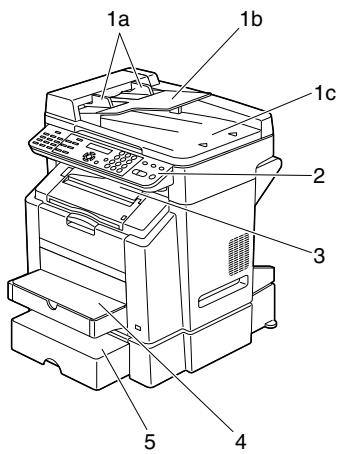
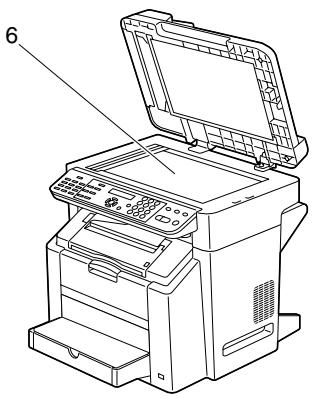
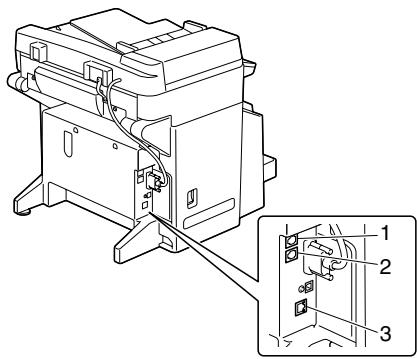
The parts of the machine referred to throughout this manual are illustrated below. Please take some time to become familiar with them.
Front View
1-Automatic document feeder (ADF)
1a-Document guide
1b-Document feed tray
1c-Document output tray
2-Control panel
3-Output tray
4-Tray 1 (Multipurpose tray)
5-Tray 2
6-Original glass

The ADF may appear as "document cover" in some status and error messages.
Rear View
1-TEL (telephone) jack
2-LINE (telephone line) jack
3-10Base-T/100Base-TX (IEEE)
802.3) Ethernet interface port
Control Panel and Configuration Menu
2
About the Control Panel
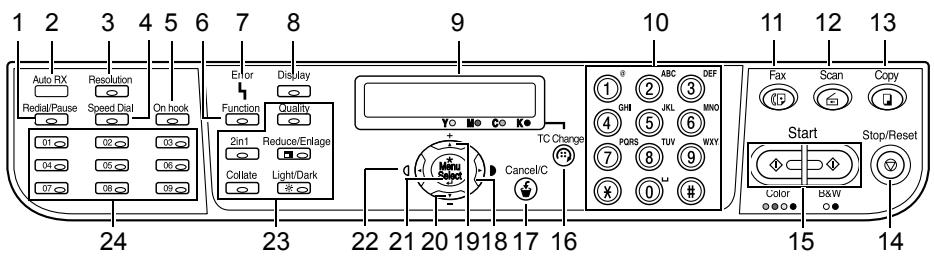
| No. | Part Name | Description |
| 1 | Redial/Pause key | Recalls the last number dialed. Inserts a pause when a number is dialed. For details, refer to “Using the Redial Function” on page 38. |
| 2 | Auto RX indicator | Lights up when the automatic reception function is selected. For details, refer to “Receiving Faxes Automatically” on page 46. |
| 3 | Resolution key | Adjusts the image quality of the fax documents. For details, refer to “Improving Resolution” on page 34. |
| 4 | Speed Dial key | Recalls a speed dial number. For details, refer to “Using the Speed Dial Function” on page 36. |
| 5 | On hook key | Sends and receives transmissions with the receiver on the hook. For details, refer to “Sending a Fax Manually Using the On Hook Key” on page 41 or “Receiving Faxes Manually” on page 46. |
| 6 | Function key | Specifies tray, duplex, ID card copy, and fax set-tings. For details, refer to “Sending a Fax to Multiple Recipients (Broadcast Transmission)” on page 38, “Sending a Fax at a Specified Time (Timer Trans-mission)” on page 40, or “Canceling (Deleting) a Document Queued in Memory for Transmission” on page 42. |
| 7 | Error indicator | Indicates an error condition. For details, refer to “Error Messages on the Mes-sage Window” on page 75. |
| 8 | Display key | Checks the machine status and settings. For details, refer to “Confirmation Mode” on page 65. |
| 9 | Message window | Displays settings, menus, and messages. For details, refer to “Fax Mode Screen” on page 10. |
| 10 | Keypad | Enters desired number of copies. Enters fax number, E-mail address, and names of recipients. For details on dialing a destination, refer to “Speci-fying a Recipient” on page 34. For details on enter-ing text, refer to “Entering Text” on page 79. |
| 11 | Fax key | Enters Fax mode. Lights up in green to indicate that the machine is in Fax mode. For details, refer to “Fax Mode Screen” on page 10. |
| 12 | Scan key | Enters scan mode (Scan to E-mail or Scan to PC). Lights up in green to indicate that the machine is in Scan mode. For details, refer to the Printer/Copier/Scanner User’s Guide. |
| 13 | Copy key | Enters Copy mode. Lights up in green to indicate that the machine is in Copy mode. For details, refer to the Printer/Copier/Scanner User's Guide. |
| 14 | Stop/Reset key | Stops an operation at any time. Exits the menu. Cancel scanning, transmission, reception, and printing, and returns them to their default settings. For details, refer to “Basic Fax Operation” on page 30. |
| 15 | Start key | Starts a color copy. Starts a monochrome copy or fax. For details, refer to “Basic Fax Operation” on page 30 or “Receiving Faxes Manually” on page 46. |
| 16 | TC Change key | Press when replacing the toner. For details, refer to the Printer/Copier/Scanner User's Guide. |
| 17 | Cancel/C key | Cleared the specified number of copies. Switches to the first screen of a menu item or to the main screen. For details, refer to “Specifying Settings in Configu-ration Menu” on page 26 or “Entering Text” on page 79. |
| 18 | ▲ | Moves right through the available menu choices. Sets the current character and moves the cursor to the right when entering text. For details, refer to “Specifying Settings in Configu-ration Menu” on page 26. |
| 19 | ▲ | Moves up in the menu structure. Scrolls upward through the available menu choices. For details, refer to “Specifying Settings in Configu-ration Menu” on page 26. |
| 20 | ▼ | Moves down in the menu structure. Scrolls downward through the available menu choices. For details, refer to “Specifying Settings in Configu- ration Menu” on page 26. |
| 21 | Menu Select key | Enters the menu structure. Moves down in the menu structure. Selects the displayed menu choice. For details, refer to “Specifying Settings in Configu- ration Menu” on page 26. |
| 22 | ▲ | Moves left through the available menu choices. Sets the current character and moves the cursor to the left when entering text. For details, refer to “Specifying Settings in Configu- ration Menu” on page 26. |
| 23 | Copy operations key | Provides copy operations. For details, refer to the Printer/Copier/Scanner User's Guide. If a copy operations key is pressed in Fax mode, the machine enters Copy mode. For details, refer to the Printer/Copier/Scanner User's Guide. |
| 24 | One-touch dial keys | Registers and recalls one-touch dial numbers. For details, refer to “Using a One-Touch Dial Key” on page 35 or “One-Touch Dialing” on page 56. |
About the Fax Mode Screen
Press the Fax key to display the Fax mode screen.
The following appears in the Fax mode screen.
| Position | Part Name | Description |
| Upper | Mode or function name | ■ Indicates the currently selected mode or function settings. ■ Displays the current menu, function or settings. ■ Error messages are displayed when errors occur. ■ The current time and remaining amount of memory is displayed during standby. |
| Lower | Messages | Displays messages such as operating instructions. |
About the Function Mode Screen
Press the Function key to display the Function mode screen.
The following appears in the Function mode screen.
| Position | Part Name | Description |
| Upper | Function name | 1. BROADCAST A fax can be sent to multiple recipients in a single transmission. For details, refer to “Sending a Fax to Multiple Recipients (Broadcast Transmission)” on page 38. 2. TIMER TX A document can be scanned and stored in memory to be sent at a specified time. For details, refer to “Sending a Fax at a Specified Time (Timer Transmission)” on page 40. 3. CANCEL RESERV. Of the documents stored in memory and waiting to be sent, a specific document can be selected and deleted. For details, refer to “Canceling (Deleting) a Document Queued in Memory for Transmission” on page 42. |
| Lower | Messages | Displays messages such as operating instructions. |
Entering Fax Mode
Before using the Fax function, make sure that the Fax key lits green. Otherwise, press it to enter the Fax mode.
Pressing the Speed Dial key, Redial/Pause key or a one-touch dial key switches the machine to Fax mode when it is in any mode other than Fax mode.
Symbol list
| Symbol | Description | |
| Dialing | A fax number is being dialed. | |
| Ringing | The machine is being called. | |
| 00 | Sending | The document is being sent. |
| 00 | Receiving | A document is being received. |
| # | Number of scanned docu-ment pages | The number of scanned document pages appears next to the icon. |
| * | Tone | If Pulse is selected as the telephone line type, press the * key to temporarily change the line type to Tone. |
| P | Pause | A pause is inserted. |
| T | Timer transmis-sion | A document is queued for timer transmission. |
| E | Memory recep-tion | A document is queued for memory reception. |
Configuration Menu Overview
The bizhub C10 configuration menu accessible from the control panel is structured as shown below.

Press the Menu Select key to enter the configuration menu.
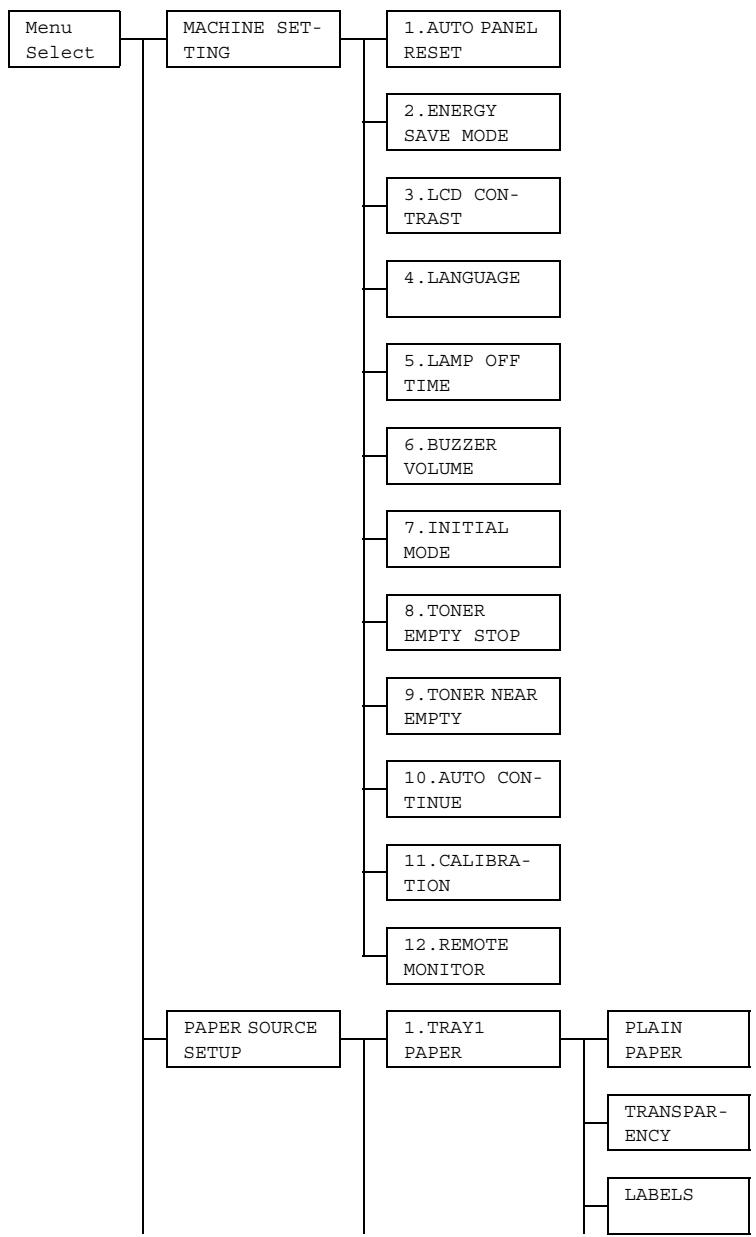
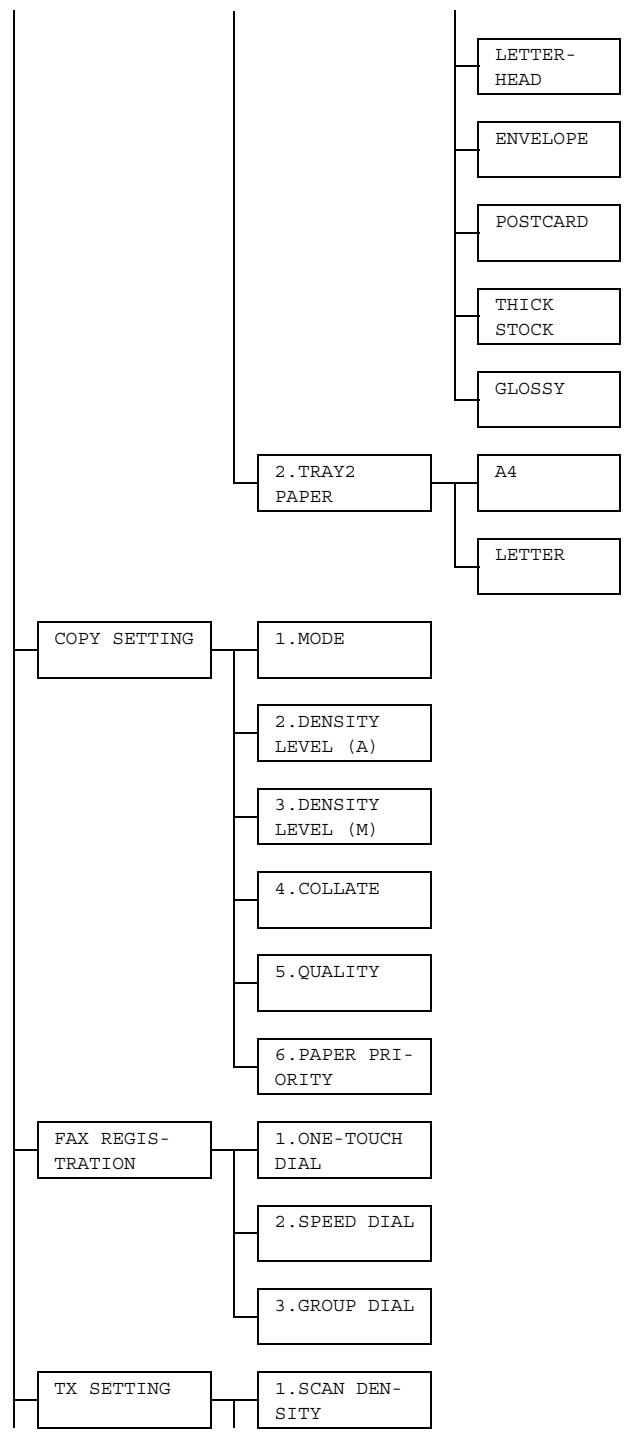
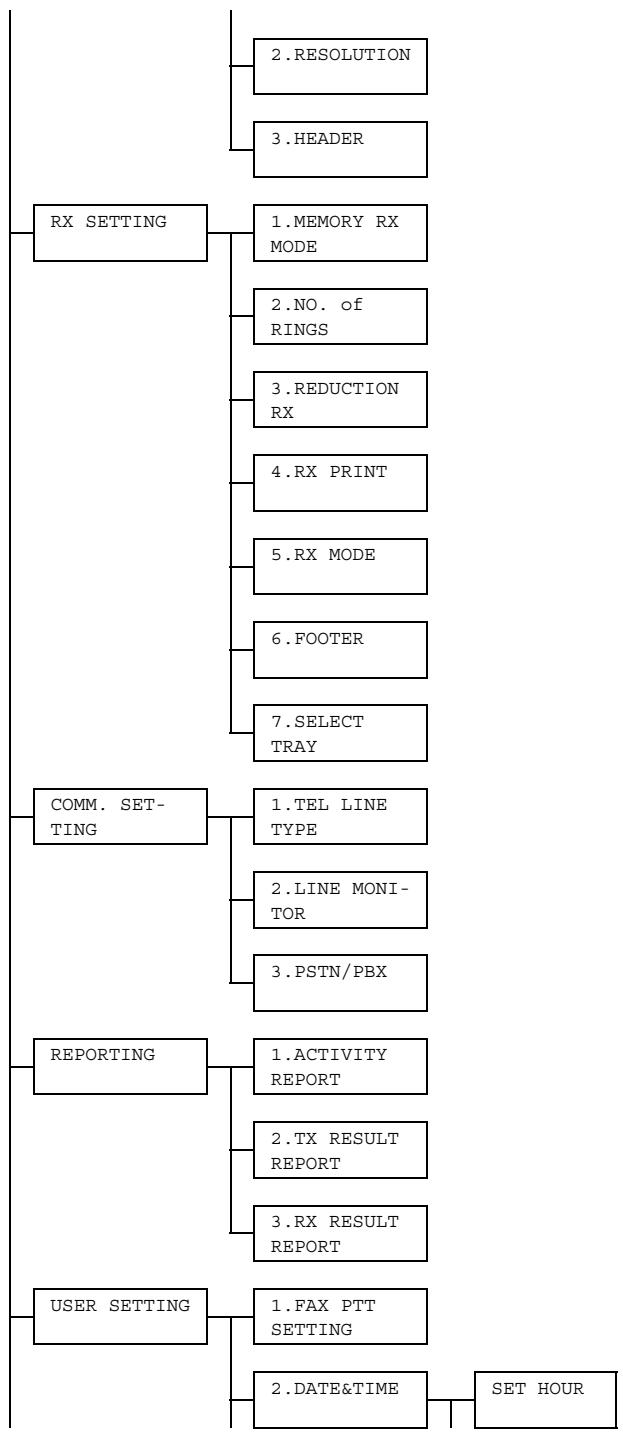
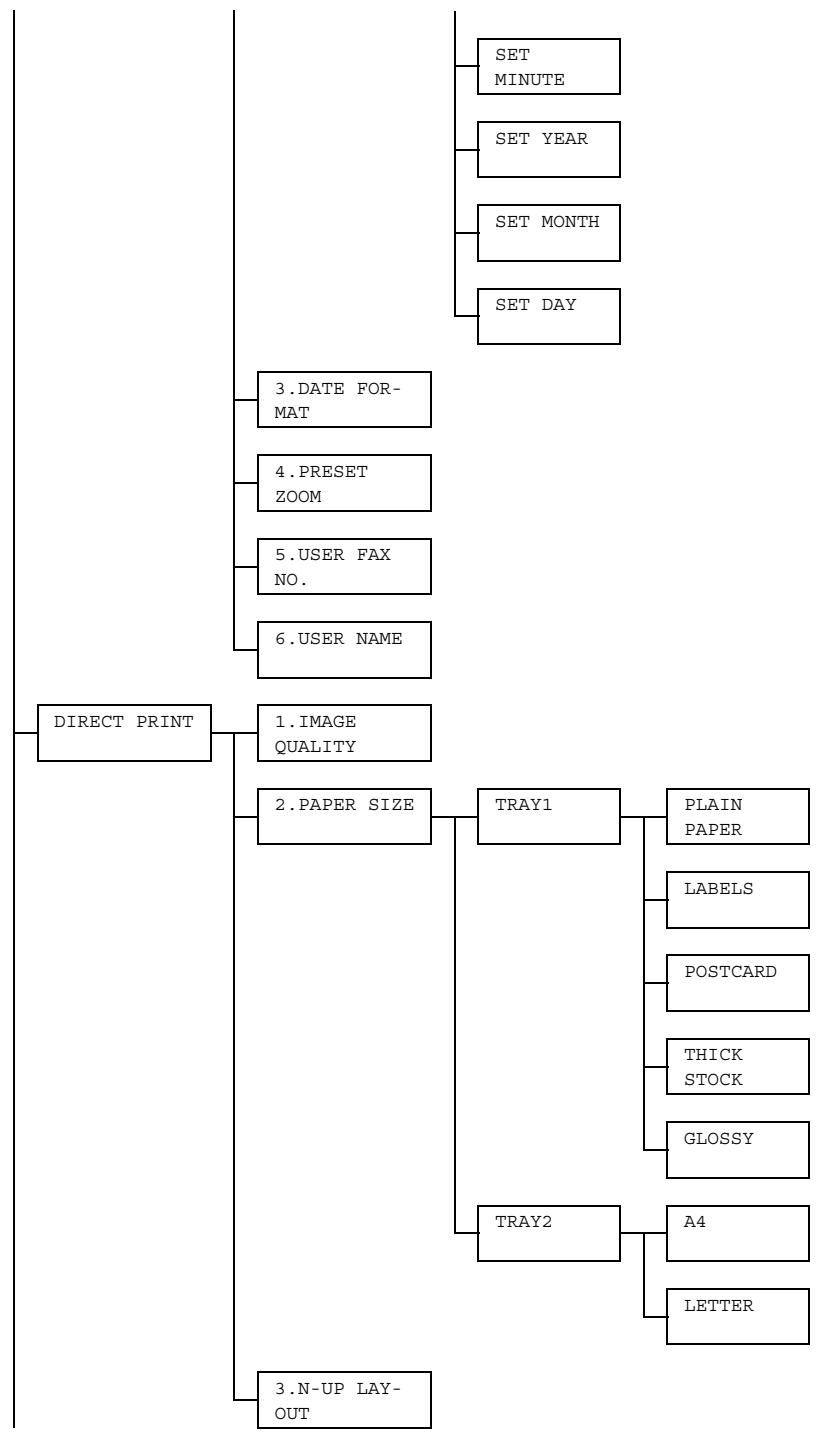
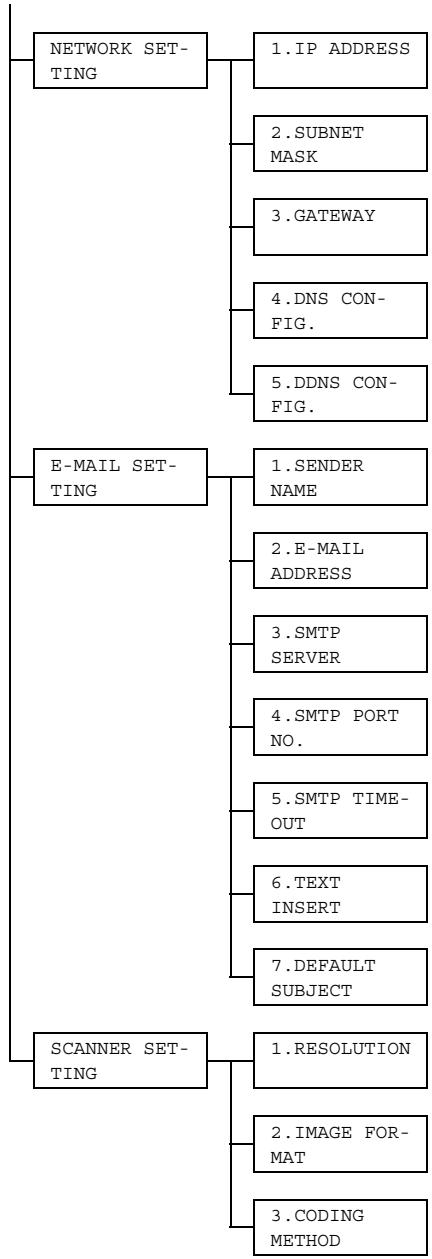
Configuration Menu
The machine settings can be changed according to the desired normal operations.

All factory default values are shown in bold.

For details on specifying settings on the configuration menu, refer to "Specifying Settings in Configuration Menu" on page 26.

For details on specifying settings for options in the PAPER SOURCE SETUP, COPY SETTING, DIRECT PRINT, E-MAIL SETTING and SCANNER SETTING menus and for some options in the MACHINE SETTING and USER SETTING menus, refer to the Printer/Copier/Scanner User's Guide.

For details on specifying settings for options in the NETWORK SETTING, refer to the Reference Guide.
| 1.AUTO PANEL RESET | For details on specifying settings, refer to the Printer/Copier/Scanner User's Guide. | |
| 2.ENERGY SAVE MODE | ||
| 3.LCD CON-TRAST | ||
| 4.LANGUAGE | ||
| 5.LAMP OFF TIME | ||
| 6.BUZZER VOL-UME | Settings | HIGH / LOW / OFF |
| Select the volume of alarms and the beep that sounds when a key is pressed. | ||
| 7.INitial MODE | Settings | COPY / FAX |
| Select the mode that the machine starts up in or returns to after the automatic reset. | ||
| 8.TONER EMPTY STOP | Settings | ON / ON (FAX) / OFF |
| Select whether or not printing stops when the toner has run out.If a fax is received while printing stopped, the received fax is saved in memory and automatically printed after the error is corrected.■ ON: All printing stops when the machine has detected that the toner has run out.■ ON (FAX): Only fax printing stops when the machine has detected that the toner has run out, and a message appears in the message window.■ OFF: Printing does not stop when the machine has detected that the toner has run out, and a message appears in the message window. | ||
| 9.TONER NEAR EMPTY | For details on specifying settings, refer to the Printer/Copier/Scanner User's Guide. | |
| 10.AUTO CONTINUE | Settings | ON / OFF |
| Select whether or not to perform image stabilization. If ON is selected, image stabilization is started. | ||
| 11.CALIBRATION | For details on specifying settings, refer to the Printer/Copier/Scanner User's Guide. | |
| 12.REMOTE MONITOR | For details on specifying settings, refer to the Printer/Copier/Scanner User's Guide. | |
FAX REGISTRATION
| 1. ONE-TOUCH DIAL | Program one-touch dial keys with fax numbers, allowing the recipient to be specified easily without the need to manually enter the number using the keypad. A maximum of nine one-touch dial keys can be programmed. For details on specifying one-touch dial keys, refer to “One-Touch Dialing” on page 56. |
| 2. SPEED DIAL | Program speed dial numbers with fax numbers, allowing the recipient to be specified easily without the need to manually enter the number using the keypad. A maximum of 100 fax numbers can be programmed. For details on specifying speed dial numbers, refer to “Speed Dialing” on page 59. |
| 3. GROUP DIAL | Program a single one-touch dial key with a maximum of 50 different fax numbers as one group. Programming a one-touch dial key with a group of fax numbers is convenient when documents are frequently sent to a group of multiple recipients. For details on specifying group dialing, refer to “Group Dialing” on page 61. |
| 1.SCAN DEN-SITY | Settings | LIGHT DARK |
| Specify the density for scanning a document. | ||
| 2.RESOLUTION | Settings | STD / FINE / S/F / H/T |
| Select the default scanning resolution (image quality).■ STD: For documents containing normal text (such as handwriting) (Standard)■ FINE: For documents containing small text■ S/F: For documents such as newspapers or those containing detailed illustrations (Super Fine)■ H/T: For documents with shades, such as photos (Half Tone)If H/T was selected, a screen appears, allowing you to select a detailed setting (STD, FINE or S/F).To change the resolution from the default setting before transmission, press the Resolution key. | ||
| 3 .HEADER | Settings | ON / OFF |
| Select whether or not the transmission information (date sent, sender's name, fax number, etc.) is printed on sent faxes.On models for the USA, Canada and Korea, OFF cannot be selected. | ||
RX SETTING
| 1.MEMORY RX MODE | Settings | ON / OFF |
| Select whether to allow (ON) memory reception or not (OFF). In cases when confidential faxes are being received, the received documents can be stored in memory and printed at a specified time or when memory reception is turned off (this function is set to OFF).A password can be set to specify the starting time or ending time of memory reception, or to cancel the function. The set starting time and ending time are valid every day until memory reception is turned off.For details on specifying settings, refer to “Setting Up the Memory RX Mode” on page 27. | ||
| 2.NO. of RINGS | Settings | 1-16 (Default: Depends on the sales region) |
| Enter the number of rings (between 1 and 16) until the machine automatically begins receiving the fax when an external telephone is connected. | ||
| 3.REDUCTION RX | Settings | ON / OFF / CUT |
| Select whether documents longer than the current paper size are printed reduced, split, or discarded.■ ON: The document is printed at a reduced size.■ OFF: The document is printed at full size and split onto multiple pages.■ CUT: The document is printed, but any part that does not fit within the page is erased. For details on the relationship between the length of the received document and the document that is actually printed, refer to “Printing Received Faxes” on page 47. | ||
| 4.RX PRINT | Settings | MEMORY RX / PRINT RX |
| Select whether the fax is printed only after all document pages have been received or printing begins as soon as the first page of the document is received.■ MEMORY RX: Printing begins after all pages have been received.■ PRINT RX: Printing begins after the first page has been received. | ||
| 5.RX MODE | Settings | AUTO RX / MANUAL RX |
| Select whether the reception mode is set to automatic reception or manual reception. ■ AUTO RX: Automatically begins receiving the fax after the set number of rings. ■ MANUAL RX: Does not automatically receive the fax. Reception begins after making a connection by picking up the telephone receiver or pressing the On hook key, then pressing the Start key. For details on manual reception, refer to “Receiving Faxes Manually” on page 46. | ||
| 6.FOOTER | Settings | ON / OFF |
| Select whether or not the reception information (date received, number of pages, etc.) is printed at the bottom of each received document. | ||
| 7.SELECT TRAY | Settings | TRAY1: DISABLE / ENABLE TRAY2: DISABLE / ENABLE |
| Select which paper tray can be used to supply paper when printing received documents or transmission reports. A paper tray that cannot be used for supplying paper can also be specified. If the tray2 is not installed, TRAY2 does not appear. | ||
COMM. SETTING
| 1.TEL LINE TYPE | Settings | TONE / PULSE |
| Select the dialing system. If this function is not correctly set to the type of dialing system used, faxes cannot be sent and received. Select the correct setting after checking which type of dialing system is used by your telephone line. If the FAX PTT SETTING in the USER SETTING menu is set to USA, CANADA or NEW ZEALAND the settings cannot be changed. | ||
| 2.LINE MONITOR | Settings | HIGH / LOW / OFF |
| Select the volume of the monitoring sound of the transmission signal. Even when OFF is selected, the monitoring sound can be heard when the On hook key is pressed. | ||
| 3.PSTN/PBX | Settings | PSTN / PBX |
| Select whether the connected telephone wiring is a public switched telephone network (PSTN) or a private branch exchange (PBX). For a PBX system, the prefix number (outside line access number (or extension number)) can be specified. | ||
| 1. ACTIVITY REPORT | Settings | ON / OFF |
| After every 60 transmissions/receptions, a report can be printed to show the results of the transmissions/receptions. Select whether the report is printed automatically when the 60th transmission/reception is reached. | ||
| 2. TX RESULT REPORT | Settings | ON / ON (ERROR) / OFF |
| Select whether the report showing the result of a transmission is printed automatically after the transmission is finished. ■ ON: Prints the report after each transmission. ■ ON (ERROR): Prints the report after a transmission only if an error occurred. ■ OFF: Does not print the report after each transmission, even if an error has occurred. | ||
| 3. RX RESULT REPORT | Settings | ON / ON (ERROR) / OFF |
| Select whether the report showing the result of a reception is printed automatically after the reception is finished. ■ ON: Prints the report after each reception. ■ ON (ERROR): Prints the report after a reception only if an error occurred. ■ OFF: Does not print the report after each reception, even if an error has occurred. | ||
USER SETTING
| 1.FAX PTT SETTING | Settings | USA / UK / VIETNAM / ARCENTINA / AUSTRALIA / AUSTRIA / BELGIUM / BRAZIL / CANADA / CHINA / CZECH / DENMARK / EUROPE / FINLAND / FRANCE / GERMANY / GREECE / HONG KONG/ HUNGARY / ISRAEL / ITALY / KOREA / MALAYSIA / MEXICO / NETHERLANDS / NEW ZEALAND / NORWAY / PHILIPPINES / POLAND / PORTUGAL / RUSSIA / SAUDI ARABIA / SINGAPORE / SLOVAKIA / SOUTH AFRICA / SPAIN / SWEDEN / SWITZERLAND / TAIWAN / TURKEY |
| Select the country where this machine is installed. | ||
| 2.DATE&TIME | Settings | SET HOUR: 00-23 SET MINUTE: 00-59 SET YEAR: 00-99 (2000-2099) SET MONTH: 01-12 SET DAY: 01-31 |
| Enter the date and time for the machine using the key- pad. If FAX PTT SETTING is set to USA or CANADA, the time changes automatically for daylight saving time. (Starts: First Sunday of April at 2 a.m.; Ends: Last Sun- day in October at 2 a.m.) | ||
| 3.DATE FORMAT | Settings | MM/DD/YY / DD/MM/YY / YY/MM/DD |
| Select the display format for reports and lists. | ||
| 4.PRESET ZOOM | For details on specifying settings, refer to the Printer/ Copier/Scanner User's Guide. | |
| 5USER FAX NO. | Enter your fax number. A maximum of 20 characters Consisting of numbers, spaces, + and - ) can be entered. The specified number is printed in the header of outgoing faxes. | |
| 6USER NAME | Enter your name. A maximum of 32 characters can be entered. The specified name is printed in the header of outgoing faxes. | |
Specifying Settings in Configuration Menu
General Procedure for Specifying Settings in Configuration Menu
1 With the Fax mode screen displayed, press the Menu Select key to enter the configuration menu.
2 Check the name of the menu in the upper line, press the or key to select the desired menu, and then press the Menu Select key to specify a setting for an option in the displayed menu.

Refer to the menu configuration on page 12 to display the desired menu. After the name of the desired menu is displayed, press the Menu Select key.

The desired menu can also be displayed by pressing the key in the keypad for the corresponding number.
Example: To display "Buzzer Volume", press the 6 key in the MACHINE SETTING screen.
For the number assigned to each menu option, refer to the menu configuration on page 12.
3 To select a setting, press the or key.
If or appears in the screen displaying the settings, press the or key until the desired setting is displayed.
To enter a setting, use the keypad to type in the number.
4 Press the Menu Select key.
The setting is applied, and the Fax mode screen appears again.

To cancel the settings, press the Cancel/C key.
Memory Reception
In cases when confidential faxes are being received, the received document can be stored in memory and printed at a specified time or when memory reception is turned off.
Memory reception can be used with the following settings.
Start/end time settings: Not set
"MEMORY RX MODE" is normally set to "ON". To print a fax saved in memory, set "MEMORY RX MODE" to "OFF".
Start/end time settings: Set
Memory reception mode begins and ends at the specified time.
Example 1: When “ON TIME” is set to 18:00 and “OFF TIME” is set to 8:00
The machine is in memory reception mode from 18:00 to 8:00 and in normal reception mode, where faxes are printed after being received, from 8:00 to 18:00.
Example 2: When "ON TIME" is set to 12:00 and "OFF TIME" is set to 12:00 (the start time and end time are the same)
"MEMORY RX MODE" is normally set to "ON"; however, faxes saved in memory are printed at 12:00.
Setting Up the Memory RX Mode
1 With the Fax mode screen displayed, press the Menu Select key to enter Menu mode.
2 Press the or key to display the RX SETTING screen, and then press the Menu Select key.
3 Check that the MEMORY RX MODE screen appears, and then press the Menu Select key.
4 Using the and keys, select "ON", and then press the Menu Select key.
The ON TIME screen appears.
5 Specify the time when memory reception mode begins, and then press the Menu Select key.
The OFF TIME screen appears.

To specify no start time, press the Menu Select key without specifying a time. The PASSWORD screen appears. Skip to step 7.
6 Specify the time when memory reception mode ends, and then press the Menu Select key.
The PASSWORD screen appears.
7 Enter the password, and then press the Menu/Select key.
Memory reception mode is set.

The password is required for turning off memory reception mode or changing the start/end times. Enter a 4-digit number.

To specify no password, press the Menu Select key without specifying a password.
Turning Off the Memory RX Mode
1 With the Fax mode screen displayed, press the Menu Select key to enter Menu mode.
2 Press the or key to display the RX SETTING screen, and then press the Menu Select key.
3 Check that the MEMORY RX MODE screen appears, and then press the Menu Select key.
4 Using the and keys, select "OFF", and then press the Menu Select key.
The PASSWORD screen appears.

If no password was specified, memory reception mode is canceled.
5 Enter the password, and then press the Menu/Select key.
Memory reception mode is canceled.

If taxes are saved in memory, printing of the taxes begins.
Sending Faxes
3
Basic Fax Operation
This section contains basic information of fax transmission.

Only Statement (ST), Letter (LT), Legal (LG), A5, or A4 size documents are available for fax transmission.
Sending a Fax Using the ADF
If the ADF is used, original documents containing multiple pages can be automatically scanned.

Do not load original documents that are bound together, for example, with paper clips or staples.

Do not load more than 50 sheets; otherwise an original document misfeed or damage to the document or machine may occur.

If the original document is not loaded correctly, it may not be fed in straight, or an original document misfeed or damage to the document may occur.

Do not open the ADF cover while documents loaded into the ADF are being scanned.
1 Press the Fax key to enter Fax mode.
2 Make sure that there is no document on the original glass.
3 Put the document into the ADF document feed tray face up.
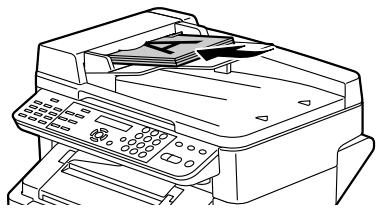
4 Adjust the document guides to the document size.
5 Press the Resolution key to specify the desired image quality.

The document image quality can be adjusted by pressing the Resolution key. For details, refer to "Improving Resolution" on page 34.
6 Specify the fax number of the recipient in one of the following ways:
- Direct dialing
Using the one-touch dial key (including the group dial function)
Using the Speed Dial function
Using the Phone Book function
Using the Redial/Pause key

For details on specifying the recipient, refer to "Specifying a Recipient" on page 34. For details on using the Redial/Pause key, refer to "Using the Redial Function" on page 38.

A transmission can also be sent to multiple recipients with the Broadcast function. For details on sending a broadcast transmission, refer to "Sending a Fax to Multiple Recipients (Broadcast Transmission)" on page 38.
7 Press the Start key.
The document is scanned, and then the fax is sent.

To stop the transmission, press the Stop/Reset key. A message appears, requesting confirmation to cancel the setting. Select "Yes", and then press the Menu Select key.

If the fax could not be sent (for example, because the line was busy), the automatic radial function will try sending the transmission again. If the fax could not be sent with the automatic radial function, a TX Result Report can be printed. For details, refer to "TX RESULT REPORT" on page 67.

If you want to cancel a scanned document queued for transmission or a fax waiting to be redialed, select "CANCEL RESERV." from the Function menu. For details, refer to "Canceling (Deleting) a Document Queued in Memory for Transmission" on page 42.

Since a document with multiple pages is saved in memory while it is being sent, the document is scanned at high speed. A maximum of 512 pages can be stored in memory. (If a high resolution is selected while scanning detailed documents, 512 pages may not be stored in memory.) If memory is nearly full, scanning of the document is stopped and a message appears, allowing you to select whether to start the transmission or cancel that transmission job. If the selection is made to cancel the job, the pages of the document that have been scanned for that job are deleted. If the selection is made to begin the transmission, scanning of the document is stopped and transmission begins. After the scanned pages have been sent, scanning of the document starts again.
Sending a Fax Using the Original Glass
1 Press the Fax key to enter Fax mode.
2 Remove all documents from the ADF.

If you are using the original glass to scan, do not load any documents into the ADF.
3 Lift to open the ADF cover.
4 Place the original document face down on the original glass and align the document on the scales above and to the left of the original glass.
5 Gently close the ADF cover.

Closing it too quickly may cause the document to move on the original glass.

6 Press the Resolution key to specify the desired image quality.
The document image quality can be adjusted by pressing the Resolution key. For details, refer to "Improving Resolution" on page 34.
7 Specify the fax number of the recipient in one of the following ways:
- Direct dialing
Using the one-touch dial keys (including group dialing)
Using the speed dial numbers
Using the phone book functions
Using the Redial/Pause key

For details on specifying the recipient, refer to "Specifying a Recipient" on page 34. For details on using the Redial/Pause key, refer to "Using the Redial Function" on page 38.

A transmission can also be sent to multiple recipients with the Broadcast function. For details on sending a broadcast transmission, refer to "Sending a Fax to Multiple Recipients (Broadcast Transmission)" on page 38.
8 Press the Start key.
A screen appears, requesting confirmation of the scanning area.
9 To scan the displayed scanning area, press the Menu Select key. The document is scanned.

To change the displayed scanning area, press the key, select the desired scanning area in the next screen that appears, and then press the Menu Select key. Press the Menu Select key again to start scanning.
10 To scan multiple pages from the original glass, check that the message "NEXT PAGE?" appears, replace the document, and then press the Menu Select key. When scanning of the document is finished, press the Start key.
The document is scanned, and then the fax is sent.

To stop the transmission, press the Stop/Reset key. A message appears, requesting confirmation to cancel the setting. Select "Yes", and then press the Menu Select key.

If the fax could not be sent (for example, because the line was busy), the automatic radial function will try sending the transmission again. If the fax could not be sent with the automatic radial function, a TX Result Report can be printed. For details, refer to "TX RESULT REPORT" on page 67.

If you want to cancel a scanned document queued for transmission or a fax waiting to be redialed, select "CANCEL RESERV." from the Function menu. For details, refer to "Canceling (Deleting) a Document Queued in Memory for Transmission" on page 42.

Since a document with multiple pages is saved in memory while it is being sent, the document is scanned at high speed. A maximum of 512 pages can be stored in memory. (If a high resolution is selected while scanning detailed documents, 512 pages may not be stored in memory.) If memory is nearly full, scanning of the document is stopped and a message appears, allowing you to select whether to start the transmission or cancel that transmission job. If the selection is made to cancel the job, the pages of the document that have been scanned for that job are deleted. If the selection is made to begin the transmission, scanning of the document is stopped and transmission begins. After the scanned pages have been sent, scanning of the document starts again.
Improving Resolution
The image quality of a document can be adjusted before it is sent as a fax.
1 Press the Resolution key.
2 Using the and keys, select the fax resolution, and then press the Menu Select key.

Select the resolution appropriate for the document.
- STD: For documents containing normal text (such as handwriting) (Standard)
- FINE: For documents containing small text
- S/F: For documents such as newspapers or those containing detailed illustrations (Super Fine)
- H/T: For documents with shades, such as photos (Half Tone) If "H/T" was selected, a screen appears, allowing you to select a detailed setting ("STD", "FINE" or "S/F").

The resolution returns to the default setting after the document is scanned with a normal transmission or after transmission after manual transmission. The default setting can be changed. This is useful for specifying a frequently used resolution setting as the default. For details, refer to "TX SETTING" on page 20.
Specifying a Recipient
The recipients can be specified in any of the following ways.
- Direct dialing: Directly type in the fax number.
Using the one-touch dial key: Specify a recipient registered with a one-touch dial key.
Using the Speed Dial function: Specify a recipient registered with a speed dial.
Using the phone book functions: List or search for recipients registered as one-touch dial keys or speed dial numbers, and then select a recipient.
Using the Redial/Pause key: Specify the number of the recipient dialed last.
Directly Entering a Fax Number
1 Use the numeric keypad to type in the fax number for the recipient.

The keys that can be used to enter the fax number are: the number keys (0 through 9), 艹 and #. If the Redial/Pause key is pressed while entering the fax number, a 2.5-second pause is added. A pause appears as "P" in the message window.

If the machine is connected to a PBX line and the prefix number (outside line access number) has been specified in the "COMM. SET-TING" on page 23, enter "#" to dial the outside line access number automatically.

To erase the entered number, hold down the Cancel/C key for about one second, or press the Stop/Reset key.
Using a One-Touch Dial Key
If a recipient has been registered with a one-touch dial key, the recipient's fax number can be dialed simply by pressing the programmed one-touch dial key.

The recipient must have been registered with a one-touch dial key in advance. For details, refer to "Programming a One-Touch Dial Key" on page 56.
1 Press the desired one-touch dial key.

Press the one-touch dial key programmed with the group dial recipients to send a fax to multiple recipients.

If an incorrect recipient is selected, press the Cancel/C key.

If the one-touch dial key that is pressed is not registered with a fax number, the message "NOT FAX NO." appears. In addition, if the one-touch dial key that is pressed is not registered with a recipient, the message "NOT REGISTERED!" appears. Press a one-touch dial key registered with a fax number.
Using the Speed Dial Function
If a recipient has been registered with a speed dial number, the recipient's fax number can be dialed simply by pressing a speed dial number key.

The recipient must have been registered with a speed dial in advance.
For details, refer to "Programming a Speed Dial Number" on page 59.
1 Press the Speed Dial key.
2 Use the keypad to enter the 3-digit speed dial number programmed with the desired recipient.
The recipient's name appears in the message window.

If an incorrect recipient is selected, press the Cancel/C key.

If the entered speed dial number is not registered with a fax number, the message "NOT FAX NO." appears. In addition, if the entered speed dial number is not registered with a recipient, the message "NOT REGISTERED!" appears. Enter a speed dial number registered with a fax number.

If you enter 2-digit speed dial number, make sure to enter [0] at first.
For example when speed dial number is [11], enter [011].
Using the List Function of the Phone Book
If a recipient is registered with a one-touch dial key or a speed dial number, the recipient can be found by using the List or Search function of the phone book.
Follow the procedure described below to search using the List function of the phone book.
1 Press the Speed Dial key twice.
2 Using the and keys, select "LIST", and then press the Menu Select key.
The list of programmed one-touch dial keys and speed dial numbers is displayed.
3 Using the and keys, select the desired recipient.
4 Press the Start key.
The document is scanned, and then the fax is sent.

To stop the transmission, press the Stop/Reset key. A message appears, requesting confirmation to cancel the setting. Select "Yes", and then press the Menu Select key.
Using the Search Function of the Phone Book
If a recipient is registered with a one-touch dial key and a speed dial number, the recipient can be found by using the List or Search function of the phone book.
Follow the procedure described below to search using the Search function of the phone book.
1 Press the Speed Dial key twice.
2 Using the and keys, select "SEARCH", and then press the Menu Select key.
A screen appears, allowing you to enter the text to be searched for.
3 Using the keypad, enter the first few characters of the name programmed for the desired recipient.

Enter the name programmed in the one-touch dial key or the speed dial number. For details on entering text, refer to "Entering Text" on page 79.

Text up to 10 characters long can be entered.
4 Press the Menu Select key.
The number of names beginning with the text entered in step 3 is displayed.

If no names beginning with the entered text are found, "(0)" is displayed.
5 To select a recipient from the displayed search results, skip to step 7.

To narrow down the search results even further, press the Menu Select key, and then enter more search text.
6 Press the Menu Select key.
7 Using the and keys, select the desired recipient.

If the desired recipient name does not appear in the search results, press the Clear/C key twice to return to the screen allowing you to enter the text to be searched for, and then try searching for different text.
8 Press the Start key.
The document is scanned, and then the fax is sent.

To stop the transmission, press the Stop/Reset key. A message appears, requesting confirmation to cancel the setting. Select "Yes", and then press the Menu Select key.
Using the Redial Function
To send a fax to the last number dialed, press the Redial/Pause key to recall the fax number.
1 Press the Redial/Pause key. Check that the desired fax number appears in the message window.
Specifying Multiple Recipients
A fax can be sent to multiple recipients in a single transmission. There are two methods for sending a fax to multiple recipients in a single transmission.
Using group dial function
Using Broadcast function
For details on specifying a recipient using group dialing, refer to "Using a One-Touch Dial Key" on page 35.
For details on sending a broadcast fax transmission, refer to the following section.
Sending a Fax to Multiple Recipients (Broadcast Transmission)
The recipients can be specified by using the one-touch dial keys, the speed dial numbers or group dialing, by selecting from the phone book, or by entering the fax number using the keypad.

A maximum of 125 recipients can be selected at one time. If recipients are selected by using one-touch dial keys, a maximum of 9 recipients can be specified. If recipients are selected by using speed dial numbers, a maximum of 100 recipients can be specified. A maximum of 16 recipients can be specified by entering the fax number using the keypad.

With the transmission result report, you can check whether the fax was sent to all recipients. For details on the transmission result report, refer to "Checking the Transmission/Reception Result From the Message Window" and "About the Reports and Lists" on page 67.
1 Position the document to be faxed.
2 If necessary, change the "Resolution" setting.

The document image quality can be adjusted by pressing the Resolution key. For details, refer to "Improving Resolution" on page 34.
3 Press the Function key.
4 Check that the BROADCAST screen appears, and then press the Menu Select key.
5 Specify the fax number of the recipient. Repeat the appropriate operations described below until all recipients have been specified.
- Direct dialing: Enter the fax number of the recipient directly using the keypad. Press the Menu Select key, and then specify the next recipient.
Using the one-touch dial keys (including group dialing): Press the one-touch dial key programmed with the desired fax number. Press the Menu Select key, and then specify the next recipient.
Using the speed dial numbers: Press the Speed Dial key, and then use the keypad to enter the 3-digit speed dial number programmed with the desired fax number. Press the Menu Select key, and then specify the next recipient.
Using the phone book functions: Press the Speed Dial key twice, and then select either "LIST" or "SEARCH" to select the desired fax number. (Refer to "Using the List Function of the Phone Book" on page 36.) Press the Menu Select key, and then specify the next recipient.
6 Press the Start key.
A message appears, allowing you to select whether or not to check the recipients.
7 To check the recipients, press the Menu Select key.
The recipients specified in step 5 are displayed in the order that they were selected.

If you do not want to check the recipients, skip to step 10.
8 Check the recipient, and then press the Menu Select key. The next recipient is displayed.

If you want to delete the displayed recipient, press the Cancel/C key.
9 After all recipients have been checked, "Fin.=START" appears in the message window.
10 Press the Start key to begin scanning and sending the fax.

To stop the transmission, press the Stop/Reset key. A message appears, requesting confirmation to cancel the setting. Select "Yes", and then press the Menu Select key. If this is done, all selected recipients are cleared.

During transmission, the message "SET DOCUMENT" appears; however, the document is sent to all specified recipients after being scanned only once.
Sending a Fax at a Specified Time (Timer Transmission)
A document can be scanned and stored in memory to be sent at a specified time. This feature is convenient for sending faxes at discounted calling times.

If the machine is not programmed with the current time, the fax cannot be sent at the specified time. For details on specifying the time, refer to "USER SETTING" on page 25.

Timer transmission can be combined with broadcast transmission.
1 Position the document to be faxed.
2 If necessary, change the "Resolution" setting.

The document image quality can be adjusted by pressing the Resolution key. For details, refer to "Improving Resolution" on page 34.
3 Press the Function key, then the key.
4 Check that the TIMER TX screen appears, and then press the Menu Select key.
5 Using the keypad, enter the desired transmission time, and then press the Menu Select key.

The time is set in the 24-hour format.

If you want to correct the time, press the Cancel/C key, and then enter the correct time.
6 Specify the fax number of the recipient.

Refer to "Specifying a Recipient" on page 34.

To send a fax to multiple recipients using broadcast transmission, press the Function key, and then display the BROADCAST screen. After all recipients have been entered, press the Start key to begin scanning, and then the machine enters transmission standby mode. For details on broadcast transmissions, refer to "Sending a Fax to Multiple Recipients (Broadcast Transmission)" on page 38.
7 Press the Start key to begin scanning, and then the machine enters transmission standby mode.

If you want to cancel a timer transmission, select "CANCEL RESERV." from the FUNCTION menu. For details, refer to "Canceling (Deleting) a Document Queued in Memory for Transmission" on page 42.
Sending a Fax Manually
Sending a Fax Manually After Using the Telephone
If the machine is connected to a telephone and the same line is used for both phoning and faxing, the document can simply be sent after talking with the recipient over the phone.
This is useful, for example, if you want to tell the recipient that you are sending a fax.
1 Load the document into the ADF.
2 If necessary, change the "Resolution" setting.

The document image quality can be adjusted by pressing the Resolution key. For details, refer to "Improving Resolution" on page 34.
3 Pick up the handset and check that the dial tone can be heard.
4 Specify the fax number of the recipient by using the telephone to dial the fax number.

The fax number of the recipient can also be specified using the keypad in the control panel of this machine.

If Pulse is selected as the telephone line type, press the × key to temporarily change the line type to Tone.
5 After finishing talking on the phone, the recipient should press the necessary key to start receiving the fax.
Once the recipient's fax machine is ready, a beep is sounded.
6 Press the Start key to begin scanning and sending the fax.
7 Replace the handset to its cradle.

To stop the transmission, press the Stop/Reset key. A message appears, requesting confirmation to cancel the setting. Select "Yes", and then press the Menu Select key.
Sending a Fax Manually Using the On Hook Key
1 Load the document into the ADF.
2 If necessary, change the "Resolution" setting.

The document image quality can be adjusted by pressing the Resolution key. For details, refer to "Improving Resolution" on page 34.
3 Press the On hook key.
4 Specify the fax number of the recipient.

If Pulse is selected as the telephone line type, press the key to temporarily change the line type to Tone.
5 Press the Start key to begin scanning and sending the fax.

To stop the transmission, press the Stop/Reset key. A message appears, requesting confirmation to cancel the setting. Select "Yes", and then press the Menu Select key.
Canceling (Deleting) a Document Queued in Memory for Transmission
Of the documents stored in memory and waiting to be sent, a specific document can be selected and deleted.
1 Press the Function key, then the key twice.
2 Check that the CANCEL RESERV. screen appears, and then press the Menu Select key.
The details (specified transmission time and type of transmission) of the jobs queued in memory are displayed.

If no jobs have been queued in memory, the message "NONE" appears.
3 Using the and keys, select the job to be deleted.

The following types of job are displayed.
- MEMORY: Normal transmission queued in memory (fax)
B-CAST: Broadcast transmission (fax)
TIMER: Timer transmission (fax) - SCAN: Scan to email transmission

To check the recipient of the currently displayed transmission job, press the key. After checking, press the Menu Select key to return to the previous screen.
4 Press the Menu Select key to delete the displayed job.
5 To delete another queued job, repeat steps 2 and 4.
About the Fax Header
If transmission source information is set in Header setting to be printed, information such as the sender's name, fax number, transmission date/time, session number and page number can be printed by the recipient.
The following items in the header.
| Element | Description |
| Transmission date/time | Shows the date/time that the fax was sent. The time is indicated in the 24-hour format. |
| Fax number | Shows the sender's fax number. |
| Sender's name | Shows the sender's name. |
| Session number | Shows the session number used to manage the sent fax. |
| Page number | Shows the page number. Shown as page number/total number of pages. For a transmission using the telephone or the On hook key, the total number of pages is not shown. |

To print the fax header on the sent fax, specify the transmission source information on the USER SETTING menu of the configuration menu, and then use Header on the TX SETTING to select whether or not the transmission source information is printed. For details, refer to "TX SETTING" on page 20.
Receiving Faxes
4
Receiving Faxes Automatically

When the machine is turned off, faxes cannot be received. Therefore, be sure to leave the machine turned on.

To print a received fax, change the paper type to PLAIN PAPER and the paper size to A4, LEGAL, LETTER or OFICIO (Mexico only).
If the RX Mode parameter on the RX SETTING menu is set to "Auto RX", no special operation is needed in order to receive the fax. Reception begins after the specified number of rings.

If the RX Mode parameter on the RX SETTING menu is set "Manual RX", the fax is not received automatically. For details, refer to "RX SETTING" on page 21.

If "Memory RX Mode" is set to "ON", printing does not begin automatically after the fax is received. A received document is saved in memory and is printed at the time specified for "Memory RX Mode". In addition, if "Memory RX Mode" is set to "OFF", the fax is printed. For details on "Memory RX Mode" in the configuration menu, refer to "RX SETTING" on page 21. For details on specifying the settings for "Memory RX Mode", refer to "Setting Up the Memory RX Mode" on page 27.

This machine does not support polling reception.
Receiving Faxes Manually

When the machine is turned off, faxes cannot be received. Therefore, be sure to leave the machine turned on.

To print a received fax, change the paper type to PLAIN PAPER and the paper size to A4, LEGAL, LETTER or OFICIO (Mexico only).
If a telephone is connected to this machine and the same line is used for phoning and faxing, the fax can be received after picking up the handset.
1 After the telephone rings, pick up the handset.

If "RX MODE" on the RX SETTING menu is set to "Manual RX", the machine will continue ringing whether the call is being received from a fax machine or a telephone.
2 Press the Start key.
The machine starts receiving the fax.

After completing the telephone conversation, press the Start key to begin receiving the fax.

If the handset is picked up and the call is being received from a fax machine, press the Start key to begin receiving the fax.
3 Replace the handset to its cradle.
Printing Received Faxes
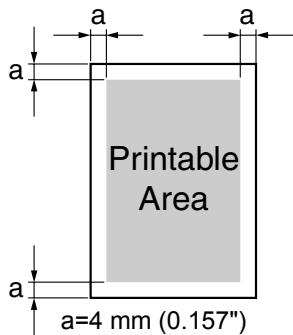
What Is the Guaranteed Imageable (Printable) Area?
The printable area on all media sizes is up to 4 mm (0.157") from the edges of the media.

The printable area of received taxes differs depending on the sender's scanning area.
Adding the Sender's Information When Printing Faxes
If "Footer" in the configuration menu is set to "ON", information such as the sender's fax number, reception date/time, session number and page number can be printed 4 mm (0.157") from the bottom edge of the fax that is received and printed.
The following items in the footer.
| Item | Description |
| This machine's fax number | Shows the fax number specified for this machine from the USER SETTING menu in the configuration menu. |
| Reception date/time | Shows the date/time that the fax was received. The time is indicated in the 24-hour format. |
| Sender's fax number | Shows the sender's fax number. |
| Session number | Shows the session number used to manage the received fax. |
| Page number | Shows the page number. |

In order to print the footer, the Footer parameter on the RX SETTING menu of the configuration menu must be set "ON". For details, refer to "RX SETTING" on page 21.
Method of printing during reception
The relationship between the length of the received document and the document that is actually printed is shown below.
The document is printed differently depending on the setting selected for the REDUCTION RX parameter on the RX SETTING menu.
REDUCTION RX: ON
| Recording paper size | Footer | Length of received image [mm] | Printing |
| A4 | OFF | Less than 289 | 1 page with 100% |
| 290 – 385 | 1 page with (289/image length)% reduction | ||
| 386 – 570 | Divide into 2 pages with 100% | ||
| 571 – 851 | Divide into 3 pages with 100% | ||
| 852 - | Divide into 4 pages with 100%.... | ||
| ON | Less than 285 | 1 page with 100% | |
| 286 – 381 | 1 page with (285/image length)% reduction | ||
| 382 – 562 | Divide into 2 pages with 100% | ||
| 563 – 839 | Divide into 3 pages with 100% | ||
| 840 - | Divide into 4 pages with 100%... | ||
| Letter | OFF | Less than 271 | 1 page with 100% |
| 272 – 387 | 1 page with (271/image length)% reduction | ||
| 388 – 534 | Divide into 2 pages with 100% | ||
| 535 – 797 | Divide into 3 pages with 100% | ||
| 798 - | Divide into 4 pages with 100%.... | ||
| ON | Less than 267 | 1 page with 100% | |
| 268 – 383 | 1 page with (267/image length)% reduction | ||
| 382 – 526 | Divide into 2 pages | ||
| 527 – 785 | Divide into 3 pages or more | ||
| 786 - | Divide into 4 pages with 100%.... | ||
| Legal | OFF | Less than 348 | 1 page with 100% |
| 348 – 385 | 1 page with (347/image length)% reduction | ||
| 386 – 686 | Divide into 2 pages with 100% | ||
| 687 – 1025 | Divide into 3 pages with 100% | ||
| 1026 - | Divide into 4 pages with 100%.... | ||
| ON | Less than 344 | 1 page with 100% | |
| 344 – 381 | 1 page with (343/image length)% reduction | ||
| 382 – 678 | Divide into 2 pages with 100% | ||
| 679 – 1013 | Divide into 3 pages with 100% | ||
| 1014 - | Divide into 4 pages with 100%.... | ||
| Oficio | OFF | Less than 335 | 1 page with 100% |
| 336 – 385 | 1 page with (335/image length)% reduction | ||
| 382 – 662 | Divide into 2 pages with 100% | ||
| 663 – 989 | Divide into 3 pages with 100% | ||
| 990 - | Divide into 4 pages with 100%.... | ||
| ON | Less than 331 | 1 page with 100% | |
| 332 – 381 | 1 page with (331/image length)% reduction | ||
| 382 – 654 | Divide into 2 pages with 100% | ||
| 655 – 977 | Divide into 3 pages with 100% | ||
| 978 | Divide into 4 pages with 100%.... | ||
| A4 | OFF | Less than 289 | 1 page |
| 290 – 570 | Divide into 2 pages | ||
| 571 – 851 | Divide into 3 pages | ||
| 852 - | Divide into 4 pages or more | ||
| ON | Less than 285 | 1 page | |
| 286 – 562 | Divide into 2 pages | ||
| 563 – 839 | Divide into 3 pages | ||
| 840 - | Divide into 4 pages or more | ||
| Letter | OFF | Less than 271 | 1 page |
| 272 – 534 | Divide into 2 pages | ||
| 535 – 797 | Divide into 3 pages | ||
| 798 - | Divide into 4 pages or more | ||
| ON | Less than 267 | 1 page | |
| 268 – 526 | Divide into 2 pages | ||
| 527 – 785 | Divide into 3 pages | ||
| 786 - | Divide into 4 pages or more | ||
| Legal | OFF | Less than 348 | 1 page |
| 349 – 688 | Divide into 2 pages | ||
| 689 – 1028 | Divide into 3 pages | ||
| 1029 - | Divide into 4 pages or more | ||
| ON | Less than 344 | 1 page | |
| 345 – 680 | Divide into 2 pages | ||
| 681 – 1016 | Divide into 3 pages | ||
| 1017 - | Divide into 4 pages or more | ||
| Oficio | OFF | Less than 335 | 1 page |
| 356 – 662 | Divide into 2 pages | ||
| 663 – 989 | Divide into 3 pages | ||
| 990 - | Divide into 4 pages or more | ||
| ON | Less than 331 | 1 page | |
| 332 – 654 | Divide into 2 pages | ||
| 655 – 977 | Divide into 3 pages | ||
| 978 - | Divide into 4 pages or more | ||
| A4 | OFF | Less than 289 | 1 page |
| 290 – 313 | Print into 1 page. 1-24mm of end is cut. | ||
| 314 – 570 | Divide into 2 pages | ||
| 571 – 594 | Divide into 2 pages. 1-24mm of end is cut. | ||
| 595 – 851 | Divide into 3 pages | ||
| 852 - | Divide into 3 pages.... | ||
| ON | Less than 285 | 1 page | |
| 286 – 309 | Print into 1 page. 1-24mm of end is cut. | ||
| 310 – 562 | Divide into 2 pages | ||
| 563 – 586 | Divide into 2 pages. 1-24mm of end is cut. | ||
| 587 – 839 | Divide into 3 pages | ||
| 840 - | Divide into 3 pages.... | ||
| Letter | OFF | Less than 271 | 1 page |
| 272 – 295 | Print into 1 page. 1-24mm of end is cut. | ||
| 296 – 534 | Divide into 2 pages | ||
| 535 – 558 | Divide into 2 pages. 1-24mm of end is cut. | ||
| 559 – 797 | Divide into 3 pages | ||
| 798 - | Divide into 3 pages.... | ||
| ON | Less than 267 | 1 page | |
| 268 – 291 | Print into 1 page. 1-24mm of end is cut. | ||
| 292 – 526 | Divide into 2 pages | ||
| 527 – 550 | Divide into 2 pages. 1-24mm of end is cut. | ||
| 551 – 785 | Divide into 3 pages | ||
| 786 - | Divide into 3 pages.... | ||
| Legal | OFF | Less than 348 | 1 page |
| 348 – 371 | Print into 1 page. 1-24mm of end is cut. | ||
| 372 – 686 | Divide into 2 pages | ||
| 687 – 710 | Divide into 2 pages. 1-24mm of end is cut. | ||
| 711 – 1025 | Divide into 3 pages | ||
| 1026 - | Divide into 3 pages.... | ||
| ON | Less than 344 | 1 page | |
| 344 – 367 | Print into 1 page. 1-24mm of end is cut. | ||
| 368 – 678 | Divide into 2 pages | ||
| 679 – 702 | Divide into 2 pages. 1-24mm of end is cut. | ||
| 703 – 1013 | Divide into 3 pages | ||
| 1014 - | Divide into 3 pages.... | ||
| Oficio | OFF | Less than 335 | 1 page |
| 336 – 359 | Print into 1 page. 1-24mm of end is cut. | ||
| 360 – 662 | Divide into 2 pages | ||
| 663 – 686 | Divide into 2 pages. 1-24mm of end is cut. | ||
| 687 – 989 | Divide into 3 pages | ||
| 990 - | Divide into 3 pages.... | ||
| ON | Less than 331 | 1 page | |
| 332 – 355 | Print into 1 page. 1-24mm of end is cut. | ||
| 356 –654 | Divide into 2 pages | ||
| 655 – 678 | Divide into 2 pages. 1-24mm of end is cut. | ||
| 679 – 977 | Divide into 3 pages | ||
| 978 - | Divide into 3 pages.... |
Registering Recipients
5
About the FAX REGISTRATION Function
Frequently used fax numbers can be registered with the FAX REGISTRATION function so that the fax number can be easily accessed. In addition, this reduces input errors.
The following registration methods are available:
One-touch dial: Register fax numbers with one-touch dial keys. Press a one-touch dial key to recall them. For details on specifying settings, refer to "One-Touch Dialing" on page 56.
■ Speed dial: Register fax numbers with speed dial numbers, and then press a keypad to recall them. For details on specifying settings, refer to "Speed Dialing" on page 59.
- Group dial: Multiple recipients can be grouped and registered with a one-touch dial key. Press the one-touch dial key to recall the group. For details on specifying settings, refer to "Group Dialing" on page 61.

If a recipient is registered with a one-touch dial key or a speed dial number, the recipient can be searched for by using the phone book functions. For details on using the phone book functions, refer to "Using the List Function of the Phone Book" on page 36 and "Using the Search Function of the Phone Book" on page 37.
One-Touch Dialing
Programming a One-Touch Dial Key
Register frequently used fax numbers with one-touch dial keys (maximum 9). When sending a fax, press a one-touch dial key to recall them.

To register multiple recipients with a one-touch dial key, program it as a group dial. For details on programming group dialing, refer to "Group Dialing" on page 61.
1 Press the Menu Select key, then the key three times.
2 Check that the FAX REGISTRATION screen appears, and then press the Menu Select key.
3 Check that the ONE-TOUCH DIAL screen appears, and then press the Menu Select key.
4 Press the one-touch dial key that you want to program.

If the one-touch dial key that is pressed is already registered with a recipient, the message "REGISTERED!" appears. Press the Menu Select key, and then press a one-touch dial key with no recipient registered.
5 Enter the name of the one-touch dial to be programmed, and then press the Menu Select key.

Text up to 20 characters long can be entered for the name.

For details on entering/editing text and the characters that can be entered, refer to "Entering Text" on page 79.

To cancel programming, press the Cancel/C key. (To cancel programming while the name is being entered, press the Menu Select key, and then press the Cancel/C key.)
6 Using the keypad, enter the fax number of the recipient, and then press the Menu Select key.

The fax number can contain a maximum of 50 characters.

For details on entering/editing numbers, refer to "Entering Text" on page 79.

To cancel programming, press the Cancel/C key. (To cancel programming while the number is being entered, press the Menu Select key, and then press the Cancel/C key.)
7 Select the modem speed, and then press the Menu/Select key.
The entered information is programmed with the one-touch dial key, and the message "SELECT REGIST KEY" appears.

If a transmission error occurs, select 14.4 or 9.6 for the modem speed.
8 To program another one-touch dial key, press the one-touch dial key, and then repeat the procedure starting from step 5.

To finish the procedure and return to the Fax mode screen, continue pressing the Cancel/C key until the Fax mode screen is displayed.
Changing/Deleting One-Touch Dial Information
The registered one-touch dial information can be corrected.
1 Press the Menu Select key, then the key three times.
2 Check that the FAX REGISTRATION screen appears, and then press the Menu Select key.
3 Check that the ONE-TOUCH DIAL screen appears, and then press the Menu Select key.
4 Press the one-touch dial key that you want to change or delete.
5 Press the Cancel/C key.

If a one-touch dial key programmed with a group of fax numbers is pressed, the message "GROUP" appears in the upper-right corner of the screen. To delete the group, press the Cancel/C Key.

To change group dialing, refer to "Changing/Deleting Group Dialing Information" on page 62.
6 Using the and keys, select either "EDIT" or "DELETE", and then press the Menu Select key.

If "EDIT" was selected, the name is displayed. Continue with step 7.

If "DELETE" was selected, the settings programmed for the one-touch dial key are deleted and the message "SELECT REGIST KEY" appears again. Skip to step 9.

When a one-touch dial number is deleted, it is also deleted from the group dialing that it is used in.
7 Change the name, fax number, modem speed as desired.

For details on changing the name, refer to "Entering Text" on page 79.

If you try to change the settings for a one-touch dial number used in group dialing, a confirmation message appears, asking whether or not to keep the changed one-touch dial number in the group dialing.
If the Menu Select key is pressed, the corresponding one-touch dial number programmed in group dialing is kept.
If the Cancel/C key is pressed, the corresponding one-touch dial number programmed in group dialing is deleted.
8 When you are finished making changes, press the Menu Select key. The message "SELECT REGIST. KEY" appears.
9 To change or to delete other one-touch dial information, press the one-touch dial key, and then repeat the procedure starting from step 5. OR To finish the procedure and return to the Fax mode screen, continue pressing the Cancel/C key until the Fax mode screen is displayed.
Speed Dialing
Programming a Speed Dial Number
Register frequently used fax numbers with speed dial numbers (maximum 100). Enter the speed dial number when sending a fax to recall the fax number.
1 Press the Menu Select key, then the key three times.
2 Check that the FAX REGISTRATION screen appears, then press the Menu Select key, and then press key.
3 Check that the SPEED DIAL screen appears, and then press the Menu Select key.
4 Using the keypad, enter the 3-digit speed dial number (ex. 011) that you want to program.

If the speed dial number that is entered is already registered with a recipient, the message "REGISTERED!" appears. Press the Menu Select key, and then press a speed dial number with no recipient registered.

If you enter 2-digit speed dial number, make sure to enter [0] at first. For example when speed dial number is [11], enter [011].
5 Enter the name of the speed dial to be programmed, and then press the Menu Select key.

Text up to 20 characters long can be entered for the name.

For details on entering/editing text and the characters that can be entered, refer to "Entering Text" on page 79.

To cancel programming, press the Cancel/C key. (To cancel programming while the name is being entered, press the Menu Select key, and then press the Cancel/C key.)
6 Using the keypad, enter the fax number of the recipient and then press the Menu Select key.

The fax number can contain a maximum of 50 characters.

For details on entering/editing numbers, refer to "Entering Text" on page 79.

To cancel programming, press the Cancel/C key. (To cancel programming while the number is being entered, press the Menu Select key, and then press the Cancel/C key.)
7 Select the modem speed, and then press the Menu/Select key.
The entered information is registered with the speed dial number, and then the speed dial input screen appears.

If a transmission error occurs, select 14.4 or 9.6 for the modem speed.
8
To program another speed dial number, enter the speed dial number, and then repeat the procedure starting from step 4.

To finish the procedure and return to the Fax mode screen, continue pressing the Cancel/C key until the Fax mode screen is displayed.
Changing/Deleting Speed Dial Information
The registered speed dial information can be corrected.
1 Press the Menu Select key, then the key three times.
2 Check that the FAX REGISTRATION screen appears, then press the Menu Select key, and then press the key.
3 Check that the SPEED DIAL screen appears, and then press the Menu Select key.
4 Using the keypad, enter the speed dial number that you want to change or delete.
5 Press the Cancel /C key.
6 Using the and keys, select either "EDIT" or "DELETE", and then press the Menu Select key.

If "EDIT" was selected, the name is displayed. Continue with step 7.

If "DELETE" was selected, the settings programmed for the speed dial number are deleted and the speed dial input screen appears again. Skip to step 9.

If a speed dial number used in group dialing is deleted, it is also deleted from the corresponding group dialing.
7 Change the name, fax number, modem speed as desired.

If you try to change the settings for a speed dial number used in group dialing, a confirmation message appears, asking whether or not to keep the changed speed dial number in the group dialing.
If the Menu Select key is pressed, the corresponding speed dial number programmed in group dialing is kept.
If the Cancel/C key is pressed, the corresponding speed dial number programmed in group dialing is deleted.

For details on editing text, refer to "Entering Text" on page 79.
8 When you are finished making changes, press the Menu Select key. The speed dial input screen appears.
9 To change or to delete another speed dial number, enter the speed dial number, and then repeat the procedure starting from step 5.

To finish the procedure and return to the Fax mode screen, continue pressing the Cancel/C key until the Fax mode screen is displayed.
Group Dialing
Programming Group Dialing
Register multiple frequently used fax numbers (maximum 50) together with one-touch dial keys and speed dial numbers. Press a one-touch dial key when sending a fax to recall them.
1 Press the Menu Select key, then the key three times.
2 Check that the FAX REGISTRATION screen appears, then press the Menu Select key, and then press the key twice.
3 Check that the GROUP DIAL screen appears, and then press the Menu Select key.
4 Press the one-touch dial key that you want to program.

If the one-touch dial key that is pressed is already registered with a recipient, the message "REGISTERED!" appears. Press the Menu Select key, and then press a one-touch dial key with no recipient registered.
5 Enter the name of the group, and then press the Menu Select key.

Text up to 20 characters long can be entered for the name.

For details on entering/editing text and the characters that can be entered, refer to "Entering Text" on page 79.

To cancel programming, press the Cancel/C key. (To cancel programming while the name is being entered, press the Menu Select key, and then press the Cancel/C key.)
6 By using the one-touch dial keys or the speed dial numbers, specify the recipients.

To specify a speed dial number, press the Speed Dial key, and then enter the 3-digit speed dial number.

If you want to cancel the current selection, press the Cancel/C key, and then specify the correct recipient.
7 Press the Menu Select key, and then specify another recipient.

Repeat steps 6 and 7 until all recipients have been specified.

A one-touch dial key programmed with a group can be specified as a recipient when programming a one-touch dial key for group dialing. In that case, all fax numbers programmed in the specified one-touch dial key (group dial key) are added.

To cancel programming, press the Cancel/C until the message "FAX REGISTRATION?" is displayed.
8 When you are finished specifying recipients, press the Start key. The entered information is programmed with the one-touch dial key, and the message "SELECT REGIST KEY" appears.
9 To program other group dialing, press the one-touch dial key, and then repeat the procedure starting from step 5.

To finish the procedure and return to the Fax mode screen, continue pressing the Cancel/C key until the Fax mode screen is displayed.
Changing/Deleting Group Dialing Information
The registered group dialing information can be corrected.
1 Press the Menu Select key, then the key three times.
2 Check that the FAX REGISTRATION screen appears, then press the Menu Select key, and then press the key twice.
3 Check that the GROUP DIAL screen appears, and then press the Menu Select key.
4 Press the one-touch dial key that you want to change or delete.
5 Press the Cancel/C key.
6 Using the and keys, select either "EDIT" or "DELETE", and then press the Menu Select key.

If "EDIT" was selected, the group name is displayed. Continue with step 7.

If "DELETE" was selected, the group dialing settings are deleted and the message "SELECT REGIST KEY" appears again. Skip to step 10.
7 If you want to change the name of the group, enter the new name, and then press the Menu Select key.

For details on editing text, refer to "Entering Text" on page 79.
8 To delete the displayed recipient, press the Cancel/C key.

To keep the displayed recipient, press the Menu Select key.
9 When you are finished making changes, press the Start key. The entered information is programmed with the one-touch dial key, and the message "SELECT REGIST KEY" appears.
10 To change or to delete other group dialing, press the one-touch dial key, and then repeat the procedure starting from step 5.

To finish the procedure and return to the Fax mode screen, continue pressing the Cancel/C key until the Fax mode screen is displayed.
Confirmation Mode
6
About the Machine's Counters
The number of operations performed since this machine was installed can be checked using the functions available when the Display key is pressed.
The following procedure describes how to check the fax/scanner-related counters.
Checking the Counter for Fax Printing
This counter shows the total number of fax prints made since this machine was installed.
1 Press the Display key, then the key.
2 Check that the TOTAL PAGE screen appears, and then press the Menu Select key.
3 Press the key four times. The FAX PRINT screen appears so that the counter can be checked.
4 Press the Menu Select key. The TOTAL PAGE screen appears.

To return to the Fax mode screen, press the Cancel/C key.
Checking the Counter for Total Scans
This counter shows the total number of scans made, excluding copies, since this machine was installed.
1 Press the Display key, then the key.
2 Check that the TOTAL PAGE screen appears, and then press the Menu Select key.
3 Press the key five times. The TOTAL SCAN screen appears so that the counter can be checked.
4 Press the Menu Select key. The TOTAL PAGE screen appears.

To return to the Fax mode screen, press the Cancel/C key.
Checking the Transmission/Reception Result From the Message Window
The transmission result information can be checked from the message window.
1 Press the Display key, then the key twice.
2 Check that the TX/RX RESULT screen appears, and then press the Menu Select key.
The TX/RX Result screen appears so that the information can be checked.

When the Start key is pressed, details of the report displayed on the message window can be printed.
3 To finish checking and return to the Fax mode screen, continue pressing the Cancel/C key until the Fax mode screen is displayed.
About the Reports and Lists
Reports on the status of fax transmissions and fax receptions and the contents of the one-touch dial keys, etc. can be printed with this machine.
The following reports and lists can be printed with this machine.

For details on printing the reports and the lists, refer to the following section.
Printing the Reports and Lists
1 Press the Display key, then the key three times.
2 Check that the PRINT REPORT screen appears, and then press the Menu Select key.
3 Using the and keys, select the desired report.
4 Press the Menu Select key. The report is printed.
TX RESULT REPORT
The document number, recipient name, date sent, starting time of transmission, number of document pages, time required, mode, and transmission result are printed.
The machine can also be set to print this report with each transmission, only when an error occurs, or not at all. For details, refer to "REPORTING" on page 24.
| SESSION | FUNCTION | NO. | DESTINATION STATION | DATE | TIME | PAGE | DURATION | MODE | RESULT |
| 0001 | TX | 001 | AAA NEWYORK 012345678 | APR.19 | 18:00 | 010 | 00h02min21s | G3 | STOP |
| 00A0: TX CANCEL | |||||||||
RX RESULT REPORT
The document number, date received, starting time of reception, number of pages received, time required, mode, and reception result are printed.

The machine can also be set to print this report with each reception, only when an error occurs, or not at all. For details, refer to "REPORTING" on page 24.
| SESSION | FUNCTION | NO. | DESTINATION STATION | DATE | TIME | PAGE | DURATION | MODE | RESULT |
| 0001 | RX | 001 | 098765432 | APR.19 | 18:00 | 001 | 00h02min21s | ECM | NG |
| 0014:ERROR DURING RX | |||||||||
ACTIVITY REPORT
The operation number, document number, date of operation, starting time of transmission/reception, type of operation (transmission or reception), recipient name, number of pages sent/received, mode, and transmission/reception result are printed.

The machine can also be set to print this report automatically after every 60 transmissions/receptions. For details, refer to "REPORTING" on page 24.
| NO. | SESSION | DATE | TIME | TX/RX | DESTINATION STATION | PAGE | DURATION | MODE | RESULT |
| 01 | 0001 | APR.19 | 16:32 | TX--- | AAA NEWYORK 012345678 | 006 | 00h01min16s | ECM | OK |
| 02 | 0002 | APR.19 | 18:00 | ---RX | 098765432 | 001 | 00h02min21s | ECM | NG 0034 |
| 03 | 0003 | APR.19 | 18:00 | ---RX | 098765432 | 012 | 00h02min48s | ECM | OK |
| 04 | 0004 | APR.19 | 19:12 | TX--- | HEAD OFFICE 024682468 | 001 | 00h00min56s | ECM | OK |
MEMORY DATA LIST
This is a list of documents waiting to be sent, and documents specified for timer transmission.
The document number, type of operation being performed, time, recipient name, and number of document pages are printed.
| SESSION | FUNCTION | TIME | NO. | DESTINATION STATION | PAGE |
| 0001 | TX | 18:00 | 001 | OT-01 AAA NEWYORK 012345678 | 012 |
MEMORY IMAGE PRINT
A reduced image of the first page of the document waiting to be sent in addition to the document number, type of operation being performed, recipient name, date, time, and number of document pages are printed.
ONE-TOUCH LIST
The recipients programmed in the one-touch dial keys are printed in numerical order of the keys.
| OT-NO. | DESTINATION STATION | DESTINATION NUMBER | SPEED | SET DATE |
| OT-01 | AAA NEWYORK | 012345678 | 33.6 | JAN.20.2006 |
| OT-02 | AAA TOKYO | 098765432 | 33.6 | JAN.20.2006 |
| OT-03 | HEAD OFFICE | 024682468 | 33.6 | FEB.12.2006 |
| OT-04 | NJ OFFICE | 0P02345678 | 12.8 | FEB.12.2006 |
SPEED DIAL LIST
The recipients programmed for the speed dial numbers are printed in numerical order.
| SP-NO. | DESTINATION STATION | DESTINATION NUMBER | SPEED | SET DATE |
| SP-001 | AMSTERDAM OFFICE | 0P09876543 | 33.6 | JAN.20.2006 |
| SP-002 | KOREA OFFICE | 0P01357913 | 33.6 | JAN.20.2006 |
| SP-003 | ABCDEF | 024682468 | 33.6 | FEB.12.2006 |
| SP-004 | POST OFFICE | 0224466880 | 12.8 | FEB.12.2006 |
GROUP DIAL LIST
The group dialing settings specified for one-touch dial keys are printed in numerical order of the keys.
| KEY-NO. | NAME | NO. | DESTINATION STATION |
| OT-01 | GROUP-01 | 01 | OT-02 AAA TOKYO 098765432 |
| 02 | OT-04 NJ OFFICE 0P02345678 | ||
| 03 | SP-001 AMSTERDAM OFFICE 0P09876543 |
Troubleshooting
7
Problems When Sending Faxes
If the fax cannot be sent correctly, refer to the following table, and then perform the indicated operation. If the fax still cannot be sent correctly, even after performing the described operations, contact your technical representative.

For details on the error messages, refer to "Error Messages on the Message Window" on page 75. For details on troubleshooting procedures for document misfeeds, paper misfeeds, poor print quality, or empty consumables, refer to the Printer/Copier/Scanner User's Guide.
| Symptom | Cause | Solution |
| The document is not scanned. | The document is too thick, too thin or too small. | Use the original glass to send the fax. |
| The document is scanned at an angle. | The document guides are not adjusted to the width of the document. | Slide the document guides to fit the width of the document. |
| The fax received by the recipient is blurry. | The document is incorrectly positioned. | Position the document correctly. |
| The original glass is dirty. | Clean the original glass. | |
| The text in the document is written too faint. | Adjust the resolution | |
| There may be a problem with the telephone connection. | Check the telephone line, and then try sending the fax again. | |
| There may be a problem with the recipient's fax machine. | Make a copy to check that this machine is operating correctly, and then, if the copy was printed correctly, have the recipient check the condition of their fax machine. | |
| The fax received by the recipient is blank. | The document was sent with the front side facing down (when the ADF is used). | Load the document to be faxed facing up. |
| Transmission is not possible. | The transmission procedure may have been performed incorrectly. | Check the transmission procedure, and then try sending the fax again. |
| The fax number may be wrong. | Check the fax number. | |
| The one-touch dial key or speed dial may be incorrectly programmed. | Check that the keys were correctly programmed. | |
| The telephone line may be incorrectly connected. | Check the telephone line connection. If it is disconnected, connect it. | |
| There may be a problem with the recipient's fax machine (such as, no paper or turned off). | Contact the recipient. |
Problems When Receiving Faxes
If the fax cannot be received correctly, refer to the following table, and then perform the indicated operation. If the fax still cannot be received correctly, even after performing the described operations, contact your technical representative.

For details on the error messages, refer to "Error Messages on the Message Window" on page 75. For details on troubleshooting procedures for document misfeeds, paper misfeeds, poor print quality, or empty toner, refer to the Printer/Copier/Scanner User's Guide.
| Symptom | Cause | Solution |
| The received fax is blank. | There may be a problem with the telephone connection or with the caller's fax machine. | Check that the machine can make clean copies. If it can, have the caller send the fax again. |
| The caller may have loaded the pages backward. | Contact the caller. | |
| Faxes cannot be received automatically. | The machine is set to receive faxes manually. | Set the machine to automatic reception. |
| Memory is full. | Load paper if it is empty, and then print the faxes stored in memory. | |
| The telephone line is incorrectly connected. | Check the telephone line connection. If it is disconnected, connect it. | |
| There may be a problem with the caller's fax machine. | Make a copy to check that this machine is operating correctly, and then, if the copy was printed correctly, have the recipient check the condition of their fax machine. |
Error Messages on the Message Window
| Error message | Cause | Solution |
| LINE PROBLEM (Flashing alternately) CHECK LINE | ■ The telephone dialing system or telephone wiring system is not set correctly. ■ The telephone cable is not attached correctly. | ■ Check the telephone dialing system or telephone wiring system and use the appropriate configuration menu to make the correct settings. ■ Correctly connect the telephone cable. |
| *COMM_ERROR* (XXXXXXXX) | ■ Communication is not possible because of some problem in the machine. ■ Communication is not possible because of a problem with the recipient/caller's fax machine. | Check the transmission results. |
| *REDIAL ALL Failed* | All radial attempts failed because either the recipient's line is busy or there was no answer. | Check the condition of the recipient's line, and then try sending the fax again. |
| *MEMFULL/TX CAN-CEL* | While sending a fax, the size of the data for the scanned image has exceeded the capacity of memory. | Retrieve all received faxes stored in memory. Send the fax by direct transmission. To print an error report, press the Cancel/C key while an error message is displayed. |
| *MEMFULL/RX CAN-CEL* | While receiving a fax, the size of the data for the scanned image has exceeded the capacity of memory. | Retrieve all received faxes stored in memory. To print an error report, press the Cancel/C key while an error message is displayed. |
| HANG UP THE PHONE | The receiver of the connected telephone is lifted. | Replace the receiver of the connected telephone on the hook. |
| TEXT ×1.00 1 {[A]#XXX Warn Fax | A fax error occurred while an operation was being performed in Copy mode. | Press the Fax key to check the error condition, and take appropriate measures. |
| TEXT ×1.00 1 {[A]#XXX Comm. Err | A fax transmission error occurred while an operation was being performed in Copy mode. | Press the Fax key to check the error condition, and take appropriate measures. |
| *PLEASE WAIT!* ADMINISTERED BY PC | This machine is accessing LSU or the Admin. Mode of PageScope Web Connection. | ■ Log off from PageScope Web Connection. ■ Exit LSU. ■ If no operation is performed for 600 seconds, the main screen appears. |
Appendix
A
Technical Specifications
| Compatible lines | PSTN (Public Switched Telephone Network), PBX (Private Branch eXchange) |
| Compatibility | ECM/Super G3 |
| Modem speed | 33600, 31200, 28800, 26400, 24000, 21600, 19200, 16800, 14400, 12000, 9600, 7200, 4800, 2400 (bps) |
| Fax transmission speed | 3 sec/page (at V.34) |
| Coding method | MH, MR, MMR, JBIG |
| Memory for receiving | 4 MB (approx. 250 pages) |
| Original | ■ ADF Maximum size: Legal□ Width: 140 to 216 mm Length: 148 to 500 mm (500 mm: Tx only) ■ Original Glass Maximum size: Legal□ |
| Paper size | Maximum size: Legal□ |
| Edge erase | 4 mm (top, bottom, left, right) |
| Scanning density | Main scanning direction: 8 dots Sub-scanning direction: 3.85 dots (STD) 7.7 dots (FINE) 15.4 dots (S-Fine) |

For details on other specifications, refer to the Printer/Copier/Scanner User's Guide.
Entering Text
When specifying the user name or programming the recipient name with one-touch dial keys, letters, accented characters, numbers and symbols can be entered.
Key Operation
Use the keypad to enter numbers, letters, and symbols.
List of characters available with each key of the keypad
Entering Fax Numbers
| Keypad Key | Available characters | Available characters (Registration of USER FAX NO.) * | |
| [1] | [1] | [A] | |
| 1 | 1 | 1 | -1 |
| 2 | 2 | 2 | 2 |
| 3 | 3 | 3 | 3 |
| 4 | 4 | 4 | 4 |
| 5 | 5 | 5 | 5 |
| 6 | 6 | 6 | 6 |
| 7 | 7 | 7 | 7 |
| 8 | 8 | 8 | 8 |
| 9 | 9 | 9 | 9 |
| 0 | 0 | 0 | (space)0 |
| * | * | ||
| # | # | + | |
- To display your fax number, select USER FAX NO. in the USER SETTING menu.
Entering Names
| Keypad Key | Available characters | |
| [1] | [A] | |
| 1 | 1 | \(,.? \) |
| 2 | 2 | ABC2abc/Εçàáããàæç |
| 3 | 3 | DEF3defDèéëð |
| 4 | 4 | GHI4ghilifi |
| 5 | 5 | JKL5jkl€¢ |
| 6 | 6 | MNO6mnoØCEñòóðöøœ° |
| 7 | 7 | PQRS7pqrsβ$ |
| 8 | 8 | TUV8tuvúúù |
| 9 | 9 | WXYZ9wxyzþþ |
| 0 | 0 | (space)0 |
| * | ||
| # | # | \(+x÷=\)#%&<=>[]{}\backslash\mu^{\wedge}\sim\) |
Entering Email Addresses
| Keypad Key | Available characters | |
| [1] | [A] | |
| 1 | 1 | @_1 |
| 2 | 2 | ABC2abc |
| 3 | 3 | DEF3def |
| 4 | 4 | GHI4ghi |
| 5 | 5 | JKL5jkl |
| 6 | 6 | MNO6mno |
| 7 | 7 | PQRS7pqrs |
| 8 | 8 | TUV8tuv |
| 9 | 9 | WXYZ9wxyz |
| 0 | 0 | (space)0 |
| * | ||
| # | # | +&/*=!?(%)[^^{'}]~$ |
Changing Input Mode
Each press of the key switches the input mode between numbers and letters.
[1]: Numbers can be typed in.
[A]: Letters can be typed in.
Inputting Example
The procedure for entering text is described below, using "NJ Office" as an example.
1 Press the key to change the input mode so that letters can be entered.
2 Press the 6 key twice. "N" is entered.
3 Press the 5 key once. "J" is entered.
4 Press the 0 key once. A space is entered.
5 Press the 6 key three times. "O" is entered.
6 Press the 3 key seven times. "f" is entered.
7 Press the key. The cursor moves to the right.
8 Press the 3 key seven times. "f" is entered.
9 Press the 4 key seven times. "i" is entered.
10 Press the 2 key seven times. "c" is entered.
11 Press the 3 key six times. "e" is entered.
Correcting Text And Input Precautions
To erase all entered text, hold down the Cancel/C key.
To delete only part of the entered text, use the and keys to move the cursor (.) to the character that you want to delete, and then press the Cancel/C key.
If multiple characters are assigned to a single key, "OK=▶" appears at the bottom of the screen.
If the same key is to be used to enter two characters in a row, press the key after selecting the first character. (Refer to the above inputting example.)
To enter a space, press the 0 key.
Index
A
ADF2
C
Canceling
Memory 42
Confirm 65
Control panel 2, 6
Counter
Total scans 66
Counters 66
Fax printing 66
D
Deleting
Memory 42
Dialing, direct 35
E
Entering text 79
Correcting text 82
Input mode 81
Input precautions 82
Error messages 75
F
Fax mode screen 10
Footer 48
G
Group dial
Changing/Deleting 62
Programming 61
H Header 43
Imageable area 47
Input mode 81
Key operation 79 Keypad 6
L
Lists 67
GROUP DIAL LIST 70
MEMORY DATA LIST 69
ONE-TOUCH LIST 69
Printing 67
SPEED DIAL LIST 69
M
Manual Reception 46 Transmission 41
Memory Cancel/delete 42 Queue 42
Memory reception 27
Memory RX mode 27 Setting up 27 Turning off 28
Menu COMM. SETTING 23 FAX REGISTRATION 19 MACHINE SETTING 18 Overview 12 REPORTING 24 RX SETTING 21 Specifying Settings 26 TX SETTING 20 USER SETTING 25
Multiple recipient Broadcast 38 Group dial 35
0
One-touch dial key 6 Changing/Deleting 58 Programming 56 Specifying a recipient 35
P
Parts 2
Phone book
List 36
Search 37
Printable area 47
R
Receiving taxes Automatic reception 46 Manual reception 46 Memory reception 27 Printing 47
Reception result 67, 68
Recipients
Multiple recipients 38
Registering 55
Redial 38
Registering recipients 55
Group dial 61
One-touch dial 56
Speed dial 59
Reports 67
ACTIVITY REPORT 68
MEMORY IMAGE PRINT 69
Printing 67
RX RESULT REPORT 68
TX RESULT REPORT 67
Resolution Improving fax resolution 34
S
Sending faxes
Basic fax operation 30
Manual transmission 41
Redial 38
Timer 40
Specifications 78
Specifying a recipient
Direct dialing 35
One-touch dial key 35
Speed dial 36
Specifying recipient 34
List 36
Phonebook36,37
Search 37
Speed dial
Changing/deleting 60
Programming 59
Specifying recipient 36
T
Timer transmission 40
Transmission result 67
Troubleshooting 71
Receiving faxes 73
Sending faxes 72
- bizhub C10 Facsimile User's Guide
- Thank You
- Trademarks
- Copyright Notice
- Manual Notice
- Contents
- Specifying Settings in Configuration Menu 26
- Sending Faxes 29
- Basic Fax Operation 30
- Improving Resolution 34
- Specifying a Recipient 34
- Specifying Multiple Recipients 38
- Sending a Fax at a Specified Time (Timer Transmission) 40
- Sending a Fax Manually 41
- Canceling (Deleting) a Document Queued in Memory for Transmission 42
- About the Fax Header 43
- Receiving Faxes 45
- Receiving Faxes Automatically 46
- Receiving Faxes Manually 46
- Printing Received Faxes 47
- Registering Recipients 55
- About the FAX REGISTRATION Function 56
- One-Touch Dialing 56
- Speed Dialing 59
- Group Dialing 61
- Confirmation Mode 65
- About the Machine's Counters 66
- Checking the Transmission/Reception Result From the Message Window 67 About the Reports and Lists 67
- Troubleshooting 71
- Appendix 77
- Introduction
- 1
- Machine Parts
- Front View
- Rear View
- Control Panel and Configuration Menu
- 2
- About the Control Panel
- About the Fax Mode Screen
- About the Function Mode Screen
- Entering Fax Mode
- Symbol list
- Configuration Menu Overview
- Configuration Menu
- FAX REGISTRATION
- RX SETTING
- COMM. SETTING
- USER SETTING
- Specifying Settings in Configuration Menu
- General Procedure for Specifying Settings in Configuration Menu
- Memory Reception
- Setting Up the Memory RX Mode
- Turning Off the Memory RX Mode
- Sending Faxes
- 3
- Basic Fax Operation
- Sending a Fax Using the ADF
- Press the Start key.
- Sending a Fax Using the Original Glass
- Improving Resolution
- Specifying a Recipient
- Directly Entering a Fax Number
- Using a One-Touch Dial Key
- Using the Speed Dial Function
- Using the List Function of the Phone Book
- Using the Search Function of the Phone Book
- Using the Redial Function
- Specifying Multiple Recipients
- Sending a Fax to Multiple Recipients (Broadcast Transmission)
- Sending a Fax at a Specified Time (Timer Transmission)
- Sending a Fax Manually
- Sending a Fax Manually After Using the Telephone
- Sending a Fax Manually Using the On Hook Key
- Canceling (Deleting) a Document Queued in Memory for Transmission
- About the Fax Header
- Receiving Faxes
- 4
- Receiving Faxes Automatically
- Receiving Faxes Manually
- Press the Start key.
- Printing Received Faxes
- What Is the Guaranteed Imageable (Printable) Area?
- Adding the Sender's Information When Printing Faxes
- Method of printing during reception
- Registering Recipients
- 5
- About the FAX REGISTRATION Function
- One-Touch Dialing
- Programming a One-Touch Dial Key
- Changing/Deleting One-Touch Dial Information
- Speed Dialing
- Programming a Speed Dial Number
- Changing/Deleting Speed Dial Information
- Group Dialing
- Programming Group Dialing
- Changing/Deleting Group Dialing Information
- Confirmation Mode
- 6
- About the Machine's Counters
- Checking the Counter for Fax Printing
- Checking the Counter for Total Scans
- Checking the Transmission/Reception Result From the Message Window
- About the Reports and Lists
- Printing the Reports and Lists
- TX RESULT REPORT
- RX RESULT REPORT
- ACTIVITY REPORT
- MEMORY DATA LIST
- MEMORY IMAGE PRINT
- ONE-TOUCH LIST
- SPEED DIAL LIST
- GROUP DIAL LIST
- Troubleshooting
- 7
- Problems When Sending Faxes
- Problems When Receiving Faxes
- Error Messages on the Message Window
- Appendix
- A
- Technical Specifications
- Entering Text
- Key Operation
- Entering Names
- Entering Email Addresses
- Changing Input Mode
- Inputting Example
- Correcting Text And Input Precautions
- Index
- C
- D
- E
- F
- G
- L
- M
- 0
- P
- R
- S
- T
Brand : KONICA MINOLTA
Model : BIZHUB C10
Category : Multifunction Printer