
BIZHUB 250 PRINT - Multifunction Printer KONICA MINOLTA - Free user manual and instructions
Find the device manual for free BIZHUB 250 PRINT KONICA MINOLTA in PDF.


| Product type | Multifunction printer |
| Brand | KONICA MINOLTA |
| Model | BIZHUB 250 PRINT |
| Main functions | Print, copy, scan, fax (optional) |
| Print speed | 25 pages/min (A4) |
| Print resolution | 600 x 600 dpi (default) |
| Supported paper sizes | A3, A4, A5, B4, B5, Letter, Legal, envelopes |
| Connectivity | Ethernet 10/100 Base-TX, USB 2.0, parallel IEEE 1284 (optional) |
| Network protocols | TCP/IP (LPR, IPP, Port 9100), IPX/SPX, AppleTalk, NetBEUI |
| Supported operating systems | Windows 98 SE/Me/NT 4.0/2000/XP/Server 2003, Mac OS 9.2, Mac OS X 10.2/10.3 |
| Advanced print functions | Duplex, booklet, collation, stapling, punching, watermark, overlay, secure printing |
| User management | User authentication, account tracking |
| Power supply | 220-240 V AC, 50/60 Hz |
| Power consumption | ENERGY STAR compliant, automatic low power mode |
| Supplied software | PCL drivers, PostScript, utilities, PageScope Web Connection |
| Dimensions (W x D x H) | Approx. 620 x 620 x 600 mm |
| Weight | Approx. 50 kg |
Frequently Asked Questions - BIZHUB 250 PRINT KONICA MINOLTA
User questions about BIZHUB 250 PRINT KONICA MINOLTA
0 question about this device. Answer the ones you know or ask your own.
Ask a new question about this device
Download the instructions for your Multifunction Printer in PDF format for free! Find your manual BIZHUB 250 PRINT - KONICA MINOLTA and take your electronic device back in hand. On this page are published all the documents necessary for the use of your device. BIZHUB 250 PRINT by KONICA MINOLTA.
USER MANUAL BIZHUB 250 PRINT KONICA MINOLTA
User's Guide [Print Operations]
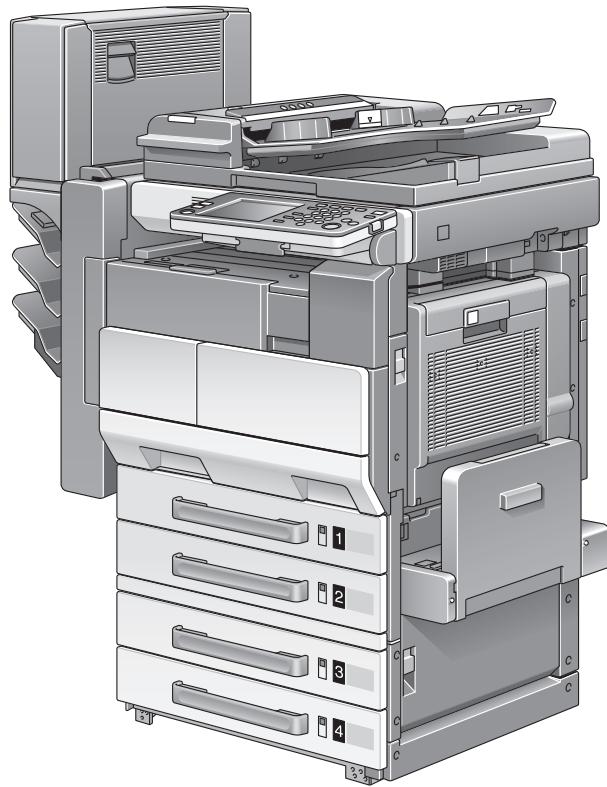
natural_image
Illustration of a multi-level computer tower with visible internal components and ventilation slots (no text or symbols)Contents
1 Welcome
1.1 Energy Star® .... 1-4
What is an ENERGY STAR® Product? .... 1-4
1.2 About this User's Guide .... 1-6
200/250/350 User's Guides .... 1-6
Notations .... 1-6
Screen images in this User's Guide .... 1-6
1.3 Using this User's Guide .... 1-7
Safety advices .... 1-7
Sequence of action .... 1-7
Tips .... 1-8
Special text markings .... 1-8
2 Overview
2.1 Printer controller CD-ROM configuration 2-3
2.2 Printer controller .... 2-4
Role of the printer controller .... 2-4
Available printer controller functions .... 2-4
Machine modes .... 2-5
Printing flow .... 2-6
2.3 Operating environment 2-8
Connectable computers and operating systems 2-8
Connectable interfaces 2-9
Connection diagram 2-10
2.4 Setting up the system 2-11
To set up the printing system 2-11
3 Installing the printer driver
3.1 Printer drivers and supported operating systems 3-3
3.2 When used with Windows .... 3-4
Installing the printer driver using Plug and Play .... 3-5
For Windows 98 SE .... 3-5
For Windows Me/2000 .... 3-6
For Windows XP/Server 2003 .... 3-8
Installing the printer driver using the Add Printer Wizard .... 3-9
For Windows XP/Server 2003 .... 3-9
For Windows 98 SE/Me/2000/NT 4.0 ....3-12
Uninstalling the printer driver 3-15
3.3 When used with Macintosh ....3-17
Installing the printer driver ....3-17
For Mac OS X 3-17
Selecting a printer 3-19
For Mac OS X 3-19
For Mac OS 9.2 ....3-20
Uninstalling the printer driver 3-22
For Mac OS X 3-22
For Mac OS 9.2 ....3-23
4 Setting up network printing
4.1 Overview of network functions 4-3
Network functions 4-3
Features of the network functions 4-4
Network connection methods that can be selected in each Windows operating system ....4-6
4.2 Setting the IP address for this machine 4-8
Setting the IP address 4-8
4.3 Accessing PageScope Web Connection ....4-11
To access PageScope Web Connection ....4-11
4.4 Windows printing 4-12
Operations on this machine 4-12
Printer driver settings 4-14
For Windows 98 SE/Me 4-14
For Windows 2000/XP/NT 4.0/Server 2003 ....4-14
4.5 LPR printing 4-15
Operations on this machine 4-15
Printer driver settings 4-15
For Windows 2000/XP/Server 2003 ....4-15
For Windows NT 4.0 ....4-16
4.6 Port 9100 Printing (Windows 98 SE/Me/2000/XP/Server 2003) ...4-17
Operations on this machine 4-17
Printer driver settings (Windows 2000/XP/Server 2003) ......4-17
Installing the Peer to Peer Printing Tool (Windows 98 SE/Me) .....4-19
To install the Peer to Peer Printing Tool 4-19
Printer driver settings (Windows 98 SE/Me) 4-20
4.7 IPP printing (Windows 2000/XP/Server 2003) ....4-21
Operations on this machine 4-21
Installing the printer driver 4-23
4.8 Printing with NetWare 4-25
For Remote Printer mode with NetWare 4.x bindery emulation .. 4-25
For Print Server mode with NetWare 4.x bindery emulation ...... 4-28
For NetWare 4.x Remote Printer mode (NDS) 4-30
For NetWare 4.x/5.x/6 Print Server mode (NDS) 4-32
For NetWare 5.x/6 Novell Distributed Print Service (NDPS) ...... 4-34
Setting up a client (Windows) settings when using the NetWare server 4-35
4.9 Printing with Macintosh 4-36
Operations on this machine 4-36
Setting the Macintosh computer 4-38
For Mac OS X 4-38
For Mac OS 9.2 4-39
5 Various printing methods
5.1 Printing operations 5-3
For Windows 5-3
Test printing 5-5
For Macintosh 5-6
For Mac OS X 5-6
For Mac OS 9.2 5-7
5.2 Setting the printing functions 5-8
Function list 5-8
Function overview 5-10
Orientation 5-10
Original Size and Output Size 5-11
Zoom (enlargement and reduction) 5-12
Input tray (paper source) 5-13
Paper Type 5-14
Print type (duplex printing/booklet printing) 5-15
Printing multiple pages on one page 5-17
Stapling and hole punching 5-18
Output Method (job management) 5-19
Sorting (Collate) and classifying (Offset) 5-20
Skip Blank Pages (saving paper) 5-22
User Authentication 5-22
Front Cover Page, Back Cover Page, and Per Page Setting ..... 5-23
Overlay 5-24
Watermark 5-25
Use Printer Fonts (substitute fonts) 5-26
Account Track 5-26
For Windows 5-27
For Macintosh 5-30
6 Setting up the PCL driver
6.1 Settings 6-3
Common settings 6-3
Setup tab 6-5
Per Page Setting tab 6-5
Overlay tab 6-5
Watermark tab 6-5
Quality tab 6-5
Font tab 6-6
Version tab 6-6
Option tab 6-6
6.2 Specifying the Setup tab settings 6-7
Printing to suit the paper size 6-7
Saving a custom size 6-8
Selecting the paper source 6-9
Setting the paper source of the paper type 6-9
Specifying duplex/booklet printing 6-11
Printing multiple pages on one page (N in 1) ......6-12
Setting the file margin 6-13
Stapling 6-14
Hole punching 6-14
Center binding 6-15
Selecting the output method 6-15
Specifying user authentication settings 6-18
Specifying account track settings 6-19
6.3 Specifying the Per Page Setting tab settings 6-20
Printing documents with a front cover/back cover 6-20
Printing multiple pages 6-21
Per Page Setting 6-21
6.4 Specifying the Overlay tab settings 6-22
Printing different original documents together (overlay) ......6-22
Editing forms 6-24
Creating forms 6-24
6.5 Specifying the Watermark tab settings 6-26
Printing a watermark 6-26
Editing a watermark 6-27
Printing the document number 6-28
6.6 Specifying the Quality tab settings 6-29
Specifying settings 6-29
6.7 Specifying the Font tab settings 6-30
Specifying settings 6-30
6.8 Specifying the Option tab settings 6-31
Specifying settings 6-31
6.9 Saving the driver settings 6-33
Saving the driver settings 6-33
Restoring the settings 6-35
Deleting the settings 6-35
7 Setting up the PostScript driver (Windows)
7.1 Settings 7-3
Common settings 7-3
Setup tab 7-5
Layout tab 7-5
Per Page Setting tab 7-6
Watermark tab 7-6
Quality tab 7-6
Advanced tab 7-6
Device Settings tab 7-7
Option Tab 7-8
Settings tab 7-8
7.2 Specifying the Setup tab settings 7-9
Printing to suit the paper size 7-9
Saving a custom size 7-10
Selecting the output method 7-11
Specifying user authentication settings 7-14
Specifying account track settings 7-15
7.3 Specifying the Layout tab settings 7-16
Printing multiple pages on one page (N in 1) 7-16
Duplex printing 7-18
Setting the file margin 7-18
Stapling 7-18
Center binding 7-19
Hole punching 7-19
7.4 Specifying the Per Page Setting tab settings 7-20
Printing documents with a front cover/back cover 7-20
7.5 Specifying the Watermark tab settings 7-21
Printing a watermark 7-21
Editing a watermark 7-22
7.6 Specifying the Quality tab settings 7-23
Font Settings 7-23
7.7 Specifying the Option tab settings 7-24
Specifying settings 7-25
7.8 Saving the driver settings 7-26
Saving the driver settings 7-26
Restoring the settings 7-28
Changing the settings 7-28
8 Setting up the PPD driver (Windows)
8.1 Settings 8-3
Paper tab 8-3
Graphics tab 8-4
Device Options tab 8-4
PostScript tab 8-5
Fonts tab 8-5
8.2 Specifying the Paper tab settings 8-6
Specifying settings 8-6
8.3 Specifying the Device Options tab settings 8-7
Specifying settings 8-7
8.4 Specifying options 8-9
Specifying settings 8-9
9 Setting up the PPD driver (Mac OS 9.2)
9.1 Settings 9-3
Page Setup dialog box 9-3
Print dialog box 9-5
9.2 Page Setup 9-7
Page Attributes (basic settings) 9-7
Custom Page Sizes 9-9
PostScript Options 9-10
9.3 Printing 9-11
General (basic settings) 9-11
Layout (printing multiple pages on one page) 9-13
Printer specific options (finishing options 1 to 3) ......9-14
9.4 Specifying options 9-16
To specify options 9-16
10 Setting up the PPD driver (Mac OS X)
10.1 Settings 10-3
Page Setup dialog box 10-3
Print dialog box 10-5
10.2 Page Setup 10-7
Page Attributes (basic settings) 10-7
Custom Page Size 10-8
10.3 Printing 10-9
Copies & Pages (Standard settings) 10-9
Layout (printing multiple pages on one page) 10-11
Paper Feed 10-12
Setup 10-13
Finishing 10-14
Security 10-16
10.4 Specifying options 10-18
Specifying options 10-18
10.5 Saving the driver settings 10-19
Saving the driver settings 10-19
Restoring the settings 10-20
Changing the settings 10-20
11 Various settings
11.1 Printer settings on the control panel 11-3
Printer settings 11-3
To display the Printer Setting screen 11-3
MFP Set 11-6
Proof-Print Hold Time 11-6
Overwrite A4<--->Letter 11-7
Document Hold Time 11-8
PostScript Error Report 11-9
Default Set 11-9
Basic Setting - Tray 11-10
Basic Setting - Paper Size 11-11
Basic Setting - Original Direction 11-12
Basic Setting - Print Method 11-12
Basic Setting - Sets 11-13
Font - Font # 11-14
Font list 11-15
Font - Symbol Set 11-17
Symbol set list 11-18
Font - Number Lines 11-19
Font - Font Size 11-20
Printer Setting 11-27
Parallel Setting 11-27
Timeout 11-28
Setting the IP Address 11-29
Frame Type 11-29
Counter 11-30
11.3 Specifying the status settings for the functions (Software SW) ...11-31
Software SW 11-31
To change the software SW 11-33
Specifying the valid range for the administrator access code (mode 368)....11-35
Specifying the input tray or default paper setting, CR/LF substitution method, and printing of jobs without authentication (mode 452) ....11-36
11.4 Using PageScope Web Connection .....11-37
Operating environment 11-37
Accessing PageScope Web Connection 11-38
When performing user authentication ....11-39
Page structure 11-40
Logging on to Administrator mode 11-42
Web Browser Cache 11-44
For Internet Explorer 11-44
For Netscape 11-44
User mode 11-45
System tab 11-45
System tab - Summary 11-46
System tab - Detail - Paper Tray 11-47
System tab - Detail - Output Tray 11-48
System tab - Detail - HDD 11-49
System tab - Detail - Interface Information ....11-50
System tab - Detail - Consumables 11-51
System tab - Counter 11-52
System tab - Online Assistance 11-53
Job tab 11-54
Job tab - Job List 11-54
Print tab 11-55
Print tab - Default Settings 11-55
Print tab - Test Print 11-56
Administrator mode 11-57
Basic operation ......11-57
System tab 11-58
System tab - User's Choice - User's Choice 1 ....11-58
System tab - User's Choice - User's Choice 2 ....11-59
System tab - User's Choice - User's Choice 3 ....11-60
System tab - User's Choice - User's Choice 4 ....11-61
System tab - User's Choice - User's Choice 5 ....11-63
System tab - User's Choice - User's Choice 6 ....11-65
System tab - Administrator Management -
Date & Time Setting 11-66
System tab - Administrator Management - Administrator Settings 11-67
System tab - Administrator Management - User Authentication 11-68
System tab - Administrator Management - Account Data ...... 11-69
System tab - Online Assistance 11-70
Print tab 11-71
Print tab - Local I/F 11-71
Print tab - Default Settings - General Settings 11-72
Print tab - Default Settings - PCL Settings 11-73
Print tab - Default Settings - PS Settings 11-74
Print tab - IPP Configuration 11-75
Fax/Scan tab 11-76
Network tab 11-76
Network tab - Common Setting - TCP/IP 11-77
Network tab - Common Setting - IPP 11-79
Network tab - Common Setting - NetWare 11-80
Network tab - Common Setting - NetWare Status 11-82
Network tab - Common Setting - Windows 11-83
Network tab - Common Setting - AppleTalk 11-85
Network tab - User Authentication 11-86
11.5 Print job management 11-87
Specifying job operations 11-87
Specifying settings (for Windows) 11-88
Specifying settings (for Mac OS X) 11-89
Job storage 11-90
Recalling jobs (Proof Print) 11-90
Recalling jobs (Secured Print) 11-93
Printing with this machine when authentication and account track settings have been applied 11-95
Specifying settings (for Windows) 11-96
Specifying settings (for Mac OS X) 11-97
11.6 Print Status Notifier 11-98
Installing the tool 11-98
Starting the tool 11-99
Status display 11-100
Settings screen 11-101
12 Troubleshooting
12.1 Unable to print 12-3
12.2 Unable to specify desired settings or unable to print as specified 12-5
13 Appendix
13.1 Specifications ....13-3
13.2 Configuration page 13-5
13.3 Font list ....13-6
PCL font list 13-6
PS font list ....13-7
PCL demo page 13-8
13.4 Glossary 13-9
13.5 OpenSSL Statement ......13-14
13.6 Index 13-17
1
Welcome
1 Welcome
Thank you for choosing this machine.
The bizhub 200, 250, and 350 are equipped with an integrated printer controller that allows you to print directly from a personal computer.
This User's Guide describes the printing functions, operations, usage, and safety precautions of the printer controller. In order to ensure that this machine is used efficiently, carefully read this manual before using the machine.
In order to ensure that this machine is used safely, carefully read “Installation and Operation Precautions” in the User’s Guide [Copy Operations] before using the machine.
The illustrations used in this User's Guide may differ from the actual model.
1.1 Energy Star®

As an ENERGY STAR ^® Partner, we have determined that this machine meets the ENERGY STAR ^® Guidelines for energy efficiency.
What is an ENERGY STAR® Product?
An ENERGY STAR ^® product has a special feature that allows it to automatically switch to a “low-power mode” after a period of inactivity. An ENERGY STAR ^® product uses energy more efficiently, saves you money on utility bills and helps protect the environment.
Trademarks and Copyright
- KONICA MINOLTA, the KONICA MINOLTA logo, and The essentials of imaging are registered trademarks of KONICA MINOLTA HOLDINGS, INC.
- PageScope and bizhub are registered trademarks of KONICA MINOLTA BUSINESS TECHNOLOGIES.
- Netscape Communications, the Netscape Communications logo, Netscape Navigator, Netscape Communicator, and Netscape are trademarks of Netscape Communications Corporation.
- Novell and Novell NetWare are registered trademarks of Novell, Inc.
- Microsoft, Windows, and Windows NT are registered trademarks of Microsoft Corporation.
- IBM is a registered trademark of International Business Machines, Inc.
- Apple, Macintosh, and Mac are registered trademarks of Apple Computer, Inc.
- Adobe, the Adobe logo, Acrobat, the Acrobat logo, PostScript, and the PostScript logo are either registered trademarks or trademarks of Adobe Systems Incorporated.
- Ethernet is a registered trademark of Xerox Corporation.
- PCL is a registered trademark of Hewlett-Packard Company Limited.
- All other product and brand names are trademarks or registered trademarks of their respective companies or organizations.
-
Compact-VJE Copyright 1986-2003 VACS Corp.
-
RC4 ^® is a registered trademark or trademark of RSA Security Inc. in the United States and/or other countries.
- RSA ^® is a registered trademark or trademark of RSA Security Inc. in the United States and/or other countries.
1.2 About this User's Guide
This User's Guide contains information for using the printing functions of the Konica Minolta printer controller. For details on the copy functions, scanning functions, box functions, and fax functions, refer to the respective User's Guide.
This User's Guide is aimed at users who already have the basic knowledge of computer and copier operations. For Windows or Macintosh operating system and application operations, refer to the operation manual of the respective product.
200/250/350 User's Guides
The User's Guides for this machine are divided by function and consist of the following:
| User's Guide | Description |
| Print Operations | This User's Guide. Read this guide when using this machine as a printer. |
| Network Scanner Operations | Read this guide when using this machine as a scanner. |
| Box Operations | Read this guide when using this machine's box functions. |
| Facsimile Operations | Read this guide when using the optional fax functions. |
| Advanced Scan Operations | Read this guide when using the optional scanner unit functions. |
Notations
| Product name | Description |
| KONICA MINOLTA 200/250/350This machine | This machine, copier, or printer |
| Integrated network controller | Printer controller |
| Printer controller, including this machine, and printing system | Printing system |
| Microsoft Windows | Windows |
Screen images in this User's Guide
Unless stated otherwise, the printer driver functions are described using the printer driver for Windows XP.
1.3 Using this User's Guide
The marks and text formats used in this manual are described below.
Safety advices

DANGER
Failure to observe instructions highlighted in this manner may result in fatal or critical injuries in fact of electrical power.
→ Observe all dangers in order to prevent injuries.

WARNING
Failure to observe instructions highlighted in this manner may result in serious injuries or property damage.
→ Observe all warnings in order to prevent injuries and to ensure safe use of the copier.

CAUTION
Failure to observe instructions highlighted in this manner may result in slight injuries or property damage.
→ Observe all cautions in order to prevent injuries and to ensure safe use of the copier.
Sequence of action
1 The number 1 as formatted here indicates the first step of a sequence of actions.
2 Subsequent numbers as formatted here indicate subsequent steps of a sequence of actions.
? Text formatted in this style provides additional assistance.
→ Text formatted in this style describes the action that will ensure the desired results are achieved.
An illustration inserted here shows what operations must be performed.
Tips

...
Note
Text highlighted in this manner contains useful information and tips to ensure safe use of the copier.

...
Reminder
Text highlighted in this manner contains information that should be reminded.

Detail
Text highlighted in this manner contains references for more detailed information.
Special text markings
[Copy] key
The names of keys on the control panel are written as shown above.
MACHINE SETTING
Display texts are written as shown above.
2
Overview
2 Overview
2.1 Printer controller CD-ROM configuration
The printer controller CD-ROMs consist of the following:
- User Software CD-ROM
- PostScript Printer Driver CD-ROM (Win/Mac)
Each CD-ROM contains printer drivers (for Windows and for Macintosh) and utilities as well as screen fonts and documentation, such as the User's Guides and release notes.
Browse through the CD-ROMs for the desired folders and files.
- The folder and file names may not be listed below starting from the root directory.
- Use all of the files in each language folder.
2.2 Printer controller
The printer controller is a device for performing printing functions and network printing functions with this machine.
Role of the printer controller
The printer controller is built into the machine.
You can print from applications on the computer connected to the printing system. When using this machine as a network printer, you can print from applications on the computer.
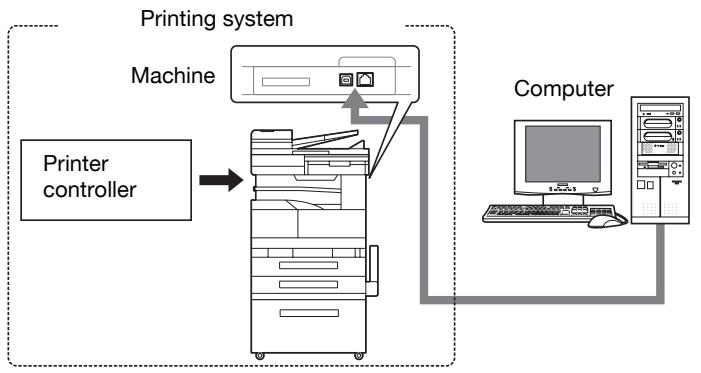
flowchart
graph TD
    A["Printer controller"] --> B["Machine"]
    B --> C["Computer"]
    C --> D["Computer"]
Available printer controller functions
The printer controller provides the following functions.
- Printing from a computer (using a printer driver)
- Support of network protocols including TCP/IP, NetBEUI, IPX/SPX, and AppleTalk
- Direct printing over a network using Windows (SMB), LPR, and IPP printing
- Fax operations using a computer (when the optional fax kit is installed)
- Access to settings for this machine and the printer controller from a client computer over the network (using a Web browser)
- Control of the number of pages printed (“User Authentication” and “Account Track” function, excluding external server authentication)

Note
Only the PCL printer driver can be used with Windows printing.
Machine modes
The printer driver settings are mainly set using a computer, however, the font list can be printed, and the printer controller settings and default print settings can be set using the control panel of this machine. In addition, fax and scanning operations can be used by switching the mode.
To switch between modes, press the mode keys on the control panel.
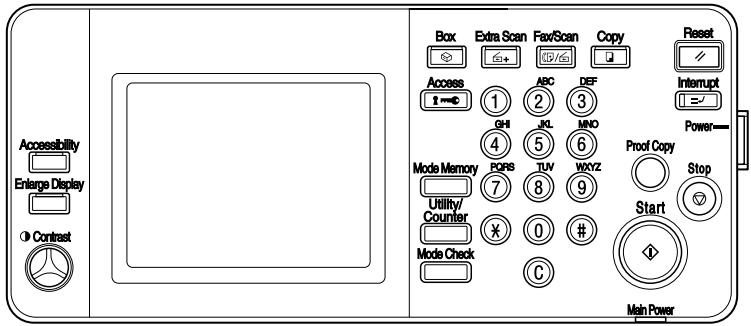
[Copy]
Switches to the copy mode.
[Fax/Scan]
Switches to the fax/scan mode.
To use the fax function, optional fax kit is required.
[Extra Scan]
Switches to the extra scan mode.
To use the extra scan function, optional fax kit or scanner unit is required.
[Box]
Switches to the box mode.
![KONICA MINOLTA BIZHUB 250 PRINT - [Box] - 1](/content/2025/01/139596/images/9953b9b242b969c3512fc60d343aff17a7f60948c29c016a4074b00b49fc474f.jpg)
Detail
You can use this machine as a printer in all modes.
Change the default print settings in the Utility mode.
Printing flow
When using this printing system as a printer, the flow of the main process is described below.
Print commands transmitted from the application are received by the printer driver.
Data is transmitted to this machine over a parallel interface (IEEE 1284) when this machine is used as a local printer, over a USB interface when this machine is used as a USB printer, or over an Ethernet interface (TCP/IP, IPX/SPX, or AppleTalk) when this machine is used as a network printer. The printer controller then performs image rasterization (development of output characters and images to bitmap data). Finally, this data is printed from this machine.

...
Note
To connect the parallel interface, the optional local interface kit is required.
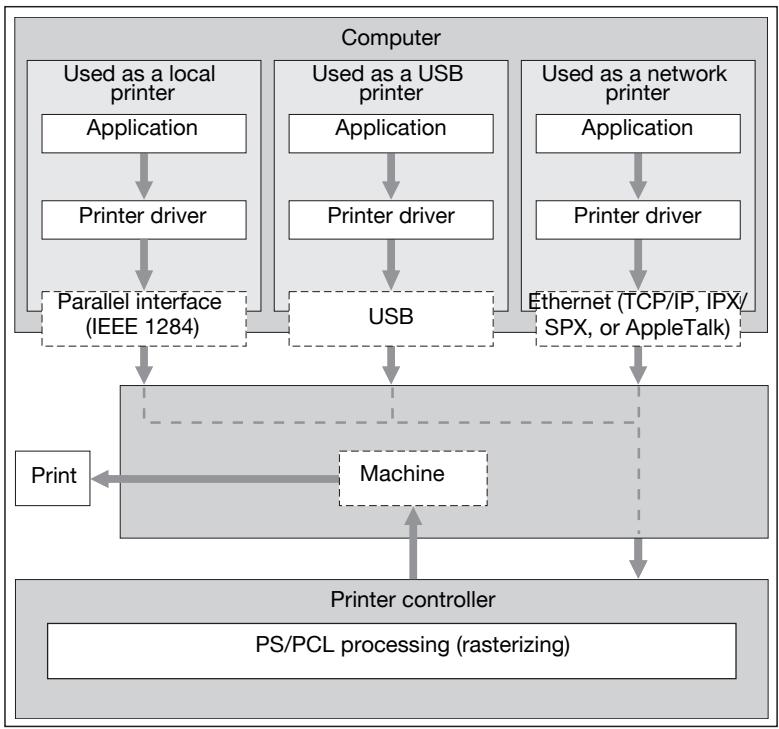
flowchart
graph TD
    A["Computer"] --> B["Used as a local printer"]
    A --> C["Used as a USB printer"]
    A --> D["Used as a network printer"]
    B --> E["Application"]
    C --> F["Application"]
    D --> G["Application"]
    E --> H["Printer driver"]
    F --> I["Printer driver"]
    G --> J["Printer driver"]
    H --> K["Parallel interface (IEEE 1284)"]
    I --> L["USB"]
    J --> M["Ethernet (TCP/IP, IPX/SPX, or AppleTalk)"]
    K --> N["Print"]
    L --> O["Machine"]
    M --> P["Printer controller"]
    O --> P
    P --> Q["PS/PCL processing (rasterizing)"]
When a print job is received during copying, the data is stored in the memory of this machine. When copying is complete, the print job is automatically printed.
2.3 Operating environment
The system requirements for using this printing system and the interfaces used for connection are explained below.
Connectable computers and operating systems
Check that the computer being connected meets the following conditions.
Windows
| Item | Operating environment |
| Operating system | Windows 98 SE, Windows Me, Windows NT 4.0 (Service Pack 6a or later), Windows 2000 Professional (Service Pack 4 or later), Windows XP Home Edition (Service Pack 2 or later), Windows XP Professional (Service Pack 2 or later), or Windows Server 2003 |
| Processor | Pentium or higher |
| Memory | Capacity recommended for the operating systemWith sufficient memory resources in the operating system and application being used |
| Drive | CD-ROM |
| Web browser(when using PageScope Web Connection) | Windows 98 SE/Me/NT 4.0Microsoft Internet Explorer 4 or later recommendedNetscape Navigator 4.73 or 7.0Windows 2000Microsoft Internet Explorer 5 or later recommendedNetscape Navigator 7.0Windows XPMicrosoft Internet Explorer 6 or later recommendedNetscape Navigator 7.0*If using Microsoft Internet Explorer 5.5, use Service Pack 1 or later. |
Macintosh
| Item | Operating environment |
| Operating system | Mac OS 9.2, Mac OS X 10.2, or Mac OS X 10.3 |
| Processor | PowerPC |
| Memory | Capacity recommended for the operating system |
| Drive | CD-ROM |
| Web browser (when using PageScope Web Connection) | Netscape Navigator 7.0 |
Connectable interfaces
The various interfaces that can be used to connect this printing system to a computer are described below.
Ethernet interface
Connect when using this printing system as a network printer.
Supports 10Base-T and 100Base-TX standards. In addition, the Ethernet interface supports the TCP/IP (LDP/LPR, peer-to-peer), IPX/SPX (NetWare), and AppleTalk (EtherTalk) protocols.
Parallel interface (optional)
Connect when using this printing system as a local printer.
A computer running Windows and an IEEE 1284 parallel cable are required for connection. Use a parallel cable that uses a terminal with an Amphenol 36-pin male connector.
The parallel interface supports the compatible, nibble, and ECP modes.
USB interface
Connect when using this printing system as a network printer.
The USB interface can be connected to a computer running Windows. A USB cable is required for connection. Use a type A (4 pin, male) or type B (4 pin, male) USB cable. A USB cable measuring 3 meters or less is recommended.
Connection diagram
The printer cables can be connected to each port at the back of this machine.
Machine (rear view)
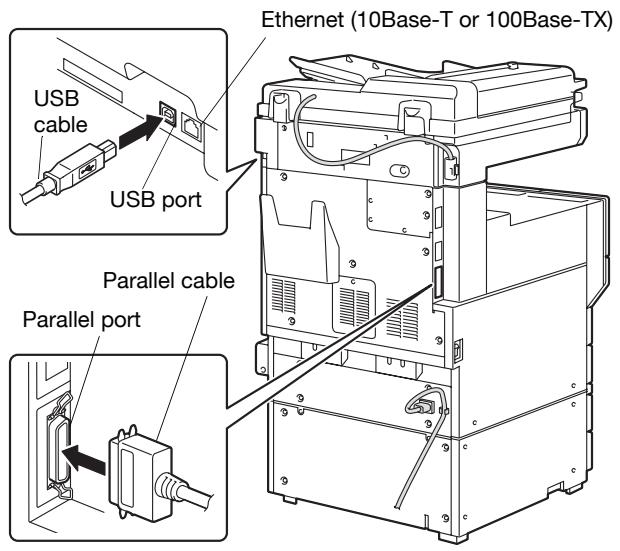

...
Note
To connect this machine to a computer using a parallel connection, optional local interface kit is required.
2.4 Setting up the system
In order to use this printing system, it must first be set up.
Setup consists of connecting this machine to a computer and installing the printer driver onto the computer being used.
To set up the printing system
Setup the printing system as described below.
1 Connect this machine to a computer. (Refer to “Connectable interfaces” on page 2-9.)
2 Install the printer driver. (Refer to "Installing the printer driver" on page 3-3.)
3 When using a network connection, set up the network. (Refer to "Setting up network printing" on page 4-3.)
4 Check the setup by printing a test page. (Refer to "Test printing" on page 5-5.)
5 Install the screen fonts.
- The User Software CD-ROM and PostScript Printer Driver CD-ROM contain the Latin TrueType fonts as the screen fonts.
- Install the screen fronts after adding the operating system standard fonts.
- For details, refer to Help of the operating system.
- The screen fonts are located in the "Screenfont" or "Screenfonts" folder on the CD-ROM.
- To install the Macintosh fonts, install the fonts after decompressing them.
Installation of the printer driver may differ depending on the connection method used with this machine in addition to the operating system of the computer and the type of printer driver being used.

Detail
For details on connecting this machine to a computer, refer to “Connectable interfaces” on page 2-9.

Note
To update an existing printer driver, delete the existing printer driver first. For details, refer to “Uninstalling the printer driver” on page 3-15 and page 3-22.
If using the optional parallel interface, set the interface time settings and mode (Compatible, Nibble, or ECP) as necessary with the PageScope Web Connection and on the control panel. For details, refer to "Print tab - Local I/F" on page 11-71.
3
Installing the printer driver
3 Installing the printer driver
3.1 Printer drivers and supported operating systems
In order to use this printing system, the printer driver must be installed. The printer driver is a program that controls the processing of data for output. Install the printer driver onto the computer from the provided CD-ROM.
The printer drivers included on the CD and the supported computer operating systems are listed below. Install the required printer driver.
| Page description language | Printer driver | Supported operating systems |
| PCL 6 | Konica Minolta driver | Windows 98 SE, Windows Me, Windows NT 4.0 (Service Pack 6a or later), Windows 2000 Professional (Service Pack 4 or later), Windows XP Home Edition/Professional (Service Pack 2 or later) and Windows Server 2003 |
| PostScript 3 emulation | Konica Minolta (PS Visual) | Windows NT 4.0 (Service Pack 6a or later), Windows 2000 Professional (Service Pack 4 or later), Windows XP Home Edition/Professional (Service Pack 2 or later) and Windows Server 2003 |
| PostScript PPD driver | Windows 98 SE and Windows Me | |
| Mac OS 9.2 or later, Mac OS X 10.2, and Mac OS X 10.3 |
* The User Software CD-ROM contains the PCL printer driver, and the PostScript Printer Driver CD-ROM contains the PostScript drivers.
3.2 When used with Windows
The installation procedure for the Windows printer driver differs depending on how this machine is connected to the computer and depending on which printer driver is used. The installation method also differs depending on the version of Windows that you are using. Refer to the table below for the appropriate procedure for installing the printer driver on your computer.
| Printer driver | Connection method | Refer to |
| PCL | All connection methods | “Installing the printer driver using the Add Printer Wizard” on page 3-9 |
| PostScript PCL | Network connection | “Installing the printer driver using the Add Printer Wizard” on page 3-9“For Windows 98 SE/Me/2000/NT 4.0” on page 3-12“For Windows XP/Server 2003” on page 3-9 |
| Parallel connection | “Installing the printer driver using Plug and Play” on page 3-5“For Windows 98 SE” on page 3-5“For Windows Me/2000” on page 3-6“For Windows XP/Server 2003” on page 3-8 | |
| USB connection | “Installing the printer driver using Plug and Play” on page 3-5“For Windows 98 SE” on page 3-5“For Windows Me/2000” on page 3-6“For Windows XP/Server 2003” on page 3-8 |

...
Note
For details on installing the printer driver in a network environment, refer to "Setting up network printing" on page 4-3. Because it is necessary to specify other network settings in advance when installing the printer driver using a network connection, install it using a local connection at this time.
To install the printer driver under Windows XP, Windows Server 2003, Windows 2000, or Windows NT 4.0, log on using a user name that is authorized by the administrator.
The printer driver can be installed using the Add Printer Wizard, however, if used, the Plug and Play screen will appear each time the computer is started.
To connect this machine to a computer using a parallel connection, the optional local interface kit is required.
Installing the printer driver using Plug and Play
For Windows 98 SE
1 After using a parallel cable or a USB cable to connect this machine to a computer, turn the main power of this machine on.
- Do not disconnect or connect the cable while the computer is starting up.
2 Start the computer.
The Add New Hardware Wizard starts up.
3 Insert the Windows printer driver CD-ROM into the computer's CD-ROM drive.
- Konica Minolta PCL driver: User Software CD-ROM
- Konica Minolta PostScript driver: PostScript Printer Driver CD-ROM
4 Click the [Next] button.
5 Select "Search for the best driver for your device (Recommended)", and then click the [Next] button.
6 Select "Specify a location", and then click the [Browse] button.
7 Specify the folder on the CD-ROM that contains the printer driver for the operating system that you are using, and then click the [OK] button.
- Konica Minolta PCL driver: User Software CD-ROM "Driver\Drivers\350_250_200" folder
- PostScript PPD driver: PostScript Printer Driver CD-ROM "Driver\PS-PPD" folder
8 Click the [Next] button, and then follow the on-screen instructions.
- If using a parallel connection, proceed to step 10.
9 The Add New Hardware Wizard dialog box appears again. Repeat steps 4 through 8.
10 When installation is complete, make sure that the icon of the installed printer appears in the Printers window.
11 Remove the CD-ROM from the CD-ROM drive.
This completes the printer driver installation.
For Windows Me/2000
1 After using a parallel cable or a USB cable to connect this machine to a computer, turn the main power of this machine on.
- Do not disconnect or connect the cable while the computer is starting up.
2 Start the computer.
The Add New Hardware Wizard starts up.
3 Insert the Windows printer driver CD-ROM into the computer's CD-ROM drive.
- Konica Minolta PCL driver: User Software CD-ROM
- Konica Minolta PostScript driver: PostScript Printer Driver CD-ROM
4 Select "Search for a suitable driver for my device (recommended)" (for Windows Me, select "Automatic search for a better driver (Recommended)"), and then click the [Next] button.
5 For Windows 2000, select "Specify a location", and then click the [Next] button.
For Windows Me, select "Specify a Location", and then click the [Browse] button.
6 Specify the folder on the CD-ROM that contains the printer driver for the operating system that you are using, and then click the [OK] button. Printer drivers that can be selected:
- For Windows Me Konica Minolta PCL driver: User Software CD-ROM "Driver\Drivers\350_250_200" folder PostScript PPD driver: PostScript Printer Driver CD-ROM "Driver\PS-PPD" folder
- For Windows 2000 Konica Minolta PCL driver: User Software CD-ROM "Driver\Drivers\350_250_200" folder Konica Minolta PostScript driver: PostScript Printer Driver CD-ROM "Driver\Drivers\350_250_200" folder
7 Click the [OK] button (for Windows Me, click the [Next] button), and then follow the on-screen instructions.
8 Click the [Finish] button.
9 When installation is complete, make sure that the icon of the installed printer appears in the Printers window.
10 Remove the CD-ROM from the CD-ROM drive.
This completes the printer driver installation.
For Windows XP/Server 2003
1 After using a parallel cable or a USB cable to connect this machine to a computer, turn the main power of this machine on.
- Do not disconnect or connect the cable while the computer is starting up.
2 Start the computer.
The Add New Hardware Wizard starts up.
3 Insert the Windows printer driver CD-ROM into the computer's CD-ROM drive.
- Konica Minolta PCL driver: User Software CD-ROM
- Konica Minolta PostScript driver: PostScript Printer Driver CD-ROM
4 Select "Install from a list or specific location (Advanced)", and then click the [Next] button.
5 Under "Search for the best driver in these locations", select "Include this location in the search", and then click the [Browse] button.
6 Specify the folder on the CD-ROM that contains the printer driver for the operating system that you are using, and then click the [OK] button.
- Konica Minolta PCL driver: User Software CD-ROM "Driver\Drivers\350_250_200" folder
- Konica Minolta PostScript driver: PostScript Printer Driver CD-ROM "Driver\Drivers\350_250_200" folder
7 Click the [Next] button, and then follow the on-screen instructions.
- When the Digital Signature dialog box appears, click the [Continue] button.
8 Click the [Finish] button.
9 When installation is complete, make sure that the icon of the installed printer appears in the Printers and Faxes window.
10 Remove the CD-ROM from the CD-ROM drive.
This completes the printer driver installation.
Installing the printer driver using the Add Printer Wizard

...
Note
For IPP printing, it is not necessary to install the printer driver at this time since IPP printing setup is performed when the printer driver is installed.
For further details on IPP printing, refer to “IPP printing (Windows 2000/XP/Server 2003)” on page 4-21.
For details on installing the printer driver in a network environment, refer to “Setting up network printing” on page 4-3. Because it is necessary to specify other network settings in advance when installing the printer driver using a network connection, install it using a local connection at this time.
For Windows XP/Server 2003
1 Insert the Windows printer driver CD-ROM into the computer's CD-ROM drive.
- Konica Minolta PCL driver: User Software CD-ROM
- Konica Minolta PostScript driver: PostScript Printer Driver CD-ROM
2 Click the [Start] button, and then click "Printers and Faxes".
- If "Printers and Faxes" does not appear in the Start menu, open the Control Panel from the Start menu, select "Printers and Other Hardware", and then select "Printers and Faxes".
3 For Windows XP, click "Add a printer" on the "Printer Tasks" menu.
- For Windows Server 2003, double-click the "Add Printer" icon.
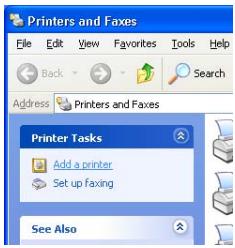
Windows XP
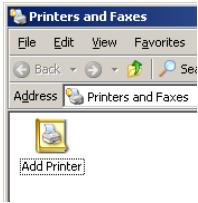
Windows Server 2003
The Add Printer Wizard starts up.
4 Click the [Next] button.
5 Select "Local printer attached to this computer", and then click the [Next] button.
- Clear the "Automatically detect and install my Plug and Play printer" check box.
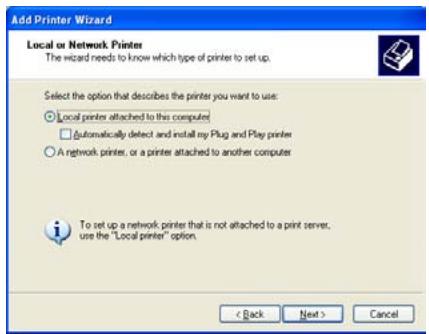
6 The Select Printer Port dialog box appears. Select "LPT1" here, and then click the [Next] button.
7 Click the [Have Disk] button.
8 Click the [Browse] button.
9 Specify the folder on the CD-ROM that contains the printer driver for the operating system that you are using, and then click the [OK] button.
- Konica Minolta PCL driver: User Software CD-ROM "Driver\Drivers\350_250_200" folder
- Konica Minolta PostScript driver: PostScript Printer Driver CD-ROM "Driver\Drivers\350_250_200" folder
10 Click the [OK] button.
The "Printers" list appears.
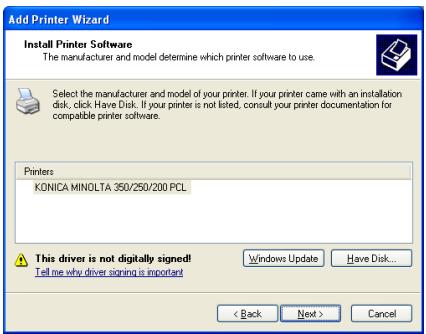
11 Click the [Next] button.
12 Follow the on-screen instructions.
- When the Digital Signature message appears, click the [Continue] button.
- When using a network connection, perform a test print after the network settings have been specified.
13 When installation is complete, make sure that the icon of the installed printer appears in the Printers and Faxes window.
14 Remove the CD-ROM from the CD-ROM drive.
This completes the printer driver installation.
For Windows 98 SE/Me/2000/NT 4.0
1 Insert the Windows printer driver CD-ROM into the computer's CD-ROM drive.
- Konica Minolta PCL driver: User Software CD-ROM
- Konica Minolta PostScript driver: PostScript Printer Driver CD-ROM
2 Click the [Start] button, point to "Settings", and then click "Printers". The Printers window appears.
3 Double-click the "Add Printer" icon. The Add Printer Wizard starts up.
4 Follow the on-screen instructions.
5 On the screen for selecting the printer connection, select "Local Printer".
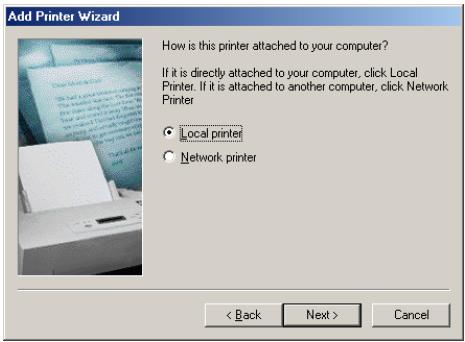
6 Click the [Next] button.
7 Click the [Have Disk] button.
8 Click the [Browse] button.
9 Specify the folder on the CD-ROM that contains the printer driver for the operating system that you are using, and then click the [OK] button.
- For Windows 98 SE/Me
Konica Minolta PCL driver: User Software CD-ROM "Driver\Drivers\350_250_200" folder
PostScript PPD driver: PostScript Printer Driver CD-ROM "Driver\PS-PPD" folder - For Windows 2000
Konica Minolta PCL driver: User Software CD-ROM "Driver\Drivers\350_250_200" folder
Konica Minolta PostScript driver: PostScript Printer Driver CD-ROM "Driver\Drivers\350_250_200" folder - For Windows NT 4.0
Konica Minolta PCL driver: User Software CD-ROM "Driver\Drivers\350_250_200" folder
Konica Minolta PostScript driver: PostScript Printer Driver CD-ROM "Driver\Drivers\350_250_200" folder
10 Click the [OK] button.
The "Printers" list appears.
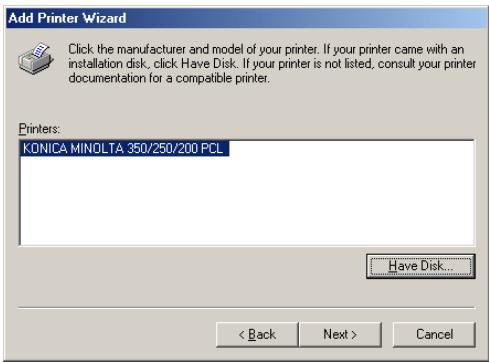
11 Click the [Next] button.
12 Specify the connection port. Select "LPT1" here.
13 Follow the on-screen instructions.
- When using a network connection, perform a test print after the network settings have been specified.
14 When installation is complete, make sure that the icon of the installed printer appears in the Printers window.
15 Remove the CD-ROM from the CD-ROM drive.
This completes the printer driver installation.
Uninstalling the printer driver
If it becomes necessary to delete the printer driver, for example, when you want to reinstall the printer driver, follow the procedure below to delete the driver.
1 For Windows 98 SE/Me/2000/NT 4.0, click the [Start] button, point to "Settings", and then click "Printers".
For Windows XP/Server 2003, click the [Start] button, and then click "Printers and Faxes".
- If "Printers and Faxes" does not appear in the Start menu, open the Control Panel from the Start menu, select "Printers and Other Hardware", and then select "Printers and Faxes".
2 In the Printers window (for Windows XP/Server 2003, Printers and Faxes window), select the icon of the printer that you want to delete.
3 Press the [Delete] key on the computer keyboard to delete the printer driver.
4 Follow the on-screen instructions.
- When the printer driver has been deleted, the printer icon will disappear from the Printers window (for Windows XP/Server 2003, Printers and Faxes window).
For Windows 98 SE/Me/NT 4.0, this completes the uninstallation procedure.
For Windows 2000/XP/Sever 2003, delete the driver from the server properties.
5 Click the "File" menu, and then click "Server Properties".
6 Click the Driver tab.
7 Select the printer driver to be deleted from the Installed Printer Drivers, and then click [Delete].
8 On the Deletion Confirmation dialog box, click the [Yes] button.
9 Close the Print Server Properties dialog box and Printers window (for Windows XP/Server 2003, "Printers and Faxes" window).
10 Restart the computer.
This completes the uninstallation procedure.

Note
Be sure to restart the computer.
3.3 When used with Macintosh
Installation procedure of the Macintosh printer driver differs depending on the Mac OS version and printer driver being used. Refer to the table below for the appropriate procedure for installing the printer driver on your Macintosh computer.
| Mac OS | Printer driver | Refer to |
| Mac OS X 10.2 and Mac OS X 10.3 | PostScript PPD | “Installing the printer driver” on page 3-17 |
| Mac OS 9.2 or later | PostScript PPD | “Selecting a printer” on page 3-19 |
Installing the printer driver
For Mac OS X
1 Turn the Macintosh computer on.
2 Insert the Macintosh printer driver CD-ROM into the Macintosh computer's CD-ROM drive.
- Quit all running applications that may have started when the Macintosh computer was turned on.
3 Open the "OS10_2_x" or "OS10_3_x" folder from "Driver", which is located in a language folder on the CD-ROM.
4 Select the Mac OS version being used, and then copy the drive file onto the desktop.
Mac OS X 10.2: KONICAMINOLTA_350_102.pkg
Mac OS X 10.3: KONICAMINOLTA_350_103.pkg
5 Double-click the file copied onto the desktop.
- Enter the requested administrator's name and password.
- For the administrator's name and password, ask your network administrator.
- To quite the installation, click the [Cancel] button.
6 Click the [Continue] button and follow the on-screen instructions until the Installation dialog box appears.
7 On the Easy Install dialog box, click the [Install] button.
- From the second time the printer driver is installed and thereafter, the [Installation] button may appear as the [Upgrade] button.
The printer driver is installed onto the Macintosh computer. When installation is complete, a message appears.
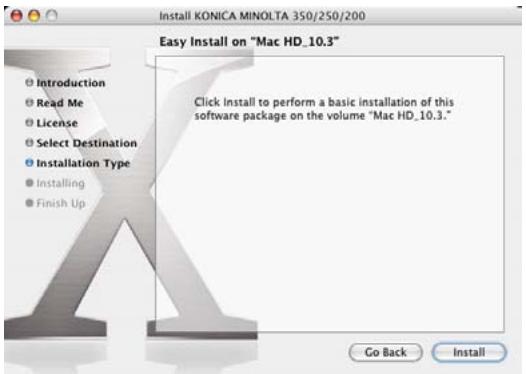
8 Click the [Close] button.
This completes the printer driver installation.
Next, select the printer.
Selecting a printer
For Mac OS X
After connecting this machine to a Macintosh computer, it can be used as a printer by selecting it in Print Center or the Printer Setup Utility as the printer to be used.
1 Open Print Center or Printer Setup Utility, located in "Applications"—"Utilities" of "Hard Disk".
2 When the Add Printer dialog box appears, click the [Add] button. When the printer list appears, click the [Add] button.
If usable printers have already been set up, the Add Printer dialog box does not appear.
3 Select the applicable connection method and printer name.
- You can check the printer name from AppleTalk Configuration in PageScope Web Connection. For details, refer to “Printing with Macintosh” on page 4-36.
The following procedure is an example of when AppleTalk was selected by the connection method.
4 Select "KONICA MINOLTA" from the "Printer Model" drop-down list.
5 Select "KONICA MINOLTA 350/250/200 PS", and then click the [Add] button.
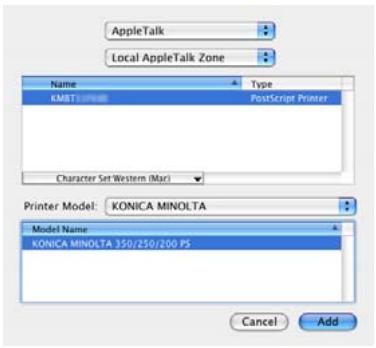
The selected printer is registered in the printer list.
For Mac OS 9.2
After connecting this machine, it can be used as a printer by selecting “Post-Script printer” under “Chooser” and by specifying the printer description (PPD) File.
First, copy the printer description (PPD) file onto the Macintosh computer.
1 Insert the Macintosh printer driver CD-ROM into the Macintosh computer's CD-ROM drive.
2 Open the "OS 9_x" folder from "Driver", which is located in a language folder on the CD-ROM.
3 Select the PPD file "KONICAMINOLTA350xxxxx", and then copy it into the "Printer Descriptions" folder in "System Folder"—"Extensions" of "Hard Disk".
- Next, select a printer. The printer driver can use a standard Macintosh LaserWriter.
4 On the Apple menu, click "Chooser".
5 Make sure that "AppleTalk" is set to "Active", and then click the [LaserWriter] icon.
6 From the "Select a PostScript Printer" list, click the applicable printer for the printing system, and then click the [Create] button.
- You can check the printer name from AppleTalk Configuration in PageScope Web Connection.
For details, refer to “Printing with Macintosh” on page 4-36.
- If a different PPD file has already been selected, click the [Setup] button in step 6, and then click the [Select PPD] button from the screen that is already displayed.
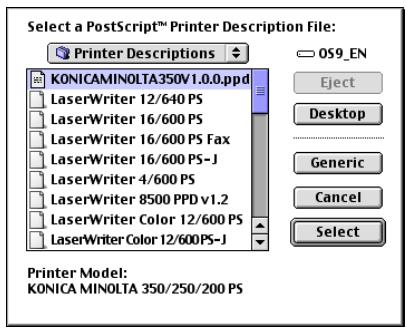
The PostScript printer description (PPD) file selection screen appears.
7 Select the applicable PPD file, and then click the [Select] button or [Open] button.
The setting screen for adding Options appears.
8 Select the options that are installed on this machine.
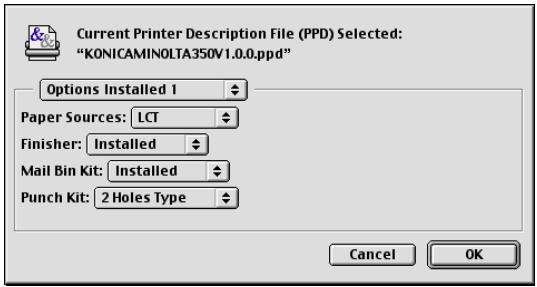
9 Click the [OK] button. The Chooser window appears again.
10 Close the Chooser window.
Uninstalling the printer driver
If it becomes necessary to delete the printer driver, for example, when you want to reinstall the printer driver, follow the procedure below to delete the driver.

Note
Quit all running applications that may have started when the Macintosh computer was turned on.
For Mac OS X
1 Open Print Center or Printer Setup Utility, located in "Applications"—"Utilities" of "Hard Disk".
2 Select the name of the printer to be deleted, and then click the [Delete] button.
The selected printer is deleted.
3 Close the printer list.
4 Drag the following file, which is located in "Library"-“Printers"-PPDs"-“Contents"-“Resources"-“en.lproj” of "Hard Disk", to the "Trash" icon.
- “KONICA MINOLTA 350.gz”
5 Delete the unnecessary files from "Library"—"Printers".
6 For Mac OS 10.3, drag the "pstokm350" folder, which is located in "Library"—"Printers"—"KONICAMINOLTA"—"filter", and the following folders, which are located in "Library"—"Printers"—"KONICAMINOLTA"—"PDEs", to the "Trash" icon.
- KONICAMINOLTA350 Finishing.plugin
- KONICAMINOLTA350 ImageLayout.plugin
- KONICAMINOLTA350 Security.plugin
- KONICAMINOLTA350 Setup.plugin
7 For Mac OS 10.2, drag the following folders, which are located in "Library"—"Printers"—"PPD Plugins", to the "Trash" icon.
- KONICAMINOLTA350 Finishing.plugin
- KONICAMINOLTA350 ImageLayout.plugin
- KONICAMINOLTA350 Security.plugin
- KONICAMINOLTA350 Setup.plugin
8 For Mac OS 10.2, enter "/usr" in "Move to"- "Move to folder", move it to the "/usr" folder, and then drag the "pstokm350" folder, which is located in "libexec"- "cups"- "filter", to the "Trash" icon.
9 Restart the Macintosh computer.
This completes the uninstallation procedure.
For Mac OS 9.2
1 Drag PPD file "KONICAMINOLTA350xxxxx", which is located in "System Folder"—"Extensions"—"Printer Descriptions" of "Hard Disk", to the "Trash" icon.
The related printer driver files are deleted.
2 Restart the Macintosh computer. This completes the uninstallation procedure.
4
Setting up network printing
4 Setting up network printing
4.1 Overview of network functions
Network functions
By connecting this machine to a network through the Ethernet port, this printing system can be used as a network printer.
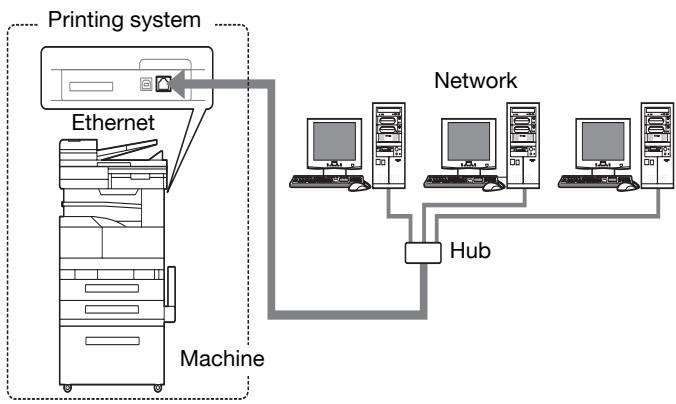
flowchart
graph TD
    A["Printing system"] --> B["Ethernet"]
    B --> C["Machine"]
    C --> D["Network"]
    D --> E["Hub"]
    E --> D
    style A fill:#f9f,stroke:#333
    style B fill:#ccf,stroke:#333
    style C fill:#cfc,stroke:#333
    style D fill:#fcc,stroke:#333
    style E fill:#cff,stroke:#333
This printing system supports 10Base-T and 100Base-TX standards. In addition, the Ethernet interface supports the TCP/IP (LDP/LPR, IPP, Windows printing), NetBEUI (Windows printing), IPX/SPX (NetWare), and AppleTalk (EtherTalk) protocols.

Note
Only the PCL printer driver can be used with Windows printing.

Note
When setting up the network, the administrator password is required to enter Administrator mode.
Ask the administrator of this machine for the administrator password.
Features of the network functions
This printing system is equipped with the following network functions to flexibly support various network environments.
• Automatic selection of 10Base-T or 100Base-TX (Fast Ethernet)
- Supports multiple network protocols including TCP/IP, NetBEUI, IPX/SPX, and AppleTalk (EtherTalk)
- Supports Windows printing (SMB printing) from Windows 98 SE or Windows Me
- Supports LPD/LPR over TCP/IP from Windows NT 4.0, Windows 2000 or Windows XP
- Supports Novell NetWare Pserver and Rprinter (Nprinter)
- Supports the Novell NetWare print server functions and supports both bindery mode and Novell Directory Service (NDS)
• Acquires IP address automatically through DHCP
With Windows printing (Windows 98 SE/Me)
Windows printing is a printing method that does not require a dedicated print server on computers running Windows 98 SE or Windows Me.

Note
Only the PCL printer driver can be used with Windows printing.
With LPR (Windows NT 4.0/2000/XP)
You can print with LPD/LPR using Windows NT 4.0, Windows 2000, or Windows XP. Windows 98 SE and Windows Me cannot be used.

Detail
LPR (Line Printer Request): This print request system can be used under Windows NT 4.0, Windows 2000, or Windows XP. The queue name is input as "Print".
Port 9100 (Windows 98 SE/Me/2000/XP):
You can print (Raw print) using Port 9100 under Windows 98 SE, Windows Me, Windows 2000, or Windows XP.

Note
When using with Windows 98 SE or Windows Me, the Peer To Peer Printing Tool must be installed.
With NetWare
The Novell NetWare 4.x—6 print server functions are supported.
You can connect this printing system to a network using Novell NetWare 4.x—6 as the network operating system and send print jobs from the client to the print server (network controller). The three modes supported are as follows:
- Nprinter
- Pserver
NDPS

Note
For details on the NetWare functions, refer to the NetWare operation manual.
With Macintosh
You can print from your Macintosh computer using LPR or AppleTalk.
You can connect this printing system to a print server in an AppleTalk environment and send print jobs from the Macintosh computer to this machine.
Network connection methods that can be selected in each Windows operating system
This chapter describes the settings that must be specified for network printing.
Setting procedures differ depending on the method of networking printing used (Windows, LPR, or IPP printing). Select the best method of network printing for your Windows environment.
Network printing from a Windows operating system.
| Proto-col used | Win-dows 98 SE | Win-dows Me | Win-dows 2000 | Win-dows XP | Win-dows NT 4.0 | Win-dows Server 2003 | |
| Windows printing | TCP/IP, NetBEUI | ▲ | ▲ | ▲ | ▲ | ▲ | ▲ |
| LPR printing | TCP/IP | ○ | ○ | ○ | ○ | ||
| IPP printing | TCP/IP | ○ | ○ | ○ | |||
| Port 9100 printing | TCP/IP | ▲ | ▲ | ○ | ○ | ○ |

...
Note
Before setting up network printing, install the printer driver. For details, refer to “Installing the printer driver” on page 3-3.
To perform network printing, change the printer port for the installed printer driver to one for a network connection, and then change the settings on this machine as necessary. For an IPP connection, it is necessary to install the printer driver first.
When using Port 9100 to print under Windows 98 SE or Windows Me, the Peer To Peer Printing Tool must be installed.
Only the PCL printer driver can be used with Windows printing. If network printing with the PostScript printer driver, use LPR printing or Port 9100 printing.

Detail
When using Port 9100 to print under Windows 98 SE or Windows Me and the 200/250/350, the required Peer to Peer Printing Tool is automatically installed when the installer is used to install the print driver when this machine is connected to a network. When the installer was not used, the Peer to Peer Printing Tool must be installed separately. For details, refer
to "Port 9100 Printing (Windows 98 SE/Me/2000/XP/Server 2003)" on page 4-17.
Network printing in a NetWare environment
| NetWare version | Protocol used | Emulation | Service mode |
| NetWare 4.x | IPX | NDS/Bindery | Pserver/Nprinter |
| NetWare 5.x/6 | IPX | NDS | Pserver |
| TCP/IP | NDPS(lpr) |
4.2 Setting the IP address for this machine
Use this machine's control panel to assign an IP address to this machine.

...
Note
When specifying network settings, follow the instructions of the network administrator.
Setting the IP address
1 Press the [Utility/Counter] key on this machine's control panel, touch [Admin. Management], and then enter the administrator password.
- The administrator password is required to enter Administrator mode. Ask the administrator of this machine for the administrator password.
2 Touch [Admin. 2].
3 Touch [Network Settings].
4 Touch [Basic Setting].
5 Touch [IP Address Settings].
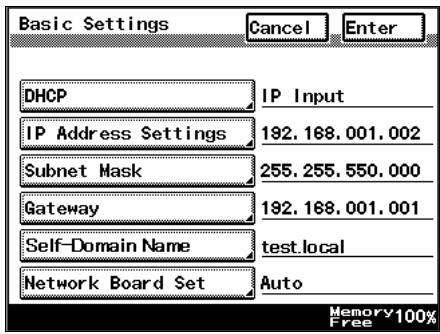
6 Enter the IP address, and then touch [Enter].
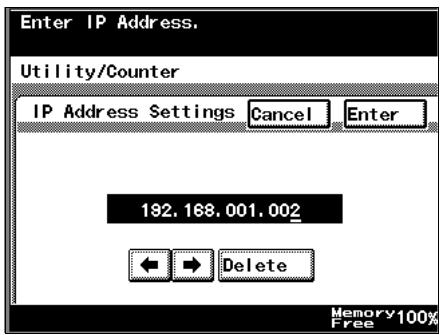
7 Touch [Subnet Mask] and enter the subnet mask address.
8 Touch [Gateway] and enter the default gateway address.
9 To apply the settings, restart this machine (turn the main power off, then on again).
Turn this machine back on to apply the IP address.

Reminder
When turning the machine off, then on again, wait about 10 seconds after turning the machine off before turning the machine on again. The settings may not be applied correctly if the machine is turned on immediately after it is turned off.

Detail
Although the IP address is entered without using the DHCP server in the procedure described here, it is also possible to automatically assign the IP address from the DHCP server. When “DHCP Configuration” is set to “Auto-Obtain”, the IP address, subnet mask, and gateway address settings are automatically assigned from the DHCP server on the network,
so it is not necessary to assign them manually. However, note the following when setting "DHCP Configuration" to "Auto-Obtain".
Check with the network administrator that the DHCP server exists. If the DHCP server does not exist, be sure to specify settings for "IP Address", "Subnet Mask", and "Gateway Address".
If the settings for the IP address and other items have been assigned using the DHCP server, there is a possibility that they may be automatically changed. When the settings for the IP address and other items are changed, if the IP address has been used to specify a printer on the network for printing, there is a possibility that printing may not be possible because this machine cannot communicate with the network. If “DHCP Configuration” has been set to “Auto-Obtain”, it is recommended that the IP address assigned to this machine be fixed in the DHCP server settings.
4.3 Accessing PageScope Web Connection
Setting the IP address for this machine enables you to access PageScope Web Connection.
Use your Web browser to directly access PageScope Web Connection.
To access PageScope Web Connection
1 Start up the Web browser.
2 In the "Address" bar, enter the IP address for this machine as shown below, and then press the [Enter] key.
- http://
The initial page of PageScope Web Connection appears.

Detail
For further details on PageScope Web Connection, refer to "Using PageScope Web Connection" on page 11-37.
4.4 Windows printing
You can use Windows printing (SMB printing) to print directly over the Microsoft network from computers running Windows 98 SE or Windows Me.

Note
Only the PCL printer driver can be used with Windows printing.
Operations on this machine
Set the IP address for this machine. For the setting procedure, refer to “Setting the IP address for this machine” on page 4-8.
In PageScope Web Connection, specify the settings described below for Windows printing.
1 Start up PageScope Web Connection.
2 Enter the administrator password, and then click [Log-in].
3 On the Network tab, click "Common Setting", then "Windows"
![KONICA MINOLTA PageScope Web Connection for 350 - Microsoft Internet Explorer File Edit View Favorites Tools Help Ready to Scan Ready to Print Log-out System User Box Print Fax/Scan Network Common Setting TCP/IP IPP NetWare NetWare Status Windows AppleTalk LDAP LDAP Server Setting E-Mail/Internet FAX FTP Configuration SSL/TLS IP Relay Settings Windows Configuration Enable Windows Printing Service Enable NetBIOS Name [*] KMBT31F68E Printing Service Name [*] printer WorkGroup Name [*] WORKGROUP When changing a setup of [*] mark, reboot of Device is needed. Apply Clear](/content/2025/01/139596/images/890623b9f97d829550358388698bbab3c6fcda48c3059b4c8f682ed08d357725.jpg)
4 Specify settings for the following:
- Enable Windows Printing Service: Set whether to use the Windows printing service. Select "Enable" here.
- NetBIOS Name: Specify the NetBIOS name. Up to 15 of the following alphanumeric characters and symbols can be used.
Uppercase and lowercase letters, numbers, hyphens (-), and underscores (_).
- Printing Service Name: Specify the printing service name. Up to 13 alphanumeric characters can be used, excluding the following characters.
Spaces, backslashes (), and commas (,).
- WorkGroup Name: Specify the work group name. Up to 15 alphanumeric characters can be used, excluding the following characters.
$$ \backslash^ {*} + = \mid :; \text { ``? } < >,. $$
5 To apply the settings, restart this machine (turn the main power off, then on again).

Reminder
When turning the machine off, then on again, wait about 10 seconds after turning the machine off before turning the machine on again. The settings may not be applied correctly if the machine is turned on immediately after it is turned off.
Printer driver settings
For Windows 98 SE/Me
1 Click the [Start] button, point to "Settings", and then click "Printers".
2 Right-click the icon of the installed printer, and then click "Properties".
3 On the Details tab, click the [Add Port] button.
4 Select "Network", and then click the [Browse] button. In the network configuration window that appears, select the appropriate printer icon.
For Windows 2000/XP/NT 4.0/Server 2003
For Windows 2000/NT 4.0, click the [Start] button, point to "Settings", and then click "Printers". For Windows XP/Server 2003, click the [Start] button, and then click "Printers and Faxes".
- If “Printers and Faxes” does not appear in the Start menu, open the Control Panel from the Start menu, select “Printers and Other Hardware”, and then select “Printers and Faxes”.
2 Right-click the icon of the installed printer, and then click "Properties".
3 Click the [Add Port] button on the Ports tab, double-click "Local Port" or select "Local Port" and click the [New Port] button, and then enter "
- Enter the same NetBIOS name and printing service name that you entered in PageScope Web Connection. For the setting procedure, refer to “Operations on this machine” on page 4-12.
4 Click the [Close] button to apply the setting.
4.5 LPR printing
The LPR print service is supported as standard in Windows 2000, Windows XP, Windows NT 4.0, and Windows Server 2003. TCP/IP is used as the network protocol.
Operations on this machine
Set the IP address for this machine. For the setting procedure, refer to "Setting the IP address for this machine" on page 4-8.
Printer driver settings
For Windows 2000/XP/Server 2003
1 For Windows 2000, click the [Start] button, point to "Settings", and then click "Printers".
For Windows XP/Server 2003, click the [Start] button, and then click "Printers and Faxes".
- If “Printers and Faxes” does not appear in the Start menu, open the Control Panel from the Start menu, select “Printers and Other Hardware”, and then select “Printers and Faxes”.
2 Right-click the icon of the installed printer, and then click "Properties".
3 On the Ports tab, click the [Add Port] button.
4 In the “Available Printer Ports” list, select “Standard TCP/IP Port”, and then click the [New Port] button.
5 When the Add Standard TCP/IP Printer Port Wizard starts up, click the [Next] button.
6 In the "Name of printer or IP address" box, enter the IP address for this machine, and then click the [Next] button.
7 Select "Custom", and then click the [Settings] button.
8 Select "LPR", enter "Print" in the "Queue Name" box, and then click the [OK] button.
9 Click the [Next] button, and then click the [Finish] button to apply the setting.
- If "LPR Byte Counting Enabled" is not selected, the data may not be printed.
For Windows NT 4.0
1 Click the [Start] button, point to "Settings", and then click "Printers".
2 Right-click the icon of the installed printer, and then click "Properties".
3 On the Ports tab, click the [Add Port] button.
4 In the “Available Printer Ports” list, select “LPR Port”, and then click the [New Port] button.
- If "LPR Port" is not in the list, click the [Start] button, point to "Control Panel", and then click "Network". Then, on the Service tab, click the [Add] button and install the Microsoft TCP/IP Printing service.
5 In the "Name or address of server providing lpd" box on the Add LPR Compatible Printer dialog box, enter the IP address for this machine.
6 In the "Name of printer or print queue on that server" box, enter "Print".
7 Click the [OK] button to apply the setting.
4.6 Port 9100 Printing (Windows 98 SE/Me/2000/XP/Server 2003)
The Port 9100 print service is supported as standard in Windows 2000, Windows XP, and Windows Server 2003. TCP/IP is used as the network protocol. For Windows 98 SE or Windows Me, the Peer To Peer Printing Tool must be installed separately.
Operations on this machine
Set the IP address for this machine. For the setting procedure, refer to “Setting the IP address for this machine” on page 4-8.
Printer driver settings (Windows 2000/XP/Server 2003)
When using Port 9100 to print, change the printer driver port to the Port 9100 port.
1 For Windows 2000, click the [Start] button, point to "Settings", and then click "Printers".
For Windows XP/Server 2003, click the [Start] button, and then click "Printers and Faxes".
- If “Printers and Faxes” does not appear in the Start menu, open the Control Panel from the Start menu, select “Printers and Other Hardware”, and then select “Printers and Faxes”.
2 Right-click the icon of the installed printer, and then click "Properties".
3 On the Ports tab, click the [Add Port] button.
4 In the “Available Printer Ports” list, select “Standard TCP/IP Port”, and then click the [New Port] button.
5 When the Add Standard TCP/IP Printer Port Wizard starts up, click the [Next] button.
6 In the "Name of printer or IP address" box, enter the IP address for this machine, and then click the [Next] button.
7 Select "Custom", and then click the [Settings] button.
8 Click [RAW], and then enter "9100" in the Port Number box.
- If the RAW port number of this machine is changed, input the specified port number. For details, refer to “Network tab - Common Setting - TCP/IP” on page 11-77.
9 Click the [Next] button, and then click the [Finish] button to apply the setting.
Installing the Peer to Peer Printing Tool (Windows 98 SE/Me)
When using Port 9100 to print under Windows 98 SE or Windows Me, the Peer To Peer Printing Tool must be installed.
The Peer to Peer Printing Tool is included on the User Software CD-ROM.

Detail
When using Port 9100 to print under Windows 98 SE or Windows Me, the required Peer to Peer Printing Tool is automatically installed when the installer is used to install the print driver when this machine is connected to a network.
When the installer was not used, follow the procedures below to install the Peer to Peer Printing Tool.
To install the Peer to Peer Printing Tool
1 Insert the User Software CD-ROM into the computer's CD-ROM drive.
- When the installer dialog box appears, click the [Close] button.
2 Open the CD-ROM.
- Open My Computer, right-click CD-ROM, and then select "Open".
3 Open the "Peer2Peer" folder.
4 Double-click "setup.exe".
The setup program starts up. Follow the on-screen instructions to complete the installation.
- After installation, change the printer driver to be used for printing to the Peer to Peer port.

Detail
To uninstall the Peer to Peer Printing Tool, delete the printer driver using the Peer to Peer port first, and then delete the Peer to Peer Tool in “Add or Remove Programs” in the “Control Panel”.
Printer driver settings (Windows 98 SE/Me)
When using the Port 9100 to print under Windows 98 SE or Windows Me, change the printer driver port to the Peer to Peer port.
1 Click the [Start] button, point to "Settings", and then click "Printers".
2 Right-click the icon of the installed printer, and then click "Properties".
3 On the Details tab, click the [Add Port] button.
4 Click "Others", select "KONICA MINOLTA Peer to Peer Port" from the list, and then click the [OK] button.
The Peer to Peer setup dialog box appears. The printer connected to the network is automatically detected.
5 Select the printer from the device list, enter the port number, and then click the "Add Port" button.
- Skip to step 8.
- If the desired printer does not appear in the device list, proceed to step 6.
6 Click the [Manual Setup] button.
7 Enter the TCP/IP or IPX setting for the network being connected, and then click the "Add Port" button.
- Skip to step 8.
8 Click the [OK] button on the confirmation screen.
- The port is added.
9 Click the [OK] button on the screen that appears.
4.7 IPP printing (Windows 2000/XP/Server 2003)
The IPP (Internet Printing Protocol) print service is supported as standard in Windows 2000, Windows XP, and Windows Server 2003. TCP/IP is used as the network protocol.
Operations on this machine
Set the IP address for this machine. For the setting procedure, refer to "Setting the IP address for this machine" on page 4-8.
Also, specify the IPP printing settings in PageScope Web Connection. (Printing can be performed with the default settings.)
1 Start up PageScope Web Connection.
2 Enter the administrator password, and then click [Log-in].
3 On the Network tab, click "Common Setting", then "IPP".
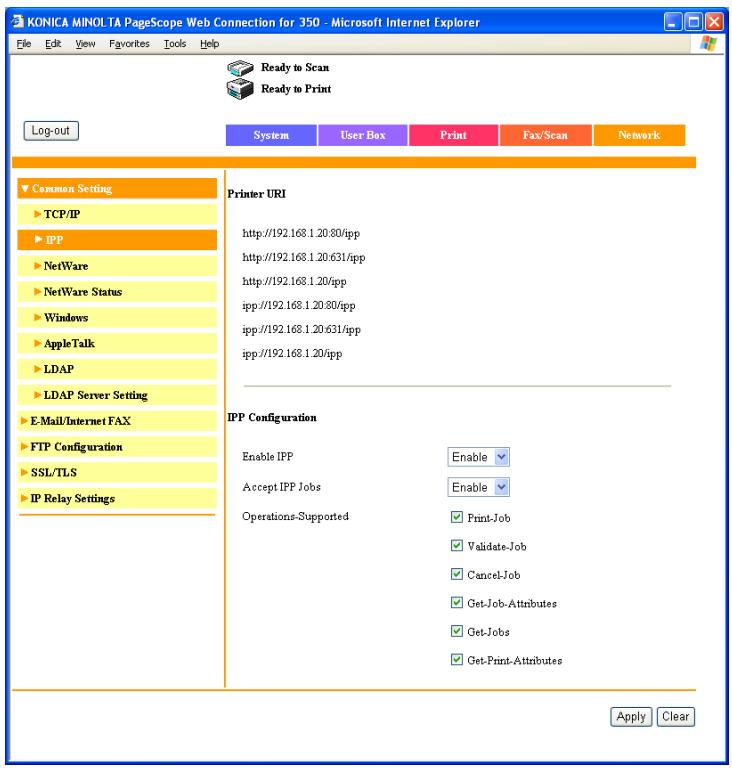
4 Specify settings for the following:
- Printer URI: The URI of the printer that can be used for IPP printing is displayed.
- Enable IPP: Set whether to perform IPP printing. Select "Enable" here.
- Accept IPP Jobs: Set whether to use the IPP reception function.
– Operations-Supported: Specify print operations supported by IPP.
5 On the Print tab, click "IPP Configuration".
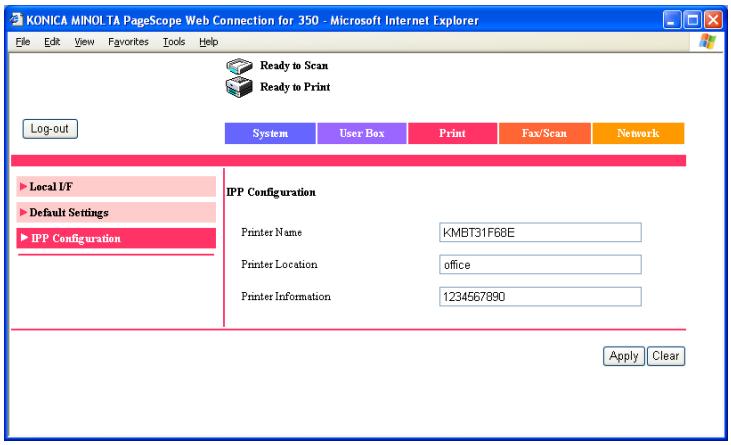
6 Specify settings for the following:
- Printer Name: Specify the printer name (up to 127 alphanumeric characters and symbols).
- Printer Location: Specify the printer location (up to 127 alphanumeric characters and symbols).
- Printer Information: Specify the printer manufacturer details (up to 127 alphanumeric characters and symbols).
Installing the printer driver
For IPP printing, reinstall the printer driver.
1 Insert the Windows printer driver CD-ROM into the computer's CD-ROM drive.
- Konica Minolta PCL driver: User Software CD-ROM
- Konica Minolta PostScript driver: PostScript Printer Driver CD-ROM
2 For Windows 2000, click the [Start] button, point to "Settings", and then click "Printers".
For Windows XP/Server 2003, click the [Start] button, and then click "Printers and Faxes".
- If “Printers and Faxes” does not appear in the Start menu, open the Control Panel from the Start menu, select “Printers and Other Hardware”, and then select “Printers and Faxes”.
3 For Windows 2000/Server 2003, double-click the "Add Printer" icon.
For Windows XP, click “Add a printer” on the “Printer Tasks” menu.
The "Add Printer Wizard" starts up.
4 Click the [Next] button.
5 In the Local or Network Printer dialog box, select "Network printer",
and then click the [Next] button.
6 In the Locate Your Printer dialog box, select "Connect to a printer on
the Internet or on your intranet".
7 In the "URL" field, enter the URL for this machine in the following for-
mat, and then click the [Next] button.
- http://
Example: If the IP address for this machine is 192.168.1.20
http://192.168.1.20/ipp
8 When the confirmation dialog box appears, click the [OK] button.
9 Click the [Have Disk] button.
10 Click the [Browse] button, specify the folder on the CD-ROM that contains the printer driver, and then click the [OK] button.
- Konica Minolta PCL driver: User Software CD-ROM "Driver\Drivers\350_250_200" folder
- Konica Minolta PostScript driver: PostScript Printer Driver CD-ROM "Driver\Drivers\350_250_200" folder
11 Check that the printer name is displayed in the "Printers" list, and then click the [Next] button.
12 Select whether to set the printer as the default printer, and then click the [Next] button.
13 Click the [Finish] button to exit the Add Printer Wizard.
Once the settings for the printer have been specified, you can use the printer in the same way as a default local printer. Also, if you set up the printer for sharing in Windows, it can be used as a network printer by other Windows computers over the network.
4.8 Printing with NetWare
The printer controller supports the following environments.
Network printing in a NetWare environment
| NetWare version | Protocol used | Emulation | Service mode |
| NetWare 4.x | IPX | NDS/Bindery | Pserver/Nprinter |
| NetWare 5.x/6 | IPX | NDS | Pserver |
| TCP/IP | NDPS(Ipr) |

...
Note
Before using bindery emulation, check that bindery emulation is compatible with the NetWare server.
For Remote Printer mode with NetWare 4.x bindery emulation
1 From a client computer, log on with Supervisor permissions to access the NetWare server where the Pserver is registered.
2 Start up Pconsole.
3 From the "Available Options" list, select "Quick Setup", and then click the [Enter] button.
4 Enter the appropriate names in the “Printer Server Name”, “Printer Name”, “Print Queue Name”, and “Print Queue Volume” fields, select “Other/Unknown” from the “Printer type” field, and then save the specified settings.
5 Click the [Esc] button to quit Pconsole.
6 Use the NetWare server console to load PSERVER.NLM.
7 For queue user privileges, printer notification option, assignment of multiple queues, and passwords, refer to the NetWare documentation, and specify settings as necessary.
8 In Administrator mode of PageScope Web Connection, select "Common Setting", then "NetWare" from the Network tab, and then specify the following settings.
![KONICA MINOLTA PageScope Web Connection for 350 - Microsoft Internet Explorer File Edit View Favorites Tools Help Ready to Scan Ready to Print Log-out System User Box Print Fax/Scan Network Common Setting TCP/IP IPP NetWare NetWare Status Windows AppleTalk LDAP LDAP Server Setting E-Mail/Internet FAX FTP Configuration SSL/TLS IP Relay Settings NetWare Settings Enable NetWare [*] Enable Frame Type [*] Auto Detect Bindery/NDS NDS Print Server Name KMBT31F68E Print Server Password ••••• Preferred File Server file_server Preferred NDS Context context Preferred NDS Tree tree Print Queue Scan Rate [*] 1 Sec (1-65535) Mode [*] Nprinter/Rprinter Printer Number [*] 255 (0-255, 255 means auto.) When changing a setup of [*] mark, reboot of Device is needed. Apply Clear](/content/2025/01/139596/images/c5e1efe46642d5f65618ba063c11824dc7663bb6e5efc3f72582a0cf9f7707b7.jpg)
- Enable NetWare: Select "Enable".
- Frame Type: Select "Auto Detect". (Select the frame type according to the network environment.)
- Bindery/NDS: Select "Bindery/NDS".
- Print Server Name: Specify the print server name created in step 4.
- Print Server Password: Specify only when setting from the NetWare server. (Displayed by “●●●●”.) If changing the password, delete “●●●●”, and then input the password.
- Preferred File Server: Specify the name of the file server that connects to the Pserver.
- Print Queue Scan Rate: Specify "1". (Change as necessary.)
- Mode: Select "Nprinter/Rprinter".
- Printer Number: Specify "255". (Set the number assigned to the printer (0 to 254) or 255.)
9 Restart this machine (turn the main power off, then on again).
10 Use the NetWare server console to display the print server screen, and then check that the created printer is shown as "Waiting for Job" for the connected printer (0).

Reminder
When turning the machine off, then on again, wait about 10 seconds after turning the machine off before turning the machine on again. The settings may not be applied correctly if the machine is turned on immediately after it is turned off.
For Print Server mode with NetWare 4.x bindery emulation
Before using bindery emulation, check that bindery emulation is compatible with the NetWare server.
1 From a client computer, log on with Supervisor permissions to access the NetWare server where the Pserver is registered.
2 Start up Pconsole.
3 From the "Available Options" list, select "Quick Setup", and then click the [Enter] button.
4 Enter the appropriate names in the “Printer Server Name”, “Printer Name”, “Print Queue Name”, and “Print Queue Volume” fields, select “Other/Unknown” from the “Printer type” field, and then save the specified settings.
5 Click the [Esc] button to quit Pconsole.
6 In Administrator mode of PageScope Web Connection, select "Common Setting", then "NetWare" from the Network tab, and then specify the following settings.
![KONICA MINOLTA PageScope Web Connection for 350 - Microsoft Internet Explorer File Edit View Favorites Tools Help Ready to Scan Ready to Print Log-out System User Box Print Fax/Scan Network Common Setting TCP/IP IPP NetWare NetWare Status Windows AppleTalk LDAP LDAP Server Setting E-Mail/Internet FAX FTP Configuration SSL/TLS IP Relay Settings NetWare Settings Enable NetWare [*] Enable Frame Type [*] Auto Detect Bindery/NDS NDS Print Server Name kMBT31F68E Print Server Password ****** Preferred File Server file_server Preferred NDS Context context Preferred NDS Tree tree Print Queue Scan Rate [*] 1 Sec (1-65535) Mode [*] PServer Printer Number [*] 255 (0-235, 235 means auto.) When changing a setup of [*] mark, reboot of Device is needed. Apply Clear](/content/2025/01/139596/images/ffeb3728dbbbde8ef2b14939ea595158e5f11d5bdc4d3b16f5fc7219a8675414.jpg)
- Enable NetWare: Select "Enable".
- Frame Type: Select "Auto Detect". (Select the frame type according to the network environment.)
- Bindery/NDS: Select "Bindery/NDS".
- Print Server Name: Specify the print server name created in step 4.
- Print Server Password: Specify only when setting from the NetWare server. (Displayed by “●●●●”.) If changing the password, delete “●●●●”, and then input the password.
- Preferred File Server: Specify the name of the file server that connects to the Pserver.
- Print Queue Scan Rate: Specify "1". (Change as necessary.)
- Mode: Select "PServer".
- Printer Number: Specify "255". (Set the number assigned to the printer (0 to 254) or 255.)
7 Restart this machine (turn the main power off, then on again).
8 Use the NetWare server console to load MONITOR.NLM.
9 Select the connection information and, in the active connection column, check that the created Pserver is connected.

Reminder
When turning the machine off, then on again, wait about 10 seconds after turning the machine off before turning the machine on again. The settings may not be applied correctly if the machine is turned on immediately after it is turned off.
For NetWare 4.x Remote Printer mode (NDS)
1 Log on to NetWare as an administrator from a client computer.
2 Start up NWadmin.
3 Select either the organization or organizational unit container that offers the print service, and then click "Print Services Quick Setup" on the "Tools" menu.
4 Enter the appropriate names in the “Printer Server Name”, “Printer Name”, “Print Queue Name”, and “Print Queue Volume” fields, select “Other/Unknown” from the “Printer type” field, and then save the specified settings.
5 For queue user privileges, printer notification option, assignment of multiple queues, and passwords, refer to the NetWare documentation, and specify settings as necessary.
6 In Administrator mode of PageScope Web Connection, select "Common Setting", then "NetWare" from the Network tab, and then specify the following settings.
![KONICA MINOLTA PageScope Web Connection for 350 - Microsoft Internet Explorer File Edit View Favorites Tools Help Ready to Scan Ready to Print Log-out System User Box Print Fax/Scan Network Common Setting TCP/IP IPP NetWare NetWare Status Windows AppleTalk LDAP LDAP Server Setting E-Mail/Internet FAX FTP Configuration SSL/TLS IP Relay Settings NetWare Settings Enable NetWare [*] Enable Frame Type [*] Auto Detect Bindery/NDS NDS Print Server Name kMBT31F68E Print Server Password ****** Preferred File Server file_server Preferred NDS Context context Preferred NDS Tree tree Print Queue Scan Rate [*] 1 Sec (1.65535) Mode [*] Nprinter/Rprinter Printer Number [*] 255 (0.255, 255 means auto.) When changing a setup of [*] mark, reboot of Device is needed. Apply Clear](/content/2025/01/139596/images/ddddefd2db4f95cf5e02fd056a291c7116be38e0a6d2b5b35489efdbd0a1a3f4.jpg)
- Enable NetWare: Select "Enable".
- Frame Type: Select "Auto Detect". (Select the frame type according to the network environment.)
- Bindery/NDS: Select "NDS".
- Print Server Name: Specify the print server name created in step 4.
- Print Server Password: Specify only when setting from the NetWare server. (Displayed by “●●●●”.) If changing the password, delete “●●●●”, and then input the password.
- Preferred NDS Context: Specify the name of the context that connects to Pserver.
- Preferred NDS Tree: Specify the name of the tree that Pserver logs on to.
- Print Queue Scan Rate: Specify "1". (Change as necessary.)
- Mode: Select "Nprinter/Rprinter".
- Printer Number: Specify "255". (Set the number assigned to the printer (0 to 254) or 255.)
7 Restart this machine (turn the main power off, then on again).
8 Use the NetWare server console to load PSERVER.NLM.
9 Use the NetWare server console to display the print server screen, and then check that "XXX" (created printer) is shown as "Waiting for Job" for the connected printer (0).

Reminder
When turning the machine off, then on again, wait about 10 seconds after turning the machine off before turning the machine on again. The settings may not be applied correctly if the machine is turned on immediately after it is turned off.
For NetWare 4.x/5.x/6 Print Server mode (NDS)
To use the Print Server mode, IPX protocol must be loaded on the NetWare server.
1 Log on to NetWare as an administrator from a client computer.
2 Start up NWadmin.
3 Select either the organization or organizational unit container that offers the print service, and then click "Print Services Quick Setup (non-NDPS)" on the "Tools" menu.
4 Enter the appropriate names in the "Printer Server Name", "Printer Name", "Print Queue Name", and "Print Queue Volume" fields, select "Other/Unknown" from the "Printer Type" field, and then click the [Create] button.
5 For queue user privileges, printer notification option, assignment of multiple queues, and passwords, refer to the NetWare documentation, and specify settings as necessary.
6 In Administrator mode of PageScope Web Connection, select "Common Setting", then "NetWare" from the Network tab, and then specify the following settings.
![KONICA MINOLTA PageScope Web Connection for 350 - Microsoft Internet Explorer File Edit View Favorites Tools Help Ready to Scan Ready to Print Log-out System User Box Print Fax/Scan Network Common Setting TCP/IP IPP NetWare NetWare Status Windows AppleTalk LDAP LDAP Server Setting E-Mail/Internet FAX FTP Configuration SSL/TLS IP Relay Settings NetWare Settings Enable NetWare [*] Enable Frame Type [*] Auto Detect Bindery/NDS NDS Print Server Name KMBT31F6BE Print Server Password ••••• Preferred File Server file_server Preferred NDS Context context Preferred NDS Tree tree Print Queue Scan Rate [*] 1 Sec(1-65535) Mode [*] PServer Printer Number [*] 255 (0-255, 255 means auto.) When changing a setup of [*] mark, reboot of Device is needed. Apply Clear](/content/2025/01/139596/images/fc948adceb3e73a5863e520f01d5c1fa227f24bcf4f732ded1054f624d982d5f.jpg)
- Enable NetWare: Select "Enable".
- Frame Type: Select "Auto Detect". (Select the frame type according to the network environment.)
- Bindery/NDS: Select "NDS".
- Print Server Name: Specify the print server name created in step 4.
- Print Server Password: Specify only when setting from the NetWare server. (Displayed by “●●●●”.) If changing the password, delete “●●●●”, and then input the password.
- Preferred NDS Context: Specify the name of the context that connects to Pserver.
- Preferred NDS Tree: Specify the name of the tree that Pserver logs on to.
- Print Queue Scan Rate: Specify "1". (Change as necessary.)
- Mode: Select "PServer".
- Printer Number: Specify "255". (Set the number assigned to the printer (0 to 254) or 255.)
7 Restart this machine (turn the main power off, then on again).
8 Use the NetWare server console to load MONITOR.NLM.
9 Select the connection information and, in the active connection column, check that the created Pserver is connected.

Reminder
When turning the machine off, then on again, wait about 10 seconds after turning the machine off before turning the machine on again. The settings may not be applied correctly if the machine is turned on immediately after it is turned off.
For NetWare 5.x/6 Novell Distributed Print Service (NDPS)
Before specifying settings for NDPS, check that the NDPS broker and NDPS manager have been created and loaded.
Also, before performing the following procedure, check that the TCP/IP protocol has been set in the NetWare server, and check that the IP address has been set for this machine and that this machine is on.
1 Log on to NetWare as an administrator from a client computer.
2 Start up NWadmin.
3 Right-click the organization or organizational unit container where you will create the printer agent, and then click "NDPS Printer" on the "Create" sub-menu.
4 In the "NDPS Printer Name" box, enter the printer name.
5 In the “Printer Agent Source” column, select “Create a New Printer Agent”, and then click the [Create] button.
6 Check the printer agent name, and then in the "NDPS Manager Name" box, browse through the NDPS manager names, and register one.
7 In “Gateway Types”, select “Novell Printer Gateway”, and then register it.
8 In the Configure Novell DPS for Printer Agent window, select “(None)” for the printer type and “Novell Port Handler” for the port handler type, and then register the settings.
9 In "Connection type", select "Remote (LPR on IP)", and then register it.
10 Enter the IP address set for this machine as the host address, enter "Print" as the printer name, and then click the [Finish] button to register the settings.
11 The printer driver registration screen appears. Select "None" for each operating system to complete the registration.

Note
For settings for the queue user rights, printer notification option, assignment of multiple queues, and passwords, refer to the NetWare documentation, and set them as necessary.
Setting up a client (Windows) settings when using the NetWare server
1 For Windows 98 SE/Me/2000/NT 4.0, click the [Start] button, point to "Settings", and then click "Printers".
For Windows XP/Server 2003, click the [Start] button, and then click "Printers and Faxes".
- If "Printers and Faxes" does not appear in the Start menu, open the Control Panel from the Start menu, select "Printers and Other Hardware", and then select "Printers and Faxes".
2 For Windows 98 SE/Me/2000/NT 4.0/Server 2003, double-click the "Add Printer" icon.
For Windows XP, click “Add a printer” on the “Printer Tasks” menu. The “Add Printer Wizard” starts up.
3 In the port settings, browse the network, and specify the name of the created queue (or NDPS printer name).
4 In the "Printer Model" list, specify the folder on the CD-ROM that contains the operating system and printer driver to be used.
- For Windows 98 SE/Me
Konica Minolta PCL driver: User Software CD-ROM
"Driver\Drivers\350_250_200" folder
PostScript PPD driver : PostScript Printer Driver CD-ROM "Driver\PS-PPD" folder
- For Windows NT 4.0/2000/XP/Server 2003
Konica Minolta PCL driver: User Software CD-ROM
"Driver\Drivers\350_250_200" folder
Konica Minolta PostScript driver: PostScript Printer Driver CD-ROM "Driver\Drivers\350_250_200" folder
5 Follow the on-screen instructions to complete the installation.
4.9 Printing with Macintosh
Operations on this machine
Set the IP address for this machine. For the setting procedure, refer to “Setting the IP address for this machine” on page 4-8.
In the PageScope Web Connection, specify the settings described below for AppleTalk.
1 Start up PageScope Web Connection.
2 Enter the administrator password, and then click [Log-in].
3 On the Network tab, click "Common Setting", then "AppleTalk".
![KONICA MINOLTA PageScope Web Connection for 350 - Microsoft Internet Explorer File Edit View Favorites Tools Help Ready to Scan Ready to Print Log-out System User Box Print Fax/Scan Network Common Setting TCP/IP IPP NetWare NetWare Status Windows AppleTalk AppleTalk Configuration AppleTalk Enable Printer Name [*] KMBT31F68E Zone Name [*] Current Zone * When changing a setup of [*] mark, reboot of Device is needed. LDAP LDAP Server Setting E-Mail/Internet FAX FTP Configuration SSL/TLS IP Relay Settings Apply Clear](/content/2025/01/139596/images/4d9d7695edb38e83f525f6615dc37c0c4a118e51c932e66670330ac1967c94bb.jpg)
4 Specify settings for the following:
- AppleTalk: Set whether to use AppleTalk. Select "Enable" here.
- Printer Name: Specify the printer name (up to 31 alphanumeric characters and symbols, excluding = \~).
- Zone Name: Specify the zone being connected to (up to 31 alphanumeric characters and symbols, excluding = \~).
5 To apply the settings, restart this machine (turn the main power off, then on again).

Reminder
When turning the machine off, then on again, wait about 10 seconds after turning the machine off before turning the machine on again. The settings may not be applied correctly if the machine is turned on immediately after it is turned off.
Setting the Macintosh computer
Use the Macintosh computer that is connected to specify the TCP/IP and AppleTalk settings.

Note
For network settings, consult the network administrator.
For printer driver installation, refer to "Installing the printer driver" on page 3-3.
For Mac OS X
1 On the Apple menu, select "System Preferences".
2 Click the "Network" icon.
3 From "Show", select "Built-in Ethernet".
4 Click the AppleTalk tab.
5 Check that the "Make AppleTalk Active" check box is selected.
6 Click the TCP/IP tab.
7 Select the items from "Configure" that correspond to the network settings for the Macintosh computer that is connected to the network, and then set the IP address and subnet mask.
8 Click the close button at the top left of the dialog box.
The “Apply configuration changes?” message appears.
9 Click the [Apply] button.
The AppleTalk and Ethernet settings are saved.
For Mac OS 9.2
1 On the Apple menu, point to "Control Panel", and then click "AppleTalk".
2 From the “Connect via” drop-down list, select “Ethernet”.
3 On the Apple menu, point to "Control Panel", and then click "TCP/IP".
4 From the “Connect via” drop-down list, select “Ethernet”.
5 Select the items from "Configure" that correspond to the network settings for the Macintosh computer that is connected to the network, and then set the IP address and subnet mask.
6 Click the close button at the top left of the dialog box.
The “Save changes to the current configuration?” message appears.
7 Click the [Save] button.
5
Various printing methods
5 Various printing methods
5.1 Printing operations
For Windows
Printing is possible when the printer driver is installed and the network settings have been specified. Print jobs are specified from the application software.
1 Open the data in the application, click [File], then click "Print".
2 Check that the printer name has been selected in Printer Name or Select Printer.
- If the printer is not selected, click to select the printer.
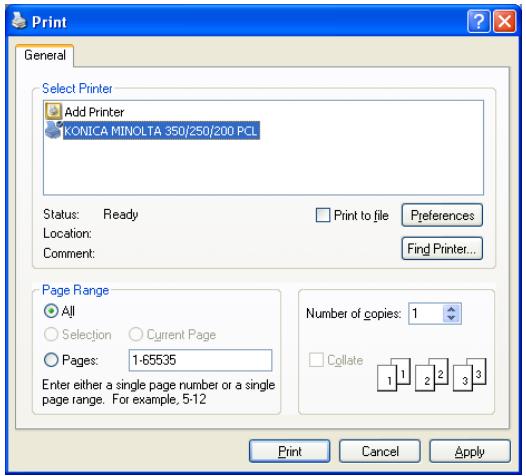
The Print dialog box differs depending on the application.
3 Specify the page range and the number of copies to print.
- For the PPD driver, the settings specified on this machine have precedence if multiple copies are specified in "Default Set" of this machine.
4 Click the [Preferences] button or the [Properties] button to change the printer driver settings as necessary.
- By clicking the [Preferences] button or the [Properties] button on the Print dialog box, you can specify the settings of each model on the printer driver dialog box that appears. For details, refer to “Setting up the PCL driver” on page 6-3, “Setting up the PostScript driver (Windows)” on page 7-3, or “Setting up the PPD driver (Windows)” on page 8-3.
5 Click the [Print] button.
The Data indicator of this machine flashes.

Note
Changes made to the printer driver settings on the Print dialog box are not saved. When the application is exited, the settings return to their default settings.
Do not the select the "Collate" check box on the Print dialog box.
Test printing
Printing is possible when the printer driver is installed and the network settings have been specified. To check that connection has been made properly, you can print the standard Windows test page.
Print a test page from the printer driver Properties dialog box.
1 For Windows 98 SE/Me/2000/NT 4.0, click the [Start] button, point to "Settings", and then click "Printers".
For Windows XP/Server 2003, click the [Start] button, and then click "Printers and Faxes".
- If “Printers and Faxes” does not appear in the Start menu, open the Control Panel from the Start menu, select “Printers and Other Hardware”, and then select “Printers and Faxes”.
2 Right-click the icon of the installed printer, and then click "Properties".
3 Click the General tab, and then click the [Print Test Page] button or the [Print Test] button.
The test page is printed and the confirmation dialog box appears.
4 Check the printout, and then click the [OK] button or the [Yes] button.

Note
If the test page is not printed properly, check that the printer driver has been installed properly and that the network settings are complete.
For Macintosh
Printing is possible when the printer driver is installed and the network settings have been specified. Print jobs are specified from the application software.
For Mac OS X
1 Open the data in the application, choose [File], and then click "Print".
- For Mac OS X 10.3.x, printing speed may be slower for some applications if you print by clicking "Print". Always select "Print" from the "File" menu to print data.
2 Check that the printer name has been selected.
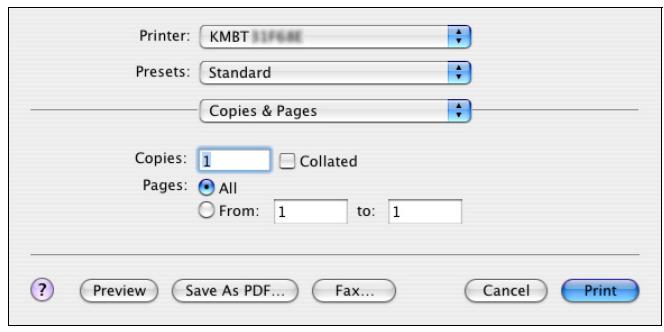
3 Specify the print range and the number of copies to print, and then click the [Print] button.
- The settings specified on this machine have precedence if multiple copies are specified in "Default Set" of this machine.
The Data indicator of this machine flashes.

Note
If the printer name does not appear in the list, select the printer in Print Center or the Print Setup Utility. For details, refer to “Selecting a printer” on page 3-19.
The Print dialog box differs depending on the application.
Do not the select the "Collated" check box on the Print dialog box.
For Mac OS X 10.2.x, printing speed may be slower if the data contains colors.
For Mac OS 9.2
1 Open the data in the application, choose [File], and then click "Print".
2 Check that the printer name has been selected.
3 Select "General".
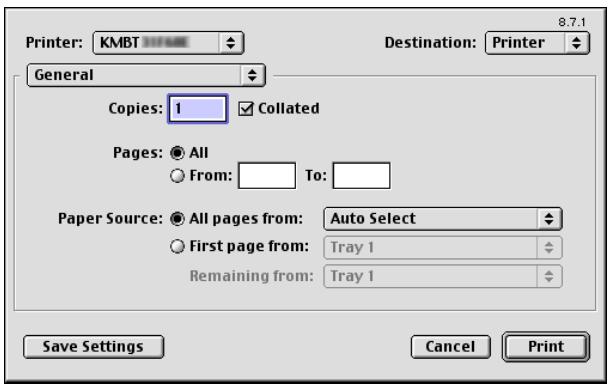
4 Specify the print range and the number of copies to print, and then click the [Print] button.
- The settings specified on this machine have precedence if multiple copies are specified in "Default Set" of this machine.
The Data indicator of this machine flashes.

Note
If the printer name does not appear in the list, select the printer in the Chooser window. For details, refer to “Selecting a printer” on page 3-19.
The Print dialog box differs depending on the application.
The settings can be saved by clicking the [Save Settings] button.
5.2 Setting the printing functions
The functions of this machine such as sorting and folding can be set when printing from a computer. Depending on the operating system running on the connected computer, the setting procedure of this machine's functions may differ.
Function list
The function list contains a summary of the main settings related to printing and printer driver support.

Note
The function names in this list are based on those displayed by the PCL printer driver in Windows XP. In addition, the items and setting values displayed may differ depending on whether the options are installed or the settings are available.
| Function | Overview | Printer driver | ||
| PCL | Post-Script | PPD | ||
| Orientation | Selects the print orientation. | ○ | ○ | ○ |
| Original Size | Specifies the size of the original document. | ○ | ○ | |
| Output Size | Specifies the output paper size. | ○ | ○ | ○ |
| Zoom | Prints enlarged or reduced. | ○ | ○ | ○ |
| Paper Source | Selects the paper source for printing. | ○ | ○ | ○ |
| Paper Type Settings | Specifies the paper type of the paper source. | ○ | ○ | ○ |
| Binding Position | Selects the binding position. | ○ | ○ | ○ |
| Print Type | Selects the print type (simplex, duplex, or booklet). | ○ | ○ | ○ |
| Combination | Prints multiple pages on one page. | ○ | ○ | ○ |
| File Margin | Sets margins for punch holes and staples. | ○ | ||
| Staple | Staples documents. | ○ | ○ | ○ |
| Center Staple and Fold | Folds the printouts in half and staples. | ○ | ○ | ○ |
| Hole-Punch | Punches holes in documents. | ○ | ○ | ○ |
| Output Method (Job Management) | For non-conventional printing, selects the special output format for secured documents or saves data in a box. | ○ | ○ | (Mac OS X only) |
| Copies | Specifies the number of copies to print. | ○ | ○ | ○ |
| Output Tray | Selects the tray where to output the print-ed pages. | ○ | ○ | ○ |
| Collate | Specifies whether to print multiple copies in sets. | ○ | ○ | ○ |
| Offset | When printing multiple copies, shifts the output position of each set. | ○ | ○ | ○ |
| Skip Blank Pages | Does not print blank pages in the data. | ○ | ||
| User Authentication | Printing is performed after the registered user name and password are entered. | ○ | ○ | (Mac OS X only) |
| Account Track | Tracks operations performed by each ac-count. | ○ | ○ | (Mac OS X only) |
| Front Cover Page | Attaches a front cover page. | ○ | ○ | ○ |
| Back Cover Page | Attaches a back cover page. | ○ | ○ | ○ |
| Overlay | Prints the original document on top of form data that was created separately. | ○ | ||
| Watermark | Prints a watermark (text stamp) on the page being printed. | ○ | ○ | |
| Distribution Number Stamping | Prints the number of the copy. | ○ | ||
| Use Printer Fonts | Specifies the replacement of TrueType fonts with printer fonts. | ○ | ○ | ○ |
Function overview
An overview of each function is summarized in this section.
Orientation
You can specify “Portrait” or “Landscape” as the orientation of the page being printed.
Portrait
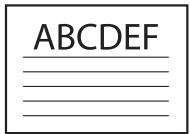
Landscape
| Operating system | Printer driver | Refer to |
| Windows | Konica Minolta PCL | “Specifying the Setup tab settings” on page 6-7. |
| Konica Minolta Post-Script | “Specifying the Setup tab settings” on page 7-9. | |
| PostScript PPD | “Specifying the Paper tab settings” on page 8-6. | |
| Mac OS X | PostScript PPD | “Page Attributes (basic settings)” on page 10-7. |
| Mac OS 9.2 | “Page Attributes (basic settings)” on page 9-7. |
Original Size and Output Size
You can specify the original document size and the output paper size. By specifying each size, you can specify the enlargement and reduction ratio.
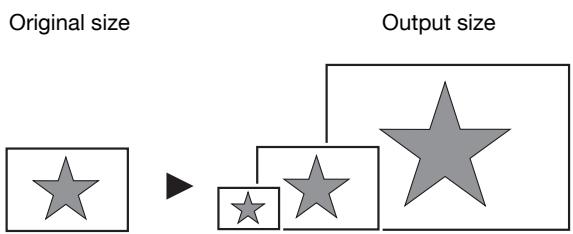
flowchart
graph LR
    A["Original size"] --> B["Output size"]
    subgraph Original_size
        C["★"]
    end
    subgraph Output_size
        D["★"]
        E["★"]
        F["★"]
    end
| Operating system | Printer driver | Refer to |
| Windows | Konica Minolta PCL | “Specifying the Setup tab settings” on page 6-7. |
| Konica Minolta Post-Script | “Specifying the Setup tab settings” on page 7-9. | |
| PostScript PPD | “Specifying the Paper tab settings” on page 8-6. | |
| Mac OS X | PostScript PPD | “Page Attributes (basic settings)” on page 10-7. |
| Mac OS 9.2 | “Page Attributes (basic settings)” on page 9-7. |

...
Note
Only the output paper sizes can be specified with the PostScript PPD driver for Windows and the Macintosh.
Zoom (enlargement and reduction)
You can specify the enlargement or reduction ratio using numeric values.
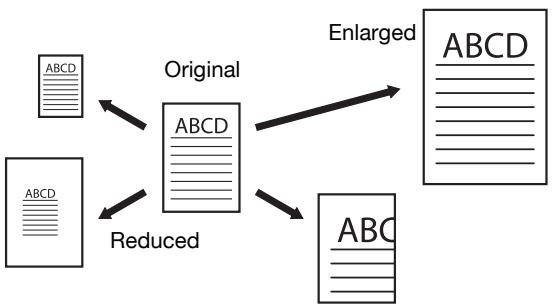
flowchart
graph TD
    A["Original"] --> B["Original"]
    C["Reduced"] --> D["Reduced"]
    E["Enlarged"] --> F["Enlarged"]
    G["ABCD"] --> H["ABCD"]
    I["ABCD"] --> J["ABCD"]
| Operating system | Printer driver | Refer to |
| Windows | Konica Minolta PCL | “Specifying the Setup tab settings” on page 6-7. |
| Konica Minolta Post-Script | “Specifying the Setup tab settings” on page 7-9. | |
| PostScript PPD | “Graphics tab” on page 8-4. | |
| Mac OS X | PostScript PPD | “Page Attributes (basic settings)” on page 10-7. |
| Mac OS 9.2 | “Page Attributes (basic settings)” on page 9-7. |
Input tray (paper source)
You can select the input tray as the paper source for printing. When changing the paper type, you can select an input tray according to the paper type.
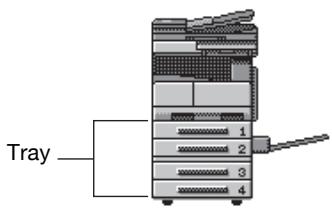
| Operating system | Printer driver | Refer to |
| Windows | Konica Minolta PCL | “Specifying the Setup tab settings” on page 6-7. |
| Konica Minolta Post-Script | “Specifying the Setup tab settings” on page 7-9. | |
| PostScript PPD | “Specifying the Paper tab settings” on page 8-6. | |
| Mac OS X | PostScript PPD | “Paper Feed” on page 10-12. |
| Mac OS 9.2 | “General (basic settings)” on page 9-11. |
Paper Type
You can specify the paper type being printed.
| Operating system | Printer driver | Refer to |
| Windows | Konica Minolta PCL | “Specifying the Setup tab settings” on page 6-7. |
| Konica Minolta Post-Script | “Specifying the Setup tab settings” on page 7-9. | |
| PostScript PPD | “Specifying the Paper tab settings” on page 8-6. |

...
Note
With the Konica Minolta PCL driver for Windows, the paper type settings can be pre-set by specifying the paper type of the paper tray.
Print type (duplex printing/booklet printing)
You can print onto both sides of a page or in a booklet format (two facing pages or center binding). This comes in handy when you want to bind multiple-page documents.
The binding area can be specified by specifying the binding position.
Duplex printing
Print data
Printout
Print data
Printout

Left binding

Top binding
Booklet printing
Print data
Printout
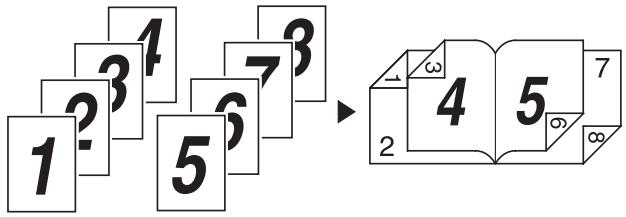
Printing multiple pages on one page
You can print multiple document pages on one page. This comes in handy when you want to reduce the number of output pages.
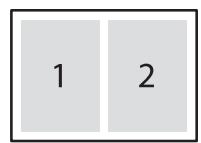
2 up
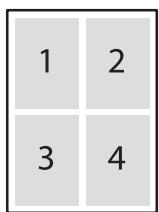
4 up
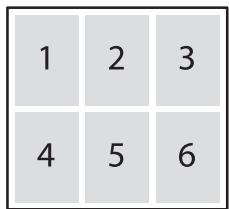
heatmap
| | 1 | 2 | 3 | |---|---|---|---| | | 4 | 5 | 6 |6 up
| 1 | 2 | 3 |
| 4 | 5 | 6 |
| 7 | 8 | 9 |
9 up
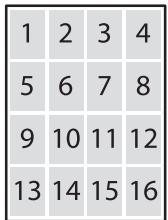
16 up
| Operating system | Printer driver | Refer to |
| Windows | Konica Minolta PCL | “Specifying the Setup tab settings” on page 6-7. |
| Konica Minolta Post-Script | “Specifying the Layout tab settings” on page 7-16. | |
| PostScript PPD | “Specifying the Paper tab settings” on page 8-6. | |
| Mac OS X | PostScript PPD | “Layout (printing multiple pages on one page)” on page 10-11. |
| Mac OS 9.2 | “Layout (printing multiple pages on one page)” on page 9-13. |
Stapling and hole punching
Documents can be stapled together or holes punched into the document.
By specifying the file margin, you can specify the margin for stapling or hole punching.
Stapling
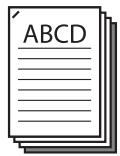
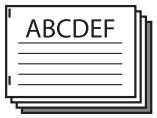
Hole punching
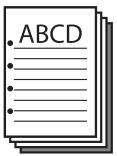

...
Note
The staple function is available only when optional finisher is installed.
The hole punch function is available only when punch unit is installed on optional finisher.
| Operating system | Printer driver | Refer to |
| Windows | Konica Minolta PCL | “Specifying the Setup tab settings” on page 6-7. |
| Konica Minolta Post-Script | “Specifying the Layout tab settings” on page 7-16. | |
| PostScript PPD | “Specifying the Device Options tab settings” on page 8-7. | |
| Mac OS X | PostScript PPD | “Finishing” on page 10-14. |
| Mac OS 9.2 | “Printer specific options (finishing options 1 to 3)” on page 9-14. |
Output Method (job management)
You can select “Secured Print”, which requires a password to print, or “Save in User Box”, which saves documents in a document folder.
| Operating system | Printer driver | Refer to |
| Windows | Konica Minolta PCL | “Specifying the Setup tab settings” on page 6-7. |
| Konica Minolta Post-Script | “Specifying the Setup tab settings” on page 7-9. | |
| PostScript PPD | “Specifying the Device Options tab settings” on page 8-7. | |
| Mac OS X | PostScript PPD | “Security” on page 10-16. |
Sorting (Collate) and classifying (Offset)
You can print the document sets the specified number of times or each page the specified number of times.
By specifying offset, each copy can be output in sets.

Detail
The offset function consists of two types. When optional finisher is installed, the output position of each set is shifted and sorted. When the finisher is not installed, crisscross sorting is performed when the following conditions are met.
Crisscross sorting conditions:
- When letter, executive, or 16K paper is used.
- When paper of the same size and type is loaded in both the [☐] and [☐] directions.
-When all pages in the document are the same size.
-When stapling or hole punching setting have not been specified.
-When printing multiple pages (when not printing only one page).
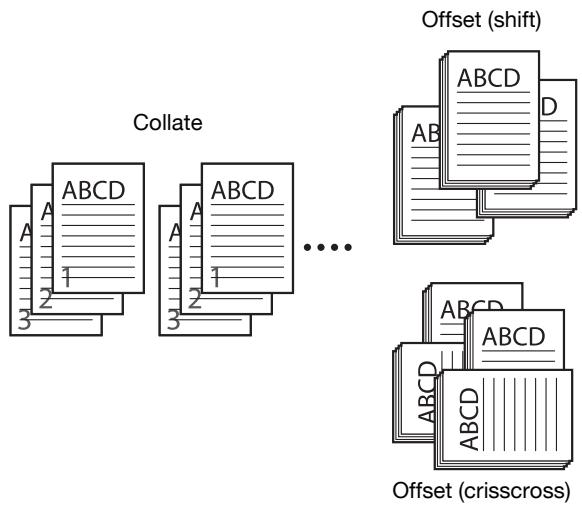
flowchart
graph TD
    A["Collate"] --> B["Offset (shift)"]
    B --> C["Offset (crisscross)"]
| Operating system | Printer driver | Refer to |
| Windows | Konica Minolta PCL | “Specifying the Setup tab settings” on page 6-7. |
| Konica Minolta Post-Script | “Specifying the Setup tab settings” on page 7-9. | |
| PostScript PPD | “Specifying the Device Options tab settings” on page 8-7. | |
| Mac OS X | PostScript PPD | “Finishing” on page 10-14 . |
| Mac OS 9.2 | “General (basic settings)” on page 9-11 and “Printer specific options (finishing options 1 to 3)” on page 9-14. |
Skip Blank Pages (saving paper)
Does not print blank pages in the data.
| Operating system | Printer driver | Refer to |
| Windows | Konica Minolta PCL | “Specifying the Setup tab settings” on page 6-7. |
User Authentication
When the authentication settings have been applied on this machine, you must enter the required user ID and password.
| Operating system | Printer driver | Refer to |
| Windows | Konica Minolta PCL | “Specifying the Setup tab settings” on page 6-7. |
| Konica Minolta Post-Script | “Specifying the Setup tab settings” on page 7-9. | |
| Mac OS X | PostScript PPD | “Security” on page 10-16. |
Front Cover Page, Back Cover Page, and Per Page Setting
A front cover and back cover can be added and pages can be inserted between pages. (The Per Page Setting is only available with the PCL printer driver.)
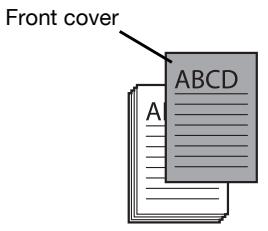
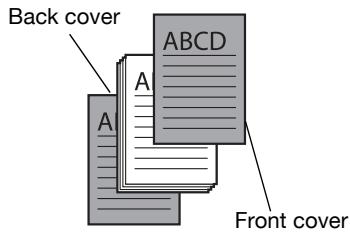
| Operating system | Printer driver | Refer to |
| Windows | Konica Minolta PCL | “Specifying the Per Page Setting tab settings” on page 6-20. |
| Konica Minolta Post-Script | “Specifying the Per Page Setting tab settings” on page 7-20. | |
| PostScript PPD | “Specifying the Device Options tab settings” on page 8-7. | |
| Mac OS X | PostScript PPD | “Setup” on page 10-13. |
| Mac OS 9.2 | “Printer specific options (finishing options 1 to 3)” on page 9-14. |
Overlay
Prints the original document on top of form data that was created separately.
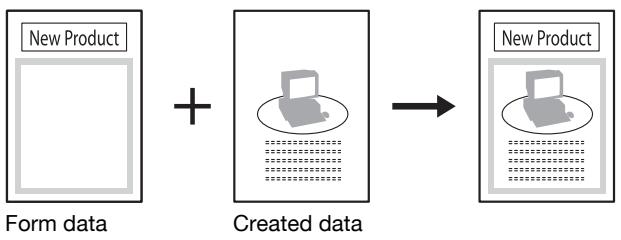
flowchart
graph LR
    A["Form data"] --> B["Created data"]
    B --> C["New Product"]
| Operating system | Printer driver | Refer to |
| Windows | Konica Minolta PCL | “Specifying the Overlay tab settings” on page 6-22. |
Watermark
Prints a watermark (text stamp) on the page being printed.
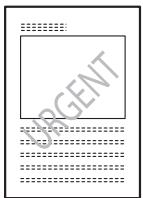
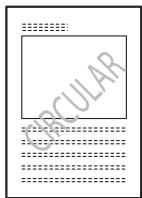
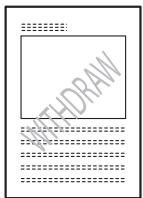
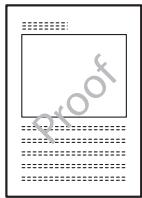
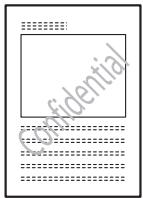
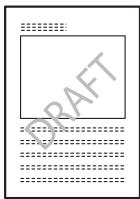
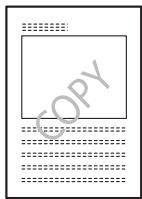
| Operating system | Printer driver | Refer to |
| Windows | Konica Minolta PCL | “Specifying the Watermark tab settings” on page 6-26. |
| Konica Minolta Post-Script | “Specifying the Watermark tab settings” on page 7-21. |
Use Printer Fonts (substitute fonts)
Specifies the replacement of TrueType fonts with printer fonts.
| Operating system | Printer driver | Refer to |
| Windows | Konica Minolta PCL | “Specifying the Font tab settings” on page 6-30. |
| Konica Minolta Post-Script | “Specifying the Quality tab settings” on page 7-23. | |
| PostScript PPD | “Fonts tab” on page 8-5. | |
| Mac OS 9.2 | PostScript PPD | “PostScript Options” on page 9-10. |
Account Track
Specifies when this machine is operating in Account Track.
| Operating system | Printer driver | Refer to |
| Windows | Konica Minolta PCL | “Specifying the Setup tab settings” on page 6-7. |
| Konica Minolta Post-Script | “Specifying the Setup tab settings” on page 7-9. | |
| Mac OS X | PostScript PPD | “Security” on page 10-16. |
For Windows
The functions of this machine that can be used when printing can be specified in the printer driver setup dialog box, which can be displayed from the Printers window (for Windows XP/Server 2003, Printers and Faxes window).
Settings specified in the printer driver setup dialog box displayed using the procedure described below will be applied when printing from any application.
1 For Windows 98 SE/Me/2000/NT 4.0, click the [Start] button, point to "Settings", and then click "Printers".
For Windows XP/Server 2003, click the [Start] button, and then click "Printers and Faxes".
- If "Printers and Faxes" does not appear in the Start menu, open the Control Panel from the Start menu, select "Printers and Other Hardware", and then select "Printers and Faxes".
2 For Windows 98 SE/Me, right-click the icon of the installed printer, and then click "Properties".
For Windows 2000/XP/Server 2003, right-click the icon of the installed printer, and then click “Printing Preferences”.
For Windows NT 4.0, right-click the icon of the installed printer, and then click "Document Default".
The following printer driver setting dialog box appears. For the settings that can be specified with each printer driver, refer to the following:
- Konica Minolta PCL driver: "Setting up the PCL driver" on page 6-3
- Konica Minolta PostScript driver: "Setting up the PostScript driver (Windows)" on page 7-3
- Konica Minolta PostScript PPD driver: "Setting up the PPD driver (Windows)" on page 8-3
PCL driver
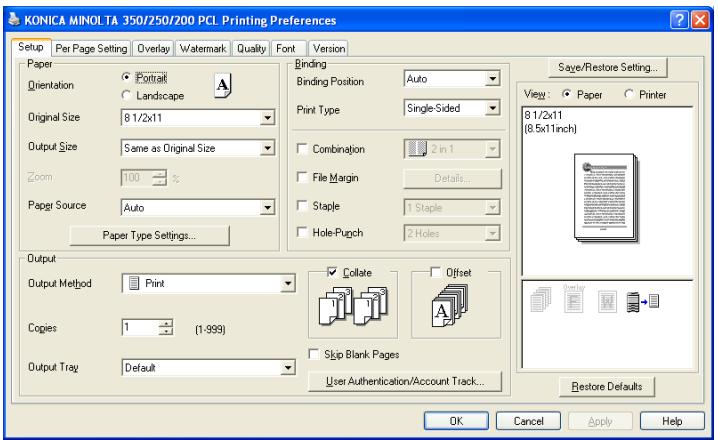
PostScript driver
![KONICA MINOLTA 350/250/200 PS Printing Preferences Advanced Setup Layout Per Page Setting Watermark Quality Version 8 1/2x11 (215.9x279.4mm) 8 1/2x11 (215.9x279.4mm) Easy Set Defaults Orientation Portrait Landscape Original Size 8 1/2x11 Output Size Same as Original Size Zoom Auto Manual Paper Source Auto Paper Type Plain Paper Copies 1 [1:999] Collate Offset Output Tray Default Output Method Print User Authentication/Account Track... Printer OK Cancel Apply Help](/content/2025/01/139596/images/05dfed27bee77da26933b70474693bed44f2bcca39fdb3e2512aada1c5f98671.jpg)
PostScript PPD
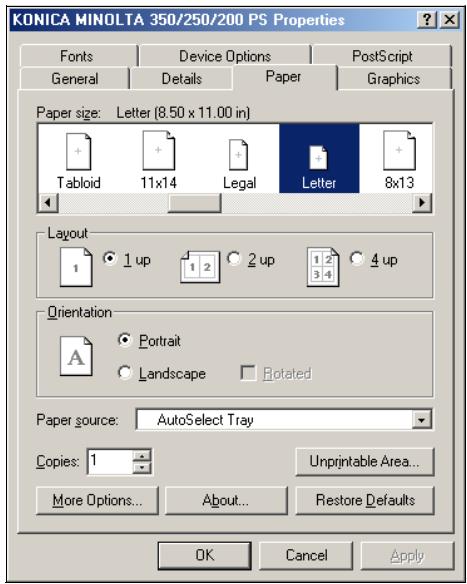

...
Note
Use each tab in the dialog box to set up the printer driver.
To specify custom settings, click Print in the application, and then click the [Properties] or [Preferences] button on the Print dialog box. The settings specified on the Print dialog box apply only to the current file.
For Macintosh
The functions of this machine that can be used when printing can be specified on the Print dialog box or the Page Setup dialog box.
The settings can only be applied while using the application. When the application is exited, the settings return to their default settings.
To display the Print dialog box
Open the data in the application, choose "File", then click "Print".
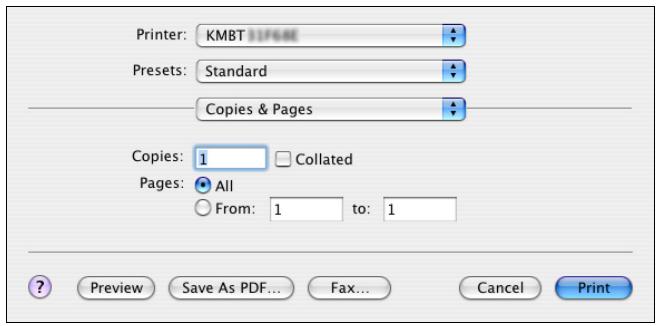
To display Page Setup dialog box
Open the data in the application, choose "File", and then click "Page Setup" or "Paper Setup".
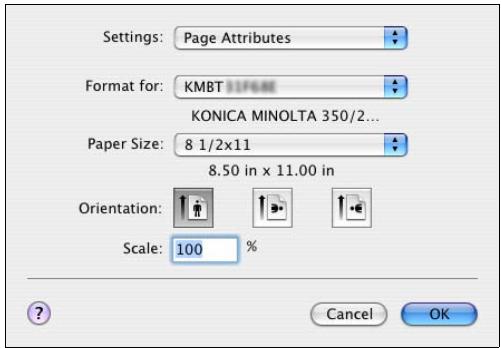
For the settings that can be specified with each printer driver, refer to the following:
- OS X: "Setting up the PPD driver (Mac OS X)" on page 10-3
- OS 9.2: "Setting up the PPD driver (Mac OS 9.2)" on page 9-3

Note
The contents of the Print dialog box and the Page Setup dialog box may differ.
Depending on the application, the Page Setup dialog box can be displayed by selecting "Paper Setup"—"Options" from the "File" menu.
6
Setting up the PCL driver
6 Setting up the PCL driver
6.1 Settings
Common settings
The following describes the common settings and buttons that are displayed on all tabs.
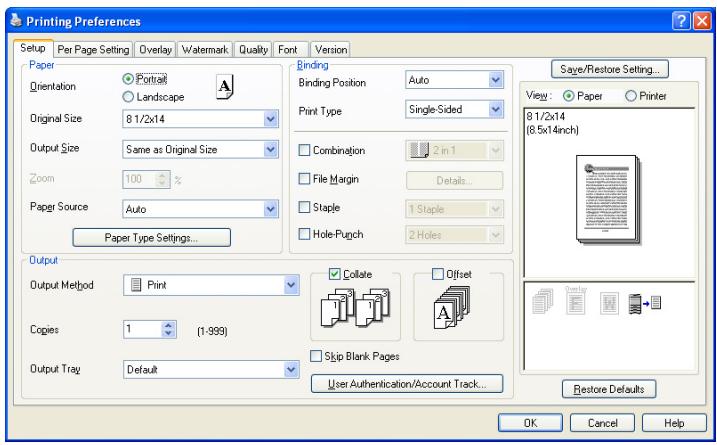
| Button | Function | |
| OK | Click this button to close the dialog box and apply any settings that have been changed. | |
| Cancel | Click this button to cancel any settings that have been changed and close the dialog box. | |
| Help | Click this button to display the help for each item on the currently displayed dialog box. | |
| Save/Restore Setting | Click this button to save the current settings and to view them at a later time. | |
| Restore Defaults | Click this button to return the settings to their defaults, which were selected when the driver was installed. | |
| Button | Function | |
| View | When “Paper” is selected, a preview of the page layout as specified in the current settings is displayed and a preview image of the print job can be checked.When “Printer” is selected, a printer figure is displayed showing any options, such as the paper tray, that are installed on this machine. | |
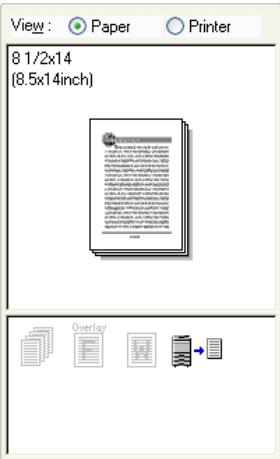 | 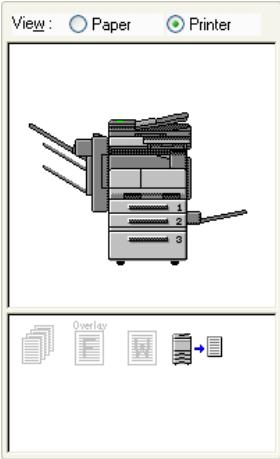 | |
| Paper | Printer | |

...
Note
To enable any installed options, you must specify the Option settings. For details, refer to "Specifying the Option tab settings" on page 6-31.
Setup tab
| Item | Function |
| Paper | Specifies the orientation, paper size, paper source, and paper type. |
| Binding | Specifies the folding format such as the binding position, duplex printing, booklet printing, printing multiple pages on one page, file margin, stapling, or hole punching. |
| Output | Specifies the output format such as the output method, number of copies, output tray, collate, or offset. |
Per Page Setting tab
| Item | Function |
| Front Cover Page | Attaches a front cover page. |
| Back Cover Page | Attaches a back cover page. |
| Per Page Setting | Specifies the paper to be inserted into a print document. |
Overlay tab
| Item | Function |
| Overlay | Specifies overlay printing. |
Watermark tab
| Item | Function |
| Watermark | Prints a watermark (text stamp) on the document being printed. |
| Distribution Number Stamping | Prints the number of the copy. |
Quality tab
| Item | Function |
| Print with Black | Specifies the data to be printed in black. |
| Pattern | Selects the print pattern. |
Font tab
| Item | Function |
| Use Printer Fonts | Selects whether to use TrueType fonts or the printer fonts when printing. |
| Download Font Format | Selects whether the fonts are downloaded to the printer as bitmap or outline. |
Version tab
| Item | Function |
| Version | Displays the version of the printer driver. |
Option tab
| Item | Function |
| Option | Specifies the options installed on this machine. |
| Option Information | Automatically specifies the printer driver option settings. |

...
Note
To display the Option tab in Windows 2000/XP/NT 4.0/Server 2003, right-click the icon of the installed printer, and then click "Properties".
6.2 Specifying the Setup tab settings
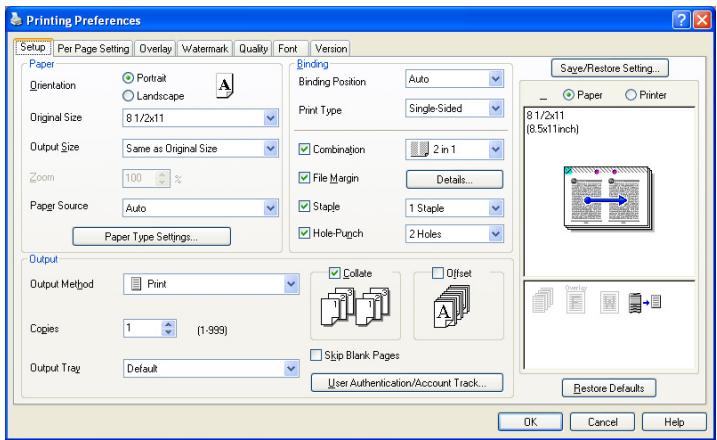
Printing to suit the paper size
You can enlarge or reduce documents created when printing to match the output paper size.
1 Click the Setup tab.
2 From the "Original Size" and "Output Size" drop-down lists, select the desired settings.
- You can also specify any enlargement or reduction ratio in the "Zoom" box.
Saving a custom size
A custom size can be specified and saved in advance as described below.
1 From the "Output Size" drop-down list, select "Custom Size Settings". The Custom Size Settings dialog box appears.
2 Specify settings for the following:
- List of Custom Sizes: Select the size for the custom size being set.
- Custom Size Name: Input the name of the custom size being registered.
- Size: Specify the width and length of the custom size according to the selected measurement units.
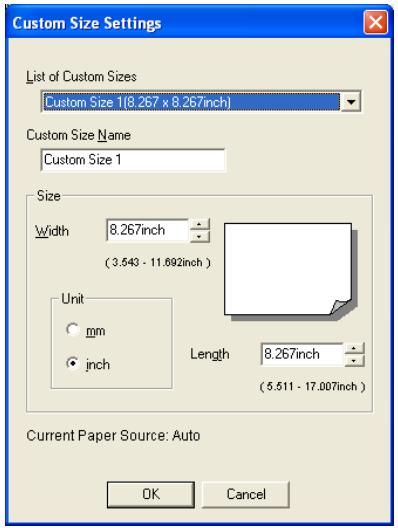
3 Click the [OK] button.

Note
The custom size settings can only be specified in the printer driver setup dialog box, which can be displayed from the Printers window in Windows 2000/NT 4.0 or from the Printers and Faxes window in Windows XP/Server 2003.
Windows 98 SE/Me can be specified from the Properties dialog box on the print screen.
Selecting the paper source
When changing the paper type, you can register it to an input tray and you will be able to select the input tray according to the desired paper type.
1 Click the Setup tab.
2 From the "Paper Source" drop-down list, select the paper tray that contains the paper to be used.
Setting the paper source of the paper type
Follow the procedure described below to assign a paper type to a paper tray.
1 Click the [Paper Type Settings] button.
2 Select the "Paper Source" being changed, and then click the [Edit] button.
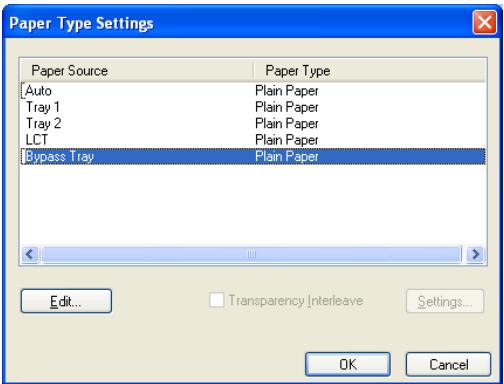
3 Select the desired setting from the "Paper Type" drop-down list, and then click the [OK] button.
Only the paper types that can be selected in each input tray are displayed.
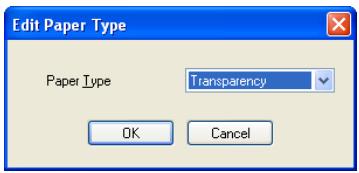
If “Transparency” is selected as the paper type, you can specify transparency interleaving.
When the “Transparency Interleave” check box is selected, the Transparency Interleave Settings dialog box appears, allowing you to select the source of the interleaf paper.
The Transparency Interleave Settings dialog box can also be displayed by clicking the [Settings] button.
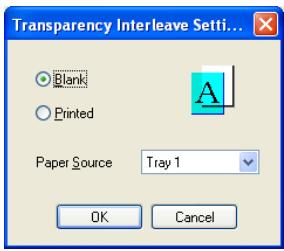
Specifying duplex/booklet printing
You can print a document onto both sides of a page or in a booklet format (two facing pages). This comes in handy when you want to bind multiple-page documents.
1 Click the Setup tab.
2 From the "Print Type" drop-down list, select "Duplex" or "Booklet".

Note
The binding orientation can be specified from the "Binding Position" drop-down list.
When optional finisher and saddle stitcher are installed and Booklet is specified, you can specify "Center Staple and Fold" to fold and bind the printout in half.
Printing multiple pages on one page (N in 1)
You can print multiple document pages on one page. This comes in handy when you want to reduce the number of output pages.
1 Click the Setup tab.
2 Select the "Combination" check box.
3 From the "Combination" drop-down list, select the number of pages to be printed on one page.
To change the border line and printing order settings, select the “Details”, and then change the settings in the Combination Details dialog box that appears.
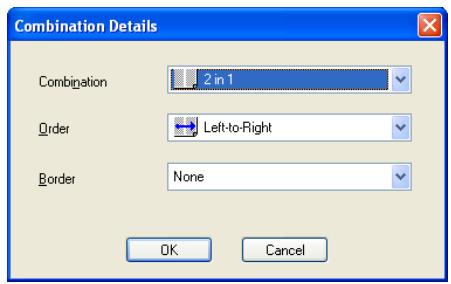

Note
When printing a job that contains pages of different sizes and orientations, images may be missing or overlapping when the document is printed.
Setting the file margin
File margins are added to the document before it is printed.
1 Click the Setup tab.
2 Select the "File Margin" check box.
3 To set the width of the file margin, click the [Details] button, and then specify the desired settings in File Margin Details dialog box that appears.
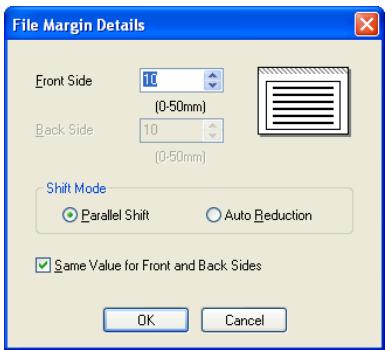
- Front Side/Back Side: Sets the file margin values. By clearing the "Same Value for Front and Back Sides" check box, you can specify each value for the front and back sides.
- Shift Mode: Selects the printing process for the document.
Stapling
Multiple-page documents can be stapled.
The staple function is available only when optional finisher is installed.
1 Click the Setup tab.
2 Select the "Staple" check box.
3 From the drop-down list, specify the number of staples and the stapling position.

Note
Depending on the selected Binding Position setting, different stapling positions are available.
Hole punching
Holes can be punched into the printed document.
The hole punch function is available only when punch unit is installed on optional finisher.
1 Click the Setup tab.
2 Select the "Hole-Punch" check box.
3 From the drop-down list, specify the number of punched holes.
Center binding
You can fold and staple printouts in half.
→ When “Booklet” is specified in “Print Type”, the “Staple” and “Hole-Punch” settings disappear and the “Center Staple and Fold” setting appears.

Note
"Center Staple and Fold" is shown when "Booklet" is specified and settings can be specified when optional finisher and saddle stitcher are installed.
Selecting the output method
Not only can you print directly, but you can select “Secure Print”, which requires a password to print, or “Save in User Box”, which saves documents in the document folder.
The Save in User Box and Save in User Box and Print functions can only be used when an optional hard disk is installed.
The Save in User Box, Save in User Box and Print, and Proof and Print functions cannot be specified when the "Per Page Setting" setting is specified.
1 Click the Setup tab.
2 From the "Output Method" drop-down list, select the output method.
– Print: Prints immediately.
- Secure Print: Saves the document to be printed in the secured document box of this machine. When printing, you are required to enter the user ID and password in this machine's control panel. Select when printing highly confidential documents.
- Save in User Box: Saves the document to be printed in a box on this machine.
- Save in User Box and Print: Saves the document in a box and prints at the same time.
- Proof and Print: After part of the document has been printed, this machine stops printing temporarily. Select to avoid misprinting large print jobs.
Secure Print
If “Secure Print” was selected, enter the user ID and password in the dialog box that appeared.
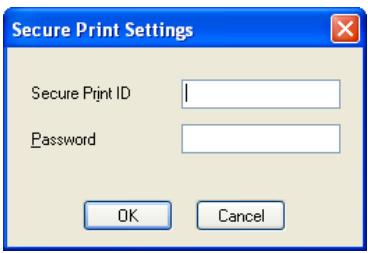

...
Note
To print the document, touch “Secured Print” in the Box mode of this machine, enter the user ID and password, and then select the document. For details, refer to “Print job management” on page 11-87.
For details on the box functions of this machine, refer to User's Guide [Box Operations].
Save in User Box
When “Save in User Box” or “Save in User Box and Print” is selected, specify the file name in the dialog box that appears for entering the file name.
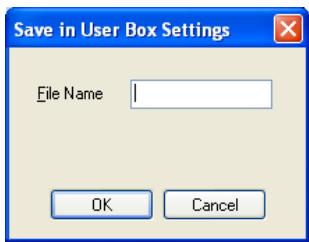

...
Note
For details on the box functions of this machine, refer to User's Guide [Box Operations].
Proof and Print
When a print job is sent, this machine stops printing temporarily after part of the document has been printed. The remaining print job is stored in this machine as a print job. When printing multiple copies, you can print the remaining part of the print job after checking the print results.

...
Note
To print the document, touch “Proof Print” in the Box mode of this machine, and then select the document. For details, refer to “Print job management” on page 11-87.
Proof and Print can be specified when “Collate” is specified.
For details on the box functions of this machine, refer to User's Guide [Box Operations].
Specifying user authentication settings
When the authentication settings have been applied on this machine, a user name and password must be entered.
1 Click the Setup tab.
2 Click the [User Authentication/Account Track] button.
3 Select the "User Authentication" check box, and then enter the user name and password.
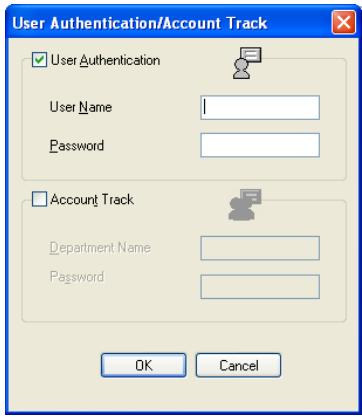
4 Click the [OK] button.

Note
If a print job is sent using a user name or password that is not a registered account on this machine or if a job is sent without the "User Authentication" check box selected, this machine cannot authenticate the operation and cannot print. When this occurs, the sent job is deleted.

Detail
For user authentication settings, consult the administrator of this machine.
Specifying account track settings
If account track settings have been specified on this machine, you must enter a user name and password in order to print a job.
1 Click the Setup tab.
2 Click the [User Authentication/Account Track] button.
3 Select the "Account Track" check box, and then enter the department name and password.
- A default password can also be registered and used rather than entering a password for each job. The default password can be specified in the printer driver setup dialog box, which can be displayed from the Printers window (for Windows XP/Server 2003, Printers and Faxes window).
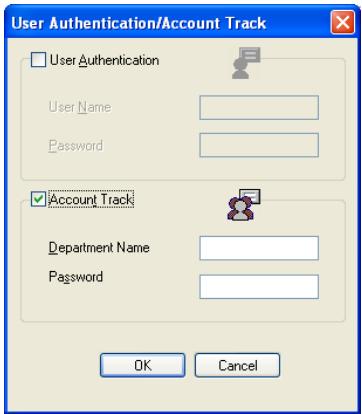
4 Click the [OK] button.

Note
If a print job is sent using a department name or password that is not a registered account or if a job is sent without the "Track Account" check box selected, this machine cannot authenticate the operation and cannot print. When this occurs, the sent job is deleted.
6.3 Specifying the Per Page Setting tab settings
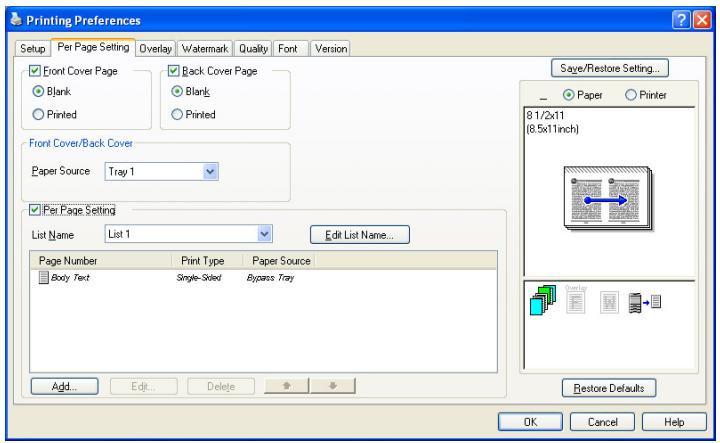
Printing documents with a front cover/back cover
1 Click the Per Page Setting tab.
2 Select the "Front Cover Page" and "Back Cover Page" check boxes.
3 To print on the front cover and back cover, select "Printed". To only add a blank page, select "Blank".
4 Select the input tray that contains the loaded paper for the front cover and back cover.

Note
The front cover and back cover use the paper of the same input tray.
You cannot specify settings in "Back Cover Page" only. Specify settings in "Back Cover Page" and "Front Cover Page" at the same time.
The Save in User Box, Save in User Box and Print, and Proof and Print functions cannot be specified when the "Per Page Setting" setting is specified.
Printing multiple pages
The “Per Page Setting” function comes in handy when you want to change the input tray during a print job when printing multiple pages.
Per Page Setting
You can specify the print type and input tray for each page.
1 Click the Per Page Setting tab.
2 Select the "Per Page Setting" check box.
3 From the "List Name" drop-down list, select the name of the desired list.
- When changing the list name, click the [Edit List Name] button after selecting the list name, and then apply the settings on the dialog box that appears.
4 Click the [Add] button, and then specify the page number, print type, and paper source in the dialog box that appears.
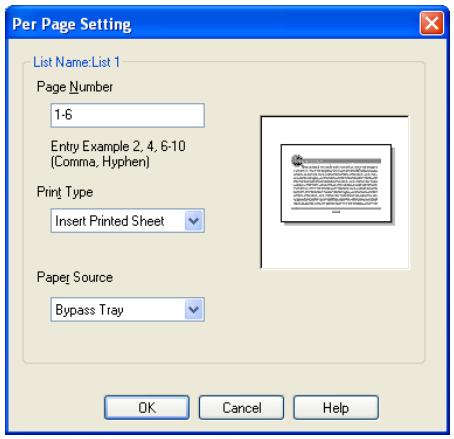

Note
For an existing list, click the [Edit] button to change the registered page numbers, or click the [Delete] button to delete them.
Click [] or [∅] to change the page number starting with the smallest page number.
6.4 Specifying the Overlay tab settings
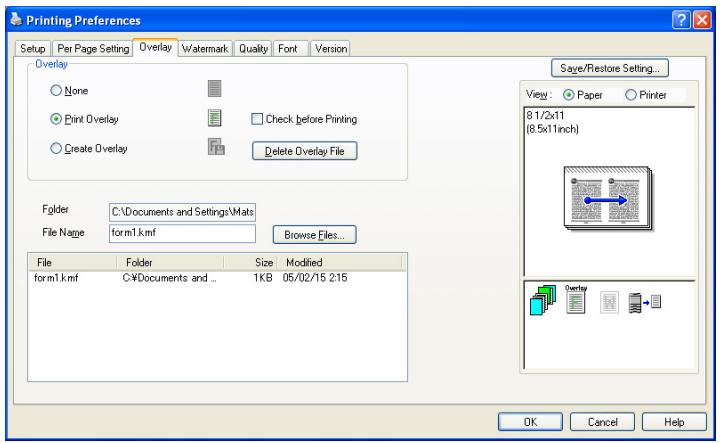
Printing different original documents together (overlay)
An original document can be printed on top of form data that was created separately. This function is handy for fax cover letters and form letters.
You must pre-register forms to be printed. For details, refer to “Editing forms” on page 6-24.
1 Create the print data using any application.
2 From the "File" menu, select "Print".
3 Select the KONICA MINOLTA 350/250/200 PCL printer, and then click the [Preferences] button.
4 Click the Overlay tab.
5 Select "Print Overlay".
6 From the list, select the form that you want to print.
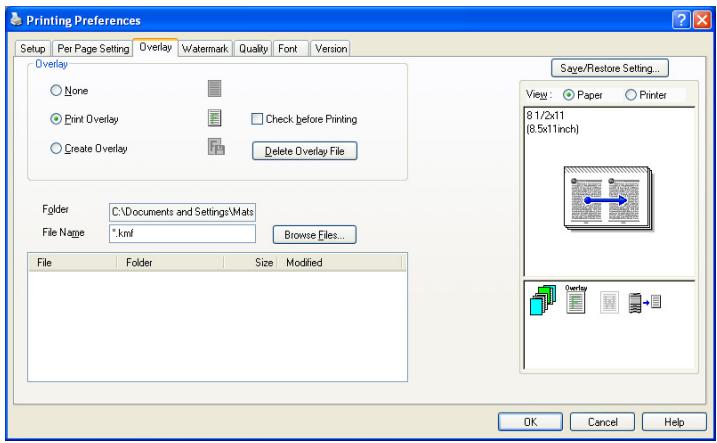
7 Select the file name, and then click the [OK] button. The Print dialog box appears again.
8 Click the [OK] button.
Overlay printing is performed.
Editing forms
Creating forms
To use forms, the data for using forms must be pre-registered. To register a form, select “Create Overlay”, and then specify the document that you want to register.
1 Create the form data using any application.
2 From the "File" menu, select "Print".
3 Select the KONICA MINOLTA 350/250/200 PCL printer, and then click the [Preferences] button.
4 Click the Overlay tab.
5 Select "Create Overlay".
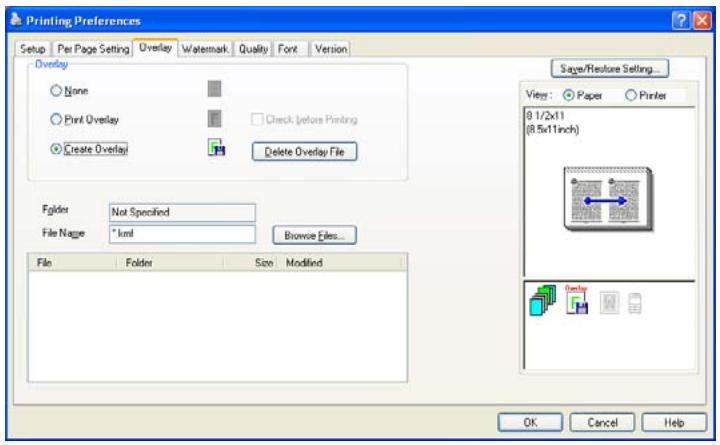
6 Click the [Browse Files] button.
7 Specify the storage location for the form data, and then enter the file name in the "File name" box.
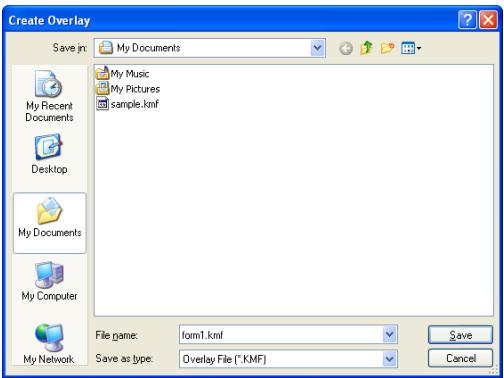
8 Click the [Save] button.
9 Select the file name, and then click the [OK] button.
The Print dialog box appears again.
10 Click the [OK] button.
Instead of executing a print job, the form data is saved. The file extension is “.kmf”.

Note
From the Overlay tab, the selected form data can be deleted by clicking the [Delete Overlay File] button.
6.5 Specifying the Watermark tab settings
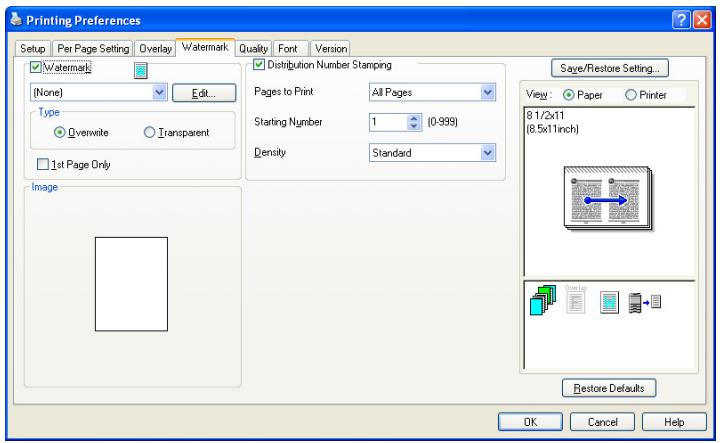
Printing a watermark
You can print specific text in the background as a watermark.
1 Click the Watermark tab.
2 Select the "Watermark" check box.
3 From the drop-down list, select the watermark that you want to print.
4 Specify the desired settings for "Type" and "1st Page Only".
- Overwrite: Prints the watermark with a white background.
- Transparent: Prints the watermark with a transparent background.
Editing a watermark
You can change the fonts and position of the watermark and you can register a new one.
1 Click the Watermark tab.
2 Select the "Watermark" check box.
3 Click the [Edit] button.
4 Specify settings for the following:
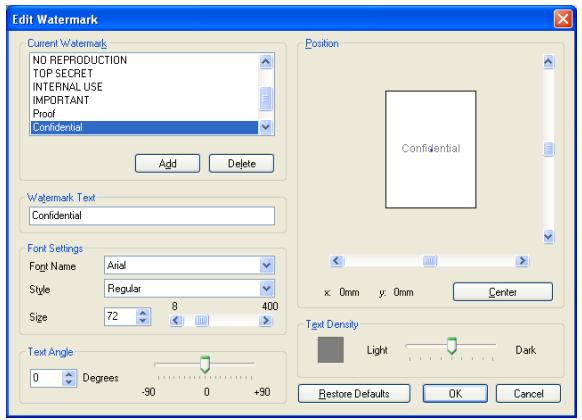
- [Add]: Click to enter a new watermark in the watermark text box.
– [Delete]: Click to delete the selected watermark. - Font Settings: Specifies the font and font size.
– Text Angle: Specifies the watermark print angle. - Position: Specifies the watermark position with the horizontal and vertical scroll bars.
– Text Density: Specifies the watermark text density.
Printing the document number
When printing multiple copies, you can print the number of each document.
1 Click the Watermark tab.
2 Select the "Distribution Number Stamping" check box.
3 Specify settings for the following:
- Pages to Print: Specifies the pages where the numbering is to be printed.
- Starting Number: Specifies the starting number.
– Density: Specifies the density of the number being printed.

Note
The “Distribution Number Stamping” check box is not available if the “Collate” check box is not selected on the Setup tab.
6.6 Specifying the Quality tab settings
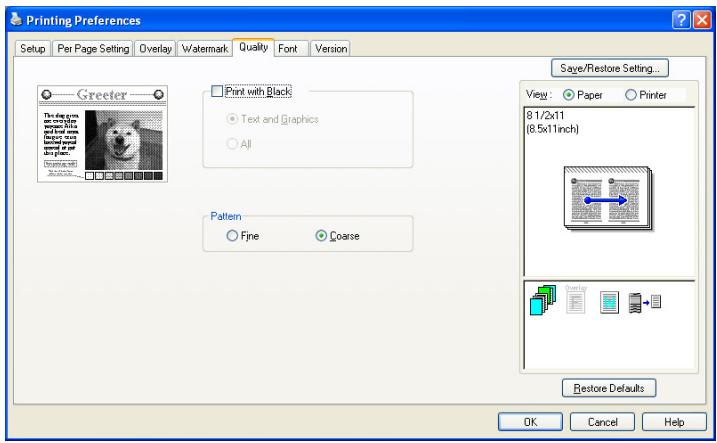
Specifying settings
1 Click the Quality tab.
2 Specify settings for the following:
- Print with Black: Specifies the data to be printed in black. Prints in black except the white areas.
– Pattern: Selects the print pattern as “Fine” or “Coarse”.
6.7 Specifying the Font tab settings
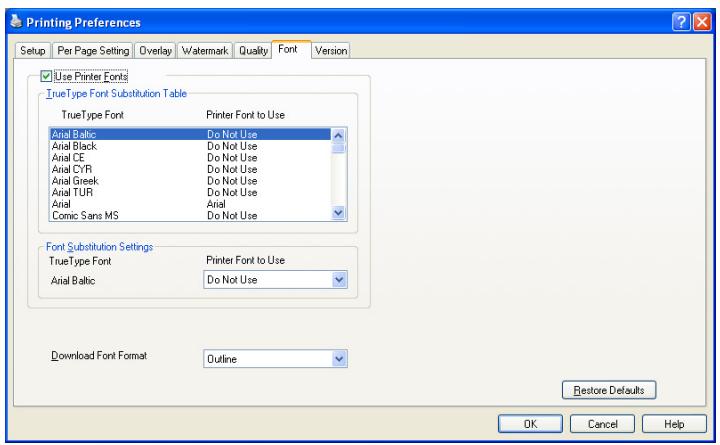
Specifying settings
You can replace the TrueType fonts used in Windows with the printer fonts of this machine.
1 Click the Font tab.
2 Select the "Use Printer Fonts" check box.
3 Select the TrueType font that you want to replace.
4 From the "Printer Font to Use" drop-down list, select the printer font to replace the TrueType font.
5 Click the [OK] button.

Note
Using the printer fonts will shorten the printing time, however, there may be a difference in the screen display and the print results.
When using TrueType fonts, select from the "Download Font Format" drop-down list the font type to be downloaded to the printer.
6.8 Specifying the Option tab settings
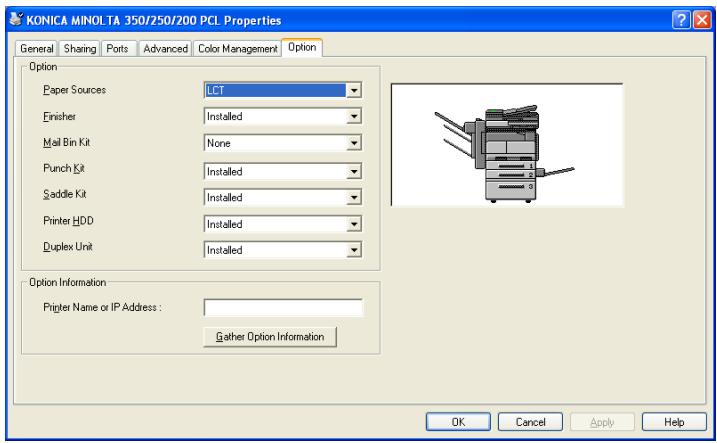

...
Note
If the installed options are not set from the Option tab, the option function cannot be used with the printer driver. When installing options, be sure to make the proper settings.
Specifying settings
You can specify the options installed on this machine so that they can be used from the printer driver.
1 For Windows 98 SE/Me/2000/NT 4.0, click the [Start] button, point to "Settings", and then click "Printers".
For Windows XP/Server 2003, click the [Start] button, and then click "Printers and Faxes".
- If “Printers and Faxes” does not appear in the Start menu, open the Control Panel from the Start menu, select “Printers and Other Hardware”, and then select “Printers and Faxes”.
2 Right-click the "KONICA MINOLTA 350/250/200 PCL" icon, and then click "Properties".
3 Click the Option tab.
4 Specify the installation status of each option.

Note
To automatically set the installed options, enter the printer name or IP address of this machine in the "Printer Name or IP Address" box under "Option Information", and then click the [Gather Option Information] button. However, to execute the Gather Option Information function, the network settings of this machine must be specified in advance.
6.9 Saving the driver settings
For PCL drivers, you can save the setting values of the changed driver and recall them as necessary.
Saving the driver settings
1 Change the driver settings from the Setup tab and the Per Page Setting tab.
2 Click the [Save/Restore Setting] button, and then select "Save Current Setting".
![Printing Preferences Setup Per Page Setting Overlay Watermark Quality Font Version Paper Orientation Original Size 8 1/2x11 Output Size Same as Original Size Zoom 100 Paper Source Bypass Tray Paper Type Settings... Binding Binding Position Auto Print Type Single-Sided Combination 2 in 1 File Margin Details... Staple 1 Staple Hole-Punch 2 Holes Save/Restore Setting... Save Current Setting Restore Saved Setting Edit Library [1/25] Default Setting Detailed Restore Setting Output Output Method Print Copies 1 (1-999) Output Tray Default Collate Offset Skip Blank Pages User Authentication/Account Track... Restore Defaults OK Cancel Help](/content/2025/01/139596/images/3834db7c6896ab60c9bb71bcc54ca45cb0ce3226b3748d4622c82829586b1cec.jpg)
3 Enter the file name in the "Name" text box.
![Save Setting Library [Number Saved] 1/25 Default Setting Name Comment Save Location C:\Documents and Settings\Matsu\My Doc Browse... Setting List Setup Per Page Setting Overlay Watermark Quality Font Control Name Settings Settings Settings Orientation Portrait Original Size 8 1/2x11 Output Size Same as Original... Zoom 100 % Paper Source Bypass Tray Paper Type Plan Paper Binding Position Auto... Print Type Single-Sided Combination Specified 2 in 1 8 1/2x11 (8.5x11inch) OK Cancel Help](/content/2025/01/139596/images/c71f573d0eda662e10c6af675e9b2c0f4e6f204c8ac02e431328fd6526711309.jpg)
4 Enter a message in the "Comment" text box as necessary.
5 Specify a folder in the "Save Location" box, and then click the [OK] button.
The settings are registered in a library.

Note
The file extension is ".ksf".
You can save up to 25 items in the library.
Up to 64 characters can be entered in the "Name" text box.
Up to 512 characters can be entered in the "Comment" text box.
Restoring the settings
1 Click the [Save/Restore Setting] button on the Printing Preferences dialog box, and then select "Restore Saved Setting".
2 From the “Library” list, select the desired settings file.
3 Click the [OK] button.
The setting values are recalled, and the Printing Preferences dialog box appears again.
Deleting the settings
1 Click the [Save/Restore Setting] button on the Printing Preferences dialog box, and then select "Edit Library".
2 From the "Library" list, select the desired settings file to be deleted.
3 Click the [Delete] button.

Note
Even if the settings file is deleted from the "Library" list, it will remain on the hard disk of your computer. By specifying the file name in "Save Setting File in Library", you can save it in the "Library" list.
7
Setting up the PostScript driver (Windows)
7 Setting up the PostScript driver (Windows)
7.1 Settings
Common settings
The following describes the common settings and buttons that are displayed on all tabs.
![KONICA MINOLTA 350/250/200 PS Printing Preferences Advanced Setup Layout Per Page Setting Watermark Quality Version 8 1/2x11 (215.9x279.4... 8 1/2x11 (215.9x279.4... Easy Set Defaults Orientation Portrait Landscape Original Size 8 1/2x11 Output Size Same as Original Size Zoom Auto Manual % Paper Source Auto Paper Type Plain Paper Copies 1 [1_999] Collate Offset Output Tray Default Output Method Print User Authentication/Account Track... Printer OK Cancel Apply Help](/content/2025/01/139596/images/7c52e49cf9a414e12fbaa68bf11a996f574e15db9a1d2202f5c134aeacdb3543.jpg)
| Button | Function |
| OK | Click this button to close the dialog box and apply any settings that have been changed. |
| Cancel | Click this button to cancel any settings that have been changed and close the dialog box. |
| Help | Click this button to display the help for each item on the currently displayed dialog box. |
| Save | Click this button to save the current settings and to view them at a later time. |
| Edit | Click this button to change the saved settings. |
| Default | Click this button to return the settings to their defaults, which were selected when the driver was installed. |
| View | When the [Paper] button is clicked, a preview of the page layout as specified in the current settings is displayed and a preview image of the print job can be checked.When the [Printer] button is clicked, a printer figure is displayed showing any options, such as the paper tray, that are installed on this machine. |
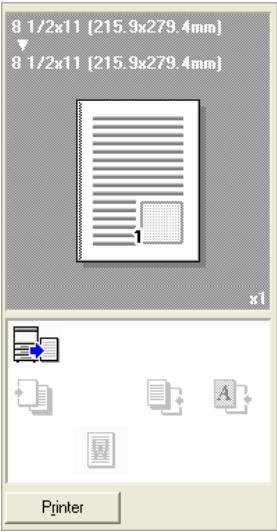 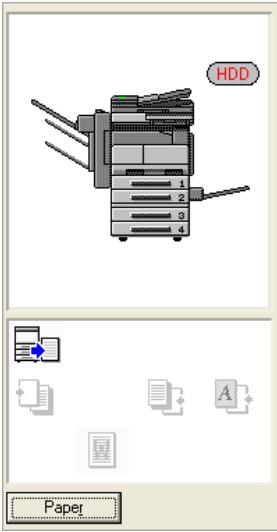 | |
| Paper Printer |

...
Note
To enable any installed options, you must specify the Option settings. For details, refer to "Specifying the Option tab settings" on page 7-24.
Setup tab
| Item | Function |
| Orientation | Specifies the orientation of the image being printed on the paper. |
| Original Size | Specifies the size of the original document. |
| Output Size | Specifies the output paper size. Automatically enlarges or reduces when the Original Size setting is changed. |
| Zoom | Specifies the enlargement and reduction ratio. |
| Paper Source | Selects the paper source for printing. |
| Paper Type | Selects the paper type for printing. |
| Copies | Specifies the number of copies to print. |
| Collate | Specifies whether to print multiple copies in sets. |
| Offset | When printing multiple copies, shifts the output position of each set. |
| Output Tray | Selects the tray where to output the printed pages. |
| Output Method | Specifies output methods, such as “Secure Print” and “Save in User Box”. |
| [User Authentication/Account Track] | For user management in the “User Authentication” and “Account Track”, enter a user name, department name, and password. |
Layout tab
| Item | Function |
| Combination | Prints multiple pages on one page and specifies the booklet function. Details can be specified in Combination Details. |
| Rotate 180 | Prints the image rotated 180°. |
| Double Sides | Specifies duplex printing. |
| Binding Position | Specifies the binding position. |
| Staple | Specifies stapling. |
| Center Staple and Fold | Folds the printouts in half and staples. |
| Hole-Punch | Specifies hole punching. |
Per Page Setting tab
| Item | Function |
| Front Cover Page | Attaches a front cover page. |
| Back Cover Page | Attaches a back cover page. |
| Paper Source | Selects the input tray for the front cover page and back cover page. |
| Transparency Interleave | Outputs and inserts interleaves when printing overhead projector transparencies. |
| Paper Source | Selects the input tray for the transparency interleaves. |
Watermark tab
| Item | Function |
| Watermark | Prints a watermark (text stamp) on the page being printed. Watermarks can be added, changed, or deleted. |
| Transparent | Prints the watermark with a transparent background. |
| 1st Page Only | Prints the watermark on the first page only. |
| Repeat | Prints several watermarks on a single page. |
Quality tab
| Item | Function |
| Font Settings | Selects whether to use TrueType fonts or the printer fonts when printing. |
Advanced tab
| Item | Function |
| Detailed Print Function | Specifies whether to enable metafile spooling. |
| PostScript Output Options | Specifies the PostScript file output format. |
| PostScript Error Handler Transmission | Specifies whether to print an error report when a PostScript error occurs. |
| Horizontal Reverse Printing | Reverses horizontally, then prints. |
| B/W Reverse Printing | Reverses black and white, then prints. |
| PostScript Pass Through | Allows applications to print directly without using a printer driver. |
Device Settings tab
| Item | Function |
| Font Substitute List | Specifies the replacement of TrueType fonts with printer fonts. |
| Usable PostScript Memory | Specifies the usable PostScript memory size. |
| Output Protocol | Specifies the protocol for transmitting to the printer. |
| Send CTRL-D Before Job | Specifies whether to reset printer before printing. |
| Send CTRL-D After Job | Specifies whether to reset printer after printing. |
| Convert gray text to Post-Script gray | Specifies whether to convert gray text in a document to Post-Script gray. |
| Convert gray graphics to PostScript gray | Specifies whether to convert gray graphics in a document to PostScript gray. |
| Convert Euro Currency Symbol to PostScript Fonts | Specifies whether to convert the Euro currency symbol in a doc-ument to PostScript fonts. |
| Job Timeout | Printer stops printing when a print job is not completed within the specified time. |
| Print Queue Timeout | Printer stops printing when the printer does not receive data with-in the specified time from when the job was sent. |
| Minimum Font Size Down-loaded as Outline | Specifies the minimum font size (pixels) when downloading Tru- eType fonts as outline fonts. Fonts smaller than the minimum specified size are downloaded as bitmap fonts. |
| Maximum Font Size Down-loaded as Bitmap | Specifies the maximum font size (pixels) when downloading Tru- eType fonts as bitmap fonts. Fonts larger than the maximum specified size are downloaded as outline fonts. |

...
Note
To display the Device Settings tab in Windows 2000/XP/NT 4.0/Server 2003, right-click the icon of the installed printer, and then click "Properties".
Option Tab
| Item | Function |
| Option | Specifies the options that are installed on this machine. |
| Gather Option Information | Communicates with this machine and reads the status of the installed options. |
| PageScope Web Connection | Starts up PageScope Web Connection. |

...
Note
To display the Device Information tab in Windows 2000/XP/NT 4.0/Server 2003, right-click the icon of the installed printer, and then click "Properties".
You cannot click the [Gather Option Information] button if you are not connected to or able to communicate with this machine.
Settings tab
| Item | Function |
| Displays a confirmation message when a prohibited action occurs. | Displays a message when you want to perform a function that cannot be set when the printer is being used. |
| Use the Server Property Paper | Uses the added registered paper in [Server Properties]. |

...
Note
To display the Settings tab in Windows 2000/XP/NT 4.0/Server 2003, right-click the icon of the installed printer, and then click "Properties".
7.2 Specifying the Setup tab settings
![Printing Preferences Advanced Setup Layout Per Page Setting Watermark Quality Version 9 1/2x11 (215.9x279.4... 0 1/2x11 (215.9x279.4... Easy Set Unlaid Size... Edit Orientation Portrait Landscape Original Size 8 1/2x11 Output Size Same as Original Size Zoom Auto Manual 100 % Paper Source Auto Paper Type Plain Paper Copies 1 [1_999] Collate Offset Output Tray Default Output Method Print User Authentication/Account Track... OK Cancel Help Printer](/content/2025/01/139596/images/7220dd923299e05ada315c5bc5cf256dc996deb456dd55d2907d431050bcf9de.jpg)
Printing to suit the paper size
You can enlarge or reduce documents created when printing to match the output paper size.
1 Click the Setup tab.
2 From the "Original Size" and "Output Size" drop-down lists, select the desired settings.
- You can also specify any enlargement or reduction ratio in the "Zoom" box.
Saving a custom size
A custom size can be specified and saved in advance as described below.
1 From the "Original Size" or "Output Size" drop-down lists, select "Custom Size Settings".
The Custom Size Settings dialog box appears.
2 Specify settings for the following:
- Size: Specify the width and length of the custom size according to the selected measurement units.
![Custom Size Settings Width 8.27 inch [3.56_11.68] Length 11.69 inch [5.50_17.00] Unit mm inch OK Cancel Default Help](/content/2025/01/139596/images/67fbf5d06b769c409c48e5d2e32598005f5f71fe0613ab03e4c9fdc7c9519873.jpg)
3 Click the [OK] button.
Selecting the output method
Not only can you print directly, but you can select “Secure Print”, which requires a password to print, or “Save in User Box”, which saves documents in the document folder.
The Save in User Box and Save in User Box and Print functions can only be used when an optional hard disk is installed.
The Save in User Box, Save in User Box and Print, and Proof and Print functions cannot be specified when the "Per Page Setting" setting is specified.
1 Click the Setup tab.
2 From the "Output Method" drop-down list, select the output method.
– Print: Prints immediately.
- Secure Print: Saves the document to be printed in the secured document box of this machine. When printing, you are required to enter the user ID and password in this machine's control panel. Select when printing highly confidential documents.
- Save in User Box: Saves the document to be printed in a box on this machine.
- Save in User Box and Print: Saves the document in a box and prints at the same time.
- Proof and Print: After a part of the document has been printed, this machine stops printing temporarily. Select to avoid misprinting large print jobs.
Secure Print
If “Secure Print” was selected, enter the user ID and password in the dialog box that appeared.
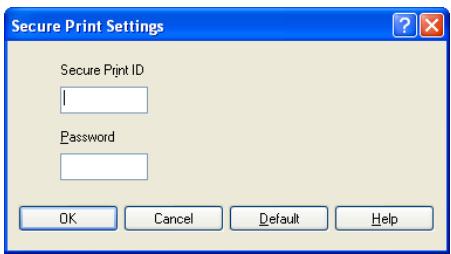

...
Note
To print the document, touch “Secured Print” in the Box mode of this machine, enter the user ID and password, and then select the document. For details, refer to “Print job management” on page 11-87.
For details on the box functions of this machine, refer to User's Guide [Box Operations].
Save in User Box
When “Save in User Box” or “Save in User Box and Print” is selected, specify the file name in the dialog box that appears for entering the file name.
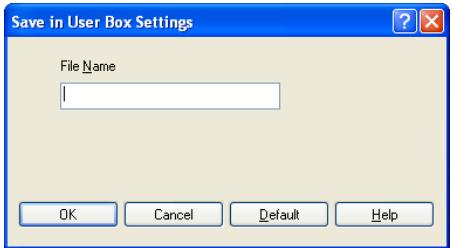

...
Note
For details on the box functions of this machine, refer to User's Guide [Box Operations].
Proof and Print
When a print job is sent, this machine stops printing temporarily after part of the document has been printed. The remaining print job is stored in this machine as a print job. When printing multiple copies, you can print the remaining part of the print job after checking the print results.

...
Note
To print the document, touch “Proof Print” in the Box mode of this machine, and then select the document. For details, refer to “Print job management” on page 11-87.
Proof and Print can be specified when “Collate” is specified.
For details on the box functions of this machine, refer to User's Guide [Box Operations].
Specifying user authentication settings
When the authentication settings have been applied on this machine, a user name and password must be entered.
1 Click the Setup tab.
2 Click the [User Authentication/Account Track] button.
3 Select the "User Authentication" check box, and then enter the user name and password.
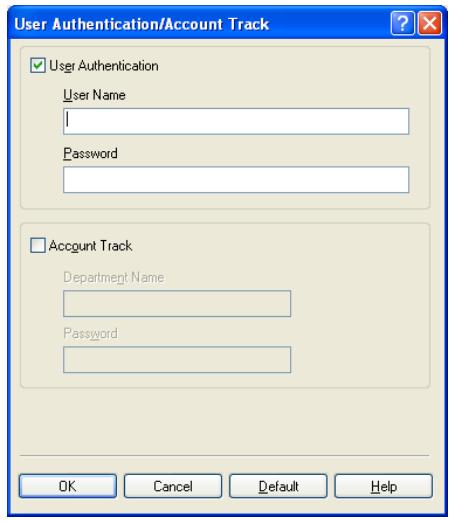

...
Note
If a print job is sent using a user name or password that is not a registered account on this machine or if a job is sent without the “User Authentication” check box selected, this machine cannot authenticate the operation and cannot print. When this occurs, the sent job is deleted.

Detail
For user authentication settings, consult the administrator of this machine.
Specifying account track settings
If account track settings have been specified on this machine, you must enter a department name and password.
1 Click the Setup tab.
2 Click the [User Authentication/Account Track] button.
3 Select the "Account Track" check box, and then enter the department name and password.
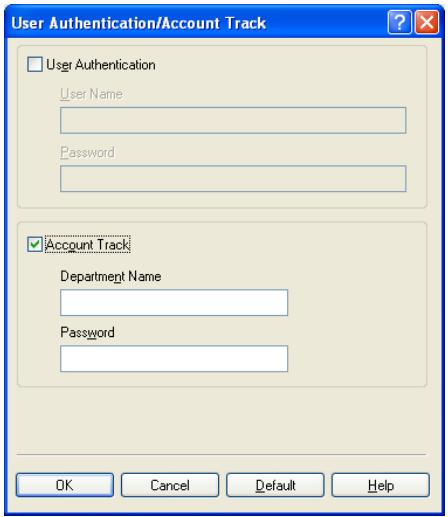

Note
If a print job is sent using a department name or password that is not a registered account or if a job is sent without the “Track Account” check box selected, this machine cannot authenticate the operation and cannot print. When this occurs, the sent job is deleted.
7.3 Specifying the Layout tab settings
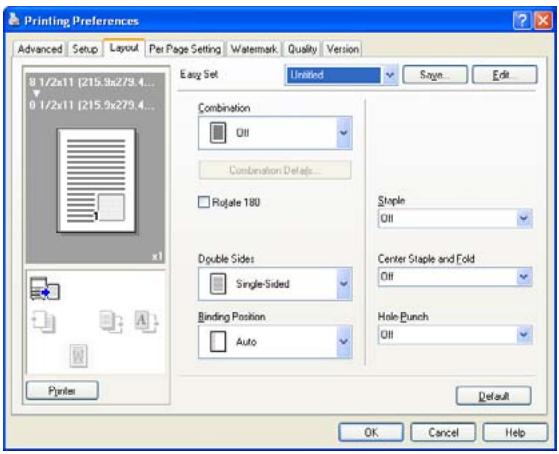
Printing multiple pages on one page (N in 1)
You can print multiple documents pages on one page. You can also specify the “Booklet” setting to fold the printouts in half to make a booklet.
1 Click the Layout tab.
2 From the "Combination" drop-down list, select the number of pages to be printed on one page.
To change the border line and printing order settings, click [Combination Details] button, and then change the settings in the dialog box that appears.
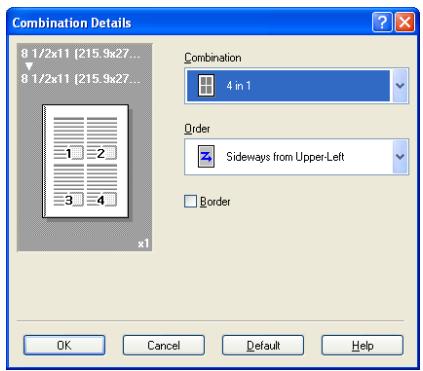

...
Note
When printing a job that contains pages of different sizes and orientations, images may be missing or overlapping when the document is printed.
When optional finisher and saddle stitcher are installed and Booklet is specified, you can specify "Center Staple and Fold" to fold and bind the printout in half.
Duplex printing
You can print a document onto both side of a page. This comes in handy when you want to bind multiple-page documents.
1 Click the Layout tab.
2 From the "Double Sides" drop-down list, select "Double-Sided".

Note
The binding orientation can be specified from the "Binding Position" drop-down list.
Setting the file margin
File margins are added to the document before it is printed.
1 Click the Layout tab.
2 From the "Binding Position" drop-down list, select the position of the binding margin.
Stapling
Multiple-page documents can be stapled.
The staple function is available only when optional finisher is installed.
1 Click the Layout tab.
2 From the “Staple” drop-down list, specify the number of staples and the stapling position.

Note
Depending on the selected Binding Position setting, different stapling positions are available.
Center binding
You can fold and staple printouts in half.
When optional finisher and saddle stitcher are installed and Booklet is specified, you can specify "Center Staple and Fold".
1 Click the Layout tab.
2 From the “Center Staple and Fold” drop-down list, select “Center Staple and Fold”.
Hole punching
Holes can be punched into the printed document.
The hole punch function is available only when punch unit is installed on optional finisher.
1 Click the Layout tab.
2 From the "Hole-Punch" drop-down list, specify the number of punched holes.

Note
Depending on the selected Binding Position setting, different hole punching positions are available.
7.4 Specifying the Per Page Setting tab settings
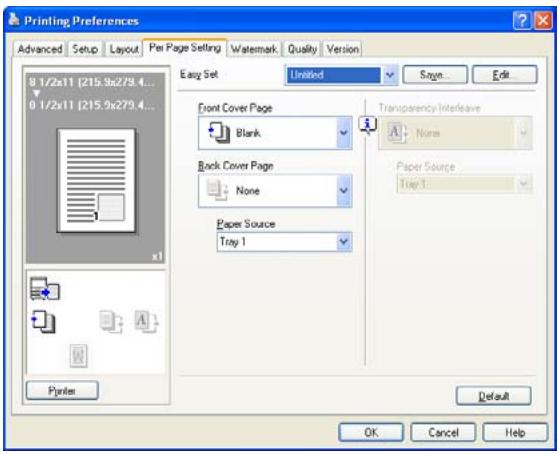
Printing documents with a front cover/back cover
1 Click the Per Page Setting tab.
2 From the "Front Cover Page" and "Back Cover Page" drop-down lists, select the desired printing settings.
To print on the front cover and back cover, select "Printed". To only add a blank page, select "Blank".
3 Select the input tray that contains the loaded paper for the front cover and back cover.

Note
The front cover and back cover use the paper of the same input tray.
You cannot specify settings in "Back Cover Page" only. Specify settings in "Back Cover Page" and "Front Cover Page" at the same time.
The Save in User Box, Save in User Box and Print, and Proof and Print functions cannot be specified when the "Per Page Setting" setting is specified.
7.5 Specifying the Watermark tab settings
![Printing Preferences Advanced Setup Layout Per Page Setting Watermark Quality Version Easy Set Untitled Sng... Edit Watermark [None] URGENT CIRCULAR WITHDRAW NO REPRODUCTION TOP SECRET INTERNAL USE UPPSENT Add... Edit... Delete Transparent 1st Page Only Repeat Printer OK Cancel Help](/content/2025/01/139596/images/1fec3b4a8decf19661885c057d69818a6645e2026e9df956fc8597c95717e2b1.jpg)
Printing a watermark
You can print specific text in the background as a watermark.
1 Click the Watermark tab.
2 From the drop-down list, select the watermark that you want to print.
3 Specify settings for the following:
- Transparent: Prints the watermark with a transparent background.
- 1st Page Only: Prints the watermark on the first page only.
- Repeat: Prints several watermarks on a single page.
Editing a watermark
You can change the fonts and position of the watermark and you can register a new one.
1 Click the Watermark tab.
2 To create a watermark, click the [Add] button.
To change a watermark, select the watermark to be changed, and then click the [Edit] button.
3 Specify settings for the following:
![Watermark Settings Watermark Name +100% URGENT Watermark Text URGENT Font Name Size Arial 72 Point [7_600] Style Angle Regular 0 Degrees Text Dengity 50% -100% Frame None Position X: 0 % Y: 0 % Center Sharing Public Private OK Cancel Default Help](/content/2025/01/139596/images/30749fc2605213630caad19dcc81429f085117218d8f0ce632c5144543dd279d.jpg)
– Watermark Name: Specifies the watermark name being registered.
– Watermark Text: Specifies the watermark text.
- Font Name, Size, Style, Angle, Text Density, and Frame: Specifies the font, font size, style, text angle, text density, and frame of the watermark.
- Position: Specifies the watermark position with the horizontal and vertical scroll bars.
- Sharing: Specifies whether to register the watermark as public or private.

Note
Only the administrator of the computer can select a setting under "Sharing".
7.6 Specifying the Quality tab settings
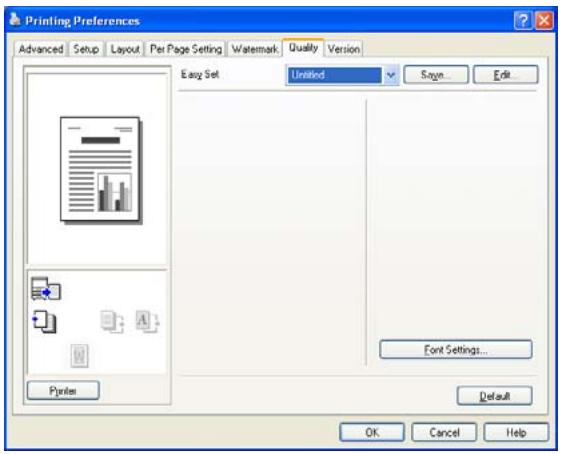
Font Settings
You can replace the TrueType fonts used in Windows with the printer fonts of this machine.
1 Click the [Font Settings] button.
2 Specify settings for the following:
- Download Font Format: Select the TrueType font downloading method.
- Use Printer Fonts: Replace TrueType fonts with the printer fonts.

Note
Using the printer fonts will shorten the printing time, however, there may be a difference in the screen display and the print results.
When using TrueType fonts, select from the "Download Font Format" drop-down list the font type to be downloaded to the printer.
Specify the font replacement list from the Device Settings tab.
7.7 Specifying the Option tab settings
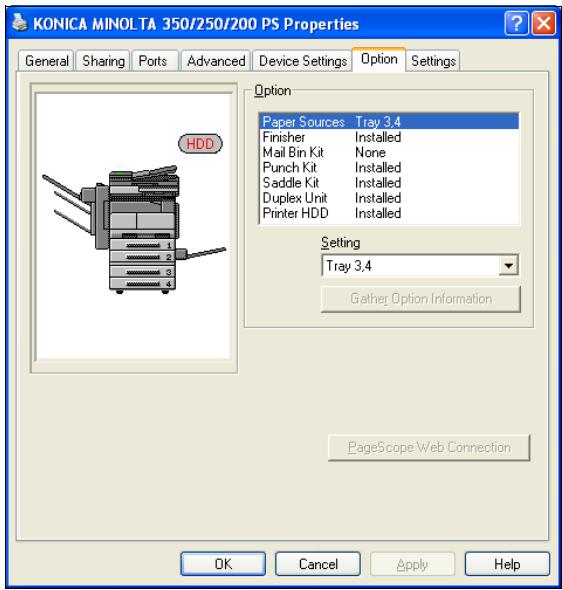
You can specify the options installed on this machine so that they can be used from the printer driver.

...
Note
If the installed options are not set from the Option tab, the option function cannot be used with the printer driver. When installing options, be sure to make the proper settings.
Specifying settings
1 For Windows 2000/NT 4.0, click the [Start] button, point to "Settings", and then click "Printers".
For Windows XP/Server 2003, click the [Start] button, and then click "Printers and Faxes".
- If "Printers and Faxes" does not appear in the Start menu, open the Control Panel from the Start menu, select "Printers and Other Hardware", and then select "Printers and Faxes".
2 Right-click the "KONICA MINOLTA 350/250/200 PS" icon, and then click "Properties".
3 Click the Option tab.
4 Select the option, and then specify the installation status from the drop-down list below.

...
Note
The installed option can be automatically registered in the "Option" list by clicking the [Gather Option Information] button when connected to this machine. However, to execute the Gather Option Information function, the network settings of this machine must be specified in advance.
7.8 Saving the driver settings
For PostScript drivers, you can save the setting values of the changed driver and recall them as necessary.
Saving the driver settings
1 Change the driver settings from the Setup tab and the Layout tab.
2 Click the [Save] button.
![Printing Preferences Advanced Setup Layout Per Page Setting Watermark Quality Version 8 1/2x11 (215.9x279.4... 8 1/2x11 (215.9x279.4... Easy Set Untitled Save... Edit... Orientation Portrait Landscape Original Size 8 1/2x11 Output Size Same as Original Size Zoom ABylo 100 % Manual Paper Source Auto Paper Type Plain Paper Copies 1 [1_999] Collate Offset Output Tray Default Output Method Print User Authentication/Account Track... Printer OK Cancel Help](/content/2025/01/139596/images/f318d582bb36e8cb51b4c335182bf49722277252c2005754d867f7f55efa22cf.jpg)
3 Enter the file name in the "Name" text box.
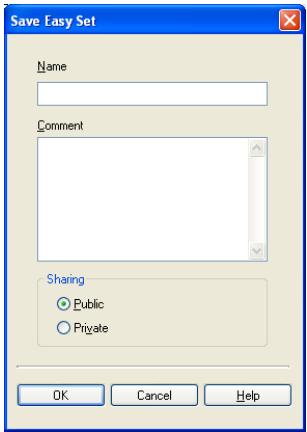
4 Enter a message in the "Comment" text box as necessary.
5 Specify whether to register the watermark as public or private.
6 Click the [OK] button.
The settings are registered in a library.

...
Note
Up to 30 public and 20 private watermarks can be registered.
Only the administrator of the computer can select a setting under "Sharing".
Up to 30 characters can be entered in the "Name" text box.
Up to 255 characters can be entered in the "Comment" text box.
Restoring the settings
→ Select the settings to restore from the "Easy Set" drop-down list on the Printing Preferences dialog box.
The setting values are recalled, and the Printing Preferences dialog box appears again.
Changing the settings
1 On the Printing Preferences dialog box, click the [Edit] button.
2 From the list, select the file that you want to change, and then change the setting.
To delete the file, click the [Delete] button.
3 Click the [Options] button, check the settings to recall, and then click the [OK] button.
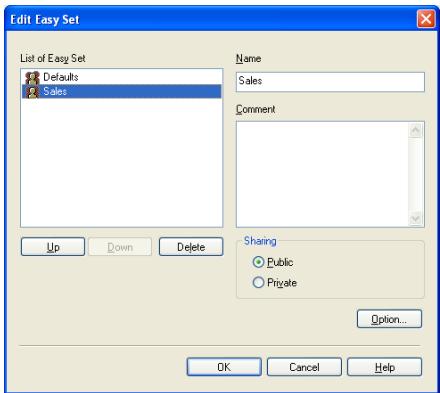
4 Click the [OK] button.
8
Setting up the PPD driver (Windows)
8 Setting up the PPD driver (Windows)
8.1 Settings
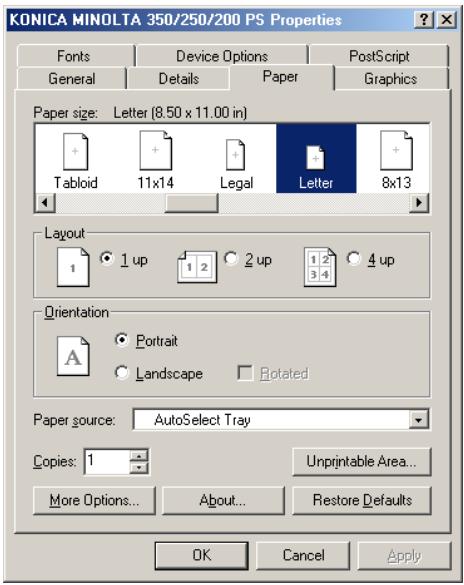
Paper tab
| Item | Function |
| Paper size | Specifies the paper size. |
| Layout | Specifies the number of pages printed on one page. |
| Orientation | Specifies the orientation. |
| Rotated | Rotates the paper. |
| Paper source | Selects the input tray. |
| Copies | Specifies the number of copies to print. |
| More Options | Specifies the paper type and output device. |
Graphics tab
| Item | Function |
| Resolution | Specifies the print resolution. |
| Halftone | Specifies the halftone number of lines and the pattern angle. |
| Other | Prints a negative or mirror image. |
| Magnification | Specifies the enlargement and reduction ratio. |
Device Options tab
To specify the following printer-specific options, right-click the printer icon in the Printers window, and then click "Properties" in the menu that appeared.
| Item | Function |
| Collate | Specifies whether to print multiple copies in sets. |
| Offset | When printing multiple copies, shifts the output position of each set. |
| Binding Position | Specifies the binding position. |
| Duplex | Specifies duplex printing. |
| Special Mode | Specifies booklet printing. |
| Staple | Performs stapling. |
| Hole-Punch | Performs hole punching. |
| Center Staple and Fold | Folds the printouts in half and staples. |
| Front Cover | Attaches a front cover page. |
| Back Cover | Attaches a back cover page. |
| Paper Tray (Cover Page) | Selects the input tray for the front cover page and back cover page. |
| OHP Interleaving | Inserts interleaves between overhead projector transparencies. |
| OHP Interleaving Tray | Selects the input tray for the transparency interleaves. |
| Stop | Stops printing temporarily after part of the document has been printed so that the proof print can be checked. |
You can specify the following options by right-clicking the printer icon in the Printers window, then clicking “Properties”.
| Item | Function |
| Usable Printer Memory | Specifies the memory installed on this machine. |
| Usable Option | Specifies the options installed on this machine. |
PostScript tab
| Item | Function |
| PostScript Output Method | Specifies the PostScript file output format. |
| PostScript Header | Specifies whether to transmit header information to the printer. |
| Print PostScript Error Information | Specifies whether to print PostScript error reports. |
| PostScript Timeout Value | Specifies the time for a timeout. |
Fonts tab
| Item | Function |
| Send TrueType fonts to printer according to the font Substitution Table | Prints the fonts specified in the Font Substitution Table with the printer fonts. The Font Substitution Table can be specified by clicking the [Edit the Table] button. |
| Always use built-in printer fonts instead of TrueType fonts | Prints all fonts with printer fonts. |
| Always use TrueType fonts | The printer fonts are not substituted. |
| Send Fonts As | Specifies the font transmission method. |
8.2 Specifying the Paper tab settings
You can specify the orientation and number of pages to be printed on one page when printing.
Specifying settings
1 Click the Paper tab.
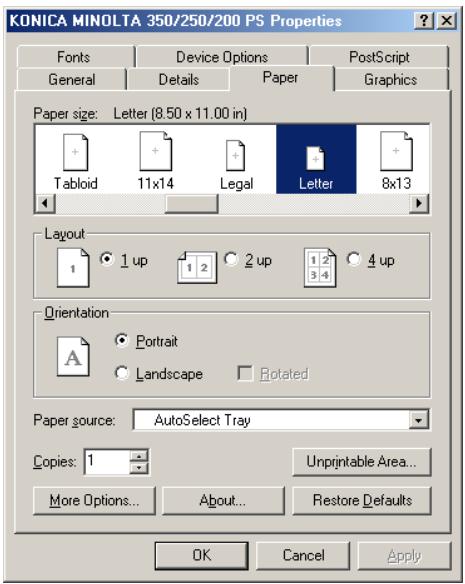
2 Specify settings for the following:
– Paper size: Specifies the paper size.
- Layout: Specifies printing multiple pages on one page (N in 1 printing).
- Orientation: Specifies the orientation.
- Rotated: Rotates the paper.
– Paper source: Selects the input tray.
– Copies: Specifies the number of copies to print.
- More Options: Specifies the paper type and output device.

Note
The settings specified on this machine have precedence if multiple copies are specified in "Default Set" of this machine.
8.3 Specifying the Device Options tab settings
You can specify the advanced functions such as the finisher function and color adjustments from the Device Options tab.
Specifying settings
1 Click the Device Options tab.
2 Select a function, and then select the setting from the “Change setting for” drop-down list.
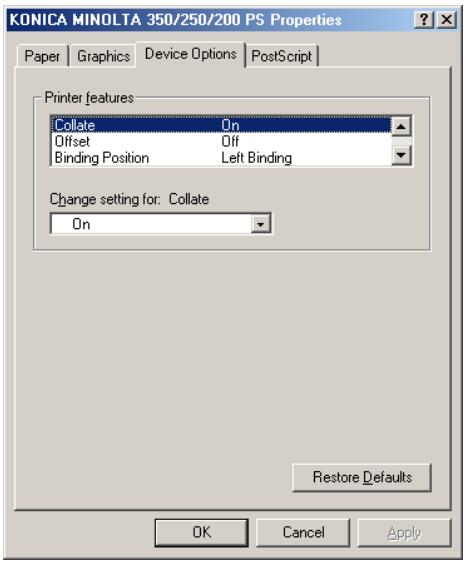

Detail
For the items and functions that can be specified, refer to "Settings" on page 8-3.

Note
When optional finisher and saddle stitcher are installed and Booklet is specified, you can specify “Center Staple and Fold” to fold and bind the printout in half.
The staple function is available only when optional finisher is installed. The hole punch function is available only when punch unit is installed on optional finisher.
8.4 Specifying options
You can specify the options installed on this machine so that they can be used from the printer driver.

Note
If the installed options are not set from the Device Options tab, the option function cannot be used with the printer driver. When installing options, be sure to make the proper settings.
Specifying settings
1 For Windows 98 SE/Me, click the [Start] button, point to "Settings", and then click "Printers".
2 Right-click the "KONICA MINOLTA 350/250/200 PS(P)" icon, and then click "Properties".
3 Click the Device Options tab.
4 Select a function, and then select the setting from the "Change setting for" drop-down list.
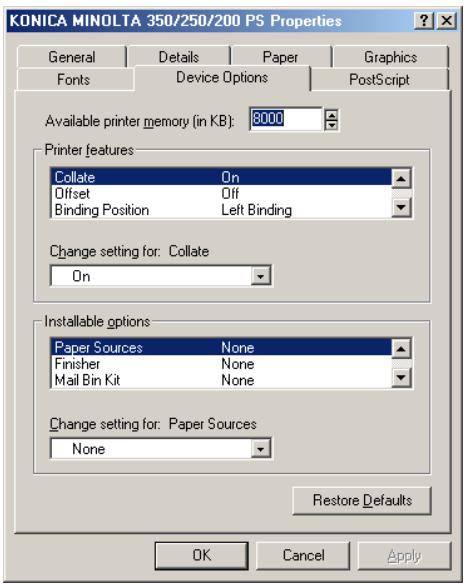

Detail
For the items and functions that can be specified, refer to "Settings" on page 8-3.
9
Setting up the PPD driver (Mac OS 9.2)
9 Setting up the PPD driver (Mac OS 9.2)
9.1 Settings
The functions of this machine can be specified on the Page Setup and Print dialog boxes displayed from an application.
The settings can only be applied while using the application. When the application is exited, the settings return to their defaults.
Page Setup dialog box
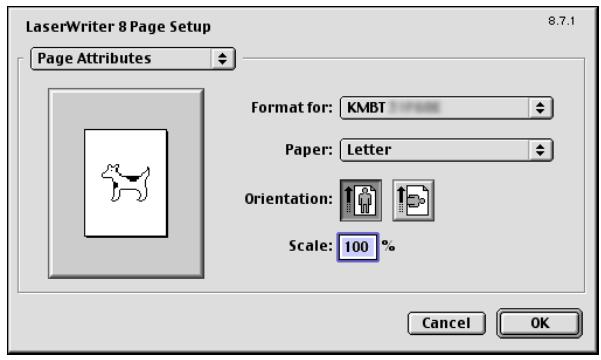
Page Setup items
| Menu | Item | Function |
| Page Attributes | Paper | Specifies the paper size. |
| Orientation | Specifies the orientation. | |
| Scale | Specifies the enlargement and reduction ratio. | |
| PostScript Options | Flip Horizontal | Prints the image flipped horizontally. |
| Flip Vertical | Prints the image flipped vertically. | |
| Invert Image | Prints a negative image. | |
| Substitute Fonts | Replaces some fonts with printer fonts. | |
| Smooth Text | Smooths text data. | |
| Smooth Graphics | Smooths graphic data. | |
| Precision Bitmap Alignment | Corrects jagged graphic images. | |
| Unlimited Download-able Fonts | Does not limit downloading screen fonts. | |
| Custom Page Sizes | Units | Selects the specified unit. |
| Paper Size | Specifies any paper size. | |
| Margins | Specifies the paper margins. | |
| Custom Page Size Name | Enters the registered name for the specified paper size and margin after the [OK] button is clicked. |

...
Note
Depending on the application, "Page Setup" may be displayed as "Paper Setup". In addition, you may have to select "Paper Setup"—"Options" from the "File" menu.
The dialog boxes differ depending on the application.
Print dialog box
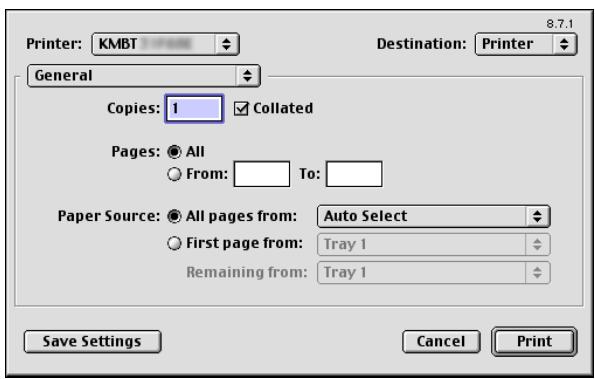
Print items
| Menu | Item | Function |
| General | Copies | Specifies the number of copies to print. |
| Collated | Prints multiple copies in sets. | |
| Pages | Specifies the print range to print. | |
| Paper Source | Selects the input tray. | |
| Color Matching | Color Selection | Specifies the color for printing. |
| Matching Style | Selects the matching method. | |
| Print Profile | Specifies the color adjustment profile of the output device. | |
| Background Printing | Printing Method | Specifies background printing. |
| Print Time | Specifies the priority level and print time. | |
| Save as File | Format | Specifies the PostScript file output format. |
| PostScript Level | Specifies the PostScript level. | |
| Data Format | Specifies the format to save a document. | |
| Save Fonts | Specifies whether to include the font data on a file. | |
| Font Settings | Font Information | Adds information to the font key. |
| Font Download | Specifies the conditions to download fonts. | |
| Layout | Pages per sheet | Specifies the number of pages to print on one page. |
| Layout direction | Specifies the page order for printing multiple pages on one page. | |
| Border | Specifies the borders around pages. | |
| Job Logging | When a PostScript Error Occurs | Specifies the PostScript error report conditions. |
| Operation Record | Specifies the conditions for the operation record to be saved. | |
| Operation Record File | Specifies the folder to which the operation record is to be saved. | |
| Cover Page | Print Cover | Attaches a cover. |
| Cover Paper Source | Selects the cover input tray. | |
| Finishing Options 1 | Offset | Specifies offset. |
| Output Tray | Selects the output tray. | |
| Binding Position | Specifies the binding position. | |
| Duplex | Performs duplex printing. | |
| Combination | Specifies booklet printing. | |
| Staple | Performs stapling. | |
| Hole-Punch | Performs hole punching. | |
| Finishing Options 2 | Center Staple and Fold | Folds the printouts in half and staples. |
| Front Cover | Attaches a front cover page. | |
| Back Cover | Attaches a back cover page. | |
| Paper Source | Selects the input tray for the front cover page and back cover page. | |
| OHP Interleaving | Inserts interleaves between overhead projector transparencies. | |
| OHP Interleaving Tray | Selects the input tray for the transparency interleaves. | |
| Stop | Stops printing temporarily after part of the document has been printed so that the proof print can be checked. | |
| Finishing Options 3 | Resolution | Specifies the print resolution. |

...
Note
The dialog boxes differ depending on the application.
9.2 Page Setup
Page Attributes (basic settings)
1 Select "Page Setup" or "Paper Setup" from the "File" menu.
2 Select "Page Attributes".
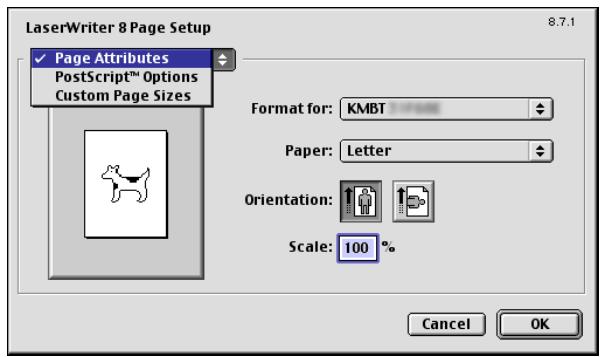
3 Specify settings for the following:
– Paper: Specify the paper size.
– Orientation: Specify the orientation.
– Scale: Specify the enlargement and reduction ratio.
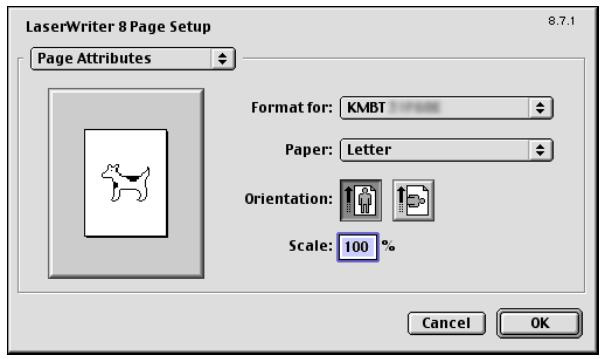

Note
The folding function can be selected from the screen that is displayed when “Layout” is selected in the Print dialog box.
Custom Page Sizes
1 Select "Page Setup" or "Paper Setup" from the "File" menu.
2 Select "Custom Paper Sizes".
3 Specify settings for the following:
– Paper Size: Specifies the paper size.
- Margins: Specifies the paper margins.
- Custom Page Size Name: Enter the registered name for the specified paper size and margins, and then click the [OK] button.
– Units: Selects the specified unit.
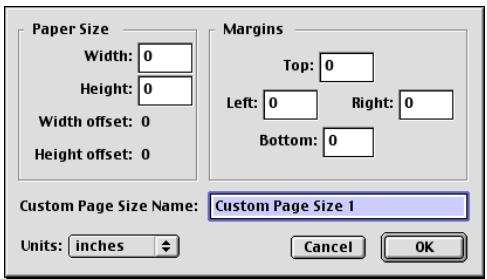
4 Click the [OK] button.
This registers the custom page settings which allows you to select the paper in the screen that appears when “Page Attributes” is selected.
PostScript Options
1 Select "Page Setup" or "Paper Setup" from the "File" menu.
2 Select "PostScript Options".
3 Specify settings for the following:
- Visual Effects: Provides “Flip Horizontal”, “Flip Vertical”, and “Invert Image” (negative image).
- Substitute Fonts: Replaces some fonts with printer fonts.
- Smooth Text: Smooths text data.
- Smooth Graphics: Smooths graphic data.
– Precision Bitmap Alignment: Corrects jagged graphic images. - Unlimited Downloadable Fonts: Does not limit downloading screen fonts.
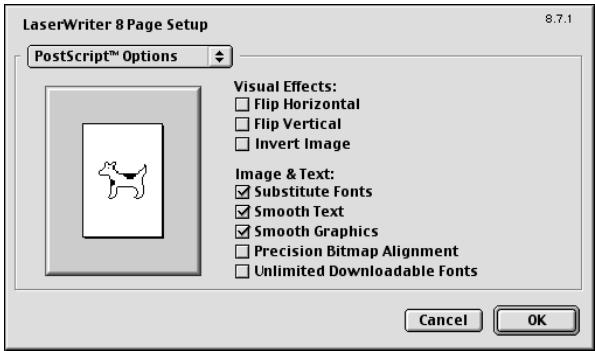
9.3 Printing
General (basic settings)
1 From the "File" menu, select "Print".
2 Select "General".
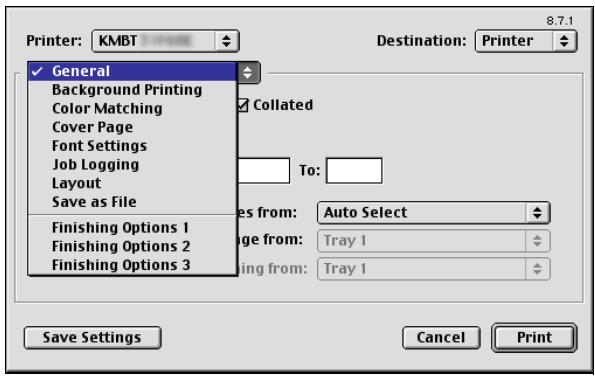
3 Specify settings for the following:
– Copies: Specifies the number of copies to print.
– Collated: Prints multiple copies in sets.
– Pages: Specifies the print range to print.
– Paper Source: Selects the input tray.
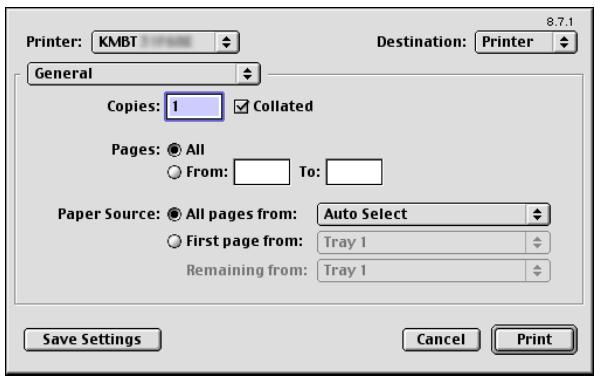

Note
The settings specified on this machine have precedence if multiple copies are specified in "Default Set" of this machine.
Layout (printing multiple pages on one page)
You can specify printing multiple pages on one page of paper or duplex printing.
1 From the "File" menu, select "Print".
2 Select "Layout".
3 Specify settings for the following:
- Pages per sheet: Specifies the number of pages to print on one page.
- Layout direction: Specifies the document page order.
– Border: Specifies the borders around pages.
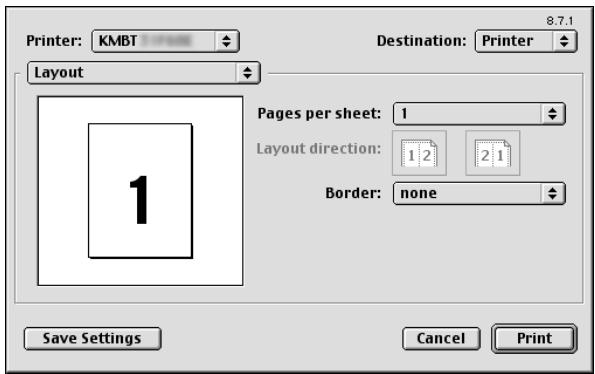
Printer specific options (finishing options 1 to 3)
You can specify printer-specific options. You can specify these options when using the staple or hole punch functions of this machine.
1 From the "File" menu, select "Print".
2 Select "Finishing Options 1 to 3".
3 Specify settings for the following:
- Offset: Specifies offset.
- Output Tray: Selects the output tray.
– Binding Position: Specifies the binding position.
– Duplex: Performs duplex printing. - Combination: Specifies booklet printing.
- Staple: Performs stapling.
- Hole-Punch: Performs hole punching.
– Center Staple and Fold: Folds the printouts in half and staples. - Front Cover Page: Attaches a front cover page.
- Back Cover Page: Attaches a back cover page.
- Paper Source: Selects the input tray for the front cover page and back cover page.
- OHP Interleaving: Inserts interleaves between overhead projector transparencies.
- OHP Interleaving Tray: Selects the input tray for the transparency interleaves.
- Stop: Stops printing temporarily after part of the document has been printed so that the proof print can be checked.
– Resolution: Specifies the resolution.

...
Note
When optional finisher and saddle stitcher are installed and Booklet is specified, you can specify "Center Staple and Fold" to fold and bind the printout in half.
The staple function is available only when optional finisher is installed.
The hole punch function is available only when punch unit is installed on optional finisher.
You cannot specify settings in "Back Cover Page" only. Specify settings in "Back Cover Page" and "Front Cover Page" at the same time.
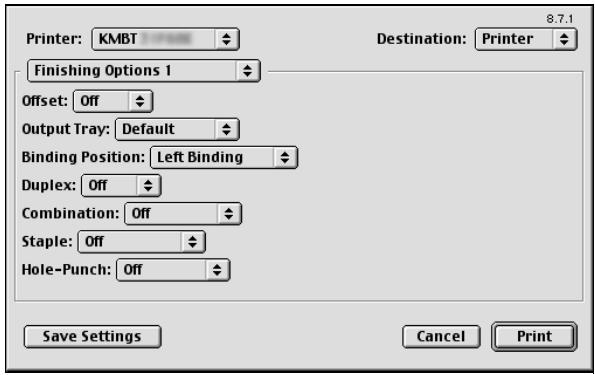
9.4 Specifying options
You can specify the options installed on this machine so that they can be used from the printer driver.

Reminder
If the installed options on this machine are not set from "Options Installed 1" or "Options Installed 2", the option function cannot be used with the printer driver. When installing options, be sure to make the proper settings.
To specify options
1 On the Apple menu, click "Chooser".
2 Select the printer name.
3 Click the [Setup] button.
4 Click the [Configure] button
The setting screen for adding options appears.
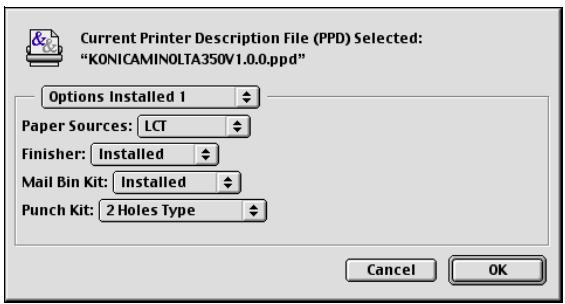
5 Select the option that is installed on this machine from "Options Installed 1" and "Options Installed 2".
6 Click the [OK] button.
The Chooser window appears again.
7 Close the Chooser window.

...
Note
The option settings are displayed automatically the first time the printer driver is selected. For details, refer to “Selecting a printer” on page 3-19.
10
Setting up the PPD driver (Mac OS X)
10 Setting up the PPD driver (Mac OS X)
10.1 Settings
The functions of this machine can be specified on the “Page Setup” and “Print” dialog boxes recalled from the application.
The settings can only be applied while using the application. When the application is exited, the settings return to their defaults.
Page Setup dialog box
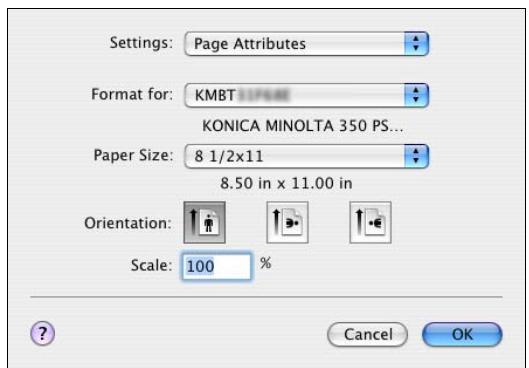
Page Setup items
| Menu | Item | Function |
| Page Attributes | Paper Size | Specifies the paper size. |
| Orientation | Specifies the orientation. | |
| Scale | Specifies the enlargement and reduction ratio. | |
| Custom Page Size | Paper Size | Specifies any paper size. |
| Printer Margins | Specifies the paper margins. |

Note
Depending on the application, "Page Setup" may be displayed as "Paper Setup". In addition, you may have to select "Paper Setup"—"Options" from the "File" menu.
The dialog boxes differ depending on the application.
Print dialog box
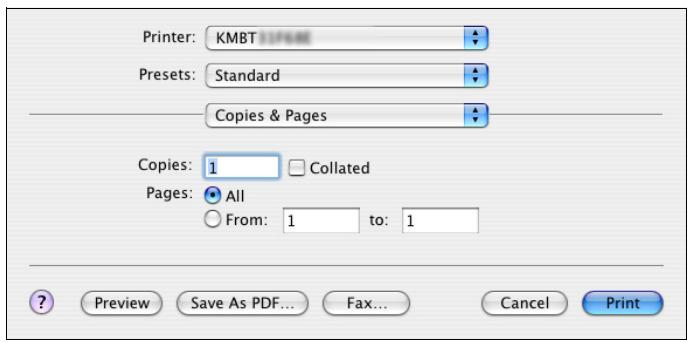
Print items
| Menu | Item | Function |
| Copies & Pages | Copies | Specifies the number of copies to print. |
| Collated | Do not select the “Collated” check box. Specify this setting in the sort function. | |
| Pages | Specifies the print range to print. | |
| Layout | Pages per Sheet | Specifies the number of pages to print on one page. |
| Layout Direction | Specifies the page order for printing multiple pages on one page. | |
| Border | Specifies the borders around pages. | |
| Output Options | Output format | Specifies the format of the file being output. |
| Scheduler*1 | Print Document | Specifies the print time. |
| Preferred Order | Specify the priority level. | |
| Paper Handling*1 | Reverse Page Order | Prints pages in the reverse order. |
| Specifies the pages for printing. | ||
| ColorSync*1 | Color Conversion | Specifies the color conversion method. |
| Quartz Filter | Specifies the color for printing. | |
| Cover Page*1 | Print Cover Page | Specifies whether to attach a cover page. |
| Cover Page Type | Selects to print “Confidential” or other comments on the cover page. | |
| Error Handling | PostScript Error | Specifies whether to print an error report when a PostScript error occurs. |
| Paper Feed | All pages from | Selects the input tray. |
| First page from | Selects the input tray. | |
| Remaining from | Selects the input tray. | |
| Setup | Paper Type | Selects the paper type. |
| Front Cover Page | Attaches a front cover page. | |
| Back Cover Page | Attaches a back cover page. | |
| Paper Tray (Cover Page) | Selects the input tray for the front cover page and back cover page. | |
| Transparency Inter-leave | Inserts interleaves between overhead projector transparencies. | |
| Paper Tray (Transparency Interleave) | Selects the input tray for the transparency inter-leaves. | |
| Finishing | Collate | Prints multiple copies in sets. |
| Offset | Specifies offset. | |
| Duplex | Performs duplex printing. | |
| Output Tray | Selects the output tray. | |
| Binding Position | Specifies the binding position. | |
| Combination | Specifies booklet printing. | |
| Staple | Performs stapling. | |
| Hole-Punch | Performs hole punching. | |
| Center Staple and Fold | Folds the printouts in half and staples. | |
| Security | Output Method | Specifies output methods, such as “Secure Print” and “Save in User Box”. |
| Secure Print Settings | Specifies user ID and password for “Secure Print”. | |
| Save in User Box Set-tings | Specifies the file name and box name for “Save in User Box”. | |
| User Authentication | Checks if using user authentication and specifies user name and password. | |
| Account Track | Checks if account track settings have been ap-plied and specifies the account name and pass-word. |

Note
The dialog boxes differ depending on the application.
The items indicated by “*1” are displayed only in Mac OS 10.3.
10.2 Page Setup
Page Attributes (basic settings)
1 Select "Page Setup" or "Paper Setup" from the "File" menu.
2 Select "Page Attributes".
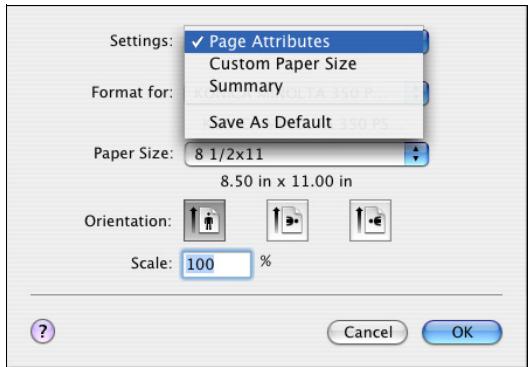
3 Specify settings for the following:
– Paper Size: Specifies the paper size.
– Orientation: Specify the orientation.
– Scale: Specify the enlargement and reduction ratio.
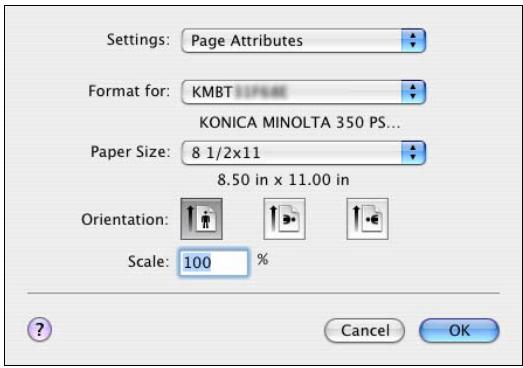
Custom Page Size
1 Select "Page Setup" or "Paper Setup" from the "File" menu.
2 Select "Custom Paper Size".
3 Click the [New] button.
4 Enter the paper size name.
5 Specify settings for the following:
– Paper Size: Specifies any paper size.
– Printer Margins: Specifies the paper margins.
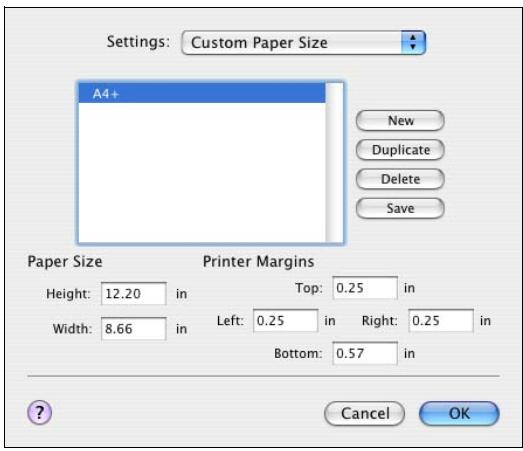
6 Click the [Save] button.
7 Click the [OK] button.
This registers the custom paper size which allows you to select the paper size in the screen that appears when “Page Attributes” is selected.
10.3 Printing
Copies & Pages (Standard settings)
1 From the "File" menu, select "Print".
2 Select "Copies & Pages".
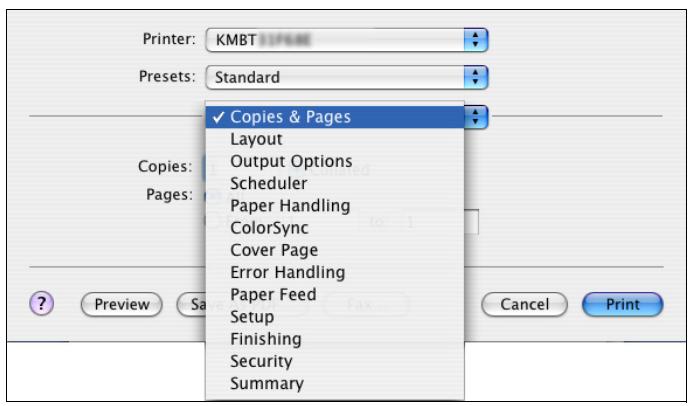
3 Specify settings for the following:
– Copies: Specifies the number of copies to print.
- Collated: Do not select the "Collate" check box. Specify this setting in the sort function.
– Pages: Specifies the print range to print.
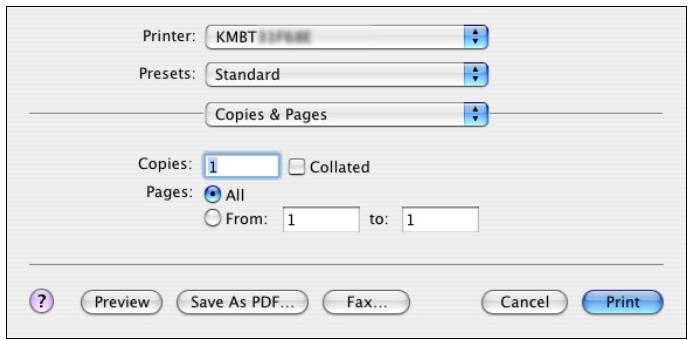

Note
The settings specified on this machine have precedence if multiple copies are specified in "Default Set" of this machine.
Layout (printing multiple pages on one page)
You can print multiple pages on one page.
1 From the "File" menu, select "Print".
2 Select "Layout".
3 Specify settings for the following:
- Pages per Sheet: Specifies the number of pages to print on one page.
- Layout Direction: Specifies the page order for printing multiple pages on one page.
– Border: Specifies the borders around pages.
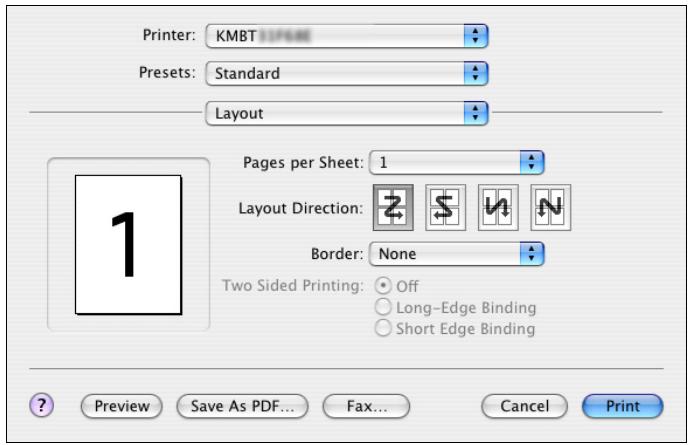
Paper Feed
You can specify the input tray for printing.
1 From the "File" menu, select "Print".
2 Select "Paper Feed".
3 Specify settings for the following:
- All pages from: Selects the input tray to print all pages.
- First page from: Selects the input tray to print the first page.
- Remaining from: Selects the input tray to print from the second page.
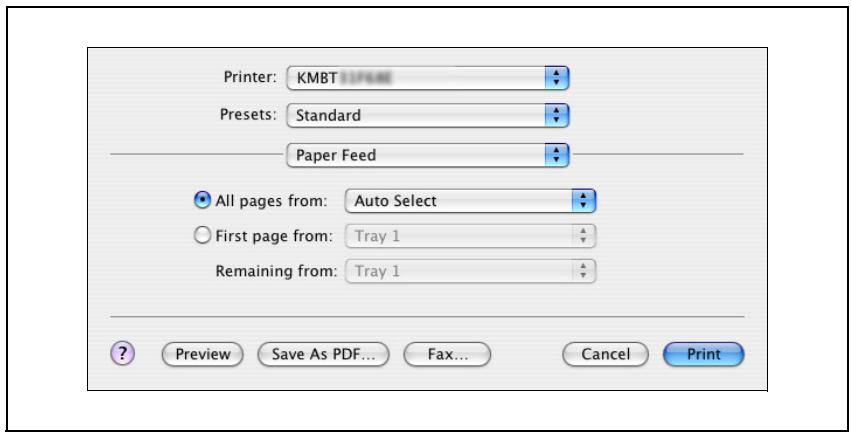
Setup
You can specify the cover page settings.
1 From the "File" menu, select "Print".
2 Select "Setup".
3 Specify settings for the following:
– Paper Type: Selects the paper type.
– Front Cover Page: Attaches a front cover page.
- Back Cover Page: Attaches a back cover page.
- Paper Tray (Cover Page): Selects the input tray for the front cover page and back cover page.
- Transparency Interleave: Inserts interleaves between overhead projector transparencies.
- Paper Tray (Transparency Interleave): Selects the input tray for the transparency interleaves.
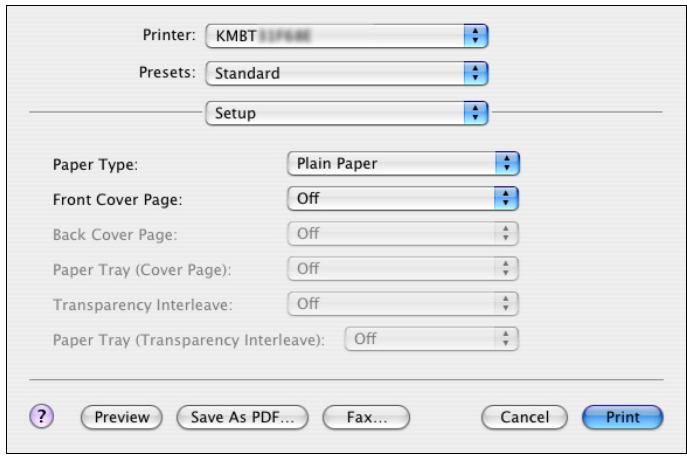
You cannot specify settings in “Back Cover Page” only. Specify settings in “Back Cover Page” and “Front Cover Page” at the same time.
Finishing
You can specify these options when using the staple or hole punch finisher functions of this machine.
1 From the "File" menu, select "Print".
2 Select "Finishing".
3 Specify settings for the following:
- Collate: Prints multiple copies in sets.
- Offset: Specifies offset.
– Duplex: Performs duplex printing. - Output Tray: Selects the output tray.
– Binding Position: Specifies the binding position. - Combination: Specifies booklet printing.
- Staple: Performs stapling.
– Hole-Punch: Performs hole punching.
– Center Staple and Fold: Folds the printouts in half and staples.

...
Note
When optional finisher and saddle stitcher are installed and Booklet is specified, you can specify "Center Staple and Fold" to fold and bind the printout in half.
The staple function is available only when optional finisher is installed.
The hole punch function is available only when punch unit is installed on optional finisher.
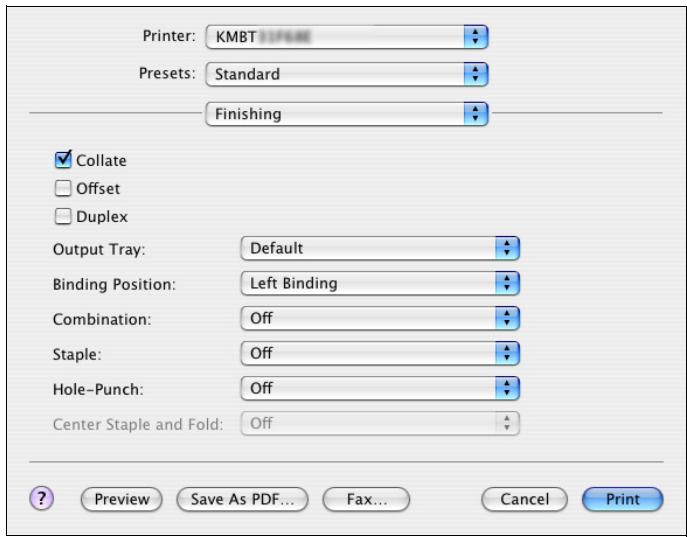
Security
Not only can you print directly, but you can select “Secure Print”, which requires a password to print, “Save in User Box”, which saves documents in the document folder, “Proof and Print”, which prints the first set of multiple copies and temporarily stops printing, “User Authentication”, which requires user authentication, and “Account Track”, which manages the number of printed pages.
The Save in User Box function can only be used when an optional hard disk is installed.
1 From the "File" menu, select "Print".
2 Select "Security".
3 Specify settings for the following:
- Output Method: Specifies conditions for “Secure Print” and “Save in User Box”.
- Secure Print Settings: Enters ID and password when "Secure Print" is selected from the "Output Method" drop-down list. Enter the ID and password on this machine's control panel when printing.
- Save in User Box Settings: Enters the file name when "Save in User Box" or "Save in User Box and Print" is selected from the "Output Method" drop-down list.
- User Authentication: Enters the user name and password when user authentication settings have been applied on this machine and when the check box is selected.
- Account Track: Enters the access name and password when the account track settings have been applied on this machine and when the check box is selected.

Detail
If a print job is sent using a user name or password that is not a registered account on this machine or if a job is sent without the “User Authentication” check box selected, this machine cannot authenticate the operation and cannot print. When this occurs, the sent job is deleted.
If a print job is sent using a department name or password that is not a registered account or if a job is sent without the "Track Account" check box selected, this machine cannot authenticate the operation and cannot print. When this occurs, the sent job is deleted.

Detail
Print the document from the control panel of this machine. For details, refer to “Print job management” on page 11-87.
Proof and Print can be specified when “Collated” is specified.
For details on the box functions of this machine, refer to User's Guide [Box Operations].
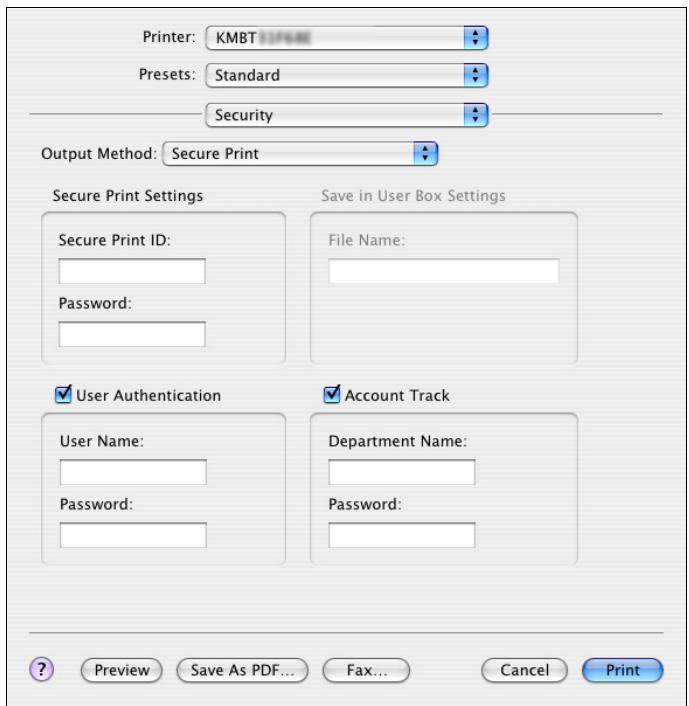
10.4 Specifying options
You can specify the options installed on this machine so that they can be used from the printer driver.

Reminder
If the installed options on this machine are not set from “Installable Options”, the option function cannot be used with the printer driver. When installing options, be sure to make the proper settings.
Specifying options
1 Open Print Center or Print Setting Utility located in "Applications"–"Utilities" of "Hard Disk" and specify the printer model.
2 From the [Printer] menu, select "Show Info".
The Printer Info dialog box appears.
3 Select "Installable Options".
4 Select the options that are installed on this machine.
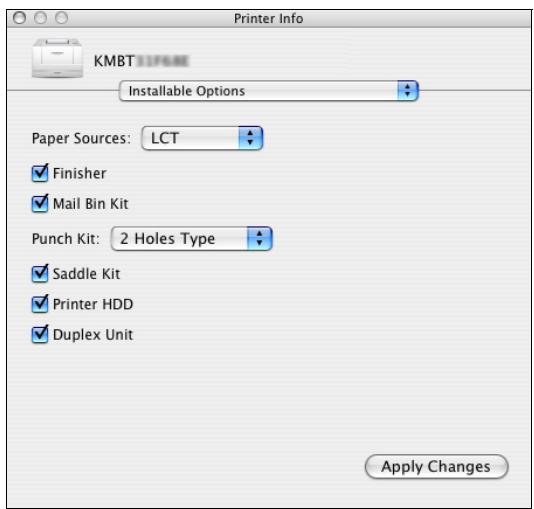
5 Click the [Apply Changes] button or click [☐], to close the Printer Info dialog box.
10.5 Saving the driver settings
For Mac OS X drivers, you can save the setting values of the changed driver and recall them as necessary.
Saving the driver settings
1 Change the driver settings in "Copies & Pages" and "Layout".
2 From "Presets", click "Save As".
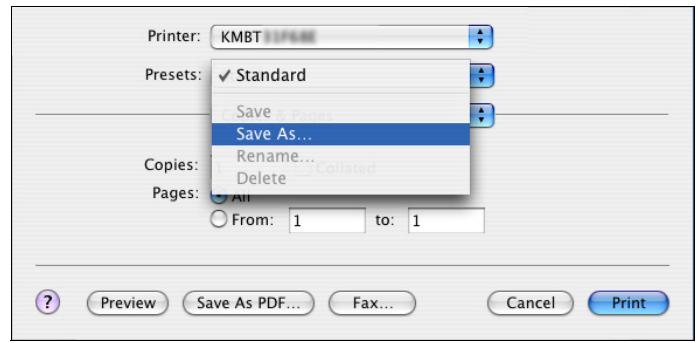
3 Enter the preset name in "Save Preset As".
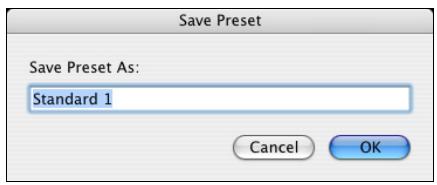
4 Click the [OK] button. The settings are registered in the preset settings.
Restoring the settings
→ Select “Presets” from the Print dialog box to recall the settings. The setting values are recalled, and the printer driver dialog box appears again.
Changing the settings
1 Select "Presets" from the Print dialog box to change the settings.
2 Change the driver settings in "Copies & Pages" and "Layout".
3 From "Presets", click "Save".
To delete, click "Delete". To change the name, click "Rename". The preset settings are changed.
11
Various settings
11 Various settings
11.1 Printer settings on the control panel
You can change the various printer settings on this machine's control panel.
Printer settings
To display the Printer Setting screen
1 Press the [Utility/Counter] key.
2 Touch [Printer Setting].
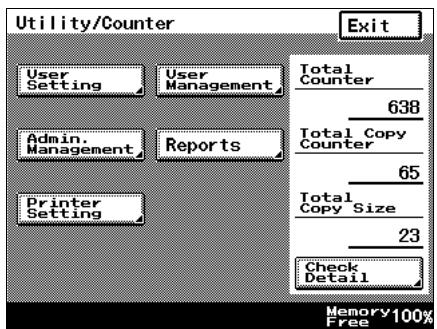
3 Touch the desired setting button.
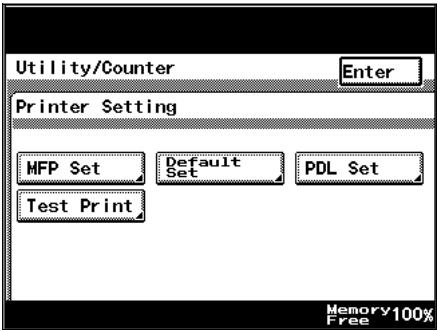
The setting screen of the desired setting appears.
4 Specify settings for the following:
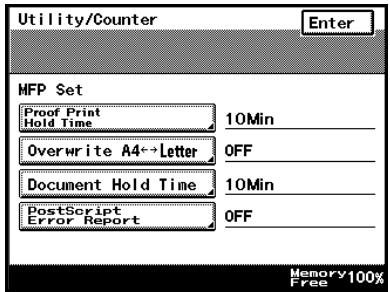
MFP Set screen
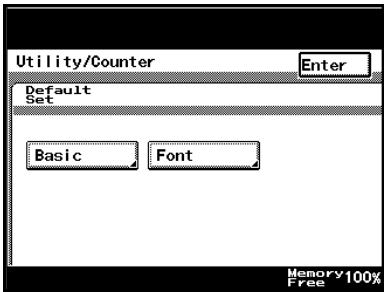
Default Set screen
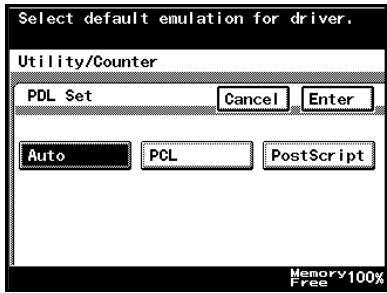
PDL Set screen
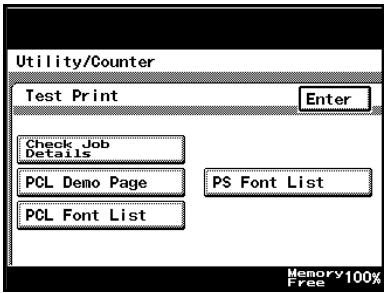
Test Print screen

...
Note
To quit specifying the printer settings, touch [Enter] until the screen for the Copy, Fax, Scan, or Box mode appears.
The default screens are shown below and each setting can be specified.
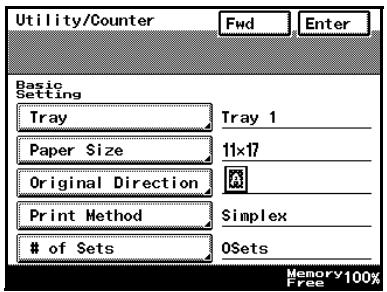
Basic Setting screen
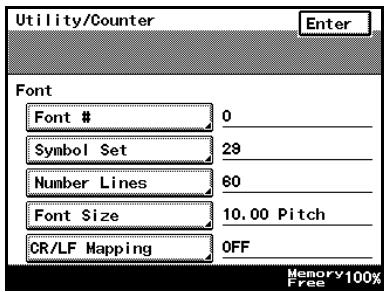
Font screen
MFP Set

Detail
For details on displaying the MFP Set screen, refer to "Printer settings" on page 11-3.
Proof-Print Hold Time
The print data is deleted if the set time is not specified for printing the data. You can specify to print data that is being held in 10, 20, or 30 minutes. (Default setting: 10 min.)
→ After changing the setting, touch [Enter].
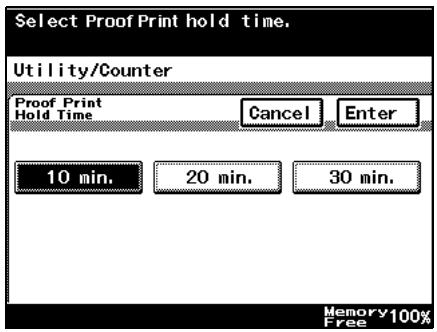
Overwrite A4<->Letter
You can substitute letter size and 11×17-inch size with A4 or A3 size paper. When letter size paper is not loaded and letter size paper has been specified to print, you can print on A4 size paper, which is close in size to letter size paper, and not cause an error. (Default setting: OFF)
→ After changing the setting, touch [Enter].
- ON: Substitutes letter size paper for A4 size paper when A4 size paper is not available. Substitutes 11×17-inch size paper with A3 size paper when 11×17-inch size paper is not available.
- OFF: Does not substitute letter size or 11×17-inch size paper with other paper sizes even when letter size or 11×17-inch size paper are not available.
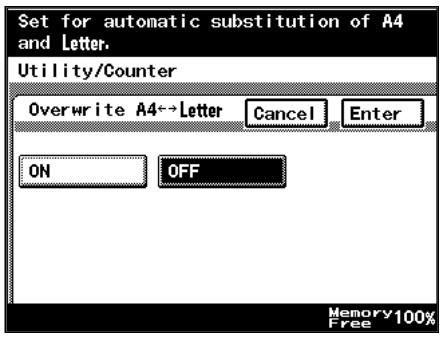
Document Hold Time
You can specify the minutes until a job that is being received is deleted when the memory has exceeded capacity when spooling. (Default setting: 5 M.)
→ After using the keypad to type in a value, touch [Enter].
- 0to30: Specifies the time in which to delete the data.
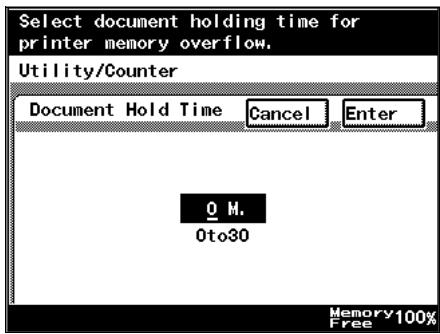

...
Note
If a value outside of the allowable range is specified, the setting cannot be changed even when [Enter] is touched. Type in a value within the allowable range.
To cancel changes to the settings, touch [Cancel].
PostScript Error Report
You can specify whether to print the error message when an error occurs during PS rasterization. (Default setting: OFF)
→ After changing the setting, touch [Enter].
- ON: Prints the error message.
– OFF: Does not print the error message.
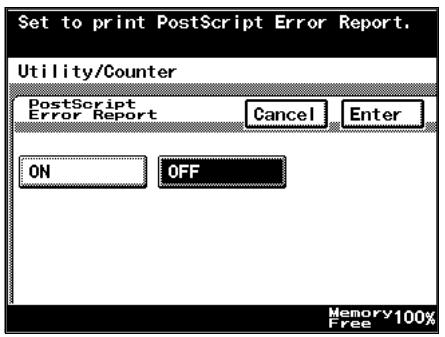
Default Set
In Default Set you can specify the settings for "Basic" and "Font".

Detail
For details on displaying the Default Set screen, refer to "Printer settings" on page 11-3.
Basic Setting - Tray
You can specify the input tray to use when none has been specified. (Default setting: Auto Paper Select)
→ On the Basic Setting screen, touch [Tray] to display the setting screen. After changing the setting, touch [Enter].

Basic Setting - Paper Size
You can specify the paper size to use when no setting has been specified. (Default setting: Letter)
→ On the Basic Setting screen, touch [Paper Size] to display the setting screen. After changing the setting, touch [Enter].
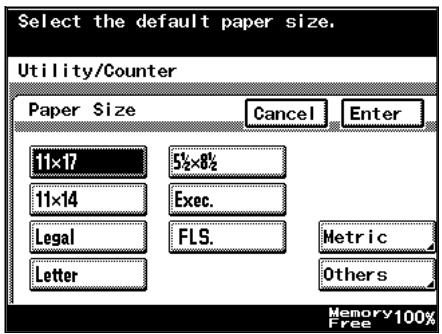

...
Note
When selecting [8K], [16K], [envDL], or [env Monarch], you can only specify the paper size even when “envDL”, “env Monarch”, or “Postcard” has been selected. You cannot specify envelops and thick paper as a paper type. Touch [Others].
Basic Setting - Original Direction
You can specify the orientation of the printed image when none has been specified. (Default setting: Portrait)
→ On the Basic Setting screen, touch [Original Direction] to display the setting screen. After changing the setting, touch [Enter].
- Portrait: Prints the image vertically on the page.
- Landscape: Prints the image horizontally on the page.
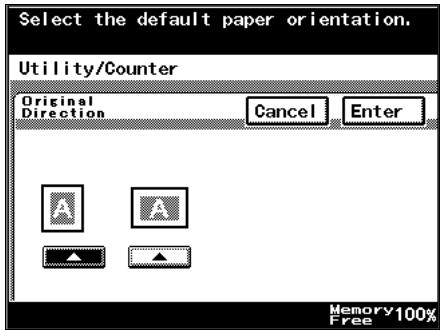
Basic Setting - Print Method
You can specify whether to perform duplex printing when the print method has not been specified. (Default setting: Simplex)
→ On the Basic Setting screen, touch [Print Method] to display the setting screen. After changing the setting, touch [Enter].
- 2-Sided Print: Performs duplex printing. You can select the binding orientation.
- Simplex: Performs simplex printing.
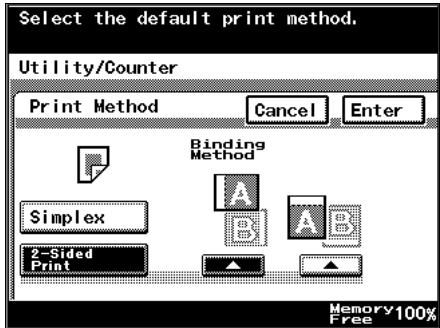
Basic Setting - Sets
You can specify the number of copies to print when no setting has been specified. (Default setting: 1 Set)
→ On the Basic Setting screen, touch [# of Sets] to display the setting screen. After using the keypad to type in a value, touch [Enter].
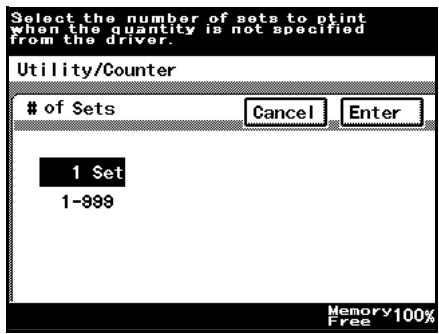

Detail
For the PPD driver, the settings specified on this machine have precedence if multiple copies are specified in "Default Set - Basic Setting - # of Sets" of this machine.

Note
A value outside the allowable range cannot be specified. Type in a value within the allowable range.
To cancel changes to the settings, touch [Cancel].
Font - Font #
You can specify the font to use when none has been specified. (Default setting: 0)
→ On the Font screen, touch [Font #] to display the setting screen. After using the keypad to type in a value, touch [Enter].
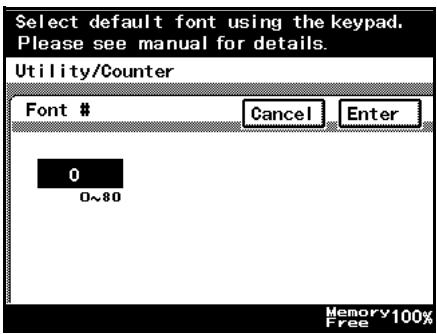

...
Note
A value outside the allowable range cannot be specified. Type in a value within the allowable range.
To cancel changes to the settings, touch [Cancel].
Font list
| No. | Font | No. | Font |
| 0 | Courier | 32 | Arial Bold Italic |
| 1 | CG Times | 33 | Times New Roman |
| 2 | CG Times Bold | 34 | Times New Roman Bold |
| 3 | CG Times Italic | 35 | Times New Roman Italic |
| 4 | CG Times Bold Italic | 36 | Times New Roman Bold Italic |
| 5 | CG Omega | 37 | Helvetica |
| 6 | CG Omega Bold | 38 | Helvetica Bold |
| 7 | CG Omega Italic | 39 | Helvetica Oblique |
| 8 | CG Omega Bold Italic | 40 | Helvetica BoldOblique |
| 9 | Coronet | 41 | Helvetica Narrow |
| 10 | Clarendon Condensed | 42 | Helvetica Narrow Bold |
| 11 | Univers Medium | 43 | Helvetica Narrow Oblique |
| 12 | Univers Bold | 44 | Helvetica Narrow Bold Oblique |
| 13 | Univers Medium Italic | 45 | Palatino Roman |
| 14 | Univers Bold Italic | 46 | Palatino Bold |
| 15 | Univers Condensed Medium | 47 | Palatino Italic |
| 16 | Univers Condensed Bold | 48 | Palatino Bold Italic |
| 17 | Univers Condensed Medium Italic | 49 | ITC Avant Garde Gothic Book |
| 18 | Univers Condensed Bold Italic | 50 | ITC Avant Garde Gothic Demi |
| 19 | Antique Olive | 51 | ITC Avant Garde Gothic Book Oblique |
| 20 | Antique Olive Bold | 52 | ITC Avant Garde Gothic Demi Oblique |
| 21 | Antique Olive Italic | 53 | ITC Bookman Light |
| 22 | Garamond Antiqua | 54 | ITC Bookman Demi |
| 23 | Garamond Halbfett | 55 | ITC Bookman Light Italic |
| 24 | Garamond Kursiv | 56 | ITC Bookman Demi Italic |
| 25 | Garamond Kursiv Halbfett | 57 | New Century Schoolbook Roman |
| 26 | Marigold | 58 | New Century Schoolbook Bold |
| 27 | Albertus Medium | 59 | New Century Schoolbook Italic |
| 28 | Albertus Extra Bold | 60 | New Century Schoolbook Bold Italic |
| 29 | Arial | 61 | Times Roman |
| 30 | Arial Bold | 62 | Times Bold |
| 31 | Arial Italic | 63 | Times Italic |
| 64 | Times Bold Italic | 73 | Letter Gothic |
| 65 | ITC Zapf Chancery | 74 | Letter Gothic Bold |
| 66 | Symbol | 75 | Letter Gothic Italic |
| 67 | SymbolPS | 76 | CourierPS |
| 68 | Wingdings | 77 | CourierPS Bold |
| 69 | ITC Zapf Dingbats | 78 | CourierPS Oblique |
| 70 | Courier Bold | 79 | CourierPS Bold Oblique |
| 71 | Courier Italic | 80 | Line Printer |
| 72 | Courier Bold Italic |
Font - Symbol Set
You can specify the symbol set to use when none has been specified. (North American model default setting: 29, Other model default setting: 19)
→ On the Font screen, touch [Symbol Set] to display the setting screen. After using the keypad to type in a value, touch [Enter].
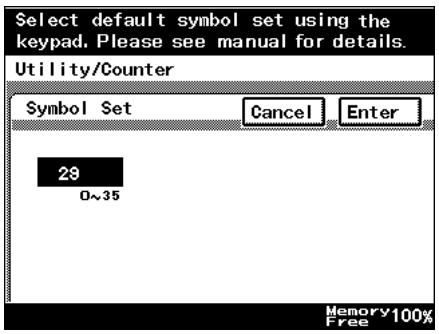

...
Note
A value outside the allowable range cannot be specified. Type in a value within the allowable range.
To cancel changes to the settings, touch [Cancel].
Symbol set list
| No. | Symbol set | No. | Symbol set |
| 0 | Desktop | 18 | PC-775 |
| 1 | ISO 4: United Kingdom | 19 | PC-8, Code Page 437 |
| 2 | ISO 6: Ascii | 20 | PC-850 Multilingual |
| 3 | ISO11: Swedish | 21 | PC-852 Latin 2 |
| 4 | ISO15: Italian | 22 | PC-858 Multilingual |
| 5 | ISO17: Spanish | 23 | PC-8 Turkish |
| 6 | ISO21: German | 24 | PC-8 Danish/Norw |
| 7 | ISO60: Danish/Norw | 25 | PC-1004 |
| 8 | ISO69: French | 26 | PI Font |
| 9 | ISO 8859/1 Latin 1 | 27 | PS Math |
| 10 | ISO 8859/2 Latin 2 | 28 | PS Text |
| 11 | ISO 8859/9 Latin 5 | 29 | Roman-8 |
| 12 | ISO 8859/10 Latin 6 | 30 | Windows 3.0 Latin 1 |
| 13 | ISO 8859/15 Latin 9 | 31 | Windows Baltic |
| 14 | Legal | 32 | Windows 3.1 Latin 1 |
| 15 | Math-8 | 33 | Windows 3.1 Latin 2 |
| 16 | MC Text | 34 | Windows 3.1 Latin 5 |
| 17 | Microsoft Publishing | 35 | PC-866 |
Font - Number Lines
You can specify the number of lines per page when no setting has been specified. (North American model default setting: 60 lines, Other model default setting: 64 lines)
→ On the Font screen, touch [Number Lines] to display the setting screen. After using the keypad to type in a value, touch [Enter].
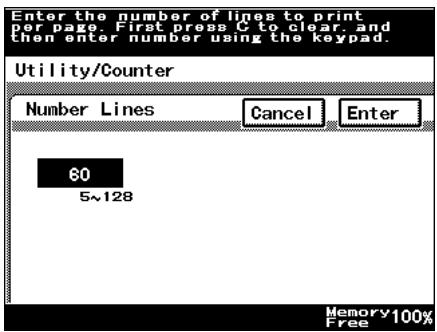

...
Note
A value outside the allowable range cannot be specified. Type in a value within the allowable range.
To cancel changes to the settings, touch [Cancel].
Font - Font Size
You can specify the font size to use when none has been specified. (Default settings: Scalable Font - 12.00 point, Bit Map Font - 10.00 pitch)
→ On the Font screen, touch [Font Size] to display the setting screen. Touch the font type name, type in the value using the keypad, and then touch [Enter].
- Scalable Font: Specifies the scalable font size in points.
- Bit Map Font: Specifies the bitmap font size in pitches.
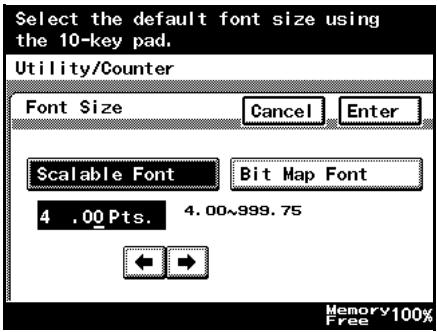

...
Note
A value outside the allowable range cannot be specified. Type in a value within the allowable range.
To cancel changes to the settings, touch [Cancel].
→ On the Font screen, touch [CR/LF Mapping] to display the setting screen. After changing the setting, touch [Enter].
– OFF: Does not perform substitution.
- Mode1: Substitutes CR for CR-LF.
- Mode2: Substitutes LF for CR-LF. Substitutes FF for CR-FF.
- Mode3: Substitutes CR and LF for CR-LF.
Substitutes FF for CR-FF.
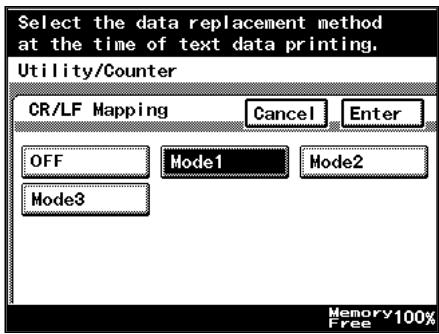
PDL Set
You can specify the PDL (Printer Description Language) setting. (Default setting: Auto)
→ After changing the setting, touch [Enter].
- Auto: Automatically switches between PCL and PostScript.
- PCL: Only uses PCL.
- PostScript: Only uses PostScript.
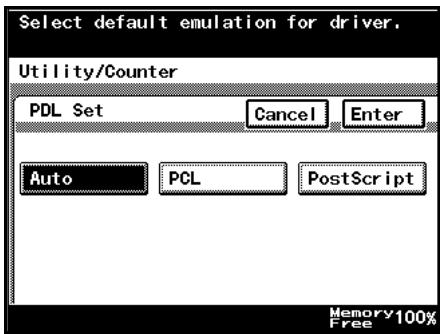

Detail
For details on displaying the PDL Setting screen, refer to "Printer settings" on page 11-3.
Test Print
You can output the following four types of reports.
For details on displaying the Test Print screen, refer to "Printer settings" on page 11-3.
→ Touch the button for the desired setting.
- Check Job Details: Outputs a list of this machine's settings.
- PCL Demo Page: Outputs a test page.
- PCL Font List: Outputs the PCL font list.
- PS Font List: Outputs the PS font list.
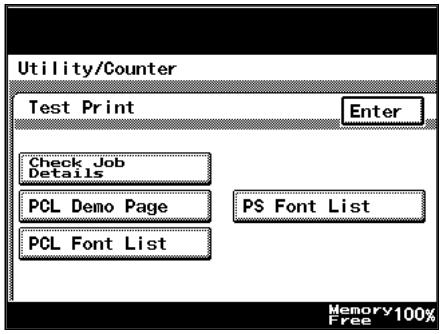
11.2 Administrator settings
Some printer function settings can only be changed by an administrator.
To display the Administrator Management setting screen
1 Press the [Utility/Counter] key.
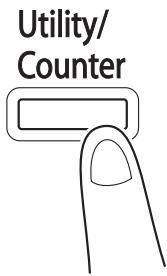
2 Touch [Admin. Management].
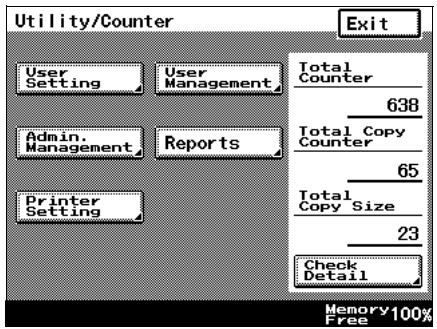
3 Type in the password using the keypad, and then touch [Enter].
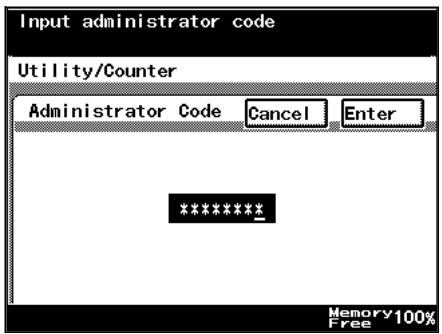
4 Touch [Admin. 2].
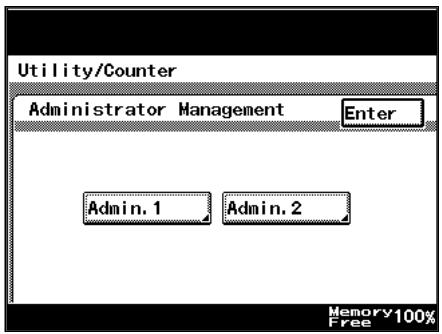
5 Touch [Printer Setting].
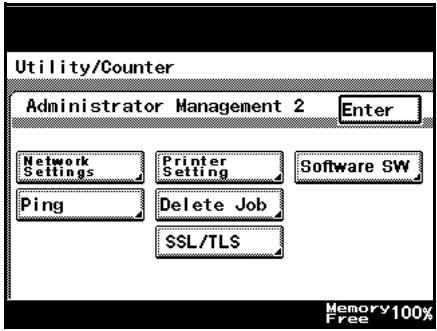
6 Specify settings for the following:
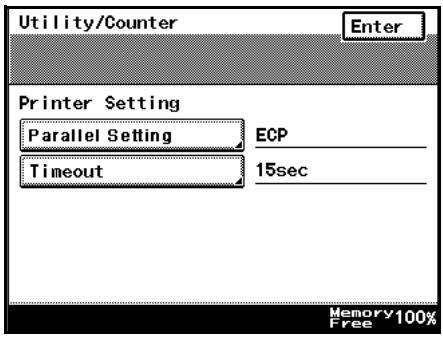

Note
To quit specifying the printer settings, touch [Enter] until the screen for the Copy, Fax, Scan, or Box mode appears.
Printer Setting

Detail
For details on displaying the Printer Setting screen, refer to “Administrator settings” on page 11-24.
Parallel Setting
You can specify the mode for using an optional parallel interface. (Default setting: ECP)
→ After changing the setting, touch [Enter].
- Compatible: Corresponds to both Nibble and ECP.
– Nibble: Only for Nibble.
– ECP: Only for ECP.
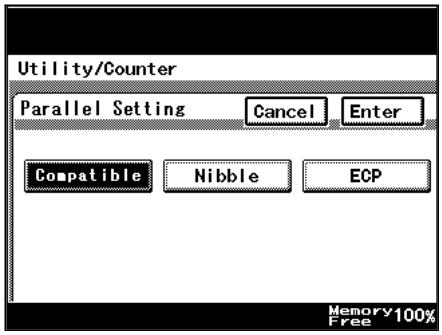
Timeout
You can set the time until a communication timeout occurs. (Default setting: 300 sec)
→ After using the keypad to type in a value, touch [Enter].
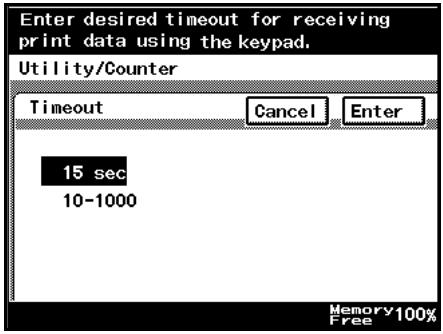

...
Note
The time specified here for a timeout enables the parallel, USB, or network interface.
A value outside the allowable range cannot be specified. Type in a value within the allowable range.
To cancel changes to the settings, touch [Cancel].
Setting the IP Address
When using this machine as a network printer, an IP address must be assigned to this machine.

Detail
For the procedure to assign an IP address to this machine, refer to "Setting the IP address for this machine" on page 4-8.
Frame Type
If connecting with NetWare, the frame type must be specified depending on the network environment.
1 Press the [Utility/Counter] key on this machine's control panel, touch [Admin. Management], and then enter the administrator password.
2 Touch [Admin. 2].
3 Touch [Network Settings].
4 Touch [Frame Type].
5 After changing the setting, touch [Enter].
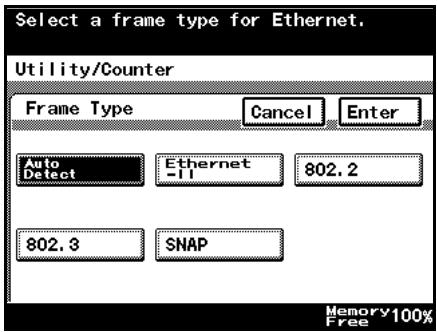
Counter
You can check the total number of printed pages.
1 Press the [Utility/Counter] key on this machine's control panel.
2 Touch [Check Detail] on the lower-right corner of the screen.
3 After checking each counter, touch [Exit].
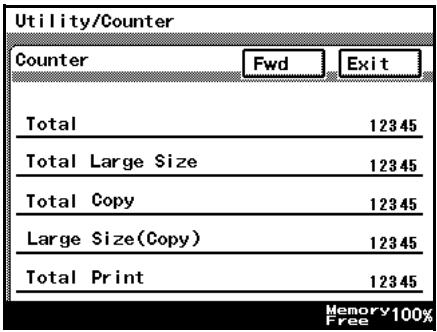
11.3 Specifying the status settings for the functions (Software SW)
By specifying the Software SW numeric values (mode, bit, HEX) according to the usage conditions of this machine, the status of each function can be changed.

Reminder
Do not change the modes or bits that are not mentioned in this manual.
Software SW
| Item | Description |
| Mode | Represents the setting with a three-digit number. Type in the value using the keypad. |
| Bit | An eight-digit number that configures the mode status. Specify the status of the function by specifying the bit for each number from 7 to 0 with a binary number (1 or 0). |
| HEX | The status of each function is displayed by a combination of hexadecimal numbers (0 to 9, A to F). When Bit Selection is “00110000”, HEX Selection can be represented as “30”. The status of the mode is specified in Bit Selection or HEX Selection. |
An example of the Bit Selection (binary numbers) and HEX Selection (hexadecimal numbers) displays are shown below.
| Decimal number | Bit Selection (binary number) | HEX Selection (hexadecimal number) |
| 0 | 0000 0000 | 00 |
| 1 | 0000 0001 | 01 |
| 2 | 0000 0010 | 02 |
| 3 | 0000 0011 | 03 |
| 4 | 0000 0100 | 04 |
| 5 | 0000 0101 | 05 |
| 6 | 0000 0110 | 06 |
| 7 | 0000 0111 | 07 |
| 8 | 0000 1000 | 08 |
| 9 | 0000 1001 | 09 |
| 10 | 0000 1010 | 0A |
| 11 | 0000 1011 | 0B |
| 12 | 0000 1100 | 0C |
| 13 | 0000 1101 | 0D |
| 14 | 0000 1110 | 0E |
| 15 | 0000 1111 | 0F |
| 16 | 0001 0000 | 10 |
| 17 | 0001 0001 | 11 |
| 18 | 0001 0010 | 12 |
| 19 | 0001 0011 | 13 |
| 20 | 0001 0100 | 14 |
| . | . | . |
| . | . | . |
| . | . | . |
| 252 | 1111 1100 | FC |
| 253 | 1111 1101 | FD |
| 254 | 1111 1110 | FE |
| 255 | 1111 1111 | FF |
To change the software SW
1 Log on to the administrator mode, and then touch [Admin. 2].
- For details on displaying the Administrator Management 2 screen, refer to “Administrator settings” on page 11-24.
The Initial Settings screen appears.
2 Touch [Software SW].
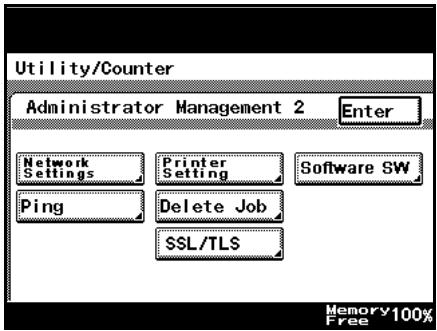
3 Touch [Mode Selection], and then use the keypad to type in the mode number.
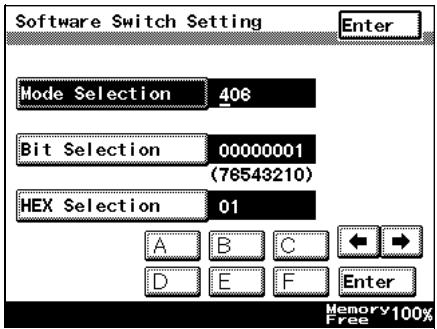
4 Touch either [Bit Selection] or [HEX Selection], and then specify the setting.
- To specify Bit selection, touch [Bit Selection], touch [] or [/E] to move the cursor to the bit to be changed, type in the value using keypad, and then touch [Enter] on the lower right of the screen.
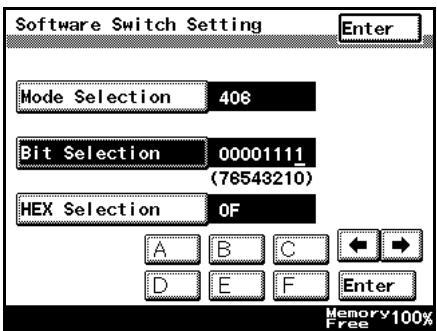
- To specify Hex Selection, touch [HEX Selection], specify the value by using keypad and by touching [A] to [F], and then touch [Enter] on the lower right of the screen.
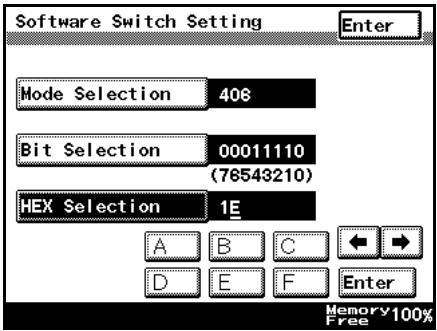
5 To change the setting for a different mode, repeat steps 3 and 4.
6 Touch [Enter] on the upper right of the screen until the first screen appears.
Specifying the valid range for the administrator access code (mode 368)
Specify the valid range for the administrator access code (administrator password).
Settings at time of purchase
| Bits | 7 6 5 4 3 2 1 0 |
| Setting | 1 1 0 0 0 0 1 0 (HEX: C2) |
Specifying the setting
The grayed out cells are the settings at the time of purchase. The reference pages for each function are shown in the far right column.
| Bits | Description | Setting | Description | Refer to |
| 7 | -------- | 1 | *Do not change this bit. | -------- |
| 6 | Specifies the valid range for the administrator access code (administrator password). | 0 | Administrator password is required to enter Administrator mode using Page-Scope Web Connection. (Administrator password is not required to enter Administrator mode using this machine's control panel.) | -------- |
| 1 | Administrator password is required to enter Administrator mode using Page-Scope Web Connection and this machine's control panel. | |||
| 5, 4, 3, 2, 1, 0 | -------- | 000010 | *Do not change these bits. | -------- |
Specifying the input tray or default paper setting, CR/LF substitution method, and printing of jobs without authentication (mode 452)
Specify whether the input tray is set, or selected according to the default paper setting. In addition, specify the CR/LF substitution method and whether or not to print jobs without authentication when account track settings have been applied.
Settings at time of purchase
| Bits | 7 6 5 4 3 2 1 0 |
| Setting | 0 0 0 0 0 0 0 0 (HEX: 00) |
Specifying the setting
The grayed out cells are the settings at the time of purchase. The reference pages for each function are shown in the far right column.
| Bits | Description | Setting | Description | Refer to |
| 7 | -------- | 0 | *Do not change this bit. | -------- |
| 6 | Specifies whether the input tray is set, or selected according to the default paper setting. | 0 | Tray with default paper is selected. | -------- |
| 1 | Input tray is set. | |||
| 5, 4 | Specifies the CR/LF substitution method. | 00 | CR=CR, LF=LF, FF=FF | p. 11-21 |
| 01 | CRÆCRLF, LF=LF, FF=FF | |||
| 10 | CR=CR, LFAECRLF, FFÆCRFF | |||
| 11 | CRÆCRLF, LFAECRLF, FFÆCRLF | |||
| 3, 2, 1 | -------- | 000 | *Do not change these bits. | -------- |
| 0 | Specifies whether or not to prohibit a print job without authentication. | 0 | Prohibited | p. 11-95 |
| 1 | Not prohibited |
11.4 Using PageScope Web Connection
PageScope Web Connection is a device management utility supported by the HTTP server built into the printer controller.
Using a Web browser on a computer connected to the network, machine settings can be specified from PageScope Web Connection.
Operating environment
| Item | Operating environment |
| Network | Ethernet TCP/IP |
| Computer application | Web browser:Windows 98 SE, Windows Me, or Windows NT 4.0Microsoft Internet Explorer 4 or laterNetscape Navigator 4.73 or 7.0Windows 2000Microsoft Internet Explorer 5 or laterNetscape Navigator 7.0Windows XPMicrosoft Internet Explorer 6 or laterNetscape Navigator 7.0If using Microsoft Internet Explorer 5.5, use Service Pack 1 or later. |
Accessing PageScope Web Connection
PageScope Web Connection can be accessed directly from a Web browser.
1 Start up the Web browser.
2 In the Address bar, type the IP address of this machine, and then press the [Enter] key.
- http://

Detail
Below is the URL after SSL/TLS is enabled.
https://
For the procedure to assign an IP address to this machine, refer to "Setting the IP address for this machine" on page 4-8.
When performing user authentication
When performing user authentication or external server authentication, the following screen appears. Input the user name and password, and then click the [Log-in] button.
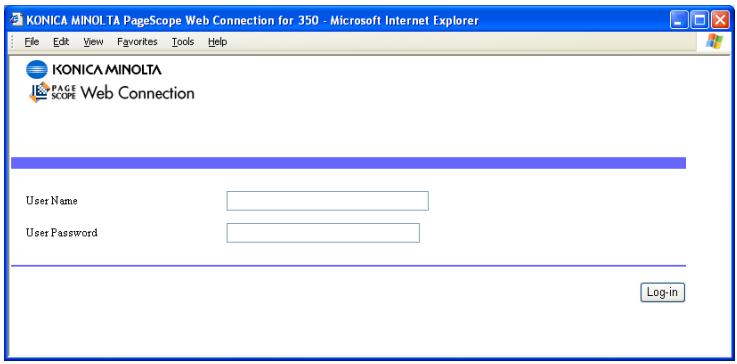

...
Note
For details on user authentication, refer to User's Guide [Copy Operations].
For the user name and password, ask your network administrator.
Page structure
The page that appears immediately after PageScope Web Connection is accessed is called the User mode page. All users can view this page.

Note
By entering the administrator password and clicking the [Log-in] button, you can display the Administrator mode page. For details, refer to "Logging on to Administrator mode" on page 11-42.
The configuration of the PageScope Web Connection page is shown below.
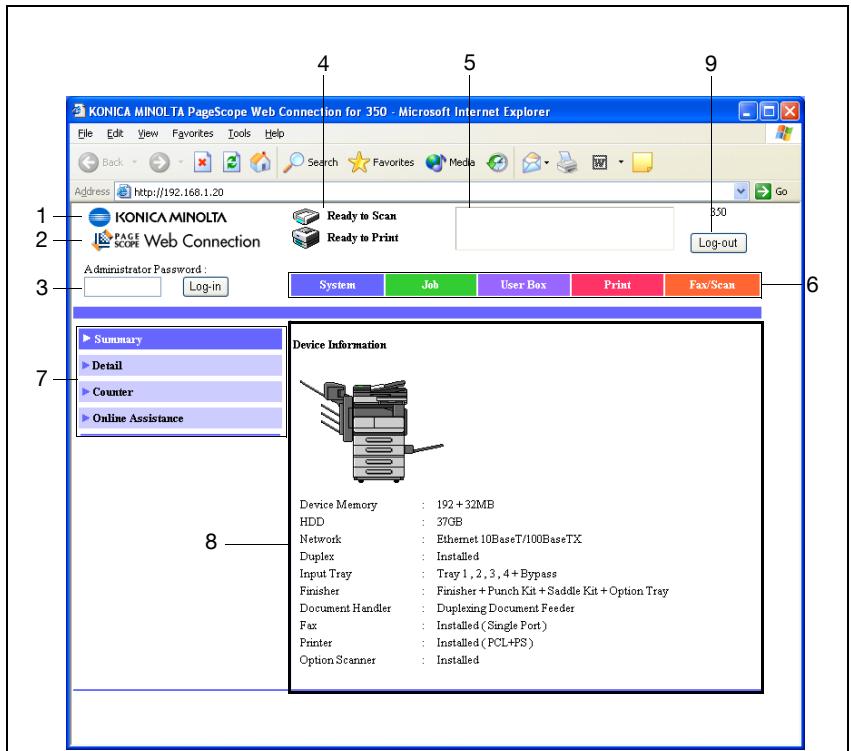
| No. | Item | Description |
| 1 | KONICA MINOLTA Logo | Click the logo to go to the Konica Minolta Web site at the following URL.http://konicaminolta.com |
| 2 | PageScope Web Connection Logo | Click the PageScope Web Connection logo to display the version information. |
| 3 | Administrator mode logon button | Click to log on to the Administrator mode. |
| 4 | Status Display | Displays the status of this machine's printer and scanner sections using icons. Update the data by clicking the [Renew] button on the Web browser. |
| 5 | Message Display | Displays the status of the problem/error and other error information if an error has occurred in this machine. Update the data by clicking the [Renew] button on the Web browser. |
| 6 | Tab | Displays the categories that can be controlled by PageScope Web Connection. The following tabs are displayed in User mode.SystemJobUser BoxPrintFax/Scan |
| 7 | Menus | Lists the information and settings for the selected tab. The menus that appear vary depending on the tab that is selected. |
| 8 | Information and Settings Display | Displays the details of the item selected from the menu. |
| 9 | User authentication logoff button | Displayed when logged in to user authentication. Click to log off from user authentication. |

...
Note
The User Box tab can only be displayed when an optional hard disk is installed.
The Fax/Scan tab is displayed when the optional fax kit is installed. If the optional fax kit is not installed, the Scan tab is displayed.
Logging on to Administrator mode
You can switch between User mode and Administrator mode. However, in order to specify system or network settings, you must be logged on to Administrator mode.
1 Enter the administrator password for this machine in the "Admin Password" box, and then click the [Log-in] button.
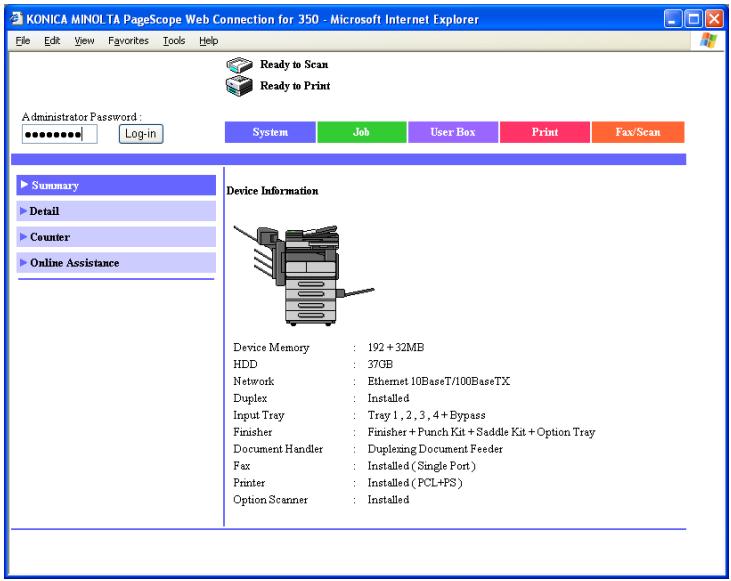
The Administrator mode page appears.
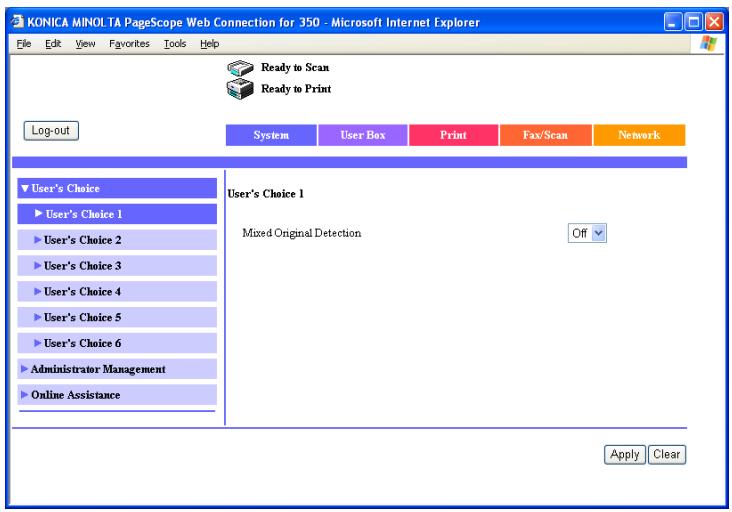
To return to User mode, click the [Log-out] button.

...
Reminder
When logged on to Administrator mode, the machine's control panel is locked and cannot be used.
Depending on the status of the machine, you may not be able to log on to Administrator mode.
When logged on to Administrator mode, if no operation is performed for 10 minutes, a timeout occurs and you will automatically be legged off from Administrator mode.
Web Browser Cache
The newest information may not appear on the PageScope Web Connection page because older versions of pages are saved for the Web browser. In addition, problems may occur when the cache is used.
When using PageScope Web Connection, disable the cache for the Web browser.

Detail
The menus and commands may vary depending on the Web browser version. For details, refer to Help for the Web browser.
If the utility is used with the cache enabled and the Administrator mode was timed out, the timeout may appear even after the utility is accessed again. In addition, since the machine's control panel remains locked and cannot be used, the machine must be restarted (the main power turned off, then on again). In order to avoid this problem, disable the cache.
For Internet Explorer
1 On the "Tools" menu, click "Internet Options".
2 On the General tab, click the [Settings] button under "Temporary Internet Files".
3 Select "Every visit to the page", and then click [OK].
For Netscape
1 On the "Edit" menu, click "Preferences".
2 In the "Category" box, click "Advanced", then "Cache".
3 Under "Compare the page in the cache to the page on the network", select "Every time I view the page".
User mode
The User mode provides functions for checking and operating the machine on a user level. You can select from five tabs (System, Job, User Box, Print, or Scan/Fax).

Note
The User Box tab can only be displayed when an optional hard disk is installed.
The Fax/Scan tab is displayed when the optional fax kit is installed. If the optional fax kit is not installed, the Scan tab is displayed.
This manual describes the printer related functions. For the box and scanner functions of this machine, refer to User's Guide [Box Operations] and User's Guide [Network Scanner Operations].
System tab
On the System tab, information and settings concerning the system configuration of this machine are displayed.
System tab - Summary
On the System tab, click "Summary". In addition, this is the initial page that appears when you access http://
The Summary page shows the current system configuration and status of this machine.
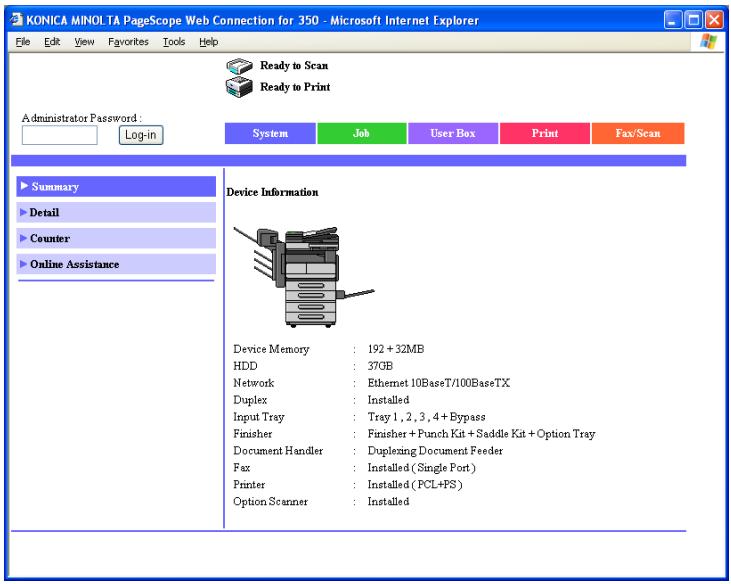
| Item | Description |
| Device Information | This area uses graphics and text to show the configuration of options installed on this machine. |
System tab - Detail - Paper Tray
Click the System tab, click "Detail", and then click "Paper Tray" in the submenu that appeared.
You can check the status of the paper trays of this machine.
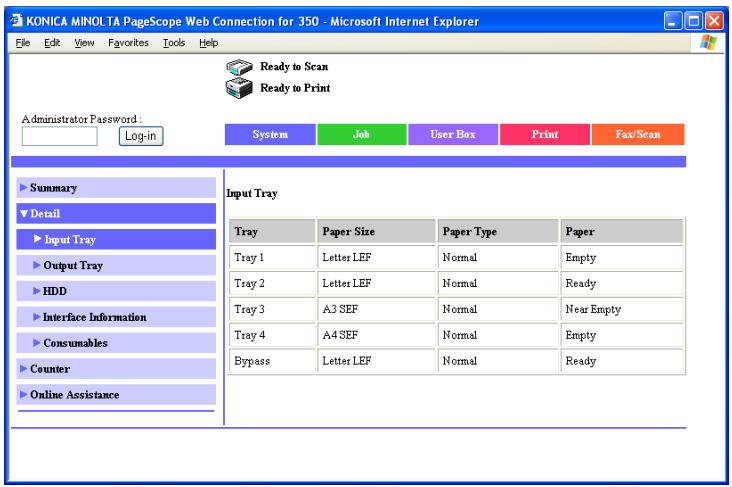
| Item | Description |
| Tray | Displays information for each item. |
| Paper Size | |
| Paper Type | |
| Paper |
System tab - Detail - Output Tray
Click the System tab, click "Detail", and then click "Output Tray" in the submenu that appeared.
You can check the status of the output trays of this machine.
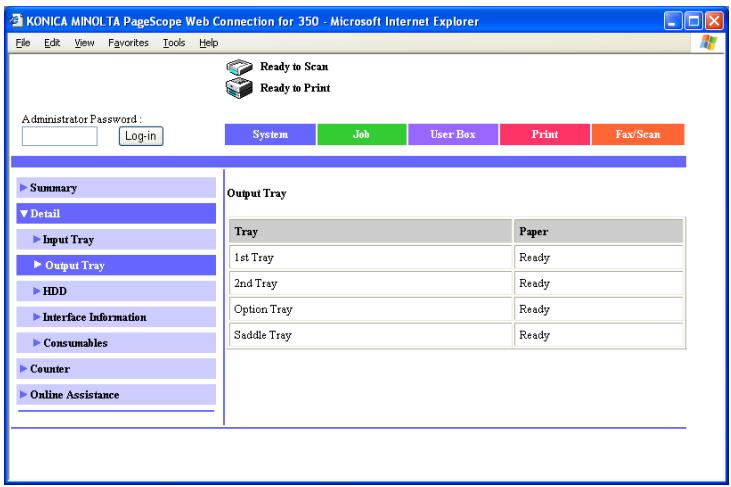
| Item | Description |
| Output Tray | Displays the tray name and status of each installed tray. |
System tab - Detail - HDD
Click the System tab, click "Detail", and then click "HDD" in the sub-menu that appeared.
You can check the status of the hard disk of this machine.
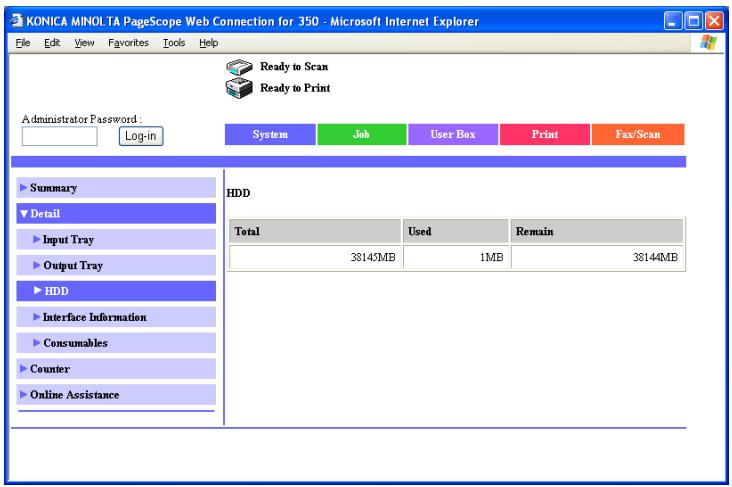
| Item | Description |
| Total | Displays the total size of the installed hard disk. |
| Used | Displays the amount of space used by the system. |
| Remain | Displays the amount of free hard disk space. |

...
Note
"HDD" can only be displayed when an optional hard disk is installed.
System tab - Detail - Interface Information
Click the System tab, click "Detail", and then click "Interface Information" in the sub-menu that appeared.
You can check the interface information of this machine.
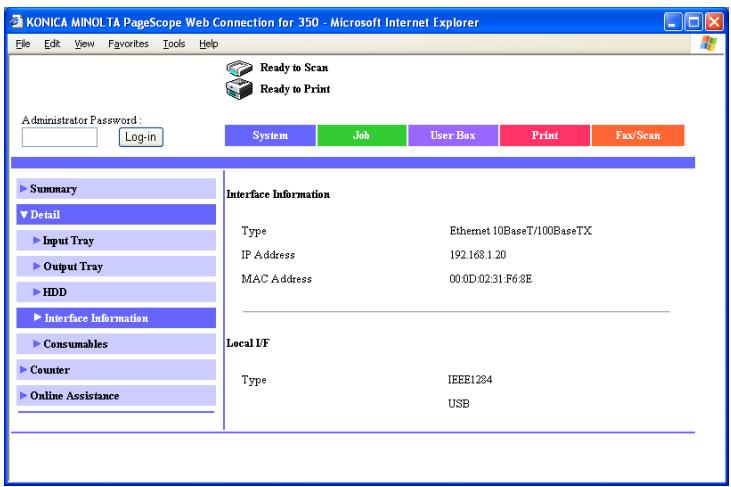
| Item | Description |
| Interface Information | Displays the network information. |
| Local I/F | Displays the local interface information. |
System tab - Detail - Consumables
Click the System tab, click "Detail", and then click "Consumables" in the sub-menu that appeared.
You can check the consumable information of this machine.
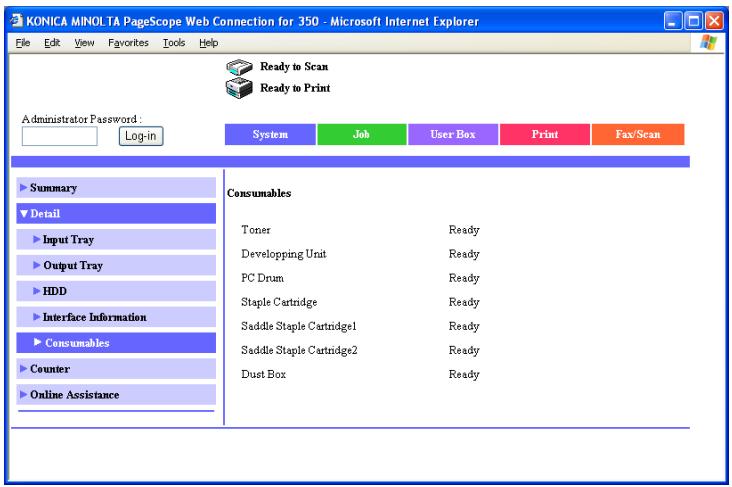
| Item | Description |
| Toner | Displays information for each item. |
| Developing Unit | |
| PC Drum | |
| Staple Cartridge | |
| Saddle Staple Cartridge 1 | |
| Saddle Staple Cartridge 2 | |
| Dust Box |

Note
The status may not be displayed correctly if the consumables are not installed.
“Staple Cartridge”, “Saddle Staple Cartridge 1”, “Saddle Staple Cartridge 2”, and “Dust Box” are displayed according to whether the optional finishers are installed.
System tab - Counter
Click the System tab, and then click "Counter" in the menu.
You can check the counters that this machine manages.
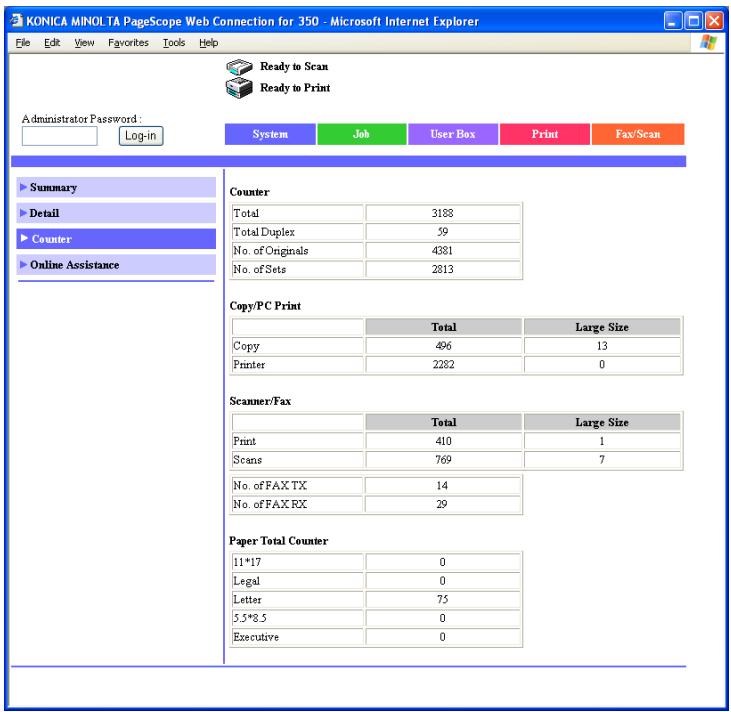
| Item | Description |
| Counter | Displays the total of the output counter (copies, prints, scans, and faxes). |
| Copy/PC Print | Displays each counter. |
| Scanner/Fax | |
| Paper Total Counter | Displays the output counter for each paper size. |

...
Note
“Fax” can only be displayed when the optional fax kit is installed.
System tab - Online Assistance
Click the System tab, and then click “Online Assistance” in the menu. You can check support information concerning the product.
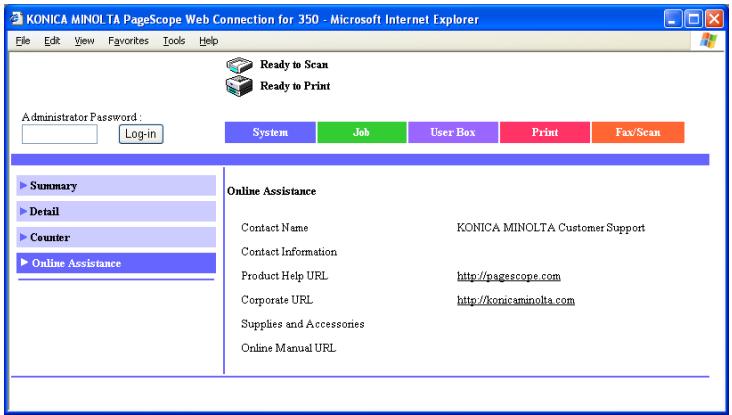
| Item | Description |
| Contact Name | Displays information for each item. |
| Contact Information | |
| Product Help URL | |
| Corporate URL | |
| Supplies and Accessories | |
| Online Manual URL |
Job tab
From the Job tab, you can check jobs managed by this machine.
Job tab - Job List
Click the Job tab, click "Job List" from the menu, and then select each function (print operations).
You can check jobs that have been printed, that are being printed, or that are queued to be printed.
Sample Print page
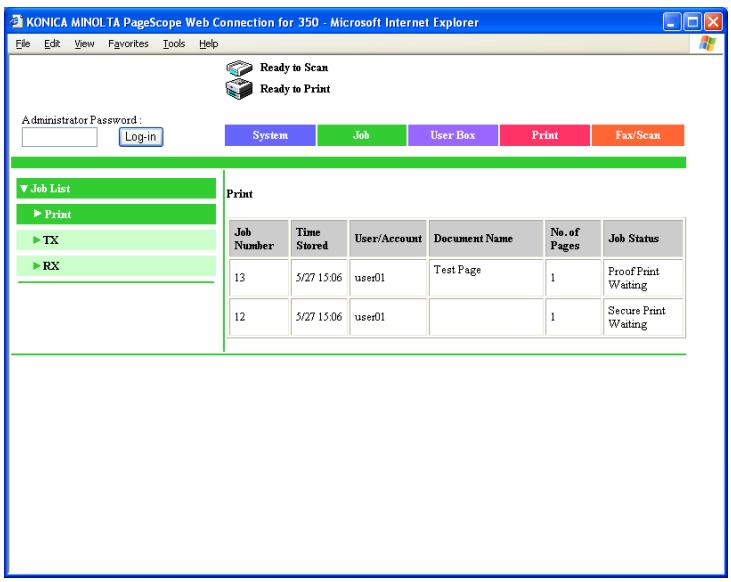
| Item | Description |
| Displays the print job list and details. | |
| TX | Displays the fax and scan transmission job list and details. |
| RX | Displays the fax reception job list and details. |

...
Note
The job number that was assigned when the job was queued in this machine appears as the job number.
Print tab
You can check the printer default settings and print various test prints.
Print tab - Default Settings
Click the Print tab, click "Default Settings" from the menu, and then select each setting classification (general and PCL).
If a print job is sent whose settings are not specified, the settings specified here are used for printing.
Sample General Settings page
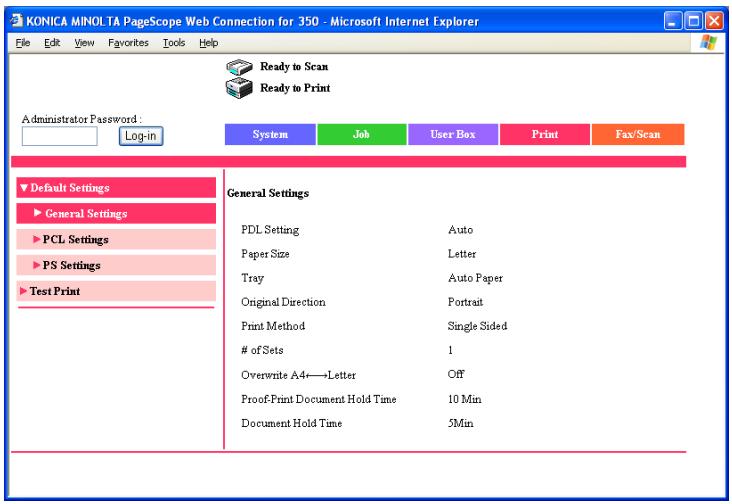
| Item | Description |
| General Settings | Displays information for each item. |
| PCL Settings | |
| PS Settings |
Print tab - Test Print
Click the Print tab, and then click "Test Print" in the menu.
You can print various configuration information, the demo pages, and the font information. Select the report that you want to print, and then click the [Print] button.
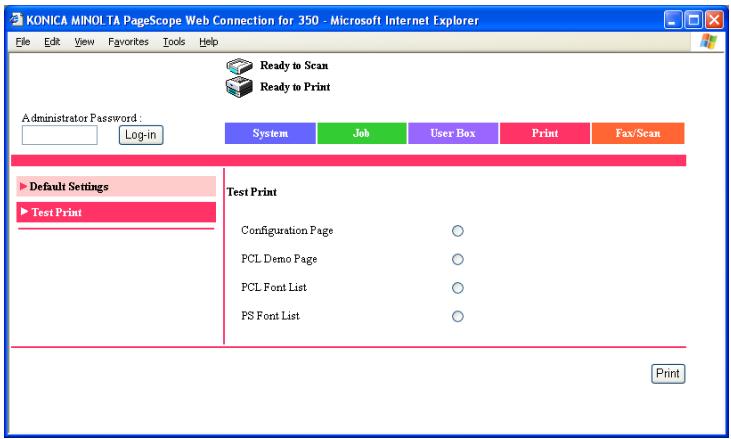

...
Note
When this machine is processing a job, you may not be able to output reports.
| Item | Description |
| Configuration Page | Prints the various configuration information pages of this machine. |
| PCL Demo Page | Prints a demo page. |
| PCL Font List | Prints the font list that is used by PCL. |
| PS Font List | Prints the font list that is used by PostScript. |
Administrator mode
In Administrator mode, you can specify the system settings for this machine. You can select five tabs (System, User Box, Print, Fax/Scan, or Network).
For details on logging on to Administrator mode, refer to “Logging on to Administrator mode” on page 11-42.

Note
The User Box tab can only be displayed when an optional hard disk is installed.
The Fax/Scan tab is displayed when the optional fax kit is installed. If the optional fax kit is not installed, the Scan tab is displayed.
This manual describes the printer related functions. For the box, scanner, and network functions of this machine, refer to User's Guide [Box Operations] and User's Guide [Network Scanner Operations].
Basic operation
1 Click a tab, and then select an item from the menu.
2 Specify settings for the displayed items. Either enter a setting directly or select one from the drop-down list.
3 Click the [Apply] button to apply the settings.
System tab
On the System tab, information and settings concerning the system configuration of this machine are displayed.
System tab - User's Choice - User's Choice 1
Click the System tab, click "User's Choice", and then click "User's Choice 1" in the sub-menu that appeared.
You can specify the related settings for process a mixed document.
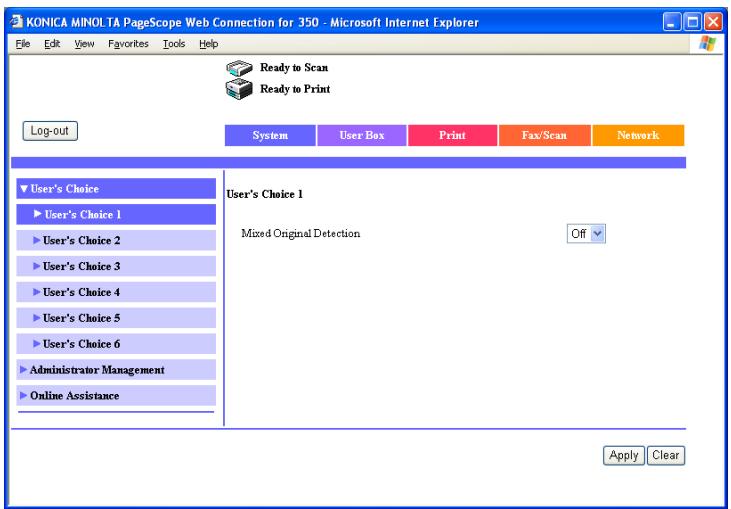
| Item | Description |
| Mixed Original Detection | Specify whether to set the mixed original detection mode to the default value. |
System tab - User's Choice - User's Choice 2
Click the System tab, click "User's Choice", and then click "User's Choice 2" in the sub-menu that appeared.
You can specify the paper priority settings.
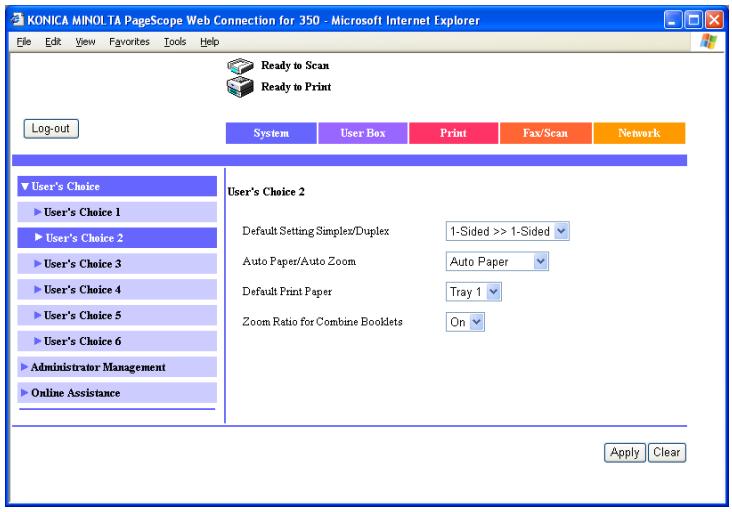
| Item | Description |
| Default Setting Simplex/Duplex | Specify the default settings of the original document/Copy mode. When “Duplex” is the default value in the Copy mode, “1-Sided>>1-Sided” is not displayed. For details, consult your technical representative. |
| Auto Paper/Auto Zoom | Specify the auto function to be used as the priority. |
| Default Print Paper | When the auto paper function is not used, specify the input tray to be used as the priority. |
| Zoom Ratio for Combine Booklets | When the 2in1, 4in1, or booklet functions are used, specify whether to automatically enable a suitable zoom ratio.On: The “4in1” zoom ratio is 0.500, and the “2in1” and “Booklet” zoom ratio is 0.707.Off: Does not automatically specify the zoom ratio. |
System tab - User's Choice - User's Choice 3
Click the System tab, click "User's Choice", and then click "User's Choice 3" in the sub-menu that appeared.
You can specify the settings of the power saving function.
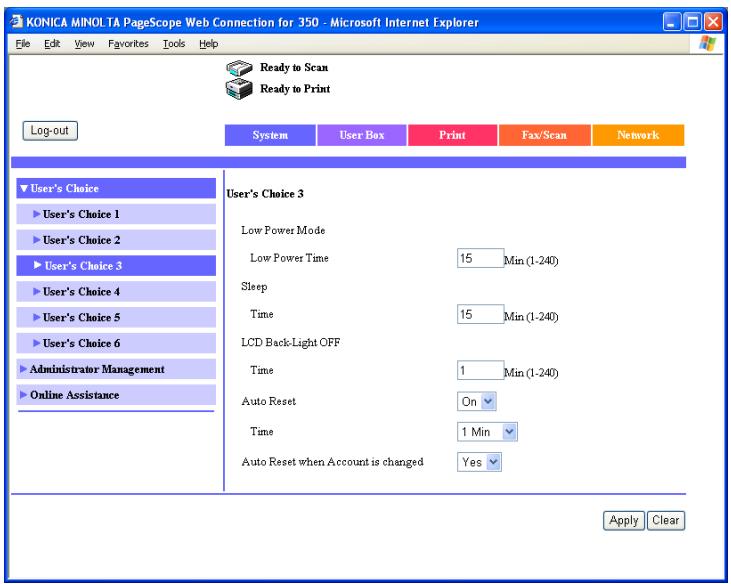
| Item | Description |
| Low Power Mode | Specify the time until the low power function operates (input range: 1-240 minutes). |
| Sleep | Specify whether to enable the sleep function. This setting can only be specified when “Disable Sleep Mode” is specified as “Yes” in Administrator Management-Administrator Settings. |
| Time | Specify the time until the sleep function operates (input range: 1-240 minutes). |
| LCD Back-Light OFF | Specify the time until the function to turn the LCD backlight off operates (input range: 1-240 minutes). |
| Auto Reset | Specifies whether to enable the auto reset function. |
| Time | Specify the time until the auto reset function operates and returns to the default setting. |
| Auto Reset when Account is changed | Specify whether to return to the default setting when the password is entered or the key counter is removed. |
System tab - User's Choice - User's Choice 4
Click the System tab, click "User's Choice", and then click "User's Choice 4" in the sub-menu that appeared.
You can specify the layout and quality print settings.
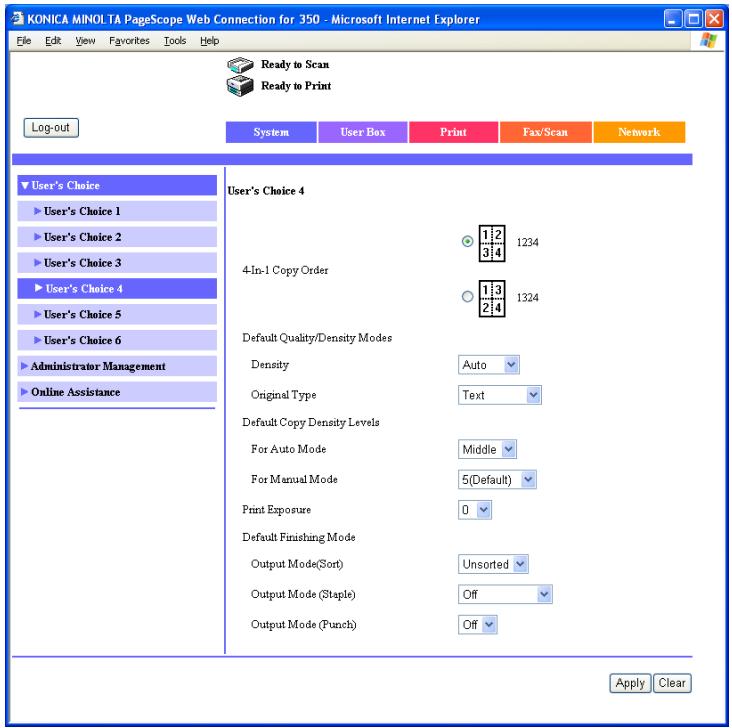
| Item | Description | |
| 4-In-1 Copy Order | Specify the page order when the 4-in-1 combination function is used. | |
| Default Quality/ Density Modes | Density | Specify the default settings of the copy density. |
| Quality Type | Specify the default settings of the copy quality. | |
| Default Copy Density Levels | For Auto Mode | Specify the auto default settings of the copy density. |
| For Manual Mode | Specify the manual default settings of the copy density. | |
| Print Exposure | Specify the print density. | |
| Default Finishing Mode | Output Mode (Sort) | Specify the offset default setting. |
| Output Mode (Staple) | Specify the staple default setting. | |
| Output Mode (Punch) | Specify the hole punching default setting. | |

Note
The staple function is displayed only when optional finisher is installed.
The hole punching function is displayed only when punch unit is installed.
System tab - User's Choice - User's Choice 5
Click the System tab, click "User's Choice", and then click "User's Choice 5" in the sub-menu that appeared.
You can specify the output settings.
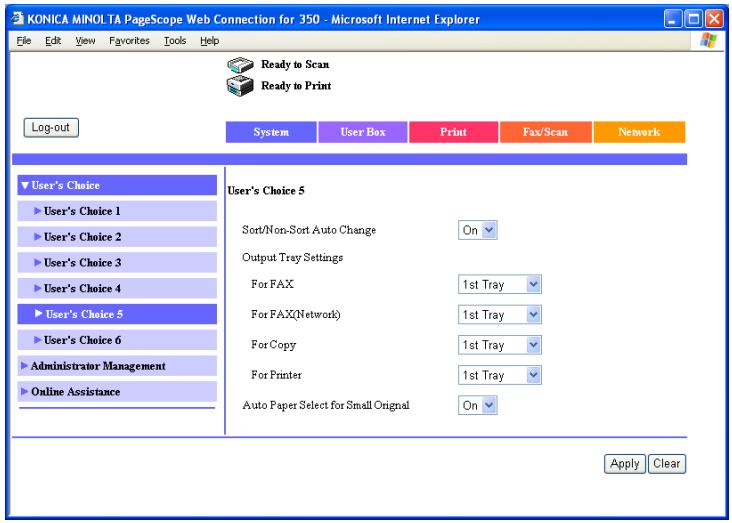
| Item | Description | |
| Sort/Non-Sort Auto Change | You can specify whether to switch between the sorting and non-sorting function according to the number of copies. | |
| Output Tray Settings | For FAX | Specifies the output tray for data received by fax (port 1/2). |
| For FAX (Network) | You can specify the output tray for data received by a network. | |
| For Copy | You can specify the output tray for copies. | |
| For Printer | You can specify the print output tray from a computer. | |
| Auto Paper Select for Small Original | You can specify whether to specify the input tray when the auto paper settings have been specified and the original document set on the original document glass is A5 size or smaller, or when an original document has not been loaded.On: Copies using the priority paper.Off: Displays the input tray select screen. | |

Note
The display of the output tray function may differ according to the status of the installed options.
System tab - User's Choice - User's Choice 6
Click the System tab, click "User's Choice", and then click "User's Choice 6" in the sub-menu that appeared.
You can specify the default screen settings.
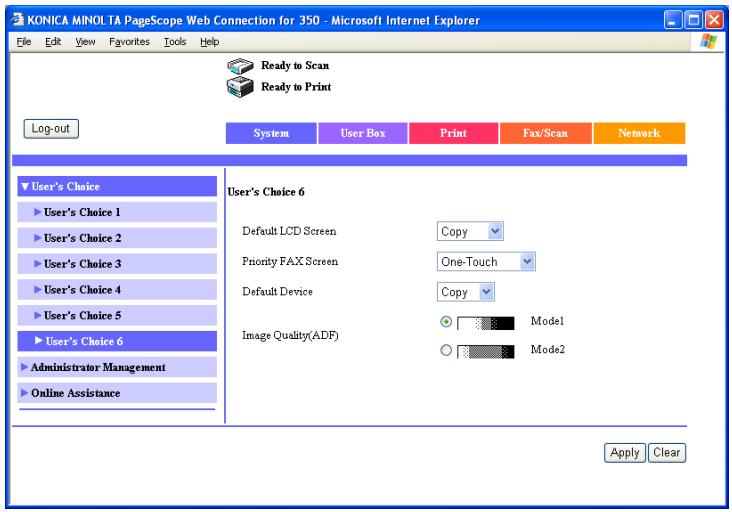
| Item | Description |
| Default LCD Screen | Specifies the priority function screen. |
| Priority FAX Screen | Specifies the priority function screen. |
| Priority Device | Specifies the priority function. |
| Image Quality (ADF) | Specifies the quality level of the ADF.Mode 1: Suitable for copying light original documents such original documents written in pencil.Mode 2: Suitable for standard original documents. |

...
Note
The Priority FAX Screen is displayed when the optional fax kit is installed. If the optional fax kit is not installed, Priority Mail screen is displayed.
System tab - Administrator Management - Date & Time Setting
Enter the time and date for this machine.
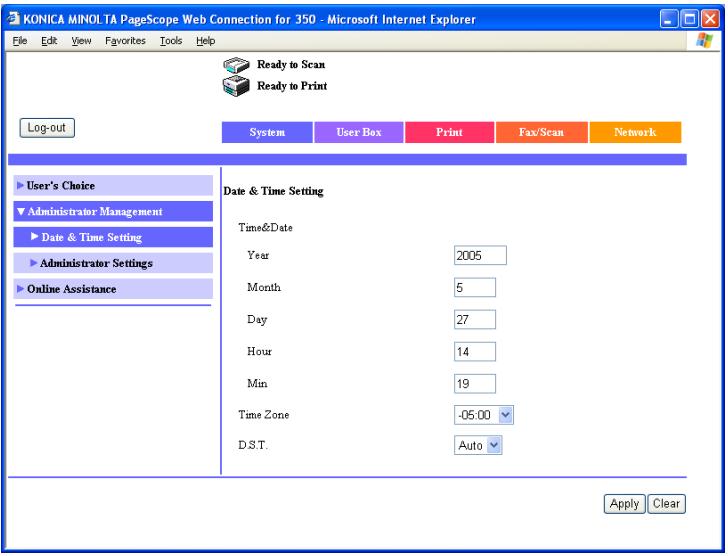
| Item | Description |
| Year | Enter the year. |
| Month | Enter the month. |
| Day | Enter the day. |
| Hour | Enter the time. |
| Min | Enter the minutes. |
| Time Zone | Specify the time difference from GMT. |
| D.S.T. | Specify the daylight savings time. |
System tab - Administrator Management - Administrator Settings
Click the System tab, click “Administrator Management”, and then click “Administrator Settings” in the sub-menu that appeared.
You can specify the usage condition settings for the user.
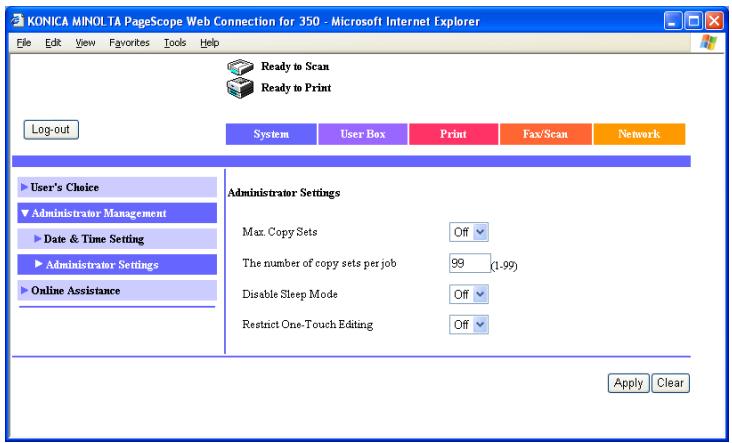
| Item | Description |
| Max. Copy Sets | Specify whether to limit the number of copies that can be specified per job. |
| The number of copy sets per job | Specify the number of copies that can be specified per job (input range: 1-99). |
| Disable Sleep Mode | Specify whether to permit the user to disable the sleep function in the user's choice function. |
| Restrict One-Touch Editing | Specify whether to prohibit the one-touch registration specified by the user settings. |
System tab - Administrator Management - User Authentication
When performing user authentication with this machine, the “User Authentication”, “User List”, and “User Counter 1-3” menus are displayed in “Administrator Management” on the System tab.
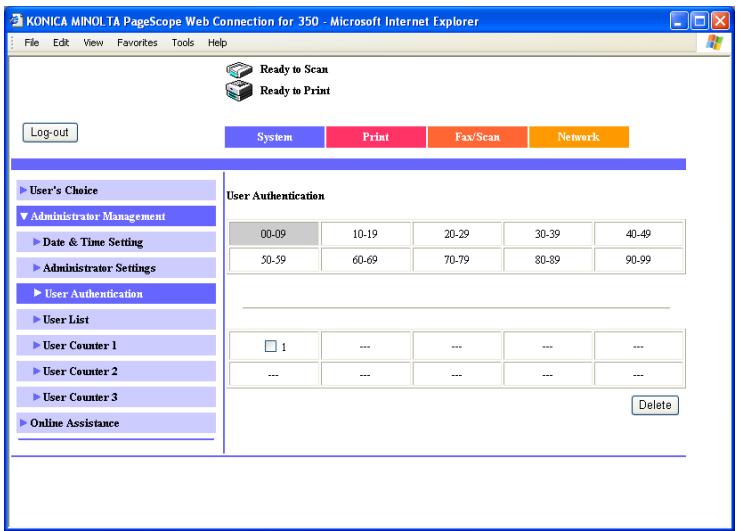
| Item | Description |
| User Authentication | Registers the user information (user name and password) to a user number. |
| User List | Displays the registered users. |
| User Counter 1 | Displays the total counter per user. |
| User Counter 2 | |
| User Counter 3 |

...
Note
For details on user authentication, refer to User's Guide [Copy Operations].
System tab - Administrator Management - Account Data
When performing account track with this machine, the “Account Data” and “Account Counter 1-3” menus are displayed in “Administrator Management” on the System tab.
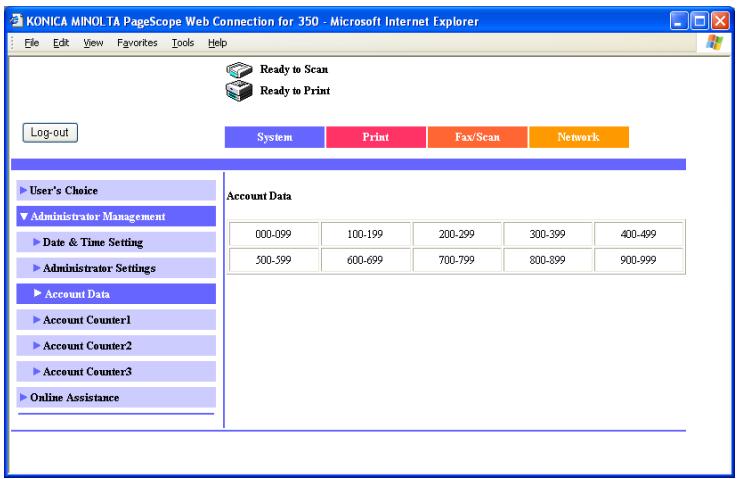
| Item | Description |
| Account Data | Registers the account data (account name, password, print maximum value) to an account number. |
| Account Counter 1 | Displays the total counter per account. |
| Account Counter 2 | |
| Account Counter 3 |

...
Note
For details on the account track, refer to User's Guide [Copy Operations].
System tab - Online Assistance
You can change the online support information. To display this information, click the System tab in the User mode, then click “Online Assistance”.
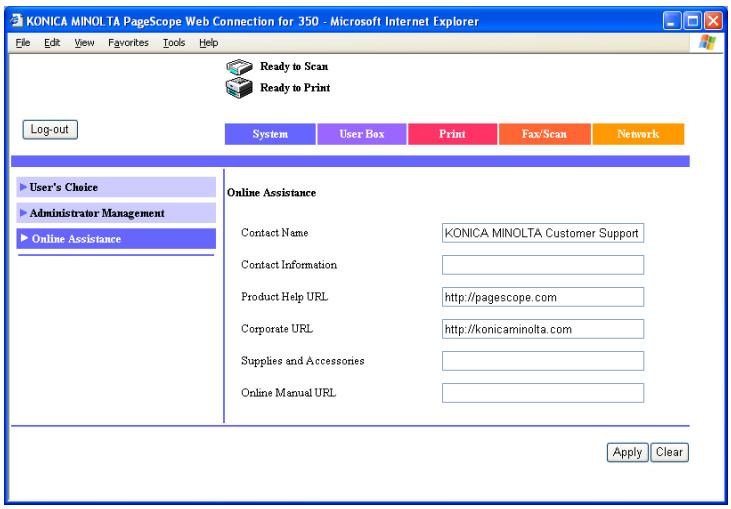
| Item | Description |
| Contact Name | Specify information for each item. |
| Contact Information | |
| Product Help URL | |
| Corporate URL | |
| Supplies and Accessories | |
| Online Manual URL |
Print tab
On the Print tab, information and settings concerning the connecting interface and print default print settings are displayed.
Print tab - Local I/F
You can change the interface timeout settings.
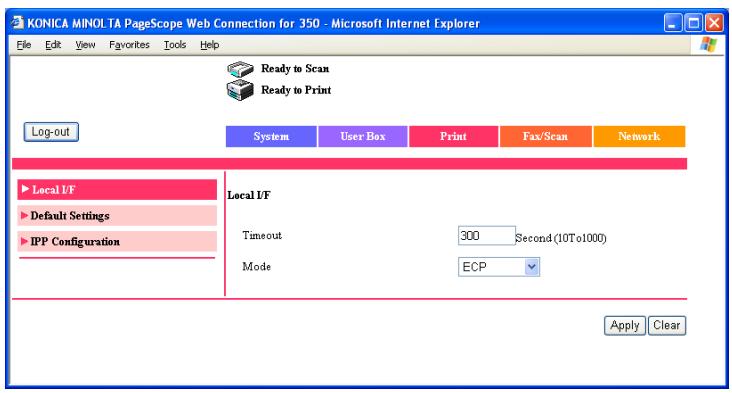
| Item | Description |
| Timeout | Enter the reception timeout for the interface port (input range: 10-1000). |
| Mode | Select the parallel port transmission method. |

...
Note
"Mode" can only be displayed when optional local interface kit is installed.
Print tab - Default Settings - General Settings
You can specify the default setting values of the printer.
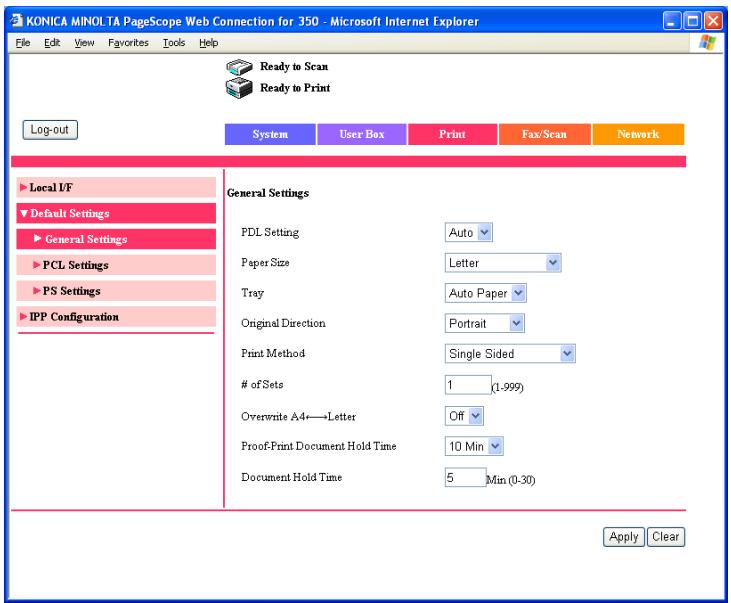
| Item | Description |
| PDL Setting | Select the printer descriptive language. |
| Paper Size | Select the paper size. |
| Tray | Select the input tray. |
| Original Direction | Select the print orientation. |
| Print Method | Select whether to perform duplex printing. |
| # of Sets | Select the number of copies to print. (input range: 1-999) |
| Overwrite A4← →Letter | You can substitute letter size and 11×17-inch size with A4 or A3 size paper. |
| Proof-Print Document Hold Time | Specify the time until the proof and print data is deleted. |
| Document Hold Time | Specify the time to delete the data when the memory has exceeded capacity. (input range: 0-30) |
Print tab - Default Settings - PCL Settings
You can specify the default setting values for the PCL mode.
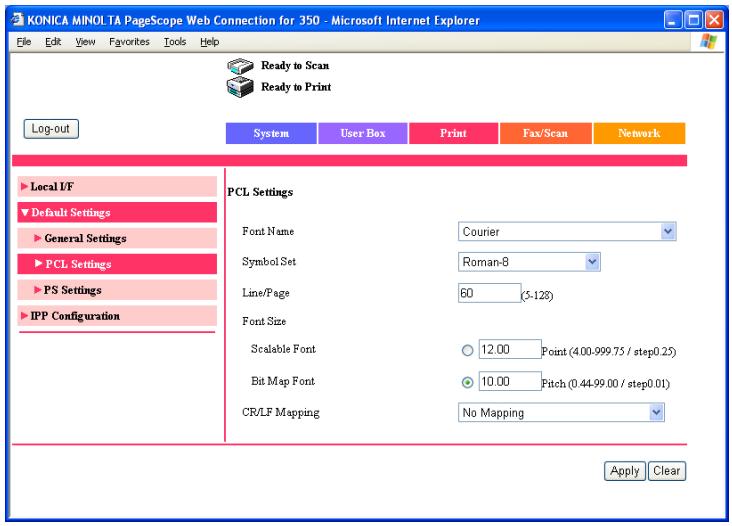
| Item | Description |
| Font Name | Select the font. |
| Symbol Set | Select the symbol set. |
| Line/Page | Enter the number of lines per page (input range: 5-128). |
| Font Size | Enter the font size for the scalable font and the bitmap font (input range: Scalable Font 4.00-999.75, Bit Map Font 0.44-99.00). |
| CR/LF Mapping | Select the CR/LF operation. |
Print tab - Default Settings - PS Settings
You can specify the default setting values of the PS mode.
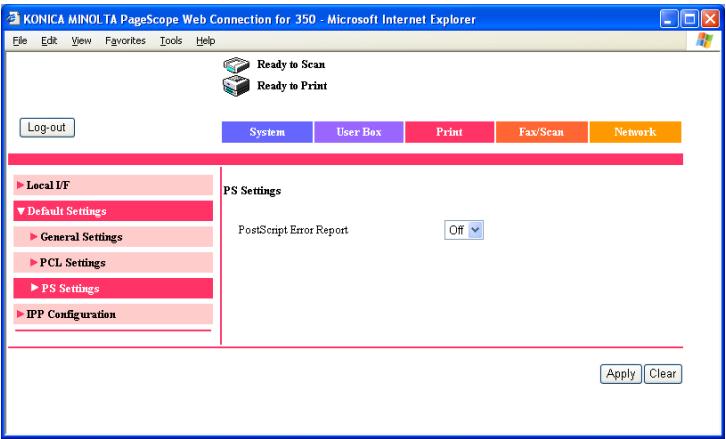
| Item | Description |
| PostScript Error Report | Specify whether to enable the printing of errors. |
Print tab - IPP Configuration
You can change the device information.
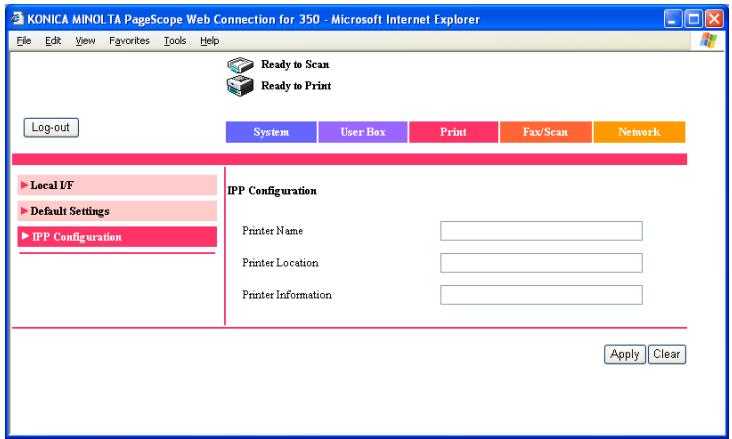
| Item | Description |
| Printer Name | Specify the device name (up to 127 alphanumeric characters and symbols). |
| Printer Location | Specify the device location (up to 127 alphanumeric characters and symbols). |
| Printer Information | Specify the printer description (up to 127 alphanumeric characters and symbols). |
Fax/Scan tab
On the Fax/Scan tab, the settings at transmission and the information and settings concerning the address book limitations are displayed.

Detail
For details on the Fax/Scan tab settings, refer to User's Guide [Network Scanner Operations].
The Fax/Scan tab is displayed when the optional fax kit is installed. If the optional fax kit is not installed, the Scan tab is displayed.
Network tab
On the Network tab, information and settings concerning the network connection are displayed.

Note
"IP Relay Settings" on the Network tab is displayed when optional fax kit or scanner unit is installed.
Network tab - Common Setting - TCP/IP
You can specify the TCP/IP settings.
![KONICA MINOLTA PageScope Web Connection for 350 - Microsoft Internet Explorer File Edit View Favorites Tools Help Ready to Scan Ready to Print Log-out System User Box Print Fax/Scan Network Common Setting ▶ TCP/IP ▶ IPP ▶ NetWare ▶ NetWare Status ▶ Windows ▶ AppleTalk ▶ LDAP ▶ LDAP Server Setting ▶ E-Mail/Internet FAX ▶ FTP Configuration ▶ SSL/TLS ▶ IP Relay Settings TCP/IP Configuration DHCP Configuration [*] Disable IP Address [*] 192 168 1 20 Subnet Mask [*] 255 255 255 0 Gateway Address [*] . . . . RAW Port Number 9100 (1-6553) Self-Domain Name [*] DNS Configuration No Host Name KMBT31F68E Domain Name DNS Server Address1 . . . . DNS Server Address2 . . . . DNS Server Address3 . . . . DNS Query Timeout 160 Sec When changing a setup of [*] mark, reboot of Device is needed. Apply Clear](/content/2025/01/139596/images/ff0d9558af2b774c124a920909f2a0a6b96f83a648ca84dbfff22bdb889b2c07.jpg)
| Item | Description |
| DHCP Configuration | Specify whether to enable the DHCP server. |
| IP Address | Specify the IP address of this machine (format: “***.***.***.***”, input range for ***: 0-255 Note that the following values cannot be entered in the most significant byte: 0, 127, 224-255). |
| Subnet Mask | Specify the subnet mask connecting to a network (format: “***.***.***.***”, input range for ***: 0-255). |
| Gateway Address | Specify the default gateway address connecting to a network (format: “***.***.***.***”, input range for ***: 0-255 Note that the following values cannot be entered in the most significant byte: 0, 127, 224-255). |
| RAW Port Number | Specify the RAW port number (input range: 1-65535). |
| Self-Domain Name | Specify the domain name for this machine. (up to 64 alphanumeric characters and symbols (! # % & ’ * + - . / = ? _ ` | ~)) |
| DNS Configuration | Specify whether to use the DNS server. |
| Host Name | Input the host name connecting to a network. (up to 64 alphanumeric characters and symbols (-)) |
| Domain Name | Specify the domain name for this machine (up to 64 alphanumeric characters and symbols (! # % & ’ * + - . / = ? _ ` { | } ~ @)). |
| DNS Server Address | Register a maximum of three DNS servers (format: “***.***.***.***”, input range for ***: 0-255 Note that the following values cannot be entered in the most significant byte: 0, 127, 224-255). |
| DNS Query Timeout | Specify the time for an inquiry timeout to the DNS server. |

Reminder
To apply any changes to settings for “DHCP Configuration”, “IP Address”, “Subnet Mask”, “Gateway Address”, or “Self-Domain Name”, re-start this machine (turn the main power off, then on again).
When turning the machine off, then on again, wait about 10 seconds after turning the machine off before turning the machine on again. The settings may not be applied correctly if the machine is turned on immediately after it is turned off.

Note
"Self-Domain Name" can only be displayed when the optional fax kit is installed.
Network tab - Common Setting - IPP
You can specify the IPP print settings.
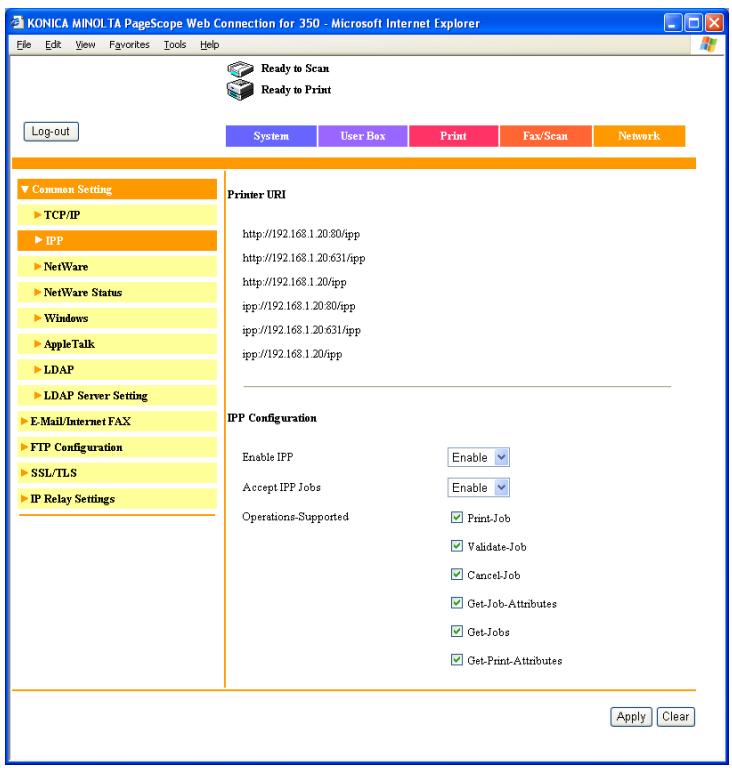
| Item | Description |
| Printer URI | Displays the URI of the printer that can be used for IPP printing. |
| Enable IPP | Specify whether to enable IPP printing. |
| Accept IPP Jobs | Specify whether to enable IPP print jobs. |
| Operations-Supported | Specifies the print operations supported by IPP.Setting values: Print-Job, Validate-Job, Cancel-Job, Get-Job-Attributes, Get-Jobs, Get-Printer-Attributes |
Network tab - Common Setting - NetWare
You can specify the NetWare settings.
![KONICA MINOLTA PageScope Web Connection for 350 - Microsoft Internet Explorer File Edit View Favorites Tools Help Ready to Scan Ready to Print Log-out System User Box Print Fax/Scan Network Common Setting TCP/IP IPP NetWare NetWare Status Windows AppleTalk LDAP LDAP Server Setting E-Mail/Internet FAX FTP Configuration SSL/TLS IP Relay Settings NetWare Settings Enable NetWare [*] Enable Frame Type [*] Auto Detect Bindery/NDS NDS Print Server Name KMBT31F68E Print Server Password ••••• Preferred File Server Preferred NDS Context Preferred NDS Tree Print Queue Scan Rate [*] 1 Sec (1-65535) Mode [*] PServer Printer Number [*] 255 (0-255, 255 means auto.) When changing a setup of [*] mark, reboot of Device is needed. Apply Clear](/content/2025/01/139596/images/6c6d043130a68531670b99aadc1d7de1876ff006f571884428ba7b242f490472.jpg)
| Item | Description |
| Enable NetWare | Specify whether to enable NetWare. |
| Frame Type | Select the frame type. |
| Bindery/NDS | Select Bindery/NDS. |
| Print Server Name | Enter the print server name (up to 63 alphanumeric characters, excluding / ¥ : ; * [ ] < > | + = ?). |
| Print Server Password | Specify the print server password (up to 63 alphanumeric characters and symbols (spaces ! “ # $ % & ’ ~ = ¥ | ; : + * ` / ? @ _ - . , () [ ] { } < >).(The password is displayed by “●●●●”.) If changing the password, delete “*****”, and then input the password. |
| Preferred File Server | Enter the preferred file server name of bindery (up to 47 alphanumeric characters, excluding / ¥ : ; , * [ ] < > | + = ?). |
| Preferred NDS Context | Enter the preferred NDS context name (up to 191 alphanumeric characters, excluding / ¥ : ; , * [ ] <> | += ?). |
| Preferred NDS Tree | Enter the preferred NDS tree name (up to 63 alphanumeric characters, excluding / ¥ : ; , * [ ] <> | += ?). |
| Print Queue Scan Rate | Enter the print queue scan rate (input range: 1-65535 seconds). |
| Mode | Select “PServer” or “NPrinter/RPrinter” as the operation mode of the print server. |
| Printer Number | Enter the Nprinter/Rprinter printer number (input range: 0-255, 255 is automatically given). |

...
Reminder
To apply any changes to settings for “Enable NetWare”, “Frame Type”, “Print Queue Scan Rate”, “Mode”, or “Printer Number”, restart this machine (turn the main power off, then on again).
When turning the machine off, then on again, wait about 10 seconds after turning the machine off before turning the machine on again. The settings may not be applied correctly if the machine is turned on immediately after it is turned off.
Network tab - Common Setting - NetWare Status
“NetWare Server” and “Queue Name” appear as the NetWare connection status.
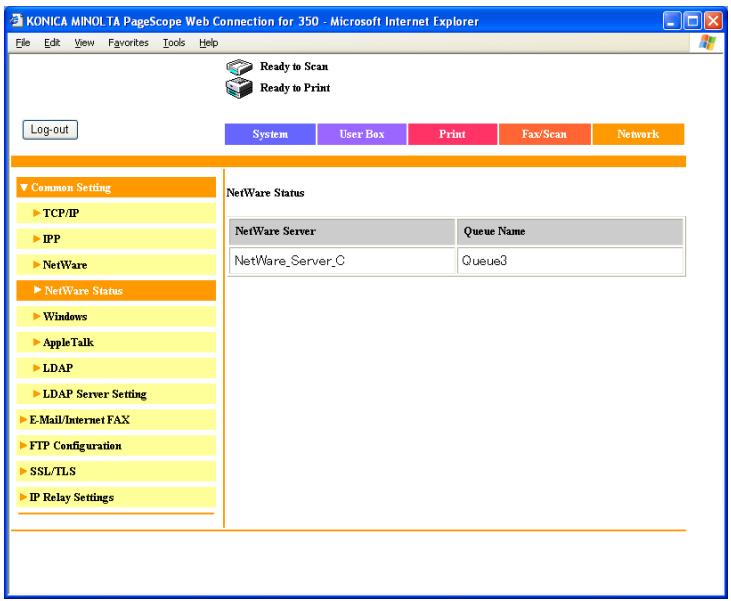
Network tab - Common Setting - Windows
You can specify the Windows print settings.
![KONICA MINOLTA PageScope Web Connection for 350 - Microsoft Internet Explorer File Edit View Favorites Tools Help Ready to Scan Ready to Print Log-out System User Box Print Fax/Scan Network Common Setting TCP/IP IPP NetWare NetWare Status Windows AppleTalk LDAP LDAP Server Setting E-Mail/Internet FAX FTP Configuration SSL/TLS IP Relay Settings Windows Configuration Enable Windows Printing Service Enable NetBIOS Name [*] KMBT31F68E Printing Service Name [*] printer WorkGroup Name [*] WORKGROUP When changing a setup of [*] mark, reboot of Device is needed. Apply Clear](/content/2025/01/139596/images/dfe7cad1c29b2737ed7439451c4d86539d86fb28068b499481b1c510263c158c.jpg)
| Item | Description |
| Enable Windows Printing Service | Specifies whether to enable the Windows print (SMB print) service. |
| NetBIOS Name | Enter the NetBIOS name (up to 15 alphanumeric characters and only hyphens (-) and underscores (_)). |
| Printing Service Name | Enter the print service name (up to 13 alphanumeric characters, excluding spaces /\ ,). |
| WorkGroup Name | Enter the work group name (up to 15 alphanumeric characters, excluding spaces \ * + = | : ; “ ? < > ,). |

...
Reminder
To apply any changes to settings for “NetBIOS Name”, “Printing Service Name”, or “WorkGroup Name”, restart this machine (turn the main power off, then on again).
When turning the machine off, then on again, wait about 10 seconds after turning the machine off before turning the machine on again. The settings
may not be applied correctly if the machine is turned on immediately after it is turned off.

Note
Only the PCL printer driver can be used with Windows printing.
Network tab - Common Setting - AppleTalk
You can specify the AppleTalk settings.
![KONICA MINOLTA PageScope Web Connection for 350 - Microsoft Internet Explorer File Edit View Favorites Tools Help Ready to Scan Ready to Print Log-out System User Box Print Fax/Scan Network Common Setting TCP/IP IPP NetWare NetWare Status Windows AppleTalk AppleTalk Configuration AppleTalk Enable Printer Name [*] KMBT31F68E Zone Name [*] * Current Zone * When changing a setup of [*] mark, reboot of Device is needed. LDAP LDAP Server Setting E-Mail/Internet FAX FTP Configuration SSL/TLS IP Relay Settings Apply Clear](/content/2025/01/139596/images/b11389f02af4096eb4f9342a5e101a44b2b68656a426727f3ff51a01d285b49e.jpg)
| Item | Description |
| AppleTalk | Specify whether to enable AppleTalk. |
| Printer Name | Enter the printer name (up to 31 alphanumeric characters, excluding = ~). |
| Zone Name | Specify the zone name (up to 31 alphanumeric characters, excluding = ~). |
| Current Zone | Displays the current zone name. |

...
Reminder
To apply any changes to settings for "Printer Name" or "Zone Name", re-start this machine (turn the main power off, then on again).
When turning the machine off, then on again, wait about 10 seconds after turning the machine off before turning the machine on again. The settings may not be applied correctly if the machine is turned on immediately after it is turned off.
Network tab - User Authentication
When performing authentication on an external server with this machine, the "User Authentication" menu is displayed on the Network tab.
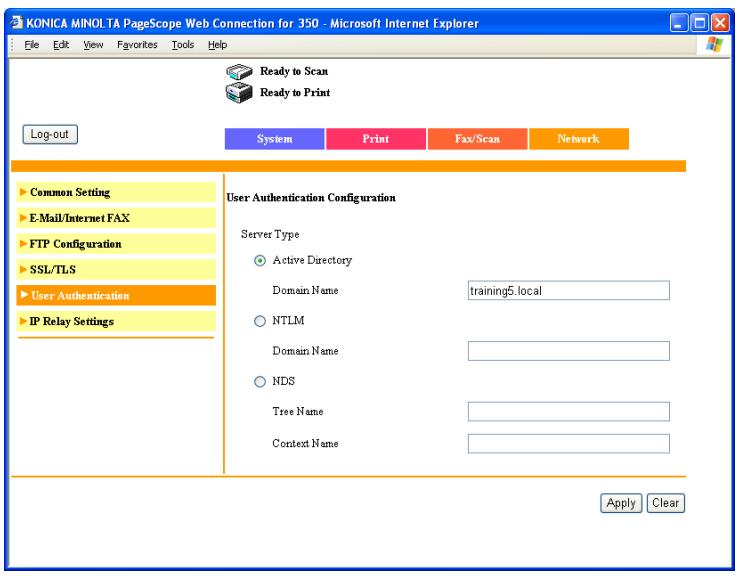
| Item | Description |
| Server Type | Specifies the server authentication method and domain name. |

...
Note
For details on the authentication of external servers, refer to User's Guide [Copy Operations].
11.5 Print job management
Specifying job operations
You can specify the job operations on this machine by setting a printer driver.

Note
The three printer drivers that can be set on this machine are as follows:
Konica Minolta PCL printer driver for Windows
Konica Minolta PostScript printer driver for Windows 2000/XP/Server
2003
PPD printer driver for Mac OS X
Specifying settings (for Windows)
1 Click the [Properties] button or the [Preferences] button on the printer driver setup dialog box.
2 Click the Setup tab.
3 From the "Output Method" drop-down list, select the output method.
– Print: Prints immediately.
- Secure Print: Enters the ID and password on this machine's control panel, then prints.
- Save in User Box: Saves the document to be printed in a box on this machine.
- Save in User Box and Print: Saves the document in a box and prints at the same time.
- Proof and Print: After part of the document has been printed, this machine stops printing temporarily. Select to avoid misprinting a large volume of print jobs.

Note
The Save in User Box and Save in User Box and Print functions can only be used when an optional hard disk is installed.
The Save in User Box, Save in User Box and Print, and Proof and Print functions cannot be specified when the "Per Page Setting" setting is specified.
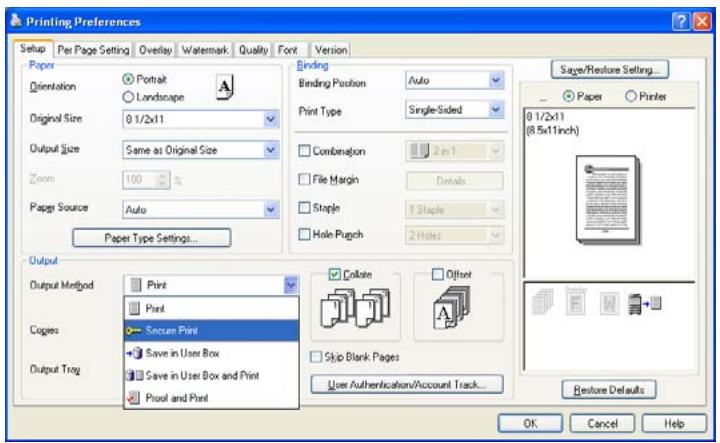
Specifying settings (for Mac OS X)
1 From the "File" menu, select "Print".
2 Select "Security".
3 Specify settings for the following:
- Output Method: Specifies conditions for "Secure Print" and "Save in User Box".
- Secure Print Settings: Enters ID and password when “Secure Print” is selected from “Output Method”. Enter the ID and password on this machine’s control panel when printing.
- Save in User Box Settings: Enters the file name when "Save in User Box" or "Save in User Box and Print" is selected from "Output Method".

...
Note
The Save in User Box and Save in User Box and Print functions can only be used when an optional hard disk is installed.
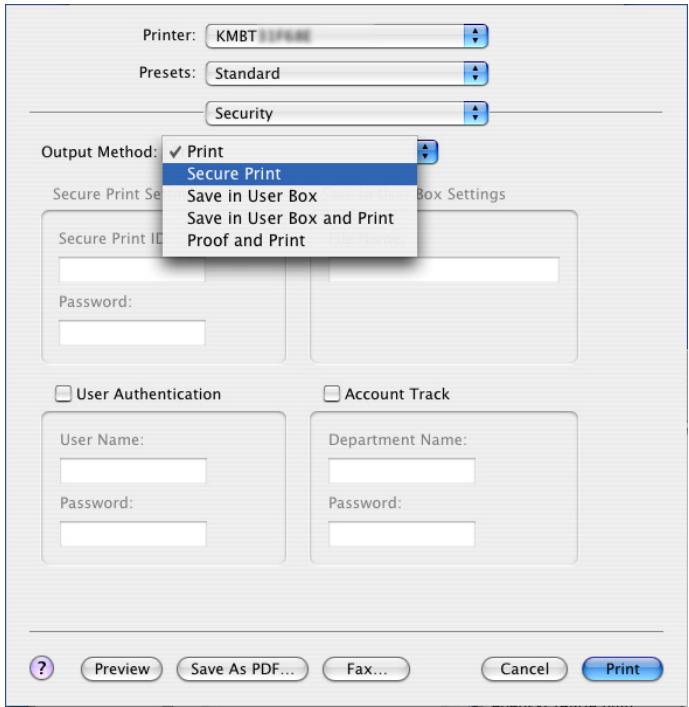
Job storage
Depending on the printer driver "Output Method" settings, a print document can be stored in this machine as a print job.
To print a stored job, you must recall the job in Box mode using this machine's control panel.
Recalling jobs (Proof Print)
For details on using the keys on the control panel, refer to User's Guide [Copy Operations].
For details on the box functions of this machine, refer to User's Guide [Box Operations].
1 Press the [Box] key on this machine's control panel.
2 Touch [Proof Print].
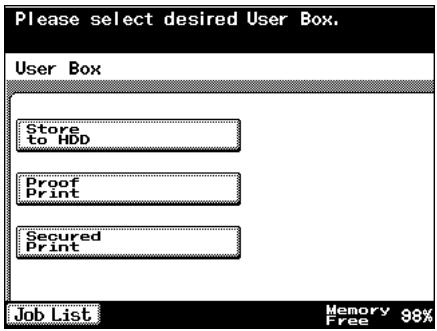
3 From the job list, select the job you want to print.
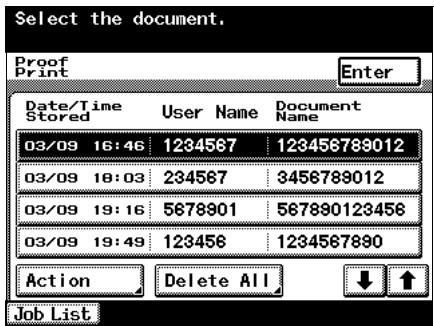
4 Touch [Action].
The Action screen appears.
- To change the settings of the printing conditions, proceed to step 5.
- If you are not changing the settings of the printing conditions, proceed to step 7.
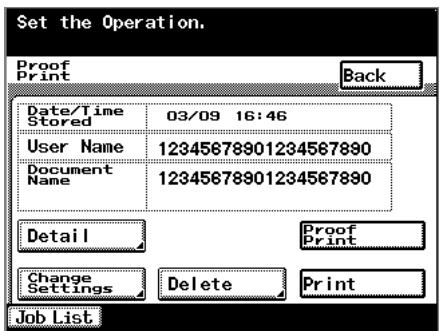
5 Touch [Change Settings].
The Change Settings screen appears.
6 Change the printing conditions on the Change Settings screen, and then touch [Enter].
The operation setting screen appears again.
7 Touch [Print].
The stored job is changed to an active job, then printed.
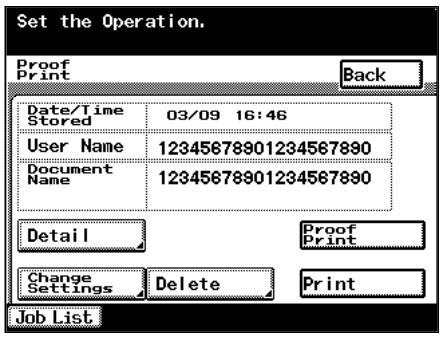
![KONICA MINOLTA BIZHUB 250 PRINT - Touch [Print]. - 2](/content/2025/01/139596/images/0726c77973beb74dfcf54869bb91478a03739e5a43db6b803041650705ee6a9f.jpg)
Note
To delete and not print a job, touch [Delete].
Jobs in [Proof Print] or [Secured Print] are deleted after being printed or when this machine is turned off.
Recalling jobs (Secured Print)
For details on using the keys on the control panel, refer to User's Guide [Copy Operations].
For details on the box functions of this machine, refer to User's Guide [Box Operations].
1 Press the [Box] key on this machine's control panel.
2 Touch [Secured Print].
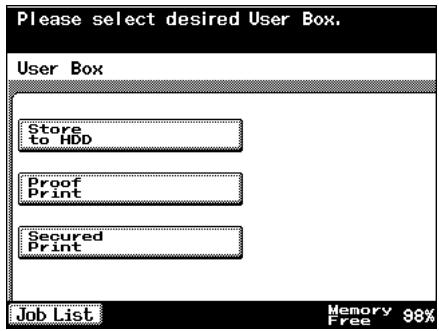
3 Enter the ID and password in Secured Print, and then touch [Enter].
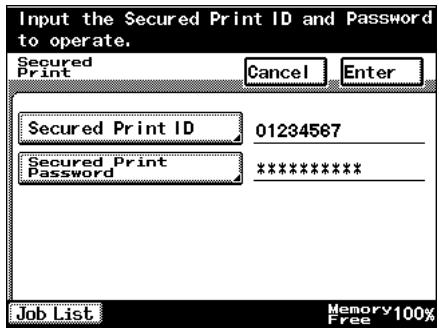
4 From the job list, select the job you want to print.
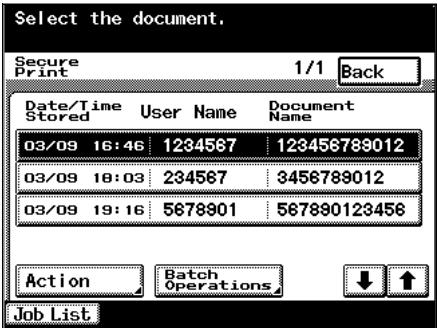
5 Touch [Action].
The Action screen appears.
6 Touch [Print].
The stored job is changed to an active job, then printed.
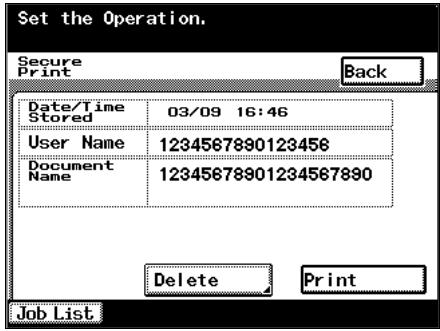
![KONICA MINOLTA BIZHUB 250 PRINT - Touch [Print]. - 2](/content/2025/01/139596/images/5ad280cf07324c49859bcca296ed02e34d41e25ab44db12a69239277ae36a56d.jpg)
Note
To delete and not print a job, touch [Delete].
Jobs in [Proof Print] or [Secured Print] are deleted after being printed or when this machine is turned off.
Printing with this machine when authentication and account track settings have been applied
If account track settings have been specified on this machine, you must enter a department name and password in the print driver in order to print a job.
If authentication settings have been specified on this machine, you must enter a user name and password in the print driver in order to print a job.

Note
If a print job is sent using a user name or password that is not a registered account on this machine or if a job is sent without the “User Authentication” check box selected, this machine cannot authenticate the operation and cannot print. When this occurs, the sent job is deleted.
If a print job is sent using a department name or password that is not a registered account or if a job is sent without the “Account Track” check box selected, this machine cannot authenticate the operation and cannot print. When this occurs, the sent job is deleted.
The three printer drivers that can be set on this machine are as follows: Konica Minolta PCL printer driver for Windows
Konica Minolta PostScript printer driver for Windows 2000/XP/Server 2003
PPD printer driver for Mac OS X
Specifying settings (for Windows)
1 Click the [Properties] button or the [Preferences] button on the printer driver setup dialog box.
2 Click the Setup tab.
3 Click the [User Authentication/Account Track] button.
4 Select a check box, and then enter each item.
- If the "User Authentication" check box is selected, enter the user name and password.
- If the "Account Track" check box is selected, enter the department name and password.
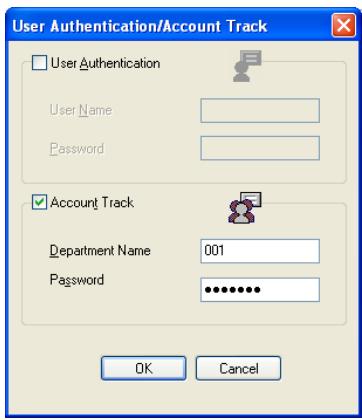
5 After specifying the settings, click the [OK] button to begin printing. If the entered password is a password registered on this machine, the job is printed. For Account Track, the number of pages to print is counted as a job for the specified account.
Specifying settings (for Mac OS X)
1 From the "File" menu, select "Print".
2 Select "Security".
3 Select a check box, and then enter each item.
- If the "User Authentication" check box is selected, enter the user name and password.
- If the "Account Track" check box is selected, enter the department name and password.
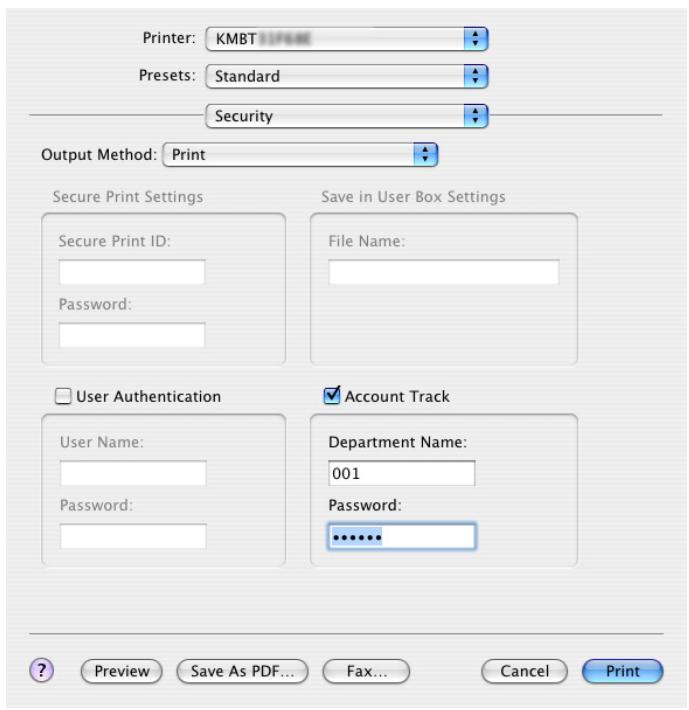
11.6 Print Status Notifier
Print Job Notification is a tool that monitors and notifies the print status of this machine which is connected to a network, and it is located and operates in the task tray.

Note
Only the PCL printer driver can be used with Print Job Notification.
Installing the tool
First connect this machine to a computer over a network, and then install the printer driver.
Print Job Notification is a tool that is compatible to a Windows printer driver.
1 Insert the User Software CD-ROM into the computer's CD-ROM drive.
- When the installer dialog box appears, click the [Close] button.
2 Open the CD-ROM.
- Open My Computer, right-click CD-ROM, and then select "Open".
3 Open the "Print Notify" folder.
4 Double-click "setup.exe".
The setup program starts up. Follow the on-screen instructions to complete the installation.

Note
When installed as a standard installation, the tool is saved in "KONICA MINOLTA" - "Print Status Notifier" - "Print Status Notifier" in "Programs".
To uninstall the tool, execute "PrintNotify\setup.exe" again.
Starting the tool
1 From the Start menu, click "Programs" - "Konica Minolta" - "Print Status Notifier" - "Print Status Notifier".
- Print Status Notifier is started and an icon appears in the task tray.
2 Right-click the task tray icon to display each screen.
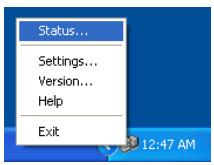

Note
The status screen is displayed even when it is double-clicked. Also, the status screen is displayed automatically when a print job is executed.
Status display
Print Status Notifier monitors the print status and displays it on the status screen.
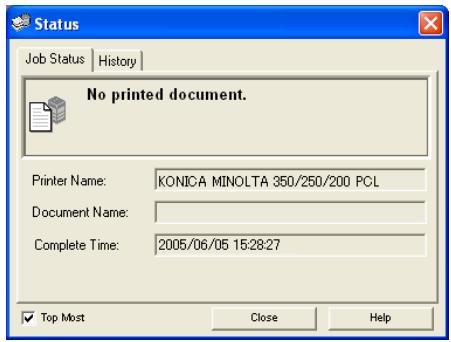
- Print complete: Displays the operation of each print job for normal print, Proof and Print, Secure Print, Save in User Box, and Save in User Box and Print.
- Error: Displays errors such as no paper or consumable replacement.
- Job: Displays that a job has been deleted due to insufficient memory or authentication errors.
Settings screen
You can specify the status monitoring conditions on the settings screen.
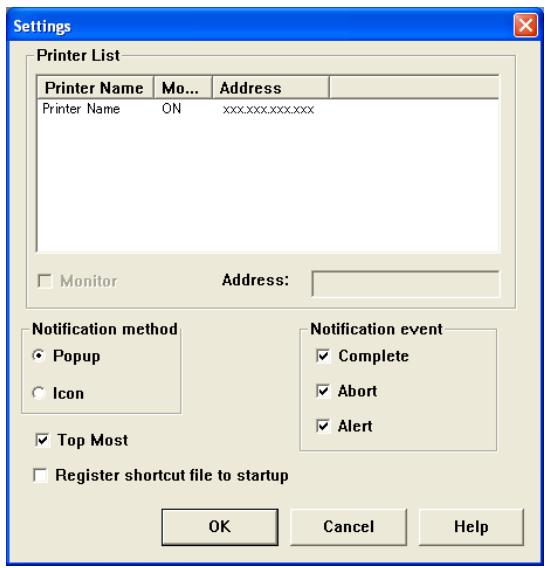
| Item | Description |
| Printer list | Displays the printer and IP address (or host name) that can be monitored. Select the “Monitor” check box to specify whether to monitor the printer and IP address (or host name). |
| Notification method | Specifies whether the job status is notified by a pop-up or icon status display.If “Icon” notification was specified, the status is notified by the following icons. :Normal completion :Normal completion :Abnormal completion[COTW] :When job is stopped :Abnormal completion[COTW] :When job is stopped |
| Notification event | Specifies the status to be notified. |
| Top Most | Displays the status screen always on the previous screen. |
| Register shortcut file to startup | Saves or deletes the shortcut file at startup. The shortcut file is saved when the check box is selected and deleted when the check box is not selected. When saved at startup, Print Job Notification automatically starts up when the computer is started. |
12
Troubleshooting
12 Troubleshooting
12.1 Unable to print
This chapter explains the troubleshooting procedures for possible malfunctions.
Perform the troubleshooting procedures described below if this machine does not print after you have sent a print job.
| Symptom | Probable cause | Action |
| The message “No printers are connected” or “Print error” appears. | The printer driver selected for printing is not compatible with the printer controller. | Check the printer name selected. |
| The network cable, parallel cable, or USB cable is disconnected. | Check that the cable is connected properly. | |
| An error has occurred in this machine. | Check this machine’s control panel. | |
| Available memory space is not sufficient. | Perform a test print to check whether printing is possible. | |
| A postscript error appears. | Available computer memory space is not sufficient. | Perform a test print to check whether printing is possible. |
| There is an error in the application software settings. | Refer to the user’s manual of the application software to check the settings. | |
| The file printing settings are incorrect. | Change the settings and try to print again. | |
| The machine does not start printing although the print job was completed on the computer. | The printer driver selected for printing is not compatible with the printer controller. | Check the printer name selected. |
| The network cable, parallel cable, or USB cable is disconnected. | Check that the cable is connected properly. | |
| An error has occurred in this machine. | Check this machine's control panel. | |
| A print job is queued in this machine, delaying printing. | Check the job order on the Active Jobs list of the machine's control panel. | |
| "Save in User Box" was selected for the print job. | Check if the print job is stored on the Box screen of this machine's control panel. | |
| "Secure Print" was selected for the print job. | Check if the print job is held on the Secure Print screen of this machine's control panel. | |
| If the account track settings have been applied, an unregistered account name (or password) may have been entered. | Enter the correct account name (or password). | |
| If the authentication settings have been applied, an unregistered user name (or password) may have been entered. | Enter the correct user name (or password). | |
| Available computer memory space is not sufficient. | Perform a test print to check whether printing is possible. | |
| The connection of this machine to the network is not yet established (while connecting to a network). | Consult with the network administrator. | |
| Available memory space is not sufficient. | Add memory. |

Note
Up to 29 document print jobs (including “Proof Print” and “Secured Print”) can be stored in the memory of this machine. If more than 29 jobs are stored, new jobs cannot be received. Check whether there are print jobs remaining in “Proof Print” and “Secured Print” in Box mode on this machine’s control panel. If jobs are remaining, print or delete the stored jobs.
If the problem persists after all of these procedures have been performed, read the User's Guide [Copy Operations].
12.2 Unable to specify desired settings or unable to print as specified
Perform these troubleshooting procedures if you cannot specify the desired settings in the printer driver, or if the print results do not represent the settings that have been specified.

Note
Some of the printer driver functions cannot be combined with other functions.
| Symptom | Probable cause | Action |
| A printer driver setting cannot be selected. | Some functions cannot be combined. | Do not try to select settings that are not available. |
| The “Conflicts” message with “Unable to Select” or “Function Canceled” appears. | An incorrect combination of functions has been specified. | Check the settings and specify the functions correctly. |
| Printing is not performed as specified. | Incorrect settings are specified. | Check each setting in the printer driver. |
| A combination of functions, although possible in the printer driver, is not possible with this machine. | ||
| The paper size, orientation, and other settings specified in the application have priority over those specified in the printer driver. | Enter the correct settings in the application. | |
| The watermark cannot be printed. | The watermark is not correctly set. | Check the watermark settings. |
| The watermark density is set to a level that is too low. | Check the density settings. | |
| Watermarks cannot be printed in graphics applications. | No watermark can be printed in this case. | |
| The staple function cannot be specified. | Stapling is not possible if “Paper Type” is set to “Thick” or “Transparency”. | Check each setting in the printer driver. |
| The staple function requires optional finisher. | Install the required optional finisher and enable it using the printer driver. | |
| Stapling cannot be performed. | Number of pages that can be stapled: Up to 50 pages of Letter ☐ or smaller plain paper. | Print by specify the number of pages per set for the number of pages that can be stapled. |
| Number of pages that can be center-stapled: Up to 15 pages of plain paper. | ||
| Stapling is not possible if the document contains pages of different sizes. | Check the document. | |
| The stapling position is not as expected. | The orientation setting is not correct. | Check the stapling position in the printer driver setup dialog box. |
| The hole punch function cannot be specified. | Hole punching cannot be specified if “Booklet”, “Transparency”, “Thick2”, “Thick3”, or “Envelope” is selected. | Check each setting in the printer driver. |
| For the hole punch function, the punch unit must be installed on optional finisher. | Install the required optional finisher and enable it using the printer driver. | |
| The pages are not punched. | Printed pages may be fed out without being punched if the paper is loaded into the paper source with an incorrect orientation. | Check the orientation setting. |
| The hole punch position is not as expected. | The orientation setting is not correct. | Check the punch position on the Layout tab of the printer driver setup dialog box. |
| The form is not printed properly. | Available computer memory space is not sufficient. | Simplify the form to reduce the data size. |
| The image is not printed properly. | Available computer memory space is not sufficient. | Simplify the image to reduce the data size. |
| Paper is not fed from the specified paper source. | Paper will not be fed from the specified paper source if that paper source is loaded with paper of a different size or orientation. | Load the paper source with paper of the appropriate size and orientation. |
| The numbering function is not performed. | The “Collate” (for Windows) or “Collated” (for Mac OS X) check box is selected on the print setup dialog box. | Clear the “Collate” (for Windows) or “Collated” (for Mac OS X) check box. |
| Proof and Print is no be performed. |
13
Appendix
13 Appendix
13.1 Specifications
| Item | Specifications | |
| Model | Built-in printer controller | |
| Power supply | Common with the main body | |
| Processor | RM5231 | |
| ROM | 32 MB | |
| RAM | 192 MB | |
| Hard Disk | 40 GB (optional) | |
| Interface | Standard: Ethernet (10Base-T or 100Base-TX), USB (1.1 or 2.0)Optional: IEEE 1284 | |
| Frame type | Ethernet 802.2Ethernet 802.3Ethernet IIEthernet SNAP | |
| Supported protocols | TCP/IPIPX/SPXNetBEUIAppleTalk (EtherTalk) | |
| Print speed | 20 pages/minute (bizhub 200, Letter)25 pages/minute (bizhub 250, Letter)35 pages/minute (bizhub 350, Letter) | |
| Fast print time | 5.3 seconds or less (bizhub 200/250, Letter)4.8 seconds or less (bizhub 350, Letter) | |
| Printer language | PCL5e emulationPCL6 (XL 2.1) emulationPostScript 3 emulation | |
| Operating environment conditions | Temperature 10 to 35Humidity 15 to 85% RH | |
| Resolution | Data processing | 600 × 600 dpi |
| Printing | 600 × 600 dpi | |
| Supported paper sizes | Maximum standard size | |
| Printer fonts | PCL: Latin 80 fonts, Postscript 3 emulation: Latin 136 fonts | |
| Compatible computers | IBM PC or compatible, Macintosh | |
| Supported operating systems | Server | Windows NT 4.0, Windows 2000 (Service Pack 4 or later), or Windows Server 2003 |
| Client | Windows 98 SE, Windows Me, Windows 2000 (Service Pack 4 or later), Windows XP (Service Pack 2 or later), or Windows NT 4.0 (Service Pack 6a)Mac OS 9.2 or later or Mac OS X 10.2 or Mac OS X 10.3 | |
| Printer driver | PCL6:• Windows 98 SE or Windows Me printer driver• Windows 2000 (Service Pack 4 or later), Windows XP (Service Pack 2 or later), or Windows Server 2003 printer driver• Windows NT 4.0 (Service Pack 6a) printer driverPS3:• Windows 98 SE or Windows Me PPD file• Windows NT 4.0 (Service Pack 6a), Windows 2000, Windows XP (Service Pack 2 or later), or Windows Server 2003 printer driver• Mac OS 9.2 PPD file• Mac OS X 10.2 or Mac OS 10.3 printer driver | |
| Utility | PageScope Web ConnectionWeb browser:Windows 98 SE, Windows Me, or Windows NT 4.0Microsoft Internet Explorer 4 or later recommended Netscape Navigator 4.73 or 7.0Windows 2000Microsoft Internet Explorer 5 or later recommended Netscape Navigator 7.0Windows XPMicrosoft Internet Explorer 6 or later recommended Netscape Navigator 7.0* If using Microsoft Internet Explorer 5.5, use Service Pack 1 or later. | |
13.2 Configuration page
KONICA MINOLTA 350/250/200
Configuration Page
Print Operation Menu Map
Basic Setting
| Default Paper Size | = 8 1/2x11 |
| Paper Tray | = Auto |
| Bind Direction | = Unknown |
| 2-Sided Print | = Off |
| Orientation | = Portrait |
| # of Sets | = 1 |
| Paper Size Change | = Off |
| PDL Setting | = Auto |
PCL Setting
| Font Source | = 1 |
| Font Number | = 0 |
| Font Pitch | = 10.00 |
| Font Point | = 12.00 |
| Symbol Set | = Roman-8 |
| Form Length | = 60 [Line / Page] |
| CR / LF Mapping | = Off |
PS Setting
| PS Error Print | = | Disabled |
I/F Setting
| IEEE 1284 Timeout | = 300 [sec] |
| Network Rx Timeout | = 300 [sec] |
| USB Timeout | = 300 [sec] |
| Parallel I/F | = ECP |
Test Print
| Configuration |
| PCL Font List |
| PS Font List |
| Demo Page |
Installed
| Printer HDD | = None |
| Printer Memory | = 192 [ MByte ] |
Printer Information
Installed Tray
| Tray 1 | = A4 |
| Tray 2 | = 8 1/2x11 |
| Tray 3 | = 8 1/2x11 |
| Tray 4 | = A4 |
| Bypass Tray | = 8 1/2x11 |
Option
| Duplex Unit | = | Installed |
| Finisher | = | Available |
| Punch Unit | = | Available |
| Fold Unit | = | Available |
Firmware Version
| Printer Controller | = | 4040-3000-F08-20 |
Network
TCP/IP
| IP Address | = 192.168.1.20 |
| Subnet Mask | = 255.255.255.0 |
| Gateway Address | = 0.0.0.0 |
13.3 Font list
PCL font list
KONICA MINOLTA 350/250/200
PCL Font List
P.1
Internal Fonts
| Font | Pitch/Point | Escape Sequence | Font # | Font ID |
| Courier | Scalable | (01X(s0p10h0s0b4099T00000 | 00000 | |
| CG Times | Scalable | (01X(s1p12v0s0b4101T00001 | 00001 | |
| CG Times Bold | Scalable | (01X(s1p12v0s3b4101T00002 | 00002 | |
| CG Times Italic | Scalable | (01X(s1p12v1s0b4101T00003 | 00003 | |
| CG Times Bold Italic | Scalable | (01X(s1p12v1s3b4101T00004 | 00004 | |
| CG Omega | Scalable | (01X(s1p12v0s0b4113T00005 | 00005 | |
| CG Omega Bold | Scalable | (01X(s1p12v0s3b4113T00006 | 00006 | |
| CG Omega Italic | Scalable | (01X(s1p12v1s0b4113T00007 | 00007 | |
| CG Omega Bold Italic | Scalable | (01X(s1p12v1s3b4113T00008 | 00008 | |
| Coronol | Scalable | (01X(s1p12v1s0b4116T00009 | 00009 | |
| Clarendon Condensed | Scalable | (01X(s1p12v4s3b4140T00010 | 00010 | |
| Univers Medium | Scalable | (01X(s1p12v0s0b4148T00011 | 00011 | |
| Univers Bold | Scalable | (01X(s1p12v0s3b4148T00012 | 00012 | |
| Univers Medium Italic | Scalable | (01X(s1p12v1s0b4148T00013 | 00013 | |
| Univers Bold Italic | Scalable | (01X(s1p12v1s3b4148T00014 | 00014 | |
| Univers Med. Condensed | Scalable | (01X(s1p12v4s0b4148T00015 | 00015 | |
| Univers Bold Condensed | Scalable | (01X(s1p12v4s3b4148T00016 | 00016 | |
| Univers Med. Cond. It. | Scalable | (01X(s1p12v5s0b4148T00017 | 00017 | |
| Univers Bold Cond. It. | Scalable | (01X(s1p12v5s3b4148T00018 | 00018 | |
| Antique Olive | Scalable | (01X(s1p12v0s0b4168T00019 | 00019 | |
| Antique Olive Bold | Scalable | (01X(s1p12v0s3b4168T00020 | 00020 | |
| Antique Olive Italic | Scalable | (01X(s1p12v1s0b4168T00021 | 00021 | |
| Garamond Antiqua | Scalable | (01X(s1p12v0s0b4197T00022 | 00022 | |
| Garamond Halbfett | Scalable | (01X(s1p12v0s3b4197T00023 | 00023 | |
| Garamond Kursiv | Scalable | (01X(s1p12v1s0b4197T00024 | 00024 |
PS font list
KONICA MINOLTA 350/250/200
PS Font List P.1
Internal Fonts
| Font | Font # | |
| Albertus MT | AlbertusMT | 00000 |
| Albertus MT Italic | AlbertusMT-Italic | 00001 |
| Albertus MT Light | AlbertusMT-Light | 00002 |
| Antique Olive Roman | AntiqueOlive-Roman | 00003 |
| Antique Olive Italic | AntiqueOlive-Italic | 00004 |
| Antique Olive Bold | AntiqueOlive-Bold | 00005 |
| Antique Olive Compact | AntiqueOlive-Compact | 00006 |
| Apple Chancery | Apple-Chancery | 00007 |
| Arial | ArialMT | 00008 |
| Arial Italic | Arial-ItalicMT | 00009 |
| Arial Bold | Arial-BoldMT | 00010 |
| Arial Bold Italic | Arial-BoldItalicMT | 00011 |
| ITC Avant Garde Gothic Book | AvantGarde-Book | 00012 |
| ITC Avant Garde Gothic Book Oblique | AvantGarde-BookOblique | 00013 |
| ITC Avant Garde Gothic Demi | AvantGarde-Demi | 00014 |
| ITC Avant Garde Gothic Demi Oblique | AvantGarde-DemiOblique | 00015 |
| Bodoni Roman | Bodoni | 00016 |
| Bodoni Italic | Bodoni-Italic | 00017 |
| Bodoni Bold | Bodoni-Bold | 00018 |
| Bodoni Bold Italic | Bodoni-BoldItalic | 00019 |
| Bodoni Poster | Bodoni-Poster | 00020 |
| Bodoni Poster Compressed | Bodoni-PosterCompressed | 00021 |
| ITC Bookman Light | Bookman-Light | 00022 |
| ITC Bookman Light Italic | Bookman-LightItalic | 00023 |
| ITC Bookman Demi | Bookman-Demi | 00024 |
| ITC Bookman Demi Italic | Bookman-Demiltalic | 00025 |
| Chicago | Carta | 00026 |
| Clarendon Roman | Chicago | 00027 |
| Clarendon Bold | Clarendon | 00028 |
| Clarendon-Bold | 00029 |
PCL demo page
natural_image
Black-and-white photo of a bird perched on a branch, no visible text or symbolsThe quick brown fox jumps over the lazy dog.
The quick brown fox jumps over the lazy dog .
The quick brown fox jumps over the lazy dog.
The quick brown fox jumps over the lazy dog.
The quick brown fox jumps over the lazy dog.
The quick brown fox jumps over the lazy dog
The quick brown fox jumps over the laz
The quick brown fox jumps over th
The quick brown fox jumps ove
The quick brown fox jump
bar
| Level | Value (%) | |---|---| | 100% | 100 | | 90% | 90 | | 80% | 80 | | 70% | 70 | | 60% | 60 | | 50% | 50 | | 40% | 40 | | 30% | 30 | | 20% | 20 | | 10% | 10 | | 5% | 5 |13.4 Glossary
| Term | Definition |
| 10Base-T/100Base-TX/1000Base-TX | An Ethernet standard, which is a cable consisting of twisted copper wire pairs. The transmission speed of 10Base-T is 10 Mbps, of 100Base-TX is 100 Mbps, and of 1000Base-TX is 1000 Mbps. |
| AppleTalk | A generic name for the protocol suite developed by Apple Computer for computer networking |
| Bindery | A database for managing a user or group account information, security information, server and service information using NetWare 2.x or 3.x. |
| bit | Abbreviation for Binary Digit. The smallest unit of information (data quantity) on a computer or printer. Displays data using 0 or 1. |
| BMP | Abbreviation for Bitmap. A file format for saving image data which uses the .bmp extension. Commonly used on Windows platforms. You can specify the color depth from monochrome (2 values) to full color (16,777,216 colors). Images are not usually compressed when saved. |
| BOOTP | Abbreviation for Bootstrap Protocol. A protocol in which a client computer on a TCP/IP network automatically specifies the network settings from the server. Currently, DHCP, which is an advanced protocol based on BOOTP, is mainly used. |
| Brightness | Brightness of a display screen |
| Byte | Unit of information (data quantity) on a computer or printer. Configured as 1 byte equals 8 bits. |
| Client | A computer that uses the services provided by a server through a network |
| Default Gateway | A device, such as a computer or router, used as a “gateway” to access computers not on the same LAN |
| DHCP | Abbreviation for Dynamic Host Configuration Protocol. A protocol in which a client computer on a TCP/IP network automatically specifies the network settings from the server. With collective management of the IP address for DHCP clients on the DHCP server, you can avoid duplication of an address and you can build a network easily. |
| DNS | Abbreviation for Domain Name System. A system that acquires the supported IP addresses from host names in a network environment. DNS allows the user to access other computers over a network by specifying host names, instead of difficult to memorize and understand IP addresses. |
| DPI (dpi) | Abbreviation for Dots Per Inch. A resolution unit used by printers and scanners. Indicates how many dots per inch are represented in an image. The higher the value, the higher the resolution. |
| Driver | Software that works as a bridge between a computer and a peripheral device. |
| Ethernet | LAN transmission line standard |
| Frame Type | Type of communication format used in a NetWare environment. Communication is not possible if the same frame type is not used. |
| FTP | Abbreviation for File Transfer Protocol. A protocol for transferring files over the Internet or an intranet on the TCP/IP network. |
| Gateway | Hardware and software used as the point where a network is connected to a network. A gateway also changes data formats, addresses, and protocols according to the connected network. |
| Grayscale | Monochrome image expressive form using the gradation information from black to white |
| Hard Disk | Large capacity storage device for storing data. The data can be stored even if the power is turned off. |
| Host Name | Displayed name of a device over a network |
| HTTP | Abbreviation for HyperText Transfer Protocol. A protocol used to send and receive data between a Web server and a client (Web browser). Documents containing images, recordings, and video clips can be exchanged with the expressive form information. |
| IEEE 1284 | Abbreviation for Institute of Electrical and Electronic Engineers 1284. A parallel port standard that was developed for printers. |
| Install | To install hardware, operating systems, applications, printer drivers on to a computer |
| IP Address | A code (address) that is used to identify individual network devices over the Internet. A maximum of three digits for four numbers are displayed such as 192.168.1.10. IP addresses are assigned to devices, including computers, which are connected to the Internet. |
| IPP | Abbreviation for Internet Printing Protocol. A protocol that sends and receives print data and controls printers over the Internet on a TCP/IP network. Data can also be sent to printers in remote areas to print over the Internet. |
| IPX/SPX | Abbreviation for Internetwork Packet Exchange/Sequenced Packet Exchange. A protocol developed by Novel, Inc. that is commonly used under a NetWare environment. |
| LAN | Abbreviation for Local Area Network. A network which connects computers on the same floor, in the same building, or in neighboring buildings. |
| Local Printer | A printer connected to a parallel or USB port of a computer |
| LPR/LPD | Abbreviation for Line Printer Request/Line Printer Daemon. A printing method over a network in a Windows NT system or UNIX system. Using TCP/IP, you can output print data from Windows or Unix to a printer over a network. |
| MAC Address | Abbreviation for Media Access Control address. With a special ID number for each Ethernet card, data can be sent and received between the cards. A number consists of 48 bits. The first 24 bits consist of a special number for each manufacture controlling and assigning IEEE. The last 24 bits consist of a number that the manufacturer assigns uniquely to the card. |
| Memory | Storage device for storing data temporally. When the power is turned off the data may or may not be erased. |
| NDPS | Abbreviation for Novell Distributed Print Services. Provides a highly efficient printing solution in an NDS environment. By using the NDPS as a printer server, you can output from the desired printer, automatically download the printer driver of a newly installed printer, simplify and automate complicated management environments related to printer use, and integrate management related to the network printer. |
| NDPS Broker | An object that shows the NDPS broker. Controls three NDPS print services which are: release management service, event notification service, and service registration server. |
| NDPS Manager | An object that shows the NDPS manager. Controls all the printer agents on a server using a software program. |
| NDS | Abbreviation for Novell Directory Services. The servers and printers on a network and the shared resources of the user's information, as well as the user's access authority over these items can be consolidated in the hierarchy structure. |
| NetBEUI | Abbreviation for NetBIOS Extended User Interface. A network protocol developed by IBM. By simply specifying the computer name, you can build a small-scale network. |
| NetBIOS | Abbreviation for Network Basic Input Output System. A communication interface developed by IBM. |
| NetWare | Network operating system developed by Novell. NetWare IPX/SPX is used as the communication protocol. |
| Nprinter/Rprinter | Remote printer support module for using a printer server under a NetWare environment. Use NetWare 3.x with Rprinter, and NetWare 4.x with Nprinter. |
| NWadmin | A Novell NetWare utility administrator tool. |
| OHP/OHT | OHP (overhead projector) transparencies which are used for presentations |
| OS | Abbreviation for Operating System. Basic software for controlling the system of a computer. |
| Outline Font | A font using lines and curves to display an outline of a character. Large-size characters can be displayed on a screen or printed with no jagged edges. |
| Parallel Interface | Data transmission method for sending and receiving data of multiple signals simultaneously. IEEE 1284 is commonly used as the printer connection. |
| Pconsole | A utility tool that controls the print job, print queue, print server, and printer. |
| Abbreviation for Portable Document Format. An electronically formatted document which uses the .pdf extension. Based on the PostScript format, you can use the free Adobe Acrobat Reader software to view documents. | |
| PDL | Abbreviation for Page Description Language. The language for specifying the print image per page to a printer when printing using a page printer. |
| Peer-to-peer | A network format that allows connected devices to communicate without using a dedicated server |
| Plug-and-play | Ability to automatically find and use the appropriate driver when a peripheral device is connected to a computer |
| PostScript | A typical page-descriptive language developed by Adobe and is commonly used for high quality printing |
| PPD | Abbreviation for PostScript Printer Description. A file used to describe the resolution, usable paper size, and the PostScript printer model special information. |
| Preview | A function that allows you to view an image before processing a print or scan job |
| Print Job | Print request transmitted from a computer to a printing device |
| Print Queue | A software system which queues the generated print job in the devices |
| Printer Buffer | Memory domain temporarily used for data processing of a print job |
| Property | Attribute informationWhen using a printer driver, various functions can be specified in the file properties.In the file properties, you can check the attribute information of the file. |
| Protocol | The rules that allow computers to communicate with other computers or peripheral devices |
| Proxy Server | A server that is installed to act as an intermediary connection between each client and different servers to effectively ensure security over the entire system for Internet connections |
| Pserver | Print server module under a NetWare environment that monitors, changes, pauses, restarts, or cancels a print job |
| Queue Name | Name specified to each device that allows printing when network printing |
| Resolution | Displays the ability to reproduce the details of images and print matter correctly |
| RIP | Abbreviation for Raster Image Processor. Process that develops picture images from described text data using the PostScript page description language. The processor is usually integrated in the printer. |
| Screen Font | A font for displaying text and symbols on a CRT monitor |
| Shared Printer | A printer setup that allows the printer to be used by multiple computers connected to a server over a network |
| SLP | Abbreviation for Service Location Protocol. A protocol capable of finding services over a TCP/IP network and automatically specifying a client. |
| SMB | Abbreviation for Server Message Block. A protocol that shares files and printers over a network and which is mainly used by Microsoft Windows. |
| SMTP | Abbreviation for Simple Mail Transfer Protocol. A protocol for sending and forwarding e-mail. |
| SNMP | Abbreviation for Simple Network Management Protocol. A management protocol in a network environment using TCP/IP. |
| Spool | Abbreviation for Simultaneous Peripheral Operation On-Line. For printer output, data is not sent directly to the printer, it is temporarily stored in another location, then sent to the printer collectively. |
| Subnet Mask | The unit used to divide a TCP/IP network into small networks (sub-networks). It is used to identify the bits in a network address that are higher than the IP address. |
| TCP/IP | Abbreviation for Transmission Control Protocol/Internet Protocol. The de facto standard protocol used by the Internet that uses IP addresses to identify each network device. |
| TrueType | An outline font that was developed by Apple Computer and Microsoft. It is used as a standard by Macintosh and Microsoft Windows and can be used both on a display and in print. |
| Uninstall | To delete software installed on a computer |
| USB | Abbreviation for Universal Serial Bus. A general interface standard for connecting a mouse, printer, and other devices to a computer. |
| Web Browser | Software such as Internet Explorer and Netscape Navigator for viewing Web pages |
13.5 OpenSSL Statement
OpenSSL License
Copyright © 1998-2000 The OpenSSL Project. All rights reserved.
Redistribution and use in source and binary forms, with or without modification, are permitted provided that the following conditions are met:
- Redistributions of source code must retain the above copyright notice, this list of conditions and the following disclaimer.
- Redistributions in binary form must reproduce the above copyright notice, this list of conditions and the following disclaimer in the documentation and/or other materials provided with the distribution.
- All advertising materials mentioning features or use of this software must display the following acknowledgment:
"This product includes software developed by the OpenSSL Project for use in the OpenSSL Toolkit. (http://www.openssl.org/) - The names "OpenSSL Toolkit" and "OpenSSL Project" must not be used to endorse or promote products derived from this software without prior written permission. For written permission, please contact openssl-core@openssl.org.
- Products derived from this software may not be called "OpenSSL" nor may "OpenSSL" appear in their names without prior written permission of the OpenSSL Project.
- Redistributions of any form whatsoever must retain the following acknowledgment:
"This product includes software developed by the OpenSSL Project for use in the OpenSSL Toolkit (http://www.openssl.org/)"
THIS SOFTWARE IS PROVIDED BY THE OpenSSL PROJECT “AS IS” AND ANY EXPRESSED OR IMPLIED WARRANTIES, INCLUDING, BUT NOT LIMITED TO, THE IMPLIED WARRANTIES OF MERCHANTABILITY AND FITNESS FOR A PARTICULAR PURPOSE ARE DISCLAIMED. IN NO EVENT SHALL THE OpenSSL PROJECT OR ITS CONTRIBUTORS BE LIABLE FOR ANY DIRECT, INDIRECT, INCIDENTAL, SPECIAL, EXEMPLARY, OR CONSEQUENTIAL DAMAGES (INCLUDING, BUT NOT LIMITED TO, PROCUREMENT OF SUBSTITUTE GOODS OR SERVICES; LOSS OF USE, DATA, OR PROFITS; OR BUSINESS INTERRUPTION) HOWEVER CAUSED AND ON ANY THEORY OF LIABILITY, WHETHER IN CONTRACT, STRICT LIABILITY, OR TORT (INCLUDING NEGLIGENCE OR OTHERWISE) ARISING IN ANY WAY OUT OF THE USE OF THIS SOFTWARE, EVEN IF ADVISED OF THE POSSIBILITY OF SUCH DAMAGE.
This product includes cryptographic software written by Eric Young (eay@crypt-Soft.com). This product includes software written by Tim Hudson (tjh@cryptsoft.com).
Original SSLeay License
Copyright © 1995-1998 Eric Young (eay@cryptsoft.com) All rights reserved. This package is an SSL implementation written by Eric Young (eay@crypt-soft.com).
The implementation was written so as to conform with Netscapes SSL.
This library is free for commercial and non-commercial use as long as the following conditions are aheared to. The following conditions apply to all code found in this distribution, be it the RC4, RSA, Ihash, DES, etc., code; not just the SSL code.
The SSL documentation included with this distribution is covered by the same copyright terms except that the holder is Tim Hudson (tjh@crypt-soft.com).
Copyright remains Eric Young's, and as such any Copyright notices in the code are not to be removed. If this package is used in a product, Eric Young should be given attribution as the author of the parts of the library used. This can be in the form of a textual message at program startup or in documentation (online or textual) provided with the package.
Redistribution and use in source and binary forms, with or without modification, are permitted provided that the following conditions are met:
- Redistributions of source code must retain the copyright notice, this list of conditions and the following disclaimer.
- Redistributions in binary form must reproduce the above copyright notice, this list of conditions and the following disclaimer in the documentation and/or other materials provided with the distribution.
- All advertising materials mentioning features or use of this software must display the following acknowledgement:
"This product includes cryptographic software written by Eric Young (eay@crypt-soft.com)"
The word ‘cryptographic’ can be left out if the rouines from the library being used are not cryptographic related :-).
- If you include any Windows specific code (or a derivative thereof) from the apps directory (application code) you must include an acknowledgement:
"This product includes software written by Tin Hudson (tjh@crypt-soft.com)"
THIS SOFTWARE IS PROVIDED BY ERIC YOUNG “AS IS” AND ANY EXPRESS OR IMPLIED WARRANTIES, INCLUDING, BUT NOT LIMITED TO, THE IMPLIED WARRANTIES OF MERCHANTABILITY AND FITNESS FOR A PARTICULAR PURPOSE ARE DISCLAIMED. IN NO EVENT SHALL THE AUTHOR OR CONTRIBUTORS BE LIABLE FOR ANY DIRECT, INDIRECT, INCIDENTAL, SPECIAL, EXEMPLARY, OR CONSEQUENTIAL DAMAGES (INCLUDING, BUT NOT LIMITED TO, PROCUREMENT OF SUBSTITUTE GOODS OR SERVICES; LOSS OF USE, DATA, OR PROFITS; OR BUSINESS INTERRUPTION) HOWEVER CAUSED AND ON ANY THEORY OF LIABILITY, WHETHER IN CONTRACT, STRICT LIABILITY, OR TORT (INCLUDING
NEGLIGENCE OR OTHERWISE) ARISING IN ANY WAY OUT OF THE USE OF THIS SOFTWARE, EVEN IF ADVISED OF THE POSSIBILITY OF SUCH DAMAGE.
The licence and distribution terms for any publicly available version or derivative of this code cannot be changed. i.e. this code cannot simply be copied and put under another distribution licence [including the GNU Public Licence.]
All other product names mentioned are trademarks or registered trademarks of their respective companies
Copyright
© 2005 KONICA MINOLTA BUSINESS TECHNOLOGIES, INC. All Rights Reserved.
Note
- This User's Guide may not be reproduced in part or in full without permission.
- Konica Minolta Business Technologies, Inc. will not be held liable for any incidents caused by using this printing system or User's Guide.
- Information included in this User's Guide is subject to change without notice.
- Konica Minolta Business Technologies, Inc. maintains the copyright of the printer drivers.
13.6 Index
A
Account track ... 5-26, 6-19, 7-15, ....10-6, 10-16, 11-95
Add Printer Wizard 3-12
Administrator mode .11-42, 11-57
B
Back cover ..... 5-23, 6-20, 7-20, ....8-4, 9-6, 10-6
Bindery 4-25
Bindery emulation .....4-25, 4-28
Bindery/NDS 11-80
Binding Position .....8-4, 9-6, 10-6
Booklet printing 5-15
Border 9-6, 10-5
C
CD-ROM configuration ......2-3
Center staple and fold .....8-4, .....9-6, 10-6
Collate ....5-20, 8-4, 10-6
Collated 9-5, 10-5
Combination 9-6, 10-6
Copies ......8-3, 9-5, 10-5
Copies & pages ......10-5, 10-9
CR/LF mapping ...... 11-73
Creating forms 6-24
Custom page sizes ..... 9-4, 10-3, ..... 10-8
D
Device Options 8-4, 8-7
Duplex 8-4, 9-6, 10-6
Duplex printing .....5-15, 11-72
E
Editing a watermark .....6-27, 7-22
Editing forms 6-24
Enable NetWare 11-80
Enable Windows
Printing Service 11-83
Enlargement and reduction ... 5-12
F
File margin 6-13, 7-18
Finishing 9-6, 10-6, 10-14
Flip Horizontal 9-4
Flip vertical 9-4
Font list 13-6
Font settings 9-5
Font size 11-73
Font tab 6-30
Front cover .....5-23, 6-20, 7-20, ....8-4, 9-6, 10-6
G
General 9-5
Graphics tab 8-4
H
Halftone 8-4
Hole-Punch .....5-18, 6-14, 7-19, .....8-4, 9-6, 10-6
|
Input tray 5-13, 11-72
Installer 3-5
Installing the
printer driver ...... 3-3, 3-6, 3-20
Interfaces 2-9
Invert image 9-4
IP address 4-8
IPP printing 4-21
L
Layout ....8-3, 9-6, 9-13, ....10-5, 10-11
Layout direction 10-5
Layout tab 7-16
Line/page 11-73
Logging on to administrator mode ...... 11-42
LPR printing 4-15
M
Mac OS 3-20
Mac OS 9.2 ......3-23, 9-3
Mac OS X ......3-20, 3-22, 10-3
Macintosh 3-20, 4-36
Magnification 8-4
Mode 11-71
More options 8-3
N
N in 1 ......6-12, 7-16
NDPS 4-34
NDS 4-30, 4-32
NetBIOS 11-83
NetWare 4-25
Network 4-3
Network connection .....3-4, 4-6
Novell Distributed Print Service 4-34
Nprinter 4-25
O
Offset ......5-20, 8-4, 9-6, 10-6
OHP interleaving 9-6
Operating environment ...... 2-8
Operating system 2-8
Option tab 6-31, 7-24
Options 8-4, 9-16, 10-18
Orientation ....5-10, 8-3, 8-6, ....9-4, 10-3
Original direction 11-72
Original size 5-11
Output method .... 5-19, 6-15, .... 7-11, 10-6
Output options ......10-5
Output size 5-11
Output tray 9-6, 10-6
Overlay 5-24
Overlay tab 6-22
P
Page attributes ..... 9-4, 9-7, 10-3, ....10-7
Page setup .. 9-3, 9-7, 10-3, 10-7
Pages 9-5, 10-5
Pages per sheet .....9-6, 10-5
PageScope Web Connection .....4-11, 11-37
Paper 9-4
Paper feed 10-6, 10-12
Paper size 8-3, 10-3
Paper source ....5-13, 6-9, ....8-3, 9-5
Paper tab 8-3
Paper tray (cover page) ......8-4
Paper type ....5-14, 10-6
Parallel connection ....3-4
Pattern 6-29
PCL 3-3
PCL demo page ......11-56
PCL driver 6-3
PCL font List ......11-56
PCL settings ......11-55
PDL setting 11-72
Per page setting 5-23
Per page setting tab .....6-20, 7-20
Plug and Play 3-8
PostScript 3-3
PostScript driver 7-3
PostScript error report .....11-74
PPD driver ....8-3, 9-3, 10-3
Print .....2-6, 9-5, 9-11, 10-5, 10-9
Print job 11-87
Print server mode ......4-28, 4-32
Print type 5-15
Print with black 6-29
Printer controller 2-4
Printer driver 3-3, 3-20
Printer fonts 5-26
Printer margins 10-3
Printer specific options ......9-14
Printing methods 5-3
Printing multiple
pages on one page .... 5-17, 6-12, ....7-16, 9-13, 10-11
Printing operations ....5-3
Proof and print ...... 6-15, 7-11, .... 11-87
PS font list 11-56
PS settings 11-55
Q
Quality tab 6-29, 7-23
R
Recalling jobs .....11-90, 11-93
Remote printer mode ...4-25, 4-30
Resolution 8-4, 9-6
Rotated 8-3
S
Save in user box 6-15, 7-11, 10-6, 10-16, 11-87
Saving the driver
settings 6-33, 7-26
Scale 9-4, 10-3
Secure print ..... 6-15, 7-11, 10-6, .... 10-16, 11-87
Security 10-6, 10-16
Selecting a printer 3-22
Setting up the system ...... 2-11
Setup 10-6, 10-13
Setup tab 6-7, 7-9
Skip blank pages 5-22
SMB printing 4-12
Special Mode 8-4
Specifications 13-3
Staple .....5-18, 6-14, 7-18, 8-4, .....9-6, 10-6
Stop 8-4, 9-6
Substitute fonts 9-4
Supported operating systems . 3- 3
Symbol set 11-73
T
Test printing 5-5
Timeout 11-71
Transparency interleave ..... 10-6
Tray 11-72
Troubleshooting 12-3
U
Unable to print 12-3
Uninstalling the printer driver 3-25
USB connection 3-4
User authentication ....5-22, 10-6, ....10-16
User mode 11-45
V
Various settings 11-3
W
Watermark 5-25
Watermark tab 6-26, 7-21
Windows 3-4
Z
Zone 11-85
Zoom 5-12
- Contents
- Welcome
- Overview
- Installing the printer driver
- When used with Macintosh ....3-17
- Setting up network printing
- Overview of network functions 4-3
- Setting the IP address for this machine 4-8
- Accessing PageScope Web Connection ....4-11
- Windows printing 4-12
- LPR printing 4-15
- Port 9100 Printing (Windows 98 SE/Me/2000/XP/Server 2003) ...4-17
- IPP printing (Windows 2000/XP/Server 2003) ....4-21
- Printing with NetWare 4-25
- Printing with Macintosh 4-36
- Various printing methods
- Printing operations 5-3
- Setting the printing functions 5-8
- Setting up the PCL driver
- Settings 6-3
- Specifying the Setup tab settings 6-7
- Specifying the Per Page Setting tab settings 6-20
- Specifying the Overlay tab settings 6-22
- Specifying the Watermark tab settings 6-26
- Specifying the Quality tab settings 6-29
- Specifying the Font tab settings 6-30
- Specifying the Option tab settings 6-31
- Saving the driver settings 6-33
- Setting up the PostScript driver (Windows)
- Settings 7-3
- Specifying the Setup tab settings 7-9
- Specifying the Layout tab settings 7-16
- Specifying the Per Page Setting tab settings 7-20
- Specifying the Watermark tab settings 7-21
- Specifying the Quality tab settings 7-23
- Specifying the Option tab settings 7-24
- Saving the driver settings 7-26
- Setting up the PPD driver (Windows)
- Settings 8-3
- Specifying the Paper tab settings 8-6
- Specifying the Device Options tab settings 8-7
- Specifying options 8-9
- Setting up the PPD driver (Mac OS 9.2)
- Settings 9-3
- Page Setup 9-7
- Printing 9-11
- Specifying options 9-16
- Setting up the PPD driver (Mac OS X)
- Settings 10-3
- Page Setup 10-7
- Printing 10-9
- Specifying options 10-18
- Saving the driver settings 10-19
- Various settings
- Printer settings on the control panel 11-3
- Specifying the status settings for the functions (Software SW) ...11-31
- Using PageScope Web Connection .....11-37
- Print job management 11-87
- Print Status Notifier 11-98
- Troubleshooting
- Appendix
- 1
- Welcome
- Energy Star®
- What is an ENERGY STAR® Product?
- Trademarks and Copyright
- About this User's Guide
- 200/250/350 User's Guides
- Screen images in this User's Guide
- Using this User's Guide
- Safety advices
- DANGER
- WARNING
- CAUTION
- Sequence of action
- Tips
- Note
- Reminder
- Detail
- Special text markings
- MACHINE SETTING
- 2
- Overview
- Printer controller CD-ROM configuration
- Printer controller
- Role of the printer controller
- Available printer controller functions
- Machine modes
- [Copy]
- [Fax/Scan]
- [Extra Scan]
- [Box]
- Printing flow
- Operating environment
- Connectable computers and operating systems
- Connectable interfaces
- Connection diagram
- Setting up the system
- To set up the printing system
- 3
- Installing the printer driver
- Printer drivers and supported operating systems
- When used with Windows
- Installing the printer driver using Plug and Play
- For Windows 98 SE
- For Windows Me/2000
- For Windows XP/Server 2003
- Installing the printer driver using the Add Printer Wizard
- Click the [OK] button.
- For Windows 98 SE/Me/2000/NT 4.0
- Uninstalling the printer driver
- When used with Macintosh
- For Mac OS X
- Click the [Close] button.
- Selecting a printer
- For Mac OS 9.2
- 4
- Setting up network printing
- Overview of network functions
- Network functions
- Features of the network functions
- Network connection methods that can be selected in each Windows operating system
- Setting the IP address for this machine
- Setting the IP address
- Accessing PageScope Web Connection
- To access PageScope Web Connection
- Windows printing
- Operations on this machine
- Specify settings for the following:
- To apply the settings, restart this machine (turn the main power off, then on again).
- Printer driver settings
- For Windows 98 SE/Me
- For Windows 2000/XP/NT 4.0/Server 2003
- LPR printing
- For Windows 2000/XP/Server 2003
- For Windows NT 4.0
- Port 9100 Printing (Windows 98 SE/Me/2000/XP/Server 2003)
- Printer driver settings (Windows 2000/XP/Server 2003)
- Installing the Peer to Peer Printing Tool (Windows 98 SE/Me)
- To install the Peer to Peer Printing Tool
- Printer driver settings (Windows 98 SE/Me)
- IPP printing (Windows 2000/XP/Server 2003)
- On the Print tab, click "IPP Configuration".
- Specify settings for the following:
- Printing with NetWare
- For Remote Printer mode with NetWare 4.x bindery emulation
- For Print Server mode with NetWare 4.x bindery emulation
- For NetWare 4.x Remote Printer mode (NDS)
- For NetWare 4.x/5.x/6 Print Server mode (NDS)
- For NetWare 5.x/6 Novell Distributed Print Service (NDPS)
- Setting up a client (Windows) settings when using the NetWare server
- Printing with Macintosh
- Setting the Macintosh computer
- 5
- Various printing methods
- Printing operations
- For Windows
- Test printing
- For Macintosh
- Setting the printing functions
- Function list
- Function overview
- Orientation
- Original Size and Output Size
- Zoom (enlargement and reduction)
- Input tray (paper source)
- Paper Type
- Print type (duplex printing/booklet printing)
- Booklet printing
- Printing multiple pages on one page
- Stapling and hole punching
- Output Method (job management)
- Sorting (Collate) and classifying (Offset)
- Skip Blank Pages (saving paper)
- User Authentication
- Front Cover Page, Back Cover Page, and Per Page Setting
- Overlay
- Watermark
- Use Printer Fonts (substitute fonts)
- Account Track
- PCL driver
- PostScript driver
- PostScript PPD
- 6
- Setting up the PCL driver
- Settings
- Common settings
- Specifying the Setup tab settings
- Printing to suit the paper size
- Saving a custom size
- Selecting the paper source
- Setting the paper source of the paper type
- Specifying duplex/booklet printing
- Printing multiple pages on one page (N in 1)
- Setting the file margin
- Stapling
- Hole punching
- Center binding
- Selecting the output method
- Secure Print
- Save in User Box
- Proof and Print
- Specifying user authentication settings
- Specifying account track settings
- Specifying the Per Page Setting tab settings
- Printing documents with a front cover/back cover
- Printing multiple pages
- Per Page Setting
- Specifying the Overlay tab settings
- Printing different original documents together (overlay)
- Editing forms
- Creating forms
- Specifying the Watermark tab settings
- Printing a watermark
- Editing a watermark
- Printing the document number
- Specifying the Quality tab settings
- Specifying settings
- Specifying the Font tab settings
- Specifying the Option tab settings
- Saving the driver settings
- Saving the driver settings
- Enter the file name in the "Name" text box.
- Restoring the settings
- Deleting the settings
- 7
- Setting up the PostScript driver (Windows)
- Settings
- Option Tab
- Settings tab
- Specifying the Setup tab settings
- Specifying the Layout tab settings
- Duplex printing
- Specifying the Per Page Setting tab settings
- Specifying the Watermark tab settings
- Specifying the Quality tab settings
- Font Settings
- Specifying the Option tab settings
- Saving the driver settings
- Changing the settings
- 8
- Setting up the PPD driver (Windows)
- Settings
- Device Options tab
- Specifying the Paper tab settings
- Click the Paper tab.
- Specify settings for the following:
- Specifying the Device Options tab settings
- Specifying options
- 9
- Setting up the PPD driver (Mac OS 9.2)
- Settings
- Page Setup dialog box
- Print dialog box
- Print items
- Page Setup
- Page Attributes (basic settings)
- Custom Page Sizes
- PostScript Options
- Printing
- General (basic settings)
- Specify settings for the following:
- Layout (printing multiple pages on one page)
- Printer specific options (finishing options 1 to 3)
- Specifying options
- To specify options
- 10
- Setting up the PPD driver (Mac OS X)
- Settings
- Page Setup
- Custom Page Size
- Printing
- Copies & Pages (Standard settings)
- Paper Feed
- Setup
- Finishing
- Security
- Specifying options
- Specifying options
- Saving the driver settings
- 11
- Various settings
- Printer settings on the control panel
- Touch the desired setting button.
- of Sets
- MFP Set
- Proof-Print Hold Time
- Overwrite A4<->Letter
- Document Hold Time
- PostScript Error Report
- Default Set
- Basic Setting - Tray
- Basic Setting - Paper Size
- Basic Setting - Original Direction
- Basic Setting - Print Method
- Basic Setting - Sets
- of Sets Cancel Enter
- Font - Font #
- Font - Symbol Set
- Font - Number Lines
- Font - Font Size
- PDL Set
- Test Print
- Administrator settings
- Printer Setting
- Parallel Setting
- Timeout
- Frame Type
- Counter
- Specifying the status settings for the functions (Software SW)
- To change the software SW
- Specifying the valid range for the administrator access code (mode 368)
- Specifying the input tray or default paper setting, CR/LF substitution method, and printing of jobs without authentication (mode 452)
- Using PageScope Web Connection
- Accessing PageScope Web Connection
- When performing user authentication
- Page structure
- Logging on to Administrator mode
- Web Browser Cache
- For Internet Explorer
- For Netscape
- User mode
- System tab
- System tab - Summary
- System tab - Detail - Paper Tray
- System tab - Detail - Output Tray
- System tab - Detail - HDD
- System tab - Detail - Interface Information
- System tab - Detail - Consumables
- System tab - Counter
- System tab - Online Assistance
- Job tab
- Job tab - Job List
- ...
- Print tab
- Print tab - Default Settings
- of Sets 1
- Print tab - Test Print
- Administrator mode
- Basic operation
- System tab - User's Choice - User's Choice 1
- System tab - User's Choice - User's Choice 2
- System tab - User's Choice - User's Choice 3
- System tab - User's Choice - User's Choice 4
- System tab - User's Choice - User's Choice 5
- System tab - User's Choice - User's Choice 6
- System tab - Administrator Management - Date & Time Setting
- System tab - Administrator Management - Administrator Settings
- System tab - Administrator Management - User Authentication
- System tab - Administrator Management - Account Data
- Print tab - Local I/F
- Print tab - Default Settings - General Settings
- of Sets 1 (1-999)
- Print tab - Default Settings - PCL Settings
- Print tab - Default Settings - PS Settings
- Print tab - IPP Configuration
- Fax/Scan tab
- Network tab
- Network tab - Common Setting - TCP/IP
- Network tab - Common Setting - IPP
- Network tab - Common Setting - NetWare
- Network tab - Common Setting - NetWare Status
- Network tab - Common Setting - Windows
- Network tab - Common Setting - AppleTalk
- Network tab - User Authentication
- Print job management
- Specifying job operations
- Specifying settings (for Windows)
- Specifying settings (for Mac OS X)
- Job storage
- Recalling jobs (Proof Print)
- Touch [Action].
- Touch [Change Settings].
- Change the printing conditions on the Change Settings screen, and then touch [Enter].
- Touch [Print].
- Recalling jobs (Secured Print)
- From the job list, select the job you want to print.
- Touch [Action].
- Touch [Print].
- Printing with this machine when authentication and account track settings have been applied
- Print Status Notifier
- Installing the tool
- Starting the tool
- Status display
- Settings screen
- 12
- Troubleshooting
- Unable to print
- Unable to specify desired settings or unable to print as specified
- 13
- Appendix
- Specifications
- Configuration page
- KONICA MINOLTA 350/250/200
- Font list
- PCL font list
- PS font list
- PCL demo page
- OpenSSL Statement
- OpenSSL License
- Original SSLeay License
- Index
- A
- B
- C
- D
- E
- F
- G
- H
- |
- L
- M
- N
- O
- P
- Q
- R
- S
- T
- U
- V
- W
- Z
Brand : KONICA MINOLTA
Model : BIZHUB 250 PRINT
Category : Multifunction Printer