
7045 - Multifunction Printer KONICA MINOLTA - Free user manual and instructions
Find the device manual for free 7045 KONICA MINOLTA in PDF.


| Product type | Multifunction printer (copier) |
| Brand | KONICA MINOLTA |
| Model | 7045 |
| Technology | Laser (digital) |
| Functions | Copy, scan (RADF), network printing |
| Copy speed | 45 copies per minute (A4) |
| Copy resolution | 600 x 600 dpi |
| Total paper capacity | Up to 2100 sheets (with DB-208 drawer) |
| Paper sizes | A3, A4, A5, B4, B5, special sizes |
| Automatic duplex | Yes (built-in ADU) |
| Power supply | 230 V / 50 Hz (or 110 V / 60 Hz depending on region) |
| Standby consumption | Less than 15 W (Auto Shut-Off mode) |
| Display | Color touch LCD |
| Finishing functions | Sorting, stapling (with FS-109 finisher), grouping |
| Advanced functions | Duplex copying, zoom, sheet insertion, watermark, repeat |
| Paper feed | 4 drawers of 500 sheets + multi-sheet bypass (100 sheets) |
| Routine maintenance | Cleaning the glass, adding toner, replacing staples |
| Safety | Auto shut-off, thermal protection, EKC lock |
| Dimensions (W x D x H) | Approx. 650 x 700 x 900 mm (depending on configuration) |
| Weight | Approx. 85 kg (depending on configuration) |
Frequently Asked Questions - 7045 KONICA MINOLTA
User questions about 7045 KONICA MINOLTA
0 question about this device. Answer the ones you know or ask your own.
Ask a new question about this device
Download the instructions for your Multifunction Printer in PDF format for free! Find your manual 7045 - KONICA MINOLTA and take your electronic device back in hand. On this page are published all the documents necessary for the use of your device. 7045 by KONICA MINOLTA.
USER MANUAL 7045 KONICA MINOLTA
Thank you very much for your purchase of the Konica 7045.
This Manual deals with making copies, correct handling of the machine, and precautions for safety. Please read before copying.
In order to maintain a satisfactory copying performance, please keep this Manual readily available for reference in the rear pocket of the Printer Base Unit.

ENERGY STAR® Program
The ENERGY STAR Program has been established to encourage the widespread and voluntary use of energy-efficient technologies that reduce energy consumption and prevent pollution. As an ENERGY STAR Partner, Konica Corporation, Inc. has determined that this product meets the ENERGY STAR guidelines for energy efficiency grounding it on the following features.
Auto Low Power
This function conserves energy by lowering the set temperature of the fixing unit. In the standard setting, Auto Low Power operates automatically when 15 minutes have elapsed after completion of the last copy, with the copier remaining in the ready to copy state during that time.
The time period for the Auto Low Power function can be set for 5 minutes, 10 minutes, 15 minutes, 30 minutes, 60 minutes, 90 minutes, 120 minutes, or 240 minutes. See p. 2-10 for details.
Automatic Shut-Off
This function achieves further energy conservation by partially turning OFF the power supply, thereby reducing energy consumption to 15W or less. In the standard setting, Automatic Shut-Off follows Auto Low Power, operating automatically when 60 minutes have elapsed after completion of the last copy, with the copier remaining in the ready to copy state during that time.
The time period for the Automatic Shut-Off function can be set for 15 minutes, 30 minutes, 60 minutes, 90 minutes, 120 minutes or 240 minutes. See p. 2-10 for details.
Automatic Duplex Copying
To reduce paper consumption, use this function to make double-sided (duplex) copies, automatically.
We recommend that you utilize the Auto Low Power function, the Automatic Shut-Off function, and the Automatic Duplex Copying function.
Contents
Features of the Konica 7045
Basic

Section 1: Safety Information
Caution Labels and Indicators 1-2
Requirements for Safe Use 1-4
Power Source 1-4
Environment 1-5
Precautions for Routine Handling 1-7

Section 2: Machine Information
Machine Configuration 2-2
External Machine Items 2-2
Internal Machine Items 2-4
Finisher 2-5
Standard/Optional Equipment 2-6
Control Panel Layout 2-7
Turning On the Main Power Switch and Power Switch 2-8
To Turn On the Power 2-8
To Turn Off the Power 2-9
Reducing the Power in Standby Mode (Auto Low Power) 2-10
Shutting Off Automatically (Auto Shut-Off) 2-10
Entering an EKC Password (EKC) 2-11
Touch Screens 2-13
Making a Basic Copy (Basic Screen) 2-13
Using Application Function (Application Selection Screen) 2-15
Loading Paper 2-16
Loading Paper in Universal Tray 2-16
Loading Paper in LCT (Large Capacity Tray) 2-18
Loading Paper in Multi-Sheet Bypass Tray 2-19
Changing Paper Size of Universal Tray 2-20

Section 3: Copying Operations
Positioning Originals 3-2
Positioning Originals in RADF 3-2
Positioning Original on Platen Glass 3-5
Setting Print Quantity 3-6
To Set Print Quantity 3-6
To Change Print Quantity 3-6
Selecting Paper Size 3-7
To Select Paper Size Automatically (APS) 3-7
To Specify Desired Paper Size (AMS) 3-9
Selecting Magnification Ratio (Lens Mode) 3-11
To Copy in 1.00 Magnification Mode 3-11
To Copy in Fixed Magnification Mode (FIXED) 3-12
To Copy in Zoom Mode 3-13
Selecting Density Level 3-14
To Select Copy Density 3-14
Making Double-Sided Copy (1▶2, 2▶2) 3-16
Using RADF 3-16
Using Platen Glass 3-17
Making Single-Sided Copy from Double-Sided Originals (2▶1) 3-19
Copying Using Memory 3-20
To Scan Originals into Memory (Store Mode) 3-20
To Set Next Copying Job (Reserve) 3-22
To Check/Control Jobs in Progress (Job List) 3-24
Output Mode for Machine without Finisher 3-26
Output Mode for Machine with Finisher FS-109 3-28
Checking Feature Selections and Proof Copying 3-32
Interrupt Copying 3-34

Section 4: Job Memory & Help Mode
Storing Job Conditions (Job Memory: Job Store) 4-2
Recalling Stored Job Settings (Job Memory: Job Recall) 4-5
Displaying Screen for Operation Guide (Help Mode) 4-6
To Display Help Screen from Basic Screen 4-6
To Display Help Screen from Other Screens 4-8

Section 5: Troubleshooting
When "Call for Service" Message is Displayed 5-2
Preventive Maintenance 5-4
Clearing Mishandled Paper 5-5
When "JAM" Appears on "SETTING" Key 5-7
When "ADD PAPER" Appears on "SETTING" Key 5-9
When "Memory Full" Message Is Displayed (Memory Overflow) 5-10
When If continuous working displays 5-10 check output after copying
When -Memory full- Start START Key Cancel ST/CL Key Displays 5-11
When Power OFF/ON Screen Is Displayed 5-12
Troubleshooting Tips 5-13

Section 6: Machine Specifications
Main Body Specifications 6-2
Main Body 6-2
Option Specifications 6-3
RADF (DF-315) 6-3
FS-109 In-Bin Stapler Finisher 6-3
DB-208Drawer Base Unit 6-3
DB-208ADrawer Base Unit 6-3
DB-608Drawer Base Unit 6-4
Expanded Memory Unit 6-4
Others 6-4
Advanced

Section 7: Advanced Information
Programmed Shut Off (Weekly Timer) 7-2
Advanced Touch Screens 7-4
Checking Machine Status (Job List Screen) 7-4
Setting Output Mode (Output Mode Screen) 7-5
Checking Job Conditions (Check Screen) 7-6
Storing and Recalling Job Conditions (Job No. Selection Screen) 7-6
Getting Information on Machine Operation (Help Screen) 7-7
Modifying Machine Settings (Key Operator Mode Screen) 7-8
Rotation 7-9
Vertical/Horizontal Zoom Mode 7-11

Section 8: Applications
To Display Application Selection Screen 8-2
Inserting Sheets and Covers (Sheet/Cover Insertion) 8-3
Locating Title Pages on the Right Side (Chapter) 8-7
Lay Out Several Pages onto One Sheet (Combination) 8-9
Making a Multiple Page Signature Booklet (Booklet) 8-11
Copying onto OHP Films (OHP Interleaving) 8-14
Copying onto Thin/Thick Paper (Thin/Thick Paper) 8-16
Inserting Images into Printed Sets (Image Insert) 8-18
Dividing an Image into Right and Left Pages (Dual Page) 8-21
Copying Mixed Size Originals (Mixed Original) 8-25
Copying Folded Originals (Folded Original) 8-27
Copying Non-Standard Size Originals (Non-Standard Size) 8-29
Reverse the Second Side in 1▶2 Mode (Flip Side 2) 8-31
Making Copy Quality Closer to Originals (Text/Photo Enhance) 8-34
Reversing Colour in Black and White Image (Reverse Image) 8-36
Repeating Selected Image Area (Repeat: Vert./Horiz. Mode) 8-38
Repeating Automatically or Selecting Repeating Times
(Repeat: AUTO/ Repeat Mode) 8-41
Eliminating Black Copy Marks Along Borders (Frame/Fold Erasure) 8-44
Copying Image in the Centre of Copy Paper (AUTO Layout) 8-46
Creating Binding Margin (Image Shift) 8-48
Erasing Outside of the Original (Non-Image Area Erase) 8-50
Printing Stamps or Watermarks onto Copies (Stamp) 8-52
Printing Date/Time, Page Numbers or Numbering (Stamp) 8-56
Overlaying an Image onto Each Page Copied in the Job (Overlay) 8-60

Section 9: Paper and Original Information
Paper Information 9-2
Paper Weight 9-2
Tray/Exit Tray Capacity 9-2
Paper Size 9-4
Special Paper in Multi-Sheet Bypass Tray 9-4
To Store Copy Paper 9-4
Original Information 9-5
Platen Glass Originals 9-5
RADF Originals 9-6

Section 10: Supplies
Adding Toner 10-2
Add Toner Message 10-2
Inserting a New Staple Cartridge 10-6
Copy Materials 10-9
Maintenance Kit 10-9

Section 11: Maintenance
Cleaning Image Scanning Section 11-2
Cleaning the Document Glass 11-2
Cleaning the RADF 11-2
Checking Copy Count 11-4
To Display the Counter List Screen 11-4
To Print the Counter List 11-5

Section 12: Key Operator Mode
How to Access the Key Operator Mode 12-2
To Display the Key Operator Mode Screen 12-2
[1] System Initial 12-4
1.Time 12-4
2. Language 12-5

Section 12: Key Operator Mode (continued)
[2] Copier Initial 12-6
- Copy Mode 12-7
- Density 12-7
- Magnification 12-8
- Tray 12-9
- Output 12-10
6.Non-ImageErase 12-11
[3] Preset Key 12-12
- Density 12-12
- Magnification 12-13
[4] EKC (Electronic Key Counter) 12-14
How to Access the EKC Setting Mode 12-14
- Change EKC Data 12-15
- EKC Data List 12-17
- All Counter Reset 12-18
- EKC On/Off Setting 12-19
- Copy Limit Reached Effect 12-20
[5] Lock Job Memory 12-21
[6] Paper Type 12-22
[7] Panel Contrast. 12-23
[8] Key Operator Data 12-24
[9] Weekly Timer 12-25
How to Access the Weekly Timer Setting Mode 12-26
- Weekly Timer Setting 12-27
- Weekly Timer Copier ON/OFF Time Set 12-27
- Machine Working Day Individual Set 12-29
- Lunch Hour Off Function 12-30
- Password Setting 12-31
[10] Touch Panel Adjustment 12-32
[11] Power Save 12-33
[12] Memory Switch 12-34
[13] List Print 12-38
[14] Application Customize 12-39
[15] Density Shift 12-40
[16] KRDS Host 12-41
Index
- AE - Automatic Exposure
Automatically adjust exposure to compensate for the original.
- AMS - Automatic Magnification Selection
Automatically select an appropriate magnification ratio when Paper Size is selected manually. Automatically selected when the AMS key is touched.
- APS - Automatic Paper Selection
Automatically select copy paper size to match the original documents.
- ATS - Automatic Tray Switching
Automatically switch tray to allow copying to be continued without interruption when the selected tray becomes empty while copying is in progress.
- Auto Layout
The original image on the platen glass is copied and centred on a sheet.
- Auto Low Power
Automatically lower the power after a specified period of copier inactivity.
- Auto Reset
Automatically reset to auto mode defaults after a specified period of copier inactivity.
- Auto Shut-Off
Automatically shut off the main power after a specified period of copier inactivity.
- Booklet
Create A5 or A4 booklets from A4 size originals in 1 2 or 2 2 copy mode.
Chapter
Start chapter pages on the right side (front pages) of the finished document. Only duplex mode (1▶2 or 2▶2) is compatible.
Combination
Copy a fixed number (2, 4, or 8) of pages onto one sheet of copy paper to create a draft copy of a multi-page report at the same time as saving paper.
- Copy Density
Manually select up to 9 density levels.
- Copy Mode
Select the desired simplex mode (1▶1 or 2▶1); or duplex mode (1▶2 or 2▶2).
Counter List
Display the total counter of the machine, then print it from the Counter List Screen, if desired.
Density Shift
Shift each seven density levels of 4 density modes (Text/Photo, Text, Photo, Increase Contrast) into two levels to lighter and three levels to darker.
- Dual Page
Copy both pages of an open book or book-size sheet separately onto two A4 sheets in 1 1 mode or separately onto each side of one A4 sheet in 1 2 mode. You can use the Dual Page mode with the Front or Front/Back cover mode. The cover page(s) will be scanned and copied normally before image division is performed on the other pages.
- Flip Side 2
1-2 Flip Side 2 arranges the even pages of the simplex originals upside down on the reverse side of duplex copies, this is especially valuable when copying A3 portrait on to A4.
Similarly, 2-1 Flip Side 2 rearranges the reverse side of duplex originals which reads upside down to make normal simplex copies.
- Folded Original
This feature sets the RADF to accept folded originals.
- Frame/Fold Erasure
Erase border and/or fold image area using Frame (1 - 15mm), Fold (1 - 30mm), or Frame & Fold.
- Image Insert
Store pages in memory from the platen glass, and insert the pages into a document copied from the document feeder.
- Image Rotation
Before copying, rotate the original image when its portrait/landscape orientation is different from the copy paper orientation.
- Image Shift
Create or remove a binding margin (shift amount from -250 +250mm in 1mm increments); reduce image to prevent image loss (reduce & shift amount from -250 +250mm in 1mm increments).
- Interrupt Copying
Interrupt copying-in-progress to perform an urgent copy, using any of the copier features for the interrupt job.
Job List Confirmation
Display on the LCD the current machine status and the list of jobs stored ready for copying.
Job Memory
Program up to 15 jobs and Recall each job by job number or name, as needed. All compatible platen glass functions can be programmed into Job Memory directly after they are selected.
- Lens Mode (RE, Zoom)
Select Fixed ratios, three reduction and three enlargement ratios. Zoom ratios can be selected from 25% 400% in 1% increments.
- Magnification
Set user-programmable ratios under User Set 1, User Set 2 and User Set 3.
- Manual Shut-off
Shut off the machine's main power when pressing [POWER Saver ON/OFF] on the control panel.
- Mixed Original
Copy mixed size originals from the document feeder in APS or AMS mode. APS automatically selects the copy size of each original. AMS mode allows you to select one paper size for all originals.
When copying from the platen glass when the document cover is open, copy only the image area and not the exposed area of glass, which would otherwise copy as black, to produce clean copies of odd sized originals.
Non-Standard Size for Original
Identify the special original size which the 7045 could not detect in order to select the optimal paper size for copying or printing.
- Output Mode for Machine with FS-109 Finisher Installed:
Non-Sort, Sort, Staple-Sort, Group and Face Up modes are available.
Output the Non-Sort copies in the same order as the originals, without offsetting.
Output the Sort copies offsetting each set.
Output the Staple-Sort copies with each set stapled.
Output the Group copies by offsetting each group.
Output the Face Up copies facing up in reverse order of the originals, without offsetting.
Finisher is equipped with three exit trays.
Tray 1 (Finisher upper exit tray) enables you to select Group and/or Face Up mode(s).
Tray 2 or 3 (Finisher middle/upper exit tray) enables you to select Sort, Group, or Staple-sort.
- Output for Machine with no Finisher Installed:
Normal, E-SORT and Face Up exit modes are available.
Use the Sort with normal exit as the default condition to output copies in the same order as the originals.
Use the Group with normal exit to output multiple copies of each original.
Use the E-SORT+Sort mode to alternately switch the landscape and portrait orientation of each copied set upon exit.
Use the E-SORT+Group mode to alternately switch the landscape and portrait orientation of each original.
Use the Face Up exit together with Sort, Group, and/or Rotation exit to output copies facing up.
- Overlay
Scan an original image and overlay it on the pages of another document. For example, you may want to incorporate a page heading, graphic design or logo into the pages of you document.
- Paper Capacity
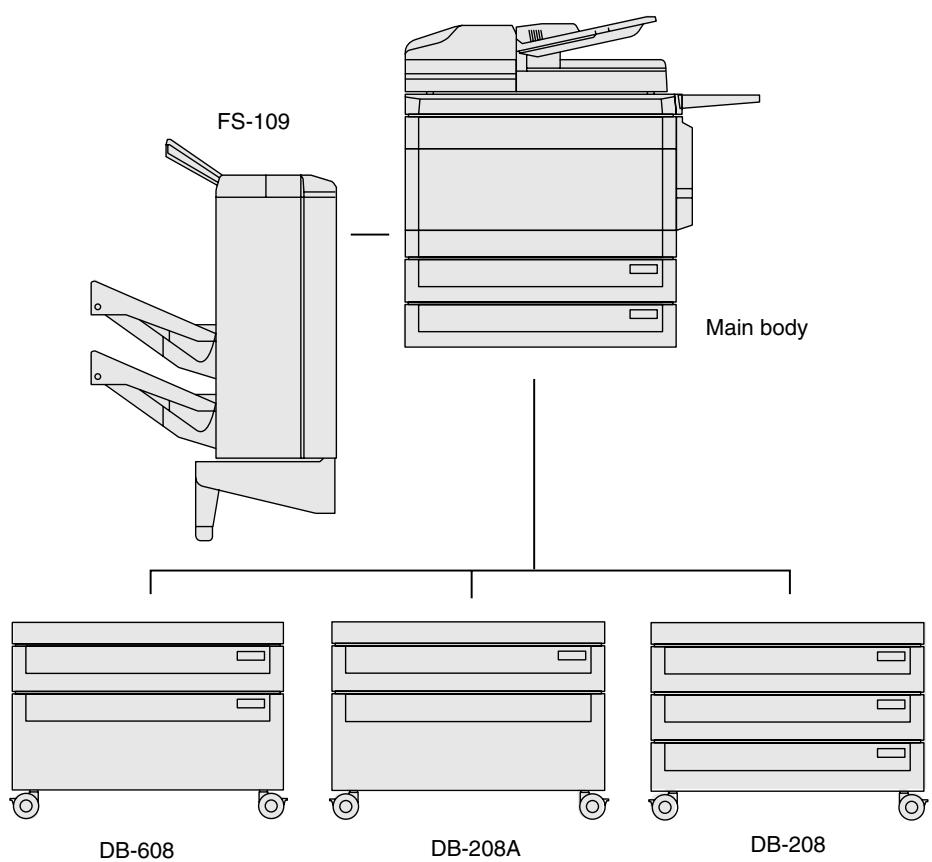
Total 2,100 sheets in the machine with DB-208 drawer, including four 500-sheet trays and a 100-sheet Multi-sheet bypass tray.
Total 1,100 sheets in the machine with DB-208A drawer, including two 500-sheet trays and a 100-sheet Multi-sheet bypass tray.
Total 2,600 sheets in the machine with DB-608 drawer, including two 500-sheet trays, a 1,500-sheet tray and a 100-sheet Multi-sheet bypass tray.
- Platen Memory
Scan documents into memory from the platen glass and/or the document feeder and insert the pages into another document copied from the document feeder. If an incompatible function is selected in this mode, the latter function will not be selected, and a Caution message will be displayed.
Power Saver
Automatically turns off all but nominal power supply after a specified period of copier inactivity, for optimal efficiency. Power is returned after a brief warm up period by pressing [POWER Saver ON/OFF] on the Control panel.
Proof Copy
To ensure correct output before running multiple copies, run a proof copy by pressing [PROOF COPY] on the Control panel or touching PROOF COPY on the Check Screen.
Repeat
Select the horizontal image area across the page, and repeat it down the page as many times as the repeat width setting (10 ~ 150mm) permits in manual or auto. This is useful when wishing to copy an A5 original and doubling it up on to A4.
- Reserve
Scan in subsequent copy jobs while the 7045 is busy printing or copying.
- Reverse Image
Reverse the image from black-on-white to white-on-black or vice versa.
- Sheet/Cover Insertion
Insert up to 15 blank or copied sheets from any tray including the Multi-sheet Bypass Tray, or insert blank or copied front and back covers from any tray including the Multi-Sheet Bypass Tray to enhance the presentation of multi-page documents.
Special Paper
To be specified when using special paper for copying, i.e. OHP film, thick paper or thin paper. When using OHP film, select either Blank or Copy Sheet Interleaving mode for each original.
- Stamp
Print watermark, regular stamp, date/time, page number, and numbering onto the output copies to enhance the presentation and usefulness of the copies.
Staple
Select the stapling position and number of staples.
Text/Photo Enhance
Enhance photo image in Photo mode; enhance regular image in Text/Photo mode; enhance text image in Text mode; enhance lighter image in Increase Contrast mode.
- Userset Density (USERSET 1, USERSET 2)
Output up to 16 density samples on a total of 4 pages that display 4 samples per page, then program the desired density under USERSET 1 and/or USERSET 2.
Weekly Timer
Can be set according to the needs of each work environment. Turn main body power Off/On daily or weekly, during lunch time, on holidays, and also enable the timer-interrupt mode, which allows temporary use of the machine even when the machine is in the daily, weekly, or holiday Off mode.
Basic
SECTION
1
Safety Information
Precautions for Installation and Use
Caution Labels and Indicators 1-2
Requirements for Safe Use 1-4
Caution Labels and Indicators
The caution labels and indicators are attached to the machine areas, as shown below, where you are advised to pay special attention to avoid any dangerous situations or serious injury.
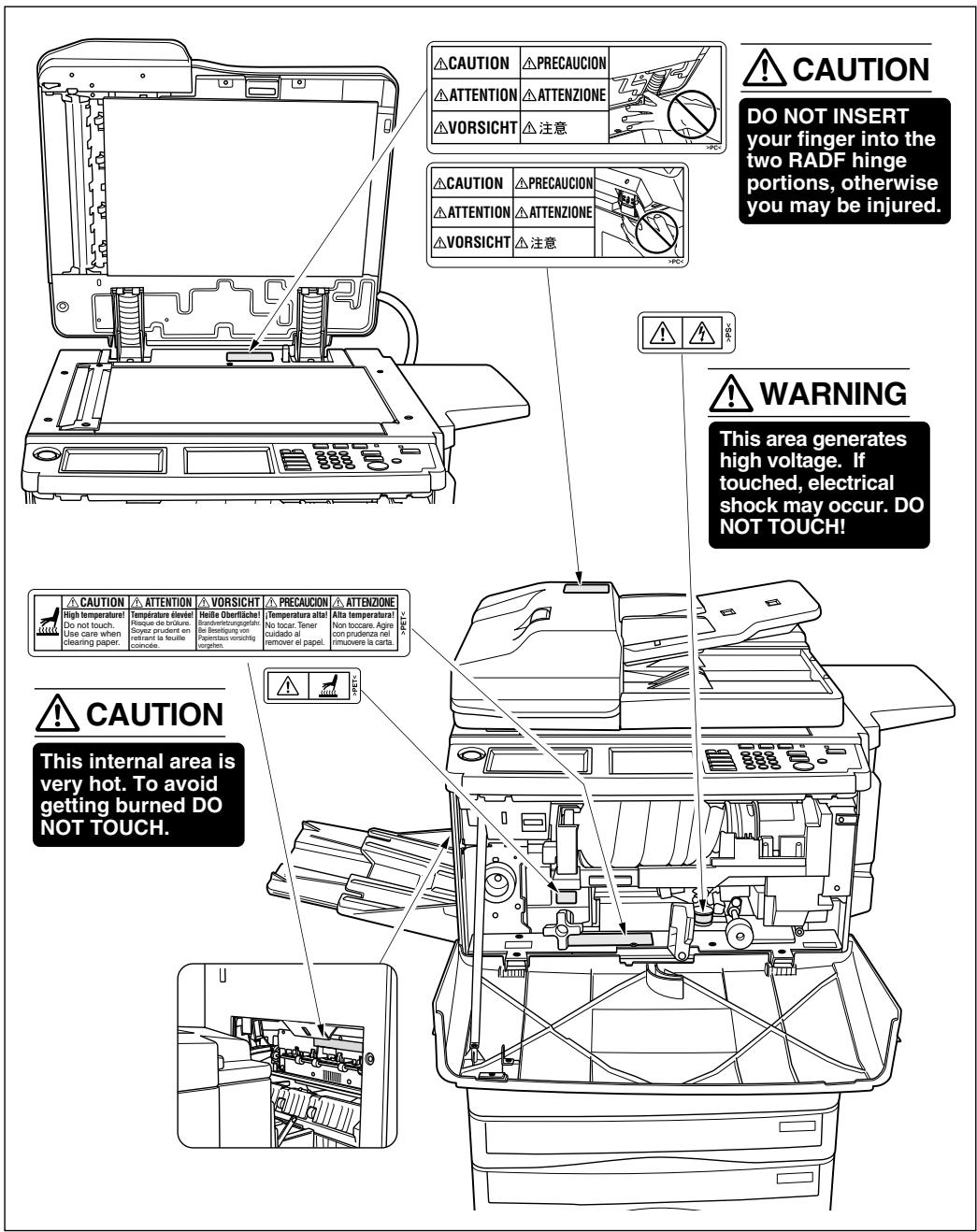

CAUTION
Burns or injury may occur from touching the areas detailed in the caution labels and caution indicators. Do not remove caution labels or indicators. If any caution label or caution indicator is soiled, please clean to make legible. If you cannot make them legible, or if the caution label or indicator is damaged, please contact your service centre.
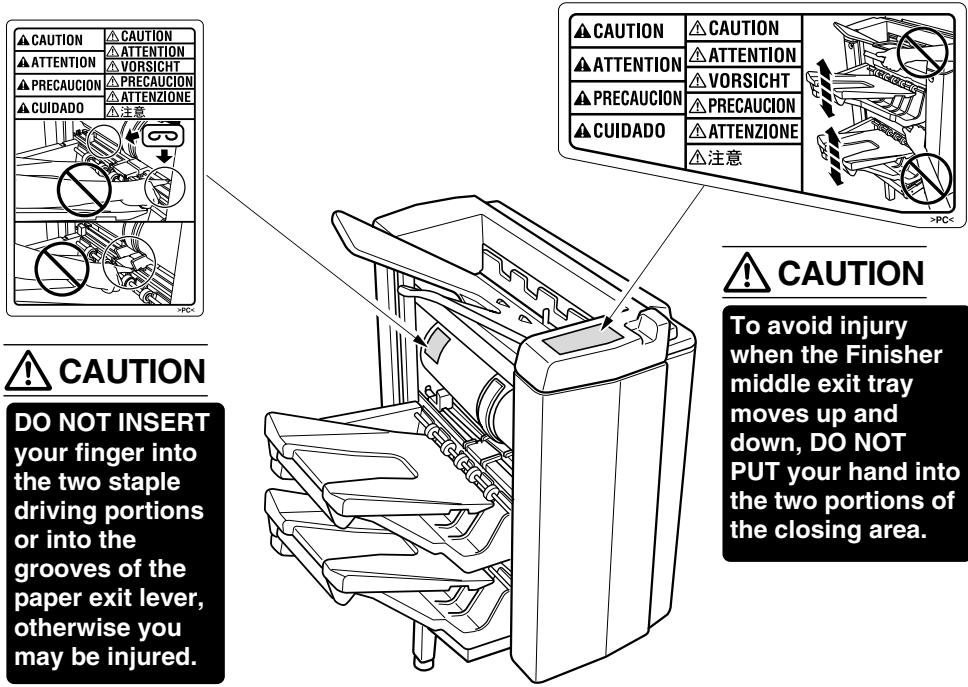
FS-109 Finisher
The following indicators are used on the caution labels or in this manual to categorize the level of safety cautions.

DANGER:
Action highly liable to cause a death or serious injury.

WARNING:
Action liable to cause a death or serious injury.

CAUTION:
Action liable to cause minor injury, medium trouble or physical damage.
If you find any of these indicators when removing jammed paper, adding toner, or reading the manual, be sure to follow the information.

If the safety cautions in the manual become illegible due to soilage, etc., please arrange a new copy from your service centre.
Requirements for Safe Use
To ensure your safe use of the machine, the following describes the precautions you are required to observe without fail for the power source of the machine and during installation and routine handling. Be sure to read and observe them.
Power Source
CAUTION: PLUG SOCKET
- A plug socket is limited in capacity. Use only a power source with the correct rating for the machine; otherwise, hazardous situations such as smoking or overheating may occur. See the following list to match the power supply and power consumption:
a) 230 ~V / 50 ~Hz : More than 10 ~A
b) 110V / 60Hz : More than 15A
c) 230 ~V / 60 ~Hz : More than 10A
d) 127 ~V / 60 ~Hz : More than 15A
- Avoid multiple connections in the same outlet. Do not use multiple outlet adaptors.
CAUTION: POWER PLUG AND LEAD
- Be sure to insert the power plug firmly into the power socket. Otherwise an accident may occur as a result of smoking or overheating. If the inserted power plug is loose in the socket, even after it has been positively inserted, disconnect the plug and contact your electrical contractor.
- For plug cable equipment, that the socket-outlet shall be installed near the equipment and shall be easily accessible.
- Do not bend or crush the power lead. If your copier power lead is bent or damaged in any way, contact your service centre immediately. Do not attempt to repair it yourself, and do not continue to operate the copier. A damaged power lead may result in overheating, a short circuit, or fire.
- Do not bundle or coil the power lead of the copier. Otherwise an accident may occur as a result of overheating or fire.
CAUTION: CONNECTING MULTIPLE LOADS TO ONE SOCKET OUTLET PROHIBITED
Never connect multiple loads to one socket outlet using a multi-outlet extension lead or branched socket. Otherwise an accident may occur as a result of overheating or fire.
CAUTION: EXTENSION LEAD
An extension lead must never be used with this machine.
■ Environment
CAUTION: PREVENTION OF FIRE
Do not install near flammable materials, curtains and volatile combustibles, that can catch or cause fire.
CAUTION: PREVENTION OF SHORT CIRCUIT
Do not install the copier where it could be splashed with rain water, or water from a tap, to avoid a short circuit.
CAUTION: TEMPERATURE AND HUMIDITY
- Keep away from direct sunlight, heat sources such as stoves, cool air from an air conditioner and hot air from a heater.
- Avoid any environment that is outside the range shown below:
10 to 30^ in temperature
10 to 80% in humidity
CAUTION: VENTILATION
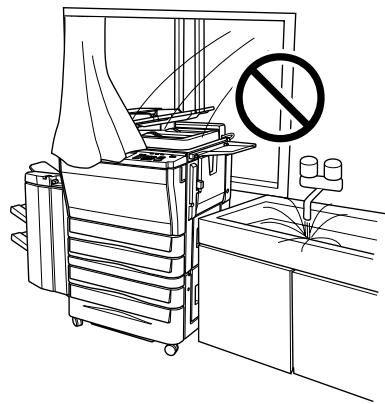
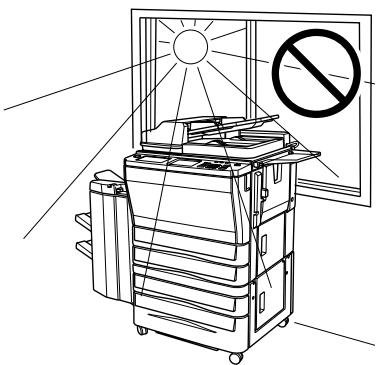

- Maintain the installation place well-ventilated.
- Keep away from dust or corrosive gases. These materials may cause poor image quality.
- During the use of machine, the machine generates ozone but in an insufficient amount to cause any hazard to the human body.
However, if the machine is used in a poorly ventilated room, many copies are made, or plural copiers are used at the same time, an odour may be detected.
Ensure adequate ventilation for a comfortable working environment.

CAUTION: VIBRATION
Do not install on a floor which is subject to vibration or is not level.
CAUTION: INSTALLATION SPACE
Allow sufficient space for facilitating copy operation, changing parts, and periodic inspection. Especially leave an adequate space behind the machine to let hot air out from the rear fan.
Konica 7045 main body + DB-208
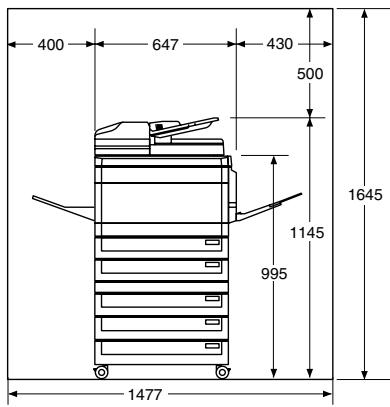
(Unit: mm)
(Unit: mm)
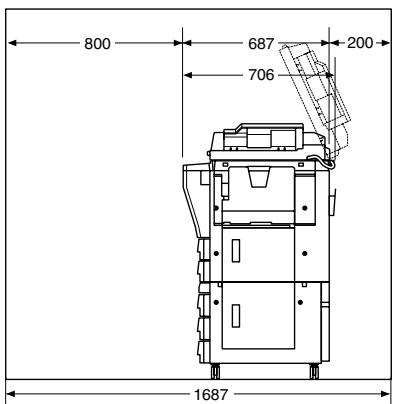
Konica 7045 main body +DB-208A
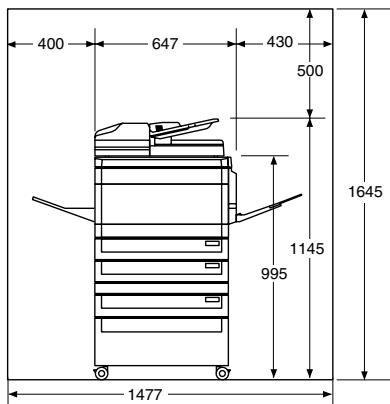
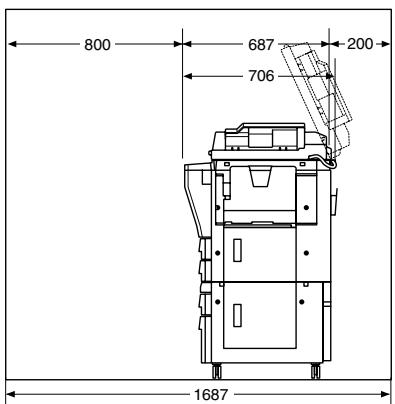
Konica 7045 main body + FS-109 + DB-608
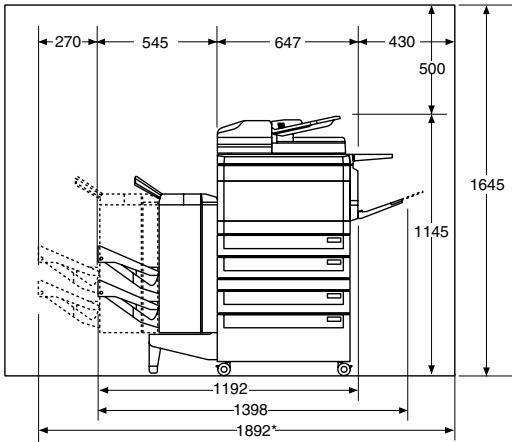
(Unit: mm)
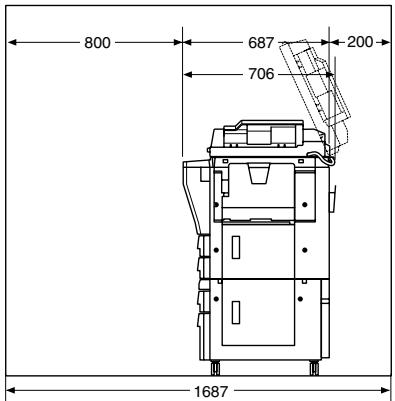
* Dimension required when the Finisher is withdrawn.
Precautions for Routine Handling
WARNING: HIGH VOLTAGE
DO NOT TOUCH the high voltage parts indicated with WARNING label or described in the manual.
CAUTION: ACTIONS IN RESPONSE TO TROUBLES
- If the Service Call screen is displayed and copier operations cannot be continued any more, stop the operation to prevent any unexpected accident. Write down the report code as stated on the 2nd line of the message, then switch off the copier and disconnect from the power socket. Contact your service centre and inform them of the report code.
- Do not touch the high temperature parts indicated with CAUTION labels or described in the manual.
- Do not touch the inside of the machine for any other purpose than removing jammed paper or adding toner.
- If machine repair is necessary, be sure to contact your service centre. Never attempt to repair it by yourself.
- If any abnormal sound, smell or smoke comes from the machine, immediately stop using it, turn off the power switch, disconnect the power plug and contact your service centre.
- If the breaker trips or the fuse blows, turn off the power switch, reset the breaker on the fuse, and turn on the machine. If the same situation occurs again, contact your service centre.
- Insure the replacement fuse conforms with the rating of the power source. Never use a fuse with an incorrect rating.
CAUTION: PREVENTION OF FIRE
Do not use volatile combustibles such as a thinner or alcohol near the machine.
CAUTION: PROHIBITION OF MACHINE MODIFICATION
Do not modify or remove any parts by yourself.

CAUTION: PREVENTION OF MACHINE TROUBLES
- Do not drop small metallic objects such as paper clips or staples inside the machine.
- Do not place any heavy or hard objects such as a vase, books or ornaments on the machine.

CAUTION: RECOMMENDATION OF PERIODIC CHECK
Be sure to check periodically the following points:
(1) The main lead or the power plug does not generate abnormal heat.
(2) The power plug is not inserted loosely or the lead is not cut or scratched.
(3) The earth wire is correctly connected.
(4) The power plug or the power outlet is not covered with dust.
If you find anything abnormal in the above items, stop using the machine and contact your service centre.
CAUTION: TONER
- Keep the toner bottle away from children. The toner is nontoxic; however if you inhale or contact with eyes by accident, flush with water and seek medical advice.
- Do not throw the empty toner bottle into a fire. If it is thrown into a fire the toner may ignite and cause a dangerous situation.
CAUTION: PAPER
Check paper to be sure it is according to specifications outlined in Section 9.
CAUTION: POWER SAVER AND WEEKLY TIMER
- During Power Saver mode the copier is still connected to the mains power supply and power is still applied to certain areas of the machine. To avoid any unexpected troubles turn the power OFF when not using the copier for long periods of time.
- When the Weekly Timer function is operating, turning power OFF will disable the function.
- DO NOT INSERT your finger into the two staple driving portions or into the grooves of the paper exit lever, otherwise you may be injured.
- To avoid injury when the Finisher middle exit tray moves up and down, DO NOT PUT your hand into the two portions of the closing area.
CAUTION: RADF HINGES
DO NOT INSERT your finger into the two RADF hinge portions, otherwise you may be injured.
WARNING: DRUM UNIT
The drum unit has a high voltage generated.
To avoid an electrical shock, DO NOT TOUCH.
CAUTION: DISPOSE OF A DISUSED COPYING MACHINE
Do not dispose of this copier yourself. Contact your service centre, who can arrange for its safe disposal.
If you change the place of installation, please contact your service centre.

CAUTION: PAPER CAPACITY FOR THE EXIT TRAY
The exit tray capacity is max. 100 sheets. If a copy run of more than 100 is required, be sure to remove the copies from the exit tray before the maximum capacity is reached. Failure to do so will cause the copier to jam.

CAUTION: FINISHER PAPER CAPACITY
The FS-109 Finisher is equipped with three exit trays.
Select an exit tray and output mode on the Output Mode Screen.
To prevent paper misfeed, do not exceed the paper capacity of the Finisher.
When the total number of copies in the copy run exceeds the stated capacity, be sure to unload the exit tray whilst the copier is still copying. Failure to do so will cause the copier to jam. The following capacity is for 80g / m^2 paper of the same size.
| Exit tray/Output mode | Paper size/Paper type | |||||
| A5R*3 | A4, A4R, B5, 8.5"x11" | A3, B4, B5R*3 | Thick/Thin paper, OHP film | Non-standard size | ||
| Exit tray 1 | Non-sort | 100 sheets | 100 sheets | 100 sheets | 10 sheets | 10 sheets |
| Exit tray 2 | Non-sort | 300 sheets | 700 sheets | 300 sheets | - | - |
| Exit tray 3 | Sort/Group | - | 700 sheets | 300 sheets | - | - |
| Staple | 25 sets*1 | 25 sets*2 | 25 sets*2 | - | - | |
1: Total paper capacity should be 300 sheets or less.
2: Total paper capacity should be 500 sheets or less.
*3: Stapling on rear side is not available.
SECTION

Machine Information
Machine Configuration, Various Touch Screen and Loading Paper
Machine Configuration 2-2
Turning On the Main Power Switch and Power Switch 2-8
Touch Screens 2-13
Loading Paper 2-16
Changing Paper Size of Universal Tray 2-20
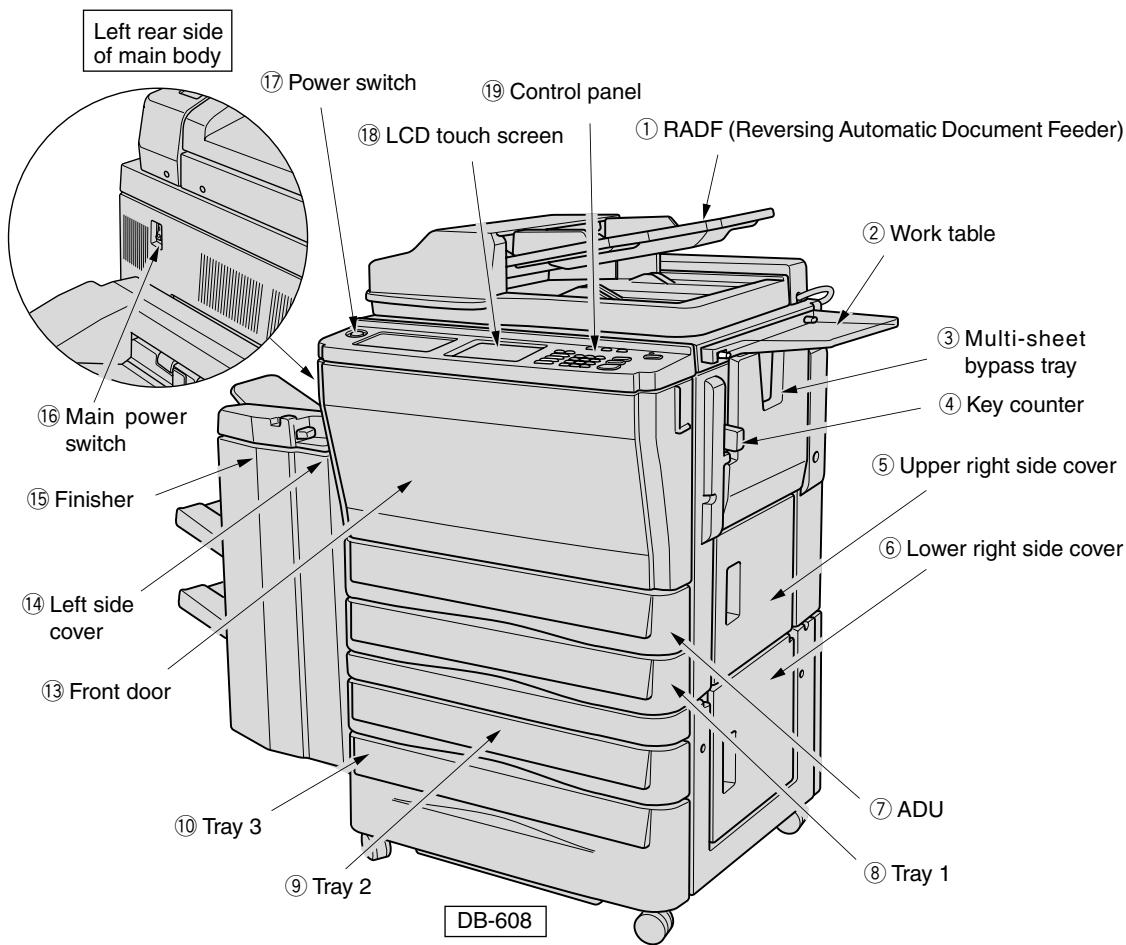
External Machine Items
DB-208A
① RADF (Reversing Automatic Document Feeder) automatically feeds multiple originals one at a time to the platen glass for copying.
② Work table provides a convenient workspace for documents both before and after copying.
③ Multi-sheet bypass tray used for small quantity copying onto plain paper or special paper.
④ Key counter (option) manages the number of copies made on the machine.
(5) Upper right side cover opens to allow removal of mishandled paper.
⑥ Lower right side cover opens to allow removal of mishandled paper.
⑦ ADU is used for stackless duplex copying.
⑧ Tray 1 (universal tray) is user adjustable and holds 500 sheets from A3 to A5R, 8.5"x14", 8.5"x11"R.
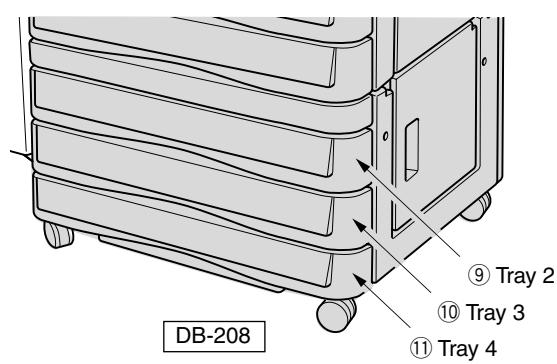
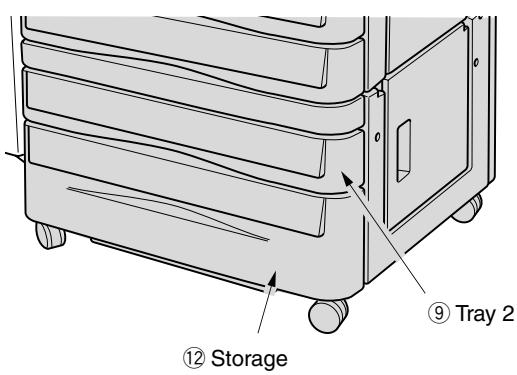
⑨ Tray 2 (of DB-208/208A/608 option) (universal tray) is user adjustable and holds 500 sheets from A3 to A5R, 8.5"x14", 8.5"x11"R.
⑩ Tray 3 (of DB-608 option) is initially fixed at A4 and holds 1,500 sheets.
Tray 3 (of DB-208 option) (universal tray) is user adjustable and holds 500 sheets from A3 to A5R, 8.5"x14", 8.5"x11"R.
① Tray 4 (of DB-208 option) (universal tray) is user adjustable and holds 500 sheets from A3 to A5R, 8.5"x14", 8.5"x11"R.
⑫ Storage accommodates copy paper or copy materials.
⑬ Front door opens to the internal copier to allow clearing of mishandled paper and replenishing of toner.
⑭ Left side cover opens to allow clearing of mishandled paper.
⑮ Finisher (option) sorts, staple-sorts, and groups copies into finished sets.
16 Main power switch turns machine power On/Off to operate it as copier/printer.
⑦ Power switch turns copier power On/Off when pressed.
18 LCD touch screen displays interactive operation screens.
19 Control panel controls copier operations and displays messages as required.
Internal Machine Items
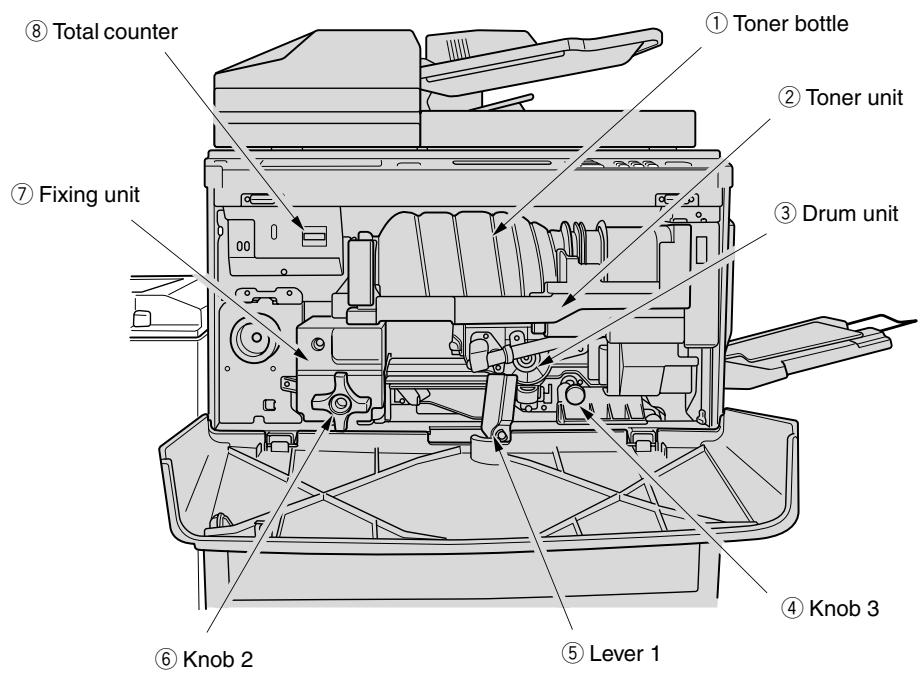
(1) Toner bottle holds toner and is to be replaced when supplying toner.
(2) Toner unit holds the toner supply.
③ Drum unit forms the copy image.
④ Knob 3 can be turned for removal of mishandled paper.
⑤ Lever 1 can be moved for removal of mishandled paper.
⑥ Knob 2 can be turned for removal of mishandled paper from the fixing unit.
Fixing unit fuses the toner onto the copy paper.
(8) Total counter indicates the total number of copies made.
■ Finisher
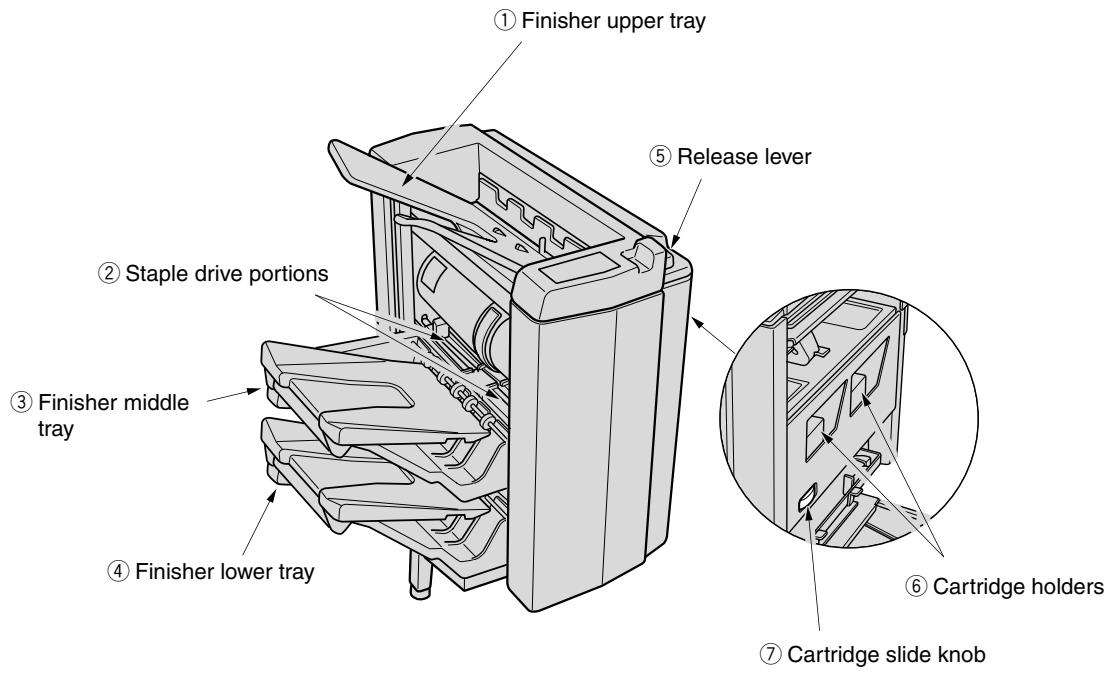
① Finisher upper tray ejects copy paper in Non-sort mode.
② Staple drive portions staple the copied set in Staple-sort mode.
③ Finisher middle tray ejects copy paper in Non-sort, Sort, Group, or Staplesort mode.
(4) Finisher lower tray ejects copy paper in Non-sort, Sort, Group, or Staplesort mode.
(5) Release lever releases the finisher from the main body when clearing misfed paper or supplying staples.
⑥ Cartridge holders hold staple cartridges to be replaced when supplying staples.
⑦ Cartridge slide knob can be turned to bring the staple unit near the cartridge holders.
Standard/Optional Equipment
Control Panel Layout
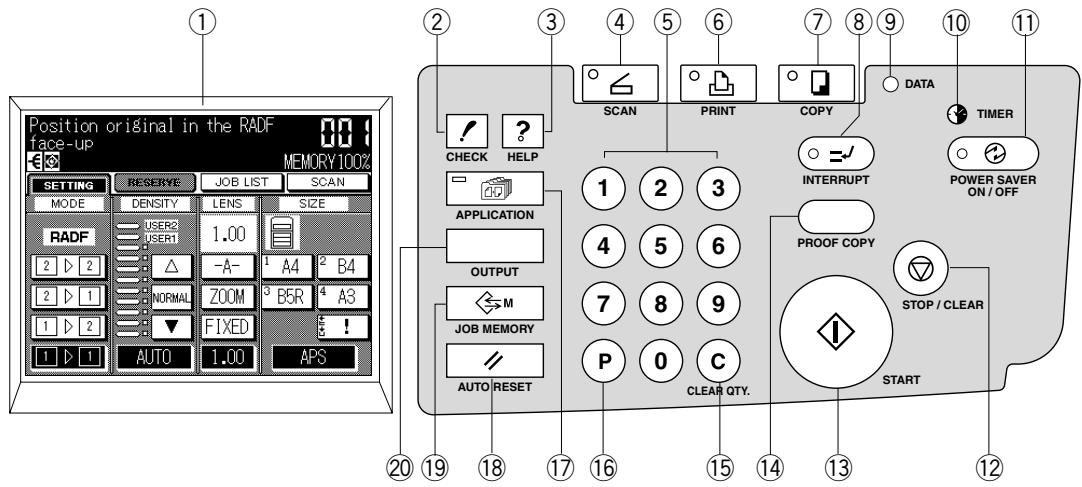
① LCD SCREEN displays machine and copying status; help information; interactive screens; and touch keys for selecting all functions.
② CHECK displays a screen showing all settings that are selected for the current job.
③ HELP displays a screen with help for the currently selected function or to access the Key Operator Mode Screen.
④ SCAN switches the machine operation mode to scanner.
(5) KEYPAD enters numeric values.
⑥ PRINT accesses printing mode for network.
⑦ COPY switches the machine operation mode to copy.
(8) INTERRUPT stops copying/printing/scanning in progress to allow copying.
(9) DATA blinks while receiving print data in printer mode, then lights after completing it.
⑩ TIMER lights when the timer function is set.
① POWER SAVER ON/OFF activates power-saving mode for times when the copier is inactive, or activates timer interrupt mode when weekly timer function is active.
STOP/CLEAR stops the copying sequence; deletes the stored memory.
⑬ START activates scanning or copying.
PROOF COPY outputs a single set of copies to confirm whether the current settings are selected properly.
15 CLEAR QTY. allows resetting of print quantity.
[16] [P] displays the Counter List Screen or accesses programming modes for setting special functions.
⑦ APPLICATION displays a menu for selecting special application functions.
18 AUTO RESET restores copier to automatic mode settings or to key operator settings.
19 JOB MEMORY displays screens for selecting job store/ job recall functions.
20 OUTPUT displays screens for selecting an output condition.
Turning On the Main Power Switch and Power Switch
This machine is equipped with two power switches.
To Turn On the Power

Turn ON the main power switch.
The main power switch is located on the rear left side of the main body.
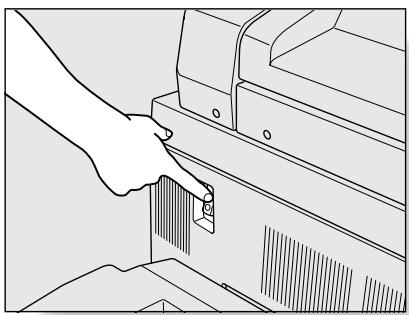

When turning the main power switch OFF then ON, wait for 3 seconds or longer before turning it ON again; otherwise the copier may not function normally.

Turn ON the power switch.
The power switch is located on the far left side of the control panel.
Warm-up takes approximately 90 seconds.
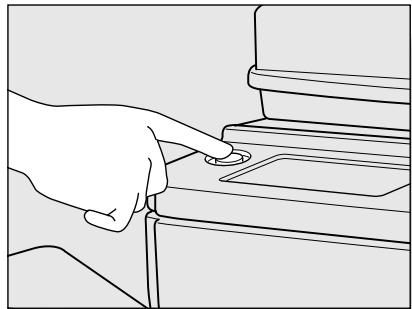

The Basic Screen will be displayed.
The message on the Basic Screen will inform you that copying job is now available.
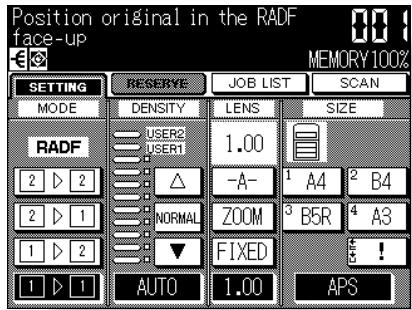

- When the initial settings are changed by the key operator, the modified conditions will be displayed on the Basic Screen.
- When "Enter E.K.C. password" is displayed, enter your password to use the machine.
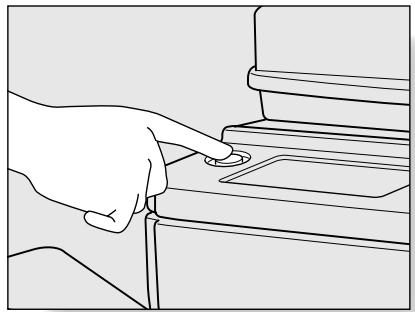
To Turn Off the Power

Turn OFF the power switch.
The power switch is located on the far left side of the control panel.
The touch screen and all the LEDs on the control panel will go out.

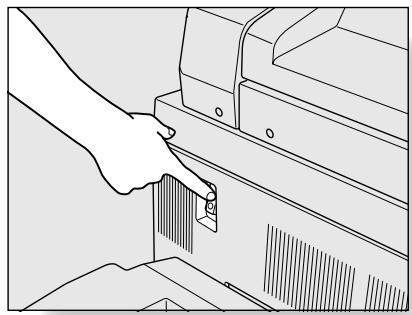
Turn OFF the main power switch.
The main power switch is located on the rear left side of the main body.

DETAILS
- The main power switch is not required to be turned off usually.
- When the machine is under control of the weekly timer function, turning off the main power switch will deactivate the function.
Reducing the Power in Standby Mode (Auto Low Power)
This function automatically lowers the power after a specified period (initially 15 minutes) of copier inactivity. The LCD screen becomes dark with the message "Low Power Mode / Press any key to cancel" displayed.
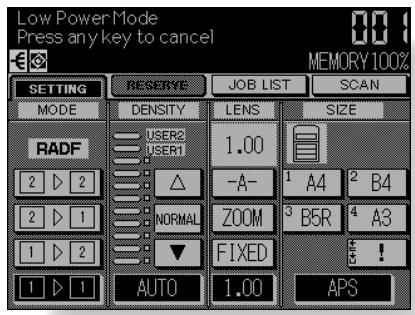
To start a copying job, press any key on the control panel other than POWER Saver ON/OFF
The Auto low power will be released and the LCD screen recovers usual brightness.

The Auto low power function can be set to 5 minutes/ 10 minutes/ 15 minutes/ 30 minutes/ 60 minutes/ 90 minutes/ 120 minutes/ 240 minutes in the Key operator mode.
For the key operator setting, see p. 12-33.

- If the Auto shut-off function activates at the same time, the power will be turned off without the LCD screen becoming dark.
- The LCD screen will not be come dark during a duplex copying job or when the Jam Position Screen is displayed.
■ Shutting Off Automatically (Auto Shut-Off)
This function automatically shuts off the power after a specified period (initially 60 minutes) of copier inactivity.
To start a copying job, press POWER Saver ON/OFF
The copying operation will become available.
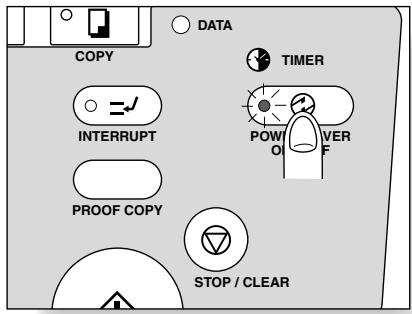

The Auto shut-off can be set for 15 minutes/30 minutes/60 minutes/90 minutes/120 minutes/240 minutes in the Key operator mode. For the key operator setting, see p. 12-33.

When "Timer interrupt mode / Enter password" is displayed after pressing , see p. 7-2 and follow the procedure to continue.
■ Entering an EKC Password (EKC)
The Electronic Key Counter (EKC) allows the key operator to monitor all copying activities by controlling EKC password accounts. Copy quantity limits for specific accounts can be set.
The EKC is not factory-set. An EKC password is required only when the EKC is activated; a User Password is assigned; and "Enter E.K.C. password" is displayed on the touch screen.
Copying will be available by following procedure.

Press the power switch.
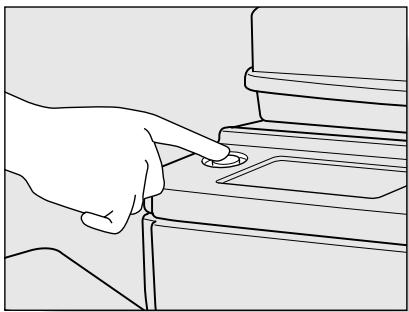
The Basic screen will be displayed along with the message shown below.
Enter E.K.C. password

Enter your 5-digit EKC password, using the keypad.
The entered password will not be displayed on the screen.
If the EKC password is invalid, the copier will reset to the Initial mode. In that case, enter the correct password; or contact the key operator.

Press

START
Your current copy count and copy limit will be displayed for 3 sec.
Current count / limit
018888/025000

For details of the EKC setting, see p. 12-14 to p. 12-20.

See p. 12-15 for setting an EKC password.

Start a copying job.
When the message changes to "Ready to copy", copying job is available on the machine.

Press C while pressing P Clear QTY.
The initial state will be restored, with the message "Enter E.K.C. password" displayed on the screen.

When your copy count reaches the copy limit, the message "Copy limit reached" will be displayed. In that case, contact the key operator to reset your copy limit.
This copier has a large Liquid Crystal Display (LCD) in the centre of the control panel. The following pages describe various types of interactive screen and how to display them.
Making a Basic Copy (Basic Screen)
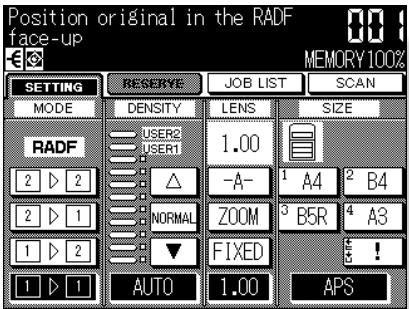
The Basic Screen displays when copying operation becomes available after warm-up.
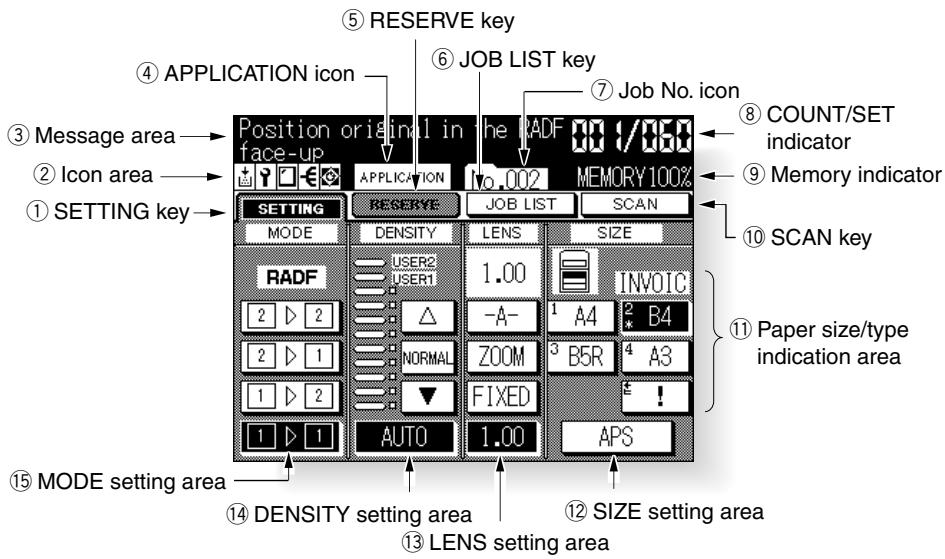
① SETTING key is selected when the screen displays basic copying conditions. Touch this key to return to the current print job settings when making selections for a reserve job.
When any trouble occurs during a reserve setting, the “SETTING” changes to flashing “JAM” or “ADD PAPER” according to the trouble type. See p. 5-7 to p. 5-9.
② Icon area displays the following icons.

ADD TONER icon displays when toner supply becomes low. See p. 10-2.
PM CALL icon displays when preventive maintenance is due. See p. 5-4.

FINISHER MODE icon displays when a. When Staple-sort mode is selected, this is and staple position. See p. 3-28 to p. 3-
specific finisher mode is selected. When Staple-sort mode is selected, this icon indicates the number of staples and staple position. See p. 3-28 to p. 3-31.

ROTATION icon displays when the Rotation automatically functions. See
p. 7-9 to p. 7-10.
③ Message area displays the machine status and procedure required at that time.
④ APPLICATION icon displays when any application function is selected on the Application Selection Screen. See p. 8-2.
(5) RESERVE key is touched to select copy conditions for a subsequent job while the current scan/print job is in progress. See p. 3-22 to p. 3-23.
⑥ JOB LIST key is touched to view the current job status, to change the printing order of reserve jobs, or to cancel printing a reserve job. See p. 3-24 to p. 3-25.
⑦ Job No. icon No.001 displays when 4 is pressed to start a reserve job of that number. Service can set the Job No. icon to display, instead of the job number, the page count while scanning originals and also the page number currently printed when printing job starts.
⑧ COUNT/SET indicator indicates the print quantity entered from the control panel keypad, and also indicates the print count on the left of the set count while printing. See p. 3-6.
⑨ Memory indicator indicates the remaining memory available for the next operation. See p. 3-21.
⑩ SCAN key is touched to start scanning originals when any copy condition which requires Store mode is selected, or Store mode is directly selected on the Application Selection Screen. See p. 3-18, and p. 3-20 to p. 3-21.
⑪ Paper size/type indication area displays the paper size loaded in each tray and paper type of the selected tray under the “SIZE” indication, if specified by the key operator. See p. 12-22.
⑫ SIZE setting area is used to select the desired paper size or APS. See p. 3-7 to p. 3-10.
(13) LENS setting area is used to select the desired magnification ratio. See p. 3-11 to p. 3-13.
④ DENSITY setting area is used to specify the desired exposure level. See p. 3-14 to p. 3-15.
⑤ MODE setting area is used to select the copy mode (1▶1, 1▶2, 2▶1, or 2▶2). See p. 3-16 to p. 3-19.
Using Application Function (Application Selection Screen)
The Application Selection Screen displays when is pressed on the control panel. 16 application function keys are provided on the screen. Touching a key displays a subsequent screen for specifying the selected function. (Touching Reverse Image, AUTO Layout, or Non-image Area Erase does not display a subsequent screen, but highlights the key on the screen.)
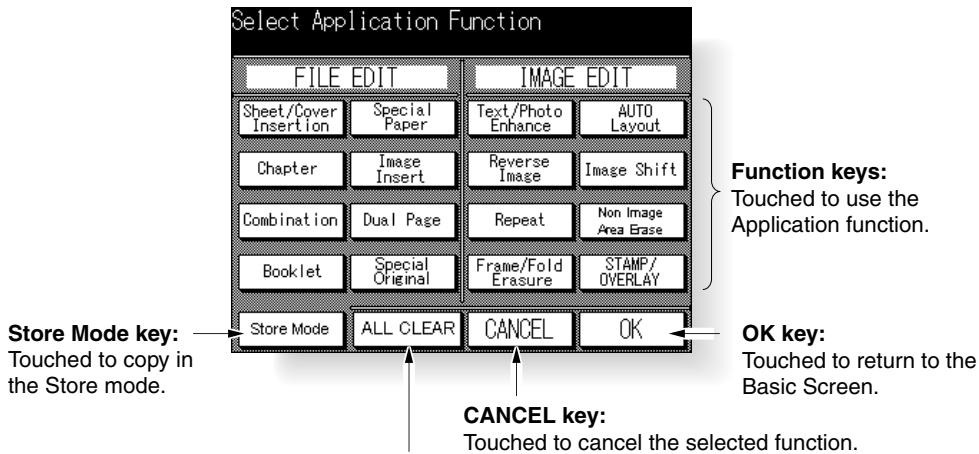

ALL CLEAR key: Touched to clear all the selected Applications.
| Sheet/Cover Insertion | Inserting Sheets and Covers: See p. 8-3 |
| Chapter | Locating Title Pages on the Right Side: See p. 8-7 |
| Combination | Lay Out Several Pages onto One Sheet: See p. 8-9 |
| Booklet | Making a Multiple Page Signature Booklet: See p. 8-11 |
| Special Paper | Copying onto OHP Films (OHP Interleaving): See p. 8-14 |
| Special Paper | Copying onto Thin/Thick Paper (Thin/Thick Paper): See p. 8-16 |
| Image Insert | Inserting Images into Printed Sets: See p. 8-18 |
| Dual Page | Dividing an Image into Right and Left Pages: See p. 8-21 |
| Special Original | Copying Mixed Size Originals (Mixed Original) : See p. 8-25 |
| Special Original | Copying Folded Originals (Folded Original): See p. 8-27 |
| Special Original | Copying Non-Standard Size Originals (Non-Standard Size): See p. 8-29 |
| Special Original | Reverse the Second Side in 1▶2 Mode (Flip Side 2): See p. 8-31 |
| Text/Photo Enhance | Making Copy Quality Closer to Originals: See p. 8-34 |
| Reverse Image | Reversing Colour in Black and White Image: See p. 8-36 |
| Repeat | Repeating Selected Image Area (Vert./Horiz. Mode): See p. 8-38 |
| Repeat | Repeating Automatically or Selecting Repeating Times (AUTO/ Repeat Mode): See p. 8-41 |
| Frame/Fold Erasure | Eliminating Black Copy Marks Along Borders: See p. 8-44 |
| AUTO Layout | Copying Image in the Centre of Copy Paper: See p. 8-46 |
| Image Shift | Creating Binding Margin: See p. 8-48 |
| Non Image Area Erase | Erasing Outside of the Original: See p. 8-50 |
| STAMP/OVERLAY | Printing Stamps or Watermarks onto Copies (Stamp): See p. 8-52 |
| STAMP/OVERLAY | Printing Date/Time, Page Numbers or Numbering (Stamp): See p. 8-56 |
| STAMP/OVERLAY | Overlaying an Image onto Each Page Copied in the Job (Overlay): See p. 8-60 |
When paper in a tray becomes empty, the indicator “ ” appears on the tray key. When the tray key with the indicator “ ” is touched, the indicator and paper size indication displayed on that key will start blinking.
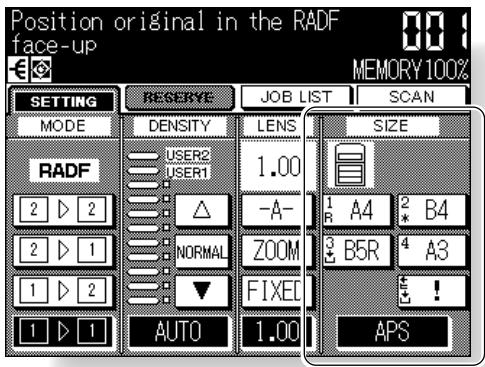
Follow the procedure below to supply the empty tray with copy paper.

When the Multi-sheet bypass tray is empty, "!" besides " " will be displayed on the bypass tray key instead of the paper size indication.

Key operator can set the machine to indicate the paper type for each tray when selected on the screen. See p. 12-22.
■ Loading Paper in Universal Tray
The capacity of the Universal tray is max. 500 sheets.
Main body tray: Tray 1
DB-208 trays: Tray 2, Tray 3, Tray 4
DB-208A tray: Tray 2
DB-608 tray: Tray 2

Withdraw the tray to be supplied.

Do not withdraw the trays forcibly; otherwise you may be injured.

See p. 2-2 to check positions of each tray.

Stack paper with curl side up.
Load paper aligning it to the right side of the tray.
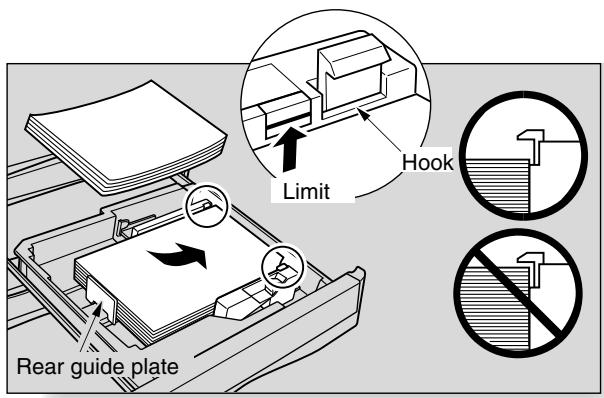

Do not load above the red line on the side guide plates.

Be sure that the rear guide plate is correctly positioned according to the paper size to be loaded; otherwise machine trouble may occur.

While pressing the release knob, move the side guide plate against the paper.
Release the release knob to lock the side guide plate.
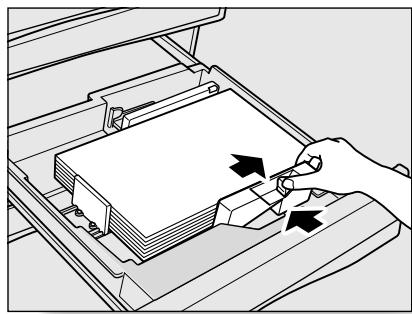

Be sure that the side guide plate is securely aligned to the paper; otherwise the machine cannot detect the correct paper size.

Push in the tray until it locks into place.
The indicator “ ” on the tray key will disappear.
■ Loading Paper in LCT (Large Capacity Tray)
The capacity of the LCT is max. 1,500 sheets.
DB-608 tray: Tray 3

Withdraw the LCT.

CAUTION
Do not withdraw the trays forcibly; otherwise you may be injured.

Stack paper with curl side up.
Load paper aligning it to the right side of the tray.
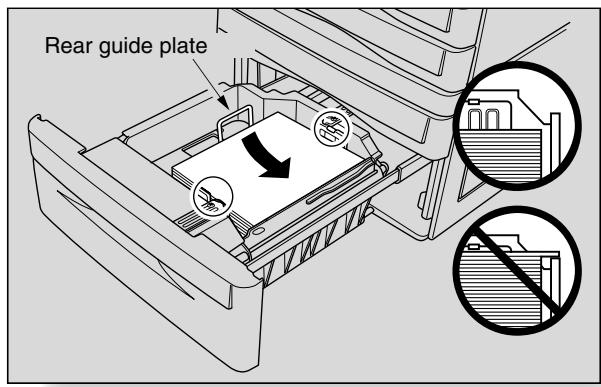

See p. 2-2 to check the tray position.

Do not load paper above the hooks on the side guide plates.

Be sure that the rear guide plate is correctly positioned according to the paper size to be loaded; otherwise machine trouble may occur.

Push in the tray until it locks into place.
The indicator “ ” on the tray 3 key will disappear.
■ Loading Paper in Multi-sheet Bypass Tray

Open the Multi-sheet bypass tray located on the right side of the copier.
When loading A3, F4, or B4 paper, pull out the right edge to extend the tray.
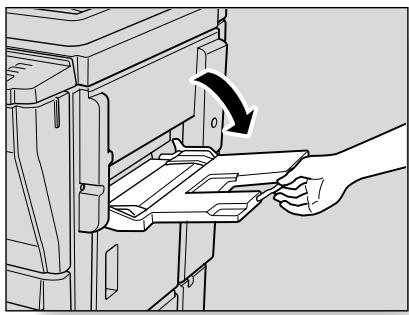
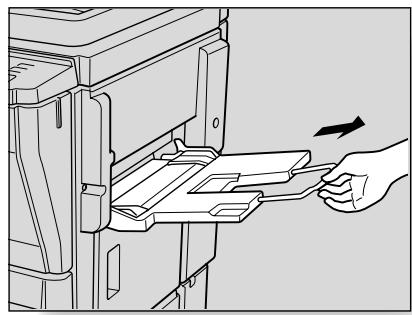

Load copy paper, and adjust the paper guides to the paper size.
The indicators "!" and " 山 " on the Multi-sheet bypass key will disappear, and the loaded paper size will be indicated.
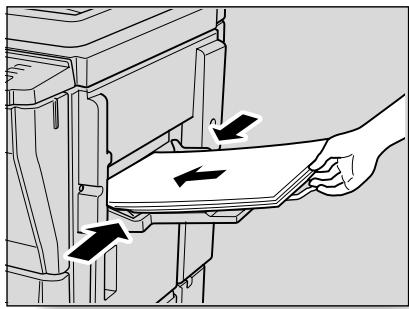

Load OHP film or thin/thick paper one sheet at a time; or, stack paper, up to 100 sheets 80g / m^2

When copying is completed, close the Multi-sheet bypass tray.
Changing Paper Size of Universal Tray
The universal trays are user-adjustable. Change the paper size of the tray according to the procedure below.

Withdraw the tray of the size to be changed.

CAUTION
Do not withdraw the trays forcibly; otherwise you may be injured.

Remove the rear guide plate, then insert it into the position designated for your desired paper size.
The rear guide plate positions are marked on the tray base plate.
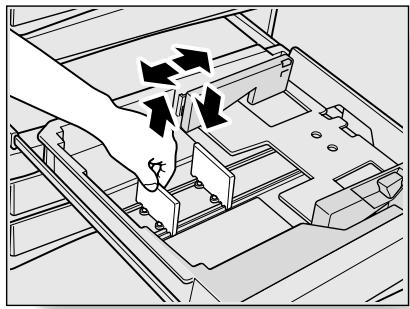

Be sure to insert the rear guide plate into the position of the paper size to be set; otherwise machine trouble may occur.

Stack paper, then move the side guide plate against the paper.
Release the release knob to lock the side guide plate.
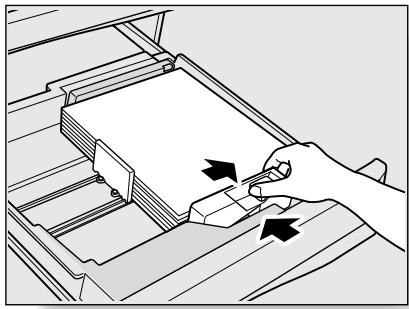

Be sure that the side guide plate is securely aligned to the paper; otherwise the machine cannot detect the correct paper size.

Push in the tray until it locks into place.
The tray key on the Basic Screen will indicate the paper size currently specified.
SECTION
3
Copying Operations
How to Make a Basic Copy
Positioning Originals 3-2
Setting Print Quantity 3-6
Selecting Paper Size 3-7
Selecting Magnification Ratio (Lens Mode) 3-11
Selecting Density Level 3-14
Making Double-Sided Copy (1▶2, 2▶2) 3-16
Making Single-Sided Copy from Double-Sided Originals (2▶1)...3-19
Copying Using Memory 3-20
Output Mode for Machine without Finisher 3-26
Output Mode for Machine with Finisher FS-109 3-28
Checking Feature Selections and Proof Copying 3-32
Interrupt Copying 3-34
Positioning Originals in RADF
The document feeder (RADF) automatically feeds up to 50 originals directly to the platen area, starting with the top sheet. The RADF should only be used for unstapled, smooth, flat originals.
Positioning originals in Normal mode

Arrange originals in order.

Position original(s) FACE UP in the document feeder tray.
Place two-sided originals with page one FACE UP. Up to 50 originals can be set at a time.
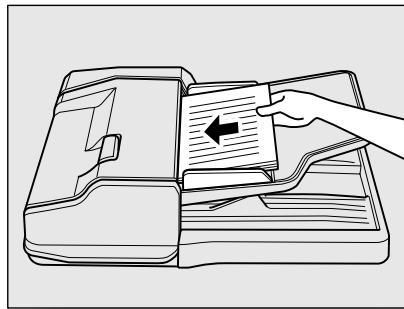

Adjust paper guides.


- Before placing originals in the tray, be sure the document feeder is closed fully.
- Be sure not to use unsuitable RADF originals. See p. 9-5 for details.

- Do not set more than 50 originals; otherwise a paper misfeed will occur.
- If the number of originals exceeds 50, divide them into blocks not exceeding 50 sheets, then load them from the block with the first page. See p. 3-20.
Positioning originals in Mixed original mode
Mixed size originals can be copied together from the document feeder.
To use the Mixed original mode, see procedure on p. 8-25 to p. 8-26.

Arrange originals in order.
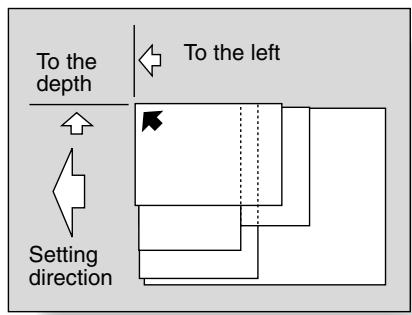
Arrange the mixed size originals as illustrated below.

- Before placing originals in the tray, be sure the document feeder is closed fully.
- Be sure not to use unsuitable RADF originals. See p. 9-5 for details.

See p. 9-6 for available combinations of mixed originals.

Position mixed originals FACE UP, aligned with the left rear side of the document feeder tray.
Place two-sided originals with page one FACE UP. Up to 50 originals can be set at a time.

Adjust paper guides.
Positioning originals in Folded original mode
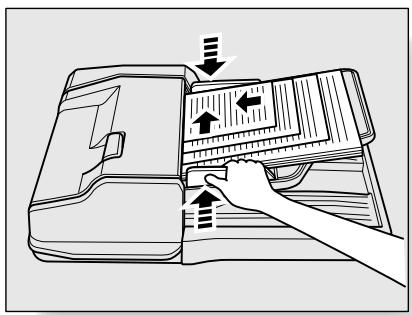
Folded original mode detects the folded original size without using the size detection sensor of the RADF. To use the Folded original mode, see procedure on p. 8-27 to p. 8-28.

Arrange originals in order.

Position original(s) FACE UP in the document feeder tray.
Place two-sided originals with page one FACE UP. Up to 50 originals can be set at a time.

Adjust paper guides.
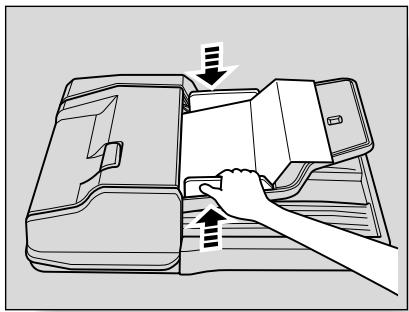

- Before placing originals in the tray, be sure the document feeder is closed fully.
- Be sure not to use unsuitable RADF originals. See p. 9-5 for details.
Positioning Original on Platen Glass

Raise the document feeder.

Place original FACE DOWN in the left rear corner, aligning the edge with the left measuring guide.
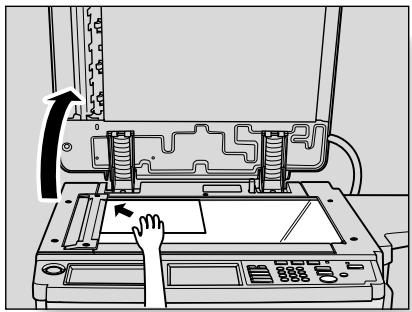

Gently close the document feeder to prevent the original from shifting on the glass.
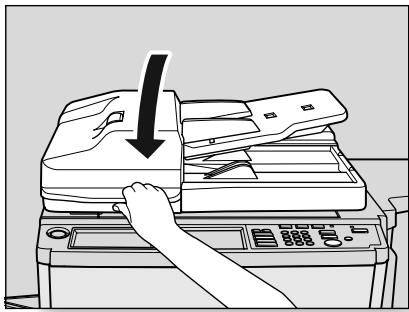

When selecting Dual Page, AUTO mode in Repeat, or Non-image Area Erase, DO NOT CLOSE the document feeder. For details on each function, see Section 8.

CAUTION
Do not insert your finger into the two RADF hinge portions, otherwise you may be injured.

CAUTION
Do not place too heavy originals, or do not press strongly when thick original is placed and is under pressure of RADF; otherwise the glass may be broken and you may be injured.
This section describes how to set or change print quantity.
To Set Print Quantity
The copier is initially set to copy the original set in amounts determined by the print quantity setting, then outputs sorted sets.

Enter the desired print quantity from the control panel keypad.
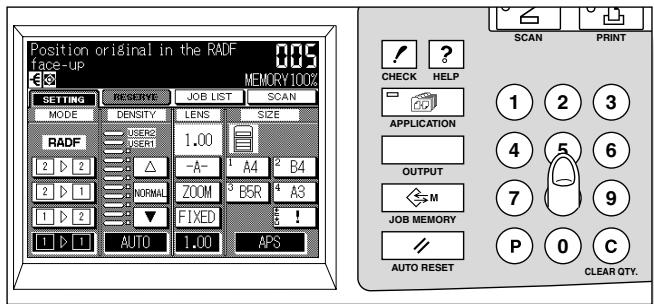
Entered quantity will be displayed on the touch panel.
To Change Print Quantity
Follow the procedure below to change the print quantity which has been already entered.

Press

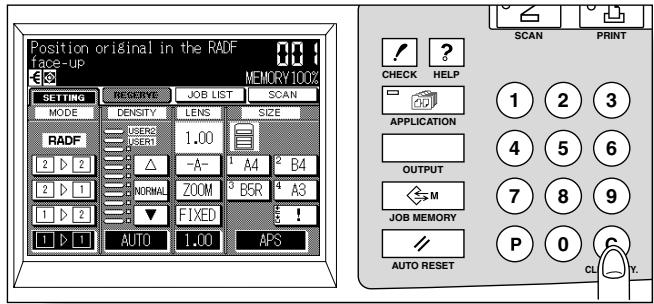
The quantity displayed on the touch panel will return to 1.

Enter the correct quantity.
Entered quantity will be displayed on the touch panel.
To select an appropriate paper size for getting your desired copy result, use APS (Automatic Paper Selection), or select paper size manually on the touch screen, as required.
To Select Paper Size Automatically (APS)
APS detects the size of originals placed on the RADF or platen glass and automatically selects and feeds copy paper of the same size, or selects an appropriate size according to the magnification ratio selected.

Touch to highlight APS at lower right corner of the Basic Screen.
APS is already highlighted when the initial settings are restored.
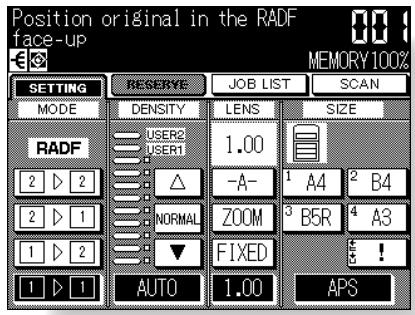

See the table on the following page for the relation of original size, magnification ratio and copy paper size.

The initial settings may have been altered by Key operator. See p. 12-6 to p. 12-11.

Select additional copy conditions, as desired.

Enter the desired print quantity from the control panel keypad.

Position original(s).

See p. 3-6 for details on setting print quantity.

- See p. 9-5 to p. 9-6 for paper sizes detectable from the RADF or on the platen glass.
- See p. 3-2 to p. 3-5 for details on positioning originals.
Key operator can deactivate APS when original is set in the RADF or on the platen glass. See p. 12-34 to p. 12-37.

Press

START
Scanned image will be printed on the paper size automatically selected.

FOR DETAILS
- If the appropriate copy paper is not loaded in any tray, no copying will be performed, and a message will prompt you to load the appropriate paper.
- Copy result may not be satisfactory due to the Rotation function. In this case, set the function OFF manually. See. p. 7-9 to p. 7-10.

See the table below for the relation of original size, magnification ratio and copy paper size.
| Paper size | Original size | Paper size | |||||||||
| A3 | B4 | A4R | A4 | B5R | B5 | A5R | A5 | B6R | |||
| Magnification ratio | 0.25 - 0.42 | B6R | B6R | B6R | B6R | B6R | B6R | B6R | B6R | 0.25 - 0.42 | Magnification ratio |
| 0.43 - 0.50 | A5R | 0.43 - 0.50 | |||||||||
| 0.51 - 0.57 | B5R(B5) | A5R | 0.51 - 0.57 | ||||||||
| 0.58 - 0.61 | B5R(B5) | 0.58 - 0.61 | |||||||||
| 0.62 - 0.71 | A4R(A4) | A5R | A5 | 0.62 - 0.71 | |||||||
| 0.72 - 0.77 | B4 | A4R(A4) | B5R(B5) | B5(B5R) | A5R | A5 | 0.72 - 0.77 | ||||
| 0.78 - 0.82 | 0.78 - 0.82 | ||||||||||
| 0.83 - 0.86 | B4 | A4R(A4) | A4(A4R) | B5R(B5) | B5(B5R) | A5R | A5 | 0.83 - 0.86 | |||
| 0.87 - 0.89 | A3 | 0.87 - 0.89 | |||||||||
| 0.90 - 1.00 | 0.90 - 1.00 | ||||||||||
| 1.01 - 1.10 | A3 | B4 | B4 | A4R(A4) | A4(A4R) | B5R(B5) | B5(B5R) | A5R(A5) | 1.01 - 1.10 | ||
| 1.11 - 1.15 | 1.11 - 1.15 | ||||||||||
| 1.16 - 1.22 | B4 | B4 | B5R(B5) | 1.16 - 1.22 | |||||||
| 1.23 - 1.41 | A3 | A3 | A4R(A4) | A4(A4R) | A4(R(A4) | 1.23 - 1.41 | |||||
| 1.42 - 1.63 | A3 | A3 | B4 | B4 | A4R(A4) | 1.42 - 1.63 | |||||
| 1.64 - 1.73 | B4 | 1.64 - 1.73 | |||||||||
| 1.74 - 2.00 | A3 | A3 | 1.74 - 2.00 | ||||||||
| 2.01 - 4.00 | A3 | 2.01 - 4.00 | |||||||||
: when Rotation functions
■ To Specify Desired Paper Size (AMS)
When a paper size is specified on the touch screen, an appropriate ratio will be selected automatically according to the original size detected from the RADF or the platen glass.

Touch a tray key on the Basic Screen to select the desired paper size.
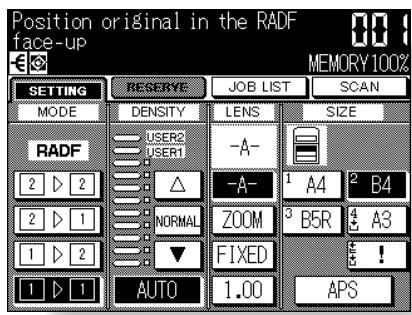
Selected tray key will be highlighted, and -A- under the LENS indication will also be highlighted.

Select additional copy conditions, as desired.

Enter the desired print quantity from the control panel keypad.

Position original(s).

Press

START
Scanned image will be printed on the specified paper size in the magnification ratio automatically selected.

See the table on the following page for the relation of original size, copy paper size, and magnification ratio automatically selected.

If copying in 1.00 (100%) magnification mode with specifying a paper size is desired, see p. 3-11.

See p. 3-6 for details on setting print quantity.

- See p. 9-5 to p. 9-6 for paper sizes detectable from the RADF or on the platen glass.
- See p. 3-2 to p. 3-5 for details on positioning originals.

Copy result may not be satisfactory due to the Rotation function. In this case, set the function OFF manually. See p. 7-9 to p. 7-10.

See the table below for the relation of original size, copy paper size, and magnification ratio automatically selected.
| Original size | ||||||||||
| A3 | B4 | F4 | A4 | A4R | B5 | B5R | A5 | A5R | ||
| Paper size | A3 | 1.00 | 1.15 | 1.27 | 1.00 | 1.42 | 1.15 | 1.64 | 1.42 | 2.00 |
| B4R | 0.86 | 1.00 | 1.10 | 0.86 | 1.22 | 1.00 | 1.42 | 1.22 | 1.73 | |
| A4 | 0.49 (0.70) | 0.57 (0.81) | 0.64 (0.90) | 1.00 (0.70) | 0.70 (1.00) | 1.15 (0.81) | 0.81 (1.15) | 1.42 (1.00) | 1.00 (1.42) | |
| A4R | 0.70 | 0.81 | 0.90 | 0.70 (1.00) | 1.00 | 0.81 (1.15) | 1.15 | 1.00 | 1.42 | |
| B5 | 0.42 (0.60) | 0.49 (0.70) | 0.55 (0.78) | 0.86 (0.60) | 0.60 (0.86) | 1.00 (0.70) | 0.70 (1.00) | 1.22 (0.86) | 0.86 (1.22) | |
| B5R | 0.60 | 0.70 | 0.78 | 0.60 (0.86) | 0.86 | 0.70 (1.00) | 1.00 | 0.86 | 1.22 | |
| A5 | 0.35 | 0.40 | 0.45 | 0.70 | 0.49 | 0.81 | 0.57 | 1.00 | 0.70 | |
| A5R | 0.49 | 0.57 | 0.64 | 0.49 | 0.70 | 0.57 | 0.80 | 0.70 | 1.00 | |
() is the magnification ratio of the Image rotation.
Selecting Magnification Ratio (Lens Mode)
When the copier is turned ON, the magnification ratio is set to 1.00 (100%) automatically on the Basic Screen.
Follow each procedure described in this section to select the desired magnification ratio.
To Copy in 1.00 Magnification Mode
Follow this procedure to make a 100% copy of the original image.

Close the RADF securely, then press

The initial settings are restored. Check that 1.00 is highlighted to indicate that the 1.00 magnification is selected.
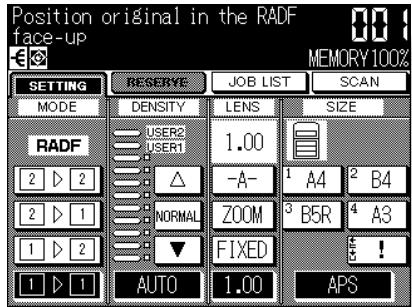

Select additional copy conditions, as desired.

Enter the desired print quantity from the control panel keypad.

Position original(s).

Press

START

The initial settings may have been altered by Key operator. See p. 12-6 to p. 12-11.

Specifying paper size will release 1.00 magnification and set AMS (-A - ) automatically.
In this case, touch 1.00 to highlight it again.

See p. 3-6 for details on setting print quantity.

See p. 3-2 to p. 3-5 for details on positioning originals.
To Copy in Fixed Magnification Mode (FIXED)
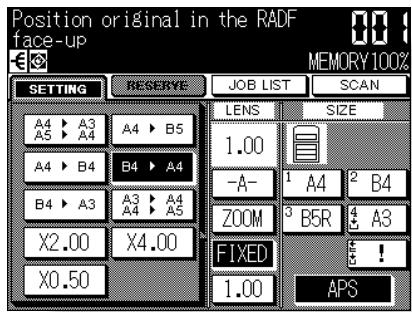
Use the 6 preset ratios (0.71, 0.82, 0.86, 1.15, 1.22, 1.41) and 3 userset ratios to increase or decrease magnification in fixed amounts.
Specification for Fixed Magnification Mode
Incompatible Conditions: AMS, Repeat mode in Repeat, Reduce & Shift in Image Shift

Touch |FIXED on the Basic Screen.
The popup menu for selecting the desired preset/ userset ratio will be displayed.

Select the desired magnification.

Select additional copy conditions, as desired.

Enter the desired print quantity from the control panel keypad.

Position original(s).

Press

START

When starting a new copying job, be sure to close the RADF securely, then press l .
AUTORESET

Touching any key on the popup menu will momentarily highlight that key, then the popup menu will disappear automatically.
The selected ratio will be displayed on the Basic Screen.

Three userset ratios are adjustable by the key operator. See p. 12-13.

See p. 3-6 for details on setting print quantity.

See p. 3-2 to p. 3-5 for details on positioning originals.
To Copy in Zoom Mode
Use the Zoom mode to reduce or enlarge the copied original image in 1% increments.
Specification for Zoom Mode
Incompatible Conditions: AMS, Repeat mode in Repeat, Reduce & Shift in Image Shift

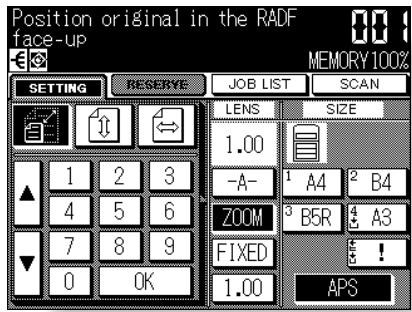
Touch | ZOOM | on the Basic Screen.
The popup menu for setting a zoom ratio will be displayed.

Touch on the popup menu, if not highlighted, then set the desired zoom ratio.

Touch OK
The popup menu disappears automatically and the specified zoom ratio will be displayed on the Basic Screen.

Select additional copy conditions, as desired.

Enter the desired print quantity from the control panel keypad.

Position original(s).

Press

START

When starting a new copying job, be sure to close the RADF securely, then press AUTO RESET.

Use the keypad on the popup menu to enter the desired reduction or enlargement ratio in 3 digits; or use arrows ( /) to scroll to the desired ratio. If an incorrect ratio is entered, continue by entering the correct 3-digit ratio.

See p. 3-6 for details on setting print quantity.

See p. 3-2 to p. 3-5 for details on positioning originals.
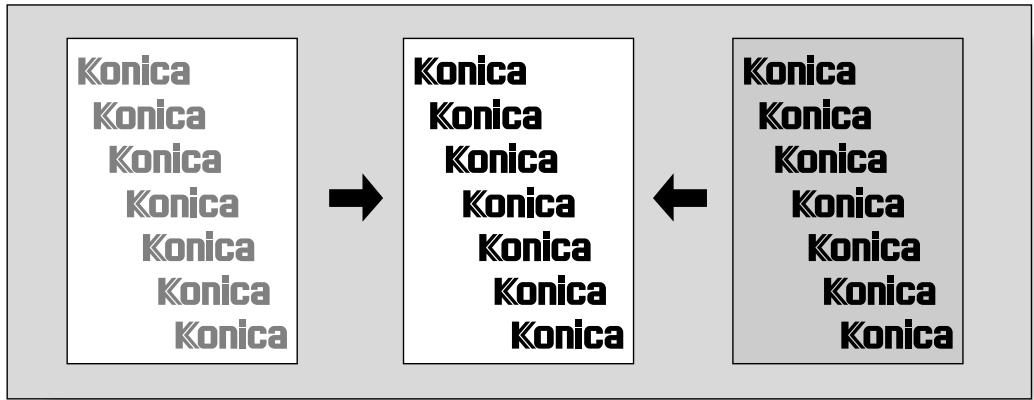
Automatic Exposure (AE) operates with the initial settings. It detects the density of the original image and automatically selects the appropriate exposure for the copy.
To Select Copy Density
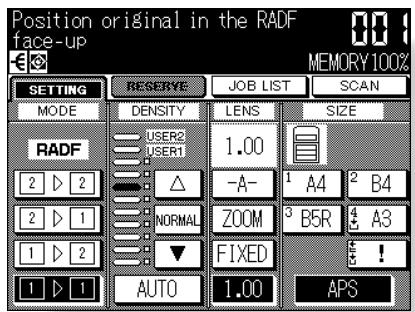
Select manual copy density to adjust exposure (density) when originals are too light or too dark. Manual adjustments can be made in 9 levels on the Basic Screen.

Touch to darken, or touch to lighten the copy image.
Highlight the desired exposure level indicator.

When starting a new copying job, be sure to close the RADF securely, then press AUTO RESET.

- Touch NORMAL to select the middle density level.
To select the userset density USER1 or USER2, touch to highlight each indicator. - When resuming AE, touch AUTO.

Select additional copy conditions, as desired.

Enter the desired print quantity from the control panel keypad.

See p. 12-12 to set the userset density.

See p. 3-6 for details on setting print quantity.

Position original(s).

See p. 3-2 to p. 3-5 for details on positioning originals.

Press

START

Density Shift
Key operator can set the copier to shift each of nine density levels into two levels of lighter and three levels of darker. This function can be set to be used in combination with each mode in Text/Photo Enhance other than the general mode. See p. 12-40.
Making Double-Sided Copy (1▶2, 2▶2)
The Basic Screen is initially set to 1 1 copy mode to make single-sided copies from single-sided originals.
Follow the procedure below to make double-sided copies from the originals scanned from the document feeder or from the platen glass.
Using RADF
Select the copy mode according to the original type (single-sided or double-sided).
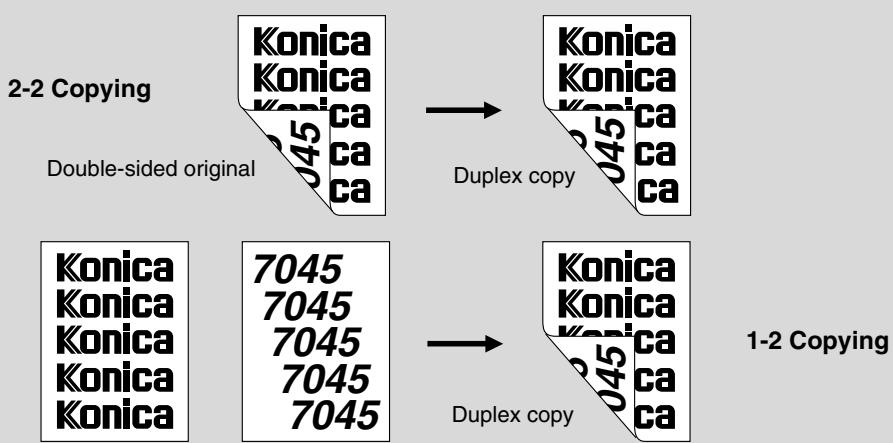
Single-sided originals

Touch 1 2 or 2 2 on the Basic Screen to highlight it.
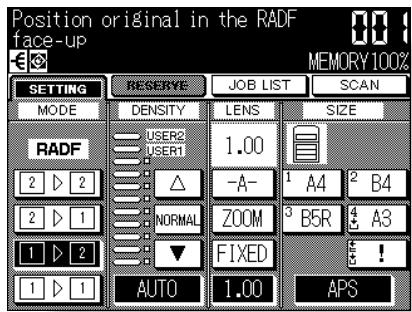

When starting a new copying job, be sure to close the RADF securely, then press AUTO RESET.

DETAILS

Select additional copy conditions, as desired.
Some incompatible conditions may automatically release the selected copy mode.
In this case, arrange all the settings to be compatible with the selected copy mode.

Enter the desired print quantity from the control panel keypad.

Position originals FACE UP in the document feeder.

Press

START
The machine starts to scan originals, then to print duplex copies when ready for output.

CAUTION
When the finisher / paper exit tray capacity is exceeded due to the print quantity selected, remove the copied sets as they exit; otherwise, mishandled paper will occur.

See p. 3-6 for details on setting print quantity.

- See p. 3-2 to p. 3-4 for details on positioning originals.
- Use RADF store mode (p. 3-20 to p. 3-21) when the original count exceeds 50.

Press to suspend the scanning or printing job.
Using Platen Glass
Use the platen glass to scan originals unsuitable for the document feeder.
Use the Platen store mode.
See p. 9-5 for the information on unsuitable RADF originals.
Incompatible Conditions: Image Insert, OHP Interleaving

Position original FACE DOWN on the platen glass.
Be sure to start from the first page.

When starting a new copying job, be sure to close the RADF securely, then press AUTO RESET.

See p. 9-5 for paper sizes detectable on the platen glass.
- See p. 3-5 for details on positioning originals.

Touch 1 2 on the Basic Screen to highlight it.
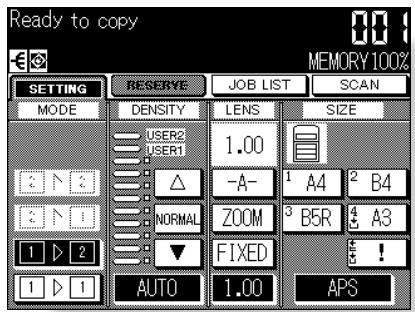

Select additional copy conditions, as desired.

Enter the desired print quantity from the control panel keypad.

Touch SCAN on the Basic Screen.
The front side image of the double-sided copy will be scanned into memory.

Replace the original on the platen glass with the back side image original, then touch SCAN

Press

All the data in memory will be output.

CAUTION
When the finisher / paper exit tray capacity is exceeded due to the print quantity selected, remove the copied sets as they exit; otherwise, mishandled paper will occur.

DO NOT press at this point, otherwise the platen mode will be released to disable the copier from scanning the original placed on the platen glass.

Some incompatible conditions may automatically release the selected copy mode.
In this case, arrange all the settings to be compatible with the selected copy mode.

See p. 3-6 for details on setting print quantity.

Repeat this step until all originals are scanned.
Memory indicator on the upper right of the Basic Screen allows you to check the remaining memory.
To delete the scanned data without printing, press (念)
STOP/CLEAR

Press to suspend the printing job.
Use RADF and select 2 1 copy mode to make single-sided copies from double-sided originals.
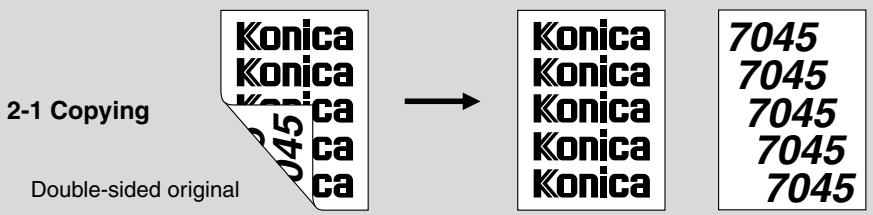
Simplex copy

Touch 2 1 on the Basic Screen to highlight it.
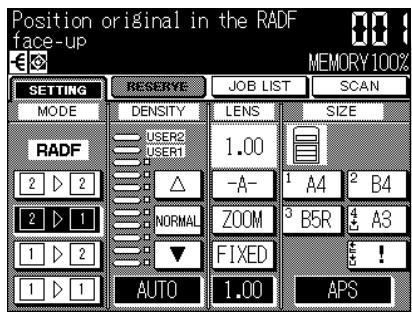

When starting a new copying job, be sure to close the RADF securely, then press AUTO RESET.

Some incompatible conditions may automatically release the selected copy mode. In this case, arrange all the settings to be compatible with the selected copy mode.

Select additional copy conditions, as desired.

Enter the desired print quantity from the control panel keypad.

Position originals FACE UP in the document feeder.

Press

The machine starts to scan originals, then to print simplex copies when ready for output.

CAUTION
When the finisher / paper exit tray capacity is exceeded due to the print quantity selected, remove the copied sets as they exit; otherwise, mishandled paper will occur.

See p. 3-6 for details on setting print quantity.

See p. 3-2 to p. 3-4 for details on positioning originals.
- Use RADF store mode (p. 3-20 to p. 3-21) when the original count exceeds 50.

Press STOP/CLEAR to suspend the scanning or printing job.
This section describes various copying features available on this machine using built-in memory.
To Scan Originals into Memory (Store Mode)
Store mode allows you to scan all the originals first, then to start continuous printing job.
Use RADF store mode for scanning large amount of originals.
Use Platen store mode for originals that cannot be fed through the document feeder due to thickness, size or condition.
Incompatible Condition: Image Insert

Press APPROPION on the control panel.

Touch Store Mode on the Application Selection Screen to highlight it.
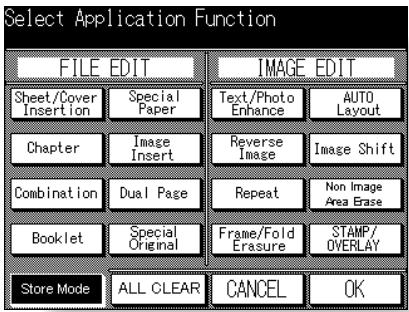

RADF capacity is 50; however, more than 50 originals can be scanned into memory using RADF store mode.

When starting a new copying job, be sure to close the RADF securely, then press AUTO RESET.

Make additional application selections, as desired.

Touch OK to return to the Basic Screen.

Select additional copy conditions, as desired.

Enter the desired print quantity from the control panel keypad.

Position original(s).
Using platen glass:
Place original FACE DOWN. Start scanning from the first page.
Using RADF:
Position originals FACE UP.
If the number of originals exceeds 50, divide them into blocks not exceeding 50 sheets and load them from the block with the first page.

Touch SCAN on the Basic Screen.
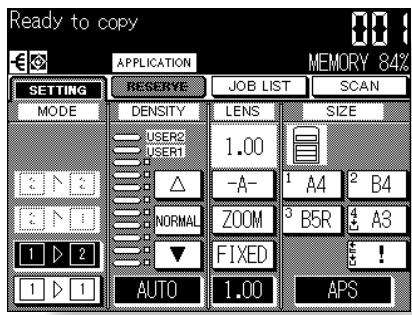

Press

START
All the data in memory will be output.

CAUTION
When the finisher / paper exit tray capacity is exceeded due to the print quantity selected, remove the copied sets as they exit; otherwise, mishandled paper will occur.

See p. 3-6 for details on setting print quantity.

When Dual Page, Non-Image Area Erase, Auto detection mode of Repeat, or AUTO Layout is selected, keep the RADF open throughout the procedure.

See p. 3-2 to p. 3-5 for details on positioning originals.

Repeat steps 7 and 8 until all originals are scanned. Memory indicator on the upper right of the Basic Screen allows you to check the remaining memory.
To delete the scanned data without printing, press (念)
STOP/CLEAR

Should memory overflow occur frequently, it is recommended that you contact your Kona service centre to extend the memory capacity in your machine.

Press to suspend the printing job.
To Set Next Copying Job (Reserve)
The Reserve function allows you to set up a new job while a current (scan/print) job is in process. When the current job is finished, the Reserve job starts printing immediately.
Specifications for Reserve
Job settings: Max. 5 (current job plus 4 reserve jobs)
- When the current job is under Store mode, Image insert, or Dual page, the reserve job setting will be available after the copier starts to print the current job.
Incompatible Conditions: Interrupt copying, Scanning in Store mode, Proof copy

Press to start scanning/printing for the current job.
RESERVE will become active to show that the reserve job setting is now available.
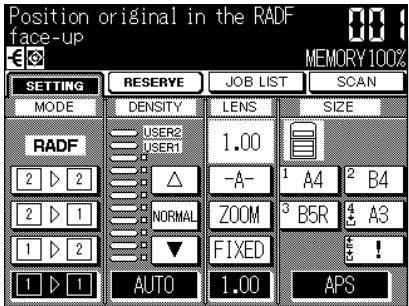

Touch RESERVE to highlight it.
The Reserve Job Setting Screen will be displayed. On the Reserve Job Setting Screen, all keys on the LCD and control panel will function for the reserve job.
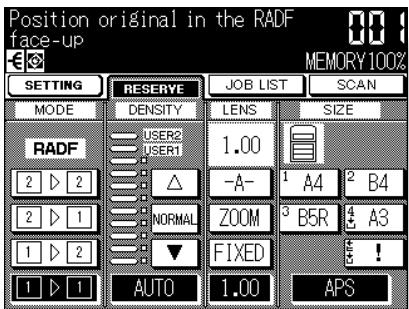

Select copy conditions for the reserve job, as desired.

Position original(s) after completing to scan for the current job.

Press to start scanning for the reserve job.
When completed, the Basic Screen for the current printing job will be restored.

Copying on the reserve job will start automatically after completing the current job.

CAUTION
When the finisher / paper exit tray capacity is exceeded due to the print quantity selected, remove the copied sets as they exit; otherwise, mishandled paper will occur.

When trouble occurs while setting the reserve job, the SETTING on the Basic Screen will change to JAM or ADD PAPER. See p. 5-7 to p. 5-9.

See p. 3-2 to p. 3-5 for details on positioning originals.

When setting more than one reserve job, the next reserve job setting will be available after the copier starts to scan for the previous reserve job.
■ To Check/Control Jobs in Progress (Job List)
The Job List Screen allows you to perform the following functions.
- Confirm machine status
- Change order of reserve job
- Delete reserve job

Touch JOB LIST on the Basic Screen.
The Job List Screen will be displayed. Check the current status of the machine.

Perform the desired setting on the screen.
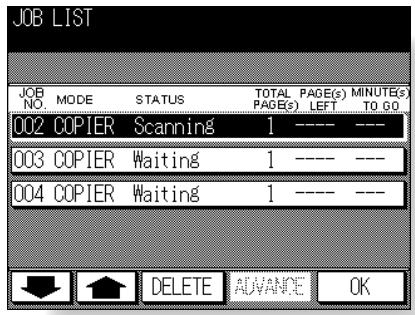

See the next page for details of the screen.
To change the order of reserve job:
Touch or to highlight the desired reserve job, then touch ADVANCE
The highlighted reserve job is advanced in printing order next to the job in progress.
To clear reserve job:
Touch or to highlight the desired reserve job, then touch DELETE . The Job Clear Confirmation Screen will be displayed.
Touch YES, then OK. The highlighted reserve job will cleared.

Touch OK
The Basic Screen will be restored.

Contents of Job List Screen
NO.: Displays the No. (001-999) for each job assigned to the machine.
MODE: Displays the machine's current mode of operation.
Three modes are listed below.
COPIER
PRINTER
SCANNER
STATUS: Displays the current status of the machine for each job.
ERROR : Error in each mode
PRINTING : Printing in each mode
NO PAPER : No paper in copy/print mode
STOP : Stop in each mode
JAM : Jam in each mode
SCANNING : Scanning original(s) in copy mode
WAITING : Waiting to be output
NOTICE : Notice message displayed
TOTAL PAGE(s): Displays the number of scanned pages for each job. (0 to 999)
PAGE(s) LEFT: Displays the remaining copy count of the job. 0 to 999
Copy count
= No. of scanned pages x Print quantity
MINUTE(s) TO GO: Displays the time (in minutes) required for completing the job.
Shorter than 1 minute: <1
2~999

The time displayed is an approximation and may take slightly longer.
This section describes the output modes for a copier without the Finisher. The Non-sort mode is initially selected.
① Non-sort mode copies the original set in amounts determined by the print quantity setting, then outputs sorted sets normally.
(2) E-SORT+sort mode rotates every other sorted sets by 90^ upon exit, provided the same paper size is loaded in two trays, one tray with paper loaded in portrait orientation and the other tray with paper loaded in landscape orientation, e.g., A4 and A4R.
③ Group mode copies each original page in amounts determined by the print quantity setting, then outputs grouped sets normally.
(4) E-SORT+group mode rotates every other grouped set by 90^ upon exit, provided the same paper size is loaded in two trays, one tray with paper loaded in portrait orientation and the other tray with paper loaded in landscape orientation, e.g., A4 and A4R.
Using Face Up mode in combination with the above four modes, simplex copies and odd numbered duplex copies exit face up on the exit tray.
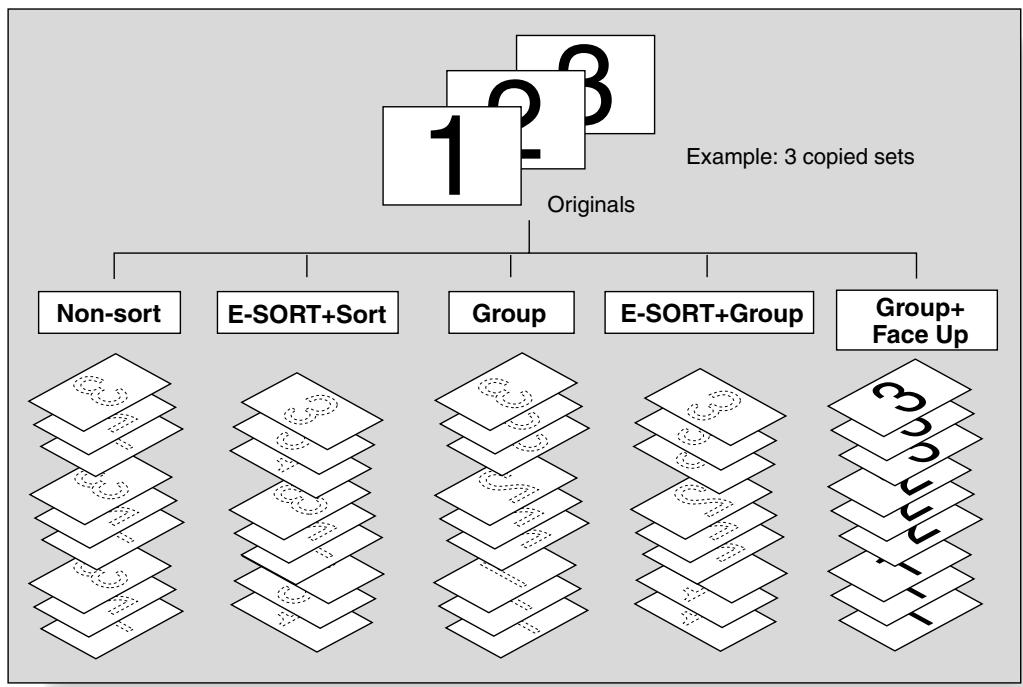

Load copy paper.
When using E-SORT+Sort or E-SORT+Group mode, load the same paper size into two trays in different orientation.

Press OUTPUT on the control panel.

When starting a new copying job, be sure to close the RADF securely, then press AUTO RESET.

Select the desired output mode.
Touch the desired key on the Output Mode Screen.
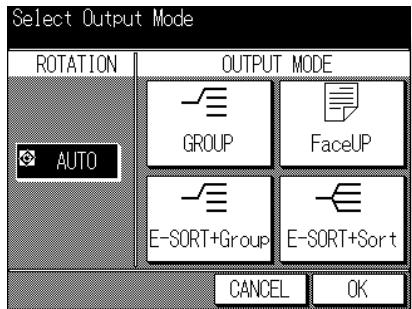

Touch OK
The Basic Screen will be restored.

Select additional copy conditions, as desired.

Enter the desired print quantity from the control panel keypad.

Position original(s) FACE UP in the document feeder or FACE DOWN on the platen glass.

Press


CAUTION
When the paper exit tray capacity is exceeded due to the print quantity selected, remove the copied sets as they exit; otherwise, mishandled paper will occur.

DETAILS
To select Non-sort mode, deselect all the keys.
HINTS
Non-sort mode is initially selected. Key operator can change the initial output mode from Non-sort to E-SORT+ Sort or E-SORT+Group. See p. 12-10.

See p. 9-2 to be sure that the exit tray capacity is not exceeded.
HINTS
See p. 3-6 for details on setting print quantity.
HINTS
See p. 3-2 to p. 3-5 for details on positioning originals.

DETAILS
Press to suspend the scanning or printing job.
Output Mode for Machine with Finisher FS-109
Finisher FS-109 is initially equipped with three exit trays.
Each exit tray provides the output modes as described below.
TRAY 2 or TRAY 3
① Non-sort mode simply means that the offset-stacker finisher modes are not selected. Copies will be stacked upon exit without being offset by sorted sets.
② Sort mode outputs multiple copies of the original set, having each sorted set offset by 30mm upon exit.
③ Staple mode offsets and staples each sorted set. Up to 50 sheets (or within 5mm thick) can be stapled.
④ Group mode groups together multiple copies of each original and offsets the sets by 30mm upon exit.
TRAY 1
Face Up mode outputs simplex copies and odd numbered duplex copies face up on the TRAY 1. This mode is incompatible with selecting TRAY 2, TRAY 3, Sort mode, or Staple mode.
The copier is initially set to output to TRAY 2 in Sort mode.
Follow the procedure on the next page to change the output mode, as desired.
Incompatible with Sort mode: Using platen glass (unless Platen store mode is used), OHP Interleaving, Special Original (Mixed Original with APS), Repeat, AUTO Layout, Non-Image Area Erase
Incompatible with Staple mode: Using platen glass (unless Platen store mode is used), Booklet, OHP Interleaving, Special Original (Mixed Original with APS), Repeat, AUTO Layout, Non-Image Area Erase
□ Incompatible with Group mode: Proof Copy, Sheet/Cover Insertion, Booklet, OHP Inter-leaveing, Image Insert, Repeat, AUTO Layout, Non-Image Area Erase
Incompatible with Face Up mode: Staple
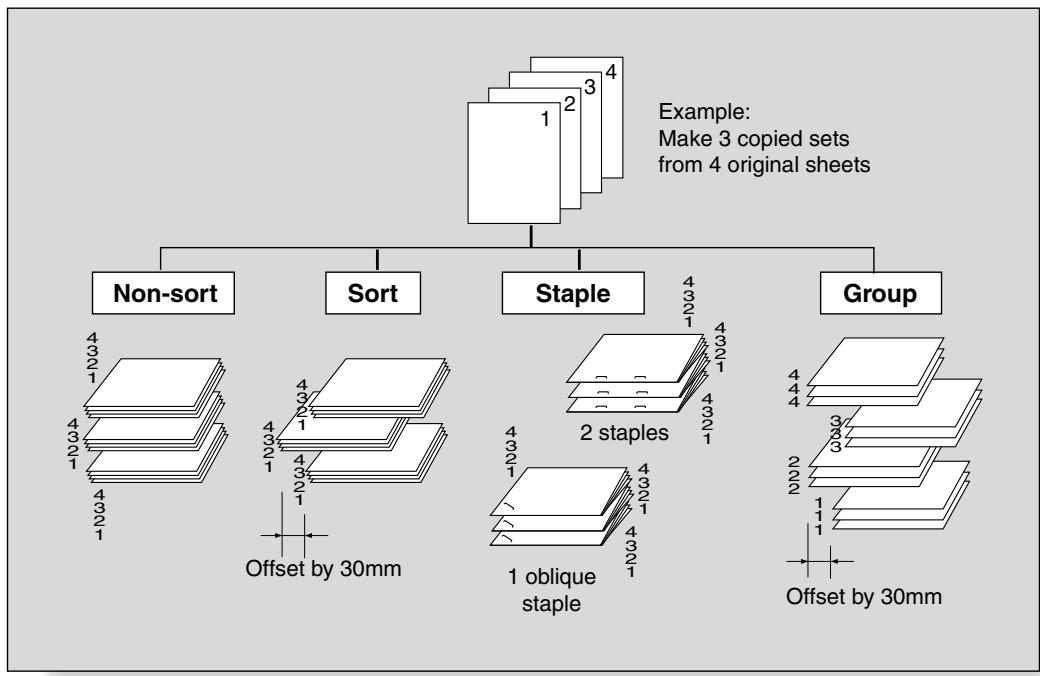
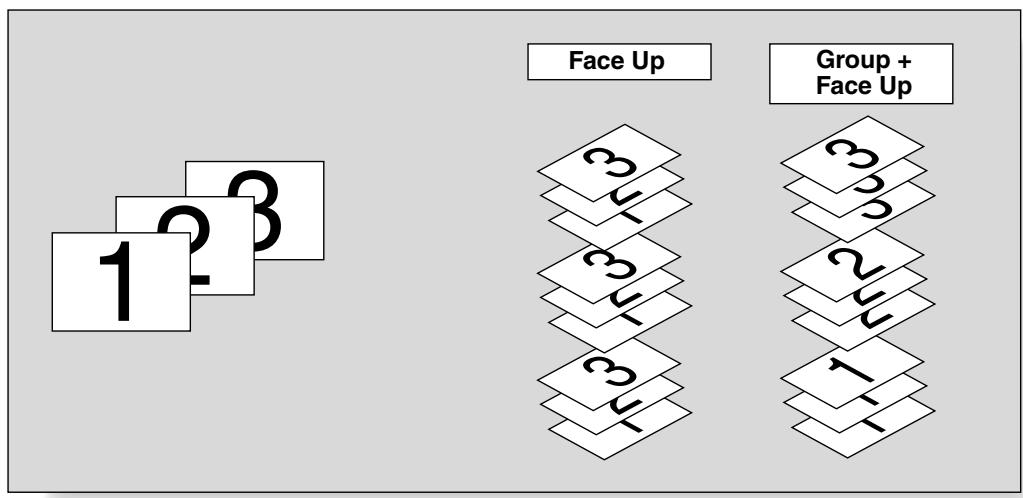

Press OUTPUT on the control panel.

Select the desired exit tray.
Touch to highlight the desired exit tray key in the EXIT area.
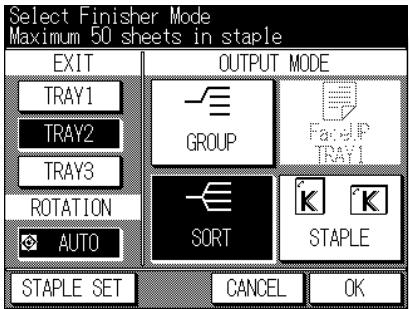

When starting a new copying job, be sure to close the RADF securely, then press AUTO RESET.
To set Non-sort, Sort, or Group mode: Select TRAY 2 or TRAY 3, then proceed to step ③.
To set Staple mode: Select TRAY 2 or TRAY 3, then proceed to step 4.
To set Face Up mode: Select TRAY 1, then proceed to step 6.

Select the desired output mode.
Touch to highlight the desired output mode key in the OUTPUT MODE area.
To select Non-sort mode, deselect all the keys.

Key operator can change the initial output mode. See p. 12-10.
Proceed to step ⑦.

Touch STAPLE SET

Select the desired staple position, then touch OK
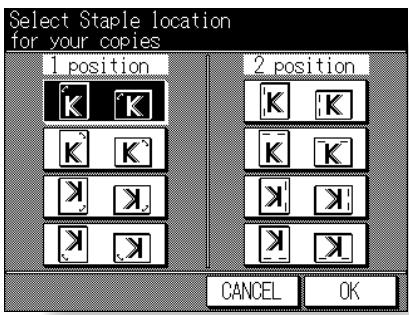
The Output Mode Screen will be restored, with SORT and STAPLE keys highlighted automatically.
Proceed to step ⑦.
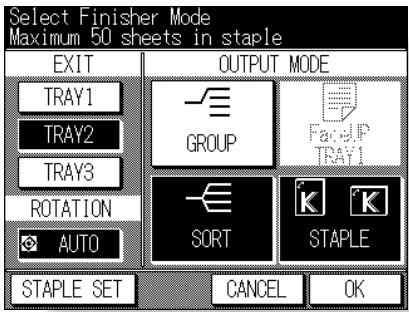

Select the desired output mode.
Touch to highlight the desired output mode key in the OUTPUT MODE area.
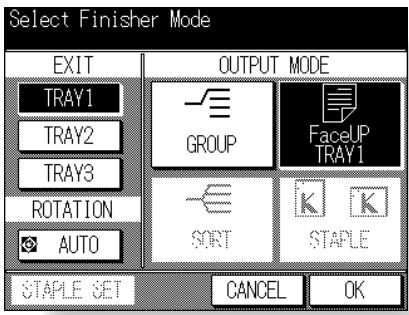

Touch OK
The Basic Screen will be restored.

Select additional copy conditions, as desired.

Enter the desired print quantity from the control panel keypad.

Position original(s).

Press

START

CAUTION
When the finisher exit tray capacity is exceeded due to the print quantity selected, remove the copied sets as they exit; otherwise, mishandled paper will occur.

FOR DETAILS
When TRAY 1 is selected, the SORT and STAPLE mode keys are dimmed to show inactivity.
Touch FaceUP TRAY1, or touch both FaceUP TRAY1 and GROUP to specify the output mode.

FOR DETAILS
The finisher mode icon (Non-sort: None, Sort: 三 Group: Staple: Face Up: or staple position icon appears/ disappears in the message area of the screen to indicate the selected output mode.
HINTS
See p. 9-3 to be sure that the finisher capacity is not exceeded.
HINTS
See p. 3-2 to p. 3-5 for details on positioning originals.

FOR DETAILS
Press to suspend the scanning or printing job.
Checking Feature Selections and Proof Copying
Use the Check mode to confirm copying selections before starting print operation. In this mode, use Proof copy to produce a sample of the copied set before making multiple copies. This is a convenient and cost effective way of viewing the results of the following copying selections.
- Copying conditions using Store mode
Booklet - Sheet/Cover insertion
- Image insert
Chapter - Dual page
Combination
Specifications for Check Mode and Proof Copy
Proof copy is available when using RADF, or Platen store mode for multiple originals.
Proof copy cannot be used for testing the Userset density.
Proof copy is unavailable with Group.

Select the desired copy conditions and enter the desired print quantity.

Position original(s).

Press CHECK on the control panel.
Verify the settings made for the current job.
- When a set of sample copy is needed, proceed to step 4.
- When settings are OK, proceed to step 8.
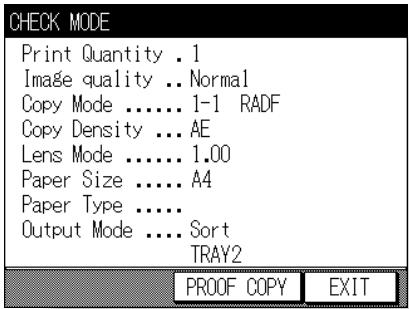
- When any setting change is required before proof copying, touch EXIT to return to the Basic Screen, then change settings, as required.

When starting a new copying job, be sure to close the RADF securely, then press AUTO RESET.

See p. 3-2 to p. 3-5 for details on positioning originals.

Pressing or AUTO RESET will clear all the settings made.

Touch PROOF COPY on the Check Screen, or press on the control panel.
A set of sample copy will be output.
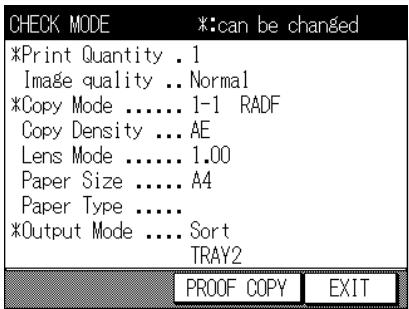
After proof copying, the Check Screen displays * mark on the left of some settings that can be changed.
- When the copy result is satisfactory, proceed to step ⑦.
- When any setting change is required, proceed to step ⑤.

Touch EXIT
The Basic Screen will be restored.
Change settings that can be changed after proof copying, as desired.

Press to display the Check Screen, then repeat proof copying, as required.

Change the print quantity, as required.

Press START
If the print quantity is not changed, the copier will output the rest except the sample sets.

CAUTION
When the finisher / paper exit tray capacity is exceeded due to the print quantity selected, remove the copied sets as they exit; otherwise, mishandled paper will occur.

Press to suspend the proof copying. In this case, the scanned image data will not be deleted from memory.

If the desired selection cannot be changed, press STOP/CLEAR to delete all the data in memory, then press AUTO RESET to restart the job setting.
desired selection cannot be all the data in memory, press AUTO RESET to restart job setting.

DETAILS
Proof copy can be performed as needed, until the print quantity amount on the Basic Screen reaches zero. (Note that the print quantity amount on the Check Screen does not change.)
If required, change the print quantity on the Basic Screen.
Use the Interrupt mode to interrupt copying in progress to perform a simple job. When interrupt copying is completed, the settings for the initial job restore automatically and the Basic Screen displays.
Interrupt copying is available when the copier is performing the following operations:
- Continuously printing the image stored in memory
- Scanning the originals into memory
- Scanning the originals into memory while printing in Reserve mode
- In PRINT mode
Specifications for Interrupt Mode
The Interrupt mode cannot be selected with the following copier conditions:
The Basic Screen is not displayed.
The Call for Service message displays or a paper misfeed occurs.
Incompatible: Reserve

Press = on the control panel.
The = LED goes on and SETTING on the Basic Screen changes to
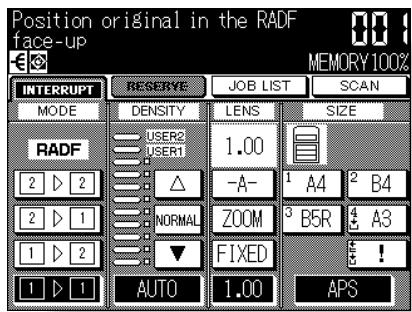

Set copy conditions, as desired.
All copying features are compatible except Reserve mode.
The settings in Interrupt mode are as follows.
Copy Mode : 1▶1
RADF : ON
AE : ON
Lens Mode : 1.00 (100%)
APS : ON
Print Quantity : 1
Finisher : Exit tray 2 in Sort mode

Position original(s).

The timing to enter the Interrupt mode varies according to the job in progress on the machine when = J is pressed. See the following page.

In Reserve mode, pressing = before the copier finishes scanning the reserve job originals clears the settings selected for the reserve job. For details of Reserve mode, see p. 3-22 to p. 3-23.

Remove any document from the platen glass or from the document feeder, if present.

See p. 3-2 to p. 3-5 for details on positioning originals.

Press ing.

START
to start the interrupt copy

When Interrupt copying is completed, press = again.
The LED goes out and interrupt on the Basic Screen returns to SETTING.
The settings of the initial job will be restored on the Basic Screen.

Press

START
to resume copying.

CAUTION
When the finisher / paper exit tray capacity is exceeded due to the print quantity selected, remove the copied sets as they exit; otherwise, mishandled paper will occur.

When is
When is pressed during Interrupt copying, the information displayed reflects the initial copy job settings. Check mode will not display Interrupt copy job information.

DETAILS
For particular jobs in progress, copying will cease only after certain phases of the immediate operation are completed, as indicated by the = LED conditions described below.
INTERRUPT
Collectively printing image stored in memory The LED blinks until one set of the current job is printed. Then the LED remains steady for the temporary job performed in Interrupt mode.
- Scanning originals into memory
- The LED blinks until scanning is completed for all originals placed in the document feeder. Then, the LED remains steady for the temporary job performed in Interrupt mode.
- Scanning originals into memory while printing in Reserve mode
- The LED blinks until the copier completes the current printing job, scans all originals placed on the document feeder, and prints one set of the Reserved job. The LED remains steady for the temporary job performed in Interrupt mode.
SECTION
4
Job Memory & Help Mode
How to Use Helpful Function
Storing Job Conditions (Job Memory: Job Store) 4-2
Recalling Stored Job Settings (Job Memory: Job Recall) 4-5
Displaying Screen for Operation Guide (Help Mode) 4-6
Storing Job Conditions (Job Memory: Job Store)
Use Job Store to store up to 15 frequently used copy job settings, which can be recalled at any time. The stored jobs can be given alphabetical names.
Specifications for Job Memory
All copying functions can be selected.
Interrupt mode cannot be used while in Job Memory.

Make job selections from the Basic Screen, Application Selection Screen, and/or Output Mode Screen.

Press M on the control panel.
The Job No. Selection Screen will be displayed.

Touch ENTRY
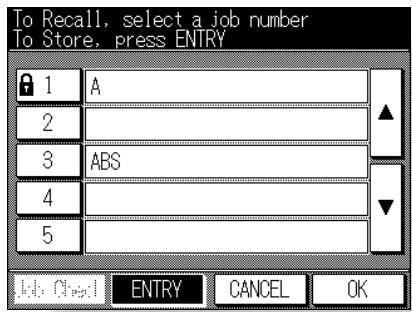

Review the settings on the Job Store Check Screen.
Check that the selections made in step ① are correctly entered.
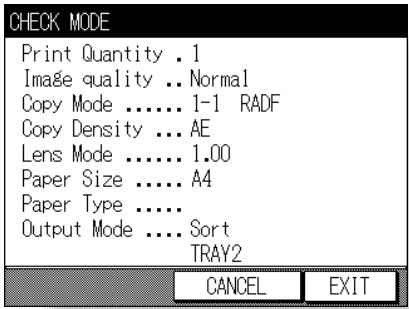

When starting a new copying job, be sure to close the RADF securely, then press AUTO RESET.

If any correction is required, touch CANCEL to return to the Basic Screen. Make new selections, then restart the Job Store operation from step 2.

Touch OK
The Job No. Selection Screen will be restored.

Touch to highlight one of the keys numbered from 1~15 to store the job under that number.
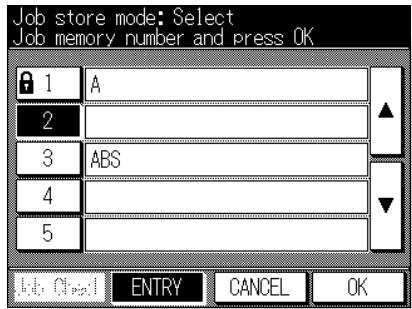
The screen displays 5 job number keys on the left. Arrow keys ( /) on the right side can be used to scroll through the 15 job numbers.
A blank key indicates that no job is stored under that key.
A named job without a lock icon (F) displayed can be overwritten.
The key with a lock icon ( ) displayed is locked and cannot be selected.

Touch OK
The Job Name Registration Screen will be displayed.

Enter a job name.
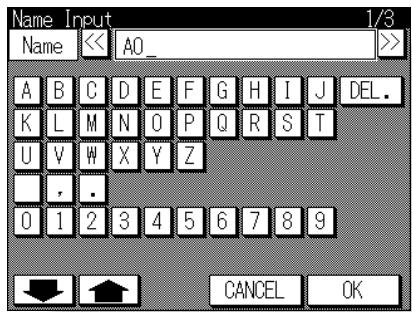
FORDETAILS
To suspend the storing job after step 5, press AUTO RESET
Job Memory mode will be cancelled, and the Basic Screen will return from any screen.
HINTS
To lock or unlock a job, and to delete a locked job, see p. 12-21.
FORDETAILS
If you wish to cancel the job No. selection, touch CANCEL to restore the Basic Screen, which displays the settings made in step 1.
If you wish to cancel the settings, press AUTORESET.
HINTS
For details on entering a job name, see the following page.

Touch OK
The Job No. Selection Screen will be restored.
Check that the job name has been correctly entered.
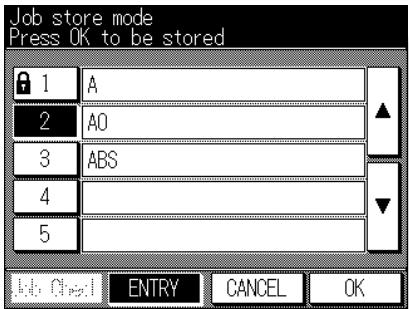

DETAILS
[*] displayed on the screen indicates that a job is stored but unnamed.
HINTS

Touch OK to complete the setting and return to the Basic Screen.
Job Memory entries can be recorded on the Job Memory Form included at the end of this section.

Entering a job name
- Enter a job name in up to 24 characters, using the touch screen alphabet keypad.
- If required, scroll with and to use lower case and symbol keys.
- To correct an entry, touch DEL. repeatedly to delete each character entered, then enter the correct job name.
- If you do not wish to enter a name, touch CANCEL. The key displays [*] in place of a name.
When changing the name of a job previously stored, touch DEL. repeatedly to delete the previous name, then enter the new name.
Recalling Stored Job Settings (Job Memory: Job Recall)
Use Job Recall to recall jobs that are already stored in Job Memory.

Press M on the control panel.
The Job No. Selection Screen will be displayed.

Touch to highlight a Job No. key to select a job you want to recall.
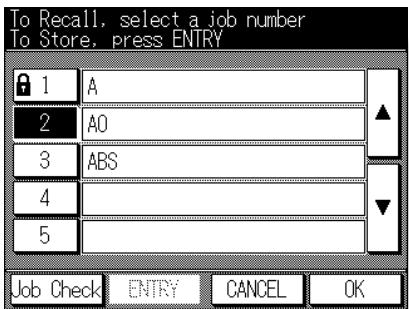
If required, scroll with the arrows ( / ) to reach the desired Job No. key (1~15).

If desired, touch Job Check
The Job Recall Check Screen displays to enable you to review the settings.
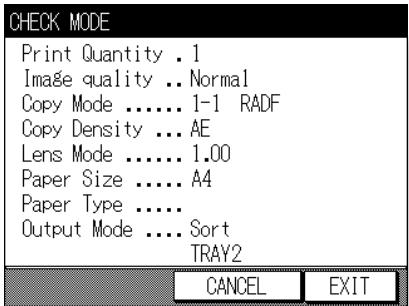

Touch OK
The settings of the selected job will be recalled on the restored Basic Screen.

Position original(s), then press (1) to print.
FORDETAILS
To cancel the recall mode, touch CANCEL to return to the Basic Screen.
Displaying Screen for Operation Guide (Help Mode)
The Help Screen provides you with the information about the current screen mode and about setting procedures. Help mode can be accessed from any screen except Job Memory and Key Operator Screens.
Help Mode provides two types of Help Screen according to the current screen mode:
(1) Help Screen accessed from Basic Screen
② Help Screen accessed from screens other than Basic Screen
■ To Display Help Screen from Basic Screen

Return to the Basic Screen, then press


Touch the desired key to display specific information.
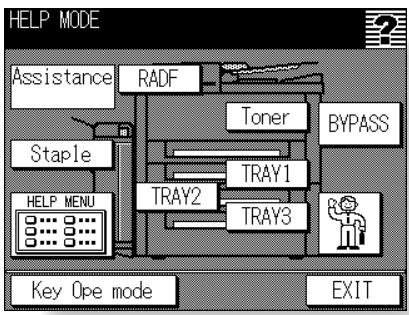

Touch Key Ope mode to enter the Key operator mode. See p. 12-2.
: Displays the Help Menu Screen which provides a list of all of the copier functions.
When a function item is touched, the Help Screen displays information specific to that topic.

See the following page for details of the Help Menu Screen.

: Provides information on replacing staple cartridge.

Touch on the Help Screen, if provided, to scroll to the next page.
: Displays the extension number of the Key operator.
Touch to return to the previous page.

: Provides information on positioning originals in the document feeder.
: Provides information on adding toner.

: Provides information on loading paper into the Multi-sheet bypass tray.
: Displays the phone/fax number of your service centre.
: Provides information on loading paper in each tray.

Touch EXIT , or press ? to return to the Basic Screen.

Help Menu Screen
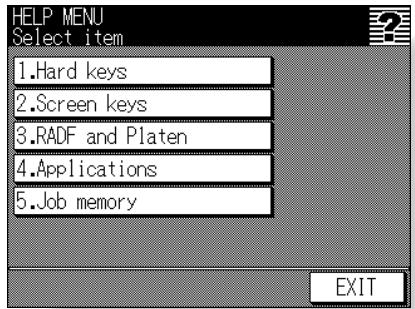
Select one of the 5 Help menu items on the Help Menu Screen to display subsequent Help Screens.
Touch on the Help Screen, if provided, to scroll to the next page.
Touch to return to the previous page.
- "1. Hard keys" displays the information on control panel buttons.
- "2. Screen keys" displays the description of active, inactive and highlighted keys on the touch screen.
- "3. RADF and Platen" displays the information on unsuitable RADF originals and maintenance of the document feeder and platen glass.
- "4. Applications" displays operational information on 16 application functions provided on the Application Selection Screen.
- "5. Job memory" displays the information on Job Memory.

Job Memory
Help Mode
■ To Display Help Screen from Other Screens

While in any screen other than the Basic Screen, press ? HELP
The Help Screen displays to provide the information about the current screen mode and setting procedures.

Some screen mode may not have Help Screens for that topic.

Touch on the Help Screen, if provided, to scroll to the next page.
Touch to return to the previous page.

Touch EXIT
The screen that was displayed before pressing 3 will be restored.
SECTION
5
Troubleshooting
How to Handle Machine Troubles
When "Call for Service" Message Is Displayed 5-2
Preventive Maintenance. 5-4
Clearing Mishandled Paper 5-5
When “JAM” Appears on “SETTING” Key 5-7
When "ADD PAPER" Appears on "SETTING" Key 5-9
When "Memory Full" Message Is Displayed (Memory Overflow) .. 5-10
When Power OFF/ON Screen Is Displayed 5-12
Troubleshooting Tips 5-13
When “Call for Service” Message Is Displayed
A "Call for Service" message indicates a machine condition that requires the attention of your Konica service centre.
The Call for Service Screen usually displays the telephone and facsimile numbers of your service centre.
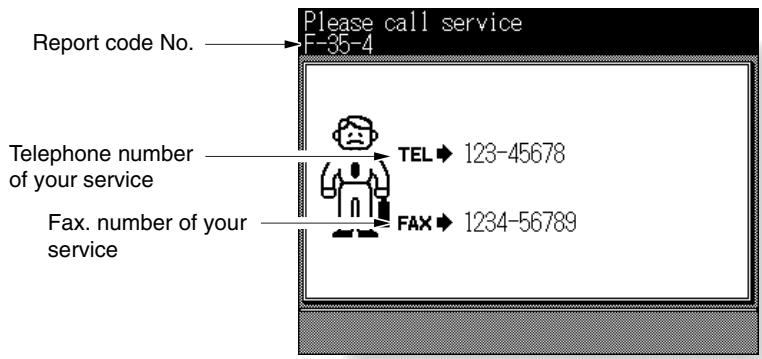

CAUTION
When the Call for Service Screen is displayed, be sure to contact your Konica service centre immediately by following the procedure below.

Make note of the Report code No. indicated in the second line of the message area.

Turn OFF the power switch and main power switch.
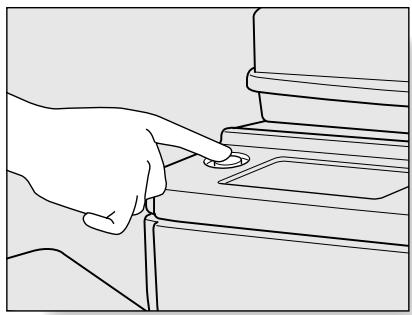
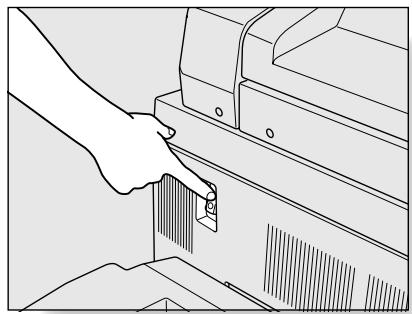

In the event the machine with the Remote Diagnostics option is automatically monitored by a Konica service centre, the key operator can call for service using the key operator setting. See p. 12-41.

After calling for service using the key operator setting, be sure to turn OFF the power switch and main power switch immediately, then unplug the machine as described here.

Unplug the machine.

Contact your Konica service centre and report the condition and code No.

Limited Use of the Copier in Trouble
If the message shown below is displayed on the Call for Service Screen, you may continue operating the copier on a limited function basis and utilize the trays and ADU that are not affected by the trouble. To obtain this limited functionality of the copier, consult your Konica service centre. Be sure to utilize the limited function only temporarily, and arrange for machine repair immediately.
- If the limited use of the copier is available, the following message is displayed in the message area instead of the Report code.
ex.
Tray 2 failure
Press AUTO to select except this tray
- Press

Please switch ON/OFF
E 18-2
- Turn OFF then ON the power switch.
A copying job can be continued without using the troubled portion of the machine (ex. Tray 2).

CAUTION
EVEN IF THE COOPYING JOB CAN BE CONTINUED WITH THE ABOVE OPERATION, BE SURE TO CONTACT YOUR KONICA SERVICE CENTRE IMMEDIATELYWHEN THE CALL FOR SERVICE SCREEN IS DISPLAYED.
Preventive Maintenance
After a set number of copies have been made on your copier, Preventive Maintenance (PM) will be required for maintaining optimal performance.
When preventive maintenance is due, a message and an icon ( ) will prompt you to contact your service centre for maintenance.
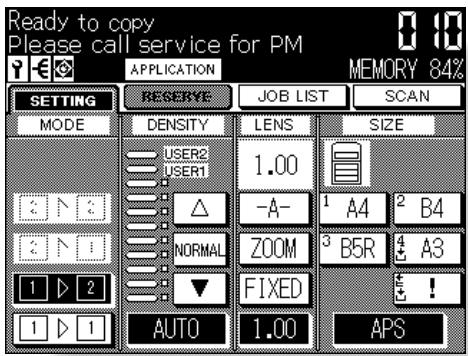
Clearing Mishandled Paper
When a paper misfeed occurs, the copier stops making copies and mishandled paper codes display on the screen to indicate misfeed area(s). Copying operation cannot be continued until all the misfeed locations are cleared.
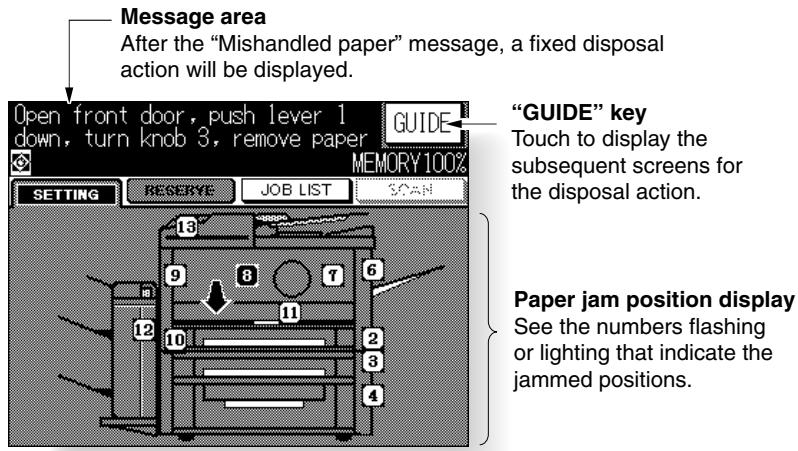
FOR DETAILS
The above screen displays all the jam numbers for the sake of explanation. Actually a few numbers appear when a paper misfeed occurs.
- When removing mishandled paper, be sure to leave no torn paper inside the machine.

Touch GUIDE on the screen.
The screen illustrating the method for the disposal action will be displayed.

Follow the procedure on the screen to remove misfed paper.
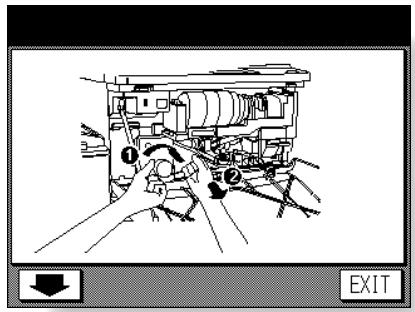
Please Be Reminded!
Before performing the clearing procedure, see p. 1-2 for the caution label locations inside the machine.
FOR DETAILS
Touch on the screen, if provided, to go to the next page of a series of illustrations.

When completed, touch EXIT
If any misfeed location is left, the screen displays the next disposal procedure in the message area and the location number in the jam position display. Repeat steps 1 to 3 until all the locations are cleared.
The Basic Screen will be restored when all procedures are completed.

WARNING
The drum unit generates high voltage. To avoid bodily electrical shock, NEVER TOUCH the area.

CAUTION
The internal fixing unit is very hot. To avoid getting burned, DO NOT TOUCH.

CAUTION
Be careful of removing staples stuck inside the machine so as not to get injured.

CAUTION
DO NOT INSERT your finger into the two RADF hinge portions, otherwise you may be injured.
When “JAM” Appears on “SETTING” Key
If a misfeed occurs with the print/scan job in progress while you are setting a reserve job, SETTING on the Basic Screen will change to flashing JAM.
Follow the procedure below to remove mishandled paper.
"JAM" flashes when a misfeed occurs during a reserve job setting.
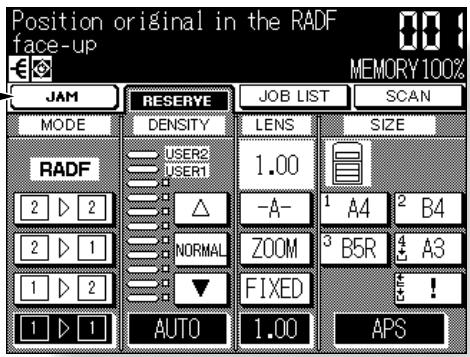

Touch JAM
The Jam Position Screen will be displayed.

Touch GUIDE
The screen illustrating the method for the disposal action will be displayed.
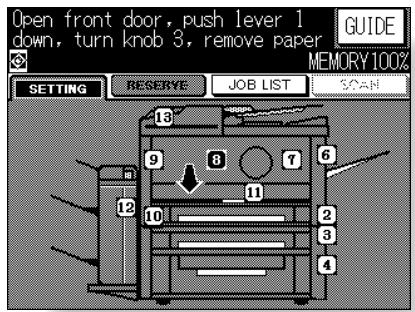

Follow the procedure on the screen to remove misfed paper.
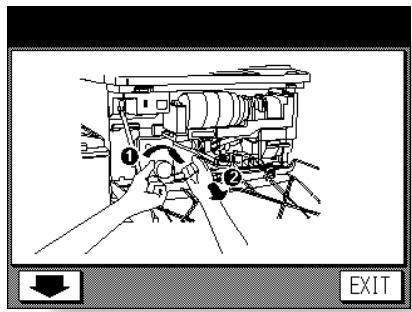

See p. 5-5 to p. 5-6 for details on clearing procedure.

Before performing the clearing procedure, see p. 1-2 for the caution label locations inside the machine.

Touch on the screen, if provided, to go to the next page of a series of illustrations.

When completed, touch EXIT
The Basic Screen will be restored when all procedures are completed.
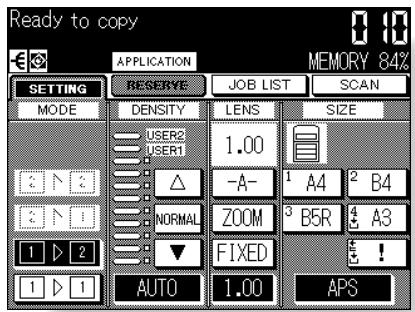

DETAILS
JAM has changed to SETTING, and the settings for the scan/print job are displayed on the screen.

Press

The scan/print job will resume.

Touch RESERVE to continue the reserve job setting.

WARNING
The drum unit generates high voltage. To avoid bodily electrical shock, NEVER TOUCH the area.

CAUTION
The internal fixing unit is very hot. To avoid getting burned, DO NOT TOUCH.

CAUTION
Be careful of removing staples stuck inside the machine so as not to get injured.

CAUTION
DO NOT INSERT your finger into the two RADF hinge portions, otherwise you may be injured.
When “ADD PAPER” Appears on “SETTING” Key
If the paper supply for a print job in progress becomes depleted while you are setting a reserve job, SETTING on the Basic Screen will change to flashing ADD PAPER
Follow the procedure below to continue the copying operation.
"ADD PAPER" flashes when paper supply becomes depleted during a reserve job setting.
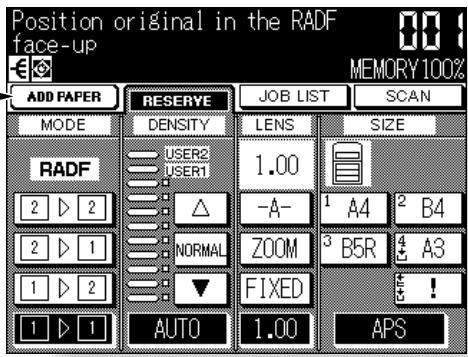

Touch ADD PAPER
The Basic Screen for the print job will be displayed.

Check the flashing tray key, then supply that empty tray with copy paper.
When paper supply is completed, ADD PAPER changes to SETTING

Press START
The print job will resume.

Touch RESERVE to continue the reserve job setting.

See p. 2-16 to p. 2-19 for details on loading paper.
When “Memory Full” Message Is Displayed (Memory Overflow)
In certain modes, this printer/copier uses memory to make operations convenient and smooth flowing. Occasional memory overflow may occur if the installed memory is inadequate for the copy conditions selected.
Memory overflow messages are displayed as follows:
If continuous working check output after copying
-Memory full - Start => START key Cancel => ST/CL key
To handle the Memory overflow condition while in a job, take the appropriate action indicated below. These actions enable you to continue the job or suspend the job.
HINTS
Should memory overflow occur frequently, it is recommended that you contact your Konica service centre to extend the memory capacity in your machine.
When
If continuous working check output after copying
Displays
The above message displays when copying in Group mode without Store mode selected.

Wait until the current operation is completed.
When the machine stops copying after producing one copied set irrespective of the set print quantity, all the data in memory will be erased.

Check the original pages, then position originals again.

Press to complete the job.

FORDETAILS
Positioning the same number of originals may cause the memory overflow again.
Arrange the original pages to lighten a burden to memory.

When
-Memory full- Start START key Cancel ST/CL key
Displays

Wait until the current operation is completed.
The machine stops copying after producing one copied set irrespective of the set print quantity. When scanning in Store mode, however, the machine stops without producing a copied set. At this time, all the data still remains in memory.

Press 1 START
to continue copying.
The machine will output the scanned data for job completion in the amount remaining in the print quantity setting.

The following message displays.
If continuous working check output after copying
All the data in memory will be erased with this message displayed.

Check the original pages, then press to complete the job.
START
Check pages of the discharged set to confirm the amount of missing data, then complete the job according to the print quantity remaining.

DETAILS
To suspend the job:
Press to save the job settings. All scanned data will be erased.
Or, press AUTO RESET to clear the job and resume initial settings.
When Power OFF/ON Screen Is Displayed
When any trouble affects the electric signal of the copier, the Power OFF/ON Screen will be displayed.
Service can set the machine to display this screen which does not appear in the initial condition. Please contact your service centre, if desired.
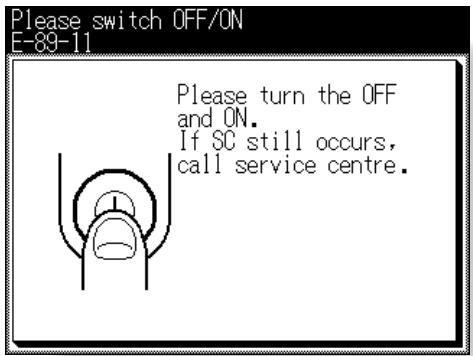

Turn OFF the power switch.
The main power switch is not required to be turned off.
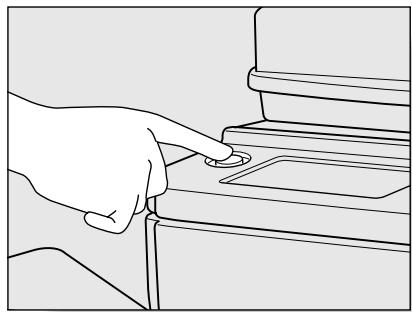

Wait about 10 seconds.

Turn ON the power switch.
COPIER DOES NOT OPERATE WHEN POWER SWITCH IS ON
Fully insert paper trays.
Close RADF.
Be sure power plug is firmly inserted in electrical socket.
COPY IMAGE IS TOO LIGHT
Manually adjust copy density to darker density.
Check toner indicator and add toner, if required.
Check paper for dampness. Do not leave paper in copier when humidity is high.
Check to see if Photo, Text, or Increase Contrast mode is required.
Check the Density shift.
COPY IMAGE IS TOO DARK
Manually adjust copy density to lighter density.
Check to see if Photo, Text, or Increase Contrast mode is required.
Check the Density shift.
COPY IMAGE IS NOT CLEAN OR SHOWS SPOTS
Use clean originals since dirt marks may be copied.
Keep platen glass and inner surface of document cover clean.
Call for service if "Call for service" is displayed in the message area.
Check density indicator and lighten if required.
COPY PAPER MISHANDLES DURING COPYING
Fan copy paper and load it with curl side in proper location. Do not exceed the tray capacity.
COPY IMAGE CAN BE RUBBED OFF
Check copy paper thickness. Use Thick paper mode, if paper weight requires it.
MAGNIFICATION CANNOT BE CHANGED
Image Shift and Reduce & Shift are incompatible with magnification.
Press 口 AUTO RESET and set desired copying conditions without using Image Shift or Reduce &Shift.
THE TOUCH SCREEN PAPER SIZE INDICATOR DISPLAYS !] ON THE TRAY
The !] symbol indicates that the paper loaded in the tray is inconsistent with the tray position setting.
DUPLEX MODES CANNOT BE SELECTED
Fully close ADU and RADF, then select Duplex mode again.
COPYING DOES NOT BEGIN AFTER PRESSING START
Insert or adjust the appropriate paper tray for paper size selected.
Close document cover firmly.
Close front door completely.
COPYING DOES NOT RESUME AFTER MISHHANDLED PAPER IS REMOVED
Check copier diagram on touch screen for additional indications of mishandled paper.
COPY QUALITY IS POOR
Check paper for dampness, and replace it if necessary.
THE ORIGINAL PAPER IS MISHHANDLED OR SKEWED IN THE DOCUMENT FEEDER
Originals should conform to the recommended size and weight.
Be sure originals are not stapled.
Align originals evenly in the RADF.
Check to make sure paper guides meet the width of mixed size originals.
COPY IMAGE IS SKEWED WHEN BYPASS IS USED
Be sure copy paper is inserted straight.
USING EKC, COPIES CANNOT BE MADE AFTER PASSWORD IS ENTERED
Check to see if the message EXCEEDS LIMIT is displayed.
Contact key operator to reset limit.
FINISHER DOES NOT OPERATE
Press OUTPUT
Remove mishandled paper if any exists. Properly close finisher door.
RADF INDICATOR WILL NOT LIGHT AFTER AUTO RESET IS PRESSED
Fully close RADF.
ADD TONERMESSAGE IS DISPLAYED
New toner supply is needed. Follow instructions for adding toner.
CALL FOR PM IS DISPLAYED INMESSAGE AREA
Contact your service centre for Preventive Maintenance.
APS SELECTS THE WRONG PAPER SIZE
RADF paper guides must be adjusted exactly to the size of originals.
IN MIXED ORIGINAL MODE, AMESSAGE TO LOAD A REQUIRED PAPER SIZE DISPLAYS, EVEN THOUGH THAT SIZE IS LOADED IN ONE OF THE TRAYS
Paper sizes loaded in the trays must be consistent with the tray position size; otherwise, the [!] symbol will be displayed on the Paper size indicator of the Basic Screen.
THE BASIC SCREEN DOES NOT DISPLAY SETTINGS AS DESCRIBED IN INSTRUCTION MANUAL
Check with the key operator, as Initial Settings may have been changed.
PLEASE CHECK ORIGINAL
This message displays when the copier detects a non-standard paper size on the platen glass.
Select paper size and press . 1.00 magnification will be selected automatically.
If this message continues to display after selecting paper size, select 1.00 magnification, even if it is already indicated, then press START
If desired, ask your Konica service centre to enable the machine to default to 1.00 magnification in this situation.
SHEET INSERTION RESULT IS NOT AS EXPECTED
Blank insertion: Be sure originals do not already include blank sheets in the locations designated for sheet insertion.
Copy insertion: To ensure that chapter sheets in 1 2 mode always appear on the right hand side in the finished set, insertion sheets must be designated on the page setting screen with odd numbers, not even. If required, make an even numbered original page odd by inserting a blank sheet in front of that page, so that the blank sheet is even and the insertion sheet is odd.
FINISHER STAPLE RESULT IS NOT AS EXPECTED
The 2 staple position functions only on copy paper that is loaded vertically (portrait style).
SECTION
6
Machine Specifications
Main Body & Option Specifications and Copy Materials
Main Body Specifications 6-2
Option Specifications 6-3
Main Body
Name: Konica 7045
Type: Console type
Transfer method: Indirect electrostatic method
Platen glass: Fixed
Light-sensitive unit: OPC
Light source: Xenon lamp
Developing method: Dry, 2-component magnetic brush developing
Fixing method: Heat roller
Density adjustment: Automatic and manual (9 steps)
Magnification ratio: 1:1 ± 1.0%
Enlargement: 1:1.150 (115%), 1:1.220 (122%), 1:1.410 (141%)
Reduction: 1:0.860 (86%), 1:0.820 (82%), 1:0.710 (71%)
Zoom/Special ratio magnification ratio: 25% to 400% in 1% increments
Userset: 3
Copy paper: Plain paper: 50 to 130g / m^2 for Multi-sheet bypass tray 60 to 90g / m^2 for main body and drawer base trays Special paper: OHP film, Labels, Tab, 3-hole
Copying speed: 45 copies/min. (A4), 31 copies/min. (A4R), 23 copies/min. (A3), 45 copies/min. (B5), 26 copies/min. (B4), 34 copies/min. (B5R)
Continuous copying: 1 to 999 copies
Types of original: Sheet, book originals
Original size: A3 maximum
Copy size: A3 to B6 size (image cutoff width: leading and trailing ends 4.5 mm ± 1.5 mm, top and bottom 1.5 mm ± 1.5 mm)
Paper supply method: Tray 1 (universal); 500 sheets (80g / m^2) (main body tray) Tray 2 (universal); 500 sheets (80g / m^2) (DB-208/208A/608 option) Tray 3 (universal); 500 sheets (80g / m^2) (DB-208 option) Tray 3 (fixed); 1,500 sheets (80g / m^2) (DB-608 option) Tray 4 (universal); 500 sheets (80g / m^2) (DB-208 option) Multi-sheet bypass tray; 100 sheets (80g / m^2)
Warm-up time: Approximately 90 seconds
First copy time: Approx. 3.9 seconds (A4)
Power: AC 230V/50Hz (This equipment selects the correct voltage automatically.)
Power consumption: 1.8KW max. (with option)
Sound power level: 71dB max. (with option)
Weight: Approx. 104kg (main body + RADF)
Size: 647(W) x 706(D) x 1145(H) mm (main body + RADF + DB)
1192(W) x 706(D) x 1145(H) mm (main body + RADF + Finisher + DB)
Effective size*: 853(W) x 706(D) mm (main body + RADF) 1398(W) x 706(D) mm (main body + RADF + Finisher + DB)
*: Effective size is the dimensions required when the Multi-sheet bypass tray is opened.
These specifications are subject to change without notice.
■ RADF (DF-315)
Function: Feeds 1- and 2-sided originals automatically
Type of original: Plain paper (50 to 130g / m^2 )
Original size: A3, B4, F4, A4, A4R, B5, B5R, A5, A5R, 8.5".
Original capacity: 50 sheets max. (80g / m^2) Original insertion: Automatic feed at a time
Power source: Supply from main body
*: 8.5"x11" size is available in portrait orientation only.
■ FS-109 In-Bin Stapler Finisher
Type: Offset catch tray
Sorting system: Sorting by shifting (30± 2mm) Types of paper: A3, B4, F4, A4R, A4, B5R, B5, A5, A5R, 8.5"x14", 8.5"x11", 8.5"x11"R (60 to 110g / m^2 paper)
Number of stapled sheet: 50 sheets max. or 5 mm or less (80g/m² paper)
Staple cartridge: 5,000 staples
Dimensions: 545.4(W) x 599.2(D) x 623.2(H) mm
Weight: Approx. 37kg
Power source: Supply from main body
DB-208DrawerBaseUnit
Function: Paper feed into main body
Configuration: 3 trays
Capacity: Tray 2 (upper)/ Tray 3 (middle)/ Tray 4 (lower); 500 sheets each
Types of paper: A3, B4, F4, A4R, A4, B5R, B5, A5R, 8.5"x14", 8.5"x11"R (64g to 90g/m² plain/recycled paper)
Power source: Supply from main body
DB-208ADrawerBaseUnit
Function: Paper feed into main body; storage for copy material
Configuration: 1 tray and a storage
Capacity: Tray 2 ; 500 sheets
Types of paper: A3, B4, F4, A4R, A4, B5R, B5, A5R, 8.5"x14", 8.5"x11"R (64g to 90g/m² plain/recycled paper)
Power source: Supply from main body
DB-608DrawerBaseUnit
Function: Paper feed into main body
Configuration: 2 trays
Capacity: Tray 2 ; 500 sheets
Tray 3 ; 1,500 sheets
Types of paper: Tray 2 (universal); A3, B4, F4, A4R, A4, B5R, B5, A5R, 8.5"x14", 8.5"x11"R (64g to 90g/m² plain/recycled paper)
Tray 3; Fixed to A4 (can be changed to A4R, B5R, B5, 8.5"x11", or 8.5"x11"R) (64g to 90g/m² plain/recycled paper)
Power source: Supply from main body
Expanded Memory Unit
MU-403:32MB
MU-404:64MB
MU-405:128MB
Others
Remote Diagnostics
Key Counter
Advanced
SECTION
7
Advanced Information
Advanced Function and Touch Screen
Programmed Shut Off (Weekly Timer) 7-2
Advanced Touch Screens 7-4
Rotation 7-9
Vertical/Horizontal Zoom Mode 7-11
Programmed Shut Off (Weekly Timer)
The Weekly timer function manages a copier to be turned on and off at the time specified by the key operator to disable copying during off time.
This function is not factory-set.
When a copier is under control of the weekly timer function, the TIMER indicator on the right side of the control panel is lit.
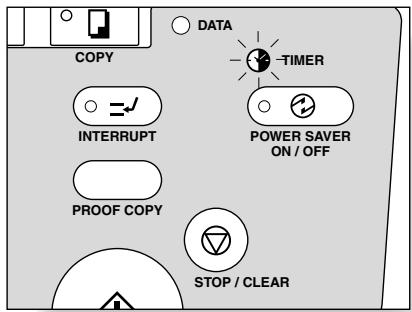
IMPORTANT: WHEN THE TIMER INDICATOR IS LIT, THE COPIER WILL TURN OFF AUTOMATICALLY. DO NOT TURN IT OFF BY PRESSING POWER SWITCH.
When the TIMER indicator light is on and other indicators are off, copying is unavailable due to the weekly timer function.
However, copying will be available by using the following procedure.

Press on the control panel.
POWER SAVER ON/OFF
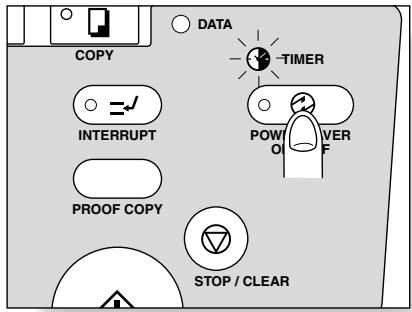
The Basic screen will be displayed along with the message shown below.
Timer interrupt mode
Enter password
The timer interrupt password is not factory set and must be entered by the key operator.
In the event the timer interrupt password has not been entered by the key operator, the following message will display instead.
Input copy time is
0 hour(s) 05 minute(s)
When the above message displays, proceed to step 4.

For details of the Weekly timer function, see p. 12-25 to p. 12-31.

DETAILS
The machine power will be turned off automatically after 5 minutes from this state.

Enter the password.
Enter a 4-digit number timer interrupt password using the keypad on the control panel.

Press

The following message will be displayed on the Basic Screen.
Input copy time is
0 hour(s) 05 minute(s)

Set the hour for the interrupt use.
Enter a 1-digit hour (ex. 3 hours is 3) using the keypad on the control panel. (0 9)

Press

START
Your copy time is
3 hour(s) 05 minute(s)

Set the minute for the interrupt use.
Enter a 2-digit minute (ex. 7 minutes is 07) using the keypad on the control panel. (00 59)
Your copy time is
3 hour(s) 07 minute(s)

Press

START
Copying is available until the set time is up.
When timer interrupt of the copier is finished, press

The copier returns to the OFF condition and copying is again disabled.

For setting the timer interrupt password, see p. 12-31.

If an invalid password is entered, continue by entering the valid 4-digit password.

DETAILS
Entering a number smaller than 5 will set the minute at 5.
The following pages describe main screen except Basic and Application Screens and how to display them.
■ Checking Machine Status (Job List Screen)
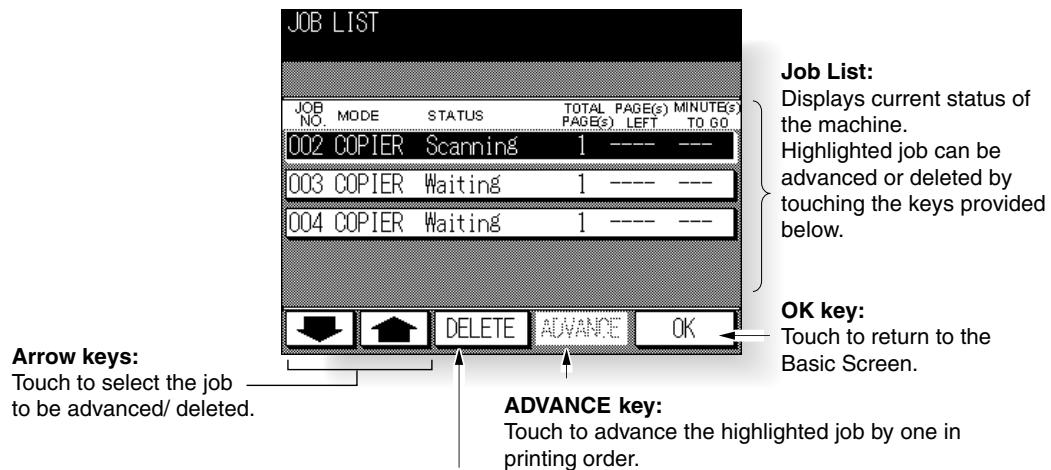
DELETE key: Touch to delete the highlighted job.
The Job List Screen displays when JOB LIST is touched on the Basic Screen.
This screen allows you to view the machine status.

See p. 3-24 to p. 3-25 for details.
Setting Output Mode (Output Mode Screen)
The Output Mode Screen displays when is pressed on the control panel. The following settings are available on the Output Mode Screen.
For the machine with finisher installed:
- Selecting the exit tray (p. 3-29)
- Selecting the output mode (p. 3-30)
- Selecting the staple position (p. 3-30)
- Activating/Deactivating the Rotation function (p. 7-9)
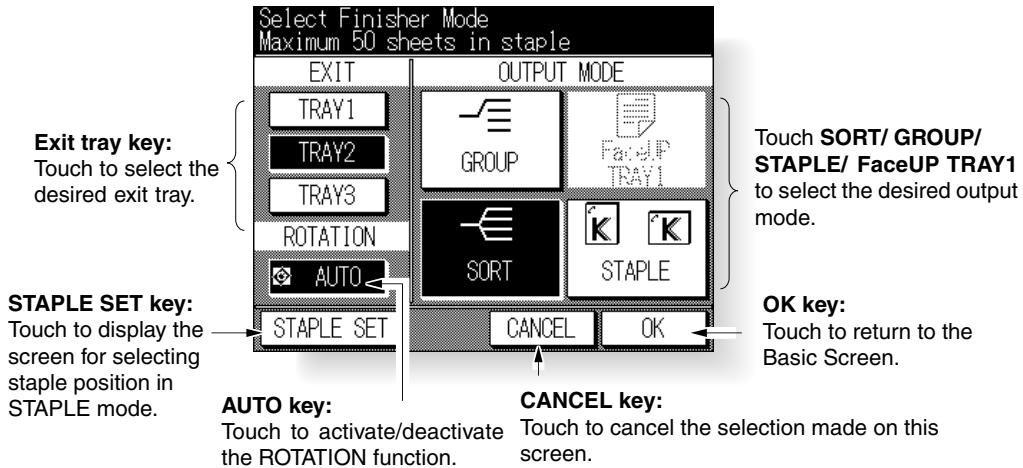
For the machine without finisher:
- Selecting the output mode (p. 3-27)
- Activating/Deactivating the Rotation function (p. 7-9)
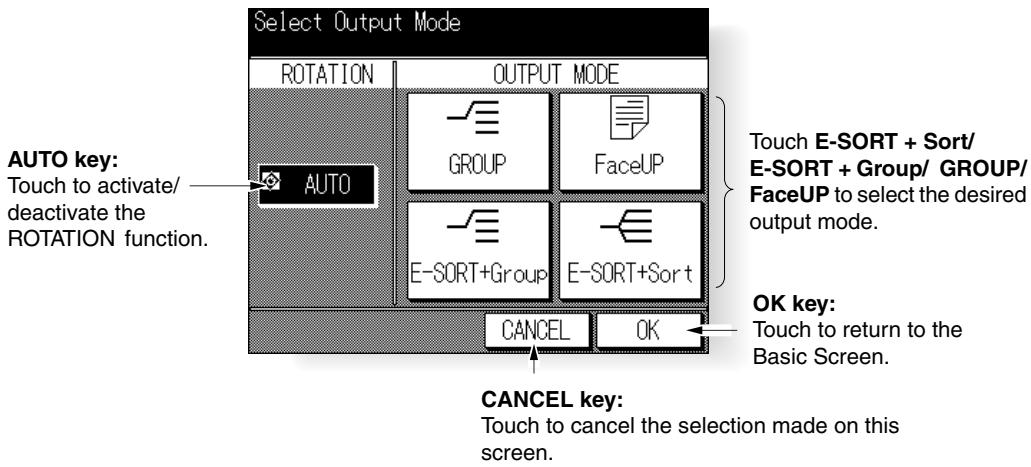
■ Checking Job Conditions (Check Screen)
The Check Screen displays when ! is pressed on the control panel with the Basic Screen displayed.
This screen allows you to view all the copying selections made for the present job, and also the copy results by producing a sample of copied set (Proof copy).
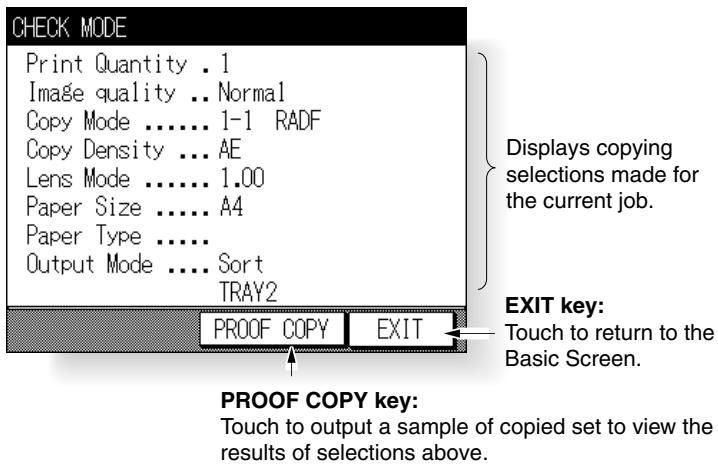
HINTS See p. 3-32 to p. 3-33 for details.
Storing and Recalling Job Conditions (Job No. Selection Screen)
The Job No. Selection Screen displays when M is pressed on the control panel.
On this screen frequently used copy job settings can be stored or recalled, to simplify
the process of setting up regular jobs.
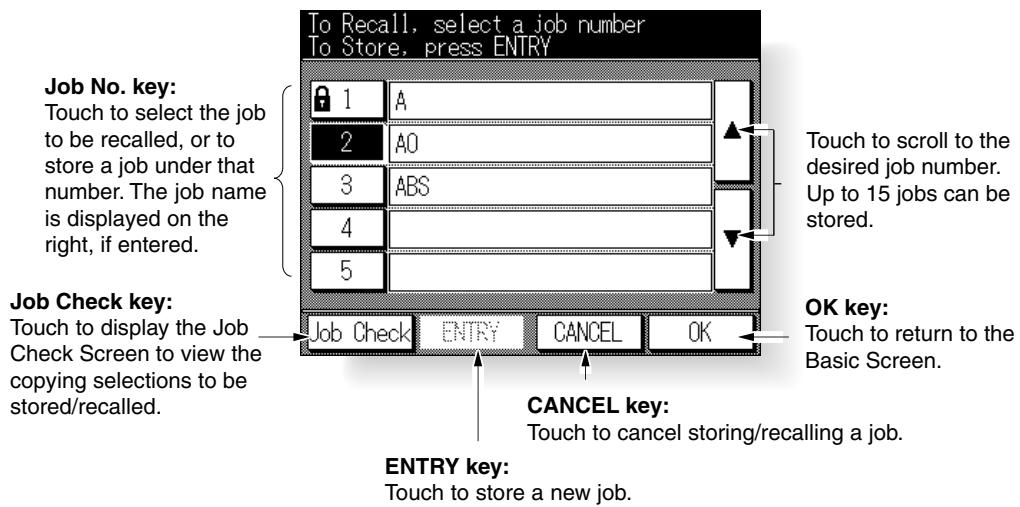
HINTS See p. 4-2 to p. 4-5 for details.
Getting Information on Machine Operation (Help Screen)
The Help Screen displays when ? is pressed on the control panel with the Basic Screen displayed.
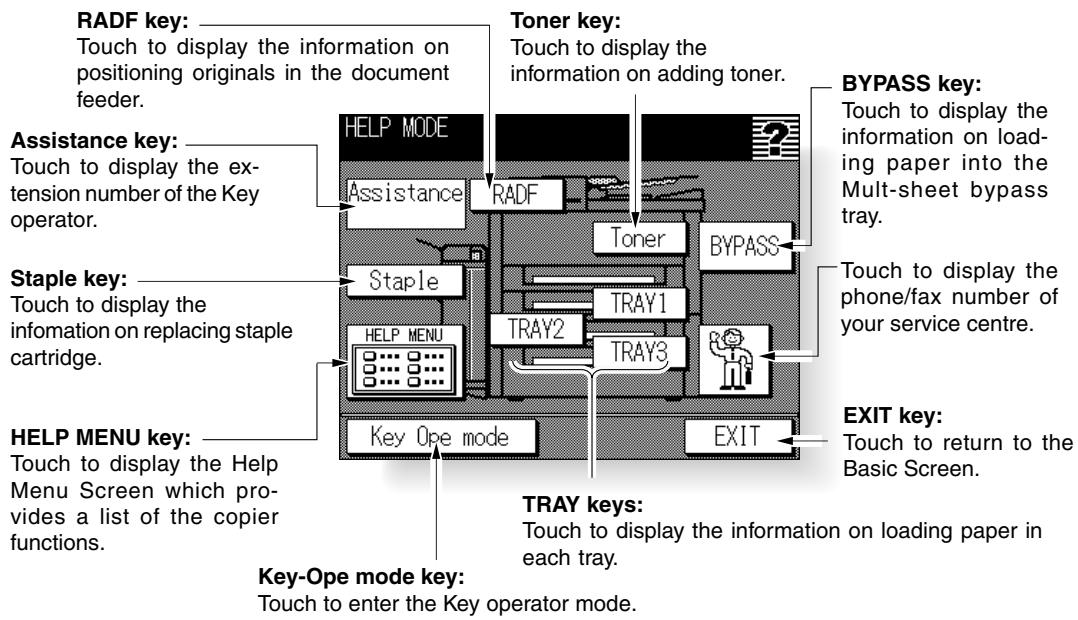
The Help Screen for giving instructions on the current setting will display when ? is pressed with the current setting screen displayed.

See p. 4-6 to p. 4-8 for details.
Modifying Machine Settings (Key Operator Mode Screen)
To access the Key Operator Mode, press on the control panel when the Basic Screen is displayed, then touch Key Ope mode on the Help Screen.
The Key Operator Password Entry Screen displays, if a unique key operator password has been set by service at installation. Enter the password to display the Key Operator Mode Screen.
From this screen, the key operator can modify machine settings or monitor overall copier activities.
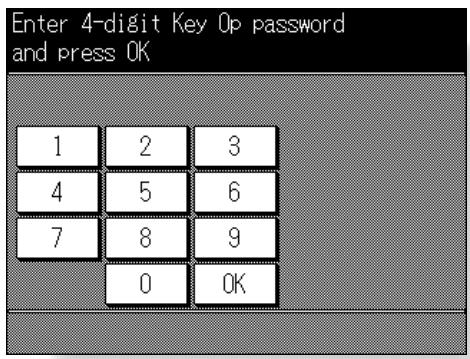
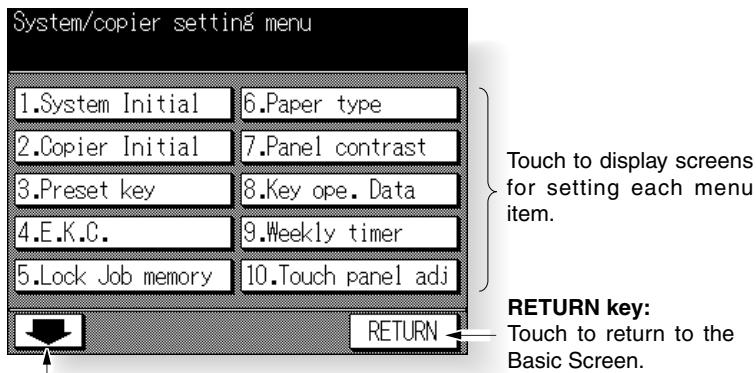
Arrow key:
Touch to display the next page of the menu.

See p. 12-2 for details.
This function allows you to utilize APS or AMS and copy the original documents onto size A4 or B5, irrespective of the copy paper feeding direction.

By default, Rotation requires APS or AMS to function; however, the key operator may set this function ON, OFF, to operate when APS, AMS or reduce functions, or to operate when APS functions. See p. 12-34 to p. 12-37.
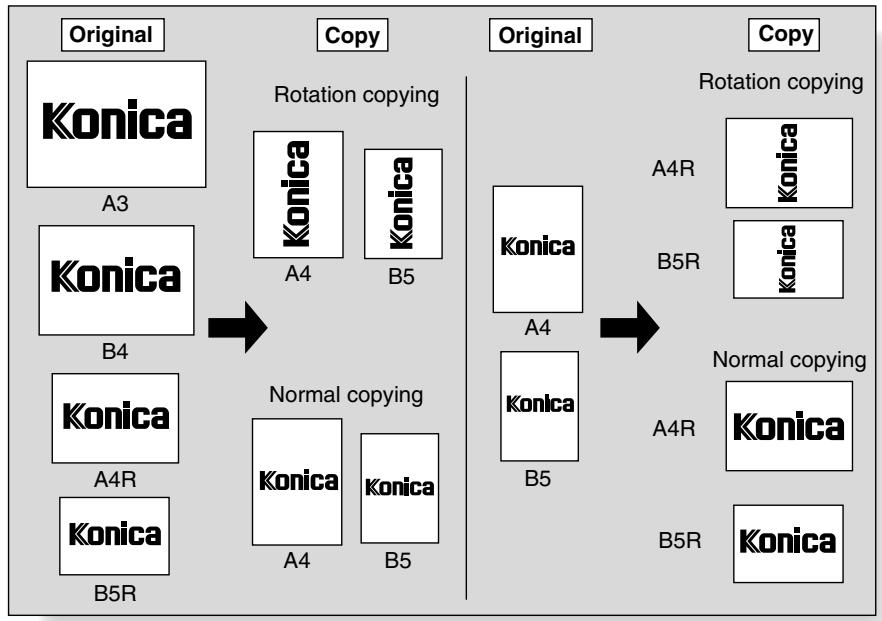
The copier is initially set to activate the Rotation function automatically.
Follow the procedure below to release/resume this function.

Press OUTPUT on the control panel.

Touch to deselect AUTO under the ROTATION indication to release this function.
Touch to highlight AUTO to resume this function.
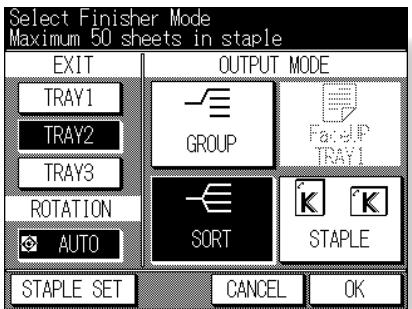
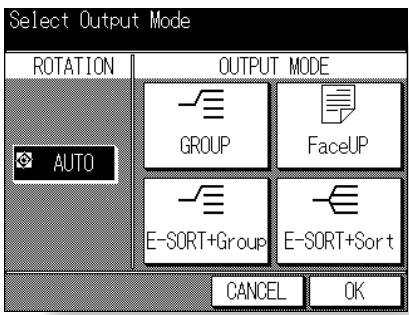

Touch OK to return to the Basic Screen.
When Rotation is released, the Rotation icon on the Basic Screen will disappear to indicate that this function is cancelled.
When Rotation is resumed, the Rotation icon will be displayed on the screen.
Vertical/Horizontal Zoom Mode
Use the Vertical/Horizontal zoom mode to reduce or enlarge vertical and horizontal dimensions, independently.
Vertical/Horizontal Zoom Mode Specifications
Vertical/Horizontal zoom range: 0.25~4.00
Incompatible Conditions: APS, AMS, Reduce & Shift in Image Shift
The figure shown below is the sample image using the Vertical/Horizontal zoom.
Length: 0.50, Width: 0.50
Length: 0.50, Width: 1.00

Length: 0.50, Width: 2.00
Length: 0.50, Width: 4.00
Length: 1.00, Width: 0.50
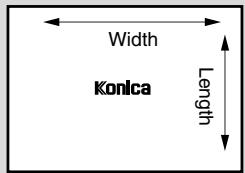
Length: 1.00, Width: 1.00

Length: 1.00, Width: 2.00

Length: 1.00, Width: 4.00
Length: 2.00, Width: 0.50
Length: 2.00, Width: 1.00

Length: 2.00, Width: 2.00

Length: 2.00, Width: 4.00
Length: 4.00, Width: 0.50
Length: 4.00, Width: 1.00

Length: 4.00, Width: 2.00

Length: 4.00, Width: 4.00

Touch ZOOM on the Basic Screen.
The popup menu for setting a zoom ratio will be displayed.

Touch on the popup menu to highlight it, then set the vertical zoom ratio.
Similarly, touch to highlight it, then set the horizontal zoom ratio.
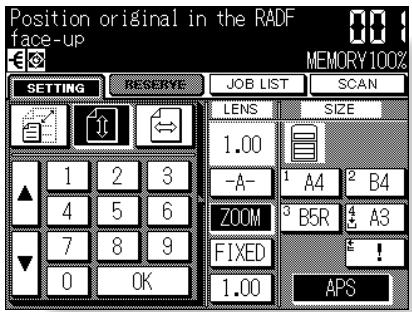

Touch OK
The popup menu disappears automatically and the specified zoom ratio will be displayed on the Basic Screen.
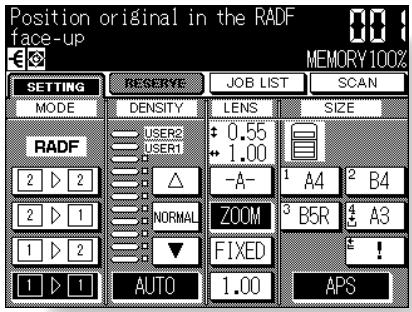

Select additional copy conditions, as desired.

Enter the desired print quantity from the control panel keypad.

When starting a new copying job, be sure to close the RADF securely, then press AUTO RESET.

See p. 3-6 for details on setting print quantity.

Position original(s).

See p. 3-2 to p. 3-5 for details on positioning originals.

Press

START

The figure shown below is the sample image using the Vertical/Horizontal Zoom with an original placed slantwise on the platen glass.
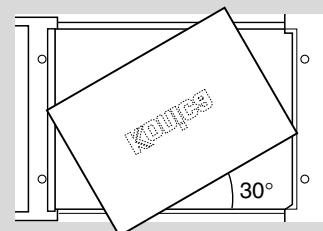
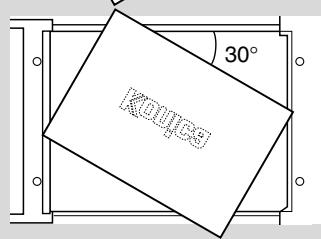
Length: 0.50, Width: 2.00
Length: 0.50, Width: 2.00
Length: 2.00, Width: 0.50
Length: 2.00, Width: 0.50
SECTION
8
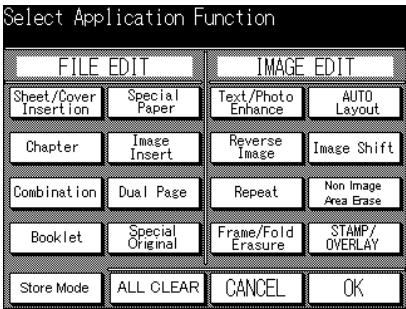
Applications
How to Use Application Functions
To Display Application Selection Screen 8-2
Inserting Sheets and Covers (Sheet/Cover Insertion) 8-3
Locating Title Pages on the Right Side (Chapter) 8-7
Lay Out Several Pages onto One Sheet (Combination) 8-9
Making a Multiple Page Signature Booklet (Booklet) 8-11
Copying onto OHP Films (OHP Interleaving) 8-14
Copying onto Thin/Thick Paper (Thin/Thick Paper) 8-16
Inserting Images into Printed Sets (Image Insert) 8-18
Dividing an Image into Right and Left Pages (Dual Page) ....8-21
Copying Mixed Size Originals (Mixed Original) 8-25
Copying Folded Originals (Folded Original) 8-27
Copying Non-Standard Size Originals (Non-Standard Size) .... 8-29
Reverse the Second Side in 1▶2 Mode (Flip Side 2) 8-31
Making Copy Quality Closer to Originals (Text/Photo Enhance) ... 8-34
Reversing Colour in Black and White Image (Reverse Image) ... 8-36
Repeating Selected Image Area (Repeat: Vert./Horiz. Mode)....8-38
Repeating Automatically or Selecting Repeating Times
(Repeat: AUTO/ Repeat Mode).... 8-41
Eliminating Black Copy Marks Along Borders (Frame/Fold Erasure) ... 8-44
Copying Image in the Centre of Copy Paper (AUTO Layout) ... 8-46
Creating Binding Margin (Image Shift) 8-48
Erasing Outside of the Original (Non-Image Area Erase) 8-50
Printing Stamps or Watermarks onto Copies (Stamp) 8-52
Printing Date/Time, Page Numbers or Numbering (Stamp) .... 8-56
Overlaying an Image onto Each Page Copied in the Job (Overlay) .... 8-60
To Display Application Selection Screen
Follow the procedure below to display the Application Selection Screen and select the desired copying features.

Press APPLICATION on the control panel.
The Application Selection Screen will be displayed on the touch panel.
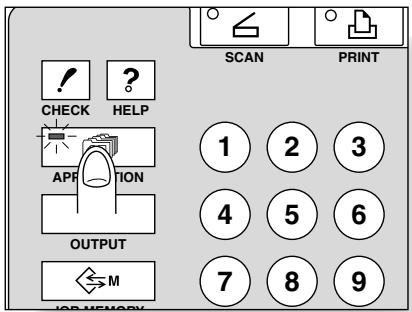
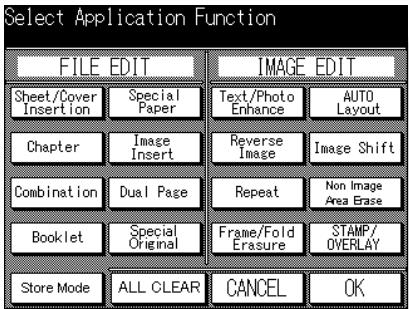
To cancel individual functions in application mode, touch the highlighted key.
To restore the original copying conditions, touch CANCEL.
To clear all Application settings, touch ALL CLEAR.

Touch OK on the Application Selection Screen.
Selections will be completed and the Basic Screen will be restored.
With the Basic Screen displayed, you can press to perform the operation.

FOR DETAILS
- When a function key is touched, it becomes highlighted. If you touch a function key, another screen or two will display to enable you to enter the appropriate settings.
- If one function on the menu is incompatible with another, it will appear dimmed.

DETAILS
The indicator light on the

will be lit and
will be displayed on the Basic Screen when application selections have been made.
Inserting Sheets and Covers (Sheet/Cover Insertion)
Use Sheet/Cover Insertion in copy mode or blank mode to insert chapter sheets or separator sheets into the finished set, as well as front and back covers.
Sheet insertion from tray 1^ may be used in conjunction with Front/Back cover insertion from tray 1^ or the Multi-sheet bypass tray. If using the thick paper for front/back cover, select the Multi-sheet bypass tray for Front cover insertion. All other trays will be used for regular copied sheets.
HINTS
*: The source of insertions and covers can be shifted from tray 1 to tray 2, 3, 4, or Multi-sheet bypass tray by key operator. See p. 12-34 to p. 12-37.
Specifications for Sheet/Cover Insertion
Use RADF.
Trays for copy paper, front/back covers, and insertions should have the same paper size loaded. AMS (Automatic Magnification Selection) is automatically selected.
Max. insert sheets: 15 locations, from 1~999, including front and back covers
Incompatible Conditions: APS, Group, Chapter, Combination, Booklet, OHP Interleaving, Thin/Thick Paper, Image Insert, Dual page, Mixed Original, Repeat, AUTO Layout, Non-image Area Erase, STAMP (PAGE, SET NUMBERING)/OVERLAY
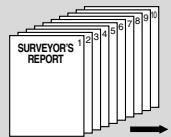
FRONT COVER COPIED
Originals
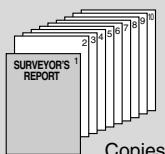
Copies
BACK COVER COPIED
Originals
Copies
COPY SHEET INSERTION
Originals
Copies
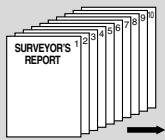
Combination samples
FRONT & BACK COVERS COPIED, AND COPY SHEET INSERTION
Originals
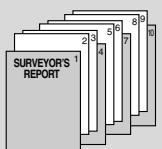
Copies
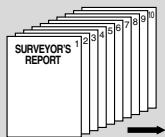
FRONT COVER BLANK
Originals
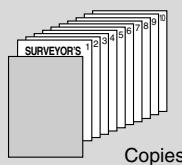
BACK COVER BLANK
Originals
Copies
BLANK SHEET INSERTION
Originals
Copies
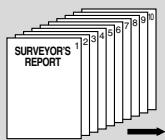
FRONT & BACK COVERS BLANK, AND BLANK SHEET INSERTION
Originals
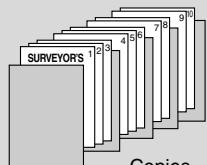

Load paper for copies, insertions and covers.
Load cover sheets into tray 1 or into Multi-sheet bypass tray, load insertion sheets into tray 1, and load regular sheets into copy paper tray source.

Press on the control panel.

Sheet/Cover on the Application Selection Screen.
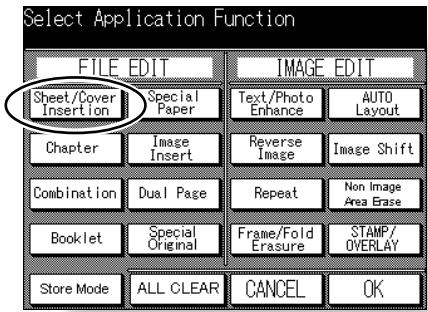

Select the desired function.
Example: Touch to insert a copied front cover.
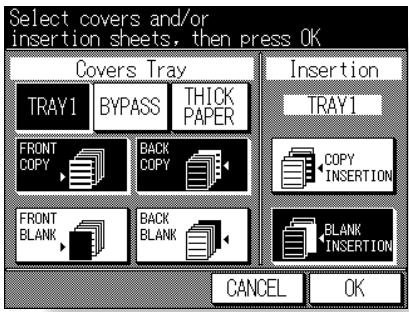

Select the tray from which the front/ back cover is fed, if a cover is desired.

- If thick covers are required, load thick paper into the Multi-sheet bypass tray.
- Be sure to load cover/insertion sheets of the same size as copy paper.

When starting a new copying job, be sure to close the RADF securely, then press AUTO RESET.

Selecting THICK PAPER will automatically select BYPASS at the same time.

Touch OK
Proceed to step when Copy/Blank Insertion mode is selected.
When only Front/Back Cover mode is selected, the Application Selection Screen will be restored.

When selecting Insertion mode: Enter the page number.
Use the control panel keypad to enter the page number of insertion location.
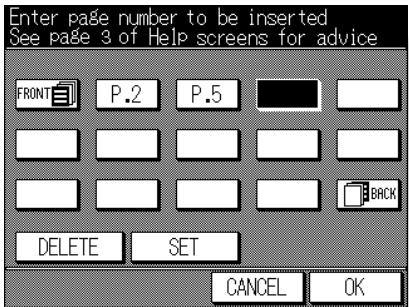
Touch SET after each entry to move to the next key.
To clear an incorrect entry, touch DELETE. The insertion location will be deleted.
When all page numbers are entered, touch OK to return to the Sheet/Cover Insertion Screen.
Touch OK again to return to the Application Selection Screen.

Touch OK on the Application Selection Screen.
The Basic Screen will be restored.

Enter the desired print quantity from the control panel keypad.

See p. 8-6 for details on entering page numbers.

See p. 3-6 for details on setting print quantity.

Position originals FACE UP in the document feeder.

- For details on positioning originals, see p. 3-2.
- Use RADF store mode (p. 3-20 to p. 3-21) when the original count exceeds 50.

Press

START

CAUTION
When the finisher / paper exit tray capacity is exceeded due to the print quantity selected, remove the copied sets as they exit; otherwise, mishandled paper will occur.
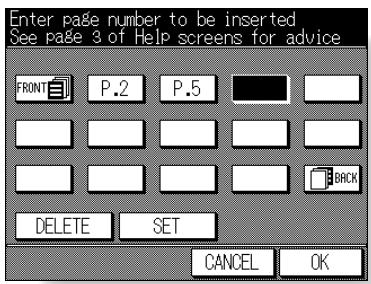
FORDETAILS
Entering Page Numbers
Fifteen keys are displayed on the screen to designate each insertion location.
The first (upper left) key displays the Front Cover icon if selected. The Back Cover icon appears, if selected, as the last (lower right) key.
Touch to highlight a blank key, then use the control panel keypad to enter the page number of insertion location.
Example: If p. 4 is entered in blank mode, a blank sheet will be inserted between p. 4 and p. 5; in copy mode, a copied sheet is inserted at p. 4.
Locating Title Pages on the Right Side (Chapter)
Chapter is used with RADF in 1 2 or 2 2 mode for the purpose of locating title pages on the right side, rather than reverse side, of a duplex copy to improve the presentation of double-sided copies.
To effectively locate the title page on the right, a blank sheet will be automatically created on the reverse side of a sheet, if required.
Specifications for Chapter
Use RADF.
Max. title pages: 15 sheets, from 1 ~ 999
Incompatible Conditions: 1▶1, 2▶1, Group, Sheet/Cover Insertion, Combination, OHP Interleaving, Thin/Thick Paper, Image Insert, Dual Page, Repeat, AUTO Layout, Non-image Area Erase, OVERLAY
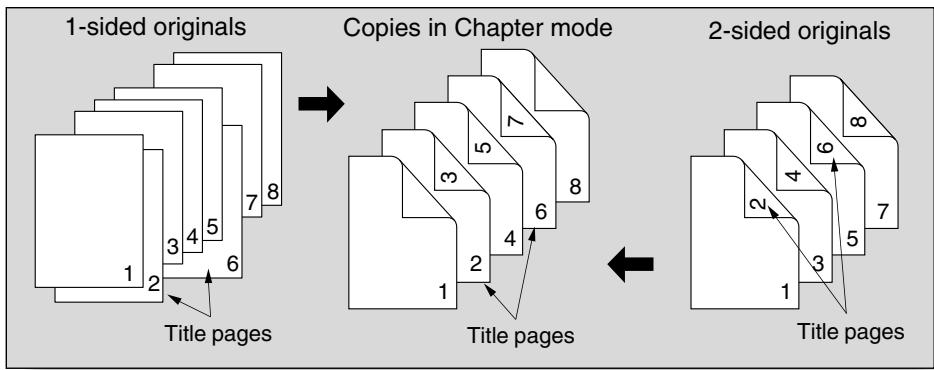

Press APPLICATION on the control panel.

Touch Chapter on the Application Selection Screen.
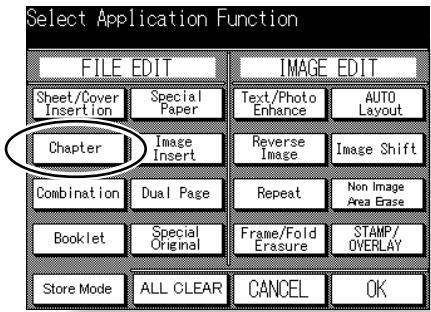

When starting a new copying job, be sure to close the RADF securely, then press AUTO RESET.

Use the control panel keypad to enter the page number of each title page.
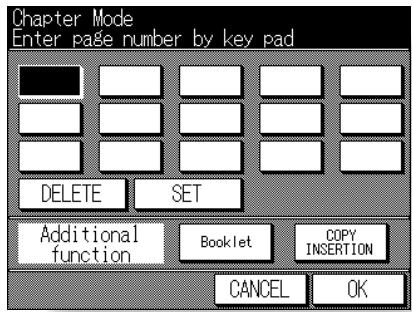
Touch SET after each entry to move to the next key.
To clear an incorrect entry, touch DELETE. The entered number will be deleted.

Touch OK
The Application Selection Screen will be restored.

Touch OK on the Application Selection Screen.
The Basic Screen will be restored.

Enter the desired print quantity from the control panel keypad.

Position originals FACE UP in the document feeder.

Press

START

CAUTION
When the finisher / paper exit tray capacity is exceeded due to the print quantity selected, remove the copied sets as they exit; otherwise, mishandled paper will occur.

DETAILS
- Entering the same page number twice will be ignored on the screen.
- Chapter insertions occur in sequence even if original page numbers are entered out of sequence.
- When a page number is larger than the total original page count, insertion occurs as the last page of the document.
OPTION

Touch Booklet on the Chapter Page Setting Screen to use this function.
To change the selection of paper tray for copying title pages, touch COPY INSERTION on the screen.

See p. 3-6 for details on setting print quantity.

- For details on positioning originals, see p. 3-2 to p. 3-4.
- Use RADF store mode (p. 3-20 to p. 3-21) when the original count exceeds 50.
Lay Out Several Pages onto One Sheet (Combination)
Use this function to lay out and copy a fixed number (2, 4, or 8) of pages onto one sheet of copy paper (2 in 1, 4 in 1, or 8 in 1).
Specifications for Combination
Use RADF.
AMS is automatically selected. The paper size in tray 1 and original size are sensed, and the correct ratio will be automatically selected. (Tray source can be changed manually.)
Incompatible Conditions: APS, Sheet/Cover Insertion, Chapter, Booklet, Image Insert, Dual page, Mixed Original, Non-standard Size, Flip Side 2, Repeat, Frame/Fold Erasure, AUTO Layout, Non-image Area Erase, OVERLAY
Original
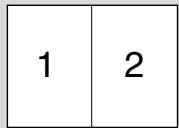
2 in 1 copying
4 in 1 copying
| 1 | 2 |
| 3 | 4 |
8 in 1 copying
| 1 | 2 | 3 | 4 |
| 5 | 6 | 7 | 8 |
1 Press on the control panel.
Touch Combination on the Application Selection Screen.

When starting a new copying job, be sure to close the RADF securely, then press 1 .
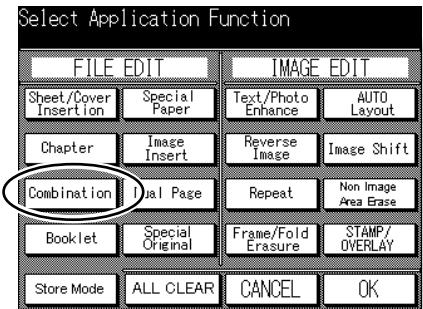
3 Select the desired Combination mode.
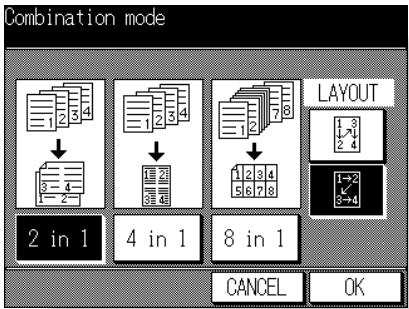

Touch 2 in 1, 4 in 1 or 8 in 1, and select one key between the two in the LAY-OUT area, referring to the table on the following page.

Touch OK
The Application Selection Screen will be restored.

Touch OK on the Application Selection Screen.
The Basic Screen will be restored.
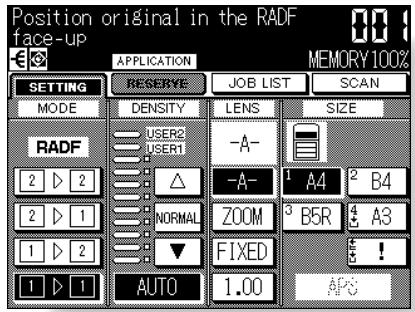
FOR DETAILS
AMS is automatically selected, and tray 1 is selected. When selecting any other tray, touch the desired tray key.

Enter the desired print quantity from the control panel keypad.

Position originals FACE UP in the document feeder.

Press

START
HINTS
See p. 3-6 for details on setting print quantity.
HINTS
- For details on positioning originals, see p. 3-2.
- Use RADF store mode (p. 3-20 to p. 3-21) when the original count exceeds 50.
FOR DETAILS
Refer to the table below to select the desired Combination mode and layout order.
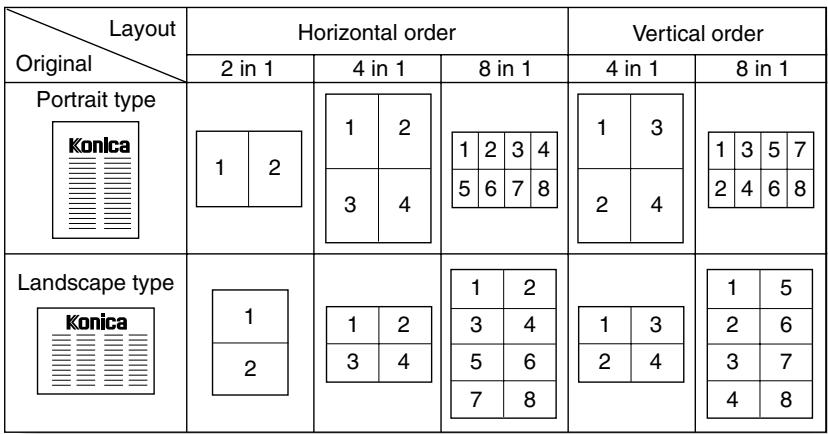
Making a Multiple Page Signature Booklet (Booklet)
Use the Booklet to make a multiple page signature booklet on both sides of A3, B4, A4R, A4, or B5R paper. Original images are scanned into memory and automatically arranged in booklet format in correct order to create an easy to use finished document.
Specifications for Booklet
Use RADF.
- Original pages should be a multiple of 4; otherwise blank pages are automatically inserted to the last.
AMS is automatically selected. Select the desired paper size.
Original size: A4R, A4, or B5
Incompatible Conditions: APS, 1▶1, 2▶1, Staple, Group, Sheet/Cover Insertion, Combination, OHP Interleaving, Thin/Thick Paper, Mixed Original, Non-standard Size, Flip Side 2, Repeat, Fold erasure, AUTO Layout, Shift mode in Image Shift, Non-image Area Erase, STAMP (PAGE, SET NUMBERING)/OVERLAY
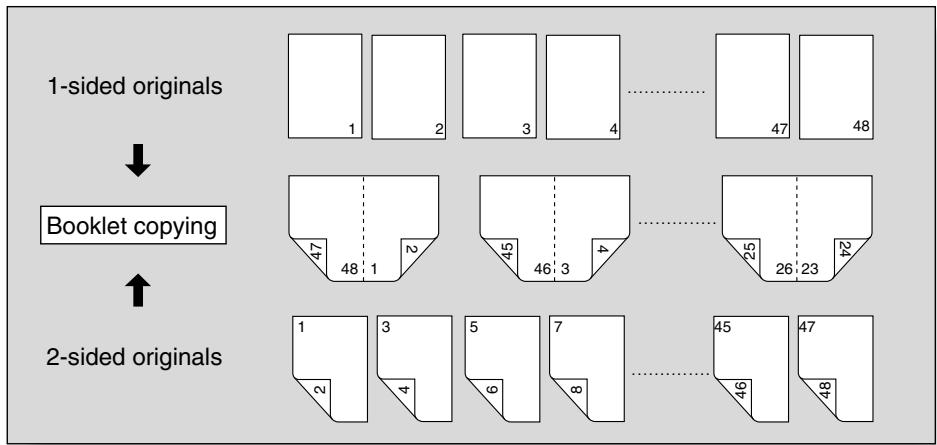

Load Copy Paper.
Load A3, B4, A4R, A4, or B5R copy paper in a tray.

Press APPROPION on the control panel .

Touch Booklet on the Application Selection Screen.
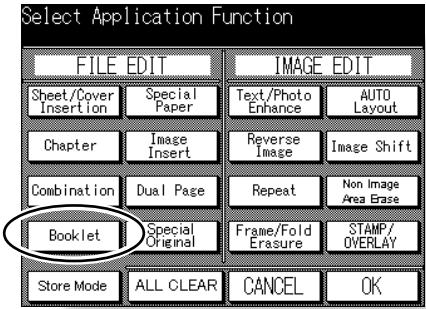

When starting a new copying job, be sure to close the RADF securely, then press AUTO RESET.

Touch to highlight the desired output order key.
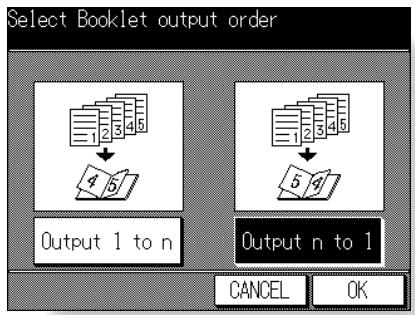

Touch
OK
The Application Selection Screen will be restored.

Touch OK on the Application Selection Screen.
The Basic Screen will be restored. AMS is selected automatically.

Select the tray in which you loaded copy paper in step ①.

Select the 12 or 22 copy mode.
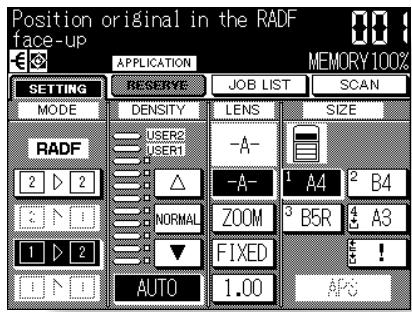

Enter the desired print quantity from the control panel keypad.

DETAILS
To release AMS, select the desired magnification, then select paper size.

See p. 3-6 for details on setting print quantity.

Position originals in the document feeder FACE UP in portrait orientation (□).

Press

START

CAUTION
When the finisher / paper exit tray capacity is exceeded due to the print quantity selected, remove the copied sets as they exit; otherwise, mishandled paper will occur.
HINTS
- For details on positioning originals, see p. 3-2.
- Use RADF store mode (p. 3-20 to p. 3-21) when the original count exceeds 50.

DETAILS
Original pages should be a multiple of 4; otherwise blank pages are automatically inserted to the last.
Copying onto OHP Films (OHP Interleaving)
Use the OHP Interleaving function in 1 1 or 2 1 mode to copy onto overhead projection transparent films, and output a blank or copied interleaf sheet with each copied transparent film.
In the Blank sheet interleaving mode, a blank interleaf sheet is output with each transparent film to keep the film material from sticking together.
In the Copy sheet interleaving mode, a copied interleaf sheet is output with each transparent film to provide reference during a presentation; a medium for photocopying; and a set for filing or inserting into a binder.
Specifications for OHP Interleaving
Transparent film source: Multi-sheet bypass tray
Print quantity: 1
AMS is automatically selected.
Incompatible Conditions: APS, 1▶2, 2▶2, Sort, Staple, Group, Sheet/Cover Insertion, Chapter, Booklet, Thin/Thick Paper, Image Insert, Mixed Original, Repeat
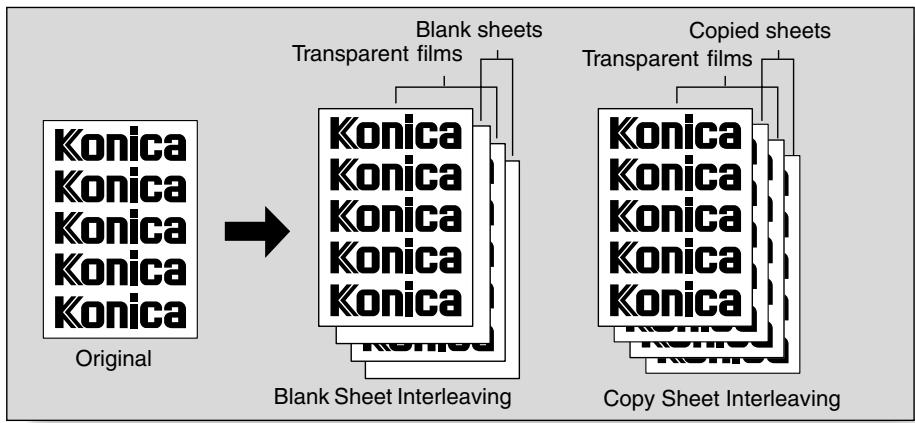

Insert a sheet of transparent film into the Multi-sheet bypass tray.


When interleaf sheet is needed, load copy paper in tray 1, 2, 3, or 4 to match the size of transparent films.
Do not load transparent films into any other tray.

Select the Multi-sheet bypass tray on the Basic Screen.
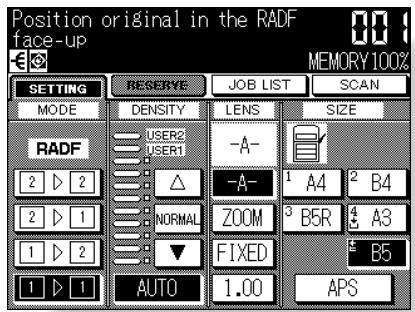

When starting a new copying job, be sure to close the RADF securely, then press AUTO RESET.

Press on the control panel.

Touch Special Paper on the Application Selection Screen.
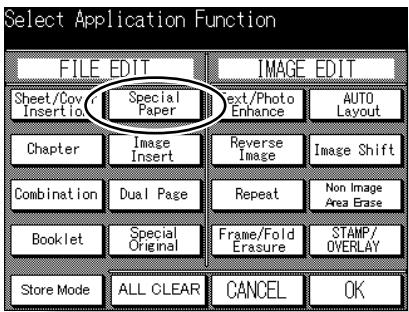

Select the desired OHP Interleaving mode, then touch OK
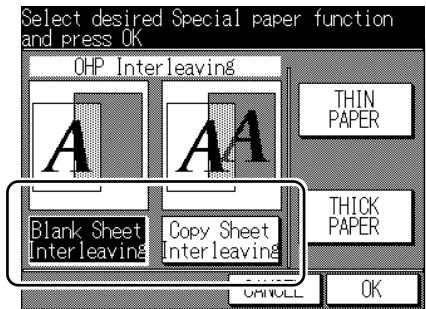

Touch OK on the Application Selection Screen.
The Basic Screen will be restored.

Position original(s) FACE UP in the document feeder or FACE DOWN on the platen glass.

Press

START

DETAILS
AMS is selected automatically. To release AMS, select the desired magnification.
Print quantity is already set to 1. Not available to enter any other number.

For details on positioning originals, see p. 3-2 to p. 3-5.
Copying onto Thin/Thick Paper (Thin/Thick Paper)
Use this function to select the appropriate mode when copy paper is thin or thick.
Specifications for Thin/Thick Paper
Thin/Thick paper source: Multi-sheet bypass tray
Print quantity: 1
Incompatible Conditions: 1 2 , 2 2 , Sort, Staple, Group, Rotation exit, Sheet/Cover Insertion, Chapter, Booklet, OHP Interleaving, Mixed Original

Insert a sheet of thin or thick paper into the Multi-sheet bypass tray.


Select the Multi-sheet bypass tray on the Basic Screen.
Do not load thin/thick paper into any other tray.
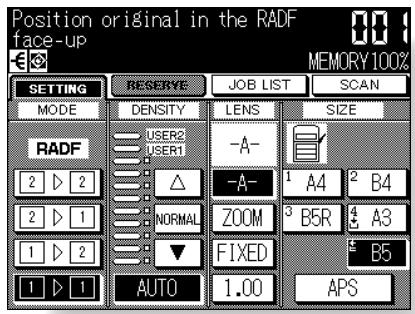

When starting a new copying job, be sure to close the RADF securely, then press AUTO RESET.

Press on the control panel.

Touch Special Paper on the Application
Selection Screen.
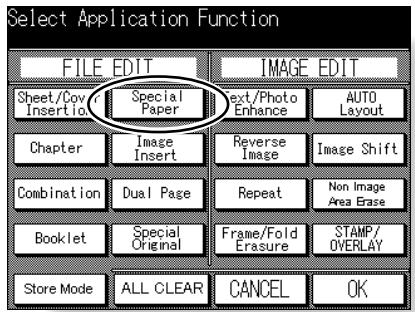

Select the desired mode key, then touch OK
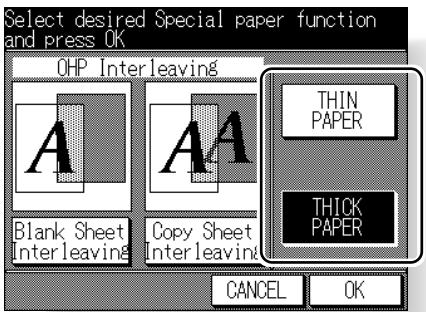

Touch OK on the Application Selection Screen.
The Basic Screen will be restored.

Position original(s) FACE UP in the document feeder or FACE DOWN on the platen glass.

Press

START

For details on positioning originals, see p. 3-2 to p. 3-5.
Inserting Images into Printed Sets (Image Insert)
Use the Image insert mode to combine images scanned from the platen glass, such as photos, paste-ups, newspaper articles, graphs, etc., with images scanned from the document feeder. Then, output the combined images as a finished set.
The selected copy paper size is determined by the size of originals loaded in the document feeder.
Specifications for Image Insert
This function is available for the machine equipped with the RADF.
Max. image insert: 15 locations, from p. 1 to p. 999
□ Incompatible Conditions: Group, Sheet/Cover Insertion, Chapter, Combination, OHP Interleaving, Dual Page, Mixed Original, Non-standard Size, Repeat, AUTO Layout, Image Shift, Non-image Area Erase, OVERLAY
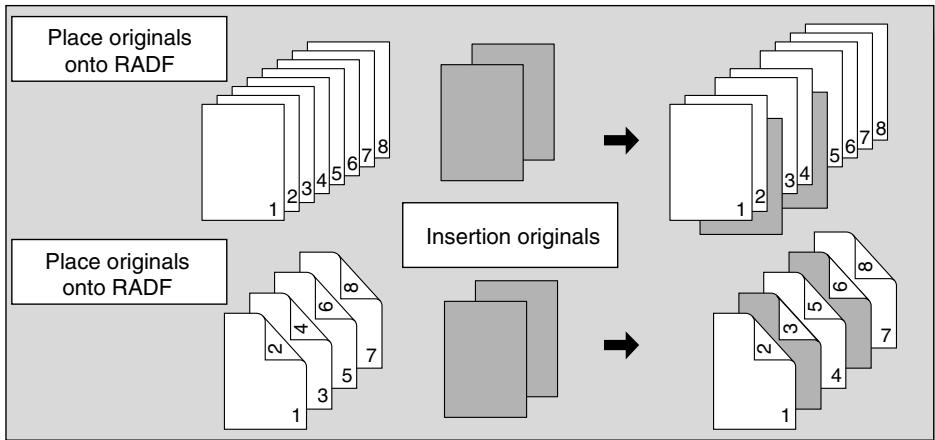

Press on the control panel.

When starting a new copying job, be sure to close the RADF securely, then press AUTO RESET.

Touch Image Insert on the Application Selection Screen.
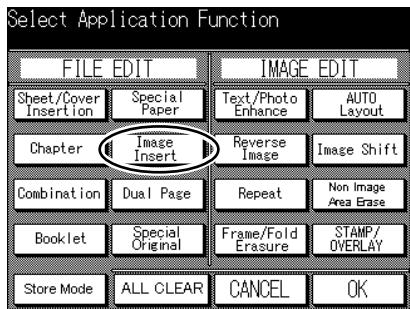

Use the control panel keypad to enter the page number.
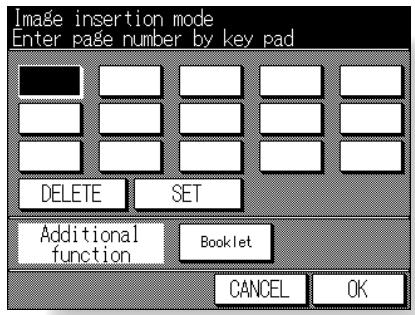
Touch SET after each entry to move to the next key.
To clear an incorrect entry, touch DELETE. The entered page number will be deleted.

Touch OK
The Application Selection Screen will be restored.

Touch OK on the Application Selection Screen.
The Basic Screen will be restored.

Enter the desired print quantity from the control panel keypad.

Scan the document feeder images.
Position originals FACE UP in the document feeder.

Touch SCAN on the Basic Screen.
The originals positioned in the document feeder will be scanned into memory.

See p. 8-20 for detailed example.

- When a page number is larger than the total original count, a sheet is inserted as the last page.
- Entering the same page number twice will insert two sheets at that location.
- Insertions occur in sequence, even if page numbers are entered out of sequence.

Touch Booklet on the Image Insertion Page Setting Screen to use this function.

See p. 3-6 for details on setting print quantity.

If the number of originals exceeds 50, divide them into blocks not exceeding 50 sheets and load them from the block with the first page.

Scan the platen glass images.
Open the document feeder.
Position an original FACE DOWN on the platen glass, then close the document feeder.

Touch SCAN on the Basic Screen.
Repeat steps 9 and 10 for all originals.

Press

START
The copier will start printing when ready for output.

CAUTION
When the finisher / paper exit tray capacity is exceeded due to the print quantity selected, remove the copied sets as they exit; otherwise, mishandled paper will occur.

PLACE AND SCAN THE ORIGINALS ACCORDING TO PAGINATION.

Memory overflow may occur during scanning. See p. 5-10 to p. 5-11.
- Should memory overflow occur frequently, it is recommended that you contact your Konica service centre to extend the memory capacity in your machine.

DETAILS
Entering Page Numbers
To insert more than one sheet at the same location, enter the page number repeatedly.
For example, if insertion locations are [2/2/6], scanned platen images will be inserted as follows:
The first scanned platen image will be inserted after page 2. The second scanned platen image will be inserted directly after the first scanned Image insertion.
The third scanned platen image will be inserted after page 6.
Dividing an Image into Right and Left Pages (Dual Page)
The Dual Page mode performs image division on the original image. Use Dual Page to copy an open book or a A3/B4 size sheet onto two A4/B5 sheets in 1 1 or 2 1 mode, or onto the front and back sides of one A4/B5 sheet in 1 2 or 2 2 mode. The following three modes can be selected from the Dual Page Screen.
- Facing Pages mode: Image division starts from the first scan.
- Front Cover + Facing Pages mode: Image division starts from the second scan, after the first scan copies normally.
- Front/Back + Facing Pages mode: Image division starts from the third scan, after the first and second scan copy normally.
Specifications for Dual Page
Store mode is automatically selected.
Paper size: A4, B5, 8.5"x11"
Incompatible Conditions: APS, Sheet/Cover Insertion, Chapter, Combination, Image Insert, Mixed Original, Folded Original, Non-standard Size, Flip Side 2, Repeat, Fold Erasure, Image Shift, STAMP/OVERLAY
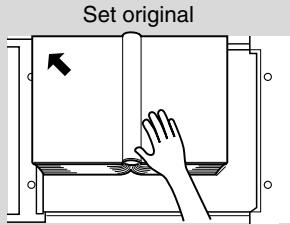
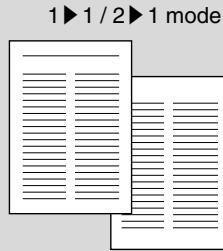
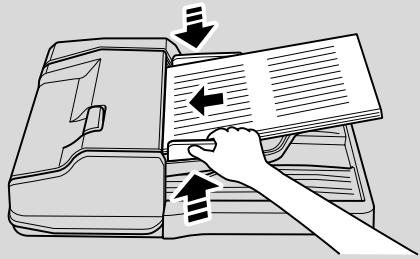
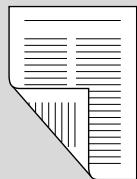
1>2/2>2mode

Press on the control panel.
APPLICATION

Touch Dual Page on the Application Selection Screen.
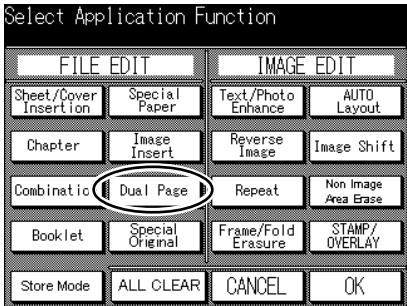

When starting a new copying job, be sure to close the RADF securely, then press l .
AUTORESET

Select the desired Dual Page mode.
Touch to highlight the desired mode key.
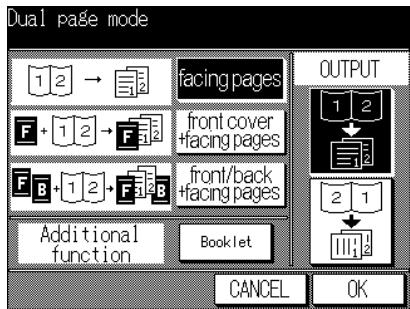

Touch Booklet on the Dual Page Screen to use this function.

Select the scanning order.
Touch either key in the OUTPUT section to select the scanning order according to the original.

Touch OK
The Application Selection Screen will be restored. Store Mode is automatically selected on the screen.

Touch OK on the Application Selection Screen.
The Basic Screen will be restored.

Select the desired paper size.
Make additional feature selections, as desired.
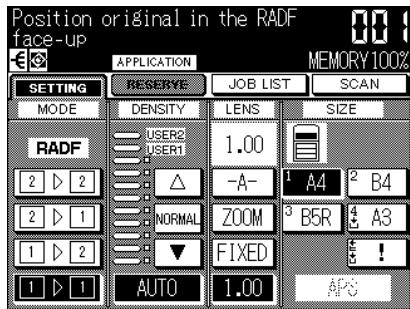

Available paper size is A4, B5, or 8.5"x11".
- When facing pages mode is selected, AMS is automatically selected. Select the desired paper size, and select 1 or 1 copy mode if scanning from the platen glass.
- When front cover + facing pages or front/back + facing pages mode is selected, 1.00 magnification is automatically selected. Change the magnification after scanning cover(s), if desired.

Enter the desired print quantity from the control panel keypad.

Position original(s).
When using platen glass to scan, position the first page FACE DOWN with document feeder kept open.
When using document feeder, position original(s)
FACE UP.

Touch SCAN on the Basic Screen.
Repeat steps 9 and 10 for all originals.

Press START

CAUTION
When the finisher / paper exit tray capacity is exceeded due to the print quantity selected, remove the copied sets as they exit; otherwise, mishandled paper will occur.
HINTS
See p. 3-6 for details on setting print quantity.
HINTS
For details on scanning originals in front cover + facing pages and front/back + facing pages mode, see the description on the following page.
Please Be Reminded!
When using platen glass, Non-Image Area Erase and AUTO Layout are automatically selected. DO NOT CLOSE the document feeder throughout the scanning job.

Scanning Original for Cover
Use platen glass for scanning original for cover.
1 Open the document feeder.
2 Position original for front cover FACE DOWN on the platen glass.
3 Touch SCAN on the Basic Screen to start scanning.
4 When front/back + facing pages is selected, scan original for back cover according to the above steps 2 and 3.
5 Use platen glass or document feeder, as required, for scanning body text originals. To output the set in the same order as the originals, start scanning from the first page.
6 Touch SCAN on the Basic Screen to start scanning.
7 Repeat steps 5 and 6 for subsequent originals.

- Memory overflow may occur during scanning. See p. 5-10 to p. 5-11.
- When using platen glass, Non-Image Area Erase and AUTO Layout are automatically selected. DO NOT CLOSE the document feeder throughout the scanning job.
"Front cover + Facing pages"
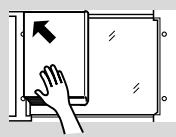
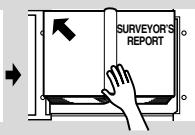
Scan from first page
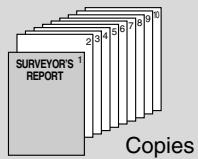
"Front/Back cover + Facing pages"
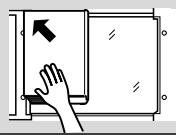
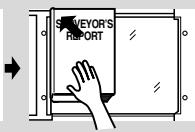
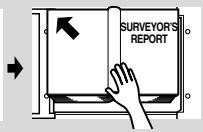
Scan from first page
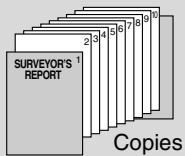
"Front cover + Facing pages"
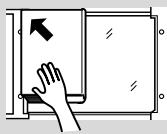
Scan front cover
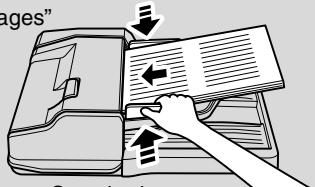
Scan body text
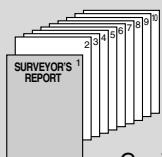
Copies
"Front/Back cover + Facing pages"
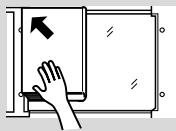
Scan front cover
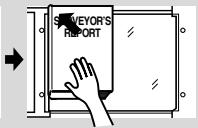
Scan back cover
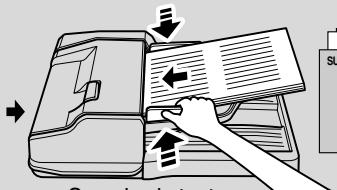
Copies
Copying Mixed Size Originals (Mixed Original)
Use the Mixed original mode with the document feeder or with the Store mode to copy [A3, B4, A4R, A4, B5, and A5 originals mixed], [B4, A4R, B5, B5R, and A5 originals mixed], or [A4R, B5R, and A5 originals mixed].
Each original in the mixed set will be copied to paper of the same size (APS mode) or to paper of desired size with appropriate ratio automatically selected (AMS mode).
Specifications for Mixed Original
Use RADF. Up to 50 sheets can be set at a time.
Combination of original sizes to be mixed depends on the width of the RADF original guides. See p. 9-6 for details.
Incompatible Conditions: Using platen glass, Sheet/Cover Insertion, Combination, Booklet, OHP Interleaving, Thin/Thick Paper, Image Insert, Dual Page, Folded Original, Non-standard Size, Flip Side 2, Repeat, Fold Erasure, AUTO Layout, Image Shift, Non-image Area Erase, STAMP/OVERLAY
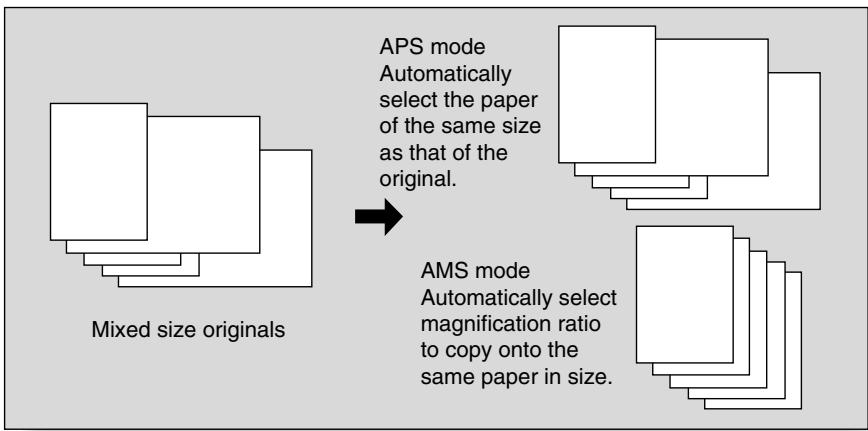

Press on the control panel.

Touch Special Original on the Application Selection Screen.

Please Be Reminded!
When starting a new copying job, be sure to close the RADF securely, then press
AUTORESET

Touch Mixed Original on the Special Original Screen.
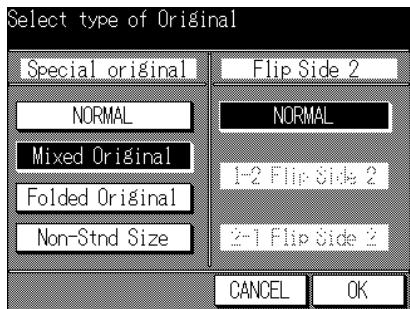

Touch OK
The Application Selection Screen will be restored.

Touch OK on the Application Selection Screen.
The Basic Screen will be restored.

Enter the desired print quantity from the control panel keypad.

Position mixed originals FACE UP in the document feeder.
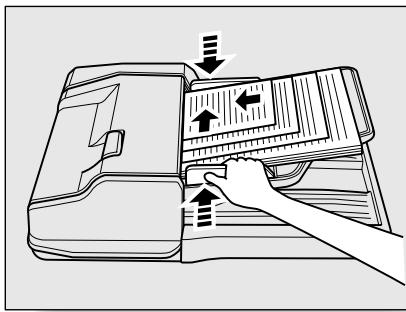

Press

START

CAUTION
When the finisher / paper exit tray capacity is exceeded due to the print quantity selected, remove the copied sets as they exit; otherwise, mishandled paper will occur.

FOR DETAILS
- APS mode is automatically selected to copy each original size to a matching paper size in 1:1 mode. Change magnification manually, if desired.
- To select AMS, touch the tray key on the Basic Screen to select the desired paper size.
HINTS
See p. 3-6 for details on setting print quantity.
HINTS
- For details on positioning originals, see p. 3-3.
- Use RADF store mode (p. 3-20 to p. 3-21) when the original count exceeds 50.
Copying Folded Originals (Folded Original)
Use the Folded original mode with the document feeder to copy folded originals. Otherwise, the size detection sensor of the RADF may function incorrectly. This mode requires more scanning time to detect the original size.
Specifications for Folded Original
Use RADF. Up to 50 sheets can be set at a time.
Incompatible Conditions: Using platen glass, Dual Page, Mixed Original, Non-standard Size, AUTO Layout, Non-image Area Erase
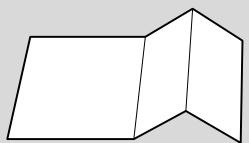
Folded original
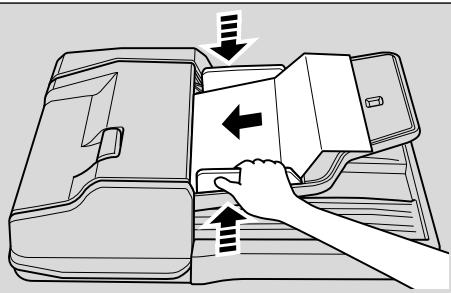

Press on the control panel.

Touch Special Original on the Application Selection Screen.

When starting a new copying job, be sure to close the RADF securely, then press AUTO RESET.
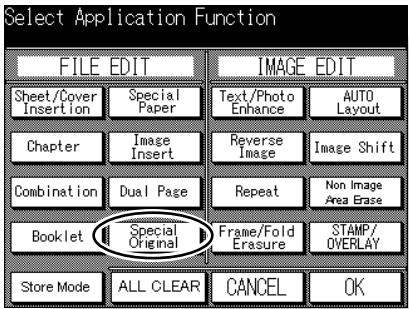

Touch Folded Original on the Special Original Screen.
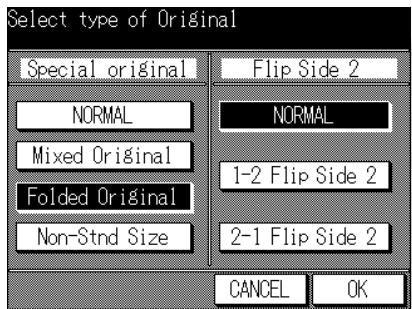

Touch OK
The Application Selection Screen will be restored.

Touch OK on the Application Selection Screen.
The Basic Screen will be restored.

Enter the desired print quantity from the control panel keypad.

Position folded original(s) FACE UP in the document feeder.
Normal originals can also be loaded at the same time.

Press START

CAUTION
When the finisher / paper exit tray capacity is exceeded due to the print quantity selected, remove the copied sets as they exit; otherwise, mishandled paper will occur.

See p. 3-6 for details on setting print quantity.

- For details on positioning originals, see p. 3-4.
- Use RADF store mode (p. 3-20 to p. 3-21) when the original count exceeds 50.
Copying Non-Standard Size Originals (Non-Standard Size)
Feeding special size originals through the RADF without selecting the Non-standard size mode may cause the copier to stop scanning and mistakenly sense that the size detection sensor has malfunctioned or even cause a paper misfeed.
Using Non-standard size mode, the copier will search and copy onto the standard size copy paper that is closest to the original size with no interruption to the copying process.
Specifications for Non-standard Size
Use RADF. Platen glass is not available.
Incompatible Conditions: APS, AMS, Combination, Booklet, Image Insert, Dual Page, Mixed Original, Folded Original, Flip Side 2, Repeat, Frame/Fold erasure, AUTO Layout, Image Shift, Non-image Area Erase, STAMP/OVERLAY

Press on the control panel.
APPLICATION

Touch Original on the Application Selection Screen.
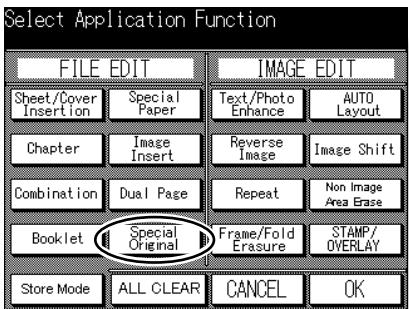

When starting a new copying job, be sure to close the RADF securely, then press

Touch Non-Stnd Size on the Special Original Screen.
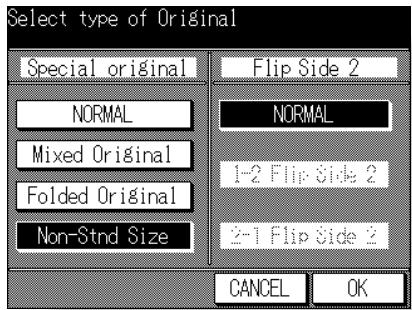

Touch OK
The Application Selection Screen will be restored.

Touch OK on the Application Selection Screen.
The Basic Screen will be restored.

Enter the desired print quantity from the control panel keypad.

Position original(s) FACE UP in the document feeder.

Press START

CAUTION
When the finisher / paper exit tray capacity is exceeded due to the print quantity selected, remove the copied sets as they exit; otherwise, mishandled paper will occur.

See p. 3-6 for details on setting print quantity.

- For details on positioning originals, see p. 3-2.
- Use RADF store mode (p. 3-20 to p. 3-21) when the original count exceeds 50.
Reverse the Second Side in 1 2 Mode (Flip Side 2)
1-2 Flip Side 2 arranges the even pages of the simplex originals upside down on the reverse side of duplex copies, this is especially valuable when coping A3 portrait on to A4.
Similarly, 2-1 Flip Side 2 rearranges the reverse sides of duplex originals which read upside down to make normal simplex copies.
Specifications for Non-standard Size
□ Incompatible with 1-2 Flip Side 2: 1 1, 2 2, 2 1 , OHP Interleaving, Thin/Thick Paper Incompatible with 2-1 Flip Side 2: 1 1, 1 2, 2 2
Incompatible with both: Combination, Booklet, Dual Page, Mixed Original, Non-standard Size, Repeat, AUTO Layout, Image Shift, Non-image Area Erase, OVERLAY
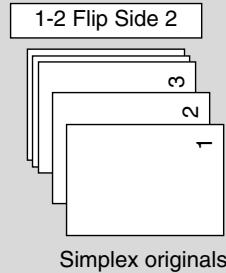
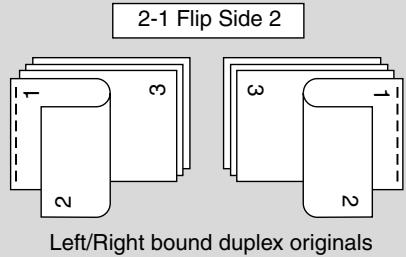
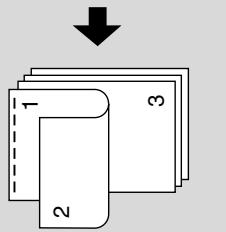
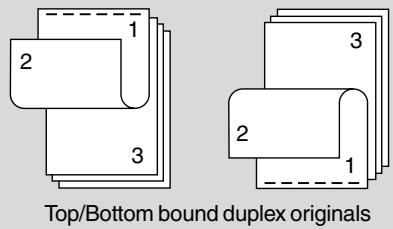
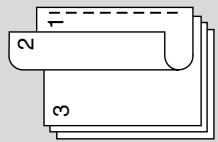
Left/Right bound duplex copies
Top/Bottom bound duplex copies
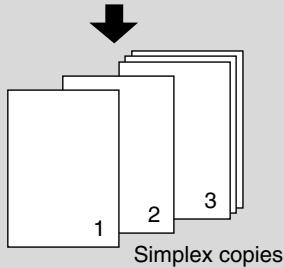

Press on the control panel.

When starting a new copying job, be sure to close the RADF securely, then press AUTO RESET.

Touch Special Original on the Application Selection Screen.
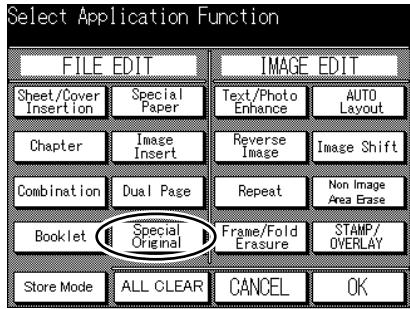

Touch 1-2 Flip Side 2 or 2-1 Flip Side 2 on the Special Original Screen.
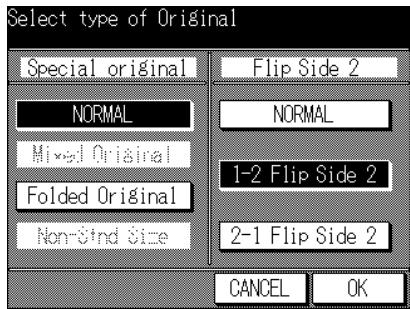

Touch to select the binding type of copies/originals, then touch OK
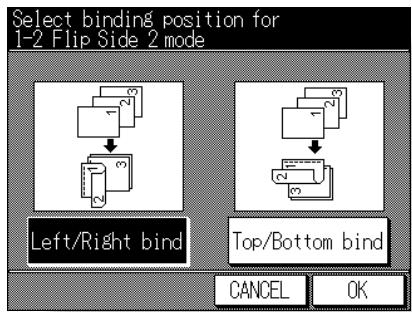
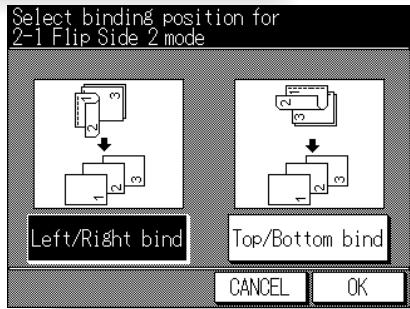

For 1-2 Flip Side 2, select the binding type of duplex copies (see the upper screen). For 2-1 Flip Side 2, select the binding type of duplex originals (see the lower screen).

Touch OK on the Special Original Screen.
The Application Selection Screen will be restored.

Touch OK on the Application Selection Screen.
The Basic Screen will be restored.

Enter the desired print quantity from the control panel keypad.

Position originals FACE UP in the document feeder.

Press START

CAUTION
When the finisher / paper exit tray capacity is exceeded due to the print quantity selected, remove the copied sets as they exit; otherwise, mishandled paper will occur.

- 1-2 Flip Side 2 functions only when 1 2 copy mode is selected.
- 2-1 Flip Side 2 functions only when 2 1 copy mode is selected and RADF is used.

See p. 3-6 for details on setting print quantity.

- For details on positioning originals, see p. 3-2.
- Platen glass is available for scanning originals when 1-2 Flip Side 2 is selected. See p. 3-17 to p. 3-18.
Making Copy Quality Closer to Originals (Text/Photo Enhance)
Use this function to enhance the reproducibility of half tones so that the copy quality more closely matches that of the original.
Photo Mode
Use the Photo mode to reproduce a half-tone photo image. The copy will closely represent the half-tones of the original image.
Text Mode
Use the Text mode when copying the text original. In this mode, text is improved in comparison to using the general mode.
Increase Contrast Mode
Select Increase Contrast to darken lightly printed images (e.g., pencil) without changing background exposure. In cases where the image is light and background is dark, the background will not be changed.
Specifications for Text/Photo Enhance
Incompatible Condition: None
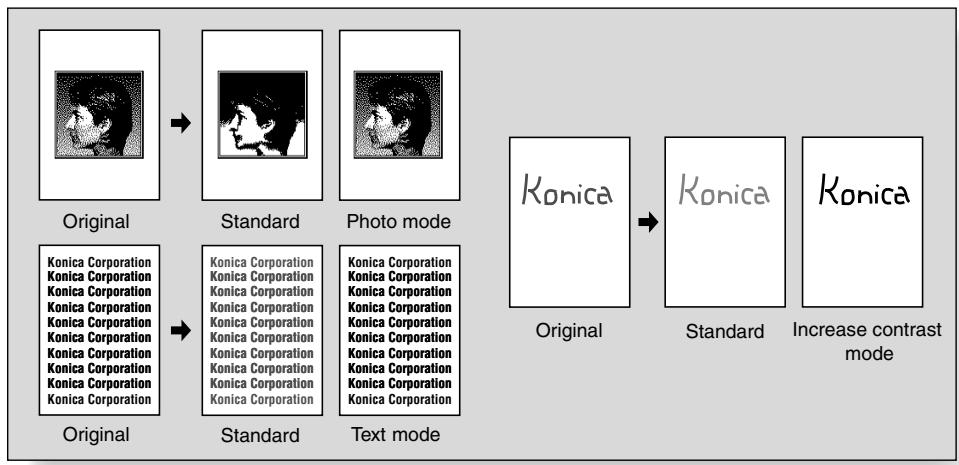


Press on the control panel.
APPLICATION
Touch Text/Photo Enhance on the Application
Selection Screen.
Please Be Reminded!
When starting a new copying job, be sure to close the RADF securely, then press AUTO RESET.


Touch the desired mode key on the Text/Photo Enhance Screen.
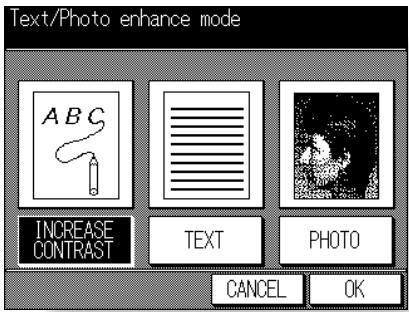

The key operator can set the copier to shift each of nine density levels into two levels of lighter and three levels of darker for each of the four modes, i.e., Text/Photo (general), Text, Photo, and Increase Contrast. See p. 12-40.

Touch OK
The Application Selection Screen will be restored.

Touch OK on the Application Selection Screen.
The Basic Screen will be restored.

Enter the desired print quantity from the control panel keypad.

Position original(s) FACE UP in the document feeder or FACE DOWN on the platen glass.

Press START

CAUTION
When the finisher / paper exit tray capacity is exceeded due to the print quantity selected, remove the copied sets as they exit; otherwise, mishandled paper will occur.

See p. 3-6 for details on setting print quantity.

For details on positioning originals, see p. 3-2 to p. 3-5.
Reversing Colour in Black and White Image (Reverse Image)
Use Reverse image to reverse the image from black-on-white to white-on-black, and vice versa. This is very good for copying white-on-black originals and reversing them ready to fax.
Specifications for Reverse Image
□ Incompatible Conditions: AUTO detection mode in Repeat, AUTO Layout, Non-Image Area Erase
Original


Reverse Image copying

Press on the control panel.
APPLICATION

Touch Reverse on the Application Image Selection Screen.
The incompatible function keys will be dimmed to show inactivity.
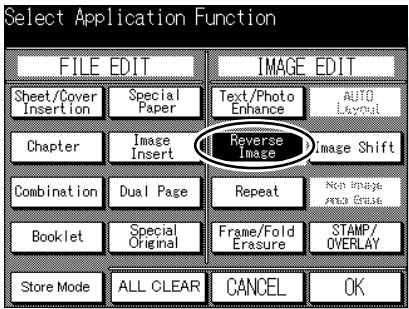

When starting a new copying job, be sure to close the RADF securely, then press AUTO RESET.

Touch OK on the Application Selection Screen.
The Basic Screen will be restored.

Enter the desired print quantity from the control panel keypad.

Position original(s) FACE UP in the document feeder or FACE DOWN on the platen glass.

Press

START

CAUTION
When the finisher / paper exit tray capacity is exceeded due to the print quantity selected, remove the copied sets as they exit; otherwise, mishandled paper will occur.

See p. 3-6 for details on setting print quantity.

For details on positioning originals, see p. 3-2 to p. 3-5.
Repeating Selected Image Area (Repeat: Vert./Horiz. Mode)
Use this function to repeat the selected image area of 10mm 150mm in both vertical and horizontal widths measured from the rear right corner of the A3 original area indicated on the right edge of the platen glass.
Vertical/Horizontal Width Setting Mode Specifications
Use the platen glass. (Document feeder cannot be used.)
□ Incompatible Conditions: Using RADF, 2▶2, 2▶1, APS, AMS, Sort, Staple, Group, Sheet/Cover Insertion, Chapter, Combination, Booklet, OHP Interleaving, Image Insert, Dual Page, Mixed Original, Folded Original, Non-standard Size, Flip Side 2, Frame/Fold Erasure, AUTO Layout, Image Shift, Non-image Area Erase, STAMP/OVERLAY
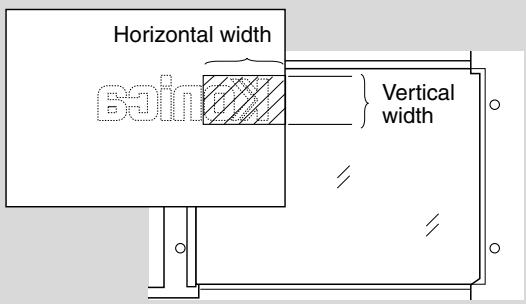
Vertical/Horizontal Width Setting mode
Repeat mode


Press on the control panel.
APPLICATION

Touch Repeat on the Application Selection Screen.
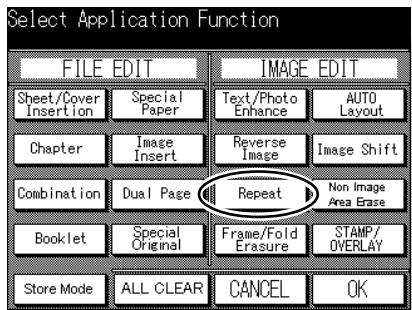

When starting a new copying job, be sure to close the RADF securely, then press AUTO RESET.

Touch Vert./ on the Repeat Mode Selection Screen.
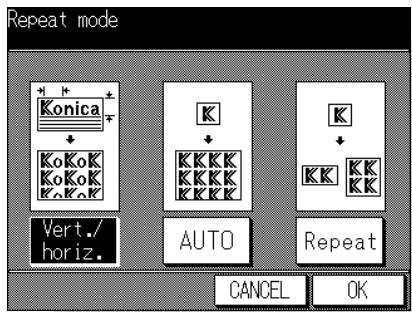

Specify the vertical and horizontal widths of the scanning area using or
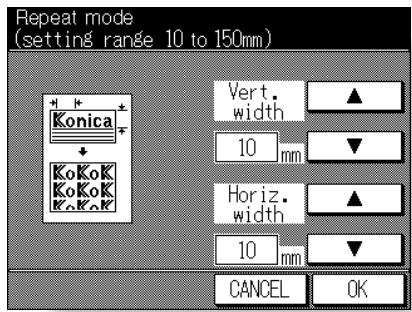

Touch OK
The Repeat Mode Selection Screen will be restored.

Touch OK on the Repeat Mode Selection Screen.
The Application Selection Screen will be restored.

Touch OK on the Application Selection Screen.
The Basic Screen will be restored.

DETAILS
The scanning area can be specified from 10 150~mm in 1 mm increments.
Keep touching the key to increase or decrease the value continuously.

Select the desired magnification and paper size on the Basic Screen.
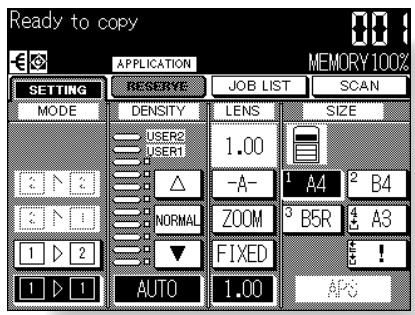

DETAILS
- APS and AMS are automatically released, and 1.00 (100%) is selected as a magnification ratio.
- Copy mode is automatically set to 1 1 . When selecting 1 2 mode, Platen store mode will function automatically.

Enter the desired print quantity from the control panel keypad.

See p. 3-6 for details on setting print quantity.

Position original FACE DOWN on the platen glass.

See the illustration on p. 8-38 for details.

Press


CAUTION
When the finisher / paper exit tray capacity is exceeded due to the print quantity selected, remove the copied sets as they exit; otherwise, mishandled paper will occur.
Auto Detection mode will automatically set the equal repeat area to the size of the original placed onto the platen glass by activating Non-image area erase.
Repeat mode will scan the image area specified by the selected paper size and mode (RepeatX2, RepeatX4, or RepeatX8), then arrange the image by specified times in one copy sheet.
Auto Detection/ Repeat Mode Specifications
Auto Detection Mode: Use the platen glass. RADF cannot be used.
Repeat Mode Magnification ratio: 1.00 (100%) fixed
□ Incompatible Conditions with Auto Detection Mode Using RADF, 2▶2, 2▶1, APS, AMS, Sort, Staple, Group, Sheet/Cover Insertion, Chapter, Combination, Booklet, OHP Interleaving, Image Insert, Dual Page, Mixed Original, Folded Original, Non-standard Size, Flip Side 2, Reverse Image, Frame/Fold Erasure, AUTO Layout, Image Shift, Non-Image Area Erase, STAMP/OVERLAY
Incompatible Conditions with Repeat Mode 2▶2, 2▶1, APS, AMS, Change magnification, Sort, Staple, Group, Sheet/Cover Insertion, Chapter, Combination, Booklet, OHP Interleaving, Image Insert, Dual Page, Mixed Original, Folded Original, Non-standard Size, Flip Side 2, Frame/Fold Erasure, AUTO Layout, Image Shift, Non-Image Area Erase, STAMP/OVERLAY
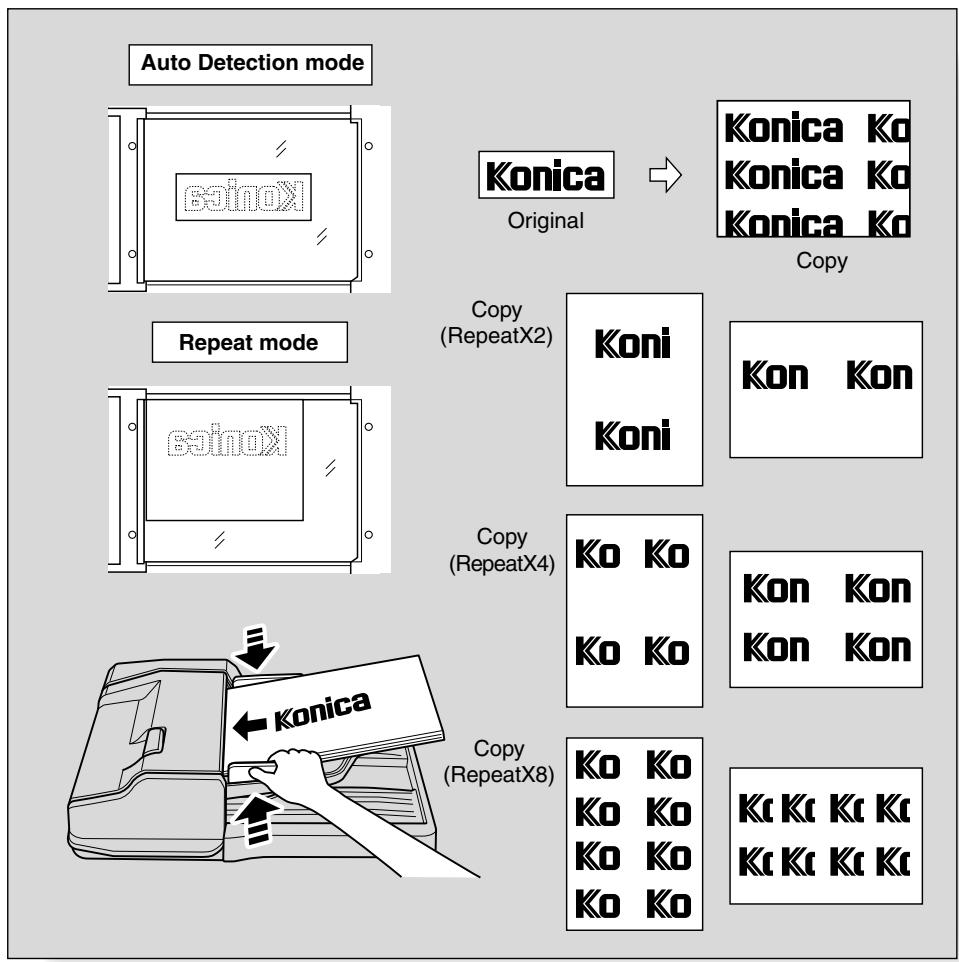

Press on the control panel.

Touch Repeat on the Application Selection Screen.
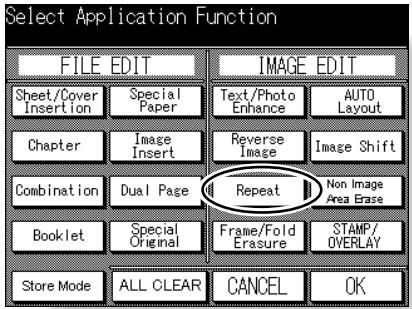

When starting a new copying job, be sure to close the RADF securely, then press AUTO RESET.

Touch AUTO or Repeat on the Repeat Mode Selection Screen.
When selecting AUTO, proceed to step 6. When selecting Repeat, proceed to step 4.
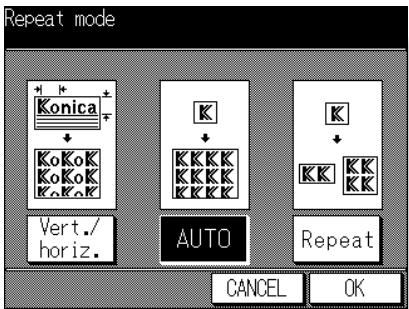

Select the desired mode key on the Repeat Screen.
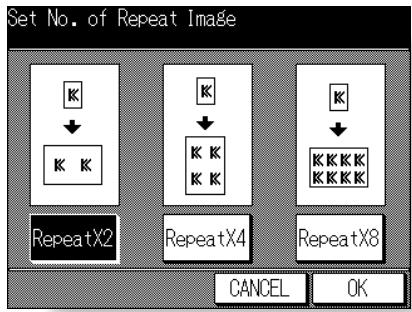

Touch OK to restore the Repeat Mode Selection Screen.

Touch OK
The Application Selection Screen will be restored.

Touch OK on the Application Selection Screen.
The Basic Screen will be restored.

Select the desired magnification and paper size on the Basic Screen.
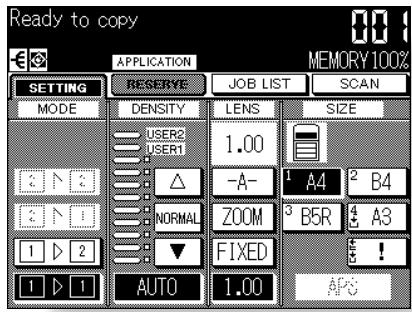

Enter the desired print quantity from the control panel keypad.

Position original.
For AUTO mode original, open the document feeder, then position the original FACE DOWN on the platen glass.
For RepeatX2, RepeatX4 or RepeatX8 mode original, RADF is also available.

Press

START

CAUTION
When the finisher / paper exit tray capacity is exceeded due to the print quantity selected, remove the copied sets as they exit; otherwise, mishandled paper will occur.

FOR DETAILS
Non-Image Area Erase is automatically selected on the Application Selection Screen when AUTO mode is selected.

DETAILS
- APS and AMS are automatically released, and 1.00 (100%) is selected as a magnification ratio.
- When RepeatX2, RepeatX4, or RepeatX8 is selected, the scanning area will be a portion of the selected paper size equally divided according to the selected mode. In this case, magnification ratio will be fixed to 1.00 (100%).
- Copy mode is automatically set to 1 1 . When selecting 1 2 mode, Platen store mode will function automatically.

See p. 3-6 for details on setting print quantity.

When AUTO mode is selected, Non-Image Area Erase functions automatically. DO NOT close the document feeder.

The AUTO mode may not operate properly if the lighting in the work place is directly over the platen glass. In this case, consult your service centre about an appropriate place for installation.
Eliminating Black Copy Marks Along Borders (Frame/Fold Erasure)
Use Frame/Fold Erasure to eliminate black copy marks along borders to clean up and improve the presentation of the copy.
Specifications for Frame/Fold Erasure
Incompatible Conditions with Frame Erasure: Combination, Non-Standard Size, Repeat
Incompatible Conditions with Fold Erasure: Combination, Booklet, Dual Page, Mixed Original, Non-Standard Size, Repeat
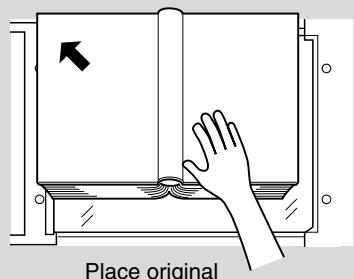
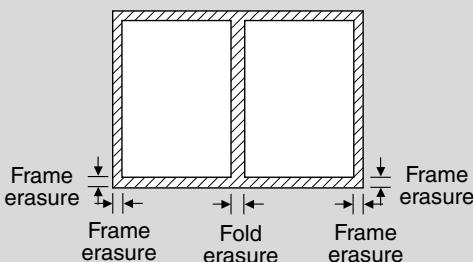
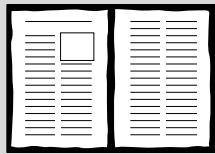
General copying
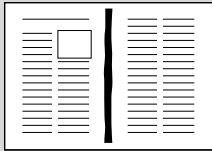
Frame Erasure
copying
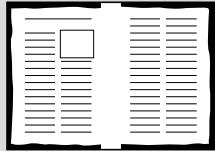
Fold Erasure
copying
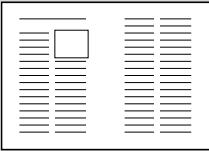
Frame/Fold Erasure
copying

Press on the control panel.
APPLICATION

Touch Frame/Fold Erasure on the Application
Selection Screen.
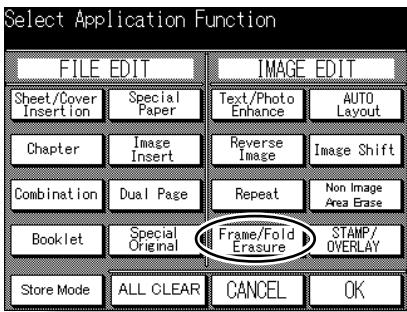

When starting a new copying job, be sure to close the RADF securely, then press AUTO RESET.

Touch Erasure on the
Frame/Fold Erasure Setting Screen, then set the erasure amount.
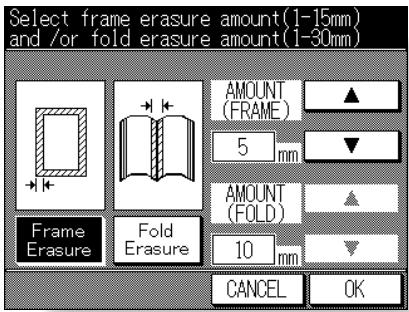

DETAILS
Use and to set the desired erasure amount, from 1 to 15mm in 1mm increments for Frame Erasure, and from 1 to 30mm in 1mm increments for Fold Erasure.
Select Frame Erasure and Fold Erasure to use both modes.

Touch
OK
The Application Selection Screen will be restored.

Touch OK on the Application Selection Screen.
The Basic Screen will be restored.

Enter the desired print quantity from the control panel keypad.

Position original(s) FACE UP in the document feeder or FACE DOWN on the platen glass.

Press

START

CAUTION
When the finisher / paper exit tray capacity is exceeded due to the print quantity selected, remove the copied sets as they exit; otherwise, mishandled paper will occur.

See p. 3-6 for details on setting print quantity.

For details on positioning originals, see p. 3-2 to p. 3-5.

When lowering the document feeder onto thick original (e.g. open book), do not press it down too hard. Keep the document feeder open, if required.
Copying Image in the Centre of Copy Paper (AUTO Layout)
Use this function to detect the image area of the original on the platen glass and centre the whole image on the copy paper making it easy to copy small pieces of paper.
Specifications for AUTO Layout
Use platen glass. (RADF cannot be used.)
Non-image area erase is automatically selected (can be released manually).
Incompatible Conditions: Using RADF, 2▶ 2, 2▶ 1, APS, AMS, Sort, Staple, Group, Sheet/ Cover Insertion, Chapter, Combination, Booklet, Image Insert, Mixed Original, Folded Original, Non-standard Size, Flip Side 2, Reverse Image, Repeat, Image Shift, STAMP/ OVERLAY
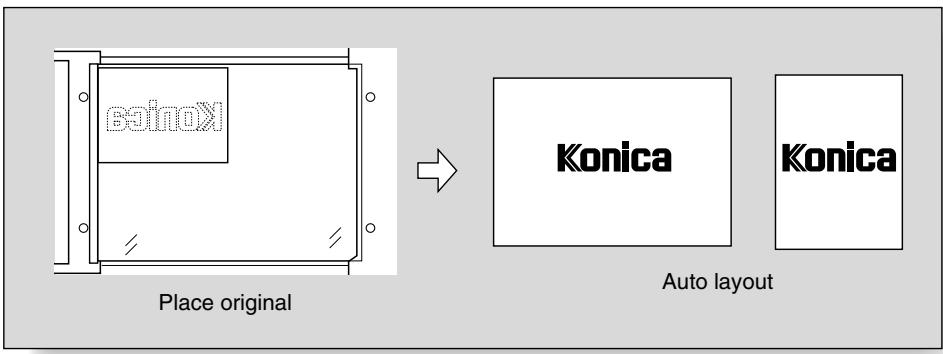

Press on the control panel.
APPLICATION
Touch AUTO Layout on the Application Selection Screen.
The incompatible function keys will be dimmed to show inactivity.
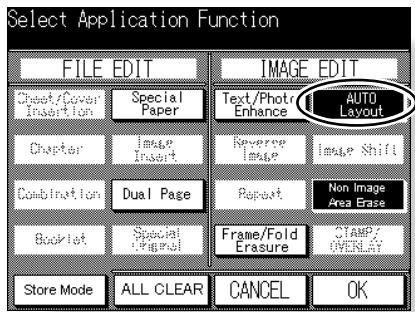

When starting a new copying job, be sure to close the RADF securely, then press l .
AUTORESET

Non-Image Area Erase will be selected automatically. If desired, touch Non Image Area Erase to deselect this function,

Touch OK on the Application Selection Screen.

Select the desired magnification and paper size on the Basic Screen.
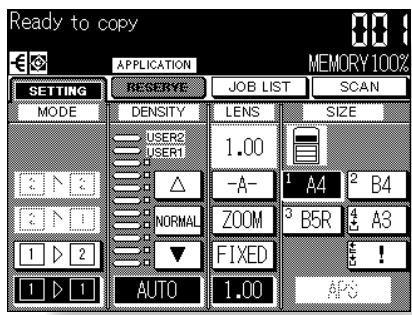

DETAILS
- APS and AMS are automatically released, and 1.00 (100%) is selected as a magnification ratio.
- Copy mode is automatically set to 1 1 .
When selecting 1 2 mode, Platen store mode will function automatically.

Enter the desired print quantity from the control panel keypad.

See p. 3-6 for details on setting print quantity.

Position originals FACE DOWN on the platen glass.

For details on positioning original, see p. 3-5.

Press

START

DO NOT close the RADF when Non-Image Area Erase is selected.

CAUTION
When the finisher / paper exit tray capacity is exceeded due to the print quantity selected, remove the copied sets as they exit; otherwise, mishandled paper will occur.

FORDETAILS
Having Any Problem?
The AUTO layout function may not operate properly if the lighting in the work place is directly over the platen glass. In this case, consult your service centre about an appropriate place for installation.
Creating Binding Margin (Image Shift)
Use Image shift to create a new binding margin on originals to make it easier for filing purposes. If image loss is likely, select the Reduce & shift mode instead of regular Image shift.
Specifications for Image Shift
Incompatible Conditions: APS (Reduce&Shift mode only), Booklet (Shift mode only), Image Insert, Dual Page, Mixed Original, Non-standard Size, Flip Side 2, Repeat, AUTO Layout, Non-Image Area Erase, STAMP/OVERLAY
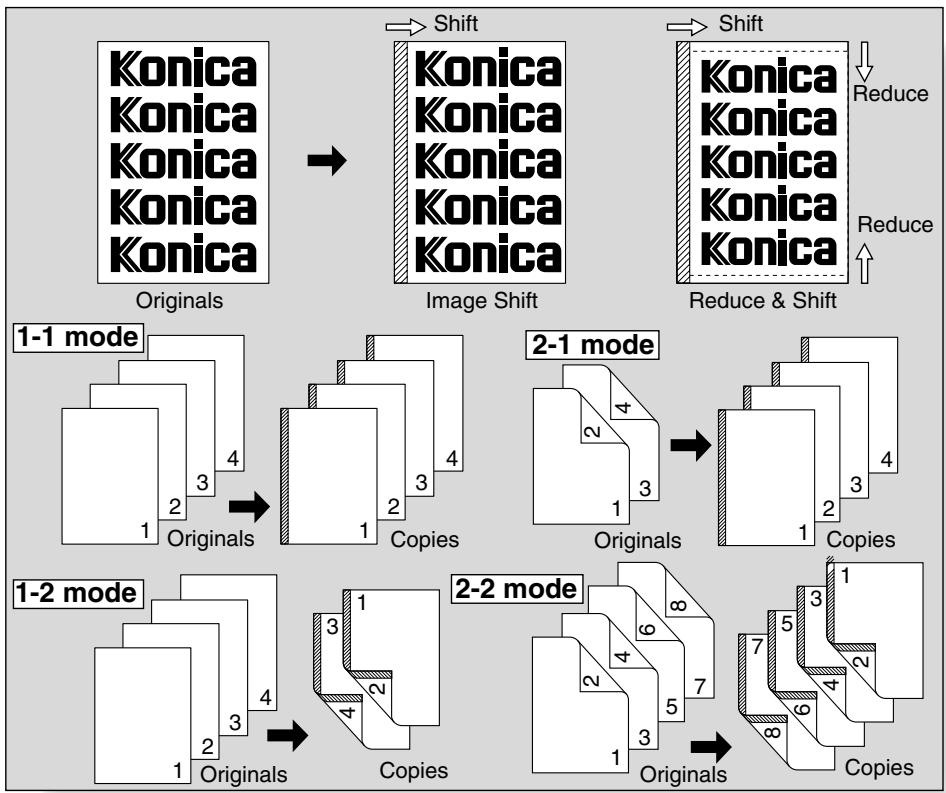

Press on the control panel.
Touch Image Shift on the Application Selection Screen.

When starting a new copying job, be sure to close the RADF securely, then press AUTO RESET.
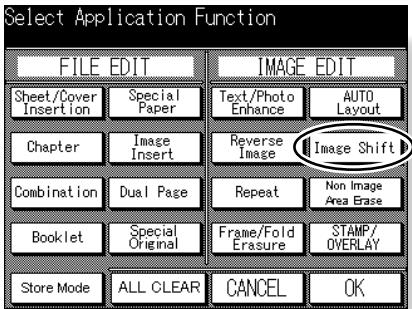

Image Shift or Reduce & on the Image Shift Setting Screen, then set the shift amount.
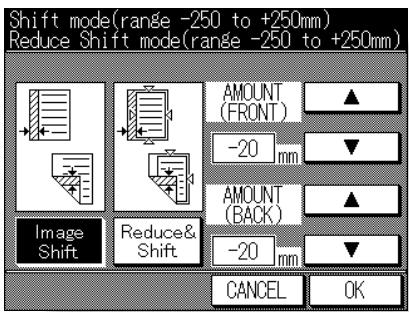
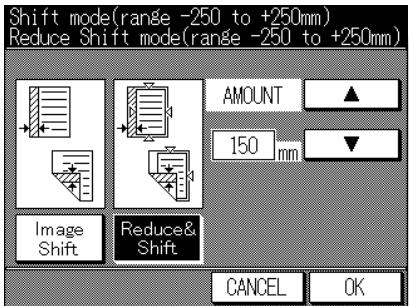

Touch OK
The Application Selection Screen will be restored.

Touch OK on the Application Selection Screen.
The Basic Screen will be restored.

Enter the desired print quantity from the control panel keypad.

Position original(s) FACE UP in the document feeder or FACE DOWN on the platen glass.

Press

START

FOR DETAILS
- Use and to set the desired shift amount, from -250 to +250mm in 1mm increments. The AMOUNT (BACK) functions only for duplex copying.
- In Reduce & Shift mode, the amount of front and back cannot be set individually.
- Reduction ratio varies according to the shift amount in Reduce & Shift mode.
HINTS
See p. 3-6 for details on setting print quantity.
HIN
For details on positioning originals, see p. 3-2 to p. 3-5.
Erasing Outside of the Original (Non-Image Area Erase)
The Non-image area erase mode is used to copy non standard or special originals, such as books, magazines, paste-ups, graphs, thick or thin materials, etc. from the platen glass. The exposed glass area outside the borders of the original will not be copied.
Specifications for Non-Image Area Erase
Use the platen glass only. Keep RADF open throughout the procedure.
Incompatible Conditions: Using RADF, 2▶2, 2▶1, APS, AMS, Sort, Staple, Group, Sheet/Cover Insertion, Chapter, Combination, Booklet, Image Insert, Mixed Original, Folded Original, Non-Standard Size, Flip Side 2, Reverse Image, Image Shift, STAMP/OVERLAY
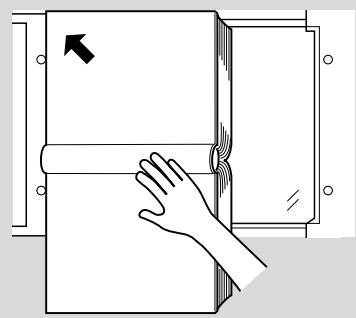
Set original
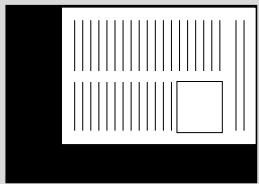
General copying
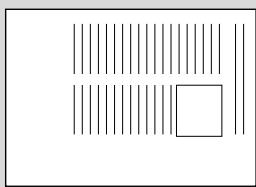
Non-Image Area Erase


Press on the control panel.
Touch Non Image Area Erase on the Application Selection Screen.
The incompatible function keys will be dimmed to show inactivity.
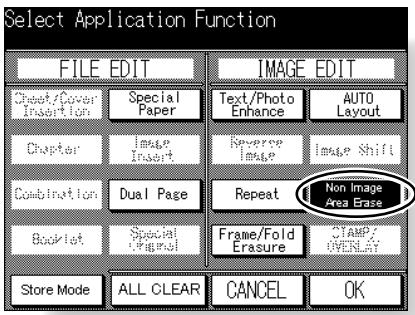

When starting a new copying job, be sure to close the RADF securely, then press AUTO RESET.

Touch OK on the Application Selection Screen.
The Basic Screen will be restored. Select magnification and paper size, as desired.

Enter the desired print quantity from the control panel keypad.

Position original FACE DOWN on the platen glass.

Press


- APS and AMS are automatically released.
- Copy mode is automatically set to 1 1 . When selecting 1 2 mode, Platen store mode will function automatically.

See p. 3-6 for details on setting print quantity.

DO NOT CLOSE THE DOCUMENT FEEDER.

Original size should be larger than 10mm× 10mm

Oblique Erase and Rectangular Erase Modes
The Non-image area erase has two modes; namely, Rectangular erase mode and Oblique erase mode. The copier is initially set to Rectangular erase mode. This initial setting can be changed in Key operator mode. See p. 12-11.
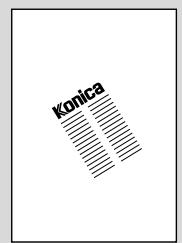
Oblique erase mode
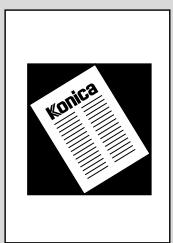
Rectangular erase mode
Having Any Problem?
- This function may not operate for the dark originals. Detectable original density level can be specified in the Key operator mode. See p. 12-11.
- This function may perform incorrectly if the lighting in the work place is directly over the platen glass. In this case, consult your service centre about an appropriate place for installation.
Printing Stamps or Watermarks onto Copies (Stamp)
This function allows you to print onto output copies the desired type of stamp at the location designated on the screen, or of watermark in the centre of the page.
The five stamp types provided on the Stamp/Overlay Selection Screen can be used individually or in multiple combinations.
Specification for STAMP and WATERMARK
Incompatible Conditions: Dual Page, Mixed Original, Non-Standard Size, Repeat, AUTO Layout, Image Shift, Non-Image Area Erase, OVERLAY

WATERMARK
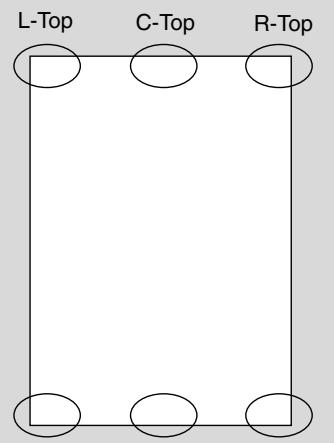
L-Bottom C-Bottom R-Bottom
Positions of other stamps

Press on the control panel.

Touch STAMP/ OVERLAY on the Application
Selection Screen.
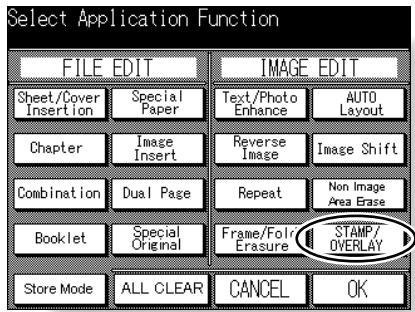

When starting a new copying job, be sure to close the RADF securely, then press AUTO RESET.

Touch ORIGI. DIRECT on the Stamp/Overlay Selection Screen.
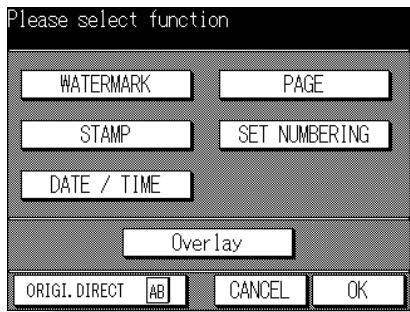

Touch the key to match the originals to be copied, then touch OK
The Stamp/Overlay Selection Screen will be restored.
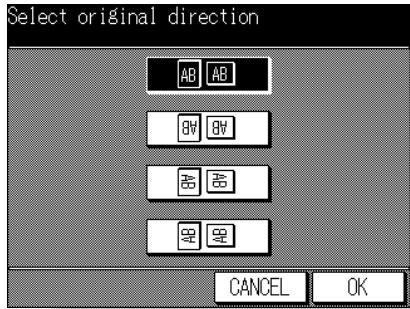

Touch WATERMARK or STAMP, as desired.
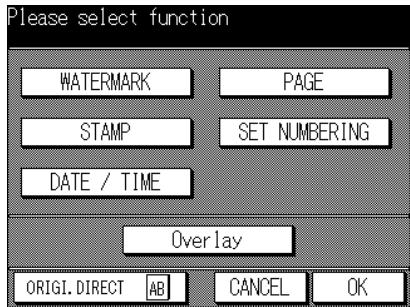

See p. 8-56 for selecting PAGE, SET NUMBERING, or DATE / TIME.

Touch to select the desired type of watermark (or stamp) on the screen.


Touch Only to print the selected watermark or stamp on the first page only.
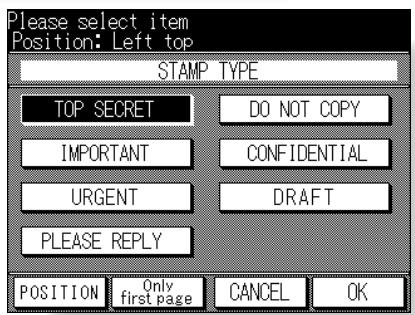

(For STAMP only) When changing the print location, touch POSITION on the Stamp Selection Screen.

Touch the desired position key, then touch OK
The Stamp Selection Screen will be restored.
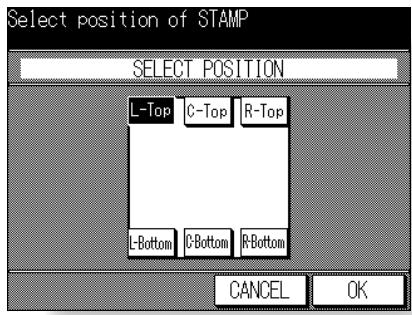

Touch OK on the Stamp Selection Screen or on the Watermark Selection Screen.

When all the setting is completed, touch OK on the Stamp/Overlay Selection Screen.
The Application Selection Screen will be restored.

Touch OK on the Application Selection Screen.
The Basic Screen will be restored.

Enter the desired print quantity from the control panel keypad.

Position original(s) FACE UP in the document feeder or FACE DOWN on the platen glass.

Press

START

CAUTION
When the finisher / paper exit tray capacity is exceeded due to the print quantity selected, remove the copied sets as they exit; otherwise, mishandled paper will occur.

See p. 3-6 for details on setting print quantity.

Make sure that the original is positioned in correct direction, as specified in step 4.
- For details on positioning originals, see p. 3-2 to p. 3-5.
Printing Date/Time, Page Numbers or Numbering (Stamp)
This function allows you to print onto output copies the desired type of page number, numbering, or date and time at the location designated on the screen.
The five stamp types provided on the Stamp/Overlay Selection Screen can be used individually or in multiple combinations.
Specification for DATE/TIME, PAGE and SET NUMBERING
Incompatible Conditions: Sheet/Cover Insertion, Booklet, Dual Page, Mixed Original, Non-Standard Size, Reverse Image, Repeat, AUTO Layout, Image Shift, Non-Image Area Erase, OVERLAY



Press on the control panel.
Touch STAMP/ OVERLAY on the Application Selection Screen.

When starting a new copying job, be sure to close the RADF securely, then press AUTO RESET.
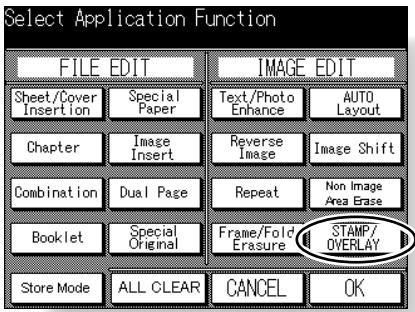

Touch ORIGI. DIRECT on the Stamp/Overlay Selection Screen.
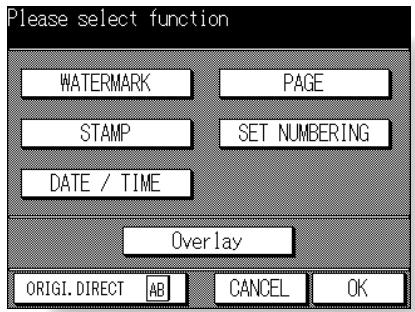

Touch the key to match the originals to be copied, then touch OK.
The Stamp/Overlay Selection Screen will be restored.
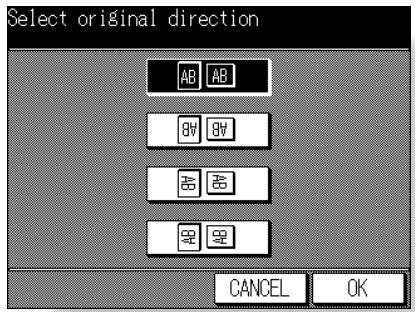

Touch DATE / TIME, PAGE or SET NUMBERING, as desired.
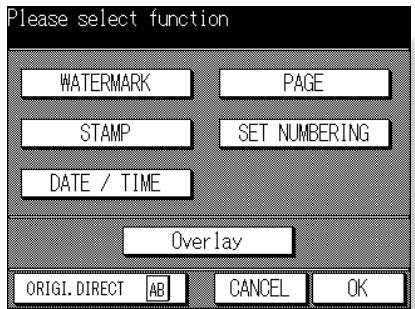

Touch to select the desired type of page, numbering, or date/time on each screen.
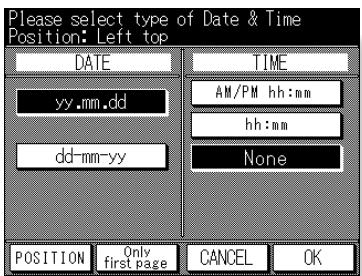
FORDETAILS
Touch Only to print the selected date/time or numbering on the first page only.
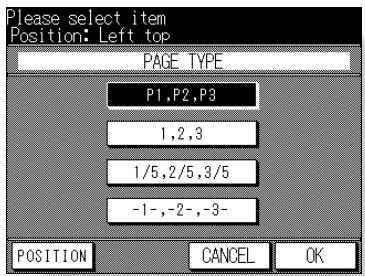
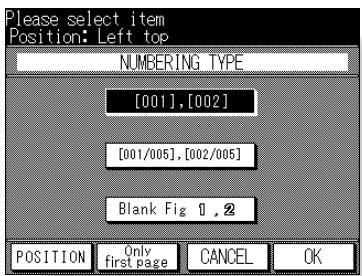

When changing the print location, touch POSITION on each screen.

Touch the desired position key, then touch OK
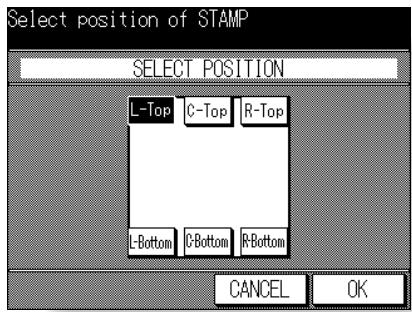

Touch OK on each selection screen.

Touch OK on the Stamp/Overlay Selection Screen.
The Application Selection Screen will be restored.

Touch OK on the Application Selection Screen.
The Basic Screen will be restored.

Enter the desired print quantity from the control panel keypad.

Position original(s) FACE UP in the document feeder or FACE DOWN on the platen glass.

Press START

CAUTION
When the finisher / paper exit tray capacity is exceeded due to the print quantity selected, remove the copied sets as they exit; otherwise, mishandled paper will occur.

See p. 3-6 for details on setting print quantity.

Make sure that the original is positioned in correct direction, as specified in step 4.
- For details on positioning originals, see p. 3-2 to p. 3-5.
Overlaying an Image onto Each Page Copied in the Job (Overlay)
Use this function to scan an image, then overlay the image onto each page copied in the job.
Specification for Overlay
Store mode is automatically selected.
Incompatible Conditions: APS, AMS, Rotation exit, Sheet/Cover Insertion, Combination, Booklet, Mixed Original, Non-Standard Size, Flip Side 2, Image Insert, Dual page, Repeat, AUTO Layout, Image Shift, Non-Image Area Erase, STAMP
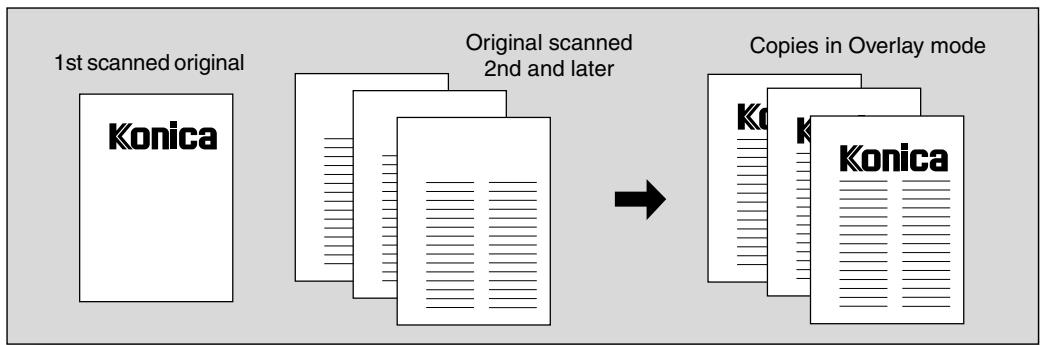

Press on the control panel.
APPLICATION

When starting a new copying job, be sure to close the RADF securely, then press AUTO RESET.

Touch STAMP/ OVERLAY on the Application Selection Screen.
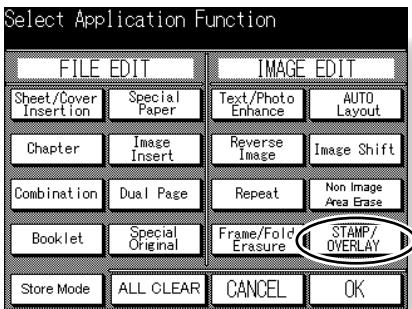

Touch Overlay on the Stamp/Overlay Selection Screen.
The Basic Screen will be automatically restored.
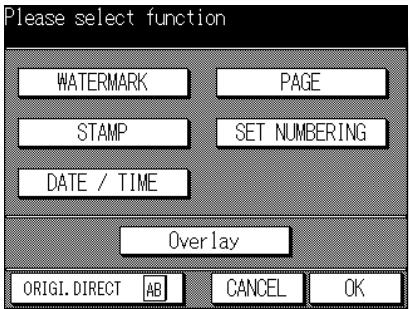

Select the desired paper size and magnification on the Basic Screen.
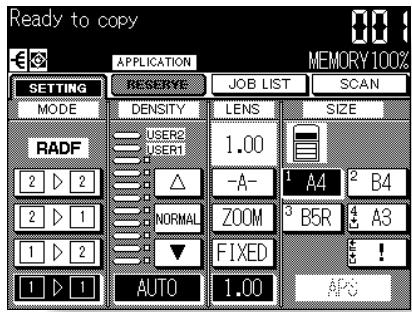

DETAILS
APS and AMS are automatically released, and 1.00 (100%) is selected as a magnification ratio.

Enter the desired print quantity from the control panel keypad.

Position the overlaying original.
Position the original FACE UP in the document feeder or FACE DOWN on the platen glass.

Touch SCAN on the Basic Screen.
The original image will be scanned into memory.

See p. 3-6 for details on setting print quantity.

For details on positioning originals, see p. 3-2 to p. 3-5.

Position the original(s) to be overlaid.
Position the original FACE UP in the document feeder or FACE DOWN on the platen glass.

Touch SCAN
Repeat steps 8 and 9 for all originals.

Press 1
START

CAUTION
When the finisher / paper exit tray capacity is exceeded due to the print quantity selected, remove the copied sets as they exit; otherwise, mishandled paper will occur.

If the number of originals exceeds 50, divide them into blocks not exceeding 50 sheets and load them from the block with the first page.
SECTION
9
Paper and Original Information
Paper Information 9-2
Original Information 9-5
Paper
Information
Original
formation

Paper &
Original Info
This machine is equipped with the following trays for loading copy paper.
- Main body tray (Tray 1)
DB-208 trays (Tray 2, 3 and 4)
DB-208A tray (Tray 2)
DB-608 trays (Tray 2 and 3)
Multi-sheet bypass tray
Also, following equipments are provided for conveying/delivering copies.
- ADU (Automatic Duplex Unit)
- Finisher
- Exit tray (for the machine without finisher)
Refer to the following information on paper capacity for each.
Paper Weight
| Paper Trays | Weight |
| Main body tray (Tray 1) | 60~90g/m2 |
| DB-208 (Tray 2, 3, 4) | |
| DB-208A (Tray 2) | |
| DB-608 (Tray 2, 3) | |
| Multi-sheet bypass tray | 50~130g/m2 |
| Equipments | Weight |
| ADU | 60~90g/m2 |
| Finisher (Exit tray 1) | 50~130g/m2 |
| Finisher (Exit tray 2, 3) | 60~130g/m2 |
| Exit tray | 50~130g/m2 |
Tray/ Exit Tray Capacity
| Paper Trays | Capacity |
| Main body tray (Tray 1) | 500 sheets (80g/m2) |
| DB-208 (Tray 2, 3, 4) | |
| DB-208A (Tray 2) | |
| DB-608 (Tray 2) | |
| DB-608 (Tray 3) | 1,500 sheets (80g/m2) |
| Multi-sheet bypass tray | 100 sheets (80g/m2) 1 sheet each for thick/ thin paper and OHP film |
| Equipments | Capacity |
| ADU | Unlimited |
| Finisher | See the following page. |
| Exit tray | 100 sheets |

Paper in FS-109 Finisher (Option)
This Finisher is equipped with three exit trays.
The Exit tray capacities classified according to paper size and type in each output mode are described below (capacities at 80g / m^2 , unless otherwise indicated).
Up to 50 sheets (or within 5mm thick) can be stapled in Staple mode, however, the capacity cannot exceed that in non-staple mode.
| Exit tray/Output mode | Paper size/Paper type | |||||
| A5R*3 | A4, A4R, B5, 8.5"x11" | A3, B4, B5R*3 | Thick/Thin paper, OHP film | Non-standard size | ||
| Exit tray 1 | Non-sort | 100 sheets | 100 sheets | 100 sheets | 10 sheets | 10 sheets |
| Exit tray 2 | Non-sort | 300 sheets | 700 sheets | 300 sheets | - | - |
| Exit tray 3 | Sort/Group | - | 700 sheets | 300 sheets | - | - |
| Staple | 25 sets*1 | 25 sets*2 | 25 sets*2 | - | - | |
1: Total paper capacity should be 300 sheets or less.
2: Total paper capacity should be 500 sheets or less.
^*3 : Stapling on rear side is not available.
Paper Information
Original Information

Paper Size
| Paper Trays | Available Sizes |
| Main body tray (Tray 1) | A3, B4, F4, A4, A4R, B5, B5R, A5R*, 8.5"x11"R, 8.5"x14" |
| DB-208 (Tray 1, 2, 3) | |
| DB-208A (Tray 2) | |
| DB-608 (Tray 2) | |
| DB-608 (Tray 3) | A4, A4R, B5, B5R, 8.5"x11", 8.5"x11"R |
| Multi-sheet bypass tray | A3, B4, F4, A4, A4R, B5, B5R, A5R*, 8.5"x11" |
| Equipments | Available Sizes |
| ADU | A3 to A5R* |
| Finisher | A3 to A5R* |
| Exit tray | A3 to A5R* |
HINTS
Main body tray (Tray 1), DB-208 trays (Tray 2, 3, 4), DB-208A tray (Tray 2) and DB-608 tray (Tray 2) are user-adjustable. See p. 2-20 to change the paper size of the tray.
FOR DETAILS
DB-608 tray (Tray 3) is initially fixed to A4 size by service and accepts 1,500 sheets at a time. Contact your service centre to change the tray size, if desired.
FOR DETAILS
*:This size can be loaded in landscape orientation (□) only.
Special Paper in Multi-Sheet Bypass Tray
Multi-sheet bypass tray accepts non-standard size or special paper type that cannot be loaded in the main body trays.
Thin paper (50 59g / m^2)
Thick paper (91 130g / m^2)
Special (OHP film, labels, hole punch, rag content)
HINTS
Key operator can set the machine to indicate the paper type when paper is loaded in the Multi-sheet bypass tray. See p. 12-22.
To Store Copy Paper
- Store paper in a cool, dry area. Using damp copy paper may cause a paper misfeed.
Keep partially used packages tightly wrapped during storage. - Do not place paper packages vertically to store.
Paper curl due to the vertical storage may cause a paper misfeed.
Use the platen glass or document feeder to position originals to copy.
Platen Glass Originals
Use the platen glass when originals are not suitable for use with the document feeder, e.g., when size is incompatible, or when originals are folded, stapled, torn, or in generally poor condition.
Unsuitable RADF Originals

1
Curled, creased of folded originals

2
Paste-up cut-outs

3
Books

4
Glossy or transparent originals, OHP film, art paper, cellophane
5
Doubled, punched or stapled originals
6
Thin or thick originals
Platen Glass Original Specifications
Max. original size: A3, sheet or book
Max. book weight/thickness: 6.8kg / 30mm
Original placement: Face down on left depth side of glass

CAUTION
Do not place too heavy originals, or do not press strongly when thick original is placed and is under pressure of RADF; otherwise the glass may be broken and you may be injured.

See each description in this manual for copy conditions which cannot use the document feeder to scan.
Paper
Information
Original
Information

Paper &
Original Info
■ RADF Originals
Following three modes are provided when using the document feeder (RADF) to scan originals.
Normal mode
- Mixed original mode
- Folded original mode
Specifications for each mode are described as follows.
Normal mode
Detectable original size: A3, B4, F4, A4R, A4, B5R, B5, A5, A5R, 8.5"x11"
Original weight: 35 130g / m^2 (no special stock)
Max. feeder capacity: 50 sheets (80g/m² paper)
Curling tolerance: 10mm or less
Original placement: Face up; orientation same as copy paper
Mixed original mode
Use Mixed original mode to copy mixed size originals. See p. 8-25 for details.
- Original size: Three types of size combination are determined by the RADF guide width.
A3 in landscape / A4 in portrait orientation:
A3, B4, A4R, A4, B5, A5 mixed
B4 in landscape / B5 in portrait orientation:
B4, A4R, B5R, B5, A5 mixed
A4 in landscape / A5 in portrait orientation:
A4R, B5R, A5 mixed
Original weight: 35 130g / m^2 (no special stock)
Max. feeder capacity: 50 sheets (80g/m² paper)
Curling tolerance: 10mm or less
Original placement: Face up (see p. 3-3 for details.)
Folded original mode
Use Folded original mode to scan folded originals without using the size detection sensor of the RADF. See p. 8-27 for details.
Detectable original size: A3, B4, F4, A4R, A4, B5R, B5, A5, A5R, 8.5"x11"
Original weight: 35 130g / m^2 (no special stock)
Max. feeder capacity: 50 sheets (80g/m² paper)
Curling tolerance: 10mm or less
Original placement: Face up; orientation same as copy paper

DETAILS
*:This size can be loaded in landscape orientation (□) only.
Key operator can change the setting to allow this size to be placed in portrait orientation (□). See p. 12-37.

DETAILS
See below for the guide width of each combination.
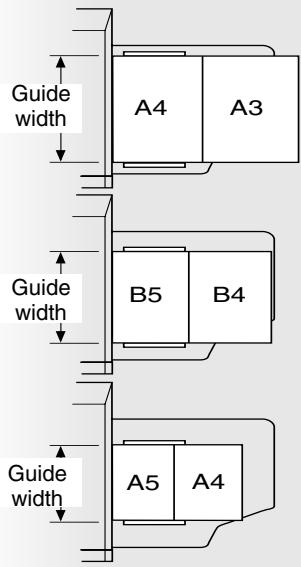

DETAILS
*:This size can be loaded in landscape orientation (□) only.
Key operator can change the setting to allow this size to be placed in portrait orientation . See p. 12-37.
SECTION
10
Supplies
How to Add Toner and Staples
Adding Toner 10-2
Inserting a New Staple Cartridge 10-6
Copy Materials 10-9
Adding Toner
Inserting New Staple Cartridge
Copy Materials
10
Supplies
■ Add Toner Message
When toner supply is low, "Please add toner" message and the icon “+” displays on the touch screen.
Add toner according to the procedure as follows.
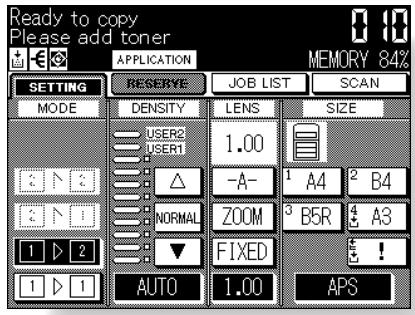

The icon " 喜 " does not display in the factory setting. Service can set the copier to display it. Please contact your service centre, if desired.

To loosen toner, shake the new toner bottle several times, then remove the toner bottle cap.
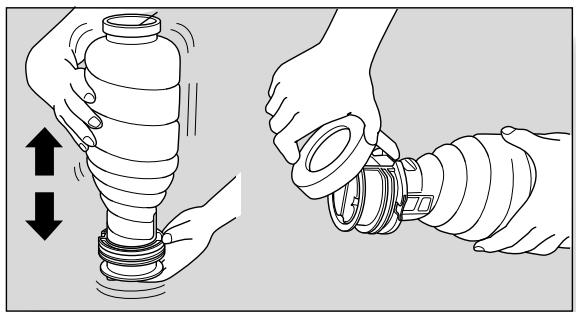

Use the toner bottle specified only for this machine. Using a toner bottle for other machines may cause machine trouble.

Open the machine front door. Pull the toner unit 90^ to the right.
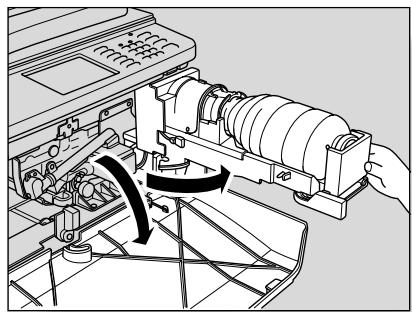

Push the lock lever to the left until it stops.
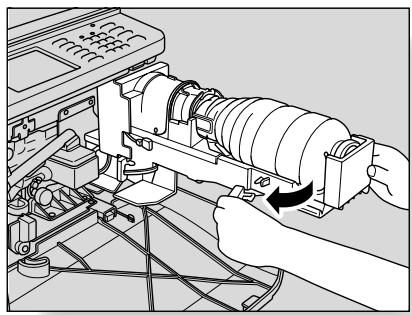

Remove the empty toner bottle.
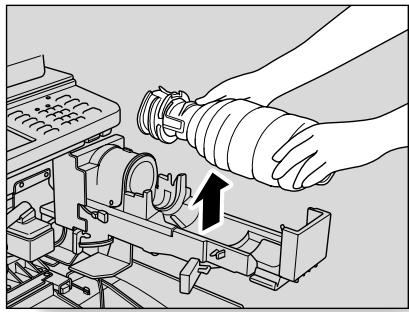

Set the new toner bottle into the toner unit.
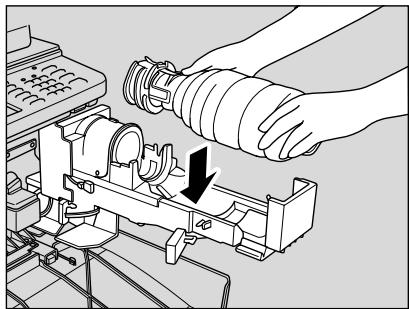

Set the toner bottle with the lock tape and cut-off portion on the top as illustrated on the right.
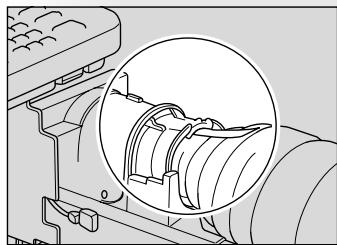
Adding Toner
Inserting New Staple Cartridge
Copy Materials
10 Supplies

Return the lock lever to the left until it stops.
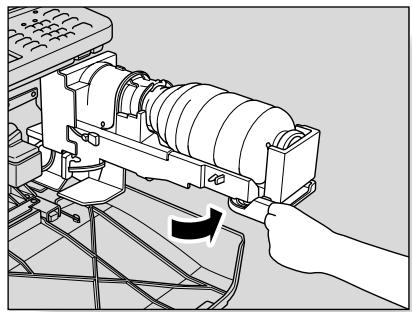
The lock tape will be pushed out from the cut-off portion of the toner bottle.

Remove the lock tape from the toner bottle.
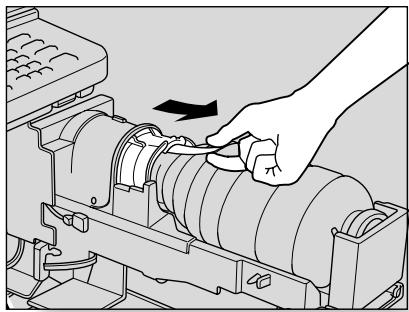

Return the toner unit to its original position, then close the machine front door securely.
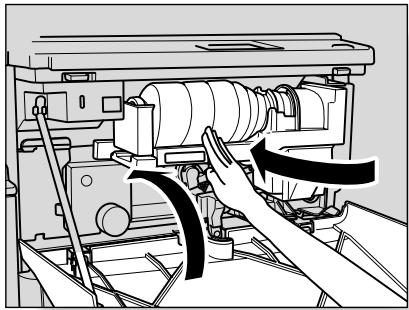

Be sure the cut-off portion of the toner bottle is shown on the top; otherwise the lock lever cannot be returned.

CAUTION
Keep the toner bottle away from children. The toner is nontoxic; however if you inhale or contact with eyes by accident, flush with water and seek medical advice.

CAUTION
Do not throw the empty toner bottle into a fire. If it is thrown into a fire, the toner may ignite and cause a dangerous situation.
Adding Toner
Inserting New
Staple Cartridge
Copy
Materials
10
Supplies
Inserting a New Staple Cartridge
When the staple cartridge of the Finisher is empty, the following message will be displayed on the touch screen.
Please separate Finisher from the copier and replace staples
Follow the procedure below to replace the staple cartridge.

While pressing the Finisher release lever, slide the finisher to the left.
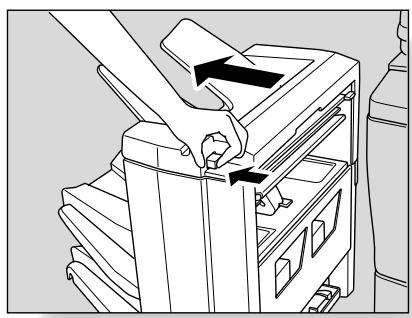

Use only the staples supplied by Konica. Contact your service centre to purchase.

Push down the staple cartridge lever to release the staple cartridge from the cartridge holder.
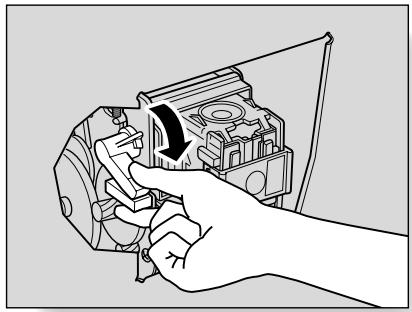

Remove the staple cartridge.
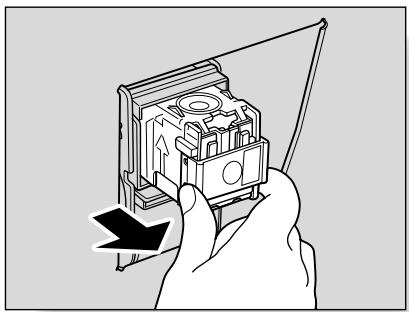

Remove the empty staple case from the cartridge.
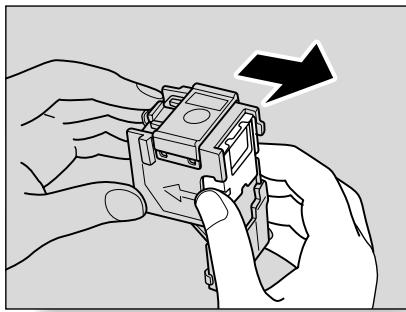

Firmly insert the new staple case into the staple cartridge, while aligning the arrow sides of both case and cartridge.
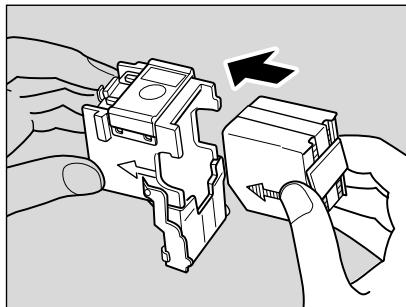

Remove the lock tape from the staple case.
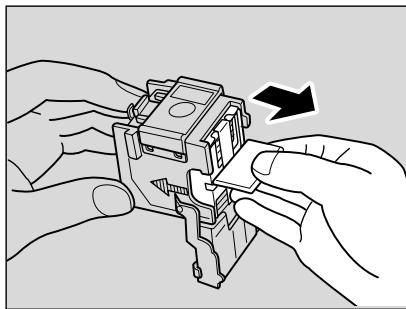
Adding Toner
Inserting New Staple Cartridge
Copy Materials
10 Supplies

Return the staple cartridge to its original position and push in it securely.
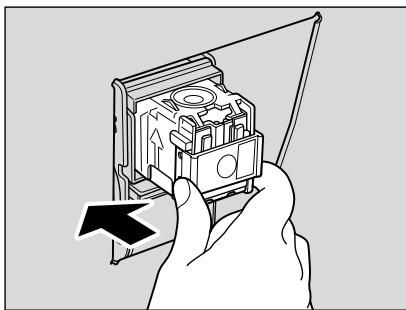

Slide the Finisher to the right and securely connect it with the main body.
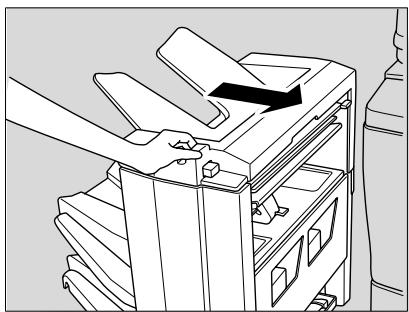
■ Maintenance Kit
Cleaning blade 1
Corona wire (Charging) 1
Charging control plate 1
Cleaner MT base assay 1
Charging cleaner block/C assay 1
Charging cleaner block/D assay 1
Corona wire (Transfer/Separation) 2
Fixing cleaning roller 1
Fixing roller/A 1
Fixing cleaner pad 1
Cotton swabs (4 pcs) 1
Cleaning pad (10 pcs) 3
Dust bag 1
Developer collecting sheet 1
Collecting hand bag 1
Adding Toner
Inserting New Staple Cartridge
Copy Materials
10 Supplies
SECTION
11
Maintenance
How to Maintain the Copier
Cleaning Image Scanning Section 11-2
Checking Copy Count 11-4
Cleaning Scanning Section
Copy Count

Cleaning Image Scanning Section
In order to maintain optimum copy quality, always keep the following areas clean.
■ Cleaning the Document Glass
Cleaning the Platen Glass
Raise the document feeder, and clean the glass with a clean soft cloth.
The glass may also be cleaned with a soft cloth dampened slightly with water, if it is difficult to be cleaned.
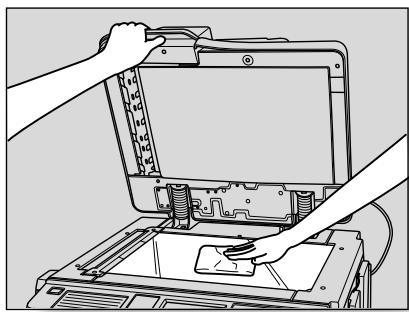

Never use paint solvents, such as benzene or thinner, to clean the platen glass.
■ Cleaning the RADF
Cleaning the Left Partition Glass
Keep the glass clean; otherwise soil marks may be copied, resulting in dark lines on the copies.
Clean the left partition glass with a clean soft cloth.
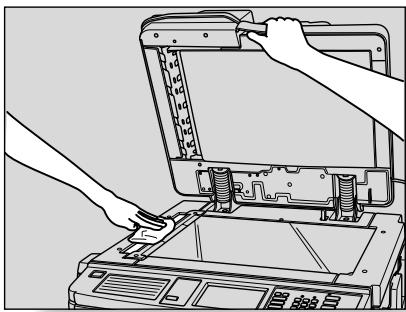
Cleaning the RADF Platen Guide Cover
The RADF platen guide cover should be kept clean; otherwise, soil marks may be copied, or the original size cannot be detected correctly.
Clean the RADF platen guide cover with a clean soft cloth.
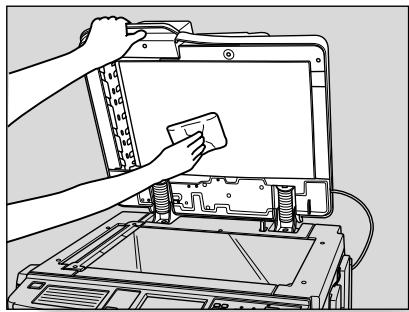

Never use paint solvents, such as benzene or thinner, to clean the RADF platen guide cover.
Cleaning Scanning Section
Copy Count

The Counter List Screen allows you to view the total count calculated as a list. Check the list, then print it if desired.

To Display the Counter List Screen

Press (P) on the control panel.
The Counter List Screen will be displayed.

Touch OK
The Basic Screen will be restored.
■ To Print the Counter List

Press () on the control panel.
The Counter List Screen will be displayed.

Touch PRINT
The counter list will be output.
Cleaning Scanning Section
Copy Count

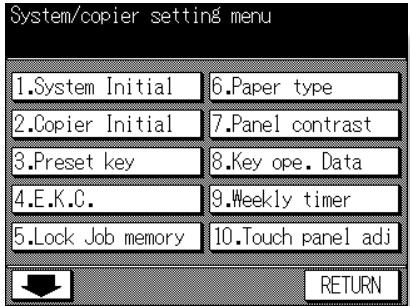
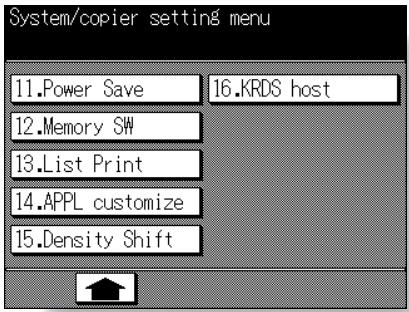
SECTION
12
Key Operator Mode
How to Monitor Copier Activity and Modify Machine Settings
How to Access the Key Operator Mode 12-2
[1] System Initial 12-4
[2] Copier Initial 12-6
[3] Preset Key 12-12
[4] EKC (Electronic Key Counter) 12-14
[5] Lock Job Memory 12-21
[6] Paper Type 12-22
[7] Panel Contrast. 12-23
[8] Key Operator Data 12-24
[9] Weekly Timer 12-25
[10] Touch Panel Adjustment 12-32
[11] Power Save 12-33
[12] Memory Switch 12-34
[13] List Print 12-38
[14] Application Customize 12-39
[15] Density Shift 12-40
[16] KRDS Host 12-41
How to Access the Key Operator Mode
The key operator is trained to handle all special key operator functions that are not accessible to the general user, such as monitoring overall copier activity, machine performance, and service information; modifying machine settings; and controlling user activity, for billing purposes.
A unique 4-digit key operator password is normally set by service at installation. If the unique code is not set by service, the copier will not display Key Operator Password Entry Screen when the Key Operator mode is being accessed, and a key operator password will not be required. A service-set 8-digit EKC master key code must be entered by the key operator to access the Electronic Key Counter functions, and a service-set 4-digit Weekly timer master key code must be entered by the key operator to access the Weekly timer functions.
To ensure the security of Key Operator mode, it is recommended that you establish a unique key operator password, along with the key operator EKC master key code and Weekly timer master key code, and keep them in a confidential file.
■ To Display the Key Operator Mode Screen

Press 2 on the control panel to display the Help Screen.
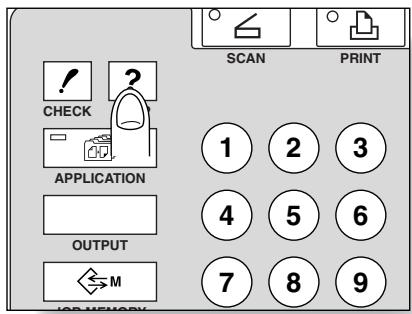

Touch Key Ope mode on the Help Screen.
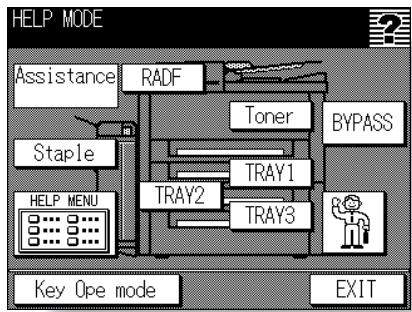

Use the keypad on the touch screen to enter your 4-digit key operator password; then touch OK
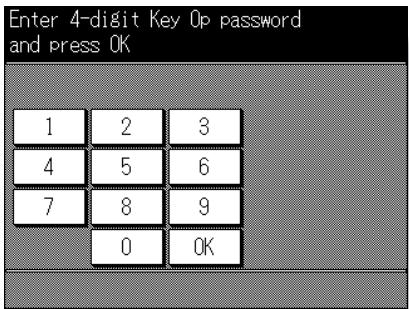
FORDETAILS
If an invalid Key operator password is entered, continue by entering the valid 4-digit password.
If the key operator password is not valid, check with your service centre.

Make setting changes from the Key Operator Mode Screen, as described on the following pages.
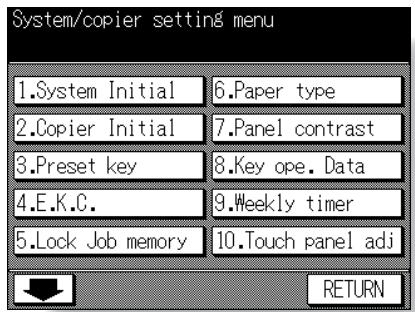
FORDETAILS
To display menus 11. to 16. of the Key Operator Mode Screen, touch
To return the menu 1. to 10. of the Key Operator Mode Screen, touch
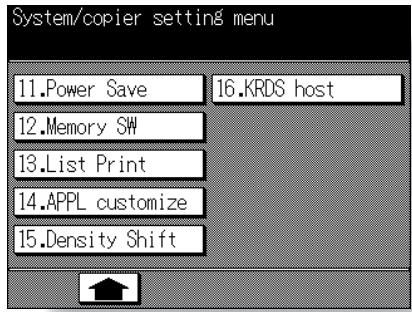
FORDETAILS
When the machine is equipped with IP-431 option, a mode selection screen displays after entering the key operator password.
Select "1. System/copier" to enter the System/copier setting mode; or select "2. Printer/scanner" to enter the Printer/scanner setting mode.

Touch RETURN to exit the Key oper. erator mode.
The Basic Screen will be restored.
Set the following initial conditions of the copier.
- Time: Current date and time, summer time
- Language: Language used in LCD
1.Time
Set the current date and time, and also the summer time.
Default setting: Summer time off
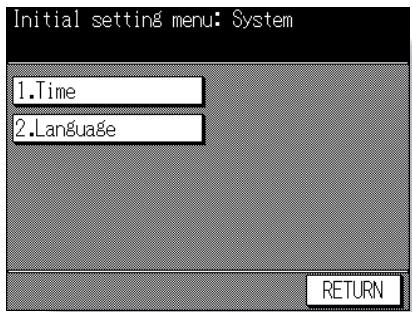
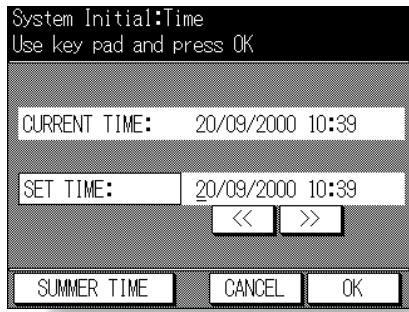
Procedure
1 Touch 1. System Initial on the Key Operator Mode Screen to display the System Initial Setting Menu Screen.
2 Touch 1. Time to display the Time Setting Screen.
3 Adjust the time.
The time that the copier currently has is displayed in the upper line, in the order of date, month, year, and time (in 24-hour expression).
(1) Touch the left arrow (<<) and right arrow (>>) keys displayed under the SET TIME to move the cursor to the number to be changed.
(2) Press the keypads on the control panel to enter the number.
4 To activate the summer time function, touch SUMMER TIME to highlight it.
NOTE:
This operation advances the current time of the copier by an hour. If any other time is required to be set, contact your service representative.
5 Touch OK to complete the setting and return to the System Initial Setting Menu Screen.
6 Touch RETURN to restore the Key Operator Mode Screen.
7 If no further changes are required, touch RETURN to restore the Basic Screen to perform copying operations.
■ 2. Language
Select the language used in the LCD.
Default setting: English
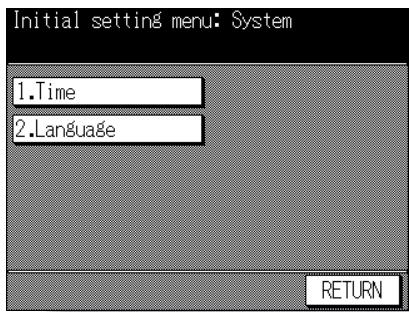
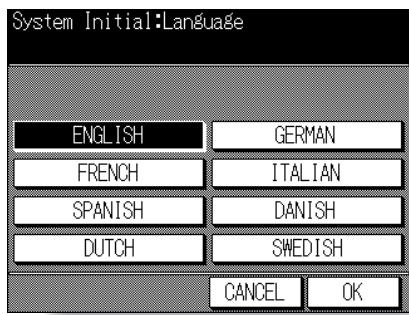
Procedure
1 Touch 1. System Initial on the Key Operator Mode Screen to display the System Initial Setting Menu Screen.
2 Touch 2. Language to display the Language Selection Screen.
3 Touch ENGLISH, FRENCH, SPANISH, DUTCH, GERMAN, ITALIAN, DANISH, or SWEDISH.
4 Touch OK to complete the setting and return to the System Initial Setting Menu Screen.
5 Touch RETURN to restore the Key Operator Mode Screen.
6 If no further changes are required, touch RETURN to restore the Basic Screen to perform copying operations.
Initial settings are the settings that display automatically when the copier is powered on, when Auto Reset timer is operated, or when 口 AUTORESET is pressed.
These settings can be changed by the key operator, as shown in this section. Initially, i.e., at installation, the Basic Screen displays the following condition to meet Energy Star requirements:
Initial Setting
Copy Mode: 1-1
Copy Density: AE
Lens Mode: 1:1
Paper Tray: APS
Finisher: ON
When Initial settings are changed by the key operator, the new initial settings display when the copier is powered on, when Auto Reset timer is reached, or when 么 is pressed.
NOTE:
When changing "Initial" to "Full-Auto" in the Memory switch No.2, you cannot use the new initial settings. See p. 12-34.
The following initial settings can be changed by the key operator:
| Copy mode: | [RADF; 1-1; 1-2; 2-2; 2-1] |
| Copy density: | [AE; manual] |
| Lens mode: | [AMS; 1.00; ratio 0.25~4.00] |
| Paper tray: | [APS; trays 1, 2, 3, 4, or Multi-sheet bypass tray] |
| Output mode: | [Tray 1, 2, 3; Sort, Group, Staple, Face up tray 1; Staple location; Automatic Rotation on/off] (machine with Finisher) |
| [E-SORT+sort, E-SORT+group, Group, Face up; Automatic Rotation on/off] (machine without Finisher) | |
| Non-image erase: | [Oblique erase, Rectangular erase; Original density] |
Setting procedures are described on the following pages.
NOTE:
The most commonly-used settings are established at installation. Before changing any of the copier settings, be sure that you understand the overall and long-range effect of the change.
1. Copy Mode
Set Copy mode to occur after power on or after Auto/Reset occurs.
Default setting: RADF on, 1-1
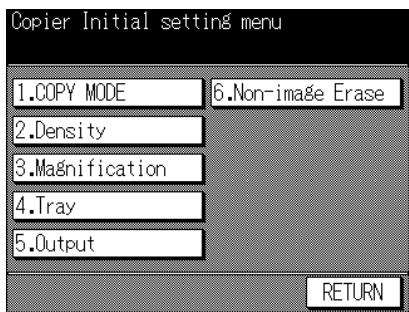
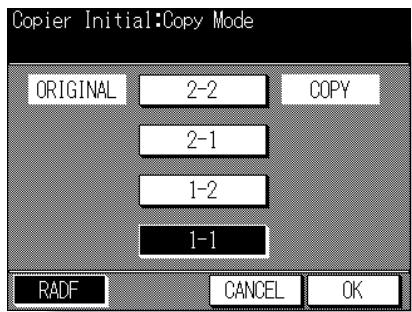
Procedure
1 Touch 2. Copier Initial on the Key Operator Mode Screen to display the Copier Initial Setting Menu Screen.
2 Touch 1. COPY MODE to display the Copy Mode Initial Setting Screen.
3 Touch the setting you want for the initial condition of the copier. If 2-2 or 2-1 mode is selected, RADF will also be selected, automatically. In this case, the RADF must be in a closed position when power is turned ON, or when Auto/Reset is functioning. Otherwise, the message "Please close RADF" will be displayed.
4 Touch OK to complete the setting and return to the Copier Initial Setting Menu Screen.
5 Touch RETURN to restore the Key Operator Mode Screen.
6 If no further changes are required, touch RETURN to restore the Basic Screen to perform copying operations.
2. Density
Set Copy density to be effective after power on or after Auto/Reset occurs.
Default setting: AE on
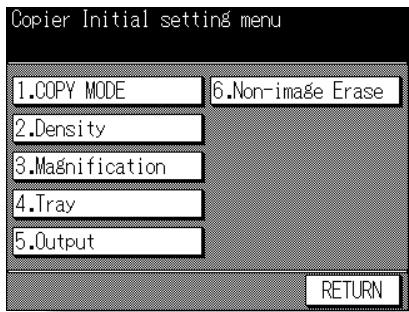
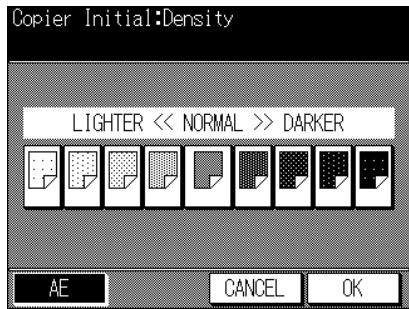
Procedure
1 Touch 2. Copier Initial on the Key Operator Mode Screen to display the Copier Initial Setting Menu Screen.
2 Touch 2. Density to display the Copy Density Initial Setting Screen.
3 Touch AE to select AE mode, or touch the density level required. Nine exposure levels are displayed.
4 Touch OK to complete the setting and return to the Copier Initial Setting Menu Screen.
5 Touch RETURN to restore the Key Operator Mode Screen.
6 If no further changes are required, touch RETURN to restore the Basic Screen to perform copying operations.
3. Magnification
Set the magnification ratio you initially want to display after the user turns the power on or after Auto/Reset restores the Initial settings.
NOTE:
This setting should not conflict with the Initial setting for Paper Tray. For example, if APS is selected for the initial paper tray setting, a ratio setting other than AMS will be ignored.
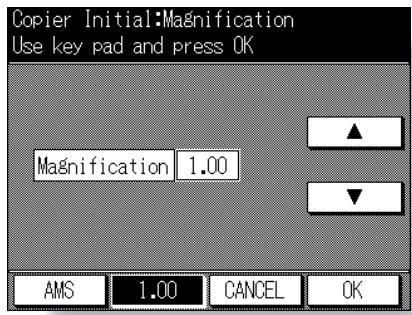
Procedure
1 Touch 2. Copier Initial on the Key Operator Mode Screen to display the Copier Initial Setting Menu Screen.
2 Touch 3. Magnification to display the Magnification Initial Setting Screen. The default setting is 1.00.
3 Select the desired setting from the Magnification Initial Setting Screen: To select 1.00 if it is not already displayed, touch 1.00.
To select another ratio, touch upper/lower arrow key to display the desired ratio, or enter a 3-digit ratio using the keypad on the control panel.
To select AMS, touch AMS.
4 Touch OK to complete the setting and return to the Copier Initial Setting Menu Screen.
5 Touch RETURN to restore the Key Operator Mode Screen.
6 If no further changes are required, touch RETURN to restore the Basic Screen to perform copying operations.
4. Tray
Set paper tray priority to be in effect after power is turned on or after Auto/Reset occurs.
This function sets tray priority, not paper size priority. Therefore, if paper size is changed in the tray, the tray will still remain the priority tray.
The initial paper tray setting should not conflict with the initial setting for Lens Mode. For example, if the initial paper tray setting is APS, the initial setting for paper tray priority will be ignored.
Default setting: APS on, no specified tray
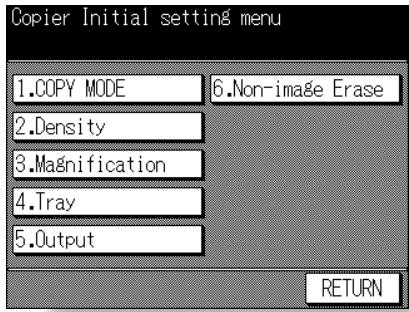
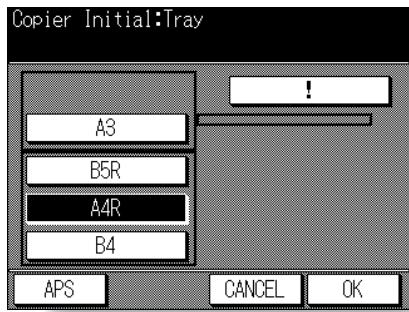
Procedure
1 Touch 2. Copier Initial on the Key Operator Mode Screen to display the Copier Initial Setting Menu Screen.
2 Touch 4. Tray to display the Tray Initial Setting Screen.
3 Touch APS, or touch any tray key to select a specific tray.
4 Touch OK to complete the setting and return to the Copier Initial Setting Menu Screen.
5 Touch RETURN to restore the Key Operator Mode Screen.
6 If no further changes are required, touch RETURN to restore the Basic Screen to perform copying operations.
5. Output
Set initial Output mode of the Finisher or exit tray to be effective after power is turned on or after Auto/Reset occurs.
Default setting for machine with Finisher: EXIT Tray 2; OUTPUT MODE Sort; Automatic Rotation ON
Default setting for machine without Finisher: OUTPUT MODE Non-sort; Automatic Rotation ON
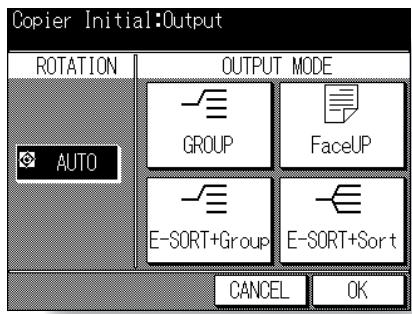
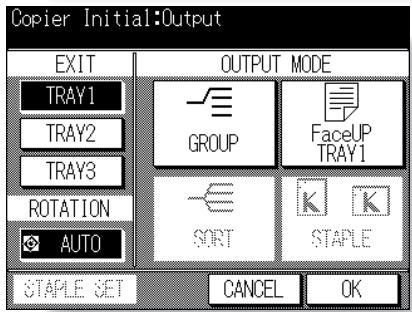
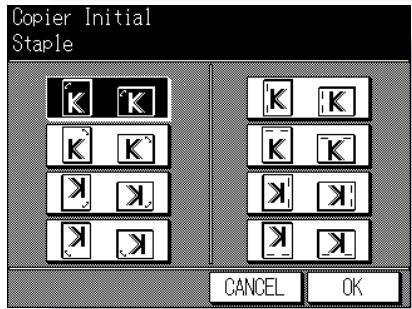
Procedure
1 Touch 2. Copier Initial on the Key Operator Mode Screen to display the Copier Initial Setting Menu Screen.
2 Touch 5. Output to display the Output Mode Initial Setting Screen.
3 For the machine with Finisher, perform the following operation then proceed to step 5. To select the exit tray, touch TRAY1, TRAY2 or TRAY3.
NOTE:
If TRAY1 is selected, SORT and STAPLE are automatically dimmed. If TRAY2 or TRAY3 is selected, Face UP TRAY1 is automatically dimmed.
To select the Output mode, touch SORT, GROUP, STAPLE, or Face UP TRAY1.
NOTES:
- If STAPLE is selected, SORT is automatically highlighted.
- If selecting Non-sort mode, do not highlight any key.
To select the desired staple location, touch STAPLE SET. Touch the desired location on the Staple Location Initial Setting Screen, then touch OK.
You can also select on/off of the Automatic rotation initial setting. To release the Automatic rotation mode, touch AUTO so that it is no longer highlighted.
4 For the machine without Finisher, perform the following operation.
To select the Output mode, touch E-SORT+Sort, E-SORT+Group, GROUP, or Face UP. You can also select on/off of the Automatic rotation initial setting. To release the Automatic rotation mode, touch AUTO so that it is no longer highlighted.
5 Touch OK on the Output Mode Initial Setting Screen to complete the setting and return to the Copier Initial Setting Menu Screen.
6 Touch RETURN to restore the Key Operator Mode Screen.
7 If no further changes are required, touch RETURN to restore the Basic Screen to perform copying operations.
6. Non-Image Erase
Select the mode of Non-Image Area Erase function to be in effect when this feature is selected on the Application Selection Screen after power is turned on or after Auto/Reset occurs.
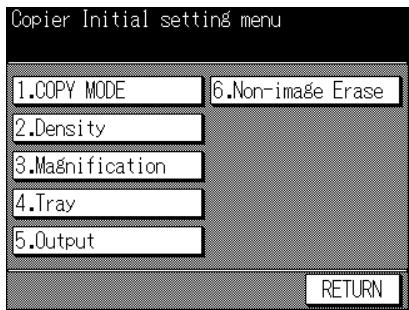
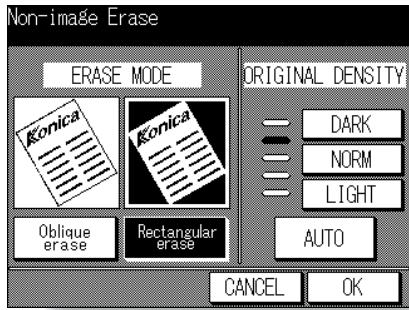
Procedure
1 Touch 2. Copier Initial on the Key Operator Mode Screen to display the Copier Initial Setting Menu Screen.
2 Touch 6. Non-image Erase to display the Non-Image Erase Initial Setting Screen.
3 Touch Oblique erase or Rectangular erase, as desired.
You can also select the original density level to obtain the optimum copy effect using this function. Touch AUTO, or select the density level required. Five exposure levels are provided.
4 Touch OK to complete the setting and return to the Copier Initial Setting Menu Screen. If other copier initial setting changes are required, touch the desired key.
5 Touch RETURN to restore the Key Operator Mode Screen. If other key operator settings are required, touch the desired key.
6 If no further changes are required, touch RETURN to restore the Basic Screen to perform copying operations.
Set two USERSEs of copy density and three Presets of magnification.
1. Density
Output copying samples from 16 density levels from LIGHT to NORMAL or NORMAL to DARK, then select the desired exposure and program it as Userset 1 or 2. The programmed copy density can be recalled by selecting USER 1 or USER 2 on the Basic Screen.
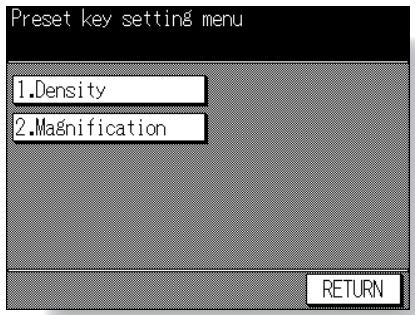
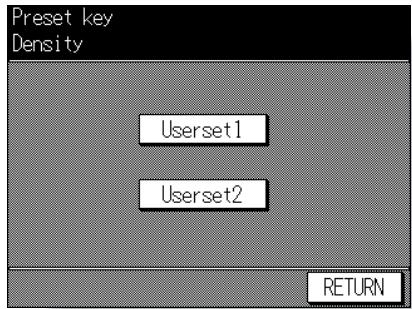
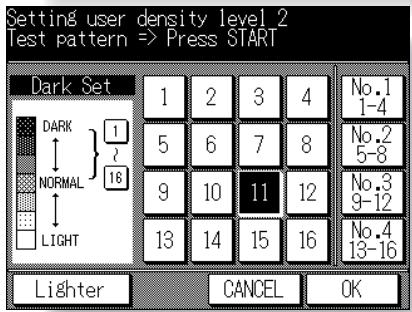
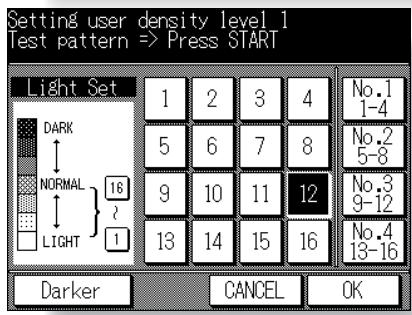
Procedure
1 Touch 3. Preset key on the Key Operator Mode Screen to display the Preset Key Setting Menu Screen.
2 Touch 1. Density to display the Userset Density Selection Screen.
3 Place the original on the platen glass.
4 Touch Userset 1 or Userset 2. The Userset Density Darker Setting Screen will be displayed.
5 To program Userset (1 or 2) to a darker level, perform the following operation, then proceed to step 7.
(1) Touch No.1 1~4, No.2 5~8, No.3 9~12, or No.4 13~16, then press [START]. The darker level sample sheet will be output.
(2) Select the desired darker exposure level from the sample sheet(s), then touch the density No. from 1 to 16.
6 To program Userset (1 or 2) to a lighter level, perform the following operation.
(1) Touch Lighter to display the 用户 Set Density Lighter Setting Screen.
(2) Touch No.1 1~4, No.2 5~8, No.3 9~12, or No.4 13~16, then press [START]. The lighter level sample sheet will be output.
(3) Select the desired lighter exposure level from the sample sheet(s), then touch the density No. from 1 to 16.
7 Touch OK to complete the settings and return to the Userset Density Selection Screen.
8 Touch RETURN on the Userset Density Selection Screen to return to the Preset Key Setting Menu Screen.
9 Touch RETURN to restore the Key Operator Mode Screen.
10 If no further changes are required, touch RETURN to restore the Basic Screen to perform copying operations.
2. Magnification
PRESET and USERSET ratios are used to reduce and enlarge the original image to accommodate copy paper size, and are available when RE is selected from the Basic Screen. The userset ratios may be changed by the key operator as shown below.
Default setting:USERSET 1:2.00
USERSET 2:4.00
USERSET 3:0.50
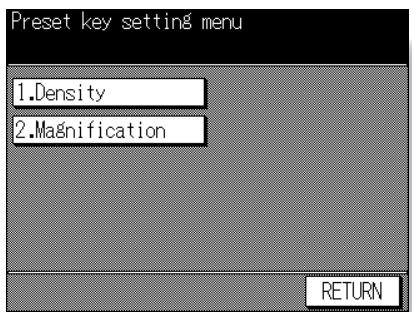
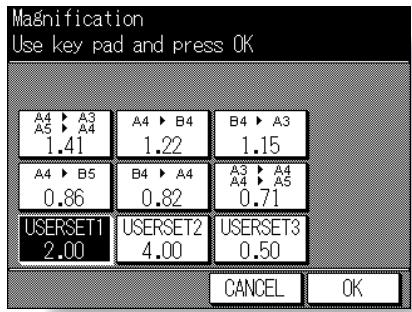
Procedure
1 Touch 3. Preset key on the Key Operator Mode Screen to display the Preset Key Setting Menu Screen.
2 Touch 2. Magnification to display the Userset Magnification Setting Screen.
3 Touch the USERSET you want to change, then enter a ratio from 0.25~4.00, using the keypad.
If a ratio under 0.25 is entered, 0.25 will be displayed.
If a ratio over 4.00 is entered, 4.00 will be displayed.
NOTE:
If you wish to change these PRESETs, contact your service centre.
4 Touch OK to complete the setting and return to the Preset Key Setting Menu Screen.
5 Touch RETURN to restore the Key Operator Mode Screen.
6 If no further changes are required, touch RETURN to restore the Basic Screen to perform copying operations.
[4] EKC (Electronic Key Counter)
This setting can only be accessed by the key operator after an 8-digit EKC master key code is entered.
The EKC stores up to 256 EKC passwords, each of which represents a separate account that can be used for billing and recordkeeping. The number of users assigned to each EKC password may depend upon the billing system in operation and the number of individuals and departments using the copier. When the EKC is activated, copying can be performed only after a valid 5-digit EKC password is entered.
The following EKC settings can be made:
1. Change E.K.C. Data:
Create up to 256 individual EKC passwords, 00000~99999, and limit copy count for each password to a max. 999,999 copies.
2. E.K.C. Data List:
Display the copy count for each EKC password, and change limit settings.
3. All Counter Reset:
Clear the copy count for all passwords.
4. E.K.C. On/Off Setting:
Select the function to be on or off. The initial setting is Off.
5. Copy Limit Reached Effect:
Set the machine condition when the copy limit is reached. The machine can be set to stop immediately or after a job is completed, or to only display a warning message.
■ How to Access the EKC Setting Mode
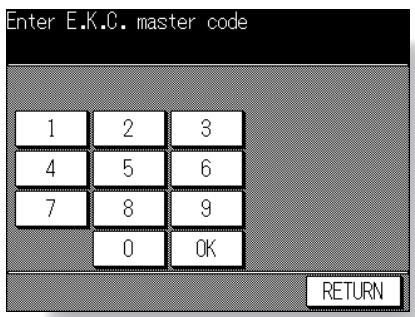
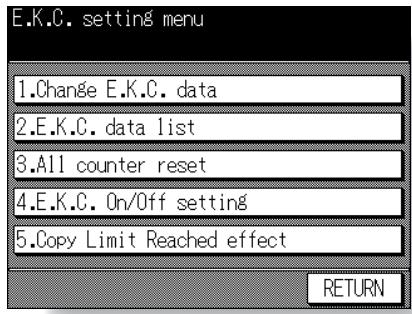
Procedure
1 Touch 4. E.K.C. on the Key Operator Mode Screen. The EKC Master Key Code Screen displays, if a code is required.
2 Use the keypad on the touch screen to enter your 8-digit EKC master key code, then touch OK to display the EKC Setting Menu Screen. (See note.)
3 Select the desired EKC function, and make settings, as required. To exit the EKC mode, touch RETURN on the EKC Setting Menu Screen.
4 To exit the Key Operator mode, touch RETURN on the Key Operator Mode Screen to restore the Basic Screen.
NOTE:
If an invalid EKC master key code is entered, continue by entering the valid 8-digit code.
1. Change EKC Data
Assign an ID No. for an individual or for a group, then create individual password(s) for each user. You can specify a name and limit count for each password.
EKC ID No.: ID No. from 000~255, designated by key operator.
EKC Password: Unique 5-digit numeric code programmed by key operator for user.
User Name: max. 20 characters
Copy Limit: 0 to 999,999 copies
Procedure
1 Touch 4. E.K.C. on the Key Operator Mode Screen. Enter an 8-digit EKC master key code, then touch OK to display the EKC Setting Menu Screen.
NOTE:
If an invalid EKC master key code is entered, continue by entering the valid 8-digit code.
2 Touch 1. Change E.K.C. data to display the EKC Data Input Screen.
3 ID No. key is highlighted, enabling you to immediately enter an ID No. Enter a 3-digit ID No. from 000~255 using the keypad on the control panel.
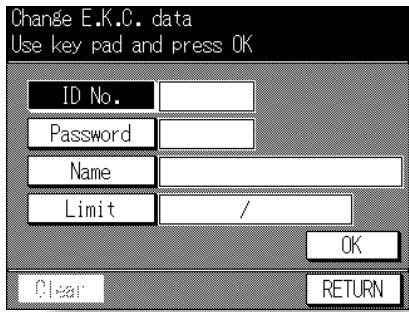
4 Touch Password to highlight it.
Enter a 5-digit EKC password using the keypad on the control panel.
NOTES:
- Do not enter "00000". The initial EKC password value is "00000".
- We recommend that you make a list of all EKC passwords and ID Nos.
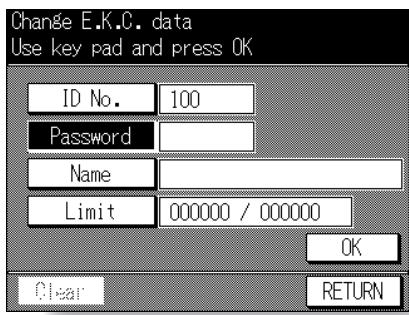
5 Touch Name to display the Name Input Screen.
If you do not specify the name, proceed to step 8. This operation can be completed normally without the name specified.

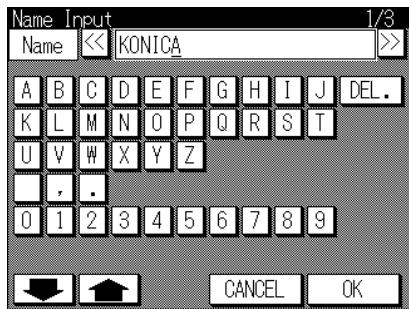
6 Input desired name according to the procedure below.
(1) Max. 20 characters can be entered.
(2) Use Upper arrow and Lower arrow keys on the Name Input Screen to input uppercase and lowercase letters and symbols.
(3) Touch DEL. to delete the input character from the last.
(4) Touching CANCEL on the Name Input Screen will clear all the input characters.
(5) To change the existing name, touch DEL. to delete it and enter the new name.
7 Touch OK on the Name Input Screen to return to the EKC Data Input Screen.
8 Touch Limit. Limit key will be highlighted, enabling you to immediately enter copy limit.
9 Enter a 6-digit copy limit for the ID No. using the keypad on the control panel. The input copy limit will be displayed on the right of the copy count.
NOTES:
- If an invalid copy limit is entered, continue by entering the valid 6-digit copy limit.
- Entering "000000" signifies no copy limit.
- The Clear key, though it clears copy count, does not function on the EKC Data Input Screen.
10 To complete the settings, touch OK on the EKC Data Input Screen. To cancel the settings, touch RETURN.
When the same EKC password has been used for another ID No., the Password Duplication Screen will be displayed. To re-enter new password, touch YES and return to the step 4. To create duplicate password, touch NO, then touch OK.
NOTE:
It is possible to assign the same EKC password to different ID Nos. Note, however, that the number of copies will be counted only for the EKC password with the smallest ID No. Copy count for the other ID Nos. will not be monitored. We recommend you do not use duplicate EKC password.
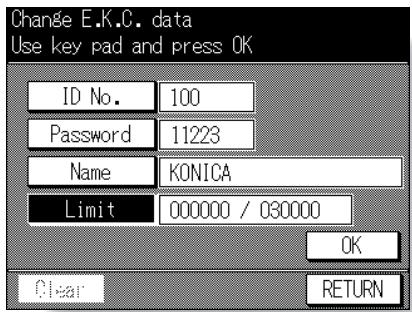
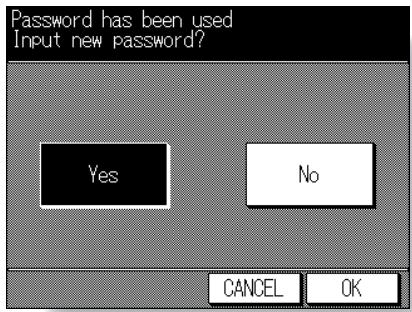
11 The EKC Setting Menu Screen will be displayed.
Touch RETURN to restore the Key Operator Mode Screen.
12 If no further changes are required, touch RETURN to restore the Basic Screen to perform copying operations.
2. EKC Data List
Use this setting to display the list of copy count and copy limit for each ID No., and to edit, add, and delete these EKC data.
Procedure
1 Touch 4. E.K.C. on the Key Operator Mode Screen. Enter an 8-digit EKC master key code, then touch OK to display the EKC Setting Menu Screen.
NOTE:
If an invalid EKC master key code is entered, continue by entering the valid 8-digit code.
2 Touch 2. E.K.C. data list to display the EKC Data List Screen.
3 To delete the EKC data:
(1) Touch Upper or Lower arrow ( / ) key on the right in the EKC Data List Screen to highlight the EKC data to be deleted.
(2) Touch DEL. The Delete Confirmation Screen will be displayed.
(3) Touch Yes to delete, or touch No to cancel.
4 To add the EKC data, touch ADD. The EKC Data Input Screen with invalid Clear key will be displayed. To input the EKC data, see p. 12-15 to p. 12-16.
5 To edit the EKC data, touch Upper or Lower arrow ( /) key on the right in the EKC Data List Screen to highlight the EKC data to be edited, then touch EDIT. The EKC Data Edit Screen with valid Clear key will be displayed. (1) To edit the EKC password, touch Password. Enter a new 5-digit EKC password using the keypad on the control panel. Do not enter "00000".
(2) To edit the name, touch Name. For details on the Name Input Screen, see p. 12-16.
(3) To edit the copy limit, Touch Limit. Enter a new 6-digit copy limit using the keypad on the control panel. Entering "000000" signifies no copy limit.
(4) To clear the copy count, touch Clear.
(5) To complete the settings, touch OK on the EKC Data Edit Screen. To cancel the settings, touch RETURN.
The EKC Data List Screen will be displayed.
6 Touch RETURN to restore the EKC Setting Menu Screen.
7 Touch RETURN to restore the Key Operator Mode Screen.
8 If no further changes are required, touch RETURN to restore the Basic Screen to perform copying operations.
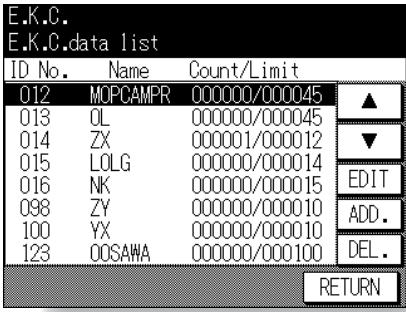
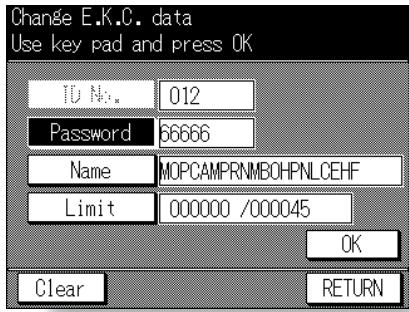
■ 3. All Counter Reset
Reset the count for all EKC password Nos.
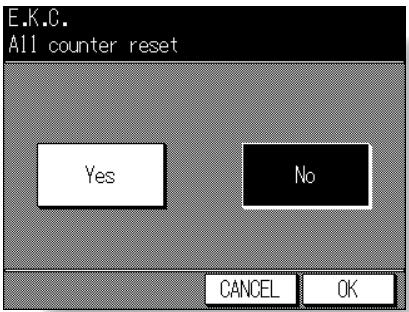
Procedure
1 Touch 4. E.K.C. on the Key Operator Mode Screen. Enter an 8-digit EKC master key code, then touch OK to display the EKC Setting Menu Screen.
NOTE:
If an invalid EKC master key code is entered, continue by entering the valid 8-digit code.
2 Touch 3. All counter reset to display the All Counter Reset Screen.
3 Touch Yes to reset all counters to zero.
Or, touch No not to reset. The selected key will be highlighted.
4 Touch OK to complete the settings and return to the EKC Setting Menu Screen.
5 Touch RETURN to restore the Key Operator Mode Screen.
6 If no further changes are required, touch RETURN to restore the Basic Screen to perform copying operations.
4. EKC On/Off Setting
Use this function to turn EKC ON or OFF.
NOTE:
If EKC OFF is selected while EKC functions, the copier will be enabled to perform copying job without an EKC password entered, and both copy count and copy limit functions will be discontinued.
Default setting: EKC on
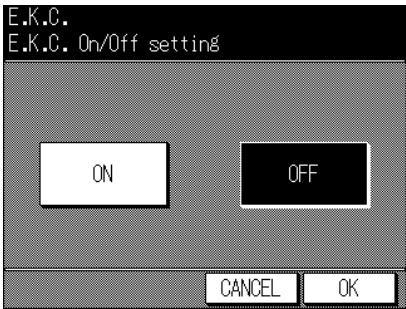
Procedure
1 Touch 4. E.K.C. on the Key Operator Mode Screen. Enter an 8-digit EKC master key code, then touch OK to display the EKC Setting Menu Screen.
NOTE:
If an invalid EKC master key code is entered, continue by entering the valid 8-digit code.
2 Touch 4. E.K.C. On/Off setting to display the EKC On/Off Setting Screen.
3 Touch ON to activate EKC or touch OFF to de-activate EKC.
The selected key will be highlighted.
4 Touch OK to complete the settings and return to the EKC Setting Menu Screen.
5 Touch RETURN to restore the Key Operator Mode Screen.
6 If no further changes are required, touch RETURN to restore the Basic Screen to perform copying operations.
5. Copy Limit Reached Effect
Use this function to select whether the copier will stop when the count limit is reached, or if the copier will complete the copy job before stopping when reaching maximum copy count.
Default setting: After job
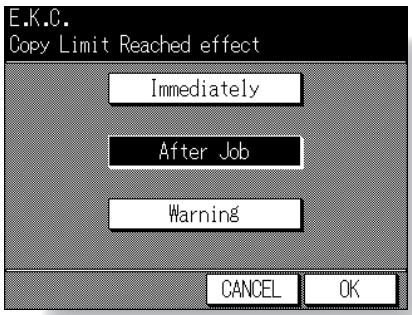
Procedure
1 Touch 4. E.K.C. on the Key Operator Mode Screen. Enter an 8-digit EKC master key code, then touch OK to display the EKC Setting Menu Screen.
NOTE:
If an invalid EKC master key code is entered, continue by entering the valid 8-digit code.
2 Touch 5. Copy Limit Reached effect to display the Copy Limit Reached Effect Screen.
3 Select setting option:
Touch Immediately to stop the copier when the copy limit is reached.
In this case, the paper in process will be completed, and the message "Enter EKC password" will display after the copier stops.
Touch After job to stop the copier after the current job is completed.
Touch Warning only to display a warning message when copy limit is reached.
4 Touch OK to complete the settings and return to the EKC Setting Menu Screen.
5 Touch RETURN to restore the Key Operator Mode Screen.
6 If no further changes are required, touch RETURN to restore the Basic Screen to perform copying operations.
[5] Lock Job Memory
Use this function to lock/unlock or delete a Job that has been programmed.
A locked job is indicated by a lock icon (B) on the job number of the Job Selection Screen.
The settings of a locked job cannot be changed.
![KONICA MINOLTA 7045 - [5] Lock Job Memory - 1](/content/2025/01/139561/images/c2a331c9a2898ce41e5095ab0727a92b6c3d4b8f8ab9b40d0dae17f3857b0a78.jpg)
Procedure
1 Touch 5. Lock Job memory on the Key Operator Mode Screen to display the Job Memory Lock/Delete Screen.
2 To lock or unlock a job memory, operate the procedure below.
(1) Use Upper arrow and Lower arrow keys on the right in the Job Memory Lock/Delete Screen to scroll to the job to be locked/unlocked.
(2) Touch the desired job number key to highlight it.
(3) Touch Job Lock. The job to be locked will display the lock icon in the job number. The previously locked job will be unlocked and the lock icon will disappear.
3 To delete a job memory, operate the procedure below.
(1) Use Upper arrow and Lower arrow keys on the right in the Job Memory Lock/Delete Screen to scroll to the job to be deleted.
(2) Touch the desired job number key to highlight it.
(3) Touch DEL. Programs and the name will be deleted from the job memory.
NOTES:
- A locked job can also be deleted, with the lock on the job number released at the same time.
- Once deleted, the programs cannot be restored.
4 Touch RETURN to restore the Key Operator Mode Screen.
5 If no further changes are required, touch RETURN to restore the Basic Screen to perform copying operations.
[6] Paper Type
Use this function to indicate a specific paper type for each tray key on the Basic Screen. This is especially useful when special paper is used on a regular basis and is always placed in a specific paper tray.
![KONICA MINOLTA 7045 - [6] Paper Type - 1](/content/2025/01/139561/images/7a9f7600f3755c52979852745d3ccf4532ab4ac1a607778684169465fbea9881.jpg)
Procedure
1 Touch 6. Paper type on the Key Operator Mode Screen to display the Paper Type Setting Screen.
2 Touch the desired paper tray to highlight it.
3 Touch the Upper arrow or Lower arrow key to select paper type. The name of paper type displayed on the highlighted tray key will change as follows: --- (blank) RECYCL COLOUR LTRHD SPCL. LABELS INVOIC LEGAL Touch the arrow keys until the desired name appears.
4 Touch OK to complete the setting and return to the Key Operator Mode Screen.
5 If no further changes are required, touch RETURN to restore the Basic Screen to perform copying operations.
[7] Panel Contrast
Use this feature to adjust the contrast and backlight of the touch screen portion of the control panel.
NOTE:
The control panel contrast feature can be adjusted from the Help Screen provided that the feature setting is activated by Service. When the Control panel contrast key is pressed, the Contrast Adjustment Screen will be displayed. Contact your service centre if the feature is required.
Default settings: Contrast normal; Back light normal
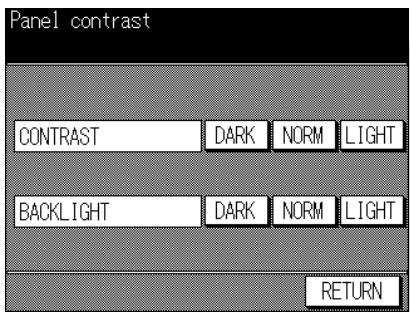
Procedure
1 Touch 7. Panel contrast on the Key Operator Mode Screen to display the Panel Contrast Screen.
2 To adjust the contrast, touch DARK, NORM, or LIGHT of CONTRAST.
3 To adjust the backlight, touch DARK, NORM, or LIGHT of BACKLIGHT.
4 Touch RETURN to complete the setting and return to the Key Operator Mode Screen.
5 If no further changes are required, touch RETURN to restore the Basic Screen to perform copying operations.
Use this screen to enter the extension number of the key operator indicated on the Help Screen.
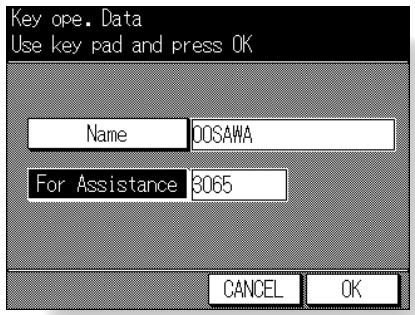
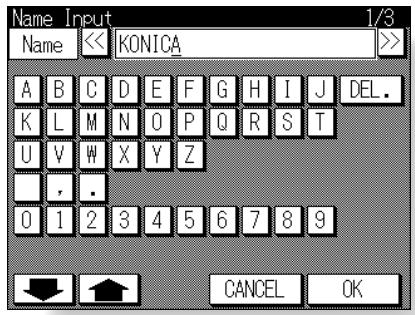
Procedure
1 Touch 8. Key ope. Data on the Key Operator Mode Screen to display the Key Operator Data Input Screen.
2 Touch Name to display the Name Input Screen. Input desired name according to the procedure below.
(1) Max. 20 characters can be entered.
(2) Use ↑ Upper arrow and ↓ Lower arrow keys on the Name Input Screen to input uppercase and lowercase letters and symbols.
(3) Touch DEL. to delete the input character from the last.
(4) Touching CANCEL on the Name Input Screen will clear all the input characters.
(5) To change the existing name, touch DEL. to delete it and enter the new name.
3 Touch OK on the Name Input Screen to return to the Key Operator Data Input Screen.
4 Touch For Assistance.
Enter an extension number up to 8 digits from the keypad on the control panel.
NOTE:
If an invalid extension number is entered, continue by entering the valid 8-digit number.
5 Touch OK to complete the setting and return to the Key Operator Mode Screen.
6 If no further changes are required, touch RETURN to restore the Basic Screen to perform copying operations.
[9] Weekly Timer
The Weekly Timer is a copier management function that shuts down power to the machine on a daily or hourly basis. The timer can be programmed specifically for lunch breaks, weekends and holidays, or any time the copier is not required.
A unique 4-digit Weekly timer master key code is normally set by service installation. If the unique code is not set by service, the copier will not display the Weekly Timer Master Key Code Screen when the Weekly Timer mode is being accessed, and a Weekly timer master key code will not be required.
To ensure the security of Weekly Timer mode, it is recommended that you establish a unique Weekly timer master key code.
In Addition, Timer Interrupt can be enabled (with or without a password requirement) to allow temporary use of the machine during periods when power is shut down by the Timer function.
Conditions required to use the Weekly Timer:
- The power plug is inserted into the socket.
- The main power switch and power switch are turned on.
- The current date and time are correctly set.
If the Weekly timer needs to be activated on your machine, contact your service centre.
The following Weekly timer settings can be made.
1. Weekly Timer Setting
Enable and disable the Timer function.
2. Weekly Timer Copier ON/OFF Time Set
Specify the times that the copier will turn ON and OFF for each day of the week or the entire week.
3. Machine Working Day Individual Set
Specify the working days of the machine by the Timer, for all Mondays through Sundays, and/or individually for each day of the given month.
4. Lunch Hour Off Function
Specify the lunch time interval during which the copier will go off and on.
5. Password Setting
Require Password entry for the Timer off function and establish the amount of usage time.
NOTES:
- The time is set in terms of the 24 hour clock, where hour [1] is the first hour after midnight; and hour [24] is the hour of midnight. For example, 6 a.m. is 06:00 hours; 6 p.m. is 18:00 hours.
- The [AUTO RESET] key is used to change numbers determined by the SET touch key.
■ How to Access the Weekly Timer Setting Mode
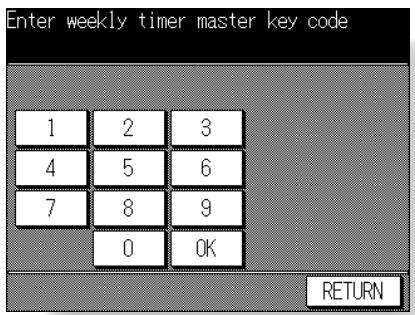
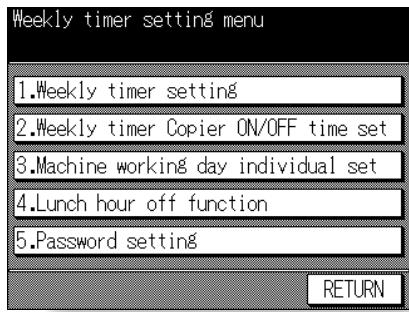
Procedure
1 Touch 9. Weekly Timer on the Key Operator Mode Screen.
The Weekly Timer Master Key Code Screen displays when the 4-digit Weekly timer master key code is set by service.
Otherwise, the Weekly Timer Setting Menu Screen displays without the code requirement.
2 If the Weekly Timer Master Key Code Screen is displayed, use the keypad on the touch screen to enter your 4-digit Weekly timer master key code, then touch OK to display the Weekly Timer Setting Menu Screen.
NOTE:
If an invalid Weekly timer master key code is entered, continue by entering the valid 4-digit code.
3 Select the desired Weekly timer function, and make settings, as required.
4 To exit the Weekly timer mode, touch RETURN on the Weekly Timer Setting Menu Screen.
5 To exit the Key operator mode, touch RETURN on the Key Operator Mode Screen to restore the Basic Screen.
1. Weekly Timer Setting
Default setting: Weekly timer OFF
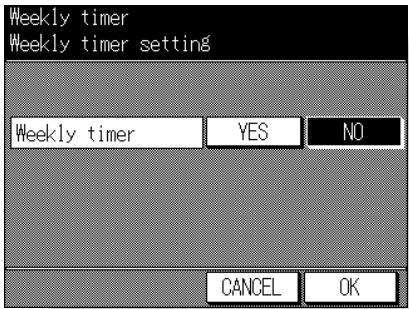
Procedure
1 Touch 9. Weekly Timer on the Key Operator Mode Screen. Enter your 4-digit Weekly timer master key code, then touch OK to display the Weekly Timer Setting Menu Screen.
NOTE:
If an invalid Weekly timer master key code is entered, continue by entering the valid 4-digit code.
2 Touch 1. Weekly timer setting to display the Weekly Timer ON/OFF Setting Screen.
3 Touch YES to activate Weekly timer, or touch NO to de-activate Weekly timer. The selected key will be highlighted.
4 Touch OK to complete the setting and return to the Weekly Timer Setting Menu Screen.
5 Touch RETURN to restore the Key Operator Mode Screen.
6 If no further changes are required, touch RETURN to restore the Basic Screen to perform copying operations.
2. Weekly Timer Copier ON/OFF Time Set
Use this function to set the On/Off times in hours and minutes for each day of the week, or set the collective time for the entire week, i.e., the same On/Off time for each day.
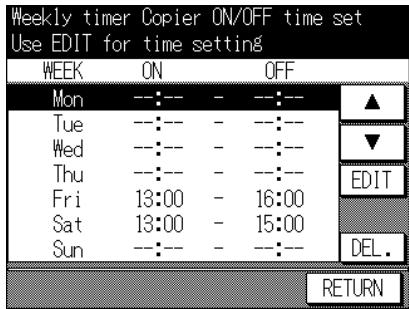
Procedure
1 Touch 9. Weekly Timer on the Key Operator Mode Screen. Enter your 4-digit Weekly timer master key code, then touch OK to display the Weekly Timer Setting Menu Screen.
NOTE:
If an invalid Weekly timer master key code is entered, continue by entering the valid 4-digit code.
2 Touch 2. Weekly timer copier ON/OFF time set to display the W.T. ON/OFF Time Setting Screen.
3 Use the procedure below to set the ON time and OFF time for the desired days of the week.
(1) Touch EDIT to display the W.T. ON/OFF Time Block Setting Screen.
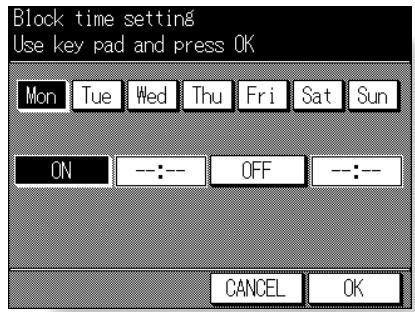
(2) Touch and highlight the keys of the desired day of the week from Monday through Sunday to set the same ON time and OFF time.
(3) Touch ON to enter the ON time.
Enter a 2-digit ON-hour (ex. 8 a.m. is 08) and a 2-digit ON-minute (ex. 7 min. is 07) using the keypad on the control panel.
(4) Touch OFF to enter the OFF time.
Enter a 2-digit OFF-hour (ex. 6 p.m. is 18) and a 2-digit OFF-minute using the keypad on the control panel.
NOTES:
- If ON-time and OFF-time are the same, power will not go on.
- Be sure to enter both ON-time and OFF time.
- Be sure to enter the On/Off time for a day off also, so that you can specify the machine working days on the W.T. Working Day Individual/Block Setting Screen.
(5) Touch OK to complete the settings and return to the W.T. ON/OFF Time Setting Screen.
(6) Confirm the ON-time and OFF-time on the W.T. ON/OFF Time Setting Screen.
4 Use the procedure below to delete the ON-time and OFF-time of the day of the week.
(1) Use the Upper arrow and Lower arrow keys to select the day of the week to be deleted.
(2) Touch DEL.
(3) On-time and OFF-time of the day of the week are deleted and “---” are displayed.
NOTE:
On the day of the week with the ON/OFF-time deleted, you can not turn on the power.
5 Touch RETURN to complete the settings and return to the Weekly Timer Setting Menu Screen.
6 Touch RETURN to restore the Key Operator Mode Screen.
7 If no further changes are required, touch RETURN to restore the Basic Screen to perform copying operations.
3. Machine Working Day Individual Set
Use this function to set the On/Off condition of the copier for a given month. Set the On/Off condition for specific days; or collectively, for all Mondays through Sundays of the given month. The default setting is collective: On for Mondays through Saturdays, and Off for Sundays.
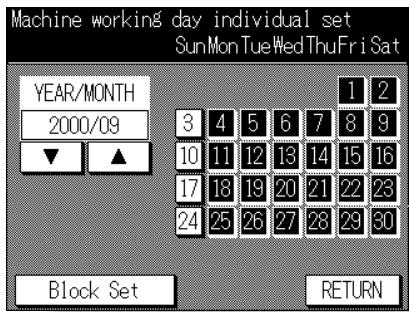
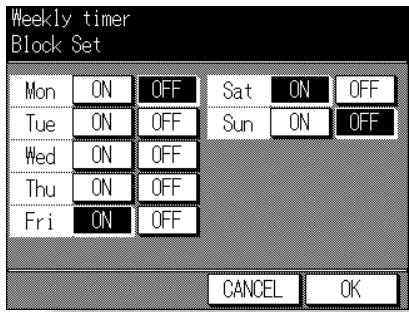
Procedure
1 Touch 9. Weekly Timer on the Key Operator Mode Screen. Enter your 4-digit Weekly timer master key code, then touch OK to display the Weekly Timer Setting Menu Screen.
NOTE:
If an invalid Weekly timer master key code is entered, continue by entering the valid 4-digit code.
2 Touch 3. Machine working day individual set to display the W.T. Working Day Individual Setting Screen.
3 Use the procedure below to individually set the timer-active days.
(1) Touch the key for the timer-active day to be highlighted.
(2) Use the Upper arrow and Lower arrow keys to scroll to the desired month.
4 Use the procedure below to collectively set the timer-active days by the day of the week.
(1) Touch Block Set to display the W.T. Working Day Block Setting Screen.
(2) To set the Timer action ON, touch ON for the desired day.
To set the Timer action OFF, touch OFF for the desired day.
If you touch an already-lighted key, no change will occur.
(3) Touch OK to complete the settings and return to the W.T. Working Day Individual Setting Screen.
NOTE:
The selected days will be highlighted in black on the W.T. Working Day Individual Setting Screen when restored, however, the working day individual setting has priority so that you can make setting change for each day on that screen, if desired.
5 Touch RETURN to complete the settings and return to the Weekly Timer Setting Menu Screen.
6 Touch RETURN to restore the Key Operator Mode Screen.
7 If no further changes are required, touch RETURN to restore the Basic Screen to perform copying operations.
4. Lunch Hour Off Function
The Weekly timer function turns the copier ON and OFF once a day. Use the Lunch hour off function to shut down power during the lunch break and then turn it on again according the Weekly timer function setting. Only one off-time interval can be programmed.
Default setting: Lunch hour off function OFF
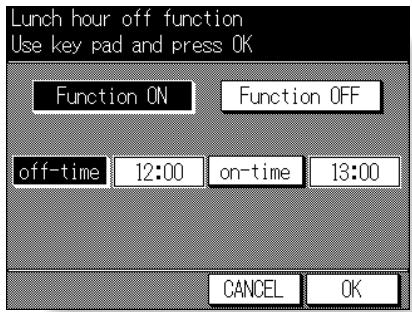
Procedure
1 Touch 9. Weekly Timer on the Key Operator Mode Screen. Enter your 4-digit Weekly timer master key code, then touch OK to display the Weekly Timer Setting Menu Screen.
NOTE:
If an invalid Weekly timer master key code is entered, continue by entering the valid 4-digit code.
2 Touch 4. Lunch hour off function to display the Lunch Hour Off Setting Screen.
3 Use the procedure below to activate Lunch hour off.
(1) Touch Function ON to highlight it.
(2) Touch off-time.
Enter a 2-digit off-hour (ex. 9 a.m. is 09) and a 2-digit off-minute (ex. 7 min. is 07) using the keypad on the control panel.
(3) Touch on-time.
Enter a 2-digit on-hour and a 2-digit on-minute using the keypad on the control panel.
4 To de-activate Lunch hour off, touch Function OFF. The time setting area will appear grayed out and cannot be selected. The Function OFF setting is the factory default setting.
5 Touch OK to complete the setting and return to the Weekly Timer Setting Menu Screen.
6 Touch RETURN to restore the Key Operator Mode Screen.
7 If no further changes are required, touch RETURN to restore the Basic Screen to perform copying operations.
5. Password Setting
Use this password setting mode to establish a 4-digit password requirement for using Timer Interrupt function. The default password of 0000 allows the timer function to be interrupted without the requirement for password entry.
Default setting: Timer interrupt password 0000
Procedure
1 Touch 9. Weekly Timer on the Key Operator Mode Screen. Enter your 4-digit Weekly timer master key code, then touch OK to display the Weekly Timer Setting Menu Screen.
NOTE:
If an invalid Weekly timer master key code is entered, continue by entering the valid 4-digit code.
2 Touch 5. Password setting to display the W.T. Interrupt Password Setting Screen.
3 Input a new 4-digit password using touch panel keypad, and touch OK to complete the setting.
NOTE:
When the password setting is 0000 (factory default setting), timer interrupt can be used simply by pressing the Power switch.
4 Touch RETURN to restore the Weekly Timer Setting Menu Screen.
5 Touch RETURN to restore the Key Operator Mode Screen.
6 If no further changes are required, touch RETURN to restore the Basic Screen to perform copying operations.
[10] Touch Panel Adjustment
Use this feature to check the malfunction of the LCD touch screen due to the shift in position of the touch sensor.
- When the Touch Panel Adjustment Screen does not display in step 2, press one from keypad [0] ~ [9].
![KONICA MINOLTA 7045 - [10] Touch Panel Adjustment - 1](/content/2025/01/139561/images/9d2199d955d7288d20c3cc464fced3881de5c3b3f49cf910a6c0f6aaf78e7d44.jpg)
Procedure
1 Touch 10. Touch panel adj on the Key Operator Mode Screen to display the Touch Panel Adjustment Screen.
2 Touch the "+" indication at the upper right and lower left corners on the Control Panel Adjustment Screen. The present coordinates will be displayed in the message area of the screen.
NOTE:
When touching the "+" indications, it is recommended that you use a sharp point such as a pencil to be much more accurate.
3 Check that the X coordinate and Y coordinate displayed in the first line of the message area fall within the standard value displayed in the second line.
4 Touch the CHECKs at the upper left and lower right corners on the screen to check if the buzzer tone functions normally.
5 If the coordinates fall out of the range of the standard value in step 3, or the buzzer tone does not sound in step 4, repeat the adjustment procedure from 2 to 4, or contact Konica service centre.
6 Press [START] on the control panel to complete the setting.
Select the interval of time that must elapse before Auto Low Power and Auto Shut Off become activated. Or, select the Auto Shut Off function to On or Off.
Default settings: Auto low power; 15 min.
Auto shut off; 60 min.
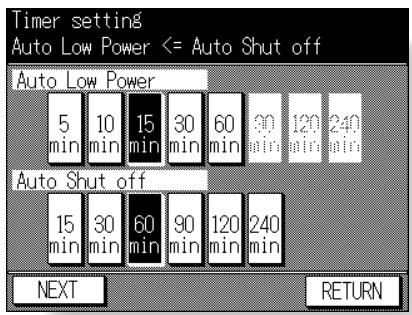
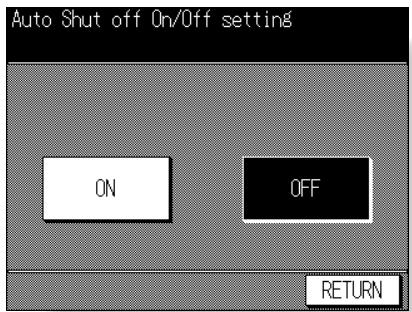
Procedure
1 Touch 11. Power Save on the Key Operator Mode Screen to display the Power Save Timer Setting Screen.
2 Touch the timer key below the "Auto Low Power" indicator to select a specific waiting period before activation of the Auto Low Power function. The default setting is 15min. If the Auto Shut off function is not desired, proceed to step 4.
If the "Auto Low Power" indicator light is dim and the timer keys cannot be selected, proceed to step 3.
NOTES:
- The period of time selected for Auto Low Power cannot exceed the Auto Shut Off setting.
- If the same period of time as Auto Shut Off is selected for Auto Low Power, the Auto Shut Off will function instead of Auto Low Power.
3 Touch the timer key displayed under the "Auto Shut off" indicator on the Power Save Timer Setting Screen, to select the period of time to wait before activating Auto Shut Off. The default setting is 60 min.
NOTE:
If the period of time selected for Auto Shut Off is shorter than the Auto Low Power setting, the setting for Auto Low Power will be automatically changed to that of the Auto Shut Off setting, and the Auto Low Power indicator light will dim. In this case, Auto Low Power will not function.
4 Touch NEXT on the Timer Setting Screen to display the Auto Shut Off ON/OFF Setting Screen.
5 Touch ON to activate Auto Shut Off, or touch OFF to de-activate it. The default setting is the ON setting.
When OFF is selected, Auto Shut Off will not function and the period of time for Auto Low Power can be selected from 5, 10, 15, 30, 60, 90, 120, and 240min.
6 Touch RETURN to restore the Key Operator Mode Screen.
7 If no further changes are required, touch RETURN to restore the Basic Screen to perform copying operations.
[12] Memory Switch
This function allows you to change the Memory Settings listed below. Underlined settings indicate factory settings. See pp. 12-36~12-37 for details on Memory Settings.
SW No. Item
No.01: Auto reset timer
Setting (default is underlined)
OFF / 30sec. / 60 sec. / 90 sec. / 120 sec. / 150 sec. / 180 sec. / 210 sec. / 240 sec. / 270 sec. / 300 sec.
No.02: Auto-reset effect
Full-auto / Initial setting
No.03: Load RADF effect
RADF / RADF + AUTO RESET
No.04: Non Image A. Erase
ON / APS/AMS only
No.05: RADF frame erasure
None / 1 mm / 2 mm / 3 mm / 4 mm / 5 mm
No.06: Auto tray switch
OFF/ON
No.07: Platen APS
OFF/ON
No.08: RADF APS
OFF/ON
No.09: ATS/APS (Bypass)
OFF/ON
No.10: ATS/APS SW (Tray 1)
OFF/ON
No.11: ATS/APS SW (Tray 2)
OFF/ON
No.12: ATS/APS SW (Tray 3)
OFF/ON
No.13: ATS/APS SW (Tray 4)
OFF/ON
No.14: Platen AMS
OFF/ON
No.15: RADF AMS
OFF/ON
No.16: Staple mode reset
OFF/ON
No.17: Key click sound
OFF / Low / High
No.18: Job memory recall
OFF/ON
No.19: Sheet insertion
Tray 1 / Tray 2 / Tray 3 / Tray 4 / Bypass
No.20: A5 original type
Landscape / Portrait
No.21: Rotation
OFF / ON / APS/AMS/reduce / APS/AMS only / APS only
No.22: 1 SHOT Indication
1 sec. / 2 sec. / 3 sec. / 4 sec. / 5 sec.
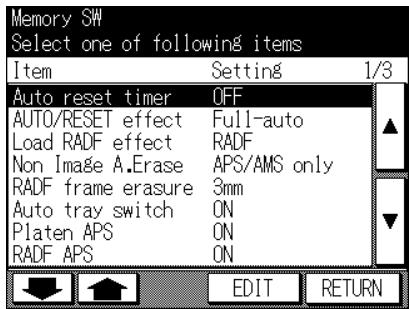
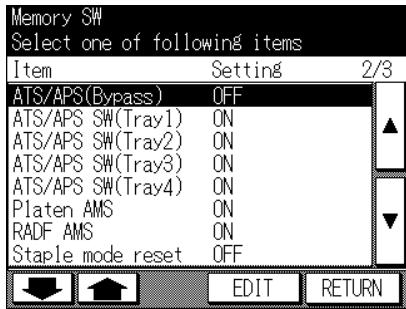
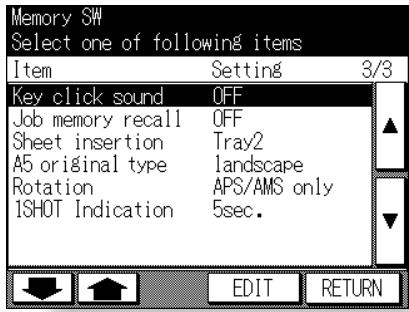
Procedure
1 Touch 12. Memory SW on the Key Operator Mode Screen to display the Memory Switch Screen. The Memory Switch Screen can be scrolled to the third screen.
2 Use the procedure below to select the desired item and change the setting.
(1) Use ↑ Upper arrow and ↓ Lower arrow keys at the lower left on the Memory Switch Screen to scroll the screen.
(2) Touch Upper arrow or Lower arrow key at the right on the Memory Switch Screen to highlight the desired item.
(3) Touch EDIT to change the setting of the highlighted item.
(4) Repeat above steps (1) to (3) to make several changes in succession.
3 Touch RETURN to restore the Key Operator Mode Screen.
4 If no further changes are required, touch RETURN to restore the Basic Screen to perform copying operations.
The following functions can be provided by the Memory switch settings.
[1] Auto reset timer
Sets the time interval for the machine to reset to the initial condition.
Options: Off or 30/60/90/120/150/180/210/240/270/300 seconds.
[2] Auto-reset effect
Sets the condition of Copy mode, Copy density, Magnification, and Paper tray selection when the [AUTO RESET] key is pressed.
Options: Full-auto (factory setting) or Initial (key operator setting). Full-auto is the default setting.
[3] Load RADF effect
Determines how the machine initializes when it is in the platen copy mode (non RADF) and an original is inserted in the RADF feed tray.
Options: RADF and RADF + AUTO/RESET. The RADF option will activate the RADF without resetting any other features. The RADF + AUTO/RESET option will activate the RADF and reset the machine to the features programmed in memory switch #2.
[4] Non Image Area Erase
Establishes how the machine determines the image area of the copy.
Options: ON and APS/AMS only. ON option limits the copy image area to that of the original. The APS/AMS only option limits the copy image area to that of the copy paper sizes and the magnification automatically selected by the machine.
[5] RADF frame erasure
Sets the amount of frame erase when using the RADF.
Options: None, 1mm/2mm/3mm/4mm/5mm.
[6] Auto tray switch
During a copy job when ATS is on and multiple paper trays are loaded with the same size paper, the machine will automatically switch to another tray when the initial tray runs out of paper. Refer to memory switches 9 through 13 to activate this feature for each tray.
[7] Platen APS
This feature allows the machine to automatically detect the size of the original placed on the glass and select the same size copy paper. Refer to switches 9 13 to activate this feature for each tray.
[8] RADF APS
This feature allows the machine to detect the size of the original fed through the RADF. Refer to switches 9 ~ 13 to activate this feature for each tray.
[9] ATS/APS (Bypass)
This setting activates ATS and APS (platen and RADF) for Multi-sheet bypass.
[10] ATS/APS SW (Tray 1)
This setting activates ATS and APS (platen and RADF) for Tray 1.
[11] ATS/APS SW (Tray 2)
This setting activates ATS and APS (platen and RADF) for Tray 2.
[12] ATS/APS SW (Tray 3)
This setting activates ATS and APS (platen and RADF) for Tray 3.
[13] ATS/APS SW (Tray 4)
This setting activates ATS and APS (platen and RADF) for Tray 4.
[14] Platen AMS
This feature allows the machine to automatically select the proper magnification ratio when copy paper size is selected manually and an original is placed on the platen glass.
[15] RADF AMS
This feature allows the machine to automatically select the proper magnification ratio when copy paper size is selected manually and an original is fed from the RADF.
[16] Staple mode reset
When copying in the sort/staple mode, this setting allows the machine to automatically reset to non-staple mode when the job in progress is completed.
[17] Key click sound
When this feature is Low or High, the machine activates a buzzer sound when the touch sensitive screen is touched or any key is pressed. This confirms the machine recognition of the selection.
[18] Job memory recall
This feature allows the machine to initialize using selections stored in job memory No.15 when the power is turned on or the [AUTO RESET] key is pressed.
NOTE:
This function works only when job memory No.15 is registered.
[19] Sheet insertion
This setting allows selection of tray 1, tray 2, tray 3, tray 4, or Bypass as the source of the inserted sheets.
[20] A5 original type
Selects orientation of A5 size originals.
Options: Landscape or portrait.
[21] Rotation
When turned on the feature allows the machine to automatically rotate an A4 original image to match the manually selected paper size. For example, if an original is placed in the RADF or on the platen glass in the A4R position and the A4 paper size is selected, the machine will rotate the image to fit the A4 paper.
[22] 1 SHOT indication time
Determines the duration of messages that are displayed, i.e., 50 SHEETS MAXIMUM IN STAPLE MODE.
Options: 1/2/3/4 or 5 seconds.
Use this function to print out the list selected from the following items.
- Job memory list: Programmed contents of Job memory
- User setting list: Machine informations managed by EKC and home position settings selected by user
- Font pattern: Font patterns used in the machine
![KONICA MINOLTA 7045 - [22] 1 SHOT indication time - 1](/content/2025/01/139561/images/e2a645e6f4271876ec4f2d1aa04706389cb0f1dca9a50e0867fb9591326d6bae.jpg)
Procedure
1 Touch 13. List Print on the Key Operator Mode Screen to display the List Print Screen.
2 Touch Job memory list, User setting list, or Font pattern to highlight it.
3 Touch OK to print out the desired list.
Press the [STOP/CLEAR] key on the control panel to stop printing.
After completion of printing, the copier will automatically return to the List Print Screen.
When printing other lists, return to step 2.
4 Touch CANCEL to restore the Key Operator Mode Screen.
5 If no further changes are required, touch RETURN to restore the Basic Screen to perform copying operations.
[14] Application Customize
Use this function to rearrange, display, or hide the application keys on the Application Selection Screen.
![KONICA MINOLTA 7045 - [14] Application Customize - 1](/content/2025/01/139561/images/c7f024546edba9a2c36b2a7bdd098c9e7b01fff8a944c6f14565cc84535df348.jpg)
![KONICA MINOLTA 7045 - [14] Application Customize - 2](/content/2025/01/139561/images/8c7b33f0acdadbe2e7ff07b00be6d7d3df3f612d06d78d7f7604e3217a181b78.jpg)
Procedure
1 Touch 14. APPLI customize on the Key Operator Mode Screen to display the Application Customize Screen.
The application function keys currently set are displayed on the screen.
When setting change is desired, touch EDIT to display the Item Selection Screen.
2 Touch FILE EDIT or IMAGE EDIT, as desired.

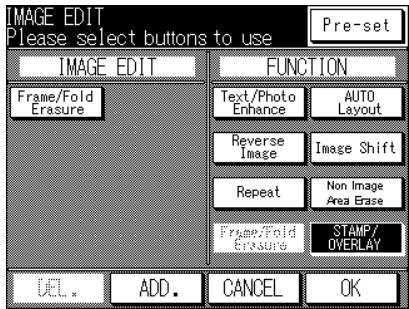
3 On the File/Image Edit Customize Screen, touch to highlight the desired application function key on the right, then touch ADD. Selected key will move to the left part of the screen, while the key on the right will be dimmed to show inactivity.
4 To cancel the selection you made, touch to highlight the desired key on the left, then touch DEL. The selected key will disappear.
Touch Pre-set to restore the previous setting.
5 Touch OK to complete the settings, then touch EDIT to return to the Item Selection Screen.
Touch another item key, if desired, or touch Change buttons to restore the factory setting.
6 Touch RETURN to restore the Application Customize Screen. Confirm the setting you made on this screen.
7 Touch OK to restore the Key Operator Mode Screen.
8 If no further changes are required, touch RETURN to restore the Basic Screen to perform copying operations.
[15] Density Shift
Density shift divides each of nine density levels into two levels of lighter and three levels of darker when used in combination with Text/Photo Enhance.
Density shift selection can be made in each of four Text/Photo Enhance modes; Text/ Photo (general), Text, Photo, and Increase Contrast.
Setting options: Density shift 0/1/2/3 (standard)/4/5
![KONICA MINOLTA 7045 - [15] Density Shift - 1](/content/2025/01/139561/images/ad1dfa0b57efa3a881a6b33e6bd31d2bd27351994141bcbcf41fea59023a2486.jpg)
Procedure
1 Touch 15. Density Shift on the Key Operator Mode Screen to display the Density Shift Setting Screen.
2 Select the Text/Photo Enhance mode.
Touch Text/Photo, TEXT, PHOTO, or Increase contrast to highlight it, then enter the desired density shift (from 0 to 5) using the control panel keypad.
3 Touch OK to complete the settings and return to the Key Operator Mode Screen.
4 If no further changes are required, touch RETURN to restore the Basic Screen to perform copying operations.
When activated, the Remote Diagnostics option is automatically monitored by a Konica service centre. In case of machine trouble, select the KRDS host option. Your service centre will contact you to determine the appropriate means for resolving the problem.
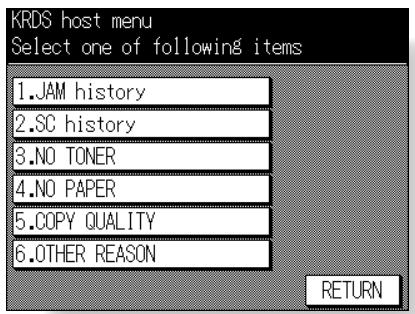
Procedure
1 Touch 16. KRDS host on the Key Operator Mode Screen to display the KRDS Host Menu Screen.
2 Touch 1. JAM history, 2. SC history, 3. NOTONER, 4. NO PAPER, 5. COPY QUALITY, or 6. OTHER REASON, as required.
The Start Call Screen will be displayed.
3 Touch START to call remote service centre.
4 Touch RETURN to restore the Key Operator Mode Screen.
5 Touch RETURN to restore the Basic Screen.
Index
SYMBOL
[!]indicator 2-16,2-19
[+]indicator2-16
NUMBER
1 SHOT indication time 12-37
1.00 magnification mode 3-11
1-2, 2-2 copying 3-16
1-2 Flip Side 2 8-31
2-1 copying 3-19
2-1 Flip Side 2 8-31
2 in 1 8-9
4 in 1 8-9
8 in 1 8-9
A
A5 original type 12-37
ADD PAPER key 5-9
ADD TONER icon 2-13, 10-2
Add Toner Message 10-2
Adding Toner 10-2
ADU 2-3
All Counter Reset 12-18
AMS key (-A-) 3-9
Application Customize 12-39
APPLICATION icon 2-13
APPLICATION key 2-7, 8-2
Application Selection Screen 2-15
APS key 3-7
Assistance key 4-6
ATS/APS SW 12-36
AUTO Layout 8-46
Auto Low Power 2-10
AUTO RESET key 2-7
Auto reset timer 12-36
Auto Shut-Off 2-10
Automatic Exposure (AE) 3-14
Automatic Magnification Selection (AMS) 3-9
Automatic Paper Selection (APS) 3-7
Automatic Tray Switching (ATS) 12-36
Auto-reset effect 12-36
B
BACK BLANK key 8-4
BACK COPY key 8-4
Basic Screen 2-13
BLANK INSERTION key 8-4
Blank sheet interleaving 8-14
Booklet 8-11
C
Call for Service 5-2
Cartridge holders 2-5
Cartridge slide knob 2-5
CAUTION 1-3
Caution Labels and Indicators 1-2
Change EKC Data 12-15
Chapter 8-7
CHECK key 2-7, 3-32
Check Mode 3-32
Check Screen 7-6
CLEAR QTY. key 2-7
Clearing Mishandled Paper 5-5
Combination 8-9
Control panel 2-7
Control panel contrast key 12-23
Control Panel Layout 2-7
Copier Initial 12-6
Copy Count 11-4
Copy Density 3-14
COPY INSERTION key 8-4
COPY key 2-7
Copy Limit Reached Effect 12-20
Copy Materials 10-9
Copy Mode 3-16, 12-7
Copy sheet interleaving 8-14
Counter List 11-4
COUNT/SET indicator 2-14
D
DANGER 1-3
DATA indicator 2-7
DATE/TIME 8-56
Density (Initial) 12-7
Density (Preset) 12-12
DENSITY setting area 2-14
Density Shift 12-40
Document glass 11-2
Drum unit 2-4
Dual Page 8-21
Duplex copy 3-16
E
EKC (Electronic Key Counter) 12-14
EKC Data List 12-17
EKC ID No. 12-15
EKC Master Key Code 12-14
EKC On/Off Setting 12-19
EKC password 2-11, 12-15
ENGLISH key 12-5
Environment 1-5
E-SORT+group mode 3-26
E-SORT+sort mode 3-26
EXCEEDS LIMIT message 5-14
Exit tray 3-29
Expanded Memory Unit 6-4
F
Face Up mode 3-26, 3-28
Facing Pages mode 8-21
Finisher 2-5
Finisher mode icon 2-13, 3-31
Finisher Paper Capacity 1-9
Finisher lower tray 2-5
Finisher middle tray 2-5
Finisher upper tray 2-5
Fixed key 3-12
Fixed magnification mode 3-12
Fixing unit 2-4
Flip Side 2 8-31
Fold Erasure 8-44
Folded Original 8-27
Font pattern 12-38
For Assistance key 12-24
Frame Erasure 8-44
Frame/Fold Erasure 8-44
FRENCH key 12-5
Front/Back + Facing Pages mode 8-21
FRONT BLANK key 8-4
FRONT COPY key 8-4
Front Cover + Facing Pages mode 8-21
Front door 2-3
FS-109 Finisher 3-28
G
GERMAN key 12-5
GROUP key 3-27, 3-29
Group mode 3-26, 3-28
GUIDE key 5-5
H
HELP key 2-7,4-6
HELP MENU key 4-6
Help Menu Screen 4-7
Help Mode 4-6
Help Screen 4-6, 7-7
1
Icon area 2-13
Image Insert 8-18
Image Shift 8-48
Increase Contrast Mode 8-34
Initial Setting 12-6
Insertion mode 8-5
Installation space 1-6
Internal Machine Items 2-4
INTERRUPT LED 3-34
INTERRUPT key 2-7,3-34
Interrupt Mode 3-34
ITALIAN key 12-5
J
JAM key 5-7
JOB LIST key 2-14, 3-24
Job List Screen 3-24, 7-4
JOB MEMORY key 2-7, 4-2
Job memory list 12-38
Job memory recall 12-37
Job No. icon 2-14
Job No. Selection Screen 7-6
Job Recall 4-5
Job Store 4-2
K
Key click sound 12-37
Key counter 2-3
Key Ope mode key 4-6,12-2
Key Operator Data 12-24
Key Operator Mode 12-2
Key Operator Mode Screen 7-8, 12-3
Key Operator Password 7-8, 12-3
Keypad 2-7
KRDS Host 12-41
L
Landscape type original 8-10
Language 12-5
LCD screen 2-7
LCT (Large Capacity Tray) 2-18
Left partition glass 11-2
Left side cover 2-3
LENS setting area 2-14
Limit 12-16
Limited Use of the Copier in Trouble 5-3
List Print 12-38
Load RADF effect 12-36
Loading Paper 2-16
Lock icon 4-3, 12-21
Lock Job Memory 12-21
Lower right side cover 2-3
Lunch Hour Off Function 12-30
M
Machine Working Day Individual Set 12-29
Magnification (Initial) 12-8
Magnification (Preset) 12-13
Main Body Specifications 6-2
Main power switch 2-3
Maintenance Kit 10-9
"Memory full" message 5-10
Memory indicator 2-14
Memory Overflow 5-10
Memory Switch 12-34
Mishandled paper 5-5
Mixed Original 8-25
MODE setting area 2-14
Multi-sheet bypass tray 2-3, 2-19
N
Non-Image Area Erase 8-50, 12-36
Non-Image Erase 12-11
Non-sort mode 3-26, 3-28
Non-Standard Size 8-29
Numbering 8-56
0
Oblique erase mode 8-51
OHP Interleaving 8-14
Option Specifications 6-3
Optional Equipment 2-6
Output 12-10
OUTPUT key 2-7
Output Mode 3-26, 3-28
Output Mode Screen 7-5
Overlay 8-60
P
[P] key 2-7
PAGE 8-56
Panel Contrast 12-23
Paper guide 3-2
Paper jam position display 5-5
Paper Size 3-7
Paper Size (table) 9-4
Paper size/type indication area 2-14
Paper Type 12-22
Paper Weight 9-2
Password Setting 12-31
Photo Mode 8-34
Platen AMS 12-37
Platen APS 12-36
Platen glass 3-5, 11-2
Platen Glass Originals 9-5
Platen Store Mode 3-20
Plug socket 1-4
PM CALL icon 2-13
Portrait type original 8-10
Power OFF/ON Screen 5-12
Power Save 12-33
POWER Saver ON/OFF key 2-7, 2-10, 7-2
Power Source 1-4
Power switch 2-3
Precautions for Routine Handling 1-7
Preset ratios 3-12
Preset Key 12-12
Preventive Maintenance (PM) 5-4
Preventive maintenance icon 5-4
PRINT key 2-7
Print quantity 3-6
Programmed Shut Off 7-2
Proof Copy 3-32
PROOF COPY key 2-7, 3-33
R
RADF (Reversing Automatic Document Feeder) 2-3
RADFAMS12-37
RADF APS 12-36
RADF frame erasure 12-36
RADF hinge portions 1-2
RADF Originals 9-6
RADF platen guide cover 11-3
RADF Store Mode 3-20
Rectangular erase mode 8-51
Reduce & Shift 8-48
Release lever 2-5, 10-6
Repeat 8-38, 8-41
RepeatX2 8-41
RepeatX4 8-41
RepeatX8 8-41
Report code No. 5-2
Reserve 3-22
RESERVE key 3-22
Reverse Image 8-36
Rotation 7-9, 12-37
Rotation icon 2-13
s
SCAN key 2-14, 3-18, 3-21
SCAN key 2-7
SET NUMBERING 8-56
SETTING key 2-13
Sheet insertion 12-37
Sheet/Cover Insertion 8-3
Simplex copy 3-19
SIZE setting area 2-14
SORT key 3-29
Sort mode 3-28
SPANISH key 12-5
Special Original key 8-25
Special Paper in Multi-Sheet Bypass Tray 9-4
Special Paper 8-15, 8-16
STAMP 8-52, 8-56
Standard Equipment 2-6
Staple cartridge 10-6
Staple drive portions 2-5
Staple mode 3-28
STAPLE key 3-29
Staple mode reset 12-37
Staple position icon 3-31
STAPLE SET key 3-30, 7-5
START key 2-7
STOP/CLEAR key 2-7
Storage 2-3
Store Mode 3-20
SUMMER TIME key 12-4
System Initial 12-4
T
Text Mode 8-34
Text/Photo Enhance 8-34
Thick paper 9-4
Thin paper 9-4
Thin/Thick Paper 8-16
Time 12-4
TIMER indicator 2-7
Timer Interrupt 7-2
Timer interrupt password 12-31
Toner bottle 2-4, 10-2
Toner unit 2-4, 10-2
Total count 11-4
Total counter 2-4
Touch Panel Adjustment 12-32
Touch Screens 2-13
Tray (Initial) 12-9
Tray/Exit Tray Capacity 9-2
Troubleshooting Tips 5-13
U
Universal tray 2-16
Unsuitable RADF Originals 9-5
Upper right side cover 2-3
UserID 12-15
User setting list 12-38
USERSET 1, 2, 3 (Magnification) 12-13
Userset 1, 2 (Density) 12-12
Userset ratios 3-12
V
Vertical/Horizontal Zoom Mode 7-11
W
Warm-up 2-8
WARNING 1-3
WATERMARK 8-52
Weekly Timer 12-25
Weekly Timer Copier ON/OFF Time Set 12-27
Weekly Timer function 7-2
Weekly Timer Master Key Code 12-26
Weekly Timer Setting 12-27
Work table 2-3
Z
ZOOM key 3-13, 7-12
Zoom Mode 3-13
MANUFACTURER
KONICA CORPORATION
TOKYO JAPAN
- ENERGY STAR® Program
- Auto Low Power
- Automatic Shut-Off
- Automatic Duplex Copying
- Basic
- Section 1: Safety Information
- Section 2: Machine Information
- Section 3: Copying Operations
- Section 4: Job Memory & Help Mode
- Section 5: Troubleshooting
- Section 6: Machine Specifications
- Advanced
- Section 7: Advanced Information
- Section 8: Applications
- Section 9: Paper and Original Information
- Section 10: Supplies
- Section 11: Maintenance
- Section 12: Key Operator Mode
- Section 12: Key Operator Mode (continued)
- Index
- - AE - Automatic Exposure
- - AMS - Automatic Magnification Selection
- - APS - Automatic Paper Selection
- - ATS - Automatic Tray Switching
- - Auto Layout
- - Auto Low Power
- - Auto Reset
- - Auto Shut-Off
- - Booklet
- Chapter
- Combination
- - Copy Density
- - Copy Mode
- Counter List
- Density Shift
- - Dual Page
- - Flip Side 2
- - Folded Original
- - Frame/Fold Erasure
- - Image Insert
- - Image Rotation
- - Image Shift
- - Interrupt Copying
- Job List Confirmation
- Job Memory
- - Lens Mode (RE, Zoom)
- - Magnification
- - Manual Shut-off
- - Mixed Original
- Non-Standard Size for Original
- - Output Mode for Machine with FS-109 Finisher Installed:
- - Output for Machine with no Finisher Installed:
- - Overlay
- - Paper Capacity
- - Platen Memory
- Power Saver
- Proof Copy
- Repeat
- - Reserve
- - Reverse Image
- - Sheet/Cover Insertion
- Special Paper
- - Stamp
- Staple
- Text/Photo Enhance
- - Userset Density (USERSET 1, USERSET 2)
- Weekly Timer
- SECTION
- Safety Information
- Precautions for Installation and Use
- Caution Labels and Indicators
- CAUTION
- DANGER:
- WARNING:
- CAUTION:
- Requirements for Safe Use
- Power Source
- CAUTION: PLUG SOCKET
- CAUTION: POWER PLUG AND LEAD
- CAUTION: CONNECTING MULTIPLE LOADS TO ONE SOCKET OUTLET PROHIBITED
- CAUTION: EXTENSION LEAD
- ■ Environment
- CAUTION: PREVENTION OF FIRE
- CAUTION: PREVENTION OF SHORT CIRCUIT
- CAUTION: TEMPERATURE AND HUMIDITY
- CAUTION: VENTILATION
- CAUTION: VIBRATION
- CAUTION: INSTALLATION SPACE
- Precautions for Routine Handling
- WARNING: HIGH VOLTAGE
- CAUTION: ACTIONS IN RESPONSE TO TROUBLES
- CAUTION: PROHIBITION OF MACHINE MODIFICATION
- CAUTION: PREVENTION OF MACHINE TROUBLES
- CAUTION: RECOMMENDATION OF PERIODIC CHECK
- CAUTION: TONER
- CAUTION: PAPER
- CAUTION: POWER SAVER AND WEEKLY TIMER
- CAUTION: RADF HINGES
- WARNING: DRUM UNIT
- CAUTION: DISPOSE OF A DISUSED COPYING MACHINE
- CAUTION: PAPER CAPACITY FOR THE EXIT TRAY
- CAUTION: FINISHER PAPER CAPACITY
- Machine Information
- Machine Configuration, Various Touch Screen and Loading Paper
- External Machine Items
- Internal Machine Items
- ■ Finisher
- Standard/Optional Equipment
- Control Panel Layout
- Turning On the Main Power Switch and Power Switch
- To Turn On the Power
- Turn ON the main power switch.
- Turn ON the power switch.
- The Basic Screen will be displayed.
- To Turn Off the Power
- Turn OFF the power switch.
- Turn OFF the main power switch.
- DETAILS
- Reducing the Power in Standby Mode (Auto Low Power)
- ■ Shutting Off Automatically (Auto Shut-Off)
- ■ Entering an EKC Password (EKC)
- Press the power switch.
- Enter your 5-digit EKC password, using the keypad.
- Press
- Start a copying job.
- Press C while pressing P Clear QTY.
- Making a Basic Copy (Basic Screen)
- Using Application Function (Application Selection Screen)
- ■ Loading Paper in Universal Tray
- Stack paper with curl side up.
- While pressing the release knob, move the side guide plate against the paper.
- Push in the tray until it locks into place.
- ■ Loading Paper in LCT (Large Capacity Tray)
- Withdraw the LCT.
- ■ Loading Paper in Multi-sheet Bypass Tray
- Open the Multi-sheet bypass tray located on the right side of the copier.
- Load copy paper, and adjust the paper guides to the paper size.
- Changing Paper Size of Universal Tray
- 3
- Copying Operations
- How to Make a Basic Copy
- Positioning Originals in RADF
- Positioning originals in Normal mode
- Arrange originals in order.
- Position original(s) FACE UP in the document feeder tray.
- Adjust paper guides.
- Positioning originals in Mixed original mode
- Position mixed originals FACE UP, aligned with the left rear side of the document feeder tray.
- Positioning originals in Folded original mode
- Positioning Original on Platen Glass
- To Set Print Quantity
- To Change Print Quantity
- Enter the correct quantity.
- To Select Paper Size Automatically (APS)
- FOR DETAILS
- ■ To Specify Desired Paper Size (AMS)
- Touch a tray key on the Basic Screen to select the desired paper size.
- Select additional copy conditions, as desired.
- Enter the desired print quantity from the control panel keypad.
- Position original(s).
- Selecting Magnification Ratio (Lens Mode)
- To Copy in 1.00 Magnification Mode
- Close the RADF securely, then press
- To Copy in Fixed Magnification Mode (FIXED)
- Specification for Fixed Magnification Mode
- Touch |FIXED on the Basic Screen.
- Select the desired magnification.
- To Copy in Zoom Mode
- Specification for Zoom Mode
- Touch | ZOOM | on the Basic Screen.
- Touch OK
- To Select Copy Density
- Making Double-Sided Copy (1▶2, 2▶2)
- Using RADF
- Using Platen Glass
- Position original FACE DOWN on the platen glass.
- Touch 1 2 on the Basic Screen to highlight it.
- Touch 2 1 on the Basic Screen to highlight it.
- Position originals FACE UP in the document feeder.
- To Scan Originals into Memory (Store Mode)
- Touch SCAN on the Basic Screen.
- To Set Next Copying Job (Reserve)
- Specifications for Reserve
- Press to start scanning/printing for the current job.
- Touch RESERVE to highlight it.
- ■ To Check/Control Jobs in Progress (Job List)
- Touch JOB LIST on the Basic Screen.
- Perform the desired setting on the screen.
- Contents of Job List Screen
- Load copy paper.
- Select the desired output mode.
- HINTS
- Output Mode for Machine with Finisher FS-109
- TRAY 2 or TRAY 3
- TRAY 1
- Select the desired exit tray.
- Touch STAPLE SET
- Select the desired staple position, then touch OK
- Checking Feature Selections and Proof Copying
- Specifications for Check Mode and Proof Copy
- Select the desired copy conditions and enter the desired print quantity.
- Press CHECK on the control panel.
- Specifications for Interrupt Mode
- Press = on the control panel.
- Set copy conditions, as desired.
- Job Memory & Help Mode
- Storing Job Conditions (Job Memory: Job Store)
- Specifications for Job Memory
- Review the settings on the Job Store Check Screen.
- Touch to highlight one of the keys numbered from 1~15 to store the job under that number.
- Enter a job name.
- FORDETAILS
- Recalling Stored Job Settings (Job Memory: Job Recall)
- Displaying Screen for Operation Guide (Help Mode)
- ■ To Display Help Screen from Basic Screen
- Return to the Basic Screen, then press
- Touch the desired key to display specific information.
- ■ To Display Help Screen from Other Screens
- 5
- Troubleshooting
- How to Handle Machine Troubles
- When “Call for Service” Message Is Displayed
- Limited Use of the Copier in Trouble
- Preventive Maintenance
- Clearing Mishandled Paper
- Touch GUIDE on the screen.
- Follow the procedure on the screen to remove misfed paper.
- Please Be Reminded!
- When completed, touch EXIT
- WARNING
- When “JAM” Appears on “SETTING” Key
- Touch JAM
- Touch GUIDE
- When “ADD PAPER” Appears on “SETTING” Key
- When “Memory Full” Message Is Displayed (Memory Overflow)
- When
- Displays
- Wait until the current operation is completed.
- Check the original pages, then position originals again.
- Press to complete the job.
- Press 1 START
- to continue copying.
- The following message displays.
- Check the original pages, then press to complete the job.
- When Power OFF/ON Screen Is Displayed
- COPIER DOES NOT OPERATE WHEN POWER SWITCH IS ON
- COPY IMAGE IS TOO LIGHT
- COPY IMAGE IS TOO DARK
- COPY IMAGE IS NOT CLEAN OR SHOWS SPOTS
- COPY PAPER MISHANDLES DURING COPYING
- COPY IMAGE CAN BE RUBBED OFF
- MAGNIFICATION CANNOT BE CHANGED
- THE TOUCH SCREEN PAPER SIZE INDICATOR DISPLAYS !] ON THE TRAY
- DUPLEX MODES CANNOT BE SELECTED
- COPYING DOES NOT BEGIN AFTER PRESSING START
- COPYING DOES NOT RESUME AFTER MISHHANDLED PAPER IS REMOVED
- COPY QUALITY IS POOR
- THE ORIGINAL PAPER IS MISHHANDLED OR SKEWED IN THE DOCUMENT FEEDER
- COPY IMAGE IS SKEWED WHEN BYPASS IS USED
- USING EKC, COPIES CANNOT BE MADE AFTER PASSWORD IS ENTERED
- FINISHER DOES NOT OPERATE
- ADD TONERMESSAGE IS DISPLAYED
- CALL FOR PM IS DISPLAYED INMESSAGE AREA
- APS SELECTS THE WRONG PAPER SIZE
- IN MIXED ORIGINAL MODE, AMESSAGE TO LOAD A REQUIRED PAPER SIZE DISPLAYS, EVEN THOUGH THAT SIZE IS LOADED IN ONE OF THE TRAYS
- THE BASIC SCREEN DOES NOT DISPLAY SETTINGS AS DESCRIBED IN INSTRUCTION MANUAL
- PLEASE CHECK ORIGINAL
- SHEET INSERTION RESULT IS NOT AS EXPECTED
- FINISHER STAPLE RESULT IS NOT AS EXPECTED
- 6
- Machine Specifications
- Main Body & Option Specifications and Copy Materials
- Main Body
- ■ RADF (DF-315)
- ■ FS-109 In-Bin Stapler Finisher
- DB-208DrawerBaseUnit
- DB-208ADrawerBaseUnit
- DB-608DrawerBaseUnit
- Expanded Memory Unit
- Others
- Advanced Information
- Advanced Function and Touch Screen
- Programmed Shut Off (Weekly Timer)
- Press on the control panel.
- Enter the password.
- Set the hour for the interrupt use.
- Set the minute for the interrupt use.
- ■ Checking Machine Status (Job List Screen)
- Setting Output Mode (Output Mode Screen)
- For the machine with finisher installed:
- For the machine without finisher:
- ■ Checking Job Conditions (Check Screen)
- Storing and Recalling Job Conditions (Job No. Selection Screen)
- Getting Information on Machine Operation (Help Screen)
- Modifying Machine Settings (Key Operator Mode Screen)
- Vertical/Horizontal Zoom Mode
- Vertical/Horizontal Zoom Mode Specifications
- Touch ZOOM on the Basic Screen.
- Touch on the popup menu to highlight it, then set the vertical zoom ratio.
- 8
- Applications
- How to Use Application Functions
- To Display Application Selection Screen
- Press APPLICATION on the control panel.
- Touch OK on the Application Selection Screen.
- Inserting Sheets and Covers (Sheet/Cover Insertion)
- Specifications for Sheet/Cover Insertion
- Load paper for copies, insertions and covers.
- Press on the control panel.
- Sheet/Cover on the Application Selection Screen.
- Select the desired function.
- Example: Touch to insert a copied front cover.
- Select the tray from which the front/ back cover is fed, if a cover is desired.
- When selecting Insertion mode: Enter the page number.
- Entering Page Numbers
- Locating Title Pages on the Right Side (Chapter)
- Specifications for Chapter
- Touch Chapter on the Application Selection Screen.
- Lay Out Several Pages onto One Sheet (Combination)
- Specifications for Combination
- Press on the control panel.
- Touch Combination on the Application Selection Screen.
- Select the desired Combination mode.
- Making a Multiple Page Signature Booklet (Booklet)
- Specifications for Booklet
- Press APPROPION on the control panel .
- Touch Booklet on the Application Selection Screen.
- Position originals in the document feeder FACE UP in portrait orientation (□).
- Copying onto OHP Films (OHP Interleaving)
- Specifications for OHP Interleaving
- Touch Special Paper on the Application Selection Screen.
- Select the desired OHP Interleaving mode, then touch OK
- Position original(s) FACE UP in the document feeder or FACE DOWN on the platen glass.
- START
- Copying onto Thin/Thick Paper (Thin/Thick Paper)
- Specifications for Thin/Thick Paper
- Inserting Images into Printed Sets (Image Insert)
- Specifications for Image Insert
- Scan the platen glass images.
- Dividing an Image into Right and Left Pages (Dual Page)
- Specifications for Dual Page
- Touch Dual Page on the Application Selection Screen.
- Select the desired Dual Page mode.
- Select the scanning order.
- Select the desired paper size.
- Press START
- Scanning Original for Cover
- Copying Mixed Size Originals (Mixed Original)
- Specifications for Mixed Original
- Touch Special Original on the Application Selection Screen.
- Copying Folded Originals (Folded Original)
- Specifications for Folded Original
- Copying Non-Standard Size Originals (Non-Standard Size)
- Specifications for Non-standard Size
- Touch Original on the Application Selection Screen.
- Touch Non-Stnd Size on the Special Original Screen.
- Position original(s) FACE UP in the document feeder.
- Reverse the Second Side in 1 2 Mode (Flip Side 2)
- Making Copy Quality Closer to Originals (Text/Photo Enhance)
- Photo Mode
- Text Mode
- Increase Contrast Mode
- Specifications for Text/Photo Enhance
- Touch Text/Photo Enhance on the Application
- Touch the desired mode key on the Text/Photo Enhance Screen.
- Reversing Colour in Black and White Image (Reverse Image)
- Specifications for Reverse Image
- Touch Reverse on the Application Image Selection Screen.
- Repeating Selected Image Area (Repeat: Vert./Horiz. Mode)
- Vertical/Horizontal Width Setting Mode Specifications
- Select the desired magnification and paper size on the Basic Screen.
- Auto Detection/ Repeat Mode Specifications
- Eliminating Black Copy Marks Along Borders (Frame/Fold Erasure)
- Specifications for Frame/Fold Erasure
- Copying Image in the Centre of Copy Paper (AUTO Layout)
- Specifications for AUTO Layout
- Touch AUTO Layout on the Application Selection Screen.
- Position originals FACE DOWN on the platen glass.
- Having Any Problem?
- Creating Binding Margin (Image Shift)
- Specifications for Image Shift
- Touch Image Shift on the Application Selection Screen.
- HIN
- Erasing Outside of the Original (Non-Image Area Erase)
- Specifications for Non-Image Area Erase
- Touch Non Image Area Erase on the Application Selection Screen.
- Oblique Erase and Rectangular Erase Modes
- Printing Stamps or Watermarks onto Copies (Stamp)
- Specification for STAMP and WATERMARK
- Touch STAMP/ OVERLAY on the Application
- Selection Screen.
- Printing Date/Time, Page Numbers or Numbering (Stamp)
- Specification for DATE/TIME, PAGE and SET NUMBERING
- Overlaying an Image onto Each Page Copied in the Job (Overlay)
- Specification for Overlay
- Touch Overlay on the Stamp/Overlay Selection Screen.
- Select the desired paper size and magnification on the Basic Screen.
- Position the overlaying original.
- Position the original(s) to be overlaid.
- Touch SCAN
- Press 1
- Paper and Original Information
- Paper Weight
- Tray/ Exit Tray Capacity
- Paper in FS-109 Finisher (Option)
- Paper Size
- Special Paper in Multi-Sheet Bypass Tray
- To Store Copy Paper
- Platen Glass Originals
- Unsuitable RADF Originals
- Platen Glass Original Specifications
- ■ RADF Originals
- Normal mode
- Mixed original mode
- Folded original mode
- Supplies
- How to Add Toner and Staples
- ■ Add Toner Message
- Inserting a New Staple Cartridge
- ■ Maintenance Kit
- Maintenance
- How to Maintain the Copier
- Cleaning Image Scanning Section
- ■ Cleaning the Document Glass
- Cleaning the Platen Glass
- ■ Cleaning the RADF
- Cleaning the Left Partition Glass
- Cleaning the RADF Platen Guide Cover
- To Display the Counter List Screen
- ■ To Print the Counter List
- 12
- Key Operator Mode
- How to Monitor Copier Activity and Modify Machine Settings
- How to Access the Key Operator Mode
- ■ To Display the Key Operator Mode Screen
- 1.Time
- Procedure
- ■ 2. Language
- Initial Setting
- NOTE:
- Copy Mode
- Density
- Magnification
- Tray
- Output
- Non-Image Erase
- Density
- Magnification
- [4] EKC (Electronic Key Counter)
- Change E.K.C. Data:
- E.K.C. Data List:
- All Counter Reset:
- E.K.C. On/Off Setting:
- Copy Limit Reached Effect:
- ■ How to Access the EKC Setting Mode
- Change EKC Data
- NOTES:
- EKC Data List
- ■ 3. All Counter Reset
- EKC On/Off Setting
- Copy Limit Reached Effect
- [5] Lock Job Memory
- [6] Paper Type
- [7] Panel Contrast
- [9] Weekly Timer
- Conditions required to use the Weekly Timer:
- Weekly Timer Setting
- Weekly Timer Copier ON/OFF Time Set
- Machine Working Day Individual Set
- Lunch Hour Off Function
- Password Setting
- ■ How to Access the Weekly Timer Setting Mode
- [10] Touch Panel Adjustment
- [12] Memory Switch
- SW No. Item
- Setting (default is underlined)
- [1] Auto reset timer
- [2] Auto-reset effect
- [3] Load RADF effect
- [4] Non Image Area Erase
- [5] RADF frame erasure
- [6] Auto tray switch
- [7] Platen APS
- [8] RADF APS
- [9] ATS/APS (Bypass)
- [10] ATS/APS SW (Tray 1)
- [11] ATS/APS SW (Tray 2)
- [12] ATS/APS SW (Tray 3)
- [13] ATS/APS SW (Tray 4)
- [14] Platen AMS
- [15] RADF AMS
- [16] Staple mode reset
- [17] Key click sound
- [18] Job memory recall
- [19] Sheet insertion
- [20] A5 original type
- [21] Rotation
- [22] 1 SHOT indication time
- [14] Application Customize
- [15] Density Shift
- SYMBOL
- NUMBER
- A
- B
- C
- D
- E
- F
- G
- H
- 1
- J
- K
- L
- M
- N
- 0
- P
- R
- s
- T
- U
- V
- W
- Z
- KONICA CORPORATION
Brand : KONICA MINOLTA
Model : 7045
Category : Multifunction Printer