
MC560MFP-PLUS - Multifunction Printer OKI - Free user manual and instructions
Find the device manual for free MC560MFP-PLUS OKI in PDF.


| Product type | Color Multifunction Printer |
| Brand | OKI |
| Model | MC560MFP-PLUS |
| Dimensions (W x D x H) | 500 x 600 x 670 mm |
| Weight | Approx. 37 kg |
| Power supply | 220-240 VAC, 50-60 Hz |
| Power consumption (max) | 1200 W |
| Power consumption (standby) | 110 W |
| Color print speed | 20 pages/minute |
| Black and white print speed | 32 pages/minute |
| Print resolution | Up to 1200 x 600 dpi |
| Copy resolution | 600 x 600 dpi |
| Scan resolution | 1200 x 1200 dpi (optical) |
| Paper capacity (main tray) | 300 sheets |
| Paper capacity (multipurpose tray) | 100 sheets |
| Automatic Document Feeder (ADF) capacity | 50 sheets |
| Memory (RAM) | 256 MB (expandable to 768 MB) |
| Network connections | Ethernet 10/100 Base-T, USB 2.0 |
| Main functions | Print, copy, scan, fax, scan to email/FTP |
| Routine maintenance | Clean ADF, scanner glass, LED head; replace toner, drum, transfer belt |
| Safety | Use only genuine Oki toners; first aid in case of toner ingestion/inhalation/eye contact |
| Spare parts and consumables | Toner (black 6000 pages, CMY 5000 pages), image drum (20000 pages), transfer belt (60000 pages), fuser (60000 pages) |
| Monthly duty cycle | Up to 50,000 pages (recommended 4,000 pages/month) |
| Warranty | Refer to the provided documentation |
Frequently Asked Questions - MC560MFP-PLUS OKI
User questions about MC560MFP-PLUS OKI
0 question about this device. Answer the ones you know or ask your own.
Ask a new question about this device
Download the instructions for your Multifunction Printer in PDF format for free! Find your manual MC560MFP-PLUS - OKI and take your electronic device back in hand. On this page are published all the documents necessary for the use of your device. MC560MFP-PLUS by OKI.
USER MANUAL MC560MFP-PLUS OKI
Copyright © 2010 by Oki Data. All Rights Reserved
DOCUMENT INFORMATION
MC560 Plus User's Guide
P/N 59101101
Revision 1.0
April, 2010
DISCLAIMER
Every effort has been made to ensure that the information in this document is complete, accurate, and up-to-date. The manufacturer assumes no responsibility for the results of errors beyond its control. The manufacturer also cannot guarantee that changes in software and equipment made by other manufacturers and referred to in this guide will not affect the applicability of the information in it. Mention of software products manufactured by other companies does not necessarily constitute endorsement by the manufacturer.
While all reasonable efforts have been made to make this document as accurate and helpful as possible, we make no warranty of any kind, expressed or implied, as to the accuracy or completeness of the information contained herein.
The most up-to-date drivers and manuals are available from the web site http://www.okiprintingsolutions.com
TRADEMARK INFORMATION
Oki and Oki Data are trademarks of Oki Electric Industry Company Ltd.
Apple, Macintosh and Mac OS are registered trademarks of Apple
Computers Inc.
Hewlett-Packard, HP, and LaserJet are registered trademarks of Hewlett-Packard Company.
Microsoft, MS-DOS and Windows are either registered trademarks or trademarks of Microsoft Corporation in the United States and/or other countries.
Other product names and brand names are registered trademarks or trademarks of their proprietors.
CONTENTS
Copyright Information 2
Document Information 2
Disclaimer 2
Trademark Information 2
Contents 3
Emergency first aid. 6
Notes,cautions and warnings. 7
Introduction 8
About this guide 10
MFP Overview 13
Front view 13
Rear view 14
The control panel 15
Changing the display language. 17
Getting started 18
Installing MFP drivers and utilities. 18
Paper recommendations 20
Cassette tray 22
Multi purpose tray 23
Face down stacker 23
Face up stacker 23
Loading paper 24
Cassette tray 24
Multi purpose tray 27
Configuring your machine. 29
Minimum configuration requirements 29
Pre-configuration information. 29
Configuration 34
Explanation of filing protocols 61
Setting the fax facility 64
Print settings and security 73
PCL or postscript? 73
Printing preferences in windows applications 73
Store to hard disk/Job Spooling 75
Operation 80
Loading document(s) for copying 80
Placing document(s) in the ADF 80
Placing document(s) on the glass 82
Sending document(s) via e-mail. 82
Sending document(s) to a file server 86
Copying. 87
Faxing. 93
Scanning. 102
Maintenance 114
Part Numbers. 114
Toner cartridge replacement 115
Image drum replacement 121
Transfer belt replacement 127
Clean the ADF 134
Clean the document glass 135
Clean the LED head 136
Installing upgrades. 139
Part Numbers. 139
Duplex unit 139
Memory upgrade 141
Hard disk drive. 143
Additional paper tray. 146
Storage cabinet 147
Adjusting windows printer drivers. 147
Troubleshooting 149
Clearing paper jams 149
Fax problem checklist . 160
LCD message list 163
A guide to printing 182
How to access the driver screens 182
Changing the driver defaults 183
Changing the application's driver settings 183
PCL saved driver settings 183
Setting the driver device options 184
Blacks and grays (black overprint) 185
Black printing (black generation) 186
Fine lines enhancement. 188
Grayscale printing. 189
Color matching. 191
Printer color management 193
Office color 195
Office color - RGB options 195
Customising RGB office color with the color correct utility. 197
Graphic pro 197
Types of ICC profile supported 199
Graphic pro workflow - overview 199
Matching the color of a monitor, scanner or camera . .202
Simulating another printer - RGB source data 204
CMYK ink simulations - CMYK source data .206
Rendering intents 209
Pure black text / graphics 210
Color match precision 210
Printer driver settings for ICC profile creation or no color matching. 210
Finishing options 211
Specifications 233
EMERGENCY FIRST AID

Take care with toner powder:
If swallowed, induce vomiting and seek medical attention. Never attempt to induce vomiting if person is unconscious.
If inhaled, move the person to an open area for fresh air. Seek medical attention.
If it gets into the eyes, flush with large amounts of water for at least 15 minutes keeping eyelids open. Seek medical attention.
Spillages should be treated with cold water and soap to help reduce risk of staining skin or clothing.
NOTES, CAUTIONS AND WARNING
Note
A note provides additional information to supplement the main text.
CAUTION!
A caution provides additional information which, if ignored, may result in equipment malfunction or damage.
WARNING!
A warning provides additional information which, if ignored, may result in a risk of personal injury.
For the protection of your product, and in order to ensure that you benefit from its full functionality, this model has been designed to operate only with genuine Oki Printing Solutions toner cartridges. These can be identified by the Oki Printing Solutions trademark. Any other toner cartridge may not operate at all, even if it is described as "compatible", and if it does work, your product's performance and print quality may be degraded.
Specifications subject to change without notice. All trademarks acknowledged.
INTRODUCTION
Congratulations on choosing this Oki Printing Solutions Multi Function Product (MFP). It is designed with advanced features, to give you clear, vibrant color prints and crisp black and white pages at high speed on a range of office print media.
With this MFP, you can instantly scan paper-based documents and deliver the electronic image to various destinations including e-mail addresses, printers, ftp servers or someone else's computer on the network. This MFP also has a "walk-up" fax facility allowing you to send your documents to a destination fax number instantly.
Your MFP includes these features:
Multi-level technology produces subtler tones and smoother gradations of color to lend photographic quality to your documents.
Up to 20 pages per minute in full color for fast printing of high impact color presentations and other documents.
Up to 10 copies per minute (at 300 dpi) in full color for fast copying.
Up to 32 pages per minute in black and white for fast and efficient printing of all general purpose documents not requiring color.
Up to 16 copies per minute (at 300 dpi) in black and white for fast and efficient copying of all general purpose documents not requiring color.
1200 × 600dpi (dots per inch) print resolution for high quality image production showing the finest detail.
600 × 600 dpi (dots per inch) copy resolution.
Single Pass Color Digital LED technology for high speed processing of your printed pages.
New Profile Assistant utility allows you to download ICC profiles to the hard disk (Hard Disk Drive required).
Photo Enhance mode to improve printouts of photographic images (Windows PCL driver only).
High speed USB 2.0 interface.Scan to E-mail - Connected to an Ethernet network and a SMTP server, this MFP allows you to transmit document(s) over the internet via e-mail. With a touch of the e-mail key and the selection of your recipients' e-mail addresses, the document(s) is/are first scanned and converted into an image file, and then transmitted to remote recipients within minutes.
Scan to FTP - Allows you to send scanned documents to a server or a personal computer's file folder over an intranet with FTP (File Transfer Protocol), HTTP (Hypertext Transfer Protocol), CIFS (Common Internet File System) protocol. The scan to filing feature removes the need for the mail server to handle large attachments.
LDAP - Allows the end-user to access the corporate email address book securely, plus outbound emails automatically have the user's name in the "sent" field, thereby eliminating outbound anonymous emails for security reasons.
Multi-tasking - Supports scanning one job while printing another to ensure greater productivity.
Digital Copying - An intuitive control panel, makes digital copying fast and easy.
Network/PC Printing - When connected to a network, the MFP is able to perform network or PC printing (available in "Scan-to Mode").
Multiple Pages Sending - With the Auto Document Feeder (ADF), the MFP allows a stack of up to 50 page document(s) to be continuously scanned.
Faxing - An intuitive control panel, makes direct faxing fast and easy.
Advanced fax transmission and reception, including delayed transmissions, sending to multiple locations, confidential transmission and reception, and polling.
Address Book/Phone Book/Profiles Managing - This provides a convenient way to manage all the e-mail addresses, fax numbers and profiles (filing destinations). Simply typing the machine's IP address in the URL field of your browser will prompt the MFP web page. This web page allows you to create up to 300 e-mail addresses, 200
fax numbers and several filing destinations to manage your document.
The following optional features are available:
Internal hard disk drive for storage of overlays, macros and downloadable fonts, and automatic collation of multiple copies of multi page documents.
Additional memory, to allow printing of more complex pages.
Additional paper tray for loading a further 530 sheets to minimise operator intervention, or different paper stocks for letterhead stationery, alternative paper sizes or other print media.
Automatic two-sided (duplex) printing for economical use of paper and compact printing of larger documents.
Storage cabinet.
ABOUT THIS GUIDE
Note
Images used in this manual may include optional features that your MFP does not have installed.
This manual is your user's guide (check the web site, www.okiprintingsolutions.com, for the most up-to-date version) for your MFP and forms part of the overall user support listed below:
Safety, Warranty, and Regulatory Information: to provide information for safe use of the MFP.
This is a paper document that is packaged with the MFP and should be read before setting up your MFP.
Set-up Guide: to describe how to unpack, connect and turn on your MFP.
This is a paper document that is packaged with the MFP.
This User's Guide: to help you to become familiar with your MFP and make the best use of its many features.
Also included are guidelines for troubleshooting and maintenance to ensure that it performs at its best. Additionally, information is provided for adding optional accessories as your printing needs evolve.
This is an electronic document stored on CD 1.
Installation Guides: accompany consumable items and optional accessories to describe how to install them.
These are paper documents that are packaged with the consumables and optional accessories.
On-line Help: on-line information accessible from the printer driver and utility software.
ON-LINE USER GUIDE
This guide is intended to be read on screen using an Adobe Reader. Use the navigation and viewing tools provided in Adobe Reader.
You can access specific information in two ways:
In the list of bookmarks down the left hand side of your screen, click on the topic of interest to jump to the required topic. (If the bookmarks are not available, see "Contents" on page 3).
In the list of bookmarks, click on Index to jump to the Index. (If the bookmarks are not available, use the see "Contents" on page 3). Find the term of interest in the alphabetically arranged index and click on the associated page number to jump to the page containing the term.
PRINTING PAGES
The whole manual, individual pages, or sections may be printed. The procedure is:
-
From the toolbar, select File > Print (or press the Ctrl + P keys).
-
Choose which pages you wish to print:
(a) [All pages], (1), for the entire manual.
(b) [Current page], (2), for the page at which you are looking.
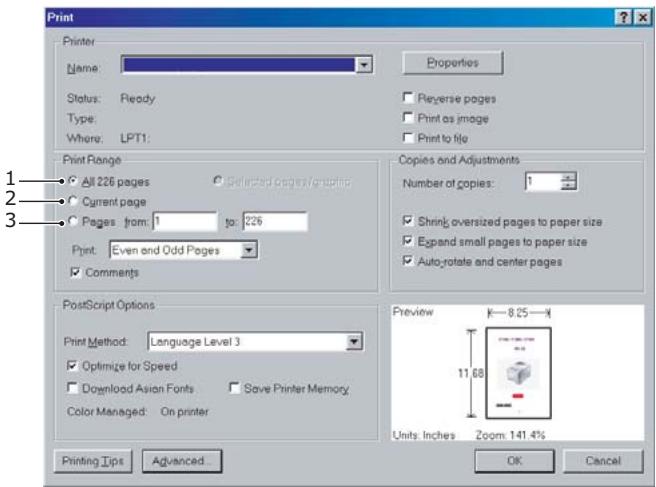
(c) [Pages from] and [to], (3), for the range of pages you specify by entering their page numbers.
- Click OK.
MFP OVERVIEW
FRONT VIEW
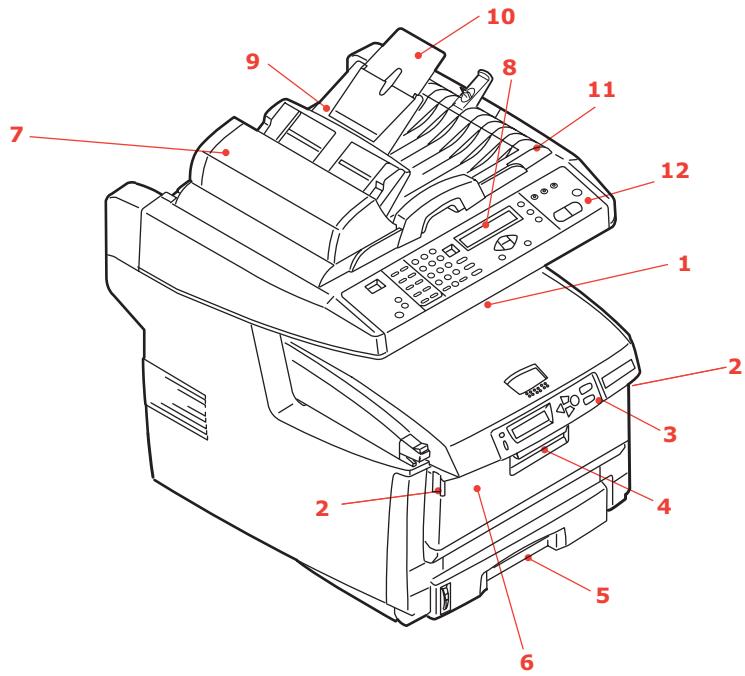
- Output stacker, face down. Standard printed copy delivery point. Holds up to 250 sheets at 20 lb. (80g / m^2) .
- Multi purpose tray release buttons (press).
- Operator Panel with LCD display. Status LEDs and operator buttons.
- Front Cover release (lift).
-
Paper tray. Standard blank paper tray. Holds up to 300 sheets of 20 lb. (80g / m^2) paper.
-
Multi purpose feeder (shown closed). Used for feeding heavier paper stocks, envelopes and other special media. Also for manual feeding of single sheets when required.
- Automatic Document Feeder (ADF) Unit.
- LCD Display.
- ADF Paper Tray.
- ADF Paper Support.
- Document Cover.
- Control Panel.
REAR VIEW
This view shows the connection panel and the rear output stacker.
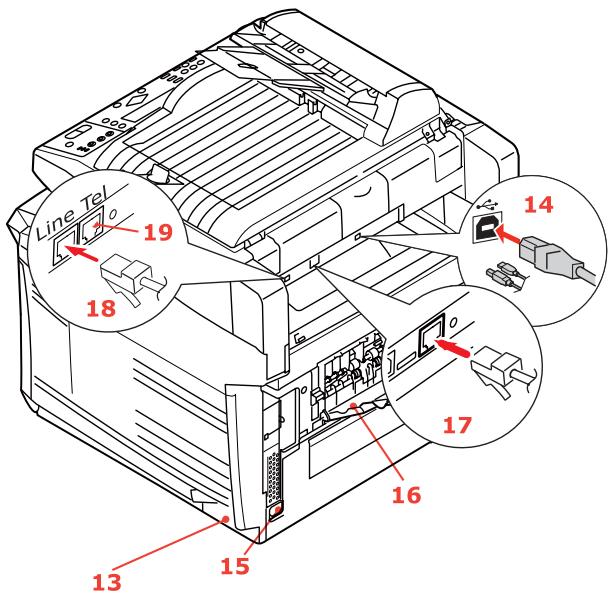
- ON/OFF Power switch.
- USB interface.
- AC power socket.
-
Rear, face up, 100 sheet stacker.
-
Network Connector.
- Line connection. Socket for connecting the fax machine to the telephone line.
- Tel connection. Socket for connecting a telephone handset (if required).
When the rear paper stacker is folded down, paper exits through the rear of the MFP and is stacked here face up. This is mainly used for heavy print media. When used in conjunction with the multi purpose feed tray, the paper path through the MFP is essentially straight. This avoids bending the paper around curves in the paper path and enables feeding of up to 54 lb. (203g / m^2) media.
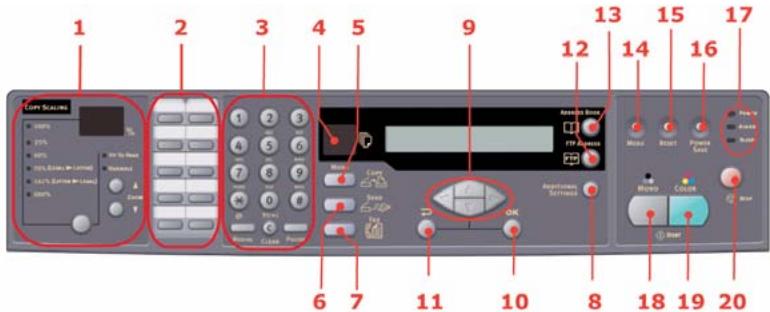
THE CONTROL PANEL
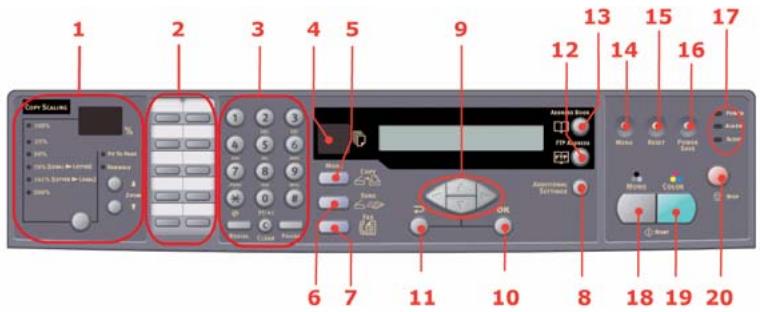
COPY AND DIALING AREA
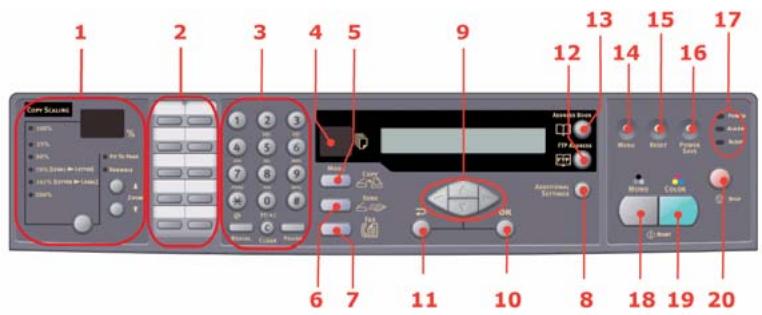
- Zoom
Used to increase or decrease scaling in 1% increments up to 400% and down to -25% .
A further choice of scaling can be made from preset percentages.
- One-touch keypad
Provides one-touch dialing of your most often used or favorite fax numbers.
3.Keypad
Alpha/numerical keys: used to enter copy quantity, fax number or e-mail address.
Redial key: used to manually resend a fax.
Clear key: used to delete entry from the LCD panel.
Pause key: used to insert a " - " within a fax number if dialing an extension.
LCD AND FUNCTION AREA
- Copy Count
- Copy Mode
- Send Mode
- Fax Mode
-
Additional Settings
-
Up/Down/Left/Right Keys
-
OK
- Return
- FTP Address
- Address book
Indicates the number of copies selected.
Used to select Copy mode (also the default working mode).
Used to select Send mode.
Used to select Fax mode.
Used to execute additional settings of "Copy" and "Send" modes. (The settings are available only for three minutes. After three minutes, the settings will automatically return to the default value).
Used to move the cursor in the LCD up/down/left/right. The up/down keys are used to switch function indication.
Used to select and confirm current setting selections.
Used to cancel selections and go back to the top level of the setting. The key is also used to cancel any previous input.
Used to indicate the stored FTP address for the "Send" function. This key is only available in the "Send" mode.
Used to indicate the stored E-mail addresses for the Send function.
Also used to indicate the stored Fax numbers for the fax function. Press once to view speed dial numbers, press twice to view group dial numbers.
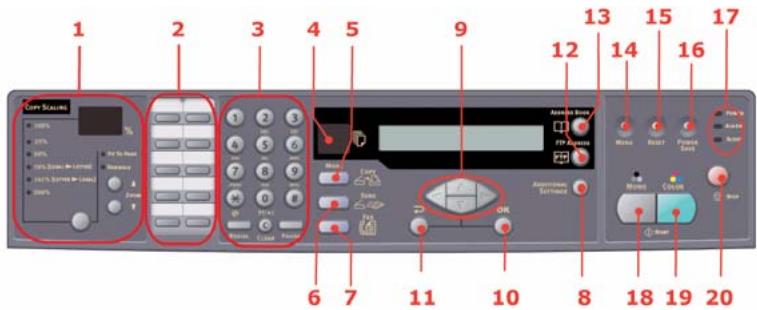
START AND OTHER KEYS
- Menu
Select to access the menu to set up the MFP. - Reset
Select to change the scanner to the factory default settings. - Power save
Press once to go to "sleep" mode (continuous press is invalid). - Power LEDs
Power
Illuminates to indicate "power on and ready".
Alarm
Illuminates to indicate error condition.
Sleep
Illuminates to indicate power save mode.
- Mono
Select to send or copy document(s) in monochrome.
- Color
Select to send or copy in color.
- Stop
Select to stop all operation (LCD indication shifts to stand-by screen for each function). Does not effect settings.
CHANGING THE DISPLAY LANGUAGE
The default language used by your MFP for display messages and for report printing is English. If required, this can be changed using the MFP Network Setup Tool or web page, refer to "Configuration" on page 34.
GETTING STARTED
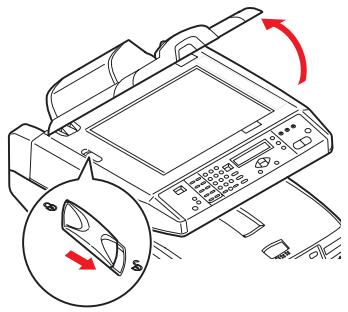
CAUTION!
Make sure the scanner is in the UNLOCKED position before operating.
- Open the document cover.
- Move scan lock lever to UNLOCKED position.
INSTALLING MFP DRIVERS AND UTILITIES
TWAIN AND PRINTER DRIVERS
- Start Microsoft Windows.
- Insert the CD-ROM supplied into your CD ROM drive.
- The CD-ROM will auto launch on most systems. However, if your system does not support auto launching CD-ROMs, press the Start button, choose RUN, type d:\setup.exe (d: the CD-ROM drive in use), and then click OK.
- Follow the on-screen instructions to complete the driver installation.
MFP NETWORK SETUP TOOL
The MFP network setup utility can be found on the CD 1 in the Network Software menu. Follow the on-screen instructions to complete the setup tool installation.
The MFP network setup tool can discover the devices over network connections.
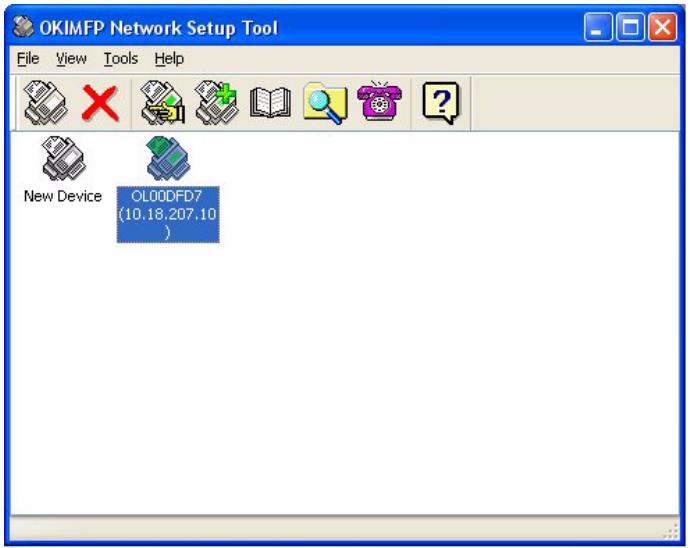
- To search and install, select File > Search All Devices...
- Click Search.
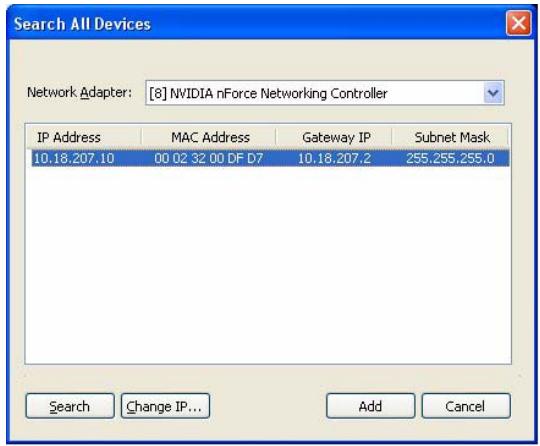
- Highlight the required search result and click Add.
The MFP network setup tool allows you to configure your MFP. Refer to "Pre-configuration information" on page 29 for detailed instructions.
PAPER RECOMMENDATIONS
Your MFP will handle a variety of print media, including a range of paper weights and sizes, transparencies and envelopes. This section provides general advice on choice of media, and explains how to use each type.
The best performance will be obtained when using standard 20 24 lb. (75 90g / m^2) paper designed for use in copiers and laser printers. A suitable types are
Hammermill® Laser Printer Radiant White, 24 lb. US Bond (90 g/m²)
Xerox® 4024, 20 lb. US Bond 20 lb. (75 g/m²)
Oki® 52206101 Bright White Proofing Paper, 32 lb. US Bond (120 g/m²)
Use of heavily embossed or very rough textured paper is not recommended.
Pre-printed stationery can be used, but the ink must not offset when exposed to the high fuser temperatures used in the printing process.
Envelopes should be free from twist, curl or other deformations. They should also be of the rectangular flap type, with glue that remains intact when subjected to hot roll pressure fusing used in this type of MFP. Window envelopes are not suitable.
Oki® Premium Envelopes (size #10) 52206301 (100 count) and 52206302 (500 count)
Transparencies should be of the type designed for use in copiers and laser printers. We strongly recommend Oki transparencies (Order No. 52205701). In particular, avoid office transparencies designed for use by hand with marker pens. These will melt in the fuser and cause damage.
Labels should also be of the type recommended for use in copiers and laser printers, in which the base carrier page is entirely covered by labels. Other types of label stock may damage the printer due to the labels peeling off during the printing process. Suitable types are:
Avery 5161 White Laser Label (Letter size)
Avery 7162, 7664, 7666 White Laser Labels (size A4).
Banner Paper
Oki® 52206002 (100 count)
8.5 x 35.4 inches (215.90 x 899.16 mm)
Oki® SynFlex™ Paper
Oki 52205901
8.5 × 11 inches (215.90 x 279.40 mm)
Waterproof and Tear-resistant
CASSETTE TRAY
The cassette tray can handle paper weights of 17 lb. to 32 lb (64g / m^2 to 120g / m^2) . The cassette tray is ideal for printing A4/Letter documents of more than 1 page in length.
| SIZE | DIMENSIONS | WEIGHT (G/M2) |
| A6 | 4.1339 x 5.8268 inches 105 x 148mm | Light 17 - 20 lb 64-74g/m2 |
| A5 | 5.8268 x 8.2677 inches 148 x 210mm | Medium 20 - 28 lb. 75-104g/m2 |
| B5 | 7.1653 x 10.1181 inches 182 x 257mm | Heavy 28 - 32 lb. 105-120g/m2 |
| Executive | 7.252 x 10.5 inches 184.2 x 266.7mm | |
| A4 | 8.2677 x 11.6929 inches 210 x 297mm | |
| Letter | 8.5 x 11 inches 215.9 x 279.4mm | |
| Legal 13in. | 8.5 x 13 inches 216 x 330mm | |
| Legal 13.5in. | 8.5 x 13.5 inches 216 x 343mm | |
| Legal 14in. | 8.5 x 14 inches 216 x 356mm |
If you have identical paper stock loaded in the multi purpose tray, you can have the MFP automatically switch to the other tray when the current tray runs out of paper. When printing from Windows applications, this function is enabled in the driver settings. When printing from other systems, this function is enabled in the Print Menu.
MULTI PURPOSE TRAY
The multi purpose tray can handle the same media sizes as the cassette trays but in weights of 20 - 54 lb (75g/m² to 203g/m²). For very heavy paper stock, use the face up (rear) paper stacker. This ensures that the paper path through the MFP is almost straight.
The multi purpose tray can feed paper widths as small as 4.1339 inches (105mm) and lengths up to 47.244 inches (1200mm) (banner printing).
For paper lengths exceeding 14 inches (356mm) (Legal 14in.) use paper stock between 24 lb and 34 lb. (90g / m^2 and 128g / m^2) and the face up (rear) paper stacker.
Use the multi purpose tray for printing on envelopes and transparencies. Up to 50 sheets of transparencies or 10 envelopes can be loaded at one time, subject to a maximum stacking depth of 0.3937 inches (10mm).
Watermarked or headed paper should be loaded print side up and top edge into the MFP.
FACE DOWN STACKER
The face down stacker on the top of the MFP can hold up to 250 sheets of 20 lb (80g / m^2) standard paper and can handle paper stocks up to 32 lb. (120g / m^2) . Pages printed in reading order (page 1 first) will be sorted in reading order (last page on top, facing down).
FACE UP STACKER
The face up stacker at the rear of the MFP should be opened and the tray extension pulled out when required for use. In this condition paper will exit via this path, regardless of driver settings.
The face up stacker can hold up to 100 sheets of 20 lb (80g / m^2) standard paper, and can handle stocks up to 54 lb (203g / m^2) .
Always use this stacker and the multi purpose feeder for paper stocks heavier than 32 lb. (120g / m^2) .
LOADING PAPER
CASSETTE TRAY
- Remove the paper tray from the MFP.
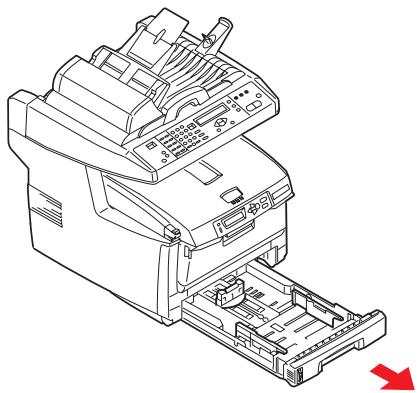
- Fan the paper to be loaded at the edges (1) and in the middle (2) to ensure that all sheets are properly separated, then tap the edges of the stack on a flat surface to make it flush again (3).
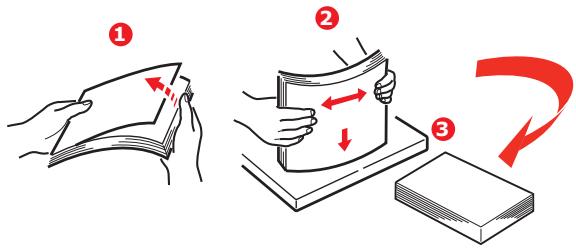
- Load the paper (for letter headed paper load face down with top edge towards the front of the MFP).
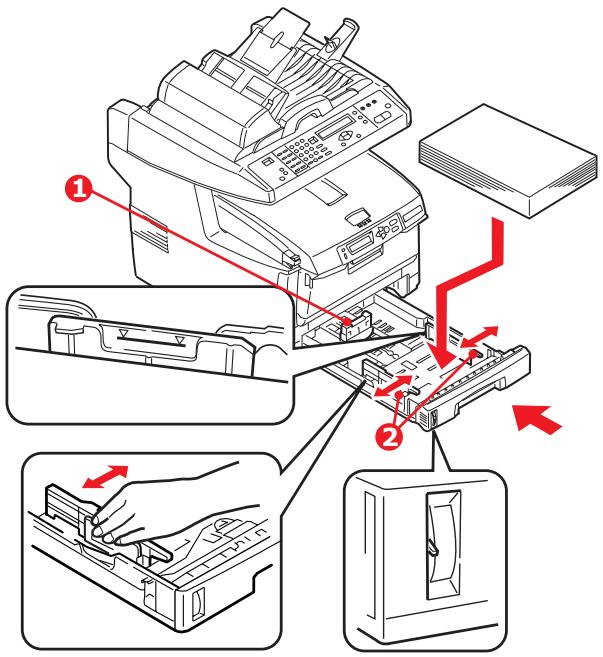
- Adjust the rear stopper (1) and paper guides (2) to the size of paper being used.
To prevent paper jams:
Do not leave space between the paper and the guides and rear stopper.
Do not overfill the paper tray. Capacity depends on the type of paper stock.
Do not load damaged paper.
Do not load paper of different sizes or types at the same time.
Do not pull the paper tray out during printing.
CAUTION!
Do not open or close the rear paper exit while printing as it may result in a paper jam.
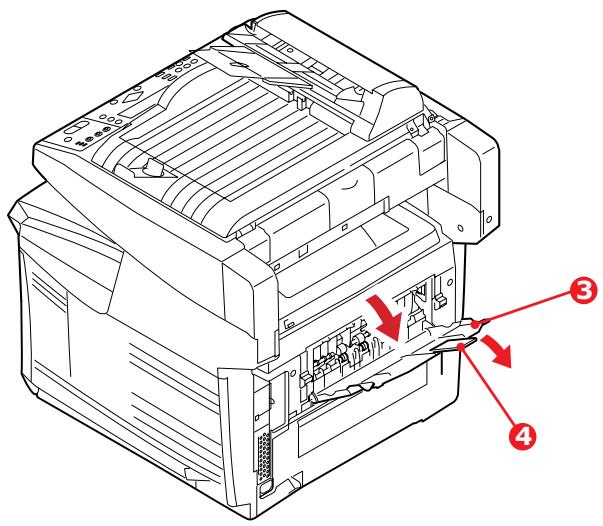
- For face down printing, make sure the face up (rear) stacker (3) is closed (the paper exits from the top of the MFP). Stacking capacity is approximately 250 sheets, depending on paper weight.
- For face up printing, make sure the face up (rear) stacker (3) is open and the paper support (4) is extended. Paper is stacked in reverse order and tray capacity is approximately 100 sheets, depending on paper weight.
- Always use the face up (rear) stacker for heavy paper (card stock, etc.).
MULTI PURPOSE TRAY
- Open the multi purpose tray and press gently down on the paper platform (1) to ensure it is latched down.
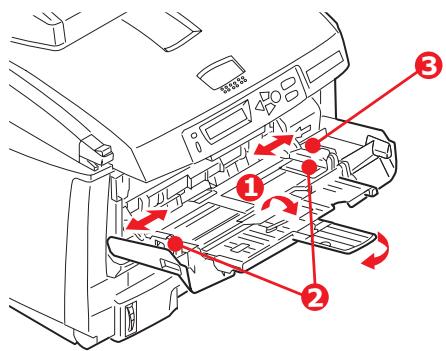
- Load the paper and adjust the paper guides (2) to the size of paper being used.
When printing on headed paper load the paper into the multi purpose tray with pre-printed side up and top edge into the MFP.
Envelopes should be loaded face up with top edge to the left and short edge into the MFP.
Do not exceed the paper capacity of about 50 sheets or 10 envelopes. Maximum stacking depth is 0.3937 inches (10mm).
- Press the tray latch button (3) inwards to release the paper platform, so that the paper is lifted and gripped in place.
Note
Before closing the multi purpose tray, paper platform (1) must be latched down.
- Set the correct paper size for the multi purpose tray in either the Media Menu (printer menu settings) or Print Menu (scatterer menu settings). See "Configuration" on page 34 for details.
Note
You only need to update one menu; the scanner and printer menus automatically synchronise to ensure the information is consistent.
CONFIGURING YOUR MACHINE
MINIMUM CONFIGURATION REQUIREMENTS
To make the best of this MFP, the following configuration is required:
To send faxes:
A PSTN telephone line connection.
To send e-mails:
TCP/IP network.
A SMTP and an optional POP3 server.
To file document(s) via intranet
FTP, HTTP, or CIFS Protocol environment.
Windows 2000, Windows XP, HTTP or FTP server.
PRE-CONFIGURATION INFORMATION
GENERAL
There are no factory default PIN or passwords, these should be set initially by the system administrator.
FAX SET UP
Your MFP has to be set up properly to allow faxing from the machine. The following parameters must be set before using the fax function:
Date and time
Country code
Station ID and number
See "Initial set up" on page 64. for details.
NETWORK SET UP
The MFP must also be set up properly on your network to perform scan to e-mail and scan to FTP functions. In order for other network devices to find the MFP on the network, the following network parameters have to be set.
- DHCP enable:
- IP Address: .
- Subnet mask:
- Gateway IP:..
- DNS server:..
- SMTP server:..
- SMTP port:25
- POP3 server: .
- POP3 Port:110
Explanation:
- DHCP Enable:
Choose Yes to obtain IP/subnet/gateway addresses automatically from DHCP server. After changing setting from Disable to Enable, switch scanner module power OFF then ON.
- IP Address:
The Internet Protocol (IP) address assigned to your machine by your network administrator.
- Subnet Mask:
The net mask address assigned by your network administrator.
- Gateway IP:
The gateway IP address assigned by your network administrator.
- SMTP Server:
The IP address of your SMTP Mail Server assigned by your network administrator.
- SMTP Port:
The port number of your SMTP Mail Server.
- DNS server:
The IP address of DNS Server assigned by your network administrator.
- POP3 Server:
The IP address of your POP3 server.
- POP3 Port
The port number of your POP3 Server.
Enter the DNS name, or IP and port number of your POP3 server if your mail server requires POP3 authentication, before sending e-mails from the machine.
note
You must also set up the "Define from" details to allow e-mail sending.
Note
- DHCP server: With DHCP (Dynamic Host Configuration Protocol), a host can automatically be given a unique IP address each time it connects to a network-making IP address management an easier task for network administrators. If the DHCP server is available from your network, you do not need to enter TCP/IP, subnet mask, gateway, and DNS information. Instead, this information will be automatically given for the MFP.
- IP Address: An IP (Internet Protocol) address uniquely identifies a host connection to an IP network. System administrator or network designer assigns the IP address. The IP address consists of two parts, one identifying the network and the one identifying your node. The IP address is usually written as four numbers separated by periods. Each number can be zero to 255. For example, 10.1.30.186 could be an IP address.
- SMTP: (Simple Mail Transfer Protocol) is the main communication protocol used to send and receive e-mail on the Internet.
- DNS: (Domain Name System). The DNS server identifies hosts via names instead of IP addresses. If the DNS server is available on your network, you can enter the domain name instead of digits for your SMTP or POP3 servers, such as Pegasus.com.tw instead of 120.3.2.23.
- POP3: POP3 is the latest Post Office Protocol 3, this is a service that stores and serves e-mails for various client machines that are not connected to the Internet 24 hours a day. E-mails are held in POP3 until you log on.
INTERNET COMMUNICATION FEATURES
Scan to e-mail
The MFP allows you to deliver your scanned document to e-mail addresses on the network. The document is first scanned and converted to a standard PDF, JPEG, TIFF, or MTIF (Multi-page TIFF) file format and then transmitted to remote recipients simultaneously as an e-mail attachment.
When you send an e-mail to someone using this MFP it uses Simple Mail Transfer Protocol (SMTP) to transfer your
outgoing e-mails to your SMTP mail server, and then send these e-mails to your recipients through the internet.
Scan to FTP
Via the intranet with FTP (File Transfer Protocol), HTTP (Hypertext Transfer Protocol), or CIFS (Common Internet File System). The MFP allows you to save scanned documents directly to a designated server or a personal computer on the network in a standard PDF, JPEG, TIFF, or MTFF file format.
CIFS is the sharing system of Microsoft Windows. What is unique about this filing function is that it allows all corporate users to share one machine to send documents to each file folder on a designated server or individual computer.
The following settings or destinations must be defined by the system administrator before the MFP can be used to distribute any scanned document(s) on the network.
Network and E-mail parameters: Defines the parameters for TCP/IP, SMTP, and POP3 protocols to send your scanned document to e-mail addresses.
Filing destinations: Defines the protocols and destinations to send your scanned document to FTP servers, web, or any personal computers on the network.
For more information on filing protocols refer to "Explanation of filing protocols" on page 61.
Note
- If the system administrator has chosen DHCP, then the IP address of TCP/IP, gateway, subnet mask, and DNS server will be automatically given.
- When installing the MFP for the first time, it is recommended that the Administrator retain the default system settings. The settings can be customized at a later date, once you are familiar with the operation and functionality.
CONFIGURATION
There are a number of configuration options available which allow you to change the scanner, fax and printer settings to suit your own needs. There are three methods of configuring your MFP:
- From the MFP's web page.
- From the MFP's Management Utility (please refer to the user's manual of the Network Setup Tool on the CD-ROM supplied).
note
In order to maintain data integrity and ensure the MFP configuration is consistent, when you access a menu item via the MFP Network Setup Tool you are directed to the corresponding section of the MFP web page.
- From the MFP scanner control panel.
For illustration purposes only, the configuration menu options shown are as accessed via the scanner control panel.
FROM THE WEB PAGE
Type the IP address of the MFP in the URL field of your browser and then press Enter. The MFP web page appears. For example: http://192.168.1.41
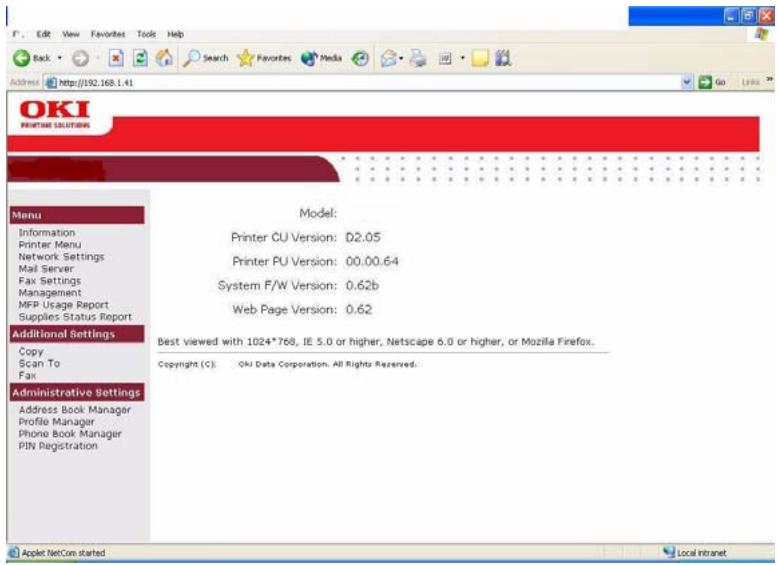
Note
The Administrative Settings are blocked by a password. It is recommended that the system administrator creates a new one since the machine is shipped without a specific password.
FROM THE MANAGEMENT UTILITY
If you have not already done so, install the MFP Network Setup Tool as described in "MFP network setup tool" on page 18.
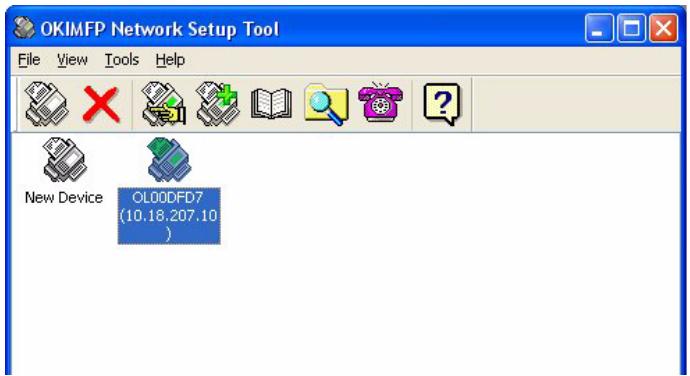
note
The Administrative Settings are blocked by a password. It is recommended that the system administrator creates a new one since the machine is shipped without a specific password.
FROM THE SCANNER CONTROL PANEL
Press Menu (1) on the scanner control panel. Use the UP and DOWN arrow keys (2) to navigate, OK (3) to select, and Return (4) to cancel the selection or exit the menu item.
Information menu
| ITEM | DESCRIPTION OR CHOICE |
| Model | Displays the model name. |
| Device name | Displays the device name. |
| Scanner MAC address | Displays the scanner MAC address. |
| Printer Serial No. | Displays serial number. |
| F/W version | Displays firmware versions: 1.Printer CU version 2.Printer PU version 3_System F/W version 4.Scanner F/W version 5.Web page version 6.Resource file version |
Printer menu
| ITEM | DESCRIPTION OR CHOICE |
| Tray 1 Paper Size | A4, A5, A6, B5, Legal, Legal 135, Legal 13, Letter, Executive, Custom. |
| Tray 2 Paper Size | A4, A5, B5, Legal, Legal 135, Legal 13, Letter, Executive, Custom. |
| MP Paper Size | A4, A5, A6, B5, Legal, Legal 135, Legal 13, Letter, Executive, Custom, COM9, COM10, Monarch, DL, C5. |
| Tray 1 Media Weight | Light, Medium, Heavy. |
| Tray 2 Media Weight | Light, Medium, Heavy. |
| MP Media Weight | Medium, Heavy, Ultra Heavy. |
| Tray 1 Media Type | Plain, LTRhead, Bond, Recycled, Rough. |
| Tray 2 Media Type | Plain, LTRhead, Transparency, Bond, Recycled, CardStock, Rough. |
| MP Media Type | Plain, Letterhead, Transparency, Labels, Bond, Recycled, CardStock, Rough. |
| Density Control | Auto/Manual. |
| Adjust Density* | Select to perform Density Adjustment. |
| Adjust Registration* | Select to perform Auto Color Registration. |
- Menu options only available on the scanner control panel.
Network settings
| ITEM | DESCRIPTION OR CHOICE |
| IP Address | The IP address of the MFP. |
| Subnet Mask | The IP address of your subnet mask. |
| Gateway IP | The IP address of your gateway. |
| DNS Server | The IP address of your DNS server. |
| DHCP Enable | ON/OFF. Select ON if you wish to enable DHCP. |
| Device Name | Displays the device name. |
Mail server
| ITEM | DESCRIPTION OR CHOICE |
| SMTP Server | The IP address of your SMTP server. |
| SMTP Port | The port number of your SMPT server. |
| POP3 Server | The IP address of your POP3 server. |
| POP3 Port | The port number of your POP3 server. |
| Authentication Method | No, SMTP, POP3. |
| Login Name | User's choice. |
| Password | User's choice. |
| Def. Subject | Default text for the Subject field in e-mail messages from the MFP. Up to 64 characters are allowed. The default subject is used only when users did not enter anything in the Subject field in e-mail message from the MFP. |
| Def. From | Default From field in e-mail and fax messages from the MFP. Up to 64 characters are allowed. |
| Scan Size Limit | The limitation for the attachment to be sent from the MFP. Choice: 1MB, 3MB, 5MB, 10MB, 30MB, No limit. |
Fax settings
| ITEM | DESCRIPTION OR CHOICE |
| Phone Book | Edit speed dial! Edit group dial! Delete speed dial! Delete group dial! Delete All! Append phone #: OFF/On |
| REPORTS: Activity Report | Select to print activity report. |
| Transmission Report | Select to print transmission report. |
| Transmission Report | Yes / Error Only / No. |
| Broadcast Report | Select to print broadcast report. |
| Cancel Fax Jobs | Select to cancel fax jobs stored in the MFP's memory. |
| SET UP FAX: Station ID | Id #: Enter MFP ID number. Station #: Enter MFP telephone number. |
| Fit to page | Enable / Disable. |
| Detect dial tone* | Enable / Disable. |
| Detect busy tone* | Enable / Disable. |
| Re-dial* | 0, 1, 2, 3, 4, 5, 6, 7, 8, 9, 10. |
| Redial interval* | 0, 1min, 2min, 3min, 4min, 5min, 6min. |
| Ring response | 1 ring, 5secs, 10secs, 15secs, 20secs. |
| Dial prefix | If connecting via a PBX line, enter the access number to obtain an external line. |
| Manual receive | Enable / Disable. |
| ECM mode | Enable / Disable. |
| Speaker volume | 0, 1, 2, 3. |
- Country code dependant.
Report print
| ITEM | DESCRIPTION OR CHOICE |
| Menu Map | Select to print menu map. |
| Printer Demo Page | Select to print a sample page. |
| MFP Usage report | Select to print usage information. |
| Supplies Status Report | Select to print information on the consumables remaining. |
Management
Note
- The Management selection is blocked by a password. Since the machine is shipped without a specific password, it is recommended that the administrator create a new password to ensure security.
- Security settings by default are set to "Off". You can enable the following security settings:
Copy: restricts the use of the copy function only.
Copy+Scan to: restricts the use of the copy and scan functions.
Fax: restricts the use of the fax function only.
Fax+Copy: restricts the use of the fax and copy functions.
Fax+Copy+Scan to: restricts the use of the fax, copy and scan functions.
It is recommended that the administrator create a new 4 to 6 digit PIN. When the security feature is enabled the user will be prompted to enter the PIN.
| ITEM | DESCRIPTION OR CHOICE |
| Date/Time | Enter the current date and time. |
| Password | Enter new password if the administrator wishes to change the password. (Up to 8 alphabetical or numerical digits are allowed to be entered in this field. When entering alphabetical digits, note that they are case-sensitive.) |
| Add "To" Address | If "On" is selected, when finishing sending an e-mail, there will be a dialog box inquiring whether the user wishes to add the new e-mail address to the machine's address book. Choice: On, Off. |
| Pin Setting | Choice: Off, Copy, Copy + Scan to, Fax, Fax+Copy, Fax+Copy+Scan to. Note: The PIN ID input screen is indicated at the time of "PIN Setting=Enable". Enter four to six digits for your pin ID. A PIN ID under four digits will be denied. |
| Power Save | Enable / Disable. |
| Power Save Time | Select to enter power saving mode after the machine has stopped using for a specific period. Choice: 5, 15, 30, 60, 240 minutes. |
| Default Mode | Scan to, Copy, Fax. |
| Stand-by Timer | 20, 40, 30, 60, 120, 180 seconds. |
| Country Code* | Select the country in which the MFP is situated. Choice: United States/Japan/International/Denmark/Austria/Italian/Latin America/Great Britain/Germany/Belgium/Greece/Mexico/Ireland/Hungary/Holland/Australia/China/Norway/Czech Republic/France/New Zealand/Russia/Sweden/Poland/Portugal/Singapore/Taiwan/. |
| Language | Default set to English. Language setting can be changed from the web page and MFP Network Setup Tool. |
| Scan to Log Report | Select to print all the "Scan to" jobs. |
- Additional country code options available from the web page and MFP Network Setup Tool.
SPECIFYING THE ADMINISTRATIVE SETTINGS
Note
The settings can only be done through the web page or the Network Setup Tool. It can not be set up on the Control Panel.
The Administrative settings are blocked by a password. Since the machine is shipped without a specific password, it is recommended that the administrator create a new password to ensure security.
| ITEM | DESCRIPTION OR CHOICE |
| Address Book Manager | Set up a list of e-mail addresses and groups to which to send your scanned images. |
| Profile Manager | Create profiles of the filing destinations in which the scanned image can be placed. |
| Phone Book Manager | Set up a list of fax numbers and groups to which to send your fax messages. Note: Phone Book Manager can also be accessed from the scanner control panel. |
| PIN registration | Create and delete PIN registrations assigning access rights for users. |
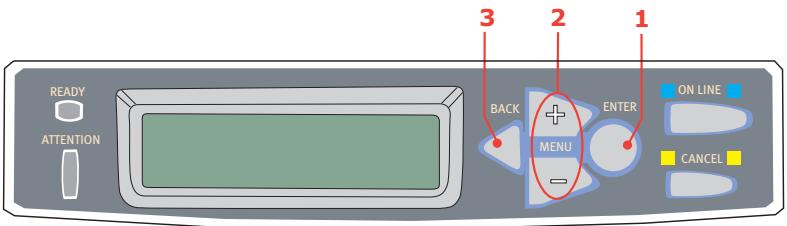
CONTENTS OF EACH PRINTER MENU
The printer control panel offers some additional menu options.
Note
The scanner retrieves the latest information from the printer, ensuring both menu sets are always synchronised.
Press Enter (1) on the printer control panel. Use the + and - keys (2) to navigate, Enter (1) to select, and Back (3) to cancel the selection or exit the menu item.
Informationmenu
| ITEM | ACTION | DESCRIPTION |
| Print Menu Map | Execute | Prints complete menu listing with current MFP settings shown. |
| Print File List | Execute | Prints a list of overlays, macros, fonts and other files stored on the MFP's hard disk drive (if installed). |
| Print PCL Font | Execute | Prints complete list of all internal PCL fonts plus those stored in ROM (slot 0), flash memory and in hard disk (if installed). |
| Print PSE Font | Execute | Prints complete list of all internal PostScript emulation fonts. |
| Print PPR Font | Execute | Prints complete list of all internal IBM ProPrinter III XL emulation fonts, including any downloaded to flash memory or hard disk. |
| Print FX Font | Execute | Prints complete list of all internal Epson FX emulation fonts, including any downloaded to flash memory or hard disk. |
| Demo 1 | Execute | Prints demonstration page containing graphics and text in color and monochrome. |
| Print Error Log | Execute | Prints a list of errors encountered by the MFP. |
| Color Prof List | Execute | Prints a list of the resident color profiles. |
Shutdown menu
This menu only appears if the hard disk drive is installed.
Note
This item should always be selected before switching the printer off, to ensure that no hard disk data is lost.
| ITEM | ACTION | DESCRIPTION |
| Shutdown Start | Execute | Performs controlled shutdown of the MFP, ensuring that all files on the internal hard disk are closed before power is turned off. Only power the MFP off when the display indicates that shutdown is complete. |
Print menu
| ITEM | CHOICE | DESCRIPTION |
| Copies | 1-999 | Enter the number of copies of a document to be printed from 1 to 999. |
| Duplex | ON/OFF | Turns the duplex (2-sided) printing function on or off if this feature is installed. |
| Paper Feed | TRAY1 | Selects the default tray for paper feed, Tray 1 (upper), Tray 2 (lower, if installed) or MP Tray (multi purpose tray). |
| TRAY 2 | ||
| MP TRAY | ||
| Auto Tray Switch | ON/OFF | If two trays contain identical paper, the MFP can switch to an alternative source when the current tray runs out in the middle of a print job. |
| Tray Sequence | DOWN | Determines tray sequence order when automatically switching. |
| UP | ||
| PAPER FEED | ||
| TRAY | ||
| MP Tray Usage | DO NOT USE WHEN MISMATCH | If a document to be printed demands a paper size not installed in the selected tray, the MFP can automatically feed from the multi purpose tray instead. If this function is not enabled, the MFP will stop and request the correct size of paper to be loaded. |
| Media Check | ENABLE | Determines whether the MFP check the size of paper loaded matches that required for the document sent to print. |
| DISABLE | ||
| Resolution | 600x1200DPI | Sets the default resolution for printing (dots per inch). 600x1200DPI uses more memory and requires more time to process, but prints at a higher quality. |
| 600DPI M-Level | ||
| 600DPI | ||
| Toner Save Mode | OFF/ON | Reduces the amount of toner used for imaging. Toner saving gives lighter prints but is more economical. |
| Mono-Print Speed | AUTO SPEED | If the first page of a print job is black and white, the MFP runs at 32ppm (pages per minute). When a color page is detected the MFP slows down to 20ppm for the rest of that job. |
| MONO 32PPM | This setting operates in the same way as AUTO SPEED, except that the MFP runs at 32ppm until a color page is detected. To achieve this speed the MFP requires an additional 10 - 20 seconds to warm up and 30 -60 seconds to cool down when switching to 20ppm for color pages. This setting is therefore most appropriate when the majority of print jobs are entirely black and white. | |
| COLOR SPEED | The MFP runs at 20ppm for all print jobs. This setting is most appropriate when the majority of print jobs are in color. | |
| MIXED SPEED | The MFP automatically switches between 20ppm for each color page and 32ppm for each black and white page. When black and white pages are printed, the 3 color drums are automatically lifted to maximize their working life. This operation imposes delay each time the MFP switches between color and black and white printing. However, the 30 -60 second cool down delay described for MONO 32ppm is avoided by limiting mono speed to 20ppm. This setting may be preferred for mostly black and white printing with some color pages, or where most print jobs are entirely color or entirely black and white. | |
| Orientation | PORTRAIT LANDSCAPE | Selects default page orientation between portrait (tall) and landscape (wide). |
| Lines Per Page | 5-64-128 | Sets the number of lines of text per page when raw text is received from systems other than Windows. The default for A4 portrait is 65, and for Letter is 60. |
| Edit Size | CASSETTE SIZE LETTER EXECUTIVE LEGAL14 LEGAL13.5 LEGAL13 A4 / A5 / A6 / B5 CUSTOM COM-9 ENVELOPE COM-10 ENVELOPE MONARCH ENV DL ENVELOPE C5 ENVELOPE | Sets the size of the printable page area to match the size of paper in use. This is not the same as the physical paper size, which is always slightly larger. For dimensions of physical page sizes. See "Paper recommendations" on page 20.. |
Media menu
| ITEM | CHOICE | DESCRIPTION |
| Tray1 Papersize | A4 / A5 / A6 / B5 LEGAL14 LEGAL13.5 LEGAL13 LETTER EXECUTIVE CUSTOM | Selects the size of paper loaded in Tray 1 (upper tray if both trays installed). For CUSTOM setting see X-DIMENSION and Y-DIMENSION later in this table. |
| Tray1 Mediatype | PLAIN LETTERHEAD BOND RECYCLED ROUGH | Selects the type of media loaded in this tray. This will help the MFP to adjust its internal operating parameters, such as engine speed and fusing temperature, to better accommodate the media to be fed. For example, letterhead may benefit from a slightly lower fusing temperature to ensure that its ink does not offset. |
| Tray1 Mediaweight | Light 17-20 lb 64-74g/m2 | Adjusts the MFP for the weight of paper stock loaded in this tray. |
| Medium 20 - 28 lb. 75-104g/m2 | ||
| Heavy 28 - 32 lb. 105-120g/m2 | ||
| Tray2 Papersize | A4 / A5 / B5 / LEGAL14 LEGAL13.5 LEGAL13 LETTER EXECUTIVE CUSTOM | Selects the size of paper loaded in Tray 2 (lower) if installed. For CUSTOM setting see X-DIMENSION and Y-DIMENSION later in this table. |
| Tray2 Mediatype | PLAIN LETTERHEAD TRANSPARENCY BOND RECYCLED CARDSTOCK ROUGH | Selects the type of media loaded in this tray (if installed). |
| Tray2 Mediweight | Light 17-20 lb 64-74g/m2 | Adjusts the MFP for the weight of paper stock loaded in this tray (if installed). |
| Medium 20 - 24 lb. 75-90g/m2 | ||
| Heavy 24 - 47 lb. 91-176g/m2 | ||
| MPT Papersize | A4 / A5 / A6 / B5 LEGAL14 LEGAL13.5 LEGAL13 LETTER EXECUTIVE CUSTOM COM-9 ENVELOPE COM-10 ENVELOPE MONARCH ENV DL ENVELOPE C5 ENVELOPE | Selects the size of paper to be fed from the multi purpose tray. For CUSTOM setting see X-DIMENSION and Y-DIMENSION later in this table. |
| MPT Mediatype | PLAIN LETTERHEAD TRANSPARENCY LABELS BOND RECYCLED CARD STOCK ROUGH | Selects the type of media to be fed from the multi purpose tray so that the MFP can adjust its internal parameters to better accommodate the selected type of media. |
| MPT Mediaweight | Medium 20 - 24 lb. 75-90g/m2 Heavy 24 - 32 lb. 91-120g/m2 ULTRA HEAVY 32 - 54 lb. 121-203g/m2 | Selects the media weight to be fed from the multi purpose tray. |
| Unit Of Measure | MILLIMETER INCH | Selects the unit of measure for the next two items. |
| X-Dimension | 3.937 - 8.2677 - 8.5039 inches 100-210-216 MILLIMETER | Selects the width of paper defined by the “CUSTOM” settings referred to in the foregoing PAPER SIZE settings. |
| Y-Dimension | 5.8268 - 11.6929 - 47.244 inches 148-297-1200 MILLIMETER | Selects the length of paper defined by the “Custom” settings referred to in the foregoing PAPER SIZE settings. Note that media of up to 1200mm in length can be fed from the multi purpose tray for banner printing. |
Color menu
| ITEM | CHOICE | DESCRIPTION |
| ColorDensity Control | AUTO MANUAL | If set to AUTO, image density will be automatically adjusted at power on, when a new image drum or toner cartridge is installed, and at intervals of 100, 300 and 500 drum counts. If a 500 drum count interval occurs during a print job it will occur at the end of that job, and will take up to 55 seconds. If set to manual, this adjustment will only be performed when initiated by the next menu item. |
| Adjust Density | EXECUTE | Selecting this will perform the auto density set up immediately. |
| Color Tuning | PRINT PATTERN | Selecting this item prints the color tuning pattern to help you adjust the color balance. |
| C Highlight | -3~0~+3 | Adjusts image density for each color component (cyan, magenta, yellow and black). Normal setting is 0. |
| C Mid-Tone | -3~0~+3 | |
| C Dark | -3~0~+3 | |
| M Highlight | -3~0~+3 | |
| M Mid-Tone | -3~0~+3 | |
| M Dark | -3~0~+3 | |
| Y Highlight | -3~0~+3 | |
| Y Mid-Tone | -3~0~+3 | |
| Y Dark | -3~0~+3 | |
| K Highlight | -3~0~+3 | |
| K Mid-Tone | -3~0~+3 | |
| K Dark | -3~0~+3 | |
| C Darkness | -3~0~+3 | Adjusts darkness of each color component (cyan, magenta, yellow and black). Normal setting is 0. |
| M Darkness | -3~0~+3 | |
| Y Darkness | -3~0~+3 | |
| K Darkness | -3~0~+3 | |
| Ajst Registration | EXECUTE | Performs automatic color registration adjustment. Normally this is done on power on and when the top cover is opened and then closed. This process accurately aligns the cyan, magenta and yellow images to the black image. |
| C Reg Fine Ajst | -3~0~+3 | Performs fine adjustment of image timing in relation to the black image component. |
| M Reg Fine Ajst | -3~0~+3 | |
| Y Reg Fine Ajst | -3~0~+3 | |
| Ink Simulation | OFF SWOP EUROSCALE JAPAN | Selects from a range of industry standard color swatches. |
| UCR | LOW MEDIUM HIGH | |
| CMY 100% Density | DISABLE ENABLE | When enabled, black areas are produced using 100% C, M, and Y instead of black. This results in a glossier finish. |
| CMYK Conversion | ON/OFF |
System configuration menu
| ITEM | CHOICE | DESCRIPTION |
| Pow Save Time | 5153060240 | Adjusts the idling time before the printer automatically switches into power saving mode. In this mode power consumption is reduced to a low level required to just keep the printer operating and ready to receive data. When a job is sent the MFP will require a warm-up time of up to 1 minute before printing can begin. |
| Personality | AUTOEMULATIONPCLIBM PPR III XLEPSON FXPS3EMULATION | This item selects which industry standard emulation your MFP should use. When set to AUTO, incoming data is examined and the correct emulation is automatically selected each time a print job is received. |
| USB PS Protocol | RAWASCII | Selects PostScript data format for USB port. |
| Clrable Warning | ONLINEJOB | When ONLINE, non-critical warnings, such as requests for a different paper size, can be cleared by pressing the ON LINE button. When set to JOB, they are cleared when the print job resumes. |
| Auto Continue | ON/OFF | Determines whether or not the MFP will automatically recover from a memory overflow condition. |
| Manual Timeout | OFF30 sec60 sec | Specifies how many seconds the MFP will wait for paper to be fed before cancelling the job. |
| Wait Timeout | 5~40~300OFF | Specifies how many seconds the MFP will wait when received data pauses before forcing a page eject. In PostScript Emulation mode the job will be cancelled if timeout occurs. |
| Low Toner | CONTINUEDSTOP | Specifies whether the MFP should continue printing even after a low toner condition is detected. |
| Jam Recovery | ON/OFF | Specifies whether the MFP should perform jam recovery after a paper jam has occurred. If ON, the MFP will attempt to print again any pages lost due to a paper jam once the jam has been cleared. |
| Error Report | ON/OFF | If ON, the MFP will print error details when a PostScript Emulation error occurs. |
PCL emulation
| ITEM | CHOICE | DESCRIPTION |
| Font Source | RESIDENT / RESIDENT 2 | Specifies the location of the PCL default font. Normally this will be INTERNAL unless additional fonts are installed in the expansion ROM slot or additional fonts have been downloaded to RAM as permanent fonts. |
| Font No. | IO~I89 | Sets the current default font number from the currently selected source, which could be internal (I), ROM slot (C) or downloaded (S). |
| Font Pitch | 0.44 CPI~10.00 CPI~99.99 CPI | Point size of selected default font. |
| Symbol Set | PC-8 | PCL symbol set. If the font source and number are changed to one which does not support the selected symbol set, this must be changed to an available symbol set for that font. |
| A4 Print Width | 78 COLUMN 80 COLUMN | Sets the number of columns subject to Auto LF with A4 paper in PCL. This is the value when Auto CR/LF Mode is set to OFF with the 10CPI character. |
| White Page Skip | OFF/ON | Selects whether blank pages are printed or not. |
| CR Function | CR / CR+LF | Selects whether a received carriage return character (ODh) also causes a line feed. |
| LF Function | LF / LF+CR | Selects whether a received line feed character (0Ah) also causes a carriage return. |
| Print Margin | NORMAL 1/5 INCH (5.08 mm) 1/6 INCH (4.24 mm) | Sets the non-printable page area. NORMAL is PCL compatible. |
| True Black | OFF/ON | Selects whether black image data is printed using black toner (ON) or 100% CMY (OFF). (Valid in PCL emulation mode only.) |
| Pen Width Adjust | ON/OFF | |
| Tray ID# MP Tray | 1~4~59 |
PPR emulation
| ITEM | CHOICE | DESCRIPTION |
| Character Pitch | 10 CPI; 12 CPI; 17 CPI; 20 CPI; PROPORTIONAL | Specifies character pitch in IBM PPR emulation. |
| Font Condense | 12CPI - 20CPI; 12CPI - 12CPI | Specifies 12CPI pitch for Condense Mode. |
| Character Set | SET 1; SET 2 | Specifies a character set. |
| Symbol Set | IBM 437 | Specifies a symbol set. |
| Letter 0 Style | DISABLE ENABLE | Specifies the style that replaces 9BH with letter o and 9DH with a zero |
| Zero Character | NORMAL SLASHED | Sets the zero to be slashed or unslashed. |
| Line Pitch | 6 LPI; 8 LPI | Specifies the line spacing. |
| White Page Skip | OFF/ON | Selects whether blank pages are printed or not. |
| CR Function | CR / CR+LF | Selects whether a received carriage return character (0Dh) also causes a line feed. |
| LF Function | LF / LF+CR | Selects whether a received line feed character (0Ah) also causes a carriage return. |
| Line Length | 80 COLUMN / 136 COLUMN | Specifies the number of characters per line. |
| Form Length | 11 Inch / 11.7 Inch / 12 Inch | Specifies the length of paper. |
| 279.40 / 297.18 / 204.80 millimeters | ||
| TOF Position | 0.0 Inch - 1.0 Inch (0 - 25.4 mm) | Specifies the distance of print from the top edge of the paper. |
| Left Margin | 0.0 Inch - 1.0 Inch (0 - 25.4 mm) | Specifies the distance of print from the left hand edge of the paper. |
| Fit To Letter | DISABLE ENABLE | Sets the printing mode that can fit print data, equivalent to 11 inches (66 lines/279.40 millimeters), in the LETTER-size printable area. |
| Text Height | SAME / DIFF | Sets the height of a character. SAME: Regardless of CPI, same height DIFF: As CPI, character heights vary. |
FX emulation
| ITEM | CHOICE | DESCRIPTION |
| Character Pitch | 10 CPI; 12 CPI; 17 CPI; 20 CPI; PROPORTIONAL | Specifies character pitch in this emulation. |
| Character Set | SET 1 / SET 2 | Specifies a character set. |
| Symbol Set | IBM 437 | Specifies a symbol set. |
| Letter 0 Style | DISABLE ENABLE | Specifies the style that replaces 9BH with letter o and 9DH with a zero |
| Zero Character | NORMAL SLASHED | Sets the zero to be slashed or unslashed. |
| Line Pitch | 6 LPI / 8 LPI | Specifies the line spacing. |
| White Page Skip | OFF/ON | Selects whether blank pages are printed or not. |
| CR Function | CR / CR+LF | Selects whether a received carriage return character (0Dh) also causes a line feed. |
| Line Length | 80 COLUMN / 136 COLUMN | Specifies the number of characters per line. |
| Form Length | 11 inch / 11.7 inch / 12 inch 279.40 / 297118 / 204.80 mm | Specifies the length of paper. |
| TOF Position | 0.0 inch - 1.0 inch 0 - 25.4 mm | Specifies the distance of print from the top edge of the paper. |
| Left Margin | 0.0 inch - 1.0 inch 0 - 25.4 mm | Specifies the distance of print from the left hand edge of the paper. |
| Fit To Letter | DISABLE ENABLE | Sets the printing mode that can fit print data, equivalent to 11 inches (66 lines), in the LETTER-size printable area. |
| Text Height | SAME / DIFF | Sets the height of a character. SAME: Regardless of CPI, same height. DIFF: As CPI, character heights vary. |
USB menu
| ITEM | CHOICE | DESCRIPTION |
| Soft Reset | ENABLE DISABLE | Enables or disables the SOFT RESET command. |
| Speed | 12 / 480 Mbps | Selects the interface speed |
| Offline Receive | ENABLE DISABLE | |
| Serial Number | ENABLE DISABLE |
Maintenance menu
| ITEM | CHOICE | DESCRIPTION |
| Menu Reset | EXECUTE | Resetss menus to default settings. |
| Save Menu | EXECUTE | Saves current menu settings as default values. At confirmation prompt, press ENTER to confirm save, or CANCEL to cancel. |
| Power Save | ENABLE DISABLE | Enablos or disables automatic power save mode. Delay before entering this mode is set in the system configuration menu. |
| Paper Black Setting | -2~0~+2 | Used for small adjustment when you experience faded print or light specks / streaking in monochrome printing on white paper. Select a higher value to reduce fading, or a lower value to reduce specks or streaking in high density print areas. |
| Paper Color Setting | -2~0~+2 | As above, but for color printing. |
| Transpr Black Setting | -2~0~+2 | As above but for mono printing on transparencies. |
| Transpr Color Setting | -2~0~+2 | As above but for color printing on transparencies. |
| SMR Setting | -3~0~+3 | |
| BG Setting | -3~0~+3 |
Usage menu
| ITEM | DESCRIPTION |
| Tray n Page Count | The total number of pages fed from tray n. |
| MPT Page Count | The total number of pages fed from the multi purpose tray. |
| Color Page Count | The total number of pages printed in color. |
| Mono Page Count | The total number of pages printed in monochrome. |
| K Drum Life RemainingC Drum LifeRemainingM Drum LifeRemainingY Drum LifeRemaining | Percentage of life remaining in these consumable items. |
| Belt Life Remaining | Percentage of belt life remaining. |
| Fuser Life Remaining | Percentage of fuser life remaining. |
| K TonerC TonerM TonerY Toner | Cartridge size and current toner level. |
Job log menu
Note
Access to this menu is password restricted.
| ITEM | CHOICE | DESCRIPTION |
| Job Log | ENABLE DISABLE | Prints a list of jobs carried out on this MFP. |
EXPLANATION OF FILING PROTOCOLS
FTP
FTP stands for "File Transfer Protocol." It is a common method of transferring files via the Internet from one computer to another. FTP use RFC 959[FTP] as their protocol. Therefore, ensure you have a legal FTP account with the privilege of writing under the directory to save the files and password before using FTP to save documents. To add a sub-directory from the MFP, you need to have the privilege of adding a new directory.
HTTP
HTTP use RFC 2616[HTTP 1.1] as their protocol, and the default Port is usually 80. If you are not using the HTTP port to save files, you must change the MFP HTTP Port to the port for the Web Server.
Generally speaking, a Hyper Text Transfer Protocol (HTTP) Web Server will use an anonymous account for authentication, so that the user can link directly to the web page without entering the user name and password first. Therefore, if the HTTP Server does use an anonymous account for authentication when you use this MFP to save files, there is no need for setting any text in the field of Login name and Password for the MFP.
On the other hand, if the HTTP server does not allow an anonymous account for authentication of connection to the web page, the user will be prompted to enter a user name and password first when connecting to the web site. In this mode, the file saving feature is available only when entering the user name and password permitted by the server in the Login name and Password field for the MFP.
Therefore, make sure of the mode that your Web Server allows before using HTTP for file saving. If anonymous access mode is not allowed, you must have a legal HTTP account and password.
Since this MFP will check whether the directory for file saving really exists before proceeding to file saving and writing after scanning to the specified directory, you have to set the directory for files saving as "browse" and allow for writing in the Web Server; otherwise the MFP will not be able to write the file into the directory.
If you wish to use the MFP to save files, in addition to making some settings in Web Server, you will have to confirm that the account has writing privilege for connecting to the Web Server. If not, the MFP will not be able to "write" the scanned file in the file system.
Setting IIS anonymous access:
- Start Internet service manager in "Control Panel".
- Select Default Web site and right click C:\Inetpub\wwwroot\X cabinet.
- Select Properties.
- In the X cabinet dialog box, select the Directory security tab, and click Edit for "Anonymous Access and Authentication Control". Make sure "Anonymous Access" is selected in the "Authentication Methods" dialog box.
- Click Edit to open "Account for anonymous access".
Note
Make sure that the account stored in your computer system, in the "username" file, has sufficient privilege to access the file system.
Setting IIS privileged access:
- As in "Setting IIS anonymous access", start "Internet service manager" and select Default Web site. Right click C:\Inetpub\wwwroot\X cabinet, and select Properties.
- Select the Directory tab on the Properties page. Ensure the privileges for "Read", "Write" and "Directory Browsing" are selected.
Note
If the file management system on your server is NTFS, in order to allow IIS to use an anonymous account to access the files in the directory of
C:\Inetpub\wwwroot\X cabinet\Files, you have to make sure the anonymous account has the correct privileges. You should make the following settings:
- Select C:\Inetpub\wwwroot\X cabinet Files directory in Windows Explorer, and right click to select Properties.
- Select the Security tab in the File dialog box, and then Everyone.
- Select the privileges for Read and Execute, Folder Properties List, Read and Write.
After that every user has the privilege to manage all files in the directory for saving files.
Note
- For security of the scanned files, "Everyone" should not be allowed to have full privileges of the file directory. Therefore, when setting the access privilege for your file system, it is recommended that you set the privilege of the directory for saving files to IIS anonymous account, or users and groups that can use that directory only.
- Please note that HTTP cannot add a server sub-directory from this MFP.
When using Apache as HTTP server, according to their documentation, it must have SCRIPT to run the HTTP PUT method. Although the document is attached with a Perl example, you will need to modify it before applying it, since this MFP uses Transfer-encoding of Chunked. In addition, the Apache will have to be set to accept this MFP. For more information refer to the relevant Apache documentation.
CIFS
CIFS (Windows Network Share) is a file saving protocol generally used for "resource sharing" of a network in Microsoft Windows systems. Set up the "shared directory" as per the network settings for sharing in MS Windows. Under the User level mode of Windows 2000, use the account and password with the privilege of "write" as the login name and Password for the MFP folder.
SETTING THE FAX FACILITY
INITIAL SET UP
The following parameters must be set before using the fax function on your MFP:
Date and time
Country code
Station ID and number
There are other parameters that can be adjusted to suit your personal preferences later if required, refer to fax set up table for details (See "Fax settings" on page 41.).
To set fax parameters:
- Press the Menu button to prompt the menu settings screen.
- Using the UP arrow key, navigate to Management and press OK.
- When prompted, enter the password and press OK.
-
Press OK to select Date/Time.
-
Enter today's date and the correct time, then press OK to confirm.
- Using the UP arrow key, navigate to Country Code and press OK.
- Select the country in which the MFP is situated and press OK.
- Press Return to go back to the main menu settings screen.
- Using the UP arrow key, navigate to Fax Settings and press OK.
- Using the UP arrow key, navigate to Setup Fax and press OK.
- Press OK to select Station ID.
- Enter the ID number and telephone number, then press OK to confirm.
- Press Return to update selections and exit the menu.
Note
If connecting the machine through a private branch exchange (PBX) line, you must also specify a dial prefix to allow the machine to obtain an external line before dialling. Refer to "Connecting to a PBX" on page 68.
ADVANCED SET UP
Your machine offers a multitude of features which reduce the time required for manual operation and make fax communications more efficient.
Adding a speed dial entry to the phone book
The machine can hold up to 200 numbers in the phone book, the first 10 numbers will be assigned as "one-touch" speed dial entries. To add a new speed dial number to the phone book:
- Press the Menu button on the control panel.
-
Using the UP arrow key, navigate to Fax Settings and press OK.
-
Press OK to select Phone Book.
- Press OK to select Edit Speed Dial!, then press OK.
- Using the UP/DOWN arrow keys, navigate to the desired speed dial entry location (index number), then press OK.
- Press OK, enter the name of the fax recipient using the alpha/numeric keypad, and press OK.
- Using the DOWN arrow key, navigate to the number field then press OK.
- Enter the new destination fax number and press OK.
Note
- The maximum length of name is 32 characters. The maximum length of number is 32 digits.
- If the destination fax number has an "extension number", press the Pause button to input a "-" between numbers. The machine will insert a one second pause when dialling.
Adding a group dial entry to the phone book
The machine can hold up to 20 group dial settings, each group can have up to 50 entries. To add a new group dial number to the phone book:
- Press the Menu button on the control panel.
- Using the UP arrow key, navigate to Fax Settings and press OK.
- Press OK to select Phone Book.
- Using the DOWN arrow key, navigate to Edit Group Dial! then press OK.
- Using the UP/DOWN arrow keys, navigate to the desired group dial entry location (index number), then press OK.
- Press OK, enter the new group name using the alpha/numeric keypad, and press OK.
Note
The maximum length of name is 32 characters.
- If multiple numbers are required, repeat step 6 to add other entries to the group.
Note
Each group can have a maximum of 50 entries.
Deleting a speed dial entry from the phone book
To delete a speed dial number from the phone book:
- Press the Menu button on the control panel.
- Using the UP arrow key, navigate to Fax Settings and press OK.
- Press OK to select Phone Book.
- Using the DOWN arrow key, navigate to Delete Speed Dial! then press OK.
- Using the UP/DOWN arrows keys, scroll through the speed dial entries and press OK to select the required fax number.
This can be repeated if multiple deletions are required. The selected row(s) will be marked with an **.
- Press Return to finish selecting and return to the previous screen. The LCD display will confirm the quantity of fax numbers selected.
- Press OK to confirm deletion, or press Stop to cancel the deletions.
Deleting a group dial entry from the phone book
To delete a group dial entry from the phone book:
- Press the Menu button on the control panel.
- Using the UP arrow key, navigate to Fax Settings and press OK.
- Press OK to select Phone Book.
-
Using the DOWN arrow key, navigate to Delete Group Dial! then press OK.
-
Using the UP/DOWN arrows keys, scroll through the group dial entries and press OK to select the required group ID.
This can be repeated if multiple deletions are required. The selected row(s) will be marked with an **.
- Press Return to finish selecting and return to the previous screen. The LCD display will confirm the quantity of group entries selected.
- Press OK to confirm deletion, or press Stop to cancel the deletions.
Deleting all phone book entries
To delete the entire contents of the phone book:
- Press the Menu button on the control panel.
- Using the UP arrow key, navigate to Fax Settings and press OK.
- Press OK to select Phone Book.
- Using the DOWN arrow key, navigate to Delete All! then press OK.
- At the prompt, select "Yes" to confirm deletions or "No" to cancel the operation.
Connecting to a PBX
Private Branch Exchanges (PBXs) are private telephone systems used to route calls internally, for example, in a company. When dialling a telephone number, if a prefix (access) number is required to open an outside line, the line is connected to a PBX. If this MFP is going to be connected to a PBX, please make the following changes to enable it to recognise the prefix digits in the telephone numbers used to obtain access to the outside line. After dialling the prefix digits, the MFP will wait until the outside line is available (secondary dial tone detected) before dialling the rest of the number.
- Press the Menu button on the control panel.
-
Using the UP arrow key, navigate to Fax Settings and press OK.
-
Using the UP arrow key, navigate to Setup Fax and press OK.
- Using the UP arrow key, navigate to dial prefix and press OK.
- Enter your dialling prefix, then press OK to confirm.
- Press Return to go back to the main menu settings screen.
Automatic radial
You can set the fax to automatically redial if the initial fax transmission fails. The machine will redial on:
Line busy
No answer
Communication error
To set auto-renal:
- Press the Menu button to prompt the menu settings screen.
- Using the UP arrow key, navigate to Fax Settings and press OK.
- Using the UP arrow key, navigate to Setup Fax and press OK.
- Using the DOWN arrow key, navigate to Re-dial and press OK.
- Select the required number of radial attempts (between 0 and 10), then press OK.
- Using the DOWN arrow key, navigate to Redial Interval and press OK.
- Select the required radial interval (between 1 and 6 minutes), then press OK.
- Press Return to store the new configuration settings and exit the menu.
Manual receive
Upon receiving an incoming call, the MFP will ring until you press the Start button to receive the fax.
To enable the manual receive option:
- Press the Menu button to prompt the menu settings screen.
- Using the UP arrow key, navigate to Fax Settings and press OK.
- Using the UP arrow key, navigate to Setup Fax and press OK.
- Using the DOWN arrow key, navigate to Manual Receive and press OK.
- Press Return to store the new configuration settings and exit the menu.
Distinctive Ring Detection (DRD)
When using Distinctive Ring Detection (DRD), your phone company assigns a second phone number to the same physical line. The additional number has a ring pattern which is different from the original number.
- Press Menu to prompt the menu settings screen.
- Using the Down arrow key, navigate to Fax Settings and press OK.
- Using the UP arrow key, navigate to Setup Fax and press OK.
- Using the DOWN arrow key, navigate to DRD Mode and press OK.
- Select Enable and press OK.
-
Using the DOWN arrow key, navigate to DRD Pattern and press OK.
-
Select the appropriate Ring Pattern (Pattern1, Pattern2, Pattern3, Pattern4) and press OK.
Note
When programming the DRD Ring Pattern, some trial and error may be required in order to choose the correct pattern for the additional number. Start by selecting Pattern1 to see if the MFP answers the correct phone number for the fax line. f not, select incrementing patterns (Pattern2, 3, etc...) until the MFP answers the correct ring.
- Press Return to update the selections and exit the menu.
Adding a telephone handset
If you want to add a telephone handset to your MFP, connect the line to the Tel socket (in certain countries it may be necessary to use a telephone plug adaptor).
Note
Loop the telephone line round the ferrite once as shown.
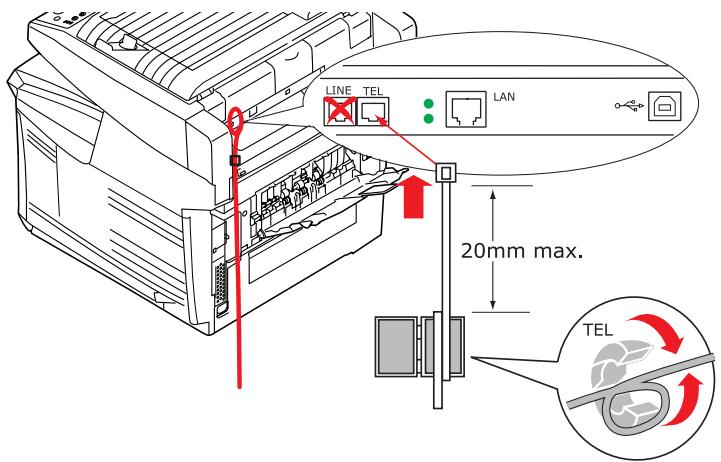
You will also need to set the ring response:
- Press the Menu button on the control panel.
- Using the UP arrow key, navigate to Fax Settings and press OK.
- Using the UP arrow key, navigate to Setup Fax then press OK.
- Using the UP/DOWN arrows keys, navigate to Ring Response and press OK.
- Select the required response setting and press OK.
- Press Return to store the new configuration setting and exit the menu.
Note
Manual receive must also be activated. See "Manual receive" on page 70.
PRINT SETTINGS AND SECURITY
Your MFP's operator panel menus provide access to many options. The Windows printer driver also contains settings for many of these items. Where items in the printer driver are the same as those in the operator panel menus, and you print documents from Windows, the settings in the Windows printer driver will override those items in the operator panel menus.
The illustrations in this chapter show Windows XP. Other Windows versions may appear slightly different, but the principles are the same.
PCL OR POSTSCRIPT?
Three printer drivers are supplied with your MFP: one for PCL5c emulation, one for PCL6 emulation, and the other for PostScript 3 emulation. If you print mainly from general "Office" applications choose one of the PCL drivers. For faster printing of PDF documents, choose PostScript. If you print mainly from professional DTP and graphics applications, choose PostScript.
PRINTING PREFERENCES IN WINDOWS APPLICATIONS
When you choose to print your document from a Windows application program a print dialog box appears. This dialog usually specifies the name of the machine on which you will print your document. Next to the printer name is a Properties button.
When you click Properties a new window opens which contains a short list of the printer settings available in the driver, which you can choose for this document.
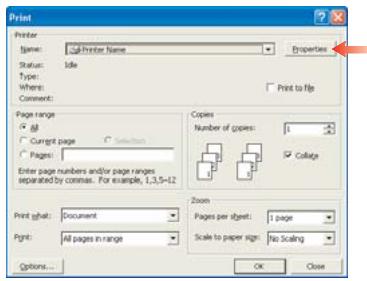
The window which opens when you click Properties depends on which printer driver has been installed. The PostScript driver offers different choices to the PCL driver.
POSTSCRIPT EMULATION
- Page orientation sets portrait (tall) or landscape (wide) page orientation. The "rotated" rotates the paper through 90 degrees anti-clockwise.
- When printing double sided pages (duplex unit required). You can flip the paper either on its long edge or short edge.
- Pages can be printed in forward or reverse order. If using the face down (top) paper stacker, forward order is usually appropriate to ensure that pages are stacked in numerical order. If using the face up (rear) paper stacker, reverse order would normally stack your pages in numerical order.
- You can specify how many pages to print on a sheet. Pages will be scaled to fit the number you choose. If you choose booklet printing (requires duplex unit) two pages will automatically be set, and pages will be printed with the correct pages opposite one another so that folding the stacked printout produces a booklet.
- Advanced options are also available, such as how to download TrueType fonts, and whether advanced options such as booklet printing are available.
The printer driver contains extensive on-line help for these items to help you make the most appropriate choices.
PCL EMULATION
When you click the Properties button from your application's Print dialog, the driver window opens to allow you to specify your printing preferences for this document.
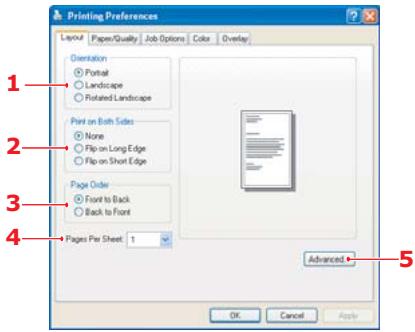
- Paper size should be the same as the page size of your document (unless you wish to scale the printout to fit another size), and should also be the same as the size of paper you will feed into the MFP. You can choose the source of the paper to feed, which may be Tray 1 (the standard paper tray), Tray 2 (if you have the optional 2nd
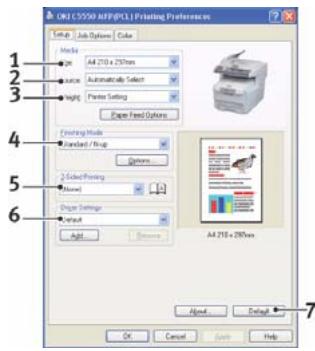
paper tray installed) or the multi purpose feeder. You can also click on the appropriate part of the screen graphic to select your preferred tray.
- The setting for paper weight should match the type of paper on which you intend to print.
- A variety of document finishing options can be selected, such as normal one page per sheet, or N-up (where N can be any number up to 16) for printing scaled down pages at more than one page per sheet. Booklet printing prints two pages per sheet on each side of the paper so that when folded they make up a booklet. Booklet printing requires the duplex unit to be installed in your MFP.
Poster printing will print large pages as tiles spread over multiple sheets.
- For two-sided printing, you can choose to flip the page by the long edge or the short edge. Of course, this requires that a duplex unit be installed in your MFP.
- If you have changed some printing preferences before and saved them as a set, you can recall them to avoid having to set them individually each time you need them.
- A single on-screen button restores the default settings.
STORE TO HARD DISK/JOB SPOOLING
The Hard Disk is an option.
This feature allows print jobs to be created on the PC and stored on the MFP's hard disk for printing on demand. This is good for forms, generic memos, letterhead, stationery, etc.
If you use this feature for standard forms, for example, you can walk up to the MFP at any time and print off your forms without having to re-send them from the PC.
The document is not automatically deleted from the MFP's hard disk after printing. It remains there for future use until you delete it from the printer control panel or from your PC with the Storage Device Manager utility.
Note
If this choice does not appear in the driver screens, or if it is grayed out, check to ensure that the hard disk is enabled in the printer driver. (See "Adjusting windows printer drivers" on page 147.)
There are three parts in job spooling:
- Sending the document. See "Sending the document" on page 76.
- Printing the document. See "Printing the document" on page 78.
- Deleting a stored document. See "Deleting a stored document" on page 79.
SENDING THE DOCUMENT
- If using the PCL driver, in the [Setup] tab choose any saved driver settings you wish to use. See "Recalling saved driver settings" on page 184.
-
In the driver's [Job Options] tab, click [Store to HDD].
-
The Job PIN (Personal Identification Number) window opens.
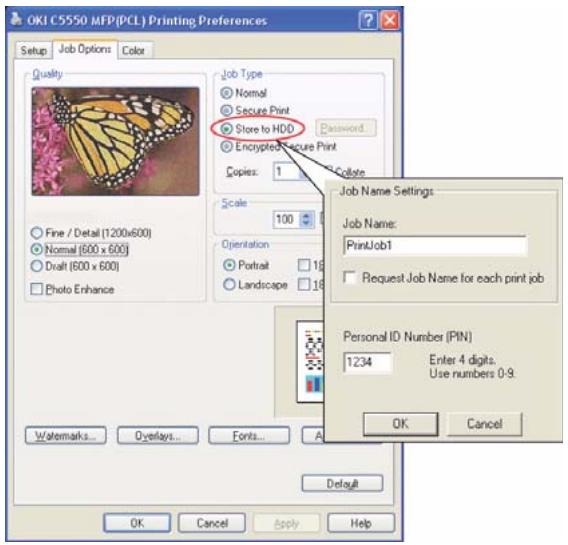
- If the PIN window does not open, click the [PIN] button.
- In the Job PIN window, enter a [name] for this print job: The name may be up to 16 alpha-numeric characters. If you have more than one print job stored on the MFP when you come to print, you will need a distinctive name to distinguish between each of your print jobs.
- If you would like a prompt at the MFP for the job name, click the [Request...] checkbox below the name entry.
- Enter a number from 0000 to 9999 in the [PIN] box.
- Your PIN must be unique on this MFP. Each user should be allocated a PIN by the system administrator.
- Click [OK] to accept your changes.
- Click [OK] to close the Printer Properties window.
- Print your document.
- The print job will be sent to the MFP, but will not print at this time.
PRINTING THE DOCUMENT
Your print job is printed using the printer control panel on the front of the MFP.
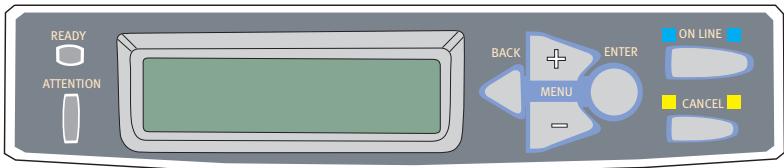
- When the MFP is idle ("ONLINE" indicated in the display), use the + / - buttons to select the PRINT JOB menu, then press [ENTER].
- Select "ENCRYPTED/STORED JOB".
- Use the + / - buttons to input your PIN. Press [ENTER] after each digit.
If you have more than one stored document, a list appears in the display.
- Use the + / - buttons to select the name of the print job you wish to print, and press [ENTER] to select it.
- If necessary, use the + / - buttons to highlight the PRINT option.
- Press [ENTER] to confirm you wish to print the document.
- Use the + / - buttons to select the number of collated copies you require.
- Press [ENTER] to print your document.
The document will not be deleted from the hard disk after it has been printed.
Note
It is also possible to print and delete stored documents remotely from your PC using the Storage Device Manager utility.
DELETEING A STORED DOCUMENT
Any other documents stored on the printer's hard disk can also be deleted remotely from the PC using the Storage Device Manager utility
If you change your mind about printing a stored document, you can delete it from the MFP's hard disk without printing it first.
- Follow Steps 1 to 4 in the above procedure for printing the document.
- Use the + / - buttons to highlight the DELETE option and press [ENTER].
- If necessary, use the + / - buttons to highlight the YES choice, and press [ENTER] to confirm the deletion.
Your document is deleted from the MFP's hard disk without printing.
OPERATION
With its intuitive control panel, this Multi Function Product (MFP) is designed to be easy to use. After the machine has been configured, operating is quite straight forward.
Note
If PIN restriction has been enabled for any or all of the MFP functions, you will first have to enter your PIN.
The following sections describe how to make a copy of your scanned document, how to distribute your document on the internet, and how to send it via fax.
LOADING DOCUMENT(s) FOR COPYING
This MFP can scan/copy/send/fax document(s) either in the ADF (Automatic Document Feeder) or on the glass. If you need to send multiple pages, load your papers in the ADF. The ADF can hold up to 50 pages at one time.
If you need to scan/copy/send/fax pages from books, newspaper clippings, or paper with wrinkles or curls, place them on the glass.
PLACING DOCUMENT(S) IN THE ADF
Before using the ADF, please make sure that your paper meets the following specifications:
Document(s) can range in size from 4.5 × 5.5 inches (114.3 x 139.7mm) to 8.5 × 14 inches (215.9 x 355.6mm).
Document(s) can range in weight from 16 to 28 lbs [60 to 105g / m^2 (0.002" to 0.006" [0.05 to 0.15 mm]).
Document(s) should be square or rectangular and in good condition (not fragile or worn).
Document(s) should be free of curl, wrinkle, tears, wet ink, or punch holes.
Document(s) should be free of staples, paper clips, paper sticky notes.Keep the glass clean and without any documents left on it.
Note
To transmit irregular types of document(s), place the document(s) on the glass or make a copy first and then transmit the copy instead.
- If you have multiple pages, fan the pages to avoid paper jams. The ADF holds up to 50 pages at one time.
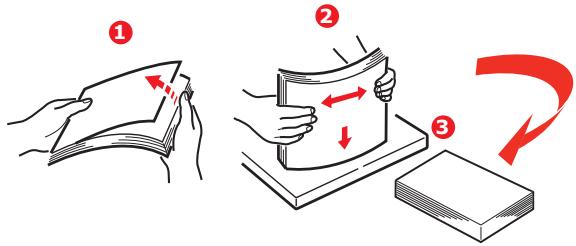
- Place the document with the text face UP in the ADF and make sure that the top of each page is fed in first.
- Adjust the Paper Guides (1) to center the document in the ADF.
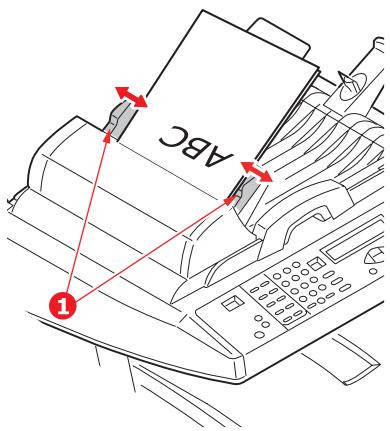
PLACING DOCUMENT(S) ON THE GLASS
- Open the document cover.
- Place your document with the text face DOWN on the glass and align it to the upper-left corner.
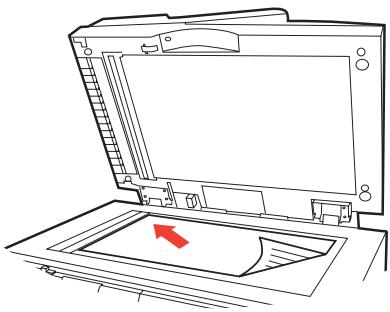
- Close the document cover.
SENDING DOCUMENT(S) VIA E-MAIL
BASIC OPERATION
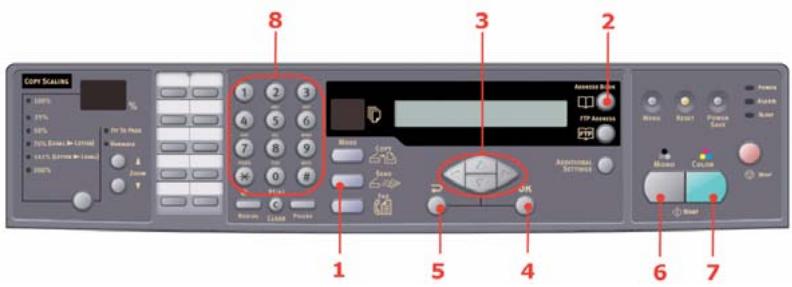
- Place your document(s) with text face UP in the ADF or face DOWN on the glass (as described above).
- Press Send Mode (1) on the control panel. The e-mail screen will appear.
- In the "To" field, enter the destination e-mail address from the Address Book by pressing Address Book (2). Use the UP and DOWN arrows (3) to select multiple e-mail
addresses and press the OK button (4). Or for a fast operation, you may simply type the initial letter of the e-mail address using the keypad (8). Press Return (5) to return to the e-mail main screen.
- Enter the subject of your e-mail. If not entered, "Default Subj." will be displayed.
- Enter or select CC and BCC address(es), if necessary.
- Press the Mono button (6) to send your document(s) in black and white, or the Color button (7) to send your document(s) in color.
ADVANCED OPERATION
If you are not satisfied with the scanned image, you can use the advanced features to enhance it.
note
For illustration purposes only, the advanced features shown are as accessed from the scanner control panel, they can also be accessed from the web page and the MFP Network Setup Tool.
To use the advanced features, press the Send Mode button (1) on the control panel and then the Additional Settings button (2) to prompt the Additional settings screen.

Refer to the following table to modify the scanner settings.
| MENU ITEM | DESCRIPTION |
| Attachment | The file name of the scanned document. Up to 64 characters can be entered in this field. |
| From | Enter your "From" address. If an e-mail can not be sent, notification is returned to this address. This is also the "From" address in your e-mail when you receive an e-mail from the MFP. Up to 64 characters can be entered in this field. |
| Reply To Address | Enter a "Reply To Address" address if you wish to specify a reply address which is different from the "From" address. Up to 64 characters can be entered in the field. |
| Color output format | Choose the output format for the document to be scanned in colors from PDF, TIF, JPEG, and MTIF. Also select the compression rate from Low, Medium, High. |
| B&W output format | Turn the multi-level B&W - Gray On or Off. Choose the output format for the document to be scanned in B&W from PDF, TIF, and MTIF. Also select the compression rate from Low, Medium, High. |
| Resolution | Choose the scanning resolution for the scanned document from a selection of 75, 100, 150, 200, 300, 400, 600 dpi. A higher resolution reproduces the image with greater detail, but requires more disk space. |
| Manual Feed | Multi-batch document scanning can be enabled. Enable Manual Feed when loading more than 50 pages on the ADF or more than one page on the flatbed. |
| Document Size | A4, Letter, Legal |
| Density | -2, -1, 0, 1, 2 |
Note
If you make a mistake during the process, press Stop (3) on the control panel to cancel the operation.
If you stop typing in the From, Subject, To, CC, or BCC fields for three minutes, the LCD-display automatically clears what you have typed.
This machine allows you to send scanned document(s) to multiple e-mail addresses. Simply add a comma between each address.
Up to 64 characters can be entered in the "Attachment", "To", "From", "CC", "BCC", and the "Def. Subject" field.
If you wish to scan a multi-page document and convert it to a single image file, choose your output file format to be MTIF or PDF.
If the administrator has set the SMTP or POP3 authentication, after sending your scanned document to e-mail addresses, and if no more transmission is required, press Return on the control panel to log out of the system. This is to prevent misuse of the user's e-mail account for sending e-mails. If there is no other operation within 3 minutes, the system will log out automatically.
SENDING DOCUMENT(S) TO A FILE SERVER
Before sending your document to a file server, profiles should be set up first to speed up the process. A profile contains a list of filing parameters such as your filing protocol, directory, file name and other scanning parameters. Add a new profile by either entering the machine's web page or installing and starting the Network Setup Tool on the CD-ROM supplied.
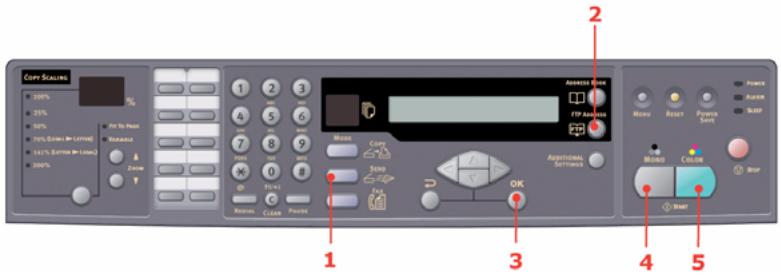
- Place your document(s) with text face UP in the ADF or face DOWN on the glass.
- Press Send Mode (1) and FTP Address (2) buttons on the control panel. The LCD-display prompts the Filing screen. For example,
Profile 1
Profile 2
- Choose the required profile (filing destination) and press OK (3).
- Press Mono (4) to send your document(s) in black and white, or Color (5) to send your document(s) in color.
Note
You can create up to 40 filing profiles from the machine's web site or from the Network Setup Tool.
COPYING
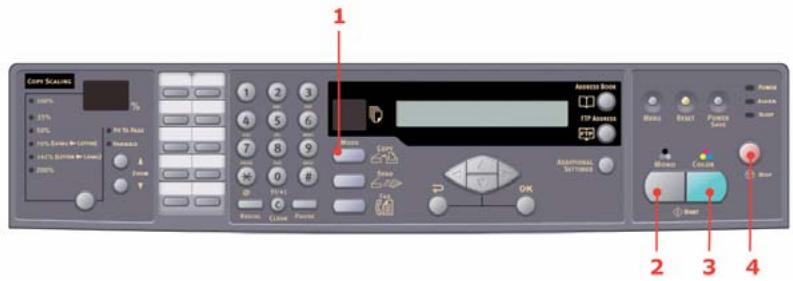
BASIC OPERATION
- Place your document(s) with text face UP in the ADF or face DOWN on the glass.
- If required, press the Copy Mode button (1) on the control panel to prompt the Copy screen.
Note
Factory default setting is Copy mode.
- Press Mono (2) to copy your document(s) in black and white, or Color (3) to copy your document(s) in color.
Note
If you wish to cancel the copy process, press Stop (4) to abort the operation.
ADVANCED OPERATION
Set up the Printer Options and Media Type (See "Contents of each printer menu" on page 45., and the instructions following).
Accessing additional settings
note
For illustration purposes only, the advanced features shown are as accessed from the scanner control panel, they can also be accessed from the web page and the MFP Network Setup Tool.
To use the advanced features, press the Copy Mode button (1) on the control panel and then the Additional Settings button (2) to prompt the Additional settings screen.
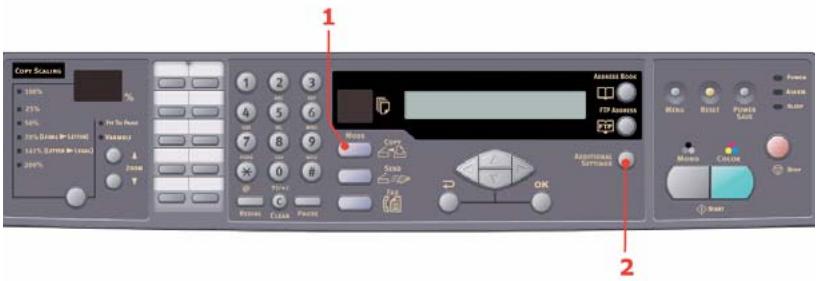
Below are the factory defaults for the "Additional Settings".
| FUNCTION | DEFAULT SETTING |
| Density | 0 |
| Quality | Speed |
| Collate | OFF |
| Duplex (optional) | OFF |
| N-up | 1in1 |
| Edge erase | 0 |
| Margin shift (R) | 0 |
| Margin shift (B) | 0 |
| Paper supply | A4/Letter |
| Input tray | Auto |
Quality
Speed
Text
Photo
Density
-2, -1, 0, 1, 2
Collation:
ON - The collate function is always enabled
OFF - The collate function is always disabled.
Note
When "Collate" is set, the items "N-Up" and "Duplex" are not displayed.
Duplex (Optional):
Off
1 in 1
4 in 1 (Horizontal)
4 in 1 (Vertical)
Note
When "N-Up" is set to other than "1 in 1", the "Collate" item is not displayed.
Edge Erase
0/6/13/19/25 (mm)
0 / 0.2362 / 0.5118 / 0.748 / 0.9843 inches
Margin Shift
Right 0/6/13/19/25 (mm)
0 / 0.2362 / 0.5118 / 0.748 / 0.9843 inches
Bottom 0/6/13/19/25 (mm) 0 / 0.2362 / 0.5118 / 0.748 / 0.9843 inches
Paper Supply
Legal
Letter
A4
A5
Input Tray
Auto
Tray 1
Tray 2 (Optional)
MP
Changing scaling
The machine is preset to 100% scaling. If you wish to reduce or enlarge your original, you can apply this feature to enlarge up to 400% or reduce down to 25% .
To reduce or enlarge the original document:
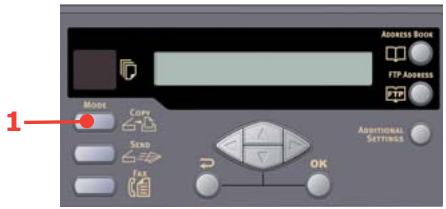
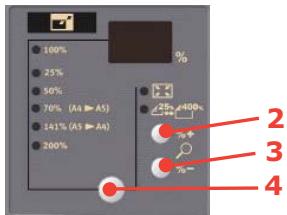
- Press Copy Mode (1) on the Control panel to prompt the Copy screen.
- Press the Select (4) button to choose a preset value from 100% , 25% , 50% , 70% , 141% , 200% and 98% (fit to page).
- Alternatively, continue to press the Select (4) button until the 25% - > 400% LED is illuminated, then press the % + (2) or % - (3) button to enlarge or reduce your document in 1 % increments.
Note
- Press and hold the % + or % - button to enlarge or reduce your document in 10% increments.
- After you have completed copying the machine will automatically return to the preset scale.
Improving copy quality
The machine is preset to "Speed". If required, you can change to "Text" or "Photo" to improve the copy quality.
To change copy quality:
-
Press the Copy Mode button on the control panel to prompt the Copy screen.
-
Press the Additional Settings button.
- Using the UP arrow, navigate to the Quality setting and press OK.
- Select "Text" or "Photo" and press OK.
Note
After you have completed your copying, the machine will automatically return to the preset document quality.
Adjusting density
The machine is preset to the "Normal" level of density. If your original document comes with a lighter or darker contrast, you can improve the quality by using the Adjusting Density feature.
To change density:
- Press the Copy Mode button on the panel to prompt the Copy screen.
- Press the Additional Settings button.
- Using the UP arrow, navigate to the Density setting and press OK.
- Select the required density and press OK.
Note
After you have completed your copying, the machine will automatically return to the preset value.
Increasing copy count
The machine is preset to a copy count of 1. If you wish to increase the number of copies, select the number of copies with the numeric keypad.
To increase the copy count:
-
Press the Copy Mode button on the control panel to prompt the Copy screen.
-
Enter number of copies required with the numeric keypad. The LCD display will confirm the copy count selected.
FAXING
BASIC OPERATION
Sending a fax to a single location
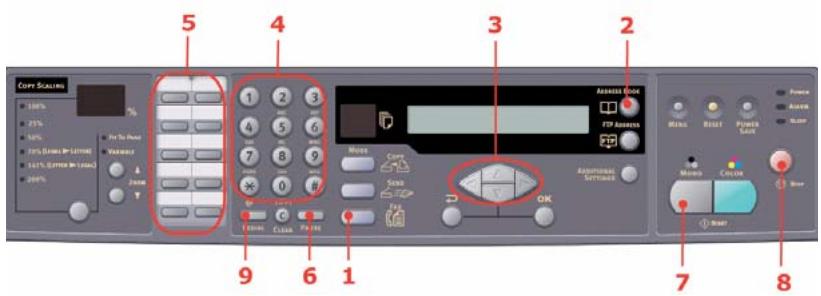
- Place your document(s) with text face UP in the ADF or face DOWN on the glass.
- Press the Fax Mode button (1) on the control panel to prompt the Fax screen.
- Enter the destination fax number by either:
typing in the number using the numeric keypad (4)
pressing the required speed dial button (5))
Note
If the destination fax number has an "extension number", press the Pause button (6) to input a "--" between numbers. The machine will insert a 1 second pause when dialling.
-
If required, press Return to go back to the fax screen.
-
Press the Mono button (7) to send your document(s).
Note
- Fax transmissions are sent in black and white only.
- If you make a mistake during the transmission process, press the STOP button (8) to cancel the operation.
Manual redial
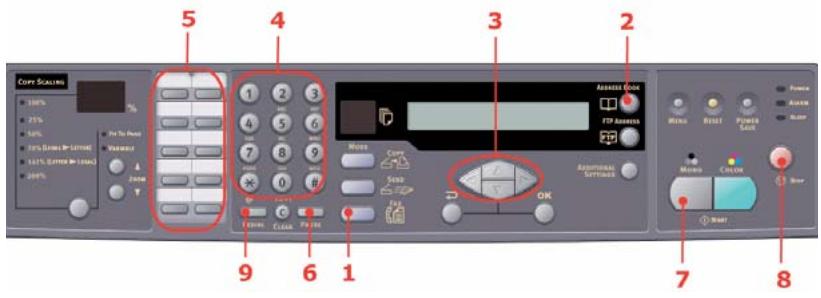
Press the Redial button (9) on the control panel to display the fax number of the last transmission (successful or not), then press the Mono button (6) to send a fax to this number.
Receiving a Fax
Your MFP is set to receive faxes automatically, if you wish to change this to manual receive refer to"Manual receive" on page 70 for details.
note
If the MFP is in use, i.e. sending a fax or scanning, then any incoming faxes will be rejected.
During other functional operations, for example copying, filing, e-mailing, etc., then any incoming faxes will be stored and printed out when the MFP is available.
ADVANCED OPERATION
Accessing additional settings
note
For illustration purposes only, the advanced features shown are as accessed from the scanner control panel, they can also be accessed from the web page and the MFP Network Setup Tool.
To use the advanced features, press the Fax Mode button (1) on the control panel and then the Additional Settings button (2) to prompt the Additional settings screen.
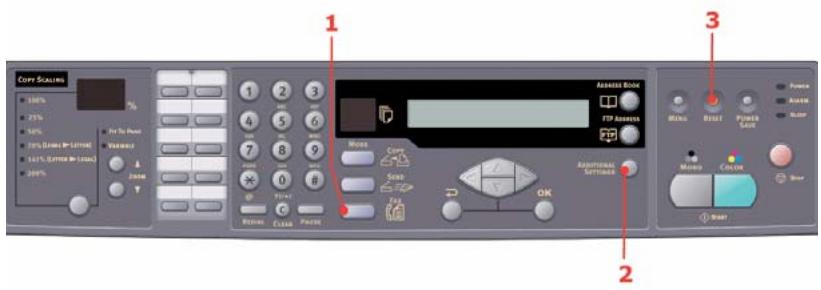
Below is the menu for the "Additional Settings". If there are any changes made, the settings will return to the these factory default settings when you press the Reset button (3).
| FUNCTION | DEFAULT SETTINGS |
| Quality | Fine |
| Density | 0 |
| Doc size | A4/Letter |
| Delayed time | Real time |
| Manual feed | Off |
| Poll to receive | Off |
| Overseas Mode | Off |
Changing fax quality
The machine is preset to "Fine". If required, you can select "ExtraFine" or "Photo" to improve the fax quality or you can reduce the fax quality by selecting "Standard".
To change fax quality:
- Press the Fax Mode button on the control panel to prompt the fax screen.
- Press the Additional Settings button and press OK.
- Select the appropriate quality setting and press OK.
- Press Return to exit the menu and return to the fax screen.
Note
After you have completed your fax operation, the machine will automatically return to the preset quality.
Adjusting density
The machine is preset to the "Normal" level of density. If your original document comes with a lighter or darker contrast, you can improve the quality by using the Adjusting Density feature.
To change density:
- Press the Fax Mode button on the control panel to prompt the Fax screen.
- Press the Additional Settings button.
- Using the DOWN arrow key, navigate to the Density setting and press OK.
- Select the required density and press OK.
- Press Return to exit the menu and return to the fax screen.
Note
After you have completed your fax operation, the machine will automatically return to the preset value.
Document size
The machine is preset to "A4/Letter" size.
To change document size:
- Press the Fax Mode button on the control panel to prompt the Fax screen.
- Press the Additional Settings button.
- Using the DOWN arrow key, navigate to the Doc Size setting and press OK.
- Select the required size setting and press OK.
- Press Return to exit the menu and return to the fax screen.
Note
After you have completed your fax operation, the machine will automatically return to the preset value.
Delayed send
The delayed send function allows you to fax documents at a specific date and time.
To set the fax to delay send:
- Place your document(s) with text face UP in the ADF or face DOWN on the glass.
- Press the Fax Mode button on the control panel to prompt the Fax screen.
- Press the Additional Settings button.
- Using the DOWN arrow key, navigate to the Delayed Send setting and press OK.
- Enter the required send date and time and press OK.
- Press Return to exit the menu and return to the fax screen.
- Press Mono to scan and store your document ready for sending at the specified time.
Manual feed
If you need to send multiple sets of documents from the ADF or flatbed, enable the "Manual Feed" option.
To set the fax to manual feed:
- Place your document(s) with text face UP in the ADF or face DOWN on the glass.
- Press the Fax Mode button on the control panel to prompt the Fax screen.
- Press the Additional Settings button.
- Using the DOWN arrow key, navigate to the Manual Feed setting and press OK.
- Select "ON" and press OK.
- Press Return to exit the menu and return to the fax screen.
- Press Mono to start scanning the first document.
Once the current scanning operation is complete, the LCD will display "To scan another page press select/OK". If you have further documents to scan press OK to continue scanning or press Mono to continue sending the fax.
Fax Forwarding
- Press Menu to prompt the menu settings screen.
- Using the UP arrow key, navigate to Management and press OK.
- When prompted, enter the password and press OK.
- Using the UP arrow key, navigate to Fax Forwarding and press OK.
- Select either Fax To Fax or Fax To Email and press OK.
(a) If Fax To Fax is selected, enter the destination Fax number and press OK.
(b) If Fax To Email is selected, enter the forwarding Email address and press OK.
- Press Return to update selections and exit the menu.
Polling receive
Polling is a process in which documents are loaded into a machine, and the machine is then set to wait for a call from a remote location before faxing. If the remote machine is set to hold data in memory for transmission to a local machine when contacted, the procedure is called "polling receive".
To set the fax to poll receive:
- Press the Fax Mode button on the control panel to prompt the Fax screen.
- Press the Additional Settings button.
- Using the DOWN arrow key, navigate to the Polling Receive setting and press OK.
- Select "ON" and press OK.
- Press Return to exit the menu and return to the fax screen.
- Enter the desired location using the Speed Dial keys or the numeric keypad.
- Press Mono to begin polling.
Overseas mode
To avoid transmission problems when faxing overseas, set the fax to overseas mode:
- Place your document(s) with text face UP in the ADF or face DOWN on the glass.
- Press the Fax Mode button on the control panel to prompt the Fax screen.
- Press the Additional Settings button.
- Using the DOWN arrow key, navigate to the Overseas Mode setting and press OK.
- Select "ON" and press OK.
-
Press Return to exit the menu and return to the fax screen.
-
Press Mono to start sending the document(s).
Note
After you have completed your fax operation, the machine will automatically return to the preset value.
Broadcasting
You can send a fax to multiple locations at the same time:
- Place your document(s) with text face UP in the ADF or face DOWN on the glass.
- Press the Fax Mode button on the control panel to prompt the Fax screen.
- Enter the destination fax numbers by either:
typing in the number using the numeric keypad
pressing the required speed and/or group dial buttons
Press OK after entering each fax number.
Note
You can send to a maximum 100 different locations.
If a destination fax number has an "extension number", press the Pause button to input a "--" between numbers. The machine will insert a 1 second pause when dialling.
- Press Return to exit the menu and return to the fax screen.
- Press Mono to start sending the document(s).
Note
If you make a mistake during the transmission process, press the STOP button to cancel the operation.
CANCEL FAX JOBS
If you no longer require a stored fax job, you can cancel and remove it from your MFP's memory.
Note
Requires an Administrator password to perform this function.
- Press the Menu button on the control panel to prompt the menu settings screen.
- Using the UP arrow key, navigate to Fax Settings and press OK.
- Using the UP arrow key, navigate to the Cancel Fax Jobs and press OK.
- At the prompt, enter the admin password and press OK.
- Using the UP/DOWN arrow keys, navigate through the list of fax jobs.
- Press OK to select the required job(s) for deletion. The selected row(s) will be marked with an **.
- Press Return to finish selection and return to the upper screen.
- Press OK to confirm deletion of fax jobs or press Stop to cancel the operation.
FAX JOB REPORTS
- Press the Menu button on the control panel to prompt the menu settings screen.
- Using the UP arrow key, navigate to Fax Settings and press OK.
- Using the UP arrow key, navigate to the Reports and press OK.
- Select required report and press OK to print:
Activity report
Transmission report
The transmission report can be modified with the following options available: Yes / Error Only / Off.
Broadcast report
SCANNING
SCANNER OPERATION
- Start your scanning application.
- Select the File menu and choose Select Source.
If the Select Source command is not available on the File menu, see your application's user's guide to determine how the TWAIN link is used. A dialog box with a list of scanning sources appears.
- Select your printer.
You need to select the source only once, unless you want to choose another scanner.
- Place the document face DOWN on the document glass or face UP in the ADF.
- Select the File menu and choose Acquire.
A dialog box containing scanning features appears.
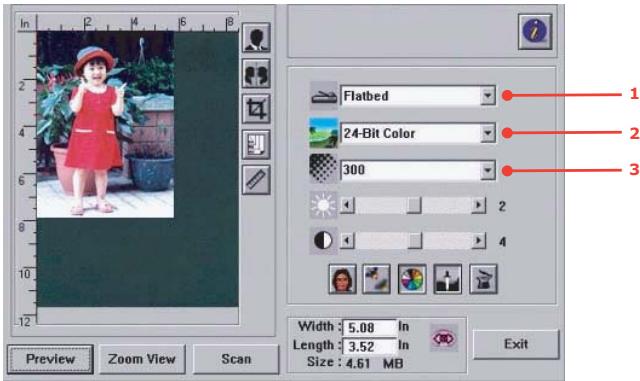
-
Select the scanning method you want to use from the Scan Method (1) drop-down menu.
-
Select the mode you want to use for your scans from the Image Type (2) drop-down menu.
- Select a scanning resolution from the Resolution (3) drop-down menu.
- Select the setting for the scanning features (e.g. Sharpen, Descreen, etc.) that you want to use (see "enhancing your image" later in this Chapter).
- Click on the Preview or Scan button to preview or scan you documents.
A LOOK AT THE USER INTERFACE
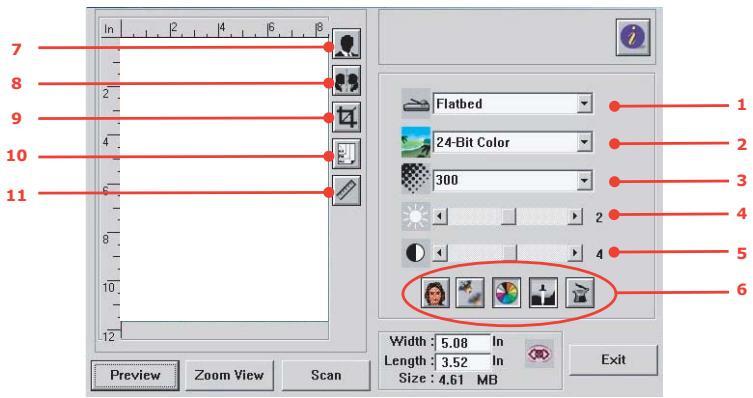
- Scan Method Choice: ADF/Multi-page, Flatbed.
- Image type Choice: Black & White, 8-Bit Gray, 24-Bit Color, Half tone.
- Resolution Choice: 50, 72, 100, 144, 150, 200, 300, 600, 1200, 2400, 4800 (dpi).
- Brightness Adjust the brightness level from -100 to +100.
- Contrast Adjust the contrast level from -100 to +100
- Further tools Desscreen, Sharpen, Color Adjustment, Auto Level, Advanced Settings.
- Invert Reverse the color of the scanned image.
- Mirror Function Flip the image.
- Preview Auto Area Resize the scanned area.
- Paper Size Select the paper size from Card 4'' × 2.5'' , Photo 5'' × 3.5'' , Photo 3.5'' × 5'' , Photo 4'' × 6'' , Photo 6'' × 4'' , A5, B5, A4, Letter, Legal, or scanner maximum.
- Unit of Choice: cm, Inch, and Pixel. Measurement
USING THE BASIC FEATURES
Scan method
Choice:
Flatbed: Select this setting if you need to scan photo, or newspaper clippings.
ADF/Multipage: Select this setting if you need to scan multi-page document from the automatic document feeder (ADF).
Image type
- Choose B&W if your original contains only B&W text, pencil or ink sketch.
- Halftones are the reproduction of an image that gives the illusion of gray. An example of a halftone image would be the pictures you see in newspapers.
- 8-Bit Gray images contain actual shades of gray.
- Choose 24-Bit Color (input) if you wish to scan a color image.
Resolution
The correct resolution will reproduce a clear image with good details. The resolution is measured in dots per inch (dpi).
Note
An A4/Letter size color image scanned at 300 dpi at True Color mode consumes approximately 25 MB of disk space. A higher resolution (usually means over 600 dpi) is only recommended when you need to scan a small area in True Color mode.
Adjusting the brightness and contrast
1. Brightness
Adjusts the lightness or darkness of an image. The higher the value, the brighter the image.
2. Contrast
Adjusts the range between the darkest and the lightest shades in the image. The higher the contrast, the larger the grayscale.
Enlarging previewed image (zoom)
Enlarge your previewed image to the maximum of the preview window.
Note
This function only enlarges your preview image. This does not enlarge the actual image.
Inverting and selecting your image
1. Invert
The invert command reverses the brightness and the color in the image. For color images, each pixel will be changed into its complementary color when inverted.
2. Mirror function
Horizontally reverses the image.
3. Auto select image
Automatically set the whole image as your scan area. (Or you may resize the area by diagonal "drag and drop".)
Enhancing the image


1. Desscreen
Eliminates the moiré* patterns commonly found in printed matter.
(1) Before;
(2) After.
- Moire pattern: An undesirable pattern in a color printing resulting from incorrect screen angle of overprinting halftone.
2. Sharpen
Sharpen the scanned image. (1) Before; (2) After.
3. Color adjustment
Adjusts the color quality of the image so that it comes close to the original. This function uses default parameters to adjust the image. (1) Before; (2) After.


4. Auto level
Automatically adjusts the highlight and shadow areas of the scanned image to optimize the following:
Using the advanced features
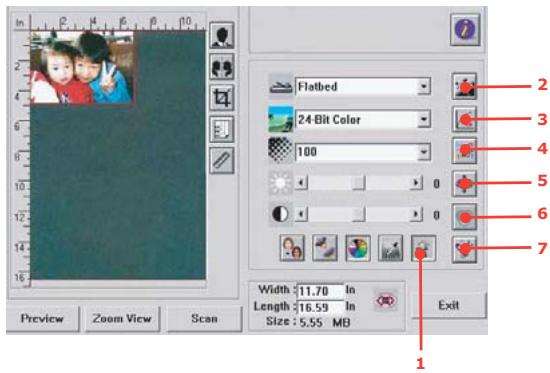
- Click the Switch button (1) to select the Advanced Settings bar (2 to 7). Advanced settings include Highlight/Shadow, Hue/Saturation/Lightness, Curve, Color Balance, Color Drop-out.
2. Highlight/shadow levels
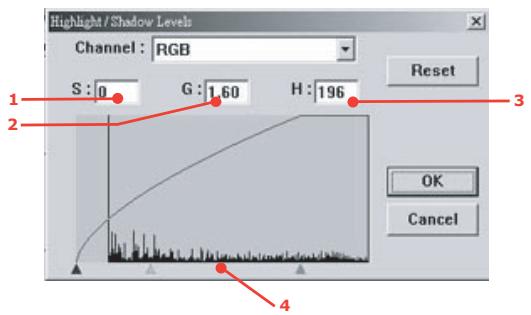
Highlight refers to the lightest point in a scanned image while shadow refers to the darkest point. Using Highlight and Shadow tools together allows you to extend the range of color and reveal more details in a gray or color image.
Shadow (1): The darkest point of an image.
Gamma (2): The middle tones of the image.
Highlight (3): The lightest point of an image.
Pointer (4): Move to change the value.
When the value of gamma changes, the image changes as shown below.
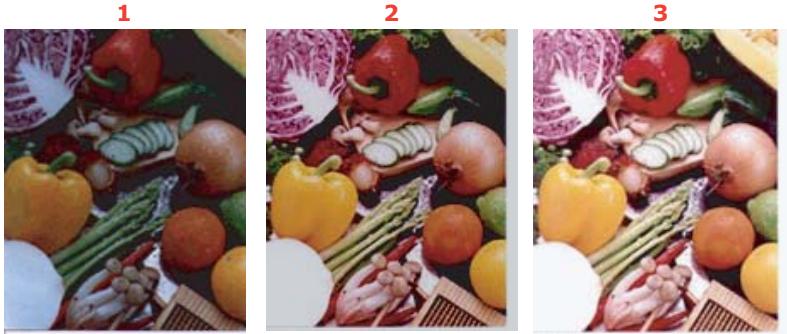
- Gamma value: 1.0;
- Gamma Value: 1.4;
- Gamma Value: 2.0
When the value of highlight and shadow change, the image changes as shown below.




- Highlight: 255/Shadow: 0(Normal);
- Highlight: 210/Shadow:10;
- Highlight: 200/Shadow:0;
- Highlight: 255/Shadow: 50
3. Adjusting the curve
Adjusts the midtones of the image without dramatically altering their lightest and darkest areas.
When the curve is moved up or down, the image will become darker or lighter.
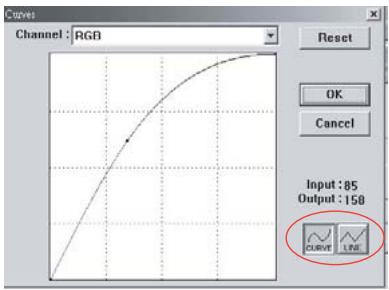
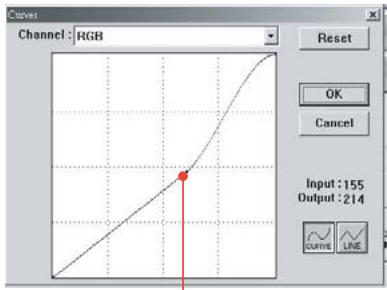
4. Color hue/saturation/lightness
Improve an image by changing the level of hue/saturation/lightness.
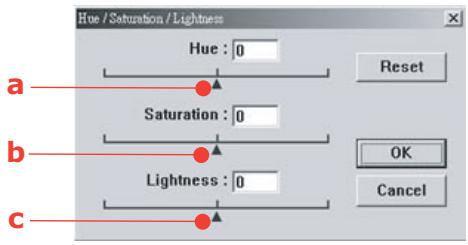
(a) Hue
Adjust the hue by moving the triangle to the right or left. (Note the level of color intensity will change simultaneously when the hue adjustment is made).
(b) Saturation
Move the triangle to the right to increase the saturation level or to the left to decrease the level. The level of saturation determines whether the color is pale or rich.
(c) Lightness
Increase the lightness by moving the triangle to the right or to the left to decrease the lightness.
5. Using color balance
The Color Balance control allows you to set optimal image color quality.
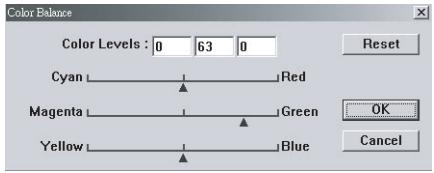
You can either move the relevant pointer toward a color (in the above example 63% green has been selected) or, if known, enter the figure in the box at the top.
The first box refers to the Cyan/Red percentage content, the second to Magenta/Green and the third to Yellow/Blue.
6. Color drop-out
Click the button and the dialog box below will be displayed. This allows you to remove one of the R (Red), G (Green), or B (Blue) color channels. This function is particularly useful when converting to text using OCR software.
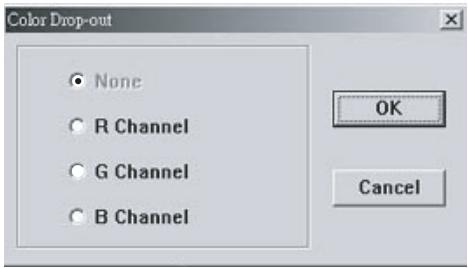
Note
This function supports only black/white and gray images.
7. Using custom settings
Click on the Custom Settings button to access a dialog box where you can save your scan and configuration settings. There are two tabs: Scan Settings and Configuration Settings.
OTHER TOOLS
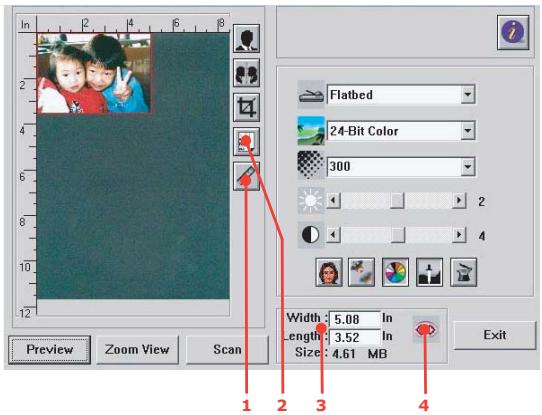
- Measuring Unit: Indicates the measuring system in use. By clicking the button, you can change the measuring unit.
Choice: Inch, cm, Pixel. - Paper Size Choice: Card 4'' × 2.5'' , Photo 5'' × 3.5'' , Photo 3.5'' × 5'' , Photo 4'' × 6'' , Photo 6'' × 4'' , B5, A5, A4, Letter and Scanner Maximum.
- Image Size: Display image size for the scanned area.
- Lock Image: Fix the output width and height.
Note:
When the LCD display indicates TONER LOW, or if print appears faded, first open the top cover and try tapping the cartridge a few times to evenly distribute the toner powder. This will enable you to obtain the best "yield" from your toner cartridge.
PART NUMBERS
| ITEM | PART NUMBER. |
| Toner, black | 43865720 |
| Toner, cyan | 43865719 |
| Toner, magenta | 43865718 |
| Toner, yellow | 43865717 |
| Image drum, black | 43381720 |
| Image drum, cyan | 43381719 |
| Image drum, magenta | 43381718 |
| Image drum, yellow | 43381717 |
| Fuser, 120 Volt | 43363201 |
| Fuser, 220 Volt | 43363202 |
| Transfer belt | 43363411 |
- Only use genuine Oki Original consumables to ensure the best quality and performance from your hardware. Non Oki Original products may adversely affect your printer's performance and invalidate your warranty.
TONER CARTRIDGE REPLACEMENT
CAUTION!
To avoid toner wastage and possible toner sensor errors, do not change the toner cartridge(s) until "TONER EMPTY" is displayed.
The toner used in this machine is a very fine dry powder. It is contained in four cartridges: one each for cyan, magenta, yellow and black.
Have a sheet of paper handy so that you have somewhere to place the used cartridge while you install the new one.
Dispose of the old cartridge responsibly, inside the pack that the new one came in. Follow any regulations, recommendations, etc., which may be in force concerning waste recycling.
If you do spill any toner powder, lightly brush it off. If this is not enough, use a cool, damp cloth to remove any residue.
Do not use hot water, and never use solvents of any kind. They will make stains permanent.
WARNING!
If you inhale any toner or get it in your eyes, drink a little water or bathe your eyes liberally in cold water. Seek medical attention immediately.
- Gently raise the scanner.
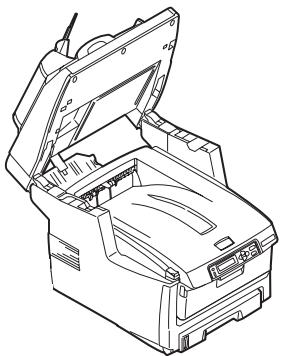
- Press the cover release (a) and open the MFP's top cover (b) fully.
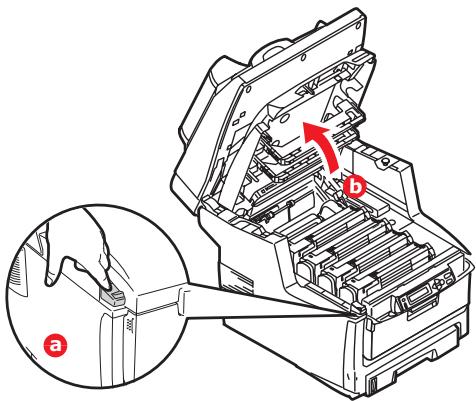
WARNING!
If the MFP has been powered on, the fuser may be hot. This area is clearly labelled. Do not touch.
3. Note the positions of the four cartridges.
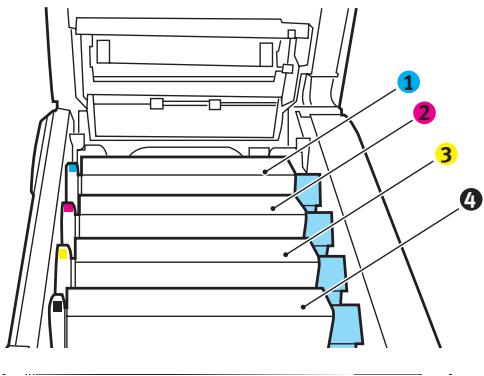
- Cyan cartridge
- Magenta cartridge
- Yellow cartridge
- Black cartridge
(a) Pull the colored toner release lever (1) on the cartridge to be replaced fully towards the front of the MFP.
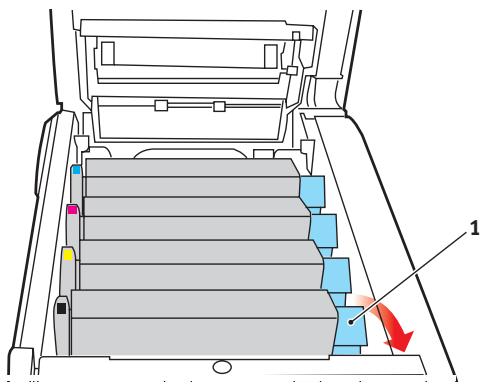
- Lift the right-hand end of the cartridge and then draw the cartridge to the right to release the left-hand end as shown, and withdraw the toner cartridge out of the MFP.
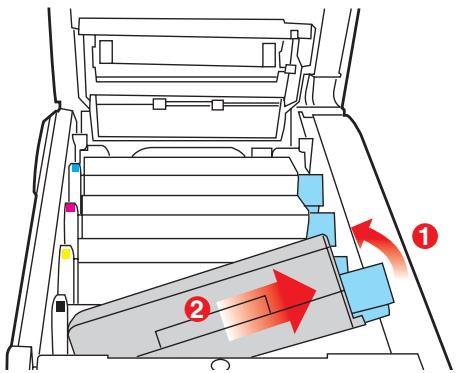
- Put the cartridge down gently onto a piece of paper to prevent toner from marking your furniture.
CAUTION!
The green image drum surface is very delicate and light sensitive. Do not touch it and do not expose it to normal room light for more than 5 minutes. If the toner cartridges need to be out of the MFP for longer than this, please lower the top cover. Never expose the drum to direct sunlight or very bright room lighting.
-
Remove the new cartridge from its box but leave its wrapping material in place for the moment.
-
Gently shake the new cartridge from end to end several times to loosen and distribute the toner evenly inside the cartridge.
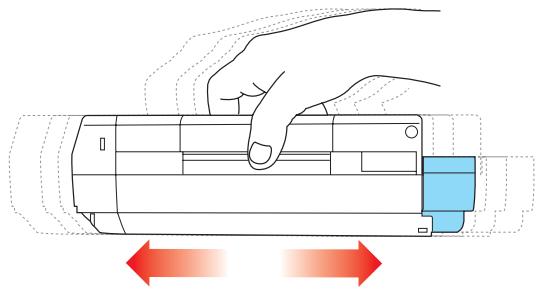
- Remove the wrapping material and peel off the adhesive tape from the underside of the cartridge.
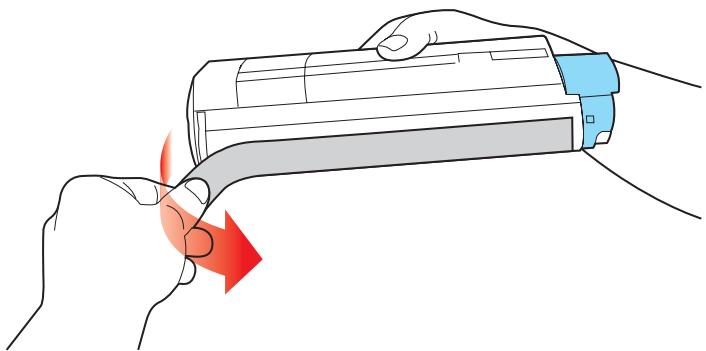
-
Holding the cartridge by its top center with the colored lever to the right, lower it into the printer over the image drum unit from which the old cartridge was removed.
-
Insert the left end of the cartridge into the top of the image drum unit first, pushing it against the spring on the drum unit, then lower the right end of the cartridge down onto the image drum unit.
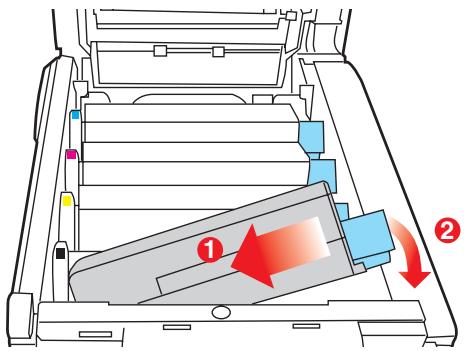
- Pressing gently down on the cartridge to ensure that it is firmly seated, push the colored lever (1) towards the rear of the MFP. This will lock the cartridge into place and release toner into the image drum unit.
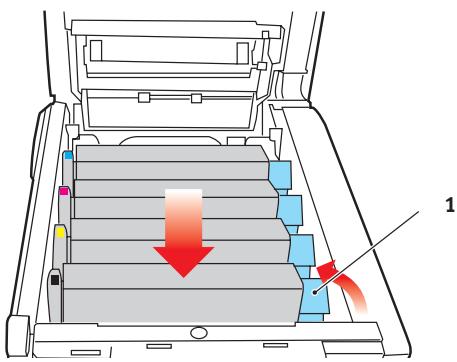
-
Close the top cover and press down firmly at both sides so that the cover latches closed.
-
Gently lower the scanner.
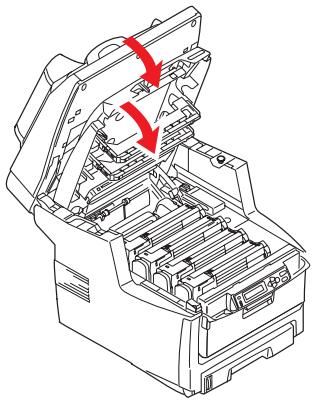
IMAGE DRUM REPLACEMENT
CAUTION!

Static sensitive devices, handle with care.
The MFP contains four image drums: cyan, magenta, yellow and black.
- Gently raise the scanner.
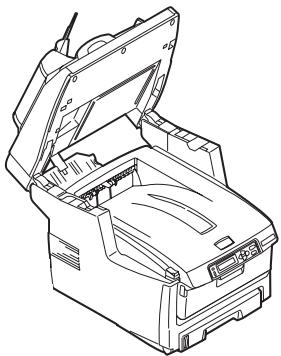
- Press the cover release (a) and open the MFP's top cover (b) fully.
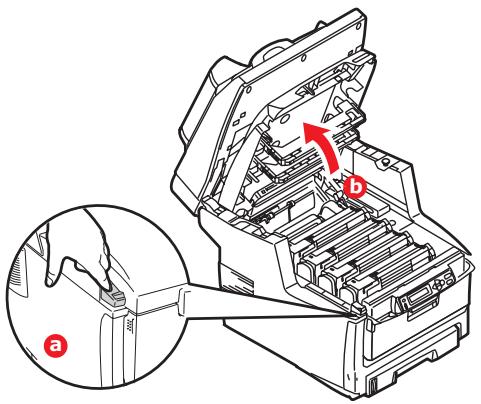
WARNING!
If the MFP has been powered on, the fuser will be hot. This area is clearly labelled. Do not touch.
- Note the positions of the four cartridges.
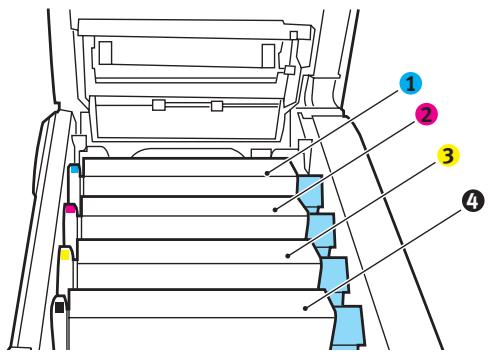
-
Cyan cartridge
-
Magenta cartridge
-
Yellow cartridge
-
Black cartridge
-
Holding it by its top center, lift the image drum, complete with its toner cartridge, up and out of the MFP.
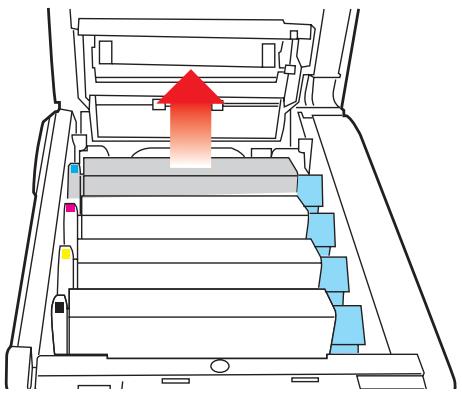
- Put the cartridge down gently onto a piece of paper to prevent toner from marking your furniture and to avoid damaging the green drum surface.
CAUTION!
The green image drum surface at the base of the cartridge is very delicate and light sensitive. Do not touch it and do not expose it to normal room light for more than 5 minutes. If the drum unit needs to be out of the MFP for longer than this, please wrap the cartridge inside a black plastic bag to keep it away from light. Never expose the drum to direct sunlight or very bright room lighting.
- With the colored toner release lever (1) to the right, pull the lever towards you. This will release the bond between the toner cartridge and the image drum cartridge.
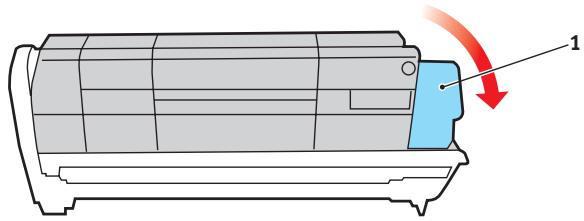
- Lift the right-hand end of the cartridge and then draw the cartridge to the right to release the left-hand end as shown, and withdraw the toner cartridge out of the image drum cartridge. Place the cartridge on a piece of paper to avoid marking your furniture.
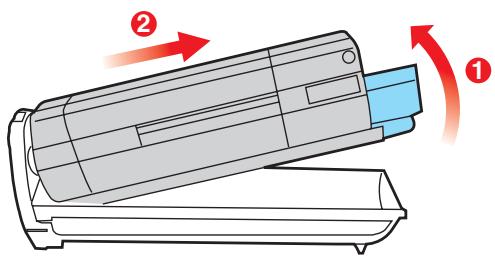
-
Take the new image drum cartridge out of its packaging and place it on the piece of paper where the old cartridge was placed. Keep it the same way round as the old unit. Pack the old cartridge inside the packaging material for disposal.
-
Place the toner cartridge onto the new image drum cartridge as shown. Push the left end in first, and then lower the right end in. (It is not necessary to fit a new toner cartridge at this time unless the remaining toner level is very low.)
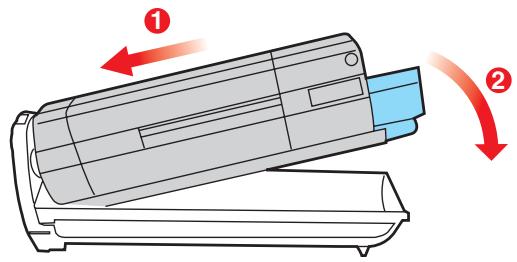
- Push the colored release lever (1) away from you to lock the toner cartridge onto the new image drum unit and release toner into it.
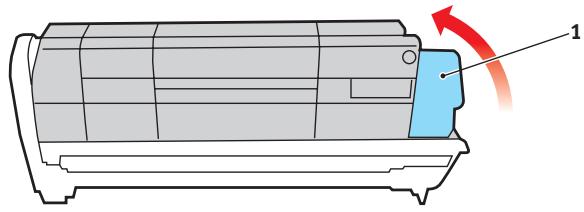
- Holding the complete assembly by its top center, lower it into place in the MFP, locating the pegs at each end into their slots in the sides of the MFP cavity.
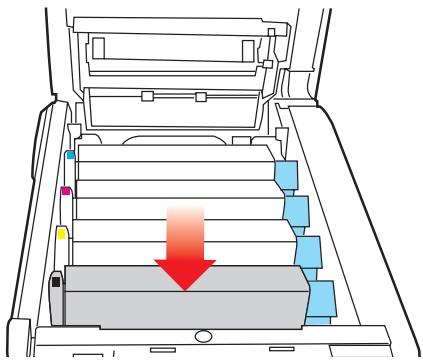
- Close the top cover and press down firmly at both sides so that the cover latches closed.
- Gently lower the scanner.
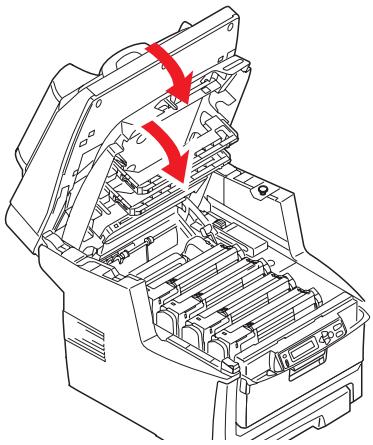
Note
If you need to return or transport this product for any reason, please make sure you remove the image drum unit beforehand and place in the bag provided. This is to avoid toner spillage.
TRANSFER BELT REPLACEMENT
The belt unit is located under the four image drums. This unit requires replacement approximately every 60,000 pages.
Switch off the MFP and allow the fuser to cool for about 10 minutes before opening the cover.
- Gently raise the scanner.
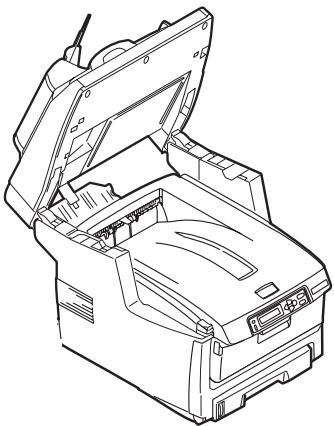
- Press the cover release (a) and open the MFP's top cover (b) fully.
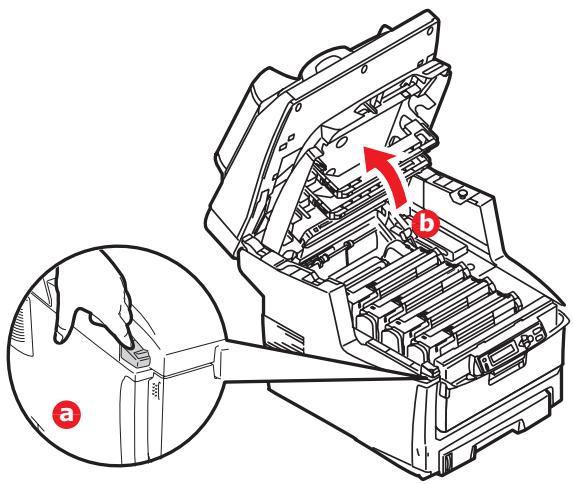
WARNING!
If the MFP has been powered on, the fuser will be hot. This area is clearly labelled. Do not touch.
- Note the positions of the four cartridges. It is essential that they go back in the same order.
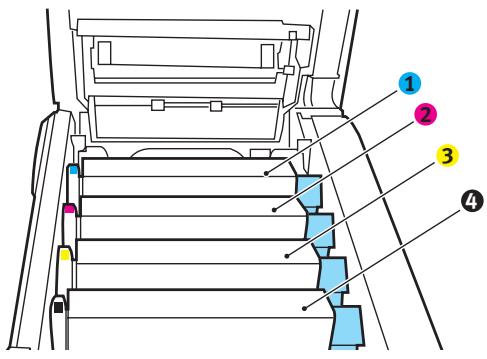
-
Cyan cartridge
-
Magenta cartridge
-
Yellow cartridge
-
Black cartridge
-
Lift each of the image drum units out of the MFP and place them in a safe place away from direct sources of heat and light.
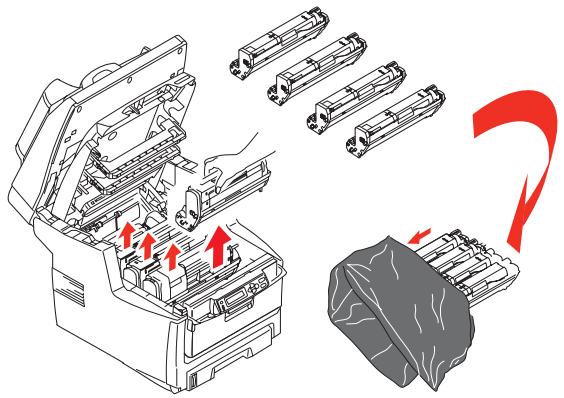
CAUTION!
The green image drum surface at the base of each cartridge is very delicate and light sensitive. Do not touch it and do not expose it to normal room light for more than 5 minutes. If the drum unit needs to be out of the MFP for longer than this, please wrap the cartridge inside a black plastic bag to keep it away from light. Never expose the drum to direct sunlight or very bright room lighting.
- Locate the two fasteners (5) at each side of the belt and the lifting bar (6) at the front end.
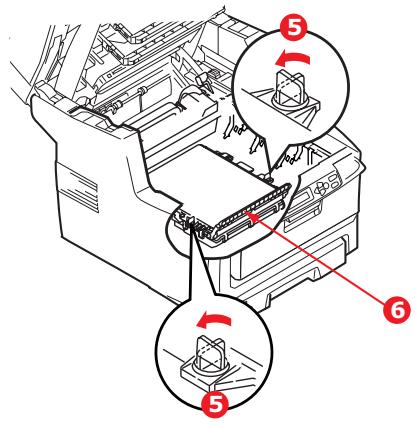
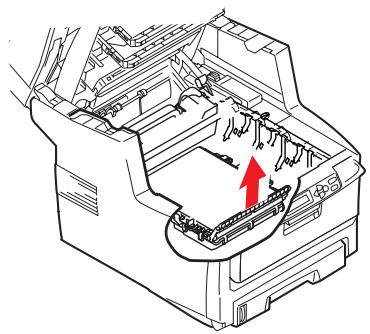
- Turn the two fasteners 90^ to the left. This will release the belt from the MFP chassis.
- Pull the lifting bar (6) upwards so that belt tilts up towards the front, and withdraw the belt unit from the MFP.
-
Lower the new belt unit into place, with the lifting bar at the front and the drive gear towards the rear of the MFP. Locate the drive gear into the gear inside the printer by the rear left corner of the unit, and lower the belt unit flat inside the MFP.
-
Turn the two fasteners (5) 90^ to the right until they lock. This will secure the belt unit in place.
- Replace the four image drums, complete with their toner cartridges, into the printer in the same sequence as they came out: cyan (nearest the rear), magenta, yellow and black (nearest the front).
- Close the top cover and press down firmly at both sides so that the cover latches closed.
- Gently lower the scanner.
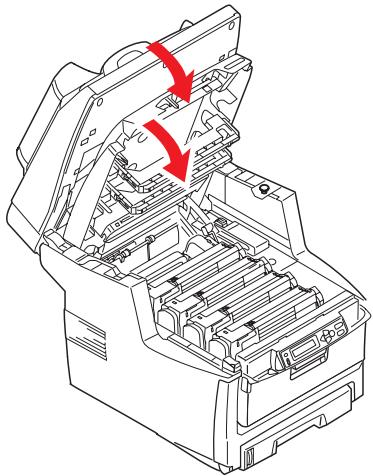
FUSER REPLACEMENT
The fuser is located inside the MFP just behind the four image drum units.
WARNING!
If the MFP has recently been powered on, some fuser components will be very hot. Handle the fuser with extreme care, holding it only by its handle, which will only be mildly warm to the touch. A warning label clearly indicates the area.
Switch off the MFP and allow the fuser to cool for about 10 minutes before opening the cover.
- Gently raise the scanner.
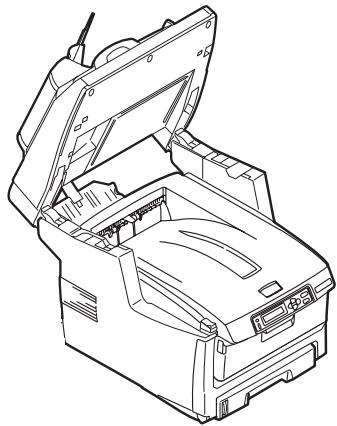
- Press the cover release (a) and open the MFP's top cover (b) fully.
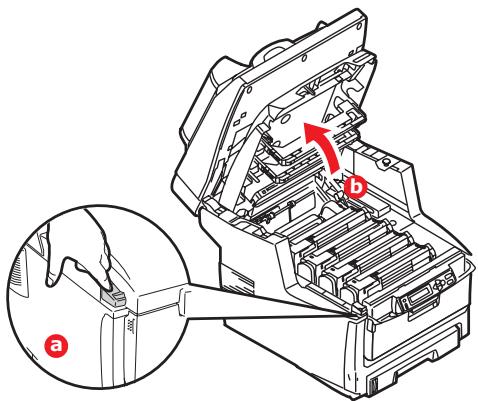
- Identify the fuser handle (1) on the top of the fuser unit.
- Pull the two fuser retaining levers (2) towards the front of the printer so that they are fully upright.
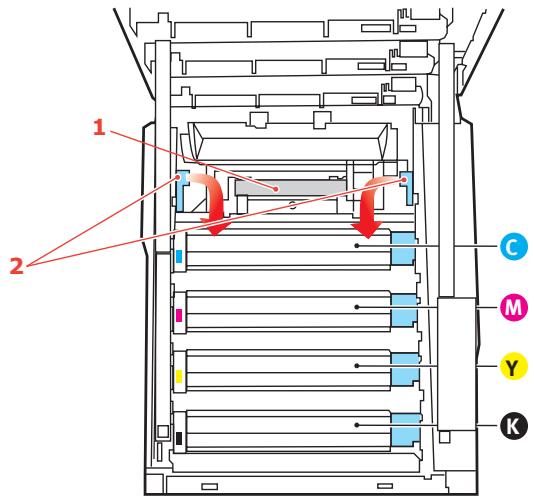
- Holding the fuser by its handle (1), lift the fuser straight up and out of the MFP. If the fuser is still warm, place it on a flat surface which will not be damaged by heat.
-
Remove the new fuser from its packaging and remove the transit material.
-
Holding the new fuser by its handle, make sure that it is the correct way round. The retaining levers (2) should be fully upright, and the two locating lugs (3) should be towards you.
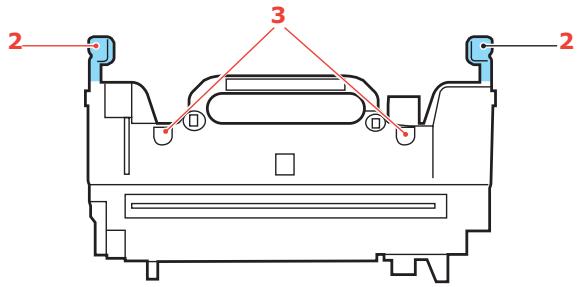
- Lower the fuser into the MFP, locating the two lugs (3) into their slots in the metal partition which separates the fuser area from the image drums.
- Push the two retaining levers (2) towards the rear of the MFP to lock the fuser in place.
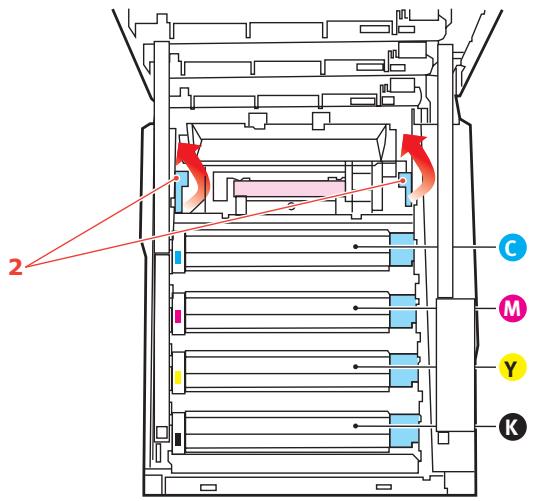
-
Close the top cover and press down firmly at both sides so that the cover latches closed.
-
Gently lower the scanner.
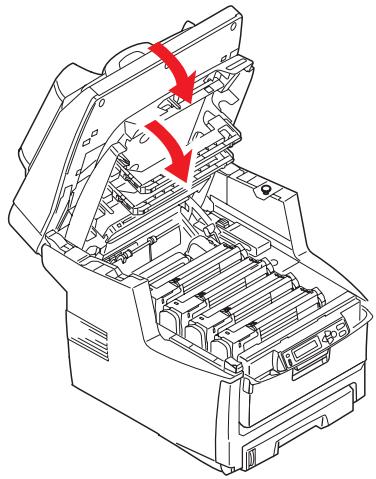
CLEAN THE ADF
From time to time the pad assembly and feed rollers may become contaminated with ink, toner particles or paper dust. In this case the scan module may not feed documents smoothly. If this occurs, follow the cleaning procedure below.
- Moisten a cotton swab with isopropyl alcohol (95%).
- Carefully pull open the ADF front cover.
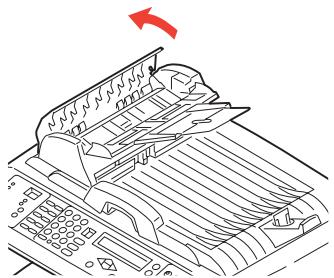
- Wipe the feed roller (1) by moving the swab from side to side.
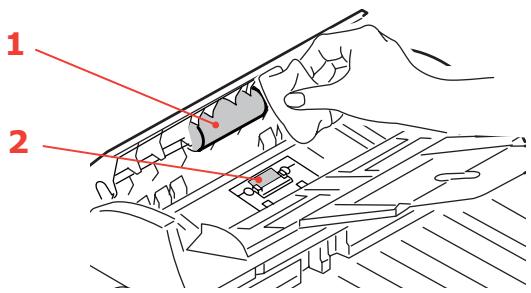
- Rotate the roller forward with your finger and repeat step 3 until the roller is clean. Be careful not to snag or damage the springs near the pad (2).
- Wipe the pad (2) from top to bottom, being careful not to hook the springs.
- Close the ADF front cover.
CLEAN THE DOCUMENT GLASS
The document glass needs to be cleaned occasionally to ensure optimum image quality and performance.
Clean the glass as follows.
- Open the document cover (1).
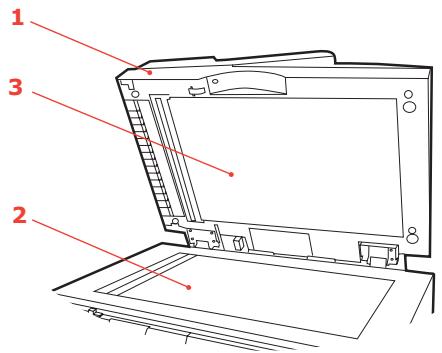
-
Moisten a soft, clean cloth with isopropyl alcohol (95%).
-
Gently wipe the document glass (2) and the white sheet (3) on the under side of the document cover to remove dust or any toner particles.
-
Close the document cover (1).
CLEAN THE LED HEAD
Clean the LED head when printing does not come out clearly, has white lines or when text is blurred.
There is no need to switch the MFP off to clean the lens.
- Gently raise the scanner.
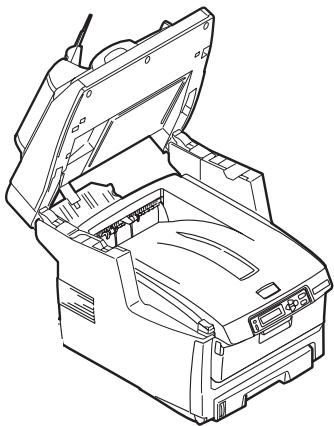
- Press the cover release (a) and open the MFP's top cover (b) fully.
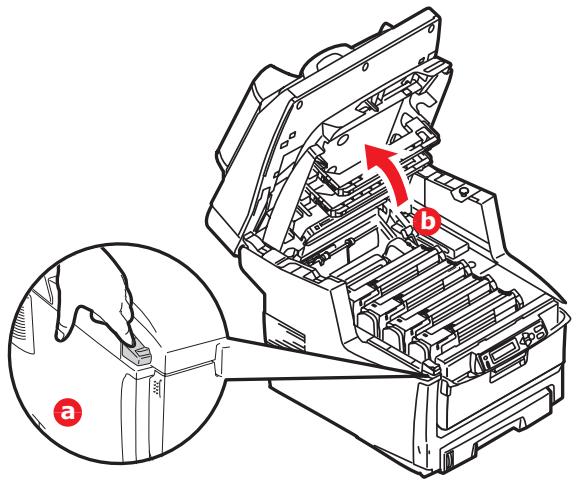
- Gently wipe the LED head surface with LED lens cleaner or soft tissue.
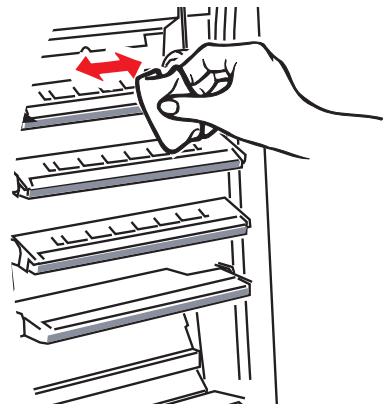
CAUTION!
Do not use methyl alcohol or other solvents on the LED head as damage to the lens surface will occur.
- Close the top cover and press down firmly at both sides so that the cover latches closed.
- Gently lower the scanner.
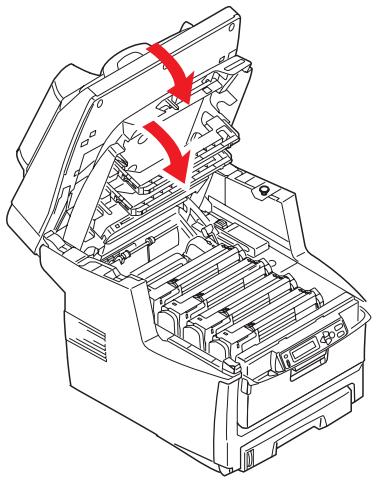
INSTALLING UPGRADES
This section explains how to install optional equipment into your MFP. This includes:
duplex (two-sided printing) unit
additional RAM memory
40GB hard disk drive
additional paper tray
storage cabinet
PART NUMBERS
| OPTION | PART NUMBER |
| Duplex unit | 43347501 |
| RAM memory: 512Mb | 70051701 |
| 40GB HDD | 70043502 |
| Additional paper tray | 43347608 |
| Storage cabinet | 70052602 |
DUPLEX UNIT
The duplex unit adds the function of two-sided printing, using less paper and making large documents easier to handle. It also enables booklet printing, which uses even less paper and makes large documents even easier to handle.
The duplex unit slides straight into the rear of the MFP and requires no tools to install.
- Unpack the new unit and remove any transit material from it.
- Switch the MFP off. It is not necessary to disconnect the AC power cable.
- Ensure that the unit is the right way up, as shown, and push it into the slot behind the rear panel. The panel will
swing inwards as you push the unit into it. Push the unit all the way in until it stops and latches home.
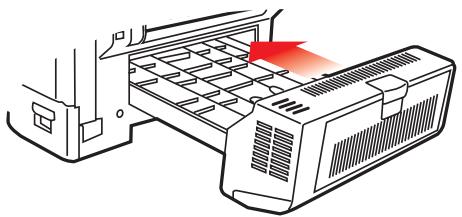
- Switch the MFP on and wait for it to warm up (about 1 minute).
- Print a menu map as follows:
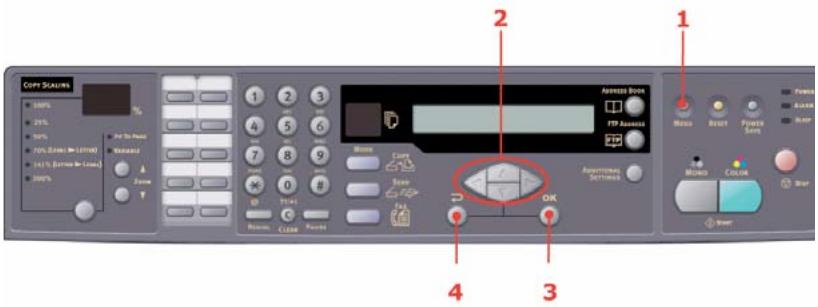
(a) Press Menu (1) on the scanner control panel.
(b) Using the UP/DOWN arrow keys (2), navigate to the Report Print menu and press OK (3) once for the menu map.
(c) Press OK (3) again to print the menu map.
(d) When the menu map is printed, press Return (4) to exit the menu system.
- Examine the first page of the menu map.
Near the top of the page, between the two horizontal lines, you will see the current MFP configuration. This list should indicate that the duplex unit is now installed.
All that remains is to adjust the Windows printer driver to make full use of the new features. See "Adjusting windows printer drivers" on page 147.
MEMORY UPGRADE
This section explains how to install additional RAM memory into your MFP as a memory upgrade.
The model comes equipped with 256MB of main memory. This can be upgraded with an additional memory board containing 512MB, giving a total memory capacity of 768MB maximum.
- Switch the MFP off and disconnect the AC power cable.
- Pull open the access panel on the side of the machine.
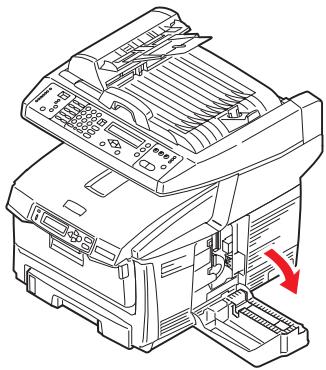
- Carefully remove the new memory board from its wrapping. Try to handle the board only by its short edges, avoiding contact with any metal parts as far as possible. In particular, avoid touching the edge connector.
- Notice that the memory board has a small cutout in the edge connector, which is closer to one end than the other.
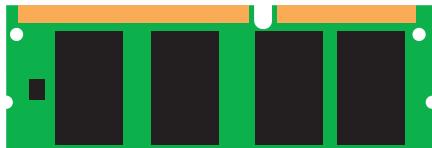
-
Identify the RAM expansion slot (1) in the machine.
-
Hold the new memory board by its short edges, so that the edge connector faces in towards the RAM expansion slot, and the small cutout is closer to the bottom of the machine.
- Gently push the board into the RAM expansion slot until it latches in and will not go any further.
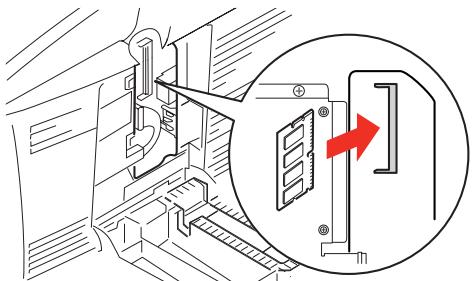
- Close the access panel, pressing firmly at top to latch it closed.
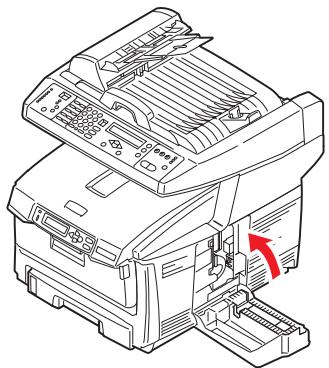
-
Reconnect the AC power cable and switch the MFP on.
-
When the MFP is ready, print a menu map as follows:
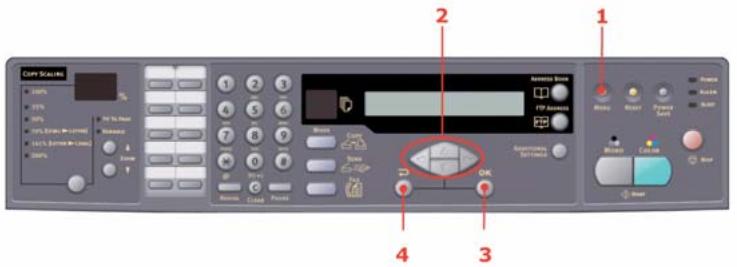
(a) Press Menu (1) on the scanner control panel.
(b) Using the UP/DOWN arrow keys (2), navigate to the Report Print menu and press OK (3) once for the menu map.
(c) Press OK (3) again to print the menu map.
(d) When the menu map is printed, press Return (4) to exit the menu system.
- Examine the first page of the menu map.
Near the top of the page, between the two horizontal lines, you will see the current MFP configuration. This list contains the figure for total memory size.
This should indicate the total memory now installed, which should be the size of memory board you have installed plus 256MB.
HARD DISK DRIVE
The optional 40GB internal hard disk drive (HDD) enables collating of printed pages and can be used to store overlays and macros, fonts, and secure or proof documents waiting to be printed.
-
Switch the MFP off and disconnect the AC power cable.
-
Pull open the access panel on the side of the machine.
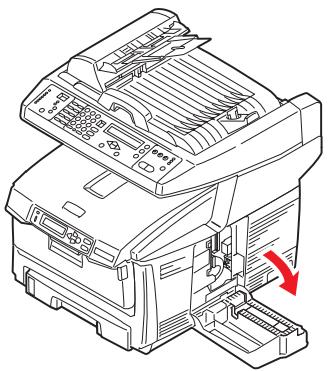
- Locate the clip (1) on the top of the disk unit into the slot (2) in the printer.
- Plug the end of the connecting cable (3) into the disk unit connector (4) in the printer.
- Tighten the two thumbscrews (5).
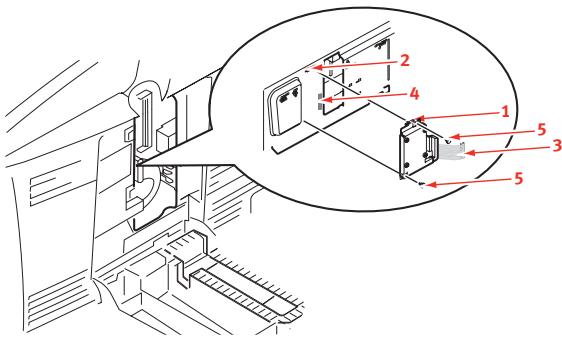
- Close the access panel, pressing firmly at the top to latch it closed.
- Reconnect the AC power cable and switch the MFP on.
- When the MFP is ready, print a menu map as follows:
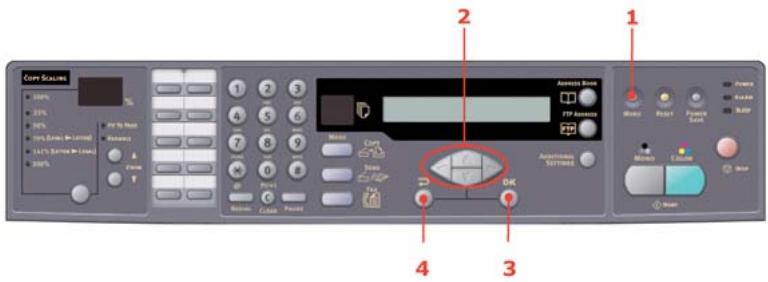
(a) Press Menu (1) on the scanner control panel.
(b) Using the UP/DOWN arrow keys (2), navigate to the Report Print menu and press OK (3) once for the menu map.
(c) Press OK (3) again to print the menu map.
(d) When the menu map is printed, press Return (4) to exit the menu system.
- Examine the first page of the menu map.
Near the top of the page, between the two horizontal lines, you will see the current MFP configuration. This should now indicate that the hard disk unit is installed.
All that remains is to configure the Windows printer driver so that it knows the hard disk unit has been fitted, and the additional features can be made available immediately. See "Adjusting windows printer drivers" on page 147.
ADDITIONAL PAPER TRAY
- Switch the MFP off and disconnect the AC power cable.
- Place additional paper tray on desired location.
- Observing safety rules for lifting and, using locating guides, place MFP on top of the additional paper tray.
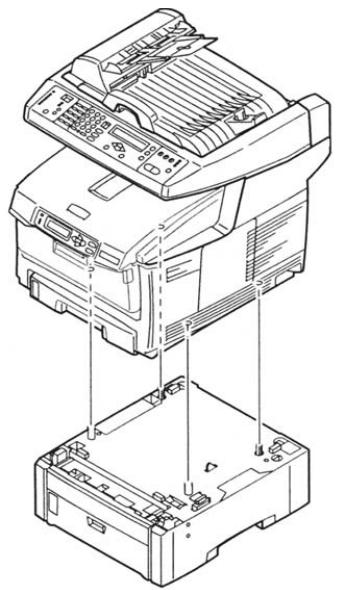
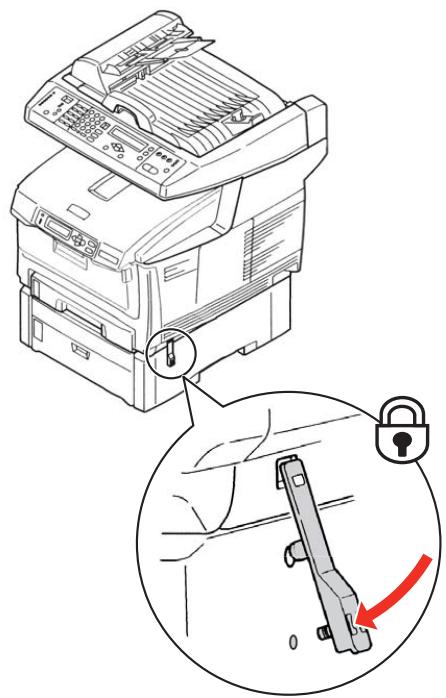
-
Locate securing clip, press down and lock into position.
-
Re-connect the AC power cable and switch the MFP ON.
note
If you need to transport this product, make sure you unlock the securing clip and remove the additional paper tray beforehand.
STORAGE CABINET
Refer to manufacturers instructions.
ADJUSTING WINDOWS PRINTER DRIVERS
Once your new upgrade has been installed, you may need to update the Windows printer driver so that the additional features are available to your Windows applications.
Remember that if your MFP is shared between users on different computers, the driver must be adjusted on each user's machine.
The illustrations shown here are for Windows XP. Other Windows versions may appear slightly different, but the principles are the same.
PCL DRIVER
If you have installed a memory upgrade it is not necessary to change the PCL printer driver, and you can ignore this section.
If you have installed a duplex unit or hard disk, proceed as follows:
- Open the Printers window (called "Printers and Faxes" in Windows XP) via the Start Menu or from the Windows Control Panel.
- Right-click the printer icon for this printer, and choose Properties from the pop-up menu.
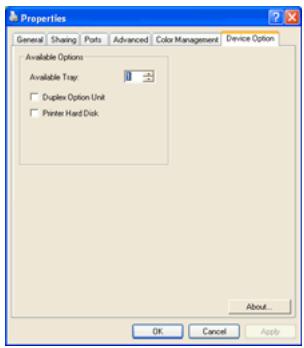
- On the Device Options tab, check the box for the upgrade you have just installed.
- Click OK to close the properties window, and then close the Printers window.
POSTSCRIPT DRIVER
This driver must be adjusted for any upgrade just installed.
- Open the Printers window (called "Printers and Faxes" in Windows XP) via the Start Menu or from the Windows Control Panel.
- Right-click the printer icon for this printer, and choose Properties from the pop-up menu.
- On the Device Settings tab, locate the list of installable options. Change those settings to indicate the new features you have just installed.
- Click OK to close the properties window, and then close the Printers window.
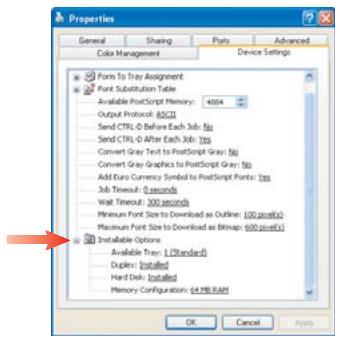
TROUBLESHOOTING
CLEARING PAPER JAMS
Provided that you follow the recommendations in this guide on use of print media, and you keep the media in good condition prior to use, your MFP should give years of reliable service.
However, paper jams occasionally do occur, and this section explains how to clear them quickly and simply.
Jams can occur due to paper misfeeding from a paper tray or at any point on the paper path through the MFP. When a jam occurs, the printer immediately stops, and the Alert LED on the status panel informs you of the event. If printing multiple pages (or copies), do not assume that, having cleared an obvious sheet, others will not also be stopped somewhere along the path. These must also be removed in order to clear the jam fully and restore normal operation.
JAMS IN THE ADF
In the event of a paper jam, follow the procedures below to remove the paper:
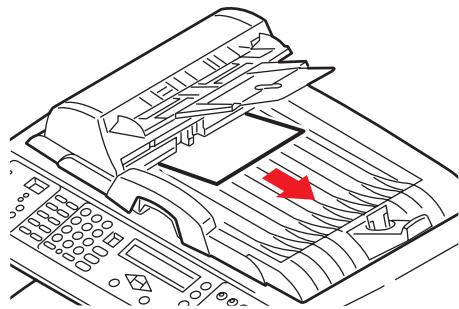
- If a sheet is well advanced out of the ADF, simply grip it and pull gently to draw it fully out.
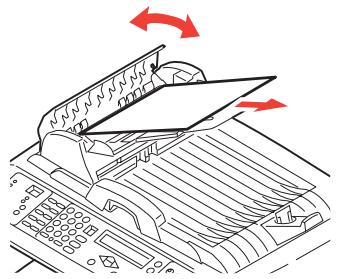
Note
If it does not remove easily, do not use excessive force.
- Gently open the ADF front cover to the left.
- Carefully pull the paper out of the ADF unit.
- Close the ADF front cover.
JAMS IN THE PRINTER
- If a sheet is well advanced out of the top of the printer, simply grip it and pull gently to draw it fully out. If it does not remove easily, do not use excessive force. It can be removed from the rear later.
- Raise the scanner gently.
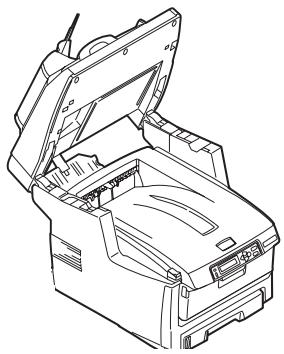
- Press the cover release (a) and open the MFP's top cover (b) fully. Note the positions of the four cartridges.
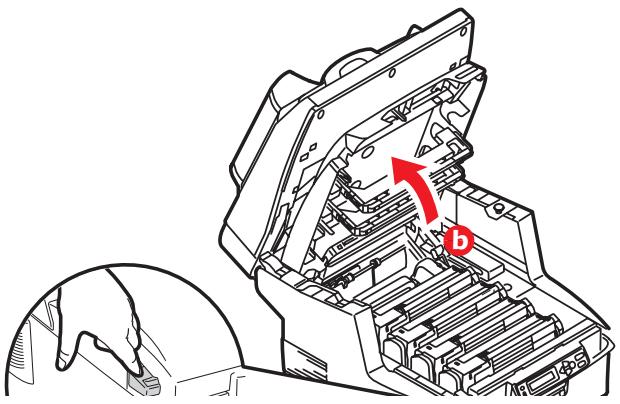
WARNING!
If the MFP has been powered on, the fuser will be hot. This area is clearly labelled. Do not touch.
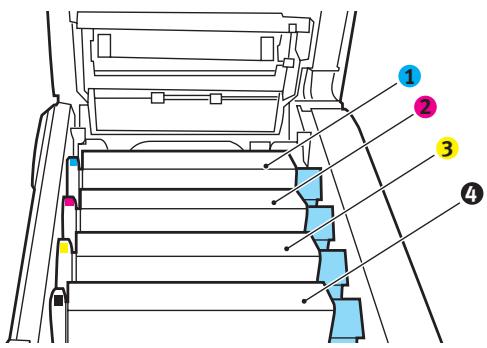
-
Cyan cartridge
-
Magenta cartridge
-
Yellow cartridge
-
Black cartridge
It will be necessary to remove the four image drums to gain access to the paper path.
- Holding it by its top center, lift the cyan image drum, complete with its toner cartridge, up and out of the printer.
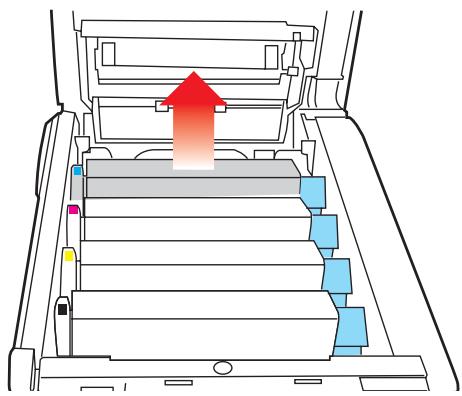
- Put the cartridge down gently onto a piece of paper to prevent toner from marking your furniture and to avoid damaging the green drum surface.
CAUTION!
The green image drum surface at the base of the cartridge is very delicate and light sensitive. Do not touch it and do not expose it to normal room light for more than 5 minutes.
-
Repeat this removal procedure for each of the remaining image drum units.
-
Look into the MFP to check whether any sheets of paper are visible on any part of the belt unit.
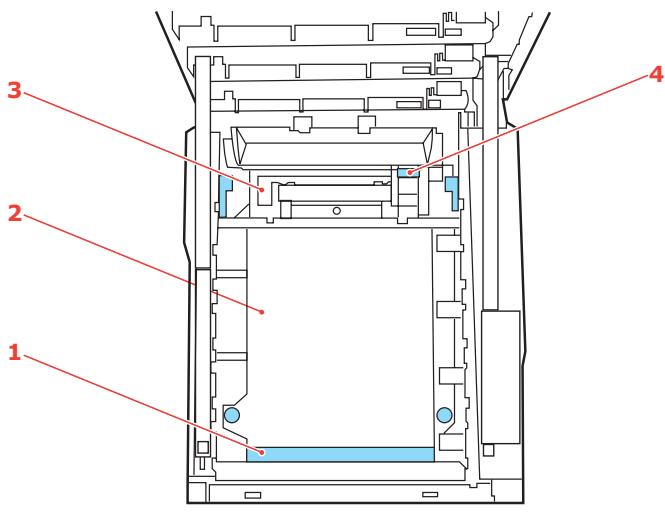
(a) To remove a sheet with its leading edge at the front of the belt (1), carefully lift the sheet from the belt and pull it forwards into the internal drum cavity and withdraw the sheet.
CAUTION!
Do not use any sharp or abrasive objects to separate sheets from the belt. This may damage the belt surface.
(b) To remove a sheet from the central area of the belt (2), carefully separate the sheet from the belt surface and withdraw the sheet.
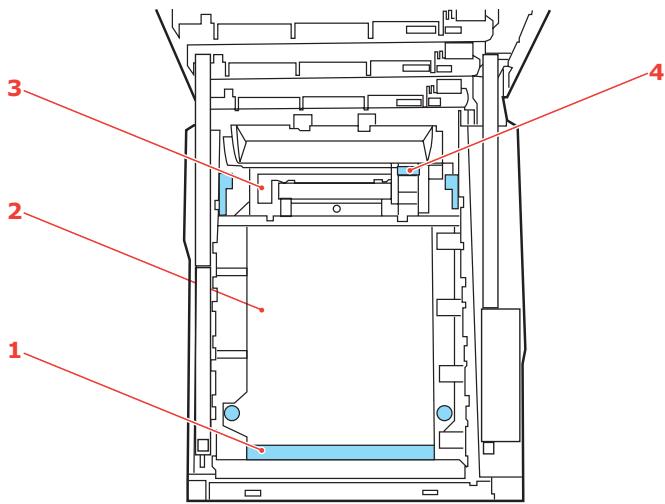
(c) To remove a sheet just entering the fuser (3), separate the trailing edge of the sheet from the belt, push the fuser pressure release lever (4) towards the front and down to release the fuser's grip on the sheet, and withdraw the sheet through the drum cavity area. Then allow the pressure release lever to rise again.
Note
If the sheet is well advanced into the fuser (only a short length is still visible), do not attempt to pull it back. Follow the next step to remove it from the rear of the MFP.
- Starting with the cyan image drum unit nearest the fuser, replace the four image drums into the drum cavity, making sure to locate them in the correct order.
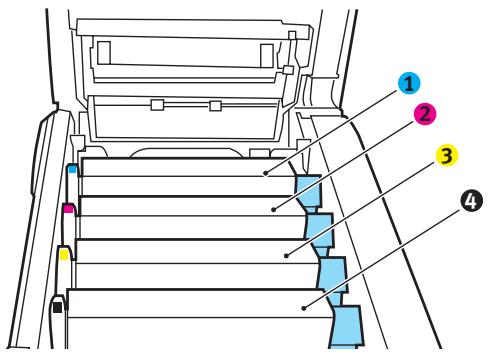
-
Cyan cartridge
-
Magenta cartridge
-
Yellow cartridge
-
Black cartridge
Holding the complete assembly by its top center, lower it into place in the MFP, locating the pegs at each end into their slots in the sides of the MFP cavity.
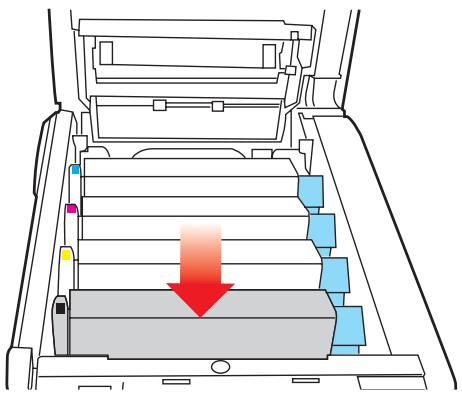
- Lower the top cover but do not press down to latch it closed yet. This will protect the drums from excessive exposure to room lighting while you check the remaining areas for jammed sheets.
- Open the rear exit tray (5) and check for a sheet of paper in the rear path area (6).
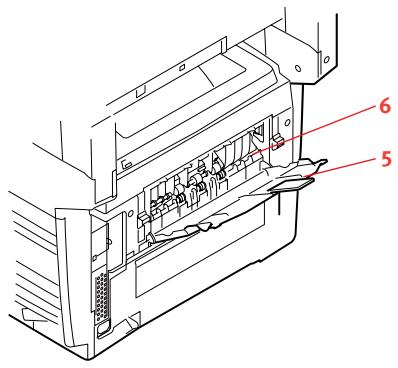
Pull out any sheets found in this area.
If the sheet is low down in this area and difficult to remove, it is probably still gripped by the fuser. In this case raise the top cover, reach around and press down on the fuser pressure release lever (7).
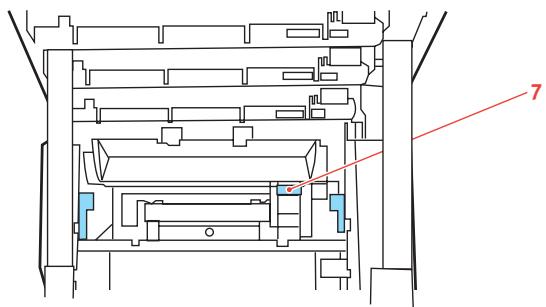
-
If you are not using the rear exit tray, close it once paper has been removed from this area.
-
If your MFP has a duplex unit installed, press the cover release at the center of the unit, open the cover and remove any sheets in this area, then close the cover.
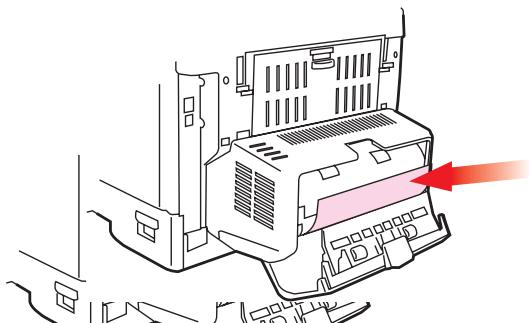
- Lift the front cover release and pull open the front cover.
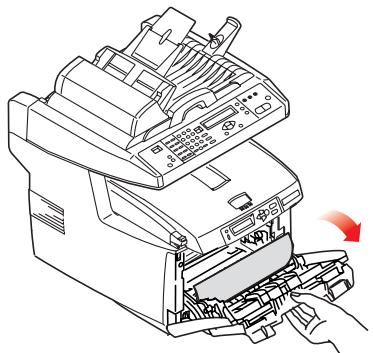
- Check inside the cover for sheets in this area and remove any that you find, then close the cover.
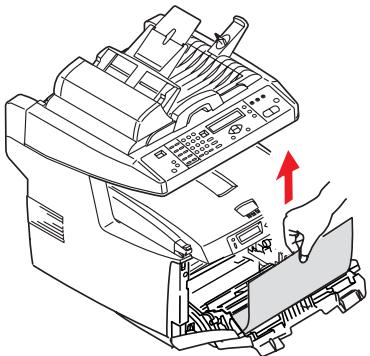
- Pull out the paper tray and ensure that all paper is stacked properly, is undamaged, and that the paper guides are properly positioned against the edges of the paper stack. When satisfied, replace the tray.
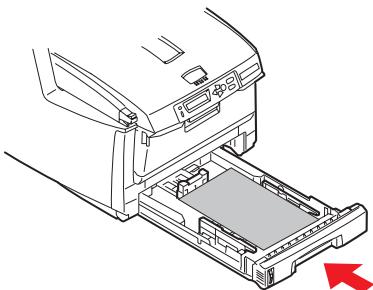
- Close the top cover and press down firmly at both sides so that the cover latches closed.
- Gently lower the scanner.
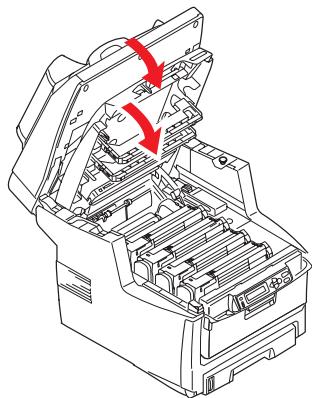
When the jam has been cleared, if Jam Recovery is set to ON in the System Configuration Menu, the MFP will attempt to reprint any pages lost due to paper jams.
FAX PROBLEM CHECKLIST
If a problem occurs, read through the list of problems and solutions before calling for service.
THE MFP WILL NOT DIAL A TELEPHONE NUMBER
Check the power cable and wall outlet. Make sure that the telephone line (not external telephone or handset) is connected to the LINE socket on the back of the machine. If an external telephone is installed, lift the handset and check for a dial tone. If there is no dial tone, there may be a problem with the telephone line. If there is a dial tone, the MFP may be using the wrong dialling method (pulse or tone) for the region. If alternating tones are heard instead of dialling pulses and the region uses pulse dialling, change the call parameters (See "Initial set up" on page 64.).
THE DISPLAY SHOWS A COMMUNICATIONS ERROR
This indicates any of a number of problems:
The MFP may be incompatible with the remote machine, or the remote machine may not be able to perform the function requested of it such as polling or confidential faxing.
The remote machine may also be out of paper or experiencing a paper jam.
Bad telephone line conditions can also cause communication errors. Try sending the fax again and check to make sure that the correct telephone number is being dialled.
If a prefix number must be dialled to get an outside line, or if the call is to an international destination, a pause may need to be entered (use the Pause key) after the dial prefix or international dialling code to tell the machine to wait for a dial tone. If there are frequent problems communicating with a particular remote machine, try programming the telephone number into a speed dial key,
and then change the parameters for that key (See "Advanced set up" on page 65.).
Lastly, either the local or remote machine may require servicing. Try sending a fax to another location to check the local MFP.
FAXING IS POSSIBLE BUT THE IMAGE OF THE DOCUMENT PRINTED BY THE REMOTE MACHINE IS VERY POOR.
If the faxed document has small type, complex illustrations, photos, or is very light or very dark, try changing the fax quality and density settings (See "Advanced operation" on page 95.). Copy the document on the machine to determine how it will transmit. The problem may be caused by telephone line interference. Try sending the document again later.
FAX SENT BUT RECEIVEDMESSAGE WAS COMPLETELY BLANK
Make sure that the document is loaded correctly before faxing; with text face UP in the ADF or face DOWN on the glass.
IMAGE OF RECEIVED FAX IS VERY POOR
Try making a copy of a document on the local machine to make sure it is working properly. If there is still a problem, contact the person sending the fax and ask them to change their fax quality and density settings. Ask the person to make a copy of the document on their machine to ensure that it is working properly. Then ask them to send the fax again.
DIALING WAS TRIED WITH A SPEED DIAL NUMBER BUT NOTHING HAPPENED
Make sure that the Speed Dial number being used is programmed correctly.
LOCAL MFP WILL NOT ANSWER THE TELEPHONE OR RECEIVE FAXES
First check to see that the power cord is connected properly. Also check the reception mode setting of the machine. This MFP will not receive faxes automatically if the manual receive mode is enabled (See "Manual receive" on page 70.).
DOCUMENTS RECEIVED ARE LIGHT OR HAVE VERTICAL STREAKS ON THEM, AND MFP IS NOT OUT OF TONER
Gently wipe the lens surface of the MFP's LED array, and then check to see if the machine is working properly (See "Clean the LED head" on page 136.). If the MFP still does not work properly, remove the image drum (See "Image drum replacement" on page 121.), tap the toner cartridge, and slowly swing it 20 to 30 degrees vertically several times. Be careful not to let the toner leak from the cartridge. If this does not work, the image drum unit may need to be replaced. Contact your supplier to get a replacement.
MFP IS SET FOR DELAYED TRANSMISSION BUT IT DID NOT SEND
Check the display to make sure that the MFP is set to the correct time and date (See "Initial set up" on page 64.).
MFP WILL NOT POLL A REMOTE MACHINE
Call the person at the remote machine and make sure that they have loaded documents and that their machine is set to polling transmission mode.
MFP IS CONNECTED TO A PBX BUT IT IS NOT POSSIBLE TO DIAL OUT
Be certain that the dial prefix is entered before the telephone number for each number dialled or programmed into the MFP (See "Connecting to a PBX" on page 68.).
MFP ALWAYS ANSWERS BEFORE ITS POSSIBLE TO USE THE EXTERNAL TELEPHONE
If an external telephone is connected, change the MFP's ring response setting (See "Advanced set up" on page 65.).
FAXES RECEIVED SOMETIMES LOOK DISTORTED
If the document received is wider or longer than the paper loaded in the paper tray, the machine automatically reduces the width or length of the document so that it will fit on the paper. This type of problem could also be communication related.
Note
- < % color\%> = Y, M, C or K.
- < % tray% > = Tray 1, Tray 2 or MP Tray.
- < % job Cancel%> = Log buffer full, job rejected invalid ID or job rejected.
- mmm = the setup of "paper supply".
- ppp = the setup of "media type".
INFORMATION AND WARNING MESSAGES
| STATUS / CODE | MESSAGE | MEANING / ACTION |
| Initializing | Check Data Rec data error <%DLCODE%> | <%DLCODE%>1.Size error.2.Checked SUM error.3.Printer model No. error.4.DModule I/F version error.5.FAT version error.Restart the machine. (Turn it off and on again).If the code still appears, contact your dealer. |
| Initializing | Check Data Data write error <%DLCODE%> | An error occurs when writing NIC download data has:<%DLCODE%>1.Memory allocation error.2.Download file error.3.Device free space acquirement error.4.Device free area shortage error.5.File write error.6.CU-F/W mismatch error.Restart the machine. (Turn it off and on again).If the code still appears, contact your dealer. |
| Initializing | PU flash error | Restart the machine. (Turn it off and on again).If the code still appears, contact your dealer. |
| Initializing | Turn off ScannerTurn on again | Program Check ErrorTurn it off and on again. |
| Normal | Cancelling job(Jam) | Indicates a jam occurring when "jam recovery" set to "Off".Remove the paper and resend the print job. (See "Clearing paper jams").If the code still appears, contact your dealer. |
| Normal | Cancelling job(User denied) | Indicates a job being cancelled due to no print permit:1.A job received from a user who is denied printing.2.A color job received from a user who is denied color printing.Contact your network administrator for help. |
| Normal | Cancelling job(Buffer full) | Indicates that a job is being cancelled because the printer area where the logs are stored has been used up and also "Cancel job" is specified as an operation at the time of Log Full.Contact your network administrator for help. |
| Warning | Order <%color2%> toner | Toner low, order replacement cartridge(s). |
| Warning | <%color%> waste toner full.Replace toner | Waste toner will fill up the box.Toner replacement is necessary(Y, M or C).As long as this warning is being displayed, a waste toner full error occurs, the printer shifts to Off-line and stops each time it has printed about 50 copies. |
| Warning | Non OEM <%color%> toner detected | It shows the toner cartridge of authorized 3rd party. |
| Warning | <%color%> toner regional mismatch | The region ID of toner cartridge is not proper to the distribution channel. |
| Warning | Non genuine <%color%> toner | Toner cartridge RFID chip is not compatible. |
| Warning | Order <%color%> image drum | Indicates image drum is near the end of it's life. Order replacement image drum(s). |
| Warning | Order fuser | Indicates fuser is near the end of it's life. Order replacement fuser. |
| Warning | Order belt | Indicates transfer belt is near the end of it's life. Order replacement transfer belt. |
| Warning | Fuser life | Notifies the life of the fuser. This is a warning only. |
| Warning | Belt life | Notifies the life of the belt. This is a warning only. |
| Warning | <%color%> toner empty | Toner empty.Warning status takes effect at Cover Open/Close. Allows printing approx. 50 pages (A4/Letter 5% duty, density 5%). |
| Warning | <%color%> toner not installed | Notifies that the toner cartridge is not installed. |
| Warning | <%color%> drum life | Notifies the life of the drum. This is a warning only.This warning appears when the cover is opened and closed just after the drum life error occurred. |
| Warning | <%tray%> empty | Tray empty. Treated as a warning until printing from that particular tray is required. |
| Warning | Hard disk full | HDD is full or not enough available memory to complete job.This is a temporary warning, it remains until the end of the job then disappears. |
| Warning | Disk write disabled | An attempt to write in a read-only file. This is a temporary warning, it remains until the end of the job then disappears. |
| Warning | Collate fail | Memory overflow occurred in the collate copy. Press the Online key to remove message from the LCD. |
| Warning | Invalid ID. Job rejected | User not permitted to print, job has been cancelled. Contact your network administrator for help. Press the Online key to remove message from the LCD. |
| Warning | Log buffer full. Job rejected | Buffer is full, job has been cancelled. Contact your network administrator for help Press the Online key to remove message from the LCD. |
| Warning | File erasing | |
| Warning | Deleting encrypted job | |
| Warning | Erased data full | |
| Warning | Expired secure job | Indicates that an applicable job has been automatically deleted as the retention period for authentication printing has expired. |
| Warning | Disk use failed <%FE_ERR%> | A disk error has occurred. %FS_ERR%: 0 - General error 1- Volume not found 3 - File not found 4 - No free file descriptors 5 - Invalid number of bytes 6 - File already exists 7 - Illegal name 8 - Can not del root 9 - Not file 10 - Not directory 11 - Not same volume 12 - Read only 13 - Root dir full 14 - Dir not empty 15 - Bad disk 16 - No label 17 - Invalid parameter 18 - No contig space 19 - Can not change root 20 - FD obsolete 21 - Deleted 22 - No block device 23 - Bad seek 24 - Internal error 25 - Write only |
| Warning | PU flash error |
ERROR MESSAGES
| STATUS / CODE | MESSAGE | MEANING / ACTION |
| Error (online) | Load %MEDIA_SIZE% in MP tray and press on-line switch | Manual paper feed is required. Manually insert the paper shown by %MEDIA_SIZE%. |
| Error (online) | %TRAY% Duplex request | Paper feeding is recommended because the print of back sides (odd number pages) is finished during the manual duplex print. |
| Error 460 | Load %MEDIA_SIZE%/ %MEDIA_TYPE% and press %ERRCODE%:%TRAY% media mismatch | The media size or both media size and type in the MP tray does not match the print data. Load mm/mmpp paper in tray. |
| Error 461 462 | Load %MEDIA_SIZE%/ %MEDIA_TYPE% and press %ERRCODE%:%TRAY% media mismatch | The media size or both media size and media type in the tray does not match the print data. Load mm/mmpp paper in tray. Error 461: Tray 1 Error 462: Tray 2 |
| Error (online) | Download message Processing | Indicates that message data to be updated is being processed. |
| Error (online) | Download message Writing | Indicates that message data to be updated is being written. |
| Error (online) | Download message Success | Indicates that message data to be updated has been written successfully. |
| Error (online) | Download message Failed %CODE% | Indicates that writing of message data to be uploaded has been failed. %CODE%: 1 FAIL: Other errors. 2 DATA_ERROR: Hash check error in data reading/writing, or abnormal FLASH 3 OVERFLOW: Down loading failure due to FLASH memory full at starting or during writing in a language file 4 MEMORYFULL: Memory reservation failure 5 UNSUPPORTED_DATA: Down loading data unsupported on the printer |
| Error (online) | Network config writing | Appears during the NIC configuration data is storing in the flash memory, as the setting was changed. |
| Error (online) | Wait a moment network initial | Appears when the NIC initialisation occurs, as the setting is changed. |
| Error 491 492 | Load %MEDIA_SIZE% %ERRCODE%:%TRAY% empty | Printing request is issued to an empty tray. Error 491: Tray 1 Error 492: Tray 2 Load media into tray to allow printing. |
| Error 490 | Load %MEDIA_SIZE% and press on-line | Printing request is issued to an empty MP tray. Load media into tray to allow printing. |
| Error 440 | Install paper cassette %ERRCODE%:%TRAY% open | Paper tray has been removed. Reinstall tray to allow printing. |
| Error 430 431 | Install paper cassette %ERRCODE%:%TRAY% missing | Paper tray has been removed. Reinstall tray to allow printing. |
| Error 420 | Add more memory %ERRCODE%: memory overflow | Memory capacity overflow. Press the on-line key to continue printing. Install expansion RAM or decrease data size. |
| Error 414 415 416 | Replace toner %ERRCODE%:%COLOR% waste toner full | Waste toner box is full and needs to be replaced. Warning status takes effect at cover open/close and printing of about 50 copies becomes available. Error 414: Y Error 415: M Error 416: C |
| Error 410 411 412 413 | Replace toner %ERRCODE%:%COLOR% toner empty | Toner empty. Warning status takes effect at cover open/close. Error 410: Y Error 411: M Error 412: C Error 413: K |
| Error554555556557 | Replace toner%ERRCODE%:%COLOR% toner regional | OKI regional mismatch:Incorrect toner cartridge fitted (incorrect signature ID; correct distribution channel group).Replace with genuine toner cartridge.Error 554: YEr 555: MError 556: CError 557: K |
| Error614615616617 | Replace toner%ERRCODE%: incompatible%COLOR% toner | OEM channel mismatch:Incompatible toner cartridge fitted (incorrect signature ID; incorrect distribution channel group).Replace with genuine toner cartridge.Error 614: YEr 615: MError 616: CError 617: K |
| Error620621622623 | Replace toner%ERRCODE%: incompatible%COLOR% toner | OEM mismatch: Incompatible toner cartridge fitted (protected signature ID; incorrect distribution channel group).Replace with genuine toner cartridge.Error 620: YEr 621: MError 622: CError 623: K |
| Error550551552553 | Genuine toner is recommended%ERRCODE%: non genuine%COLOR% toner | Unauthorized 3rd party:Incompatible toner cartridge fitted (signature ID can not be recognised).Replace with genuine toner cartridge.Error 550: YEr 551: MError 552: CError 553: K |
| Error610611612613 | Install toner%ERRCODE%:%COLOR% toner missing | Toner cartridge is not fitted.Install genuine toner cartridge.Error 610: YError 611: MError 612: CError 613: K |
| Error540541542543 | Check toner cartridge%ERRCODE%:%COLOR% toner sensor error | If the code appears, contact your dealer. |
| Error401 | Open upper cover%ERRCODE%: paper multi feed | Inappropriate long paper was fed from a tray. Check whether multi feed has happened (See "Clearing paper jams"). Open and close the cover to perform recovery printing, and continue. |
| Error400 | Open front cover%ERRCODE%: paper size error | Inappropriate size paper was fed from a tray. Check the paper in the tray or check for multi feed (See "Clearing paper jams"). Open and close the cover to perform recovery printing, and continue. |
| Error390 | Check %TRAY%%ERRCODE%: paper jam | Paper jam occurred during paper feeding from MP tray.See "Clearing paper jams". If the code still appears, contact your dealer. |
| Error391392 | Open front cover%ERRCODE%: paper jam | Open the front cover, remove the paper and close the cover.Error 391: Tray 1Error 392: Tray 2See "Clearing paper jams". If the code still appears, contact your dealer. |
| Error 380 | Open front cover %ERRCODE%: paper jam | Open the front cover, remove the paper and close the cover. See “Clearing paper jams”. If the code still appears, contact your dealer. |
| Error 381 | Open top cover %ERRCODE%: paper jam | Open the top cover, remove the paper and close the cover. Error 381: Transport |
| 382 | Error 382: Exit | |
| 383 | Error 383: Duplex entry | |
| 385 | Error 385: Around fuser unit | |
| 389 | Error 389: Printing page lost See “Clearing paper jams”. If the code still appears, contact your dealer. | |
| Error 370 | Open duplex cover %ERRCODE%: paper jam | Open the duplex cover, remove the paper and close the cover. Error 370: Duplex reversal |
| 371 | Error 371: Duplex input | |
| 373 | Error 373: Multi-feed into duplex (duplex remain jam) See “Clearing paper jams”. If the code still appears, contact your dealer. | |
| Error 372 | Open front cover %ERRCODE%: paper jam | Misfeed from duplex. Open the front cover, remove the paper and close the cover. See “Clearing paper jams”. If the code still appears, contact your dealer. |
| 360 | Install duplex unit %ERRCODE%: duplex unit open | Duplex unit is open (removed). When this error is detected, printing stops. |
| Error 350 | Replace image drum %ERRCODE%:%COLOR% drum life | The image drum has reached the end of its life (alarm). Error 350: Y |
| 351 | Error 351: M | |
| 352 | Error 352: C | |
| 353 | Error 353: K Warning status takes effect at cover open/close. | |
| Error560561562563 | Replace image drum%ERRCODE%:%COLOR% drum life | The error occurs after the image drum has reached the end of its life.Error 560: YError 561: MError 562: CError 563: KMessage is displayed until the image drum is replaced. |
| Error354 | Replace fuser%ERRCODE%: fuser life | The fuser has reached the end of its life and printing will stop.Warning status takes effect at cover open/close.Replace fuser. |
| Error355 | Replace belt%ERRCODE%: belt life | The transfer belt has reached the end of its life and printing will stop.Warning status takes effect at cover open/close.Replace transfer belt. |
| Error348 | Check fuser%ERRCODE%: fuser missing | Open the top cover, check the fuser is installed correctly and close the cover.If the code still appears, replace the fuser. |
| Error544545546547 | Check toner cartridge%ERRCODE%:%COLOR% improper lock lever | Toner cartridge lever has not been locked.Lock into place securely. |
| Error340341342 | Check image drum%ERRCODE%:%COLOR% drum missing | Image drum not installed correctly.Fit image drum. |
| Error343 | Check image drum & belt lock%ERRCODE%: K drum missing | Indicates that the belt is unlocked or the black image drum is not installed properlyCHECK and secure belt and/or image drum. |
| Error 320 | Check fuser %ERRCODE%: fuser missing | Fuser unit is not installed correctly. Fit fuser unit. |
| Error 330 | Check belt %ERRCODE%: belt missing | Belt unit is not installed correctly. Fit belt unit. |
| Error 310 311 | Close cover %ERRCODE%: cover open | Close the cover. Error 310: Top cover Error 311: Front cover If the code still appears, contact your dealer. |
| Error 316 | Close cover %ERRCODE%: duplex cover open | Close the duplex cover. If the code still appears, contact your dealer. |
| Error 362 | Wait a moment Data receive | Your printer's network card firmware is being reprogrammed. |
| Error 362 | Wait a moment Data received OK | Your printer's network card firmware is being reprogrammed. |
| Error 362 | Check data Rec data error <%DLCODE%> | An error has occurred while your printer's network card firmware is being reprogrammed. 1.File size error. 2.Checked error. 3.Invalid printer model number 4.Invalid module I/F version 5.Invalid FAT version |
| Error 362 | Wait a moment Data writing | Your printer's network card firmware is being reprogrammed. |
| Error 362 | Power OFF/ON Data written OK | Your printer's network card firmware has been reprogrammed successfully. |
| Error 362 | Check data Data write error <%DLCODE%> | An error has occurred while your printer's network card firmware is being reprogrammed. 1. Memory allocation error 2. Download file error 3. Device allocation error 4. No device space 5. File writing failure 6. CU-F/W mismatch |
| Error 300 | Power OFF/ON %ERRCODE%: network error | Your printer's network card has an error. Restart the machine (turn it off and on again). If the code still appears, contact your dealer. |
| Error 364 | Rebooting %CODE% | Controller unit is rebooting. %CODE%: 0 ... Reboot due to a reason other than the following. 1 ... Reboot due to PJLCOMmand. 2 ... Reboot in accordance with a menu change. 3 ... Reboot due to quit operator of PostScript Language. 4 ... reboot by Network Utility (including Web). |
| Error | Shutting down | |
| Error | Shutdown | |
| Error | Please pow OFF Shutdown comp | |
| Fatal | %FATAL1% %FATAL2% | If a fatal code appears, contact your dealer. |
ERROR MESSAGES DURING NETWORKING
| MESSAGE | ACTION |
| Connection failedCheck network settings | Ping the IP address of the MFP from another PC in DOS prompt. For example, type "Ping 10.1.20.144" in DOS prompt. If the MFP does not respond, then perform the following steps. Check that the RJ-45 connector is firmly plugged-in. Check the Ethernet cable. Check the MFP IP address. Check the destination IP address. Check Subnet Mask. Check Gateway IP. |
| Address is invalidCheck network settings | |
| Network is downCheck network settings | |
| Network is unreachable. Check network settings | |
| Connection aborted by serverCheck network settings | |
| Connection reset by serverCheck network settings | |
| Connection timed out. Check network settings | |
| Connection failureCheck network settings | |
| Host is not able to reachCheck network settings | |
| Fail to connect E-mail serverCheck network environment | Check Network environment. |
ERROR MESSAGES DURING E-MAILING
| MESSAGE | ACTION |
| Device internal failure. Reboot the scanner | Reboot the machine, and try again. If the error is still there, contact your nearest dealer. |
| Fail to connect Mail server. Contact network administrator | Contact your network administrator for further help. |
| Fail to get Mail server response.Contact network administrator | Turn on Log File option in [ADMIN /MANAGEMENT/ Service mode] to record and observe network actions and contact your network administrator or nearest dealer for further help. |
| Unpredicted error.Contact network administrator | |
| Service unavailableContact network administrator | Service not available, closing transmission channel. The Server is going to shut down.Contact your network administrator for further help. |
| No support SMTP login extensionContact network administrator | Mail server doesn't support SMFP login extension. Contact your network administrator for further help. |
| No support SMTP login authenticationContact network administrator | Contact your Mail server administrator to turn on SMTP LOGIN option. |
| SMTP login errorCheck user name | Check your login user name. |
| Mailbox unavailableCheck "To" address | Requested mail action not taken. Check "To" address. |
| Processing errorContact network administrator | Requested action aborted. Contact your network administrator for further help. |
| Insufficient system storageContact network administrator | Contact your network administrator for further help. |
| Temporary authentication failureContact network administrator | Contact your network administrator for further help on mail server's authentication mechanism.Choose SMTP authentication for E-mail security or turn off the mail server's authentication and try again. |
| Command errorRestart scanner | Reboot the machine, and try again. If the error is still there, contact your nearest dealer. |
| Parameters or argument error Check network settings | Check if the Device Name is valid. The Device Name can be found in Menu/General. Check "From" address. Check "To" address. Contact your network administrator for further help. |
| Sequence error Restart scanner | Reboot the machine, and try later. If the error is still there, contact your nearest dealer. |
| Command parameters not implemented Check network settings | Check if the Device Name is valid. The Device Name can be found in Menu/General. |
| Authentication required Contact network administrator | Contact your network administrator for further help on mail server's authentication mechanism. Choose SMTP authentication for Email security or turn off the mail server's authentication and try again. |
| Action not taken Check "To" address | Requested action not taken: mailbox name not allowed. Check "To" address. |
| User not local Check "To" address | Check "To" address. Please try again. |
| Exceeded storage allocation Check "To" address | Requested action not taken. Check "To" address. Check mailbox storage allocation. Contact your network administrator for further help. |
| Mailbox name not allowed Check "To" address | Requested action not taken: mailbox name not allowed. Check "To" address. |
| Transaction failed Contact network administrator | Contact your network administrator for further help. |
| Connection error Check network environment | Check network environment. Check if email attachment size is larger than the mailbox quota. |
| File size is too large | File size is larger than the "scan size limit" allowable. Please reduce file size and retry sending. |
ERROR MESSAGES DURING FILING
| MESSAGE | ACTION |
| Fail to connect FTP serverContact server administrator | Make sure the FTP server is not shut down and port number is correct. If the error is still there, contact your FTP server administrator. |
| Unpredicted errorContact server administrator | Contact your server administrator for help. |
| FTP login errorCheck login name | Check your login name and try again. |
| FTP password errorCheck password in folder | Check your password and try again. |
| Can't enter directoryMake sure privilege | Make sure you have the privilege to enter this directory. |
| Can't check fileMake sure privilege | FTP can't check file existed or not.Make sure you have the privilege to browse this directory. |
| Can't change data transfer typeContact server administrator | Contact your server administrator for help. |
| Store file errorMake sure privilege | Make sure you have the privilege to store files in this position (server/dictionary). |
| Insufficient storage space in systemContact server administrator | Check FTP server free storage space and contact your server administrator. |
| File name not allowedChange file name | Change file name to meet naming convention of FTP server's OS. |
| Can't create directoryMake sure privilege | Make sure you have the privilege to create this directory. |
| Network share name incorrectCheck directory in folder | CIFS Network share name incorrect.Check directory in profile and make sure it follows UNC, such as\Computer\Share\dictionary. |
| CIFS fail to connectCheck that server supports CIFS | Check that server supports CIFS(SMB) connection. |
| Computer name error.Make sure computer name in directory | CIFS Computer name error. Make sure computer name in directory is correct. |
| CIFS dialect negotiation fail Contact server administrator | This CIFS may not support PC NETWORK PROGRAM 1.0 dialect. |
| CIFS login fail Check ID & password | CIFS (User level) login fail. Check login name and password you typed and try again. |
| Can't make subdirectory Check the account | CIFS (User level) can not make subdirectory. This account has not right to create new subdirectory. |
| CIFS fail to create file Make sure you have full control privilege | Make sure you have full control privilege on this network share. |
| CIFS send data error. | |
| HTTP fail to connect Check IP & HTTP port | Check Server IP and HTTP port. Make sure they are correct. Or, check whether that server supports HTTP connection. |
| HTTP Unauthorized Make sure your account has authorization | This HTTP server needs authorization. Make sure your account has correct authorization. |
| HTTP Forbidden This action is forbidden | This action is forbidden in this server. This is not unauthorized but forbidden. |
| Unpredicted error. | Turn on Log File option in [ADMIN / MANAGEMENT/ log action] to log and observe device actions and contact your server administrator or nearest dealer for further help. |
| MKCOL method not allowed Contact server administrator | Contact server administrator to change permission on this privilege. |
| MKCOL method not implemented Contact server administrator | HTTP server does not support MKCOL to create directory. Give up creating new directory or create directory at server in advance. |
| HTTP PUT method not allowed Contact server administrator | Contact server administrator to change permission on this privilege. |
| HTTP internal server error Contact server administrator | Contact your server administrator for help. |
| PUT method not implemented Contact server administrator | That server does not implement HTTP PUT method. MFP can't store file on this server, contact your system administrator for help. |
| HTTP service unavailable Contact server administrator | Contact your server administrator for help. |
| HTTP no support That server does not support HTTP | That server does not support HTTP version 1.1, contact your server administrator for help. |
| Resource not found Contact server administrator | That server can't save the files, contact your server administrator for help. |
A GUIDE TO PRINTING
This Chapter provides a convenient on-screen reference to the many features of the driver software supplied with your MFP.
HOW TO ACCESS THE DRIVER SCREENS
Most of the features described are accessed via the printer driver screens. How you access them depends on your computer and its operating system.
The driver windows are tabbed dialog boxes, offering a wide range choices about how you want to print your documents.
There are two ways to access the driver features from within Windows:
- Directly from the Windows "Printers" folder ("Printers and Faxes" folder in Windows XP).
If you choose this method any changes you make will become the driver defaults. This means they will remain active for all your applications unless you specifically change them from within the application's Print dialog.
- From your application's Print dialog.
If you choose this method any changes you make will usually only last for as long as the particular application is running, or until you change them again. In most cases, once you quit the application the driver defaults will return.
Notes
- Settings made from the MFP's own control panel are the printer defaults. They determine how your MFP will behave unless you specify otherwise from your computer.
- The driver defaults override the MFP defaults.
- Application Print settings override both the MFP defaults and the driver defaults.
CHANGING THE DRIVER DEFAULTS
WINDOWS
- Click [Start] [Printers and Faxes] to open the Printers and Faxes window.
- In the Printers and Faxes window, right-click on the appropriate printer driver icon, and choose [Printing Preferences] from the context menu.
CHANGING THE APPLICATION'S DRIVER SETTINGS
- In your application, open the file you want to print.
- On the [File] menu, choose [Print...].
- In the application's Print dialog, make sure the machine shown is the appropriate one, and click [Properties].
PCL SAVED DRIVER SETTINGS
This feature, unique to the Windows PCL drivers, allows you to save the printer driver settings and reuse them later. This could be useful if you frequently print many different types of document that require different printer driver settings.
Recalling saved settings in the PCL drivers is a simple task that must be done first, before any job-specific changes are made. Rather than repeat the procedure throughout this manual, it is described here.
SAVING A SET OF DRIVER SETTINGS
-
Make any changes to the driver settings you want, as described in the relevant section of this manual.
-
In the driver's [Setup] tab, click [Save...].
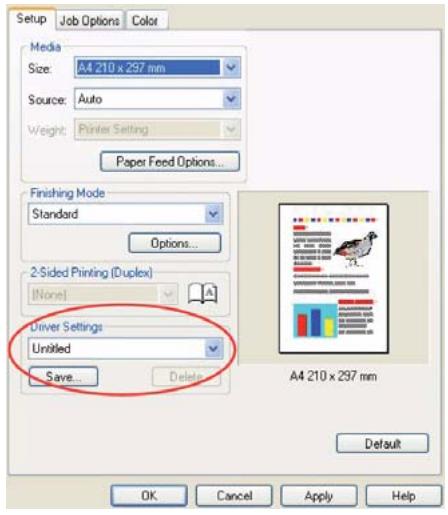
- Enter a meaningful name for the settings you are saving, and click [OK].
RECALLING SAVED DRIVER SETTINGS
- In the driver's [Setup] tab, choose any previously saved [driver settings] you need.
- Proceed to make any other adjustments for this job, as described in the relevant section in this manual.
SETTING THE DRIVER DEVICE OPTIONS
This section explains how to ensure that your printer driver can utilize all of the hardware features installed in your MFP.
Accessories such as hard disk, duplex unit (two sided printing), additional paper trays, etc., will only be usable if the printer driver on your computer knows they are there.
In some cases the hardware configuration of your MFP is automatically detected when the driver is installed. However, it is advisable to at least check whether all of the available hardware features are listed in the driver.
This procedure is essential if you subsequently add extra hardware features to your MFP after the drivers have been installed and set up.
- Access the driver's [Properties] window. (See "Changing the driver defaults" on page 183.)
- Select the [Device Options] tab.
In the Windows XP PostScript driver the tab may be called "Device Settings".
- Set the options for any devices you have installed, including the correct number of paper trays, high capacity feeder, duplex unit, etc.
- Click [OK] to close the window and save your changes.
BLACKS AND GRAYS (BLACK OVERPRINT)
Black overprint eliminates the white edge between the printed fonts and the colored background.
Black overprint can only be used when printing 100 percent black text over a background color.
Black Overprint may not be available with some software applications.
NoteS
- The Black Overprint feature is not included in the Windows PCL 6 driver.
- When the background color is very dark, the toner may not fuse correctly. Change the background to a lighter color.
1. On the [Job Options] tab, click [Advanced].
![OKI MC560MFP-PLUS - On the [Job Options] tab, click [Advanced]. - 1](/content/2019/10/13919/images/ae20416a839e7ef49ef039ffdedae89f060adab2a586947f541343ea0afabff0.jpg)
2. Check [Black Overprint].
BLACK PRINTING (BLACK GENERATION)
To use Black Generation, Office Color or Graphic Pro must be the selected Print Mode.
Your MFP prints the color black in one of two ways: Composite Black or True Black.
COMPOSITE BLACK
The cyan, magenta, yellow, and black toners are combined to create composite black.
This will sometimes give a glossier finish, due to the increased amount of toner. It can also sometimes appear as a slightly brownish black.
Use composite black when printing photographs.
TRUE (PURE) BLACK
Only black toner is used to print true black.
Use True Black when printing a combination of text and graphics. If you use True Black to print photographs, dark sections of the photos may appear black.
Office Color
- On the driver's [Color] tab, select [Office Color] (1) and click the [Options] button.
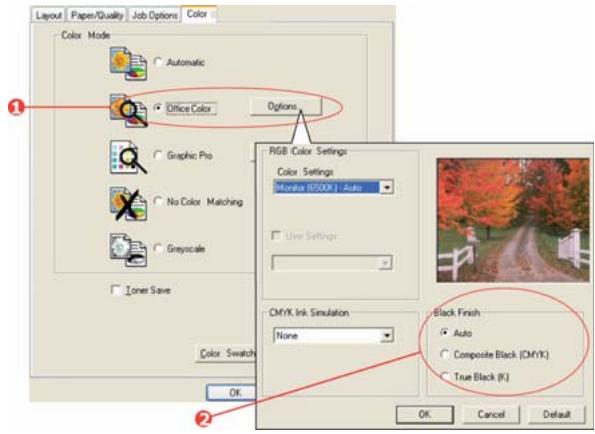
- On [Black Finish] (2), make your selection: [Auto] (allow printer to choose the best method depending on page content), [True Black] or [Composite Black].
Graphic pro
- On the driver's [Color] tab, select [Graphic Pro] (1) and click the [Options] button.
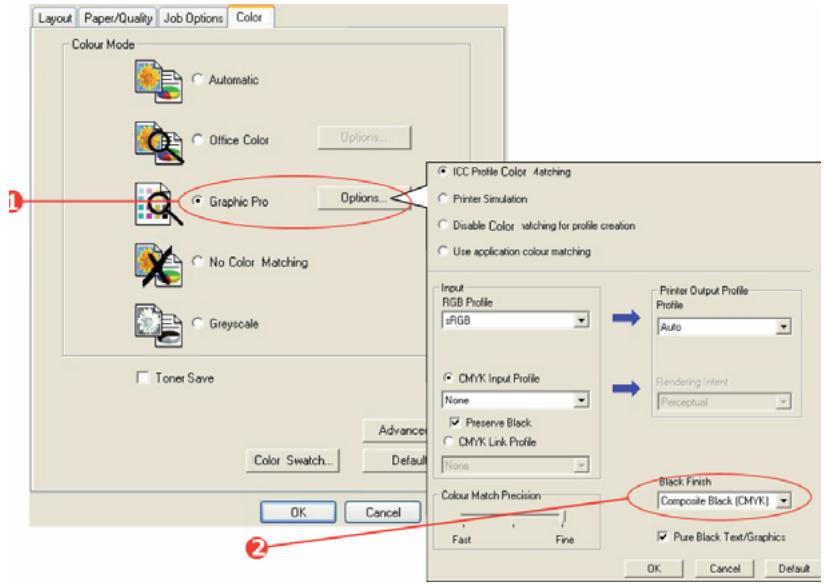
- From the [Black Finish] menu (2), choose your preferred setting.
FINE LINES ENHANCEMENT
This feature can be used to emphasize the pen width of very fine lines (minimum line width).
With some software applications, if this feature is turned ON, the spaces in bar codes may become too narrow. If this happens, turn [Adjust Ultra Fine Lines] OFF.
-
In the driver's [Job Options] tab, click [Advanced].
-
Click the checkbox to turn on [Adjust Ultra Fine Lines]. If the option is turned on, a check mark appears in the box.
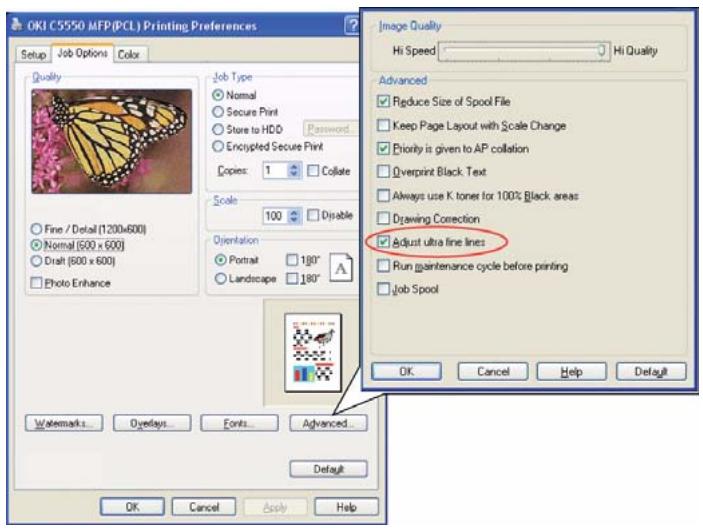
GRAYSCALE PRINTING
If you select Grayscale, the MFP converts all colors into shades of gray, and prints using only black toner.
Use Grayscale to speed up printing of proof copies or when you do not need to print a color document in color.
-
If using the PCL driver, in the driver's [Setup] tab, choose any previously saved [driver settings] you need. See "Recalling saved driver settings" on page 184
-
On the driver's [Color] tab, click [Grayscale], then click [Options].
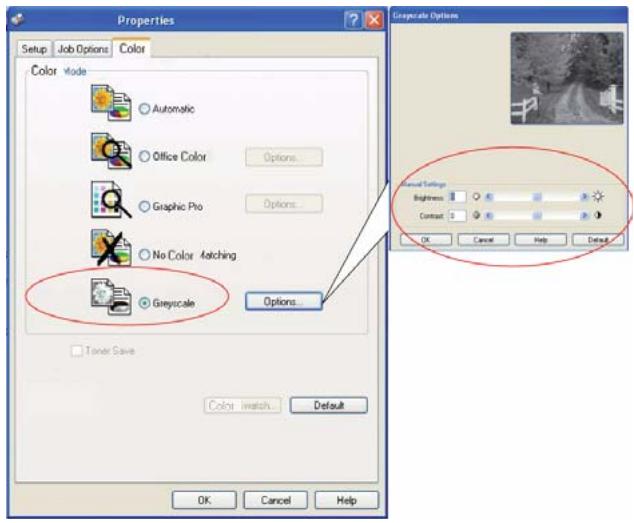
- If using the PS driver, on the [Color] tab, click [Grayscale], and then click [Advanced] if you want to adjust brightness and contrast.
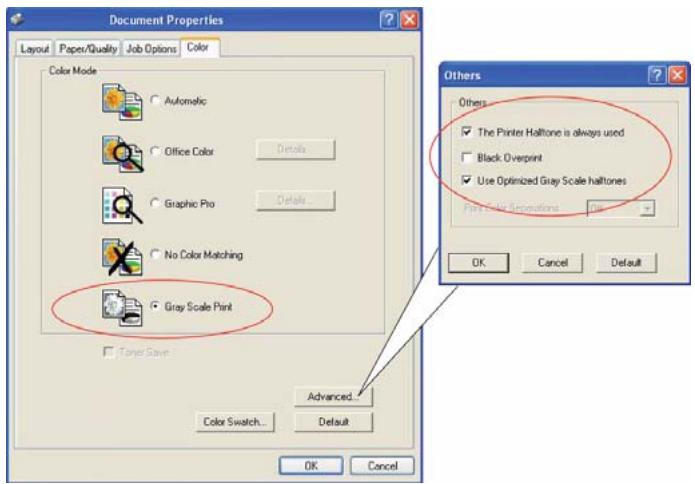
Some applications will attempt to set the halftone screen information for the MFP. If the option to [use printer halftones] is left at ON, the MFP will set its own halftone
screen value, giving a smoother result. It is recommended to leave this option on.
[Optimized grayscale halftones] may take slightly longer to print but will give best quality.
COLOR MATCHING
BASICS
There are three methods by which your document's color can be managed and adjusted:
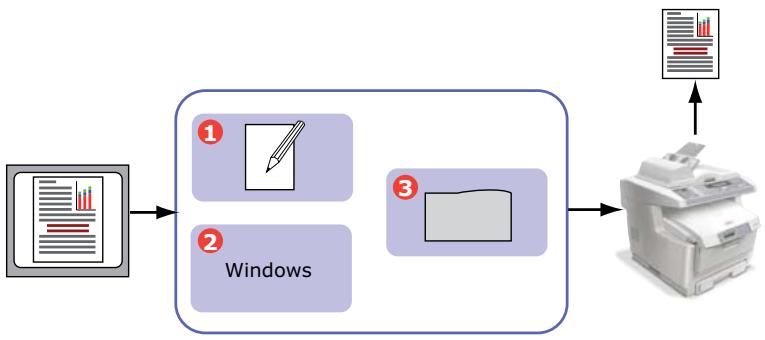
- Application Color Management (1).
Some graphics and desktop publishing programs such as Adobe Photoshop, Adobe Illustrator, and Quark Xpress have their own built-in color management systems. See "Printer driver settings for ICC profile creation or no color matching" on page 210.
Most applications do not have these color management features and rely instead on the MFP or operating system.
- Operating System Color Management (2).
3. Printer Color Management (3).
When you print your document and modify settings in the printer driver, the MFP performs color adjustments.
Notes
- Only use one color management system if you want the best results from your MFP.
- If you wish to use your MFP's color management system, ensure that your application or operating system color management is switched off.
- Applying color management in multiple places will give unpredictable results.
WHAT THIS GUIDE DESCRIBES
This Chapter only discusses the printer color management system.
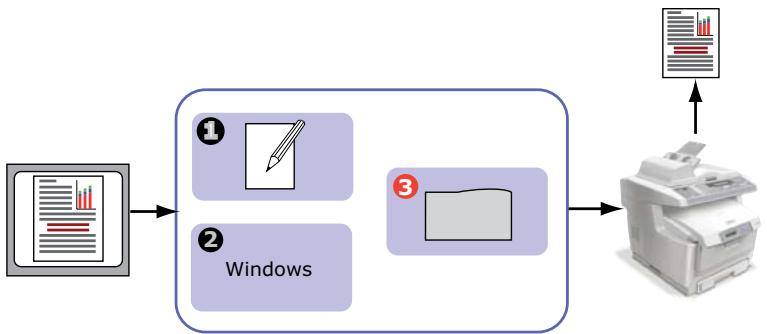
If you wish to learn more about your application program or operating system color management, please see the documentation that was supplied with your application software or computer.
PRINTER COLOR MANAGEMENT
Your printer has two separate color management systems - Office Color and Graphic Pro.

Office Color (3a) - "Office color" on page 195
This is a simpler color management system designed for ease of use. Office Color is recommended for users who are not experts in color but want good results when printing from programs such as Microsoft Office.
Graphic Pro (3b) - "Graphic pro" on page 197
This is a powerful color management system based on ICC color profiles.
Profiles can be down loaded to the MFP hard disk using a special utility, and then color matching can be applied to all incoming print jobs.
The Graphic Pro color management system is recommended for users who are already familiar with ICC profile-based color matching and require more control over color.
ABOUT RGB AND CMYK COLOR
Some application programs give you the choice to create and edit documents using either RGB color or CMYK color. Typically, only professional graphics and desktop publishing software support CMYK color. Most application programs only support RGB color, for example Microsoft Office programs or web browsers.
If your application program does not give you the choice of RGB or CMYK color, you should assume that it only supports RGB.
The RGB color model is based on the three primary colors of light; Red, Green and Blue. This model is used by scanners, digital cameras and computer monitors.
The CMYK color model is based on Cyan, Magenta, Yellow and Black printer inks or toners.
ABOUT THE PRINTER DRIVERS
Depending on your operating system, you may have the choice of different drivers to use with your MFP. You may wish to select a printer driver based on whether it supports CMYK data.
| SUPPORT FOR RGB DATA | SUPPORT FOR CMYK DATA | |
| PCL 5c driver | ✓ | × |
| PCL 6 driver | ✓ | × |
| PostScript driver | ✓ | ✓ |
OFFICE COLOR
This section describes the features in the printer driver for "Office Color" printer color management.
There are two different sets of options in Office Color:
| RGB OPTIONS | CMYK OPTIONS (POSTSCRIPT ONLY) |
| Monitor (6500K) - Auto | SWOP |
| Monitor (6500K) - Perceptual | Euroscale |
| Monitor (6500K) - Vivid | Japan |
| Monitor (9300K) | |
| Digital Camera | |
| sRGB |
Note
The options for CMYK data are not present in the Windows PCL 5c or PCL 6 printer drivers. These printer drivers only support RGB color data.
Although the Office Color options contain controls for CMYK data, it is strongly recommended that you use the Graphic Pro options instead. If you are printing CMYK data, the Graphic Pro options provide more power and flexibility.
OFFICE COLOR - RGB OPTIONS
Office Color provides a collection of several different color matching presets for RGB data.
These presets each change the color of your print in a slightly different way.
These RGB color matching options are available in all printer drivers.
| PRESET | EXPLANATION |
| Monitor (6500K) - Auto | The best color match preset will be selected based on the type of document. 6500K - Perceptual will be selected if printing photographs. 6500K - Vivid will be selected if printing graphics and text. |
| Monitor (6500K) - Perceptual | Optimized for printing photographs. Colors are printed with emphasis on saturation. |
| Monitor (6500K) - Vivid | Optimized for printing photographs and for office graphics. The MFP uses even more saturation than the Monitor (6500k) Perceptual setting. |
| Monitor (9300K) | Colors are printed with emphasis on Lightness. Use this setting if you are having problems achieving the correct color when printing from Microsoft Office applications. |
| Digital Camera | Optimized for printing photos taken with a digital camera. Your results will vary depending on the subject and the conditions under which the photograph was taken. |
| sRGB | The MFP will try to reproduce the sRGB color space. This may be useful if color matching from an sRGB input device such as a scanner or digital camera. |
This information applies to the Windows PCL 5c, PCL 6 and PostScript drivers.
- On the printer driver [Color] tab, select [Office Color] (1) and click the [Options] button.
2. Select a preset from [Color matching options] (2).
![OKI MC560MFP-PLUS - Select a preset from [Color matching options] (2). - 1](/content/2019/10/13919/images/4875432b2200ebd60a807c7762454b3e634d761501e28100485e7aa949fffc18.jpg)
CUSTOMISING RGB OFFICE COLOR WITH THE COLOR CORRECT UTILITY
If the Office Color presets are not sufficient for your needs, the Color Correct utility provides a means of further adjustment. The Color Correct utility provides two methods for adjusting the Office Color settings:
- You can adjust the overall appearance of the print by modifying Hue, Saturation and Gamma.
- You can adjust the specific palette colors used in Microsoft Office applications. These adjustments only affect one specific palette color at a time.
GRAPHIC PRO
This section describes the color matching options available for Graphic Pro.
The Graphic Pro color matching system is based around ICC profiles. These profiles are down loaded to the MFP using the Profile Assistant utility and then selected in the printer driver. When a job is sent to the MFP, the ICC profiles are applied to the print job on the MFP.
NotEs
- Some features of Graphic Pro color matching can only be used if your MFP is fitted with a hard disk. The MFP hard disk is required if you wish to download and use your own ICC profiles to the MFP.
- The MFP's internal hard disk is an optional accessory.
- If your MFP does not have a hard disk fitted, you will only be able to select the factory default profiles that are built-in to the MFP.
WHAT CAN YOU DO WITH GRAPHIC PRO COLOR MATCHING?
The Graphic Pro color matching system is both powerful and flexible. Here are some examples of how the Graphic Pro color matching system can be used:
Matching mfp color to an RGB input device
By using the ICC profiles of a scanner, digital camera or monitor, the MFP's color can be matched to the input device.
Printer simulation
Your MFP can be used to simulate the color output of another printer, even when printing RGB documents. For best results, use CMYK documents when simulating the color output of other printers.
CMYK ink simulation
Your MFP can be used to simulate the color output of a commercial printing press (SWOP, Euroscale or Japan Color inks).
More accurate mfp color
If you have created your own profiles with third-party ICC profile creation software, these can be downloaded to the MFP and used when printing.
TYPES OF ICC PROFILE SUPPORTED
There are four classes of ICC profile supported by the Graphic Pro color matching system:
| PROFILE TYPES | DESCRIPTION |
| RGB Source (RGB Input) | These profiles describe the device that was used to capture RGB data (e.g. scanner or digital camera). The RGB Input Profile may also be your monitor profile if you are trying to match to your screen. |
| CMYK Simulation (CMYK input) | These profiles describe the CMYK device whose colors you are trying to simulate. Typically this would be another manufacturer's printer or an offset printing press.Profiles are already built-in to the MFP for commercial printing press inks such as SWOP or Euroscale. |
| Printer (CMYK Output) | This profile describes the color characteristics of your own MFP.The MFP already has factory default profiles built-in, but you can replace these profiles with your own if required. |
| Link Profile | This is a special type of ICC profile that converts directly from CMYK to CMYK.For example, a link profile could convert directly from the CMYK space of another printer to the CMYK space of your MFP. |
There are three steps to using the Graphic Pro color matching system:
- Gather or create ICC profiles (see below)
- Download ICC profiles to the MFP hard disk (page 200)
- Select the ICC profiles in the printer driver when printing (page 201)
STEP 1 - GATHER OR CREATE THE ICC PROFILES
Where can I get the profiles I need?
| PROFILE TYPE | WHERE TO GET PROFILES |
| RGB Source (RGB Input) | Obtain your RGB source profiles from your scanner, camera or monitor manufacturer. |
| CMYK Simulation (CMYK input) | Obtain the simulation profile from the manufacturer of the printer you wish to simulate. |
| Printer (CMYK Output) | The factory default profiles for your MFP are built-in. If you need greater accuracy, you should create your own MFP profile using third-party ICC profile creation software. |
| Link Profile | You can create Link profiles using third-party ICC profile creation software. Note that not all ICC profile creation software can create Link profiles. |
STEP 2 - DOWN LOADING ICC PROFILES TO THE HARD DISK
The internal hard disk must be installed in the printer.
You can download profiles to the MFP hard disk using the Profile Assistant utility.
- Launch Profile Assistant
- Select an MFP
If this is the first time you have used Profile Assistant, you should allow the utility to search for compatible machines.
Select the connection type "Network (TCP/IP)", and click Start to begin searching.
If you know the MFP's IP address, you can enter it manually.
- The main screen of Profile Assistant displays the profiles resident on the selected MFP's hard disk. To download a new profile to the MFP:
(a) Click Add.
(b) Select an ICC profile from your computer's hard disk.
(c) Once you have selected a profile, you can add it to the MFP as one of the 4 profile types - RGB Source, CMYK Simulation, Printer or Linked.
(d) The options available will depend on which ICC profile you have selected. For example, if you have selected a CMYK profile, you may only be able to add this to the printer as a CMYK Simulation or Printer output profile.
(e) Select a number from 1 to 12. This number is used to identify the profile in the printer driver.
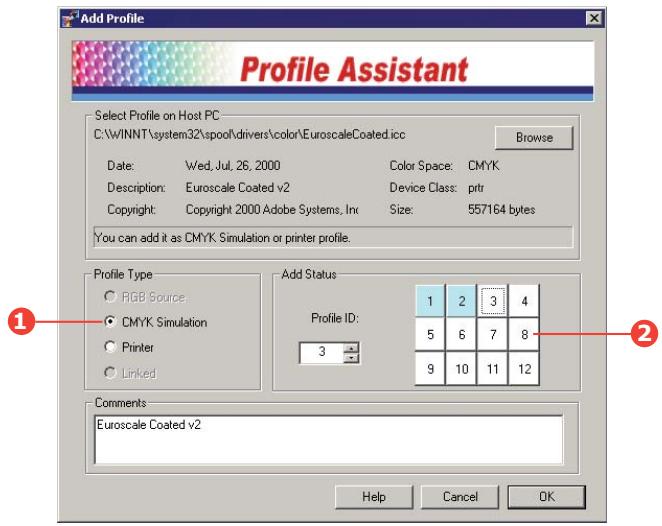
(f) Click [OK] to download the ICC profile to the MFP.
STEP 3 - SELECT ICC PROFILES IN THE PRINTER DRIVER
What you select in the printer driver depends on the color matching task that you wish to perform.
Examples of selecting ICC profiles for different color matching tasks are shown in the next sections of this guide.
MATCHING THE COLOR OF A MONITOR, SCANNER OR CAMERA
The Graphic Pro color matching system can be used to match the printer color to an RGB input device such as a monitor, scanner or digital camera.
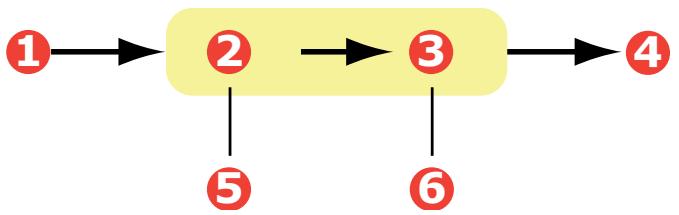
-
RGB data
-
Printed document
-
RGB source profile
-
Scanner, monitor, camera, etc.
-
Printer output profile
-
Leave on Auto or select your custom profile.
To match an RGB input device, first download the RGB source profile and printer profile (optional) to the MFP hard disk using Profile Assistant. See "Step 2 - Down loading ICC profiles to the hard disk" on page 200.
Once the profile(s) have been down loaded, make the appropriate selections in the printer driver, as described below.
This information applies to the Windows PCL 5c, PCL 6 and PostScript drivers.
To match the color of an input RGB device such as a monitor, scanner or digital camera, make the following selections in the printer driver:
- On the printer driver [Color] tab, select [Graphic Pro] (1) and click [Options].
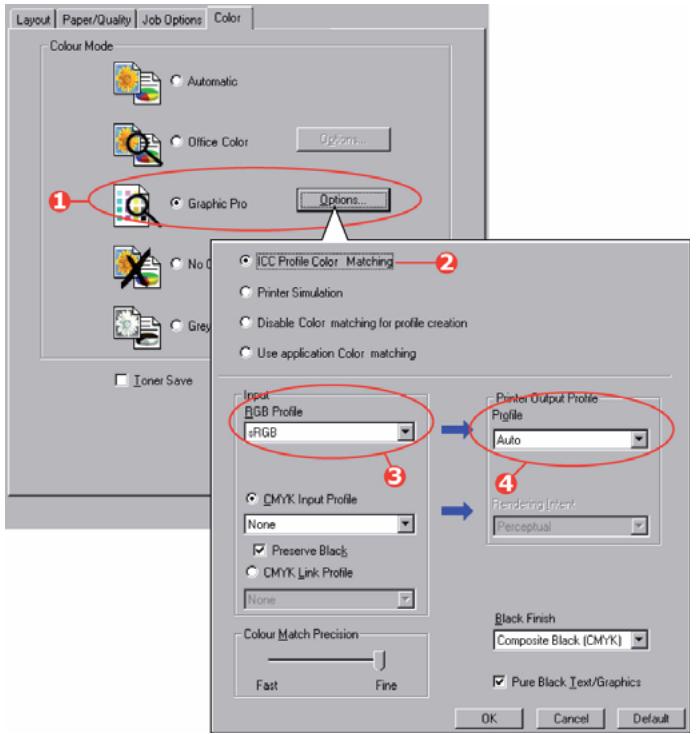
- Select [ICC Profile Color Matching] (2).
- Select the ICC profile that corresponds to the device you are trying to match such as your monitor, scanner or digital camera (3).
Remember that the names "RGB Source 1", "RGB Source 2" and so on relate to the number assigned to the profile using Profile Assistant. See "Step 2 - Down loading ICC profiles to the hard disk" on page 200.
- Select a Printer Output Profile (4).
If [Auto] is selected, the factory default profiles that are embedded in the MFP will be used. If you have created a
MFP profile yourself using profile creation software, select it here.
Note
If you have selected your own output profile (4), you will also be able to adjust the rendering intent. See "Rendering intents" on page 209.
SIMULATING ANOTHER PRINTER - RGB SOURCE DATA
The Graphic Pro color matching system can be used to simulate the color output of another printer.
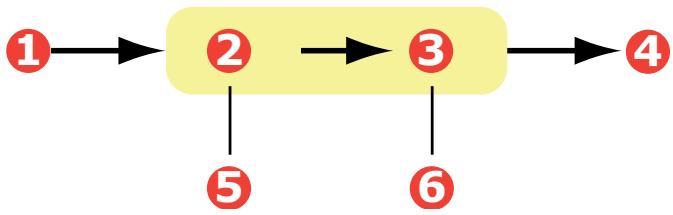
-
RGB data
-
Printed document
-
RGB source profile
-
Scanner, monitor, camera, etc.
-
Printer output profile
-
Leave on Auto or select your custom profile.
Notes
- Be aware that if the device you are trying to simulate has different color capabilities from your own MFP, exact color simulation will not be possible. For example, it may be difficult to reproduce the exact colors of an ink jet printer on a toner-based printer.
- Additionally, differences in the range of printable colors between different devices can make simulation using RGB source data inaccurate. To achieve best results when simulating the color output of other printers, you are strongly advised to use CMYK data as a source. See "CMYK ink simulations - CMYK source data" on page 206.
To simulate the output of another printer, you need to download at least 2 profiles to your MFP using Profile Assistant:
RGB Source Profile
Simulation Target Profile
Printer Output Profile (optional)
Once the profile(s) have been down loaded, make the appropriate selections in the printer driver, as described below.
If you are using a source RGB document, simulate the output of another printer by making the following selections in the printer driver:
- On the printer driver [Color] tab, select [Graphic Pro] (1) and click [Options].
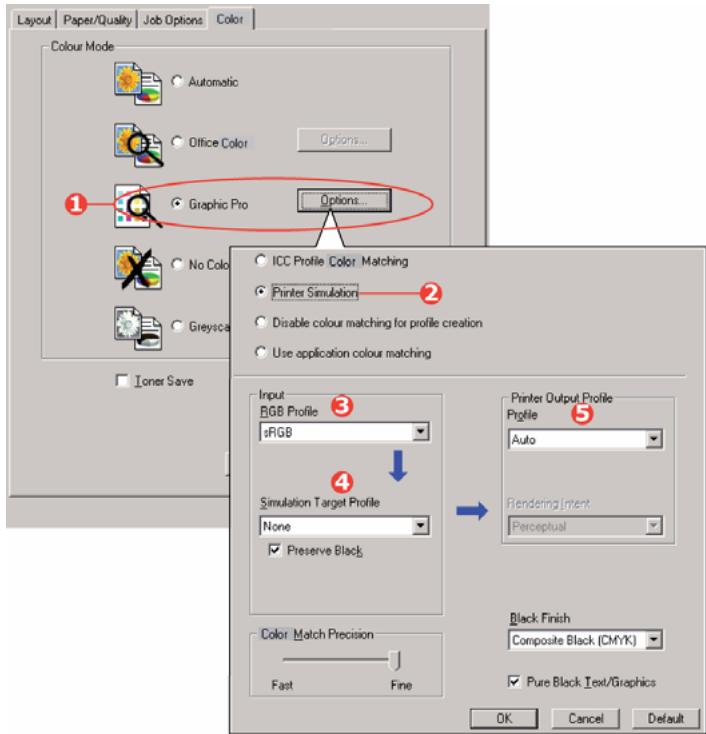
-
Select [Printer Simulation] (2).
-
Select the ICC profile that corresponds to the device used to capture or display your source document - this could be a monitor, scanner or digital camera (3).
- Remember that the names "RGB Source 1", "RGB Source 2" and so on relate to the number assigned to the profile using Profile Assistant. See "Step 2 - Down loading ICC profiles to the hard disk" on page 200.
- Select a Simulation Target Profile (4).
- This profile corresponds to the printer you want to simulate.
- If you wish to produce black and gray colors that are printed using only black toner, enable the [Preserve Black] option. Although this produces a better quality print, the black and gray colors will not be simulated accurately.
- Select your output profile (5).
- If [Auto] is selected, the factory default profiles that are embedded in the MFP will be used. If you have created a profile yourself using profile creation software, select it here and choose a rendering intent. See "Rendering intents" on page 209.
CMYK INK SIMULATIONS - CMYK SOURCE DATA
The ICC-based color matching system can be used to simulate the output on commercial printing presses.
You can select from the ink types most commonly used in different regions of the world:
Euroscale - Europe
Swop - North America
Toyo-Japan
To print CMYK Ink Simulations, you must use PostScript printer driver supplied.
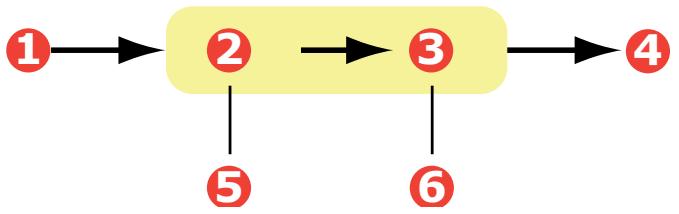
-
CMYK data
-
Printed document
-
CMYK input profile
-
CMYK device you wish to simulate (e.g. SWOP press)
-
Printer output profile
-
Leave on Auto or select your custom profile
Although it is possible to perform CMYK ink simulations using the Office Color options in the printer driver, we recommend that you use the Graphic Pro color matching system to perform CMYK ink simulations, as this provides additional controls, such as using the "Preserve Black" feature, or specifying an alternative printer output profile.
Note
This information applies to the Windows PostScript driver only.
If you are using a source CMYK document, use the following printer driver settings to perform a CMYK Ink Simulation:
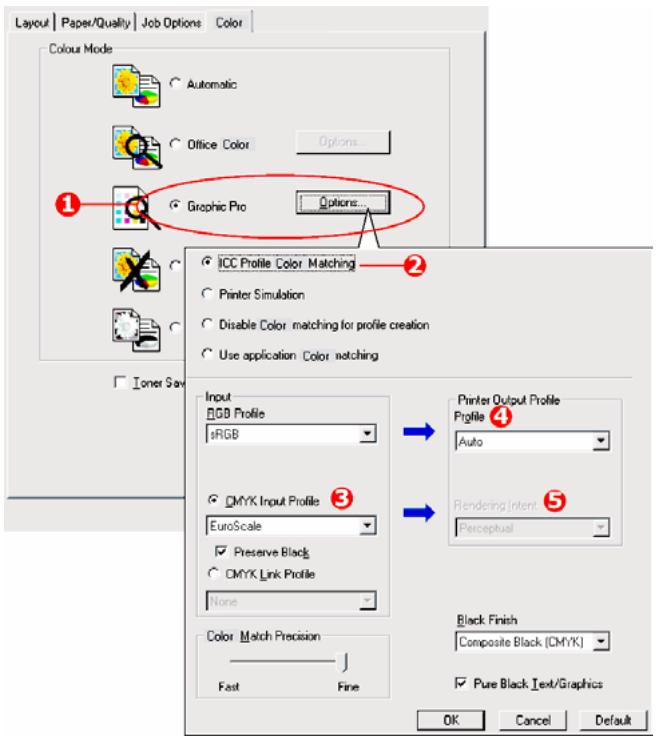
- On the printer driver [Color] tab, select [Graphic Pro] (1) and click [Options].
- Select [ICC Profile Color Matching] (2).
- Select the [CMYK Input profile] (3) that corresponds to the device you are trying to match such as a SWOP or Euroscale Press. If you have another CMYK Ink profile that you wish to use, select it here as the appropriate "CMYK Source x" profile.
Remember that the names "CMYK Source 1", "CMYK Source 2" and so on relate to the number assigned to the profile using Profile Assistant. See "Step 2 - Down loading ICC profiles to the hard disk" on page 200.
Use the [Preserve Black] option to keep the original gray component (K channel) information. If [Preserve Black] is disabled, the gray components may be printed using a mixture of CMYK toner, instead of just K (black) toner.
- Select a Printer Output Profile (4).
If [Auto] is selected, the factory default profiles that are embedded in the MFP will be used. If you have created a profile yourself using profile creation software, select it here.
If you have selected a profile other than [Auto], select the [Rendering Intent] (5). (See "Rendering intents" on page 209.)
RENDERING INTENTS
When selecting the Printer Output Profile, if you select any other profile apart from [Auto], you can select the Rendering Intent. The rendering intents are essentially a set of rules that determine how colors that fall outside of the printable colors are treated.
Select the rendering intent that best suits the document you are printing.
PERCEPTUAL
This option is recommended for printing photographs.
Typically, perceptual rendering desaturates all the colors when printing. This brings unprintable colors into the printer's range, while keeping the relationships between the colors the same.
SATURATION
This option is recommended for printing business graphics if you want vivid colors. This will not necessarily produce accurate color, as the emphasis is on maintaining saturation.
RELATIVE COLORIMETRIC
This option is best for printing solid colors and tints. Use Relative Colorimetric when printing from a drawing program such as Adobe Illustrator, or Macromedia Freehand.
ABSOLUTE COLORIMETRIC
This option is recommended if you are proofing images on your MFP that are intended for final output on a printing press. This may result in a visible color cast on your print as it will also try to simulate the paper white of the target device.
When your document is printed, often the pure black colors will not be printed using 100% black toner. Instead, these pure black colors are sometimes converted and printed using a mixture of CMYK toner.
Using the Pure Black Text / Graphics feature ensures that 100% black text or graphics in your document is printed using pure black toner.
This means that the following colors in your documents will be printed using only 100% black toner:
RGBRed = 0, Green = 0, Blue = 0
CMYKCyan = 0%, Yellow = 0%, Magenta = 0%, Black = 100%
COLOR MATCH PRECISION
When the MFP performs color matching, it must do many calculations to convert between different color formats (RGB, CMYK, etc.). These calculations can take time to process.
The [Color Match Precision] option allows you to choose between higher quality color matching (more time consuming) or faster but less accurate color matching.
PRINTER DRIVER SETTINGS FOR ICC PROFILE CREATION OR NO COLOR MATCHING
If you are creating ICC profiles using third-party software, select [Disable Color Matching for ICC Profile Creation]. This option switches off all printer color management and also prevents the MFP from restricting toner layer thickness.
If you are using your application color matching, select [Use Application Color Matching]. This option switches off all printer color management.
- On the PCL printer driver [Color] tab, select [Graphic Pro] (1) and click [Options].
- Select [Disable Color Matching for Profile Creation] (2) if you are creating an ICC profile using third-party profile creation software. Select [Use Application Color Matching] (3) if you wish to switch off all printer color management and use your application's color matching.
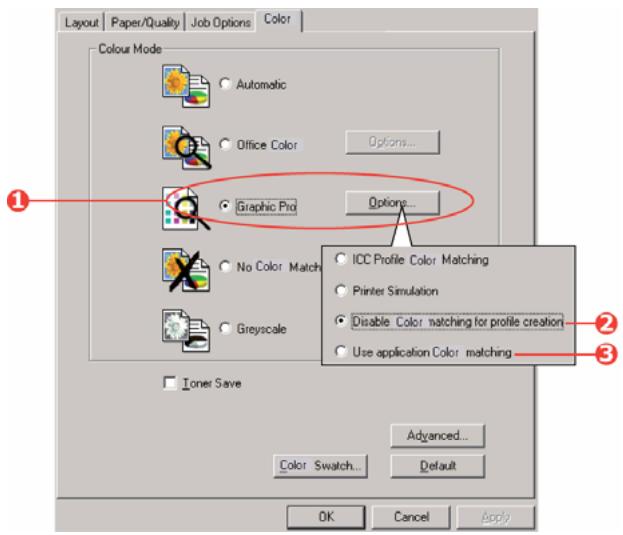
FINISHING OPTIONS
Your MFP offers a wide selection of document finishing options that help you to control the final form of your printed document.
Depending on the hardware fitted, either as optional upgrades or included as standard and on which model you have, your system can offer a number of choices.
For detailed information on these options see:
"Booklet printing (imposition)" on page 212
"Collating" on page 216
"Color separation" on page 218
"Separating queued print jobs" on page 219"Cover print" on page 220
"Custom page size" on page 221
"Duplex (double-sided) printing" on page 225
“Printing multiple pages on one sheet (N-up)” on page 227
"Poster printing" on page 229
"Scale to page" on page 230
"Watermarks" on page 231
BOOKLET PRINTING (IMPOSITION)
Booklet printing in the Windows drivers printing allows printing of multi-page documents with their pages ordered and arranged so that final printed output can be folded into a booklet. Typically, A4/Legal pages would be reduced to A5/Letter and printed side by side on both sides of A4/Letter paper, so that the paper can be folded into a booklet.
Since this feature prints on both sides of the page, it requires a duplex unit to be installed in the MFP, and additional memory.
NoteS
- To find out how much memory currently installed, print out a menu map from the control panel.
- A few applications do not support booklet printing, but most do.
When using the PostScript driver, if you plan to print a long document, more than about 16 pages, consider printing it in sections of 8 or 16 at a time. This is called the "signature," and will avoid having too thick a stack of paper to fold to make your booklet. Your document will then be printed in a series of booklets which can be stacked one above the other. This is usually a neater arrangement.
The above considerations do not matter when using the PCL driver as the signature can be set within the driver, and a long document can be printed directly as a series of booklets.
Note that the number of pages in a booklet is always a multiple of four, since two pages are printed on each side of each sheet of paper. If your document is not a multiple of four pages long, the last one, two or three pages in your folded booklet will be blank.
Windows PostScript
- In the driver's [Layout] tab, choose [Booklet] from the [Pages Per Sheet] drop-down list.
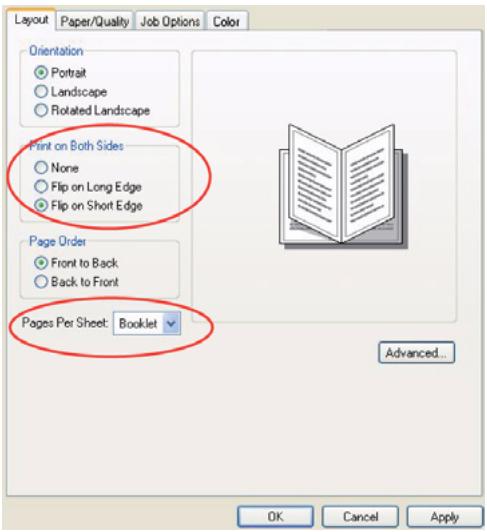
- Check that the duplex option is set to [Flip on Short Edge].
Note
If the Booklet choice is not shown, check that the Duplex option is enabled in the driver. ("Setting the driver device options" on page 184)
Windows PCL
- In the driver's [Setup] tab, recall any saved [driver settings] you may wish to use.
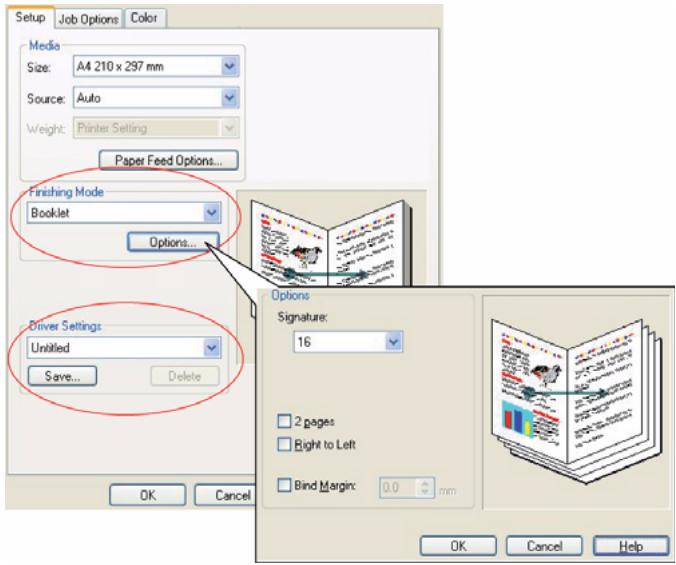
- Choose [Booklet] from the [Finishing Mode] drop-down list, then click [Options].
- In the Options window you can set the [signature] size, the number of [pages] per side of paper and the [binding margin] if your document is going to be thick. The graphic in this window shows the effect of each choice you make.
Note
If the Booklet choice is not shown, check that the Duplex option is enabled in the driver. (See "Setting the driver device options" on page 184.)
COLLATING
This feature allows multiple copies of a multi-page document to be printed with the pages of each copy in sequence.
Uncollated pages print like this
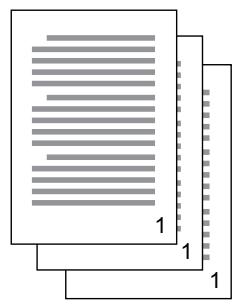
Collated pages print like this
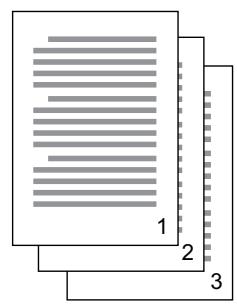
Application collate—Some application programs have a collate feature in their print options. In this case the application performs the document collation and may send the job multiple times to the MFP. Generally, this method is slower but can be more reliable.
Printer collate—This section describes the collate function built into the printer driver. In this case the job is stored temporarily in MFP memory or on the MFP's hard disk (if installed), and the MFP performs collation. This method is normally faster, but may not work from all applications.
If you experience problems using MFP collate, use the collate option in your application's print options instead.
- If using the PCL driver, on the [Setup] tab first choose any saved [driver settings] that you wish to use. See "Recalling saved driver settings" on page 184.
- In the [Job Options] tab, choose how many [copies] you want to print from the scrolling list.
- Click the [Collate] checkbox.
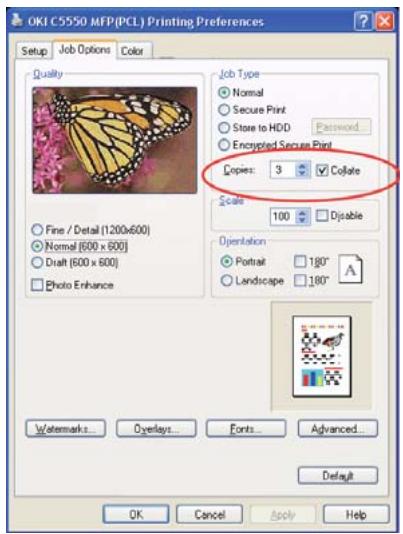
COLOR SEPARATION
The color separation feature prints each of four primary colors as separate grayscale images. This is a proofing facility that indicates the relative densities of each of the four toner colors in your print document. The darker an area appears, the more of the corresponding toner color will be used when printing in full color.
- In the PostScript driver's [Color] tab, click [Advanced].
- Select which [separations] you want to print from the drop-down list.
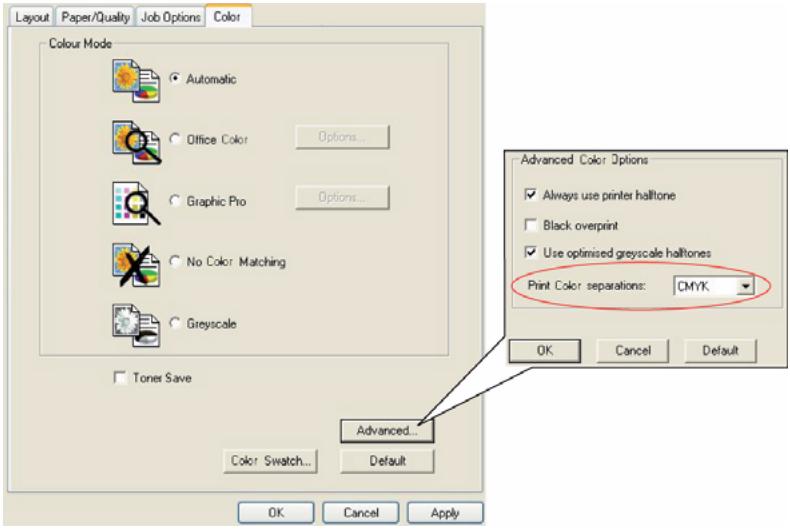
SEPARATING QUEUED PRINT JOBS
When you share an MFP with other users it can be useful to print a special page between print jobs to help locate each user's job in a paper stack at the MFP. In Windows this page is called a "separator page".
The separator page is set from the printer driver's default properties window. Access to this is directly from Windows, not from within your application program. See "Changing the driver defaults" on page 183.
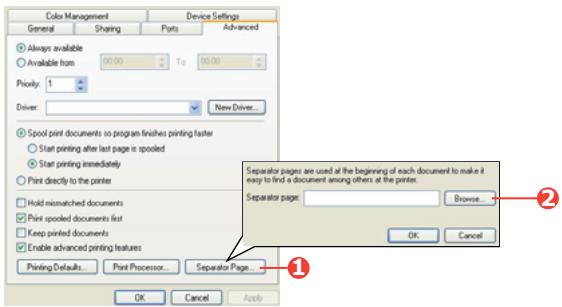
- In the driver's Advanced tab click the [Separator Page...] button (1).
- Click [Browse] (2) and navigate to a file containing an image of the separator page you wish to use, then click [OK].
COVER PRINT
Cover print is when the first page (cover) of a print job is fed from one paper tray, and the remaining pages of the print job are fed from another paper tray.
This feature is not available in the Windows postScript drivers.
- In the Setup tab, choose any saved driver settings you wish to use. See "Recalling saved driver settings" on page 184
- Click [Paper Feed Options].
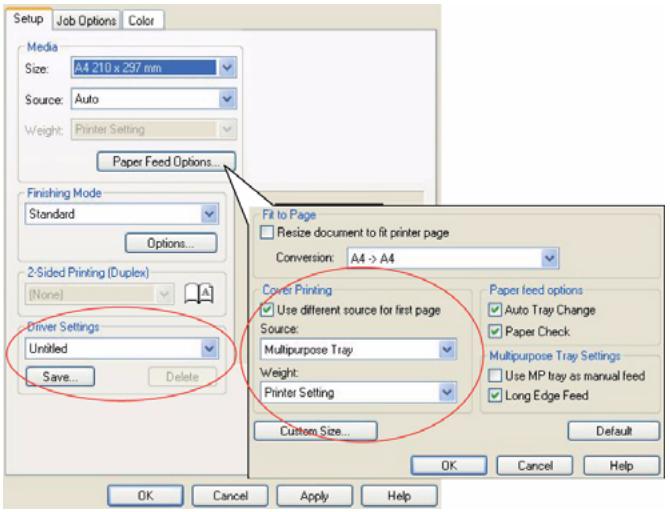
- Check the [Use different source for first page] checkbox.
- Choose the tray you want to feed the cover page from and the paper type in the [Source] and [Weight] drop-down lists.
CUSTOM PAGE SIZE
This feature enables printing on non-standard sized print media. The multipurpose tray is used for feeding non-standard media sizes. Print media width can be from approximately 2.9921 to 12.91 inches (76mm to 328mm), and its length can be from 3.54 to 47.24 inches (90mm to 1200mm). Actual limits vary slightly depending on which printer driver you use and your computer's operating system.
Some applications software may not produce the desired results with non-standard print media sizes, and some experimentation may be required to obtain the results you want.
Windows XP/2000 PostScript
- In the driver's [Layout] tab, click [Advanced].
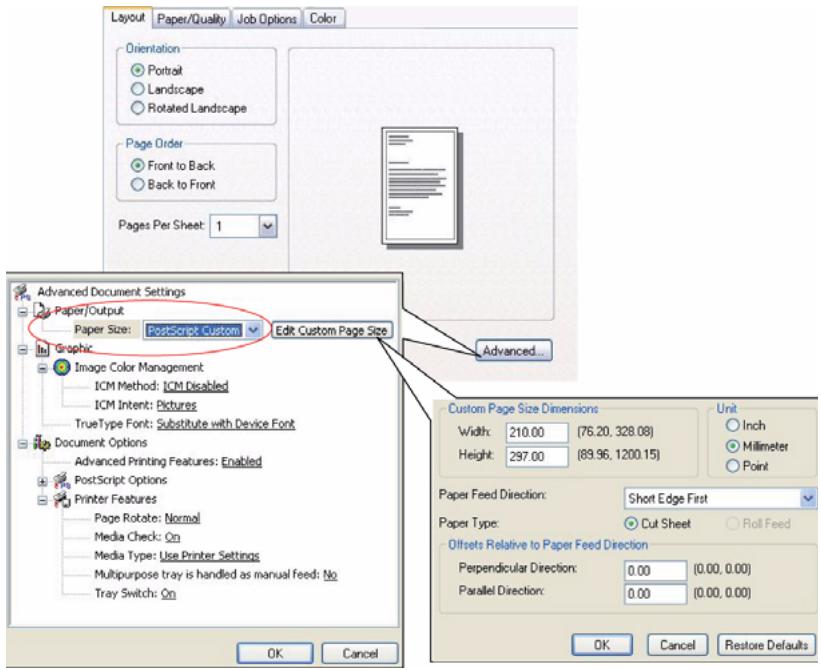
-
In the Advanced Options window, under [Paper/Output], choose [PostScript Custom Page Size] from the [Paper Size] drop-down list.
-
In the PostScript Custom Page Size Definition window, Choose your [paper feed direction] from the drop-down list.
The available choices are:
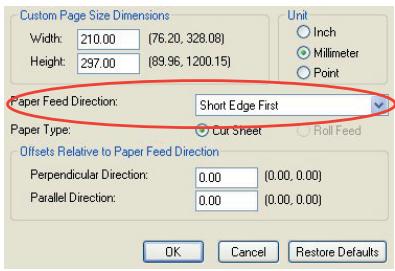
| Short edge first | The page is portrait (tall) format and you will feed the top of the page into the MFP. |
| Long edge first | The page is landscape (wide) format and you will feed the top of the page into the MFP. |
| Short edge first flipped | The page is portrait (tall) format and you will feed the bottom of the page into the MFP. |
| Long edge first flipped | The page is landscape (wide) format and you will feed the bottom of the page into the MFP. |
Notice that the size ranges available swap places when you change the paper feed direction between a portrait and a landscape choice.
Remember that the width of the multipurpose tray is limited to the long edge of an A4 sheet 11.7 inches (297mm), so, if your paper is longer than this, you will have to feed it short edge first.
- You can also position the page image on the paper to avoid printing too close to the edge by choosing an [Offset].
Offset relative to [perpendicular] direction adds to your left margin.
Offset relative to [parallel] direction adds to your top margin (normal feed) or bottom margin (flipped feed).
- Click [OK] to close the PostScript Custom Page Size Definition window.
- Click [OK] to close the Advanced Options window.
- In the driver's window, choose the [Multipurpose Tray] as the [Paper Source].
Windows PCL
- In the driver's [Setup] tab, select any previously saved settings you wish to use.
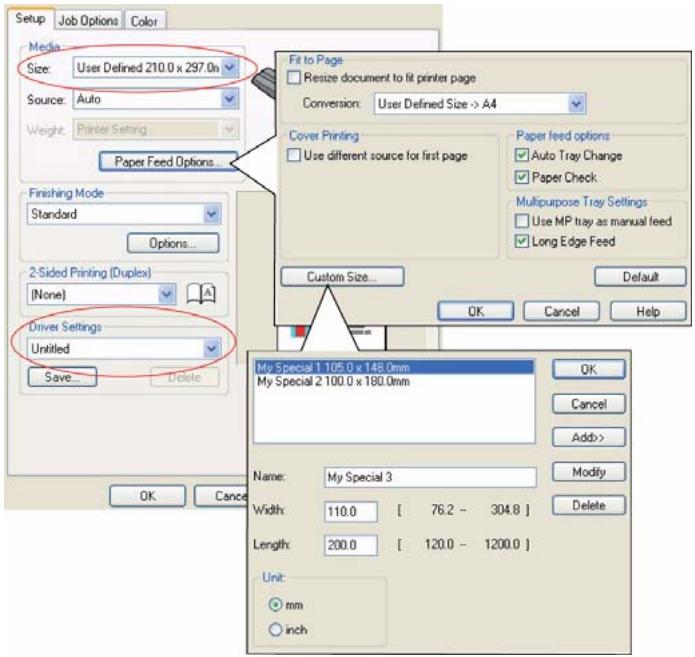
- Click the [Paper Feed Options] button.
- In the Paper Feed Options window, click [Custom Size].
- If you have previously saved any special custom sizes they will be listed in the Custom Size window.
- To use a previously saved custom size, click its name in the list.
To create a new custom size:
(a) Enter its dimensions in the [Width] and [Length] boxes.
(b) Enter a name for the new size in the [Name] box, and click [Add] to save it in the list.
- Click [OK] to accept your chosen size and close the Custom Size window.
- If this is the size of your document but you want to scale it to fit a standard size of paper, click [Resize document to fit printer page] in the Paper Feed Options window, and choose the MFP's actual paper size from the [Conversion] drop-down list.
DUPLEX (DOUBLE-SIDED) PRINTING
If your MFP has a duplex unit installed you can print on both sides of the paper, to save paper, weight, bulk and cost.
Only paper can be used for duplex printing, not transparencies or other media.
Use paper stock of 20-32 lb. (75-120 g/m²). If you experience excessive curling with 20-24 lb. (75-90 g/m²) paper, use 28 lb. (105 g/m²).
Use standard sized paper stock only, e.g. A4, A3, Letter, etc.
Load the paper print side up. Ream wrappers are usually marked with an arrow, indicating which is the print side.
Paper can be fed from standard paper trays, including the high capacity feeder if you have one, but not from the multipurpose tray.
Do not set the paper weight to Ultra Heavy.
Do not enable the White Page Skip function.
Windows PostScript
- In the driver's Layout tab, under [2-Sided Printing], select the binding edge you want.
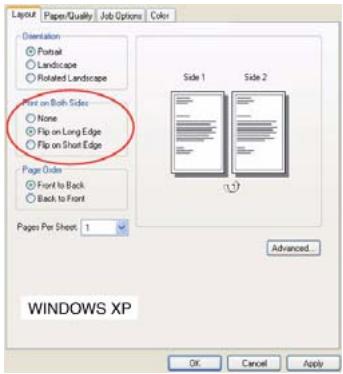
For portrait (tall) page layout the usual choice is [Long Edge]. For landscape (wide) page layout the usual choice is [Short Edge]. Choosing [Off] turns off duplex printing and your document will be printed single-sided.
Windows PCL
- In the driver's Setup tab, under [2-Sided Printing], select the binding edge you want.
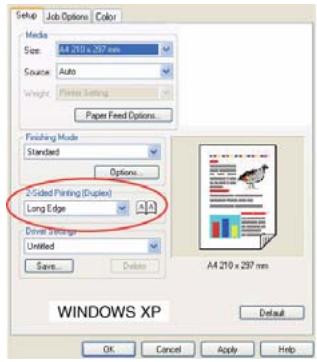
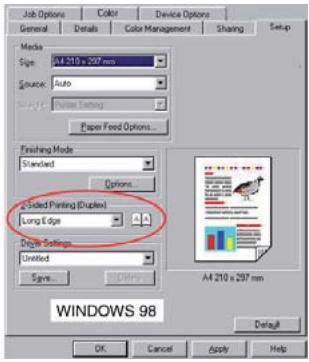
For portrait (tall) page layout the usual choice is [Long Edge]. For landscape (wide) page layout the usual choice is [Short Edge].
Choosing [Off] turns off duplex printing and your document will be printed single-sided.
PRINTING MULTIPLE PAGES ON ONE SHEET (N-UP)
This feature scales the page size of your document for printing and reproduces several pages per sheet.
This is useful when you simply want to proof your page layout, or distribute your document in a more compact format. It saves paper, bulk, weight and cost.
If you have a duplex unit installed, you can even combine this feature with duplex printing to save even more.
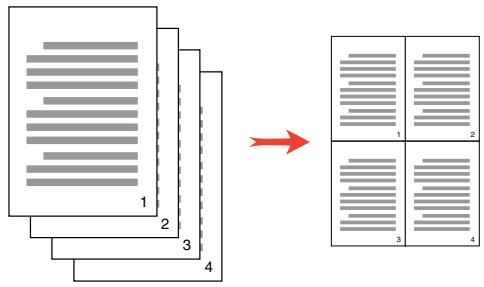
Windows PostScript
- In the driver's Layout tab, choose the number of pages ("N-up") you want to print on each sheet. 1-up is normal, 16-up is maximum.
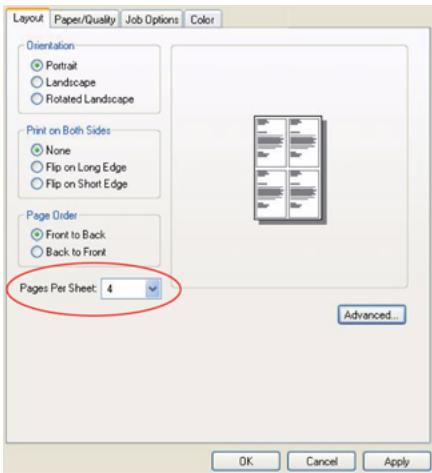
Windows PCL
- In the driver's Setup tab, choose the number of pages ("N-up") you want to print on each sheet. 1-up is normal, 16-up is maximum.
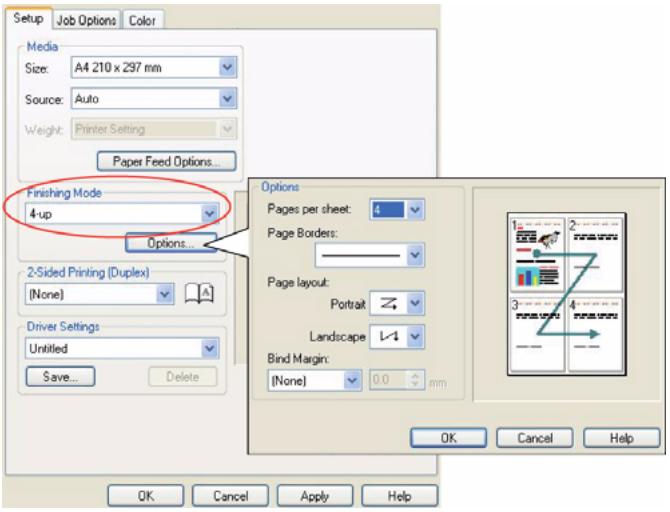
- Click [Options] to choose from the available options for this feature.
From here you can choose the page printing order, the page layout, whether you want printed page borders, and a binding margin if you need it.
POSTER PRINTING
This option allows you to print posters by dividing a single document page into multiple pieces (sometimes called "tiles"). Each piece prints, enlarged, on a separate sheet. Then, you combine the separate sheets to create a poster.
Poster Print is only available with the Windows PCL printer drivers.
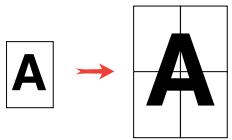
- In the driver's Setup tab, under [Finishing Mode], choose [Poster Print].
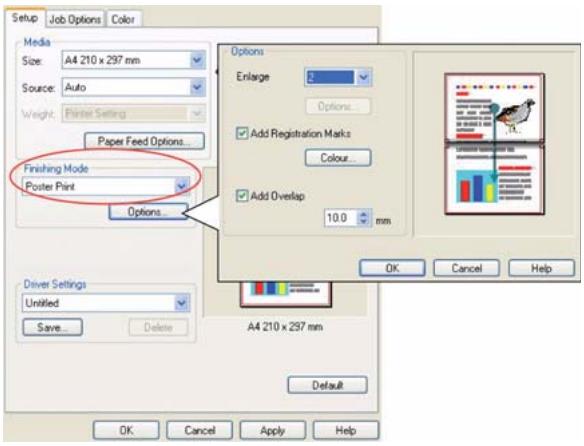
- Click [Options] to open the Options window.
(a) Choose the [enlargement] required for your document to fill the poster.
(b) [Registration marks] can be printed if required so that your printed pages (tiles) can be trimmed exactly to the edge of the image.
(c) An [overlap] may help you to match adjacent tiles when making up your final poster.
SCALE TO PAGE
Scale to Page allows you to print data formatted for one size page onto a different size page, without modifying the print data.
This feature is only available with the Windows PCL drivers.
- In the driver's Setup tab, click the [Options] button.
- Check the [Fit to Page] checkbox.
- Choose the scaling factor you need from the [Conversions] drop-down list.
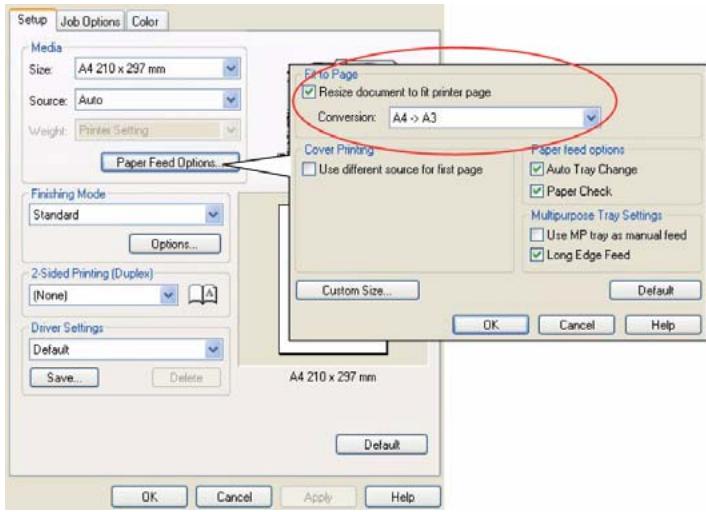
WATERMARKS
A watermark is typically faint text that is superimposed on a printed document. This can used to indicate that the document is "Draft", or perhaps "Confidential".
The illustration below shows the Windows PostScript driver. The PCL driver is very similar.
The Watermarks Feature is found in the driver's [Job Options] tab. Click the [Watermarks] button.
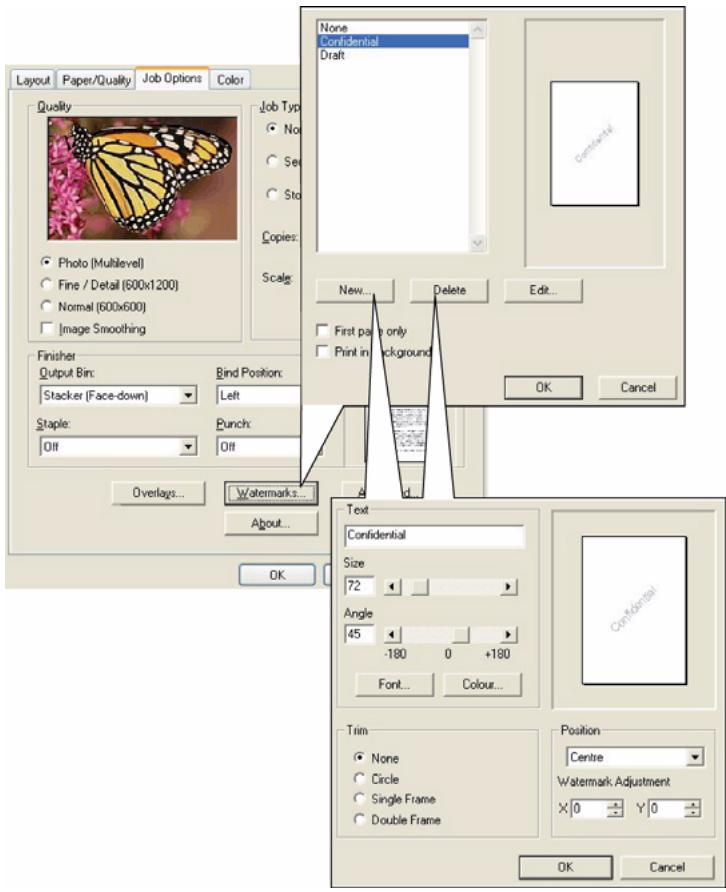
To create a new watermark
- In the Watermarks window, click [New...].
- Enter the text you want for your watermark.
- Adjust your watermark's font, size, color, angle, position and border (trim) as required.
- Click [OK] to accept your changes.
To choose a previously created watermark
In the Watermarks window, click the watermark in the list.
To edit an existing watermark
- In the Watermarks window, click the watermark's name in the list.
- Click [Edit...].
- Make any adjustments you wish, and click [OK] to accept your changes.
To print using a watermark
- In the Watermarks window, click the watermark's name in the list.
- Click [OK] to close the Watermarks window.
- Click [OK] to close the Printer Properties window.
- Print your document.
SPECIFICATIONS
| ITEM | SPECIFICATION | |
| General | ||
| Dimensions | 500 x 600 x 670mm (W x D x H) 19.69 x 23.62 x 26.73 inches (W x D x H) | |
| Weight | 37Kg approximately 82 lbs. approximately | |
| Power source | Input: 220 to 240VAC, 50 to 60Hz | |
| Power consumption | Max. operating: 1200W Normal operating: 490W Stand-by: 110W Power save mode: <27W | |
| Environmental: Noise | <70dBA | |
| Temperature | 10°C to 32°C | |
| Humidity | 50°F to 89.6°F 20% to 80% RH | |
| Scanning | ||
| Image sensor | Color CCD | |
| Light source | Cold Cathode Fluorescent Lamp | |
| Optical resolution | 1200 x 1200 dpi | |
| Output quality | Input: 48 bit color Output: 24 bit color 8 bit Grayscale 4 bit CMYK 1 bit Monochrome | |
| LCD size | Text, 24 x 2, mono | |
| LED indications | Power saving Warning Power | |
| External connections | RJ45 (Network) USB 2.0 (Computer) ADF port | |
| Network | 10/100 Mbit | |
| Network workgroup solution for: | Stand-alone copy E-mail (via Internet/Intranet) Filing Direct faxing | |
| Output format | PDF, JPEG, TIFF | |
| Interface USB 2.0 Host USB 2.0 Device Ethernet 10/100 Mb | Copy Scan E-mail, Scan to file, Print | |
| ADF | ||
| Document size | 114 x 140 to 216 x 355mm 4.49 x 5.51 to 8.5 x 13.98 inches | |
| Document weight/ thickness | 60 to 105 g/m² 16 to 28 lb. | |
| Paper feed | Face up | |
| Capacity | 50 sheets of Xerox4024 DP 9.07Kg paper | |
| ADF life | 240,000 scans or more, or 5 years | |
| Recommended daily scans | Up to 1000 pages a day | |
| Recommended pad replacement | 50,000 scans | |
| Recommended roller replacement | 200,000 scans | |
| Copy Specification | ||
| Emulation | PostScript 3 PCL 5c, HP-GL, PCL XL, PCL 6e Epson FX IBM Pro Printer III XL | |
| Interface | USB 2.0 | |
| Number of copies | Up to 99 | |
| Resolution | 600 x 600dpi | |
| Media type | Plain paper, Ultra Heavy, Transparency | |
| Quality | Speed, Text, Photo | |
| Density control | 5 levels | |
| Enlarge/reduce | Whole page (98%)25% to 400% in 1% and 10% increments Preset Scaling | |
| Input tray | Tray 1/Tray 2 (optional)/MP Tray | |
| Paper supply | Letter SEF (Short Edge Feeding)Legal SEFA4 SEFA5 SEF | |
| Edge erase | 0 to 25mm0 to 0.98 inches | |
| Margin shift | 0 to 25mm0 to 0.98 inches | |
| Paper saving(N-up) | 1 in 14 in 1 (Horizontal)4 in 1 (Vertical) | |
| Collate | ON/Off | |
| Job counting | Copy, Scan, Print, FaxEnable/Disable | |
| Network Specification | ||
| Connectivity | Ethernet 10BaseT/100BaseTX auto-negotiation with RJ-45 connector | |
| Communications protocol | TCP/IP, SMTP, HTTP, MIME, FTP, CIFS,DHCP, DNS, LDAP | |
| Supported browsers | Microsoft IE 4.1 or higherNetscape Navigator 4.0 to 4.78 | |
| Configuration requirement | IP addressSubnet maskGatewaySMTP server/POP3 serverFTP serverWeb server | |
| Fax Specification | ||
| Circuits | PSTN, PBX line | |
| Color fax | No | |
| Compatibility | ITU-T G3 (Super G3) | |
| Modem speed | 33.6Kbps | |
| Line interface | Dual RJ-11C (Line and TEL) | |
| Line input level range | 19dB to -43dB | |
| Coding | MH, MR, MMR, JBIG | |
| Receiving memory | 4.0 Mb | |
| Resolution: | ||
| Standard | 200 x 100dpi | |
| Fine | 200 x 200dpi | |
| Photo | 200 x 200dpi | |
| Extra fine | 200 x 400dpi | |
| Speed dials | 200 | |
| One-touch dial | 10 | |
| Group dial | 20 (up to 50 entries per group) | |
| Auto redial | Yes | |
| Manual redial | Yes | |
| Broadcast | Yes (max. 100 station) | |
| Sender ID | Yes (max. 32 characters) | |
| E-mail Specification | ||
| Communication protocol | SMTP, MIME, POP3 | |
| File formats: | ||
| B&W | PDF, TIFF, MTIFF | |
| Gray/Color | PDF, TIFF, MTIFF, JPEG | |
| Default file format | ||
| Separation limit | 1MB, 3 MB, 5MB, 10 MB, 30MB, No limit | |
| Resolution | 75, 100, 150, 200, 300, 400, 600 dpi | |
| Default resolution: B&W Gray/Color | 200 dpi 150 dpi | |
| Address book volume: Max. addresses Group No. of addresses in each group | 300 20 50 | |
| Multiple recipients allow | Yes | |
| Security check | Yes | |
| Mail server authentication | SMTP, POP3 | |
| Supported mail server application | Lotus Mail Server 5.0 MS Exchange Server 2000 RedHat 7.0 SendMail | |
| Supported LDAP server | Windows 2000 Active Directory Windows NT 4.0 + MS Exchange 5.5 Lotus Notes R5 | |
| Supported mail application | Microsoft Outlook 2000 Microsoft Outlook Express 5.0 Microsoft Outlook Express 6.0 Netscape Messenger 4.7 Netscape Messenger 4.73 Eudora 4.3.2J Lotus Notes R5 | |
| Filing Specification | ||
| Communication protocol | FTP, HTTP, CIFS | |
| File formats: B&W Gray/color | PDF, TIFF, MTFIFF PDF, TIFF, MTFIFF, JPEG | |
| Default file format | ||
| Max. number of profiles | 40 | |
| Printing | ||
| Speed | 20 pages per minute color 32 pages per minute monochrome | |
| Resolution | 600 x 600dpi 600 x 1200dpi Optical: 600x600dpi | |
| Auto features | Auto registration Auto density adjustment Auto consumable counter reset | |
| Memory | 256MB standard, upgradeable to 768MB max. | |
| Paper capacity at 80g/m2 (20 lb.) | 300 sheets in main tray 100 sheets in multi purpose tray 530 sheets in optional 2nd tray | |
| Paper weight | Main tray 64 ~ 120g/m2 17 ~ 32 lb. Multi purpose tray 75 ~ 203g/m2 20 ~ 54 lb Optional 2nd tray 64 ~ 176g/m2 17 ~ 47 lb. | |
| Paper output | 250 sheets in face down (top) stacker @ <80g/m2 (20 lb) 100 sheets in face up (rear) stacker @ <80g/m2 (20 lb) | |
| Printer life | 420,000 pages or 5 years | |
| Duty cycle | 50,000 pages per month max., 4,000 pages per month average | |
| Toner life | Black: 6,000 pages at 5% coverage CMY: 5,000 pages at 5% coverage | |
| Image drum life | 20,000 pages/3 pages per job (typical office usage) | |
| Belt life | 60,000 A4/Letter pages at 3 pages per job | |
| Fuser life | 60,000 A4/Letter pages | |
- DOCUMENT INFORMATION
- DISCLAIMER
- TRADEMARK INFORMATION
- CONTENTS
- Copyright Information 2
- Contents 3
- Emergency first aid. 6
- Notes,cautions and warnings. 7
- Introduction 8
- MFP Overview 13
- Getting started 18
- Loading paper 24
- Configuring your machine. 29
- Print settings and security 73
- Operation 80
- Maintenance 114
- Installing upgrades. 139
- Troubleshooting 149
- A guide to printing 182
- EMERGENCY FIRST AID
- Take care with toner powder:
- NOTES, CAUTIONS AND WARNING
- Note
- CAUTION!
- WARNING!
- INTRODUCTION
- ABOUT THIS GUIDE
- ON-LINE USER GUIDE
- PRINTING PAGES
- MFP OVERVIEW
- FRONT VIEW
- REAR VIEW
- THE CONTROL PANEL
- COPY AND DIALING AREA
- LCD AND FUNCTION AREA
- START AND OTHER KEYS
- CHANGING THE DISPLAY LANGUAGE
- GETTING STARTED
- INSTALLING MFP DRIVERS AND UTILITIES
- TWAIN AND PRINTER DRIVERS
- MFP NETWORK SETUP TOOL
- PAPER RECOMMENDATIONS
- CASSETTE TRAY
- MULTI PURPOSE TRAY
- FACE DOWN STACKER
- FACE UP STACKER
- LOADING PAPER
- CONFIGURING YOUR MACHINE
- MINIMUM CONFIGURATION REQUIREMENTS
- To send faxes:
- To send e-mails:
- To file document(s) via intranet
- PRE-CONFIGURATION INFORMATION
- GENERAL
- FAX SET UP
- NETWORK SET UP
- Explanation:
- INTERNET COMMUNICATION FEATURES
- Scan to e-mail
- Scan to FTP
- CONFIGURATION
- FROM THE WEB PAGE
- FROM THE MANAGEMENT UTILITY
- FROM THE SCANNER CONTROL PANEL
- Information menu
- Printer menu
- Network settings
- Mail server
- Fax settings
- Report print
- Management
- SPECIFYING THE ADMINISTRATIVE SETTINGS
- CONTENTS OF EACH PRINTER MENU
- Shutdown menu
- PPR emulation
- Usage menu
- Job log menu
- EXPLANATION OF FILING PROTOCOLS
- FTP
- HTTP
- Setting IIS anonymous access:
- Setting IIS privileged access:
- CIFS
- SETTING THE FAX FACILITY
- INITIAL SET UP
- ADVANCED SET UP
- Adding a speed dial entry to the phone book
- Adding a group dial entry to the phone book
- Deleting a speed dial entry from the phone book
- Deleting a group dial entry from the phone book
- Deleting all phone book entries
- Connecting to a PBX
- Automatic radial
- Manual receive
- Distinctive Ring Detection (DRD)
- Adding a telephone handset
- PRINT SETTINGS AND SECURITY
- PCL OR POSTSCRIPT?
- PRINTING PREFERENCES IN WINDOWS APPLICATIONS
- POSTSCRIPT EMULATION
- PCL EMULATION
- STORE TO HARD DISK/JOB SPOOLING
- SENDING THE DOCUMENT
- PRINTING THE DOCUMENT
- DELETEING A STORED DOCUMENT
- OPERATION
- LOADING DOCUMENT(s) FOR COPYING
- PLACING DOCUMENT(S) IN THE ADF
- PLACING DOCUMENT(S) ON THE GLASS
- SENDING DOCUMENT(S) VIA E-MAIL
- BASIC OPERATION
- ADVANCED OPERATION
- SENDING DOCUMENT(S) TO A FILE SERVER
- COPYING
- Accessing additional settings
- Quality
- Density
- Collation:
- Duplex (Optional):
- Edge Erase
- Changing scaling
- Improving copy quality
- Adjusting density
- Increasing copy count
- FAXING
- Manual redial
- Receiving a Fax
- Changing fax quality
- Document size
- Delayed send
- Manual feed
- Fax Forwarding
- Polling receive
- Overseas mode
- Broadcasting
- CANCEL FAX JOBS
- FAX JOB REPORTS
- SCANNING
- SCANNER OPERATION
- A LOOK AT THE USER INTERFACE
- USING THE BASIC FEATURES
- Scan method
- Choice:
- Image type
- Resolution
- Adjusting the brightness and contrast
- Brightness
- Contrast
- Enlarging previewed image (zoom)
- Inverting and selecting your image
- Invert
- Mirror function
- Auto select image
- Enhancing the image
- Desscreen
- Sharpen
- Color adjustment
- Auto level
- Using the advanced features
- Highlight/shadow levels
- Adjusting the curve
- Color hue/saturation/lightness
- Hue
- Saturation
- Lightness
- Using color balance
- Color drop-out
- Using custom settings
- OTHER TOOLS
- Note:
- PART NUMBERS
- TONER CARTRIDGE REPLACEMENT
- Note the positions of the four cartridges.
- Pull the colored toner release lever (1) on the cartridge to be replaced fully towards the front of the MFP.
- IMAGE DRUM REPLACEMENT
- TRANSFER BELT REPLACEMENT
- FUSER REPLACEMENT
- CLEAN THE ADF
- CLEAN THE DOCUMENT GLASS
- CLEAN THE LED HEAD
- INSTALLING UPGRADES
- DUPLEX UNIT
- MEMORY UPGRADE
- HARD DISK DRIVE
- ADDITIONAL PAPER TRAY
- STORAGE CABINET
- ADJUSTING WINDOWS PRINTER DRIVERS
- PCL DRIVER
- POSTSCRIPT DRIVER
- TROUBLESHOOTING
- CLEARING PAPER JAMS
- JAMS IN THE ADF
- JAMS IN THE PRINTER
- FAX PROBLEM CHECKLIST
- THE MFP WILL NOT DIAL A TELEPHONE NUMBER
- THE DISPLAY SHOWS A COMMUNICATIONS ERROR
- FAXING IS POSSIBLE BUT THE IMAGE OF THE DOCUMENT PRINTED BY THE REMOTE MACHINE IS VERY POOR.
- FAX SENT BUT RECEIVEDMESSAGE WAS COMPLETELY BLANK
- IMAGE OF RECEIVED FAX IS VERY POOR
- DIALING WAS TRIED WITH A SPEED DIAL NUMBER BUT NOTHING HAPPENED
- LOCAL MFP WILL NOT ANSWER THE TELEPHONE OR RECEIVE FAXES
- DOCUMENTS RECEIVED ARE LIGHT OR HAVE VERTICAL STREAKS ON THEM, AND MFP IS NOT OUT OF TONER
- MFP IS SET FOR DELAYED TRANSMISSION BUT IT DID NOT SEND
- MFP WILL NOT POLL A REMOTE MACHINE
- MFP IS CONNECTED TO A PBX BUT IT IS NOT POSSIBLE TO DIAL OUT
- MFP ALWAYS ANSWERS BEFORE ITS POSSIBLE TO USE THE EXTERNAL TELEPHONE
- FAXES RECEIVED SOMETIMES LOOK DISTORTED
- INFORMATION AND WARNING MESSAGES
- ERROR MESSAGES DURING NETWORKING
- ERROR MESSAGES DURING E-MAILING
- ERROR MESSAGES DURING FILING
- A GUIDE TO PRINTING
- HOW TO ACCESS THE DRIVER SCREENS
- Notes
- CHANGING THE DRIVER DEFAULTS
- WINDOWS
- CHANGING THE APPLICATION'S DRIVER SETTINGS
- PCL SAVED DRIVER SETTINGS
- SAVING A SET OF DRIVER SETTINGS
- RECALLING SAVED DRIVER SETTINGS
- SETTING THE DRIVER DEVICE OPTIONS
- BLACKS AND GRAYS (BLACK OVERPRINT)
- On the [Job Options] tab, click [Advanced].
- Check [Black Overprint].
- BLACK PRINTING (BLACK GENERATION)
- COMPOSITE BLACK
- TRUE (PURE) BLACK
- Office Color
- Graphic pro
- FINE LINES ENHANCEMENT
- GRAYSCALE PRINTING
- COLOR MATCHING
- BASICS
- Printer Color Management (3).
- WHAT THIS GUIDE DESCRIBES
- PRINTER COLOR MANAGEMENT
- ABOUT RGB AND CMYK COLOR
- ABOUT THE PRINTER DRIVERS
- OFFICE COLOR - RGB OPTIONS
- Select a preset from [Color matching options] (2).
- CUSTOMISING RGB OFFICE COLOR WITH THE COLOR CORRECT UTILITY
- WHAT CAN YOU DO WITH GRAPHIC PRO COLOR MATCHING?
- Matching mfp color to an RGB input device
- Printer simulation
- CMYK ink simulation
- More accurate mfp color
- TYPES OF ICC PROFILE SUPPORTED
- STEP 1 - GATHER OR CREATE THE ICC PROFILES
- STEP 2 - DOWN LOADING ICC PROFILES TO THE HARD DISK
- STEP 3 - SELECT ICC PROFILES IN THE PRINTER DRIVER
- MATCHING THE COLOR OF A MONITOR, SCANNER OR CAMERA
- SIMULATING ANOTHER PRINTER - RGB SOURCE DATA
- CMYK INK SIMULATIONS - CMYK SOURCE DATA
- RENDERING INTENTS
- PERCEPTUAL
- SATURATION
- RELATIVE COLORIMETRIC
- ABSOLUTE COLORIMETRIC
- COLOR MATCH PRECISION
- PRINTER DRIVER SETTINGS FOR ICC PROFILE CREATION OR NO COLOR MATCHING
- FINISHING OPTIONS
- BOOKLET PRINTING (IMPOSITION)
- Windows PostScript
- Windows PCL
- COLLATING
- COLOR SEPARATION
- SEPARATING QUEUED PRINT JOBS
- COVER PRINT
- CUSTOM PAGE SIZE
- Windows XP/2000 PostScript
- DUPLEX (DOUBLE-SIDED) PRINTING
- PRINTING MULTIPLE PAGES ON ONE SHEET (N-UP)
- POSTER PRINTING
- SCALE TO PAGE
- WATERMARKS
- To create a new watermark
- To choose a previously created watermark
- To edit an existing watermark
- To print using a watermark
- SPECIFICATIONS
Brand : OKI
Model : MC560MFP-PLUS
Category : Multifunction Printer