
GM-M8000 - Gaming Mouse GIGABYTE - Free user manual and instructions
Find the device manual for free GM-M8000 GIGABYTE in PDF.


| Product type | Wired gaming mouse |
| Brand | GIGABYTE |
| Model | GM-M8000 |
| Sensor | Laser, up to 4000 DPI |
| Number of buttons | 7 (incl. left click, right click, scroll wheel, forward, back, DPI adjustment, profile switch) |
| Scroll wheel | Vertical and horizontal scrolling |
| Configuration software | GHOST™ Engine |
| Profiles | Up to 15, with 3 active profiles (red, green, blue) |
| DPI settings | 400 to 4000 DPI, 4 preset levels (800, 1600, 3200, 4000) |
| USB report rate | 125 / 250 / 500 / 1000 Hz |
| Onboard memory | Yes (GHOST™ Engine) |
| Adjustable weight | Yes, weight compartment |
| Glides | Ultra-Durable™ Teflon |
| Power supply | USB |
| Cable length | Approximately 1.8 m |
| Dimensions (approx.) | 125 x 70 x 40 mm |
| Weight (approx.) | 100 g (without weight) |
| Operating systems | Windows, Mac, Linux (without GHOST software) |
| Advanced functions | Macro editor, multimedia and Internet key assignment |
| Maintenance and cleaning | Clean with a soft, dry cloth |
| Safety | Use on a flat, stable surface |
| Spare parts | Not available, no user repairs |
Frequently Asked Questions - GM-M8000 GIGABYTE
User questions about GM-M8000 GIGABYTE
0 question about this device. Answer the ones you know or ask your own.
Ask a new question about this device
Download the instructions for your Gaming Mouse in PDF format for free! Find your manual GM-M8000 - GIGABYTE and take your electronic device back in hand. On this page are published all the documents necessary for the use of your device. GM-M8000 by GIGABYTE.
USER MANUAL GM-M8000 GIGABYTE
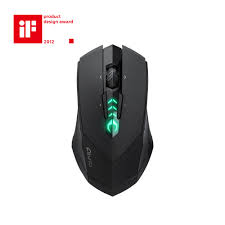
Congratulations on purchasing your own powerful weapon- GHOST™ gaming M8000 mouse. GIGABYTE GM-M8000 is a super powerful mouse designed specially for gaming users. It is equipped with the highest performance laser engine in the world : with the most accurate precision, no tracking lag, and highest resolution up to 4000dpi. Another powerful feature of this weapon is to its extra gaming buttons which give gamers the best short-cut to upgrade to the highest rank. Having it, you will be much more pleasure and easily to win every game competition you face.
In addition to hardware design, we also provide the best unique gaming software, GIGABYTE GHOST™ Engine, for gamers to record, to read, and to edit the desired scripts which include complicated keyboard and mouse commands.
With GHOST™ Engine integrating capability, your GM-M8000 remembers to save up to 15 onboard macro settings and assigned to any specific gaming buttons of the mouse without the need to reinstall driver software into other computers. Gamers just simply press the gaming button, to allow the mouse starts the function in according to recorded macros. GM-M8000 helps gamers get rid of repeated practice, reducing burdens, and having more funs.

CAUTION
Please DO NOT direct the laser beam to the eye.
1-3 Features
High-performance AVAGO 6090 Laser sensor
Adjustable sensitivity up to 4000 dpi
Support 15 customizable onboard settings with macro editing
8KB GHOSTTM Engine onboard memory
Scroll wheel with 24 individual click positions
16-bit ultra-wide data path
5 independent programmable gaming buttons
Easy "Up-down" DPI adjustment button
Sweat-Proof Ergonomic streamline shape
Ultra-Durable™ slick Teflon feet
Gaming-grade USB cable with gold-plated USB connector
Professional GHOST™ Engine software package is included
38 grams of metal weights are included
1-4 System Requirements
CD-ROM Drive
USB Port
Windows® 98/ ME/ 2000/ XP/ Vista
2 Mouse Introduction
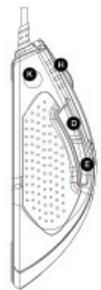
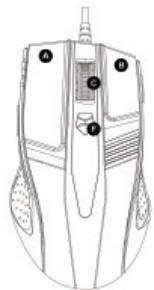
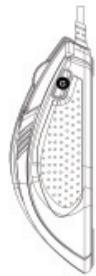
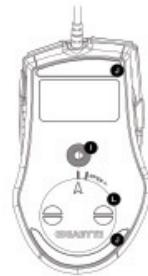
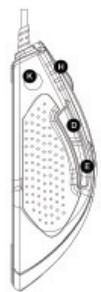
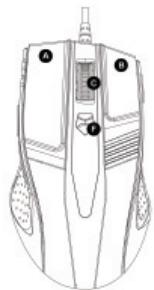
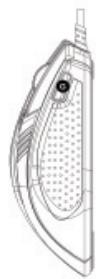
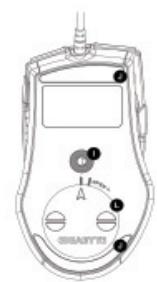
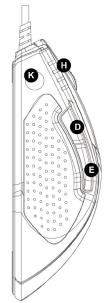
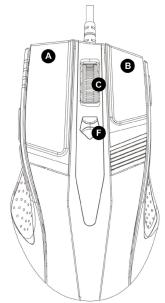
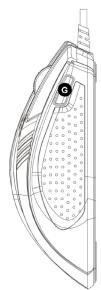
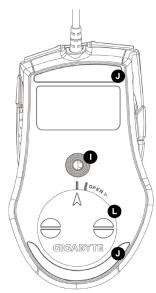
Default button assignments
| A | Mouse button1 | Left Click |
| B | Mouse button2 | Right Click |
| C | Mouse button3 | Vertical & Horizontal scrolling |
| D | Mouse button4 | Forward |
| E | Mouse button5 | Backward |
| F | Mouse button6 | "Up & Down" DPI adjustment |
| G | Mouse button7 | Profile change |
| H | LED Dpi indicator | |
| I | Gaming-grade laser sensor | |
| J | Ultra-Durable™ slick Teflon feet | |
| K | GHOST™ Engine onboard memory | |
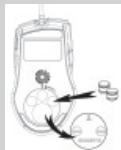
| L | Weight adjustable compartment |

CAUTION
Keep the weight units out of reach of children.

NOTE
Weight-adjusting System
Adjust and balance mouse weight between 6g and 38g. Find the best combination of perfect weights to fit your gaming type.
2-1 Hardware Installation
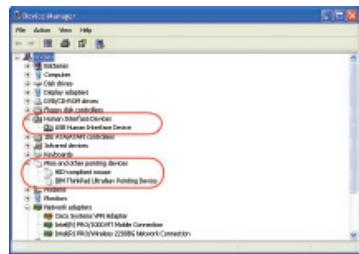
Step 1 Plug Mouse into the USB port of your computer.
Step 2 Open-->"Control Panel"-->"System"-->"Hardware"-->"Devices Manager" and confirm the mouse is working properly.
2-2 Using M8000 Gaming mouse
Switch DPI & Obvious DPI LED indicator
You can increase or decrease the sensitivity (dpi) by pushing or pulling the Easy "Up-Down" DPI Adjustment button on the scroll wheel bar. The 4-degree LED indicator shows the current selected sensitivity.
(Users can customize default dpi degree setting with GHOST™ Engine Software tool.)

In the first-person shooter games, programming a smaller dpi tracking sensitivity (e.g., 400 dpi) for sniping and shooting is recommended. An higher setting (e.g.,2000 dpi) for quicker movements.
Switch profiles & three profile-setting-color LED Display
M8000 allows gamers to switch between customizable profiles in two ways :
- By assigning the function to a button via the GHOST™ Engine Software.
- By using the Quick-switch Gaming Profile button located on the top of the mouse.
When the active profile is switched, the GIGABYTE LED indicator of the mouse immediately changes the colors (including Red, Blue, and Green) to indicate the profile you selected.
3 Software Installation
The CD included in the package contains two kinds of software :
the mouse driver and the gaming GHOST™ Engine Software tool. By assume your CD-ROM Drive is Drive D.
Before installing the driver of the mouse, we suggest you check weather there are any other mouse drivers installed in your system. If yes, in order to prevent possible conflict, please un-install or remove those drivers before installing the mouse.
3-1 GHOST™ Engine Software Installation
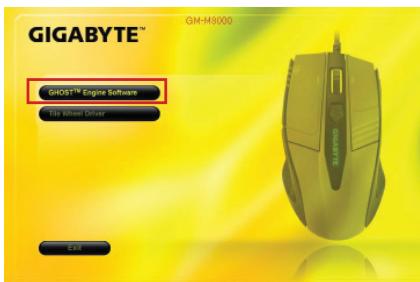
Step1 Please insert the driver CD into CD-ROM, you will see the GIGABYTE CD main menu. (If it does not show up, run "D:\setup.exe")
Step 2 Click the "GHOST™ Engine Software" button, to start installation of GHOST™ Engine Software.
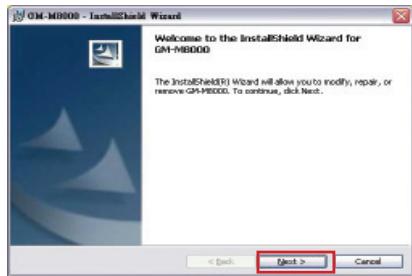
Step 3 Click the "Next" button.
Step 4 Click the "Install" button to begin to install.
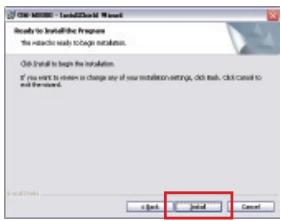
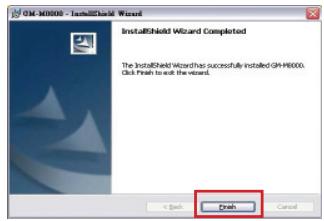
Step 5 Click the "Finish" to exit the wizard.
3-2 Tilt Wheel Software Installation
Since the mouse features plug & play, it is not necessary to install the driver to operate the basic function of mouse. You are required to install the mouse driver to run the tilt scrolling function effectively.
Step1 Click the "Tilt Wheel Driver" button to start installation of Tilt Wheel Driver.
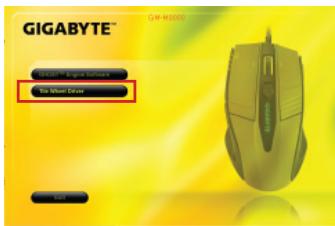
Step2 Follow the instruction on the screen.
Step3 Hold the wheel to left to scroll left, hold the wheel to right to scroll right and confirm the 4-way scrolling is working appropriately after installing the driver.
4 Software Setting
Using GHOST™ Engine Mouse software, you can configure and save up to 15 customized gaming settings in our GM-M8000 in profiles for specific games without the need to reinstall driver software in other computer.
What kind of setting can you configure in GHOST™ Engine Mouse software?
- Normal function button assignment : Internet, media and some quick keys
- Advanced function button assignment : Macro Editor for both of mouse and keyboard
- Sensitivity setting from 400 to 4000dpi
- USB report rate
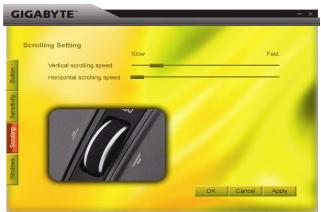
- Vertical and horizontal scrolling speed setting

Each setting is saved to the current profile on the current machine only.
4-1 GHOST™ Engine Introduction
Main Window
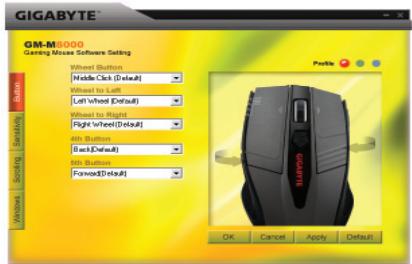
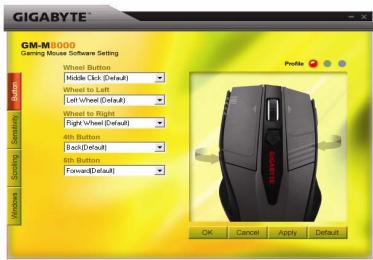
Button Configuration
You can assign various functions to buttons from the dropdown menu. For example, media and internet function. If the button function is not listed or you would like to assign a macro, please select "Macro Edit" from the dropdown menu.
Profile selection
There are three color LED lights on the panel: red, green, and blue, which indicate three profiles set up by the users. Remember that each individual profile can be assigned various functions to the five buttons.
Default- When you click "Default" button, the settings will be back to original factory default settings.
Apply - All current settings will be applied to the mouse
Cancel - All settings would not be applied to the mouse, and the window of GHOST™ software will be closed.
OK - All current settings will be applied to the mouse, and the window of GHOST™ software will be closed.
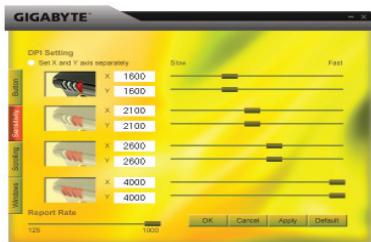
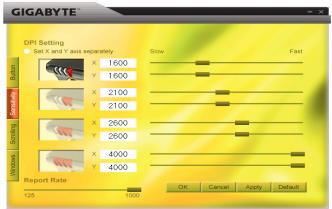
Sensitivity
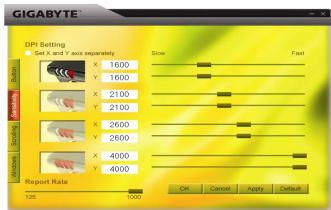
As default settings, there are four DPI level: 800, 1600, 3200, and 4000dpi. You can assign different dpi setting on your own demand by moving the knob on the slider. Check "set X and Y axis separately" option to adjust X-Y sensitivity levels individually.
Report rate
You can set the report rate to 125Hz (8ms), 250Hz (4ms), 500Hz (2ms), or 1000Hz (1ms) by moving the knob on the slider.
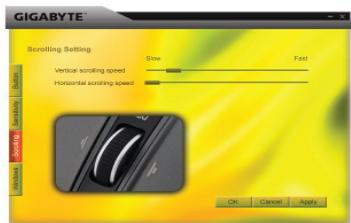
Scrolling
You can adjust vertical & horizontal scroll wheel speed by moving the knob on the slider.
Windows
You can click the "Windows" button. That allows you to link to Window® Mouse Control Panel.
4-2 Macro Editing
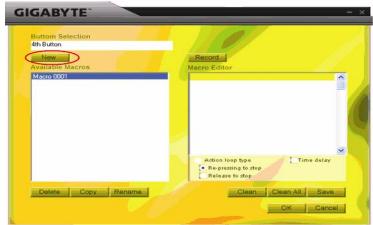
The Macro Editor panel helps gamers easily record all keyboard and mouse commands. These steps are as following :
Step 1 Make sure GM-M8000 is connected to the PC.
Step 2 Execute the GHOSTTM Engine Software.
Step 3 Select "Macro Edit" from the dropdown menu in Button panel.
Step 4 Press "New" to create a macro name automatically.
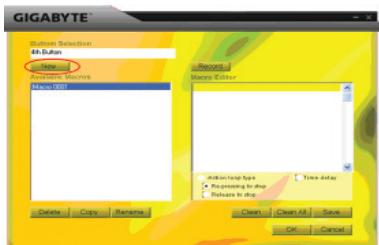
Step 5 Press "Rename" in case you would like to revise the original name.
Step 6 Press "Record" button to start recording all keyboard or mouse functions which you are operating into the Macro Editor.
Step 7 Press "Stop" button to finish recording this macro. If you don't press the "stop" button, the software will continue recording.
Step 8 Press "Save" button to save your commands you recorded in "Available Macros".
Stop 9 Press "OK" to put the macro on the dropdown menu in Button panel.
Step10 If you would like to apply macros you created into GM-M8000, you must to configure the buttons from the dropdown menu of "Button" panel. SEE "4-1 GHOST™ Engine Introduction".

- Some special function keys such as multimedia function keys may not be recorded.
- 509 bytes recording space is provided to Middle/ 4^th / 5^th customizable button (about 200 scripts) and 253bytes for Wheel to left/right customizable buttons. Any macro command over the limit will not be saved and assigned to the gaming button.
Functions
Action loop type:
a. Re-pressing to stop: If this function is marked, the recorded macro will be executed repeatedly as you click the assigned button. Re-pressing the assigned button of the mouse to stop.
b. Release to stop: If this function is marked, the recorded macro will be executed repeatedly as you click the assigned button of the mouse until you release the assigned button.
Time delay: If this function is marked, it allows you to record the intervals between two commands. Moreover, double-click the time field option in the "Macro Editor" to modify the interval time.
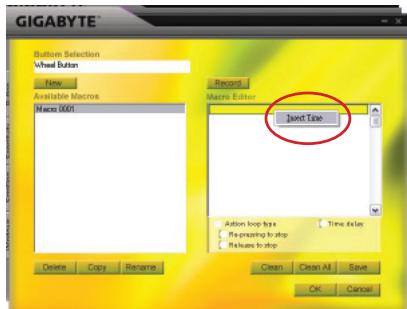
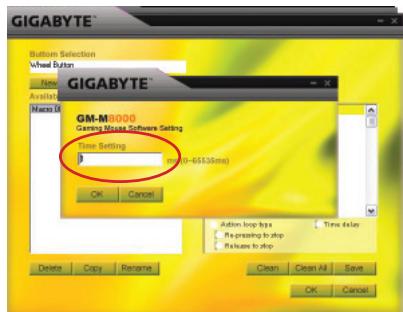
New : Create an new macro name automatically
Record/Stop: Click "Record" button to start recording; meanwhile, the "Record" button will become the "Stop". After finishing recording, you need to stop re cording before further actions.
Clean Clear the selected command
Clean all Clear all commands in Macro Editor
Rename : Modify the original name
Copy : Copy the selected macro
Delete : Delete the selected macro
1. GM-M8000介紹
預設按键分配
non3yHok. TTo6bI OTpeRynipoBaTb yPoBHN yBCTBnTeNbHOCTn NO Ocram X-Y no Флakok Set X and Y axis separately (Hacptounb ocN X n Y no OTdelenbOCTn).
Ckopoocb OTKJlnka
Co3daTb: abTOMaTInueckoe Co3dAnHe IMeHn HOBOr MaKpOca.
3aHncaTb/OctahOBntb: HaxMNTe KHNKy «3aHnCaTb», YTObI HaaytB 3aNNCb, NOcNe Yero ee 3aMeHNT KONKa «OCTaHOBntb». ПО 3aBepSeHn 3aHNCn Heo6xOJIMO OCTaHOBntb ee,праздучEM BblONHЯТь ДальHeNше DeiCTBnJ.
OuHCTnTB: ydaJIeHHe BbIbpaHHoKOMaHDbI.
OuHCTHTB BCE: ydaJIeHHe BCEx KOMaHd B peJaKTope MaKpOCOB.
IpeenMeHOBaTb: 13MeHeHneOpnHaJIbHOrO IMeHn.
KoNipobatb: KOINPOBAHne Bbl6paHHoro MaKpoca.
ydaJIITb: ydaJIeHHe BbIbpaHOro MaKpOca.
1 GM-M8000 Tanitimi
n 15 nnnn nn nnnn nnnn nnnn nnnn nnnn nnnn nnnn nnnn nnnn nnnn nnnn nnnn nnnn nnnn nnnn nnnn nnnn nnnn nnnn nnnn nnnn nnnn nnnn nnnn nnnn nnnn nnnn nnnn nnnn nnnn nnnn nnnn nnnn nnnn nn
?TM GHOST Engine Mouse nnnn nn nnnn nnnn nnnn nnnn nnnn nnnn nnnn nnnn nnnn nnnn nnnn nnnn nnnn nnnn nnnn nnnn nnnn nnnn nnnn nnnn nnnn nnnn nnnn nnnn nnnn nnnn nnnn nnnn nnnn nnnn nnnn nnnn nnnn nnnn nnne

Tn nn nnnnnnnnnnnnnnnnnnnnnnnnnnnnnnnnnnnnnnnnnnnnnnnnnnnnnnnnnnnnnnnnnnnnnnnnnnnnnnnnnnnnnnnnn
yinnn70 - TMGHOST 2-1
Hn
xnx
DPI nnnn nn nnnn nnnn DPI nnnn nn nnnn nnnn nnnn nnnn nnnn nnnn nnnn nnnn nnnn nnnn nnnn nnnn nnnn nnnn nnnn nnnn nnnn nnnn nnnn nnnn nnnn nnnn nnnn nnnn nnnn nnnn nnnn nnnn nnnn nnnn nnnn nnnn nnnn nnnn nnne
(niiT 2x7) Report rate
500Hz,(4ms)250Hz,(8ms)125Hz nnnn nn (1ms) 1000Hz ,(2ms)
(n)Scrolling
Jnnn nn nnnn nnnnnnnnnnnnnnnnnnnnnnnnnnnnnnnnnnnnnnnnnnnnnnnnnnnnnnnnnnnnnnnnnnnnnnnnnnnnnnnnnnnnnnnnnnnnnnnnnnn
Windows
. Window® w " J" 11111111111111111111111111111
n 2-2
n nn nnnnnnnnnnnnnnnnnnnnnnnnnnnnnnnnnnnnnnnnnnnnnnnnnnnnnnnnnnnnnnnnnnnnnnnnnnnnnnnnnnnnnnnnnnnnnnnnnnnnnnnnnnnnnnnnnnnnnnnnnnnnn
jTOn Dyy
.ynnnnGM-M8000-XTI 1
.ΓGHOST Engine nnnn nn 2y
(n nn) "Macro Edit" nn (pn) Button n nn nn nn nn 3
.1011111111111111111111111111 4
"Jn nn nn nn nn nn nn nn nn nn nn nn nn nn nn nn nn nn nn nn nn nn nn nn nn nn nn nn nn nn nn nn nn nn nn nn nn nn nn nn nn nn nn nn nn nn nn nn nn nn nn nn nn nn nn nn nn nn nn nn nn nn nn nn nn nn nn nn nn nn nn nn nn nn nn nn nn nn nn nn nn nn nn nn nn nn nn nn nn nn nn nn nn nn nn nn nn nn nn nn nn. 5 w
Macro "Stop" xnn n y nnn n nnn n nnn n nnn n nnn n nnn n nnn n nnn n nnn n nnn n nnn n nnn n nnn n nnn n nnn n nnn n nnn n nnn n nnn n nnn n. 6 w
ninn , (xnu) "Stop" xnn n y ynn n y ynn n y ynn n y ynn n y ynn n y ynn n y ynn n y ynn n y ynn n y ynn n y ynn n y ynn n y ynn n y ynn n y ynn n y ynn n y ynn n y. 7 w
ninn) "Available Macros" xinn n xinn n xinn n xinn n xinn n xinn n xinn n xinn n xinn n xinn n xinn n xinn n xinn n xinn n xinn n xinn n xinn n xinn n xinn n xinn n xinn. 8 w
(nn) Button niyn nuyn nyyn nyyn nyyn nyyn nyyn nyyn nyyn nyyn nyyn nyyn nyyn nyyn nyyn nyyn nyyn nyyn nyyn nyyn nyyn nyyn nyyn nyyn nyyn nyyn nyyn nyyn nyyn nyyn nyyn nyyn nyyn nyyn nyyn nyyn nyyn nyyn nyyn nyyn nyyn nyyn nyyn nyyn nyyn nyyn nyyn nyyn nyyn nyyn nyyn nyyn. 9 w
ninn oon noon noon noon noon noon noon noon noon noon noon noon noon noon noon noon noon noon noon noon noon noon noon noon noon noon noon noon noon noon noon noon noon noon noon noon noon noon noon noon noon noon noon noon noon noon noon noon noon noon noon. 10 w
"yannn ng TM GHOST 4-1" qnrn .(xny) Button niyn

- 1-3 Features
- 1-4 System Requirements
- Mouse Introduction
- Weight-adjusting System
- 2-1 Hardware Installation
- 2-2 Using M8000 Gaming mouse
- Switch DPI & Obvious DPI LED indicator
- Switch profiles & three profile-setting-color LED Display
- Software Installation
- 3-1 GHOST™ Engine Software Installation
- 3-2 Tilt Wheel Software Installation
- Software Setting
- 4-1 GHOST™ Engine Introduction
- Button Configuration
- Profile selection
- Sensitivity
- Report rate
- Scrolling
- Windows
- 4-2 Macro Editing
- Functions
- GM-M8000介紹
- Ckopoocb OTKJlnka
- GM-M8000 Tanitimi
- xnx
- (niiT 2x7) Report rate
- (n)Scrolling
- n 2-2
Brand : GIGABYTE
Model : GM-M8000
Category : Gaming Mouse