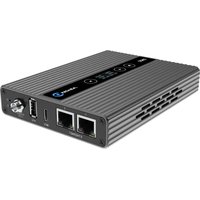
D260 - Audio/video converter Kiloview - Free user manual and instructions
Find the device manual for free D260 Kiloview in PDF.


| Product Type | Audio/Video Converter |
| Brand | Kiloview |
| Model | D260 |
| Dimensions (approx.) | 120 x 80 x 25 mm |
| Weight (approx.) | 200 g |
| Power Supply | 5V DC via USB-C or power adapter |
| Video Input | HDMI |
| Video Output | HDMI, USB (UVC) |
| Audio Input | HDMI embedded, 3.5mm mic/line-in |
| Audio Output | HDMI embedded, 3.5mm headphone |
| Max Resolution | 1080p@60fps |
| Encoding | H.264/H.265 |
| Streaming Protocols | RTMP, RTSP, SRT |
| Storage | Supports MicroSD card (up to 128GB) |
| Connections | HDMI input, HDMI output, USB-C, 3.5mm audio, MicroSD slot, Ethernet |
| Main Functions | Video capture, encoding, live streaming, recording to SD card |
| Maintenance & Cleaning | Wipe with a soft, dry cloth; avoid liquids |
| Safety Precautions | Do not expose to moisture or extreme temperatures |
| Spare Parts / Repairability | Not user-serviceable; contact support for issues |
| General Information | Compact and portable design for on-the-go streaming |
Frequently Asked Questions - D260 Kiloview
User questions about D260 Kiloview
0 question about this device. Answer the ones you know or ask your own.
Ask a new question about this device
Download the instructions for your Audio/video converter in PDF format for free! Find your manual D260 - Kiloview and take your electronic device back in hand. On this page are published all the documents necessary for the use of your device. D260 by Kiloview.
USER MANUAL D260 Kiloview
Device interfaces and functions
Device connection, login and use guide
Device upgrade and restore to factory settings
Before using this product, it is recommended that you read the guide carefully. To ensure your personal safety and avoid physical or electrical damage to the device, please strictly follow the instructions of this guide to install and use it under the guidance of professionals. Incorrect electrical connections or physical installation may cause permanent damage to the device and even threaten personal safety.
1 Packing List

(1) Device ×1
natural_image
Illustration of a gray rectangular device connected to a coiled cable with two terminal leads (no text or symbols)(2) Power Supply ×1

natural_image
Generic document icon with horizontal lines, no text or symbols present(3) Warranty Card ×1

(4) Quick Start Guide ×1
2 Device Interfaces
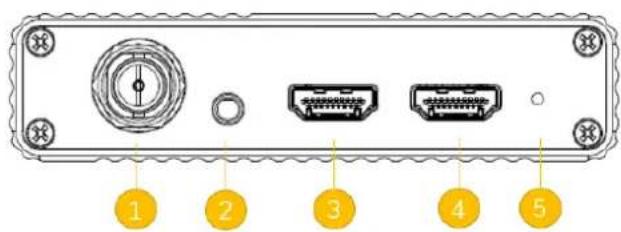
(1) SDI output
(2) LINE OUT
(3) HDMI output 1
(4) HDMI output 2
(5) Reset
(6) 1000M Ethernet Port 1

(7) 1000M Ethernet Port 2
(8) Type-C Expansion Port
(9) USB Expansion Port
(10) Power Port
(11) Working Indicator
3 LED Indicators
| LED Indicators | Name | Color | Status | Description |
| Power | Red | ON Power connected | ||
| OFF Power off or failure | ||||
| Run Green | Flashing Working | |||
| Always ON/OFF | Device is abnormal or not started |
4 Application
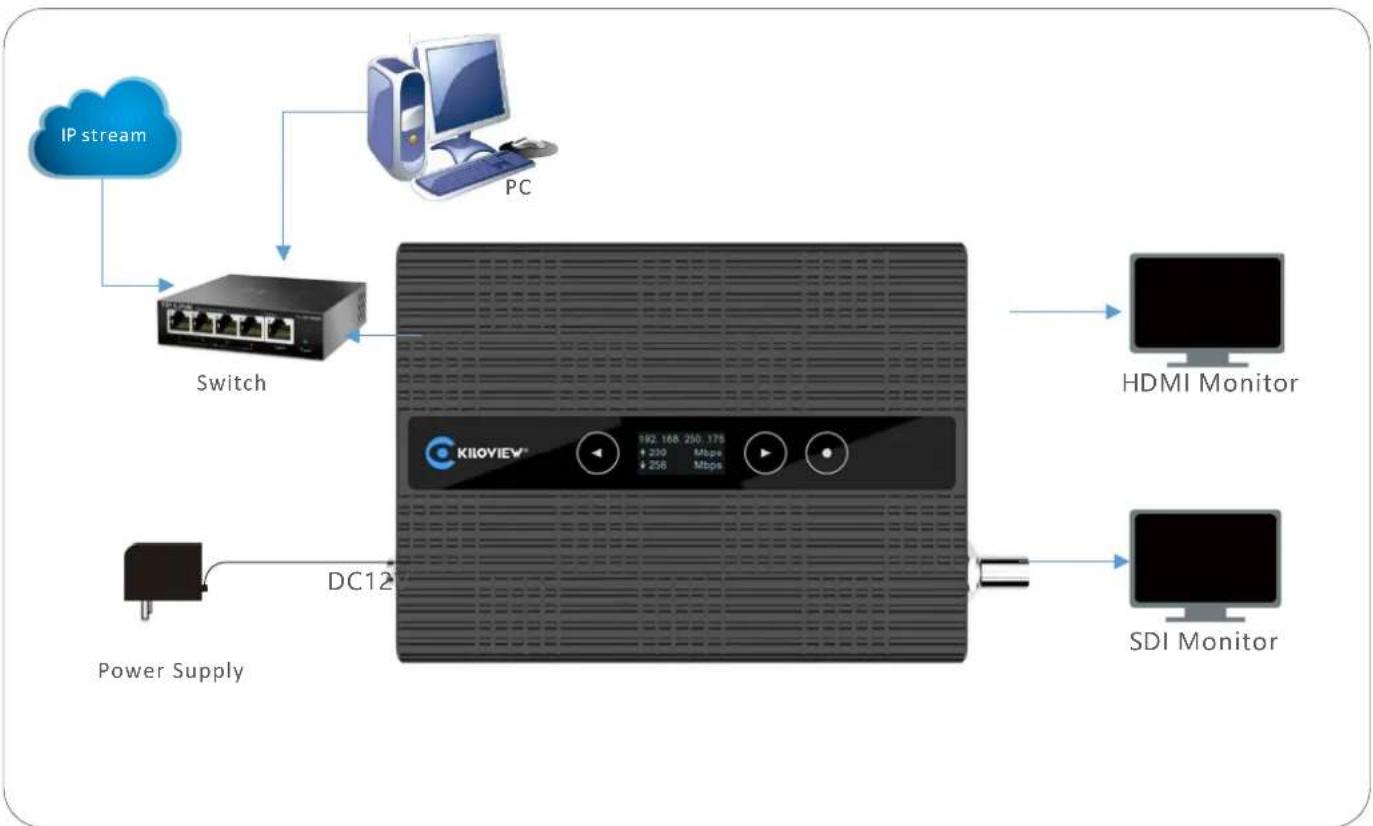
flowchart
graph TD
    A["Power Supply"] --> B["Switch"]
    B --> C["PC"]
    C --> D["HDMI Monitor"]
    D --> E["SDI Monitor"]
    F["IP stream"] --> G["Switch"]
    G --> H["KiIOVIEW®"]
    H --> I["DC12"]
    I --> J["+ 230 Mbps ↓ 258 Mbps"]

Note
- Please use the equipped power adapter to power the device. Other unqualified power supplies may damage the device.
● D350 single window supports up to 9-channel decoding, HDMI and SDI output same or different contents.
● D260 supports up to 4-channel decoding, HDMI and SDI output same or different contents.
5 OLED Screen and Touch Button
The D350/D260 comes with an OLED screen and touch button. Users can easily check the output interface, resolution, device IP address, real-time upstream and downstream network rates, or switch the display by touching the button. For more detailed information, please refer to the user manual.
: Switch to the next page
: Switch to the previous page
: OK

6 Login to the device webpage
With the OLED screen, users can check the IP address in real-time.
After powered on, you can switch the touch button to check the IP address of your connected network. As shown below:

Login to the device webpage via the default IP address 192.168.1.168. That is, enter http://192.168.1.168/ in the browser to access the web page.

Note
- To login with the default address, make sure that the computer is configured under the same network segment (192.168.1.*, * refers to numbers between 1-255 except 168)!
● After changing the device IP address, please restore your computer network to the working network IP address. - If the D350/D260 is connected to the network by Ethernet port 2, the default IP address is: 192.168.2.168!
The username and the password are admin by default.

Note
- To ensure information security, it is recommended to change your password immediately after logging in for the first time!
● Due to the browser compatibility issues, it is recommended to use Chrome or Edge.

For more information about the D350/D260 configurations, please refer to:
https://www.kiloview.com/en/support/docs/d350/
7 Decoding and output
7.1 Add video source
In the lower left of the "Media", click "Add", and then select the "Source Type" and configure the parameters in the pop-up dialog box, and click "OK" to add the video source to the list.
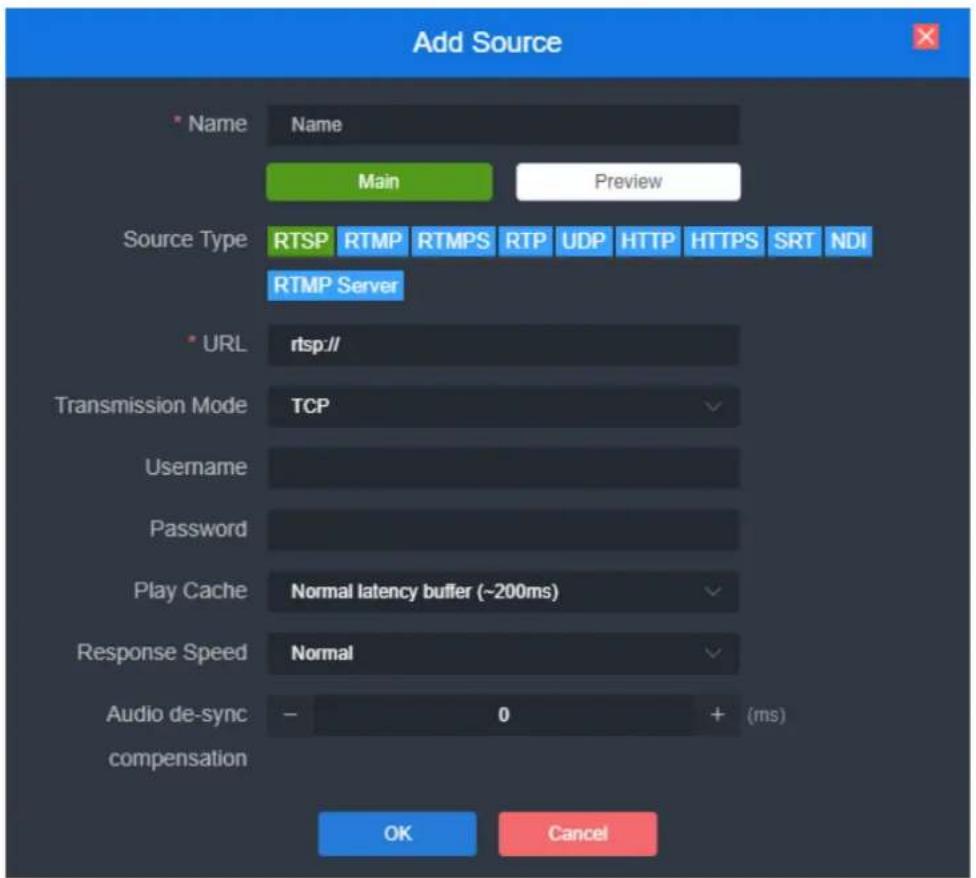

Note
● The IP address of video source can be tested with a player such as VLC.
- If video source is from network, it is required to configured with a high buffer time for playback buffer until the video decoding output is smooth.

For more information about how to add the video source, please refer to:
https://www.kiloview.com/en/support/docs/d350/
7.2 Preview
The added sources will be displayed in the "Video Source", drag the source to the upper "Source Preview" window to preview the source images and to configure the output parameters.
![KIIoVIEW® D350 Media Network Images Management NDI Discovery Server Kilolink Server Source Preview Image Video 18T 192.168.43.252.55/uk01 N6-[Channel-NDI] 192.168.43.224.5962 N6 192.168.43.224.5961 test 192.168.28.243.554/uk01 RTSP Source +Add C Discover Offline DisplayService RTSP](/content/2026/06/1366686/images/7b4f2ef7bb070a885e8f7e8a755f032bc6333e1c12fb6d05c10ada86f2f09a62.jpg)

Note
It is recommended to use the latest version of Chrome and Edge for preview function.
● Preview in browser does not support video sources with B-frame and H.265.
● To preview, please use the service network IP address to login to the device.
- The "Source Preview" window is under "Image" mode by default, and the image refreshes every 3 seconds; if the CPU performance of your computer is well, you can click and switch to "Video" mode, and there will be smooth video.
7.3 Output
There are two output windows on the webpage. You can select SDI or HDMI to decode and output the same or different content in the upper right corner of the window. Drag the video source into the output window, that is, output with the selected SDI or HDMI interface.


Note
● The output resolution should be the resolution and frame rate that the receiving monitor can support.
- The audio is turned off by default, and it can be turned on by click the red speaker in the lower left corner of the output window.
- Multi-screen output needs to be configured by adding a layout, D350 supports up to 9 grids output. D260 supports up to 4 grids output.

For more info about D350/D260 output layout configurations, please refer to:
https://www.kiloview.com/en/support/docs/d350/
8 Firmware Upgrading
8.1 Download upgrade firmware

Kiloview will provide the firmware of updating functions for D350/D260, please refer to:
https://www.kiloview.com/en/support/download/
Select "video decoders" > "D350/D260", find and download the latest firmware
8.2 Upgrade firmware
Login to the web page of D350/D260, click "Settings">"Firmware Upgrade" to check if there is any latest firmware available to download. If yes, select the downloaded firmware and click "Firmware Upgrade".

After a successful upload, it needs to reboot the device. After clicking "ok", the device will restart, please be patient.


Note
- Please not power off during the upgrade process, otherwise the device couldn't work.
- Generally, this process can take 3-5 minutes to upgrade the device. If it's still not completed after 5 minutes, please try refreshing webpage. If you still can't access it, please try to contact technical support.
9 Restore factory settings
If the device cannot work normally after modified the parameters or forgot IP configuration, please restore factory settings.
Two Easy Methods:
1) If you can login to webpage, click "Settings>System settings>Restore factory settings" on the webpage.
2) If you cannot login to webpage, press the RESET button for 5 seconds in the bottom of device.

Note: After restoring factory setting, below parameters will be turned to default value:
- Login password will be restored to "admin".
- Your device will be restored to obtain a DHCP-assigned IP address by default and the failover address 192.168.1.168 will be bound to the device.
● All decoding parameters of video and audio will be restored to default value.
10 Others
To prolong the device life, please unplug the power and keep it properly if you do not use it for a long time.

KILOVIEW®
For more questions, please contact us via:
https://www.kiloview.com/en/support


Please scan with browser.
KILOVIEW Electronics CO., LTD.
Tel: 86-18573192787 Email: support@kiloview.com Web: www.kiloview.com/en Address: B4-106/109, Jiahua Intelligence Valley Industrial Park, 877 Huijin Road, Yuhua District, Changsha City, Hunan Province, China.

- Packing List
- Device Interfaces
- LED Indicators
- Application
- Note
- OLED Screen and Touch Button
- Login to the device webpage
- Decoding and output
- Add video source
- For more information about how to add the video source, please refer to:
- Preview
- Output
- Firmware Upgrading
- Download upgrade firmware
- Upgrade firmware
- Restore factory settings
- Two Easy Methods:
- Note: After restoring factory setting, below parameters will be turned to default value:
- Others
Brand : Kiloview
Model : D260
Category : Audio/video converter