
AFICIO MP 1600L - Multifunction Printer RICOH - Free user manual and instructions
Find the device manual for free AFICIO MP 1600L RICOH in PDF.


| Product type | Multifunction printer |
| Main functions | Copy, print, scan (via network) |
| Network connectivity | Ethernet 10BASE-T/100BASE-TX |
| Supported network protocols | TCP/IP (LPR, IPP, standard port), SNMP, DHCP, HTTP |
| Compatible operating systems | Windows 98SE/Me, Windows 2000, Windows XP, Windows Server 2003 |
| Network configuration | Via control panel (User Tools) or Web browser |
| Remote management | Via Web browser (status, settings, reset) |
| Supported MIBs | MIB-II, PrinterMIB, HostResourceMIB |
| Serverless printing | TCP/IP port P10001, standard TCP/IP port, LPR port, IPP port |
| Network scanning | Network TWAIN |
| Provided manuals | Network Guide, General Settings Guide, Copy Reference, Printer/Scanner Reference |
| Security | Default password \"sysadm\" for Web access |
| User interface | Control panel with keys and display |
| Power supply | Not specified in the manual |
| Dimensions | Not specified in the manual |
Frequently Asked Questions - AFICIO MP 1600L RICOH
User questions about AFICIO MP 1600L RICOH
0 question about this device. Answer the ones you know or ask your own.
Ask a new question about this device
Download the instructions for your Multifunction Printer in PDF format for free! Find your manual AFICIO MP 1600L - RICOH and take your electronic device back in hand. On this page are published all the documents necessary for the use of your device. AFICIO MP 1600L by RICOH.
USER MANUAL AFICIO MP 1600L RICOH
1 Functions Available over a Network
2 Connecting the Network Cable to the Network
3 Setting Up the Machine on a Network
4 Windows Configuration
5 Using the Printer Function
6 Configuring the Network Interface Board Using a Web Browser
7 Appendix
Introduction
This manual contains detailed instructions and notes on the operation and use of this machine. For your safety and benefit, read this manual carefully before using the machine. Keep this manual in a handy place for quick reference.
Important
Contents of this manual are subject to change without prior notice. In no event will the company be liable for direct, indirect, special, incidental, or consequential damages as a result of handling or operating the machine.
Two kinds of size notation are employed in this manual. With this machine refer to the metric version.
Trademarks
Microsoft®, Windows® and Windows NT® are registered trademarks of Microsoft Corporation in the United States and/or other countries.
Other product names used herein are for identification purposes only and might be trademarks of their respective companies. We disclaim any and all rights to those marks.
The proper names of the Windows operating systems are as follows:
The product name of Windows® 98 is Microsoft® Windows 98.
The product name of Windows® Me is Microsoft® Windows Millennium Edition (Windows Me).
The product names of Windows® 2000 are as follows:
Microsoft® Windows® 2000 Advanced Server
Microsoft® Windows® 2000 Server
Microsoft® Windows® 2000 Professional
- The product names of Windows® XP are as follows:
Microsoft® Windows® XP Professional
Microsoft® Windows® XP Home Edition
The product names of WindowsTM Server 2003 are as follows:
Microsoft® Windows™ Server 2003 Standard Edition
Microsoft® Windows™ Server 2003 Enterprise Edition
Microsoft® Windows™ Server 2003 Web Edition
Note:
Some illustrations in this manual might be slightly different from the machine.
Manuals for This Machine
The following manuals describe the operational procedures of this machine. For particular functions, see the relevant parts of the manual.
Note
Manuals provided are specific to machine type.
Adobe Acrobat Reader is necessary to view the manuals as a PDF file.
General Settings Guide
Provides an overview of the machine and describes System Settings (paper trays, Key Operator Tools, etc.) and troubleshooting.
Network Guide (this manual)
Describes procedures for configuring the machine and computers in a network environment.
Copy Reference
Describes operations, functions, and troubleshooting for the machine's copier function.
Printer/Scanner Reference
Describes system settings, operations, functions, and troubleshooting for the machine's printer/scanner function.
TABLE OF CONTENTS
Manuals for This Machine
How to Read This Manual 1
1. Functions Available over a Network
Using the Printer 3
Network TWAIN Scanner 4
2. Connecting the Network Cable to the Network
Confirming the Connection 5
Connecting to the Ethernet Interface 6
3. Setting Up the Machine on a Network
User Tools Menu (Interface Settings) 7
Printer 7
Network TWAIN Scanner 7
Network Configuration 8
Settings You Can Change with User Tools 9
4. Windows Configuration
Configuring TCP/IP 11
Configuring a Windows 98SE / Me Computer 11
Configuring a Windows 2000 Computer 11
Configuring a Windows XP Computer 12
Configuring a Windows Server 2003 computer 12
5. Using the Printer Function
Printing with a Print Server 13
Printing without a Print Server 14
Using TCP/IP Port Type P10001 14
Using Standard TCP/IP Port 15
Using LPR Port 15
Using the IPP Port. 16
6. Configuring the Network Interface Board Using a Web Browser
Features 17
Settings You Can Change with a Web Browser 18
Configuring the Network Interface Board Settings 19
7. Appendix
Using DHCP 21
SNMP 22
Error Messages on the Display 23
Messages without Code Numbers 23
Messages with Code Numbers 24
Specifications 25
INDEX. 26
How to Read This Manual
Symbols
In this manual, the following symbols are used:
WARNING:
This symbol indicates a potentially hazardous situation which, if instructions are not followed, could result in death or serious injury.
CAUTION:
This symbol indicates a potentially hazardous situation which, if instructions are not followed, may result in minor or moderate injury, or damage to property.
- The statements above are notes for your safety.
Important
If this instruction is not followed, paper might be misfed, originals might be damaged, or data might be lost. Be sure to read this.
Preparation
This symbol indicates prior knowledge or preparation is required before operation.
Note
This symbol indicates precautions for operation, or actions to take after mal-operation.
Limitation
This symbol indicates numerical limits, functions that cannot be used together, or conditions in which a particular function cannot be used.
Reference
This symbol indicates a reference.
[ ]
Keys that appear on the machine's display.
[ ]
Keys and buttons that appear on the computer's display.
【 】
Keys built into the machine's control panel.
【 】
Keys on the computer's keyboard.
1. Functions Available over a Network
This machine provides printer and scanner functions over a network.
Using the Printer
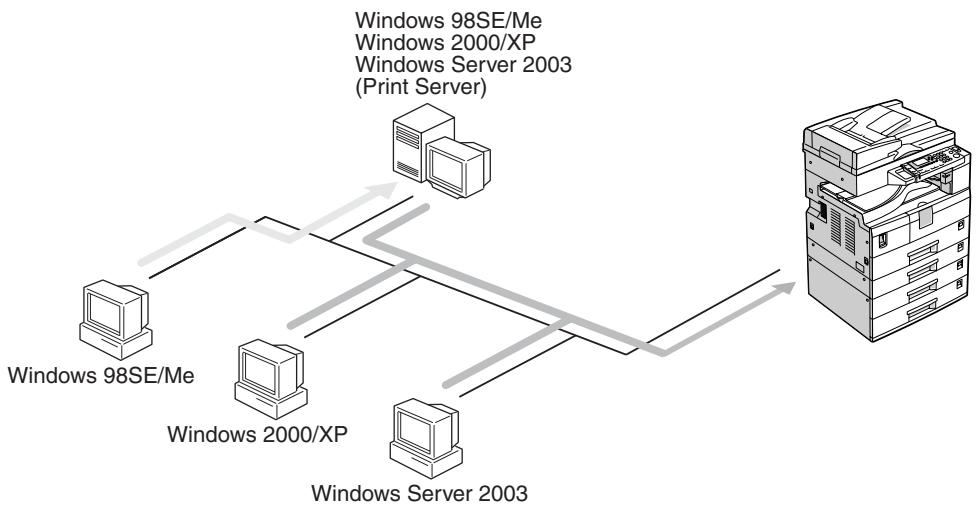
The network interface board is compatible with Windows 2000 (TCP/IP, IPP 1), Windows XP (TCP/IP, IPP 1), Windows Server 2003 (TCP/IP, IPP *1), and Windows 98SE / Me protocols. This allows you to operate the machine in a network that uses different protocols and operating systems.
*1 IPP (Internet Printing Protocol) is a protocol for printing via the Internet.
ANY004S

Reference
For details about what settings to make, see p.7 "Setting Up the Machine on a Network".
For details about using this function, see p.13 "Using the Printer Function".
Network TWAIN Scanner
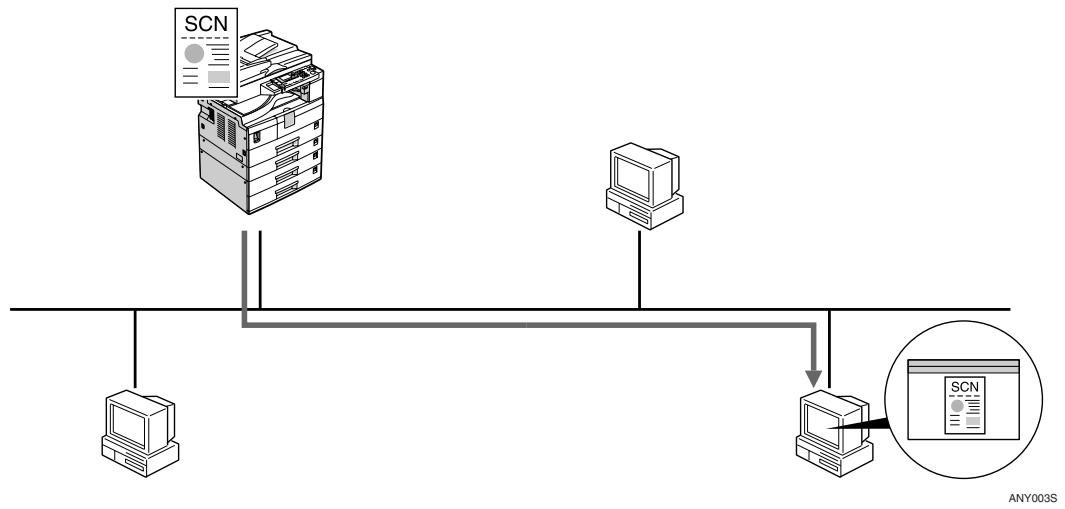
You can use the scanning function of this machine from a computer connected via a network. You can scan documents the same way you would if you were using a scanner connected directly to your computer.
Reference
For details about what settings to make, see p.7 "Setting Up the Machine on a Network".
For details about using this function, see "Using the Network TWAIN Scanner Function", Scanner Reference.
2. Connecting the Network Cable to the Network
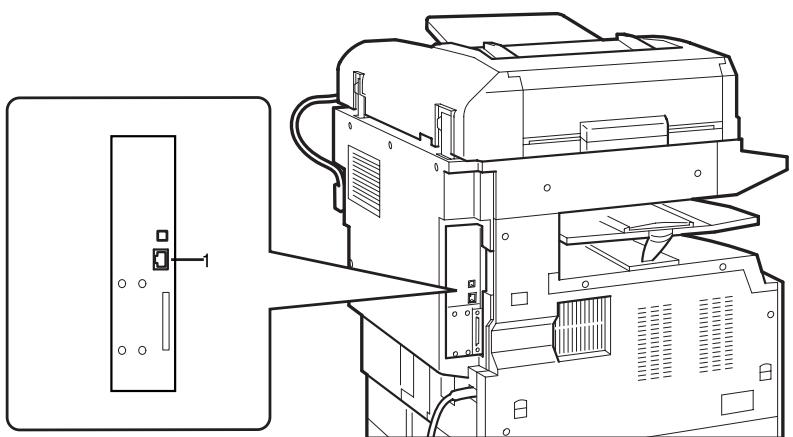
Confirming the Connection
ANY002S
1. 10BASE-T/100BASE-TX port
Port for connecting the network interface cable.
Connecting to the Ethernet Interface
The network interface board supports 10BASE-T or 100BASE-TX connections.
1 Turn off the main power switch.
Important
Make sure the main power is off. See "Turning On the Power", Copy Reference.
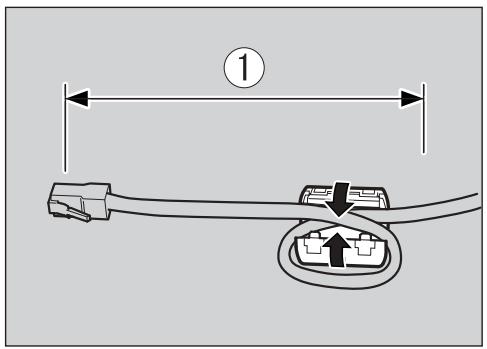
Loop the network interface cable and attach the ferrite core.
Note
The network interface cable loop should be about 10cm(4^ )(1) from the end of the cable (closest end to the printer). The ferrite core at the end of the cable should be a ring type.
AAW026S1
3 Connect the network interface cable to the 10BASE-T/100BASE-TX port.
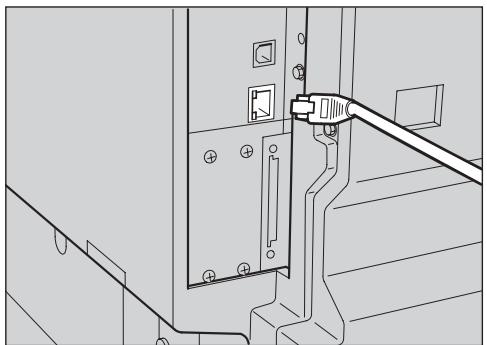
ANY001S
4 Turn on the main power switch.
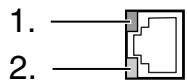
AAW022S1
1. Indicator (green)
Remains green when the machine is properly connected to the network.
2. Indicator (yellow)
Turns yellow when 100 BASE-TX is operating. Turns off when 10 BASE-T is operating.
3. Setting Up the Machine on a Network
User Tools Menu (Interface Settings)
This section describes the network settings you can change with User Tools (Interface Settings). Make settings according to functions you want to use and the interface to be connected.
Important
These settings should be made by the systems administrator, or after consulting with the systems administrator.
Reference
For details about settings, see p.9 "Settings You Can Change with User Tools"
Viewing the Information Displayed in the List
These items must be set to use the function. Be sure to set them before attempting to use the corresponding function.
These items must be set if required.
Printer
| Settings | ||
| Interface Settings/Network See p.9 “Interface Settings”. | IP Address | ● |
| Gateway Address | ○ | |
| Effective Protocol *1 | ● | |
| Ethernet Speed | ○ | |
*1 Check [Effective] is selected for TCP/IP.
Network TWAIN Scanner
| Settings | ||
| Interface Settings/Network See p.9 “Interface Settings”. | IP Address | ● |
| Gateway Address | ○ | |
| Effective Protocol *1 | ● | |
| Ethernet Speed | ○ | |
*1 Check [Effective] is selected for TCP/IP.
Network Configuration
Any change you make with User Tools remains in effect even if the main power switch or operation switch is turned off, or the【Clear Modes】key is pressed.
Configuring the network using the control panel

Note
Operations for Interface Settings are different from normal operations. After using User Tools, press the 【User Tools/Counter】key to exit.
If the key operator code has been set, the key operator code entry screen appears. Enter the code, and then press the OK key. For details about the key operator code, see General Settings Guide.
Press the [User Tools/Counter] key.
2 Select [Interface Settings] using the [ ] or [ ] key, and then press the [OK] key.
3 Select the setting you want to change, and then press the [OK] key.
4 Change the setting, and then press the [OK] key.

Note
Press the [Escape] key to cancel the setting.
Press the [User Tools/Counter] key.
Configuring the network using other utilities
As well as using the control panel to make network settings, utilities such as a Web browser can also be used. The following table shows available settings:

Note
□ Indicates machine settings can be changed.
- Indicates the setting cannot be changed from that device.
| Name on the control panel | Web browser | ||||
| Interface Settings | Network | IP Address | Auto-Obtain (DHCP) | ○ | |
| Specify | IP Add. | ○ | |||
| Subnet M | ○ | ||||
| Mac Add. | - | ||||
| Gateway Address | ○ | ||||
| Effective Protocol | - | ||||
| Ethernet Speed | - | ||||
Settings You Can Change with User Tools
Interface Settings
IP Address
Before using this machine in the network environment, you must configure the IP address and subnet mask.
- Auto-Obtain (DHCP)
-
Specify When you select [Specify], enter [IP Address:]and [Sub-net Mask:] as "xxx.xxx.xxx.xxx"(“x” indicates a number).
-
IP Address: 011.022.033.044
- Sub-net Mask: 000.000.000.000
Note
Default: Auto-Obtain (DHCP)
- When you select [Specify], be sure not to set the same [IP Address:] as that of another machines on the network.
The physical address (MAC address) also appears.
Gateway Address
A gateway is a connection or interchange point between two networks. Configure the gateway address for the router or host computer used as a gateway.
- Gateway Address:000.000.000.000
Note
Default: 000.000.000.000
Effective Protocol
Select the protocol to use in the network.
- TCP/IP:Effective/Invalid
Note
Default: TCP/IP: Effective
Ethernet Speed
Set the access speed for networks. Select a speed that matches your network environment. [Auto Select] should usually be selected.
- Auto Select
100Mbps Fixed
10Mbps Fixed
Note
Default: Auto Select
4. Windows Configuration
Configuring TCP/IP
This describes how to configure Windows for TCP/IP and IPP.
Configuring a Windows 98SE / Me Computer
Follow the procedure below to configure a Windows 98SE / Me computer to use TCP/IP.
Open [Control Panel], and then double-click the Network icon. Make sure [TCP/IP] is selected in the [The following network components are installed] box on the [Configuration] tab.
Note
- Select TCP/IP if it is not already selected.
If TCP/IP is not installed, click [Add] on the [Configuration] tab to install it. For details about installing TCP/IP, see Windows 98SE / Me Help.
2 Click [Properties].
3 Configure TCP/IP using the appropriate IP address, subnet mask, and other settings.
Check with the network administrator that the settings are correct.
Configuring a Windows 2000 Computer
Follow the procedure below to configure a Windows 2000 computer to use TCP/IP.
On the [Start] menu, point to [Settings], and then click [Network and Dial-up Connections].
2 Double-click [Local Area Connection]. On the [General] tab, click [Properties].
Make sure [Internet Protocol (TCP/IP)] is selected in the [Components checked are used by this connection] box on the [General] tab.
Note
- Select TCP/IP if it is not already selected.
If TCP/IP is not installed, click [Install] on the [General] tab to install it. For details about installing TCP/IP, see Windows 2000 Help.
4 Click [Properties].
5 Configure TCP/IP using the appropriate IP address, subnet mask, and other settings.
Check with the network administrator that the settings are correct.
Configuring a Windows XP Computer
Follow the procedure below to configure a Windows XP computer to use TCP/IP.
On the [Start] menu, click [Control Panel], and then click [Network Connections].
2 Click [Network Connections], and then double-click [Local Area Connection].
On the [General] tab, click [Properties].
Make sure [Internet Protocol (TCP/IP)] is selected in the [This connection uses the following items] box on the [General] tab.
Note
- Select TCP/IP if it is not already selected.
If TCP/IP is not installed, click [Install] on the [General] tab to install it. For details about installing TCP/IP, see Windows XP Help.
5 Click [Properties].
6 Configure TCP/IP using the appropriate IP address, subnet mask, and other settings.
Check with the network administrator that the settings are correct.
Configuring a Windows Server 2003 computer
Follow the procedure below to configure a Windows Server 2003 computer to use TCP/IP.
On the [Start] menu, point to [Control Panel], point to [Network Connections], and then click [Local Area Connection].
2 On the [General] tab, click [Properties].
Make sure [Internet Protocol (TCP/IP)] is selected in the [This connection uses the following items] box on the [General] tab.
Note
- Select TCP/IP if it is not already selected.
If TCP/IP is not installed, click [Install] on the [General] tab to install it. For details about installing TCP/IP, see Windows Server 2003 Help.
4 Click [Properties].
3 Configure TCP/IP using the appropriate IP address, subnet mask, and other settings.
Check with the network administrator that the settings are correct.
5. Using the Printer Function
Printing with a Print Server
This describes how to configure a client computer on a network using Windows 2000 / XP, Windows Server 2003 as a print server.
When using a Windows 2000 / XP, or Windows Server 2003 print server, select a shared printer on Windows 2000 / XP, or Windows Server 2003.
This section describes running [Add Printer Wizard] on each client computer, and adding the Windows 2000 / XP, and Windows Server 2003 print servers as the network printer.
These instructions are for Windows 98SE.
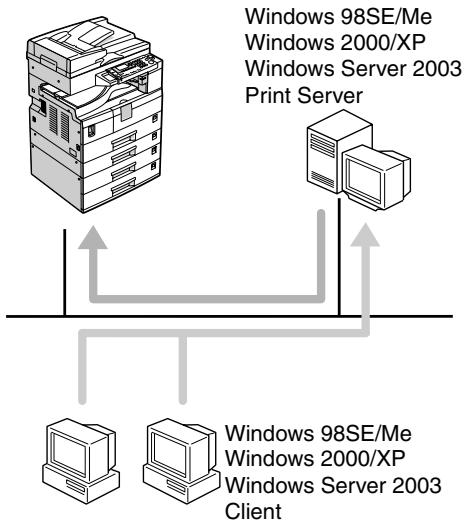
ANY005S
This section assumes the client is already configured to communicate with a Windows 2000 / XP, or Windows Server 2003 print server. Do not begin the following procedure until the client computer is set up and configured correctly.
Right-click [Network Neighborhood], and then click [Explore] in the context menu.
On the network tree, double-click the name of the computer used as the print server. The printers connected to the network are displayed.
Double-click the name of the printer you want to use, and then click [Yes].
The printer icon appears in the [Printers] window.
Printing without a Print Server
You can use this machine as a network printer without connecting to a print server.
You can configure the following ports:
TCP/IP Port Type P10001
You can print via TCP/IP using TCP/IP Port Type P10001.
Note
A TCP/IP Port Type P10001 can be used with Windows 98SE / Me.
Standard TCP/IP port
You can print via TCP/IP using a standard TCP/IP port.
Note
A standard TCP/IP port can be used with Windows 2000 / XP or Windows Server 2003.
LPR port
You can print via TCP/IP using an LPR port.
Note
An LPR port can be used with Windows 2000 / XP, or Windows Server 2003.
IPP port
You can print via IPP or http using an IPP port.
Note
An IPP port can be used with Windows XP, or Windows Server 2003.
Using TCP/IP Port Type P10001
TCP/IP Port Type P10001 can be used with Windows 98SE / Me when a printer driver have been installed.
In the [Printers] window, click the icon of the printer you want to use. On the [File] menu, click [Properties].
2 Click the [Details] tab, and then click [Add Port].
3 Click [Other] radio button, and then click [TCP/IP Port Type P10001], and then click [OK].
Add TCP/IP Port Type P10001 Wizard will start.
4 Click [Next >].
5 Enter the IP address, and then click [Next >].
Note
Enter [Port Name:] if necessary.
Click [Finish].
Configuring the port settings
In the [Printers] window, click the icon of the printer you want to use. On the [File] menu, click [Properties].
2 Click the [Details] tab, and then click [Port Settings...].
The TCP/IP Port Type P10001
Configuration dialog box appears.
- You can select either Raw or LPR port to print.
- You can change the IP address of the Port.
Note
If the IP address of the machine is changed, you must change the port settings also.
- Both Raw and LPR support SNMP.
Important
Do not change Port Number, Timeout, and Queue Name.
Using Standard TCP/IP Port
This describes how to change the port settings under Windows 2000 when a printer driver has been installed.
In the [Printers] window, click the icon of the printer you want to use. On the [File] menu, click [Properties].
2 Click the [Ports] tab, and then click [Add Port].
3 Click [Standard TCP/IP], and then click [New Port].
4 In the [Add Standard TCP/IP Printer Port Wizard] dialog box, click [Next].
In the [Printer Name or IP Address] box, enter the printer name or IP address, and then click [Next].
In the [Add Standard TCP/IP Printer Port Wizard] dialog box, click [Finish].
7 Click [OK].
8 Check the location for the selected printer, and click [Close].
Using LPR Port
This describes how to change the port settings under Windows 2000 when a printer driver has been installed.
In the [Printers] window, click the icon of the printer you want to use. On the [File] menu, click [Properties].
2 Click the [Ports] tab, and then click [Add Port].
3 Click [LPR Port], and then click [New Port].
4 In the [Name or address of server providing lpd] box, enter the printer's IP address.
In the [Name of printer or print queue on that server] box, enter "lp", and then click [OK].
Click [OK].
7 Check the location for the selected printer, and click [Close].
Using the IPP Port
An IPP port can be used with Windows 2000 / XP, or Windows Server 2003.
This describes how to set the port settings under Windows XP.
In the [Printers and Faxes] window, click [Add printer] on the [File] menu.
Add Printer Wizard will start.
2 Click [Next >].
3 Click [A network printer or a attached to another computer] radio button, and then click [Next >].
4 Click the [Connect to a printer on the Internet or on a home or office network:] radio button, and then enter "http://printer's IP address/ipp/port1" or "ipp://printer's IP address/ipp/port1" in the [URL:] box.
(Example: IP address is 192.168.15.16)
http://192.168.15.16/ipp/port1
ipp://192.168.15.16/ipp/ port1
5 Click [Next >].
Click [Have Disk], and then click [Browse].
Select the printer driver.
The printer driver is following:
Windows 98SE / Me CD-ROM drive:DRIVERSDDSTWIN9X ME语言)DISK1
- Windows 2000 / XP, Windows Server 2003
CD-ROM drive:DRIVERSDDSTWIN2K_XP语言)DISK1
8 Click [OK], and then click [OK].
Click [Next >], and then [Finish].
6. Configuring the Network Interface Board Using a Web Browser
Features
You can check the status of a machine and change its settings using the Web browser.
What can it do?
You can remotely check the status of a machine or specify its settings over the network using a computer's Web browser.
The following functions are available with Web browser:
- Displaying machine status/settings
- Resetting network settings
- Making machine settings
Configuring the machine
This requires TCP/IP to be installed. After the machine has been configured to use TCP/IP, it will be possible to adjust settings using a Web browser.

Reference
For details about configuring the machine to use TCP/IP, see p.7 "Setting Up the Machine on a Network".
Browser

Note
If you are using a proxy server, change the Web browser settings. Consult your network administrator about the settings.
This machine information cannot be refreshed automatically. Click [Re-load] or [Refresh] on the Web browser.
Specifying the address
In the [Address] box, enter the address (for example http://XXX.XXX,XXX, where the Xs are the numbers of the IP address). If the host name of the machine is registered on the DNS server or WINS server, you can enter it.
Settings You Can Change with a Web Browser
System
- Reset
- Reset the settings of this machine.
Factory Defaults Reset the settings of this machine to default. - Unit Status
Display the network settings of this machine.
Network Address Display the serial number and Ethernet address (MAC address) of this machine, - Change Password
- Change the password.
Protocols
- Setup TCP/IP
- Configure the settings of TCP/IP of this machine.
- Setup IPP
- Configure the IPP settings of this machine.
Others
Printer Status Display the printer status of this machine.
Configuring the Network Interface Board Settings
0 Start the Web browser.
In the [Address] box, enter the machine's IP address (for example http://XXX.XXX.XXX.XXX where the Xs are the numbers of the IP address).
The status of the machine you chose appears on the Web browser.
In the menu area, select the item, and then make the necessary settings.
Note
Enter a password if necessary.
Default password is "sysadm".
7. Appendix
Using DHCP
If this machine is configured for DHCP, and the DHCP request fails four times, BOOTP takes over the request. If the BOOTP request fails three times, the Default IP address is used.
SNMP
The machine is equipped with an SNMP (Simple Network Management Protocol) agent that operates under UDP and IPX on the Ethernet interface. Using the SNMP manager you can get information about the machine.
The default community names are "public" and "private". You can get MIB information using these community names.
Supported MIBs
MIB-II
- PrinterMIB
- HostResourceMIB
Error Messages on the Display
This section describes the most common network-related messages that appear on the display. If a message not described here appears, act according to that message.
Messages without Code Numbers
Reference
Before turning the main power off, see "Turning On the Power", Copy Reference.
| Message | Causes | Solutions |
| Cannot connect to network Check IP Address | Cannot connect to the net-work. | Check the machine's IP address. |
| Cannot connect to network Contact key operator | Cannot connect to the net-work. | Check the network. If this message continues to appear, contact your key operator. |
| Ethernet Board Error | An Ethernet board error has occurred. | Turn off the main power switch, and then turn it back on. If the message continues to appear, contact your sales or service representative. |
| Server communicat.failed Contact key operator | Cannot communicate with the server. | Check the server. If this message continues to appear, contact your key operator. |
Messages with Code Numbers

Note
A message reporting an error appears on the display as shown.
| Message | Causes | Solutions | Code numbers |
| Cannot connect with DHCPserver | The DHCP server cannot be found. | Check the DHCP server is running on the network. | 101 |
| The same IP Address al-readyexists | The specified IP address overlaps another IP address. | The IP address specified for the machine overlaps another IP address in use. Check the address of the device indicated in <MAC address>. | 102 |
| Check network-settings | An unauthorized value is speci-fied as the IP address or gateway address. | Change the IP address, subnet mask, or gateway address to the correct value. | 103 |
| The same IP Address exist-son several interfaces | IP addresses overlap across multi-ple interfaces. IP addresses of simultaneously operating interfaces overlap. | The IP address of the specified in-terface overlaps the IP address of another interface. Configure the IP address so it does not overlap. | 004 |
| Cannot set with-in the samesub-net range | Subnet masks overlap across mul-tiple interfaces. The subnet masks of simultaneously operating inter-faces overlap. | The subnet range of the specified interface overlaps the subnet range of another interface. Configure the subnet mask so it does not overlap. | 005 |
Code Numbers
The problem interface is displayed.
1XX: Ethernet
- 0XX: Independent of interface
Specifications
| Interface | 100BASE-TX, 10BASE-T |
| Protocol | • Printer TCP/IP LPR IPP • Network Scanner TCP/IP • Management Function TCP/IP SNMP HTTP DHCP |
| SNMP | MIB-II, PrinterMIB, HostResourceMIB |
INDEX
C
configuration WebBrowser,17
D
DHCP, 21
E
Effective Protocol, 9 Ethernet Speed, 9
G
Gateway Address, 9
1
Interface Settings, 9
IP Address, 9
M
MIB, 22
s
SNMP, 22
specifications, 25
W
WebBrowser,17

eepnngnnne
- Introduction
- Important
- Trademarks
- Note:
- Manuals for This Machine
- Note
- General Settings Guide
- Network Guide (this manual)
- Copy Reference
- Printer/Scanner Reference
- TABLE OF CONTENTS
- Functions Available over a Network
- Connecting the Network Cable to the Network
- Setting Up the Machine on a Network
- Windows Configuration
- Using the Printer Function
- Configuring the Network Interface Board Using a Web Browser
- Appendix
- How to Read This Manual
- Symbols
- WARNING:
- CAUTION:
- Preparation
- Limitation
- P Reference
- Using the Printer
- Reference
- Network TWAIN Scanner
- Confirming the Connection
- 10BASE-T/100BASE-TX port
- Connecting to the Ethernet Interface
- Turn off the main power switch.
- Loop the network interface cable and attach the ferrite core.
- Turn on the main power switch.
- Indicator (green)
- Indicator (yellow)
- User Tools Menu (Interface Settings)
- Viewing the Information Displayed in the List
- Network Configuration
- Configuring the network using the control panel
- Configuring the network using other utilities
- Settings You Can Change with User Tools
- Interface Settings
- IP Address
- Gateway Address
- Effective Protocol
- Ethernet Speed
- Configuring TCP/IP
- Configuring a Windows 98SE / Me Computer
- Configuring a Windows 2000 Computer
- Configuring a Windows XP Computer
- Configuring a Windows Server 2003 computer
- Printing with a Print Server
- Printing without a Print Server
- TCP/IP Port Type P10001
- Standard TCP/IP port
- LPR port
- IPP port
- Using TCP/IP Port Type P10001
- Configuring the port settings
- Using Standard TCP/IP Port
- Using LPR Port
- Using the IPP Port
- Select the printer driver.
- Features
- What can it do?
- Configuring the machine
- Browser
- Specifying the address
- Settings You Can Change with a Web Browser
- System
- Protocols
- Others
- Configuring the Network Interface Board Settings
- Using DHCP
- SNMP
- Supported MIBs
- Error Messages on the Display
- Messages without Code Numbers
- Messages with Code Numbers
- Code Numbers
- INDEX
- C
- D
- E
- G
- 1
- M
- s
- W
Brand : RICOH
Model : AFICIO MP 1600L
Category : Multifunction Printer