
WUSB6100M - Wi-Fi Adapter LINKSYS - Free user manual and instructions
Find the device manual for free WUSB6100M LINKSYS in PDF.


| Product Type | USB Wi-Fi Adapter |
| Brand | Linksys |
| Model | WUSB6100M |
| Wi-Fi Standards | 802.11a/b/g/n/ac |
| Interface | USB 2.0 |
| Antenna | 1 internal dual-band antenna |
| Wireless Security | WEP, WPA, WPA2 (Personal and RADIUS), encryption up to 128 bits |
| Dimensions | 40.6 x 12 x 18 mm |
| Weight | 6.15 g |
| Power Supply | Via computer USB port |
| Compatible Operating Systems | Windows 7 (32/64-bit), Windows 8.1 (32/64-bit), Windows 10 (32/64-bit) |
| Operating Temperature | 0°C to 40°C |
| Storage Temperature | -20°C to 60°C |
| Operating Humidity | 10% to 80% (non-condensing) |
| Storage Humidity | 5% to 90% (non-condensing) |
| Status LED | Off: not connected; Solid orange: disabled; Solid white: connected; Blinking white: WPS in progress |
| Key Features | AC600 Wi-Fi connection, compatibility with existing Wi-Fi networks, WPS support |
| Maintenance and Cleaning | Unplug the adapter before cleaning with a soft, dry cloth. Do not use liquid or abrasive products. |
| Safety and Regulations | FCC, IC, CE, Wi-Fi (IEEE a/b/g/n/ac) certifications |
| Spare Parts and Repairability | Parts not available separately. In case of failure, contact Linksys support. |
| General Information | Micro USB adapter, ideal for Windows laptops and desktops. |
Frequently Asked Questions - WUSB6100M LINKSYS
User questions about WUSB6100M LINKSYS
0 question about this device. Answer the ones you know or ask your own.
Ask a new question about this device
Download the instructions for your Wi-Fi Adapter in PDF format for free! Find your manual WUSB6100M - LINKSYS and take your electronic device back in hand. On this page are published all the documents necessary for the use of your device. WUSB6100M by LINKSYS.
USER MANUAL WUSB6100M LINKSYS
Product Overview 3
Installation 4
Connect with Network Manager 4
Troubleshooting 5
Your computer does not recognize the adapter. 5
Your adapter's LED is orange. 5
Your computer cannot communicate with other computers on your Wi-Fi network.....5
Specifications 6
Linksys WUSB6100M 6
Environmental. 6
Product Overview
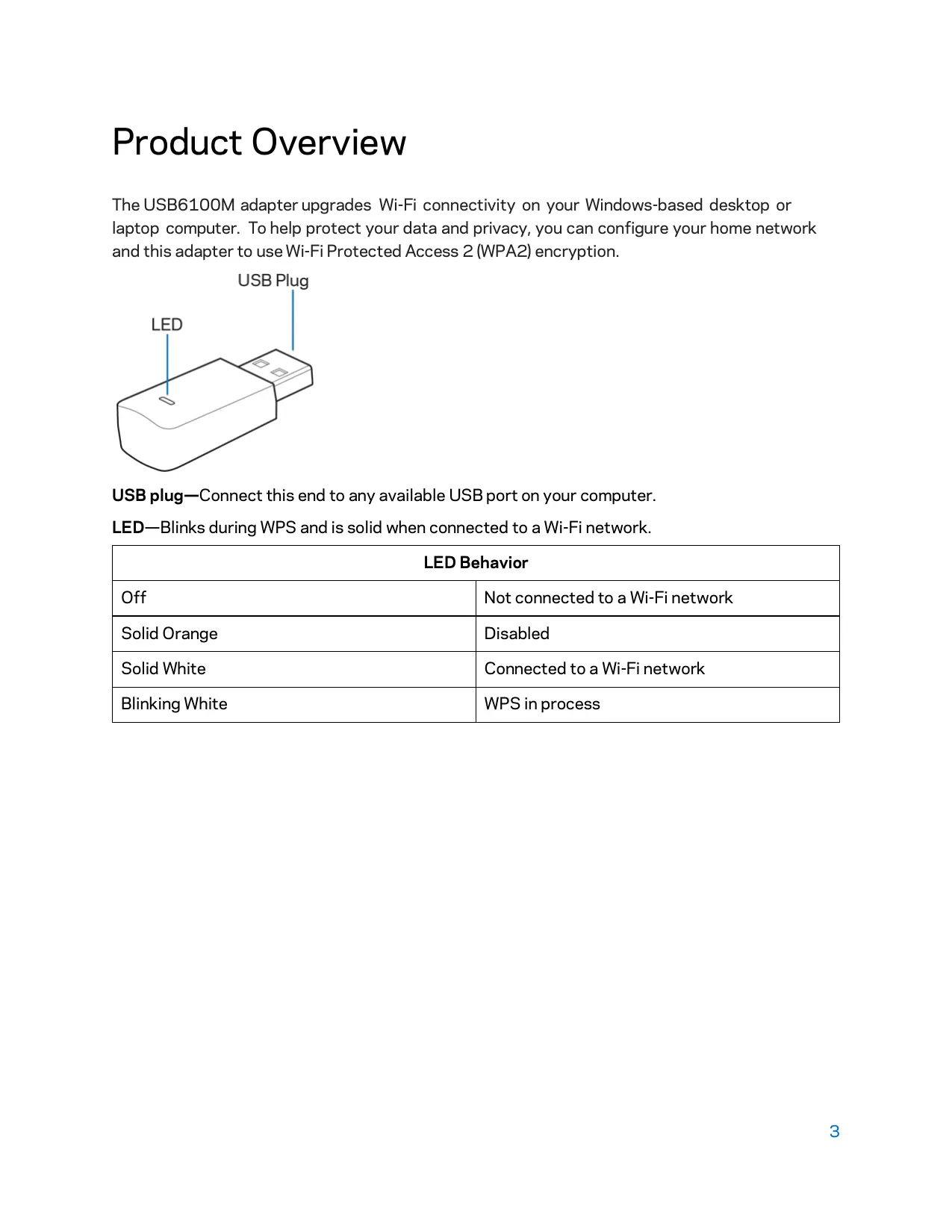
The USB6100M adapter upgrades Wi-Fi connectivity on your Windows-based desktop or laptop computer. To help protect your data and privacy, you can configure your home network and this adapter to use Wi-Fi Protected Access 2 (WPA2) encryption.
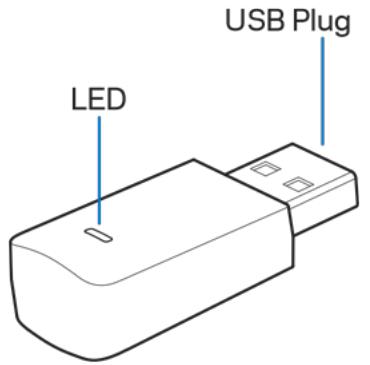
USB plug—Connect this end to any available USB port on your computer.
LED—Blinks during WPS and is solid when connected to a Wi-Fi network.
| LED Behavior | |
| Off | Not connected to a Wi-Fi network |
| Solid Orange | Disabled |
| Solid White | Connected to a Wi-Fi network |
| Blinking White | WPS in process |
Installation
- Insert the USB adapter into an open USB port on your computer.
- Watch your monitor/screen as the device automatically installs.
- Connect to your Wi-Fi network using your computer's network manager.
Note—If the adapter did not install automatically, use the provided CD or download and run the driver installation file available at linksys.com/support/wusb6100m.
Connect with Network Manager
Choose your operating system.
- Windows 10
- Windows 8.1
Windows 7
Windows 10
- Click the Wi-Fi network icon. The Network menu opens from the right side of the screen, showing you available Wi-Fi networks and your current connection status.
- Choose a network. If prompted, enter any additional required network information (such as password).
Windows 8.1
- Click Settings in the lower-right corner of the screen.
- Click the Wi-Fi network icon . The Network menu opens from the right side of the screen, showing you available Wi-Fi networks and your current connection status.
- Choose a network. If prompted, enter any additional required network information (such as password).
Windows 7
- Click the Wireless Network Configuration utility icon in the lower-right corner of the screen. A list of available Wi-Fi networks will appear.
- Choose a network and click Connect.
- If prompted to enter a network security key, type your password (security key) into the network security key field. Click OK.
Troubleshooting
Your computer does not recognize the adapter.
- Make sure that the adapter is properly inserted into your computer's USB port.
- Connect the adapter into a different USB port.
Your adapter's LED is orange.
- Your adapter has been disabled.
- Go to your computer's network settings page and make sure the adapter was installed.
- Enable the adapter.
Your computer cannot communicate with other computers on your Wi-Fi network.
- Make sure that the computers are powered on.
- Make sure that the adapter is configured with the same Wi-Fi network name and wireless security settings as the other computers on your Wi-Fi network.
Specifications
Linksys WUSB6100M
| Model Name | Max-Stream AC600 Wi-Fi Micro USB Adapter |
| Model Number | WUSB6100M |
| Standards | 802.11a, 802.11b, 802.11g, 802.11n, 802.11ac |
| Interface | USB 2.0 |
| LED | Connection Status |
| Antennas | 1 internal dual-band |
| Security Features | WEP, WPA and WPA2, Personal, WPA and WPA RADIUS |
| Security Key Bits | Up to 128-bit encryption |
| OS requirements | Windows 7, Windows 7 64-bit, Windows 8.1, Windows 8.1 64-bit, Windows 10 64-bit, Windows 10 32-bit |
Environmental
| Dimensions | 40.6mm x 12mm x 18mm |
| Unit Weight | 6.15g |
| Certifications | FCC, IC, CE, Wi-Fi (IEEE a/b/g/n/ac), Windows 7, Windows 8.1, Windows 10 |
| Operating Temp. | 32°F to 104°F (0°C to 40°C) |
| Storage Temp. | -4°F to 140°F (-20°C to 60°C) |
| Operating Humidity | 10% to 80% relative humidity, non-condensing |
| Storage Humidity | 5% to 90% non-condensing |
Specifications are subject to change without notice.
Notes:
For regulatory, warranty, and safety information, see the CD that came with your USB adapter or go to Linksys.com/support/wusb6100m.
Specifications are subject to change without notice.
Maximum performance derived from IEEE Standard 802.11 specifications. Actual performance can vary, including lower Wi-Fi network capacity, data throughput rate, range and coverage. Performance depends on many factors, conditions and variables, including distance from the access point, volume of network traffic, building materials and construction, operating system used, mix of wireless products used, interference and other adverse conditions.
BELKIN, LINKSYS and many product names and logos are trademarks of the Belkin group of companies. Third-party trademarks mentioned are the property of their respective owners. Licenses and notices for third party software used in this product may be viewed here: http://supportlinksys.com/en-us/licenses. Please contact http://supportlinksys.com/en-us/gplcodecenter for questions or GPL source code requests.
© 2016 Belkin International, Inc. and/or its affiliates. All rights reserved.
LNKPG-00305 Rev. A02