
DN-V210 - Media player DENON - Free user manual and instructions
Find the device manual for free DN-V210 DENON in PDF.


| Product type | Media player |
| Brand | DENON |
| Model | DN-V210 |
| Dimensions (W x H x D) | 480 x 88 x 300 mm |
| Weight | 5 kg |
| Power supply | 230 V AC, 50/60 Hz |
| Supported video formats | MPEG-1, MPEG-2, MPEG-4, DivX |
| Supported audio formats | MP3, WAV, AAC |
| Supported image formats | JPEG |
| Video outputs | HDMI, composite, component |
| Audio outputs | Stereo RCA, optical digital |
| Connectivity | USB, Ethernet |
| Supported media playback | DVD, CD, USB |
| Main functions | Play, pause, fast forward, repeat, programming |
| Maintenance and cleaning | Clean with a soft, dry cloth |
| Safety | Do not expose to moisture or liquids |
| Spare parts and repairability | Contact DENON after-sales service |
| General information | Compliant with CE standards, Class B |
Frequently Asked Questions - DN-V210 DENON
User questions about DN-V210 DENON
0 question about this device. Answer the ones you know or ask your own.
Ask a new question about this device
Download the instructions for your Media player in PDF format for free! Find your manual DN-V210 - DENON and take your electronic device back in hand. On this page are published all the documents necessary for the use of your device. DN-V210 by DENON.
USER MANUAL DN-V210 DENON
To reduce the risk of fire and electric shock, this apparatus should not be exposed to rain or moisture and objects filled with liquids, such as vases, should not be placed on this apparatus
CAUTION
1. Handle the power supply cord carefully
Do not damage or deform the power supply cord. If it is damaged or deformed, it may cause electric shock or malfunction when used. When removing from wall outlet, be sure to remove by holding the plug attachment and not by pulling the cord.
2.Do not open the rear cover
In order to prevent electric shock, do not open the top cover.
If problems occur, contact your DENON DEALER.
3.Do not place anything inside
Do not place metal objects or spill liquid inside the system.
Electric shock or malfunction may result.
Please, record and retain the Model name and serial number of your set shown on the rating label.
Model No. DN-V210/DN-V310
Serial No.
CAUTION
RISK OF ELECTRIC SHOCK DO NOT OPEN

CAUTION:
TO REDUCE THE RISK OF ELECTRIC SHOCK, DO NOT REMOVE COVER (OR BACK). NO USER-SERVICEABLE PARTS INSIDE. REFER SERVICING TO QUALIFIED SERVICE PERSONNEL.
The lightning flash with arrowhead symbol, within an equilateral triangle, is intended to alert the user to the presence of uninsulated "dangerous voltage" within the product's enclosure that may be of sufficient magnitude to constitute a risk of electric shock to persons.

The exclamation point within an equilateral triangle is intended to alert the user to the presence of important operating and maintenance (servicing) instructions in the literature accompanying the appliance.
NOTE:
This DVD Video Player uses the semiconductor laser. To allow you to enjoy music at a stable operation, it is recommended to use this in a room of 5^ C ( 41^ F ) ~ 35^ C ( 95^ F ).
LABELS (for U.S.A. model only)
CERTIFICATION
THIS PRODUCT COMPLIES WITH DHHS RULES 21 CFR SUBCHAPTER J APPLICABLE AT DATE OF MANUFACTURE.
CAUTION:
USE OF CONTROLS OR ADJUSTMENTS OR REFOR-MANCE OF PROCEDURES OTHER THAN THOSE SPECIFIED HEREIN MAY RESULT IN HAZARDOUS RADIATION EXPOSURE.
THE COMPACT DISC PLAYER SHOULD NOT BE ADJUSTED OR REPAIRED BY ANYONE EXCEPT PROPERLY QUALIFIED SERVICE PERSONNEL.
FCC INFORMATION (For US customers)
1.PRODUCT
This product complies with Part 15 of the FCC Rules. Operation is subject to the following two conditions: (1) this product may not cause harmful interference, and (2) this product must accept any interference received, including interference that may cause undesired operation.
2. IMPORTANT NOTICE: DO NOT MODIFY THIS PRODUCT
This product, when installed as indicated in the instructions contained in this manual, meets FCC requirements. Modification not expressly approved by DENON may void your authority, granted by the FCC, to use the product.
3. NOTE
This product has been tested and found to comply with the limits for a Class B digital device, pursuant to Part 15 of the FCC Rules. These limits are designed to provide reasonable protection against harmful interference in a residential installation. This product generates, uses and can radiate radio frequency energy and, if not installed and used in accordance with the instructions, may cause harmful interference to radio communications. However, there is no guarantee that interference will not occur in a particular installation. If this product does cause harmful interference to radio or television reception, which can be determined by turning the product OFF and ON, the user is encouraged to try to correct the interference by one or more of the following measures:
- Reorient or relocate the receiving antenna.
- Increase the separation between the equipment and receiver.
- Connect the product into an outlet on a circuit different from that to which the receiver is connected.
- Consult the local retailer authorized to distribute this type of product or an experienced radio/TV technician for help.
- Read Instructions - All the safety and operating instructions should be read before the product is operated.
- Retain Instructions - The safety and operating instructions should be retained for future reference.
- HeedWarnings - All warnings on the product and in the operating instructions should be adhered to.
- Follow Instructions - All operating and use instructions should be followed.
- Cleaning - Unplug this product from the wall outlet before cleaning. Do not use liquid cleaners or aerosol cleaners.
- Attachments - Do not use attachments not recommended by the product manufacturer as they may cause hazards.
- Water and Moisture - Do not use this product near water - for example, near a bath tub, wash bowl, kitchen sink, or laundry tub; in a wet basement; or near a swimming pool; and the like.
- Accessories—Do not place this product on an unstable cart, stand, tripod, bracket, or table. The product may fall, causing serious injury to a child or adult, and serious damage to the product. Use only with a cart, stand, tripod, bracket, or table recommended by the manufacturer, or sold with the product. Any mounting of the product should follow the manufacturer's instructions,
and should use a mounting accessory recommended by the manufacturer.
- A product and cart combination should be moved with care. Quick stops, excessive force, and uneven surfaces may cause the product and cart combination to overturn.

- Ventilation – Slots and openings in the cabinet are provided for ventilation and to ensure reliable operation of the product and to protect it from overheating, and these openings must not be blocked or covered. The openings should never be blocked by placing the product on a bed, sofa, rug, or other similar surface. This product should not be placed in a built-in installation such as a bookcase or rack unless proper ventilation is provided or the manufacturer's instructions have been adhered to.
- Power Sources - This product should be operated only from the type of power source indicated on the marking label. If you are not sure of the type of power supply to your home, consult your product dealer or local power company. For products intended to operate from battery power, or other sources, refer to the operating instructions.
- Grounding or Polarization - This product may be equipped with a polarized alternating-current line plug (a plug having one blade wider than the other). This plug will fit into the power outlet only one way. This is a safety feature. If you are unable to insert the plug fully into the outlet, try reversing the plug. If the plug should still fail to fit, contact your electrician to replace your obsolete outlet. Do not defeat the safety purpose of the polarized plug.
- Power-Cord Protection - Power-supply cords should be routed so that they are not likely to be walked on or pinched by items placed upon or against them, paying particular attention to cords at plugs, convenience receptacles, and the point where they exit from the product.
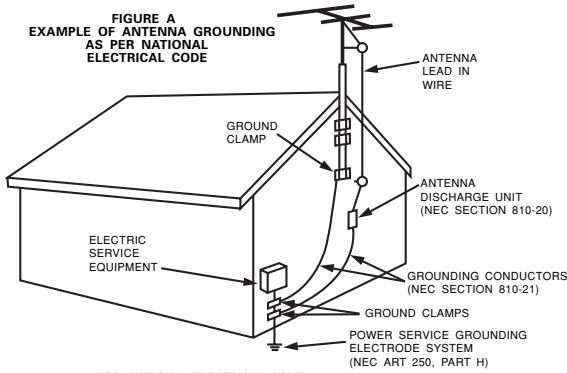
- Outdoor Antenna Grounding - If an outside antenna or cable system is connected to the product, be sure the antenna or cable system is grounded so as to provide some protection against voltage surges and built-up static charges. Article 810 of the National Electrical Code, ANSI/NFPA 70, provides information with regard to proper grounding of the mast and supporting structure, grounding of the lead-in wire to an antenna discharge unit, size of grounding conductors, location of antenna-discharge unit, connection to grounding electrodes, and requirements for the grounding electrode. See Figure A.
- Lightning - For added protection for this product during a lightning storm, or when it is left unattended and unused for long periods of time, unplug it from the wall outlet and disconnect the antenna or cable system. This will prevent damage to the product due to lightning and power-line surges.
- Power Lines - An outside antenna system should not be located in the vicinity of overhead power lines or other electric light or power circuits, or where it can fall into such power lines or circuits. When installing an outside antenna system, extreme care should be taken to keep from touching such power lines or circuits as contact with them might be fatal.
- Overloading - Do not overload wall outlets, extension cords, or integral convenience receptacles as this can result in a risk of fire or electric shock.
- Object and Liquid Entry – Never push objects of any kind into this product through openings as they may touch dangerous voltage points or short-out parts that could result in a fire or electric shock. Never spill liquid of any kind on the product.
- Servicing – Do not attempt to service this product yourself as opening or removing covers may expose you to dangerous voltage or other hazards. Refer all servicing to qualified service personnel.
- Damage Requiring Service – Unplug this product from the wall outlet and refer servicing to qualified service personnel under the following conditions:
a) When the power-supply cord or plug is damaged,
b) If liquid has been spilled, or objects have fallen into the product,
c) If the product has been exposed to rain or water,
d) If the product does not operate normally by following the operating instructions. Adjust only those controls that are covered by the operating instructions as an improper adjustment of other controls may result in damage and will often require extensive work by a qualified technician to restore the product to its normal operation,
e) If the product has been dropped or damaged in any way, and
f) When the product exhibits a distinct change in performance – this indicates a need for service.
- Replacement Parts - When replacement parts are required, be sure the service technician has used replacement parts specified by the manufacturer or have the same characteristics as the original part. Unauthorized substitutions may result in fire, electric shock, or other hazards.
- Safety Check - Upon completion of any service or repairs to this product, ask the service technician to perform safety checks to determine that the product is in proper operating condition.
- Wall or Ceiling Mounting - The product should be mounted to a wall or ceiling only as recommended by the manufacturer.
- Heat – The product should be situated away from heat sources such as radiators, heat registers, stoves, or other products (including amplifiers) that produce heat.
| CAUTION: (English) |
| To completely disconnect this product from the mains, disconnect the plug from the wall socket outlet. The mains plug is used to completely interrupt the power supply to the unit and must be within easy access by the user. |
| VORSICH: (Deutsch) |
| Um diesen Gerät vollständig von der Stromversorgung abzutrennen, trennen Sieitte den Netzstecker von der Wandsteckdose ab. Die Hauptsteckerwerdenverwendet, umdieStromversorgung zum Gerät vollig zu unterbrechen; er muss fur den Benutzer gut und einfach zu erreichen sein. |
| PRECAUTION: (Français) |
| Pour déconnecter complètement ce produit du courant secteur, débranchez la prise de la prise murale. La prise secteur est utilise pour couper complètement l'alimentation de l'appareil et l'utiliseur doit pouvoir y acceder facilement. |
| ATTENZIONE: (Italiano) |
| Per scollegare definitivement Anythinge this output da rete di alimentazione elettrica, togliere la spina da la relativa presa. La spina di rete viene utilizzata per interrormere completeness l'alimentazione all'unità e deve essere facilemente accessible all'utente. |
| PRECAUCION: (Espanol) |
| Para desconectar completeness este produits de la alimentacion electrica, desconnecte el enchufe del enchufe de la pared. El enchufe de la alimentacion se utilizes para interruprir por completeo el suministro de alimentacion a la unidad y debe de encontrarse en un lugar al que el usuarioonga fácil acceso. |
| VOORZICHTIGHEID: (Nederlandths) |
| Om de voeding van dit product volledig te onderbreen moet de stekkeruit het stopcontact worden getrokken. De netstekker wordstgebruikt om de stroomtoevoeraar het toestel volledig te onderbreen en moet voor de gebruiker gemakkelijk bereikbaar zich. |
| FÖRSIKTIHETSMÄTT: (Svenska) |
| Koppla loss stickproppen frän eluttaget forr att helt skilja Produkten frän nätet. Stickproppen används forr att helt bryta strömförsjningen till apparaten, och den mäste vara lätt tillgänglig forr användaren. |
NOTE ON USE / HINWEISE ZUM GEBRAUCH / OBSERVATIONS RELATIVES A L'UTILISATION / NOTE SULL'USO / NOTAS SOBRE EL USO / ALVORENS TE GEBRUKEN / OBSERVERA
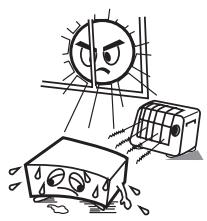
- Avoid high temperatures.
Allow for sufficient heat dispersion when installed on a rack. - Vermeiden Sie hohe Temperatures.
Beachten Sie, daß eine ausreichend Luftzirkulation gewährleistet wird, wenn das Gerät auf ein Regal gestellt wird. - Eviter des températures élevées
Tenir compte d'une dispersion de chaleur suffisante lors de l'installation sur une étagère.
Evitate di esporre l'unità a temperature alte.
Assicuratevi che ci sua un'adeguata dispensione del calore quando installate l'unita in un mobile per componenti audio.
Evite altas temperatas
Permitte la suficiente dispersion del calor.
cuando está instalado en la consola.
Vermijd hoge temperaturen.
Zorg voor een degelijk hitteafvoer indien het apparaat op een rek worden geplaatst. - Undvik hoga temperaturer.
Se till att det finns möjlighet till god värmeavledning vid montering i ett rack.
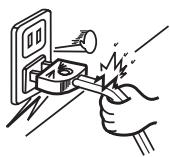
- Handle the power cord carefully.
Hold the plug when unplugging to - Gehen Sie vorsichtig mit dem Netzkabel um.
Halten Sie das Kabel am Stecker, wenn Sie den Stecker hersausziehen. - Manipuler le cordon d'alimentation avec précaution.
Tenir la prise lors du débranchement du cordon. - Manneggiate il filo di alimentazione con cura.
Agite per la spina quando scollegate il cavo alla presa. - Maneje el cordón de energia con cuidado.
- Sostenga el enchufe cuando desconecte el cordón de energia.
Henteer het netsnoer voorzichtig.
Houd het sneer bij de stekker vast wanner deze要去 worden aan- of losgekoppeld. - Hantera nătkabeln varsamt.
Häll i kabeln nar den koplas frän el-uttaget.
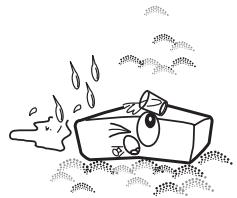
- Keep the set free from moisture, water, and dust.
- Halten Sie das Gerät von Feuchtigkeit, Wasser und Staub fern.
- Protégé l'appareil contre l'humidité, l'eau et lapoussière.
- Tenete l'unità lontana dall'umidità, dall'acqua e dalla polvere.
- Mantenga el equipo libre de humedad, agua y polvo.
- Laat geen vochtigheid, water of stof in het apparaat binnendringen.
- Utsatt inte apparaten for fukt, vatten och damm.
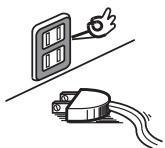
- Unplug the power cord when not using the set for long periods of time.
- Wenn das Gerät eine längerere Zeit nicht verwendet werden soll, trennen Sie das Netzkabel vom Netzstecker.
- Débrancher le cordon d'alimentation lorsqu' I' apparéil n'est pas utilisé pendant de longues périodes.
- Disinasse il filo di alimentazione quando avete l'intenzione di non usare il filo di alimentazione per un lungo periodo di tempo.
- Desconecte el cordón de energia cuando no utilise el equipo por是多么 tiempo.
- Neem altid het netsnoer uit het stopkontakt wanneer het apparat geudere een langeperiode Niet worden gebruikt.
- Koppla ur nätkabeln om apparaten intekommen att anvandas i lang tid.
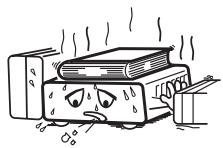
* (For sets with ventilation holes)
- Do not obstruct the ventilation holes.
Die Beluftungsöffnungen)dürfen nicht verdeckt werden. - Ne pas obstruer les trouss d'airation.
- Non coprite i fori di ventilazione.
- No obtruya los orificios de ventilación.
- De ventilatieopeningenogensniet worden beblokkeerd.
- Täpp inte till ventilationsöppningarna.
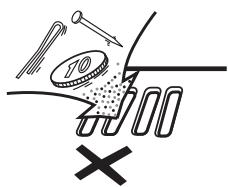
- Do not let foreign objects in the set.
- Keine fremden Gegenstände in das Gerätkommen{lassen.
- Ne pas laisser des objets étrangers dans l'appareil.
- E' importante che nessun oggetti è inserto all'interno dell'unità.
- No deje objetos extraños dentro del equipo.
- Laat geen vreemde voorwerpen in dit apparaat vallen.
- Se till att främande foremål inte tränger in i apparaten.
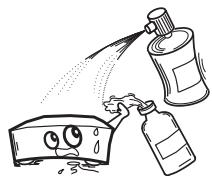
- Do not let insecticides, benzene, and thinner come in contact with the set.
- Lassen Sie das Gerät nicht mit Insektiziden, Benzin oder Verdunnungsmitteln in Berührung kommt.
- Ne pasmettre en contact des insecticides, du benzene et un diluant avec l'appareil.
- Assicuratevvi che l'unità non venga in contatto con insetticidi, benzolo o solventi.
- No permitted contacto de insecticidas, gasolina y diluyentes con el equipo.
- Laat geen insetkenverdelgende middelen, benzine of verf Verdunner met dit apparaat in contactkomen.
- Se till attinte insetktsmedel på spraybrukt, bensen och thinnerkommen i kontakt med apparatens hölje.
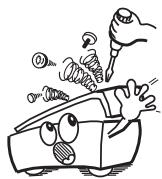
- Never disassemble or modify the set in any way.
- Versuchen Sie niemals das Gerä t auseinander zu erhmen oder auf jegliche Art zu verändern.
- Ne jamais démonter ou modifier l'appareil d'une manière ou d'une autre.
Non smontate mai, nè modificate l'unità in nessun modo. - Nunca desarme o modifique el equipo de ningunaforma.
- Nooit dit apparaat demonteren of op andere wijze modifierten.
- Ta inte isär apparaten och försök inte bygga om den.
CAUTION
- The ventilation should not be impeded by covering the ventilation openings with items, such as newspapers, tablecloths, curtains, etc.
- No naked flame sources, such as lighted candles, should be placed on the apparatus.
- Attention should be drawn to the environmental aspects of battery disposal.
- The apparatus shall not be exposed to dripping or splashing for use.
- No objects filled with liquids, such as vases, shall be placed on the apparatus.
- The socket-outlet shall be installed near the equipment and shall be easily accessible.
- DECLARATION OF CONFORMITY
We declare under our sole responsibility that this product, to which this declaration relates, is in conformity with the following standards:
EN60065, EN55013, EN55020, EN61000-3-2 and EN61000-3-3.
Following the provisions of 73/23/EEC, 2004/108/EC and 93/68/EEC Directive.
CLASS 1 LASER PRODUCT
LUOKAN 1 LASERLAITE
KCLASS 1 LASERAPPARAT
CLASS 1
LASER PRODUCT
ATTENZIONE: QUESTO APPARECCHIO E' DOTATO DI DISPOSITIVO OTTICO CON Raggio LASER.
L'USO IMPROPRIQ DELL'APPARECCHIO
USE OF CONTROLS OR ADJUSTMENTS OR PERFORMANCE OF PROCEDURES OTHER THAN THOSE SPECIFIED HEREIN MAY RESULT IN HAZARDOUS RADIATION EXPOSURE.
THIS PRODUCT SHOULD NOT BE ADJUSTED OR REPAIRED BY ANYONE EXCEPT PROPERLY QUALIFIED SERVICE PERSONNEL.
| A NOTE ABOUT RECYCLING: (English) |
| This product's packaging materials are recyclable and can be reused. Please dispose of any materials in accordance with the local recycling regulations. When discarding the unit, comply with local rules or regulations. Batteries should never be thrown away or incinerated but disposed of in accordance with the local regulations concerning chemical waste. This product and the accessories packed together constitute the applicable product according to the WEEE directive except batteries. |
| HINWEIS ZUM RECYCLING: (Deutsch) |
| Das Verpackungsmaterial deses Produkte ist zum Recyclen geeignet und kann wiederverwendet werden.itte entsorgen Sie alle Materialien entsprechend der ortlichen Recycling-Vorschriften. Beachten Sie bei der Entsorgung des Gerätes die ortlichen Vorschriften und Bestimmungen. Die Batterien dürfen nicht in den Hausmüll geworfen oder verbrannt werden;itte geben Sie die Batterien gemäß den ortlichen Bestimmungen an den Sammelstellen oder Sondere Müllplätzen ab. Dieses Produkt zusammen mit den Zubehörteilen ist das geltende Produkt der WEEE-Directive, davon ausgenommen sind die Batterien. |
| REMARQUE CONCERNANT LE RECYCLAGE: (Français) |
| Le matériel d'emballage de cet apparéil est recyclable et réutilisable. Veuillez disposer de tout matériel au conformément à la réglementation de recyclage en vigueur dans votre pays. Lorsque vous mettez cet apparéil au rebut, respectez les lois ou réglementations locales. Les piles ne doivent être jetées à la poubelle ou incinérées, mais mises au rebut conformément aux réglementations locales concernant les déchets chimiques. Ce produit et les accessores emballés ensemble sont des produits conformés à la directive DEEE sauf pour les piles. |
| NOTA RELATIVA AL RICICLAGGIO: (Italiano) |
| I materiali di imballaggio di"Thisimento sono riutilizzabili e riciclabili. Smaltire i materiali conformmente alle normative nazionali sul riciclaggio. Per smaltire l'unità, osservare la normativa in vigore nel luogo di utilizzo. Non gettare lepile, né bruciarle, ma smaltirile conformmente alla normativa locale sui rifiuti chimici. Il prodotto e gli accessori inclusi nell'imballaggio rientrano nella direttiva WEEE, ad eccezione delle pile. |
| ACERCA DEL RECYCLAGE: (Espanol) |
| Los materiales de embalaje de"Thisimento sono reciclables y se pueda volver a utiliser. Elimine这些estmaterialies de acuerto con la normativa de reciclaje local. Cuando se deshaga de la unidad, cumpla con la relogamentación y la normativa locales. No tire niarroje las pilas al fuego. Eliminablesigunga la normativa local relacionada con losesperdiciosos químicos. Este producto y los accesos que lo"acompañan constituyen el producto aplicable de la directiva RAEE a exception de las pilas. |
| EEN OPMERKING OVER RECYCLING: (Nederland) |
| Het verpakkingsmaterial van dit product is recyclebaar en kan opnieuw worden gebruikt. Gieve het materialiealweg te gooien in overeenstemming met wettelijkrecyclingvoerschriften. Als u het apparaat weglooit, houdt u dan aan de plaatselijke wetten en regels. Batterijenogenooit worden weggegoood of verbrand, maar moeten worden weggegoood in overeenstemming met de lokale wetgeving betreffende chemisch afval. Dit product en de bijelegeverde accessoires vertegenwoordigen het toepasbare product volgens de WEEE-richtlijn behalte de batterijen. |
| ANGÄENDE ÅTERVINNING: (Svenska) |
| Produktens emballage ar'ætervinningsbart. Kassera det enigt lokala'æterviningsbestämmlser. Kassera enhtenen i'overenstämmlse med lokala regler och foreskrifter. Batterier fär aldrig kastas i soporna erbrannas,utan sca kasseras enigt lokala bestämmlser für kimiskt avfall. Denna produkt och de medfoljande tillbehörn Förutom batterierna, uppyller gällande WEEE-direktiv. |
TABLE OF CONTENTS —
1 FEATURES 2
2 DISCS 3
3 CAUTIONS ON HANDLING DISCS 5
4 CONNECTIONs 6
PART NAMES AND FUNCTIONS 14
6 REMOTE CONTROL UNIT 16
7 LOADING DISCS 19
8 CHANGING THE DEFAULT SETTINGS. 20
9 PLAYBACK 38
10 PLAYING REPEATEDLY 42
11 PLAYING TRACKS IN THE DESIRED ORDER .... 45
12 PLAYING TRACKS IN THE RANDOM ORDER .... 49
13 USING THE ON-SCREEN DISPLAY 50
14 USING THE MULTIPLE AUDIO, SUBTITLE AND ANGLE FUNCTIONS 51
15 USING THE MENUS 54
16 PLAYING IN THE ZOOM MODE 56
17 MP3/WMA FILE PLAYBACK 57
18 PLAYING STILL PICTURE FILES (JPEG format) .... 59
19 DivX FILE PLAYBACK 62
20 ADVANCED FUNCTION 66
21TROUBLESHOOTING 74
22 MAIN SPECIFICATIONS 75
ACCESSORIES
Please check to make sure the following items are included with the main unit in the carton:
① Audio cord. 1
② Video cord 1
③ Video cord (COMPONENT)
④ Remote control unit (RC-963)
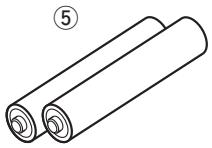
(5) R03/AAA batteries
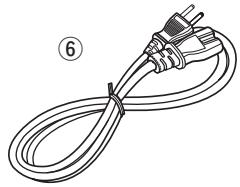
⑥ Power supply cord. 1
⑦ User guide. 1
⑧ Service station list. 1
⑨ Rackmount kit 1
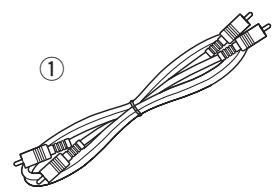
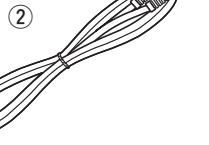
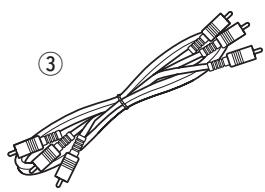
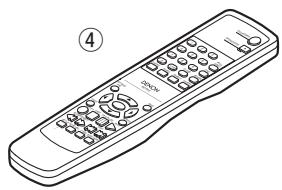
1 FEATURES
1. High precision 96 kHz 24-bit D/A converter
The DN-V210/DN-V310 is equipped with a 24-bit D/A converter for faithful D/A conversion of the high quality 24-bit data. This further enhances such aspects of audio performance as the S/N ratio, dynamic range and distortion and makes full use of the possibilities for high quality sound provided by a high number of bits and high sampling rates.
2. Progressive Scan function
The DN-V210/DN-V310 is equipped with a progressive scan function achieving playback with high picture quality. Movies and other DVD software can be recreated with a picture quality near that of the original.
3. Advanced function
(1) KEY LOCK Operation of the buttons on the front panel (aside from the POWER button) is disabled to prevent accidental operation.
(2) IR REMOTE LOCK Operation of the buttons on the remote controller is disabled to prevent accidental operation.
(3) HIDE OSD Switch the OSD and the display of the icons that appear on the screen on and off.
(4) AUTO PLAY By this function the player can start playback automatically after power on.
4. Serial remote control (DN-V310 only)
Commands can be sent to the DVD player and the status requested and sent to the host via RS-232C.
5. Change the image on the DVD Player wallpaper
The image on the DVD player wallpaper can be changed at the user's discretion.
DISCS
- The types of discs listed on the table below can be used on the DN-V210/DN-V310.
The marks are indicated on the disc labels or jackets.
| Usable discs | Mark (logo) | Recorded signals | Disc size | |
| DVD video DVD audio (NOTE 1) | VIDEO VIDEO DVD R DVD RW | Digital audio + Digital video (MPEG2) | 12 cm | |
| DVD-R DVD-RW (NOTE 2) | 8 cm | |||
| Video CD | COMPACT DISC DIGITAL VIDEO | VIDEO CD | Digital audio + Digital video (MPEG1) | 12 cm |
| 8 cm | ||||
| CD CD-R CD-RW (NOTE 3) DTS-CD | COMPACT DISC DIGITAL AUDIO Recordable | COMPACT DISC DIGITAL AUDIO ReWritable | Digital audio MP3 Digital picture (JPEG) | 12 cm |
| 8 cm | ||||
| Picture CD | Kodak Picture CD COMPATIBLE | Digital picture (JPEG) | 12 cm | |
| WMA | WMA | Digital audio | 12 cm | |
| DivX® | DIVX® | Digital audio + Digital video (MPEG4) | 12 cm | |
| WMA Windows Media Audio | Plays Windows Media™ | Digital audio | 12 cm |
The following types of discs cannot be played on the DN-V210/DN-V310:
- For USA model:
DVDs with region numbers other than "1" or "ALL" - For Europe model:
DVDs with region numbers other than "2" or "ALL"
DVD-ROM/RAMs (For DVD-ROM discs, data files in DivX® 3.11, 4.12 and 5.1 format can be played) - SACD (only CD layered can be played)
- CD-ROMs (Data files in MP3, JPEG, WMA, and DivX® 3.11, 4.12 and 5.1 can be played)
- CDVs (Only the audio part can be played.)
- Photo CDs
NOTE 1: Video part which based on DVD-video specification only can be played.
NOTE 2: Playing DVD-R and DVD-RW discs
DVD-R and DVD-RW discs recorded in video format on a DVD recorder can be played on the DN-V210/DN-V310.
Discs that have not be finalized cannot be played.
Depending on the disc's recording status, the disc may not be accepted or may not be played normally (the picture or sound may be not be smooth, etc.).
NOTE 3: According to recording quality, some CD-R/RW cannot be played.
NOTE 4: "Windows Media™", "Windows®" are a trademarks of Microsoft Corporation, Inc.
Disc terminology
- Titles and chapters (DVD-videos)
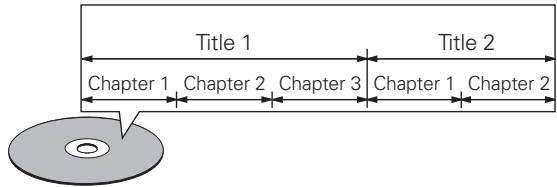
DVD-videos are divided into several large sections called "titles" and smaller sections called "chapters".
Numbers are allotted to these sections. These numbers are called "title numbers" and "chapter numbers".
For example:
Tracks (video and music CDs)
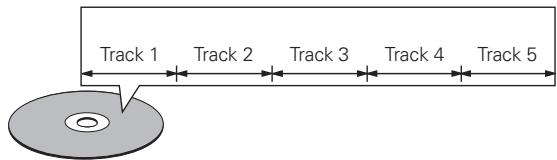
Video and music CDs are divided into sections called "tracks".
Numbers are allotted to these sections. These numbers are called "track numbers".
For example:
- Playback control (PBC) (video CDs)
Video CDs including the words "playback control" on the disc or jacket are equipped with a function for displaying menus on the TV screen for selecting the desired position, displaying information, etc., in dialog fashion.
In this manual, playing video CDs using such menus is referred to "menu playback".
Video CDs with playback control can be used on the DN-V210/DN-V310.
Patent information

DOLBY
DIGITAL
Manufactured under license from Dolby Laboratories. "Dolby" and the double-D symbol are trademarks of Dolby Laboratories.

dtts
Digital Out
Manufactured under license under U.S. Patent #:5,451,942 & other U.S. and worldwide patents issued & pending. DTS and DTS Digital Out are registered trademarks and the DTS logos and Symbol are trademarks of DTS, Inc. © 1996-2007 DTS, Inc. All Rights Reserved.
DivX, DivX Certified, and associated logos are trademarks of DivX, Inc. and are used under license.

HIGH DEFINITION MULTIMEDIA INTERFACE
"HDMI", the "HDMI" logo and "High Definition Multimedia Interface" are trademarks or registered trademark of HDMI Licensing LLC.
NOTE:
- This DVD player is designed and manufactured to respond to the Region Management Information that is recorded on a DVD disc.
If the Region number described on the DVD disc does not correspond to the Region number of this DVD player, this DVD player cannot play this disc.
For USA model:
The Region number for this DVD player is 1.

For Europe model:
The Region number for this DVD player is 2.

CAUTIONS ON INSTALLATION
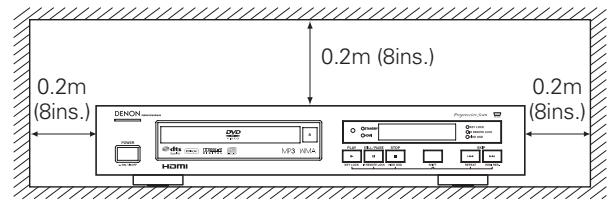
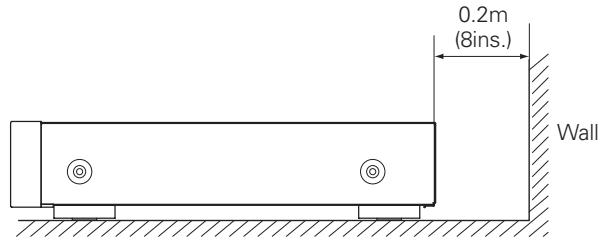
For heat dispersal, leave at least 0.2m / 8 inch of space between the top, back and sides of this unit and the wall or other components.
- Do not obstruct the ventilation holes.
3 CAUTIONS ON HANDLING DISCS
Discs
Only the discs including the marks shown on page 5 can be played on the DN-V210/DN-V310.
Note, however, that discs with special shapes (heart-shaped discs, hexagonal discs, etc.) cannot be played on the DN-V210/DN-V310. Do not attempt to play such discs, as they may damage the player.


Holding Discs
Avoid touching the surface of discs when loading and unloading them.
Be careful not to get fingerprints on the signal surface (the side which shines in rainbow colors).
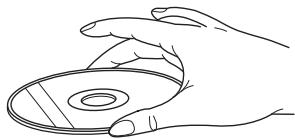
Cleaning Discs
■ Fingersprints or dirt on the disc may lower sound and picture quality or cause breaks in playback. Wipe off fingerprints or dirt.
Use a commercially available disc cleaning set or a soft cloth to wipe off fingerprints or dirt.
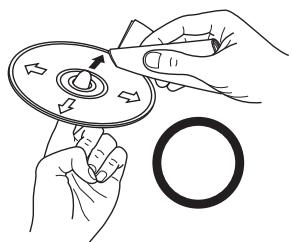
Wipe gently from the middle outwards.
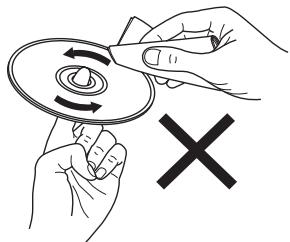
Do not wipe with a circular motion.
NOTE:
- Do not use record spray or antistatic. Also do not use volatile chemicals such as benzene or thinner.
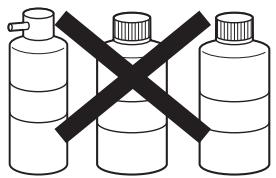
Record spray
Thinner
Benzene
Cautions on Handling Discs
- Do not get fingerprints, grease or dirt on discs.
- Be especially careful not to scratch discs when removing them from their cases.
- Do not bend discs.
- Do not heat discs.
- Do not enlarge the center hole.
- Do not write on the labeled (printed) side with a ball-point pen or a pencil.
- Water droplets may form on the surface if the disc is moved suddenly from a cold place to a warm one. Do not use a hairdryer, etc., to dry the disc.
Cautions on Storing Discs
Always eject discs after playing them.
- Keep discs in their cases to protect them from dust, scratches and warping.
- Do not put discs in the following places:
- Places exposed to direct sunlight for long periods of time
- Humid or dusty places
- Places exposed to heat from heaters, etc.
Cautions on Loading Discs
- Only load one disc at a time. Loading one disc on top of another may result in damage or scratch the discs.
- Load 8 cm discs securely in the disc guide, without using an adapter. If the disc is not properly loaded, it may slip out of the guide and block the disc tray.
- Be careful not to let your fingers get caught when the disc tray is closing.
- Do not place anything but discs in the disc tray.
- Do not load cracked or warped discs or discs that have been fixed with adhesive, etc.
- Do not use discs on which the adhesive part of cellophane tape or glue used to attach the label is exposed, or discs with traces of tape or labels that have been peeled off. Such discs may get stuck inside the player, resulting in damage.
4 CONNECTIONS
NOTES:
- Read the manuals of all the components when making connections.
- Keep the power cord unplugged until all connections have been completed.
- If the power is on when connections are made, noise may be generated and damage the speakers.
- Be sure to connect the left and right channels properly, L (left) to L, R (right) to R.
- Plug the power cord securely into the power outlet. Incomplete connection may result in noise.
- Binding the power cord together with connection cords may result in humming or noise.
(1) Connecting a TV
- Use the included audio video cord to connect the TV's video input connector and audio input connectors to the DN-V210/ DN-V310's VIDEO OUT or S-VIDEO OUT and AUDIO OUT.
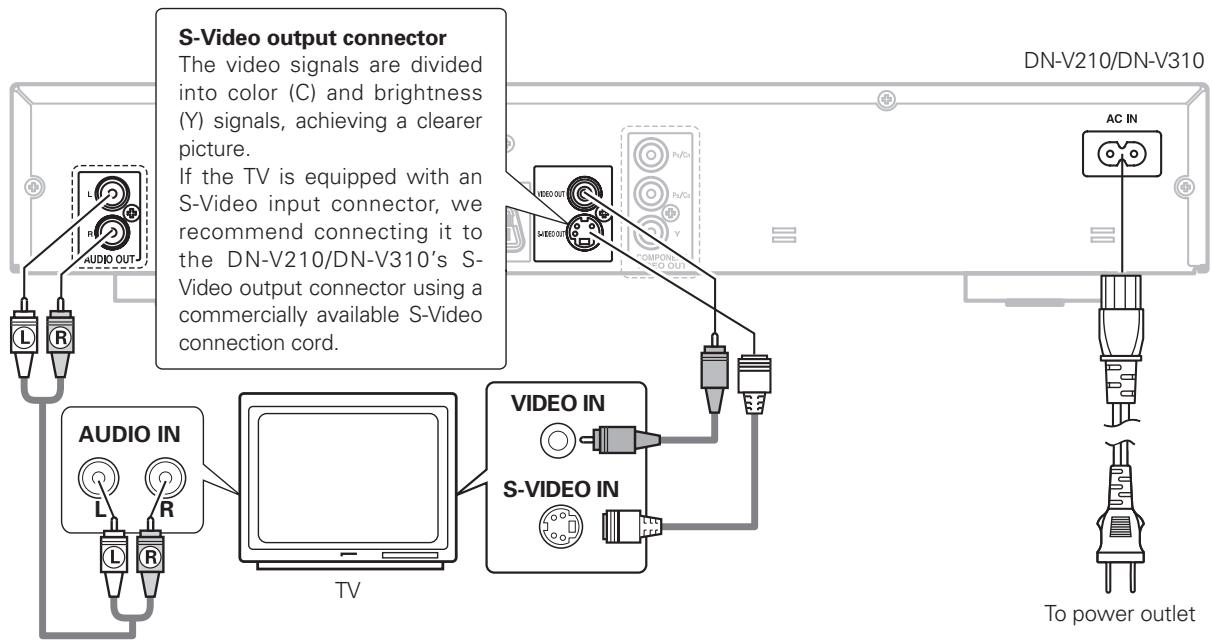
NOTES:
- Connect the DN-V210/DN-V310's video outputs to the TV either directly or through an AV amplifier. Do not connect it via a VCR (video cassette recorder). Some discs contain copy prohibit signals. If such discs are played via a VCR, the copy prohibit system may cause disturbance in the picture.
- Set the "TV TYPE" in "VIDEO SETUP" in "SETUP" to comply with your TV's video format. When the TV is NTSC formatted, set to NTSC. When the TV is PAL formatted, set to PAL. (See page 24.)
- Set the "TV ASPECT" in "VIDEO SETUP" in "SETUP" to comply with your TV's aspect. (See page 24.)
- No audio signals are output from the DN-V210/DN-V310's "AUDIO OUT" connector when discs recorded in DTS are played.
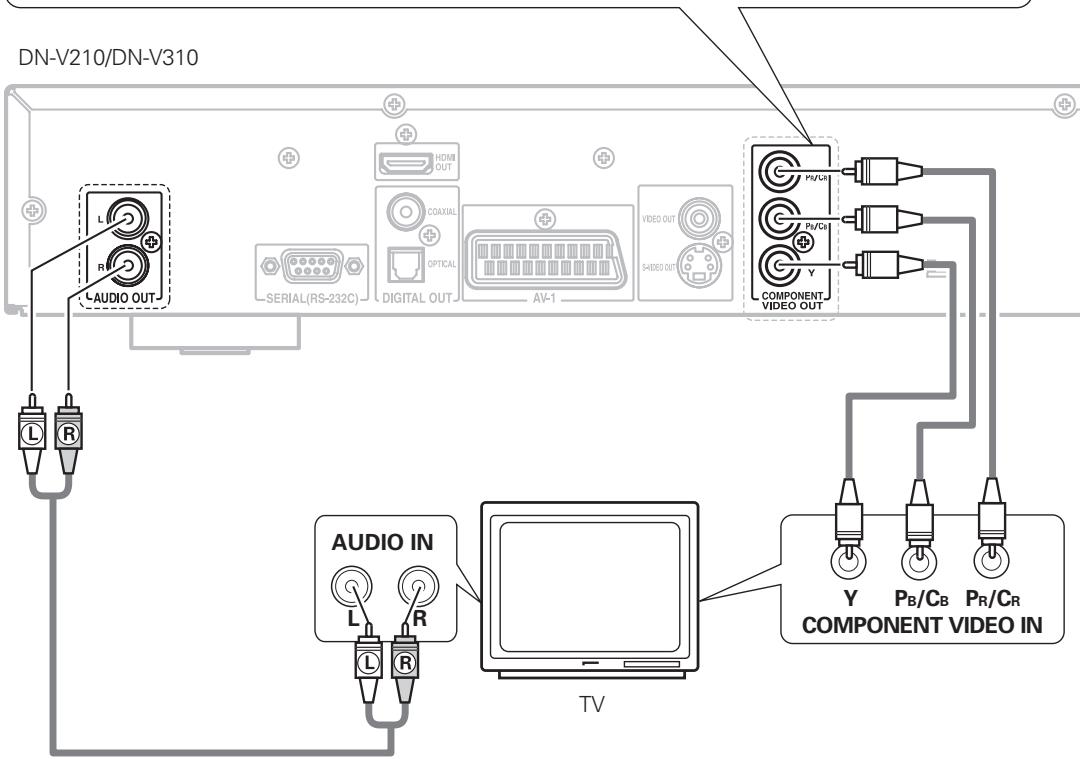
Color component output connectors (PR/CR, PB/CB and Y)
The red (PR/CR), blue (PB/CB) and brightness (Y) signals are output independently, achieving more faithful reproduction of the colors.
- The color component input connectors may be marked differently on some TVs or monitors (PR, PB and Y/R-Y, B-Y and Y/CR, CB and Y, etc.). For details, refer to the TV's operating instructions.
- If your TV is compatible with progressive scan, press the "SHIFT" and "HDMI RES." button on the front panel so that "P.SCAN" lights on the display. This results in a high quality picture with little flickering.
NOTES:
- Use the three commercially available video cords to connect the DN-V210/DN-V310's color component output connectors to the TV or monitor.
- Set the "TV TYPE" in "VIDEO SETUP" in "SETUP" to comply with your TV's video format. When the TV is NTSC formatted, set to NTSC. When the TV is PAL formatted, set to PAL. (See page 24.)
- Set the "480p/576p" in "HDMI RES." in "VIDEO SETUP" in "SETUP" to comply with Progressive TV.
- Set the "TV ASPECT" in "VIDEO SETUP" in "SETUP" to comply with your TV's aspect. (See page 24)
- No audio signals are output from the DN-V210/DN-V310's "AUDIO OUT" connector when discs recorded in DTS are played.
- When VIDEO OUT in the VIDEO SETUP menu is set to "RGB," component video is not output. (Europe model only)
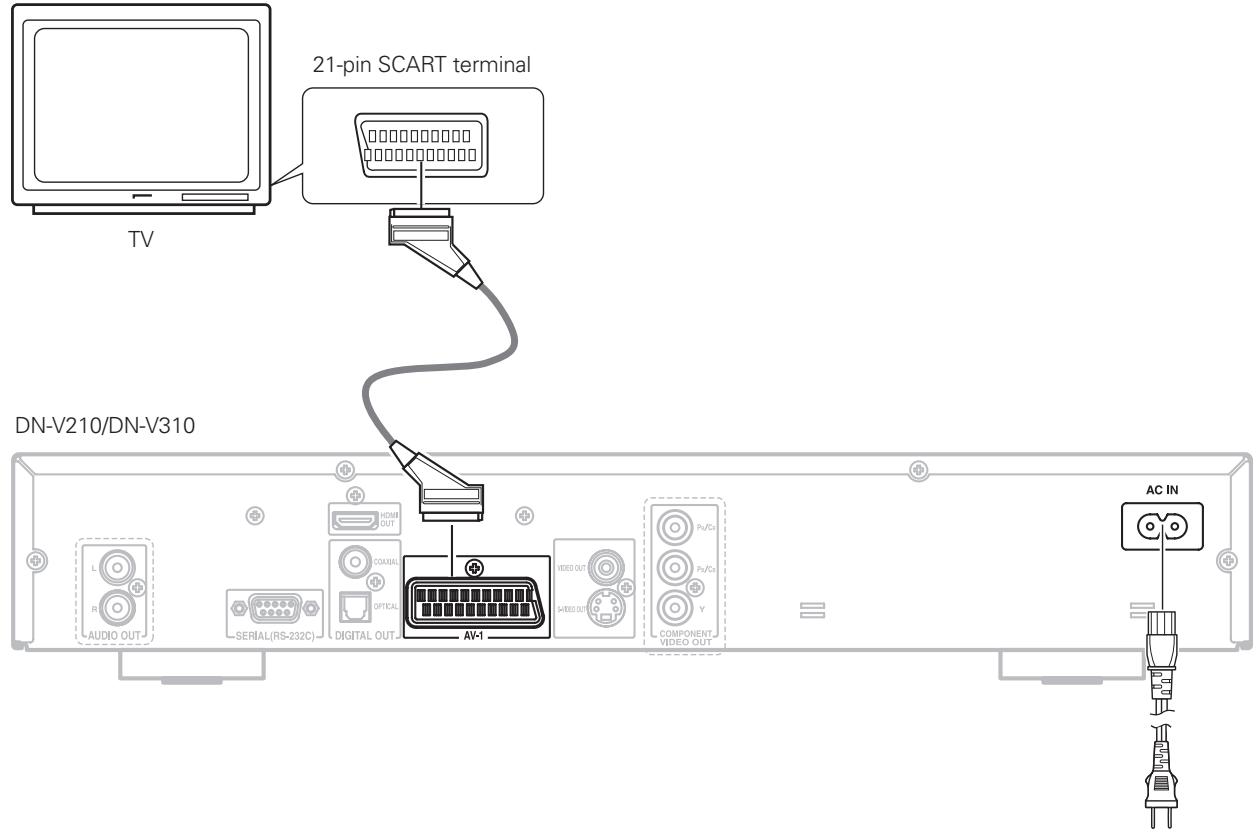
(3) Connecting to a TV with 21-pin SCART Terminal (For only Europe model)
- Use the commercially 21-pin SCART cable to connect the TV's 21-pin SCART terminal to the DN-V210/DN-V310's 21-pin SCART terminal (AV1).
- Select "RGB" for the video output setting at the setup screen video setup.
- CVBS and RGB signal are output from the SCART terminal (AV1).
When "RGB" is selected, no video signals are output from the component output.
When "RGB" is selected, CVBS and RGB are output.
To power outlet
NOTES:
- Some discs contain copy prohibit signals. If such discs are played via a VCR, the copy prohibit system may cause disturbance in the picture.
- Set the "TV TYPE" in "VIDEO SETUP" in "SETUP" to comply with your TV's video format. When the TV is NTSC formatted, set to NTSC. When the TV is PAL formatted, set to PAL. (See page 24.)
(4) Connecting to a AV amplifier with a Built-in decoder
When DVDs recorded in Dolby Digital or DTS are played, Dolby Digital or DTS bitstream signals are output from the DVD player's digital audio output connectors. If a Dolby Digital or DTS decoder is connected, you can achieve sound with the power and sense of presence of a movie theater or concert hall.

NOTE:
- Harsh noise that could harm your ears or damage the speakers is generated when a DVD recorded in DTS is played while using a decoder, etc., that is not DTS-compatible.
- Connecting an optical fiber cable to the digital audio input connector (OPTICAL)
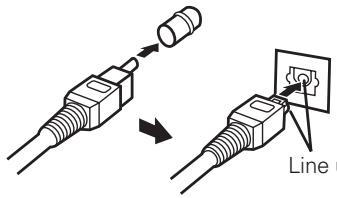
Line up in proper direction
Remove the dust cap, line up the cable in the proper directly, then insert it securely as far as it goes.
Sound output from the DN-V210/DN-V310's digital audio output connectors
In the case of bit stream output
| Settings | |||
| DIGITAL OUTPUT | |||
| Audio recording format | NORMAL | PCM | |
| DVD video | Dolby Digital | Dolby Digital bitstream | 2 channels PCM (48 kHz / 16 bit) |
| DTS | DTS bitstream | — | |
| MPEG Audio | 2 channels PCM (48 kHz / 16 bit) | 2 channels PCM (48 kHz / 16 bit) | |
In the case of PCM output
| Settings | |||||
| 96 k LPCM OUT | |||||
| 96 kHz | 96 k > 48 k | ||||
| Copy protection ON | Copy protection OFF | ||||
| DVD video | Linear PCM | 48 kHz / 16 ~ 24 bit | No output data (*1) | 48 kHz / 16 ~ 24 bit PCM | 48 kHz / 16 bit PCM |
| 96 kHz / 16 ~ 24 bit | No output data (*2) | 96 kHz / 16 ~ 24 bit PCM | 48 kHz / 16 bit PCM | ||
| Video CD | MPEG 1 | 44.1 kHz / 16 bit PCM | 44.1 kHz / 16 bit PCM | ||
| Music CD | 44.1 kHz / 16 bit Linear PCM | 44.1 kHz / 16 bit PCM | 44.1 kHz / 16 bit PCM | ||
| MP3 CD | MP 3 (MPEG-1 Audio Layer 3) | 32 ~ 48 kHz / 16 bit PCM | 32 ~ 48 kHz / 16 bit PCM | ||
1 Only 48 kHz/16 bit sources are output.
2 When playing copyright-protected linear PCM DVDs, in consideration of copyrights, no digital signals are output for sources exceeding 48 kHz/16 bits. When playing such sources, either set to "96k>48k" or make analog connections.
- Linear PCM audio is a signal recording format used for music CDs.
While signals are recorded at 44.1 kHz/16 bit for music CDs, for DVDs they are recorded at 48 kHz/16 bit to 96kHz/24 bit, providing higher sound quality than music CDs.
- When you want to listen to output in DTS, set DIGITAL OUTPUT to NORMAL (bit stream). (See page 26.)
(5) Connecting to a Digital Recorder (MD Recorder, DAT Deck, etc.)
-
Set the "AUDIO SETUP" default setting as shown below. (See page 26.)
-
"DIGITAL OUTPUT" "PCM" "96k LPCM OUT" "96k>48k
Playing DVDs with incorrect settings may result noise that could damage your ears or the speakers.
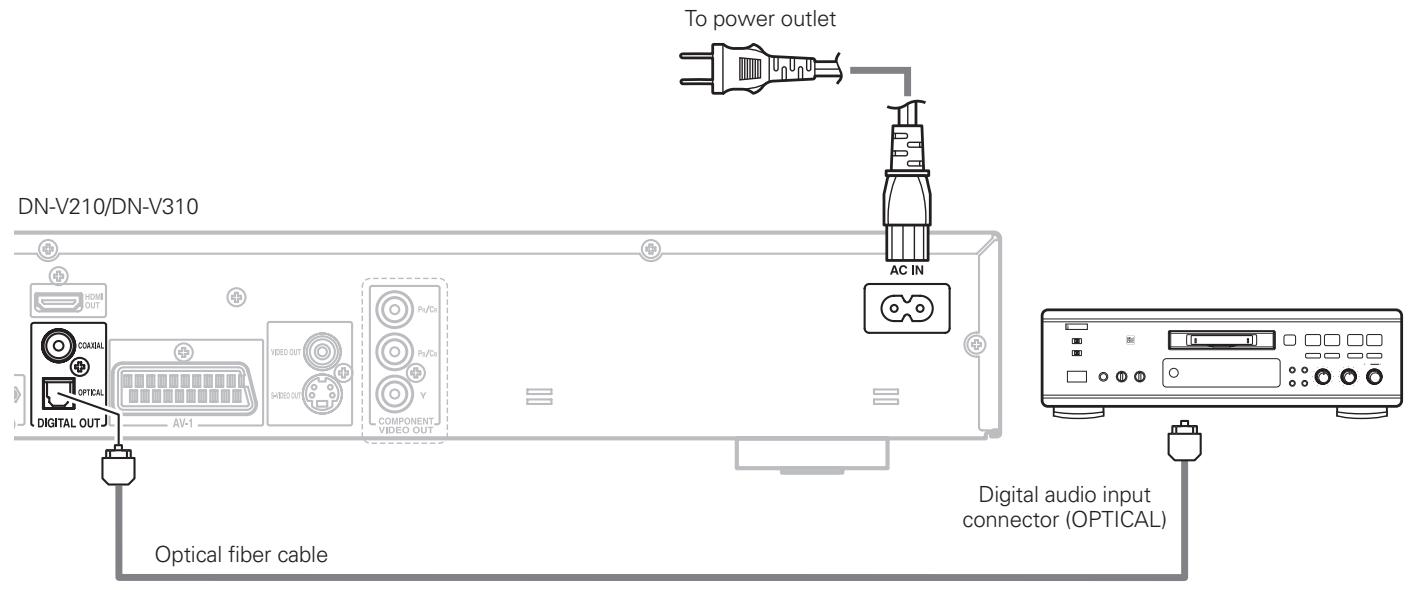
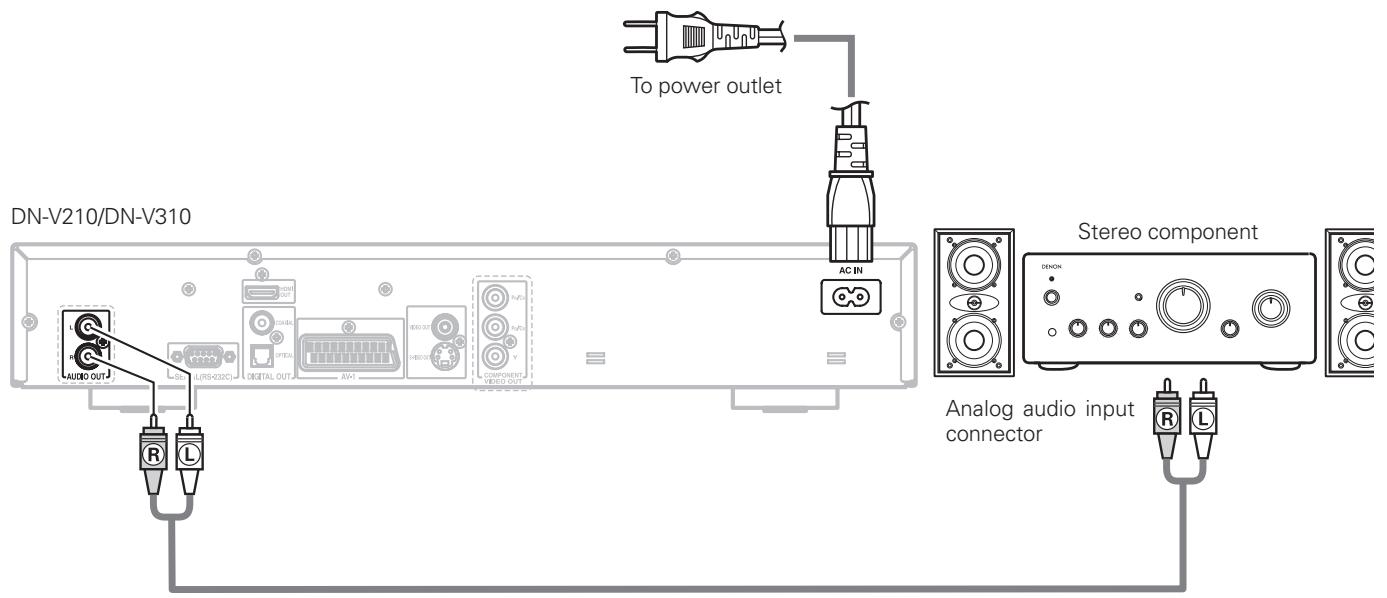
(6) Connecting to a Stereo Component
NOTES:
- When connecting to a stereo device with 2 audio channels
① For sources recorded in multiple channels, analog signals downmixed into two channels are output. (For sources for which downmixing is prohibited, only the FL and FR channels are output.)
② Set "96kLPCM OUT" at "AUDIO SETUP" under "SETUP" to "96k>48k" (See page 26). (When set to "96k>48k", analog audio signals converted to 48kHz or less are output for linear PCM sources.)
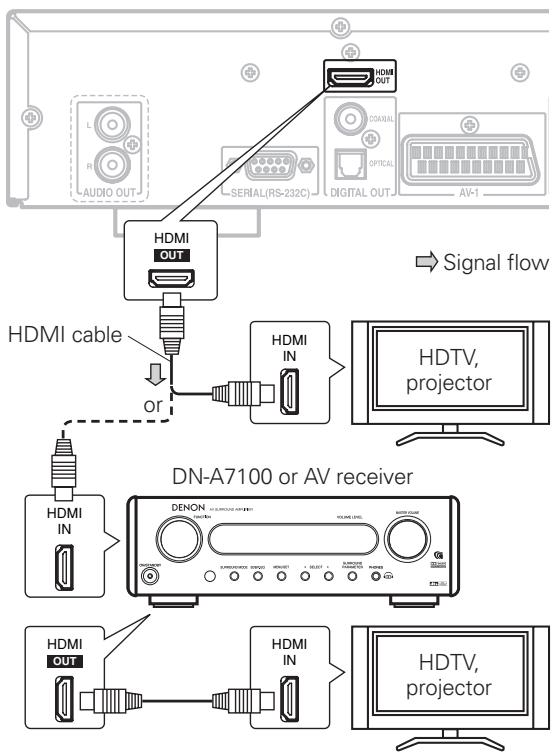
(7) Connecting to a HDMI device
HDMI Terminal
This unit has one HDMI output. It can send digital video and analog signals from DVDs. It minimizes signal degradation caused by analog conversion so that high quality images can be enjoyed.
Select an HDMI output mode from the SETUP MENU. (See page 23.)
NOTES:
- When the HDMI output is connected to a display monitor that does not support HDCP, signals are not output. To view images in HDMI, it is necessary to connect to a display that supports HDCP.
- There may be no image output if connected to a TV or display that is not compatible with the above format.
- Refer to the instruction manual of the TV or display to be connected to the DN-V210/DN-V310 for detailed information regarding the HDMI terminal.
- HDCP: High-bandwidth Digital Content Protection
CONNECTING HDMI DEVICES
An HDMI cable (sold separately) is used to connect the HDMI output on the DN-V210/DN-V310 with the HDMI Terminal on a DVD player, TV, projector or other component. To transmit multichannel audio via HDMI, the connected player must support multichannel audio transmission through its HDMI output.
HDMI video streaming is compatible with DVI in principle. Therefore, it is possible to connect to a TV or monitor that has a DVI terminal using an HDMI-DVI conversion cable or plug. When connecting to a DVI terminal, connect the audio signal separately. Note that HDCP may not work with some DVI components.
HDMI SPECIFICATIONS
The HDMI output supports the High-Definition Multimedia Interface specification Information version 1.0.
The video resolutions are as follows.
- 480 p : 720 ×480
- 720 p : 1280 × 720
- 1080 i:1920×1080
If the connected HDTV on projector doesn't support a resolution, HDMI output resolution may not work.
The audio formats are as follows.
PCM (41.1 kHz, 48 kHz, 96 kHz)
- Dolby Digital
DTS
If your TV only supports HDMI digital audio up to 48 kHz, change the Linear PCM out setting to down sample on. (See page 27.)
If your TV doesn't support Dolby Digital, set the digital out setting to PCM. (See page 26.)
If your TV doesn't support DTS, the DN-V210/DN-V310 will not be able to play DTS format audio sound tracks. In this case, on your DVD-video discs audio set up menu, select an audio format other than DTS.
NOTES
- When connected to a monitor (i.e., TV, projector, etc.) that does not support HDCP, video and audio are not output.
- Connecting or connecting cables with the power on can damage the equipment. Turn the power off before disconnecting or connecting cables.
- Depending on the quiality of the cable used, the HDMI signal may be affected by noise.
(1) Front Panel
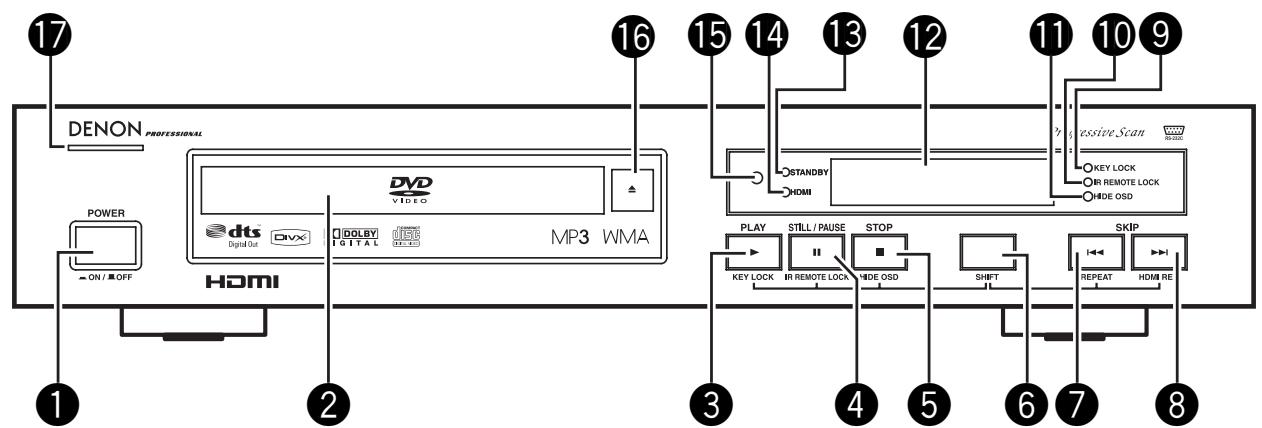
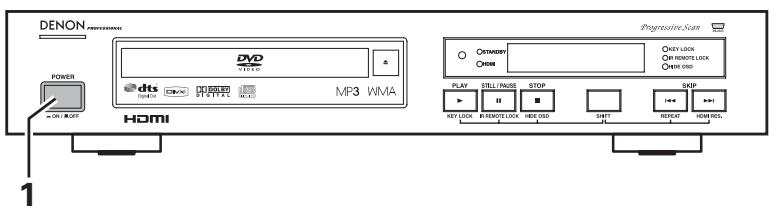
1 POWER button
- Press once to turn the power on.
- Press again to set to the "OFF" position and turn the power off.
- Set the power to the standby mode by pressing the POWER button on the remote control unit while the power is on.
- Turn the power on from the standby mode by pressing the POWER button on the remote control unit.
2 Disc tray
- Load discs here. (See page 19.)
- Press the OPEN/CLOSE button to open and close the disc tray.
- The disc tray is also closed when the PLAY button is pressed.
③ PLAY/KEY LOCK button (▶)
- Press this button to play the disc (See page 38.)
- Used in combination with the SHIFT button to turn the KEY LOCK mode on and off. (See page 66.)
④ STILL/PAUSE/IR REMOTE LOCK button (II)
- Press this button to pause images or music or to play images frame by frame. (See page 41.)
- Used in combination with the SHIFT button to turn the IR REMOTE LOCK mode on and off.(See page 66.)
STOP/HIDE OSD button (■)
- Press this to stop the disc. (See page 40.)
- Used in combination with the SHIFT button to turn the HYDE OSD mode on and off.(See page 67.)
6 SHIFT button
- Used in combination with other buttons to perform advanced functions. (See pages 24, 66, 67, 68.)
SKIP/REPEAT button (▶)
- Press this to move back to the beginning of the current track (or chapter).
- Press again to move back to the beginning of the previous track (or chapter). (See page 41.)
- Used in combination with the SHIFT button to switch the repeat mode.(See page 42.)
⑧ SKIP/HDMI RES. button (▶▶)
- Press this to move ahead to the beginning of the next track (or chapter). (See page 41.)
- Used in combination with the SHIFT button to switch the HDMI Resolution. (See page 24.)
KEY LOCK indicator
- Lights when the KEY LOCK mode is on.
10 IR REMOTE LOCK indicator
- Lights when the IR REMOTE LOCK mode is on.
1HIDE OSD indicator
- Lights when the HIDE OSD mode is on.
12 Display
- Information on the disc that is currently playing is shown on the display. (See page 15.)
13 STANDBY indicator
- This lights when the power is in the standby mode.
14 HDMI indicator
- Lights when HDMI output is selected as AUTO, 480p, 720p, or 1080i. However, it only lights when AUTO is selected if the HDMI signal is output to TV.
Remote control sensor
16 OPEN/CLOSE button (▲)
- Press this button to open and close the disc tray.(See page 19.)
Power indicator
- This indicator lights when the power is on.
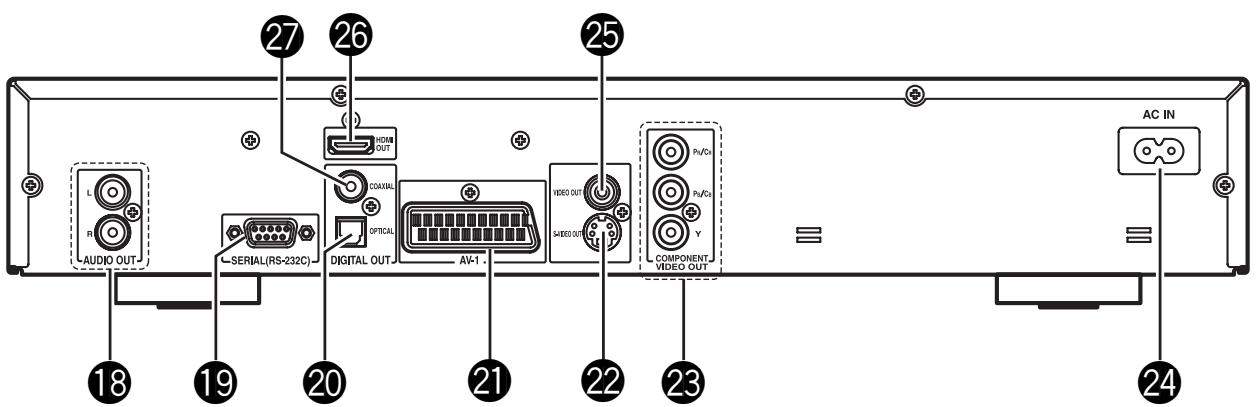
13 Audio output connectors (AUDIO OUT)
- Connect using the included audio cord.
19 SERIAL REMOTE terminal (DN-V310 only)
- This is the terminal for serial control from an external device.
20 Digital audio output connector (OPTICAL)
- Connect using an optical fiber cable (available in stores).
- Digital data is output from this connector.
21 21-pin SCART terminal (AV1) (Europe model only)
- Connect using a 21-pin SCART cable (available in stores).
S-Video output connector (S-VIDEO OUT)
- Connect using an S-Video connection cord (available in stores).
Component video output connectors (COMPONENTVIDEOOUT)
- Connect using the included video cords.
24 Power input (AC IN)
- Connect to AC power supply using the included power supply cord.
- The shape of AC INLET changes depending on the region of use. The figure above shows the Europe view. The USA view is a poled-type INLET.
Video output connector (VIDEO OUT)
- Connect using the included video cord.
26 HDMI output connector
- Connect using an HDMI cable (available in stores).
- HDMI output mode can be selected from the SETUP MENU or front keys. (See pages 23, 24.)
27 Digital audio output connector (COAXIAL)
- Connect using an digital audio cord. Connect a commercially available 75 Ω/ohms pin-plug cord.
- Digital data is output from this connector.
(3) Display
Lights to indicate the currently playing disc.
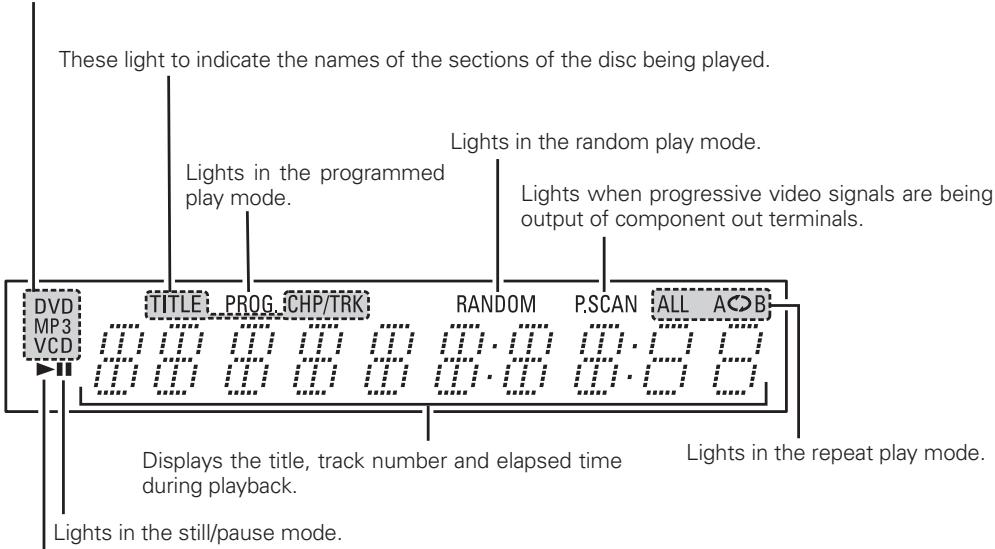
Lights during playback, flashes when the resume play memory function is activated.
6 REMOTE CONTROL UNIT
The DN-V210/DN-V310 can be controlled from a distance using the included remote control unit (RC-963).
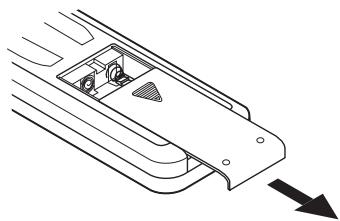
(1) Inserting Batteries
① Remove the remote control unit's rear cover.
② Place two R03/AAA batteries in the battery compartment in the direction indicated by the marks.
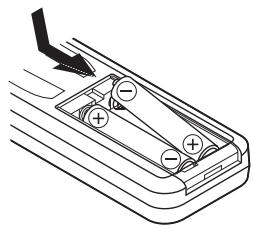
③ Close the rear cover.
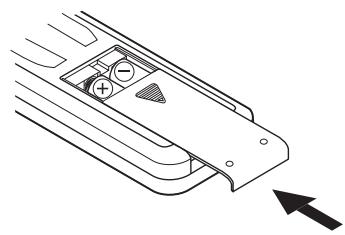
Cautions On Batteries
- Use R03/AAA batteries in this remote control unit.
- Replace the batteries with new ones approximately once a year, though this depends on the frequency with which the remote control unit is used.
- If the remote control unit does not operate from close to the main unit, replace the batteries with new ones, even if less than a year has passed.
- The included battery is only for verifying operation. Replace it with a new battery as soon as possible.
- When inserting the batteries, be careful to do so in the proper direction, following the < and > marks in the remote control unit's battery compartment.
-
To prevent damage or battery fluid leakage:
-
Do not use a new battery with an old one.
- Do not use two different types of batteries.
-
Do not short-circuit, disassemble, heat or dispose of batteries in flames.
-
Remove the batteries when not planning to use the remote control unit for a long period of time.
- If the batteries should leak, carefully wipe off the fluid from the inside of the battery compartment, then insert new batteries.
(2) Using the Remote Control Unit
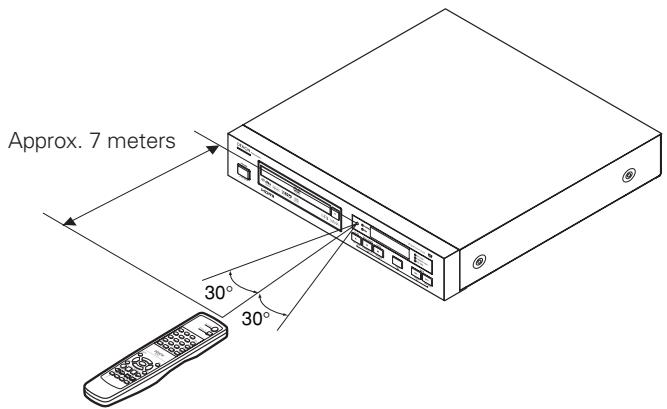
- When operating the remote control unit, point it at the remote control sensor as shown on the diagram.
- The remote control unit can be used from a direct distance of approximately 7 meters. This distance will be shorter, however, if there are obstacles in the way or if the remote control unit is not pointed directly at the remote control sensor.
- The remote control unit can be operated at a horizontal angle of up to 30^ with respect to the remote control sensor.
NOTES:
- It may be difficult to operate the remote control unit if the remote control sensor is exposed to direct sunlight or strong artificial light.
- Do not press buttons on the main unit and on the remote control unit at the same time. Doing so will result in malfunction.
(3) Names and Functions of Remote Control Unit Buttons
- Button not explained here function in the same way as the corresponding buttons on the main unit.
DVD POWER button
Press this to switch the power between on and standby.
Number buttons
Use these to input numbers.
Use the +10 button to input numbers of 10 or over.
Example: To input 25

3 SUBTITLE button
Press this to switch the DVD's subtitle language.
4 AUDIO button
For DVDs, press this to switch the audio language. For video CDs, press this to switch the channel between "Left", "Right", "Mix" and "STEREO".
TOP MENU/PBC button
The top menu stored on the disc is displayed.
For video CDs, press this to switch the PBC function between "ON" and "OFF".
Cursor buttons/ENTER button
Use the and buttons to select in the vertical direction.
Use the and buttons to select in the horizontal direction.
Press the ENTER button to select the item selected with the cursor buttons.
ANGLE button
Press this to switch the angle.
DISPLAY button
Press this to display the ON-SCREEN.
STOP button (■)
10 SLOW/SEARCH buttons
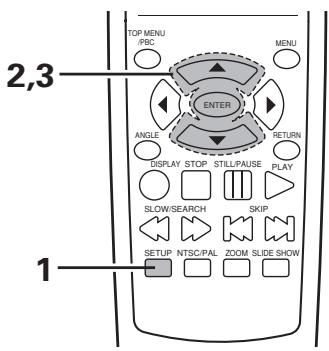
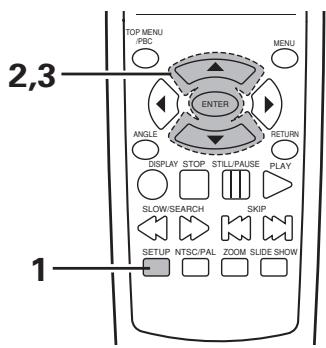
1 SETUP button
Press this to display the default setting screen.
NTSC/PAL button
Use this to switch the set's video output format (NTSC/PAL/MULTI).
13 OPEN/CLOSE button
12 PROGRAM/DIRECT button (PROG/DIRECT)
For DVDs and Video CDs, press this to switch between the normal play, programmed play.
15 CALL button
Does not function on this model.
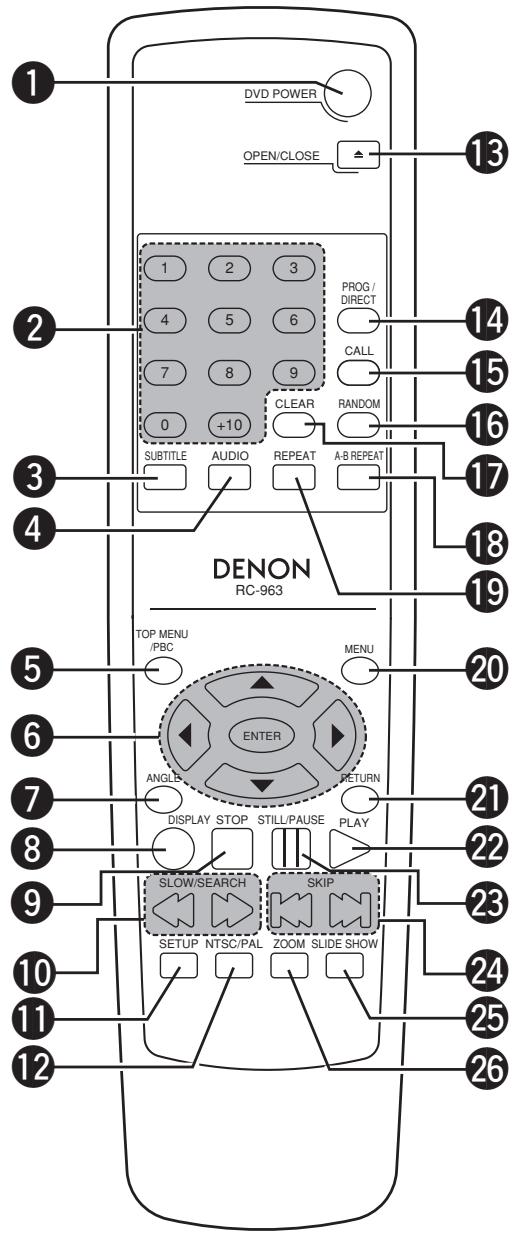
16 RANDOM button
Press this to play the tracks on the video or music CD in random order.
17 CLEAR button
Press this to clear numbers that you have input.
13 A-B REPEAT button (A-B)
Use this to repeat sections between two specific points.
19 REPEAT button
Press this to play tracks repeatedly.
20 MENU button
The DVD menu stored on the disc is displayed.
2 RETURN button
Press this to return to the no on screen display.
Press this to return from the menu screen to the previous screen
when playing Video CDs in PBC playback.
22 PLAY button (▶)
23 STILL/PAUSE button (II)
24 SKIP buttons
25 SLIDE SHOW button
The way of switching to the next image during continuous JPEG image playback (SLIDE SHOW) can be selected.
ZOOM button
Press this to enlarge the image.
7 LOADING DISCS
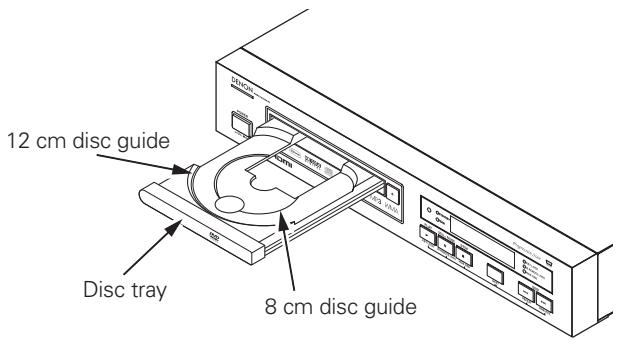
Set discs in the disc tray with the labeled (printed) side facing up.
NOTE:
- Do not move the DN-V210/DN-V310 while a disc is playing. Doing so may scratch the disc.
(1) Opening and Closing the Disc Tray
① Turn on the power.
② Press the OPEN/CLOSE button.
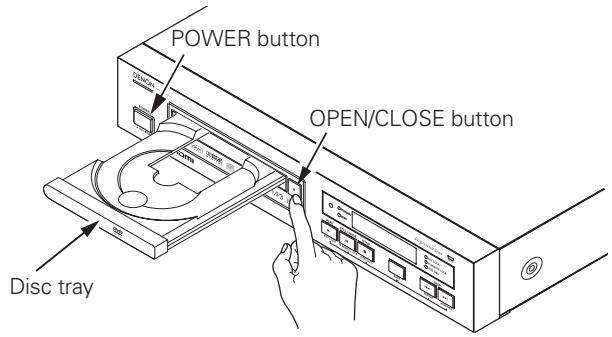
NOTES:
- Be sure to turn on the power before opening and closing the disc tray.
- Do not strike on the button with a pencil, etc.
(2) Loading Discs
- Pick up the disc carefully so as not to touch the signal surface and hold it with the labeled side facing up.
- With the disc tray fully open, set the disc in the disc tray.
- Set 12 cm discs in the outer tray guide (Figure 1), 8 cm discs in the inner tray guide (Figure 2).
- Press the OPEN/CLOSE button. The disc is automatically loaded.
- The disc tray can also be closed automatically to load the disc by pressing the PLAY button.
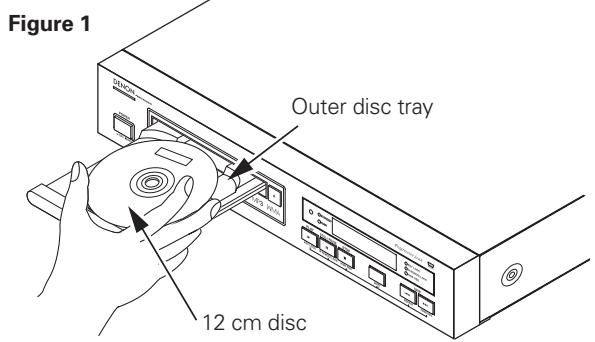
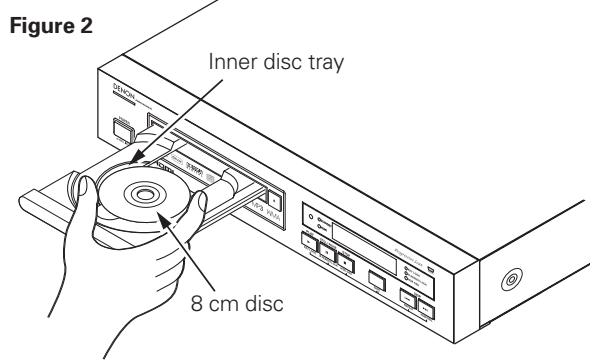
NOTES:
- If your foreign object is caught in the disc tray during closing, simply press the OPEN/CLOSE button again and the tray will open.
- Do not press the disc tray in by hand when the power is off. Doing so will damage it.
- Do not place foreign objects in the disc tray. Doing so will damage it.
8 CHANGING THE DEFAULT SETTINGS
Make the initial settings to suit your usage conditions before starting playback.
The initial settings are retained until they are next changed, even if the power is turned off.
| 1 | Turn on the power. • Press the power button, the power indicator lights and the power turns on. | MAIN unit |
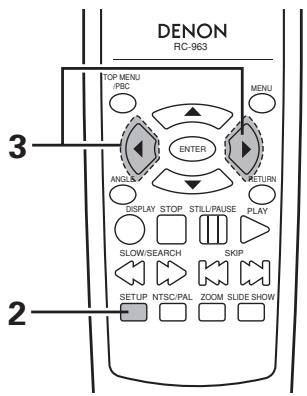
| 2 | In the stop mode, press the SETUP button. • The setup (default settings) screen appears. NOTE: • For some menus, the initial values can be changed during playback. VIDEO SETUP Use this to set the DN-V210/DN-V310's screen mode. (HDMI RES., TV aspect, TV type, Brightness, Sharpness and Video output (Europe model only).) AUDIO SETUP Use this to set the DN-V210/DN-V310's audio output mode. (Digital and LPCM output settings.) DISC SETUP Use this to set the language to be used when playing the disc. If the set language is not offered on that disc, the discs default language is set. SYSTEM SETUP Aa v→ On-screen display language setting: The initial settings screen's language setting, etc., the viewing restriction level and playback of adult DVDs you do not want children, etc., to see can be restricted. The number of initial setting items can be increased. DivX SETUP Divx You can check the initial DivX language setting and DivX video on demand. | SET UP Remote control unit VIDEO SETUP HDMI RES. AUTO TV ASPECT 4:3 PS TV TYPE NTSC BRIGHTNESS BASIC SHARPNESS BASIC #VIDEO OUT COMPONENT *VIDEO MODE FULL SELECT: ▼▲▼ SET: ENTER BUTTON SET HDMI RES. |
| 3 | Use the < and > cursor buttons to select the desired setting item. Select "VIDEO SETUP". (See page 22.) Select "AUDIO SETUP". (See page 26.) Select "DISC SETUP". (See page 28.) Select "SYSTEM SETUP". (See page 33.) Select "DivX SETUP". (See page 36.) | # : This item is displayed for Europe model only. ※ : This item is displayed for EXPERT mode. (See page 35.) |
| * To exit the setup mode Press the SETUP button. | Remote control unit | |
Setup items for use
Bold characters indicate factory defaults.
The mark of ※ is indicated when SETUP MENU MODE is set up by an EXPERT.

VIDEO SETUP
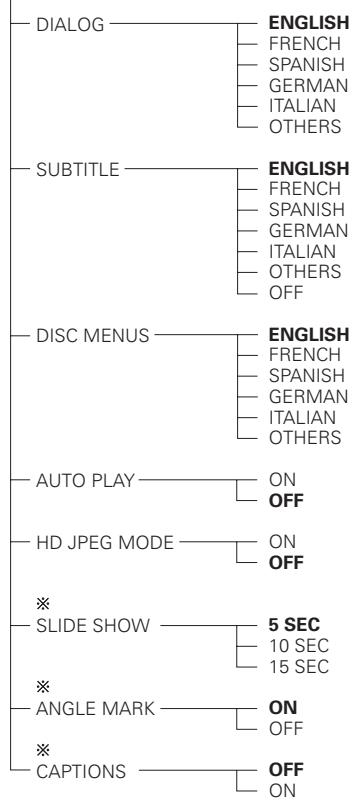
DISC SETUP

AUDIO SETUP
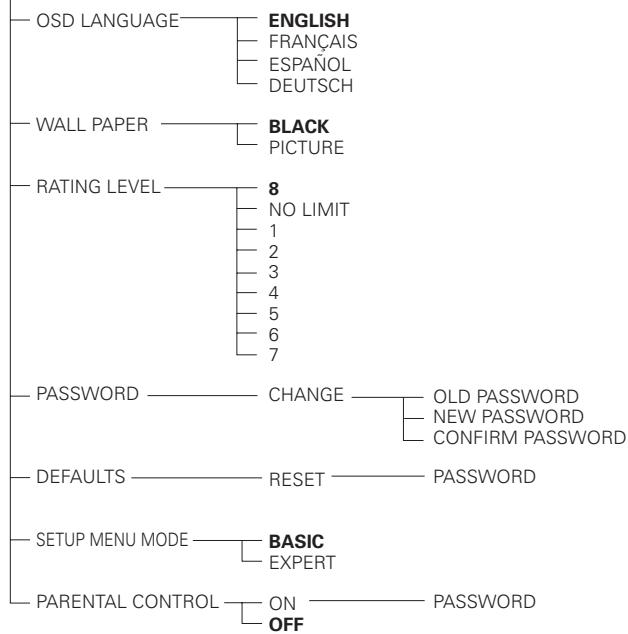
SYSTEMSETUP
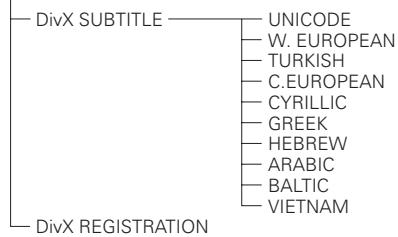
DivX SETUP
| 1 | Set the “VIDEO SETUP” in SETUP mode. (See page 20.) | |
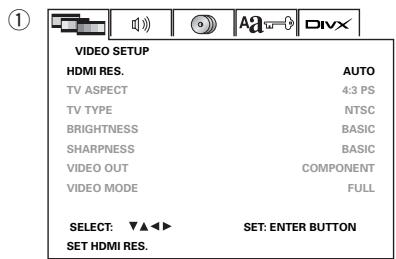
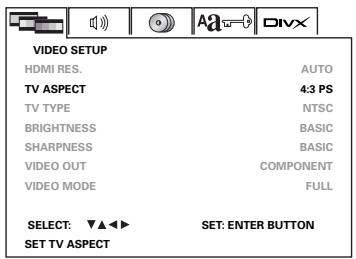
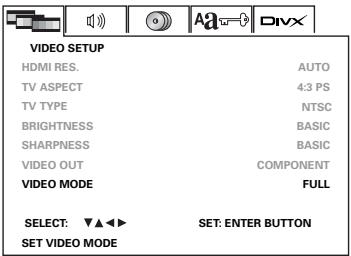
| 2 | Use the ▲ and ▼ cursor buttons to select the desired setting. HDMI RES. Use this to select whether HDMI output is ON/OFF, and the resolution. Interlace or Progressive can be selected for Component output. TV ASPECT Use this to set the shape of your TV's screen. TV TYPE Use this to set your TV's video format (NTSC, PAL or MULTI). BRIGHTNESS Use this to adjust the screen brightness. SHARPNESS Use this to adjust the screen sharpness. VIDEO OUT (Europe model only) Set the connector from which interlaced signals are to be output (RGB or COMPONENT). VIDEO MODE The play DVD video, select the desired video mode (AUTO FIT, FULL, ORIGINAL, PAN SCAN). NOTES: · The video mode is displayed when the “SETUP MENU MODE” at “SYSTEM SETUP” is set to “EXPERT”. | Remote control unit VIDEO SETUP HDMI RES. AUTO TV ASPECT 4:3 PS TV TYPE NTSC BRIGHTNESS BASIC SHARPNESS BASIC #VIDEO OUT COMPONENT ※VIDEO MODE FULL SELECT: ▼▲ ▶ SET: ENTER BUTTON SET HDMI RES. |
| # : VIDEO OUT is Europe model only. |
Press the ENTER button to decide the menu item.
① When "HDMI RES." (HDMI Resolution) is selected:
Use the and cursor buttons to select the HDMI out, press the ENTER button to decide.
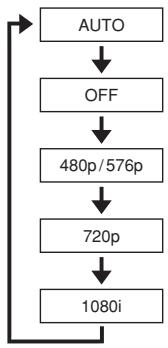
- AUTO: When HDTV and HDMI are connected, some TVs may automatically decide the appropriate HDMI RES.
- OFF : HDMI is turned OFF. When this is set, Component Video output switches to Interlace.
- 480p/576p
: HDMI switches ON, and the output resolution is 480p/576p. When this is set, Component Video output switches to Progressive. P.SCAN lights on the display.
- 720p : HDMI switches ON, and the output resolution is 720p. No output signals are output from Video out, S-Video out, or Component out.
- 1080i : HDMI switches ON, and the output resolution is 1080i. No output signals are output from Video out, S-Video out, or Component out.
The relationships between the HDMI RES. settings, the output signals from each of the video output connectors, and the display in each of the conditions are shown below.
| Video Output Connector | HDMI RES. setting | ||||
| AUTO | OFF | 480p | 720p | 1080i | |
| VIDEO | 480i/- | 480i | 480i | — | — |
| S-VIDEO | 480i/- | 480i | 480i | — | — |
| COMPONENT | 480i/- | 480i | 480p | — | — |
| RGB (SCART) (Europe model only) | 480i/- | 480i | 480i | — | — |
| HDMI | 480p | — | 480p | 720p | 1080i |
| 720p | |||||
| 1080i | |||||
| Display | |||||
| HDMI LED | -/Lights | — | Lights | Lights | Lights |
| P.SCAN (Display for Component) | — | — | Lights | — | — |
- AUTO is output when the HDMI connector is connected to a HDTV and the TV power is ON. The TV automatically selects one of 480p/576p/720p/1080i. If 720p or 1080i is selected, no video signals are output from any of the video connectors other than HDMI. Occasionally the TV may not automatically select the appropriate output or other trouble. If this occurs select a different setting to AUTO.
- When set to OFF, the COMPONENT output switches to interlaced output.
- When set to 480p / 576p , the COMPONENT output switches to progressive output.
- 480i/480p is for NTSC. 576i/576p is for PAL.
Remote control unit
Remote control unit
CONSUMERS SHOULD NOTE
THAT NOT ALL HIGH DEFINITION
TELEVISION SETS ARE FULLY
COMPATIBLE WITH THIS
PRODUCT AND MAY CAUSE
ARTIFACTS TO BE DISPLAYED
IN THE PICTURE. IN CASE OF
525 OR 625 PROGRESSIVE
SCAN PICTURE PROBLEMS,
IT IS RECOMMENDED
THAT THE USER SWITCH
THE CONNECTION TO THE
"STANDARD DEFINITION"
OUTPUT.
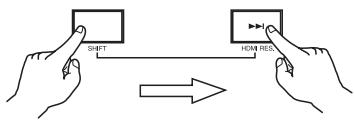
Switching HDMI RES. on the main unit:
Press and hold the SHIFT and buttons for 3 seconds.
The current status is shown in the display for 2 seconds.
Continue holding down the SHIFT button and press the HDMI RES. button to switch the status.
The status display is shown for 2 seconds in the display.
- When RGB (SCART) is selected, switching is not possible. RGB appears on the display if you press the button. (See page 25.) (Europe model only)
② When "TV ASPECT" is selected:
Use the and cursor buttons to select the aspect, press the ENTER button to decide.
4:3 PS (Factory default)
Select this to play wide DVDs in the pan & scan mode (with the sides of the picture cut off). Discs for which pan & scan is not specified are played in the letter box mode.
4:3 LB
Select this to play wide DVDs in the letter box mode (with black strips at the top and bottom).
WIDE (16:9)
Select this to play wide DVDs in the full-screen mode.
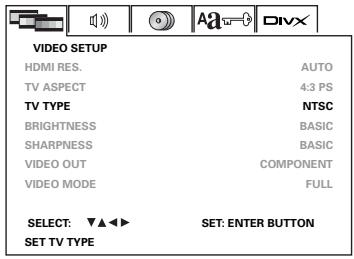
③ When "TV TYPE" is selected:
Use the and cursor buttons to select the TV type, press the ENTER button to decide.
NTSC (Factory default : USA model)
Select this when your TV's video format is NTSC.
If NTSC is selected, output format is fixed to NTSC.
MULTI (Factory default : Europe model)
Select this when your TV is compatible with both the NTSC and PAL formats.
If you play the disc recorded NTSC format, signal from video output terminal will be switched to NTSC is selected, output format is fixed to NTSC.
PAL
Select this when your TV's video format is PAL.
If PAL is selected, output format is fixed to PAL.
Main unit
Main unit display

Remote control unit
Remote control unit


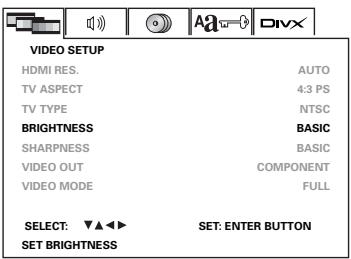
(4) When “BRIGHTNESS” is selected:
Use the and cursor buttons to select the level, press the ENTER button to decide.
The factory default setting is BASIC. The screen brightness can be adjusted in steps from +7 to -7 . The brightness settings will differ depending on the model of your TV. Set to suit your TV.
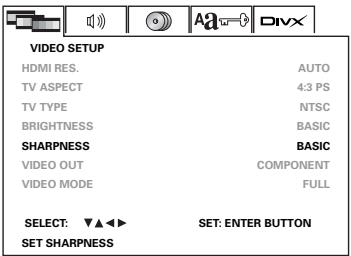
⑤ When "SHARPNESS" is selected:
Use the and cursor buttons to select the level, press the ENTER button to decide.
The factory default setting is BASIC. The screen sharpness can be adjusted in steps from +7 to -7 . The sharpness settings will differ depending on the model of your TV. Set to suit your TV.
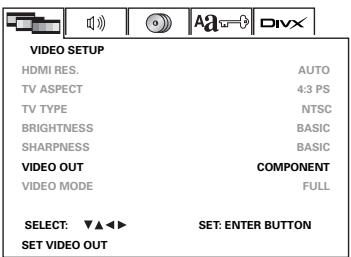
⑥ When "VIDEO OUT" is selected: (Europe model only)
Use the and cursor buttons to select the video out, press the ENTER button several times and select the video out.
RGB
Video signals are output from the SCART (AV-1) terminal by RGB.
COMPONENT (Factory default)
Video signals are output from the color component output connectors.
⑦ When “VIDEO MODE” is selected:
Use the and cursor buttons to select the video mode, press the ENTER button to decide.
FULL
The video is displayed with the size adjusted to full screen.
ORIGINAL
The video is displayed in its original size.
AUTO FIT (Factory default)
The video is displayed with the size automatically adjusted so there is no distortion. A black band may appear at the right and left sides or the at top and bottom.
PANSCAN
Select when you connect a 4:3 television to this device. A section of the video on one or both sides of the screen is cut.
NOTE:
- If stripes of noise appear on the picture or the picture is unclear when playing a specific DVD video disc, try changing the video mode.
(4)
(5)
(6)
⑦
- To exit the setup mode
Press the SETUP button.
| 1 | Set the "AUDIO SETUP" in SETUP mode. (See page 20.) | |
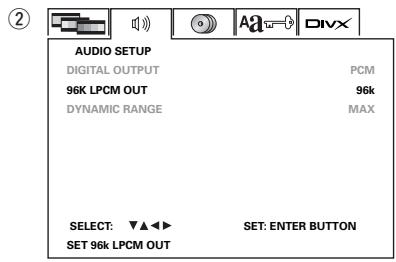
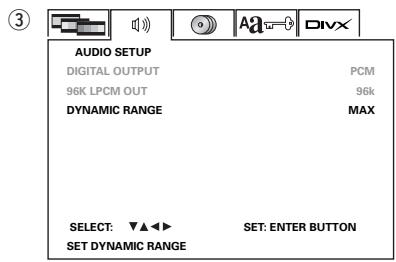
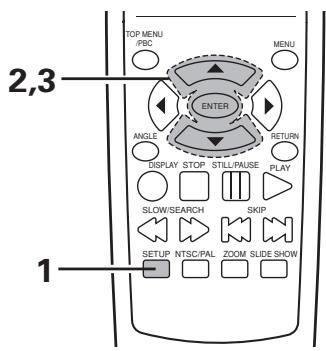
| 2 | Use the ▲ and ▼ cursor buttons to select the desired setting. DIGITAL OUTPUT Use this to select the digital output's signal format. 96k LPCM OUT Use this to set the digital audio output when playing DVDs recorded in linear PCM audio. DYNAMIC RANGE This has the effect of reducing the size difference between audio outputs. Even if the audio output is set to MIN, you can still hear audio or conversations. NOTE: • Dynamic range is displayed when the "SETUP MENU MODE" at "SYSTEM SETUP" is set to "EXPERT". | Remote control unit |
| AUDIO SETUP DIGITAL OUTPUT 96K LPCM OUT 96k ※ DYNAMIC RANGE MAX SELECT ▲ ▲ ▲ SET: ENTER BUTTON SET DIGITAL OUT | ||
| 3 | Press the ENTER button to decide the menu item. ① When "DIGITAL OUTPUT" is selected: Use the ▲ and ▼ cursor buttons to select the output format, press the ENTER button to decide. NORMAL When playing DVDs recorded in Dolby Digital or DTS, bitstream signals are output from the digital audio output terminals. When playing DVDs recorded in linear PCM, linear PCM signals are output. Select "NORMAL" when making digital connections to an AV amplifier with built-in Dolby Digital and DTS decoder. PCM (Factory default) When playing Dolby Digital bitstream signals or DVDs recorded in linear PCM, the signals are converted into 48 kHz/16-bit PCM (2-channel) signals and output from the digital outputs. When playing DVDs recorded in PCM, linear PCM signals are output. OFF Digital audio is not output. | Remote control unit ① ▲ ▲ ▲ Aa ▲ ▲ ▲ AUDIO SETUP DIGITAL OUTPUT 96K LPCM OUT 96k DYNAMIC RANGE MAX SELECT ▲ ▲ ▲ SET: ENTER BUTTON SET DIGITAL OUT |
② When "96k LPCM OUT" is selected:
Use the and cursor buttons to select the conversion mode, press the ENTER button to decide.
96k (Factory default)
When playing linear PCM DVDs that are not copyright-protected, for 2-channel PCM audio signals up to 96kHz , linear PCM signals are output as such without being converted from the digital outputs.
PCM signals of 48 kHz/16 bits and lower are output, regardless of whether they are copyright-protected or not.
For DVDs containing multi-channel PCM signals, the digital signals are down-mixed for output into two channels, front left and right. (Only the front left and right channels are output for sources for which down-mixing is prohibited.)
When playing copyright-protected linear PCM DVDs, in consideration of copyrights, no digital signals are output for sources exceeding 48 kHz/16 bits. When playing such sources, either set to "96k>48k" or make analog connections. (See page 10.)
96k>48k
Linear PCM and packed PCM signals are converted to 44.1 kHz or 48 kHz and output. (The PCM digital audio output signals are converted to 48 kHz or less in consideration of copyrights.) When making digital connections to an AV amplifier that is not compatible with 96 kHz/88.2 kHz signals, set to "96k>48k".
When playing DVDs recorded in linear PCM or packed PCM and the unit is set to output digital and analog audio signals simultaneously, the analog audio output signals are also converted to 48kHz or below, so we recommend setting to "96k" and also making analog connections.
③ When "DYNAMIC RANGE" is selected:
Use the and cursor buttons to select the "ON" or "OFF", press the ENTER button to decide.
MAX (Factory default)
Dynamic range control is not operating. You can hear the original audio.
MID
Dynamic range control operates at the mid-level. The size difference between sounds becomes a little smaller.
MIN
Dynamic range control operates at the maximum level. The size difference between sounds is reduced to the smallest level.
Remote control unit
Remote control unit
- To exit the setup mode
Press the SETUP button.
| 1 | Set the “DISC SETUP” in SETUP mode. (See page 20.) | |
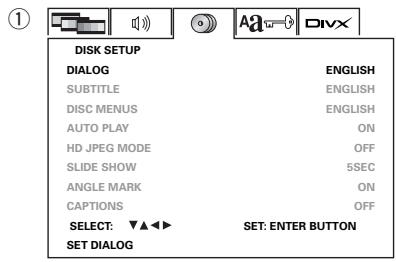
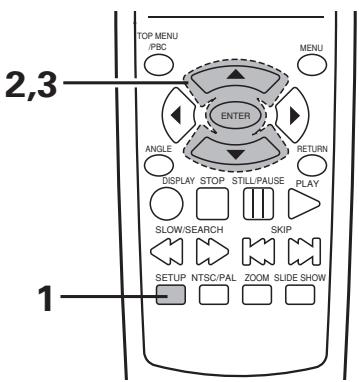
| 2 | Use the▲ and▼ cursor buttons to select the desired setting. DIALOG Use this to set the language of the sound output from the speakers. SUBTITLE Use this to set the language of the subtitles displayed on the TV. DISC MENUS Use this to set the language of the menus recorded on the disc (top menu, etc.). AUTO PLAY It is possible to start playback automatically after the power is turned on. HD JPEG MODE Use this to change the resolution of JPEG images. SLIDE SHOW The time interval for switching to the next still picture when playing slide shows of still pictures (in JPEG format) can be set. ANGLE MARK Angle marks are displayed/not displayed on the screen. CAPTIONS Use this to set whether or not to display the closed captions recorded on DVDs. NOTE: • Angle marks and captions are displayed when “SET UP MENU MODE” at “SYSTEM SETUP” is set to “EXPERT”. | Remote control unit |
| DISK SETUP DIALOG ENGLISH SUBTITLE ENGLISH DISC MENUS ENGLISH AUTO PLAY ON HD JPEG MODE OFF ※SLIDE SHOW SSEC ※ANGLE MARK ON ※CAPTIONS OFF SELECT: ▼▲▼ SET: ENTER BUTTON SET DIALOG |
Press the ENTER button to decide the menu item.
① When “DIALOG” is selected:
Use the and cursor buttons to select the language, press the ENTER button to decide.
ENGLISH (Factory default)
Select this when you want to play the DVD with the sound in English.
FRENCH
Select this when you want to play the DVD with the sound in French.
SPANISH
Select this when you want to play the DVD with the sound in Spanish.
GERMAN
Select this when you want to play the DVD with the sound in German.
ITALIAN
Select this when you want to play the DVD with the sound in Italian.
OTHERS
Use the number buttons to input the language number.
(See "Language code list" on page 32.)
② When “SUBTITLE” is selected:
Use the and cursor buttons to select the language, press the ENTER button to decide.
ENGLISH (Factory default)
Select this when you want to play the DVD with the subtitles in English.
FRENCH
Select this when you want to play the DVD with the subtitles in French.
SPANISH
Select this when you want to play the DVD with the subtitles in Spanish.
GERMAN
Select this when you want to play the DVD with the subtitles in German.
ITALIAN
Select this when you want to play the DVD with the subtitles in Italian.
OTHERS
Use the number buttons to input the language number.
(See "Language code list" on page 32.)
OFF
Select this if you do not want to display the subtitles. (For some discs it is not possible to turn off the subtitle display.)
Remote control unit
Remote control unit
Remote control unit
Remote control unit
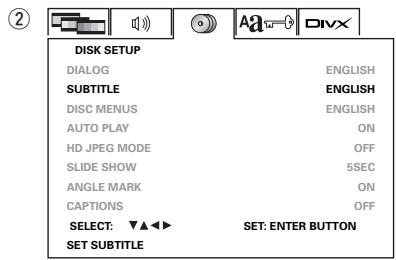
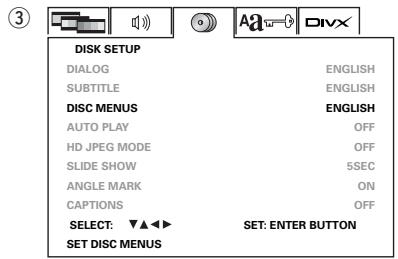
③ When "DISC MENUS" is selected:
Use the and cursor buttons to select the language, press the ENTER button to decide.
ENGLISH (Factory default)
Select this when you want to display the menus in English.
FRENCH
Select this when you want to display the menus in French.
SPANISH
Select this when you want to display the menus in Spanish.
GERMAN
Select this when you want to display the menus in German.
ITALIAN
Select this when you want to display the menus in Italian.
OTHERS
Use the number buttons to input the language number.
(See "Language code list" on page 32.)
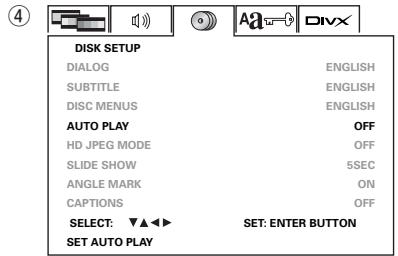
④ When "AUTO PLAY" is selected:
OFF (Factory default)
After turning on the power, press the PLAY button to start playing the disc.
ON
After the power turns on, disc playback starts automatically.
- A playable disc must be loaded for this function to work.
- Playback of the main program begins. The menu screen is not displayed.
- The resume play function is disabled.
- If the repeat play mode, random play mode, etc., was set when the power was last turned off, playback starts with those settings.
- If the KEY LOCK mode, IR REMOTE LOCK mode, Hide OSD mode, etc., were turned on when the power was last turned off, playback starts with those settings.
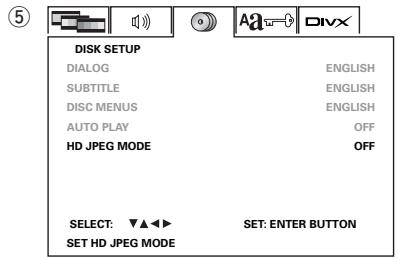
⑤ When “HD JPEG MODE” is selected.
OFF (Factory default)
The JPEG image resolution is fixed at 480p
ON
JPEG images are displayed in the most suitable resolution.
- Connect a HDTV to the HDMI connector, and select the HDMI resolution to 720p/1080i.
- The size of the image changes depending on the size of the JPEG file.
⑥ When "SLIDE SHOW" is selected:
Use the and cursor buttons to select the slide switching interval, press the ENTER button to decide.
The time interval can be set within 5, 10 and 15 seconds. (The factory default setting is 5 seconds.)
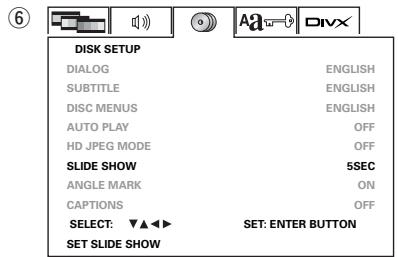
3
When "ANGLE MARK" is selected:
Use the and cursor buttons to select "ON" or "OFF", press the ENTER button to decide.
ON (factory default)
The angle mark is displayed when scenes at which angles are recorded are played.
OFF
The angle mark is not displayed, even when scenes at which angles are recorded are played.
When "CAPTIONS" is selected:
Use the and cursor buttons to select "ON"or"OFF", press the ENTER button to decide.
OFF (Factory default)
Select this when you do not want to display the captions on the screen when playing DVDs containing English captions
ON
Select this to display the captions on the screen when playing DVDs containing English captions.
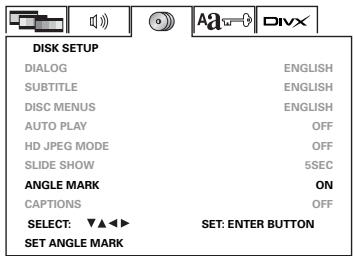
⑦
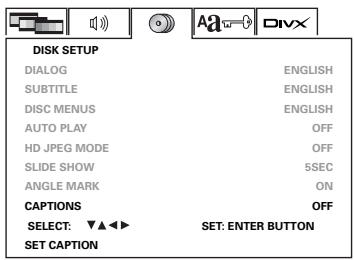
8
- To exit the setup mode
Press the SETUP button.
NOTES:
- An English caption decoder is required to display English captions.
- DVDs with caption signals are indicated by the , , mark.
English captions cannot be displayed when playing DVDs which do not contain caption signals.
- The characters in which the captions are displayed (capital letters, small letters, italics, etc.) depend on the DVD and cannot be selected with the DN-V210/DN-V310.
Language code list
| Code | Language | Code | Language | Code | Language | Code | Language |
| 6565 | Afar | 7079 | Faroese | 7678 | Lingala | 8375 | Slovak |
| 6566 | Abkhazian | 7082 | French | 7679 | Laothian | 8376 | Slovenian |
| 6570 | Afrikaans | 7089 | Frisian | 7684 | Lithuanian | 8377 | Samoan |
| 6577 | Ameharic | 7165 | Irish | 7686 | Latvian, Lettish | 8378 | Shona |
| 6582 | Arabic | 7168 | Scotts Gaelic | 7771 | Malagasy | 8379 | Somali |
| 6583 | Assamese | 7176 | Galician | 7773 | Maori | 8381 | Albanian |
| 6588 | Aymara | 7178 | Guarani | 7775 | Macedonish | 8382 | Serbian |
| 6590 | Azerbaijani | 7185 | Gujarati | 7776 | Malayalam | 8385 | Sundanese |
| 6665 | Bashkir | 7265 | Hausa | 7778 | Mongolian | 8386 | Swedish |
| 6669 | Byelorussian | 7273 | Hindi | 7779 | Moldavian | 8387 | Swahili |
| 6671 | Bulgarian | 7282 | Croatian | 7782 | Marathi | 8465 | Tamil |
| 6672 | Bihari | 7285 | Hungarian | 7783 | Malay | 8469 | Telugu |
| 6678 | Bengali; Bangla | 7289 | Armenian | 7784 | Maltese | 8471 | Tajik |
| 6679 | Tibetan | 7365 | Interlingua | 7789 | Burmese | 8472 | Thai |
| 6682 | Breton | 7378 | Indonesian | 7865 | Nauru | 8473 | Tigrinya |
| 6765 | Catalan | 7383 | Icelandic | 7869 | Nepali | 8475 | Turkmen |
| 6779 | Corsican | 7384 | Italian | 7876 | Dutch | 8476 | Tagalog |
| 6783 | Czech | 7387 | Hebrew | 7879 | Norwegian | 8479 | Tonga |
| 6789 | Welsh | 7465 | Japanese | 7982 | Oriya | 8482 | Turkish |
| 6865 | Danish | 7473 | Yiddish | 8065 | Panjabi | 8484 | Tatar |
| 6869 | German | 7487 | Javanese | 8076 | Polish | 8487 | Twi |
| 6890 | Bhutani | 7565 | Georgian | 8083 | Pashto, Pushto | 8575 | Ukrainian |
| 6976 | Greek | 7575 | Kazakh | 8084 | Portuguese | 8582 | Urdu |
| 6978 | English | 7576 | Greenlandic | 8185 | Quechua | 8590 | Uzbek |
| 6979 | Esperanto | 7577 | Cambodian | 8277 | Rhaeto-Romance | 8673 | Vietnamese |
| 6983 | Spanish | 7578 | Kannada | 8279 | Romanian | 8679 | Volapük |
| 6984 | Estonian | 7579 | Korean | 8285 | Russian | 8779 | Wolof |
| 6985 | Basque | 7583 | Kashmiri | 8365 | Sanskrit | 8872 | Xhosa |
| 7065 | Persian | 7585 | Kurdish | 8368 | Sindhi | 8979 | Yoruba |
| 7073 | Finnish | 7589 | Kirghiz | 8372 | Serbo-Croatian | 9072 | Chinese |
| 7074 | Fiji | 7665 | Latin | 8373 | Singhalese | 9085 | Zulu |
| 1 | Set the “SYSTEM SETUP” in SETUP mode. (See page 20.) | |
| 2 | Use the▲ and▼ cursor buttons to select the desired setting. OSD LANGUAGE Use this to set the language for the default setting screen and messages displayed on the TV screen (“PLAY”, etc.) WALL PAPER Use this to select the image to be shown on the screen in the stop mode. RATING LEVEL Use this to restrict playback of adult DVDs you do not want children to view. Note that even with adult DVDs, viewing cannot be restricted unless the restriction level is recorded on the disc. It is however possible to disable playback of all DVDs. PASSWORD Use this to change the password. The set's password is set to “5555” by default. DEFAULT Use this to restore settings changed at “INITIAL SETTINGS” to their original (default) values. SETUP MENU MODE The number of initial setting items can be increased. PARENTAL CONTROL Use this to set PARENTAL CONTROL to ON or OFF. | Remote control unit SYSTEM SETUP OSD LANGUAGE ENGLISH WALL PAPER BLACK RATING LEVEL 8 password CHANGE DEFAULT RESET SETUP MENU MODE BASIC PARENTAL CONTROL ON SELECT: ▼▲▲ SET: ENTER BUTTON SET OSD LANGUAGE |
Press the ENTER button to decide the menu item.
① When "OSD LANGUAGE" is selected:
Use the and cursor buttons to select the language, press the ENTER button to decide.
ENGLISH (Factory default)
Select this to set the OSD language to English.
FRANCAIS
Select this to set the OSD language to French.
ESPANOL
Select this to set the OSD language to Spanish.
DEUTSCH
Select this to set the OSD language to German.
② When "WALL PAPER" is selected:
Use the and cursor buttons to select the background mode, press the ENTER button to decide.
BLACK (Factory default)
Select this to display a black background on the TV display.
PICTURE
Select this to display the wallpaper on the TV display.
This wallpaper can be changed at the user's discretion.
(See page 68.)
③ When “RATING LEVEL” is selected:
- Press the ENTER button.
2.Use the number buttons to input the password (a 4-digit number), then press the ENTER button. - The password is initially set to "5555".
- The password can be changed by changing it to a new password at "password". (See below.)
3.Use the and cursor buttons to select "LEVEL", press the ENTER button to decide.
LEVEL 8 (factory default)
LEVEL 1 to 7
The lower the level, the stricter the restrictions.
NO LIMIT
Select this when you want to play all DVDs (for adults, general audiences and children).
④ When “password” is selected:
- Press the ENTER button.
- Use the number buttons to input the previously set password (a 4-digit number), next input the new password, then input the new password again, and finally press the ENTER button.
- The password is initially set to "5555".
- Be careful not to forget the password.
- The settings cannot be changed until the proper password is input.
Remote control unit
Remote control unit
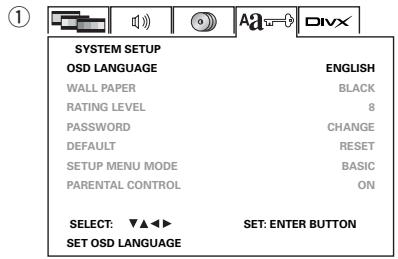
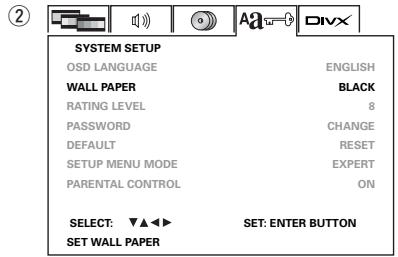
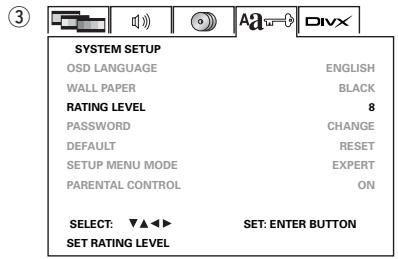
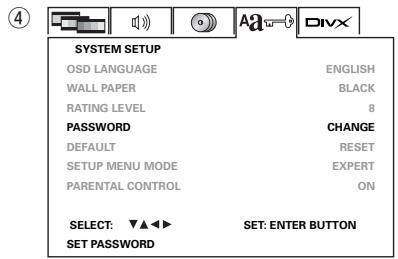
⑤ When “DEFAULTS” is selected:
- Press the ENTER button.
- Use the number buttons to input the "8888", then press the ENTER button. The settings that have been changed at "INITIAL SETTINGS" are restored to their initial (default) values.
⑥ When “SETUP MENU MODE” is selected:
Use the and cursor buttons to select the setup mode, press the ENTER button to decide.
BASIC (Factory default) EXPERT
The number of setting items for the various settings can be increased.
When "PARENTAL CONTROL" is selected:
- Press the ENTER button.
- Use the number buttons to input the password (a 4-digit number), then press the ENTER button.
- The password is initially set to "5555".
3.Use the and cursor buttons to select parental control "ON or OFF", press the ENTER button to decide.
(5)
| SYSTEM SETUP | |
| OSD LANGUAGE | ENGLISH |
| WALL PAPER | BLACK |
| RATING LEVEL | 8 |
| password | CHANGE |
| DEFAULT | RESET |
| SETUP MENU MODE | EXPERT |
| PARENTAL CONTROL | ON |
| SELECT▼▲▼ | SET:ENTER BUTTON |
| SET DEFAULT | |
(6)
| SYSTEM SETUP | |
| OSD LANGUAGE | ENGLISH |
| WALL PAPER | BLACK |
| RATING LEVEL | 8 |
| password | CHANGE |
| DEFAULT | RESET |
| SETUP MENU MODE | EXPERT |
| PARENTAL CONTROL | ON |
| SELECT: ▲▲□ | SET: ENTER BUTTON |
| SETUP MENU MODE | |
⑦
| SYSTEM SETUP | |
| OSD LANGUAGE | ENGLISH |
| WALL PAPER | BLACK |
| RATING LEVEL | 8 |
| password | CHANGE |
| DEFAULT | RESET |
| SETUP MENU MODE | EXPERT |
| PARENTAL CONTROL | ON |
| SELECT:▼▲▼ | SET:ENTER BUTTON |
| SET PARENTAL CONTROL | |
- To exit the setup mode
Press the SETUP button.
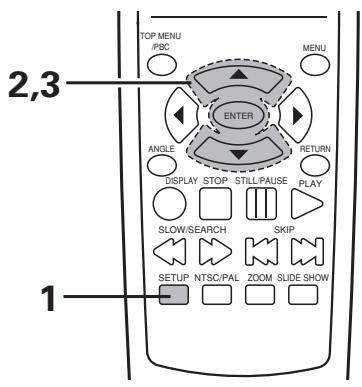
| 1 | Set the “DivX SETUP” in SETUP mode. (See page 20.) | |
| 2 | Use the ▲ and ∇ cursor buttons to select the desired setting. DivX SUBTITLE Set which language to be initially displayed when playing back a DivX® video disc. DivX REGISTRATION Acquires the DivX registration card of the DVD video player that you purchased. | Remote control unit DivX SETUP DivX SUBTITLE UNICODE DivX REGISTRATION OK SELECT: ▼▲▲→ SET: ENTER BUTTON SET DivX SUBTITLE |
| 3 | Press the ENTER button to decide the menu item. ① When “DivX SUBTITLE” is selected: Use the ▲ and ∇ cursor buttons to select the language, press the ENTER button to decide. UNICODE Standard character code able to process multiple languages, and includes most characters for all of the major languages. W. EUROPEAN Albanian, Breton, Catalan, Danish, Dutch, English, Faroese, Finnish, French, Gaelic, German, Icelandic, Irish, Italian, Norwegian, Portuguese, Spanish, Swedish TURKISH Albanian, Danish, Dutch, English, Finnish, French, Gaelic, German, Italian, Celtic (Latin), Norwegian, Portuguese, Spanish, Swedish, Turkish | ① DivX SETUP DivX SUBTITLE UNICODE DivX REGISTRATION OK SELECT: ▼▲▲→ SET: ENTER BUTTON SET DivX SUBTITLE |
| 3 | C. EUROPEAN Albanian, Croatian, Czech, Dutch, English, German, Hungarian, Irish, Polish, Rumanian, Slovenian, Serbian CYRILLIC Bulgarian, Belarusian, English, Macedonian, Moldavian, Russian, Serbian, Ukrainian GREEK English, modern Greek HEBREW English, modern Hebrew ARABIC Arabic BALTIC Baltic VIETNAM Vietnamese • These cannot be set if there are no subtitles recorded on the DivX® disc. • Subtitle files with the following extensions can be set. sut, sub, txt, smd, ssa, ass, psp ② When “DivX REGISTRATION” is selected: 1. Press the ENTER button. 2. The registration code is displayed. • The acquired code is for on demand DivX® video only. Do not use the same code for a different application or website. | ② DivX SETUP DivX SUBTITLE UNICODE DivX REGISTRATION OK SELECT: ▲▲→ SET: ENTER BUTTON SET DivX REGISTRATION |
| * To exit the setup mode Press the SETUP button. | ||
(1)Playback
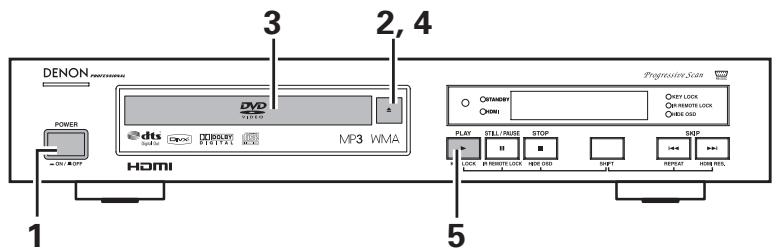
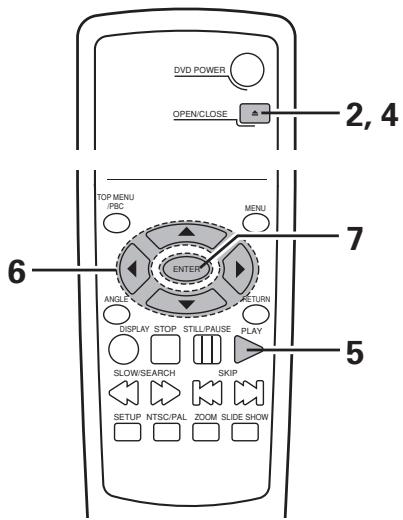
| 1 | Turn on the power. • Press the power button, the power indicator lights and the power turn on. • When standby mode, press the DVD POWER button of remote control unit. | POWER ON/CLOSE Main unit |
| 2 | Press the OPEN/CLOSE button to open the disc tray. | OPEN/CLOSE Main unit Remote control unit |
| 3 | Set the disc in the disc tray. | |
| 4 | Press the OPEN/CLOSE button. • For many interactive DVDs and video CDs with playback control, a menu screen appears. In this case use the procedure in step 6 to select the desired item. * Interactive DVDs are DVDs including multiple angles, stories, etc. | Example: For DVDs with menu screens TOP MENU Apple Banana Orange Strawberry Peach Pineapple Example: For videos with menu screens 1. Opening 2. 1st movement 3. 2nd movement 4. 3rd movement 5. Ending |
| 5 | Press the PLAY button. | PLAY KEY LOST Main unit Example: For videos with menu screens 1. Opening 2. 1st movement 3. 2nd movement 4. 3rd movement 5. Ending |
| 6 | Use the cursor buttons (▲,▼,▲ and ▲) to select the desired item. • For some discs there is a second menu screen. If so, press the 9 button to display the next menu screen. (See the disc's jacket.) * The cursor buttons (▲,▼,▲ and ▲) do not work for video CDs. Use the number buttons to select the desired item. | Remote control unit |
| 7 | Press the ENTER button. • The desired item is selected and playback starts. • You can return to the menu screen by pressing the TOP MENU button while the DVD is playing, though this depends on the disc. • Press the RETURN button during playback of a video CD to return to the menu screen. | Example: When "Apple" is selected TOP MENU Apple Banana Orange Strawberry Peach Pineapple Example: For videos with menu screens 1. Opening 2. 1st movement 3. 2nd movement 4. 3rd movement 5. Ending |
NOTES:
- If “ not allowed at the moment” appears on the TV screen while buttons are being operated, that operation is not possible on the DN-V210/DN-V310 or with that disc.
- Set the disc in the disc guide.
- Do not place more than one disc in the disc tray.
- The disc keeps turning while the menu screen is displayed on the TV screen.
- When the auto play mode is turned on, playback of the main program begins. The menu screen is not displayed.
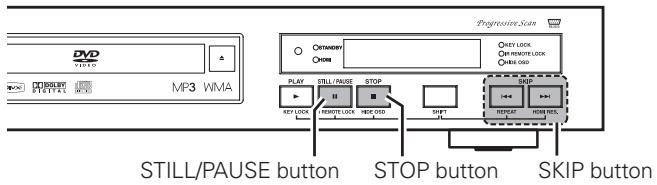
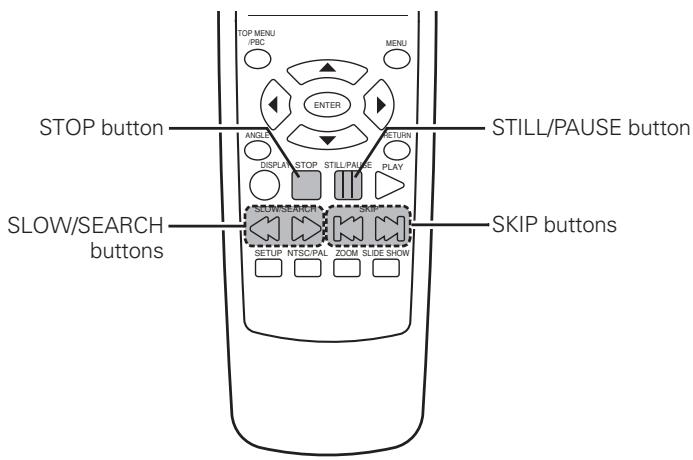
(2) Stopping Playback
During playback, press the STOP button on the main unit or the remote control unit, playback stops and wall paper is displayed. Resume play memory function
- With the DN-V210/DN-V310, when the STOP button is pressed, that position is stored in the memory. At this time, "rESUME" is displayed on the display.
- When the PLAY button is pressed after pressing the STOP button, playback resumes from the position at which it was stopped.
- The resume play memory function is canceled if the disc tray is opened or the STOP button is pressed a second time.
- If you do not want to continue playing the disc, to save electricity either press the DVD POWER button on the remote control unit to set the power to the standby mode.
Main unit
Remote control unit
- The resume play memory function only works for discs for which the elapsed time is shown on the display during playback.
- The resume play function is disabled when the AUTO PLAY mode is turned on.
(3) Playing Still Pictures (Pausing)
During playback, press the STILL/PAUSE button on the main unit or the remote control unit.
- Press the PLAY button to resume normal playback.
Main unit
Remote control unit
(4) Forward/Reverse Searching
During playback, press one of the SLOW/SEARCH buttons on the remote control unit.
: Reverse direction
Forward direction
- When pressed again, the search speed increases (in four steps).
- Variable in 3 steps for CDs and video CD discs, 4 steps for DVD video.
- Press the PLAY button to resume normal playback.
(5) Skipping to the Beginning of Chapters or Tracks
During playback, press one of the skip buttons on the main unit or the remote control unit.
: Reverse direction
▶Forward direction
- A number of chapters or tracks equal to the number of times the button is pressed is skipped.
- When the skip back button is pressed once, the pickup returns to the beginning of the currently playing chapter or track.

Reverse direction Forward direction (direction of playback)
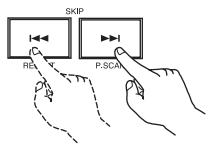
Main unit
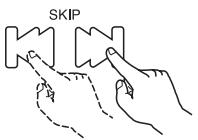
Remote control unit
NOTE:
- In some cases the menu screen may reappear when one of the SKIP buttons is pressed during menu playback on a video CD.
(6) Playing Frame by Frame (for DVDs only)
During playback, press the STILL/PAUSE button on the main unit or the remote control unit.
- The picture moves forward one frame each time the button is pressed.
- Press the PLAY button to resume normal playback.
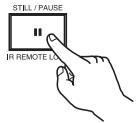
Main unit
STILL/PAUSE
Remote control unit
(7) SlowPlayback(forDVDsonly)
In the still mode, press one of the SLOW/SEARCH buttons on the remote control unit.
: Reverse direction
Forward direction
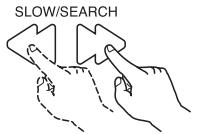
Remote control unit
Use this function to play your favorite audio or video sections repeatedly.
Playing Repeatedly (Repeat Playback)
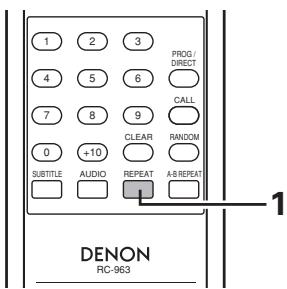
In the play mode,
- Main unit :
Press the SHIFT and buttons simultaneously for 3 seconds. - Remote control unit :
Press the REPEAT button. - The display on the TV screen switches each time the button is pressed, and the corresponding repeat play or stop mode is set.
1
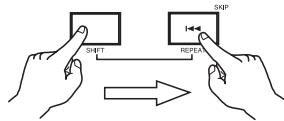
Main unit
Remote control unit
① For DVD video discs
- Normal playback
Chapter repeated
CHAPTER REPEAT
- Title repeated
TITLE REPEAT

REPEAT OFF
- Repeat playback cancelled
② For video CD
- Normal playback
- Track repeated
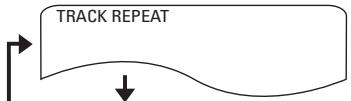
- Entire disc repeated
DISC REPEAT

REPEAT OFF
- Repeat playback cancelled
③ For CD
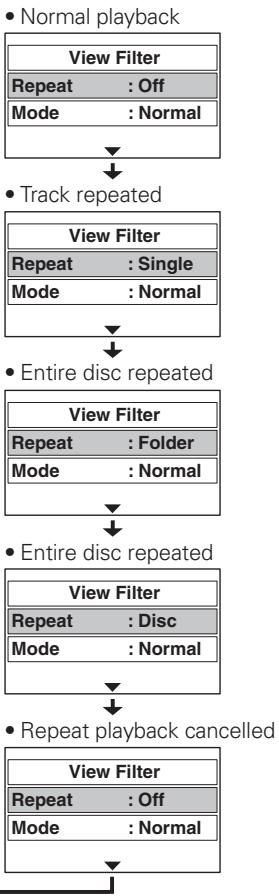
(4) For MP3/WMA
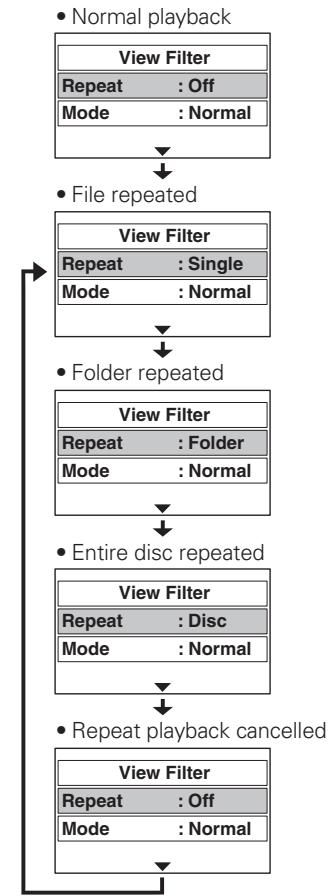
⑤ For JPEG/DivX
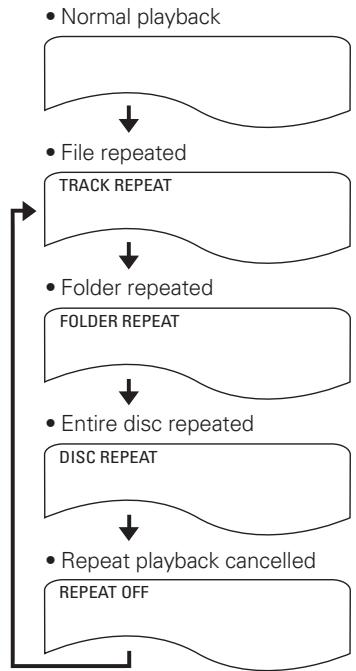
* To return to normal playback:
Return to normal playback by pressing the REPEAT button until "REPEAT OFF" appears on the TV screen.
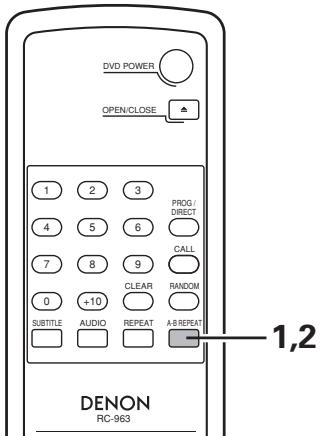
| 1 | During playback, press the A-B button. ·This sets start point A. | A-B REPEAT Remote control unit | A TO B SET A |
| 2 | Press the A-B button again. ·This sets end point B, and repeat playback of the A-B section starts. | A-B REPEAT Remote control unit | A TO B SET B |
| *To return to normal playback: Press the A-B button until “A TO B CANCELED” appears on the TV screen. | |||
NOTES:
- Repeat playback may not work for some DVDs.
- The repeat playback and A-B repeat playback functions will not work for DVDs and video CDs for which the elapsed time is not shown on the display during playback.
- Repeat playback is not possible when PBC is turned on with video CDs. Press the TOP MENU button to turn PBC off.
- The Play button cannot be used during A-B Repeat.
- If you switch to the SETUP MENU screen during A-B Repeat, A-B Repeat is canceled.
11 PLAYING TRACKS IN THE DESIRED ORDER
Use this function with DVD, Video CD, CD, MP3, WMA, DivX and JPEG to play the tracks in the desired order.
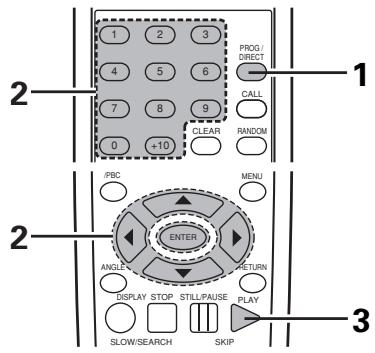
| 1 | For DVD: In the stop mode, press the PROG/DIRECT button once. • The program selection screen appears. | PROG/DIRECT Remote control unit | PROGRAM NO. TITLE CHAPTER Mode :PROGRAM 01 ... ... |
| PLAY 02 ... ... | |||
| Clear Program 03 ... ... | |||
| 04 ... ... | |||
| 05 ... ... | |||
| 2 | Press the ➔ cursor button to set the title number in the program mode. Use the number buttons to select the number of the title you want to program. Next, press the ➔ cursor, and enter the right side chapter. Press the ➔ cursor button. To program other titles and chapters, select one title and chapter number at a time and press the ▲ and ➔ cursor buttons after each number is selected. • Up to 99 tracks can be programmed. EX: To program title 5, chapter 1 and title 12: | 1 2 3 4 5 6 7 8 9 0 +10 Remote control unit | 1 2 3 4 5 6 7 8 9 0 +10 Remote control unit |
| MODE :PROGRAM 01 05 01 PLAY 02 ... ... | |||
| Clear Program 03 ... ... | |||
| 04 ... ... | |||
| 05 ... ... | |||
| → | |||
| 3 | Press the PLAY button. • Playback of the tracks in the programmed order begins. | → MODE :PROGRAM 01 05 01 PLAY 02 1. ... | |
| MODE :PROGRAM 01 05 01 PLAY 02 12 ... | |||
| Clear Program 03 ... ... | |||
| 04 ... ... | |||
| 05 ... ... | |||
| *To return to normal playback: Press the STOP button to stop programmed playback, then press the PROG/DIRECT button. Press the ENTER button to switch the mode from "PROGRAM" to "NORMAL". Press the PLAY button to start normal playback from the beginning of the disc. *To clear tracks from the program: Press the STOP button, then press the PROG/DIRECT button. Use the ➔, ▲ and ➔ cursor buttons to select the title and chapter number you want to clear. Press the CLEAR button to clear the track. *To clear the entire program: The entire program is cleared when the power is turned off or the disc is ejected. Also, when the STOP button is pressed to stop programmed playback and the PROG/DIRECT button is pressed. Press the ▲ and ➔ cursor buttons to select "Clear Program", then press the ENTER button. At this time, the entire program is cleared. *Front panel display: Title and Chapter number of the track being played is displayed. | |||
NOTE:
- Programmed playback is not possible when PBC is turned on with video CDs. Press the TOP MENU button to turn PBC off.
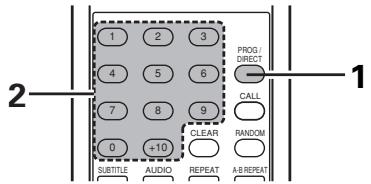
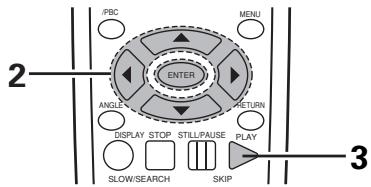
| 1 | For Video CD: In the stop mode, press the PROG/DIRECT button once. • The program selection screen appears. | PROG/DIRECT Remote control unit | PROGRAM NO. TRACK Mode :PROGRAM 01 ... PLAY 02 ... Clear Program 03 ... 04 ... 05 ... |
| 2 | Press the ➔ cursor button to set the track number in the program mode. Use the number buttons to select the number of the track you want to program. Press the ↕ cursor button. To program other tracks, select one track number at a time and press the ▲ and ↕ cursor buttons after each number is selected. • Up to 99 tracks can be programmed. EX: To program track 5 and track 12: | Remote control unit | 1 2 3 4 5 6 7 8 9 0 +10 0 +10 |
| PROGRAM NO. TRACK Mode :PROGRAM 01 05 PLAY 02 ... Clear Program 03 ... 04 ... 05 ... | → | → | |
| 3 | Press the PLAY button. • Playback of the tracks in the programmed order begins. | → | → |
| * To return to normal playback: Press the STOP button to stop programmed playback, then press the PROG/DIRECT button. Press the ENTER button to switch the mode from “PROGRAM” to “NORMAL”. Press the PLAY button to start normal playback from the beginning of the disc. * To clear tracks from the program: Press the STOP button, then press the PROG/DIRECT button. Use the ➕, ▲ and ↕ cursor buttons to select the title and chapter number you want to clear. Press the CLEAR button to clear the track. * To clear the entire program: The entire program is cleared when the power is turned off or the disc is ejected. Also, when the STOP button is pressed to stop programmed playback and the PROG/DIRECT button is pressed. Press the ▲ and ↕ cursor buttons to select “Clear Program”, then press the ENTER button. At this time, the entire program is cleared. * Front panel display: Track number of the track being played back is displayed. | |||
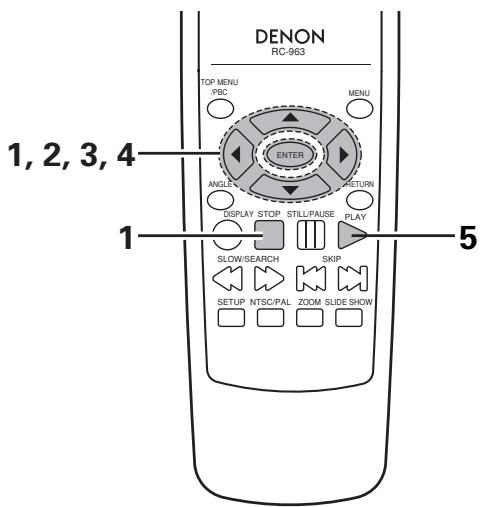
| 1 | For CD/MP3/WMA/DivX/JPEG: Use the ▲, ▲ and ▼ cursor buttons to turn the Edit Mode at the top right of the file menu ON. · When playing CD/MP3/WMA files, the file menu is always displayed on the screen. · When playing JPEG/DivX, press the MENU or STOP button to display the file menu. | File Menu | |
| Track01 | Edit Mode : ON | ||
| Track02 | Program View | ||
| Track03 | Add to Program | ||
| Track04 | Music Playing | ||
| Track05 | Track06 | ||
| Track07 | Track08 | ||
| Track08 | Music Playing | ||
| 2 | Use the ▲, ▲ and ▼ cursor buttons to select the tracks or files you want to program in the file menu. Press the ENTER button to decide. · At this time, check mark is displayed on the track or file. To program other tracks, select one track at a time and press the ENTER button after each track is selected. | ||
| 3 | Use the ▲, ▲ and ▼ cursor buttons to select “Add to Program” in the file menu. Press the ENTER button to set the program tracks or files. · At this time, the displayed check marks disappear. | ||
| 4 | Use the ▲ and ▼ cursor buttons to select “Program View” in the file menu. Press the ENTER button to display the program list. · The selected tracks are displayed as a program list. | ||
| 5 | Press the PLAY button. •Playback of the tracks in the programmed order begins. | PLAY KEY LOC Main unit Remote control unit | |
| *When there are less than 2 folders for MP3/WMA/JPEG/DivX files: Repeat steps 2 and 3 above for each individual folder, and add files to be programmed. The added files can be verified in the Program View. *To returnan to normal playback: Use the▶,▲ and▼ cursor buttons to select “Browser View” in the file menu. Press the ENTER button to display the all tracks or files. *To clear tracks or files from the program. Press the STOP button to switch to the STOP status. When the Program list is displayed, use the▶,▲ and▼ cursor buttons to select the tracks or files that you want to clear. A check mark is added next to the track or file. Use the▶,▲ and▼ cursor buttons to select “Clear Program” in the file menu. Press the ENTER button to clear the all track or files from the program list. To clear all tracks or files, add a check mark next to all of the tracks or files in the program list. *To clear the entire program: The entire program is cleared when the power is turned off or the disc is ejected. *Front panel Display: Program number is displayed. | |||
12 PLAYING TRACKS IN THE RANDOM ORDER
Use this function with Video CD, CD, MP3, WMA, DivX and JPEG to play the tracks in random order. This function does not affect with DVD.
NOTE:
- Random playback is not possible when PBC is turned on with video CDs. Press the TOP MENU button to turn PBC off.
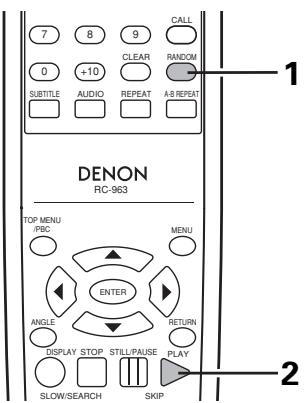
| 1 | For Video CD: In the stop mode, press the RANDOM button. • The random play screen appears. • Random playback is not possible for some discs. | RANDOM Remote control unit | RANDOM ON |
| 2 | Press the PLAY button. • The tracks start playing in random order. | PLAY KEY LOK Main unit | PLAY Remote control unit |
| * To return to normal playback: Press the STOP button to stop random playback, then press the RANDOM button once. | |||
| 1 | For CD, MP3, WMA, DivX and JPEG: In the stop mode, press the RANDOM button. • The Control Menu Mode changes from Normal to Random. Use the <, >,▲, and▼ cursor buttons to select Mode, and press the ENTER button to set Random Mode. | Track 01 Track 02 Track 03 Track 04 Track 05 Track 06 Track 07 Track 08 Repeat: Off Mode: Random Edit mode: ON JPEG Preview |
| 2 | Press the PLAY button. • The tracks start playing in random order. | PLAY KEY LOC Main unit Remote control unit |
| * The Random button and cursor button can also be used during playback to switch to Random play. RANDOM ON is displayed on the screen during DivX/JPEG playback. * To return to normal playback: Press the RANDOM button during Random play. Use the cursor buttons to select Mode and press ENTER to return to Normal Play. | ||
13 USING THE ON-SCREEN DISPLAY
Use this function to display and change information on the disc (titles, chapters, time, etc.)
NOTE:
- The on-screen display function does not work when PBC is turned on with video CDs. Press the TOP MENU button to turn PBC off.
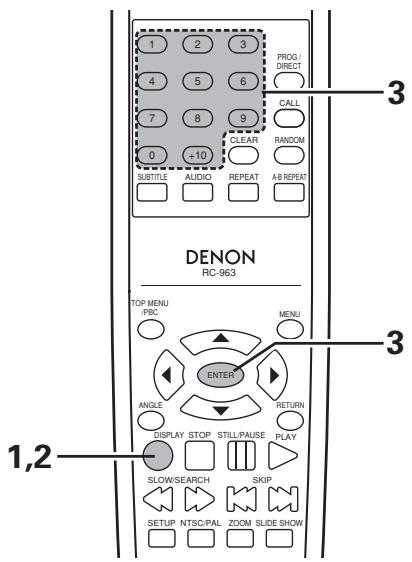
| 1 | In the play mode, press the DISPLAY button. • The On-Screen Display appears. • The picture on the TV screen switches each time the button is pressed. • The items displayed differ from disc to disc. | DISPLAY Remote control unit |
| 2 | Example: For DVD video discs → T01/10 C01/10 0:00:01 → AUDIO 1/2 DCD ENG SUBTITLE 2/4 ENG Example: For video and music CDs → TRACK 01/10 SINGLE ELAPSED 0:26:11 → SINGLE REMAIN 0:03:17 TOTAL ELAPSED 0:06:15 TOTAL REMAIN 0:32:05 | |
| 3 | Input using the number buttons, then press the ENTER button. ① Changing the elapsed time Use the < and > cursor buttons to select the elapsed time. The selected item is displayed with a blue frame. • For DVDs Example: For 1 Hour 32 minute 47 seconds / "13247" : For 1 minute 26 seconds / "00126" • For video and music CDs Example: For 1 minute 26 seconds / "0126" ② Changing the title, track or chapter • For DVDs Use the < and > cursor buttons to select the track. Input using the number buttons, then press the ENTER button. • For video and music CDs Use the ▲ and ▼ cursor buttons to select the track. The selected item is displayed with a blue frame. Input using the number buttons. Playback starts from that track. | 1 2 3 4 5 6 7 8 9 0 +10 Remote control unit ENTER Remote control unit |
Switching the Audio Language (Multiple Audio Function)
With DVDs containing multiple audio language signals, the audio language can be switched during playback.
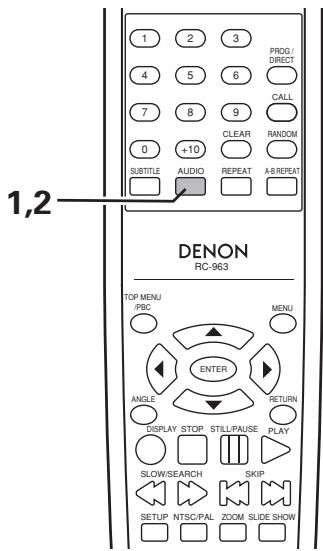
| 1 | During playback, press the AUDIO button. • The current audio language number is displayed. | AUDIO Remote control unit | AUDIO 1/3 DCD HENG |
| 2 | Use the AUDIO buttons to select the desired language. | AUDIO Remote control unit | AUDIO 2/3 DCD HSPA |
NOTES:
- With some discs it is not possible to change the audio language during playback. In such cases, select from the DVD menu. (See page 29.)
- If the desired language is not set after pressing the AUDIO buttons several times, the disc does not include that language.
- The language selected in the default settings (See page 29.) is set when the power is turned on and when the disc is replaced.
Switching the Subtitle Language (Multiple Subtitle Function)
■ With DVDs containing multiple subtitle language signals, the subtitle language can be switched during playback.
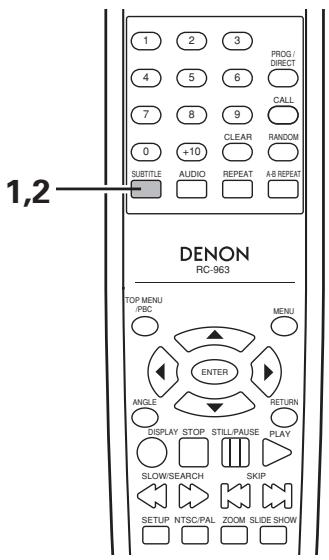
| 1 | During playback, press the SUBTITLE button. • The current subtitle language number is displayed. | SUBTITLE Remote control unit | SUBTITLE 1/2 ENG |
| 2 | Use the SUBTITLE button to select the desired language. | SUBTITLE Remote control unit | SUBTITLE 2/2 SPA |
NOTES:
- If the desired language is not set after pressing the SUBTITLE button several times, the disc does not include that language.
- The subtitle language set with the default settings (See page 29.) is set when the power is turned on and when the disc is replaced. If that language is not included on the disc, the disc's default language is set.
- When the subtitle language is changed, several seconds may be required for the new language to appear.
- When a disc supporting the closed caption is played, the subtitle and the closed caption may overlap each other on the TV monitor. In this case, turn the subtitle off.
Switching the Angle (Multiple Angle Function)
■ With DVDs containing multiple angle signals, the angle can be switched during playback.
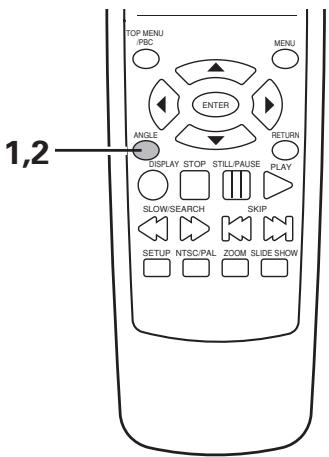
| 1 | During playback, press the ANGLE button. • The current angle number is displayed. | ANGLE Remote control unit | 3/5 |
| 2 | Use the ANGLE button to select the desired angle. | ANGLE Remote control unit | 4/5 |
NOTES:
- The multiple angle function only works with discs on which multiple angles are recorded.
- "ANGLE" lights on the main unit's display when playing a section recorded in the multi-angle mode.
- At scenes where multiple angles are recorded, the angle can be switched.
Using the Top Menu
For DVDs containing multiple titles, the desired title can be selected and played from the top menu.
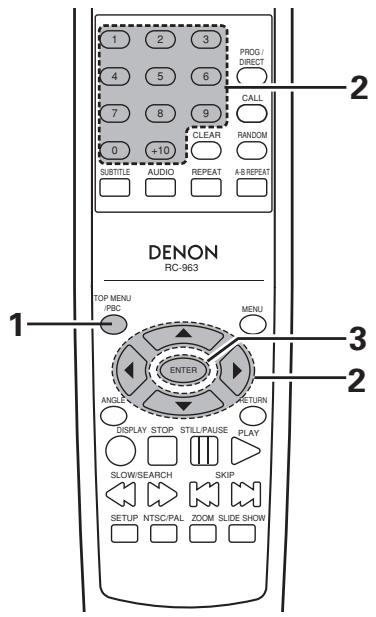
| 1 | During playback, press the TOP MENU button. • The top menu appears. | TOP MENU Remote control unit | Example: TOP MENU Apple Banana Orange Strawberry Peach Pineapple |
| 2 | Use the cursor or number buttons to select the desired title. | Remote control unit 1 2 3 4 5 6 7 8 9 0 +10 Remote control unit | Example: When “Orange” is selected TOP MENU Apple Banana Orange Strawberry Peach Pineapple |
| 3 | Press the ENTER button. •Playback starts. •Playback also starts if the PLAY button is pressed. | ENTER Remote control unit | |
Using the DVD Menu
Some DVDs include special menus called DVD menus.
For example, DVDs with complex contents may contain guide menus, and DVDs with multiple languages may contain audio and subtitle language menus.
These menus are called "DVD menus".
Here we describe the general procedure for using DVD menus.
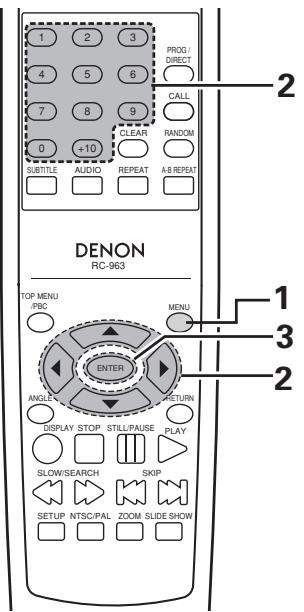
| 1 | During playback, press the MENU button. • The DVD menu appears. | Remote control unit | Example: DVD MENU 1. SUB TITLE 2. AUDIO 3. ANGLE |
| 2 | Use the cursor or number buttons to select the desired item. • If you select the item using the number buttons, skip step 3 below. | Remote control unit 1 2 3 4 5 6 7 8 9 0 +10 Remote control unit | Example: "AUDIO" is selected DVD MENU 1. SUB TITLE 2. AUDIO 3. ANGLE |
| 3 | Press the ENTER button. • The selected item is set. • If more menus appear, repeat steps 2 and 3. | Remote control unit | ENTER Remote control unit |

| 1 | In the play or pause mode, press the ZOOM button. • The zoom rate increases each time the ZOOM button is pressed. For DVD Video CD, JPEG and DivX: → ZOOM OFF → ZOOM 1 → ZOOM 3 ← ZOOM 2 | Remote control unit |
| 2 | Use the cursor buttons (▼, ▲, ▴ and ↗) to move the zoomed picture. | Remote control unit |
NOTES:
- Zooming is not possible with some discs.
- The zoom function may not work properly at some scenes.
- Zooming is not possible at the top menu or the menu screen.
- Zooming is not possible during playback when "HD JPEG MODE" is set to ON.
Listening to MP3/WMA CD, CD-Rs and CD-RWs
There are many music distribution sites on the internet from which music files in MP3/WMA format can be downloaded. Music downloaded as instructed on the site and written onto a CD-R/RW disc can be played on the DN-V210/DN-V310.
If music recorded on commercially available music CDs is converted on a computer into MP3/WMA files using an MP3/ WMA encoder (conversion software), the data on a 12cm CD is reduced into about 1/10 the amount of the original data. Thus, when written in MP3/WMA format, the data of about 10 music CDs can fit onto a single CD-R/RW disc. A single CD-R/RW disc can contain over 100 tracks.
- Values when 5-minute tracks are converted with a standard bit rate of 128 kbps into MP3/WMA files and using a CD-R/ RW disc with a capacity of 650 MB.
- Uses of recordings you have made other than for your personal enjoyment are not permitted under the copyright law without permission of the copyright holder.
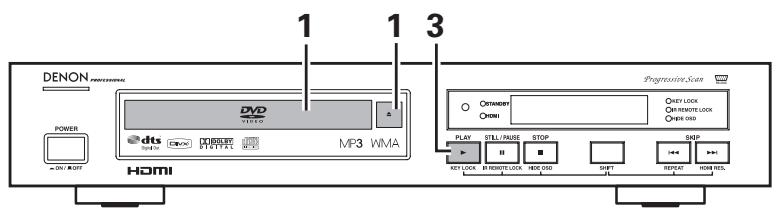
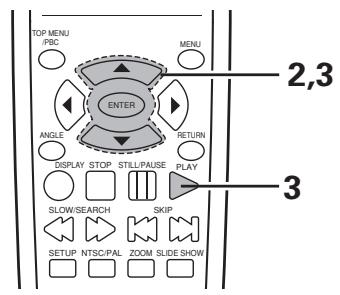
| 1 | Load the CD-R/RW disc on which the MP3/WMA format music files have been written into the DN-V210/DN-V310. (See page 19.) · When the disc is loaded in the DN-V210/DN-V310, the disc information screen appears. · If there are multiple folders, proceed to step 2. · If there are no folders on the disc, proceed to step 3. | FOLDER 01 FOLDER 02 FOLDER 03 FOLDER 04 FOLDER 05 JPEG Preview |
| 2 | Use the ▲ and ▼ cursor buttons to select the folder containing the file(s) you want to play, then press the ENTER button. · If there are multiple folders furthermore, proceed to step 2. * To change the folder Use the ▲ and ▼ cursor buttons to select “Up...” at the upper of the screen, then press the ENTER button. The another folders reappear in the disc information screen. Select the desired folder. | Remote control unit ENTER Remote control unit FOLDER 01 FOLDER 02 FOLDER 03 FOLDER 04 FOLDER 05 JPEG Preview |
3
Use the and cursor buttons to select the MP3/WMA file you want to play, then press the PLAY button or ENTER button.
- Playback starts.
The display can be switched between the single elapsed time and the single remaining time by pressing the DISPLAY button.
To change the MP3/WMA file
Press the STOP button, then use the and cursor buttons to reselect the desired MP3/WMA file.
- To return to the initial disc information screen
Use the cursor button to select "Up.." at the upper left of the screen, then press the ENTER button. The screen in step 1 reappears.
Remote control unit
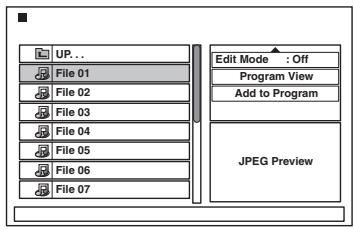
Remote control unit
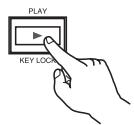
Main unit
Remote control unit
NOTES:
- The DN-V210/DN-V310 is compatible with the "MPEG-1 Audio Layer 3" standards (sampling frequency of 44.1kHz ) and WMA. It is not compatible with such other standards as "MPEG-2 Audio Layer 3", "MPEG-2.5 Audio Layer 3", MP1, MP2, etc.
- It may not be possible to play some CD-R/RW discs due to disc properties, dirt, warping, etc.
- The digital signals output when playing MP3/WMA files are MP3/WMA signals converted into PCM, regardless of whether the audio output presetting is set to "normal" or "PCM".
- In general, the higher an MP3 file's bit rate, the better the sound quality. On the DN-V210/DN-V310, we recommend using MP3 files recorded with bit rates of 128 kbps or greater.
WMA files are 64kps or greater. - MP3/WMA files may not be played in the expected order, since the writing software may change the position of the folders and the order of the files when writing them on the CD-R/RW.
- When writing MP3/WMA files on CD-R/RW discs, set the writing program to store the files in the "ISO9660 level 1, level 2 or Joliet" format. The physical format of the CD to Mode1, Mode2, or XA Form1.
- With the DN-V210/DN-V310 it is possible to display folder names and file names on the screen like titles. The DN-V210/ DN-V310 can display up to 15 characters, consisting of numbers, capital letters, and the “_” (underscore) mark.
- Total number of folders is less than 256, and the total number of files is less than 1000.
- Be sure to add the extension“.MP3” to MP3 files,“.WMA” to WMA files. Files cannot be played if they have any extension other than“.MP3/.WMA” or if they have no extension.
- Do not apply stickers, tape, etc., to either the label side or the signal side of CD-R/RW discs. If adhesive gets on the surface of a disc, the disc may get stuck inside the DN-V210/DN-V310 and be impossible to eject.
- The DN-V210/DN-V310 is not compatible with packet write software.
18 PLAYING STILL PICTURE FILES (JPEG format)
Uses of recordings you have made other than for your personal enjoyment are not permitted under the copyright law without permission of the copyright holder.
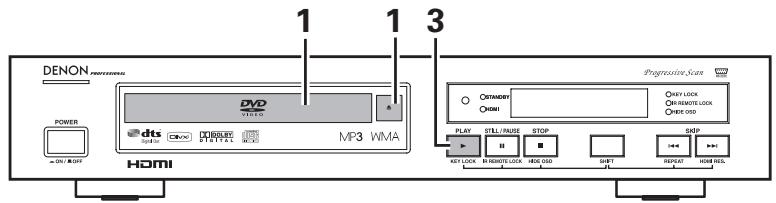
Playing still pictures stored on CD-Rs/RWs
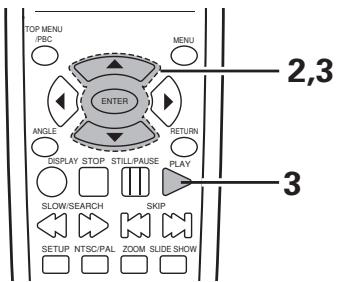
| 1 | Load the CD-R/RW on which the still pictures have been written into the DN-V210/DN-V310. ·When the disc is loaded in the DN-V210/DN-V310, the disc information screen appears. ·If there are multiple folders proceed to step 2. ·If there are no folders on the disc, proceed to step 3. | Folder_01 Folder_02 Folder_03 File_01 File_02 File_03 File_04 File_05 View Filter Repeat : Off Mode : Normal JPEG Preview |
| 2 | Use the ▲ and ▼ cursor buttons to select the folder containing the file(s) you want to play, then press the ENTER button. *To change the folder Use the ▲ and ▼ cursor buttons to select “Up..” at the upper of the screen, then press the ENTER button. The another folders reappear in the disc information screen. Select the desired folder. | Folder_01 Folder_02 Folder_03 File_01 File_02 File_03 File_04 File_05 Remote control unit Enter Remote control unit View Filter Repeat : Off Mode : Normal JPEG Preview |
Use the and cursor buttons on the remote control unit to select the still picture file from which you want to start the slide show, then press the PLAY button or ENTER button on the remote control unit.
- The slide show starts.
-
Only the still picture files in the selected folder are played.
-
Once all the still picture files in the folder have been played, the disc information screen reappears.
- The image size (W:xxx, H:xxx) is displayed below the JPEG Preview.
- Press the TOP MENU button in the file menu display to switch to the thumbnail display. Press the STOP button during thumbnail display to return to the file menu.
Remote control unit
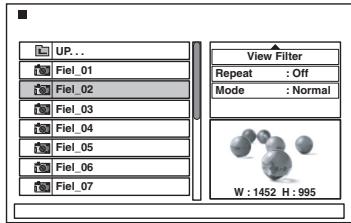
Remote control unit
Main unit
Remote control unit
Thumbnail display
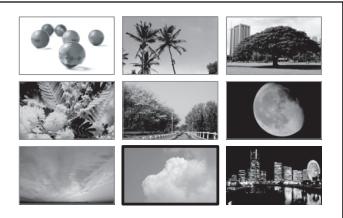
-
To display menu screen of the still pictures stored on the disc at once:
-
Press the MENU button to display up to menu screen at once.
-
To select and view a still picture (to start the slide show from a specific still picture), use the cursor buttons (, , and ) to select the desired still picture, then press the ENTER button.
-
To temporarily stop the slide show:
-
Press the STILL/PAUSE button.
-
To resume the slide show, press the PLAY button.
-
To cue a still picture you want to view (from which you want to start the slide show):
-
During the slide show, press one of the SKIP (I▶,▶I) buttons. Press the SKIP I▶ button to cue back to the previous still picture, the SKIP▶I button to cue ahead to the next still picture.
-
Flipping and rotating still pictures:
-
Use the cursor buttons (, , and ) to flip the still picture.
cursor button: The currently displayed still picture is flipped vertically.
cursor button: The currently displayed still picture is flipped horizontally.
cursor button: The currently displayed still picture is rotate 90^ counterclockwise.
cursor button: The currently displayed still picture is rotate 90^ clockwise.
* Play the image in the zoom mode.
- In the play or pause mode, press the ZOOM button to zoom.
The zoom rate increases each time ZOOM button is pressed. (ZOOM OFF ZOOM 1 ZOOM 2 ZOOM 3 ZOOM OFF) - When the image is zoomed, use the cursor buttons (, , and ) to move the zoomed picture.
- Continuous playback (SLIDE SHOW) is possible in the zoom mode.
* The way of switching to the next image during continuous JPEG image playback (SLIDE SHOW) can be selected.
- Press the SLIDE SHOW button on the remote control unit.
- Select from SLIDE SHOW MODE 1 to MODE 6, RAND and NONE.
* Operating the SETUP menu is not possible during the playback of still pictures.
Special play modes for MP3/WMA and JPEG files
- FOLDER (the MP3/WMA and JPEG files in the folder are played in order starting from the selected file)
- FOLDER REPEAT (all the MP3/WMA and JPEG files in the folder are played repeatedly starting from the selected file)
- DISC (all the MP3/WMA and JPEG files on the disc are played in order starting from the selected file)
DISC REPEAT (all the MP3/WMA and JPEG files on the disc are played repeatedly starting from the selected file) - RANDOM ON (all the MP3/WMA and JPEG files in the folder are played in random order starting from the selected file)
- Music and Picture playback. (Select JPEG files during MP3/WMA playback to playback music and images at the same time.)
- During disc repeat playback of Music and Pictures, only the pictures within one folder are played repeatedly.
- When the Pause button is pressed during music and picture playback, only the playback of pictures is paused.
- When the play mode is HD JPEG ON, the playback of music and pictures is not possible.
NOTES
- The DN-V210/DN-V310 is compatible with image data stored in JPEG format, but DN-V210/DN-V310 does not guarantee that all image data stored in JPEG format can be viewed.
- It may not be possible to play some CD-Rs/RWs due to disc properties, dirt, scratches, etc.
- When storing JPEG files on the CD-R/RW, set the writing program to store the files in the "ISO9660 level 1, level 2 or Joliet" format. The physical format of the CD to Mode1, Mode2, or XA Form1.
- With the DN-V210/DN-V310 it is possible to display folder names and file names on the screen like titles. The DN-V210/ DN-V310 can display up to 15 characters, consisting of numbers, capital letters, and the “_” (underscore) mark.
- Total number of folders is less than 999, and the total number of files is less than 727.
- Be sure to give JPEG files the extension“.JPG”. Files with other extensions or with no extensions cannot be viewed on the DN-V210/DN-V310.
- The maximum possible image size (in pixels) for displaying JPEG is as shown below.
2048×1536
If the maximum size is exceeded, the area that exceeds the maximum is cut.
- If the file size of a JPEG is large, reading the file may take a while.
- Picture sizes on the TV display differ depending on JPEG image sizes.
- Do not apply stickers, tape, etc., to either the label side or the signal side of CD-R/RW discs. If adhesive gets on the surface of a disc, the disc may get stuck inside the DN-V210/DN-V310 and be impossible to eject.
- JPEG files written using Macintosh computers cannot be played.
Playing Picture CDs (JPEG format)
Playing Picture CDs
The DN-V210/DN-V310 can play Kodak Picture CDs, so you can view the photographs stored on them on a TV screen. (Picture CDs is CDs containing photographs taken on conventional silver film cameras which have been converted into digital data. For details on Picture CDs, please contact a store providing Kodak development services.
Uses of recordings you have made other than for your personal enjoyment are not permitted under the copyright law without permission of the copyright holder.
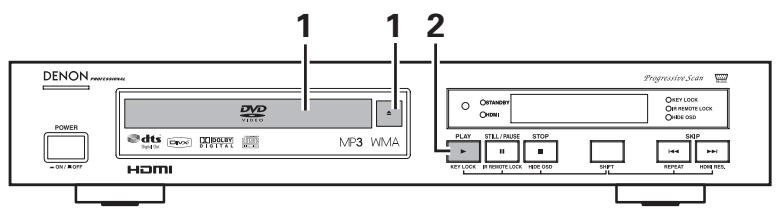
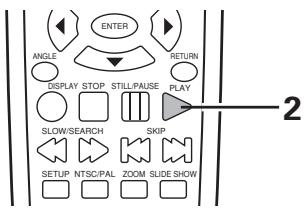
| 1 | Load the CD-R/RW disc on which the DivX files have been written into the DN-V210/DN-V310. (See page 19.) · When the disc is loaded in the DN-V210/DN-V310, the disc information screen appears. | PICTURES View Filter Repeat : Off Mode : Normal JPEG Preview |
| 2 | Press the Play button to start the Picture CD. Playback sterts, and the images switch automatically. | PLAY KEY LOST Main unit Remote control unit |
| * Press the stop button to stop playback. * Once all the still picture files in the folder have been played, the disc information screen reappears. * The same operations as playing still picture files (JPEG format) can be used. (See pages 59, 60.) | ||
Playing DivX movies stored on CD-Rs/RWs
DivX files recorded onto CD-Rs or CD-ROMs can be played back.
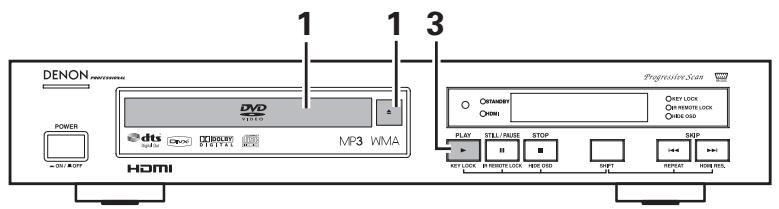
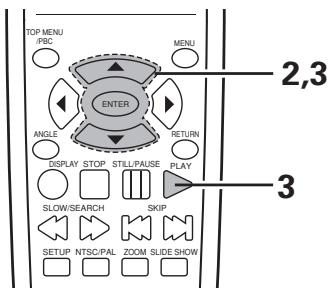
| 1 | Load the CD-R/RW disc on which the DivX files have been written into the DN-V210/DN-V310. (See page 19.) ·When the disc is loaded in the DN-V210/DN-V310, the disc information screen appears. ·If there are multiple folders, proceed to step 2. ·If there are no folders on the disc, proceed to step 3. | DivX_01 DivX_02 DivX_03 Jpeg Preview |
| 2 | Use the ▲ and ▼ cursor buttons to select the folder containing the file(s) you want to play, then press the ENTER button. *To change the folder Use the ▲ and ▼ cursor buttons to select “Up...” at the upper of the screen, then press the ENTER button. | Remote control unit ENTER Remote control unit View Filter Repeat : Off Mode : Normal JPEG Preview |
3
Use the and cursor buttons on the remote control unit to select the DivX file you want to start the DivX movies, then press the PLAY button or ENTER button on the remote control unit.
-
Playback starts.
-
The display can be switched between the single elapsed time and the single remaining time by pressing the DISPLAY button.
* To change the DivX file
Press the STOP button, then use the and cursor buttons to reselect the desired DivX file.
* To return to the initial disc information screen
Press the STOP button, use the cursor button to select "Up.." at the upper left of the screen, then press the ENTER button.
The screen in step 1 reappears.
Remote control unit
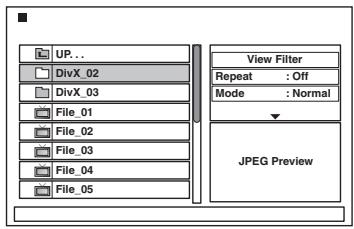
Remote control unit
Main unit
Remote control unit
NOTES:
- DN-V210/DN-V310 are compatible with files recorded in the DivX format. However, DN-V210/DN-V310 are not guaranteed to playback all videos recorded in DivX format.
- It may not be possible to play some CD-Rs/RWs discs due to disc properties, dirt, warping, etc.
- When writing DivX files on CD-R/RW discs, set the writing program to store the files in the "ISO9660 level 1, level 2 or Joliet" format. The physical format of the CD to Mode1, Mode2, or XA Form1.
- With the DN-V210/DN-V310 it is possible to display folder names and file names on the screen like titles. The DN-V210/ DN-V310 can display up to 15 characters, consisting of numbers, capital letters, and the “_” (underscore) mark.
- Total number of folders is less than 999, and the total number of files is less than 727.
- Be sure to give DivX files the extensions "AVI" and "DivX" files. Files with then extensions on with no extensions cannot be viewed on the DN-V210/DN-V310.
- Do not apply stickers, tape, etc., to either the label side or the signal side of CD-R/RW discs. If adhesive gets on the surface of a disc, the disc may get stuck inside the DN-V210/DN-V310 and be impossible to eject.
- Some DivX files protected by copyright require the DVD video player registration code to be played back. To find the registration code, select DivX in the setup menu. (See page 37.)
File Menu Functions
MP3/WMA/DivX files and JPEG files are displayed in the file menu. Both file menus are displayed if the CD contains a mix of MP3/WMA/DivX files and JPEG files.
If you want to display only the MP3/WMA/DivX or JPEG files, select "View Filter" at the top right as shown below.
Audio : Display MP3 and WMA
To perform filter settings, line up the cursor to "View Filter" and press ENTER. When the filter menu appears, select the required item from Audio/Photo/Video using the cursors and press ENTER.
After selecting, press the cursor to return to the file menu. When initializing the settings, select all of the items.
- For CDDA, the file menu is displayed. CDs that contain a mix of CDDA tracks, MP3/WMA/DivX and MPEG files cannot be used.
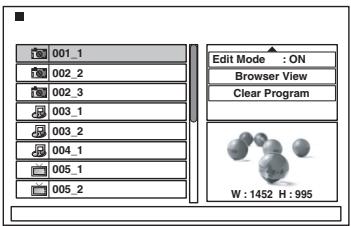
File Menu
MP3/WMA files are displayed.
MPEG/DivX files are displayed.
:JPEG files are displayed.
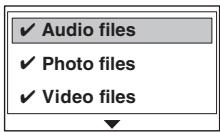
Filter Menu
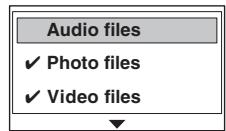
KEY LOCK
■ Operation of the buttons on the front panel (aside from the POWER button) is disabled to prevent accidental operation.
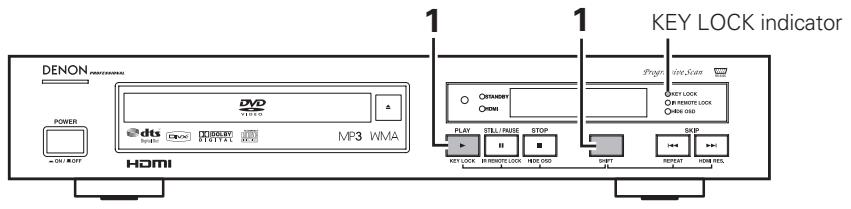
| 1 | Press the SHIFT and PLAY buttons simultaneously for 3 seconds. The KEY LOCK indicator lights (green) and the KEY LOCK mode is turned on. ·When the KEY LOCK mode is turned on, the KEY LOCK indicator flashes (green) if one of the buttons on the front panel (aside from the POWER button) is operated. ·To turn the KEY LOCK mode off, press the SHIFT and PLAY buttons again simultaneously for 3 seconds. | Main unit |
IR REMOTE LOCK
■ Operation of the buttons on the remote controller is disabled to prevent accidental operation.
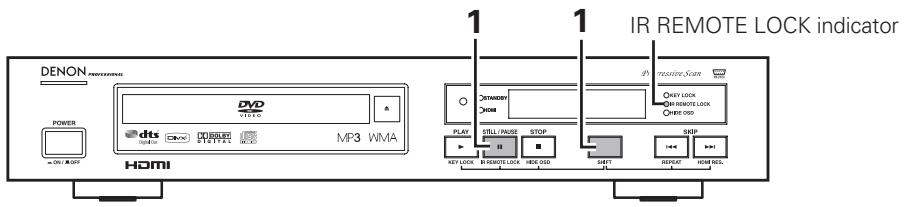
| 1 | Press the SHIFT and STILL/PAUSE buttons simultaneously for 3 seconds. The IR REMOTE LOCK indicator lights (green) and the IR REMOTE LOCK mode is turned on. ·When the IR REMOTE LOCK mode is turned on, the IR REMOTE LOCK indicator flashes (green) if one of the buttons on the remote controller is operated. ·To turn the IR REMOTE LOCK mode off, press the SHIFT and STILL/PAUSE buttons again simultaneously for 3 seconds. | MAIN unit |
HIDE OSD
■ Switch the OSD and the display of the icons that appear on the screen on and off.
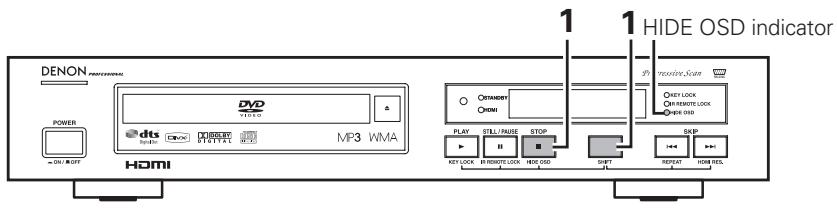
| 1 | Press the SHIFT and STOP buttons simultaneously for 3 seconds. The Hide OSD indicator lights (green), the Hide OSD mode is turned on, and the OSD as well as the letters and icons displayed when buttons are operated are not displayed. • To turn the Hide OSD mode off, press the SHIFT and STOP buttons again simultaneously for 3 seconds. * Operating the SETUP menu is not possible when Hide OSD is set to ON. | Main unit |
Change the Image on the DVD Player Wallpaper
The image on the DVD player wallpaper can be changed at the user's discretion.
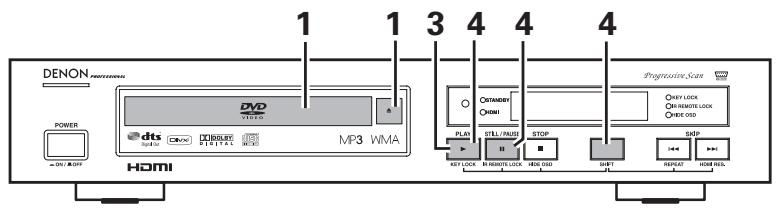
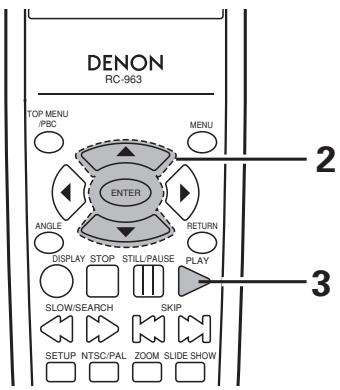
| 1 | Load the CD-R/RW on which the JPEG file for wallpaper have been written into the DN-V210/DN-V310. ·When the disc is loaded in the DN-V210/DN-V310, the disc information screen appears. ·If there are multiple folders proceed to step 2. ·If there are no folders on the disc, proceed to step 3. | |
| 2 | Use the ▲ and ▼ cursor buttons to select the folder containing the file(s) you want to play, then press the ENTER button. *To change the folder Use the ▲ and ▼ cursor buttons to select “Up.” at the upper of the screen, then press the ENTER button. The another folders reappear in the disc information screen. Select the desired folder. | Remote control unit ENTER Remote control unit |
| 3 | Select the JPEG file to be set as the wallpaper and play it. Use the▲ and▼ cursor buttons on the remote control unit to select the still picture file from which you want to start the slide show, then press the PLAY button or ENTER button on the remote control unit. •The slide show starts. •Only the still picture files in the selected folder are played. *Once all the still picture files in the folder have been played, the disc information screen reappears. | Remote control unit | UP...File .01File .02File .03File .04File .05File .06File .07W:1452 H:995 |
| Remote control unit | PLAYKEY LOCKMain unit | ||
| 4 | When the JPEG file which you want to change is displayed, press the STILL/PAUSE button. The slide show temporarily stops. | STILL/PAUSEIR REMOTEMain unit | |
| 5 | Press the SHIFT, STILL/PAUSE and PLAY buttons simultaneously for 3 seconds. The DVD's wallpaper switches to the selected JPEG file. *The data for the previously set wallpaper is deleted from the DVD player's memory. *Please contact a dealer if you wish to set the wallpaper back to a DENON Professional original wallpaper. *Do not switch the main unit power Off while switching the Wallpaper. | PLAYSTILL/PAUSEIR RENAMELOCKMain unit |
Serial Remote Control (DN-V310 only)
Commands can be sent to the DVD player and the status requested and sent to the host via RS-232C.
This DVD player can be controlled by a PC. Connect the player and a serial port on the PC with a 9-pin RS-232C straight cable. To control this DVD player by a PC, set the RS-232C switch on the rear panel to RS-232C.
■ RS-232C Pin assignments (DVD player)
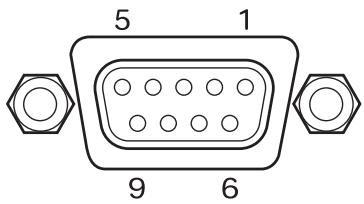
| Pin no. | Signal |
| 1 | - |
| 2 | TXD |
| 3 | RXD |
| 4 | - |
| 5 | GND |
| 6 | - |
| 7 | CTS |
| 8 | RTS |
| 9 | - |
■ Communication conditions
Configure the serial port of the PC as shown below.
| Bit Rate | 9,600 bps |
| Data length | 8 bits |
| Parity | none |
| Stop bit | 1 bit |
| Flow control | None |
Basic format
Command format [group, command, parameter list]
Response code format
0: No error
x: Error code x
Example 1:
Player receives : [PC, RC, 66]
Player sends : [PC, RC, 0]r
When the external controller receives the response this implies that the player has verified the received message (syntax), and the command will be executed.
Example 2:
Player receives : [PC, PlayT, 16]r
Player sends : [PC, PlayT, 2]r
If an internal error occurs and the command cannot be executed, an error message (Error code 2: Invalid parameter) will be send.
- Interval time
When transmitting commands consecutively, put more than 300 ms blank between commands.
System commands
Communication between a DVD controller and the DVD player consist of 3 different types of information:
- External control commands
- External control status
- Asynchronous responses
The messages between the DVD and the DVD controller look like:
"[group, command, parameter list]r"
A group, command and parameter-list between squarebrackets, followed by a carriage return character r .
The parameter-list exists of comma separated parameters, and are case sensitive.
When the player receives a message from the external controller, it will be acknowledged. This acknowledgment will be done in 2 different ways.
For external control commands, the acknowledgment will look like:
- Group : group specified in the received message (PC)
Command : command specified in the received message
Parameter-list:ReturnValue
ReturnValue can have one of the following values
0: No error
x : Error code x
■ Hand shake flow chart
Control command and Status command
Response command
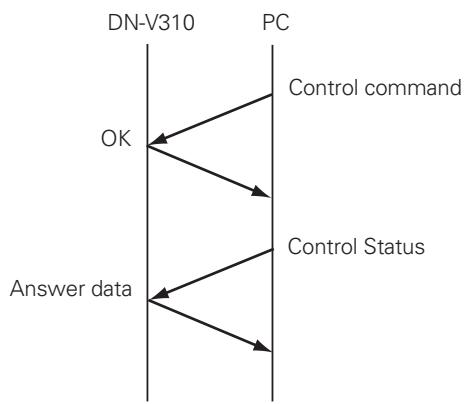
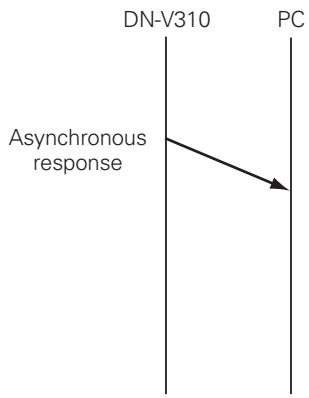
■ Error Codes
| Name | Code | Description |
| ecEXT_ERR_OK | 0 | No error |
| ecEXT_ERR UNKNOWN | 1 | Cause of error not known |
| ecEXT_ERR_INVALID_PARA | 2 | Invalid parameter |
| ecEXT_ERR_INV_CMD | 5 | Command not valid |
| ecEXT_ERR_INVALID_NA_DISC_ERROR | 10 | Command not valid for current disc |
Command list
- External control commands
| Group | Command | Parameter | ||
| PC | RC | Remote control command | RC code | see RC codes |
| PlayT | Play title | Title/Track Number | 0~99 | |
| PlayC | Play Chapter | Title Number /Chapter Number | title: 1~99 chp: 1~99 | |
| Time | Time Search | Time Search | h : 0~6 m : 0~59 s : 0~59 | |
| SetAST | Set audio stream | AudioStreamNumber | 1~8 | |
| SetSPST | Set sub-picture stream | SubPictureStreamNumber | 0~32 | |
| OSD | ON/OFF control for OSD | Mode | ON/OFF | |
| LKC | ON/OFF control for KEY LOCK mode | Mode | ON/OFF | |
| RCC | ON/OFF control for IR REMOTE LOCK mode | Mode | ON/OFF | |
For TITLE, CHAPTER, TRACK and COUNTER, number data follows the command.
Example:
-
[PC, PlayC, 1, 3] PLAY TITLE 1, CHAPTER 3
-
[PC, Time, 0, 3, 15] PLAY 0h3min15sec
External control status
| Group | Command | Parameter | ||
| PC | GetStatus | Player status | ReturnValue, Status | see Status codes |
| GetDiscType | Disc type | ReturnValue, Disc Type | see DiscType codes | |
| GetAST | Current audio stream | ReturnValue, AudioStreamNumber | 1~8 | |
| GetSPST | Current sub-picture stream | ReturnValue, SubPictureStreamNumber | 0~32 | |
| GetT | Current title | ReturnValue, Title/Track Number | 0~99 | |
| GetC | Current chapter | ReturnValue, Title Number, Chapter Number | title: 1~99 chp: 1~999 | |
Status codes 0: Error, 1: Opened, 2: No Disc, 3: Stopped, 4: Playing, 5: Paused
Disc Type codes 0:No Disc, 1:DVD, 2:VCD, 3:CD-DA, 4:MP3, 5:WMA, 6:DivX, 7:JPEG
■ Asynchronous responses
| Group | Command | Parameter | ||
| PC | EOT | End of title | ReturnValue, Title/Track Number | 0~99 |
| SOC | Start of a Chapter | ReturnValue, Title Number, Chapter Number | title: 1~99 chp: 1~999 | |
| EOC | End of a chapter | ReturnValue, Title Number, Chapter Number | title: 1~99 chp: 1~999 | |
| Status Change | Execution of a command | Return Value, Return Status | see Status codes | |
| Error | Error notification | Return Value, Error code | see Error codes | |
| Set REZ | Set resolution | Return Value, HDMI Resolution | 0~4 | |
Set REZ codes 0:OFF, 1:480 p/576 p, 2:720 p, 3:1080 i, 4:AUTO
RC (Remote control) codes
| Keys/Functions | RC codes (decimal) |
| Digit 0 | 0 |
| Digit 1 | 1 |
| Digit 2 | 2 |
| Digit 3 | 3 |
| Digit 4 | 4 |
| Digit 5 | 5 |
| Digit 6 | 6 |
| Digit 7 | 7 |
| Digit 8 | 8 |
| Digit 9 | 9 |
| DVD POWER | 12 |
| RANDOM | 28 |
| REPEAT | 29 |
| SLOW/SEARCH (+) | 40 |
| SLOW/SEARCH (-) | 41 |
| PLAY | 44 |
| PAUSE | 48 |
| STOP | 49 |
| A-B REPEAT | 59 |
| OPEN/CLOSE | 66 |
| SUBTITLE | 75 |
| AUDIO | 78 |
| TOP MENU/PBC | 84 |
| Keys/Functions | RC codes (decimal) |
| CURSOR UP | 88 |
| CURSOR DOWN | 89 |
| CURSOR LEFT | 90 |
| CURSOR RIGHT | 91 |
| ENTER | 92 |
| MENU | 113 |
| SETUP | 130 |
| RETURN | 131 |
| ANGLE | 133 |
| +10 | 180 |
| CLEAR | 181 |
| CALL | 182 |
| NTSC/PAL | 183 |
| SLIDE SHOW | 184 |
| DISPLAY | 200 |
| ZOOM | 247 |
Check again before assuming the player is malfunctioning.
■ Are all the connections correct?
■ Are you following the instructions in the manual?
■ Are the amplifier and speakers operating properly?
If the DN-V210/DN-V310 does not seem to be functioning properly, check the table below. If this does not solve the problem, the DN-V210/DN-V310 may be damaged. Turn off the power, unplug the power cord from the power outlet, and contact your store of purchase or nearest sales office.
| Symptom | Check | Page |
| Power does not turn on. | • Plug the power cord securely into the power outlet. | 6~11 |
| Playback does not start when PLAY button is pressed. Playback stops immediately. | • Is there condensation on the disc or player? (Let stand for 1 or 2 hours) • Discs other than DVDs, video CDs and music CDs and Digital picture (JPEG) cannot be played. • Disc is dirty. Wipe off the dirt. | 3,4 5 |
| Picture does not appear. | • Check the connections. • Set the TV's input to "video". | 6~11 — |
| Sound is not produced or sound quality is poor. | • Check the connections. • Properly set the input of the TV, stereo, etc. • Check the "DIGITAL OUT" and "COMPRESSION" settings. | 6~11 — 9,10,26,27 |
| Menu playback is not possible. | • Check the "AUTO PLAY" setting. • Menu playback is not possible with anything but video CDs with playback control. | 30 39 |
| Picture is disturbed during the search operation. | • Some disturbance is normal. | — |
| Buttons do not operate. | • Some operations are disabled for some discs. • Check the "KEY LOCK" mode. | 39 66 |
| No subtitles are displayed. | • Subtitles are not displayed for DVDs not containing subtitles. • Subtitles are turned off. Turn the subtitles setting on. | — 29 |
| Audio (or subtitle) language does not switch. | • The audio (or subtitle) language does not switch for discs which do not include multiple audio (or subtitle) languages. • For some discs the audio (or subtitle) language cannot be switched when the operation to switch it is performed, but can be switched on the menu screens. | — 54 |
| Angle does not switch. | • The angle cannot be switched for DVDs which do not contain multiple angles. In some cases multiple angles are only recorded for specific scenes. | 53 |
| Playback does not start when the title is selected. | • Check the "RATING" setting. | 34 |
| The password for rating level has been forgotten. | • Use the procedure described below to set the initial settings back to the values set when the unit was shipped from the factory. Input "8888" at 5 under step 3 on page 34. | — |
| The disc is not played with the audio or subtitle language set as the default setting. | • The disc does not play with the selected audio or subtitle language if that audio or subtitle language is not included on that DVD. | 29 |
| Picture is not displayed in 4:3 (or 16:9). | • Set the "TV ASPECT" default setting to the proper setting for the connected TV. | 24 |
| Menu screen messages for the desired language do not display. | • Check the default setting for the disc language's menu language. | 30 |
| HDMI does not output. | • Check whether the Video output is set to HDMI. • Check that the DVD and TV HDMI connectors are connected. • Check that the TV supports 480p/576p/720p/1080i. | 23 13 23 |
22 MAIN SPECIFICATIONS
| Signal system: | NTSC/PAL |
| Applicable discs: | (1) DVD discs 1-layer 12 cm single-sided discs, 2-layer 12 cm single-sided discs, 2-layer 12 cm double-sided discs (1 layer per side) 1-layer 8 cm single-sided discs, 2-layer 8 cm single-sided discs, 2-layer 8 cm double-sided discs (1 layer per side) (2) Compact discs (CD-DA, Video CD) 12 cm discs, 8 cm discs |
| S-Video output: | Y output level: 1 Vp-p (75 Ω/ohms) C output level: 0.3 Vp-p Output connector: S connector, 1 set |
| Video output: | Output level: 1 Vp-p (75 Ω/ohms) Output connectors: Pin-plug jack, 1 set / AV 1, 1 set (Europe model only) |
| Component output: | Y output level: 1 Vp-p (75 Ω/ohms) PB/CB output level: 0.7 Vp-p (75 Ω/ohms) PR/CR output level: 0.7 Vp-p (75 Ω/ohms) Output connector: Pin jack, 1 set |
| RGB output: | Output level: 0.7 Vp-p (75 Ω/ohms) Output connector: AV 1, 1 set (Europe model only) |
| HDMI output: | 480 p / 576 p, 720 p, 1080 i |
| Audio output: | Output level: 2 Vrms 2 channel (FL, FR) output connector: Pin jacks, 1 set / AV 1, 1 set (Europe model only) |
| Audio output properties: | (1) Frequency response ① DVDs (linear PCM) : 4 Hz to 22 kHz (48 kHz sampling) ② CDs : 4 Hz to 44 kHz (96 kHz sampling) (2) S/N ratio ① DVDs : 110 dB ② CDs : 110 dB (3) Total harmonic distortion ① DVDs : 0.006% ② CDs : 0.004% (4) Dynamic range ① DVDs : 100 dB ② CDs : 95 dB |
| Digital audio output: | Optical digital output : Optical connector, 1 set Coaxial digital output : Pin Jack, 1 set |
| Power supply: | AC 230 V, 50 Hz (Europe) / AC 120 V, 60 Hz (USA) |
| Power consumption: | 15 W |
| Maximum external dimensions: | 434 (width) × 80 (height) × 360 (depth) mm (17-3/32" × 3-5/32" × 14-11/64") (including protruding parts) |
| Mass: | 3.9 kg (9 lbs) |
| ■Remote control unit: | RC-963 |
| Type: | Infrared pulse |
| Power supply: | DC 3 V, 2 R03/AAA batteries |
| This product incorporates copyright protection technology that is protected by method claims of certain U.S. patents and other intellectual property rights owned by Macrovision Corporation and other rights owners. Use of this copyright protection technology must be authorized by Macrovision Corporation, and is intended for home and other limited viewing uses only unless otherwise authorized by Macrovision Corporation. Reverse engineering or disassembly is prohibited. | |
* Design and specifications are subject to change without notice in the course of product improvement.
D&M Holdings Inc.
PROFESSIONAL BUSINESS COMPANY
TOKYO, JAPAN
http://www.dm-pro.jp

Printed in China
05/2007 00M47AZ851020
ecmf-d
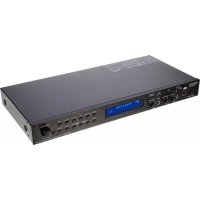
- CAUTION
- Handle the power supply cord carefully
- 2.Do not open the rear cover
- 3.Do not place anything inside
- RISK OF ELECTRIC SHOCK DO NOT OPEN
- CAUTION:
- NOTE:
- CERTIFICATION
- FCC INFORMATION (For US customers)
- 1.PRODUCT
- IMPORTANT NOTICE: DO NOT MODIFY THIS PRODUCT
- NOTE
- NOTE ON USE / HINWEISE ZUM GEBRAUCH / OBSERVATIONS RELATIVES A L'UTILISATION / NOTE SULL'USO / NOTAS SOBRE EL USO / ALVORENS TE GEBRUKEN / OBSERVERA
- - DECLARATION OF CONFORMITY
- CLASS 1 LASER PRODUCT
- LUOKAN 1 LASERLAITE
- KCLASS 1 LASERAPPARAT
- TABLE OF CONTENTS —
- ACCESSORIES
- FEATURES
- High precision 96 kHz 24-bit D/A converter
- Progressive Scan function
- Advanced function
- Serial remote control (DN-V310 only)
- Change the image on the DVD Player wallpaper
- DISCS
- The following types of discs cannot be played on the DN-V210/DN-V310:
- Disc terminology
- - Titles and chapters (DVD-videos)
- For example:
- Tracks (video and music CDs)
- - Playback control (PBC) (video CDs)
- Patent information
- CAUTIONS ON INSTALLATION
- CAUTIONS ON HANDLING DISCS
- Holding Discs
- Cleaning Discs
- Cautions on Handling Discs
- Cautions on Storing Discs
- Cautions on Loading Discs
- CONNECTIONS
- NOTES:
- Connecting a TV
- Color component output connectors (PR/CR, PB/CB and Y)
- Connecting to a TV with 21-pin SCART Terminal (For only Europe model)
- Connecting to a AV amplifier with a Built-in decoder
- - Connecting an optical fiber cable to the digital audio input connector (OPTICAL)
- Sound output from the DN-V210/DN-V310's digital audio output connectors
- Connecting to a Digital Recorder (MD Recorder, DAT Deck, etc.)
- Connecting to a HDMI device
- HDMI Terminal
- CONNECTING HDMI DEVICES
- HDMI SPECIFICATIONS
- NOTES
- Front Panel
- POWER button
- Disc tray
- ③ PLAY/KEY LOCK button (▶)
- ④ STILL/PAUSE/IR REMOTE LOCK button (II)
- STOP/HIDE OSD button (■)
- SHIFT button
- SKIP/REPEAT button (▶)
- ⑧ SKIP/HDMI RES. button (▶▶)
- KEY LOCK indicator
- IR REMOTE LOCK indicator
- 1HIDE OSD indicator
- Display
- STANDBY indicator
- HDMI indicator
- Remote control sensor
- OPEN/CLOSE button (▲)
- Power indicator
- Display
- REMOTE CONTROL UNIT
- Inserting Batteries
- Cautions On Batteries
- Using the Remote Control Unit
- Names and Functions of Remote Control Unit Buttons
- DVD POWER button
- Number buttons
- SUBTITLE button
- AUDIO button
- TOP MENU/PBC button
- Cursor buttons/ENTER button
- ANGLE button
- DISPLAY button
- STOP button (■)
- SLOW/SEARCH buttons
- SETUP button
- NTSC/PAL button
- OPEN/CLOSE button
- PROGRAM/DIRECT button (PROG/DIRECT)
- CALL button
- LOADING DISCS
- Opening and Closing the Disc Tray
- Loading Discs
- CHANGING THE DEFAULT SETTINGS
- Setup items for use
- 4:3 PS (Factory default)
- 4:3 LB
- WIDE (16:9)
- NTSC (Factory default : USA model)
- MULTI (Factory default : Europe model)
- PAL
- RGB
- COMPONENT (Factory default)
- FULL
- ORIGINAL
- AUTO FIT (Factory default)
- PANSCAN
- 96k (Factory default)
- 96k>48k
- MAX (Factory default)
- MID
- MIN
- ENGLISH (Factory default)
- FRENCH
- SPANISH
- GERMAN
- ITALIAN
- OTHERS
- OFF
- OFF (Factory default)
- ON
- 3
- ON (factory default)
- FRANCAIS
- ESPANOL
- DEUTSCH
- BLACK (Factory default)
- PICTURE
- LEVEL 8 (factory default)
- LEVEL 1 to 7
- NO LIMIT
- BASIC (Factory default) EXPERT
- (1)Playback
- Stopping Playback
- Playing Still Pictures (Pausing)
- Forward/Reverse Searching
- Skipping to the Beginning of Chapters or Tracks
- Playing Frame by Frame (for DVDs only)
- SlowPlayback(forDVDsonly)
- Playing Repeatedly (Repeat Playback)
- ③ For CD
- For MP3/WMA
- ⑤ For JPEG/DivX
- PLAYING TRACKS IN THE DESIRED ORDER
- PLAYING TRACKS IN THE RANDOM ORDER
- USING THE ON-SCREEN DISPLAY
- Switching the Audio Language (Multiple Audio Function)
- Switching the Subtitle Language (Multiple Subtitle Function)
- Switching the Angle (Multiple Angle Function)
- Using the Top Menu
- Using the DVD Menu
- Listening to MP3/WMA CD, CD-Rs and CD-RWs
- PLAYING STILL PICTURE FILES (JPEG format)
- Special play modes for MP3/WMA and JPEG files
- Playing Picture CDs (JPEG format)
- Playing Picture CDs
- Playing DivX movies stored on CD-Rs/RWs
- * To change the DivX file
- * To return to the initial disc information screen
- File Menu Functions
- KEY LOCK
- IR REMOTE LOCK
- HIDE OSD
- Change the Image on the DVD Player Wallpaper
- Serial Remote Control (DN-V310 only)
- Commands can be sent to the DVD player and the status requested and sent to the host via RS-232C.
- ■ RS-232C Pin assignments (DVD player)
- ■ Communication conditions
- Basic format
- Example 1:
- Example 2:
- System commands
- "[group, command, parameter list]r"
- ■ Hand shake flow chart
- ■ Error Codes
- Command list
- Example:
- Check again before assuming the player is malfunctioning.
- MAIN SPECIFICATIONS
Brand : DENON
Model : DN-V210
Category : Media player