
DN-V100 - Media player DENON - Free user manual and instructions
Find the device manual for free DN-V100 DENON in PDF.

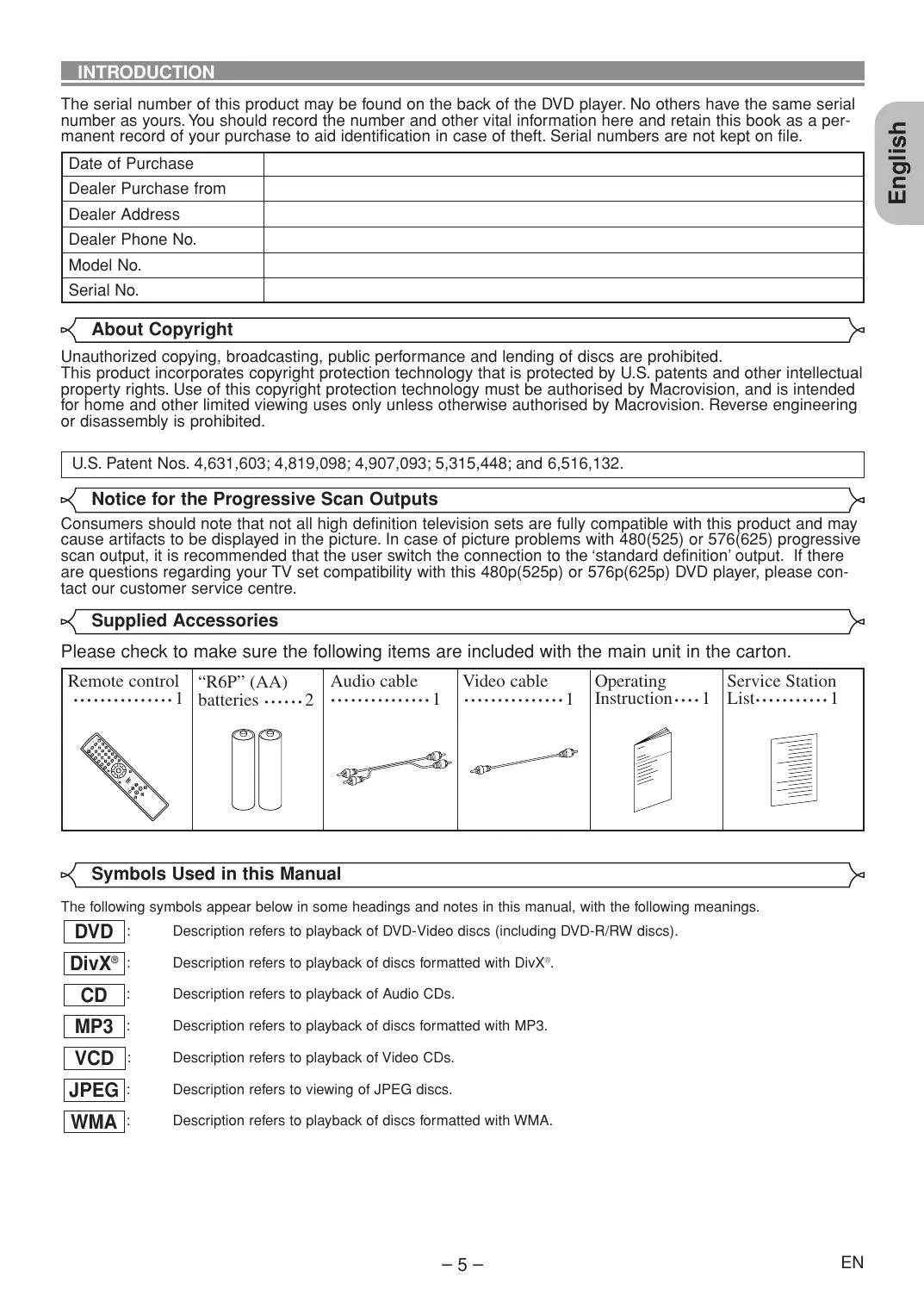

| Product type | DVD Media Player |
| Brand | DENON |
| Model | DN-V100 |
| Dimensions (W x H x D) | 435 x 75 x 310 mm (including protruding parts) |
| Weight | 2.3 kg |
| Power supply | AC 200-240 V, 50 Hz |
| Power consumption | 15 W (standby: 1.15 W) |
| Signal system | PAL (NTSC compatible via PAL TV) |
| Compatible discs | DVD-Video, DVD-R/RW, Audio CD, CD-R/RW, Video CD, MP3, JPEG, WMA, DivX |
| Video outputs | HDMI, Component, S-Video, Composite, SCART |
| Audio outputs | Stereo analog (RCA), optical and coaxial digital |
| Supported audio formats | Dolby Digital, DTS, MPEG, PCM, MP3, WMA |
| Playback functions | Fast forward/reverse, slow motion, pause, frame advance, zoom, repeat, random, programmed, markers, search by title/chapter/track/time |
| Special functions | Dialog Speed, image control, progressive mode, HDMI upscaling (480p/576p/720p/1080i), PBC for Video CD |
| Parental control | Password-protected parental lock (levels 1 to 8) |
| Front panel display | Indicators and segment display, brightness adjustment (BRIGHT/DIMMER/OFF) |
| Remote control | Infrared, R6P (AA) batteries x2 |
| Cabinet maintenance | Soft cloth slightly moistened with mild detergent. Do not use alcohol, ammonia, or abrasives. |
| Disc maintenance | Clean from center outward with a cleaning cloth. Do not clean in circular motions. |
| Laser safety | Class 1 laser product. Do not open the cabinet, refer servicing to qualified personnel. |
| Repairability | No user-serviceable parts. Contact an authorized service center. |
| Supplied accessories | Remote control, batteries, audio cable, video cable, user manual, service station list |
Frequently Asked Questions - DN-V100 DENON
User questions about DN-V100 DENON
0 question about this device. Answer the ones you know or ask your own.
Ask a new question about this device
Download the instructions for your Media player in PDF format for free! Find your manual DN-V100 - DENON and take your electronic device back in hand. On this page are published all the documents necessary for the use of your device. DN-V100 by DENON.
USER MANUAL DN-V100 DENON
WARNING: TO REDUCE THE RISK OF FIRE OR ELECTRIC SHOCK, DO NOT EXPOSE THIS APPLIANCE TO RAIN OR MOISTURE.

CAUTION
RISK OF ELECTRIC SHOCK DO NOT OPEN


The lightning flash with arrowhead symbol, within an equilateral triangle, is intended to alert the user to the presence of uninsulated "dangerous voltage" within the product's enclosure that may be of sufficient magnitude to constitute a risk of electric shock to persons.
CAUTION:
TO REDUCE THE RISK OF ELECTRIC SHOCK, DO NOT REMOVE COVER (OR BACK). NO USER SERVICEABLE PARTS INSIDE. REFER SERVICING TO QUALIFIED SERVICE PERSONNEL.

The exclamation point within an equilateral triangle is intended to alert the user to the presence of important operating and maintenance (servicing) instructions in the literature accompanying the appliance.
PRECAUTIONS
Laser Safety
This unit employs a laser. Only a qualified service person should remove the cover or attempt to service this device, due to possible eye injury.
CAUTION: USE OF CONTROLS OR ADJUSTMENTS OR PERFORMANCE OF PROCEDURES OTHER THAN THOSE SPECIFIED HEREIN MAY RESULT IN HAZARDOUS RADIATION EXPOSURE.
CAUTION: VISIBLE AND INVISIBLE LASER RADIATION WHEN OPEN AND INTERLOCK DEFEATED. DO NOT STARE INTO BEAM.
LOCATION: PRINTED ON THE BACK
"CLASS 1 LASER PRODUCT"
Nonuse periods - Turn the unit off when it is not in use. Unplug the unit from the household AC outlet if it is not to be used for a long time. Unplug the unit during lightning storms.
Please read this operating instructions carefully before using your DVD video player, and keep this for future reference.
Declaration of Conformity
We declare under our sole responsibility that this product, to which this declaration relates, is in conformity with the following standards:
EN60065, EN 55013, EN55020, EN61000-3-2 and EN61000-3-3. Following the provisions of 73/23/EEC, 89/336/EEC and 93/68/EEC Directive.

Important
Use only discs marked with logos listed on page 6.
Power Supply
The main power supply is engaged when the main plug is plugged in a 200V-240V, 50Hz AC outlet. To operate the unit, press the ON/STANDBY button and turn on the unit.
Warning
To avoid fire or electric shock, do not expose this unit to rain or moisture.
WARNING: LIVE PARTS INSIDE. DO NOT REMOVE ANY SCREWS.
Installation Location
For safety and optimum performance of this unit:
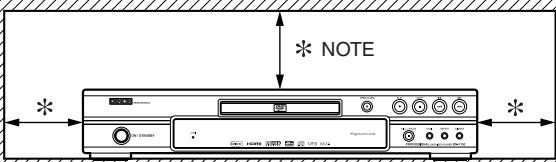
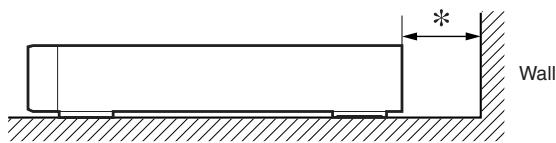
- Do not stand up the unit vertically. Install the unit in a horizontal and stable position. Do not place anything directly on top of the unit. Do not place the unit directly on top of the TV.
- Shield it from direct sunlight and keep it away from sources of intense heat. Avoid dusty or humid places. Avoid places with insufficient ventilation for proper heat dissipation. Do not block the ventilation holes on the sides of the unit. Avoid locations subject to strong vibration or strong magnetic fields.
- Be sure to remove a disc and unplug the AC power cord from the outlet before carrying the unit.
Cautions on Installation
Noise or disturbance of the picture may be generated if this unit or any other electronic equipment using microprocessors is used near a tuner or TV. If this happens, take the following steps:
- Install this unit as far as possible from the tuner or TV.
- Set the antenna wires from the tuner or TV away from this unit's power cord and input/output connection cords.
- Noise or disturbance tends to occur particularly when using indoor antennas or 300/ ohms feeder wires. We recommend using outdoor antennas and 75/ ohms coaxial cables.
NOTE:
- For heat dispersal, do not install this equipment in a confined space such as a book case or similar unit.
Dew Warning
Moisture condensation may occur inside the unit when it is moved from a cold place to a warm place, or after heating a cold room or under conditions of high humidity. Do not use the DVD Player at least for 2 hours until its inside is dry.
Avoid the Hazards of Electrical Shock and Fire
- Do not handle the power cord with wet hands.
- Do not pull on the power cord when disconnecting it from AC wall outlet. Grasp it by the plug.
- If, by accident, water is spilled on this unit, unplug the power cord immediately and take the unit to our Authorised Service Centre for servicing.
Caution
1) Do not attempt to open the cabinet. There are no parts you can service inside. Refer all servicing to qualified service personnel.
2) Slot and openings in the cabinet and at the side or bottom are provided for ventilation. To ensure reliable operation and to protect the unit from overheating these opening must not be blocked or covered. Avoid enclosed spaces such as book cases unless proper ventilation is provided.
3) Keep the unit away from the radiator heat sources.
4) Avoid using near strong magnetic fields.
5) Do not push objects of any kind into this through the cabinet slot as they could touch current carrying parts or short circuit parts resulting in a fire or electric shock.
6) Never spill liquid of any kind on this unit. If liquid is spilled into the unit, consult qualified service engineer.
7) Use this unit in a horizontal (flat) position only.
8) This equipment is in Stand-by mode when it is turned off whilst the power cord is connected.
9) Keep the set free from moisture, water and dust.
10) Sufficiently ventilate the place of installation. If the unit is left in a room full of the smoke from cigarettes, etc., for long periods of time, the surface of the optical pickup could get dirty, in which case it will not be able to read the signals properly.
11) Store the operating instructions in a safe place. After reading the operating instructions, store them in a safe place as they could come in handy in the future.
12) Handle the power cord carefully. Hold the plug when unplugging the code.
13) All the safety cautions and operating instructions should be read before the DVD player is operated.
14) Use caution not to pinch your finger in the disc slot.
15) Do not put heavy objects on the AC power cord.
16) Keep the AC power cord away from heat appliances.
17) Be sure to remove a disc and unplug the AC power cord from the outlet before carrying the DVD player.
18) Do not put any pressure to the DVD player when carrying.
19) Do not use the DVD player outdoors.
20) Do not place any combustible objects on the device (candles, etc.).
21) Disconnect the mains plug to shut off when find troubles or not in use.
22) The mains plug shall remain readily operable.
23) Read both manual instructions to ensure correct and safe installation and interconnection of the unit in multimedia systems.
24) Keep the distances 20cm around apparatus of ventilation openings.
25) To completely disconnect this product from the mains, disconnect the plug from the wall socket outlet. The mains plug is used to completely interrupt the power supply to the unit and must be within easy access by the user.
PRECAUTIONS 2
Laser Safety 2
Declaration of Conformity 2
Important. 2
Power Supply 2
Warning. 3
Installation Location. 3
Cautions on Installation 3
Dew Warning. 3
Avoid the Hazards of Electrical Shock and Fire 3
Caution 3
INTRODUCTION. 5
About Copyright. 5
Notice for the Progressive Scan Outputs 5
Supplied Accessories 5
Symbols Used in this Manual. 5
ABOUT THE DISCS 6
Playable Discs. 6
FEATURES. 7
FUNCTIONAL OVERVIEW 8
FRONT PANEL 8
REMOTE CONTROL 8
Tour of the Remote Control 9
Front Panel Display 11
Displays During Operation 11
HDMI Mode and Actual Output Signals 11
Loading the Batteries. 11
CONNECTIONS 12
Description - Rear Panel 12
Connection to an Audio System. 13
Connection to a TV (for video) 14
Connection to a TV with an HDMI compatible port . . . . 15
DISC PLAYBACK 16
BasicPlayback 16
CANCELLING AND CALLING BACK
PBC FUNCTION 16
HDMI Setup. 16
Brightness of the Front Panel Display. 16
General Features. 16
Disc Menu 16
Title Menu 17
CALLING UP A MENU SCREEN DURING
PLAYBACK 17
Still / Pause 17
Resume. 17
Fast Forward / Reverse Search 17
Slow Forward / Slow Reverse 17
Step by StepPlayback. 17
Picture Control. 18
Zoom. 18
Dialog Speed. 18
Slide Show Mode. 18
Title / Chapter Search 19
By using the SEARCH MODE button 19
By using the SKIP buttons 19
Track Search 19
By using the SEARCH MODE button 19
By using the SKIP buttons 119
Time Search 19
Marker Setup Screen. 19
Repeat 20
REPEAT TITLE / CHAPTER. 20
REPEAT TRACK / GROUP / ALL 20
A-B REPEAT 20
ProgrammePlayback. 20
RandomPlayback 21
MP3 / JPEG / WMA Playback 21
DivX®Playback 22
DivX Subtitle 23
Changing the On-Screen Display 23
Audio Language 24
Subtitle Language 25
Camera Angle 25
Virtual Surround 25
StereoSoundMode. 25
DVD SETUP 26
Language Setting 26
Display Setting. 26
Audio Setting 27
Ratings Control 27
RATING LEVEL 27
IF YOU FORGET THE PASSWORD 28
CONTROL LEVELS 28
Others Setting 28
Reset to the Default Settings
(except for RATINGS andVIDEO OUT) 28
Language Code List 29
MAINTENANCE 29
TROUBLESHOOTING GUIDE. 30
SPECIFICATIONS 31
PIN CONNECTION (AV1) 31
A NOTE ABOUT RECYCLING:
This product's packaging materials are recyclable and can be reused. Please dispose of any materials in accordance with the local recycling regulations.
When discarding the unit, comply with local rules or regulations.
Batteries should never be thrown away or incinerated but disposed of in accordance with the local regulations concerning chemical waste.
This product and the accessories packed together constitute the applicable product according to the
WEEE directive except batteries.


INTRODUCTION
The serial number of this product may be found on the back of the DVD player. No others have the same serial number as yours. You should record the number and other vital information here and retain this book as a permanent record of your purchase to aid identification in case of theft. Serial numbers are not kept on file.
| Date of Purchase | |
| Dealer Purchase from | |
| Dealer Address | |
| Dealer Phone No. | |
| Model No. | |
| Serial No. |
About Copyright
Unauthorized copying, broadcasting, public performance and lending of discs are prohibited.
This product incorporates copyright protection technology that is protected by U.S. patents and other intellectual property rights. Use of this copyright protection technology must be authorised by Macrovision, and is intended for home and other limited viewing uses only unless otherwise authorised by Macrovision. Reverse engineering or disassembly is prohibited.
U.S. Patent Nos. 4,631,603; 4,819,098; 4,907,093; 5,315,448; and 6,516,132.
Notice for the Progressive Scan Outputs
Consumers should note that not all high definition television sets are fully compatible with this product and may cause artifacts to be displayed in the picture. In case of picture problems with 480(525) or 576(625) progressive scan output, it is recommended that the user switch the connection to the 'standard definition' output. If there are questions regarding your TV set compatibility with this 480p(525p) or 576p(625p) DVD player, please contact our customer service centre.
Supplied Accessories
Please check to make sure the following items are included with the main unit in the carton.
| Remote control ....................1 | “R6P” (AA) batteries .....................2 | Audio cable .....................1 | Video cable .....................1 | Operating Instruction .....................1 | Service Station List.....................1 |
Symbols Used in this Manual
The following symbols appear below in some headings and notes in this manual, with the following meanings.
DVD: Description refers to playback of DVD-Video discs (including DVD-R/RW discs).
DivX: Description refers to playback of discs formatted with DivX.
CD: Description refers to playback of Audio CDs.
MP3 : Description refers to playback of discs formatted with MP3.
VCD: Description refers to playback of Video CDs.
JPEG Description refers to viewing of JPEG discs.
WMA : Description refers to playback of discs formatted with WMA.
Playable Discs
| Playable discs | Mark (logo) | Region code | Recorded signals | Disc size | Disc types |
| DVD-Video* 1, 2, 3, 5 | VIDEOVIDEO | or | Digital video(MPEG2)DivX® | 12cm or8cm | ExampleTitle 1Chapter 1 Chapter 2 Chapter 3 Chapter 4 DivX®ExampleGroup 1Track 1 Track 2 Track 3 Track 4 Track 5 Track 6(DVD-R/RW only) |
| DVD-RDVD-RW* 1, 3, 4, 5,6, 7, 8 | DVDRRWVIDEORWW | ||||
| Video CD* 1, 3, 5, 9 | COMPACTDISCGDIGITALVIDEO | - | Digital video withaudio | 12cm or8cm | Video CDorAudio CDExampleTrack 1 Track 2 Track 3 Track 4 Track 5 Track 6MP3,JPEG,WMA,DivX®ExampleGroup 1Track 1 Track 2 Track 3 Track 4 Track 5 Track 6 |
| Audio CD* 3, 5 | COMPACTDISCGDIGITAL AUDIO | ||||
| CD-RCD-RW* 3, 4, 5, 7,8, 9 | COMPACTDISCGRecordingTableCOMPACTDISCGRecordingTable | - | Digital audioMP3WMA*10Digital picture(JPEG)DivX® | ||
| Picture CD* 3, 4, 5, 7,8 | KodakPicture CDCOMPATIBLE | - | JPEG | 12cm |

is a trademark of DVD Format/Logo Licensing Corporation.

is trademark of Eastman Kodak Company.

Windows Media and the Windows logo are trademarks or registered trademarks of Microsoft Corporation in the United States and/or other countries.
DivX, DivX Certified, and associated logos are trademarks of DivX, Inc. and are used under license.
If you cannot play back a disc which bears one of the marks above, check the following notes.
1: This player conforms to the PAL colour system. Also you can play back discs recorded with the NTSC system via a PAL system TV set.
2: Certain DVD discs do not operate as described in this manual due to the intentions of the disc's producers.
3: Scratched or stained discs may not be played back.
4: Some discs cannot be played back because of incompatible recording conditions, characteristics of the recorder or special properties of discs.
5: You can play back discs which bear the marks above. If you use nonstandardised discs, this unit may not play them back. Even if they are played back, the sound or video quality will be compromised.
6: Only the discs recorded in the video format and finalised can be played back.
Unfinalised discs cannot be played back. Depending on the recording status of a disc, the disc may not be played back at all or normally (the picture or sound may be distorted, etc.).
7: If there is too much recordable space left on a disc (the used portion is less than 55mm across), it may not be played back properly.
8: Do not glue paper or put stickers on to the disc. These may damage the disc, and the unit may not read it correctly.
*9: This unit conforms to ver.1.1 and ver.2.0 of Video CD standard, with PBC function.
Ver.1.1 (without PBC function): You can enjoy playback picture as well as music CD.
Ver.2.0 (with PBC function): While using a Video CD with PBC function, "Pbc" appears on the screen and the display.
NOTE: When playing back Video CDs with PBC function, some operations (e.g., track search and repeat tracks) cannot be performed. Cancel PBC function temporarily to perform those operations (refer to page 16).
*10: This player cannot play back the disc contents protected by Windows Media Digital Rights Management (DRM).
What is PBC? "PBC" stands for Playback Control.
You can play back interactive software using menu screens. Refer to instructions in the Video CD.
- NEVER play back the following discs. Otherwise, malfunction may result!
DVD-RAM / CD-i / Photo CD / DVD with region codes other than 2 or ALL / DVD-ROM for personal computers / CD-ROM for personal computers
- Any other discs without compatibility indications
-
On the following disc, the sound MAY NOT be heard. Super Audio CD / DVD-Audio NOTES:
-
Only the sound recorded on the normal CD layer can be delivered. (Super Audio CD)
-
The sound recorded on the high density Super Audio CD layer cannot be delivered. (Super Audio CD)
- Disc with the Video zone can be played. (DVD-Audio)
- Disc only of the Audio zone cannot be played. (DVD-Audio)
CAUTION:
- Use caution not to pinch your finger in the disc slot.
-
Be sure to remove a disc and unplug the AC power cord from the outlet before carrying the DVD player.
-
Progressive Scan system
The progressive scan system provides less flickering and images in higher resolution than that of traditional 480i (525i), 576i(625i) or multi television signals through the interlace scan system.
- Dolby Digital Sound
By connecting this player to a Multi-Channel Dolby Digital decoder, you can enjoy high-quality Multi-Channels Dolby Digital surround sound as heard in the movie theaters.
- DTS (Digital Theater System)
When this player is connected to the DTS decoder, you can enjoy Multi-Channels surround system which reproduces the original sound as truthfully as possible. Multi-channel surround system is developed by the Digital Theater Systems, Inc.
- HDMI (High-Definition Multimedia Interface)
You can enjoy clearer video output when connecting this player to a display equipment with an HDMI-compatible port.
- Dialog Speed
Playback in slightly faster or slower speed while keeping the sound quality as in the normal playback. Dialog speed is available only on discs recorded in the Dolby Digital format.
- Still/Fast/Slow/Step playback
Various playback modes are available including still pictures, fast forward/reverse, slow motion and step frames.
- Still Mode
The resolution of pictures while in the still (pause) mode is adjusted.
- Random Playback for Audio CD, MP3, JPEG, and WMA
This player can shuffle the playback order of tracks in random sequence.
ProgrammePlayback for Audio CD,MP3,JPEG, and WMA
You can programme the playback order of tracks in a desired sequence.
DVD menus in a desired language
You can display DVD menus in a desired language if the language is available on the DVD.
- Auto Power Off
The power turns off automatically if there is no activity at the player or its remote control for more than 30 minutes (refer to page 28).
- Subtitles in a desired language
You can select a language for subtitles if the language is available on the DVD and DivX.
- Selecting a camera angle
You can select a desired camera angle if a disc contains sequences recorded from different angles.
- Choices for audio language and sound mode
You can select a desired audio language and sound mode if different languages and modes are available on the disc.
- Ratings Control (Parental lock)
You can set the control level to limit playback of discs which may not be suitable for children.
Automatic detection of discs
This player automatically detects whether a loaded disc is DVD-Video, Video CD, Audio CD, MP3, JPEG, WMA or DivX.
- Playing back an MP3 disc
You can enjoy MP3 files which are recorded on CD-R/RW.
- Direct Search
You can search a desired title, chapter and track with numeric button during playback or in stop mode.
- On-screen display
Information about the current operation can be displayed on the TV screen, allowing you to confirm the currently active functions (such as programme playback), using the remote control.
- Dimmer
The brightness of the display can be adjusted.
- Picture Control
Picture Control adjusts brightness, contrast, colour, gamma correction and sharpness of the specific display.
Search
Chapter search: Search for a desired chapter.
Title search: Search for a desired title.
Track search: Search for a desired track.
Time search: Search for a desired time point of a title or track.
Repeat
Chapter: Repeated playback of a chapter of the disc.
Title: Repeated playback of a title of the disc.
Track: Repeated playback of a track of the disc.
All: Repeated playback of the entire disc. (exclude DVD-Video)
A-B: Repeated playback of a part between two points designated by user.
Group: Repeated playback of a folder of the MP3/JPEG/WMA/DivX disc.
- Zoom
2-time or 4-time magnified image can be displayed.
Marker
Electronic reference point designated by user can be called back.
- Resume Playback
You can resume playback from the point at which the playback has been stopped.
- Component Video Out Jacks
Jacks located on the back of the DVD Player which are used to send high-quality video to a TV via Component Video In Jacks.
-
Bit rate indication
-
DRC (Dynamic Range Control)
You can control the range of sound volume.
MPEG sound
This player can handle a disc that supports MPEG audio when it is connected to an MPEG decoder.
- Displaying a JPEG picture
Kodak Picture CDs can be played back. Still images stored in JPEG format on CD-R/RW can also be played back.
Reproducing WMA data
You can enjoy WMA files which are recorded on CD-R/RW.
Reproducing DivX data
You can enjoy DivX® files which are recorded on DVD-R/RW or CD-R/RW.
-
Official DivX® Certified product
-
Plays all versions of DivX® video (including DivX® 6) with standard playback of DivX® media files.
Manufactured under license from Dolby Laboratories. "Dolby" and the double-D symbol are trademarks of Dolby Laboratories.
"DTS" and "DTS Digital Out" are trademarks of Digital Theater Systems, Inc.
"WMA" (Windows Media Audio) is an audio codec developed by Microsoft® in the United States of America.
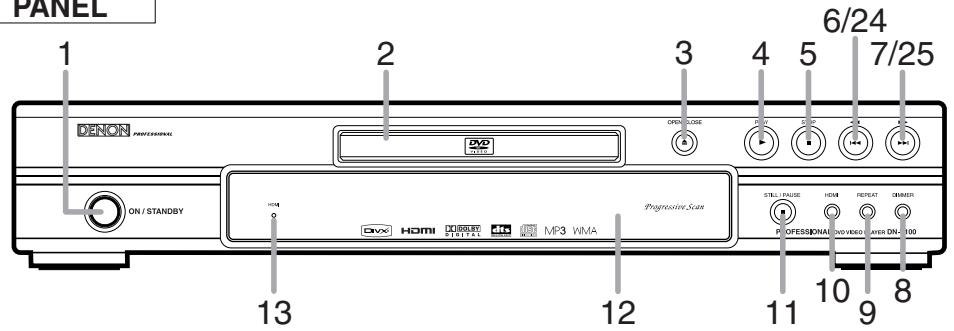
FRONT PANEL
REMOTE CONTROL
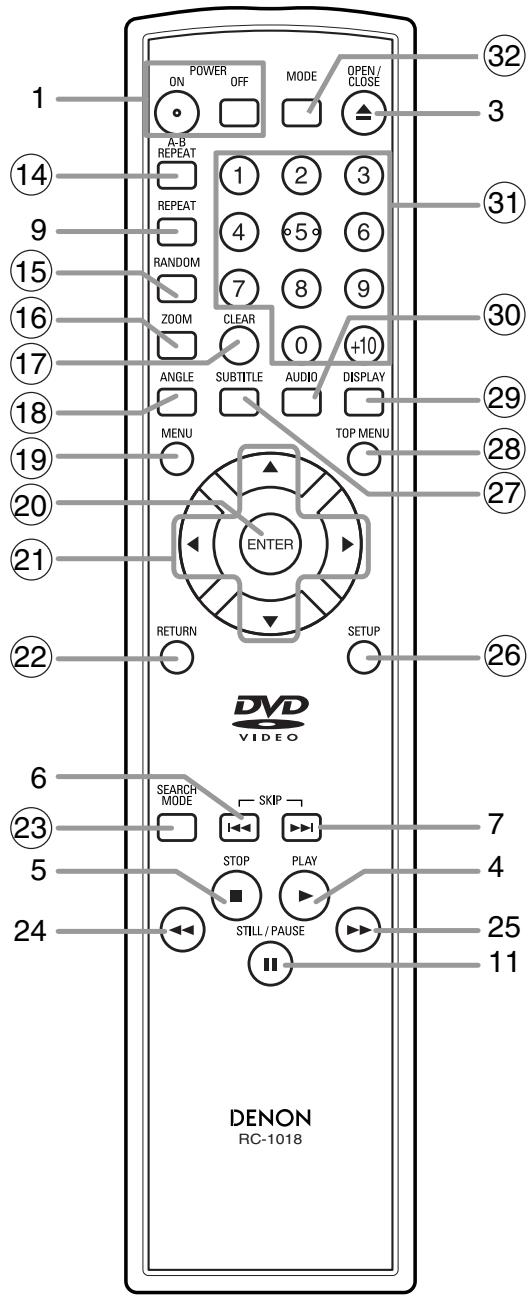
The buttons with circled numbers can only be operated with the remote control.
- ON/STANDBY (POWER ON/OFF) Buttons [page 16]
- Disc loading tray
- OPEN/CLOSE Button [page 16]
- PLAY Button [page 16]
- STOP Button [page 16]
- (SKIP) Button [page 19]
7.▶(SKIP) Button [page 19] - DIMMER Button [page 16]
- REPEAT Button [page 20]
- HDMI Button [page 16] Press to set the HDMI connector's video signal output mode.
- STILL/PAUSE Button [page 17]
- Display, Remote Sensor Window
- HDMI indicator [page 16] Lights up when there is video signal output from the HDMI OUT jack.
- A-B REPEAT Button [page 20]
- RANDOM Button [page 21]
- ZOOM Button [page 18]
- CLEAR Button [page 19]
- ANGLE Button [page 25]
- MENU Button [page 16]
- ENTER Button [page 16]
- Cursor Buttons [page 16]
- RETURN Button [page 17]
- SEARCH MODE Button [page 19]
- (Fast Reverse SEARCH) Button [page 17] Press more than 2 seconds when you use the front panel button for this function.
- (Fast Forward SEARCH) Button [page 17] Press more than 2 seconds when you use the front panel button for this function.
- SETUP Button [page 26]
- SUBTITLE Button [page 25]
- TOP MENU Button [page 17]
- DISPLAY Button [page 23]
- AUDIO Button [page 24]
- Numeric Buttons [page 16]
- MODE Button [page 18]
Tour of the Remote Control
Buttons on remote control work in different ways for DVD, Video CD, Audio CD, MP3, JPEG, WMA and DivX. Refer to the following table for correct use.
| DVD | VCD | CD, MP3, JPEG, WMA | DivX® | |
| POWER ON/OFF ButtonsON POWER OFF | • To turn on or standby the unit. | • To turn on or standby the unit. | • To turn on or standby the unit. | • To turn on or standby the unit. |
| A-B REPEAT ButtonAB REPEAT | • To mark a segment between A and B for repeated playback. | • To mark a segment between A and B for repeated playback. | • To mark a segment between A and B for repeated playback. (CD) | • To mark a segment between A and B for repeated playback. |
| REPEAT ButtonREPEAT | • To repeat playback of a title or chapter. | • To repeat playback of a track or disc. | • To repeat playback of a track or disc. (CD)• To repeat playback of a track, group or disc. (MP3, JPEG, WMA) | • To repeat playback of a track, group or disc. |
| RANDOM ButtonRANDOM | — | — | • To play back tracks in random order. | — |
| MODE ButtonMODE | • To set Picture Control.• To activate the 3D sound (Virtual surround system).• To set Dialog Speed. | • To activate the 3D sound (Virtual surround system).• To set Picture Control. | • To programme a specific playback order.• To activate the 3D sound (Virtual surround system). (CD, MP3, WMA)• To activate the Slide Show mode. (JPEG) | • To set Picture Control. |
| ZOOM ButtonZOOM | • To magnify part of the picture (x2/x4). | • To magnify part of the picture (x2). | • To magnify part of the picture (x2). (JPEG) | • To magnify part of the picture (x2). |
| ANGLE ButtonANGLE | • To select a camera angle on the disc. | — | • To rotate a picture. (JPEG) | — |
| SUBTITLE ButtonSUBTITLE | • To select a subtitle language on the disc. | — | — | • To select a subtitle language on the disc. |
| AUDIO ButtonAUDIO | • To access various audio functions on the disc. | • To select STEREO, L-ch or R-ch. | • To select STEREO, L-ch or R-ch. (CD) | • To access various audio functions on the disc. |
| DISPLAY ButtonDISPLAY | • To display the current disc or HDMI mode. | • To display the current disc or HDMI mode. | • To display the current disc or HDMI mode. | • To display the current disc or HDMI mode. |
| SEARCH MODE ButtonSEARCH MODE | • To search for a chapter, title, time or marker.• To rapidly return to a location on the disc. | • To search for a track, time or marker.• To rapidly return to a location on the disc. | • To search for a track.• To search for time or a marker. (CD)• To rapidly return to a location on the disc. | • To search for a track or time.• To rapidly return to a location on the disc. |
| OPEN/CLOSE ButtonOPEN/CLOSE | • To open or close the disc tray. | • To open or close the disc tray. | • To open or close the disc tray. | • To open or close the disc tray. |
| Numeric Buttons1 2 34 5 67 8 9 0 10 | • To select a chapter or title directly. | • To select a track directly. | • To select a track directly. | • To select a track directly. |
Tour of the Remote Control
| DVD | VCD | CD, MP3, JPEG, WMA | DivX® | |
| CLEAR Button CLEAR | • To clear the markers. • To clear the numbers entered incorrectly. • To cancel the point for A-B Repeat. | • To clear the markers. • To clear the numbers entered incorrectly. • To cancel the point for A-B Repeat. | • To clear the markers. (CD) • To remove status number in programme input. • To clear the numbers entered incorrectly. • To cancel the point for A-B Repeat. (CD) | • To clear the numbers entered incorrectly. • To cancel the point for A-B Repeat. |
| MENU Button MENU | • To call up the menu on a disc. | — | • To call up the file list. (MP3, JPEG, WMA) | • To call up the file list. |
| TOP MENU Button TOP MENU | • To call up the top menu on a disc. | — | • To return to the top file in the highest hierarchy of the file list. (MP3, JPEG, WMA) | • To return to the top file in the highest hierarchy of the file list. |
| ENTER, Cursor Buttons | • To move the cursor and determine its position. | • To move the cursor and determine its position. | • To move the cursor and determine its position. | • To move the cursor and determine its position. |
| RETURN Button RETURN | • To return to the previous operation in the Setup menu. | • To return to the previous operation in the Setup menu. | • To return to the previous operation in the Setup menu. | • To return to the previous operation in the Setup menu. |
| SETUP Button SETUP | • To call up the Setup menu. | • To call up the Setup menu. | • To call up the Setup menu. | • To call up the Setup menu. |
| SKIP Buttons | • To skip chapters/titles. | • To skip tracks. | • To skip tracks. | • To skip tracks. |
| SEARCH Buttons | • To search forward/ backward through a disc. • To begin slow forward/ slow reverse. | • To search forward/ backward through a disc. • To begin slow forward. | • To search forward/ backward through a disc. (CD, MP3, WMA) | • To search forward/ backward through a disc. • To begin slow forward. |
| STOP Button STOP | • To stop playback. | • To stop playback. | • To stop playback. | • To stop playback. |
| PLAY Button PLAY | • To begin playback. | • To begin playback. | • To begin playback. | • To begin playback. |
| STILL/PAUSE Button STILL/PAUSE | • To pause playback. • To advance playback frame by frame. | • To pause playback. • To advance playback frame by frame. | • To pause playback. | • To pause playback. • To advance playback frame by frame. |
Front Panel Display
Lights up when the progressive scan system is activated.
Lights up when the disc playback comes to a pause.
Lights up when playing back in slow mode. (DVD, VCD)
Lights up when the inserted disc is being play back.
The present display state is shown.
-
TL./GR.: Title
-
TR./CP.: Track or Chapter
To change to the display of a title please push the DISPLAY button in the state of Resume.
Displays the chapter (title) or track number. In case the chapter (title) or track number is over 100, displays "--".
Displays a type of the disc which is on the tray.
DVD:DVD,DivX on DVD
- CD:Audio CD, MP3, JPEG, WMA, VCD, DivX® on CD
Lights up when the repeat function is on.
Lights up when the ALL repeat function is on. Lights up when the A-B repeat function is on.
Lights up when you have selected the audio file such as CD, MP3 and WMA on the programme screen.
Displays During Operation
| 00 | 0-0-0-0 | Power on |
| 00 | 0-0-0-0 | No disc inserted or cannot read |
| 00 | 0BBB | Tray open |
| 00 | 0058 | Tray closed |
| 00 | 0BBB | Loading the Disc |
| 00 | 0-0-0-0 | Power off |
| 00 | 0BBB | HDMI output mode (480p/576p) is selected. (576p is displayed after 480p) |
| 00 | 0BBB | |
| 00 | 0BBB | HDMI output mode (720p) is selected |
| 00 | 0BBB | HDMI output mode (1080i) is selected |
| 00 | 0BBB | HDMI output mode (OFF) is selected |
| 00 | 0-0-0-0 | Programme playback is set |
| 00 | 0-0-0-0 | Programme playback setting group (folder) is selected |
| 00 | 0BBB | Programme playback setting ALL CLEAR is selected |
| 00 | 0BBB | Random playback is set |
NOTES:
- The front panel display has blinked while setting the programme playback.
- “P*-●●●” is displayed in the front panel display while setting the programme playback. (“”) is programme number, “●●●” is track number.)
"A" is displayed in front panel display while selecting the audio file (CD, MP3, WMA). - "F- " is displayed in the front panel display while selecting the group (folder). ("*" is group (folder) number.)
- "A-CLEAR" is displayed in the front panel display while selecting ALL CLEAR.
- "SHUFFLE" is displayed in the front panel display while setting the random playback.
Displays the elapsed time of the chapter (title) or track. (The display of 10 hours or more cannot be performed.) Selected HDMI output mode is displayed.
HDMI Mode and Actual Output Signals
| HDMI mode of this unit | |||||
| OFF | 480p/576p | 720p | 1080i | ||
| Supported HDMI format of Display device | 480p/576p | OFF | 480p/576p | 720p | 1080i |
| 720p | |||||
| 1080i | |||||
| Supported HDMI format of Display device | 480p/576p | OFF | 480p/576p | 720p | 720p |
| 720p | |||||
| 1080i | |||||
| Supported HDMI format of Display device | 480p/576p | OFF | 480p/576p | 1080i | 1080i |
| 1080i | |||||
| OFF | 480p/576p | 480p/576p | 480p/576p | ||
Loading the Batteries
- Open the battery compartment cover.
- Insert two "R6P" (AA) batteries, with each one oriented correctly.
- Close the cover.
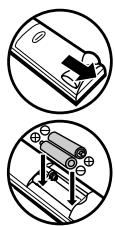

Cautions On Batteries
- Use "R6P" (AA) batteries in this remote control unit.
- Replace the batteries with new ones approximately once a year, though this depends on the frequency with which the remote control unit is used.
- If the remote control unit does not operate within a close proximity of the main unit, replace the batteries with new ones, even if less than a year has passed.
- The included batteries serve only for verifying operation. Replace them with new batteries as soon as possible.
- When inserting the batteries, be careful to do so in the proper direction, following the and marks in the remote control unit's battery compartment.
-
To prevent damage or battery fluid leakage:
-
Do not mix a new battery with an old one.
- Do not mix two different types of batteries such as alkaline and manganese.
-
Do not short-circuit, disassemble, heat or dispose of batteries in flames.
-
Remove the batteries when not planning to use the remote control unit for a long period of time.
- If the batteries should leak, carefully wipe off the fluid from the inside of the battery compartment, then insert new batteries.
Description - Rear Panel
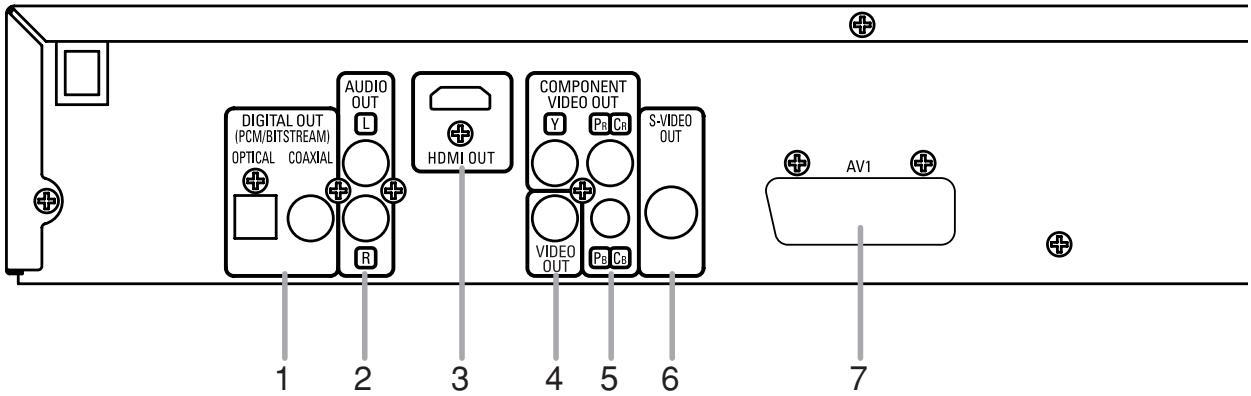
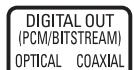
- DIGITAL OUT Jacks (OPTICAL, COAXIAL)
Use either an optical or coaxial digital cable (commercially available) to connect to an AV amplifier with a built-in decoder (AV control centre).
- AUDIO OUT Jacks
Use an Audio cable to connect to the Audio input jacks of A/V-compatible TV, wide screen TV or Stereo system.
- HDMI OUT Jack
Use an HDMI connection cable (commercially available) to connect to a display with an HDMI compatible port.
- VIDEO OUT Jack
Use a video cable to connect one of the jacks to Video input on your A/V-compatible TV, wide screen TV or Stereo system.
- COMPONENTVIDEO OUT Jacks
Use a Component Video cable (commercially available) to connect these jacks if you have a TV with Component Video in jacks. These jacks provide C_B / P_B , C_R / P_R and Y video. Along with S-Video, Component Video provides the best quality picture.
- S-VIDEO OUT Jack
Use an S-Video cable (commercially available) to connect this jack to the S-Video jack on your A/V-compatible TV or wide screen TV for a higher quality picture.
- AV1 Jack
Use a Scart cable (commercially available) to connect to the 21-pin scart jack of a TV.
NOTE:
- When changing the VIDEO OUT setting (SCART, COMPONENT INTERLACE or COMPONENT PROGRESSIVE), connect to a Video jack or an S-Video jack on the TV. If the setting is changed, for example, to SCART while Component Video jacks are connected to the TV, a distorted video signal may be output (refer to page 26).
CAUTION:
- Do not touch the inner pins of the jacks on the rear panel. Electrostatic discharge may cause permanent damage to the player.
Selecting Progressive Scan (480p/576p or Interlaced 480i/576i) Playback
- If your TV is compatible with progressive scanning (480p/576p), connect the TV to the COMPONENT VIDEO OUT jacks of the DVD player and set VIDEO OUT to COMPONENT PROGRESSIVE in the display setting. Next, set your TV to the progressive scan mode. Refer to page 26 for instructions on changing the display setting. P.SCAN will appear on the display of the unit.
- If your TV is not compatible with progressive scan, set VIDEO OUT to COMPONENT INTERLACE by changing the display setting (refer to page 26). Make sure that P.SCAN on the display of the unit lights off.
- Use a commercially available adaptor if the video input jacks of your TV or monitor is the BNC type.
- The unit is sending Progressive video signal and HDMI signal simultaneously when HDMI mode is set to ON. If you connect the component video cable to your TV, which is not compatible with progressive scan, the distorted picture will be output.
- If you playback discs recorded with the NTSC system, this unit sends out NTSC signal from HDMI OUT, COMPONENT VIDEO OUT, and AV1 Jacks.
What is Progressive Scanning?
- Unlike conventional interlace scanning, the progressive scan system provides less flickering and images in higher resolution than that of traditional (480i/576i) television signals.
The following shows examples of connections commonly used to connect the DVD player to TV and other components. If using this DVD player to play back a DVD in a Dolby Digital Multi-channel surround or DTS surround format, the DVD player outputs a Dolby Digital or DTS data stream from its OPTICAL or COAXIAL DIGITAL OUT jacks. By connecting the player to a Dolby Digital, DTS or MPEG decoder, you can enjoy more convincing, realistic ambience with powerful and high-quality surrounding sound of a professional standard which can be heard in movie theatres. Use an audio optical (Commercially available) or coaxial digital cable (Commercially available) for the audio connections.
NOTES:
- Be sure to turn off the power to all components in the system before connecting another component.
- Refer to the Instruction Manuals for your TV, stereo system and any other components to be connected to the DVD player.
Connection to an Audio System
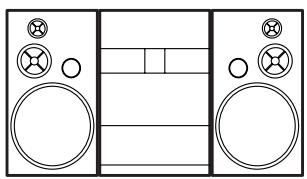
Method 1
Stereo system
AUDIO
Audio Input Jacks
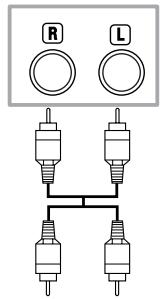
Audio cable (Supplied)
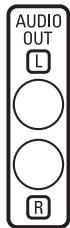
DVD
AUDIO OUT (analog)
Method 2
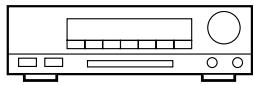
AV amplifier with a built in decoder (AV control centre),
Dolby Digital decoder, DTS decoder, MPEG decoder, MD deck or DAT deck
Digital Audio Input Jacks
Optical cable (Commercially available)
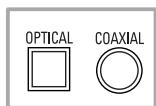
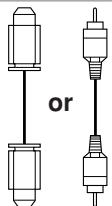
Audio Coaxial Digital cable (Commercially available)
DIGITAL OUT
Method 1 DVD Player + Stereo system
- Method 2 DVD Player + AV amplifier with a built in decoder (AV control centre), Dolby Digital decoder, DTS decoder, MPEG decoder, MD deck or DAT deck
NOTES (for Method 2 only):
- When using an AV amplifier with a built-in decoder (AV control centre), Dolby Digital, DTS, or MPEG decoder as shown in the Method 2, set DOLBY DIGITAL, DTS or MPEG to BITSTREAM accordingly for audio output in the setup menu (refer to page 27). Set it to PCM or OFF for the decoder that is not used currently. Playing back a DVD using incorrect settings may generate noise distortion and may also damage the speakers.
The audio source on a disc in a Dolby Digital Multi-channel surround format cannot be recorded as digital sound by an MD deck or DAT deck. - Set DOLBY DIGITAL and MPEG to PCM, and DTS to OFF for audio output in the setup menu for connecting to an MD deck or DAT deck (refer to page 27).
- Harsh noise that could harm your ears or the speakers is generated when a DVD recorded in DTS is played back while using a decoder, etc., that is not DTS-compatible.
- When playing back a copyright-protected 96kHz (88.2kHz) linear PCM DVD, the digital sound will be down sampled at 48kHz (44.1kHz), even if you set LPCM SELECT to OFF (refer to page 27).
Optical cable (commercially available)
- Optical cable (commercially available) may be damaged when bent at sharp angles. Ensure cables are coiled in loops with a diameter of 15cm or more when storing them.
- Use a cable which is 3m or shorter.
- Insert cable plugs firmly into the connectors when making connections.
- If a plug has dust or is dirty, clean it with a soft cloth before inserting it into a connector.
Connection to a TV (for video)
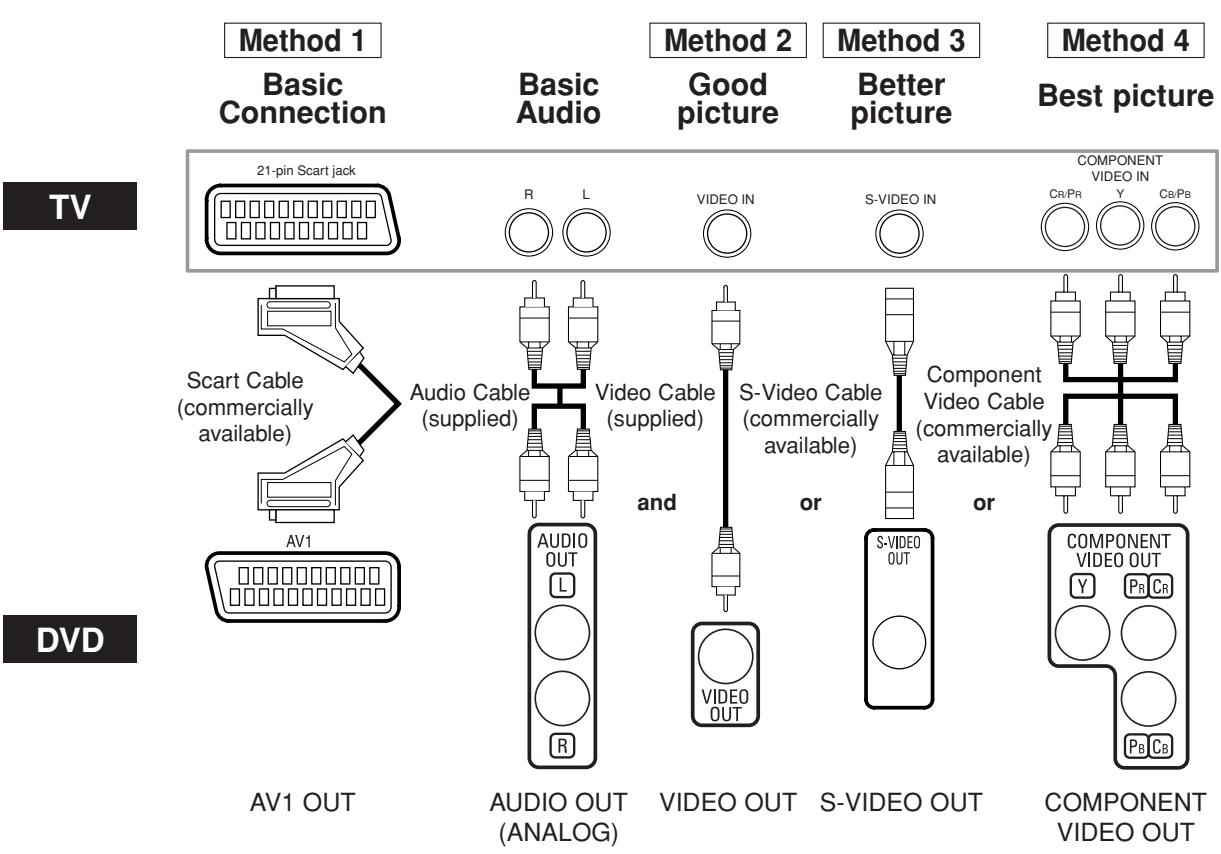
Method 1 DVD Player + TV with 21-pin scart Input Jack
Method 2 DVD Player + TV with Video Input Jack
Method 3 DVD Player + TV with S-Video Input Jack
Method 4 DVD Player + TV with Component Video Input Jacks
NOTES:
- Connect the DVD player directly to a TV. If the Audio/Video cables are connected to a VCR, pictures may be distorted due to the copy protection system.
S-Video output connector
The video signals are divided into colour (C) and brightness (Y) signals, achieving a clearer picture.
If the TV is equipped with an S-Video input connector, we recommend connecting it to this unit S-Video output connector using a commercially available S-Video connection cord.
- Component output connector
Picture could be distorted if you connect DVD player with both component output connector and HDMI output connector at the same time.
HOW TO CONNECT TO A TV WITHOUT AUDIO/VIDEO INPUT JACKS
Even if your TV does not have RCA type audio and video input jacks, it is still possible to connect this DVD player to your TV's 75 ohm coaxial antenna terminal using an optional Stereo Audio/Video RF Modulator (commercially available). Connect the audio and video outputs of the DVD player to the audio and video inputs on the RF Modulator, and then connect the coaxial output of the RF Modulator (usually marked "TO TV") to the 75 ohm coaxial antenna terminal on your TV. Follow the instruction supplied with the RF Modulator for more details. If your TV's 75 ohm coaxial antenna terminal is already occupied by an antenna or cable box connection, remove that cable from your TV's antenna terminal and reconnect it to the coaxial antenna input terminal of the RF Modulator (usually marked "ANT IN"), then connect the RF modulator to your TV's antenna terminal as described above.
NOTE:
- The picture quality from DVD discs will not be as good if the DVD player is connected to the TV's antenna terminal through an RF Modulator.
Connection to a TV with an HDMI Compatible Port
A simple 1-cable connection (using a commercially available cable) with a device having an HDMI (High-Definition Multimedia Interface) connector allows digital transfer of the digital images of DVD-Video and other sources.
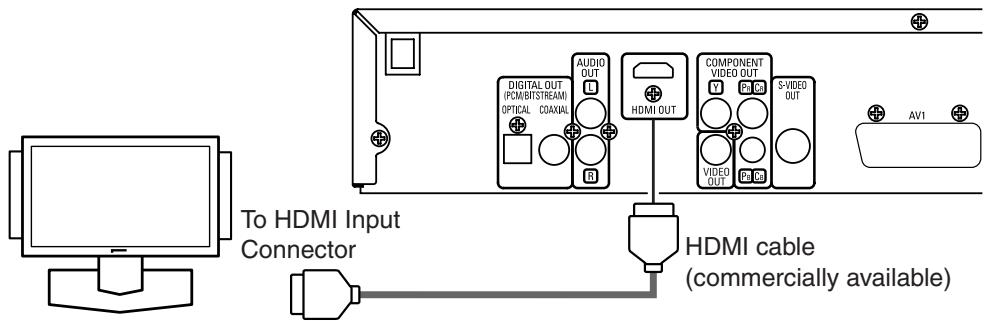
A display equipment with an HDMI compatible port
Actual output modes by media
| DOLBY DIGITAL/DTS/MPEG Setting | |||
| BITSTREAM *1 | PCM or OFF | ||
| DVD-Video | Dolby Digital | Dolby Digital | 2channel PCM |
| DTS | DTS | - | |
| MPEG | MPEG | 2channel PCM | |
| LPCM | 2channel PCM | 2channel PCM | |
| DivX® | Dolby Digital | Dolby Digital | 2channel PCM |
| MP3/MP2 | 2channel PCM | 2channel PCM | |
| Audio CD | 2channel PCM | 2channel PCM | |
| Video CD | 2channel PCM | 2channel PCM | |
| MP3/WMA | 2channel PCM | 2channel PCM | |
*1 If the connected equipment is not compatible with HDMI BITSTREAM, signals are output on PCM.
Copyright protection system
To play back the digital video images of a DVD via an HDMI connection, it is necessary that both the player and the display equipment (or an AV amplifier) support a copyright protection system called HDCP (High-bandwidth Digital Content Protection System). HDCP is copy protection technology that comprises data encryption and authentication of the connected AV equipment.
This player supports HDCP. Please read the operating instructions of your display equipment (or AV amplifier) for more information.
*HDMI: High-Definition Multimedia Interface
NOTES:
- When using an HDMI-incompatible or HDCP-incompatible display equipment, the image will not be viewed properly.
- Among the devices that support HDMI, some devices can control other devices via the HDMI connector; however, this player cannot be controlled by another device vice the HDMI connector.
- The audio signals from the HDMI connector (including the sampling frequency, the number of channels and bit length) may be limited by the equipment that is connected.
- Among the monitors that support HDMI, some do not support audio output (for example, projectors). In connections with equipment such as this, audio signals are not output from the HDMI output connector.
- When the set's HDMI connector is connected to a DVI-D compatible monitor (HDCP compatible) with an HDMI-DVI converter cable (commercially available), the signals are output in digital RGB.
"HDMI, the HDMI logo and High-Definition Multimedia Interface are trademarks or registered trademarks of HDMI Licensing LLC."
BasicPlayback
DivX®
| DVD | CD | VCD | MP3 | JPEG | WMA |
Getting started
- Turn on the power of the TV, amplifier and any other components which are connected to the DVD player.
-
Make sure the TV and audio receiver (commercially available) are set to the correct channel.
1 Press the POWER ON/OFF button. -
P-ON will appear briefly on the display panel.
Press the OPEN/CLOSE button to open disc loading tray.
3 Place the disc on the tray, with the label facing up.
4 Press the PLAY button.
- The tray will close automatically, then playback will start from the first chapter or track of the disc. If the playback does not start automatically, press the PLAY button.
- When you play back the DVD with a title menu, it may appear on the screen. In this case, refer to "Title Menu" on page 17.
5 Press the STOP button to stop playback.
NOTES:
- A "prohibited icon" may appear at the top-right on the TV screen during operation, warning that a prohibited operation has been encountered by the DVD player or the disc.
- With DVDs that use some titles for playback programme signals, playback may start from the second title, or it may skip these titles.
- During the playback of two layered disc, pictures may stop for a moment. This happens when the 1st layer switches to the 2nd layer. This is not a malfunction.
- The operation may vary when you play back DVDs with disc menu or Video CDs with PBC. Refer to the manual accompanying the disc for details.
CANCELLING AND CALLING BACK PBC FUNCTION

VCD
Insert a Video CD.
Press the STOP button.
Press the Numeric buttons to enter the desired Track number.
- PBC function is now cancelled and the playback of the Video CD will start.
4 To call back PBC function, press the STOP button twice, and then press the PLAY button.
- The title menu will appear on the TV screen.
HDMI Setup
Press the HDMI button on the front panel to select the HDMI output mode. The output mode changes as follows every time the HDMI button is pressed.
- The HDMI indicator on the front panel lights up when HDMI output mode is on.

480P/576P(Default):
Video output from the HDMI OUT jack at 480p/576p.
720P: Video output from the HDMI OUT jack at 720p.
1080: Video output from the HDMI OUT jack at 1080i.
OFF: No video output from the HDMI OUT connector.
NOTES:
- Video and audio signals may distorted temporarily when switching to/from the HDMI output mode.
- Use a display equipment with an HDMI-compatible port.
- The unit is sending Progressive video signal and HDMI signal simultaneously when HDMI mode is set to ON. If you connected component video cable to your TV, which is not compatible with progressive scan, the distorted picture will be output.
- The HDMI indicator on the front panel flashes when you select the HDMI output mode but there is no HDMI cable.
- You can check the HDMI connection status by pressing the DISPLAY button during playback with the HDMI output mode (refer to page 24).
- If the TV is not compatible with newly selected HDMI output mode, the actual output mode will be kept the one before changing the selection. When this occurs, the newly selected mode will appear on the front panel display (see page 11) while the actual output resolution will be indicated by performing the on-screen display as described in NOTE FOR HDMI DISPLAY on page 24.
- You cannot select the HDMI output mode when the setup menu is on the TV screen.
Brightness of the Front Panel Display
Press the DIMMER button on the front panel to select the desired brightness of the front panel display. (BRIGHT, DIMMER or OFF)
- The default setting is BRIGHT.
NOTES:
- The brightness of the front panel display can be adjusted from the setup menu. Details are on page 28.
- When you turn on the power next time, the brightness of the front panel display will be as set in setup menu.
General Features
DVD
DVD may contain menus to navigate the disc and access special features. Press the appropriate Numeric buttons or use the Cursor buttons (▼/▲/▶/▲) to highlight your selection in the DVD main menu and press the ENTER button to confirm.
NOTE:
- Unless otherwise stated, all operations described are based on remote control use. Some operations can be carried out using the menu bar on the TV screen.
Disc Menu
DVD
Press the MENU button.
- The DVD main menu will appear.
If the feature is not available, symbol may appear on the TV screen.
3 If disc menu is available on the disc, audio language, subtitle options, chapters for the title and other options will appear for selection.
4 Press the Cursor buttons ( / / / ) to select an item, and the ENTER button to confirm the selection.
Title Menu
DVD
Press the TOP MENU button.
- The title menu will appear.
2 If the feature is not available, appear on the TV screen.

symbol may
3 Press the Cursor buttons ( / / / ) to select an item, and the ENTER button to confirm the selection.
- Playback will begin at the selected title.
VCD
1 When playing back a Video CD with PBC function, the title menu will appear automatically.
Press the Numeric buttons to select the desired title. Playback will begin at the selected title.
Press the RETURN button to go back to the title menu.
CALLING UP A MENU SCREEN DURING PLAYBACK
DVD
- Press the MENU button to call up the DVD main menu.
- Press the TOP MENU button to call up the title menu.
NOTE:
- Contents of menus and corresponding menu operations may vary among discs. Refer to the manual accompanying the disc for details.
Still / Pause
DVD
CD
VCD
MP3
JPEG
WMA
DivX®
During playback, press the STILL/PAUSE button.
- Playback will pause and sound will be muted.
To continue playback, press the PLAY button.
NOTE:
- On DVDs, set STILL MODE to FIELD on the display menu if pictures in the pause mode are blurred (refer to page 26).
Resume
DVD
CD
VCD
MP3
JPEG
WMA
DivX®
1 During playback, press the STOP button.
- Resume message will appear on the TV screen.
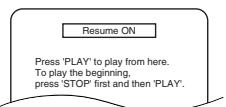
Press the PLAY button, playback will resume from
the point at which playback was stopped.
- To cancel resume, press the STOP button again.
NOTES:
- Some Video CDs with PBC function resume playback from the beginning of the track.
- For MP3, JPEG or WMA, playback will resume from the beginning of the current track.
- The resume information will be saved on even when the power is turned off.
Fast Forward / Reverse Search
DVD
CD
VCD
MP3
WMA
DivX®
1 During playback, press the or button repeatedly to select a desired forward or reverse speed.
- For DVDs, fast forward or reverse search speed is different depending on the disc. The approximate speed is 1(x2), 2(x8), 3(x20), 4(x50) and 5(x100).
Button

▶Button

- For Video CDs, Audio CDs, MP3, WMA, and DivX®, the approximate speed is 1(x2), 2(x8) and 3(x30).
- For Audio CDs, MP3 and WMA, sound will be output at any speed of fast forward and reverse search.
2 To return to normal playback, press the PLAY button.
NOTE:
- For some DivX® files, Fast Forward/Reverse Search may not function.
Slow Forward / Slow Reverse
DVD
VCD
DivX®
During playback, press the STILL/PAUSE button.
2 Press the or button.
- Slow motion playback will begin and sound will be muted.
Press the or button repeatedly to select a desired speed.
- Slow forward or reverse speed is different depending on the disc.
The approximate speed is 1(1/16), 2(1/8), and 3(1/2).
4 To return to normal playback, press the PLAY button.
NOTES:
- On DVDs, set STILL MODE to FIELD on the display menu if pictures in the slow playback mode are blurred (refer to page 26).
- Only Slow Forward is available when playing back Video CD and discs with DivX® files.
Step by StepPlayback
DVD
VCD
DivX®
During playback, press the STILL/PAUSE button.
- Playback will pause and sound will be muted.
2 The disc advances frame by frame each time the STILL/PAUSE button is pressed.
3 To exit step by step playback, press the PLAY button.
NOTE:
- On DVDs, set STILL MODE to FIELD on the display menu if pictures in the pause mode are blurred (refer to page 26).
Picture Control
DVD
VCD
DivX®
Picture Control adjusts Brightness, Contrast, Color, Gamma Correction and Sharpness of the specific display.
1 During playback, press the MODE button.
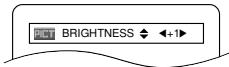
Press the Cursor button (▲ or▼) to switch among
Press the ENTER button or the Cursor button (or) to adjust the selected item to a desired level. -6, -5, -4, -3, -2, -1, 0, +1, +2, +3, +4, +5, +6 can be selected.
4 To return to normal playback, press the RETURN button. NOTES:
- The default settings for all items in Picture Control are "0".
- The setting display will disappear in 10 seconds of no use.
This function cannot be used during Dialog Speed (refer to Dialog Speed on this page).
If you return all items to the default settings, please execute initialise.
Zoom
DVD
VCD
JPEG
DivX®
This function allows you to enlarge the video image and to pan through the zoomed image.
Press the ZOOM button during playback.
- Playback will continue.
Press the ZOOM button repeatedly to select a desired zoom factor: x2, x4 or off.
- Only x2 zoom is available on Video CDs, JPEG and DivX®.
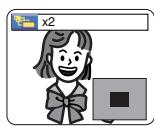
→
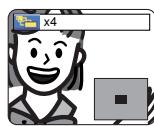
→
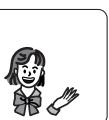
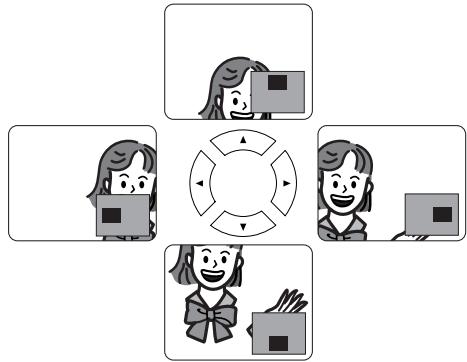
3 Use the Cursor buttons ( / / / ) to move the zoomed picture across the screen.
4 To exit the zoom mode, press the ZOOM button.
NOTES:
- Zoom function does not work while the disc menu is shown.
- x4 zoom is not available on some discs.
- Navigation screen is not available on JPEG.
- You cannot pan through the zoomed picture on some JPEG files.
Dialog Speed
DVD
Available only on discs recorded in the Dolby Digital format, Dialog Speed plays back in slightly faster or slower speed while keeping the sound quality as in the normal playback.
During playback, press the MODE button repeatedly until the Dialog Speed setting appears.
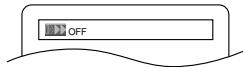
OFF appears on the TV screen.
Press the ENTER button or the Cursor button (or) to switch among (x1.3), (x0.8) and OFF.
: Plays back approximately at 0.8 times of normal playback.
: Plays back approximately at 1.3 times of normal playback.
3 To return to normal playback, press the PLAY button. NOTES:
- Every time you press the STOP button, the setting will be turned OFF.
- Subtitles can be viewed during this function.
- Picture Control, Audio Language and Virtual Surround setting cannot be changed while using this mode.
- Virtual Surround does not function while using this mode.
- This feature may not work at some point on a disc.
- When using digital audio connection (COAXIAL, OPTICAL or HDMI), the LPCM sound (2 channel) will be output.
- When using Dialog Speed function with Multi-channel digital outputting, the analogue output sound will be fixed at 2 channel.
- When using digital audio connection, only the Dolby Digital sound will be available.
Slide Show Mode
JPEG
You can switch to slide show mode during playback.
Press the MODE button once during playback.
- The slide show mode screen will appear.
- You cannot switch the slide show mode when it is stopped, or from the file list screen or the Picture CD menu screen.
Press the ENTER button.
- The slide show mode will change.
CUT IN/OUT: The entire image appears in one time.
FADE IN/OUT: The image appears and disappears gradually.
Press the MODE button to exit.
Title / Chapter Search
DVD
By using the SEARCH MODE button
Press the SEARCH MODE button repeatedly until the chapter search or the title search screen appears during playback.
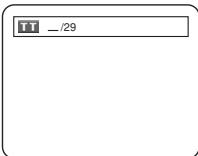
2 Enter the desired chapter/title number with the Numeric buttons.
By using the SKIP buttons
During playback, press the SKIP button to move to the next chapter. Press it repeatedly to skip to subsequent chapters. Press the SKIP button to go back to the beginning of the current chapter. Press it repeatedly to go to the previous chapters.
- Chapter number will appear briefly on the front panel display.
- If the SKIP or button is pressed while the playback is paused, the playback after skipping to the next chapter will be also paused.
NOTES:
Depending on the disc, the Numeric buttons can be used to search for a desired chapter by entering the chapter number directly. Refer to the manual accompanying the disc.
- The SKIP , buttons are not available when playback is stopped.
- A disc that does not contain chapters within titles, the SKIP , buttons change the titles.
Track Search
CD
VCD
MP3
JPEG
WMA
DivX®
There are two ways to begin playback an Audio CD, Video CD, MP3, JPEG, WMA or DivX disc at a specific track.
By using the SEARCH MODE button
Press the SEARCH MODE button.
- The track search display appears.
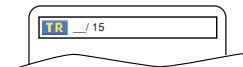
2 Within 30 seconds, select a desired track number using the Numeric buttons.
- For the disc with less than 10 tracks, press the track number directly.
- For discs with 10 or more but less than 100 tracks, to play back a single-digit track, press 0 first, then the track number (e.g. for track 3, press 0, 3). To play back a double-digit track, press the track number.
- For discs with 100 or more tracks, to play back a single- or a double-digit track, press 0 first, then the track number (e.g. for track 3, press 0, 0, 3, and for track 26, press 0, 2, 6). To play back a triple-digit track, press the track number.
- Press the CLEAR button to erase the incorrect input.
NOTE:
- The +10 button can also bring up the track search display except for the disc with less than 10 tracks. For such a disc, track search can be done by just pressing the track number.
By using the SKIP buttons
During playback, press the SKIP button to move to the next track. Press it repeatedly to skip to subsequent tracks. Press the SKIP button to go back to the beginning of the current track. Press it repeatedly to go to the previous tracks.
- Track number will appear briefly on the front panel display.
- If the SKIP or button is pressed while the playback is paused, the playback will be paused again after skipping to the next track.
NOTE:
- The SKIP , buttons are not available when playback is stopped.
Time Search

Press the SEARCH MODE button until the time search screen appears on the TV screen.
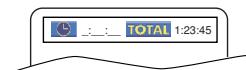
2 Within 30 seconds, enter a desired time point on the disc with the Numeric buttons.
- Playback will start at the specified time.
- For Time Search, "0" appears automatically when there is no need to enter a number. For example, "0:0_:_" appears on the time search screen if the total time of the title or track is less than 10 minutes.
3 Press the CLEAR button to erase an incorrect input.
NOTE:
- For some DivX® files, Time Search may not function.
Marker Setup Screen
DVD
CD
VCD
You can use markers to memorise your favourite places on a disc.
Press the SEARCH MODE button repeatedly until the display screen and Markers appear during playback.
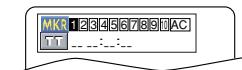
Press the Cursor buttons (or) to select the number of the marker (1-10) and ensure that "_____appears on the display.
3 When the disc reaches the point where you want to remember, press the ENTER button.
- The title or track and elapsed playback time will appear on the TV screen.
4 To return to the Marker later, press the SEARCH MODE button repeatedly during playback and the Cursor buttons (or) to choose a desired marker, then press the ENTER button.
Press the SEARCH MODE or RETURN button to exit.
NOTES:
- Opening the disc tray, turning off the power, or selecting AC at step 2 and pressing the ENTER button will erase all Markers.
- To clear a marker, using the Cursor buttons (or button, select the marker number to be cleared and press the CLEAR button.
- You can mark up to 10 points.
Repeat
- The REPEAT button is available only during playback.
REPEAT TITLE / CHAPTER
DVD
To activate Repeat function, press the REPEAT button during playback.
- The repeat mode changes as described below every time you press the button.
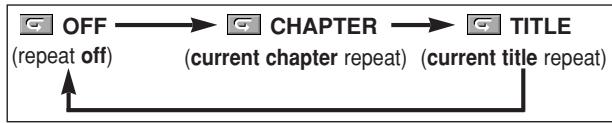
NOTES:
- The Repeat Title/Chapter setting will be cleared when moving to other title or chapter.
- Repeat playback does not function during A-B repeat playback.
- Repeat Title/Chapter is not available with some scenes.
REPEAT TRACK / GROUP / ALL
CD VCD
To activate Repeat function, press the REPEAT button during playback.
- The repeat mode changes as described below every time you press the button.
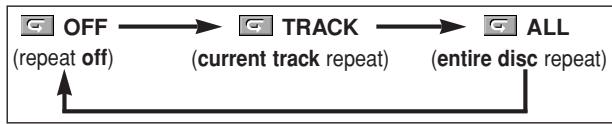
NOTES:
- The Repeat Track setting will be cleared when moving to other track.
- Repeat playback does not function during A-B repeat playback.
- Repeat playback is not available when playing back the Video CD with PBC function.
MP3 JPEG WMA DivX
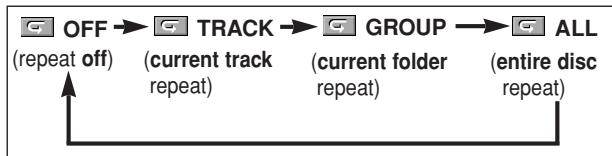
NOTE:
- The Repeat setting will be cleared when moving to another title, chapter, track or group.
A-B REPEAT
DVD CD VCD DivX
Press the A-B REPEAT button at your desired starting point.
A- appears briefly on the TV screen.
Press the A-B REPEAT button again at your desired end point.
A-B appears briefly on the TV screen, and the repeat sequence begins.
3 To exit the sequence, press the A-B REPEAT button.
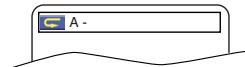
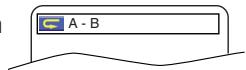
NOTES:
- The A-B Repeat section can only be set within the current title (for DVDs), or current track (for Audio CDs, Video CDs and discs with DivX® files).
- A-B Repeat playback is not available with some scenes on DVD.
- To cancel the A point which was set, press the CLEAR button.
- A-B Repeat playback does not function during title, chapter, track, group or all repeat playback.
- For some DivX® files, A-B Repeat playback may not function.
ProgrammePlayback
This function allows you to programme a playback order of Audio CD, MP3, JPEG or WMA in a desired sequence.
CD
1 In stop mode, press the MODE button.
The programme screen will appear.
Press the Cursor buttons (▲ or ) to select a track, then press the ENTER button.
- Press the CLEAR button to erase the most recently entered programme.
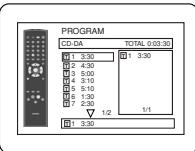
Press the PLAY button to start programmed playback.
MP3
JPEG
WMA
1 In stop mode, press the MODE button.
- The programme screen will appear.
Press the Cursor buttons (▲ or ) to select a group, then press the ENTER button.
- A track selection screen appears.
Press the Cursor buttons (▲ or▼) to select a track, then press the ENTER button to save it in a programme.
- Press the CLEAR button to erase the most recently entered track.
- The programmed track is displayed in the right-hand screen.
- If the entire programme cannot be displayed on the screen, "▼" appears.
- Pressing the Cursor button (▶) will show a list of folders that belong to the hierarchy which is one-level higher than the currently selected folder.
4 Press the PLAY button to start programmed playback.
- Press the RETURN button, and the stop screen will show up with the programme contents in memory.
NOTES:
- Press the STOP button once and then the PLAY button again, playback will restart from the point where the STOP button was pressed. (Programme continued.)
- Press the STOP button twice and then the PLAY button again, playback will restart from the first track in the usual way. Your programme is still stored until either the disc tray is open or power is turned off.
- Up to 99 tracks can be entered.
- To erase tracks in the programme all together, select ALL CLEAR at the bottom of the list at step 2. And, "A-CLEAR" is displayed on the front panel display at that time.
- To repeat the current track in the programme, press the REPEAT button repeatedly until TRACK appears during playback. To repeat the entire programme press the REPEAT button repeatedly until ALL appears during playback.
- If eight or more tracks were set in a programme, use the SKIP or button to see all the tracks.
- When selecting the folder:
-Press the Cursor button (▶) when you want to go to the next hierarchy.
-Press the Cursor button (▲) when you want to go back to the previous hierarchy (except for the top hierarchy).
- Even if an inserted disc contains mixed MP3, JPEG and WMA files, 99 tracks in combination of MP3, JPEG and WMA files can be entered.
- The front panel display has blinked while setting the programme playback.
Random Playback
CD
MP3
JPEG
WMA
This function shuffles the playback order of tracks instead of playback in the original sequence.
In stop mode, press the RANDOM button.
The random screen will appear.
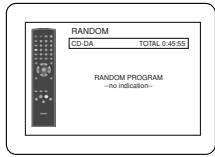
Press the PLAY button to start random playback. NOTES:
- To repeat the current track in the random selection, press the REPEAT button repeatedly until TRACK appears during playback. To repeat the entire random selection press the REPEAT button repeatedly until ALL appears during playback.
- You cannot go back to the previous track during random playback.
- For a disc containing mixed MP3, JPEG and WMA files, random playback of those files will be performed.
- "SHUFFLE" is displayed on the front panel display at step 1.
MP3 / JPEG / WMA Playback
MP3
JPEG
WMA
When a CD-R or CD-RW disc with MP3, JPEG or WMA files is inserted in the DVD player, the file list will appear automatically on the TV screen. The number of tracks is also displayed on the front panel.
1 Press the Cursor buttons (▲ or▼) to select a desired group (folder) or track.
-
To return to the previous screen, press the Cursor button (▶).
-
If a group (folder) is selected, press the Cursor button () or ENTER button to go on to the track selection screen. Press the Cursor buttons ( or ) to choose a track, then press the PLAY or ENTER button.
- If a track is selected, press the PLAY or ENTER button to start playing back tracks. The selected track and the subsequent tracks will be played back.
- When selecting the folders:
-Press the Cursor button (▶) when you want to go to the next hierarchy.
-Press the Cursor button ( when you want to go back to the previous hierarchy (except for the top hierarchy).
- Press the TOP MENU button to return to the first item.
Press the STOP button to stop playback.
NOTES:
- Folders are known as Groups; files are known as Tracks.
- A symbol of is shown on the top of the group name.
- A symbol of is shown on the top of MP3 files.
- A symbol of l is shown on the top of JPEG files.
- A symbol of is shown on the top of WMA files.
Maximum of 255 folders can be recognised.
Maximum of 999 files can be recognised. -
Up to 8 hierarchies can be recognised.
-
If the track extends beyond the scope of screen, a down arrow "▼" appears, indicating that the user can view another part on the previous page. The current page number and the number of total pages are shown on the left of the down arrow "▼".
- If no MP3, JPEG or WMA files are found in the group, the group is not displayed.
- The DVD player can reproduce data recorded as per ISO 9660 Level 1, Level 2 or Joliet on the disc.
- It can also run a disc on which data is recorded in a multi-session.
- For more details of recording systems, refer to the instruction manual for the CD-R / CD-RW drive or the writing software.
- For MP3 and WMA files recorded in Variable Bit Rate (VBR), the unit may not display the actual elapsed time.
This player recommends the use of files recorded at the following specifications:
| Applicable MP3 file | Remarks | |
| Sampling frequency | 44.1kHz 48kHz | • It is prohibited to record MP3 sound on a digital device when the connection is made digitally. |
| Type | MPEG1 audio layer 3 | • MP3 files recorded at fixed bit rate of 32 kbps or higher are recommended. |
| Applicable JPEG file | Remarks | |
| Size of image | Upper limit: 6300x5100 dotsLower limit: 32x32 dots | ·A JPEG image that extends beyond the screen is reduced so that it will be displayed within the screen. |
| Applicable WMA file | Remarks | |
| Sampling frequency | 44.1kHz 48kHz | • Those frequencies are applicable to WMA version 9. |
| Bit rate | 48–192kbps | • Ensure that the copyright function is set to off when preparing a WMA disc. |
| Type | WMA version 9 | • A prohibition “disable” symbol will appear if the user attempts to run a non-reproducible file such as copy-right-protected. • Recorded in multi-channel format cannot be played back. |
Information on MP3, JPEG and WMA discs
- This DVD player can play back images and sounds from data recorded in MP3 and JPEG formats on CD-R and CD-RW discs.
- A file with an extension of“.mp3 (MP3)” is called an MP3 file.
- A file with an extension of“.jpg (JPG)” or“.jpeg (JPEG)” is called a JPEG file.
The DVD player can run an image file conforming to the Exif specification. Exif is a file format, Exchangeable Image File format established by Japanese Electronic Industry Development Association (JEIDA).
- A file with an extension of ".wma (WMA)" is called a WMA file.
- Files whose extension is other than ".mp3 (MP3)", ".jpg (JPG)" and ".jpeg (JPEG)" or ".wma (WMA)" will not be listed on the MP3, JPEG or WMA menu.
- If the file is not recorded in MP3, JPEG or WMA format, noise may be produced even if the file extension is either ".mp3 (MP3)", ".jpg (JPG)", ".jpeg (JPEG)" or ".wma (WMA)".
- The name of group and track can be displayed up to 25 characters. Unrecognisable characters will be replaced with asterisks. The ninth and deeper hierarchies cannot be displayed.
- Unplayable groups or tracks may be displayed depending on the recording conditions.
- If the TOP MENU button is pressed when a file list is displayed, the first item will be highlighted.
Kodak Picture CD
The DVD player can also run JPEG files stored on Kodak Picture CDs. You can enjoy picture images on the television set by playing back the Picture CDs.
For details of Kodak Picture CD, contact a shop that provides photo developing service of Kodak Inc.
1 When Kodak Picture CD is inserted in the DVD player, Kodak Picture CD menu appears automatically on the TV screen.
- If all menu items cannot be displayed on the screen scope, “▶▶” appears at the right bottom of the screen,
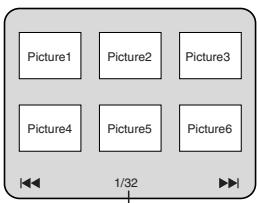
Current track number / the number of total tracks
indicating that the user can view remaining items on the next page. If "▲" appears, it indicates that the user can view other items on the previous page. The track number of the currently highlighted item and the total tracks are shown at the centre bottom of the screen.
- If “▶I” is shown at the right bottom, use the SKIP▶I button to view the next page. If “I←” is shown at the left bottom, use the SKIP I← button to view the previous page.
- It may take some time until all menu items are displayed on the menu screen.
Press the Cursor buttons ( / / / ) to select a desired track to be played back, then press the PLAY or ENTER button.
- If a Kodak Picture CD file is selected, an image will be played back from the selected track and go to the next one in turn.
3 Press the STOP button to stop playback.
NOTES on JPEG and Kodak Picture CD:
- A track is displayed for 5 or 10 seconds and then the next track is displayed.
- Every press on the ANGLE button will turn the image clockwise by 90 degrees when an image is displayed.
- To change the size of the playback image, press the MODE button twice. The size change mode appears on top of the TV screen during playback. Then press the Cursor buttons (▲, ▲) or ENTER button to switch between NORMAL (100%) and SMALL (95%).
- Progressive JPEGs (JPEG files saved in the progressive format) will not be played back on this DVD player.
- High resolution JPEG files take longer to be displayed.
- The size change mode may have no effect on some files (e.g. files with a small picture size).
NOTES on WMA:
- The DVD player can reproduce data recorded as ISO 9660 level 2 with 31 characters file name included punctuation marks. The name of file can be displayed up to 25 characters.
Maximum of 8 sub folders can be recognised. - It can also be displayed tag information of WMA at least 64 characters.
- A file with an extension of Joliet as Unicode format in up to 64 characters can be recognised.
- This unit cannot play back copyright protected WMA files.
DivX® Playback
DivX®
This DVD player can play back DVD-R/RW and CD-R/RW discs recorded in DivX® format. When a DVD-R/RW or CD-R/RW with DivX® files is inserted in the DVD player, the file list will appear automatically on the TV screen. The number of tracks will be also displayed on the front panel.
Press the Cursor buttons (▲ or▼) to select the desired group (folder) or track.
- To return to the previous screen, press the Cursor button (▶).
- If a group (folder) is selected, press the Cursor button () or ENTER button to go on to the track selection screen. Press the Cursor buttons ( or ) to choose a track, then press the PLAY or ENTER button.
- If a track is selected, press the PLAY or ENTER button to start playing back tracks. The selected track and the subsequent tracks will be played back.
- When selecting the folders:
-Press the Cursor button (▶) when you want to go to the next hierarchy.
-Press the Cursor button ( when you want to go back to the previous hierarchy (except for the top hierarchy).
- Press the TOP MENU button to return to the first item.
Press the STOP button to stop playback.
NOTES:
- DivX® is a codec (compression/decompression) that can compress images to a very small amount of data. The software can compress video data from almost any sources to the size that can be sent on the Internet without compromising visual quality of the images.
- A file with an extension of ".avi" and ".divx" is called an DivX® file. All files with the ".avi" extension are recognised as MPEG 4.
- Files whose extension other than“.avi” and“.divx” will not be listed on the DivX® menu. However, unplayable groups or tracks may be displayed, depending on the recording conditions.
-
Even if the file has an extension of either ".avi" and ".divx", this player cannot play it back if it is recorded in the format other than DivX.
-
Folders are known as Groups; files are known as tracks.
- A symbol of is shown on the top of DivX ^® file.
Maximum of 255 folders can be recognised.
Maximum of 999 files can be recognised. - If the track extends beyond the scope of screen, a down arrow “▼” appears, indicating that the user can view another part on the previous page. The current page number and the number of total pages are shown on the left of the down arrow “▼”.
- The name of group and track can be displayed up to 25 characters. Unrecognisable characters will be replaced with asterisks. The ninth and deeper hierarchies cannot be displayed.
- You can play back the disc recorded in multi-session.
- Playback will be paused if the file list is displayed during the playback.
- It may take a while for audio and images to be output after you inserted a disc and pressed the PLAY button.
- When playing back the files recorded in high bit rates, the images can be interrupted in some occasions.
- Although DivX® logo has been obtained for this player, it may not be able to play back some data, depending on the disc characteristics, bit rates, or audio format settings, etc.
- Use the software recognised by DivX®, Inc. when you make DivX® files.
- When using tools or utilities to make up DivX^® files, read their instruction manual beforehand.
- A DivX® file whose file size exceeds 2GB cannot be played back.
- If a large-sized DivX® file is selected, it may take a while to start the playback (over 20 seconds sometimes).
- Constant bitrate of image between 500 kbps and 1,500 kbps is recommended if you make DivX® files on a CD-R/RW.
- If DivX® files wrote on CD discs cannot be played back, rewrite them on a DVD disc and try to play back.
- For more information for DivX®, please visit: http://www.divx.com
- If you insert a CD-R/RW with DivX® files that are mixed with MP3, JPEG, or WMA files, the Playback Media Selection screen will be displayed. Please select Video and proceed to Step 1.
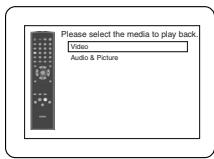
- Press the TOP MENU button to call up the Playback Media Selection screen in stop mode.
- If you select Audio & Picture, instead of Video on the Playback Media Selection screen, the DVD player can play back MP3/JPEG/WMA files. Refer to page 21 for details.
DivX® Subtitle
DivX®
The subtitle created by the user can be displayed during DivX® playback.
1 After select the DivX® file, the SUBTITLE LIST will appear except when the "DivX SUBTITLE" setting is "OFF". Refer to "Language Setting" on page 26.
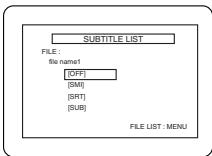
Press the Cursor buttons (▲ or▼) to select the desired extension you want to display, then press the ENTER button. DivX® with the subtitle starts playback. The subtitle cannot be displayed when the setting is "OFF".
- If there is more than one extension, the extension selection appears in the SUBTITLE LIST.
NOTES:
- DivX® subtitle can only be displayed according to the same name with an extension of the DivX® file name.
- Files whose extension is other than“.SMI”,“.smi”,“.SRT”,“.srt”,“.SUB” and“.sub” will not be listed in the SUBTITLE LIST.
- This unit cannot be recognised if the DivX® file and its subtitle file are not in the one folder.
- The subtitle may not be displayed if the file size is too large.
- To change the subtitle, refer to "Subtitle Language" on page 25 if multiple subtitles are available.
- The subtitle cannot display if the on-screen information is displayed.
- If "DivX SUBTITLE" is set to "OFF" in LANGUAGE menu, the SUBTITLE LIST will not be displayed even if you select a DivX® file with created subtitle.
- Unrecognisable characters will be replaced with asterisks.
This player recommends the use of files recorded at the following specifications:
| Applicable DivX® file | Remarks | |
| Playable Codec of AVI files | Plays all versions of DivX® video (including DivX® 6) with standard playback of DivX® media files. | They are recognised as MPEG 4. |
| Maximum size of image | 720 x 480 @30fps720 x 576 @25fps | |
| Sampling frequency of audio | 8kHz - 48kHz | It is prohibited to record MP3 sound on a digital device when the connection is made digitally. |
| Audio type | MPEG1 audio layer 3(MP3)MPEG1 audio layer 2Dolby Digital | MP3 files recorded at fixed bit rate of 32 kbps or higher are recommended. |
Changing the On-Screen Display
DVD
You can check information about the current disc by pressing the DISPLAY button.
Press the DISPLAY button during playback.
- Current chapter number/total chapters, elapsed time and remaining time of the current chapter, and current playback status will be displayed.
Press the DISPLAY button again.
- Current title number/total titles, elapsed time and remaining time of the current title, and current playback status will be displayed.
Press the DISPLAY button for the third time.
- The bit rate (the amount of audio and video data currently being read) and current playback status will be displayed.
- Current repeat setting appears on the display bar only when the repeat setting is active.
( 一 ^ 一 C: Chapter repeat/ T: Title repeat/A B: A-B repeat) - If you are playing back a two-layered disc, the layer number will also be displayed. (L0: Layer 0 is being played back. L1: Layer 1 is being played back.)
4 Press the DISPLAY button again.
- Current HDMI status will be displayed during the HDMI output mode. (Refer to NOTE FOR HDMI DISPLAY on page 24.)
Press the DISPLAY button again to exit.
CD VCD
1 Press the DISPLAY button during playback.
- Current track number/total tracks, elapsed time and remaining time of the current track, and current playback status will be displayed.
- Current repeat setting appears on the display bar only when the Repeat setting is active.
( 一 _ 一 T: Track repeat/ 一 A: All tracks repeat/A 一 B:A-B repeat)
Press the DISPLAY button again.
- Current track number/total tracks, elapsed time and remaining time of the entire disc, and current playback status will be displayed.
- Current repeat setting appears on the display bar only when the Repeat setting is active.
( T: Track repeat/ A: All tracks repeat/A B: A-B repeat) - On Audio CDs, when you are playing back a disc in programme or random mode, PROGRAM (or RANDOM) will be displayed.
Press the DISPLAY button again to exit.
MP3 JPEG DivX
1 Press the DISPLAY button.
- Current file name will be displayed.
Press the DISPLAY button.
- Current track number/total tracks and elapsed time (MP3) will be displayed.
- Current repeat setting appears only when the Repeat setting is active.
( T: Track repeat/ A: All (disc) repeat/ G: Group repeat/ A B: A-B repeat (DivX ^© only). - When you are playing back a disc with MP3 or JPEG files in programme or random mode, TR PROGRAM (or RANDOM) will be displayed.
Press the DISPLAY button again.
- During programme or random playback, each playback status will be displayed when you press the DISPLAY button. Then press the DISPLAY button to exit.
4 Press the DISPLAY button again. - Current HDMI status will be displayed during the HDMI output mode. (Refer to NOTE FOR HDMI DISPLAY on this page.)
Press the DISPLAY button again to exit.
WMA
1 Press the DISPLAY button.
- Current file name will be displayed.
Press the DISPLAY button again.
- Title name based on tag information of currently played-back file will be displayed.
Press the DISPLAY button for the third time.
- Artist name based on tag information of currently played-back file will be displayed.
Press the DISPLAY button again.
- Current track number/total tracks and elapsed time will be displayed.
- Current repeat setting appears only when the Repeat setting is active.
T: Track repeat/ A: All (disc) repeat/ G: Group (folder) repeat).
- When you are playing back a disc in programme or random mode, PROGRAM (or RANDOM) will be displayed.
Press the DISPLAY button again.
- During programme or random playback, each playback status will be displayed when you press the DISPLAY button. Then press the DISPLAY button to exit.
6 Press the DISPLAY button again.
- Current HDMI status will be displayed during the HDMI output mode. (Refer to NOTE FOR HDMI DISPLAY on this page.)
Press the DISPLAY button again to exit.
NOTE:
- If the file does not contain tag information, NOT AVAILABLE will be displayed.
NOTE FOR HDMI DISPLAY:
The displayed HDMI status are as follows:
- Information for image output/Resolution of image
- Sound output format
- Maximum number of audio channels that can be accepted by the connected equipment
Audio Language
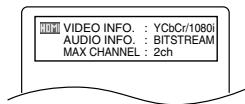
DVD
DivX®
The DVD player allows you to select a language (if multiple language options are available) during DVD disc playback.
1 Press the AUDIO button during playback.
Press the AUDIO button repeatedly to select your desired language.
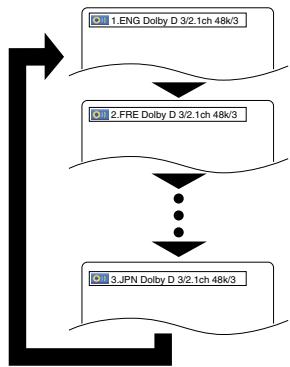
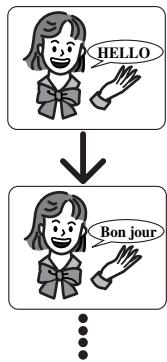
NOTES:
- The sound mode cannot be changed during playback of discs not recorded in double sound.
- Some discs allow to change the Audio Language setting on the disc menu. (Operation varies among discs. Refer to the manual accompanying the disc.)
- For discs with DivX® files, the screen only displays MP3 audio. Other audio sounds will be displayed with "asterisks".
- Pressing the AUDIO button may not work on some DVDs with multiple audio languages (e.g. DVDs which allow to change the Audio Language setting on the disc menu).
- If you choose a language that has a three-letter language code, the code will be displayed every time you change the Audio Language setting. If you choose any other languages, "---" will be displayed instead (refer to page 29).
Audio language selection cannot be made during Dialog Speed (refer to page 18). - DTS sound is output only from the digital audio outputs.
- If the disc has no audio language, NOT AVAILABLE will be displayed.
Subtitle Language
DVD
DivX®
The DVD player allows you to select a subtitle language (if multiple language options are available) during DVD disc playback.
Press the SUBTITLE button during playback.
Press the SUBTITLE button repeatedly to select your desired subtitle language.
- The selected language will be displayed on the display bar at the top of the screen.
- Press the Cursor buttons (▲ or ▲) to turn on or off subtitles during playback.
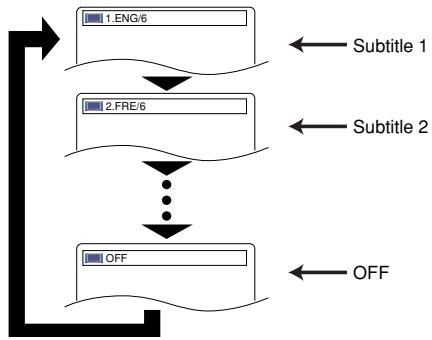
3 To turn off the subtitles, press the SUBTITLE button repeatedly until OFF appears.
NOTES:
- Some discs allow the Subtitle Language setting on the disc menu. (Operation varies among discs. Refer to the manual accompanying the disc.)
- Pressing the SUBTITLE button may not work on some DVDs with multiple subtitle languages (e.g. DVDs which allow the Subtitle Language setting on the disc menu).
- If your desired language is not shown after pressing the SUBTITLE button several times, the disc does not have subtitles in that language.
- If you choose a language that has a three-letter language code, the code will be displayed every time you change the Subtitle Language setting. If you choose any other languages, "---" will be displayed instead (refer to page 29).
- If the disc has no subtitle language, NOT AVAILABLE will be displayed.
- For discs with DivX® files, the screen only displays the number of subtitle languages.
Camera Angle
DVD
Some DVD discs contain scenes which have been shot simultaneously from various angles. You can change the camera angle when the (_) icon appears on the screen.
Press the ANGLE button during playback.
- The selected angle will be displayed on the display bar at the top of the screen.
Press the ANGLE button repeatedly to select your desired angle.
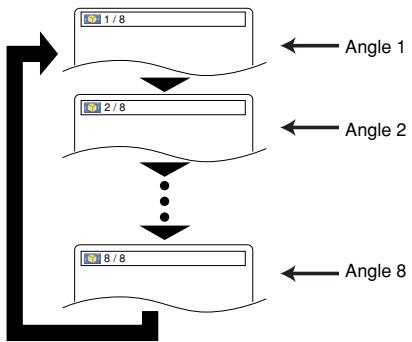
NOTE:
- If ANGLE ICON is set to OFF in the display menu, the () icon will not appear (refer to page 28).
Virtual Surround
DVD
CD
VCD
MP3
WMA
You can enjoy stereophonic virtual space through your existing 2 channel stereo system.
1 During playback, press the MODE button repeatedly until the Virtual Surround setting appears.
Press the ENTER button to set it 1 (Natural effect), 2 (Emphasised effect) or OFF.
Press the RETURN button to exit.
NOTES:
- Select Virtual Surround OFF or lower the volume if the sound is distorted.
- Virtual Surround will not be effective if the sound mode is set to something other than STEREO (for Audio CD or Video CD playback only).
- This function cannot be used during Dialog Speed (refer to page 18).
Stereo Sound Mode
CD
VCD
Press the AUDIO button repeatedly during playback to select your desired sound mode.
STEREO - both right and left channels are active (stereo)
L-ch -only left channel is active
R-ch -only right channel is active
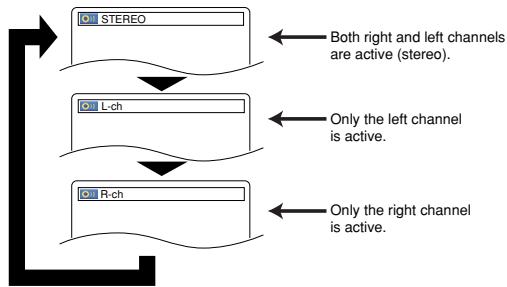
NOTE:
- The STEREO can only be output when playing back DTS CD.
In setup menu, QUICK mode, CUSTOM mode and INITIALIZE mode are available (refer to pages 26-28). QUICK mode consists of items of which the setting menus are frequently used, and they are accompanied with QUICK mark. You can make all settings in CUSTOM mode.
Language Setting
Language setting can be varied with some DVDs or DivX Subtitles recorded in discs.
1 Press the SETUP button in stop mode.
Press the Cursor buttons (or) to select CUS-TOM, then press the ENTER button.
- The CUSTOM mode will appear.
Press the Cursor buttons (or) to select LANGUAGE, then press the ENTER button to confirm.
4 Press the Cursor buttons (▲ or ) to select an item, then press the ENTER button.
DIALOG (Default: ORIGINAL)
- Sets the audio language.
SUBTITLE(Default:OFF)
- Sets the subtitle language.
DISC MENU (Default: ENGLISH)
- Sets the language for DVD Menu.
OSD(Default:ENGLISH) QUICK
- Sets the language for the on-screen display.
DivX SUBTITLE (Default: OFF)
- Sets the DivX® subtitle language.
Press the Cursor buttons (▲ or ) to select a language, then press the ENTER button.
- If OTHER is selected for DIALOG, SUBTITLE or DISC MENU, press four-digit number to enter the code for your desired language (refer to the language code list on page 29).
- Only the languages supported by the disc can be selected.
- For DivX SUBTITLE, if you want to display the Russian subtitle, you can select either "RUSSIAN1" or "RUSSIAN2" which depends on type of the subtitle files.
6 Press the SETUP button to exit.
NOTE:
- Language setting for DIALOG and SUBTITLE may not be available on some discs. Then use the AUDIO and SUBTITLE buttons. Details are on pages 24 and 25.
Display Setting
You can change certain aspects of the DVD display screens, still mode setting, Progressive and HDMI settings.
1 Press the SETUP button in stop mode.
2 Press the Cursor buttons (or) to select CUS-TOM, then press the ENTER button.
- The CUSTOM mode will appear.
3 Press the Cursor buttons (or) to select DISPLAY, then press the ENTER button to confirm.
4 Press the Cursor buttons (▲ or▼) to select an item, then press the ENTER button.
TV ASPECT (Default: 4:3 LETTER BOX)
- Press the Cursor buttons (▲ or ) to select a setting, then press the ENTER button.
- Select 4:3 LETTER BOX. Black bars may appear at the top and bottom of the screen, depending on the proportion of the TV screen.
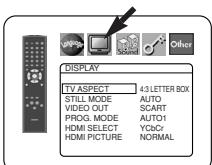
QUICK
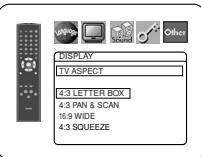
- Select 4:3 PAN & SCAN for a full height picture with both sides adjusted.
- Select 16:9 WIDE if a wide-screen TV is connected to the DVD player.
- Select 4:3 SQUEEZE when the TV screen is too large horizontally at 16:9 WIDE setting and when it is impossible to adjust the screen size using the TV's controls.
STILL MODE(Default: AUTO)
- Press the Cursor buttons (▲ or ) to select a setting (AUTO, FIELD, or FRAME), then press the ENTER button.
- This function allows you to adjust picture resolution and quality in still mode.
- An individual picture on TV screen is called as "frame", which consists of two separate images called as "field". Some pictures may be blurred at the AUTO setting in still mode due to their data characteristics.
- AUTO: Automatically selects the best resolution setting (FRAME or FIELD) based on the data characteristics of the pictures.
- FIELD: Select FIELD when the pictures are still unstable even if AUTO is selected. FIELD stabilises the pictures, although the picture quality may become coarse due to the limited amount of data.
- FRAME: Select FRAME to display relatively motionless pictures in higher resolution. FRAME improves the picture quality, although it may unstabilise the pictures due to simultaneous output of two field data.
VIDEO OUT (Default: SCART)
- Press the Cursor buttons (▲ or ) to select a setting (SCART, COMPONENT INTERLACE or COMPONENT PROGRESSIVE), then press the ENTER button.
- This setting will be effective when you exit the setup screen by pressing the SETUP button.
- When VIDEO OUT is COMPONENT PROGRESSIVE, P.SCAN appears on the DVD player's front panel display after you exited the setup screen.
Refer to page 12 for more details.
PROG.MODE(Default:AUTO1)
-
Press the Cursor buttons (▲ or▼) to select a setting (AUTO1, AUTO2, or VIDEO), then press the ENTER button.
This function allows you to select the image output, depending on the base material (video or film) of the recorded DVD images, whenVIDEO OUT is set to COMPONENT PROGRESSIVE. -
AUTO1: Automatically selects the best image output (AUTO2 or VIDEO) based on the information of data stream.
- AUTO2: A combination of the top and bottom fields is output as one-frame image.
VIDEO: Either of top or bottom field is output for one-frame image.
HDMI SELECT (Default: YCbCr)
- Select an HDMI output mode between YCbCr and RGB.
- When the connected equipment is not compatible with YCbCr, HDMI signal is output as RGB regardless of the setting.
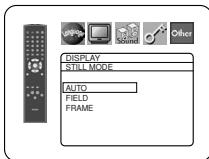
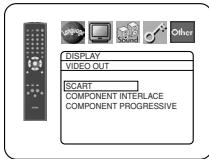
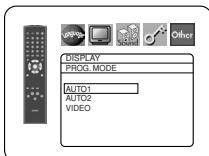
HDMI PICTURE (Default: NORMAL)
- Select an HDMI picture mode between NORMAL and ENHANCED.
- Select ENHANCED if the black-white contrast is not clear.
- This setting is effective only for HDMI RGB output.
5 Press the SETUP button to exit.
NOTES:
- Be sure to press the SETUP button, or the setting will not work.
- When changing the VIDEO OUT setting (SCART, COMPONENT INTERLACE or COMPONENT PROGRESSIVE), connect to a Video jack or an S-Video jack on the TV. If the setting is changed, for example, to SCART while the Component Video jacks are used to connect to the TV, a distorted video signal may be output.
Audio Setting
You can change some Audio settings. It only affects during the playback of DVD discs.
Press the SETUP button in stop mode.
Press the Cursor buttons (or) to select CUS-TOM, then press the ENTER button.
- The CUSTOM mode will appear.
Press the Cursor buttons (or) to select AUDIO, then press the ENTER button to confirm.
4 Press the Cursor buttons (▲ or ) to select an item, then press the ENTER button.
DRC (Dynamic Range Control) (Default: ON)
- DRC function compresses the range of sound volume.
- DRC function is available only on the discs that are recorded in the Dolby Digital format.
LPCM SELECT (Default: OFF)
- Set to ON when outputting in 48kHz (or 44.1kHz ).
- This function is available only on digital outputting of a disc recorded in 96kHz (or 88.2kHz).
- When the HDMI sound is output, the setting is disregarded.
When playing disc with copyright protection - The sound will be down sampled at 48kHz , even if you set to OFF.
DOLBY DIGITAL
(Default:BITSTREAM)
- Set to BITSTREAM when the player is connected to a Dolby Digital decoder.
BITSTREAM:
Output by Dolby Digital.
PCM: Convert Dolby Digital to PCM.
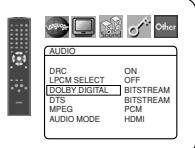
DTS
(Default:BITSTREAM)
BITSTREAM:
Output by DTS sound. Set to BITSTREAM when the unit is connected to a DTS decoder.
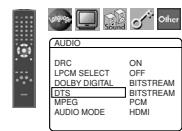
- For HDMI connection, if the connected equipment is not compatible with the DTS Bitstream, the signals are not output regardless of the setting.
OFF: No DTS sound will be output. - DTS sound is output only from digital audio outputs.
MPEG (Default: PCM)
BITSTREAM:
Output MPEG sound. Set to BITSTREAM when the unit is connected to an MPEG decoder.
PCM: Convert MPEG sound to PCM.
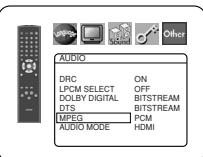
AUDIO MODE (Default: HDMI)
- Set to HDMI when outputting the HDMI sound.
- Set to ANALOG when not outputting the HDMI sound.
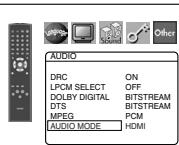
Press the SETUP button to exit.
Ratings Control
Ratings Control allows you to set a limit, which prevents your children from viewing inappropriate materials on DVDs. A four-digit password that you establish will give you the control.
RATING LEVEL
You can set a viewing limit through Rating Level. Playback of the discs will stop if the disc's general rating exceeds the limit you set.
1 Press the SETUP button in stop mode.
Press the Cursor buttons (or) to select CUS-TOM, then press the ENTER button.
Press the Cursor buttons (or) to select RATINGS, then press the ENTER button.
4 Press the Numeric buttons to enter your four-digit password.
- When doing this for the first time, enter any four-digit number by pressing the Numeric buttons (except for 4737), then press the ENTER button. That number will
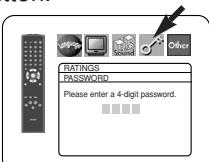
be used as the password from the second time onward. Record your password in case you forget it.
- If you forget the password, press 4, 7, 3, 7. The original password will be cleared and rating levels will be set to ALL. Enter a new four-digit password, then press the ENTER button.
Press the Cursor buttons (▲ or▼) to select RATING LEVEL, then press the ENTER button.
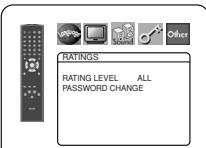
6 Press the Cursor buttons (▲ or▼) to select a desired level, then press the ENTER button.
Press the SETUP button to exit.
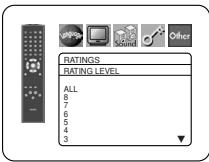
NOTE:
- This function may not work on some DVDs. Be sure if the RATINGS operates in the way you have set.
To Change the Password:
1) Follow the steps 1 to 4 above.
2) Press the Cursor buttons (▲ or▼) to select PASSWORD CHANGE, then press the ENTER button.
3) Enter a new four-digit password, then press the ENTER button.
4) Press the SETUP button to exit.
1 Press 4, 7, 3, 7 at step 4.
- Password will be cleared and rating level will be set to ALL.
2 Repeat steps 4 to 7 to re-establish the parental lock.
CONTROL LEVELS
- ALL
Parental lock is cancelled. - Level 8
DVD software of any grade (adult/general/children) can be played back. - Levels 7 to 2
Only DVD software intended for general use and children can be played back. - Level 1
Only DVD software intended for children can be played back, with those intended for adult and general use prohibited.
Others Setting
This function allows you to adjust Angle Icon availability, Auto Power off, brightness of the player's display panel and slide show mode, and to obtain DivX® registration code.
1 Press the SETUP button in stop mode.
Press the Cursor buttons (or) to select CUSTOM, then press the ENTER button.
The CUSTOM mode will appear.
Press the Cursor buttons (or) to select OTHERS, then press the ENTER button to confirm.
4 Press the Cursor buttons (▲ or ) to select an item, then press the ENTER button.
ANGLE ICON (Default:ON)
- Press the ENTER button repeatedly to turn ANGLE ICON ON or OFF.
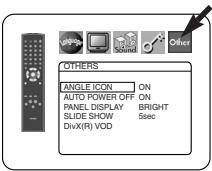
AUTO POWER OFF (Default:ON)
- Press the ENTER button repeatedly to turn AUTO POWER OFF ON or OFF.
- It will turn off the DVD player automatically after 30 minutes of no use.
PANEL DISPLAY
(Default:BRIGHT)
- Press the Cursor buttons (▲ or▼) to select a setting (BRIGHT, DIMMER and AUTO), then press the ENTER button.
- When AUTO is selected, the display dims only during playback.
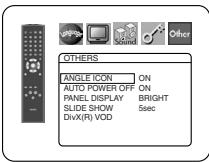
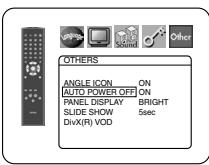
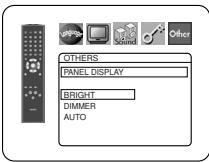
SLIDE SHOW (Default:5sec)
- This adjusts the playback speed of the JPEG SLIDE SHOW.
- Press the Cursor buttons (▲ or ) to select between 5 sec and 10 sec, then press the ENTER button.
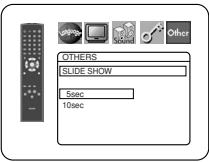
DivX(R) VOD
- This player allows you to use the DivX® Video-On-Demand (VOD) services. You can play back the files purchased or rented from the VOD services. You need to have a registration code to purchase or rental VOD files. Please www.divx.com/vod for more detail
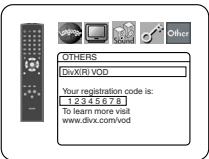
NOTES:
- You cannot play back the DivX® VOD files obtained with different registration codes on this player.
- You cannot play back the DivX® VOD files, of which rental period has been expired. In such case, press the MENU button and select other files that can be played back.
- Some DivX® VOD files are restricted with the limited playable times (you cannot play them back beyond the limit). If your DivX® VOD file has such limit, the playback confirmation screen will appear. Use the Cursor button (▲ or ▲) to select YES if you want to play back the file, or to select NO if you do not wish to play it back. Then, press the ENTER button to confirm the selection.
- Please send your inquiries regarding the VOD files to DivX, Inc.
5 Press the SETUP button to exit.
Reset to the Default Settings (except for RATINGS and VIDEO OUT)
This allows you to return all selections of SETUP (except for RATINGS and VIDEO OUT) to their default settings.
1 Press the SETUP button in stop mode.
Press the Cursor buttons (or) to select INITIALIZE, then press the ENTER button.
Press the Cursor buttons (▲ or ) to select YES, then press the ENTER button.
4 Press the SETUP button to exit.
NOTE:
- If you like to cancel initialising, select NO at step 3.
Language Code List
| Language | Code | Language | Code | Language | Code | Language | Code |
| A-B | Frisian | 5271 | Malay | 5965 | Somali | 6561 | |
| Abkhazian | 4748 | Galician | 5358 | Malayalam | 5958 | Spanish [SPA] | 5165 |
| Afar | 4747 | Georgian | 5747 | Maltese | 5966 | Sundanese | 6567 |
| Afrikaans | 4752 | German [GER] | 5051 | Maori | 5955 | Swahili | 6569 |
| Albanian | 6563 | Greek [GRE] | 5158 | Marathi | 5964 | Swedish [SWE] | 6568 |
| Amharic | 4759 | Greenlandic | 5758 | Moldavian | 5961 | T | |
| Arabic | 4764 | Guarani | 5360 | Mongolian | 5960 | Tagalog | 6658 |
| Armenian | 5471 | Gujarati | 5367 | Nauru | 6047 | Tajik | 6653 |
| Assamese | 4765 | Hausa | 5447 | Nepali | 6051 | Tamil | 6647 |
| Aymara | 4771 | Hebrew | 5569 | Norwegian [NOR] | 6061 | Tatar | 6666 |
| Azerbaijani | 4772 | Hindi | 5455 | O-R | Telugu | 6651 | |
| Bashkir | 4847 | Hungarian [HUN] | 5467 | Occitan | 6149 | Thai | 6654 |
| Basque | 5167 | I-K | Oriya | 6164 | Tibetan | 4861 | |
| Bengali;Bangla | 4860 | Icelandic [ICE] | 5565 | Oromo(Afan) | 6159 | Tigrinya | 6655 |
| Bhutani | 5072 | Indonesian | 5560 | Panjabi | 6247 | Tonga | 6661 |
| Bihari | 4854 | Interlingua | 5547 | Pashto;Pushto | 6265 | Tsonga | 6665 |
| Bislama | 4855 | Interlingue | 5551 | Persian | 5247 | Turkish [TUR] | 6664 |
| Breton | 4864 | Inupiak | 5557 | Polish [POL] | 6258 | Turkmen | 6657 |
| Bulgarian | 4853 | Irish [IRI] | 5347 | Portuguese [POR] | 6266 | Twi | 6669 |
| Burmese | 5971 | Italian [ITA] | 5566 | Quechua | 6367 | U-Z | |
| Byelorussian | 4851 | Japanese [JPN] | 5647 | Rhaeto-Romance | 6459 | Ukrainian | 6757 |
| C-E | Javanese | 5669 | Romanian [RUM] | 6461 | Urdu | 6764 | |
| Cambodian | 5759 | Kannada | 5760 | Russian [RUS] | 6467 | Uzbek | 6772 |
| Catalan | 4947 | Kashmiri | 5765 | S | Vietnamese | 6855 | |
| Chinese [CHI] | 7254 | Kazakh | 5757 | Samoan | 6559 | Volapuk | 6861 |
| Corsican | 4961 | Kinyarwanda | 6469 | Sangho | 6553 | Welsh | 4971 |
| Croatian | 5464 | Kirghiz | 5771 | Sanskrit | 6547 | Wolof | 6961 |
| Czech [CZE] | 4965 | Kirundi | 6460 | Scots Gaelic | 5350 | Xhosa | 7054 |
| Danish [DAN] | 5047 | Korean [KOR] | 5761 | Serbian | 6564 | Yiddish | 5655 |
| Dutch [DUT] | 6058 | Kurdish | 5767 | Serbo-Croatian | 6554 | Yoruba | 7161 |
| English [ENG] | 5160 | L-N | Sesotho | 6566 | Zulu | 7267 | |
| Esperanto | 5161 | Laothian | 5861 | Setswana | 6660 | ||
| Estonian | 5166 | Latin | 5847 | Shona | 6560 | ||
| F-H | Latvian;Lettish | 5868 | Sindhi | 6550 | |||
| Faroese | 5261 | Lingala | 5860 | Singhalese | 6555 | ||
| Fiji | 5256 | Lithuanian | 5866 | Siswat | 6565 | ||
| Finnish [FIN] | 5255 | Macedonian | 5957 | Slovak | 6557 | ||
| French [FRE] | 5264 | Malagasy | 5953 | Slovenian | 6558 |
If you choose a Language that has a three-letter language code (written in bracket), the code will be displayed every time you change the Audio or Subtitle language setting on pages 24 and 25. If you choose any other languages, '---' will be displayed instead.
MAINTENANCE
Cleaning the Cabinet
- Use a soft cloth slightly moistened with a mild detergent solution. Do not use a solution containing alcohol, spirits, ammonia or abrasives.
Cleaning Discs
- When a disc becomes dirty, clean it with a cleaning cloth. Wipe the disc from the centre out. Do not wipe in a circular motion.
- Do not use solvents such as benzine, thinner, commercially available cleaners, detergent, abrasive cleaning agents or antistatic spray intended for analogue records.
Cleaning the disc lens
If the player still does not perform properly when it is operated while referring to the relevant sections and to "TROUBLESHOOTING GUIDE" in this Operating Instruction, the laser optical pickup unit may be dirty. Consult your dealer or an Authorised Service Centre for inspection and cleaning of the laser optical pickup unit.
Disc Handling
- Use discs which have the following logos on them.
- Handle the discs so that fingerprints and dust do not adhere to the surfaces of the discs.
- Always store the disc in its protective case when it is not used.
- Note that discs with special shapes (heart-shaped discs, octagonal discs, etc.) cannot be played on the this product. Do not attempt to play such discs, as they may damage the player.



VIDEO

R

RW

DIGITALVIDEO

VIDEO CD

Recordable

Recordable

ReWritable

ReWritable

MP3



HIGH DEFINITION MULTIMEDIA INTERFACE
If the DVD player does not perform properly when operated as instructed in this Operating Instruction, check the player, consulting the following checklist.
| Problem | Solution | Page |
| No power | -Check if the AC power cord is properly connected. | - |
| -Unplug the AC code once, and wait for 5-10 seconds and then plug it in again. | - | |
| No sound or picture | -Check if the TV is turned on. | - |
| -Check the video connection. | 14 | |
| -Check the AUDIO/VIDEO cable connections to the TV. | 13-15 | |
| (See Connecting to a TV.) | ||
| -Check if the VIDEO OUT mode is set correctly. | 12, 26 | |
| Distorted picture | -Sometimes a small amount of picture distortion may appear. | - |
| This is not a malfunction. | 14 | |
| -Connect the DVD player directly to the TV. | 12, 26 | |
| -Check if the VIDEO OUT mode is set correctly. | 12, 14-16 | |
| -The unit is sending Progressive video signal and HDMI signal simultaneously when HDMI mode is set to ON. If you connected component video cable to your TV, which is not compatible with progressive scan, the distorted picture will be output. Press the HDMI button on the front panel to set the HDMI output mode to OFF. | ||
| Completely distorted picture or black/white picture with DVD | -Connect the DVD player directly to the TV. | 14 |
| -Make sure the disc is compatible with the DVD player. | 6 | |
| No sound or distorted sound | -Adjust the volume. | - |
| -Check that the speakers are connected correctly. | 13 | |
| -The HDMI sound is not output when AUDIO MODE is set to ANALOG. | 27 | |
| No audio at digital output | -Check the digital connections. | 13 |
| -Check the audio settings. | 27 | |
| No DTS sound output | -Use a DIGITAL OUT jack when outputting the DTS sound. | 13, 27 |
| No image from HDMI connection | -Check the HDMI connection. (Check the status of the HDMI related indications.) | 15, 26-27 |
| -Check whether the connected monitor equipment or other equipment supports HDCP. (This player will not output a video signal unless the other equipment supports HDCP.) | ||
| -Check the setting of HDMI. | ||
| -Check whether the output format of this player (HDMI FORMAT) matches the supported input format of other connected equipment. | ||
| Picture freezes momentarily during playback | -Check the disc for fingerprints/scratches and clean with a soft cloth wiping from centre to edge. | 29 |
| -Clean the disc. | 29 | |
| Disc can't be played back | -Clean the disc. | 29 |
| -Ensure the disc label is facing up. | 16 | |
| -Check if the disc is defective by trying another disc. | - | |
| -Cancel the ratings control or change the control level. | 27-28 | |
| -Insert a correct disc that can be played back on this player. | 6 | |
| No return to start-up screen when disc is removed | -Reset the player by turning it off, then on again. | - |
| The DVD player does not respond to the remote control | -Aim the remote control directly at the sensor on the front of the player. | 8 |
| -Reduce the distance to the player. | - | |
| -Replace the batteries in the remote control. | 11 | |
| -Re-insert the batteries with their polarities (+/- signs) as indicated. | 11 | |
| Buttons do not work or the player stops responding | -To completely reset the player, unplug the AC cord from the AC outlet for 5-10 seconds. | - |
| The DVD player does not respond to some operating commands during playback | -Operations may not be permitted by the disc. | 6 |
| Refer to the instructions of the disc. | ||
| The DVD player cannot read CDs/DVDs | -Use a commonly available CD/DVD cleaner to clean the lens before sending the DVD player for repair. | 29 |
| Angle does not switch | -The angle cannot be switched for DVDs which do not contain multiple angles. In some cases multiple angles are only recorded for specific scenes. | 25 |
| Playback does not start when the title is selected | -Check the "RATINGS" setting. | 27-28 |
| The password for rating level has been forgotten | -Enter the default password "4737", then your forgotten password will be cleared. | 28 |
NOTES:
- Some functions are not available in specific modes, but this is not a malfunction. Read the description in these Operating Instructions for details on correct operations.
- Playback from a desired track and random playback are not available during programme playback.
Some functions are prohibited on some discs. - When playing back Video CDs with PBC function, some operations (e.g., select and track repeat) cannot be performed. Cancel PBC function temporarily to perform those operations. See page 16.
SIGNAL SYSTEM
PAL colour
APPLICABLE DISCS
(1) DVD-Video Discs
1-layer 12cm single-sided discs, 2-layer 12cm single-sided discs, 2-layer 12cm double-sided discs (1 layer per side)
1-layer 8cm single-sided discs, 2-layer 8cm single-sided discs, 2-layer 8cm double-sided discs (1 layer per side)
(2) DVD-R/DVD-RW
(3) Compact discs (Audio CD, Video CD) 12cm discs, 8cm discs
(4) CD-R/CD-RW
S-VIDEO OUTPUT
Y output level: 1Vp-p (75Ω/ohms)
C output level: 0.3Vp-p
Output connectors: S connectors, 1 set
VIDEO OUTPUT
Output level: 1Vp-p (75Ω/ohms)
Output connector: Pin jacks, 1 set
COMPONENT OUTPUT
Y output level: 1Vp-p (75Ω/ohms)
Pb/Cb output level: 0.7Vp-p (75Ω/ohms)
PR/CR output level: 0.7Vp-p (75Ω/ohms)
Output connector: Pin jacks, 1 set
HDMI OUTPUT
HDMI jack, 1 set
AUDIO/VIDEO
21-pin scart jack, 1 set
AUDIO OUTPUT
Output level: 2Vrms
2 channel (L, R) output connector: Pin jack, 1 set
AUDIO OUTPUT PROPERTIES
(1) Frequency response
1 DVDs (linear PCM) : 4Hz to 22kHz (48kHz sampling)
: 4Hz to 44kHz (96kHz sampling)
2 CDs
: 4Hz to 20kHz
(2) S/N ratio
:115dB
(3) Total harmonic distortion : 1kHz CD: 0.004%
(4) Dynamic range
: DVD: 100dB
CD: 98dB
DIGITAL AUDIO OUTPUT
Optical digital output: Optical connector, 1 set
Coaxial digital output: Pin jack, 1 set
POWER SUPPLY
AC 200-240V, 50Hz
POWER CONSUMPTION
15W (Standby: 1.15W)
MAXIMUM EXTERNAL DIMENSIONS
435 (width) x 75 (height) x 310 (depth) mm
(including protruding parts)
MASS
2.3Kg (5.07lbs)
REMOTE CONTROL UNIT
RC-1018
Infrared pulse type
Supply: DC 3V, 2 R6P/AA batteries
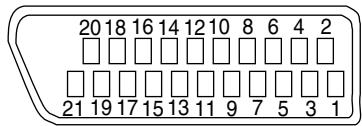
Contacts, signal levels and impedances
Contact 1
Audio Output (Right): 2.0Vrms/1kΩ
Contact 3
Audio Output (Left): 2.0Vrms/1kΩ
Contact 4
Audio, Ground
Contact 5
RGB, Ground (Blue)
Contact 7
RGB Output (Blue): 0.7Vp-p/75Ω
Contact 8
Function Select Switching Control
L:0.0~2.0V DC
Power Off
M: 4.5~7.0V DC Wide-Screen Mode (16:9)
H: 9.5~12.0V DC
Normal Mode
(4:3)
Contact 9
RGB, Ground (Green)
Contact 11
RGB Output (Green): 0.7Vp-p/75Ω
Contact 13
RGB, Ground (Red)
Contact 14
RGB Switching Control, Ground
Contact 15
RGB Output (Red): 0.7Vp-p/75Ω
Contact 16
RGB Switching Control
H:1\~3V DC
RGB Mode
Contact 17
Video Output Signal, Ground
Contact 18
Video Input Signal, Ground
Contact 19
Video Output (CVBS): 1.0Vp-p/75Ω
Contact 21
Common Ground (shielding)
D&M Holdings Inc.
PROFESSIONAL BUSINESS COMPANY
TOKYO, JAPAN
http://www.dm-pro.jp
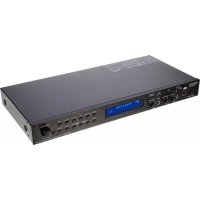
- WARNING: TO REDUCE THE RISK OF FIRE OR ELECTRIC SHOCK, DO NOT EXPOSE THIS APPLIANCE TO RAIN OR MOISTURE.
- CAUTION
- CAUTION:
- PRECAUTIONS
- Laser Safety
- Declaration of Conformity
- Important
- Power Supply
- Warning
- WARNING: LIVE PARTS INSIDE. DO NOT REMOVE ANY SCREWS.
- Installation Location
- Cautions on Installation
- NOTE:
- Dew Warning
- Avoid the Hazards of Electrical Shock and Fire
- A NOTE ABOUT RECYCLING:
- INTRODUCTION
- About Copyright
- Notice for the Progressive Scan Outputs
- Supplied Accessories
- Symbols Used in this Manual
- Playable Discs
- If you cannot play back a disc which bears one of the marks above, check the following notes.
- Tour of the Remote Control
- Front Panel Display
- Displays During Operation
- NOTES:
- HDMI Mode and Actual Output Signals
- Loading the Batteries
- Cautions On Batteries
- Description - Rear Panel
- Selecting Progressive Scan (480p/576p or Interlaced 480i/576i) Playback
- What is Progressive Scanning?
- Connection to an Audio System
- NOTES (for Method 2 only):
- Optical cable (commercially available)
- Connection to a TV (for video)
- HOW TO CONNECT TO A TV WITHOUT AUDIO/VIDEO INPUT JACKS
- Connection to a TV with an HDMI Compatible Port
- Copyright protection system
- BasicPlayback
- Getting started
- CANCELLING AND CALLING BACK PBC FUNCTION
- HDMI Setup
- Brightness of the Front Panel Display
- General Features
- Disc Menu
- Title Menu
- CALLING UP A MENU SCREEN DURING PLAYBACK
- Still / Pause
- Resume
- Fast Forward / Reverse Search
- Slow Forward / Slow Reverse
- Step by StepPlayback
- Picture Control
- Zoom
- Dialog Speed
- Slide Show Mode
- Title / Chapter Search
- By using the SEARCH MODE button
- By using the SKIP buttons
- Track Search
- Time Search
- Marker Setup Screen
- Repeat
- REPEAT TITLE / CHAPTER
- REPEAT TRACK / GROUP / ALL
- A-B REPEAT
- ProgrammePlayback
- Random Playback
- MP3 / JPEG / WMA Playback
- Information on MP3, JPEG and WMA discs
- Kodak Picture CD
- NOTES on JPEG and Kodak Picture CD:
- NOTES on WMA:
- DivX® Playback
- DivX® Subtitle
- DivX®
- Changing the On-Screen Display
- DVD
- CD VCD
- MP3 JPEG DivX
- WMA
- NOTE FOR HDMI DISPLAY:
- Audio Language
- Subtitle Language
- Camera Angle
- Virtual Surround
- Stereo Sound Mode
- Language Setting
- DIALOG (Default: ORIGINAL)
- SUBTITLE(Default:OFF)
- DISC MENU (Default: ENGLISH)
- OSD(Default:ENGLISH) QUICK
- DivX SUBTITLE (Default: OFF)
- Display Setting
- TV ASPECT (Default: 4:3 LETTER BOX)
- QUICK
- STILL MODE(Default: AUTO)
- VIDEO OUT (Default: SCART)
- PROG.MODE(Default:AUTO1)
- HDMI SELECT (Default: YCbCr)
- HDMI PICTURE (Default: NORMAL)
- Press the SETUP button to exit.
- Audio Setting
- DRC (Dynamic Range Control) (Default: ON)
- LPCM SELECT (Default: OFF)
- DOLBY DIGITAL
- (Default:BITSTREAM)
- DTS
- MPEG (Default: PCM)
- AUDIO MODE (Default: HDMI)
- Ratings Control
- RATING LEVEL
- To Change the Password:
- CONTROL LEVELS
- Others Setting
- ANGLE ICON (Default:ON)
- AUTO POWER OFF (Default:ON)
- PANEL DISPLAY
- (Default:BRIGHT)
- SLIDE SHOW (Default:5sec)
- DivX(R) VOD
- Reset to the Default Settings (except for RATINGS and VIDEO OUT)
- MAINTENANCE
- Cleaning the Cabinet
- Cleaning Discs
- Cleaning the disc lens
- Disc Handling
- SIGNAL SYSTEM
- APPLICABLE DISCS
- S-VIDEO OUTPUT
- VIDEO OUTPUT
- COMPONENT OUTPUT
- HDMI OUTPUT
- AUDIO/VIDEO
- AUDIO OUTPUT
- AUDIO OUTPUT PROPERTIES
- DIGITAL AUDIO OUTPUT
- POWER CONSUMPTION
- MAXIMUM EXTERNAL DIMENSIONS
- MASS
- REMOTE CONTROL UNIT
- Contacts, signal levels and impedances
- D&M Holdings Inc.
- PROFESSIONAL BUSINESS COMPANY
Brand : DENON
Model : DN-V100
Category : Media player