USER MANUAL N231 LOGITECH
Thank you for purchasing your new Logitech QuickCam™, the world's most popular webcams.
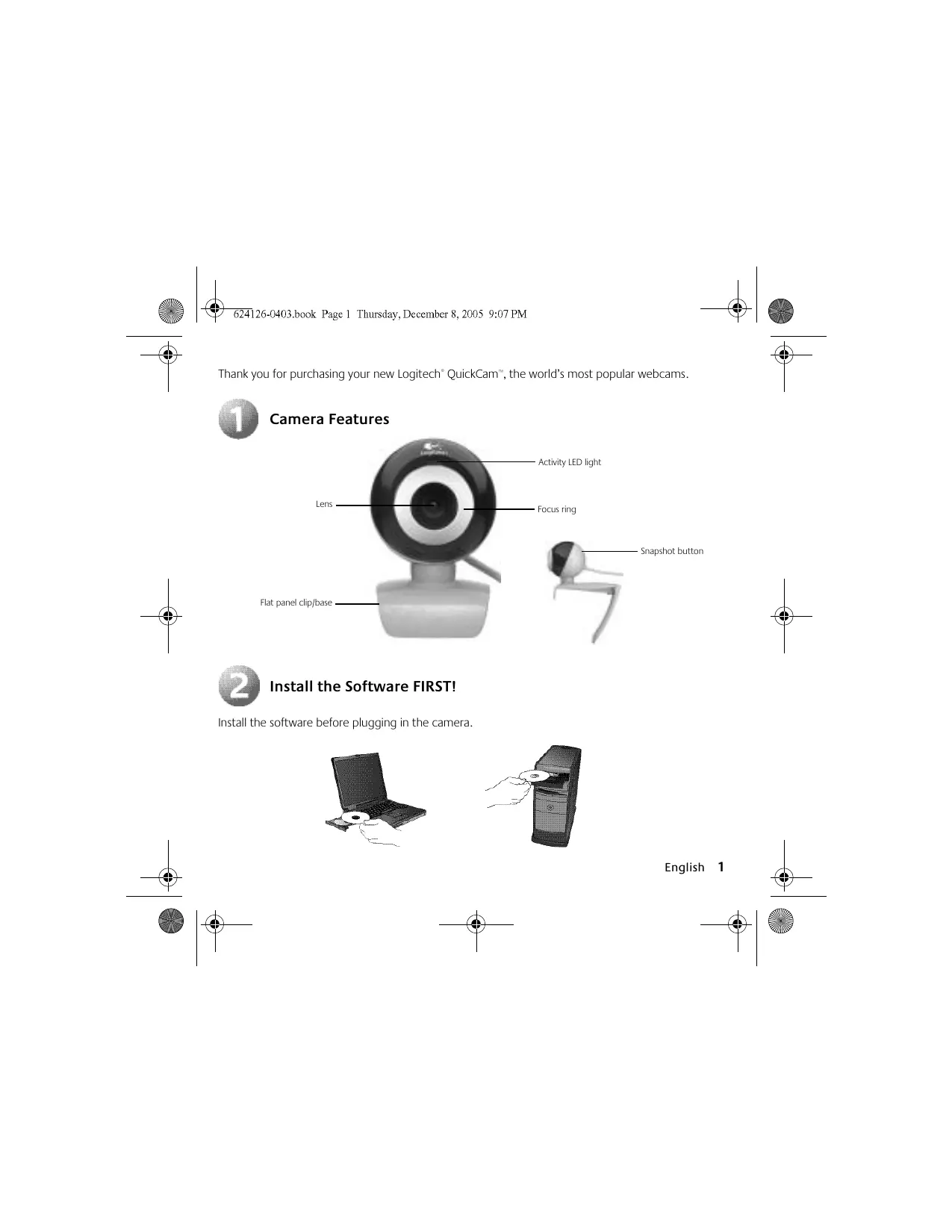
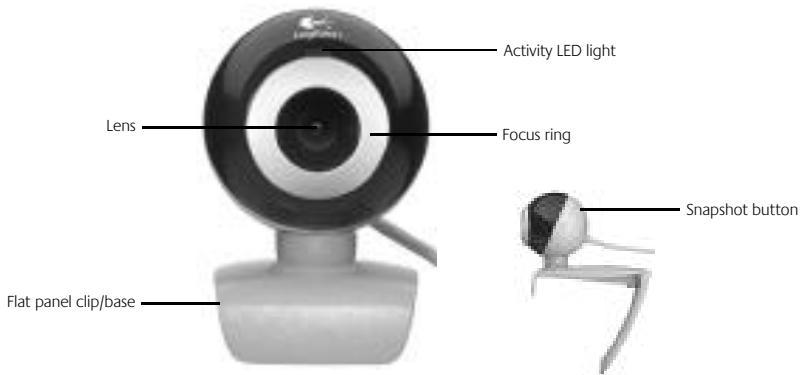
Camera Features
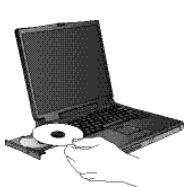
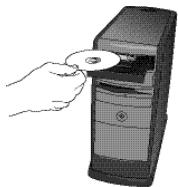
Install the Software FIRST!
Install the software before plugging in the camera.

Connect the Camera to Your Computer
When prompted by the software's on-screen messages, connect the camera to a USB port on your computer.
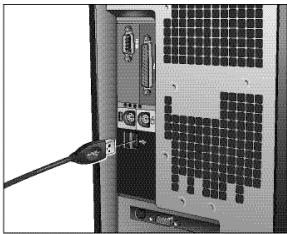
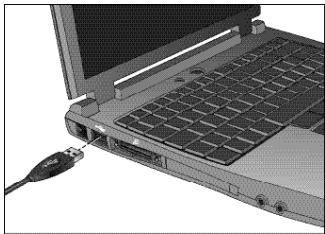

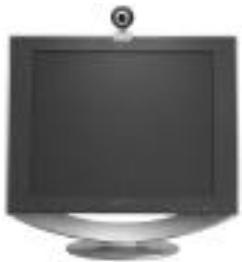
Position Camera
Place the camera in the middle of your computer monitor for optimal eye contact. The camera can pivot vertically or horizontally, allowing you to find the best position.
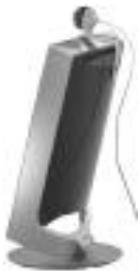
Fold in or flatten out clip to place camera on any flat surface.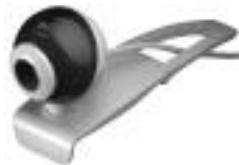
You have successfully completed installation. Now you can begin to enjoy live video images with your webcam using any popular video application. For example, you can
See and hear family and friends via live, full-screen video and audio.* - Send video instant messages to friends and family with your webcam via most popular instant messaging applications. - Email videos and photos to create a lasting impression. Chat live with friends and family using Logitech VideoCall over a broadband Internet connection. Optional microphone required.
To help you get started, go to http://www.logitech.com/videoapps for links to popular applications and for more information.
- No monthly fees with the latest version of MSN® Messenger Video Conversation. Requires optional microphone.

Launch the QuickCam Software
At any time, you can double-click the QuickCam® shortcut on the desktop to launch the QuickCam® software.
Shooting Still Pictures. Use the software's QuickCapture™ feature to take still pictures.
Additional Help. Launch the software and click the Help button.

Software Updates. Go to http://www.logitech.com/support.
To learn more about Logitech® products, go to http://www.logitech.com.