
IF045 - Digital Camera POLAROID - Free user manual and instructions
Find the device manual for free IF045 POLAROID in PDF.


| Product type | Waterproof digital camera |
| Brand | Polaroid |
| Model | IF045 |
| Sensor resolution | 10 megapixels (CMOS) |
| Maximum image resolution | 4320 x 3240 pixels (14 M interpolated) |
| Digital zoom | 5x |
| Rear screen | 2.7 inch color TFT |
| Front screen | 1.8 inch color TFT (selfie) |
| Waterproof | Up to 3 meters (10 feet) |
| Power supply | 2 x AAA 1.5V batteries (alkaline recommended) |
| Storage | Micro SD card up to 32 GB (not included) |
| Built-in flash | Yes (Auto, On, Off) |
| Video recording | VGA 640x480, QVGA 320x240 (AVI) |
| Shooting modes | Auto, Landscape, Backlight, Night, Portrait, Sports |
| White balance | Auto, Daylight, Cloudy, Tungsten, Fluorescent |
| ISO | Auto, 50, 100, 200 |
| Macro | Yes (11-18 cm), manual switch |
| Face detection | Yes (automatic) |
| Self-timer | 10 seconds |
| Menu languages | English, French, German, Italian, Spanish, Portuguese, etc. |
| PC connection | USB 2.0 |
| Maintenance | Rinse with fresh water after use in marine environment; dry before storage. |
| Safety | Do not open the battery compartment underwater; close the cover properly. |
| Warranty | 1 year (subject to conditions) |
Frequently Asked Questions - IF045 POLAROID
User questions about IF045 POLAROID
0 question about this device. Answer the ones you know or ask your own.
Ask a new question about this device
Download the instructions for your Digital Camera in PDF format for free! Find your manual IF045 - POLAROID and take your electronic device back in hand. On this page are published all the documents necessary for the use of your device. IF045 by POLAROID.
USER MANUAL IF045 POLAROID
© 2012 All Rights Reserved.
Windows and the Windows logo are registered trademarks of Microsoft Corporation.
All other trademarks are the property of their respective companies.

Questions? Need some help?
This manual will help you enjoy your new product

If you still have questions, call our help line:
877-408-0033

or visit us at:
www.polaroid.com
Table of Contents
Introduction 2
Getting to Know Your Camera 2
What's Included 3
Parts of the Camera 4
Initial Camera Setup 5
Main Camera Modes 8
Camera Technical Specifications 9
Computer System Requirements 10
Powering the Camera On/Off 11
Changing Camera Mode 12
Navigating the Menus. 13
Photo Capture Mode 14
PhotoPlaybackMode 19
Video Capture Mode 23
VideoPlaybackMode 24
Navigating the Menus. 25
Status Icon Description 26
Menu Options 27
Installing the Software 30
Connecting the Camera to the Computer 31
Getting Photos and Videos from your Camera to Your Computer 31
Get Started! 32
Transferring Images from my Camera to my Computer Manually 33
Camera Maintenance 34
Warranty Card 35
Technical Support 37
Troubleshooting 37
E-Waste/FCC Declaration 38
Introduction
Thank you for purchasing this camera. Everything you need to take quality digital photos and videos is included with your camera.
Polaroid makes capturing those special moments as easy as possible.
Please read this manual carefully first in order to get the most out of your digital camera.
Note: Your camera requires a Micro SD Memory card (up to 32GB) for normal use.
Micro SD Memory cards are not included and need to be purchased separately.
Important:
- Do not open the battery door underwater.
- Close the battery door properly for best water sealing.
- Rinse the camera with clean water after use and keep dry for storage.
Getting to Know Your Camera
- Waterproof up to 10 ft.
10.0 MP Resolution Sensor
Digital Still Camera
Digital Video Camcorder
Built-in Flash - 5x digital zoom
- Dual LCD: 2.7 + 1.8" TFT color display
- Micro SD card support
- 2x AAA Alkaline Batteries
What's Included
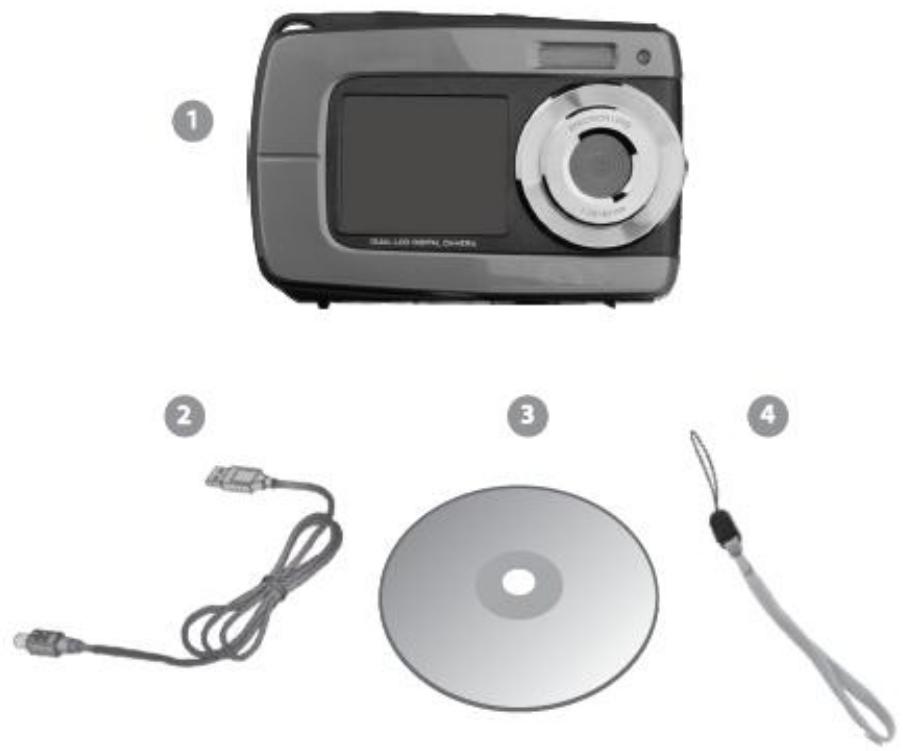
- Digital Camera
- USB cable
- Polaroid Instant Memories Software Installation CD
- Wrist Strap
Note: Micro SD Memory Card and batteries not included.
Parts of the Camera
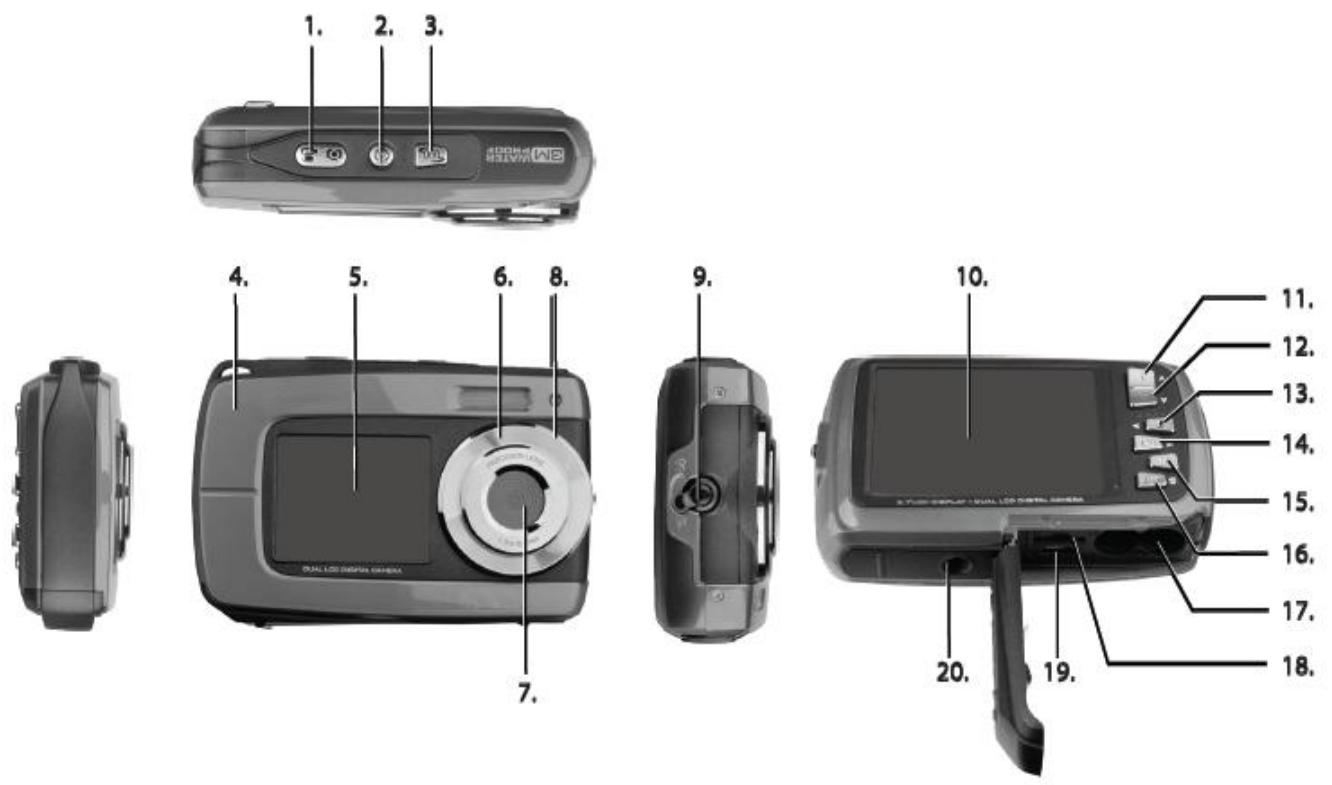
1.Shutter Button
2. Power On/Off
3. LCD Switch
4. Wrist Strap Connector
5. Small LCD Monitor (front)
6. Flash
7. Lens
8. LED Busy Indicator
9. Macro/Normal Switch
10.LCD Screen (back)
- Up / Zoom In
- Down / Zoon Out
- Left / Flash Light
- Right / Playback
- MODE
- Menu / Delete
- Battery Compartment
- Micro SD Memory Card Slot
- USB Port
- Tripod Mount
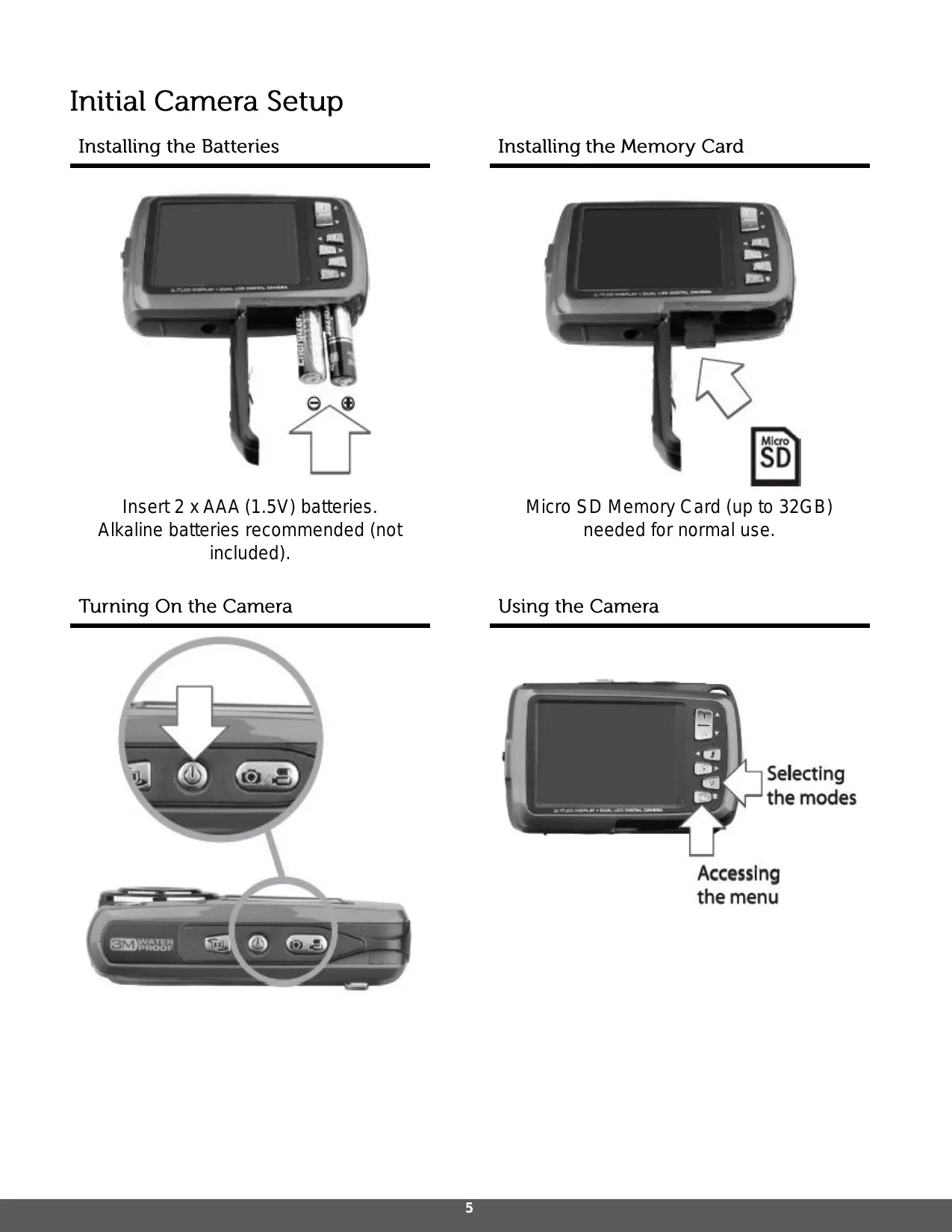
Initial Camera Setup
Installing the Batteries
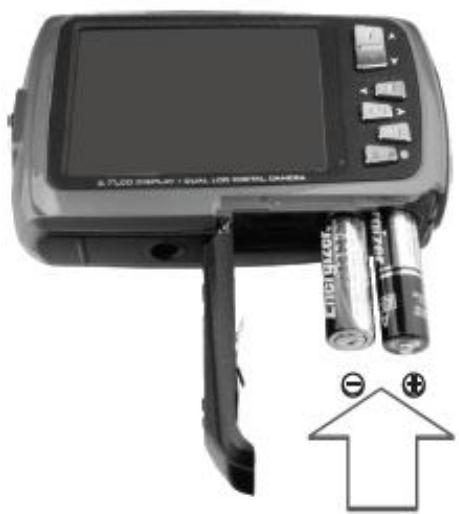
Insert 2 x AAA (1.5V) batteries. Alkaline batteries recommended (not included).
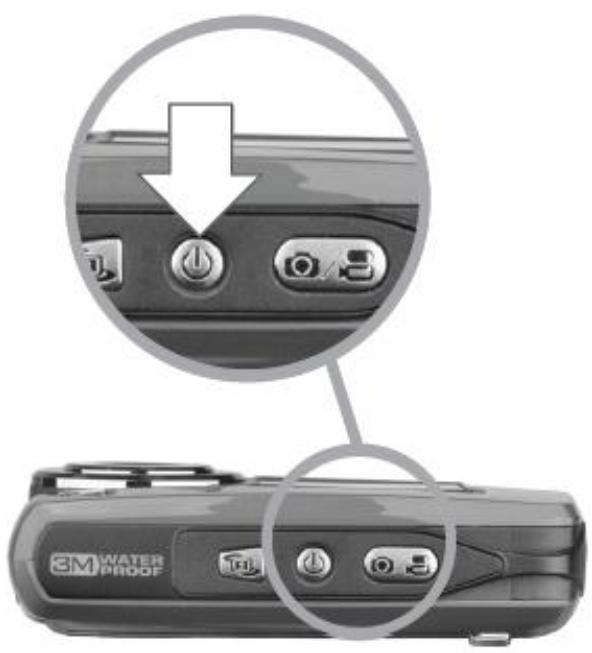
Turning On the Camera
Installing the Memory Card
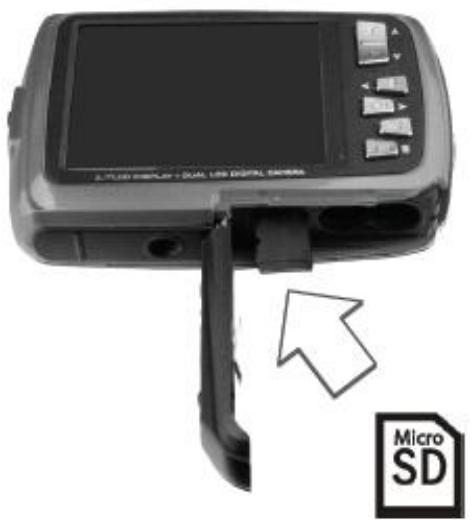
Micro SD Memory Card (up to 32GB) needed for normal use.
Using the Camera
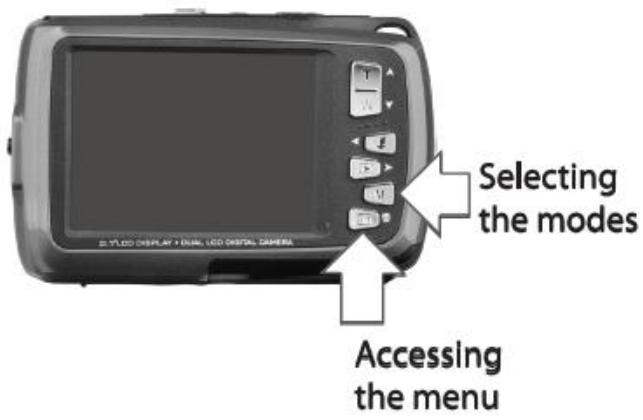
When powering the camera ON for the first time the camera will take you through the INITIAL CAMERA SETUP.
Powering the Camera ON
1) Batteries
Make sure the batteries have been inserted properly into your digital camera, according to the polarity shown inside the battery compartment.
Use 2x AAA (1.5V) batteries. Alkaline batteries are recommended. (Batteries not included.)
Note:
- Remove the batteries from the camera when not in use for an extended period.
- Do not mix alkaline and non-alkaline batteries.
Some features, such as Flash, will not work if the battery power level is low. - When the battery power is low the battery icon turns red and the camera will automatically turn off a few seconds later.
- The energy status of the power is displayed on LCD as shown below:
Full battery power
Medium battery power
Low battery power
2) Micro SD Memory Card
Make sure a Micro SD card has been properly inserted into your camera. (Micro SD Memory card not included.)
To properly insert the Memory Card:
- Turn off the Camera.
- Open the battery door.
- Insert the Micro SD Card into the slot in the direction shown on the camera (see SD icon by the Micro SD card slot). Push the Micro SD Card until you hear a slight clicking sound.
This indicates the memory card has been inserted correctly.
Note:
- There is only one right direction to insert the Micro SD memory card into the slot. Do not force the card into the memory card slot, since it may damage both the camera and the Micro SD memory card.
After the camera is powered on, a memory card icon will appear on the LCD display. If
you do not see the SD icon on the display, please check if the card was inserted properly.
- IMPORTANT: The Micro SD memory card must be formatted before taking photographs.
Formatting the Micro SD Memory Card
- Press the MENU button ( ) in Photo Capture or Video Capture mode.
- Select the Setup Menu options by pressing the RIGHT button.
- Press the W ( )DOWN button to highlight and select the 'Format' and press the SHUTTER/OK button to confirm.
- To format the Micro SD Memory Card, select 'Yes' and press the SHUTTER/OK button.
To exit the menu without formatting the SD Memory Card select ‘No’ then press the SHUTTER/OK button. Alternatively, you can press the MENU button to exit.
- Once the SD Memory Card is formatted – ‘Completed’ appears briefly on the LCD indicating the format process has finished.
3) Power On
Press the POWER button on the top of the camera to turn on the camera.
Main Camera Modes
Your camera has different modes for the various camera functions.

Photo Capture Mode
Use this mode to capture pictures with your camera.
This is the default mode when the camera is powered ON.
To take a picture, aim your camera as desired and press the Shutter button.
The picture will be automatically saved to your camera's memory card.
To access the various menus for the Photo Capture mode, press the MENU button while in the Photo Capture mode.

Video Capture Mode
Use this mode to capture videos with your digital camera.
After turning on your camera, press the MODE (M) button once to open the Video Capture mode. To take a video, aim your camera as desired and press the Shutter button to start the record. A red record indicator will appear on the LCD screen while record is in progress. To stop the record, press the Shutter button again. The video will be automatically saved to your camera's memory card.
To access the various menus for the Video Capture mode, press the MENU button while in the Video Capture mode.

Playback Mode (Photos & Videos)
Use this mode to view and manage the photos and videos on your camera.
After turning on your camera, press the PLAYBACK button to open the Playback mode for photos and videos. You can scroll through the photos and videos that you've previously taken to view or delete them as desired.
To access the various menus for the Playback mode for photos and videos, press the
MENU ③ button while in the Playback mode.
Camera Technical Specifications
| Image Sensor | CMOS Sensor |
| Image Resolution | 14M=4320x3240; 10M = 3648x2736;5M = 2592x1944; 3M = 2048x1536;VGA = 640x480 |
| Video Resolution | VGA 640 x 480QVGA 320 x 240 |
| File Format | JPEG (Photo) /AVI (Video) |
| External Memory | Micro SD Memory Card (up to 32GB) |
| LCD Display | 2.7+1.8" TFT color display |
| Lens | f=8.5 mm F2.8 |
| Focus Range | 0.5m. ~ Infinity |
| Zoom | 5X Digital Zoom |
| Exposure | ±2.0, ±5/3, ±4/3, ±1.0, ±2/3, ±1/3, 0 |
| White Balance | Auto, Daylight, Cloudy, Tungsten, Fluorescent |
| ISO | Auto / 50 / 100 / 200 |
| Scene | Auto, Landscape, Backlight, Night Scene, Portrait, Sports |
| Flash | No Flash, Forced On, Auto Flash |
| Self-Timer | 10 second delay |
| Anti-Shake | Yes |
| Face Detect | Yes - Auto |
| Languages | English / French / German / Italian / Spanish / Portuguese / Greek / Russian / Turkish / Polish |
| Microphone | Yes |
| Macro | Yes, Manual Switch |
| USB Interface | USB 2.0 |
| System Requirements | Windows XP (SP 3), Vista (SP1) and 7 ;Mac OSX v10.5.x and above |
| Battery | 2 * AAA (1.5V) alkaline batteries |
| Working Temperature | 0~45°C |
Computer System Requirements
WINDOWS OS
To be able to download photos and videos to your PC using the Polaroid Instant Memories Software, you will need the following minimum configuration:
- Microsoft® Windows XP with Service Pack 3, Windows Vista with Service Pack 1 or Windows 7
- Pentium® 4 processor (or above)
1 GB of RAM, with 250 MB of free hard disk space
16-bit Color monitor, 1024 X 768 recommended screen resolution - CD-ROM Drive
- QuickTime® 6 or higher
Microsoft® Internet Explorer 7 or higher - Windows Media Player 10 or higher
- DirectX9 or higher
- Internet connection required
MACINTOSH OS
To be able to download photos and videos to your Macintosh using the Polaroid Instant Memories Software, you will need the following minimum configuration:
Intel processor running Mac OS X v10.5.x or later
1 GB RAM, 250 MB free hard disk space
Display: 1024 x 768 or higher-resolution monitor
- CD-ROM Drive
- QuickTime® 6 or higher
- Internet connection required
Powering the Camera On/Off
- Make sure the batteries have been inserted properly into your digital camera.
- Make sure the Micro SD card has been inserted properly into your camera.
(Micro SD card up to 32GB - not included)
Please see Initial Camera Setup for more information.
Powering the camera ON
Press the Power button to turn your camera ON.
After powering on, the camera LED light turns on briefly.
- The LCD screen turns on with your camera in Photo Capture mode to start.
Powering the camera OFF
While the camera is on, you can press the Power button down again for a few seconds at any point to turn your camera OFF.
Note: Your digital camera also has an Auto Power Off feature that will automatically turn off your camera after a specific period of time that your camera is left idle. The Auto Power Off settings can be set from the 'Power Save' settings menu (accessed in either Photo Capture Mode or Video Capture Mode general Camera Settings menu).
Changing Camera Mode
Your camera has three main modes:
1) Photo Capture Mode - Use this mode to capture photos with your camera.
2) Video Capture Mode - Use this mode to capture videos with your camera.
3) Playback Mode (for photos and videos) - Use this mode to view the photos and videos you have already taken with your camera.
- When the camera is first powered ON, the Photo Capture Mode will be active.
- The icons that appear on the LCD screen are the best default settings so that you can begin to capture and enjoy clear quality photos.
To change the active camera mode, make sure the camera is powered ON and press the MODE (M) button.

When in Photo Capture Mode, this icon will display on the top-left corner of the LCD display.

When in Video Capture Mode, this icon will display on the top-left corner of the LCD display.

When in Playback Mode, this icon will display on the top-left corner of the LCD display.
Note: Press the PLAYBACK

button to enter the Playback Mode.
Navigating the Menus
Each camera mode has a set of menus specific to that mode as well as menus for the general Camera Settings.
To access the Main Menu for each Mode:
1) Press the MENU button to open the Main Menus for the current mode.
2) Press the W/Down and T/Up buttons to select a specific menu.
3) Press the Shutter button to confirm and save your selection and open the options for the menu you have selected.
4) To select a specific option, press the W/Down or T/Up button and then the Shutter button to save the selected option and return to the Main Menu.
5) At any time you can press the MENU button to exit the menus and return to the previous screen.
To access the General Camera Setup Menu:
1) Press the MENU button.
2) Press the Right or Left button to select the General Camera Setup.
3) Press the W/Down and T/Up buttons to select a specific menu.
4) Press the Shutter button to confirm and save your selection and open the options for the menu you have selected.
5) To select a specific option, press the W/Down or T/Up button and then the Shutter button to save the selected option and return to the Main Menu.
6) At any time you can press the MENU button to exit the menus and return to the previous screen.
Photo Capture Mode
The Photo Capture mode allows you to capture pictures with your digital camera.
Taking a Picture
1) Power on your camera.
Photo Capture Mode is the default mode that appears upon powering on your camera.
2) Use the LCD display on the back of the camera to direct the camera at the scene you would
like to capture.
3) Press the T/Up, Zoom In and W/Down, Zoom Out buttons to zoom in/out if desired.
You can magnify your subject up to 8 times using the digital zoom.
4) Press the Shutter button to take the picture.
5) The picture will automatically be saved to the camera's Micro SD memory card.
Taking a Self Portrait Picture
You can also capture your photos using the LCD screen on the front of the camera.
1) Before taking the photo, ensure that the Macro Switch on the side of the camera is down
and in the MACRO ON position. The flower icon will appear on the LCD display.
2) When you would like to quickly include yourself in the photo, simply press the LCD Switch
button and hold the camera steady facing towards you at arm's length (30~45cm).
3) Make sure you can see yourself on the LCD screen.
4) Look at the camera lens.
5) Press the Shutter button to take the picture.
Self-Timer Feature
You can use the Self-Timer function when you would like to include yourself in the photograph or when you would like to take a photograph without flash. To avoid shaking of the camera a tripod is recommended.
1) While in Photo Capture Mode, press the MENU ( 日 ) button to open the menus options.
2) Press the W/Down ( ) button to select Capture Mode.
3) Press the SHUTTER button to select and open the highlighted menu option.
4) Press the W/Down ( ) button to select the Self-Timer delay option: 10S Timer.
5) Press the SHUTTER button to confirm and save the highlighted submenu option.
6) The Self-Timer feature is now ready for use.
7) Set the camera in the direction you would like to capture.
8) Press the Shutter button to take the photograph.
9) The photo will be taken after a delay of 10 seconds.
The camera will beep during the countdown.
NOTE:
- Depending on the distance to the object being photographed, use the Macro switch to adjust the distance. Select the flower symbol (♀) if you wish to take a close-up photograph (11cm -18 cm).
If you wish to take a photograph of surroundings or people (0.5m – infinity), set the Macro switch to normal mode (▲).
See "Macro Switch" for more details.
- If you are not sure if there is enough lighting, turn on the automatic flash (A) by pressing the flash button. (If the battery power is too low, the flash won't be activated).
See "Flash Options" for more details. - Face Detection function will be activated automatically if you take pictures of people.
- If Smile Detection is ON, the Shutter will automatically activate and capture a photo once a smile is detected.
Photo Capture Mode Quick Function Buttons
Your digital camera has a four-directional pad that functions as Quick Function buttons:
| Button | Function |
| Left | Flash Options – Toggles the Flash options appearing on the LCD |
| T/Up | Zooms In |
| W/Down | Zooms Out |
Other
| Shutter | • Captures the photo • Saves selected Menu Option |
| MENU | Opens and exits the menu options for Photo Capture Mode |
| MODE (M) | Toggles between the Photo Capture Mode and Video Capture Mode |
Flash Options
There are several Flash options available on your camera. The options appear on the Photo Capture Mode LCD screen in sequence.
To change the Flash mode, press the LEFT Quick Function button until you arrive at your desired settings.
Important: When using Flash, stand between 8 to 10 feet away from the scene you would like to capture.
Note: The MACRO mode must be turned OFF when you want to use the Flash.
- To turn off MACRO mode: Slide the MACRO Switch down to the mountain icon▲.
- When MACRO is OFF, the mountain icon▲ appears on the LCD display.
| Flash Type | Description |
| Forced Off (Default) | No flash will appear. Use this when you do not want to activate Flash. Note: A ‘Turn On Flash’ message appears when the camera detects a need for flash. When this message appears, it is recommended to press the Flash/Up button and select one of the flash options: Auto Flash, Forced On or Red-Eye Reduction. |
| Auto Flash | When you want the camera to determine if Flash is needed, select Auto Flash. The flash will automatically turn on according to the lighting conditions. When the LED light stops blinking, the Flash is ready for use. Note: In some cameras, an initial flash appears to test your lighting conditions. If flash is needed, a second flash will appear upon taking the photo. |
| Forced On | The flash is enabled for each photo. Note: If you use this option in a well lit environment, your photo may be appear too bright/light (overexposed). |
Macro Switch
MACRO ON: Close-up Photographs
Your camera has a Macro Switch that allows you to manually enable or disable the Macro mode
on your camera. While using the Macro mode, you can capture images at close range
(11cm ~ 18 cm). To turn the Macro mode ON, slide the Macro Switch on the side of your camera
DOWN to the flower icon
- When enabled, the Macro mode will allow your camera to focus on an object that is close to the camera.
- The flower icon will appear on the LCD and indicates that the Macro mode is ON.
MACRO OFF: Normal Mode
To turn the Macro mode OFF-
- Slide the Macro Switch on the side of the camera UP to the mountain icon.
The mountain icon will appear on the LCD display. - When Macro mode is off, photos can be captured from 0.5 ~m - (infinity).
Note:
- The Macro mode must be turned OFF when you want to use the following features of your camera: Flash, Smile Detection.
- To Turn the Macro mode OFF: Slide the Macro Switch up to the mountain icon to turn Macro mode OFF.
The mountain icon will appear on the LCD display.
Photo Capture Mode Menus
To select the Photo Capture Mode menu:
1) While in Photo Capture Mode, press the MENU ( 日 ) button to open the menus options.
2) Press the T/Up ( ) button or the W/Down ( ) button to scroll between the various menus for the current mode.
3) Press the SHUTTER button to select and open the highlighted menu option.
4) Press the T/Up ( ) button or the W/Down ( ) button to scroll between the various Submenu options within the selected menu.
5) Press the SHUTTER button to confirm and save the highlighted submenu option.
6) Changes made to these options will remain until you decide to change them again at a later time. The selected menu option appears as an icon on the LCD.
7) At any time you can press the MENU button to exit the menus and return to the previous screen.
PhotoPlayback Mode
The Playback Mode allows you to review and edit photos and videos that you've already taken with you camera.
- When you first turn on the camera, the camera will be in Photo Capture mode by default.
- Press the PLAYBACK button to open the Playback Mode.
- The latest captured image appears on the LCD screen. If there are no images stored, a message (No File) appears.
Viewing Photos on Your Camera
1) Select your Photo:
- Once in Playback Mode, press the LEFT or RIGHT direction buttons to scroll through the images on your camera's memory card until you find the image you would like to view.
Each captured image (video and photo) is displayed on the LCD screen. - Photos appear with an photo icon on the top left of the LCD screen.
2) Zooming In/Out of your selected Photo:
- Press the T / Zoom In button to Zoom In and magnify the selected photo.
Use the UP / DOWN / LEFT / RIGHT direction buttons to navigate around the photo.
- Press the W/Zoom Out button to Zoom Out of the selected photo.
Use the UP / DOWN / LEFT / RIGHT direction buttons to navigate around the photo.
Thamburger View
Easily navigate and select the image you wish to view by using the Thumbnail View.
The images on your camera will be displayed in a 3 X 3 matrix where you can use the direction buttons to scroll and select images from the thumbnails.
1) Press the W/Zoom Out button.
All the images on your camera will appear in the Thumbnail View.
2) Use the UP / DOWN / LEFT / RIGHT direction buttons to scroll and select the image you wish to view.
3) Press the SHUTTER button to enlarge the selected image full size.
Photo Playback Mode Menus
The following are the menus that appear in your camera's Photo Playback Mode:
Delete, Protect, Slide Show
Delete Menu
While in the Playback Mode, you can quickly delete pictures from your camera through the Delete menu.
You can delete a single photograph / video clip, or delete all the photographs / video clips in the SD card.
To delete a captured image:
- Press the Playback (▶) button to enter the Playback mode.
- Press the LEFT or RIGHT button to select a photograph or video you would like to delete.
- Press the MENU/Delete button (W) and select "Delete This Image(Video)" or "All".
- Press the SHUTTER button, then select OK to confirm.
- Press the MENU button to exit.
NOTE: Select "All" and Press the SHUTTER button to confirm: all the pictures and videos will be deleted.
To access the additional Photo Playback menus, press the MENU (☑) button in Playback mode, then press again and hold the MENU button until the following menu options display.
Delete Menu
See above section.
Protect Menu
Pictures and Videos taken with your camera can be protected or "locked" to prevent any deletion or alteration being made to the files.
1) Press the Playback (▶) button to enter the Playback mode.
2) Press the LEFT or RIGHT button to select a photograph or video you would like to Protect/Lock.
3) Press the MENU button then hold and press again to until the Menu options are shown.
4) Press the W/Down ( ) button to highlight the Protect menu option.
5) Press the SHUTTER button to confirm and view the following Protect menu options: Lock, Unlock, Lock all, Unlock All
6) Press the T/Up ( ) button or the W/Down ( ) button to scroll between the various options, then press the Shutter button to save your selected option and return to the Playback Menu screen.
7) Press the MENU button to exit.
NOTE: Locked images appear with a key symbol while viewing the image in Playback mode. Locked images cannot be deleted. You must first unlock the image(s) and then select the delete option.
Slide Show Menu
You can view a Slide Show of all the pictures taken with your camera. The Slide Show menu allows you to set the interval length of time that each picture will display during the Slide Show.
1) Press the Playback (▶) button to enter the Playback Mode.
2) Press the MENU button then hold and press again to until the Menu options are shown.
3) Press the W/Down ( ) button to highlight the Slide Show menu option.
4) Press the SHUTTER button to confirm and view the following Slide Show menu options: 2 seconds, 5 seconds, 8 seconds
5) Press the T/Up ( ) button or the W/Down ( ) button to scroll between the various options, then press Shutter button to save your selected option and begin the Slide Show.
6) Press the Shutter button to stop the Slide Show and return to Playback Mode.
Video Capture Mode
The Video Capture Mode allows you to capture videos with your digital camera.
When the camera is first powered ON, the camera will be in Photo Capture Mode.
Press the MODE button once to access the Video Capture Mode.
Taking a Video
1) While in Video Capture Mode use the LCD display to direct the camera at the scene you would like to capture.
2) Press the T/Zoom In and W/Zoom Out buttons to better set the camera display if desired.
3) Press the Shutter button on the top of the camera to START the video capture.
4) You will see a red icon at the top of the LCD indicating that the record is in progress.
5) To STOP the video record, press the Shutter button again.
6) The video will automatically be saved to the camera's Micro SD card.
VideoPlaybackMode
ThePlayback Mode allows you to review and edit photos and videos that you've already taken with you camera.
- When you first turn on the camera, the camera will be in Photo Capture mode by default.
- Press the Playback button to enter the Playback Mode.
- The latest captured image appears on the LCD screen. If there are no images stored, a message (No File) appears.
Playing Videos on Your Camera
1) Select your video:
- Once in Playback mode, press the LEFT or RIGHT direction buttons to scroll through the images on your camera's memory card until you find the video you would like to view.
Each captured image (video and photo) is displayed on the LCD screen. - Videos appear with a video icon on the top left of the LCD screen.
2) Play your selected video:
- Press the Shutter button to START playing the video.
- Press the Shutter button again to PAUSE the video and to continue playing and pausing as needed.
- To fully STOP the video and restore the icons to the LCD, press the UP button.
- While the Video is playing all the icons on the top section of the LCD disappear.
Thamburger View
Easily navigate and select the image you wish to view by using the Thumbnail View.
The images on your camera will be displayed in a 3 X 3 matrix where you can use the direction buttons to scroll and select images from the thumbnails.
1) Press the W/Zoom Out button
All the images on your camera will appear in the Thumbnail View.
2) Use the UP / DOWN / LEFT / RIGHT direction buttons to scroll and select the image you wish to view.
3) Press the SET button to enlarge the image full size.
4) Once the selected video is full size you can play and view the video.
Navigating the Menus
Each camera mode has a set of menus specific to that mode.
The general Camera Settings can also be accessed from the menu.
Photo Capture, Video Capture and Playback Mode Menus:
1) Press the MENU ( 3 ) button to open the menus for the current mode.
2) Press the T/Up ( ) button or the W/Down ( ) button to scroll between the various menus for the current mode.
3) Press the SHUTTER button to select and open the highlighted menu option.
4) Press the T/Up ( ) button or the W/Down ( ) button to scroll between the various options within the selected menu.
5) Press the SHUTTER button to confirm and save the highlighted menu option.
6) Changes made to these options will remain until you decide to change them again at a later time. The selected menu option appears as an icon on the LCD.
7) At any time you can press the MENU button to exit the menus and return to the previous screen.
Setup Menus (accessed from the Photo/Video Capture Mode):
1) Press the MENU ( l ) button to open the menus for the current mode.
2) Press the ±b /Left ( ) button or the Right ( ) button to select the Setup Menu
3) Press the T/Up ( ) button or the W/Down ( ) button to scroll between the various options within the Setup menu.
4) Press the SHUTTER button to select and open the highlighted menu option.
5) Press the T/Up ( ) button or the W/Down ( ) button to scroll between the various options within the selected menu.
6) Press the SHUTTER button to confirm and save the highlighted menu option.
7) Changes made to these options will remain until you decide to change them again at a later time.
8) At any time you can press the MENU button to exit the menus and return to the previous screen.
Status Icon Description
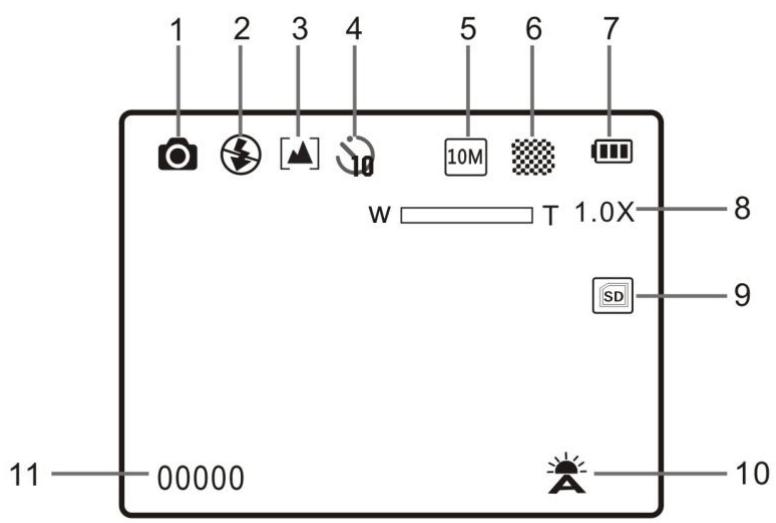
The following icons appear on the LCD screen and indicate the selected menu options and camera status.
| Item | Function | Description |
| 1 | Mode selected | Photographs mode. Videos mode. |
| 2 | Flash indicator | Force flash: The flash is on in any environment. A Auto flash: The camera determines if the flash should be used or not. No flash: The flash is turned off. |
| 3 | Normal/Macro mode indicator | Mode (0.5m – infinity). Macro mode (11cm – 18cm). |
| 4 | Self-timer | Shows selected Self-timer setting |
| 5 | Selected resolution | 14M=4320x3240; 10M = 3648x2736;5M = 2592x1944; 3M = 2048x1536;VGA = 640x480 |
| 6 | Picture quality | Super fine.Fine.Normal. |
| 7 | Battery indicator | The batteries are full.The batteries are empty. |
| 8 | Zoom indicator | Shows the zoom ratio in preview mode |
| 9 | The micro SD card indication | The micro SD card is inserted and will be used as storage for PHOTO andVIDEO |
| 10 | White Balance | Shows selected White-balance mode. |
| 11 | Photo/Video counter | Photo mode: No. of pictures that can be taken.Video mode: Recording time in seconds. |
Menu Options
The following are the menus and menu options that appear in your camera's Photo/Video Capture Modes and Setup Mode:
| settings | Photo | Resolution | 14M pixel resolution | 4320x3240; |
| 10.0M pixel resolution | 3648x2736; | |||
| 5.0M pixel resolution | 2592x1944; | |||
| 3.0M pixel resolution | 2048 x 1536 | |||
| VGA resolution | 640 x 480 | |||
| Quality | Super Fine/Fine/Normal | Picture quality setting |
| Metering | Center/Multi/Spot | Metering setting | |
| White balance | Auto | Automatic white balance | |
| Daylight | White balance selected for daylight surrounding | ||
| Cloudy | White balance selected for cloudy surrounding | ||
| Tungsten | White balance selected for tungsten lighting | ||
| Fluorescent | White balance selected for fluorescent surrounding | ||
| ISO | Auto/100/200/400/800 | Sensitivity selection | |
| Exposure | ±2.0, ±5/3, ±4/3, ±1.0, ±2/3, ±1/3, 0 | Exposure setting | |
| Self Timer | On/Off | Self timer setting | |
| Sharpness | Hard/ Normal/ Soft | Sharpness setting | |
| Effect | Normal/ B&W/ Sepia/Negative/ Lomo/ Pencil Sketch/ Red/ Green/ Blue/Vivid | Effect setting | |
| Date Stamp | On/ Off | Date stamp setting | |
| Quick View | On/ Off | Quick view setting | |
| Video | Movie Size | VGA 640 x 480 | Video resolution setting up |
| White balance | QVGA 320 x 240 | ||
| Auto | Automatic white balance | ||
| Daylight | White balance selected for daylight surrounding |
| Cloudy | White balance selected for cloudy surrounding | |||
| Tungsten | White balance selected for tungsten lighting | |||
| Fluorescent | White balance selected for fluorescent surrounding | |||
| Setup | Sounds | Off/On | Sounds setting | |
| Frequen cy | 50Hz / 60Hz | Select power frequency in your location | ||
| Power Save | Off / 1Minute / 3 Minutes | Auto power off selection | ||
| Languag e | English/ French/ Deutsch/Italian/Spanish/ Portuguese/Japanese | Display language selection | ||
| Date/Tim e | YY/MM/DD | Date or time setting | ||
| Format | Yes/No | Format the memory location selection. | ||
| Reset All | Yes/No | Reset all setting | ||
| Version | See the firmware version |
Installing the Software
1) Insert the installation CD into your CD-ROM drive.
On PC: The Polaroid Instant Memories Installer window appears. If the window does not appear, open the application's CD/DVD drive and click on "Setup.exe" to launch the installer. On Macintosh: Click the icon that appears on the desktop to install the Polaroid Instant Memories the click "Continue".
2) Please review the license terms.
PC: Click the "I accept the terms of the License Agreement" and then click "Next" to continue.
MAC: Click "Continue" to accept the license agreement.
3) On PC: Let the "Polaroid Instant Memories" installer create the folder to where the program will be installed, and then click "Install".
On Mac: Click "Install".
4) Please wait while the application continues the installation process on your computer.
Follow all instructions.
5) On PC: Click the "Close" button when the installation is complete. The application automatically opens.
On MAC: After the installation is complete, the application automatically opens.
6) If you closed the application, click on Polaroid Instant Memories desktop icon or open and run the application from the Programs menu on your computer.
Connecting the Camera to the Computer
1) Use the USB cable that came with your camera to connect your camera to your computer.
2) Power the camera ON.
3) The first time you connect the device to the computer you will have to wait a few seconds until the computer recognizes the device.
Getting Photos and Videos from your Camera to Your Computer
An SD card needs to be inserted. Do not disconnect the cable during transfer. Doing so will cancel the transfer of any files on their way to your computer.
1) Select the "Get Images" button from the Main menu.
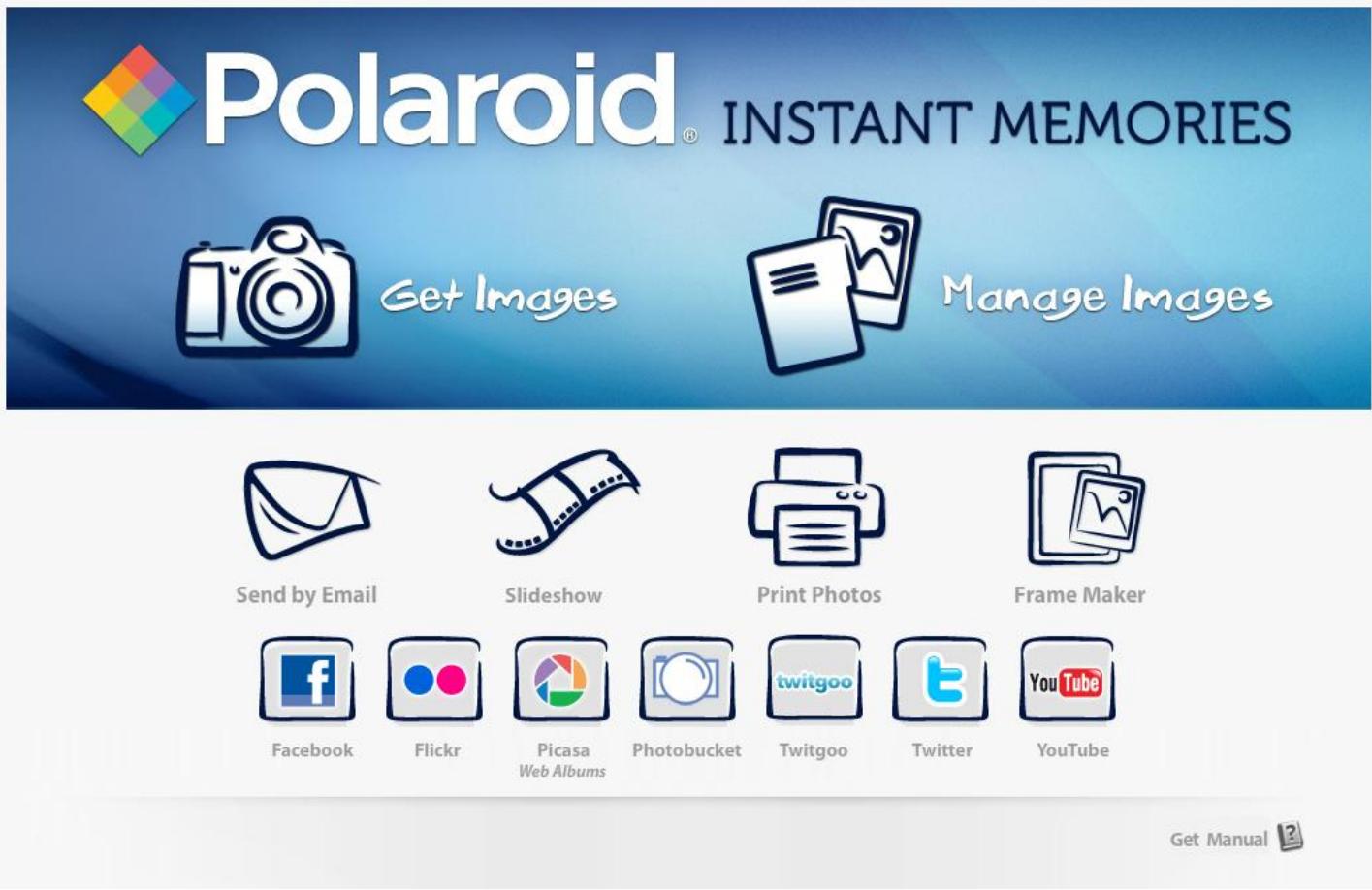
2) The "Get Images from device" window opens.
3) You can select to download photos, videos or both.
4) Select your camera (removable disk) from the device window. If your camera is the only
USB device connected then it will be selected automatically.
5) Select a location on the computer where to place the new photo and video files.
6) Add the new photo and video files to albums if desired.
7) Select to remove the media files from the selected device (removable disk) after the import.
8) Click the "Get Images" button to transfer the photos and videos from your camera to your computer.
9) A media download progress bar appears on the bottom left showing the number of media files downloading to your computer. A message appears when the download is complete.
10) The photo and video files that you selected are now downloaded to your computer to the selected folder and albums ready for your use.
Get Started!
Using the Polaroid Instant Memories, you can:
- Upload and manage photos and videos to and from the most popular photo sharing and social networking sites - Facebook, Flickr, Picasa, MySpace, Photobucket, Twitpic, Twitgoo and YouTube
- Seamlessly transfer photos and videos from one social network to another
- Organize your images by creating offline and online albums
- Edit images using automatic and manual tools
For more details on how to use the Polaroid Instant Memories open the “Help” from the menu option.
Transferring Images from my Camera to my Computer Manually
Transferring Photos and Videos: WINDOWS
1) Use the USB cable that came with your camera to connect your camera to your computer.
2) MSDC appears on the LCD.
3) A window appears with a list of options, select "Open folder to view files" and click OK.
4) Open the DCIM folder and the folder inside to view the media files.
5) Select the media and copy the files from this folder into your computer. Optionally, select the files and choose Copy from the Edit menu. Then select a folder and choose Paste from the Edit menu.
6) We recommend that you copy the images into the Pictures/My Pictures folder and the videos into the Videos/My Videos folder.
7) Do not disconnect the cable during transfer. Doing so will cancel the transfer of any files on their way to your computer.
Transferring Photos and Videos: MACINTOSH
1) Use the USB cable that came with your camera to connect your camera to your computer.
2) MSDC appears on the LCD.
3) The camera's device icon appears on the desktop.
4) Click on the device icon and open the DCIM folder and the folder inside to view the media files.
5) Select the files and drag them into your computer. Optionally, select the files and choose Copy from the Finder's Edit menu. Then select a folder and choose Paste from the Edit menu.
6) We recommend that you copy the images into the Pictures folder and the videos into the Movies folder.
7) Do not disconnect the cable during transfer. Doing so will cancel the transfer of any files on their way to your computer.
Transferring Photos and Videos: Apple iPad
NOTE: Please check your device packaging for compatibility with the iPad.
Apple iPad Camera Connection:
For models that are compatible with the iPad, photos and videos can be imported from your digital camera to your iPad by following either one of the options below:
1) Connecting your digital camera to your iPad using an iPad Camera Connector:
Plug the Camera Connector into the dock connector port on your iPad, and then attach your digital camera using a USB cable (included) to the Camera Connector.
NOTE: The iPad Camera Connector is not included. This item may be purchased separately.
2) Using an iPad SD Card Reader:
Connect the SD Card Reader to your iPad, then insert your digital camera's SD Memory card into the slot to import photos and videos directly from your camera's SD card.
NOTE: The iPad SD Card Reader is not included. This item may be purchased separately.
After you make the connection, your iPad automatically opens the 'Photos' application. This allows you to choose which photos and videos to import and to organize them into albums.
Camera Maintenance
The digital camera is a delicate device.
Please handle your camera with care to avoid damaging it.
Do not expose your camera to heat sources.
Warranty Card
This warranty covers the original consumer purchaser only and is not transferable.
This warranty covers products that fail to function properly UNDER NORMAL USAGE, due to defects in material or workmanship. Your product will be repaired or replaced at no charge for parts or labor for a period of one year.
What Is Not Covered by Warranty
Damages or malfunctions not resulting from defects in material or workmanship and damages or malfunctions from other than normal use, including but limited to, repair by unauthorized parties.
To obtain Warranty Service and Troubleshooting information:
Call 877-408-0033 or Visit our website at www.polaroid.com.
To receive Warranty service along with the name and address of an authorized product service center, the original consumer purchaser must contact us for problem determination and service procedures. Proof of purchase in the form of a bill of sale or receipted invoice, evidencing that the Product is within the applicable Warranty period(s), MUST be presented in order to obtain the requested service. It is your responsibility to properly package and send any defective products along with a dated copy of proof of purchase, a written explanation of the problem, and a valid return address to the authorized service center at your expense. Do not include any other items or accessories with the defective product. Any products received by the authorized service center that are not covered by warranty will be returned unrepaired.
NO WARRANTY, WHETHER EXPRESS OR IMPLIED, INCLUDING, BUT NOT LIMITED TO, ANY IMPLIED WARRANTY OF MERCHANTABILITY OR FITNESS FOR A PARTICULAR PURPOSE, OTHER THAN THOSE EXPRESSLY DESCRIBED ABOVE SHALL APPLY. DISTRIBUTOR FURTHER DISCLAIMS ALL WARRANTY AFTER THE EXPRESS WARRANTY PERIOD STATED ABOVE. NO OTHER EXPRESS WARRANTY OR GUARANTY GIVEN BY ANY PERSON, FIRM OR ENTITY WITH RESPECT TO THE PRODUCT SHALL BE BINDING ON DISTRIBUTOR. REPAIR, REPLACEMENT, OR REFUND OF THE ORIGINAL PURCHASE PRICE - AT DISTRIBUTOR'S SOLE DISCRETION - ARE THE EXCLUSIVE REMEDIES OF THE CONSUMER. IN NO EVENT WILL DISTRIBUTOR, ITS MANUFACTURERS, OR PLR IP HOLDINGS, LLC BE LIABLE FOR ANY INCIDENTAL, DIRECT, INDIRECT, SPECIAL, PUNITIVE OR CONSEQUENTIAL DAMAGES (SUCH AS, BUT NOT LIMITED TO, DAMAGES FOR LOSS OF PROFITS, BUSINESS, SAVINGS, DATA OR RECORDS) CAUSED BY THE USE, MISUSE OR INABILITY TO USE THE PRODUCT. EXCEPT AS STATED HEREIN, NO OTHER WARRANTYES SHALL APPLY. NOTWITHSTANDING THE FOREGOING, CONSUMER'S RECOVERY AGAINST DISTRIBUTOR SHALL NOT EXCEED THE PURCHASE PRICE OF THE PRODUCT SOLD BY DISTRIBUTOR. THIS WARRANTY SHALL NOT EXTEND TO ANYONE OTHER THAN THE ORIGINAL CONSUMER WHO PURCHASED THE PRODUCT AND IS NOT TRANSFERABLE.
Some countries, states or provinces do not allow the exclusion or limitation of incidental or consequential damages or allow limitations on warranties, so limitation or exclusions may not apply to you. This warranty gives you specific legal rights, and you may have other rights that vary from state to state or province to province. Contact your authorized retailer to determine if another warranty applies.
This product is manufactured, distributed and sold by SAKAR International, Inc. Polaroid, Polaroid & Pixel, Made in Polaroid and Polaroid Classic Border Logo are trademarks of PLR IP Holdings, LLC, used under license. All other trademarks are the property of the respective owner, who has not sponsored, endorsed or approved this product. PLR IP Holdings, LLC does not manufacture this product or provide any Manufacturer's Warranty or support.
Technical Support
For technical support issues please visit our website at www.polaroid.com. For further assistance, you can also call our technical support department toll free at 877-408-0033, or for e-mail support, please contact us at polaroid@sakar.com.
Troubleshooting
Q: I have taken photos and selected the “Get Images” button. I get a message that the images were successfully transferred but the photos do not appear on my computer. What do I do?
First ensure that you have in fact taken photos. Press the Shutter button to take some sample photos and then try downloading them again.
With test photos (if applicable to your camera), if the camera's power is off before you upload them to the computer, the photos are not stored in the camera's memory. These photos should be uploaded quickly before the camera's power is off. If the photos are saved to the SD memory card, then all the photos should appear.
Q: How do I make sure I don't lose important pictures?
This camera requires an SD card for normal use. If the camera's power is off, nothing will happen to the images stored on the SD memory card. We recommend always downloading your photos to your computer as soon as possible to prevent unintentional data loss.
Q: I deleted images using the Polaroid Instant Memories. The images were also deleted from my computer. How do I recover images that I accidentally deleted?
All images deleted using the Polaroid Instant Memories are sent to your computer's Recycle orTrash Bin and can be retrieved from there.
E-Waste / FCC Declaration

WEEE

Battery
Disposal of Waste Electrical and Electronic Equipment and/or Battery by users in private households in the European Union.
This symbol on the product or on the packaging indicates that this cannot be disposed of as household waste. You must dispose of your waste equipment and/or battery by handling it over to the applicable take-back scheme for the recycling of electrical and electronic equipment and/or battery. For more information about recycling of this equipment and/or battery, please contact your city office, the shop where you purchased the equipment or your household waste disposal service. The recycling of materials will help to conserve natural resources and ensure that it is recycled in a manner that protects human health and environment.
E-Waste - PLR IP Holdings, LLC, its licensees, affiliates, and Sakar International, Inc. fully supports all electronic waste initiatives. As responsible stewards of the environment, and to avoid violating established laws, you should properly dispose of this product in compliance with all applicable regulations, directives or otherGovernances in the area where you reside. Please check with local authorities or the retailer where you purchased this product to determine a location where you can appropriately dispose of the product.
You may also go to www.polaroid.com and reference Social Responsibility to learn more about the specific laws in your area and to locate a collection facility near your home.
If your electronic device has internal memory on which personal or other confidential data may be stored, you may want to perform a data sanitization process before you dispose of your device to assure another party cannot access your personal data. Data sanitization varies by the type of product and its software, and you may want to research the best sanitization process for your device before disposal. You may also check with your local recycling facility to determine their data sanitization procedures during the recycling process.
This device complies with the part 15 of the FCC rules. Operation is subject to the following two conditions: (1) this device may not cause harmful interference, and (2) this device must accept any interference received, including interference that may cause undesired operation.
Caution: changes or modifications not expressly approved by the party responsible for compliance could void the user's authority to operate the equipment.
NOTE: This equipment has been tested and found to comply with the limits for a Class B digital device, pursuant to Part 15 of the FCC Rules. These limits are designed to provide reasonable protection against harmful interference in a residential installation. This equipment generates. Uses and can radiate radio frequency energy and, if not installed and used in accordance with instructions, may cause harmful interference to radio communications. However, there is no guarantee that interference will not occur in a particular installation. If this equipment does cause harmful interference to radio or –television reception, which can be determined by turning the equipment off and on, the user is encouraged to try to correct the interference by one or more of the following measures:
Reorient or relocate the receiving antenna.
- Increase the separation between the equipment and receiver.
- Connect the equipment into an outlet on a circuit different form that to which the receiver is connected.
- Consult the dealer or experienced radio/TV technician for help.