
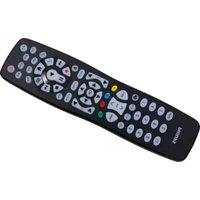
SRP3016S - Remote control PHILIPS - Free user manual and instructions
Find the device manual for free SRP3016S PHILIPS in PDF.


| Product Type | Universal Remote Control |
| Brand | Philips |
| Model | SRP3016S |
| Dimensions (W x H x D) | 4.5 x 22.5 x 2.0 cm |
| Weight | 120 g (including batteries) |
| Power Source | 2 x AAA batteries (not included) |
| Operating Voltage | 3.0 V DC |
| Transmission Range | Up to 10 meters (30 feet) |
| Control Type | Infrared (IR) |
| Number of Keys | 28 buttons |
| Compatible Devices | TV, DVD, Blu-ray, Set-top box, Soundbar, and more (brand specific) |
| Programming Method | Automatic code search or manual code entry |
| Code Database | Pre-programmed with 2000+ codes |
| Setup Codes | Available in user manual and online |
| Learning Function | Not available (non-learning remote) |
| Backlight | No |
| Macro Support | No |
| Battery Life | Approximately 6 months under normal use |
| Operating Temperature | 0 °C to 45 °C |
| Housing Material | ABS Plastic |
| Color | Black |
| Cleaning Instructions | Wipe with a soft, dry cloth. Do not use liquids or abrasives. |
| Safety | Keep away from heat sources and moisture. Do not expose to direct sunlight. |
| Spare Parts Availability | Batteries are user-replaceable. No other spare parts available. |
| Repairability | Not designed for repair; replace if defective. |
| Included Accessories | User manual |
Frequently Asked Questions - SRP3016S PHILIPS
User questions about SRP3016S PHILIPS
0 question about this device. Answer the ones you know or ask your own.
Ask a new question about this device
Download the instructions for your Remote control in PDF format for free! Find your manual SRP3016S - PHILIPS and take your electronic device back in hand. On this page are published all the documents necessary for the use of your device. SRP3016S by PHILIPS.
USER MANUAL SRP3016S PHILIPS
Button Functions....4
Programming Your Remote 6
Direct Code Entry......6
Auto Code Search....7
Controlling Combo Devices....9
Using Your Remote....10
Primary Audio Control 10
Code Identification....11
Reset to Factory Settings....11
Troubleshooting 12
Warranty....13
FCC Statement 14
Congratulations on your purchase of this Philips branded Universal Remote Control. This remote is capable of operating thousands of audio/video devices including TVs, Blu-ray™/DVD players, streaming media players, sound bars, cable receivers and more!
For Remote Help:
byjasco.com/urccodes
Setup
Your universal remote requires two (2) AA batteries (not included). Alkaline batteries are recommended.
Battery Installation
- On the back of the remote, pull down on the textured surface and slide battery cover downward to remove.
- Match the (+) and (-) marks on the batteries to the (+) and (-) marks inside the battery compartment, then insert two (2) AAA batteries. Be sure to use fresh batteries.
- Position battery cover slightly below opening and push upward to lock into place.
NOTE· If your remote stops operating properly, replace the batteries with new ones.
Battery Precautions
- Do not mix old and new batteries.
- Do not mix alkaline, standard (carbon-zinc), or rechargeable (Ni-Cd, Ni-MH, etc.) batteries.
- Always remove old, weak or worn-out batteries promptly and recycle or dispose of them in accordance with local and national regulations.
Battery Saver
Your remote automatically turns off if the buttons are depressed more than 8 seconds. This will save your batteries should your remote get stuck in a place where the buttons remain depressed (e.g., between the sofa cushions).
Code Saver
You have up to 10 minutes to change the batteries in your remote without losing the codes you have programmed.
Button Functions
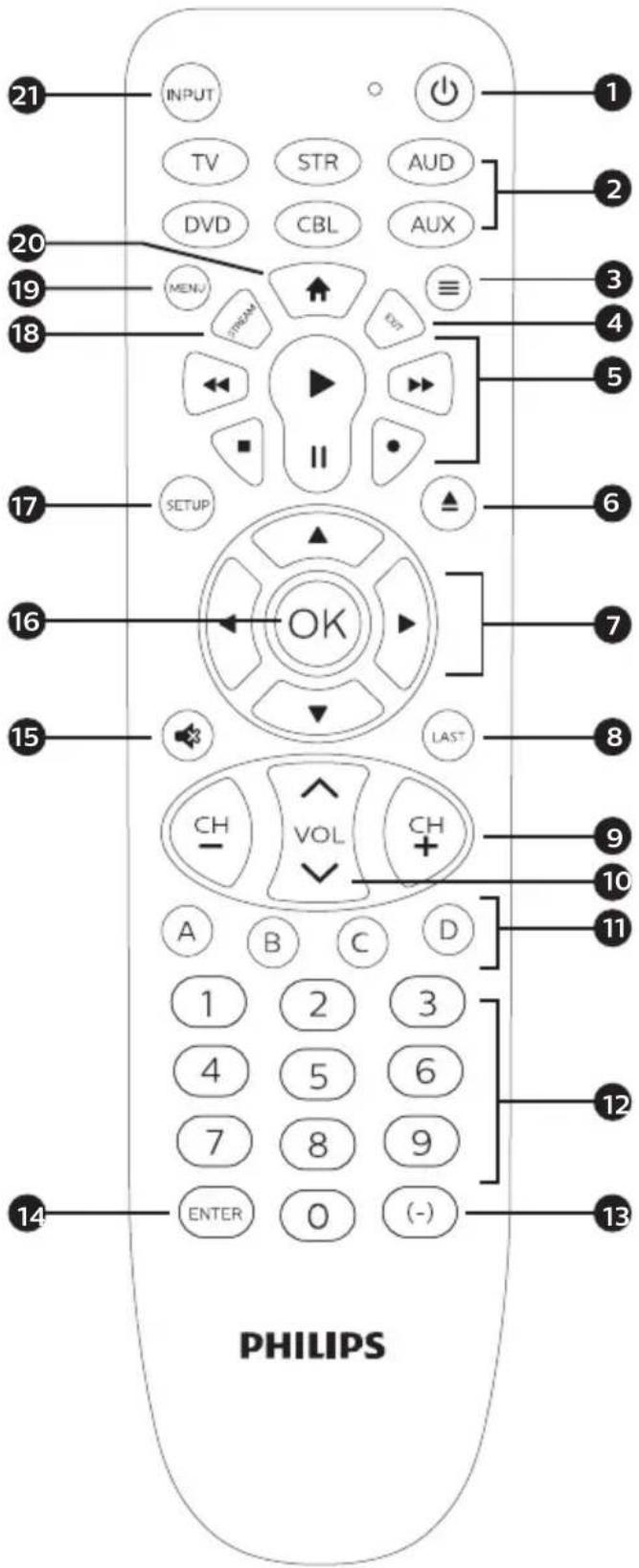
Button Functions
- Power - Turns devices ON/OFF
- TV, STR, AUD, DVD, CBL, AUX - Selects the device to control
- Info/Options - Displays on-screen show/content information
- Exit - Exit on-screen menus
- Record, play, stop, rewind, fast forward, pause
- DVD/Blu-ray™ open/close - open/close a player, or List features on cable/satellite receivers
- Up/down/left/right menu navigation
- Last channel - Returns to the previously selected channel
- Channel up/down
- Volume up/down
- ABCD - Access additional features for DVRs, cable and satellite receivers
- Numbers - Enter numbers for direct channel selection
- Dash (-) - Use to select digital channels, e.g., 4.1
- Enter - Some devices require enter to be pressed after channel selection
- Mute - Mutes sound
- Ok - Selects menu items for the controlled device
- Setup - Used to program the remote
- Streaming App Hotkey - Access top apps like Netflix ^® , Amazon ^® Prime, Hulu ^® and more
- Menu - Displays the on-screen menu
- Home/Guide - Easily access features on today's streaming devices, or Guide on cable/satellite receivers
- Input - Selects video inputs
Programming Your Remote
Your remote is designed to control multiple audio/video devices. To use, you will need to program the remote for your devices. There are two different methods you can use to program the remote, Direct Code Entry or Auto Code Search.
- The Direct Code Entry method is the recommended method as it is the simplest and quickest method in most cases.
- The Auto Code Search method searches through all the codes in the remote to find a code for your device.
NOTE· This remote comes preprogrammed for Roku® boxes and Samsung TVs. Press TV for Samsung TVs and STR for Roku boxes.
Direct Code Entry (Recommended)
-
Locate the Code List included with your remote. Find the section for the type of device you wish to control, (for example TV, STR, AUD, DVD, CBL, AUX). Locate the brand of your device and circle all the remote codes for the brand.
-
Press and hold down the SETUP button on the remote until the red light on the remote control turns on. Release the SETUP button. The red light will remain on.
NOTE· The red light will either be a small light at the top of the remote or the power ON/OFF button.
- Press and release the device button on the remote for the type of device you wish to control, (for example TV, STR, AUD, DVD, CBL, AUX). The red light will blink once and remain on.
NOTE· Any of the device buttons on the remote can be programmed to control any of your devices. For example, you can use the aux device button on the remote to


Programming Your Remote
control a Satellite Receiver, Digital Converter Box, Streaming Media Player or any device category in the Code List.
- Use the number buttons on the remote to enter the first 4-digit remote code you circled in the Code List in Step 1. The red light will turn off after entering the fourth digit.


-
Point the remote at the device. Test the buttons on the remote to see if the device responds as you would expect. If the buttons do not operate the device, return to Step 2 above and use the next code that you circled for that device.
-
Repeat steps 1 – 5 for each device you wish to control.
Programming Notes
- Some codes may operate only a few functions of your device. There may be another code in the Code List that controls more functions. Test other codes in the Code List for more functionality.
- If you do not find a remote code that works your device or there are no codes in the Code List for your device, use the Auto Code Search method in the next section to program your remote.
- For combination devices such as a TV/DVD combo or TV/VCR combo, you may have to enter a code for each device.
- Write down the remote codes used to program the remote for future reference.
Auto Code Search
The Auto Code Search is a process where you can search through all the codes stored in the remote to find a code for your device. It is recommended that you read through all the steps below to familiarize yourself with the Auto Code Search before starting the process.
Programming Your Remote
- Manually turn on the device you wish to control.
NOTE· The Auto Code Search process cannot be used for devices without power ON/OFF capability. Use the Direct Code Entry method in these cases.
- Press and hold down the SETUP button on the remote until the red light on the remote control turns on. Release the SETUP button. The red light will remain on.
NOTE· The red light will either be a small light at the top of the remote or the power ON/OFF button.
-
Press and release the device button on the remote for the type of device you wish to control, (for example TV, STR, AUD, DVD, CBL, AUX). The red light will blink once and remain on.
-
With the remote pointed at the device, press and release the POWER button on the remote. The remote will send 10 different codes to the device. The red light will blink once for each code and remain on after sending the 10 codes.
Did the device turn off?
• If YES, go to Step 5.
- If NO, repeat Step 4 to test the next 10 codes.
-
Manually turn the device back on.
-
With the remote pointed at the device, press and release the VOL ▲ button. The remote will re-send the first code of the 10 codes from Step 4. The red light will blink once and remain on.
Did the device turn off?
- If YES, you have found a code for the device. Press and release the same device button


Programming Your Remote
you pressed in Step 3. This will store the code in the remote. Go to Step 7.
- If NO, continue to press and release the VOL^ button until the device turns off to test the other 9 codes from Step 4. Be sure to wait approximately 3 seconds after each VOL^ button press to allow the device time to respond to the code. When the device turns off, you have found a code for your device. Press and release the same device button pressed in Step 3. This will store the code in the remote. Go to Step 7.
NOTE.
- The VOL button can be used to go backwards through each batch of 10 codes.
-
The red indicator light will flash 2 times after testing the first or last code in each batch of 10.
-
Use the remote to turn the device back on. Test the buttons on the remote to see if the device responds as you would expect. If the buttons do not operate the device, return to Step 2 and repeat this process to search for a better code to operate the device.
-
Repeat this process for each device you wish to control.
Controlling Combo Devices
Some combo devices (e.g. TV/VCR, TV/DVD, DVD/VCR, etc.) will require you to set up two different device buttons to control both parts of the combo device. For example, if you have a TV/DVD combo, you may need to set up one code under the TV button to control the TV and a separate code under the DVD button to control the DVD.
Using Your Remote
Primary Audio Control
The Primary Audio Control feature allows you to select a single device that the volume buttons always control. For example, the remote can be in TV mode while the volume buttons control the volume on your audio receiver or sound bar instead of your TV.
Enabling the Primary Audio Control

- Press and hold down the SETUP button on the remote until the red light on the remote control turns on. Release the SETUP button. The red light will remain on.
- Press and release the device button (TV, AUD, etc.) on the remote for the device you wish to control the volume.

- Press and release the MUTE button.

- Press and release the VOL ∧ button. The red light will blink twice and turn off.
Disabling the Primary Audio Control

- Press and hold down the SETUP button on the remote until the red light on the remote control turns on. Release the SETUP button. The red light will remain on.

- Press and release the device button (TV, AUD, etc.) programmed to control the Master Volume Feature.

- Press and release the MUTE button.
- Press and release the VOL √ button. The red light will blink twice and turn off.
Using Your Remote
Code Identification

- Press and hold down the SETUP button on the remote until the red light on the remote control turns on. Release the SETUP button. The red light will remain on.
- Press and release the desired device button (TV, STR, AUD, DVD, CBL, AUX) you would like the code for.
- Press and release the ENTER button.

- Press and release the #1 button. Count the number of times the remote light flashes. This is the number corresponding to the first digit of the code. Repeat the process by pressing the #2, #3 and #4 buttons for the remaining digits.

- Press and release the ENTER button to exit this mode.
Reset to Factory Settings

- Press and hold down the SETUP button on the remote until the red light on the remote control turns on. Release the SETUP button. The red light will remain on.

- Press and release the MUTE button.

- Press and release the number #0 button. The red indicator light will flash twice.
Troubleshooting
Remote does not operate your device.
- Make sure the batteries are fresh and installed correctly.
- Aim the remote directly at your device, and make sure that there are no obstructions between the remote and device.
• Make sure you select the appropriate device on the remote you wish to control; TV for TV and CBL for cable box. - Try programming the remote with a different code. See Direct Code Entry section.
- Remote may not be compatible with your device.
Remote does not operate some features of your device.
- Sometimes a particular code might operate a few features but not all. Try programming the remote with a different code from the Code list. See Direct Code Entry section.
- Remote may not be able to operate all features of your device or button names may be different than that of your original remotes.
90-Day Limited Warranty
This warrants this product to be free from manufacturing defects for a period of 90 days from the original date of consumer purchase. This warranty is limited to the repair or replacement of this product only and does not extend to consequential or incidental damage to other products that may be used with this unit. This warranty is in lieu of all other warranties express or implied. Some states do not allow limitations on how long an implied warranty lasts or permit the exclusion or limitation of incidental or consequential damages, so the above limitations may not apply to you. This warranty gives you specific rights, and you may also have other rights which vary from state to state.
Warranty replacement procedure
- Call our Customer Information Center at 1-844-816-0320 to get a Return Authorization Number (RA#), shipping instructions and a prepaid return address label.
- Return the remote, freight prepaid, to us. Remotes returned to us must have an RA# included in the mailing address to be accepted.
- The original purchaser will be asked to send the remote, a copy of the sales receipt for the product, your name, address, phone number and a description of the problem.
MADE IN CHINA
The Philips trademark and the Philips Shield Emblem are registered trademarks of Koninklijke Philips N.V. used under license. This product has been manufactured by Gibson Innovations Limited. It is distributed and warranted by Jasco Products Company LLC, 10 E. Memorial Rd., Oklahoma City, OK 73114. ©2018 Gibson Innovations, all rights reserved.
This product comes with a 90-day warranty. Visit www.philips.com/support for warranty details.
Questions? Contact us at 1-844-816-0320 between 7:00AM—8:00PM CST.
FCC Statement
This device complies with Part 15 of the FCC rules. Operation is subject to the following two conditions:
(1) this device may not cause harmful interference, and (2) this device must accept any interference received, including interference that may cause undesired operation.
FCC NOTE: The manufacturer is not responsible for any radio or TV interference caused by unauthorized modifications to this equipment. Such modifications could void the user's authority to operate the equipment.
NOTE: This equipment has been tested and found to comply with the limits for a Class B digital device, pursuant to Part 15 of the FCC Rules. These limits are designed to provide reasonable protection against harmful interference in a residential installation. This equipment generates, uses and can radiate radio frequency energy and, if not installed and used in accordance with the instructions may cause harmful interference to radio communications. However, there is no guarantee that interference will not occur in a particular installation. If this equipment does cause harmful interference to radio or television reception, which can be determined by turning the equipment off and on, the user is encouraged to try to correct the interference by one or more of the following measures:
- Reorient or relocate the receiving antenna.
- Increase the separation between the equipment and receiver.
- Connect the equipment into an outlet on a circuit different from that to which the receiver is connected.
- Consult the dealer or an experienced radio/TV technician for help.
ICES-3(B)/NMB-3(B).
PHILIPS
Audio/Video
SRP3016S/27
SRP9368D/27

Manual de usuario
Tabla de contenido
Introducción....16
Configuración....17

- Setup
- Battery Installation
- Battery Precautions
- Battery Saver
- Code Saver
- Button Functions
- Programming Your Remote
- Direct Code Entry (Recommended)
- Programming Notes
- Auto Code Search
- Did the device turn off?
- NOTE.
- Controlling Combo Devices
- Using Your Remote
- Primary Audio Control
- Enabling the Primary Audio Control
- Disabling the Primary Audio Control
- Code Identification
- Reset to Factory Settings
- Troubleshooting
- Remote does not operate your device.
- Remote does not operate some features of your device.
- 90-Day Limited Warranty
- Warranty replacement procedure
- MADE IN CHINA
- FCC Statement
- PHILIPS
- Manual de usuario
- Tabla de contenido
Brand : PHILIPS
Model : SRP3016S
Category : Remote control