
RMP-12 - Electronic drum ROLAND - Free user manual and instructions
Find the device manual for free RMP-12 ROLAND in PDF.


| Product Type | Electronic Percussion Pad |
| Brand | Roland |
| Model | RMP-12 |
| Dimensions | Approximately 300 x 200 x 80 mm |
| Weight | Approximately 1.2 kg |
| Power Supply | AC adapter (DC 9V) or batteries (6 x AA) |
| Supported Battery Types | Alkaline or Ni-MH rechargeable |
| Battery Life | Approximately 6 hours of continuous use |
| Sound Generator | PCM synthesis with 128 built-in sounds |
| Maximum Polyphony | 32 voices |
| Number of Pads | 1 main pad with single strike zone |
| Connectivity | Headphone output (stereo mini-jack 3.5 mm), audio output (6.35 mm jack), MIDI IN (DIN 5-pin) |
| Built-in Functions | Metronome, phrase recorder, effects (reverb), 50 rhythm patterns |
| Display | Backlit segment LCD display |
| Housing Material | Robust ABS plastic |
| Operating Temperature | 5°C to 40°C |
| Ambient Humidity | 30% to 80% (without condensation) |
| Maintenance and Cleaning | Clean with a dry, soft cloth. Do not use solvents. |
| Safety | Use only the recommended adapter. Do not expose to water or excessive heat. |
| Spare Parts and Repairability | Contact a Roland authorized service center for any repairs. |
| Included Accessories | AC adapter, audio cable, quick start guide |
| General Information | Compliant with Class B standard (Canada). |
Frequently Asked Questions - RMP-12 ROLAND
User questions about RMP-12 ROLAND
0 question about this device. Answer the ones you know or ask your own.
Ask a new question about this device
Download the instructions for your Electronic drum in PDF format for free! Find your manual RMP-12 - ROLAND and take your electronic device back in hand. On this page are published all the documents necessary for the use of your device. RMP-12 by ROLAND.
USER MANUAL RMP-12 ROLAND
natural_image
Radar and drum device with visible branding, no readable text or symbols on the device itselfRMP-12
MARCHING PERCUSSION
Owner's Manual
IMPORTANT: THE WIRES IN THIS MAINS LEAD ARE COLOURED IN ACCORDANCE WITH THE FOLLOWING CODE.
BLUE: NEUTRAL
BROWN: LIVE
As the colours of the wires in the mains lead of this apparatus may not correspond with the coloured markings identifying the terminals in your plug, proceed as follows:
The wire which is coloured BLUE must be connected to the terminal which is marked with the letter N or coloured BLACK. The wire which is coloured BROWN must be connected to the terminal which is marked with the letter L or coloured RED.
Under no circumstances must either of the above wires be connected to the earth terminal of a three pin plug.

For EU Countries
This product complies with the requirements of EMC Directive 2004/108/EC.
For the USA
FEDERAL COMMUNICATIONS COMMISSION RADIO FREQUENCY INTERFERENCE STATEMENT
This equipment has been tested and found to comply with the limits for a Class B digital device, pursuant to Part 15 of the FCC Rules. These limits are designed to provide reasonable protection against harmful interference in a residential installation. This equipment generates, uses, and can radiate radio frequency energy and, if not installed and used in accordance with the instructions, may cause harmful interference to radio communications. However, there is no guarantee that interference will not occur in a particular installation. If this equipment does cause harmful interference to radio or television reception, which can be determined by turning the equipment off and on, the user is encouraged to try to correct the interference by one or more of the following measures:
– Reorient or relocate the receiving antenna.
– Increase the separation between the equipment and receiver.
- Connect the equipment into an outlet on a circuit different from that to which the receiver is connected.
- Consult the dealer or an experienced radio/TV technician for help.
This device complies with Part 15 of the FCC Rules. Operation is subject to the following two conditions:
(1) this device may not cause harmful interference, and
(2) this device must accept any interference received, including interference that may cause undesired operation.
Unauthorized changes or modification to this system can void the users authority to operate this equipment.
This equipment requires shielded interface cables in order to meet FCC class B Limit.
For Canada
NOTICE
This Class B digital apparatus meets all requirements of the Canadian Interference-Causing Equipment Regulations.
AVIS
This product contains chemicals known to cause cancer, birth defects and other reproductive harm, including lead.
Before using this unit, carefully read the sections entitled: "USING THE UNIT SAFELY" and "IMPORTANT NOTES" (p. 3; p. 5). These sections provide important information concerning the proper operation of the unit. Additionally, in order to feel assured that you have gained a good grasp of every feature provided by your new unit, Owner's manual should be read in its entirety. The manual should be saved and kept on hand as a convenient reference.
USING THE UNIT SAFELY
INSTRUCTIONS FOR THE PREVENTION OF FIRE, ELECTRIC SHOCK, OR INJURY TO PERSONS
About ⚠️ WARNING and ⚠️ CAUTION Notices
| WARNING | Used for instructions intended to alert the user to the risk of death or severe injury should the unit be used improperly. |
| CAUTION | Used for instructions intended to alert the user to the risk of injury or material damage should the unit be used improperly.* Material damage refers to damage or other adverse effects caused with respect to the home and all its furnishings, as well to domestic animals or pets. |
About the Symbols
| The △ symbol alerts the user to important instructions or warnings. The specific meaning of the symbol is determined by the design contained within the triangle. In the case of the symbol at left, it is used for general cautions, warnings, or alerts to danger. | |
| The ⬇ symbol alerts the user to items that must never be carried out (are forbidden). The specific thing that must not be done is indicated by the design contained within the circle. In the case of the symbol at left, it means that the unit must never be disassembled. | |
| The ● symbol alerts the user to things that must be carried out. The specific thing that must be done is indicated by the design contained within the circle. In the case of the symbol at left, it means that the power-cord plug must be unplugged from the outlet. |
ALWAYS OBSERVE THE FOLLOWING
! WARNING
- Do not open (or modify in any way) the unit or its AC adaptor.

- Do not attempt to repair the unit, or replace parts within it (except when this manual provides specific instructions directing you to do so). Refer all servicing to your retailer, the nearest Roland Service Center, or an authorized Roland distributor, as listed on the "Information" page.

• Never install the unit in any of the following locations.
- Subject to temperature extremes (e.g., direct sunlight in an enclosed vehicle, near a heating duct, on top of heat-generating equipment); or are
• Damp (e.g., baths, washrooms, on wet floors); or are
• Exposed to steam or smoke; or are - Subject to salt exposure; or are
- Humid; or are
• Exposed to rain; or are
• Dusty or sandy; or are - Subject to high levels of vibration and shakiness.
• If you want to attach the RMP-12 to a marching snare carrier, use the specified model (Roland OP-RMP12).

- Make sure you always have the unit placed so it is level and sure to remain stable. Never place it on stands that could wobble, or on inclined surfaces.

- Use only the specified AC adaptor (PSB-series), and make sure the line voltage at the installation matches the input voltage specified on the AC adaptor's body. Other AC adaptors may use a different polarity, or be designed for a different voltage, so their use could result in damage, malfunction, or electric shock.


WARNING
- Use only the attached power-supply cord. Also, the supplied power cord must not be used with any other device.

- Do not excessively twist or bend the power cord, nor place heavy objects on it. Doing so can damage the cord, producing severed elements and short circuits. Damaged cords are fire and shock hazards!

- This unit, either alone or in combination with an amplifier and headphones or speakers, may be capable of producing sound levels that could cause permanent hearing loss. Do not operate for a long period of time at a high volume level, or at a level that is uncomfortable. If you experience any hearing loss or ringing in the ears, you should immediately stop using the unit, and consult an audiologist.

- Do not allow any objects (e.g., flammable material, coins, pins); or liquids of any kind (water, soft drinks, etc.) to penetrate the unit.

- Immediately turn the power off, remove the AC adaptor from the outlet, and request servicing by your retailer, the nearest Roland Service Center, or an authorized Roland distributor, as listed on the "Information" page when:

- The AC adaptor, the power-supply cord, or the plug has been damaged; or
• If smoke or unusual odor occurs - Objects have fallen into, or liquid has been spilled onto the unit; or
- The unit has been exposed to rain (or otherwise has become wet); or
- The unit does not appear to operate normally or exhibits a marked change in performance.
! WARNING
- In households with small children, an adult should provide supervision until the child is capable of following all the rules essential for the safe operation of the unit.

- Protect the unit from strong impact. (Do not drop it!)

- Do not force the unit's power-supply cord to share an outlet with an unreasonable number of other devices. Be especially careful when using extension cords—the total power used by all devices you have connected to the extension cord's outlet must never exceed the power rating (watts/amperes) for the extension cord. Excessive loads can cause the insulation on the cord to heat up and eventually melt through.

- Before using the unit in a foreign country, consult with your retailer, the nearest Roland Service Center, or an authorized Roland distributor, as listed on the "Information" page.

- Batteries must never be recharged, heated, taken apart, or thrown into fire or water.


- Never expose battery to excessive heat such as sunshine, fire or the like.

CAUTION
- The unit and the AC adaptor should be located so their location or position does not interfere with their proper ventilation.

- Always grasp only the plug on the AC adaptor cord when plugging into, or unplugging from, an outlet or this unit.

- At regular intervals, you should unplug the AC adaptor and clean it by using a dry cloth to wipe all dust and other accumulations away from its prongs. Also, disconnect the power plug from the power outlet whenever the unit is to remain unused for an extended period of time. Any accumulation of dust between the power plug and the power outlet can result in poor insulation and lead to fire.

- Try to prevent cords and cables from becoming entangled. Also, all cords and cables should be placed so they are out of the reach of children.

CAUTION
- Never climb on top of, nor place heavy objects on the unit.

- Never handle the AC adaptor or its plugs with wet hands when plugging into, or unplugging from, an outlet or this unit.

- Before moving the unit, disconnect the AC adaptor and all cords coming from external devices.

- Before cleaning the unit, turn off the power and unplug the AC adaptor from the outlet (p. 17).

- Whenever you suspect the possibility of lightning in your area, disconnect the AC adaptor from the outlet.

- If used improperly, batteries may explode or leak and cause damage or injury. In the interest of safety, please read and observe the following precautions (p. 11).


- Carefully follow the installation instructions for batteries, and make sure you observe the correct polarity.
- Avoid using new batteries together with used ones. In addition, avoid mixing different types of batteries.
- Remove the batteries whenever the unit is to remain unused for an extended period of time.
- If a battery has leaked, use a soft piece of cloth or paper towel to wipe all remnants of the discharge from the battery compartment. Then install new batteries. To avoid inflammation of the skin, make sure that none of the battery discharge gets onto your hands or skin. Exercise the utmost caution so that none of the discharge gets near your eyes. Immediately rinse the affected area with running water if any of the discharge has entered the eyes.
- Never keep batteries together with metallic objects such as ballpoint pens, necklaces, hairpins, etc.
- Used batteries must be disposed of in compliance with whatever regulations for their safe disposal that may be observed in the region in which you live.

- Should you remove screw, the tuning bolts and the washers, keep them in a safe place out of children's reach, so there is no chance of them being swallowed accidentally.

Power Supply: Use of Batteries
- Do not connect this unit to same electrical outlet that is being used by an electrical appliance that is controlled by an inverter (such as a refrigerator, washing machine, microwave oven, or air conditioner), or that contains a motor. Depending on the way in which the electrical appliance is used, power supply noise may cause this unit to malfunction or may produce audible noise. If it is not practical to use a separate electrical outlet, connect a power supply noise filter between this unit and the electrical outlet.
- The AC adaptor will begin to generate heat after long hours of consecutive use. This is normal, and is not a cause for concern.
- The use of an AC adaptor is recommended as the unit's power consumption is relatively high. Should you prefer to use batteries, please use the alkaline type.
- When installing or replacing batteries, always turn off the power on this unit and disconnect any other devices you may have connected. This way, you can prevent malfunction and/or damage to speakers or other devices.
- Batteries are supplied with the unit. The life of these batteries may be limited, however, since their primary purpose was to enable testing.
- Before connecting this unit to other devices, turn off the power to all units. This will help prevent malfunctions and/or damage to speakers or other devices.
Placement
- Using the unit near power amplifiers (or other equipment containing large power transformers) may induce hum. To alleviate the problem, change the orientation of this unit; or move it farther away from the source of interference.
- This device may interfere with radio and television reception. Do not use this device in the vicinity of such receivers.
- Noise may be produced if wireless communications devices, such as cell phones, are operated in the vicinity of this unit. Such noise could occur when receiving or initiating a call, or while conversing. Should you experience such problems, you should relocate such wireless devices so they are at a greater distance from this unit, or switch them off.
- Do not expose the unit to direct sunlight, place it near devices that radiate heat, leave it inside an enclosed vehicle, or otherwise subject it to temperature extremes. Excessive heat can deform or discolor the unit.
-
When moved from one location to another where the temperature and/or humidity is very different, water droplets (condensation) may form inside the unit. Damage or malfunction may result if you attempt to use the unit in this condition. Therefore, before using the unit, you must allow it to stand for several hours, until the condensation has completely evaporated.
-
Depending on the material and temperature of the surface on which you place the unit, its rubber portion may discolor or mar the surface.
You can place a piece of felt or cloth under the rubber portion to prevent this from happening. If you do so, please make sure that the unit will not slip or move accidentally. - The snare stand is supported by means of a tripod. When installing the drum set, make sure the legs of the tripod are opened wide enough to keep the equipment from falling over.
Maintenance
- For everyday cleaning wipe the unit with a soft, dry cloth or one that has been slightly dampened with water. To remove stubborn dirt, use a cloth impregnated with a mild, non-abrasive detergent. Afterwards, be sure to wipe the unit thoroughly with a soft, dry cloth.
- Never use benzine, thinners, alcohol or solvents of any kind, to avoid the possibility of discoloration and/or deformation.
- The rubber portion of the striking surface is treated with a preservative to maintain its performance. With the passage of time, this preservative may appear on the surface as a white stain, or reveal how the pads were struck during product testing. This does not affect the performance or functionality of the product, and you may continue using it with confidence.
Repairs and Data
- Please be aware that all data contained in the unit's memory may be lost when the unit is sent for repairs. Important data should always be written down on paper. During repairs, due care is taken to avoid the loss of data. However, in certain cases (such as when circuitry related to memory itself is out of order), we regret that it may not be possible to restore the data, and Roland assumes no liability concerning such loss of data.
Additional Precautions
- Stored settings can be lost due to equipment malfunction or incorrect operation. To prevent loss of your data, please back up important content or make a note of it on paper.
- Unfortunately, it may be impossible to restore the contents of data that was stored in the unit's memory once it has been lost. Roland Corporation assumes no liability concerning such loss of data.
- Use a reasonable amount of care when using the unit's buttons, sliders, or other controls; and when using its jacks and connectors. Rough handling can lead to malfunctions.
• Never strike or apply strong pressure to the display. -
A small amount of noise may be heard from the display during normal operation.
-
When connecting / disconnecting all cables, grasp the connector itself—never pull on the cable. This way you will avoid causing shorts, or damage to the cable's internal elements.
- To avoid disturbing your neighbors, try to keep the unit's volume at reasonable levels. You may prefer to use headphones, so you do not need to be concerned about those around you (especially when it is late at night).
- This instrument is designed to minimize the extraneous sounds produced when it's played. However, since sound vibrations can be transmitted through floors and walls to a greater degree than expected, take care not to allow these sounds to become a nuisance to neighbors, especially when performing at night and when using headphones.
- When you need to transport the unit, package it in the box (including padding) that it came in, if possible. Otherwise, you will need to use equivalent packaging materials.
-
Some connection cables contain resistors. Do not use cables that incorporate resistors for connecting to this unit. The use of such cables can cause the sound level to be extremely low, or impossible to hear. For information on cable specifications, contact the manufacturer of the cable.
-
Depending on the circumstances of a particular setup, you may experience a discomforting sensation, or perceive that the surface feels gritty to the touch when you touch this device, microphones connected to it, or the metal portions of other objects, such as guitars. This is due to an infinitesimal electrical charge, which is absolutely harmless. However, if you are concerned about this, use the batteries (alkaline batteries).
- When turning the unit upside-down, get a bunch of newspapers or magazines, and place them under the four corners or at both ends to prevent damage to the buttons and controls. Also, you should try to orient the unit so no buttons or controls get damaged.
- When turning the unit upside-down, handle with care to avoid dropping it, or allowing it to fall or tip over.
Main Features
○ 12-inch mesh head with quiet and natural-feeling strike response
○ Head and rim dual triggering allow rim shots to be played
○ Built-in sound generator unit provides 128 different sounds, including marching snare
○ Four memory buttons allow you to switch sounds
○ Dyna Pitch lets you vary the pitch by your striking force
○ Metronome with Time Check function to visually check the accuracy of your timing
○ Rhythm Coach function provides a variety of practicing methods
○ Live mode prevents any unintended button operations, ensuring a glitch-free performance on stage
○ Battery power allows you to practice or perform anywhere
- You can connect a CD, MD, or portable audio player to the MIX IN jack, and practice while listening to songs
○ By using the OP-RMP12 (sold separately) you can attach the RMP-12 to a standard marching carrier
The weight (3.7 kg including batteries) is less than half as much as an acoustic snare drum, placing less strain on your body
USING THE UNIT SAFELY 3
IMPORTANT NOTES .... 5
Main Features 6
Panel Descriptions......8
Top Panel 8
Indications in the Display....9
Side Panel 10
Getting Ready to Play....11
Check the Connections between the Sound Module And the Pad....11
Install the Batteries....11
Connecting the AC Adaptor (Sold Separately) 12
Adjusting the Head Tension....13
Attaching the RMP-12 to a Commercially Available Snare Stand.... 13
Attaching the RMP-12 to a Marching Carrier (Sold Separately) 14
Turning the Power On and Off....17
When Turning Off the Power 17
Auto Power-off 17
Selecting Sounds 18
Selecting Sounds (Memory Buttons).... 18
Practicing 19
Using the Metronome....19
Changing the Metronome Settings.... 20
Practicing with Coach Mode....21
Editing the Menu Settings.... 21
Checking Your Timing Accuracy as a Numerical Score (TimeScore: Time Check Score) 22
Checking Your Timing Accuracy as the Tempo Gradually Rises (SpeedCheck) 22
Practicing Change-ups (RhythmNote).... 23
Improving Your Tempo Control and Endurance (UP/DOWN)....23
Checking Your Dynamics and Timing Simultaneously (DynaMeter).... 24
Setting the Tempo by the Strike Interval (TapTempo) 24
Changing the Settings of the Memory Buttons 25
Naming a Sound Set.... 25
Sound List.... 26
Performing in Live Mode......28
Muting the Sound of the Pad....28
Muting Only While You Press the Button....28
Keeping the Pad Muted....28
System Settings 29
How to Make System Settings....29
Adjusting the Display's Contrast 29
Adjusting the Volume of the OUTPUT Jack....29
Adjusting the Head Sensitivity....29
Adjusting the Sensitivity of the Rim....29
Restoring the Factory Settings (Factory Reset) 30
Appendix 31
If an Error Message Appears....31
Replacing the Head and Hoop Rubber ....31
Replacing the Head 31
Specifications....32
Index 33
Conventions Used in This Manual
Operating buttons are enclosed by square brackets []; e.g., [INST].
Reference pages are indicated by (p. **).
The following symbols are used.
NOTE
This indicates an important note; be sure to read it.
MEMO
This indicates a memo regarding the setting or function; read it as desired.
TIP
This indicates a useful hint for operation; read it as necessary.
Top Panel
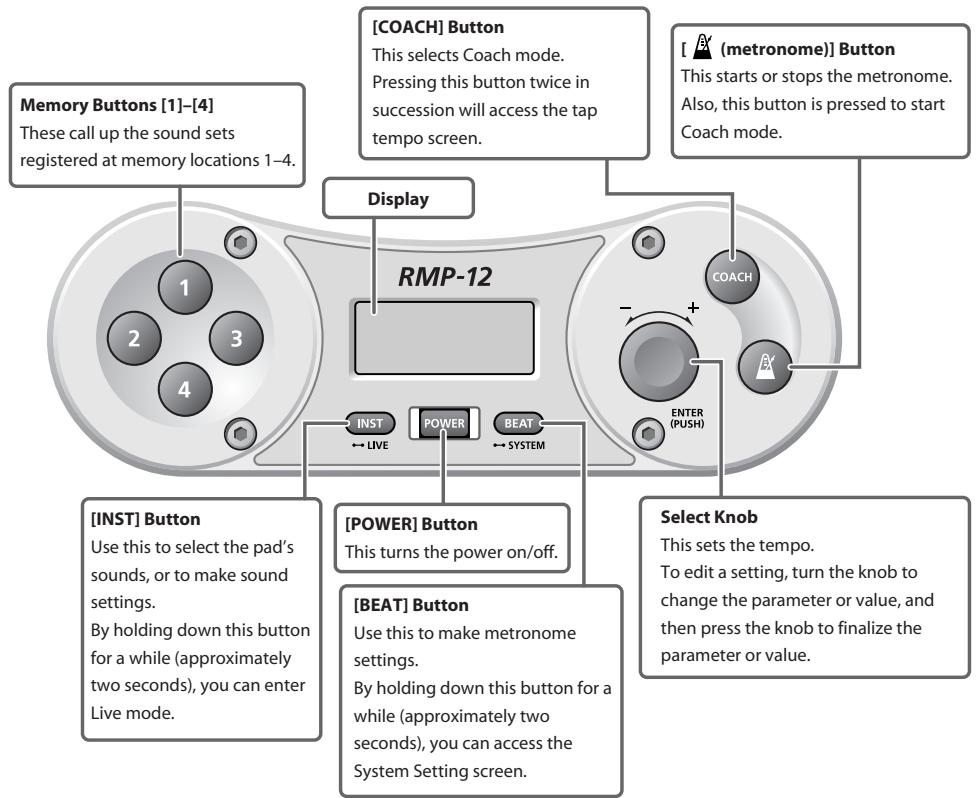
flowchart
graph TD
    A["Memory Buttons [1"]-["4"] These call up the sound sets registered at memory locations 1-4.] --> B["Display"]
    B --> C["RMP-12"]
    C --> D["COACH Button"]
    C --> E["COACH (metronome)"] Button
    C --> F["ENTER (PUSH)"]
    C --> G["POWER Button"]
    C --> H["BEAT Button"]
    C --> I["Select Knob"]
    C --> J["BEAT Button"]
    C --> K["INST Button"]
    C --> L["INST Button"]
    C --> M["Select Knob"]
    style A fill:#f9f,stroke:#333
    style B fill:#ccf,stroke:#333
    style C fill:#cfc,stroke:#333
    style D fill:#fcc,stroke:#333
    style E fill:#fcc,stroke:#333
    style F fill:#fcc,stroke:#333
    style G fill:#cff,stroke:#333
    style H fill:#cff,stroke:#333
    style I fill:#ffc,stroke:#333
    style J fill:#ffc,stroke:#333
    style K fill:#ffc,stroke:#333
    style L fill:#ffc,stroke:#333
Indications in the Display
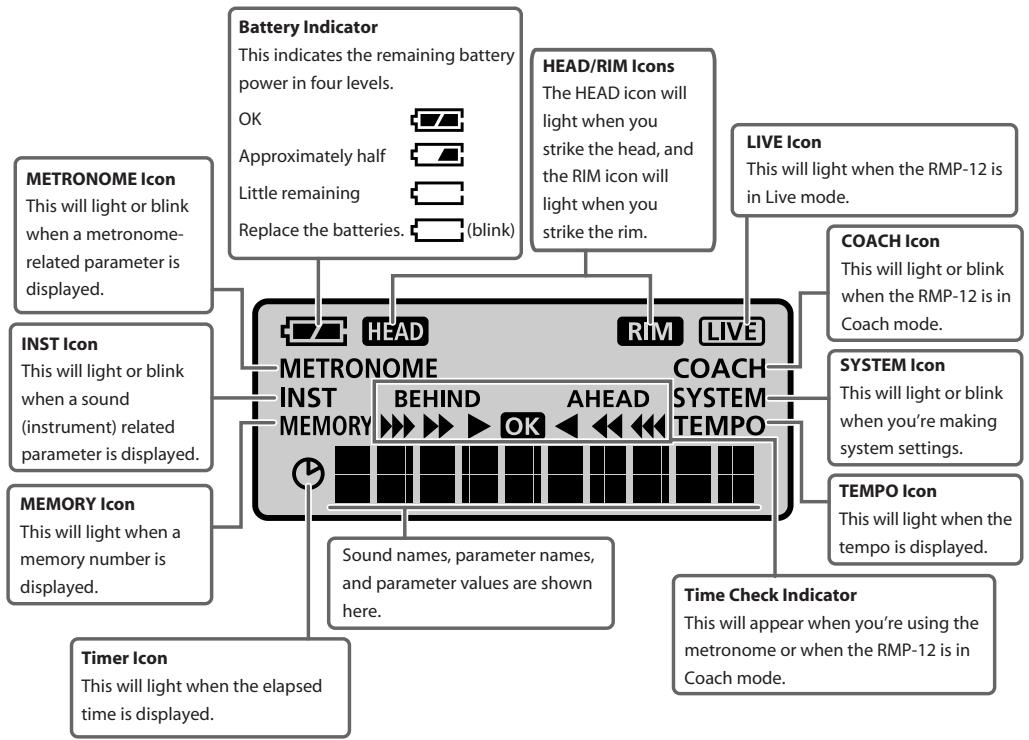
flowchart
graph TD
    A["LEAD"] --> B["HEAD"]
    A --> C["RIM"]
    A --> D["LIVE"]
    A --> E["COACH"]
    A --> F["TIME Check Indicator"]
    A --> G["TIMER Icon"]
    A --> H["MEMORY Icon"]
    A --> I["INST Icon"]
    A --> J["METRONOME Icon"]
    B --> K["BEHIND"]
    C --> L["AHEAD"]
    D --> M["LIVE Icon"]
    E --> N["COACH Icon"]
    F --> O["TIME Check Indicator"]
    G --> P["TIME Check Indicator"]
    H --> Q["DATA INPUT"]
    I --> R["DATA INPUT"]
    J --> S["DATA INPUT"]
NOTE
The battery indicator is an approximation. When the remaining battery power runs low, the audio quality may be affected or operation may become unstable. Please replace the batteries as soon as possible.
Side Panel
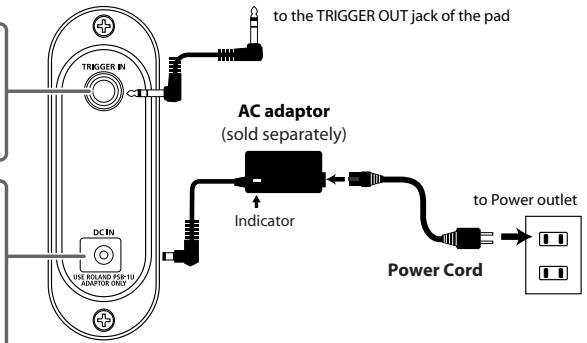
TRIGGER IN Jack
Use the included cable to connect the pad here.
* This cable is connected when the RMP-12 is shipped from the factory.
DC IN Jack
You can connect an AC adaptor (ROLAND PSB-series; sold separately) here.
If you use an AC adaptor, you'll be able to perform for an extended period of time without worrying about the batteries running down.
[PHONES VOLUME] Knob
This adjusts the volume of the headphones.
PHONES Jack (stereo)
Connect your headphones here.
MIX IN Jack (stereo)
If you connect a portable audio player or other audio source here, you'll be able to practice along with the music. The sound from this jack will be output to the headphone jack.
* The sound received at the MIX IN jack is not output from the OUTPUT jack.
OUTPUT (MONO) Jack
Connect this to your external amp or wireless transmitter.
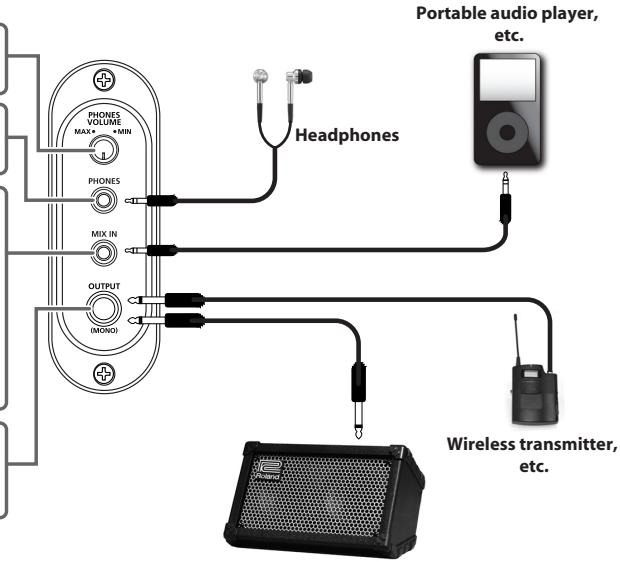
Monitor Amplifier, etc.
NOTE
- If you use an AC adaptor, use only the specified model (PSB-series).
- When connection cables with resistors are used, the volume level of equipment connected to the input (MIX IN jack) may be low. If this happens, use connection cables that do not contain resistors.
• The RMP-12's output is monaural. - Do not use a conversion adaptor plug. The weight of the plug may cause it to fall out of the jack during performance.
- To prevent malfunction and/or damage to speakers or other devices, always turn down the volume, and turn off the power on all devices before making any connections.
NOTE
- Avoid outdoor use (practice) in rainy conditions. Such use will cause malfunctions.
• Take care that dirt or other foreign matter does not enter the inside of the unit from the underside of the pad. Such foreign matter will cause faulty operation or malfunctions. - Do not insert your hand or fingers from the rear of the pad. Doing so may cause injury to you, or may cause the unit to malfunction.
Check the Connections between the Sound Module And the Pad
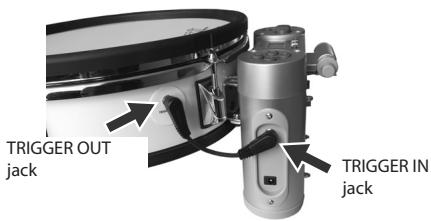
1. Make sure that the cable that connects the TRIGGER IN jack on the sound module's side panel to the TRIGGER OUT jack of the pad is connected securely at both ends.
This cable is connected when the RMP-12 is shipped from the factory.
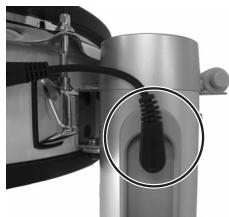
NOTE
Make sure that the plug is NOT in the position shown in the photo below.
natural_image
Close-up of a mechanical component with a magnified inset showing internal structure (no visible text or symbols)Install the Batteries
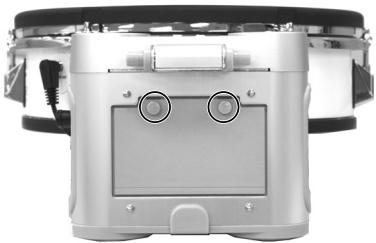
1. Loosen the two screws that fasten the cover of the battery compartment, and remove the cover.
natural_image
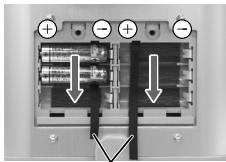
Front view of a modern kitchen appliance with control buttons and a central display (no visible text or symbols)2. Install the supplied batteries into the battery compartment, while carefully observing the correct polarity (+/- orientation).
Insert the batteries from above the battery ties. Make sure that the ends of the battery ties are not hidden below the batteries.
As shown in the illustration, insert the batteries in order, beginning at the top. You should insert the "+" end of each battery first.
natural_image
Close-up of a computer interface panel showing internal components and directional arrows (no text or symbols)Battery ties
3. Firmly close the cover of the battery compartment, and fasten it using the screws you removed in step 1.
Be careful not to pinch the battery ties when you close the battery cover.
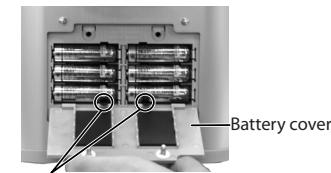
Battery ties
Removing the Batteries
To remove the batteries, switch off the RMP-12's power, detach the battery cover, and pull the end of the battery tie to remove the batteries.
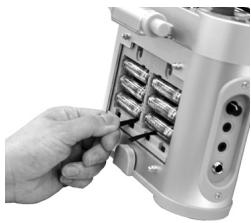
natural_image
Hand inserting batteries into a cylindrical device (no visible text or symbols)NOTE
The batteries may fly out if you pull too strongly on a battery tie. Use caution when removing the batteries.
Battery Lifespan
When the batteries run down, the battery indicator in the upper left of the screen will blink. The power will turn off five seconds after the "Batt Low!" indication appears. Please replace the batteries as soon as possible.
NOTE
- The reading of the battery indicator is an approximation.
- When replacing the batteries, use AA alkaline batteries (six batteries).
- Do not mix new and old batteries.
- When using alkaline batteries, their lifespan for continuous operation at room temperature will be approximately 8 hours. (This will vary depending on the conditions of use.)
- Remove the batteries whenever the unit is to remain unused for an extended period of time.
Connecting the AC Adaptor (Sold Separately)
A ROLAND PSB-series AC adaptor (sold separately) can be used to power the RMP-12.
- Make sure that the power for the RMP-12 is switched off.
- Connect the power cord to the AC adaptor.
- Connect the AC adaptor to the RMP-12's DC IN jack, and plug the power cord into an AC outlet.
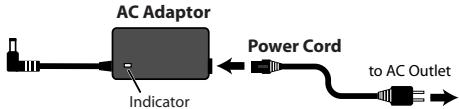
flowchart
graph LR
    A["AC Adaptor"] --> B["Power Cord"]
    B --> C["to AC Outlet"]
    D["Indicator"] --> A
NOTE
Place the AC adaptor so the side with the indicator (see illustration) faces upwards and the side with textual information faces downwards. The indicator will light when you plug the AC adaptor into an AC outlet.
NOTE
Use only the ROLAND PSB-series AC adaptor. Other adaptors may cause malfunction or damage to the RMP-12 and must never be used.
Adjusting the Head Tension
Before you begin playing, use the included drum key to adjust the head tension for the desired strike response. The head is NOT tuned before shipping.
Always tighten the tuning bolts in the order shown in the figure.
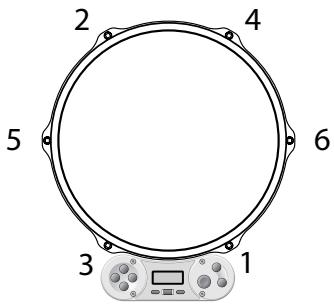
NOTE
If the head is tensioned too tightly, you won't be able to use the RMP-12's performance functions correctly. To learn more about tensioning the head, please watch the included "Application Guide DVD" in conjunction with this manual.
NOTE
Failure to adjust the tension may result in damage to the head.
NOTE
Head tension may change with extended use. Make adjustments as needed.
NOTE
If you won't be using the RMP-12 for an extended period of time, please loosen the head tension.
Attaching the RMP-12 to a Commercially Available Snare Stand
NOTE
Caution when attaching the RMP-12 to a commercially available snare stand
- If you use a commercially available snare stand designed for performing while standing, choose a model that is able to securely accommodate a 12-inch diameter snare.
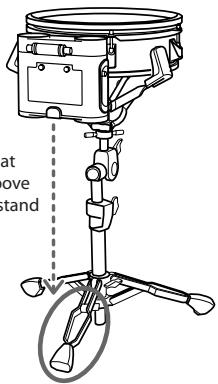
• Make sure to fully spread the legs of the stand. - Place the RMP-12 so that its sound module is above one of the legs of the stand.
- Take care that the fasteners of the stand do not pinch the cable that connects the RMP-12's pad and sound module.
- The RMP-12 is heavier on the side where the sound module is located. Take care not to drop the RMP-12 when placing it on the stand.
Place the RMP-12 so that its sound module is above one of the legs of the stand
Using the Cable Tie
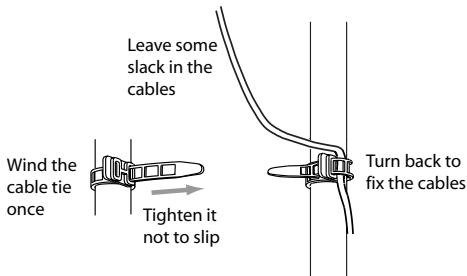
The cable that connects other equipment to the RMP-12 can be fastened to the stand using the included cable tie; this will make it less likely that the cable can be pulled out accidentally.
1. Allowing some slack in the cable, fasten it to the stand using the cable tie.
Attaching the RMP-12 to a Marching Carrier (Sold Separately)
NOTE
Caution when attaching the RMP-12 to a marching carrier
- If you want to attach the RMP-12 to a marching snare carrier, use the specified model (sold separately: Roland OP-RMP12).
- Do not put your fingers between the RMP-12 and OP-RMP12. Your fingers could get pinched, causing injury. Before replacing the batteries, you must either take off the marching carrier or detach the RMP-12 from the marching carrier.
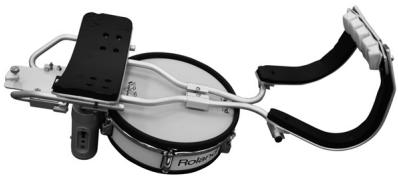
- When placing the marching carrier on a floor or other surface when the RMP-12 is attached, be careful not to subject it to physical impact. It may be damaged if you set it down roughly. If you place the marching carrier on a floor or other surface, you should fold it as shown in the photo.
natural_image
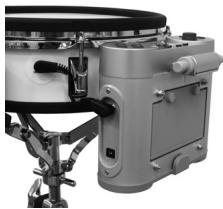
Mechanical device with attached black and white components, no visible text or symbols- If you want to play the RMP-12 while it's attached to a snare stand, you must remove the OP-RMP12. If you leave the OP-RMP12 attached, you may experience noise during performance, and you also risk dropping the unit.
natural_image
Close-up of a mechanical device with no visible text or symbolsAbout the Attachable Marching Carrier
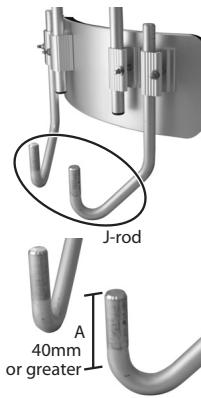
• J-rod type marching carrier for snare
- Dimensions of appropriate J-rod Diameter: 14.0–14.3 mm
Length of portion "A": 40mm or greater
* In some cases, it will not be possible to attach a J-rod type marching carrier even if it has the above dimensions.
About the Tilt Feature
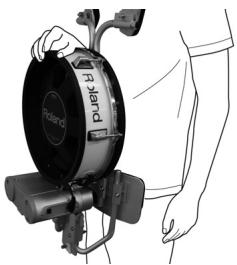
It is possible to fold the RPM-12 upward as shown in illustration.
natural_image
Line drawing of a hand holding a Poland R Jardó disc (no text or symbols on the disc itself)* The locks must be engaged when you fold the RMP-12 upward. If the locks are not engaged, the RMP-12 may detach from the marching carrier, possibly causing malfunction or injury.
* To avoid getting your fingers pinched when moving the RMP-12 from the folded-up position to the normal playing position, make sure to place both of your hands on the RMP-12's pad while you lower the unit.
Attachment
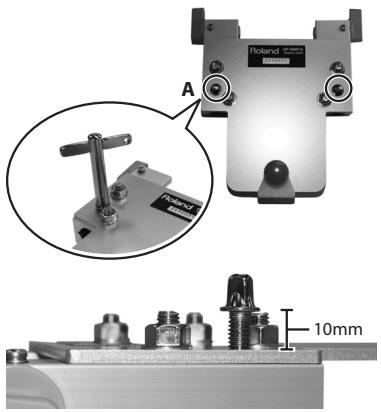
- Using the drum key included with the RMP-12 or a commercially available drum key, loosen the screws (A, two locations) by approximately 10 mm.
natural_image
Mechanical device with labeled parts and a 10mm scale indicator (no readable text or symbols beyond labels)* Avoid placing fingers inside the holes in which the J-rods are inserted.
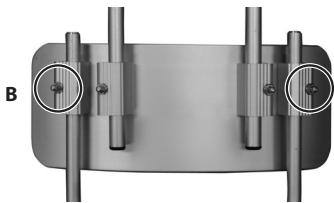
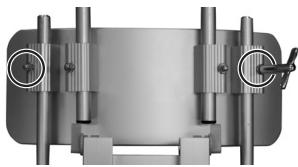
- Loosen the screws (B, two locations) that hold the J-rods of the marching carrier in place—just enough to make it possible to move the J-rods.
* Do not remove the screws (B) that hold the J-rods in place.
natural_image
Mechanical assembly diagram showing two vertical cylindrical components connected to a central rectangular block, with no visible text or symbols.- Insert the OP-RMP12 into the J-rods.
Insert it all the way, with the front and back oriented as shown in illustrations.
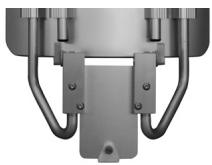
natural_image
Close-up of a mechanical component with curved metal rods and a central mounting bracket (no visible text or symbols)- Adjust the J-rods so that the OP-RMP12 is horizontal and parallel.
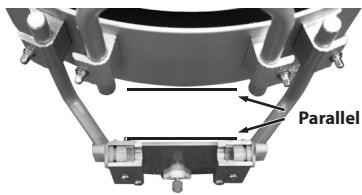
- Fasten the J-rods by tightening the screws you loosened in step 2.
natural_image
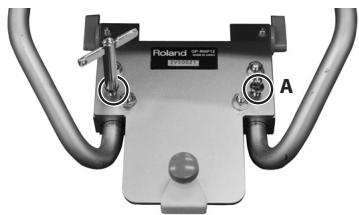
Mechanical assembly diagram showing a bracket with mounting flanges and a tool, no visible text or symbols- While making sure that the J-rods are inserted all the way, securely tighten the screws on the OP-RMP-12 that hold the J-rods in place.
natural_image
Mechanical device with two curved pipes and a central control panel labeled 'A', no visible text or symbols on the main body.* If the J-rods are not inserted all the way into the OP-RMP12, the OP-RMP12 cannot be fastened securely, causing the risk that it may come off of the J-rods while you perform.
-
Put the marching carrier onto your body.
-
Turn the lock levers (C, two locations) so they're unlocked.
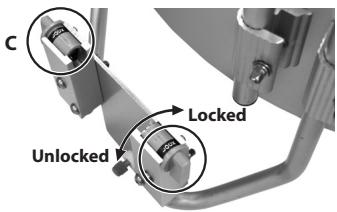
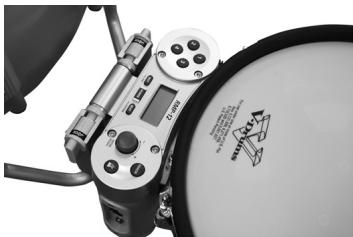
9. Attach the RMP-12 and lock it in place.
natural_image
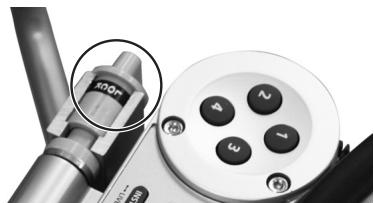
Close-up of a camera lens and control panel with no visible text or symbols* You must lock them when the RMP-12 is mounted. If they are not locked, the RMP-12 may detach from the marching carrier during performance, possibly causing malfunction or injury.
natural_image
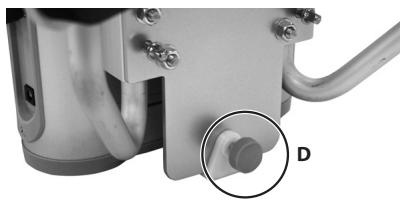
Close-up of a mechanical component with a knob and a rotary dial (no visible text or symbols)- Adjust the marching carrier to adjust the height of the RMP-12's pad.
- Turn the angle adjustment screw (D) to adjust the angle of the RMP-12's pad
natural_image
Close-up of a mechanical component with a labeled bolt (D) and connection points, no readable text or symbols present.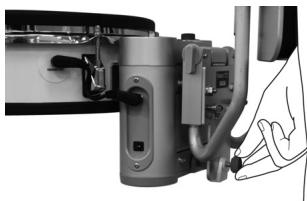
natural_image
Close-up of a mechanical device with a hand pointing to a button (no visible text or symbols)Using the Cable Tie
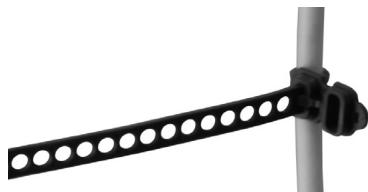
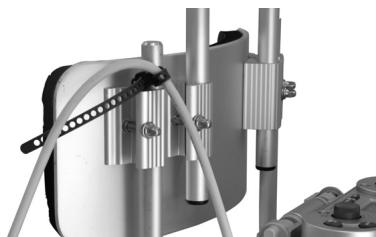
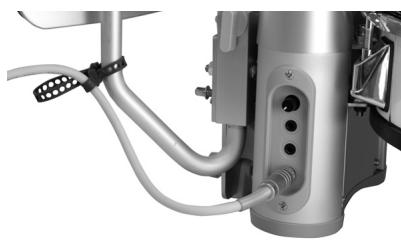
If you use the RMP-12 with an audio cable connected to its OUTPUT jack, use the included cable tie to secure the cable. If you use a cable tie, you'll be able to perform without being obstructed by the cable. The cable tie provides the additional benefit of preventing the cable from being pulled out even if you accidentally step on it.
1. Fasten the cable tie around the cable.
natural_image
Close-up of a black metal bracket with circular holes mounted on a vertical pole (no text or symbols visible)2. Attach the cable tie to the J-rod.
Example 1
natural_image
Mechanical assembly with metallic components and a coiled spring (no visible text or symbols)Example 2
natural_image
Close-up of a metallic industrial device with hoses and connectors (no visible text or symbols)Turning the Power On and Off
NOTE
Once the connections have been completed, turn on power to your audio devices in the order specified. Turning on devices in the wrong order may cause malfunction and/or damage to speakers and other devices.
- Turn the [PHONES VOLUME] knob to the minimum level.
- Switch on the power to the device that's connected to the MIX IN jack.
- Press the [POWER] button to turn on the power.
NOTE
Always make sure to have the volume level turned down before switching on power. Even with the volume all the way down, you may still hear some sound when the power is switched on, but this is normal, and does not indicate a malfunction.
NOTE
This unit is equipped with a protection circuit. A brief interval (a few seconds) after power up is required before the unit will operate normally.
- While striking the head, gradually turn the [PHONES VOLUME] knob to adjust the volume level.
If an Amp is Connected to the OUTPUT Jack
- Turn down the volume control on each of the devices in your system.
- Switch on the power to the device that's connected to the MIX IN jack.
- Press the [POWER] button to turn on the power.
- Turn on the connected amp system, and adjust the volume to the desired level.
When Turning Off the Power
Before switching off the power, lower the volume on each of the devices in your system and then turn off the devices in the reverse order to which they were switched on.
Auto Power-off
To prevent the batteries from running down unnecessarily, the Auto Power-off function will automatically turn off the power if the pad has not been struck or any other operation performed for ten minutes after the most recent button operation.
If the metronome is on, the power will automatically turn off if the pad has not been struck or any other operation performed for twenty minutes after the most recent button operation.
The Auto Power-off function will not operate in Live mode (p. 28).
Selecting Sounds (Memory Buttons)
A set of two sounds is assigned to each memory button [1]–[4]: one sound played by the head and another sound played by the rim.
1. Press one of the [1]–[4] buttons.
The name of the sound set assigned to the selected button will be displayed for approximately two seconds.
Then, the metronome tempo will be displayed.
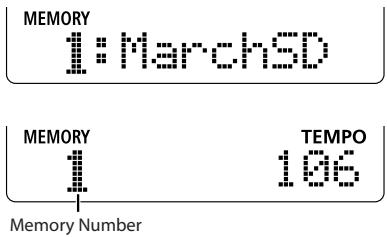
2. Strike the pad.
Striking the head and rim will produce different sounds.
NOTE
If you strike the head and rim simultaneously, only one of the sounds will be heard. It is not possible to play both sounds simultaneously.
Factory settings
| Button | Sound Set Name | Pad | Instrument |
| 1 | MarchSD | Head | 1: mSD 1 |
| Rim | 2: mSD 1r | ||
| 2 | BD&Cym | Head | 23: mBD 2 |
| Rim | 58: Cym 1 | ||
| 3 | Taiko | Head | 50: Taiko1 |
| Rim | 51: Taiko1r | ||
| 4 | SFX | Head | 121: Scrch3 |
| Rim | 127: PhilHit |
MEMO
If you want to change the sound set assigned to the memory button, or to edit settings such as tuning and volume, refer to "Changing the Settings of the Memory Buttons" (p. 25).
Using the Metronome
1. Press the [ (metronome)] button.
The metronome will sound.
The time check indicator will appear.
The timer icon will appear, allowing you to view the elapsed time.
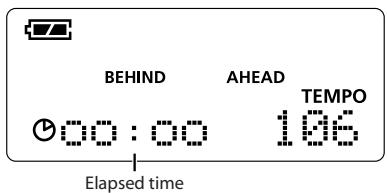
- Use the select knob to set the tempo (20–300).
- The time check indicator will respond when you strike the pad.
- To stop the metronome, press the [ (metronome)] button once again.
Time Check Indicator
The time check indicator will appear when you sound the metronome.
The timing of your strikes will be analyzed to determine whether they match the beat, and the result will be shown in the time check indicator.
This helps you practice playing in accurate time while you play along with the metronome.
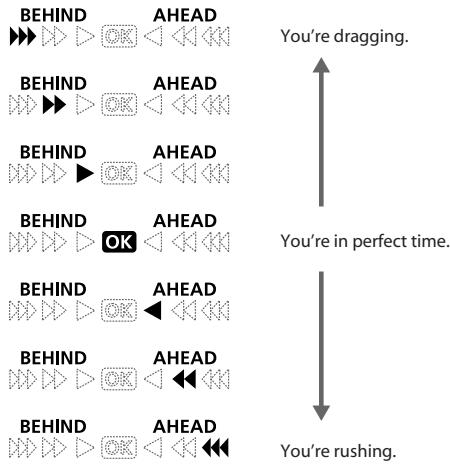
flowchart
graph TD
    A["BEHIND"] --> B["AHEAD"]
    C["BEHIND"] --> D["AHEAD"]
    E["BEHIND"] --> F["AHEAD"]
    G["BEHIND"] --> H["AHEAD"]
    I["BEHIND"] --> J["AHEAD"]
    K["BEHIND"] --> L["AHEAD"]
    M["BEHIND"] --> N["AHEAD"]
    O["BEHIND"] --> P["AHEAD"]
    Q["BEHIND"] --> R["AHEAD"]
    S["BEHIND"] --> T["AHEAD"]
    U["BEHIND"] --> V["AHEAD"]
    W["BEHIND"] --> X["AHEAD"]
    Y["BEHIND"] --> Z["AHEAD"]
    AA["BEHIND"] --> AB["AHEAD"]
    AC["BEHIND"] --> AD["AHEAD"]
    AE["BEHIND"] --> AF["AHEAD"]
    AG["BEHIND"] --> AH["AHEAD"]
    AI["BEHIND"] --> AJ["AHEAD"]
    AK["BEHIND"] --> AL["AHEAD"]
    AM["BEHIND"] --> AN["AHEAD"]
    AO["BEHIND"] --> AP["AHEAD"]
    AQ["BEHIND"] --> AR["AHEAD"]
    AS["BEHIND"] --> AT["AHEAD"]
    AU["BEHIND"] --> AV["AHEAD"]
    AW["BEHIND"] --> AX["AHEAD"]
    AY["You're dragging."]
    AZ["You're in perfect time."]
    BA["You're rushing."]
Changing the Metronome Settings
1. Press the [BEAT] button.
The METRONOME icon will blink in the display.
2. Turn the select knob to choose the parameter that you want to edit, and then press the select knob.
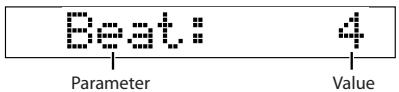
The value of the parameter you're editing will blink.
| Parameter | Value | Explanation |
| Beat | 0–13 | Specifies the time signature of the metronome. If you choose “0,” no accent will be applied. |
| Rhythm | Specifies how the metronome will sound. | |
| Whole note | ||
| Quarter note | ||
| Eighth note | ||
| Triplet | ||
| Sixteenth note | ||
| Volume | 0–10 | Adjusts the volume of the metro-nome. |
| Sound | 1–7 | Changes the sound of the metro-nome.1: ELECTRONIC2: SWEEP3: STICKS4: BEEP5: PULSE6: COWBELL7: SHAKER |
| Grade | EASY, HARD | Specifies whether the Time Check indicator will evaluate your playing leniently (EASY) or strictly (HARD). |
| LineOut | ON, OF | Specifies whether the metronome sound will be sent from the OUTPUT jack (ON) or not sent (OF). |
3. Turn the select knob to edit the value, and then press the select knob.
If there are only two values, you can press the select knob to toggle between the two values.
4. When you've finished editing, turn the select knob to choose "[OK]," and then press the select knob.
If you decide to discard your changes, turn the select knob to choose "[CANCEL]" and then press the select knob.
You will exit the editing screen.
TIP
As an alternative to selecting "[OK]" in step 4, you can press the [BEAT] button or one of the [1]-[4] buttons to change the settings and exit the metronome setting screen.
NOTE
The changes you've made will be lost if you turn off the power without exiting the setting screen.
Practicing with Coach Mode
1. Press the [COACH] button.
The RMP-12 will enter Coach mode.
A menu name will appear.
TimeScore
2. Turn the select knob to select the desired menu.
| Menu | Menu name | Explanation | Page |
| TimeScore | Time Check Score | Practice playing with accurate timing. Your accuracy will be scored numerically. | p. 22 |
| Speed Check | Speed Check | Practice playing with accurate timing. The tempo will increase as you continue playing accurately. | p. 22 |
| Rhythm Note | Rhythmic Notes | Practice continuing to play while the note length changes. | p. 23 |
| Up/Down | Auto Up/Down | Practice continuing to play while the tempo increases or decreases. | p. 23 |
| Dyna Meter | Dyna Meter | Visually confirm the force of your strikes. | p. 24 |
| TapTempo | Tap Tempo | The metronome tempo will be determined by the interval at which you strike the pad.* When you're not in Coach mode, you can also access the Tap Tempo screen by pressing the [COACH] button twice in succession. | p. 24 |
3. Press the [ (metronome)] button to start the menu.
The way in which the menu ends will depend on the menu. Refer to the page that explains each menu.
4. To exit Coach mode, press the [COACH] button.
TIP
You can use the memory buttons to switch sounds even while you're practicing in Coach mode.
MEMO
The tempo you specify while in a menu will be the tempo of the metronome after you exit Coach mode.
Editing the Menu Settings
1. Press the [COACH] button.
The RMP-12 will enter Coach mode.
A menu name will appear.
2. Turn the select knob to select the desired menu, and then press the select knob.
3. Turn the select knob to choose the parameter you want to edit, and then press the select knob.
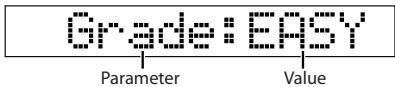
For an explanation of the parameters, refer to the reference page for each menu.
4. Turn the select knob to choose the desired value, and then press the select knob.
If there are only two values, you can press the select knob to toggle between the two values.
5. When you've finished making settings, turn the select knob to choose "[START]" and then press the select knob to start the menu.
At this time, you can return to the menu name screen by turning the select knob to choose "[BACK]" and pressing the select knob.
TIP
You can start by pressing the [ (metronome)] button.
Checking Your Timing Accuracy as a Numerical Score (TimeScore: Time Check Score)
This function lets you practice your accuracy while listening to the metronome.
The screen will indicate a numeric score according to how well your pad strikes match the beat.
You can make the following settings.
| Parameter | Value | Explanation |
| Grade | EASY, HARD | Specifies whether the Time Check indicator will evaluate your playing leniently (EASY) or strictly (HARD). |
| Meas | 8, 16, 32, 64 | Specifies the number of measures to be evaluated. |
| Tempo | 20–300 | Specifies the tempo at which you will practice. |
As an alternative to pressing the [ ☐ (metronome)] button, you can also start by turning the select knob to choose "[START]."
How to practice
When you start, there will be a two-measure count-in.
After the count-in, strike the pad in time with the metronome.
You can turn the select knob to change the tempo even while you practice.
When you're finished practicing
When you reach the specified measure, practice will end, and the score will be displayed.
Press the select knob to return to the menu name screen.
To start practice once again, press the [ ☑ (metronome)] button instead of the select knob.
When you're finished practicing, press the
[ Ex (metronome)] button to stop the metronome and return to the menu name screen.
Checking Your Timing Accuracy as the Tempo Gradually Rises (SpeedCheck)
This function lets you practice your accuracy while listening to the metronome.
When you are able to play accurately, the tempo will increase automatically.
You can make the following settings.
| Parameter | Value | Explanation |
| Grade | EASY, HARD | Specifies whether the Time Check indicator will evaluate your playing leniently (EASY) or strictly (HARD). |
| Meas | 8, 16, 32, 64 | Specifies the number of measures to be evaluated. |
| Tempo | 20–300 | Specifies the tempo at which you will begin practicing. |
As an alternative to pressing the [ ☑ (metronome)] button, you can also start by turning the select knob to choose "[START]."
How to practice
When you start, there will be a two-measure count-in.
After the count-in, strike the pad in time with the metronome.
If you are able to play accurately for the specified number of measures, the display will indicate "Good." If only a few hits were accurate, the display will indicate "Again." If the "Good" indication appears, the tempo will increase. If "Again" appears, practice again at the same tempo.
When you're finished practicing
When you're finished practicing, press the
[ Ex (metronome)] button to stop the metronome and return to the menu name screen.
Practicing Change-ups (RhythmNote)
This function lets you practice playing while you change the length of the notes. This is an effective way to practice change-ups, or to improve your feel for note lengths.
The metronome's rhythm type will change every two measures; strike the pads in time with the sounds. You'll start with half notes, the note value will gradually become shorter, and then you'll return to half notes and continue repeating.
You can make the following settings.
| Parameter | Value | Explanation |
| Type | ||
| Tempo | 20–300 | Specifies the tempo at which you will practice. |
As an alternative to pressing the [ (metronome)] button, you can also start by turning the select knob to choose "[START]."
How to practice
When you start, the timer will start and there will be a two-measure count-in.
After the count-in, strike the pad in time with the metronome.
During the practice, the elapsed time will be displayed.
Even while practicing, you can change the tempo by turning the select knob.
When you're finished practicing
When you're finished practicing, press the
[ Ex (metronome)] button to stop the metronome and return to the menu name screen.
Improving Your Tempo Control and Endurance (UP/DOWN)
This function lets you practice while the tempo gets faster and slower. Raising and lowering the tempo will improve your endurance.
The metronome's value will start from the minimum value and increase in steps of one. When it reaches the maximum value, it will decrease to the minimum value in steps of one. This will continue repeating.
You can make the following settings.
| Parameter | Value | Explanation |
| Rate | 1–5 | Higher values will cause a faster tempo change. With the “5” setting, the tempo will change each beat. |
| Min | 20–300 | Specifies the minimum tempo value.* The tempo you specify here will be the tempo of the metronome after you exit Coach mode. |
| Max | 21–300 | Specifies the maximum tempo value. |
As an alternative to pressing the [ ] (metronome)] button, you can also start by turning the select knob to choose "[START]."
How to practice
When you start, the timer will start. Strike the pad in time with the metronome.
If the specified "Max" value was too high, press the select knob when you reach the fastest tempo you can play. The maximum tempo will be reset to the tempo at the time you pressed the select knob.
During practice, the elapsed time will be displayed.
When you're finished practicing
When you're finished practicing, press the [ (metronome)] button to stop the metronome and return to the menu name screen.
Checking Your Dynamics and Timing Simultaneously (DynaMeter)
This function lets you view the force of your strikes as you practice. This method of practicing is an effective way to make the volume more consistent between your right hand and left hand, and to improve the smoothness of your overall sound.
You can make the following settings.
| Parameter | Value | Explanation |
| Tempo | 20–300 | Specifies the tempo at which you will practice. |
As an alternative to pressing the [ 3X (metronome)] button, you can also start by turning the select knob to choose "[START]."
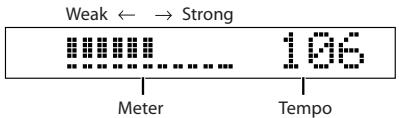
How to practice
When you start, the timer will start. Strike the pad in time with the metronome.
During the practice, the elapsed time will be displayed each minute.
Even while practicing, you can change the tempo by turning the select knob.
When you're finished practicing
When you're finished practicing, press the
[ Ex (metronome)] button to stop the metronome and return to the menu name screen.
MEMO
The indication will be stronger if you strike near the center of the pad.
TIP
If you use a sound for which the tuning (p. 25) is set to "DYNA1" or "DYNA2," your striking force will be reflected by the sound as well as shown in the Dyna Meter, thus letting you practice more effectively.
Setting the Tempo by the Strike Interval (TapTempo)
MEMO
You can also access the tap tempo screen by pressing the [COACH] button twice in succession when you're not in Coach mode.
This sets the metronome tempo (20–300) by the interval at which you strike the pad. For example, you can set the metronome tempo by striking the pad in time with the song you want to play. The tempo you specify here will still be valid when you exit Coach mode.
If you press the [ (metronome)] button or the select knob to start the menu.
The display will indicate "Tap:" and the value will blink.
To change the value, strike the pad in quarter-note intervals of the desired tempo. You can also change the value by turning the select knob.
When you've specified the tempo, press the select knob to finalize the value and refer to the menu name screen.
Changing the Settings of the Memory Buttons
A sound set together with settings such as tuning and volume can be registered to each memory button.
- Press one of the [1]–[4] buttons to select the memory location whose settings you want to change.
1: March 20
- Press the [INST] button.
The INST icon in the display will blink.
- Turn the select knob to select the parameter that you want to edit, and then press the select knob.
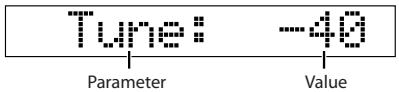
The value of the chosen parameter will blink.
| Parameter | Value | Explanation |
| (sound name) | 1–128, 129 (OFF) | Refer to the “Sound list.” If you choose “129,” there will be no sound when you strike the pad. |
| Tune | -600–+600 (cent) | Adjusts the tuning of the head or rim. |
| DYNA1, DYNA2 | The pitch will change according to the force of your strike (Dyna Pitch). The pitch will rise for strong strikes, and fall for weak strikes.“DYNA1” will change the pitch smoothly according to the force of your strike.“DYNA2” will change the pitch in semitone steps according to the force of your strike. | |
| Volume | 0–100 | Adjusts the volume of the head or rim. |
| [Name...] | Renames the setting.The name you assign here is shown when you press the currently selected memory button (maximum of seven characters)For details, refer to “Naming a Sound Set.” | |
- If you want to change the sound, tuning, or volume, strike the head or the rim to specify which you want to change.
An icon (HEAD or RIM) will light to indicate whether you're editing the head or rim.
-
Turn the select knob to edit the value, and then press the select knob.
-
When you've finished editing, turn the select knob to select "OK," and then press the select knob.
If you decide to cancel the settings, turn the select knob to select "[CANCEL]," and then press the select knob.
You will exit the editing screen.
TIP
As an alternative to selecting "[OK]" in step 6, you can press the [INST] button or one of the [1]-[4] buttons to change the settings and exit the editing screen.
NOTE
The changes you've made will be lost if you turn off the power without exiting the editing screen.
Naming a Sound Set
- Press one of the [1]–[4] buttons to select the memory that you want to edit.
- Press the [INST] button.
- Turn the select knob to choose "[Name...]," and then press the select knob.
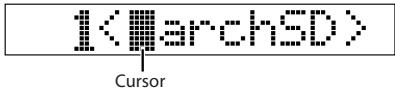
- Turn the select knob to select a character at the blinking cursor location, and then press the select knob.
When you press the select knob, the cursor will move one space to the right.
You can assign a name of up to seven characters to the sound set.
- When the cursor is located at the seventh character, pressing the select knob will take you back to the previous screen.
- Press the [INST] button once again.
You will exit the editing screen.
NOTE
The changes you've made will be lost if you turn off the power without exiting the editing screen.
Sound List
| No. | Display | Name |
| 1 | mSD 1 | Marching Snare Drum 14"x12" |
| 2 | mSD 1r | Marching Snare Drum 14"x12" Rim |
| 3 | mSD 2 | Double Snare Drum 13"x11" |
| 4 | mSD 2r | Double Snare Drum 13"x11" Rim |
| 5 | mSD 3 | Short Snare Drum 14"x10" |
| 6 | mSD 3r | Short Snare Drum 14"x10" Rim |
| 7 | mSD 4 | Pipe Snare Drum 14"x12" |
| 8 | mSD 4r | Pipe Snare Drum 14"x12" Rim |
| 9 | mSD 5 | Parade Snare Drum 14"x12" |
| 10 | mSD 5r | Parade Snare Drum 14"x12" Rim |
| 11 | SD 1 | Snare Drum 1 |
| 12 | SD 1r | Snare Drum 1 Rim |
| 13 | SD 2 | Snare Drum 2 |
| 14 | SD 2r | Snare Drum 2 Rim |
| 15 | OrchSD | Orchestral Snare Drum |
| 16 | eSD | Electronic Snare Drum |
| 17 | 808SD | TR-808 Snare Drum |
| 18 | 909SD | TR-909 Snare Drum |
| 19 | Xstick1 | Cross Sticks 1 |
| 20 | Xstick2 | Cross Sticks 2 |
| 21 | mBD 1 | Marching Bass Drum 16" |
| 22 | mBD 1r | Marching Bass Drum 16" Rim |
| 23 | mBD 2 | Marching Bass Drum 20" |
| 24 | mBD 2r | Marching Bass Drum 20" Rim |
| 25 | mBD 3 | Marching Bass Drum 24" |
| 26 | mBD 3r | Marching Bass Drum 24" Rim |
| 27 | mBD 4 | Marching Bass Drum 28" |
| 28 | mBD 4r | Marching Bass Drum 28" Rim |
| 29 | BD 1 | Bass Drum 1 |
| 30 | BD 2 | Bass Drum 2 |
| 31 | BD 3 | Bass Drum 3 |
| 32 | BD 4 | Bass Drum 4 |
| 33 | OrchBD | Orchestral Bass Drum |
| 34 | eBD 1 | Electronic Bass Drum 1 |
| 35 | eBD 2 | Electronic Bass Drum 2 |
| 36 | eBD 3 | Electronic Bass Drum 3 |
| 37 | 808BD | TR-808 Bass Drum |
| 38 | 909BD | TR-909 Bass Drum |
| 39 | mTom 1 | Marching Quad Tom 6" |
| 40 | mTom 2 | Marching Quad Tom 10" |
| 41 | mTom 3 | Marching Quad Tom 12" |
| 42 | mTom 4 | Marching Quad Tom 13" |
| No. | Display | Name |
| 43 | mTom 5 | Marching Quad Tom 14" |
| 44 | 808Tom1 | TR-808 Tom 1 |
| 45 | 808Tom2 | TR-808 Tom 2 |
| 46 | 808Tom3 | TR-808 Tom 3 |
| 47 | eTom 1 | Electronic Tom 1 |
| 48 | eTom 2 | Electronic Tom 2 |
| 49 | eTom 3 | Electronic Tom 3 |
| 50 | Taiko1 | Nagado Taiko |
| 51 | Taiko1r | Nagado Taiko Rim |
| 52 | Taiko2 | Hira Taiko |
| 53 | Taiko2r | Hira Taiko Rim |
| 54 | TimpniC | Timpani C |
| 55 | TimpniG | Timpani G |
| 56 | TubBelC | Tublar Bell C |
| 57 | TubBelG | Tublar Bell G |
| 58 | Cym 1 | Piatti Cymbals |
| 59 | Cym 1mt | Muted Piatti Cymbals |
| 60 | Cym 2 | Crash Cymbal 13" |
| 61 | Cym 3 | Thin Crash Cymbal 14" |
| 62 | Cym 4 | Effect Cymbal 14" |
| 63 | Cym 5 | Splash Cymbal 8" |
| 64 | Cym 6 | China Cymbal 16" |
| 65 | RideCym | Ride Cymbal 20" |
| 66 | HH cl | Closed Hi-hat |
| 67 | HH op | Opened Hi-hat |
| 68 | 808HHcl | Closed TR-808 Hi-hat |
| 69 | 808HHop | Opened TR-808 Hi-hat |
| 70 | Claves | Claves |
| 71 | Tambrin | Tambourine |
| 72 | Tri op | Open Triangle |
| 73 | Tri mt | Muted Triangle |
| 74 | Shaker | Shaker |
| 75 | Cowbel1 | Cowbell 1 |
| 76 | Cowbel2 | Cowbell 2 |
| 77 | BlockH | Wood Block High |
| 78 | BlockL | Wood Block Low |
| 79 | Ratchet | Ratchet |
| 80 | VibSlap | Vibra-slap |
| 81 | FlxTone | Flex Metal |
| 82 | Crotale | Crotale |
| 83 | ChnChng | Cheng Cheng |
| 84 | Gong | Gong |
| 85 | WtrPhon | Water Phone |
| 86 | AccCym | Accent Cymbal |
| 87 | XCym | Cross Cymbal |
| 88 | LayrCym | Layered Cymbal |
| 89 | SleighB | Sleigh Bells |
| 90 | BelTree | Bell Tree |
| 91 | TrChime | Tree Chimes |
| 92 | TimbleH | Timbale High |
| 93 | TimbleL | Timbale Low |
| 94 | CongaHi | Conga High |
| 95 | CongaLo | Conga Low |
| 96 | BongoHi | Bongo High |
| 97 | BongoLo | Bongo Low |
| 98 | Djembe | Djembe |
| 99 | Tabla 1 | Tabla Na |
| 100 | Tabla 2 | Tabla Tin |
| 101 | Tabla 3 | Tabla Tun |
| 102 | Claps 1 | Hand Claps 1 |
| 103 | Claps 2 | Hand Claps 2 |
| 104 | Clap | Hand Clap |
| 105 | FngSnap | Finger Snap |
| 106 | Stomp | Stomp |
| 107 | Hammer | Hammer |
| 108 | FightBl | Fight Bell |
| 109 | Sword | Sword |
| 110 | Gadgets | Gadgets |
| 111 | TypWtr1 | Type Writer Key Click 1 |
| 112 | TypWtr2 | Type Writer Key Click 2 |
| 113 | Clock | Grandfather's Clock |
| 114 | CarHorn | Car Horn |
| 115 | GlsCrsh | Glass Crash |
| 116 | Bird | Bird |
| 117 | Thunder | Thunder |
| 118 | Jet | Jet Plane |
| 119 | Scrtch1 | Scratch 1 |
| 120 | Scrtch2 | Scratch 2 |
| 121 | Scrtch3 | Scratch 3 |
| 122 | Laser | Laser beam |
| 123 | Verby | Verby Stick |
| 124 | Byon | Byon |
| 125 | Trsform | Transform |
| 126 | SuperLo | Super Low |
| 127 | PhilHit | Philly Hit |
| 128 | PracPad | Practice Pad |
| 129 | OFF | Off |
The RMP-12 provides a "Live mode" that lets you lock the function of buttons that you would not use during a live performance, so that the metronome will not start sounding even if you inadvertently press a button.
1. Hold down the [INST] button for about two seconds.
The LIVE icon will light, and the RMP-12 will enter Live mode. The display will indicate the number and name of the currently selected memory button.
![MEMORY [1]March5D](/content/2025/01/130902/images/a488853f54af18fa674021da32c80bf570239704ac42ff26eb63b927a229a52c.jpg)
Buttons that can be used in Live mode
• [1]–[4] buttons: Select sounds
- [POWER] button: Hold down (for approximately two seconds) to turn off the power
* Live mode will be cancelled the next time you turn on the power.
- Press the select knob: Mute function (see "Muting the Sound of the Pad")
Nothing will happen when you operate a button other than those listed above, or turn the select knob.
2. To cancel Live mode, hold down the [INST] button (for approximately two seconds).
The LIVE icon will go dark.
NOTE
The Auto Power-off function (p. 17) will not operate in Live mode.
Muting the Sound of the Pad
You can prevent the pad from producing sound in Live mode (Mute).
NOTE
You can't mute an already-playing sound.
Muting Only While You Press the Button
1. Press and hold down the select knob.
The display will indicate "
[1]
As long as you hold down the select knob, striking the pad will not produce sound.
2. To cancel muting, release the select knob.
Now the pad will produce sound when struck.
Keeping the Pad Muted
- While holding down the select knob, turn it towards the "+" at least one third of a turn.
The display will blink
Release the select knob.
Striking the pad will not produce sound.
- To cancel muting, press the select knob.
Now the pad will produce sound when struck.
How to Make System Settings
Settings that affect the entire RMP-12 are called "system settings."
1. Hold down the [BEAT] button for a while.
The SYSTEM icon will blink in the display.
2. Turn the select knob to choose the parameter that you want to edit, and then press the select knob.
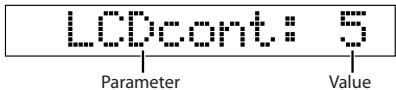
The value of the parameter you're editing will blink.
For details, refer to the section that explains each parameter.
| Parameter | Value | Explanation |
| LCDcont | 1–10 | Adjusts the display's contrast. |
| LineVol | 0–10 | Adjusts the volume that is output to the OUTPUT (MONO) jack. |
| Sens | -5–+9 | Adjusts the sensitivity of the head. |
| RimAdj | -9–+9 | Adjusts how easily the rim will sound. |
| RimGain | -9–+9 | Adjusts the sensitivity of the rim. |
3. Turn the select knob to edit the value, and then press the select knob.
4. When you've finished editing, turn the select knob to choose "[OK]" and then press the select knob.
If you decide to discard the changes you made, turn the select knob to choose "[CANCEL]" and then press the select knob.
You will exit the editing screen.
TIP
As an alternative to selecting "[OK]" in step 4, you can confirm the change and exit the system setting screen by pressing the [BEAT] button or a [1]-[4] button.
NOTE
The changes you've made will be lost if you turn off the power without exiting the editing screen.
Adjusting the Display's Contrast
In step 2 of "How to make system settings," choose "LCDcont." Specify a value of 1–10. Higher values will make the display darker.
Adjusting the Volume of the OUTPUT Jack
In step 2 of "How to make system settings," choose "LineVol." Specify a value of 0–10. Higher values will increase the volume sent to the OUTPUT jack.
Adjusting the Head Sensitivity
In step 2 of "How to make system settings," choose "Sens."
This sets the sensitivity of the head, adjusting the way in which your striking force affects the loudness of the sound.
Specify a value of -5--+9. Higher values will increase the sensitivity, allowing loud volumes to be produced even when you strike the pad softly. Lower values will decrease the sensitivity, so that the volumes produced will be low even if you strike the pad strongly.
Adjusting the Sensitivity of the Rim
In step 2 of "How to make system settings," choose "RimAdj" or "RimGain."
RimAdj (Rim adjust)
This adjusts how easy it will be to play rim shots.
Specify a value from -9 to +9. If the rim sound is produced inadvertently when you strike the head strongly, decreasing this value will solve the problem. If this value is too low, it will be difficult to sound the rim instrument.
RimGain (Rim gain)
This sets the rim sensitivity, adjusting the way in which your striking force affects the loudness of the sound.
Specify a value from -9 to +9. Higher values will allow loud sounds to be produced even when you strike the rim softly. Lower values will produce softer sounds even if you strike the rim strongly.
NOTE
If the "Sens," "RimAdj," and "RimGain" values are set too high, the RMP-12's sensor may respond to loud sounds near the pad (such as a strong rim shot on an acoustic drum), inadvertently causing sound to be produced.
Restoring the Factory Settings (Factory Reset)
This operation will return all of the RMP-12's settings to their factory-set condition.
NOTE
If you execute Factory Reset, all the settings you've changed will be lost.
- Hold down the [BEAT] button for a while.
The SYSTEM icon will blink in the display.
- Turn the select knob to choose "[Reset...]," and then press the select knob.

The display will ask "Sure?"

- Turn the select knob to choose "[YES]," and then press the select knob.
If you decide not to execute the factory reset, turn the select knob to choose “[NO],” and then press the select knob.
Once the factory reset has been carried out, the display will indicate "Completed!" and you will exit the setting screen.
If an Error Message Appears
This section lists the different error messages that may appear, along with their meanings and measures to resolve the problems described.

(Battery Low!)
| Meaning | Action |
| The batteries have run down. | The RMP-12's power will turn off in five seconds.Replace the batteries as soon as the battery icon (p. 9) blinks. |

(Memory Error!)
| Meaning | Action |
| It is possible that the RMP-12's internal memory is damaged. | When you press any button, a factory reset (p. 30) will be executed. (Any changes you've made to the settings will be lost.)If this does not solve the problem, please contact your dealer or a Roland service center. |

(Wave Error!)
| Meaning | Action |
| There is a problem with the internal system. | Please contact your dealer or a Roland service center. |
Replacing the Head and Hoop Rubber
The head and hoop rubber are consumable items whose performance will diminish with use over time. If the head surface or the hoop rubber should become torn, or if there is slack in the head surface even after you've adjusted the head tension, please replace the head or hoop rubber.
To purchase a replacement head (MH-12 twelve-inch mesh head) or to have the hoop rubber replaced, please contact your dealer or a Roland customer service center.
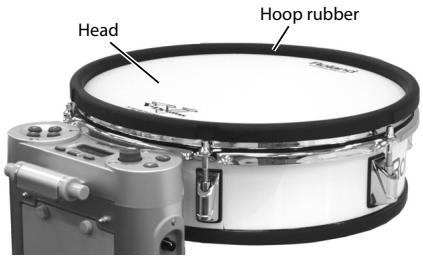
Replacing the Head
When replacing, use the included drum key.
1. Remove all tuning bolts.
Gradually loosen each one in order, turning them counterclockwise.
NOTE
Do not lose the tuning bolts.
2. Remove the old head.
3. Place the new head in the case.
4. Attach all six tuning bolts.
Adjust the tension of the head. Refer to "Adjusting the Head Tension" (p. 13).
Specifications
RMP-12: Marching Percussion
| Pad | Head Size | 12 inches |
| Trigger | 2 (Head, Rim) | |
| Instruments | 128 | |
| Instrument Parameters | Tuning, Volume | |
| Memory Bank | 4 | |
| Metronome | Tempo | 20–300 |
| Beat | 0–13 | |
| Rhythm Types | 5 types | |
| Click Sounds | 7 types | |
| Others | Timer Function, Time Check Function | |
| Rhythm Coach Functions | Time Check ScoreSpeed CheckRhythmic NotesAuto Up/DownDyna MeterTap Tempo | |
| Display | Custom Display | |
| Connectors | Phones Jack (Stereo miniature phone type)Mix In Jack (Stereo miniature phone type)Output Jack (1/4 inch phone type)Trigger Input Jack (1/4 inch TRS phone type)* This jack is connected to the pad with a cable when the RMP-12 is shipped from the factory.AC Adaptor Jack | |
| Power Supply | DC 9 V: Dry battery LR6 (AA) type (alkaline) x 6or AC Adaptor (optional)* Expected battery life under continuous use:Alkaline: 8 hoursThis figure will vary depending on the actual conditions of use. | |
| Current Draw | 220 mA | |
| Dimensions | 347.5 (W) x 416 (D) x 193.8 (H) mm13-11/16 (W) x 16-7/16 (D) x 7-11/16 (H) inches | |
| Weight | 3.7 kg / 8 lbs 3 oz (including battery) | |
| Accessories | Owner's ManualQuick GuideApplication Guide DVDDry battery LR6 (AA) type (alkaline) x 6Drum KeyCable Tie | |
| Options | AC Adaptor: PSB-120/PSB-230EU/PSB-230UK/PSB-240AMesh Replacement Head: MH-12Marching Carrier Attachment: OP-RMP12 | |
NOTE
In the interest of product improvement, the specifications and/or appearance of this unit are subject to change without prior notice.
Numerics
[1]–[4] buttons 18
A
AC Adaptor 12
Auto Power-off 17
B
Batteries 11
Battery tie 11
Beat 20
[BEAT] button 20, 29–30
C
Cable Tie 13,16
[COACH] button 21
Coach Mode 21
D
DC IN jack 12
Display 9
Display's Contrast 29
Drum key 13
DynaMeter 24
Dyna Pitch 25
F
Factory Reset 30
G
Grade 20
H
Head 18,31
Head Tension 13
Hoop Rubber 31
|
[INST] button 25, 28
L
LCDcont 29
LineOut 20
LineVol 29
Live Mode 28
M
Marching carrier 14
Memory Buttons 18, 25
Metronome 19
Sound 20
Time signature 20
Volume 20
[Metronome] button 19
MUTE 28
Muting 28
N
Name... 25
0
OUTPUT Jack 29
P
Power 17
[POWER] button 17
Practicing 19
R
Rename 25
Rhythm 20
RhythmNote 23
Rim 18
RimAdj 29
RimGain 29
S
Sens 29
Sensitivity Head 29
Rim 29
Side Panel 10
Snare Stand 13
Sound 18,20,25
Volume 25
SpeedCheck 22
System Settings 29
T
Tap Tempo 24
Tempo 19
Tilt Feature 14
Time Check Indicator 19
TimeScore 22
Top Panel 8
TRIGGER IN jack 11
TRIGGER OUT jack 11
Tune 25
Tuning 25
Tuning bolts 13
U
UP/DOWN 23
V
Volume 20,25
OUTPUT jack 29

This symbol indicates that in EU countries, this product must be collected separately from household waste, as defined in each region. Products bearing this symbol must not be discarded together with household waste.

Al Fanny Trading Office 9, EBN Hagar Al Askalany Street, ARD E1 Golf, Heliopolis, Cairo 11341, EGYPT TEL: (022)-418-5531
REUNION
Maison FO - YAM Marcel 25 Rue Jules Hermann, Chaudron - BP79 97 491 Ste Clotilde Cedex, REUNION ISLAND TEL: (0262) 218-429
SOUTH AFRICA
T.O.M.S. Sound & Music (Pty)Ltd. 2 ASTRON ROAD DEN JOHANNESBURG ZA 2 SOUTH AFRICA TEL: (011)417 3400
Paul Bothner(PTY)Ltd. Royal Cape Park, Unit 24 Londonderry Road, Ottery 7800 Cape Town, SOUTH AFRICA TEL: (021) 799 4900
ASIA
CHINA
Roland Shanghai Electronics Co., Ltd. 5F. No.1500 Pingliang Road Shanghai 200090, CHINA TEL: (021) 5580-0800
Roland Shanghai Electronics Co., Ltd. (BEIJING OFFICE) 10F. No.18 3 Section Anhuaxil Chaompa District Beijing
Chaoyang District Beijing 100011 CHINA TEL: (010) 6426-5050 HONG KONG
Tom Lee Music Co., Ltd. Service Division 22-32 Pun Shan Street, Tsuen Wan, New Territories, HONG KONG TEL: 2415 0911
Parsons Music Ltd. 8th Floor, Railway Plaza, 39 Chatham Road South, T.S.T, Kowloon, HONG KONG TEL: 2333 1863
INDIA
Rivera Digitec (India) Pvt. Ltd. 411, Nirman Kendra Mahalaxmi Flats Compound Off. Dr. Edwin Moses Road, Mumbai-400011, INDIA TEL: (022) 2493 9051
INDONESIA
PT Citra IntiRama Jl. Cideng Timur No. 15J-15O Jakarta Pusat INDONESIA TEL: (021) 6324170
KOREA
Cosmos Corporation 1461-9, Seocho-Dong, Seocho Ku, Seoul, KOREA TEL: (02) 3486-8855
MALAYSIA
Roland Asia Pacific Sdn. Bhd. 45-1, Block C2, Jalan PJU 1/39, Dataran Prima, 47301 Petaling Jaya, Selangor, MALAYSIA TEL: (03) 7805-3263
VIET NAM
Suoi Nhac Company, Ltd 370 Cach Mang Thang Tam St. Dist.3, Ho Chi Minh City, VIET NAM TEL: 9316540
PHILIPPINES
G.A. Yupangco & Co. Inc. 339 Gil J. Puyat Avenue Makati, Metro Manila 1200, PHILIPPINES
TEL: (02) 899 9801
SINGAPORE
SWEE LEE MUSIC
COMPANY PTE. LTD. 150 Sims Drive, SINGAPORE 387381 TEL: 6846-3676
TAIWAN
ROLAND TAIWAN ENTERPRISE CO., LTD. Room 5, 9th, No. 112 Chung
Shan N.Road Sec.2, Taipei, TAIWAN, R.O.C. TEL: (02) 2561 3339
THAILAND
Theera Music Co., Ltd. 100-108 Soi Verng Nakornkasem, New Road, Sumpantawongse, Bangkok 10100 THAILAND TEL: (02) 224-8821
AUSTRALIA/ NEW ZEALAND
AUSTRALIA/
NEW ZEALAND
Roland Corporation
Australia Pty., Ltd. 38 Campbell Avenue Dee Why West. NSW 2099 AUSTRALIA
For Australia Tel: (02) 9982 8266 For New Zealand Tel: (09) 3098 715
CENTRAL/LATIN AMERICA
ARGENTINA
Instrumentos Musicales S.A. Av.Santa Fe 2055 (1123) Buenos Aires ARGENTINA TEL: (011) 4508-2700
BARBADOS
A&B Music Supplies LTD 12 Webster Industrial Park Wildey, St.Michael, Barbado TEL: (246)430-1100
BRAZIL
Roland Brasil Ltda. Rua San Jose, 780 Sala B Parque Industrial San Jose Cotia - Sao Paulo - SP, BRAZIL TEL: (011) 4615 5666
CHILE
Comercial Fancy II S.A. Rut.: 96.919.420-1 Nataniel Cox #739, 4th Floor Santiago - Centro, CHILE TEL: (02) 688-9540
COLOMBIA
Centro Musical Ltda. Cra 43 B No 25 A 41 Bododega 9 Medellin, Colombia TEL: (574)3812529
COSTA RICA
JUAN Bansbach Instrumentos Musicales Ave.1. Calle 11, Apartado 10237, San Jose, COSTA RICA TEL: 258-0211
CURACAO
Zeelandia Music Center Inc. Orionweg 30 Curacao, Netherland Antilles TEL:(305)5926866
DOMINICAN REPUBLIC
Instrumentos Fernando Giraldez Calle Proyecto Central No.3 Ens.La Esperilla Santo Domingo, Dominican Republic TEL:(809) 683 0305
ECUADOR
Mas Musika Rumichaca 822 y Zaruma Guayaquil - Ecuador TEL:(593-4)2302364
EL SALVADOR
Roland Ireland G2 Calmount Park, Calmount Avenue, Dublin 12 Republic of IRELAND TEL: (01) 4294444
ITALY
Roland Italy S. p. A. Viale delle Industrie 8, 20020 Arese, Milano, ITALY TEL: (02) 937-78300
NORWAY
Roland Scandinavia Avd. Kontor Norge
Lilleakerveien 2 Postboks 95 Lilleaker N-0216 Oslo NORWAY
TEL: 2273 0074
POLAND
ROLAND POLSKA SP. Z O.O. UL. Gibraltararska 4. PL-03 664 Warszawa POLAND
TEL: (022) 679 4419
PORTUGAL
Roland Iberia, S.L. Portugal Office Cais das Pedras, 8/9-1 Dto 4050-465, Porto, PORTUGAL TEL: 22 608 00 60
ROMANIA
FBS LINES Piata Libertatii 1, 535500 Gheorgheni, ROMANIA TEL: (266) 364 609
RUSSIA
MuTek Dorozhnaya ul.3,korp.6 117 545 Moscow, RUSSIA TEL: (095) 981-4967
SLOVAKIA
MOCO INC. No.41 Nike St., Dr.Shariyati Ave., Roberoye Cerahe Mirdamad Tehran, IRAN TEL: (021)-2285-4169
ISRAEL
Halilit P. Greenspoon & Sons Ltd. 8 Retzif Ha'alia Hashnia St. Tel-Aviv-Yafo ISRAEL TEL: (03) 6823666
JORDAN
MUSIC HOUSE CO. LTD. FREDDY FOR MUSIC P. O. Box 922846 Amman 11192 JORDAN TEL: (06) 5692696
KUWAIT
EASA HUSAIN AL-YOUSIFI & SONS CO. Al-Yousifi Service Center P.O.Box 126 (Safat) 13002 KUWAIT TEL: 00 965 802929
LEBANON
Chahine S.A.L. George Zeidan St., Chahine Bldg., Achrafieh, P.O.Box: 16- 5857 Beirut, LEBANON TEL: (01) 20-1441
OMAN
TALENTZ CENTRE L.L.C. Malatan House No.1 Al Noor Street, Ruwi SULTANATE OF OMAN TEL: 2478 3443
QATAR
Al Emadi Co. (Badie Studio & Stores) P.O. Box 62, Doha, QATAR TEL: 4423-554
SAUDI ARABIA
aDawliah Universal Electronics APL Behind Pizza Inn Prince Turkey Street aDawliah Building, PO BOX 2154, Alkhobar 31952 SAUDI ARABIA TEL: (03) 8643601
SYRIA
Technical Light & Sound Center Rawda, Abdul Qader Jazairi St. Bldg. No. 21, P.O.BOX 13520, Damascus, SYRIA TEL: (011) 223-5384
TURKEY
ZUHAL DIS TICARET A.S. Galip Dede Cad. No.37 Beyoglu - Istanbul / TURKEY TEL: (0212) 249 85 10
U.A.E.
Zak Electronics & Musical Instruments Co. L.L.C. Zabeel Road, Al Sherooq Bldg., No. 14, Ground Floor, Dubai, U.A.E. TEL: (04) 3360715
NORTH AMERICA
CANADA
Roland Canada Ltd. (Head Office) 5480 Parkwood Way Richmond B. C., V6V 2M4 CANADA TEL: (604) 270 6626
Roland Canada Ltd. (Toronto Office) 170 Admiral Boulevard Mississauga On L5T 2N6 CANADA TEL: (905) 362 9707
U. S. A.
Roland Corporation U.S. 5100 S. Eastern Avenue Los Angeles, CA 90040-2938, U. S. A. TEL: (323) 890 3700