
MICRO BR - Microphone ROLAND - Free user manual and instructions
Find the device manual for free MICRO BR ROLAND in PDF.


| Product type | Portable digital recorder with built-in microphone |
| Brand | ROLAND |
| Model | MICRO BR |
| Dimensions (approx) | 151 x 88 x 28 mm |
| Weight (approx) | 180 g (without batteries) |
| Power supply | 2 AA batteries (LR6) or AC adapter (optional) |
| Battery life | Approx. 6 hours of continuous use (alkaline batteries) |
| Storage media | SD or SDHC card (up to 32 GB) |
| Recording formats | WAV (44.1 kHz/16-bit), MP3 (48/128/192 kbps) |
| Recording tracks | 4 tracks + 1 rhythm track |
| Main features | Multitrack recording, bounce, mastering, built-in effects (reverb, echo, compression), metronome, tuner, built-in rhythm track |
| Built-in microphone | Electret stereo microphone |
| Inputs | Microphone input jack (3.5 mm mini-jack), stereo line input (3.5 mm mini-jack) |
| Outputs | Headphone jack (3.5 mm mini-jack), stereo line output (3.5 mm mini-jack) |
| Connectivity | USB port (mini-B) for file transfer |
| Display | Backlit LCD screen |
| Care and cleaning | Wipe with a dry, soft cloth. Do not use solvents. Gently clean the built-in microphone with an anti-static brush. |
| Safety | Do not expose to moisture, impacts, or extreme temperatures. Do not open. Use only recommended batteries. |
| Spare parts and repairability | Spare parts not available to the general public. Contact an authorized Roland service center for any repairs. |
| General information | Class B digital device compliant with Canadian and US regulations. User manual available for download. |
Frequently Asked Questions - MICRO BR ROLAND
User questions about MICRO BR ROLAND
0 question about this device. Answer the ones you know or ask your own.
Ask a new question about this device
Download the instructions for your Microphone in PDF format for free! Find your manual MICRO BR - ROLAND and take your electronic device back in hand. On this page are published all the documents necessary for the use of your device. MICRO BR by ROLAND.
USER MANUAL MICRO BR ROLAND
Before using this unit, carefully read the sections entitled: "USING THE UNIT SAFELY" (p. 2–3) and "IMPORTANT NOTES" (p. 4–5). These sections provide important information concerning the proper operation of the unit. Additionally, in order to feel assured that you have gained a good grasp of every feature provided by your new unit, Owner's Manual should be read in its entirety. The manual should be saved and kept on hand as a convenient reference.
About the Symbols and icons in this manual
• Text in square brackets [ ] refers to buttons on the panel of the MICRO BR.
[EXIT]: EXIT button
[UTILITY]: UTILITY button
• Reference such as (p. **) indicate pages in this manual to which you can refer.

Indicates information that you should be aware of when using the MICRO BR.

Indicates a convenient operation or useful music production technique.

Indicates supplementary information about an operation.

Indicates a reference page.

Indicates an explanation of a term.
USING THE UNIT SAFELY
INSTRUCTIONS FOR THE PREVENTION OF FIRE, ELECTRIC SHOCK, OR INJURY TO PERSONS
About ⚠️ WARNING and ⚠️ CAUTION Notices
| WARNING | Used for instructions intended to alert the user to the risk of death or severe injury should the unit be used improperly. |
| CAUTION | Used for instructions intended to alert the user to the risk of injury or material damage should the unit be used improperly.* Material damage refers to damage or other adverse effects caused with respect to the home and all its furnishings, as well to domestic animals or pets. |
About the Symbols
| The △ symbol alerts the user to important instructions or warnings. The specific meaning of the symbol is determined by the design contained within the triangle. In the case of the symbol at left, it is used for general cautions, warnings, or alerts to danger. | |
| The Ⓧ symbol alerts the user to items that must never be carried out (are forbidden). The specific thing that must not be done is indicated by the design contained within the circle. In the case of the symbol at left, it means that the unit must never be disassembled. | |
| The ● symbol alerts the user to things that must be carried out. The specific thing that must be done is indicated by the design contained within the circle. In the case of the symbol at left, it means that the power-cord plug must be unplugged from the outlet. |
ALWAYS OBSERVE THE FOLLOWING
! WARNING
- Before using this unit, make sure to read the instructions below, and the Owner's Manual.

- Do not open (or modify in any way) the unit or its AC adaptor.

- Do not attempt to repair the unit, or replace parts within it (except when this manual provides specific instructions directing you to do so). Refer all servicing to your retailer, the nearest Roland Service Center, or an authorized Roland distributor, as listed on the "Information" page.

- Never use or store the unit in places that are:
- Subject to temperature extremes (e.g., direct sunlight in an enclosed vehicle, near a heating duct, on top of heat-generating equipment); or are
- Damp (e.g., baths, washrooms, on wet floors); or are
- Humid; or are
- Exposed to rain; or are
- Dusty; or are
- Subject to high levels of vibration.
- Do not excessively twist or bend the power cord, nor place heavy objects on it. Doing so can damage the cord, producing severed elements and short circuits. Damaged cords are fire and shock hazards!


! WARNING
- Use only the specified AC adaptor (PSA Series), and make sure the line voltage at the installation matches the input voltage specified on the AC adaptor's body. Other AC adaptors may use a different polarity, or be designed for a different voltage, so their use could result in damage, malfunction, or electric shock.

- This unit, either alone or in combination with an amplifier and headphones or speakers, may be capable of producing sound levels that could cause permanent hearing loss. Do not operate for a long period of time at a high volume level, or at a level that is uncomfortable. If you experience any hearing loss or ringing in the ears, you should immediately stop using the unit, and consult an audiologist.

- Never use headphones or earphones while driving an automobile or motorcycle. Doing so may cause an accident. If you use this product while walking, stay aware of nearby traffic and the condition of the road in order to avoid accidents. In particular, do not use this product in locations where, in order to avoid danger, you absolutely need to hear the sounds around you, such as near train crossings, on train platforms, on roads traveled by vehicles, or around construction sites.

- Do not allow any objects (e.g., flammable material, coins, pins); or liquids of any kind (water, soft drinks, etc.) to penetrate the unit. - Batteries must never be recharged, heated, taken apart, or thrown into fire or water.


WARNING
- Immediately turn the power off, remove the AC adaptor from the outlet, and request servicing by your retailer, the nearest Roland Service Center, or an authorized Roland distributor, as listed on the “Information” page when:

- The AC adaptor or the power-supply cord has been damaged; or
• If smoke or unusual odor occurs - Objects have fallen into, or liquid has been spilled onto the unit; or
- The unit has been exposed to rain (or otherwise has become wet); or
- The unit does not appear to operate normally or exhibits a marked change in performance.
- In households with small children, an adult should provide supervision until the child is capable of following all the rules essential for the safe operation of the unit.

- Protect the unit from strong impact. (Do not drop it!)

- Do not force the unit's power-supply cord to share an outlet with an unreasonable number of other devices. Be especially careful when using extension cords—the total power used by all devices you have connected to the extension cord's outlet must never exceed the power rating (watts/amperes) for the extension cord. Excessive loads can cause the insulation on the cord to heat up and eventually melt through.

- Before using the unit in a foreign country, consult with your retailer, the nearest Roland Service Center, or an authorized Roland distributor, as listed on the "Information" page.


CAUTION
- The unit and the AC adaptor should be located so their location or position does not interfere with their proper ventilation.

- Always grasp only the output plug or the body of the AC adaptor when plugging into, or unplugging from, this unit or an outlet.

- Try to prevent cords and cables from becoming entangled. Also, all cords and cables should be placed so they are out of the reach of children.

- Never climb on top of, nor place heavy objects on the unit.


CAUTION
- Never handle the AC adaptor body, or its output plugs, with wet hands when plugging into, or unplugging from, an outlet or this unit.

- At regular intervals, you should unplug the AC adaptor and clean it by using a dry cloth to wipe all dust and other accumulations away from its prongs. Also, disconnect the power plug from the power outlet whenever the unit is to remain unused for an extended period of time. Any accumulation of dust between the power plug and the power outlet can result in poor insulation and lead to fire.

- Before moving the unit, disconnect the AC adaptor and all cords coming from external devices.

- Before cleaning the unit, turn off the power and unplug the AC adaptor from the outlet (p. 24).

- Whenever you suspect the possibility of lightning in your area, disconnect the AC adaptor from the outlet.

- If used improperly, batteries may explode or leak and cause damage or injury. In the interest of safety, please read and observe the following precautions (p. 20).

- Carefully follow the installation instructions for batteries, and make sure you observe the correct polarity.
- Avoid using new batteries together with used ones. In addition, avoid mixing different types of batteries.


- Remove the batteries whenever the unit is to remain unused for an extended period of time.
- If a battery has leaked, use a soft piece of cloth or paper towel to wipe all remnants of the discharge from the battery compartment. Then install new batteries. To avoid inflammation of the skin, make sure that none of the battery discharge gets onto your hands or skin. Exercise the utmost caution so that none of the discharge gets near your eyes. Immediately rinse the affected area with running water if any of the discharge has entered the eyes.
- Never keep batteries together with metallic objects such as ballpoint pens, necklaces, hairpins, etc.
- Used batteries must be disposed of in compliance with whatever regulations for their safe disposal that may be observed in the region in which you live.

- Keep the included SD card in a safe place out of children's reach, so there is no chance of them being swallowed accidentally.

In addition to the items listed under “USING THE UNIT SAFELY” on page 2–3, please read and observe the following:
Power Supply: Use of Batteries
- Do not connect this unit to same electrical outlet that is being used by an electrical appliance that is controlled by an inverter (such as a refrigerator, washing machine, microwave oven, or air conditioner), or that contains a motor. Depending on the way in which the electrical appliance is used, power supply noise may cause this unit to malfunction or may produce audible noise. If it is not practical to use a separate electrical outlet, connect a power supply noise filter between this unit and the electrical outlet.
- The AC adaptor will begin to generate heat after long hours of consecutive use. This is normal, and is not a cause for concern.
- The use of an AC adaptor is recommended as the unit's power consumption is relatively high. Should you prefer to use batteries, please use the alkaline type.
- When installing or replacing batteries, always turn off the power on this unit and disconnect any other devices you may have connected. This way, you can prevent malfunction and/or damage to speakers or other devices.
- Batteries are supplied with the unit. The life of these batteries may be limited, however, since their primary purpose was to enable testing.
- Before connecting this unit to other devices, turn off the power to all units. This will help prevent malfunctions and/or damage to speakers or other devices.
Placement
- Using the unit near power amplifiers (or other equipment containing large power transformers) may induce hum. To alleviate the problem, change the orientation of this unit; or move it farther away from the source of interference.
-
This device may interfere with radio and television reception. Do not use this device in the vicinity of such receivers.
-
Noise may be produced if wireless communications devices, such as cell phones, are operated in the vicinity of this unit. Such noise could occur when receiving or initiating a call, or while conversing. Should you experience such problems, you should relocate such wireless devices so they are at a greater distance from this unit, or switch them off.
- Do not expose the unit to direct sunlight, place it near devices that radiate heat, leave it inside an enclosed vehicle, or otherwise subject it to temperature extremes. Excessive heat can deform or discolor the unit.
- When moved from one location to another where the temperature and/or humidity is very different, water droplets (condensation) may form inside the unit. Damage or malfunction may result if you attempt to use the unit in this condition. Therefore, before using the unit, you must allow it to stand for several hours, until the condensation has completely evaporated.
- Depending on the material and temperature of the surface on which you place the unit, its rubber feet may discolor or mar the surface. You can place a piece of felt or cloth under the rubber feet to prevent this from happening. If you do so, please make sure that the unit will not slip or move accidentally.
Maintenance
- For everyday cleaning wipe the unit with a soft, dry cloth or one that has been slightly dampened with water. To remove stubborn dirt, use a cloth impregnated with a mild, non-abrasive detergent. Afterwards, be sure to wipe the unit thoroughly with a soft, dry cloth.
- Never use benzine, thinners, alcohol or solvents of any kind, to avoid the possibility of discoloration and/or deformation.
Repairs and Data
- Please be aware that all data contained in the unit's memory may be lost when the unit is sent for repairs. Important data should always be backed up on a SD card or on your personal computer, or written down on paper (when possible). During repairs, due care is taken to avoid the loss of data. However, in certain cases (such as when circuitry related to memory itself is out of order), we regret that it may not be possible to restore the data, and Roland assumes no liability concerning such loss of data.
Additional Precautions
- Please be aware that the contents of memory can be irretrievably lost as a result of a malfunction, or the improper operation of the unit. To protect yourself against the risk of loosing important data, we recommend that you periodically save a backup copy of important data you have stored in the unit's memory on a SD card or on your personal computer.
- Unfortunately, it may be impossible to restore the contents of data that was stored on a SD card or on your personal computer once it has been lost. Roland Corporation assumes no liability concerning such loss of data.
- Use a reasonable amount of care when using the unit's buttons, sliders, or other controls; and when using its jacks and connectors. Rough handling can lead to malfunctions.
- Never strike or apply strong pressure to the display.
- When connecting / disconnecting all cables, grasp the connector itself—never pull on the cable. This way you will avoid causing shorts, or damage to the cable's internal elements.
- To avoid disturbing your neighbors, try to keep the unit's volume at reasonable levels. You may prefer to use headphones, so you do not need to be concerned about those around you (especially when it is late at night).
- When you need to transport the unit, package it in the box (including padding) that it came in, if possible. Otherwise, you will need to use equivalent packaging materials.
- Some connection cables contain resistors. Do not use cables that incorporate resistors for connecting to this unit. The use of such cables can cause the sound level to be extremely low, or impossible to hear. For information on cable specifications, contact the manufacturer of the cable.
Before Using Cards
Using DATA Cards
- Carefully insert the DATA card all the way in—until it is firmly in place.
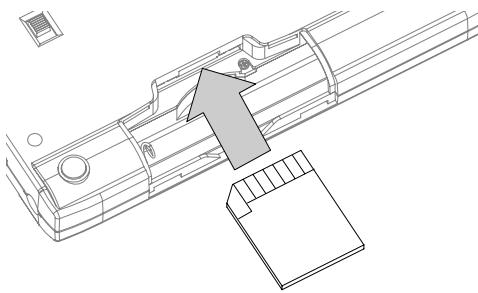
natural_image
Technical line drawing of a mechanical component with an arrow indicating a feature or assembly (no text or symbols present)- Never touch the terminals of the DATA card. Also, avoid getting the terminals dirty.
- SD cards are constructed using precision components; handle the cards carefully, paying particular note to the following.
- To prevent damage to the cards from static electricity, be sure to discharge any static electricity from your own body before handling the “cards”.
- Do not touch or allow metal to come into contact with the contact portion of the cards.
- Do not bend, drop, or subject cards to strong shock or vibration.
- Do not keep cards in direct sunlight, in closed vehicles, or other such locations (storage temperature: -25 to 85°C).
- Do not allow cards to become wet.
- Do not disassemble or modify the cards.
Copyright
- Unauthorized recording, distribution, sale, lending, public performance, broadcasting, or the like, in whole or in part, of a work (musical composition, video, broadcast, public performance, or the like) whose copyright is held by a third party is prohibited by law.
- Do not use this unit for purposes that could infringe on a copyright held by a third party. We assume no responsibility whatsoever with regard to any infringements of third-party copyrights arising through your use of this unit.
IMPORTANT NOTES......4
Contents 6
Introducing the MICRO BR 10
Main features.... 10
Mobile-sized multifunction recorder.... 10
Easy operation.... 10
Complete music production workstation 10
Convenient MP3/WAV functionality 11
Built-in chromatic tuner.... 11
Two-way power supply for operation anywhere.... 11
Memory cards that can be used with the MICRO BR 12
Initializing a memory card (SD memory card) 12
About the Recording Time....12
Panel Descriptions ...... 13
Top Panel 13
Display.... 15
Side panel (left) 18
Side panel (right).... 18
Bottom panel....19
Getting ready to use the MICRO BR 20
Inserting batteries and a memory card.... 20
Connecting other equipment 22
Turning the power on 24
Turning the power off....24
Listening to the demo song....26
Playing the demo song.... 26
Changing the current position....27
Creating a new song 28
Creating a new song (Song New)....28
Selecting the input 29
Using effects (Insert Effects).... 30
Selecting an effect patch.... 30
Recording without the insert effects 30
Using rhythm 31
Playing patterns 31
Changing the tempo of the pattern.... 31
Recording....32
Playing back....33
Playing back a recorded performance 33
Adjusting the volume of a track....33
Using the MP3 player 34
Playing the demo MP3 file 34
Practicing along with an MP3/WAV file (Phrase Trainer) 35
Changing the playback speed (Time Stretch).... 35
Canceling the center sound (Center Cancel) 36
Section 1.
Recording and playing back....38
Recording....38
Creating a new song.... 38
Selecting an instrument to record 39
Adjusting the recording level 39
Switching V-tracks.... 40
Selecting the track to record.... 41
Controlling the parameters of two tracks simultaneously (Stereo Link) .. 41
Recording....42
Playing back....43
Playing back repeatedly (Repeat)...... 43
Adjusting the left/right position (pan) of the playback 44
Re-recording over a mistake (Punch-in/out) 45
Manual punch-in/out 45
Auto punch-in/out 46
Repeatedly recording the same region (Loop Recording).... 47
Canceling an operation (Undo/Redo).... 49
Reverting to the previous state (Undo) 49
Canceling the Undo (Redo).... 49
Putting multiple tracks together (Bounce) 50
Listening the Result of the Bounce-recording 51
Viewing song-related information 52
Viewing song information....52
Viewing the remaining recordable time.... 52
Section 2. Editing ...... 53
Editing performances on a tracks (Track Edit).... 53
Copying data (Track Copy)....53
The edit region and the number of copies 54
Moving data (Track Move).... 55
Erasing data (Track Erase).... 56
Exchanging data (Track Exchange)....57
Managing the songs you've recorded.... 58
Copying a song (Song Copy) 58
Erasing a song (Song Erase) 58
Saving space on the memory card (Song Optimize) 59
Naming a song (Song Name)....59
Protecting a song (Song Protect)....60
Saving the current settings to the song (Song Save)....60
Section 3. Using effects....61
Using insert effects 61
Effect patches and banks 61
Editing the insert effects settings.... 62
Saving insert effects settings (Write)....63
Changing how the insert effects are used 64
Insert Effects Algorithm List 66
BANK: GUITAR [COSM GTR AMP]...... 66
BANK: MIC [VOCAL MULTI] 66
BANK: LINE/EXT 66
Parameter List 67
Using reverb effect....72
Selecting the reverb effect....72
Adjusting the reverb depth for the each track....72
Adjusting the reverb depth for the input source 73
Adjusting the reverb depth for the rhythm 73
Reverb Parameters....73
Mastering 74
Mastering procedure 74
Editing the Mastering Tool Kit settings....76
Saving the mastering tool kit settings (Write)....77
Mastering Tool Kit Algorithm List....78
BANK: MT 78
Parameter List 78
Section 4. Using rhythm 80
About rhythm....80
About patterns and arrangements 80
About Pattern mode and Arrangement mode 81
Changing the drum sounds (drum kit) 82
Playing a pattern....82
Changing the tempo of the pattern....82
Creating an original arrangement 83
Specifying the pattern for the first measure 83
Placing patterns in the desired order....84
Inserting a step....85
Erasing a step 86
Naming an arrangement....86
Playing an arrangement....87
Changing the tempo of the arrangement 87
Copying/erasing an arrangement....87
Copying 87
Erasing....87
Section 5. Using MP3 player....88
What is MP3? 88
Audio formats supported by the MICRO BR 88
Audio formats not supported by the MICRO BR 88
Files downloaded from music distribution sites.... 88
Handling audio files imported from a music CD 88
Copyright 89
About the License Agreement 89
Regarding MP3 mode 89
Switching to MP3 Mode....90
Playing the MP3/WAV file....90
Playing back repeatedly (Repeat)....91
Practicing along with an MP3/WAV file (Phrase Trainer) 92
Changing the playback speed (Time Stretch)....92
Canceling the center sound (Center Cancel) 93
Recording MP3 or WAV data 94
Recording time....94
Erasing an MP3/WAV file 95
Viewing MP3/WAV file information....95
Section 6. Using USB....96
Before Using USB (Overview) 96
How USB Can Be Used....96
Compatible OS 96
Connecting to your computer....96
Composition of Data on Memory Cards 97
Checking the folders and files saved on a memory card....97
Regarding the backed-up data....98
Notes on Using USB 98
With Windows 99
Transferring MP3/WAV files 99
Backing up and recovering MICRO BR song data 100
Breaking the connection with your computer.... 101
With Macintosh....102
Transferring MP3/WAV files 102
Backing up and recovering MICRO BR song data 103
Breaking the connection with your computer.... 104
Section 7.
Other Convenient Functions 105
Adjusting the Display Contrast 105
Tuning an Instrument (Tuner).... 105
Tuning 106
Converting between track data and audio files 107
Converting track data to an audio file (Track Export) 107
Converting audio files to track data (Track Import) 108
Using plug-in powered microphone.... 109
Initializing the Memory Card 110
Initializing All the MICRO BR's Settings 110
Saving Battery Power (Power Save).... 111
Powering-off automatically (Auto Power Off).... 111
Section 8. Appendices ...... 112
Arrangement / Pattern List.... 112
Preset Arrangement List.... 112
Preset Pattern List.... 113
Parameter List 114
Mixer Parameter 114
Recorder Parameter.... 114
Song Parameter 115
System Parameter 115
Rhythm Parameter.... 115
Arrangement Parameter 115
Troubleshooting.... 116
Error Message.... 119
Specifications....122
MICRO BR: Digital Recorder 122
Track Sheet.... 124
Index 127
Main features
Mobile-sized multifunction recorder
The MICRO BR is a mobile-sized, multitrack recorder designed for portability.
Easy operation
The MICRO BR is a digital multitrack recorder that's designed to be easily operated even by a beginner. From recording your performance all the way to mixdown, you'll be able to enjoy the power of digital multitrack recording as soon as you take the MICRO BR out of its box.
Complete music production workstation
The MICRO BR features workstation functionality, which lets you create a finished song without needing to use any other equipment.
Versatile audio inputs and effects
The input jacks let you directly connect your electric guitar or bass, or a stereo microphone or line output device. There's also a built-in microphone.
Effects powered by COSM technology can be applied to the audio input, producing a wide range of variation.

"Using insert effects" (p. 61)
"Using reverb effect" (p. 72)
? What is COSM (Composite Object Sound Modeling)?
Modeling technology allows the sonic character of actual physical objects or materials to be digitally simulated. COSM is Roland's proprietary technology, and is an evolutionary advancement upon several such sound modeling methods, allowing a whole new range of sounds to be created.
Multitrack recording
You can record your performance on separate tracks.
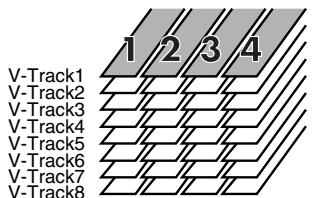
There are four tracks that can be played back simultaneously, and each track has eight “virtual tracks” (V-tracks).
For example, you can record several takes of a guitar solo on different V-tracks, and choose the best one later.

"Section 1. Recording and playing back" (p. 38)
You can also play back the four tracks and mix them down to a V-track, so there's no need to erase anything even if you've used all the tracks.

"Putting multiple tracks together (Bounce)" (p. 50)

What is a V-track?
Each track consists of eight “virtual” tracks, and you can choose one of these virtual tracks for recording and playback. In other words, you can record your performances using up to 4 × 8 = 32 tracks, and choose four of these tracks for playback.
We call these virtual tracks "V-tracks."
HINT
If you're using V-tracks in your recording, you'll find it convenient to photocopy and use the "Track Sheet" (p. 124) provided at the end of this manual.
Rhythm function
There's a convenient "rhythm function," which provides a very useful way to capture phrases or song ideas that come to mind. Simply select a rhythm pattern that's close to what you have in mind, and set the tempo.
The MICRO BR also provides an Arrange function, which lets you combine rhythm patterns to create an entire song.

"Section 4. Using rhythm" (p. 80)
Bounce function/Mastering function
You can mix down (bounce) all of your tracks—including the rhythm—to two-track stereo data. You can also use the mastering tool kit to add a final polish to your completed song, giving it greater presence and volume.

"Putting multiple tracks together (Bounce)" (p. 50)
"Mastering" (p. 74)
Audio data conversion
Song data you've completed can be converted within the MICRO BR to common formats such as MP3 or WAV, and sent via USB to your computer.

"Converting between track data and audio files" (p. 107)
"Section 6. Using USB" (p. 96)
Convenient MP3/WAV functionality
The MICRO BR can function as an MP3 or WAV file player, making it easy to take your favorite music with you for listening.
There's also a Trainer function, which lets you play back MP3/WAV music at a slower tempo or eliminate the sound localized at the center of the sound field—great features when you want to practice along on your instrument.
Extended-duration MP3 recording is also supported, so the MICRO BR is ideal for outdoor recording using a commercially available stereo microphone or the onboard microphone.

"Section 5. Using MP3 player" (p. 88)
Built-in chromatic tuner
The built-in chromatic tuner lets you tune while your guitar or bass is connected to the MICRO BR.

"Tuning an Instrument (Tuner)" (p. 105)
Two-way power supply for operation anywhere
The MICRO BR will operate on batteries (two AA batteries; alkaline batteries recommended) or with an AC adaptor (sold separately).
It can run on two AA batteries (alkaline batteries are recommended), letting you take it anywhere for recording any time.
Memory cards that can be used with the MICRO BR
It uses SD memory cards to store data for recording and playback.
For a list of the SD memory cards checked for use with the MICRO BR, refer to the separate leaflet "About SD memory cards."
Initializing a memory card (SD memory card)
An SD memory card you've purchased at a computer store or used with your digital camera cannot be used as-is with the MICRO BR.
Before you can use such an SD memory card with the MICRO BR, you'll need to initialize it. For details on initializing an SD memory card, refer to (p. 110).
About the Recording Time
The following table shows the recording time available on one card of the listed capacities.
● Recording Time (conversion in one track)
* The above-listed recording times are approximate. Times may be slightly shorter depending on the number of songs that were created.
* The above number is the total for all the tracks that are used. If each of the four tracks contain an equal amount of data, the length of the resulting song will be approximately 1/4 of the above.
* The memory capacity (recording time) decreases when the MP3 file etc. exist in the memory.
● Recording Time (conversion in MP3 mode, Stereo)
| Memory Card Capacity | MP3 | WAV | ||
| 64 kbps | 128 kbps | 192 kbps | ||
| 32 MB | 65 min | 32 min | 21 min | 2 min |
| 64 MB | 131 min | 65 min | 43 min | 5 min |
| 128 MB | 265 min | 132 min | 88 min | 12 min |
| 256 MB | 531 min | 265 min | 177 min | 24 min |
| 512 MB | 1065 min | 532 min | 355 min | 48 min |
| 1 GB | 2081 min | 1040 min | 693 min | 94 min |
* The above-listed recording times are approximate. Times may be slightly shorter depending on the number of MP3/WAV files that were created.
* The memory capacity (recording time) decreases when the track data (Song) exist in the memory.
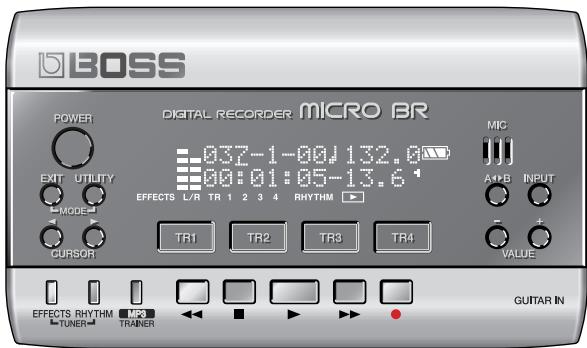
Top Panel
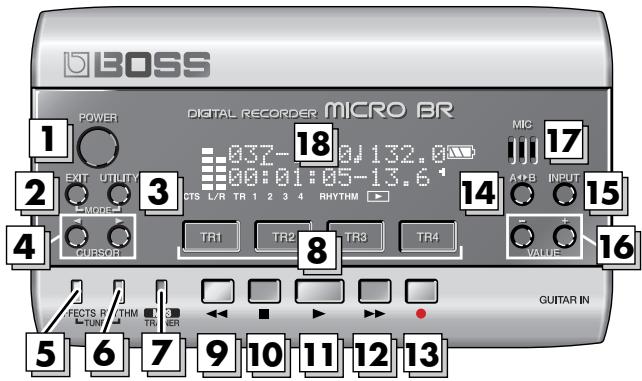
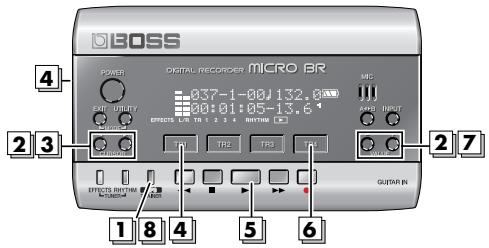
1. [POWER]
This is the power button. It turns the power on/off.
2. [EXIT]
Returns you to the previous screen, or cancels an operation.
3. [UTILITY]
Accesses a variety of functions, such as memory card operations and track editing.
- MODE
(Hold down [EXIT] and press [UTILITY]) Selects the recording mode.
4. CURSOR[◀][▶]
Use these buttons to move the cursor or move between pages.
5. [EFFECTS]
Turns the effect on/off, and accesses a screen where you can edit the settings.
6. [RHYTHM]
Accesses the screen for rhythm various settings.
- TUNER
(Hold down [EFFECT] and press [RHYTHM])
Turns the built-in tuner on/off.
7. [MP3/TRAINER]
Switches you to a mode in which you can play or record MP3/WAV data.
In this mode you can also use the Phrase Trainer function.
8. [TR1]-[TR4]
Select the track you want to record, or access a screen where you can control the track volume. In some screens, these serve as function buttons, which offer quick access to a variety of functions.
For example, wherever [TR1] (SNG) appears in this manual, it means that pressing [TR1] will select “SNG,” which is shown in the screen.
9. (Rewind)
Rewinds the song while you hold down this button.
10. □ (Stop)
Stops song recording or playback.
11. ▶ (Play)
Plays the song. The display will indicate ▶.
12. ▶▶ (Fast-Forward)
Fast-forwards the song while you hold down this button.
13. (Recording)
When you press □, the indication ● appears in the display, and the MICRO BR enters recording-standby mode. Recording
will begin when you then press ▶. In addition to recording operations, this button is also used to perform punch-in/out operations.
14. [A ◀ B] (AB button)
Accesses a screen in which you can make settings for the Repeat function (which repeatedly plays a desired region), set the punch-in/out region, or specify the track editing region.
15. [INPUT]
Accesses a screen where you can select the input jack or onboard microphone, and adjust the input sensitivity.
16. VALUE [-][+]
When you're making settings, these buttons are used to edit the values.
MEMO
- The value will continue changing if you press and hold VALUE [-] [+]
- The value will increase rapidly if you hold down VALUE [+], then press and hold VALUE [-].
- The value will decrease rapidly if you hold down VALUE [-], then press and hold [+].
17. MIC (Onboard Microphone)
This is a monaural microphone built into the MICRO BR. If you want to record using the onboard microphone, refer to (p. 39).
18. Display
Shows various information such as song time, volume level, or menu screens for the function you're using.
If you find the display screen difficult to read, refer to (p. 105).
MEMO
Maintenance
- For everyday cleaning wipe the unit with a soft, dry cloth or one that has been slightly dampened with water. To remove stubborn dirt, use a cloth impregnated with a mild, non-abrasive detergent. Afterwards, be sure to wipe the unit thoroughly with a soft, dry cloth.
- Never use benzine, thinners, alcohol or solvents of any kind, to avoid the possibility of discoloration and/or deformation.
Display
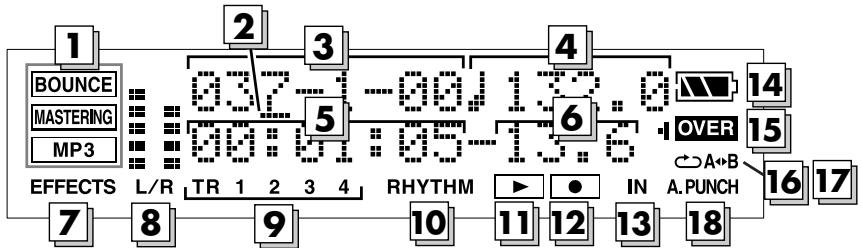
flowchart
graph TD
    A["1"] --> B["BOUNCE"]
    B --> C["MASTERING"]
    C --> D["MP3"]
    D --> E["EFFECTS"]
    E --> F["L/R"]
    F --> G["TR 1 2 3 4"]
    G --> H["RHYTHM"]
    H --> I["10"]
    I --> J["11"]
    J --> K["12"]
    K --> L["13"]
    L --> M["18"]
    M --> N["A.PUNCH"]
    N --> O["16"]
    O --> P["17"]
    P --> Q["OVER"]
    Q --> R["15"]
    R --> S["14"]
    S --> T["2"]
    T --> U["3"]
    U --> V["4"]
    V --> W["5"]
    W --> X["6"]
    X --> Y["7"]
    Y --> Z["8"]
    Z --> AA["9"]
1. Mode
Indicates the current mode.
| Display | Mode |
| (unlit) | If nothing is indicated, this means you’re in Normal mode. |
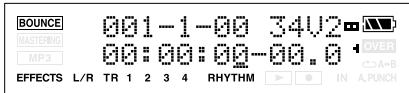
| BOUNCE | This means you’re in Bounce mode. |
| MASTERING | This means you’re in Mastering mode. |
| MP3 | This means you’re in MP3 mode. |
2. Cursor
This indicates the parameter that's selected for adjustment. Use VALUE[-][+] to adjust the parameter indicated by the cursor.
3. Measure
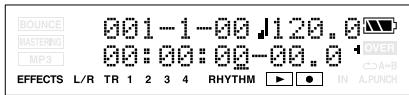
Indicates the current location within the song. From the left, the numbers indicate measure-beat-clock.
4. Tempo
Indicates the tempo of the rhythm.
5. Time
The current location within the song is shown as “** hours ** minutes ** seconds.”
6. Frame/Sub Frame
This indicates the current location within the song in units of frames and 1/10 frames.
7. EFFECTS
Lights when the insert effects (p. 61) are on.
8. L/R (Level Meter)
In normal mode and MP3 mode, this indicates the level that is being output from PHONES/LINE OUT.
In Bounce mode or Mastering mode, this indicates the respective recording level (bounce level or mastering level).
9. TR 1 2 3 4
These will light when tracks 1–4 contain recorded data. Also, the track number that you've specified as the recording track will blink. In the level meter screen, the level meters indicate the output from each track.
10. RHYTHM
Lights when rhythm (p. 80) is on. In the level meter screen, the level meter indicates the output from Rhythm.
11. ▶ (PLAY indicator)
Shown when the song is playing.
12. (REC indicator)
Shown in recording-standby mode or during recording.
13. IN
The level meter shows the input from GUITAR IN, LINE IN/MIC or onboard microphone.
14. Battery Indication
Indicates the amount remaining in the batteries when running on battery power.
| Indication | Remaining battery capacity |
| The batteries are in good condition. | |
| The batteries are approximately half full. | |
| The batteries are low. Replace the batteries early. | |
| The batteries are empty. Please install new batteries. | |
| (unlit) | Power is being supplied by the AC adaptor. |
* Please be aware that the battery status indication is only a standard.
15. OVER
Lights if the audio input device is too loud. If this lights, press the INPUT button and adjust the Sns (input sensitivity).
For details, refer to "Selecting an instrument to record" (p. 39)
16. ↻ (Repeat)
Lights if the Repeat function is enabled.
17. A ◀ B (AB)
Lights if you've specified a region for repeat or auto punch-in/out. This will blink when you specify the starting location (A), and will light when you specify the ending location (B).
18. A.PUNCH
Lights if auto punch-in is enabled.
MEMO
- In this manual, we use display screens to explain various functions, but please be aware that these screens are for illustrative purposes, and the settings shown may not match the factory settings (e.g., patch names).
- The display will indicate “Keep power on!” while the data is being updated. Don’t turn off the power while this message is shown.
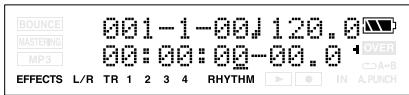
About the Play screen
The basic screen that appears immediately after you switch on the MICRO BR's power (see below) is called the "Play screen."
Normal Mode
Bounce Mode
Mastering Mode
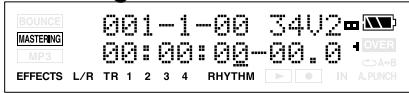
Unless we specify otherwise, the instructions in this owner's manual assume you are looking at the Play screen.
About the MP3 screen
If you power-off the MICRO BR in MP3 mode (p.89), it will start up in MP3 mode the next time you power-on.
The screen in MP3 mode (see illustration below) is called the MP3 screen. The screen will show the
MP3 icon.
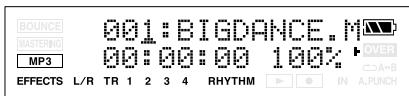
When you finished MP3 mode, press [MP3/TRAINER] again.
Viewing the level meter
Here's how to view the volume of each track.
1. In the Play screen, press CURSOR [◀] several times.
* To return to the Play screen, press CURSOR [▶] several times.
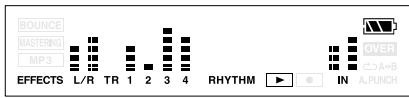
| L/R | The level meter indicates the output after passing through VOLUME.However during bouncing or mastering, this will show the respective recording level (mastering level or bounce level). |
| TR1-4 | The level meters indicate the output from each track. |
| RHYTHM | The level meter indicates the output from Rhythm. |
| IN | The level meter indicates the sound from GUITAR IN, LINE IN/MIC or onboard mic. |
Side panel (left)
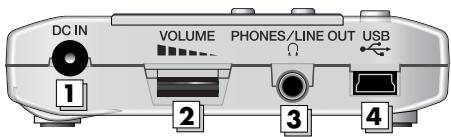
1. DC IN (AC Adaptor) Jack
An AC adaptor (PSA series, sold separately) can be connected here (p. 22). You can purchase a PSA series from your musical instrument dealer.
2. VOLUME
Adjusts the volume of the output from PHONES/LINE OUT.
3. PHONES/LINE OUT Jack
This is an output jack for connecting stereo headphones (sold separately) or external audio equipment (e.g., stereo amp).
4. USB Connector (MINI B type)
Use this connector to connect the MICRO BR to your computer via a USB cable. This allows data to be transferred between the MICRO BR and your computer (p. 22), (p. 96).

- You must use only the PSA series as the AC adaptor. Using any other adaptor may cause malfunctions or damaged.
- Your data may be lost if you disconnect the AC adaptor during operation.
Side panel (right)
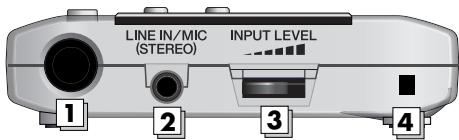
1. GUITAR IN Jack (Phone type)
This is a high-impedance input jack for directly connecting your guitar or bass.
2. LINE IN/MIC Jack (Stereo mini type)
This is an input jack for analog audio signals.
The output of your portable audio player, other audio device, or microphone can be connected to this jack.
If you're using a miniature condenser microphone that supports plug-in power, turn the MICRO BR's "PlugInPower" setting on.

"Using plug-in powered microphone" (p. 109)
? What is a plug-in powered condenser mic?
A plug-in powered condenser mic is a small condenser mic that requires a power supply.
Some mics have an internal battery, but other mics require an external power supply. The MICRO BR is designed to supply power to plug-in powered mics that need an external power supply.
NOTE
- A voltage of approximately 2.5V can be supplied from the LINE IN/MIC jack. Unlike phantom power, this cannot supply 48V.
- If PlugInPower is turned ON, you must connect only a condenser mic that is compatible with plug-in power. Connecting any other device may damage that device.
3. INPUT LEVEL
This dial adjust the input level. This specifies the volume of the input source. This will determine the level that is recorded on the track.
4. Strap Hole
The strap can be passed through this hole.
Bottom panel
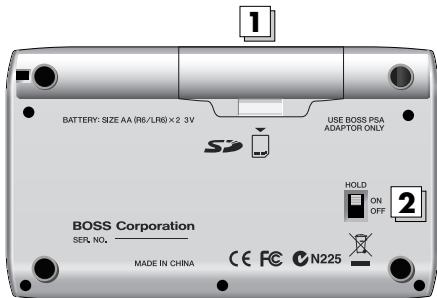
1. Battery Cover
Here you can insert batteries and a memory card (SD memory card). You can't record if no memory card is inserted.

"Inserting batteries and a memory card" (p. 20)

When the MICRO BR is shipped from the factory, a SD card containing a demo song is installed.
2. HOLD Switch
While the power is on, you can turn the HOLD switch ON to disable the operation of all buttons. However, even if HOLD is ON, you will still be able to adjust VOLUME and INPUT LEVEL.
If you turn the HOLD switch ON while the power is off, pressing the [POWER] will no longer turn on the power.
Inserting batteries and a memory card
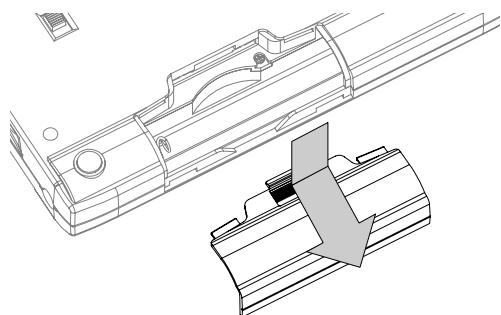
- Make sure that power is off.
- Slide the battery cover in the direction of the arrow, and remove it.
natural_image
Technical line drawing of a mechanical component with a separate view showing a folded or assembled part (no text or symbols present)-
If batteries are already installed, remove them from the battery compartment.
-
Push the memory card inward.

natural_image
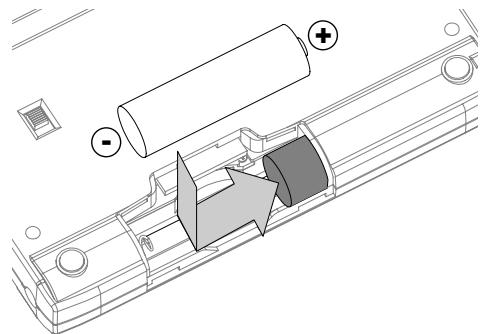
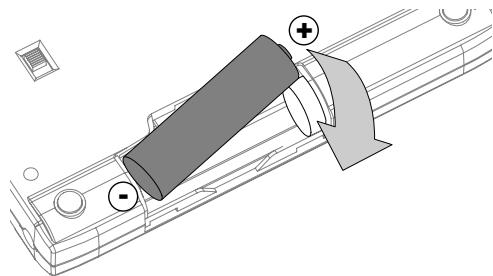
Technical line drawing of a mechanical component with an arrow indicating direction (no text or symbols)- Install two AA batteries, making sure to observe the correct polarity (+/-).
natural_image
Technical line drawing of a mechanical component with no visible text or symbols- Reattach the battery cover.
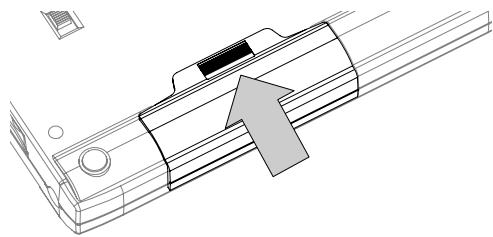
natural_image
Technical line drawing of a mechanical component with an arrow indicating direction (no text or symbols)MEMO
When the MICRO BR is shipped from the factory, a SD card containing a demo song is installed.
To remove the memory card
Push it inward, and then release your finger.
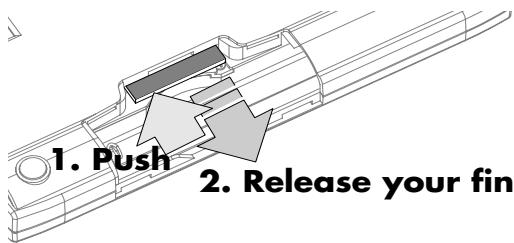
- Release your finger
About the memory card write protect function (Lock)
By moving the write protect switch located on the side of the memory card to the "LOCK" position, you can make it impossible for data to be written and erased to the card.
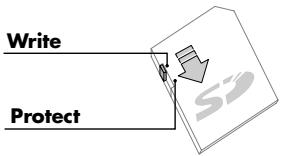
NOTE
• We recommend that you use alkaline batteries.
- Don't mix new batteries with partially used batteries, and don't mix batteries of different types.
- If you use rechargeable batteries, be sure to carefully read the instructions that came with your batteries. The MICRO BR itself is not able to recharge rechargeable batteries.
- When the icon □ appears, replace the batteries as soon as possible.
- The battery operating time will depend on the type of batteries and on the operating conditions. It will also vary depending on the type and capacity of the SD memory card.
- Keep the included memory card out of reach of small children to prevent it from being swallowed accidentally.
- For more about the memory cards (SD cards) recommended for use with the MICRO BR, refer to the separate leaflet “About memory cards.”
- Insert memory cards all the way into the slot, being careful to observe the correct direction and orientation. Do not insert them forcibly.
- Don't touch the contacts of a memory card or allow them to become dirty.
- The power must be turned off when you insert or remove a memory card. Inserting or removing a memory card while the power is on may damage the data on the card or render the memory card unusable.
- When turning the unit upside-down, get a bunch of newspapers or magazines, and place them under the four corners or at both ends to prevent damage to the buttons and controls. Also, you should try to orient the unit so no buttons or controls get damaged.
- When turning the unit upside-down, handle with care to avoid dropping it, or allowing it to fall or tip over.
- Never insert or remove a SD card while this unit's power is on. Doing so may corrupt the unit's data or the data on the SD card.
- Carefully insert the SD card all the way in—until it is firmly in place.
Connecting other equipment
Make connections as shown in the following diagram.
Your equipment must be powered off when making connections.
Side Panel (Left)
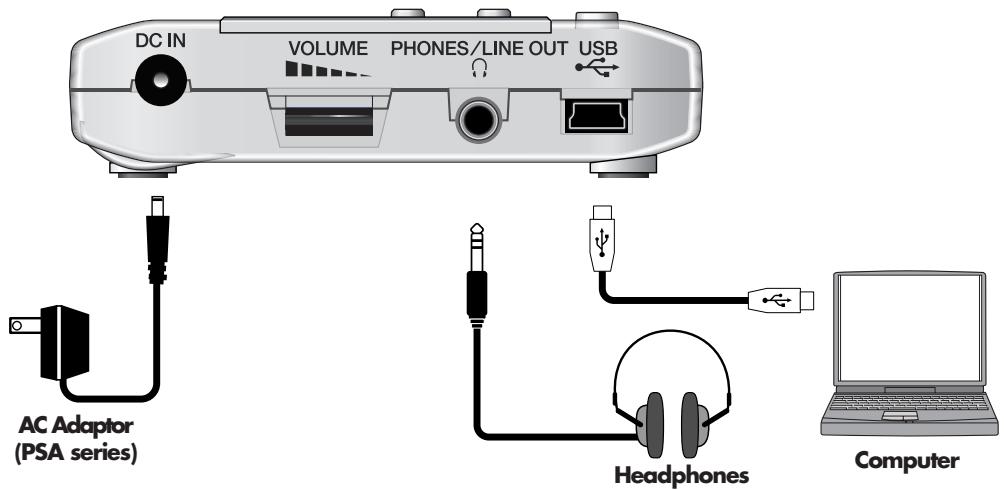
Side Panel (Right)
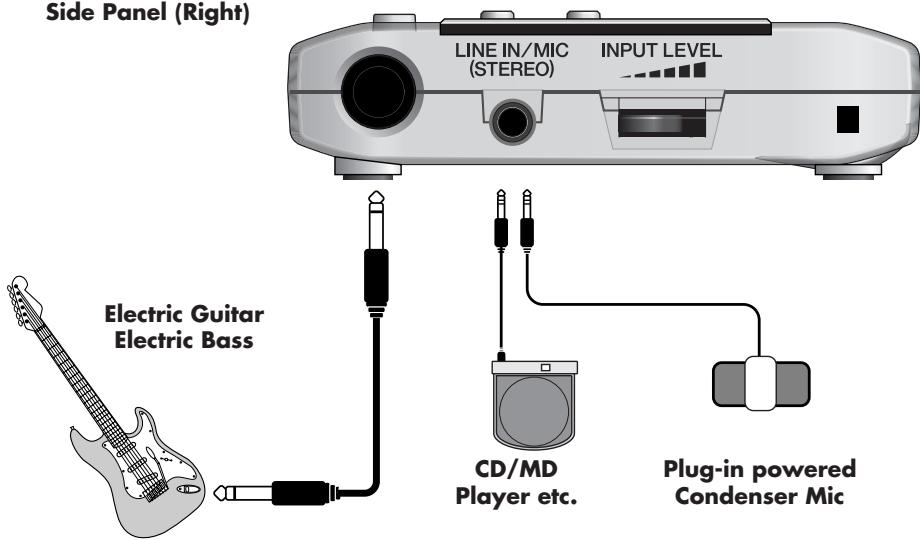

Plug-in powered microphone (p. 18)
MEMO
- If there are batteries in the unit while an AC adaptor is being used, normal operation will continue should the line voltage be interrupted (power blackout or power cord disconnection).
- When connection cables with resistors are used, the volume level of equipment connected to the GUITAR IN or LINE IN/MIC may be low. If this happens, use connection cables that do not contain resistors.
-
Howling could be produced depending on the location of microphones relative to speakers. This can be remedied by:
-
Changing the orientation of the microphone(s).
-
Relocating microphone(s) at a greater distance from speakers.
-
Lowering volume levels.
-
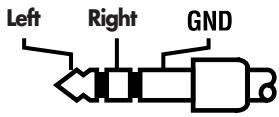
The LINE IN/MIC jack is a stereo-mini type (1/8"). The illustration shows the wiring of the LINE IN/MIC jack. Before making connections, check that the connector of your equipment is wired in a compatible way.
- If you want to connect a plug-in powered microphone to the LINE IN/MIC jack, refer to "Using plug-in powered microphone" (p. 109).
Turning the power on
NOTE
- To prevent malfunction and/or damage to speakers or other devices, always turn down the volume, and turn off the power on all devices before making any connections.
- Once the connections have been completed (p. 22), turn on power to your various devices in the order specified. By turning on devices in the wrong order, you risk causing malfunction and/or damage to speakers and other devices.
-
This unit is equipped with a protection circuit. A brief interval (a few seconds) after power up is required before the unit will operate normally.
-
Check the following points before you turn the power on.
-
Is the MICRO BR correctly connected to your external equipment?
-
Are the volume controls of the MICRO BR and your connected equipment set to the minimum position?
• Is a memory card inserted? -
Lower the MICRO BR's VOLUME.
- Switch on power to the device that's connected to the input jack (GUITAR IN, LINE IN/MIC).
- Press the [POWER] button on the top panel to turn it on.
- Switch on power to the device that's connected to the output jack (PHONES/LINE OUT).
Turning the power off
- If the MICRO BR is communicating with your computer via USB, break the connection as described in "Breaking the connection with your computer" (p. 104).
- Make sure that song playback is stopped.
- Make sure that the display does not indicate "Keep power on!"
- Power off each device in the opposite order from which you turned them on.
- Press and hold down [POWER] until the display indicates "Shutting down..."
NOTE
- If you're using an AC adaptor, ensure that the AC adaptor does not become unplugged during use. Data may be lost if the AC adaptor is unplugged during use.
- Turn down the volume before you turn the power on. When you turn the power on, you may hear some noise even when the volume is turned down, but this does not indicate a malfunction.
Quick Start

- This unit, in combination with an amplifier and headphones or speakers, may be capable of producing sound levels that could cause permanent hearing loss. Do not operate for a long period of time at a high volume level, or at a level that is uncomfortable. If you experience any hearing loss or ringing in the ears, you should immediately stop using the unit, and consult an audiologist.
When you turn on the power, the Play screen will be displayed.
Playing the demo song
When the MICRO BR is shipped from the factory, a SD card containing a demo song is installed. Here's how to play this demo song.
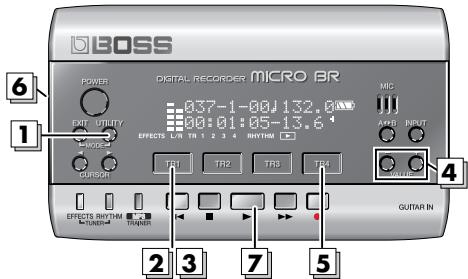
* Make sure that the MICRO BR is in "Normal mode" (p. 42).
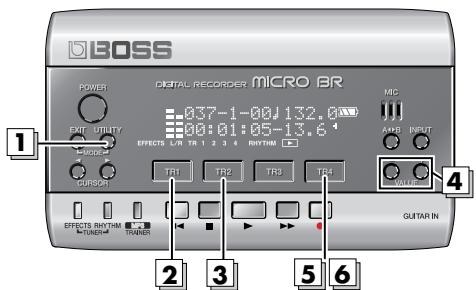
1. Press [UTILITY].
2. Press [TR1] (SNG).
3. Press [TR1] (SEL).
The song select screen will appear.
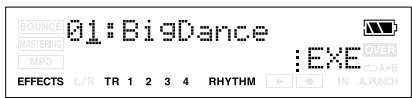
4. Use VALUE [-][+] to select "01:BigDance".
5. Press [TR4] (EXE).
6. Turn the VOLUME dial to lower the volume.
7. Press [PLAY].
The song will begin playing. Slowly turn the VOLUME dial to adjust the volume.
NOTE
This unit, in combination with an amplifier and headphones or speakers, may be capable of producing sound levels that could cause permanent hearing loss. Do not operate for a long period of time at a high volume level, or at a level that is uncomfortable. If you experience any hearing loss or ringing in the ears, you should immediately stop using the unit, and consult an audiologist.
MEMO
- The MICRO BR comes with a demo song in MICRO BR song format data and a demo song of this data mastered into MP3 file. When you turn on the power for the first time, the demo song (song format) will be loaded automatically.
- Use of the demo song supplied with this product for any purpose other than private, personal enjoyment without the permission of the copyright holder is prohibited by law. Additionally, this data must not be coped, nor used in a secondary copyrighted work without the permission of the copyright holder.
| Title | The Big Dance |
| Composer | Gary Lenaire, Rafik Oganyan |
| Copyright | © 2006 BOSS Corporation |

If you want to adjust the volume of each track, refer to “Adjusting the volume of a track” (p. 33).
Changing the current position
You can use any of the following methods to change the current position within the song.
| Operation | Explanation |
| Fast-forward | The song will fast-forward while you hold down [YAAA] . |
| Rewind |  The song will rewind while you hold down [z=45] . The song will rewind while you hold down [z=45] . |
| Move to the beginning of the song (00:00:00-00.0) |   Hold down [y=45] and press [d=45] . Hold down [y=45] and press [d=45] . |
| Move to the end of the song | [XOW2]  Hold down [z=45] and press [d=45] . Hold down [z=45] and press [d=45] . |
| Move in steps of hours/minutes/seconds/frames/sub-frames | Use CURSOR [◀][▶] to move the cursor to the “hours/minutes/ seconds/frames/sub-frames” indication, and use VALUE [-][+] to change the time. |
| Move in steps of measures/beats | Use CURSOR [◀][▶] to move the cursor to the measure/beat indi-cation, and use VALUE [-][+] to change the measure/beat. |
MEMO
The time (see below) shown in the lower line of the display indicates the location as “00 hours 00 minutes 00 seconds 00 frames 0 sub-frames.”
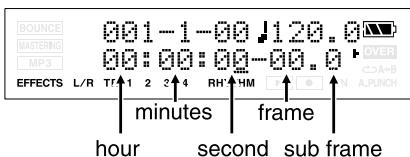
• One frame is 1/30th of a second.
- A sub-frame is 1/10th of a frame.
If the memory card contains more than one song, the most recently used song will be selected automatically. If you want to record a new song, proceed as follows.
Creating a new song (Song New)
* Before you create a new song, read “Connecting other equipment” (p. 22) and connect your equipment before you continue.
* Make sure that the display does not indicate MP3.
1. Press [UTILITY].
2. Press [TR1] (SNG).
3. Press [TR2] (NEW). The display will indicate "Type."
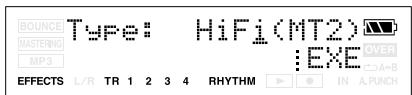
4. Use VALUE [-][+] to select "HiFi".
![ROLAND MICRO BR - Use VALUE [-][+] to select "HiFi". - 1](/content/2025/01/130876/images/67cfeb08f5334aea99d1e366beb56eb745c1cc62511ff8ae9cc670b3210dfe60.jpg)
For more about the data type, refer to "Recording" (p. 38).
5. Press [TR4] (EXE).
The new song will be created, and you will return to the Play screen.
Selecting the input
Here we explain how to select the audio source (input) that you want to record.
As an example, we'll explain how to connect your electric guitar and input its sound.
* Before you select an input source, read "Connecting other equipment" (p. 22) and connect your equipment before you continue.
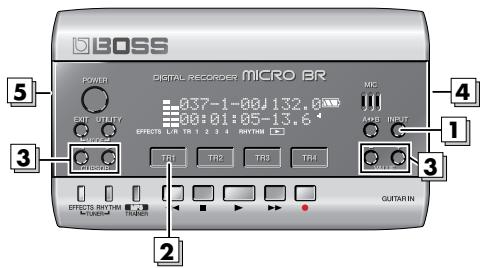
1. Press [INPUT].
2. Press [TR1] several times.
Make sure that the indication for the selected source has changed from “gtr” to “GTR”.
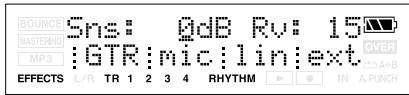
MEMO
Pressing one of the [TR1]–[TR4] buttons toggles the indication for the corresponding input between uppercase and lowercase.
Uppercase indication: The input is selected Lowercase indication: The input is not selected

For more about selecting other sources, refer to “Selecting an instrument to record” (p. 39).
3. Use CURSOR [◀][▶] to move the cursor to Sns (sensitivity), and use VALUE [-][+] to adjust the setting.
Adjust the sensitivity for the source you want to record.
For best results, adjust the sensitivity as high as possible without allowing the “OVER” indication to appear in the screen when the loudest sounds are produced by the input source. If the OVER indicator lights, reduce the Sns value.
| Source | Range of the Sns Parameter |
| GTR | -12–+8 |
| MIC | -16–+8 |
| LIN | -6–+8 |
| EXT | -15–+9 |
MEMO
The Sns parameter is remembered independently for each input source.
4. Use the INPUT LEVEL dial to adjust the input level.

For more about adjusting the level, refer to "Adjusting the recording level" (p. 39).
5. Use the VOLUME dial to adjust the listening volume.
MEMO
- If you are recording an electric acoustic guitar using a shielded connection, use the GUITAR IN jack.
- When connection cables with resistors are used, the volume level of equipment connected to the GUITAR IN or LINE IN/MIC may be low. If this happens, use connection cables that do not contain resistors, such as those from the Roland PCS series.
Using effects (Insert Effects)
The MICRO BR contains three effect processors; insert effects, reverb, and mastering tool kit. Here we're going to explain how to select GTR (guitar) as the input source, and use the insert effects.

For more about insert effects, refer to "Section 3. Using effects" (p. 61).
Selecting an effect patch
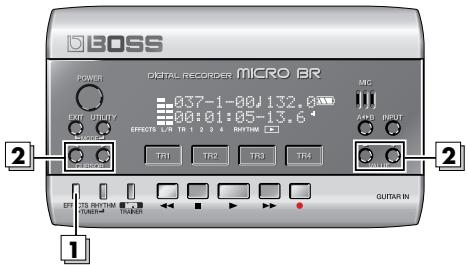
1. Press [EFFECTS].
The currently selected effect patch is displayed.
2. Use CURSOR [◀][▶] to move the cursor to the patch number, and use VALUE [-][+] to select "01:JC Clean".
The MICRO BR contains some insert effects, but for this example we'll select "01:JC Clean".
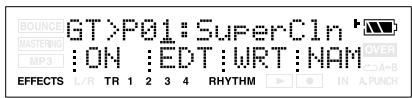
![ROLAND MICRO BR - Use CURSOR [◀][▶] to move the cursor to the patch number, and use VALUE [-][+] to select "01:JC Clean". - 2](/content/2025/01/130876/images/6dabd024bbcc8028f1706876f99e11b36104fdc07aa3a924e76fefb99d466d95.jpg)
For details, refer to “Section 3. Using effects” (p.61).
Recording without the insert effects
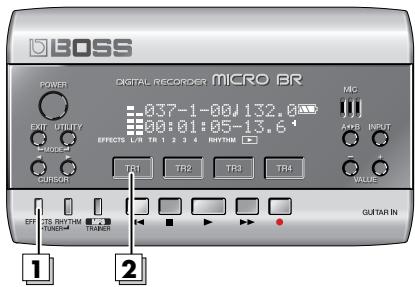
1. Press [EFFECTS].
The currently selected effect patch is displayed.
2.
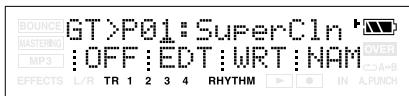
Make sure that the TR1 indication has changed from "ON" to "OFF."
MICRO BR is set to output sound without the insert effects applied, allowing you to record sounds without the insert effects.
Using rhythm
The MICRO BR provides a dedicated rhythm track in addition to its audio tracks 1–4.

For details, refer to "Section 4. Using rhythm" (p. 80).
Playing patterns
Here's how to select a pattern and play repeatedly.
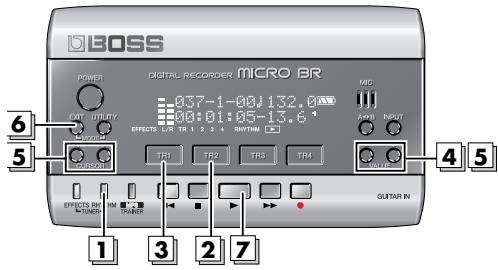
1. Press [RHYTHM].
The rhythm screen will appear.
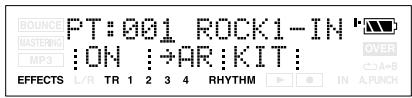
2. Press [TR2] several times to make "PT:" indication appear.
Each time you press [TR2], the "PT:" and "AR:" indications will alternate.
For this example we'll select the "PT:" indication.
3. Press [TR1].
Each time you press [TR1], the “RHYTHM” indication will alternate between lit and dark.
Press [TR1] to make the "RHYTHM" indication appear.
4. Use VALUE [-][+] to select the pattern that you want to play.
- Use CURSOR [◀][▶] to make the Rhy Level indication appear, and use VALUE [-][+] to set the level to “100”.
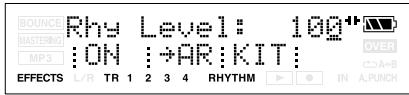
6. Press [EXIT] to return to the Play screen.
7. Press □
The recorder will begin playing, and the pattern will also play.
Changing the tempo of the pattern
When the Play screen is displayed, you can perform the following steps to temporarily change the playback tempo of the pattern.
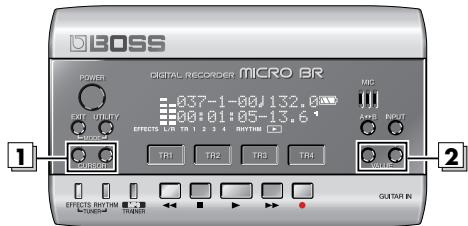
1. Use CURSOR [◀][▶] to move the cursor to the tempo indication.
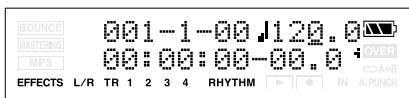
2. Use VALUE [-][+] to adjust the tempo. The playback tempo of the pattern will change.
Recording
Let's try recording a performance.
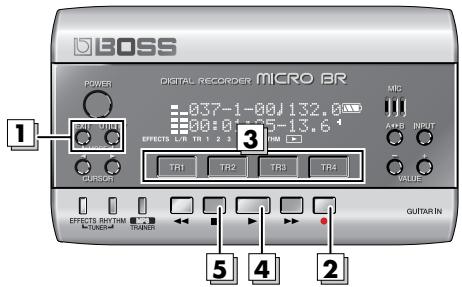
1.
Hold down [EXIT] and press [UTILITY] several times to select normal recording mode.
Make sure that the display does not indicate
BOUNCE or MASTERING.
2.
Press
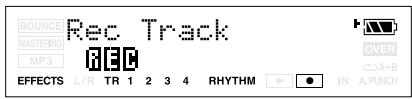
The track select screen will appear. The
indication will blink in the screen, and the MICRO BR will be in recording standby condition.
3.
Press the [TR1]–[TR4] button of the track that you want to record.
The indication will change to REC for the track you're recording.
4.
Press
Recording will begin.
The Play screen will appear, and the indication in the screen will change from blinking to lit.
5.
Press ■ .
Recording will stop.

For details on stereo recording, refer to "Selecting the track to record" (p. 41).
Playing back
Now let's play back the performance you just recorded.
Playing back a recorded performance
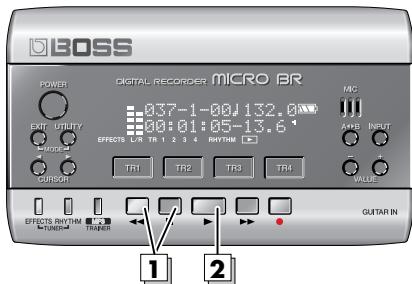

Move the time location to 00:00:00-00.00.
Playback will begin. Use the VOLUME dial to adjust the playback volume.
Adjusting the volume of a track
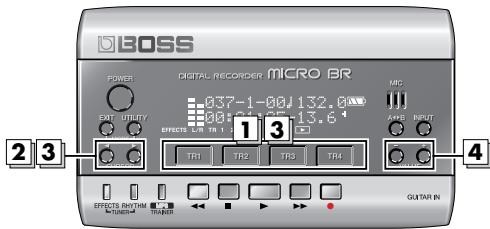
-
During playback, press one of the track [TR1]–[TR4] buttons.
-
Use CURSOR [◀][▶] to make the screen indicate Track Level.
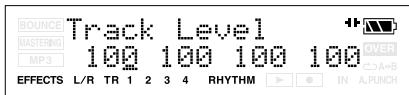
-
Either by using CURSOR [◀][▶] or by pressing the corresponding [TR1]–[TR4], select the track whose volume you want to change.
(From the left, they are tracks 1, 2, 3, and 4.) -
Use VALUE [-][+] to adjust the volume.
MEMO
If this is set to 0, you won't hear the sound of that track.
MEMO Maintenance
- For everyday cleaning wipe the unit with a soft, dry cloth or one that has been slightly dampened with water. To remove stubborn dirt, use a cloth impregnated with a mild, non-abrasive detergent. Afterwards, be sure to wipe the unit thoroughly with a soft, dry cloth.
- Never use benzine, thinners, alcohol or solvents of any kind, to avoid the possibility of discoloration and/or deformation.
In addition to operating as a multi-track recorder, the MICRO BR can be switched to "MP3 mode" and used as an MP3 or WAV file player.

For details, refer to "Section 5. Using MP3 player" (p. 88).
Playing the demo MP3 file
Here's how to play back the included demo MP3 file.
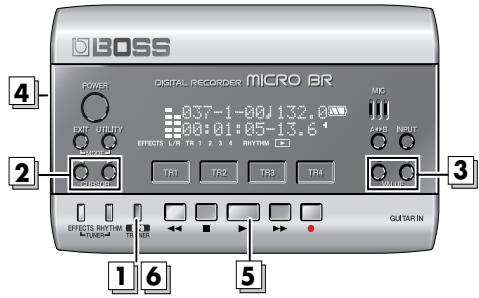

Press [MP3/TRAINER] to switch to MP3 mode.
The MP3 player screen will appear.
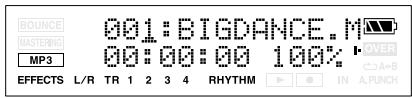

Use CURSOR [ ◀ ][ ▶ ] to move the cursor to the file number.

Use VALUE [-][+] to select "001:BigDance"

Turn the VOLUME dial to lower the volume.

Press

The MP3 demo file will begin playing.
Slowly turn the VOLUME dial to adjust the volume.

You can use the following operations when the MP3 mode.
| Action | Operation |
| Fast-forward | The file will fast-forward while you hold down ▶. |
| Rewind | The file will rewind while you hold down ◀. |
| Move to the beginning of the current file | Hold down ■ and press ◀. |
| Move to the preceding file | Press [+] when the cursor on the file number. |
| Move to the next file | Press [-] when the cursor on the file number. |
Practicing along with an MP3/WAV file (Phrase Trainer)
MP3 mode includes a “Phrase Trainer” function that provides an effective way for you to practice a song.
- The "Time Stretch" function lets you change the playback speed of the audio file.
- The “Center Cancel” function lets you eliminate the sounds that are panned to the center, and use the song for “minus-one” practicing.
- The Time Stretch and Center Cancel functions can be used simultaneously.
Changing the playback speed (Time Stretch)
You can perform with the guitar etc. connected while listening to the sound that changes the playback speed.
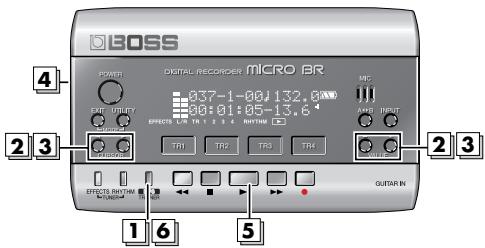
1. Press [MP3/TRAINER] to switch to MP3 mode.
The MP3 player screen will appear.
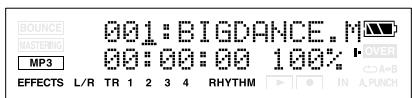
2. Use CURSOR [◀][▶] to move the cursor to the file number, and use VALUE [-][+] to select the file number that you want to play.
- Use CURSOR [◀][▶] to move the cursor to the playback speed indication, and use VALUE [-][+] to specify the playback speed.
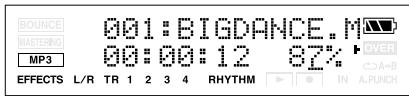
Range: 25–200%
A setting of 100% (initial value) will play the song at its original speed, a setting of 50% at half-speed, and a setting of 25% at quarter-speed. The play speed doubles if the parameter is set to 200%.
MEMO
If Time Stretch parameter is set excluding 100%, the audio quality of the playback will be less. This is not a malfunction. Please set the parameter to 100% when listening to the MP3/WAV file at a usual speed.
4. Turn the VOLUME dial to lower the volume.
5. Press □
The audio file will begin playing at the speed you specified. Slowly turn the VOLUME dial to adjust the volume. The guitar etc. are connected, and it is possible to play while listening the MP3/WAV file.
6. When you finished MP3 mode, press [MP3/TRAINER] again.
Canceling the center sound (Center Cancel)
Remove the central sound of the playback (e.g., vocals or guitar solos). This is helpful if you want to practice playing along with the backing instruments.
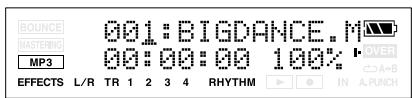
1.
Press [MP3/TRAINER] to switch to MP3 mode.
The MP3 player screen will appear.
2.
Use CURSOR [◀][▶] to move the cursor to the file number, and use VALUE [-][+] to select the file number that you want to play.
3.
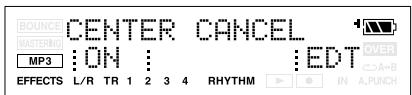
Use CURSOR [ ◀ ][ ▶ ] to make the display indicate “CENTER CANCEL.”
4.
Press [TR1] to turn on the Center Cancel function.
Each time you press [TR1], the setting will alternate between "ON" and "OFF".
5.
Press

Sounds that are heard from the center (such as vocals and guitar solos) will be eliminated.
Slowly turn the VOLUME dial to adjust the volume.
The guitar etc. are connected, and it is possible to play while listening the MP3/WAV file.
6.
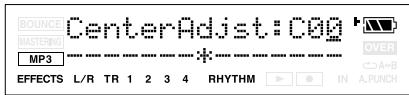
If you want to eliminate a sound that is located in a position other than the center, Press [TR4] (EDT).
The CenterAdjst screen will appear.
7.
Use VALUE [-][+] to adjust.
MEMO
- Depending on the recorded audio, it may not be possible to completely eliminate the center sound.
- If you want to eliminate a sound that is located in a position other than the center, you can adjust the CenterAdjst parameter.
- If you want to boost the bass sound (low frequency range), adjust the Low Boost parameter (p. 93).
- The playback sound will be monaural when the Center Cancel function is on.
8.
When you finished MP3 mode, press [MP3/TRAINER] again.
Operation Guide

- This unit, in combination with an amplifier and headphones or speakers, may be capable of producing sound levels that could cause permanent hearing loss. Do not operate for a long period of time at a high volume level, or at a level that is uncomfortable. If you experience any hearing loss or ringing in the ears, you should immediately stop using the unit, and consult an audiologist.
Recording
Make sure that the display does not indicate
BOUNCE, MASTERING (p. 42) or MP3 (p. 90).
Creating a new song
On the MICRO BR, each of your compositions is managed as a “song.” You’ll need to create a song before you begin recording a new composition.
- Press [UTILITY].
- Press [TR1] (SNG).
The SONG EDIT screen will appear.
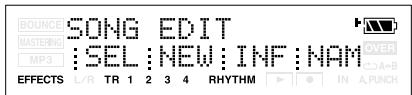
- Press [TR2] (NEW).
The display will indicate "Type:"
- Use VALUE [-][+] to select the data type for the song you want to create.
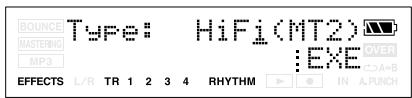
- Press [TR4] (EXE).
A new song will be created, and you will return to the Play screen.
MEMO
You can create up to a maximum of 99 songs with one memory card.
About the data types
You must select the "data type" when you create a new song on the MICRO BR. Choose one of the following data types.
| Data type | Explanation |
| HiFi (MT2) | Lets you record at high audio quality.Choose this if you intend to bounce tracks. This is the data type you will normally use. |
| STD (LV1) | Lets you record for longer times than “HiFi.” |
| LONG (LV2) | Of the three types, this allows the longest recording. Choose this if you don’t have much space on the memory card. |
Recording time
The following table shows the recording time available on one card of the listed capacities.
(These times are calculated as if you're recording just a single track.)
* Regardless of the data type, the sample rate is 44.1 kHz. You can't change the sample rate.
* You can't change the data type of a song after it's been created.
* The recording times shown above are approximate. They will decrease slightly depending on the number of songs you've created.
* The recording times shown in the above table are for when you use only one track. For example if you record using all four tracks, each track can be one quarter of the time length shown above.
Selecting an instrument to record
- Press [INPUT].
- Press [TR1] (GTR)—[TR4] (EXT) to select the source (input) that you want to record.
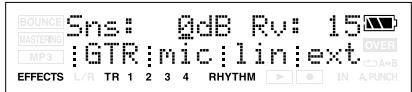
| Source | Input jack and audio source |
| GTR | Choose this if you want to record a guitar or bass connected to the GUITAR IN jack. |
| MIC | Choose this if you want to use the built-in monaural mic. |
| LIN | Choose this if you want to record from a portable audio player etc. connected to the LINE IN/MIC jack. |
| EXT | Choose this if you want to record from an external mic connected to the LINE IN/MIC jack. |
By repeatedly pressing the [TR1]–[TR4] of the selected source, you can change the input status of that source.
| Indication | Explanation |
| Lowercase | The input is not selected |
| Uppercase | The input is selected |
MEMO
If you simultaneously press [TR1] (GTR) and [TR2] (MIC), the sound from GUITAR IN and the sound from the onboard mic will be mixed in monaural. You can record this sound as well.
However, you won't be able to record the input from GUITAR IN and the input from the onboard mic on separate tracks.
Adjusting the recording level
- As described in "Selecting an instrument to record (p. 39)", select the audio source that you want to record.
- Adjust the sensitivity of the source that you want to record.
For best results, adjust the sensitivity as high as possible without allowing the OVER indication to appear in the display when the input source is producing its loudest volume. If the OVER indication appears, decrease the Sns setting.
| Source | Range of the Sns parameter |
| GTR | -12–+8 |
| MIC | -16–+8 |
| LIN | -6–+8 |
| EXT | -15–+9 |
- Press [EXIT].
You will return to the Play screen.
- Press CURSOR [◀] several times to access the level meter screen.
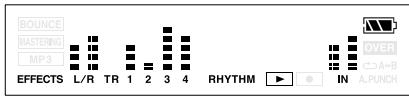
- Adjust the INPUT LEVEL.
Adjust the setting so that the level is displayed in the range shown below when the loudest sounds are input.
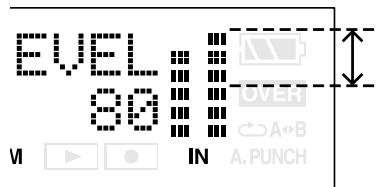
MEMO
- If you lower the INPUT LEVEL, the sound will be recorded at a lower volume, causing the audio quality to decrease. For best results, you should record at as high a level as possible without allowing the sound to distort. If you want to lower the listening volume while recording, turn down the VOLUME dial.
- If you're mixing GTR and MIC for input (recording), adjust the input sensitivity of each source beforehand.
6. Press CURSOR.
You will return to the Play screen.
Switching V-tracks
Although the MICRO BR is a four-track multi-track recorder, each track actually consists of eight V-tracks; you can select and use one of these tracks for recording and playback.
This means that by switching V-tracks, you can handle 32 tracks of audio.
For example you can keep an existing take of a guitar solo or vocal, and record other takes on different V-tracks. You can also piece together the best portions of different takes recorded on different V-tracks, and combine them into a single track.

"Editing performances on a tracks (Track Edit) (p. 53)"
- Press one of [TR1]–[TR4].
- Press CURSOR [◀][▶] several times to access the V-track select screen.
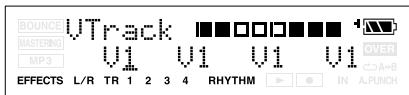
The screen shows the number of the V-track that is selected for each track.
■ : V-tracks containing data
□ : V-tracks that don't contain data
- Use CURSOR [◀][▶] or press one of the [TR1]–[TR4] button to select the track whose V-track you want to switch.
- Use VALUE [-][+] to switch the V-track.
- Press [EXIT].
You will return to the Play screen.
Selecting the track to record

1. Press
The Rec Track screen will appear. In this time, ● will blink, and the MICRO BR will be in recording standby condition.
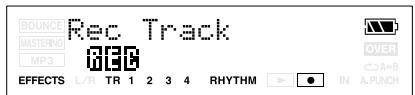
2. Press the [TR1]–[TR4] button of the track you want to record.
The 📄️ indication will appear for the track you choose.
Selecting stereo tracks for recording
If INPUT is set to GTR (guitar) or MIC (onboard mic)
If you want to record in stereo so that the insert effects will sound better, you can simultaneously press [TR1] and [TR2] or [TR3] and [TR4] to specify stereo recording using two tracks.
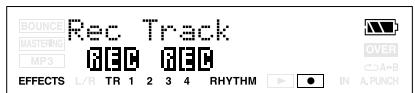
Stereo link will be enabled (or disabled) for the pair of tracks you pressed simultaneously.
If INPUT is set to LIN (line) or EXT (external mic)
Since the input is stereo, this will normally be stereo recording using two tracks. If you press TRACK button [1] or [2], recording will take place in stereo on tracks 1 and 2. Similarly if you press [3] or [4], recording will take place in stereo on tracks 3 and 4. However if you want to mix the sound from the L-channel and R-channel of the input and record it on track 1, press TRACK [1] once again from the state in which tracks 1 and 2 are selected. Track 1 will be selected as the recording destination. You can use the same operation to specify a different track as the recording destination.
Controlling the parameters of two tracks simultaneously (Stereo Link)
In some cases you may wish to adjust the parameters of two tracks simultaneously, such as when you're using two tracks to record or play back a stereo source.
You can do this using the Stereo Link function.
Enabling/disabling stereo link
- Press one of the [TR1]–[TR4] buttons.
- Use CURSOR [◀][▶] to select the parameter for which you want to enable (or disable) stereo link.
- Simultaneously press [TR1] and [TR2] or [TR3] and [TR4].
The indication “=” is shown for parameters that are stereo-linked.
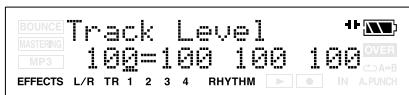
When you use VALUE [-] [+] to modify the value of a track parameter that is stereo-linked, the two values will change together.
MEMO
- The value will not change immediately when you enable stereo link. Stereo-linked operation begins when you modify the value.
- If you establish a stereo link between tracks whose values are different, both values will be set to the larger value when you modify the parameter value.
- Simply selecting stereo tracks for recording does not turn Stereo Link on. When you select stereo tracks for recording (two REC indications are shown) and then finish recording, Stereo Link will automatically be enabled for those tracks.
- The pan parameter changes as shown below when Stereo Link is on.
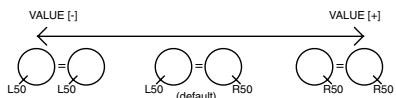
flowchart
graph LR
    A["VALUE [-"]] --> B["L50"]
    B --> C["="]
    C --> D["L50"]
    D --> E["VALUE [+"]]
    E --> F["R50"]
    F --> G["="]
    G --> H["L50 (default)"]
    H --> I["="]
    I --> J["R50"]
    J --> K["VALUE [+"]]
    K --> L["R50"]
Recording
1. Simultaneously press [EXIT] and [UTILITY] several times to put the MICROBR in Normal mode.
Each time you press [EXIT] and [UTILITY] simultaneously, the recording mode will alternate in the order of Normal mode→Bounce mode → Mastering mode.
Normal Mode
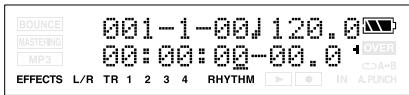
Bounce Mode
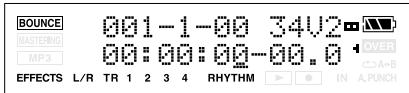
Mastering Mode
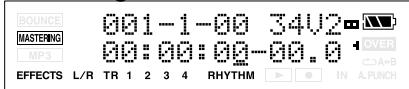
Make sure that the display does not indicate
BOUNCE or MASTERING.
2. Press

The Rec Track screen will appear. In this time, ● will blink, and the MICRO BR will be in recording standby condition.
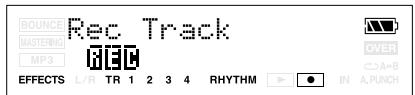
3. Press the [TR1]–[TR4] button of the track you want to record.
The 🔒 indication will appear for the track you choose.
4. Press

● and ▶ will light, and recording will begin.
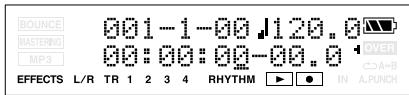
5. To stop recording, press

will go dark.
* You can't play back audio whose recording time was shorter than one second.
* The following operations cannot be performed (or will be invalid) while the recorder is operating (i.e., during recording or playback).
• Editing the SONG arrangement
- Selecting a drum kit
- Switching to the USB screen
- Switching to the SONG SELECT screen
- Switching to the SONG NEW screen
- Switching to the SONG INFORMATION screen
- Switching to the SONG EDIT screen
- Track editing operations
- Switching to the INITIALIZE screen
Playing back
1. Hold down

and press

The time location will return to 00:00:00-00.0.
2. Press

Playback will begin.
Playing back repeatedly (Repeat)
The “repeat” function lets you play back a specified region repeatedly. This function is useful when you want to check the mix balance repeatedly, or can be used in conjunction with punch-in/out to perform Loop Recording (p. 47).
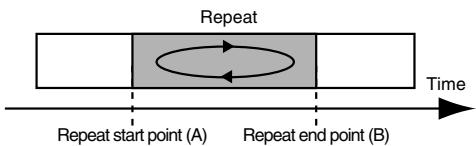
1. Move to the point where you want to begin repeating (point A), and press [A ◀▶ B].
Register the starting point (A) of the region you want to repeat.
A↔B will blink, and that location will be registered as the starting point (A) of the repeated region.
2. Move to the point where you want to stop repeating (point B), and press [A ◀▶ B].
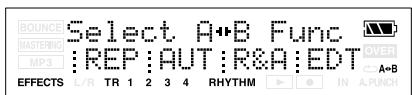
The display will appear the Select A ◀ B Func message.
At this time, the “AB” indication will light, indicating that the A-B region has been assigned.
That location will be registered as the ending point (B) of the repeated region.
* When specifying the repeat end point (B), pressing
[A ◀▶ B] at a point that is earlier than the repeat start point (A) will cause that point to be reassigned as the repeat start point (A).
* There must be at least one second between the repeat start point (A) and end point (B). You can't specify an end point that's less than one second away from the start point.
3. Press [TR1] (REP).
The region you specified will be assigned as the repeat region. ⬇ and A↔B will be lit.
MEMO
- If you want to cancel the repeat, press [A ◀▶ B] once again.
The repeat settings will be cancelled, and the ⏻ and A↔B will be lit.
- If you want to preserve the repeat region
Adjusting the left/right position (pan) of the playback
- Press one of the [TR1]–[TR4] buttons to select the track that you want to adjust.
- Press CURSOR [◀][▶] several times to access the Track Pan screen.
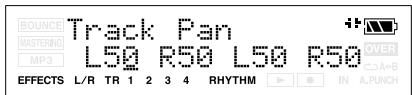
-
Use CURSOR [◀][▶] or press one of the [TR1]–[TR4] button to select the track whose pan setting you want to change.
-
Use VALUE [-][+] to change the pan setting.
Range L50-C00-R50
- Press [EXIT].
You will return to the Play screen.
Re-recording over a mistake (Punch-in/out)
During recording, you may sometimes play a wrong note or be unsatisfied with your performance. In such cases, you can punch-in/out to re-record just a specific region of your performance.
"Punch-in" is the action of switching from playback to recording while you play back a track. "Punch-out" is the action of switching from recording back to playback while the track continues to play.
In other words, you punch-in at the point where you want to start re-recording, and punch-out when you're finished recording.
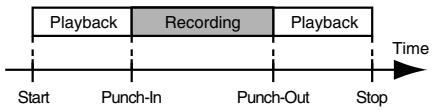
flowchart
graph LR
    A["Start"] --> B["Punch-In"]
    B --> C["Punch-Out"]
    C --> D["Stop"]
    style A fill:#f9f,stroke:#333
    style B fill:#ccf,stroke:#333
    style C fill:#cfc,stroke:#333
    style D fill:#fcc,stroke:#333
On the MICRO BR, you can choose from two methods of doing this; manual punch-in/out and auto punch-in/out.
* You can use the Undo function (p. 49) to return to the state prior to re-recording.
* The data prior to punching-in/out will remain on the memory card without being erased. If you no longer need this data, you should execute Song Optimize (p. 59) to erase the unneeded data from the memory card so that its storage capacity can be used effectively.
Manual punch-in/out
In this method, you punch-in/out by operating

* When using manual punch-in/out, you must ensure that there is at least a 1.0 second interval between punch-in and punch-out.
In the following example, we'll use manual punch-in/out to re-record a portion of track 1 which you recorded earlier.
- Press one of the [TR1]–[TR4] buttons.
- Press CURSOR [◀][▶] several times to access the Rec Track screen.
- Press [TR1] several times to make "REC" appear for track 1.
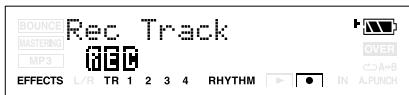
Track 1 will be the recording track.
- Press CURSOR [◀][▶] to access the Track Level screen, and set the Tr1 Level to 100 (p. 33).
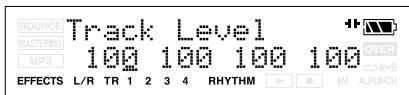
- Press [EXIT].
You will return to the Play screen.
- Play back the song, and use the INPUT LEVEL dial to adjust the volume of the input source.
Listen and compare the input source with the track to be re-recorded, and adjust the INPUT LEVEL dial so that there is no difference in volume.
- Move to a location slightly earlier than the point at which you want to begin re-
recording, and press ▶ . Playback will begin.
8. At the point where you want to begin re-
recording, press □ .
Punch-in will begin, and you'll be in record mode.
9. When you're ready to punch-out, press
or (or press ).
Each time you press □, you'll alternately punch-in and punch-out, so simply perform the same procedure at any other location that you want to re-record.
10. When you're finished recording, press
to stop.
Auto punch-in/out
"Auto punch-in/out" is the method in which punch-in/out begins automatically at the time locations you specify beforehand.
This is convenient when you want to punch-in/out at precise points, or if you want to punch-in/out automatically so that you can concentrate on your playing.
In the following example, we'll re-record a portion of track 1 which you recorded earlier.
* When using auto punch-in/out, you must set the punch-in and punch-out points at least 1.0 seconds apart.
- Specify the punch-in and punch-out points as described in steps 1–2 of "Playing back repeatedly (Repeat) (p. 43)".
- Press [TR2] (AUT).
The region you specified will be the auto punch-in/out region. A↔B and "A.PUNCH" will light.
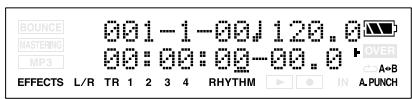
- Press one of the [TR1]–[TR4] buttons.
- Press CURSOR [◀][▶] several times to access the Rec Track screen.
- Press [TR1] several times to make "REC" appear for track 1.
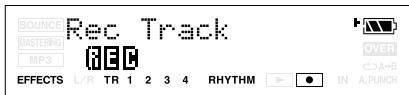
Track 1 will be the recording track.
- Press CURSOR [◀][▶] to access the Track Level screen, and set the Tr1 Level to 100 (p. 33).
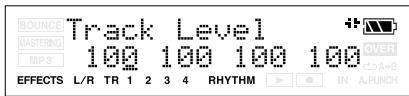
-
Press [EXIT].
-
Play back the song, and use the INPUT LEVEL dial to adjust the volume of the input source.
Listen and compare the input source with the track to be re-recorded, and adjust the INPUT LEVEL dial so that there is no difference in volume.
-
Move to a location slightly earlier than the point at which you want to begin re-recording.
-
Press □ to enter the recording standby condition, and then press

Recording will begin automatically at the point you specified as the punch-in location. When you reach the punch-out point, you will automatically return to playback.
- When you've finished recording, press
- Return to a time location where you began recording, and then play back.
Listen to the re-recorded result.
Repeatedly recording the same region (Loop Recording)
The Repeat function (p. 43) lets you repeatedly play back a specified region (the loop region). If you use the Repeat function in conjunction with auto punch-in/out, the recorded result will be played back immediately.
If you're not happy with your recording, you can
continue re-recording simply by pressing "Loop recording" refers to the method of using the Repeat function in conjunction with auto punch-in/out to record repeatedly.
In the following example, we'll re-record a portion of track 1 which you recorded earlier. For details on how to specify the region to be re-recorded (the punch-in/out points), refer to the preceding section "Auto punch-in/out."
-
Specify the punch-in and punch-out points as described in steps 1–2 of "Playing back repeatedly (Repeat) (p. 43)".
-
Press [TR3] (R&A).
The region you specified will be the auto punch-in/out region. In the display, ⬇, A↔B and "A.PUNCH" will be lit.
One measure before and after the punch-in/out region will be automatically specified as the repeat region.
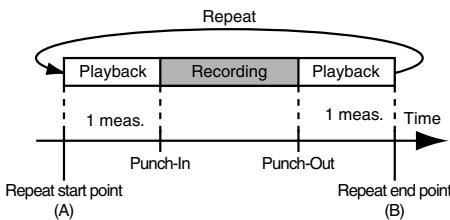
flowchart
graph LR
    A["Playback"] --> B["Recording"]
    B --> C["Playback"]
    D["Repeat start point (A)"] --> E["Punch-In"]
    E --> F["Punch-Out"]
    F --> G["Repeat end point (B)"]
    style A fill:#f9f,stroke:#333
    style B fill:#f9f,stroke:#333
    style C fill:#f9f,stroke:#333
    style D fill:#ccf,stroke:#333
    style E fill:#cfc,stroke:#333
    style F fill:#cfc,stroke:#333
    style G fill:#fcc,stroke:#333
-
Press one of the [TR1]–[TR4] buttons.
-
Press CURSOR [◀][▶] several times to access the Rec Track screen.
-
Press [TR1] several times to make "REC" appear for track 1.

Track 1 will be the recording track.
- Press [EXIT].
- Press CURSOR [◀][▶] to access the Track Level screen, and set the Tr1 Level to 100 (p. 33).
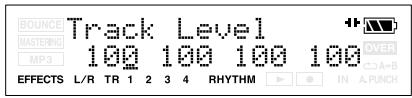
- Play back the song, and use the INPUT LEVEL dial to adjust the volume of the input source.
Listen and compare the input source with the track to be re-recorded, and adjust the INPUT LEVEL dial so that there is no difference in volume. - Move to a point slightly earlier than the point at which you want to begin re-recording.
- Press □ and then press ▶ to begin recording.
When you press □, you'll be able to record the region between punch-in and punch-out. Re-record your performance. After the repeat, playback will begin from one measure ahead of the punch-in location. Listen to the re-recorded result. If you're not satisfied, press □ and re-record your performance again.
- When you're finished recording, press
Canceling an operation (Undo/Redo)
Occasionally when the recording you make doesn't turn out as you wish, or the settings you make for an editing operation are incorrect, and you want to reverse what you have done. At these times, you can use the "Undo function." Undo will cancel the result of the operation and revert the data to its previous state. If desired, you can then use "Redo" to cancel the Undo. For example, let's suppose that you're performing punch-in recording, and have recorded twice over the same region. You could then execute Undo to cancel the second recording and revert to the first recording.
After you've executed Undo, you could execute Redo if you wanted to cancel the Undo and revert to the state following your second recording.
* After executing Undo, you'll only be able to execute Redo.
* If, after executing Undo, you then record or execute a track editing operation, you will no longer be able to execute Redo.
* Undo applies only to the audio data recorded on the tracks.
* If you execute Song Optimize (p. 59), the operating history for all data will be cleared. This means that you won't be able to execute Undo immediately after executing Song Optimize.
Reverting to the previous state (Undo)
- Press [UTILITY].
- Press [TR3] (UND).
- If you want to execute Undo, press [TR4] (YES).
If you decide not to execute Undo, press [EXIT].
When you execute Undo, the display will indicate “Undo...” and the most recently executed recording or editing operation will be cancelled.
Canceling the Undo (Redo)
You can execute Redo if you decide to cancel the Undo operation you just executed.
-
Press [UTILITY].
-
Press [TR3] (RDO).
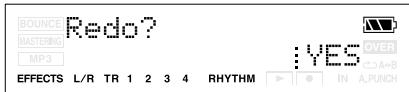
- If you want to execute Redo, press [TR4] (YES).
If you decide not to execute Redo, press [EXIT].
When you execute Redo, the display will indicate "Redo..." and the Undo operation you just executed will be cancelled.
Putting multiple tracks together (Bounce)
Although the MICRO BR allows the simultaneous playback of eight tracks, when you run out of tracks, the MICRO BR also lets you copy the recordings of multiple tracks together onto one track (V-Track). This is called “bounce” (also known as bounce recording or ping-pong recording).
By combining multiple tracks in this way, you can free up other tracks in order to record additional performances.
HINT
In Bounce mode, you can play back eight tracks simultaneously and record them all to a single, separate V-Track.
When input sources are selected with INPUT SELECT, you can have those sounds recorded together.
Furthermore, you can include the sounds from the Rhythm in the recording.
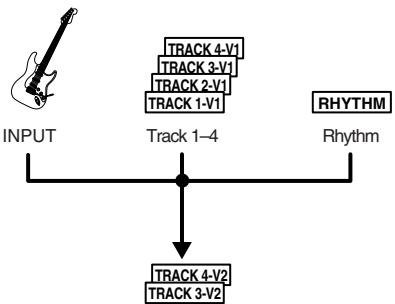
flowchart
graph TD
    A["Input"] --> B["Track 1-4"]
    B --> C["Rhythm"]
    D["TRACK 4-V1"] --> E["TRACK 3-V1"]
    F["TRACK 2-V1"] --> G["TRACK 1-V1"]
    H["TRACK 4-V2"] --> I["TRACK 3-V2"]
    J["RHYTHM"] --> K["Feedback to Track 1-4"]
Separate V-Track
In the following example, we'll assume that tracks 1 and 2 contain mono recordings and tracks 3 and 4 contain a stereo-recorded performance, and you want to bounce-record all of these to V-track 2 of tracks 3/4.
* Make sure that the Stereo Link function does not on
- Set the pan of tracks 1 and 2 as desired, set the track 3 pan to L50, and the track 4 pan to R50.

"Adjusting the left/right position (pan) of the playback (p. 44)"
- Play back the song, and adjust the volume balance of tracks 1–4.
If there are tracks that you don't want to mix, set their level to 0.

"Adjusting the volume of a track (p. 33)"
-
Press ■.
-
Simultaneously press [EXIT] and [UTILITY] several times to make the display indicate BOUNCE.
The Bounce screen will appear.
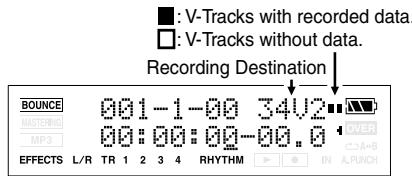
* The input source will automatically be turned off. If you want to mix the input source along with your bounce-recording, you can use [INPUT] to select the input source.
- Use CURSOR [◀][▶] and VALUE [-][+] to select the recording-destination tracks and V-track.
In this example, we'll use "34V2" (V-track 2 of tracks 3/4).

"Switching V-tracks (p. 40)"
- If you also want to mix the rhythm into your bounce-recording, press [RHYTHM], raise the "Rhy Level," and press [TR1] several times to turn rhythm "On."
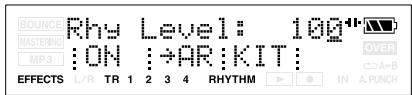
If you don't want to record the rhythm sound, press [TR1] to turn off the RHYTHM indication.

"Playing a pattern (p. 82)"
7. Press [EXIT].
You will return to the Bounce screen.
- Hold down □, and press ◀◀ to return the time location to 00:00:00-00.0, and then press the buttons in the order of □ → □ to begin bounce-recording.
9. When you've finished recording, press

If you're bounce-recording in mono
Set the Track to 1–4 (excluding 12 or 34), you can bounce-recording in monaural.
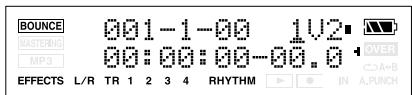

You can apply reverb (p. 72) or the insert effects
(p. 61) during bounce-recording.
If you want to use the insert effects on a specific track, refer to “Changing how the insert effects are used (p. 64)”.
Listening the Result of the Bounce-recording
* Confirm the rhythm function is turned off.
- Simultaneously press [EXIT] and [UTILITY] several times to put the MICROBR in Normal recording mode.
Make sure that the display does not indicate BOUNCE, MASTERING (p. 42).
- Press one of the [TR1]–[TR4], and press CURSOR [◀][▶] several times to access the V-track select screen.
In this example, we'll select V-track 2 of track 3 and V-track 2 of track 4).
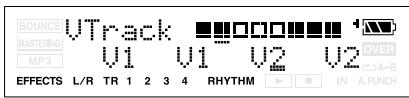

"Switching V-tracks (p. 40)"
- Use CURSOR [◀][▶], VALUE [-][+] to set the Tr1 and Tr2 Level to 0 (p. 33), and Tr1 and Tr2 Reverb Level to 0.
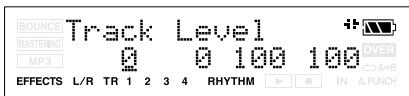
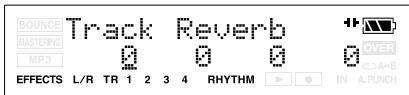
4. Press [EXIT].
You will return to the Play screen.
![ROLAND MICRO BR - Press [EXIT]. - 1](/content/2025/01/130876/images/4f8b374fe4a5470005c4c7f391809db70d3b5ece8445a3730722c20436843978.jpg)
- Press ▶ to hear the audio that was bounce-recorded to tracks 3 and 4.
* The pan of the bounce-destination tracks (3 and 4) is set to far left and far right respectively.
- If you want to store the settings in the currently selected song, hold down
![ROLAND MICRO BR - Press [EXIT]. - 2](/content/2025/01/130876/images/15ab7b69be9f023fadfe1d455f54cdf5602995f742256d0cedeeb621ef9e19fa.jpg)
Viewing song-related information
Viewing song information
Here's how you can view detailed information about the song. You can also view the song's data type and size.
- Press [UTILITY].
- Press [TR1] (SNG).
- Press [TR3] (INF).
The Remain screen will appear. The name of the current song and the remaining available recording time are shown.
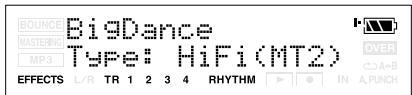
4. Press CURSOR ▶.
The song information (song's data type and memory used) is displayed.
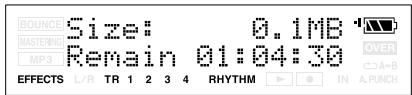

For more about the Type, refer to "About the data types (p. 38)".
Viewing the remaining recordable time
When you're in the recording standby or recording screens, you can display the remaining recordable time as follows.
- Press [UTILITY].
- Press CURSOR [◀][▶] several times to make the display indicate Remain Info.
- Press VALUE[+] to turn this setting ON.
- Press [EXIT].
You will return to the Play screen.
5. Press
The remaining recordable time (hours:minutes:seconds) will be displayed in the recording standby or recording screens.
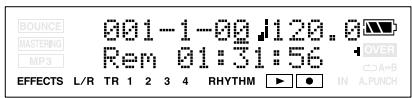
Editing performances on a tracks (Track Edit)
These operations let you change the structure of your song by copying track data or moving it to another location.
Copying data (Track Copy)
This operation copies data from the specified region of a track (or the entire track) to another location.
You can copy the track data just once, or copy the specified region of data several times in succession to the specified destination.
If you want to use a phrase that's already been recorded on a track, or if you want to use the same phrase repeatedly, you can use the Copy operation to assemble your song efficiently.
Example 1: Copying twice to the same track
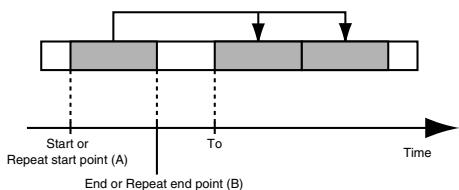
flowchart
graph TD
    A["Start or Repeat start point (A)"] --> B["End or Repeat end point (B)"]
    B --> C["Time"]
    style A fill:#ccc,stroke:#333
    style C fill:#ccc,stroke:#333
    style B fill:#ccc,stroke:#333
    style C fill:#ccc,stroke:#333
Example 2: Copying twice to a different track
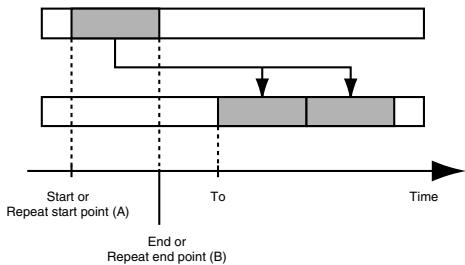
flowchart
graph TD
    A["Start or Repeat start point (A)"] --> B["To"]
    B --> C["End or Repeat end point (B)"]
    C --> D["Time"]
NOTE
- If the copy destination contains data, that data will be overwritten.
-
The copy region you specify must be longer than 1.0 seconds. If the region is shorter than 1.0 seconds, the sound won't be heard even if the data was copied.
-
Press [UTILITY].
- Press [TR2] (TRK).
The TRACK EDIT screen appears.
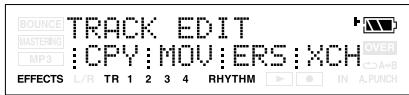
- Press [TR1] (CPY).
The track setting screen appears. Specify the source and destination tracks for the Copy operation.
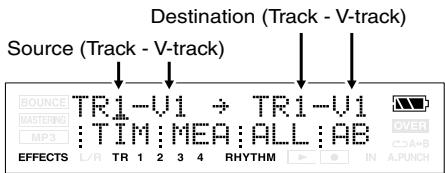
- Specify the edit region as described in "The edit region and the number of copies" (p. 54).
Specify the region that you want to copy (Start, End), the copy-destination time or measure (To), and the number of times (Repeat) the data is to be copied.
The display will ask "Copy OK?"
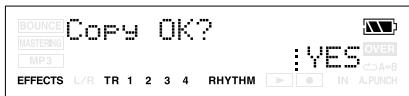
- If you're sure you want to copy the data, press [TR4] (YES). If you decide to cancel the operation, press [EXIT] (or [UTILITY]).
The edit region and the number of copies
1. Specify the units for the edit region.
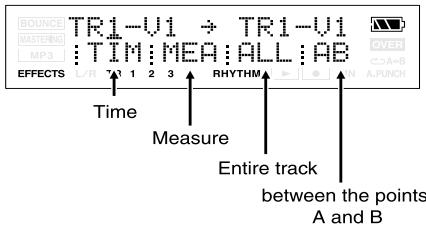
| Button | Edit region |
| [TR1] (TIM) | The edit region will be specified in terms of time. The time setting screen appears. |
| [TR2] (MEA) | The edit region will be specified in terms of measures. The measure setting screen appears. |
| [TR3] (ALL) | The edit region will be the entire track you specified. |
| [TR4] (AB) | The edit region will be the region between the points A and B you specified. |
If you press [TR1] (TIM)
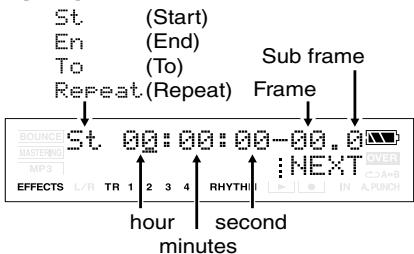
If you press [TR2] (MEA)
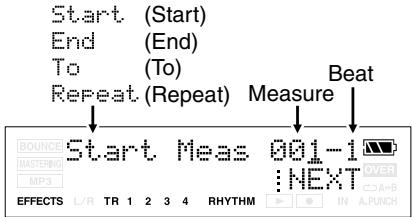
MEMO
If you pressed [TR3] (ALL) or [TR4] (AB) during the copy or move procedure, proceed to step 4 of the explanation.
2. Specify the starting time/measure (Start) of the edit region, and press [TR4] (NEXT).
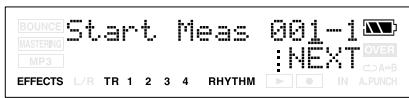
3. Specify the ending time/measure (End) of the edit region, and press [TR4] (NEXT).
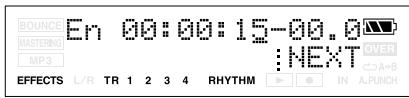
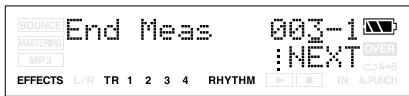
4. If you're copying or moving data, specify the time/measure of the copy/move destination (To), and press [TR4] (NEXT).
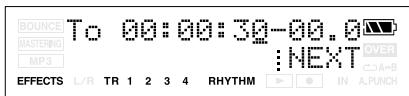
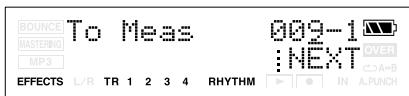
5. Use the Repeat parameter to specify the number of times that the specified region will be copied.
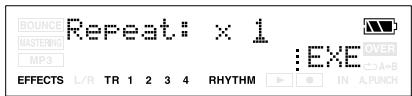
* If you're moving data, skip step 5.
* If you're erasing data, skip steps 4–5.
6. Press [TR4] (EXE).
HINT
You can also specify the time by using
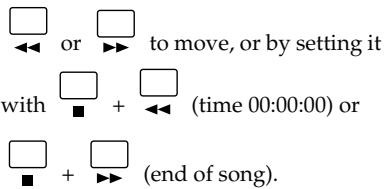
MEMO
- The parameters you need to set will depend on the type of track edit operation you select and on the edit region you specify. (You'll need to set the parameters marked by √.)
| CPY:Copy | Start | End | To | Repeat |
| TIM, MEA | √ | √ | √ | √ |
| ALL | √ | √ | ||
| AB | * | * | √ | √ |
| MOV:Move | Start | End | To |
| TIM, MEA | √ | √ | √ |
| ALL | √ | ||
| AB | * | * | √ |
| ERS:Erase | Start | End |
| TIM, MEA | √ | √ |
| ALL | √ | √ |
| AB | * | * |
* If you want to copy/move/erase the AB region, you must set point A and point B beforehand (p. 43).
* The edited content is preserved when you return from the track edit screen to the play screen.
Moving data (Track Move)
This operation moves the data of the specified region (or the entire track) to another location.
* Following this operation, the original location of the moved data will be empty (containing no data).
Example 1: Moving within the same track
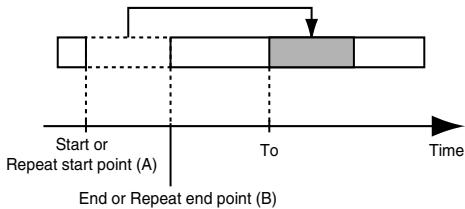
flowchart
graph TD
    A["Start or Repeat start point (A)"] --> B["End or Repeat end point (B)"]
    B --> C["To"]
    C --> D["Time"]
Example 2: Moving to a different track
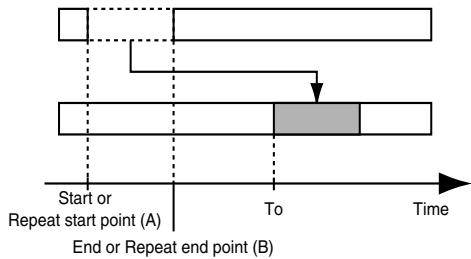
flowchart
graph TD
    A["Start or Repeat start point (A)"] --> B["End or Repeat end point (B)"]
    B --> C["Time"]
    style A fill:#f9f,stroke:#333
    style B fill:#ccf,stroke:#333
    style C fill:#dfd,stroke:#333
- Press [UTILITY].
- Press [TR2] (TRK).
The TRACK EDIT screen appears.
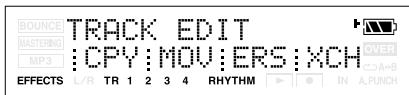
- Press [TR2] (MOV).
The track setting screen appears. Specify the source and destination tracks for the Move operation.
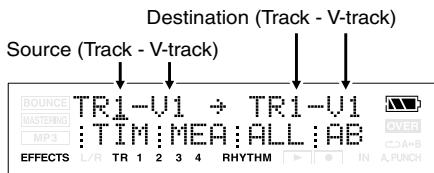
- Specify the edit region as described in "The edit region and the number of copies" (p. 54).
Specify the region that you want to move (Start, End) and the time or measure of the move destination (To).
- When you've specified the edit region, press TR4 [EXE].
The display will ask Move OK?
- To execute the Move operation, press [TR4] (YES). If you decide not to execute, press [EXIT] (or [UTILITY]).
Erasing data (Track Erase)
This operation erases data from the specified region. If you use this operation to erase data, any data located later than the erased data will not be moved forward. In other words, this operation is comparable to recording silence over an unwanted portion of recording tape.
* Don't leave sounds shorter than 1.0 seconds before or after the erased region. Any remaining sound that is shorter than 1.0 seconds cannot be played.
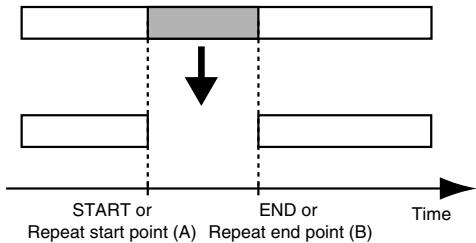
flowchart
graph TD
    A["Start"] --> B{Change}
    B --> C["Repeat start point (A)"]
    B --> D["Repeat end point (B)"]
- Press [UTILITY].
- Press [TR2] (TRK).
The TRACK EDIT screen appears.
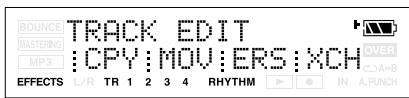
- Press [TR3] (ERS).
The track setting screen appears. Specify the erasing track for the Erase operation.
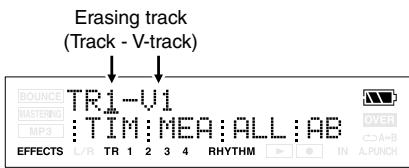
- Specify the edit region as described in "The edit region and the number of copies" (p. 54).
Specify the region that you want to erase (Start, End).
5. When you've finished setting the edit region, press TR4 [EXE].
The display will ask Erase OK?
6. To execute the Erase operation, press [TR4] (YES). If you decide not to execute, press [EXIT] (or [UTILITY]).
Exchanging data (Track Exchange)
This operation exchanges data between two tracks.
Example: Exchanging the entire contents of tracks 1 and 2
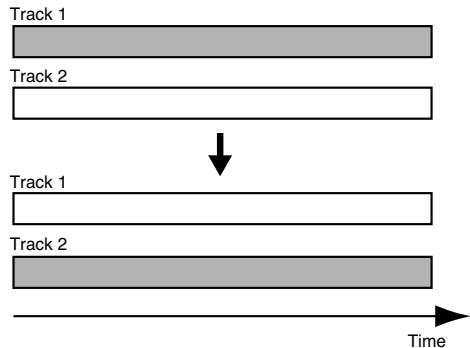
flowchart
graph TD
    A["Track 1"] --> B["Track 2"]
    B --> C["↓"]
    C --> D["Track 1"]
    D --> E["Track 2"]
    E --> F["Time"]
- Press [UTILITY].
- Press [TR2] (TRK).
The TRACK EDIT screen appears.
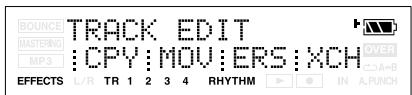
- Press [TR4] (XCH).
The track setting screen appears.
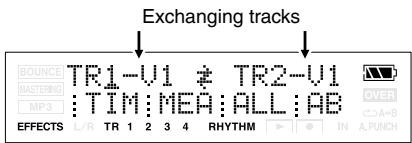
- Specify the tracks that you want to exchange, and press TR4 [EXE].
The display will ask Exchange OK?
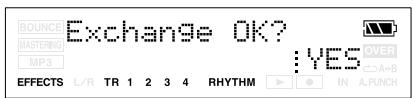
- To execute the Exchange operation, press [TR4] (YES). If you decide not to execute, press [EXIT] (or [UTILITY]).
Managing the songs you've recorded
Copying a song (Song Copy)
This operation copies the currently selected song.
- Press [UTILITY] then press [TR1] (SNG).
- Press CURSOR [▶].
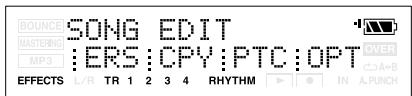
- Press [TR2] (CPY).
The display will ask "Copy to NewSong?"
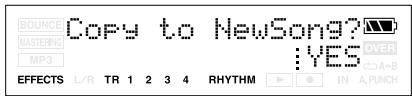
- Press [TR4] (YES).
The Copy operation will be executed. Once the copy has been completed, "Completed!" appears in the display, and you're returned to the Play screen.

If the message "Card Full!" appears
If this message appears before you copy data, the memory card has insufficient free space.
Either execute the operation described in "Saving space on the memory card (Song Optimize)" (p. 59), or erase unneeded songs or audio files (MP3, etc.) from the memory card. For details, refer to "Erasing a song (Song Erase)" (p. 58) or "Erasing an MP3/WAV file" (p. 95).
If you want to check the free space remaining on a memory card, refer to "Viewing song information" (p. 52).
Erasing a song (Song Erase)
This operation erases a song from the memory card.
- Press [UTILITY] then press [TR1] (SNG).
- Press CURSOR [▶].
- Press [TR3] (ERS).
The display will ask "ERS?"
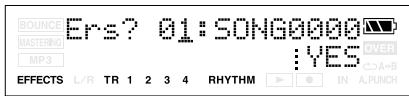
- Use VALUE [-] [+] to select the song that you want to erase.
- Press [TR4] (YES).
The display will ask "Are you sure?"
- If you are sure you want to erase the song, press [TR4] (YES). If you decide not to erase the song, press [EXIT] (or [UTILITY]).
- Press [UTILITY] (or press [EXIT] several times) to return to the Play screen.
* If you erase the song that you're currently using, another song on the memory card will be selected automatically. If no other song exists, a new song will be created.
Saving space on the memory card (Song Optimize)
When you perform overdubbing or punch-in/out, the previous data will remain on the memory card without being erased. In some cases, this unneeded data may occupy significant space on the memory card, unnecessarily using up the card's capacity. This will reduce the available recording time.
By executing the “Song Optimize” operation you can erase unneeded data from the memory card and increase the amount of space that’s available.
- Press [UTILITY] then press [TR1] (SNG).
- Press CURSOR [▶].
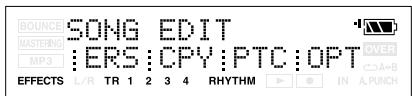
- Press [TR4] (OPT).
The display will ask "Optimize Song?"
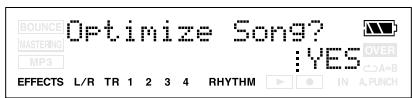
- Press [TR4] (YES).
The Song Optimize operation will be executed. When optimization is completed, the display will indicate “Complete!,” and you’re returns to the Play screen. If you decide not to execute this operation, press [EXIT] (or [UTILITY]).
* The Song Optimize operation erases the unneeded and unplayable audio data from all V-tracks.
* In some cases, it may take an appreciable amount of time for optimization to be completed. This is not a malfunction. Don't turn off the power before optimization has ended.
* If you've executed the optimize operation, you won't be able to return to the state prior to optimization by executing Undo.
Naming a song (Song Name)
When you create a new song, it will automatically be given a name such as "SONG0001." When you've finished your song, we recommend that you give it a descriptive name so that you'll be able to manage your songs more easily.
- Press [UTILITY] then press [TR1] (SNG).
- Press CURSOR [ ◀ ].
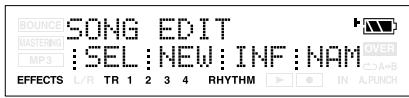
- Press [TR4] (NAM).
The song name is displayed.
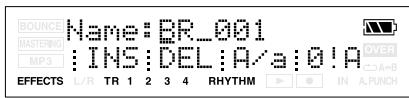
- Use CURSOR [◀][▶] to move the cursor to the character you want to change.
- Use VALUE [-] [+] to select the desired character.
You can use the following functions when editing text.
| Button | Function |
| [TR1] (INS) | Inserts a space at the cursor location. |
| [TR2] (DEL) | Deletes the character at the cursor location, and moves the subsequent characters toward the left. |
| [TR3] (A/a) | Switches the character at the cursor location between uppercase/lowercase. |
| [TR4] (0!A) | Switches the type of character (numeral/symbol/alphabetical) at the cursor location. |
- Press [UTILITY] (or press [EXIT] several times) to return to the Play screen.
Protecting a song (Song Protect)
Even after you've finished the work of creating a song, you could lose your song by accidentally recording over it or erasing it. To prevent such accidents, the Song Protect setting lets you protect a song so that it cannot be erased or modified.
* If a song is protected, you won't be able to perform the following operations:
- Recording
- Track editing
- Changing the song name
- Deleting the song
- Song optimize
• Writing a rhythm arrangement
- Importing MP3 or WAV
• Writing an effect patch
-
Press [UTILITY] then press [TR1] (SNG).
-
Press CURSOR [▶].
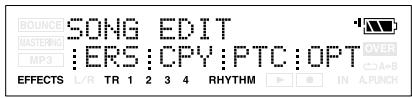
- Press [TR1] (PRT).
The display will ask "Protect Song?"
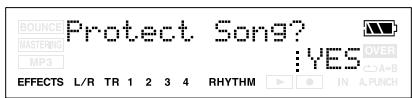
- Press [TR4] (EXE).
If a song is protected, the song protect indicator is shown in the screen.
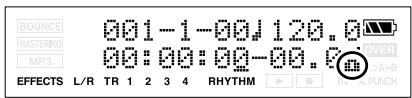

To turn off the protect setting, perform the same procedure once again.
Saving the current settings to the song (Song Save)
On the MICRO BR, the following content is saved as song data.
- Recording data
- Mixer status (pan, etc.)
- Insert effects song patch
• Mastering Tool Kit song patch - Song arrangement
- Reverb
To save the current state, perform the following step.
Hold down □ and press □.

You can use the Write operation (p. 60) to save the effect patch without performing the Song Save operation.
Using insert effects
The MICRO BR contains two effects processors (insert effects and reverb).
You can use both the insert effects and reverb simultaneously, and make settings for each as desired.
Here we will explain how to adjust the various settings (parameters) for each insert effects, and how to save your settings.
"Parameter List" (p. 67)
"Reverb Parameters" (p. 73)

What is an insert effect?
An effect added directly to a specific signal (with the MICRO BR, this refers to the instrumental sounds from GUITAR IN etc.) is called an “insert effect.” The effect pedals that a guitarist connects between his guitar and amp are a type of the insert effects.
Loop effects, on the other hand, are effects connected to the send/return jack of mixers and other similar devices. The MICRO BR comes with onboard reverb effects (p. 72).

You can use the insert effects not only while recording, but also apply it to the sound when mixing the tracks.
For details, refer to “Changing how the insert effects are used” (p. 64).
Effect patches and banks
You can change the type of effect produced by the insert effects processor and the parameter settings for the effect by calling up an “effect patch.”
The MICRO BR contains a wide variety of effect patches that are suitable for vocals and various instruments. These patches are organized into "banks" according to the type of input source for which each patch is intended.
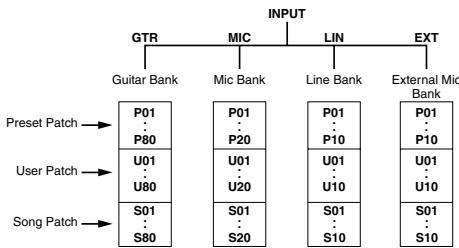
flowchart
graph TD
    INPUT --> GTR
    INPUT --> MIC
    INPUT --> LIN
    INPUT --> EXT
    GTR --> GuitarBank["Guitar Bank"]
    MIC --> MicBank["Mic Bank"]
    LIN --> LineBank["Line Bank"]
    EXT --> ExternalMicBank["External Mic Bank"]

    PresetPatch --> P01["P01"]
    PresetPatch --> P80["P80"]

    UserPatch --> U01["U01"]
    UserPatch --> U80["U80"]

    SongPatch --> S01["S01"]
    SongPatch --> S80["S80"]

    P01 --> P01_P01
    P01 --> P20_P20
    P01 --> P10_P10
    U01 --> U01_U01
    U80 --> U20_U20
    S01 --> S01_S01
    S80 --> S20_S20

    P01 --> P10_P10
    P20 --> P10_P10
    U01 --> U10_U10
    U20 --> U10_U10
    S01 --> S10_S10
    S20 --> S10_S10

    P01 --> P10_P10
    P20 --> P10_P10

What is an effect patch?
The MICRO BR provides numerous effects for vocals, guitar, etc., and two or more of these effects can be used simultaneously. Such a combination of effects (i.e., the types of the effects used and the order in which they are connected) is called an “algorithm.”
Each effect in an algorithm offers a certain number of parameters, which allow the sound to be altered (similar to tweaking the knobs on a stomp pedal). The algorithm and its parameter settings are bundled into units called “effect patches.”
By changing the effect patch, you can simultaneously change the stored effect combinations, their on/off status, and the parameter settings, and completely change the sound.
On the MICRO BR, the patch bank is selected automatically according to the input source you've selected with the INPUT parameter. For example, the patches of the guitar bank will be selected if you've chosen GTR (guitar) as the input source, and the patches of the line bank will be selected if you choose LIN (line).
If you've simultaneously selected both GTR and MIC as the input, the guitar bank will be selected. However, the effect will apply only to the audio input via GUITAR IN.
Within these banks, the effect patches are further organized as follows.
Preset patches (P)
Preset patches contain preset patch data. You can edit the settings of a preset patch, but cannot write your changes back into the preset patch.
User patches (U)
User patches can be rewritten, and the patch data will be stored in the MICRO BR itself. If you've created a patch that you'll want to use with other songs as well, you should save the patch as a user patch.
Song patches (S)
Song patches can be rewritten, and the patch data is saved together with the song data. Patches you've used when recording a performance can conveniently be saved for each song as song patches.
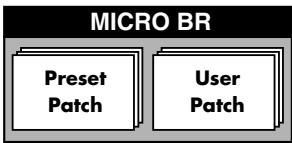
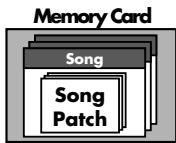
MEMO
- If no memory card is inserted, you can't select song patches (S).
- When the MICRO BR is shipped from the factory, the user patches (U) of each bank and the song patches (S) contain the same patches as the preset patches (P).
Editing the insert effects settings
If you want to create a new effect sound, start by selecting an existing patch that's close to the sound you want, then modify (edit) the patch settings. If you want to save the effect settings you've edited, save the patch as a user patch or song patch.
- Press [EFFECTS].
The effect screen appears.
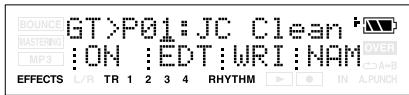
-
Use CURSOR [◀] [▶] and VALUE [-] [+] to select either P (preset), U (user), or S (song).
-
Use CURSOR [◀] [▶] and VALUE [-] [+] to select an effect number.
-
Press [TR2] (EDT).
The effect edit screen appears, and the effect blocks used are shown.
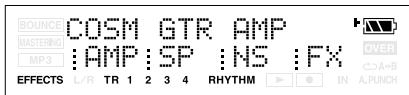
When it doesn't settle on one screen because there are a lot of the effect blocks, the screen is switched pressing the CURSOR
[ ◀ ][ ▶ ] button.
- Press one of the [TR1]–[TR4] button for the effect block you want to edit.
In the example screen shown here, the button assignments follow this order: [TR1] (AMP), [TR2] (SP), and so on.
Of the blocks shown, blocks that are turned on are shown in uppercase characters, and blocks that are turned off are shown in lowercase characters.
Press [TR1]–[TR4] to access the parameter setting screen for each effect block.
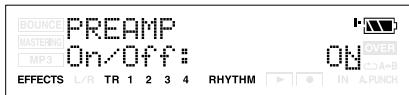
6. Use CURSOR [◀] [▶] to move the cursor to each parameter, and use VALUE [-] [+] to edit the value.
If there are other parameters you want to edit, use CURSOR [◀] [▶] to move the cursor to each parameter, and use VALUE [-] [+] to edit the value.
7. If you want to edit another effect block, press [EXIT] and then repeat steps 5–7.
![ROLAND MICRO BR - If you want to edit another effect block, press [EXIT] and then repeat steps 5–7. - 1](/content/2025/01/130876/images/7c46ffa3b5a2900e0e495048a0d4dc37c02242d4c31c5554bd98a282277f677b.jpg)
If you want to save the current effect settings, refer to "Saving insert effects settings (Write)" (p. 63).
![ROLAND MICRO BR - If you want to edit another effect block, press [EXIT] and then repeat steps 5–7. - 2](/content/2025/01/130876/images/a478b38618502ff0127d15a1ecb596241e03e1a90fcd43d0a48607a504913fd2.jpg)
Changes you make to the effect settings are temporary. If you exit the effect edit screen without saving your edited effect patch, the indication “**” will appear in the area that indicates the bank.
Please be aware that your edits will be lost if you perform any of the following when this “**” indication is shown:
- Select another effect patch
- Load/save a song
- Turn off the power
![ROLAND MICRO BR - If you want to edit another effect block, press [EXIT] and then repeat steps 5–7. - 3](/content/2025/01/130876/images/84d455c0df4e00936cae6f92d9436bf1a5021d0ea224319af31be4b2b44474eb.jpg)
When the GAIN parameter of the patch is raised too much, it hears of distorted sound and oscillation sound (howling). At the time, you lower the GAIN parameter.
Saving insert effects settings (Write)
Here's how to assign a name (patch name) to the effect settings you've edited, and save them as a new effect patch.
* You can't save an effect patch while you're recording or playing a song.
* If you don't need to edit the patch name, proceed to step 5.
1. Press [EFFECTS].
The effect screen appears.
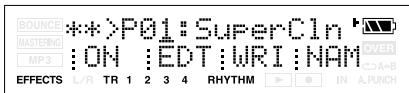
2. If you want to edit the patch name press [TR4] (NAM).
The FX NAME screen appears.
If you don't need to edit the patch name, proceed to step 4.
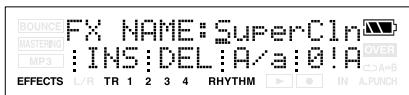
3. Use CURSOR [◀] [▶] and VALUE [-] [+] to enter the desired patch name.
You can use the following functions when editing text.
| Button | Function |
| [TR1] (INS) | Inserts a space at the cursor location. |
| [TR2] (DEL) | Deletes the character at the cursor location, and moves the subsequent characters toward the left. |
| [TR3] (A/a) | Switches the character at the cursor location between uppercase and lowercase. |
| [TR4] (0!A) | Switches the type of character (numeral/ symbol/letter) at the cursor location. |
4. Press [EXIT].
Return to the effect screen.
5. Press [TR3] (WRI).
The Write screen appears.
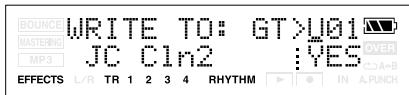
- Use VALUE [-] [+] to select the patch number into which you want to write your edited patch.
- Press [TR4] (YES).
The display will ask "Are you sure?"
- If you are sure you want to write to the patch, press [TR4] (EXE). If you decide not to erase the song, press [EXIT].
When writing is completed, you're returned to the effect screen.
Changing how the insert effects are used
By default, the insert effects are connected (inserted) directly after the input source. This means that you'll be able to hear and record the sound processed by the effect.
However, in some cases, you may wish to change this method of connection.
The MICRO BR lets you change the location where the insert effects are connected, thus allowing you to use the effect in a variety of ways.
To change how the insert effects are connected, proceed as follows.
- Press [EFFECTS] and then press [▶].
- Press [TR1] (LOC).
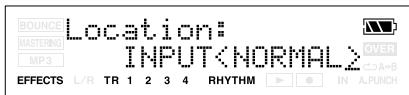
- Use VALUE [-] [+] to specify the location where the insert effects are to be connected.
INPUT :
This lets you monitor and record the sound that is processed through the insert effects. Normally, you should use this setting.
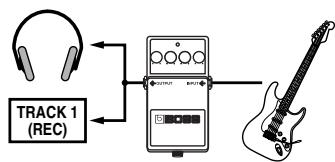
INPUT :
This lets you monitor the sound that is processed through the insert effects, but record the sound before it has passed through the insert effects (i.e., record the “dry” sound). Use this setting if you want to try out various effect settings after recording.
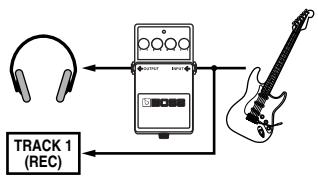
flowchart
graph TD
    A["Headphones"] --> B["Digital Audio Amplifier"]
    C["Track 1 (REC)"] --> B
    B --> D["Electric Guitar"]
TRACK 1-4, 1&2, 3&4:
This lets you apply the insert effects to the track playback audio. Use this setting if you want to try out effects after recording the dry sound, or if you want to apply the effect only to a specific track.
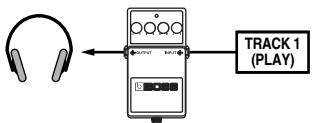
flowchart
graph LR
    A["Headphones"] --> B["Tracker Display"]
    B --> C["TRACK 1 (PLAY)"]
RHYTHM:
This lets you apply the insert effects to the rhythm sound.
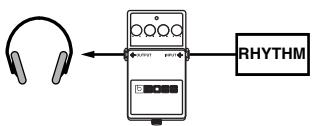
flowchart
graph LR
    A["Headphones"] --> B["Analog Meter"]
    B --> C["RHYTHM"]
MASTER:
Use this setting if you want to apply the effect to the overall sound, such as when using the effect to modify the sound during bounce-recording, or using the effect to achieve a special sound.
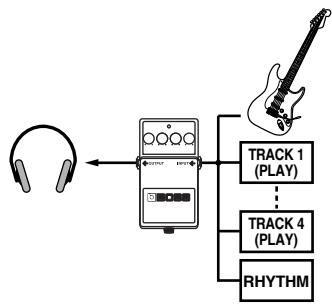
flowchart
graph LR
    A["Headphones"] --> B["Digital Audio System"]
    B --> C["TRACK 1 (PLAY)"]
    B --> D["TRACK 4 (PLAY)"]
    B --> E["RHYTHM"]
    C --> F["Music Instrument"]
    D --> F
    E --> F
4. Press [EXIT] several times.
Return to the Play screen.
Insert Effects Algorithm List
The algorithms (the available effects and their connection order) that can be used as the insert effects are shown below.
The algorithms that can be selected will differ for each bank. To select the algorithm that you wish
to use, first select the effect bank that includes that algorithm, and then refer to “Effect Patch List” (Leaflet) and select a patch that uses the desired algorithm.
MEMO
- The line or lines connecting the algorithm indicate whether the effect features mono output (single line) or stereo output (two lines).
(Ex.)
Output: Mono
Output: Stereo
$$ - [ \mathrm{AMP} ] - [ \mathrm{SP} ] - $$
$$ = [ \text { L I M } ] = [ \text { O U T } ] = $$
BANK: GUITAR [COSM GTR AMP]
This is a multi-effect designed for electric guitar. This provides an amp sound using a preamp and speaker simulator.
* In case of "Phaser," output will become monaural.
$$ - [ \mathrm{AMP} ] - [ \mathrm{SP} ] - [ \mathrm{NS} ] - [ \mathrm{FX} ] - [ \mathrm{DLY} ] = $$
Preamp
Speaker Simulator
Noise Suppressor
FX
- Compressor
- Chorus
- Flanger
- Phaser
- Tremolo/Pan
Delay
BANK: MIC [VOCAL MULTI]
This is a multi-effect designed for vocals. It provides the basic effects needed for vocals.
$$ \begin{array}{l} - [ \text {CMP} ] - [ \text {ENH} ] - [ \text {EQ} ] - [ \text {NS} ] \ \hline [ \text {DLY} ] = \end{array} $$
Compressor
Enhancer
4Band Equalizer
Noise Suppressor
Delay
BANK: LINE/EXT
These effects are for stereo line input or an external mic.
$$ = [ \mathrm{IN} ] = [ \mathrm{CMP} ] = [ \mathrm{MIX} ] = [ \mathrm{LIM} ] = [ \mathrm{OUT} ] = $$
Input
Compressor
Mixer
Limiter
Output
Parameter List
The trademarks listed in this document are trademarks of their respective owners, which are separate companies from BOSS. Those companies are not affiliated with BOSS and have not licensed or authorized BOSS's MICRO BR. Their marks are used solely to identify the equipment whose sound is simulated by BOSS's MICRO BR.
Chorus
A sound with a subtly shifted pitch is added to the direct sound, making the final output sound thicker and broader.
* This effect can be used when the FX "Type" parameter is set to "CHORUS."
On/Off OFF, ON
This parameter turns the chorus effect on/off.
Rate 0 - 100
Adjusts the rate of the Chorus effect.
Depth 0 - 100
Adjusts the depth of the Chorus effect.
Effect Level 0 - 100
Adjusts the volume of the effect sound.
Compressor
This corrects differences in input to create a steadier, more even volume balance. This is used to extend the sustain of input sounds and, conversely, to shorten sustain and emphasize the attack portion of sounds.
Another use of compression is as a “limiter,” which prevents distortion by suppressing only volume peaks.
* This effect can be used when the COSM GTR AMP's FX "Type" parameter is set to "COMPRESSOR."
On/Off OFF, ON
This parameter turns the compressor effect on/off.
Sustain 0 - 100
This adjusts the depth of the effect. Higher settings values result in longer sustain times. Set this to a lower value when using compression for the limiter effect.
Attack 0 - 100
Adjusts the strength of the attack. Larger values will result in a sharper attack, creating a more clearly defined sound.
Level 0 - 100
Adjusts the volume.
Delay
This creates a thicker sound by applying a delayed sound to the direct sound.
On/Off OFF, ON
This parameter turns the delay effect on/off.
Type
This Parameter selects the type of delay.
| Parameter | Explanation |
| SINGLE | This is a simple delay. |
| TAP | The delayed sound is panned across the left and right channels. This will be effective when stereo recording. |
Delay Time SINGLE: 1 - 1000 (ms)
TAP: 1 - 500 (ms)
This parameter adjusts the delay time (i.e., the interval for which sound is delayed).
Feedback 0 - 100
This parameter adjusts the amount of feedback. Changing the amount of feedback causes the number of time the delayed sound is repeated to change as well.
Effect Level 0 - 120
Adjusts the volume of the delay sound.
Enhancer
By adding sounds which are out-of-phase with the direct sound, this effect enhances the definition of the sound, and pushes it to the forefront.
On/Off OFF, ON
This parameter turns the enhancer effect on/off.
Sens 0 - 100
Adjusts the manner in which the enhancer will be applied relative to the input signals.
Frequency 1.0 - 10.0 (kHz)
Adjusts the frequency at which the enhancer effect will begin to be applied. The effect will be made apparent in the frequencies above the frequency set here.
Mix Level 0 - 100
Adjusts the amount of phase-shifted sound of the range set by "Frequency" that is to be mixed with the input.
Low Mix Level 0 - 100
Adjusts the amount of phase-shifted sound of the lower range that is to be mixed with the input. The frequency range in which the effect is applied is fixed.
Level 0 - 100
Adjusts the volume of the enhanced sound.
4-band Equalizer
A 4-band equalizer.
On/Off OFF, ON
This parameter turns the equalizer effect on/off.
Low Gain -20 - +20 (dB)
This parameter sets the gain (amount of boost or cut) for the bass equalizer.
Low-Mid Gain -20 - +20 (dB)
This parameter sets the gain (amount of boost or cut) for the low-midrange equalizer.
Low-Mid Freq 100 - 10.0k (Hz)
This parameter sets the central frequency for the low-midrange equalizer.
Lo-Mid Q 0.5 - 16
This parameter sets the range of change in gain for the frequency set by “Lo-M F.” A larger value results in a narrower range of change.
High-Mid Gain -20 - +20 (dB)
This parameter sets the gain (amount of boost or cut) for the high-midrange equalizer.
High-Mid Freq 100 - 10.0k (Hz)
This parameter sets the central frequency for the high-midrange equalizer.
High-Mid Q 0.5 - 16
This parameter sets the range of change in gain for the frequency set by “Hi-M F.” A larger value results in a narrower range of change.
Hi Gain -20 - +20 (dB)
This parameter sets the gain (amount of boost or cut) for the treble equalizer.
Level -20 - +20 (dB)
This parameter adjusts the volume after the equalizer stage.
Flanger
This produces a flanging effect that gives a sort of "twisting" character to the sound.
* This effect can be used when the FX "Type" parameter is set to "FLANGER."
On/Off OFF, ON
This parameter turns the flanger effect on/off.
Rate 0 - 100
Determines the rate of the flanging effect.
Depth 0 - 100
Determines the depth of the flanging effect.
Manual 0 - 100
Adjusts the center frequency at which to apply the effect.
Resonance 0 - 100
Determines the amount of resonance (feedback). Increasing the value will emphasize the effect, creating a more unusual sound.
Input
This divides the original sound into three frequency ranges: low, mid, and high.
Gain -24 - +12 (dB)
Sets the overall volume level before the signal passes through the compressor.
Delay Time 0-10 (ms)
This sets the amount of time by which the source input sound is delayed.
Split Freq L 20 - 800 (Hz)
This sets the frequency (in the lower range) at which the source sound is split into three separate ranges.
Split Freq H 1.6 - 16.0 (kHz)
This sets the frequency (in the upper range) at which the source sound is split into three separate ranges.
Limiter
This suppresses high-level signals to prevent distortion.
On/Off OFF, ON
Sets the limiter to ON or OFF.
Thres -24 - 0 (dB)
Adjust this as appropriate for the input signal from your bass.
Attack 0 - 100 (ms)
This sets the time it takes for the limiter to go into effect once the input level exceeds the threshold level.
Adjusts the time until when the limiter will turn off after the input level falls below the threshold level.
Mixer
Adjusts the volume of each frequency band.
Lo Level -80 - +6 (dB)
Sets the volume level of the lower range after the signal passes through the compressor.
Mid Level -80 - +6 (dB)
Sets the volume level of the midrange after the signal passes through the compressor.
Hi Level -80 - +6 (dB)
Sets the volume level of the upper range after the signal passes through the compressor.
Noise Suppressor
This effect reduces the noise and hum. Since it suppresses the noise in synchronization with the envelope of the sound (the way in which the sound decays over time), it has very little effect on the sound, and does not harm the natural character of the sound.
On/Off OFF, ON
This parameter turns the noise suppressor effect on/off.
Threshold 0 - 100
Adjust this parameter as appropriate for the volume of the noise. If the noise level is high, a higher setting is appropriate. If the noise level is low, a lower setting is appropriate. Adjust this value until the decay of the sound is as natural as possible.
* High settings for the Threshold parameter may result in there being no sound when you play with your instruments volume turned down.
Release 0 - 100
Adjusts the time from when the noise suppressor begins to function until volume reaches "0."
Output
This makes settings that affect the overall output.
Level -80 - +6 (dB)
Sets the volume level of the overall sound after the signal passes through the limiter.
Phaser
By adding varied-phase portions to the direct sound, the phaser effect gives a whooshing, swirling character to the sound.
* This effect can be used when the FX "Type" parameter is set to "PHASER."
On/Off OFF, ON
This parameter turns the phaser effect on/off.
Rate 0 - 100
This sets the rate of the Phaser effect.
Depth 0 - 100
Determines the depth of the Phaser effect.
Manual 0 - 100
Adjusts the center frequency of the phaser effect.
Resonance 0 - 100
Determines the amount of resonance (feedback). Increasing the value will emphasize the effect, creating a more unusual sound.
Preamp
Adjust the distortion and tone of the guitar sound.
* When all Bass, Middle and Treble are set to "0," no sound may be produced depending on the "Type" setting.
On/Off OFF, ON
Turns the preamp effect on/off.
Type
This sets the type of the preamp. The distortion and tone characteristics of each amp are as shown below:
| JC-120 | The sound of the Roland “JC-120,” a favorite of pro musicians around the world. |
| CLEAN | The sound of a conventional built-in tube amp. |
| CRUNCH | Allows you to obtain a crunch effect that creates a natural distortion. |
| MATCH | A simulation of the tube amp widely used in styles from blues and rock. |
| VO DRV | Allows you to obtain the Liverpool sound of the 60’s. |
| BLUES | A lead sound with a rich middle ideal for Blues. |
| BG LEAD | The sound of a tube amp typical of the late ‘70s to ‘80s, characterized by a distinctive mid-range. |
| MS (1, 2, 1+2) | The sound of a large tube amp stack that was indispensable to the British hard rock of the 70's, and is used to this day by many hard rock guitarists. |
| 1 | A trebly sound created by using input I of the guitar amp. |
| 2 | A mild sound created by using input II of the guitar amp. |
| 1 + 2 | The sound of connecting inputs I and II of the guitar amp in parallel, creating a sound with a stronger low end than I. |
| SLDN | A tube amp sound with versatile distortion, usable in a wide range of styles. |
| METAL | The sound of a large tube amp, suitable for heavy metal. |
| METAL D | A high gain and powerful metal sound. |
Volume 0 - 100
Adjusts the volume and distortion of the amp.
Bass 0 - 100
Adjusts the tone for the low frequency range.
Middle 0 - 100
Adjusts the tone for the middle frequency range.
* If you have selected "MATCH" or "VO DRV" as the type, the middle control will have no effect.
Treble 0 - 100
Adjusts the tone for the high frequency range.
Presence 0 - 100
Adjusts the tone for the ultra high frequency range.
* If you have selected "MATCH" or "VO DRV" as the type, raising presence will cut the high range (the value will change from "0" to "-100").
Master 0 - 100
Adjusts the volume of the entire preamp.
Bright OFF, ON
(with JC-120, CLEAN, CRUNCH, BLUES, BG LEAD)
Turns the bright setting on/off.
| Parameter | Explanation |
| OFF | Bright is not used. |
| ON | Bright is switched on to create a lighter and crisper tone. |
Speaker Simulator
This simulates the characteristics of various types of speakers. When the output of the MICRO BR is connected directly to a mixer, etc., this can be used to create the sound of your favorite speakers system.
On/Off
OFF, ON
This parameter turns the speaker simulator effect on/off.
Type
Selects the type of speaker that will be simulated ( See following table).
"On Mic" simulates the sound when a dynamic
microphone is used, and "Off Mic" simulates the sound when a condenser microphone is used.
Mic Set
CENTER, 1 - 10 (cm)
This simulates the microphone position. "CENTER" simulates the condition that the microphone is set in the middle of the speaker cone. "1–10 cm" means that the microphone is moved away from the center of the speaker cone.
Mic Level
0 - 100
Adjusts the volume of the microphone.
Dir Level
0 - 100
Adjust the volume of the direct sound.
| SP Simulator Type | Cabinet | Speaker Unit | Microphone Setting | Comments |
| SMALL | Small open-back enclosure | 10 inch | On Mic | |
| MIDDLE | Open-back enclosure | 12 inch | On Mic | |
| JC-120 | Open-back enclosure | 12 inch (two units) | On Mic | Roland JC-120 Simulation |
| TWIN | Open-back enclosure | 12 inch (two units) | On Mic | A setting suitable for CLEAN |
| twin | Open-back enclosure | 12 inch (two units) | Off Mic | A setting suitable for CLEAN |
| MATCH | Open-back enclosure | 12 inch (two units) | On Mic | A setting suitable for MATCH |
| match | Open-back enclosure | 12 inch (two units) | Off Mic | A setting suitable for MATCH |
| VO DRV | Open-back enclosure | 12 inch (two units) | On Mic | A setting suitable for VO DRV |
| vo drv | Open-back enclosure | 12 inch (two units) | Off Mic | A setting suitable for VO DRV |
| BG STK | Large Sealed enclosure | 12 inch (two units) | On Mic | A setting suitable for BG STK |
| bg stk | Large Sealed enclosure | 12 inch (two units) | Off Mic | A setting suitable for BG STK |
| MS STK | Large Sealed enclosure | 12 inch (two units) | On Mic | A setting suitable for MS |
| ms stk | Large Sealed enclosure | 12 inch (two units) | Off Mic | A setting suitable for MS |
| METAL | Large dual stack | 12 inch (two units) | Off Mic |
Tremolo/Pan
Tremolo is an effect that creates a cyclic change in volume. Pan cyclically moves the stereo position between left and right (when stereo output is used).
* This effect can be used when the FX "Type" parameter is set to "TREMOLO/PAN."
On/Off
OFF, ON
This parameter turns the tremolo/pan effect on/off.
Mode
Selects tremolo or pan; also selects how the effect is applied
| Parameter | Explanation |
| TRM-TRI: | The volume will change cyclically. Smooth change will be produced. |
| TRM-SQR: | The volume will change cyclically. Abrupt change will be produced. |
| PAN-TRI: | The sound will be moved cyclically between left and right. Smooth change will be produced. |
| PAN-SQR: | The sound will be moved cyclically between left and right. Abrupt change will be produced. |
* "PAN-TRI" and "PAN-SQR" are obtained with stereo recording (using two tracks).
Rate
0 - 100
Adjust the rate at which the effect will operate.
Depth
0 - 100
Adjusts the depth of the effect.
Using reverb effect
Here we will explain how to edit the reverb settings (parameters).
For details on the reverb parameters, refer to "Reverb Parameters" (p. 73).
MEMO
Reverb can normally be applied only to the monitored sound (the sound you're hearing). When bouncing or mastering, you can record the sound with reverb applied.
There are no “patches” for reverb. The reverb settings are saved as part of the song data. If you want to save the reverb settings in the currently
selected song, hold down □ and press □.
Selecting the reverb effect
- Press [EFFECTS] several times to make the display indicate REVERB screen.
The screen will indicate REVERB.
- Use CURSOR [◀] [▶] to make the screen indicate "Type," and use VALUE [-] [+] to select either "HALL" or "ROOM."
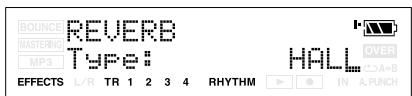
- If you want to edit the reverb settings, use CURSOR [◀] [▶] to select a parameter and use VALUE [-] [+] to edit the value of that parameter.
For details on each of the reverb parameters, refer to "Reverb Parameters" (p. 73).
- When you've finished making settings, press [EXIT] several times to return to the Play screen.
Adjusting the reverb depth for the each track
You can adjust the amount of reverb for each track by changing the amount of audio signal sent from each track to the reverb processor (the "send level")
- Press one of the [TR1]–[TR4] buttons.
- Using CURSOR [◀][▶], get "Track Reverb" to appear in the display, then use VALUE [-] [+] to edit the send level for that track.
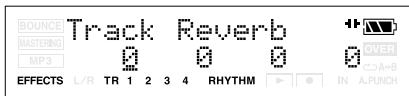
MEMO
You can press [TR1]–[TR4] to move the cursor to the track corresponding to the button you pressed.
Adjusting the reverb depth for the input source
- Press [INPUT].
- Press the [TR1]–[TR4] button for the input source whose reverb depth you want to adjust.
- Use CURSOR [◀] [▶] to move the cursor to "Rv," and use VALUE [-] [+] to edit the setting.
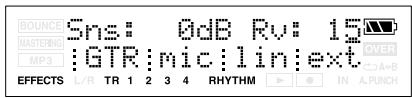
- When you've finished editing, press [EXIT] several times to return to the Play screen.
Adjusting the reverb depth for the rhythm
- Press [RHYTHM].
- Use CURSOR [◀] [▶] to move the cursor to "Rhy Reverb," and use VALUE [-] [+] to edit the setting.
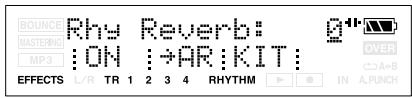
- When you've finished editing, press [EXIT] several times to return to the Play screen.
Reverb Parameters
Reverberation (or reverb) is the effect caused by sound waves decaying in an acoustic space, or a digital simulation thereof. This decay occurs because sound waves bounce off many walls, ceilings, objects, etc. in a very complex way. These reflections, coupled with absorption by various objects, dissipate the acoustic energy over a certain period of time (called the decay time). The ear perceives this phenomenon as a continuous wash of sound.
Type
This selects the Reverb Type.
| Parameter | Explanation |
| ROOM: | Simulates the reverberation in a small room. |
| HALL: | Simulates the reverberation in a concert hall. |
Time 0.1 - 10.0 (s)
This parameter adjusts the duration (time) of the reverb.
Tone -12 - +12 (dB)
Adjusts the tone.
Level 0 - 100
This adjusts the volume of the reverb sound.
Mastering
You can apply the “Mastering Tool Kit” to those two tracks (or stereo) to optimize the level (volume) of your completed song. And you can convert mastering data into an audio file (MP3/WAV formats).

What is Mastering Tool Kit?
When creating an audio CD from your recorded songs, or recording to a similar media, the overall volume needs to be restrained, so that even the loudest portions of the songs are handled appropriately on the CD.
However, this often results in an overall lowering of the volume, resulting in a CD that lacks excitement and impact.
With the “Mastering Tool Kit,” however, you can smooth out the differences in volume that occur over the course of a song, while also correcting the balance.
We recommend mastering with the Mastering Tool Kit in the final stage of creating songs.
The Mastering Tool Kit features
- 10 pre-programmed "Preset Patches" (P01–P10)
- 10 rewritable "User Patches" (U01–U10)
- 10 "Song Patches," which are stored individually for each song (S01–S10).
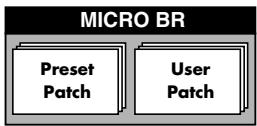
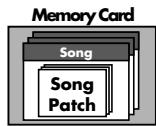

In Mastering mode, you can't specify the connection location of the insert effect (p. 61).
Mastering procedure
- Press [EXIT] and [UTILITY] several times to make the display indicate MASTERING.
The MICRO BR is now in Mastering mode.
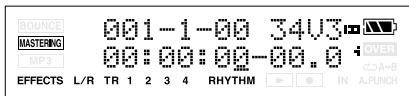
- Use CURSOR [◀] [▶] to move the cursor to the V-track indication, and use VALUE [-] (+) to select the recording-destination V-track.
V-Tracks without data.
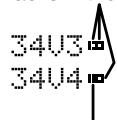
V-Tracks with recorded data.
- Press [EFFECTS].
The mastering tool kit selection screen appears.
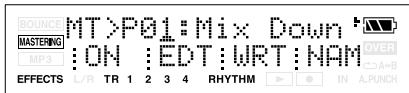
- Use CURSOR [◀] [▶] and VALUE [-] [+] to select the patch you want to use.
Select the desired patch number from the preset, user, or song patches.
-
Press [EXIT] to return to the mastering screen.
-
Press [UTILITY].
-
Use CURSOR [◀] [▶] and VALUE [-] [+] to adjust the MasterLevel.
Adjusts the overall volume. Raise the MasterLevel parameter until it is as high as you can get it without causing the sound to distort.
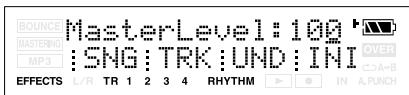
8. Press [EXIT] to return to the mastering screen.
9. Hold down □ and press ◀◀.
Move to the beginning of the song (00:00:00-00.0).
10. Press □ .
will blink, and the MICRO BR will be in recording standby condition.
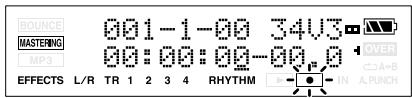
11. Press ▶.
will lights, and mastering begins.
12. When you finished mastering, press

"MP3/WAV Export?" message will appear.
13. If you want to convert, press [TR4] (YES).
To cancel this operation, press [EXIT].
Press [TR4] (YES), the file type setting screen appears.
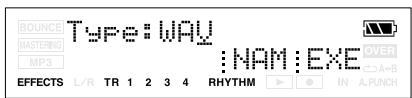
14. If you want to edit the exported filename, press [TR3] (NAM).
The file name edit screen appears.
Use CURSOR [ ◀ ] [ ▶ ] and VALUE [-] [+] to enter the desired filename.
If you don't need to edit the patch name, proceed to step 15.
You can use the following functions when editing text.
| Button | Function |
| [TR1] (INS) | Inserts a space at the cursor location. |
| [TR2] (DEL) | Deletes the character at the cursor location, and moves the subsequent characters toward the left. |
| Button | Function |
| [TR3] (A/a) | Switches the character at the cursor location between uppercase/lowercase. |
| [TR4] (0!A) | Switches the type of character (numeral/symbol/alphabetical) at the cursor location. |
If you finished naming, press [EXIT].
15. Use CURSOR [◀][▶] and VALUE [-][+] to set the Typ parameter to the desired type of file.
You can choose either WAV or MP3 as the file type.
Range: MP3, WAV
If you choose MP3, the bit rate parameter (Rate:) will also be displayed.
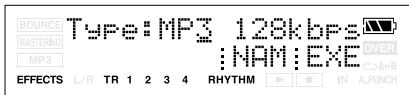
Range: 64, 128, 192 (kbps)
16. Press [TR4] (EXE).
The display will ask “**********.*** OK?”
* "*****.***" stands for the filename and the file extension.
17. If you want to convert, press [TR4] (YES).
To cancel this operation, press [EXIT].
Press [TR4] (YES), and the track data will be converted to MP3 or WAV.
The converted audio file will be saved in the MP3 folder. (p. 97)
The mastering data has been converted, you're returned to the mastering tool kit screen.
![ROLAND MICRO BR - If you want to convert, press [TR4] (YES). - 1](/content/2025/01/130876/images/0e00c05c878498fc079bbbfde956b6facdab19ff08ccdafe1d382f6feef2d534.jpg)
You can listen the converted audio file in MP3 mode. (p. 90)
Editing the Mastering Tool Kit settings
If you want to create new settings, select the existing patch that's closest to what you have in mind, then modify (edit) those settings.
If you want to save your edited settings, you can save them as a user patch or a song patch.
- Press [EXIT] and [UTILITY] several times to make the display indicate MASTERING.
- Press [EFFECTS].
The mastering tool kit selection screen appears.
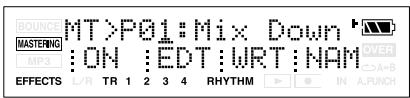
- Use CURSOR [◀] [▶] and VALUE [-] [+] to select a patch.
Choose a preset, user, or song patch number.
- Press [TR2] (EDT).
The mastering tool kit edit screen appears.
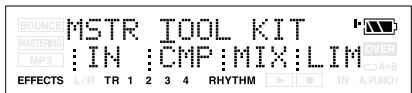
When it doesn't settle on one screen because there are a lot of the effect blocks, the screen is switched pressing the CURSOR
[ ◀ ][ ▶ ] button.
- Press the [TR1]–[TR4] button for the effect block that you want to edit.
In the screen shown here, the effect blocks are assigned like this: [TR1] (IN), [TR2] (CMP), and so forth.
Of the displayed blocks, blocks that are turned on are shown in uppercase, and blocks that are turned off are shown in lowercase.
Press one of the [TR1]–[TR4] buttons to access the parameter editing screen for the corresponding effect block.
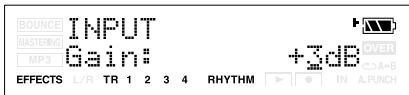
- Use CURSOR [◀] [▶] to move the cursor to the parameter that you want to edit, and use VALUE [-] [+] to edit the values.
If there are other parameters that you want to edit, use CURSOR [◀] [▶] to move the cursor to each parameter, and use VALUE [-] [+] to edit the value.
- If you want to edit another effect block, press [EXIT] and then repeat steps 5–7.

If you want to save the current effect settings, refer to "Saving the mastering tool kit settings (Write)" (p. 77).

Changes you make to the Mastering Tool Kit settings are temporary. If you exit the effect edit screen without saving your edited effect patch, the indication “**” will appear in the area that indicates the bank. Please be aware that your edits will be lost if you perform any of the following when this “**” indication is shown:
- Select another effect patch
- Load/save a song
- Turn off the power
Saving the mastering tool kit settings (Write)
Here's how you can assign a name (patch name) to the kit settings you've edited, and save them as a new patch.
* You can't save a patch while a song is playing or being recorded.
* If you don't need to edit the patch name, proceed to step 4.
1. Press [EFFECTS].
The mastering tool kit screen appears.
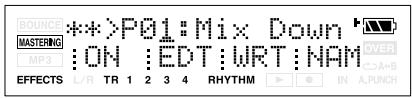
2. If you want to edit the patch name, press [TR4] (NAM).
The FX NAME screen appears.
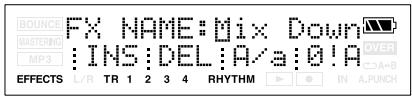
If you don't need to edit the patch name, proceed to step 4.
3. Use CURSOR [◀] [▶] and VALUE [-] [+] to enter the desired patch name.
You can use the following functions when editing text.
| Button | Function |
| [TR1] (INS) | Inserts a space at the cursor location. |
| [TR2] (DEL) | Deletes the character at the cursor location, and moves the subsequent characters toward the left. |
| [TR3] (A/a) | Switches the character at the cursor location between uppercase/lowercase. |
| [TR4] (0!A) | Switches the type of character (numerical/symbol/alphabetical) at the cursor location. |
4. Press [EXIT] to return to the mastering tool kit screen.
5. Press [TR3] (WRI).
The Write screen appears.
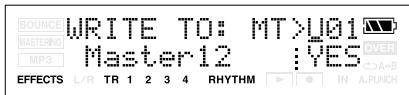
- Use VALUE [-] [+] to select the write-destination patch number.
7. Press [TR4] (YES).
The display will ask "Are you sure?"
8. If you are sure you want to write to the patch, press [TR4] (YES). If you decide not to write the patch, press [EXIT].
Once the data has been written, you're returned to the mastering tool kit screen.
Mastering Tool Kit Algorithm List
BANK: MT
The Mastering Tool Kit's algorithms are composed from the following effects.
$$ = [ \mathrm{IN} ] = [ \mathrm{CMP} ] = [ \mathrm{MIX} ] = [ \mathrm{LIM} ] = [ \mathrm{OUT} ] = $$
Input
Compressor
Mixer
Limiter
Output
Parameter List
Compressor
This compresses the overall output signal when the input volume level exceeds a set value.
On/Off
OFF, ON
This parameter turns the compressor effect on/off.
Lo Threshold
-24 - 0 dB
This sets the volume level at which the lower-range compressor goes into effect.
Lo Ratio
1:1.00 - 1:16.0, 1:INF
This sets the ratio of suppression of the lower-range output when the input level exceeds the Lo threshold level.
Lo Attack
0 - 100 ms
This sets the time it takes for the lower-range compressor to go into effect once the input level exceeds the Lo threshold level.
Lo Release
50 - 5000 ms
This sets the time it takes for the lower-range compressor effect to stop once the input level falls below the Lo threshold level.
Mid Threshold
-24 - 0 dB
This sets the volume level at which the midrange compressor goes into effect.
Mid Ratio
1:1.00 - 1:16.0, 1:INF
This sets the ratio of suppression of the midrange output when the input level exceeds the Middle threshold level.
Mid Attack
0 - 100 ms
This sets the time it takes for the midrange compressor to go into effect once the input level exceeds the Middle threshold level.
Mid Release
50 - 5000 ms
This sets the time it takes for the midrange compressor effect to stop once the input level falls below the Middle threshold level.
Hi Threshold
-24 - 0 dB
This sets the volume level at which the upper-range compressor goes into effect.
Hi Ratio 1:1.00 - 1:16.0, 1:INF
This sets the ratio of suppression of the upper-range output when the input level exceeds the Hi threshold level.
Hi Attack 0 - 100 ms
This sets the time it takes for the upper-range compressor to go into effect once the input level exceeds the Hi threshold level.
Hi Release 50 - 5000 ms
This sets the time it takes for the upper-range compressor effect to stop once the input level falls below the Hi threshold level.
* With the compressor, the level is automatically adjusted to the optimum setting according to the threshold (Threshold) and ratio (Ratio) settings. In addition, since lengthening the attack (Attack) setting may result in distortion, a buffer (margin) of -6 dB is provided. Adjust the Mixer level as needed.
Input
This divides the original sound into three frequency ranges: low, mid, and high.
Gain -24 - +12 dB
Sets the overall volume level before the signal passes through the compressor.
Dly Time 0–10 ms
This sets the amount of time by which the source input sound is delayed.
SplitL 20 - 800 Hz
This sets the frequency (in the lower range) at which the source sound is split into three separate ranges.
SplitH 1.6 - 16.0 kHz
This sets the frequency (in the upper range) at which the source sound is split into three separate ranges.
Limiter
This suppresses high-level signals to prevent distortion.
On/Off OFF, ON
Sets the limiter to ON or OFF.
Threshold -24 - 0 dB
Adjust this as appropriate for the input signal from your bass.
Attack 0 - 100 ms
This sets the time it takes for the limiter to go into effect once the input level exceeds the threshold level.
Release 50 - 5000 ms
Adjusts the time until when the limiter will turn off after the input level falls below the threshold level.
Mixer
Adjusts the volume of each frequency band.
Lo Level -80 - +6 dB
Sets the volume level of the lower range after the signal passes through the compressor.
Mid Level -80 - +6 dB
Sets the volume level of the midrange after the signal passes through the compressor.
Hi Level -80 - +6 dB
Sets the volume level of the upper range after the signal passes through the compressor.
Output
This makes settings that affect the overall output.
Level -80 - +6 dB
Sets the volume level of the overall sound after the signal passes through the limiter.
About rhythm
The MICRO BR provides a dedicated rhythm track in addition to its audio tracks 1–4. You can play rhythms as a guide during recording, or place internal rhythms in the order of your song structure to create your own original rhythm.
About patterns and arrangements
Broadly speaking, the MICRO BR's rhythms consist of performance data called "patterns" and "arrangements."
What is a pattern?
If you're a drummer playing in a band, you will normally repeat fixed patterns that are one or two measures in length. These are the basic units of repetition, and are called "patterns" on the MICRO BR.
Example of pattern
Assuming a four-beat rhythm, the following performance will be repeated.
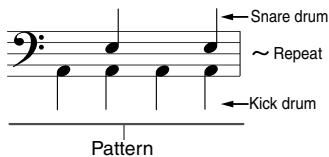
* You can't modify a pattern or rewrite its data.
The MICRO BR contains various patterns created for use in the introduction, verse, fill, and ending. The pattern type is indicated by the letters at the end of the pattern name.
(Ex.)
- ROCK1-IN (Intro)
- ROCK1-V1 (Verse 1)
- ROCK1-F1 (Fill 1)
- ROCK1-V2 (Verse 2)
- ROCK1-F2 (Fill 2)
- ROCK1-E (Ending)
IN (intro)
A performance pattern for use during an introduction.
V (verse) 1, 2
These are the main performance patterns. 1 is the basic pattern, and 2 is a more advanced variation of 1.
F (fill) 1, 2
These are performance patterns typically inserted at transitions between phrases. Choose either 1 or 2 depending on the pattern that will follow the fill.
E (ending)
A performance pattern used at the end of the song.
What is an arrangement?
You could let a certain pattern repeat endlessly and practice along with it, just as though you were playing along with a metronome. However, using just a single pattern from the beginning of the song to its end would make the rhythm rather boring!
To give your song greater musical variety, you'll probably want to arrange patterns in order, such as: intro → chorus → break → ending.
A sequence of patterns that are placed in a performance order such as this is called an "arrangement."
| IntroTempo: 120 | VerseTempo: 110 | FillTempo: 130 |
Preset arrangements (P01-P50)
The MICRO BR provides fifty “preset arrangements” (P01–P50).
You can't modify the preset arrangements or rewrite their data.
The preset arrangements (with the exception of Metro 4/4) have a three-measure BREAK (rest) following the E (ending), and will then continue playing from V1 (verse 1).

"Preset Arrangement List" (p. 112)
Song arrangement (S01-S05)
For each song, you can store up to five arrangements.

For details, refer to "Playing an arrangement" (p. 87).
About Pattern mode and Arrangement mode
The MICRO BR has two modes in which you can play rhythms; "Pattern mode" and "Arrangement mode."
Pattern mode
In this mode you can play patterns. The selected pattern will play repeatedly from the beginning of the song to the end. You cannot have patterns switch automatically during the song.
To play a pattern, press [TR2] to enter Pattern mode. The display will indicate "PT:" in Pattern mode.
Arrangement mode
In this mode you can play arrangements. The patterns in the arrangement will play consecutively.
To play an arrangement, press [TR2] to enter Arrangement mode. The display will indicate "AR:" in Arrangement mode.
Changing the drum sounds (drum kit)
A drum kit is a collection of rhythm instrument sounds used to play arrangements and patterns. The MICRO BR contains nine different drum kits.
MICRO BR
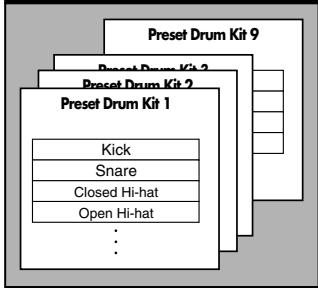
flowchart
graph TD
    A["Preset Drum Kit 1"] --> B["Kick"]
    A --> C["Snare"]
    A --> D["Closed Hi-hat"]
    A --> E["Open Hi-hat"]
    A --> F["..."]
    G["Preset Drum Kit 2"] --> H[" "]
    G --> I[" "]
    G --> J[" "]
    G --> K[" "]
    G --> L[" "]
    G --> M[" "]
    G --> N[" "]
    G --> O[" "]
    G --> P[" "]
    G --> Q[" "]
MEMO
- The selection of drum kit is stored as part of each arrangement.
- Switching the kit in Pattern mode simultaneously switches the kits in Arrangement mode.
- Even if you switch kits in a preset arrangement selected in Arrangement mode, the change is only temporary. If you want to save the change, first copy the preset arrangement to a song arrangement, then switch to the song arrangement to change the kit.
Here's how to select a drum kit.
1. Press [RHYTHM].
The rhythm screen appears.
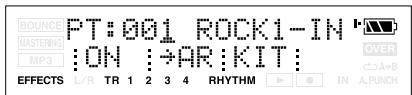
2. Press [TR3] (KIT).
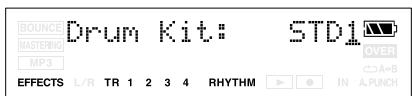
3. Use VALUE [-] [+] to select a drum kit.
Playing a pattern
Here's how to select a desired pattern and play it repeatedly.
1. Press [RHYTHM].
The rhythm screen appears.
2. Press [TR2] to make the display indicate "PT:" (Pattern mode).
The screen will indicate "PT:". Each time you press the button, the indication will alternate between "PT:" and "AR:".
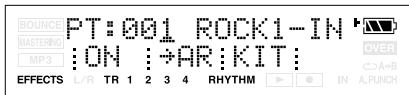
3. Press [TR1] to turn on the rhythm.
The “RHYTHM” indication appear, and rhythm will be on. Each time you press the button, the “RHYTHM” indication will light or go dark.
4. Use VALUE [-] [+] to select the pattern that you want to play.
5. Press [EXIT] to return to the Play screen.
6. Press

The recorder begins its playback, and the pattern also starts playing.
Changing the tempo of the pattern
In the Play screen, you can temporarily change the tempo of the pattern.
1. Use CURSOR [◀] [▶] to move the cursor to the tempo indication.
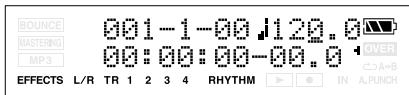
2. Use VALUE [-] [+] to adjust the tempo.
The playback tempo of the pattern will change.
Creating an original arrangement
Here's how to create an arrangement by placing patterns in the desired order from the intro through the ending.
You can create an arrangement of up to 999 measures in length. After creating an arrangement, you can save it as a “song arrangement.”

About Steps
Actually, creating a song arrangement is accomplished by arranging “steps.” A step is the data combining a pattern number and the measure at which that pattern is to start. (Example)
| Section of Composition | Measure Length | Pattern |
| Intro | 2 Measures ↓ | |
| Melody A | 16 Measures ↓ | Pattern PT:002 |
| Melody B | 8 Measures ↓ | Pattern PT:003 |
| Bridge | 8 Measures ↓ | Pattern PT:099 |
| Ending | 2 Measures | Pattern PT:006 |
When a song is composed using the patterns arranged as above, the arrangement will then consist of the following sequence of steps.
| Step Number | Measure Number | Starting Pattern |
| Step 1 | 1↓ | PT:001 ROCK1-IN |
| Step 2 | 3↓ | PT:002 ROCK1-V1 |
| Step 3 | 19↓ | PT:003 ROCK1-V2 |
| Step 4 | 27↓ | PT:028 ROCK5-V2 |
| Step 5 | 35↓ | PT:006 ROCK-1 E |
| Step 6 | 37 | PT:327 BREAK |
In other words, since even lengthy songs are sequences of these compositional units, or steps, these songs can be finished with less steps. With the MICRO BR, you can arrange sequences of up to 50 steps.
Specifying the pattern for the first measure
- Press [RHYTHM].
The rhythm screen appears.
- Press [TR2] to make the display indicate "AR:" (Arrangement mode).
The display will indicate "AR:". Each time you press the button, the indication will alternate between "PT:" and "AR:".
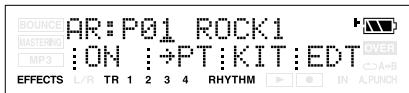
- Press [TR1] to turn on the rhythm.
The “RHYTHM” indication appear, and rhythm will be on. Each time you press the button, the “RHYTHM” indication will light or go dark.
-
Use CURSOR [◀][▶] to move the cursor to the song arrangement number.
-
Use VALUE [-] [+] to select the number of the song arrangement (S01–S05) that you want to create.
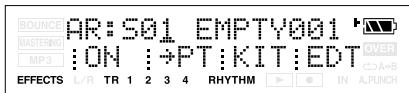
* If you select a preset arrangement number (P01–P50), you won't be able to perform the following steps.
- Press [TR4] (EDT).
You'll be in Song Arrangement Edit mode.
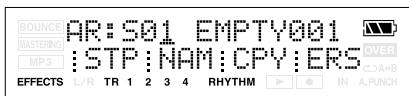
- Press [TR1] (STP).
8. Use CURSOR [◀] [▶] and VALUE [-] (+] to select a pattern number.
Select the pattern that you want to start playing from measure 1.
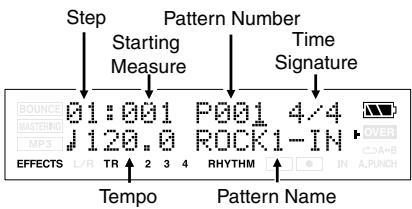
Placing patterns in the desired order
If you want to specify a different pattern that will play from measure 2 or later, continue with the following steps after you've performed "Specifying the pattern for the first measure" (p. 83).
- Use CURSOR [◀][▶] to move the cursor to the step number.
- Use VALUE [-] [+] to increment the step.
HINT
You can also use [REW]/[FF] to move the current step forward or backward in steps of one.
- Use CURSOR [◀][▶] to move the cursor to the pattern number.
- Use VALUE [-] [+] to select the pattern number that you want to use next.
- Use CURSOR [◀][▶] to move the cursor to the starting measure.
- Use VALUE [-] [+] to specify the measure at which you want the selected pattern to begin playing.
MEMO
- The starting measure for step 1 is always set to "001." This cannot be changed. You cannot set a measure in one step that is also set in the previous step or earlier.
- You cannot set any measures beyond the starting measure of the subsequent step.
- When an arrangement is played from within the Play screen, the arrangement plays all the way to the end, and then the performance of the pattern set in the last step is repeated.
- Thus, by setting the preset pattern "P327: BREAK" for the last step, you can have a rest be played repeatedly, which makes it seem as if the performance of the arrangement has stopped.
Step 1
Step 2
Step **
Step **
| Intro | Verse | ... | Ending | P327 BREAK |

Starting measure
This specifies the measure at which the pattern selected for the current step is to begin playing.
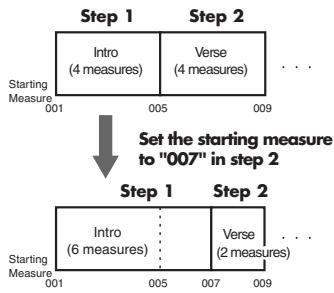
flowchart
graph TD
    A["Step 1: Intro (4 measures)"] --> B["Step 2: Verse (4 measures)"]
    B --> C["Set the starting measure to "007" in Step 2"]
    C --> D["Step 1: Intro (6 measures)"]
    D --> E["Step 2: Verse (2 measures)"]
    E --> F["End"]
Pattern number
This specifies the pattern. As shown in the following illustration, specify a pattern for each step.
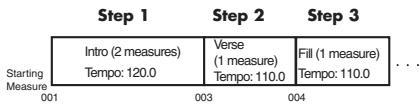
Beat
This indicates the beat for the pattern selected in the current step.
Tempo
This sets the tempo at which the pattern selected for the current step is to be performed.
Range: 25.0–250.0
Inserting a step
Here's how to insert a new step at the current step.
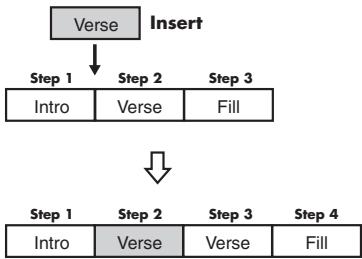
flowchart
graph TD
    A["Verse"] --> B["Step 1"]
    B --> C["Intro"]
    A --> D["Insert"]
    D --> E["Step 2"]
    E --> F["Verse"]
    F --> G["Fill"]
    G --> H["Step 3"]
    H --> I["Down"]
    I --> J["Step 1"]
    J --> K["Intro"]
    K --> L["Step 2"]
    L --> M["Verse"]
    M --> N["Fill"]
    N --> O["Step 3"]
    O --> P["Step 4"]
- Perform steps 1 through 7 of “Specifying the pattern for the first measure” (p. 83), to select the song arrange you want to edit.
- Use CURSOR [◀] [▶] and VALUE [-] [+] to select the position (step number) at which you want to insert a step.
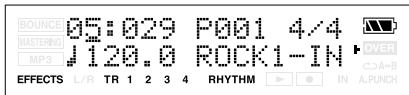
-
Press CURSOR ◀.
-
Press [TR1] (INS).
The display will indicate "Insert!" and the selected step will be copied and inserted.
Erasing a step
Here's how to erase the contents of the selected step. The erased step will take on the contents of the subsequent step.
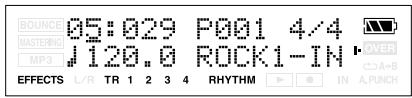
- Perform steps 1 through 7 of "Specifying the pattern for the first measure" (p. 83), to select the song arrange you want to edit.
- Use CURSOR [◀] [▶] and VALUE [-] [+] to select the step number that you want to erase.

flowchart
graph TD
    A["Step 1: Intro"] --> B["Step 2: Verse"]
    B --> C["Step 3: Fill"]
    C --> D["Step 4: Verse"]
    E["Erase"] --> F["Step 1: Intro"]
    F --> G["Step 2: Verse"]
    G --> H["Step 3: Verse"]
- Press CURSOR ◀.
- Press [TR2] (ERS).
The display will indicate "Erase!" and the selected step will be erased.
* If only step 1 remains, no further steps can be erased.
Naming an arrangement
You can freely assign a name of up to eight characters to each song arrangement.
- Perform steps 1 through 6 of "Specifying the pattern for the first measure" (p. 83).
- Press [TR2] (NAM).
The name editing screen appears.
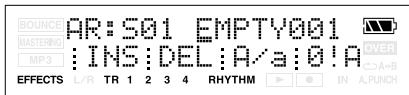
- Use CURSOR [◀] [▶] and VALUE [-] [+] to edit the name.
You can use the following functions when editing text.
| Button | Function |
| [TR1] (INS) | Inserts a space at the cursor location. |
| [TR2] (DEL) | Deletes the character at the cursor location, and moves the subsequent characters toward the left. |
| [TR3] (A/a) | Switches the character at the cursor location between uppercase and lowercase. |
| [TR4] (0!A) | Switches the type of character (numeral/symbol/letter) at the cursor location. |
* You can't edit the name of a preset arrangement.
Playing an arrangement
Here's how to select a desired arrangement and play it.
1. Press [RHYTHM].
The rhythm screen appears.
2. Press [TR2] to make the display indicate "AR:" (Arrangement mode).
The display will indicate "AR:". Each time you press the button, the indication will alternate between "PT:" and "AR:".
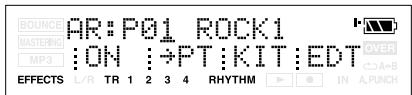
3. Press [TR1] to turn on the rhythm.
Press [TR1] to make the "RHYTHM" indication appear. Rhythm will be on. Each time you press the button, the "RHYTHM" indication will light or go dark.
4. Use VALUE [-] [+] to select the number of the song arrangement (S01–S05) that you want to create.
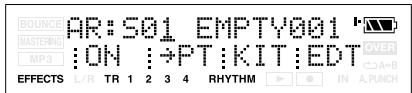
5. Press [EXIT] to return to the Play screen.
6. Press

The recorder begins its playback, and the arrangement also starts playing.
* When the MICRO BR is shipped from the factory, the song arrangements (S01–S05) do not contain data. This means that even if you select a song arrangement, rhythm will not play.
Changing the tempo of the arrangement
You can temporarily change the tempo of the arrangement in the same way as described in "Changing the tempo of the pattern" (p. 82).
Copying/erasing an arrangement
Copying
If you want to slightly modify a preset arrangement to your liking, or if you want to create a variation of an existing arrangement, you can copy that arrangement to a song arrangement and then edit it freely.
-
Perform steps 1 through 6 of "Specifying the pattern for the first measure" (p. 83), to select the song arrange you want to copy.
-
Press [TR3] (CPY).
-
Use VALUE [-] [+] to select the copydestination arrangement number.
4. Press [TR4] (EXE).
The message Copy S**→S** OK? will appear.
* “**” stands for the copy-source and copy-destination arrangement number.
5. Press [TR4] (YES).
The arrangement will be copied to the destination.
* You can't copy to a preset arrangement.
Erasing
This operation will erase arranging steps-2 and following of the currently selected song arrangement. Arranging step-1 will remain without being erased, and will be set to “Metro” (metronome).
- Perform steps 1 through 6 of “Specifying the pattern for the first measure” (p. 83), to select the song arrange you want to erase.
2. Press [TR4] (ERS).
The message Erase S** OK? will appear.
* “**” stands for the arrangement number to be erased.
3. Press [TR4] (YES).
The arrangement will be erased.
* You can't erase a preset arrangement.
What is MP3?
MP3 is an audio file format that is commonly used in portable audio players and to distribute music over the Internet. Compared to uncompressed (linear) audio formats such as WAV, a much smaller amount of data is required.
These files will have a filename extension of “.MP3.” The MICRO BR can record and play back stereo MP3 files.
Audio formats supported by the MICRO BR
The MICRO BR supports the following audio formats.
MP3 (file extension: .MP3)
- 44.1 kHz
- 64 kbps – 320 kbps
WAV (file extension: .WAV)
- 44.1 kHz
- 8 bit or 16 bit
- Mono or Stereo
- linear
Audio formats not supported by the MICRO BR
- AIFF
- WMA
- AAC
- ATRAC
- Ogg Vorbis, etc.
The MICRO BR cannot use files other than MP3 or WAV files.
Files downloaded from music distribution sites
There are many music distribution sites on the Internet, and there are also numerous formats in which song files can be downloaded from these sites.
However, MP3 and WAV are the only formats that the MICRO BR is able to play back.
Music files downloaded from iTunes or SonicStage are not normally in MP3 format. In the case of iTunes, song files are normally downloaded from the iTunes Music Store music distribution website in AAC format.
In the case of SonicStage, song files are normally downloaded from the Sony CONNECT music store distribution website in ATRAC3 format or MP3 format.
If you want to download music files, make sure that the format is either MP3 or WAV.
Handling audio files imported from a music CD
If you have audio files on your computer that were imported and converted from a CD, and want to hear them on the MICRO BR, you must make sure that the converted files are in the MP3 audio format.

This unit, in combination with an amplifier and headphones or speakers, may be capable of producing sound levels that could cause permanent hearing loss. Do not operate for a long period of time at a high volume level, or at a level that is uncomfortable. If you experience any hearing loss or ringing in the ears, you should immediately stop using the unit, and consult an audiologist.
Copyright
- Unauthorized recording, distribution, sale, lending, public performance, broadcasting, or the like, in whole or in part, of a work (musical composition, video, broadcast, public performance, or the like) whose copyright is held by a third party is prohibited by law.
- You can connect the MICRO BR to your computer via USB, and import audio files (WAV or MP3 format) for use in your music production or for practicing your instrument. This capability is provided because this device is designed for the purpose of music production, and does not place restrictions on the recording of works that do not infringe copyrights belonging to other parties (such as original works). This is because the unit is intended solely for musical production, and is designed not to be subject to restrictions as long as it is used to record works (such as your own compositions) that do not infringe on the copyrights of others.
- Do not use this unit for purposes that could infringe on a copyright held by a third party. Roland and BOSS assume no responsibility whatsoever with regard to any infringements of third-party copyrights arising through your use of this unit.
About the License Agreement
This capability is provided because the MICRO BR is designed to allow you to create music works (such as your own compositions) that do not infringe the rights of other copyright holders. Audio material whose copyright is the property of a third party, such as audio files obtained via the Internet, may not be duplicated without permission from the copyright holder except for purposes of personal enjoyment, and any such infringement may be punished as a violation of copyright law.
Consult a copyright specialist or special publications for more detailed information on obtaining such permission from copyright holders.
Regarding MP3 mode
In addition to operating as a multi-track recorder, the MICRO BR can be switched to "MP3 mode" and used as an MP3 or WAV file player. In MP3 mode you can perform the following operations.
- Save and play back up to 999 songs.
- Use the Repeat function to play songs repeatedly.
- Use the Phrase Trainer function with MP3 format files to practice songs effectively.
- The Time Stretch function lets you change the playback speed of the song.
- The Center Cancel function lets you eliminate sounds that are localized at the center of the sound field, so you can use the song for "minus-one" practicing.
- Sounds from the audio input can be recorded in MP3/WAV formats.
Switching to MP3 Mode
Press [MP3/TRAINER] to enter MP3 mode; the display will indicate MP3 (the MP3 screen).
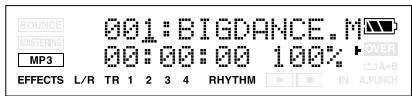
Playing the MP3/WAV file
1. Press [MP3/TRAINER].
Switches to MP3 mode; the display will indicate MP3 (the MP3 screen).
2. Use CURSOR [◀][▶] to move the cursor to the file number, and use VALUE [-][+] to select the number of the MP3/WAV file you want to play.
3. Press ▶.
The file begins playing.
When the current audio file finishes playing, the next file will start playing.
You can use the following operations when during playback.
| Action | Operation |
| Fast-forward | The MP3/WAV file will fast-forwardwhile you hold down □. |
| Rewind | The MP3/WAV file will rewindwhile you hold down □. |
| Move to the beginning of the current file | Hold down □ and press ◀. |
| Move to the preceding file | Press [+] when the cursor on the file number. |
| Move to the next file | Press [-] when the cursor on the file number. |
4. Press ■.

The file numbers are displayed in order of the file name (alphabetical).
Playing back repeatedly (Repeat)
The “repeat” function lets you play back a specified region repeatedly.
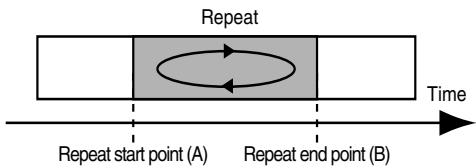
flowchart
graph LR
    A["Start"] --> B{Repeat}
    B --> C["Repeat start point (A)"]
    B --> D["Repeat end point (B)"]
    B --> E["Repeat end point (B)"]
    style B fill:#cccccc,stroke:#333,stroke-width:2px
1. Press [MP3/TRAINER].
Switches to MP3 mode; the display will indicate MP3 (the MP3 screen).
- Use CURSOR [◀][▶] to move the cursor to the file number, and use VALUE [-][+] to select the number of the MP3/WAV file you want to play.
3. Press [A ◀▶ B] at the point where you want to begin repeating (point A).
Register the starting point (A) of the region you want to repeat.
A↔B will blink, and that location will be registered as the starting point (A) of the repeated region.
4. Press [A ◀▶ B] at the point where you want to stop repeating (point B).
The MP3 screen will appear. That location will be registered as the ending point (B) of the repeated region, and ⬇ and A↔B will lit.

5. Press

The file begins playing.
6. If you want to cancel the repeat, press [A ◀▶ B] once again.
The repeat settings will be cancelled, and the ⏻ and ◀ will be lit.
MEMO
- When specifying the repeat end point (B), pressing [A ◀▶ B] at a point that is earlier than the repeat start point (A) will cause that point to be reassigned as the repeat start point (A).
- There must be at least one second between the repeat start point (A) and end point (B). You can't specify an end point that's less than one second away from the start point.
Practicing along with an MP3/WAV file (Phrase Trainer)
MP3 mode includes a “Phrase Trainer” function that provides an effective way for you to practice a song. You can also change (Time Stretch) the playback to aid in practicing difficult phrases or remove the guitar solo sound (Center Cancel) to play along with only the backing instruments as a practice aid.
Changing the playback speed (Time Stretch)
The Time Stretch function allows you to change the speed of playback without changing the pitch.
1. Press [MP3/TRAINER] to MP3 mode.
The MP3 player screen will appear.
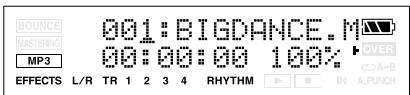
2. Use CURSOR [◀][▶] to move the cursor to the file number, and use VALUE [-][+] to select the file number that you want to play.
3. Press ▶ . The file begins playing.
4. Use CURSOR [◀][▶] to move the cursor to the playback speed indication, and use VALUE [-][+] to specify the playback speed.
The guitar etc. are connected, and it is possible to play while listening the MP3/WAV file.
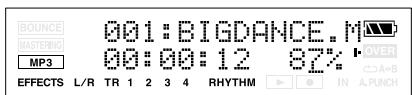
Range: 25–200%
A setting of 100% (initial value) will play the song at its original speed, a setting of 50% at
half-speed, and a setting of 25% at quarter-speed. The play speed doubles if the parameter is set to 200%.
MEMO
If Time Stretch parameter is set excluding 100%, the audio quality of the playback will be less. This is not a malfunction. Please set the parameter to 100% when listening to the MP3/WAV file at a usual speed.
Canceling the center sound (Center Cancel)
The Center Cancel function allows you to remove the central sound of the playback (e.g., vocals or guitar solos). This is helpful if you want to practice playing along with the backing instruments.
1. Press [MP3/TRAINER] to MP3 mode.
The MP3 player screen will appear.
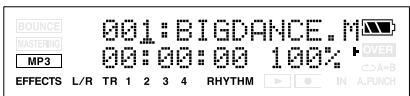
-
Use CURSOR [◀][▶] to move the cursor to the file number, and use VALUE [-][+] to select the file number that you want to play.
-
Press □.
The file begins playing.
- Use CURSOR [◀][▶] to make the display indicate "CENTER CANCEL."
- Press [TR1] to turn on the Center Cancel function.
Sounds that are heard from the center (such as vocals and guitar solos) will be eliminated.
The guitar etc. are connected, and it is possible to play while listening the MP3/WAV file.
Each time you press [TR1], the setting will alternate between "ON" and "OFF".
- Press [TR4] (EDT).
The CenterAdjst screen will appear.
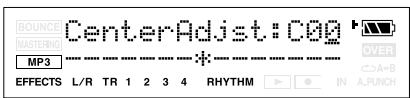
- Use VALUE [-][+] to adjust the value of the sound that you want to remove to decrease its volume.
Range: L10-C00-R10
- To emphasize the bass sound, press CURSOR [▶] to select "Low Boost," and use VALUE [-][+] to adjust the value so that the bass sound is more easily heard.
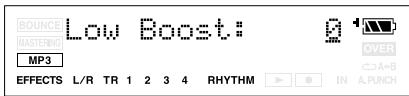
Range: 0–12
MEMO
- Depending on the recorded audio, it may not be possible to completely eliminate the center sound.
- If you want to eliminate a sound that is located in a position other than the center, you can adjust the CenterAdjst parameter.
- If you want to boost the bass sound (low frequency range), adjust the Low Boost parameter (p. 93).
- The playback sound will be monaural.
Recording MP3 or WAV data
Here's how you can record the sound from the inputs directly as MP3 or WAV format data.
1. Press [MP3/TRAINER] to MP3 mode.
Switch to MP3 mode as described in "Switching to MP3 Mode" (p. 90).
2. Press

The Type parameter will appear. You are now in recording-standby mode.
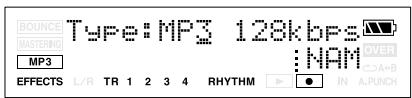
3. Use VALUE [-] [+] to select the Type parameter (recording format) you want to use.
| Type | Explanation |
| MP3 64 kbps | The audio quality will be lower, but you can record in MP3 format for an extended length of time with a smaller amount of data. |
| MP3 128 kbps | This is the normal audio quality in MP3 format. |
| MP3 192 kbps | The amount of data will be larger, but there will be minimal loss of audio quality in MP3 format. |
| WAV | Record in WAV format. |
MEMO
- When recording in the WAVE format, 44.1 kHz, 16-bit recordings are produced. This setting cannot be changed.
- As for both MP3 and WAV format, the sound is recorded with the stereo.

About the file name
The file name will be assigned as follows when the MP3/WAV file is saved.
(Ex.)
BR_01.MP3
:
BR_99.MP3
The file name will be the input source name plus a sequential number and the extension .MP3 (or .WAV).
If you want to specify a file name press [TR4] (NAM) in step 3.
The file name setting screen appears.
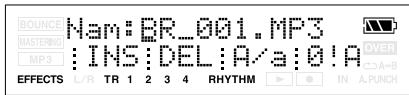
If an identically named file already exists, the display will ask "Overwrite?"
4. Press

Recording will begin.
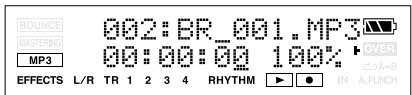
5. Press [STOP].
Recording stops. The recorded data is saved in the MP3 folder.
Recording time
| Memory Card Capacity | MP3 | WAV | ||
| 64 kbps | 128 kbps | 192 kbps | ||
| 32 MB | 65 min | 32 min | 21 min | 2 min |
| 64 MB | 131 min | 65 min | 43 min | 5 min |
| 128 MB | 265 min | 132 min | 88 min | 12 min |
| 256 MB | 531 min | 265 min | 177 min | 24 min |
| 512 MB | 1065 min | 532 min | 355 min | 48 min |
| 1 GB | 2081 min | 1040 min | 693 min | 94 min |
Erasing an MP3/WAV file
You can erase an MP3 file that was saved in the MP3 folder.
- Press [MP3/TRAINER] to MP3 mode.
Switch to MP3 mode as described in "Switching to MP3 Mode" (p. 90).
-
Use CURSOR [◀][▶] to move the cursor to the file number, and use VALUE [-][+] to select the file number that you want to erase.
-
Press [UTILITY].
The MP3 UTILITY screen will appear.
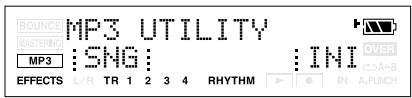
- Press [TR1] (SNG), and then press [TR3] (ERS).
The display will ask "Ers?"
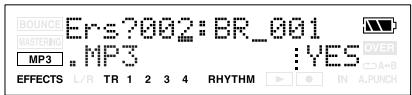
- Press [TR4] (YES).
The display will ask "Are you sure?"
-
If you are sure you want to erase the MP3/WAV file, press [TR4] (EXE). If you decide not to erase the MP3/WAV file, press [EXIT] (or [UTILITY]).
-
Press [UTILITY] or [EXIT] several times to return to the Play screen.
Viewing MP3/WAV file information
You can view information about the currently selected MP3 (or WAV) file.
- Press [MP3/TRAINER] to MP3 mode.
Switch to MP3 mode as described in "Switching to MP3 Mode" (p. 90)
-
Use CURSOR [◀][▶] to move the cursor to the file number, and use VALUE [-][+] to select the file whose information you want to view.
-
Press [UTILITY].
The MP3 UTILITY screen will appear.
- Press [TR1] (SNG), and then press [TR3] (INF).
The MP3/WAV INFO screen will appear.
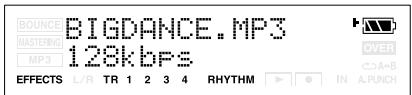
- Press CURSOR [▶].
Information about the MP3/WAV file will be displayed.
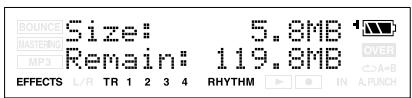
- Press [UTILITY] or [EXIT] several times to return to the Play screen.
Before Using USB (Overview)
How USB Can Be Used
The MICRO BR is equipped with a USB port for connecting the MICRO BR directly to computers, allowing you to carry out the following operations.
- Transfer MP3/WAV files
MP3/WAV files created on your computer or on the MICRO BR can be transferred in either direction. - Back up
MICRO BR song data can be saved on your computer. - Recover
Song data saved on your computer can be sent back to the MICRO BR.

Realtime audio signals and MIDI messages cannot be handled via the MICRO BR's USB connector.

What is USB?
USB, short for “Universal Serial Bus,” is a type of interface for connecting computers with a variety of peripheral devices. Using USB allows you to connect different peripherals using a single USB cable, and also provides rapid data transmission. What’s more, you can connect and disconnect peripherals with the power on, and the computer can automatically recognize when devices are connected (you may need to make settings when connecting certain devices).
Compatible OS
Windows
Windows Me / 2000 / XP
Macintosh
Mac OS 9.1.x / 9.2.x Mac OS X
Driver
The MICRO BR uses a standard DRIVER that is found on OS. The DRIVER will be installed automatically once connected with Computer via USB.
Connecting to your computer
Use the USB cable to connect the MICRO BR to your computer.
The end of the USB cable that is connected to the MICRO BR has a “mini type B” USB connector. If you purchase a cable from a computer shop, be sure that you are getting the correct shape and type of connector.
* Purchase USB cables at computer stores or other retailers.
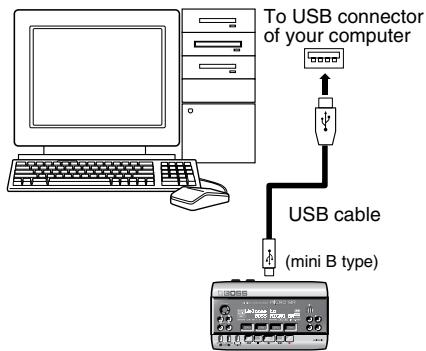
Composition of Data on Memory Cards
The folders and files created are as shown below.
Root folder
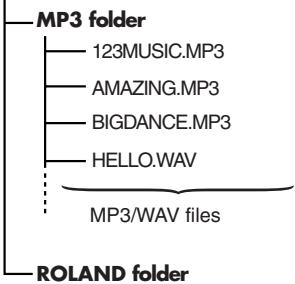
flowchart
graph TD
    A["MP3 folder"] --> B["123MUSIC.MP3"]
    A --> C["AMAZING.MP3"]
    A --> D["BIGDANCE.MP3"]
    A --> E["HELLO.WAV"]
    F["ROLAND folder"] --> G["MP3/WAV files"]
MP3 Folder
This is the folder in which you will place the MP3 or WAV files used in MP3 mode.
If you place MP3/WAV files from your computer in this folder, you'll be able to play them back on the MICRO BR. MP3/WAV files you've created on the MICRO BR can also be taken from this folder into your computer.
ROLAND Folder
The song data and various settings used by the MICRO BR are saved in this folder.
Copy this folder if you want to back up song data or use a song that was created on the BR-900CD or BR-600.

Files and folders inside the ROLAND folder
- The files and folders inside the ROLAND folder contain important data regarding song playback and the MICRO BR's system.
- If you delete or modify the files inside the ROLAND folder, the system may stop working correctly.
- If you wish to backup or recover your songs, you must copy the entire ROLAND folder.
Checking the folders and files saved on a memory card
When you connect the MICRO BR via USB to your computer, a MICRO_BR icon will appear on your computer.
* With certain versions of Windows OS, the "Removable disk (?:)" icon may be displayed.
(Ex.) Windows XP
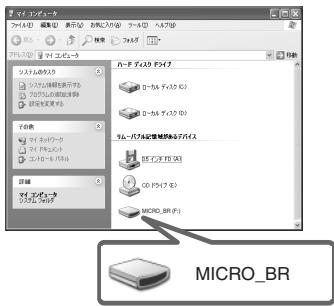
(Ex.) Windows 2000

Removable Disk (?:)
(Ex.) Macintosh
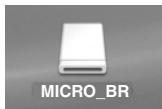
When you double-click the "MICRO_BR" icon (or the "Removable disk (?:)" icon), the "MP3" folder and the "ROLAND" folder is displayed. MP3 files and WAV files must be saved in the MP3 folder.
MEMO
- The MICRO BR does not support long filenames. Such filenames will not be displayed correctly. Assign filenames of no more than eight characters, not including the filename extension.
(ex.)
123MUSIC.MP3 (eight characters) HELLO.WAV (five characters)
- The MICRO BR does not support filenames containing double-byte characters (e.g., Japanese).
Regarding the backed-up data
The following types of song data are backed up.
- Recorded data
- Mixer status (level, pan etc.)
- Insert effects song patches
• Mastering Tool Kit song patches
• Rhythm Arrangements - Loop Effects
- Utility (except for LCD contrast, PowerSave and AutPowOff parameters)
- Input Sns parameter
- MP3 mode
Notes on Using USB
Do not perform any of the following actions while the MICRO BR is connected via USB.
These operations may result in your computer not responding to the data.
Data on memory cards may also be corrupted. Do not:
- Disconnect the USB cable
- Eject the memory card
- Put the computer in suspended (standby) mode or hibernation, restart, or quit
- Turn off the MICRO BR's power

When Using Windows XP/2000
If using Windows XP/2000, log on to Windows as one of the following users:
- Administrator or other user with the privileges of the Administrators group
- A user whose account type is Computer Administrator
Note that you will not be able to properly quit the USB connection if the user name is not one of those described above.
With Windows
Transferring MP3/WAV files
* You must perform the following procedure with the recorder stopped.
1. Use a USB cable to connect the MICROBR to your computer.
When communication with your computer begins, the MICRO BR will display a message of "USB connecting.." Then when the computer has detected the connection, the MICRO BR will display a message of "USB Idling..."
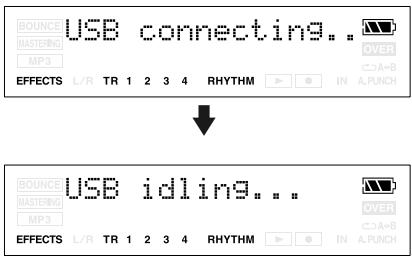
The "MICRO_BR" (or "Removable disk (?:)") icon is added to the computer.
(Ex.)

MICRO_BR

Removable Disk (?:)
2. Inside My Computer, double-click the MICRO\_BR icon (or the "Removable Disk (?:)" icon).
The root folder (p. 97) of the MICRO BR (memory card) will be displayed.
3. Transfer audio files using the following procedure.
Copying an MP3/WAV file from your computer to the MICRO BR
- From your computer, drag the MP3/WAV file into the MICRO BR's MP3 folder.
The audio file will be copied from your computer. - When you've finished copying, break the USB connection as described in "Breaking the connection with your computer" (p. 104).

Filenames and song order
MP3/WAV files on the MICRO BR will play back in the order of their filename (numerical or alphabetical order).
If you want to change the playback order, you can edit the file names so that they are in numerical or alphabetical order.
(Ex.)
| Filename | song order |
| 123MUSIC.MP3 | 1 |
| AMAZING.MP3 | 2 |
| BIGDANCE.MP3 | 3 |
| HELLO.WAV | 4 |
| : | : |
Copying an MP3/WAV file from the MICRO BR to your computer
- Double-click the MP3 folder in the MICRO BR.
The audio files saved in the MP3 folder will be displayed. - From the MP3 folder, copy the desired audio files to the desired folder on your computer.
- When you've finished copying, break the USB connection as described in "Breaking the connection with your computer" (p. 104).
Backing up and recovering MICRO BR song data
1. Use a USB cable to connect the MICROBR to your computer.
When communication with your computer begins, the MICRO BR will display a message of "USB connecting.." Then when the computer has detected the connection, the MICRO BR will display a message of "USB Idling..."
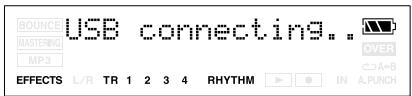

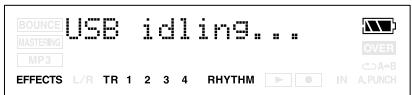
The "MICRO_BR" (or "Removable disk (?:)") icon is added to the computer.
(Ex.)

MICRO_BR

Removable Disk (?:)
2. Inside My Computer, double-click the MICRO\_BR icon (or the "Removable Disk (?:)" icon).
The root folder (p. 97) of the MICRO BR (memory card) will be displayed.
3. Transfer MICRO BR's song data using the following procedure.
Backing up
MICRO BR song data can be saved on your computer.
- Drag the "ROLAND" folder to the computer's folder and drop it in the folder.
It's a good idea to create a new folder as your backup folder. - When you have finished backing up the data, Quit the connection to the computer (p. 104).
Recovering
Song data saved on your computer can be sent back to the MICRO BR.
- Erase the MICRO BR's "ROLAND" folder.

If you delete the MICRO BR's ROLAND folder, all song data saved on the MICRO BR will be deleted.
-
Drag the computer's "ROLAND" folder to the "MICRO_BR" icon (or the "Removable disk (?:)" icon) and drop it there.
-
When you have finished restoring the data, Quit the connection to the computer (p. 104).

Files and folders inside the ROLAND folder
- The files and folders inside the ROLAND folder contain important data regarding song playback and the MICRO BR's system.
- If you delete or modify the files inside the ROLAND folder, the system may stop working correctly.
- If you wish to backup or recover your songs, you must copy the entire ROLAND folder.
Breaking the connection with your computer
With Windows XP
In My Computer, right-click on the
"MICRO_BR" icon (or "Removable disk (?:)" icon) to "Eject" the disk.
* If this procedure fails to eject the disk, use the procedure below.
-
Close the all windows in your computer.
-
Click the 📋 icon in the task tray.
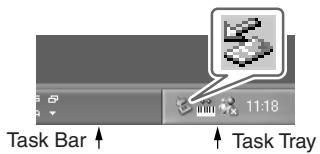
- Click the "Stop USB Disk-drive (?:)" message displayed there.
- Click [OK] in the "Safe To Remove Hardware" dialog box that appears.
When you have finished USB connecting, the message "OK to disconnect" will appear.
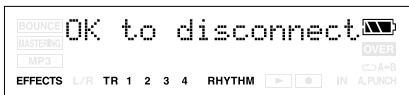
In this state you may safely disconnect the USB cable from the MICRO BR and from your computer.
- Disconnect the USB cable from the MICRO BR and your computer.
After a time, the Play screen will reappear.
With Windows 2000/Me
- In My Computer, right-click on the "MICRO_BR" icon (or "Removable disk (?:)" icon) to "Eject" the disk.
- Click the 📋 icon in the task tray, then click the “Stop USB Disk-drive (?:)” message displayed there.
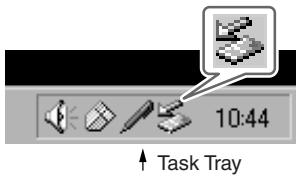
- Click [OK] in the "Safe To Remove Hardware" dialog box that appears.
When you have finished USB connecting, the message "OK to disconnect" will appear.
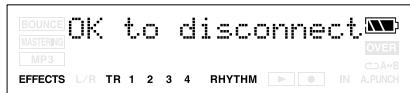
In this state you may safely disconnect the USB cable from the MICRO BR and from your computer.
- Disconnect the USB cable from the MICRO BR and your computer.
After a time, the Play screen will reappear.
With Macintosh
Transferring MP3/WAV files
* You must perform the following procedure with the recorder stopped.
1. Use a USB cable to connect the MICROBR to your computer.
When communication with your computer begins, the MICRO BR will display a message of "USB connecting.." Then when the computer has detected the connection, the MICRO BR will display a message of "USB Idling..."
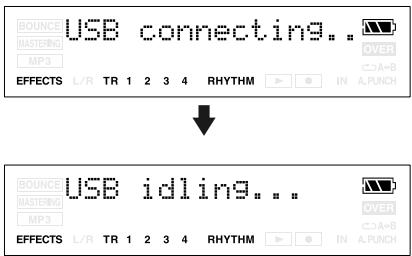
The "MICRO_BR" icon is added to the computer.
(Ex.)
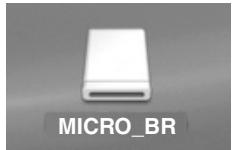
2. Double-click the "MICRO\_BR" icon in your computer.
The root folder (p. 97) of the MICRO BR (memory card) will be displayed.
3. Transfer audio files using the following procedure.
Copying an MP3/WAV file from your computer to the MICRO BR
- From your computer, drag the MP3/WAV file into the MICRO BR's MP3 folder.
The audio file will be copied from your computer. - When you've finished copying, break the USB connection as described in "Breaking the connection with your computer" (p. 104).

Filenames and song order
MP3/WAV files on the MICRO BR will play back in the order of their filename (numerical or alphabetical order).
If you want to change the playback order, you can edit the file names so that they are in numerical or alphabetical order.
(Ex.)
| Filename | song order |
| 123MUSIC.MP3 | 1 |
| AMAZING.MP3 | 2 |
| BIGDANCE.MP3 | 3 |
| HELLO.WAV | 4 |
| : | : |
Copying an MP3/WAV file from the MICRO BR to your computer
- Double-click the MP3 folder in the MICRO BR.
The audio files saved in the MP3 folder will be displayed. - From the MP3 folder, copy the desired audio files to the desired folder on your computer.
- When you've finished copying, break the USB connection as described in "Breaking the connection with your computer" (p. 104).
Backing up and recovering MICRO BR song data
1. Use a USB cable to connect the MICROBR to your computer.
When communication with your computer begins, the MICRO BR will display a message of "USB connecting.." Then when the computer has detected the connection, the MICRO BR will display a message of "USB Idling..."
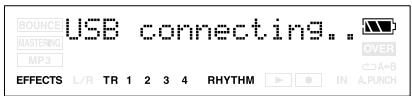

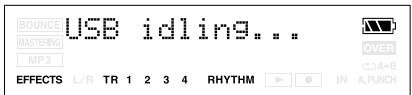
The "MICRO_BR" icon is added to the computer.
(Ex.)

2. Double-click the "MICRO\_BR" icon in your computer.
The root folder (p. 97) of the MICRO BR (memory card) will be displayed.
3. Transfer MICRO BR's song data using the following procedure.
Backing up
MICRO BR song data can be saved on your computer.
- Drag the "ROLAND" folder to the computer's folder and drop it in the folder.
It's a good idea to create a new folder as your backup folder. - When you have finished backing up the data, Quit the connection to the computer (p. 104).
Recovering
Song data saved on your computer can be sent back to the MICRO BR.
- Erase the MICRO BR's "ROLAND" folder.

If you delete the MICRO BR's ROLAND folder, all song data saved on the MICRO BR will be deleted.
-
Drag the computer's "ROLAND" folder to the "MICRO_BR" icon and drop it there.
-
When you have finished restoring the data, Quit the connection to the computer (p. 104).

Files and folders inside the ROLAND folder
- The files and folders inside the ROLAND folder contain important data regarding song playback and the MICRO BR's system.
- If you delete or modify the files inside the ROLAND folder, the system may stop working correctly.
- If you wish to backup or recover your songs, you must copy the entire ROLAND folder.
Breaking the connection with your computer
- Close the all windows in your computer.
- Drag the "MICRO_BR" icon into the trash.
When you have finished USB connecting, the message "You may disconnect..." will appear.
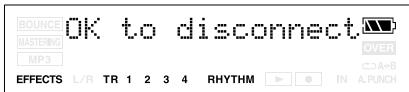
In this state you may safely disconnect the USB cable from the MICRO BR and from your computer.
- Disconnect the USB cable from the MICRO BR and your computer.
After a time, the Play screen will reappear.
Adjusting the Display Contrast
Depending on where the MICRO BR is situated, the display contents may be difficult to read. If this is the case, perform the procedure given below to adjust the contrast (1 to 20).
-
Press [UTILITY].
-
Press CURSOR [◀][▶] several times to access the LCD Contrast screen.
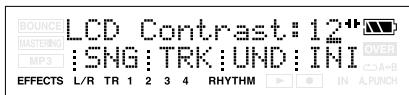
-
Use VALUE [-][+] to adjust the value.
-
If you decide the contrast, press [EXIT] (or [UTILITY]).
HINT
If you press and hold [UTILITY] while turning the TIME/VALUE dial, you will be able to change the contrast in real time. Choose the method that best suits the MICRO BR's setup.
Tuning an Instrument (Tuner)
The MICRO BR has a built-in “chromatic tuner function” that allows you to tune your instrument quickly.
The built-in tuner supports both guitar and bass guitar.
As an example here, we will explain how to use the tuner to tune your guitar.
* It is not possible to play back or record while using the tuner.
Check the following points before you begin.
- Your guitar is connected to the GUITAR IN jack.
- "GTR" is selected as the input source.
- The Sns parameter is at the highest value possible without causing the OVER icon to light (p. 14).
Tuning

If you do not want to output the tuning sounds, either turn down the VOLUME dial.
1. Hold down [EFFECTS] and press [UTILITY].
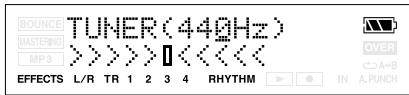
When the built-in tuner of the MICRO BR is used, the reference pitch is shown in the upper of the display, and the note name in the right. The lower part will display a tuning guide to indicate the difference between the input sound and the displayed note.
* You cannot switch from the Tuner screen to other screens (except the Play screen).
2. Setting the reference pitch.
You can set the reference pitch of the tuner to any value between 435 and 445 Hz.
* This was set to 440 Hz when the unit was shipped from the factory.
3. Play a note using the string you are tuning.
The screen will indicate the note name that is closest to the pitch of the string you played.
* Cleanly play a single note only on the string you wish to tune.
4. Continue tuning until the pitch name of the string you are tuning appears in the display.
Normal tuning
| String | 7th | 6th | 5th | 4th | 3rd | 2nd | 1st |
| Guitar | B | E | A | D | G | B | E |
| Bass | B | E | A | D | G |
5. While viewing the tuning guide, adjust the tuning so that ▶ is positioned midway □ between the two sides.
If the pitch of the string is within +/-50 cents of the correct pitch, the tuning guide will indicate the discrepancy between the actual and the correct pitches.
Your instrument is tuned above the displayed note
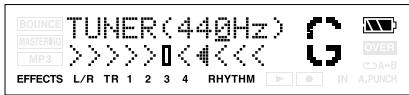
Your instrument is tuned the displayed note
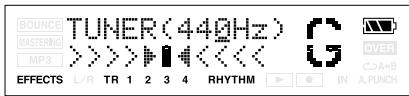
Your instrument is tuned below the displayed note
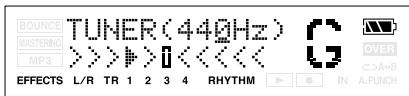
6. Repeat steps 3–5 to tune each of the strings.

If you are tuning a guitar that has a vibrato arm, tuning one string may cause other strings to drift. In this case, you should first tune the strings approximately so that the correct note name is displayed, and then re-tune each string.
7. When you finished tuning, press [EXIT].
Converting between track data and audio files
You can convert track data into an audio file (MP3/WAV formats), or use an audio file as track data.
Converting track data to an audio file (Track Export)
Here's how track data recorded on a track can be converted to an audio file (MP3/WAV formats).
MEMO
You can exporting files are following
MP3 format
• Sampling Frequency: 44.1 kHz
- 8 bit or 16 bit
WAV format
• Sampling Frequency: 44.1 kHz
• 96, 128, 192 kbps
- Make sure that you're in normal mode (p. 42), and press [UTILITY].
If you're in MP3 mode, press [MP3/TRAINER] to switch to Normal mode, and then press [UTILITY].
- Press [TR2] (TRK).
- Press CURSOR [▶].
- Press [TR2] (EXP).
The export setting screen appears.
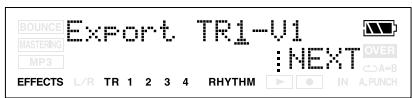
- Press [TR4] (NEXT).
The file type setting screen appears.
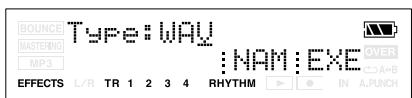
- If you want to edit the export filename, press [TR3] (NAM).
The filename edit screen appears.
Use CURSOR [◀] [▶] and VALUE [-] [+] to enter the desired patch name.
If you don't need to edit the patch name, proceed to step 8.
You can use the following functions when editing text.
| Button | Function |
| [TR1] (INS) | Inserts a space at the cursor location. |
| [TR2] (DEL) | Deletes the character at the cursor location, and moves the subsequent characters toward the left. |
| [TR3] (A/a) | Switches the character at the cursor location between uppercase/lowercase. |
| [TR4] (0!A) | Switches the type of character (numeral/ symbol/alphabetical) at the cursor location. |
If you finished naming, press [EXIT].
- Use CURSOR [◀][▶] and VALUE [-][+] to set the Typ parameter to the desired type of file.
You can choose either WAV or MP3 as the file type.
Range: MP3, WAV
If you choose MP3, the bit rate parameter (Rate:) will also be displayed.
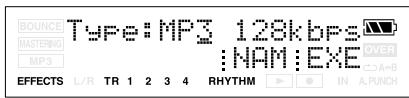
Range: 64, 128, 192 (kbps)
- Press [TR4] (EXE)
The display will ask “**********.*** OK?”
* "*******.***" stands for the filename and the file extension.
- If you want to convert, press [TR4] (YES).
To cancel this operation, press [EXIT].
Press [TR4] (YES), and the track data will be converted to MP3 or WAV.
The converted audio file will be saved in the MP3 folder. (p. 97)

About the file name
Files created using the Track Export procedure are named as follows.
(Ex.)
T1_V1_01.MP3
T34V8_99.WAV
The file name will be the source track and V-track number plus a sequential number and the extension .MP3 (or .WAV).
If an identically named file already exists, the display will ask "Overwrite?"
Converting audio files to track data (Track Import)
Here's how track data recorded on a track can be converted to an audio file (MP3/WAV formats).

Wave data in the following formats can be imported. You cannot import wave data in other formats.
WAV format
- Mono or Stereo
- 8-bit or 16-bit
• Sampling Rate: 44.1 kHz - Linear format
MP3 format
- Bit rate: 64, 96, 128, 160, 192, 224, 256, 320 kbps or VBR
• Sampling Rate: 44.1 kHz

- Add the extension "MP3" to imported MP3 files and the extension "WAV" to imported WAV files.
-
Extremely short waveform data (less than approximately 1 sec) cannot be loaded.
-
Make sure that you're in normal mode (p. 42), and press [UTILITY].
If you're in MP3 mode, press [MP3/TRAINER] to switch to Normal mode, and then press [UTILITY].
- Press [TR2] (TRK).
- Press CURSOR [▶].
- Press [TR1] (IMP).
- Use CURSOR [◀][▶] and VALUE [-] [+] to select the audio file you want to convert to track data.
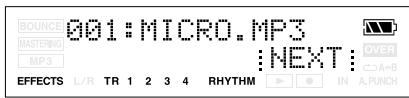
6. Press [TR4] (NEXT).
The Import to setting screen appears.
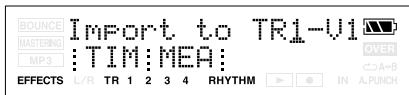
7. Use CURSOR [◀][▶] and VALUE [-] [+] to specify the import-destination track.
Choose the track on which the audio data will be recorded.
Range: TR1-V1-V8, TR2-V1-V8,..., TR34V1-V8
8. Press [TR1] (TIM) or [TR2] (MEA).
Specify the location within the specified track into which the data will be imported. Press [TR1] (TIM) if you want to specify the location by time, or press [TR2] (MEA) if you want to specify the location by measure.
9. Specify the time or measure at which you want to import the data, and press [TR4] (EXE).
The display will ask "Import OK?"
10. If you want to convert, press [TR4] (YES), to cancel, press [EXIT].
When [TR4] (YES) is pressed, the audio data will convert to track data.
Using plug-in powered microphone
You can connect a plug-in powered microphone to the LINE IN/MIC jack.
Perform the procedure given below to use the plug-in powered microphone.
- Connect the plug-in powered microphone to the LINE IN/MIC jack.
- Turn the power on as described in "Turning the power on" (p. 24).
- Press [UTILITY].
- Press CURSOR [◀][▶] several times to access the PlugInPower screen.
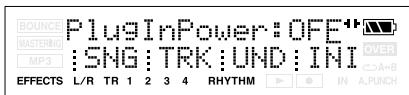
-
Use VALUE [+] to turn value on. If you want to turn value off, press [-].
-
Press [UTILITY] (or [EXIT]) to return to the Play screen.
NOTE
- A voltage of approximately 2.5V can be supplied from the LINE IN/MIC jack. Unlike phantom power, this cannot supply 48V.
- If PlugInPower is turned ON, you must connect only a condenser mic that is compatible with plug-in power. Connecting any other device may damage that device.
Initializing the Memory Card
NOTE
- Be aware that when initialized, any existing data on the card will be erased.
- If you initialize the memory card supplied with the MICRO BR, the demo songs on the card will be lost.
- Before you insert or remove a memory card, always turn off the MICRO BR first. If a memory card is inserted when the power is turned on, the data in the memory card may be destroyed, or the memory card may become unusable.
- Depending on the capacity of the memory card, initializing may take more than ten minutes to complete. This is not a malfunction. The progress of the initializing is shown in the display. Do not turn off the MICRO BR until the initializing has been completed.
- Do not remove the memory card or turn off the MICRO BR while the display shows "Keep power on!" Doing so can destroy the data on the memory card and/or render the memory card itself unusable.
1. Press [UTILITY].
2. Press [TR4] (INI).
The display will ask "Card Initialize?"
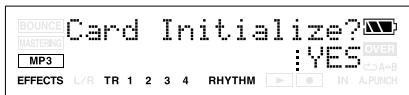
3. If you want to initialize the memory card, press [TR4] (YES), to cancel, press [EXIT].
The display will ask "Are you sure?"
4. If you want to initialize the memory card, press [TR4] (YES), to cancel, press [EXIT].
When [TR4] (YES) is pressed, initialization begins. When the initializing has been completed, "Completed!" appears in the display. "Keep power on! Song creating.." then appears in the display, and a new song (the data type is HiFi (MT2)) is automatically created. When creation of the song is finished, the display returns to the Play screen.
Initializing All the MICRO BR's Settings
The following settings are initialized together at one time.
- System Settings
-
Effects (User Patches)
-
Turn the power off as described in "Turning the power off" (p. 24).
- Hold down [UTILITY] and press [POWER]. The display will ask "Factory Reset?"
- Press [TR4] (YES). The display will ask "Are you sure?"
- To continue the initialization, press [TR4] (YES), to cancel, press [EXIT].
When [TR4] (YES) is pressed, initialization begins.
Saving Battery Power (Power Save)
If a certain length of time has passed without any buttons being operated, the MICRO BR will dim the display brightness to reduce the current consumption.
Perform the procedure given below to activate the power save function.
- Press [UTILITY].
- Press CURSOR [◀][▶] several times to access the PowerSave screen.
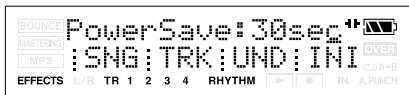
- Use VALUE [-][+] to set the value.
Set the time until the Power Save function is activated.
* If you set this OFF, the Power Save function will not operate.
- Press [UTILITY] (or [EXIT]) to return to the Play screen.

When you use an AC adaptor, the Power Save function will not operate.
Deactivating the power save function
Press any of the panel buttons, brightness of the display returns to the origin.
Powering-off automatically (Auto Power Off)
The Auto Power Off function automatically turns off the power if the buttons or VOLUME dial have not been operated for a certain length of time.
- Press [UTILITY].
- Press CURSOR [◀][▶] several times to access the AutPowOff screen.
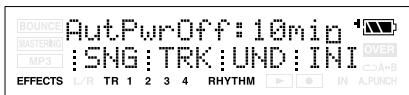
- Use VALUE [-][+] to set the value.
Set the time until the Auto Power Off function is activated.
* If you set this OFF, the Auto Power Off function will not operate.
- Press [UTILITY] (or [EXIT]) to return to the Play screen.
Arrangement / Pattern List
Preset Arrangement List
Each of the preset Arrangement (except Metro4/4) is set so that a three-measure BREAK, followed by V1 (verse) comes after the E (ending).
| No. | Arrangement Name | Initial Tempo | Beat | Starting measure | BREAK | V1 | Drum Kit | ||||||
| IN | V1 | F1 | V2 | F2 | V2 | END | |||||||
| P01 | ROCK1 | 130 | 4/4 | 1 | 2 | 4 | 6 | 8 | 10 | 12 | 16 | 19 | ROOM |
| P02 | ROCK2 | 130 | 4/4 | 1 | 3 | 5 | 7 | 9 | 11 | 13 | 17 | 20 | ROOM |
| P03 | ROCK3 | 118 | 4/4 | 1 | 3 | 6 | 7 | 10 | 11 | 15 | 17 | 20 | ROOM |
| P04 | ROCK4 | 118 | 4/4 | 1 | 5 | 8 | 9 | 12 | 13 | 15 | 19 | 22 | ROOM |
| P05 | ROCK5 | 104 | 4/4 | 1 | 5 | 8 | 9 | 12 | 13 | 15 | 17 | 20 | ROOM |
| P06 | ROCK6 | 86 | 4/4 | 1 | 2 | 9 | 10 | 17 | 18 | 22 | 24 | 27 | STD 2 |
| P07 | HdRck1 | 130 | 4/4 | 1 | 5 | 8 | 9 | 12 | 13 | 15 | 18 | 21 | ROOM |
| P08 | HdRck2 | 98 | 4/4 | 1 | 3 | 10 | 11 | 18 | 19 | 23 | 25 | 28 | HARD |
| P09 | HdRck3 | 126 | 4/4 | 1 | 5 | 8 | 9 | 12 | 13 | 15 | 20 | 23 | ROOM |
| P10 | HdRck4 | 120 | 4/4 | 1 | 4 | 7 | 8 | 11 | 12 | 15 | 18 | 21 | ROOM |
| P11 | HdRck5 | 118 | 4/4 | 1 | 2 | 5 | 6 | 9 | 10 | 12 | 13 | 16 | ROOM |
| P12 | HEAVY1 | 210 | 4/4 | 1 | 5 | 11 | 13 | 19 | 21 | 25 | 29 | 32 | HARD |
| P13 | HEAVY2 | 120 | 4/4 | 1 | 3 | 9 | 11 | 17 | 19 | 21 | 23 | 26 | HARD |
| P14 | HEAVY3 | 120 | 4/4 | 1 | 3 | 9 | 11 | 17 | 19 | 21 | 24 | 27 | HARD |
| P15 | HEAVY4 | 162 | 4/4 | 1 | 3 | 9 | 11 | 17 | 19 | 21 | 24 | 27 | ROOM |
| P16 | HEAVY5 | 109 | 4/4 | 1 | 5 | 8 | 9 | 12 | 13 | 15 | 16 | 19 | ROOM |
| P17 | POP1 | 118 | 4/4 | 1 | 3 | 6 | 7 | 10 | 11 | 13 | 17 | 20 | ROOM |
| P18 | POP2 | 118 | 4/4 | 1 | 3 | 6 | 7 | 10 | 11 | 13 | 15 | 18 | STD1 |
| P19 | POP3 | 118 | 4/4 | 1 | 3 | 6 | 7 | 10 | 11 | 13 | 15 | 18 | ROOM |
| P20 | POP4 | 118 | 4/4 | 1 | 3 | 6 | 7 | 10 | 11 | 13 | 17 | 20 | ROOM |
| P21 | POP5 | 140 | 4/4 | 1 | 3 | 6 | 7 | 10 | 11 | 13 | 15 | 18 | ROOM |
| P22 | POP6 | 96 | 4/4 | 1 | 3 | 6 | 7 | 10 | 11 | 13 | 15 | 18 | STD 1 |
| P23 | POP7 | 66 | 4/4 | 1 | 4 | 7 | 8 | 11 | 12 | 14 | 16 | 19 | STD 2 |
| P24 | POP8 | 151 | 4/4 | 1 | 5 | 8 | 9 | 16 | 17 | 21 | 24 | 27 | STD 1 |
| P25 | BALLAD1 | 70 | 4/4 | 1 | 5 | 8 | 9 | 12 | 13 | 15 | 18 | 21 | ROOM |
| P26 | BALLAD2 | 89 | 4/4 | 1 | 2 | 5 | 6 | 9 | 10 | 12 | 14 | 17 | STD 2 |
| P27 | BLUES1 | 124 | 4/4 | 1 | 2 | 5 | 6 | 9 | 10 | 13 | 16 | 19 | STD 2 |
| P28 | BLUES2 | 192 | 4/4 | 1 | 5 | 12 | 13 | 20 | 21 | 25 | 29 | 32 | STD 1 |
| P29 | BLUES3 | 124 | 4/4 | 1 | 3 | 10 | 11 | 18 | 19 | 23 | 26 | 29 | STD 2 |
| P30 | BLUES4 | 148 | 4/4 | 1 | 5 | 8 | 9 | 12 | 13 | 15 | 17 | 20 | STD 1 |
| P31 | R&B1 | 110 | 4/4 | 1 | 5 | 8 | 9 | 12 | 13 | 15 | 18 | 21 | STD 1 |
| P32 | R&B2 | 154 | 4/4 | 1 | 3 | 6 | 7 | 10 | 11 | 13 | 18 | 21 | STD 1 |
| P33 | R&B3 | 108 | 4/4 | 1 | 5 | 8 | 9 | 12 | 13 | 15 | 18 | 21 | STD 2 |
| P34 | R&B4 | 96 | 4/4 | 1 | 5 | 12 | 13 | 20 | 21 | 25 | 26 | 29 | STD 1 |
| P35 | R&B5 | 94 | 4/4 | 1 | 5 | 8 | 9 | 12 | 13 | 15 | 19 | 22 | STD 1 |
| P36 | JAZZ1 | 140 | 4/4 | 1 | 3 | 5 | 7 | 9 | 11 | 13 | 15 | 18 | JAZZ |
| P37 | JAZZ2 | 140 | 4/4 | 1 | 5 | 7 | 9 | 11 | 13 | 15 | 17 | 20 | JAZZ |
| P38 | JAZZ3 | 140 | 4/4 | 1 | 5 | 12 | 13 | 20 | 21 | 25 | 30 | 33 | JAZZ |
| P39 | FUSION1 | 120 | 4/4 | 1 | 5 | 12 | 13 | 20 | 21 | 25 | 29 | 32 | STD2 |
| P40 | FUSION2 | 118 | 4/4 | 1 | 2 | 5 | 6 | 9 | 10 | 12 | 15 | 18 | ROOM |
| P41 | HipHop1 | 93 | 4/4 | 1 | 2 | 9 | 10 | 17 | 18 | 22 | 23 | 26 | HIP-HOP |
| P42 | HipHop2 | 102 | 4/4 | 1 | 3 | 10 | 11 | 18 | 19 | 23 | 25 | 28 | 808 |
| P43 | FUNK | 110 | 4/4 | 1 | 2 | 4 | 6 | 8 | 10 | 12 | 13 | 16 | HIP-HOP |
| P44 | HOUSE | 114 | 4/4 | 1 | 3 | 6 | 7 | 10 | 11 | 13 | 15 | 18 | HOUSE |
| P45 | Cntry1 | 118 | 4/4 | 1 | 3 | 6 | 7 | 10 | 11 | 13 | 14 | 17 | JAZZ |
| P46 | Cntry2 | 118 | 4/4 | 1 | 2 | 5 | 6 | 9 | 10 | 12 | 14 | 17 | JAZZ |
| P47 | Other1 | 96 | 4/4 | 1 | 2 | 9 | 10 | 17 | 18 | 22 | 24 | 27 | REGGAE |
| P48 | Other2 | 118 | 4/4 | 1 | 5 | 7 | 9 | 11 | 13 | 15 | 19 | 22 | STD 2 |
| P49 | Other3 | 125 | 4/4 | 1 | 2 | 5 | 6 | 9 | 10 | 12 | 14 | 17 | ROOM |
| P50 | Metro4/4 | 120 | 4/4 | 1 | STD 1 | ||||||||
Preset Pattern List
| Pattern Name (Abbreviation shown in display) | Initial Tempo | Beat | Measure | |||||
| IN | V1 | F1 | V2 | F2 | E | |||
| ROCK1 | 130 | 4/4 | 1 | 2 | 2 | 2 | 2 | 4 |
| ROCK2 | 130 | 4/4 | 2 | 2 | 2 | 2 | 2 | 4 |
| ROCK3 | 118 | 4/4 | 2 | 2 | 1 | 2 | 1 | 2 |
| ROCK4 | 118 | 4/4 | 4 | 2 | 1 | 2 | 1 | 4 |
| ROCK5 | 104 | 4/4 | 4 | 2 | 1 | 2 | 1 | 2 |
| ROCK6 | 86 | 4/4 | 1 | 4 | 1 | 4 | 1 | 2 |
| Hard Rock 1(HdRc1) | 130 | 4/4 | 4 | 2 | 1 | 2 | 1 | 3 |
| Hard Rock 1(HdRc2) | 98 | 4/4 | 2 | 4 | 1 | 4 | 1 | 2 |
| Hard Rock 1(HdRc3) | 126 | 4/4 | 4 | 2 | 1 | 2 | 1 | 5 |
| Hard Rock 1(HdRc4) | 120 | 4/4 | 3 | 2 | 1 | 2 | 1 | 3 |
| Hard Rock 1(HdRc5) | 118 | 4/4 | 1 | 1 | 1 | 1 | 1 | 1 |
| HEAVY1 (HEVY1) | 210 | 4/4 | 4 | 4 | 2 | 4 | 2 | 4 |
| HEAVY2 (HEVY2) | 120 | 4/4 | 2 | 2 | 2 | 2 | 2 | 2 |
| HEAVY3 (HEVY3) | 120 | 4/4 | 2 | 2 | 2 | 2 | 2 | 3 |
| HEAVY4 (HEVY4) | 162 | 4/4 | 2 | 2 | 2 | 2 | 2 | 3 |
| HEAVY5 (HEVY5) | 109 | 4/4 | 4 | 2 | 1 | 2 | 1 | 1 |
| POP1 | 118 | 4/4 | 2 | 2 | 1 | 2 | 1 | 4 |
| POP2 | 118 | 4/4 | 2 | 2 | 1 | 2 | 1 | 2 |
| POP3 | 118 | 4/4 | 2 | 2 | 1 | 2 | 1 | 2 |
| POP4 | 118 | 4/4 | 2 | 1 | 1 | 1 | 1 | 4 |
| POP5 | 140 | 4/4 | 2 | 1 | 1 | 1 | 1 | 2 |
| POP6 | 96 | 4/4 | 2 | 2 | 1 | 2 | 1 | 2 |
| POP7 | 66 | 4/4 | 3 | 2 | 1 | 2 | 1 | 2 |
| POP8 | 151 | 4/4 | 4 | 2 | 1 | 4 | 1 | 3 |
| BALLAD1 (BALD1) | 70 | 4/4 | 4 | 2 | 1 | 2 | 1 | 3 |
| BALLAD2 (BALD2) | 89 | 4/4 | 1 | 2 | 1 | 2 | 1 | 2 |
| BLUES1 (BLUS1) | 124 | 4/4 | 1 | 4 | 1 | 4 | 1 | 3 |
| BLUES2 (BLUS2) | 192 | 4/4 | 4 | 4 | 1 | 4 | 1 | 4 |
| BLUES3 (BLUS3) | 124 | 4/4 | 2 | 2 | 1 | 2 | 1 | 3 |
| BLUES4 (BLUS4) | 148 | 4/4 | 4 | 2 | 1 | 2 | 1 | 2 |
| R&B1 | 110 | 4/4 | 4 | 2 | 1 | 2 | 1 | 3 |
| R&B2 | 154 | 4/4 | 2 | 2 | 1 | 2 | 1 | 5 |
| R&B3 | 108 | 4/4 | 4 | 2 | 1 | 2 | 1 | 3 |
| R&B4 | 96 | 4/4 | 4 | 4 | 1 | 4 | 1 | 1 |
| R&B5 | 94 | 4/4 | 4 | 2 | 1 | 2 | 1 | 4 |
| JAZZ1 | 140 | 4/4 | 2 | 2 | 2 | 2 | 2 | 2 |
| JAZZ2 | 140 | 4/4 | 4 | 2 | 2 | 2 | 2 | 2 |
| JAZZ3 | 140 | 4/4 | 4 | 4 | 1 | 4 | 1 | 5 |
| FUSION1 (FUSN1) | 120 | 4/4 | 4 | 4 | 1 | 4 | 1 | 4 |
| FUSION2 (FUSN2) | 118 | 4/4 | 1 | 2 | 1 | 2 | 1 | 3 |
| HipHop1 (H.Hp1) | 93 | 4/4 | 1 | 4 | 1 | 4 | 1 | 1 |
| HipHop2 (H.Hp2) | 102 | 4/4 | 2 | 4 | 1 | 4 | 1 | 2 |
| FUNK | 110 | 4/4 | 1 | 2 | 2 | 2 | 2 | 1 |
| HOUSE | 114 | 4/4 | 2 | 2 | 1 | 2 | 1 | 2 |
| Cntry1 (Cnty1) | 118 | 4/4 | 2 | 1 | 1 | 1 | 1 | 1 |
| Cntry2 (Cnty2) | 118 | 4/4 | 1 | 2 | 1 | 2 | 1 | 2 |
| OTHER1 (Othr1) | 96 | 4/4 | 1 | 4 | 1 | 2 | 1 | 2 |
| OTHER2 (Othr1) | 118 | 4/4 | 4 | 2 | 2 | 2 | 2 | 4 |
| OTHER3 (Othr1) | 125 | 4/4 | 1 | 2 | 1 | 2 | 1 | 2 |
| Metro | - | - | - | - | - | - | - | - |
| BREAK | - | - | - | - | - | - | - | - |
Parameter List
- (*1) Stored in the Song. (If you want to save the settings as the currently selected song data, hold down

and press

• (*2) Stored in the MICRO BR.
• (*3) Not Stored.
Mixer Parameter
| Parameter Name (*1) | Display | Initial Value | Valid Settings |
| Input Select | - | GTR | GTR, MIC, LIN, EXT |
| Input Sens | Sns (GTR) | 0 | -12 – +8 |
| Sns (MIC) | 0 | -16 – +8 | |
| Sns (LIN) | 0 | -6 – +8 | |
| Sns (EXT) | 0 | -15 – +9 | |
| Input Reverb | Rv (GTR) | 15 | 0–100 |
| Rv (MIC) | 5 | 0–100 | |
| Rv (LIN) | 0 | 0–100 | |
| Rv (EXT) | 0 | 0–100 | |
| Track Level | Track Level | 100 | 0–120 |
| Track Pan | Track Pan | C00 | L50–C00–R50 |
| Track Reverb | Track Reverb | 0 | 0–100 |
| Recording Mode | - | (Normal) | (Normal), BOUNCE, MASTERING (*3) |
| Master Level | MasterLevel | 100 | 0–120 |
Insert Effects
| Parameter Name (*1) | Display | Initial Value | Valid Settings |
| Location | Location | INPUT | INPUT, INPUT, TRACK 1–4, 1/2, 3/4, RHYTHM, MASTER |
Reverb
| Parameter Name (*1) | Display | Initial Value | Valid Settings |
| Reverb Type | Type | HALL | ROOM, HALL |
| Reverb Time | Rev Time | 2.0 s | 0.1–10.0 s |
| Tone | Tone | 0 | -12–0–+12 |
| Level | Level | 50 | 0–100 |
Recorder Parameter
| Parameter Name (*1) | Display | Initial Value | Valid Settings |
| Recording Track | Rec Track | Track 1 | Track 1–4, 1/2, 3/4 |
| V-Track | V-TRACK | 1 | 1–8 |
| Auto Punch On/Off | - | OFF | OFF, ON (A.PUNCH indicator appear) |
| Auto Punch In/Out | - | - | Any time |
| Repeat | - | - | OFF, ON ( ⬇ indicator appear) |
| Repeat Start/End | - | - | Any time |
Song Parameter
| Parameter Name (*1) | Display | Initial Value | Valid Settings |
| Song Name | - | SONG0000 | 8 characters |
| Data Type | Type | HiFi (MT2) | HiFi (MT2), STD (LV1), LONG (LV2) |
| Song Protect | - | OFF | OFF, ON |
Phrase Trainer
| Parameter Name (*3) | Display | Initial Value | Valid Settings |
| Time Stretch | - | 100% | 25%-200% |
| Center Cancel | CENTER CANCEL | OFF | OFF, ON (*3) |
| Center cancel Adjust | CenterAdjst | C00 | L10-L01, C00, R01-R10 |
| Center cancel Low Boost | Low Boost | 0 | 0-20 |
System Parameter
| Parameter Name (*2) | Display | Initial Value | Valid Settings |
| LCD Contrast | LCD Contrast | 12 | 1–17 |
| Plug-in Power | PlugInPower | OFF | OFF, ON |
| Power Save | PowerSave | 30 sec | 10 sec, 30 sec, 1 min, 3 min, 5 min, 10 min, OFF |
| Auto Power Off | AutPowOff | 10 min | 5 min, 10 min, 30 min, OFF |
| Remain Information | Remain Info | OFF | OFF, ON |
| Tuner Reference Pitch | TUNER | 440 | 435–445 (Hz) |
Rhythm Parameter
| Parameter Name (*2) | Display | Initial Value | Valid Settings |
| Rhythm On / Off | - | OFF | OFF, ON |
| Rhythm Mode | - | PT | PT, AR |
| Pattern Mode | Pattern Name | 001 | 001–327 |
| Arrangement Mode | Arrangement Name | P01 | P01–P50, S01–S05 |
Arrangement Parameter
| Parameter Name (*1) | Display | Initial Value | Valid Settings |
| Step | current setting | 01 | 01–50 |
| Tempo | current setting | 120.0 | 25.0–250.0 |
| Starting Measure | current setting | 001 | 001–999 |
| Pattern | current setting | 001 | 001–327 |
| Drum Kit | Drum Kit | STD1 | STD1, STD2, ROOM, HARD, JAZZ, HIP-HOP, HOUSE, REGGAE, 808 |
Troubleshooting
If the MICRO BR does not function as you expect, please check the following points before assuming that a malfunction has occurred. If this does not resolve the problem, contact a nearby Roland service center or your dealer.
Cannot display
- Is the power of the MICRO BR turned on? See “Turning the power on” (p. 24).
- Are the batteries inserted?
- Are the batteries low or dead? (when you use the batteries)
- Is the specified AC adaptor (PSA series; sold separately) properly connected? Never use any AC adaptor other than one specified for use with the MICRO BR.
• Is a hold switch turned on?
Cannot operate
• Is a hold switch turned on?
- Is The MICRO BR connected to your computer via USB?
• Is a song protected?
• Is a memory card inserted?
• Is a memory card locked?
Cannot be heard
- Is the power of the MICRO BR and of the connected equipment turned on?
- Are the audio cables connected correctly?
- Are any audio cables broken?
- Has the volume of the connected amp or mixer been lowered?
- Has the OUTPUT LEVEL dial of the MICROBR been lowered?
• Is a memory card inserted? - Has the wrong card been inserted? You can use commercially available SD Memory cards for the MICRO BR; see the “About Memory Cards” (included).
- Are you attempting to play back a short phrase of less than 1.0 seconds? Phrases of 1.0 seconds or less cannot be
played.
- Are the audio formats supported by the MICRO BR? (p. 88)
Does the MICRO BR supported the sampling frequency and bit rate of MP3/WAV file?
Cannot play an MP3/WAV file
- Are the audio formats supported by the MICRO BR? (p. 88)
Does the MICRO BR supported the sampling frequency and bit rate of MP3/WAV file? - Does the MP3/WAV file exist in the MP3 folder?
The volume level of the instrument connected to GUITAR IN jack or LINE IN/MIC jacks is too low
- Could you be using a connection cable that contains a resistor?
Use a connection cable that does not contain a resistor. - Did you adjust the each Sns parameters (GTR, MIC, LIN or EXT)? (p. 39)
For best results, adjust the sensitivity as high as possible without allowing the OVER indication to appear in the display when the input source is producing its loudest volume. If the OVER indication appears, decrease the Sns setting. - Did you adjust the INPUT LEVEL dial? (p. 39)
- Did you adjust the volume of the connected equipment?
- When the microphone that requires the plug-in power is connected to the LINE IN/MIC jack, is the power supplied to the microphone? (p. 109)
A specific track cannot be heard
- Has the track level parameter been lowered? (p. 33)
- Is the V-Track setting for a different V-Track? (p. 40)
The input source cannot be heard
- Did you adjust the each Sns parameters (GTR, MIC, LIN or EXT)? (p. 39)
For best results, adjust the sensitivity as high as possible without allowing the OVER indication to appear in the display when the input source is producing its loudest volume. If the OVER indication appears, decrease the Sns setting.
- Did you adjust the INPUT LEVEL dial? (p. 39)
- Has input source parameter turned off? (The input status indication appear in lowercase)
- When the microphone that requires the plug-in power is connected to the LINE IN/MIC jack, is the power supplied to the microphone?
Cannot record
- Is a song protected?
- Is a memory card inserted?
• Is a memory card locked? - Does the memory card have insufficient remaining capacity?
- Has the wrong card been inserted?
You can use commercially available SD Memory cards for the MICRO BR; see the "About Memory Cards" (included). - Has the mode (Normal mode, Bounce mode or Mastering mode) been selected correctly?
- Has the Phrase Trainer function been turned on?
The recorded sound contains noise or distortion
- Is the input sensitivity set appropriately?
If the input sensitivity is too high, the recorded sound will be distorted. If it is too low, the input sound will be buried in noise. Adjust the Sns parameter so that the level meter moves as much as possible without causing the OVER indicator to light.
- Is the data type or MP3 bit rate low?
Choose this if you don't have much space on the memory card. However, The sound contains noise or distortion. - Are the track output levels appropriate? If you hear noise or distortion after bouncing tracks, the output level of the tracks was too high.
- Is a mic with high output impedance connected directly to the MICRO BR? The MICRO BR is designed with a wide margin of headroom. When the input source parameter sets to EXT, since the LINE IN/MIC jack is low impedance inputs, the recording level may be too low, depending on the response of some mics. In such cases, connect the mic via a mic preamp to the LINE IN/MIC jack on the MICRO BR before recording.
Problems with the Memory Card
"Unsupported Card!" is displayed
- Is the memory card fully and securely inserted?
- Do you have a compatible (SD memory card) memory card inserted in the MICRO BR?
You can use commercially available SD Memory cards for the MICRO BR; see the "About Memory Cards" (included).
Memory card data was damaged
If memory card data has been damaged, the following causes are possible. Please initialize the card once again (p. 110).
- Was the power turned off while the recorder was operating?
-
Was a strong physical shock applied to the memory card?
-
Did turn power off while the MICRO BR is connected via USB.
- Did disconnect the USB cable while the MICRO BR is connected via USB.
- Could the power have been turned off while the memory card was being accessed?
- Was a strong physical shock applied to the MICRO BR when you use the batteries?
The power might cut because the contact of the batteries come off when the strong physical shock applied to the MICRO BR. - Was the card initialized on a PC or digital camera?
Problems with USB
Idling screen not displayed or Icon not displayed on your PC
- Is the USB cable properly connected?
- Is the power of your PC turned on?
- Is your computer's operating system compatible with the MICRO BR?
- Windows: Windows Me/2000/XP - Macintosh: Mac OS 9.1.x / 9.2.x or OS X
- Is the memory card fully and securely inserted?
- Do you have a compatible (SD memory card) memory card inserted in the MICRO BR?
You can use commercially available SD Memory cards for the MICRO BR; see the "About Memory Cards" (included).
Error Message
If you attempt an incorrect operation or if an operation could not be executed, the display will indicate an error message.
Refer to this list and take the appropriate action.
Cannot Edit! This is a Preset
Cause: Preset Rhythm Arrangement is selected; you cannot edit this data.
Solution: Copy to the song rhythm arrangement and then edit that.
Cannot Erase!
Cause: No further steps can be erase.
Solution: If only step 1 remains, no further steps can be erased.
Cannot Insert!
Cause: No further steps can be insert.
Solution: You can arrange sequences of up to 50 steps.
Cannot Undo!
Cause: You have tried to operate the undo function though there was no history of edit operations.
Solution: Cannot use the undo function.
Cannot Program! Rhythm Off.
Cause: The Rhythm is switched off, so you cannot program it.
Solution: Press [RHYTHM] to select Arrange mode or Pattern mode.
Card Full!
Cause: It is not possible to record or copy due to small memory capacity.
Solution1: Perform the Song Optimize operation (p. 59).
Solution2: Back up the data you need to your computer (p. 100) (p. 103), and delete unneeded data.
Card Locked!
Cause: You are attempting to write data to a memory card that has locked.
Solution 1: Turn off the MICRO BR, eject the memory card, then Lock switch to
OFF (p. 21).
Card Read Error!
Cause: Memory card data cannot be loaded correctly.
Solution 1: Turn off the MICRO BR, properly insert the memory card, then turn the MICRO BR back on.
Solution 2: Initialize the card (p. 110).
* If the same message appears after you have taken the above steps, it is possible that the memory card is malfunctioning.
Card Write Error!
Cause: An error occurred while writing data to the memory card.
Solution: The memory card must be initialized (p. 110). Also, the song data you had been attempting to save will be lost.
Data Too Short!
Cause: You have attempted to import a MP3/WAV file shorter than one second.
Solution: Make sure the MP3/WAV file to be loaded is at least one second in length.
Drive Busy!
Cause: If this message appears after you have been using the memory card with the MICRO BR, the data on the card has become fragmented, causing delays in reading and writing data. Or, you could be using memory card with a slow processing speed.
* In cases of unfavorable disc access conditions, such as when track editing, punch-in/out recording, etc. is used to connect phrases (musical data) of several seconds.
Solution 1: Reduce the number of tracks that are played back simultaneously. Use track bouncing etc. to combine tracks, or erase data from tracks which you do not need to playback,
and then try the playback again. Solution 2: Reduce the number of tracks that are being recorded simultaneously. Solution 3: Reduce the Data Type (STD (LV1) or LONG (LV2)), and then try creating the song again.
Event Full!
| Cause: | The MICRO BR has used up all the events that can be handled by one song. |
| Solution: | Perform the Song Optimize operation (p. 59). |

What is an event?
The smallest unit of memory used by the MICRO BR to store recorded results on a memory card is the event. A newly created song provides approximately 2,000 events per song.
For each track, one recording pass uses two events. Operations such as punch-in/out or track copy also use up events.
The number of events that are used up will fluctuate in a complex way.
Even if there is capacity remaining on the memory card, further recording or track editing will not be possible if all of the events are used up. In such cases, an error message such as “Event Full” will appear.
No Card!
| Cause: | You have tried to operate the recorder, or access the memory while the memory card (SD memory card) is not inserted, or is not inserted properly. |
| Cause: | The memory card has been removed after selection of data on that memory card. |
| Solution: | Turn off the MICRO BR, properly insert the memory card, then turn the MICRO BR back on. |
No Data!
| Cause: | The track data you are trying to export was not found. |
| Solution: | Select the track where track data exists. |
No File!
| Cause: | The file you are trying to import with MP3/WAV import was not found. |
| Solution: | Have the file you want to import ready in the MP3 folder. |
No Song!
| Cause: | There are no songs on the memory card. |
| Solution: | Create a new song (p. 38). |
| Cause: | Incorrect data is in the song folder, or the necessary data is not present. |
| Solution: | Restore the data backed up on the computer to the MICRO BR. In this case, restore each “ROLAND” folder to the MICRO BR (p. 100) (p. 103). |
Power Down!
| Cause: | Internal power source voltage is below than guaranteed workable range. |
| Solution: | In case of using PSA adaptor:Cable might be broken or adaptor itself might be malfunctioning.Please contact Roland Service or Roland authorized dealers.In case of using batteries:Please replace with new batteries (p. 20). |
Protected!
| Cause: | You are attempting to write data to a song that has protection switched on. |
| Solution: | To write data to the song, switch Protect to OFF (p. 60). |
Stop Recorder!
| Cause: | The operation you attempted cannot be done while the recorder is running (playing or recording). |
Solution: Press [STOP] to stop playback or recording.
Too Many Songs!
Cause: You are attempting to create more that 100 songs.
Solution: Erase unneeded songs (p. 58).
Unformatted!
Cause: The MICRO BR cannot recognize or use the format of the inserted memory card.
Solution 1: Turn off the MICRO BR, properly insert the memory card, then turn the MICRO BR back on.
Solution 2: Initialize the card (p. 110).
Unsupported Card!
Cause: The memory card (SD memory card) inserted is not compatible with the MICRO BR.
Solution: Use a memory card compatible with the MICRO BR (see "About Memory Cards").
Unsupported Format!
Cause 1: The MICRO BR cannot recognize or use the format of the inserted memory card.
Solution 1: Insert a memory card initialized for use with the MICRO BR (p. 110).
Cause 2: You have attempted to load an incompatible MP3 or WAV file to the MICRO BR.
Solution 2: Check the format of the MP3 or WAV.
Specifications
MICRO BR: Digital Recorder
- Tracks
Track: 4
V-Track: 32 (8 V-Tracks per each Track)
* Up to 2 tracks can be recorded simultaneously, and up to 4 tracks can be played back simultaneously.
- Useful Capacity
SD memory card: 32 M–1 G bytes
● Data Type
HiFi (MT2)
STANDARD (LV1)
LONG (LV2)
● Audio Data Type (MP3 Mode)
MP3 (192 kbps, 44.1 kHz)
MP3 (128 kbps, 44.1 kHz)
MP3 (64 kbps, 44.1 kHz)
WAV (44.1 kHz, 16 bit)
* The MICRO BR can play the MP3 in bit rate range of 64 kbps–320 kbps.
● Signal Processing
AD Conversion:
24 bit+AF method (GUITAR IN, onboard mic)
24 bit (LINE IN/MIC)
DA Conversion: 24 bit
\* AF method (Adaptive Focus method)
Adaptive Focus is a unique Roland/BOSS technology that allows the signal noise (S/N) ratios of AD and DA converters to be vastly improved.
- Sample Rate
44.1 kHz
● Frequency Response
20 Hz to 20 kHz
● Recording Time (conversion in one track)
* The above-listed recording times are approximate. Times may be slightly shorter depending on the number of songs that were created.
* The above number is the total for all the tracks that are used. If each of the four tracks contain an equal amount of data, the length of the resulting song will be approximately 1/4 of the above.
* The memory capacity (recording time) decreases when the MP3 file etc. exist in the memory.
● Recording Time (conversion in MP3 mode, Stereo)
| Memory Card Capacity | MP3 | WAV | ||
| 64 kbps | 128 kbps | 192 kbps | ||
| 32 MB | 65 min | 32 min | 21 min | 2 min |
| 64 MB | 131 min | 65 min | 43 min | 5 min |
| 128 MB | 265 min | 132 min | 88 min | 12 min |
| 256 MB | 531 min | 265 min | 177 min | 24 min |
| 512 MB | 1065 min | 532 min | 355 min | 48 min |
| 1 GB | 2081 min | 1040 min | 693 min | 94 min |
* The above-listed recording times are approximate. Times may be slightly shorter depending on the number of MP3/WAV files that were created.
* The memory capacity (recording time) decreases when the track data (Song) exist in the memory.
● Nominal Input Level
GUITAR IN jack: -20 dBu
LINE IN/MIC jack: -10 dBu (LINE)
LINE IN/MIC jack: -40 dBu (EXT MIC)
- Input Impedance
GUITAR IN jack: 1 MΩ
LINE IN/MIC jack
LINE: 16 kΩ
EXT MIC, Plug-in Power=OFF: 18 kΩ
EXT MIC, Plug-in Power=ON: 2.2 kΩ
● Nominal Output Level
PHONES/LINE OUT jack: -10 dBu
● Nominal Output Impedance
PHONES/LINE OUT jack: 33 Ω
● Recommended Load Impedance
PHONES/LINE OUT jack:
16–100 Ω (PHONES)
1 kΩ or greater (LINE OUT)
- Interface
USB Connector (mini B type)
- Display
16 Characters x 2 Lines, 22 icons
(White Backlit LCD)
- Connectors
GUITAR IN jack (1/4 inch phone type)
LINE IN/MIC jack (Stereo miniature phone type)
PHONES/LINE OUT jack (Stereo 1/4 inch phone type, supports Plug-in Power)
USB connector (mini B type)
● Power Supply
Size AA Dry battery x 2 (alkaline batteries recommended)
DC 9 V: Supply AC Adaptor (PSA series: sold separately)
● Current Draw
9 V/140 mA (when you use the PSA series) 3 V/320 mA (when you use the dry batteries)
* May vary according to usage conditions, batteries used, and type of SD memory card used.
- Expected battery life under continuous use: Alkaline dry cell batteries Approximately 6 hours (with power save function)
- Dimensions
136.0 (W) x 81.5 (D) x 21.5 (H) mm
5-3/8 (W) x 3-1/4 (D) x 7/8 (H) inches
● Weight
130 g
5 oz (excluding SD memory card and batteries)
- Accessories
- Soft Case
• Size AA alkaline dry cell batteries (2)
- Demo card (128 MB SD Memory Card: Already inserted when the MICRO BR is shipped)
- Owner's Manual
- Leaflets (About Memory Cards, Information/Effect Patch List)
- Options
AC Adaptor: PSA series
MEMO
- In the interest of product improvement, the specifications and/or appearance of this unit are subject to change without prior notice.
* 0 dBu = 0.775 Vrms
DIGITAL RECORDER
MICRO BR
Project ____ Artist ____ Client
Track Sheet
Date
| V. Track ↓ | TRACK 1 | TRACK 2 | TRACK 3 | TRACK 4 | RHYTHM |
| 1 | ARRANGETempo: | ||||
| 2 | |||||
| 3 | PATTERNTempo: | ||||
| 4 | |||||
| 5 | |||||
| 6 | |||||
| 7 | |||||
| 8 | |||||
| PAN | PAN | PAN | PAN | ||
| REV Send | REV Send | REV Send | REV Send | REV Send |
EFFECTS
COMMENTS
| EFFECTS | COMMENTS |
Index
Numerics
4Band Equalizer 66
4-band Equalizer 68
A
A.PUNCH 16
AB 16
AB button 14
About the License Agreement 89
Accessories 123
Adjusting the recording level 39
Adjusting the volume of a track 33
Algorithm List 66,78
arrangement 81
Arrangement Parameter 115
Attack 67, 69, 79
Audio Data Type 122
Audio formats 88
Auto Power Off 111
Auto punch-in/out 46
B
backed-up data 98
Backing up 100, 103
banks 61
Bass 70
battery 20
Battery Cover 19
Battery Indication 16
BG LEAD 70
BLUES 70
Bounce 11,50
Bounce Mode 50
Bounce mode 42
Breaking the connection 101, 104
Bright 70
C
Cannot Edit! This is a Preset 119
Cannot Erase! 119
Cannot Insert! 119
Cannot Program! Rhythm Off. 119
Cannot Undo! 119
Card Full! 119
Card Locked! 119
Card Read Error! 119
Card Write Error! 119
Center Cancel 36,93
Chorus 66-67
CLEAN 70
Compressor 66–67, 78
Connecting 96
Connectors 123
Contrast 105
Converting 107
Converting audio files 108
Converting track data 107
Copying 87,99,102
Copying a song 58
Copying data 53
Copyright 89
COSM 10
COSM GTR AMP 66
CRUNCH 70
Current Draw 123
current position 27
CURSOR 13
D
Data Too Short! 119
Data Type 122
data types 38
DC IN 18
Delay 66-67
Delay Time 67,69
demo song 26
Depth 67–68, 70–71
Dimensions 123
Dir Level 71
Display 105, 123
Dly Time 79
Drive Busy! 119
Driver 96
drum kit 82
E
edit region 54
Effect Level 67
Effect patches 61
EFFECTS 13, 15
effects 61
Enhancer 66, 68
Equalizer 68
Erasing 86–87, 95
Erasing a song 58
Erasing data 56
event 120
Event Full! 120
Exchanging data 57
EXIT 13
Export 107
F
Fast-Forward 14
Fast-forward 27,34
Feedback 67
Flanger 66,68
frame 27
Frequency 68
Frequency Response 122
G
Gain 69,79
GUITAR IN Jack 18
H
HALL 73
Hi Attack 79
Hi Gain 68
Hi Level 69,79
Hi Ratio 79
Hi Release 79
Hi Thres 78
High-Mid Freq 68
High-Mid Gain 68
High-Mid Q 68
HOLD Switch 19
|
Import 108
IN 15
Initialize
All Setting 110
Memory Card 110
Initializing 110
INPUT 14
Input 69,79
input 29
Input Impedance 123
INPUT LEVEL 19,39
Insert Effects 30
insert effects 61
Inserting 85
Interface 123
J
JC-120 70
L
L/R 15
left/right position 44
Level 67-69, 73, 79
Level Meter 15
level meter 17
Limiter 69,79
LINE IN/MIC Jack 18
Lo Attack 78
Lo Level 69,79
Lo Ratio 78
Lo Release 78
Lo Thres 78
Lock 21
Lo-Mid Q 68
Loop Recording 47
Low Gain 68
Low Mix Level 68
Low-Mid Freq 68
Low-Mid Gain 68
M
Macintosh 96,102
Maintenance 14,33
Manual 68,70
Manual punch-in/out 45
Master 70
Mastering 11,74
Mastering mode 42
Mastering Tool Kit 76
MATCH 70
Measure 15
memory card 20
METAL 70
METAL D 70
MIC 14,66
Mic Level 71
Mic Set 71
Mid Attack 78
Mid Level 69,79
Mid Ratio 78
Mid Release 78
Mid Thres 78
Middle 70
Mix Level 68
Mixer 69,79
Mixer Parameter 114
MODE 13
Mode 71
Modulation 66
Moving data 55
MP3 34,88
MP3 Folder 97
MP3 Mode 90
MP3 screen 17
MP3/TRAINER 13
MP3/WAV file information 95
MS 70
music distribution sites 88
N
Naming 86
Naming a song 59
new song 28,38
No Card! 120
No Data! 120
No File! 120
No Song! 120
Noise Suppressor 66, 69
Nominal Input Level (Variable) 123
Nominal Output Level 123
Normal mode 42
number of copies 54
0
Onboard Microphone 14
Optimize 59
Options 123
OS 96
Output 69,79
Output Impedance 123
P
pan 44
PAN-SQR 71
PAN-TRI 71
Parameter List 67,78,114
pattern 80
Phaser 66, 69
PHONES/LINE OUT 18
ping-pong recording 50
Play 13
Play screen 17
Playing an arrangement 87
Playing back 33,43
plug-in powered microphone 109
POWER 13
Power Down! 120
power off 24
power on 24
Power Save 111
Power Supply 123
Preamp 66,70
Presence 70
Preset Arrangement 112
Preset Arrangement List 112
Preset patches 62
Preset Pattern List 113
Protect 60
Protected! 120
Punch-in/out 45
R
Rate 67-68, 70-71
Recommended Load Impedance 123
Recorder Parameter 114
Recording 14,32,38,42,94
Recording Time 12, 122
Recording time 38,94
Recovering 100, 103
Redo 49
Reference Pitch 106
Release 69,79
remaining recordable time 52
Repeat 16,43,91
Resonance 68,70
reverb 72
Reverb Parameters 73
Rewind 13,27,34
RHYTHM 13,15
Rhythm 11
rhythm 31,80
Rhythm Parameter 115
ROLAND Folder 97
ROOM 73
S
Sample Rate 122
Save 60
Security Slot 19
Selecting the track 41
Sens 68
Signal Processing 122
SLDN 70
Sns parameter 39
Song Copy 58
Song Erase 58
song information 52
Song Name 59
Song New 28
Song Optimize 59
Song Parameter 115
Song patches 62
Song Protect 60
Song Save 60
Speaker Simulator 66,71
Split Freq H 69
Split Freq L 69
SplitH 79
SplitL 79
Steps 83
Stereo Link 41
Stop 13
Stop Recorder! 120
sub-frame 27
Sustain 67
System Parameter 115
T
Tempo 15
tempo 31,82
Thres 69,79
Threshold 69
Time 15,73
Time Stretch 35,92
Tone 73
Too Many Songs! 121
Track Copy 53
Track Edit 53
Track Erase 56
Track Exchange 57
Track Export 107
Track Import 108
Track Move 55
Tracks 122
Transferring 99,102
Treble 70
Tremolo/Pan 66,71
TRM-SQR 71
TRM-TRI 71
TUNER 13
Tuner 105
Tuning 105-106
Type 67, 70–71, 73
U
Undo 49
Unformatted! 121
Unsupported Card! 121
Unsupported Format! 121
USB 96
USB Connector 18
Useful Capacity 122
User patches 62
UTILITY 13
V
VALUE 14
VO DRV 70
VOCAL MULTI 66
VOLUME 18
Volume 70
V-track 11
V-tracks 40
W
Weight 123
Windows 96,99
Write 63,77
For the U.K.
IMPORTANT: THE WIRES IN THIS MAINS LEAD ARE COLOURED IN ACCORDANCE WITH THE FOLLOWING CODE.
BLUE: NEUTRAL
BROWN: LIVE
As the colours of the wires in the mains lead of this apparatus may not correspond with the coloured markings identifying the terminals in your plug, proceed as follows:
The wire which is coloured BLUE must be connected to the terminal which is marked with the letter N or coloured BLACK.
The wire which is coloured BROWN must be connected to the terminal which is marked with the letter L or coloured RED.
Under no circumstances must either of the above wires be connected to the earth terminal of a three pin plug.

For EU Countries
This product complies with the requirements of European Directive 89/336/EEC.
For the USA
FEDERAL COMMUNICATIONS COMMISSION RADIO FREQUENCY INTERFERENCE STATEMENT
This equipment has been tested and found to comply with the limits for a Class B digital device, pursuant to Part 15 of the FCC Rules. These limits are designed to provide reasonable protection against harmful interference in a residential installation. This equipment generates, uses, and can radiate radio frequency energy and, if not installed and used in accordance with the instructions, may cause harmful interference to radio communications. However, there is no guarantee that interference will not occur in a particular installation. If this equipment does cause harmful interference to radio or television reception, which can be determined by turning the equipment off and on, the user is encouraged to try to correct the interference by one or more of the following measures:
Reorient or relocate the receiving antenna.
– Increase the separation between the equipment and receiver.
- Connect the equipment into an outlet on a circuit different from that to which the receiver is connected.
– Consult the dealer or an experienced radio/TV technician for help.
This device complies with Part 15 of the FCC Rules. Operation is subject to the following two conditions:
(1) This device may not cause harmful interference, and
(2) This device must accept any interference received, including interference that may cause undesired operation.
Unauthorized changes or modification to this system can void the users authority to operate this equipment.
This equipment requires shielded interface cables in order to meet FCC class B Limit.
For Canada
NOTICE
This Class B digital apparatus meets all requirements of the Canadian Interference-Causing Equipment Regulations.
AVIS
DECLARATION OF CONFORMITY Compliance Information Statement
Model Name : MICRO BR
Type of Equipment : Digital Recorder
Responsible Party : Roland Corporation U.S.
Address : 5100 S.Eastern Avenue, Los Angeles, CA 90040-2938
Telephone : (323) 890-3700
* Microsoft and Windows are registered trademarks of Microsoft Corporation.
* Apple, Macintosh, iTunes and iTunes Music Store are registered trademarks of Apple Computer, Inc.
* SonicStage, CONNECT and ATRAC3 are trademarks or registered trademarks of Sony Corporation.
* The SD logo (SD) is a trademark of SD Card Association.