
F1 WIRELESS GAMEPAD FERRARI F60 - Game controller THRUSTMASTER - Free user manual and instructions
Find the device manual for free F1 WIRELESS GAMEPAD FERRARI F60 THRUSTMASTER in PDF.


| Product Type | Wireless Gamepad |
| Brand | Thrustmaster |
| Model | F1 Wireless Gamepad Ferrari F60 |
| Compatibility | PlayStation 3, PC (Windows) |
| Connectivity | Wireless (2.4 GHz RF) |
| Power Supply | 2 LR03/AAA batteries (not included) |
| Wireless Range | Approximately 10 meters |
| Buttons | 12 buttons + directional pad + 2 analog sticks + progressive optical wheel + 2 progressive triggers |
| Special Functions | Optical wheel with two sensitivities, progressive triggers, mapping programming, automatic and manual presets |
| PC Modes | 4 axes (classic mode) or 7 axes |
| Internal Memory | EEPROM saving manual presets (even when unplugged) |
| Maximum Number of Players | Up to 4 gamepads simultaneously |
| Weight | Approximately 230 g (without batteries) |
| Dimensions (L x W x H) | Approximately 160 x 100 x 60 mm |
| Color | Black with Ferrari design |
| Warranty | 2 years |
| Box Contents | Gamepad, USB receiver, user manual |
| Maintenance | Clean with a soft, dry cloth. Avoid liquids. |
| Safety | Turn off the gamepad after use to save battery. Do not expose to moisture. |
| Spare Parts / Repairability | No spare parts available. Contact technical support for repair. |
Frequently Asked Questions - F1 WIRELESS GAMEPAD FERRARI F60 THRUSTMASTER
User questions about F1 WIRELESS GAMEPAD FERRARI F60 THRUSTMASTER
0 question about this device. Answer the ones you know or ask your own.
Ask a new question about this device
Download the instructions for your Game controller in PDF format for free! Find your manual F1 WIRELESS GAMEPAD FERRARI F60 - THRUSTMASTER and take your electronic device back in hand. On this page are published all the documents necessary for the use of your device. F1 WIRELESS GAMEPAD FERRARI F60 by THRUSTMASTER.
USER MANUAL F1 WIRELESS GAMEPAD FERRARI F60 THRUSTMASTER
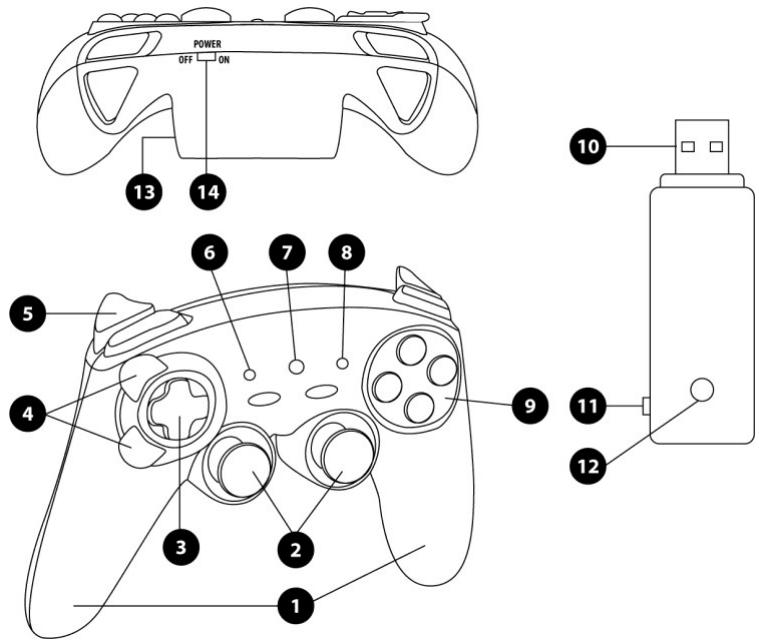
- Handles
- 2 progressive analog mini-sticks
- D-Pad
- Progressive optical wheel
- 2 progressive triggers
- HOME LED button for Playstation®3 and MODE for PC
-
MAPPING LED button (for programming and indicating connection status)
-
PRESET LED button (to select programming)
- Action buttons
- PC and PlayStation® 3 USB connector
- "PC" or "PS3" USB selector
- CONNECT LED button on receiver
- Battery compartment
- POWER ON/OFF switch
TABLE OF SUPPORTED MODES
| Platform | MODE | Color of HOME button (6) |
| PLAYSTATION® 3 | "PS3" | RED |
| PC | "4 AXES" | GREEN |
| "7 AXES" | RED |
INSTALLING BATTERIES
Insert 2 LR03 / AAA type batteries in the battery compartment situated on the back of the gamepad (13).
OVERVIEW
-
POWER ON/OFF switch (14)
-
OFF position = the gamepad is off (and doesn't use up batteries).
-
ON position = the gamepad is on.
-
"PC / PS3" USB selector (11)
Must always be set to the correct position before connecting your receiver's USB connector.
-
MAPPING (7) and CONNECT (12) blue LEDs
-
Both LEDs are on = connection established between gamepad and receiver.
- Both LEDs flash quickly = no connection between gamepad and receiver.
- The MAPPING LED is off = the gamepad is in standby mode or powered off.
- The MAPPING LED flashes slowly & continuously = please change batteries.
THE CONNECTION BETWEEN THE GAMEPAD AND RECEIVER IS ESTABLISHED AUTOMATICALLY
To force the connection in case of error: press the CONNECT button on the receiver and simultaneously press the L2 + R2 + MAPPING buttons on your gamepad.
STANDBY MODE
The gamepad switches off automatically:
- After 5 minutes of inactivity
- After 5 seconds in the event of error or loss of connection.
To wake up your gamepad: press START or use the POWER ON/OFF switch (14).
PLAYSTATION® 3
INSTALLATION ON PLAYSTATION® 3
- Set your receiver's USB selector to the "PS3" position.
- Connect the USB connector to USB port #1 on the console.
- Switch on your console.
- Switch on your gamepad using the POWER ON/OFF switch (14).
- Once a connection has been established: start up your game.
You are now ready to play!
PLAYSTATION® 3 MODE
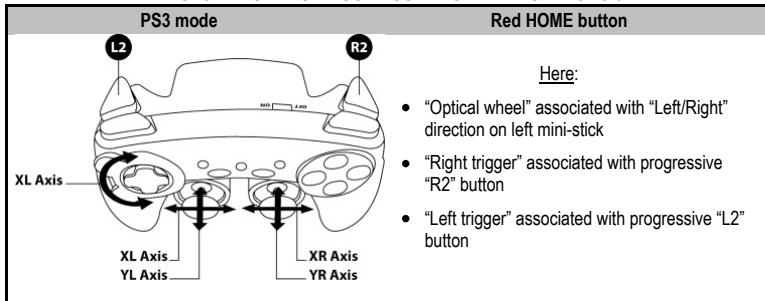
"AUTOMATIC PRESET" CONFIGURATION - PLAYSTATION® 3
USING THE "HOME" BUTTON (6)
Your gamepad's "HOME" button allows you to exit games, access menus and directly switch off your PlayStation®3 system.
IMPORTANT NOTES FOR PLAYSTATION® 3
- The USB selector on your receiver (11) must always be set to "PS3" before connecting the receiver.
- In "1 Player" mode: If your official gamepad is powered on, you must switch it to "gamepad port 2" in order for your gamepad to be functional.
- On PlayStation® 3, the gameplay is only compatible with PlayStation® 3 games (and will not work with PlayStation® 2 games) and does not feature a motion sensor.
PC
INSTALLATION ON PC
- Set the USB selector on the receiver (11) to the "PC" position.
- Connect the receiver's USB connector to one of your computer's USB ports. Windows® will automatically detect the new device.
- Switch on your gamepad using the POWER ON/OFF switch (14).
- Click Start/Settings/Control Panel and then double-click Game Controllers.
The Game Controllers dialog box displays the gamepad's name with OK status.
- In the Control Panel, click Properties to test and view the buttons, D-pad, mini-sticks, triggers and optical wheel.
You are now ready to play!
IMPORTANT NOTES FOR PC
- The USB selector on your receiver (11) must always be set to "PC" before connecting the receiver.
- The name of theNES pad displayed on PC (in the Control Panel and in games) is "Run N Drive Wireless".
- "Advanced Programming Software" for PC is also available for download on our website at the following address: http://ts.thrustmaster.com/
- The "Test forces" tab (of the advanced programming software) is not compatible with this gamepad.
SELECTING "AXES" ON PC
- Selecting axes via "Software":
After installing the "Advanced Programming Software", go to page 1 of the Control Panel, click the number of axes you wish to use and then click OK.
- Selecting axes via "Hardware":
Press the HOME button (6) to select the number of active axes.
2 "AXES" MODES AVAILABLE ON PC
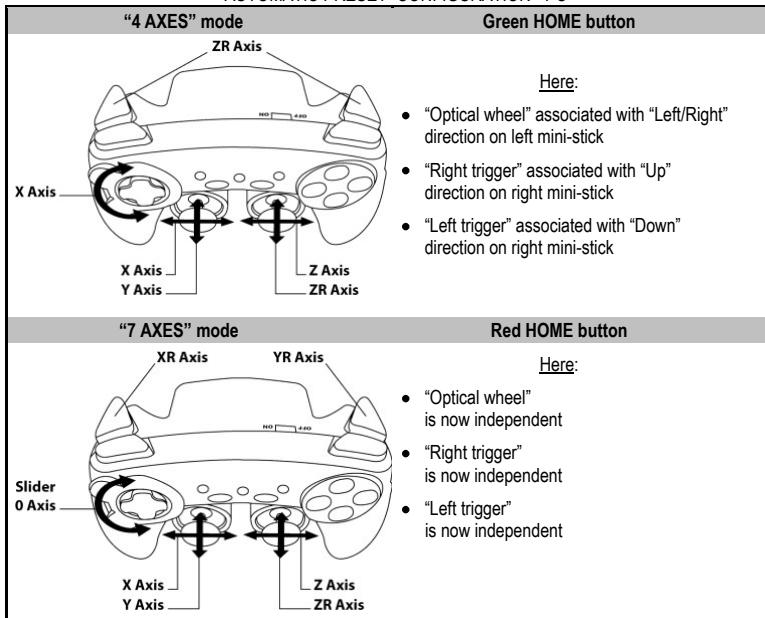
"AUTOMATIC PRESET" CONFIGURATION - PC
To find out all of the possibilities offered on PC, try them out in the Windows "Game Controllers" section (once you have installed the "Advanced Programming Software")
ADVANCED FUNCTIONS
ADJUSTING THE OPTICAL WHEEL'S SENSITIVITY
The optical wheel (4) has 2 sensitivity modes:
- Normal sensitivity (the default mode)
-
High sensitivity (must be set)
-
Setting "High Sensitivity" mode:
| Steps | Action | HOME button |
| 1 | Raise and hold the “UP” direction on the optical wheel | Flashes continuously |
| 2 | Press and release the MAPPING button (7) |
Your optical wheel is now more sensitive (Procedure must be carried out each time the gamepad restarts or is disconnected)
- Returning to "Normal Sensitivity" mode:
| Steps | Action | HOME button |
| 1 | Lower and hold the “DOWN” direction on the optical wheel | Does not flash |
| 2 | Press and release the MAPPING button (7) |
Your optical wheel has now returned to Normal Sensitivity (the default mode)
2 PROGRAMMING MODES
The PRESET button and LED (8) allows you to view the type of programming selected: AUTOMATIC (preprogrammed) or MANUAL (programmed by yourself). A single press of this button allows you (even during the course of a game) to switch from one programming mode to the other.
- "AUTOMATIC PRESET" (PRESET button OFF)
This represents the default programming: the functions of the optical wheel and the triggers are preprogrammed, as are the positions of the buttons and the directions of the mini-sticks and of the D-Pad.
PLEASE REFER TO THE "AUTOMATIC PRESET" CONFIGURATION DIAGRAMS
- "MANUAL PRESET" (PRESET button GREEN)
This represents your own personal programming:
- The buttons, directions of the mini-sticks and of the D-Pad can either be
- programmed on the optical wheel and on the triggers,
- or switched between themselves.
- You can modify the programming to your liking and whenever you wish.
- The programming is automatically saved inside your gamepad (even when disconnected).
- When your "MANUAL PRESET" is clear, it is identical to the "AUTOMATIC PRESET".
PROGRAMMING THE OPTICAL WHEEL AND TRIGGERS
The 2 directions of the optical wheel and the 2 progressive triggers can be programmed using the MAPPING button (7).
Examples of possible applications:
Programming a button, direction of a mini-stick or of the D-Pad:
- onto the "up" or "down" direction of the optical wheel
- onto the "right trigger" or "left trigger"
- Programming procedure on optical wheel and triggers:
| Steps | Action | PRESET button color |
| 1 | Enable "MANUAL PRESET" (8) by pressing the button. | Lit up green |
| 2 | Press and release the MAPPING button (7). | Lit up red |
| 3 | Press and release the button or direction to program. | Flashes red |
| 4 | Raise or lower the direction on the optical wheel or press the trigger onto which you wish to place your function. | Lit up green |
Your "MANUAL PRESET" is now enabled and up to date (with your programming applied to the optical wheel or triggers)
SWITCHING BUTTONS/MINI-STICKS/D-PAD
All buttons, as well as directions of the mini-sticks and of the D-Pad can be switched using the MAPPING button (7).
Examples of possible applications:
- Switch buttons between themselves
- Switch the 2 mini-sticks
(in this case, you will to have to map the 4 directions of the first mini-stick to the 4 directions of the second mini-stick)
- Switch the D-Pad with a mini-stick
(in this case, you will have to map the 4 D-Pad directions to the 4 directions of the mini-stick in question).
- Procedure for switching buttons, mini-sticks and D-Pad
- Does not work for the triggers.
- Works for the optical wheel but only on PC and in "7 axes" mode.
| Steps | Action | PRESET button color |
| 1 | Enable "MANUAL PRESET" (8) by pressing the button. | Lit up green |
| 2 | Press and release the MAPPING button (7). | Lit up red |
| 3 | Press and release the button or direction to switch. | Flashes red |
| 4 | Press and release the button or direction onto which you wish to place your function. | Lit up green |
Your "MANUAL PRESET" is now enabled and up to date (with the 2 functions switched).
EEPROM MEMORY
- Your gameplay features an internal chip which saves all of your "MANUAL PRESET" programming (even when the gameplay is switched off or disconnected for a long period of time).
- You can save a different "MANUAL PRESET" for each platform used: PlayStation® 3, PC 4 Axes and PC 7 Axes
TO ERASE YOUR "MANUAL PRESET"
| Action | PRESET button color | |
| 1 | Enable your "MANUAL PRESET" (8). | Lit up green |
| 2 | Press and hold the MAPPING button (7) for 2 seconds. | Flashes green 2 seconds |
Your "MANUAL PRESET" is now clear (and once again identical to the "AUTOMATIC PRESET").
RETURNING TO "FACTORY SETTINGS"
You can erase all of your programming or settings:
| Steps | Action | MAPPING button color |
| 1 | Press the MAPPING + SELECT + START buttons simultaneously | Flashes blue 5 seconds |
All of your "MANUAL PRESETS" (= PC + PS3) or settings are now clear.
Note: this procedure will completely restart your gamepad
(on PC, we therefore recommend that you do this outside of games).
POSSIBLE USES IN GAMES
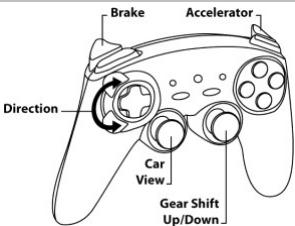
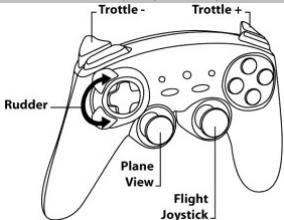
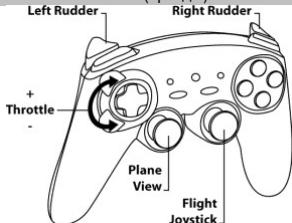
The optical wheel (thanks to its technology and degree of rotation greater than that of any mini-stick) offers unparalleled precision and stability in all types of games: racing (ultra-precise steering), flying (rudder), action and FPS (progressive zoom), sports (measured shot, strength of hit), etc.
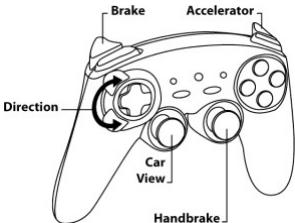
The triggers (thanks to their progressive action and range of mechanical travel greater than that of any button) offer extremely precise control in all types of games: racing (progressive and independent acceleration and braking, handbrake), action and FPS (rate of fire, lateral movement), sports (measured pass or shot, strength of hit or jump, running speed), etc.
SOME EXAMPLES AND TIPS:
- There are numerous configuration possibilities, depending on the game you are playing.
- In certain games (racing type), do not hesitate to test out the 2 sensitivity modes for your optical wheel (Normal or High) in order to optimize its precision and responsiveness.
DIFFERENT EXAMPLES ACCORDING TO TYPE OF GAME
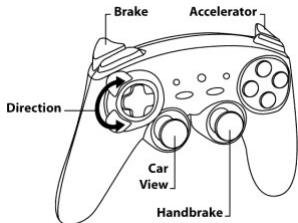
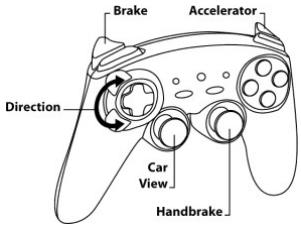
Action/Adventure ("Car" mode)
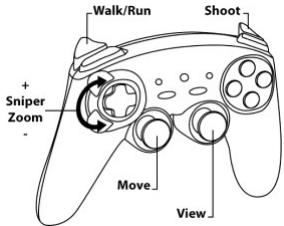
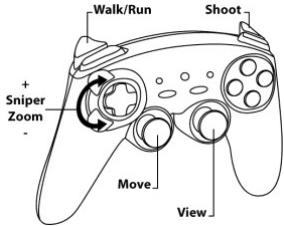
Action/Adventure ("On foot" mode)
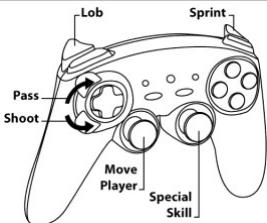
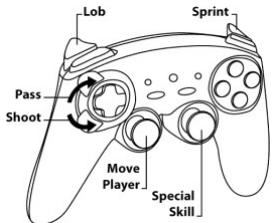
Sports ("Ball game" type)
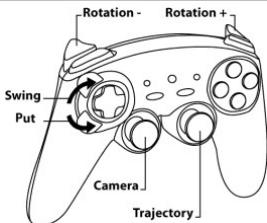
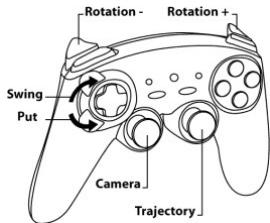
Sports ("Golf" type)
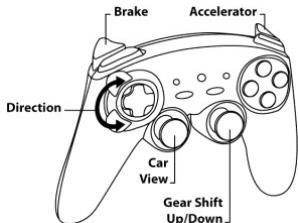
Car racing ("Simulation" type)
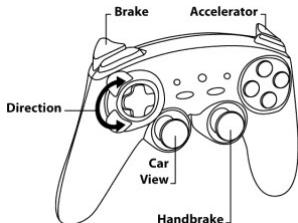
Car racing ("Arcade/Rally" type)
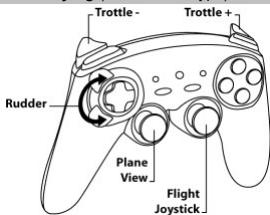
Flying ("Simulation" type)
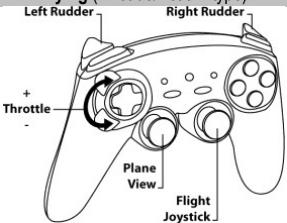
Flying ("Arcade/Action" type)
USING MORE THAN ONE "Ferrari Wireless" GAMEPAD AT THE SAME TIME (in Multiplayer mode)
You can use up to 4 "Ferrari Wireless" gamepads at the same time (in multiplayer mode).
Channel detection is carried out automatically
In case of error or to force the connection: press the CONNECT button on the receiver and simultaneously press the L2 + R2 + MAPPING buttons on your gamepad.
TROUBLESHOOTING AND WARNINGS
- My gameplay doesn't function correctly or seems improperly calibrated:
- In the event of malfunction due to electrostatic emission, exit the game, switch off your gamepad and disconnect the receiver from your console or your PC.
To play again, reconnect the receiver, switch your gamepad back on and start the game again. - Never move the mini-sticks, the optical wheel or the triggers when connecting your gamepad (to avoid any calibration problems).
- On PC, if the game does not accept "7 axes" mode (undesired effects), switch your gameplay to "4 axes" mode (the standard gameplay mode).
- I can't configure my gamepad in a game:
- In your game's "Options / Controller / Gamepad" menu: select the most appropriate configuration.
- Please refer to your game's user manual or online help for more information.
- You can also use your gamepad's "programming" function to resolve this type of problem.
- On PC or PS3, my gamepad doesn't function correctly:
- Exit your game, disconnect your gamepad, verify that the "PC/PS3" USB selector (11) is in the proper position, then reconnect everything.
The MAPPING LED flashes slowly and continuously: - Please change batteries.
When you're done using your gamepad, we recommend that you always set the gamepad's POWER ON/OFF switch (14) to the OFF position (to save your batteries).
TECHNICAL SUPPORT
If you encounter a problem with your product, please go to http://ts.thrustmaster.com and click Technical Support. From there you will be able to access various utilities (Frequently Asked Questions (FAQ), the latest versions of drivers and software) that may help to resolve your problem. If the problem persists, you can contact the Thrustmaster products technical support service ("Technical Support").
By email:
In order to take advantage of technical support by email, you must first register online. The information you provide will help the agents to resolve your problem more quickly. Click Registration on the left-hand side of the Technical Support page and follow the on-screen instructions. If you have already registered, fill in theUsername and Password fields and then click Login.
By telephone:
| United Kingdom | 08450800942Charges at local rate | Monday to Friday from Noon to 4pm and 5pm to 10pm Saturday from 9am to Noon and 1pm to 7pm Sunday from 9am to Noon and 1pm to 4pm |
| United States | 1-866-889-5036Free | Monday to Friday from 7am to 11am and from Noon to 5pm Saturday and Sunday from 7am to Noon (Eastern Standard Time) |
| Canada | 1-866-889-2181Free | Monday to Friday from 7am to 11am and from Noon to 5pm Saturday and Sunday from 7am to Noon (Eastern Standard Time) |
| Denmark | 80887690Free | Monday to Friday from 1pm to 5pm and 6pm to 11pm (English) Saturday from 9am to 1pm and 2pm to 8pm Sunday from 10am to 1pm and 2pm to 5pm |
| Sweden | 0200884567Free | Monday to Friday from 1pm to 5pm and 6pm to 11pm (English) Saturday from 9am to 1pm and 2pm to 8pm Sunday from 10am to 1pm and 2pm to 5pm |
| Finland | 0800 913060Free | Monday to Friday from 2pm to 6pm and 7pm to Midnight (English) Saturday from 10am to 2pm and 3pm to 9pm Sunday from 11am to 2pm and 3pm to 6pm |
WARRANTY INFORMATION
Worldwide, Guillemot Corporation S.A. ("Guillemot") warrants to the consumer that this Thrustmaster product will be free from material defects and manufacturing flaws for a period of two (2) years from the original date of purchase. Should the product appear to be defective during the warranty period, immediately contact Technical Support, who will indicate the procedure to follow. If the defect is confirmed, the product must be returned to its place of purchase (or any other location indicated by Technical Support).
Within the context of this warranty, the consumer's defective product will, at Technical Support's option, be either repaired or replaced. Where authorized by applicable law, the full liability of Guillemot and its subsidiaries (including for indirect damages) is limited to the repair or replacement of the Thrustmaster product. The consumer's legal rights with respect to legislation applicable to the sale of consumer goods are not affected by this warranty.
This warranty shall not apply: (1) if the product has been modified, opened, altered, or has suffered damage as a result of inappropriate or abusive use, negligence, an accident, normal wear, or any other cause not related to a material defect or manufacturing flaw; (2) in the event of failure to comply with the instructions provided by Technical Support; (3) to software not published by Guillemot, said software being subject to a specific warranty provided by its publisher.
Additional warranty provisions
In the United States of America and in Canada, this warranty is limited to the product's internal mechanism and external housing. Any applicable implied warranties, including warranties of merchantability and fitness for a particular purpose, are hereby limited to two (2) years from the date of purchase and are subject to the conditions set forth in this limited warranty. In no event shall Guillemot Corporation S.A. or its affiliates be liable for consequential or incidental damage resulting from the breach of any express or implied warranties. Some States/Provinces do not allow limitation on how long an implied warranty lasts or exclusion or limitation of incidental/consequential damages, so the above limitation may not apply to you. This warranty gives you specific legal rights, and you may also have other legal rights which vary from State to State or Province to Province.
FCC STATEMENT
- This device complies with Part 15 of the FCC Rules. Operation is subject to the following two conditions:
(1) This device may not cause harmful interference, and
(2) This device must accept any interference received, including interference that may cause undesired operation.
- Changes or modifications not expressly approved by the party responsible for compliance could void the user's authority to operate the equipment.
COPYRIGHT
© 2009 Guillemot Corporation S.A. All rights reserved. Thrustmaster® is a registered trademark of Guillemot Corporation S.A. Ferrari® is a registered trademark of Ferrari S.p.A. PlayStation® is a registered trademark of Sony Computer Entertainment, Inc. Windows® is a registered trademarks of Microsoft Corporation in the United States and/or in other countries. Pentium® is a registered trademark of Intel Corporation. All other trademarks and brand names are hereby acknowledged and are the property of their respective owners. Illustrations not binding. Contents, designs and specifications are subject to change without notice and may vary from one country to another. Made in China.
ENVIRONMENTAL PROTECTION RECOMMENDATION

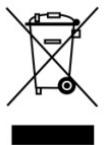
At the end of its working life, this product should not be disposed of with standard household waste, but rather dropped off at a collection point for the disposal of Waste Electrical and Electronic Equipment (WEEE) for recycling.
This is confirmed by the symbol found on the product, user manual or packaging.
Depending on their characteristics, the materials may be recycled. Through recycling and other forms of processing Waste Electrical and Electronic Equipment, you can make a significant contribution towards helping to protect the environment.
Please contact your local authorities for information on the collection point nearest you.
Ferrari Wireless Gamepad
Pour PC & PS3
INFORMATIONS RELATIVES À LA GARANTIE
TWEE PROGRAMMEERMODI
PROBLEM OPLOSSEN EN WAARSCHUWINGEN
INFORMATIE MET BETREKKING TOT DE GARANTIE
ALCUNI ESEMIPE CONSIGLI:
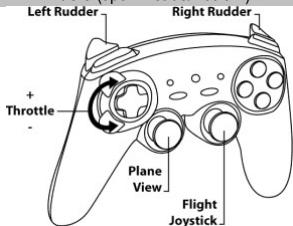
Vuelo (pseudo "Arcade/Accion")
INFORMACAO DA GARANTIA
PykoBoIDCTBO NOIb3OBATeJIa
BbIKIyOaTeN bITaHnI POWER ON/OFF (14)
Tenepb Bawnabop "IIOJIb3OBATEJIbCKNXHACTPOEK" ydaJIeH n3 naMaTIn (N Tenepb OH nJeHTnHeH naBopy "ABOTMATUHECKNX INPEJYCTAHOBOK").
BO3BPATK“3ABOДСКИМ HACTPOДКAM"
Bb mokey darnbcpa3y Bce noIb3oBaTeIbckne hactpoKn:
| Зтанны | Дώ捶vale | Цbrit KMнки MAPPING |
| 1 | Нажmente Кнорки MAPPING + SELECT + START Одновревенho | Miraert rotyбим 5 секунд |
Tenebce baaHn H6oby "PIOJI3OBATEJBCKIXHACHTPOEK" PK + PS3)nHn HACTpOeK ydaNEH. IprmeaHne: 3ta npoeduya BbIOnJHeT nonHb nepezayck irpOBOrO KOHTpONepa (na PIK, nO3OMY, peKoMeHNyTeC denAte 30 noCne BxOxA daNIRb).
BO3MOXHbIE BAPNAHTbl INCIOJIb3OBAHnB INIgPAX
OnTnueckn DaTnK (6Naorapraonrke y ronr BpaaeHry y 3toro peyrntopaa 60bnle, Yem y nio6oro MNHHJXOCTNk) oBeCneHnAeT HnpeB30AnEHyUToHocb nOBTOpRMeOCb pe3yIbTaTob BO BCex Tnaxn Irp: ToHN (CbePtoHOpyuNeH), noTeT (rop3nToHantbIy nobOpot), IrpBy Action n FPS (nnabHoee npri6nHexHe), cnpToHBhe IrpBy (ToHoe HnapBaJIneHc, cnya yapa) n.T.D.
Tprrpbl, 6naroapra cboemy nlaabHomy (nponopznohahbmy) deiCTBNO u 6oile rnybokomy MEXAHUYCKOMY XOyD, N03BOJNHOPT PaeIIN3OBaHT HnAByC1WIO TOHOCBT YNPABNEHn B IIObXtINAX rIPr. roHNK (nlaBHO n HEBaSCInMOye yOcKepeHne, TOPMOKeHne pyHHbIM NOxHbIM TOpMOn3OM, Action n FPS (CKOPoCTb ORHa, 6OKOBoE nepeMeueHne), CnOPTNBHeIe INRpl (TOHNO OTMepeHbIy udap, cnaI ydapa n pblkKa, CKOPoCTb DmIKeHn) nT.D.
HEKOTOPbIE PIPIMEPbI INIOCKA3Kn:
B 3aBnCmOCTN OKOHKeTHoHrPbI CyueCTBye MHOXKeCTBO KOHΦnrypaui.
- B HekToBpIx Irpax (roHKn) o63aTeIbHo NcIIbTaIeTae 2 pexKIMa YCbCTBnTeJIbHOCTn ONTHueCKOrO daTChka (HOpMaJIbHaN INI bICOKaA), YTO6bI IOBbICITb eTO TOHOCbN 3ΦΦeKTMBHOCTb.
Action/Adventure (peXIM "TpaHcNOpT")
Action/Adventure (peKIM "Peeiin")
Cnopt(mPbICMMyOM)
Cnopt(ronb)
TOnKHnHa aBTO (CmMyJrTopbI)
TOnKHa aBTo (apKaIbI)
Ponet (CIMyJrTopb)
Pojet (apkaIbI)
OДНОВРЕМEHOE ИСПОЛьЗOBAHWE HECKОЛьКИX BEСПОВОДны IX IGPOBыIX KOHTPOЛПЕРOB "Ferrari Wireless"
(B MHoronolb3ObaTeIbckOM pexHMe)
Moxho OndOBpeMeHHo (B MHOrOIOJIb3OBAteJIbCKOM pEXIMe) IcNOJIb3OBAtB do 4 6ecnpobOdbix nIrpOBbIX KOHTpOInePob "Ferrari Wireless".
06hapxkeHne kahalOB npocXoNT aBOMatueeCKn
B cnyae oun6kn nnn npinyntelbHoro yctahOBnHnna coeHNHeHn: haxmTe KhoNky CONNECT
Ha npiemnke
I OndOBpeMeHHo HaxMnte KHOIpK L2 + R2 + MAPPING HaIrpoBOM KOHTpOJIpe.
IONCKN UYCTPAHEHNE HENOLAOK, PPEyPPEXJDEHNA
IrgpoBoi KOHTpOJIneP pa6oTaET HnpeBaNtBHO nH He OTKaIN6pOBaH:
B cnyae HeNoJaoDok, Bo3NkaHouXu B CBy3n CO tTaTuYeCKIM 3NeKtpuYeCTBOM, BbIInTe I3 INrPbI, BbIKIOHTe INrPOOB KOHTpOJIeP INOTCoEINHITe PepeDArk OT KOMlbIOTepa INI KOHC0NI.
IaB036OBHOBNEHnI INpIbI,IOIOEOEINHITpe INPcEMNHK, BKNIOHTe INpROBOI KOHTPOJIIEp IMauHNTe INpy CHOBA.
- He nepeBnIaIe MmHn-DxKoCTNkN, ONTNUeCKne DaTtNkN NII TpTNrEpbI BO BpEma POnKlIOUeHMy KOnTHPONJIepa (BO n36eKaHne HapuySeHMa IPOeCCA KaINbPoBKN).
- Ha ПК, ecnн irpa He npinHMaet pexIM « 7 OceI» (B03HkaOT HeKeIaTeIbHbIe NocIeCTBnA), pepeKIIIOHT MeIPOBOI KOHTpOJIpeB pexIM « 4 OcN» (CTaNapTbI).
JHEMOYHACPTOnbIgROBONKoHTpOJIeP BuIpe:
B MeHIO Options (FlapametpbI)/Controller (KoHTpOJIpej)/Gamepad (IrpoBoi KoHTpOJIpej)" mRpbI: BbIbePte Hain60e neDxOJa7uHO KOnFmIpya7uHO.
-ДононтельнуинформцисмOTPteВpyKOBOCTBENoIb3OBaTeNIGpbIINB VHTepHete.
-Дя ршения STОП поблелы{TAKKE можно BOCNoIb3ObaTbСЯ "пограмнй" Функциен Ировoro KOHTPONJIpepa.
Moi ngroBOI KOHTpOJIeP fYHKUHOHpyUTo HnpeBaUNbHo Ha IKN uIN PS3:
- BbIynte n3 irpbl, noJIHocTbIO OTOcoEduHInTe IrpoBoi KOHTpoJIneP, y6eIeNTcB TOM, PC/PS3" USB CEJIeKToP (11) HaxOJNTcR b npAByIbHOM NOLOXKeHm, IN CHoBa NoCdoEduHInTe IrpoBoi KOHTpoJIneP.
CbeToIIOJ MAPPING MeIJIeHNO HenpepbIBHO MiRaet:
-3aMeHnTe 6aTaepKn.
Ito oKOnHauHUI UcnoJIb3OeAHua U2oPoEBIM KOHmPonJIpeom peKoMeHdyemc ece2a cmaumb bIkyIIOvamEnb POWER ON/OFF (14) 6 noloxenue OFF (60 u36exAHue pa3pra da damapeek).
TEXHNUECKA NIOIDEPXKA
Пгп ВЗнКНБЕн И рббл. Пгп ВЗнКНБЕн И рббл. СВЧАЗньх CСИСТЛБОВАБИЕМ KONТРОЛЕРа, ЗAIMДЕ ПЕ http://its.trustmaster.com И поевдно Ссblк� Technical Support (techuichecak noорdekka). HA 3ог strранile eCTb NOCTYK paoMraTcNO pOeHIM TAMTO Zadabaembe BORpoCbl (FAQ), caMbIte HOBbIe BEPcIN dpaIbBepOB IN pOprpammmorO obcepeHENH) - STO MOKHT NOMOч рeupeHINU pOroblm. EcInI 3оТУ NOT He NOMOrILO, MOXHO CB83aTbCS co cSty6bI TehnUcheckoi noDpeKm Thrustmaster ("Technical Support"):
No 3neKtpOnHnoUte:
YtobO tOpnabHb 3aIopc B OTdEIN TeXHHeCKO NOJdepKNN O NJIeKTOPHNO NOHTe, Heo6xOIMO 3apeiCTPPOBAtbC.
PiOcOstABeHNHa HDPOMAua NOMOXET 6bCTpee PBuHb PNOBEMy. PepeIMTe No cSbIKe Registration (peHcTpaM), KOTOPa HaxoDITc SBeBa HA CTpaHnce TeXHHeCKO NOJdepKNN Technical Support n CneDuYte INCHPTyKAHnHa 3kPahe. EcnN bBy Uyke 3apeiCTPPOBAtbH, BBedInTE MMnONb3OBaTeRn n AponB, 3atem ueKnHite Login (bxo).
INHOPMALIgO TAPAHTN
Bo Cbxr a tapan, Kopnoaqura Guillemot Corporation S.A. ("Guillermot") daet rapahtmio Ha i3ednria Thrustmaster B tom, yto 3tn i3ednria Hne IMeKOT defeTbO MATepHANOB NIN npoPBOBCTBA HA (2) roda o dat bNOKynk. Pnp O6hApyKeHHM deFeKTa B TceHIMn rapaHTmIHO cspka HemeDeHNHO CBRAKtEco CcyKbEe TaeTHeNcKHe NOpeDpKKn, KOtopar paa3BaHHT nocnDbAteBIOhCt eDCtBcT. Ecnn DeFeNT noTBePdntCA, i3ednme Heo6xoDMIO BepHyT No MeCTY npo6BETHE (iNn Dpyoe, yka3aHoe CnyKbOe TceHxNcEKNOpeDpKKn).
EcnHnEnCnpaBHe 3eIeNIIeNIIaONaIeNIO nOyCNbIaR rapAHTNI, OHO 6yIeNIO aMaHENo, NIO 0ePTOMHNTPOBAHO. PnI HauHHn epyrNHyPOUHOZKHOADATeLTCTBa, HauBOJIbUAO TBOTCTBEHNoCTB (BKnOHAY KOCBENHbIe YbIHTNX) KopnpaUMGuillemot m ee DooepHnx ppeIpnraTm oPemTOHm IIN MzAeHNO 3eIeMIA Thrustmaster. OPiDnueckne npabaNotBe6HbIe B OTHOUEHNI ZAOKOHDATELTCTBa, PpIMeHNMO r PpOJaakam NotPe6BtJeCKNX ToTobAPoB He BNJHOHT Ha ykaa3hHeBraapTnHbIe 063aTeLTCTBa.
37a raptanHHe nepacpOraTnCTBa: (1) Ha 3nEaIeM MoDnIeIeIeIeBnHbIe, BcKpBtIbe, Dopa0TaBHne IIN NopBeKEnDbHe bpeyIbTahe HnpBnHOrIO INN rpyBOr oBaIeBHeN, HEcoMTOpBHeONHc, HechCAHTHO cNpyA, HOPMaIbHOrIO h3HOca, INN mIEoUe IIObO dyroY deEkeT, He CB3aHbC kCAyeCTBoM MATEpMAI INN h3OTOBNeH2; (2) b cnyae HebcNOJIeHN HnE KUYu, bIyDaHHbX TeYHeNCKe NOpeKkX; (3) Ma nporpAMMbHe npdoKyTkbl, paap0aToBHe He Guillemot, paapncOPTaHPReTc rapAnTHn/OTBeTBeHHcHObts paapboGTNa nporpAMm.
ABTOPCKOE IIPABO
© 2009 Guillemot Corporation S.A. Bce npaba 3auiuhenbI. Thrustmaster® yBnTcTa zapeHCTprpOBAHNOI topBOB mApKO Guillomet Corporation. Ferrari® yBnTcTa zapeHCTprpOBAHNOI topBOB mApKO Ferrari S.P.A. PlayStation® yBnTcTa zapeHCTprpOBAHNOI topBOB mApKO Sony Computer Entertainment Inc. Microsoft® Windows® yBnTcTa zapeHCTprpOBAHNOI topBOB mApKO Microsoft Corporation B CoEdeHHNHex IItatax AMePIMK NmUIny cOHTPAxC HAcE Bce npue ToRbIe MapK n FmPmeHhBe Na3BaBHAn NpBedeHHNbe B DaHOM DoKMyente, yBnTocTc Co6TeBHeHOCTbIO cooBTETbCYoUHX BladeJIeB. VnHocTpaunu MOnrY He COoBTETcBOBaTB BHeUHMeY BnUy/PhyUKNM KOnKpETHO tMADIIIN. CoedepXanHe pykoDcTa, KOHNCTpykUma NTexHneckne XapakTepeNtIK NmEIIIN N3MeHAKOTc 663 npDeBAptENTbHO TByeDoDMENHn I a3BcAIT O CTpHaNbPiNoOpTeHENIA
PEKOMEHDAUIMIIO 3AUHTE OKPYXAIOUCEI CPEbl
Pocne OOKHAna cPOcA cNOyBbI DAHOe HNIEHe IeCHyET yTNiINoB4Bt MBeCte C bTOBtBM MyCOPOM, BO H NKTHe C6Opa OTXoDko 3EKePNrCeKORO n EKePTPOHO B06OpDBOAHn.
JaHoe 3yAaHnE 10BtBpKdAeTcCPOBtETCBTyIOUIM CMBOJONM, HAHeCEbHbM HA3dJIne, pyKObCTBO NOI3OBATEJI INYI YNKBQK.
B 3aBcHMOCTN O T CBOYCTB, MaTePnAbl MOrT IpePaBaTbC B NOBtOpyo nepepa60Ky.
TOBTHOPHAR NEPERA60TKA TOXOBD 3NEKTPCKEFO K 3NEKTPOKHOO 6OpyOBaAHMA MOKET BHECTNHTENBJMbH KBJAD L COXAHPENHE OKPYKAOIe CpeBJL.
6bntteB MeTbI opraHbI Bnactn 3a HΦopMaueHe O 6nKaiMeM npKe npHema TaNX OTXoOB.

Thrustmaster is a division of the Guillemot Corporation group
- INSTALLING BATTERIES
- OVERVIEW
- THE CONNECTION BETWEEN THE GAMEPAD AND RECEIVER IS ESTABLISHED AUTOMATICALLY
- STANDBY MODE
- PLAYSTATION® 3
- INSTALLATION ON PLAYSTATION® 3
- PLAYSTATION® 3 MODE
- USING THE "HOME" BUTTON (6)
- IMPORTANT NOTES FOR PLAYSTATION® 3
- PC
- INSTALLATION ON PC
- IMPORTANT NOTES FOR PC
- SELECTING "AXES" ON PC
- "AXES" MODES AVAILABLE ON PC
- ADVANCED FUNCTIONS
- ADJUSTING THE OPTICAL WHEEL'S SENSITIVITY
- PROGRAMMING MODES
- - "AUTOMATIC PRESET" (PRESET button OFF)
- - "MANUAL PRESET" (PRESET button GREEN)
- PROGRAMMING THE OPTICAL WHEEL AND TRIGGERS
- Examples of possible applications:
- - Programming procedure on optical wheel and triggers:
- SWITCHING BUTTONS/MINI-STICKS/D-PAD
- - Procedure for switching buttons, mini-sticks and D-Pad
- EEPROM MEMORY
- RETURNING TO "FACTORY SETTINGS"
- POSSIBLE USES IN GAMES
- SOME EXAMPLES AND TIPS:
- DIFFERENT EXAMPLES ACCORDING TO TYPE OF GAME
- USING MORE THAN ONE "Ferrari Wireless" GAMEPAD AT THE SAME TIME (in Multiplayer mode)
- Channel detection is carried out automatically
- TROUBLESHOOTING AND WARNINGS
- TECHNICAL SUPPORT
- By email:
- WARRANTY INFORMATION
- Additional warranty provisions
- FCC STATEMENT
- COPYRIGHT
- ENVIRONMENTAL PROTECTION RECOMMENDATION
- Ferrari Wireless Gamepad
- Pour PC & PS3
- INFORMATIONS RELATIVES À LA GARANTIE
- TWEE PROGRAMMEERMODI
- PROBLEM OPLOSSEN EN WAARSCHUWINGEN
- INFORMATIE MET BETREKKING TOT DE GARANTIE
- ALCUNI ESEMIPE CONSIGLI:
- INFORMACAO DA GARANTIA
- PykoBoIDCTBO NOIb3OBATeJIa
- BbIKIyOaTeN bITaHnI POWER ON/OFF (14)
- BO3BPATK“3ABOДСКИМ HACTPOДКAM"
- BO3MOXHbIE BAPNAHTbl INCIOJIb3OBAHnB INIgPAX
- HEKOTOPbIE PIPIMEPbI INIOCKA3Kn:
- OДНОВРЕМEHOE ИСПОЛьЗOBAHWE HECKОЛьКИX BEСПОВОДны IX IGPOBыIX KOHTPOЛПЕРOB "Ferrari Wireless"
- 06hapxkeHne kahalOB npocXoNT aBOMatueeCKn
- IONCKN UYCTPAHEHNE HENOLAOK, PPEyPPEXJDEHNA
- IrgpoBoi KOHTpOJIneP pa6oTaET HnpeBaNtBHO nH He OTKaIN6pOBaH:
- JHEMOYHACPTOnbIgROBONKoHTpOJIeP BuIpe:
- Moi ngroBOI KOHTpOJIeP fYHKUHOHpyUTo HnpeBaUNbHo Ha IKN uIN PS3:
- CbeToIIOJ MAPPING MeIJIeHNO HenpepbIBHO MiRaet:
- TEXHNUECKA NIOIDEPXKA
- No 3neKtpOnHnoUte:
- INHOPMALIgO TAPAHTN
- ABTOPCKOE IIPABO
- PEKOMEHDAUIMIIO 3AUHTE OKPYXAIOUCEI CPEbl
Brand : THRUSTMASTER
Model : F1 WIRELESS GAMEPAD FERRARI F60
Category : Game controller