
BR-532 - Multitrack recorder ROLAND - Free user manual and instructions
Find the device manual for free BR-532 ROLAND in PDF.


User questions about BR-532 ROLAND
0 question about this device. Answer the ones you know or ask your own.
Ask a new question about this device
Download the instructions for your Multitrack recorder in PDF format for free! Find your manual BR-532 - ROLAND and take your electronic device back in hand. On this page are published all the documents necessary for the use of your device. BR-532 by ROLAND.
USER MANUAL BR-532 ROLAND
Thank you, and congratulations on your choice of the BOSS BR-532 Digital Studio.
Before using this unit, carefully read the sections entitled:
• USING THE UNIT SAFELY (page 2–3)
• IMPORTANT NOTES (page 4–5)
These sections provide important information concerning the proper operation of the unit.
Additionally, in order to feel assured that you have gained a good grasp of every feature provided by your new unit, Owner's manual should be read in its entirety. The manual should be saved and kept on hand as a convenient reference.
■ Printing Conventions in This Manual
- Text or numerals enclosed in square brackets [ ] indicate buttons.
[START] START button
[REC] REC button
- Reference such as (p. **) indicate pages in this manual to which you can refer.
Copyright © 2001 BOSS CORPORATION
All rights reserved. No part of this publication may be reproduced in any form without the written permission of BOSS CORPORATION.
USING THE UNIT SAFELY
INSTRUCTIONS FOR THE PREVENTION OF FIRE, ELECTRIC SHOCK, OR INJURY TO PERSONS
About ⚠️ WARNING and ⚠️ CAUTION Notices
| ⚠ WARNING | Used for instructions intended to alert the user to the risk of death or severe injury should the unit be used improperly. |
| ⚠ CAUTION | Used for instructions intended to alert the user to the risk of injury or material damage should the unit be used improperly.* Material damage refers to damage or other adverse effects caused with respect to the home and all its furnishings, as well to domestic animals or pets. |
About the Symbols
| The △ symbol alerts the user to important instructions or warnings. The specific meaning of the symbol is determined by the design contained within the triangle. In the case of the symbol at left, it is used for general cautions, warnings, or alerts to danger. | |
| The ⊙ symbol alerts the user to items that must never be carried out (are forbidden). The specific thing that must not be done is indicated by the design contained within the circle. In the case of the symbol at left, it means that the unit must never be disassembled. | |
| The ● symbol alerts the user to things that must be carried out. The specific thing that must be done is indicated by the design contained within the circle. In the case of the symbol at left, it means that the power-cord plug must be unplugged from the outlet. |
ALWAYS OBSERVE THE FOLLOWING
WARNING
- Before using this unit, make sure to read the instructions below, and the Owner's Manual.

- Do not open or perform any internal modifications on the unit or its AC adaptor. (The only exception would be where this manual provides specific instructions which should be followed in order to put in place user-installable options; see p. 13.)

- Do not attempt to repair the unit, or replace parts within it (except when this manual provides specific instructions directing you to do so). Refer all servicing to your retailer, the nearest Roland Service Center, or an authorized Roland distributor, as listed on the "Information" page.

• Never use or store the unit in places that are:
- Subject to temperature extremes (e.g., direct sunlight in an enclosed vehicle, near a heating duct, on top of heat-generating equipment); or are

- Damp (e.g., baths, washrooms, on wet floors); or are

- Humid; or are
- Exposed to rain; or are
- Dusty; or are
- Subject to high levels of vibration.
- Make sure you always have the unit placed so it is level and sure to remain stable. Never place it on stands that could wobble, or on inclined surfaces.

- Use only the specified AC adaptor (PSA-series), and make sure the line voltage at the installation matches the input voltage specified on the AC adaptor's body. Other AC adaptors may use a different polarity, or be designed for a different voltage, so their use could result in damage, malfunction, or electric shock.


WARNING
- Do not excessively twist or bend the power cord, nor place heavy objects on it. Doing so can damage the cord, producing severed elements and short circuits. Damaged cords are fire and shock hazards!

- This unit, either alone or in combination with an amplifier and headphones or speakers, may be capable of producing sound levels that could cause permanent hearing loss. Do not operate for a long period of time at a high volume level, or at a level that is uncomfortable. If you experience any hearing loss or ringing in the ears, you should immediately stop using the unit, and consult an audiologist.

- Do not allow any objects (e.g., flammable material, coins, pins); or liquids of any kind (water, soft drinks, etc.) to penetrate the unit.

- Immediately turn the power off, remove the AC adaptor from the outlet, and request servicing by your retailer, the nearest Roland Service Center, or an authorized Roland distributor, as listed on the “Information” page when:

- The AC adaptor or the power-supply cord has been damaged; or
- Objects have fallen into, or liquid has been spilled onto the unit; or
- The unit has been exposed to rain (or otherwise has become wet); or
- The unit does not appear to operate normally or exhibits a marked change in performance.

WARNING
- In households with small children, an adult should provide supervision until the child is capable of following all the rules essential for the safe operation of the unit.

- Protect the unit from strong impact. (Do not drop it!)

- Do not force the unit's power-supply cord to share an outlet with an unreasonable number of other devices. Be especially careful when using extension cords—the total power used by all devices you have connected to the extension cord's outlet must never exceed the power rating (watts/amperes) for the extension cord. Excessive loads can cause the insulation on the cord to heat up and eventually melt through.

- Before using the unit in a foreign country, consult with your retailer, the nearest Roland Service Center, or an authorized Roland distributor, as listed on the “Information” page.

- Batteries must never be recharged, heated, taken apart, or thrown into fire or water.


CAUTION
- The unit and the AC adaptor should be located so their location or position does not interfere with their proper ventilation.

- Always grasp only the plug or the body of the AC adaptor when plugging into, or unplugging from, an outlet or this unit.

- Whenever the unit is to remain unused for an extended period of time, disconnect the AC adaptor.

- Try to prevent cords and cables from becoming entangled. Also, all cords and cables should be placed so they are out of the reach of children.

- Never climb on top of, nor place heavy objects on the unit.

- Never handle the AC adaptor body, or its plugs, with wet hands when plugging into, or unplugging from, an outlet or this unit.

CAUTION
- Before moving the unit, disconnect the AC adaptor and all cords coming from external devices.

- Before cleaning the unit, turn off the power and unplug the AC adaptor from the outlet.

- Whenever you suspect the possibility of lightning in your area, disconnect the AC adaptor from the outlet.

- If used improperly, batteries may explode or leak and cause damage or injury. In the interest of safety, please read and observe the following precautions (p. 20).

- Carefully follow the installation instructions for batteries, and make sure you observe the correct polarity.

- Avoid using new batteries together with used ones. In addition, avoid mixing different types of batteries.

- Remove the batteries whenever the unit is to remain unused for an extended period of time.
- If a battery has leaked, use a soft piece of cloth or paper towel to wipe all remnants of the discharge from the battery compartment. Then install new batteries. To avoid inflammation of the skin, make sure that none of the battery discharge gets onto your hands or skin. Exercise the utmost caution so that none of the discharge gets near your eyes. Immediately rinse the affected area with running water if any of the discharge has entered the eyes.
- Never keep batteries together with metallic objects such as ballpoint pens, necklaces, hairpins, etc.
- Used batteries must be disposed of in compliance with whatever regulations for their safe disposal that may be observed in the region in which you live.

- Should you remove screws, make sure to put them in a safe place out of children's reach, so there is no chance of them being swallowed accidentally.

In addition to the items listed under “USING THE UNIT SAFELY” on page 2–3, please read and observe the following:
Power Supply: Use of Batteries
- Do not use this unit on the same power circuit with any device that will generate line noise (such as an electric motor or variable lighting system).
- The AC adaptor will begin to generate heat after long hours of consecutive use. This is normal, and is not a cause for concern.
- The use of an AC adaptor is recommended as the unit's power consumption is relatively high. Should you prefer to use batteries, please use the alkaline type.
- When installing or replacing batteries, always turn off the power on this unit and disconnect any other devices you may have connected. This way, you can prevent malfunction and/or damage to speakers or other devices.
- Batteries are supplied with the unit. The life of these batteries may be limited, however, since their primary purpose was to enable testing.
- Before connecting this unit to other devices, turn off the power to all units. This will help prevent malfunctions and/or damage to speakers or other devices.
Placement
- Using the unit near power amplifiers (or other equipment containing large power transformers) may induce hum. To alleviate the problem, change the orientation of this unit; or move it farther away from the source of interference.
- This device may interfere with radio and television reception. Do not use this device in the vicinity of such receivers.
- Do not expose the unit to direct sunlight, place it near devices that radiate heat, leave it inside an enclosed vehicle, or otherwise subject it to temperature extremes. Excessive heat can deform or discolor the unit.
- To avoid possible breakdown, do not use the unit in a wet area, such as an area exposed to rain or other moisture.
Maintenance
- For everyday cleaning wipe the unit with a soft, dry cloth or one that has been slightly dampened with water. To remove stubborn dirt, use a cloth impregnated with a mild, non-abrasive detergent. Afterwards, be sure to wipe the unit thoroughly with a soft, dry cloth.
- Never use benzine, thinners, alcohol or solvents of any kind, to avoid the possibility of discoloration and/or deformation.
Additional Precautions
- Please be aware that the contents of memory can be irretrievably lost as a result of a malfunction, or the improper operation of the unit. To protect yourself against the risk of loosing important data, we recommend that you periodically save a backup copy of important data you have stored in the unit's memory on a memory card or a personal computer.
- Unfortunately, it may be impossible to restore the contents of data that was stored in the unit's memory or a memory card once it has been lost. Roland Corporation assumes no liability concerning such loss of data.
- Use a reasonable amount of care when using the unit's buttons, sliders, or other controls; and when using its jacks and connectors. Rough handling can lead to malfunctions.
- Never strike or apply strong pressure to the display.
- When connecting / disconnecting all cables, grasp the connector itself—never pull on the cable. This way you will avoid causing shorts, or damage to the cable's internal elements.
- To avoid disturbing your neighbors, try to keep the unit's volume at reasonable levels. You may prefer to use headphones, so you do not need to be concerned about those around you (especially when it is late at night).
- When you need to transport the unit, package it in the box (including padding) that it came in, if possible. Otherwise, you will need to use equivalent packaging materials.
- Use a cable from Roland to make the connection. If using some other make of connection cable, please note the following precautions.
- Some connection cables contain resistors. Do not use cables that incorporate resistors for connecting to this unit. The use of such cables can cause the sound level to be extremely low, or impossible to hear. For information on cable specifications, contact the manufacturer of the cable.
Before Using Memory Cards (SmartMedia)
Using Memory Cards
- Carefully insert the Memory card all the way in—until it is firmly in place.
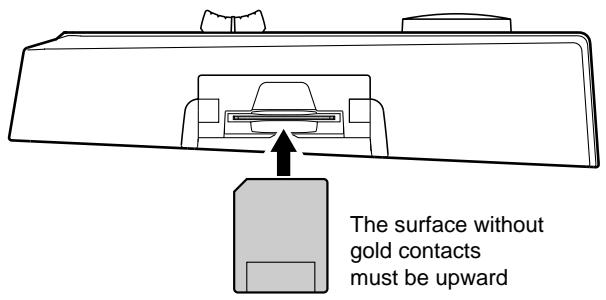
- Never touch the terminals of the Memory card. Also, avoid getting the terminals dirty.
Copyright
- Unauthorized recording, distribution, sale, lending, public performance, broadcasting, or the like, in whole or in part, of a work (musical composition, video, broadcast, public performance, or the like) whose copyright is held by a third party is prohibited by law.
- Do not use this unit for purposes that could infringe on a copyright held by a third party. Roland/BOSS assumes no responsibility whatsoever with regard to any infringements of third-party copyrights arising through your use of this unit.
Contents
IMPORTANT NOTES 4
Introduction to the BR-532....11
Features....11
Memory cards supported by your BR-532 13
Remove the Card Cover 13
Panel Descriptions....14
Front Panel 14
Display....18
Rear Panel....19
Inserting batteries....20
Quick Start 21
Listening to the Demo Song 22
(1) Connecting peripheral devices....22
(2) Turn on the BR-532....24
Adjusting the Display Contrast....24
(3) Listening to the demo songs 25
Selecting a song....25
Playing Back a Song 25
Changing the current position....26
Recording/playing back a song....27
(1) Preparing the memory card....27
Formatting the memory card....27
(2) Select the song to record.... 28
Recording a new song....28
(3) Connecting instruments .... 29
Choose which jack you will use to connect your instrument 29
Press the INPUT SELECT button of the instrument that you want to record.... 29
Turning off the internal microphone 30
Adjusting the input sensitivity 30
Switching the LEVEL METER 30
Monitoring the sound 30
(4) Using insert effects 31
Switch effect patches.... 31
Recording without effects 31
(5) Using the rhythm guide 32
Playing the rhythm guide.... 32
Changing the Rhythm Pattern.... 32
Changing a Rhythm's Tempo.... 32
Tapping to change the tempo 33
(6) Recording....33
Selecting the recording track.... 33
(7) Playing back recorded music.... 35
Playback....35
Adjusting the volume of each track.... 35
(8) Turning off the power....35
(9) Removing the memory card .... 35
Conserving battery power (Power Save) 36
Advanced Use 37
Repeating Playback—Repeat 38
Setting the repeat portion....38
Setting the repeat portion with accurate timing.... 39
Recording an additional performance while listening to an existing performance—Overdubbing 40
Changing the position of the input sound.... 40
Putting multiple tracks together—Bouncing....41
Finishing up the song—Mix Down 42
Setting the sound positioning (Pan) 42
Adding width to the sound—Loop Effect 42
Mixing down....43
Disabling digital copying.... 43
Changing V-Tracks 44
Re-recording only a mistake—Punch-in/out 45
Manually punching in/out....45
Manually punching in and out using [REC] 45
Manually punching in and out using a foot switch 46
Auto punching in and out....46
Specifying the area for recording 46
Erasing a registered auto punch in/out location....47
How to Record 47
Repeatedly Recording Over the Same Location (Loop Recording) 48
Setting the portion to be repeated.... 48
How to Record 48
Registering time—Locator Function 49
Registering a locator point....49
Moving to the locator point 49
Deleting a locator point.... 49
Editing the performance on a track (Track Editing)....50
Copying recorded data (Track Copy) 50
Copying the repeated portion (AB) 50
Copying by specifying the time (TIME/MES) 51
Copying a complete track (ALL) 52
Moving recorded data (Track Move) 53
Moving the repeated portion (AB)....53
Moving by specifying the time (TIME/MES)....53
Moving a complete track (ALL) 54
Erasing recorded data (Track Erase) 55
Erasing the repeated portion (AB) 55
Erasing by specifying the time (TIME/MES) 56
Erasing a complete track (ALL) 56
Exchanging recorded data (Track Exchange) 57
Canceling a recording or editing procedure—Undo/Redo....58
Reversing the last operation—Undo 58
Canceling the Undo—Redo 58
Organizing the songs you've recorded....59
Copying a Song (Song Copy) 59
Erasing songs (Song Erase) 59
Saving memory on the memory card (Song Optimize)....60
Naming songs—Song Name 60
Formatting the memory card—Initialize....61
Using the Rhythm Guide 62
Patterns....62
Creating patterns....63
Inserting a step....64
Erasing a step 64
Deleting all steps....65
Saving the pattern 65
Selecting a pattern....66
Copying patterns....66
Changing a pattern name....66
Synchronizing with MIDI devices 67
MIDI Fundamentals......67
Using an external MIDI sound module to play the rhythm guide 68
Synchronizing playback with a MIDI sequencer 69
Synchronized playback with the BR-532 as the master 69
Using MMC....70
Operating MMC-compatible devices with the BR-532 70
Mixing the output from an external MIDI device with the output from your BR-532 (AUDIO SUB MIX)....72
Displaying the song information 73
Displaying the remaining available recording time 73
Displaying the memory card usage....73
Search for the music's start and end (Scrub/Preview)....74
Scrubbing to find the music starting point....74
Changing the scrub points....75
Using Scrub and Preview to find the music ending point....75
Enabling the Preview Function 75
Finding the music ending point 75
Tuning an instrument—Tuner....76
Changing to the tuner....76
Tuning....76
Setting the reference pitch of the tuner 77
Copying difficult songs—Phrase Trainer 78
Slowing down the speed (Time Stretch function) 78
Canceling the center sound (Center Cancel function) 78
Using the insert effects 79
Effect patches and banks....79
Editing insert effect settings 80
Saving insert effects settings (Write) 81
Changing the insert effect connections....81
Using the loop effects....82
Selecting the loop effect....82
Adjusting how the loop effect is applied....82
Initializing the BR-532's settings....83
Initializing all the BR-532's settings....83
Initializing the system settings....83
Initializing the effect settings....84
Initializing the Rhythm Guide User patterns....84
Appendices 85
Loop Effect Parameter Functions....85
CHORUS/DOUBL'N/REVERB 85
Insert Effect Algorithm List....86
BANK: GUITAR/BASS....86
- COSM GUITAR AMP 86
- ACOUSTIC SIM....86
- BASS SIM 86
- ACOUSTIC GUITAR .... 87
- BASS MULTI 87
- COSM BASS AMP 87
BANK: MIC 87
- VOCAL MULTI....87
- VOICE TRANSFORMER....87
BANK: LINE 88
- STEREO MULTI....88
- LO-FI BOX 88
BANK: SIMUL 88
- VO+GT.AMP 88
- VO+AC.SIM 88
Insert Effect Parameter Functions....89
Acoustic Guitar Simulator....89
Acoustic Processor....89
Bass Simulator 89
Chorus 89
Compressor 90
De-esser....90
Defretter 90
Delay....90
Doubling 91
Enhancer 91
Equalizer 91
Flanger....92
Lo-Fi Box 92
Noise Suppressor....92
Phaser 92
Pitch Shifter 93
Preamp 93
Speaker Simulator 94
Tremolo/Pan....95
Voice Transformer 95
Rhythm Guide Style/Pattern List 96
Style....96
Preset Pattern....97
Practical applications of the BR-532....98
Reducing card memory use when creating songs....98
When the same phrase is repeated....98
Saving patterns 98
Optimizing....98
Utilizing the V-Tracks....99
Mixing a song using four tracks down to a single track....99
Correcting a mistake occurring only in one portion of a recording....99
Lengthening a portion within the song after recording is finished 100
Contents
How to use the Rhythm Guide .... 100
Changing the development of the song 100
Inserting a one-measure count to synchronize the start of the song with an external device ..... 101
Recording using an external sound source 101
Backing up a song 102
Troubleshooting....103
Error Messages 105
Parameter List 107
Effect Patch List....110
MIDI Implementation....111
MIDI Implementation Chart....115
Specifications....116
Index....118
Track Sheet....122
Introduction to the BR-532
Features
Simple operation
The BR-532 is designed to be operated as easily as a cassette tape recorder, even by beginners.
Whether you are simply preparing a demo tape, or are getting ready to go to master with your first album, the simple operation of the BR-532 allows you to create digital recordings the very day you take it out of the box.
Two-way power supply allows you to record anywhere
The BR-532 can also be powered by dry-cell batteries (six AA batteries). And, thanks to its built-in microphone, you can make recordings anywhere and anytime you desire.
Digital audio workstation
All processes are fully digital
In addition to a digital mixer and digital recorder, the BR-532 contains two digital effects processors.
It is possible to perform all steps needed for recording, including editing, bouncing tracks, using effects, and mixing down, entirely within the digital realm, so there is no deterioration in the signal quality. In addition, by connecting digital devices like DAT recorder, MD recorder and CD recorder, you can do recording your data with full digital processing.
Equipped with V-Tracks
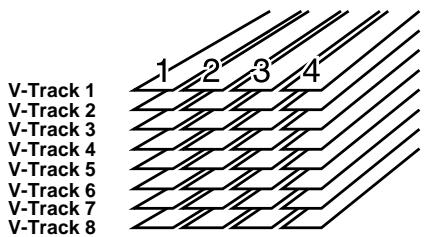
The BR-532 has four audio recording tracks, which provides for simultaneous recording on two tracks, or simultaneous playback from four tracks. Moreover, each track incorporates eight virtual tracks, called “V-Tracks,” for a total recording capability of 4 × 8 = 32 tracks! This increased versatility allows you to do things such as record numerous takes of a guitar solo, which you can later choose from when putting it all together. Also, while playing back four tracks, you can use the bounce mode to bounce to a V-Track and perform stereo bouncing without needing to erase any data.

What are V-Tracks?
Each track consists of eight virtual tracks, and you can choose any one of these tracks for recording or playback. His means that you can record to up to a maximum of 32 tracks, and then select any four of them to play back. These virtual tracks that make up the actual tracks are called “V-Tracks.”
MEMO
A “Track Sheet” is provided at the rear of this manual (p. 122), which you can make copies of, and fill in when recording music to V-Tracks.
Rhythm Guide function
The “Rhythm Guide function” makes it easy to capture phrases or musical ideas that come to mind. (p. 62) Simply select an appropriate rhythm pattern, and set the tempo. You can create your own original patterns by combining rhythm patterns.

By recording using the Rhythm Guide function, editing one measure at a time is greatly simplified.
Two versatile digital effects processors
The BR-532 contains two types of effect units. One type is for recording (insert effect) and the other type is independent send/return effects (loop effect). These two types can be used simultaneously. This means that the BR-532 does not require any external effect devices to produce a sophisticated song.
The BR-532 has many built-in simulations and effects, including amp modeling with COSM for a wide variety of insert effects. Many effects for vocal, keyboard, and guitar tracks are also included for a vast array of applications.
The loop effects include spatial effects such as chorus and reverb, which are vital for proper stereo mixdown.
By using the insert effects and loop effects together, you can add both sound and spatial effects to your music at one time.

For a more detailed explanation of insert and loop effects, refer to “What is an insert effect?” (p. 31) and “What is a loop effect?” (p. 42) respectively.
? What is COSM (Composite Object Sound Modeling)?
Sound modeling refers to technology that uses the latest DSP technologies to recreate all the “objects” that play a role in producing sound. COSM combines truly superior sound modeling with a wide variety of objects, thus allowing for the creation of almost any kind of sound, from simulations of existing musical instruments to the creation of fantastic instruments that can exist only in the imagination.
Editing Functions
With the BR-532, you can perform editing operations such as copying, moving, and erasing, which cannot be done with multitrack recorders that use tapes. This means operations such as copying and repeating a multiple-bar phrase, moving a multiple-bar phrase to another track, and erasing the data of a track, whole or in part, can be performed with ease.
Non-destructive editing
Being a digital recorder, the BR-532 offers non-destructive editing. With non-destructive editing, after performing any editing and recording operations, you can still return your data to its previous state (undo and redo functions).

Undoing a recording/editing operation (p. 58)
Quick movement to a point
You can assign a marker to any point in a track that you wish (locator function). If you assign markers to locations such as the end of the opening or the beginning of a solo, you will be able to move instantly to the point where you wish to begin listening.

Registering time (p. 49)
Equipped with chromatic tuner (C1 to B6 sound range)
Your BR-532 is also equipped with a chromatic tuner so that you can tune your guitar or bass while it is still connected to the BR-532 (p. 76).
Phrase Trainer Function
When you play back a song you have recorded from the CD player or the MD player, you can slow down the tempo without changing the pitch. Also, you can remove the sound you hear at the center (such as vocals and guitar solo) from the song. (p. 78)
Full complement of connectors (jacks)
Your BR-532 is equipped with the input jacks shown below.
GUITAR/BASS:
This high-impedance input jack allows you to directly connect your guitar or bass (accepts 1/4" phone plugs).
MIC:
These jacks allow a mic to be connected. Both standard TRS jacks (p. 19) and XLR jacks are provided. A built-in microphone is also included, so you can perform recordings with the BR-532 even when you don't have a microphone connected.
* The built-in microphone can be turned on or off.
LINE:
These jacks accept stereo input from keyboards, CD players, and other devices at line level (RCA phono jacks).
For output, in addition to the LINE OUT jacks (stereo RCA phono jacks), optical DIGITAL OUT connectors are also provided for high-quality digital recording to digital audio recording devices (e.g., CD recorders and MD recorders).
Memory cards supported by your BR-532
The BR-532 uses SmartMedia cards as the storage media for recording and playback.
The BR-532 uses 16 to 128 MB SmartMedia cards with a 3.3 V power supply.

SmartMedia cards are available at your nearest computer or digital camera shop.
* The Roland S2M/S4M-5 cannot be used.
Formatting the memory card (SmartMedia)
SmartMedia cards bought at a computer shop, or ones previously used with a digital camera cannot be used as is with the BR-532.
These SmartMedia cards must first be initialized for use with the BR-532.
For more details regarding initializing, see p. 27, 61.
* SmartMedia is a trademark of Toshiba Corporation.
Remove the Card Cover
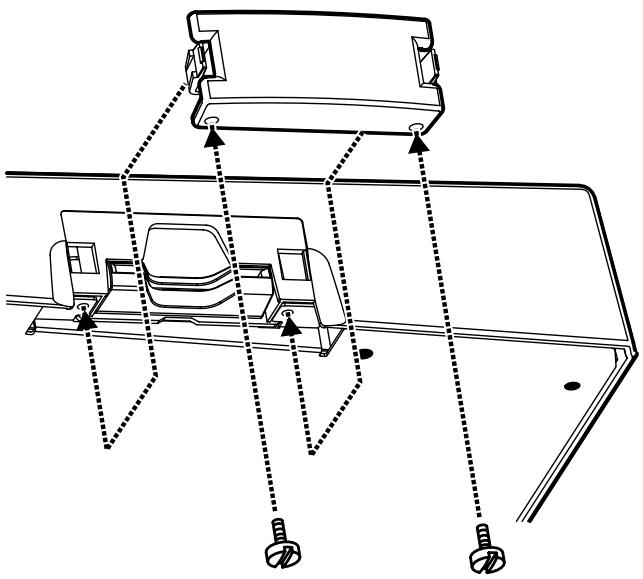
When removing the card cover, first remove the two screws that hold the card cover on the bottom of the unit using a coin or screwdriver.
natural_image
Technical line drawing of a mechanical assembly with no visible text or symbols
Should you remove the screws, make sure to put them in a safe place out of children's reach, so there is no chance of them being swallowed accidentally.
Panel Descriptions
Front Panel
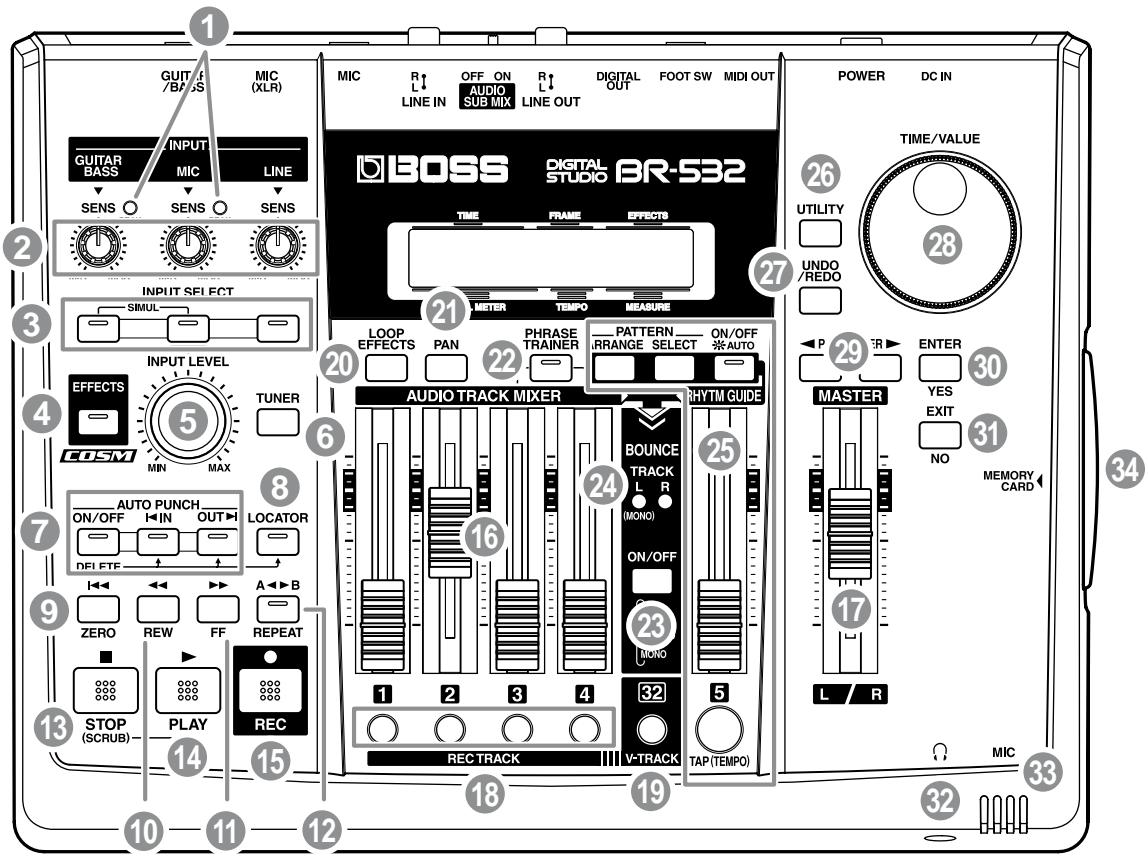
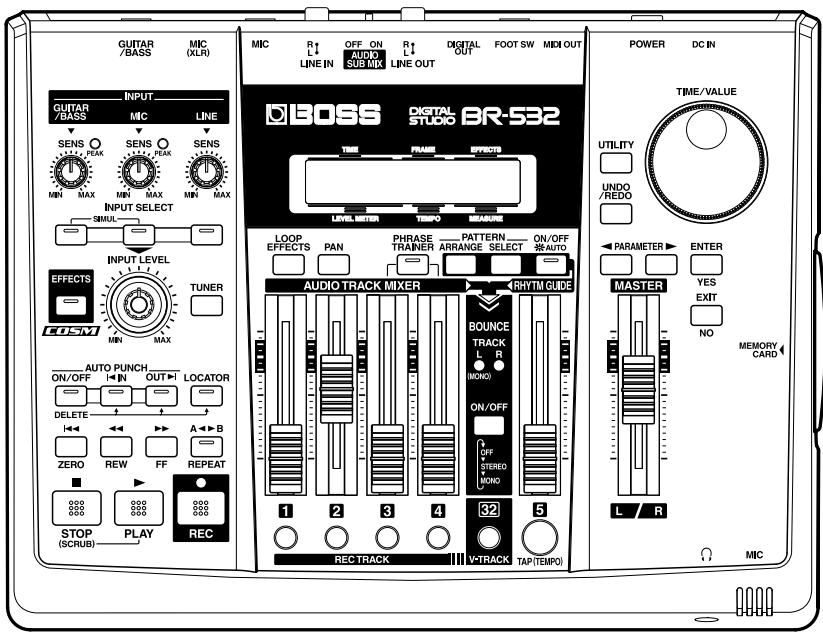
1 PEAK (clip) indicator
This indicator shows how strong the input level is at the various input jacks (e.g., GUITAR/BASS and MIC).

This indicator lights at a level -6 dB lower than where sound distortion occurs. Adjust the input sensitivity with the SENS knob so that this indicator lights only occasionally, at those moments when you play your guitar (or other instrument) at its loudest.
2 SENS knob
Use this knob to adjust the sensitivity at the input jacks (e.g., GUITAR/BASS, MIC, and LINE).
3 INPUT SELECT buttons
Use these buttons to select the input source (input jack) that you wish to record. The indicator of the selected button will light. You can mute (silence) the input sound by pressing a button that is lit.
GUITAR/BASS:
For selecting either guitar or bass use of the GUITAR/BASS jack.
MIC:
For selecting either the MIC jack when a microphone is connected, or the internal microphone.
* You can turn on and off the internal microphone. (p. 30)
LINE:
For selecting the LINE jack (stereo) for the line inputs, such as keyboards or CD players.
SIMUL:
By pressing the GUITAR/BASS and MIC buttons simultaneously, you can record from both inputs at the same time.
* If the INPUT SELECT setting is changed, the insert effect bank (p. 31) changes automatically.(p. 79)
4 EFFECTS button
Use this button to turn on and off the insert effects (p. 31) or call up the screen for editing the various settings.
5 INPUT LEVEL knob
Use this knob to adjust the volume of the input source for recording.
* If you use the INPUT LEVEL knob to turn down the volume of the input source during recording, the sound will be recorded in the audio track at a low volume, so that noise will be more apparent when you raise the volume of the audio track for playback. If you want to lower the volume of the input source that you are monitoring during recording, lower the volume with the MASTER fader.
6 TUNER button
Use this button to turn on and off the tuner (p. 76).
7 AUTO PUNCH
This button is used to make settings for the automatic punch in/out function.
ON/OFF button:
This turns the auto punch-in/out function on/off. When this is on, the button indicator will light.
IN button:
For setting the auto punch-in location. Press this button to set the punch-in point. When set, the indicator on this button will light. After the punch-in location is set, you can press this button to automatically jump to the punch-in location.
* Press this button while holding down the ON/OFF button to clear the set punch-in location.
OUT button:
For setting the auto punch-out location. Press this button to set the punch-out location at the current location in the track. When set, the indicator on this button will light. After the punch-out location is set, you can press this button to automatically jump to the punch-out location.
* Press this button while holding down the ON/OFF button to clear the set punch-out location.
8 LOCATOR button
Use this button to store any location that you desire. Then, by pressing this button, you can automatically move to that stored location.
When a location is set, the indicator on this button will light and you will jump to the location each time this button is pressed.
* Press this button while holding down the AUTO PUNCH ON/OFF button to clear the set location.
9 ZERO button
Press to jump to the beginning of the track.
10 REW button
The song will rewind while you hold down the button.
11 FF button
The song will fast-forward while you hold down the button.
12 REPEAT button
You can specify a region that you wish to hear, and hear it repeatedly. (p. 38)

This feature is useful if you want to repeatedly play back the recording between the punch-in and out locations (p. 45) until you are satisfied or use the phrase trainer (p. 78) to try to copy a difficult phrase recorded from a CD or the like.
13 STOP button
Stops recording or playback of the song.
14 PLAY button
Plays back songs. When [REC] is pressed and the REC indicator is flashing, press [PLAY] to start recording. During recording or playback, the indicator on the button lights in green.
15 REC (Recording) button
This is the Record button. In addition to the Recording operation, it is also used for manual punch-in/out. While in recording standby, the indicator on this button flashes in red, and during recording, it lights in red.
16 AUDIO TRACK MIXER fader 1-4
For controlling the volumes of each track during playback.
* Hereafter, the AUDIO TRACK MIXER faders shall be referred to as the "TRACK faders."
17 MASTER fader
Controls the overall volume of the BR-532.
18 REC TRACK (Recording Track) button 1-4
Use these buttons to select to which track you will record. The button of the track selected will flash in red and then light in red when recording begins. When recording is finished, the button of the selected track will light alternately in orange and green.
The relationship between the indicator and the track conditions is given below.
Off:
This track contains no recorded data.
Green:
An audio track that contains recorded data.
Flashing in red:
The track is selected as the recording destination, and is in recording standby.
Red:
This track currently being recorded.
Lighting alternately in orange and green:
This track contains recorded data and is selected for recording.
19 V-TRACK button
Use this button to call up the screen for selecting a V-Track.

What are V-Tracks? (p. 11)
Utilizing the V-Tracks (p. 99)
20 LOOP EFFECTS button
Use this button to call up the screen for setting the send level of each track respective to the loop effects (p. 42), switching between reverb and chorus, setting the various parameters, and more (p. 82).

Loop Effect Parameter Functions (p. 85)
21 PAN button
Pressed to access a screen where you can set the pan (left/right location of the sound) for the playback of each track or for the input sound (p. 42).
22 PHRASE TRAINER button
Use this button to perform the settings for the phrase trainer function.
When using the phrase trainer, you can turn on or off the center cancel function (for removing vocals at the center), or the time stretch function (for slowing down playback).

Canceling the center sound (p. 78)
Slowing down the speed (p. 78)
23 BOUNCE ON/OFF button
Use this button to mix the recordings on several tracks together onto one or two other tracks.
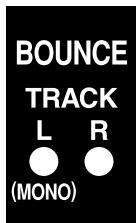
24 BOUNCE MODE Indicator
Indicates the recording track at the bounce destination. The relevant indicator lights depending on whether the track being recorded is stereo or monaural.
25 RHYTHM GUIDE
Here you can make settings for the Rhythm Guide function. (p. 62)
RHYTHM GUIDE fader:
Adjusts the Volume of the Rhythm Guide
AUTO/ON/OFF button:
Pressed to cycle the Rhythm Guide function through the available selections: Auto → On → Off.
PATTERN SELECT button:
Use this button to call up the screen for selecting the rhythm.
PATTERN ARRANGE button :
Use this button to call up the screen for setting the rhythm order and tempo.
TAP (TEMPO) button:
By tapping this button, you can set the tempo for the rhythm guide.
26 UTILITY button
This button calls up various functions offered by your BR-532, such as track editing, song management, and memory card operations.
27 UNDO/REDO button
For undoing the last-performed recording or editing operation and returning the data to its previous state. By pressing this button once again, you can bring back the canceled recording or re-execute the editing operation. (p. 58)
natural_image
Line drawing of a car with a seat and two windows, no text or symbols present28 TIME/VALUE dial
You can use this dial to shift the current position within a song (e.g., fast forwarding and rewinding). It is also used to change the values of the various function settings.
29 PARAMETER button
Press this button to select a parameter.
30 ENTER/YES button
Press this button to confirm a selection or a value being entered.
31 EXIT/NO button
Press this button to return to the previous screen or cancel the last entry.
32 Headphones jack (Ω)
Headphones (sold separately) are connected here. When headphones are connected, the same output as that from LINE OUT can be heard from the headphones.
33 MIC (Internal microphone)
This microphone can be used for recording with the BR-532.

Turning off the internal microphone (p. 30)
Changing the INPUT SELECT setting (p. 29)
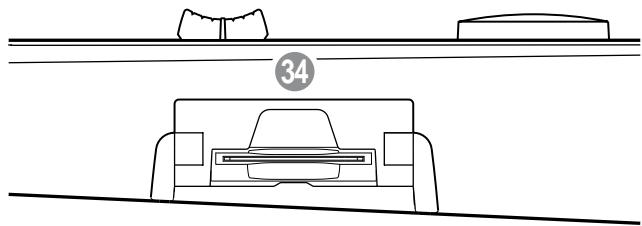
34 MEMORY CARD slot
This slot is where a memory card (SmartMedia) needs to be inserted in order to store the data you record. If a memory card is not inserted, you cannot perform recording.
Display
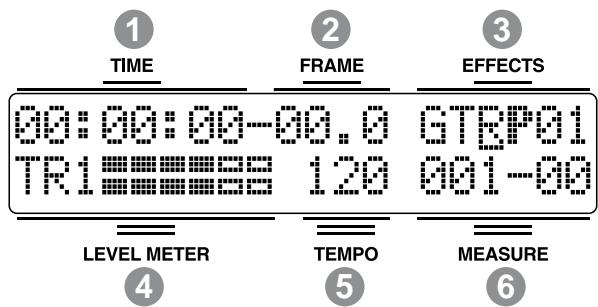
Displays the menu screen, parameter setting screen, or other information, depending on the type of settings being made.
If the screen is difficult to view, see “Adjusting the Display Contrast” (p. 24).
1 TIME
Displays the time of the current position of the song (hours-minutes-seconds).
2 FRAME
Displays the frame number of the current position of the song.
At the factory settings, one second is set to 30 frames (non-drop). This is one type of a specification known as MTC (MIDI Time Code), and when you use the BR-532 to play in synchronization with another MIDI device, you will need to set both devices to the same MTC type.

Synchronizing playback with a MIDI sequencer (p. 69)
3 EFFECTS
Displays the effect bank and patch number.
4 LEVEL METER
During play mode, the volume levels of instruments being input, and volume levels of each track are displayed.
The levels displayed are the levels after the adjustments are made with the INPUT LEVEL knob and TRACK fader (i.e., post fader). You can select the level meter to display each type of level being set.

Select the level meter to be displayed (p. 30)
5 TEMPO
Displays the tempo. Displays the tempo of the tempo map during playback that uses a tempo map.
6 MEASURE
Displays the measure number and beat of the current position within the song. The left number is the measure number, and the right number is the beat.
Rear Panel
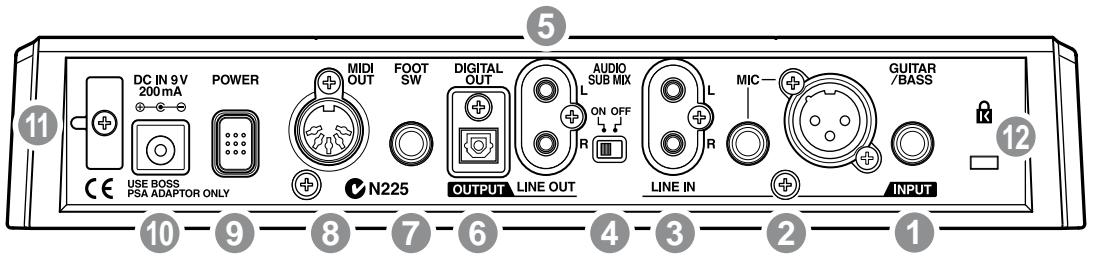
1 GUITAR/BASS jack
High-impedance input jack to directly connect your guitar or bass.
2 MIC jack (TRS/XLR types)
These jacks allow a mic to be connected. Both standard TRS jacks (p. 23) and XLR jacks are provided.
* If microphones are connected to both jacks, the TRS jack is given priority.
3 LINE IN jack
These are input jacks for analog audio signals. These jacks are used to connect CD players and other audio devices and keyboards, rhythm machines, and other external sound sources.
4 AUDIO SUB MIX switch
Turn this switch on to mix the signal input from LINE IN with the output to LINE OUT.
With INPUT SELECT set to a setting other than LINE, and AUDIO SUB MIX turned on, the signal is mixed and output to LINE OUT.
* Only the analog signal is mixed, so the DIGITAL OUT signal will not be affected.
5 LINE OUT jack
These are output jacks for the analog audio signal. You can connect MD recorders, tape recorders, or other recording devices to record the output analog signal from the BR-532.
6 DIGITAL OUT connector
Optical connector for outputting digital audio signals. The same sound that is output from LINE OUT is also output from DIGITAL OUT, so you can digitally record the output from the BR-532 to DAT recorders, CD recorders, and other digital recording devices.
7 FOOT SW (Foot Switch) jack
This is an input jack for connecting a separately sold foot switch (BOSS FS-5U, Roland DP-2). By using this FOOT SW jack, you can start/stop playback, punch in/out, and more.

In order to use a foot switch (p. 46)
8 MIDI OUT connector
Connector for sending MIDI data. Connect it to the MIDI IN connector of an external MIDI device (rhythm machine or sound module).
9 POWER switch
This is the power switch. It turns the power of the BR-532 on/off.
10 DC IN (AC Adaptor) jack
Connect the AC adaptor (PSA-series; optional) to this jack.

You must use only the PSA-series AC adaptor. Use of any other adaptor may cause overheating or malfunctions.
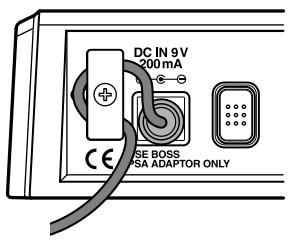
11 Cord Hook
Wrap the cable around this hook so that the AC adaptor cable is not pulled out accidentally.
If the AC adaptor is disconnected during operation, your important recorded data may be lost.
12 Security Slot (K)
http://www.kensington.com/
Inserting batteries
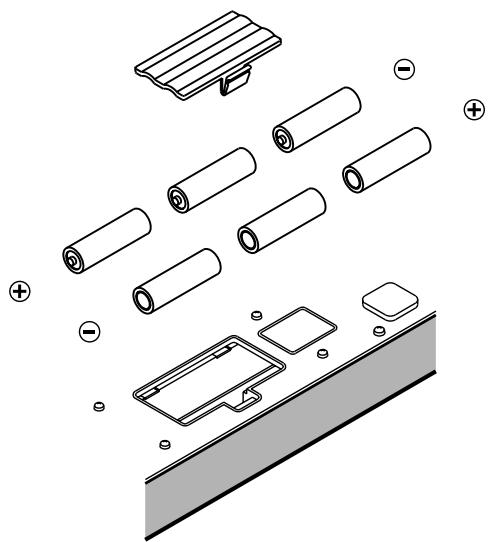
- Make sure that the power of the BR-532 is turned off.
- Remove the battery cover on the rear panel.
* When turning the unit upside-down, get a bunch of newspapers or magazines, and place them under the four corners or at both ends to prevent damage to the buttons and controls. Also, you should try to orient the unit so no buttons or controls get damaged.
* When turning the unit upside-down, handle with care to avoid dropping it, or allowing it to fall or tip over.
- Being careful not to reverse the polarity (+/-), insert six AA dry-cell batteries into the battery compartment.
* Roland recommends using longer-life alkaline batteries.
* Do not mix new batteries with partially used batteries, and do not mix batteries of differing types.
- Close the battery cover.
natural_image
Exploded view diagram of battery pack assembly showing cylindrical and rectangular components (no text or labels)When the battery power becomes low, “Battery Low” appears in the display. When this message appears, replace the existing batteries with new ones as soon as possible.
Quick Start
Listening to the Demo Song
(1) Connecting peripheral devices
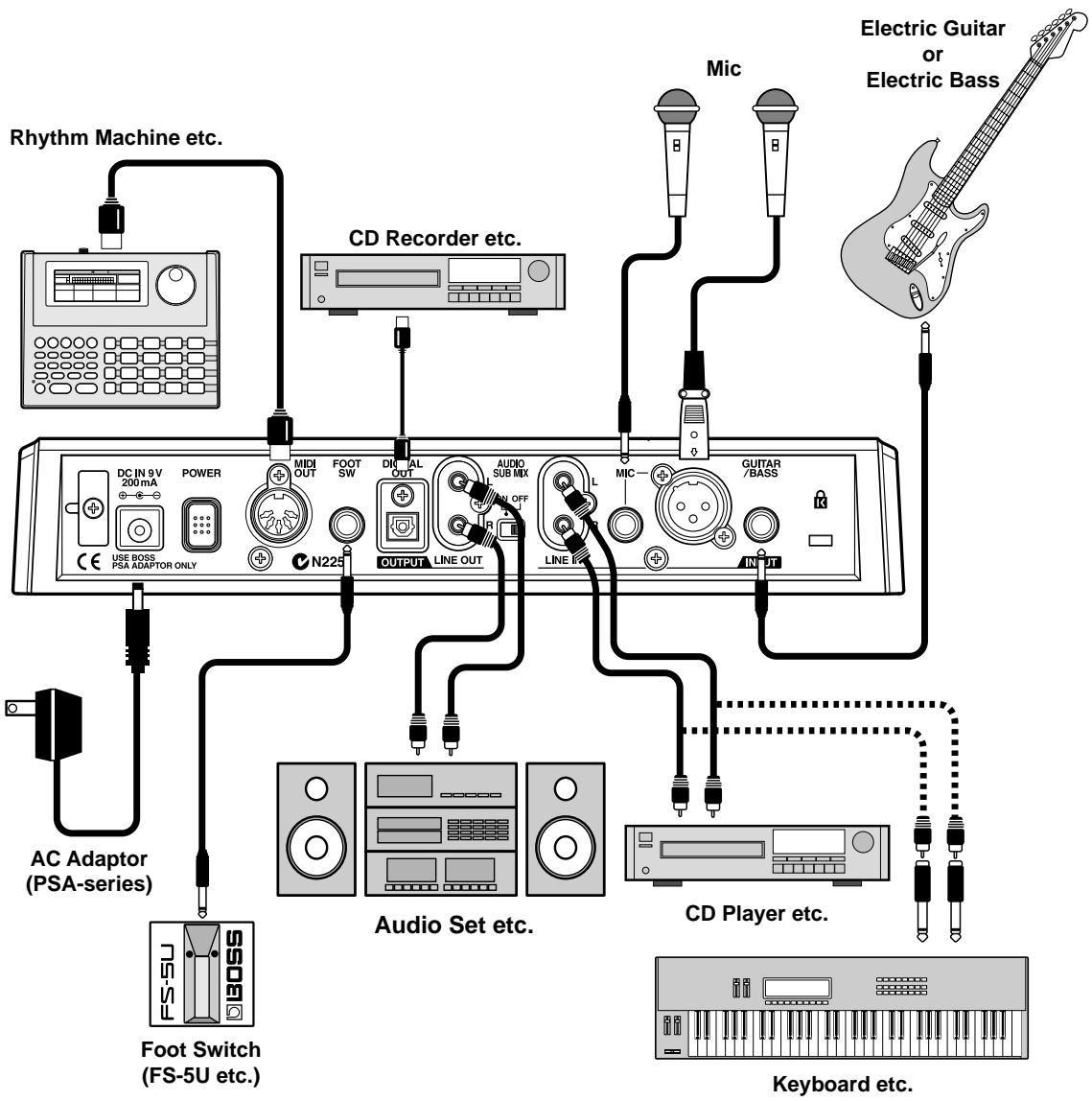
Make connections as shown in the diagram below. When making any connections, make sure that all devices are turned off.
flowchart
graph TD
    A["AC Adaptor (PSA-series)"] --> B["Foot Switch (FS-5U etc.)"]
    B --> C["CD Player etc."]
    C --> D["CD Recorder etc."]
    D --> E["Mic"]
    E --> F["Electric Guitar or Electric Bass"]
    G["Rhythm Machine etc."] --> H["DC IN 9V 200mA"]
    H --> I["USE BOSS PSA ADAPTOR ONLY"]
    I --> J["POWER"]
    J --> K["MIDI OUT"]
    K --> L["FOOT SW"]
    L --> M["DIAL OUT"]
    M --> N["AUDIO SUB MIX"]
    N --> O["L"]
    O --> P["MIC"]
    P --> Q["GUITAR /BASS"]
    R["Audio Set etc."] --> S["CD Player"]
    S --> T["CD Recorder"]
    T --> U["LED/LED"]
    V["Keyboard etc."] --> W["CD Player"]
    W --> X["CD Recorder"]

To prevent malfunction and/or damage to speakers or other devices, always turn down the volume, and turn off the power on all devices before making any connections.
- To prevent the inadvertent disruption of power to your unit (should the plug be pulled out accidentally), and to avoid applying undue stress to the AC adaptor jack, anchor the power cord using the cord hook, as shown in the illustration.
- Feedback could be produced depending on the location of microphones relative to speakers. This can be remedied by: 1. Changing the orientation of the microphone(s). 2. Relocating microphone(s) at a greater distance from speakers. 3. Lower the volume
* The MIC jack supports the balanced input used with standard TRS plugs. The pin assignment for the MIC jack is as shown below. Before making any connections, make sure that this pin assignment is compatible with that of all your other devices.
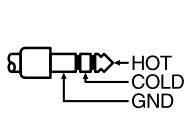
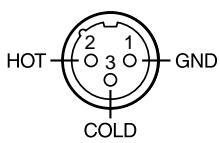
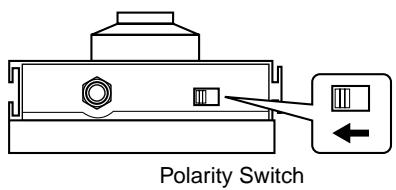
* When using the FS-5U foot switch (sold separately), set the polarity switch as shown below. If the polarity switch is not set correctly, the foot switch may not operate properly.
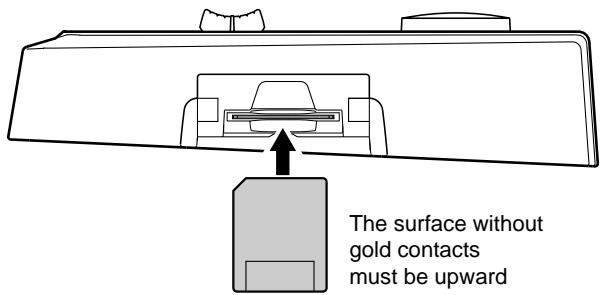
- Insert the memory card with the gold-colored contacts facing downward (the side without contacts should be facing upward). * Be sure to insert the memory card all the way into the slot. * Do not touch the contacts of the memory card or allow them to become dirty.
(2) Turn on the BR-532
Once the connections have been completed, turn on power to your various devices in the order specified. By turning on devices in the wrong order, you risk causing malfunction and/or damage to speakers and other devices.
- Before you turn the power on, make sure of the following points.
☐ Are all external devices connected properly?
☐ Is the volume on the BR-532 and all other devices completely lowered?
☐ Is the memory card inserted?
* The BR-532 is shipped with a memory card already inserted in the slot.
- Turn off the AUDIO SUB MIX switch on the rear panel.
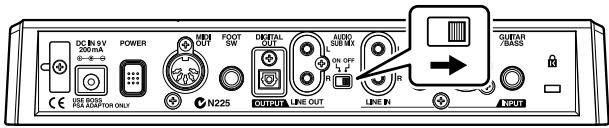
- Lower the MASTER fader on the BR-532.
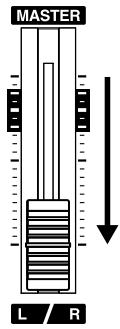
- Turn on the device connected to an input jack (i.e., GUITAR/BASS, MIC, or LINE IN).
- Turn on the POWER switch located on the rear panel.
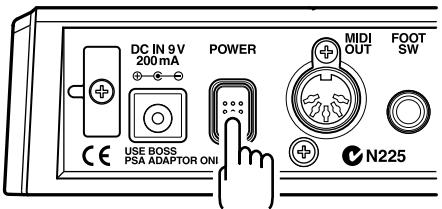
* Always make sure to have the volume level turned down before switching on power. Even with the volume all the way down, you may still hear some sound when the power is switched on, but this is normal, and does not indicate a malfunction.
* This unit is equipped with a protection circuit. A brief interval (a few seconds) after power up is required before the unit will operate normally.
- Turn on the device connected to the output jack (i.e., LINE OUT or DIGITAL OUT).
If you are using the AC adaptor, make sure that the AC adaptor does not become unplugged during operation. If the AC adaptor becomes unplugged accidentally, the recorded data may become damaged.
Play Screen
The Play screen is the most fundamental screen of the BR-532, and is the first screen that appears when the BR-532 is turned on (see below).
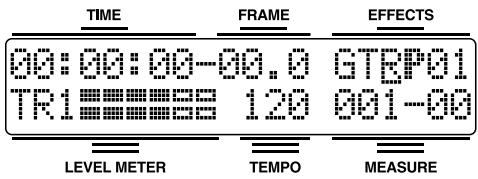
* You can set the BR-532 so that the remaining recording time is displayed during recording. Refer to “Displaying the remaining available recording time” (p. 73).
Adjusting the Display Contrast
Depending on where the BR-532 is situated, the display contents may be difficult to read. If this is the case, perform the procedure given below to adjust the contrast (1 to 15).
- Press [UTILITY].

- Press PARAMETER [◀] [▶] to move the cursor to "SYS," and press [ENTER].
- Press PARAMETER [◀] [▶] to select "LCD Contrast," and adjust the contrast with the TIME/VALUE dial.
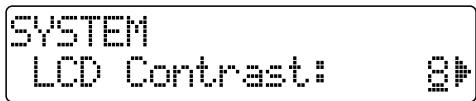
- After completing the adjustment, press [EXIT] repeatedly to return to the Play screen.
* During automatic updating, “Keep Power On!” appears in the upper line of the display, while the lower line shows what is being processed.
HINT
You can turn the TIME/VALUE dial while pressing [UTILITY] to adjust the contrast. Use each procedure as appropriate.
(3) Listening to the demo songs
Selecting a song
Upon power-up, the song that was selected before the power was turned off is selected, and the data of that song is loaded. As soon as the data has been loaded, the Play page appears in the display.
To change to a different song, follow the procedure given below.
- Press [UTILITY].

- Press PARAMETER [◀] [▶] to move the cursor to "SEL," and press [ENTER].
The Song Select screen appears.
- Turn the TIME/VALUE dial to select "01:Crank It Up."
![SONG SELECT [4] 01:Orank It UP (MT2)](/content/2025/01/130575/images/a4388e29067a88e12ac35409a35b70f7462b9f48c4d2e6fa7a6613238c6db34f.jpg)
"Crank It Up"
Composed and produced by Gundy Keller Copyright © 2001 A-TOWN recordings
- Press [ENTER].

■ If you have changed the recording or editing
Since the BR-532 automatically updates the recorded data and operation content if the recording or editing have been changed, you do not need to perform any special operations for saving.
During automatic updating, “Keep Power On!” appears in the upper line of the display, while the lower line shows what is being processed.
* If the write-protect sticker is affixed to the memory card (p. 61), you won't be able to record data onto it, nor will you be able to edit any of the data on it. If you try to record or edit data using a protected memory card, "Protected!" appears.
Playing Back a Song
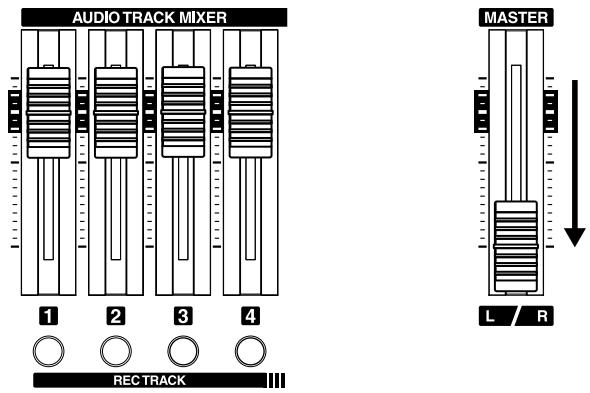
- Move the TRACK faders 1 to 4 to the positions shown below and lower the MASTER fader.
- Press [PLAY].
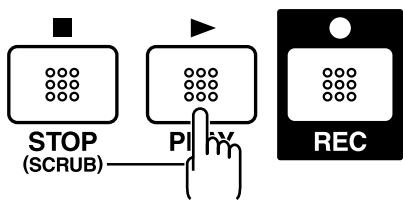
The song starts. Slowly increase the MASTER fader and adjust the volume to the desired level.
MEMO
By adjusting the TRACK faders, you can listen to the individual sounds recorded to each track one at a time or listen to them at the balance you desire.
Press [FF] to fast-forward the song and press [REW] to rewind the song. Press [ZERO] to return to the beginning of the song.
In addition to the procedures given above, you can also change your current position in the song using the procedures given below.
Changing the current position
Elapsed time display
The value given at “TIME” in the display shows the elapsed time into the song using MTC (MIDI time codes) and is expressed as follows: hours-minutes-seconds-frames-sub frames.
The time code specifications can differ depending on the device. To synchronize operation with another device using MTC, you will first need to match the time code specifications of both devices. At the factory settings, one second is set to 30 frames (non-drop) (p. 70).
Moving to the start of a play
To move to the time where the first sound of a song is recorded, press and hold [STOP] and press [REW].
Each V-Track of the selected track is checked and you move to the time of the first recorded sound for the song.
Press [ZERO] to jump to the beginning of the song.
Moving to the end of a play
To move to the time where the last sound of a song is recorded, press and hold [STOP] and press [FF].
Each V-Track of the selected track is checked and you move to the time of the last recorded sound for the song.
Moving through a song using hours, minutes, seconds, frames, or sub frames
Press PARAMETER [◀] [▶] to move the cursor to hours, minutes, seconds, frames, or sub-frames display, and turn the TIME/VALUE dial to change the current time in the song.
Moving through a song in measures or beats
The current position's measure number and beat number are displayed at the location labeled “MEASURE” in the display.
* For the demo songs, a pattern (p. 62) has already been created (SNG) and it is set so that measure numbers, beat numbers, and pattern are properly synchronized.
Press PARAMETER [◀] [▶] to move the cursor to MEASURE display, and turn the TIME/VALUE dial to change the current measure or beat number in the song.
Recording/playing back a song
(1) Preparing the memory card
The BR-532 writes the recorded data directly to the inserted memory card. Therefore, for recording or playback, the memory card must be inserted.

Memory cards supported by your BR-532 (p. 13)
Inserting the memory card

Before inserting the memory card (SmartMedia), be sure to first turn off the BR-532. If a memory card is inserted when the power is turned on, the data in the memory card may be destroyed, or the memory card may become unusable.
Insert the memory card into the memory card slot.
The supplied memory card still has some remaining space; however, for extended recording, you will need to erase some of the demo song or prepare a new memory card (32 MB or greater is recommended).
For information on how to erase data from the memory card, refer to “Erasing songs (Song Erase)” (p. 59).
* A write-protect sticker (p. 61) is not affixed to the supplied memory card. In case you would like to save the data, you will need to affix a write-protect sticker to the card.
Formatting the memory card
* This is not necessary for memory cards that have already been used with the BR-532.
Newly purchased memory cards, or memory cards that have been used previously with a computer will need to be prepared so they can be used with the BR-532.
Carry out the following steps in the order given to complete the procedure (this preparation process is called "formatting").
1. Press [UTILITY].
![ROLAND BR-532 - Press [UTILITY]. - 1](/content/2025/01/130575/images/66ce5ca258805f0d241506ef0ee218c8ad3c24f0a8ed23bfdab239b7aa652e1d.jpg)
- Press PARAMETER [◀] [▶] to move the cursor to "INI," and press [ENTER].
![INITIALIZE SYSTEM [SYST] [IPTN] [EFX] #](/content/2025/01/130575/images/b6565af828145cf4a3ae0065ce27745a8d91ce9ca4c80202b94db0aaa5f64819.jpg)
- Press PARAMETER [◀] [▶] to move the cursor to "CRD," and press [ENTER].
"Format?" appears in the display.
![ROLAND BR-532 - Press [UTILITY]. - 3](/content/2025/01/130575/images/816e12b315cfa80c4ef8c377fac781b87ea08546e4215065ec9c11811118cba4.jpg)
4. Press [ENTER].
"Are you sure?" appears.
![ROLAND BR-532 - Press [ENTER]. - 1](/content/2025/01/130575/images/fd3d5a4e471f06340d804b10605934350175afdbecb32db361ff9870bfe99dc8.jpg)
* If the write-protect sticker is affixed to the memory card, "Protected!" appears in the display. You cannot initialize the memory card if this message appears.
- To continue with the initializing, press [ENTER] (YES). To cancel the operation, press [EXIT] (NO) (or [UTILITY]). When [ENTER] (YES) is pressed, initializing begins. When the formatting has been completed, "Completed!" appears in the display, and you are returned to the Play page.
* Depending on the capacity of the memory card, initializing may take more than ten minutes to complete. This is not a malfunction. The progress of the initializing is shown in the display. Do not turn off the BR-532 until the initializing has been completed.
![ROLAND BR-532 - Press [ENTER]. - 2](/content/2025/01/130575/images/0c8624cb2c6d6d0160b24d57049f8603cbd9fe720512087f307d56df20e60d9a.jpg)
Do not remove the memory card or turn off the BR-532 while the memory card is being initialized. Doing so can destroy the data on the memory card and/or render the memory card itself unusable.
* When formatting starts, a new song is automatically created. In this case, the data type selected is STANDARD (LV1).
(2) Select the song to record
When the memory card contains more than one song, the song that was recorded last is automatically selected.
To record a new song, follow the procedure given below.
Recording a new song
About data types
When you record a new song, the BR-532 allows you to set the data type. This enables you to select the combination of audio quality and recording time that is most suitable for the material you are recording. The following data types can be selected.
* The data type of a song cannot be changed after it is created.
HiFi (MT2) (multitrack 2):
For high-quality recordings. This data type is recommended when you will be doing a lot of track bouncing. Normally you should select this type.
STANDARD (LV1):
For recordings that will take longer than what can be provided with the MT2 data type. This data type is useful for when there is little space remaining on the memory card, or when recording live performances.
LONG (LV2):
Of the three data types, this provides the longest recording time.
Recording time
The recording times possible for each data type on one memory card are given below (when recording one track).
| Data type | Recording time (times approximate) | |||
| 16 MB | 32MB | 64 MB | 128 MB | |
| HiFi (MT2) | 8 min. | 16 min. | 32 min. | 65 min. |
| Standard(LV1) | 9 min. | 19 min. | 39 min. | 78 min. |
| Long (LV2) | 12 min. | 24 min. | 49 min. | 98 min. |
* The recording times shown above are approximate. Depending on the number of songs, the allowable recording time may decrease.
* The recording times shown above are for when only one track is used. For example, if you record on all four tracks, the recording time for each track will be 1/4th of the time shown above.
* The SmartMedia memory cards supported by your BR-532 are 16 to 128 MB SmartMedia cards for use with a 3.3 V power supply voltage.
- Press [UTILITY].

- Press PARAMETER [◀] [▶] to move the cursor to "NEW," and press [ENTER].
“Type” appears in the display.
![SONG NEW [4] TYPE: STANDARD(LV1)](/content/2025/01/130575/images/8edaacc0a88c260f6feacbfccbdeb78f53b8721710777443f7a9374a0edada16.jpg)
- Turn the TIME/VALUE dial to select the desired data type.
* The BR-532 uses a sample rate of 44.1 kHz. It is not possible to change the sample rate.
- Press [ENTER].
"Are you sure?" appears.
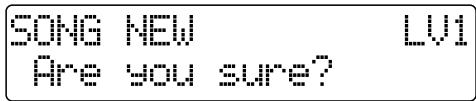
- Press [ENTER].
When the new song is ready, you are returned to the Play page.
(3) Connecting instruments
Choose which jack you will use to connect your instrument
Your BR-532 is equipped with a number of input jacks to match the type of instrument that you will connect. Select an instrument appropriate for your purposes.
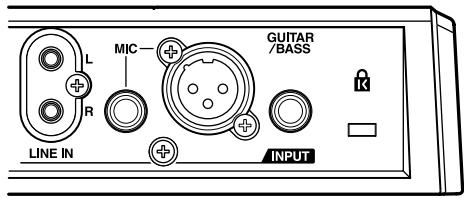
GUITAR/BASS
An electric guitar or bass can be connected to this jack. Since this is a high-impedance input, a guitar or bass can be connected directly.
MIC
These jacks allow a mic to be connected. Both standard TRS jacks and XLR jacks are provided.
The standard TRS type allows for both balanced and unbalanced connections.
* If both jacks are being used, the TRS jack is given priority.
* If you are recording an electric acoustic guitar using a shielded connection, use the GUITAR/BASS jack.
LINE
When connecting to the output of a CD player, cassette player, or other audio device, or to a rhythm machine, external sound module, keyboard, or other sound source, use the stereo input jacks.
Press the INPUT SELECT button of the instrument that you want to record
Select the input source to record. The indicator of the selected button will light.
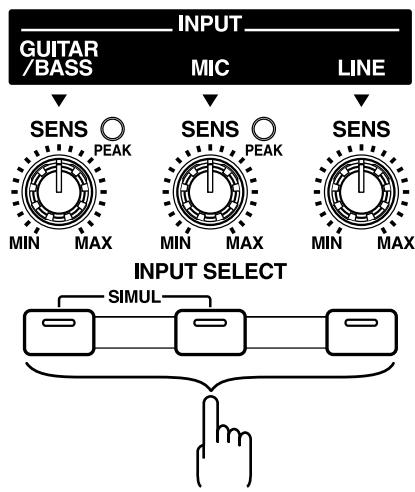
[GUITAR/BASS]
Select to record the instrument connected to the GUITAR/BASS jack.
[MIC]
Select to record the signal from a microphone connected to the MIC jack or from the internal microphone.
When the MIC indicator for the INPUT SELECT button is lit, you can use both the microphone connected to the MIC jack and the internal microphone simultaneously.
* Your BR-532 is shipped with its internal microphone turned on. When not using the internal microphone, be sure to turn it off (see next section).
[LINE]
Select this when you wish to record the sound of an instrument or CD player connected to the LINE jacks.
[SIMUL]
To record the vocal and guitar at the same time, press [GUITAR/BASS] and [MIC] simultaneously. Both indicators light, telling you that simultaneous recording is now possible.
- When two recording tracks are selected, the GUITAR/BASS is recorded to Track 1 (or 3), and the MIC is recorded to Track 2 (or 4).
- When one recording track is selected, the GUITAR/BASS and MIC are mixed and then recorded.
Turning off the internal microphone
To use only the microphone connected to the MIC jack, you must first turn off the internal microphone.
- Press [UTILITY].

- Press PARAMETER [◀] [▶] to move the cursor to "SYS," and press [ENTER].
- Press PARAMETER [◀] [▶] to select “On Board Mic,” and turn off the microphone with the TIME/VALUE dial.
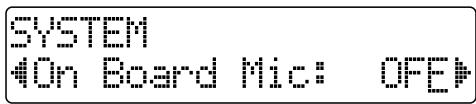
- Press [EXIT] (or [UTILITY]) several times to return to the Play page.
* During automatic updating, “Keep Power On!” appears in the upper line of the display, while the lower line shows what is being processed.
Adjusting the input sensitivity
When input from GUITAR/BASS or MIC is selected, adjust their input sensitivity with the relevant SENS knob.
HINT
In order to record at a good sound level, you should adjust the input levels so that the PEAK indicator lights momentarily when a guitar is strummed strongly or vocals are sung loudly.
Switching the LEVEL METER
Switch the input or output indicated by the LEVEL METER.
- Press PARAMETER [◀] [▶] to move the cursor to the lower left of the screen.
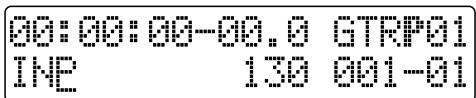
- Turn the TIME/VALUE dial to select the input or output to be indicated by the LEVEL METER.
TR1-4: The output from each track is indicated in the LEVEL METER.
1&2: The LEVEL METER shows the output of Tracks 1 and 2. The Track 1 output is shown in the upper meter, and the Track 2 output is shown in the lower meter.
3&4: The LEVEL METER shows the output of Tracks 3 and 4. The Track 3 output is shown in the upper meter, and the Track 4 output is shown in the lower meter.
INP: The LEVEL METER shows the input from INPUT or LINE IN.
MST: The LEVEL METER shows the post-MASTER FADER output level.
Press the INPUT SELECT button to switch to "INP."
Monitoring the sound
You can monitor the sound from the instruments and microphones that are connected.
The volume level is adjusted with the MASTER fader and INPUT LEVEL knobs.
- Lower the MASTER fader.
- Turn the INPUT LEVEL knob to its center position and then slowly increase the MASTER fader.
At this point, adjust the INPUT LEVEL knob so that the rightmost “■” of the LEVEL METER is indicated, while “□” appears only occasionally.

Also, when monitoring the sound with headphones, use the MASTER fader to adjust the volume to the level you desire.
* To adjust the volume of devices connected to the LINE OUT jack or DIGITAL OUT connector, refer to the instruction manual that came with the device.
(4) Using insert effects
The BR-532 comes with two onboard effects processors: an insert effect and loop effects. Below is an explanation of the operations related to the insert effects.

What is an insert effect?
An effect added directly to a specific signal (with the BR-532, this refers to the instrumental sounds from an INPUT jack) is called an “insert effect.” The effect pedals that a guitarist connects between his guitar and amp are a type of insert effect. Loop effects, on the other hand, are effects connected to the send/return jack of mixers and other similar devices. (refer to p. 42)
Switch effect patches
The BR-532 provides numerous effects for vocals, guitar, etc., and two or more of these effects can be used simultaneously. Such a combination of effects (i.e., the types of the effects used and the order in which they are connected) is called an “algorithm.”
Each effect in an algorithm offers a certain number of parameters, which allow the sound to be altered (similar to tweaking the knobs on a stomp pedal). The algorithm and its parameter settings are bundled into units called “effect patches.”
By changing the effect patch, you can simultaneously change the stored effect combinations, their on/off status, and the parameter settings, and completely change the sound.
- Press PARAMETER [◀] [▶] to move the cursor to the bank indication in the upper-right corner of the display, and turn the TIME/VALUE dial to change banks. Banks are a collection of effect patches.
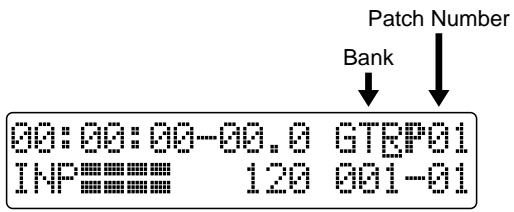
GTR: Effect patches for use with guitars.
MIC: Effect patches for use on the sound from the MIC input (i.e., vocals).
LIN: Effect patches for use on the sound from CDs, MDs, and other external devices from the LINE input.
SIM: Effect patches for recording vocals and a guitar together.
- Press PARAMETER [◀] [▶] to align the cursor up with the effect patch on the upper right side of the display, and turn the TIME/VALUE dial to change the effect patch.
P: Preset Patch
U: User Patch
S: Song Patch
If effects are turned off (the EFFECTS indicator is off) when the effect patch is changed, effects are automatically turned on (the EFFECTS indicator lights) and the effects are added to the sound.
Select the desired effect patch.

MEMO
Some effect patches are particularly effective for stereo recording.
For recording in stereo, refer to “Selecting the recording track” (p. 33).
[Non-Text]
"Effect Patch List" (p. 110).
"Insert Effect Algorithm List" (p. 86)
[Non-Text]
For more details regarding the use of insert effects, refer to “Using insert effects” (p. 79).
Recording without effects
Press [EFFECTS] to turn off the effects. The indicator goes out, and the sound will be recorded without effects.
(5) Using the rhythm guide
When you record, it is convenient to use the built-in rhythm guide.
HINT
By using the rhythm guide during recording, you can use the track editor to edit in units of measures, synchronize outputs with an external device, and perform other useful operations. For more details, refer to “Editing the performance on a track (track editing)” (p. 50) and “Synchronizing with MIDI devices” (p. 67). You can also change the tempo or rhythm pattern during a song. For more details, refer to “Using the Rhythm Guide” (p. 62).
Playing the rhythm guide
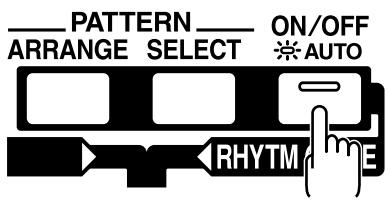
Each time you press [AUTO/ON/OFF] of the RHYTHM GUIDE, the status changes as shown below.
AUTO: Flashing
When you press [PLAY] to start playback or recording, the rhythm sounds. When [STOP] is pressed, the rhythm stops as well.
The rhythm is synchronized with the song.
ON: Lit
The rhythm continually sounds.
The rhythm sounds is the style on the current time that is set on the pattern.
When the style is set on “BREAK,” the rhythm does not sound. (p. 62)
OFF: Unlit
The rhythm is turned off.
MEMO
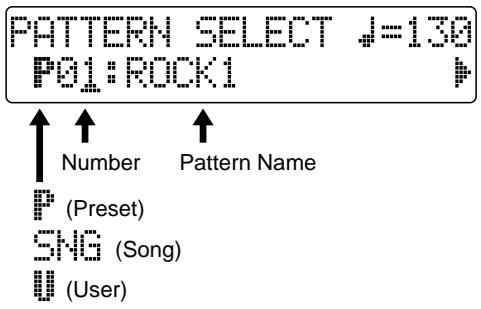
The rhythm guide is preset with a wide variety of rhythm patterns, including the sound of a normal metronome. For more details regarding the rhythm patterns of the rhythm guide, refer to “Rhythm Guide Style/Pattern List” (p. 96).
Changing the Rhythm Pattern
- Press [PATTERN SELECT].
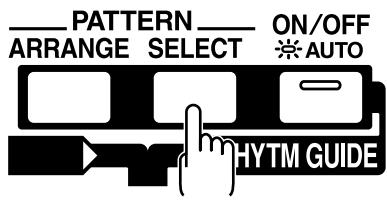
- Select the rhythm pattern with the TIME/VALUE dial.
Changing a Rhythm's Tempo
You set rhythm patterns so that the tempo changes to match the song's progression (p. 63).
Using the following procedure to change the tempo disables the tempo set in the rhythm pattern, and instead the performance is played with the altered tempo.
- Press [EXIT] (or [PATTERN SELECT]) to return to the Play page.
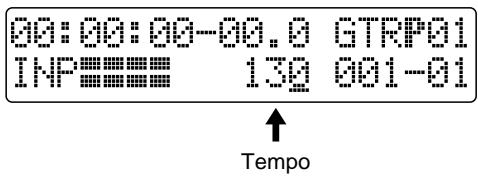
- Press PARAMETER [◀] [▶] and align the cursor up with "TEMPO" in the display.
- Rotate the VALUE dial to adjust the tempo.
Tapping to change the tempo
You set rhythm patterns so that the tempo changes to match the song's progression (p. 63).
Using the following procedure to change the tempo disables the tempo set in the rhythm pattern, and instead the performance is played with the altered tempo.
You can determine the tempo by the timing with which you press [TAP].
Tap on [TAP] four or more times to change the tempo of the RHYTHM GUIDE. The tempo becomes that in which you tapped.
(6) Recording
Selecting the recording track
Press either [1], [2], [3], or [4] at REC TRACK to select the recording track.
If the button flashes in red, that track is ready for recording.
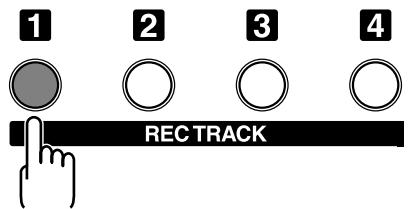
The status of each track can be determined from the indicator on the button.
Off: No recorded data exists on the track.
Green: Recorded data exists on track.
Red: The track is selected for recording.
If a track with existing data is selected for recording, the indicator will light alternately in orange and green.
If INPUT SELECT [GUITAR/BASS] or [MIC] are lit
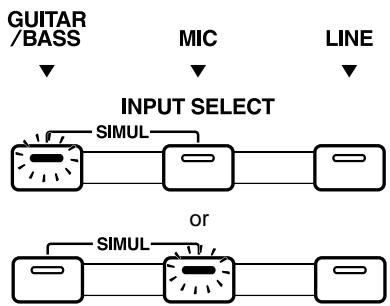
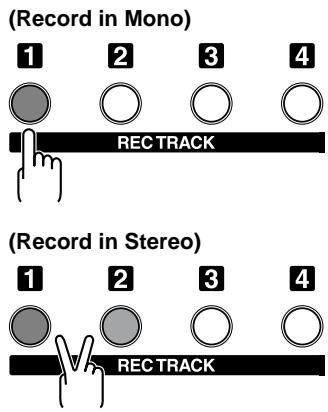
Since the input is monaural, the recording is normally performed as a monaural recording onto one track. Press one of the four track buttons at REC TRACK to select the one track to which to record.
However, if you want to record in stereo to increase the effect of insert effects, you can simultaneously press the [1] and [2], or [3] and [4], REC TRACK buttons for stereo recording onto two tracks.
HINT
To spread the sound of your guitar backing spatially to the left and right, first record the same guitar backing to two different tracks and then use the panning feature to spread the sound. This is known as “doubling.”
The BR-532 provides a “DOUBL’N (doubling)” (p. 82) insert effect that lets you produce a doubling effect without having to record the same performance twice.
By playing the backing music with the “DOUBL’N” effect, you can create the doubling effect for a widely spread sound space.
“DOUBL’N” is also provided as a loop effect. (p. 82) By using the “DOUBL’N” loop effect, you can achieve the doubling effect even on monaural recordings on single tracks for more efficient use of your track space.
For more details regarding loop effect operations, refer to “Using loop effects” (p. 82).
If INPUT SELECT [LINE] or [SIMUL] are lit
![ROLAND BR-532 - If INPUT SELECT [LINE] or [SIMUL] are lit - 1](/content/2025/01/130575/images/fcaa3d5a1ccae4ef31e1599a94c3199b793c51a9a588a7a06736dfa4ac018d10.jpg)
flowchart
graph LR
    A["GUITAR/BASS"] --> B["INPUT SELECT"]
    C["MIC"] --> D["OR"]
    E["LINE"] --> F["OR"]
    G["SIMUL"] --> H["OR"]
    I["OR"] --> J["OR"]
Since the input is stereo, the recording is normally performed on two tracks. REC Press either REC TRACK [1] or [2] to select tracks 1 and 2, or [3] or [4] to select tracks 3 and 4.
However, if you want to mix together the left and right channels being input onto one track, with tracks 1 and 2 selected, press REC TRACK [1] again to select track 1. Using the same procedure, you can select any track 1 to 4 to be the track to which to record.
Recording operations
- Make sure that the BOUNCE [ON/OFF] indicator is dark.
If the indicator is lit, press BOUNCE [ON/OFF] to make it go dark.
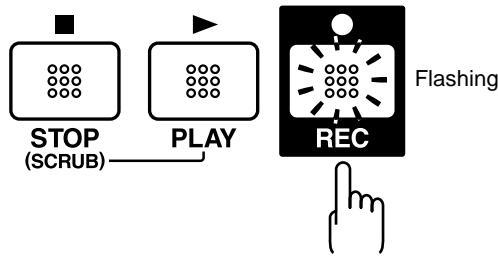
- Press [REC].
[REC] flashes in red and the BR-532 enters the recording standby state.
flowchart
graph TD
    A["STOP (SCRUB)"] --> B["PLAY"]
    B --> C["Flashing"]
    C --> D["REC"]
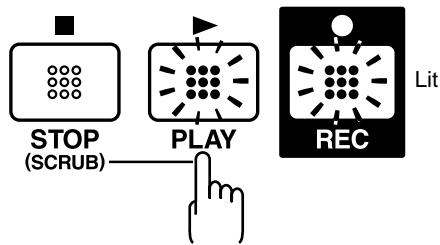
- Press [PLAY].
The [REC] and REC TRACK buttons stop flashing in red and instead light solidly, and recording starts.
flowchart
graph TD
    A["STOP (SCRUB)"] --> B["PLAY"]
    B --> C["Litt"]
    D["RECEC"] --> E["Switch"]
    style A fill:#f9f,stroke:#333
    style B fill:#ccf,stroke:#333
    style C fill:#cfc,stroke:#333
- When you finish recording, press [STOP].
The REC TRACK button lights alternately in orange and green, indicating that track contains recorded data.
* During automatic updating, “Keep Power On!” appears in the upper line of the display, while the lower line shows what is being processed.
Bounce mode
Bouncing is combining several tracks onto one or two other tracks, so you can record more material.
To select the bounce mode with the BR-532, press BOUNCE [ON/OFF]. When pressed, the indicator will light.
With the bounce mode, you can record together the playback from different tracks. When INPUT SELECT is used, sound from the selected input can be combined with the tracks being bounced to one or two new tracks.
* In addition to the four playback tracks, you can also record data bounced to a V-Track. Therefore, with the bounce mode, you can record together the input source, the four playback tracks, and the rhythm guide sound.

For more details regarding the recording procedures in the bounce mode, refer to “Putting multiple tracks together—Bouncing” (p. 41).
(7) Playing back recorded music
Playback
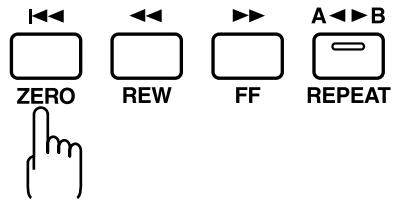
- Press [ZERO] to return to the start of the song.
- Press [PLAY].
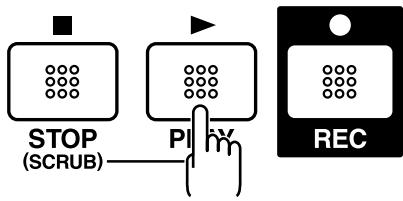
The song will begin playing back. At this time, the REC TRACK button for the recorded tracks will light alternately in orange and green, to tell you which tracks are being played back.
Adjusting the volume of each track
Use the TRACK faders to adjust the volume separately for each track.
(8) Turning off the power

Before you turn off the BR-532, make sure to first stop any recording. If the BR-532 is turned off during playback, recording, or any other process where the memory card is being accessed, the recorded data, mixer settings, and effect patch data may be lost.
(9) Removing the memory card

The power of the BR-532 must be turned off before removing a memory card. If a memory card is inserted when the power is turned on, the data in the memory card may be destroyed, or the memory card may become unusable.
Conserving battery power (Power Save)
Your BR-532 is equipped with a power save function that limits the current dissipation during use.
When the power save function is activated, if no button, or TIME/VALUE dial on the BR-532 is used for a certain amount of time, the BR-532 will enter the standby state and turn off the display backlight and button indicators.
Also, when in the standby state, the display will appear as shown below.
Power Save Mode
* The power save function is especially helpful when the BR-532 is running on battery power.
Perform the procedure given below to activate the power save function.
- Press [UTILITY].

-
Press PARAMETER [◀] [▶] to move the cursor to "SYS," and press [ENTER].
-
Press PARAMETER [◀] [▶] to select "Power Save," and turn the TIME/VALUE dial to set the time until the Power Save function is activated.
- Press [EXIT] (or [UTILITY]) to return to the Play page.
* During automatic updating, "Keep Power On!" appears in the upper line of the display, while the lower line shows what is being processed.
Deactivating the power save function
Press any of the panel buttons to deactivate power save.
* After the power save function is deactivated, the Play screen appears.
Advanced Use
Repeating Playback—Repeat
By using the “Repeat function” you can repeatedly play back a specified part. Repeating playback allows you to check the mixing balance or perform loop recordings with the punch in/out functions (p. 48).
The position in the song where [REPEAT] is pressed first becomes repeat start point (A), and the position where it is pressed a second time becomes repeat end point (B). The portion between the two points is then repeated during playback.
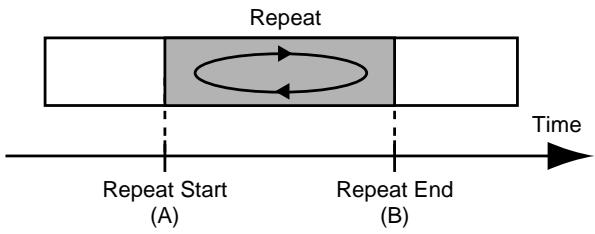
flowchart
graph LR
    A["Repeat Start (A)"] --> B["Repeat End (B)"]
    B --> C["Repeat"]
    style A fill:#f9f,stroke:#333
    style B fill:#bbf,stroke:#333
    style C fill:#dfd,stroke:#333
Press [REPEAT] again to cancel the repeat function and delete the start and stop points.
Setting the repeat portion
1. Enter the repeat start point (A).
Move to the position where you want the repeat to start and press [REPEAT].
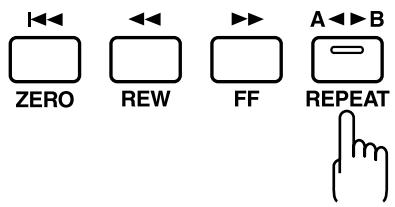
The position is set as repeat start point (A).
The [REPEAT] indicator begins to flash, telling you that the repeat start point has been registered.
If you wish to re-do the registration, you can cancel the registered location by pressing [REPEAT] when the current location is the same as the repeat start point (A).
If the current location is beyond the repeat start point (A), press [REPEAT] twice to cancel the registration.
The [REPEAT] indicator goes out, and the registered repeat start point (A) and end point (B) are deleted.
2. After registering the repeat start point (A), register the repeat end point (B).
Move to the position where you want the repeat to end and press [REPEAT].
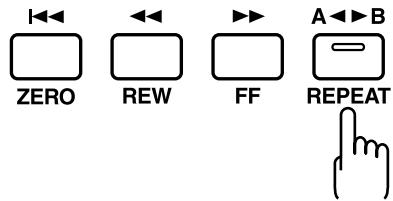
That position becomes repeat end point (B).
The [REPEAT] indicator lights, telling you that the repeat end point has been registered.
To re-do the registration, press [REPEAT] once again.
The [REPEAT] indicator goes out, and the registered repeat start point (A) and end point (B) are deleted.
Then press [REPEAT] again and register repeat start point (A) and end point (B) as desired.
* There must be at least one second between repeat start point (A) and repeat end point (B). It is not possible to set the end point less than one second away from the start point.
* If you press [REPEAT] at a position before the repeat start point (A), that earlier position is then set as the repeat start point (A).
MEMO
If you want to save the settings in the currently selected song, hold down [STOP], and press [REC].
Setting the repeat portion with accurate timing
Normally, the repeat start and end points are registered at the exact position where [REPEAT] is pressed. This may make it difficult for you to set the repeat portion exactly as you desire.
If this is the case, you can use the quantize function to have the time [REPEAT] is pressed be adjusted to the timing of the song.
The quantize function allows you to set the timing in one-measure units.
Perform the procedure given below to use the quantize function.
-
Press [UTILITY].
-
Press PARAMETER [◀] [▶] to move the cursor to "SYS," and press [ENTER].
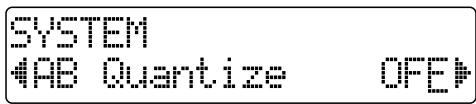
- Press PARAMETER [◀] [▶] to select "AB
Quantize," and turn the TIME/VALUE dial to turn the setting on.
When off, the quantize function will not work.
- Press [EXIT] (or [UTILITY]) several times to return to the Play page.
* During automatic updating, “Keep Power On!” appears in the upper line of the display, while the lower line shows what is being processed.
You can copy (p. 50), move (p. 53), and erase (p. 55) the repeat portion.
Before using these functions, you can use the quantize function to set the repeat portion with accurate timing.
* Changing the tempo after having made the quantize function settings in a repeated portion will result in timing discrepancies between the repeat start and end points and the beginnings and ends of measures.
* You can set the repeat portion to one measure by pressing [REPEAT] twice at the same position.
Recording an additional performance while listening to an existing performance—Overdubbing
The tracks for which the REC TRACK button is lit in green (or alternately in orange and green) are tracks that already have data recorded on them.
The process of listening to a previously recorded performance while you record additional material on another track is called “overdubbing.” By recording the bass, guitar, and vocals on different tracks, you can then adjust the volumes of each instrument with respect to one another, change the left-right sound balance, exchange data, and perform other operations.
- Press one of REC TRACK [1] to [4] to select the track to which to record.
By selecting a different track to record from the track that you previously recorded, you can record a new part while listening to the previously recorded part.
The status of each track can be determined from the indicator on the button.
Off: No recorded data exists on the track.
Green: Recorded data exists on track.
Red: The track is selected for recording.
If a track with existing data is selected for recording, the indicator will light alternately in orange and green.
* If you choose a track to record that already contains data (where the REC TRACK button is lit in green), the indicator lights alternately in orange and green, and the new music overwrites the previously recorded data.

"Selecting the recording track" (p. 33)
-
Adjust the faders so the tracks being played back are at a suitable level.
-
Press [REC].
[REC] flashes in red and the BR-532 enters the recording standby state.
- Press [PLAY].
The [REC] and REC TRACK button indicators change from flashing in red to being continually lit and recording begins.
[PLAY] lights up

Only what you are currently playing is recorded to the new track. The music that is being played back is not recorded.
* If you use the INPUT LEVEL knob to turn down the volume of the input source during recording, the sound will be recorded in the audio track at a low volume, so that noise will be more apparent when you raise the volume of the audio track for playback. If you want to lower the sound of the input source that you are monitoring, lower the volume with the MASTER fader. To change the volume of the music being played back, use the TRACK fader for the respective tracks.
Changing the position of the input sound
When you record new material while listening to a recorded performance, your playing may tend to be buried in the existing performances, making it difficult for you to play. If this is the case, you can change the positioning (or panning) of the INPUT (the instrument you are playing) and record it so that it is not buried underneath the other sounds.
- Press [PAN].
The Pan settings screen appears.
- Press PARAMETER [◀] [▶] to display "IN."
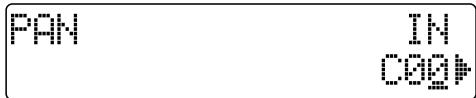
-
Turn the TIME/VALUE dial to change the pan settings. The pan settings made here are automatically applied to the track that you are recording to, so that after recording is complete, you can listen to the track with the same pan as that when it was recorded.
-
Press [EXIT] (or [PAN]) to return to the Play page.
By panning the track that you are playing back to the left (or right) and then panning the music that you are playing to the right (or left), it will be easy to hear it during playback.

"Setting the sound positioning (pan)" (p. 42)
Putting multiple tracks together—Bouncing
Although the BR-532 allows the simultaneous playback of four tracks, when you run out of tracks, the BR-532 also lets you copy the recordings of multiple tracks together onto one track (V-Track). This is called “bouncing” (also known as bounce recording or ping-pong recording). By combining multiple tracks in this way, you can free up other tracks in order to record additional performances.
* In the bounce mode, while playing back all four tracks, you can record the music bounced to a V-Track.
The explanation below uses an example of mixing the monaural recording on tracks 1 and 2 and the stereo recording on tracks 3 and 4, and bouncing them to V-Track 2 of tracks 3 and 4.
- Set the pan for tracks 1 and 2 to the locations you desire, set the pan for track 3 all the way to the left (L50), and the pan for track 4 all the way to the right (R50).

“Setting the left-right positioning (pan) of the sound” (p. 42)
- Play back the song and adjust the volumes for the four tracks using the REC TRACK faders.
The overall volume is adjusted by the MASTER fader. At this time, raise the volume as high as possible without allowing the sound to distort.
Lower the faders for the tracks that you do not want to mix.
* You can apply insert effects (p. 31) or loop effects (p. 42) to the recording when performing bounce recording.
-
Press [STOP].
-
Press BOUNCE [ON/OFF] until both the TRACK L and R indicators blink.
* Each time BOUNCE [ON/OFF] is pressed, the setting changes from STEREO → MONO → OFF and so on.
The track selection screen appears for stereo recording.
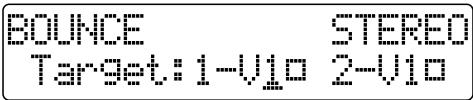
If you press BOUNCE [ON/OFF] so just TRACK L lights, the track selection screen appears for monaural recording.

■ The [INPUT SELECT] indicator goes out, and the input source is automatically muted. This prevents the input source from being mixed in and recorded during bounce recording.
* If you wish to mix an input source as part of the bounce recording, press [INPUT SELECT] to select the desired input source. At this time, you can apply loop effects (p. 42) to the sound of the input source.
- Press REC TRACK to select the track, and turn the TIME/VALUE dial to select the V-Track to which to record.
For this example, you would select "3-V2" and "4-V2."
- If you want to mix in the sound of the rhythm guide as well, increase the RHYTHM GUIDE fader.
If you do not want to record the rhythm guide, lower the fader.
-
After returning to the beginning of the song, press [REC] and then [PLAY] to start the bounce recording. [REC], [PLAY], [REC TRACK], and BOUNCE [ON/OFF] light up.
-
When you are finished recording, press [STOP]. The bounce mode is exited.
* During automatic updating, “Keep Power On!” appears in the upper line of the display, while the lower line shows what is being processed.
- Press [PLAY] to check the sound bounced to tracks 3 and 4.

The pan for tracks 3 and 4, where the music was bounced, is set all the way to the left and right respectively.

In order to prepare for the next recording, when the bounce mode is exited, the tracks (1 and 2) other than those that were bounced to (3 and 4) are automatically switched to the V-Tracks that are empty.

If you want to save the settings in the currently selected song, hold down [STOP], and press [REC].
Finishing up the song—Mix Down
Combining the recordings on multiple tracks down onto two tracks (i.e., for normal cassette tapes) is called “mixing down.” When mixing down, you must first perform the final settings such as adjusting the sound tone, sound positioning (pan), and volume balance, and finish up the song.
Setting the sound positioning (Pan)
- Press [PAN].
The Pan settings screen appears.
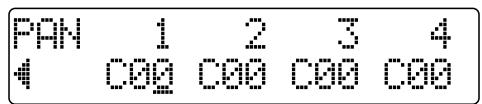
- Press PARAMETER [◀] [▶] and select the track for which you will change the pan setting.
* When a REC TRACK button is pressed, the cursor moves to the track corresponding to the pressed button.
- Turn the TIME/VALUE dial to change the pan settings.
* Press [ENTER] to set "C00."
- Press [EXIT] (or [PAN]) to return to the Play page.
Adding width to the sound —Loop Effect
In the mixer block of the BR-532, chorus, doubling, and reverb are provided as loop effects. By using these you can add spaciousness to the sound.
* When using the loop effects, you cannot use the chorus, doubling, and reverb loop effects together at the same time. Choose only the one that you desire.

What is a loop effect?
Effects connected to the send and return of mixer effects are called “loop effects.” You can adjust the depth of the effect by changing the send level of each mixer channel (equivalent to the tracks of the BR-532).
Since the send levels for each track are separate, you can change the depth individually. This allows you to, for example, have a deep reverb on the vocals and slight reverb on the drums, or any such combination.
Opposed to insert effects (p. 31), which are applied to specific sounds, loop effects are applied to the complete track.
- Press [LOOP EFFECTS].
The Send Level Setting screen for each track appears.
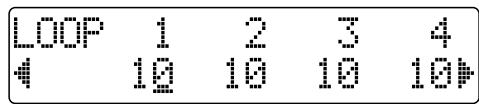
- Press PARAMETER [◀] [▶] to move the cursor, and turn the TIME/VALUE dial to adjust the send level for each track.
* When a REC TRACK button is pressed, the cursor moves to the track corresponding to the pressed button.
- If necessary, you can now change the settings for other loop effects.
Press PARAMETER [◀] [▶] to move the cursor, and turn the TIME/VALUE dial to change the desired settings.
For more details regarding the various settings, refer to “Using the loop effects” (p. 82).
- Press [EXIT] (or [LOOP EFFECTS]) several times to return to the Play page.
MEMO
In addition to using PARAMETER [◀] [▶] to change the track selected, you can also select a track directly with the REC TRACK buttons.
Mixing down
After playing the song back and checking the sound, setting the pan and loop effects, and adjusting the volumes of the various tracks, it is time to mix the tracks down.
- Connect the recording device to the OUTPUT jack and place it into its recording standby state.
- Press [PLAY] on the BR-532 and start the playback of the recorded data.
HINT
If the external recording device has an optical digital connector, you can connect it to the DIGITAL OUT connector on the BR-532 to mix down directly with the digital signal (44.1 kHz).
Disabling digital copying
You can set the BR-532 so that when data is mixed down digitally (i.e., to a DAT recorder), the mixed down data on the tape cannot then be copied digitally again to another DAT recorder or other digital recording device.
- Press [UTILITY].
- Press PARAMETER [◀] [▶] to move the cursor to "SYS," and press [ENTER].
- Press PARAMETER [◀] [▶] to display "D.CopyProtect," and turn the TIME/VALUE dial to select "ON."
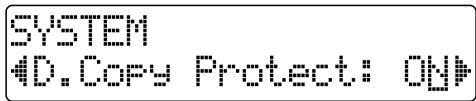
ON: Digital copying will be prohibited.
OFF: Digital copying is enabled.
- Press [EXIT] (or [UTILITY]) several times to return to the Play page.
* During automatic updating, “Keep Power On!” appears in the upper line of the display, while the lower line shows what is being processed.
* Some DAT recorders do not support SCMS, or do not allow digital connections to a CD player. If you are using this type of DAT recorder, it will not be possible to record the digital output of the BR-532 on a DAT recorder if “D.CopyProtect” is turned “ON.” In this case, you will need to turn off the “D.CopyProtect” setting.
What is SCMS?
SCMS stands for Serial Copy Management System. This is a function of consumer digital audio devices such as DAT recorders MD recorders that protects the copyright of the producer by prohibiting second-generation and subsequent copies from being made digitally. If digital connections are made to a digital recorder that has this function, SCMS flags will be recorded along with the digital audio signals. Digital audio data that contains this data cannot be recorded again via a digital connection.
Changing V-Tracks
The BR-532 is a four-track multitrack recorder, and each track consists of eight V-Tracks. You can select any one of these V-Tracks for recording or playback.
Therefore, by making use of the many V-Tracks, you can use the BR-532 just as if it were a 32-track multitrack recorder.
This allows a wide range of uses, such as recording one take of a guitar solo or vocal, and then recording another take without having to erase the first one. You can also then take just the portions of the V-Tracks that you like and put them together onto one track.

“Editing the performance on a track (track editing)” (p. 50)
- Press [V-TRACK].
The V-Track Selection screen appears. This screen shows the numbers of the selected V-Tracks for each track.
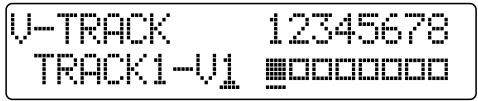
■ : V-Tracks with recorded data.
☐ : V-Tracks without data.
- Press a REC TRACK button to select the track to be altered.
- Turn the TIME/VALUE dial and change the V-Track.
- After you finish changing the V-Track, press [EXIT]. You will return to the Play page.
Re-recording only a mistake—Punch-in/out
You may occasionally make a mistake while recording, or the performance may not turn out as you expect. In this case, you can punch in/out to re-record only the portion that is mistaken.
Changing to recording during the playback of a song is referred to as punching in, and changing from recording to playback is referred to as punching out.
Therefore, punch in at the location where you want to begin the re-recording, and punch out at the location where you want the re-recording to end.
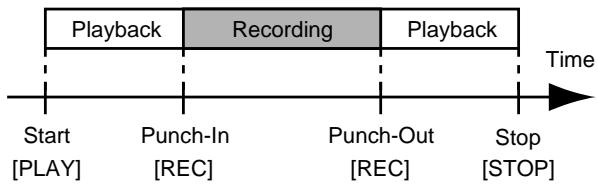
flowchart
graph LR
    A["Start [PLAY"]] --> B["Punch-In [REC"]]
    B --> C["Punch-Out [REC"]]
    C --> D["Stop [STOP"]]
    style A fill:#f9f,stroke:#333
    style B fill:#ccf,stroke:#333
    style C fill:#cfc,stroke:#333
    style D fill:#fcc,stroke:#333
With your BR-532, you can choose from manual or automatic punching in/out.
* You can use the Undo function (p. 58) to revert to the condition before re-recording.
* The data prior to punch-in/out will remain on the memory card without being erased. If this data is no longer needed, in order to use the memory card effectively, use the song optimize function (p. 60) to delete unneeded data from the memory card.
Manually punching in/out
You can use the button on the BR-532 or a foot switch to punch in or out.
When you are playing an instrument and performing the recording by yourself, it may be difficult to punch in or out using the button on the BR-532. If this is the case, you can use a separately sold foot-switch (BOSS FS-5U, Roland DP-2, etc.) and use your feet to punch in and out.
* When using manual punch-in/out, you need to allow for an interval of at least one second between the punch-in and punch-out points.
Manually punching in and out using [REC]
As an example of use, the explanation below assumes you are manually punching in and out to re-record a portion of track 1, which is a track to which you have already recorded.
-
Press REC TRACK [1].
REC TRACK [1] lights alternately in orange and green. -
Place the fader for track 1 at the location shown below.
![ROLAND BR-532 - Manually punching in and out using [REC] - 1](/content/2025/01/130575/images/36c79ad2233a2582ee1bdbe2bada032c1c00521ffea5ea24e27e32d8fea0be9d.jpg)
- Start playback and adjust the volume of the input source using the INPUT LEVEL knob.
Listen to the track you will be re-recording and the input source and adjust the volume of the input source using the INPUT LEVEL knob so that it is the same level as the track.
-
Move to a position before where you want to start rerecording and press [PLAY] to start playback.
-
Press [REC] to punch in at the location where you want to start recording. The BR-532 starts recording.
-
To punch out, press [REC] (or [PLAY]) again.
Each time you press [REC], you punch in and punch out, so if there is another location that you want to redo, then you can punch in again at that location using the same procedure.
- Press [STOP] to stop recording.
* During automatic updating, “Keep Power On!” appears in the upper line of the display, while the lower line shows what is being processed.
8. Listen to the re-recorded results.
Return the song to a point earlier than you re-recorded, and play it back.
Adjust the volume of track 1 using the TRACK fader.
Manually punching in and out using a foot switch
In order to use a foot switch
When you are using a foot switch (BOSS FS-5U, Roland DP-2, etc.) to punch in and out, connect the foot switch to the FOOT SW jack on the BR-532 and change the function of the FOOT SW jack by following the procedure given below.
- Press [UTILITY].
- Press PARAMETER [◀] [▶] to move the cursor to "SYS," and press [ENTER].
- Press PARAMETER [◀] [▶] and select "Foot Sw."
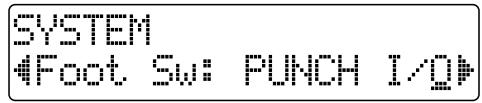
4. Turn the TIME/VALUE dial and select "PUNCH I/O" (PUNCH IN/OUT).

PLY/STP: The song will alternate between play and stop each time you press the foot switch.
FX ON/OFF: The effect will alternate between on and off each time you press the foot switch
5. Press [EXIT] (or [UTILITY]) several times to return to the Play page.
* During automatic updating, “Keep Power On!” appears in the upper line of the display, while the lower line shows what is being processed.
![ROLAND BR-532 - Press [EXIT] (or [UTILITY]) several times to return to the Play page. - 1](/content/2025/01/130575/images/130d8b19b59f38df1c8b16cc25f4cb9c17a94268c2d88742e58a13eb3bdc3ab3.jpg)
Now the operation of the foot switch allows you to punch in and out just as pressing [REC] does.
Auto punching in and out
Automatically punching in and out at predetermined locations (or times) in the song is referred to as “auto punching in/out.”
When you want to punch in and out at accurate times or when you want to concentrate on playing rather than punching in and out manually, the auto punch in/out function is very useful.
Specifying the area for recording
Before you begin recording, you must register the locations at which punch-in and punch-out will occur automatically.
- Register the location where you want to punch in.
Move the location where you want to punch in and press AUTO PUNCH [IN] to register that location for automatic punch in.
At this time, the AUTO PUNCH [IN] indicator lights, telling you that the punch-in position is registered.
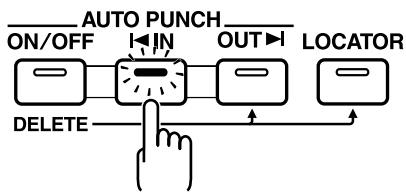

If the AUTO PUNCH [IN] indicator is lit, you will automatically move to the registered punch-in location when this button is pressed.
2. Register the location where you want to punch out.
Move the location where you want to punch out and press AUTO PUNCH [OUT] to register that location for automatic punch out.
At this time, the AUTO PUNCH [OUT] indicator lights, telling you that the punch-out position is registered.
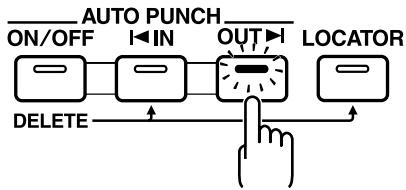

If the AUTO PUNCH [OUT] indicator is lit, you will automatically move to the registered punch-out location when this button is pressed.
MEMO
If you want to punch in/out at a locator point, press [LOCATOR] to move to the locator point, and press AUTO PUNCH [IN] or AUTO PUNCH [OUT].
Erasing a registered auto punch in/out location
■ To erase an auto punch-in location, press and hold AUTO PUNCH [ON/OFF] and then press [IN].
■ To erase an auto punch-out location, press and hold AUTO PUNCH [ON/OFF] and then press [OUT].
When the settings are erased, the AUTO PUNCH [ON/OFF], [IN], and [OUT] indicators go out.
MEMO
If you want to save the settings in the currently selected song, hold down [STOP], and press [REC].
How to Record
As an example of use, the explanation below assumes you are using the auto punch in/out to re-record a portion of track 1, which is a track to which you have already recorded.
- Press REC TRACK [1].
REC TRACK [1] lights alternately in orange and green.
- Place the fader for track 1 at the location shown below.
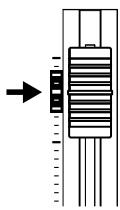
- Make sure that the AUTO PUNCH [ON/OFF] indicator is dark.
If it is lit, press AUTO PUNCH [ON/OFF] to make the indicator go dark.
- Start playback and adjust the volume of the input source using the INPUT LEVEL knob.
Listen to the track you will be re-recording and the input source and adjust the volume of the input source using the INPUT LEVEL knob so that it is the same level as the track.
- Move to a position before where you want to start rerecording and press AUTO PUNCH [ON/OFF].
The indicator lights up, showing that the auto punch in and out have been set.
- Press [REC] to place the BR-532 in recording standby and then press [PLAY].
Recording automatically starts at the auto punch-in location, so start playing what you want to record.
At the point you specified for punch-out, the track will automatically change back to play mode.
- Press [STOP] to stop recording.
* During automatic updating, “Keep Power On!” appears in the upper line of the display, while the lower line shows what is being processed.
- Listen to the re-recorded results.
Return the song to a point earlier than you re-recorded, and play it back.
Adjust the volume of track 1 using the TRACK fader.
Repeatedly Recording Over the Same Location (Loop Recording)
The repeat function (p. 38) allows you to play a certain portion of a song (the loop portion) over and over again.
If you used auto punch in/out together with the repeat function, the portion will be repeated so the result of the recording can be heard right away.
If the recording did not sound as you wished, simply press [REC] and redo the recording.
Using the repeat function and auto punch in/out together in this manner to repeatedly perform recording is known as "loop recording."
* For details on how to set the portion where recording will occur (the portion between the punch-in and punch-out positions), refer to “Auto punching in and out” above.
Setting the portion to be repeated
Before you begin recording, you will need to set the starting and ending position of the portion to be repeated.
* The portion to be repeated should contain the portion that you wish to re-record (the portion between the punch-in and punch-out points).
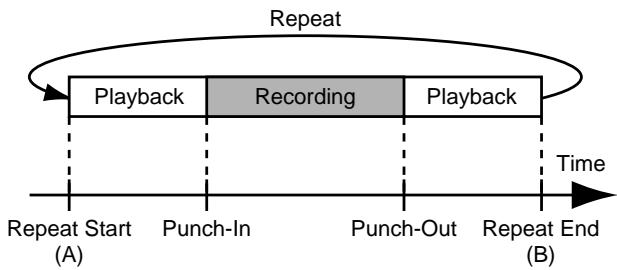
flowchart
graph LR
    A["Playback"] --> B["Punch-In"]
    B --> C["Recording"]
    C --> D["Punch-Out"]
    D --> E["Repeat End (B)"]
    E --> F["Repeat Start (A)"]
    style A fill:#ccc,stroke:#333
    style B fill:#ccc,stroke:#333
    style C fill:#ccc,stroke:#333
    style D fill:#ccc,stroke:#333
    style E fill:#ccc,stroke:#333
    style F fill:#ccc,stroke:#333
If the portion to be re-recorded is not fully contained in the repeat portion, the recording may not start or end as desired.
How to Record
As an example of use, the explanation below assumes you are using the auto punch in/out to re-record a portion of track 1, which is a track to which you have already recorded.
- Press REC TRACK [1].
REC TRACK [1] lights alternately in orange and green.
- Place the fader for track 1 at the location shown below.
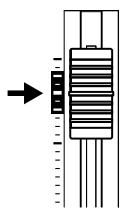
- Use the repeat function to repeat the playback of the song and adjust the volume of the input source using the INPUT LEVEL knob.
Listen to the track you will be re-recording and the input source and adjust the volume of the input source so that it is the same level as the track.
- Press AUTO PUNCH [ON/OFF].
The indicator lights, showing that the auto punch in and out have been set.
- When you are ready to record, hold down [REC] and press [PLAY] to begin recording.
After you press [REC], you can record from the time the first punch-in is reached until the time the punch-out is reached. Re-record the portion as desired.
When the song is repeated, you can check the result of what you just recorded. If the recording is not satisfactory, press [REC] and perform the recording again.
- Press [STOP] to stop recording.
* During automatic updating, “Keep Power On!” appears in the upper line of the display, while the lower line shows what is being processed.
-
Press [REPEAT] to make the button indicator go dark.
-
Press AUTO PUNCH [ON/OFF] to make the indicator go dark.
Registering time—Locator Function
Using the locator function, you can register any desired time in a song as a “locator point” so that you can jump to that point later with just the press of a button.
This function is quite useful during editing.
Registering a locator point
- At the Play screen, move to the location where you want to register the locator point.
- Press [LOCATOR].
When the [LOCATOR] indicator lights up, registration is complete.
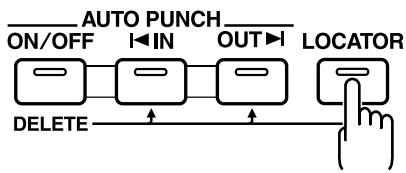
flowchart
graph LR
    A["ON/OFF"] --> B["IN"]
    B --> C["OUT"]
    C --> D["LOCATOR"]
    D --> E["DELETE"]
    style A fill:#f9f,stroke:#333
    style B fill:#f9f,stroke:#333
    style C fill:#f9f,stroke:#333
    style D fill:#f9f,stroke:#333
Moving to the locator point
Press [LOCATOR] to move to the time in the song registered as a locator point.
Deleting a locator point
Press and hold AUTO PUNCH [ON/OFF], then press [LOCATOR] to delete the locator point.
Editing the performance on a track (Track Editing)
The BR-532 allows you to edit your songs by performing editing functions such as copying and moving data recorded on the tracks.
Choosing to specify in terms of measures rather than time
During Track Editing, if you press PARAMETER [◀] several times in screens where specification of a measures value is expected (“Start” “End” “To”), you can switch to a screen where the specification can be made in terms of time.
![TRACK COPY [4] 4Start: 001-01 PARAMETER TRACK COPY [4] Start:00:00:00-00.0](/content/2025/01/130575/images/e6bd292cb905cdbb169d028a86c0422fe25df92e4351385daafe09f60fb87e04.jpg)

Data is saved in its edited form when you return to the Play screen from the Track Edit screen.
* During automatic updating, “Keep Power On!” appears in the upper line of the display, while the lower line shows what is being processed.
Copying recorded data (Track Copy)
Track Copy allows you to copy a specific part of recorded data and then place it in a different location.
You can perform editing operations such as copying the recorded data on a track all at once, or copying the recorded data from a specified part as many times as you wish.
If, for example, you want to use a phrase from a certain track, or have the same phrase repeated again and again, the copy function will help save you time.
To copy recorded data, align the beginning of the data being copied to the position where you want it placed.
* If data exists at the position being copied to, that data will be overwritten.
* The portion being copied must be longer than 1.0 seconds long. If the copied portion is 1.0 seconds or less, no sound will be heard even if the copy is carried out.
The three types of Track Copy are given below.
Copying the repeated portion (AB)
Perform the procedure given below to copy the portion from the repeat start (A) to the repeat end (B).
Ex. 1: Copying twice to the same track
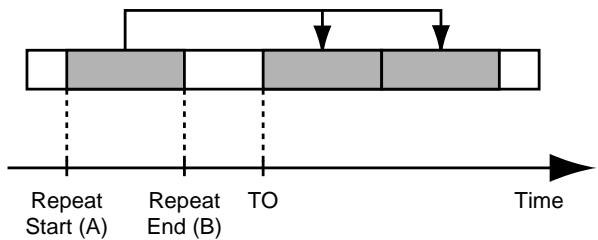
flowchart
graph LR
    A["Repeat Start (A)"] --> B["Repeat End (B)"]
    B --> C["TO"]
    C --> D["Time"]
    style A fill:#f9f,stroke:#333
    style B fill:#f9f,stroke:#333
    style C fill:#f9f,stroke:#333
    style D fill:#f9f,stroke:#333
Ex. 2: Copying twice to another track
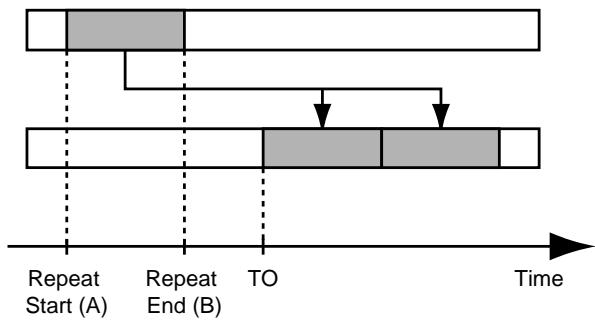
flowchart
graph TD
    A["Repeat Start (A)"] --> B["Repeat End (B)"]
    B --> C["TO"]
    C --> D["Time"]
    style A fill:#f9f,stroke:#333
    style B fill:#f9f,stroke:#333
    style C fill:#f9f,stroke:#333
    style D fill:#f9f,stroke:#333
- Press [UTILITY].
- Press PARAMETER [◀] [▶] to move the cursor to "TRK," and press [ENTER].
![TRACK EDIT COPY [OPY] [MOV] [ERS]](/content/2025/01/130575/images/c32153ac1a80a4ab10e2971efb232c38c56abfb407e2cc63c49c843a56904bd5.jpg)
- Press PARAMETER [◀] [▶] to move the cursor to "CPY," and press [ENTER].
![TRACK COPY Edit Type: [4] AB](/content/2025/01/130575/images/38c1121026202c95e0d8743ca094f3ab55bd1dd5db1d49fc5ce4e193b83ea76d.jpg)
- Turn the TIME/VALUE dial to select "AB" and press [ENTER].
![TRACK AB COPY [4] Src:1-V1 + Trg:2-V1](/content/2025/01/130575/images/0f326d166e52bb7ed9cc8aa5ba6ce9d86cfdd87ae2bc94dafb460bd1f2787a2c.jpg)
- Press PARAMETER [◀] [▶] to move the cursor, and turn the TIME/VALUE dial to select the track/V-Track to copy from, and track/V-Track to copy to.
- Press [ENTER].
![TRACK AB COPY [4] #To: 001-01](/content/2025/01/130575/images/4c085f4357db67a8d71bc6aac4f1c5f31c1a690ec916919ffb7f5ba93b6fcb98.jpg)
- Press PARAMETER [◀] [▶] to move the cursor, and turn the TIME/VALUE dial to specify the time of the beginning of the location where you want the copied data to be placed.
- Press [ENTER].
![TRACK AB COPY [4] Repeat: × 01](/content/2025/01/130575/images/983d41cc4c42ce9353a4952c876e2afa73fcca7ce729cced9f0a9339b5df343e.jpg)
- Turn the TIME/VALUE dial to select the number of copies you want to be placed.
- When you are ready to execute the copy, press [ENTER].
The display will ask “Are you sure?,” so that you can confirm the operation.
- Press [ENTER].
The copy is executed. - Press [EXIT] several times to return to the Play page.
Copying by specifying the time (TIME/MES)
Perform the procedure given below to copy the portion between specific times.
Ex. 1: Copying twice to the same track
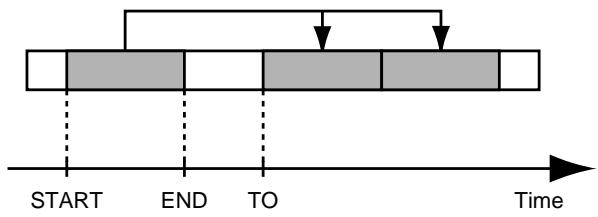
flowchart
graph LR
    A["Start"] --> B["END"]
    B --> C["TO"]
    C --> D["End"]
    style A fill:#f9f,stroke:#333
    style B fill:#f9f,stroke:#333
    style C fill:#f9f,stroke:#333
    style D fill:#f9f,stroke:#333
Ex. 2: Copying twice to another track
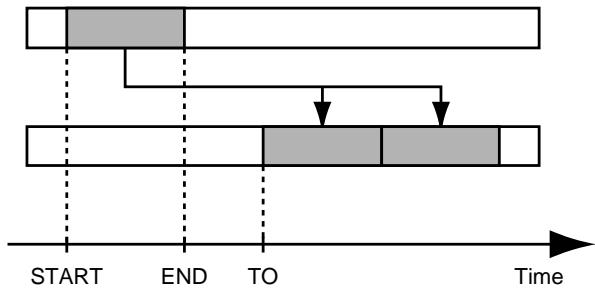
flowchart
graph TD
    A["Start"] --> B["END"]
    B --> C["TO"]
    C --> D["Time"]
    style A fill:#f9f,stroke:#333
    style B fill:#f9f,stroke:#333
    style C fill:#f9f,stroke:#333
    style D fill:#f9f,stroke:#333
- Press [UTILITY].
- Press PARAMETER [◀] [▶] to move the cursor to "TRK," and press [ENTER].
![TRACK EDIT COPY [OPY] [MOV] [ERS]](/content/2025/01/130575/images/78313098006be0e917b01c1309090247defee4ffdac8150916173eddf05f085b.jpg)
- Press PARAMETER [◀] [▶] to move the cursor to "CPY," and press [ENTER].
![TRACK COPY Edit Type: [4] AB](/content/2025/01/130575/images/f827ca019aa3e3c60eae8a33bedf07d04534b6817ce3d84913422731784f7440.jpg)
- Turn the TIME/VALUE dial to select "TIME/MES" and press [ENTER].
![TRACK COPY [4] Src:1-V1 + Tr9:2-V1](/content/2025/01/130575/images/4906343505f2363f2a669018ef851d47be4b32a12e204ecf6758f0d1f7aba515.jpg)
- Press PARAMETER [◀] [▶] to move the cursor, and turn the TIME/VALUE dial to select the track/V-Track to copy from, and track/V-Track to copy to.
- Press [ENTER].
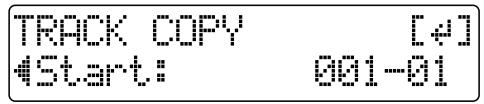
-
Press PARAMETER [◀] [▶] to move the cursor, and turn the TIME/VALUE dial to specify the beginning of the portion of data you want to copy.
-
Press [ENTER].
| TRACK COPY | [4] |
| 4End: | 001-01 |
-
Press PARAMETER [◀] [▶] to move the cursor, and turn the TIME/VALUE dial to specify the ending of the portion of data you want to copy.
-
Press [ENTER].
| TRACK COPY | [4] |
| 4To: | 001-01 |
-
Press PARAMETER [◀] [▶] to move the cursor, and turn the TIME/VALUE dial to specify the time of the beginning of the location where you want the copied data to be placed.
-
Press [ENTER].
| TRACK COPY | [4] |
| Repeat: | × 01 |
-
Turn the TIME/VALUE dial to select the number of copies you want to be placed.
-
When you are ready to execute the copy, press [ENTER].
The display will ask “Are you sure?,” so that you can confirm the operation.
- Press [ENTER].
The copy is executed.
- Press [EXIT] several times to return to the Play page.
* After specifying the time in the procedure above, if you change the display to show measures (p. 50), a “+” may appear to show that there is a discrepancy between the actual current position and the position displayed. If you specify the locations using measures, specify the locations at each screen using the TIME/VALUE dial to eliminate the discrepancy.
HINT
You can also enter the time using [LOCATOR], [ZERO], [STOP] + [REW], [STOP] + [FF], and AUTO PUNCH [IN/OUT].
Copying a complete track (ALL)
Perform the procedure given below to copy the complete recorded data from one track to another.
-
Press [UTILITY].
-
Press PARAMETER [◀] [▶] to move the cursor to "TRK," and press [ENTER].
| TRACK EDIT COPY |
| COPY [MOV] [ERS] # |
- Press PARAMETER [◀] [▶] to move the cursor to "CPY," and press [ENTER].
| TRACK COPY | [4] |
| Edit Type: | AB |
- Turn the TIME/VALUE dial to select "ALL" and press [ENTER].
| TRACK ALL COPY [4]Src:1-V1 + Trg:2-V1 |
-
Press PARAMETER [◀] [▶] to move the cursor, and turn the TIME/VALUE dial to select the track/V-Track to copy from, and track/V-Track to copy to.
-
When you are ready to execute the copy, press [ENTER].
The display will ask “Are you sure?,” so that you can confirm the operation.
- Press [ENTER].
The copy is executed.
- Press [EXIT] several times to return to the Play page.
Moving recorded data (Track Move)
Track Move allows you to move a specific portion of recorded data to a different location.
After the recorded data is moved, the location it was in will be left empty.
The three types of Track Move are given below.
Moving the repeated portion (AB)
Perform the procedure given below to move the portion from the repeat start (A) to the repeat end (B).
Ex. 1: Moving twice to the same track
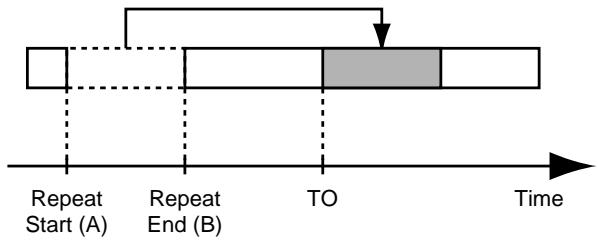
flowchart
graph LR
    A["Repeat Start (A)"] --> B["Repeat End (B)"]
    B --> C["TO"]
    C --> D["Time"]
Ex. 2: Moving twice to another track
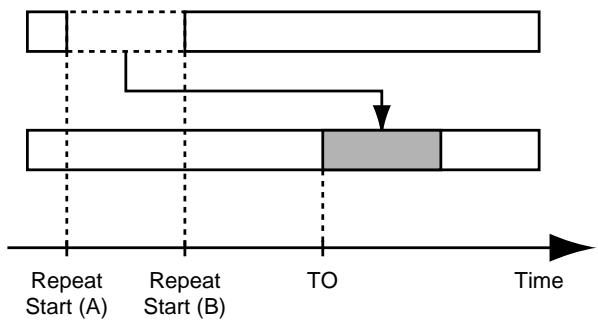
flowchart
graph TD
    A["Repeat Start (A)"] --> B["Repeat Start (B)"]
    B --> C["TO"]
    C --> D["Time"]
-
Press [UTILITY].
-
Press PARAMETER [◀] [▶] to move the cursor to "TRK," and press [ENTER].
![TRACK EDIT COPY [COPY] [MOV] [ERS]](/content/2025/01/130575/images/5dfcb6aac7650c6af46e3f9636045306798847e182aa158fabb861aa407ecde1.jpg)
- Press PARAMETER [◀] [▶] to move the cursor to "MOV," and press [ENTER].
![TRACK MOVE Edit Type: [4] AB](/content/2025/01/130575/images/aee7359eb0c50fd774705f2c76d56a2c6733e404c6f8f81e9ba33f006391ca0c.jpg)
- Turn the TIME/VALUE dial to select "AB" and press [ENTER].
![TRACK AB MOVE [4] Src:1-V1 + Trg:2-V1](/content/2025/01/130575/images/ae9a6501fab18d777901ad685144c2f427f274b56b41b93c514e45d9ecce6343.jpg)
-
Press PARAMETER [◀] [▶] to move the cursor, and turn the TIME/VALUE dial to select the track/V-Track to move from, and track/V-Track to move to.
-
Press [ENTER].
![TRACK AB MOVE [+] 4To: 001-01](/content/2025/01/130575/images/27fa4d2ead786d5e41109fb20a3e1d938e2ad0e88aae45fedb5a005fa0b23bea.jpg)
- Press PARAMETER [◀] [▶] to move the cursor, and turn the TIME/VALUE dial to specify the time of the beginning of the location where you want the data to be moved.
- When you are ready to execute the move, press [ENTER]. The display will ask "Are you sure?," so that you can confirm the operation.
- Press [ENTER]. Move Event is executed.
- Press [EXIT] several times to return to the Play page.
Moving by specifying the time (TIME/MES)
Perform the procedure given below to move the portion between specific times.
Ex. 1: Moving twice to the same track
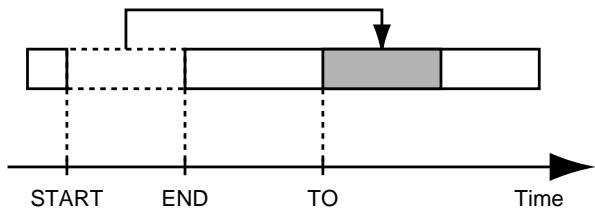
flowchart
graph LR
    A["Start"] --> B["End"]
    B --> C["TO"]
    C --> D["Time"]
    style A fill:#fff,stroke:#000
    style B fill:#ccc,stroke:#000
    style C fill:#ddd,stroke:#000
    style D fill:#fff,stroke:#000
Ex. 2: Moving twice to another track
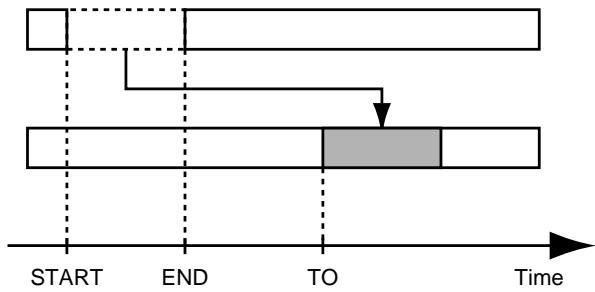
flowchart
graph TD
    A["Start"] --> B["END"]
    B --> C["TO"]
    C --> D["Time"]
    style A fill:#fff,stroke:#000
    style B fill:#ccc,stroke:#000
    style C fill:#ddd,stroke:#000
    style D fill:#fff,stroke:#000
- Press [UTILITY].
- Press PARAMETER [◀] [▶] to move the cursor to "TRK," and press [ENTER].
![TRACK EDIT COPY [OPY] [MOV] [ERS]](/content/2025/01/130575/images/6f6a0adf10420e881178c65c44ce7adf39095d384baf235b7148771b7403f932.jpg)
- Press PARAMETER [◀] [▶] to move the cursor to "MOV," and press [ENTER].
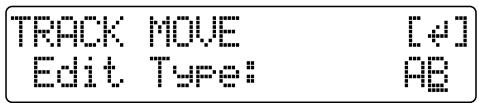
- Turn the TIME/VALUE dial to select "TIME/MES" and press [ENTER].
![TRACK MOVE [4] Src:1-V1 + Tr9:2-V1](/content/2025/01/130575/images/c33ecb639b5b8d0484b9fe619b51a65e685bd77df609ed576bdb4bce229eb394.jpg)
- Press PARAMETER [◀] [▶] to move the cursor, and turn the TIME/VALUE dial to select the track/V-Track to move from, and track/V-Track to move to.
- Press [ENTER].
![TRACK MOVE 4Start: [+] 001-01](/content/2025/01/130575/images/ca237f6fdd2b18a3500d841a03aae1c6430d3ba1ab5c84df4eed1b98f1fa6918.jpg)
- Press PARAMETER [◀] [▶] to move the cursor, and turn the TIME/VALUE dial to specify the beginning of the portion of data you want to move.
- Press [ENTER].
![TRACK MOVE [4] #End: 001-01](/content/2025/01/130575/images/3d804fb3029e609fe5710a56b66eab4cf9114aae153f46c7bff436c53799d115.jpg)
- Press PARAMETER [◀] [▶] to move the cursor, and turn the TIME/VALUE dial to specify the ending of the portion of data you want to move.
- Press [ENTER].
![TRACK MOVE [4] #To: 001-01](/content/2025/01/130575/images/71426a0fa40246733f9007015d753b54f0192f34b8f6d9de87eb4c2ad0b143a5.jpg)
-
Press PARAMETER [◀] [▶] to move the cursor, and turn the TIME/VALUE dial to specify the time of the beginning of the location where you want the data moved.
-
When you are ready to execute the move, press [ENTER]. The display will ask "Are you sure?," so that you can confirm the operation.
- Press [ENTER]. Move Event is executed.
- Press [EXIT] several times to return to the Play page.
* After specifying the time in the procedure above, if you change the display to show measures (p. 50), a “+” may appear to show that there is a discrepancy between the actual current position and the position displayed. If you specify the locations using measures, specify the locations at each screen using the TIME/VALUE dial to eliminate the discrepancy.
HINT
You can also enter the time using [LOCATOR], [ZERO], [STOP] + [REW], [STOP] + [FF], and AUTO PUNCH [IN/OUT].
Moving a complete track (ALL)
Perform the procedure given below to move the complete recorded data from one track to another.
- Press [UTILITY].
- Press PARAMETER [◀] [▶] to move the cursor to "TRK," and press [ENTER].
![TRACK EDIT COPY [COPY] [MOV] [ERSI]](/content/2025/01/130575/images/128dd9bc9ff5ddbbe3f374101911be603e09202d4976347f5a3f9ff3d052d2a6.jpg)
- Press PARAMETER [◀] [▶] to move the cursor to "MOV," and press [ENTER].
![TRACK MOVE Edit Type: [4] AB](/content/2025/01/130575/images/8e5b1545c761d3f803869f9ea6b6494097ac886962568d7f71c3208a7d63ddb4.jpg)
- Turn the TIME/VALUE dial to select "ALL" and press [ENTER].
![TRACK ALL MOVE [4] Src:1-V1 + Trg:2-V1](/content/2025/01/130575/images/aa0a8bcb89b44466796c5368b7c590cb7056c1e3b607ca7cd85437a983ed01bf.jpg)
- Press PARAMETER [◀] [▶] to move the cursor, and turn the TIME/VALUE dial to select the track/V-Track to move from, and track/V-Track to move to.
- Press [ENTER].
![TRACK ALL MOVE [4] #To: 001-01](/content/2025/01/130575/images/a9a2674e74916af1f5bd5cda235e68a5ec0edaf6c3868220fc9c7851634146e6.jpg)
- Press PARAMETER [◀] [▶] to move the cursor, and turn the TIME/VALUE dial to specify the time of the beginning of the location where you want the data to be moved.
- When you are ready to execute the move, press [ENTER]. The display will ask "Are you sure?," so that you can confirm the operation.
- Press [ENTER].
Move Event is executed. - Press [EXIT] several times to return to the Play page.
Erasing recorded data (Track Erase)
Track Erase allows you to erase a specific part of recorded data. Even if recorded data exists after the specified part, it will not be moved forward to fill the gap left by the erasure. Like a normal tape recorder, erasing can be considered covering unwanted data by recording emptiness.
* Do not leave a portion of less than 1.0 seconds in length after the erased portion. If a portion that short does remain, it will end up being silent.
The three types of Track Erase are given below.
Erasing the repeated portion (AB)
Perform the procedure given below to erase the portion from the repeat start (A) to the repeat end (B).
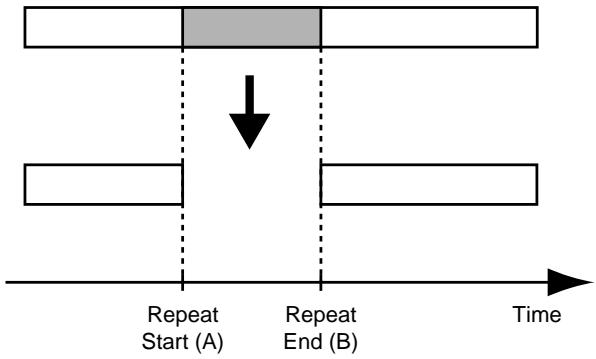
flowchart
graph TD
    A["Repeat Start (A)"] --> B["Repeat End (B)"]
    B --> C["Time"]
    style A fill:#f9f,stroke:#333
    style B fill:#f9f,stroke:#333
    style C fill:#ccf,stroke:#333
- Press [UTILITY].
- Press PARAMETER [◀] [▶] to move the cursor to "TRK," and press [ENTER].
![TRACK EDIT COPY [OPY] [MOV] [ERS]](/content/2025/01/130575/images/dee7f621459a085dae7d2744af190c7b1be4f362f3c69af7b977ba0d80b9cc99.jpg)
- Press PARAMETER [◀] [▶] to move the cursor to "ERS," and press [ENTER].
![TRACK ERASE Edit Type: [4] AB](/content/2025/01/130575/images/565569f9ec74a5eed7becc3748624af737ccc46e941d4a348abf5cd8aa045493.jpg)
- Turn the TIME/VALUE dial to select "AB" and press [ENTER].
![TRACK AB ERASE [4] Target: 1-VI](/content/2025/01/130575/images/828aa4c0181e465d760b28c79f1f92df040cecec6d5ba666959d19e44c2fb11d.jpg)
- Press PARAMETER [◀] [▶] to move the cursor, and turn the TIME/VALUE dial to select the track/V-Track to erase from.
Editing the performance on a track (Track Editing)
- When you are ready to execute the erasure, press [ENTER]. The display will ask "Are you sure?," so that you can confirm the operation.
- Press [ENTER]. The erasure is executed.
- Press [EXIT] several times to return to the Play page.
Erasing by specifying the time (TIME/MES)
Perform the procedure given below to erase the portion between specific times.

flowchart
graph TD
    A["Start"] --> B["END"]
    B --> C["Time"]
    style A fill:#fff,stroke:#000
    style B fill:#fff,stroke:#000
    style C fill:#fff,stroke:#000
- Press [UTILITY].
- Press PARAMETER [◀] [▶] to move the cursor to "TRK," and press [ENTER].
![TRACK EDIT COPY [OPY] [MOV] [ERS]](/content/2025/01/130575/images/fa6f1955d7a3d5d12c93120456f2ce784eaa6a30857882f3518c28c42abad2eb.jpg)
- Press PARAMETER [◀] [▶] to move the cursor to "ERS," and press [ENTER].
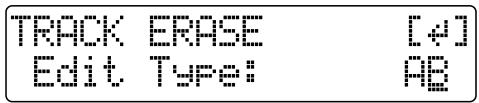
- Turn the TIME/VALUE dial to select "TIME/MES" and press [ENTER].
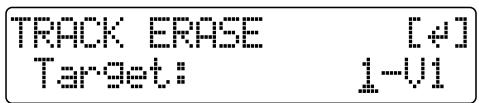
- Press PARAMETER [◀] [▶] to move the cursor, and turn the TIME/VALUE dial to select the track/V-Track to erase from.
- Press [ENTER].
![TRACK ERASE [4] #Start: 001-01](/content/2025/01/130575/images/e016ae6647b7831029159e7b7f30d54237bcbe3170ca62356f9d84a0be8660b4.jpg)
- Press PARAMETER [◀] [▶] to move the cursor, and turn the TIME/VALUE dial to specify the beginning of the portion of data you want to erase.
- Press [ENTER].
![TRACK ERASE [4] #End: 001-01](/content/2025/01/130575/images/081e26dffaa585a72fa2b363801ad46902892752741ed4e3d67bb90fdad74cd3.jpg)
- Press PARAMETER [◀] [▶] to move the cursor, and turn the TIME/VALUE dial to specify the ending of the portion of data you want to erase.
- When you are ready to execute the erasure, press [ENTER].
The display will ask “Are you sure?,” so that you can confirm the operation.
- Press [ENTER].
The erasure is executed. - Press [EXIT] several times to return to the Play page.
* After specifying the time in the procedure above, if you change the display to show measures (p. 50), a “+” may appear to show that there is a discrepancy between the actual current position and the position displayed. If you specify the locations using measures, specify the locations at each screen using the TIME/VALUE dial to eliminate the discrepancy.

You can also enter the time using [LOCATOR], [ZERO], [STOP] + [REW], [STOP] + [FF], and AUTO PUNCH [IN/OUT].
Erasing a complete track (ALL)
- Press [UTILITY].
- Press PARAMETER [◀] [▶] to move the cursor to "TRK," and press [ENTER].
![TRACK EDIT COPY [COPY] [MOV] [ERS]](/content/2025/01/130575/images/43a6ef3fb5f96c77fcad672711643d1b03b7324c2fa07caf46e09232b44ced6b.jpg)
- Press PARAMETER [◀] [▶] to move the cursor to "ERS," and press [ENTER].
![TRACK ERAE [4] Edit Type: AB](/content/2025/01/130575/images/b4982ec15ca50cf44cc670629bd5c439cc3a5741be545c9831bf867b355a862f.jpg)
- Turn the TIME/VALUE dial to select "ALL" and press [ENTER].
![TRK ALL ERASE [4] Target: 1-VI](/content/2025/01/130575/images/a4c6bd2a00b0b09a871723b04f657884f075b59bf3f9561b858fb35f85f01c85.jpg)
- Press PARAMETER [◀] [▶] to move the cursor, and turn the TIME/VALUE dial to select the track/V-Track to erase.
- When you are ready to execute the erasure, press [ENTER].
The display will ask “Are you sure?,” so that you can confirm the operation.
- Press [ENTER].
The erasure is executed.
- Press [EXIT] several times to return to the Play page.
Exchanging recorded data (Track Exchange)
Perform the procedure given below to exchange the recorded data between two tracks.
Example: exchanging all the data on track 1 with all the data on track 2
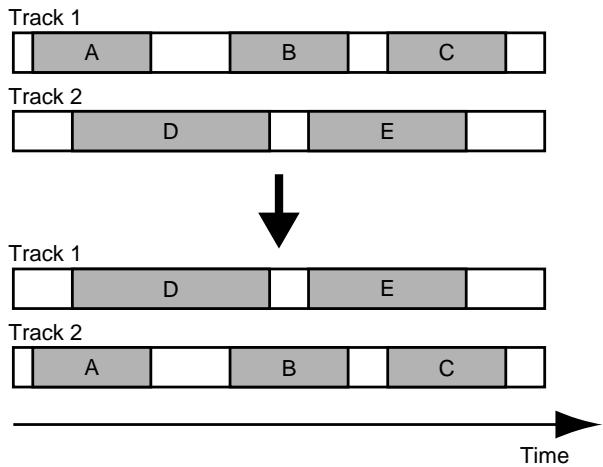
flowchart
graph TD
    A["Track 1"] --> B["Track 2"]
    B --> C["Track 2"]
    D["Track 1"] --> E["Track 2"]
    E --> F["Track 2"]
    style A fill:#f9f,stroke:#333
    style B fill:#f9f,stroke:#333
    style C fill:#f9f,stroke:#333
    style D fill:#f9f,stroke:#333
    style E fill:#f9f,stroke:#333
    style F fill:#f9f,stroke:#333
- Press [UTILITY].
- Press PARAMETER [◀] [▶] to move the cursor to "TRK," and press [ENTER].
![TRACK EDIT COPY [OPY] [MOV] [ERS]](/content/2025/01/130575/images/707a8864829a15e5aa55a97c481537e780a4d8ad5a17430458119d574526f001.jpg)
- Press PARAMETER [◀] [▶] to move the cursor to "EXC," and press [ENTER].
![TRACK EXCHANGE [4] Trk:1-V2 ↔ Trk:2-V1](/content/2025/01/130575/images/7a0181f41aae7aec223b37522458f8dc6251f1bd747d626b1241346413dc4ed8.jpg)
- Press PARAMETER [◀] [▶] to move the cursor, and turn the TIME/VALUE dial to select the two tracks/V-Tracks to exchange data.
- When you are ready to execute the exchange, press [ENTER].
The exchange is executed.
- Press [EXIT] several times to return to the Play page.
Canceling a recording or editing procedure—Undo/Redo
Occasionally when the recording you make may not turn out as you wish, or the settings you make for an editing operation are incorrect, and you want to reverse what you have done. At these times, you can use the “Undo function.”
The Undo function reverses the action you have just performed and returns you to the status you were in beforehand. To reverse an Undo, you must use the “Redo function.”
For example, suppose you are punching in to loop record and record over the same location twice. To undo the recording you just performed and return to the first recording, you would use the Undo function.
To then reverse the Undo and return to the condition that you were in immediately after the second recording, you would use the Redo function.
* After you have performed an Undo, you can only perform a Redo (you cannot perform an Undo again).
* After you have performed an Undo, if you perform any recording, select another song, or perform any action that saves data to memory, you'll no longer be able to perform the Redo.
Reversing the last operation —Undo
- Press [UNDO/REDO].
"Are you sure?" appears.
Undo?
- To execute Undo, press [ENTER] (YES).
Press [ENTER] to reverse the last performed recording or editing operation.
If you decide not to Undo, press [EXIT] (NO).
Press [EXIT] to return to the Play page.
Canceling the Undo —Redo
To reverse the Undo you just executed, perform a Redo.
- Press [UNDO/REDO].
"Are you sure?" appears.
Redo?
- To execute Redo, press [ENTER] (YES).
The Undo you just performed is reversed. If you decide not to Redo, press [EXIT] (NO). Press [EXIT] to return to the Play page.
Organizing the songs you've recorded
Copying a Song (Song Copy)
Follow the procedure below to copy a song from the memory card.
-
Press [UTILITY].
-
Press PARAMETER [◀] [▶] to move the cursor to "SEL," and press [ENTER].
The Song screen appears.
![SONG SELECT [4] B1:SONG 001 (MT2)](/content/2025/01/130575/images/9f058367921eb032a88ebbd9c7529f5a0c5050a963e3602e9df219261f2c88b3.jpg)
-
Turn the TIME/VALUE dial and select the song to be copied.
-
After selecting the song to be copied, press [ENTER].
-
Press [UTILITY].
-
Press PARAMETER [◀] [▶] to move the cursor to "EDT," and press [ENTER].
-
Press PARAMETER [◀] [▶] to move the cursor to "CPY," and press [ENTER].
The Copy Song screen appears.
COPY TO NEW SONG Are you sure?
If this message appears before the copy, it means that there is insufficient space on the memory card to complete the copy. Delete any unnecessary recording from the memory card.
8. Press [ENTER].
The copy is executed. When the copy has been completed, “Completed!” appears in the display, and you are returned to the Play page.
Erasing songs (Song Erase)
Follow the procedure below to erase a song from the memory card.
-
Press [UTILITY].
-
Press PARAMETER [◀] [▶] to move the cursor to "EDT," and press [ENTER].
-
Press PARAMETER [◀] [▶] to move the cursor to "ERS," and press [ENTER].
The Erase Song screen appears.
![SONG ERASE [4] 01:SONG0001 (MT2)](/content/2025/01/130575/images/963515f1dbe58d9607b15f09f908bb8f126929c8a5cb665280ac2c8fa2578a0f.jpg)
-
Turn the TIME/VALUE dial and select the song to be erased.
-
After selecting the song to erase, press [ENTER]. "Are you sure?" appears.
-
To continue with the erasure, press [ENTER] (YES). To cancel the operation press the [EXIT] (NO) (or [UTILITY]).
* If you erase a song currently being used, the song on the memory card with the lowest number is selected.
- If you erased a song not currently being used, press [EXIT] (or [UTILITY]) repeatedly to return to the Play screen.
Saving memory on the memory card (Song Optimize)
When you perform overdubbing or punch-in/out, the data that you rewrite (replace) actually remains on the memory card. In some cases, this unwanted data may occupy a significant amount of space on the memory card. This will cause the time available for recording to be less than it should be.
By performing a “Song Optimize,” you can have the BR-532 erase any unnecessary data on the memory card and increase the unused space.
-
Press [UTILITY].
-
Press PARAMETER [◀] [▶] to move the cursor to "EDT," and press [ENTER].
-
Press PARAMETER [◀] [▶] to move the cursor to "OPT," and press [ENTER].
"Are you sure?" appears in the display.
SONG OPTIMIZE Are you sure?
- To continue with the optimization, press [ENTER] (YES).
The Song Optimize function is carried out. When completed, “Completed!” appears in the display, and you are returned to the Play page.
To cancel the operation press the [EXIT] (NO) (or [UTILITY]).
* Depending on the situation, an appreciable length of time may be required for Optimize to be completed. This is not a malfunction. Do not turn off the power until Optimize has completed.
* After you execute Optimize, it is not possible to undo/redo to revert to the state before executing Optimize.
Naming songs—Song Name
When a new song is created, it is automatically given a name such as “SONG 0001.” However, the use of such non-descriptive names can make it difficult to tell which song is which. With your BR-532, you can use “Song Name” to give each song a name, which helps you manage and organize your songs.
- Press [UTILITY].
- Press PARAMETER [◀] [▶] to move the cursor to "EDT," and press [ENTER].
- Press PARAMETER [◀] [▶] to move the cursor to "NAM," and press [ENTER].
The name of the song (Song Name) appears in the display.
SONG NAME QESTU [SONG 0001] ↑
- Press PARAMETER [◀] [▶] to move the cursor to the character you want to change.
- Rotate TIME/VALUE dial to select the character.
* You can switch between upper case and lower case characters by pressing [ENTER].
- After the name is properly entered, press [EXIT] (or [UTILITY]) repeatedly to return to the Play screen.
MEMO
If you want to save the settings in the currently selected song, hold down [STOP], and press [REC].
Formatting the memory card—Initialize

Be aware that when formatted, any existing data on the card will be erased.
* If you format the memory card supplied with the BR-532, the demo songs on the card will be lost.

Before you insert or remove a memory card, always turn off the BR-532 first. If a memory card is inserted when the power is turned on, the data in the memory card may be destroyed, or the memory card may become unusable.
- Press [UTILITY].
- Press PARAMETER [◀] [▶] to move the cursor to "INI," and press [ENTER].
![INITIALIZE SYSTEM [SYS] [PTN] [EFX]](/content/2025/01/130575/images/73afe5a5bf95551ae446317803288384ddedd5685a4618641f36673b7bee6c26.jpg)
- Press PARAMETER [◀] [▶] to move the cursor to "CRD," and press [ENTER].
"Format?" appears in the display.
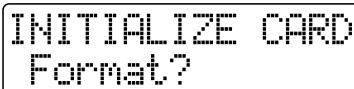
- Press [ENTER].
"Are you sure?" appears.
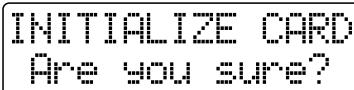
* If the write-protect sticker is affixed to the memory card, "Protected!" appears in the display. You cannot format the memory card if this message appears.
5. To continue with the formatting, press [ENTER] (YES).
When the formatting has been completed, “Completed!” appears in the display, a song (LV1) is automatically created, and you are returned to the Play page.
* Depending on the capacity of the memory card, formatting may take more than ten minutes to complete. This is not a malfunction. The progress of the formatting is shown in the display. Do not turn off the BR-532 until the formatting has been completed.

Do not remove the memory card or turn off the BR-532 while the memory card is being formatted. Doing so can destroy the data on the memory card and/or render the memory card itself unusable.
Using the write-protect sticker
A write-protect sticker is supplied with the memory card (SmartMedia).
This sticker should be used to prevent data already on the memory card from being erased, and to prevent new data from being written to the memory card.
It is recommended that you affix this sticker to any memory card (SmartMedia) that contains valuable data that you do not want erased by mistake.
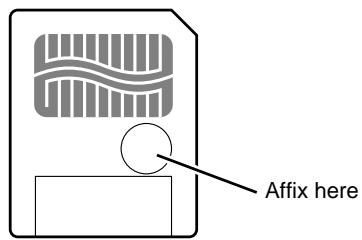
In order for a memory card to be formatted or be able to store new data, it must not have a write-protect sticker affixed to it. If a write-protect sticker is affixed to the write protect area on the memory card, the memory card cannot be formatted, nor can any new data be stored on it.
If you try to format or write data to a memory card with a write-protect sticker affixed to it, “Protected!” appears in the display.
Using the Rhythm Guide
Your BR-532 comes equipped with a built-in “Rhythm Guide.” The Rhythm Guide greatly increases the functionality of your BR-532 by providing features such as those given below.
- A rhythm pattern (called “Pattern” on the BR-532) that fits in perfectly with the style of music you are creating, whether it be rock, jazz, or just about anything else you can think of, can be easily selected and played.
-
Use patterns to change the tempo or style of the music depending on how far along you are in the song, or depending on the audience or other conditions.
-
When bouncing tracks (see p. 41), mix in the play of the Rhythm Guide as desired.
- By combining “intro,” “verse,” and “ending” patterns, put together your own song pattern (Pattern Arrange). Of course, you can also set different tempos for each pattern.
Below is an explanation of how to make and select patterns.
Patterns
A pattern is made by putting “forms” into the order that you want and then setting the time signature and tempo. The forms are grouped into different “styles” to help you choose the one you want.
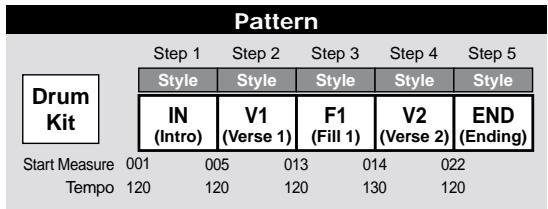
other
Pattern | Step | Start Measure | Tempo | |---|---|---| | Step 1 | 001 | 120 | | Step 2 | 005 | 120 | | Step 3 | 013 | 120 | | Step 4 | 014 | 130 | | Step 5 | 022 | 120 | IN (Intro) V1 (Verse 1) F1 (Fill 1) V2 (Verse 2) END (Ending)Styles
Organized according to the type of music, such as “rock” and “jazz,”
styles make it possible for patterns to sound more authentic.
Forms
A form is a pattern of music of one to several measures in length. The types of forms are shown below and these types of forms are provided for each of the different styles.
IN (Intro)
Music patterns to be placed at the beginning of a song.
V (Verse) 1 and 2
Music patterns to make up the main part of the song. “1” are basic patterns and “2” are more advanced versions of “1.”
F (Fill-in) 1 and 2
Music patterns to be used as phrases to connect different sections of a song. You can select either “1” or “2” depending on the form that will follow the fill-in.
END (Ending)
Music patterns to be placed at the ending of a song.
Types of patterns
Preset patterns (P01-P50)
The preset patterns are patterns already stored within your BR-532. 50 patterns are provided, and they are grouped into types, such as “rock” and “jazz” for you to choose from depending on the type of music you are creating (p. 97). You cannot change the data of preset patterns.
Each of the preset patterns (except P.50 Metro) is set so that a three-measure BREAK, followed by V1 (verse) comes after the END (ending).
User patterns (U01-U04)
The user patterns can be programmed by you, and up to four can be stored into the memory of the BR-532. If you want to use a pattern that you have created with more than one song, you can store it in your BR-532 as a user pattern.
Song pattern (SNG)
The song patterns are the patterns set for a particular song. Like user patterns, song patterns can be programmed by you. However, unlike user patterns, song patterns are saved to the memory card along with the song data. By storing the patterns used for recording a song along with the song data on the memory card, the song will still be properly played back even if the memory card is used with another BR-532.
Drum kit
The drum kit is an assembly of sounds of nine various rhythm instruments (p. 64). The music in patterns is made using the instrument sounds of the selected drum kit.
Creating patterns
New patterns are created by simply changing the settings of the pattern that is currently selected. A total of 999 measures worth of patterns can be created. After changing the settings, the new pattern can then be saved as a user pattern or song pattern.
When editing a preset pattern in order to create a new pattern (p. 63), you can have the rhythm pattern stop at the end of the song by clearing the step after the BREAK in which V1 (verse) is set (p. 64).
1. With playback stopped on the BR-532, press [PATTERN ARRANGE].
The Step Entry screen appears.
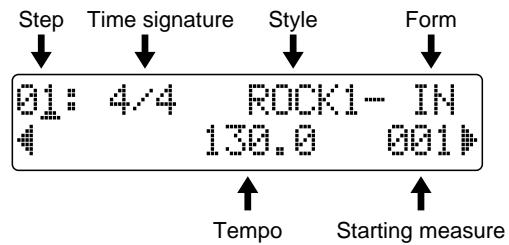
2. Press PARAMETER [◀] [▶] to move the cursor to "Step," and turn the TIME/VALUE dial to select the step to edit.
* Press [REW] to move to the previous step and [FF] to move to the next step.
3. Press PARAMETER [◀] [▶] to move the cursor to the parameter that you want to edit and turn the TIME/VALUE dial to change the setting.
* Press [AUTO/ON/OFF] of the RHYTHM GUIDE to light the indicator and start playing the currently selected step.
Time signature
Set the time signature of the form that is selected by the current step.
* To change the style/form, set the time signature to 4/4 time. If a setting other than 4/4 is set, the “Metro (metronome)” is set to start playing.
Set the tempo of the form that is selected by the current step.
* The tempo as indicated in the Play screen is rounded off at the decimal point (however, the actual tempo is the same).
Valid Settings: 25.0–250.0
Starting measure
Set the measure where the form that is selected by the current step will start playing.
* The starting measure for step 1 is always set to “001.” This cannot be changed.
* You cannot set a starting measure that is equal to, or earlier than the starting measure that is set for the previous step.
* You cannot set a starting measure that is beyond the starting measure of the next step.
Style
Select a style that is suitable for the kind of music you are creating.
* If you set the time signature to a setting other than 4/4, the "Metro (metronome)" will be set to start playing automatically.
| Valid Settings: | ROCK 1-6 | HdRck 1-5 |
| HEAVY 1-5 | POP 1-8 | |
| BALLAD 1 and 2 | BLUES 1-4 | |
| R&B 1-5 | JAZZ 1-3 | |
| FUSION 1 and 2 | HipHop 1 a | |
| FUNK | HOUSE | |
| Cntry 1 and 2 | OTHER 1-3 |
* To insert the whole rest, set the BREAK. You can set the same time signature as “Metro.”
Form
Select a form type that fits in with its placement in the pattern.
Valid Settings: IN, V1 and 2, F1 and 2, and END
* You can only enter form settings when the time signature is set to 4/4.
4. Press PARAMETER [◀] [▶] to move the cursor to "Step," and turn TIME/VALUE to select the next step.
* When you select the step that is not edited totally, the display shows “-” beside step number. Please move a cursor to other than step number then turn the TIME/VALUE dial one click. You will find the data of previous step.
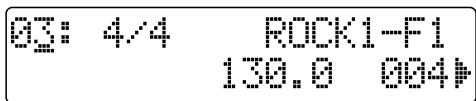
5. Repeat steps 3 and 4 above to complete the pattern as desired.
* You can set up to a maximum of 50 steps.
6. Set the final step style as "BREAK."
* In case BREAK is not set, the pattern keeps playing back at the final step.
Having the pattern change to another form in the middle of one form
For example, let's say you want to insert F1 (consisting of one measure) at the fourth measure of the four-measure form V1. Here's how you would accomplish this:
1. Create the step that specifies V1.
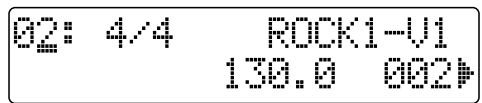
2. Move to the next step.
3. Specify F1 and change the starting measure setting to that of one measure earlier.
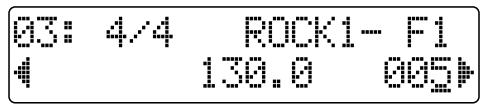
7. Press PARAMETER [◀] repeatedly to display "DRUM KIT."
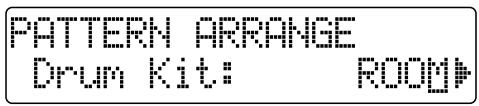
8. Turn the TIME/VALUE dial to select the drum kit.
Valid Settings: STD1, 2: Standard set
ROOM: Set with moderate ambience
HEAVY: Suitable Hard rock set
JAZZ: Suitable for Jazz
HIP-HOP: Suitable for dance music
HOUSE: Suitable for dance music
REGGAE: Suitable Reggae kit
808: Basic TR-808 set
* You can only set one drum kit per pattern. You cannot set a different drum kit for each form.
9. For how to save the pattern you created, continue on to "Saving the pattern" (see p. 65).
Press [PATTERN ARRANGE] or [EXIT] to return to the Play screen.
MEMO
The patterns you create are only temporary. If you return to the Play screen without saving a pattern, and press [PATTERN SELECT] to display the Pattern Selection screen, the pattern is given the name “TMP.” If you then select another pattern, the data of the pattern you created will be lost.
Inserting a step
Perform the procedure below to insert a new step into the location of the present step.
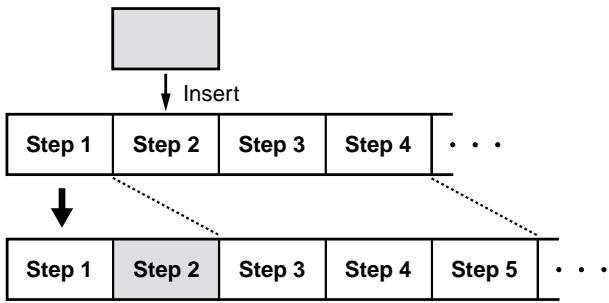
flowchart
graph TD
    A[" "] -->|Insert| B["Step 1"]
    B --> C["Step 2"]
    C --> D["Step 3"]
    D --> E["Step 4"]
    E --> F["..."]
    B --> G["Step 1"]
    G --> H["Step 2"]
    H --> I["Step 3"]
    I --> J["Step 4"]
    J --> K["Step 5"]
    K --> L["..."]
* The parameter value of inserted step will be the same as of the targeted step.
1. Press PARAMETER [▶] repeatedly to move the cursor to "INS."
![PATTERN ARRANGE #[INS] [ERS] IDEL A](/content/2025/01/130575/images/ad9ee6deb9e172fcd83d44546a586f99ba265a777d58473d6c206f5338932860.jpg)
2. To insert a step, press [ENTER].
To cancel the operation, press [EXIT].
Erasing a step
This erases the content of the currently selected step. The content of the following steps are brought forward to fill the erased step.
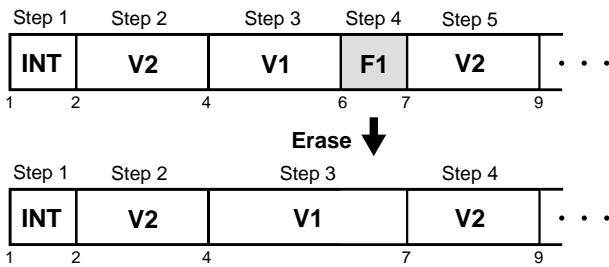
flowchart
graph TD
    A["Step 1"] --> B["INT"]
    B --> C["V2"]
    C --> D["Step 2"]
    D --> E["4"]
    E --> F["Step 3"]
    F --> G["V1"]
    G --> H["Step 4"]
    H --> I["F1"]
    I --> J["Step 5"]
    J --> K["V2"]
    K --> L["Step 6"]
    L --> M["7"]
    M --> N["Step 9"]
    N --> O["End"]

    subgraph Erase
        P["Step 1"] --> Q["INT"]
    end

    style Erase fill:#f9f,stroke:#333,stroke-width:2px
- Press PARAMETER [▶] repeatedly to move the cursor to "ERS."
![PATTERN ARRANGE #[INS] [ERS] [DEL] AP](/content/2025/01/130575/images/50800f3da27e04a9b7ac6fc0d5b6249b13fa6c9ffcb91739a33b044e70858742.jpg)
- To insert a step, press [ENTER].
To cancel the operation, press [EXIT].
Deleting all steps
This deletes Step 2 and all subsequent steps in the pattern currently being created.
“Metro” (the metronome) is set in Step 1.
- Press PARAMETER [▶] repeatedly to move the cursor to "DEL ALL."
![PATTERN ARRANGE 4 IDEL ALL] [WRITE]](/content/2025/01/130575/images/97ea1efb22aebb03b18a29c2445b42fa519a9b6eee342ccca02ad53ed61c15aa.jpg)
- Press [ENTER].
"Are you sure?" appears.
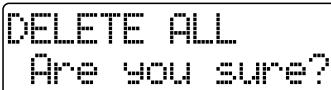
- To delete, press [ENTER].
To cancel the operation, press [EXIT].
Saving the pattern
With the Step Entry screen or Drum Kit Selection screen displayed, perform the procedure given below.
- Press PARAMETER [▶] repeatedly to move the cursor to "WRITE" and press [ENTER].
![WRITE TO [4] I/O2:User Arrange](/content/2025/01/130575/images/0832e88ddbcfe2fc3b69ddfbc3af7c18dc5b4e93ea3413e9cf7d60c26d576d8c.jpg)
- Turn the TIME/VALUE dial to select the number of the pattern to which you want to save the pattern.
U01–U04: User patterns 1 through 4
SNG: Song pattern for the currently selected song
- After you have selected the pattern number to which to save, press [ENTER].
"Are you sure?" appears.
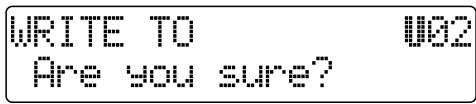
- To continue with the save, press [ENTER] (YES).
To cancel the save, press [EXIT] (NO).
Selecting a pattern
Follow the procedure given below to select the pattern to play with the rhythm guide or the pattern for which you want to change the settings.
1. Press PATTERN SELECT].
The Pattern Selection screen appears.
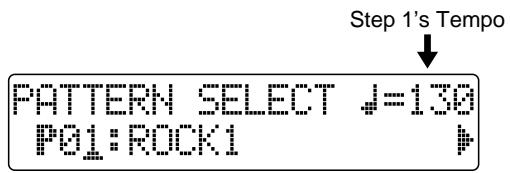
2. Turn the TIME/VALUE dial to select the pattern.
SNG: The song pattern of the currently selected song
U01–U04: User patterns 1 through 4
P01–P50: Preset patterns 1 through 50
3. Press [PATTERN SELECT] or [EXIT] to return to the Play screen.
Copying patterns
Follow the procedure given below to copy the currently selected pattern to a user pattern or song pattern.
1. Press PATTERN SELECT].
The Pattern Selection screen appears.
2. Press PARAMETER [▶] to move the cursor to "WRITE" and press [ENTER].
The Select Copy Destination screen appears.
![WRITE TO [4] 001: NAME001](/content/2025/01/130575/images/616313b1ecc5958f55520590958b1e83f6c784fa378ee6970249ade5ca689d9d.jpg)
3. Turn the TIME/VALUE dial to select the copydestination pattern.
U01–U04: User patterns 1 through 4
SNG: Song pattern for the currently selected song
4. After you have selected the copy destination, press [ENTER]. A screen asking you to confirm the copy appears.
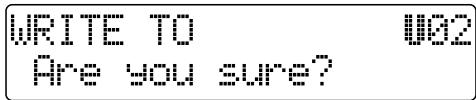
5. To continue with the copy, press [ENTER] (YES). To cancel the copy, press [EXIT] (NO).
Once the pattern's been copied, you're returned to the Select Copy Destination screen.
6. Press [PATTERN ARRANGE] or [EXIT] to return to the Play screen.
Changing a pattern name
Follow the procedure below to change the name of the currently selected pattern (Pattern Name).
1. Press PARAMETER [▶] repeatedly to move the cursor to "NAME" and press [ENTER]. The Change Pattern Name screen appears.
![PATTERN NAME FGHII [HdRck3] ↑](/content/2025/01/130575/images/06e993197f60abfdcab9df88ff6c01c956a0dc580c1f8315ddf776eeb1d8925a.jpg)
2. Press PARAMETER [◀] [▶] to move the cursor, and turn the TIME/VALUE dial enter the characters you desire.
* The pattern name can consist of up to 12 characters.
3. When you register the pattern name after you changed, please save the pattern (p. 65).
To cancel the operation, press [EXIT].
4. Press [PATTERN SELECT] or [EXIT] to return to the Play screen.
* You can switch between upper case and lower case characters by pressing [ENTER].
Synchronizing with MIDI devices
In this chapter, you will learn the basic features of the MIDI interface and how to synchronize output with a MIDI sequencer.
MIDI Fundamentals
MIDI stands for Musical Instrument Digital Interface. This is a worldwide standard that was developed in order to allow music data and sound data to be exchanged among electronic musical instruments and computers. Devices that are MIDI-compatible can exchange music data according to their capabilities, even if they are different types of device or were made by different manufacturers.
MIDI Connectors
MIDI messages (the data handled by MIDI) is transferred using the following three types of connector.
MIDI IN:
Receives MIDI messages from another MIDI device.
MIDI OUT:
Sends MIDI messages from the BR-532.
MIDI THRU:
Sends out the MIDI messages that arrive at the MIDI IN connector.
* The BR-532 is equipped only with a MIDI OUT connector.
MIDI channels
MIDI allows you to independently control two or more devices over a single MIDI cable. This is possible because MIDI provides for multiple channels of control.
You can think of MIDI channels as being similar to television channels. Although many broadcast channels are in the air at any one time (many channels of MIDI data are moving through a single cable), a television set receives only the channel to which it is set (the MIDI device receives only the channel to which it is set).
Similarly with MIDI, if the MIDI channel being used by the transmitter is “1,” the MIDI channel of the receiver must also be set to “1” or else the MIDI messages will not be received.
About MIDI Implementation Charts
MIDI allows a wide variety of electronic musical instruments to communicate with each other. However, it is not necessarily the case that every device is able to transmit and receive every type of MIDI message. Only MIDI messages that are supported by both devices can be conveyed.
The operating manual of every MIDI device includes a “MIDI implementation chart.” This chart makes it easy to see the types of MIDI message that can be transmitted and received. When you wish to connect two MIDI devices, you should compare their charts to see which types of MIDI message can be conveyed between them.
* For more details about MIDI of the BR-532, please refer to "MIDI Implementation" (p. 111).
Using an external MIDI sound module to play the rhythm guide
Perform the procedure given below to use a MIDI sound module and choose the sounds you desire for the rhythm guide.
- Use a MIDI cable to connect the BR-532 and your MIDI sound module as shown in the diagram.
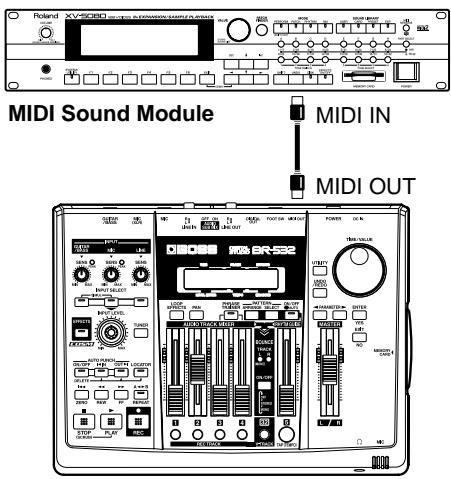
- Press [UTILITY].
- Press PARAMETER [◀] [▶] to move the cursor to "SYS," and press [ENTER].
- Press PARAMETER [◀] [▶] to select “Rhythm MIDI ch.”
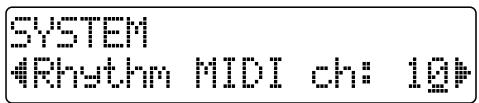
- Turn the TIME/VALUE dial to set the MIDI channel (1–16).
If you select “OFF,” note messages of the rhythm guide will not be transmitted. - After you have completed the rhythm guide settings, press [EXIT] (or [UTILITY]) repeatedly to return to the Play screen.
* During automatic updating, “Keep Power On!” appears in the upper line of the display, while the lower line shows what is being processed.

The sounds produced by the rhythm guide and their corresponding note numbers are given below.
Rhythm guide sound Note number
| High | D#1 | (27) |
| Metronome (click) | A 1 | (33) |
| Metronome (bell) | A#1 | (34) |
| Kick | B 1 | (35) |
| Kick | C 2 | (36) |
| Clave | C#2 | (37) |
| Snare | D 2 | (38) |
| Cowbell | D#2 | (39) |
| Snare | E 2 | (40) |
| Low tom | F 2 | (41) |
| Closed hi-hat | F#2 | (42) |
| Mid tom | A 2 | (45) |
| Open hi-hat | A#2 | (46) |
| Crash cymbal | C#3 | (49) |
| High tom | D 3 | (50) |
| Ride cymbal | D#3 | (51) |
Tone arrangement is based on GS/GM. In case your external MIDI sound module is not based on GS or GM, you will need to make settings on your external MIDI sound module to change the sounds that correspond to each note number. For details on making these settings, refer to the manual of your MIDI sound module.
* If you are using an external MIDI sound module to play the rhythm guide, use the controls of the external MIDI sound module to adjust the volume level.
Synchronizing playback with a MIDI sequencer
The BR-532 can operate in synchronization with a MIDI sequencer.
* When synchronizing with a MIDI sequencer, it is possible to synchronize the MIDI sequencer using the BR-532 (i.e., with the BR-532 as the master), but it is not possible to synchronize the BR-532 with the MIDI sequencer (i.e., with the BR-532 as the slave).

For details on operation of your MIDI sequencer, refer to the operating manual for your device.

For information regarding MMC, see p. 70.
Synchronized playback with the BR-532 as the master
Follow the procedure given below to synchronize the MIDI sequencer using the BR-532.
- Use a MIDI cable to connect the BR-532 and your MIDI sequencer as shown in the diagram.
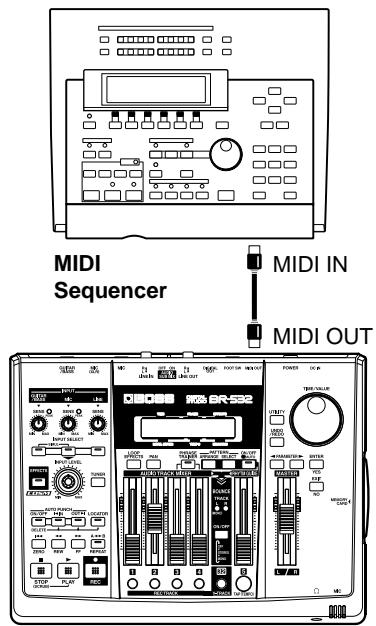
- Press [UTILITY].
- Press PARAMETER [◀] [▶] to move the cursor to "SYS," and press [ENTER].
- Press PARAMETER [◀] [▶] to select "Sync Generator," and turn the TIME/VALUE dial to set the sync generator.
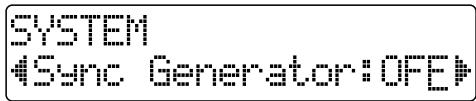
OFF: Synchronization signals will not be output.
MTC: MIDI Time Code will be transmitted.
MCK: Sends the MIDI clock based on the tempo set with the pattern function (p. 62).
* If "OFF" or "MCK" is selected, proceed to step 6.
- Press PARAMETER [◀] [▶] to select "MTC type," and turn the TIME/VALUE dial to set the MTC type.
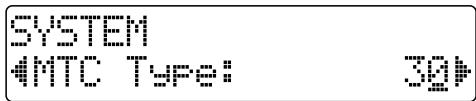
Verify the specifications of your MIDI sequencer and set the MTC type on the BR-532.
30: 30 frames per second non-drop format. This is used by audio devices such as analog tape recorders, and for NTSC format black and white video (used in Japan and the U.S.).
29N: 29.97 frames per second non-drop format. This is used for NTSC format color video (used in Japan and the U.S.).
29D: 29.97 frames per second drop format. This is used for NTSC format broadcast color video (used in Japan and the U.S.).
25: 25 frame per second frame rate. This is used for SECAM or PAL format video, audio equipment, and film (used in Europe and elsewhere).
24: 24 frame per second frame rate. This is used for video, audio devices, and film in the US.
- After you finish setting the synchronization settings at the BR-532, press [EXIT] (or [UTILITY]) repeatedly to return to the Play screen.
* During automatic updating, “Keep Power On!” appears in the upper line of the display, while the lower line shows what is being processed. - Just as when you synchronize a MIDI sequencer using external MTC, when you use the tempo map, you can synchronize the MIDI sequencer using the external MIDI clock.
- Get the MIDI song data ready for playback. When the BR-532 begins playing, the MIDI sequencer will also begin playing in sync with it.
What are drop and non-drop formats?
There are two types of format used by NTSC video cassette recorders, non-drop and drop. With the non-drop format, the frames are continuous. On the other hand, in order to support NTSC color video, the drop format drops the first two frames of every minute excluding minutes 10, 20, 30, 40, and 50.
In most video and audio production, since formats with continuous frames are easier to deal with, non-drop is generally used. In contrast, in situations such as in broadcast, where the time code must match actual clock time, drop is used.
Using MMC
MMC stands for “MIDI Machine Control.” This is a protocol that uses MIDI System Exclusive messages to remotely control multiple recording devices from one device. Your BR-532 supports the MMC protocol.
By using MMC, your BR-532 can send commands such as PLAY, STOP, and FF to connected MIDI devices to operate them.
MEMO
Some MIDI devices do not support the BR-532's MMC functionality. If so, it will not be possible to operate them from the BR-532 using the procedures described here. For details on the MMC functionality supported by the BR-532, read “MIDI implementation” (p. 111).
Operating MMC-compatible devices with the BR-532
This section explains how to make settings for synchronizing the playback with a computer-based sequencer program that supports MMC and MTC. Make connections as shown in the diagram below.
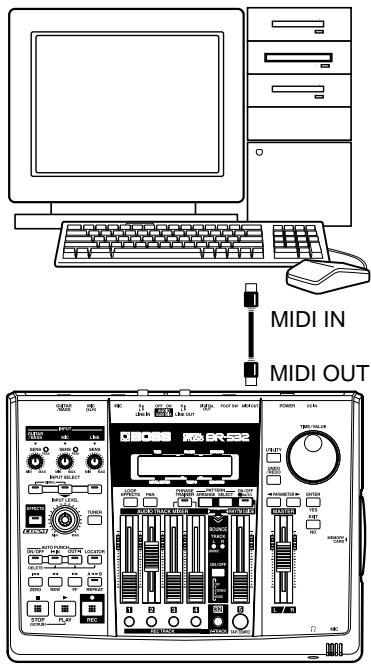
The BR-532 will be the master for MMC and MTC.
Follow the procedure given below to operate the play, stop, fast-forward and other functions of a sequencer program with the BR-532.
- Press [UTILITY].
- Press PARAMETER [◀] [▶] to move the cursor to "SYS," and press [ENTER].
- Press PARAMETER [◀] [▶] to select "MMC Mode," and turn the TIME/VALUE dial to set the MMC mode.
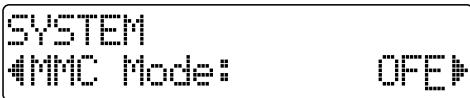
OFF: MMC will not be transmitted.
MASTER: MMC information is sent. The BR-532 becomes the master of the external MIDI instrument.
* For details on the MMC functionality supported by the BR-532, read “MIDI implementation” (p. 111).
-
Press PARAMETER [◀] [▶] to select "Sync Generator," and turn the TIME/VALUE dial to set "MTC."
-
Make settings on your sequencer software.
Make the following settings on your sequencer software. For details on making these settings, refer to the manual for your sequencer software.
MTC: receive
MTC type: same setting as the MTC Type selected on the BR-532
MMC: receive
- Press [EXIT] (or [UTILITY]) several times to return to the Play page.
* During automatic updating, “Keep Power On!” appears in the upper line of the display, while the lower line shows what is being processed.
Mixing the output from an external MIDI device with the output from your BR-532 (AUDIO SUB MIX)
The Audio Sub Mix function allows you to mix the signal input from LINE IN with the signal output to LINE OUT. When performing synchronized playback using the BR-532 and an external MIDI device, you can use the Audio Sub Mix function to mix the output from the external MIDI device with that of the BR-532 internally, within the BR-532 so you won't need an external mixer. Also, since you can output the signal from the MIDI device without having to first record it to a track on the BR-532, you can use the BR-532 tracks more effectively.
AUDIO SUB MIX : OFF
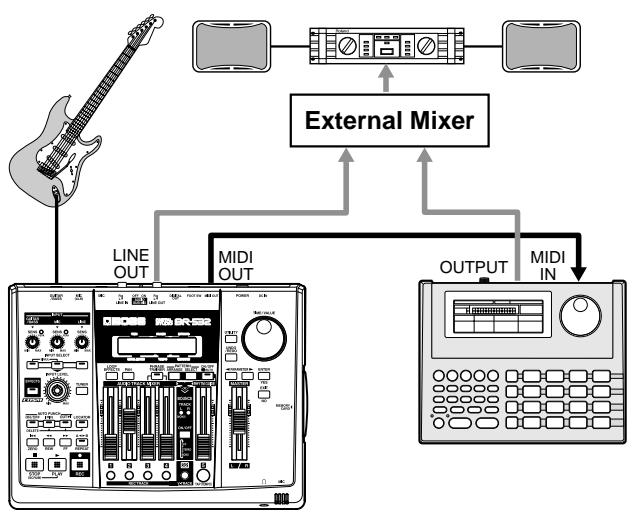
flowchart
graph TD
    A["Music Player"] --> B["External Mixer"]
    B --> C["MIDI OUT"]
    B --> D["OUTPUT"]
    C --> E["Line OUT"]
    D --> F["MIDI IN"]
    G["Radio System"] --> B
    H["Radio System"] --> B
    I["Radio System"] --> B
    J["Radio System"] --> B
    K["Radio System"] --> B
AUDIO SUB MIX : ON
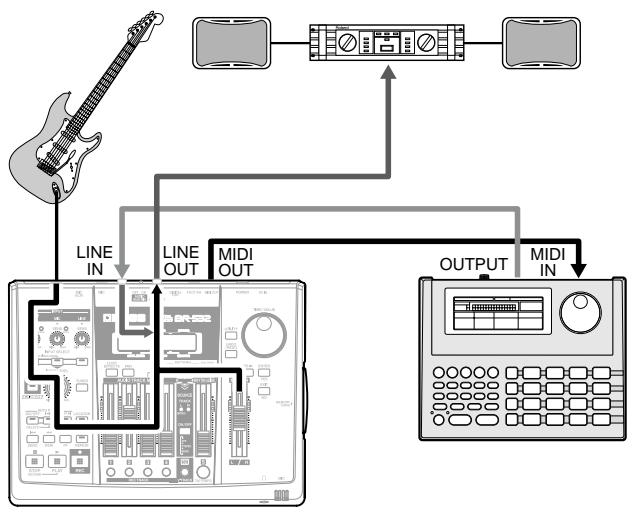
flowchart
graph TD
    A["Music Player"] --> B["Audio System"]
    B --> C["Audio Receiver"]
    C --> D["Audio Assistant"]
    D --> E["Audio Record"]
    E --> F["Audio Display"]
    F --> G["Audio Inverter"]
    G --> H["Audio Output"]
    H --> I["Audio Inverter"]
    I --> J["Audio Display"]
    style A fill:#f9f,stroke:#333
    style J fill:#bbf,stroke:#333
Using the Audio Sub Mix function
- Turn on the AUDIO SUB MIX switch on the rear panel of the BR-532.
- Turn the LINE SENS knob to adjust the sensitivity relative to the input from the external MIDI device.

Even when the AUDIO SUB MIX switch is turned on, if you press INPUT SELECT [LINE], illuminating its indicator, the signal from LINE IN that passes through the recorder/mixer block is given priority, and the Audio Sub Mix function will not work.
Displaying the song information
Displaying the remaining available recording time
Follow the procedure below to either display the elapsed recording time or the remaining available recording time in the recording standby and recording screens.
- Press [UTILITY].
- Press PARAMETER [◀] [▶] to move the cursor to "SYS," and press [ENTER].
- Press PARAMETER [◀] [▶] to select "Remain Info," and turn the TIME/VALUE dial to select "ON" or "OFF."
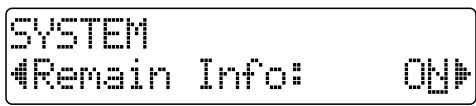
ON: Displays the remaining available recording time in "minutes : seconds."
OFF: Displays the elapsed recording time.
- Press [EXIT] (or [UTILITY]) several times to return to the Play page.
* During automatic updating, “Keep Power On!” appears in the upper line of the display, while the lower line shows what is being processed.
* When [PLAY] is pressed in the Play screen, putting the BR-532 into record standby ([REC] flashes), the remaining recording time is displayed in the FRAME area.
Displaying the memory card usage
Follow the procedure below to display the current condition of the memory card being used.
- Press [UTILITY].
- Press PARAMETER [◀] [▶] to move the cursor to "INF," and press [ENTER].
- Press PARAMETER [◀] [▶] to select the parameter to be displayed.
• Name of the currently selected song
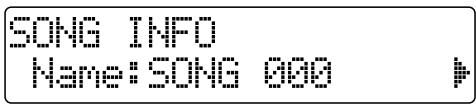
- Song's data type and memory used
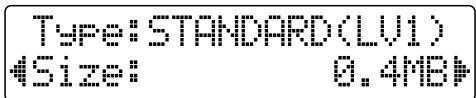
- Remaining memory
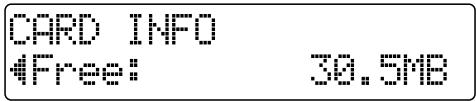
* The song sizes are displayed in units of 1M = 1,000,000 bytes. The size displayed is an approximation.
- Press [EXIT] (or [UTILITY]) several times to return to the Play page.
* During automatic updating, “Keep Power On!” appears in the upper line of the display, while the lower line shows what is being processed.
Search for the music's start and end (Scrub/Preview)
Scrub Function
When editing a sound, some times you need to know exactly where the sound starts, or exactly where the recording with an auto punch in starts.
To enable you to find these points accurately, the BR-532 is equipped with the Scrub Function. When you use the Scrub Function during playback (called “scrubbing”), the portion from your current position to a position just behind (45 msec) is played back and repeated. By combining this with the Preview function, you can scrub the portion of the song from your current position to a position slightly before (1.0 sec) so you can check segues between phrases (p. 75)
Preview Function
With the Preview Function, you can playback the one-second portion of the song before or after your current position. By using this together with the Scrub Function, at the same time slowly moving your current position in the song, it becomes easy to find the exact transition point from one phrase to the next. For details on how to use the Scrub and Preview function together, refer to “Using Scrub and Preview to find the music ending point” (p. 75).
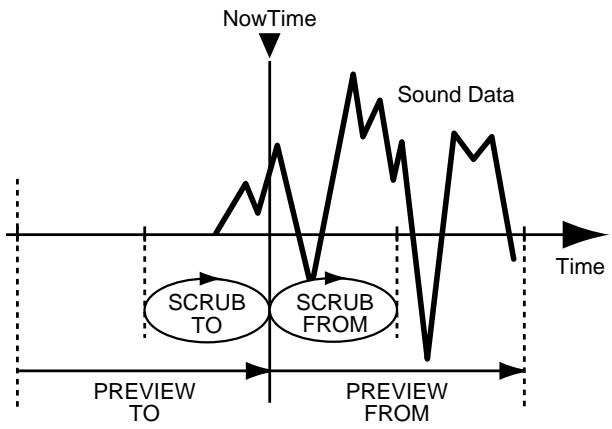
line
| Time Period | Event | | --------------- | ------------ | | Before Preview | SCRUB TO | | Before Preview | SCRUB FROM | | After Preview | Peak | | After Preview | Peak |Scrubbing to find the music starting point
- Hold down [STOP] and press [PLAY].
The [PLAY] indicator begins flashing and scrubbing starts.
At this time, the master level meter appears in the display.
The “ ÷ | ” (SCRUB TO) and “ | ÷ ” (SCRUB FROM) displayed at the TEMPO position in the screen are the scrub points with respect to the current position.
See the next section for how to change the scrub points.
SCRUB TO
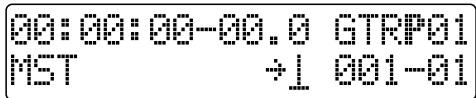
SCRUB FROM
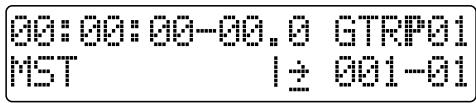
HINT
When the cursor is set under the scrub point, it is possible to change scrub point by TIME/VALUE dial.
HINT
When the REC TRACK button is pressed, it begins flashing, and the sound on that track is muted.
- Slowly turn the TIME/VALUE dial to move the current position and search for the starting point of the phrase (e.g., where sound is first emitted).
- After you find the exact point where the music starts, press [STOP] to stop scrubbing.
HINT
You can now press [LOCATOR] to register a locator point so that you can find the point easily later.
Changing the scrub points
You can set either the point before or after the current position as the scrub point.
Follow the procedure given below to change the scrub point.
- Press [UTILITY].
- Press PARAMETER [◀] [▶] to move the cursor to "SCR," and press [ENTER].
- Press PARAMETER [◀] [▶] to select "FROM/TO," and turn the TIME/VALUE dial to change scrub points.
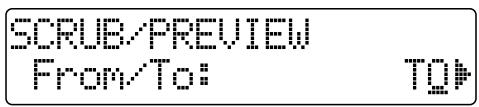
TO: Scrubs to your current position.
FROM: Scrubs from your current position.
- After completing the setting, press [EXIT] (or [UTILITY]) repeatedly to return to the Play screen.
* During automatic updating, “Keep Power On!” appears in the upper line of the display, while the lower line shows what is being processed.
Using Scrub and Preview to find the music ending point
Enabling the Preview Function
First you must enable use of the Preview Function at the BR-532.
- Press [UTILITY].
- Press PARAMETER [◀] [▶] to move the cursor to "SCR," and press [ENTER].
- Press PARAMETER [◀] [▶] to select "Preview SW," and turn the TIME/VALUE dial to set "ON."
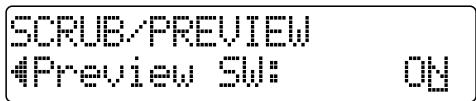
This enables use of the Preview Function.
- Press [EXIT] (or [UTILITY]) several times to return to the Play page.
* During automatic updating, “Keep Power On!” appears in the upper line of the display, while the lower line shows what is being processed.
Finding the music ending point
- Hold down [STOP] and press [PLAY].
The [PLAY] indicator begins flashing and scrubbing starts.
When the Preview SW is ON, pressing [REW] during the scrub plays back the data in the second leading up to the current position; pressing [FF] (or [PLAY]) during the scrub plays back the data for one second starting from the current position.
- Use the Preview Function while scrubbing to search for the point where the music ends.
Slowly turn the TIME/VALUE dial to move the current position and search for the ending point of the phrase (e.g., where sound is last emitted).
At this time, use [REW] to make sure that the phrase is not simply cutting in and out during playback.
- After you find the exact point where the music ends, press [STOP] to stop scrubbing.

You can now press [LOCATOR] to register a locator point so that you can find the point easily later.
* [PLAY] plays back a preview of one second from the current location, regardless of the Preview SW.
Tuning an instrument—Tuner
The BR-532 has a built-in “chromatic tuner function” that allows you to tune your instrument quickly. The built-in tuner supports both guitar and bass guitar.
As an example, here is the procedure to tune the guitar.
Changing to the tuner
* It is not possible to play back or record while using the tuner. Check the following points before you begin.
☐ That your guitar is connected to the GUITAR/BASS INPUT jack.
☐ That the [GUITAR/BASS] indicator on the GUITAR/BASS button is lit.
☐ That GUITAR/BASS INPUT SENS is properly adjusted (see “Adjusting the input sensitivity” p. 30).
If the [GUITAR/BASS] indicator is off, press the [GUITAR/BASS] INPUT SELECT button to turn it on.
- Press [TUNER] to change the display to that for the tuner.
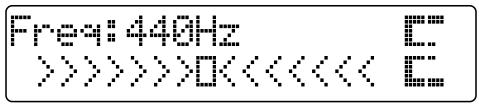
- To turn off the tuner, press [TUNER] again. You're returned to the Play screen.
MEMO
If you do not want to output the tuning sounds, either turn down the INPUT LEVEL knob or the MASTER fader.
Explanation of the indications that appear while tuning
With the internal tuner of your BR-532, the reference pitch is displayed at the upper part of the display, and the pitch name is displayed at the right. The tuning guide is displayed at the bottom of the display, and it shows the discrepancy between the input pitch and displayed pitch.

If the difference between the input pitch and the correct pitch is less than +/-50 cents, the tuning guide will indicate the amount of the difference. Continue tuning until the center of the display in the tuning guide becomes “■.”
Tuning
- Play an open-string note using the string you are tuning.
The screen will indicate the note name that is closest to the pitch of the string you played.
* Cleanly play a single note only on the string you wish to tune.
- Continue tuning until the pitch name of the string you are tuning appears in the display.
Normal tuning
| 6th string | 5th string | 4th string | 3rd string | 2nd string | 1st string | |
| Guitar | E | A | D | G | B | E |
| Bass | E | A | D | G |
- Continue tuning until the center of the display in the tuning guide becomes “■.”
If the pitch of the string is within +/-50 cents of the correct pitch, the tuning guide will indicate the discrepancy between the actual and the correct pitches.
- When pitch is higher than displayed pitch (#)
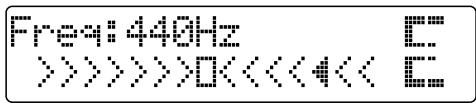
- When pitch is the same as displayed pitch
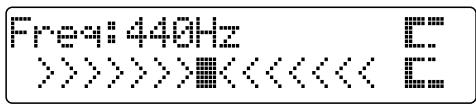
- When pitch is lower than displayed pitch (b)
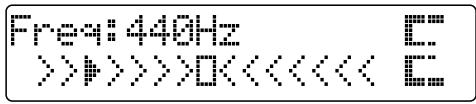
- Repeat steps 1–3 to tune each of the strings.
* If you are tuning a guitar that has a vibrato arm, tuning one string may cause other strings to drift. In this case, you should first tune the strings approximately so that the correct note name is displayed, and then re-tune each string.
Setting the reference pitch of the tuner
The reference pitch refers to the frequency of the A4 key (i.e., the “A” key at the center of a piano keyboard) from the instrument that serves as the reference pitch during performances (e.g., piano).
On the BR-532, you can set the reference pitch of the tuner to any value between 435 and 445 Hz.
You may change the setting as needed.
* This was set to 440 Hz when the unit was shipped from the factory.
- Press [TUNER] to change the display to that for the tuner.
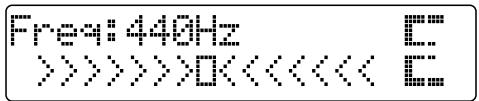
- Turn the TIME/VALUE dial to change the standard pitch.
- To turn off the tuner, press [TUNER] again. You're returned to the Play screen.
Copying difficult songs—Phrase Trainer
Your BR-532 features a built-in “Phrase Trainer.” The Phrase Trainer records from the device connected to the input jack (e.g., CD players or MD player) and then allows you to play back a part of that recording repeatedly to allow you to practice that portion again and again. You can also slow down the playback to aid in copying fast phrases or remove the guitar solo sound to play along with only the backing instruments as a practice aid.
Preparations for using the Phrase Trainer
- Record the song you want to copy onto tracks 3 and 4.
For how to record with the BR-532, refer to “Recording” (p. 33).
* You cannot perform recording while you are using the Phrase Trainer (Time Stretch or Center Cancel). Also, the Phrase Trainer can also be used with tracks 3 and 4.
* You cannot use loop effects (p. 42) while you are using the Phrase Trainer (Time Stretch or Center Cancel).
- Repeat the portion of the song that you want to copy.
This will help you practice and copy a difficult phrase or guitar solo as you can select any portion of the song and have it repeated.
For how to repeat a portion of the song, refer to "Repeating Playback" (p. 38).
Each time you press [PHRASE TRAINER], the Phrase Trainer is on (the [PHRASE TRAINER] indicator lights) and off (the indicator is off).
* When you turn off both the Time Stretch Function and the Center Cancel Function, it doesn't light.
Slowing down the speed (Time Stretch function)
The Time Stretch function allows you to slow down the speed of playback to a half of the normal speed without changing the pitch.
- Press [PHRASE TRAINER].
- Press PARAMETER [◀] [▶] to select “Time Stretch,” and turn the TIME/VALUE dial to set “ON.”
PHRAGE TRAINER Time Stretch: ON#
ON: Slows down playback to one-half without changing the pitch.
OFF: Pitch and playback speed are not changed.
Canceling the center sound (Center Cancel function)
The Center Cancel function allows you to remove the central sound of the playback (e.g., vocals or guitar solos). This is helpful if you want to practice playing along with the backing instruments.
* Depending on how the song was recorded, it may not be possible to completely remove the central sound.
- Press [PHRASE TRAINER] to make the indicator light.
PHRASE TRAINER 4Center Cancel: ON
- Press PARAMETER [◀] [▶] to select "Center Cancel," and turn the TIME/VALUE dial to set it to "ON."
ON: Removes central sound (e.g., vocals or guitar solos). OFF: Normal playback.
Perform the procedure below if the central sound is not removed as you desire or if you want to emphasize the bass sound.
- To emphasize the bass sound, press PARAMETER [◀] [▶] to select “Low Boost,” and turn the TIME/VALUE dial and adjust the value so that the bass sound is more easily heard.
CENTER CANCEL 4Low Boost 3#
* Depending on how the song was recorded, these procedures may not be able to remove the sounds completely.
- Press PARAMETER [◀] [▶] to select "Center Cancel," and turn the TIME/VALUE dial and adjust the value of the sound that you want to remove to decrease its volume.
CENTER CANCEL 4Center Adjust: L01
- Press [EXIT] several times to return to the Play page.
* You can turn on both the Time Stretch and Center Cancel functions to use them together.
* The Rhythm Guide does not sound when Phrase Trainer is on.
Using the insert effects
The BR-532 comes with two 81
effects processors: an insert effect and loop effects. These two types can be used simultaneously, and you can make settings for each effect as desired.
Here is an explanation of how to change the various parameters for the insert effects and how to then save those changes.

For a more detailed explanation of insert and loop effects, refer to “What are insert effects?” (p. 31) and “What are loop effects?” (p. 42) respectively.
Effect patches and banks
The effects used by insert effects and the parameters of each effect are changed by calling up “effect patches.”
Your BR-532 comes equipped with a number of preset effect patches for use with vocals and instruments. These are grouped according to different input sources and each group is called a “bank.”
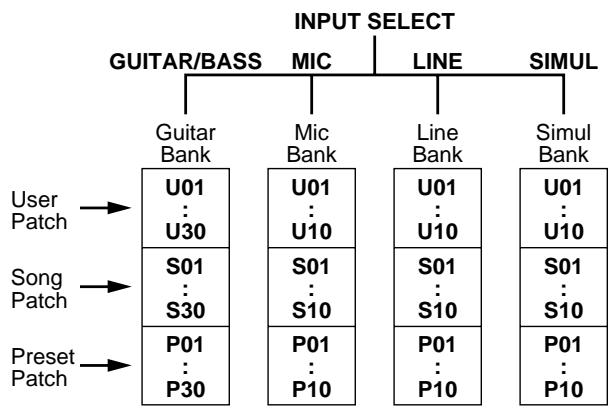
flowchart
graph TD
    A["INPUT SELECT"] --> B["GUITAR/BASS"]
    A --> C["MIC"]
    A --> D["LINE"]
    A --> E["SIMUL"]
    B --> F["Guitar Bank"]
    B --> G["Mic Bank"]
    C --> H["Line Bank"]
    C --> I["Simul Bank"]
    F --> J["U01 : U30"]
    G --> K["U01 : U10"]
    H --> L["U01 : U10"]
    I --> M["U01 : U10"]
    J --> N["S01 : S30"]
    K --> O["S01 : S10"]
    L --> P["S01 : S10"]
    M --> Q["S01 : S10"]
    N --> R["P01 : P30"]
    O --> S["P01 : P10"]
    P --> T["P01 : P10"]
    Q --> U["P01 : P10"]
Your BR-532 allows you to automatically change banks by pressing an INPUT SELECT button. For example, pressing the [GUITAR/BASS] INPUT SELECT button changes you to a guitar bank patch, and pressing [LINE] changes you to a line bank patch.
Also, within each bank, effect patches are further grouped as shown below.
HINT
Insert effects are applied during recording, in addition they are applied during the mixing of the various tracks as well. For more details, refer to “Changing the insert effect connections” (p. 81).
Preset patches (P)
The preset patches contain preset data. Their settings can be changed, but you cannot create a new preset patch.
User patches (U)
User patches can be rewritten, and are stored in internal memory. If you have created a patch that you would like to use for other songs as well, it is convenient to store it as a user patch.
Song patches (S)
Like user patches, song patches can be written; however, the data for song patches are stored along with the song data to the memory card. This is convenient when you have created a patch for a specific recorded performance, and would like to store that patch together with the song.
* Song patches (S) cannot be selected unless a memory card is inserted.
MEMO
Your BR-532 is shipped with the user patches (U) containing the same patches as the preset patches (P).
MEMO
When you create a new song, copies of the patches in the user patches (U) are made in the song patches (S) for each bank.
Editing insert effect settings
If you wish to create a new effect sound, you should first select an existing patch that is closest to the sound you want, and then edit its settings. If you wish to save the effect settings that you edited, save them as a user patch or song patch.
1. Press [EFFECTS].
The Effect Settings screen appears.
![JD Clean GTRP01 [EDITI] [WRITE]](/content/2025/01/130575/images/d7042d2a5cda12453e440825ba0915a4b29b22b01d657060501319688b97cbc6.jpg)
- Press PARAMETER [◀] [▶] to move the cursor to the upper right side of the display and turn the TIME/VALUE dial to select the effect patch bank and number.
- Press PARAMETER [◀] [▶] to move the cursor to "EDIT," and press [ENTER].
The Edit Effect screen appears and the algorithm (the connection sequence for the effects being used) is displayed.
![COSM GTR AMP [one] - [pre] - [sp] - [t]](/content/2025/01/130575/images/c6ecd00c62e94272873196b2cb9df87fc4e1dff062ba7c22815dc7cb8b8f8339.jpg)
■ When effect patches in the SIMUL bank are selected, "GTR" and "MIC" appear instead of "EDIT."
Move the cursor to “GTR” to modify a guitar-use effect, or to “MIC” to modify an effect for use with a mic, then press [ENTER].
![JC-120 +COMP SIMPO1 [GTRI] - [MICJ] - [WRITEJ]](/content/2025/01/130575/images/9da6fc22d281cb33888c4f703cb8f1d26731edaeebef38678e1c83bcfbfbbf34.jpg)
HINT
By pressing [ENTER] while the cursor is at a bank or number, you can display the Edit Effect screen directly.
- Press PARAMETER [◀] [▶] to move the cursor to each effect and turn the TIME/VALUE dial to turn each effect on or off.
Blocks that are turned on are shown in uppercase letters, while blocks that are turned off are shown in lowercase letters.
Turn on the effects that you want to use.
![COSM GTR AMP 4[ms]-[mod]=[DLY] [▶] ↑ (Modulation) OFF ↑ (Delay) ON](/content/2025/01/130575/images/5a9cbe8f14553ecc2fe78930444f5673db85978041de6757a8af903a2f294f0d.jpg)
- Press PARAMETER [◀] [▶] to move the cursor to the effect with the parameter that you want to change and press [ENTER].
The Parameter Setting screen for each effect appears.

- Use PARAMETER [◀][▶] to select a parameter, and turn the TIME/VALUE dial to edit the value.
- If you would like to edit another effect, press [EXIT] to return to the previous screen, and repeat steps 5–6.
MEMO
If you wish to save the current effect settings, perform the procedure described in “Saving insert effect settings,” below.
* Edited effect settings are temporary. If you exit the Edit Effect screen without saving the effect patch you changed, "TMP" appears next to the indication of the bank. Press [ENTER] to return to the Edit Effect screen. For how to save the changes, refer to "Saving insert effects settings" in the next section.
Be aware that if you select a new effect patch while "TMP" is displayed, the altered effect patch is returned to its original settings and the changes are lost.
Saving insert effects settings (Write)
Follow the procedure below to enter a name (patch name) for an effect that you've modified, and save it as a new effect patch.
* You cannot save an effect patch during the recording or playback of a song.
- Entering the patch name.
* If you do not need to change patch name, go to "4."
At the Edit Effect screen, press PARAMETER [◀]
[▶] to move the cursor to "NAME," and press [ENTER].
The Patch Name Setting screen appears.
![FX NAME HIJKL [JET FLANGER] ↑](/content/2025/01/130575/images/9acf088950c2db8788e2e0915b3cdc66da49e242273b70b4b704a0f1e093018a.jpg)
- Press PARAMETER [◀] [▶] to move the cursor, and turn the TIME/VALUE dial to enter the patch name.
- After you have completed entering the effect settings and patch name as desired, press [EXIT] to return to the page (Effect Edit page) two screens previous.
- Press PARAMETER [◀] [▶] to move the cursor to "WRITE," and press [ENTER].
The Write screen appears.
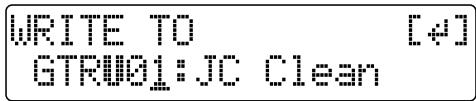
- Turn the TIME/VALUE dial to select the number to which to write the new effect patch.
- After you've selected the destination, press [ENTER].
After the save has been completed, you are returned to the Play page.
Changing the insert effect connections
By default, the insert effect is inserted immediately after the input source. The reason for this is to allow for the effects-processed (wet) sound to be recorded and monitored.
However, sometimes you want to change the connection order.
Your BR-532 allows you to change where insert effects are connected. Follow the procedure below to change where insert effects are connected.
- Press [UTILITY].
- Press PARAMETER [◀] [▶] to move the cursor to "EFX," and press [ENTER].

- Turn the TIME/VALUE dial to switch the "Insert Mode." INPUT (NORMAL):
The sound is monitored and recorded after it passes through the insert effect. Normally you will use the BR-532 with this setting.
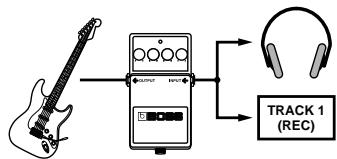
flowchart
graph LR
    A["Music Player"] --> B["Audio Level Meter"]
    B --> C["TRACK 1 (REC)"]
    C --> D["Headphones"]
INPUT (REC DRY):
The sound is monitored through the insert effect but is recorded without the effect (dry).
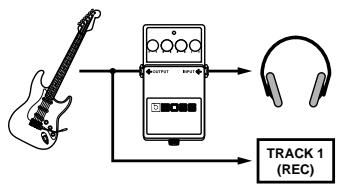
flowchart
graph LR
    A["Music Player"] --> B["Audio Analyzer"]
    B --> C["Headphones"]
    B --> D["TRACK 1 (REC)"]
    D --> E["Feedback to Input"]
MASTER:
For applying effects to all sounds to adjust the sound quality when mixing down, achieve a special effect from an effect, or perform similar operations.
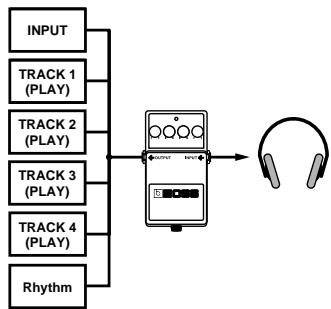
flowchart
graph LR
    A["INPUT"] --> D["Display Unit"]
    B["TRACK 1 (PLAY)"] --> D
    C["TRACK 2 (PLAY)"] --> D
    E["TRACK 3 (PLAY)"] --> D
    F["TRACK 4 (PLAY)"] --> D
    G["Rhythm"] --> D
    D --> H["ear"]
- Press [EXIT] several times to return to the Play page.
Using the loop effects
Here is an explanation of how to change the various parameters for the loop effects (chorus/doubling/reverb).

For an explanation of loop effects, refer to “What is a loop effects?” (p.42).

Loop effects do not have “patches.” Loop effect settings are saved along with the song data.

If you want to save the settings in the currently selected song, hold down [STOP], and press [REC].
Selecting the loop effect
* You cannot use the chorus, doubling, and reverb effects together. You must choose only one.
1. Press [LOOP EFFECTS].
2. Press PARAMETER [◀] [▶] to display "Fx Type."
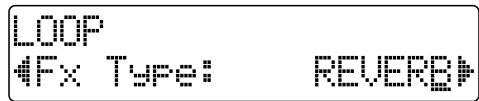
- Turn the TIME/VALUE dial to select "CHORUS," "DOUBL'N," or "REVERB."
- To change the settings for the selected effect, press PARAMETER [◀] [▶] to select the parameter and turn the TIME/VALUE dial to change the set value.
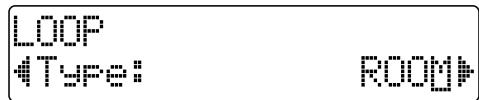

For a description of the parameters for each effect, refer to “Loop Effect Parameter Functions” (p. 85).
- When you finish making settings, press [EXIT] several times to return to the PLAY page.
Doubling
When you want to spread out the guitar backing sound to the left and right, record the same guitar backing separately to two tracks, then pan the sounds to the left and right. This is known as “doubling.”
By using the “DOUBL’N” loop effect, you can produce a doubling effect even from a single-track (monaural) recording, allowing you to make more efficient use of the tracks.
Adjusting how the loop effect is applied
The following explains how you can alter the volume of the signals sent by each track to the loop effects (the send level), and control the degree to which the loop effects are applied.
- Press [LOOP EFFECTS].
- Press PARAMETER [◀] [▶] to select the screen for setting the send level of each track appears.
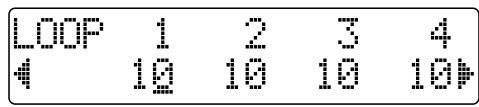
- Press PARAMETER [◀] [▶] to move the cursor, and turn the TIME/VALUE dial to adjust the send level for each track.

By pressing PARAMETER [◀], you can display the screen for setting the input source and rhythm guide send levels.
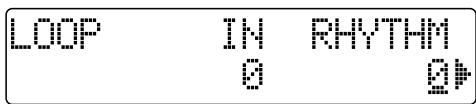
To adjust the send level for the input source, move the cursor to “IN.” To adjust the send level for the rhythm guide, move the cursor to “RHYTHM.” The setting is adjusted by turning the TIME/VALUE dial to the desired value.
- After you have completed adjusting the send level, press [EXIT] repeatedly to return to the Play screen
Initializing the BR-532's settings
Initializing all the BR-532's settings
- Press [UTILITY].
- Press PARAMETER [◀] [▶] to move the cursor to "INI," and press [ENTER].
![INITIALIZE SYSTEM [SYST] [PTM] [EFX]](/content/2025/01/130575/images/ebcde5d7bfa8dc61ef5894d6c78818106af8a1b46149ae554faf1e7cba79c14e.jpg)
- Press PARAMETER [◀] [▶] to move the cursor to "ALL," and press [ENTER].
The confirmation message “Are you sure?” appears in the display.
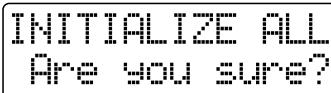
- To continue the initialization, press [ENTER] (YES). To cancel, press [EXIT] (NO) (or [UTILITY]).
When [ENTER] is pressed, initialization begins.
After the initialization has been completed, you are returned to the Play page.
HINT
You can initialize all the settings by holding down INPUT SELECT [GUITAR/BASS], [MIC], and [LINE] while turning the POWER switch ON, then pressing [ENTER].
Initializing the system settings
Follow the procedure below to initialize the system parameters.

A list of the initial settings for each parameter is given in the “Parameter List” (p. 107).
- Press [UTILITY].
- Press PARAMETER [◀] [▶] to move the cursor to "INI," and press [ENTER].
![INITIALIZE SYSTEM [SYST] [IPTN] [EFXI]](/content/2025/01/130575/images/acc86d00a473eb877304bb5cfe980968ac8042963218c2eb6678ff3c58f21c23.jpg)
- Press PARAMETER [◀] [▶] to move the cursor to "SYS," and press [ENTER].
The confirmation message “Are you sure?” appears in the display.
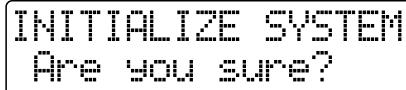
- To continue the initialization, press [ENTER] (YES). To cancel, press [EXIT] (NO) (or [UTILITY]).
When [ENTER] is pressed, initialization begins.
After the initialization has been completed, you are returned to the Play page.
Initializing the effect settings
Follow the procedure below to initialize the effect parameters.

A list of the initial settings for each parameter is given in the “Parameter List” (p. 107).
-
Press [UTILITY].
-
Press PARAMETER [◀] [▶] to move the cursor to "INI," and press [ENTER].
![INITIALIZE SYSTEM [SYSI] [PTM] [EFX]](/content/2025/01/130575/images/b8584182b58c35a7037e3f534eabc7920c500bebb26b0473d3d93962bb2493e7.jpg)
- Press PARAMETER [◀] [▶] to move the cursor to "EFX," and press [ENTER].
The confirmation message “Are you sure?” appears in the display.
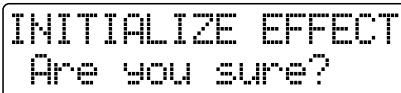
- To continue the initialization, press [ENTER] (YES). To cancel, press [EXIT] (NO) (or [UTILITY]).
When [ENTER] is pressed, initialization begins.
After the initialization has been completed, you are returned to the Play page.
Initializing the Rhythm Guide User patterns
This initializes the Rhythm Guide User Patterns 1–4. After initialization, the metronome is set.
-
Press [UTILITY].
-
Press PARAMETER [◀] [▶] to move the cursor to "INI," and press [ENTER].
![INITIALIZE SYSTEM [SYSG] [IPTN] [EFX]](/content/2025/01/130575/images/d6b4a9eacf558b649e987d279855fff6e6b95920d0a6ed2ca31de2ccfca22fe6.jpg)
- Press PARAMETER [◀] [▶] to move the cursor to "PTN," and press [ENTER].
The confirmation message “Are you sure?” appears in the display.
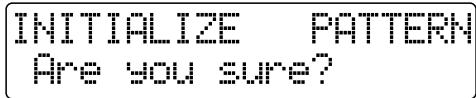
- To continue the initialization, press [ENTER] (YES). To cancel, press [EXIT] (NO) (or [UTILITY]).
When [ENTER] is pressed, initialization begins.
After the initialization has been completed, you are returned to the Play page.
Loop Effect Parameter Functions
CHORUS/DOUBL'N/REVERB
You can select either chorus, doubling, or reverb.
Effect Type
This sets the type of the effect.
CHORUS:
A sound with a subtly shifted pitch is added to the direct sound, making the final output sound thicker and broader.
DOUBL'N:
By adding a slightly time-delayed sound to the direct sound, this produces the impression that multiple sources are sounding together (a “doubling” effect). The delayed sound will be output from the side opposite to which the playback track has been panned.
REVERB:
Reverberation (or reverb) is the effect caused by sound waves decaying in an acoustic space, or a digital simulation thereof. This decay occurs because sound waves bounce off many walls, ceilings, objects, etc. in a very complex way. These reflections, coupled with absorption by various objects, dissipate the acoustic energy over a certain period of time (called the decay time). The ear perceives this phenomenon as a continuous wash of sound.
Rate (0–100)
Adjusts the rate of the Chorus effect.
Depth (0–100)
Adjusts the depth of the Chorus effect.
Pre Delay (0.5–50.0 ms)
Adjusts the time needed for the effect sound to be output after the direct sound has been output.
Effect Level (0–100)
Adjusts the volume of the effect sound.
Delay Time (0.5-50.0 mS)
This parameter adjusts the delay time (i.e., the interval for which sound is delayed).
Separation (0–100)
Adjusts the diffusion.
Effect Level (0-120)
This adjusts the volume of the delay sound.
Reverb Type
This selects the Reverb Type.
ROOM:
Simulates the reverberation in a small room.
HALL:
Simulates the reverberation in a concert hall.
Reverb Time (0.1–10.0)
This parameter adjusts the duration (time) of the reverb.
Reverb Tone (-12-+12)
Adjusts the tone.
Effect Level (0–100)
This adjusts the volume of the reverb sound.
Insert Effect Algorithm List
The algorithms that can be used as an insert effect are shown below.
The algorithms that can be selected will differ for each bank.
To select the algorithm that you wish to use, first select the effect bank that includes that algorithm, and then refer to “Effect Patch
List" (p. 110) and select a patch that uses the desired algorithm.
For details on selecting banks and patches, refer to “Editing insert effect settings” (p. 80).
If you would like to know more about each effect, refer to “Insert Effect Parameter Functions” (p. 89).
-: Monaural
=: Stereo
BANK: GUITAR/BASS
1. COSM GUITAR AMP
This is a multi-effect designed for electric guitar. This provides an amp sound using a preamp and speaker simulator.
* In case of “Phaser,” output will become monaural.
[COMP]-[PRE]-[SP]-[NS]-[MOD]=[DLY]
Compressor
PreAmp
Speaker Simulator
Noise Suppressor
Modulation
- Flanger
- Chorus
- Phaser
- Pitch Shifter
- Doubling
- Tremolo/Pan
Delay
2. ACOUSTIC SIM
This is a multi-effect designed for electric guitar. It allows you to use an electric guitar to produce sounds similar to those of an acoustic guitar.
[ASIM]-[COMP]-[EQ]-[NS]-[MOD]=[DLY]
Acoustic Guitar Simulator
Compressor
3Band Equalizer
Noise Suppressor
Modulation
- Flanger
- Chorus
- Phaser
- Pitch Shifter
- Doubling
- Tremolo/Pan
Delay
3. BASS SIM
Simulates the sound of a bass guitar. Obtain the sound of a bass guitar by playing an electric guitar. You should not play chords when using the Bass Simulator.
[BSIM]–[COMP]–[NS]
Bass Simulator
Compressor
Noise Suppressor
4. ACOUSTIC GUITAR
This is a multi-effect designed for acoustic guitar. Even when an electric-acoustic is connected at line level, this provides a warm sound similar to what is obtained through a microphone.
[ACP]-[COMP]-[NS]=[DLY]
Acoustic Processor
Compressor
Noise Suppressor
Delay
5. BASS MULTI
This is a multi-effect designed for bass guitar. Appropriate for creating standard bass sound.
[CMP/DEF]-[ENH]-[EQ]-[NS]-[MOD]=[DLY]
Compressor/Defretter
- Compressor
- Defretter
Enhancer
4Band Equalizer
Noise Suppressor
Modulation
- Flanger
- Chorus
- Phaser
- Pitch Shifter
- Doubling
- Tremolo/Pan
Delay
6. COSM BASS AMP
This is a multi-effect designed for bass guitar. This features an amp sound that uses a preamp and speaker simulator.
[COMP]-[PRE]-[SP]-[NS]=[DLY]
Compressor
PreAmp
Speaker Simulator
Noise Suppressor
Delay
BANK: MIC
7. VOCAL MULTI
This is a multi-effect designed for vocals. It provides the basic effects needed for vocals.
[COMP]—[DES/ENH]—[EQ]—[NS]—[MOD]=[DLY]
Compressor
De-esser/Enhancer
- De-esser
- Enhancer
4Band Equalizer
Noise Suppressor
Modulation
- Flanger
- Chorus
- Phaser
- Pitch Shifter
- Doubling
- Tremolo/Pan
Delay
8. VOICE TRANSFORMER
This is a effect designed for vocals. This controls the formants, allowing a variety of voice characters to be created.
[VT]
Voice Transformer
BANK: LINE
9. STEREO MULTI
This algorithm connects seven types of effect, all in full stereo.
$$ [ \text { COMP } ] = [ \text { EQ } ] = [ \text { NS } ] = [ \text { MOD } ] = [ \text { DLY } ] $$
Compressor
4Band Equalizer
Noise Suppressor
Modulation
- Flanger
- Chorus
- Pitch Shifter
- Doubling
- Tremolo/Pan
Delay
10. LO-FI BOX
This allows you to simulate sounds that appear to be playing on an AM radio, the sounds of old records played on an old-fashioned gramophone, and even extreme deformations of the sound produced by a Lo-Fi Digital.
$$ [ \text {LOFI} ] = [ \text {NS} ] $$
Lo-Fi
Noise Suppressor
BANK: SIMUL
11. VO+GT.AMP
This algorithm is for use when simultaneously recording a vocal and electric guitar. For the guitar, you can produce an amp sound using a preamp and speaker simulator.
● GTR
[COMP]-[PRE]-[SP]-[NS]
MIC
[COMP]–[NS]
● GTR
Compressor
PreAmp
Speaker Simulator
Noise Suppressor
MIC
Compressor
Noise Suppressor
12. VO+AC.SIM
This algorithm is for use when simultaneously recording a vocal and electric guitar. For the guitar, you can make the electric guitar sound like an acoustic guitar.
● GTR
[ASIM]-[COMP]-[NS]-[DLY]
MIC
[COMP]—[NS]—[DLY]
● GTR
Acoustic Guitar Simulator
Compressor
Noise Suppressor
Delay
MIC
Compressor
Noise Suppressor
Delay
Insert Effect Parameter Functions
Acoustic Guitar Simulator
This simulates the sound of an acoustic guitar. It allows you to use an electric guitar to produce sounds similar to those of an acoustic guitar.
If you set the pickup selector of your guitar to the front position, the desired effect will be easier to achieve.
Effect On/Off (OFF, ON)
This parameter turns the acoustic guitar simulator effect on/off.
Pick Up Type (SINGLE, HUMBUCK)
Set this to the type of pickup on the connected guitar.
Character
This selects one of the four types of sounds.
STD (STANDARD):
This is a normal acoustic guitar.
JUMBO:
This is an acoustic guitar with a body that is bigger than STANDARD. The bass sound is powerful.
ENHANCE:
This is an acoustic guitar that with a more responsive attack, so the guitar will retain more of its prominence in almost any situation.
PIEZO:
This simulates the sound you would get from a pickup installed on an electric-acoustic guitar. During the attack, a certain amount of compression will be applied.
Top-Hi (-100-+100)
Adjust the level of the direct sound from the strings. That is, it adjusts the harmonic contents.
Top-Mid (-100-+100)
This adjusts the simulation of the string vibration against the top plate. That is, it adjusts the attack sense.
Body (-100-+100)
This adjusts the resonance of the sound caused by the body. That is, it adjusts the softness and fatness of the sound which is the typical characteristics of acoustic guitars.
Level (0-100)
This adjusts the volume of the acoustic guitar simulator.
If Top-Hi, Top-Mid, and Body are all set to “-100,” there will be no sound.
Acoustic Processor
With this feature, you can change the sound from a pickup on an electric-acoustic guitar into a richer sound, similar to that obtained by a microphone placed near a guitar. Best results will be achieved when stereo output is used.
Effect On/Off (OFF, ON)
This parameter turns the acoustic processor effect on/off.
Body (0–100)
This adjusts the resonance of the sound caused by the body. That is, it adjusts the softness and fatness of the sound which is the typical characteristics of acoustic guitars.
This simulates the distance between the microphone capturing the sound of an acoustic guitar and the guitar itself.
Level (0-100)
This adjusts the volume of the acoustic processor.
Bass Simulator
Simulates the sound of a bass guitar. Obtain the sound of a bass guitar while playing an electric guitar. You should avoid playing chords when using the Bass Simulator.
Effect On/Off (OFF, ON)
This parameter turns the bass simulator effect on/off.
Character (LOOSE, TIGHT)
Bass tone characteristic is set. When “LOOSE” is selected, as if the string gauge was getting thicker.
Level (0-100)
This adjusts the volume of the bass simulator.
Chorus
A sound with a subtly shifted pitch is added to the direct sound, making the final output sound thicker and broader. Best results will be achieved when stereo output is used.
This effect can be used when the Modulation “Effect Type” parameter is set to “CHORUS.”
Effect On/Off (OFF, ON)
This parameter turns the chorus effect on/off.
Rate (0–100)
Adjusts the rate of the Chorus effect.
Depth (0–100)
Adjusts the depth of the Chorus effect.
Pre Delay (0.5-50.0 mS)
Adjusts the time needed for the effect sound to be output after the direct sound has been output.
Effect Level (0–100)
Adjusts the volume of the effect sound.
Compressor
The compressor is an effect that attenuates loud input levels and boosts soft input levels, thus evening out the volume to create sustain without distortion.
Effect On/Off (OFF, ON)
This parameter turns the compressor effect on/off.
Sustain (0–100)
Adjusts the range (time) over which low-level signals are boosted. Larger values will result in longer sustain.
Attack (0-100)
Adjusts the strength of the attack. Larger values will result in a sharper attack, creating a more clearly defined sound.
Level (0-100)
Adjusts the volume.
De-esser
Useful for reducing `sibilant' or `S' sounds produced by a vocalist.
Effect On/Off (OFF, ON)
This parameter turns the de-esser effect on/off.
Sens (0–100)
Adjusts the manner in which the de-esser will be applied relative to the input signals.
Frequency (1.0k–10k)
Adjusts the frequency at which the de-esser effect will begin to be applied. The effect will be made apparent in the frequencies above the frequency set here.
Defretter
This simulates a fretless bass.
Effect On/Off (OFF, ON)
This parameter turns the defretter effect on/off.
Sens (0–100)
This controls the input sensitivity of the Defretter. It should be adjusted for the bass guitar you have until you get the harmonic changes to sound natural.
Attack (0-100)
This controls the attack of the Defretter. Increasing the value will cause the harmonics to change more slowly, thus producing a relatively attack-less sound, similar to a fretless bass.
Depth (0–100)
This controls the rate of the harmonics. Increasing the value will increase the harmonic content and therefore will create a more unusual sound.
Level (0-100)
Adjusts the volume of the defretter sound.
Delay
This creates a thicker sound by applying a delayed sound to the direct sound.
Effect On/Off (OFF, ON)
This parameter turns the delay effect on/off.
Type
This Parameter selects the type of delay.
* It is not possible to select TYPE when you using effect patch for LINE.
SINGLE:
This is a simple delay.

PANNING:
Normal delay sound and another delay sound with half time of normal one are
panned across the left and right channels. This will be effective when stereo output is used.
Delay Time
(SINGLE: 2-1000 mS, PANNING: 2-500 mS)
This parameter adjusts the delay time (i.e., the interval for which sound is delayed).
Feedback (0-100)
This parameter adjusts the amount of feedback. Changing the amount of feedback causes the number of times the delayed sound is repeated to change as well.
Effect Level (0–120)
This adjusts the volume of the delay sound.
Doubling
By adding a slightly time-delayed sound to the direct sound, an effect of multiple sounds heard together (a doubling effect) is produced. The best effect is achieved when stereo output is used.
This effect can be used when the Modulation “Effect Type” parameter is set to “DOUBL’N.”
Effect On/Off (OFF, ON)
This parameter turns the doubling effect on/off.
Delay Time (0.5–50 mS)
This parameter adjusts the delay time (i.e., the interval for which sound is delayed).
Separation (-100-+100)
Adjusts the diffusion. The panning of the direct sound and effect sound can be spread to left and right. Effective when stereo output is used.
Effect Level (0-120)
This adjusts the volume of the delay sound.
Enhancer
By adding sounds which are out-of-phase with the direct sound, this effect enhances the definition of the sound, and pushes it to the forefront.
Effect On/Off (OFF, ON)
This parameter turns the enhancer effect on/off.
Sens (0–100)
Adjusts the manner in which the enhancer will be applied relative to the input signals.
Frequency (1.0k–10k)
Adjusts the frequency at which the enhancer effect will begin to be applied. The effect will be made apparent in the frequencies above the frequency set here.
Mix Level (0-100)
Adjusts the amount of phase-shifted sound of the range set by “Frequency” that is to be mixed with the input.
Adjusts the amount of phase-shifted sound of the lower range that is to be mixed with the input.
Level (0-100)
Adjusts the volume of the enhanced sound.
Equalizer
A 4-band equalizer.
* With the algorithm “2. ACOUSTIC SIM,” it becomes a 3-band equalizer with “Low-Mid” and “High-Mid” in the display changing to only “Mid.”
Effect On/Off (OFF, ON)
This parameter turns the equalizer effect on/off.
Low Gain (-20-+20 dB)
This parameter sets the gain (amount of boost or cut) for the bass equalizer.
Low-Mid Gain (-20-+20 dB)
This parameter sets the gain (amount of boost or cut) for the low-midrange equalizer.
Low-Mid Freq (100-10.0 kHz)
This parameter sets the central frequency for the low-midrange equalizer.
Low-Mid Q (0.5-16)
This parameter sets the range of change in gain for the frequency set by “Low-Mid Freq.” A larger value results in a narrower range of change.
High-Mid Gain (-20-+20 dB)
This parameter sets the gain (amount of boost or cut) for the high-midrange equalizer.
High-Mid Freq (100–10.0 kHz)
This parameter sets the central frequency for the high-midrange equalizer.
High-Mid Q (0.5-16)
This parameter sets the range of change in gain for the frequency set by “High-Mid Freq.” A larger value results in a narrower range of change.
High Gain (-20-+20 dB)
This parameter sets the gain (amount of boost or cut) for the treble equalizer.
Level (-20-+20 dB)
This parameter adjusts the volume after the equalizer stage.
Flanger
The flanger effect gives a twisting, jet-airplane-like character to the sound.
This effect can be used when the Modulation “Effect Type” parameter is set to “FLANGER.”
Effect On/Off (OFF, ON)
This parameter turns the flanger effect on/off.
Rate (0-100)
Determines the rate of the flanging effect.
Depth (0–100)
Determines the depth of the flanging effect.
Manual (0-100)
Adjusts the center frequency at which to apply the effect.
Resonance (0-100)
Determines the amount of resonance (feedback). Increasing the value will emphasize the effect, creating a more unusual sound.
Separation (0–100)
Adjusts the diffusion. The diffusion increases as the value increases. Effective when stereo output is used.
Lo-Fi Box
Produces a lo-fi sound.
Effect On/Off (OFF, ON)
This parameter turns the lo-fi box effect on/off.
Type
Select the mode of the lo-fi box.
RADIO:
The sound will appear to be heard from an AM radio. By adjusting “Tuning,” you can simulate the sounds that occur when you adjust the tuning frequency of the radio.
PLAYER:
The sound will appear to be heard from a gramophone. The noise caused by scratches and dust on the record are is simulated.
Tuning (0–100)
This is a parameter for “RADIO.” It simulates the sounds that occur when you adjust the tuning frequency of an AM radio.
Wow Flutter (0-100)
This is a parameter for “PLAYER.” It simulates the wow and flutter which occur when the speed of the turntable is not constant.
Noise (0-100)
This simulates noise.
Filter (0–100)
Adjusts the filter.
D:E Balance (100:0-0:100)
This adjusts the volume balance of the direct and effect sounds.
Noise Suppressor
This effect reduces the noise and hum. Since it suppresses the noise in synchronization with the envelope of the sound (the way in which the sound decays over time), it has very little effect on the sound, and does not harm the natural character of the sound.
Effect On/Off (OFF, ON)
This parameter turns the noise suppressor effect on/off.
Threshold (0-100)
Adjust this parameter as appropriate for the volume of the noise. If the noise level is high, a higher setting is appropriate. If the noise level is low, a lower setting is appropriate. Adjust this value until the decay of the sound is as natural as possible.
* High settings for the Threshold parameter may result in there being no sound when you play with your instruments volume turned down.
Release (0-100)
Adjusts the time from when the noise suppressor begins to function until volume reaches “0.”
Phaser
By adding varied-phase portions to the direct sound, the phaser effect gives a whooshing, swirling character to the sound.
This effect can be used when the Modulation “Effect Type” parameter is set to “PHASER.”
Effect On/Off (OFF, ON)
This parameter turns the phaser effect on/off.
Rate (0–100)
This sets the rate of the Phaser effect.
Depth (0–100)
Determines the depth of the Phaser effect.
Manual (0-100)
Adjusts the center frequency of the phaser effect.
Resonance (0-100)
Determines the amount of resonance (feedback). Increasing the value will emphasize the effect, creating a more unusual sound. Setting it to a minus value will create resonance having a reversed phase.
Pitch Shifter
This effect changes the pitch of the original sound (up or down) within a range of two octaves.
This effect can be used when the Modulation “Effect Type” parameter is set to “P.SHIFT.”
Effect On/Off (OFF, ON)
This parameter turns the pitch shifter effect on/off.
Pitch (-24-DETUNE-+24)
Adjusts the amount of pitch shift (the amount of pitch change) in semitone steps. By selecting “DETUNE,” you can add a slightly pitch-shifted sound to the input sound, producing a detune effect.
This effect can be used when the “P.Shift Type” parameter is set to “MANUAL.”
D:E Balance (100:0-0:100)
This adjusts the volume balance of the direct and effect sounds.
Preamp
Adjust the distortion and tone of the guitar sound.
* When all Bass, Middle and Treble are set to “0,” no sound may be produced depending on the “Amp Type” setting.
Effect On/Off (OFF, ON)
Turns the preamp effect on/off.
Amp Type
This sets the type of the preamp. The distortion and tone characteristics of each amp are as shown below:
■ When the "COSM GUITAR AMP" or the "VO+GT.AMP" algorithm is selected
JC-120:
The sound of the Roland “JC-120” (Jazz Chorus 120), a favorite of pro musicians around the world.
CLEAN:
The sound of a conventional built-in tube amp.
CRUNCH:
Allows you to obtain a crunch effect that creates a natural distortion.
MATCH:
A simulation of the latest tube amp widely used in styles from blues and rock.
VO DRV:
Allows you to obtain the Liverpool sound of the 60's.
BLUES:
A lead sound with a rich middle ideal for Blues.
BG LEAD:
The sound of a tube amp typical of the late `70s to `80s, characterized by a distinctive mid-range.
MS (1, 2, 1+2):
The sound of a large tube amp stack that was indispensable to the British hard rock of the 70's, and is used to this day by many hard rock guitarists.
1: A trebly sound created by using input I of the guitar amp.
2: A mild sound created by using input II of the guitar amp.
1+2: The sound of connecting inputs I and II of the guitar amp in parallel, creating a sound with a stronger low end than I.
SLDN:
A tube amp sound with versatile distortion, usable in a wide range of styles.
METAL:
The sound of a large tube amp, suitable for heavy metal.
METAL D:
A high gain and powerful metal sound.
■ When the "COSM BASS AMP" algorithm is selected
AC:
It produces the vintage sound of an early transistor amp.
AMG:
It produces the sound of a large double-stack vacuum tube amp with ultra-lows and a crisp edge.
Volume (0-100)
Adjusts the volume and distortion of the amp.
Bass
(GUITAR AMP: 0–100, BASS AMP: -100–+100)
Adjusts the tone for the low frequency range.
Middle
(GUITAR AMP: 0–100, BASS AMP: -100–+100)
Adjusts the tone for the middle frequency range.
* If you have selected “MATCH” as the type, the middle control will have no effect.
Treble
(GUITAR AMP: 0–100, BASS AMP: -100–+100)
Adjusts the tone for the high frequency range.
Presence (0-100)
This can be selected in the “COSM GUITAR AMP” or the “VO+GT.AMP” algorithm.
Adjusts the tone for the ultra high frequency range.
* If you have selected “MATCH” or “VO DRV” as the type, raising presence will cut the high range (the value will change from “0” to “-100”).
Master (0-100)
Adjusts the volume of the entire preamp.
Bright
Turns the bright setting on/off.
* Depending on the “Amp Type” setting, this may not be displayed.
OFF:
Bright is not used.
ON:
Bright is switched on to create a lighter and crisper tone.
Gain (LOW, MIDDLE, HIGH)
Adjusts the distortion of the amp. Distortion will successively increase for settings of “LOW,” “MIDDLE” and “HIGH.”
* The sound of each Type is created on the basis that the Gain is set to “MIDDLE.” So, normally set it to “MIDDLE.”
Speaker Simulator
This simulates the characteristics of various types of speakers. When the output of the BR-532 is connected directly to a mixer, etc., this can be used to create the sound of your favorite speakers system
Effect On/Off (OFF, ON)
This parameter turns the speaker simulator effect on/off.
Speaker Type
Selects the type of speaker that will be simulated.
* “On Mic” simulates the sound when a dynamic microphone is used, and “Off Mic” simulates the sound when a condenser microphone is used.
■ When the "COSM GUITAR AMP" algorithm is selected
| SP Simulator Type | Cabinet | Speaker Unit | Microphone Setting | Comments |
| Small | Small open-back enclosure | 10 inch | On Mic | |
| Middle | Open-back enclosure | 12 inch | On Mic | |
| JC-120 | Open-back enclosure | 12 inch (two units) | On Mic | Roland JC-120 Simulation |
| TWIN | Open-back enclosure | 12 inch (two units) | On Mic | A setting suitable for Clean |
| twin | Open-back enclosure | 12 inch (two units) | Off Mic | A setting suitable for Clean |
| MATCH | Open-back enclosure | 12 inch (two units) | On Mic | A setting suitable for Match |
| match | Open-back enclosure | 12 inch (two units) | Off Mic | A setting suitable for Match |
| VO DRV | Open-back enclosure | 12 inch (two units) | On Mic | A setting suitable for Vo |
| vo drv | Open-back enclosure | 12 inch (two units) | Off Mic | A setting suitable for Vo |
| BG STK | Large Sealed enclosure | 12 inch (two units) | OnMic | A setting suitable for BG Lead |
| bg stk | Large sealed enclosure | 12 inch (two units) | Off Mic | A setting suitable for BG Lead |
| MS STK | Large sealed enclosure | 12 inch (four units) | On Mic | A setting suitable for MS |
| ms stk | Large sealed enclosure | 12 inch (four units) | Off Mic | A setting suitable for MS |
| METAL | Large dual stack | 12 inch (four units) | OnMic |
The following are appropriate matches between preamp and speaker simulator settings.
| [PREAMP] Type | [SP Simulator] Type | ||
| JC-120 | JC-120 | ||
| Clean | TWIN, | twin, | Middle |
| Crunch | TWIN, | twin, | Middle |
| Match | MATCH, | match | |
| Vo drv | VO DRV, | vo drv | |
| Blues | Middle, | MATCH, | match |
| BG Lead | BG STK, | bg stk, | Middle |
| MS (1) | MS STK, | ms stk, | METAL |
| MS (2) | MS STK, | ms stk, | METAL |
| MS (1+2) | MS STK, | ms stk, | METAL |
| Sldn | MS STK, | ms stk, | METAL |
| Metal | MS STK, | ms stk, | METAL |
| Metal D | MS STK, | ms stk, | METAL |
■ When the "COSM BASS AMP" algorithm is selected
| SP Simulator Type | Cabinet | Speaker Unit | Microphone Setting | Well-matched preamp |
| AC | Large sealed enclosure | 15 inch (two units) | On Mic | A setting suitable for AC |
| ac | Large sealed enclosure | 15 inch (two units) | Off Mic | A setting suitable for AC |
| AMG | Large sealed enclosure | 10 inch (eight units) | On Mic | A setting suitable for AMG |
| amg | Large sealed enclosure | 10 inch (eight units) | Off Mic | A setting suitable for AMG |
Mic Setting (CENTER, 1–10cm)
This simulates the microphone position. “CENTER” simulates the condition that the microphone is set in the middle of the speaker cone. “1-10 cm” means that the microphone is moved away from the center of the speaker cone.
Mic Level (0–100)
Adjusts the volume of the microphone.
Adjusts the volume of the direct sound.
Tremolo/Pan
Tremolo is an effect that creates a cyclic change in volume. Pan cyclically moves the stereo position between left and right (when stereo output is used).
This effect can be used when the Modulation “Effect Type” parameter is set to “TRM/PAN.”
Effect On/Off (OFF, ON)
This parameter turns the tremolo/pan effect on/off.
Mode
Selection for tremolo or pan. And selection for the effect will use.
TRM-SAW:
The volume will change cyclically. Smooth change will be produced.
TRM-SQR:
The volume will change cyclically. Abrupt change will be produced.
PAN-SAW:
The sound will be moved cyclically between left and right. Smooth change will be produced
PAN-SQR:
The sound will be moved cyclically between left and right. Abrupt change will be produced.
Rate (0–100)
Adjust the rate at which the effect will operate.
Depth (0–100)
Adjusts the depth of the effect.
Voice Transformer
This controls the formants, allowing a variety of voice characters to be created. This adds two voice characters with differing formants to the direct sound.
Effect On/Off (OFF, ON)
This parameter turns the voice transformer effect on/off.
Formant1 (-100-+100)
Adjust the formant of the voice character 1.
Formant2 (-100-+100)
Adjust the formant of the voice character 2.
Adjust the volume of the voice character 1.
Adjust the volume of the voice character 2.
Adjust the volume of the direct sound.
Rhythm Guide Style/Pattern List
Style
| Style Name | Initial Tempo | Beat | Measure | |||||
| IN | V1 | F1 | V2 | F2 | END | |||
| ROCK1 | 130 | 4/4 | 1 | 2 | 2 | 2 | 2 | 4 |
| ROCK2 | 130 | 4/4 | 2 | 2 | 2 | 2 | 2 | 4 |
| ROCK3 | 118 | 4/4 | 2 | 2 | 1 | 2 | 1 | 2 |
| ROCK4 | 118 | 4/4 | 4 | 2 | 1 | 2 | 1 | 4 |
| ROCK5 | 104 | 4/4 | 4 | 2 | 1 | 2 | 1 | 2 |
| ROCK6 | 86 | 4/4 | 1 | 4 | 1 | 4 | 1 | 2 |
| HdRck1 | 130 | 4/4 | 4 | 2 | 1 | 2 | 1 | 3 |
| HdRck2 | 98 | 4/4 | 2 | 4 | 1 | 4 | 1 | 2 |
| HdRck3 | 126 | 4/4 | 4 | 2 | 1 | 2 | 1 | 5 |
| HdRck4 | 120 | 4/4 | 3 | 2 | 1 | 2 | 1 | 3 |
| HdRck5 | 118 | 4/4 | 1 | 1 | 1 | 1 | 1 | 1 |
| HEAVY1 | 210 | 4/4 | 4 | 4 | 2 | 4 | 2 | 4 |
| HEAVY2 | 120 | 4/4 | 2 | 2 | 2 | 2 | 2 | 2 |
| HEAVY3 | 120 | 4/4 | 2 | 2 | 2 | 2 | 2 | 3 |
| HEAVY4 | 162 | 4/4 | 2 | 2 | 2 | 2 | 2 | 3 |
| HEAVY5 | 109 | 4/4 | 4 | 2 | 1 | 2 | 1 | 1 |
| POP1 | 118 | 4/4 | 2 | 2 | 1 | 2 | 1 | 4 |
| POP2 | 118 | 4/4 | 2 | 2 | 1 | 2 | 1 | 2 |
| POP3 | 118 | 4/4 | 2 | 2 | 1 | 2 | 1 | 2 |
| POP4 | 118 | 4/4 | 2 | 1 | 1 | 1 | 1 | 4 |
| POP5 | 140 | 4/4 | 2 | 1 | 1 | 1 | 1 | 2 |
| POP6 | 96 | 4/4 | 2 | 2 | 1 | 2 | 1 | 2 |
| POP7 | 66 | 4/4 | 3 | 2 | 1 | 2 | 1 | 2 |
| POP8 | 151 | 4/4 | 4 | 2 | 1 | 4 | 1 | 3 |
| BALLAD1 | 70 | 4/4 | 4 | 2 | 1 | 2 | 1 | 3 |
| BALLAD2 | 89 | 4/4 | 1 | 2 | 1 | 2 | 1 | 2 |
| BLUES1 | 124 | 4/4 | 1 | 4 | 1 | 4 | 1 | 3 |
| BLUES2 | 192 | 4/4 | 4 | 4 | 1 | 4 | 1 | 4 |
| BLUES3 | 124 | 4/4 | 2 | 2 | 1 | 2 | 1 | 3 |
| BLUES4 | 148 | 4/4 | 4 | 2 | 1 | 2 | 1 | 2 |
| R&B1 | 110 | 4/4 | 4 | 2 | 1 | 2 | 1 | 3 |
| R&B2 | 154 | 4/4 | 2 | 2 | 1 | 2 | 1 | 5 |
| R&B3 | 108 | 4/4 | 4 | 2 | 1 | 2 | 1 | 3 |
| R&B4 | 96 | 4/4 | 4 | 4 | 1 | 4 | 1 | 1 |
| R&B5 | 94 | 4/4 | 4 | 2 | 1 | 2 | 1 | 4 |
| JAZZ1 | 140 | 4/4 | 2 | 2 | 2 | 2 | 2 | 2 |
| JAZZ2 | 140 | 4/4 | 4 | 2 | 2 | 2 | 2 | 2 |
| JAZZ3 | 140 | 4/4 | 4 | 4 | 1 | 4 | 1 | 5 |
| FUSION1 | 120 | 4/4 | 4 | 4 | 1 | 4 | 1 | 4 |
| FUSION2 | 118 | 4/4 | 1 | 2 | 1 | 2 | 1 | 3 |
| HipHop1 | 93 | 4/4 | 1 | 4 | 1 | 4 | 1 | 1 |
| HipHop2 | 102 | 4/4 | 2 | 4 | 1 | 4 | 1 | 2 |
| FUNK | 110 | 4/4 | 1 | 2 | 2 | 2 | 2 | 1 |
| HOUSE | 114 | 4/4 | 2 | 2 | 1 | 2 | 1 | 2 |
| Cntry1 | 118 | 4/4 | 2 | 1 | 1 | 1 | 1 | 1 |
| Cntry2 | 118 | 4/4 | 1 | 2 | 1 | 2 | 1 | 2 |
| OTHER1 | 96 | 4/4 | 1 | 4 | 1 | 2 | 1 | 2 |
| OTHER2 | 118 | 4/4 | 4 | 2 | 2 | 2 | 2 | 4 |
| OTHER3 | 125 | 4/4 | 1 | 2 | 1 | 2 | 1 | 2 |
| Metro | - | see p. 63 | - | - | - | - | - | - |
| BREAK | - | see p. 63 | - | - | - | - | - | - |
Preset Pattern
Each of the preset patterns (except P.50 Metro) is set so that a three-measure BREAK, followed by V1 (verse) comes after the END (ending).
| No. | Style Name | Initial Tempo | Beat | Starting measure | BREAK | V1 | Drum Kit | |||||||
| IN | V1 | F1 | V2 | F2 | V2 | END | ||||||||
| P01 | ROCK1 | 130 | 4/4 | 1 | 2 | 4 | 6 | 8 | 10 | 12 | 16 | 19 | ROOM | |
| P02 | ROCK2 | 130 | 4/4 | 1 | 3 | 5 | 7 | 9 | 11 | 13 | 17 | 20 | ROOM | |
| P03 | ROCK3 | 118 | 4/4 | 1 | 3 | 6 | 7 | 10 | 11 | 15 | 17 | 20 | ROOM | |
| P04 | ROCK4 | 118 | 4/4 | 1 | 5 | 8 | 9 | 12 | 13 | 15 | 19 | 22 | ROOM | |
| P05 | ROCK5 | 104 | 4/4 | 1 | 5 | 8 | 9 | 12 | 13 | 15 | 17 | 20 | ROOM | |
| P06 | ROCK6 | 86 | 4/4 | 1 | 2 | 9 | 10 | 17 | 18 | 22 | 24 | 27 | STD2 | |
| P07 | HdRck1 | 130 | 4/4 | 1 | 5 | 8 | 9 | 12 | 13 | 15 | 18 | 21 | ROOM | |
| P08 | HdRck2 | 98 | 4/4 | 1 | 3 | 10 | 11 | 18 | 19 | 23 | 25 | 28 | HEAVY | |
| P09 | HdRck3 | 126 | 4/4 | 1 | 5 | 8 | 9 | 12 | 13 | 15 | 20 | 23 | ROOM | |
| P10 | HdRck4 | 120 | 4/4 | 1 | 4 | 7 | 8 | 11 | 12 | 15 | 18 | 21 | ROOM | |
| P11 | HdRck5 | 118 | 4/4 | 1 | 2 | 5 | 6 | 9 | 10 | 12 | 13 | 16 | ROOM | |
| P12 | HEAVY1 | 210 | 4/4 | 1 | 5 | 11 | 13 | 19 | 21 | 25 | 29 | 32 | HEAVY | |
| P13 | HEAVY2 | 120 | 4/4 | 1 | 3 | 9 | 11 | 17 | 19 | 21 | 23 | 26 | HEAVY | |
| P14 | HEAVY3 | 120 | 4/4 | 1 | 3 | 9 | 11 | 17 | 19 | 21 | 24 | 27 | HEAVY | |
| P15 | HEAVY4 | 162 | 4/4 | 1 | 3 | 9 | 11 | 17 | 19 | 21 | 24 | 27 | ROOM | |
| P16 | HEAVY5 | 109 | 4/4 | 1 | 5 | 8 | 9 | 12 | 13 | 15 | 16 | 19 | ROOM | |
| P17 | POP1 | 118 | 4/4 | 1 | 3 | 6 | 7 | 10 | 11 | 13 | 17 | 20 | ROOM | |
| P18 | POP2 | 118 | 4/4 | 1 | 3 | 6 | 7 | 10 | 11 | 13 | 15 | 18 | STD1 | |
| P19 | POP3 | 118 | 4/4 | 1 | 3 | 6 | 7 | 10 | 11 | 13 | 15 | 18 | ROOM | |
| P20 | POP4 | 118 | 4/4 | 1 | 3 | 6 | 7 | 10 | 11 | 13 | 17 | 20 | ROOM | |
| P21 | POP5 | 140 | 4/4 | 1 | 3 | 6 | 7 | 10 | 11 | 13 | 15 | 18 | ROOM | |
| P22 | POP6 | 96 | 4/4 | 1 | 3 | 6 | 7 | 10 | 11 | 13 | 15 | 18 | STD1 | |
| P23 | POP7 | 66 | 4/4 | 1 | 4 | 7 | 8 | 11 | 12 | 14 | 16 | 19 | STD2 | |
| P24 | POP8 | 151 | 4/4 | 1 | 5 | 8 | 9 | 16 | 17 | 21 | 24 | 27 | STD1 | |
| P25 | BALLAD1 | 70 | 4/4 | 1 | 5 | 8 | 9 | 12 | 13 | 15 | 18 | 21 | ROOM | |
| P26 | BALLAD2 | 89 | 4/4 | 1 | 2 | 5 | 6 | 9 | 10 | 12 | 14 | 17 | STD2 | |
| P27 | BLUES1 | 124 | 4/4 | 1 | 2 | 5 | 6 | 9 | 10 | 13 | 16 | 19 | STD2 | |
| P28 | BLUES2 | 192 | 4/4 | 1 | 5 | 12 | 13 | 20 | 21 | 25 | 29 | 32 | STD1 | |
| P29 | BLUES3 | 124 | 4/4 | 1 | 3 | 10 | 11 | 18 | 19 | 23 | 26 | 29 | STD2 | |
| P30 | BLUES4 | 148 | 4/4 | 1 | 5 | 8 | 9 | 12 | 13 | 15 | 17 | 20 | STD1 | |
| P31 | R&B1 | 110 | 4/4 | 1 | 5 | 8 | 9 | 12 | 13 | 15 | 18 | 21 | STD1 | |
| P32 | R&B2 | 154 | 4/4 | 1 | 3 | 6 | 7 | 10 | 11 | 13 | 18 | 21 | STD1 | |
| P33 | R&B3 | 108 | 4/4 | 1 | 5 | 8 | 9 | 12 | 13 | 15 | 18 | 21 | STD2 | |
| P34 | R&B4 | 96 | 4/4 | 1 | 5 | 12 | 13 | 20 | 21 | 25 | 26 | 29 | STD1 | |
| P35 | R&B5 | 94 | 4/4 | 1 | 5 | 8 | 9 | 12 | 13 | 15 | 19 | 22 | STD1 | |
| P36 | JAZZ1 | 140 | 4/4 | 1 | 3 | 5 | 7 | 9 | 11 | 13 | 15 | 18 | JAZZ | |
| P37 | JAZZ2 | 140 | 4/4 | 1 | 5 | 7 | 9 | 11 | 13 | 15 | 17 | 20 | JAZZ | |
| P38 | JAZZ3 | 140 | 4/4 | 1 | 5 | 12 | 13 | 20 | 21 | 25 | 30 | 33 | JAZZ | |
| P39 | FUSION1 | 120 | 4/4 | 1 | 5 | 12 | 13 | 20 | 21 | 25 | 29 | 32 | STD2 | |
| P40 | FUSION2 | 118 | 4/4 | 1 | 2 | 5 | 6 | 9 | 10 | 12 | 15 | 18 | ROOM | |
| P41 | HipHop1 | 93 | 4/4 | 1 | 2 | 9 | 10 | 17 | 18 | 22 | 23 | 26 | HIP-HOP | |
| P42 | HipHop2 | 102 | 4/4 | 1 | 3 | 10 | 11 | 18 | 19 | 23 | 25 | 28 | 808 | |
| P43 | FUNK | 110 | 4/4 | 1 | 2 | 4 | 6 | 8 | 10 | 12 | 13 | 16 | HIP-HOP | |
| P44 | HOUSE | 114 | 4/4 | 1 | 3 | 6 | 7 | 10 | 11 | 13 | 15 | 18 | HOUSE | |
| P45 | Cntry1 | 118 | 4/4 | 1 | 3 | 6 | 7 | 10 | 11 | 13 | 14 | 17 | JAZZ | |
| P46 | Cntry2 | 118 | 4/4 | 1 | 2 | 5 | 6 | 9 | 10 | 12 | 14 | 17 | JAZZ | |
| P47 | OTHER1 | 96 | 4/4 | 1 | 2 | 9 | 10 | 17 | 18 | 22 | 24 | 27 | REGGAE | |
| P48 | OTHER2 | 118 | 4/4 | 1 | 5 | 7 | 9 | 11 | 13 | 15 | 19 | 22 | STD2 | |
| P49 | OTHER3 | 125 | 4/4 | 1 | 2 | 5 | 6 | 9 | 10 | 12 | 14 | 17 | ROOM | |
| P50 | Metro | 120 | 4/4 | 1 | - | - | - | - | - | - | - | - | - | |
Practical applications of the BR-532
Reducing card memory use when creating songs
When the same phrase is repeated
(Example 1) Creating a song using Preset No. 11: HdRck5
| Intro | Verse 1 | Verse 1 | Verse 1 | Verse 1 | Verse 2 | Verse 2 | Verse 2 | Fill 2 | Verse 2 | Verse 2 | Ending |
| Repeat A | Punch In | Punch Out | Repeat B |
When an identical phrase (rhythm guitar, bass, etc.) is repeated in the verse part, you can reduce the amount of memory consumed on the memory card by using the following procedure to copy the repeating phrase.
- Punch in/out at the beginning and ending of the part of Verse 1 that is to be repeated, then set Repeat AB before and after that point (p. 45).
- Repeat recording by punching in and out until you have recorded a satisfactory take (p. 48).
- Set the Repeat AB before and after the punch in/out (p. 48).

- Use AB Copy (see Note), then copy twice between A and B (p. 50).
| Intro | Verse 1 | Verse 1 | Verse 1 | Verse 1 | Verse 2 | Verse 2 | Verse 2 | Fill 2 | Verse 2 | Verse 2 | Ending |
| Guitar | Guitar | Guitar |
(Note) If TIME Copy is used to copy twice between 002-1 and 003-1 in Step 3, then Step 4 is not necessary.
- If the same phrase is also being used in Verse 2, specify the beginning of Verse 2 as the copy destination in Step 4, and repeat the copy in the same fashion (p. 50).
| Intro | Verse 1 | Verse 1 | Verse 1 | Fill 1 | Verse 2 | Verse 2 | Verse 2 | Fill 2 | Verse 2 | Verse 2 | Ending |
| Guitar | Guitar | Guitar | Guitar | Guitar | Guitar | Guitar |
This process lets you record with no unevenness in the performance, while also using less memory than you would need to record the verse continuously.
Saving patterns
You can save edited patterns along with songs (refer to p. 65).
Basically, there is no need to conduct recording until the mastering.
Optimizing
After intensive use of the Track Edit functions, repeated punching in and out, and frequent use of other such procedures, you can use the “Optimize” feature to increase the amount of free memory available on the memory card.
* Once Optimize is carried out, you'll no longer be able to use the Undo function to revert to the prior state of data that's been modified.
Utilizing the V-Tracks
Mixing a song using four tracks down to a single track
(Example 2)
When you want to add chorus and record a lead guitar after recording of Tracks 1-1, 2-1, 3-1, and 4-1 is finished
Track 1-1: Rhythm guitar
Track 2-1: Bass
Track 3-1: Vocal
Track 4-1: Piano
- Bounce Track 2-1 and Track 4-1 to a blank V-Track (for example Track 4-2), then record the lead guitar to Track 2-2.
Track 1-1: Rhythm guitar
Track 2-2: Lead guitar
Track 3-1: Vocal
Track 4-2: Piano & Bass
- Bounce Track 1-1 and Track 2-2 to Track 1-2, then record the chorus to Track 2-3.
Track 1-2: Lead/rhythm guitar
Track 2-3: Backing Vocal
Track 3-1: Vocal
Track 4-2: Piano & Bass
- Bounce Track 2-3 and Track 3-1 to Track 3-2.
Track 1-2: Lead/rhythm guitar
Track 2-3: Backing Vocal
Track 3-2: Vocal & Chorus
Track 4-2: Piano & Bass
-
While playing back Tracks 1-2, 3-2, and 4-2 along with the Rhythm Guide, adjust the overall balance.
-
When you have the balance adjusted correctly, bounce Tracks 1-2, 3-2, and 4-2 and the Rhythm Guide to Track 1-3.
How the V-Tracks are used after editing
| Track | 1 | 2 | 3 | 4 | Rhythm Guide |
| V-Track 1 | Rhythm Guitar | Bass | Vocal | Piano | |
| V-Track 2 | Lead/ Rhythm Guitar | Lead Guitar | Vocal & Chorus | Piano & Bass | |
| V-Track 3 | Final Bounce | Chorus | |||
| V-Track 4 |
In this manner, you can use the V-Tracks to check the sounds in all parts, and while leaving the source data as is (see note), assemble all of the parts on a single track.
(Note) When little free space remains on the memory card, delete the data on the bounce-source track to secure more memory. Alternatively, back up the song on your PC before you begin editing (p. 102)
Correcting a mistake occurring only in one portion of a recording
(Example 3)
Recording over a poor take on Track 1
- Edit Track 1.
Clear the part containing the mistake (p. 55).
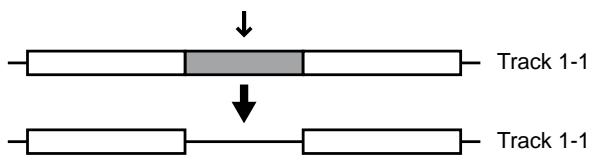
flowchart
graph TD
    A["Track 1-1"] --> B["Downward arrow"]
    B --> C["Downward arrow"]
    C --> D["Track 1-1"]
- After adjusting the recording level while comparing it to the level on Track 1, use punch in/out (p. 45) to record the problem section to Track 2-1.
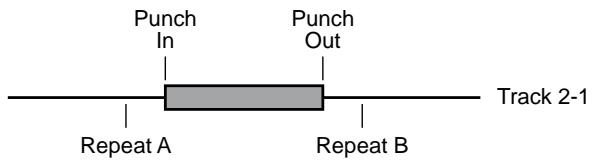
- Edit Track 2 as needed.

For example, using scrub, you could find the location immediately after the start of recording where picking noise occurs, and remove the noise.
- Bounce Track 1-1 and Track 2-1 to Track 1-2.

Edit the data remaining from the preceding operation so that the splice is not noticeable.
Lengthening a portion within the song after recording is finished
(Example 4)
Increasing the number of times a verse part is repeated
- Register the verse part to Repeat A and B, and register the end point for the verse to the locator.
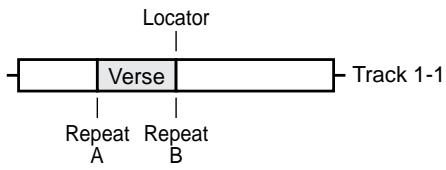
- Transfer (move) the data occurring after this locator to the locator position on Track 1-2.
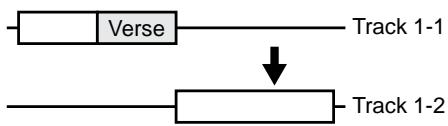
flowchart
graph LR
    A[" "] --> B["Verse"]
    B --> C["Track 1-1"]
    D[" "] --> E["Track 1-2"]
    E --> F["↓"]
- Specify Repeat B on Track 1-1 as the AB Copy destination, and repeat the copy.
Also, specify the end of the copied data as a locator position.
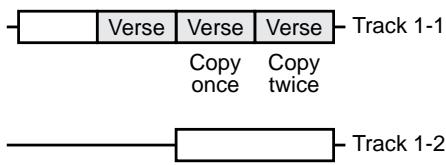
- Use the Move function to return the data on Track 1-2 to the part marked by the locator on Track 1-1.

* Setting “AB QUANTIZE: ON” (p. 39) makes it easier to edit in terms of measures.
How to use the Rhythm Guide
Changing the development of the song
(Display is just a sample.)
(Example 5)
Changing the number of repetitions of Verse 1 (two measures) from two to three times, then adding a fill-in during the third repeat
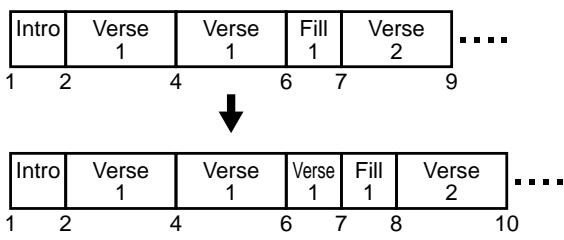
- Lengthen the duration of the song.
1-1. Move to the screen for step that was used for verse 1 setting.
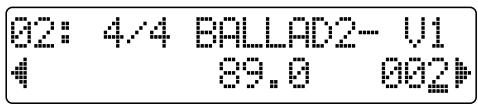
1-2. Press PARAMETER [▶] several times to display the Pattern Arrange screen, and insert a step (p. 64).
![03: 4/4 BALLAD2- V1 4 89.0 006> ↓ PATTERN ARRANGE 4[INS] [ERS] [DELA]](/content/2025/01/130575/images/765aaa62f517087d7caedddcb1ebf4c9a45fc21b1383bacea28308f30476adda.jpg)

2. Insert a fill-in during the performance of the verse.
Specify the initial measure as the final measure of Verse 1.
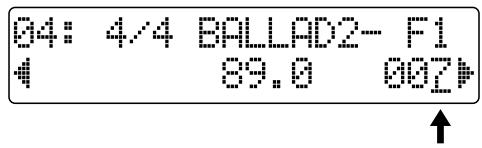
Specifying the initial measure at the final measure of Verse 1 (*)
(*) Final measure of Verse 1
= Initial measure of + number of measures - 1
the previous step in Verse 1
= 6 + 2 - 1
= 7
The Rhythm Guide ends up as shown below.
| Intro | Verse 1 | Verse 1 | Verse 1 | Fill 1 | Verse 2 |
| 1 | 2 | 4 | 6 | 7 | 8 |
Inserting a one-measure count to synchronize the start of the song with an external device
When using Pattern Arrange, create a virtual step.
- When creating a rhythm guide, make Step 1 a virtual step and specify the appropriate style and form (such as the Metro setting).
- Set the starting measure of Step 2 to 2 (refer to [Example 5]).
* If the rhythm guide has already been bounced, use “Track Erase” (p. 55) to delete the beginning measure.
Recording using an external sound source
MIDI Sound Module
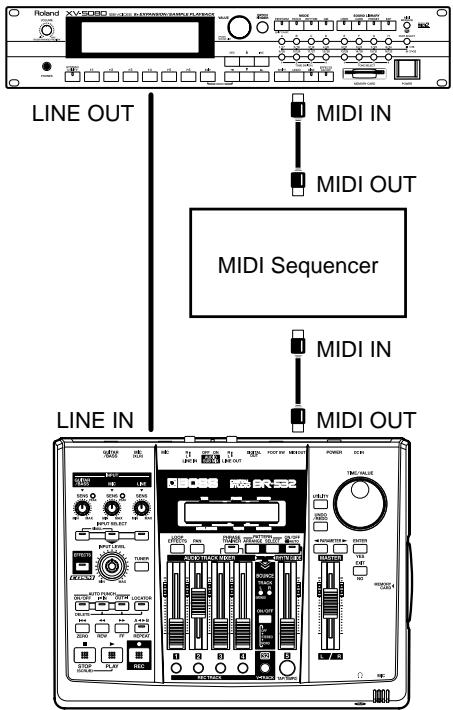
- Use an external MIDI sequencer to create a rhythm pattern (refer to your sequencer owner's manual).
- With the BR-532 as the master (p. 69), synchronize with the external MIDI sequencer, and input the sound source's output to LINE IN.
- Slide the AUDIO SUB MIX (p. 72) switch on the rear panel to ON, then carry out recording and playback.
* If you have plenty of free space on your memory card, you could go ahead and perform a line recording of the output from the external sound source, then you wouldn't need to remain connected with the MIDI sequencer.
Backing up a song
When you insert a memory card (SmartMedia) into your BR-532 and turn it on, the folders and files shown below are created, inside which all data will be stored. If you are copying data from your memory card to a personal computer to back up the data, be aware of the items given below.
Folders and files created
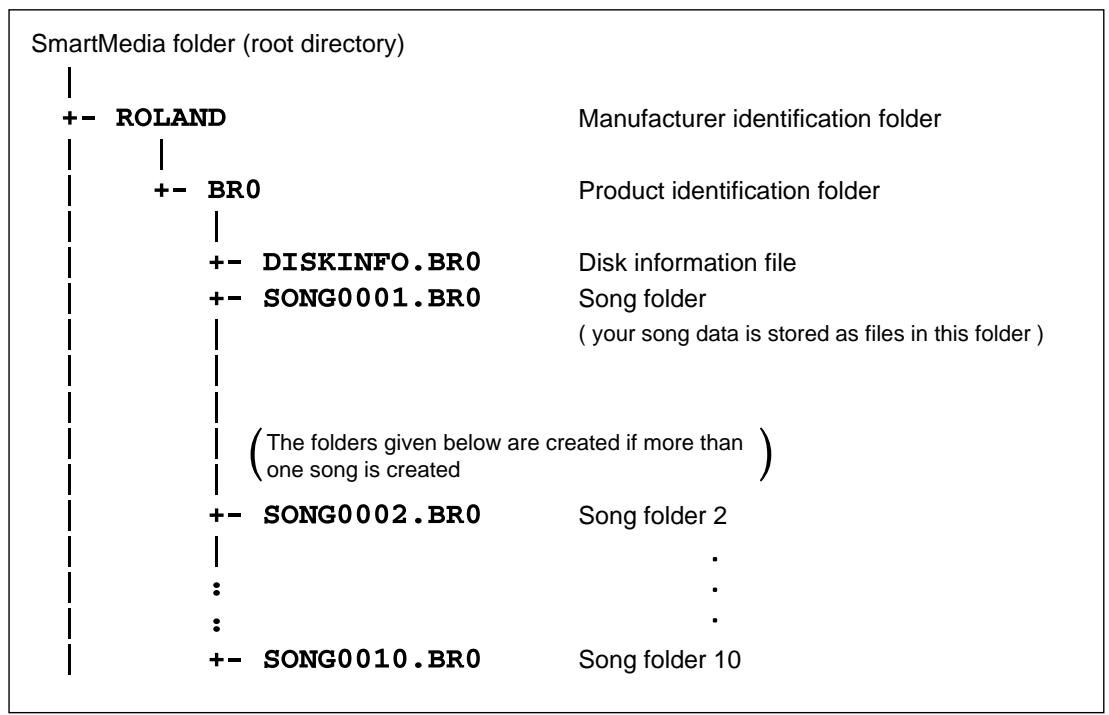
Precautions concerning the backup of songs on a personal computer
- Be sure to copy the folder of the song that you want to back up and all the files inside it.
- Do not change the names of the folders or files.
Precautions when copying backed up songs back to the SmartMedia
● Make sure all song folder backups are stored within the BR0 folder.
Files loaded when the power is turned on If DISKINFO.BRO is present
The song that was selected most recently is loaded. However, if that song has been deleted, a different song is selected.
If DISKINFO.BRO is not present
A different song is selected.
Troubleshooting
If the BR-532 does not function as you expect, please check the following points before assuming that a malfunction has occurred. If this does not resolve the problem, contact a nearby Roland service center or your dealer.
Problems with the sound
No sound
○ Is the power of the BR-532 and of the connected equipment turned on?
○ Are the audio cables connected correctly?
○ Are any audio cables broken?
○ Has the volume of the connected amp or mixer been lowered?
○ Has the MASTER fader or headphone volume of the BR-532 been lowered?
○ Is a memory card inserted?
○ Has the wrong card been inserted?
You can use commercially available SmartMedia cards as memory cards for the BR-532; The 3.3 V type with the capacities of 16 MB to 128 MB can be used.
Are you attempting to play back a short phrase of less than 1.0 seconds? Phrases of 1.0 seconds or less cannot be played.
The volume level of the instrument connected to GUITAR/BASS jack or LINE IN jack is too low.
- Could you be using a connection cable that contains a resistor?
Use a connection cable that does not contain a resistor.
A specific track cannot be heard
○ Has the track volume been lowered?
○ Is the V-Track setting for a different V-Track?
The input source cannot be heard
Did you adjust the SENS knob?
○ Has INPUT SELECT been muted? (The INPUT SELECT indicator will be dark.)
○ Has the INPUT LEVEL knob been set to "MIN"?
☐ If you are using the internal microphone, is “On Board Mic” under UTILITY set to ON?
Cannot record
○ Is a memory card inserted?
Does the memory card have insufficient remaining capacity?
○ Has the recording mode been selected correctly?
○ Has the Phrase Trainer or Scrub Playback function been turned on?
○ Could the data be write protected?
Cannot digitally record to an external device
Does the sampling rate of the BR-8 match that of the digital audio device?
Set the digital audio device to a sampling rate of 44.1 kHz.
○ Does the digital signal format match?
Your digital audio device may use a non-standard digital signal format. Connect the BR-8 to a digital audio device that supports CP-1201 or S/P DIF.
The recorded sound contains noise or distortion
○ Is the input sensitivity set appropriately?
If the input sensitivity is too high, the recorded sound will be distorted. If it is too low, the input sound will be buried in noise. Adjust the SENS knob so that the level meter moves as much as possible without causing the PEAK indicator to light.
* Set it so the “☐” is not indicated in the level meter.
○ Are the track output levels appropriate?
If you hear noise or distortion after bouncing tracks, the output level of the tracks was too high.
○ Is a mic with high output impedance connected directly to the BR-532?
The BR-532 is designed with a wide margin of headroom. Also, since the MIC jacks (TRS/XLR type) are low impedance inputs (2.2 kΩ Hot-Cold), the recording level may be too low, depending on the response of some mics. In such cases, connect the mic via a mic preamp to the BR-532, so that they can be boosted to line level before recording.
Problems with the memory card
No memory card inserted
Are you using a 5 V type SmartMedia card? The BR-532 requires the use of 3.3 V type SmartMedia cards.
"Unsupported Media!" is displayed
Do you have a compatible (SmartMedia) memory card inserted in the BR-532?
○ Is the (SmartMedia) memory card fully and securely inserted?
Synchronization problems (Cannot synchronize)
When using MTC to synchronize the BR-532 with a MIDI sequencer, the BR-8 must be the master device.
○ Is the MIDI cable connected correctly?
○ Is the MIDI cable broken?
○ Is the device ID number correct?
○ Has the sync generator been set to the desired synchronization procedure (MTC or MIDI Clock)? (p. 69)
☐ If you are synchronizing with MTC, has the other device been set to the same MTC type? (p. 69)
○ If using the sync track, is MIDI clock recorded to the sync track?
○ Has the MIDI sequencer been set correctly?
○ Is the MIDI sequencer ready to play back?
Does the other device support the MMC commands of the BR-532?
Other problems
Memory card data was damaged
If memory card data has been damaged, the following causes are possible. Please initialize the card once again. (p. 61)
○ Was the power turned off while the recorder was operating?
○ Was a strong physical shock applied to the memory card?
☐ Could the power have been turned off while the memory card was being accessed?
○ Was the card initialized on a PC or digital camera?
Error Messages
If you attempt an incorrect operation or if an operation could not be executed, the display will indicate an error message. Refer to this list and take the appropriate action.
Battery Low!
Cause: The batteries are depleted (6 x AA dry-cell batteries).
Solution: Replace the batteries as soon as possible (see p. 20).
Cannot Change! This is at the Top!
Cause: You have attempted to modify the starting measure of step 1 at the Step Entry screen for the pattern.
Solution: It is not possible to modify the starting measure of Step 1.
Cannot Erase! This is at the Top!
Cause: You are attempting to erase Step 1 in the pattern's Step settings screen.
Solution: Step 1 cannot be erased.
Cannot Insert !
Cause: No further steps or measures can be entered.
Solution: When creating patterns, a maximum of 50 steps and 999 measures can be set.
Card READ/WRITE speed is slow.
Cause: Sometimes, due to differences in the make or manufacture of a memory card, processing speed can be negatively impacted, placing some restrictions on the use of the card.
Solution: Press [ENTER] to return to the Play page. Consider trying the following when using the card:
- Reduce the number of tracks being used.
- Avoid excessive recording of short phrases.
Lack of Event!
Cause: It is not possible to execute Undo or Redo if fewer than 200 events remain.
Solution: Perform the Song Optimize operation. (p. 60)
No Card!
Cause: You have tried to operate the recorder, or access the memory while the memory card is not inserted, or is not inserted properly.
Cause: The memory card has been removed after selection of data on that memory card.
Solution: Turn off the BR-532, properly insert the memory card, then turn the BR-532 back on.
Power Down!
Cause: Internal power source voltage is below than guaranteed workable range.
Solution: In case of using PSA adaptor: Cable might be broken or adaptor itself might be malfunctioning. Please contact Roland Service or Roland authorized dealers. In case of using batteries: Please replace with new batteries.
Set the Repeat!
Cause: Repeat A (Starting Point) and B (Ending Point) is not set.
Solution: Set the Repeat A and B.
Stop P.Trainer!
Cause: The operation you attempted cannot be done while the Phrase Trainer (p. 78) is operating.
Solution: Press [PHRASE TRAINER] to cancel the Phrase Trainer.
Stop Recorder!
Cause: The operation you attempted cannot be done while the recorder is running (playing or recording).
Solution: Press [STOP] to stop playback or recording.
Unformatted!
Cause: The Memory card is not formatted by DOS.
Solution: Turn off the BR-532, properly insert the memory card, then turn the BR-532 back on.
Solution: Initialize the card (p. 61).
Unsupported Card
Cause: The memory card inserted is not compatible with the BR-532.
Solution: Use a memory card compatible with the BR-532 (16 to 128 MB SmartMedia with a power-source voltage of 3.3 V).
Unsupported Format!
Cause: The BR-532 cannot recognize or use the format of the inserted memory card.
Solution: Insert a memory card initialized for use with the BR-532 (p. 61).
ERROR! Card Busy
Cause: If this message appears after you have been using the memory card with the BR-532, the data on the card has become fragmented, causing delays in reading and writing data.
Solution 1: Reduce the number of tracks that are played back simultaneously. Use track bouncing etc. to combine tracks, or erase or cut data from tracks which you do not need to playback, and then try the playback again.
Solution 2: Reduce the number of tracks that are being recorded simultaneously.
Solution 3: Reduce the Data Type (STANDARD or LONG), and then try creating the song again.
* In cases of unfavorable card access conditions, such as when track editing or punch-in recording etc. is used to connect phrases (musical data) of several seconds.
ERROR! Card Full
Cause: It is not possible to record or copy due to small memory capacity.
Solution: Delete unnecessary data.
Solution: Use alternative memory card that has enough memory capacity.
ERROR! CARD Read
Cause: Memory card data cannot be loaded correctly.
Solution: Turn off the BR-532, properly insert the memory card, then turn the BR-532 back on.
Solution: Initialize the card (p. 61).
* If the same message appears after you have taken the above steps, it is possible that the memory card is malfunctioning.
ERROR! Card Write
Cause: An error occurred while writing data to the memory card.
Solution: The memory card must be initialized (p. 61). Also, the song data you had been attempting to save will be lost.
ERROR! Event Full
Cause: The BR-532 has used up all the events that can be handled by one song.
Solution: Perform the Song Optimize operation. (p. 60)

What is an event?
The smallest unit of memory used by the BR-532 to store recorded results on disk is the event. A newly created song provides approximately 1,300 events per song.
For each track, one recording pass uses two events.
Operations such as punch-in/out or track copy also use up events. The number of events that are used up will fluctuate in a complex way.
Even if there is capacity remaining on the memory card, further recording or track editing will not be possible if all of the events are used up. In such cases, an error message such as “Event Full” will appear.
ERROR! Protected!
Cause: You are attempting to write data to a memory card to which the Write Protect sticker has been applied.
Solution: If you wish to write data to the card, peel off the Write Protect sticker (p. 61).
Parameter List
(*1) If you want to save the settings as part of the currently selected song, hold down [STOP] and press [REC].
(*2) Stored in the BR-532.
■ Mixer Parameter (*1)
| Parameter name | Display | Initial value | Value |
| Input Select | - | GUITAR/BASS | GUITAR/BASS, MIC, LINE, SIMUL |
| Recording Mode | - | INPUT | INPUT, BOUNCE |
| Pan | PAN | C00 | L50-C00-R50 |
| Loop Effect Send Level | LOOP | IN,TR1-4:20, RHYTHM:10 | 0-100 |
| Level Meter | current setting | INP | TR1-4, 1&2, 3&4, INP, MST |
Chorus/Doubling/Reverb
| Parameter name | Display | Initial value | Value |
| Effect Type | Effect Type | REVERB | CHORUS, DOUBL'N, REVERB |
| Chorus | |||
| Rate | Rate | 10 | 0-100 |
| Depth | Depth | 10 | 0-100 |
| Pre Delay | Pre Delay | 10.0 mS | 0.5-50.0 mS |
| Effect Level | Effect Level | 100 | 0-100 |
| Doubling | |||
| Delay Time | Delay Time | 25.0 mS | 0.5-50.0 mS |
| Separation | Separation | 50 | 0-100 |
| Effect Level | Effect Level | 100 | 0-100 |
| Reverb | |||
| Reverb Type | Reverb Type | HALL | ROOM, HALL |
| Reverb Time | Reverb Time | 2.0 | 0.1-10.0 |
| Tone | Tone | 0 | -12-0-12 |
| Effect Level | Effect Level | 50 | 0-100 |
■ Recorder Parameter (*1)
| Parameter name | Display | Initial value | Value |
| Recording Track Status | - | Track 1: RECTrack 2–4: PLAY | PLAY, REC |
| V-Track | V-TRACK | 1 | 1–8 |
| Auto Punch On/Off | - | OFF | OFF, ON |
| Auto Punch In/Out | - | 00:00:00-00.00 | 00:00:00-00.00–23:59:59-**.** (*) |
| Locator | - | 00:00:00-00.00 | 00:00:00-00.00–23:59:59-**.** (*) |
| Repeat | - | - | 00:00:00-00.00–23:59:59-**.** (*) |
| Bounce Track | 1–4 | 1 | 1–4 |
| Bounce V-Track | 1–8 | 1 | 1–8 |
* The settable range for Auto Punch In/Out, Locator and Repeat will change slightly depending on the MTC Type (sync parameter).
■ Rhythm Guide Parameter (*1)
| Parameter name | Display | Initial value | Value |
| Rhythm Guide Auto/On/Off | - | OFF | OFF, AUTO, ON |
| Pattern | Pattern | P01 | P01–50, SNG, U01–04 |
■ Song Parameter (*1)
| Parameter name | Display | Initial value | Value |
| Song Name | Song Name | SONG 0001 | 12 letters |
| Data Type | Data Type | STANDARD(LV1) | HiFi (MT2), STANDARD (LV1), LONG (LV2) |
■ System Parameter (*2)
| Parameter name | Display | Initial value | Value |
| LCD Contrast | LCD Contrast | 8 | 1-15 |
| MTC Type | MTC Type | 30 | 30, 29N, 29D, 25, 24 |
| Sync Generator | Gen. | OFF | OFF, MTC, MIDI CLOCK |
| MMC Mode | MMC Mode | OFF | OFF, MASTER |
| Digital Copy Protect | D.CpyProtect | OFF | OFF, ON |
| Foot Switch Assign | Foot Switch | PLY/STOP | PLY/STOP, PUNCH I/O, FX ON/OFF |
| On Board Mic On/Off Switch | On Board Mic | ON | ON, OFF |
| Rhythm Guide MIDI Channel | Rhythm MIDI Ch | 10 | 1-16, OFF |
| Remain Switch | Remain Info | OFF | ON, OFF |
| Power Save Mode | Power Save | OFF | OFF, 1, 3, 5, 10 (min) |
| Tuner Standard Pitch | Freq | 440 | 435-445 (Hz) |
| Time Stretch | Time Stretch | OFF | ON, OFF |
| Center Cancel | Center Cancel | OFF | ON, OFF |
| Center Cancel Low Boost | Low Boost | 0 | 0-12 |
| Center Cancel Adjust | C.Cancel Adj | C00 | L10-C00-R10 |
| Scrub From/To Mode | FROM/TO | FROM | FROM, TO |
| Preview Switch | Preview SW | OFF | OFF, ON |
| AB Quantize | AB Quantaiz | OFF | ON, OFF |

Even when [STOP] is held down and [REC] pressed, the settings for the Pattern Arrange parameters, and Insert Effect parameter (p.86) are not saved.
■ Pattern Arrange Parameter
| Parameter name | Display | Initial value | Value |
| Step | current setting | 1 | 1-50 |
| Beat | current setting | 4/4 | 1/1-8/1, 1/2-8/2,1/4-8/4, 1/8-8/8 |
| Tempo | current setting | - | 25.0-250.0 |
| Start Measure | current setting | 001 | 001-999 |
| Style | current setting | - | ROCK1-6/HdRck1-5/HEAVY1-5/POP1-8/BALLAD1, 2/BLUES1-4/R&B1-5/JAZZ1-3/FUSION1, 2/HipHop1, 2/FUNK/HOUSE/Cntry1, 2/OTHER1, 2, 3/Metro/BREAK |
| Form | current setting | - | IN/V1, 2/F1, 2/END |
| Drum Kit | Drum Kit | - | STD1, STD2, ROOM,HEAVY, JAZZ, HIP-HOP,HOUSE, REGGAE, 808 |
* When a tempo other than 4/4 is used, this switches to Metronome.
■ Effects Parameter (*1)
| Parameter name | Display | Initial value | Value |
| Insert Mode | Insert Mode | INPUT (NORMAL) | INPUT (NORMAL), INPUT (REC DRY), MASTER |
Effect Patch List
■ GTR (GUITAR/BASS)
| NO. | Patch Name | Algorithm |
| 01 | JC Clean | COSM GTR AMP |
| 02 | Rock Lead | COSM GTR AMP |
| 03 | TW Clean | COSM GTR AMP |
| 04 | TEXAS | COSM GTR AMP |
| 05 | Driven Lead | COSM GTR AMP |
| 06 | Metal Lead | COSM GTR AMP |
| 07 | SWEET LEAD | COSM GTR AMP |
| 08 | Delayed Lead | COSM GTR AMP |
| 09 | 80's Hard | COSM GTR AMP |
| 10 | 90's Metal | COSM GTR AMP |
| 11 | 7TH STRINGS? | COSM GTR AMP |
| 12 | JAZZ GT | COSM GTR AMP |
| 13 | PH CRUNCH | COSM GTR AMP |
| 14 | JET FLANGER | COSM GTR AMP |
| 15 | AC SimCuttin | ACOUSTIC SIM |
| 16 | ACOUSTY | ACOUSTIC SIM |
| 17 | AC Sim Lead | ACOUSTIC SIM |
| 18 | Brite Acustc | ACOUSTIC SIM |
| 19 | Tight Bass | BASS SIM |
| 20 | Loose Bass | BASS SIM |
| 21 | A.GTR Fat | ACOUSTIC GUITAR |
| 22 | A.GTR LEAD | ACOUSTIC GUITAR |
| 23 | MIC'D ACUSTC | ACOUSTIC GUITAR |
| 24 | WIDE ACUSTC | ACOUSTIC GUITAR |
| 25 | SLAP'n POP | BASS MULTI |
| 26 | FRETLESS B. | BASS MULTI |
| 27 | PHASE BASS | BASS MULTI |
| 28 | FLANG BASS | BASS MULTI |
| 29 | STD BASS | COSM BASS AMP |
| 30 | DRIVIN' BASS | COSM BASS AMP |
MIC
| NO. | Patch Name | Algorithm |
| 01 | COMPRESSOR | VOCAL MULTI |
| 02 | DE-ESSER | VOCAL MULTI |
| 03 | VOCAL EQ | VOCAL MULTI |
| 04 | KARAOKE VOX | VOCAL MULTI |
| 05 | NARRATION | VOCAL MULTI |
| 06 | VOX DETUNE | VOCAL MULTI |
| 07 | M&F Duet | VOICE TRANSFORMER |
| 08 | CHIPS & MUNK | VOICE TRANSFORMER |
| 09 | DEEP VOICE | VOICE TRANSFORMER |
| 10 | UNISON VOX | VOICE TRANSFORMER |
■ LIN (LINE)
| NO. | Patch Name | Algorithm |
| 01 | CMP+FAT EQ | STEREO MULTI |
| 02 | LO&SLOW FLNG | STEREO MULTI |
| 03 | ST CHORUS | STEREO MULTI |
| 04 | PS: DETUNE | STEREO MULTI |
| 05 | ST DOUBLER | STEREO MULTI |
| 06 | CHORUS+DELAY | STEREO MULTI |
| 07 | 1920's RADIO | LO-FI BOX |
| 08 | 1960's RADIO | LO-FI BOX |
| 09 | VINTAGE 45's | LO-FI BOX |
| 10 | CLASSIC LP | LO-FI BOX |
■ SIM (SIMUL)
| NO. | Patch Name | Algorithm |
| 01 | JC-120+COMP | VO+GT.AMP |
| 02 | CLN TW+COMP | VO+GT.AMP |
| 03 | CRUNCH+COMP | VO+GT.AMP |
| 04 | BLUES+COMP | VO+GT.AMP |
| 05 | HVY CM + VO | VO+GT.AMP |
| 06 | SIM+DIRECT | VO+AC.SIM |
| 07 | S-PZO+DL EFX | VO+AC.SIM |
| 08 | SIM+50msDL | VO+AC.SIM |
| 09 | SIM+HVY CM | VO+AC.SIM |
| 10 | H-ENH+LNG DL | VO+AC.SIM |
1. TRANSMITTED DATA
■Channel Voice Message
●Note On
If the MIDI parameter “Rhythm MIDI Ch.” is set to “1–16,” note numbers/velocities corresponding to the rhythm pattern will be transmitted on the MIDI channel that is specified for the rhythm guide.
| Status | Second | Third |
| 9nH | mmH | llH |
| n = MIDI Channel No. : | 0H - FH (ch.1 - ch.16) |
| mm = Note No. : | 00H - 7FH (0 - 127) |
| ll = Velocity : | 01H - 7FH (1 - 127) |
●Note Off
If the MIDI parameter “Rhythm MIDI Ch.” is set to “1–16,” note numbers corresponding to the rhythm pattern will be transmitted on the MIDI channel specified for the rhythm guide.
| Status | Second | Third |
| 8nH | mmH | llH |
| n = MIDI Channel No. : | 0H - FH (ch.1 - ch.16) |
| mm = Note No. : | 00H - 7FH (0 - 127) |
| ll = Velocity : | 40H (64) |
Notes sounded by the rhythm guide correspond to note numbers as follows.
| Rhythm Guide Tone | Note Number |
| High | D#1 (27) |
| Metronome (click) | A 1 (33) |
| Metronome (bell) | A#1 (34) |
| Kick | B 1 (35) |
| Kick | C 2 (36) |
| Clave | C#2 (37) |
| Snare | D 2 (38) |
| Cowbell | D#2 (39) |
| Snare | E 2 (40) |
| Low tom | F 2 (41) |
| Closed hi-hat | F#2 (42) |
| Mid tom | A 2 (45) |
| Open hi-hat | A#2 (46) |
| Crash cymbal | C#3 (49) |
| High tom | D 3 (50) |
| Ride cymbal | D#3 (51) |
■System Common Messages
●MIDI Time Code Quarter Frame Messages
If the Sync parameter “Gen.” is set to “MTC,” quarter frame messages of the time code type specified by “MTC Type” will be transmitted when the BR-532 is running (recording or playing). The transmitted time counts are summed to “SMPTE (MTC) Offset Time” as the song top is “00:00:00:00”.
| Status | Second |
| F1H | mmH (= 0nnndddd) |
| nnn = Message type : | 0 = Frame count LS nibble |
| 1 = Frame count MS nibble | |
| 2 = Seconds count LS nibble | |
| 3 = Seconds count MS nibble | |
| 4 = Minutes count LS nibble | |
| 5 = Minutes count MS nibble | |
| 6 = Hours count LS nibble | |
| 7 = Hours count MS nibble | |
| dddd = 4 bit nibble data : | 0h - FH (0 - 15) |
Bit Field is assigned as follows.
| Frame Count | xxxxyyyy | |
| xxx | Reserved (000) | |
| yyyyy | Frame No.(0-29) | |
| Seconds Count | xxyyyyyy | |
| xx | Reserved (00) | |
| yyyyyy | Seconds (0-59) | |
| Minutes Count | xxyyyyyy | |
| xx | Reserved (00) | |
| yyyyyy | Minutes (0-59) | |
| Hours Count | xyyzzzzz | |
| x | Reserved (0) | |
| yy | Time Code type |
* The time code types defined by the MIDI specification correspond to the BR-532 Sync parameter “MTC Type” as follows.
| MIDI specification setting | “MTC Type” setting |
| 0 = 24 Frames/Sec | 24 |
| 1 = 25 Frames/Sec | 25 |
| 2 = 30 Frames/Sec (Drop Frame) | 29D |
| 3 = 30 Frames/Sec (Non Drop Frame) | 29N or 30 |
zzzzz Hours (0–23)
●Song Position Pointer
The current position is transmitted by the Song Position Pointer Message when the BR-532 is stopped, or the locate operation has been performed, if the SYNC parameter "Gen." is set to "MIDI CLOCK."
| Status | Second | Third |
| F2H | mmH | nnH |
mm (LSB), nn (MSB) = Song Position Point : 00H 00H - 7FH 7FH
■System Realtime Message
Transmitted when “Gen.” is “MIDI CLOCK” in the SYNC parameter.
●Timing Clock
Status F8H
●Active Sensing
Status FEH
* This is transmitted at intervals of approximately 200 msec.
●Start
Status FAH
●Continue
Status FBH
-Stop
Status FCH
■System Exclusive Message
| Status | Data Bytes | Status |
| F0H | iiH,ddH, ..., eeH | F7H |
| Byte | Description | |
| F0H | Status of Exclusive Message | |
| iiH | ID Number | |
| 7EH Universal Non Realtime Message | ||
| 7FH Universal Realtime Message | ||
| ddH | Data: 00H - 7FH (0-127) | |
| : | : | |
| eeH | Data | |
| F7H | EOX (End of Exclusive Message) | |
The BR-532 can transmit and receive Universal System Exclusive messages.
About Device ID
The Device ID is used to distinguish one device from another.
●Universal System Exclusive Message
○MIDI Time Code Commands
○Full Message
Basic operation of quarter frame messages will be handled.
| Status | Data Bytes | Status |
| F0H, 7FH | Dev,01H, 01H, hrH, mnH, scH, frH | F7H |
| Byte | Description | |
| F0H, 7FH | Universal System Exclusive Message Realtime Header | |
| Dev | Device ID (7FH) | |
| 01H | sub-ID #1 (MIDI Time Code) | |
| 01H | sub-ID #2 (MIDI Full Message) | |
| hrH | Hours and Type 0 yy zzzzz | |
| yy type | ||
| 00 = 24 Frames/sec | ||
| 01 = 25 Frames/sec | ||
| 10 = 30 Frames/sec (Drop Format) | ||
| 11 = 30 Frames/sec (Non Drop Format) | ||
| zzzzz hours (00-23) | ||
| mnH | Minutes (00-59) | |
| mnH | Seconds (00-59) | |
| frH | Frames (00-29) | |
| F7H | EOX (End of Exclusive Message) | |
When you change the song position, the device ID will be transmitted as 7FH.
○MIDI Machine Control Commands
| Status | Data Bytes | Status |
| F0H | 7FH, Dev, 06H, aaH, ..., bbH | F7H |
| Byte | Description | |
| F0H | Status of Exclusive Message | |
| 7FH | Universal System Exclusive Message Realtime Header | |
| Dev | Device ID (7FH) | |
| 06H | MMC Command Message | |
| aaH | Command | |
| : | : | |
| bbH | Command | |
| F7H | EOX (End of Exclusive Message) |
* see '2. MIDI Machine Control' section
2. MIDI Machine Control
■MIDI Machine Control Command Reference
●STOP (MCS)
| Status | Data Bytes | Status |
| F0H | 7FH, Dev, 06H, 01H | F7H |
| Byte | Description | |
| F0H | Status of Exclusive Message | |
| 7FH | Universal System Exclusive Message Realtime Header | |
| Dev | Device ID (7FH) | |
| 06H | MMC Command Message | |
| 01H | STOP (MCS) | |
| F7H | EOX (End of Exclusive Message) | |
When recording is stopped, 7FH is transmitted as the Device ID.
●DEFERRED PLAY (MCS)
| Status | Data Bytes | Status |
| F0H | 7FH, Dev, 06H, 03H | F7H |
| Byte | Description | |
| F0H | Status of Exclusive Message | |
| 7FH | Universal System Exclusive Message Realtime Header | |
| Dev | Device ID (7FH) | |
| 06H | MMC Command Message | |
| 03H | DEFERRED PLAY (MCS) | |
| F7H | EOX (End of Exclusive Message) | |
When recording is stopped, 7FH is transmitted as the Device ID.
●RECORD STROBE
| Status | Data Bytes | Status |
| F0H | 7FH, Dev, 06H, 06H | F7H |
| Byte | Description | |
| F0H | Status of Exclusive Message | |
| 7FH | Universal System Exclusive Message Realtime Header | |
| Dev | Device ID (7FH) | |
| 06H | MMC Command Message | |
| 06H | RECORD STROBE | |
| F7H | EOX (End of Exclusive Message) | |
When a recording is stopped while in progress, 7FH is transmitted as the Device ID.
●RECORD EXIT
| Status | Data Bytes | Status |
| F0H | 7FH, Dev, 06H, 07H | F7H |
| Byte | Description | |
| F0H | Status of Exclusive Message | |
| 7FH | Universal System Exclusive Message Realtime Header | |
| Dev | Device ID (7FH) | |
| 06H | MMC Command Message | |
| 07H | RECORD EXIT | |
| F7H | EOX (End of Exclusive Message) | |
When a recording is stopped while in progress, 7FH is transmitted as the Device ID.
●MMC RESET
| Status | Data Bytes | Status |
| F0H | 7FH, Dev, 06H, 0DH | F7H |
| Byte | Description | |
| F0H | Status of Exclusive Message | |
| 7FH | Universal System Exclusive Message Realtime Header | |
| Dev | Device ID (7FH) | |
| 06H | MMC Command Message | |
| 0DH | MMC RESET | |
| F7H | EOX (End of Exclusive Message) |
When powered on the BR-532 transmits as the device ID 7FH.
- LOCATE (MCP)
○Format 2 - LOCATE [TARGET]
| Status | Data Bytes | Status |
| F0H | 7FH, Dev, 06H, 44H, 06H, 01H, hrH, mnH, scH, frH, ffH | F7H |
| Byte | Description | |
| F0H | Status of Exclusive Message | |
| 7FH | Universal System Exclusive Message Realtime He | |
| Dev | Device ID (7FH) | |
| 06H | MMC Command Message | |
| 44H | LOCATE(MCP) | |
| 06H | Number of Bytes | |
| 01H | “TARGET” sub command | |
| hrH, mnH, scH, frH, ffH | ||
| Standard Time with Sub Frame | ||
| F7H | EOX (End of Exclusive Message) |
If the efficient Maker of the locate switch is pressed or when moved, the BR-532 transmits as the device ID 7FH.
3. Supplementary material
●Decimal/Hexadecimal table
(hexadecimal values are indicated by a following "H")
MIDI uses 7-bit hexadecimal values to indicate data values and the address and size of exclusive messages. The following table shows the correspondence between decimal and hexadecimal numbers.
| D | H | D | H | D | H | D | H |
| 0 | 00H | 32 | 20H | 64 | 40H | 96 | 60H |
| 1 | 01H | 33 | 21H | 65 | 41H | 97 | 61H |
| 2 | 02H | 34 | 22H | 66 | 42H | 98 | 62H |
| 3 | 03H | 35 | 23H | 67 | 43H | 99 | 63H |
| 4 | 04H | 36 | 24H | 68 | 44H | 100 | 64H |
| 5 | 05H | 37 | 25H | 69 | 45H | 101 | 65H |
| 6 | 06H | 38 | 26H | 70 | 46H | 102 | 66H |
| 7 | 07H | 39 | 27H | 71 | 47H | 103 | 67H |
| 8 | 08H | 40 | 28H | 72 | 48H | 104 | 68H |
| 9 | 09H | 41 | 29H | 73 | 49H | 105 | 69H |
| 10 | 0AH | 42 | 2AH | 74 | 4AH | 106 | 6AH |
| 11 | 0BH | 43 | 2BH | 75 | 4BH | 107 | 6BH |
| 12 | 0CH | 44 | 2CH | 76 | 4CH | 108 | 6CH |
| 13 | 0DH | 45 | 2DH | 77 | 4DH | 109 | 6DH |
| 14 | 0EH | 46 | 2EH | 78 | 4EH | 110 | 6EH |
| 15 | 0FH | 47 | 2FH | 79 | 4FH | 111 | 6FH |
| 16 | 10H | 48 | 30H | 80 | 50H | 112 | 70H |
| 17 | 11H | 49 | 31H | 81 | 51H | 113 | 71H |
| 18 | 12H | 50 | 32H | 82 | 52H | 114 | 72H |
| 19 | 13H | 51 | 33H | 83 | 53H | 115 | 73H |
| 20 | 14H | 52 | 34H | 84 | 54H | 116 | 74H |
| 21 | 15H | 53 | 35H | 85 | 55H | 117 | 75H |
| 22 | 16H | 54 | 36H | 86 | 56H | 118 | 76H |
| 23 | 17H | 55 | 37H | 87 | 57H | 119 | 77H |
| 24 | 18H | 56 | 38H | 88 | 58H | 120 | 78H |
| 25 | 19H | 57 | 39H | 89 | 59H | 121 | 79H |
| 26 | 1AH | 58 | 3AH | 90 | 5AH | 122 | 7AH |
| 27 | 1BH | 59 | 3BH | 91 | 5BH | 123 | 7BH |
| 28 | 1CH | 60 | 3CH | 92 | 5CH | 124 | 7CH |
| 29 | 1DH | 61 | 3DH | 93 | 5DH | 125 | 7DH |
| 30 | 1EH | 62 | 3EH | 94 | 5EH | 126 | 7EH |
| 31 | 1FH | 63 | 3FH | 95 | 5FH | 127 | 7FH |
D: decimal
H: hexadecimal
* Decimal expressions such as used for MIDI channel, Bank Select, and Program Change will be the value 1 greater than the decimal value given in the above table.
* Since each MIDI byte carries 7 significant data bits, each byte can express a maximum of 128 different values. Data for which higher resolution is required must be transmitted using two or more bytes. For example a value indicated as a two-byte value of aa bbH would have a value of aa x 128 + bb.
* For a signed number (+/-), 00H = -64, 40H = +/-0, and 7FH = +63. I.e., the decimal equivalent will be 64 less than the decimal value given in the above table. For a two-byte signed number, 00 00H = -8192, 40 00H = +/-0, and 7F 7FH = +8191. For example the decimal expression of aa bbH would be aa bbH - 40 00H = (aa x 128 + bb - 64 x 128.
* Hexadecimal notation in two 4-bit units is used for data indicated as 'nibbled'. The nibbled two-byte value of 0a 0b H would be a x 16 + b.
What is the decimal equivalent of 5AH?
From the above table, 5AH = 90.
What is the decimal equivalent of the 7-bit hexadecimal values 12 34H?
From the above table, 12H = 18 and 34H = 52
Thus, 18 x 128 + 52 = 2356
What is the decimal equivalent of the nibbled expression 0A 03 09 0DH?
From the above table, 0AH = 10, 03H = 3, 09H = 9, 0DH = 13
Thus, the result is ((10 × 16 + 3) × 16 + 9) × 16 + 13 = 41885
What is the nibbled equivalent of the decimal number 1258?
16) 1258
16) 78 ...10
16) 4 ...14
0 ... 4
From the above table, 0=00H, 4=04H, 14=0EH, 10=0AH
Thus the result is 00 04 0E 0AH
■MIDI Machine Control (MMC) Command, Information Field / Response Reference
●Commands Transmitted
| Command | Action |
| 01H STOP | STOP |
| 03H DEFERRED PLAY | PLAY |
| 06H RECORD STROBE | REC / PUNCH IN |
| 07H RECORD EXIT | PUNCH OUT |
| 0DH MMC RESET | RESET |
| 44H 01H LOCATE TARGET | LOCATE |
MIDI Implementation Chart
| Function... | Transmitted | Recognized | Remarks | |
| Basic Channel | Default Changed | 1-16 * 11-16 * 1 | X********** | |
| Mode | Default Messages Altered | Mode 3X********** | XXX | |
| Note Number : | True Voice | 33, 34, 36, 37, 38, 39, 42, 44, 46 * 1********** | X | |
| Velocity | Note ON Note OFF | O 9n V=1-127 * 1O 8n V=64 * 1 | XX | |
| After Touch | Key's Ch's | XX | XX | |
| Pitch Bend | X | X | ||
| Control Change | X | X | ||
| Prog Change : True # | X********** | X********** | ||
| System Exclusive | O | X | ||
| System Common : | Quarter Frame : Song Pos : Song Sel : Tune | O * 2O * 3XX | XXXX | |
| System Real Time : | Clock : Command | O * 3O * 3 | XX | |
| Aux Message : | All sound off : Reset all controllers : Local ON/OFF : All Notes OFF : Active Sense : System Reset | XXXXX | XXXXX | |
| Notes | * 1 Rhythm Guide only.* 2 “SYNC parameter: Gen. = MTC” only.* 3 “SYNC parameter: Gen. = MIDI CLOCK” only. | |||
Mode 1 : OMNI ON, POLY
Mode 2 : OMNI ON, MONO
O: Yes
Mode 3 : OMNI OFF, POLY
Mode 4 : OMNI OFF, MONO
X: No
Specifications
BR-532: Digital Studio
●Tracks
Track: 4 V-Track: 32 (8 V-Tracks per each Track)
* Up to 2 tracks can be recorded simultaneously, and up to 4 tracks can be played back simultaneously.
●Useful Capacity
SmartMedia: 16–128 M bytes
●Data Type
HiFi (MT2)
STANDARD (LV1)
LONG (LV2)
●Signal Processing
AD Conversion: 24 bit, Modulation + AF-AD (Guitar/Bass)
24 bit, Modulation + AF-AD (Mic)
24 bit, Modulation (Line)
24 bit, Modulation (Simul)
DA Conversion: 24 bit, Modulation
Internal Processing: 32 bit (digital mixer section)
●Sample Rate
44.1 kHz
●Frequency Response
20 Hz to 20 kHz (+1/-3 dBu)
●Total Distortion
0.15 % or less
(INPUT SENS : CENTER, 1 kHz at nominal output level, data type: MT2)
●Recording Time (1 track)
| Data type | Recording time (times approximate) | |||
| 16 MB | 32MB | 64 MB | 128 MB | |
| HiFi (MT2) | 8 min. | 16 min. | 32 min. | 65 min. |
| Standard(LV1) | 9 min. | 19 min. | 39 min. | 78 min. |
| Long (LV2) | 12 min. | 24 min. | 49 min. | 98 min. |
* The above-listed recording times are approximate. Times may be slightly shorter depending on the number of songs that were created.
* The above number is the total for all the tracks that are used. If each of the four tracks contain an equal amount of data, the length of the resulting song will be approximately 1/4 of the above.
●Nominal Input Level (Variable)
GUITAR/BASS jack: -24 dBu
MIC (Phone/XLR) jack: -50 dBu
LINE jack: -10 dBu
●Input Impedance
GUITAR/BASS jack: 1 M Ω
MIC (Phone/XLR) jack: 2.2 k Ω (HOT-COLD) 1.1 k Ω (HOT-GND, COLD-GND)
LINE jack: 14 k Ω
●Nominal Output Level
LINE OUT jack: -10 dBu
●Output Impedance
LINE OUT jack: 2 k Ω
Headphonejack: 100 Ω
●Recommended Load Impedance
LINE OUT jack: 20 k Ω or greater
Headphonejack: 8–50 Ω
●Residual Noise Level
LINE OUT jack: -83 dBu or less
(INPUT SELECT: GUITAR/BASS, input terminated with 1 k
Ω, INPUT SENS: CENTER, IHF-A, typ.)
●Interface
DIGITAL OUT: Optical type
●Display
20 Characters x 2 Lines (Backlit LCD)
Connectors
GUITAR/BASS jack (1/4 inch phone type)
MIC jacks (TRS Balance, 1/4 inch phone type/XLR type)
LINE IN jack L/R (RCA Phono type)
LINE OUT jack L/R (RCA Phono type)
DIGITAL OUT Connector (Optical type)
FOOT SW jack (1/4 inch phone type)
MIDI OUT Connector
Headphone Jack (Stereo 1/4 inch phone type)
●Power Supply
DC 9 V; Supply AC Adaptor (PSA series), Dry batteries x 6
●Current Draw
200 mA
* Expected battery life under continuous use:
Carbon: 2.5 hours
Alkaline: 7 hours
These figures will vary depending on the actual conditions of use.
●Dimensions
290.5 (W) x 220.5 (D) x 65.0 (H) mm
11-7/16 (W) x 8-11/16 (D) x 2-9/16 (H) inches
●Weight
1.8 kg/4 lbs (excluding batteries)
●Accessories
Dry battery (R6 (AA) type) x 6
Owner's Manual
Roland Service (information sheet)
Demo Card (32 MB)
Options
AC Adaptor: PSA series
Foot Switch: FS-5U
Pedal Switch: DP-2 (Roland)
* 0 dBu = 0.775V rms

In the interest of product improvement, the specifications and/or appearance of this unit are subject to change without prior notice.
Index
A
AB Quantize 39
AC Adaptor jack 19
Algorithm 31
AUDIO SUB MIX 72
AUDIO SUB MIX switch 19,24
AUDIO TRACK MIXER fader 16
AUTO PUNCH 15,46
Auto Punch In/Out 45-46
B
Back up 102
Bank 31,79
Battery 36
Beat 26
BOUNCE 35,41
Bounce mode 35
BOUNCE MODE Indicator 16
BOUNCE ON/OFF button 16
Bouncing 41
C
Center Cancel 78
Center Cancel function 78
Changing a pattern name 66
Clip indicator 14
Contrast 24
Copy 50
Copying patterns 66
COSM 12
D
D.CopyProtect 43
Data Type 73
DC IN 19
Deleting all steps 65
Digital Copy 43
Digital Effect 12
DIGITAL OUT 43
DIGITAL OUT connector 19
DOUBL'N 34
Doubling 34,82
Drum Kit 62
E
Effect Patch 79,110
EFFECTS 18
EFFECTS button 15
END 62
Ending 62
ENTER/YES button 17
Erase 55
Erasing a step 64
EXIT/NO button 17
F
F 62
FF button 15
Fill-in 62
FOOT SW 19
Foot Sw 46
Foot Switch 23,46
Foot Switch jack 19
Form 62-63
Format 13,27,61
FRAME 18
Frame 26
G
GUITAR/BASS jack 19
H
Headphones jack 17
HiFi 28
|
IN 62
Initialize 13,27,61,83
INPUT LEVEL knob 15
INPUT SELECT 34
INPUT SELECT button 14
Input Sensitivity 30
Insert Effect 31, 79, 86
Insert Mode 81
Inserting a step 64
Inserting batteries 20
Internal Microphone 17,30
Intro 62
L
LCD Contrast 24
LEVEL METER 18,30
LINE IN jack 19
LINE OUT jack 19
LOCATOR 49
LOCATOR button 15
Locator function 49
Locator Point 49
LONG 28
Loop Effect 42, 82, 85
LOOP EFFECTS 42,82
LOOP EFFECTS button 16
Loop Recording 48
Low Boost 78
LV1 28
LV2 28
M
Manual Punch In/Out 45
MASTER fader 16,24
MCK 69
MEASURE 18
Measure 26
Memory Card 13, 23, 27, 73, 102
MEMORY CARD slot 17
Memory used 73
MIC 17
MIC jack 19
MIDI 67
MIDI OUT connector 19
Mix Down 42-43
MMC 70
Monitor 30
Mono 33
Move 53
Moving to the end 26
Moving to the start 26
MT2 28
MTC 69
Multitrack 2 ...... 28
N
Note Number 68
0
Optimize 60
Optimizing 98
Overdubbing 40
P
PAN 40,42
PAN button 16
PARAMETER button 17
Patch Name 81
Patch Number 31
Pattern 62,97
PATTERN ARRANGE 63
PATTERN SELECT 32
PEAK 14
Phrase Trainer 78
PHRASE TRAINER button 16
PLAY button 15
Play Screen 24
Playback 25
Power Save 36
POWER switch 19
Preset Patch 31,79
Preset Pattern 62
Preview Function 74-75
Punch In 45
Punch Out 45
Q
Quantize function 39
R
REC 16
REC TRACK 16
Recording a new song 28
Recording button 16
Recording time 28
Recording Track button 16
REDO 58
Redo function 58
Reference Pitch 77
Remain Info 73
Remaining memory 73
Remaining time 73
REPEAT 38
Repeat 48
REPEAT button 15
Repeat function 38,48
REW button 15
RHYTHM GUIDE 17
Rhythm Guide 32, 68, 100
Rhythm Guide function ...... 11
Rhythm Pattern 32
S
Sample Rate 28
Saving the pattern 65
SCRUB FROM 74
Scrub Function 74
Scrub Point 74-75
SCRUB TO 74
Security Slot 20
Selecting a pattern 66
SENS knob 14
SIMUL 29,34
SIMUL Bank 80
SmartMedia 13,27-28
Song Copy 59
Song Erase 59
Song Name 60
Song New 28
Song Optimize 60
Song Patch 31,79
Song Pattern 62
Song Select 25
STANDARD 28
Stereo 33
STOP button 15
Style 62-63,96
Sub Frame 26
Synchronize 69
Synchronizing Playback 69
T
TAP 33
TEMPO 18
Tempo 32,63
Terms of Measures 50
Terms of Time 50
TIME 18
Time display 26
Time Signature 63
Time Stretch 78
TIME/VALUE dial 17
Track 33
Track Copy 50
Track Edit 50
Track Erase 55
Track Exchange 57
TRACK fader 25
Track Move 53
Tuner 76
TUNER button 15
U
UNDO 58
Undo function 58
UNDO/REDO button 17
User Patch 31,79
User Pattern 62
UTILITY button 17
V
V 62
Verse 62
V-Track 11,44,99
V-TRACK button 16
Index
W
Write-Protect 61
Z
ZERO button 15
MEMO....
BR-532
Track Sheet
Project ____ Artist ____ Client
Date ____
| V. Track ↓ | TRACK 1 | TRACK 2 | TRACK 3 | TRACK 4 |
| 1 | ||||
| 2 | ||||
| 3 | ||||
| 4 | ||||
| 5 | ||||
| 6 | ||||
| 7 | ||||
| 8 | ||||
| PAN | PAN | PAN | PAN | |
| Loop Level | Loop Level | Loop Level | Loop Level |
EFFECTS
COMMENTS
| COMMENTS |
Insert Mode:
| Insert Mode: |
| Loop: |

For EU Countries
This product complies with the requirements of European Directive 89/336/EEC.
For the USA
FEDERAL COMMUNICATIONS COMMISSION RADIO FREQUENCY INTERFERENCE STATEMENT
This equipment has been tested and found to comply with the limits for a Class B digital device, pursuant to Part 15 of the FCC Rules. These limits are designed to provide reasonable protection against harmful interference in a residential installation. This equipment generates, uses, and can radiate radio frequency energy and, if not installed and used in accordance with the instructions, may cause harmful interference to radio communications. However, there is no guarantee that interference will not occur in a particular installation. If this equipment does cause harmful interference to radio or television reception, which can be determined by turning the equipment off and on, the user is encouraged to try to correct the interference by one or more of the following measures:
– Reorient or relocate the receiving antenna.
– Increase the separation between the equipment and receiver.
- Connect the equipment into an outlet on a circuit different from that to which the receiver is connected.
- Consult the dealer or an experienced radio/TV technician for help.
This device complies with Part 15 of the FCC Rules. Operation is subject to the following two conditions:
(1) This device may not cause harmful interference, and
(2) This device must accept any interference received, including interference that may cause undesired operation.
Unauthorized changes or modification to this system can void the users authority to operate this equipment.
This equipment requires shielded interface cables in order to meet FCC class B Limit.
For Canada
NOTICE
This Class B digital apparatus meets all requirements of the Canadian Interference-Causing Equipment Regulations.
AVIS
We are sorry that there are some mistakes in the BR-532 Owner's Manual. Please correct them as follows.
Page 27 Inserting the memory card
(Error)
* The supplied memory card has a write-protect sticker (p. 61) affixed to it. Before you can record to the card or erase data from the card, you will need to remove this write-protect sticker.
(Correct)
* A write-protect sticker (p. 61) is not affixed to the supplied memory card. In case you would like to save the data, you will need to affix a write-protect sticker to the card.
Page 62 Patterns
Page 97 Preset Pattern
Add the following sentence:
Each of the preset patterns (except P.50 Metro) is set so that a three-measure BREAK, followed by V1 (verse) comes after the END (ending).
Page 63 Creating patterns
Add the following sentence:
When editing a preset pattern in order to create a new pattern (p. 63), you can have the rhythm pattern stop at the end of the song by clearing the step after the BREAK in which V1 (verse) is set (p. 64).
Page 81 Saving insert effects settings (Write)
(Error)
- Press PARAMETER [◀] [▶] to move the cursor, and turn the TIME/VALUE dial to select the bank and number to which to write the new effect patch.
(Correct)
- Turn the TIME/VALUE dial to select the number to which to write the new effect patch.
Listening to the Demo Song
- Press [UTILITY].

- Press PARAMETER [◀] [▶] to move the cursor to "SEL," and press [ENTER].
The Song Select screen appears.
- Turn the TIME/VALUE dial to select "01:Crank It Up."
![SONG SELECT [4] 01: Orank It UP (MT2)](/content/2025/01/130575/images/71628f915b4480100fc20f18a233f2c7cbd78225aa0dacd07e32cea82873921f.jpg)
"Crank It Up"
Composed and produced by Gundy Keller
Copyright © 2001 A-TOWN recordings
- Press [ENTER].

- Press [PLAY].
Press [STOP] to stop playing.