
ZeFit 3HR - Smartwatch MYKRONOZ - Free user manual and instructions
Find the device manual for free ZeFit 3HR MYKRONOZ in PDF.


| Brand | MyKronoz |
| Model | ZeFit 3HR |
| Product type | Smartwatch (activity tracker) |
| Dimensions | Approximately 42 x 25 x 10 mm (including strap) |
| Weight | Approximately 30 g |
| Case material | ABS plastic |
| Strap material | Silicone |
| Water resistance | IP67 (resistant to rain and sweat, not suitable for swimming) |
| Power source | Rechargeable lithium-ion battery |
| Battery life | Approximately 5 to 7 days of normal use |
| Charging time | Approximately 2 hours |
| Display type | Monochrome OLED display |
| Connectivity | Bluetooth 4.0 |
| Compatibility | iOS 8.0+ and Android 4.4+ |
| Main functions | Step tracking, calories, distance, heart rate, sleep, notifications, stopwatch, alarm |
| Sensors | Accelerometer, optical heart rate monitor |
| Care and cleaning | Clean with a soft dry cloth; avoid chemicals |
| Safety | Do not expose to extreme temperatures; do not disassemble |
| Spare parts and repairability | No spare parts available; device not user-serviceable. Contact customer service. |
| Included accessories | Magnetic charging cable, quick start guide |
| General information | 1 year warranty; made in China |
Frequently Asked Questions - ZeFit 3HR MYKRONOZ
User questions about ZeFit 3HR MYKRONOZ
0 question about this device. Answer the ones you know or ask your own.
Ask a new question about this device
Download the instructions for your Smartwatch in PDF format for free! Find your manual ZeFit 3HR - MYKRONOZ and take your electronic device back in hand. On this page are published all the documents necessary for the use of your device. ZeFit 3HR by MYKRONOZ.
USER MANUAL ZeFit 3HR MYKRONOZ
natural_image
Black fitness tracker with display screen showing orange, green, red, and yellow lights (no visible text or symbols)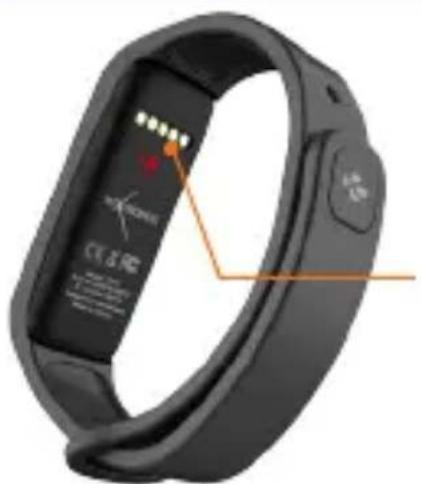
natural_image
Close-up of a black fitness tracker with orange annotation lines and control buttons (no readable text or symbols)CHARGING TERMINALS
WAKE THE DEVICE
Double tap the touchscreen
■ZeFit 3 screen turns off when not use
EXIT A MENU
Double tap the touchscreen
MOVE BETWEEN SCREENS
■ Swipe left or right (horizontal mode) up or down (vertical mode)
l
To ensure ZeFi ® is responding accurately to your taps, we recommend using your fingertip and not your nail.
CHARGING
natural_image
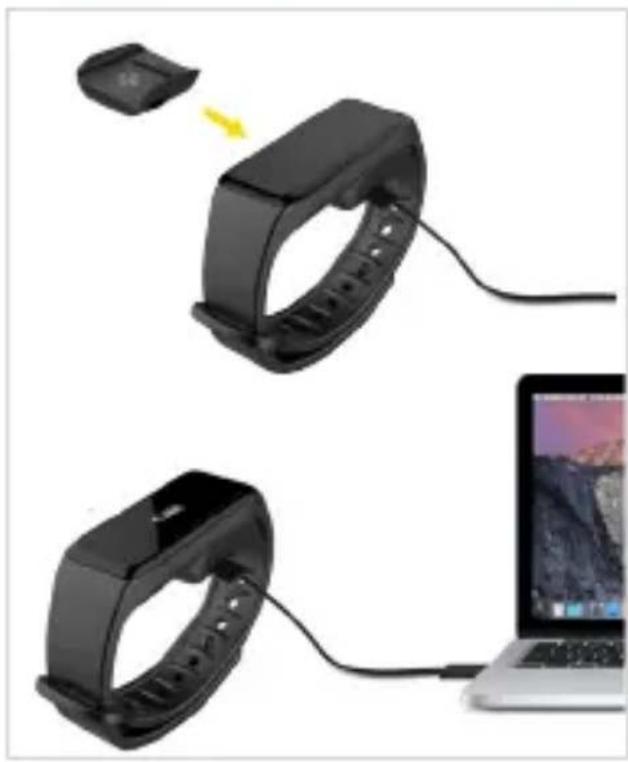
Two black smartwatches connected to a laptop, one with a yellow arrow indicating motion (no text or symbols visible)Charge ZeFit 3 for two hours before your first use.
- Put ZeFit 3 on the magnetic charging dock
- Make sure the pin on the charging dock fit correctly onto the charging terminals on the back of ZeFit 4
- Plug the small end of the USB cable provided into the charging's dock USB port
- Plug the big end of the USB cable into a power source
- A battery indicator will fill to indicate charging is in progress. Once ZeFit 3 is charged, the battery indicator will be full

A full charge takes 1:30 hour. When the battery level gets low, a battery indicator will appear.
PAIRING
The first time you use ZeFit 3 , a SET UP message will prompt you to set up your ZeFit 3 using a mobile device.
GET ZeFit 3 APP
To set up yourZeFit 3 using your mobile device, you first need to get ZeFit 3 App. Search for ZeFit 3 App in the App store, Google Play or Windows Phone store, download and install the App on your mobile device.
System Requirements
iOS Android
iOS 8+ devices with Bluetooth 4.0 BLE iPhone 4s, 5, 5c, 5s, 6, 6 Plus and newer, iPad (3 rd , 4 th and 5 th gen) iPad Mini, iPod touch (5 th gen)
Select Android 4.3 + devices that support Bluetooth 4.0 BLE
Windows Phone 8.1+
Select Windows Phone 8.1+ that support Bluetooth 4.0 BLE
Visit www.mykronoz.com to get the latest compatibility list
- Enable Bluetooth on your mobile device
- Open ZeFit 3 App on your mobile device. Sign up if you are a new member or Log in with your existing account. After entering your personal information, tap Set up
- Make sure ZeFit 3 is nearby and select ZeFit 3 in the list of devices
- You will receive a pairing request on your mobile device. Press Pair to accept it
- Then, a pairing request will appear on your ZeFit 3 display
Tap on your ZeFit 3 to accept the pairing - When ZeFit 3 is successfully paired, you will be notified on ZeFit 3 and on your mobile device's screen

If pairing fails, repeat the same steps. Pairing is a one-time process. If you want to pair ZeFit 3 with another account, you first need to unpair it from the current one. Open ZeFit 3 App, go to Settings > Connect ZeFit 3 > Unpair ZeFit 3 . Tap Connect ZeFit 3 to pair a new device
TECH SPECS
Size & Circumference 47.5 x 20 x 9 mm
Min: 159 mm
Max: 194 mm
Weight 18 g
Bluetooth 4.0 BLE
Bluetooth operating range Up to 5 meters
Battery type Li-ion 80mAh
Battery life Up to 5 days
Charging time 1 to 2 hours
Memory 5 days of activity
Display TFT color touchscreen 1.06 inches/ 160*64 pixels
Sensor 3-axis accelerometer
Operating temperature -20°C to +40°C
Water resistance IP67
International warranty 1 year
ZeFit 3
— FRANÇAIS —
natural_image
Black fitness tracker with display screen showing orange, green, red, and yellow lights (no visible text or symbols on the device itself)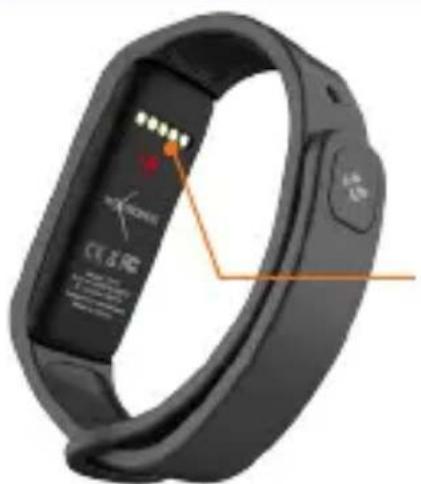
natural_image
Close-up of a black fitness tracker with orange annotation lines and control buttons (no readable text or symbols)CONTACTS DE CHARGE
ACTIVATION DE L'ÉCRAN
natural_image
Two black smartwatches connected to a laptop, one with a yellow arrow indicating motion (no text or symbols visible)
Configurations requises
iOS Android
natural_image
Black fitness tracker with display screen showing time, speed, and battery level (no text or symbols on the device itself)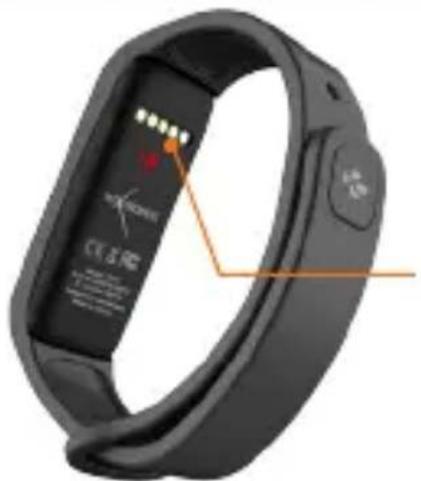
natural_image
Close-up of a black fitness tracker with orange annotation lines and control buttons (no readable text or symbols)TERMINALES DE CARGA
natural_image
Two black smartwatches connected to a laptop, one with a yellow arrow indicating motion (no text or symbols visible)
natural_image
Black fitness tracker with display screen showing time, speed, and UI controls (no readable text or symbols beyond measurement indicators)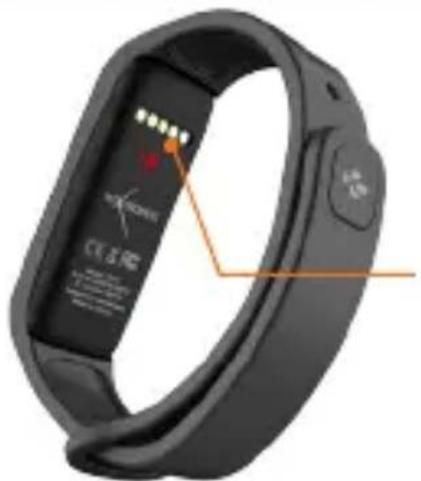
natural_image
Close-up of a black fitness tracker with orange annotation lines and control buttons (no readable text or symbols)TERMINALI DI RICARICA
PER RIATTIVARE IL DISPOSITIVO
natural_image
Two black smartwatches connected to a laptop, one with a yellow arrow indicating motion (no text or symbols visible)
natural_image
Black fitness tracker with display screen showing time, speed, and battery level (no text or symbols on the device itself)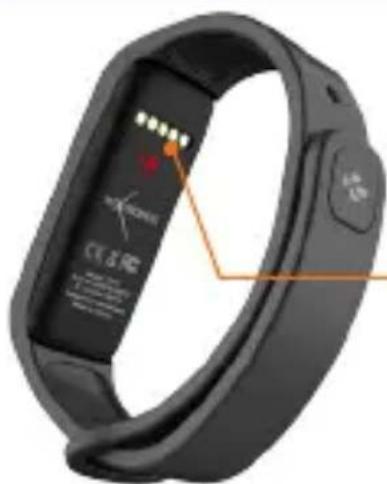
LADEANSCHLUSS
DAS GERÄT AKTIVIEREN
natural_image
Two black smartwatches connected to a laptop, one with a yellow arrow indicating motion (no text or symbols visible)
Systemanforderungen
iOS Android
natural_image
Black fitness tracker with display screen showing orange, green, red, and yellow lights (no visible text or symbols)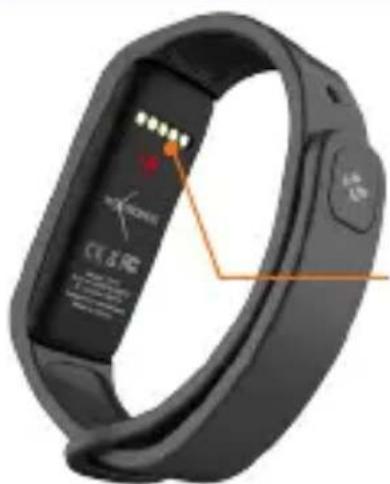
natural_image
Close-up of a black fitness tracker with orange annotation lines and control buttons (no readable text or symbols)OPLAADKLEMMEN
APPARAAT ACTIVEREN
natural_image
Two black smartwatches connected to a laptop, one with a yellow arrow indicating motion (no text or symbols visible)
Systeemvereisten
iOS Android
iOS 8+ apparaten met Bluetooth 4.0 BLE iPhone 4s, 5, 5c, 5s, 6, 6 Plus en nieuwer, iPad (3 rd , 4 e en 5gen) iPad Mini, iPod touch (5 e gen)
Selecteer Android 4.3 + Ondersteunende apparaten Bluetooth 4.0 BLE
Windows Phone 8.1+
Selecteer Windows Phone 8.1+ die Bluetooth 4.0 BLE ondersteunt
natural_image
Black fitness tracker with display screen showing orange, green, red, and yellow lights (no visible text or symbols)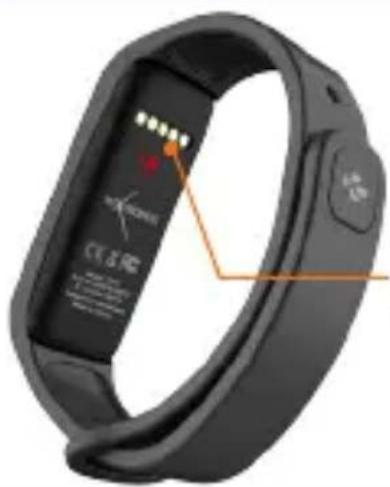
natural_image
Close-up of a black fitness tracker with orange annotation lines and control buttons (no readable text or symbols)natural_image
Two black smartwatches connected to a laptop, one with a yellow arrow indicating motion (no text or symbols visible)

Requisitos do Sistema
iOS Android
Dispositivos iOS 8+ com Bluetooth 4.0 BLE iPhone 4s, 5, 5c, 5s, 6, 6 Plus e mais recentes, iPad (3 a , 4 a e 5 a ger.) iPad Mini, iPod touch (5 a ger.)
Selezione dispositivos Android 4.3 + que suportem Bluetooth 4.0 BLE
Windows Phone 8.1+
natural_image
Black fitness tracker with display screen showing orange, green, red, and yellow lights (no visible text or symbols)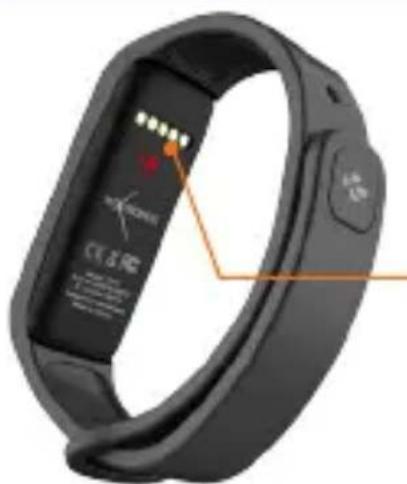
STYKI ŁADOWANIA
WYBUDZENIE URZĄDZENIA
natural_image
Two black smartwatches connected to a laptop, one with a yellow arrow indicating motion (no text or symbols visible)
Wymagania systemowe
iOS Android
natural_image
Black fitness tracker with display screen showing orange, green, red, and yellow lights (no visible text or symbols on the device itself)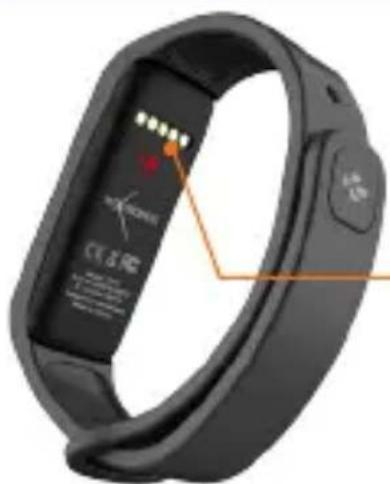
natural_image
Close-up of a black fitness tracker with orange annotation lines and control buttons (no readable text or symbols)ЗАРЯДНЫЕ КЛЕММЫ
natural_image
Two black smartwatches connected to a laptop, one with a yellow arrow indicating motion (no text or symbols visible)
natural_image
Black fitness tracker with display screen showing orange, green, red, and yellow lights (no visible text or symbols on the device itself)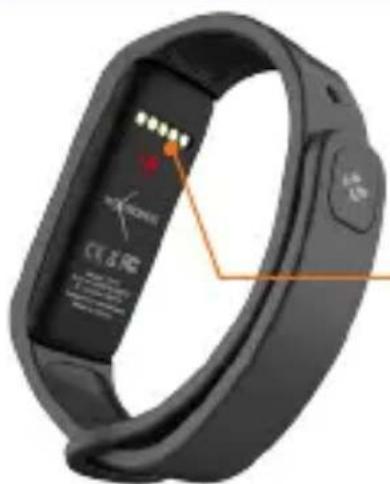
natural_image
Close-up of a black fitness tracker with orange annotation lines and control buttons (no readable text or symbols)充電端口
喚醒設備
natural_image
Two black smartwatches connected to a laptop, one with a yellow arrow indicating motion (no text or symbols visible)
系統要求
iOS Android
natural_image
Black fitness tracker with display screen showing time, speed, and battery level (no text or symbols on the device itself)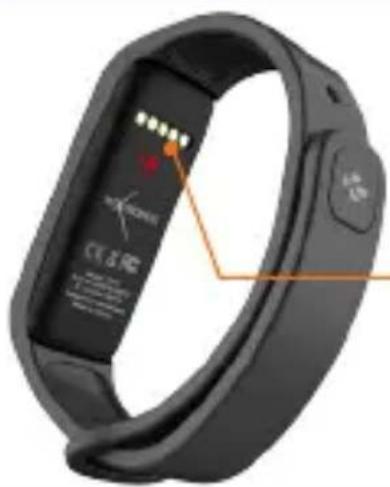
natural_image
Close-up of a black fitness tracker with orange annotation lines and control buttons (no readable text or symbols)充電ターミナル
デバイス起動
natural_image
Two black smartwatches connected to a laptop, one with a yellow arrow indicating motion (no text or symbols visible)
システム 要 件
iOS Android
natural_image
Black fitness tracker with display screen showing time, speed, and UI controls (no readable text or symbols beyond measurement indicators)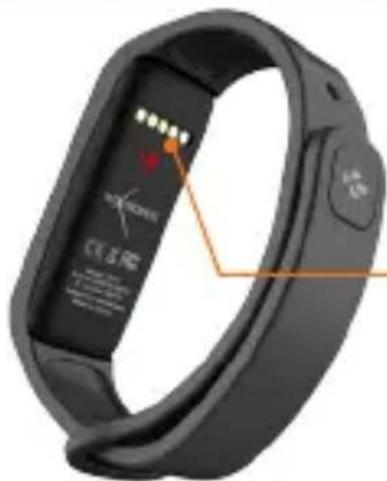
natural_image
Close-up of a black fitness tracker with orange annotation lines and control buttons (no readable text or symbols)แทนที่ชาร์戟ไฟ
เปิดใช้งานอุปกรณ์
natural_image
Two black smartwatches connected to a laptop, one with a yellow arrow indicating motion (no text or symbols visible)
ความตองการของระบบ
iOS Android
natural_image
Black fitness tracker with display screen showing time, speed, and battery level (no text or symbols on the device itself)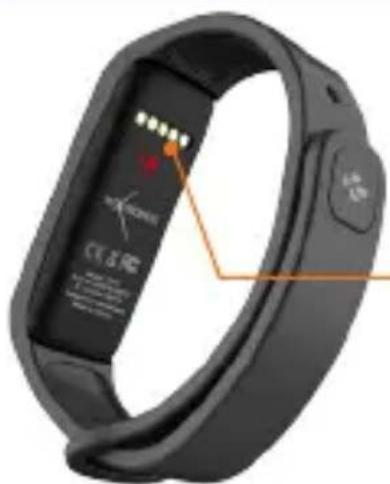
natural_image
Close-up of a black fitness tracker with orange annotation lines and control buttons (no readable text or symbols)충전 단자
기기 켜기
터치스크린을 두 번 누릅니다.
사용하지 않으면 ZeFit³
화면이 꺼집니다.
메뉴 끝내기
■ 터치스크린을 두 번 누릅니다.
화면 전환
natural_image
Two black smartwatches connected to a laptop, one with a yellow arrow indicating motion (no text or symbols visible)
시스템 요구 사항
iOS Android
I Connecting the charging cable improperly may cause serious damage to the device. Any damage caused by misuse is not covered by the warranty. Unplug the cable after ZeFit is fully charged.
ZeFit 3 unit and charging dock contain strong magnets that may interfere with pacemakers, credit cards, watches and other magnet-sensitive objects. If you use a pacemaker or any other electronic medical device, please consult your physician before wearing or handling ZeFit 3 .
This product is not a medical device and should not be used to diagnose or treat any medical condition.
This product is in compliance with the IP rating IP67. IP67 indicates that the product is resistant again dust ingress and water ingress up to 1 meter of submersion in still tap water at room temperature, for a maximum duration of 30 minutes.
ABOUT THIS MANUAL
The features of ZeFit 3 and the contents of the user manual are subject to change. To get the latest instructions on how to use this product, please refer to the online user manual available on www.mykronoz.com
SUPPORT
If you have any question or require assistance regarding our product, please visit www.mykronoz.com/support/ or email us at support@mykronoz.com
ATTENTION
Before using the device, read these instructions carefully.
■ ZeFit 3 has one built-in battery. Do not disassemble the battery on your own. KRONOZ LLC is not responsible for any damage or personnel injury caused by the removal of the battery or any component.
This device is not waterproof so keep it away from all sources of heat or humidity. Do not use it near sink or other wet areas. Do not immerse the product in any liquid other than water. Do not immerse the product in salt water. Do not swim wearing this product. Do not use the product underwater.
- Charge the battery in a cool, ventilated room. Excessive temperature during charging could cause heat, smoke, fir or deformation of the battery or even explosion.
Avoid excessive temperatures. Do not expose this device to excessive smoke, dust sand, or direct sunlight for an extended period of time.
Do not open, crush, bend, deform, puncture or shred secondary cells or batteries. In the event of a battery break or leak, prevent battery liquid contact with skin or eyes. If this happens, immediately flush the areas with water (do not rub the eye) or seek medical help.
Do not short-circuit. Short-circuiting can occur when a metallic object, such as coins, causes direct connection of positive and negative terminals of the battery. Short-circuiting may damage the battery.
Do not use batteries that have been damaged or have been exhausted.
Keep the batteries out of children's reach and in a safe place to prevent danger.
Do not dispose of batteries in fire as they may cause explosion. Dispose of used batteries in accordance with your local regulations (such as recycling). Do not dispose as household waste.
Use only the USB cable supplied to charge this battery. Do not charge fo more than 24 hours.
KRONOZ LLC is not responsible for any damage caused by improper use of the device.
REGULATORY NOTICES
USA

FCC STATEMENT
This device complies with Part 15 of the FCC Rules. Operation is subject to the following two conditions: (1) This device may not cause harmful interference, and (2) This device must accept any interference received, including interference that may cause undesired operation.
CAUTIONS
Changes or modifications not expressly approved by the party responsible for compliance could void the user's authority to operate this equipment.
FCC NOTICE
This equipment complies within the limits of a Class B digital device, pursuant to part 15 of the FCC Rules. These limits are designed to provide reasonable protection against radio and TV interference in residential areas. However, even during normal operation, this equipment may cause TV or radio interference. If this equipment does cause harmful interference to radio or television reception, which can be determined by turning the equipment off and on, the user is encouraged to try one or more of the following corrective measures:
■ Reposition the receiving antenna
Increase the distance between the equipment and receiver
Connect the equipment into an outlet on a circuit different from which the receiver is connected
Consult the dealer or an experienced radio/TV technician for help.
FCC ID: 2AA7D-ZEFT3
CANADA
INDUSTRY CANADA (IC) STATEMENT
This device complies with Industry Canada license-exempt RSS standard(s). Operation is subject to the following two conditions: (1) this device may not cause interference, and (2) this device must accept any interference, including interference that may cause undesired operation of the device.
Declaration of conformity with regard to the EU Directive 1999/5/EC.
Kronoz LLC hereby declares that this device is in compliance with the essential requirements and other relevant provisions of the R&TTE Directive 1999/5/EC. The complete declaration of conformity is available on request via our customer service: support@mykronoz.com
DISPOSAL AND RECYCLING INFORMATION
After the implementation of the European Directive 2002/96/EU in the national legal system, the following applies: Electrical and electronic devices may not be disposed of with domestic waste. Consumers are obliged by law to return electrical and electronic devices at the end of their service lives to the public collecting points set up for this purpose or point of sale. Details to this are defined by the national law of the respective country. This symbol on the product, the instruction manual or the package indicates that a product is subject to these regulations. By recycling, reusing the materials or other forms of utilizing old devices, you are making an important contribution to protecting our environment.
©2016 Kronoz LLC, all rights reserved. Kronoz LLC, Avenue Louis-Casai 18, 1209 Geneva, Switzerland All brands or product names are or may be trademarks of their respective owners. Pictures and specifications are not contractual. Les marques citées sont des marques déposées par leur fabricant respectif. Photos et caractéristiques non contractuelles. Designed in Switzerland - Made in China
100100
SCAN FOR
MORE LANGUAGES


- CHARGING TERMINALS
- WAKE THE DEVICE
- EXIT A MENU
- MOVE BETWEEN SCREENS
- CHARGING
- PAIRING
- GET ZeFit 3 APP
- System Requirements
- iOS Android
- Windows Phone 8.1+
- TECH SPECS
- ZeFit 3
- — FRANÇAIS —
- ACTIVATION DE L'ÉCRAN
- Configurations requises
- TERMINALI DI RICARICA
- PER RIATTIVARE IL DISPOSITIVO
- LADEANSCHLUSS
- DAS GERÄT AKTIVIEREN
- Systemanforderungen
- OPLAADKLEMMEN
- APPARAAT ACTIVEREN
- Systeemvereisten
- Requisitos do Sistema
- WYBUDZENIE URZĄDZENIA
- Wymagania systemowe
- 喚醒設備
- 系統要求
- デバイス起動
- システム 要 件
- 시스템 요구 사항
- ABOUT THIS MANUAL
- SUPPORT
- ATTENTION
- REGULATORY NOTICES
- USA
- FCC STATEMENT
- CAUTIONS
- FCC NOTICE
- CANADA
- INDUSTRY CANADA (IC) STATEMENT
- DISPOSAL AND RECYCLING INFORMATION
- SCAN FOR
- MORE LANGUAGES
Brand : MYKRONOZ
Model : ZeFit 3HR
Category : Smartwatch