
ZeTime Regular Original - Smartwatch MYKRONOZ - Free user manual and instructions
Find the device manual for free ZeTime Regular Original MYKRONOZ in PDF.


| Product Type | Hybrid Smartwatch |
| Brand | MyKronoz |
| Model | ZeTime Regular Original |
| Display | 1.22 inch color LCD touchscreen with mechanical hands |
| Dimensions | 45 mm case diameter, 12.5 mm thickness |
| Weight | Approx. 60 g (including strap) |
| Water Resistance | 5 ATM (50 meters) |
| Battery | Rechargeable lithium-ion, up to 30 days in smart mode, 12 months in watch-only mode |
| Charging | Magnetic charging cable |
| Operating System | Compatible with iOS 9.0+ and Android 4.3+ |
| Connectivity | Bluetooth 4.2 |
| Sensors | Heart rate monitor, accelerometer, gyroscope |
| Main Functions | Step counter, sleep tracking, heart rate monitoring, call/message notifications, music control, camera control, weather forecast, alarm, stopwatch, sedentary reminder |
| Care and Cleaning | Wipe with a soft dry cloth; avoid exposure to extreme temperatures and chemicals |
| Safety | Not for use in medical monitoring; contains lithium-ion battery; avoid impact and disassembly |
| Spare Parts and Repairability | Interchangeable straps (20 mm); battery not user-replaceable; service through authorized centers |
| General Information | Hybrid design with analog hands and digital touchscreen; stainless steel case; silicone strap |
Frequently Asked Questions - ZeTime Regular Original MYKRONOZ
User questions about ZeTime Regular Original MYKRONOZ
0 question about this device. Answer the ones you know or ask your own.
Ask a new question about this device
Download the instructions for your Smartwatch in PDF format for free! Find your manual ZeTime Regular Original - MYKRONOZ and take your electronic device back in hand. On this page are published all the documents necessary for the use of your device. ZeTime Regular Original by MYKRONOZ.
USER MANUAL ZeTime Regular Original MYKRONOZ
ZeTime
- USER GUIDE-
ZeTime
THE FIRST SMARTWATCH WITH NO COMPROMISES
Thanks for choosing MyKronoz ZeTime, you're now part of the global family of ZeTime owners who have decided together with us to break the rules of traditional smartwatches to deliver a companion device with no compromises. ZeTime was born in Switzerland, home country of the traditional watch industry and this is why it has been thought and developed with a lot of care and passion with only the final owner in mind. ZeTime is assembled with some high quality materials and technologies to make it not only an amazing smartwatch but certainly a beautiful piece of jewelry you'll be proud of wearing every day.
Stainless Steel Watch Case: ZeTime comes in 6 different colors of high grade stainless steel to suit your style and your tastes but more importantly guarantee you the best durability over time.
Natural Sapphire Glass: In order to provide the best watch possible, it was mandatory for us not to make any sacrifices on the type of glass we were using on ZeTime. That's why we selected a special sapphire glass that works perfectly with our customized touch panel.
Customized TFT Screen & Smart Movement: To be a revolutionary smartwatch we had to achieve something that nobody did before! Delivering a watch with a full round TFT display combined together with a smart mechanical movement controlled by the watch CPU. The result is mind-blowing and offers an absolutely unique user experience.
5 ATM Certification: Because our watches accompany us pretty much everywhere we go, we have built ZeTime to offer the best performance in all kinds of environments and especially when in contact with water.
Up to 30 days battery life: Thanks to our proprietary operating system we're not only able to offer perfect compatibility with both Android and iOS devices but also to deliver unprecedented battery life for a smartwatch. 3 days in fully operational smart mode and an additional 30 days once the screen is off, guaranteeing that you'll never be out of juice for keeping track of time.
TaBle of conTenTs
- Charging - 08 -
- Battery life - 09 -
- Set up - 10 -
- Calibration - 11 -
- System requirements - 12 -
- Incoming calls - 13 -
- Missed calls - 14 -
- SMS - 15 -
- Notifications - 16 -
- Reminders - 17 -
- Activity - 18 -
- Inactivity alerts - 22 -
- Heart rate - 23 -
- Sleep - 24 -
- Alarm - 25 -
- Camera remote - 26 -
- Music control - 27 -
- Anti-lost function - 28 -
- Weather forecast - 28 -
- Stopwatch - 29 -
- Timer - 31 -
- Find my phone - 31 -
- Customize your watch - 32 -
- Home time zone - 32 -
- Wrist flick - 33 -
- Left hand mode - 33 -
- Night mode - 34 -
- Settings - 35 -
- Firmware update - 36 -
- Watch band - 37 -
- Accessories - 38 -
- Tech. specs - 39 -
OVERVIEW
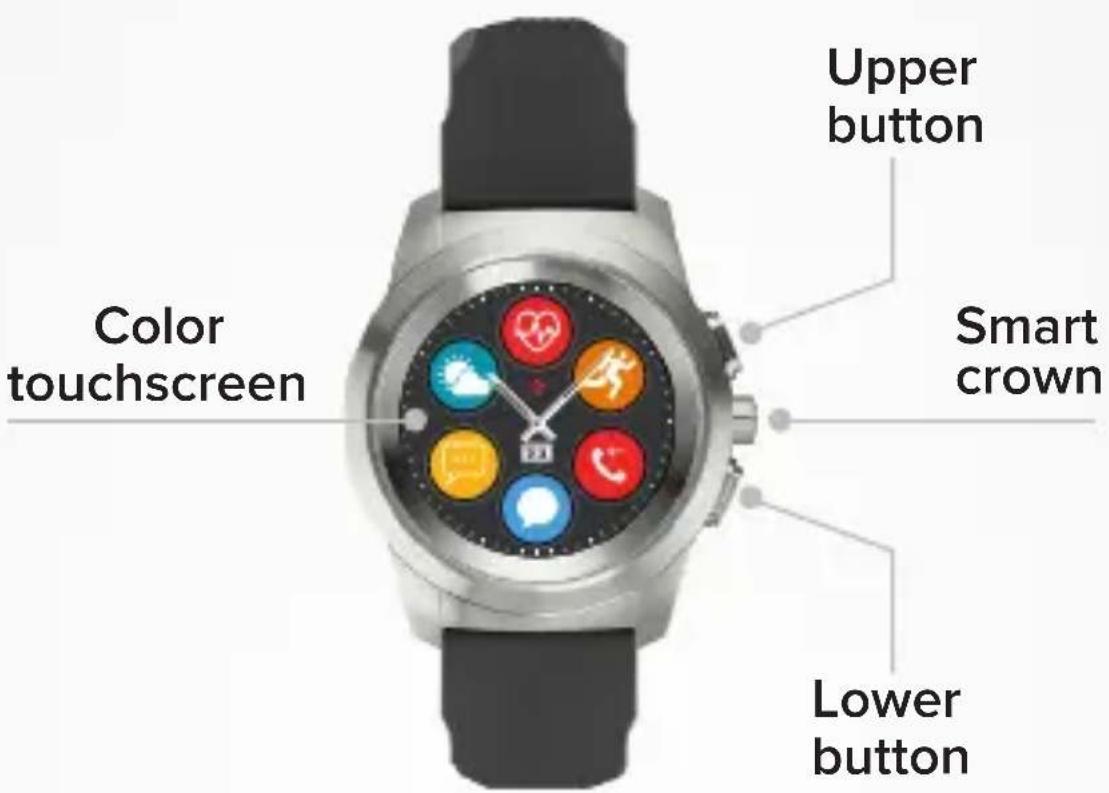
I UPPER BUTTON
Press to light up the screen, return to home page from any menu or put the device in standby mode.
LOWER BUTTON
- Press to light up the screen, go one step back in the menu structure, exit a menu or have access to your calendar events from your home page.
- Press & Hold to Power ON/OFF.
I UPPER + LOWER BUTTON
Press & Hold the upper button and the lower button for 10 seconds to reset the device.
Warning: all data stored into the device will be lost.
SMART CROWN
- Turn the crown to navigate through the main menu.
- Press the crown to select an app.
• Double press to manually move the hands to 9:15 - Single press to enable night mode (from standby screen).
Basic ToUchscreen operations
I FROM THE WATCH FACE
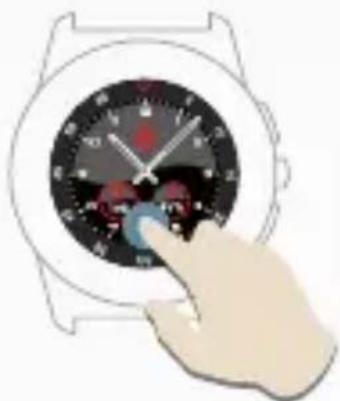
Long press to change your watch face.
Swipe right to access activity menu.

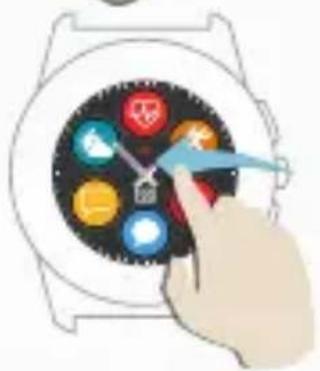
Swipe left to access main menu.
Swipe down to display shortcuts menu.
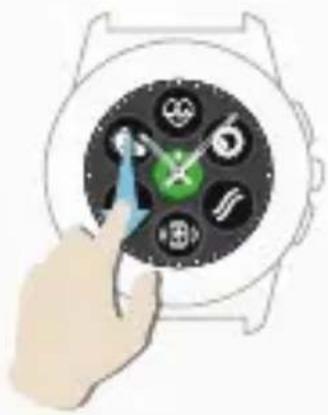

Swipe up to display notification center.
I FROM ANY SCREEN
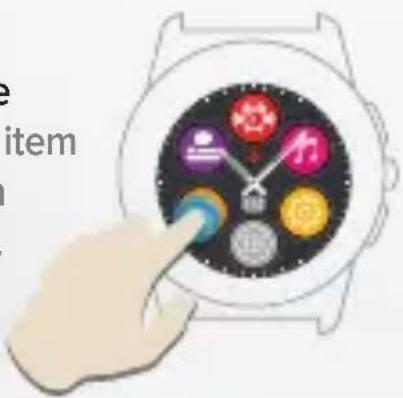
Tap once
To select an item
or open
a menu.
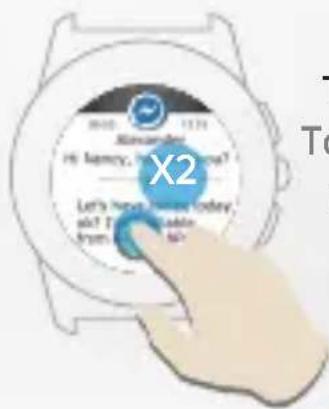
Tap twice To return to previous page.
SMART CROWN OPERATIONS
ZeTime is equipped with a smart crown to enhance the navigation experience in the watch menus. It can be used from many different screens to select, navigate or adjust some settings. Pressing the crown will validate your selection.
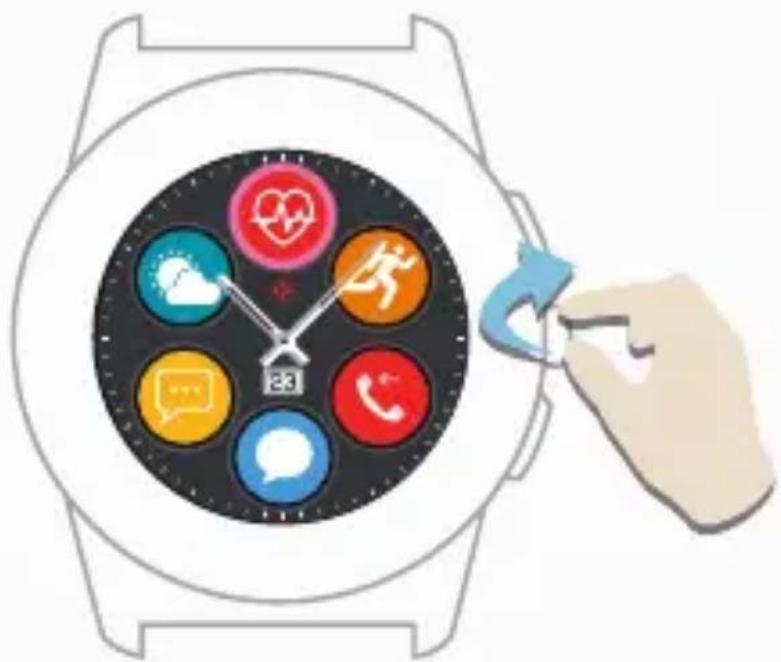
Turn the crown
to navigate through the main menus.
Press the crown
to select an app.
Press twice
manually move the hands to 9:15 from any screen.
Press once
to enable night mode from standby screen.
SHORTCUTS
Swipe down from the main watch face to access ZeTime shortcuts.
Heart rate
Keep track of your heart rate. Monitor it.
Weather
Instantly access the local weather conditions and next 3 days forecast.

Brightness
Set screen brightness for better visibility.
Flight mode and Bluetooth status
Flight mode is disabled. Bluetooth is not connected.
Flight mode is enabled.
Flight mode is disabled. Bluetooth is connected.


Find my phone
Helps you find your phone as long it is in range with your ZeTime.
Vibration Buzzer

Turn on vibration (default).

Turn on vibration & buzzer. (Also enable customized setting from the mobile app).

Turn on buzzer.

Mute all notifications.
Battery level

Shows the remaining battery level of your watch.
1. CHARGING YOUR ZETIME
We recommend you to initially charge your ZeTime for about 90 minutes before using it for the first time.

ZETIME CHARGER CABLE
- Position the back of your ZeTime on the charging dock.
- Plug the USB cable into the charger.
- Plug the large end of the USB cable into a USB power source.
- A battery indicator will fill in to indicate charging is in progress and turn to solid green when it's fully charged.
- Unplug the cable after ZeTime is charged.
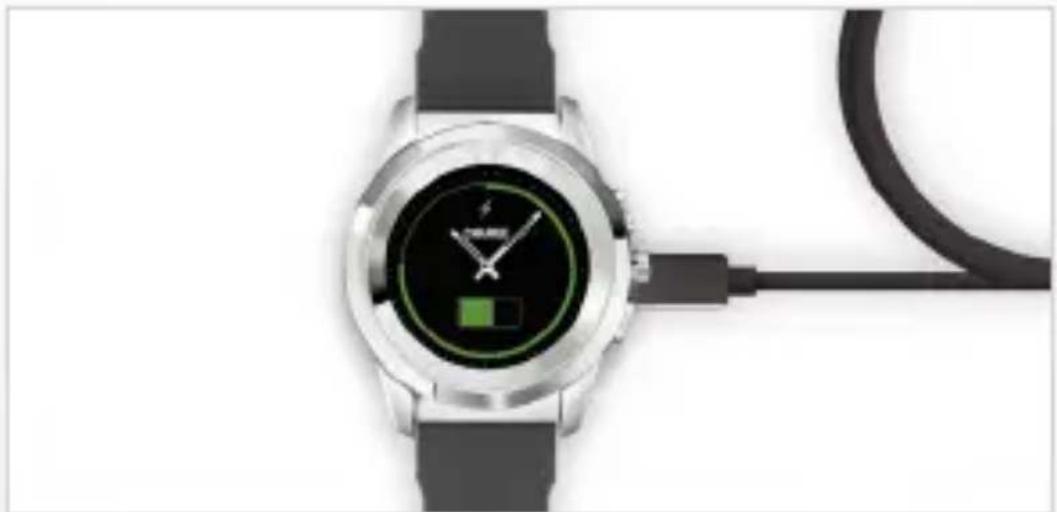
ZeTime will operate for up to 3 days in smartwatch mode and an additional 30 days in traditional mode.

When the battery level gets low, a low battery indicator will appear on the watch screen.
2. BATTERY LIFE
Your ZeTime operates with a single battery, which powers both the digital screen and analog movement in the most energy efficient manner in order to offer up to 30 days battery life on a single charge.
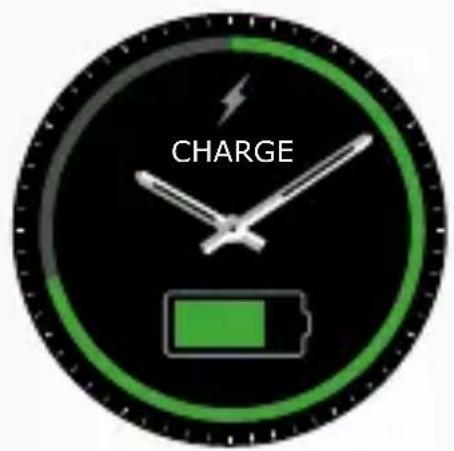

When fully charged, ZeTime will deliver about 3 days battery life in its fully operational smartwatch mode, tracking your activity and alerting you of incoming notifications or calls.
Once a certain minimum battery level will be reached, ZeTime will automatically turn off the smartwatch functions to continue providing an additional 30 days battery life to power the smart movement.
During this 30 days period, hands will only indicate the local time, no additional functions will be available.
You have the freedom to enable activity tracking together with analog mode but this will affect the overall battery life. This operation can be performed in the mobile app advanced settings (power off mode > Hands running + Activity tracking).

The 3 days smartwatch function is an estimate based on the anticipated average use of the device. Many features and functions - such as the HR tracker and the touchscreen - consume more energy, so your actual battery life may vary.
3. SET UP
When turning ON your ZeTime for the first time, you'll be prompted to download the ZeTime mobile app on your smartphone in order to proceed to its initial set up.
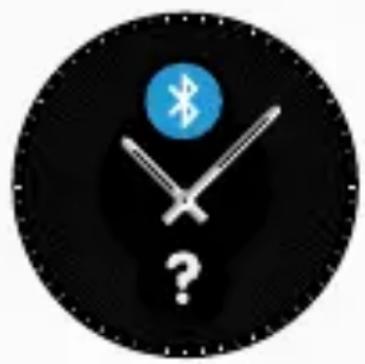
I to SEt UP yoUR ZEtImE
- Ensure the Bluetooth is enabled on your mobile smartphone.
- Download the ZeTime mobile app from the app store or the Google Play Store.
- Open ZeTime mobile App on your smartphone. Sign up if you are a new member or Log in with your existing account. After entering your personal information, follow the on-screen instructions.
- Make sure ZeTime is nearby and select it in the list of devices.
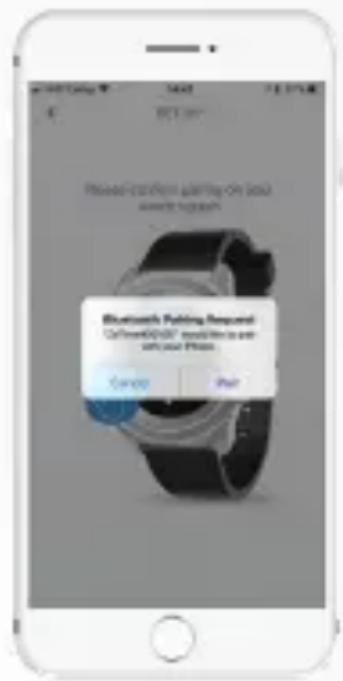
- A pairing request will appear on your smartphone. Press pair to accept it.
- Then, you will receive a pairing request on your ZeTime display. Tap on the screen to accept the pairing.
- When ZeTime is successfully paired, you will be notified on both devices.
At the end of the setup process, you might be prompted to install a new version of the watch firmware. We strongly advise you to do it before you start using ZeTime. This will ensure that you have the most up to date software on your device and benefit from all the latest features. Before the update make sure to have more than 30% battery on your smartphone.

After the initial pairing, ZeTime will automatically connect to your phone as long as it is turned on and within range. If you want to pair your ZeTime with another account or smartphone, you first need to unpair from the current one. On the mobile app, go to Settings > click on Unpair ZeTime. Then, repeat the pairing procedure described above.
4. CALIBRATION
During the set up process, you'll be prompted to proceed to hands calibration. This is a mandatory step to ensure your watch is perfectly time-synched with your smartphone.
To calibrate your watch, move hands by slowly swiping your finger around the virtual dial on the smartphone screen. You can fine-tune the position of the hands by using the « + / - » on the phone screen.
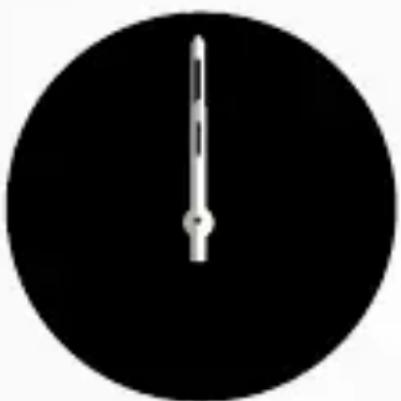
Align the hour hand with the red dot at the top of the screen, and align the minute hand with the hour hand, then press NEXT to synch your ZeTime with your smartphone.
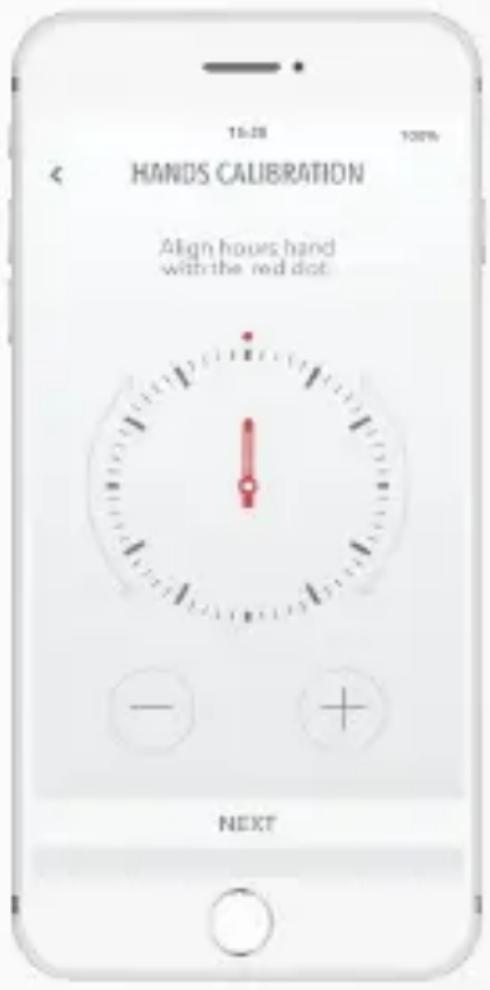
Calibration can be done after the set up process directly on the watch in the settings or from the mobile app by following the steps below:
- Open your app.
- Click on Settings and then on Advanced Settings.
- Then, click on Calibration and follow the on-screen instructions.

When travelling in another time zone, do not forget to synchronize your watch with the mobile app in order to make it automatically adjust to local time.
5. SYSTEM REQUIREMENTS
It is required to install ZeTime mobile app on your smartphone to properly set up and use your watch.

iOS 8+ devices with Bluetooth 4.0 BLE
iPhone 4s, 5, 5c, 5s, 6, 6s, 6s plus, 7, 7 plus, 8, 8 plus & X iPad (3rd, 4th and 5th generation), iPad Mini, iPod touch (5th generation)

- ANDROID -
Selected Android 5.0+ devices that support Bluetooth 4.0 BLE
Visit www.mykronoz.com to get the latest compatibility list.

ZeTime will sync the notifications of SMS, emails, social media, calendar events, and personal life reminders once the ZeTime app has been successfully installed on your smartphone.
6.INCOMING CALLS
When receiving a call, a notification will appear on your ZeTime. You can accept or reject it straight from your wrist. The phone call will occur on your smartphone, not on your watch.


Android users can also reply to an incoming call by sending a short preset text message or an emoji directly from their watch (not available for iOS users).
7.MISSED CALLS
Missed calls are visible in the notification center as well as in the dedicated missed call app in the watch.
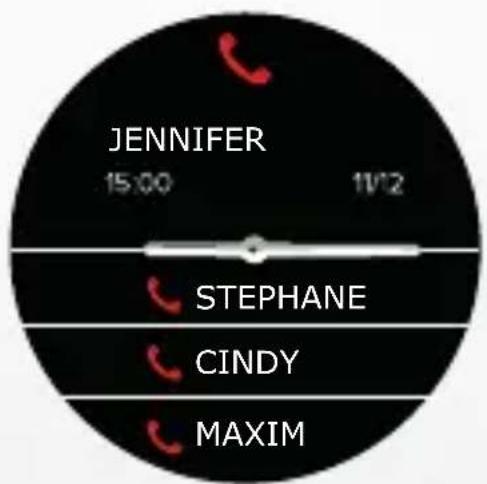

To delete all your missed calls, long press the screen.
With ZeTime you can receive and read your SMS straight from your wrist. Thanks to its proprietary smart movement, ZeTime detects the information that is displayed on the screen and moves the hands horizontally to maximize visibility, allowing the text to be seen clearly.
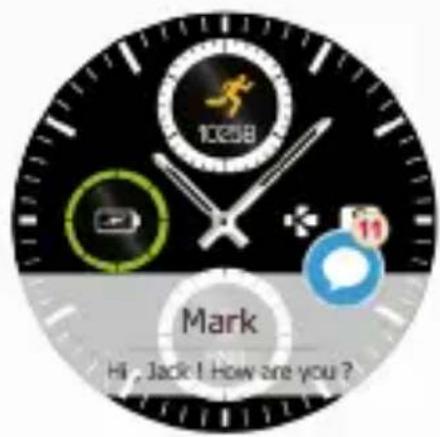
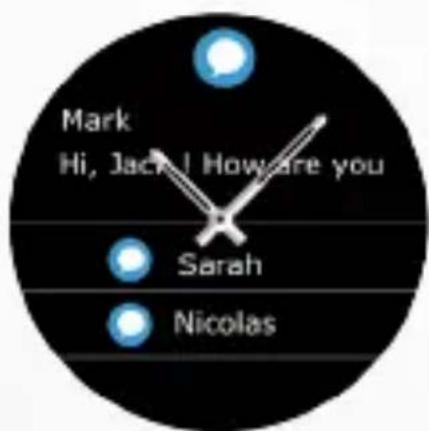
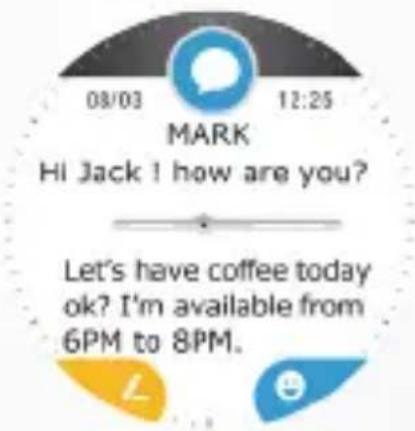

Quick reply (android only): ZeTime allows you to reply using emojis or preset short answers directly from your watch. You can also create your own preset answers using the mobile app.

To delete all your SMS notifications, go on the SMS list and long press the screen. To erase a specific SMS, select the message and slide it to the left with your finger.
ZeTime is able to receive virtually all notifications received by your phone.

Each notification will appear over your selected watch face with its dedicated icon to identify the service. Some notifications may be identified with a blue generic icon.
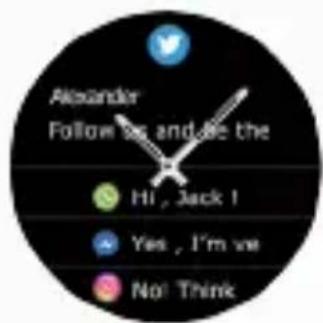
To read your notification, simply touch the screen on the notification area and it will open instantly.
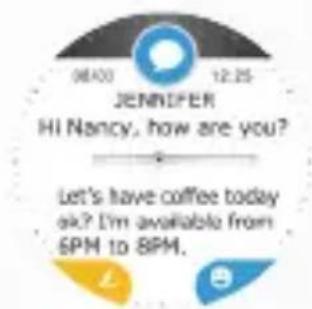
Hands will automatically move away from the text to facilitate your reading.

Swipe left to delete the notification.
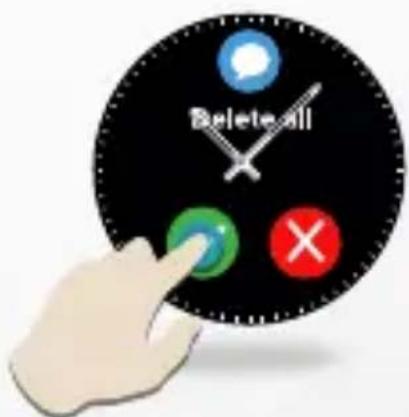
Long press on your notifications list to delete them all.

Calendar events: ZeTime synchronizes your events from your calendar. You can see your next upcoming 16 events in your ZeTime. Your smartwatch will notify you of upcoming events. You can slide to discard this event.
NOTIFICATIONS SETTINGS:
When you open your ZeTime mobile app and select Notifications in the settings menu, the following screen will appear:

Press on the slider buttons to activate or disable the notifications.
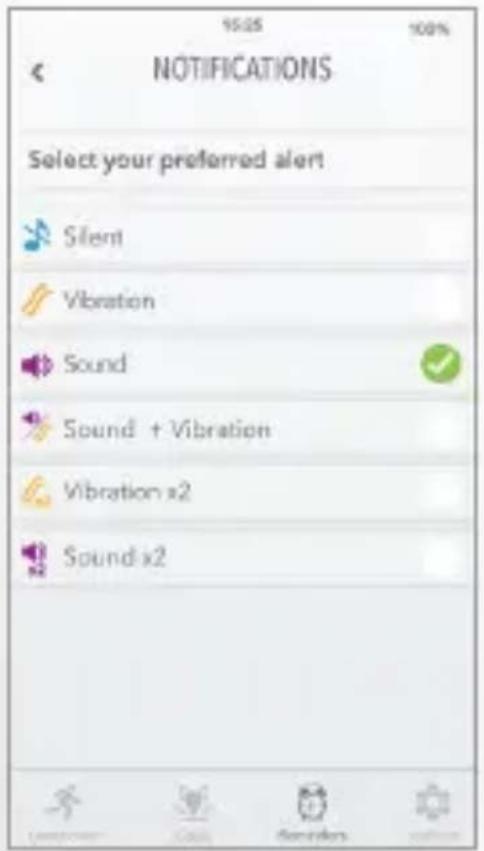
For each type of notification you can select the type of alert you want: ring, vibrate or silent. To set it up, simply expand the option menu by tapping on the notification type.
You can set and manage reminders directly with ZeTime mobile app. You can create up to 10 reminders and select the type, time and schedule for them. For each reminder you can decide the type of alert you want to receive (ringtone, vibration or both). A single tap on your ZeTime helps dismisses the reminder. If not dismissed, the same alert will repeat after two minutes.
I to SET UP a REmInDER
- Open the ZeTime mobile app.
- Click on the reminder tab.
- Set up your preferred reminder type.
- Choose the date and time of the reminder.
IREmInDER ICon
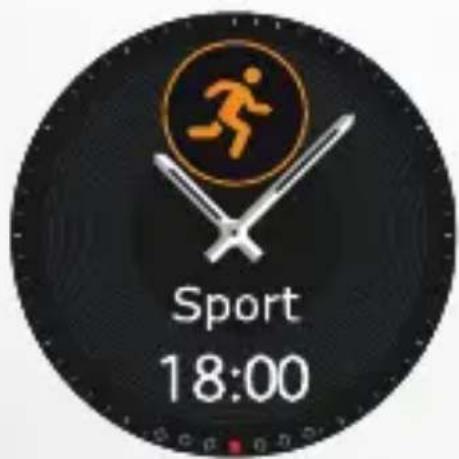
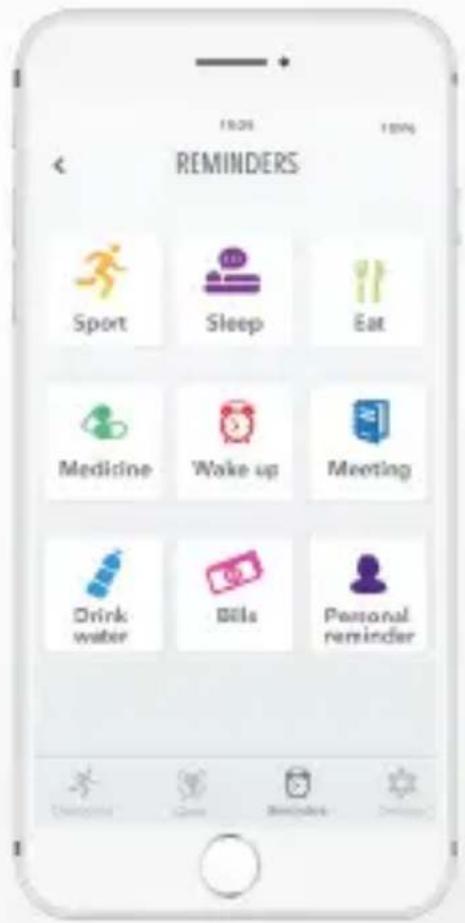

After setting your reminders, you can find them in the corresponding menu on your ZeTime.
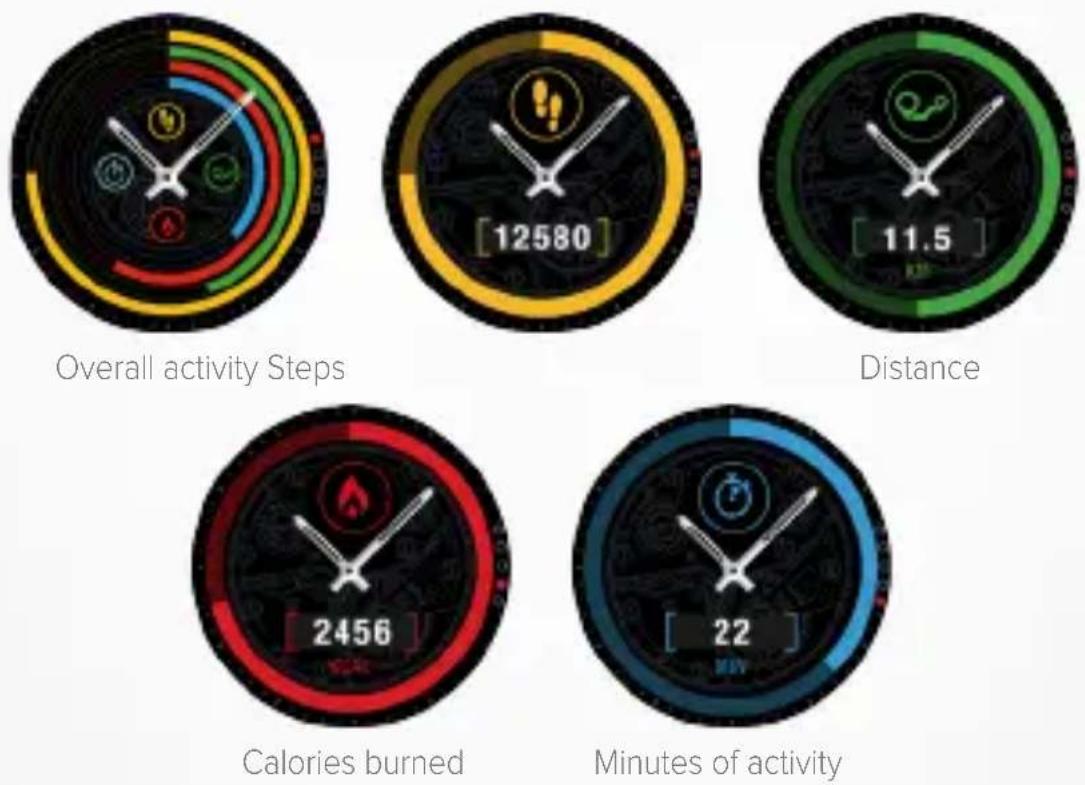
ZeTime automatically tracks your activity throughout the day. On the main application screen, you can view your daily activity in real-time over your set goals and get a detailed report in the mobile app.
Your watch has a built-in 3-axis accelerometer that allows you to track your daily activity based on your movements. This, together with your profile information, allows your watch to calculate your steps, walking distance, minutes of activity and calories burned. In order to get the most accurate results we recommend you to wear your watch on your left wrist if you're a right handed and to your right one if you are a left handed.
IFRom yoUR ZEtImE
FoLLow yoUR aCtIVlty:
- You can access the activity home screen simply by swiping to the right from the watch face or selecting the corresponding menu from the first page of the applications menu.
- Swipe down to see your number of steps, distance, calories and active minutes. You can also use the smart crown to navigate inside this menu.

The activity tracker resets at midnight and ZeTime has the ability to store up to 10 days of your activity data. Then, you will have to synchronize your ZeTime with your mobile app in order to avoid loss of data.
FRom ZEtlmE mobile eAPP
CUSTomIZE yoUR aCtIVlty DaShboaRD:
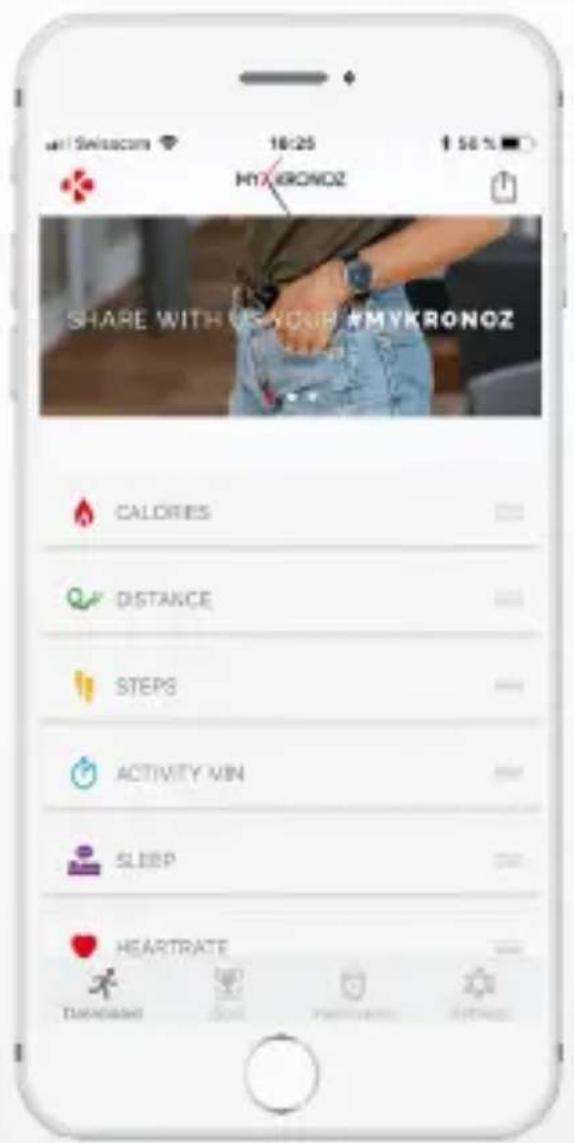
When you have set up your watch with your mobile app, you will be able to customize your Activity page at your convenience.
In order to do so, you just have to long press on one of your activity bars for 3 seconds. Then you must hold this icon and make the entire section slide down or up.
Long press on any of your activity bars for 3 seconds to save your modification.
SEt UP aCtIVlty GoaLS:
You can set your daily goals from the mobile app or in the activity section of the watch settings.
We recommend you to set ambitious but realistic goals in order to keep a healthy daily activity. You can obviously raise your goals over time to increase your performance. On average it is recommended to have at least 30 minutes of physical activity per day.
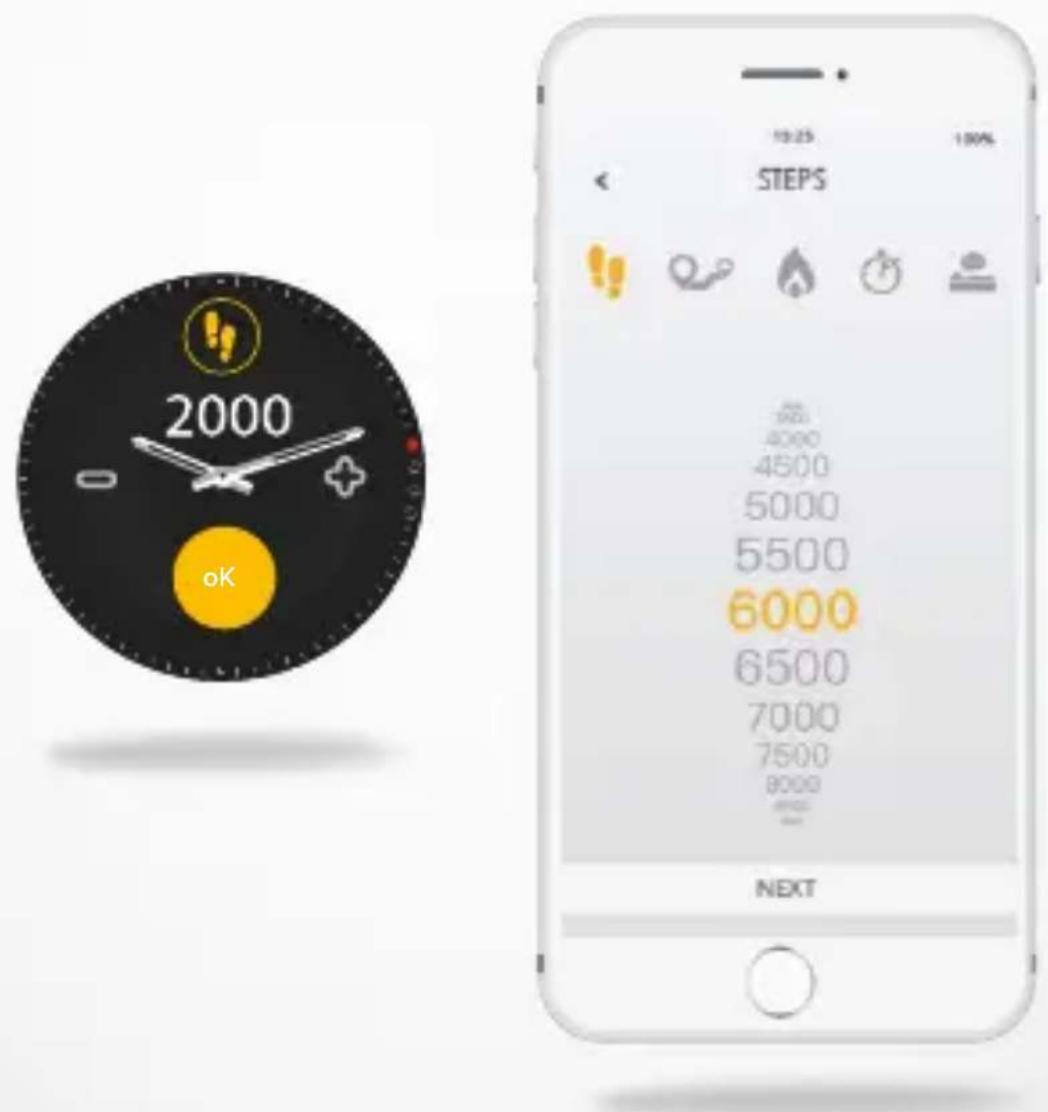

Your ZeTime tracks your progress towards a daily goal of your choice. Some of the watch show a goal progress ring or bar to keep you motivated. When you reach your goal, ZeTime vibrates and displays a Goal achieved notification.
ShaRE yoUR aCtIVlty:
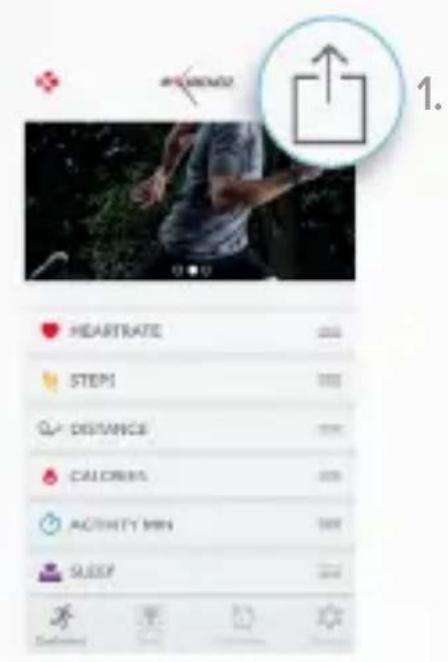
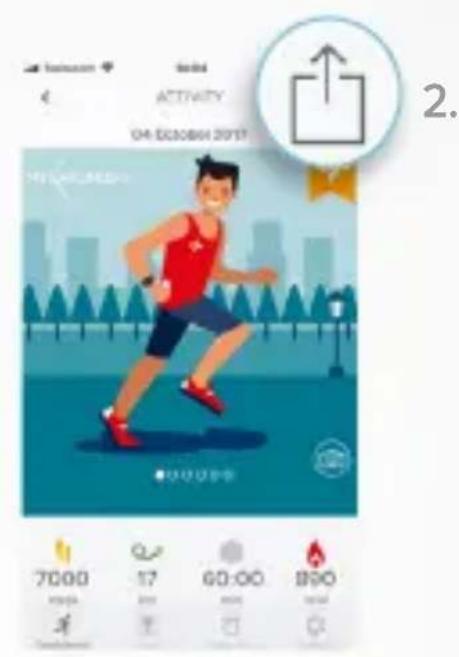
Use the sharing function to publish your daily activity or special workouts on your preferred social networks.

4.
- Press on the top right icon to start sharing your activity data with your friends and family.
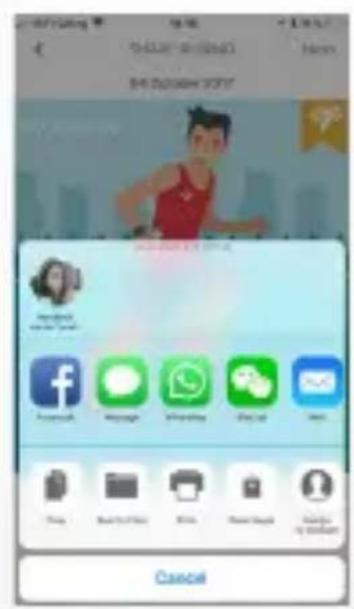
- You can choose an image (by sliding left and right) or take a picture that you want to share.
- When it's done, select the top right button "next".
- Select your preferred network to share your daily activity report.
12. INACTIVITY ALERT
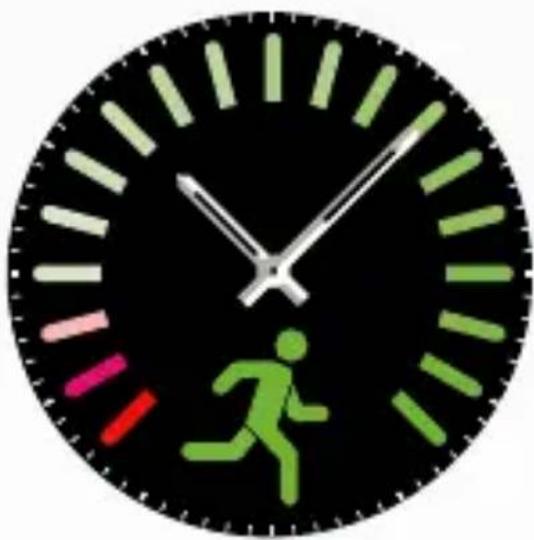
Thanks to these particular alerts, you'll always make sure to have the right amount of activity throughout the day. You can set up when and how frequently you want to your ZeTime to alert you.
I to Enable the InaCtIVity aLERt
- Go to the Settings menu of ZeTime mobile app.
- Click on Advanced settings and select Inactivity alert.
- Simply customize your inactivity alert pattern and click on Save to enable it.
To dismiss an incoming inactivity alert, simply touch the screen or press any button on the watch.
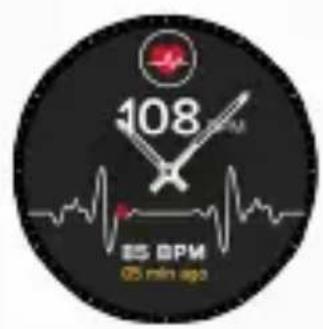
Equipped with an optical heart rate sensor, ZeTime measures manually or automatically your heart rate frequency throughout the day.
I to mEaSURE yoUR hEaRt RatE
- Securely attach your ZeTime around your wrist.
- Go to the heart rate menu of your watch.
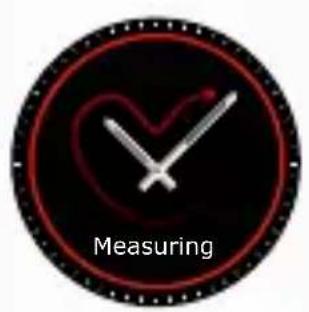
- Touch the screen or press the crown to start measuring your heart rate.
It will take about 10 seconds to get the results displayed on your watch screen. It is possible to set automated measurements from the mobile app. Simply enable this function in the setting menu of the app and decide on the frequency between each measurement.
I to SEt yoUR hEaRt RatE aLERt
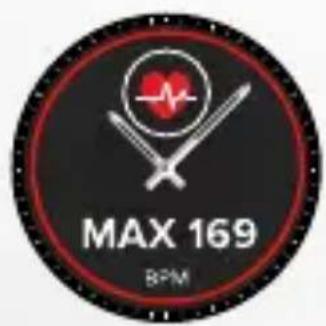
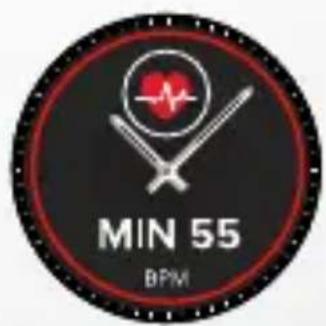
ZeTime can also alert you when your heart rate is going above or below preset limits. You can customize those limits in the mobile app settings.

Warning: Setting automatic HR on a very regular basis will impact the battery life.
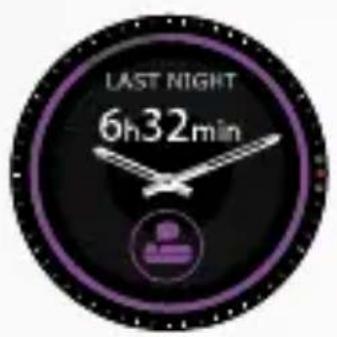
With ZeTime you can monitor both the length and the quality of your sleep. Detailed reports are available both in the mobile app as well in the watch interface.
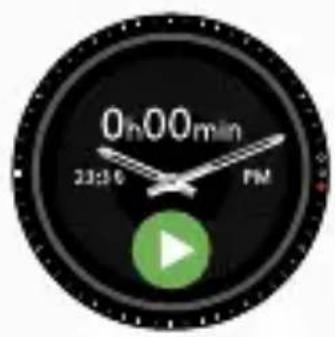
I StaRt/EXIt SLEEP moDE manUaLLy FRom yoUR watCh
- Press the sleep app icon of ZeTime main menu.
- Press on Start to enable sleep monitoring.
- Press on End to stop sleep monitoring.
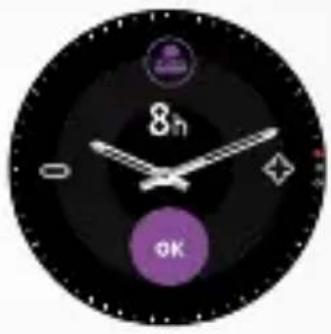
| SLEEP GoaLS FROM yoUR watCh
- Sleep Goal is 8 hours by default.
- Slide to the right to set up your daily sleep goals to your most suitable length.
I StaRt/EXIt the PRESEt SLEEP moDE FRom ZEtImE aPP
- Go to the Advanced settings of the mobile app.
- Click on Preset sleep.
- Enable and adjust bed and awake time.
Don't forget to save your settings before exiting.

If you forgot to enable Sleep mode on your watch, you can manually add your sleep data from the mobile app. Open ZeTime App, select Sleep, click on + at the bottom > Add sleep.
To wake you up in the morning, or alert you at a certain time of the day, you can set up alarms that gently vibrate and ring at the chosen time.


I to SET an aLaRm FRom ZEtImE aPP
- Go to the Reminders Tab.
- Select Wake-up reminder.
- Set the alarm and click on Save.

For each alarm, ZeTime will vibrate and ring continuously for 1 minute. You can snooze wake up alarms several times. Snooze length can be set in the advanced settings from the mobile app or in the watch settings.
16. CAMERA REMOTE
ZeTime can be used as a remote control to take pictures from your smartphone. This feature is useful when you want to take a group photo or when you want to take a selfie.
I to USE ZEtImE aS a CamERa REmotE
- Go to the Settings tab of your ZeTime mobile app and click on Camera.
- Click on the Camera app icon on your watch.
- You can then, press the screen to start the countdown and take photos.

Each picture taken from your ZeTime will appear on the image gallery of your smartphone.
17. MUSIC CONTROL
With ZeTime you can take control of your favorite music player on your Smartphone. If you're using third party players like Spotify or Deezer you'll first need to connect your account with the ZeTime mobile App in the Music settings menu.
I TO CONTROL MUSIC
- First start the player on your phone.
- Go into the Music app on your ZeTime.
- Play, pause, skip tracks and adjust volume straight from your wrist.
Volume can also be adjusted using the digital crown.


From your IOS device

MUSIC

DEEZER

Spotify

From your Android device

Google Play
Music

DEEZER

Spotify

On your ZeTime, you can see information about the track currently playing, like artist and track name. If the app you're using does not broadcast track information, it won't appear on your ZeTime (iOS only).
18. ANTI-LOST FUNCTION
This alert notifies you with a vibration or a sound (depending on your watch settings) when your ZeTime is going out of range (BT range 10m) from your phone. Note that you can turn this function off by disabling the Anti-lost alert in your application's notification menu (Anti-lost alert is OFF by default).
19. WEATHER FORECAST

You can check the weather forecast of your desired location on your ZeTime, once you have set it up with the mobile app.
You can access the weather forecasts from shortcuts or the main menu page.
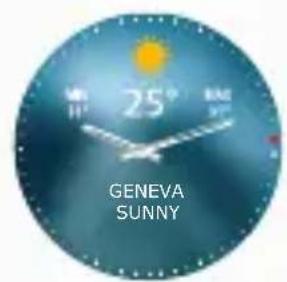

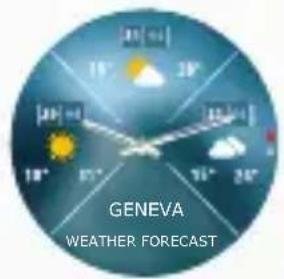
I to SET thE wEathER FoRECaSt
- Go to the Advanced Settings of the mobile app.
- Tap on Weather.
- Select Automatic mode to get weather forecasts based on your GPS position.
- Select Manual mode for choosing your preferred location.
Following this procedure, your ZeTime will display the weather forecast of your select location. ZeTime will display the weather forecasts of the present day and upcoming 3 days on a second page.

To change the temperature unit, go to the weather section and select ° C or F° .
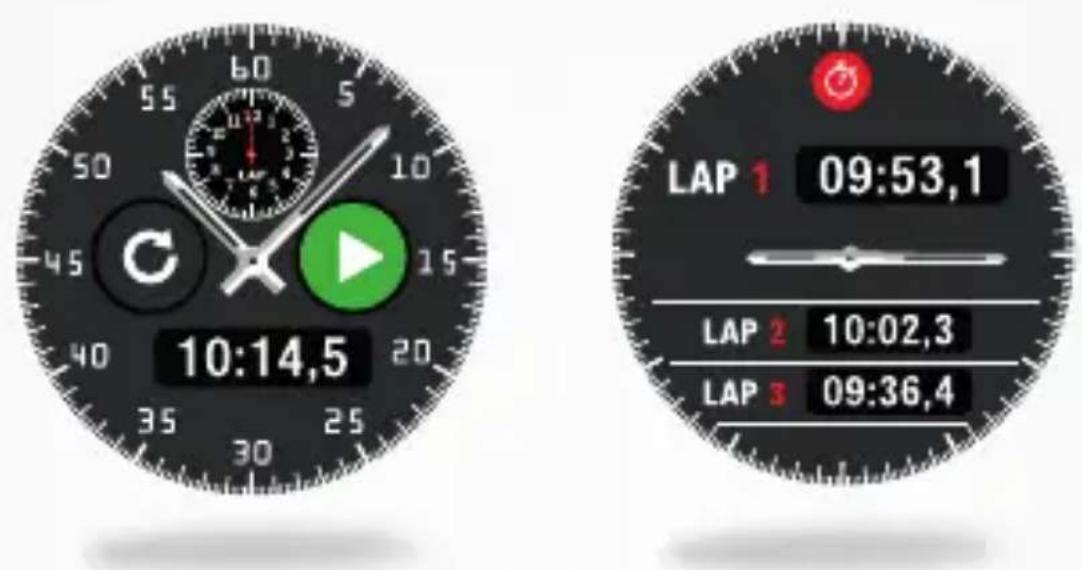
I to USE thE StoPwatch:
- Open the stopwatch app in the watch menu. Start counting by pressing the green play icon. You can track individual lap performance by pressing the round green button while measuring is on.
• To stop counting, press the red button. - You can see the full lap-by-lap report by pressing the lap counter at the top of the screen.
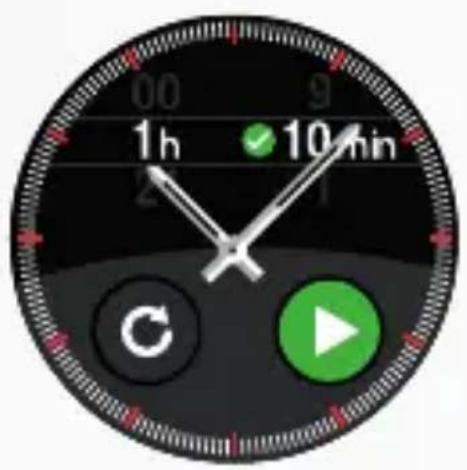
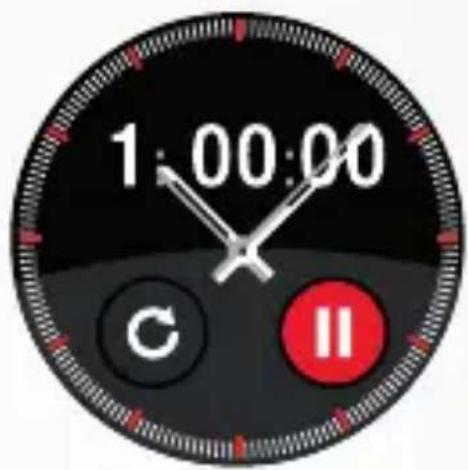
I to USE thE tImER:
- Open the timer app in the watch menu.
- Adjust the countdown length by using the digital crown and start counting by pressing the green button.
- At the end of countdown, your watch will alert you with sound and vibration.
22. FIND MY PHONE
If you misplace your phone, the Find my phone function will make your phone ring or vibrate so you can easily find it. To use this feature, ensure your phone and watch are within range of each other (10m).
I to Enable this FUnCtlon
Press the find my phone app icon in the watch shortcuts or in the main menu page, and click on the screen to enable it.
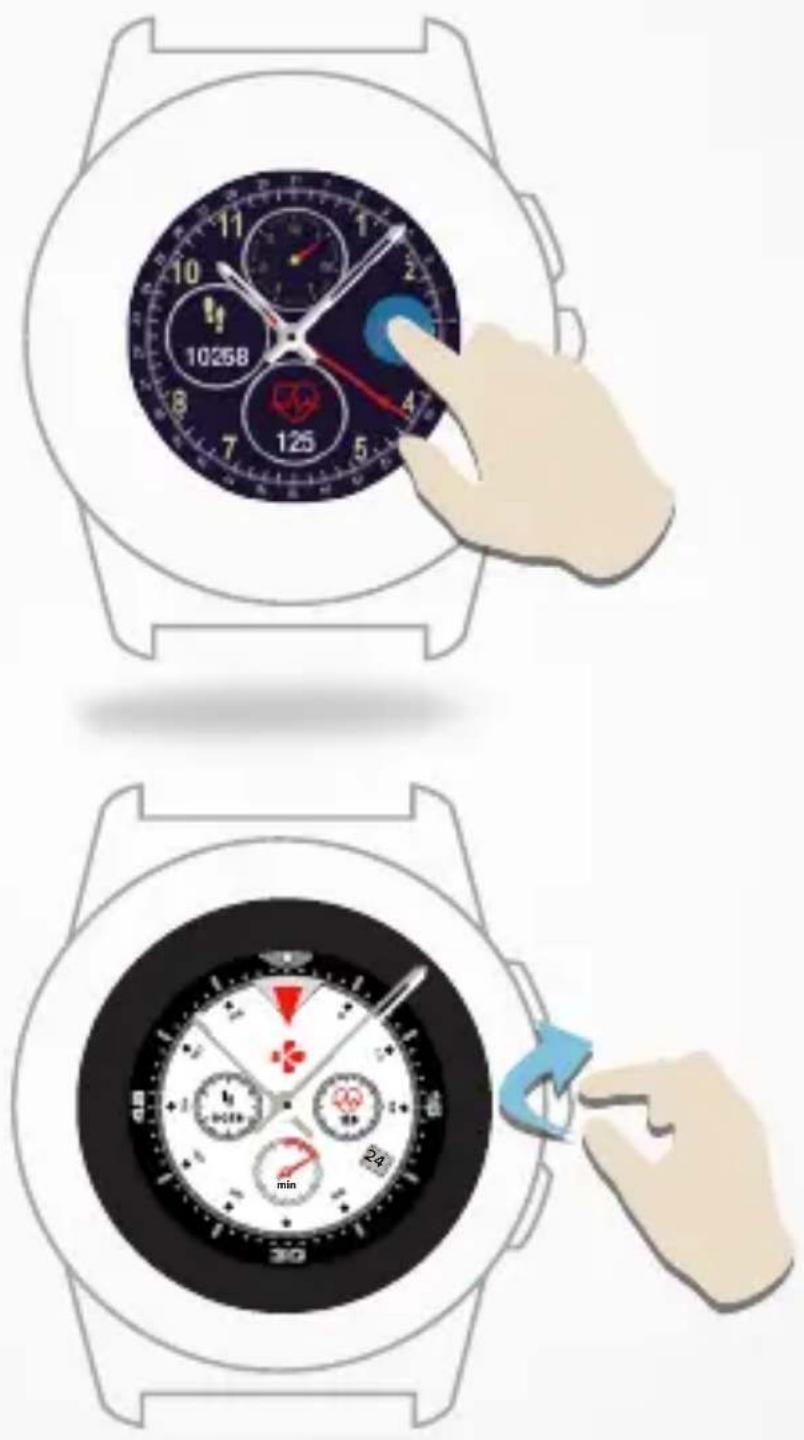
I to ChanGE thE watCh FaCE FRom yoUR ZEtImE
- Long press on the current watch face.
- Swipe left or right to go through the different watch faces available (you can also use the crown).
- Tap on the one you want to select and use.
I to ChanGE thE watCh FaCE FRom thE aPP
- Go to the Settings tab of the mobile app.
- Click on Watch faces.
- Click on select your watch face.
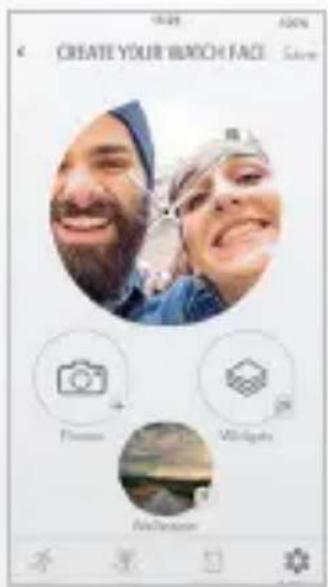
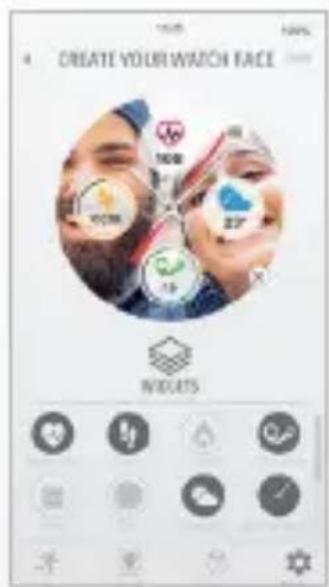
I to CREatE yoUR own watCh FaCE
- Go to the Settings tab of the mobile app.
- Click on Watch faces.
- Select Create your watch face.
You can create your own watch faces and store up to 4 of them inside the watch memory.
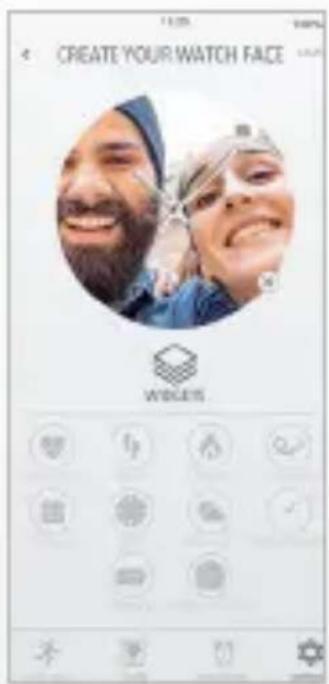
- Select one of our selected wallpapers, or use a photo from your library or straight from your camera.
- You can add up to 4 widgets on the watch face and a dial around the screen.
- Once finished, simply save your creation and push it to the watch.
You can create up to 10 watch faces in the mobile app but only 4 will be stored inside the watch.
1.2.3.
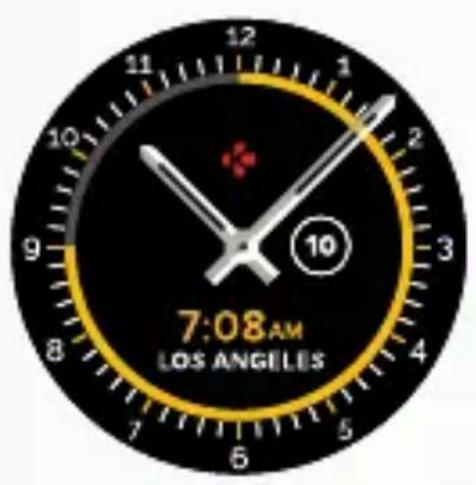
ZeTime allows you to display two different time zones on the same screen. With selected watch faces, analog hands will provide the local time while a digital clock will provide corresponding home time zone. This function is particularly useful for people traveling regularly between time zones.
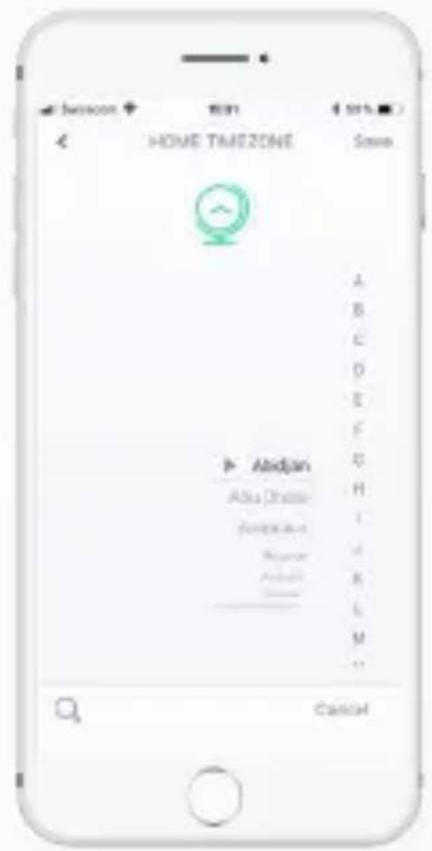
I to aDJUST homE tImE ZonE
- Go to the Advanced settings in the mobile app.
- Tap on Home Time Zone.
- Select your Time Zone city and save your setting.
25. WRIST FLICK
The wrist flick mode will enable you to light-up your screen by simply lifting your wrist towards your face. By default this feature is disabled in order to save battery life. You can enable it from the watch setting menu in the display section.
ZeTime is the only smartwatch to provide a full left-hand user mode by rotating both on screen information and the analog mechanism at 180° when worn on the right wrist.
I to SEt It UP
- Open the Advanced settings of the mobile app.
- Select Left Hand mode and enable it.
This function is also available in the watch settings.
27. NIGHT MODE
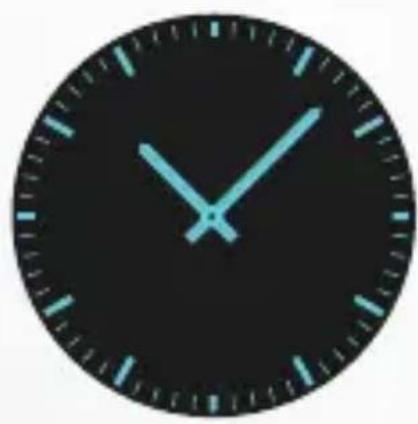
A single press on the crown activates a 10 seconds eye-pleasing light to allow you to see the time at night.
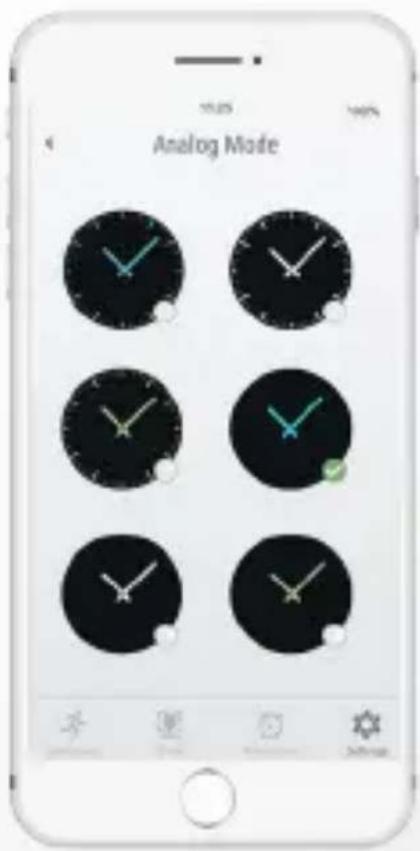
I to SELECT yoUR nIGHT moDE watCh FaCE
- Open the setting menu of the mobile app.
• In the Advanced settings select Night mode. - Then choose the watch face you want.

GENERAL

Language:
set your language.

Unit:
choose between metric or imperial.

Bluetooth:
enable or disable it.

Regulatory:
watch certification.

Watch Information:
view the firmware version & serial number of the device.

TIME

Time format:
change date and time formats.

Home time zone:
set your local time zone.

Calibration:
set time of analog watch hands.

ACTIVITY

Heart rate
set your minimum and maximum heart rate frequency.

Goals:
set your goals.

VIBRATION & SOUNDS

Vibration:
set your vibration mode.

Sounds:
set your sound mode.

Do not disturb :
set a time frame when you don't want to be disturbed.

Snooze:
adjust the snooze time.

DISPLAY

Watch face:
set your watch face.

Wrist flick:
enable or disable it.

Brightness:
change the screen brightness.

Left mode :
enable it to wear your watch on your right wrist.

Screen time out:
set the standby mode.

Night mode:
enable it and customize the watch face.

RESET
Reset your watch to its default settings.
MyKronoz will provide regular firmware updates which you will need to install in order to access our latest upgrades and features for your watch. With Zetime, all these updates need to be done by OTA (Over The Air) and through the mobile app. Updates are performed over the air using the mobile app. Before updating, make sure your phone and your watch have more than 30% battery.
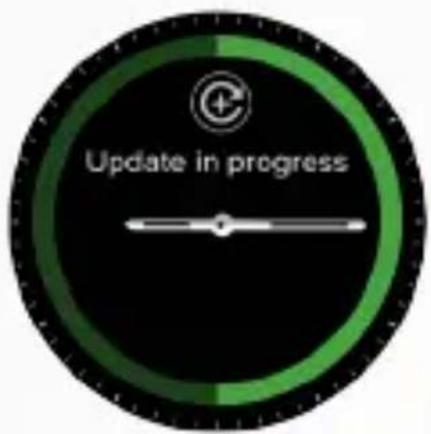
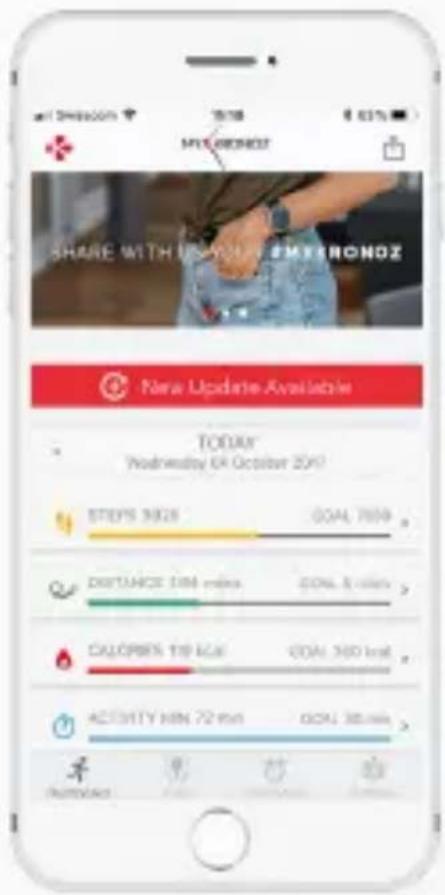
In order to UPDatE yoUR watCh:
- Connect your ZeTime to the mobile app.
- If a new update is available you will be prompted from the home screen.
- You must accept it in order to start the updating process.

During all the update process you must keep your watch near your smartphone and your application must be open. Avoid using your phone during the update process.
ZeTime uses standard 22mm (Regular) or 18mm (Petite) interchangeable wrist bands, in order to make it easy for you to perfectly match your watch and your style.

REGULAR
44mm
WATCH BAND
22mm
PETITE
39mm
WATCH BAND
18mm
- Push the spring bar inward to release the strap from the watch case.
- Push the spring bar inward while aligning it with the holes on either side of the watch case.
- Release the spring bar to secure the strap.
- Verify that the strap is correctly fastened by gently tugging on the strap.
2-IN-1 CHARGER
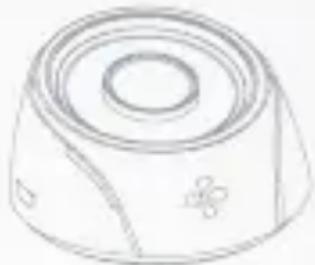
I how to USE thE 2-In-1 ChaRGER
The 2-in-1 charger has a built-in 400 mAh battery, allowing you to charge your ZeTime when you are on the go with no power plug available. You can fully charge your ZeTime up to 2 times with this built-in battery.
First of all you need to push the button at the back to put it in its operating position. When connected to USB power source the 2-in-1 charger will operate as such:
- Without the watch on the charger, the LED will display in red as the built-in battery is being charged. When fully charged LED will turn to solid blue.
- With the watch on the charger, the LED display in red for 10 seconds. Once fully charged, the LED will display in green for 10 seconds.
When not connected to USB power source:
- Without the watch on the charger, the LED display in blue all the time. (We highly recommend you to switch off the charger with the back button located on the back of the charger).
- With the watch on the charger, the LED will display in red for 10 seconds. Once fully charged, the LED will display in green for 10 seconds.
CHARGING STAND
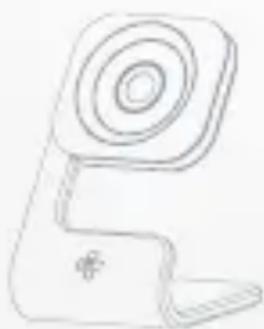
Available as an optional charging solution, the charging stand is an elegant bedside or desk charger made of aluminum to perfectly match the modern design of your ZeTime.
STANDARD CHARGER

The perfect companion charger for your ZeTime. Its thin and sleek design will help you take it with you everywhere you go to ensure your watch never runs out of juice.
33. TECH SPECS
Dimensions: Regular: 44 X 12.8 mm
Petite: 39 X 12.6 mm
Weight: Regular: 90g
Petite: 80g
Material: Stainless steel watch case available in silver,
black, titanium, pink gold & yellow gold
Watch band size: Regular: 22 mm
Petite: 18 mm
Connectivity Bluetooth BLE 4.2
Battery type: Regular: Li-iOn 200 mAh
Petite: Li-iOn 180 mAh
Battery life: Up to 30 days (watch mode)
Up to 3 days (smartwatch mode)
Mechanical hands
Vibrator & Buzzer
Charging time: 90 minutes
Memory : 10 days
Display type: TFT Color touchscreen with hole
Display size Regular: TFT 1.22 inches / 240*240 pixels
and resolution: Petite: TFT 1.05 inches / 240*240 pixels
Sensors: 3-axis accelerometer
& optical heart rate sensor
Operating temperature -10°C to +60°C
Water resistance: 5 ATM*
International warranty: 1 year
What's in the box: Charger dock, ZeTime, Get started guide.
* ZeTime is water resistant up to 50 meters. ZeTime is resistant to water splashes, rain, submersion and showering. ZeTime can be used for shallow water activities like swimming but should not be exposed to water at high pressure, such as ocean waves or a waterfall. ZeTime should not be used for scuba diving and water skiing. Do not expose your ZeTime to soapy water, perfume, detergents, lotions, sunscreen, and high velocity water. Please note that all bands are not appropriate for water use. For example, leather band.
WARNING
Connecting the charging cable improperly may cause serious damage to the device. Any damage caused by misuse is not covered by the warranty. Unplug the cable after ZeTime is fully charged.
ZeTime unit and charging dock contain strong magnets that may interfere with pacemakers, credit cards, watches and other magnet-sensitive objects. If you use a pacemaker or any other electronic medical device, please consult your physician before wearing or handling ZeTime.
This product is not a medical device and should not be used to diagnose or treat any medical condition.
ZeTime is water resistant up to 50 meters. ZeTime is resistant to water splashes, rain, submersion and showering. ZeTime can be used for shallow water activities like swimming but should not be exposed to water at high pressure, such as ocean waves or a waterfall. ZeTime should not be used for scuba diving and water skiing. Do not expose your ZeTime to soapy water, perfume, detergents, lotions, sunscreen, and high velocity water. Please note that all bands are not appropriate for water use. For example, leather band
ABOUT THIS MANUAL
The features of ZeTime and the contents of the user manual are subject to change. To get the latest instructions on how to use this product, please refer to the online user manual available on
www.mykronoz.com
MyKronoz is not responsible for any watch faces created by end user. MyKronoz is not responsible for any content published online by users. MyKronoz is only responsible for the content of pages it publishes.
SUPPORT
If you have any question or require assistance regarding our product, please visit www.mykronoz.com/support/ or email us at support@mykronoz.com
Before using the device, read these instructions carefully.
battERy
- ZeTime has built-in batteries. Do not disassemble the battery on your own. KRONOZ LLC is not responsible for any damage or personal injury caused by the removal of the battery or any component.
- Do not expose your product to extremely high or low temperatures. Excessive temperature during charging could cause heat, smoke, fire or deformation of the battery or even explosion. Do not expose the battery in the sun, excessive smoke or dust. Charge the battery in a cool, ventilated room.
- Do not open, crush, bend, deform, puncture or shred secondary cells or batteries. In the event of a battery break or leak, prevent battery liquid contact with skin or eyes. If this happens, immediately flush the areas with water (do not rib the eye) or seek medical help.
- Do not short-circuit. Short-circuiting can occur when a metallic object, such as coins, causes direct connection of positive and negative terminals of the battery. Short-circuiting may damage the battery.
- Do not use batteries that have been damaged or have been exhausted.
- Keep the batteries out of children's reach and in a safe place to prevent danger.
- Do not place the batteries in the water. Do not expose your product to water at high pressure, such as ocean waves or waterfall. Do not use your product in a sauna or steam room.
- Do not dispose of batteries in fire as they may cause explosion. Dispose of used batteries in accordance with your local regulations (such as recycling). Do not dispose as household waste.
- Use only the USB cable supplied to charge this battery. Do not charge for more than 24 hours.
- Do not attempt to repair or maintain the watch by yourself, service and maintenance should be performed by authorized technicians.
USa
FCC StatEmEnt

This device complies with Part 15 of the FCC Rules. Operation is subject to the following two conditions: (1) this device may not cause harmful interference, and (2) this device must accept any interference received, including interference that may cause undesired operation.
CaUtionS
Changes or modifications not expressly approved by the party responsible for compliance could void the user's authority to operate this equipment.
FCC notICE
This equipment complies within the limits of a Class B digital device, pursuant to part 15 of the FCC Rules. These limits are designed to provide reasonable protections against radio and TV interference in residential areas. However, even during normal operation, this equipment may cause TV or radio interference. If the equipment does cause harmful interference to radio or television reception, which can be determined by turning the equipment off and on, the user is encouraged to try one or more of the following corrective measures:
- Reposition the receiving antenna.
- Increase the distance between the equipment and receiver.
- Connect the equipment into an outlet on a circuit different from which the receiver is connected.
- Consult the dealer or an experienced radio/TV technician for help.
FCC ID: 2AA7D-ZET1
CanaDa
InDUStRy CanaDa (IC) StatEmEnt
This device complies with Industry Canada license-exempt RSS standard(s). Operation is subject to the following two conditions :
(1) this device may not cause interference, and (2) this device must accept any interference, including interference that may cause undesired operation of the device.
Declaration of conformity with regard to the EU Directive 2014/53/EC. Kronoz LLC hereby declares that this device is in compliance with the essential requirements and other relevant provisions of the R&TTE Directive 2014/53/EC. The complete declaration of conformity is available on request via our customer service: support@mykronoz.com
Users can access the E-Label screen on ZeTime by going to Settings > General > Regulatory. No special access codes or permissions are required to go through the above steps beyond entering a user-defined password to protect against unauthorized access to the device. Additional regulatory information are in « Regulatory notices » of this document. The information is stored on the device, no special accessories or supplemental plug-ins (e.g., a SIM/USIM card) are required to access the information.
DISPoSaL and RECyCLInG InFoRmatlon
After the implementation of the European Directive 2002/96/EU in the national legal system, the following applies: electrical and electronic devices may not be disposed of with domestic waste. Consumers are obliged by law to return electrical and electronic device at the end of their service lives to the public collecting points set up for this purpose or point of sale. Details to this are defined by the national law of the respective country. This symbol on the product, the instruction manual or the package indicates that a product is subject to these regulations. By recycling, reusing the materials or other forms of utilizing old devices, you are making an important contribution to protecting our environment.
©2017 Kronoz LLC, all rights reserved. Kronoz LLC, Avenue Louis-Casai 18 - 1209 Geneva - Switzerland


- ZETIME
- USER GUIDE
- THE FIRST SMARTWATCH WITH NO COMPROMISES
- TABLE OF CONTENTS
- OVERVIEW
- I UPPER BUTTON
- LOWER BUTTON
- I UPPER + LOWER BUTTON
- SMART CROWN
- BASIC TOUCHSCREEN OPERATIONS
- I FROM THE WATCH FACE
- I FROM ANY SCREEN
- SMART CROWN OPERATIONS
- TURN THE CROWN
- PRESS THE CROWN
- PRESS TWICE
- PRESS ONCE
- SHORTCUTS
- HEART RATE
- WEATHER
- BRIGHTNESS
- FLIGHT MODE AND BLUETOOTH STATUS
- FIND MY PHONE
- VIBRATION BUZZER
- BATTERY LEVEL
- CHARGING YOUR ZETIME
- BATTERY LIFE
- SET UP
- I TO SET UP YOUR ZETIME
- CALIBRATION
- SYSTEM REQUIREMENTS
- IOS 8+ DEVICES WITH BLUETOOTH 4.0 BLE
- SELECTED ANDROID 5.0+ DEVICES THAT SUPPORT BLUETOOTH 4.0 BLE
- 6.INCOMING CALLS
- 7.MISSED CALLS
- NOTIFICATIONS SETTINGS
- I TO SET UP A REMINDER
- IFROM YOUR ZETIME
- FOLLOW YOUR ACTIVLTY
- FROM ZETLME MOBILE EAPP
- CUSTOMIZE YOUR ACTIVLTY DASHBOARD
- SET UP ACTIVLTY GOALS
- SHARE YOUR ACTIVLTY
- INACTIVITY ALERT
- I TO ENABLE THE INACTIVITY ALERT
- I TO MEASURE YOUR HEART RATE
- I TO SET YOUR HEART RATE ALERT
- I TO SET AN ALARM FROM ZETIME APP
- CAMERA REMOTE
- I TO USE ZETIME AS A CAMERA REMOTE
- MUSIC CONTROL
- I TO CONTROL MUSIC
- ANTI-LOST FUNCTION
- WEATHER FORECAST
- I TO SET THE WEATHER FORECAST
- I TO USE THE STOPWATCH
- I TO USE THE TIMER
- I TO ENABLE THIS FUNCTLON
- I TO CHANGE THE WATCH FACE FROM YOUR ZETIME
- I TO CHANGE THE WATCH FACE FROM THE APP
- I TO CREATE YOUR OWN WATCH FACE
- 1.2.3
- I TO ADJUST HOME TIME ZONE
- WRIST FLICK
- I TO SET IT UP
- NIGHT MODE
- I TO SELECT YOUR NIGHT MODE WATCH FACE
- GENERAL
- LANGUAGE
- UNIT
- BLUETOOTH
- REGULATORY
- WATCH INFORMATION
- TIME
- TIME FORMAT
- HOME TIME ZONE
- ACTIVITY
- GOALS
- VIBRATION & SOUNDS
- VIBRATION
- SOUNDS
- DO NOT DISTURB
- SNOOZE
- DISPLAY
- WATCH FACE
- LEFT MODE
- SCREEN TIME OUT
- RESET
- IN ORDER TO UPDATE YOUR WATCH
- 2-IN-1 CHARGER
- I HOW TO USE THE 2-IN-1 CHARGER
- TECH SPECS
- WARNING
- ABOUT THIS MANUAL
- SUPPORT
- BATTERY
- USA
- FCC STATEMENT
- CAUTIONS
- FCC NOTICE
- CANADA
- INDUSTRY CANADA (IC) STATEMENT
- DISPOSAL AND RECYCLING INFORMATLON
Brand : MYKRONOZ
Model : ZeTime Regular Original
Category : Smartwatch