PS-20 - Calculator CASIO - Free user manual and instructions
Find the device manual for free PS-20 CASIO in PDF.


User questions about PS-20 CASIO
0 question about this device. Answer the ones you know or ask your own.
Ask a new question about this device
Download the instructions for your Calculator in PDF format for free! Find your manual PS-20 - CASIO and take your electronic device back in hand. On this page are published all the documents necessary for the use of your device. PS-20 by CASIO.
USER MANUAL PS-20 CASIO
This equipment has been tested and found to comply with the limits for a Class B digital device, pursuant to Part 15 of the FCC Rules. These limits are designed to provide reasonable protection against harmful interference in a residential installation. This equipment generates, uses and can radiate radio frequency energy and, if not installed and used in accordance with the instructions, may cause harmful interference to radio communications. However, there is no guarantee that interference will not occur in a particular installation. If this equipment does cause harmful interference to radio or television reception, which can be determined by turning the equipment off and on, the user is encouraged to try to correct the interference by one or more of the following measures:
- Reorient or relocate the receiving antenna.
- Increase the separation between the equipment and receiver.
- Connect the equipment into an outlet on a circuit different from that to which the receiver is connected.
- Consult the dealer or an experienced radio/TV technician for help.
FCC WARNING
Changes or modifications not expressly approved by the party responsible for compliance could void the user's authority to operate the equipment.
TO REDUCE THE RISK OF FIRE OR ELECTRIC SHOCK, REFER SERVICING TO QUALIFIED SERVICE PERSONNEL.
Important!
Please note the following important information before using this product.
- Before using the optional AD-12 Adaptor to power the unit, be sure to check the AC Adaptor for any damage first. Carefully check the power cord for breakage, cuts, exposed wire and other serious damage. Never let children use an AC adaptor that is seriously damaged.
- The product is not intended for children under 3 years.
- Use only CASIO AD-12 adaptor.
- The AC adaptor is not a toy.
- Be sure to disconnect the AC adaptor before cleaning the product.

CASIO ELECTRONICS CO., LTD.
Unit 6, 1000
North Circular Road
London NW2 7JD, U.K.
This mark is valid in the EU countries only. Please keep all information for future reference.
424A-E-002A
Safety Precautions
Congratulations on your selection of the CASIO Digital Piano. This digital piano is a sophisticated musical instrument that blends the very best of traditional piano feel and sound quality with the latest that modern electronics technology has to offer.
- Before using the instrument, be sure to carefully read through the instructions contained in this manual.
- Please keep all information for future reference.
Symbols
Various symbols are used in this user's guide and on the product itself to ensure that the product is used safely and correctly, and to prevent injury to the user and other persons as well as damage to property. Those symbols along with their meanings are shown below.

WARNING
This indication stipulates matters that have the risk of causing death or serious injury if the product is operated incorrectly while ignoring this indication.

CAUTION
This indication stipulates matters that have the risk of causing injury as well as matters for which there is the likelihood of occurrence of physical damage only if the product is operated incorrectly while ignoring this indication.
Symbol Examples

This triangle symbol () means that the user should be careful. (The example at left indicates electrical shock caution.)

This circle with a line through it (O) means that the indicated action must not be performed. Indications within or nearby this symbol are specifically prohibited. (The example at left indicates that disassembly is prohibited.)

The black dot () means that the indicated action must be performed. Indications within this symbol are actions that are specifically instructed to be performed. (The example at left indicates that the power plug must be unplugged from the electrical socket.)
424A-E-003A
E-1
!
WARNING
Smoke, Strange Odor, Overheating
Continued use of the product while it is emitting smoke, a strange odor, or heat creates the risk of fire and electric shock. Take the following steps immediately.
- Turn off power.
- If you are using the AC adaptor for power, unplug it from the wall outlet.
- Contact your original retailer or an authorized CASIO Service Provider.
AC Adaptor
Misuse of the AC adaptor creates the risk of fire and electric shock. Always make sure you observe the following precautions.
- Be sure to use only the AC adaptor that is specified for this product.
- Use only a power source whose voltage is the within the rating marked on the AC adaptor.
- Do not overload electrical outlets and extension cords.
AC Adaptor
Misuse of the AC adaptor's electric cord can damage or break it, creating the risk of fire and electric shock. Always make sure you observe the following precautions.
- Never place heavy objects on the cord or subject it to heat.
- Never try to modify the cord or subject it to excessive bending.
- Never twist or stretch the cord.


- Should the electric cord or plug become damaged, contact your original retailer or authorized CASIO Service Provider.

AC Adaptor
Never touch the AC adapter while your hands are wet.
Doing so creates the risk of electric shock.

Do not incinerate the product.
Never throw the product into fire. Doing so can cause it to explode, creating the risk of fire and personal injury.

Water and Foreign Matter
Water, other liquids, and foreign matter (such as pieces of metal) getting into the product create the risk of fire and electric shock. Take the following steps immediately.

- Turn off power.
- If you are using the AC adaptor for power, unplug it from the wall outlet.
- Contact your original retailer or an authorized CASIO Service Provider.
Disassembly and Modification
Never try to take this product apart or modify it in any way. Doing so creates the risk of electric shock, burn injury, or other personal injury. Leave all internal inspection, adjustment, and maintenance up to your original retailer or authorized CASIO Service Provider.

424A-E-004A
Dropping and Impact
Continued use of this product after it has been damaged by dropping or subjecting it to strong impact creates the risk of fire and electric shock. Take the following steps immediately.
- Turn off power.
- If you are using the AC adaptor for power, unplug it from the wall outlet.
- Contact your original retailer or an authorized CASIO Service Provider.
Plastic Bags
Never place the plastic bag the product comes in over your head or in your mouth. Doing so creates the risk of suffocation.
Particular care concerning this precaution is required where small children are present.
Never climb onto the product or stand.*
Never climb onto the product or hang from its edges. Doing so can cause the product to fall over, creating the risk of personal injury. Special care concerning this point is required in households where there are small children.
Do not locate the product on an unstable surface.
Never locate the product on a surface that is wobbly, tilted, or otherwise unstable*. An unstable surface can cause the product to fall over, creating the risk of personal injury.
- Avoid areas where there are multiple layers of carpeting, and where cables are running under the product.
Always make sure you secure the product to the stand with the screws that are provided. An unsecured product can fall from the stand, creating the risk of personal injury.
CAUTION
AC Adaptor
Misuse of the AC adaptor creates the risk of fire and electric shock. Always make sure you observe the following precautions.
- Do not locate the electric cord near a stove or other sources of heat.
- Never pull on the cord when unplugging from the electrical outlet. Always grasp the AC adaptor when unplugging.
AC Adaptor
Misuse of the AC adaptor creates the risk of fire and electric shock. Always make sure you observe the following precautions.
- Insert the AC adaptor into the wall outlet as far as it will go.
- Unplug the AC adaptor from the wall outlet during lightening storms or before leaving on a trip or other long-term absence.
- At least once a year, unplug the AC Adaptor from the wall outlet and wipe away any dust that is built up in the area around the prongs of the plug.
Relocating the Product
Before relocating the product, always unplug the AC adaptor from the wall outlet and disconnect all other cables and connecting cords. Leaving cords connected creates the risk of damage to the cords, fire, and electric shock.


Cleaning
Before cleaning the product, always unplug the AC adaptor from the wall outlet first. Leaving the AC adaptor plugged in creates the risk of damage to the AC adaptor, fire, and electric shock.

Connectors
Connect only the specified devices and equipment to the product's connectors. Connection of a nonspecified device or equipment creates the risk of fire and electric shock.

Location
Avoid the following locations for this product. Such locations create the risk of fire and electric shock.

- Areas subject to high humidity or large amounts of dust
- In food preparation areas or other areas subject to oil smoke
- Near air conditioning equipment, on a heated carpet, in areas exposed to direct sunlight, inside of a vehicle parked in the sun, or any other area that subjects the product to high temperatures
Sound Volume
Do not listen to music at very loud volumes for long periods. Particular care concerning this precaution is required when using headphones. High volume settings can damage your hearing.

424A-E-006A
Heavy Objects
Never place heavy object on top of the product.
Doing so can make the product top heavy, causing the product to tip over or the object to fall from it, creating the risk of personal injury.
Correct Stand* Assembly
Failure to do so can cause the stand to fall over and the digital piano to fall from the stand, creating the risk of personal injury.
Make sure you assemble the stand in accordance with the instructions that come with it, and ensure that all connections are secure. Also make sure that you choose an appropriate location for the stand.
- When placing the digital piano onto the stand, take care that you do not pinch your fingers between the digital piano and the stand.
- At least two people should lift the digital piano when placing it onto the stand or moving it. Trying to move the digital piano alone can cause the stand to fall over, creating the risk of personal injury.
- Do not drag the stand or tilt it forward or back when placing the digital piano onto the stand or moving it. Doing so can cause the digital piano to fall over, creating the risk of personal injury.
- Periodically check the screws that secure the digital piano to the stand for looseness. If a screw is loose, retighten it. Loose screws can cause the stand to tip over and the digital piano to fall, creating the risk of personal injury.


- Stand is available as an option.
424A-E-007A
Main Features
Simple, compact design
A simple, compact design fits right in and complements just about any interior layout.
8 versatile tones
Eight instrument tones including the digital piano and vibraphone provide plenty of performance versatility.
Other features include digital effects that control the acoustical characteristic of tones, as well as three pedal effects for all the nuances of an acoustic piano.
A Sound Quality Adjustment feature lets you select the optimal sound quality setting to match the environment and acoustic conditions of the location where you are playing, and for the headphones you are using.
■ Metronome
A simple operation lets you set the tempo and the beat of the metronome to suit the tune you want to play. It's the perfect practice tool for players of all levels.
4 demo tunes
Demo tunes demonstrate use of the GRAND PIANO 1, ELEC PIANO 2, VIBRAPHONE, and HARPSICHORD tones.
Memory
Built-in memory lets you store a performance for later playback.
You can play along with playback on the keyboard, and even create an ensemble effect by using a keyboard tone that is different from the recorded tone.
■ Powerful keyboard setting functions
A selection of powerful keyboard setting functions helps you get create exactly the musical mood you want.
Transpose adjusts the key of the keyboard in semitone steps.
Tuning provides a means to tune with another musical instrument.
Touch Select adjusts the intensity of the output sound in accordance with the amount of pressure you apply to the keyboard.
■ MIDI terminal
Connecting to another MIDI musical instrument lets you play two instruments from the keyboard of this digital piano. You can also connect to a commercially available MIDI sequencer to increase the number of parts you can play.
Contents
Safety Precautions E-1
Main Features E-6
Contents
General Guide. E-8
Attachment of the Score Stand. E-8
Power Supply 10
Using the AC Adaptor .E-10
Connections. E-11
Accessories and Options. E-11
Basic Operation. E-12
Using Tones E-12
Using Digital Effects. E-13
Adjusting the Sound Quality .E-14
Using the Pedals. E-15
Using the Metronome .E-16
Using the Memory .E-17
About the Memory .E-17
Recording. E-17
Playback E-18
Deleting Memory Contents E-18
Using Demo Tunes. E-19
Playing the Demo Tunes in Sequence ....E-19
Playing a Specific Demo Tune............E-19
Stopping Demo Tune Play .E-19
Keyboard Settings. E-20
Using Touch Select .E-20
Using Transpose. E-20
Adjusting the Tuning of the Digital Piano. E-21
MIDI E-22
What is MIDI? E-22
What you can do with MIDI............E-22
MIDI Connections .E-22
MIDI Channels E-22
Simultaneous Receive Over
Multiple Channels (Multi-Timbre) ..... E-23
Setting the Keyboard Channel. E-23
Sending MemoryPlayback Data .E-23
Turning Local Control On and Off. E-24
MIDI Data Notes E-24
Troubleshooting E-26
Specifications E-27
Operational Precautions......E-28
Appendix A-1
Initial Power On Settings .A-1
MIDI Data Format. A-2
Channel Messages .A-2
System Messages A-6
MIDI Implementation Chart
General Guide
Back Panel
① ②
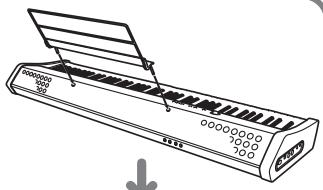
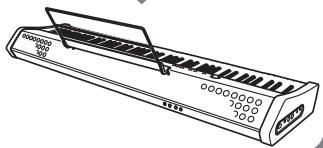
Attachment of the Score Stand
Install the music stand by inserting its pegs into the holes in the digital piano.
Left Side Panel
7
E-8
424A-E-010A
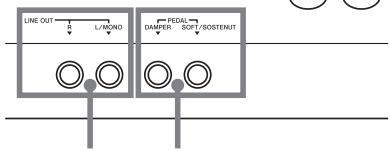
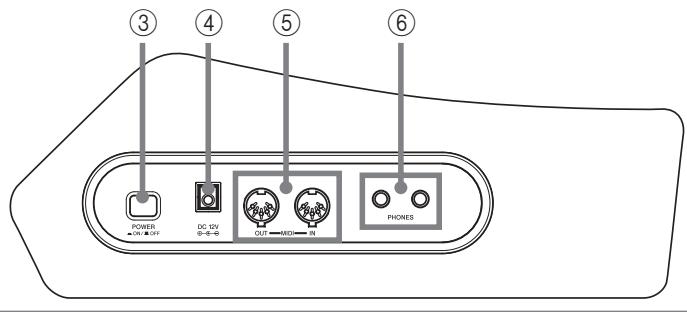
① LINE OUT jacks (R, L/MONO)
② DAMPER PEDAL jack, SOFT/SOSTENUTO PEDAL jack
③ POWER button
④ DC 12V jack
⑤ MIDI IN terminal, MIDI OUT terminal
⑥ PHONES jack
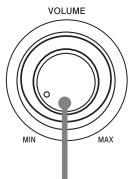
⑦ VOLUME knob
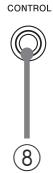
(8) CONTROL button
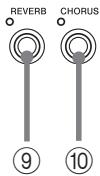
⑨ REVERB button
⑩ CHORUS button
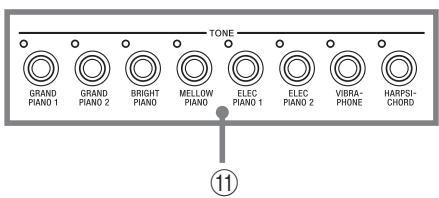
⑪ TONE buttons
- GRAND PIANO 1 button
- GRAND PIANO 2 button
BRIGHT PIANO button - MELLOW PIANO button
ELEC PIANO 1 button
ELEC PIANO 2 button
VIBRAPHONE button
HARPSICHORD button
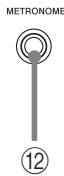
⑫ METRONOME button
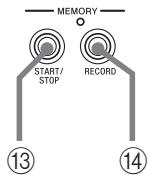
⑬ START/STOP button
④ RECORD button
DEMO button
NOTE
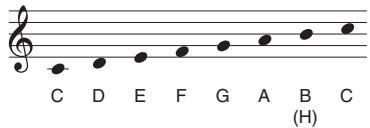
Note Names

A value next to a note name indicates the relative position of the note on the keyboard as shown below.
424A-E-011A
E-9
Power Supply
You can power this digital piano by plugging it into a standard household power outlet.
Be sure you turn off power and unplug the power cord from the electrical outlet whenever the digital piano is not in use.
Using the AC Adaptor
Make sure that you use only the AC adaptor specified for this digital piano.
Specified AC Adaptor: AD-12
[Left Side Panel]
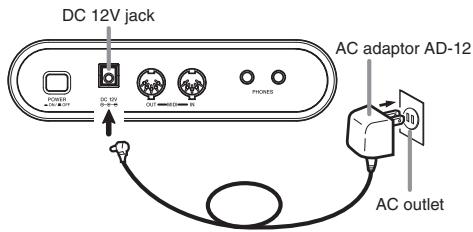
Also note the following important warnings and precautions when using the AC adaptor.
WARNING
Misuse of the AC adaptor creates the risk of fire and electric shock. Always make sure you observe the following precautions.
- Be sure to use only the AC adaptor that is specified for this product.
- Use only a power source whose voltage is within the rating marked on the AC adaptor.
- Do not overload electrical outlets and extension cords.
- Never place heavy objects on the cord or subject it to heat.
- Never try to modify the cord or subject it to excessive bending.
- Never twist or stretch the cord.
- Should the electric cord or plug become damaged, contact your original retailer or authorized CASIO Service Provider.
- Never touch the AC adaptor while your hands are wet. Doing so creates the risk of electric shock.
CAUTION
Misuse of the AC adaptor creates the risk of fire and electric shock. Always make sure you observe the following precautions.
- Do not locate the electric cord near a stove or other sources of heat.
- Never pull on the cord when unplugging from the electrical outlet. Always grasp the AC adaptor when unplugging.
- Insert the AC adaptor into the wall outlet as far as it will go.
- Unplug the AC adaptor from the wall outlet during lightening storms or before leaving on a trip or other long-term absence.
- At least once a year, unplug the AC adaptor from the wall outlet and wipe away any dust that is built up in the area around the prongs of the plug.


IMPORTANT!
- Make sure that the product is turned off before connecting or disconnecting the AC adaptor.
- Using the AC adaptor for a long time can cause it to become warm to the touch. This is normal and does not indicate malfunction.
Connections
Connecting to an audio or musical instrument amplifier provides even clearer, more powerful sound through external speakers.
Left Side
Back
3 Audio amplifier AUX IN, etc.
Guitar amplifier, keyboard amplifier, etc.
IMPORTANT!
- Whenever connecting external equipment, first set the VOLUME knob of the digital piano and the volume controller of the external equipment to relatively low volume settings. You can later adjust volume to the level you want after connections are complete.
- Be sure also to refer to the documentation that comes with the external equipment for its proper connection procedures.
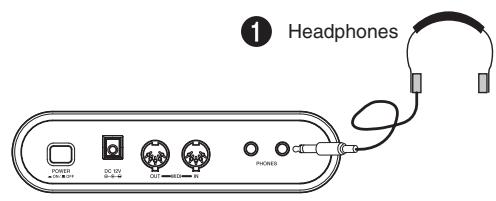
Connecting Headphones 1
Connect commercially available headphones to the digital piano's headphones jack. This cuts off the built-in speakers, which means you can practice even late at night without disturbing others. To protect your hearing, make sure that you do not set the volume level too high when using headphones.
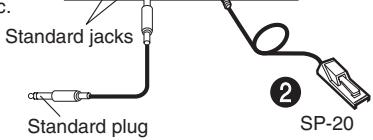
Connecting to a PEDAL Jack ②
Depending on the type of operation you want the pedal (SP-20) to perform, connect the pedal's cable to the digital piano's DAMPER jack or SOFT/SOSTENUTO jack. If you want to use both jacks at the same time, you need to purchase another optionally available SP-20 pedal.
See "Using the Pedals" on page E-15 for information about using a pedal.
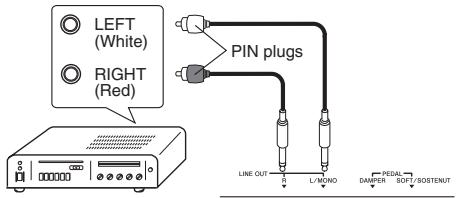
Connecting to Audio Equipment ③
Use commercially available cables to connect the external audio equipment to the digital piano's LINE OUT jacks as shown in Figure 3. R jack output is right channel sound, while L/MONO jack output is left channel sound. It is up to you to purchase connecting cables like the ones shown in the illustration for connection of audio equipment. Normally in this configuration you must set the audio equipment's input selector to the setting that specifies the terminal (such as AUX IN) to which the digital piano is connected. Use the digital piano's VOLUME knob to adjust the volume level.
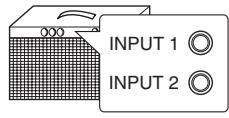
Connecting to a Musical Instrument Amplifier 4
Use commercially available cables to connect the amplifier to the digital piano's LINE OUT jacks as shown in Figure 4. R jack output is right channel sound, while L/MONO jack output is left channel sound. Connecting to the L/MONO jack only outputs a mixture of both channels. It is up to you to purchase connecting cable like the one shown in the illustration for connection of the amplifier. Use the digital piano's VOLUME knob to adjust the volume level.
Accessories and Options
Use only the accessories and options specified for this digital piano. Use of non-authorized items creates the danger of fire, electric shock, and personal injury.
Basic Operation
Using Tones
The following procedures describe everything you need to know about selecting and using tones.
Selecting a Tone
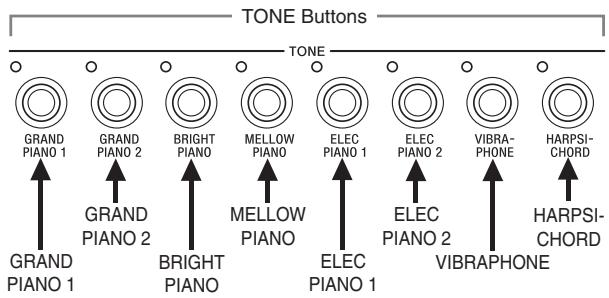
This digital piano has a selection of 8 built-in tones.
NOTE
- The eight tones that can be selected with the TONE buttons are for normal keyboard play. The GRAND PIANO 1 tone was recorded with stereo sampling.
To select a tone
- Press the POWER button to turn on the digital piano power.
- Press one of the TONE buttons to select the tone you want.
-
Use the VOLUME knob to adjust the volume.
-
It is a good idea to set the volume to a relatively low level at first.
-
Moving the knob towards MIN decreases volume, while moving it towards MAX increases volume.
-
Play something on the keyboard.
- Adjust volume to the level you want as you play.
- After you are finished playing, press the POWER button to turn off power.
NOTE
- The GRAND PIANO 1 tone is selected automatically whenever you turn on the digital piano power.
More about tones
Polyphony
This digital piano can play up to 64 notes at the same time. Also note that the tones below offer only 32-note polyphony. GRAND PIANO 1, BRIGHT PIANO, MELLOW PIANO, ELEC PIANO 2, HARPSICHORD
Touch Response
The touch response feature of this digital piano causes the volume of the tones and the sound of the tones themselves to change slightly in accordance with how much pressure you apply to the keyboard, just like with an acoustic piano. Touch response affects the HARPSICHORD tone only slightly, because the original musical instrument normally produces the same sound, no matter how much pressure is applied.
Digitally Sampled Tones
The tones of this digital piano are produced using digitally recorded samples of actual musical instruments. Not all of the instruments, however, can produce tones across the entire range played by this digital piano (A0 through C8). In such a case, digital recordings are used for the range that actually can be produced by the original instrument, and synthesized tones are used for notes that cannot be produced naturally. Because of this, you may notice very slight differences between natural notes and synthesized notes in sound quality and in results produced when using effects. These differences are normal and do not indicate malfunction.
424A-E-014A
Using Digital Effects
This digital piano provides you with a selection of digital effects that you can apply to tones. The following provides general descriptions of each effect, but the best way to find out how they affect tones is to experiment for yourself.
Digital Effect Types
REVERB
The REVERB effect gives you a choice of the eight variations listed below. Each one simulates the acoustics of different environments.
The following table shows the name of each effect and the keyboard keys you press to select it.
| Type | Keyboard Key Number* |
| Room 1 | 1 |
| Room 2 | 2 |
| Room 3 | 3 |
| Stage | 4 |
| Hall 1 | 5 |
| Hall 2 | 6 |
| Delay | 7 |
| Pan Delay | 8 |
- Number marked above keyboard key
CHORUS
The CHORUS effect adds depth and vibrato to notes.
The following are the eight chorus effects of this digital piano and the keyboard keys you press to select them.
| Type | Keyboard Key Number* |
| Chorus 1 | 1 |
| Chorus 2 | 2 |
| Chorus 3 | 3 |
| Chorus 4 | 4 |
| F-back Chorus | 5 |
| Flanger | 6 |
| ShortDelay | 7 |
| ShortDelayFB | 8 |
- Number marked above keyboard key
Keys Used for Configuring Digital Effect Settings
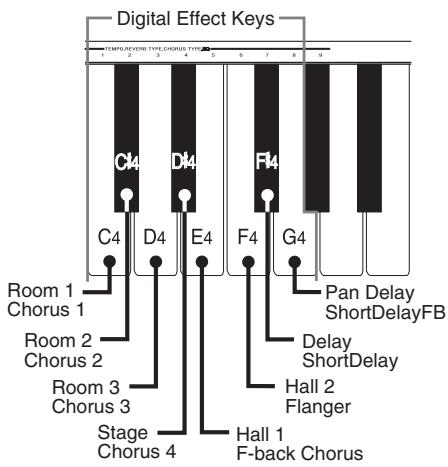
Selecting a Digital Effect
To select a reverb effect
-
While holding down the REVERB button, press the keyboard key that corresponds to the number of the reverb effect you want to select.
-
A note does not sound when you press a keyboard key at this time.
To select a chorus effect
-
While holding down the CHORUS button, press the keyboard key that corresponds to the number of the chorus effect you want to select.
-
A note does not sound when you press a keyboard key at this time.
Power on default effect settings
The table below shows the effect settings that are assigned to each tone whenever you turn on the digital piano power.
| Tone Name | Digital Effect Setting | |
| REVERB | CHORUS | |
| GRAND PIANO 1 | Hall 1 | Off (Chorus 3)* |
| GRAND PIANO 2 | Hall 1 | Off (Chorus 3)* |
| BRIGHT PIANO | Room 3 | Off (Chorus 3)* |
| MELLOW PIANO | Room 1 | Off (Chorus 3)* |
| ELEC PIANO 1 | Room 3 | Chorus 3 |
| ELEC PIANO 2 | Room 3 | Chorus 3 |
| VIBRAPHONE | Hall 1 | Off (Chorus 3)* |
| HARPSICHORD | Room 1 | Off (Chorus 3)* |
* ( ) : the initial setting of the chorus type when chorus effect is turned on.
- You can change the above digital effect settings after you turn on power.
NOTE
- Selecting a tone automatically selects the digital effects currently assigned to it.
- Changes you make to digital effect settings are assigned to the currently selected tone only.
- Digital effect settings remain in effect until you turn off the digital piano power.
- Demo tunes have their own digital effect settings, which are automatically selected whenever you select a demo tune.
Adjusting the Sound Quality
The Sound Quality Adjustment feature lets you select from among three different sound quality (equalizer) settings each for the digital piano's built-in speaker and connected headphones. Changing the setting lets you create the optimum sound quality to match the acoustics of the location where you are playing and the characteristics of the headphones you are using.
Built-in Speaker Sound Quality Types
| Type | Keyboard Key Number* | Description |
| Type 1 | 1 | Bright soundRecommended when the digital piano is located away from walls, in front of a curtain, etc. |
| Type 2 | 2 | Normal soundRecommended when the digital piano is located in front of a covered wall or other surface that absorbs sound, and when the audience is located in back of the digital piano. |
| Type 3 | 3 | Soft soundRecommended when the digital piano is located in front of a wall or other hard surface that reflects sound. |
- Number marked above keyboard key
The above sound quality settings are based on the acoustic characteristics of the digital piano's built-in speakers. Select the setting that best suits the acoustics of the location where you are playing.
Headphone Sound Quality Types
| Type | Keyboard Key Number* | Description |
| Type 1 | 1 | Bright soundRecommended when using headphones with a limited high range. |
| Type 2 | 2 | Normal soundRecommended when using normal headphones. |
| Type 3 | 3 | Soft soundRecommended for long listening sessions and for those who prefer a gentler sound. |
- Number marked above keyboard key
The above settings produce relatively flat equalizer characteristics. Select the setting that best suits the headphones you are using.
Sound Quality Setting Keyboard
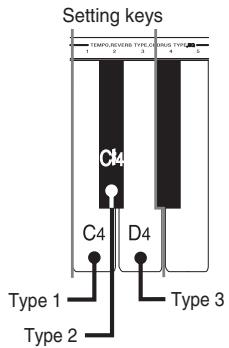
To change the sound quality of the built-in speakers
PREPARATION
The setting you select here is applied whenever headphones are not connected to the digital piano.
-
While holding down the REVERB and CHORUS buttons, press the keyboard key that corresponds to the number of the sound quality type you want to select.
-
A note does not sound when you press a keyboard key at this time.
To change the sound quality of the headphones
PREPARATION
The setting you select here is applied whenever headphones are connected to the digital piano.
-
While holding down the REVERB and CHORUS buttons, press the keyboard key that corresponds to the number of the sound quality type you want to select.
-
A note does not sound when you press a keyboard key at this time.
NOTE
- You can specify different sound quality types for the built-in speakers and headphones.
- The speaker and headphone sound quality settings you make are retained when you turn off the digital piano power.
- When outputting sound to external speakers from the LINE OUT jacks, connect headphones to the digital piano so the headphones sound quality setting is output to the external speakers. A Type 1 or Type 2 headphones sound quality works best in this case.
Using the Pedals
The digital piano is equipped with two pedal jacks, one for a damper pedal and one for a soft/sostenuto pedal. Whether the pedal connected to the SOFT/SOSTENUTO jack operates as a soft pedal or sostenuto pedal depends on what you do when you turn on the digital piano power.
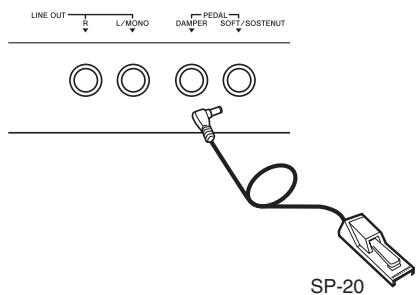
Pedal functions
- Damper pedal
Pressing this pedal causes notes to reverberate and to sustain longer. - Soft pedal
Pressing this pedal dampens notes and slightly reduces their volume. Only notes played after the pedal is depressed are affected, and any notes played before the pedal is pressed sound at their normal volume. - Sostenuto pedal
Like the damper pedal, this pedal causes notes to reverberate and to sustain longer. The difference between the two pedals is the timing when they are pressed. With the sostenuto pedal, you press the pedal after depressing the notes you want to sustain. Only the notes whose keyboard keys are depressed when the sostenuto pedal is pressed are affected.
To use the SOFT/SOSTENUTO pedal as a soft pedal
Press the POWER button to turn on the digital piano power. Soft pedal is the normal effect of the pedal connected to the SOFT/SOSTENUTO jack.
To use the SOFT/SOSTENUTO pedal as a sostenuto pedal
While holding down the pedal connected to the SOFT/ SOSTENUTO jack, turn on the digital piano power.
NOTE
- The following shows how pedal effects are applied during different types of operations.
Memory playback, demo tune play
Petal effects applied to notes played on the keyboard only.
Using the Metronome
The metronome provides a reference beat that you can use during your performances or practice sessions. You can change the beat and the tempo of the metronome.
- The names of the settings are marked above the keyboard keys to which they are assigned.
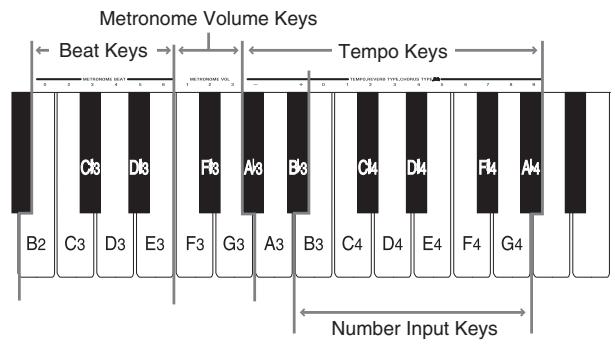
Using the Metronome
PREPARATION
- Check to make sure that the indicator above the RECORD button is off. If the indicator is on, press the RECORD button to turn it off.
- See the section of this User's Guide covering the memory for details on using the metronome in combination with the function.
To use the metronome
- Press METRONOME to start the metronome.
-
Set the beat of the metronome.
-
While holding down the CONTROL button, press the keyboard key that corresponds to the beat setting you want to select.
- A note does not sound when you press a keyboard key while holding down CONTROL.
-
The first value of the beat can be set to a value of 2 through 6. The bell (indicating the first beat of a measure) does not sound while a value of 0 is specified. All beats are indicated by a click sound. This setting lets you practice with a steady beat, without worrying about how many beats there are in each measure.
-
Change the tempo setting as described below.
-
A note does not sound when you press a keyboard key while holding down CONTROL.
-
While holding down the CONTROL button, press keyboard key A^b3 (-) to decrease tempo or B^b3 (+) to increase it. Holding down either keyboard key changes the setting at high speed.
-
You can also change the tempo setting(beats per minute) by holding down the CONTROL button and using keyboard keys B3 through Ab4 to input values from 0 to 9. You can input a two-digit or three-digit tempo value. Note that the tempo value you input is applied when you release the CONTROL button. The tempo setting does not change if you input a one-digit value or a value that is outside of the allowable setting range.
-
The tempo can be set within the range of 30 to 255 (beats per minute).
-
When you want to stop the metronome, press METRONOME again.
-
Pressing METRONOME again restarts the metronome sound using the current beat and tempo setting.
- If you want to change both the tempo and the beat before restarting the metronome, perform the above procedure here.
NOTE
- You can change metronome beat and tempo settings at any time, even while the metronome is sounding.
- You can also use the metronome in combination with memory play. See the section of this User's Guide covering the function for details.
Adjusting the Metronome Volume
Use the following procedure to increase and decrease the volume of the metronome beat.
To adjust the metronome volume
-
While holding down the CONTROL button, press the keyboard key that corresponds to the metronome volume setting you want to select.
-
A note does not sound when you press a keyboard key while holding down CONTROL.
- You can set a value from 1 to 3.
NOTE
- The metronome volume is automatically set to 2 whenever you turn on the digital piano power.
Using the Memory
This section describes how to record keyboard play to memory and playback data from memory.
About the Memory
Memory Capacity
Memory can hold up to 2,500 notes (one song).
- Recording stops automatically and the indicator above the RECORD button goes out whenever memory becomes full.
Recorded Data
The following is a list of the data that can be recorded in memory once recording starts.
- Anything you played on the keyboard (Received MIDI data is not recorded.)
- Tone settings and any tone setting changes
- Beat setting used during recording
- Pedal operations
Recorded Data Storage
This digital piano has a lithium battery to supply power to retain memory contents even while power is off.* The life of the lithium battery is five years after the date of manufacture of the digital piano. Be sure to contact your CASIO Service Provider about having the lithium battery replaced every five years.
- Never turn off the digital piano power while a record operation is in progress.
IMPORTANT!
- Recording new data to a song memory area automatically deletes any data previously stored in that song memory area.
- Turning off power while a record operation is in progress deletes anything recorded up to that point.
- CASIO shall not be held responsible for any losses by you or any third party due to loss of data caused by malfunction or repair of this digital piano, or by battery replacement.
Recording
To record notes from the keyboard
PREPARATION
- Select the tone and effects you want to start with.
-
If you want to use the metronome during recording, start the metronome. Use the procedure under "Using the Metronome" on page E-16 to set the beat and the tempo.
-
Press the RECORD button to put the digital piano into record standby.
-
The indicator above the RECORD button flashes, which indicates record standby.
- You can also change the metronome's beat setting at this time.
-
If you want the metronome to sound while you are recording, press the METRONOME button here to start the metronome.
-
Play something on the keyboard to start recording.
-
What you play sounds from the speakers and is recorded into memory.
- You can also start recording by pressing the START/ STOP button. In this case, a blank space is inserted in memory from the point that you press the START/ STOP button up to the point you start to play on the keyboard.
-
When you start recording, the indicator above the RECORD button stops flashing and remains lit.
-
After you are finished recording, press the START/ STOP button to stop the record operation.
-
At this time the indicator above the RECORD button goes out.
- To stop the metronome, press the METRONOME button.
Here you can press the START/STOP button and play back the data you just recorded.
Playback
Use the following procedure to play back from memory.
To play back from memory
-
Press the START/STOP button to start playback.
-
You can toggle the playback metronome sound on and off by pressing the METRONOME button.
- Playback stops automatically when the end of the tune is reached.
- To stop part way through, press the START/STOP button.
- To stop the metronome, press the METRONOME button.
NOTE
- You can change the playback tempo while playing back from memory.
- You cannot change the tone when playing back from memory.
Deleting Memory Contents
IMPORTANT!
- The delete operation cannot be undone. Make sure you play back memory contents and confirm that you no longer need it before performing the following procedure.
To delete memory contents
- Press the RECORD button to put the digital piano into record standby.
- The indicator above the RECORD button flashes.
- Press the START/STOP button twice to delete the contents of the selected song area.
Using Demo Tunes
This digital piano comes with four built-in demo tunes, each of which features one of the built-in tones.
Playing the Demo Tunes in Sequence
To play the demo tunes in sequence
-
Press the DEMO button to start demo tune play.
-
All the demo tunes play in sequence, starting from Tune 1.
Playing a Specific Demo Tune
To play a specific demo tune
-
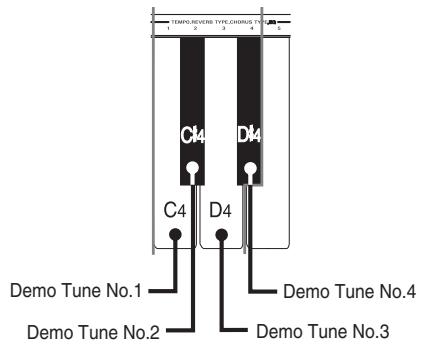
After playback starts, hold down the DEMO button and press the keyboard key that corresponds to the tune you want to play.
-
The tune you select continues to repeat until you stop it.
Stopping Demo Tune Play
To stop demo tune play
- Press the DEMO button or the START/STOP button to stop demo tune play.
NOTE
- You cannot change the tempo or tone, or turn on the metronome while a demo tune is playing.
- Playing on the keyboard during demo tune play plays notes using the demo tune's tone.
- You can adjust volume while demo playback is in progress.
- Tone, digital effect, transpose, and tuning settings are changed automatically when a demo tune is played. These changes are temporary, and remain in effect only while the demo tune is playing.
- Pedal operations performed during demo tune play are applied to notes played on the keyboard only. They are not applied to demo tune playback.
- Demo tune notes cannot be sent as MIDI data.
Demo Tune List
| No. | Keyboard Key | Tone | Title | Composer | Time |
| 1 | C4 | GRAND PIANO 1 | FALSE Op.64 Nr2 | F.F.Chopin | 2'11" |
| 2 | C4 | ELEC PIANO 2 | Original | — | 1'56" |
| 3 | D4 | VIBRAPHONE | Original | — | 1'12" |
| 4 | D4 | HARPSICHORD | HARMONIUS BLACKSMITH | G.F.HÄNDEL | 2'12" |
424A-E-021A
Keyboard Settings
Using Touch Select
This setting lets you adjust the touch of the keyboard to suit your own playing style. This means you can select a stronger touch for those with powerful hands, and a lighter touch for beginners and anyone else with less strength.
Use the keys shown below to change the Touch Select setting.
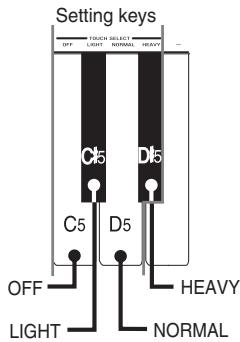
Touch Select Settings
OFF . Off
LIGHT ......... Light
This setting produces strong output, even when light pressure is applied to the keyboard.
NORMAL ....... Normal
This is the standard setting.
HEAVY ........ Heavy
This setting requires relatively strong keyboard pressure to produce normal output.
To change the Touch Select setting
-
While still holding down the CONTROL button, select the key touch by pressing one of the keyboard keys.
-
A note does not sound when you press a keyboard key while holding down CONTROL.
NOTE
- Touch select is automatically set to Normal whenever you turn on the digital piano power.
Using Transpose
Transpose lets you adjust the pitch of this digital piano in semitone steps.
This means you can change the key of the digital piano to suit the voice of a vocalist or the key of another musical instrument, without having to learn to play a piece in another key.
Use the keys shown below to change the transpose setting.
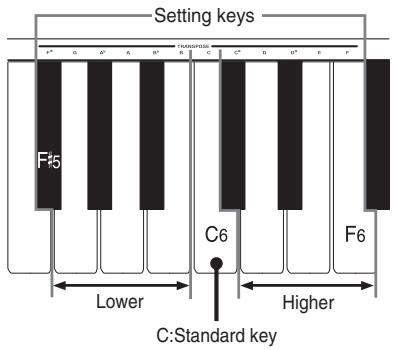
To change the transpose setting
-
While holding down the CONTROL button, select a key by pressing one of the keyboard illustrated above.
-
The digital piano can be transposed within a range of F# to C to F.
- A note does not sound when you press a keyboard key while holding down CONTROL.
NOTE
- The transpose value is automatically set to 0 (C) whenever you turn on the digital piano power.
Adjusting the Tuning of the Digital Piano
You can adjust the overall tuning of the digital piano for play along with another instrument. You can adjust tuning within a range of ± 50 cents* from A4 = 440.0Hz
Use the keyboard keys noted below to adjust the tuning of the digital piano.
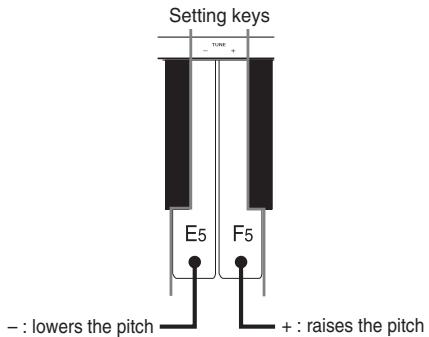
To adjust the tuning of the digital piano
-
While holding down the CONTROL button, press keyboard key E5 (-) to lower the tuning or F5 (+) to raise it. Each press of a key changes the tuning by about 0.8 cents* (1/128 semitone).
-
A note does not sound when you press a keyboard key while holding down CONTROL.
NOTE
- Holding down the CONTROL button and pressing keyboard keys E5 (-) and F5 (+) at the same time returns tuning to the standard A4 = 440.0Hz.
- 100 cents is equivalent to one semitone.
MIDI
What is MIDI?
The letters MIDI stand for Musical Instrument Digital Interface, which is the name of a worldwide standard for digital signals and connectors that makes it possible to exchange musical data between musical instruments and computers (machines) produced by different manufacturers. MIDI compatible equipment can exchange keyboard key press, key release, tone change, and other data as messages. Though you do not need any special knowledge about MIDI to use this digital piano as a stand-alone unit, MIDI operations require a bit of specialized knowledge. This section provides you with an overview of MIDI that will help to get you going.
What you can do with MIDI Send
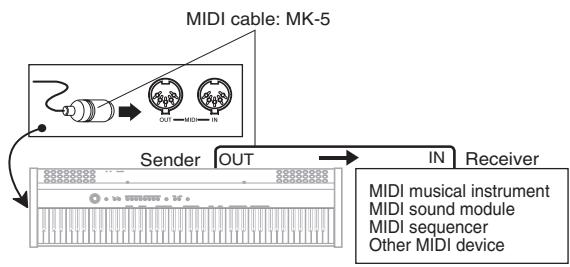
- What you play on the digital piano can be sent to the connected device as MIDI messages ^*1 . The connected device sounds notes in accordance with the messages it receives.
- MIDI messages ^1 can be sent from the digital piano to a commercially available MIDI sequencer ^2 for recording.
Receive
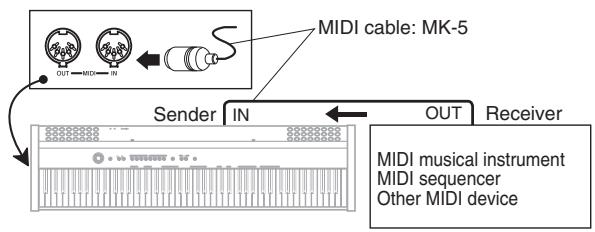
- The digital piano can be used to sound notes sent as MIDI messages from a connected device.
- Commercially available MIDI piano data can be sent from a MIDI sequencer*2 or MIDI-capable personal computer for playback on the digital piano. Up to 16 parts can be played simultaneously by the digital piano.
1 Keyboard play and memory playback data can be sent as MIDI data. Demo tunes cannot be sent as MIDI data.
2 A device that contains memory storage for MIDI data. Some MIDI sequencers feature external storage capabilities, which let you record a virtually unlimited number of tunes.
MIDI Connections
Two MIDI cables, one for sending and one for receiving, are required for two-way recording and playback capabilities with a connected MIDI sequencer or other device.
MIDI Channels
MIDI allows you to send the data for multiple parts at the same time, with each part being sent over a separate MIDI channel. There are 16 MIDI channels, numbered 1 through 16, and MIDI channel data is always included whenever you exchange data (key press, pedal operation, etc.).
Both the sending machine and the receiving machine must be set to the same channel for the receiving unit to correctly receive and play data. If the receiving machine is set to Channel 2, for example, it receives only MIDI Channel 2 data, and all other channels are ignored.
This digital piano is equipped with multi-timbre capabilities, which means it can receive messages over all 16 MIDI channels and play up to 16 parts at the same time.
Keyboard and pedal operations performed on this digital piano are sent out by selecting a MIDI channel (1 to 16) and then sending the appropriate message.
Simultaneous Receive Over Multiple Channels (Multi-Timbre)
The Multi-Timbre mode makes it possible to assign the digital piano's built-in tones to MIDI channels 1 through 16. Then you can simultaneously sound multiple channels to play from a commercially available multi-track sequencer.
NOTE
- See "Assigning Tones to Individual Channels" on this page for details on assigning tones to each channel.
- Up to 16 channels can be received simultaneously (Channel 1 through channel 16).
- The number of channels to be received simultaneously cannot be predetermined. If it becomes necessary to cancel a channel, the cancel operation must be performed on the sending side.
Setting the Keyboard Channel
This parameter sets the channel for sending MIDI messages to an external device. You can set any MIDI channel in the range of 1 to 16 as the keyboard channel.
To set the Keyboard Channel
- While still holding down the CONTROL button, select the Keyboard channel by pressing one of the keyboard keys illustrated below.
Example: Channel 8
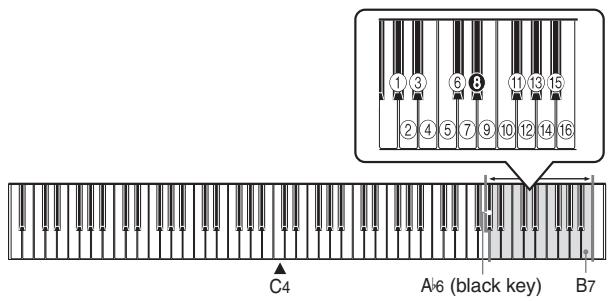
- A note does not sound when you press a keyboard key while holding down CONTROL.
NOTE
- The Keyboard Channel is automatically set to 1 whenever you turn on the digital piano power.
Assigning Tones to Individual Channels
You can assign tones to channels using a Program Change message sent from a connected MIDI device. You cannot change the tone assigned to each channel from the digital piano.
NOTE
- The GRAND PIANO 1 tone is automatically assigned to all channels whenever you turn on the digital piano power.
Sending Memory Playback Data
You can send memory playback as MIDI data.
The send channel used depends on the keyboard channel setting, as shown in the table below.
| Keyboard Play | Keyboard Channel |
| Memory | Keyboard Channel + 1* |
- When you have Channel 16 set as the keyboard channel, memory playback is send over Channel 1.
NOTE
- Pedal effect data recorded to memory is applied to play back from memory, and does not affect your performance on the keyboard. Likewise, pedal operations on the digital piano are applied to the keyboard only, and not to play back from the memory.
Turning Local Control On and Off
This setting effectively determines whether or not the keyboard and pedals of the digital piano are connected to the digital piano's sound source, as illustrated below.
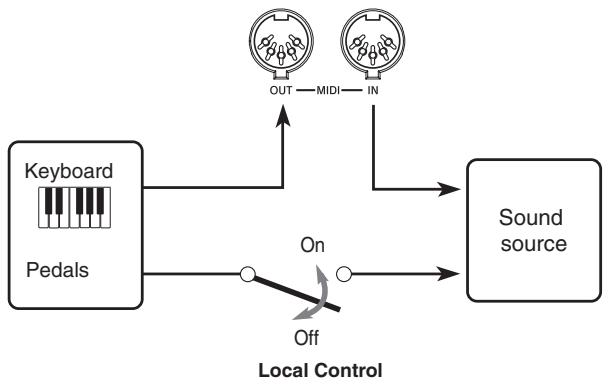
When Local Control is on (the normal setting), anything played on the keyboard is sounded by the internal sound source and simultaneously output from the MIDI OUT terminal. When off, anything played on the keyboard is output from the MIDI OUT terminal only, without being sounded by the sound source.
Local Control can be turned off when you are using the digital piano as the sound source of a connected sequencer or other device, and you want to guard against sound being produced should the digital piano keyboard be pressed accidentally.
To turn Local Control on and off
- While still holding down the CONTROL button, switch Local Control on and off by pressing one of the keyboard keys illustrated below.
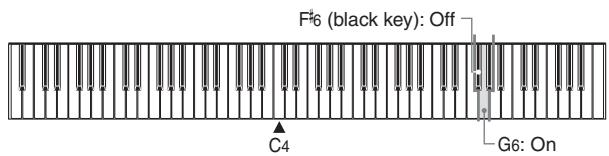
- A note does not sound when you press a keyboard key while holding down CONTROL.
NOTE
- Note that no sound will be produced from the digital piano's speakers if you press the keyboard while Local Control is turned off.
- Local Control is turned on automatically whenever you turn on the digital piano power.
MIDI Data Notes
This section provides details about the MIDI data this digital piano sends and receives. You can also find further technical information in the "MIDI Data Format" and "MIDI Implementation Chart"* at the end of this User's Guide.
- The MIDI Implementation Chart is a standard format summary of how data is transferred between this digital piano and a connected MIDI device.
Keyboard Data (Note On, Note Off, Note Number, Velocity)
The following four types of keyboard data can be sent and received.
| Data | Meaning |
| Note On | Keyboard key is pressed. |
| Note Off | Keyboard key is released. |
| Note Number | Which key is pressed. |
| Velocity | Pressure applied |
Tone Change Data (Program Change)
A program number is data used for tone selection. Program numbers come in handy when using the tones of this digital piano to play MIDI data received from an external sequencer or other MIDI device. When the program number received from another devices does not match one of the built-in tones of this digital piano, however, the tone change is ignored and play continues without a tone change.
The following shows the program numbers that are supported by this digital piano.
| ToneName | Send | Receive | ||||
| Bank Select | Program numbers | Bank Select | Program numbers | |||
| MSB | LSB | MSB | LSB | |||
| GRAND PIANO 1 | 0 | 0 | 0 | 0 | 0 | 0 |
| GRAND PIANO 2 | 0 | 0 | 1 | 0 | 0 | 1 |
| BRIGHT PIANO | 0 | 0 | 2 | 0 | 0 | 2 |
| MELLOW PIANO | 0 | 0 | 3 | 0 | 0 | 3 |
| ELEC PIANO 1 | 0 | 0 | 4 | 0 | 0 | 4 |
| ELEC PIANO 2 | 0 | 0 | 5 | 0 | 0 | 5 |
| VIBRAPHONE | 0 | 0 | 11 | 0 | 0 | 11 |
| HARPSICHORD | 0 | 0 | 6 | 0 | 0 | 6 |
Pedal and Effect Operation Data (Control Change and Universal System Exclusive Message)
Control Change is used to send and receive data about damper, soft, and sostenuto pedal* depress and release operations, as well as data about digital effects.
- You can connect up to two pedals to this digital piano. You can also specify either soft or sustainuto as the effect of the pedal connected to the SOFT/SOSTENUTO jack. Pressing a pedal connected to the SOFT/SOSTENUTO jack sends data that corresponds to the effect (soft or sustainuto) currently selected for the pedal.
Troubleshooting
| Symptom | Possible Cause | Action | Reference |
| No sound produced when keyboard keys are pressed. | 1. VOLUME knob set to MIN. 2. Headphones connected to the digital piano. 3. Local Control turned off. | 1. Move the VOLUME knob more towards MAX. 2. Disconnect the headphones from the digital piano. 3. Turn on Local control. | Page E-12 Page E-11 Page E-24 |
| Keyboard out of tune. | 1. Transpose is set to a value other than 0. 2. Incorrect tuning setting | 1. Change the transpose setting to 0, or turn the digital piano power off and then back on again. 2. Correct the tuning setting, or turn the digital piano power off and then back on again. | Page E-20 Page E-21 |
| No sound produced by demo tune play. | 1. VOLUME knob set to MIN. 2. Headphones connected to the digital piano. | 1. Move the VOLUME knob more towards MAX. 2. Disconnect the headphones from the digital piano. | Page E-12 Page E-11 |
| Memory contents deleted. | Lithium battery is dead. | Contact your CASIO Service Provider for replacement of the lithium battery. | Page E-28 |
| No sound produced by connected external MIDI sound source when the digital piano keys are pressed. | 1. The digital piano Keyboard Channel does not match the Keyboard Channel of the MIDI sound source. 2. Volume or expression setting of the external sound source is set to 0. | 1. Change the Keyboard Channel settings so they are identical. 2. Change the volume or expression setting of the external sound source to an appropriate value. | Page E-23 See the documentation that comes with the external sound source. |
Specifications
| Models: | PS-20 |
| Keyboard: | 88 piano keys (with touch response) |
| Polyphony: | 64 notes, maximum |
| Tones: | 8 |
| Digital Effects: | Reverb (8 types), Chorus (8 types) |
| Sound Quality Adjustment: | 3 types each for built-in speakers and headphones |
| Demo Tunes: | • Number of Tunes: 4 • Playback: Repeat (all tunes, one tune) |
| Memory: | • Operations: Real-time recording, playback • Capacity: Approximately 2,500 notes (one song) • Memory Backup: Built-in lithium battery (Battery Life: 5 years) |
| Pedals: | Damper, Soft/Sostenuto (Selectable) |
| Other Functions: | • Metronome: Beat (6 types), Tempo (1 = 30 to 255) • Touch Select: 3 types, off • Transpose: 1 octave (F# to C to F) • Tuning: A4 = 440.0Hz ±50 cents (adjustable) |
| MIDI: | 16 multi-timbre receive |
| Input/Output: | • Headphones: Stereo mini jacks × 2 • Pedal: Standard jacks × 2 • LINE OUT (R, L / MONO): Standard jacks × 2 Output Impedance; 2.3KΩ Output Voltage; 1.7V (RMS) MAX • Power: 12V DC • MIDI (OUT) (IN) |
| Speakers: | (16cm × 8cm) × 2 (Output: 5.0W + 5.0W) |
| Power Supply: | AC Adaptor : AD-12 |
| Power Consumption: | 12V --- 18W |
| Dimensions: | 129.2 × 34.2 × 13.9cm (507/8 × 131/2 × 51/2 inch) |
| Weight: | Approximately 20.5kg (45.2lbs) |
- Design and specifications are subject to change without notice.
Operational Precautions
Locating the Unit
Avoid the following locations.
- Areas exposed to direct sunlight and high humidity
- Areas subjected to very low temperatures
- Near a radio, TV, video deck, or tuner (unit can cause interference with audio or video signals)
Care of the Unit
- Never use benzene, alcohol, thinner or other such chemicals to clean the exterior of the unit.
- To clean the keyboard, use a soft cloth dampened with a weak solution of a mild neutral detergent and water. Wring out all excess moisture from the cloth before wiping.
Lithium Battery
This unit is equipped with a lithium battery to provide power needed to retain memory contents while unit power is turned off. Should the lithium battery go dead, all memory contents will be lost whenever you turn unit power off. The normal life of the lithium battery is five years from the time that the battery was installed. Be sure to periodically contact your retailer or authorized service provider to have the lithium battery replaced. Note that you will be charged separately for lithium battery replacement.
- Note that CASIO COMPUTER CO., LTD. shall not be held liable for any damages or losses or any claims by third parties arising from corruption or loss of data caused by malfunction or repair of the unit, or from battery replacement.
You may notice lines in the finish of the case of this product. These lines are the result of the molding process used to shape the plastic of the case. They are not cracks or breaks in the plastic, and are no cause for concern.
NOTE
- Unauthorized reproduction of this manual in its entirety or in part is expressly forbidden. All rights reserved.
- CASIO COMPUTER CO., LTD. shall not be held liable for any damages or losses or any claims by third parties arising from use of this product or this manual.
- The contents of this manual are subject to change without notice.
424A-E-031A
Appendix/APéndice
Initial Power On Settings
The table below shows the initial settings of the digital piano whenever power is turned on.
| Item | Setting | |
| Tone | GRAND PIANO 1 | |
| Effect | Reverb | Hall 1 (GRAND PIANO 1) |
| Chorus | Off (GRAND PIANO 1) | |
| Sound Quality Adjustment | Speakers | Type 2 |
| Headphones | Type 2 | |
| Metronome | Volume | 2 |
| Tempo | 120 | |
| Beat | 4 | |
| Touch Select | Normal | |
| Transpose | C | |
| Tuning | A4 = 440.0Hz | |
| MIDI | Keyboard Channel | Channel 1 |
| Local Control | On | |
| Tone Assigned to Each Channel | GRAND PIANO 1 | |
Items marked "★" are receive only.
Channel Messages
Note Messages
Note Off
Recognition
Format
Byte 1
Byte 1
1,2,3 1,3,4 2,3,4 3,4,5 4,5,6 5,6,7 6,7,8 7,8,9 8,9 9,10 10,11 11,12 12,13 13,14 14,15 15,16 16,17 17,18 18,19 19,20 20,21 21,22 22,23 23,24 24,25 25,26 26,27 27,28 28,29 29,30 30,31 31,32 32,33 33,34 34,35 35,36 36,37 37,38 38,39 39,40 40,41 41,42
A Bank Select message is sent at the same time when you select
a tone on the instrument. Modulation Wheel ★
Format
Remarks Note Off Velocity value is ignored.
Send
Format
Portamento Time ★
Format
n..... Voice Channel Number = 0H to FH (Ch1 to Ch16)
kk ... Note Number = 15H to 6CH
11 1111111111111111111111111111
Note On
Recog
Format

n..... Voice Channel Number = 0H to FH (Ch1 to Ch16)
kk .... Note Number = 00H to/FF vv .... Note On Velocity = 00H to 7FH
Send
Format

n..... Voice Channel Number = 0H to FH (Ch1 to Ch16)
kk .... Note Number = 15H to6CH Note: G_max value = 0.1 TFN

MIDI Data Format
n.....Voice Channel Number = 0H to FH (Ch1 to Ch16) vv ....Pan = 00H (left) to 40H (center) to 7FH right
In .... Voice Channel Number = 0H to FH (Ch1 to Ch16)
mm .... Data entry MSB value for the parameter that is selected
n.....Voice Channel Number = 0H to FH (Ch1 to Ch16)
mm .... Data entry MSB value for the parameter that is selected by: BRN and NRBN.
Data entry LSB value for the parameter that is selected
by RPN and NRPN
Data entry LSB value for the parameter that is selected
by RPN and NRPN
Recognition
A Bank Select message is
A bank Select message is sotone on the instrument
a tone on the instrument.
Modulation Wheel ★
at
Bute 1
n.......Voice Channel Number = 0H to FH (Ch1 to Ch16)
v.. Modulation Depth = 00H to 7FH
Rertamento Time ★
Format
```c ognition n....... Voice Channel Number = 0H to FH (Ch1 to Ch16) vv....... Sostenuto = 0H to 7FH (00H to 3FH:OFF, 40H to 7FH:ON)
n……Voice Channel Number =0H to FH (Ch1 to Ch16) vv……Sostenuto = 00H, 7FH (00H:OFF, 7FH:ON)

Recognition
n……Voice Channel Number = 0 Hto FH (Ch1 to Ch16) vv……Soft = 00H to7FH(00Hto3FF:OFF,40Hto7FH:ON)
Send n....... Voice Channel Number = 0H to FH (Ch1 to Ch16) vv..... Soft = 00H ,7FH(00H:OFF,7FH:ON)
Recognition n..... Voice Channel Number = 0H to FH (Ch1 to Ch16) vv ....Soft = 00H to 7FH (00H to 3FH:OFF,40H to 7FH:ON)
Resonance ★

n.....Voice Channel Number = 0H to FH (Ch1 to Ch16) vv.....Filter Resonance = 00H to 7FH
Release Time ★
Format

n. Voice Channel Number = 0H to FH (Ch1 to Ch16) vv. AMP Release Time = 00H to 7FH
Attack Time ★
Format

n.....Voice Channel Number = 0H to FH (Ch1 to Ch16) vv.....AMP Attack Time = 00H to 7FH
Recognition
Brightness ★
Format

Portamento Control ★
Format
Bute 1 Bute 2
ByeY
D. 34 × 16
n.....Voice Channel Number
kk ...... Source Note Number =
ect 1 Depth (Revert
at
#
Byte 1
BnH 5Br
n Voice Channel Number
yy.......Reverb Send Level = 00
ect 3 Depth (Chorus
- NRPN messages not defined by the instrument can also be received, but subsequent data entry values after undefined
NRPN messages are ignored. After the NRPN MSB and LSB are received and the applicable
control parameters settings are made, the value is set by receipt
of the MSB of the subsequent data entry. The data entry LSB is
ignored.
Rato Rate
NRPNMSB=01H
NRFIN LSB = 08H
Data Entry: MSB = mmH
Data Entry MSB = limitT
mm .... Vibrato Rate = 00H to 40H to 7FH (-64 to 0 to +63)
ignition
When the instrument receives this message, the preset Vibrato Rate
value for the tone is changed to the vibrato Kate value that corresponds to the data entry MSB of the received message. There is no change when the value of the data entry MSB is 40H(0)
rato Depth
NBRNMSR 01H
NRPN M5B-01H NRPN LSB-09H
NRFNLSB = 0.91 Data Entry MSB = mmH
mm ....... Vibrato Depth = 00H to 40H to 7FH (-64 to 0 to +63)
ignition
When the instrument receives this message, the preset Vibrato
Depth value for the tone is changed to the value that corresponds
to the data entry MSB of the received message. There is no change when the order of the data sent to MSB is 40X10).
When the value of the data entry MSB is 40H(0)
…
Rato Delay
NRPN MSB = 01H
NRPNLSB = 0 AH
Data Entry MSB = mmH
mm .... Vibrato Delay = 00H to 40H to 7FH (-64 to 0 to +63)
When the instrument receives this message, the preset Vibrato
Delay value for the tone is changed to the value that corresponds
to the data entry MSB of the received message. There is no change
when the value of the data entry MSB is 40H(0)
n.....Voice Channel Number = 0H to FH (Ch1 to Ch16) vv.....Filter Cutoff Frequency = 00H to 7FH
n.....Voice Channel Number = 0H to FH (Ch1 to Ch16)
NRPN (Non-Registered Parameter
Numbers)
Format

pm .... MSB of NRPN
pl.....LSB of NRPN
Filter Cut Off Frequency
NRPNMSB = 01H
NRPN LSB = 20H
Data Entry MSB = mmH
mm .... Filter Cut Off Free
Master Fine Tuning
RPNMSB = 00H
RPNLSB = 01H
Data Entry MSB = mmH
Data Entry LSB = 1H
mmll Master Fine
-100to0
m - 1 0 ;
ster Coarse Tun
RPN MSB = 0.0H RPN LSP = 0.2H
RPN LSB = 02H Data Entry: MSB = mmH
mm 11......... Master Fine Tuning (-100 to 0 to +99.9)
ster Coarse Tun
RPN MSB = 0.0H RPN LSR = 0.2U
KP N ESB =02H Data Entry MSB
Data Entry MSB = HART
mm .... Master Coarse Tuning = 28H to 40H to 58H (-24 to 0 to +24 semitones)
gnition
The data RPN Null
RPN MSB 7FH RPN LSB = 7FH
gnition
Once an RPN Null is sent, all received data entry MSBs and LSBs are ignored until another RPN message other than RPN Null or an NPPRN message is received.
NRI N message is received.
Program Change
#
Format
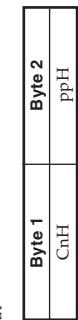
pp.....Program Number = 00H to 7FH
Program Change messages are sent when you select a tone on the instrument.
mm .... Pitch Bend Sensitivity = 00H to 18H (0 to 24 semitones)
Cognition
The data entry LSB is always ignored.

p. Vices Channel Number = 0H to EH (Ch1 to Ch16).
11.111111111111111111111111111111111111111111111111111111111111111111111
mm Pitch Bend Change MSB = 00H to 7FH
Inn # 1111 1111
Envelop
Recognition
Envelope Decay Ti
that corresponds to
Envelope Decay Ti
that corresponds to
Recogn
W
E1
424A E-064A
RPN (Registered Parameter Numbers)
Format

n..... Voice Channel Number = 0H to FH (Ch1 to Ch16)
qm.....MSB of RPN
qI ......... LSB of RPN
…
Recognition
- RPN messages not defined by the instrument can also be transmitted by other instruments, such as left and right RPN.
received, but subsequent messages are ignored.
- After the MSR and LSR of an RPN are received and the applicable
After the MSB and LSB of an IR N are received and the applicable control parameters settings are made, the value is set by receipt
of the MSB of the subsequent data entry. The data entry LSB is
ignored.
Send
An RPN is sent whenever an operation that changes the parameter assigned to the RPN is performed.
180^
Pitch Bend Sensitivity ★
10.2014 10.2015
RPN MSB = 00H
RPN LSB = 00H
Data Entry MSB = mmH
mm Pitch Bond Sensi
NRPNLSB = 64H
Data Entry MSB = mmH
mm . Filter / AMR Eruptane Decay Time - 090Ht , 40Ht , 7TH
Hunt .... Filter/ AMT Env. (64 to 0 to +63)
Filter/AMP Envelope Decay Time
Recognition
When the instrument receives this message, the preset Filter/AMP
Envelope Attack Time value for the tone is changed to the value
that corresponds to the data entry MSB of the received message.
There is no change when the value of the data entry MSB is 40H(0)
er/AMP Envelope Decay Time
NIRPNMSB-01H
NRPNLSB = 64H
Data Entry MSR = mmH
mm ... Resonance = 00H to 40H to 7FH (-64 to 0 to +63)
Recognition
When the instrument receives this message, the preset Filter
Resonance value for the tone is changed to the value
corresponds to the data entry MSB of the received message. There is no need to use the value of the data entry MSB in 40H(0)
It is no change when the value of the data entry MSB is 40H(0)
er/AMP Envelope Attack Time
NPRNMSR-01H
NRFN1MSB=0.17 NRPNNLSB=63H
Data Entry MSB = mmH
m - 1 0 ;
mm .... Filter/AMP Env
Mono Mode On ★
Format
Receipt of the All Note Off message mutes all tones being played by data received over the MIDI channels (note off). If Hold 1 or Sostenuto is turned on when the All Note Off message is received, notes are sustained in accordance with the corresponding pedal operation.
This message is sent when the CONTROL button is pressed and when memory playback is stopped.
S木弟形 COBD = S COD + S BDO = S BOC +
gnitionReceipt of an Omni Mode On message does not turn
Receipt of an Omni Mode On message does not turn off instrument Omni Mode. Receipt of an Omni Mode On message is tracked on all Notes Off messages.
treated as an All Note Off message.
Omni Mode On
Format
n..... Voice Channel Number = 0H to FH (Ch1 to Ch16)
Receipt of an Omni Mode On message does not turn on the
instrument Omni Mode. Receipt oftreated as an All Note Off message
Recognition
The value 1H mmH is 00H 00H at the lowest pitch, 00H 40H at
mid-pitch, and 7FH/7H at the highest pitch. Xeepert is at the LCR and MCR in the stent of 14 bit
You have to set both the LSB and MSB together to form a 14-bit value and make a Pitch Bend Change message recognized by
value and make a pitch bend Change message recognized by the instrument
Channel Mode Message
All Sound Off ★
Format
Receipt of this message immediately mutes all tones playing over the MIDI channels.
ct All Cart
Reset All Controller ★
Format
Receipt of the Reset A controllers to reset
| Controller Name | Reset Value |
| Polyphonic Key Pressure | vvH = 00H |
| Modulation Wheel | vvH = 00H |
| Expression Controller | vvH = 7FH |
| Hold 1 | vvH = 00H |
| Portamento | vvH = 00H |
| Sostenuto | vvH = 00H |
| Soft | vvH = 00H |
| NRPN | msb = 7FH, lsb = 7FH |
| RPN | msb = 7FH, lsb = 7FH |
| Channel Pressure | vvH = 00H |
| Pitch Bend Change | lH mmH = 00H 40H |
124A-E-065A
System Messages
Universal System Exclusive Message
GM System On ★
Format
F0H 7EH 7FH 09H 01H F7H
This message cannot be sent.
Reverb Type
Forma
F0 7F 7F 04 05 01
Reverb Type
pp = 0;
vv = 0: Room1
= 1 :Room2
-2:Kohm3
-3:Hell1
=3.Hall2
= 6 :Delay
= 7 :PanDel
= 8:Stage
Send
This message is sent when a reverb switch operation or other reverb
type setting operation is performed.
m = 311
Receipt of this message sets the reverb type.
Chorus Type
Format
F0 7F
F0 7F 7F 04 05 01 01 01 02 pp vv F7
Chorus Type
pp = 0;
vv = 0:Chorus1
1:Chorus 2.C1
2:Chorus4
4:EstackCH
= 5 : Flanger.
= 6 :ShortDe
= 7:ShortDel
Send This message is sent when a chorus switch operation or other chorus type setting operation is performed.
ive Receipt of this message sets the chorus type.
424A-E-066A
MIDI Implementation Chart
Version: 1.0
Model PS-20
| Function ... | Transmitted | Recognized | Remarks | |
| Basic Channel | Default Changed | 1 | 1-16 | |
| 1-16 | 1-16 | |||
| Mode | Default Messages Altered | Mode 3 X *** **** | Mode 3 X | |
| Note Number: | True voice | 21-108 *** **** | 0-127 0-127 | |
| Velocity | Note ON Note OFF | ○ 9nH V = 1-127 X 8nH V = 64 | ○ 9nH V = 1-127 X 9nH V = 0, 8nH V = ** | ** = no relation |
| After Touch | Key's Ch's | X X | X X | |
| Pitch Bend | X | O | ||
| Control Change | 0, 32 1 X 5 X 6, 38 7 X 10 X 11 X 64 X 65 X 66 O 67 O 71 X 72 X 73 X 74 X 84 X 91 | ○ X 1 X 1 X 1 X*1 X 1 X 1 X 1 X 1 X 1 X 1 X 1 X 1 X 1 X 1 X 1 X 1 X 1 X 1 X 1 X 1 X 1 X 1 X 1 X 1 X 1 X 1 X 1 X 1 X 1 X 1 X 1 X 1 X 1 X 1 X 1 X 1 X 1 X 2 X 2 X 2 X 2 X 2 X 2 X 2 X 2 X 2 X 2 X 2 X 2 X 2 X 2 X 2 X 2 X 2 X 2 X 2 X 2 X 2 X 2 X 2 X 2 X 2 X 2 X 2 X 2 X 2 X 2 X 2 X 2 X 2 X 2 | ○ ○ ○ ○ O*1 O O O O O O O O O O O O O O O O O O O O O O O O O O O O O O O O O O O O O O O O O O O O O O O O O O O O O O O O O O O O O O O O O O O O O O O O O O O O O O O O O O O O O O O O O O O O O O O O O O O O | Bank select Modulation Portamento Time Data entry Volume Pan Expression Damper Portamento Sostenuto Soft Resonance Release Time Attack Time Brightness Portamento Control Reverb send |
424A-E-078A
| 72 | X | O | Release Time |
| 73 | X | O | Attack Time |
| 74 | X | O | Brightness |
| 84 | X | O | Portamento Control |
| 91 | O | O | Reverb send |
| 93 | O | O | Chorus send |
| 98, 99 | X | O | NRPN LSB, MSB |
| 100, 101 | O | O | RPN LSB, MSB |
| 120 | X | O | All sound off |
| 121 | X | O | Reset all controller |
| Program Change : True # | O 0-6, 11********** | O 0-6, 11 0-6, 11 | |
| System Exclusive | O | O | |
| System : Song Pos Common : Song Sel : Tune | X | X | |
| X | X | ||
| X | X | ||
| System : Clock Real Time : Commands | X | X | |
| X | X | ||
| Aux : Local ON/OFF : All notes OFF Messages : Active Sense : System Reset | X | X | |
| O | O | ||
| X | O | ||
| X | X | ||
| Remarks | *1 : Fine tune and coarse tune send/receive, and RPN Null, pitch bend sense, vibrato rate, vibrato depth, vibrato delay, Filter cut off frequency, Filter resonance, Filter/AMP envelope attack time, Filter/AMP envelope decay time and Filter/AMP envelope release time receives | ||
| Mode 1 : OMNI ON, POLY Mode 2 : OMNI ON, MONO O: Yes Mode 3 : OMNI OFF, POLY Mode 4 : OMNI OFF, MONO X: No | |||
424A-E-079A

This recycle mark indicates that the packaging conforms to the environmental protection legislation in Germany.