
LK-100 - Electronic keyboard CASIO - Free user manual and instructions
Find the device manual for free LK-100 CASIO in PDF.


User questions about LK-100 CASIO
0 question about this device. Answer the ones you know or ask your own.
Ask a new question about this device
Download the instructions for your Electronic keyboard in PDF format for free! Find your manual LK-100 - CASIO and take your electronic device back in hand. On this page are published all the documents necessary for the use of your device. LK-100 by CASIO.
USER MANUAL LK-100 CASIO
This equipment has been tested and found to comply with the limits for a Class B digital device, pursuant to Part 15 of the FCC Rules. These limits are designed to provide reasonable protection against harmful interference in a residential installation. This equipment generates, uses and can radiate radio frequency energy and, if not installed and used in accordance with the instructions, may cause harmful interference to radio communications. However, there is no guarantee that interference will not occur in a particular installation. If this equipment does cause harmful interference to radio or television reception, which can be determined by turning the equipment off and on, the user is encouraged to try to correct the interference by one or more of the following measures:
Reorient or relocate the receiving antenna.
- Increase the separation between the equipment and receiver.
- Connect the equipment into an outlet on a circuit different from that to which the receiver is connected.
- Consult the dealer or an experienced radio/TV technician for help.
FCC WARNING
Changes or modifications not expressly approved by the party responsible for compliance could void the user's authority to operate the equipment.
Important!
Please note the following important information before using this product.
-
Before using the optional AD-5 Adaptor to power the unit, be sure to check the AC Adaptor for any damage first. Carefully check the power cord for breakage, cuts, exposed wire and other serious damage. Never let children use an AC adaptor that is seriously damaged.
-
Never attempt to recharge batteries.
- Do not use rechargeable batteries.
- Never mix old batteries with new ones.
- Use recommended batteries or equivalent types.
- Always make sure that positive (+) and negative (-) poles are facing correctly as indicated near the battery compartment.
- Replace batteries as soon as possible after any sign they are getting weak.
- Do not short-circuit the battery terminals.
- The product is not intended for children under 3 years.
- Use only CASIO AD-5 adaptor.
- The AC adaptor is not a toy.
- Be sure to disconnect the AC adaptor before cleaning the product.
Congratulations on your selection of the CASIO electronic musical instrument.
- Before using the instrument, be sure to carefully read through the instructions contained in this manual.
- Be sure to keep all user documentation handy for future reference.
Symbols
Various symbols are used in this user's guide and on the product itself to ensure that the product is used safely and correctly, and to prevent injury to the user and other persons as well as damage to property. Those symbols along with their meanings are shown below.

DANGER
This symbol indicates information that, if ignored or applied incorrectly, creates the danger of death or serious personal injury.

WARNING
This indication stipulates matters that have the risk of causing death or serious injury if the product is operated incorrectly while ignoring this indication.

CAUTION
This indication stipulates matters that have the risk of causing injury as well as matters for which there is the likelihood of occurrence of physical damage only if the product is operated incorrectly while ignoring this indication.
Symbol Examples

This triangle symbol () means that the user should be careful. (The example at left indicates electrical shock caution.)

This circle with a line through it () means that the indicated action must not be performed. Indications within or nearby this symbol are specifically prohibited. (The example at left indicates that disassembly is prohibited.)

The black dot () means that the indicated action must be performed. Indications within this symbol are actions that are specifically instructed to be performed. (The example at left indicates that the power plug must be unplugged from the electrical socket.)
DANGER
Alkaline Batteries
Perform the following steps immediately if fluid leaking from alkaline batteries ever gets into your eyes.
- Do not rub your eyes! Rinse them with water.
- Contact your physician immediately.
Leaving alkaline battery fluid in your eyes can lead to loss of sight.

WARNING
Smoke, Strange Odor, Overheating
Continued use of the product while it is emitting smoke, a strange odor, or heat creates the risk of fire and electric shock. Take the following steps immediately.
- Turn off power.
- If you are using the AC adaptor for power, unplug it from the wall outlet.
- Contact your original retailer or an authorized CASIO Service Provider.
AC Adaptor
-
Misuse of the AC adaptor creates the risk of fire and electric shock. Always make sure you observe the following precautions.
-
Be sure to use only the AC adaptor that is specified for this product.
- Use only a power source whose voltage is within the rating marked on the AC adaptor.
- Do not overload electrical outlets and extension cords.


-
Misuse of the AC adaptor's electric cord can damage or break it, creating the risk of fire and electric shock. Always make sure you observe the following precautions.
-
Never place heavy objects on the cord or subject it to heat.
- Never try to modify the cord or subject it to excessive bending.
- Never twist or stretch the cord.
-
Should the electric cord or plug become damaged, contact your original retailer or authorized CASIO Service Provider.
-
Never touch the AC adaptor while your hands are wet.
Doing so creates the risk of electric shock.
- Use the AC adaptor where it will not be splashed with water. Water creates the risk of fire and electric shock.
- Do not place a vase or any other container filled with liquid on top of the AC adaptor. Water creates the risk of fire and electric shock.
Batteries
Misuse of batteries can cause them to leak, resulting in damage to nearby objects, or to explode, creating the risk of fire and personal injury. Always make sure you observe the following precautions.
- Never try to take batteries apart or allow them to become shorted.
- Never expose batteries to heat or dispose of them by incineration.
- Never mix old batteries with new ones.
- Never mix batteries of different types.
- Do not charge the batteries.
- Make sure the positive (+) and negative (-) ends of the batteries are facing correctly.


Do not incinerate the product.
Never throw the product into fire. Doing so can cause it to explode, creating the risk of fire and personal injury.
Water and Foreign Matter
Water, other liquids, and foreign matter (such as pieces of metal) getting into the product create the risk of fire and electric shock. Take the following steps immediately.
- Turn off power.
- If you are using the AC adaptor for power, unplug it from the wall outlet.
- Contact your original retailer or an authorized CASIO Service Provider.
Disassembly and Modification
Never try to take this product apart or modify it in any way. Doing so creates the risk of electric shock, burn injury, or other personal injury. Leave all internal inspection, adjustment, and maintenance up to your original retailer or authorized CASIO Service Provider.
Dropping and Impact
Continued use of this product after it has been damaged by dropping or subjecting it to strong impact creates the risk of fire and electric shock. Take the following steps immediately.
- Turn off power.
- If you are using the AC adaptor for power, unplug it from the wall outlet.
- Contact your original retailer or an authorized CASIO Service Provider.


Plastic Bags
Never place the plastic bag the product comes in over your head or in your mouth. Doing so creates the risk of suffocation.
Particular care concerning this precaution is required where small children are present.


Keep off of the product and stand.*
Climbing onto the product or stand can cause it to tip over or become damaged. Particular care concerning this precaution is required where small children are present.

Location
Avoid locating the product on an unstable stand, on an uneven surface, or any other unstable location. An unstable location can cause the product to fall over, creating the risk of personal injury.
CAUTION
AC Adaptor
-
Misuse of the AC adaptor creates the risk of fire and electric shock. Always make sure you observe the following precautions.
-
Do not locate the electric cord near a stove or other sources of heat.
-
Never pull on the cord when unplugging from the electrical outlet. Always grasp the AC adaptor when unplugging.
-
Misuse of the AC adaptor creates the risk of fire and electric shock. Always make sure you observe the following precautions.
-
Insert the AC adaptor into the wall outlet as far as it will go.
- Unplug the AC adaptor from the wall outlet during lightening storms or before leaving on a trip or other long-term absence.
- At least once a year, unplug the AC adaptor from the wall outlet and wipe away any dust that is built up in the area around the prongs of the plug.
Relocating the Product
Before relocating the product, always unplug the AC adaptor from the wall outlet and disconnect all other cables and connecting cords. Leaving cords connected creates the risk of damage to the cords, fire, and electric shock.


Cleaning
Before cleaning the product, always unplug the AC adaptor from the wall outlet first. Leaving the AC adaptor plugged in creates the risk of damage to the AC adaptor, fire, and electric shock.

Batteries
Misuse of batteries can cause them to leak resulting in damage to nearby objects, or to explode, creating the risk of fire and personal injury. Always make sure you observe the following precautions.

- Use only batteries that are specified for use with this product.

- Remove batteries from the product if you do not plan to use it for a long time.
Connectors
Connect only the specified devices and equipment to the product's connectors. Connection of a nonspecified device or equipment creates the risk of fire and electric shock.

Location
Avoid the following locations for this product. Such locations create the risk of fire and electric shock.
- Areas subject to high humidity or large amounts of dust.
- In food preparation areas or other areas subject to oil smoke.
- Near air conditioning equipment, on a heated carpet, in areas exposed to direct sunlight, inside of a vehicle parked in the sun, or any other area that subjects the product to high temperatures.
Display Screen
- Never push on the display screen's LCD panel or subject it to strong impact. Doing so can cause the LCD panel's glass to crack, creating the risk of personal injury.
- Should the LCD panel ever crack or break, never touch the liquid inside of the panel. LCD panel liquid can cause skin irritation.
- Should LCD panel liquid ever get inside your mouth, immediately wash out your mouth with water and contact your physician.
- Should LCD panel liquid ever get into your eyes or onto your skin, rinse with clear water for at least 15 minutes, and then contact a physician.
Sound Volume
Do not listen to music at very loud volumes for long periods. Particular care concerning this precaution is required when using headphones. High volume settings can damage your hearing.
Health Precaution
In extremely rare cases, exposure to strong sudden light or flashing light can cause momentary muscle spasms, loss of consciousness, or other physical problems with some individuals.
- If you suspect that you might be susceptible to any condition such as this, be sure to consult with your physician before using this product.
- Use this product in an area that is well illuminated.
- Should you ever feel any symptoms similar to those described above when using this product, stop using it immediately and contact your physician.


Heavy Objects
Never place heavy object on top of the product.

Doing so can make the product top heavy, causing the product to tip over or the object to fall from it, creating the risk of personal injury.

Correct Stand* Assembly
An incorrectly assembled stand can tip over, causing the product to fall and creating the risk of personal injury.
Make sure you assemble the stand correctly, following the assembly instructions that come with it. Make sure you mount the product on the stand correctly.
- Stand is available as an option.
IMPORTANT!
When using batteries, be sure to replace them or shift to one of the alternate power sources whenever you notice any of the following symptoms.
- Dim power indicator
Instrument does not turn on - Display that is flickering, dim, or difficult to read
- Abnormally low speaker/headphone volume
Distortion of sound output - Occasional interruption of sound when playing at high volume
- Sudden power failure when playing at high volume
- Flickering or dimming of the display when playing at high volume
- Continued sound output even after you release a key
- A tone that is totally different from the one that is selected
- Abnormal rhythm pattern and Song Bank play
- Loss of power, sound distortion, or low volume when playing from a connected computer or MIDI device
- Abnormally low microphone volume
Distortion of microphone input - Dim power supply indicator when a microphone is used
On-screen fingering and timing indicators
- Easy-to-understand on-screen indicators help to simplify keyboard play, even for novices.
100 amazingly realistic tones
Enhanced auto-accompanyment function for greater versatility
- 50 built in auto-accompaniment patterns.
100 Built-in Song Bank tunes
- A total of 100 built-in Song Bank tunes comes built in for playback enjoyment or play-along practice.
3-Step Lesson System
- Develop your musical skills by following the keys as they light. First you become familiar with the timing of the notes by watching the keys light as you playback one of the 100 built-in Song Bank tunes. Next, practice playing along at a pace that's comfortable for you. Finally, try playing along at the normal tempo for the Song Bank tune.
- A simulated human voice is used during Step 1 or Step 2 play to call out the fingers you should use to play the required notes (Voice Fingering). The timing of notes is also indicated on the display screen.
Auto Accompaniment
- Simply specify a chord and the keyboard automatically produces the matching rhythm, bass, and chord patterns. One-touch fill-ins make accompaniments sound interesting and natural.
Transpose Function
- An easy operation instantly changes the key of the keyboard.
MIDI compatibility
- Connecting to another MIDI device lets you sound notes on both this keyboard and the connected device by playing on this keyboard.
Microphone jack
- Connect a commercially available microphone and you can sing along with Song Bank tunes.
Safety Precautions E-1
Main Features E-6
General Guide. E-8
Attachment of Score Stand. E-9
Quick Reference .E-10
Power Supply. E-11
Using batteries. E-11
Using the AC Adaptor E-11
Auto Power Off. E-12
Power On Alert. E-12
Care of Your Keyboard .......E-12
Connections. E-13
Phones/Output Jack .E-13
Sustain Jack E-13
Using the Microphone Jack .E-13
Accessories and Options E-14
Basic Operations. E-15
To switch power on and off .E-15
To change tones E-15
Other Useful Functions E-16
Playing the demo tunes .E-17
Playing rhythms E-18
Using auto-accompaniment E-18
Improvising with the preset patterns.....E-20
3-Step Lesson System......E-21
Using 3-Step Lesson System .E-21
Voice Fingering Guide E-23
Timing Indicator E-23
Step 1: Master the timing. E-24
Step 2: Master the melody. E-25
Step 3: Play at normal speed .E-25
To practice the left hand part E-26
MIDI E-27
What is MIDI? E-27
General MIDI E-27
Technical Reference......E-29
Troubleshooting E-29
Specifications. E-31
Appendix A-1
GM Tone Map List. A-1
Rhythm List .A-2
Fingered Chord Charts A-3
MIDI Implementation Chart
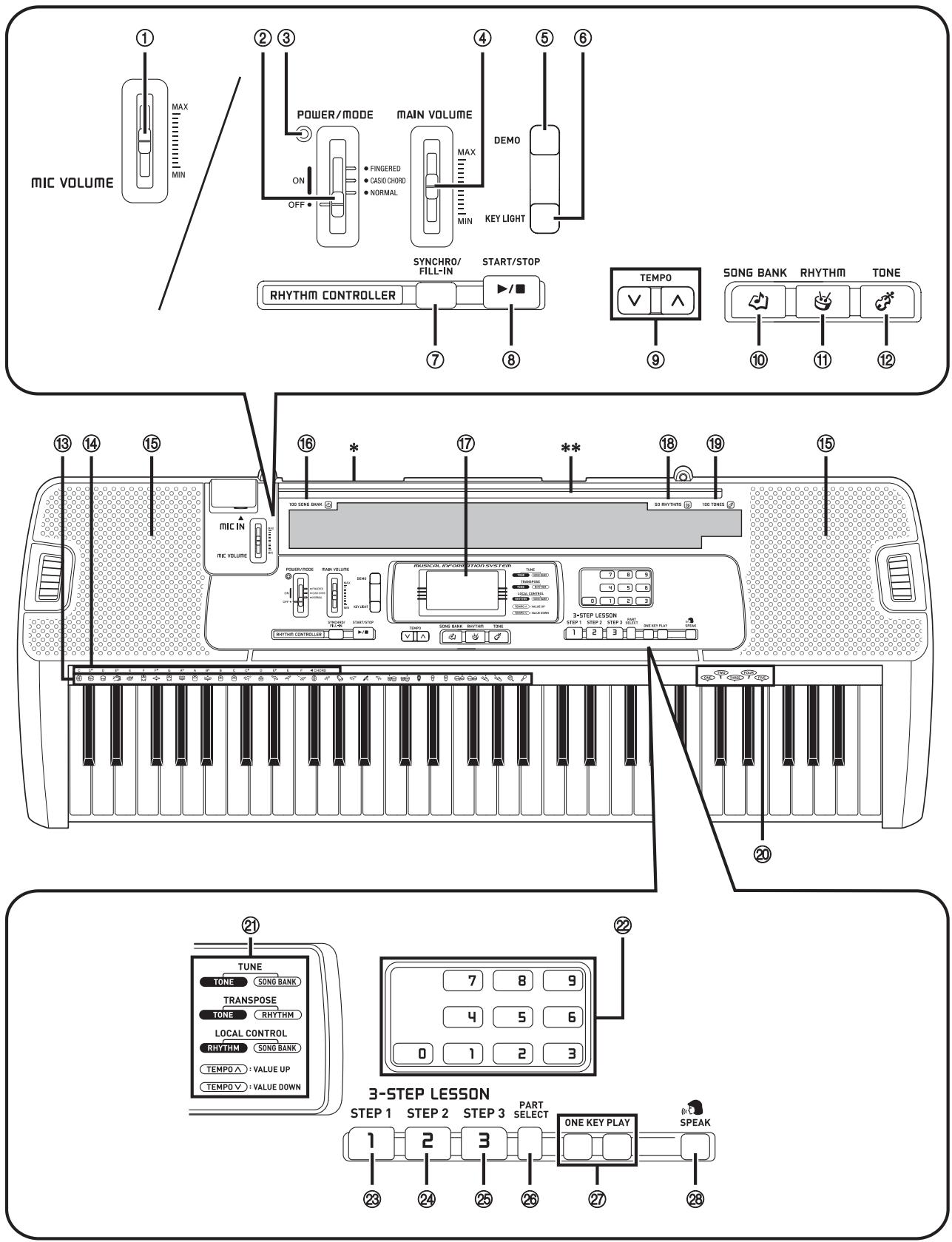
① MIC VOLUME slider
② POWER/MODE selector
③ Power indicator
④ MAIN VOLUME slider
⑤ DEMO button
⑥ KEY LIGHT button
- RHYTHM CONTROLLER
⑦ SYNCHRO/FILL-IN button
⑧ START/STOP button
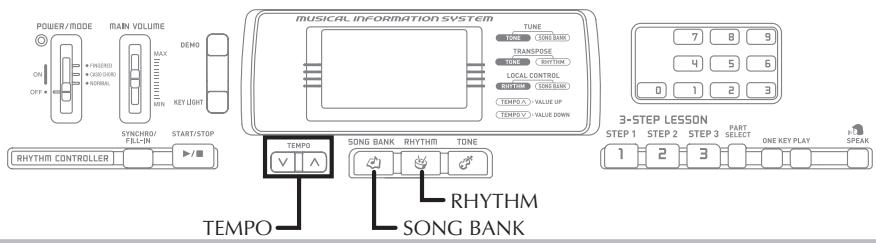
⑨ TEMPO buttons
SONG BANK button
⑪ RHYTHM button
TONE button
13 Percussion instrument list
CHORD root names
15 Speakers
16 100 SONG BANK list
⑦ Display
18 50 RHYTHMS list
See "Rhythm List" on page A-2 for details.
100 TONES list
See "GM Tone Map List" on page A-1 for details.
Voice 1 to 5
② TRANSPOSE/TUNE/LOCAL CONTROL operation guide
Number buttons
3-STEP LESSON
STEP1 button
STEP2 button
STEP3 button
PART SELECT button
ONE KEY PLAY buttons
28 SPEAK button
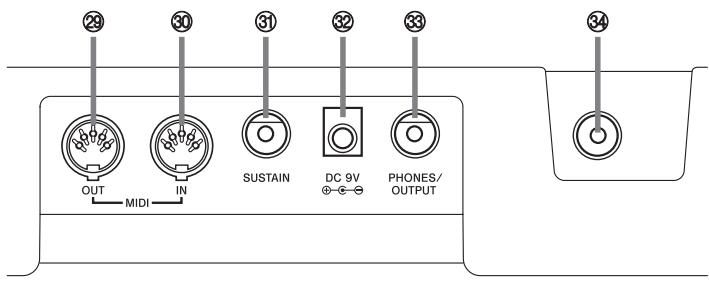
* Rear Panel
29 MIDI OUT terminal
30 MIDI IN terminal
SUSTAIN jack
DC 9V jack
③ PHONES/OUTPUT jack
For connection of commercially available headphones. Output from the speakers is automatically cut when headphones are connected.
MIC IN jack
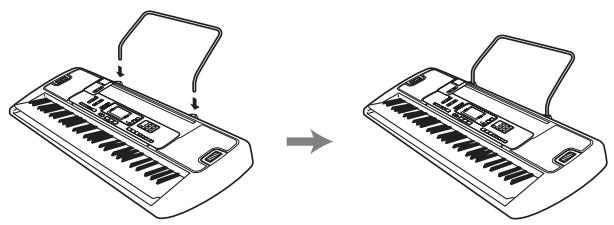
** Attachment of Score Stand
Insert both ends of the music stand provided with the keyboard into the two holes on the top surface.
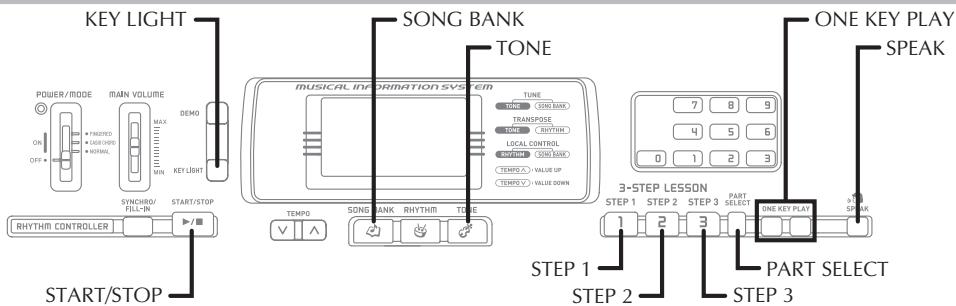
This section provides a quick overview of keyboard operation using steps one and two of the 3-step lesson feature. See page E-21 for detailed explanations of these steps.
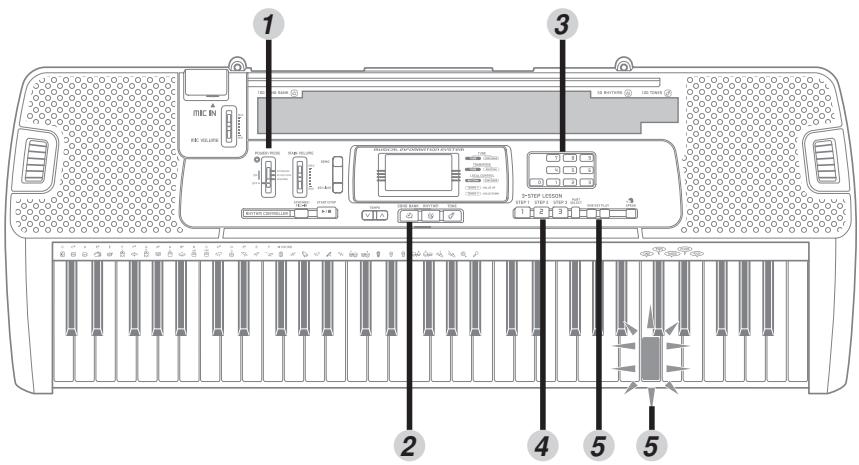
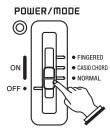
1 Set the POWER/MODE selector to NORMAL.
2 Press the SONG BANK button.

SONG BANK indicator appears
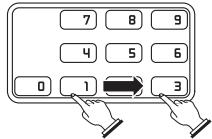
3 Find the tune you want to play in the Song Bank list, and then use the number buttons to input its two-digit number.
To select "13 TWINKLE TWINKLE LITTLE STAR", input 1 and then 3.

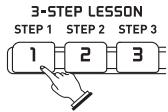
4 Press the STEP 1 button or STEP 2 button.
- When you do, the STEP 1 indicator or STEP 2 indicator appears.
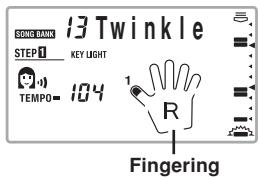
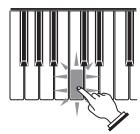
- The keyboard sounds a count beat and waits for you to play something on the keyboard. The keys that you need to press first flash.
- Play in accordance with the fingerings that appear on the display.
5 Play the melody part on the keyboard.
- The accompaniment tempo automatically adjusts to play along with your melody.
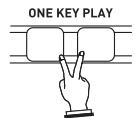
Play the notes on the keyboard.
- A sub-melody (obligato) plays in time with the melody.
- With Step 1, the correct melody note is played no matter which keyboard key you press.
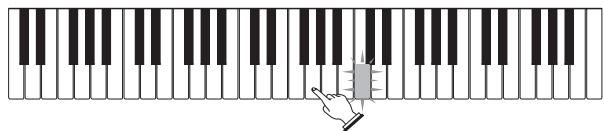
- Keep the key depressed as long as it stays lit.
- If you selected any song from number 84 through 99, the lit key goes out as soon as you press it.
- The key that corresponds to the next note you need to play will flash.
After you press the correct melody key, accompaniment proceeds to the next note.
This keyboard can be powered by current from a standard household wall outlet (using the specified AC adaptor) or by batteries. Always make sure you turn the keyboard off whenever you are not using it.
Using batteries
Always make sure you turn off the keyboard before loading or replacing batteries.
To load batteries
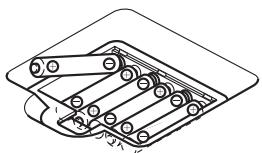
- Remove the battery compartment cover.
- Load 6 AA-size batteries into the battery compartment.
- Make sure that the positive (+) and negative (-) ends are facing correctly.
- Insert the tabs on the battery compartment cover into the holes provided and close the cover.
NOTE
- The keyboard may not function correctly if you load or replace batteries with power turned on. If this happens, turning the keyboard off and then back on again should return functions back to normal.
Important Battery Information
The following shows the approximate battery life.
Alkaline batteries 4 hours
Manganese batteries. 1 hour
The above value is standard battery life at normal temperature, with the keyboard volume at medium setting. Temperature extremes or playing at very loud volume settings can shorten battery life.
WARNING
Misuse of batteries can cause them to leak, resulting in damage to nearby objects, or to explode, creating the risk of fire and personal injury. Always make sure you observe the following precautions.
- Never try to take batteries apart or allow them to become shorted.
- Never expose batteries to heat or dispose of them by incineration.
- Never mix old batteries with new ones.
- Never mix batteries of different types.
- Do not charge the batteries.
- Make sure the positive (+) and negative (-) ends of the batteries are facing correctly.
CAUTION
Misuse of batteries can cause them to leak resulting in damage to nearby objects, or to explode, creating the risk of fire and personal injury. Always make sure you observe the following precautions.
- Use only batteries that are specified for use with this product.
- Remove batteries from the product if you do not plan to use it for a long time.
Using the AC Adaptor
Make sure that you use only the AC adaptor specified for this keyboard.
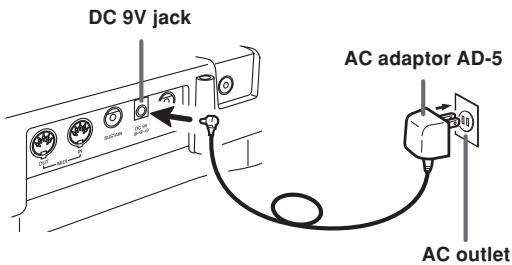
Specified AC Adaptor: AD-5
Note the following important precautions to avoid damage to the power cord.
During Use
- Never pull on the cord with excessive force.
- Never repeatedly pull on the cord.
- Never twist the cord at the base of the plug or connector.
- The power cord should not be stretched tight while it is in use.
During Movement
- Before moving the keyboard, be sure to unplug the AC adaptor from the power outlet.
During Storage - Loop and bundle the power cord, but never wind it around the AC adaptor.
IMPORTANT!
- Make sure that the keyboard is turned off before connecting or disconnecting the AC adaptor.
- Using the AC adaptor for a long time can cause it to become warm to the touch. This is normal and does not indicate malfunction.
Auto Power Off
When you are using battery power, keyboard power turns off automatically whenever you leave it on without performing any operation for about 6 minutes. When this happens, move the POWER/MODE selector to the OFF position and then back to NORMAL, CASIO CHORD, or FINGERED to turn power back on.
NOTE
- Auto Power Off is disabled (it does not function) when you are using the AC adaptor to power the keyboard.
Power On Alert
Keyboard keys light to alert you if you leave power on and do not perform any operation for about 6 minutes. Note that keys light only, and no sound is produced. When this happens, press any button or keyboard key to clear the power on alert.
NOTE
- Power on alert operates only when you are powering the keyboard using the AC adaptor. It does not operate when you are using batteries.
To disable Auto Power Off and power on alert
Hold down the TONE button while turning on the keyboard to disable Auto Power Off and power on alert.
NOTE
- When these functions are turned off, the keyboard does not turn off automatically and no alert is performed no matter how long it is left with no operation being performed.
- Auto Power Off and power on alert are enabled again when you manually turn off power and then turn it back on again.
Avoid heat, humidity or direct sunlight.
Do not overexpose the instrument to direct sunlight, or place it near an air conditioner, or in any extremely hot place.
Do not use near a TV or radio.
This instrument can cause video or audio interference with TV and radio reception. If this happens, move the instrument away from the TV or radio.
Do not use lacquer, thinner or similar chemicals for cleaning.
Clean the keyboard with a soft cloth dampened in a weak solution of water and a neutral detergent. Soak the cloth in the solution and squeeze until it is almost dry.
NOTE
- You may notice lines in the finish of the case of this keyboard. These lines are a result of the molding process used to shape the plastic of the case. They are not cracks or breaks in the plastic, and are no cause for concern.
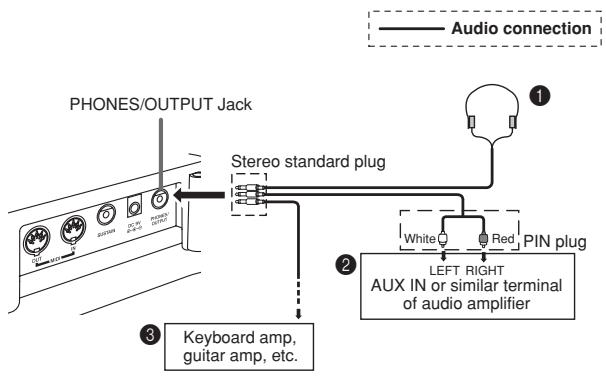
Phones/Output Jack
Before connecting headphones or other external equipment, be sure to first turn down the volume settings of the keyboard and the connected equipment. You can then adjust volume to the desired level after connections are complete.
[Rear Panel]
Connecting Headphones (Figure 1)
Connecting headphones cuts off output from the keyboard's built-in speakers, so you can play even late at night without disturbing anyone.
Audio Equipment (Figure 2)
Connect the keyboard to an audio equipment using a commercially available connecting cord with a standard plug on one end and two PIN plugs on the other end. In this configuration, you normally set the input selector of the audio equipment to the terminal (usually marked AUX IN or something similar) where the cord from the keyboard is connected. See the user documentation that comes with your audio equipment for full details.
Musical Instrument Amplifier (Figure ③)
Use a commercially available connecting cord to connect the keyboard to a musical instrument amplifier.
NOTE
- Be sure to use a connecting cord that has standard plugs on the ends you connect to the keyboard and amplifier.
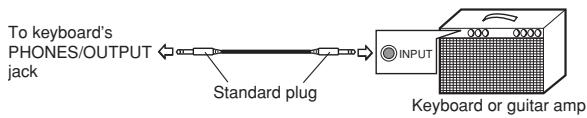
[Connection Example]
Sustain Jack
You can connect an optional sustain pedal (SP-3 or SP-20) to the SUSTAIN jack to enable the capabilities described below.
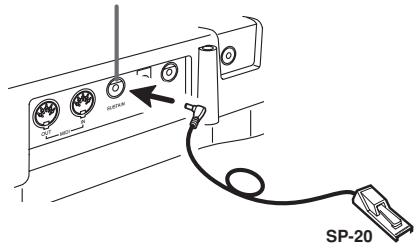
SUSTAIN jack
Sustain Pedal
- With piano tones, depressing the pedal causes notes to linger, much like a piano's damper pedal.
- With organ tones, depressing the pedal causes notes to continue to sound until the pedal is released.
Using the Microphone Jack
Connecting a commercially available microphone to the MIC IN jack makes it possible to sing along with the keyboard's built-in tunes or with output from a MIDI device. When connecting a microphone, be sure to first adjust the MIC VOLUME to a relatively low setting, and then adjust to the level you want after connecting.
- Set the MIC VOLUME slider setting so it is on the "MIN" side.
- Turn on the microphone's on/off switch.
- Use the MIC VOLUME slider to adjust microphone volume to the level you want.
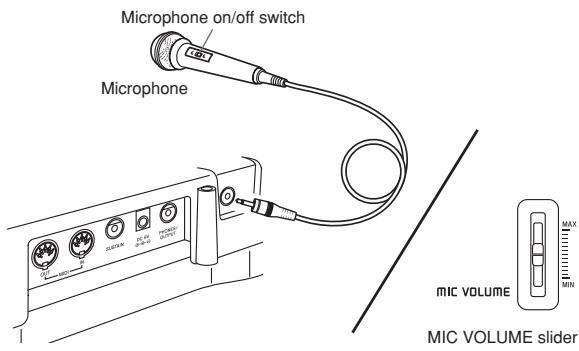
[Rear Panel]
IMPORTANT!
- Be sure to use the microphone's on/off switch to turn off the microphone and to disconnect the microphone from the keyboard whenever you are not using it.
Recommended Microphone Type
- Dynamic microphone (standard plug)
IMPORTANT!
- Be sure to disconnect the microphone from the keyboard whenever you are not using it.
Howling (Feedback Noise)
Any of the following conditions can cause howling (feedback noise).
- Covering the head of the microphone with your hand
- Positioning the microphone too near to a speaker
Should howling occur, try grasping the microphone further away from the head, and move away from any nearby speaker.
Static Noise
Fluorescent lighting can cause static noise in the microphone signal. When this happens, move away from the lighting you suspect may be causing the static.
Accessories and Options
Use only the accessories and options specified for this keyboard. Use of non-authorized items creates the danger of fire, electrical shock, and personal injury.
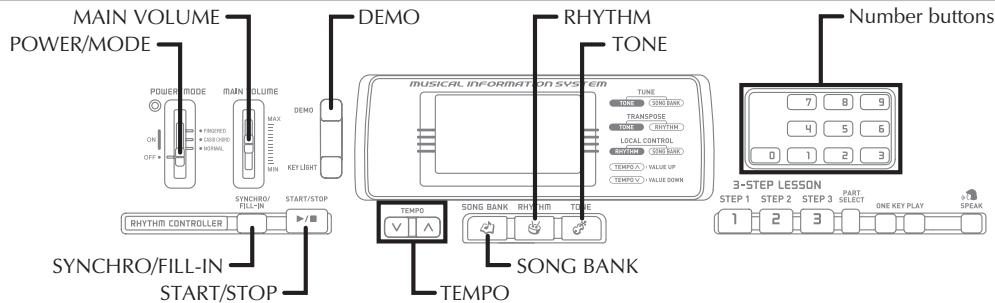
This part of the manual provides you with the basic information you need to use your keyboard.
To switch power on and off
- Set the POWER/MODE selector to NORMAL.
- Press the keyboard keys.
- Use the MAIN VOLUME slider to set the volume to a relatively low level.
- To switch power off, set the POWER/MODE selector to OFF position.
To change tones
- Look at the tone list* printed on the keyboard's console and find the one you want.
- See "GM Tone Map List" on page A-1 for details.
- Press the TONE button.
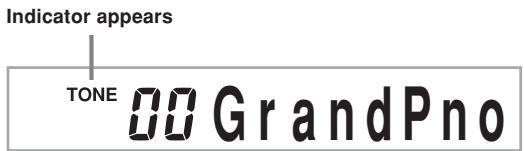
- Use the number buttons to input the 2-digit number that identifies the tone you want to select.
Example: To select "26 ACOUSTIC BASS", input 2 and then 6.
TONE 26 Aco . Bass
NOTE
- Always enter two digits for the tone number. If you enter only one digit, the display will automatically return to the previous tone number setting after a few seconds.
- If you change the tone setting while a keyboard key is depressed, the tone does not change until you release the key and press a keyboard key again.
- With certain tones (such as percussion sounds and sound effects), there may be very little or no change at all in the pitch, no matter which keyboard key you press.
- If you input the wrong first digit for a tone number, you can return to the previous setting by pressing the TONE button.
Keyboard split tones
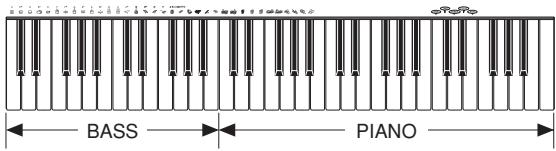
Some of the preset tones split the keyboard and assign two or more sounds. With such a preset tone, the sound produced depends on what position of the keyboard you play. For example, BASS/PIANO (tone 90) puts BASS on the left and PIANO on the right of the keyboard.
BASS/PIANO (No.90)
PERCUSSION (No.99)
- PERCUSSION (Tone 99) assigns 35 percussion sounds and five voice sounds to the keyboard as shown below. The sounds assigned to each key are indicated above the keyboard.
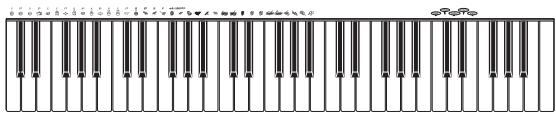
| BASS DRUM | COWBELL |
| SIDE STICK | CRASH CYMBOL 2 |
| ACOUSTIC SNARE | CLAVES |
| HAND CLAP | RIDE CYMBOL 2 |
| ELECTRIC SNARE | HIGH BONGO |
| LOW FLOOR TOM | LOW BONGO |
| CLOSED HI-HAT | MUTE HIGH CONGA |
| HIGH FLOOR TOM | OPEN HIGH CONGA |
| PEDAL HI-HAT | LOW CONGA |
| LOW TOM | HIGH TIMBALES |
| OPEN HI-HAT | LOW TIMBALES |
| LOW MID TOM | HIGH AGOGO |
| HIGH MID TOM | LOW AGOGO |
| CRASH CYMBOL 1 | CABASA |
| HIGH TOM | MARACAS |
| RIDE CYMBOL 1 | VOICE 1 |
| CHINESE CYMBOL | VOICE 2 |
| RIDE BELL | VOICE 3 |
| TAMBOURINE | VOICE 4 |
| SPLASH CYMBOL | VOICE 5 |
Polyphony
The term polyphony refers to the maximum number of notes you can play at the same time. This keyboard has 12-note polyphony, which includes the notes you play as well as the rhythms and auto-accompaniment patterns that are played by the keyboard. This means that when a rhythm or auto-accompaniment pattern is being played by the keyboard, the number of notes (polyphony) available for keyboard play is reduced. Also note that some of the tones offer only 6-note polyphony.
- When rhythm or auto accompaniment is playing, the number of sounds simultaneously played is reduced.
- Though you can sound up to 12 notes at one time, only the last four keyboard keys pressed light up.
Other Useful Functions
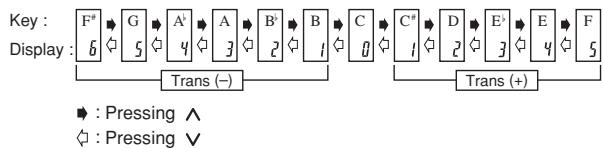
To change the key of the keyboard
The transpose feature of this keyboard lets you raise or lower its key in semitone increments. This means you can easily match to suit someone's voice, and you can eliminate sharps and flats from music making it easier to play.
-
While in any mode besides the Song Bank Mode (indicated when the SONG BANK indicator is lit), hold down the TONE button and press the RHYTHM button.
-
Perform step 2 within five seconds after performing step 1.
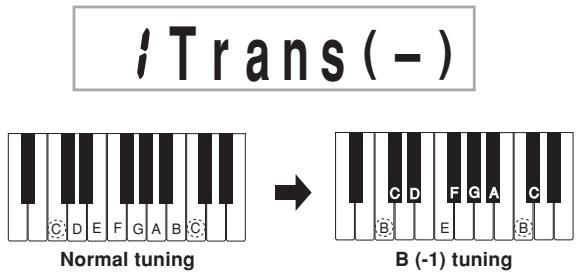
Trans
- Use the TEMPO buttons to change the key of the keyboard.
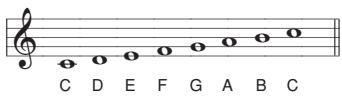
Example: To change the tuning to B (indicated by -1 since it is one tone below C, which is the normal tuning of the keyboard).
NOTE
- If you leave the transpose screen on the display for about five seconds without doing anything, the screen is automatically cleared.
- You cannot change the transpose setting while the keyboard is in the Song Bank Mode.
- In step 2 of the above operation, you could also use the number buttons 0 to 5 to specify C through F.
- Pressing both of the TEMPO buttons ( / ) at the same time returns the transpose setting to C(0).
- The transpose setting is automatically set to C(0) whenever you turn keyboard power on.
- The transpose setting is automatically set to C(0) whenever you press the SONG BANK button.
- The pitch of a transposed note depends on the tone you are using. If the transpose operation causes a note to exceed the range of the tone you are using, the same note in the highest octave of the tone's range is substituted.
- The transpose operation does not affect tone number 99 (PERCUSSION) or auto-accompanyment rhythms.
- Transposing tones 75 through 79 and 90 through 96 changes the range of keys to which each of the tones is assigned.
- The transpose setting is automatically set to C(0) whenever you press the DEMO button.
To tune the keyboard
A simple operation lets you tune the keyboard to another musical instrument.
-
While in any mode besides the Song Bank Mode (indicated when the SONG BANK indicator is lit), hold down the TONE button and press the SONG BANK button.
-
Perform step 2 within five seconds after performing step 1.
00 Tune
- Use the TEMPO buttons to change the tuning of the keyboard.
Example: To lower tuning by 20
20 Tune (-)
NOTE
- If you leave the tuning screen on the display for about five seconds without doing anything, the screen is automatically cleared.
- In step 2 of the above procedure, you could also use the number buttons to input a value from 00 to 50.
- Pressing both of the TEMPO buttons ( / ) at the same time returns the tuning setting to 00.
- Pressing the SONG BANK button changes the tuning setting to 00.
- The tuning setting does not affect any of Song Bank tunes.
- You can tune the keyboard within a range of approximately ± 50 cents (100 cents = 1 semitone).
- The tuning setting is automatically set to 00 whenever you turn the keyboard on.
- Pressing the DEMO button changes the tuning setting to 00.
- The tuning operation does not affect rhythm (99 PERCUSSION).
Playing the demo tunes
You can set up the keyboard to continually play its 100 built-in Song Bank tunes.
Keyboard keys light to indicate the melody notes of the demo tune as it plays.
To start demo tune play
- Switch power on and adjust the volume level.
-
Press the DEMO button.
-
Demo tune play continues in a sequential endless loop until you switch it off.
- The number and name of the demo tune currently playing are shown on the display.
-
You can play along on the keyboard while a demo tune is playing back.
-
You can change the demo tune play being played by pressing the number buttons.
-
The Song Bank tunes play back in tune number sequence, starting from the one you select.
To stop demo tune play
Press the DEMO button or START/STOP button again to stop demo tune play.
NOTE
- Only the following buttons are enabled while a Song Bank tune is being played.
- MAIN VOLUME slider
Number buttons - START/STOP button
- POWER/MODE selector (OFF)
- DEMO button
- KEY LIGHT button
- SPEAK button
- You cannot change the tone being used for the melody of a Song Bank tune.
Playing rhythms
This keyboard features a collection of 50 exciting built-in rhythm patterns. Each pattern provides percussion back up for all your performances.
To select and play a rhythm
- Set the POWER/MODE selector to NORMAL.
- Find the rhythm you want to use in the "Rhythm List" (page A-2) and note its rhythm number.
-
Press the RHYTHM button.
-
When you do, the RHYTHM indicator appears.
-
The number and name that appear on the display indicate the currently selected rhythm.
-
Use the number buttons to input the 2-digit rhythm number for the rhythm you want to use.
Example: To select "37 SAMBA", input 3 and then 7.
RHYTHM 37 Samba
- Be sure to always specify a 2-digit number.
- If you discover a mistake before you input the second digit, press the RHYTHM button to return to the previously set rhythm number.
-
You can change to another rhythm even while the current rhythm is sounding.
-
Press the START/STOP button to start play of the rhythm.
-
When you do, the selected rhythm starts to sound.
-
Use the TEMPO buttons to adjust the tempo of the rhythm.
TEMPO= 120
Each time you press one of the TEMPO buttons while the tempo value is displayed, the tempo setting changes one step, within the range of 040 to 255.
- The initial default tempo setting when you turn on power is 120.
- After displaying the current tempo setting by pressing the TEMPO button in step 6, you can also input the tempo setting you want by inputting a three-digit value with the number buttons.
- Holding down either of the TEMPO buttons changes the tempo setting at high speed.
- To reset the tempo to the standard value of each rhythm, press both TEMPO buttons.
- To stop rhythm play, press the START/STOP button again.
Using auto-accompaniment
This keyboard features 50 accompaniment patterns that let you add full accompaniments to your performances automatically. With auto-accompanyment, part of the keyboard is reserved as an accompaniment keyboard. As you play your chords on the accompaniment keyboard, the accompaniment pattern adjusts automatically to follow the progression you play.
You get a choice between two different methods for chord play. FINGERED lets you play chords as you normally do, while CASIO CHORD makes it possible to play fully formed chords with one finger.
About the accompaniment keyboard
The lower (left) 1.5 octaves are reserved for use as an accompaniment keyboard whenever you select CASIO CHORD or FINGERED with the POWER/MODE selector. The panel above the accompaniment keyboard keys is marked with the names of the notes they play. The remainder of the keyboard (the part that is not included in the accompaniment keyboard) is called the melody keyboard. Please be sure to remember these terms, because they will be used throughout the rest of this manual.
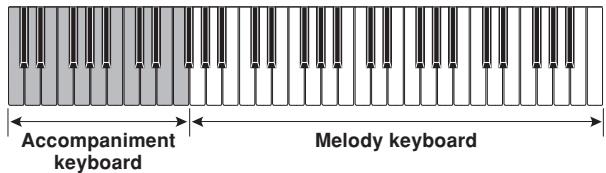
The entire keyboard can be used for melody play while the POWER/MODE selector is set to NORMAL.
Using the CASIO CHORD system
The CASIO CHORD system lets you easily play the four main types of chords. Play of chords is simplified as shown in the chart below.
| Keys | Type | Example |
| Pressing one accompaniment key | Major chord | C (C Major Chord) |
| Pressing two accompaniment keys | Minor chord | Cm (C Minor Chord) |
| Pressing three accompaniment keys | Seventh chord | C7 (C Seventh Chord) |
| Pressing four accompaniment keys | Minor seventh chord | Cm7 (C Minor Seventh Chord) |
NOTE
- The bottom (leftmost) note that you play determines the name of the chord. If the bottom note is a C for example, the keyboard produces a C chord.
- When pressing more than one accompaniment key, it makes no difference whether the keys to the right of the bottom note are white or black.
To play a CASIO CHORD auto-accompanyment
- Use the POWER/MODE selector to select CASIO CHORD.
- Select an auto-rhythm as described under "To select and play a rhythm" on page E-18.
-
Start play of the rhythm.
-
If you want to start play of the normal rhythm pattern, press START/STOP.
-
You can also use synchro start (page E-20) to start rhythm play.
-
Press either one or up to four keys on the accompaniment keyboard, and the corresponding accompaniment starts to play automatically.
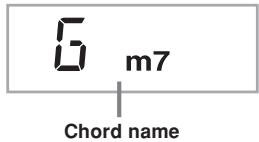
- Continue pressing different keys on the accompaniment keyboard to play your chord progression.
- To stop auto-accompanyment play, press the START/STOP button again.
Using standard fingerings
The FINGERED mode lets you play a wider variety of chords. In this mode, you can start play of an accompaniment pattern by pressing three or four of the accompaniment keyboard keys.
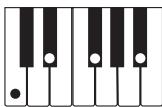
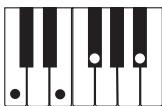
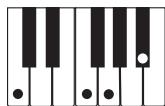
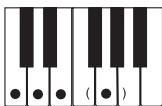
This keyboard is capable of recognizing 15 different chords. The following shows the fingerings of these chords with a root of C. Note that you can omit the fifth notes (which are shown inside parentheses in the illustrations below) to produce 7, m7, M7, add9, madd9, and mM7 chords.
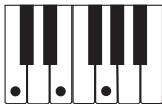
C
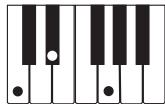
Cm
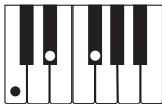
Cdim
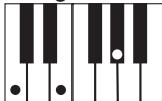
Caug*1
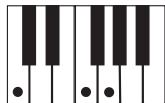
Csus4
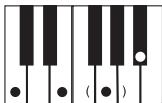
C7
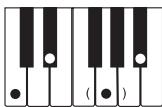
Cm7
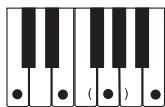
CM7
Cm75
C75*1)
C7sus4
Cadd9
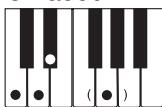
Cmadd9
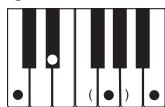
CmM7
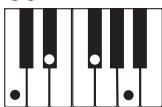
Cdim7 (^*1)
*1 With this chords, the lowest note in your fingering is always used as the root. Make sure that your fingering correctly identifies the root you want to use.
IMPORTANT!
- If you play one or two notes only in the left hand, or three notes that do not make up a recognizable chord formation, no sound will be produced. The FINGERED mode requires a conventional three or four-note chord formation to produce an auto-accompaniment. Also, note that autochords only work in conjunction with rhythm patterns, and not independently of them.
NOTE
- The above examples show only one of the possible fingerings for each chord. Note that you can play the notes that form a chord in any combination. Each of the following fingerings for example, produces the same C chord.
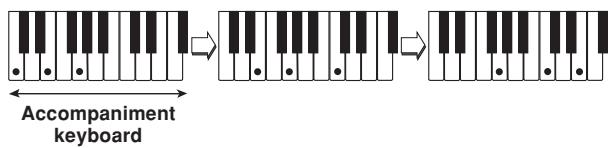
- See the "Fingered Chord Charts" on page A-3 for information on the fingerings of chords for all roots.
To play a FINGERED auto-accompaniment
- Use the POWER/MODE selector to select FINGERED.
- Select an auto-rhythm as described under "To select and play a rhythm" on page E-18.
-
Start play of the rhythm.
-
If you want to start play of the normal rhythm pattern, press START/STOP.
-
You can also use synchro start (on this page) to start rhythm play.
-
Play a chord on the accompaniment keyboard to start play of the auto-accompaniment.
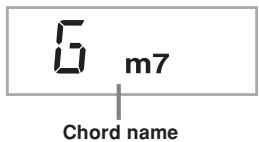
- Continue pressing keys on the accompaniment keyboard to play your chord progression.
- To stop auto-accompanyment play, press the START/STOP button again.
Improvising with the preset patterns
Pressing the START/STOP button to start rhythm play causes the normal version of the pattern to be played. You can also play a variation of the rhythm using the operation described below.
Using fill-in rhythm
You can insert a fill-in rhythm by pressing the SYNCHRO/FILL-IN button while an auto-rhythm plays.
Using Synchro start
You can start the rhythm and accompaniment pattern at the same time, with your play of the accompaniment keyboard. To do this, follow the steps below.
- Set the POWER/MODE selector to the CASIO CHORD or FINGERED position.
- Select an auto-rhythm.
- Press the SYNCHRO/FILL-IN button.
- Press the accompaniment keys to play the first chord. As soon as you do, the auto-accompaniment pattern begins to play.
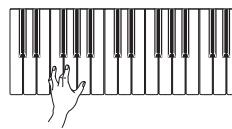
- To stop the auto-accompanyment pattern play, press the START/STOP button.
NOTE
- If you set the POWER/MODE selector to NORMAL in step 1 on page E-18, the operation in step 4 starts play of the rhythm (percussion instruments) only.
Using 3-Step Lesson System
Even individuals who cannot play the keyboard at all can follow along with the 100 built-in Song Bank tunes with the ONE KEY PLAY buttons. You can also use the 3-Step Lesson System to learn at your own pace. Play slowly at first until you are able to play along at normal speed.
Of the 100 built-in tunes, numbers 00 through 83 feature auto-accompanyment (auto-accompanyment tunes), while 84 through 99 are played using both hands (two-hand tunes).
The 3-Step Lesson System can be used with the following 3-step lesson plan to master keyboard play.
Step 1: Master the timing
Pressing the ONE KEY PLAY buttons plays the melody for an auto-accompanyiment tune or the right hand part for two-hand tunes. In both cases, the auto-accompanyment (the left hand part in the case of two-hand tunes) is played automatically by the keyboard. In place of the ONE KEY PLAY buttons, you can also press any key of the keyboard to play the melody or right hand part. The purpose of this step is to familiarize yourself with the timing required to play melody notes.
Step 2: Master the melody
In this step, you use the display to learn which fingers you should use to play, and the key light system to learn which keyboard keys to press. You can play at the pace you want, because the auto-accompaniment or left hand part waits until you press the correct key.
Step 3: Play at normal speed
At this level, the keyboard's keys still light to indicate which notes to play, but they no longer wait for you to press the correct key. The auto-accompaniment or left hand part is played at normal speed.
NOTE
- You may not be able to see the keyboard keys light under direct sunlight or in other brightly lit areas.
- You can press the ONE KEY PLAY, STEP 1, STEP 2, and STEP 3 buttons at any time, except while a demo tune is playing. To return the keyboard to its normal mode, press the SONG BANK button.
3-Step Lesson System Tempo Setting
You can use the procedure in step 6 of the procedure on page E-19 to set the tempo of the left-hand part for Song Bank and 3-Step Lesson System play (Step 1 through 3).
This means you can use a slower tempo at the beginning, and then increase it as you learn. Press both of the TEMPO buttons (A and V) at the same time to return the tempo to its initial preset setting.
To play a built-in Song Bank tune
- Look up the number of the tune you want to play in the Song Bank list.
-
Press the SONG BANK button until the SONG BANK indicator appears.
-
This causes the number and name of the currently selected Song Bank tune to appear on the display.
-
Input the two digit number for the tune you want to play.
Example: To select "13 TWINKLE TWINKLE LITTLE STAR", input 1 and then 3.
SONG BANK 13 Twinkle
-
Press the START/STOP button to start play of the selected tune.
-
The tune you select plays repeatedly, with the keyboard keys lighting to indicate the melody notes.
-
To stop Song Bank tune play, press the START/ STOP button again.
- To exit the Song Bank Mode, press the SONG BANK button again.
- When you do, the SONG BANK indicator goes out.
NOTE
- Always enter two digits for the Song Bank number.
- You can input a Song Bank tune number even while another Song Bank tune is playing.
- If you input the wrong first digit for a Song Bank tune number, you can return to the previous setting by pressing the SONG BANK button.
- The RHYTHM button is disabled in the Song Bank Mode. If you want to play a rhythm, press the SONG BANK button to return to the normal mode first.
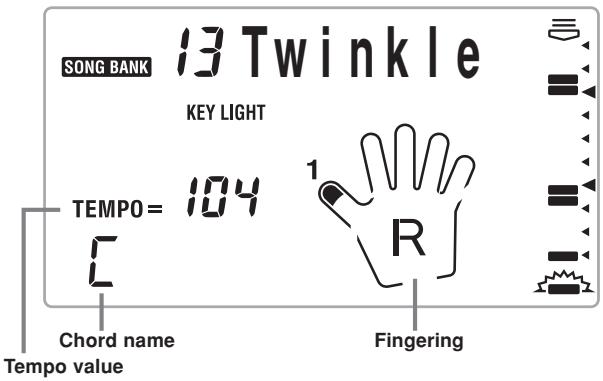
Key Lighting System Operation and Display Contents During Song Bank Play
Keyboard keys light to show the keys that should be pressed to play along with Song Bank tunes as they play back. At the same time, the display shows fingerings, chord names, tempo and other information.
Crossed Finger Indications
The display also shows when you have to cross fingers to play notes, and in which direction your fingers should cross.
Example: Display for playing the notes below with the right hand
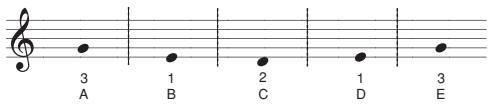
Using the Song Bank Crossed finger display
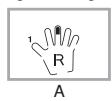
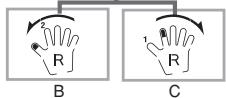
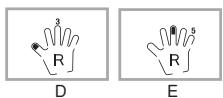
- B and C indicate that the index finger should cross over the thumb.
- C and D indicate that the thumb should cross under the index finger.
Key Lighting During Song Bank Play
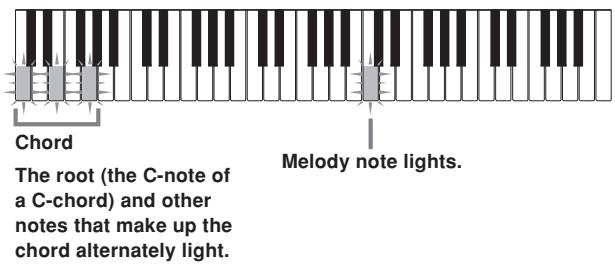
When you play back a Song Bank tune, keyboard keys light to show you the notes that are being played.
Auto-accompaniment Song Bank Tune
Chord and melody part keys light.
NOTE
- Some Song Bank tunes use chords (such as C6) that cannot be played with the FINGERED setting (page E-19). In the FINGERED mode, chords may sound different from the ones produced by Song Bank tune playback, even if you finger the chords as indicated by the lit keys.
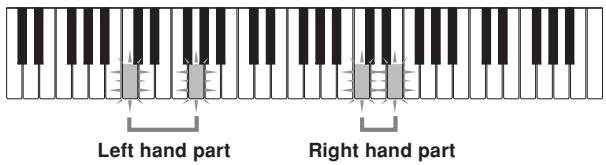
Two-hand Song Bank Tune
Left hand and right hand part keys light.
Key Lighting System Operation and Display Contents During 3-step Lesson Play
Whenever you select an Auto Accompaniment tune (00 to 83) for 3-step lesson play, the key lighting system shows you which keys to press, while the display shows you the fingerings.
Note Pitch
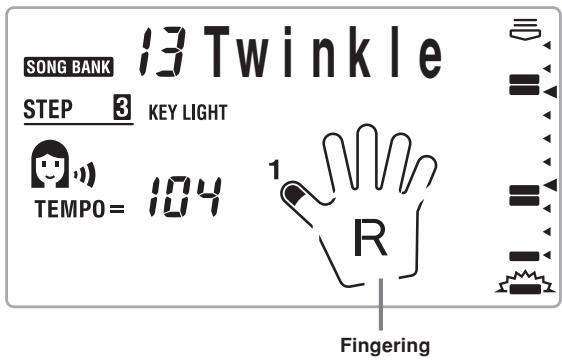
The keyboard key that should be pressed lights. The fingers you should use to play the notes are also shown on the display.
Note Length
Keyboard keys stay lit for as long as the note should be played. The fingerings also remain on the display for the length of the note.
Next Note
The keyboard key for the next note to be played flashes, while a number appears on the display near the finger you should use to play the next note.
Series of Same Pitch Notes
The keyboard key light turns off momentarily between the notes and lights again for each successive note. The fingerings also turn off and back on again.

NOTE
- Note length is not indicated when you are using two-hand tunes (84 to 99) with 3-Step Lesson Steps 1 and 2. As soon as you press a lit key, it goes out and the next key to be played starts to flash.
- Note length is indicated by the key light system when you use a two-hand tune with Step 3. In this case, the next key to be pressed does not flash when you press a lit key and the next finger number does not appear on the display. Only the current finger number is shown.
Voice Fingering Guide
Voice fingering guide uses a simulated human voice to call out fingering numbers during Step 1 and Step 2 one-hand part practice. If you need to press a key with your thumb, for example, voice fingering guide says, "One!" In the case of a chord to be played with your thumb, middle and little finger, voice fingering guide says, "One, three, five!"
Voice Fingering Guide calls out fingerings only when you do not press the proper key when you should.
To turn voice fingering guide on and off
Use the SPEAK button to turn voice fingering guide on and off.
Timing Indicator
The timing indicator helps you become familiar with tunes you are playing for the first time by indicating the timing of notes you play on the keyboard. Timing is easier to see when you use a slow tempo during lesson play.
Using the Timing Indicator
The timing indicator shows the timing of notes contained in the currently selected part (R or L). Notes are indicated as two-segment blocks that scroll from the top of the display, down to the bottom. A note is played when its block reaches the bottom of the display.
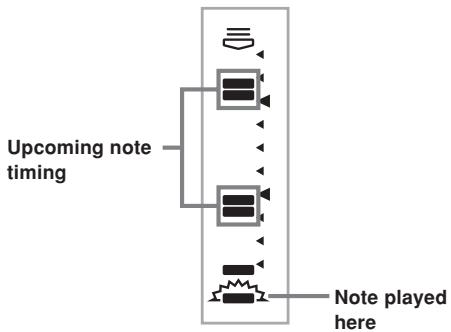
Each two-segment block can indicate one or more notes, depending on the tune you are playing.
NOTE
- The Timing Indicator shows note timing whenever you play back a Song Bank tune and during a 3-Step Lesson.
- Note that the Timing Indicator shows approximate timing only. During a tune, the indicated timing can be anywhere from an eight note to a 32nd off of actual timing.
Turning Off Key Lighting
-
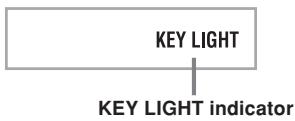
Press the KEY LIGHT button.
-
The KEY LIGHT indicator disappears when the key light system is turned off.
- Press the KEY LIGHT button again to turn key lighting back on.
NOTE
Key lighting turns on automatically in any of the following cases:
- When keyboard power is turned on.
- When demo tune play is started.
- When the SONG BANK button is pressed in the normal mode (page E-21).
- When the power on alert function operates (page E-12).
Number of Simultaneously Lit Keys
Up to four keyboard keys can be lit at the same time.
To change the tone used for the melody of a Song Bank tune
-
Following step 3 of the procedure on page E-21, press the TONE button.
-
Both the SONG BANK indicator and TONE indicator appear, along with the tone number and name of the tone that is currently assigned to the keyboard.
-
Input a value to select the tone you want to use.
NOTE
- Selecting another Song Bank tune switches the tone setting to the newly selected tune's preset melody tone.
- The tone assigned to the keyboard is the same one specified for the melody of the Song Bank tune.
- The above procedure can be used to change the Song Bank melody tone before starting play or while play is already in progress.
- You can also change the tone of two-hand tunes (tune numbers 84 to 99). Note however, that selecting a sustainable tone (like an organ tone) when using 3-Step Lesson Step 1 or Step 2 (in which accompaniment waits for correct input from you before proceeding), can cause notes of the auto accompaniment to be sustained while the keyboard is waiting for your input. If this happens, play something on the keyboard to stop the sustained note.
Step 1: Master the timing
-
Press the STEP 1 button.
-
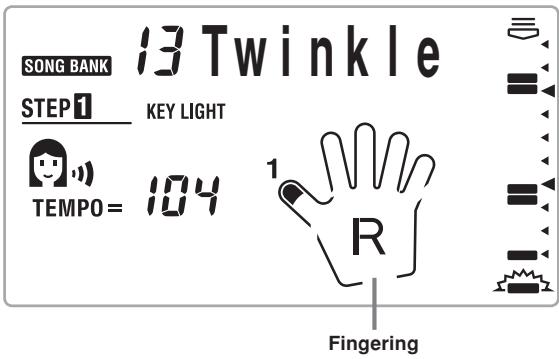
When you do, the STEP 1 indicator appears.
- After a count sounds, the keyboard stands by and waits for you to play the first note of the tune. If the tune includes intro measures, the keyboard enters standby after the intro measures are complete.
-
Press the ONE KEY PLAY buttons to play each note of the tune.
-
The accompaniment (left hand) part of the tune follows along as you play the melody (right hand) part.
- The keyboard key that corresponds to the next note to be played flashes, and lights when you play the note.
-
The rhythm (percussion) part does not sound.
-
Try pressing any one of the keyboard keys in place of the ONE KEY PLAY buttons.
-
Pressing any keyboard key plays the correct melody (right hand part) note.
- Pressing more than one key at the same time counts as a single melody note. Pressing a key while another key is held down is counted as two melody notes.

The correct note is played even if you do not press the key that is lit.
- To stop play at any time, press the START/STOP button.
- When you do, the STEP 1 indicator goes out.
Step 2: Master the melody
-
Press the STEP 2 button.
-
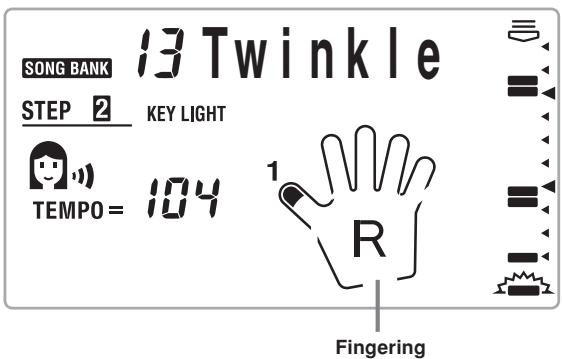
When you do, the STEP 2 indicator appears.
- After a count sounds, the keyboard stands by and waits for you to play the first note of the tune. If the tune includes intro measures, the keyboard enters standby after the intro measures are complete.
-
Play the notes indicated by the 3-Step Lesson System.
-
The accompaniment (left hand) part of the tune follows along as you play the melody (right hand) part.
- The keyboard key that corresponds to the next note to be played flashes, and lights when you play the note.
- The rhythm (percussion) part does not sound.
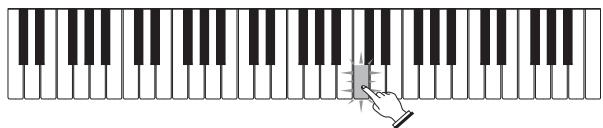
Press keyboard keys as they light. More than one key may light when you are playing a two-hand tune. Press all keys that light.
- To stop play at any time, press the START/STOP button.
- When you do, the STEP 2 indicator goes out.
Step 3: Play at normal speed
-
Press the STEP 3 button.
-
When you do, the STEP 3 indicator appears.
- Play starts after a count sounds.
-
Play along on the keyboard, following the keys as they light.
-
The accompaniment (left hand) part of the tune plays at normal speed, regardless of what you play on the keyboard.
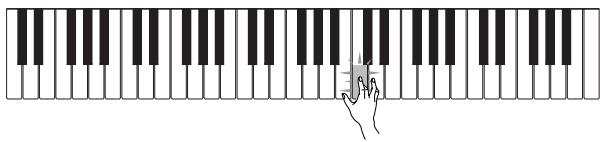
- With an auto-accompanyment tune, the keyboard key that corresponds to the next note to be played flashes, and lights when the note should be played.
- With a two-hand tune, the applicable keyboard key remains lit as long as its note plays. In this case, however, the key for the next note to be played does not flash. Keys light when their notes start to play.
-
To stop play at any time, press the START/STOP button.
-
When you do, the STEP 3 indicator goes out.
To practice the left hand part
Once you master right hand part play, you can use the two-hand tunes (numbers 84 through 99) to practice left hand part.
- Press the SONG BANK button until the SONG BANK indicator appears.
- This causes the number and name of the currently selected Song Bank tune to appear on the display.
- Input the two digit number for the tune you want to play.
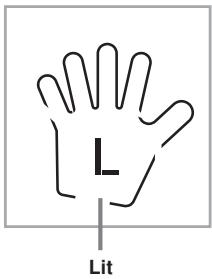
- Press the PART SELECT button to switch the left hand play.
-
Press the STEP 1, STEP 2, or STEP 3 button.
-
When you do, the STEP 1, STEP 2, or STEP 3 indicator appears.
-
After a count beat sounds, the right-hand part starts to play and the keys for the left-hand part notes flash.
-
Press the PART SELECT button to return the part selection to its previous setting.
- To interrupt play of the melody, press the START/ STOP button.
- When you do, the STEP 1, STEP 2, or STEP 3 indicator disappears.
What is MIDI?
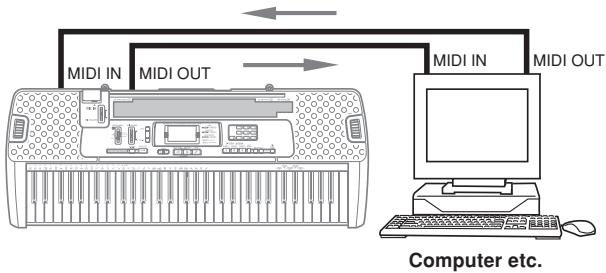
The letters MIDI stand for Musical Instrument Digital Interface, which is the name of a worldwide standard for digital signals and connectors that makes it possible to exchange musical data between musical instruments and computers (machines) produced by different manufacturers.
MIDI Connections
General MIDI
General MIDI standardizes MIDI data for all sound source types, regardless of manufacturer. General MIDI specifies such factors as tone numbering, drum sounds, and available MIDI channels for all sound sources. This standard makes it possible for all MIDI equipment to reproduce the same nuances when playing General MIDI data, regardless of the manufacturer of the sound source.
Though the sound source of this keyboard is not General MIDI compatible, you can still connect the keyboard to a computer or other MIDI equipment to playback General MIDI data that is widely available in stores, over computer networks, and from other sources.
NOTE
- General MIDI data made up of a large number of parts may not play correctly on this keyboard.
- You will have most success playing back General MIDI data that has few parts and is made up of parts on channels 1, 2, 3, 4, and 10.
Messages
There is a wide variety of messages defined under the MIDI standard, and this section details the particular messages that can be sent and received by this keyboard.
NOTE ON/OFF
This message sends data when a key is pressed (NOTE ON) or released (NOTE OFF).
A NOTE ON/OFF message includes a note number (to indicate note whose key is being pressed or released) and velocity (velocity = 100 when the volume value of this unit is 9 to 2, and velocity = 75 when the volume value is 1 or 0). NOTE ON velocity is always used to determine the relative volume of the note. This keyboard does not receive NOTE OFF velocity data.
Whenever you press or release a key on this keyboard, the corresponding NOTE ON or NOTE OFF message is sent by constant velocity from the MIDI OUT terminal.
PROGRAM CHANGE
This is the tone selection message. PROGRAM CHANGE can contain tone data within the range of 0 to 127.
A PROGRAM CHANGE message (0 to 99) is sent out through this keyboard's MIDI OUT terminal whenever you manually change its tone number. Receipt of a PROGRAM CHANGE message from an external machine changes the tone setting of this keyboard.
This keyboard can send tone data within the range of 00 to 99 and receive tone data within the range of 0 to 127^* . Each of the 128 General MIDI tones is automatically assigned to one of the keyboard's 100 built-in tones as shown on page A-1. Select this setting when you want to listen to General MIDI data from a computer or other external equipment.
- When GM mapping is turned on (page E-28). When turned off, tone data is received in the range of 0 to 99.
NOTE
- Channel 10 is for the drum part only, and it does not receive Program Change messages. When receiving MIDI data, it sounds percussion sounds produced by this keyboard.
PITCH BEND
This message carries pitch bend information for smoothly sliding the pitch upwards or downwards during keyboard play. This keyboard does not send pitch bend data, but it can receive such data.
CONTROL CHANGE
This message adds effects such as vibrato and volume changes applied during keyboard play. CONTROL CHANGE data includes a control number (to identify the effect type) and a control value (to specify the on/off status and depth of the effect).
The following is a list of data that can be received using CONTROL CHANGE.
| Effect | Control Number |
| VOLUME | 7 |
| HOLD1 | 64 |
| MODULATION | 1 |
LOCAL CONTROL (Default: on) /GM mapping (Default: off)
This setting determines whether or not the keyboard and sound source of this keyboard are connected internally. When recording to a computer or other external device connected to this keyboard's MIDI IN/OUT terminal, it helps if you turn LOCAL CONTROL off.
on: Anything played on the keyboard is sounded by the internal sound source and simultaneously output as a MIDI message from the MIDI OUT terminal.
oFF: Anything played on the keyboard is output as a MIDI message from the MIDI OUT terminal, without being sounded by the internal sound source. Turn LOCAL CONTROL off whenever you are using the MIDI THRU function of a computer or other external device. Also note that no sound is produced by the keyboard if LOCAL CONTROL is turned off and no external device is connected.
NOTE
- When you are using this keyboard in a stand-alone configuration, keyboard keys do not light while local control is turned off.
To turn off LOCAL CONTROL/To turn on GM mapping
-
While in any mode besides the Song Bank Mode (indicated when the SONG BANK indicator is lit), hold down the RHYTHM button and press the SONG BANK button.
-
Perform step 2 within five seconds after performing step 1.
- Use the TEMPO button (v) to turn off local control.
- This also turns on GM mapping.
of Local
To turn on LOCAL CONTROL/To turn off GM mapping
- While in any mode besides the Song Bank Mode (indicated when the SONG BANK indicator is lit), hold down the RHYTHM button and press the SONG BANK button.
- Perform step 2 within five seconds after performing step 1.
- Use the TEMPO button (A) to turn on local control.
- This also turns off GM mapping.
on Local
NOTE
- Note that LOCAL CONTROL is also turned on automatically whenever you turn on power, or when you press any of the following buttons.
- START/STOP (to start rhythm or Song Bank tune play)
- ONE-KEY PLAY
STEP1
STEP2
STEP3 - DEMO (to start demo tune play)
- See the GM Tone Map List at the back of this manual for information about tone assignments while GM mapping is turned on.
Troubleshooting
Be sure to check the following table whenever you experience problems with keyboard operation.
| Symptom | Cause | Action | See Page |
| • No sound when keyboard keys are pressed. | 1. Power supply problem. | 1. Correctly attach the AC adaptor, make sure that batteries (+/-) are facing correctly, and check to make sure that batteries are not dead. | Page E-11 |
| 2. Volume setting is too low. | 2. Use the MAIN VOLUME slider to increase volume. | Page E-15 | |
| 3. Headphones are plugged into the keyboard. | 3. Unplug the headphones from the PHONES/OUTPUT jack. | Page E-13 | |
| 4. The POWER/MODE selector is in the CASIO CHORD or FINGERED position. | 4. Normal play is not possible on the accompaniment keyboard while the POWER/MODE selector is set to CASIO CHORD or FINGERED. Change the POWER/MODE selector setting to NORMAL. | Page E-18 | |
| 5. Tone “99 PERCUSSION” is selected and you are pressing keys that are not assigned tones. | 5. While “99 PERCUSSION” is selected, you can use only keys that are marked on the console with illustrations of percussion instruments. | Page E-15 | |
| 6. LOCAL CONTROL is off. | 6. Turn on LOCAL CONTROL. | Page E-28 | |
| • Any of the following symptoms while using battery power. | • Low battery power | • Replace the batteries with a set of new ones or use the AC adaptor. | Page E-11 |
| • Dim power indicator • Instrument does not turn on • Display that is flickering, dim, or difficult to read • Abnormally low speaker/headphone volume • Distortion of sound output • Occasional interruption of sound when playing at high volume • Sudden power failure when playing at high volume • Flickering or dimming of the display when playing at high volume • Continued sound output even after you release a key • A tone that is totally different from the one that is selected • Abnormal rhythm pattern and Song Bank play • Loss of power, sound distortion, or low volume when playing from a connected computer or MIDI device • Abnormally low microphone volume • Distortion of microphone input • Dim power supply indicator when a microphone is used | |||
| • Key light stays on. | • Keyboard is waiting for play of the correct note during Step 1 or Step 2 play. | 1. Press the lit key to continue with Step 1 or Step 2 play. 2. Press the START/STOP button to quit Step 1 or Step 2 play. | Pages E-24, 25 Pages E-24, 25 |
| • Keyboard keys light but no sound is produced. | • Power on alert is telling you that power is left on. | • Press any button or keyboard key to resume normal operation with the keyboard in its initial power on setting. | Page E-12 |
| • RHYTHM button does not work. | • Keyboard is in the Song Bank Mode. | • Press the SONG BANK button to return to the normal mode. | Page E-21 |
| • Cannot change TRANSPOSE/TUNE/LOCAL CONTROL settings. | • Keyboard is in the Song Bank Mode. • Demo tune play is in progress. | • Press the SONG BANK button to return to the normal mode. • Stop demo tune play. | Page E-21 Page E-17 |
| • No sound is produced when playing MIDI data from a computer. | • MIDI cables are not connected properly. | • Connect MIDI cables properly. | Page E-27 |
| • Playing on the keyboard produces an unnatural sound when connected to a computer. | • The computer's MIDI THRU function is turned on. | • Turn off the MIDI THRU function on the computer or turn off LOCAL CONTROL on the keyboard. | Page E-28 |
| • Static noise when a microphone is connected. | 1. Use of a microphone that is a different from the type that is recommended. 2. Use of the microphone in the vicinity of fluorescent lighting. | 1. Use a full metal shielded Cannon type microphone. 2. Move the microphone away from source of the static. | Page E-13 Page E-13 |
| • No microphone sound. | 1. Microphone volume setting is too low. 2. Microphone on/off switch is set to off. | 1. Increase the microphone volume setting. 2. Change the microphone on/off switch setting to on. | Page E-13 Page E-13 |
| A tone's quality and volume sounds slightly different depending where it is played on the keyboard. | This is an unavoidable result of the digital sampling process,* and does not indicate malfunction. * Multiple digital samples are taken for the low range, middle range, and high range of the original musical instrument. Because of this, there may be a very slight difference in tonal quality and volume between sample ranges. | ||
Specifications
| Model: | LK-100 |
| Keyboard: | 61 standard-size keys; 5 octaves |
| Key Light System: | Can be turned on and off (up to 4 keys can be lit at the same time) |
| Tones: | 100 presets |
| Polyphony: | 12 notes maximum |
| 3-Step Lesson System: Playback: Voice Fingering Guide: | Number of simultaneously lit keys; 4 3-Steps 1 tune repeat playback On/Off |
| Auto-accompaniment Rhythm patterns: Tempo: Chords: Other: | 50 presets Adjustable, (216 steps, ∫ = 40 to 255), initial value; 120 Two systems; CASIO CHORD, FINGERED Fill-in pattern, Synchro start |
| Song Bank tunes: | 100 tunes |
| Musical Information Function: | Tone, Auto Accompaniment, Song Bank numbers and names; tempo, 3 step lesson display, chord name, fingering, timing indicator, key lighting, voice fingering |
| Other Functions Transpose: Tuning: | F# to C to F: half-note Adjustable A4 = Approx. 440 Hz ±50 cents, Initial value: A4 = Approx. 440 Hz |
| MIDI: | 5 multi-timbre receive |
| Speakers: | 10 cm diameter × 2 (Output: 2W+2W) |
| I/O Terminals MIDI Terminals: Sustain: Power Supply: Headphones/Output: Microphone In: | IN, OUT Standard jack DC 9V jack Stereo standard jack (Output is monaural.) [output impedance: 78Ω, output voltage: 4V (RMS) MAX] Standard jack (with microphone volume slider) Input impedance: 2KΩ Input sensitivity: 10mV |
| Power Supply: Batteries: Battery life: AC adaptor: Auto Power Off: | 2-way 6 AA-size Approximately 4 hours continuous operation on alkaline batteries Approximately 1 hour continuous operation on manganese batteries AD-5 Approximately 6 minutes after the last operation (Operates during battery use only) |
| Power Consumption: | 9 V --- 7.7 W |
| Dimensions: | 94.5 × 37.3 × 13.5 cm (371/4" × 1411/16" × 55/16") |
| Weight: | Approximately 4.7 kg (10.4 lbs) (without batteries) |
- Designs and specifications are subject to change without notice.
GM Tone Map List
Fingered Chord Charts
This table shows the left-hand fingerings (including inverted forms) for a number of often-used chords.
| Chord Root Type | M | m | 7 | m7 | dim7 | M7 | m75 | dim |
| C | [5,3,1] | [5,3,1] | [5,3,2,1] | [5,3,2,1] | [5,3,2,1] | [5,3,2,1] | [5,3,2,1] | [5,3,2] |
| C# (D#) | [5,3,1] | [5,3,1] | [5,3,2,1] | [5,3,2,1] | [5,3,2,1] | [5,3,2,1] | [5,3,2,1] | [5,3,2] |
| D | [5,3,1] | [5,3,1] | [5,3,2,1] | [5,3,2,1] | [5,3,2,1] | [5,3,2,1] | [5,3,2,1] | [5,3,2] |
| E# (D#) | [5,3,1] | [5,3,1] | [5,3,2,1] | [5,3,2,1] | [5,3,2,1] | [5,3,2,1] | [5,3,2,1] | [5,3,2] |
| E | [5,3,1] | [5,3,1] | [5,3,2,1] | [5,3,2,1] | [5,3,2,1] | [5,3,2,1] | [5,3,2,1] | [5,3,2] |
| F | [5,3,1] | [5,3,1] | [5,3,2,1] | [5,3,2,1] | [5,3,2,1] | [5,3,2,1] | [5,3,2,1] | [5,3,2] |
| F# (G#) | [5,3,1] | [5,3,1] | [5,3,2,1] | [5,3,2,1] | [5,3,2,1] | [5,3,2,1] | [5,3,2,1] | [5,3,2] |
| G | [5,3,1] | [5,3,1] | [5,3,2,1] | [5,3,2,1] | [5,3,2,1] | [5,4,2,1] | [5,3,2,1] | [5,3,2] |
| A# (G#) | [5,3,1] | [5,3,1] | [5,4,2,1] | [5,4,2,1] | [5,3,2,1] | [5,4,2,1] | [5,4,2,1] | [5,3,2] |
| A | [5,3,1] | [5,3,1] | [5,4,2,1] | [5,4,2,1] | * | [5,4,2,1] | [5,4,2,1] | [5,3,2] |
| B# (A#) | [5,3,1] | [5,3,1] | [5,4,2,1] | [5,4,2,1] | * | [5,4,2,1] | [5,4,2,1] | [5,3,2] |
| B | [5,2,1] | [5,2,1] | [5,3,2,1] | [5,3,2,1] | * | [5,3,2,1] | [5,4,2,1] | [5,3,2] |
| Chord Root Type | aug | sus4 | 7 sus4 | m add9 | m M7 | 7/5 | add9 |
| C | [5,3,1] | [5,2,1] | [5,3,2,1] | [4,3,2,1] | [5,3,2,1] | [5,3,2,1] | [4,3,2,1] |
| C# (D b) | [5,3,1] | [5,2,1] | [5,3,2,1] | [4,3,2,1] | [5,3,2,1] | [5,3,2,1] | [4,3,2,1] |
| D | [5,3,1] | [5,2,1] | [5,3,2,1] | [4,3,2,1] | [5,3,2,1] | [5,3,2,1] | [4,3,2,1] |
| E# (D#) | [5,3,1] | [5,2,1] | [5,3,2,1] | [4,3,2,1] | [5,3,2,1] | [5,3,2,1] | [4,3,2,1] |
| E | [5,3,1] | [5,2,1] | [5,3,2,1] | [4,3,2,1] | [5,3,2,1] | [5,3,2,1] | [4,3,2,1] |
| F | [5,3,1] | [5,2,1] | [5,3,2,1] | [4,3,2,1] | [5,3,2,1] | [5,3,2,1] | [4,3,2,1] |
| F# (G b) | [5,3,1] | [5,2,1] | [5,3,2,1] | [4,3,2,1] | [5,3,2,1] | [5,3,2,1] | [4,3,2,1] |
| G | [5,3,1] | [5,2,1] | [5,3,2,1] | [4,3,2,1] | [5,4,2,1] | [5,3,2,1] | [4,3,2,1] |
| A# (G #) | [5,3,1] | [5,2,1] | [5,4,2,1] | [4,3,2,1] | [5,4,2,1] | [5,4,2,1] | [4,3,2,1] |
| A | [5,3,1] | [5,2,1] | [5,4,2,1] | [4,3,2,1] | [5,4,2,1] | [5,4,2,1] | [4,3,2,1] |
| B# (A#) | * | [5,2,1] | [5,4,2,1] | [4,3,2,1] | [5,4,2,1] | [5,4,2,1] | [4,3,2,1] |
| B | * | [5,2,1] | [5,3,2,1] | [5,3,2,1] | [5,3,2,1] | [4,3,2,1] | [5,3,2,1] |
- Cannot be specified in FINGERED setting because of accompaniment keyboard limitations, but augmented and diminished (seventh) chords made up of the same component notes (with different base note) can be used instead.
Chords with same component notes as B^ aug ......... D aug, ^ aug
Chords with same component notes as B aug. Eaug, G aug
Chords with same component notes as A dim7 ......... C dim7, E* dim7, F# dim7
Chords with same component notes as B^ dim7 ......... C# dim7, E dim7, G dim7
Chords with same component notes as B dim7 ........ D dim7, F dim7, A' dim7
Mode 1: OMNI ON, POLY Mode 2: OMNI ON, MONO O: Yes
Mode 3: OMNI OFF, POLY Mode 4: OMNI OFF, MONO X: No

This recycle mark indicates that the packaging conforms to the environmental protection legislation in Germany.