
K750r - Keyboard LOGITECH - Free user manual and instructions
Find the device manual for free K750r LOGITECH in PDF.


| Product Type | Wireless Solar Keyboard |
| Brand | Logitech |
| Model | K750r |
| Dimensions (W x D x H) | 430 x 140 x 20 mm |
| Weight | 500 g |
| Power Source | Solar (built-in rechargeable cell) |
| Wireless Range | Up to 10 m |
| Wireless Technology | Logitech Unifying 2.4 GHz |
| Compatibility | Windows, Mac, Chrome OS |
| Special Keys | Media keys, hotkeys |
| Battery Life | Indefinite with sufficient light |
| Charging Time | 3 hours of sunlight for full charge |
| Solar Panel | Integrated high-efficiency panel |
| Spill Resistance | Yes, up to 60 ml liquid |
| Number of Keys | 104 (US layout) or 105 (EU) |
| Key Type | Scissor-switch |
| Operating Temperature | 0°C to 40°C |
| Maintenance | Wipe with a soft, damp cloth; do not use solvents |
| Safety Precautions | Keep away from direct heat sources; avoid prolonged exposure to direct sunlight when not in use |
| Spare Parts | Not user-replaceable; contact Logitech for service |
| Warranty | 3 years limited hardware warranty |
Frequently Asked Questions - K750r LOGITECH
User questions about K750r LOGITECH
0 question about this device. Answer the ones you know or ask your own.
Ask a new question about this device
Download the instructions for your Keyboard in PDF format for free! Find your manual K750r - LOGITECH and take your electronic device back in hand. On this page are published all the documents necessary for the use of your device. K750r by LOGITECH.
USER MANUAL K750r LOGITECH
natural_image
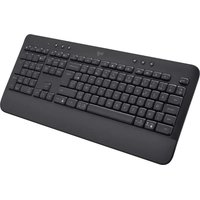
Black Logitech keyboard with visible key and control buttons (no text or symbols on the main body)Contents
English. 3
繁體中文 7
한국어 11

What's in the box
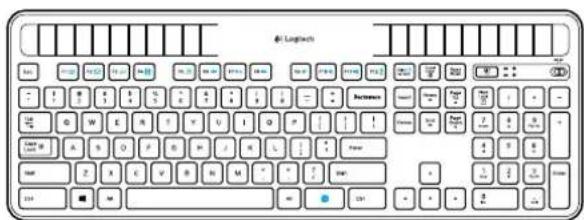

Unifying receiver
Wireless Solar Keyboard K750r
Setting up the keyboard


- Plug the Unifying receiver into a computer USB port.
- Pull the tab to activate the keyboard.
- Turn on the keyboard.
How much light is needed?
The K750r requires only a modest level of light to operate and store energy. Indirect sunlight or indoor illumination is fine.
When exposed to dim room light on a continuous basis, the K750r has enough power for use. Because indoor environments usually have periods of darkness, a moderate level of room lighting is recommended for much of the day. The recharge time for the K750r is much less in brightly lit environments or when the K750r is placed in direct sunlight.
The K750r stores energy automatically, even when turned off. This stored energy allows you to use the K750r without light for a while. With a full charge, the K750r can operate at least three months in total darkness before needing a recharge.
Checking for adequate light
How do you know whether there's enough light for the K750r? Use the Light-check hot key. The K750r tells you if it's getting enough illumination.
- Make sure the K750r is turned on.
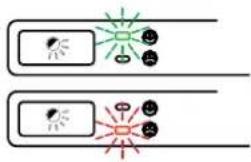
- Press the Light-check hot key. The Light-check LED will flash either green or red, or it won't produce any light at all. For more information, see Reading the Light-check LED.


Reading the Light-check LED
• Light-check LED flashes green. The K750r is receiving enough light and is ready for use.
- Light-check LED flashes red. The K750r requires more light to continue working on a long-term basis.
Note If the Light-check LED produces no light, please see Help with setup for more information.
Using the Solar App
Want an easy and more visual way of checking the available light falling on the K750r while keeping track of the keyboard's energy reserve? Download and install the Solar App from www.logitech.com/K750/solarapp
- The Solar App operates in the background and notifies you whenever there is a change (up or down) in the K750r's energy reserve.
- Try to keep the Light-check gauge pointing at 100 lux or higher to make sure the K750r will have plenty of energy.
- To bring the Solar App to the foreground, press the Light-check hot key on the keyboard. The Solar App will pop up, and the Light-check gauge will activate immediately.
Note: Not available on Windows RT.

Using the keyboard F-key
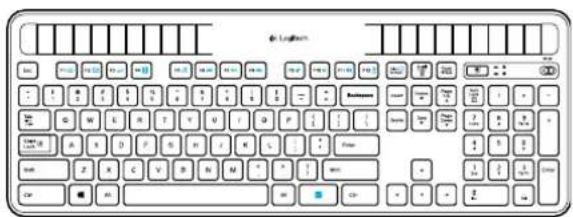
User-friendly enhanced F-keys let you launch applications easily. To use the enhanced functions (blue icons), first press and hold the FN key; second, press the F-key you want to use.
Tip: In the software settings, you can invert the FN mode if you prefer to access directly the enhanced functions without having to press the FN key.*
* Requires SetPoint™ Software (available for download at www.logitech.com/downloads. Not available on Windows RT.)

Keyboard features

1. Application zone
FN + F1 Internet home
FN + F2 Launch e-mail application
FN + F3 Launch Windows Search*
FN + F4 Launch calculator
2. Multimedia navigation zone
FN + F5 Launch media application
FN + F6 Previous track
FN + F7 Play/Pause
FN + F8 Next track
3. Multimedia volume zone
FN + F9 Mute
FN + F10 Volume down
FN + F11 Volume up
FN + F12 Sleep mode
-
FN key
-
Light-check hot key
-
Keyboard power switch
-
Solar cells
* One Touch Search if the SetSpoint® software is installed. (Not available on Windows RT.)
Plug it. Forget it. Add to it.
You've got a Logitech® Unifying receiver. Now add a compatible wireless keyboard or mouse that uses the same receiver.
It's easy. Just start the Logitech ^ Unifying software ^ and follow the onscreen instructions.
For more information and to download the software, visit www.logitech.com/unifying
*Go to Start / All Programs / Logitech / Unifying / Logitech Unifying Software
Note: Not available on Windows RT.

flowchart
graph TD
    A["unifying"] --> B["USB Port"]
    B --> C["Computer Mouse 1"]
    B --> D["Computer Mouse 2"]
    B --> E["Computer Mouse 3"]
Help with setup: keyboard not working
- Check the Unifying receiver. Also, try changing USB ports.
- Move closer? Try moving the K750r closer to the Unifying receiver, or plug the Unifying receiver into the Wireless extender if you are using a tower PC.
• Is the K750r turned on? Slide the keyboard Off/On switch to Off and then to On position.
- Re-establish the connection. Use the Unifying software to reset the connection between the K750r and Unifying receiver. Refer to the Unifying section in this guide for more information.
- Restart the computer.
- Press the Light-check hot key. If the Light-check LED produces no light, the K750r is out of energy. To use the K750r again, significantly increase the amount of light over the keyboard to a level you might see in a brightly lit office. It may take a day or two for the K750r to recharge when exposed to this increased level of illumination, but only several hours if the K750r is placed in direct sunlight.
Note: Any time the Light-check LED flashes red automatically, the K750r is nearly our of energy and needs more light to keep working on a long-term basis.
- Download and use the Solar App. This handy widget gives you an easy and more visual way of checking the available light hitting the K750r while keeping track of the keyboard's energy reserve. Download the Solar App from www.logitech.com/K750/solarapp (Not available on Windows RT.)
Handling the product at end of life
When you have made the decision to stop using your product, recycle it according to your local laws. Follow the instructions below to remove the battery (not user replaceable) from the keyboard, and then recycle both the keyboard and battery as recommended in steps 3 and 4.
-
Use a screwdriver to open the battery tray.
-
Carefully remove the battery from the tray.
-
Hand over the spent battery to the appropriate collection point for the recycling of batteries.
-
Hand over the product to the appropriate collection point for the recycling of electrical and electronic equipment.

natural_image
Diagram showing a screwdriver inserted into a component with a switch and recycling symbol (no text or labels)
包裝內容

natural_image
Diagram showing a screwdriver inserted into a slot with a switch and a recycling symbol (no text or labels)
내용물

무선 솔라 키보드 K750r

Unifying 수신기
키보드 설정


Solar App 사용
flowchart
graph TD
    A["unifying"] --> B["Laptop"]
    B --> C["Keyboard"]
    C --> D["Computer Mouse Icon"]
    D --> E["Computer Mouse Icon"]
    D --> F["Computer Mouse Icon"]
natural_image
Illustration of a screwdriver working on a mechanical component with a base, emitting smoke (no text or symbols)Rating: 5V --- 100mA
Approval No.: ETA-1115/2011/WRLO
CMIIT ID: 2011DJ1853


KCC-CRM-DZL-C-U0008

MADE IN CHINA
www.logitech.com
www.logitech.com/support

- Contents
- What's in the box
- Setting up the keyboard
- How much light is needed?
- Checking for adequate light
- Reading the Light-check LED
- Using the Solar App
- Using the keyboard F-key
- Keyboard features
- Application zone
- Multimedia navigation zone
- Multimedia volume zone
- Plug it. Forget it. Add to it.
- Help with setup: keyboard not working
- Handling the product at end of life
- 包裝內容
- 내용물
- 키보드 설정
- Solar App 사용
Brand : LOGITECH
Model : K750r
Category : Keyboard