
Bluetooth keyboard 19043 - Keyboard TRUST - Free user manual and instructions
Find the device manual for free Bluetooth keyboard 19043 TRUST in PDF.


| Product type | Wireless Bluetooth keyboard |
| Brand | Trust |
| Model | 19043 |
| Dimensions (L x W x H) | 28.5 x 12.0 x 2.5 cm |
| Weight | Approximately 385 g (with batteries) |
| Power supply | 2 AAA batteries (not included) |
| Estimated battery life | Up to 6 months with normal use |
| Connectivity | Bluetooth 5.0 |
| Range | Up to 10 meters |
| Compatibility | Windows, macOS, Android, iOS, Chrome OS |
| Key layout | AZERTY (French) |
| Number of keys | 78 |
| Multimedia keys | Yes (volume control, playback) |
| Key type | Chiclet, silent |
| Main features | Comfortable typing, fast Bluetooth connection, low power consumption |
| Maintenance and cleaning | Dust with a soft, dry cloth. Avoid moisture. |
| Safety | Do not expose to liquids or extreme temperatures. |
| Spare parts and repairability | Batteries are replaceable. No spare parts available. |
| General information | Portable Bluetooth keyboard for PC, tablet, and smartphone. |
Frequently Asked Questions - Bluetooth keyboard 19043 TRUST
User questions about Bluetooth keyboard 19043 TRUST
0 question about this device. Answer the ones you know or ask your own.
Ask a new question about this device
Download the instructions for your Keyboard in PDF format for free! Find your manual Bluetooth keyboard 19043 - TRUST and take your electronic device back in hand. On this page are published all the documents necessary for the use of your device. Bluetooth keyboard 19043 by TRUST.
USER MANUAL Bluetooth keyboard 19043 TRUST
www.trust.com/19029/fac
Trust

natural_image
Black desktop computer keyboard with standard keys and buttons (no visible text or labels)Quick Installation Guide
Bluetooth keyboard
Installation Installa

Bluetooth Keyboard - USER'S MANUAL
| Language | page | ||
| English | 2 | ||
| Deutsch | 5 | ||
| Français | 8 | ||
| Italiano | 11 | ||
| Español | 14 | ||
| Português | 17 | ||
| Nederlands | 20 | ||
| Dansk | 23 | ||
| Suomi | 26 | ||
| Norsk | 29 | ||
| Svenska | 32 | ||
| Polski | 35 | ||
| Česky | 38 | ||
| Slovenčina | 41 | ||
| Magyar | 44 | ||
| Română | 47 | ||
| Български | 50 | ||
| Русский | 53 | ||
| Еллгнікă | 56 | ||
| Türkçe | 59 | ||
| Hrvatski | 62 | ||
| Slovenski | 65 | ||
| C | рпски | 68 | |
| Braslleiro | 71 | ||
Bluetooth Keyboard - USER'S MANUAL
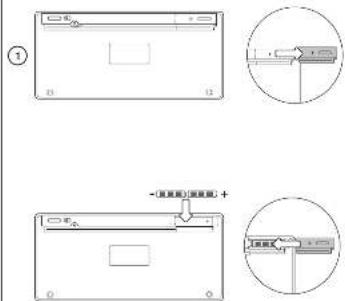
Installation
① - Remove battery cover
- Place the batteries in the keyboard
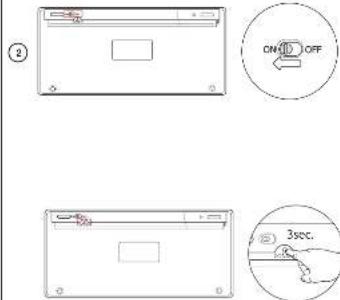
② - Power on the Keyboard.
- Press the connect button for 3 seconds to enable the pairing mode.
Configuration
iPad/ iPhone
③ - Go to 'Settings'.
- Go to the 'General' settings.
- Go to 'Bluetooth'.
④ - Make sure that Bluetooth is on.
- Select 'Bluetooth Keyboard' in the list of Bluetooth devices. (make sure the keyboard is in pairing mode)
⑤ Type the requested phrase on the keyboard and press enter. When the device status is 'paired', your device is ready to use
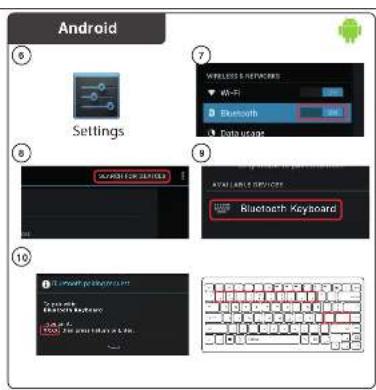
Android
⑥ Go to 'Settings'.
The settings icon can be found on the homescreen, app drawer or clock.
⑦ Make sure that Bluetooth
⑧ In the Bluetooth menu press 'search for devices' If needed.
⑨ Select 'Bluetooth Keyboard' in the list of Bluetooth devices (make sure the keyboard is in pairing mode).
⑩ Type the requested phrase on the keyboard and press enter. Your device is now ready to use.
Windows
8
⑪ A. Open the settings bar and click on 'Settings'.
(Go to the top right op the screen or press 'Windows key + C' for the settings bar)
B. Click on 'Change PC settings'.
C. Click on 'Devices'.
⑫ A. Click on 'Add a device'
B. Select the 'Bluetooth Keyboard'.
C. Type the requested phrase on the keyboard and press enter.
When the device is successfully added, your device is ready to use.
Click the bottom left corner of the screen to return to the start screen.
Bluetooth Keyboard - USER'S MANUAL
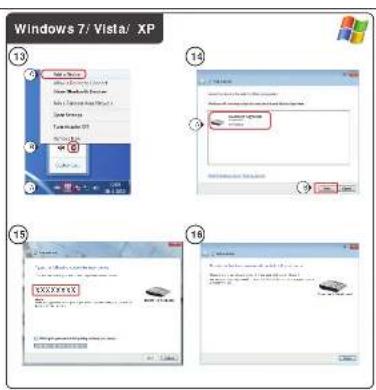
Windows 7/ Vista/ XP
13 A. Open the taskbar icons.
B. Click on the Bluetooth icon.
C. Click on 'Add a device'.
14 Select 'Bluetooth Keyboard' in the list of Bluetooth devices (make sure the keyboard is in pairing mode).
15 Type the requested phrase on the keyboard and press enter
When the device is successfully added, your device is ready to use.
Media Keys
| Android | IOS | ||||
| Previous track | √ | √ | √ | Only working in original music app | |
| Next track | √ | √ | √ | ||
| Play/ Pause | √ | √ | √ | ||
| Mute | √ | √ | |||
| Volume - | √ | √ | √ | ||
| Volume + | √ | √ | √ | ||
| Keyboard | √ | ||||
| Search | √ | √ | √ | ||
| Home | √ | ||||
| Home | √ | √ | |||
Special keys in blue can be used by pressing the 'fn' + special key.
Windows
Remark
Bluetooth Keyboard - USER'S MANUAL
Trouble shooting
| Problem | Solution |
| Can't connect the Bluetooth keyboard to my device | - Make sure that the keyboard is in pairing mode. Press and hold the connect button for 3 seconds to activate the pairing mode.- If a passcode is requested. Type the requested phrase on the keyboard and press enter.- Move the Bluetooth keyboard closer to your device.(maximum distance 10m under ideal circumstances)- The keyboard can only be connected with one device simultaneously.- Replace the batteries. |
| PC only | - Reinstall/ update the drivers of your Bluetooth device and reboot your system. (PC only) |
| No all typed characters are showing on the screen | - Move the Bluetooth keyboard closer to your device.- Replace the batteries- Reinstall/ update the drivers of your Bluetooth device and reboot your system.- If you are using the product around large metal surfaces, remove the metal surface or move you product away from the metal surface.- Move the Bluetooth keyboard away from other wireless devices (like Wireless network routers)- The keyboard goes into sleep mode after some time of not using. After pressing a key the keyboard will wake up. This make take a couple of seconds. |
| How can I pair my keyboard with a different device. | - Follow the installation from step 2. |
| The keyboard shows different characters on my device. | - Change the keyboard language settings of your device. |
| The media keys are not working | - When using an alternative music player, the media keys may not work. |
If your problem is not solved, please contact the helpdesk at www.trust.com/19029/faq
Bluetooth Keyboard - USER'S MANUAL
Installation
Bluetooth Keyboard - USER'S MANUAL
Windows 7/Vista/XP
Bluetooth Keyboard - USER'S MANUAL
Installation
Bluetooth Keyboard - USER'S MANUAL
Windows 7/Vista/XP
Bluetooth Keyboard - USER'S MANUAL
Installazione
Bluetooth Keyboard - USER'S MANUAL
Bluetooth Keyboard - USER'S MANUAL
Instalación
Bluetooth Keyboard - USER'S MANUAL
Windows 7/Vista/XP
Bluetooth Keyboard - USER'S MANUAL
Instalação
- Vá a 'Bluetooth' ['Bluetooth']
Bluetooth Keyboard - USER'S MANUAL
Bluetooth Keyboard - USER'S MANUAL
Installatie
Bluetooth Keyboard - USER'S MANUAL
Windows 7/Vista/XP
⑬ A. Open de icoontjes in de taakbalk.
Bluetooth Keyboard - USER'S MANUAL
Installation
① - Fjern batteridækslet.
- Placer batterierne i tastaturet.
② - Tænd tastaturet.
- Tryk på tllslutningsknappen i 3 sekunder for at aktivere parringstilstanden.
Konfiguration
iPad/ iPhone
Bluetooth Keyboard - USER'S MANUAL
Windows 7/Vista/XP

A. Åbn proceslinjeikanerne.
B. Klik på ikonet Bluetooth.
Bluetooth Keyboard - USER'S MANUAL
Asennus
① - Poista paristokotelon kansi.
Bluetooth Keyboard - USER'S MANUAL
Windows 7/Vista/XP
Bluetooth Keyboard - USER'S MANUAL
Installasjon
Bluetooth Keyboard - USER'S MANUAL
Windows 7/Vista/XP
Bluetooth Keyboard - USER'S MANUAL
Installation
Bluetooth Keyboard - USER'S MANUAL
Windows 7/Vista/XP
Bluetooth Keyboard - USER'S MANUAL
Instalacja
Bluetooth Keyboard - USER'S MANUAL
Bluetooth Keyboard - USER'S MANUAL
Instalace
Bluetooth Keyboard - USER'S MANUAL
Bluetooth Keyboard - USER'S MANUAL
Inštalácia
① - Odstránite kryt na batérie.
Bluetooth Keyboard - USER'S MANUAL
Windows 7/Vista/XP

A. Otvorte ikony panela úloh.
B. Kliknite na ikonu Bluetooth.
C. Kliknite na „Add a device“ [„Pridat' zariadenie“].

Bluetooth Keyboard - USER'S MANUAL
Telepítés
Bluetooth Keyboard - USER'S MANUAL
Windows 7/Vista/XP
Bluetooth Keyboard - USER'S MANUAL
Instalare
Bluetooth Keyboard - USER'S MANUAL
Bluetooth Keyboard - USER'S MANUAL
Инсталиране
Bluetooth Keyboard - USER'S MANUAL
Bluetooth Keyboard - USER'S MANUAL
Установка
Bluetooth Keyboard - USER'S MANUAL
Bluetooth Keyboard - USER'S MANUAL
Εγκατάσταση
Bluetooth Keyboard - USER'S MANUAL
Bluetooth Keyboard - USER'S MANUAL
Kurulum
Bluetooth Keyboard - USER'S MANUAL
Bluetooth Keyboard - USER'S MANUAL
Instalacija
① - Uklonite poklopac baterija.
- Stavite baterije u tipkovnicu.
② - Uključite tipkovnicu. - Pritisnite gumb za spajanje I držite ga 3 sekunde kako bi se omogućlo režim uparlivanja.
Konfiguracija
iPad / iPhone
③ - Idite na „Settings“ [„Postavke“].
- Idite na „General“ [„Opće“] postavke.
- Idite na „Bluetooth“
④ - Provjerite, da je Bluetooth upaljen.
- Odaberite „Bluetooth Keyboard“ na popisu Bluetooth uređaja (provjerite da li je tipkovnica u režimu
uparivanja).
⑤ Unesite traženi izraz na tipkovnici i pritisnite Enter.
Bluetooth Keyboard - USER'S MANUAL
Windows 7/Vista/XP
⑬ A. Otvorite ikone na programskoj traci.
B. Klinite Bluetooth ikonu.
Bluetooth Keyboard - USER'S MANUAL
Namestitev
① - Odstranite pokrovček baterije.
- V tipkovnico vstavite baterije.
② - Vklopite tipkovnico. - Pritisnite gumb za povezavo za 3 sekunde in omogočite način povezovanja.
Konfiguracija
iPad/ iPhone
Bluetooth Keyboard - USER'S MANUAL
Windows 7/Vista/XP

A. Odprite ikono opravilne vrstice.
B. Kliknite na ikono Bluetooth.
Bluetooth Keyboard - USER'S MANUAL
Instalacija
① - Skinite poklopac pregrade za baterije.
- Zamenite baterije u tastaturi.
② - Uključite tastaturu.
- Da biste uključili režim uparivanja, pritisnite dugme za povezivanje i držite ga 3 sekunde.
Podešavanje
③ - Idite na „Settings“ [„Postavke“].
- Idite na „General“ [„Opšte“] postavke.
- Idite na „Bluetooth“.
④ - Proverite da li je Bluetooth uključen.
- Sa spiska Bluetooth uređaja izaberite „Bluetooth Keyboard“ (proverite da li se tastatura nalazi u režimu uparivanja).
⑤ Pomoću tastature upišite traženu frazu i zatim pritisnite Enter.
Uredaj će biti spreman za upotrebu kada bude u statusu „paired“ [„povezano“].
iPad/ iPhone
Android
⑥ Idite na „Settings“ [„Postavke“].
Ikona postavki može se naći na početnom ekranu, fioci sa aplikacijama ili na časovniku.
⑦ Proverite da li je Bluetooth uključen.
⑧ Ako je potrebno, na Bluetooth meniju pritisnite „search for devices“ [„potraga za uređajima“].
- Sa spiska Bluetooth uređaja izaberite „Bluetooth Keyboard“ (proverite da li se tastatura nalazi u režimu uparivanja).
Bluetooth Keyboard - USER'S MANUAL
Windows 7/Vista/XP
⑬ A. Otvorite ikonice na programskoj traci.
B. Kliknite na ikonicu Bluetooth.
Bluetooth Keyboard - USER'S MANUAL
Instalação
Bluetooth Keyboard - USER'S MANUAL
Windows 7/Vista/XP
⑬ A. Abra os icones da barra de tarefas.
B. Clique no icone do Bluetooth.
- Trust
- Bluetooth Keyboard - USER'S MANUAL
- Installation
- Configuration
- iPad/ iPhone
- Android
- Windows
- 8
- Windows 7/ Vista/ XP
- Windows 7/Vista/XP
- Installazione
- Instalación
- Instalação
- Installatie
- Konfiguration
- Asennus
- Installasjon
- Instalacja
- Instalace
- Inštalácia
- Telepítés
- Instalare
- Инсталиране
- Установка
- Εγκατάσταση
- Kurulum
- Instalacija
- Konfiguracija
- iPad / iPhone
- Namestitev
- Podešavanje
Brand : TRUST
Model : Bluetooth keyboard 19043
Category : Keyboard