
F4U037CW - Built-in kit BELKIN - Free user manual and instructions
Find the device manual for free F4U037CW BELKIN in PDF.


| Product Type | Flush Mount Kit |
| Brand | Belkin |
| Model | F4U037CW |
| Material | ABS Plastic |
| Color | White |
| Dimensions | 85 x 85 x 25 mm |
| Weight | 50 g |
| Power | None (mechanical kit) |
| Use | Flush installation for outlets or chargers |
| Compatibility | Standard wall panels (flush boxes) |
| Installation | Flush mounting in the wall with provided screws and anchors |
| Package Contents | Mounting bracket, screws, anchors, manual |
| Key Features | Secure device mounting, aesthetic wall integration |
| Care and Cleaning | Clean with a soft, dry cloth, no solvents |
| Safety | Compliant with CE standards |
| Spare Parts and Repairability | Non-removable parts, non-repairable kit |
| General Information | 2-year warranty, made in China |
Frequently Asked Questions - F4U037CW BELKIN
User questions about F4U037CW BELKIN
0 question about this device. Answer the ones you know or ask your own.
Ask a new question about this device
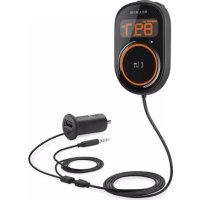
Download the instructions for your Built-in kit in PDF format for free! Find your manual F4U037CW - BELKIN and take your electronic device back in hand. On this page are published all the documents necessary for the use of your device. F4U037CW by BELKIN.
USER MANUAL F4U037CW BELKIN
Managing Phone Calls 6
Managing Multiple Calls/Call-Waiting 7
Managing Music 7
Online Audio Services....8
Disconnecting 8
4 Troubleshooting. 9
5 Safety Warnings 10
6 Information 11
7 Tip Sheet for the Button 15
INTRODUCTION
| Table of Contents | SECTIONS | 1 | 2 | 3 | 4 | 5 | 6 | 7 |
Features
• Talk hands-free on your iPhone or other Bluetooth-enabled phone
- Listen to your iTunes music or other audio files, including Internet radio, from your Bluetooth-enabled device wirelessly through your car stereo
INTRODUCTION
| Table of Contents | SECTIONS | 1 | 2 | 3 | 4 | 5 | 6 | 7 |
What's in the Box

INITIAL SETUP
SECTIONSTable of Contents 1 3 654 7 2
Connect to power and AUX:
- Insert the power plug into your car's 12V power outlet (also known as the cigarette lighter).

natural_image
Line drawing of a device with a connector and cable, no text or symbols present- Insert the audio cable into your car's AUX port. If the cable is too short, use the extension cable included in the package.
- Turn on your car stereo and set the input source to AUX.
INITIAL SETUP
| Table of Contents | SECTIONS | 1 | 2 | 3 | 4 | 5 | 6 | 7 |
Place the Button:
-
Find a smooth and flat surface on the dashboard in front of you that is within easy reach but will not interfere with driving. The built-in microphone is housed in the button so it should be as close to your mouth and as directly in front of you as possible. See image for some recommended areas:
-
Make sure the surface is dry and free of dirt.
-
Peel away the back of the mounting disc to expose the adhesive and stick it to the dashboard.
-
The button will magnetically attach to the mounting disc. The button can be easily removed and stored when not in use.

INITIAL SETUP
| Table of Contents | SECTIONS | 1 | 2 | 3 | 4 | 5 | 6 | 7 |
Pair your phone:
- Press and hold the button until the light ring starts flashing. The button light will briefly turn off before it starts flashing. Do not release the button until it starts flashing.
- On your phone, go to the Bluetooth settings menu.
- Make sure Bluetooth is turned on.
- On some phones, set your Bluetooth to search for new connections.
- Select the AirCast Auto from the list of accessories.
- If asked for a pass code, type in "0000".
- When paired successfully, the light ring will turn solid blue.
- Some phones may ask if you want to connect. Select "Yes".
Pairing with a different phone:
Only one phone can be paired to the AirCast Auto at any one time. To pair a different phone:
- Put the AirCast Auto into sleep mode by pressing and holding the button until the light ring turns off, and then immediately let go of the button.
- Repeat the pairing instructions listed previously.
Connecting
To connect to the AirCast Auto:
- If you're already on a call or listening to music via a Bluetooth® headset, turn the headset off so that your phone is free to connect to the AirCast Auto.
- Turn your car stereo on and set the input source to AUX.
- Make sure there's power to the AirCast Auto—the light ring will be solid orange.
- Tap the button and the AirCast Auto will attempt to re-connect with the same phone it last connected to.
- When successfully connected, the light ring will turn solid blue.
- If you're already on a call or listening to music, the audio will transfer to your car speakers.
Note: After 10 minutes of inactivity, the AirCast Auto will go into sleep mode and the light ring will turn off. When that happens, tap the button to wake it and it will immediately attempt to connect to the same phone it last connected to.
Managing Phone Calls
Make a call:
- Place calls as you normally do on your phone and the call audio will be heard through your car stereo.
Make a call using voice-dialing:
- If your phone supports voice-dialing, press and hold the button until you hear your phone prompt for a command (about one second).
Answer a call:
- When an incoming call is detected, the light ring will flash blue.
- Tap the button to answer the call and the light ring will return to solid blue.
| Table of Contents | SECTIONS | 1 | 2 | 3 | 4 | 5 | 6 | 7 |
Managing Multiple Calls/Call-Waiting
Answer a second incoming call:
- Tap the button.
Switch between two calls:
- Tap the button.
End the second call:
- Double-tap the button.
Managing Music
Play:
- Tap the button and your phone will play whatever music was last playing.
• To change the music selection, use the controls on the phone.
To pause/un-pause the music:
• Tap the button and the music will pause.
- If the music is already paused, tapping the button will un-pause it.
- If a call comes in while listening to music, the music will automatically pause.
Skip songs:
• To skip to the next song, double-tap the button.
• This may not work for all phones.
DAILY USE
| Table of Contents | SECTIONS | 1 | 2 | 3 | 4 | 5 | 6 | 7 |
Online Audio Services
If you use audio-streaming services or apps such as Pandora ® or iheartradio ® , you might be able to use AirCast Auto to enjoy streaming audio through your car stereo. If the sound comes out of your phone instead of the car speakers:
- Check to make sure the phone is connected to the AirCast Auto.
- Check the service or app setting to make sure the Bluetooth option is enabled and the sound output is set to Bluetooth.
Disconnecting
To disconnect from the AirCast Auto, press and hold the button until the light ring goes off, and then immediately release the button.
Note: If you're on a call, the audio will transfer back to the phone after a few seconds. If you're listening to music, depending on the phone, the music will pause or continue playing with the sound coming out of your phone.
TROUBLESHOOTING
| Table of Contents | SECTIONS | 1 | 2 | 3 | 4 | 5 | 6 | 7 |
You can quickly solve most problems with your AirCast Auto by following the advice in this section.
The audio is not coming out of the stereo speakers.
Solutions:
• Make sure both the car stereo and the AirCast Auto are powered on.
- Make sure the audio cable is correctly and firmly connected to the aux-in jack of your vehicle.
• Make sure your car stereo is set to the AUX input setting.
• Make sure the stereo volume is set to a comfortable listening level.
- Make sure that your iPhone, iPod touch, or other Bluetooth-enabled device is connected via Bluetooth to the AirCast Auto.
SAFETY WARNINGS
| Table of Contents | SECTIONS | 1 | 2 | 3 | 4 | 5 | 6 | 7 |
Your AirCast Auto requires full concentration and both hands to install. Do not attempt to connect your AirCast Auto while driving. Do not attempt to adjust or retrieve an unsecured AirCast Auto while driving. Adjust the position of your AirCast Auto so that it does not interfere with any of the operating controls of the vehicle or your view of the road.
Do not use this apparatus near water (for example, a bath tub, wash bowl, kitchen sink, laundry tub, wet basement, swimming pool, or other areas located near water).
Unplug this product from the cigarette lighter or power outlet before cleaning. Clean only with a dry cloth.
Unplug this apparatus when unused for long periods of time.
Only use attachments/accessories specified by the manufacturer.
Belkin does not assume any responsibility for personal injury or property damage incurred due to hazardous driving as a result of interaction with the AirCast Auto, iPhone, iPod, or other Bluetooth -enabled device.
INFORMATION
| Table of Contents | SECTIONS | 1 | 2 | 3 | 4 | 5 | 6 | 7 |
FCC Statement
This device complies with part 15 of the FCC Rules. Operation is subject to the following two conditions:
(1) this device may not cause harmful interference, and
(2) this device must accept any interference received, including interference that may cause undesired operation.
This equipment has been tested and found to comply with the limits for a Class B digital device, pursuant to part 15 of the FCC Rules. These limits are designed to provide reasonable protection against harmful interference in a residential installation. This equipment generates, uses, and can radiate radio frequency energy and, if not installed and used in accordance with the instructions, may cause harmful interference to radio communications. However, there is no guarantee that interference will not occur in a particular installation. If this equipment does cause harmful interference to radio or television reception, which can be determined by turning the equipment off and on, the user is encouraged to try to correct the interference by one of the following measures:
• Reorient or relocate the receiving antenna.
- Increase the separation between the equipment and receiver.
- Connect the equipment into an outlet on a circuit different from that which the receiver is connected.
- Consult the dealer or an experienced radio/TV technician for help.
Belkin International, Inc., is not responsible for any interference caused by unauthorized modifications to this equipment. Such modifications could void the user's authority to operate this equipment.
FCC Caution: Any changes or modifications not expressly approved by the party responsible for compliance could void the user's authority to operate this equipment.
ICES
This Class B digital apparatus complies with Canadian ICES-003.
IC
This Class B digital apparatus complies with Canada RSS-210.
Europe – EU Declaration of Conformity
This device complies with the essential requirements of the R&TTE Directive 1999/5/EC, the EMC Directive 2004/108/EC, and the low-voltage Directive 2006/95/EC. A copy of the European Union CE marking “Declaration of Conformity” may be obtained at the website: www.belkin.com/doc
CE
| Table of Contents | SECTIONS | 1 | 2 | 3 | 4 | 5 | 6 | 7 |
Belkin International, Inc., Limited 3-Year Product Warranty
What this warranty covers.
Belkin International, Inc. ("Belkin") warrants to the original purchaser of this Belkin product that the product shall be free of defects in design, assembly, material, or workmanship.
What the period of coverage is.
Belkin warrants the Belkin product for three years.
What will we do to correct problems?
Product Warranty
Belkin will repair or replace, at its option, any defective product free of charge (except for shipping charges for the product). Belkin reserves the right to discontinue any of its products without notice, and disclaims any limited warranty to repair or replace any such discontinued products. In the event that Belkin is unable to repair or replace the product (for example, because it has been discontinued), Belkin will offer either a refund or a credit toward the purchase of another product from Belkin.com in an amount equal to the purchase price of the product as evidenced on the original purchase receipt as discounted by its natural use.
What is not covered by this warranty?
All above warranties are null and void if the Belkin product is not provided to Belkin for inspection upon Belkin's request at the sole expense of the purchaser, or if Belkin determines that the Belkin product has been improperly installed, altered in any way, or tampered with.
The Belkin Product Warranty does not protect against acts of God such as flood, lightning, earthquake, war, vandalism, theft, normal-use wear and tear, erosion, depletion, obsolescence, abuse, damage due to low voltage disturbances (i.e. brownouts or sags), non-authorized program, or system equipment modification or alteration.
How to get service.
To get service for your Belkin product you must take the following steps:
- Contact Belkin Ltd Express Business Park, Shipton Way, Rushden, NN106GL, United Kingdom, Attn: Customer Service, call +44 (0) 1933 35 2000 or 0845 607 77 87, within 15 days of the Occurrence. Be prepared to provide the following information:
a. The part number of the Belkin product.
b. Where you purchased the product.
c. When you purchased the product.
d. Copy of original receipt.
- Your Belkin Customer Service Representative will then instruct you on how to forward your receipt and Belkin product and how to proceed with your claim.
INFORMATION
| Table of Contents | SECTIONS | 1 | 2 | 3 | 4 | 5 | 6 | 7 |
Belkin reserves the right to review the damaged Belkin product. All costs of shipping the Belkin product to Belkin for inspection shall be borne solely by the purchaser. If Belkin determines, in its sole discretion, that it is impractical to ship the damaged equipment to Belkin, Belkin may designate, in its sole discretion, an equipment repair facility to inspect and estimate the cost to repair such equipment. The cost, if any, of shipping the equipment to and from such repair facility and of such estimate shall be borne solely by the purchaser. Damaged equipment must remain available for inspection until the claim is finalized. Whenever claims are settled, Belkin reserves the right to be subrogated under any existing insurance policies the purchaser may have.
How state law relates to the warranty.
THIS WARRANTY CONTAINS THE SOLE WARRANTY OF BELKIN. THERE ARE NO OTHER WARRANTIES, EXPRESSED OR, EXCEPT AS REQUIRED BY LAW, IMPLIED, INCLUDING THE IMPLIED WARRANTY OR CONDITION OF QUALITY, MERCHANTABILITY OR FITNESS FOR A PARTICULAR PURPOSE, AND SUCH IMPLIED WARRANTIES, IF ANY, ARE LIMITED IN DURATION TO THE TERM OF THIS WARRANTY.
Some states do not allow limitations on how long an implied warranty lasts, so the above limitations may not apply to you.
IN NO EVENT SHALL BELKIN BE LIABLE FOR INCIDENTAL, SPECIAL, DIRECT, INDIRECT, CONSEQUENTIAL OR MULTIPLE DAMAGES SUCH AS, BUT NOT LIMITED TO, LOST BUSINESS OR PROFITS ARISING OUT OF THE SALE OR USE OF ANY BELKIN PRODUCT, EVEN IF ADVISED OF THE POSSIBILITY OF SUCH DAMAGES.
This warranty gives you specific legal rights, and you may also have other rights, which may vary from state to state. Some states do not allow the exclusion or limitation of incidental, consequential, or other damages, so the above limitations may not apply to you.
INFORMATION
| Table of Contents | SECTIONS | 1 | 2 | 3 | 4 | 5 | 6 | 7 |
Free Tech Support\*
*National call rates may apply www.belkin.com
You can find additional support information on our website www.belkin.com through the tech-support area. If you want to contact technical support by phone, please call the number you need from this list*.
COUNTRY NUMBER INTERNET ADRESS
| AUSTRIA 0820 200766 www.belkin.com/de/ | ||
| BELGIUM 07 07 00 073 | www.belkin.com/nl/www.belkin.com/fr/ | |
| CZECH REPUBLIC 239 000 | 406 www.belkin.com/uk/ | |
| DENMARK | 701 22 403 | www.belkin.com/uk/ |
| FINLAND 0972519123 | www.belkin.com/uk/ | |
| FRANCE | 08 - 25 54 00 26 | www.belkin.com/fr/ |
| GERMANY | 0180 - 500 57 09 | www.belkin.com/de/ |
| GREECE | 00800 - 44 14 23 90 | www.belkin.com/uk/ |
| HUNGARY | 06 - 17 77 49 06 | www.belkin.com/uk/ |
| ICELAND 800 8534 | www.belkin.com/uk/ | |
| IRELAND 0818 55 50 06 | www.belkin.com/uk/ | |
| ITALY | 02 - 69 43 02 51 | www.belkin.com/it/ |
| LUXEMBOURG | 34 20 80 85 60 | www.belkin.com/uk/ |
| NETHERLANDS | 0900 - 040 07 90 €0.10 per minute | www.belkin.com/nl/ |
| NORWAY 81 50 0287 | www.belkin.com/uk/ | |
| POLAND | 00800 - 441 17 37 | www.belkin.com/uk/ |
| PORTUGAL | 707 200 676 | www.belkin.com/uk/ |
| RUSSIA | 495 580 9541 | www.belkin.com/ |
| SOUTH AFRICA | 0800 - 99 15 21 | www.belkin.com/uk/ |
| SPAIN 902 - 02 43 66 | www.belkin.com/es/ | |
| SWEDEN 07 - 71 40 04 53 | www.belkin.com/uk/ | |
| SWITZERLAND | 08 - 48 00 02 19 | www.belkin.com/de/www.belkin.com/fr/ |
| UNITED KINGDOM | 0845 - 607 77 87 | www.belkin.com/uk/ |
| OTHER COUNTRIES | +44 - 1933 35 20 00 | |
TIP SHEET FOR THE BUTTON
| Table of Contents | SECTIONS | 1 | 2 | 3 | 4 | 5 | 6 | 7 |
This page can be removed from the manual and placed in your car for easy reference.
Function
Steps
| Pairing Press and hold the button until the light ring flashes | orange. The light will briefly turn off before flashing.Do not release until the light starts flashing. |
| Connect/transfer audio to the car Tap the button | |
| Disconnect/transfer audio to phone Press and hold until the light ring turns off | the light ring turns offRelease the button immediately after the light ring turns off |
| Answer a call Tap the button | |
| End a call Tap the button | |
| Answer a 2nd call Tap the button | |
| Switch between 2 calls Tap the button | |
| End 2nd call, resume 1st call Double-tap the button | |
| Initiate voice-dialing Press and hold until voice prompt | |
| Pause/un-pause music Tap the button (may not work on all phones) | |
| Skip songs | Double-tap the button (may not work on all phones) |
| Initiate voice-dialing Press and hold until phone prompts for a voice command |
What the light ring on the button means:
| Orange – Not flashing | Powered but not connected |
| Orange – Flashing | In Pairing mode |
| Blue – Not flashing | Paired and connected |
| Blue – Flashing | Incoming call |
belkin.com
Belkin Ltd.
Express Business Park
Shipton Way, Rushden
NN10 6GL, United Kingdom
Belkin SAS
130 Rue de Silly
92100 Boulogne-Billancourt,
France
Belkin GmbH
Otto-Hahn-Straße 20
85609 Aschheim
Germany
Belkin Iberia
Avda de Barajas, 24
Edificio Gamma, 4 a pta
28108 Alcobendas
Madrid - Spain
Belkin Italy & Greece
Via Carducci, 7
Milano 20123
Italy
Belkin B.V.
Boeing Avenue 333
© 2010 Belkin International, Inc. All rights reserved. All trade names are registered trademarks of respective manufacturers listed. iPod, iPhone, iPod touch, and iTunes are trademarks of Apple Inc., registered in the U.S. and other countries. The Bluetooth name and the Bluetooth trademarks are owned by Bluetooth SIG, Inc., and are used by Belkin International, Inc., under license.
F4U037cw
8820ek00529

BELKIN.
AirCast Auto
natural_image
Line drawing of a coiled cable or wire with a terminal connector (no text or symbols)INSTALLATION INITIALE
SECTIONSTable des matières 1 3 654 7
2
natural_image
Line drawing of a device with a connector inserted, showing ports and wiring (no text or symbols)SECTIONSTable des matières 1 3 654 72
This Class B digital apparatus complies with Canadian ICES-003.
IC
Express Business Park
Shipton Way, Rushden
natural_image
Line drawing of a device with a connector inserted, showing ports and wiring (no text or symbols)Inhaltsverzeichnis
KAPITEL
1
2
3
4
5
6
7
Express Business Park
Shipton Way, Rushden
Belkin Italy & Greece
Via Carducci, 7
Mailand 20123
Italien
Belkin B.V.
Boeing Avenue 333
Online audioservices....8
Verbinding verbreken 8
4 Problemen oplossen 9
natural_image
Line drawing of a device with a connector and cable, no text or symbols presentHOOFDSTUKInhoud 1 3 654 72
Online audioservices
Express Business Park
Shipton Way, Rushden
Belkin Italy & Greece
Via Carducci, 7
20123 Milaan
Italië
Belkin B.V.
Boeing Avenue 333
1119 PH Schiphol-Rijk
Nederland
natural_image
Line drawing of a device with a connector inserted, showing no text or symbolsINSTALACIÓN INICIAL
Express Business Park
Shipton Way, Rushden
Belkin Italy & Greece
Via Carducci, 7
Milán 20123
Italia
Belkin B.V.
Boeing Avenue 333
natural_image
Line drawing of a coiled cable or wire with a terminal connector (no text or symbols)natural_image
Line drawing of a device with a connector and cable, no text or symbols presentSEZIONIIndice 1 3 654 72
Express Business Park
Shipton Way, Rushden
Belkin Italy & Greece
Via Carducci, 7
20123 Milano
Italia
Belkin B.V.
Boeing Avenue 333
1119 PH Schiphol-Rijk
Paesi Bassi
natural_image
Line drawing of a device with a connector inserted, showing no text or symbolsSECÇÕESÍndice 1 3 654 72
Express Business Park
Shipton Way, Rushden
natural_image
Line drawing of a device with a cable and plug inserted, showing no text or symbolsСодержание
РАЗДЕЛЫ
1 3 654 72
Express Business Park
Shipton Way, Rushden
Belkin Italy & Greece
Via Carducci, 7
Milano 20123
Италия
Belkin B-V
Boeing Avenue 333
natural_image
Line drawing of a device with a connector and cable, no text or symbols presentPAINIKKEESEEN LIITTYVÄT VINKIT
Express Business Park
Shipton Way, Rushden
NN10 6GL, Iso-Britannia
Belkin SAS
130 Rue de Silly
92100 Boulogne-Billancourt,
Ranska
Belkin GmbH
Otto-Hahn-Straße 20
85609 Aschheim
Saksa
Belkin Iberia
Avda de Barajas, 24
Edificio Gamma, 4 a pta
28108 Alcobendas
Madrid - Espanja
natural_image
Line drawing of a device with a connector and cable, no text or symbols present- Stikk lydkabelen i bilens AUX-port. Hvis kabelen er for kort, kan du bruke forlengelsesledningen som følger med i esken.
- Slå på bilstereoen og still inngangskilden på AUX.
DELERinnhold 1 3 654 72
Plasser knappen:
DELERInnhold 1 3 654 72
Express Business Park
Shipton Way, Rushden
NN10 6GL, Storbritannia
Belkin SAS
130 Rue de Silly
92100 Boulogne-Billancourt,
Frankrike
Belkin GmbH
Otto-Hahn-Straße 20
85609 Aschheim
Tyskland
Belkin Iberia
Avda de Barajas, 24
Edificio Gamma, 4 a pta
28108 Alcobendas
Madrid - Spania
natural_image
Line drawing of a device with a connector and cable, no text or symbols presentAFSNITIndhold 1 3 654 72
Express Business Park
Shipton Way, Rushden
NN10 6GL, England
Belkin SAS
130 Rue de Silly
92100 Boulogne-Billancourt,
Frankrig
Belkin GmbH
Otto-Hahn-Straße 20
85609 Aschheim
Tyskland
Belkin Iberia
Avda de Barajas, 24
Edificio Gamma, 4 a pta
28108 Alcobendas
Madrid – Spanien
Belkin Italy & Greece
Via Carducci, 7
Milan 20123
Italien
Belkin B.V.
Boeing Avenue 333
INNEHÅLLSFÖRTECKNING
natural_image
Line drawing of a coiled cable or wire with a terminal connector (no text or symbols)INLEDANDE ÅTGÄRDER
natural_image
Line drawing of a device with a connector and cable, no text or symbols presentINLEDANDE ÅTGÄRDER
Express Business Park
Shipton Way, Rushden
NN10 6GL, Storbritannien
Belkin SAS
130 Rue de Silly
92100 Boulogne-Billancourt
Frankrike
Belkin GmbH
Otto-Hahn-Straße 20
85609 Aschheim
Tyskland
Belkin Iberia
Avda de Barajas, 24
Edificio Gamma, 4 a pta
28108 Alcobendas
Madrid – Spanien
Belkin Italy & Greece
Via Carducci, 7
Milano 20123
Italien
Belkin B.V.
Boeing Avenue 333
1119 PH Schiphol-Rijk
Nederländerna
natural_image
Line drawing of a coiled cable or wire with two connectors (no text or symbols)ÚVODNÍ NASTAVENÍ
ČÁSTIobsah 1 3 654 7
2
natural_image
Line drawing of a device with a dial and connector, no text or symbols presentČÁSTI Obsah 1 3 654 72
Spárujte telefon:
Express Business Park
Shipton Way, Rushden
Belkin Italy & Greece
Via Carducci, 7
Milán 20123
Itálie
Belkin B.V.
Boeing Avenue 333
natural_image
Line drawing of a device with a connector inserted, showing no text or symbolsExpress Business Park
Shipton Way, Rushden
Belkin Italy & Greece
Via Carducci, 7
Milano 20123
Włochy
Belkin B.V.
Boeing Avenue 333
| Table of Contents | SECTIONS | 1 | 2 | 3 | 4 | 5 | 6 | 7 |
Jellemzők
| Table of Contents | SECTIONS | 1 | 2 | 3 | 4 | 5 | 6 | 7 |
Mi van a dobozban
natural_image
Line drawing of a coiled cable or wire with a terminal connector (no text or symbols)INITIAL SETUP
SECTIONSTable of Contents 1 3 654 7 2
natural_image
Line drawing of a device with a dial and connector, no text or symbols present| Table of Contents | SECTIONS | 1 | 2 | 3 | 4 | 5 | 6 | 7 |
INITIAL SETUP
| Table of Contents | SECTIONS | 1 | 2 | 3 | 4 | 5 | 6 | 7 |
Telefon párosítása:
SECTION\$Table of Contents 1 2 654 7
3
Csatlakoztatás
| Table of Contents | SECTIONS | 1 | 2 | 3 | 4 | 5 | 6 | 7 |
| Table of Contents | SECTIONS | 1 | 2 | 3 | 4 | 5 | 6 | 7 |
| Table of Contents | SECTIONS | 1 | 2 | 3 | 4 | 5 | 6 | 7 |
| Table of Contents | SECTIONS | 1 | 2 | 3 | 4 | 5 | 6 | 7 |
| Table of Contents | SECTIONS | 1 | 2 | 3 | 4 | 5 | 6 | 7 |
FCC-nyilatkozat
| Table of Contents | SECTIONS | 1 | 2 | 3 | 4 | 5 | 6 | 7 |
| Table of Contents | SECTIONS | 1 | 2 | 3 | 4 | 5 | 6 | 7 |
| Table of Contents | SECTIONS | 1 | 2 | 3 | 4 | 5 | 6 | 7 |
Express Business Park
Shipton Way, Rushden
- Features
- INITIAL SETUP
- Connect to power and AUX:
- Place the Button:
- Pair your phone:
- Pairing with a different phone:
- Connecting
- Managing Phone Calls
- Make a call:
- Make a call using voice-dialing:
- Answer a call:
- Managing Multiple Calls/Call-Waiting
- Answer a second incoming call:
- Switch between two calls:
- End the second call:
- Managing Music
- Play:
- To pause/un-pause the music:
- Skip songs:
- Online Audio Services
- Disconnecting
- The audio is not coming out of the stereo speakers.
- INFORMATION
- FCC Statement
- ICES
- IC
- Europe – EU Declaration of Conformity
- Belkin International, Inc., Limited 3-Year Product Warranty
- What this warranty covers.
- What the period of coverage is.
- What will we do to correct problems?
- Product Warranty
- What is not covered by this warranty?
- How to get service.
- How state law relates to the warranty.
- Free Tech Support\*
- TIP SHEET FOR THE BUTTON
- belkin.com
- BELKIN.
- AirCast Auto
- INSTALLATION INITIALE
- Online audioservices
- INSTALACIÓN INICIAL
- PAINIKKEESEEN LIITTYVÄT VINKIT
- Plasser knappen:
- INNEHÅLLSFÖRTECKNING
- INLEDANDE ÅTGÄRDER
- ÚVODNÍ NASTAVENÍ
- Spárujte telefon:
- Jellemzők
- Telefon párosítása:
- Csatlakoztatás
- FCC-nyilatkozat
Brand : BELKIN
Model : F4U037CW
Category : Built-in kit