
RCRV06GR - Remote control AUDIOVOX - Free user manual and instructions
Find the device manual for free RCRV06GR AUDIOVOX in PDF.


| Product type | Universal remote control |
| Brand | AUDIOVOX |
| Model | RCRV06GR |
| Dimensions (approx.) | 20 cm x 5 cm x 2 cm |
| Weight (approx.) | 100 g |
| Power supply | 2 AA batteries (not included) |
| Battery type | Alkaline recommended |
| Infrared range | 8 meters |
| Compatibility | TV, DVD, satellite, etc. |
| Number of keys | 30 keys |
| Main functions | Control of electronic devices, automatic programming, code search |
| Code memory | Up to 4 devices |
| Programming | Manual code entry or automatic search |
| Display | No screen |
| Maintenance and cleaning | Clean with a soft dry cloth |
| Safety | Do not expose to humidity or extreme temperatures |
| Spare parts | Replacement batteries |
| Repairability | Replace batteries only |
| Manual languages | French, English, Spanish |
| Warranty | 1 year |
Frequently Asked Questions - RCRV06GR AUDIOVOX
User questions about RCRV06GR AUDIOVOX
0 question about this device. Answer the ones you know or ask your own.
Ask a new question about this device
Download the instructions for your Remote control in PDF format for free! Find your manual RCRV06GR - AUDIOVOX and take your electronic device back in hand. On this page are published all the documents necessary for the use of your device. RCRV06GR by AUDIOVOX.
USER MANUAL RCRV06GR AUDIOVOX
Install the batteries 2
Program the remote 3
Automatic searches 4
Practice with the built-in commands 6
Train the remote 7
Your first command: Turning on your TV 8
Favorite channel commands 10
Setting your own keyword 12
Multi-device commands (activities) 13
Changing and Deleting Voice Commands 14
Additional Features 15
Troubleshooting 20
Français
Bienvenue! 23
Mise en place 23
Installation des piles 23
The RCA Voice Control Remote gives you complete control of your home theater, using just your voice. Imagine—a few simple words can turn on all your devices, surf through your favorite channels, start a movie, and turn everything off when you're done...all without touching a single button.
The secret is a combination of breakthrough voice-recognition technology with advanced remote control functionality, condensing multi-step activities to single voice commands. This manual takes you through all the steps for setting up the voice control remote for your home theater.
Voice-guided Help system
The RCA Voice Control Remote offers a voice-guided help system on the remote itself.
To access voice-guided help: Press the HELP button.
Then follow the voice prompts to choose the kind of guidance you want.
For help setting up your remote: press 1
For help learning from another remote: press 2
For help with voice commands: press 3
For help with other features: press 4
Setup
This chapter shows you how to get started with the RCA Voice Control Remote, taking you through the following steps:
• Installing the batteries
- Programming the remote to control your devices
- Practicing with the built-in voice commands
In the next chapter, you will train the RCA Voice Control Remote to recognize your voice commands.
Install the batteries
The RCA Voice Control Remote requires four AAA alkaline batteries (not included). To install the batteries:

natural_image
Line drawing of a hand inserting a card into a device (no text or symbols)- Remove the battery compartment cover.

-
Insert the batteries, matching the batteries to the (+) and (−) marks inside the battery compartment. The remote will greet you with a friendly "Hello."
-
Push the battery cover back into place.
Battery Precautions:
• Do not mix old and new batteries.
- Do not mix alkaline, standard (carbon-zinc) or rechargeable (nickel-cadmium) batteries.
- Always remove old, weak or worn-out batteries promptly and recycle or dispose of them in accordance with Local and National Regulations.
Program the remote to control your devices
The RCA Voice Control Remote, just like any universal remote control, needs to be programmed to operate the entertainment devices you want to control. The Quickstart Guide shows you how to program the remote using the built-in spoken Help system. The other methods for programming the remote are described here.
Once the remote is programmed, you can use its built-in voice commands with your devices and train the remote to recognize and respond to your own voice commands.
-
Manually turn on the device you want to control.
-
Find the Code List that came with the remote. Locate the section for the type of device you're trying to program, and find your brand in that section. Circle the codes for your brand and keep them handy.
-
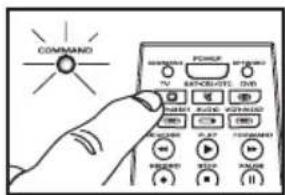
Press the device button for the device you want to program. The COMMAND light flashes once.

Turning Sound On and Off
By default, the RCA Voice Control Remote comes with the sound on—when you press a button, the remote says the button you pressed.
To turn sound on or off: Press the SOUND button.
- Press the PROG button. The COMMAND light flashes twice.

- Type in the first 4-digit code for your brand in the code list. The COMMAND light flashes once for each digit pressed. The COMMAND light flashes three times after the fourth digit.

- Test the remote with your device by pressing POWER.
If the device turns off: Try a variety of the device's functions with the remote. For example, if you're programming a DVD player, make sure the transport keys work. If some device features don't work, repeat the programming process from step 1 with the next code in the list for your brand.
If the device does not turn off: Repeat the programming process from step 1 with the next code in the list for your brand.
- Repeat steps one through six for each device you want to program.
Note: You may have to try several codes in order to find the correct code. If you cannot find the correct code, refer to the Automatic Searches section below.
Automatic searches
If you can't find a code that operates your device through the regular method, try one of the automatic search methods:
- the Brand Search goes through all the codes for your brand and device; this is usually the quicker of the two auto search options
- the Device Search goes through all the codes for your device; use this option only if the regular programming method and Brand Search don't work for your device.
Brand Search
- Manually turn on the device you want to control.
- Find your device's brand in the Brand Code list section of the accompanying code list. Circle the number for your brand and keep the list handy.
- Press the device button for the device you want to program. The COMMAND light flashes once.
Note: If you're programming an AUX button, press the button for the kind of device you're programming in step 3—for example, if you're programming a second TV for an AUX button, press the TV button in step 3. This will search for TV codes. In step 7, you will press the AUX button.
-
Press the PROG button. The COMMAND light flashes twice.
-
Type in the 2-digit code for your brand. The COMMAND light flashes once for each digit pressed.
- Make sure that the remote is aimed directly at the device you want to control. Then press the PROG button.
The RCA Voice Control Remote searches through the library of codes for your device's brand, sending the power off command for a new code every 3 seconds. (The COMMAND light flashes each time a new command is sent; if the remote's sound is turned on, the remote says each device code before it sends the given code.)
- When your device turns off, press the PROG button.
Note: If you're programming an AUX button, press the AUX button instead.
The COMMAND light flashes three times, and the remote stores the code in memory for the selected device button.
- Try a variety of the device's functions with the remote. If some device features don't work, repeat the programming process from step 1. When your device turns off, don't press PROG. Instead, keep waiting for the device to turn back on. Then press PROG.
Device Search
- Manually turn on the device you want to control.
- Press the device button for the device you want to program. The COMMAND light flashes once.
Note: If you're programming an AUX button, don't press the AUX button in step 2. Instead, press the button for the kind of device you're programming in step 2—for example, if you're programming a second TV for an AUX button, press the TV button in step 2. This will search for TV codes. In step 4, you will press the AUX button.
- Press PROG. Then press the number 1, and finally PROG again. This starts the search process.
Note: If the remote's sound is turned on, the remote announces every code that is being tried. You can turn sound on or off during the search process by pressing the SOUND button.
- When your device turns off, press PROG to save the code.
Note: If you're programming an AUX button, press the AUX button instead.
You can cancel a search by pressing any other button.
Practice with the built-in commands
The RCA Voice Control Remote comes factory pre-trained with some common voice commands that you can use right out of the box.
natural_image
Line drawing of a person sitting at a desk with a computer (no text or symbols)For best results:
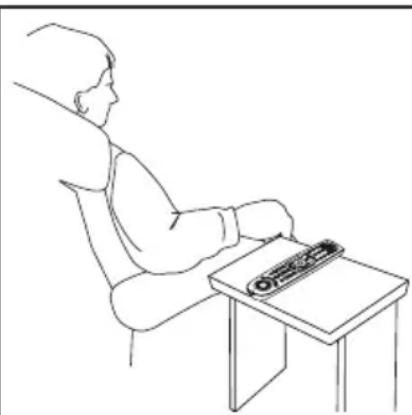
Put the remote on a table just at arms length. You don't need to hold it close to your mouth. In a quiet environment, the remote works best 12–36 inches from you. In a noisy environment, the range is 12–24 inches.
IMPORTANT NOTE FOR FRENCH AND SPANISH SPEAKERS:
You can train this remote to understand commands in French and Spanish. Follow the directions on page 33 for French or 53 for Spanish to set a new keyword and configure your own voice commands.
Tips for Using Voice Commands
The RCA Voice Control Remote must be pointing at the device to be controlled when either a button is pressed or a voice command is utilized.
The RCA Voice Control Remote requires a brief period of silence before it can recognize a voice command.
To maximize battery life, the RCA Voice Control Remote will "sleep" when not in use. Remember to "wake up" the RCA Voice Control Remote by pressing the LISTEN button before giving the RCA Voice Control Remote a voice command.
To use the built-in voice commands:
- Press the LISTEN button. The KEYWORD light illuminates.

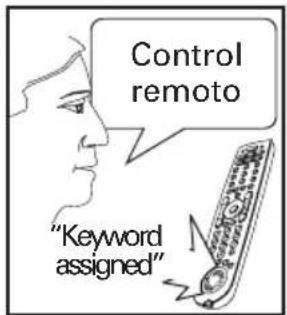
- Say "Remote control"—this is the remote's keyword. The COMMAND light illuminates for 3 seconds while the remote waits for you to say one of the built-in voice commands:

"Power" turns the active device on or off.
"Channel Up" goes to the next channel on the active device (make sure you're using a device that uses this command).
"Channel Down" goes to the lower-numbered channel on the active device (make sure you're using a device that uses this command).
"Go Back" goes to the last channel tuned on the active device (make sure you're using a device that uses this command).
If the remote does not hear one of these commands within 3 seconds, it will go back to listening for the keyword "Remote control."
The remote listens for 10 minutes. If it hears a valid voice command in that time, you get another 10 minutes. If it does not hear a valid voice command, the KEYWORD indicator light turns off and the remote enters power-save mode to conserve batteries. To start using voice commands again, press the LISTEN button.
To extend the remote's listen time, press HELP 4 3. The options for listen time are 10 minutes (the default), 30 minutes, 1 hour, or forever. You can also set the remote to wake up (listen) when you clap twice. To set the remote to wake up when it hears two handclaps: press HELP 4 2.
Notes
The batteries will last longer if you keep the remote set to listen for shorter periods of time.
If the RCA Voice Control Remote doesn't recognize your voice for the built-in commands, you can train the remote to respond to your custom voice commands. The next chapter tells you how.
To get the most from the voice control remote, train it to respond to your voice, to perform your customized commands, like tuning to your favorite channels. The next chapter tells you how.
AutoMute
When you say the keyword, the remote will "bleep" (if sound is enabled) and it will mute your TV for 3 seconds. This makes the room quieter for the subsequent voice commands.
Train the remote
Now that you've programmed the remote to operate your home theater and practiced with the remote's built-in commands, you're ready to train the voice control remote to respond to your own, customized commands. By the end of this section you'll be using one-word voice commands to perform the following activities:
- turn on a single device
- tune to channels
• turn on all your devices
• turn off all your devices
This section will also teach you how to set a new keyword for your remote and build your own multi-step commands (or activities).
Training Tips
- When you train the remote, the room should be quiet.
Lower the TV volume. Try to minimize any background noise. Make sure there aren't any other people talking nearby.
- Train the remote in the same room where you plan to use it.
- Set the remote down on a flat surface near you.
Put the remote on a table just at arms length. You don't need to hold it close to your mouth. In a quiet environment, the remote works best 12–36 inches from you. In a noisy environment, the range is 12–24 inches.
- Speak naturally and consistently.
Speak the same when you are training the RCA Voice Control
Remote as you will when you actually are using the RCA Voice Control Remote. Don't speak unusually clearly and slowly during training—the RCA Voice Control Remote may not recognize your commands in actual use. Speak to the RCA Voice Control Remote from the same distance during training as you will when you are using it.
• Always leave a brief pause before issuing a voice command.
- Don't speak unless the COMMAND light is on.
- If you want to let several different people train the remote, keep the default keyword.
About Voice Commands
- The remote can hold up to 25 trained voice control commands
- When you press the LISTEN key, the remote control responds: "Listen On" or "Listen Off". As soon as you start to train the remote with your own voice control commands, the remote indicates the number of commands that have been trained on the remote. For example, if you have trained two commands, the remote responds: "Listen 2" when you press the LISTEN key.
- The remote is equipped with a “talking macros” function which tells you the steps you have programmed for your voice commands as it executes them. To turn on talking macros, press TV, PROG, 5, PROG.
Your first command: Turning on your TV
The first voice command you'll program is simple: train the remote to turn on your TV when you say "TV Power."
To train the remote to turn on your TV:
- Press the TRAIN button.
The RCA Voice Control Remote responds: "Say a word."
By default, the Voice Control Remote also tells you the button pressed. To turn this on/off, press the SOUND button

When the RCA Voice Control Remote is ready to listen, the COMMAND light illuminates.
To cancel training after step 1: Press any button on the remote.
- Say: "TV Power."
The RCA Voice Control Remote asks you to repeat the command.

- Say "TV Power" again.
If the two words match, the RCA Voice Control Remote responds: "Press the buttons you want to use for this voice command. Press TRAIN to finish."

- Press the TV button. (The remote waits 15 seconds for you to press each button in the command.)
The RCA Voice Control Remote responds: "Button accepted. Push another button."
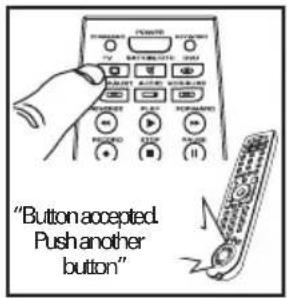
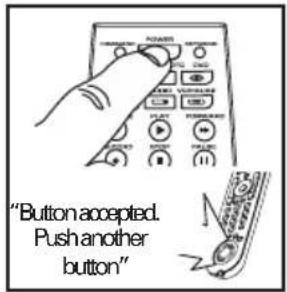
- Press the POWER button.
The RCA Voice Control Remote responds: "Button accepted. Push another button."
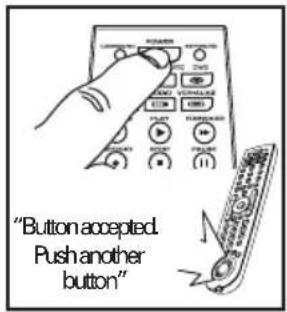
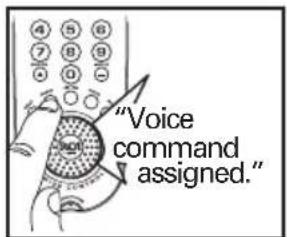
- Press the TRAIN button to complete the command.
The RCA Voice Control Remote responds: "Voice command assigned."
The voice-command "TV Power" is now assigned to the multi-step sequence TV and POWER.

IMPORTANT: Once you have trained a voice command the pre-programmed commands will be disabled. If you would like to train your own keyword (other than "remote control"), see page 12 for more instructions.
To use your "TV Power" command:
Note: If the KEYWORD light is off, press the LISTEN button first.
- Say: "Remote control." The COMMAND light illuminates.

- Say: "TV Power."
The remote automatically sends the TV and POWER commands. Your TV turns on.

Favorite channel commands
Next, you'll train the remote to tune to your favorite channel. Before you start, write down the following information about your system—use the example system as a guide.
Example
| Device you use to change channels | Satellite receiver |
| Buttons you press to tune to your favorite channel | 2, 5, OK |
| Name of your favorite channel | ESPN |
Your System
| Device you use to change channels |
| Buttons you press to tune to your favorite channel |
| Name of your favorite channel |
To train your remote to tune to your favorite channel:
- Press the TRAIN button.
The RCA Voice Control Remote responds: "Say a word."
When the RCA Voice Control Remote is ready to listen, the COMMAND light illuminates.
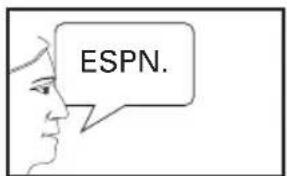
- Say the name of your favorite channel. In the example, it's "ESPN."
The RCA Voice Control Remote asks you to repeat the command.

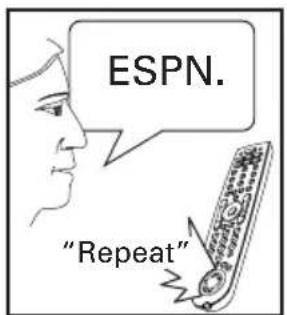
- Say the name of your favorite channel again. In the example system, it's "ESPN."
If the two words match, the RCA Voice Control Remote responds: "Press the buttons you want to use for this voice command. Press TRAIN to finish."

- Press the button for the device you use to change channels. In the example, it's the SAT·CBL·DTC button.
The RCA Voice Control Remote responds: "Button accepted. Push another button."
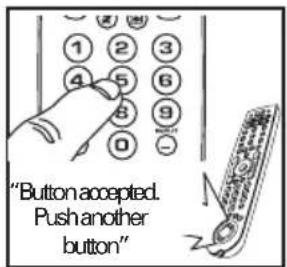
- Press the first button you use to tune to your favorite channel button. In the example, it's the number 2.
The RCA Voice Control Remote responds: "Button accepted. Push another button."
- Press the second button you use to tune to your favorite channel button. In the example, it's the number 5.
The RCA Voice Control Remote responds: "Button accepted. Push another button."
- Press the next button you use to tune to your favorite channel button. In the example, it's the OK button.
The RCA Voice Control Remote responds: "Button accepted. Push another button."
- Once you have now completed the sequence, press the TRAIN button.
The RCA Voice Control Remote responds: "Voice command assigned."
You can follow the same steps to train the RCA Voice Control Remote to respond to your other favorite channel choices.


To use your favorite channel command:
Note: If the remote's KEYWORD light is off, press the LISTEN button first. Make sure your devices are on before you use the command.
- Say: "Remote control." The COMMAND light illuminates.


- Say the name of your favorite channel. In the example, it's "ESPN."
Setting your own keyword
The RCA Voice-Command Remote uses keywords to separate the sounds it should pay attention to—your voice commands—from the sounds it should ignore—regular conversation, TV sound, etc.
By default, the RCA Voice Control Remote uses the phrase "Remote control" as its keyword. This means that you must say the word "Remote control" before you issue a command.
Once you've practiced using voice control for a while, you may want to set your own keyword. The remote will recognize your voice more consistently if you are the one who sets the keyword and voice commands. Some suggested keywords are "Commander," "Abracadabra," and, of course, "Remote control."
IMPORTANT: Changing the keyword makes it much harder for other people to train the remote for voice commands. So if you want to let several different people train the remote, keep the default keyword.
To set the remote to recognize your keyword:
IMPORTANT: Be sure the room is reasonably quiet.
- Press and hold the TRAIN button.
The remote responds: "Say a keyword." Wait for the KEYWORD light to illuminate before you speak.

- Say the keyword you want to use. (For example, "Abracadabra.")
The RCA Voice Control Remote asks you to repeat the word.
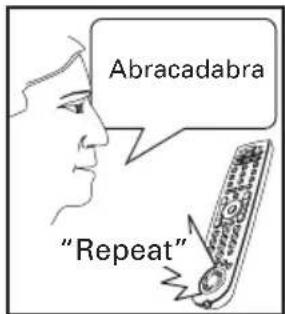
- Say the keyword again.
If the two words match, the remote responds: "Keyword assigned."
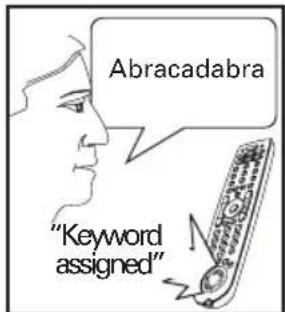
Now when you press the LISTEN button, the remote will be waiting for the keyword you just set to start executing voice commands. The COMMAND indicator will illuminate (ready for voice commands) when you say the keyword.
To reset the keyword: Press HELP 3 2. The RCA Voice Control Remote responds: "Keyword erased." The keyword resets to "Remote control."
Multi-device commands (activities)
You can use the RCA Voice-Command Remote to manage your entire home entertainment system with a single command. All you need to do is a little homework before you train the remote, to make sure you've got all the information you need beforehand.
The first step in using multi-device commands or activities is to train your remote to turn on all your devices—an “all on” activity. Since some devices take longer to turn on than others, timing multi-device activities can be tricky. The “All On” activity makes sure your devices are ready when you want to use them, making all your other multi-device activities simpler and more reliable.
To train your remote to turn on all your devices:
1. Press the TRAIN button.
The RCA Voice Control Remote responds: "Say a word."
When the RCA Voice Control Remote is ready to listen, the COMMAND light illuminates.
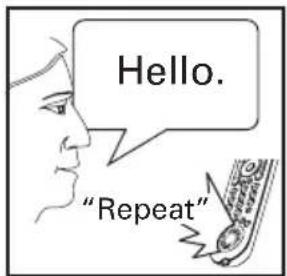
2. Say: "Hello."
The RCA Voice Control Remote asks you to repeat the command.
3. Say "Hello" again.
If the two words match, the RCA Voice Control Remote responds: "Press the buttons you want to use for this voice command. Press TRAIN to finish."
4. Press the TV button.
The RCA Voice Control Remote responds: "Button accepted. Push another button."
To add a slight delay between commands:
Press and hold the PAUSE button.
5. Press the POWER button.
The RCA Voice Control Remote responds: "Button accepted. Push another button."
6. Press the device button (DVD, SAT•CBL•DTC, VCR•AUX2, AUDIO, DVR•AUX1) for the next device you want to turn on.
The RCA Voice Control Remote responds: "Button accepted. Push another button."



- Press the POWER button.
The RCA Voice Control Remote responds: "Button accepted. Push another button."
-
Repeat steps 6 and 7 for the rest of the devices you want to turn on.
-
When you have finished turning on all the devices you want to turn on, press the TRAIN button.
The RCA Voice Control Remote responds: "Voice command assigned."
To use your All On command:
Note: If the remote's KEYWORD light is off, press the LISTEN button first.
- Say: "Remote control." The COMMAND light illuminates.

- Say: "Hello."
The remote automatically sends the POWER commands for your devices. Please note that different devices take different amounts of time to turn on.

Changing and Deleting Voice Commands
You can change or delete voice commands you've set up. Sometimes, if a command is not working well, there may have been some background noise when you recorded the command. You might get better results if you erase the command and re-record it.
To delete a voice command:
- Press HELP 3 4.
The RCA Voice Control Remote responds: "Say the command you want to erase."
- Say the command you wish to erase.
The RCA Voice Control Remote responds: "Button erased".
IMPORTANT
The RCA Voice Control Remote cannot listen for voice commands at the same time it is sending infrared commands. If you try to issue a voice command while the COMMAND light is flashing (which means the RCA Voice Control Remote is transmitting), the remote will not hear your command.
Additional Features
The RCA Voice Control Remote offers a variety of additional features that let you fine tune this remote to fit almost any home entertainment environment or preference. This chapter covers the following additional feature options:
• Smart Source™ Device Mode Locking
- Learning Buttons from Other Remotes
- Adjusting Remote Options (including microphone sensitivity, remote sound volume, remote wake time, backlighting, and the auto-mute feature)
- Setting Up and Using Multi-Stage Activities
- Resetting the Remote
Smart Source device mode locking
The RCA Voice Control Remote offers two ways of minimizing the number of button presses required for everyday actions.
Punch-through
By default, the remote “punches through” volume commands to the device programmed for the TV button, regardless of which mode you’re in. This means you can control TV volume while you’re watching a DVD or cable/satellite programming without having to press the TV button first.
Smart Source
The RCA Voice Control Remote also offers Smart Source Device Mode Locking. Smart Source is a patented technology that lets you decide which entertainment device you want to use for common functions, such as volume, channel, or disc playback control. Once you've set up Smart Source, these buttons are "locked" to the device you use them with, regardless of which device mode you're in.
Smart Source locking is most useful if you use single devices in your home theater to change channels, control volume, and play/stop/pause DVDs. If, for example, your TV controls volume for your entire home theater, set Smart Source control for the volume keys to your TV.
Smart Source can also simplify voice programming, by reducing the number of button presses required to perform a function.
To set up Smart Source:
-
Press the device button for the device you use to control system volume, channel, disc/tape playback, or power (whatever you want to set). The COMMAND light flashes once.
-
Press the PROG button. The COMMAND light flashes twice.
-
Choose the group of buttons you want to set and press any button in this group.
To use this device to control system volume:
Press VOL+, VOL-, or MUTE
To use this device to control channels:
Press CH+, CH-, 0... 9, or GO BACK
To use this device to control disc/tape playback:
Press REVERSE, PLAY, STOP, PAUSE, or FORWARD
To use this device to control system power:
Press POWER
The COMMAND light flashes three times and the remote responds: "Smart Source On."
To turn Smart Source on and off:
Press the following button sequence: TV PROG 7 PROG. The remote responds: "Smart Source Off."
Examples
To set up Smart Source to use volume commands to control your TV: Press TV PROG VOL+
To automatically select your cable box whenever you wish to change channels: Press CBL PROG CH+
Learning buttons from other remotes
The RCA Voice Control Remote can learn functions from other remotes, either to add to an existing programmed device or to "build" an entire set of codes for a device from scratch.
Note: Before you begin the learning process make sure that the batteries in the "teacher" remote are new.
To learn a new button to the RCA remote:
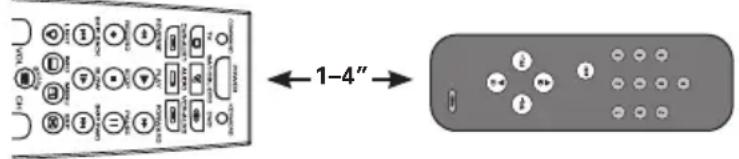
- Position the RCA Voice Control Remote and your "teacher" remote as shown here.
- Press the device button (TV, SAT•CBL•DTC, DVR•AUX1, VCR•AUX2, AUDIO, DVD) where you want to put the learned codes. The device button can have a device already programmed, or it can be unprogrammed.
- Press PROG, then 3, then PROG. If sound is turned on, the remote will prompt you through the process.
Note: You can learn a sequence of buttons through the HELP system by pressing HELP 2.
- Press the button on the RCA Voice Control Remote you want to use for the learned function.
Note: Not all buttons can be taught new functions. You cannot learn onto the following buttons: TV, VCR•AUX2, DVD, SAT•CBL•DTC, AUDIO, DVR•AUX1, PROG, TRAIN, SOUND, LISTEN, LIGHT or HELP.
The RCA remote's COMMAND light illuminates. If sound is on, the RCA remote responds: "Press the button on the remote you are learning from."
- Press the button on the teacher remote that you want to transfer to the RCA Voice Control Remote. Hold the button on the teacher (source) remote until the RCA Voice Control Remote makes another sound.
NOTE: Proper positioning of both remotes is very important to get a good transfer of information between the two remotes.
If you hear "Good", then the button was captured successfully. If you hear a "braap" sound, the RCA Voice Control Remote did not learn this button. Try adjusting the range or position and try again.
- Test the RCA Voice Control Remote on your entertainment equipment to be sure the button was successfully learned. If not, try learning the function again.
Note: If you reprogram a device button where you have learned buttons, the learned buttons will be erased.
Erasing Learned Codes
To erase a button that was learned: Press HELP, 2, 2. Then press the button to be erased.
Adjusting remote options
The RCA Voice Control lets you customize many of its features to fit your environment. Many options are available through the remote's built-in help system (with voice prompts to guide you through the process). Some of the more common adjustments are described in this section.
Microphone sensitivity
The RCA Voice Control Remote offers two levels of microphone sensitivity for voice commands: low and high.
To adjust the mic sensitivity: Press HELP, 4, 1.
High microphone sensitivity makes the RCA Voice Control Remote more responsive to your commands, but also more sensitive to background sounds such as the TV or other people talking. Low microphone sensitivity makes the RCA Voice Control Remote less sensitive to background noises but also less sensitive to your voice, so you will need to speak louder.
Remote sound volume
The RCA Voice Control Remote offers two levels of sound volume for voice feedback: low and high.
To adjust the remote sound volume:
Press DVR•AUX1, PROG, 4, PROG.
Wake time
To maximize battery life, the RCA Voice Control Remote will "sleep" when not in use and "wakes up" to listen for voice commands when you press the LISTEN button. The default wake time for the remote is 10 minutes.
To adjust the remote's wake time:
Press HELP, 4, 3. Then press 3 to toggle through the options for wake time:
10 minutes, 30 minutes, 1 hour, forever
Note: For longer battery life, use the shortest wake time you can.
Backlighting
By default, the RCA Voice Control Remote backlights its buttons for 4 seconds when you press the BACKLIGHT button (and an additional 4 seconds when you press another button). You can extend the backlighting time to 12 seconds through the remote's HELP system.
To adjust the backlighting time: Press HELP, 4, 4.
Note: For longer battery life, keep the backlighting time at 4 seconds.
Auto-mute
The RCA Voice Control Remote uses patented automatic muting technology to increase voice recognition accuracy.
Continues on next page...
The Auto-Mute Feature works by muting your TV for a few seconds when the remote hears the keyword, decreasing the amount of background noise in the room and helping the RCA Voice Control Remote to better understand subsequent voice commands. The Auto-Mute Feature is enabled by default.
If your TV has problems with the Auto-Mute Feature, try one of the remote's three alternative Auto-Mute modes. For example, if your TV is not unmuting correctly, the remote might be sending the wrong commands for Auto-Mute.
To adjust the Auto-Mute mode:
Press TV, PROG, 9, PROG, then watch the COMMAND indicator light and listening to the response from the remote. Repeat the button presses to toggle the auto-mute setting.
| Indicator light flashes Auto-Mute mode sends... | |
| 1 time Vol+ or Vol- | |
| 2 times Mute | |
| 3 times Vol+ then Vol- | |
| 4 times Mute, then Vol+, then Vol- | |
To turn the Auto-Mute feature off/on:
Press TV, PROG, 6, PROG.
Setting Up and Using Multi-Stage Activities
Multi-stage activities take the flexibility and power of the RCA Voice Control Remote to another level by letting you program a single command to step through a series of button sequences each time you speak the command.
For example, a multi-stage activity can let you surf through three favorite channels with just a single voice command or button push. The following multi-stage activity steps through channels two, four, and seven, with a TV that requires you to enter all numbers as two-button sequences.
To set up a multi-stage voice command activity:
-
Press the TRAIN button. The RCA Voice Control Remote responds: "Say a word." The COMMAND light illuminates.
-
Say a one or two-word voice command. In our example, we say "Favorite." The RCA Voice Control Remote asks you to repeat the command.
-
Say the command again. In our example: "Favorite." If the two words match, the remote responds: "Press the buttons you want to use for this voice command. Press TRAIN to finish."
-
Press the buttons, one by one, for the first stage of the activity—in our example, we press the buttons to make the TV the active device and tune to the first channel:
First, we press TV. The remote responds: "Button accepted. Push another button."
Next, we press 0. The remote responds: "Button accepted. Push another button."
Finally, we press 2. The remote responds: "Button accepted. Push another button."
- Once you've finished the first stage of the activity, press LISTEN. The remote responds: "End of string. Button accepted. Push another button."
- Press the buttons, one by one, for the second stage of the activity—in our example, we press the buttons to tune to the second channel:
First, we press 0. The remote responds: "Button accepted. Push another button."
Then we press 4. The remote responds: "Button accepted. Push another button."
- Once you've finished the second stage of the activity, press LISTEN. The remote responds: "End of string. Button accepted. Push another button."
- Press the buttons, one by one, for the third stage of the activity—in our example, we press the buttons to tune to the third channel:
First, we press 0. The remote responds: "Button accepted. Push another button."
Then we press 7. The remote responds: "Button accepted. Push another button."
- Once you've finished the third stage of the activity, press LISTEN. The remote responds: "End of string. Button accepted. Push another button."
- Once you've finished the third stage of the activity, press TRAIN. The RCA Voice Control Remote responds: "Voice command assigned."
To use your multi-stage voice command activity:
Note: If the remote's KEYWORD light is off, press the LISTEN button first.
- Say your keyword The COMMAND light illuminates.
- Say the voice command for this activity. In our example, it's "Favorite." The remote automatically sends the commands for the first stage of this activity. In our example, it tunes to our first favorite channel (2).
- Say your keyword. Then repeat the voice command for this activity. The remote automatically sends the commands for the second stage of this activity. In our example, it tunes to our second favorite channel (4).
- Say your keyword. Then repeat the voice command for this activity. The remote automatically sends the commands for the third stage of this activity. In our example, it tunes to our third favorite channel (7).
Resetting the Remote
The RCA Voice Control provides two levels of reset. One level clears voice commands but leaves everything else, such as device setup info and user preferences, intact. The second level resets the remote to its factory settings—like when you first unpacked it.
To reset only the voice commands:
- Press HELP.
- Press 3, then 0.
- The remote warns you that you will lose your voice commands. Press PROG to continue. After a brief pause, the remote responds: "Voice commands erased."
To reset the remote to its factory settings:
IMPORTANT: This procedure clears all device programming, user preferences, voice commands, and other settings. You will have to reprogram the remote to control your devices.
- Press HELP.
- Press 4, then 0.
- The remote warns you that you will lose your programming. Press PROG to continue. The remote responds: "Please wait." After a brief pause, the remote says "Memory erased. Hello."
Troubleshooting
Most common problems with the RCA Voice Control Remote can be solved following the steps below. If you still have questions, please call our free help-line at 1-800-420-7968.
Problem: I can't turn off the remote's sound.
- Press the SOUND button. (To turn the remote voice back on, press the SOUND button again.)
Problem: I can't program the remote for my device.
- If you are testing the remote while programming it, you may be too far away from the device or at a wrong angle. There must be an unobstructed path between the remote and the IR sensor on the device. Move closer and make sure you point the remote at the device you're trying to control.
- Try one of the Automatic Search Methods if you can't find a code in the code list that works for your device.
- To control combo units, like TV/VCRs or TV/DVDs, you must program the individual corresponding device keys to control each part of the combo unit. Once programmed successfully, the TV button controls the TV functions, and the DVD or VCR•AUX2 button controls the DVD or VCR functions.
- Make sure the batteries are fresh and are properly installed.
Problem: I've programmed the remote, but it's not operating my device.
- Make sure the remote is in the correct mode by pressing the corresponding device button (TV, SAT•CBL•DTC, DVD, DVR•AUX1, AUDIO, VCR•AUX2). This tells the remote which device to operate.
- Remove any obstacles between the remote and the device. Make sure you're aiming the remote at the device's IR sensor.
- Make sure device is ready (for example, the DVD player has a disc loaded).
- You may have pressed an invalid button for the mode the remote is in.
- If you're trying to enter a channel number directly, try pressing the ENTER button after entering the channel number, as this is a requirement of certain models and brands.
- The programmed code you're using may only be able to control some of your device features (for example, only turns a device on and off). To confirm that the device button is programmed with the correct code for maximum functionality, test the device. Attempt to control a variety of the device's functions with the remote. If some of the features of your devices don't work, try programming the remote with a different code in the list until you find the code that allows the remote to control the majority of your device's functions. Different codes can provide different levels of functionality.
- Make sure the batteries are fresh and are properly installed. Replace the batteries with four new AAA batteries, if necessary (see the Battery Installation section).
Problem: The remote isn't executing my voice commands.
- The RCA Voice Control Remote must be pointing at the device to be controlled when either a button is pressed or a voice command is utilized.
- Make sure the remote is within range to hear your commands. In a quiet environment, the remote works best 12–36 inches from you. In a noisy environment, the range is 12–24 inches.
- The RCA Voice Control Remote requires a brief period of silence before it can recognize a voice command.
- The RCA Voice Control Remote cannot listen for voice commands at the same time it is sending infrared commands. If you try to issue a voice command while the COMMAND light is flashing (which means the RCA Voice Control Remote is transmitting), the remote will not hear your command.
- To maximize battery life, the RCA Voice Control Remote will "sleep" when not in use. Remember to "wake up" the RCA Voice Control Remote by pressing the LISTEN button before giving the RCA Voice Control Remote a voice command.
- When the batteries drain to where recognition accuracy is effected, the remote tells you "the batteries are low" and shuts off voice recognition. Replace the batteries.
- If the RCA Voice Control Remote doesn't recognize your voice for the built-in commands, you can train the remote to respond to your custom voice commands.
Problem: I'm having trouble training the remote.
- When you train the remote, the room should be quiet. Lower the TV volume. Try to minimize any background noise. Make sure there aren't any other people talking nearby.
- You may be asked to repeat the command several times before the RCA Voice Control Remote is convinced that it has a good sample. If the command or keyword is similar to one already recorded, the RCA Voice Control Remote will ask you to "Choose a different word."
- Train the remote in the same room where you plan to use it.
- Set the remote down on a flat surface near you. Put the remote on a table just at arms length. You don't need to hold it close to your mouth. In a quiet environment, the remote works best 12–36 inches from you. In a noisy environment, the range is 12–24 inches.
- Speak naturally and consistently. Speak the same when you are training the RCA Voice Control Remote as you will when you actually are using the RCA Voice Control Remote. Don't speak unusually clearly and slowly during training, the RCA Voice Control Remote may not recognize your commands in actual use. Speak to the RCA Voice Control Remote from the same distance during training as you will when you are using it.
• Always leave a brief pause before issuing a voice command. - Don't speak unless the COMMAND light is on.
Problem: I've forgotten my keyword.
- To reset the keyword: Press HELP 3 2. The RCA Voice Control Remote responds: "Keyword erased." The keyword resets to "Remote control."
Problem: My TV volume changes unexpectedly when I use voice commands.
- The RCA Voice Control Remote uses patented automatic muting technology to increase voice recognition accuracy. The Auto-Mute Feature works by muting your TV for a few seconds when the remote hears the keyword. If your TV has problems with the Auto-Mute Feature, see page 17 for instructions to adjust it.
Problem: The remote executes my voice commands incorrectly.
- Are your commands multi-syllable or two-word commands? These work better than short words because the RCA Voice Control Remote has more information to work with and can better understand the command. See page 14 for information on editing your commands. Change the name of your command so that it has more syllables.
- Try to choose voice commands that are distinct from one another. For example, "CSPN" and "ESPN" will probably sound too similar for most speakers. Changing one of these to something that sounds different (for example, C-SPAN instead of CSPN).
-
If you notice certain parts of the command are repeating too many times (for example, if your command for channel 12 makes the TV go to channels 1-1-1-2-2-2), you can adjust the way the remote sends commands.
-
Press TV PROG 7 PROG
- The RCA Voice Control Remote flashes the COMMAND indicator light four times. This means the repeat count is four.
- Press TV PROG 7 PROG. The indicator light flashes once, indicating the repeat count is one.
- Try the voice command or macro again to see if it works properly. For the most reliable operation, you should use the highest repeat count that works properly.
Each time you press TV PROG 7 PROG you will increase the repeat count by one to the number indicated by the number of indicator light flashes. After the count reaches four, it will cycle back to one.
Problem: The remote emits a short, loud test tone.
- If you press PROG 2 PROG, the remote emits this tone to test its sound path. This is for technical use only. Nothing is wrong with your remote.
Problem: The RCA remote has trouble learning from another remote.
- Proper positioning of both remotes is very important to get a good transfer of information between the two remotes. They should be no more than 4 inches apart (between 1–4 inches), on a flat surface, facing top to top.
- Not all buttons can be taught new functions. You cannot learn onto the following buttons: TV, VCR•AUX2, DVD, SAT•CBL•DTC, AUDIO, DVR•AUX1, PROG, TRAIN, SOUND, LISTEN, or HELP.
Problem: I want to reset my remote.
- To reset only the voice commands: Press HELP, 3, 0, PROG. After a brief pause, the remote responds: "Voice commands cleared."
- To reset the remote to its factory settings: Press HELP, 4, 0, PROG. After a brief pause, the remote responds: "Memory erased. Hello."
12 Month Limited Warranty
Audiovox Electronics Corporation (the "Company") warrants to the original retail purchaser of this product that should this product or any part thereof, under normal use and conditions, be proven defective in material or workmanship within 12 months from the date of original purchase, such defect(s) will be repaired or replaced (at the Company's option) without charge for parts and repair labor. To obtain repair or replacement within the terms of this Warranty, the product is to be delivered with proof of warranty coverage (e.g. dated bill of sale), specification of defect(s), transportation prepaid, to the Company at the address shown below.
This Warranty does not cover product purchased, serviced or used outside the United States or Canada. This Warranty is not transferable and does not extend to costs incurred for installation, removal or reinstallation of the product. This Warranty does not apply if in the Company's opinion, the product has been damaged through alteration, improper installation, mishandling, misuse, neglect, accident, or the simultaneous use of different battery types (e.g. alkaline, standard or rechargeable). THE EXTENT OF THE COMPANY'S LIABILITY UNDER THIS WARRANTY IS LIMITED TO THE REPAIR OR REPLACEMENT PROVIDED ABOVE AND, IN NO EVENT, SHALL THE COMPANY'S LIABILITY EXCEED THE PURCHASE PRICE PAID BY PURCHASER FOR THE PRODUCT.
This Warranty is in lieu of all other express warranties or liabilities. ANY IMPLIED WARRANTIES, INCLUDING ANY IMPLIED WARRANTY OF MERCHANTABILITY OR FITNESS FOR A PARTICULAR PURPOSE SHALL BE LIMITED TO DURATION OF THIS WARRANTY. ANY ACTION FOR BREACH OF ANY WARRANTY HEREUNDER, INCLUDING ANY IMPLIED WARRANTY, MUST BE BROUGHT WITHIN A PERIOD OF 24 MONTHS FROM THE DATE OF ORIGINAL PURCHASE. IN NO CASE SHALL THE COMPANY BE LIABLE FOR ANY CONSEQUENTIAL OR INCIDENTAL DAMAGES WHATSOEVER. No person or representative is authorized to assume for the Company any liability other than expressed herein in connection with the sale of this product. Some states/provinces do not allow limitations on how long an implied warranty lasts or the exclusion or limitation of incidental or consequential damage so the above limitations or exclusions may not apply to you. This Warranty gives you specific legal rights and you may also have other rights, which vary from state/province to state/province.
U.S A.: Audiovox Electronics Corporation, 150 Marcus Blvd., Hauppauge, New York 11788 CANADA: Audiovox Return Center, c/o Genco, 6685 Kennedy Road, Unit 3, Door 16, Mississauga, Ontario L5T 3A5
Bienvenue!
natural_image
Line drawing of a hand using a tool to cut or adjust a device (no text or symbols present)natural_image
Line drawing of a person sitting at a desk with a computer (no text or symbols)






É-U : Audiovox Electronics Corporation, 150 Marcus Blvd., Hauppauge, New York 11788
CANADA : Audiovox Return Center, c/o Genco, 6685 Kennedy Road, Unit 3, Door 16, Mississauga, Ontario L5T 3A5
¡Bienvenido!
natural_image
Line drawing of a hand using a tool to cut or adjust a mechanical component (no text or symbols)


natural_image
Line drawing of a person sitting at a desk with a computer (no text or symbols)- Diga: "Encender el televisor".


Para usar su comando de canal favorito:


2. Diga: "Encender Todo."
Para configurar Smart Source:


- Français
- Voice-guided Help system
- Setup
- Install the batteries
- Battery Precautions:
- Program the remote to control your devices
- Turning Sound On and Off
- Automatic searches
- Brand Search
- Device Search
- Practice with the built-in commands
- For best results:
- IMPORTANT NOTE FOR FRENCH AND SPANISH SPEAKERS:
- Tips for Using Voice Commands
- To use the built-in voice commands:
- Notes
- AutoMute
- Train the remote
- Training Tips
- About Voice Commands
- Your first command: Turning on your TV
- To train the remote to turn on your TV:
- To use your "TV Power" command:
- Favorite channel commands
- To train your remote to tune to your favorite channel:
- To use your favorite channel command:
- Setting your own keyword
- To set the remote to recognize your keyword:
- Multi-device commands (activities)
- To train your remote to turn on all your devices:
- Press the TRAIN button.
- Say: "Hello."
- Say "Hello" again.
- Press the TV button.
- Press the POWER button.
- Press the device button (DVD, SAT•CBL•DTC, VCR•AUX2, AUDIO, DVR•AUX1) for the next device you want to turn on.
- To use your All On command:
- Changing and Deleting Voice Commands
- To delete a voice command:
- IMPORTANT
- Additional Features
- Smart Source device mode locking
- Punch-through
- Smart Source
- To set up Smart Source:
- To turn Smart Source on and off:
- Examples
- Learning buttons from other remotes
- To learn a new button to the RCA remote:
- Erasing Learned Codes
- Adjusting remote options
- Microphone sensitivity
- Remote sound volume
- Wake time
- To adjust the remote's wake time:
- Backlighting
- Auto-mute
- To adjust the Auto-Mute mode:
- Setting Up and Using Multi-Stage Activities
- To set up a multi-stage voice command activity:
- To use your multi-stage voice command activity:
- Resetting the Remote
- To reset only the voice commands:
- To reset the remote to its factory settings:
- Troubleshooting
- Problem: I can't turn off the remote's sound.
- Problem: I can't program the remote for my device.
- Problem: I've programmed the remote, but it's not operating my device.
- Problem: The remote isn't executing my voice commands.
- Problem: I'm having trouble training the remote.
- Problem: I've forgotten my keyword.
- Problem: My TV volume changes unexpectedly when I use voice commands.
- Problem: The remote executes my voice commands incorrectly.
- Problem: The remote emits a short, loud test tone.
- Problem: The RCA remote has trouble learning from another remote.
- Problem: I want to reset my remote.
- Month Limited Warranty
- Bienvenue!
- ¡Bienvenido!
- Para usar su comando de canal favorito:
- Diga: "Encender Todo."
- Para configurar Smart Source:
Brand : AUDIOVOX
Model : RCRV06GR
Category : Remote control