
RCRN03BR - Remote control AUDIOVOX - Free user manual and instructions
Find the device manual for free RCRN03BR AUDIOVOX in PDF.


| Product Type | Universal Remote Control |
| Brand | Audiovox |
| Model | RCRN03BR |
| Dimensions (approx.) | 8.5 x 2.5 x 1.2 inches |
| Weight (approx.) | 3.5 oz |
| Power Source | 2 AA batteries (not included) |
| Compatible Devices | TV, DVD, VCR, Satellite, Cable Box, Audio Receiver |
| Control Type | Infrared (IR) |
| Number of Devices Controlled | Up to 3 devices |
| Keypad Features | Number keys, volume, channel, transport controls |
| Programming Method | Direct code entry via manual |
| Included Accessories | User manual |
| Warranty | 90-day limited warranty |
| Cleaning Instructions | Wipe with a soft, dry cloth |
| Safety Precautions | Keep away from water and extreme heat |
| Battery Life (typical) | 6 months under normal use |
| Repairability | Not user-serviceable; no spare parts available |
| Environmental Compliance | RoHS, WEEE |
Frequently Asked Questions - RCRN03BR AUDIOVOX
User questions about RCRN03BR AUDIOVOX
0 question about this device. Answer the ones you know or ask your own.
Ask a new question about this device
Download the instructions for your Remote control in PDF format for free! Find your manual RCRN03BR - AUDIOVOX and take your electronic device back in hand. On this page are published all the documents necessary for the use of your device. RCRN03BR by AUDIOVOX.
USER MANUAL RCRN03BR AUDIOVOX
Universal Remote Control Owner's Manual
SAVE THIS MANUAL AND THE CODE LISTS! Remove controls can sometimes lose their programming when you change the better lot. Make sure you keep the manual and code help in a role place us that you can reprogram the remote if you need us.
Tip: The remote is already programmed to operate most RCA branded TVs, DVD players, and cable receivers. Just press the corresponding key - DVD-VOR for a DVD player. TV for a television, SAT-SSL-DTC for a cable the receiver.
Step 1: Install your batteries
Your antibacterial remote requires two AA ultrafine batteries (not included).
To install the batteries:

-
Remove the battery compartment area.
-
Insert the batteries, matching the batteries to the (-) and (-) marked inside the battery compartment.
-
Push the battery cover back into
-
Manually turn on the device you want to control.

Battery Precautions:
- Do not mix and and new batteries. - For net mix alkaline, abundant biomass-rich or nitrite-positive (miceal-cadmium) batteries. - Always remove old, weak or worn-out batteries promptly and recycle or dispose of them in accordance with Local and National Regulations.
Battery Saver
Your universal remote control saves battery power by automatically turning off if any key is pressed for more than 60 seconds. This saves your battery life should your remote get stuck in a place where the keys remain depressed, such as between safe exercises.
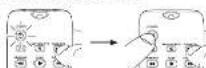
hand in price and hole: the nominal PDAS-B say at the name line. The PDAS-B say turns all.
-
Wait until the POWER key comes on and steps on. Then release both keys.
-
Point the remote directly at the front panel of the device you want to control. Press PLAY on the remote and wall is second. The remote is lasting a bench of 10 meters in your devices.


Step 2: Program your remote
To use this universal remote with your home entertainment system, first you need to program it to control your devices. There are four ways you can program the universal remote to operate your devices:
- The Auto Code Search goes automatically through all the rules for the choice you're trying to control. It is the easier method, but it can sometimes take longer than some of the other programming methods.
- The Brand Code Search searches through the codes for select brands of devices. It's not as easy as the auto code search, but it can be faster.
- The Direct Code Entry lets you enter a route from the necessary route but for your trend of device. It's not so easy as the other methods, but it's potentially the fastest method.
- The Manual Code Search lets you manually go through all the code for the codes you're trying to control
Auto Code Search
The Auto Code Search goes automatically through all the orders for the device you're trying to control. When you find the one that operates your device, you can stop the search and store that code.
TIPS: Each device key is associated with a type of device—the TV is present to search for TVs, SAT-DR+DTC for selective video, cash flows or digital TV members, and DVD-VOR for DVD players. To program the DVD-VOR key to control a PVR or VOR, see the Recealing the DVD-VOR Key to Control a VOR section.
To suit without saving a near circle at any point in the AutoCarte Search, please find EXIT key.
- Manually turn on the device you want to control.
Did your device turn off?
YES: Go to step 5
NO: Press PLAY again. The remote tests the next batch of 10 copies.
Keep pressing PLAY every 5 seconds until your device turns off.
•
D. When your device turns still, please the REVERSE key on the remote and wait at least 2 seconds. The remote stays the not at the
2017年1月1日
Did your device turn on?
YES: Please note that you're programmed this
The source image is illegible due to extreme pixelation and noise. No characters, symbols, or punctuation can be reliably identified. Therefore, no valid OCR text can be generated that matches the visual content of the source image.
NO: Press REVERSE again, The remote tests the next
Keep pressing BEMERSE score 2 seconds until
turn back on. When it does, press STOP.
device turns on, press the FORWARD key. Then, wait two seconds to see if your device turns off again
NOTES
Throughout the programming of each key, be sure to keep the remote pointed at the IR sensor of the device you are currently programming the remote to control.
Test the remote with the device to make sure the device key is programmed with the correct mode for maximum functionality. If some features don't work, try a different code. See the "Testing the Code for Maximum Functionality" section below for more information.
During the Auto-Code Search, the remote ignores by expressing that aren't part of the search.
The sound times and time two minutes the PCNII key, listening four times and himself, and the last programme code under that device key is retained.
The POWER key links four times and turns off when the remote has gone through all the orders. The remote each the Airie Creek Search. If your device hasn't turned off yet, try a hundred search method.
Texting the Code for Maximum Functionality
-
Try a variety of the device's functions with the remote. If some device features don't work, go to the next step to try a different route.
-
Report the Auto Code Search Method from the beginning. When your code has back on, do not stop searching, instead, with the initial new on, continue to proceed the 15. At any every 5 seconds until the initial back on.
-
Once the unit turns back on, press the REVERSE key on the remote every 2 seconds until your device turns off again. When your device turns off again, press the STOP key.
-
Let the key's functionally again by attempting to control a variety of the codes' functions. If the code that has been stored code, the majority of the code's functions, programming is complete, if the code stored does not give maximum functionality, try another code.
Brand Code Search
The Brand Code: Search goes through only the codes for one of the select brands listed in the accompanying code list. If your brand of devices is listed, this search can be very quick and easy.
TIPS. Each device key is associated with a type of device—the TV is presented to search for TV, SATA+CD+DTC for satellite receivers, cable boxes or digital TV converters, and DVD+VCR for DVD prayers. To program the DVD+VCR key to control a PVR or VCR, and the baseforming the DVD+VCR Key to Control a VCR section.
In exit without saving a new code at any prior in the listed Code Search, press the EXIT key.
- Monthly turn on one device you want to continue.

- Find your device's brand in the Brand Cnake list section of the accompanying code list. Circle the number for your brand and when the list handy

- Press and risks the current key you want to program. The POWER key illuminates.
While you're holding down the devices key, use your other hand to press and hold the remote's POWER key at the same time. The POWER key turns up

- Wait until the POWER key comes on
and steps the high levels of the

- Look at the number you order for your device's brand code number. Press those numbers on the remotekeypart

- Point the remote directly at the front panel at the electric unit went to control. Press POWER on the remote and wait 2 seconds. The remote is testing a single code for your electrical home.

Did your device turn off?
YES: Price on \$150 key in store the case. You're done! You've programmed this device key.
NO: Press POWER again. The remote tests the next code for your brand.
Keep pressing POWER every 2 seconds until your device turns off. When it stops, please STOP.
NOTES
Throughout the programming of each key, he needs to keep the remote pointed at the IR element of the creation you and currency programming the remote to control.
Test the remote with the device to make some the device key as programmed with the current code for maximum functionality. If some features don't work, try a different code. See the "Testing the Code for Maximum Functionality" section library for more information.
During the Brand Code Search, the remote ignores weaknesses that aren't part of the search.
The search times out after two minutes (the POWER key blinks four times and turns off, and the last programmed cycle under that condition is retained).
The POWER key blinks four times and turns off when the remote has gone through all the codes. The remote exists the Brand Code Search. If your device hasn't turned off yet, try a different search method.
Testing the Code for Maximum Functionality
-
Try a variety of the devices functions with the remote. If some device features don't work, go to the next step to try a different code.
-
Repeat the Brand Code Search from the beginning. When the device turns all for the first time, don't press the STOP key, which would store the same code. Instead, with the unit now off, continue to press the PCWELL key repeatedly and the unit turns back on.
-
Once the unit turns back on, you have found another code that operates the device. Press the STOP key.
-
The case's functionality again by attempting in control a variety of the devices' functions. If the code that has been already continuous the mostly of the devices' function, programming is complete. If the code stored does not give maximum functionality, try another code.
Direct Code Entry
Direct Code: Entry lets you enter a code from the accompanying code list for your brand of device. It's not as easy as the other methods, but it's potentially the fastest method.
TIP: Each choice key is associated with a type of device—the TV is preset to search for TVs. SAT-CBL-OTC for suitable receivers, which turn into digital TV streamers, and DVD+VCR for DVD players. To program the DVD+VCR key to control a PVR or VCR, see the Reassigning the DVD+VCR Key to Control a VCR section.
- Manually turn on the device you want to control.
Find the Code List that came with the remote. Locate the section for the type of device your re-laying to program, and find your brand in that section. Click the code for your brand and keep them handy.


- Press and hold the device key you want to program the POWER key illuminated.
While you're buying down the device key, one your other hard enter the first free digit code for your brand in the code list the POWER key turns off after the first digit.

- When you've increased exciting
down the device beyond once at
Is the POWER bus
Illuminated?
YES: You're about You've programmed this case is too
NO, it blinked four times and turned off: You have either entered a code number that is not in the code 1ets or missed a step in the code entry procedure. Try step 3 again.
NOTES
Test the remote with the device to make sure the device key is programmed with the correct code for maximum functionality. If some features don't work, try a different order in the list.
Remember to enter the code for future reference in the box provided in the Code Search author of this manual. If your brand isn't listed in the code list, use one of the Code Search methods in program the remote control. (See in the Auto and Manual Code Search methods.)
If you choose the device key any time during the Times Circle Entry procedure, the POWER key blinks four times, and the process is exited. The last programmed code under the device key is retained.
Manual Code Search
The Manual Code Search is a you quick one-by-one through all the codes for the device you're trying to control. When you find the one that operates your device, you can stop the search and show that code.
TPS: The Manual Code Search method may take a long time to increase the remote search through all of the codes in its memory one-by-one. It your brand is based on the Brand Code or the Code Lists, first try the Brand Code Search on the Direct Code Entry method.
Each device key is associated with a type of device, the TV is preset to search for TVs. SAT-GBL-DTC for satellite receivers, static boxes or digital TV converters, and DVD-VCR for DVD players. To program the DVD-VCR key to control a PCR or VCR, see the Resigning the DVD-VCR Key to Control a PCR section.
To exit without saving a new code at any point in the Manual Code Source, press the EXIT key.

- Press and hold the device key you want to program. The POWER key illuminates
While you're holding down the device key, use your other hand to press and hold the remote's POWER key at the same time. The POWER key turns off.
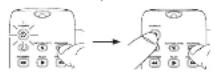
- Wait until the remote's POWER key
comes on and stays on. Then release
Испорт сельк
6
- Point the remote directly at the front panel of the device you want to control. From POWER on the remote and wait 2 seconds. The remote is testing a single code for your device.

Did your device turn off?
YES: Prox the STOP key to elive
the rock. You're done! You've
programmed this device key.
NO: Press POWER again. The
remote tests the next code for
your device
Keep proving PAME II entropy 2
seconds until your device turns off. When it drops once STOP.
TIP: Because there are so many codes, you may have to press the POWER key many times - possibly hand cabs of times.
NOTES
Throughout the programming of each key, keep the remote pointed at the IR sensor of the device you are programming the remote to control.
Test the remote with the device to make sure the device key is programmed with the correct code for maximum functionality. If some features don't want, try a different code. See the "Testing the Code for Maximum Functionality" section below for more information.
During the Manual Code Search, the remote ignored
The search times out after two minutes (the POWER key blinks four times and burns off, and the last programmed code under that device key is retained).
The POWER key blinks four times and turns off when the remote has gone through all the codes. The remote exits the Brand Cloud Search. If your device hasn't turned all yet, try a different search method.
Testing the Code for Maximum Functionality
- Try a variety of the device's functions with the remote. If some features at your devices don't work, go to the max step to try a different code.
- Repeat the Manual Code Search and Entry Method from the beginning. When the service turns off for the first time, don't press the STOP key, which would place the same code. Instead, with the unit now all, continue to press the POWER only repeatedly until the unit turns back on.
- Once the unit turns back on, you have found another code that operates the device. Press the STOP key.
- Test the case's functionality again by trying a variety of functions. If the code controls the majority of the device's functions, programming is complete. If the code stored does not give maximum functionality, try another code.
Tour of the Remote
In most cases, the keys on
this remote perform the same
luctions as the here on your
original remelix when you've
programmed this remote to
operate your components.
Many keys on this remain
have other functions as well.
H. 12045P
luminated POWER by
serves as an indicator light to
provide feedback.
Service hours /TV
EAT-SPIL-DEE, DVD/VERI-wwi
the remote in the eight ways
the remote in the light media to protect your decision.
is turns your device.
GUIDE and MENU put the
remena in meputuielo modo:
them, in mind, quick interest, they also never the same.
programming; it also
performs the same functions.
Arrow keys and use navigation
keys in device guides and
menu systems.
The INGLE DIGITAL 1991
the IMPOT-DIGITAL INC
— (dash) key has three
functions: CI it toggles
Through all the video sources
connected to your TV; (2)
when the remote is in VCR
rmsala, this balloon loggions
between VCR and the TV
input; [2] when you're
emazing digital channel
numbers directly, this button
Ile you separate the main
channel number from the
sub-channel number (such
se (R)
m = 311
Backlightory Scheme
necklighting smile.


Adult marital status:
Achel Fischel, 1987, 103
10.2.1.4
IMPORTANT
Because this remote controls more than one device, you must first "bell" the remote which cleaves you when in operation. That means, if you wish to operate your TV, you must first press the TV key to put the remote in the TV Mode. The remote stays in that device mode until you press a different device key. For example, if your remote is in TV Mode and you want to operate the DVD player, you must press the DVD-ROM key to change device modes.
Advanced Functions
Reassigning the DVD•VCR Key to Control & VCR
The ENDNER key defaults to control a □□□ player. If you want
The 5-15-402 book contains to control a 3.76 paper. If you have the 16-33-118 lines in original a 3-Will, you must repeat it.
- Press and hold the DVD-PCR key. The POWER key
Illuminates. Keep holding down the DVD-PCR key
- While holding down the P/DivCR key press and release
the number 2 key on the lowpad. The POWER key turns off.
-
Release the DIF-143B key. The 50M15B key links four times
-
Release the DVD-ROM key. The POWER key prints four times and the turn off. The DVD-ROM has been now set to control
and then turns off. The DVD-VCR key is now set to control
VCR.
- Follow the directions in the auto, brand, direct entry, or me
code search to program the DVD/CDI key for your VCD.
Volume Bunch Through
Volume punch (inum) is given the 10th and 11th cup was
schiffa portA-through shows the vcl. seffato he says, 39-40
Pricetted in SA NC501E of DRIVER muscles, to pain
in 19. We have been called the following without calling the
and allows you to confirm the volume which coming me
6.1.1.1.2.
Note: Volume punch through does not occur in cases where
the component code has its own volume/mute control, such
as some call-to-recieve.
1. 2017年1月1日
Transport Key Punch-Through
Transport key punch-through allows the transportkey [8-91-25]
PLAY, FORWARD, RECORD, STOP, PAUSE, SKIP BACK, SLON,
and SKIP FWD), when pressed in TV or SAT-CBL-DTC modes,
to "punch through" to DVD-VER mode. Transport key punch-
through occurs submatically and allows you to use the transport
long without seeking the current made. For example, if the
transport keys were last used in I2/D mode and accessed again
after pressing the TV key, they will punch through to the DVD.
Note: Transport buy purchase-through does not occur in cases
where the device code has its own transport key data, such as
a satellite receiver with a hull-in E24E.
Channel Lock Financials automatically made forward commands, like the
Channel block automatically serves channel commands, like the
CH. GD BACK, and 6-9 hourly keys, to your schedule receiver,
cathes here, at digital TV transmitter when you're in TV mode. This can save you how much as if you use a similar other than
This can save you expressly if you use a device other than your Tizen change characteristics.
your TV to change channels.
To turn channel look on:
- Press and hold the device key for the device you use to
change channels. While you're holding down this device
fore, use your other hand in press and hold the remitex
CH up key at the same time.
-
With the concrete POWER has been used on
-
Well until the remote's PUNEN key consists of and stays on
Then release then says
- Press ENTER to lock channel commands to this device.
To twin channel lock off:
To turn cashner lock off:
1. Press and hold the TV key. While you're holding down the
TV key, use your other hand to press and hold the remote's
OH down key at the same time.
2. Wait until the member's POWER key comes on and stays on.
Then release lunch menu.
1. 2017年,公司与关联方不存在关联关系。
3. Press ENTER to start changing channels with your TV.
Code Retrieval
Once you've programmed the remote to control your devices, you may want to record the codes for future references. If you need the Direct Entry Method, this is easy. Just find the codes you enter and make a note of them in the business below. If you use one of the Search Search modules in program your remote or if you used the Direct Entry method but don't remember the code, you will need to replace each device's five-digit code. Retrieving the actual code and writing it down will save you time if you ever need in program the remote again. If the codes are recorded, you can use the Direct Entry method to reprogram your remote to control your devices, which is quick and easy.

( )
1
(6)
(2)
[0]
(二) 本次股东大会的决议
广力云智慧零售收银系统
- White holding the desire key down, press and hold the
INFO key. The POWER key turns off. After holding down
both keys for three seconds, the POWER key turns back on.
- f(x)pass to:b box. The ⓄW/ER box coming up.
- Results with the model (in one or two)
- Starting with the number 1 key, press and release each
number top on the top of in the following section: 1-8, then
B. The number that causes the P1753-8 city in Block 4 the
first number of the code. As you find each number of the
crude, svila il driven far l'altune relarsense.
Notes: All TV packs begin with the number 1; all VCR and DVR
codes begin with the number 2: all DVDs, the number 3: and
all satellite receivers, cable boxa and DTV converters, the
number 5.
- Bupiah step 4 until you have no respect all their numbers in
the code. After the fifth number is retrieved, the POWER
key claims of any, then turns off.
TIP: To sell the Code Retrieval Mode at any time, press the
EXIT key.
Note: If you press an invalid key during the Code Retrieval.
Note: If you press an umbrella, let using the boat handle it quickly. But merely will not require. If you do not want a
valid Code Retrieval key: TV, SAT-CRL-DEC, DIVE/CE, INFO
VATO CODE NEW/2017 by 119, ISO-DB-D/C, DVD-PCR, INFO. EXIT: Code Retrieval times out after 35 seconds. The PINEER
EXIT CODE 180 1844 times out, 6:30 to seconds. THE POWER has intake two times, and then five all
Step 50-46. Your time, and then turns it.
[Non-Text]
[Non-Text]
THATZI 2017
TV CODE SAT-CAL-BTC CODE
□□□□□□
The image contains two horizontal gray bars, each with a different length on the left. There is no text or mathematical content to extract.
PARAMETER CODE
STABETROSE
□□□□□
|| || || || ||
|| || || || ||
□□□□□
B1 B2
(No text)
[Non-Text]
[Non-Text]
[Non-Text]
[Non-Text]
[Non-Text]
[Non-Text]
[Non-Text]
[Non-Text]
[Non-Text]
[Non-Text]
[Non-Text]
[Non-Text]
[Non-Text]
[Non-Text]
[Non-Text]
[Non-Text]
[Non-Text]
[Non-Text]
[Non-Text]
[Non-Text]
[Non-Text]
[Non-Text]
[Non-Text]
[Non-Text]
[Non-Text]
[Non-Text]
[Non-Text]
[Non-Text]
[Non-Text]
[Non-Text]
[Non-Text]
[Non-Text]
[Non-Text]
[Non-Text]
[Non-Text]
[Non-Text]
[Non-Text]
[Non-Text]
[Non-Text]
[Non-Text]
[Non-Text]
[Non-Text]
[Non-Text]
[Non-Text]
[Non-Text]
[Non-Text]
[Non-Text]
[Non-Text]
[Non-Text]
[Non-Text]
[Non-Text]
[Non-Text]
[Non-Text]
[Non-Text]
[Non-Text]
[Non-Text]
[Non-Text]
[Non-Text]
[Non-Text]
[Non-Text]
[Non-Text]
[Non-Text]
[Non-Text]
[Non-Text]
[Non-Text]
[Non-Text]
[Non-Text]
[Non-Text]
[Non-Text]
[Non-Text]


- Step 1: Install your batteries
- Step 2: Program your remote
- Auto Code Search
- Did your device turn off?
- Texting the Code for Maximum Functionality
- Brand Code Search
- NOTES
- Testing the Code for Maximum Functionality
- Direct Code Entry
- Manual Code Search
- Tour of the Remote
- IMPORTANT
- Advanced Functions
- Volume Bunch Through
- 2017年1月1日
- Code Retrieval
Brand : AUDIOVOX
Model : RCRN03BR
Category : Remote control