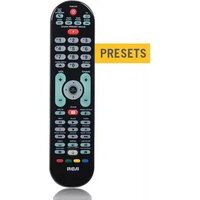
RCRPS06GR - Remote control AUDIOVOX - Free user manual and instructions
Find the device manual for free RCRPS06GR AUDIOVOX in PDF.


| Product Type | Universal Remote Control |
| Brand | Audiovox |
| Model | RCRPS06GR |
| Color | Gray |
| Dimensions (H x W x D) | Approx. 20 x 5 x 2 cm (7.9 x 2.0 x 0.8 inches) |
| Weight | Approx. 100 g (3.5 oz) |
| Power Source | 2 x AAA batteries (not included) |
| Battery Life | Up to 6 months with normal use |
| Control Range | Up to 8 meters (26 feet) |
| Compatible Devices | TV, DVD, VCR, Satellite, Cable Box, Streaming Devices |
| Number of Keys | 45 |
| Programming Method | Manual code entry or auto code search |
| Code Search Function | Yes, scans through codes automatically |
| Learning Function | No |
| Backlit Keys | No |
| Material | Plastic |
| Cleaning Instructions | Wipe with a soft, dry cloth; avoid liquids and abrasives |
| Storage Temperature | 0°C to 40°C (32°F to 104°F) |
| Safety Warnings | Keep away from children under 3 years; do not expose to moisture |
| Spare Parts Availability | Not applicable; no user-serviceable parts |
| Warranty | 1 year limited warranty |
Frequently Asked Questions - RCRPS06GR AUDIOVOX
User questions about RCRPS06GR AUDIOVOX
0 question about this device. Answer the ones you know or ask your own.
Ask a new question about this device
Download the instructions for your Remote control in PDF format for free! Find your manual RCRPS06GR - AUDIOVOX and take your electronic device back in hand. On this page are published all the documents necessary for the use of your device. RCRPS06GR by AUDIOVOX.
USER MANUAL RCRPS06GR AUDIOVOX
RCRPS06GR Quick Start Guide
RCA
Programming the Remote

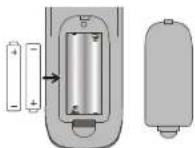
Remove the battery compartment cover, insert 2 AAA batteries (not included), and replace the cover.

Manually turn on the device you want to control.

natural_image
Diagram showing a computer monitor displaying a black screen and a video player silhouette (no text or symbols present)
Find the device's brand in the Brand Code List. Circle it and keep the list handy.

Note: If your brand isn't in this list, see the Owner's Manual for other ways to program.

Press and hold the device key. Then press the POWER key at the same time. Wait until the POWER key illuminates, then release both keys.


Enter the numbers for your brand from the Brand Code List.


Point the remote directly at your component and press GUIDE. If your device turns off, go to the next step. If not, repeat this one.

flowchart
graph TD
    A["Camera with 1x clock"] --> B["Step 1: ON/OFF"]
    B --> C["Step 2: L=2s, 1x clock indicator"]
    C --> D["Step 3: L=2s, 2s clock indicator"]
    D --> E["OFF: Screen icon"]
    E --> F["NEXT STEP"]

Test all of the following keys that have a function with this component: POWER, VOL+, CHAN+, 0, PLAY, and STOP.


If these keys work, press OK•ENTER to store the code.

To program the other device keys, follow these instructions again.
Programming Your Preset Channels

You can program up to 10 of your favorite channels on both of your components for instant access using the Channel Preset keys. First, put info for your favorite channels in the following tables.

Preset
Channels
Press and hold the P key. The POWER key illuminates. Keep holding the P key down until the POWER key blinks once and stays on. Then release it.


Press the Ⓤ1 key to program your first preset channel.


Press the device key for this preset channels list.

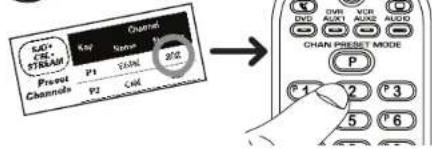
Enter the channel number for your first preset channel from the table you filled out in step 1.

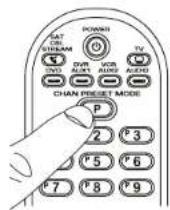
When you've finished entering the channel number, press the P key to save it.
To program more presets:
Repeat steps 2–6 for the next channel in your list.
To start using your presets:
See Accessing Your Preset Channels below.
Accessing Your Preset Channels

Press the device key (TV or SAT·CBL·STREAM) for the preset channel.
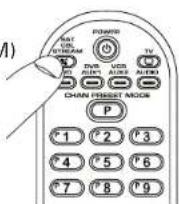

Press the P key. The POWER key lights up and stays lit.


Press the number for the preset you want to access.


While POWER is lit, just press the number to go to a preset.
See the Owner's Manual for more info and troubleshooting. For additional support, call 1-800-420-7968 or visit RCAAudioVideo.com


Brand : AUDIOVOX
Model : RCRPS06GR
Category : Remote control