
AF 50712PS - Digital photo frame AGFAPHOTO - Free user manual and instructions
Find the device manual for free AF 50712PS AGFAPHOTO in PDF.


| Product type | Digital photo frame |
| Brand | AgfaPhoto |
| Model | AF 50712PS |
| Screen size | 7 inches (17.8 cm) |
| Display resolution | 1024 x 600 pixels |
| Supported image formats | JPEG, BMP, PNG |
| Audio/Video formats | MP3, MPEG4, AVI |
| Internal memory | 512 MB |
| Memory card reader | SD/SDHC/MMC up to 32 GB |
| USB port | Yes, for USB flash drive |
| Multimedia functions | Slideshow, background music, calendar, clock, alarm |
| Remote control | Included |
| Power supply | AC adapter 5V DC (included) |
| Power consumption | 5 W (max) |
| Dimensions (W x H x D) | 190 x 130 x 28 mm |
| Weight | 380 g |
| Frame material | ABS plastic |
| Color | Black |
| Wall mounting | Yes (integrated bracket) |
| Care and cleaning | Wipe with a soft, dry cloth. Do not use chemical products. |
| Safety | Do not expose to moisture or extreme temperatures. Unplug during thunderstorms. |
| Spare parts and repairability | Contact AgfaPhoto customer service for parts. |
| General information | 2-year warranty. Made in China. |
Frequently Asked Questions - AF 50712PS AGFAPHOTO
User questions about AF 50712PS AGFAPHOTO
0 question about this device. Answer the ones you know or ask your own.
Ask a new question about this device
Download the instructions for your Digital photo frame in PDF format for free! Find your manual AF 50712PS - AGFAPHOTO and take your electronic device back in hand. On this page are published all the documents necessary for the use of your device. AF 50712PS by AGFAPHOTO.
USER MANUAL AF 50712PS AGFAPHOTO
natural_image
Child watching a digital screen displaying a couple on a wooden deck over clouds, with another kite flying nearby (no text or symbols visible)
natural_image
Pure geometric diagram with circular and crosshair elements, no text or symbols presentnatural_image
Pure geometric crosshair symbol with no text or labels

natural_image
Pure geometric diagram with crosshair and circular pattern (no text or symbols)natural_image
Pure geometric diagram with concentric circles and crosshairs, no text or symbols present

natural_image
Pure geometric crosshair symbol with no text or labels



4

natural_image
Pure geometric diagram with intersecting lines and a circular pattern (no text or symbols)natural_image
Two electronic components: a square display and a charger connected to a cable (no text or symbols visible)Hinweis

natural_image
Pure geometric diagram with concentric circles and crosshairs, no text or symbols presentnatural_image
Grid of black-and-white photos showing various scenes including a red car, Taj Mahal, waterfalls, and luxury cars (no text or symbols)natural_image
Pure geometric crosshair symbol with no text or labels

natural_image
Pure geometric diagram with crosshair and circular pattern (no text or symbols)Einstellungen
Copyright © 2009 Sagem Communications


Introduction
Cher client
Supports mémoire photo


natural_image
Pure geometric crosshair symbol with concentric circles and radial patterns (no text or labels)FR
natural_image
Two electronic components: a square display and a connected plug (no text or symbols visible)Remarque

natural_image
Grid of black-and-white photos showing various scenes including a luxury car, hot air balloon, and landscape (no text or symbols)Copyright © 2009 Sagem Communications


natural_image
Pure geometric diagram with crosshair and circular pattern (no text or symbols)
Introduction
Dear Customer
Thank you for purchasing our photo frame. Get ready to experience photography like never before!
High definition LCD screen
Your digital photo frame includes 1MB of built-in memory, a memory card slot and a USB port. Files on the built-in memory can be deleted and files on memory card and USB-disc can be copied.
Supports browse mode (thumbnails of 20 images per page at a time). Your digital photo frame supports photo rotate and stretch function.
An automatic, continuous slide show lets you enjoy all of your photos with ease.
We hope you enjoy your device and its many functions!
About this User Manual
With the installation guide on the following pages, you can start using your device quickly and easily. Detailed descriptions can be found in the following sections of this user manual.
Read the entire user manual carefully. Follow all safety instructions in order to ensure proper operation of your device. The manufacturer accepts no liability if these instructions are not followed.
Symbols Used
DANGER!

DANGER!
Warns about dangers for people, damage to the device or other objects as well as possible loss of data. Injuries or damage can result from improper handling.
Notice

Troubleshooting
This symbol designates tips that will help you to use your device more effectively and easily.




Safety Instructions and Recommendations
Do not make any changes or settings that are not described in this user manual. Physical injury or damage to the device or loss of data can result from improper handling. Take note of all warning and safety notes indicated.
Setting Up the Device
The device is exclusively for indoor use only. The device should rest securely on a stable, flat surface. Position all cables in such a way that no one will stumble on them, thus avoiding possible injuries to persons or damage to the device itself.
Always handle the unit with care. Avoid touching the LCD screen. Never place heavy or sharp objects on the LCD panel, frame or power cord.
Protect the device against direct sunlight, heat, large temperature fluctuations and moisture. Do not place the device in the vicinity of heaters or air conditioners. Observe the information on temperature and humidity in the technical data.
The device should not be switched on immediately after being moved from a cold to a warm room or vice versa or into a cold room which heated up quickly. In such cases, wait at least three hours until the device has adapted to the changed conditions (temperature, humidity...).
In the event that the device becomes too hot, or if you see smoke coming from the device, you must immediately pull the power cable out of the power socket. Have your device examined by trained professionals at a technical service location. To prevent the spread of fire, open flames should be kept away from the device.
Do not plug in the device in moist rooms. Never touch the mains cable or the mains connection with wet hands.
Do not allow liquids to enter into the device. Disconnect the device from the power socket if liquids or foreign objects have entered the device and have your device examined by trained professionals at a technical service location.
Do not allow children to handle the device without supervision. The packing materials should be kept out of the hands of children.
Power Supply
Use only the enclosed power adapter (see chapter Appendix / Technical Data). Check whether the mains voltage of your device (indicated on the type label) matches the mains voltage available at the setup location. This equipment complies with the voltage type specified on the unit.
Never touch the power cable if the insulation is damaged. Replace damaged wires immediately. Use suitable cables only; if necessary please contact our technical customer service or your retailer.
Before cleaning the surface of your device, disconnect it from the power network. Use a soft, lint-free cloth. Never use liquid, gaseous or easily flammable cleansers (sprays, abrasives, polishes, alcohol). Do not allow any moisture to reach the interior of the device.
Only clean the display with a dry, soft cloth. If the display breaks, a mildly corrosive liquid may escape. Avoid all contact with your skin and eyes.
h aRepairs
Do not make any repairs to the device yourself. Improper maintenance can result in injuries or damage to the device. Only have your device repaired by an authorised service centre.
Do not remove the type label from your device; this would void the warranty.
Photo Memory Media
Only use storage media that are compatible with the device. In order to prevent damage to the card or the unit, please turn off the power before removing or inserting the card.
Never pull out the memory card while the device is accessing it. This could cause data to be damaged or lost.





EN
Overview
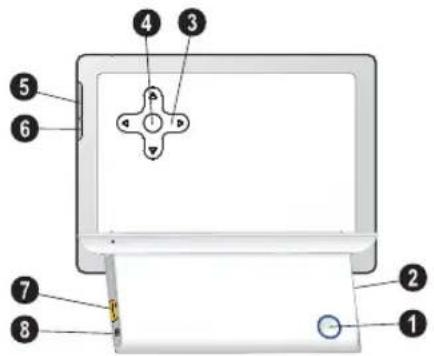
Device Overview
① ⏻—On/Off switch
②—Slot for Memory card
③ ↑/↓—Move up / Move down / Move left / Move right
④ OK—Confirms the selection / Start slide show
⑤ MENU—Calling up the picture-overview.
6 —Modifying the Settings
⑦ - Socket—USB port for a storage medium
8 —Socket for mains cable



natural_image
Pure geometric diagram with crosshair and circular pattern (no text or symbols)Initial Operation
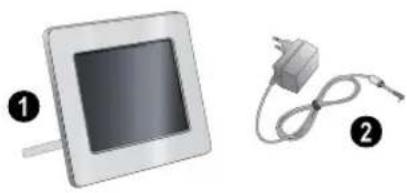
Packing Contents
① Digital photo frame with bracket
④ Power supply with exchangeable plugs
User Guide (not depicted)
natural_image
Two electronic components: a square display and a connected charger (no text or symbols visible)Notice

Missing Package Contents
If one of the parts is missing or damaged, please contact your retailer or our customer service.
Connecting power supply
CAUTION!

Mains Voltage at the Site of Installation! Check whether the mains voltage of your device (indicated on the type label) matches the mains voltage available at the setup location.
1 Choose the right plug for your country and slide it onto the power adapter. Ensure that the plug snaps in completely.
2 Insert the small plug of the power supply into the socket on the rear side of your device. Insert the power supply unit into the socket.
Inserting a Memory Card
1 Insert a memory card into the appropriate card slot at the rear of the device. Your photo frame supports the following memory cards: SD/MMC/MS/XD.
DANGER!

Inserting a Memory Card!
Only use storage media that are compatible with the device.
Never pull out the memory card while the device is accessing it. This could cause data to be damaged or lost.
2 Switch the device on using the on/off switch on the rear. The player will start slide show after the start screen be displayed.
Notice

Many Photos on the Memory Card If the memory card contains many photos, it can take some time until the slide show starts.
3 Press OK at the rear during a slide show to stop the slide show.
Notice

Using USB device and memory card at the same time
If a USB storage device is used at the same time as a storage card, the images from the memory card are displayed first.



Photo Playback
1 Press MENU on the device.
2 Then the frame will display 20 thumbnail images per page.

natural_image
Grid of black-and-white photos showing various scenes including landscapes, nature, cars, and water (no text or symbols)3 Use ⬆/⇨ or ◁/⇨ to select the image from which to start the slide show
4 Press OK to start the slide show.
5 Press OK to pause the slide show. A 'pause symbol' appears on the screen.
6 Press ⬇/→ to skip top the previous or next image.
7 End the slide show using MENU.



natural_image
Pure geometric diagram with crosshair and circular pattern (no text or symbols)Settings
EN
Change the Display Settings
1 Press
2 Using Screen) and o
←/→ select irm using OK.
(Setting of the I
Delete Files
1 Press
2D-Using and confirm v
←/→ to select (copy or delete files) OK.
3 Using (Contrast) or
↑/↓ to select colour saturation).
(Brightness), 3 Using OK.
select [Delete] and confirm with
4 Modify the setting using ⏻/→.
5 Confirm each modified setting using OK.
6 You can exit with ☐.
Copy or Delete Files
Image files on the memory card or USB disk can be copied. Image files in the internal memory can be deleted.
4 Using ⬆/↓, ⇔/→ select the file you want to delete.
5 Select the file using OK.
6 Using tom of the sc
to select the symbol line at the bot-n.
7 Using to start delet
←/→ to select icon and press OK
Notice

Cancel Process
By selecting and confirm with OK the current process will be aborted.
Copy Files
1 Press
2 Using and confirm v
←/→ to select OK.
(copy or delete files)
3 Using OK.
select
(Copy) and confirm
4 Using ⬆/↓, to copy.
5 Select the file using OK.
Notice

Cancelling the Selection
Press again OK to cancel the selection.
6 Using tom of the sc
7 Using to start copyi
to select the symbol line at the
←/→ to select icon and press OK
Notice

Cancel Process
By selecting and confirm with OK the current process will be aborted.
8 The screen will display the processing bar. After finish copying, you can find the image in the internal memory.
Modifying the Basic Settings
Here you can rotating the images, changing aspect ratio, determine the transition effects or adjusting the slide show speed.
1 Press IT.
2 Using Settings] and
←/→ select firm with OK.
(Modifying the Basic
3 U s e
↑/↓ to select the required symbol.

Rotating Image—Change the orientation of image

Aspect Ratio—The digital photo frame has wide screen with 16:10 aspect ratio. Select whether you would like to view the image in the original format, in the wide screen format :10) or if the image should be stretched to touch the shape of the screen.

Transition Effects—Allows you to choose different styles of slide show effects.

Slide Show Speed—Select from the dis- yed times.

Default Settings—All settings are reset to factory settings.
4 Select the required setting using

5 Confirm with

Notice

Press ☐ to close the menu and return to the starting mode.

Service
Information
| Problems Solutions | |
| Photo Frame does not power on. Check that you connect the AC adapter to the frame properly. | |
| Memory card can not be recognized • Check whether you have used a compatible memory card and whether you have inserted the memory card correctly.• Make sure the memory card is not damaged.• Check that the photo format is supported | |


Appendix
Technical Data
Model AF 5071PS
Dimensions (L × H × W).....191,8 × 139,8 × 26 mm
Weight....0,366 kg
Mains Connection Input: 100-240V\~/50-60Hz Output: 5V\~/1A
Recommended Ambient 0–45°C
Relative humidity....20 - 80%
Display
Screen size....7"
Aspect ratio 16:10
Resolution....432×234 Pixel
Memory
Internal memory..... up to 10 photos
Connections
USB port .......USB-Host
Compatible Memory Cards.....SD · MMC · MS · XD
Supported formats
Photo formats......JPEG
All data are provided for reference purposes only. AgfaPhotoreserves the right to make any changes without prior notice.
AgfaPhoto is used under license of Agfa-Gevaert NV & Co. KG or Agfa-Gevaert NV. Neither Agfa-Gevaert NV & Co KG nor Agfa-Gevaert NV manufacture this product or provide any product warranty or support.
For service, support and warranty information, contact the distributor or manufacturer.
Contact: AgfaPhoto Holding GmbH, www.agfaphoto.com
Manufacturer: Sagem Communications, www.sagem-communications.com

The CE marking certifies that the product meets the main requirements of the European Parliament and Council directive 1999/5/CE on telecommunications terminal equipment, regarding safety and health of users and regarding electromagnetic interference.
The declaration of compliance can be consulted on the site www.agfaphoto.com
Preservation of the environment as part of a sustainable development logic is an essential concern of AgfaPhoto. The desire of AgfaPhoto is to operate systems observing the environment and consequently it has decided to integrate environmental performances in the life cycle of this products, from manufacturing to commissioning use and elimination.

Packaging: The presence of the logo (green dot) means that a contribution is paid to an approved national organisation to improve package recovery and recycling infrastructures to facilitate. Please respect the sorting rules set up locally for this kind of waste.
Batteries: If your product contains batteries, they must be disposed of at appropriate collection points.
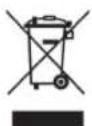
Product: The crossed-out waste bin stuck on the product means that the product belongs to the family of electrical and electronic equipment. In this respect, the European regulations ask you to dispose of it selectively;
- At sales points in the event of the purchase of similar equipment.
- At the collection points made available to you locally(drop-off centre, selective collection, etc.).
In this way you can participate in the re-use and upgrading of Electrical and Electronic Equipment
EN

Waste, which can have an effect on the environment and human health.
The paper and cardboard packaging used can be disposed of as recyclable paper. Have the plastic wrapping and Styrofoam packaging recycled or dispose of it in the non-recyclable waste, depending on the requirements in your country.
Trademarks: The references mentioned in this manual are trademarks of the respective companies. The lack of the trademarks ® and ™ does not justify the assumption that these dedicated terminologies are free trademarks. Other product names used herein are for identification purposes only and may be trademarks of their respective owners. AgfaPhoto disclaims any and all rights in those marks.
Neither AgfaPhoto nor its affiliates shall be liable to the purchaser of this product or third parties for damages, losses, costs, or expenses incurred by the purchaser or third parties as a result of accident, misuse, or abuse of this product or unauthorized modifications, repairs, or alterations to this product, or failure to strictly comply with AgfaPhoto operating and maintenance instructions.
AgfaPhoto shall not be liable for any damages or problems arising from the use of any options or any consumable materials other than those designated as original AgfaPhoto products or AgfaPhoto approved products.
AgfaPhoto shall not be held liable for any damage resulting from electromagnetic interference that occurs from the use of any interface cables other than those designated as AgfaPhoto products.
All rights reserved. No part of this publication may be reproduced, stored in a retrieval system or transmitted in any form or by any means, electronic, mechanical, photocopying, recording, or otherwise, without the prior written permission of AgfaPhoto. The information contained herein is designed only for use with this product. AgfaPhoto is not responsible, if this information is applied to other devices.
This user manual is a document that does not represent a contract.
Errors, printing errors and changes are reserved.
Copyright © 2009 Sagem Communications





Introduzione
Stimato cliente,
IT
natural_image
Two electronic components: a square display and a connected charger (no text or symbols visible)Nota

natural_image
Grid of black-and-white photos showing various landscapes and objects including a domed city, flowers, cars, and landscapes (no text or symbols)natural_image
Pure geometric diagram with intersecting lines and a circular pattern (no text or symbols)IT
Impostazioni
Copyright © 2009 Sagem Communications


natural_image
Pure geometric diagram with intersecting lines and a circular pattern (no text or symbols)Inleiding
Geachte klant
natural_image
Pure geometric crosshair symbol with concentric circles and radiating lines, no text or labels present


natural_image
Pure geometric crosshair symbol with concentric circles and radial patterns (no text or labels)natural_image
Two electronic devices: a square display and a charger connected by cables (no text or symbols visible)Opmerking

Ontbrekende delen
natural_image
Grid of black-and-white photos showing various landscapes and objects including cars, landscapes, and nature scenes (no text or symbols)Copyright © 2009 Sagem Communications


natural_image
Pure geometric diagram with crosshair and circular pattern (no text or symbols)Introducción
ES

natural_image
Two electronic devices: a square display and a charger connected to a cable (no text or symbols visible)Nota

natural_image
Grid of black-and-white photos showing various scenes including landmarks, landscapes, cars, and nature scenes (no text or symbols)Copyright © 2009 Sagem Communications
ES



Introdução
Estimado cliente





natural_image
Pure geometric diagram with crosshair and circular pattern (no text or symbols)
Primeira utilização
natural_image
Two electronic components: a square display and a charger connected to a cable (no text or symbols visible)Indicação

natural_image
Grid of black-and-white photos showing various scenes including cars, landscapes, and urban areas (no text or symbols)Copyright © 2009 Sagem Communications




Introduktion
Bäste kund
SE
natural_image
Two electronic components: a square display and a connected charger (no text or symbols visible)Anvisningar

natural_image
Grid of black-and-white photos showing various scenes including landscapes, cars, and nature (no text or symbols)Copyright © 2009 Sagem Communications
SE
Úvod
Vážený zákazníku,

Počáteční instalace
Obsah dodávky
natural_image
Two electronic components: a square display and a connected charger (no text or symbols visible)Poznámka

natural_image
Grid of black-and-white photos showing various scenes including landscapes, cars, and water, with no visible text or symbols.Copyright © 2009 Sagem Communications
Bevezetés
Tisztelt Vásárló!
HU
natural_image
Two electronic components: a square display and a cord with an AC power adapter (no text or symbols visible)Megjegyzés

Hiány
natural_image
Grid of black-and-white photos showing various scenes including a domed city, mountains, cars, and landscapes (no text or symbols)Copyright © 2009 Sagem Communications


Wstep
Szanowny Kliencie!

PL




natural_image
Pure geometric diagram with crosshair and circular pattern (no text or symbols)natural_image
Two electronic components: a square display and a cord with an AC power adapter (no text or symbols visible)Wskazówku

natural_image
Grid of black-and-white photos showing various scenes including cars, landscapes, and nature scenes (no text or symbols)Producent: Sagem Communications, www.sagem-communications.com

Copyright © 2009 Sagem Communications


Introducere
Stimate client
RO




3


natural_image
Two electronic components: a square display and a connected plug (no text or symbols visible)Indicatie

natural_image
Grid of black-and-white photos showing various scenes including a domed building, landscape, cars, and landscapes (no text or symbols)natural_image
Two electronic components: a square display and a connected charger (no text or symbols visible)Poznámka

natural_image
Grid of black-and-white photos showing various scenes including a domed building, landscape, cars, and landscapes (no text or symbols)natural_image
Pure geometric diagram with crosshair and circular pattern (no text or symbols)Inštalácia
Zmena nastavenia zobrazenia
1 Stlačte.
2 Pomocou ⬇/↔ vyberte (Nastavenie LCD) a potvrd'te stlačením OK.
3 Pomocou ⬆/↓ vyberte (las) [Kontrast] alebo (Farebná sýtost).
4 Upravte nastavenie pomocou ←/→.
5 Každú úpravu nastavenia potvrd'te OK.
6 Ponuku ukončite stlačením 📄.
Copyright © 2009 Sagem Communications




Giriş
Sayın müşterimiz,
TR
3

İlk çalıştırma
Ambalaj içeriği
natural_image
Two electronic components: a square display and a cord with an AC power plug (no text or symbols visible)Uyari

natural_image
Grid of black-and-white photos showing various scenes including a domed building, landscape, cars, and landscapes (no text or symbols)Copyright © 2009 Sagem Communications

TR
9




Εισαγωγή
Αγαπητέ πελάτη
natural_image
Pure geometric diagram with intersecting lines and circular patterns, no text or symbols present


3


natural_image
Two electronic components: a square display and a connected charger (no text or symbols visible)Οδηγία

natural_image
Grid of black-and-white photos showing various scenes including a domed building, landscape, cars, and landscapes (no text or symbols)Copyright © 2009 Sagem Communications
natural_image
Pure geometric diagram with intersecting lines and a central circle, no text or symbols present
natural_image
Pure geometric diagram with intersecting lines and a circular pattern (no text or symbols)
Введение



4

Ввод в эксплуатацию
Комплект поставки
natural_image
Two electronic components: a square display and a cord with an AC power plug (no text or symbols visible)Замечания

natural_image
Grid of black-and-white photos showing various scenes including cars, landscapes, and urban areas (no text or symbols)Copyright © 2009 Sagem Communications


AgfaPhoto is used under license of Agfa-Gevaert NV & Co. KG or Agfa-Gevaert NV. Neither Agfa-Gevaert NV & Co. KG nor Agfa-Gevaert NV manufacture this product or provide any product warranty or support. For service, support and warranty information, contact the distributor or manufacturer.
AF 5071PS
Booklet
253243464-A



- Hinweis
- Einstellungen
- Introduction
- Cher client
- Supports mémoire photo
- FR
- Remarque
- Dear Customer
- About this User Manual
- Symbols Used
- DANGER!
- Notice
- Troubleshooting
- Safety Instructions and Recommendations
- Setting Up the Device
- Power Supply
- h aRepairs
- Photo Memory Media
- EN
- Overview
- Device Overview
- Initial Operation
- Packing Contents
- Connecting power supply
- CAUTION!
- Inserting a Memory Card
- Photo Playback
- Settings
- Change the Display Settings
- Delete Files
- Copy or Delete Files
- Copy Files
- Modifying the Basic Settings
- Service
- Appendix
- Technical Data
- Display
- Memory
- Connections
- Supported formats
- Introduzione
- Stimato cliente,
- IT
- Impostazioni
- Inleiding
- Geachte klant
- Ontbrekende delen
- Introducción
- Introdução
- Estimado cliente
- Primeira utilização
- Introduktion
- Bäste kund
- Úvod
- Vážený zákazníku,
- Počáteční instalace
- Obsah dodávky
- Poznámka
- Bevezetés
- Tisztelt Vásárló!
- Megjegyzés
- Hiány
- Wstep
- Szanowny Kliencie!
- Wskazówku
- Introducere
- Stimate client
- Indicatie
- Inštalácia
- Zmena nastavenia zobrazenia
- Giriş
- Sayın müşterimiz,
- İlk çalıştırma
- Ambalaj içeriği
- Uyari
- Εισαγωγή
- Αγαπητέ πελάτη
- Οδηγία
- Введение
- Ввод в эксплуатацию
- Комплект поставки
- Замечания
Brand : AGFAPHOTO
Model : AF 50712PS
Category : Digital photo frame