
SCENE7 4.4 - Software ADOBE - Free user manual and instructions
Find the device manual for free SCENE7 4.4 ADOBE in PDF.


| Product Type | Rich Media Distribution Software (SaaS) |
| Publisher | Adobe Systems |
| Version | 4.4 |
| System Requirements | Web browser with Adobe Flash Player 10 or later |
| Available Editions | Small Business, Enterprise, Enterprise Unlimited |
| Key Features | Image sizing, zoom, eCatalogs, image viewers, swatch sets, 360° viewers, streaming video, Foundation and FXG templates, multi-viewer viewers |
| Supported File Formats | JPEG, TIFF, PNG, PSD, PDF, EPS, AI, videos (MP4, etc.), TrueType/PostScript fonts, ICC profiles, XML, XSL, SWF |
| User Interface | Web application (browser) or Adobe AIR desktop application |
| Interface Languages | French, English, German, Spanish, Japanese, etc. |
| Publishing | Image Server servers with CDN caching |
| Support Services | Email and phone support depending on edition; online training and video tutorials |
| User Management | Roles: Enterprise Administrator, Administrator, User, Media Portal Contributor |
| Authentication | Login with email and password; automatic logout after 30 minutes of inactivity |
| Updates | Software updates via the Adobe website |
| Security | Role-based access control, password expiration (72 days), HTTPS protocol |
| Manual Format Support | PDF (224 pages) |
| Maintenance and Cleaning | Regular updates and file optimization via the administration interface |
| Spare Parts and Repairability | Technical support and patches provided by Adobe; no physical parts |
| General Information | Enterprise on-demand rich media platform; helps streamline dynamic content across all channels |
Frequently Asked Questions - SCENE7 4.4 ADOBE
User questions about SCENE7 4.4 ADOBE
0 question about this device. Answer the ones you know or ask your own.
Ask a new question about this device
Download the instructions for your Software in PDF format for free! Find your manual SCENE7 4.4 - ADOBE and take your electronic device back in hand. On this page are published all the documents necessary for the use of your device. SCENE7 4.4 by ADOBE.
USER MANUAL SCENE7 4.4 ADOBE
© 2010 Adobe Systems Incorporated. All rights reserved.
This user guide is protected under copyright law, furnished for informational use only, is subject to change without notice, and should not be construed as a commitment by Adobe Systems Incorporated. Adobe Systems Incorporated assumes no responsibility or liability for any errors or inaccuracies that may appear in the informational content contained in this guide.
This user guide is licensed for use under the terms of the Creative Commons Attribution Non-Commercial 3.0 License. This License allows users to copy, distribute, and transmit the user guide for noncommercial purposes only so long as (1) proper attribution to Adobe is given as the owner of the user guide; and (2) any reuse or distribution of the user guide contains a notice that use of the user guide is governed by these terms. The best way to provide notice is to include the following link. To view a copy of this license, visit http://creativecommons.org/licenses/by-nc/3.0/us/
Adobe, the Adobe logo, Adobe Premiere, Acrobat, Flash, Illustrator, Photoshop, PostScript, and Scene7 are either registered trademarks or trademarks of Adobe Systems Incorporated in the United States and/or other countries.
Apple, Macintosh, and Mac OS are trademarks of Apple Inc., registered in the United States and other countries. Microsoft, OpenType, and Windows are either registered trademarks or trademarks of Microsoft Corporation in the United States and/or other countries. All other trademarks are the property of their respective owners.
This product includes software developed by the Apache Software Foundation (http://www.apache.org/).
This software is based on part on the work of the Independent JPEG Group.
This product includes software developed by the OpensSsL Project for use in the OpenssL Toolkit. (http://www.openssL.org)
This product includes cryptographic software written by Eric Young (eay@cryptsoft.com).
Portions Copyright 1988-1997 Sam Leffler.
Portions Copyright 1991-1997 Silicon Graphics.
Portions Copyright 1995-2004 Jean-loup Gailly and Mark Adler.
Adobe Systems Incorporated, 345 Park Avenue, San Jose, California 95110, USA.
Notice to U.S. Government end users: The Software and Documentation are "Commercial Items," as that term is defined at 48 C.F.R. §2.101, consisting of "Commercial Computer Software" and "Commercial Computer Software Documentation," as such terms are used in 48 C.F.R. §12.212 or 48 C.F.R. §227.7202, as applicable. Consistent with 48 C.F.R. §12.212 or 48 C.F.R. §227.7202-1 through 227.7202-4, as applicable, the Commercial Computer Software and Commercial Computer Software Documentation are being licensed to U.S. Government end users (a) only as Commercial Items and (b) with only those rights as are granted to all other end users pursuant to the terms and conditions herein. Unpublished-rights reserved under the copyright laws of the United States. Adobe agrees to comply with all applicable equal opportunity laws including, if appropriate, the provisions of Executive Order 11246, as amended, Section 402 of the Vietnam Era Veterans Readjustment Assistance Act of 1974 (38 USC 4212), and Section 503 of the Rehabilitation Act of 1973, as amended, and the regulations at 41 CFR Parts 60-1 through 60-60, 60-250, and 60-741. The affirmative action clause and regulations contained in the preceding sentence shall be incorporated by reference.
Sommaire
Type of elements and attributes 210
Common attributes 212
Element types and their private attributes 213
http://s71.score7.com/is/image/S7learn/backpack?wid=250
http://s71.score7.com/is/image/S7learn/backpack?wid=250&fmt=jpeg&qlt=80,0&resMode=sharp&op_u sm=1.1,0.5,1,0
http://s71.score7.com/is/image/S7learn/backpack?Large
img src="/company_images/products/backpack thumbnails.jpg"
You can use elements and attributes to manipulate the content of Web To Print templates in Scene7. You can specify values for elements and attributes in the Scene7 Template Publishing screen. If a Scene7 element: id is defined, you can also use these elements and attributes in the Additional Modifiers panel in the Template Publishing Preview screen.
Type of elements and attributes
An element is an object that you can change by adjusting its attributes. An element can be any object in your design such as a rectangle, vector shape, graphic, or text block. Every element has attributes, such as color, width, or stroke. Elements are based on your design, and can be static or variable. If the attributes are labeled as parameters, they are variable and you can change their appearance within the final template. Otherwise, they are static and do not change.
A common attribute is one that two or more different elements can use.
A private attribute is one that only one specific element can use.
Elements available for Template Publishing
Following are some of the most common elements you can use when designing templates:
RectEllipse
Text
GraphicBitmap
Graphic
Group
FXG Paths
LinearGradient
RadialGradient
BitmapFill
SolidColor
FXG Fills, Strokes, Visibility, and Blend Modes
Common attributes available for Template Publishing
Common attributes are common to two or more types of elements. Following are some of the most common attributes you can use when designing templates:
[element] alpha
[element]blendMode
[element] height
[element] id
[element] interpolationMethod
[element] maskType
[element] scaleX
[element] scaleY
[element] source
[element] spreadMethod
[element] transformX
[element] transformY [element] rotation
[element] visible
[element] width
[element] x
[element] y
Private attributes available for Template Publishing
Private attributes are only used by one type of element. The following private attributes can be used when designing templates:
BitmapGraphic repeat
control1X
controlY
control2X
control2Y
Group scaleGridBottom
Group scaleGridLeft
Group scaleGridRight
Group scaleGridTop
Line xFrom
Line yFrom
Line xTo
LineyTo
Path data
Path winding
RadialGradient focalPointRatio
Rect radius
SolidColor color
TextGraphic
TextGraphic hyphenation
TextGraphic kerning
TextGraphic lineHeight
TextGraphic whiteSpaceCollapse
TextVerticalAlign
Common attributes
You can use the following common attributes in the Scene7 Template Publishing screen:
Remarque : Common attributes appear with [element] before their name: [element]attribute_name. For example, the common attribute width, appears as [element] width. To find information on the common attribute width for any element, such as rect width, see [element] width.
[element] width Specifies the width of the object in points. For example, if you enter 300 as the rect width, the rectangle appears 300 points wide.
[element] height Specifies the height of the object in points. For example, if you enter 300 as the rect height, the rectangle appears 300 points high.
[element] x Defines the distance from the upper left corner of the bounding box, along the x-axis (horizontal), to where the text or object begins. For example, if you enter 10 points as the rect x value, your text or object appears 10 points from the left of the edge of the rectangle.
[element] y Defines the distance from the upper left corner of the bounding box, along the y-axis (vertical), to where the text or object begins. For example, if you enter 10 points as the rect y value, your text or object appears 10 points from the top of the edge of the rectangle.
[element] transformX Allows you to adjust the positioning based on the x and y values of the group and the bitmap fill. You can use transformX and transformY together to position the object horizontally and vertically, or separately for x or y.
[element] transformY Allows you to adjust the positioning based on the x and y values of the group and the bitmap fill. You can use transformX and transformY together to position the object horizontally and vertically, or separately for x or y.
[element] rotation: Rotates the object by degrees. For example, if you enter 45, the object rotates 45^ .
[element] scaleX Scales the object horizontally. If you want the object to increase or decrease in size proportionally, change both the scaleX and scaleY. Otherwise, you stretch the object horizontally only.
[element] scaleY Scales the object vertically. If you want the object to increase or decrease in size proportionally, change both the scaleX and scaleY. Otherwise, you stretch the object vertically only.
[element]blendMode Blends stacks of objects together using transparency. It is non-destructive, and similar to the blending modes in Adobe Photoshop. Different types of blend modes have different effects. For example, Applying a blend mode to a stack of objects blends the top object into the object below it. The effect changes depending on the degree of opacity, the order of the stacked objects, and the specific blend mode used. Examples of blend modes include: add, alpha, darken, difference, erase, hardlight, invert, layer, lighten, multiply, normal, overlay, screen, subtract.
[element] visible Shows or hides the object. Choose On to show or Off to hide.
[element] alpha A real number from 0 to 1 that specifies the opacity of the stroke. Transparent is 0, solid is 1. The default is 1.
[element] id Defines an element ID so the object can be used for DOM manipulation. For example id:image names the object with the variable id of image. When used in DOM manipulations, the image id is used to define which named object is being manipulated.
[element]MASKType Specifies either an alpha mask or a clip mask. Defaults to clip.
[element] spreadMethod Specifies how to create linear and radial gradients that are filled with pixels. You can choose from the following options:
- Pad Pixels take on the color of the closest point on the gradient vector.
- Reflect The gradient is repeated infinitely, reversing its direction with each repeat.
- Repeat The gradient is repeated infinitely.
[element] interpolationMethod Specifies how to interpolate between entries of the gradient. These are RGB or linear RGB, and are in Adobe Illustrator as well.
[element] source Specifies the file formats that you can use for Bitmap Graphics or Bitmap Fills (must be PNG, JPG, or GIF). This attribute is required for Bitmap Graphics or Bitmap Fills.
Element types and their private attributes
You can use the following elements and their attributes in the Scene7 Template Publishing screen, as well as in the Additional Modifiers panel in the Preview screen:
Rect
Rect is a rectangle.
You can use the following private attributes with Rect elements:
Rect radiusX For rounded rectangles, specifies the x-axis (horizontal) radius of the curve used to round off the corners of the rectangle.
Rect radiusY For rounded rectangles, specifies the y-axis (vertical) radius of the curve used to round off the corners of the rectangle.
Ellipse
An Ellipse element is a round or oblong circle based on a bounding rectangle. The bounding rectangle defines the boundary of the actual Ellipse path. Any stroke applied to the Ellipse can extend beyond the bounding rectangle, according to the painting rules of the stroke.
Line
A line is any straight continuous connected path between two or more points. You can use the following private attributes with Line elements:
Line xFrom The x-axis (horizontal) starting point of the line. Defaults to 0 in points.
Line yFrom The y-axis (vertical) starting point of the line. Defaults to 0 in points.
Line xTo The x-axis (horizontal) ending point of the line. Defaults to 0 in points.
Line yTo The y-axis (vertical) ending point of the line. Defaults to 0 in points.
Text Graphic
Text in FXG is defined with the TextGraphic element.
You can use the following private attributes with TextGraphic elements:
TextGraphic textVerticalAlign Aligns text within the text box. Options are top, bottom, and center.
TextGraphic hyphenation Specifies hyphenation as On or Off. When On, the text automatically hyphenates and wraps, breaking words as necessary; when Off, words do not hyphenate and break.
TextGraphic kerning Uses metric kerning to specify space between characters. Metric kerning uses fern pairs, which are included in most fonts. You can choose On or Off.
TextGraphic extendedKerning Uses optical kerning to specify space between characters. Optical kerning automatically adjusts the space between characters based on their shapes. You can choose On or Off.
TextGraphic lineHeight Specifies the leading (the distance between the baselines of two lines of text). Can be in points, or as a percentage if % is appended to value.
TextGraphic whiteSpaceCollapse Enables proper viewing of content by removing extra line breaks and white space. Options are Preserve and Collapse. Default is Preserve. For more information, see Whitespace Handling in the FXG Spec at www.adobe.com/go/learn_s7_FXG_Spec_fr.
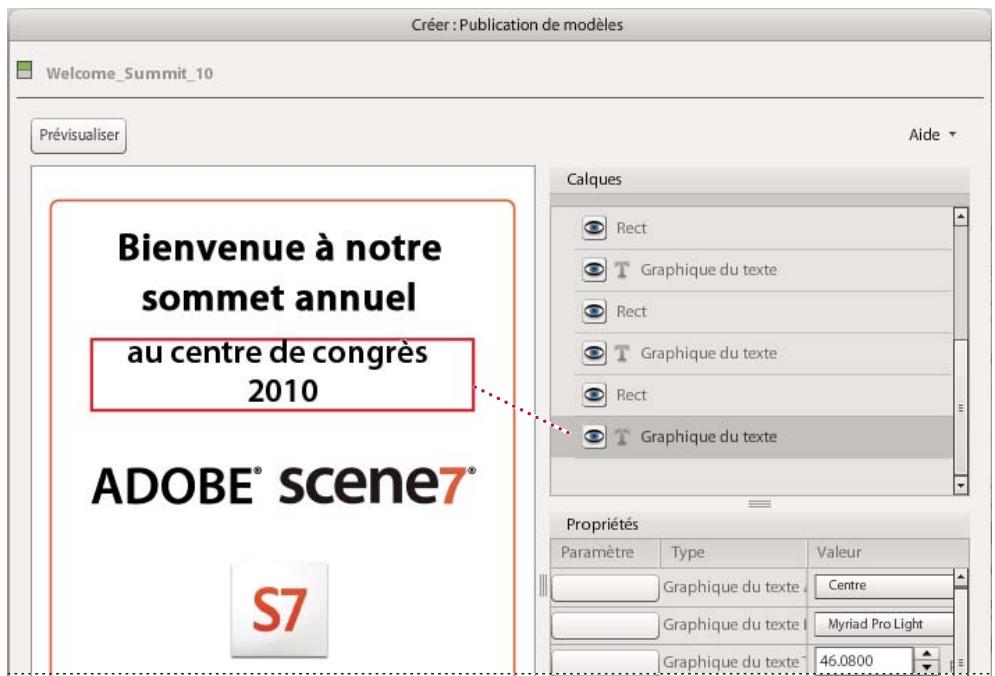
TextGraphic element selected
BitmapGraphic
A BitmapGraphic element defines a rectangular region in its parent element's coordinate space, filled with bitmap data drawn from a source file.
The BitmapGraphic element renders its source image into a rectangle defined by its parent coordinate system. The default image rectangle has its top/left as the originating point, with its width/height defaulting to the size of the source image.
You can modify the image rectangle by setting the x/y and width/height attributes on the BitmapGraphic element. If the image rectangle is smaller than the source image, the bitmap is clipped to fit the rectangle. If the image rectangle is larger, you can choose to tile the image to fill the extra space.
You can use the following private attributes with BitmapGraphic elements:
BitmapGraphic repeat Specifies whether the image data is tiled to fill the image rectangle. For example, if you have a frame 4 inches square, an image 1-inch square, and Repeat set to True, the image is duplicated next to and below itself, and fills the frame. Default is False.
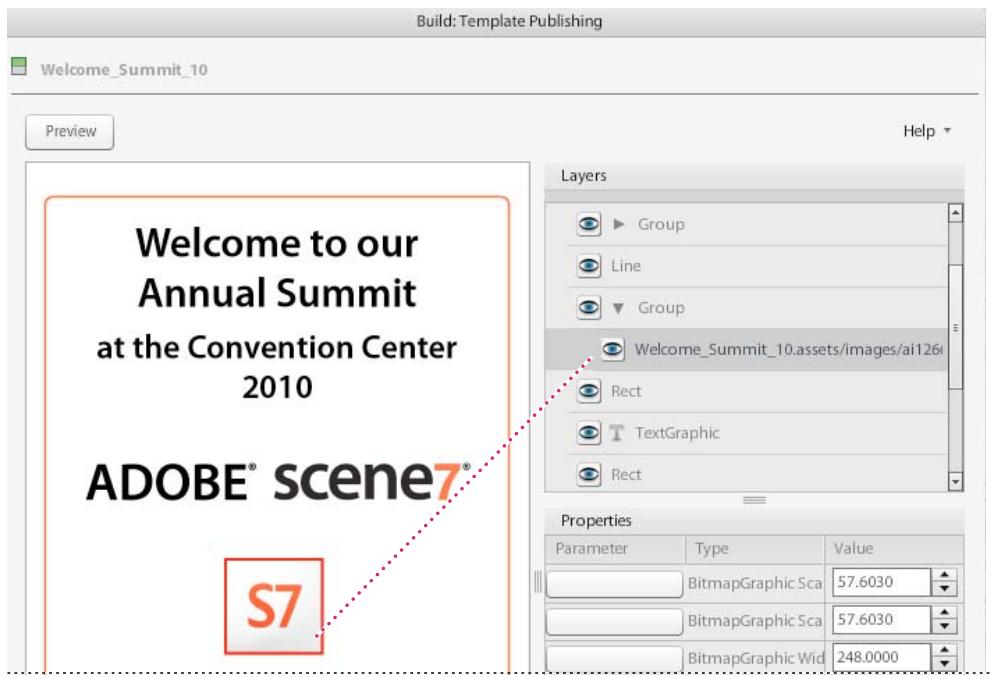
BitmapGraphic element selected
Group
The Group element is a container element for grouping related graphics elements.
A group of elements, as well as individual objects, can be given a name by using the id attribute. Named groups are required in interactive environments for animation and runtime modification.
FXG Paths
A path is defined in FXG by using the Path element. Paths represent the outline of a shape that you can fill and stroke.
A path is described using a current point. To understand current point, imagine you are drawing on paper; the current point is the location of the pen. You can change the position of the pen, and trace the outline of a shape (open or closed) by dragging the pen in either straight lines or curves.
Compound paths (paths with multiple subpaths) allow effects such as donut holes in objects. A Path element can optionally contain one element named fill and one element named stroke. Path elements are transformable and support blendModes and bitmap filters.
Paths represent the geometry of the outline of an object, defined in terms of the following elements:
lineto Draw a straight line.
moveto Set a new current point.
closepath Close the current path shape by drawing a line to the last moveto.
curveto Draw a curve using a cubic Bezier. You can use the following curve commands to draw curves:
- Cubic Bezier commands (C, c, S, and s) A cubic Bezier segment is defined by a start point, an end point, and two control points. Using C and S indicates absolute coordinates are used; using c and s indicates relative coordinates are used. Every absolute coordinate has a relative coordinate that is determined by adding the previous coordinate position to the current position.
- Quadratic Bezier commands (Q, q, T, t) A quadratic Bezier segment is defined by a start point, an end point, and one control point. Using Q and T indicates absolute coordinates are used; using q and t indicates relative coordinates are used. Every absolute coordinate has a relative coordinate that is determined by adding the previous coordinate position to the current position.
Remark : For more information on curve commands, see Path Data in the FXG Specification at www.adobe.com/go/learn_s7 FXG_Spec_fr.
You can use the following private attributes with FXG Path elements:
Path data The outline of a shape. All coordinates are in points.
Path winding Fill rule for intersecting or overlapping path segments. For example, two circles overlapping and creating a third shape at the intersection. The winding path is the fill rule for that intersection (including some of the color if nonzero). Options are even/odd or nonzero.
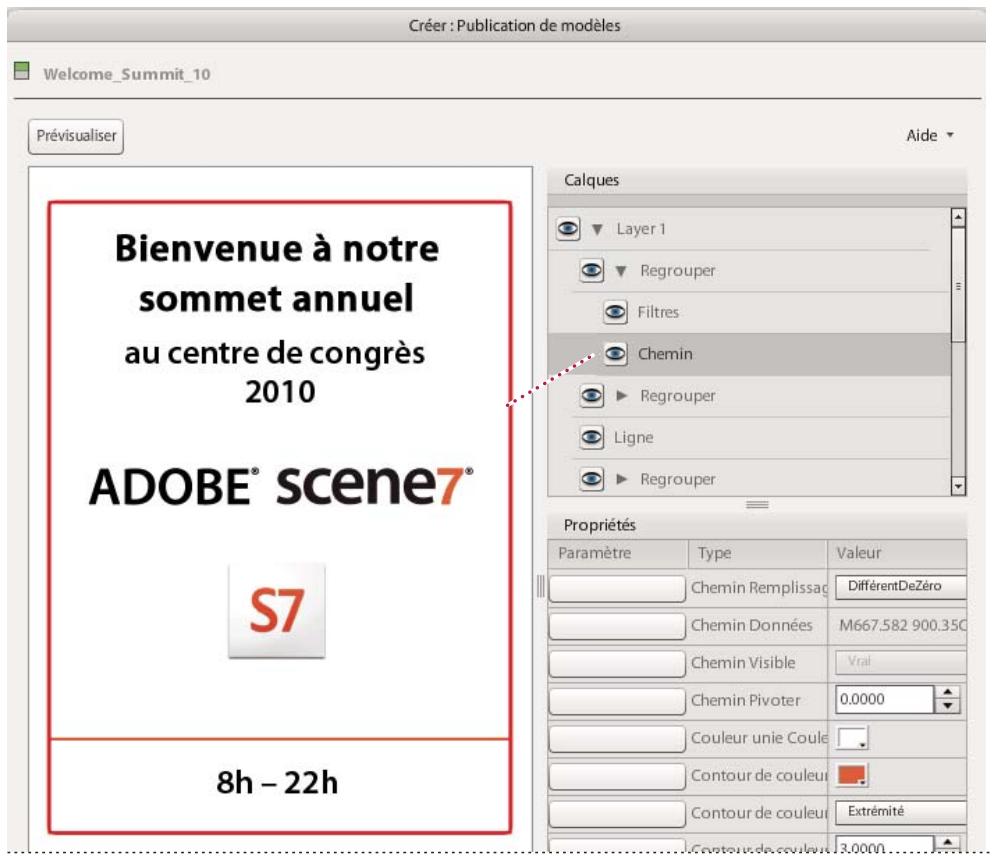
Path for red rectangle outlining the document is selected
LinearGradient
The LinearGradient element fills a path or shape with a continuously smooth color transition between a list of colors along a vector. The gradient vector stretches from (0, -0.5) to (0, 0.5) in the parent element's coordinate space. Matrix transformations (changes in the angle of the linear gradient) defined for the LinearGradient alter its appearance.
RadialGradient
The RadialGradient element fills a path or shape with a continuously smooth color transition between a list of colors along the radius of a circle. The circle used is the circle bounded by the box stretching from (-0.5, -0.5) to (0.5, 0.5) . Like LinearGradient, matrix transformations defined on the gradient transform the RadialGradient.
You can use the following private attribute with RadialGradient elements:
FocalPointRatio Defines the location of the focal point of the radial gradient along the horizontal axis (of the untransformed box). A value of one places it at the right edge of the box (at 0.5, 0). A value of -1 places it at the left edge of the box (at -0.5, 0). The default value of 0 places it in the middle of the box.
BitmapFill
The BitmapFill element fills a path or shape with bitmap image. You can choose to have the image repeat (or tile) to completely fill the path by specifying the Repeat attribute as True.
By default, the bitmap image paints a fill rectangle stretching from (0,0) at the upper-left to the (width, height) of the bitmap image in the shape's parent grouping element's coordinate system. The remainder of the shape is left unpainted.
You can use the following attribute with BitmapFill elements:
Repeat Tiles the fill rectangle to fill an infinite plane with the bitmap image data.
SolidColor
The SolidColor element fills a path or shape with a single solid color or solid color with opacity.
You can use the following private attribute with SolidColor elements:
SolidColor color An RGB value (in the form #rrggbb) that defines the single color value with which to fill the shape. Defaults to #000000.
SolidColor cmyk A CMYK value in the form of #ccmmyykk that defines the single color value. The values for each channel are from 00 (0%) to 64 (100%). For example, pure black is #00000064, and pure cyan is #64000000.
SolidColor spotColor The name of a spot color.
SolidColor spotTint A value from 0 to 100 that defines the tint of the spot color.
FXG Fills, strokes, visibility, and blend modes
FXG paths and basic shapes can be filled (paint the interior of the object) and stroked (paint along the outline of the object). Filling and stroking are both considered painting operations.
You can fill a path or shape with any of the following:
- a solid color
- a solid color with opacity
- a gradient (linear or radial)
- a bitmap image (optionally tiled)
You can stroke a path or shape with any of the following:
a solid color
- a solid color with opacity
- a gradient (linear or radial)