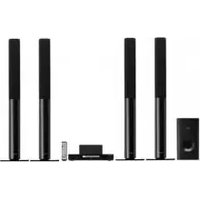
DCS-370 - Home Theater System PIONEER - Free user manual and instructions
Find the device manual for free DCS-370 PIONEER in PDF.


| Product type | 5.1-channel home theater system |
| Brand | Pioneer |
| Model | DCS-370 (XV-DV370 receiver) |
| Output power | 60 W per channel (1 kHz, 10% THD, 4 Ω) – front, center, surround; subwoofer 60 W |
| Power supply | 220-240 V AC, 50/60 Hz |
| Standby consumption | 0.42 W |
| Supported disc formats | DVD, CD, Video CD, Super VCD, DivX, MP3, WMA, MPEG-4 AAC, JPEG |
| Interfaces | USB (front), HDMI, SCART (Peritel), auxiliary audio input (LINE1/2), headphone jack |
| Tuner | FM/AM with RDS (radio information display) |
| Audio modes | Dolby Digital, DTS, Dolby Pro Logic II, Extra Power, SFC (Action, Drama, Rock, etc.) |
| Front speakers (S-DV363) | 1-way 7.7 cm, impedance 4 Ω, dimensions 100 x 100 x 100 mm, weight 0.54 kg |
| Center speaker (S-DV363) | 1-way 7.7 cm, impedance 4 Ω, dimensions 220 x 90 x 100 mm, weight 0.70 kg |
| Subwoofer (S-DV363) | 1-way 16 cm, impedance 4 Ω, dimensions 221 x 401.5 x 390 mm, weight 5.5 kg |
| Front speakers (S-DV370T) | 2-way: 2 x 7.7 cm (woofer) + 2.6 cm (tweeter), dimensions 260 x 1096 x 260 mm, weight 4.1 kg |
| Subwoofer (S-DV370SW) | 1-way 16 cm, dimensions 190 x 360 x 320 mm, weight 4.0 kg |
| Safety instructions | Do not expose to water, do not obstruct ventilation, unplug during prolonged absence |
| Maintenance and cleaning | Clean the lens with a cleaning disc, avoid condensation, move the device unplugged |
| Spare parts and repairability | No user-serviceable parts – refer to qualified personnel |
| General information | Total system weight (S-DV363) approx. 7.3 kg (receiver not included); functions: key lock, sleep timer |
Frequently Asked Questions - DCS-370 PIONEER
User questions about DCS-370 PIONEER
0 question about this device. Answer the ones you know or ask your own.
Ask a new question about this device
Download the instructions for your Home Theater System in PDF format for free! Find your manual DCS-370 - PIONEER and take your electronic device back in hand. On this page are published all the documents necessary for the use of your device. DCS-370 by PIONEER.
USER MANUAL DCS-370 PIONEER
Discover the benefits of registering your product online at
http://www.pioneer.co.uk (or http://www.pioneer.eu).
Thank you for buying this Pioneer product.
Please read through these operating instructions so that you will know how to operate your model properly. After you have finished reading the instructions, put them in a safe place for future reference.
Location: rear of the unit
IMPORTANT

The lightning flash with arrowhead symbol, within an equilateral triangle, is intended to alert the user to the presence of uninsulated "dangerous voltage" within the product's enclosure that may be of sufficient magnitude to constitute a risk of electric shock to persons.
CAUTION
RISK OF ELECTRIC SHOCK DO NOT OPEN
CAUTION:
TO PREVENT THE RISK OF ELECTRIC SHOCK, DO NOT REMOVE COVER (OR BACK). NO USER-SERVICEABLE PARTS INSIDE. REFER SERVICING TO QUALIFIED SERVICE PERSONNEL.

The exclamation point within an equilateral triangle is intended to alert the user to the presence of important operating and maintenance (servicing) instructions in the literature accompanying the appliance.
D3-4-2-1-1_En-A
WARNING
This equipment is not waterproof. To prevent a fire or shock hazard, do not place any container filed with liquid near this equipment (such as a vase or flower pot) or expose it to dripping, splashing, rain or moisture. D3-4-2-1-3_A_En
WARNING
To prevent a fire hazard, do not place any naked flame sources (such as a lighted candle) on the equipment. D3-4-2-1-7a_A_En
VENTILATION CAUTION
When installing this unit, make sure to leave space around the unit for ventilation to improve heat radiation (at least 10 cm at top, 10 cm at rear, and 10 cm at each side).
WARNING
Slots and openings in the cabinet are provided for ventilation to ensure reliable operation of the product, and to protect it from overheating. To prevent fire hazard, the openings should never be blocked or covered with items (such as newspapers, table-cloths, curtains) or by operating the equipment on thick carpet or a bed. D3-4-2-1-7b_A_En
[For U.K. model]
Replacement and mounting of an AC plug on the power supply cord of this unit should be performed only by qualified service personnel.
IMPORTANT: THE MOULDED PLUG
This appliance is supplied with a moulded three pin mains plug for your safety and convenience. A 5 amp fuse is fitted in this plug. Should the fuse need to be replaced, please ensure that the replacement fuse has a rating of 5 amps and that it is approved by ASTA or BSI to BS1362.
Check for the ASTA mark on the BSI mark on the body of the fuse.
If the plug contains a removable fuse cover, you must ensure that it is refitted when the fuse is replaced. If you lose the fuse cover the plug must not be used until a replacement cover is obtained. A replacement fuse cover can be obtained from your local dealer.
If the fitted moulded plug is unsuitable for your socket outlet, then the fuse shall be removed and the plug cut off and disposed of safely. There is a danger of severe electrical shock if the cut off plug is inserted into any 13 amp socket.
If a new plug is to be filled, please observe the wiring code as shown below. If in any doubt, please consult a qualified electrician.
IMPORTANT: The wires in this mains lead are coloured in accordance with the following code:
Blue: Neutral Brown: Live
As the colours of the wires in the mains lead of this appliance may not correspond with the coloured markings identifying the terminals in your plug, proceed as follows;
The wire which is coloured BLUE must be connected to the terminal which is marked with the letter N or coloured BLACK.
The wire which is coloured BROWN must be connected to the terminal which is marked with the letter L or coloured RED.
How to replace the fuse: Open the fuse compartment with a screwdriver and replace the fuse.

D3-4-2-1-2-2_B_En
CAUTION
This product is a class 1 laser product, but this product contains a laser diode higher than Class 1. To ensure continued safety, do not remove any covers or attempt to gain access to the inside of the product. Refer all servicing to qualified personnel. The following caution label appears on your unit. Location: top of the unit
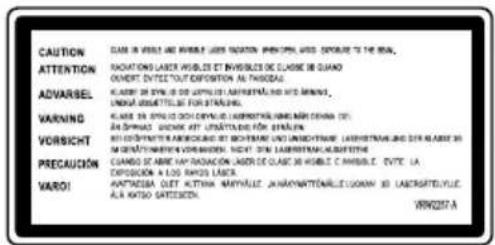
CLASS 1 LASER PRODUCT
D3-4-2-1-8_B_En
Operating Environment
Operating environment temperature and humidity: +5 °C to +35 °C (+41 °F to +95 °F); less than 85 %RH (cooling vents not blocked)
Do not install this unit in a poorly ventilated area, or in locations exposed to high humidity or direct sunlight (or strong artificial light) D3-4-2-1-7c_A_En
This product complies with the Low Voltage Directive (73/23/EEC, amended by 93/68/EEC), EMC Directives (89/336/EEC, amended by 92/31/EEC and 93/68/EEC). D3-4-2-1-9a. En
POWER-CORD CAUTION
Handle the power cord by the plug. Do not pull out the plug by tugging the cord and never touch the power cord when your hands are wet as this could cause a short circuit or electric shock. Do not place the unit, a piece of furniture, etc., on the power cord, or pinch the cord. Never make a knot in the cord or tie it with other cords. The power cords should be routed such that they are not likely to be stepped on. A damaged power cord can cause a fire or give you an electrical shock. Check the power cord once in a while. When you find it damaged, ask your nearest PIONEER authorized service center or your dealer for a replacement. S002_En
This product is for general household purposes. Any failure due to use for other than household purposes (such as long-term use for business purposes in a restaurant or use in a car or ship) and which requires repair will be charged for even during the warranty period. K041_En
WARNING
Before plugging in for the first time, read the following section carefully.
The voltage of the available power supply differs according to country or region. Be sure that the power supply voltage of the area where this unit will be used meets the required voltage (e.g., 230 V or 120 V) written on the rear panel. D3-4-2-1-4_A_En
CAUTION
The STANDBY/ON switch on this unit will not completely shut off all power from the AC outlet. Since the power cord serves as the main disconnect device for the unit, you will need to unplug it from the AC outlet to shut down all power. Therefore, make sure the unit has been installed so that the power cord can be easily unplugged from the AC outlet in case of an accident. To avoid fire hazard, the power cord should also be unplugged from the AC outlet when left unused for a long period of time (for example, when on vacation).
D3-4-2-2-2a_A_En
If the AC plug of this unit does not match the AC outlet you want to use, the plug must be removed and appropriate one fitted. Replacement and mounting of an AC plug on the power supply cord of this unit should be performed only by qualified service personnel. If connected to an AC outlet, the cut-off plug can cause severe electrical shock. Make sure it is properly disposed of after removal. The equipment should be disconnected by removing the mains plug from the wall socket when left unused for a long period of time (for example, when on vacation). D3-4-2-2-1a_A_En
Contents
01 Controls and displays
Front panel 6
Remote control 7
Display 9
02 Getting started
Home theater sound setup 10
Setting the channel levels 10
Using the on-screen displays 10
Playing discs 11
Basic playback controls 11
Resume and Last Memory 12
DVD-Video disc menus....12
Video CD/Super VCD PBC menus ..... 12
Listening to the radio 12
Improving poor FM reception 13
Memorizing stations.... 13
Listening to station presets 13
Listening to other sources 13
Setting the sleep timer 13
03 Listening to your system
Auto listening mode 14
Listening in surround sound.... 14
Using Extra Power mode.... 14
Listening in stereo 15
Listening with headphones 15
Using the SFC modes 15
Adjusting the bass and treble 15
Boosting the bass level....15
04 Disc playback features
Scanning discs 16
Playing in slow motion 16
Frame advance/frame reverse 16
Playing a JPEG slideshow 16
Browsing DVD or Video CD/Super VCD discs with
the Disc Navigator....17
Browsing WMA, MP3, MPEG-4 AAC, DivX video
and JPEG files with the Disc Navigator ..... 18
Using Playlists....18
Programming playlists .... 18
Listening to playlists 19
Clearing files from a playlist 19
Looping a section of a disc 19
Using repeat play 19
Using random play 19
Creating a program list 20
Other functions available from the program menu 20
Searching a disc 21
Switching subtitles 21
Switching language/audio channels .....21
Zooming the screen 21
Switching camera angles 22
Displaying disc information....22
05 USB playback
Using the USB interface 23
Basic playback controls 23
Scanning files 24
Playing a JPEG slideshow 24
Browsing files with the Navigator ..... 24
06 More tuner features: RDS
An introduction to RDS 25
Displaying RDS information ..... 25
Searching for RDS programs ..... 25
07 Audio Settings and Video Adjust menus
Audio Settings menu....26
Audio DRC 26
Video Adjust menu 26
08 Initial Settings menu
Using the Initial Settings menu .....27
Video Output settings 27
Language settings....28
Display settings....29
Options settings 29
Speakers settings 29
Parental Lock 29
About DivX® VOD content 30
Speaker Distance 31
09 Other connections
Connecting external antennas....32
Connecting auxiliary audio components .... 32
Using the SCART AV output 32
Line Out options 33
Connecting using HDMI 33
Switching the HDMI audio setting .....34
Resetting the HDMI connection ..... 34
About HDMI 34
About control out connections 35
10 Additional information
Disc/content format playback compatibility 36
Disc compatibility table....36
About DVD+R/DVD+RW compatibility....37
About DivX 37
About MPEG-4 AAC....38
About WMA 38
Using and taking care of discs....38
DVD Video regions .....39
Installation and maintenance 39
Hints on installation 39
Cleaning the pickup lens....39
Problems with condensation.... 39
Moving the system unit 39
Screen sizes and disc formats 39
TV system setting....40
Switching off the demo 40
Dimming the Display 40
Troubleshooting. 41
General 41
DVD/CD/Video CD player....42
Tuner.43
USB connection 43
HDMI connection .....43
Error Messages 44
Resetting the system 44
Setting the Key Lock 44
Using the language code list ..... 44
Language code list....45
Country/Area code list 45
Specifications 46
If you want to dispose this product, do not mix it with general household waste. There is a separate collection system for used electronic products in accordance with legislation that requires proper treatment, recovery and recycling.
Private households in the 25 member states of the EU, in Switzerland and Norway may return their used electronic products free of charge to designated collection facilities or to a retailer (if you purchase a similar new one).
For countries not mentioned above, please contact your local authorities for the correct method of disposal.
By doing so you will ensure that your disposed product undergoes the necessary treatment, recovery and recycling and thus prevent potential negative effects on the environment and human health.
K058_En
Chapter 1
Controls and displays
Front panel
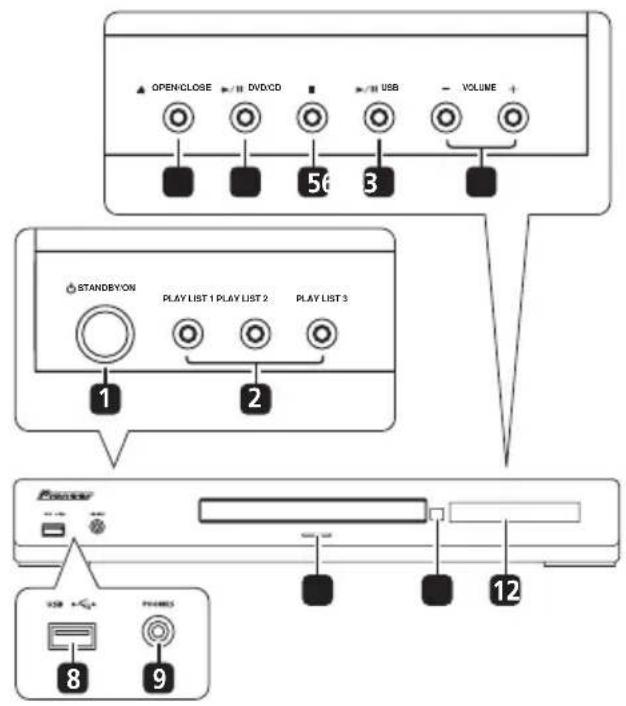
1 ⏻ STANDBY/ON
Switches the system on or into standby.
2 PLAY LIST buttons
Add tracks (during playback), or select a playlist (while stopped) (page 18).
3 ▲ OPEN/CLOSE
Opens/closes the disc tray.
4 ▶/II DVD/CD
Selects the DVD/CD function and starts/pauses/resumes playback.
5
Stops playback.
6 ▶/II USB
Selects the USB function and starts/pauses playback.
7 VOLUME +/- buttons
8 USB interface
Connect a USB device for playback (see USB playback on page 23).
9 PHONES jack
Connect headphones.
10 Indicator
Lights blue when the power is on (except when the dimmer/sleep timer is active).
11 Remote Sensor
12 Display
See Display below.
Remote control

1 ⏻ STANDBY/ON
Switches the system on or into standby.
2 Function select buttons
Selects the source you want to listen to (DVD/CD, TUNER, USB, LINE).
3 Number buttons, CLEAR, DISPLAY, SLEEP and DVD controls
CLEAR
Clears an entry.
DISPLAY
Displays/changes disc information shown on-screen (page 22) or to display RDS information (page 25).
SHIFT+SLEEP
Press to set the sleep timer (page 13).
SHIFT+AUDIO
Selects audio channel/language (page 21).
SHIFT+SUBTITLE
Displays/changes the subtitles (page 21).
SHIFT+ANGLE
Changes camera angle during DVD multi-angle scene playback (page 22).
SHIFT+ZOOM
Changes the screen zoom level (page 21).
4 TOP MENU
Displays the top menu of a DVD disc in the play position — this may be the same as pressing MENU (page 12).
5 Cursor buttons, ENTER and tuning buttons
Cursor buttons
Use the cursor buttons (↑/↓/←/→) to navigate on-screen displays and menus.
ENTER
Selects an option or executes a command.
TUNE +/-
Tunes the radio.
ST +/−
Selects station presets when listening to the radio.
6 HOME MENU
Displays (or exits) the on-screen menu for Initial Settings, Play Mode functions, etc.
7 Setup and other sound controls
SETUP
Use to make various system and surround sound settings (page 10, 13, 34 and 40).
TEST TONE
Outputs the test tone (for speaker setup) (page 10).
Controls and displays
SURROUND
Selects a Surround mode (page 14) or switches to stereo playback (page 15).
SOUND
Accesses the sound menu to adjust the SFC Mode, bass and treble, etc. (page 15).
8 Playback controls
See Basic playback controls on page 11, Disc playback features on page 16 and USB playback on page 23 for an explanation of these controls.
9 TV CONTROL buttons
These control Pioneer plasma televisions.
10 SHIFT
Press to access the controls highlighted in green.
11 ▲ OPEN/CLOSE
Opens/closes the disc tray.
12 PLAYLIST buttons
Add tracks (during playback), or select a playlist (while stopped) (page 18).
13 EXTRA PWR
Switches on the Extra Power mode (page 14).
14 MENU
Press to display a DVD disc or USB menu, or the Navigator (page 12, 17 and 24).
15 RETURN
Returns to a previous menu screen.
16 LINE OUT
Cycle whether or not to output a downmixed signal from the LINE OUT terminal/AV CONNECTOR (page 33).
17 MUTE
Mutes the sound (press again to cancel).
18 VOLUME +/-
Adjusts the volume.
Display
![graph LR A["1"] --> B["2"] B --> C["3"] C --> D["4"] D --> E["5"] E --> F["6"] F --> G["REC MODE RPT -1"] G --> H["kHz MHz PGM RDM"] H --> I["Output"] style A fill:#f9f,stroke:#333 style B fill:#f9f,stroke:#333 style C fill:#f9f,stroke:#333 style D fill:#ccf,stroke:#333 style E fill:#ccf,stroke:#333…](/content/2026/06/1244381/images/30dfa400f758a4a07818671dd87f0923847856745c2f45d41eca36addcf650c8.jpg)
1 DTS
Lights during playback of a DTS source (page 14).
2 SOUND
Lights when the SFC Modes or the tone controls (treble, bass or bass boost) are active (page 15).
3 F.SURR.
Lights when the Extra Power mode is selected (page 14).
4 RPT and RPT-1
RPT lights during repeat play. RPT-1 lights during repeat one-track play (page 19).
5 R E C M O D E
Lights when Line Out mode is on (page 33).
6 PGM
Lights during program or playlist playback (page 18 and 20).
7 Tuner indicators
Y—Lights when a broadcast is being received.
- Lights when a stereo FM broadcast is being received in auto stereo mode.
- Lights when FM mono reception is selected.
- Lights when in one of the RDS display or search modes.
8 RDM
Lights during random play (page 19).
9 kHz/MHz
Indicates the frequency unit shown in the character display (kHz for AM, MHz for FM).
10 Character display
11
Lights when sleep timer is active (page 13).
12 ▶
Lights during playback.
13 □□ PL II
Lights during Dolby Pro Logic II decoding (page 14).
14 D D
Lights during playback of a Dolby Digital source (page 14).
Chapter 2
Getting started
Home theater sound setup
Place your speakers as shown below for optimal surround sound (see the Speaker Setup Guide for more placement tips).
- Standard surround setup – This is a standard multichannel surround sound speaker setup for optimal 5.1 channel home theater sound.

After placing your speakers, complete Setting the channel levels below then refer to Speakers settings on page 29 to complete your surround sound setup.
Setting the channel levels
Set the relative channel levels from your main listening position. 1
1 P r TESTSTONE.
The test tone is output in the following order (from the speakers active in the current listening mode):
- L – Front left speaker
- C – Center speaker
- R – Front right speaker
-
SR – Right surround speaker
-
SL – Left surround speaker
- SW – Subwoofer 2
2 Use the VOLUME +/- button to adjust the volume to an appropriate level.
3 U s e ↑/↓ to adjust the speaker levels turn.
You should hear the test tone at the same volume from each speaker when seated in the main listening position. The channel level range is ±10 dB.
4 When you're done, press ENTER to exit test tone setup.
Using the on-screen displays
For ease of use, this system makes extensive use of graphical on-screen displays (OSDs).
All the screens are navigated in basically the same way, using , , ↔ , → to change the highlighted item and pressing ENTER to select it. 3

Important
- Throughout this manual, 'Select' means use the cursor buttons to highlight an item on-screen, then press ENTER.
Button What it does
| HOME MENU | Displays/exits the on-screen display |
| ←↑↓→ | Changes the highlighted menu item |
| ENTER | Selects the highlighted menu item |
Note
1 • This is only available when DVD/CD is selected and playback is stopped. Also make sure headphones are unplugged.
- To adjust the overall balance while listening to any sound source you want, press SETUP, use ↔/→ to select CH LEVEL then press ENTER. Use ↔/→ to move channel to channel, and / to adjust the channel levels. Press ENTER when you're finished.
2 Since the subwoofer produces ultra-low frequencies its sound may seem quieter than it actually is.
3 The screen saver will appear after five minutes of inactivity.
Button What it does
RETURN
Returns to the main menu without saving changes

Tip
- The button guide at the bottom of every OSD screen shows you which buttons you'll need to use for that screen.
Playing discs
The basic playback controls for playing DVD, CD, Video CD/Super VCD, DivX video and WMA/MP3/MPEG-4 AAC discs are covered here. Further functions are detailed in chapter 4.
1 If the player isn't already on, switch it on.
If you're playing a disc with video, also turn on your TV and make sure that it is set to the correct video input.
2 Press ▲ OPEN/CLOSE to load a disc.
Load a disc with the label side facing up, using the disc tray guide to align the disc (if you're loading a double-sided DVD disc, load it with the side you want to play face down).
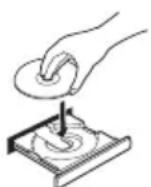
3 Press ▶ (play) to start playback.
If you're playing a DVD or Video CD/Super VCD, a menu may appear. See DVD-Video disc menus and Video CD/Super VCD PBC menus on page 12 to navigate these.
If you loaded a disc containing JPEGs, a slideshow will start. See Playing a JPEG slideshow on page 16 for more on this.
- If a disc contains a mixture of DivX video and other media file types (MP3, for example), first select whether to play the DivX video files (DivX) or the other media file types (MP3/WMA/JPEG/MPEG-4 AAC) from the on-screen display.
4 Adjust the volume.
Use the VOLUME control.
Basic playback controls
The following table shows the basic controls on the remote for playing discs 1 . You can find other playback features in the chapter 4.
Button What it does
▶ Starts/resumes normal playback.
- If the display shows RESUME or LAST MEM playback starts from the resume or last memory point (see Resume and Last Memory below).
■ Pauses/unpauses a disc.
■ Stops playback or cancels the resume function (if the display shows RESUME).
◀◀ Press to start fast reverse scanning.
▶▶ Press to start fast forward scanning.
◀◀◀ Skips to the start of the current track or chapter, then previous tracks/chapters.
▶▶▶ Skips to the next track or chapter.
Numbers Use to enter a title/chapter/track number. Press ENTER to select.
- If the disc is stopped, playback starts from the selected title (for DVD) or track (for CD/Video CD/Super VCD). - If the disc is playing, playback jumps to the start of the selected title (VR mode DVD-R/-RW), chapter (DVD-Video) or track (CD/Video CD/Super VCD).

Note
Resume and Last Memory
When you stop playback of a disc, RESUME shows in the display indicating that you can resume playback from that point.
With DVDs and Video CD/Super VCDs, even if ejected, the play position is stored in memory. 1 The next time you load the disc, the display shows LAST MEM and you can resume playback.
If you want to clear the resume point, press
■ (stop) while RESUME is displayed.
DVD-Video disc menus
Many DVD-Video discs contain menus from which you can select what you want to watch.
Sometimes DVD-Video menus are displayed automatically when you start playback; others only appear when you press MENU or TOP MENU.
Button What it does
| TOP MENU | Displays the ‘top menu’ of a DVD disc — this varies with the disc. |
| MENU | Displays a DVD disc menu — this varies with the disc and may be the same as the ‘top menu’. |
| ←↑↓→ | Moves the cursor around the screen. |
| ENTER | Selects the current menu option. |
| RETURN | Returns to the previously displayed menu screen. |
| Numbers Highlights a numbered menu option (some discs only). Press ENTER to select. | |
Video CD/Super VCD PBC menus
Some Video CD/Super VCDs have menus from which you can choose what you want to watch. These are PBC (Playback control) menus.
You can play a PBC Video CD/Super VCD without having to navigate the PBC menu by starting playback using a number button to select a track, rather than the ▶ (play) button.
Button What it does
RETURN Displays the PBC menu.
Numbers Selects numbered menu options. Press ENTER to select.
◀◀ Displays the previous menu page (if there is one).
▶▶ Displays the next menu page (if there is one).
Listening to the radio
The tuner can receive both FM and AM broadcasts, and lets you memorize your favorite stations so you don't have to manually tune in every time you want to listen. See also More tuner features: RDS on page 25.
1 Press TUNER to switch to the tuner, then press repeatedly to select the AM or FM band.
The display shows the band and frequency.
2 Tune to a frequency.
There are three tuning modes — manual, auto, and high-speed:
- Manual tuning: Press TUNE +/- repeatedly to change the displayed frequency.
- Auto tuning: Press and hold TUNE +/- until the frequency display starts to move, then release. The tuner will stop on the next station it finds. Repeat to keep searching.
- High-speed tuning: Press and hold TUNE +/- until the frequency display starts to move rapidly. Keep the button held down until you reach the frequency you want. If necessary, fine tune the frequency using the manual tuning method.

Note
1 • The Last Memory function may not work with some discs.
- For DVD-Video discs (except VR mode DVD-R/-RW), the player stores the play position of the last five discs.
Improving poor FM reception
If you're listening to an FM station in stereo but the reception is weak, you can improve the sound quality by switching to mono.
1 Tune to an FM radio station then press SETUP.
2 U ←/→ to choose FM MODE then press ENTER.
3 U ↑/↓ to select FM MONO then press ENTER.
The mono indicator ( ) lights when the tuner is in mono reception mode.
Select FM AUTO above to switch back to auto-stereo mode (the stereo indicator (lights when receiving a stereo broadcast).
Memorizing stations
You can save up to 30 station presets so that you always have easy access to your favorite stations without having to tune in manually each time.
1 Tune to an AM or FM radio station.
For the FM band, select mono or auto-stereo reception as necessary. This setting is saved along with the preset.
2 Press SETUP and use ←/→ to choose 'ST.MEM.' then press ENTER.
3 U ↑/↓ to select the station preset you want then press ENTER.
Listening to station presets
1 Make sure the TUNER function is selected.
2 U s eST +/- buttons to select a station preset.
- You can also use the number buttons to do this.
Listening to other sources
You can connect auxiliary sources (TV, satellite receiver, etc.) to this unit for playback through the speaker system. See Connecting auxiliary audio components on page 32 for more on this.
- To connect a USB device to the USB terminal, see USB playback on page 23.
1 Make sure that the external source (TV, satellite receiver, etc.) is switched on.
2 P r LINE to select the source.
Each press switches between LINE1 and LINE2.
3 If necessary, start playback of the source.
Setting the sleep timer
The sleep timer switches off the system after about an hour so you can fall asleep without worrying about it. 1
- Press SHIFT+ SLEEP repeatedly to select an option then press ENTER.
Choose between the following options:
- SLP ON – Switches off after about an hour
- SLP OFF – Cancels the sleep timer
After selecting SLP ON, you can press SHIFT+SLEEP again to check how much time is left. Each line indicates approximately 12 minutes (remaining):
SLP ---

Note
Chapter 3
Listening to your system
Auto listening mode
The Auto listening mode is the simplest way to listen to any source as it was mastered: the output from the speakers mirrors the channels in the source material.
- P r SURROUND to select the AUTO listening mode. 1
Listening in surround sound
You can listen to stereo or multichannel sources in surround sound. 2 Surround sound is generated from stereo sources using one of the Dolby Pro Logic decoding modes.
- P r SURROUND repeatedly to select a listening mode. 1
The choices that appear in the display will vary according to the type of source that's playing.
- AUTO – Auto listening mode (see above)
- DOLBY PL (Dolby Pro Logic) – 4.1 channel surround sound (use with any two-channel source)
-
MOVIE (Dolby Pro Logic II Movie) – Pro Logic II 5.1 channel surround sound, especially suited to movie sources (use with any two-channel source)
-
MUSIC (Dolby Pro Logic II Music) – Pro Logic II 5.1 channel surround sound, especially suited to music sources (use with any two-channel source)
• STEREO – See Listening in stereo below
Using Extra Power mode
Extra Power mode allows you to enjoy richer, fuller sound from stereo (2.1ch) sources. 3 Extra Power mode is available when listening to DVD/CD or USB sources.
- Press EXTRA PWR to select MODE ON or MODE OFF. 4
After selecting MODE ON, the F.SURR. indicator lights on the front panel display.

Note
1 If the source is Dolby Digital or DTS, the corresponding indicator lights in the front panel display.
2 Note that the input source must be switched to DVD/CD or USB for multichannel playback.
3 When the Extra Power mode is on, most sound features cannot be used. The display will briefly blink EXTRAPWR if you try and use a prohibited function while the Extra Power mode is on.
4 • Note that you cannot use Extra Power mode when using headphones. If you press EXTRA PWR when headphones are connected, a 'CANNOT' error message appears on the front panel display.
- When set to MODE ON, make sure to follow the Setup Guide for best surround sound.
- When set to MODE OFF, the listening mode is automatically set to AUTO.
Listening in stereo
You can listen to any source — stereo or multichannel — in stereo. When playing a multichannel source, all channels are downmixed to the front left/right speakers and the subwoofer.
- Press SURROUND repeatedly until STEREO shows in the display.
Listening with headphones
When headphones are connected, only the STEREO mode is available.
Using the SFC modes
The SFC (Sound Field Control) modes can be used with any multichannel or stereo source for a variety of additional surround sound effects.
1 Press SOUND.
2 U ←/→ to select SFC MODE then press ENTER.
3 Press ↑/↓ then ENTER to select an SFC Sound Mode.
Select between OFF, ACTION, DRAMA, ROCK, POP, HALL or LIVE.
Adjusting the bass and treble
Use the bass and treble controls to adjust the overall tone.
1 P r SOUND.s
2 U ←/→ to select BASS or TREBLE then press ENTER.
3 U ↑/↓ to adjust the sound then press ENTER to confirm.
Boosting the bass level
There are two bass modes you can use to enhance the bass in a source.
1 P r SOUND.s
2 U ←/→ to select BASSMODE then press ENTER.
3 U ↑/↓ to adjust the sound then press ENTER to confirm.
Select between OFF, MUSIC or CINEMA.
Chapter 4
Disc playback features

Important
- Many of the functions covered in this chapter apply to DVD discs, Video CDs/ Super VCDs, CDs, DivX video and WMA/ MP3/MPEG-4 AAC/JPEG discs, although the exact operation of some varies slightly with the kind of disc loaded.
- Some DVDs restrict the use of some functions (random or repeat, for example) in some or all parts of the disc. This is not a malfunction.
- When playing Video CD/Super VCDs, some of the functions are not available during PBC playback. If you want to use them, start the disc playing using a number button to select a track.
Scanning discs
You can fast-scan discs forward or backward at various different speeds. 1
- During playback, press ◀◀ or ▶▶ to start scanning.
Press repeatedly to increase the scanning speed (shown on-screen).
• To resume playback, press ▶ (play). 2
Playing in slow motion
You can play DVDs, Video CD/Super VCDs and DivX video at four different forward slow motion speeds. DVD discs can also be played in reverse slow motion.
1 During playback, press II (pause).
2 Press and hold ◀/◄◄ or ||►/|► until slow motion playback starts.
Press repeatedly to change the slow motion speed (shown on-screen).
- To resume playback, press ▶ (play). 2
Frame advance/frame reverse
You can advance or back up DVD discs frame-by-frame. With Video CD/Super VCDs and DivX video you can only use frame advance.
1 During playback, press Ⅱ (pause).
2 Press ◀/◄◄ or ||►/|► to reverse or advance a frame at a time.
- To resume playback, press ▶ (play). 2
Playing a JPEG slideshow
After loading a disc containing JPEG pictures, press ▶ to start a slideshow from the first folder/picture on the disc. 3 The player displays the pictures in each folder in alphabetical order.
- If the disc contains WMA/MP3/MPEG-4 AAC files, playback of the slideshow and audio files repeats. During audio playback, you can still use the skip (I◄◄/►►), scan (◄◄/►►) and pause (■) functions.
Pictures are automatically adjusted so that they fill as much of the screen as possible.
Note
1 Only one speed is available for DivX video discs.
2 • Depending on the disc, normal playback may automatically resume when a new chapter is reached on a DVD disc.
- With Video CD/Super VCDs in PBC mode or a WMA/MP3/MPEG-4 AAC track, playback automatically resumes at the end or beginning of the track.
3 • The time it takes for the player to load a file increases with large file sizes.
• Discs can contain up to 299 folders and up to 648 folders and files combined.
While the slideshow is running:
Button What it does
| II Pauses the slideshow (or audio); press again to restart. | |
| ◀◀ Jumps to the previous picture (or audio file with audio playback). | |
| ▶▶I Jumps to the next picture (or audio file with audio playback). | |
| ←/→/↑/↓ Pauses the slideshow and rotates/flips the displayed picture (Press ▶ (play) to restart slideshow). | |
| SHIFT+ZOOM Pauses the slideshow and zooms the picture. Press again to toggle between 1x, 2x and 4x zoom (Press ▶ (play) to restart slideshow). | |
| MENU Displays the Disc Navigator screen (see below). |
Browsing DVD or Video CD/ Super VCD discs with the Disc Navigator
Use the Disc Navigator to browse through the contents of a DVD or Video CD/Super VCD disc to find the part you want to play.
1 During playback, press HOME MENU and select 'Disc Navigator' from the on-screen menu.

2 Select a view option.

The options available depend on the kind of disc loaded and whether the disc is playing or not, but include:
- Title – Titles from a DVD-Video disc.
- Chapter – Chapters from the current title of a DVD-Video disc.
- Track – Tracks from a Video CD/Super VCD disc.
- Time – Thumbnails from a Video CD/Super VCD disc at 10 minute intervals.
- Original: Title – Original titles from a VR mode DVD-R/-RW disc.
- Playlist: Title – Playlist titles from a VR mode DVD-R/-RW disc.
- Original: Time – Thumbnails from the Original content at 10 minute intervals.
- Playlist: Time – Thumbnails from the Playlist at 10 minute intervals.
The screen shows up to six moving thumbnail images displayed one after another. To display the previous/next six thumbnails, press ◀◀◀/

3 Select the thumbnail image for what you want to play.
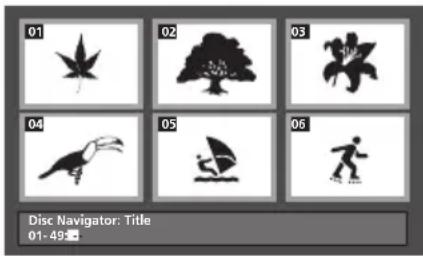
You can use either ↑/↓/←/→ and ENTER to select a thumbnail, or the number buttons.
To select using the number buttons, enter a two-digit number then press ENTER.
Browsing WMA, MP3, MPEG-4 AAC, DivX video and JPEG files with the Disc Navigator
Use the Disc Navigator to find a particular file or folder by filename.
1 Press HOME MENU and select 'Disc Navigator' from the on-screen menu.
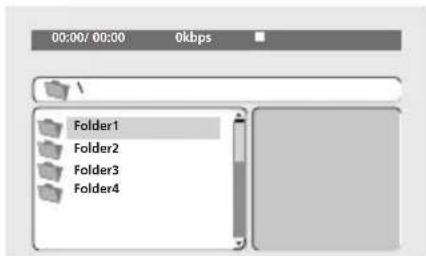
2 U s e ↑/↓/←/→ and ENTER to navigate.
Use ↑/↓ to move up and down the folder/file list.
Use ← to return to the parent folder. 1
Use ENTER or → to open a highlighted folder.
- When a JPEG file is highlighted, a thumbnail image is displayed on the right.
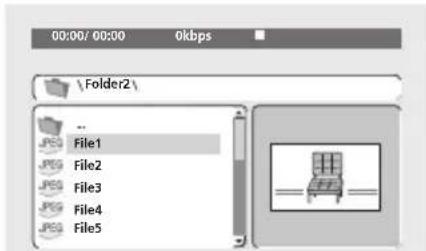
3 To play the highlighted track or DivX video file or display the highlighted JPEG file, press ENTER.
- When a WMA/MP3/MPEG-4 AAC or DivX video file is selected, playback begins from that file, and continues until the end of the folder.
- When a JPEG file is selected, a slideshow begins, starting with that file, and continues to the end of the folder.

Tip
- You can also play a JPEG slideshow while listening to WMA/MP3/MPEG-4 AAC playback. Simply select the audio file you want to listen to followed by the JPEG from which you want the slideshow to start. Playback of both the slideshow and the audio files repeats. Playback controls are effective for the JPEG slideshow only.
• To play the contents of the whole disc rather than just the current folder, exit the Disc Navigator and start playback using the ▶ (play) button.
Using Playlists
With this feature, you can make up to three playlists of 30 files each for discs containing WMA, MP3, MPEG-4 AAC and JPEG files. Since this unit will remember all playlists for the last ten discs you have loaded, this is useful for if you have a large number of files that you want to organize quickly and easily. 2
Programming playlists
1 With the disc stopped, press HOME MENU and select 'Disc Navigator' from the on-screen menu.
2 Select the file you want to add to the playlist.
See Browsing WMA, MP3, MPEG-4 AAC, DivX video and JPEG files with the Disc Navigator above if you don't know how to do this.
3 Press PLAY LIST 1, 2 or 3.
The file is added to the playlist you select.
4 Repeat steps 2 and 3 until you're done.

Note
1 You can also do this by going to the '..' folder at the top, then pressing ENTER.
2 The disc must be loaded for the files in your playlist to play back.

Tip
- To add files without the on-screen display, simply press PLAY LIST 1, 2 or 3 during normal playback of the file you want (except when a JPEG slideshow is playing at the same time as audio).
Listening to playlists
- With playback stopped, press PLAY LIST 1, 2 or 3.
During playback, PGM lights in the front panel display. If no playlist has been programmed, NO LIST shows in the display.
- If the playlist contains both JPEG and audio files, playback of the slideshow and audio files starts.
Clearing files from a playlist
1 Start playback of your playlist.
2 From the 'Disc Navigator' screen, select the file you want to remove from the playlist and press CLEAR.
Looping a section of a disc
The A-B Repeat function allows you to specify two points (A and B) within a track (CD, Video CD/Super Video CD) or title (DVD) that form a loop which is played over and over.
1 During playback, press HOME MENU and select 'Play Mode'.

Play Mode
2 Select 'A-B Repeat'.
3 P r ENTER on 'A(Start Point)' to set the loop start point.
4 P r ENTER on 'B(End Point)' to set the loop end point.
After pressing ENTER, playback jumps back to the start point and plays the loop.
5 To resume normal playback, select 'Off'.
Using repeat play
In addition to various repeat play options, it's also possible to use repeat play together with program play (see Creating a program list on page 20).
1 During playback, press HOME MENU and select 'Play Mode'.
2 Select 'Repeat' then select a repeat play option. 1
If program play is active, select Program Repeat to repeat the program list, or Repeat Off to cancel.
- For DVD discs, select Title Repeat or Chapter Repeat.
- For CDs and Video CD/Super VCDs, select Disc Repeat or Track Repeat.
- For DivX video discs, select Title Repeat (or Repeat Off).
Using random play
Use this function to play titles or chapters (DVD-Video) or tracks (CD and Video CD/Super VCD) in a random order. 2
1 During playback, press HOME MENU and select 'Play Mode'.
Note
1 You can't use repeat play with WMA/MP3/MPEG-4 AAC discs.
2 • You can set the random play option when a disc is playing or stopped. However, you can't use random play together with program play.
- You can't use random play with VR format DVD-R/-RW discs, WMA/MP3/MPEG-4 AAC discs, DivX video discs, or while a DVD disc menu is being displayed.
2 Select 'Random' then select an option.
- For DVD discs, select Random Title or Random Chapter.
- For CDs and Video CD/Super VCDs, select On or Off to switch random play on or off.

Tip
- Use the following controls during random play:
Button What it does
▶▶ Selects a new track/title/chapter at random.
Returns to the beginning of the current track/title/chapter; further presses select another random track/title/chapter.
- Random play remains in effect until you select Random Off from the random play menu options.
Creating a program list
This feature lets you program the play order of titles/chapters/tracks on a disc. 1
1 During playback, press HOME MENU and select 'Play Mode'.
2 Select 'Program' then select 'Create/Edit' from the list of program options.
3 U ↑/↓/←/→ and ENTER to select a title, chapter or track for the current step in the program list.
For a DVD disc, you can add a title or a chapter.
- For a CD or Video CD/Super VCD, select a track to add to the program list.
After pressing ENTER to select the title/chapter/track, the step number automatically moves down one.
4 Repeat step 3 to build up a program list.
A program list can contain up to 24 steps.
- You can insert steps by just highlighting the position where you want the new step to appear and entering a title/chapter/track number.
- To delete a step, highlight it and press CLEAR.
5 To play the program list, press ▶ (play).
Program play remains active until you turn off program play (see below), erase the program list (see below), eject the disc or switch off.

Tip
- Use the following controls during program play:
Button What it does
HOME Save the program list and exit MENU without starting playback.
▶▶I Skip to the next step in the program list.
Other functions available from the program menu
There are a number of other options in the program menu in addition to Create/Edit.
- Playback Start – Starts playback of a saved program list
- Playback Stop – Turns off program play, but does not erase the program list
- Program Delete – Erases the program list and turns off program play

Note
1 You can't use Program play with VR format DVD-R/-RW discs, WMA/MP3/MPEG-4 AAC discs, DivX video discs, or while a DVD disc menu is being displayed.
Searching a disc
You can search DVD discs by title or chapter number, or by time; CDs and Video CD/Super VCDs by track number or time; DivX video discs by time.
1 Press HOME MENU and select 'Play Mode'.
2 Select 'Search Mode'.
The search options that appear depend on the kind of disc loaded.
3 Select a search mode.
- The disc must be playing in order to use time search.
4 Use the number buttons to enter a title, chapter or track number, or a time.
- For a time search, enter the number of minutes and seconds into the currently playing title (DVD/ DivX video) or track (CD/ Video CD/Super VCD) you want playback to resume from. For example, press 4, 5, 0, 0 to have playback start from 45 minutes into the disc. For 1 hour, 20 minutes and 30 seconds, press 8, 0, 3, 0.
5 Press ENTER to start playback.
Switching subtitles
Some DVD discs and DivX video discs have subtitles in one or more languages; the disc box will usually tell you which subtitle languages are available. You can switch subtitle language during playback. 1
- P r SHIFTs+SUBTITLE repeatedly to select a subtitle option.
- To set subtitle preferences, see Language settings on page 28.
• See Displaying DivX subtitle files on page 37 for more on DivX subtitles.
Switching language/audio channels
When playing discs recorded with dialog in two or more languages, or with dual-mono audio 2 you can switch these during playback. 3
- P r SHIFTs+AUDIO repeatedly to select an audio language option.
- To set audio language preferences, see Language settings on page 28.
Zooming the screen
Using the zoom feature you can magnify a part of the screen by a factor of 2 or 4, while watching a DVD, DivX video title or Video CD/ Super VCD or playing a JPEG disc.
1 During playback, press SHIFT+ZOOM to select the zoom factor (Normal, 2x or 4x).
2 U //↔/→ to change the zoomed area.
You can change the zoom factor and the zoomed area freely during playback. 4
Note
1 Some discs only allow you to change subtitle language from the disc menu. Press TOP MENU or MENU to access.
2 Some Super VCDs have two soundtracks. With these discs you can switch between the two soundtracks as well as individual channels in each.
3 Some discs only allow you to change audio language from the disc menu. Press TOP MENU or MENU to access.
4 • Since DVD, Video CD/Super VCD, DivX video title and JPEG pictures have a fixed resolution, picture quality will deteriorate, especially at 4x zoom. This is not a malfunction.
- If the navigation square at the top of the screen disappears, press SHIFT+ZOOM again to display it.
Switching camera angles
Some DVD discs feature scenes shot from two or more angles — check the disc box for details.
When a multi-angle scene is playing, a 📁 icon appears on screen (this can be switched off if you prefer — see Display settings on page 29).
- During playback (or when paused), press SHIFT+ANGLE to switch angle.
Displaying disc information
Various track, chapter and title information can be displayed on-screen during playback.
- To show/switch/hide the information displayed, press DISPLAY repeatedly.
Limited disc information also appears in the front panel display. Press DISPLAY to change the displayed information.
Chapter 5
USB playback
Using the USB interface
It is possible to listen to two-channel audio 1 and watch JPEG files using the USB interface on the front of this unit. Connect a USB mass storage device 2 as shown below.
1 With the player switched on, press USB.
Make sure your TV is on and set to the correct video input.
2 Connect your USB device.
The USB terminal is located on the front panel.
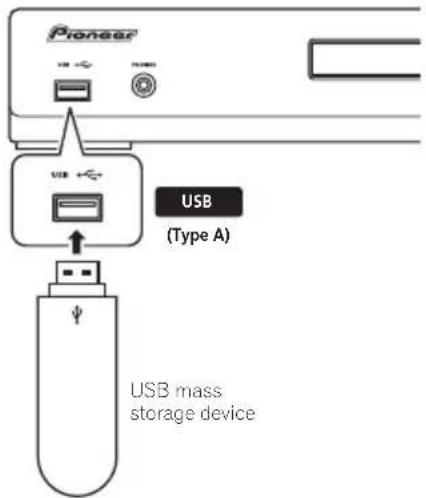
3 Press ▶ (play) to start playback.
If your USB device contains JPEGs, a slideshow will start. See Playing a JPEG slideshow on page 24 for more on this.
- Make sure USB DATA is showing in the front panel display (or the system is in standby) when disconnecting.

Important
If a USB ERR message lights in the display, it may mean that the power requirements of the USB device are too high for this player, or that the device is incompatible. Try the following:
- Switch the player off, then on again.
- Reconnecting the USB device with the player switched off.
- Selecting to another input source (like DVD/CD), then back to USB.
- Using a dedicated AC adapter (supplied with the device) for USB power.
If this doesn't remedy the problem, it is likely your USB device is incompatible.
Basic playback controls
The following table shows the basic controls on the remote for USB playback.
Button What it does
| ► | Starts normal playback. |
| ■ | Pauses/unpauses playback. |
| ■ | Stops playback. |
| ◄◄ | Press to start fast reverse scanning. |
| ►► | Press to start fast forward scanning. |
| ◄◄◄ | Skips to the start of the current file, then previous files. |
| ►►I | Skips to the next file. |
Note
1 This includes playback of WMA/MP3/MPEG-4 AAC files (except files with copy-protection or restricted playback). It is not possible to play DivX files through the USB terminal.
2 • Compatible USB devices include external magnetic hard drives, portable flash memory (particularly keydrives) and digital audio players (MP3 players) of format FAT16/32. It is not possible to connect this unit to a personal computer for USB playback.
- Pioneer cannot guarantee compatibility (operation and/or bus power) with all USB mass storage devices and assumes no responsibility for any loss of data that may occur when connected to this unit.
- With large amounts of data, it may take longer for the system to read the contents of a USB device.
Scanning files
You can fast-scan forward or backward at various different speeds.
- During playback, press ◀◀ or ▶▶ to start scanning.
Press repeatedly to increase the scanning speed (shown on-screen).
• To resume playback, press ▶ (play). 1
Playing a JPEG slideshow
Press ▶ to start a slideshow from the first folder/picture. 2 The pictures in each folder are displayed in order.
- If the device contains WMA/MP3/MPEG-4 AAC files, playback of the slideshow and audio files repeats. During audio playback, you can still use the skip (I◄◄/►►), scan (◄◄/►►) and pause (■) functions.
Pictures are automatically adjusted so that they fill as much of the screen as possible. While the slideshow is running:
Button What it does
| II Pauses the slideshow (or audio); press again to restart. | |
| |◀◀ Jumps to the previous picture (or audio file with audio playback). | |
| ▶▶I Jumps to the next picture (or audio file with audio playback). | |
| ←/→/↑/↓ Pauses the slideshow and rotates/flips the current picture (Press ▶ to restart slideshow). | |
| SHIFT+ZOOM Pauses the slideshow and zooms the picture. Press again to toggle between 1x, 2x and 4x zoom (Press ▶ to restart slideshow). |
Button What it does
| MENU | Displays the Navigator screen (see below). |
Browsing files with the Navigator
Use the Navigator to find WMA, MP3, MPEG-4 AAC and JPEG files or folders by name. 3
1 Press MENU.
2 U s e ↑/↓/←/→ and ENTER to navigate
Use ↑/↓ to move up/down the folder/file list.
Use ← to return to the parent folder. 4
Use ENTER or → to open a highlighted folder.
- When a JPEG file is highlighted, a thumbnail image is displayed on the right.
3 To play the highlighted track or display the highlighted JPEG file, press ENTER.
- When a WMA/MP3/MPEG-4 AAC file is selected, playback begins from that file, and continues until the end of the folder.
- When a JPEG file is selected, a slideshow begins, starting with that file, and continues to the end of the folder.

Tip
- You can also play a JPEG slideshow while listening to WMA/MP3/MPEG-4 AAC playback. Simply select the audio file you want to listen to followed by the JPEG from which you want the slideshow to start. Playback of both the slideshow and the audio files repeats. Playback controls are effective for the JPEG slideshow only.
- To play all of the contents, rather than just the current folder, exit the Navigator and start playback using the ▶ (play) button.
Note
1 With WMA/MP3/MPEG-4 AAC tracks, playback automatically resumes at the end or beginning of the track.
2 • The time it takes for the player to load a file increases with large file sizes.
- USB devices can contain up to 299 folders and up to 648 folders and files combined.
3 Filenames may be displayed incorrectly with some digital audio players.
4 You can also do this by going to the ‘..’ folder at the top, then pressing ENTER.
Chapter 6
More tuner features: RDS
An introduction to RDS
Radio Data System (RDS) is a system used by most FM radio stations to provide listeners with various kinds of information — the name of the station and the kind of show they're broadcasting, for example.
One feature of RDS is that you can search by type of program. For example, you can search for a station that's broadcasting a show with the program type, JAZZ.
You can search the following program types: 1
NEWS – News
AFFAIRS – Current Affairs
INFO – General Information
SPORT – Sport
EDUCATE – Educational
DRAMA – Radio plays, etc.
CULTURE – National or regional culture, theater, etc.
SCIENCE – Science and technology
VARIED – Usually talk-based material, such as quiz shows or interviews.
POP M – Pop music
ROCK M – Rock music
EASY M – Easy listening
LIGHT M – 'Light' classical music
CLASSICS – 'Serious' classical music
OTHER M – Music not fitting above categories
WEATHER – Weather reports
FINANCE – Stock market reports, commerce, trading, etc.
CHILDREN – Programs for children
SOCIAL – Social affairs
RELIGION – Programs concerning religion
PHONE IN – Public expressing their views by phone
TRAVEL – Holiday-type travel rather than traffic announcements
LEISURE – Leisure interests and hobbies
JAZZ – Jazz
COUNTRY – Country music
NATION M – Popular music in a language other than English
OLDIES – Popular music from the '50s and '60s
FOLK M – Folk music
DOCUMENT – Documentary
Displaying RDS information
Use the DISPLAY button to display the different types of RDS information available. 2
• P r DISPLAYsfor RDS information.
Each press changes the display as follows:
- Radio Text (RT) – Messages sent by the radio station. For example, a talk radio station may provide a phone number as RT.
- Program Service Name (PS) – The name of the radio station.
- Program Type (PTY) – This indicates the kind of program currently being broadcast.
- SEARCH – PTY search (see below)
- Current tuner frequency
Searching for RDS programs
You can search for a program type listed above.
1 Press the TUNER button for the FM band. 3
2 P r DESPbAYsrepeatedly until SEARCH appears in the display.
3 U ←/→ to select the program type you want to hear.
4 P r ENTER to start the search.
The system searches the station presets for a match. If it finds one, searching stops for five sec.
5 If you want to keep listening to the station, press ENTER within the five seconds.
If you don't press ENTER, searching resumes.
Note
1 In addition, there are three other program types, TEST, ALARM, and NONE. ALARM and TEST are used for emergency announcements. You can't search for these, but the tuner will switch automatically to this RDS broadcast signal. NONE appears when a program type cannot be found.
2 • If any noise is picked up while displaying the RT scroll, some characters may be displayed incorrectly.
- If you see NO RADIO TEXT DATA in the RT display, it means no RT data is sent from the broadcast station. The display will automatically switch to the PS data display (if no PS data, the frequency is displayed).
- In the PTY display, NO DATA or NONE may be shown. In this case, the PS display is shown after a few seconds. 3 RDS is only possible in the FM band.
Chapter 7
Audio Settings and Video Adjust menus
Audio Settings menu
The Audio Settings menu offers features for adjusting the way discs sound.
1 P r HOME MENU and select 'Audio Settings' from the on-screen display.

Audio Settings
2 Select and change settings using ↔/→ and ENTER.

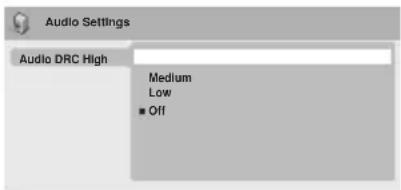
Audio DRC
- Settings: High, Medium, Low, Off (default)
When watching Dolby Digital DVDs at low volume, it's easy to lose the quieter sounds completely — including some of the dialog. Switching Audio DRC (Dynamic Range Control) to on can help by bringing up the quieter sounds, while controlling loud peaks.
How much of a difference you hear depends on the material you're listening to. If the material doesn't have wide variations in volume, you may not notice much change. 1
Video Adjust menu
From the Video Adjust screen you can adjust settings that affect picture presentation.
1 Press HOME MENU and select 'Video Adjust' from the on-screen display.

Video Adjust
2 Make settings using //←/→ and ENTER.
| Video Adjust | |
| Sharpness | Standard |
| Brightness | 0 |
| Contrast | 0 |
| Gamma | Off |
| Hue | 0 |
| Chroma Level | 0 |
You can adjust the following settings:
- Sharpness – Adjusts the sharpness of edges in the picture (Fine, Standard, Soft)
- Brightness – Adjusts the overall brightness (-20 to +20)
- Contrast – Adjusts the contrast between light and dark (-16 to +16)
- Gamma – Adjusts the 'warmth' of the picture (High, Medium, Low, Off)
- Hue – Adjusts the red/green balance (Green 9 to Red 9)
- Chroma Level – Adjusts how saturated colors appear (-9 to +9)
Adjust the Brightness, Contrast, Hue and Chroma Level settings using ↔/→ .

3 Press ENTER to return to the Video Adjust screen, or HOME MENU to exit.

Note
1 Audio DRC is only effective with Dolby Digital audio sources.
Chapter 8
Initial Settings menu
Using the Initial Settings menu
The Initial Settings menu provides audio and video output settings, parental lock settings, and display settings, among others.
If an option is grayed out it means that it cannot be changed at the current time. This is usually because a disc is playing. Stop the disc, then change the setting.
1 P r D/D/CDs
2 With playback stopped, press HOME MENU and select 'Initial Settings'.
3 U //←/→ and ENTER to select the setting and option you want to set.
All the settings and options are explained on the following pages. 1
Video Output settings
| Setting Option What it means | ||
| TV Screen(See also Screen sizes and disc formats on page 39.) | 4:3 (Letter Box) Set if you have a conventional 4:3 TV. Widescreen movies are shown with black bars top and bottom. | |
| 4:3 (Pan & Scan) Set if you have a conventional 4:3 TV. Widescreen movies are shown with the sides cropped so that the image fills the screen. | ||
| 16:9 (Wide) Set if you have a widescreen TV. | ||
| 16:9 (Compressed) Set if you have a widescreen TV. 4:3 material is shown with black bars on either side of the screen. 2 | ||
| AV Connector Out(See Connecting auxiliary audio components on page 32.) | Video Standard video, compatible with all TVs. | |
| S-Video Higher quality, but check your TV for compatibility. | ||
| RGB | Best quality, but check your TV for compatibility. | |
| HDMI Resolution*(See Connecting using HDMI on page 33.)* Default changes with TV format (PAL/NTSC). | 1920x1080i | Set if your TV supports 1920 x 1080 pixel interlace video. |
| 1280x720p | Set if your TV supports 1280 x 720 pixel progressive-scan video. | |
| 720x480p (NTSC)/720x576p (PAL) | Set if your TV supports 720 x 480 (NTSC)/720 x 576 (PAL) pixel progressive-scan video. | |
| 720x480i (NTSC)/720x576i (PAL) | Set if your TV supports 720 x 480 (NTSC)/720 x 576 (PAL) pixel interlace video. | |
Note
1 • In the table, the default setting is shown in bold: other settings are shown in italics.
- Some settings, such as TV Screen, Audio Language and Subtitle Language may be overridden by the DVD disc. Often these settings can also be made from the DVD disc menu.
- The AV Connector Out setting only needs to be set if you have connected this player to your TV using a SCART cable.
- The HDMI Resolution and HDMI Color settings only need to be set if you connected this player to an HDMI-compatible component using the HDMI connector.
2 This setting can only be used when you are connected via HDMI and have the HDMI resolution set to 1920x1080i or 1280x720p. When using this setting, only the HDMI connection is available.
| Setting Option What it means | ||
| HDMI Color(See Connecting using HDMI on page 33.)* Default changes depending on device connected. | Full range RGB | If colors are weak, this gives brighter colors and deeper black (default setting for HDMI-compatible DVI devices). |
| RGB | Use this setting if colors appear overly rich on the Full Range RGB setting. | |
| Component | Outputs 8-bit component video format (default setting for HDMI-compatible devices). | |
Language settings
| Setting Option What it means | ||
| Audio Language | English | If there is an English soundtrack on the disc, it is played. |
| Languages as displayed | If there is a language selected on the disc, it is played. | |
| Other Language Select to choose a language other than the ones displayed (see Using the language code list on page 44). | ||
| Subtitle Language | English | If there are English subtitles on the disc they are displayed. |
| Languages as displayed | The subtitle language selected on the disc is displayed. | |
| Other Language Select to choose a language other than the ones displayed (see Using the language code list on page 44). | ||
| DVD Menu Language | w/Subtitle Lang. | DVD disc menus are displayed in the same language as your selected subtitle language, if possible. |
| Languages as displayed DVD menus are displayed in the selected language, if possible. | ||
| Other Language Select to choose a language other than the ones displayed (see Using the language code list on page 44). | ||
| Subtitle Display On Subtitles are displayed in your selected subtitle language. | ||
| Off | Subtitles are always off by default when you play a DVD disc. | |
Display settings
| Setting Option What it means | ||
| OSD Language | English | On-screen displays of the player are in English. |
| Languages as displayed | On-screen displays are shown in the language selected. | |
| Angle Indicator | On | A camera icon is displayed on-screen during multi-angle scenes on a DVD disc. |
| Off No multi-angle indication is shown. | ||
Options settings
| Setting Option What it means | ||
| Parental Lock | - | See Parental Lock below. |
| DivX(R) VOD | Display | See About DivX® VOD content below. |
Speakers settings
| Setting Option What it means | ||
| Speaker Distance | - | Specify the distance of your speakers from your listening position (see Speaker Distance on page 31). |
Parental Lock
- Default level: Off; Default password: none; Default Country/Area code: us (2119)
To give you some control over what your children watch on your DVD player, some DVD-Video discs feature a Parental Lock level. If your player is set to a lower level than the disc, the disc won't play.
Some discs also support the Country/Area Code feature. The player does not play certain scenes on these discs, depending on the Country/Area Code you set.
Registering a new password
Register a password to change the Parental Lock level or enter a Country/Area code. 1
1 Select 'Password'.
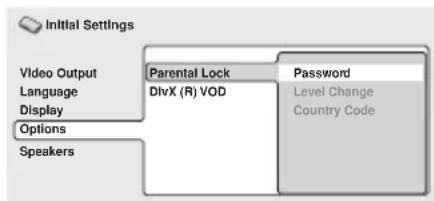
2 Use the number buttons to input a four-digit password then press ENTER.
Changing your password
To change your password, confirm your existing password then enter a new one.
1 Select 'Password Change', input your existing password, then press ENTER.
2 Enter a new password and press ENTER.

Note
1 • Not all discs use Parental Lock, and will play without requiring the password first.
- If you forget your password, you'll need to reset the player to register a new password (see Resetting the system on page 44).
Setting/changing the Parental Lock
1 Select 'Level Change'.
2 Use number buttons to enter your password, then press ENTER.
3 Select a new level and press ENTER.
- Press ← repeatedly to lock more levels (more discs will require the password); press → to unlock levels. You can't lock level 1.
Setting/changing the Country/Area code
You can find the Country/Area code list on page 45.
1 Select 'Country Code', input your password, then press ENTER.
2 Select a Country/Area code then press ENTER.
There are two ways you can do this:
- Select by code letter: Use ↑/↓ to change the Country/Area code.
- Select by code number: Press → then use the number buttons to enter the four-digit Country/Area code.
The new Country/Area code takes effect after ejecting the disc once.
About DivX® VOD content
In order to play DivX VOD (video on demand) content on this player, you first need to register the player with your DivX VOD content provider. You do this by generating a DivX VOD registration code, which you submit to your provider. 1

Important
- DivX VOD content is protected by a DRM (Digital Rights Management) system. This restricts playback of content to specific, registered devices.
- If you load a disc that contains DivX VOD content not authorized for your player, the message Authorization Error is displayed and the content will not play.
Displaying your DivX VOD registration code
1 Press HOME MENU and select 'Initial Settings'.
2 Select 'Options', then 'DivX (R) VOD'.

3 Select 'Display'.
Your eight-digit registration code is displayed.
Make a note of the code as you will need it when you register with a DivX VOD provider.
Playing DivX ® VOD content
Some DivX VOD content may only be playable a fixed number of times. When you load a disc containing this type of DivX VOD content, the remaining number of plays is shown on-screen and you then have the option of playing the disc (thereby using up one of the remaining plays), or stopping. If you load a disc that contains expired DivX VOD content (for example, content that has zero remaining plays), the message Rental Expired is displayed.
If your DivX VOD content allows an unlimited number of plays, then you may load the disc into your player and play the content as often as you like, and no message will be displayed.

Note
1 Resetting the player (as described in Resetting the system on page 44) will not cause you to lose your registration code.
Speaker Distance
- Default setting: 3.0m
To get the best surround sound from your system, you should set up the speakers equal distances from your listening position.
1 Press HOME MENU and select 'Initial Settings'.
2 S e Speakers', then 'Speaker Distance'.

3 U / to select a speaker.
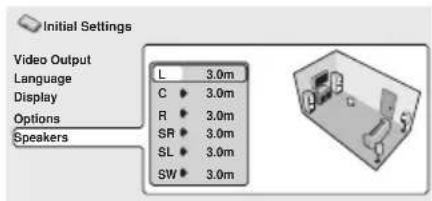
4 P r → to change the speaker distance for the highlighted speaker.
5 U s↑/↓ to change the distance.
- When you change the distance settings of the front left (L) or front right (R) speakers, all the other speaker distances change relative to it.
- Front left/right (L/R) speaker distances can be set from 30 cm to 9 m in 30 cm increments. 1
- The center speaker (C) can be set from -2.1m to 0m relative to the front left/right speakers.
- Surround left/right (SL/SR) speakers can be set from -6.0 m to 0 m relative to the front left/right speakers. 2
- The subwoofer (SW) can be set from -2.1m to 0m relative to the front left/right speakers.
6 P r ← togo back to the speaker list if you want to modify another speaker, or press ENTER to exit the Speaker Distance screen.
Chapter 9
Other connections
Connecting external antennas
For an external AM antenna, use 5 m to 6 m of vinyl-insulated wire and set up either indoors or outdoors. Leave the loop antenna connected. Only use the included AM loop antenna.

For an external FM antenna, use a PAL connector to hook up an external FM antenna.

Connecting auxiliary audio components
Using the stereo analog inputs, you can connect an external component such as a tape deck or MD player for playback through this system.
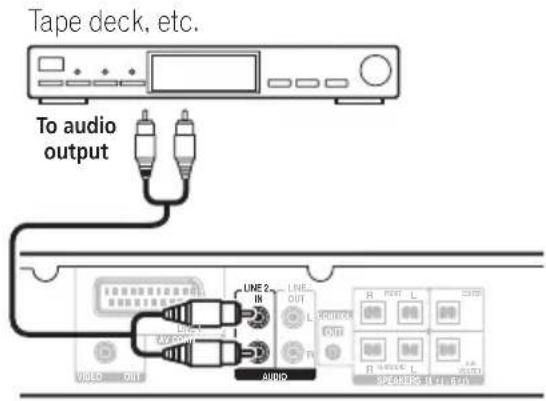
- Connect the ( LINE 2) AUDIO IN jacks to the analog outputs of an external playback component.
Connect using RCA pin-plug stereo cables.
Using the SCART AV output
The SCART output should give you better picture quality than the standard composite video output. The SCART AV connector functions as both a video and audio output. 1
- Use a commercially available SCART cable to connect the (LINE 1) AV CONNECTOR to your TV.


Note
1 SCART cables are available in several configurations. Make sure that the one you get will work with this system and your TV/monitor (see SCART pin assignment below).
SCART pin assignment
The diagram below shows the SCART 21-pin connector assignment. This connector provides the video and audio signals for connection to a compatible color TV/monitor.
20 18 16 14 12 10 8 6 4 2

21 19 17 15 13 11 9 7 5 3 1
Pin No. Assignment Pin No. Assignment
| 1 Audio R OUT 12 No connection | |
| 2 Audio R IN 13 GND (video) | |
| 3 Audio L OUT 14 GND (video) | |
| 4 GND (audio) 15 R or C OUT | |
| 5 GND (video) 16 BLANK OUT | |
| 6 Audio L IN 17 GND (video) | |
| 7 B OUT | 18 GND (video) |
| 8 Status | 19 Video or Y OUT |
| 9 GND (video) 20 No connection | |
| 10 No connection | 21 GND (video) |
| 11 G OUT | |
Line Out options
The Line Out function allows you to determine how sound from LINE OUT and AV
CONNECTOR terminals is output. 1
- Press LINE OUT to cycle through LINE ON and LINE OFF options, then press ENTER to confirm you selection.
- LINE ON – Multichannel sources are downmixed to 2.1 ch (stereo). For both LINE OUT and AV CONNECTOR terminals a 2 ch downmix signal is produced.
- LINE OFF – For regular multichannel playback through your speaker system. Note that no signal is produced from the LINE OUT terminal: AV CONNECTOR sound is output in Left/Right channels only.
Connecting using HDMI
If you have a HDMI or DVI (with HDCP) equipped monitor or display, you can connect it to this player using a commercially available HDMI cable for high quality digital video. 2
See About HDMI below for more about the HDMI connection.
Note
1 • When the line out mode is on, most sound features cannot be used. The display will briefly blink LINE ON if you try and use a prohibited function while the line out mode is on.
- The line out mode switches off if you change the input function (DVD/CD, TUNER, etc.) or switch the power off.
- This option is not effective when listening a source from LINE2.
2 • An HDMI connection can only be made with DVI-equipped components compatible with both DVI and High Bandwidth Digital Content Protection (HDCP). If you choose to connect to a DVI connector, you will need a separate adaptor (DVI→HDMI) to do so. A DVI connection, however, does not support audio signals. Consult your local audio dealer for more information.
- This unit has been designed to be compliant with HDMI (High Definition Multimedia Interface) Version 1.1. Depending on the component you have connected, using a DVI connection may result in unreliable signal transfers.
- When you change the component connected to the HDMI output, you will also need to change the HDMI settings to match the new component (see Video Output settings on page 27 to do this).
- Use an HDMI cable to connect the HDMI OUT interconnect on this player to an HDMI interconnect on a HDMI-compatible monitor.
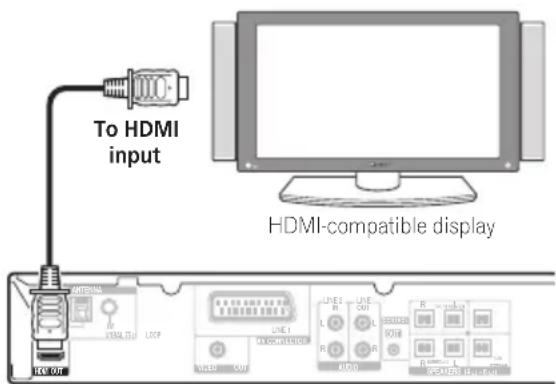
- The arrow on the cable connector body should be face up for correct alignment with the connector on the player.

You can also adjust the HDMI settings for resolution and color. For more on these settings see Video Output settings on page 27.
Switching the HDMI audio setting
To listen to audio from the HDMI interconnect, make sure you've specified the HDMI audio output setting.
1 Switch the system into standby.
2 P r SETUP and use ←/→ to choose HDMI OUT then press ENTER.
3 U ↑/↓ to choose the setting you want then press ENTER.
- AUDIO ON – Audio signals are output through the HDMI interconnect
• AUDIO OFF – Switches off HDMI audio
Resetting the HDMI connection
If you get an error message (the display shows HDMI ERR) or if the screen goes blank (for example, after changing the resolution), check the troubleshooting guide on page 44. If this doesn't solve the problem, follow the steps below to reset the HDMI connection.
1 Switch the system into standby.
2 Press SETUP and use ←/→ to choose HDMI INI then press ENTER.
The system will restart and the HDMI settings are automatically reset to the factory defaults. See Video Output settings on page 27 for more on these settings.
About HDMI
HDMI (High Definition Multimedia Interface) supports both video and audio on a single digital connection for use with DVD players, DTV, set-top boxes, and other AV devices. HDMI was developed to provide the technologies of High Bandwidth Digital Content Protection (HDCP) as well as Digital Visual Interface (DVI) in one specification. HDCP is used to protect digital content transmitted and received by DVI-compliant displays.
HDMI has the capability to support standard, enhanced, or high-definition video plus standard to multichannel surround-sound audio. HDMI features include uncompressed digital video, a bandwidth of up to 2.2 gigabytes per second (with HDTV signals), one connector (instead of several cables and connectors), and communication between the AV source and AV devices such as DTVs.
HDMI, the HDMI logo and High-Definition Multimedia Interface are trademarks or registered trademarks of HDMI licensing LLC.
About control out connections
Many Pioneer components support SR CONTROL connections, by which you can use the remote controls of any connected components by aiming them at the sensor of just one component. When you use a remote control, the control signal is passed along the chain to the appropriate component. This can be useful when you have multiple components contained inside an entertainment center.
If you use this feature, you must make sure that also have at least one set of analog audio jacks connected to another component for grounding purposes.
- Using a cable with mono mini-plugs on either side (sold separately), connect the CONTROL IN jack on another Pioneer component to the CONTROL OUT jack on this unit.
This will allow you to control the other component by pointing its remote at this unit.
Chapter 10
Additional information
Disc/content format playback compatibility
This player is compatible with a wide range of disc types (media) and formats. Playable discs will generally feature one of the following logos on the disc and/or disc packaging. Note however that some disc types, such as recordable CD and DVD, may be in an unplayable format.
See the Disc compatibility table below for more information.

DVD-Video DVD-R DVD-RW



Audio CD CD\Rdeo CD
CD-RW


Fujicolor CD
- This unit will play DVD+R/+RW discs.
• is a trademark of FUJIFILM Corporation.
• iCD trademark of DVD Format/Logo Licensing Corporation.
• Also compatible with KODAK Picture CD.
This player supports the IEC's Super VCD standard for superior picture quality, dual soundtracks, and widescreen support.


Super Video CD (Super VCD)
About DualDisc playback
A DualDisc is a new two-sided disc, one side of which contains DVD content video, audio, etc. while the other side contains non-DVD content such as digital audio material.
The non-DVD, audio side of the disc is not compliant with the CD Audio specification and therefore may not play.
The DVD side of a DualDisc plays in this product. DVD-Audio content will not play.
For more detailed information on the DualDisc specification, please refer to the disc manufacturer or disc retailer.
Disc compatibility table
Media Compatible formats
CD-R/-RW
- CD-Audio, Video CD/Super VCD, ISO 9660 CD-ROM*
* ISO 9660 Level 1 or 2 compliant. CD physical format: Mode1, Mode2 XA Form1. Romeo and Joliet file systems are both compatible. - Multi-session playback: No
• Unfinalized disc playback: No
DVD-R/-RW
- DVD-Video (Video mode), Video Recording (VR)*, UDF Bridge DVD-ROM
* Edit points may not play exactly as edited; screen may go momentarily blank at edited points. - Multi Border playback: No
- Unfinalized playback: No
PC-created disc
• Discs recorded using a PC may not be playable due to the setting of the software used to create the disc. In these instances, check the DVD-R/-RW or CD-R/-RW software manual or disc boxes for more on compatibility.
• Discs recorded in packet write mode are not compatible.
Media Compatible formats
| Compressed audio | MPEG-1 Audio Layer 3 (MP3), Windows Media Audio (WMA), MPEG-4 AACSampling rates: 32 kHz/44.1 kHz/48 kHzBit-rates: Any (128 kbps or higher recommended)VBR (variable bit rate) MP3/WMA/MPEG-4 AAC playback: NoWMA lossless encoding: NoDRM (Digital Rights Management) compatible: Yes (DRM-protected audio files will not play in this player.)File extensions: .mp3, .wma, .m4a (these must be used for the player to recognize MP3/WMA/MPEG-4 AAC files)File structure (may differ): Up to 299 folders on a disc; up to 648 folders and files (combined) within each folder |
| JPEG file | Baseline JPEG and EXIF 2.2* still image files up to a resolution of 3072 x 2048*File format for digital still camerasProgressive JPEG compatible: NoFile extensions: .jpg (must be used for the player to recognize JPEG files)File structure (may differ): Up to 299 folders on a disc; up to 648 folders and files (combined) within each folder |
About DVD+R/DVD+RW compatibility
Only DVD+R/DVD+RW discs recorded in 'Video Mode (DVD Video Mode)' which have been finalized, can be played back. However, some editing made during the recording may not be played back accurately.
About DivX
DIVX®
DivX is a compressed digital video format created by the DivX ® video codec from DivX, Inc. This player can play DivX video files burned on CD-R/-RW and DVD-R/-RW/-ROM discs. Keeping the same terminology as DVD-Video, individual DivX video files are called 'Titles'. When naming files/titles on a CD-R/-RW or DVD-R/-RW disc prior to burning, keep in mind that by default they will play in alphabetical order.
DivX video compatibility
- Official DivX ® Certified product.
- Plays all versions of DivX ® video (including DivX ® 6) with standard playback of DivX ® media files. 1
- File extensions: .avi and .divx (these must be used for the player to recognize DivX video files). Note that all files with the .avi extension are recognized as MPEG4, but not all of these are necessarily DivX video files and therefore may not be playable on this player.
Displaying DivX subtitle files
The font sets listed below are available for DivX external subtitle files. You can see the proper font set on-screen by setting the Subtitle Language (in Language settings on page 28) to match the subtitle file. 2
Group 1: Albanian (sq), Basque (eu), Catalan (ca), Danish (da), Dutch (nl), English (en), Faroese (fo), Finnish (fi), French (fr), German (de), Icelandic (is), Irish (ga), Italian (it), Norwegian (no), Portuguese (pt),
Note
1 Playback of .avi video files larger than 4 GB is not possible.
2 • For external subtitle files the following subtitle format filename extensions are supported (please note that these files are not shown within the disc navigation menu): .srt, .sub, .ssa, .smi
- Some external subtitle files may be displayed incorrectly or not at all.
- The filename of the movie file has to be repeated at the beginning of the filename for the external subtitle file.
- The number of external subtitle files which can be switched for the same movie file is limited to a maximum of 10.
Rhaeto-Romanic (rm), Scottish (gd), Spanish (es), Swedish (sv)
Group 2: Albanian (sq), Croatian (hr), Czech (cs), Hungarian (hu), Polish (pl), Romanian (ro), Slovak (sk), Slovenian (sl)
Group 3: Bulgarian (bg), Byelorussian (be), Macedonian (mk), Russian (ru), Serbian (sr), Ukrainian (uk)
Group 4: Hebrew (iw), Yiddish (ji)
Group 5: Turkish (tr)
DivX, DivX Certified, and associated logos are trademarks of DivX, Inc. and are used under license.
About MPEG-4 AAC
Advanced Audio Coding (AAC) is at the core of the MPEG-4 AAC standard, which incorporates MPEG-2 AAC, forming the basis of the MPEG-4 audio compression technology. The file format and extension used depend on the application used to encode the AAC file. This unit plays back AAC files encoded by iTunes® bearing the extension '.m4a'. DRM-protected files will not play, and files encoded with some versions of iTunes® may not play, or filenames may display incorrectly.
Apple and iTunes are trademarks of Apple Inc., registered in the U.S. and other countries.
About WMA
This player can playback Windows Media Audio content.
WMA is an acronym for Windows Media Audio and refers to an audio compression technology developed by Microsoft Corporation. WMA content can be encoded by using Windows Media ® Player version 7.7.1, Windows Media ® Player for Windows ® XP, or Windows Media ® Player 9 series.
Windows Media is either a registered trademark or trademark of Microsoft Corporation in the United States and/or other countries.
This product includes technology owned by Microsoft Corporation and cannot be used or distributed without a license from Microsoft Licensing, Inc.
Using and taking care of discs
Handling discs
Hold the disc by its edges when handling so as not to leave fingerprints, dirt or scratches on either side of the disc. Damaged or dirty discs can affect playback performance.
If a disc becomes marked with fingerprints, dust, etc., clean using a soft, dry cloth.
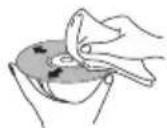
Wipe lightly from the center of the disc using straight strokes. Don't wipe the disc surface with circular strokes.
If necessary, use a cloth soaked in alcohol, or a commercially available CD/DVD cleaning kit to clean a disc more thoroughly. Never use benzine, thinner or other cleaning agents such as those designed for cleaning vinyl records.
Storing discs
Avoid leaving discs in excessively cold, humid, or hot environments (including under direct sunlight). Don't glue paper or put stickers onto the disc, or use a pencil, ball-point pen or other sharp-tipped writing instrument. These could all damage the disc.
Discs to avoid
Discs spin at high speed inside the player. If a disc is cracked, chipped, warped, or otherwise damaged, don't risk using it in your player — you could end up damaging the unit.
This unit is designed for use with conventional, fully circular discs only. Pioneer disclaims all liability arising in connection with the use of shaped discs.
DVD Video regions
All DVD Video discs carry a region mark that indicates which region(s) of the world the disc is compatible with. Your DVD system also has a region mark (on the rear panel). Discs from incompatible regions will not play in this player. Discs marked ALL play in any player.
When you insert a disc that cannot be played on this player, one of the following messages is displayed:
Incompatible disc region number
Can't play disc
Installation and maintenance
Hints on installation
We want you to enjoy using this system for years to come, so please bear in mind the following points when choosing a location:
Do...
√ Use in a well-ventilated room.
√ Place on a solid, flat, level surface, such as a table, shelf or stereo rack.
Don't...
✗ Use in a place exposed to high temperatures or humidity, including near radiators and other heat-generating appliances.
✗ Place on a window sill or other place where the system will be exposed to direct sunlight.
✗ Use in an excessively dusty or damp environment.
✗ Place directly on top of an amplifier, or other component in your stereo system that becomes hot in use.
✗ Use near a television or monitor as you may experience interference — especially if the television uses an indoor antenna.
✗ Use in a kitchen or other room where the system may be exposed to smoke or steam.
✗ Use on a thick rug or carpet, or cover with cloth — this may prevent proper cooling of the system unit.
✗ Place on an unstable surface, or one that is not large enough to support all four of the system unit's feet.
Cleaning the pickup lens
The DVD player's lens should not become dirty in normal use, but if for some reason it should malfunction due to dust or dirt, consult your nearest Pioneer authorized service center. Although lens cleaners are commercially available, we do not recommend using them since some may damage the lens.
Problems with condensation
Condensation may form inside the player if it is brought into a warm room from outside, or if the temperature of the room rises quickly. Although the condensation won't damage the player, it may temporarily impair performance. Leave it to adjust to the warmer temperature for about an hour before switching on.
Moving the system unit
If you need to move the main unit, first remove a disc if there's one in the player, then press Ⓧ STANDBY/ON on the front panel to turn the system off. Wait for GOOD BYE to disappear from the display, then unplug the power cord. 1 Never lift or move the unit during playback — discs rotate at high speeds and may damage.
Screen sizes and disc formats
DVD-Video discs come in different screen aspects, ranging from TV programs, which are generally 4:3, to CinemaScope widescreen movies 2 , with an aspect ratio of up to about 7:3.
Note
1 Unplugging the unit before GOOD BYE disappears from the display may cause the system to return to the factory settings. 2 Many widescreen discs override the system's settings so that the disc is shown in letterbox format regardless of the setting.
Additional information
Televisions also come in different aspect ratios; 'standard' 4:3 and widescreen 16:9. 1

Set to 4:3 (Letter Box), widescreen discs are shown with black bars top and bottom.
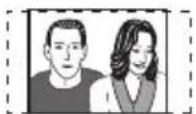
Set to 4:3 (Pan&Scan), widescreen discs are shown with the left and right sides cropped. Although the picture looks larger, you don't actually see the whole picture.
TV system setting
The default setting of this system is AUTO, and unless you notice that the picture is distorted when playing some discs, you should leave it set to AUTO. If you find picture distortion with some discs, set the TV system to match your country or region's system. However, this may restrict the kinds of disc you can watch. See the table for the kinds of discs compatible with each setting (AUTO, PAL and NTSC). 2
1 Switch the unit into standby, then press SETUP.
2 U ←/→ to choose TV SYS then press ENTER.
The TV system changes as follows:
- AUTO → NTSC
- NTSC → PAL
- PAL → AUTO
The system automatically switches on and you'll see the new TV system setting in the display after seeing WELCOME. 3
| Media Type | Player setting | |
| Format NTSC PAL AUTO | ||
| DVD/Super VCD/Video CD/DivX Video | NTSC | NTSC PAL NTSC |
| PAL | NTSC PAL PAL | |
| CD/MP3/WMA/MPEG-4 AAC/JPEG/no disc | — | NTSC PAL NTSC or PAL |
Switching off the demo
Follow the steps below to switch the automatic demo feature off (this starts when you plug in for the first time):
1 With the unit in standby, press SETUP.
2 U s←/→ to choose DEMO then press ENTER.
3 U s↑/↓ to select DEMO OFF and press ENTER.
Dimming the Display
You can adjust the brightness of the text in the front panel display. When the display is set to a darker color, the Power Indicator is turned off.
1 Press SETUP and use ←/→ to choose DIMMER then press ENTER.
This is shown in the front panel display.
2 U s↑/↓ to select LIGHT or DARK then press ENTER.

Note
- Using the 16:9 (Wide) setting with a standard 4:3 TV, or one of the 4:3 settings with a widescreen TV, will result in distortion.
- When you watch discs recorded in 4:3 format, you can use the TV controls to select how the picture is presented. Your TV may offer various zoom and stretch options; see the instructions that came with your TV for details.
- Some movie aspect ratios are wider than 16:9, so even with a widescreen TV, these discs will still play in a 'letterbox' style. 2 Most models of the newly developed countdown PAL TV system detect 50Hz (PAL)/60 Hz (NTSC) and automatically switch vertical amplitude, resulting in a display without vertical shrinkage. However, in some cases, the image may appear without color. If your PAL TV does not have a V-Hold control, you may not be able to watch NTSC discs because of picture roll. If the TV has a V-Hold control, adjust it until the picture stops rolling. On some TVs, the picture may shrink vertically, leaving black bands at the top and bottom of the screen.
3 You have to switch the player into standby (press ⏻ STANDBY/ON) before each change.
Troubleshooting
Incorrect operations are often mistaken for trouble and malfunctions. If you think that there is something wrong with this component, check the points below. Sometimes the trouble may lie in another component. Investigate the other components and electrical appliances being used. If the trouble cannot be rectified even after exercising the checks listed below, ask your nearest Pioneer authorized service center or your dealer to carry out repair work.
- If the system does not operate normally due to external effects such as static electricity disconnect the plug from the outlet and insert again to return to normal operating conditions.
General
| Problem Remedy | |
| The power does not turn on, or switches off suddenly (an error message may be displayed at startup). | Wait for one minute before switching back on.Make sure there are no loose strands of wire touching the unit. This could cause the system to shut off automatically.Check that the speakers are connected correctly.Make sure the voltage of the mains power source is correct for the model.Try reducing the volume level.If the problem persists, take it to your nearest Pioneer authorized service center or your dealer for servicing. |
| No sound is output when a function is selected. | If you're using the line input, make sure the component is connected correctly (see Connecting auxiliary audio components on page 32).PressMUTEon the remote control to turn muting off.Turn up the volume. |
| No sound from surround or center speakers. | Refer to Setting the channel levels on page 10 to check the speaker levels.When TUNER or LINEis selected, you can only hear the source in stereo. Switch the input source to DVD/CD or USBfor multichannel sound.Check that the Line Out mode hasn't been switched on (see Line Out options on page 33).Check that you haven't selected the STEREOmode (see Listening in surround sound on page 14).Connect the speakers properly (refer to the Setup Guide). |
| Can't operate the remote control. | Replace the batteries (refer to the Setup Guide).Operate within 7 m, 30° of the remote sensor (refer to the Setup Guide).Remove any obstacles or operate from another position.Avoid exposing the remote sensor on the front panel to direct light.To operate other Pioneer components, make sure that the control cable and analog audio cable are connected. |
| TRAYLOCK shows in the display and the tray can't be ejected. | Press and hold ▲ (OPEN/CLOSE) on the front panel for about eight seconds.Then the tray can be opened/closed using ▲ (OPEN/CLOSE). |
| SND. DEMO shows in the display and the unit can't be controlled. | Press and hold ■ (stop) on the front panel for about five seconds. The disc tray ejects automatically to indicate the Sound Demo mode is disabled. |
DVD/CD/Video CD player
| Problem Remedy | |
| The disc is ejected automatically after loading. | Clean the disc and align the disc properly in the disc guide.If the region number on a DVD-video disc does not match the number on the player, the disc cannot be used (seeDVD Video regionson page 39). In this instance, one of the following messages appears on screen:Incompatible discregion number/Can't play disc.Allow time for any condensation inside the player to evaporate. Avoid using the player near an air-conditioning unit. |
| Playback not possible. | If the disc is loaded upside down, reload the disc with label side face up. |
| Picture playback stops and buttons cannot be used. | Press ■ (stop), then ▶ (play) to start playback again.Switch the power off once, then on again using the front panel○ STANDBY/ONbutton. |
| Settings are canceled. | When the power is cut, settings will be canceled. |
| No picture/No color. | Check that connections are correct and that plugs are inserted fully.Check the manual of the TV/monitor to make sure the settings are correct. |
| Screen is stretched or aspect doesn't change. | TheTV Screensetting is incorrect. Set the TV Screen option to match the TV/monitor you're using (seeVideo Output settingson page 27). |
| When recorded on a VCR or passed through an AV selector, there is disturbance in the playback picture. | This system uses copy-protection technology which may prevent recording or cause picture problems when connected through a VCR or AV selector. This is not a malfunction. |
| Picture disturbance during playback or dark. | This player is compatible with Macro-Vision System copy guard. Some discs include a copy prevention signal, and when this type of disc is played back, stripes etc., may appear on some sections of the picture depending on the TV. This is not a malfunction.Discs respond differently to particular player functions. This may result in the screen becoming black for a brief instant or shaking slightly when the function is executed. These problems are largely due to differences between discs and disc content and are not malfunctions of this player. |
| Noticeable difference in DVD and CD volume. | DVDs and CDs use different recording methods. This is not a malfunction. |
| CD-ROM disc is not recognized. | Make sure that the CD-ROM was recorded using the ISO 9660 disc format. SeeDisc compatibility tableon page 36 for more on disc compatibility. |
| DVD-ROM disc is not recognized. | Make sure that the DVD-ROM was recorded using the UDF bridge format. SeeDisc compatibility tableon page 36 for more on disc compatibility. |
| Files don't show up in the Disc Navigator/ Photo Browser. | The files on the disc must be named with the correct file extension: .mp3 for MP3 files; .wma for WMA files; .m4a for MPEG-4 AAC files; .jpg for JPEG files (upper or lower-case is OK). SeeDisc compatibility tableon page 36. |
| Can't play WMA or MPEG-4 AAC files. | The files were recorded using DRM (digital rights management). This is not a malfunction. |
Tuner
| Problem Remedy | |
| Considerable noise in radio broadcasts. | Connect the AM antenna (refer to the Setup Guide) and adjust the direction and position for best reception. You may also connect an additional internal or external AM antenna (refer to Connecting external antennas on page 32).Fully extend the FM wire antenna, position for best reception, and secure to a wall. You may also connect an outdoor FM antenna (see Connecting external antennas on page 32).Turn off other equipment that may be causing the noise or move it further away. |
| Auto tuning does not pick up some stations. | The radio signal is weak. Auto tuning will only detect radio stations with a good signal. For more sensitive tuning, connect an outdoor antenna. |
USB connection
| Problem Remedy | |
| USB mass storage device is not recognized by the system. | Make sure you have completely inserted the USB connector to this unit.Check that the memory format is FAT16 or FAT32.USB devices with an internal USB hub are not supported. |
| Files don’t show up in the Navigator/Photo Browser. | The files must have the correct file extension: .mp3 for MP3 files; .wma for WMA files; .m4a for MPEG-4 AAC files; .jpg for JPEG files (upper or lower-case is OK).Make sure the file permission hasn’t been restricted (through a password, etc.). |
| Can’t play WMA or MPEG-4 AAC files. | The files were recorded using DRM (digital rights management). This is not a malfunction. |
HDMI connection
| Problem Remedy | |
| No HDMI audio output. | • See Switching the HDMI audio setting on page 34 to make sure that AUDIO ON is selected. |
| No HDMI video output | • Make sure that you've selected this player as the HDMI input in the settings for the component you're using (refer to the component's instruction manual).• Check that the HDMI cable is connected properly and isn't damaged.• Check that components connected using the HDMI interface are switched on and HDMI compatible (Components must be compatible with both DVI and High Bandwidth Digital Content Protection (HDCP)).• This unit has been designed to be compliant with HDMI Version 1.1. Depending on the component you have connected, using a DVI connection may result in unreliable signal transfers.• Make sure the resolution on this player matches that of the component you have connected using HDMI. See Video Output settings on page 27 to change the HDMI resolution.• If the screen goes blank after changing the resolution, it means the you selected a resolution incompatible with your monitor. See Resetting the HDMI connection on page 34 to reset to the factory defaults. |
Problem Remedy
| Color problems occur with your monitor after changing the HDMI Color setting (page 27). | • Depending on the connected equipment, some HDMI Color settings may cause the picture to be displayed incorrectly. In this case, use the TV's own video input settings to select RGB, if possible. Alternatively, revert to the previous HDMI Color setting. |
Error Messages
| Message Description | |
| LINE ON | • An operation is prohibited because the Line Out mode is on (page 33). |
| EXTRAPWR | • You cannot adjust SFC Modes or tone controls (bass, treble, and bass boost) when using EXTRA PWR mode. |
| SND. DEMO | • The sound demo is on. See General in Troubleshooting on page 41. |
| CANNOT | • An operation is prohibited because DVD/CD or USB isn't selected, headphones are connected, or TEST TONE is pressed during disc playback. |
| MUTING | • An operation is prohibited because the sound is muted (press MUTE). |
| STEREO | • An operation is prohibited because the DVD/CD or USB function isn't selected. |
| TRAYLOCK | • The tray lock is on. See General in Troubleshooting on page 41. |
| KEYLOCK | • The key lock is enabled. See Setting the Key Lock below. |
| USB ERR | • See Important in Using the USB interface on page 23 for more on this. |
| HDMI ERR | • See HDMI connection above for troubleshooting tips. See also Resetting the HDMI connection on page 34 if the problem persists. |
| EEP ERR | • Contact your Pioneer authorized service center or your dealer for servicing. |
| EXIT | • Appears when a menu is automatically exited after a set period of inactivity. |
Resetting the system
Use the front panel controls to reset all system settings to the factory default.
- With the system on, press ⏻ STANDBY/ON while holding down ▶/II USB.
The next time you switch on, all the system settings should be reset.
Setting the Key Lock
You can disable the front panel buttons by switching the Key Lock feature on.
1 With the system in standby, press SETUP and use ↔/→ to choose KEYLOCK then press ENTER.
This is shown in the front panel display.
2 U s↑/↓ to select LOCK ON or LOCK OFF then press ENTER.
Using the language code list
Some of the language options (see Language settings on page 28) allow you to set your preferred language from any of the 136 languages in the Language code list below.
1 Select 'Other Language'.
2 U s←/e→ to select either a code letter or a code number.
3 U s↑/↓ to select a code letter or a code number.
See the Language code list below for a complete list of languages and codes.
Language code list
Language (Language code letter), Language code
| Japanese (ja), 1001 | Estonian (et), 0520 | Lingala (In), 1214 | Slovak (sk), 1911 |
| English (en), 0514 | Basque (eu), 0521 | Laothian (lo), 1215 | Slovenian (sl), 1912 |
| French (fr), 0618 | Persian (fa), 0601 | Lithuanian (lt), 1220 | Samoan (sm), 1913 |
| German (de), 0405 | Finnish (fi), 0609 | Latvian (lv), 1222 | Shona (sn), 1914 |
| Italian (it), 0920 | Fiji (fj), 0610 | Malagasy (mg), 1307 | Somali (so), 1915 |
| Spanish (es), 0519 | Faroese (fo), 0615 | Maori (mi), 1309 | Albanian (sq), 1917 |
| Dutch (nl), 1412 | Frisian (fy), 0625 | Macedonian (mk), 1311 | Serbian (sr), 1918 |
| Russian (ru), 1821 | Irish (ga), 0701 | Malayalam (ml), 1312 | Siswati (ss), 1919 |
| Chinese (zh), 2608 | Scots-Gaelic (gd), 0704 | Mongolian (mn), 1314 | Sesotho (st), 1920 |
| Korean (ko), 1115 | Galician (gl), 0712 | Moldavian (mo), 1315 | Sundanese (su), 1921 |
| Greek (el), 0512 | Guarani (gn), 0714 | Marathi (mr), 1318 | Swedish (sv), 1922 |
| Afar (aa), 0101 | Gujarati (gu), 0721 | Malay (ms), 1319 | Swahili (sw), 1923 |
| Abkhazian (ab), 0102 | Hausa (ha), 0801 | Maltese (mt), 1320 | Tamil (ta), 2001 |
| Afrikaans (af), 0106 | Hindi (hi), 0809 | Burmese (my), 1325 | Telugu (te), 2005 |
| Amharic (am), 0113 | Croatian (hr), 0818 | Nauru (na), 1401 | Tajik (tg), 2007 |
| Arabic (ar), 0118 | Hungarian (hu), 0821 | Nepali (ne), 1405 | Thai (th), 2008 |
| Assamese (as), 0119 | Armenian (hy), 0825 | Norwegian (no), 1415 | Tigrinya (ti), 2009 |
| Aymara (ay), 0125 | Interlingua (ia), 0901 | Occitan (oc), 1503 | Turkmen (tk), 2011 |
| Azerbaijani (az), 0126 | Interlingue (ie), 0905 | Oromo (om), 1513 | Tagalog (tl), 2012 |
| Bashkir (ba), 0201 | Inupiak (ik), 0911 | Oriya (or), 1518 | Setswana (tn), 2014 |
| Byelorussian (be), 0205 | Indonesian (in), 0914 | Panjabi (pa), 1601 | Tonga (to), 2015 |
| Bulgarian (bg), 0207 | Icelandic (is), 0919 | Polish (pl), 1612 | Turkish (tr), 2018 |
| Bihari (bh), 0208 | Hebrew (iw), 0923 | Pashto, Pushto (ps), 1619 | Tsonga (ts), 2019 |
| Bislama (bi), 0209 | Yiddish (ji), 1009 | Portuguese (pt), 1620 | Tatar (tt), 2020 |
| Bengali (bn), 0214 | Javanese (jw), 1023 | Quechua (qu), 1721 | Twi (tw), 2023 |
| Tibetan (bo), 0215 | Georgian (ka), 1101 | Rhaeto-Romance (rm), 1813 | Ukrainian (uk), 2111 |
| Breton (br), 0218 | Kazakh (kk), 1111 | Kirundi (rn), 1814 | Urdu (ur), 2118 |
| Catalan (ca), 0301 | Greenlandic (kl), 1112 | Romanian (ro), 1815 | Uzbek (uz), 2126 |
| Corsican (co), 0315 | Cambodian (km), 1113 | Kinyarwanda (rw), 1823 | Vietnamese (vi), 2209 |
| Czech (cs), 0319 | Kannada (kn), 1114 | Sanskrit (sa), 1901 | Volapük (vo), 2215 |
| Welsh (cy), 0325 | Kashmiri (ks), 1119 | Sindhi (sd), 1904 | Wolof (wo), 2315 |
| Danish (da), 0401 | Kurdish (ku), 1121 | Sangho (sg), 1907 | Xhosa (xh), 2408 |
| Bhutani (dz), 0426 | Kirghiz (ky), 1125 | Serbo-Croatian (sh), 1908 | Yoruba (yo), 2515 |
| Esperanto (eo), 0515 | Latin (la), 1201 | Sinhalese (si), 1909 | Zulu (zu), 2621 |
Country/Area code list
Country/Area, Country/Area code, Country/Area code letter
Argentina, 0118, ar
Australia, 0121, au
Austria, 0120, at
Belgium, 0205, be
Brazil, 0218, br
Canada, 0301, ca
Chile, 0312, cl
China, 0314, cn
Denmark, 0411, dk
Finland, 0609, fi
France, 0618, fr
Germany, 0405, de
Hong Kong, 0811, hk
India, 0914, in
Indonesia, 0904, id
Italy, 0920, it
Japan, 1016, jp
Korea, Republic of, 1118, kr
Malaysia, 1325, my
Mexico, 1324, mx
Netherlands, 1412, nl
New Zealand, 1426, nz
Norway, 1415, no
Pakistan, 1611, pk
Philippines, 1608, ph
Portugal, 1620, pt
Russian Federation, 1821, ru
Singapore, 1907, sg
Spain, 0519, es
Switzerland, 0308, ch
Sweden, 1905, se
Taiwan, 2023, tw
Thailand, 2008, th
United Kingdom, 0702, gb
United States of America, 2119, us
Specifications
- Amplifier section
RMS Power Output:
Front, Center, Surround . . . 60 W per channel (1 kHz, 10 % T.H.D., 4 Ω)
Subwoofer . . .60 W (100 Hz, 10 % T.H.D., 4 Ω)
- Disc section
Digital audio characteristics
DVD fs: 96 kHz, 24-bit
Type ..... DVD system, Video CD/Super VCD system and Compact Disc digital audio system
Frequency response
. . . . . . . . . . . . . . 4 Hz to 44 kHz (96 kHz sampling)/ 4 Hz to 22 kHz (48 kHz sampling)
Wow and Flutter .....Limit of measurement (±0.001 % W.PEAK) or less (JEITA)
- FM tuner section
Frequency range ..... 87.5 MHz to 108 MHz
Antenna 75 Ω, unbalanced
- AM tuner section
Frequency range ..... 531 kHz to 1602 kHz
Antenna....Loop antenna
- Miscellaneous
Power requirements
AC 220 V to 240 V, 50 Hz/60 Hz
Power consumption 45 W
Power consumption in standby. . . . . . . . 0.42 W
Dimensions
• Accessories (DVD/CD receiver)
Remote control 1
AA/R6 dry cell batteries
(to confirm system operation) 2
Video cable (yellow plugs) 1
AM loop antenna 1
FM antenna 1
Power cord 1
Warranty card 1
Setup Guide
These operating instructions
S-DV363 Speaker system
- Front/surround speakers
Enclosure . . . . . . . . Closed-box bookshelf type (magnetically shielded)
System 7.7 cm 1-way system
Speakers.... 7.7 cm cone type
Nominal impedance 4 Ω
Frequency range 80 Hz to 20 kHz
Maximum input power .....60 W Dimensions
.....100 mm (W) x 100 mm (H) x 100 mm (D)
Weight. 0.54 kg
- Center speaker
Enclosure . . . . . . . Closed-box bookshelf type (magnetically shielded)
System 7.7 cm 1-way system
Speakers. 7.7 cm cone type
Nominal impedance 4 Ω
Frequency range 75 Hz to 20 kHz
Maximum input power . . . . . . . . . . . . . . . . . . . . . . . . . . . . . . . . . . . . . . . . . . . . . . . . . . . . . . 60 W
Dimensions
System 16 cm 1-way system
Speaker. 16 cm cone type
Nominal impedance 4 Ω
Frequency range 30 Hz to 2.5 kHz
Maximum Input Power....60 W
Dimensions
Screws (for brackets)....4
Non-skid pads (small) 16
Non-skid pads (large) 4
S-DV370T Speaker system
- Front/surround speakers
Enclosure .....Closed-box floorstanding type (magnetically shielded)
System....2-way system
Speakers:
Woofer .....7.7 cm cone typex2
Tweeter 2.6 cm semi-dome type
Nominal impedance 4 Ω
Frequency range ..... 70 Hz to 20 kHz
Maximum input power....60 W
Dimensions
... 260 mm (W) × 1096.3 mm (H) × 260 mm (D)
Weight 4.1 kg
- Center speaker
Same as S-DV363 Center speaker (see above).
- Accessories
Speaker cables....5
Non-skid pads (large) 16
Speaker stand bases 4
Screws (for bases) 12
S-DV370SW Speaker system
- Sub woofer
Enclosure .....Bass-reflex floorstanding type
System 16 cm 1-way system
Speaker....16 cm cone type
Nominal impedance 4 Ω
Frequency range 30 Hz to 2.5 kHz
Maximum Input Power....60 W
Dimensions
.....190 mm (W) × 360 mm (H) × 320 mm (D)
Weight 4.0 kg
- Accessories
Speaker cables....1
Non-skid pads (large) 4

Note
- Specifications and design subject to possible modification without notice, due to improvements.
This product includes FontAvenue® fonts licenced by NEC corporation. FontAvenue is a registered trademark of NEC Corporation.
This product incorporates copyright protection technology that is protected by method claims of certain U.S. patents and other intellectual property rights owned by Macrovision Corporation and other rights owners. Use of this copyright protection technology must be authorized by Macrovision Corporation, and is intended for home and other limited uses only unless otherwise authorized by Macrovision Corporation. Reverse engineering or disassembly is prohibited.
DRM (digital rights management) copy protection is a technology designed to prevent unauthorized copying by restricting playback, etc. of compressed audio files on devices other than the PC (or other recording equipment) used to record it. For detailed information, please see the instruction manuals or help files that came with your PC and/or software.
Manufactured under license from Dolby Laboratories. "Dolby", "Pro Logic" and the double-D symbol are trademarks of Dolby Laboratories.
"DTS" and "DTS Digital Surround" are registered trademarks of DTS, Inc.
Published by Pioneer Corporation.
Copyright © 2007 Pioneer Corporation.
All rights reserved.
CLASS 1 LASER PRODUCT
D3-4-2-1-8_B_Fr
Options Line Out....33
| Video Adjust | |
| Sharpness | Standard |
| Brightness | 0 |
| Contrast | 0 |
| Gamma | Off |
| Hue | 0 |
| Chroma Level | 0 |
Menu Initial Settings
Groupe 1 : Albanian (sq), Basque (eu), Catalan (ca), Danish (da), Dutch (nl), English (en), Faroese (fo), Finnish (fi), French (fr), German (de), Icelandic (is), Irish (ga), Italian (it), Norwegian (no), Portuguese (pt), Rhaeto-Romanic (rm), Scottish (gd), Spanish (es), Swedish (sv)
Groupe 2 : Albanian (sq), Croatian (hr), Czech (cs), Hungarian (hu), Polish (pl), Romanian (ro), Slovak (sk), Slovenian (sl)
Groupe 3 : Bulgarian (bg), Byelorussian (be), Macedonian (mk), Russian (ru), Serbian (sr), Ukrainian (uk)
Groupe 4 : Hebrew (iw), Yiddish (ji)
Consommation....45 W
420 mm (L) × 60 mm (H) × 332 mm (P)
Poids 3,1 kg
Vis (pour supports) 4
Coussinets antidérapants (petits) .....16
Coussinets antidérapants (grands) .....4
Publication de Pioneer Corporation.
© 2007 Pioneer Corporation.
CLASS 1 LASER PRODUCT
D3-4-2-1-8_B_Ge
08 Menü 'Initial Settings'
Verwendung des Menüs 'Initial Settings'....27
Menü 'Audio Settings'
| Video Adjust | |
| Sharpness | Standard |
| Brightness | 0 |
| Contrast | 0 |
| Gamma | Off |
| Hue | 0 |
| Chroma Level | 0 |
Menü 'Initial Settings'
Gruppe 1: Albanian (sq), Basque (eu), Catalan (ca), Danish (da), Dutch (nl), English (en), Faroese (fo), Finnish (fi), French (fr), German (de), Icelandic (is), Irish (ga), Italian (it), Norwegian (no), Portuguese (pt), Rhaeto-Romanic (rm), Scottish (gd), Spanish (es), Swedish (sv)
Hinweis
Gruppe 2: Albanian (sq), Croatian (hr), Czech (cs), Hungarian (hu), Polish (pl), Romanian (ro), Slovak (sk), Slovenian (sl)
Gruppe 3: Bulgarian (bg), Byelorussian (be), Macedonian (mk), Russian (ru), Serbian (sr), Ukrainian (uk)
Gruppe 4: Hebrew (iw), Yiddish (ji)
Gruppe 5: Turkish (tr)
Front, Center, Surround ..... 60 W pro Kanal
(1 kHz, 10 % THD, 4 Ω)
Subwoofer . . . .60 W (100 Hz, 10 % THD, 4 Ω)
DVD fs: 96 kHz, 24-Bit
Typ. . . . . . . DVD-System, Video CD/Super VCD-
http://www.pioneer.co.uk
http://www.pioneer.fr
http://www.pioneer.de
http://www.pioneer.eu
Published by Pioneer Corporation.
Copyright © 2007 Pioneer Corporation.
All rights reserved.
Publication de Pioneer Corporation.
© 2007 Pioneer Corporation.
PIONEER ELECTRONICS (USA) INC.
P.O. BOX 1540, Long Beach, California 90810-1540, U.S.A. TEL: (800) 421-1404
PIONEER ELECTRONICS OF CANADA, INC.
300 Allstate Parkway, Markham, Ontario L3R 0P2, Canada TEL: 1-877-283-5901, 905-479-4411
PIONEER EUROPE NV
Haven 1087, Keetberglaan 1, B-9120 Melsele, Belgium TEL: 03/570.05.11
PIONEER ELECTRONICS ASIACENTRE PTE. LTD.
253 Alexandra Road, #04-01, Singapore 159936 TEL: 65-6472-7555
PIONEER ELECTRONICS AUSTRALIA PTY. LTD.
178-184 Boundary Road, Braeside, Victoria 3195, Australia, TEL: (03) 9586-6300
PIONEER ELECTRONICS DE MEXICO S.A. DE C.V.
Blvd.Manuel Avila Camacho 138 10 piso Col.Lomas de Chapultepec, Mexico,D.F. 11000 TEL: 55-9178-4270
K002_B_En
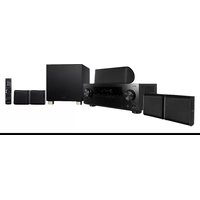

- THANK YOU FOR BUYING THIS PIONEER PRODUCT
- LOCATION: REAR OF THE UNIT
- IMPORTANT
- CAUTION
- WARNING
- VENTILATION CAUTION
- [FOR U.K. MODEL]
- IMPORTANT: THE MOULDED PLUG
- CLASS 1 LASER PRODUCT
- OPERATING ENVIRONMENT
- POWER-CORD CAUTION
- CONTENTS
- 01 CONTROLS AND DISPLAYS
- 02 GETTING STARTED
- 03 LISTENING TO YOUR SYSTEM
- 04 DISC PLAYBACK FEATURES
- 05 USB PLAYBACK
- 06 MORE TUNER FEATURES: RDS
- 07 AUDIO SETTINGS AND VIDEO ADJUST MENUS
- 08 INITIAL SETTINGS MENU
- 09 OTHER CONNECTIONS
- 10 ADDITIONAL INFORMATION
- CHAPTER 1
- CONTROLS AND DISPLAYS
- 1 ⏻ STANDBY/ON
- 2 PLAY LIST BUTTONS
- 3 ▲ OPEN/CLOSE
- 4 ▶/II DVD/CD
- 5
- 6 ▶/II USB
- 7 VOLUME +/- BUTTONS
- 8 USB INTERFACE
- 9 PHONES JACK
- 10 INDICATOR
- 11 REMOTE SENSOR
- 12 DISPLAY
- REMOTE CONTROL
- 2 FUNCTION SELECT BUTTONS
- 3 NUMBER BUTTONS, CLEAR, DISPLAY, SLEEP AND DVD CONTROLS
- CLEAR
- DISPLAY
- SHIFT+SLEEP
- SHIFT+AUDIO
- SHIFT+SUBTITLE
- SHIFT+ANGLE
- SHIFT+ZOOM
- 4 TOP MENU
- 5 CURSOR BUTTONS, ENTER AND TUNING BUTTONS
- CURSOR BUTTONS
- ENTER
- TUNE
- ST +/−
- 6 HOME MENU
- 7 SETUP AND OTHER SOUND CONTROLS
- SETUP
- TEST TONE
- SURROUND
- SOUND
- 8 PLAYBACK CONTROLS
- 9 TV CONTROL BUTTONS
- 10 SHIFT
- 11 ▲ OPEN/CLOSE
- 12 PLAYLIST BUTTONS
- 13 EXTRA PWR
- 14 MENU
- 15 RETURN
- 16 LINE OUT
- 17 MUTE
- 18 VOLUME
- 1 DTS
- 2 SOUND
- 3 F.SURR
- 4 RPT AND RPT-1
- 5 R E C M O D E
- 6 PGM
- 7 TUNER INDICATORS
- 8 RDM
- 9 KHZ/MHZ
- 10 CHARACTER DISPLAY
- 11
- 12
- 13 □□ PL II
- 14 D D
- CHAPTER 2
- GETTING STARTED
- HOME THEATER SOUND SETUP
- SETTING THE CHANNEL LEVELS
- 1 P R TESTSTONE
- 2 USE THE VOLUME +/- BUTTON TO ADJUST THE VOLUME TO AN APPROPRIATE LEVEL
- 3 U S E ↑/↓ TO ADJUST THE SPEAKER LEVELS TURN
- 4 WHEN YOU'RE DONE, PRESS ENTER TO EXIT TEST TONE SETUP
- USING THE ON-SCREEN DISPLAYS
- NOTE
- BUTTON WHAT IT DOES
- RETURN
- TIP
- PLAYING DISCS
- 1 IF THE PLAYER ISN'T ALREADY ON, SWITCH IT ON
- 2 PRESS ▲ OPEN/CLOSE TO LOAD A DISC
- 3 PRESS ▶ (PLAY) TO START PLAYBACK
- 4 ADJUST THE VOLUME
- BASIC PLAYBACK CONTROLS
- RESUME AND LAST MEMORY
- DVD-VIDEO DISC MENUS
- VIDEO CD/SUPER VCD PBC MENUS
- LISTENING TO THE RADIO
- 1 PRESS TUNER TO SWITCH TO THE TUNER, THEN PRESS REPEATEDLY TO SELECT THE AM OR FM BAND
- 2 TUNE TO A FREQUENCY
- IMPROVING POOR FM RECEPTION
- MEMORIZING STATIONS
- LISTENING TO STATION PRESETS
- LISTENING TO OTHER SOURCES
- SETTING THE SLEEP TIMER
- CHAPTER 3
- LISTENING TO YOUR SYSTEM
- AUTO LISTENING MODE
- LISTENING IN SURROUND SOUND
- USING EXTRA POWER MODE
- LISTENING IN STEREO
- LISTENING WITH HEADPHONES
- USING THE SFC MODES
- ADJUSTING THE BASS AND TREBLE
- BOOSTING THE BASS LEVEL
- CHAPTER 4
- DISC PLAYBACK FEATURES
- SCANNING DISCS
- PLAYING IN SLOW MOTION
- FRAME ADVANCE/FRAME REVERSE
- PLAYING A JPEG SLIDESHOW
- BROWSING DVD OR VIDEO CD/ SUPER VCD DISCS WITH THE DISC NAVIGATOR
- BROWSING WMA, MP3, MPEG-4 AAC, DIVX VIDEO AND JPEG FILES WITH THE DISC NAVIGATOR
- 1 PRESS HOME MENU AND SELECT 'DISC NAVIGATOR' FROM THE ON-SCREEN MENU
- 3 TO PLAY THE HIGHLIGHTED TRACK OR DIVX VIDEO FILE OR DISPLAY THE HIGHLIGHTED JPEG FILE, PRESS ENTER
- USING PLAYLISTS
- PROGRAMMING PLAYLISTS
- LISTENING TO PLAYLISTS
- CLEARING FILES FROM A PLAYLIST
- LOOPING A SECTION OF A DISC
- USING REPEAT PLAY
- USING RANDOM PLAY
- 2 SELECT 'RANDOM' THEN SELECT AN OPTION
- CREATING A PROGRAM LIST
- 4 REPEAT STEP 3 TO BUILD UP A PROGRAM LIST
- 5 TO PLAY THE PROGRAM LIST, PRESS ▶ (PLAY)
- OTHER FUNCTIONS AVAILABLE FROM THE PROGRAM MENU
- SEARCHING A DISC
- 1 PRESS HOME MENU AND SELECT 'PLAY MODE
- 2 SELECT 'SEARCH MODE
- 3 SELECT A SEARCH MODE
- 4 USE THE NUMBER BUTTONS TO ENTER A TITLE, CHAPTER OR TRACK NUMBER, OR A TIME
- 5 PRESS ENTER TO START PLAYBACK
- SWITCHING SUBTITLES
- P R SHIFTS+SUBTITLE REPEATEDLY TO SELECT A SUBTITLE OPTION
- SWITCHING LANGUAGE/AUDIO CHANNELS
- P R SHIFTS+AUDIO REPEATEDLY TO SELECT AN AUDIO LANGUAGE OPTION
- ZOOMING THE SCREEN
- 1 DURING PLAYBACK, PRESS SHIFT+ZOOM TO SELECT THE ZOOM FACTOR (NORMAL, 2X OR 4X)
- 2 U //↔/→ TO CHANGE THE ZOOMED AREA
- SWITCHING CAMERA ANGLES
- DISPLAYING DISC INFORMATION
- CHAPTER 5
- USB PLAYBACK
- USING THE USB INTERFACE
- 1 WITH THE PLAYER SWITCHED ON, PRESS USB
- 2 CONNECT YOUR USB DEVICE
- SCANNING FILES
- BROWSING FILES WITH THE NAVIGATOR
- 3 TO PLAY THE HIGHLIGHTED TRACK OR DISPLAY THE HIGHLIGHTED JPEG FILE, PRESS ENTER
- CHAPTER 6
- MORE TUNER FEATURES: RDS
- AN INTRODUCTION TO RDS
- DISPLAYING RDS INFORMATION
- P R DISPLAYSFOR RDS INFORMATION
- SEARCHING FOR RDS PROGRAMS
- 1 PRESS THE TUNER BUTTON FOR THE FM BAND. 3
- 2 P R DESPBAYSREPEATEDLY UNTIL SEARCH APPEARS IN THE DISPLAY
- 3 U ←/→ TO SELECT THE PROGRAM TYPE YOU WANT TO HEAR
- 4 P R ENTER TO START THE SEARCH
- 5 IF YOU WANT TO KEEP LISTENING TO THE STATION, PRESS ENTER WITHIN THE FIVE SECONDS
- CHAPTER 7
- AUDIO SETTINGS AND VIDEO ADJUST MENUS
- AUDIO SETTINGS MENU
- AUDIO DRC
- VIDEO ADJUST MENU
- CHAPTER 8
- INITIAL SETTINGS MENU
- USING THE INITIAL SETTINGS MENU
- 1 P R D/D/CDS
- 3 U //←/→ AND ENTER TO SELECT THE SETTING AND OPTION YOU WANT TO SET
- PARENTAL LOCK
- REGISTERING A NEW PASSWORD
- 1 SELECT 'PASSWORD
- CHANGING YOUR PASSWORD
- SETTING/CHANGING THE PARENTAL LOCK
- SETTING/CHANGING THE COUNTRY/AREA CODE
- ABOUT DIVX® VOD CONTENT
- DISPLAYING YOUR DIVX VOD REGISTRATION CODE
- PLAYING DIVX ® VOD CONTENT
- SPEAKER DISTANCE
- 1 PRESS HOME MENU AND SELECT 'INITIAL SETTINGS
- 2 S E SPEAKERS', THEN 'SPEAKER DISTANCE
- 3 U / TO SELECT A SPEAKER
- 4 P R → TO CHANGE THE SPEAKER DISTANCE FOR THE HIGHLIGHTED SPEAKER
- 5 U S↑/↓ TO CHANGE THE DISTANCE
- 6 P R ← TOGO BACK TO THE SPEAKER LIST IF YOU WANT TO MODIFY ANOTHER SPEAKER, OR PRESS ENTER TO EXIT THE SPEAKER DISTANCE SCREEN
- CHAPTER 9
- OTHER CONNECTIONS
- CONNECTING EXTERNAL ANTENNAS
- CONNECTING AUXILIARY AUDIO COMPONENTS
- USING THE SCART AV OUTPUT
- SCART PIN ASSIGNMENT
- LINE OUT OPTIONS
- CONNECTING USING HDMI
- SWITCHING THE HDMI AUDIO SETTING
- RESETTING THE HDMI CONNECTION
- 1 SWITCH THE SYSTEM INTO STANDBY
- 2 PRESS SETUP AND USE ←/→ TO CHOOSE HDMI INI THEN PRESS ENTER
- ABOUT HDMI
- ABOUT CONTROL OUT CONNECTIONS
- CHAPTER 10
- ADDITIONAL INFORMATION
- DISC/CONTENT FORMAT PLAYBACK COMPATIBILITY
- ABOUT DUALDISC PLAYBACK
- DISC COMPATIBILITY TABLE
- MEDIA COMPATIBLE FORMATS
- CD-R/-RW
- DVD-R/-RW
- PC-CREATED DISC
- ABOUT DVD+R/DVD+RW COMPATIBILITY
- ABOUT DIVX
- DIVX®
- DIVX VIDEO COMPATIBILITY
- DISPLAYING DIVX SUBTITLE FILES
- ABOUT MPEG-4 AAC
- ABOUT WMA
- USING AND TAKING CARE OF DISCS
- HANDLING DISCS
- STORING DISCS
- DISCS TO AVOID
- DVD VIDEO REGIONS
- INSTALLATION AND MAINTENANCE
- HINTS ON INSTALLATION
- DO
- DON'T
- CLEANING THE PICKUP LENS
- PROBLEMS WITH CONDENSATION
- MOVING THE SYSTEM UNIT
- SCREEN SIZES AND DISC FORMATS
- TV SYSTEM SETTING
- SWITCHING OFF THE DEMO
- DIMMING THE DISPLAY
- TROUBLESHOOTING
- RESETTING THE SYSTEM
- SETTING THE KEY LOCK
- USING THE LANGUAGE CODE LIST
- LANGUAGE CODE LIST
- COUNTRY/AREA CODE LIST
- SPECIFICATIONS
- AMPLIFIER SECTION
- DISC SECTION
- FM TUNER SECTION
- AM TUNER SECTION
- MISCELLANEOUS
- ACCESSORIES (DVD/CD RECEIVER)
- S-DV363 SPEAKER SYSTEM
- FRONT/SURROUND SPEAKERS
- CENTER SPEAKER
- S-DV370T SPEAKER SYSTEM
- ACCESSORIES
- S-DV370SW SPEAKER SYSTEM
- SUB WOOFER
- MENU INITIAL SETTINGS
- 08 MENÜ 'INITIAL SETTINGS
- MENÜ 'AUDIO SETTINGS
- MENÜ 'INITIAL SETTINGS
- HINWEIS
- HTTP://WWW.PIONEER.CO.UK
- HTTP://WWW.PIONEER.FR
- HTTP://WWW.PIONEER.DE
- HTTP://WWW.PIONEER.EU
Brand : PIONEER
Model : DCS-370
Category : Home Theater System