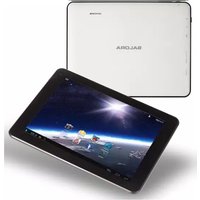
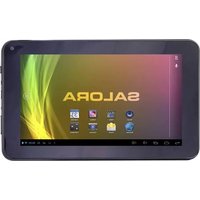
TAB8001 - Tablet SALORA - Free user manual and instructions
Find the device manual for free TAB8001 SALORA in PDF.


| Product Type | Touchscreen Tablet |
| Brand | Salora |
| Model | TAB8001 |
| Processor | BOXCHIP A10 1 GHz (Cortex A8) |
| RAM Memory | 512 MB DDR3 |
| Internal Storage | 4 GB (flash memory) |
| Expandable Storage | microSD up to 32 GB |
| Display | 8.0 inches TFT LCD capacitive, 800 x 600 pixels |
| Wi-Fi Connectivity | IEEE 802.11 b/g/n |
| Operating System | Android 4.0 |
| Camera | Front 0.3 MP |
| Speaker | 1 x 0.7 W |
| Microphone | Built-in |
| Headphone Jack | 3.5 mm |
| USB Interface | USB 2.0 OTG/Host |
| Card Reader | microSD |
| Power Supply | DC 5V, 2A AC adapter |
| Battery | Rechargeable Lithium-polymer |
| Music Playback Time | Approximately 5 hours |
| Video Playback Time | Approximately 2.5 hours |
| Web Surfing Time | Approximately 3.5 hours |
Frequently Asked Questions - TAB8001 SALORA
User questions about TAB8001 SALORA
0 question about this device. Answer the ones you know or ask your own.
Ask a new question about this device
Download the instructions for your Tablet in PDF format for free! Find your manual TAB8001 - SALORA and take your electronic device back in hand. On this page are published all the documents necessary for the use of your device. TAB8001 by SALORA.
USER MANUAL TAB8001 SALORA
MID-8106LCM 70g书纸, 135x102mm, 钉装, 荷兰语
SALORA
natural_image
Blank tablet device outline with rounded corners and a small circular mark at the top right corner (no text or symbols)GEBRUIKSAANWIJZING
TAB8001
Inhoud
In houd....1
Eigenschappen....2
Beschrijving....3
Aa n de slag 4 - 5
Betreffende applicaties....6
Specifications....11
Eigenschappen
Doorloop het Web.
Betreffende applicaties
Specifications
natural_image
Blank tablet device outline with rounded corners and a small circular mark at the top right corner (no text or symbols)MANUEL D'UTILISATION
TAB8001
SOMMAIRE
Sommaire....1
Applications
Spécifications
natural_image
Blank tablet device outline with rounded corners and a small circular mark at the top right corner (no text or symbols)USER'S MANUAL
TAB 8001
Table of Contents
Table of Contents.....P1
Features.....P2
Unit at a Glance ......P3
Getting Started.....P4-P5
About Applications.....P6
Connect to a Wi-Fi network.....P7-P8
Optional Connections.....P9-P10
Specifications.....P11
Features
Browse the Web.
Visit your favorite websites
Check your e-mail
Keep in touch with friends and family
Watch YouTube™ videos
Browse the world's most popular video-sharing community
Read your favorite books
Download thousands of books with the included E-book reader *
Discover thousands of apps for Android ^TM
Games, applications, and more with marketplace(need for customer installed)
Connect to the Internet wirelessly
High-speed Wi-Fi 802.11 b/g/n networking
Enjoy your media library anywhere
Portable powerhouse plays popular music, video, and photo formats
microSD memory card reader
Increase your storage capacity (up to 32 GB supported)
Built-in camera
Convenient front-facing camera
Automatic orientation detection
Read any way you want; the display adjusts automatically!
Reading books in the ePub format requires the included E-book reader application.
Unit at a Glance

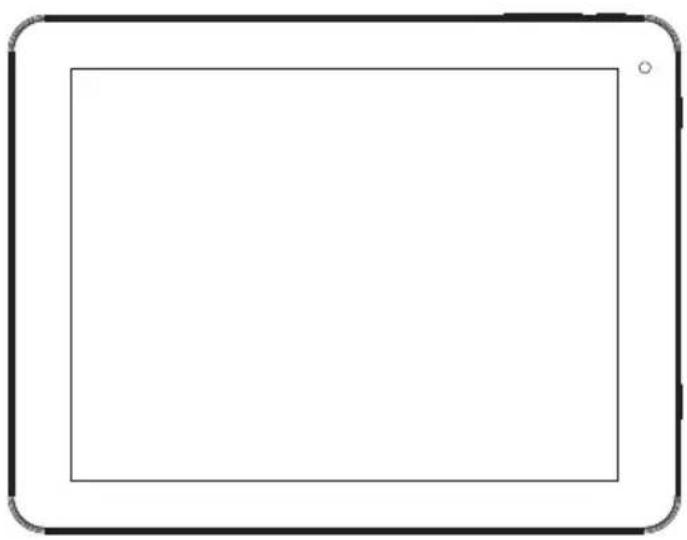
- VOL-/VOL+
Press VOL- to decrease the volume level.
Press VOL+ to increase the volume level.
- Back
Press to return to the previous screen. If the keyboard is on the screen, Press to close the keyboard.
- Power
Press to turn the unit on, or to turn the screen on or off.
Press and hold to access the Power Off menu.
- Headphone
Audio output connection for headphones.
- USB OTG AND HOST
Connect to a USB device or a computer to transfer data (e.g. music, videos, photos, files). Connect to a USB device
- DC IN
Charge and power the tablet with adapter.
- Reset
Reset the tablet.
- microSD
Load external microSD memory cards here.
- Camera
Use it to take pictures or capture videos.
Getting Started
Turning the Tablet on or off
To turn the tablet on:
Press and hold the Power key until the LCD screen turns on. Wait until the Home screen appears; the tablet is now ready for use.
To turn the tablet off:
Press and hold the Power key until the Device Options menu appears.
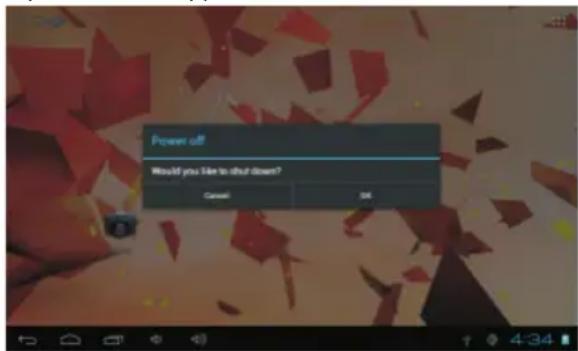
- Touch ok the screen to turn off the tablet.
Turning the Screen On or off (Standby)
When the tablet is on, you can turn off the screen to conserve battery power. Simply press the Power key once to turn the screen off. Press the Power key again to turn the screen back on.

To conserve battery power, the screen can let to turn off automatically when the tablet is in use (between
1 minute and 30 minutes).
This Screen timeout option can be found in the Display menu.
Getting Started
Unlocking the Screen
When the screen turns off, you will have to unlock the screen when you turn it back on. To unlock the screen, drag the lock icon across the screen towards the lock icon.

About Applications
To open an application, touch the application icon on the home screen or in the Launcher where you can tap theicon right up on the home screen to get in.
Launcher screen:

The screen shown above is for illustrative purposes only. Reserves the right to modify and improve the final list of applications available on the tablet.
About Applications
Preinstalled Applications
Some applications have been installed on your tablet for your convenience.
These applications include:

Browse the web.

Perform simple mathematical operations.

Take pictures or videos with the frontfacing camera.

Check your e-mail.

Play music.

Access the Settings menu to adjust the tablet's options.
Installing Applications
You can also download an install additional applications from the device's applications marketplace, the web browser, or other sources.
The tablet must be set to allow installation of applications from non-Market sources. The Unknown sources option can be set in the Application settings menu.
Connect to a Wi-Fi network
The Notification bar displays icons that indicate your tablet's Wi-Fi status.

Notification that an open Wi-Fi network is in range.

Connected to a Wi-Fi network (waves indicate connection strength).
[no icon] There are no Wi-Fi networks in range, or the Wi-Fi radio is off.
- Turn on the Wi-Fi radio if it is not already on. To turn on Wi-Fi: a.Go to the Home screen: Press the Home key. b.Open the Settings menu: tap the icon right up on the home screen to get into the launcher, then touch Settings icon. c.Open the Wireless & networks menu: Slide the icon to ON status.
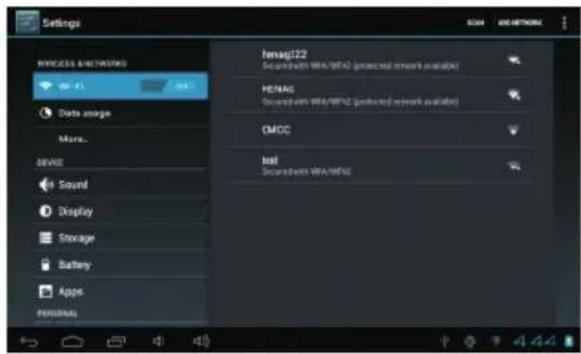
When Wi-Fi is on, the tablet will look for and display a list of available Wi-Fi networks.
If a network that you have connected to previously is found, the tablet will connect to it. If you don't see your network in the list, you can force the tablet to re-scan. To scan for networks, tap the Menu key, and then touch Scan.
Connect to a Wi-Fi network
- Select an available Wi-Fi network to connect to: In the same Wi-Fi settings menu above, touch a network in the list.
If the network is open, the tablet will prompt you to confirm connection to the network. Touch Connect to confirm.
If the network is secured (as indicated by a Lock icon), the tablet will prompt you to enter a password or other credentials. Touch the Wireless password box to show the on-screen keyboard and then use it to enter the password. Touch Connect to confirm.
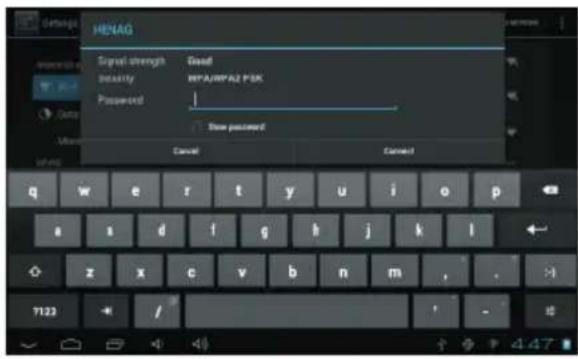
When you have successfully connected to a Wi-Fi network, the Notifications bar at the the low of the screen will show a Wi-Fi signal indicator.

To learn about how to add a Wi-Fi network when it is not in range or when the router is set to obscure the network name (SSID); or to configure advanced Wi-Fi options, please refer to the manual.
Optional Connections
Connecting to a Computer
Connect the tablet to a computer to transfer files.
- Connect your tablet to the computer. With the included USB cable: Plug the small end of the cable into the USB 2.0 high speed connector of the tablet. Plug the large end of the cable into an available USB 2.0 high speed port on the computer.

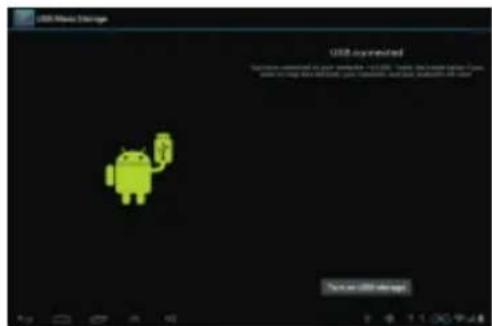
- When your tablet is connected, slide up the USB icon right down on the screen and then touch icon USB connected.

3. Mount the storage.
Touch button Turn on USB storage to mount the tablet's built-in storage. When it is mounted, you can copy files to or from your tablet.
Specifications
| Processor | BOXCHIP A13 1GHz(Cortex A8) |
| RAM | 512MB DDR3 |
| Storage | 4GB (toprobuilt-in; microSD card slot (max.32GB supported) |
| Display | 8.0"TFT LCD(800x600), Capactive touch screen |
| Wi-Fi Networking | IEEE 802.11 b/g/n |
| Audio Output | 3.5mm headphone |
| PC Interface | USB 2.0 high speed |
| Additional Features | Built-in microphone Front facing camera(0.3MP) 1x0.7W speaker |
| Operating System | Android^TM 4.0 |
| Power | Rechargeable Li-poly battery power Adapter(DC 5V,2A) |
| Playback Time (hours) | 5 hours music, 2.5 hours video, 3.5 hours web browsing |
Music was tested with a 128 kbps MP3 file; video was tested with a 1920x1080 MPEG-4/AVC file; browsing was tested with the screen brightness set to default. Actual playback results may vary.


- Inhoud
- Eigenschappen
- Betreffende applicaties
- SOMMAIRE
- Applications
- Table of Contents
- Features
- Unit at a Glance
- Getting Started
- Turning the Tablet on or off
- Turning the Screen On or off (Standby)
- Unlocking the Screen
- About Applications
- Preinstalled Applications
- Installing Applications
- Connect to a Wi-Fi network
- Optional Connections
- Connecting to a Computer
- Mount the storage.
Brand : SALORA
Model : TAB8001
Category : Tablet