LE32F2220 - TV HAIER - Free user manual and instructions
Find the device manual for free LE32F2220 HAIER in PDF.


User questions about LE32F2220 HAIER
0 question about this device. Answer the ones you know or ask your own.
Ask a new question about this device
Download the instructions for your TV in PDF format for free! Find your manual LE32F2220 - HAIER and take your electronic device back in hand. On this page are published all the documents necessary for the use of your device. LE32F2220 by HAIER.
USER MANUAL LE32F2220 HAIER
natural_image
Line drawing of a flat-screen monitor with blank screen area (no text or symbols)Contents
Safety and warnings....2-3
Introduction....4
Base.stand.assembly.... 5
Installation.... 6-9
Remote Control....10
Operation.... 11-13
Troubleshooting....14
Warranty....15
IMPORTANT SAFETY INSTRUCTION
1) Read these instructions.
2) Keep these instructions.
3) Heed all warnings.
4) Follow all instructions.
5) Do not use this Television near water.
6) Clean only with dry cloth.
7) Do not block any ventilation openings, install in accordance with the instructions.
8) Do not install near any heat sources such as radiations, heat registers, stoves, or other Television (including amplifiers) that produce heat.
9) Do not defeat the safety purpose of the polarized plug. If the provided plug does not fit into your outlet, consult an electrician for replacement of the obsolete outlet.
10) Protected the power cord from being walked on or pinched particularly at plugs, convenience receptacles, and the point where they exit from the Television.
11) Only use attachments/accessories specified by the manufacturer.
12) Unplug this Television during lighting storms or when unused for long periods of time.
13) Refer all servicing to qualified service personnel. Servicing is required when the Television has been damaged in any way, such as; power-supply cord or plug is damaged, liquid has been spilled or objects have fallen into the Television, the Television has been exposed to rain or moisture, does not operate normally, or has been dropped.
14) Mains plug is used as the disconnect device, the disconnect device shall remain readily operable.
15) The ventilation should not be impeded by covering the ventilation openings with items, such as newspapers, table-cloth, curtains, etc.
16) No naked flame sources, such as lighted candles, should be placed on the Television.
17) Attention should be drawn to the environmental aspects of battery disposal.
18) The use of Television in moderate climate.
19) The Television shall not be exposed to dripping or splashing and that no objects filled with liquids, such as vases, shall be placed on the Television.
text_image
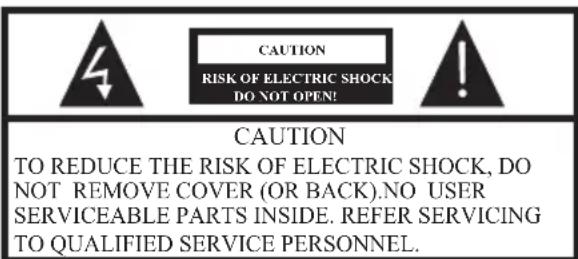
CAUTION RISK OF ELECTRIC SHOCK DO NOT OPEN! CAUTION TO REDUCE THE RISK OF ELECTRIC SHOCK, DO NOT REMOVE COVER (OR BACK).NO USER SERVICEABLE PARTS INSIDE. REFER SERVICING TO QUALIFIED SERVICE PERSONNEL.The symbol indicates that dangerous voltages constituting a risk of electric shock are present within this unit.
The symbol indicates that there are important operating and maintenance instructions in the literaturaccompanying this unit.
WARNING:
To reduce the risk of fire or electric shock, do not expose this Television to rain or moisture.
WARNING:
The batteries shall not be exposed to excessive heat such as sunshine, fire or the like.
WARNING:
The excessive sound pressure from earphones and headphones can cause hearing loss.

This symbol indicates that this product incorporates double insulation between hazardous mains voltage and user accessible parts. When servicing use only identical replacement parts.
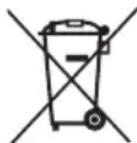

This marking indicates that this product should not be disposed with other household wastes throughout the EU. To prevent possible harm to the environment or human health from uncontrolled waste disposal, recycle it responsibly to promote the sustainable reuse of material resources. To return your used device, please use the return and collection systems or contact the retailer where the product was purchased. They can take this product for environmental safe recycling.
Haier is committed to safely recycling electronic products and product materials. Please check for a local recycling location in the United States at: 1800RECYCLING.COM or call 1.800.RECYCLING.
natural_image
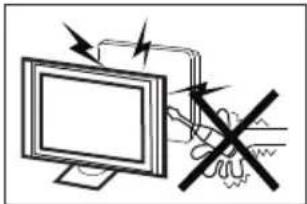
Illustration of a computer monitor with arrows indicating motion and a hand holding a device (no text or symbols present)High voltages are used in the operation of this television receiver. Do not open cabinet.
Refer servicing to qualified service personnel.

natural_image
Illustration of a monitor with a cross symbol crossed out, next to a curtain and falling rain (no text or symbols)To prevent fire or electrical shock hazard, do not expose the television receiver to rain or moisture.

natural_image
Simple line drawing of a computer monitor with a crossed X symbol and stars above (no text or labels)Do not drop or push objects into the television cabinet slots or openings. Never spill any kind of liquid on the television receiver.
natural_image
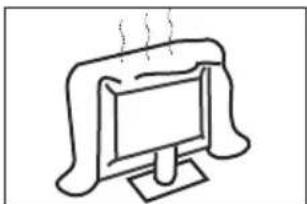
Simple line drawing of a computer monitor with a roof, emitting steam (no text or symbols)Do not block the ventilation holes on the back cover of the TV Adequate ventilation is essential to prevent failure of electrical components.

natural_image
Simple line drawing of a flat-screen monitor with a stand (no text or symbols)Do not trap the power supply cord under the television receiver s .' stand
text_image
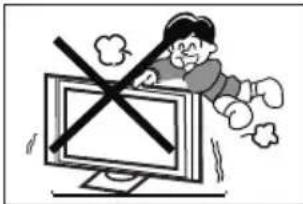
Cartoon illustration showing a person on a computer screen with a crossed-out X symbol, indicating no change or prohibition.Never stand on, lean on, or suddenly push the television or its stand. You should pay special attention to children. Serious injury may result if it falls.

natural_image
Simple line drawing of a geometric shape with crosshairs and a rectangular frame, no text or symbols present.Do not place your television on an unstable cart, stand, shelf or table. Serious injury to an individual and/or damage to the television may result if it falls.
natural_image
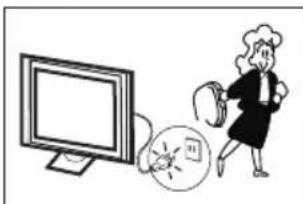
Illustration of a person running away from a computer screen next to a broken circular object (no text or symbols)When the television receiver is not used for an extended period of time, it is advisable to disconnect the AC power cord from the AC outlet.
natural_image
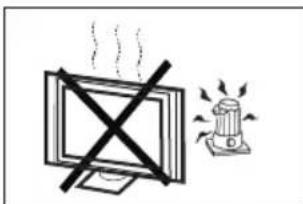
Simple line drawing of a monitor with a cross mark and a warning light (no text or symbols)Avoid exposing the television receiver to direct sunlight and other sources of heat. Do not stand the television receiver directly on other products which give off heat, e.g. video cassette players and audio amplifiers. Do not place naked flame sources, such as lighted candles on the television, or near

text_image
Minimum distances 10cm 20cm 10cm 5cmIf the television is to be built into a compartment or similar enclosure, the minimum distances must be maintained. Heat build-up can reduce the life of your television, and can also be dangerous.
Main features
■ Integrated ATSC TV tuner for HDTV broadcast reception
■ High brightness provides a vivid and brilliant picture
■ Deeper blacks and brighter whites with high contrast
■ Wide Screen aspect ratio (16:9) for a complete home theater experience
■ HDMI input for true digital connection
■ VGA port for connection to PC
■ Built-in stereo speaker system
■ Full-function Remote Control
Accessories
| Power cable...... | 1 |
| Infrared Remote Control...... | 1 |
| User's Manual ...... | 1 |
| Battery(AAA)...... 2 | |
Main parameter
| Viewing Picture Size (diagonal) | 32 inches | 39 inches |
| Resolution: | 1366 x 768 | 1920 x 1080 |
| Power supply | AC 100-240V 50/60Hz | |
| Power consumption | 50W | 70W |
| Audio Output Power (THD ≤7%): | 2x8W | |
| Aspect Ratio: | 16:9 | |
| TV System: | ATSC Digital system and NTSC Analog system | |
| Video Signal System: | NTSC | |
| Receiving Channel: | Cable :1-135/ Air: 2-69 (ATV&DTV) | |
| High-Definition Multimedia Interface (HDMI) Input | x 2 | |
| Component (Y Pb Pr) Input | x 1 Video | |
| Composite Video Input | x 1 | |
| Analog RGB (VGA) Input | x 1 | |
| Audio Input | x 2 | |
| Headphone Output | x 1 | |
| Coaxial Output | x 1 | |
| USB Input | x 1 | |
| Horizontal definition (TV line) Composite Video Input | >=350 | |
| Video Input >=400 | ||
| YCb(Pb)Cr(Pr) >=400 | ||
Base Stand Assembly Instruction
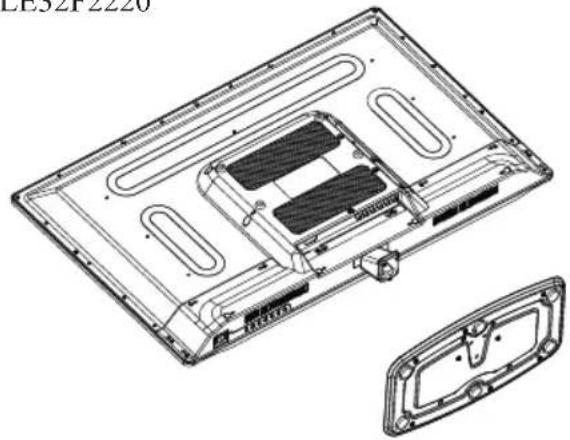
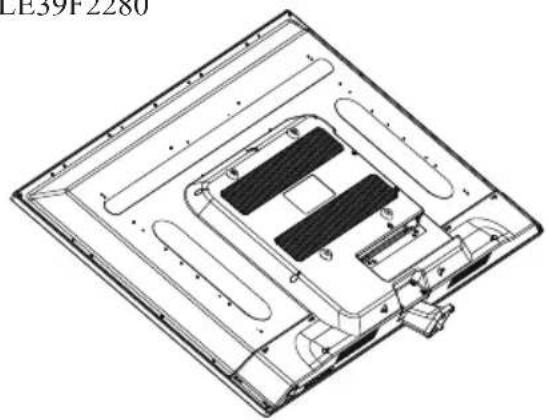
- Place the TV with the display side down on a flat surface. Use a cloth to protect the display. Position the base stand onto the bottom of the stand neck.
LE32F2220
natural_image
Technical line drawing of a device casing with internal components and an external housing (no text or symbols)LE39F2280
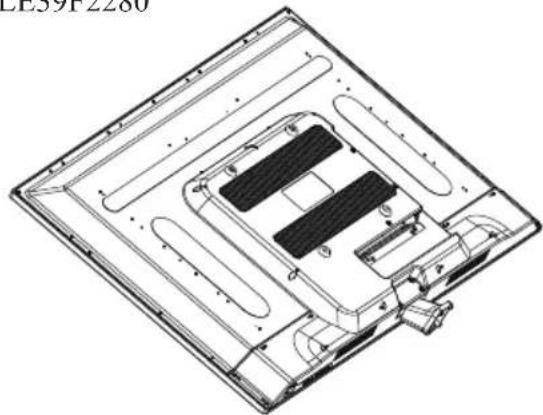
natural_image
Technical line drawing of a rectangular electronic device with internal components and mounting brackets (no text or symbols)- Attach the base stand to the stand neck firmly tightening the supplied screws.

natural_image
Technical line drawing of a device casing with internal components and mounting holes (no text or symbols)
natural_image
Technical line drawing of a computer monitor with internal components and mounting holes (no text or symbols)Note: This stand is not a swivel stand. Do not attempt to rotate the TV.
Front panel

text_image
Diagram showing a monitor with labeled components and a mobile phone icon, likely illustrating a remote control or navigation system.1: Remote control sensor.
2: Indicator LED: BLUE
POWER ON.
RED

STANDBY.
3: Panel keys
Side panel

text_image
Diagram showing a monitor connected to five labeled pins, with an arrow pointing to the pin structure.-
SOURCE: Display the input source menu.
-
MENU: Display main MENU.
-
CH+/CH-: In TV mode, press "CH+" or "CH-" to change the channel up and down. In MENU mode, press "CH+" or "CH-" to select items in standby mode, press "CH+" or "CH-" to turn on the TV.
-
VOL+/VOL-: Adjust sound level. In MENU mode, press "VOL+" or "VOL-" to adjust the item that you selected.
-
STANDBY: Press this button to turn the unit ON from STANDBY mode. Press it again to turn the set back to STANDBY.
REAR Connections

text_image
AC-INPUT 100-240V~50/60Hz COMPOSITE VIDEO L R Y COMPONENT Pb PrAll the terminals are (from left to right):
POWER SOCKET, VIDEO, AUDIO INPUT, YPbPr INPUT
Note: AV and component (YPbPr) share the R and L audio inputs.
SIDE Connections

text_image
HDMI1 HDMI2 USB VGA PC AUDIO HEADPHONE COAXIAL RFAll the terminals are (from left to right):
HDMI1, HDMI2, USB, VGA, PC AUDIO, HEADPHONE, COAXIAL, RF.
Note: 1. When HDMI has an input signal coming from a DVI source then the audio input signal must be connected to the PC audio input.
ANTENNA

text_image
Plug ANT 75Ω Adaptor (NOT SUPPLIED) TWIN-LEAD FEEDER(300Ω) An outdoor antenna An indoor antenna CATV net Loosen the screws Insert the feeder in Wires Tighten the screws Note: Aerial connections: IEC (female). Input impendance:75 Unbalanced.PC
STEPS:
Be sure both the TV and computer are powered off.
- Connect a VGA and audio cable.
- Connect the power cord.
3.Turn on the TV, switch to PC mode. - Turn on the PC.

text_image
HDMI HDMI USB VGA FC AUDIO HEADPHONE CANDAL RF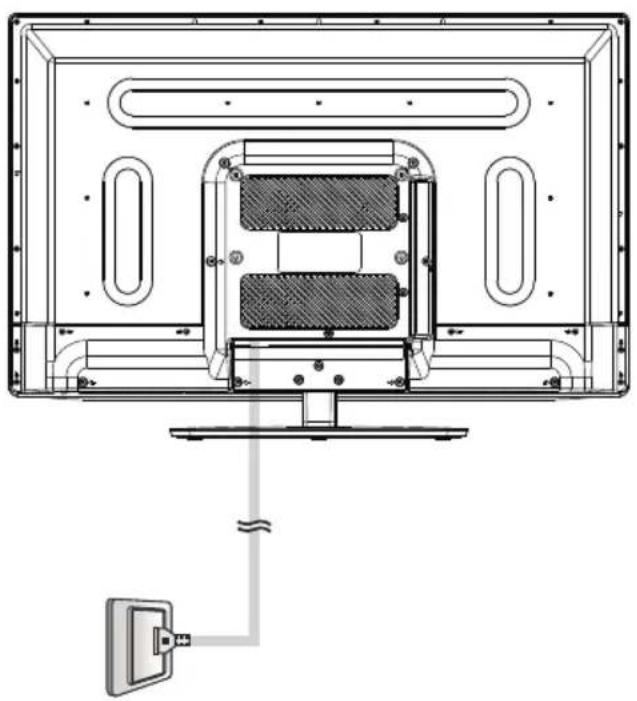
natural_image
Technical line drawing of a computer monitor with an attached power outlet (no text or symbols)PC
PRESET MODE
| RESOLUTION | V.Freq.(Hz) H.Freq.(KHz) | ||
| 1 | 720*400 | 70 | 31.47 |
| 2 | 640*480 | 60 | 31.47 |
| 3 | 640*480 | 75 | 37.50 |
| 4 | 800*600 | 60 | 37.88 |
| 5 | 800*600 | 75 | 46.88 |
| 6 | 1024*768 | 60 | 48.36 |
| 7 | 1024*768 | 70 | 56.48 |
| 8 | 1024*768 | 75 | 60.02 |
| 9 | 1280*1024 | 60 | 63.98 |
| 10 | 1280*1024 | 75 | 80.00 |
| 11 | 1366*768 | 60 | 67.50 |
AV EQUIPMENT
There are two HDMI ports located on the back of your TV. You can connect a Blu-ray player, DVD player, or other video equipment through these ports.
There is one component (Y, Pb, Pr) and one composite (AV) video input located on the back of your TV. You can connect a VCR, cable box, or other video equipment to these jacks.
Please see the diagram below. You may also need to refer to the owner's manual of the device that you are trying to connect.
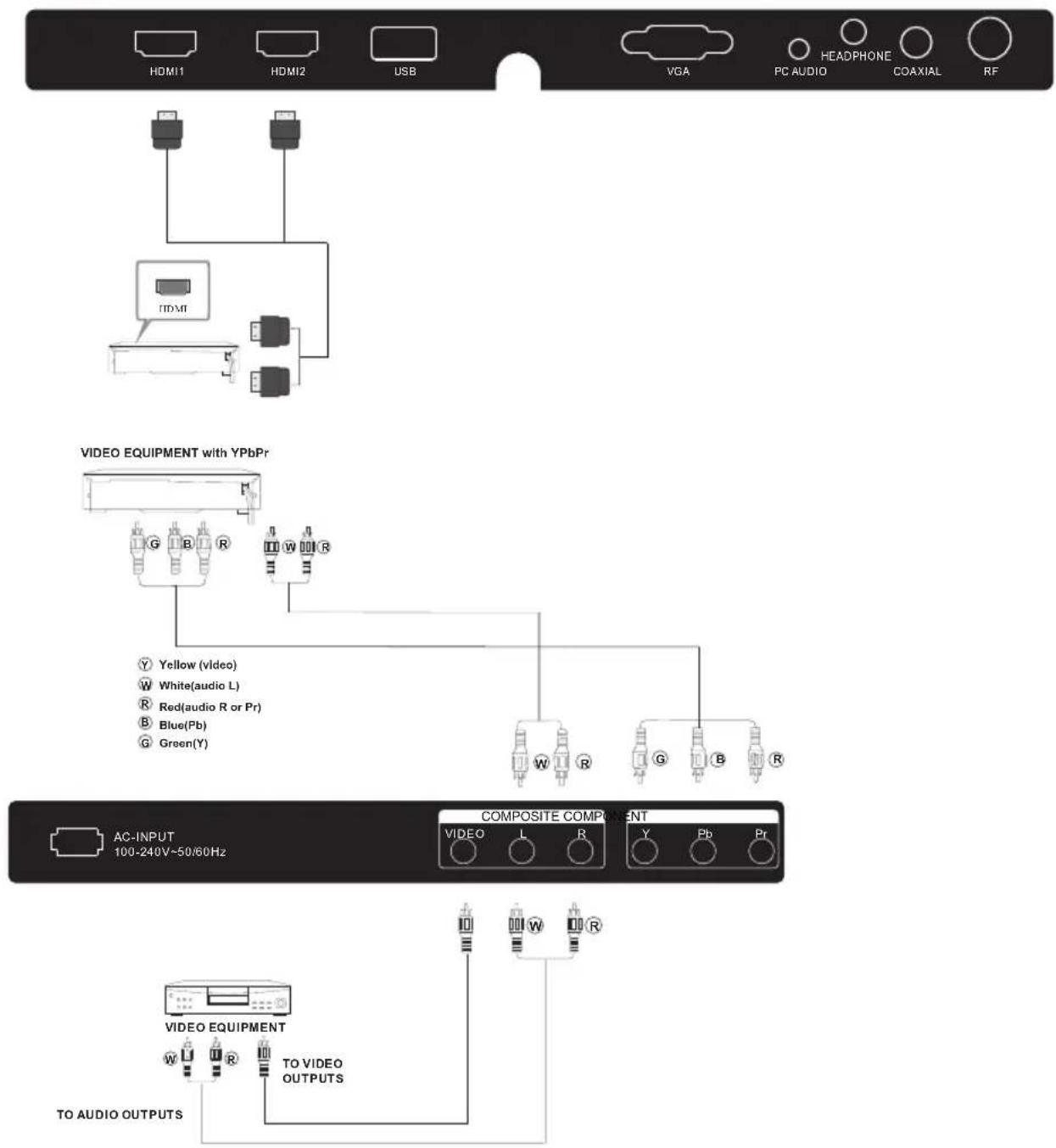
The television's inputs can be connected to the following types of equipment: VCR, multi disc player, DVD, camcorder, video game or stereo system, etc.....
YPbPr can support these video formats:480i,576i,480p,576p,720p,1080i.
text_image
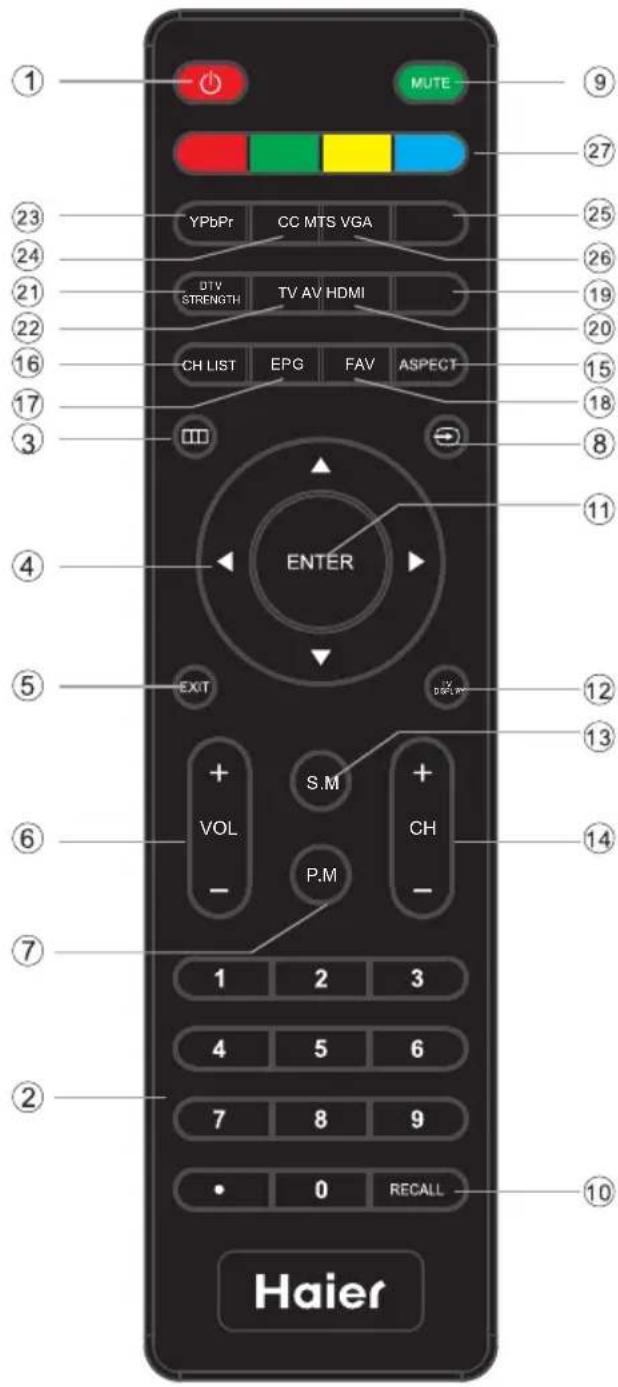
① MUTE ⑨ ②7 ②3 YPbPr CC MTS VGA ②5 ②4 21 DTV STRENGTH TV AV HDMI ②6 ②0 ②2 ⑯ CH LIST EPG FAV ASPECT ⑮ ⑭ ③ ④ ENTER ⑪ ⑤ EXIT ⑫ S.M ⑬ VOL CH ⑭ P.M ⑦ 1 2 3 4 5 6 ⑥ ⑦ 7 8 9 • 0 RECALL ⑩ Haier1: POWER
Press to power ON/OFF (standby) the TV.
2: NUMBÉR KEY
Press to enter the TV channel number and select a channel (Press " *" to choose the sub-channel).
3:
Press to display the on screen display (OSD) menu or return to the previous menu.
4: CURSOR
When the OSD menu is displayed on-screen, use these buttons as the up, down, left, right and ENTER buttons to adjust the various options in the OSD menu.
5: EXIT
Press to exit the OSD menu.
6: VOL+/-
Press VOL+ or VOL- to adjust the volume.
7: P.M
Press repeatedly to select a picture mode.
8:
Press to display or exit the TV input source menu.
9: MUTE
Press to switch the sound ON/OFF.
10: RECALL
Press to switch between the current and previously viewed channel.
11: ENTER
Press to confirm a selection.
12: TV DISPLAY
Press to show the information about the current input source.
13: S.M
Press repeatedly to switch audio modes.
14: CH+/CH-
Press CH+ or CH- to browse through the TV channels.
15: ASPECT
Press to change the picture aspect ratio.
16: CH LIST
To display the channel list. Press to display the channel list. In DVD mode, press to eject the disc.
17: EPG
Press to display the DTV Electronic Program Guide. In DVD mode, press to go to the previous chapter.
18: FAV
Press to display the favorite channels list. In DVD mode, press to go to the next chapter.
19: HDMI
Press to go directly to the HDMI input source.
20: AV
Press to go directly to the AV input source.
21: DTV STRENGTH
Press to display the DTV signal strength.
22: TV
Press to go directly to the TV input source.
23: YPbPr
Press hot key to go directly to the Component (YPbPr) input source.
24: CC
Press to turn on or off the closed captions.
25: VGA
Press hot key to go directly to the VGA input source.
26:MTS
Press to activate the NTSC TV sounds, such as Stereo, SAP or Mono tone, and audio languages of DTV.
27: COLOR KEYS
Reserved keys
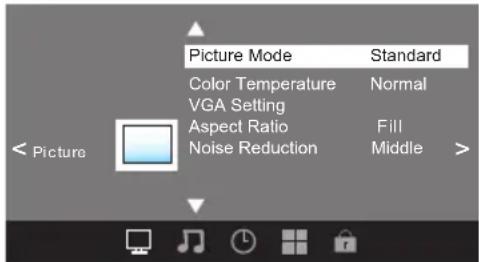
1. PICTURE MENU
In this menu, you can adjust the picture options here, such as contrast, brightness, etc.
Press ▼▲ to select, press OK to adjust.
text_image
Picture Mode Standard Color Temperature Normal VGA Setting Aspect Ratio Fill Noise Reduction Middle >< Picture >Note:
1) If you want to adjust contrast, brightness, color, and sharpness, the picture mode must be set to personal.
2) This will increase or decrease Warm (red) and Cool (blue) colors to suit your personal preference.
Select Cool to give the white colors a blue tint, Normal to give the white colors a neutral tint, Warm to give the white colors a red tint.
Standard mode is the default setting, if you select some other options, the power consumption may change.
1.1 Advanced
When a PC is connected, you can adjust the PC advanced settings.
1) H-Pos: Adjust the horizontal position of the screen.
2) V-Pos: Adjust the vertical position of the screen.
3) Clock: Fine tune the screen width.
4) Phase: Fine tune the phase of the screen. Usually you don't adjust this item.
5) Auto: Auto adjust to fit the screen.

text_image
Advanced H-Pos H-Pos Clock Phase Auto MENU2. AUDIO menu
In this menu, you can ajust the sound options here.
Press ▼▲to select, press OK to adjust.

text_image
Sound Mode Standard Audio Language English Digital Output PCM Surround Sound Off Audio Only Off Auto Volume Off < AudioNote:
1) Audio language is available in ATSC/TVmode only.
2) Auto volume is available only when the input signal volume is too large or there is distortion.
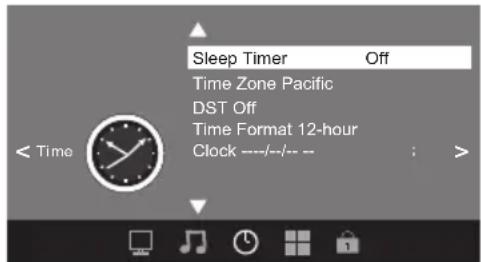
3. TIMER MENU
In this menu, you can adjust the sleep timer, time zone, etc. Press ▼▲ to select, press OK to adjust.
text_image
Sleep Timer Off Time Zone Pacific DST Off Time Format 12-hour Clock ---/---/--- : >< TimeNote:
1) Time zone, DST (Daylight Saving Time) and the clock are available in ATSC mode only, and the Clock can't be adjusted.
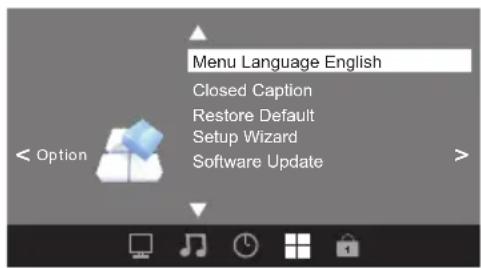
4. OPTION menu
In this menu, you can adjust the Menu language, Closed Caption, Restore Default etc.
Press ▼▲ to select, press OK to adjust.
text_image
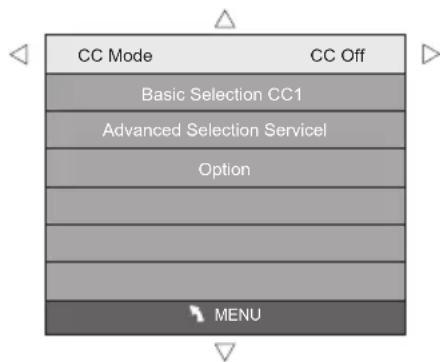
Menu Language English Closed Caption Restore Default Setup Wizard Software Update4.1 Closed Caption
text_image
CC Mode CC Off Basic Selection CC1 Advanced Selection Servicel Option MENU1). CC Mode: Switch the closed caption mode.
2). Advanced selection: only available in ATSC.
3). Option: Used to edit the CC font.
Note:
1). Restore Default: Restore Default will clear all the programs and reset all the settings to default value.
5. LOCK MENU
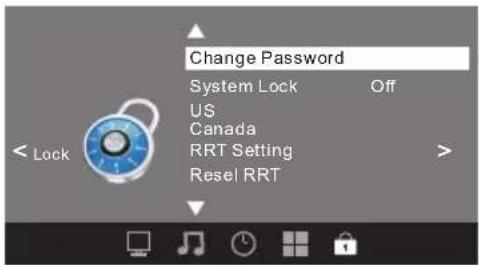
In this menu, you can change the password and adjust the vchip settings.
Enter the password, to enter the lock menu. The factory default password is 0000.
text_image
Change Password System Lock Off US Canada RRT Setting Reset RRT5.1 Change Password
1). Old password: Input the old password.
2). New password: Input the new password.
3). Confirm password: Input the new password again.
5.2 System Lock
When the System Lock switch is ON, the options listed below can be adjusted.
5.3 US
Press the OK button to display the following screen.

text_image
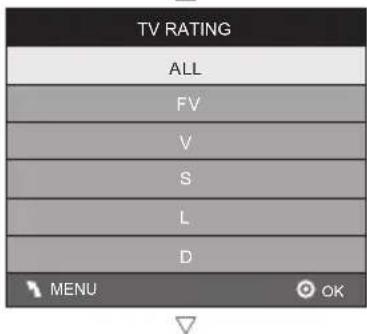
TV MPAA MENU OK1). TV: Press the OK button to display the following screen.
text_image
TV RATING ALL FV V S L D MENU OK| Rating Content | Content | |||||
| FV(Fantasy violence) | V(Violence) | S(Sexual situation) | L(Adult language) | D(Sexually suggestive dialog) | ||
| Suggested age | TV-Y (All children) | |||||
| TV-Y7(Direct to order children) | X | |||||
| TV-G(General audience) | ||||||
| TV-PG(Parental Guidance suggested) | X | X | X | X | ||
| TV-14(Parents strongly cautioned) | X | X | X | X | ||
| TV-MA(Mature audience only) | X | X | X | |||
And use the ENTER key to lock/unlock Parental Controls.
2). MPAA: Switching the movie-rating control level; N/A, G, PG, PG-13, R, NC-17, X.
| Rating | Description | |
| Age | G | General audiences, All Ages admitted |
| PG | Parental Guidance suggested. Some material may not be Suitable for children. | |
| PG-13 | Parents strongly cautioned. Some material .may be Inappropriate for children under 13. | |
| R | Restrict. Under 17 requires accompanying parent or adult guardian(age varies in some jurisdictions) | |
| NC-17 | No one 17 and under admitted. | |
| X | X is an older rating that is unified with NC-17 but may be encoded in the data of older movies. | |
5.4 Canada
Press the OK button, to display the following screen.

text_image
Canada Canada Eng Canada Fre MENU OK1). Canada English: Switching the English rating control level: EXEMPT, C, C8+, G, PG, 14+, 18+.
| Rating | Description | |
| Age | E | Exempt: Includes news, sports, documents and other information programming; talk shows, music videos, and variety programming. |
| C | Children: Intended for younger children under the age of 8 years. Pays careful attention to themes that could threaten their sense of security and well-being. | |
| C8+ | Children over 8 years old: Contains no portrayal of violence as the preferred, acceptable, or only way to resolve conflict; nor encourage children to imitate dangerous acts which they may see on the screen . | |
| G | General: Considered acceptable for all age groups, Appropriate viewing for the entire family, contains very little violence, physical, verbal or emotional. | |
| PG | Parental Guidance: Intended for a general audience, but may not be suitable for younger children (under the age of 8) because it could contain controversial themes or issues. | |
| 14+ | Over 14 Years: Could contain themes where violence is one of the dominant elements of the storyline But it must be integral to the development of plot or character. Language usage could be profane and nudity , present within the context of theme. | |
| 18+ | Adults: Intended for viewers 18 years and older and might contain depictions of violence, which while related to the development of plot, character or themes, are intended for adult viewing. Could contain graphic language and portrayals of secretary and nudity. | |
2). Canada French: Switching the French-rating control level: E, G, 8ANS+, 13 ANS+, 16ANS+, 18ANS+.
| Rating | Description | |
| Age | E | Exempt programming |
| G | General :All ages and children, contains minimal direct violence, but may be integrated into the plot in a humorous or unrealistic manner. | |
| 8ans- | General but inadvisable for young children :May be viewed by a wide public audience, but could contain scenes disturbing to children under 8 who cannot distinguish between imaginary and real situations. Recommended for viewing with paren. | |
| 13ans+ | Over 13 years: Could contain scenes of frequent violent scenes and in tense violence. | |
| 16ans+ | Over 16 years: Could contain frequent violent scenes and violence. | |
| 18ans+ | Over 18 years: Only for adult viewing. Could contain frequent violent scenes and extreme violence. | |
5.5 RRT setting
in ATSC digital TV mode, it can be adjusted
5.6 Reset RRT:
Press OK button, the screen will be displayed as follow:
6. Channel MENU
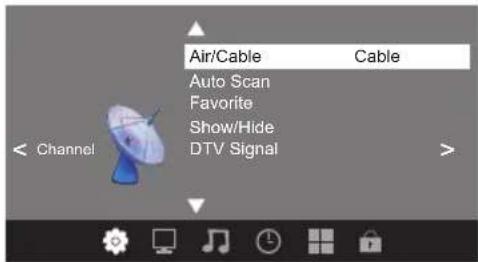
In this menu, you can adjust digital and analog TV Channels.
Press ▼▲to select, press OK to adjust.
text_image
Air/Cable Cable Auto Scan Favorite Show/Hide DTV Signal < Channel >6.1 Air/Cable:
Select Air TV signal and cable TV signal.
6.2 Auto Scan:
If it's the first time you use the TV, you should scan all the TV channels first.
Press the OK button to confirm, to display the following screen.

text_image
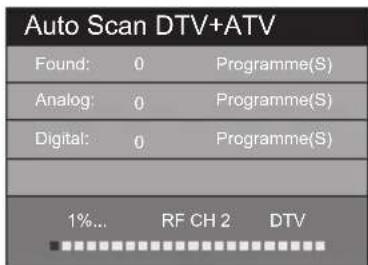
Auto Scan Scan all channels Digital channel only Analog channel only MENU OKPress the OK button to select a scan type, you will see the message below which indicates that the auto search is in progress.
text_image
Auto Scan DTV+ATV Found: 0 Programme(S) Analog: 0 Programme(S) Digital: 0 Programme(S) 1%... RF CH 2 DTV6.3 Favorite:
Press the OK button to choose/delete favorite channels.
6.4 Show/Hide
Press the OK button to display/ hide the current channel.
6.5 DTV signal
Display DTV strength signal. It can't be selected or adjusted.
| Trouble phenomenon Symptom | Inspection/ Check | |||
| Picture | Audio | |||
 | Snow | 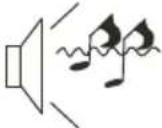 | Noise | antenna position, direction or connection |
 | Ghost | 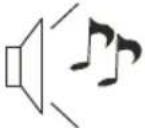 | Normal audio | antenna position, direction or connection |
 | Interference | 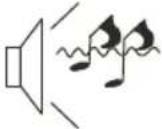 | Noise | microwave, electronic equipment, car/motorcycle, fluorescent light |
 | Normal Picture |  | Mute | Volume (check if mute is activated or if the audio system connections are not correct) |
 | No picture | 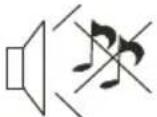 | Mute | Power cord is not inserted Contrast and brightness/volume setup Press standby key on the remote control |
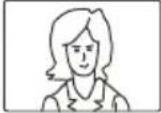 | No color | 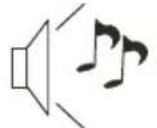 | Normal audio | Color control Component (Y Pb Pr) connections |
 | Picture breaking up | 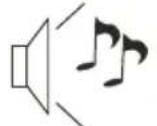 | Normal audio or weak | Retune channel |
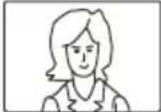 | No color |  | Noise | TV system |
The LCD TV panel is built with very high precision technology giving you fine picture details in vibrant color. Occasionally, a few non-active pixels may appear on the screen as a fixed point of red, green, blue, black or white. Please note this does not affect the performance of the product.
Warranty
This Haier brand product, when shipped in its original container, will be free from defective workmanship and materials, and agrees that it will, at its option, either repair the defect or replace the defective product with a new or re-manufactured equivalent, for parts or labor for the periods set forth below:
This warranty does not apply to the appearance of the product or the exterior of the product, which has been damaged or defaced, altered or modified in design or construction. It does not apply to the additional excluded items set forth below:
The warranty commences on the date the item was purchased and the original purchase receipt must be presented to the authorized service center before warranty repairs are rendered.
The limited warranty described herein is in addition to whatever implied warranties may be granted to purchasers by law. ALL IMPLIED WARRANTIES INCLUDING THE WARRANTIES OF MERCHANTABILITY AND FITNESS FOR USE ARE LIMITED TO THE PERIOD(s) FROM THE DATE OF PURCHASE SET FORTH BELOW. Some states do not allow limitations on how long an implied warranty lasts, so the above limitation may not apply to you.
Neither the sales personnel of the seller nor any other person is authorized to make any warranties other than those described herein, or to extend the duration of any warranties beyond the time period described herein on behalf of Haier.
The warranties described herein shall be the sole and exclusive warranties granted by Haier and shall be the sole and exclusive remedy available to the purchaser. Correction of defects in the manner and for the period of time described herein, shall constitute complete fulfillment of all abilities and
Responsibility of Haier to the purchaser with respect to the product, and shall constitute full satisfaction of all claims, whether based on contract, negligence, strict duality or otherwise. In no event shall Haier be liable, or in any way responsible for any damages or defects in the product which were caused by repairs or attempted repairs performed by anyone other than an authorized service center or dealer; nor shall Haier be liable, or in any way responsible for incidental or consequential economic or property damage. Some states do not allow the exclusion of incidental or consequential damages, so that above exclusion may not apply to you.
THIS WARRANTY GIVES YOU SPECIFIC LEGAL RIGHTS. YOU MAY ALSO HAVE OTHER RIGHTS WHICH VARY FROM STATE TO STATE.
Warranty period for this product is one year parts and labor. Additional items excluded from warranty coverage: non-rechargeable batteries. What to do to obtain service or to obtain product literature, accessories, supplies or customer assistance: Simply call 1-877-337-3639. Be sure to have proof of purchase.
Sommaire
Installation.... 6-9
Télécommande.... 10
natural_image
Illustration of a computer monitor with arrows indicating signal flow and a crossed-out hand symbol (no text or labels)natural_image
Simple line drawing of a monitor with a cross mark and a cloth, no text or symbols presentnatural_image
Simple line drawing of a computer monitor with a crossed X symbol and stars above (no text or labels)natural_image
Simple line drawing of a computer monitor with steam rising from its top (no text or symbols)natural_image
Simple line drawing of a flat-screen monitor with a cross mark on the stand (no text or symbols)text_image
Cartoon warning sign with crossed-out X and downward arrow, depicting a person falling off a computer screennatural_image
Simple line drawing of a geometric shape with crosshairs and a rectangular frame, no text or symbols presentnatural_image
Illustration of a person running away from a computer screen next to a circular object with a small symbol (no text or labels)natural_image
Simple line drawing of a monitor with a cross symbol and a warning light icon (no text or symbols)natural_image
Technical line drawing of a device rear panel with internal components and a separate view showing internal structure (no text or symbols)LE39F2280
natural_image
Technical line drawing of a rectangular electronic device with internal components and mounting brackets (no text or symbols)natural_image
Technical line drawing of a device casing with internal components and mounting holes (no text or symbols)
natural_image
Technical line drawing of a computer monitor with internal components and mounting holes (no text or symbols)text_image
Diagram showing a monitor with labeled components and a mobile phone, illustrating the concept of viewing or application.text_image
Diagram showing a monitor connected to five labeled pins, with an arrow pointing to the pin structure.- SOURCE :
CONNECTEUR D'ALIMENTATION, CONNECTEURS VIDEO,
CONNECTEUR D'ENTREE AUDIO, CONNECTEURS VIDEO YPbPr
natural_image
Technical line drawing of a computer monitor with an attached wall-mounted power outlet (no text or symbols)Ordinateur
RESOLUTIONS DISPONIBLES
| Résolution : | Fréq. V. (Hz) | Fréq. H. (KHz) | |
| 1 | 720*400 | 70 | 31.47 |
| 2 | 640*480 | 60 | 31.47 |
| 3 | 640*480 | 75 | 37.50 |
| 4 | 800*600 | 60 | 37.88 |
| 5 | 800*600 | 75 | 46.88 |
| 6 | 1024*768 | 60 | 48.36 |
| 7 | 1024*768 | 70 | 56.48 |
| 8 | 1024*768 | 75 | 60.02 |
| 9 | 1280*1024 | 60 | 63.98 |
| 10 | 1280*1024 | 75 | 80.00 |
| 11 | 1366*768 | 60 | 67.50 |
EQUIPEMENT AV
text_image
Sound Mode Audio Language Digital Output Surround Sound Audio Only Auto Volume Standard English PCM Off Off < Audio >Remarque :
text_image
Change Password System Lock Off US Canada RRT Setting Reset RRTtext_image
US TV MPAA MENU OKtext_image
TV RATING ALL FV V S L D MENU OKtext_image
Canada Canada Eng Canada Fre MENU OKtext_image
Air/Cable Cable Auto Scan Favorite Show/Hide DTV Signal < Channel >6.1 Air/câble :
text_image
Auto Scan Scan all channels Digital channel only Analog channel only MENU OKnatural_image
Illustration of a computer monitor with arrows indicating motion and a hand holding a device (no text or symbols present)natural_image
Illustration of a monitor with a cross symbol crossed out, next to a cloth and paper (no text or symbols)natural_image
Simple line drawing of a computer monitor with a crossed X symbol and stars (no text or labels)natural_image
Simple line drawing of a computer monitor with a roof, emitting steam (no text or symbols)natural_image
Simple line drawing of a flat-screen monitor with a stand (no text or symbols)text_image
Cartoon illustration showing a person on a computer screen with a crossed-out 'No' symbol, indicating no change or absence of any other items.natural_image
Simple line drawing of a geometric shape with crosshairs and a rectangular frame, no text or symbols present.natural_image
Illustration of a person reacting to a computer screen with a magnifying glass (no text or symbols present)text_image
Warning symbol with crossed-out monitor and warning light icon, indicating no text or symbolsnatural_image
Technical line drawing of a device casing with internal components and an external housing (no text or symbols)LE39F2280

natural_image
Technical line drawing of a device casing with internal components and mounting brackets (no text or symbols)natural_image
Technical line drawing of a device casing with internal components and mounting holes (no text or symbols)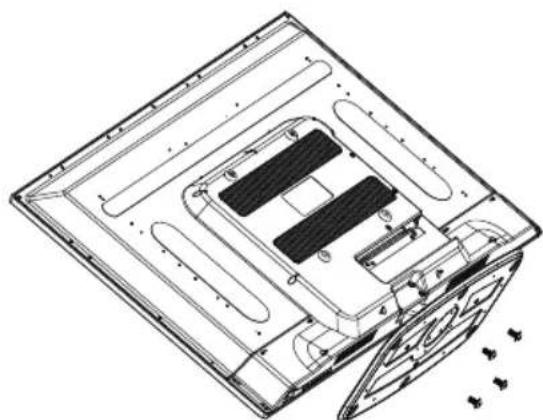
natural_image
Technical line drawing of a computer monitor with internal components and mounting holes (no text or symbols)text_image
Diagram showing a monitor setup with labeled components and a circular display, likely illustrating a TV or remote control system.text_image
Diagram showing a monitor connected to five labeled pins, with an arrow pointing to the pin structure.- SOURCE:
HDMI1, HDMI2, USB, VGA, AUDIFONOS, HEADPHONE, COAXIAL, RF
Nota:
natural_image
Technical line drawing of a computer monitor with an attached wall-mounted power outlet (no text or symbols)PC
MODO PROGRAMADO
| RESOLUCIÓN | Frecuencia Vertical (Hz) | Frecuencia Horizontal (KHz) | |
| 1 | 720*400 | 70 | 31.47 |
| 2 | 640*480 | 60 | 31.47 |
| 3 | 640*480 | 75 | 37.50 |
| 4 | 800*600 | 60 | 37.88 |
| 5 | 800*600 | 75 | 46.88 |
| 6 | 1024*768 | 60 | 48.36 |
| 7 | 1024*768 | 70 | 56.48 |
| 8 | 1024*768 | 75 | 60.02 |
| 9 | 1280*1024 | 60 | 63.98 |
| 10 | 1280*1024 | 75 | 80.00 |
| 11 | 1366*768 | 60 | 67.50 |
EQUIPAMIENTO DE AV
text_image
Picture Mode Standard Color Temperature Normal VGA Setting Aspect Ratio Fill Noise Reduction Middle < Picture >Nota:
text_image
Sound Mode Standard Audio Language English Digital Output PCM Surround Sound Off Audio Only Off Auto Volume Off < Audio >Nota:
text_image
Menu Language English Closed Caption Restore Default Setup Wizard Software Updatetext_image
Change Password System Lock Off US Canada RRT Setting Reset RRTtext_image
US TV MPAA MENU OKtext_image
TV RATING ALL FV V S L D MENU OKtext_image
Canada Canada Eng Canada Fre MENU OKtext_image
Air/Cable Cable Auto Scan Favorite Show/Hide DTV Signal < Channel >6.1 Aire/Cable:
text_image
Auto Scan Scan all channels Digital channel only Analog channel only MENU OK©2012 Haier America Trading, LLC.