
AC150 - Camcorder HP - Free user manual and instructions
Find the device manual for free AC150 HP in PDF.


| Product Type | Action Camcorder |
| Dimensions | 53 x 41 x 34 mm |
| Weight | 58 g |
| Power Supply | 3.7V 600mAh Li-ion battery (rechargeable via USB 5V) |
| Sensor | 5 MP CMOS |
| Lens | 142° wide-angle |
| Digital Zoom | Up to 4x (photo mode only) |
| Video Resolution | FHD 1080p (30 fps), HD 720p (30/60 fps), VGA 640x480 (30 fps) |
| Photo Resolution | Up to 14 MP (interpolated), native 5 MP (4352x3264) |
| Display | 1.5" TFT LCD (38 mm) |
| Microphone | Mono, 48 kHz |
| Recording Format | AVI (HPIM *.AVI) |
| Storage Media | MicroSD/SDHC up to 32 GB (Class 6 or higher) |
| Connectivity | USB 2.0, HDMI 1.2, AV output |
| Waterproof Case Included | Yes, for underwater use |
| Scene Modes | Auto, Sports, Portrait, Landscape, Snow, Beach, Fireworks |
| Cleaning Instructions | Wipe with a slightly damp soft cloth; avoid abrasives |
| Safety & Handling | Do not disassemble; use only recommended accessories; avoid liquids |
| Operating Temperature | 10°C to 50°C (storage: -10°C to 50°C) |
| Battery Charging Temperature | 0°C to 40°C |
Frequently Asked Questions - AC150 HP
User questions about AC150 HP
0 question about this device. Answer the ones you know or ask your own.
Ask a new question about this device
Download the instructions for your Camcorder in PDF format for free! Find your manual AC150 - HP and take your electronic device back in hand. On this page are published all the documents necessary for the use of your device. AC150 by HP.
USER MANUAL AC150 HP
This manual is designed to demonstrate the features of your HP Action Camcorder AC150. All information presented is as accurate as possible but is subject to change without notice.
HP shall not be liable for technical or editorial errors or omissions contained herein.
For the latest reversion, visit www.hp.com/support.
Copyright
This manual contains proprietary information protected by copyright. All rights are reserved. No part of this manual may be reproduced by any mechanical, electronic or other means, in any form, without prior written permission of the manufacturer. © Copyright 2013
Federal Communications Commission notice
This equipment has been tested and found to comply with the limits for a Class B digital device, pursuant to Part 15 of the FCC Rules. These limits are designed to provide reasonable protection against harmful interference in a residential installation. This equipment generates, uses, and can radiate radio frequency energy and, if not installed and used in accordance with the instructions, may cause harmful interference to radio communications. However, there is no guarantee that interference will not occur in a particular installation.
If this equipment does cause harmful interference to radio or television reception, which can be determined by turning the equipment off and on, the user is encouraged to try to correct the interference by one or more of the following measures:
• Reorient or relocate the receiving antenna.
- Increase the separation between the equipment and receiver.
- Connect the equipment to an outlet on a circuit different from that to which the receiver is connected.
- Consult the dealer or an experienced radio or television technician for help.
Modifications:
The FCC requires the user to be notified that any changes or modifications made to this device that are not expressly approved by HP may void the user's authority to operate the equipment.
Trademark Recognition
Windows XP/Vista/Windows 7/Windows 8 are registered trademarks of Microsoft Corporation in the United States and/or other countries. Macintosh and Mac OS are registered trademarks of Apple Inc. In addition, all other companies or product names are trademarks or registered trademarks of their respective companies.
Safety and Handling Precautions
WARNING:
Follow these instructions to prevent damage to the camcorder:
- DO NOT USE UNPROTECTED/OUTSIDE THE WATERPROOF CASE IN RAIN OR WATER. PREVENT CONTACT WITH ANY KIND OF LIQUIDS
• USE RECOMMENDED ACCESSORIES ONLY - DO NOT DISASSEMBLE OR ATTEMPT REPAIRS ON YOUR OWN. DISASSEMBLING THE CAMCORDER MAY VOID THE WARRANTY
• THERE ARE NO PARTS OR COMPONENTS INSIDE THAT NEED TO BE MAINTAINED
• REPAIRS WILL BE MADE BY AUTHORIZED SERVICE CENTERS ONLY - Do not touch the camcorder lens
- Do not use abrasive chemicals, cleaning solvents or strong detergents to clean the product. Wipe the product with a clean slightly damp soft cloth.
• WARNING LI-ION BATTERY
- CAUTION Danger of explosion if battery is incorrectly replaced.
- Replace only with the same or equivalent type. Batteries (battery pack or batteries installed) shall not be exposed to excessive heat such as sunshine, fire, or the like.
- IMPROPER INSTALLATION OR USE OF THE BATTERY MAY CAUSE EXPLOSION, FIRE AND SMOKE INCLUDING DAMAGE TO THE CAMCORDER. IT MAY ALSO REDUCE BATTERY PERFORMANCE.
- NEVER CHARGE A DAMAGED LI-ION BATTERY PACK.
- STOP CHARGING IF THE LI-ION BATTERY PACK IF DEFORMED (BULGING).
- CHARGE AND STORE THE BATTERY PACK AT A TEMPERATURE BETWEEN 0°C TO 40°C - AVOID A TEMPERATURE HIGHER THAN 60°C WHEN DISCHARGING.
- DO NOT ALLOW THE BATTERY TO SHORT OUT. DO NOT CARRY THE UNPROTECTED BATTERY IN YOUR POCKET WITH COINS OR OTHER METAL OBJECTS. RISK OF EXPLOSION AND FIRE!
- Storing the battery for a long period of time while it is charged may cause deterioration of battery life. If you plan to store the battery for a long period of time, it is recommended to nearly use its charge.
- Dispose of used battery according to the recycle instructions.
- ATTENTION!
- ELECTROSTATIC DISCHARGE OR STRONG ELECTROMAGNETIC FIELDS CAN AFFECT THE CAMCORDER. RESTART THE CAMCORDER IN THIS CASE. THE RATING LABEL WAS LOCATDE AT THE BOTTOM OF ACTION CAMCORDER.
Terms and Definitions
| Term Definition | |
| AWB | Auto White Balance-the camcorder attempts to determine the color temperature of the light and automatically adjust for that color temperature variability. |
| Compression | The process of encoding information using fewer bits cf. video, image or sound file compression. |
| Exif/JPEG | A compressed file format for digital cameras in which the images are compressed using the baseline JPEG standard, described in ISO 12234-2, and metadata and thumbnail images are stored using TIFF tags within an application segment at the beginning of the JPEG file. |
| Exposure Index | A numerical value that is inversely proportional to the exposure provided to an image sensor to obtain an image. Images obtained from a camera using a range of exposure index values will normally provide a range of image quality levels. |
| FHD | Full High Definition. This implies 1080p video resolution. |
| fps | Frames per second |
| HD | High Definition. This implies 720p video resolution. |
| HDMI | High Definition Multimedia Interface – Common connection to HD TVs |
| ISO Speed | A numerical value calculated from the exposure provided at the focal plane of an electronic camera to produce specified camera output signal characteristics using the methods described in the referenced standard. The ISO speed should correlate with the highest exposure index value that provides peak image quality for normal scenes. |
| JPEG | Joint Photographic Experts Group. An image compression method defined in ISO/IEC 10918-1. |
| LED | Light Emitting Diode |
| OSD | On Screen Display – Usually a reference to the user interface of the camcorder or camera. |
| USB | Universal Serial Bus. A digital interface for connecting up to 64 devices in a tiered-star topology. See http://www.usb.org. |
| VGA | Video Graphics Array. This is associated with 640 x 480 resolution and is often call “standard definition” |
| White Balance | The adjustment of electronic still picture color channel gains or image processing so that radiation with relative spectral power distribution equal to that of the scene illumination source is rendered as a visual neutral. |
PACKAGE CONTENTS

natural_image
Line drawing of a digital camera with lens and control buttons (no text or symbols)HP Action Camcorder ac150

Warranty Flyer
natural_image
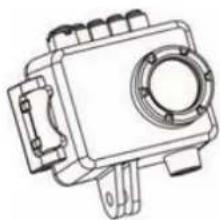
Technical line drawing of a mechanical component with no visible text or symbolsWaterproof Case
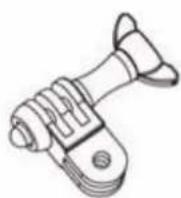
Short Connector Long Connector


natural_image
Technical line drawing of a mechanical device with no visible text or symbolsQuick Release Mount

Battery

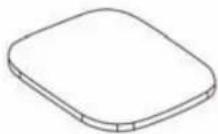
Handlebar Mount 2 x Adhesive Pad Mounts


Helmet Mount
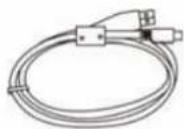
USB Cable
Preparation
Do not remove the micro SD Card while recording or saving. Do not switch off or remove the battery before the recording has been stopped or as long as there is access to the memory.
- Protect the unit from extreme temperatures. Stop recording at temperatures less than minus 10^ C and higher than 50^ C.
- HP assumes no liability for accidents, damages or failures which result from improper use of the camcorder.
Insert and Charge the Battery
Push and slide the battery lock compartments away from the lens to remove the cover.

natural_image
Diagram of a device with a yellow arrow pointing to a circular component, no text or symbols presentInsert the battery into the battery compartment as illustrated below:

Note: Use the original battery. Batteries of other suppliers may have different polarities and cause damage to the battery and camcorder!

- Charge the battery before using the camcorder for the first time.
- Connect the USB cable to the camcorder and a standard USB AC adapter (not included) or PC/Laptop computer.
Insert the MicroSD Memory Card
-
Power off the camcorder to insert the memory card.
-
Insert the MicroSD/SDHC card into the memory card slot.
-
Push the memory card into the memory slot until it clicks into position. If the card does not click into place, repeat to ensure proper positioning.

natural_image
Line drawing of a rectangular electronic device with a square top and mechanical components (no text or symbols)Note: Inserting the memory card while powered on may damage the card and camcorder. Only class 6 or above (High Speed) MicroSD/SDHC memory cards up to 32GB can be used with the HD video recording feature of this camcorder. Verify the card's specifications. Not all MicroSD/SDHC memory cards are compatible with this camcorder.
Remove the Memory Card
-
Power off the camcamcorder before proceeding
-
Gently push the card until it clicks and pops out of position.
-
Carefully remove the card.
Note: Removing the memory card while powered on may damage the card and camcorder.
Camcorder Overview
Note: The LCD screen may have a single or few dark or light dots in the image. This is not a defect and does not have an impact to the recorded video or photo!

Note: The buttons of the camcorder have more than one function. Functions are noted on the drawings.
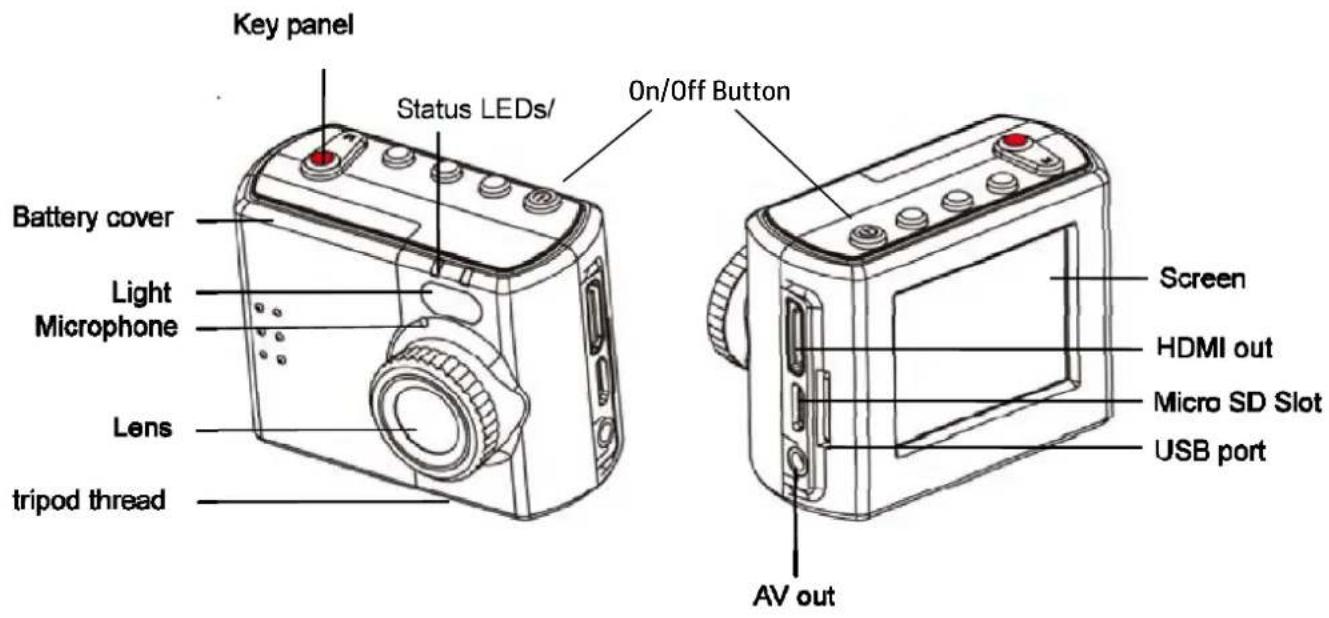
Power the Camcorder On and Off
Note: Never remove the microSD memory card or battery during recording. Doing so may cause the permanent loss of ALL video and photos from the memory card.
LCD Screen Overview
Power On
Press the power button. The camcorder enters the video recording live view mode.
Power Off
Press and hold the power button until the camcorder shuts down.
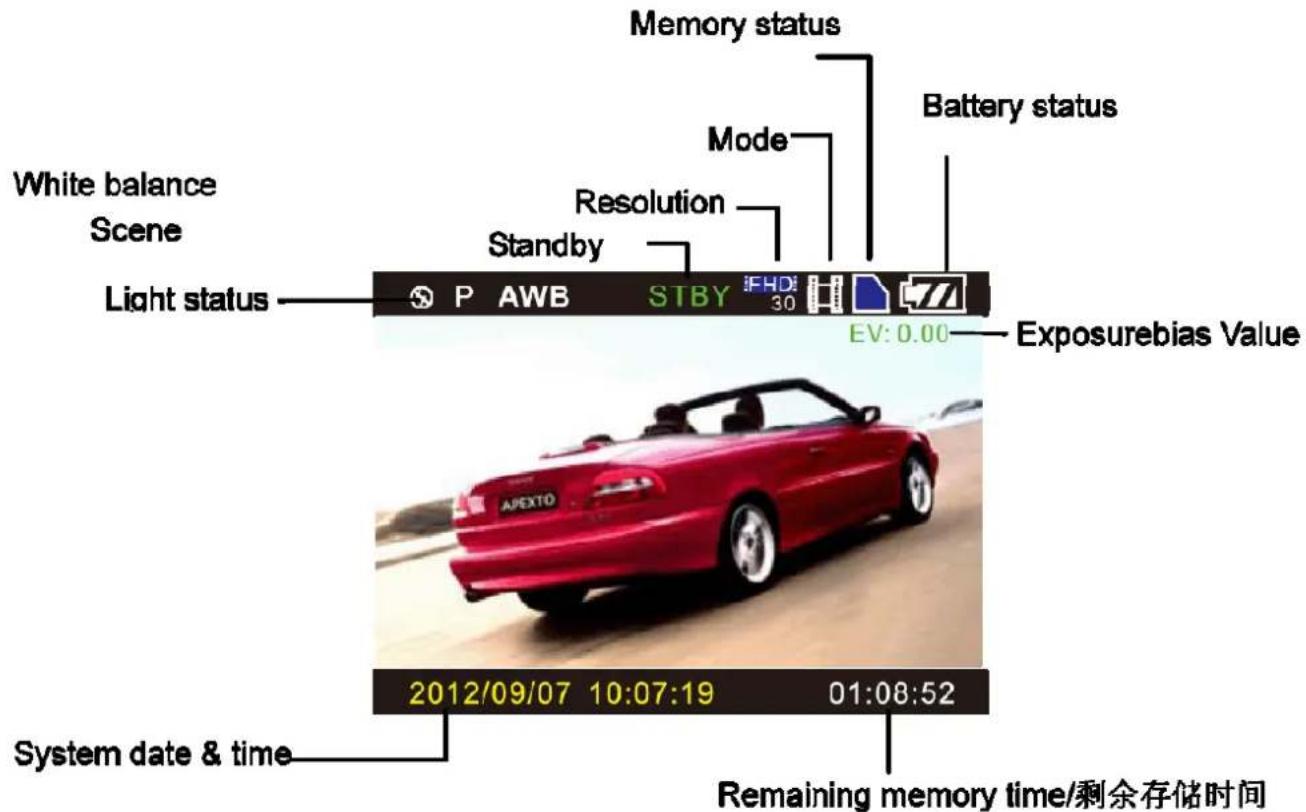
Note: Different screen icons appear for the video recording or photo mode. The screen shows video recording live view mode 📄.
Basic Operations
-
Inserted the microSD memory card before the initial power up of the HP Action Camcorder ac150.
-
Set the date and time. Use the button to increase and the button to reduce the value of the category. Once you have the correct value displayed, press the button to select the value and move to the next category. Once the date and time are adjusted, the OK button is highlighted. Press the button to finalize the date and time settings and exit the menu and enter live view mode for video recording.
Note: Press the ⬤ to find the film strip icon 📋 to play back video, or the camera icon 📋 to review photos or the film strip ▪ representing live view mode or the camera □ representing photo live view mode.
Video mode
The camcorder turns on in live view mode and is ready to record video. Press 📷 to begin recording. Press the button again to stop.
Photo mode
Press the mode ⏻ button to switch from ‘live view mode to photo live view mode. The button zooms in and the ▶ button zooms out. To take a photo, compose your subject and press the button. The captured photo briefly displayed on the screen before returning to photo live view mode.
View Recorded Video and Photos
From live view mode, press the ⏻ button twice to enter the playback mode. The screen demonstrates the view in video playback mode:
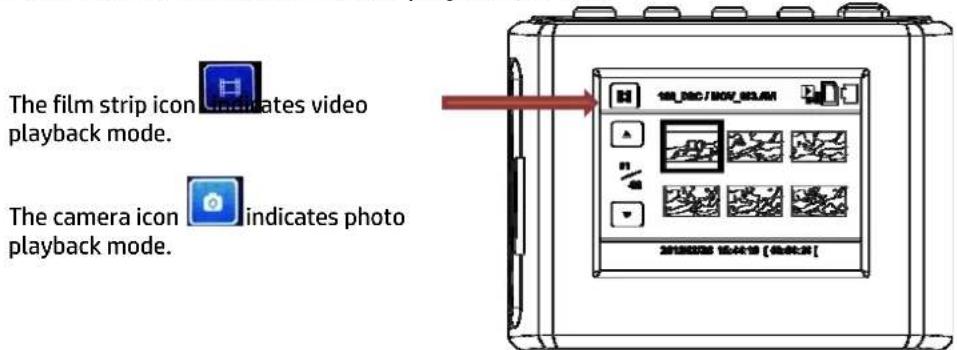
Use the ◀ and ▶ buttons to navigate to the desired video/photo and press the ● button to select.
- Select your video. Press the button to pause and press again to resume the video playback. During video playback, press the to fast forward or the rewind. Each press of these buttons increases the speed of the playback up to 8X. Press the button to exit fast forward or rewind mode.
- If the selection is a photo, a camera image is displayed. Use the ◀ and buttons to view the previous or next photo. Press the ● button to exit back to the photo playback menu.
Delete Recorded Video and Photos
In playback mode, press the MENU button to display the delete option:
Note: the Delete icon is highlighted with a yellow border indicating the selection.
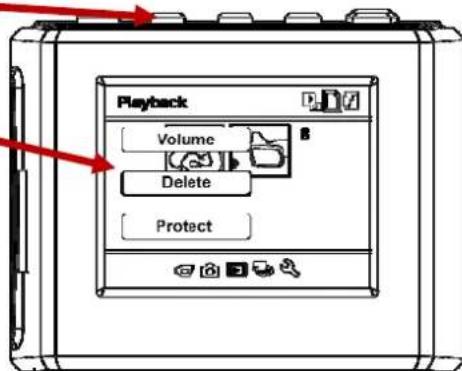
Press the button to display the delete submenu as show below. Use the or button to navigate to the desired selection. Press the button to proceed.


Delete One
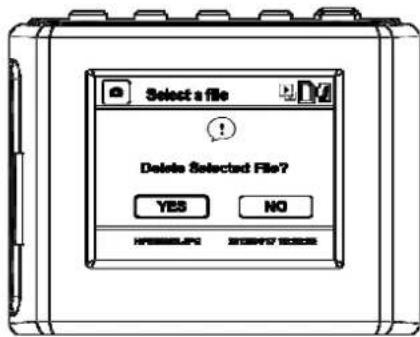
Thumbnails of video or photos are displayed. Use the ◀ or ▶ button to navigate to the video/photo to be deleted. Press the ● button to display the screen below. Use the or ▶ button to navigate. Press the ● button to select.
WARNING: If YES is selected, the video/photo will be permanently deleted and CANNOT be recovered.
Delete All
If you chose to Delete All, a screen displaying a prompt to select Video File or Image File. Use the ◀ or ▶ button to navigate to video files or image files and press the ● button to select. Use the ◀ or ▶ button to navigate to the desired YES or NO selection. Press the ● button
to select. WARNING: If YES is selected, all of the video or photo files are permanently deleted and CANNOT be recovered.
Protect Recorded Video and Photos
This feature prevents the accidental deletion of video and photos from the memory card. In playback mode, press the MENU button.

- Use the ▶ button to navigate to the Protect icon and press the ● button to select.
- Use the ◀ or button to navigate to the desired option as shown.
- Protect One option allows the selection of a single video or photo file to be protected.
- Unprotect One removes the protective status of a video or photo file.
- Protect ALL protects all video and/or photos on the memory card.
Press the button to select the desired option.
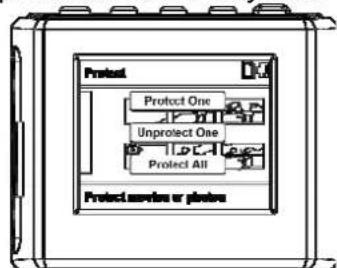
- If you chose to Protect One, the thumbnails of video or photos are displayed. Use the ▶ or ▶ button to navigate to the desired video/photo to be protected. Press the ● button to display the screen below.

- Use the ◀ or ▶ button to navigate to the desired selection. Press the ● button to select. A protected file has lock icon.
![100_HPDV/HPIM0005.AVI 01 11 2013/04/11 15:30:14 [ 00:01:00 ]](/content/2026/06/1244135/images/68fa7b210487a91135c5a8f99ca3a1b626998cda751bab402ad845065ef7e10d.jpg)
- If you chose to Protect All, a screen displaying a prompt to select Video File or Image File appears. Use the ◀ or ▶ button to navigate to the desired option and press the button to select. Use the ◀ or ▶ button to navigate to the desired YES or NO selection. Press the button to select.
Digital Zoom Feature
The digital zoom feature is ONLY available in Photo live view.
The ◀ button zooms in and the button zooms out.

Menu Settings
SETUP Menu
The menu is divided in 5 categories selected by the different tabs (Movie, Photo, Playback, Memory and System settings).
- Press the MENU Button to enter the setup menu.
If the camcorder was in video record mode, the settings menu for video recording appears. If in Photo or playback mode, the photo settings menu appears.
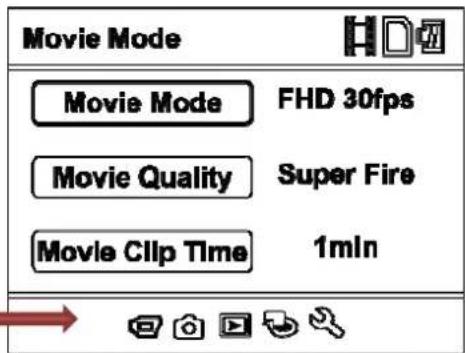
The yellow highlighted icon on the bottom of the screen indicates the active menu.
- Pressing the Ⓜ button cycles to the next menu option. Press the MENU button again to exit.
Video/“Movie” Record Menu Options
This menu changes settings relevant to the video recording options.
| Option Description | |
| Movie Mode | Change the video recording resolution.FHD 30 fps – Highest resolution (1080p) and produces largest files sizes. This is the default setting.HD 30 fps – Select for 720p resolution at normal frame rate. This option is good to record high definition video producing a smaller file size.HD 60fps – Select for 720p resolution at double frame rate. Ideal for playing back action video at slower rate.VGA 30fps – Select for standard definition recording. Excellent for social network postings. |
| Movie Quality | Change the video quality by changing the file compression.Super Fine - This option generates the best video quality as well as the largest file size. This is the default setting for this option.Fine – This option applies more file compression to reduce file size. |
| Movie Clip Time | Change the length of a single file recording time.Off – Maximums recording time per file until it reaches approximately 4GB in size.1min – Select to limit recording time per file to 1 minute. If 20 minutes of video is recorded, then 20 files of 1 minute in length is created. The advantage to this option is to finding and posting a specific event without having to deal with a much larger 20 minute file.3min - Select to limit recording time per file to 3 minutes. If 21 minutes of video is recorded, then 7 files of 3 minutes in length is created.5min - Select to limit recording time per file to 5 minutes. If 20 minutes of video is recorded, then 4 files of 5 minutes in length is created.10min - Select to limit recording time per file to 10 minutes. If 20 minutes of video is recorded, then 2 files of 10 minutes in length is created. |
| Sound Record | Records video and with audio.On – This enables the audio recording. This is the default setting for this option.Off – This records video without audio. |
| Mic Sensitivity | Change the microphones sensitivity.Standard – This setting should be selected to record audio at normal levels. This is the default setting for this option.Low – This setting reduces the audio recording level. This may be selected if using the camcorder in the waterproof case for snorkeling. |
| Scene | Provide control when adapting the camcorder to environmental conditions. The camcorder changes recoding parameters such as white balance, exposure, and ISO sensitivity to match the selected scene mode.Auto – The simplest and usually safest way record video. Settings are automatically adjusted by the camcorder. This is the default setting . Recommended for novice users.Sports – This setting optimize recording parameters to record video for objects in constant motion. It should only be used in adequate lighting situations.Portrait – Attempts to isolate the subject by opening a wide aperture to blur the background and providing little depth of field. The subject stands out because the background is blurry and the subject is in focus.Landscape – This setting brings distant objects like mountains and trees into sharp focus.Snow – This setting is best used when recording against a bright snow background. The camcorder attempts to focus on the subject instead of the background to determine the proper exposure and AWB settings for optimal results. If not selected, the subject may be too dark and the background “washed out”.Beach – This setting is similar to the Snow setting but optimized for light beach sand backgrounds.Fireworks - This setting optimizes recording options to capture fireworks in brilliant sharp clarity. For best results and reduced blurring, the use of a tripod for this setting is strongly recommended. |
| Exposure | Manual compensation for low or bright light levels. The more negative “-”in scale, the darker the recorded video appears. The more positive “+”, the lighter the recorded video appears. Options are:-2,-1.7,-1.3,-1,-.7,-.3,0,.3,.7,1,1.3,1.7,20 is the neutral setting for this option and is the default value. |
| White Balance | Changes recording parameters to compensate for different light color “temperatures”. Options are:Auto – Allows the camcorder to automatically detect the light color temperature and change its parameters to produce optimal recorded video appearance. This is the default setting for this option.Flouresc.1 – Select in standard indoor “warm” fluorescent lighting situations.Daylight – Select when recoding in bright sunny outdoor lighting.Flouresc.2 – Select in standard indoor “cool” fluorescent lighting situations commonly found in office buildings.Cloudy – Select for heavy overcast outdoor recording.Flouresc.3 - Select in standard CFL bulb indoor fluorescent lighting situations.Incandescent - Select in standard indoor filament bulb lighting. |
| ISO Sensitivity | Changes recoding ISO settings to compensate for some extreme lighting situations.Options are:Auto - This allows the camcorder to automatically detect the light levels and change its aperture and shutter speed parameters to produce optimal recorded video appearance. This is the default setting for this option.IS0100 – Select if recording in bright outdoor light situations.IS0200 – Select if recording in indirect sunlight situations.IS0400 – Select if recording indoors. |
In this menu, you can change settings relevant to the taking photos. Below is a description for each of the options:
| Option Description | |
| Still Image Size | Change the digital photo resolution.14M – Captures photos in 4352 x 3264 pixel resolution using Digital Image Interpolation.12M – Captures photos in 4000 x 3000 pixel resolution using Digital Image Interpolation.8M – Captures photos in 3264 x 2448 pixel resolution using Digital Image Interpolation.5M – Captures photos in 4352 x 3264 pixel resolution. This is the native resolution of this product and the default setting for this option.3M – Captures photos in 2048 x 1536 pixel resolution.2M – Captures photos in 1920 x 1080 pixel resolution. This is for a wide screen format.1.2M – Captures photos in 1280 x 960 pixel resolution.VGA – Captures photos in 640 x 480 pixel resolution. |
| Still Quality | Change the video quality by changing the file compression.Super Fine- This option generates the best video quality as well as the largest file size. This is the default setting for this option.Fine- This option applies more file compression to reduce file size. |
| Scene | The camcorder changes recoding parameters such as white balance, exposure, and ISO sensitivity to match the selected scene mode.Auto- The simplest and usually safest way record video. Settings are automatically adjusted by the camcorder. This is the default setting .Recommended for novice users.Sports- This setting optimize recording parameters to record video for objects in constant motion. It should only be used in adequate lighting situations.Portrait- Attempts to isolate the subject by opening a wide aperture to blur the background and providing little depth of field. The subject stands out because the background is blurry and the subject is in focus.Landscape- This setting brings distant objects like mountains and trees into sharp focus.Snow- This setting is best used when recording against a bright snow background. The camcorder attempts to focus on the subject instead of the background to determine the proper exposure and AWB settings for optimal results. If not selected, the subject may be too dark and the background “washed out”.Beach- This setting is similar to the Snow setting but optimized for light beach sand backgrounds.Fireworks- This setting optimizes recording options to capture fireworks in brilliant sharp clarity. For best results and reduced blurring, the use of a tripod for this setting is strongly recommended. |
| Exposure | Manually compensate for low or bright light levels. The more negative “-”in scale, the darker the Photo appears. The more positive “+”, the lighter the recorded video appears. Options are: |
| -2, -1.7, -1.3, -1, -.7, -.3, 0, .3, .7, 1, 1.3, 1.7, 20 is the neutral setting for this option and is the default value. | |
| White Balance | Camcorder changes capture parameters to compensate for different light color “temperatures”.Auto – Camcorder automatically detect the light color temperature and change its parameters to produce optimal photo appearance. This is the default setting for this option.Flouresc.1 – Select in standard indoor “warm” fluorescent lighting situations.Daylight – Select when recoding in bright sunny outdoor lighting.Flouresc.2 – Select in standard indoor “cool” fluorescent lighting situations commonly found in office buildings.Cloudy – Select for heavy overcast outdoor photography.Flouresc.3 - Select in standard CFL bulb indoor fluorescent lighting situations.Incandescent - Select in standard indoor filament bulb lighting. |
| ISO Sensitivity | User changes ISO settings to compensate for some extreme lighting situations.Auto - The camcorder automatically detects the light levels and changes its aperture and shutter speed parameters to produce optimal photo appearance. This is the default setting for this option.ISO100 – Select if recording in bright outdoor light situations.ISO200 – Select if recording in indirect sunlight situations.ISO400 – Select if recording indoors. |
| Color | Natural – Capture photos with normal color parameters. This is the default setting for this option.Vivid – Capture photos with increased color enhancements.Pale - Capture photos with decreased color enhancements. |
| Effect | Normal – Captures photos with no special effects. This is the default setting for this option.Sepia – Captures photos with the Sepia effect. This effect makes photos look old.B&W – Capture photos with the Black & White effect. No color is captured.Emboss – Capture photos with the embossing effect.Negative – Capture photos with the film strip negative effect.Sketch – Capture photos with the appearance that they were sketched in pencil.Oil – Capture photos with the appearance that they were painted with oils.Crayon - Capture photos with the appearance that they were colored with simple crayons. |

This menu changes settings relevant to the playback options.
| Option Description | |
| Volume | Change the video recording playback volume.0/1/2/3/4/5/6/7/8/9 – The numbers represent volume where 0 is no sound and 9 is the loudest output. The default setting for this option is 5.Note: The beep is only heard through an HDMI or AV connection. |
| Delete | This option allows for the deletion of one or more video/photo files from the memory card.Delete one- This option allows a single video or photo to be deleted from the microSD memory card per action.Delete All- This option allows all video or photo files to be deleted from the microSD memory card per action.Warning: Videos and photos CANNOT be recovered once they are deleted. |
| Protect | Protect one or more video/photo files from being accidentally deleted from the memory card.Protect one- This option allows a single video or photo to be protected.Protect All- This option allows all video or photo files to be protected.Warning: Videos and photos will NOT be protected if the memory card is formatted. Once the memory card is formatted, all files will be deleted and CANNOT be recovered. |
Media Tool

In this menu, options are available to manage the microSD memory card inserted into the camcorder.
| Option Description | |
| Format SD-Card | Formats the inserted microSD card.YES – Selecting this option completes the format process.NO – Select this to abort the format and return to the previous menu.Warning: ALL Video and photo files are be permanently deleted and CANNOT be recovered once the memory card is formatted. |
| SD-Card INFO | Selecting this option displays the estimated remaining video recording time and number of photos that can fit onto the memory card. Information is provided for each of the resolution settings as shown below: |
General Settings

Manage the basic camcorder settings.
| Option Description | |
| Beep | Options are:On – Select this to enable audible system beeps when setting the menu options.This is the default setting for this option.Off – Disables the audible system beeps.Note: The beep is only heard through an HDMI or AV connection. |
| Power Off | Set the automatic power off time when the camcorder is not active.Never – Camcorder will not automatically power off.1min – Camcorder will automatically power off in inactive for 1 minute.5min – Camcorder will automatically power off in inactive for 5 minutes.This is the default setting for this option. |
| Clock Settings | Change the date and time of the camcorder. Review the Basic Operations of this manual for details. |
| Date Format | Change the format of how the date is displayed on the screen.None– No date is displayed on the screen.YYYY MM DD – Year, Month, DayMM DD YYYY - Month, Day, YearDD MM YYYY – Day, Month, Year |
| Language | Select the desired OSD language.English, Spanish, Portuguese, Russian, Simplified Chinese, Traditional Chinese, German, Italian, Latvian, Polish, Romanian, Slovak, Ukrainian, and French |
| TV System | Changes the AV output to support regional TVs.NTSC – Select for TVs that support NTSC. Common for USA.PAL – Select for TVs that support PAL. Common for Europe. |
| HDMI Output | Change the resolution output for HDMI connections.1080i– Select this for maximum resolution output.720p – Select this for HD resolution output. |
| Flicker | Changes the AV output to support regional TVs.60Hz – Select for TVs that support NTSC. Common for USA.50Hz – Select for TVs that support PAL. Common for Europe. |
| LCD Rotate | Manage the OSD orientation.On – Select this to rotate the OSD 180 degrees on the LCD.Off – Select this to have the OSD displayed without rotation. This is the default setting for this option. |
| LCD Power Save | Manage the backlighting and presentation of the LCD. It is advisable to enable this feature to preserve battery power.Off – Select to disable power saving mode for the LCD.1min – The camcorder automatically powers off the LCD after 1 minute of inactivity or during video recording. This is the default setting for this option.5min – The camcorder automatically powers off the LCD after 5 minutes of inactivity or during video recording. This is the default setting for this option.Note: If enabled, the camcorder continues to record video even when the LCD is shut off. Press any button to power up the LCD. |
| LED Light | Enable or disable the front facing LED that can provide additional lighting for low light recording/photography.On – Select this to enable the front facing LED. Once enabled, press the LED/Power button on top of the camcorder to turn on the LED light. Pressthe button again to shut it off.Off – Disables the front facing LED. This is the default setting for this option.Note: To conserve battery power, only use this feature when necessary. |
| Reset Setup This | option sets the camcorder to the original factory default settings. |
| FW Version | This option displays the current firmware level of the camcorder. This information may be important for service and support communications. |
Playback on PC (MS Windows)
Connect the camcorder with your PC by using the USB Cable provided in the packaging. If the camcorder is powered of, press the power button to enter the USB function setting, and select the MSDC within 10 seconds. The PC recognizes the camcorder as a storage device and will display a new drive letter for access in Windows explorer.
The LCD on the camcorder displays “USB Connected” as show below. The recoded videos and photos on the camcorder can be easily viewed on your PC/notebook with “Windows Media” Player or other installed video or photo interactive software.
Playback on the TV
Connect the camcorder directly to a TV by using a HDMI Cable or AV-cable (not included). These cables are available in the retail and e-tail markets. Enter the Playback Mode on the camcorder to select and view video and photos recorded with the camcorder.

Technical Specification
Operating Voltage: 5V (USB) / 3,7V (Li-ion Battery, 600mAh)
Consumption: 430 - 500mAh (depending on camcorder settings)
Size: 53 x 41 x 34mm
Weight: 58g
Battery: 3,7V 600mAh Li-ion
Format: HPIM *.AVI
Sensor: 5MPixel CMOS
Lens: 142° Wide-angle
Zoom: Up to 4x digital (only for taking photos)
PC camera support: yes
Screen: 1,5 " / 38mm TFT
Microphone: yes (Mono, 48 kHz)
AV-Output: yes, via AV-cable (not included)
USB: Hi-Speed USB (2.0)
HDMI: yes, version 1.2
Operating/Storage temp.: 10°C\~50°C
Memory: Micro-SDHC up to 32GB - Class 6 or greater
Auto White balance: Yes
Troubleshooting
- Camcorder powers off immediately after powering on
Answer: Battery is not fully charged. Charge the battery for at least 4 hours.
- The video does not playback smoothly when playing on a PC/notebook
Answer: The USB connection may be too slow or the microSD-Card is too slow. Try downloading the file to the PC/notebook hard drive first. Try one of the recommended micro SD-Cards.
- Unable to power on the camcorder
Answer: Battery is not installed correctly or battery is not charged. Follow battery insertion and charging directions in this user manual.
- The video is rotated 180°
Answer: It is a wrong setting. Review the menu setup section in this manual for details.
- Date and time are not displayed in the desired manner.
Answer: It is a wrong setting. Review the menu setup section in this manual for details.




- Copyright
- Federal Communications Commission notice
- Modifications:
- Trademark Recognition
- Safety and Handling Precautions
- WARNING:
- • WARNING LI-ION BATTERY
- - ATTENTION!
- PACKAGE CONTENTS
- Preparation
- Insert and Charge the Battery
- Insert the MicroSD Memory Card
- Remove the Memory Card
- Camcorder Overview
- Power the Camcorder On and Off
- LCD Screen Overview
- Power On
- Power Off
- Basic Operations
- Video mode
- Photo mode
- View Recorded Video and Photos
- Delete Recorded Video and Photos
- Delete One
- Delete All
- Protect Recorded Video and Photos
- Digital Zoom Feature
- Menu Settings
- SETUP Menu
- Video/“Movie” Record Menu Options
- Media Tool
- General Settings
- Playback on PC (MS Windows)
- Playback on the TV
- Technical Specification
- Troubleshooting
Brand : HP
Model : AC150
Category : Camcorder