
f300c - Camcorder HP - Free user manual and instructions
Find the device manual for free f300c HP in PDF.


| Product Type | Camcorder |
| Brand | HP |
| Model | f300c |
| Dimensions (W x H x D) | 80 x 120 x 180 mm |
| Weight | 0.5 kg |
| Power Source | AC adapter or rechargeable battery |
| Battery Type | Li-ion |
| Recording Media | MiniDV tape |
| Video Format | Standard Definition (480i) |
| Optical Zoom | 10x |
| Digital Zoom | 120x |
| LCD Screen | 2.5" TFT |
| Image Sensor | CCD |
| Interfaces | USB, AV out |
| Main Functions | Video recording, still image capture, playback |
| Care | Clean lens with soft cloth; avoid moisture |
| Safety | Do not disassemble; keep away from children |
| Spare Parts | Battery, charger, remote control |
| Repairability | Contact authorized service center |
| General Information | User manual available for download |
Frequently Asked Questions - f300c HP
User questions about f300c HP
0 question about this device. Answer the ones you know or ask your own.
Ask a new question about this device
Download the instructions for your Camcorder in PDF format for free! Find your manual f300c - HP and take your electronic device back in hand. On this page are published all the documents necessary for the use of your device. f300c by HP.
USER MANUAL f300c HP
natural_image
HP logo in white on black circular background (no text or symbols beyond the stylized 'hp' letter)f300c
Car Camcorder
User Manual
Contents
About this Guide .... 3
FCC Statement 3
WEEE Notice 3
CE Regulatory Notice 4
Battery warning 4
Notes on Installation 4
Caution 5
1 Introduction......6
1.1 Features 6
1.2 Package Contents 6
1.3 Product Overview 7
2 Getting Started 8
2.1 Inserting the Memory Card 8
2.2 Installing in Vehicles 9
2.2.1 Mount to Windshield 9
2.2.2 Adjust the camcorder position ....10
2.3 Connecting to Power 11
2.4 Powering the Camcorder On / Off 12
2.4.1 Auto Power On/Off 12
2.4.2 Manual Power On/Off 12
2.5 Initial Settings 13
2.5.1 Set Automatic Recording ....13
2.5.2 Set the Date and Time ....13
3 Using the Camcorder....14
3.1 Recording Videos ....14
3.1.1 Record videos while driving ....14
3.1.2 Manual Video Recording ....14
3.1.3 Emergency Recording ....15
3.1.4 Driver Fatigue Alert ....15
3.1.5 LDWS (Lane Departure Warning Systems) .....16
3.1.6 The Recording Screen....17
3.1.7 Taking Photographs ......18
3.2 Playback Videos and Photos ....19
3.2.1 Playing Videos ....20
3.2.2 Viewing Photos ....20
3.2.3 The Playback Screen ....21
3.2.4 Deleting Files ......22
4 Adjusting the Settings 23
4.1 Using the Menu 23
4.2 Menu Tree 24
5 Installing the Software....27
6 Specifications....28
About this Guide
The content in this document is for information purpose and is subject to change without prior notice. We made every effort to ensure that this User Guide is accurate and complete.
However, no liability is assumed for any errors and omissions that may have occurred.
The manufacturer reserves the right to change the technical specifications without prior notice.
FCC Statement
This equipment has been tested and found to comply with the limits for a Class B digital camcorder, pursuant to Part 15 of the FCC Rules. These limits are designed to provide reasonable protection against harmful interference in a residential installation. This equipment generates, uses and can radiate radio frequency energy and, if not installed and used in accordance with the instructions, may cause harmful interference to radio communications. However, there is no guarantee that interference will not occur in a particular installation. If this equipment does cause harmful interference to radio or television reception, which can be determined by turning the equipment off and on, the user is encouraged to try to correct the interference by one or more of the following measures:
- Reorient or relocate the receiving antenna.
- Increase the separation between the equipment and receiver.
- Connect the equipment into an outlet on a circuit different from that to which the receiver is connected.
- Consult the dealer or an experienced radio/TV technician for help.
This camcorder complies with Part 15 of the FCC Rules. Operation is subject to the following two conditions: (1) This device may not cause harmful interference, and (2) this camcorder must accept any interference received, including interference that may cause undesired operation.
FCC Caution: Any changes or modifications not expressly approved by the party responsible for compliance could void the user's authority to operate this equipment.
WEEE Notice
Disposal of Waste Electrical and Electronic Equipment and/or Battery by users in private households in the European Union


This symbol on the product or on the packaging indicates that this can not be disposed of as a household waste. You must dispose of your waste equipment and/or battery by handling it over to the applicable take-back scheme for the recycling of electrical and electronic equipment and/or battery. For more information about recycling of this equipment and/or battery, please contact your city office, the shop where you purchased the equipment or your household waste disposal service. The recycling of materials will help to conserve natural resources and ensure that it is recycled in a manner that protects human health and environment.
CE Regulatory Notice
Herewith confirm to comply with the requirements set out in the Council Directives on the Approximation of the Laws of the Member States relating Electromagnetic Compatibility of Radio and Telecom camcorder (1995/5/EC); the Low Voltage Directive (2006/95/EC); the Restriction of The Use of Certain Hazardous Substances in Electrical And Electronic Equipment Directive (2002/95/EC), Turkish EEE Directive; the Commission Regulation (EC) No 1275/2008 implementing Directive 2005/32/EC of the European Parliament and of the Council with regard to eco-design requirements for standby and off mode electric power consumption of electrical and electronic household and office equipment, and the Directive 2009/125/EC of the European parliament and of the council establishing a framework for the setting of eco-design requirements for energy-related products.
Battery warning
The battery for this car camcorder is sealed internally. DO NOT attempt to disassemble the camcorder and remove the battery.
❖ Always charge using the provided system. Improper charging of the battery may result in explosion.
The battery is designed for this camcorder and is not customer replaceable.
Batteries may explode if exposed to naked fire. Never expose the car camcorder in a fire.
◆ Recycle the camcorder observing local regulations.
Notes on Installation
- Install the camcorder near the rear-view mirror to obtain the best open-field view. Do NOT install the camcorder in a location that will obstruct your required driving view.
- Make sure that the lens is within the wiping range of the windscreen wiper to ensure a clear view even when it rains.
- Do not touch the lens with your fingers. Finger grease may be left on the lens and will result in unclear videos or snapshots. Clean the lens on a regular basis.
- Do not install the camcorder on a tinted window. Doing so may damage the tint film.
- Make sure that the installation position is not hindered by the tinted window.
Caution
◆ Use the authorized charger only.
✿ Never disassemble or attempt repair of this product. Doing so may damage the camcorder, cause electric shock and void your product warranty.
◆ Never short-circuit the battery.
- Set up time and date accurately before you use this camcorder.
Exposing the camcorder to open flames can cause explosion.
Due to local laws and vehicles safety considerations, do not manually operate the camcorder while driving.
The values displayed in this system, such as speed, position, and the distance warning to the speed camera set points, may be inaccurate due to the influence of surrounding environment. They are for your reference only.
Hewlett-Packard Company is NOT responsible for the loss of any data/content during operation.
Before you start using the Car Camcorder it is assumed that you agree to the above statements.
1 Introduction
Thank you for purchasing this advanced camcorder. This camcorder is specifically designed for real time video and audio recording when driving.
1.1 Features
• Full HD camera (1920x1080 @ 30fps)
• 2.4" LCD color screen
- Up to 140^ Wide angle lens
- Motion detection
• Automatic Emergency recording for collision detection
• Supports micro-SDHC up to 32GB (Class 6 or greater speed required for HD video recording)
1.2 Package Contents
The package contains the following items. If there are any missing or damaged items, contact your dealer immediately.
Camcorder Bracket CD-ROM
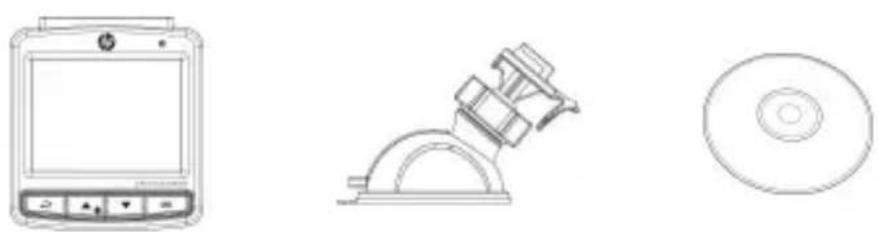
Quick start guide Car adapter

1.3 Product Overview

| No. Item No. Item | |
| 1 Bracket Socket 8 LCD Panel | |
| 2 Microphone | |
| 3 Power Button 10 Down Button ( ) | |
| 4 Memory Card Slot | |
| 5 USB Connector | |
| 6 HD(Mini HDMI) Connector | |
| 7 | Back Button ( ↩ ) |
| 9 | Up Button ( ) + |
| ▼ | |
| nter Button ( ) OK | |
| vide Angle Lens | |
| peaker | |
Note:
To operate the device, press the corresponding buttons (7, 9, 10, 11) according to guide icons shown the screen.
2 Getting Started
2.1 Inserting the Memory Card
Insert the memory card with the gold contacts facing the back of the camcorder. Push the memory card until it clicks into place. (Use class 6 or above the micro SD cards for this camcorder; It is recommended to format the micro SD cards before the initial use.)

natural_image
Line drawing of a device rear panel with a close-up of its internal components, showing no text or symbols.To remove the memory card
Push the edge of the memory card inward until you hear/feel it click, then allow it to push out until you can remove it from the slot.
Note:
- Do not remove or insert the memory card when the camcorder is powered on. This may damage the memory card.
- It is recommended to use a 32 GB, Class 6 speed or above micro SD card.
- It is recommended to format the micro SD cards before the initial use.
2.2 Installing in Vehicles
2.2.1 Mount to Windshield
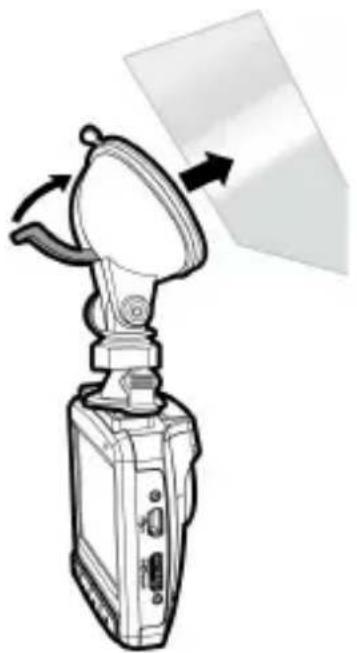
- Attach the bracket to the camcorder. Slide it into the bracket holder until you hear a click.

natural_image
Illustration of a digital camera with an open lid and base, showing the device's top view and internal components (no text or symbols)-
With the suction-cup laying flat, position the suction-cup on the windshield.
-
Hold the base firmly on the windshield and press down the clamp to mount the car holder to the windshield. Make sure the base is securely locked in place.
natural_image
Illustration of a handheld device with a light bulb and directional arrow, no text or symbols presentWarning: Do not install the camcorder on a tinted window. Doing so may damage the tint film.
2.2.2 Adjust the camcorder position
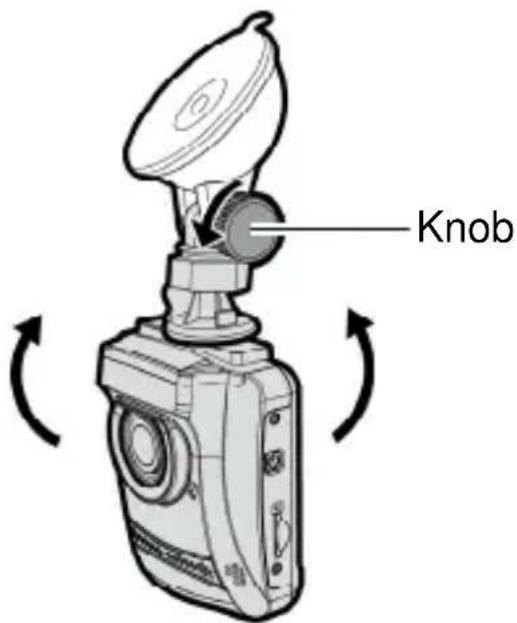
- Loosen the knob to swivel the camcorder vertically.
-
Loosen the knob to swivel the camcorder horizontally up to 360°.
-
Then tighten the knob to make sure the camcorder is securely locked in place.

2.3 Connecting to Power
Use only the supplied car adapter to power up the camcorder and charge the built-in battery.

-
Connect one end of the car adapter to the USB connector of the camcorder.
-
Plug the other end of the car charger to the cigarette lighter socket of your vehicle. Once the vehicle engine is started, the camcorder automatically powers on.
Note:
- The orange LED lights up while the battery is charging.
- Please take note if the environment temperature reaches 45^ C or above, the car adapter still can supply power to camcorder, but it may not charge the battery. This is characteristic of Lithium polymer battery and is not a malfunction.
2.4 Powering the Camcorder On / Off
2.4.1 Auto Power On/Off
Once the vehicle engine is started, the camcorder automatically powers on. If the Automatic Record function is enabled, the recording will automatically start right after the camcorder powers on.
See Set Automatic Recording (2.5.1).
Once the vehicle engine shuts down, the camcorder automatically saves the recording and turns off the power within 10 seconds.
See Delay Shutdown (4.2).
Note:
Automatic power up and shut down assumes the power socket is linked to the car ignition.
2.4.2 Manual Power On/Off
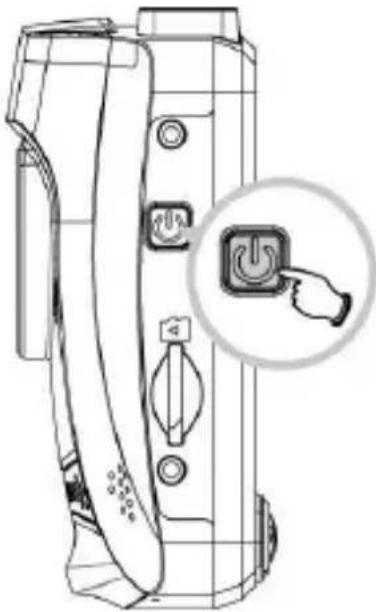
To manually turn on the power, press the POWER button.
To turn off, press and hold the POWER button for at least 2 seconds.
To reset, press and hold the POWER button for at least 5 seconds.
natural_image
Line drawing of a handheld device with a hand pressing a button (no text or symbols)2.5 Initial Settings
Before using the camcorder, we recommend you to enable the Automatic Record function and set up the correct date and time.
2.5.1 Set Automatic Recording
To enable the recording to start automatically after you turn on the power, do the following:
- Press the button to enter the OSD menu.
- Press the / button to select Automatic Record and press the OK button.

-
Press the / button to select On and press the button OK
-
Press the button to exit the menu.
2.5.2 Set the Date and Time
To set the correct date and time, do the following:
- Press the button to enter the OSD menu.
- Press the / button to select Date / Time and press the button.
- Press the / button to adjust the value and press the button to move to another field.

- Repeat step 3 until the date and time setting is complete.
Note:
When the battery is depleted, you must reset the date/time before the function -automatic record is started. If the user doesn't reset the date/time, the camcorder will give you an alert after one minute and the automatic record will be started.
3 Using the Camcorder
3.1 Recording Videos
3.1.1 Record videos while driving
When the vehicle engine starts up and the Automatic Record function is enabled, the camcorder automatically turns on and starts recording.
Recording will automatically stop when the engine is switched off.
Or, press the button to stop recording manually.
Note:
On some cars, the recording will continue when the engine is switched off.
With some vehicle models, the automatic power up and off feature of this car camcorder will not function because the cigarette lighter/power socket is not linked to the ignition system.
To work around this issue, please do one of the following:
- Manually turn on or off the cigarette lighter/power socket if this is possible with your vehicle model.
- Manually plug in the power adapter into the socket to turn on the car camcorder and unplug from the socket to turn off the car camcorder.
3.1.2 Manual Video Recording
-
Press the button to start recording.
-
Press the button to stop recording.
Note:
- One video file is saved for every 3 or 5 minutes of recording. See Using the Menu (4.1).
- The camcorder saves the recording on the memory card. If the memory card capacity is full, the oldest file in the memory card will be overwritten.
3.1.3 Emergency Recording
During normal video recording, press the OK button to begin emergency recording mode.
The "Emergency" message will be displayed immediately on the upper left corner of the screen, and the recorded file will be continuous and protected from being overwritten.
To stop the recording, press the ▼ button.

Note:
- If the Collision Detection function is enabled and a collision is detected, the camcorder will automatically trigger the emergency recording feature.
- The emergency recording file is created as a new file, which will be protected to avoid being overwritten by normal loop recording. A 4 GB memory card can save up to 5 emergency video files, and 8 GB (or above) memory card can save up to 10 emergency video files. The alert message of "Emergency files are full" will pop up on the screen when the emergency recording files are full, and the oldest emergency file will be automatically deleted when a new emergency recording file is created.
3.1.4 Driver Fatigue Alert
- Press the button to enter the OSD menu.
- Press the / button to select Driver Fatigue Alert and press the button.
Driver Fatigue Alert function will remind the driver should take a rest after
continuing to drive for over one hour via “bi bi sound” from the device and also the alert picture (as enclosed) will be appear in the LCD screen. The product will remind the driver again after 30 minutes as each interval. But the product will recalculate the alert time If the car stop moving over 5 minutes.

3.1.5 LDWS (Lane Departure Warning Systems)
When LDWS (Lane Departure Warning Systems) is activated, the camcorder gives an audible and visual alert on the display when the vehicle deviates from the lane.
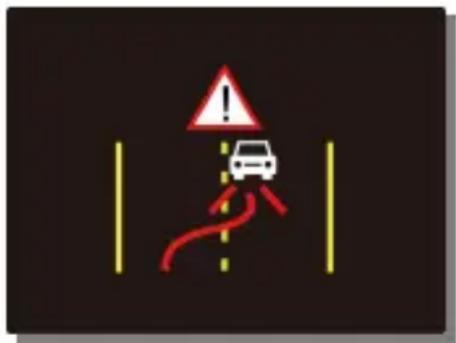
To set the LDWS (Lane Departure Warning Systems), do the following:
OK
- Press the button to enter the OSD menu.
- Press the / button to select LDWS and press the button.
- Press the button to exit the menu.
Note:
The product shall be installed near the rearview mirror, at the center of windshield, so as to improve the accuracy of detection to judge the lane deviation.
3.1.6 The Recording Screen

| No. | Item | Description |
| 1 | Duration Indicates | the current recording duration. |
| 2 | Voice Record | Indicates sound will not be recorded with the video. Enter the OSD menu to enable "Voice Record". |
| 3 | Date and time | Indicates the current recording date and time. |
| 4 | Guide icon (Menu) | Press the button to enter the OSD menu. |
| 5 | Guide icon (Playback) | Press the button to switch to Playback mode. |
| 6 | Resolution 1080P | (1920x1080) / 720P (1280x720) |
| 7 | Battery Indicates | the remaining battery power. |
| 8 | Prompt (Reset of date / time) | Remind the user to reset the Date / Time before start to use the camcorder. |
| 9 | Guide icon (Stop) | Press the button to stop the recording. |
| 10 | Guide icon (Emergency) | Press the OK button to continuously record the video in one file until the recording is manually stopped. |
3.1.7 Taking Photographs
You can also use this camcorder to take photos of the current scene.
From the standby screen, press the button to take a photo.

Note:
If recording is in progress, press the▼button to stop the recording first.
3.2 Playback Videos and Photos
- If recording is in progress, press the button to stop recording. The standby screen is displayed.
- Press the button to enter the OSD menu.
- Press the / button to select the file category that you want to browse and press the button.
- Press the / button to view the next or the previous file and press the OK button to view the file in full screen.
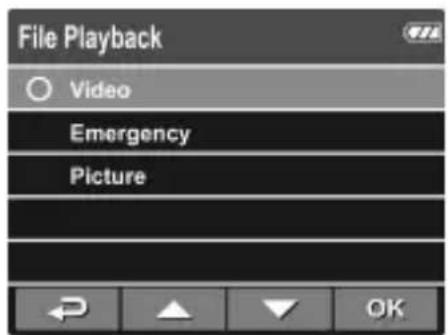
Note:
From the standby screen, you can directly enter Playback mode by pressing▲ button. The last recorded video will display on the screen.
3.2.1 Playing Videos
To play videos, do the following:
-
If recording is in progress, press the button to stop recording.
-
Press the button to enter the OSD menu.
-
Press the / button to select File Playback and press the button.

-
Press the ▲/▼ button to select Video or Emergency and press the button.
-
Press the / button to browse for the desired video file and press the button to play the video.
-
Press the button to pause the playback. Press it again to resume.
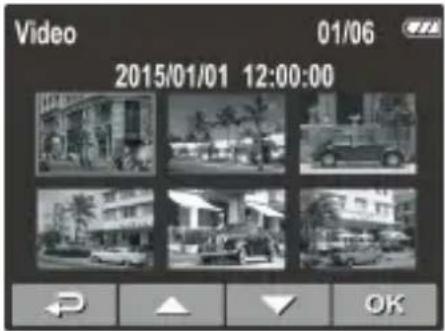
3.2.2 Viewing Photos
To view photos, do the following:
-
If recording is in progress, press the button to stop recording.
-
Press the button to enter the OSD menu.
-
Press the /button to select File Playback and press the button.

- Press the /button to select Picture and press the button.

- Press the ▲/▼ button to browse for the desired photo file and press the ⓣ button to view the file in full screen.
3.2.3 The Playback Screen
Video Playback Screen
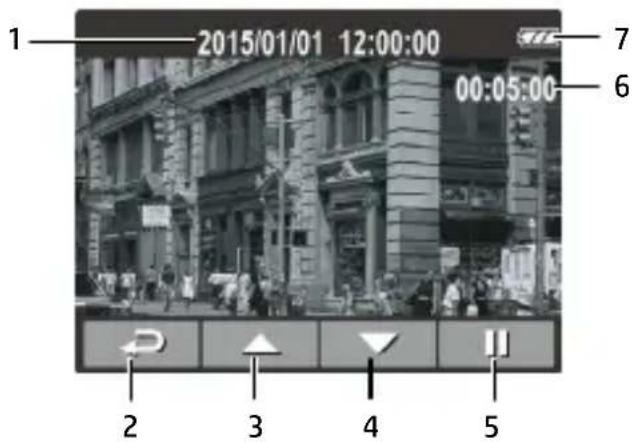
Photo Playback Screen

| No. | Item | Description |
| 1 | Date and time | Indicates the recorded date and time. |
| 2 | Guide icon (Back) | Press the button to return to file selection display. |
| 3 | Guide icon (Previous) | Press the button to view the previous video/photo. |
| 4 | Guide icon (Next) | Press the button to view the next video/photo. |
| 5 | Guide icon (Pause) | Press the button to pause the video playback. |
| 6 | Duration | Indicates the elapse time. |
| 7 | Battery | Indicates the estimated remaining battery power. |
3.2.4 Deleting Files
To delete file(s), do the following:
- If recording is in progress, press the button to stop recording.
- Press the button to enter the OSD menu.
- Press the / button to select File Deletion and press the OK button.
- Press the / button to select the file category and press the OK button.
- Press the / button to select the file that you want to delete and press the button to enter the Delete menu.


- Press the / button to select an option.
| Item Description |
| Delete One Delete the current displayed file. |
| Delete All Deletes all files. |
- Press the button to confirm delete.
Note:
Deleted files CANNOT be recovered. Ensure the files have backup before deletion.
4 Adjusting the Settings
4.1 Using the Menu
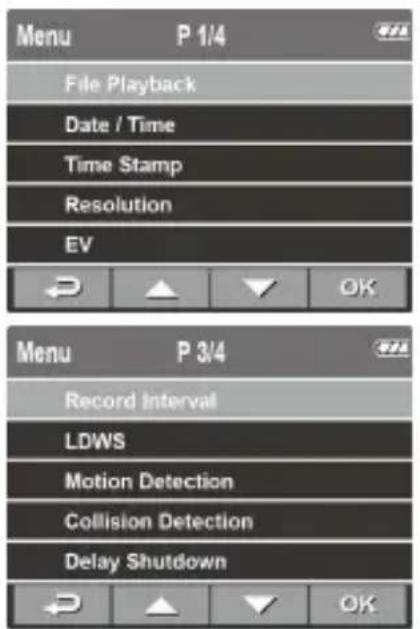
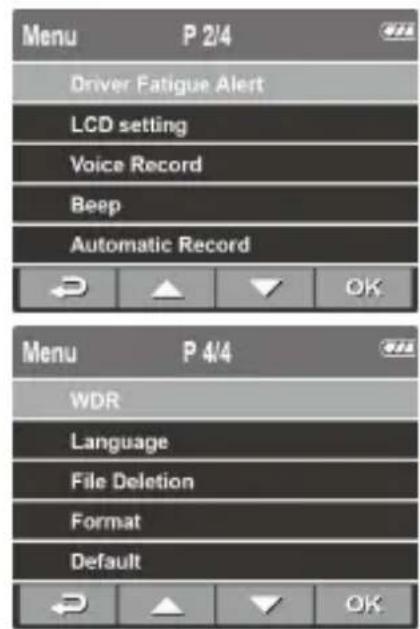
You can customize the video recording and other general settings via the on-screen display (OSD) menus.
- If recording is in progress, press the button to stop recording.
- Press the button to open the OSD menu.
- Press the / button to select a menu option and press the button to enter the selected menu.
- Press the / button to select the desired setting and press the OK button to confirm the setting.
- Press the button to exit the menu.
OK
4.2 Menu Tree
Refer to the below table for details on menu items and available menu options.
| Menu option Description Available option | ||
| File Playback | Select the file category that you want to view. | Video / Emergency / Picture |
| Date / Time Set | the date and time. | Press ▲button to adjust the value, press the OK button to switch the field and confirm. |
| Time Stamp | Enable/Disable the date stamp. | On / Off |
| Resolution | Set the desired video resolution. | 1080p (1920x1080) / 720p(1280x720) |
| EV | Set the exposure compensation. | Press ▲button to set the exposure level. You may customize it between-1.3~+1.3. |
| Driver Fatigue Alert | When enabled, the camcorder sounds an audible tone after an hour of driving. | On / Off |
| LCD Setting | Set the duration for the display to automatically turn off right after video recording starts. | On / Turn Off After 30 sec. / Turn Off After 3 min. / Off |
| Voice Record | Enable or disable sound recording with the video. | On / Off |
| Beep | Enable/Disable the alarm tone. | On / Off / 1 / 2 / 3 / 4 / 5 |
| Automatic Record | Enable / Disable the camcorder to automatically record video after the camcorder is turned on. | On / Off |
| Record Interval | Set the recording duration for each recorded video file. | 3 min. / 5 min. |
| LDWS | When the LDWS is on, if the vehicle starts drifting out of the lane, the camcorder will sound an alert, and a warning image will be displayed as a reminder. | On / Off |
| Motion Detection | Enable/Disable the motion detection. If this function is enabled and the power button is pressed, the system alert message, “Press OK Key to Power off, or enter motion detection after 10sec.”, will pop on the screen. Under motion detection mode, the camcorder will automatically start recording when any object movement is detected. | On / Off |
| Collision Detection | Enable / Disable the collision detection. If this function is enabled and any collision is detected, the camcorder will automatically trigger the emergency recording feature. | High Sensitivity / Normal Sensitivity / Low Sensitivity / off |
| Delay Shutdown | Set the delay duration before turning off the power. | 10 sec. / Off |
| WDR | Present a crisp and clear picture quality with harmonious contrast in ahigh contrast, high discrepancy environment. | On / Off |
| Language | Set the on-screen display menu language. | English / Simplified Chinese |
| File Deletion | Delete the file(s) Warning: Once a file is deleted, it CANNOT be restored or recovered. | Video / Emergency / Picture |
| Format | Format the memory card Warning: Once the memory card is formatted, ALL content on the micro SD card will be deleted and CANNOT be restored or recovered. | Yes / No |
| Default | Reset all options to the default settings. | Yes / No |
5 Installing the Software
- Place the CD disc bundled with the car camcorder in your PC/Laptop optical drive.
- If the CD does not execute automatically, please use Windows File Manager to execute the Install_CD.exe file in the CD.
The following screen will be displayed.

- Select the desired [Menu] item to start the installation process according to the instructions on-screen.
6 Specifications
| Item Description | |
| Image sensor 1/3" CMOS sensor | |
| Effective pixels | 1920 (H) x 1080 (V) |
| Storage media Supports Micro SDHC, up to 32GB class 6 or above | |
| LCD display 2.4" LCD color TFT (112K pixels) | |
| Lens | Wide Angle Fixed Focus lensAperture: Up to F1.9 ; f=3.8mm |
| Focus range 1.5m~Infinity | |
| Movie Clip | Resolution: Full HD (1920 x 1080), 30fps |
| Format: MOV | |
| Still image (Photograph) | Resolution: 2M (1920 x 1080) |
| Format: DCF (JPEG, Exif: 2.2) | |
| Shutter | Electronic shutterAuto:1/2 ~1/2000 sec. |
| G-Sensor 3-Axis G-Force sensor | |
| ISO Auto | |
| White Balance Auto | |
| Microphone | Yes |
| Speaker | Yes |
| Interface | Mini USB, Mini C Type HDMI |
| Battery | Built-in 470mAh Li-polymer rechargeable (This battery is NOT replaceable) |
| Operating Temperature | -10° ~ 60°C |
| Operating Humidity | 20 ~ 70% RH |
| Storage Temperature | -20° ~ 80°C |
| Dimensions 63 x 70 x 29 mm | |
| Weight Approx. 95g | |



- Contents
- Introduction......6
- Getting Started 8
- Using the Camcorder....14
- Playback Videos and Photos ....19
- Adjusting the Settings 23
- Installing the Software....27
- Specifications....28
- About this Guide
- FCC Statement
- WEEE Notice
- Disposal of Waste Electrical and Electronic Equipment and/or Battery by users in private households in the European Union
- CE Regulatory Notice
- Battery warning
- Notes on Installation
- Caution
- Introduction
- Features
- Package Contents
- Product Overview
- Note:
- Getting Started
- Inserting the Memory Card
- To remove the memory card
- Installing in Vehicles
- Mount to Windshield
- Adjust the camcorder position
- Connecting to Power
- Powering the Camcorder On / Off
- Auto Power On/Off
- Manual Power On/Off
- Initial Settings
- Set Automatic Recording
- Set the Date and Time
- Using the Camcorder
- Recording Videos
- Record videos while driving
- Manual Video Recording
- Emergency Recording
- Driver Fatigue Alert
- LDWS (Lane Departure Warning Systems)
- The Recording Screen
- Taking Photographs
- Playback Videos and Photos
- Playing Videos
- Viewing Photos
- The Playback Screen
- Deleting Files
- Adjusting the Settings
- Using the Menu
- Menu Tree
- Installing the Software
- Specifications
Brand : HP
Model : f300c
Category : Camcorder