PSR-9000 - Keyboard YAMAHA - Free user manual and instructions
Find the device manual for free PSR-9000 YAMAHA in PDF.


User questions about PSR-9000 YAMAHA
0 question about this device. Answer the ones you know or ask your own.
Ask a new question about this device
Download the instructions for your Keyboard in PDF format for free! Find your manual PSR-9000 - YAMAHA and take your electronic device back in hand. On this page are published all the documents necessary for the use of your device. PSR-9000 by YAMAHA.
USER MANUAL PSR-9000 YAMAHA
Version 3 Upgrade for
PSR-9000
Version 2 Upgrade for
9000Pro

natural_image
Abstract geometric design with a white diamond and light reflection on a blue grid background (no text or symbols)Contents
-
Introduction ...... 3
-
Important! – Backup Before Installation .... 4
-
Installing Your New Software....8
Installing the Main and Sub Programs 8
- The New Features....9
New Split Points....9
New Fingerings.... 10
Stop Accompaniment.... 14
Song Chain 14
Next Song Reservation 15
HD Sleep Time Control 15
Panel Sustain Rate Control.... 16
Sustain Mode (new for the PSR-9000) 17
Improved Music Database Display.... 17
Improved Mixing Console Voice Display 18
Improved Mixing Console Effect Type Display 18
Disk Direct Style Registration 19
Style Creator & Disk Direct Styles 20
Style Manager & Preset Styles 21
- Power Tips....22
2-note Chords 22
Maintaining Effects When Multitrack Recording.... 22
Single-part Activation.... 23
SMF Song Name Converter.... 23
Parameter Lock – Reverb Type 24
Reverb Effect Return Level and Parameter Lock.... 24
Selecting an XG Voice 25
Selecting a Voice/Style/Song/Reg.Memory via PC Keyboard.... 25
Program Change Display.... 25
Song Chord Detection 26
Instant Access to Any Function Menu.... 26
Revoice 28
Tap Tempo Sound 28
Reducing Mic Sibilance 28
Mic Compressor....29
Vocal Harmony Mode....29
Talk Button 30
Password 30
Simultaneous Parameter Change.... 31
Keyboard Transpose and Song Transpose.... 31
Using Multi Pads to Change Scale Tuning 32
Song File Directory 32
Song Selection via Registration Memory.... 32
Touch Limit for Harmony/Echo.... 33
Sub Line Out.... 33
Register Bank View.... 34
Auto Exit Time.... 34
MIDI Templates 35
Using the MFC10 with the 9000 ....35
1. Introduction
Although the PSR-9000 and 9000Pro are two of the most powerful music workstations available, this software update adds even more features and power.
Before we move on to the installation procedure, make sure that the following floppy disks have been prepared. If you do not have them yet, download the necessary files from the Yamaha PK Club web site (http://www.yamahaPKclub.com/).
PSR-9000 9000Pro
| Disk Name File Name Disk Name File Name | ||
| MAIN PROGRAM 1 p9000m.001 MAIN PROGRAM | 1 p9000pm.001 | |
| MAIN PROGRAM 2 p9000m.002 MAIN PROGRAM | 2 p9000pm.002 | |
| MAIN PROGRAM 3 p9000m.003 MAIN PROGRAM | 3 p9000pm.003 | |
| MAIN PROGRAM 4 p9000m.004 MAIN PROGRAM | 4 p9000pm.004 | |
| SUB PROGRAM p9000s.bin MAIN PROGRAM 5 p9000pm.005 | ||
| SUB PROGRAM p9000ps.bin | ||
About the Example Displays In This Manual
Although the PSR-9000 and 9000Pro allow you to select displays in a number of languages, the example displays shown in this manual are all in English.
The illustrations and displays as shown in this owner's manual are for instructional purposes only, and may be different from your instrument.
Page References
In many cases this manual will refer you to specific pages in the PSR-9000 or 9000Pro Owner's Manual. Such references will be indicated as follows:

page xx
page xx
IMPORTANT!!
- If you're not thoroughly familiar with the handling and use of floppy disks, please refer to the precautions on page 5 of the PSR-9000 or 9000Pro Owner's Manual.
2. Important! – Backup Before Installation
If you have made any changes to the Flash Style, OTS, or Music Database contents that you want to keep, we recommend that you back up your data to floppy disk before installing the new software.
You'll need one or two blank floppy disks for this!
Also, the new operating system allots 30 kilobytes more Custom Voice memory than preceding operating system software. We recommend that you back up the Custom Voice data if you're upgrading from a previous operating, but in the case that you want to re-install a previous operating system after upgrading, you will definitely need to use the Save To Disk function to save any Custom Voice data you want to keep to disk (the amount of Custom Voice memory will be reduced and thus the Custom Voice memory will be initialized).

page 129
page 153
If you haven't made any changes to the settings listed above, or don't want to keep any changes you've made, you can skip straight ahead to "Installing Your New Software" on page 8.
Backing Up Your Data
There are several ways to back up your data, depending on the types of changes you have made and the data you want to keep. Look over the options presented below and choose the one that best suits your backup requirements.
All Data
This method will let you back up any combination of Setup, Style, OTS, Music Database, Registration, and Multi Pad data. This backup option uses the Disk/SCSI Backup function.

page 130
page 154
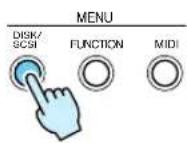
- Press the [DISK/SCSI] button.
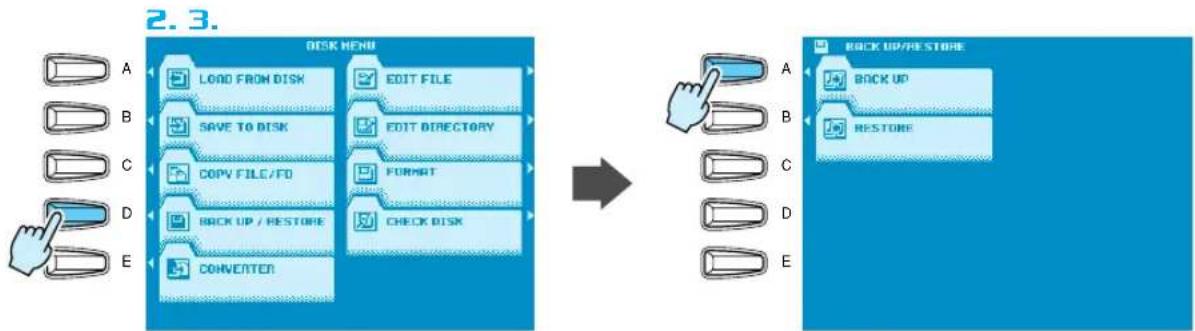
- Press the LCD [D] button (BACKUP/RESTORE).
- Press the LCD [A] button (BACKUP).
flowchart
graph LR
    A["DISK MENU"] --> B["LOAD FROM DISK"]
    B --> C["SAVE TO DISK"]
    C --> D["COPY FILE/FO"]
    D --> E["BACK UP / RESTORE"]
    E --> F["CONVENTOR"]
    F --> G["EDIT FILE"]
    G --> H["EDIT DIRECTORY"]
    H --> I["FORMAT"]
    I --> J["CHECK DISK"]
    J --> K["BACK UP/RESTORE"]
    K --> L["BACK UP"]
    K --> M["RESTORE"]
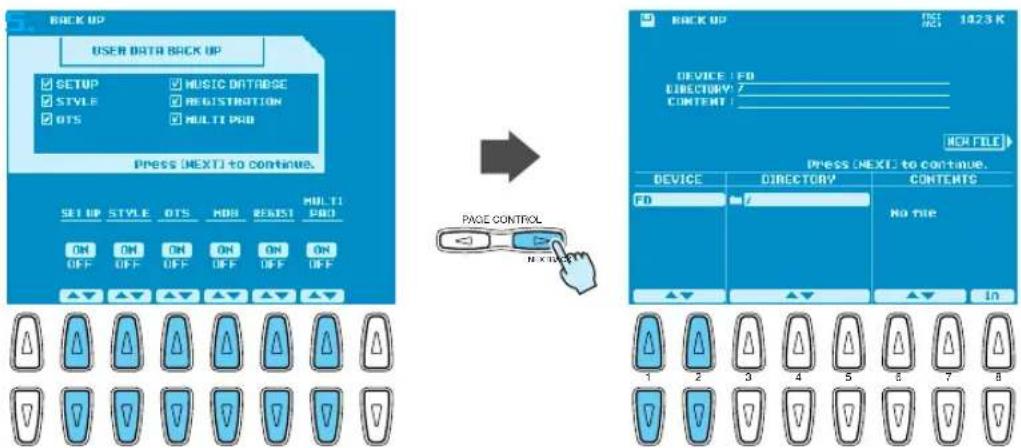
- Use the LCD [2] \~ [7] buttons to select the types of data you want to back up.
-
Press the [NEXT] button and, when applicable, use the LCD [1]/[2] buttons to select the disk you want to back up to (if you're backing up to floppies a blank floppy disk which is not write protected must be present in the floppy disk drive). If you choose to back up to hard disk, you may also need to select the directory to which the data will be saved.
-
text_image
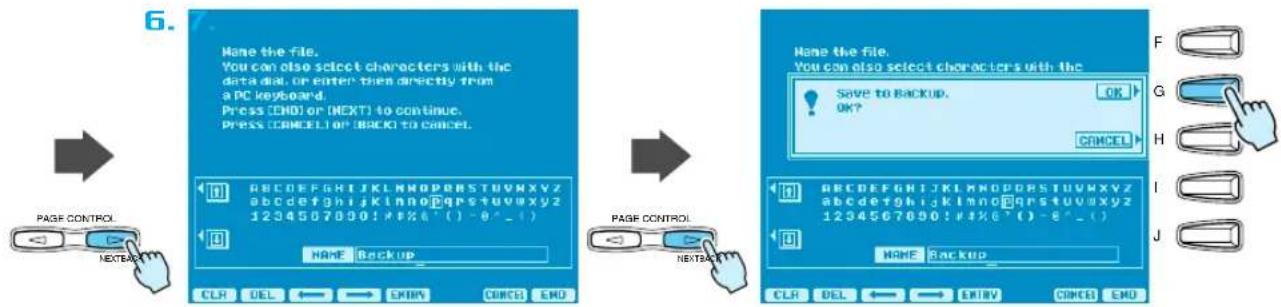
BACK UP USER DATA BACK UP SETUP MUSIC DATABASE STYLE REGISTRATION OTS MULTI PAD Press (NEXT) to continue. SET UP STYLE OTS HOB REIST MULTI PAD ON ON ON ON ON ON OFF OFF OFF OFF OFF ▲▼ ▲▼ ▲▼ ▲▼ ▲▼ ▲▼ PAGE CONTROL PAGE FILE PRESS (NEXT) to continue. DEVICE FD DIRECTORY 7 CONTENT 7 NEW FILE DEVICE DIRECTORY CONTENTS FD No file ▲▼ ▲▼ ▲▼ In 1 2 3 4 5 6 7 8- Press the [NEXT] button and enter an appropriate name for your backup file.
- Press the [NEXT] button and then the LCD [G] button (OK) to save the selected data to the specified disk.
text_image
6. Mane the file. You can also select characters with the data dial, or enter then directly from a PC keyboard. Press [END] or [NEXT] to continue. Press [CANCEL] or [BACK] to cancel. PAGE CONTROL NEXTBACK NAME BACKUP CLR DEL ← → ENTRY CINCE END PAGE CONTROL NEXTBACK Mane the file. You can also select characters with the Save to BACKUP. OK? OK? CANCEL F G H I J NAMER NAMER NAMER NAMER NAMER NAMER NAMER NAMER NAMER NAMER NAMER NAMER NAMER NAMER NAMER NAMER NAMERAfter installing the new software you can use the Restore function to reload the saved data.

page 130
page 154
Individual Flash Styles
If you only have a few Flash Styles you need to back up, the “All Data” method described above might not be what you need. Here’s how you can backup individual Flash Styles, or a group of Flash Styles as required.
This backup option uses the Save Style From Flash ROM function.

page 63
page 75
- Press any FLASH STYLE button.
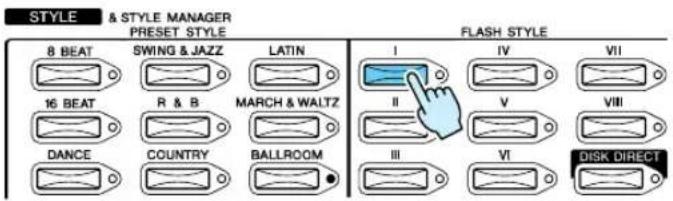
text_image
STYLE & STYLE MANAGER PRESET STYLE 8 BEAT SWING & JAZZ LATIN 16 BEAT R & B MARCH & WALTZ DANCE COUNTRY BALLROOM FLASH STYLE I IV VII II V VIII III VI DISK DIRECT- Press the LCD [7] or [8] button to go to the STYLE MANAGER.
- Press the LCD [B] button to select the SAVE STYLE FROM FLASH ROM function.
2.3.
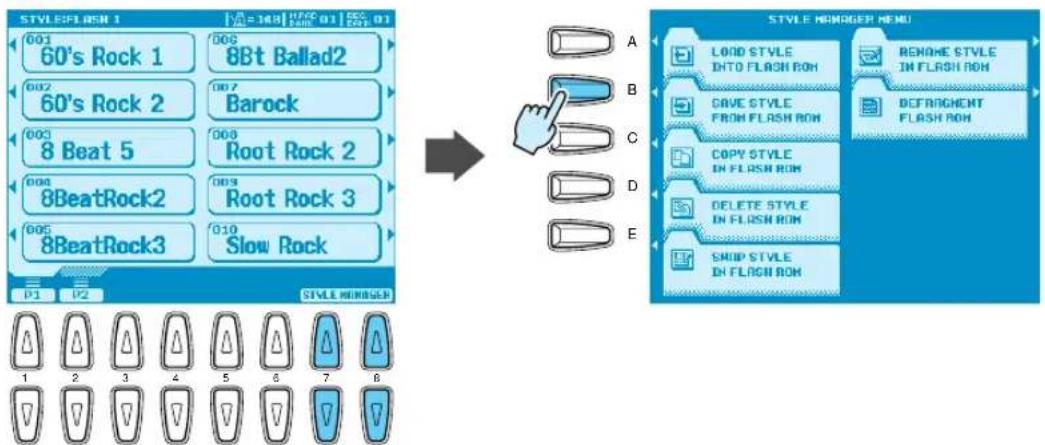
text_image
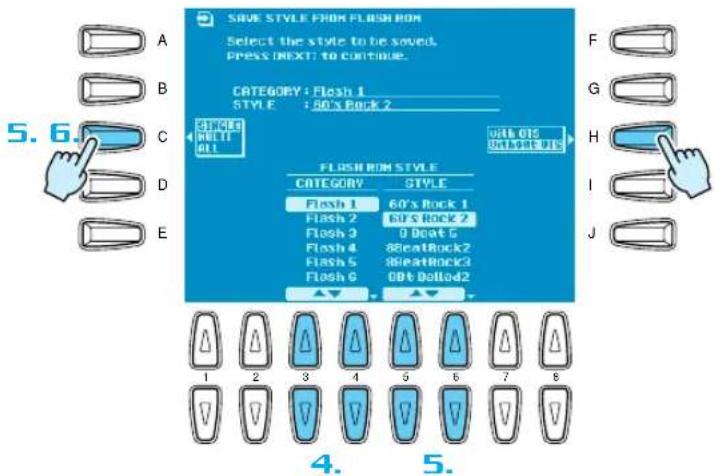
STYLE:FLASH 1 001 60's Rock 1 002 60's Rock 2 003 8 Beat 5 004 8BeatRock2 005 8BeatRock3 006 8Bt Ballad2 007 Barock 008 Root Rock 2 009 Root Rock 3 010 Slow Rock STYLE REGISTER A B C D E STYLE REGISTER MENU LOAD STYLE INTO FLASH ROW RENAME STYLE IN FLASH ROW DAVE STYLE FROM FLASH ROW DEFRAGMENT FLASH ROW COPY STYLE IN FLASH ROW DELETE STYLE IN FLASH ROW SHUP STYLE IN FLASH ROW- Use the LCD [3]/[4] buttons to select the Flash Style category containing the styles you want to back up.
text_image
SAVE STYLE FROM FLASH ROM Select the style to be saved. PRESS NEXT TO CONTINUE. CATEGORY : Flash 1 STYLE : 50's Rock 2 SINGLE MULTI ALL WITH OS COURSE FLASH ROM STYLE CATEGORY STYLE Flash 1 60's Rock 1 Flash 2 60's Rock 2 Flash 3 9 Beat 5 Flash 4 8 BeatRock2 Flash 5 8 BeatRock3 Flash 6 9 BeatDollad2 ▲▼ ▲▼ 1 2 3 4 5 6 7 8 F G H I J 4. 5.- Use the LCD [C] button to choose whether you want to back up a single style (SINGLE), a group of adjacent styles in the style list (MULTI), or all styles in the selected category (ALL). If you selected "SINGLE" use the LCD [5]/[6] buttons to select the style you want to back up. If you selected "MULTI" use the LCD [5]/[6] buttons to expand the highlighted region in the STYLE list to include all the styles you want to back up. If you selected "ALL" all styles in the list will automatically be highlighted.
-
Use the LCD [H] button to choose whether you want to save the selected styles with or without OTS data.
-
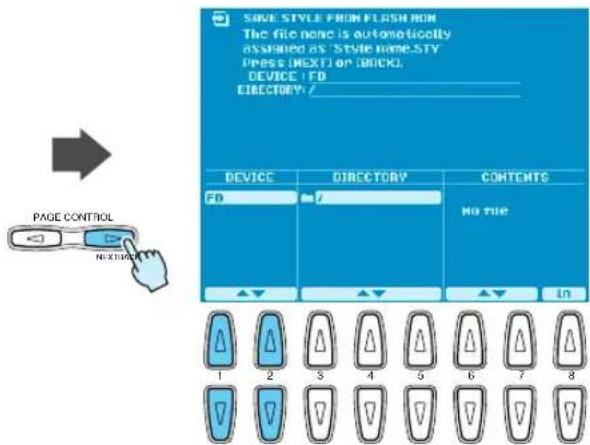
Press the [NEXT] button and, when applicable, use the LCD [1]/[2] buttons to select the disk you want to back up to (if you're backing up to floppies a blank floppy disk which is not write protected must be present in the floppy disk drive). If you choose to back up to hard disk, you may also need to select the directory to which the data will be saved.
text_image
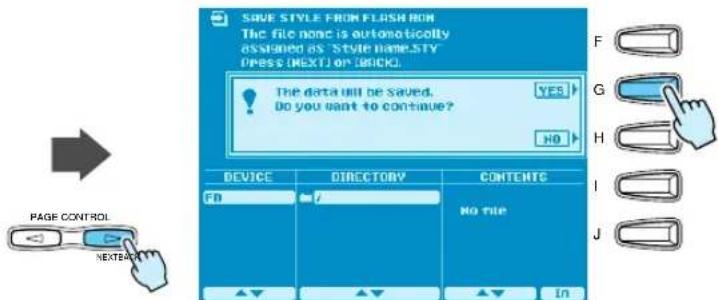
SAVE STYLE FROM FLASH ON The file none is automatically assigned as 'Style name.STY PRESS (NEXT) OR (BACK). DEVICE: FD DIRECTORY: / DEVICE DIRECTORY CONTENTS FD 7 No file ▲▼ ▲▼ ▲▼ In 1 2 3 4 5 6 7 8 PAGE CONTROL NEXT- Press the [NEXT] button and then the LCD [G] button (YES) to save the selected data to the specified disk
text_image
SAVE STYLE FROM FLASH FROM The file none is automatically assigned as 'Style name.STY PRESS (NEXT) or (BACK). The data will be saved. Do you want to continue? YES NO PAGE CONTROL NEXTBACK DEVICE DIRECTORY CONTENTS FB 7 No file F G H I J ▲▼ ▲▼ ▲▼ inAfter installing the new software you can use the Load Style Into Flash ROM function to reload the saved data.

page 62
page 74
Using the Registration Memory To Save Music Database Settings
Although all Music Database data can be saved by using the “All Data” method described above, individual Music Database settings cannot be saved to disk. A convenient way to backup Music Database settings is to save them to the Registration Memory.

page 28
page 28
3. Installing Your New Software
Once you've backed up any personal data you want to keep, as described in the preceding section, you can go ahead and install the new operating system.

Installing the Main and Sub Programs
IMPORTANT!!
- Don't turn off the power during the software installation process! Also, don't eject any of the program disks while they are loading! Doing so can result in incomplete and/or corrupted data, requiring complete system re-installation.
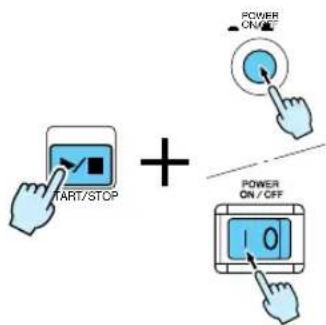
- Turn the 9000 power ON while holding the [START/STOP] button. The PROGRAM INSTALLER page will appear.
- Press the LCD [B] button to begin the MAIN PROGRAM load procedure.
text_image
TART/STOP POWER ON/OFF 10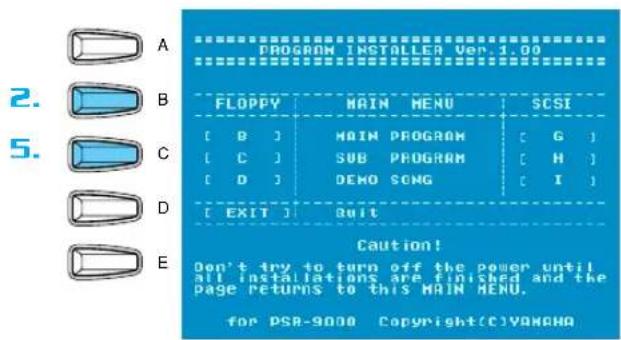
text_image
PROGRAM INSTALLER Ver.1.00 FLOPPY MAIN MENU SCSI [ B ] MAIN PROGRAM [ G ] [ C ] SUB PROGRAM [ H ] [ D ] DEMO SONG [ I ] [ EXIT ] QUIT Caution! Don't try to turn off the power until all installations are finished and the page returns to this MAIN MENU. for PSR-9000 Copyright(C)VANCHA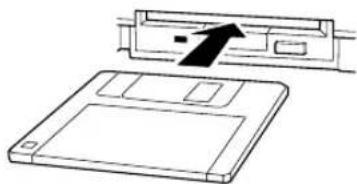
natural_image
Diagram of a floppy disk with an arrow indicating compression or disassembly (no text or symbols present)- Insert the MAIN PROGRAM 1 disk and press the [START/STOP] button. Wait until the first disk is loaded, then follow the instructions on the LCD and insert/load the remaining MAIN PROGRAM disks in the same way (always be sure to insert the disk specified by the instructions on the LCD).
- When the main program has been fully loaded "Completed" will appear on the LCD. Press the [EXIT] button to return to the PROGRAM INSTALLER menu.
- Press the LCD [C] button to begin the SUB PROGRAM load procedure.
- Insert the SUB PROGRAM disk and press the [START/STOP] button, then wait for the SUB PROGRAM is fully loaded.
- When "Completed" appears on the LCD, press the [EXIT] button twice. The 9000 will restart with the new operating system.
NOTE
- The display may flicker a little when the 9000 is restarted under the new operating system — this is normal.
4. The New Features

New Split Points
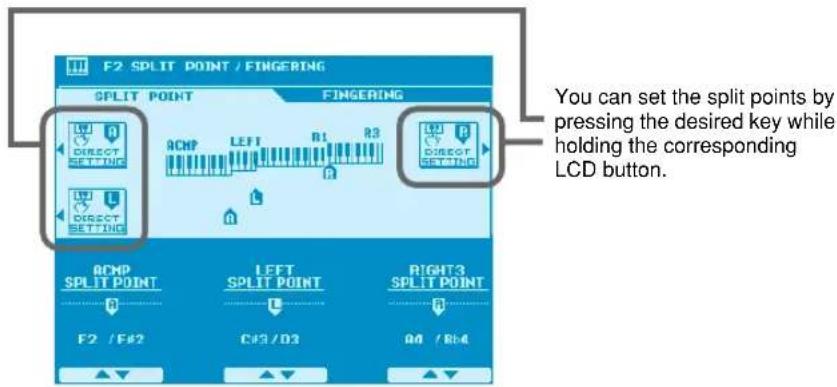
Previous versions of the operating system allowed one split point to be specified to separate the auto-accompaniment/left-hand section and the right-hand section of the keyboard. The new operating system allows three split points:
● ACMP SPLIT POINT
Separates the auto-accompaniment section of the keyboard from the left- and right-hand sections.
● LEFT SPLIT POINT
Separates the left- and right-hand sections of the keyboard.
● RIGHT 3 SPLIT POINT
Allows a separate split point to be specified for the R3 voice. This means that you could, for example, assign only the top octave of the keyboard to a percussion or sound-effect voice.
Access: [FUNCTION] → SPLIT POINT/FINGERING
text_image
F2 SPLIT POINT / FINGERING SPLIT POINT FINGERING ACMP LEFT B1 R3 DIRECT SETTING DIRECT SETTING ACMP SPLIT POINT LEFT SPLIT POINT RIGHT3 SPLIT POINT F2 / F#2 C#3 / D3 A4 / B#4 You can set the split points by pressing the desired key while holding the corresponding LCD button.Use the appropriate LCD buttons to set the split points as required, or use the DIRECT SETTING functions to directly specify the corresponding split point via the keyboard.

- The "A" (ACMP) split point cannot be set higher than the "L" (LEFT) or "R" (RIGHT 3) split point, and vice versa. In the same way the "R" split point cannot be set lower than the "L" or "A" split point.

- When the "L" and "A" split points are set at different keys, the LEFT voice can be played between the "L" and "A" split points when the Auto Accompaniment function is on. When the "L" and "A" split points are set to the same key, the LEFT voice can be played anywhere to the left of the "L" and "A" split points.

New Fingerings
New fingerings have been added for even greater auto-accompaniment versatility. The available fingering modes are listed below.
● Single Finger
Same as in previous versions.
● Multi Finger
Same as in previous versions.
● Fingered
This is the most standard fingering mode including two-note fingerings as shown in the fingering chart on pages 11 and 12.
● Fingered Advanced
This mode is ideal for jazz-type chord voicings which omit the root and/or 5th. The Fingered Advanced mode also allows two-note fingerings. See the fingering chart on pages 12 and 13 for details.
● Fingered Pro
Chords are only detected (changed) when three or more notes are played. This makes it possible to play one- or two-note lines (e.g. obbligato or riff melody) with the left part without causing a chord change.
● Fingered Pro Advanced
This is a “pro” version of the Fingered Advanced mode — i.e. chords are only detected when three or more notes are played.
● On Bass
The lowest note played becomes the bass note. All other fingerings are the same as in the Fingered mode.
● On Bass Advanced
The lowest note played becomes the bass note. All other fingerings are the same as in the Fingered Advanced mode.
● On Bass Pro
The lowest note played becomes the bass note. All other fingerings are the same as in the Fingered Pro mode.
● On Bass Pro Advanced
The lowest note played becomes the bass note. All other fingerings are the same as in the Fingered Pro Advanced mode.
● Full Keyboard
Fingerings are the same as in the Fingered Advanced mode, but chord detection occurs over the entire keyboard. Arpeggios are not supported in this mode.
● AI Full Keyboard (9000Pro Only)
This Full Keyboard mode is suitable for the piano performance with the both hands (e.g. arpeggios and melody). Chords can be presumed even one or two notes are played. There is a limit to the types of chords that can be detected. See the fingering chart of the Fingered Advanced mode on page 13.

- This fingering mode may not be suitable for some performance.

• Notes in parentheses can be omitted.
- If you play any three adjacent keys (including black keys), the chord sound will be canceled and only the rhythm instruments will continue playing (Chord Cancel function).
- The chord fingerings listed are all in "root" position, but other inversions can be used – with the exceptions described on Note column.
- The auto accompaniment will sometimes not change when related chords are played in sequence (e.g. some minor chords followed by the minorseventh).
- Two-note fingerings will produce a chord based on the previously played chord.
■ Chord Types Recognized in the Fingered Mode
● Example for "C" chords
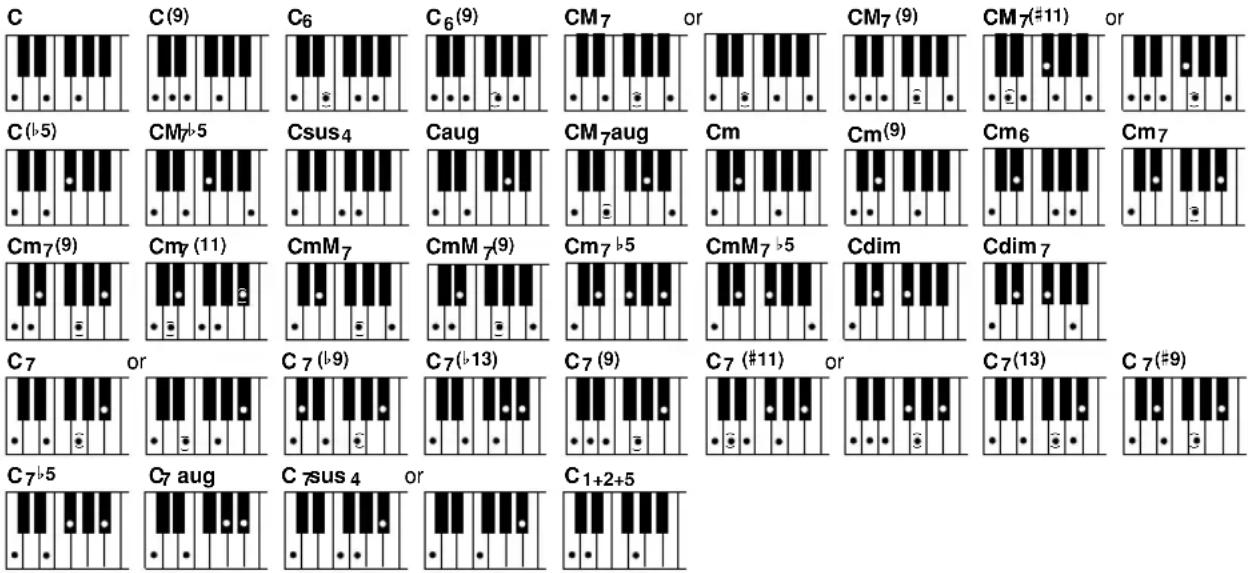
| Chord Name [Abbreviation] Display for root “C” Normal Voicing Note | |||
| Major [M] C 1 - 3 - 5 | |||
| Add ninth [(9)] C(9) 1 - 2 - 3 - 5 | |||
| Sixth [6] C6 1 - (3) - 5 - 6 Root position only | |||
| Sixth ninth [6(9)] C6(9) 1 - 2 - 3 - (5) - 6 Root position only | |||
| Major seventh [M7] | CM7 | 1 - 3 - (5) - 7 | |
| 1 - (3) - 5 - 7 | |||
| Major seventh ninth [M7(9)] CM7(9) | 1 - 2 - 3 - (5) - 7 | ||
| Major seventh add sharp eleventh [M7(#11)] | CM7#11 | 1 - (2) - 3 - #4 - 5 - 7 | |
| 1 - 2 - 3 - #4 - (5) - 7 | |||
| Flatted fifth [(l5)] | C(l5) | 1 - 3 - l5 | |
| Major seventh flatted fifth [M7l5] | CM7l5 | 1 - 3 - l5 - 7 | |
| Suspended fourth [sus4] | Csus4 | 1 - 4 - 5 Root position only | |
| Augmented [aug] | Caug | 1 - 3 - #5 | Root position only |
| Major seventh augmented [M7aug] | CM7aug | 1 - (3) - #5 - 7 | |
| Minor [m] Cm 1 - | l3 - 5 | ||
| Minor add ninth [m(9)] | Cm(9) | 1 - 2 - l3 - 5 | |
| Minor sixth [m6] | Cm6 1 - | l3 - 5 - 6 | Root position only |
| Minor seventh [m7] | Cm7 1 - | l3 - (5) - b7 | Except 1st inversion |
| Minor seventh ninth [m7(9)] Cm7(9) | 1 - 2 - | l3 - (5) - l7 | |
| Minor seventh eleventh [m7(11)] | Cm7_11 | 1 - (2) - b3 - 4 - 5 - (b7) | Except 1st inversion |
| Minor major seventh [mM7] | CmM7 | 1 - b3 - (5) - 7 | |
| Minor major seventh ninth [mM7(9)] | CmM7_9 | 1 - 2 - b3 - (5) - 7 | |
| Minor seventh flatted fifth [m7l5] | Cm7l5 | 1 - b3 - l5 - b7 | Except 1st inversion |
| Minor major seventh flatted fifth [mM7 l5] | CmM7l5 | 1 - b3 - l5 - 7 | |
| Diminished [dim] | Cdim | 1 - b3 - b5 | |
| Diminished seventh [dim7] | Cdim7 | 1 - b3 - l5 - 6 | Root position only |
| Seventh [7] | C7 | 1 - 3 - (5) - b7 | |
| 1 - (3) - 5 - b7 | |||
| Seventh flatted ninth [7(l9)] | C7(l9) | 1 - b2 - 3 - (5) - b7 | |
| Seventh add flatted thirteenth [7(l13)] | C7l13 | 1 - 3 - 5 - b6 - b7 | |
| Seventh ninth [7(9)] | C7(9) 1 - 2 - 3 - (5) - | b7 | |
| Seventh add sharp eleventh [7(#11)] | C7#11 | 1 - (2) - 3 - #4 - 5 - b7 | |
| 1 - 2 - 3 - #4 - (5) - b7 | |||
| Seventh add thirteenth [7(13)] | C7(13) | 1 - 3 - (5) - 6 - b7 | |
| Seventh sharp ninth [7(#9)] | C7(#9) | 1 - #2 - 3 - (5) - b7 | |
| Seventh flatted fifth [7l5] | C7l5 | 1 - 3 - b5 - b7 | The lowest note can be the root note or l7th note. |
| Seventh augmented [7aug] | C7aug | 1 - 3 - #5 - l7 | |
| Seventh suspended fourth [7sus4] | C7sus4 | 1 - 4 - 5 - b7 | |
| 1 - 4 - b7 | Root position only | ||
| One plus two plus five [1+2+5] | C1+2+5 | 1 - 2 - 5 Root position only | |
■ Two-note Fingerings Recognized in the Fingered and Fingered Advanced Mode
● Example for "C" chords
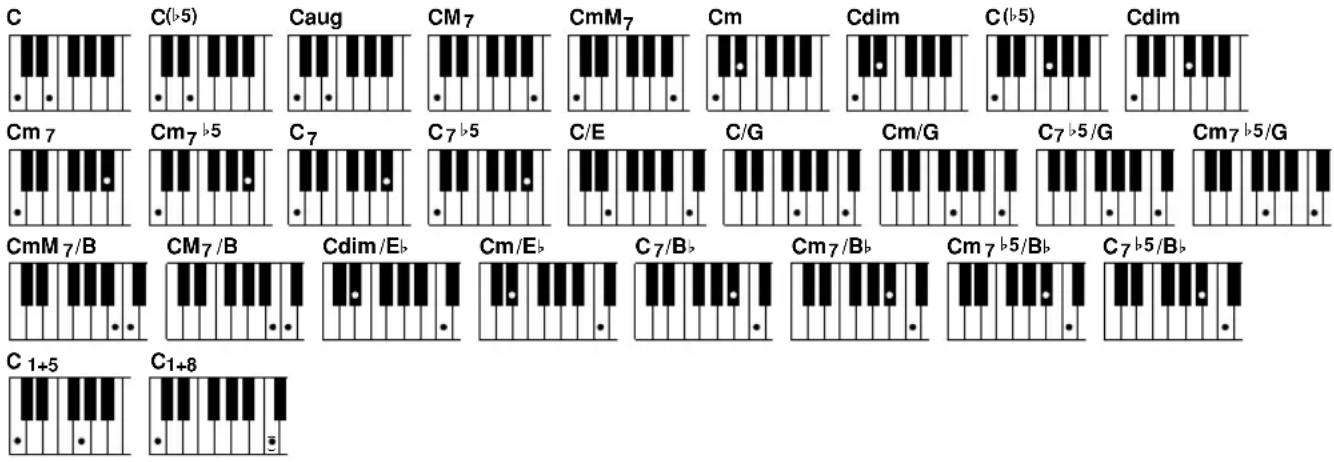
text_image
C C(b5) Caug CM7 CmM7 Cm Cdim C(b5) Cdim Cm7 Cm7 b5 C7 C7 b5 C/E C/G Cm/G C7 b5/G Cm7 b5/G CmM 7/B CM7/B Cdim/Eb Cm/Eb C7/Bb Cm7/Bb Cm7 b5/Bb C7 b5/Bb C 1+5 C1+8| Chord Name [Abbreviation] Display for root "C" Normal Voicing Note | |||
| Major [M] C 1 - 3 Root position only | |||
| Flatted fifth [(b5)] | C(>5) | 1 - 3 | Root position only |
| Augmented [aug] Caug 1 - 3 Root position only | |||
| Major seventh [M7] CM7 1 - 7 Root position only | |||
| Minor major seventh [mM7] CmM7 1 - 7 Root position | only | ||
| Minor [m] Cm 1 - b3 Root position only | |||
| Diminished [dim] | Cdim | 1 - b3 | Root position only |
| Flatted fifth [(b5)] | C(>5) | 1 - b5 | Root position only |
| Diminished [dim] | Cdim | 1 - b5 | Root position only |
| Minor seventh [m7] Cm7 1 - b7 Root position only | |||
| Minor seventh flatted fifth [m7>5] | Cm7b5 | 1 - b7 | Root position only |
| Seventh [7] | C7 | 1 - b7 | Root position only |
| Seventh flatted fifth [7b5] | C7b5 | 1 - b7 | Root position only |
| Major on 3rd [M/3rd] | C/E | 3 - 8 No inversions | |
| Major on 5th [M/5th] | C/G | 5 - 8 No inversions | |
| Minor on 5th [m/5th] | Cm/G | 5 - 8 No inversions | |
| Seventh flatted fifth on 5th [7b5/5th] | C7b5/G | 5 - 8 | No inversions |
| Minor seventh flatted fifth on 5th [m7b5/5th] | Cm7b5/G | 5 - 8 | No inversions |
| Minor major seventh on 7th [mM7/7th] | CmM7/B | 7 - 8 No inversions | |
| Major seventh on 7th [M7/7th] | CM7/B | 7 - 8 No inversions | |
| Diminished on b3rd [dimb3rd] | Cdim/Elb | b3 - 8 | No inversions |
| Minor on b3rd [m/b3rd] | Cm/Eb | b3 - 8 | No inversions |
| Major on b7th [M/b7th] | C7/Bb | b7 - 8 | No inversions |
| Minor seventh on b7th [m7/b7th] | Cm7/Bb | b7 - 8 | No inversions |
| Minor seventh flatted fifth on b7th [m7b5b7th] | Cm7b5/Bb | b7 - 8 | No inversions |
| Seventh flatted fifth on b7th [7b5b7th] | C7b5/Bb | b7 - 8 | No inversions |
| Perfect Fifth [1+5] | C1+5 1 - 5 No inversions | ||
| Single [1+8] | C1+8 1 - (8) | ||

NOTE
- The chords produced by the above fingerings will depend on the previous chord, with the exception of Major on 3rd, Perfect Fifth, and Single fingerings.
(Example: 5-8 played after a Cm chord produced Cm/G, but played after a C chord 5-8 produced C/G).
■ Chord Types Recognized in the Fingered Advanced Mode
● Example for "C" chords
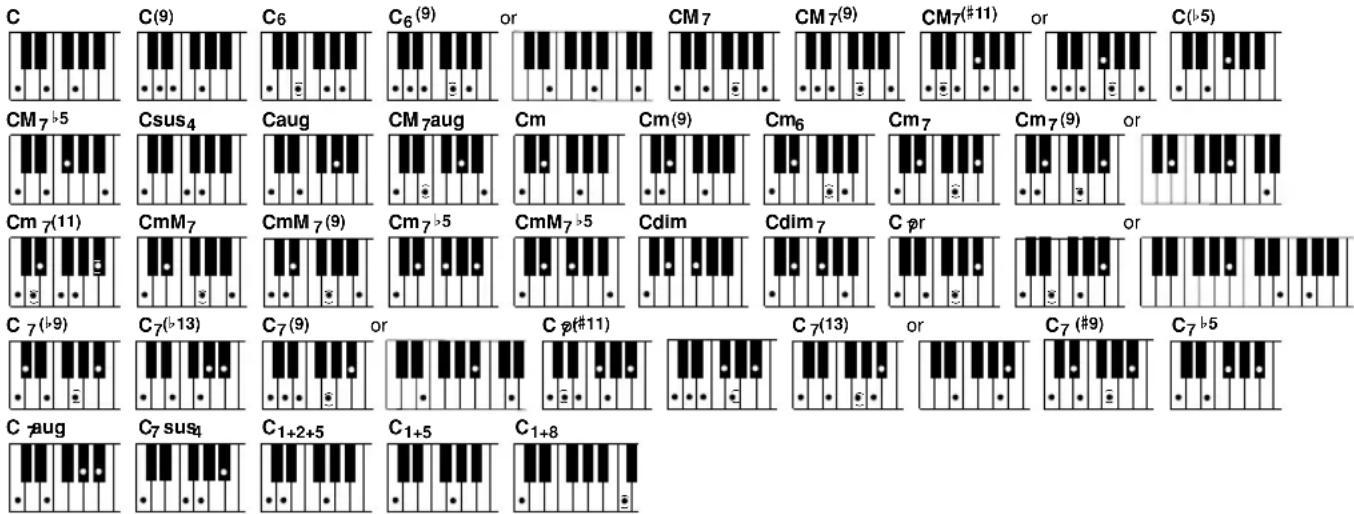
text_image
C C(9) C6 C6(9) or CM 7 CM7(9) CM7(#11) or C(b-5) CM7 b5 Csus4 Caug CM7aug Cm Cm(9) Cm6 Cm7 Cm7(9) or Cm 7(11) CmM7 CmM7(9) Cm7 b5 CmM7 b5 Cdim Cdim7 Cpr or C 7(b-9) C7(b-13) C7(9) or C p(#11) C 7(13) or C7(#9) C7 b5 C aug C7 sus4 C1+2+5 C1+5 C1+8| Chord Name [Abbreviation] Display for root | ‘C” Normal Voicing Note | Full Key-board | AI Full Keyboard | ||
| Major [M] C 1 - 3 - 5 √√ | |||||
| Add ninth [(9)] C(9) 1 - 2 - 3 - 5 √- | |||||
| Sixth [6] | C6 | 1 - (3) - 5 - 6 | Root position only | √ | √*1 |
| Sixth ninth [6(9)] | C6(9) | 1 - 2 - 3 - (5) - 6 | Root position only | √ | - |
| 3 - 6 - 9 | No inversions | √- | |||
| Major seventh [M7] | CM7 | 1 - 3 - (5) - 7 | √ | √*1 | |
| Major seventh ninth [M7(9)] | CM7(9) | 1 - 2 - 3 - (5) - 7 | √ | - | |
| Major seventh add sharp eleventh [M7(#11)] | CM7#11 | 1 - (2) - 3 - #4 - 5 - 7 | √- | ||
| 1 - 2 - 3 - #4 - (5) - 7 | √- | ||||
| Flatted fifth [(>5)] | C(>5) | 1 - 3 - >5 | Except 2nd inversion | √ | √*2 |
| Major seventh flatted fifth [M7>5] | CM7>5 | 1 - 3 - >5 - 7 | √ | √ | |
| Suspended fourth [sus4] | Csus4 | 1 - 4 - 5 | Root position only | √ | √ |
| Augmented [aug] | Caug | 1 - 3 - #5 | Root position only | √ | √ |
| Major seventh augmented [M7aug] | CM7aug | 1 - (3) - #5 - 7 | √ | √*1 | |
| Minor [m] | Cm | 1 - >3 - 5 | √ | √ | |
| Minor add ninth [m(9)] | Cm(9) | 1 - 2 - >3 - 5 | √ | - | |
| Minor sixth [m6] | Cm6 | 1 - >3 - (5) - 6 | Root position only | √ | √*1 |
| Minor seventh [m7] | Cm7 | 1 - >3 - (5) - >7 | Except 1st inversion | √ | √*1 |
| Minor seventh ninth [m7(9)] | Cm7(9) | 1 - 2 - >3 - (5) - >7 | √ | - | |
| >3 - >7 - 9 | No inversions | √ | - | ||
| Minor seventh eleventh [m7(11)] | Cm7_11 | 1 - (2) - >3 - 4 - 5 - (>7) | Except 1st inversion | √ | - |
| Minor major seventh [mM7] | CmM7 | 1 - >3 - (5) - 7 | √ | √*1 | |
| Minor major seventh ninth [mM7(9)] | CmM7_9 | 1 - 2 - >3 - (5) - 7 | √ | - | |
| Minor seventh flatted fifth [m7>5] | Cm7>5 | 1 - >3 - >5 - >7 | Except 1st inversion | √ | √ |
| Minor major seventh flatted fifth [mM7>5] | CmM7>5 | 1 - >3 - >5 - 7 | √ | √ | |
| Diminished [dim] | Cdim | 1 - >3 - >5 | Root position only | √ | √*2 |
| Diminished seventh [dim7] | Cdim7 | 1 - >3 - >5 - 6 | Root position only | √ | √ |
| Seventh [7] | C7 | 1 - 3 - (5) - >7 | √ | √*1 | |
| 1 - (3) - 5 - >7 | √ | √*1 | |||
| >7 - 10 - 12 | No inversions | √ | - | ||
| Seventh flatted ninth [7(>9)] | C7(>9) | 1 - >2 - 3 - (5) - >7 | √ | - | |
| Seventh add flatted thirteenth [7(>13)] | C7>13 | 1 - 3 - 5 - >6 - >7 | √ | - | |
| Seventh ninth [7(9)] | C7(9) | 1 - 2 - 3 - (5) - >7 | √- | ||
| 3 - >7 - 9 | No inversions | √ | - | ||
| Seventh add sharp eleventh [7(#11)] | C7#11 | 1 - (2) - 3 - #4 - 5 - >7 | √ | - | |
| 1 - 2 - 3 - #4 - (5) - >7 | √ | - | |||
| Seventh add thirteenth [7(13)] | C7(13) | 1 - 3 - (5) - 6 - >7 | √- | ||
| 3 - 6 - >7 | √- | ||||
| Seventh sharp ninth [7(#9)] | C7(#9) | 1 - #2 - 3 - (5) - >7 | √ | - | |
| Seventh flatted fifth [7>5] | C7>5 | 1 - 3 - >5 - >7 | The lowest note can be the root note or >7th note. | √ | √ |
| Seventh augmented [7aug] | C7aug | 1 - 3 - #5 - >7 | √ | √ | |
| Seventh suspended fourth [7sus4] | C7sus4 | 1 - 4 - 5 - >7 | √ | √*3 | |
| One plus two plus five [1+2+5] | C1+2+5 | 1 - 2 - 5 | Root position only | √ | - |
| Perfect Fifth [1+5] | C1+5 | 1 - 5 | No inversions | - | √ |
| Single [1+8] | C1+8 | 1 - (8) | - | √ |
*1 Notes in parentheses cannot be omitted. *2 All inversions can be detected. *3 The 5th note can be omitted.

- AI Full Keyboard can detect some exceptional chords consisting of only the notes played on the keyboard. (Example: If C and E are pressed, the style consisting of only C and E will be played.

Stop Accompaniment
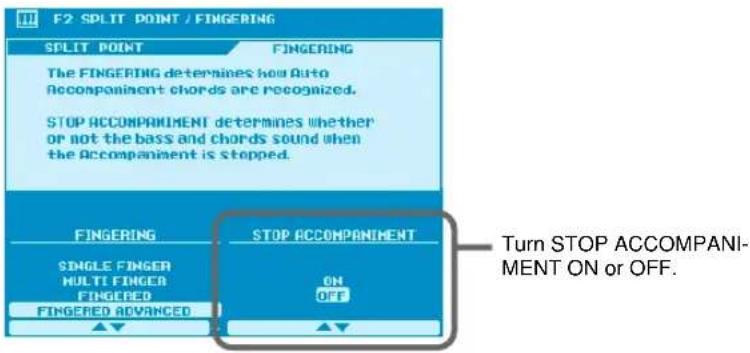
This new function allows auto accompaniment to be used even when accompaniment playback is stopped. When a chord is played in the auto-accompaniment section of the keyboard the currently selected pad and bass parts will sound. This can be particularly handy for free-tempo (rubato) passages, or simply to practice at your own pace.
Access: [FUNCTION] → SPLIT POINT/FINGERING → [NEXT]
text_image
F2 SPLIT POINT / FINGERING SPLIT POINT FINGERING The FINGERING determines how Auto Accompaniment chords are recognized. STOP ACCOMPANIMENT determines whether or not the bass and chords sound when the Accompaniment is stopped. FINGERING STOP ACCOMPANIMENT SINGLE FINGER MULTI FINGER FINGERED FINGERED ADVANCED ON OFF Turn STOP ACCOMPANI- MENT ON or OFF.
- This function will be disabled when the fingering mode is set to Full Keyboard or AI Full Keyboard, even when Stop Accompaniment is turned ON.

Song Chain
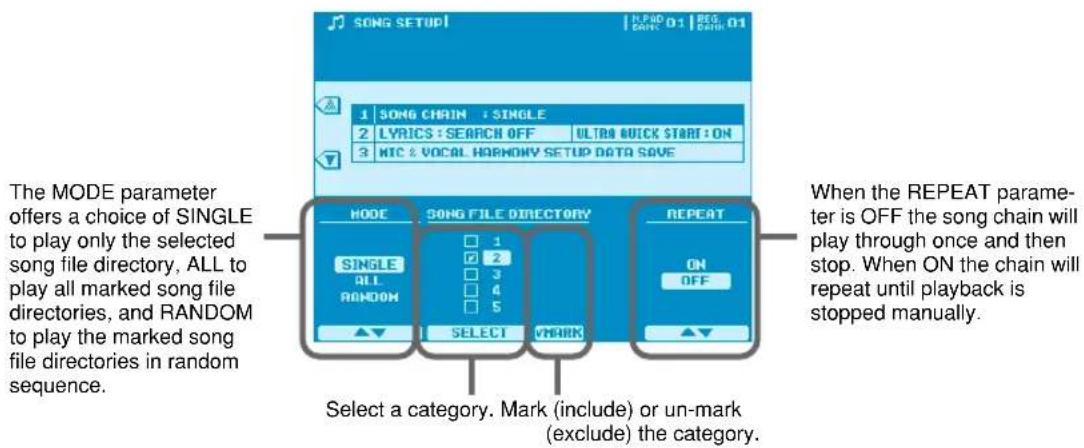
The SONG CHAIN function lets you set up a sequence of songs which will play back automatically – ideal for background music.
Access: [SONG SETUP] → SONG CHAIN
text_image
SONG SETUP | H PRO 01 | RES 01 1 SONG CHAIN : SINGLE 2 LYRICS : SEARCH OFF ULTRA QUICK START : ON 3 MTC & VOCAL HARMONY SETUP DATA SAVE The MODE parameter offers a choice of SINGLE to play only the selected song file directory, ALL to play all marked song file directories, and RANDOM to play the marked song file directories in random sequence. MODE SONG FILE DIRECTORY REPEAT SINGLE 1 ON ALL 2 OFF RANDOM 3 4 5 SELECT VMARK ON OFF Select a category. Mark (include) or un-mark (exclude) the category. When the REPEAT parameter is OFF the song chain will play through once and then stop. When ON the chain will repeat until playback is stopped manually.
- When ALL or RANDOM is selected the directory containing the currently selected song file will be played back at first, even if it is not marked. Then the marked directories will follow.

Next Song Reservation
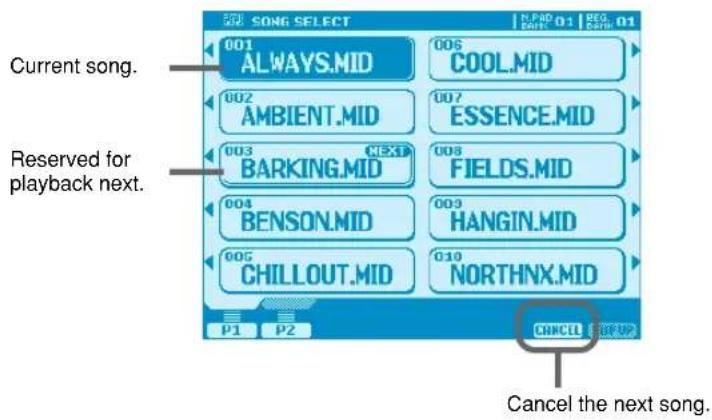
This function makes it possible to specify the next song to be played while the current song is still playing, so that the next song begins as soon as the current song finishes.
Access: SONG FILE DIRECTORY [I] \~ [V]
text_image
SONG SELECT 001 ALWAYS.MID 002 AMBIENT.MID 003 BARKING.MID 004 BENSON.MID 005 CHILLOUT.MID 006 COOL.MID 007 ESSENCE.MID 008 FIELDS.MID 009 HANGIN.MID 010 NORTHNX.MID P1 P2 CANCE CANCEL Current song. Reserved for playback next. Cancel the next song.While the current song is playing press the appropriate LCD button to select the next song once. A thick border will appear around the selected song title, indicating that it is reserved for playback next. If you press the song-select button a second time playback of the new song will begin immediately.

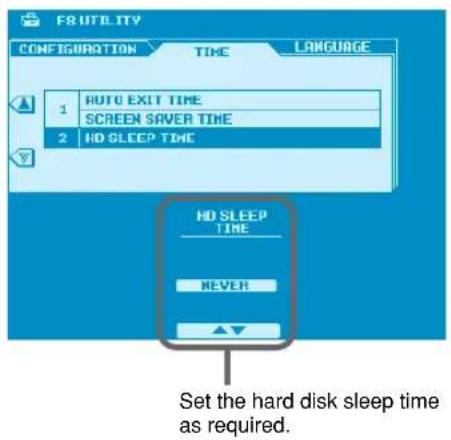
HD Sleep Time Control
In previous versions the internal hard disk (when installed) would always go into “sleep” mode after a preset time, both to maximize the lifetime of the hard disk and to minimize unnecessary mechanical noise. The few seconds it took for the hard disk to “wake up” from the sleep mode, could, however, be a problem in some situations.
In the new version you can set the hard disk sleep time from anywhere between 30 seconds and 1 hour, or to "never" if you never want the hard disk to go into sleep mode.
Access: [FUNCTION] → UTILITY → TIME → HD SLEEP TIME
text_image
F8 UTILITY CONFIGURATION TIME LANGUAGE 1 AUTO EXIT TIME SCREEN SAVER TIME 2 HD SLEEP TIME HD SLEEP TIME NEVER Set the hard disk sleep time as required.
Panel Sustain Rate Control
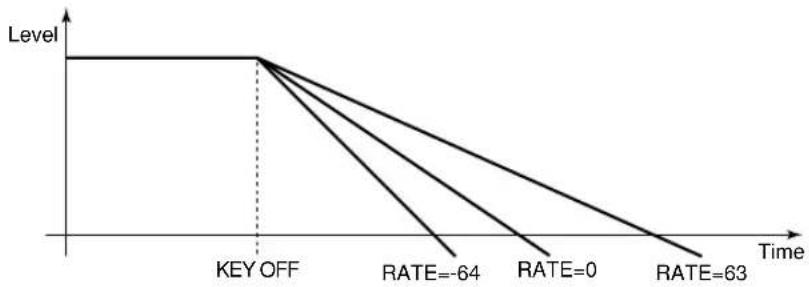
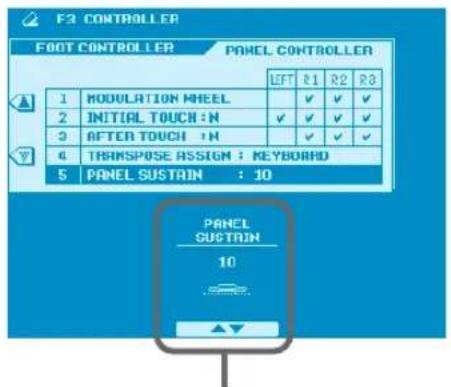
As always the panel [SUSTAIN] button adds sustain to the voice being played on the keyboard for a smoother overall sound. The new Panel Sustain Rate Control feature allows you to adjust the length of sustain created when the [SUSTAIN] button is ON, for optimum sound with the voice used and your playing style.
line
| Time | Level | | -------- | ----- | | KEY OFF | Level | | RATE=-64 | Low | | RATE=0 | Medium| | RATE=63 | High |Access: [FUNCTION] → CONTROLLER → PANEL CONTROLLER → PANEL SUSTAIN
text_image
F2 CONTROLLER FOOT CONTROLLER PANEL CONTROLLER LEFT R1 R2 R3 1 MODULATION WHEEL 2 INITIAL TOUCH : N 3 AFTER TOUCH : H 4 TRANSPOSE ASSIGN : KEYBOARD 5 PANEL SUSTAIN : 10 PANEL SUSTAIN 10Set the PANEL SUSTAIN from -64 to 63. The higher the value the longer the sustain.

NOTE
- The PANEL SUSTAIN value is relative, so the actual length of sustain produced will depend on the voice used.

Sustain Mode (new for the PSR-9000)
This feature has already been implemented on the 9000Pro, but is new on the PSR-9000.
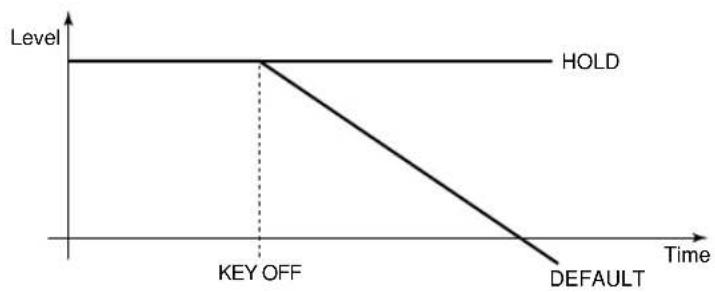
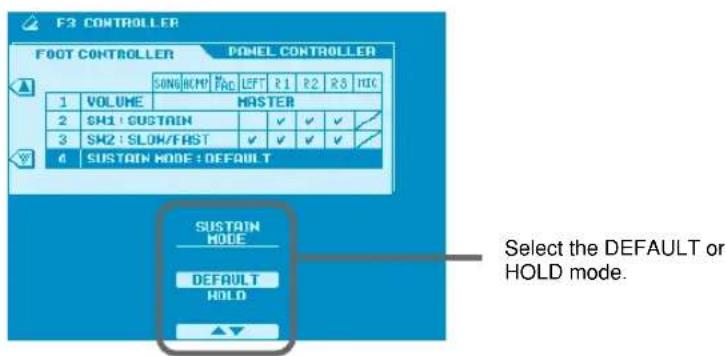
When the sustain mode is set to DEFAULT pressing the sustain pedal produces sustain with decay, like an acoustic piano. When the sustain mode is set to HOLD, the sustain is maintained indefinitely – ideal for organ, strings, pads, or similar voices. The actual sustain effect produced will depend on the selected voice.
line
| Time | Level | |---|---| | 0 | HOLD | | KEY OFF | 0 | | DEFAULT | < Default > |Access: [FUNCTION] → CONTROLLER → FOOT CONTROLLER → SUSTAIN MODE
text_image
F2 CONTROLLER FOOT CONTROLLER POMEL CONTROLLER SONG HCMF PAC LEFT R1 R2 R3 HIC 1 VOLUME MASTER 2 SM1: SUSTAIN ✓ ✓ ✓ ✓ 3 SM2: SLOW/FAST ✓ ✓ ✓ ✓ ✓ 4 SUSTAIN MODE: DEFAULT SUSTAIN MODE DEFAULT HOLD Select the DEFAULT or HOLD mode.
Improved Music Database Display.
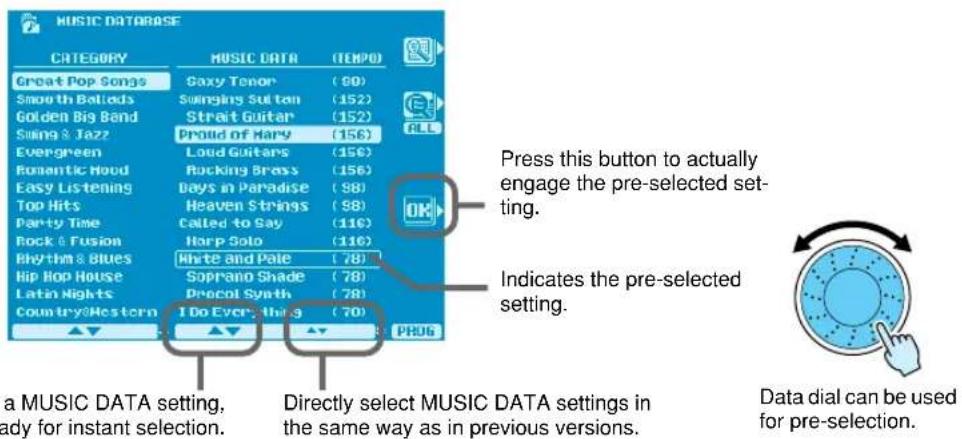
In the new version the Music Database display has been revised to allow easy pre-selection of a Music Database setting for instant recall when needed.
Access: [MUSIC DATABASE]
text_image
MUSIC DATABASE CATEGORY MUSIC DATA (TEMPO) Great Pop Songs Gaxy Tenor (80) Smooth Ballads Sunging Sultan (152) Golden Big Bend Strait Guitar (152) Swing & Jazz Proud of Harry (156) Evergreen Loud Guitars (156) Romantic Hood Rocking Brass (156) Easy Listening Days in Paradise (98) Top Hits Heaven Strings (98) Party Time Called to Gay (116) Rock & Fusion Harp Solo (116) Rhythm & Blues White and Pale (78) Hip Hop House Soprano Shade (78) Latin Nights Drocol Synth (78) Country/Mestern I Do Everything (70) Press this button to actually engage the pre-selected set- ting. Indicates the pre-selected setting. Data dial can be used for pre-selection. a MUSIC DATA setting, ready for instant selection. Directly select MUSIC DATA settings in the same way as in previous versions."Pre-select" a MUSIC DATA setting, making it ready for instant selection.

Improved Mixing Console Voice Display......
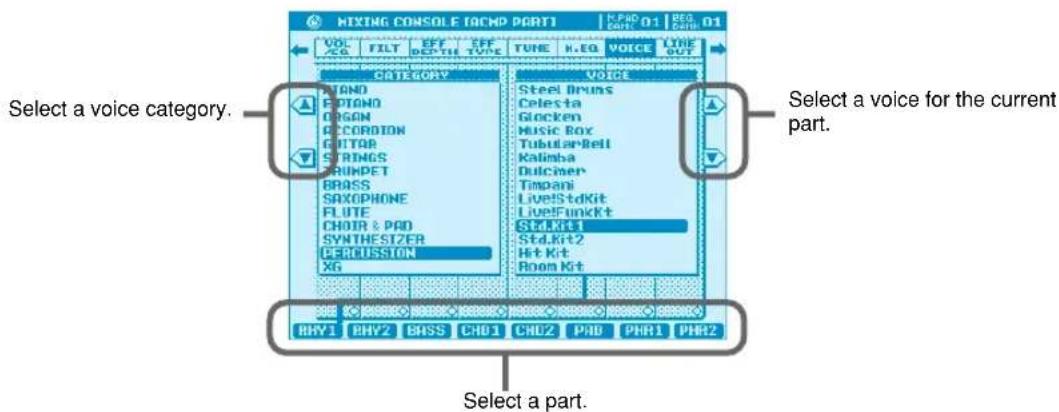
The mixing console VOICE display has been revised for easier part voice selection.
Two selection windows appear in the VOICE display: CATEGORY and VOICE. When you select a part via the LCD [1] \~ [8] buttons a line appears between the selected part name and the VOICE window, clearly indicating the part to which the voice selection will apply.
Access: [MIXING CONSOLE] → VOICE
text_image
MIXING CONSOLE TACMP PART1 VOL ORG FILT OFF DEPTH TYPE TUNE H.EQ VOICE LINE OUT CATEGORY STAND POTANO ORGAN CORRORION GUITAR STRINGS BRUMPET BRASS SAXOPHONE FLUTE CHOIR & PAD SYNTHESIZER PERCUSSION XG VOICE Steel Drums Celesta Glocken Music Box Tubular Bell Kalimba Dulcimer Timpani Live!StdKit Live!FunkKit StdKit1 StdKit2 Hit Kit Room Kit Select a voice category. Select a part. Select a voice for the current part. PHY1 PHY2 BASS CHD1 CHD2 PAD PHR1 PHR2
Improved Mixing Console Effect Type Display ......
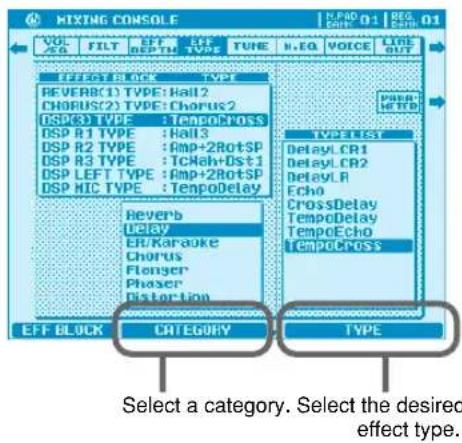
The mixing console EFFECT display has been revised for easier effect selection.
When a DSP type effect is selected in the EFFECT BLOCK window, a new CATEGORY window appears allowing easy direct selection of the available effects.
Access: [MIXING CONSOLE] → EFF TYPE
text_image
MIXING CONSOLE VOL/SG FILT LEFT DEPTM EFFECT TYPE TUNE R.EQ VOICE LINE OUT EFFECT BLOCK TYPE REVERB(1) TYPE: Hall2 CHORUS(2) TYPE: Chorus2 DSP(3) TYPE : TempoCross DSP R1 TYPE : Hall3 DSP R2 TYPE : Amp+2RotSP DSP R3 TYPE : TcNah+Dst1 DSP LEFT TYPE : Amp+2RotSP DSP MIC TYPE : TempoDelay Reverb Delay ER/Karaoke Chorus Flenger Phaser Distortion TYPELIST DelayL_CR1 DelayL_CR2 DelayL_R Echo CrossDelay TempoDelay TempoEcho TempoCross EFF BLOCK CATEGORY TYPE Select a category. Select the desired effect type.
Disk Direct Style Registration.
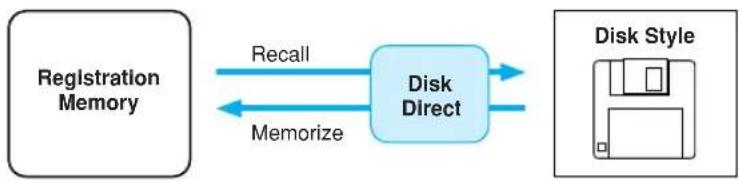
It is now possible to use the Registration Memory with styles on a style disk being used with the Disk Direct function, but only with styles in the currently selected Disk Direct directory.
flowchart
graph LR
    A["Registration Memory"] -->|Recall| B["Disk Direct"]
    B -->|Memorize| A
    C["Disk Style"] --> B
The procedure is as follows:
- Open the directory containing the style you want to register via the Disk Direct "POP UP" window (this could be on a floppy disk or on an internal or SCSI hard disk, if installed).
- Use the System Backup function to memorize the directory with the system.

page 50
page 55
- Set the right-hand voice and other performance parameters as required.
- Memorize the settings using the Registration Memory.
page 29
page 29
NOTE
- Please note that the correct style may not be recalled if a different floppy disk is used or the file name is changed.
- If you recall a Registration Memory with a Disk Direct style in the Song Select display, the style may not be loaded until exiting the display.
• One directory can contain up to 250 style files.

Style Creator & Disk Direct Styles.
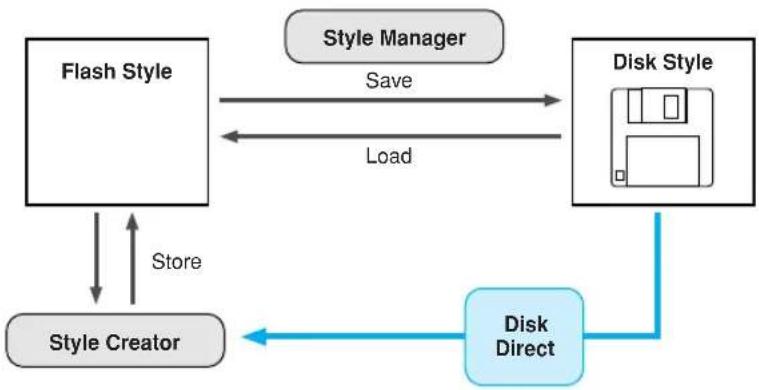
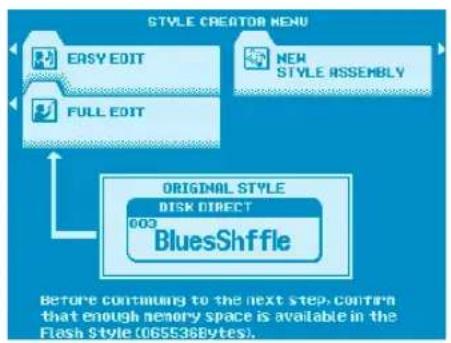
In the new version it is possible to directly select a Disk Direct style for editing in the Style Creator. Simply select the Disk Direct style to be edited and engage the Style Creator.

page 104 page 126
Of course, you'll have to save your newly created style to the Flash Style memory if you want to keep it.
flowchart
graph TD
    A["Flash Style"] -->|Save| B["Disk Style"]
    B -->|Load| A
    C["Style Creator"] -->|Store| A
    D["Style Manager"] -->|Save| B
    D -->|Load| B
    E["Disk Direct"] -->|Store| C
    E -->|Load| B
flowchart
graph TD
    A["STYLE CREATOR MENU"] --> B["EASY EDIT"]
    A --> C["FULL EDIT"]
    B --> D["NEW STYLE ASSEMBLY"]
    C --> D
    D --> E["ORIGINAL STYLE DISK DIRECT"]
    E --> F["BluesShuffle"]
    style E fill:#f9f9f9,stroke:#333
    note bottom of E Before continues to the next step, confirm that enough memory space is available in the Flash Style (065638Bytes).

- When you return to the Style Creator Menu display after selecting a Disk Direct style in the Style Creator, the Disk Direct style will be loaded again.

Style Manager & Preset Styles
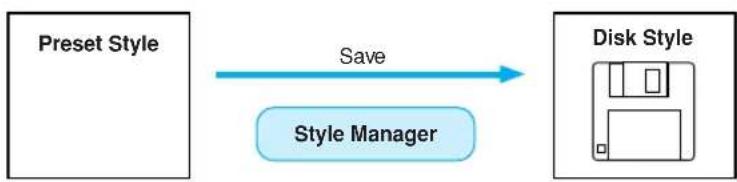
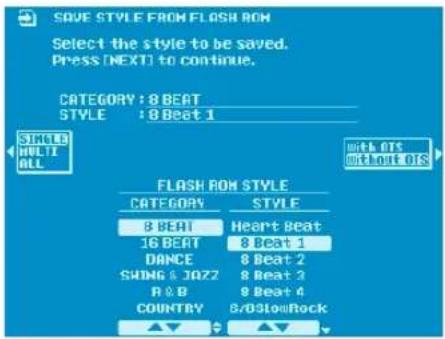
It is now possible to directly save preset styles to disk using the Save Style From Flash ROM function. Simply select the preset style using the CATEGORY and STYLE parameters, and save using the procedure described for saving Flash Styles in the Owner's Manual.

page 62
page 74
flowchart
graph LR
    A["Preset Style"] -->|Save| B["Style Manager"]
    B --> C["Disk Style"]
text_image
SAVE STYLE FROM FLASH ROM Select the style to be saved. Press [NEXT] to continue. CATEGORY: 8 BEAT STYLE: 8 Beat 1 SINGLE MULTI ALL FLASH ROM STYLE CATEGORY STYLE 8 BEAT Heart Beat 16 BEAT 8 Beat 1 DANCE 8 Beat 2 SWONG & JOZZ 8 Beat 3 A & B 8 Beat 4 COUNTRY 8/0SlowRock ▲▼ ▼ ▼5. Power Tips
The “Power Tips” presented in this section can help you make the most of the creative power and performance potential offered by the PSR-9000 and 9000Pro. And note that these tips don’t only apply to the new features – the Power Tips can be used with any previous version of the operating system as well.

2-note Chords.
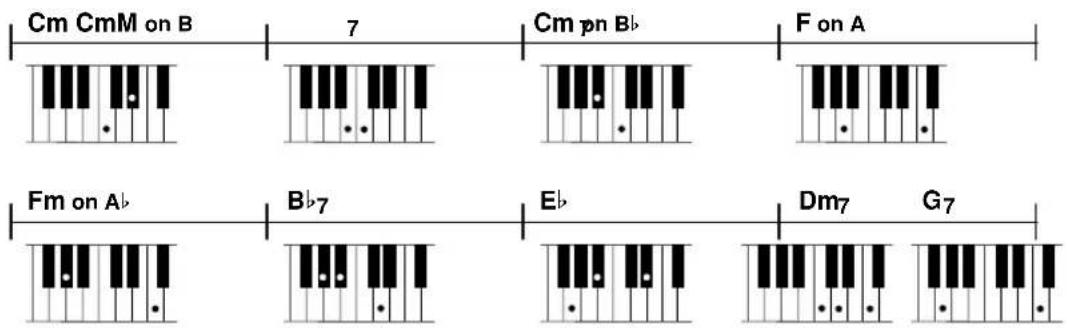
In addition to making it possible to easily play chords that would normally require you to play 3 or 4 notes by actually playing only 2 notes, the ability to specify the bass note in the Fingered and Fingered Advanced modes can be a real advantage when playing progressions like the example below. Try playing the example, and you'll see what we mean. For details on two-note fingerings, see page 12.
● Example Progression
Style: Slow & Easy (16 Beat Category)
Fingering Mode: Fingered or Fingered Advanced
text_image
Cm CmM on B 7 Cm pn B♭ F on A Fm on A♭ B♭7 E♭ Dm7 G7
Maintaining Effects When Multitrack Recording .....
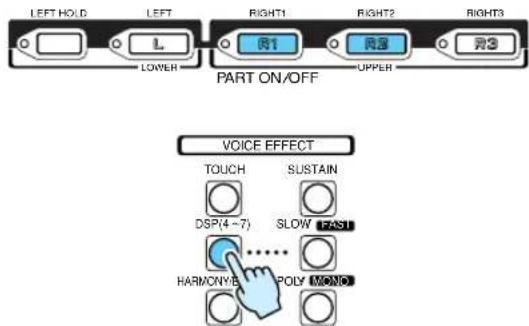
Normally, when multitrack recording you'll select a voice for R1, record a track, then select a different R1 voice and record the next track. The problem is that when the results are played back the first track will be played back without effects. The easiest solution is to use R2 for the second track instead of R1. That way the DSP effect used for the R1 tracks will be maintained even after the R2 track is recorded.
When you play back a recording that has been made as described above, no DSP effects will be applied a panel voice you play on the keyboard. If you turn the panel DSP ON, however, the effect used in the song will be applied to the panel voice
text_image
LEFT HOLD LEFT RIGHT1 RIGHT2 RIGHT3 R1 R3 R3 LOWER PART ON/OFF VOICE EFFECT TOUCH SUSTAIN DSP(4~7) SLOW FAST HARMONYB POLY MONO
page 88
page 110

Single-part Activation
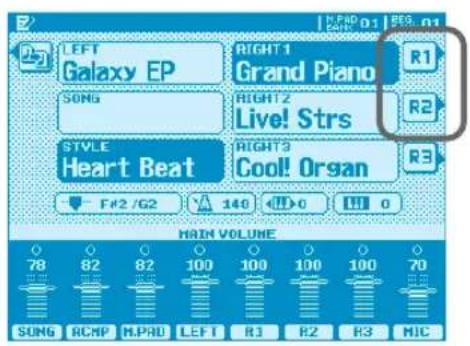
Press the LCD [F] button from the main display to turn only the R1 part on and all other parts off. In the same way, press the LCD [G] button to turn the R2 part on and all other parts off. If you assign the next voice you want to use to R2, for example, then while playing R1 you can press the LCD [G] button to instantly switch to R2 and the assigned voice. Furthermore, the DSP effect is not switched so you can seamlessly switch between voices while playing.
text_image
LEFT Galaxy EP RIGHT 1 Grand Piano R1 SONG RIGHT 2 Live! Strs R2 STYLE Heart Beat RIGHT 3 Cool! Organ R3 F#2 /G2 140 0 0 MAIN VOLUME 78 82 82 100 100 100 100 100 70 SONG RCMP M.PRO LEFT R1 R2 R3 MIC
page 16 page 16

SMF Song Name Converter
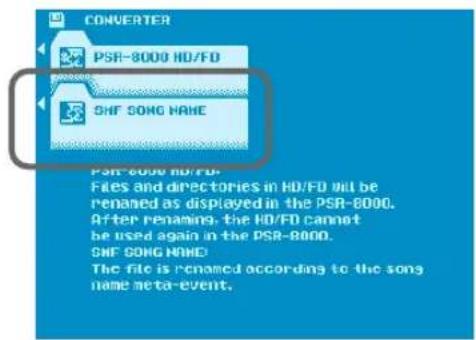
In the PSR-9000 and 9000Pro it has become possible to use filenames longer than the standard 8-character limit. This means you can name files with complete song titles, for example, for easy identification. Because of the conventional 8-character limit many SMF Song files have file names made up of symbols and numbers, while the actual song title is embedded in the file and can only be viewed when the file is loaded and used.
The SMF Song Name Converter feature resolves this problem by automatically extracting the embedded file name and attaching it as the file name. You can even “bulk convert” a number of files in one operation.
text_image
CONVERTER PSR-8000 HD/FD SHF SONG NAME PSR-8000 HD/FD Files and directories in HD/FD will be renamed as displayed in the PSR-8000. After renaming, the HD/FD cannot be used again in the PSR-8000. SHF SONG NAME: The file is renamed according to the song name meta-event.
page 131 page 155

Parameter Lock - Reverb Type.
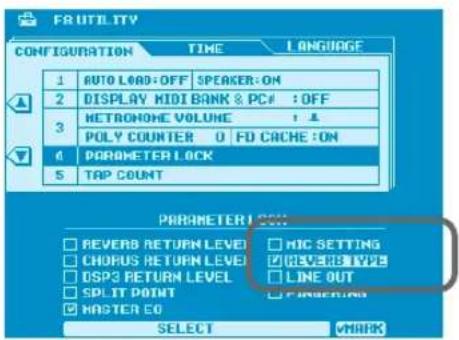
Some SMF Song files automatically change the reverb type when played. If you don't want this to happen, use this Parameter Lock function. The Parameter Lock setting is memorized with the System Backup data, so if you always want to keep the Reverb Type setting "locked", perform a System Backup so that the Parameter lock setting will remain in effect.
text_image
FRI UTILITY CONFIGURATION TIME LANGUAGE 1 AUTO LOAD:OFF SPEAKER:ON 2 DISPLAY MIDI BANK & PC# : OFF 3 METRONE VOLUME : 1 4 POLY COUNTER 0 FD CACHE:ON 5 PARAMETER LOCK 6 TAP COUNT PARAMETER LOCK □ REVERB RETURN LEVEL □ MIC SETTING □ CHORUS RETURN LEVEL □ REVERB TYPE □ DSPS RETURN LEVEL □ LINE OUT □ SPLIT POINT □ PINGERING ☑ MASTER CO SELECT MARK
page 142
page 166

Reverb Effect Return Level and Parameter Lock .....
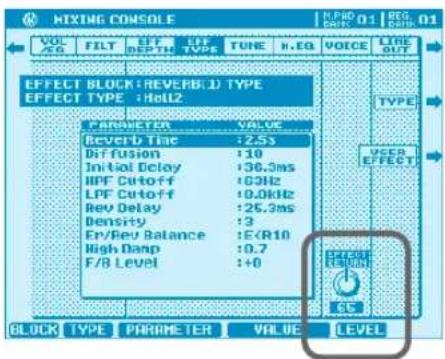
When you want to increase or decrease the amount of overall reverb applied to the accompaniment, individually editing all styles is time-consuming and inefficient. The easy approach is to use the Reverb Return Level parameter to adjust the overall reverb depth.
Some SMF songs automatically change the Reverb Return Level setting when played. If you want to retain your reverb Return Level setting no matter what songs you play use the Parameter Lock function, and perform a System Backup so that the settings will be retained.
text_image
MIXING CONSOLE VOL /50 FILT LEFT DEPTH LEFT TYPE TUBE N.EQ VOICE LINE OUT EFFECT BLOCK: REVEPSID TYPE EFFECT TYPE : He12 PARAMETER VALUE REVEPSID +2.5s Diffusion +10 Initial Delay +36.3ms HPF Cutoff +63Hz LPF Cutoff +0.0kHz Rev Delay +25.2ms Density +3 En/Rev Balance +E/R10 High Damp +0.7 F/B Level ++0 BLOCK TYPE PARAMETER VALUE LEVEL
page 124
page 146

Selecting an XG Voice
XG is a major enhancement of the GM System Level 1 format, and has been developed by Yamaha specifically to provide more voices and variations, as well as greater expressive control over voices and effects, and to ensure compatibility of data well into the future. To call up the XG voices of a certain voice category, simply select a voice category while pressing the [XG] button.
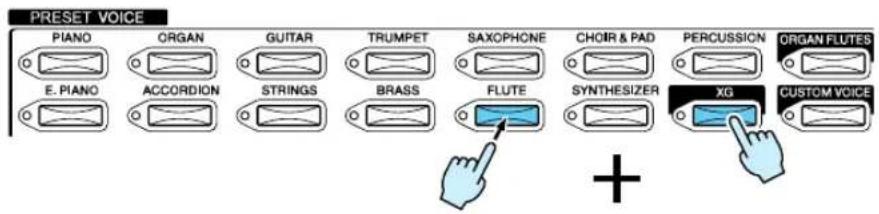
text_image
PRESET VOICE PIANO ORGAN GUITAR TRUMPET SAXOPHONE CHOIR & PAD PERCUSSION ORGAN FLUTES E. PIANO ACCORDION STRINGS BRASS FLUTE SYNTHESIZER XG CUSTOM VOICE +

Selecting a Voice/Style/Song/Reg.Memory via PC Keyboard ..
By connecting a standard PC/AT type keyboard to the PC keyboard terminal on the back of the 9000, you'll be able to select Voices, Styles, Songs and Registration Memory by number.

text_image
PC KEYBOARD

Program Change Display.
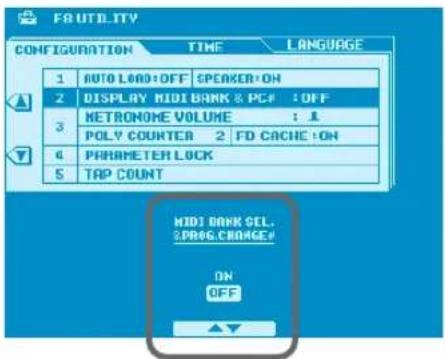
This function shows the MIDI bank select and program change numbers that correspond to each of the voices - convenient when using a PC-based sequencer. To turn this function on, press the [FUNCTION] button and then select the UTILITY. Use the LCD buttons to access and turn on the DISPLAY MIDI BANK & PC# setting.
text_image
F8 UTILITY CONFIGURATION TIME LANGUAGE 1 AUTO LOAD:OFF SPEAKER:ON 2 DISPLAY MIDI BANK & PC# :OFF 3 METRONOME VOLUME : 1 POLY COUNTER 2 FD CACHE:ON 4 PARAMETER LOCK 5 TAP COUNT HIDI BANK SEL. 2PROG.CHANGE# ON OFF

Song Chord Detection.
Try this technique if you want to learn the chord progression for a song, or apply Harmony/Echo effects or Vocal Harmony that match the song.
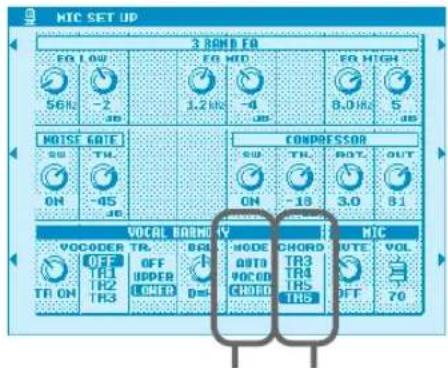
Most songs will have one part which is playing the chord progression – the first step is to locate that part. While playing the song, turn the parts on and off, “soloing” each part until you find the one that is playing the chord backing. Next, if the chord part is on Track 6, for example, Set the Mic Setup Chord parameter to TR6 and return to the main display page. The chord names should appear on the display as the song plays back. To learn the chord progression all you need to do is make a note of the chords that appear on the display. Turn Harmony/Echo ON if you want to add harmony to a part you play on the keyboard, or turn Vocal Harmony ON and select the Chordal Mode to produce appropriate vocal harmony.
You might also want to memorize the settings with the song selection in the Registration Memory so that the next time you select that Registration Memory the Mic Setup Chord parameter settings will automatically be recalled.
text_image
MIC SET UP 3 RAND ER EO LOW 56Hz -2 JB EO MID 1.2 Hz -4 JB EO HIGH 8.0 Hz S JB MOISE GATE SUB THU ON -45 JB CONPRESSOR SUB TRU ON -18 BOT 3.0 OUT 81 VOCAL BORM 4V MIC VOCODER TR. OFF TH1 TR2 TR3 OFF UPPER LOWER DRU D=- MODE CHORD AUTO TR3 VOCOD CHORD TR4 TR5 TR6 OUT VOL OFF 70want Vocal Harmony effect.
Select the appropriate track.Select Chordal Mode (CHORD) if you

page 70
page 82

Instant Access to Any Function Menu
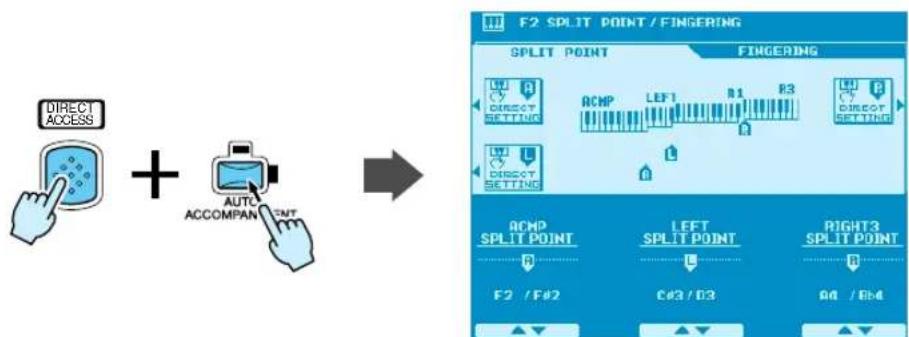
The 9000 lets you instantly call up function menus by simply pressing the [DIRECT ACCESS] button and a button or wheel associated with that function.
- Let's say, for example, that you want to set the split points. First press the [DIRECT ACCESS] button and then press the [AUTO ACCOMPANIMENT] button.
flowchart
graph LR
    A["Direct Access"] --> B["+"]
    B --> C["AUTO ACCOMPAN TEXT"]
    C --> D["F2 SPLIT POINT / FINGERING"]
    D --> E["SPLIT POINT"]
    E --> F["FINGERING"]
    F --> G["ACMP LEFT1 R1 R3"]
    G --> H["RIGHT3 SPLIT POINT"]
    H --> I["F2 / F#2"]
    H --> J["C#3 / D3"]
    H --> K["A0 / B#4"]
- The Split Point/Fingering menu appears on the screen. You can now set the split points.
This chart shows a list of all menus that are accessible through the Direct Access function.
| Function of the accessed LCD display Operation: + button listed below | See pages (PSR-9000) | See pages (9000Pro) | ||
| Mixing Console | Volume/EQ settings (Main) MAIN VARIATION [A] 122 | 44 | ||
| Volume/EQ settings (Accompaniment) MAIN VARIATION [B] 122 144 | ||||
| Volume/EQ settings (Song tracks 1 - 8) MAIN VARIATION [C] 122 144 | ||||
| Volume/EQ settings (Song tracks 9 - 16) MAIN VARIATION [D] 122 144 | ||||
| Filter settings (Main) FILL IN & BREAK [] 122 144 | ||||
| Filter settings (Accompaniment) FILL IN & BREAK [] | 122 144 | |||
| Filter settings (Song tracks 1 - 8) | FILL IN & BREAK [] 122 144 | |||
| Filter settings (Song tracks 9 - 16) | FILL IN & BREAK [] 122 144 | 122 | 144 | |
| Effect Depth settings (Main) | VOCAL HARMONY [MIC SETUP] | 122 144 | ||
| Effect Depth settings (Main) | ENDING [I] 122 144 | |||
| Effect Depth settings (Accompaniment) ENDING [II] | 122 144 | |||
| Effect Depth settings (Song tracks 1 - 8) | ENDING [III] | 122 144 | ||
| Effect Depth settings (Song tracks 9 - 16) | FADE IN/OUT | 122 144 | ||
| Effect Type settings | VOICE EFFECT [DSP(4-7)] | 123 145 | ||
| Effect Type settings (Microphone Sound) | VOCAL HARMONY [DSP(8)] 123 145 | |||
| Effect Parameter settings | VOICE EFFECT [SLOW/FAST] | 123 145 | ||
| Tune Settings (Portamento Time) | VOICE EFFECT [POLY/MONO] | 122 144 | ||
| Tune Settings (Pitch Bend Range) | PITCH BEND wheel | 122 144 | ||
| Tune Settings (Octave) | UPPER OCTAVE [+], [-] | 122 144 | ||
| Tune Settings (Tuning) | PART ON/OFF [R1] | 122 144 | ||
| Tune Settings (Tuning) | PART ON/OFF [R2] | 122 144 | ||
| Tune Settings (Tuning) | PART ON/OFF [R3] | 122 144 | ||
| Tune Settings (Tuning) | PART ON/OFF [L] | 122 144 | ||
| Tune Settings (Transpose) | TRANSPOSE [+] | 122 144 | ||
| Master EQ settings | [MIXING CONSOLE] | 125 147 | ||
| Master EQ settings | [MAIN MIXER] | 125 147 | ||
| Master EQ settings | INTRO [I] | 125 147 | ||
| Voice selection | [PART ON/OFF] | 122 144 | ||
| Voice selection | VOICE [PIANO] - [PERCUSSION] | 122 144 | ||
| Voice selection | INTRO [II] | 122 144 | ||
| Line Out settings | INTRO [III] | 126 148 | ||
| Function | Master Tuning | [SOUND CREATOR] | 134 158 | |
| Scale Tuning | MULTI PAD [STOP] | 134 158 | ||
| Split Point/Fingering mode settings | [AUTO ACCOMPANIMENT] | 135 159 | ||
| Split Point/Fingering mode settings | [LEFT HOLD] | 135 159 | ||
| Foot Controller Volume settings | FOOT VOLUME | 135 159 | ||
| Footswitch 1 function assignment | FOOTSWITCH 1 | 136 160 | ||
| Footswitch 2 function assignment | FOOTSWITCH 2 | 136 160 | ||
| Modulation wheel settings | MODULATION wheel | 137 161 | ||
| Initial Touch setting | VOICE EFFECT [TOUCH] | 137 162 | ||
| After Touch setting | VOICE EFFECT [SUSTAIN] | 137 162 | ||
| Transpose Assign | TRANSPOSE [-] | 138 162 | ||
| Registration settings REGISTRATION MEMORY [1] - [8] | 139 163 | |||
| Registration settings REGIST BANK [+], [-] | 139 163 | |||
| Registration Memory FreezeGroupSetting | [FREEZE] | 139 163 | ||
| Voice Set settings (R1) | PART SELECT [R1] | 139 163 | ||
| Voice Set settings (R2) | PART SELECT [R2] | 139 163 | ||
| Voice Set settings (R3) | PART SELECT [R3] | 139 163 | ||
| Voice Set settings (L) | PART SELECT [LEFT] | 139 163 | ||
| Harmony/Echo settings | [HARMONY/ECHO] | 140 164 | ||
| Video monitor settings | [DEMO] | 141 165 | ||
| Talk Setting | VOCAL HARMONY [TALK] | 141 165 | ||
| AutoLoad (and Speaker) settings | [FUNCTION] | 142 166 | ||
| Display MIDI Bank & Program Change # VOICE [XG] - | CUSTOM VOICE 142 166 | |||
| Metronome Volume for Recording setting | [DIGITAL RECORDING] | 142 166 | ||
| Parameter Lock settings | [MEMORY] | 142 166 | ||
| Tap Count setting | TAP TEMPO | 142 166 | ||
| Auto Exit Time setting | PAGE CONTROL [BACK] | 143 167 | ||
| Language settings | PAGE CONTROL [NEXT] | 143 167 | ||
| Style Manager | Menu selection | PRESET STYLE [8 BEAT] - [BALLROOM] | 62 | 74 |
| Loading Style into Flash ROM | FLASH STYLE [I] - [VIII] | 62 | 74 | |
| Style Selection | Directory selection | [DISK DIRECT] | 63 | 151 |
| Song Selection | Directory selection | SONG DIRECTORY [I] - [V] | 66 | 78 |
| Directory selection | [SONG SETUP] | 66 | 78 | |
| Directory selection | [SONG PLAYER] | 66 | 78 | |
| Multi Pad | Repeat settings | MULTI PAD [1], [2], [3], [4] | 65 | 77 |
| Chord Match settings | MULTI PAD BANK [+], [-] | 65 | 77 | |
| DISK/SCSI | Loading Data from a Disk to Flash ROM | [DISK/SCSI] | 96 | 152 |
| MIDI | Clock setting | [MIDI] | 151 175 | |
| VocalHarmony | Parameter settings | VOCAL HARMONY [V.H.(9)] | 69 | 81 |
| Parameter settings | VOCAL HARMONY [SELECT] | 69 | 81 | |
| Music Database | Searching the Music Database | [MUSIC DATABASE] | 27 | 27 |
| Restoring the default tempo setting of the selected style | Data dial | - | - | |
| Restoring the default tempo setting of the selected style | ONE TOUCH SETTING [1] - [4] | - | - | |
| Returning to the default display (that appears when the power is turned on) | [EXIT] | - | - | |
| Exiting from the Direct Access mode | [DIRECT ACCESS] | - | - | |

Revoice
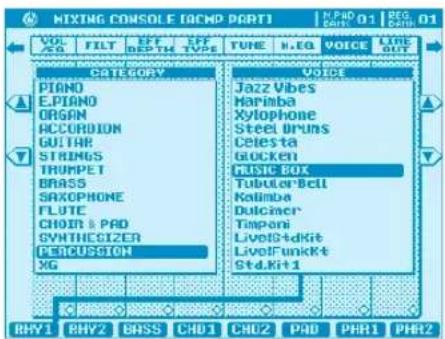
Revoice lets you create new style accompaniments by changing style parameters such as the voices, volumes and tempo. Any changes you make to a style can be stored in Registration Memory.
text_image
MIXING CONSOLE (IACMP PART) VOL /50 FILT LEFT DEPTH LEFT TYPE TUNE H.EQ VOICE LINE OUT CATEGORY PIANO EPIANO ORGAN ACCURDION GUITAR STRINGS TRUPPET BRASS SAXOPHONE FLUTE CHORD & PAD SYNTHESIZER PERCUSSION XG VOICE Jazz Vibes Harimba Xylophone Steel Bruns Celesta BUCKEN MUSIC BOX Tubular Bell Kalimba Dulcimer Timpani LiveStdKit LiveFunkKit Std Kit1 RHY1 RHY2 BASS CHD1 CHU2 PAD PHR1 PHR2
page 108
page 130

Tap Tempo Sound.
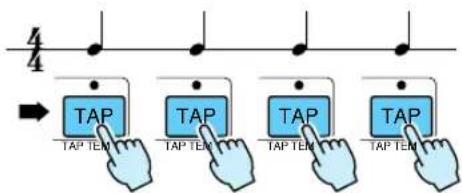
You can use the [TAP/TEMPO] button to start song playback simply by tapping a one-measure introduction at your desired tempo. The tap sound and velocity can be customized and stored in Registration Memory. For example, you can select a loud open hi-hat sound for the intro of a hard-driving rock song. Or, choose a soft stick sound for the intro to a slow ballad. To access this function, press the [DIRECT ACCESS] button and then press the [TAP/TEMPO] button.
flowchart
graph TD
    A["Start"] --> B["TAP TEM"]
    B --> C["TAP TEM"]
    C --> D["TAP TEM"]
    D --> E["TAP TEM"]
    E --> F["TAP TEM"]

page 142
page 166

Reducing Mic Sibilance
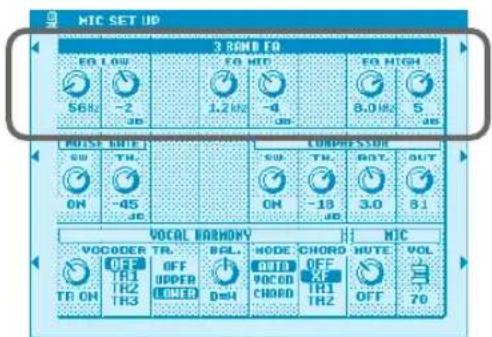
Sibilant sound, such as spoken words that begin with the letter S, tend to sound over emphasized when sung through a microphone. To reduce this hissing effect, press the [MIC SETUP] button. In the 3 Band EQ section, the default setting of the high EQ is 8kHz/+5dB. Change this setting to 10kHz and reduce the gain (dB) to +3dB or whichever setting best suits your acoustic environment.
text_image
MIC SET UP 3 ROND FO EO LOW EO MID EO HIGH 56Hz -2 1.2Hz -4 8.0Hz 5 ABS AUTO GRIE COMPRESSION SW TH. OH -45 JB ON -18 JB OUT 3.0 81 VOCAL HARMONY MIC VOCODER TR. OFF OFF OFF UPPER BGL. MODE CHORD OFF OFF TR1 TR2 TR3 VOCO CHORD OFF TH1 TH2 HUTE OFF 70
page 70
page 82

Mic Compressor
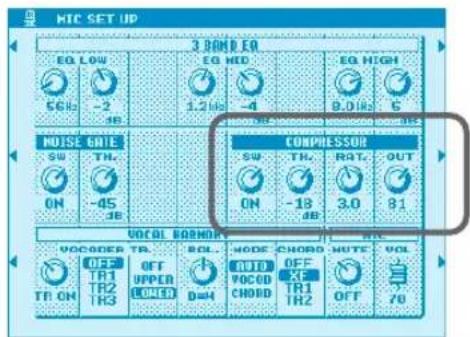
Compression is an essential effect for a vocal microphone. It allows singing to be reproduced more clearly and smoothly by boosting the level of soft signals and lowering the level of loud signals. Press the [MIC SETUP] button to access the Mic Compressor. Try the singing with the compressor effect turned on and then compare singing with it turned off. Notice the difference?
text_image
MTC SET UP EQ LOW EQ HIGH EQ HIGH 5GHz -2 dB 1.2 kHz -4 dB 8.0 kHz 6 dB NOISE BRIE SW TH. ON -45 dB COMPRESSOR SW TH. ON -18 dB RAT. 3.0 OUT 81 VOCAL BOUND VOCODER TR. OFF TR1 TR2 TR3 OFF UPPER CLOPED D=O MODE CHORD NOTE VOL AUTO OFF VOCOD XF CHORD TR1 TH2 OFF 70
page 70 page 82

Vocal Harmony Mode
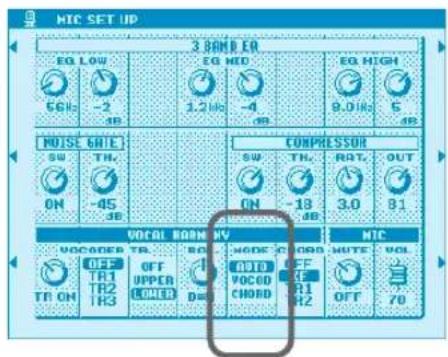
Vocal Harmony mode can be set to either Chordal mode (harmony is determined by chords played in the auto accompaniment or by chords contained in song data) or Vocoder mode (harmony is determined by the notes you play on the keyboard or by the Vocal Harmony track of a song). When this mode is set to AUTO, the Vocal Harmony setting changes automatically according to the situation. For example, if you play back a song file that contains a Vocal Harmony track, the Vocal Harmony setting will automatically switch to Vocoder mode. To access the Vocal Harmony setting, press the [MIC SETUP] button.
text_image
MIC SET UP 3 BAN RER EQ LOW 6GH2 -2 dB EQ MID 1.2 Mb -4 dB EQ HIGH 9.0 Mb 5 dB NOISE 6RTE SW TH. ON -45 dB COMPRESSION SW TH. ON -13 dB RAT. 3.0 81 VOCAL ROOM VOCODER TR. OFF TR1 OFF TR2 OFF TR3 OFF UPPER LOWER MODE CHORD ADD OFF VOCOCHORD MTC HUTE VOL OFF 70
page 70 page 82

Talk Button
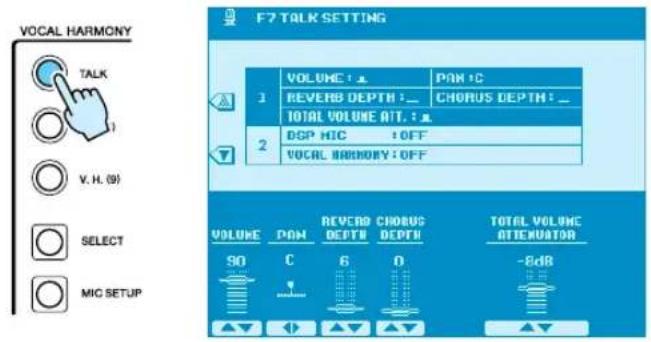
This function is ideal for making announcements between your singing performances. When singing a song, several effects such as reverb, delay and vocal harmony are usually assigned to the MIC Setup. When speaking to your audience, however, these effects may sound disturbing. Whenever the [TALK] button is turned on, Delay and Vocal Harmony effects turn off and the amount of reverb lowers automatically. Talk settings can be customized as well, allowing you to add effects to your voice as you speak to your audience.
text_image
VOCAL HARMONY TALK V. H. (9) SELECT MIC SETUP F7 TALK SETTING 1 VOLUME: 1 PAN: C 2 REVERB DEPTH: CHORUS DEPTH: TOTAL VOLUME AT: 1 DSP MIC : OFF VOCAL HARMONY: OFF VOLUME PAN REVERB CHORUS TOTAL VOLUME ATTENUATOR SO C 6 D -8dB
page 141
page 165

Password
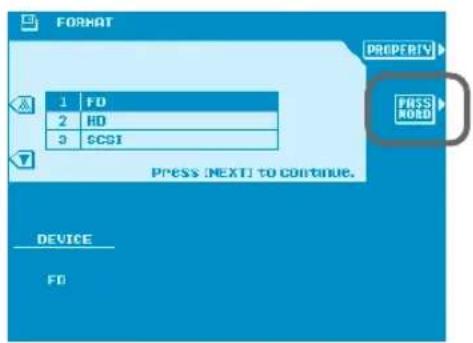
You can protect your floppy disks and hard drives with a password to prevent accidental data loss due to reformatting. To access this function, press the [DISK/SCSI] button and then select FOR-MAT and PASSWORD using the LCD buttons.
text_image
FORMAT 1 FD 2 HD 3 SCSI PRESS NEXT TO CONTINUE. DEVICE FD PROPERTY PASS LOAD
page 132
page 156

Simultaneous Parameter Change
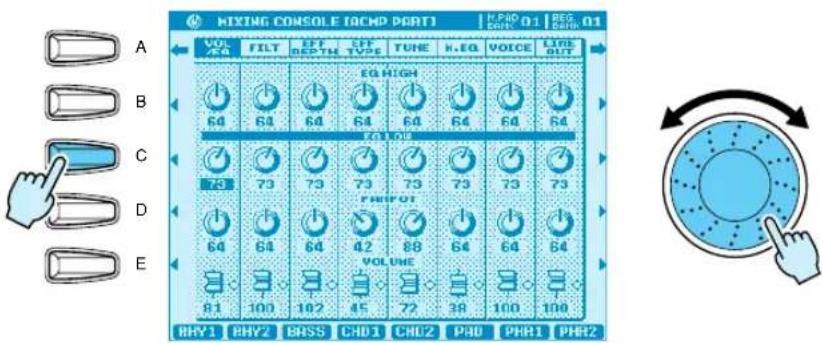
This convenient function allows you to simultaneously change all the parameter knobs of a specified row in the Mixing Console menu. Press and hold down the LCD button of a parameter you want to change (for example, any row of on-screen knobs in the VOL/EQ, FILT, EFF, DEPTH and TUNE menus) and use the Data dial to change the value.
text_image
MIXING CONSOLE [CHMP PART] | H.PAD 01 | BGS PART 01 VOL VGA FILT EFT DEPTH LET TYPE TUNE H.EG VOICE LINE OUT EQ HIGH 64 64 64 64 64 64 64 64 EQ HIGH 79 73 73 73 73 73 73 73 PHIFOT 64 64 64 42 88 64 64 64 64 VOLUME 81 100 102 45 72 38 100 100 RHY1 RHY2 BASS CHD1 CHD2 PAD PHR1 PHR2
page 122
page 144

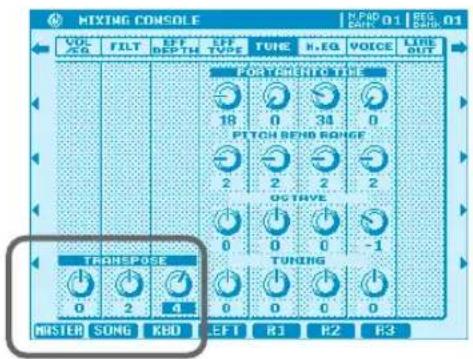
Keyboard Transpose and Song Transpose
Two types of transpose settings are available: Keyboard Transpose and Song Transpose. Keyboard Transpose changes the key of the keyboard as well as the chord accompaniment. Song Transpose changes the key of a song when played back from disk. The combination of these functions allows you to, for example, sing along in the key of E with a song that's been recorded in the key of D, while playing the keyboard in the key of C.
text_image
MIXTAG CONSOLE VOL XG FILT LEFT DEPTH LEFT TYPE TUBE R.EG VOICE LINE OUT POT RENT ROLL 18 0 34 0 PITCH BEND RANGE 2 2 2 2 OCTAVE 0 0 0 -1 TRANSPOSE 0 2 4 TUNING 0 0 0 0 0 MASTER SONG KHD EFT R1 R2 R3
page 123
page 145

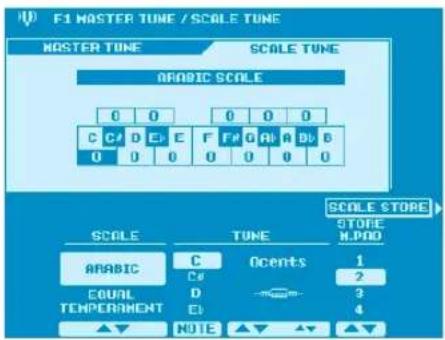
Using Multi Pads to Change Scale Tuning

The Scale Tuning function allows you to create your own custom scale tunings such as those used in Arabic music. Up to four different scale tunings can be stored in Multi Pad Bank #60, allowing you to change tunings on the fly as you are playing.
text_image
F1 MASTER TUNE / SCALE TUNE MASTER TUNE SCALE TUNE ARABIC SCALE 0 0 0 0 0 C C D E F F G H I A B D B 0 0 0 0 0 0 0 SCALE STORE STORE H.PAD ARABIC C Ocents 1 C# 2 COAL D 3 TEMPERAMENT E 4 NOTE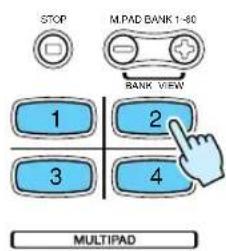
text_image
STOP M.PAD BANK 1-60 BANK VIEW 1 2 3 4 MULTIPAD
pages 119 & 134
pages 141 & 158

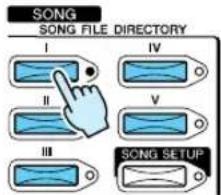
Song File Directory
This unique function allows you to quickly access your favorite song files from a disk. Any directory, be it on a floppy disk, internal hard disk or external SCSI disk, can be assigned to one of the five buttons on the LCD panel for one-touch access.
text_image
SONG SONG FILE DIRECTORY I II III IV V SONG SETUP
page 66
page 78

Song Selection via Registration Memory

Not only can you use Registration Memory to change voices and styles, but also to select song files from a disk. Furthermore, you can use it to call up songs in your favorite key using the Song Transpose function.

pages 28 & 123
pages 28 & 145

Touch Limit for Harmony/Echo
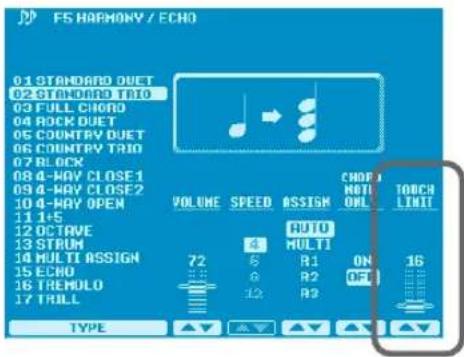
This function determines how hard the keyboard must be played in order for the Harmony/Echo effect to sound. The higher the value, the harder the keyboard must be played to apply the Harmony/Echo effect. This setting is useful for adding performance expression to a voice; for example, adding a tremolo effect to a mandolin voice when played at higher velocities.
text_image
FS HARMONY / ECHO 01 STANDARD DUET 02 STANDARD TRI0 03 FULL CHORD 04 ROCK DUET 05 COUNTRY DUET 06 COUNTRY TRI0 07 BLOCK 08 4-WAY CLOSE 1 09 4-WAY CLOSE 2 10 4-WAY OPEN 11 1+5 12 OCTAVE 13 STRUM 14 MULTI ASSIGN 15 ECHO 16 TREMOLO 17 TRAIL VOLUME SPEED ASSIGN CHOP MOTI ON LITCH ONLY LIMIT AUTO MULTI 72 5 R1 ON 16 8 R2 OFF 12 R2 TYPE
page 140
page 164

Sub Line Out
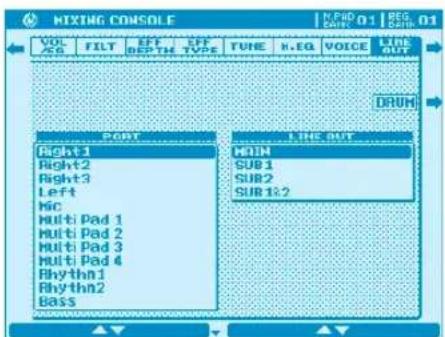
Next to the main stereo outputs are two (four on the 9000Pro) sub outputs, which can be used as either two single outputs or one stereo output. You can assign any part or parts, including the MIC signal and groups of drum sounds, to these outputs. If an audio cable is not plugged into a sub output jack, the signal of any part assigned to that output will be automatically routed to the main stereo outputs, which eliminates the hassle of reconfiguring the outputs whenever your playing environment changes. For further convenience, the output assignment is saved in Registration Memory and, if preferred, can be locked using the Parameter Lock function.
text_image
MIXING CONSOLE VOL ASB FILT EFF DEPTH EFF TYPE TUNE K.EQ VOICE LINE OUT DRUM PORT MAIN SUB1 SUB2 SUB1:2 LINE OUT Right1 Right2 Right3 Left hic Multi Pad 1 Multi Pad 2 Multi Pad 3 Multi Pad 4 Rhythm1 Rhythm2 Bass
page 126
page 148

Register Bank View
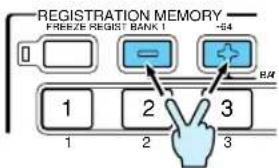
This function makes it easy to look for a specific Registration Memory among the 512 locations. Simply press the [+] and [-] Registration Memory buttons at the same time to display the names of the Registration Memory Banks on the LCD. Then use the LCD buttons to navigate through the various banks.
flowchart
graph TD
    A["0"] --> B["1"]
    B --> C["2"]
    C --> D["3"]
    D --> E["3"]
    E --> F["+64"]
    F --> G["BAT"]
    style A fill:#f9f,stroke:#333
    style G fill:#bbf,stroke:#333

page 28
page 28

Auto Exit Time
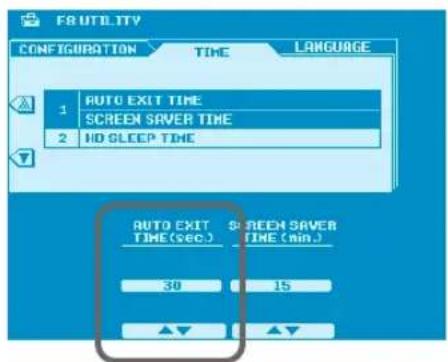
With this function set to a time value, selecting a voice or style results in the display automatically returning to the previous display after the selected amount of time has passed. This function is extremely useful when you're in Multi-Record mode and you want to browse through the voices as you compose your song, for example. To set the Auto Exit Time value, press the [FUNCTION] button and select the UTILITY menu. Then press the [NEXT] button to display the TIME page.
text_image
F:\UTILITY CONFIGURATION TIME LANGUAGE 1 AUTO EXIT TIME SCREEN SVER TIME 2 NO SLEEP TIME AUTO EXIT TIME (sec) SCREEN SVER TIME (min.) 30 15 ▲▼ ▲▼
page 143
page 167

MIDI Templates.
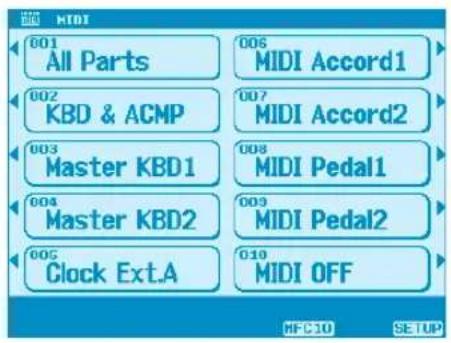
If you use the 9000 along with other MIDI equipment, such as a MIDI accordion, MIDI pedal or an external sequencer, you can quickly and easily set the MIDI parameters by selecting one of the 10 preset MIDI Templates. You can program your own MIDI Templates as well.
text_image
001 All Parts 002 KBD & ACMP 003 Master KBD1 004 Master KBD2 005 Clock Ext.A 006 MIDI Accord1 007 MIDI Accord2 008 MIDI Pedal1 009 MIDI Pedal2 010 MIDI OFF MFC10 SETUP
page 150
page 174

Using the MFC10 with the 9000
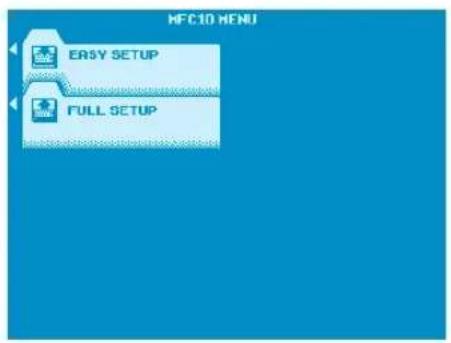
The Yamaha MFC10 is the ideal foot controller for use with the 9000. It provides extensive keyboard control including Registration Memory selection, transposition, Vocal Harmony control, Slow/Fast setting of the DSP effect, Multi Pad play and more. Setting up the MFC10 is a snap. Simply press the [MIDI] button and select MFC10 at the bottom of the LCD screen. You can choose Easy Setup or Full Setup, either of which will guide you step by step through the setup process.
text_image
MFC10 MENU EASY SETUP FULL SETUP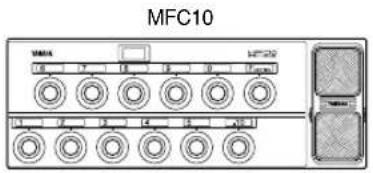
text_image
MFC10 VANA 12/17/2022
page 154
page 178